
Cloud Administration Guide for Service Cloud. August 2015 E
|
|
|
- Oliver Morrison
- 10 years ago
- Views:
Transcription

1 Cloud Administration Guide for Service Cloud August 2015 E

2 Table of Contents Introduction 4 How does Policy Automation work with Oracle Service Cloud? 4 For Customers 4 For Employees 4 Prerequisites for Oracle Service Cloud 4 Oracle Service Cloud concepts 5 Connections to an Oracle Service Cloud site 6 Establish a connection to an Oracle Service Cloud site 6 Configure your Oracle Service Cloud connection 6 Create the user OPA_Client in Oracle Service Cloud 6 Enter the password for the user OPA_Client in Policy Automation Hub 11 View your Oracle Service Cloud connection details 12 Test an Oracle Service Cloud connection from an interview 13 Troubleshoot Oracle Service Cloud connections 17 Create an Oracle Service Cloud interview 19 Create a new Oracle Service Cloud answer 20 Interviews in Agent Desktop 22 Incorporate interviews into Oracle Service Cloud Agent Desktop 22 Create a new custom workspace 22 Add the OPA control to the workspace 25 Configure the OPA control 31 Provide access to the workspace 31 Test the workspace 34 Interviews in Customer Portal 36 Incorporate interviews into Oracle Service Cloud Customer Portal 36 Embed an anonymous interview in Oracle Service Cloud Customer Portal 36 Embed an interview that uses portal data in Oracle Service Cloud Customer Portal 39 Deploy and configure the OPA sample widget 40 Install the widget 40 Ensure compatibility of info.yml file with Oracle Service Cloud 14.2 and later versions 41 Activate the widget 42 Configure the shared secret 42 Test and stage the widget 44 Insert the sample widget into a Customer Portal page 44 Insert the widget into an Answer 44 Insert the widget into a page 45 Insert the widget into an Incident detail page 45 Enable mobile or basic rendering of Oracle Service Cloud Customer Portal 45 Configure widget parameters 46 Test the widget 46 Data mapping 49 Set up data mappings for an Oracle Service Cloud interview 49 Decide who the interview is for 49 Decide where to pre-seed interview data from 50 For Customer Portal users 50

3 For contact center staff 52 For anonymous users 53 Decide what to do with the data at the end of an interview 53 Save the data mappings 54 Refresh the data model 54 View example data mappings 54 For anonymous users 54 For Customer Portal users 55 For contact center staff 57 Bind an entity to an Oracle Service Cloud table 59 Map an entity to an Oracle Service Cloud data source table 59 Bind an attribute to an Oracle Service Cloud field 61 Bind an attribute to a field in the Oracle Service Cloud data source 62 Understand data type compatibility between Oracle Policy Automation and Oracle Service Cloud 64 Oracle Service Cloud lists supported by OPA 65 Understand Oracle Service Cloud data mapping limitations 69 Example project 71 Understand and configure the provided custom control example project 71 Locate the custom controller files 71 Upload the custom controller files to an Oracle Service Cloud instance 71 Update the Emergency Response example project to use the custom controller files 72 Troubleshooting 73 Troubleshoot Oracle Service Cloud interviews 73 Understand the Oracle Service Cloud data adapter error codes 73 Ensure compatibility with Oracle Service Cloud 14.2 and later versions 75 Fix widget activation issues 75 Delete the OPAWidget 76 Create a new widget 76 Oracle Service Cloud compatibility 78 Oracle Service Cloud Customer Portal compatibility 78 Oracle Service Cloud Agent Desktop compatibility 78 Legal Notices 80 Third-party products and licenses 81 List of third-party products 81 List of third-party licenses 89

4 Introduction How does Policy Automation work with Oracle Service Cloud? Oracle Policy Automation (OPA) Cloud Service can be used with Oracle Service Cloud by customers, employees or both. For Customers Using OPA within Oracle Service Cloud Customer Portal: Customers can be anonymous, or logged in as authenticated users (Contacts) OPA interviews can be embedded in answers, or embedded directly on a page Incidents and other Service Cloud objects can be created and updated For more information, see: Incorporate interviews into Oracle Service Cloud Customer Portal Deploy and configure the OPA sample widget OPA can also be used standalone, for example, integrated with any other portal or website. For Employees Using OPA within Oracle Service Cloud Agent Desktop: Agents must be logged in to use OPA interviews The OPA workspace control is used Incidents and other Service Cloud objects can be created and updated For more information, see: Incorporate interviews into Oracle Service Cloud Agent Desktop OPA can also be used by authenticated Service Cloud agents, via a web browser. To do this: Ensure each agent has an Account (a System Administrator must manage Accounts using Agent Desktop) Access the agent interview URL via the browser. (The agent interview URL is the same as the session-based interview URL, with the addition of "secure" in the path before the startsession. For example, /path/web-determinations/secure/startsession/projectname. For more information, see Start a new interview via a URL in the Developer Guide. When prompted, login with Account username and password See also: Understand Oracle Service Cloud data mapping limitations Prerequisites for Oracle Service Cloud There are certain prerequisites for successfully integrating Oracle Policy Automation (OPA) with Oracle Service Cloud. The prerequisites are that: 1. You have the correct version of the Oracle Service Cloud. This should be no earlier than the August 2012 release. For a complete list of compatible releases, see Oracle Service Cloud compatibility. 2. The OPA Cloud Service has been provisioned and linked to your Oracle Service Cloud instance. Additionally, Connect web services must be enabled for your Oracle Service Cloud instance. 3. The user OPA_Client has been set up as described in Create the user OPA_Client in Oracle Service Cloud

5 Introduction 4. The Status of your Oracle Service Cloud connection on the Connections tab on Policy Automation Hub displays as Available (indicated by a green check icon). See Troubleshooting Oracle Service Cloud connection for more information if the connection Status displays as Failing (indicated by a red stop icon). 5. MOD_CP_DEVELOPMENT_ENABLED is set to Yes in the Oracle Service Cloud Site Configuration Settings. This will enable the uploading of the widget for integrating data-bound interviews into the Customer Portal. Note: This is only necessary if you are going to be editing Customer Portal pages, including the deployment of the widget. To test that the integration of OPA with Oracle Service Cloud has been successful, see Test an Oracle Service Cloud connection from an interview. Notes: Each OPA Cloud Service (Policy Automation Hub) can only link to one Oracle Service Cloud instance. If you have multiple Policy Automation Hubs set up (for example, a development Hub and a production Hub): both can link to the same Oracle Service Cloud instance, and if you have an OPA project where attributes and entities are data-mapped to custom Oracle Service Cloud objects or fields, both development and production Hubs must link to the same Oracle Service Cloud instance. Oracle Service Cloud concepts The following are the key concepts when using Policy Automation with Oracle Service Cloud: Oracle Service Cloud Customer Portal Agent Desktop Oracle Service Cloud (formerly RightNow) is part of Oracle's portfolio of Customer Experience (CX) Software as a Service (SaaS) applications. It is delivered through Oracle Cloud. It includes a Customer Portal, an Agent Desktop, Policy Automation and other integrated applications. A component of Oracle Service Cloud that allows customers to raise and review incidents, interact with Policy Automation interviews, find and read knowledge articles and complete other tasks. A component of Oracle Service Cloud that allows agents to manage and review incidents, interact with Policy Automation interviews, knowledge articles and other information needed to support customers via online, chat or call center
6 Connections to an Oracle Service Cloud site Establish a connection to an Oracle Service Cloud site The Oracle Service Cloud connection on Policy Automation Hub is used to communicate between Policy Automation Hub and Oracle Service Cloud. Through the Oracle Service Cloud connection: metadata is retrieved from Oracle Service Cloud, and data is saved and loaded by deployed Oracle Policy Automation (OPA) interviews. For more information, see: Test the Oracle Service Cloud connection from an interview Troubleshooting Oracle Service Cloud interviews Troubleshooting your Oracle Service Cloud connection If you do not have an Oracle Service Cloud connection enabled, you should contact Oracle Service Cloud customer support. What do you want to do? Configure your Oracle Service Cloud connection View your Oracle Service Cloud connection details Configure your Oracle Service Cloud connection To configure your Oracle Service Cloud connection you need to: 1. Create a user called OPA_Client in Oracle Service Cloud, and 2. Enter the password for OPA_Client in Policy Automation Hub. You can then view the Oracle Service Cloud connection details. Create the user OPA_Client in Oracle Service Cloud The Oracle Service Cloud connection on Policy Automation Hub uses a user called OPA_Client to communicate with the Oracle Service Cloud Connect web service. You must create the OPA_Client user in Oracle Service Cloud and provide it with access permissions in the Public SOAP API (Simple Object Access Protocol Application Programming Interface) area. 1. Log in to your CX Console. 2. Create a profile. To do this: i. In the Configuration navigation pane on the left, open the Staff Management folder. Double-click Profiles. ii. On the Home tab, click New. A new Profile tab is displayed showing the Profile Interfaces - Edit view


7 Connections to an Oracle Service Cloud site iii. Enter a name for the profile. iv. On the Home tab, click Permissions. An OPAServiceProfile tab is displayed showing the Profile Permissions - Edit view. v. On the Administration tab, set the permissions required for the appropriate release version as described in the table below

8 OPA Cloud Administration Guide for Service Cloud Table 1. Permissions required on the OPAServiceProfile. Oracle Service Cloud / RightNow version Required permissions Feb 2012 Check RightNow Connect in the Administration section of the Administration tab Check Account Authentication in the Public SOAP API section of the Administration tab May 2012 to Feb 2013 Check Connect Data Integration in the Administration section of the Administration tab Check Account Authentication in the Public SOAP API section of the Administration tab. May 2013 and beyond Check Account Authentication in the Public SOAP API section of the Administration tab Check the appropriate read/edit/delete options for the Oracle Service Cloud objects that will be mapped to OPA interviews (on the Organizations, Contacts, Service, Opportunities, Tasks and Custom Objects tabs). For more information, see Customizing Profiles (opens in new window) in the Oracle Service Cloud User Guide. For more information about mapping Oracle Service Cloud objects to OPA interviews, see Set up data mappings for an Oracle Service Cloud interview. vi. On the Home tab, click Save (or Save & Close). 3. Create a new user called OPA_Client and assign it to the profile you created above. To do this: i. In the Configuration navigation pane on the left, open the Staff Management folder. Double-click Staff Accounts by Group. ii. On the Home tab, click New. An OPA Client tab is displayed showing the Account Details - Edit view


9 Connections to an Oracle Service Cloud site iii. Complete all of the mandatory fields. To create a new group for the OPA_Client user (unless a suitable group exists already): a. Click the search icon to the right of the Group field. b. In the Account Groups dialog, click New Group

10 OPA Cloud Administration Guide for Service Cloud c. Enter the group name OPAClientGroup. iv. d. Click OK. Click the Change Password button. In the Change Password dialog, enter and confirm your password. Ensure it follows the password policy of your organization. This is the password that will be entered in Policy Automation Hub for the user OPA_Client. v. Specify the Time Zone. The time zone must be west of UTC (Coordinated Universal Time) - anything between GMT-1 and GMT-14. vi. On the Home tab, click Save (or Save & Close). Note: For more detailed information on how to create users in Oracle Service Cloud, see the section Initial setup for the administrator (opens in new window) in the Oracle Service Cloud documentation

11 Connections to an Oracle Service Cloud site Enter the password for the user OPA_Client in Policy Automation Hub The password is required for seeding and saving data to an interview from Oracle Service Cloud. The password set in Policy Automation Hub must match the password set for the user OPA_Client in Oracle Service Cloud. Note that any errors that occur during data loading and saving of data-bound interviews are logged to Policy Automation Hub and can be viewed by clicking on the Message Logs tab. For a description of the errors you might encounter, see Understand the Oracle Service Cloud data adapter error codes. To enter the password for the user OPA_Client in Policy Automation Hub: 1. Log in to the Policy Automation Hub web interface with a Hub Administrator user role. 2. Click the Connections button on the Welcome screen. This will display the Connections tab. 3. In the Connections tab, your Oracle Service Cloud connection should appear in the list of connections, with a connection Type of 'Oracle Service Cloud'. Click the name of the connection. The Connection dialog box shows details of the connection. 4. In the New password field, enter the Oracle Service Cloud password for the user OPA_Client
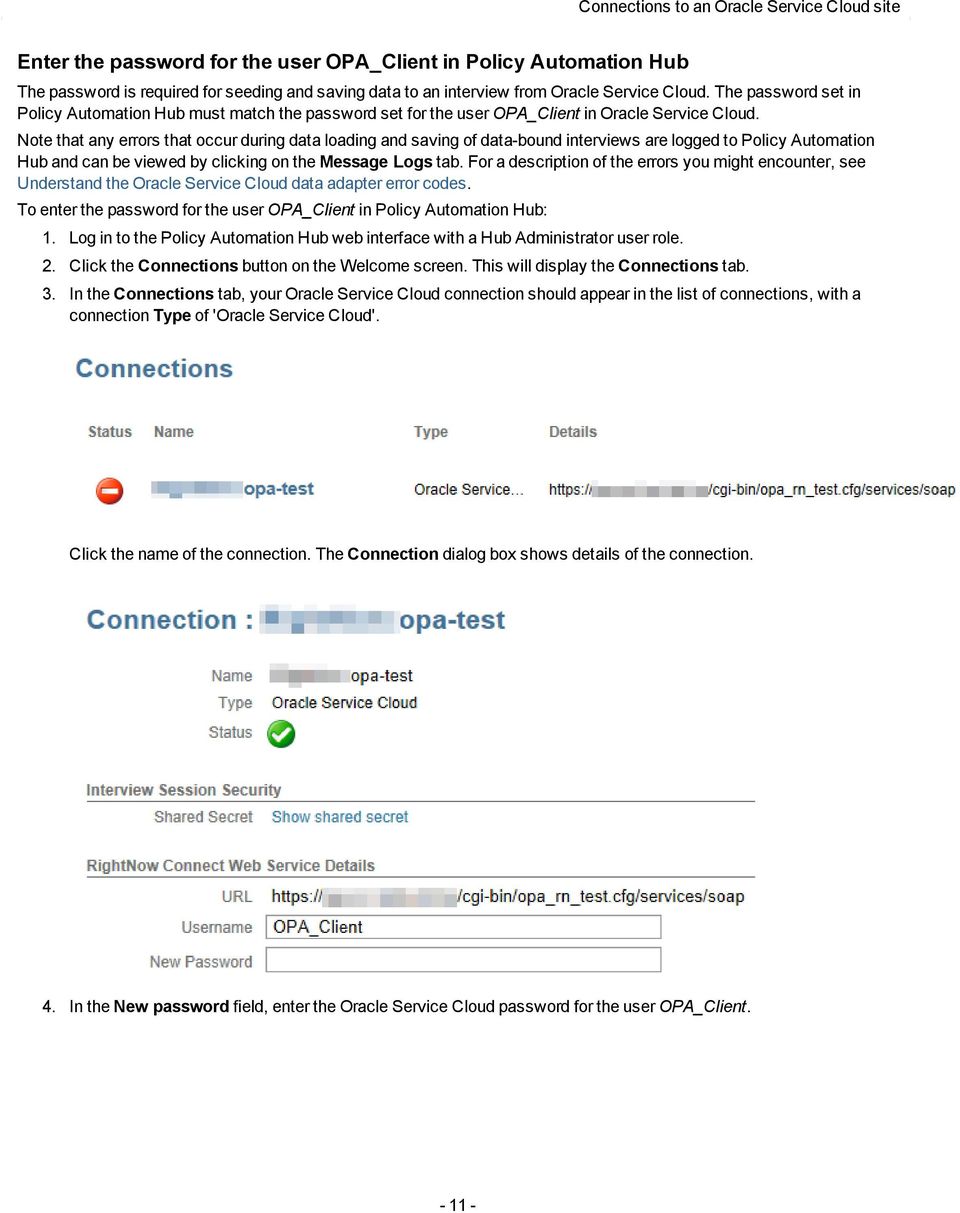
12 OPA Cloud Administration Guide for Service Cloud 5. Click Save and Close. Policy Automation Hub tests the connection with the new password. If the test is: successful, the Status displays as Available - indicated by a green check icon unsuccessful, the Status displays as Failing - indicated by a red stop icon. Ensure you have typed the password correctly. Tip: A log of messages about the connection, including any errors, can be viewed on the Message Logs tab on Policy Automation Hub. For a description of the errors you might encounter, see Understand the Oracle Service Cloud data adapter error codes. If you are unable to fix the failing connection after viewing the Message Log, contact your Policy Automation Hub administrator or Oracle Service Cloud customer support. View your Oracle Service Cloud connection details Once you have completed configuring your Oracle Service Cloud connection, you can view the details in the Connections tab on Policy Automation Hub. To do this: 1. Log in to the Policy Automation Hub web interface with a Hub Administrator user role. 2. Click the Connections button on the Welcome page. 3. In the Connections tab, your Oracle Service Cloud connection should appear in the list of connections, with a connection Type of Oracle Service Cloud. Click the name of the connection. The Connection dialog box opens, showing details of the connection. This dialog box displays: the Name of the Oracle Service Cloud connection (your CX site name) the connection Type 'Oracle Service Cloud'. Note: if the connection Type is not 'Oracle Service Cloud', you are viewing details for the wrong connection. Click Cancel and find a connection with a Type of 'Oracle Service Cloud' in the list of Connections on the Policy Automation Hub Connections tab

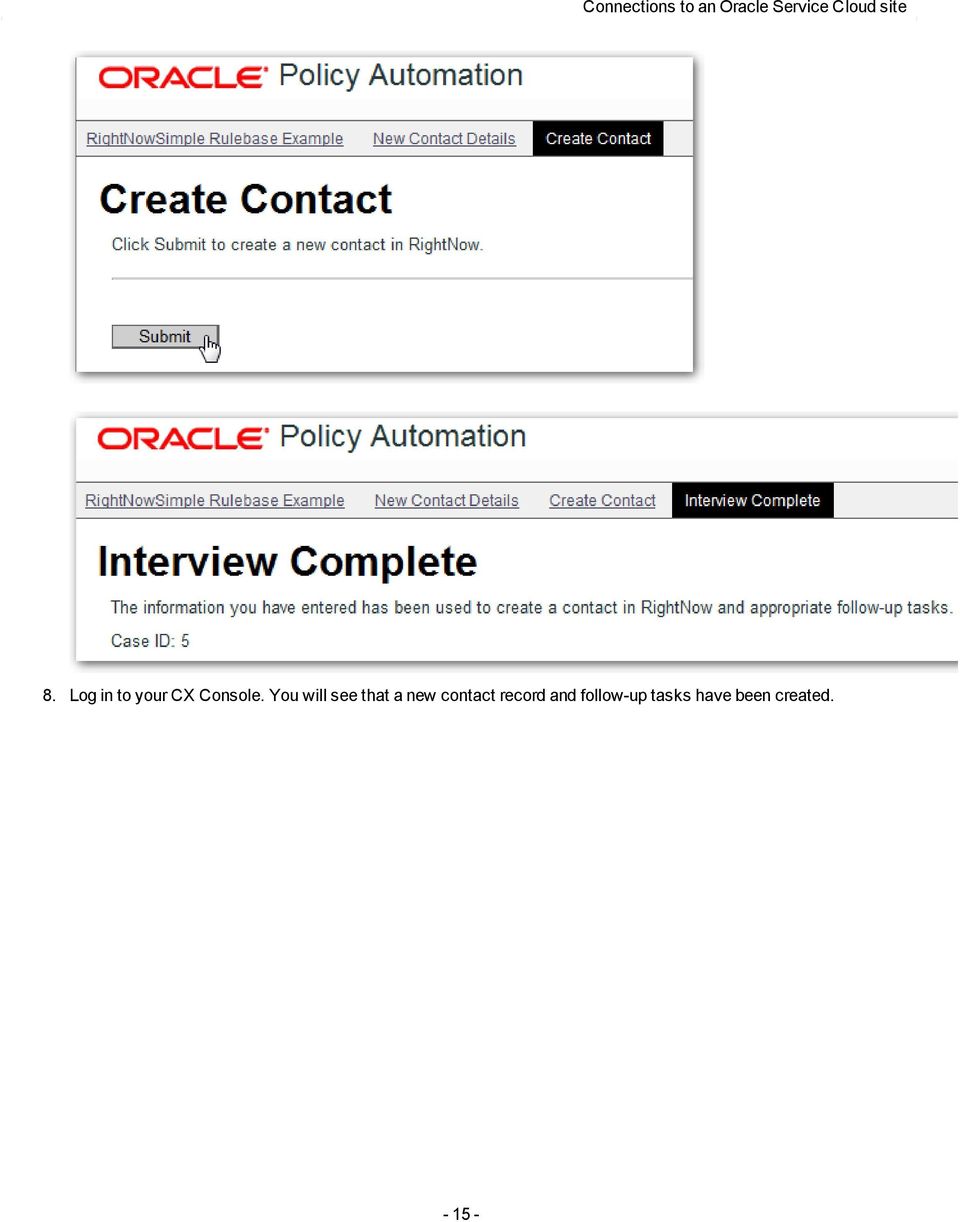
13 Connections to an Oracle Service Cloud site the current Status of the Oracle Service Cloud connection. This will be either: Available - indicated by a green check icon, or Failing - indicated by a red stop icon the Shared Secret field. You can view the existing shared secret by clicking the Show shared secret link. You can also generate a new shared secret from the Actions menu. For more information about the Shared Secret field, see Configure the shared secret. the SOAP (Simple Object Access Protocol) URL of the web service corresponding to the Oracle Service Cloud instance the Username used to access the Oracle Service Cloud instance, and the New Password field. For information on changing this password, see Enter the password for the user OPA_Client in Policy Automation Hub. Tip: A log of messages about the connection, including any errors, can be viewed on the Message Logs tab on Policy Automation Hub. For a description of the errors you might encounter, see Understand the Oracle Service Cloud data adapter error codes. Test an Oracle Service Cloud connection from an interview The following test can be performed to confirm that the end-to-end integration has been successful and that a data-bound interview can be run in the Customer Portal. 1. Ensure that all of the prerequisites for integrating Oracle Policy Automation (OPA) with the Oracle Service Cloud have been implemented. 2. In Policy Modeling, open the RightNowSimple example policy model. 3. Connect it to your Policy Automation Hub. 4. Refresh the data model. 5. Deploy and activate the project. 6. Optionally, add the interview to your Oracle Service Cloud Customer Portal. For more information, see Incorporate OPA interviews into Oracle Service Cloud Customer Portal. 7. Test the interview

14 OPA Cloud Administration Guide for Service Cloud

15 Connections to an Oracle Service Cloud site 8. Log in to your CX Console. You will see that a new contact record and follow-up tasks have been created
16 OPA Cloud Administration Guide for Service Cloud

17 Connections to an Oracle Service Cloud site Troubleshoot Oracle Service Cloud connections If the Connections tab on Policy Automation Hub shows that an Oracle Service Cloud connection is failing or that the connection is not configured, you can troubleshoot the problem using the information in Table


18 OPA Cloud Administration Guide for Service Cloud Table 1. Oracle Service Cloud connection errors Oracle Service Cloud connection status Troubleshooting Failing (circular red stop icon) Not configured (not visible in Connections tab) Ensure that the Oracle Service Cloud connection is configured correctly. For more information, see Establish a connection to an Oracle Service Cloud site. Ensure that you have Connect Web Services enabled for your Oracle Service Cloud instance. Ensure that the prerequisites for successfully integrating Oracle Policy Automation (OPA) with Oracle Service Cloud have been met. For more information, see Prerequisites for OPA with Oracle Service Cloud. If the problem persists, contact Oracle Service Cloud provisioning as there may be other environmental issues affecting the service. Ensure that the password set in Policy Automation Hub matches the password set for the user OPA_Client in Oracle Service Cloud. For more information, see Enter the password for the user OPA_Client in Policy Automation Hub. See also: Troubleshoot Oracle Service Cloud interviews

19 Create an Oracle Service Cloud interview The process for creating an Oracle Service Cloud interview is as follows: 1. Ensure your Hub Administrator has set up a connection to Oracle Service Cloud. For more information, see Establish a connection to an Oracle Service Cloud site. 2. Choose the connection from your project in Policy Modeling. Note: If exactly one connection is configured on Policy Automation Hub, Policy Modeling will automatically choose that connection for you and you can skip this step. You can change a connection at any time. 3. Map the data in the policy model to the appropriate objects and fields in Oracle Service Cloud. For more information, see Set up data mappings for an Oracle Service Cloud interview. 4. Create screens for collecting data in the interview. For more information, see Add, modify or delete a screen in the Policy Modeling User Guide. Note that if the interview requires saving to Oracle Service Cloud and has output data mappings, one of the screens needs to have a Submit button. 5. Deploy and activate the project from Policy Modeling (or deploy it from Policy Modeling and activate it from Policy Automation Hub). For more information, see Deploy and activate a project in the Project Administrator Guide. 6. If the interview is an authenticated Customer Portal interview and requires saving data, deploy the OPA widget. For more information, see Deploy and configure the OPA sample widget. 7. Run the interview. For more information, see Test an activated interview in the Project Administrator Guide. 8. Fix any errors encountered while running the interview. For more information, see Troubleshoot Oracle Service Cloud interviews. Tip: Oracle Service Cloud interviews are demonstrated in the Insurance Picker, RightNowSimple, Student Benefits and Travel Compensation example projects that are installed with Policy Modeling


20 Create a new Oracle Service Cloud answer This topic is a quick introduction to creating Answers in Oracle Service Cloud. For more information, consult the Oracle Service Cloud documentation. To create a new answer in Oracle Service Cloud: 1. Log in to your CX Console. Note: Ensure that you have sufficient permissions within your Oracle Service Cloud instance to add or edit answers. 2. Click Ctrl+Shift+A. 3. On the New Answer tab: i. In the Summary field, enter a name for the answer. ii. In the Status dropdown list, select the Public. 4. On the Content tab on the Question sub-tab, enter the text for the question being asked. Note that this text will appear above the widget for the duration of the interview. A short sentence such as an introduction to the questions being asked and for what purpose may be useful, or if the interview itself explains this clearly and you do not want static question text on the page, leave the Question blank


21 Create a new Oracle Service Cloud answer 5. On the Home ribbon, click Save. See also: Prerequisites for OPA with Oracle Service Cloud
22 Interviews in Agent Desktop Incorporate interviews into Oracle Service Cloud Agent Desktop Once a project has been deployed as an Oracle Policy Automation (OPA) interview via Policy Automation Hub, the OPA interview can be incorporated into Oracle Service Cloud Agent Desktop. To do this you need to: 1. Create a new custom workspace 2. Add the OPA control to the workspace 3. Configure the OPA control 4. Provide access to the workspace 5. Test the workspace Tip: The Student Benefits (Agent Desktop) example project that is installed with Policy Modeling is designed for use with Oracle Service Cloud Agent Desktop. Create a new custom workspace To create a new custom workspace: 1. Log in to your CX Console. Note: Ensure that you have sufficient permissions within your Oracle Service Cloud instance to make configuration changes. 2. In the Configuration navigation pane on the left, open the Application Appearance folder. Double-click Workspaces. 3. In the Folders view, click Standard. 4. In the Standard folder, select the workspace where you want to embed the OPA interview (for example, Contact). Tip: If using Oracle Service Cloud August 2014, this can be a chat workspace if desired
23 Interviews in Agent Desktop 5. Right-click and select Copy. 6. In the Copy As dialog, enter a name for the custom workspace in the Name field (for example, CustomContact)
24 OPA Cloud Administration Guide for Service Cloud
25 Interviews in Agent Desktop 7. Click OK. The new workspace should appear in the Workspaces folder. Add the OPA control to the workspace To add the OPA control to the new workspace:
26 OPA Cloud Administration Guide for Service Cloud 1. Log in to your CX Console. Note: Ensure that you have sufficient permissions within your Oracle Service Cloud instance to make configuration changes. 2. In the Configuration navigation pane on the left, open the Application Appearance folder. Double-click Workspaces. 3. In the Folders view, click Workspaces. 4. In the Workspaces folder, double-click the workspace created in Create a new custom workspace (for example, CustomContact). 5. In the main Oracle Service Cloud menu, select the Design tab. 6. In the Selected Object group, click Add Tab
27 Interviews in Agent Desktop A new subtab is added to the workspace tab. 7. On the Design tab in the Label group, click Text
28 OPA Cloud Administration Guide for Service Cloud 8. In the drop-down field, enter a name for the new tab (for example, Student Benefits). 9. In the main Oracle Service Cloud menu, select the Insert Control tab. 10. In the Controls group, select the Policy Automation control and drag it onto the new tab
29 Interviews in Agent Desktop The new tab now shows the Policy Automation control
30 OPA Cloud Administration Guide for Service Cloud 11. (Optional) If: the new workspace you have created is a chat workspace, and the OPA control you have inserted is for a project which has input or output mappings to the Oracle Service Cloud Incident object, you may wish to adjust the default Incident creation behavior of the chat workspace. To start this process, click the Options button on the Home tab. 12. (Optional) If your OPA project is configured to: upload files to Oracle Service Cloud from the OPA interview, or save a copy of a generated form from the OPA interview to Oracle Service Cloud, you will need to expose the Attachments tab in the workspace so that the Agent Desktop user can see the saved files

31 Interviews in Agent Desktop Configure the OPA control To configure the OPA control: 1. Log in to your CX Console. Note: Ensure that you have sufficient permissions within your Oracle Service Cloud instance to make configuration changes. 2. In the Configuration navigation pane on the left, open the Application Appearance folder. Double-click Workspaces. 3. In the Folders view, click Workspaces. 4. In the Workspaces folder, double-click the workspace created in Create a new custom workspace (for example, CustomContact). 5. On the workspace tab, select the tab created in Add the OPA control to the workspace. 6. In the main Oracle Service Cloud menu, select the Design tab. 7. In the Options group, click Policy Model. 8. In the text entry field which appears, type the exact name of the deployed policy model that contains the interview you want to expose to agents (for example, StudentBenefits). Note: The policy model must have the mapping settings set to load the same object that the workspace is for. For information on the mapping settings for agent interviews, see Decide where to pre-seed interview data from for contact center staff. 9. (Optional) In the Options group, click Locale. 10. (Optional) In the text entry field which appears, type the locale for the interview (for example, en-us for United States English or pt-br for Brazilian Portuguese). This must match a valid locale name for the deployed interview. Tip: Leave this field blank to use the default locale for the interview. 11. On the main Oracle Service Cloud toolbar, click the save button. Provide access to the workspace To provide your users with access to the new workspace:
32 OPA Cloud Administration Guide for Service Cloud 1. Log in to your CX Console. Note: Ensure that you have sufficient permissions within your Oracle Service Cloud instance to make configuration changes. 2. In the Configuration navigation pane on the left, open the Staff Management folder. Double-click Profiles. 3. On the Profiles tab, double-click the profile that you want to give access to the new workspace
33 Interviews in Agent Desktop 4. On the tab for that profile, click the magnifying glass icon for the new workspace (for example, CustomControl). 5. In the Workspaces dialog, select the new workspace. Click OK. 6. On the Home tab, click Save

34 OPA Cloud Administration Guide for Service Cloud Test the workspace To test the new workspace: 1. Log in to your CX Console. Note: Ensure that you have sufficient permissions within your Oracle Service Cloud instance to make configuration changes. 2. Access a record relevant to the new workspace, for example, a Contact or Incident record. 3. Click the tab you created in Add the OPA control to the workspace. The OPA interview should appear
35 Interviews in Agent Desktop Tips: 1. If you are working with an OPA control in a chat workspace, you can: drag the OPA interview question text into the Compose pane of the chat, and copy and paste customer answers as required, from the Compose pane of the chat into variable input controls in the OPA interview. For more information on working with an OPA control in a chat workspace, see the video tutorial Chat Workspace Integration. To watch, visit August 2014 Policy Automation New Feature Tutorials (opens in new window) and follow the link. 2. If your OPA project is configured to: upload files to Oracle Service Cloud from the OPA interview, or save a copy of a generated form from the OPA interview to Oracle Service Cloud, you will need to expose the Attachments tab in the workspace to check that the Agent Desktop user can see the saved files. Note: If you see a 404 error in the place where the first page of the OPA interview should be, this could be because, when configuring the OPA Control, the name of the deployed policy model (in Step 8) or the locale (in Step 10) was entered incorrectly. Check the available log files, including the Policy Automation Hub Message Logs Tab, for details. For more information, see Troubleshooting Oracle Service Cloud interviews. See also: Prerequisites for OPA with Oracle Service Cloud
36 Interviews in Customer Portal Incorporate interviews into Oracle Service Cloud Customer Portal Once a project has been deployed as an interview, the interview can be embedded into Oracle Service Cloud Customer Portal. There are two ways to do this: 1. Anonymous interviews can be embedded directly into an inline frame. For more information, see Embed an anonymous interview in Oracle Service Cloud Customer Portal. 2. Interviews designed for logged-in Contacts that need to load or save Contact data can be embedded using the provided sample widget. For more information, see Embed an interview that uses portal data in Oracle Service Cloud Customer Portal. See also: Prerequisites for Oracle Service Cloud Embed an anonymous interview in Oracle Service Cloud Customer Portal You can embed an Oracle Policy Automation (OPA) interview into Oracle Service Cloud Customer Portal by rendering it in an inline frame (IFRAME). To do this: 1. Deploy and activate the project. 2. View the project on Policy Automation Hub. 3. Copy the URL in the Interview field in the box at the top of the deployment details screen for the project

37 Interviews in Customer Portal 4. Create a new Oracle Service Cloud answer. Alternatively, you can edit an existing Oracle Service Cloud answer. 5. On the Answer sub-tab, select the Source sub-tab. 6. Enter the text of the answer, including the following code where you want to embed the OPA interview: <iframe height="580" src=" width="100%"></iframe>. Tip: The scrolling attribute can be used to specify whether or not to display scrollbars in the IFRAME. (Valid attributes values are auto, yes and no.) Note: must be replaced by the URL of the interview that you copied from Policy Automation Hub in step 3 above. It is in the form of where server/path represents the path to the location of the Policy Automation Hub server, and projectname is the name of the policy model
38 OPA Cloud Administration Guide for Service Cloud 7. On the Home ribbon, click Save. Tip: Click on Quick Preview to check that the answer appears as it should. 8. Launch your Oracle Service Cloud Customer Portal. (The URL for this would have been provided to you when you installed your Oracle Service Cloud instance.) 9. On the Answers tab, click on the new answer link. The view now shows the question and answer text and the embedded OPA interview

39 Interviews in Customer Portal Tip: You can change the appearance of your OPA interview to make it a more integrated experience. This can include modifying the header, the footer and the progress bar and changing the colors and fonts used on the page. For more information, see Configure the appearance of the interview in the Policy Modeling User Guide. See also: Prerequisites for OPA with Oracle Service Cloud Embed an interview that uses portal data in Oracle Service Cloud Customer Portal To embed an Oracle Policy Automation (OPA) interview that uses portal data in Oracle Service Cloud Customer Portal, you need to: 1. Deploy and activate the project. 2. Deploy and configure the sample OPA widget
40 OPA Cloud Administration Guide for Service Cloud 3. Insert the widget into an Answer or any other page in Customer Portal. To insert the widget into an Answer: i. Create a new Oracle Service Cloud answer. Alternatively, you can use an existing Oracle Service Cloud answer. ii. Add the widget into the Answer detail page for the relevant answer as described in Insert the sample widget into an Answer. To insert the widget into any other page, simply edit the relevant page as described in Insert the widget into a Page. Note that for this integration to work: a. The policy model must have data mappings configured for Customer Portal users. For more information, see Set up data mappings for an Oracle Service Cloud interview. b. The widget must be embedded on a page that is viewed by a logged-in Contact rather than an anonymous user. Tips: You can change the appearance of your OPA interview to make it a more integrated experience. This can include modifying the header, the footer and the progress bar and changing the colors and fonts used on the page. For more information, see Configure the appearance of the interview in the Policy Modeling User Guide. You can allow a user to upload files from within your OPA interview, which can then be attached to an Incident in Oracle Service Cloud Customer Portal. You can also do this with copies of forms generated during the interview. For more information, see Save a copy of a generated form to an external data source and Add uploads to screens in the Policy Modeling User Guide. The Student Benefits example project that is installed with Policy Modeling has data mappings configured for Customer Portal users. See also: Prerequisites for Oracle Service Cloud Deploy and configure the OPA sample widget To integrate Oracle Policy Automation (OPA) interviews inside the Customer Portal, we provide a sample Customer Portal widget. The widget captures the currently logged-in Contact ID and passes it to the OPA interview so that the OPA interview can load and save Oracle Service Cloud data related to the Contact. To deploy and configure the sample widget you need to: 1. Install the widget 2. Activate the widget 3. Configure the shared secret 4. Test and stage the widget Install the widget A sample Customer Portal widget is provided and can be used to display an OPA interview. To install the sample widget, do the following: 1. Save the file Oracle_Policy_Automation_Cloud_Examples_Aug2015.zip. 2. Unzip or extract the contents of the file

41 Interviews in Customer Portal 3. Upload the required files to your Oracle Service Cloud instance using WebDAV. (For information on how to do this, consult the Oracle Service Cloud documentation.) a. For RightNow versions Aug 2012 and earlier (that is, Customer Portal framework version 2): i. Upload the directory OPAWidget from customer-portal/widget/v2 to dav/euf/development/widgets/custom/opa ii. Upload the file opa-helper.php from customer-portal/widget to dav/euf/development/helpers Note: You will need to configure the shared secret before uploading this file. b. For Oracle Service Cloud versions Nov 2012 and later (that is, Customer Portal framework version 3): i. Upload the directory OPAWidget from customer-portal/widget/v3 to dav/cp/customer/development/widgets/custom/opa ii. Upload the file opa-helper.php from customer-portal/widget to dav/cp/customer/development/helpers Note: You will need to configure the shared secret before uploading this file. Ensure compatibility of info.yml file with Oracle Service Cloud 14.2 and later versions If you are using Oracle Service Cloud version 14.2 (or a later version), and you experience problems attempting to run an OPA interview with a widget that was working previously, you may need to make a minor change to the info.yml file in your currently deployed widget to fix the problem. To do this: 1. Using a WebDAV client (such as Cyberduck), log on to the site where your widget is currently deployed. For information on how to do this, consult the Oracle Service Cloud documentation. 2. Navigate to the following widget location: cp/- customer/development/widgets/custom/opa/opawidget/1.0/info.yml 3. In the requires: section of the info.yml file (commencing at line 2), delete the entire framework line (line 3). That is, delete the text "framework: ["3.0", "3.1"]"
42 OPA Cloud Administration Guide for Service Cloud 4. Save your changes, and upload your modified info.yml file to replace the existing one. 5. Test, stage and promote the new widget. Alternatively, you can simply delete your existing widget and create a new widget from scratch. Activate the widget Having now installed the widget, it can be activated as follows. Note that activation is only needed for Oracle Service Cloud versions Nov 2012 and later. 1. Open the Customer Portal Administration site at 2. In the menu bar, select Widgets, then Browse Widgets. 3. On the Widgets page, select Custom Widgets, then opa, and then OPAWidget. 4. In the custom/opa/opawidget view, click the Start using this version button. For information relating to any issues you may encounter during activation, see Fix widget activation issues. Configure the shared secret The shared secret is used to establish the link between the Customer Portal widget and OPA Web Determinations. The shared secret in Policy Automation Hub must match the shared secret in an existing OPA widget, so that OPA interviews embedded in Oracle Service Cloud Customer Portal can seed or save data to Oracle Service Cloud. To configure the shared secret: 1. Log in to the Policy Automation Hub web interface with a Hub Administrator user role. 2. Click the Connections button on the Welcome page. This will open the Connections tab. 3. In the Connections tab, your Oracle Service Cloud connection should appear in the list of connections, with a connection Type of Oracle Service Cloud. Click the name of the connection. The Connection dialog box
43 Interviews in Customer Portal opens, showing details of the connection. Tip: If you need to recover the existing shared secret, click the Show shared secret link. For example, you might want to verify that the widget has the correct shared secret. Alternatively, you may be debugging a widget that was deployed some time ago and you do not want to break it by generating a new shared secret. Note: There may be limited circumstances when you may wish to set the shared secret to match the shared secret of an existing widget deployed to Customer Portal. To do this, click the Show shared secret link, then edit the shared secret. However, for new connections it is recommended best practice that you always generate a new shared secret (see Step 4). 4. In the Actions drop-down menu, click Generate New Shared Secret. A shared secret is generated. Note: When you generate a new shared secret, any existing deployed widget using the previous shared secret will no longer work. 5. Copy the shared secret and paste it into the $shared_secret variable in the opa_helper.php file. Note: The sample implementation of the widget has a hard-coded shared secret. You may wish to load the shared secret from a file or a database. 6. Click Save and Close to activate the new shared secret
44 OPA Cloud Administration Guide for Service Cloud Test and stage the widget To test that you have deployed and configured the widget successfully, you should check that the interview starts in Web Determinations, and that data can be loaded. When the widget is working as expected, you may wish to promote it to Staging and then Production. Note: Ensure that the widget is activated before promoting it to Staging. See also: Prerequisites for Oracle Service Cloud Insert the sample widget into a Customer Portal page Insert the sample widget into a Customer Portal page The OPA widget can be embedded in any Oracle Service Cloud Customer Portal page, for example, an Answer page or an Incident detail page. What do you want to do? Insert the widget into an Answer Insert the widget into a page Enable mobile or basic rendering of Oracle Service Cloud Customer Portal Configure widget parameters Test the widget Insert the widget into an Answer To insert the widget into an Answer: 1. Open the answer detail file detail.php. This file can be found at: For RightNow versions Aug 2012 and earlier: dav/euf/rightnow/views/pages/answers For Oracle Service Cloud versions Nov 2012 and later: dav- /cp/customer/development/views/pages/answers 2. Insert the widget. Tip: A good place to add it is immediately after the closing tag of the rn_answer div. If you wish to display the widget only for certain answers, use geturlparm('a_id') to determine the Answer ID. For example, the following code snippet inserts the OPA widget for an Answer with ID 1: <?php if (geturlparm('a_id') == 1) {?> <rn:widget path="custom/opa/opawidget/" web_determinations_url=" Automation Hub URL>/web-determinations" policy_model="<name of your policy model>" locale="<locale code>"/> <?php }?> If you wish to display the widget for all answers, then use the following code snippet: <rn:widget path="custom/opa/opawidget/" web_determinations_url=" Automation Hub URL>/web-determinations" policy_model="<name of your policy model>" locale="<locale code>"/>
45 Interviews in Customer Portal 3. Ensure any other widget parameters are set as required. Insert the widget into a page To insert the widget into a page: 1. Open the file where you wish to embed the OPA interview (for example home.php). 2. Insert the following code snippet: <rn:widget path="custom/opa/opawidget/" web_determinations_url=" Automation Hub URL>/web-determinations" policy_model="<name of your policy model>" locale="<locale code"/> Insert the widget into an Incident detail page To insert the widget into an Incident detail page so as to pre-seed the interview with values from the current Incident: 1. Deploy a policy model that is set up to load Incident data in addition to the logged-in Contact. (For more information, see Set up data mappings for Oracle Service Cloud interview.) 2. Open the detail file detail.php. This file can be found at: For RightNow versions Aug 2012 and earlier: dav/euf/rightnow/views/pages/account/questions For Oracle Service Cloud versions Nov 2012 and later: dav- /cp/customer/development/views/pages/account/questions 3. Insert the following code snippet as the first item under rn_pagecontent: <?php?> <div> </div> $incidentid = \RightNow\Utils\Url::getParameter('i_id'); <rn:widget path="custom/opa/opawidget/" web_determinations_url=" Automation Hub URL>/web-determinations" policy_model="<name of your policy model>" init_id=#rn:php:$incidentid# /> 4. Ensure any other widget parameters are set as required. Enable mobile or basic rendering of Oracle Service Cloud Customer Portal To enable a mobile version of your Oracle Service Cloud Customer Portal, you need to: 1. Open the Customer Portal Administration site at 2. Click Page Set Mappings. 3. Click Enable for the iphone and/or Android mappings. This creates a mobile specific copy of all the pages, answers, questions and so on in the //views/pages/mobile/ directory. 4. Embed the widget code in these files too. To enable a basic version of your Oracle Service Cloud Customer Portal, you need to: 1. Open the Customer Portal Administration site at 2. Click Page Set Mappings. 3. Click Enable for the Basic mapping. This creates a basic mode version of all the pages, answers, questions
46 OPA Cloud Administration Guide for Service Cloud and so on in the //views/pages/basic/ directory. 4. Embed the widget code in these files too. Configure widget parameters Each page that includes the widget must configure the parameters the widget will use, and optionally specify additional parameters as outlined below. web_determinations_url (required) The full path to Web Determinations, for example, where is the URL of the relevant Policy Automation Hub. Note: to configure this parameter for your own environment, replace with the URL of the Policy Automation Hub you wish to use. policy_model (required) The name of the policy model to load. This must match the name of a policy model that has been deployed as an OPA interview via Policy Automation Hub. locale The locale to use during the interview. The locale is the language code of the rule language for the policy model, specified when you created the project. Alternatively, the locale of any of the additional translation files may be used to view the interview in those languages. For more information on the locale setting, see Locale codes in the Policy Modeling User Guide. init_id The ID (primary key) of the input data context for pre-seeding. This corresponds to the ID of an object mapped to global in the OPA data mapping. If this attribute is omitted, data will only be pre-seeded from the Contact object. Note that this parameter is required if the policy model data mappings refer to Contact and an additional input table (for example, Incident). In this case, the value of the init_id parameter should be the primary key of the input table (for example, Incident). You may wish to use custom code to populate the value of the init_id parameter at runtime, as in the Incident detail page example above. (For more information, see Insert the widget into an Incident detail page.) Note: For readability, we recommend placing each parameter on a separate line, for example: <rn:widget path="custom/opa/opawidget/" web_determinations_url=" policy_model="studentbenefits" locale="en-us"/> The widget parameters are also described at: For RightNow versions Nov 2012 and earlier: For Oracle Service Cloud versions Feb 2013 and later: Test the widget To test the widget to ensure that the integration is working as expected: 1. Open the Customer Portal Administration site at 2. Click View Development Area
47 Interviews in Customer Portal 3. If you are not signed in as a Contact, do so now. Note that if you do not have an account you may have to register. 4. On the Answers tab, click on the answer link. You should now see the OPA interview running inside an Answer, showing that the integration is working as expected. Tip: If you see a 404 error in the place where the widget should be, this could be because one of the widget parameters is missing or has been entered incorrectly. Check the available log files, including the Policy Automation Hub Message Logs Tab, for details. For more information, see Troubleshooting Oracle Service Cloud interviews

48 OPA Cloud Administration Guide for Service Cloud 5. When the widget is working as expected, you may wish to promote it to Staging and then Production. Note: Ensure that the widget is activated before promoting it to Staging. For more information, see Activate the widget. See also: Prerequisites for OPA with Oracle Service Cloud
49 Data mapping Set up data mappings for an Oracle Service Cloud interview To set up the data mappings for an Oracle Service Cloud interview, you need to specify the data source tables to read, update and create. Mapping information for the global entity is defined in the Mapping Settings dialog which is accessed by clicking the Mapping settings button on the Data tab. When you click this button for the first time for a particular policy model you will be prompted to log in to Policy Automation Hub. This enables table information and metadata to be retrieved from Policy Automation Hub (based on the Oracle Service Cloud connection that is configured in Policy Automation Hub). Note that you need to data map using the latest version of Policy Modeling. (You can get the latest version of Policy Modeling from Policy Automation Hub. For more information, see Install Oracle Policy Modeling in the Policy Modeling User Guide.) When setting up your data mappings you need to decide who the interview is for, where to pre-seed interview data from (these are the inputs for the global entity), and what you want to do with the data collected during an interview, at the end of the interview (these are the outputs for the global entity). The global entity instance in Oracle Policy Automation (OPA) can be bound to a maximum of three objects in Oracle Service Cloud: the user context, an additional top-level input and a top-level output. Note: For Oracle Service Cloud versions May 2013 and onwards, ensure that the OPAServiceProfile has the appropriate permissions to read/edit/delete the Oracle Service Cloud objects that are to be data mapped to OPA interviews. (For more information, see Establish a connection to an Oracle Service Cloud site). What do you want to do? Decide who the interview is for Decide where to pre-seed interview data from Decide what to do with the data at the end of an interview Save the data mappings Refresh the data model View example data mappings Decide who the interview is for Interviews can be for anonymous users, Oracle Service Cloud Customer Portal users or contact center staff. Notes: Anonymous users - do not have any data that can be pre-seeded into the interview o Used for providing general advice (for example, calculators) Customer Portal users - have data that can be pre-seeded into the interview o o o Used for providing customer advice, with existing information pre-filling some answers Used for case initiation, where answers and decisions are saved to the data source and create new incidents Used for change of circumstance reporting, where an existing Contact record or related information is updated Contact center staff - have data that can be pre-seeded into the interview o o Used to give agents the ability to run an interview on behalf of a Contact who is currently engaging with the agent Used to route incidents or determine case eligibility, priority and so on

50 OPA Cloud Administration Guide for Service Cloud A customer or agent must be logged in before any data from Oracle Service Cloud can be loaded or updated. Anonymous users can create, but not load or update. If you wish to restrict access to the OPA interview by requiring a username and password, you must specify that the interviews is for either Customer Portal users or Contact center staff. For more information, see Securing Oracle Policy Automation interviews in the Project Administrator Guide. To select who the interview is for: 1. On the Data tab, click the Mapping settings button. The Mapping Settings dialog opens. 2. In the Who is this interview for? section, select: Anonymous users, or Customer portal users (Contact), or Contact center staff (Account) Decide where to pre-seed interview data from For Customer Portal users For Oracle Service Cloud Customer Portal users, you can choose to pre-seed data from just the Contact object, or from the Contact object and an optional additional object. Note: Interviews for Customer Portal users need to be deployed in the context of the sample OPA widget. For more information, see Deploy and configure the OPA sample widget. Choosing to pre-seed from the Contact only will allow you to map OPA global attributes to fields in the Contact table, and map OPA child entities to tables that are related to Contact in Oracle Service Cloud. To pre-seed interview data from the Contact only, in the Mapping Settings dialog simply select the Customer portal users (Contact) option when specifying who the interview is for
51 Data mapping Tip: The Student Benefits example project that is installed with Policy Modeling pre-seeds interview data from the Contact only. Choosing to pre-seed from the Contact and an additional object will allow you to map OPA global attributes to fields of another table related to Contact (that is, Incident, Opportunity, Task or custom object). This is provided that at runtime you specify which record of the additional table to load. This is done by using the init_id parameter of the OPA widget. To pre-seed interview data from the Contact and an additional object: 1. In the Mapping Settings dialog, select the Customer portal users (Contact) option when specifying who the interview is for. 2. In the At start of interview section, select the option to Load data related to a particular:. 3. In the drop-down list, select the object to load the data from. 4. In the Via drop-down list, select the relationship to the Contact table in Oracle Service Cloud

52 OPA Cloud Administration Guide for Service Cloud 5. If required, select the option Loading this data is optional. If this option is selected, the interview can either be conducted as an Update (that is, load and save) if an init_id is supplied at runtime (for the primary key of the additional input), or a Create if no init_id is supplied. For contact center staff For contact center staff, you can choose to pre-seed data from any of the following objects: Incident, Contact, Opportunity, Organization, Task or custom object Note that interviews for contact center staff need to be run in the context of the OPA control for Agent Desktop. For more information, see Incorporate Oracle Policy Automation interviews into Oracle Service Cloud Agent Desktop. You can load any object (for example, any Incident) from the list of allowed objects, regardless of whether there is a relationship between that particular object and the staff member, as long as the OPA control is embedded into the workspace for that object type. To pre-seed interview data for an Oracle Service Cloud object:

53 Data mapping 1. In the Mapping Settings dialog, select the Contact center staff (Account) option when specifying who the interview is for. 2. In the At start of interview section, select the option to Load data related to a particular. 3. In the drop-down list, select the object to load the data from. 4. If required, select the option Loading this data is optional. If this option is selected, the interview can either be conducted as an Update (that is, load and save) if the interview is viewed within an existing workspace record, or a Create if the interview is viewed within a new unsaved workspace record. For anonymous users For anonymous users, there is no data to pre-seed from so at the start of the interview no data will be loaded. Decide what to do with the data at the end of an interview At the end of the interview, you can choose to: do nothing with the collected data, or create a new record in Oracle Service Cloud, or update an existing record in Oracle Service Cloud (for non-anonymous users). Note: To create or update records in Oracle Service Cloud, you need to have established a connection to an Oracle Service Cloud site. Tip: It is also possible to save interview data and outcomes to Oracle Service Cloud in documentary format. For more information, see Save a copy of a generated form to an external data source in the Policy Modeling User Guide. The files will be saved to the Oracle Service Cloud table mapped for output to the Global entity. However, you must ensure the table you are creating or updating supports the saving of file attachments. The easiest way to tell is to open an instance of the object in Service Cloud and see if it has a Attachments tab. Note that all of the standard objects which are listed in the Create new drop-down in the Mapping Settings dialog support file attachments (except Assets). For information on enabling file attachments for custom objects, see Adding fields to custom objects. To specify what to do with the data at the end of an interview: 1. In the Mapping Settings dialog, specify who the interview is for and what to do at the start of the interview (if required). 2. In the At end of interview section, select: Don't save, or Create new and select the record type from the drop-down list, or Update <record type>. Note that this option is only available for logged-in users, as anonymous users do not have existing records in Oracle Service Cloud

54 OPA Cloud Administration Guide for Service Cloud Save the data mappings After you have specified the user type, the inputs and the outputs using the settings above, click OK in the Mapping Settings dialog to save these settings. The name of the Global entity, as shown in the entity list on the Data tab, is automatically-updated to reflect the data source table names that are mapped. After your data mappings have been saved, you can map the non-global entities in Policy Modeling to the equivalent data source tables. For more information, see Bind an entity to an Oracle Service Cloud table. Refresh the data model If you have changed the data model of the data source (for example, by adding a new custom field or object), you will need to refresh the view of the data model in Policy Modeling. View example data mappings The following examples show common scenarios for data mapping. For anonymous users Example 1. Setting up an interview for anonymous users which will create a new Contact at the end of the interview

55 Data mapping This type of interview is exemplified in the RightNow Simple example policy model that is installed with Policy Modeling. For Customer Portal users Example 1. Setting up an interview that pre-seeds the interview with Contact data. Example 2. Setting up an interview that will allow Contacts to update their data

56 OPA Cloud Administration Guide for Service Cloud Example 3. Setting up an interview that pre-seeds the interview with Contact data and creates a new Incident record at the end of the interview. This type of interview is exemplified in the Student Benefits example policy model that is installed with Policy Modeling. Example 4. Setting up an interview that pre-seeds the interview with Contact and Incident data, and updates the Incident at the end of the interview

57 Data mapping Note: To Create/Update an Incident where an Incident thread (an Oracle Service Cloud Message) may also be created, it is suggested that: the user of the interview is not shown or allowed to set the entry type ; and the 'entry type' value is hidden and submitted as Customer. If the 'Customer' entry type is used, the Contact field of the thread will be set to the logged-in Oracle Service Cloud user. Use of any other entry type enumeration will not set the contact field to the logged-in user, and the relationship IncidentsWithThreads will not be able to access Incidents via these Threads. For contact center staff Example 1. Setting up an interview that allows contact center staff to create a new Incident on behalf of a Contact

58 OPA Cloud Administration Guide for Service Cloud Note that this interview requires the OPA control to be embedded in the Contact workspace. This type of interview is exemplified in the Student Benefits (Agent Desktop) example policy model that is installed with Policy Modeling. Example 2. Setting up an interview that allows contact center staff to either load and update an existing Incident, or create a new Incident if run within an unsaved workspace record. Note that this interview requires the OPA control to be embedded in the Incident workspace. Example 3. Setting up an interview that allows contact center staff to create a new custom "Benefits" object. For this interview, the OPA control can be embedded into any workspace. See also: Troubleshooting Oracle Service Cloud interviews

59 Data mapping Bind an entity to an Oracle Service Cloud table A non-global entity in Policy Modeling can be mapped to a specific Oracle Service Cloud data source table. This also binds the Oracle Policy Automation (OPA) containment relationship to the relationship in the data source. (Note that the mapping of reference relationships is not currently supported for Service Cloud connections. This means you will not be able to save the members of a reference relationship directly to the Service Cloud data source. You can, however, use an attribute from the relevant entity to identify relationship membership in the Service Cloud data source.) Note that OPA entities can only be bound after the data mappings for the global entity have been set up. For more information, see Set up data mappings for an interview. Map an entity to an Oracle Service Cloud data source table To map a non-global entity to an Oracle Service Cloud data source table: 1. On the Data tab, select the entity to bind and click the Edit Entity button

60 OPA Cloud Administration Guide for Service Cloud 2. In the Edit Entity dialog in the Mapped to drop-down list, select an Oracle Service Cloud data source table. 3. In the Via drop-down list, select the Oracle Service Cloud data source relationship

61 Data mapping Where there are multiple input tables, entities can be mapped to relationships from either source table. For example, where both Contact and Incident are input tables, you can bind to a relationship in either table (that is, the list of relationships in this dialog will contain both those belonging to the source table Contact and to the source table Incident). Next to each relationship is an icon that indicates how the OPA entity will be able to interact with it. 4. Click OK. Read (open book icon): indicates that instances of the target table will be pre-seeded into the interview from the data source. Write (pen and paper icon): indicates that instances of the target table will be created when the interview is submitted. Read and write (both open book and pen/paper icons): indicates that instances of the target table will be pre-seeded, and created, updated or deleted when the interview is submitted After you have bound your non-global entities, you can map the individual attributes in OPA to fields in the data source table. For more information, see Bind an attribute to an Oracle Service Cloud field. Tip: To see an example of a policy model where an OPA entity is mapped to a table in the data source, open the RightNow Simple example project that is installed with Policy Modeling. See also: Troubleshooting Oracle Service Cloud interviews Bind an attribute to an Oracle Service Cloud field Oracle Policy Automation (OPA) attributes can be mapped to table fields in the Oracle Service Cloud data source. When choosing how to bind an attribute to the data source:

62 OPA Cloud Administration Guide for Service Cloud the bound input will determine the field to use for populating the attribute the bound output will determine the field to use for saving the data to a table in the data source. Note that OPA attributes can only be bound after the data mappings for the global and non-global entities have been set up. See Set up data mappings for an Oracle Service Cloud interview and Bind an entity to an Oracle Service Cloud table for more information. The RightNow Simple, Student Benefits and Insurance Picker example policy models that are installed with Policy Modeling contain examples of input and/or output attribute mappings. What do you want to do? Bind an attribute to a field in the Oracle Service Cloud data source Understand data type compatibility between Oracle Policy Automation and Oracle Service Cloud Bind an attribute to a field in the Oracle Service Cloud data source To bind an attribute: 1. On the Data tab, double-click the attribute in the attribute list. The Edit Attribute dialog is displayed. 2. (Optional) To map in from a field, select a table field from the Mapped in drop-down list. This setting will only be available either: a. for input tables on Load at start, or b. for global output tables with Load after submit. Tip: For more information on the Load at start and Load after submit options, see Understand load stages in the Policy Modeling User Guide. 3. (Optional) To map out to a field, select a table field from the Mapped out drop-down list. This setting will only be available for output tables and either: a. for attributes whose input mapping load at start, or b. for attributes with no input mappings

63 Data mapping 4. Click OK. The attribute list on the Data tab will be updated to show the fields that are mapped in and mapped out. Tip: You can filter the attribute list to only show Mapped attributes. Notes: i. If the entity has input mappings to more than one table, then the list of fields shown in the Mapped in dropdown list will contain those belonging to both tables. ii. iii. iv. The list of table fields that can be mapped to and from will be filtered to only show fields with a compatible data type to the selected OPA attribute. For example, for a text attribute in Policy Modeling, the list of data source fields shown in the Mapped in and Mapped out drop-down lists will only be those that are of the data type String. You can input map the same data source field to many OPA attributes (including with different load stages), but you can only output map to one. Fields that are required by a data source must be output-mapped when creating a data source table
64 OPA Cloud Administration Guide for Service Cloud v. Do not input-map an attribute likely to have a temporal value if it is used in the policy modeling project: as an input control on an interview screen, or to govern the state of an interview screen control (in other words, it is used as a visibility attribute (to govern whether a control on an interview screen is displayed or hidden) to govern whether an interview screen control is read-only or enabled to govern whether an interview screen control is optional or mandatory.). vi. Fields that are required by a data source (indicated in the Mapped out drop-down list by a yellow star icon ) must be output-mapped for the interview to complete successfully. vii. viii. ix. An OPA attribute that has an output mapping must only ever contain non-temporal values when the interview is run. So, when writing rules with temporal reasoning, consider the attributes that could have temporal values and do not output-map them. You can output-map an attribute to an Oracle Service Cloud Channel field (for example the Channel for an Incident or for a Thread) in Step 3. However, due to restrictions within Oracle Service Cloud, the Channel field can only be set to the value of the attribute once, and cannot be changed. Accordingly, when you output-map an attribute to an Oracle Service Cloud Channel field, you will see an information icon adjacent to the Mapped out drop-down list, with a tooltip "Field value will be set on create only, not on update". When mapping to Tasks in Service Cloud, where the value of Type causes one of Opportunity, Organization, Contact, Incident or Answer to become a required field, if a valid value for the related field is not supplied, then Type becomes null [No Value]. Understand data type compatibility between Oracle Policy Automation and Oracle Service Cloud When choosing an Oracle Service Cloud table field to bind a Policy Modeling attribute to, it must be of a compatible data type. The table below describes the compatibility of data types between the two applications. Table 1. Data type compatibility between OPA and Oracle Service Cloud OPA Oracle Service Cloud Notes Boolean Number/Currency Date Boolean Decimal, Integer, Long, String Date When stored as Integer/Long, it is rounded to the nearest whole number. When stored as Text, it is stored with full precision and unformatted (the decimal separator is a dot). Oracle Service Cloud currently only supports numbers in the range - 2,147,483,645 to 2,147,483,647. To restrict users from entering invalid numbers when the OPA attribute is stored as Integer/Long, specify an input validation with - 2,147,483,645 as the minimum value and 2,147,483,647 as the maximum value Oracle Service Cloud currently only supports dates after 1 Jan For pre-1970 dates, you need to: 1. Create Integer fields in Oracle Service Cloud for each of the date components (for example, dob_day, dob_month and dob_year). Refer to the Oracle Service CloudUser Guide for details on how to create custom fields
65 Data mapping OPA Oracle Service Cloud Notes 2. Create three corresponding number attributes in Policy Modeling. 3. Map the OPA attributes to their respective Oracle Service Cloud fields, as required. 4. Create a non-mapped OPA date attribute (for example, the date of birth) 5. Write rules in Policy Modeling to extract the three components (day, month and year) of the date attribute into the three number attributes. See Get the date, day, month or year in the Policy Modeling User Guide for more information. 6. Use the date attribute, as needed, in other rules and on screens. Alternatively, to restrict users from entering pre-1970 dates (for example, if you know that the values will be recent), specify an input validation with as the minimum value. DateTime DateTime Stored in the equivalent UTC (Coordinated Universal Time) format TimeOfDay Text Auto* String String All of the above Oracle Service Cloud data types *This will only appear within Policy Modeling See also: Troubleshooting Oracle Service Cloud interviews Oracle Service Cloud lists supported by OPA Oracle Policy Automation (OPA) supports retrieving lists of values from the following Oracle Service Cloud fields (listed in the format <Table>.<Field Name>): Account.Country Account. Notification Account.Profile Account.SalesSettings.DefaultCurrency Account.SalesSettings.Territory Account.StaffGroup AccountSalesSettings.DefaultCurrency AccountSalesSettings.Territory Address.Country Address.StateOrProvince AnalyticsReportColumn.DataType
66 OPA Cloud Administration Guide for Service Cloud AnalyticsReportFilter.DataType AnalyticsReportFilter.Operator AnalyticsReportSearchFilter.Operator Answer.AnswerType Answer.AssignedTo.StaffGroup Answer.Banner.ImportanceFlag Answer.GuidedAssistance Answer.Language Answer.PositionInList Answer.StatusWithType.Status Answer.StatusWithType.StatusType AnswerNotification.Answer AnswerNotification.Interface Banner.ImportanceFlag CategoryNotification.Category ChannelUsername.Channel Contact.Address.Country Contact.Address.StateOrProvince Contact.Banner.ImportanceFlag Contact.ContactType Contact.MarketingSettings. Format Contact.Source ContactMarketingSettings. Format DataValue.NamedIDHierarchyValue DataValue.NamedIDValue .AddressType GenericField.DataValue.NamedIDHierarchyValue GenericField.DataValue.NamedIDValue GroupAccount.StaffGroup Incident.AssignedTo.StaffGroup Incident.Banner.ImportanceFlag Incident.Category Incident.Channel Incident.ChatQueue Incident.Disposition Incident.Interface Incident.Language Incident.Mailbox Incident.Mailing
67 Data mapping Incident.Product Incident.Queue Incident.Severity Incident.Source Incident.StatusWithType.Status Incident.StatusWithType.StatusType InterfaceValue.Interface Label.Language LabelRequired.Language MonetaryValue.Currency MonetaryValue.ExchangeRate Note.Channel Opportunity.Banner.ImportanceFlag Opportunity.Campaign Opportunity.ClosedValue.Currency Opportunity.ClosedValue.ExchangeRate Opportunity.CostOfSale.Currency Opportunity.CostOfSale.ExchangeRate Opportunity.Interface Opportunity.LeadRejectReason Opportunity.ManagerValue.Currency Opportunity.ManagerValue.ExchangeRate Opportunity.PrimaryContact.ContactRole Opportunity.ReturnValue.Currency Opportunity.ReturnValue.ExchangeRate Opportunity.SalesRepresentativeValue.Currency Opportunity.SalesRepresentativeValue.ExchangeRate Opportunity.Source Opportunity.StageWithStrategy.Stage Opportunity.StageWithStrategy.Strategy Opportunity.StatusWithType.Status Opportunity.StatusWithType.StatusType Opportunity.Survey Opportunity.Territory Opportunity.WinLossReason OpportunityContact.ContactRole OpportunityContactDelta.ContactRole Organization.Banner.ImportanceFlag Organization.Industry
68 OPA Cloud Administration Guide for Service Cloud Organization.SalesSettings.TotalRevenue.Currency Organization.SalesSettings.TotalRevenue.ExchangeRate Organization.Source OrganizationSalesSettings.TotalRevenue.Currency OrganizationSalesSettings.TotalRevenue.ExchangeRate Phone.PhoneType ProductNotification.Product PurchasedProduct.Campaign PurchasedProduct.Mailing PurchasedProduct.Organization PurchasedProduct.Price.Currency PurchasedProduct.Price.ExchangeRate Quote.AdjustedTotal.Currency Quote.AdjustedTotal.ExchangeRate Quote.PriceSchedule Quote.Status Quote.Template Quote.Total.Currency Quote.Total.ExchangeRate QuoteLineItem.AdjustedPrice.Currency QuoteLineItem.AdjustedPrice.ExchangeRate QuoteLineItem.AdjustedTotal.Currency QuoteLineItem.AdjustedTotal.ExchangeRate QuoteLineItem.OriginalPrice.Currency QuoteLineItem.OriginalPrice.ExchangeRate QuoteLineItem.Product SalesProduct.Folder SalesProductSchedule.Price.Currency SalesProductSchedule.Price.ExchangeRate SalesProductSchedule.Schedule ServiceCategoryDelta.ServiceCategory ServiceDispositionDelta.ServiceDisposition ServiceProductDelta.ServiceProduct SiteInterface.Language SLAInstance.NameOfSLA SLAInstance.StateOfSLA StageWithStrategy.Stage StageWithStrategy.Strategy StandardContent.Folder
69 Data mapping StandardContentContentValue.ContentType StatusWithType.Status StatusWithType.StatusType Task.MarketingSettings.Campaign Task.MarketingSettings.Document Task.MarketingSettings.Mailing Task.MarketingSettings.Survey Task.Priority Task.StatusWithType.Status Task.StatusWithType.StatusType Task.TaskTemplate Task.TaskType TaskMarketingSettings.Campaign TaskMarketingSettings.Document TaskMarketingSettings.Mailing TaskMarketingSettings.Survey Thread.Channel Thread.ContentType Thread.EntryType TypedAddress.AddressType TypedAddress.Country TypedAddress.StateOrProvince Variable.Folder See also: Troubleshooting Oracle Service Cloud interviews Understand Oracle Service Cloud data mapping limitations Oracle Policy Automation (OPA) interviews can load and save Oracle Service Cloud data. To do this, OPA entities and attributes are mapped to corresponding Oracle Service Cloud objects and fields. The following limitations apply to data mapping for Oracle Service Cloud objects and fields. These restrictions are all enforced by OPA at project build time: 1. Interviews designed for anonymous users can only create data, not load or update data. This is because data can only be loaded for an authenticated user (Contact/Agent). For more information, see Decide who the interview is for. a. At the global level, the list of available objects is limited: for Contact interviews, to objects which have a relationship to Contact. For more information, see Decide where to pre-seed interview data from: For Customer Portal users
70 OPA Cloud Administration Guide for Service Cloud for Agent interviews, to objects which have CX workspaces where it is possible to embed the Policy Automation control. For more information, see Decide where to pre-seed interview data from: For contact center staff. b. Child entities can be mapped to Service Cloud objects that have relationships to a mapped parent object. For more information, see Bind an entity to a Service Cloud table. 2. A number of Service Cloud lists are supported by OPA. When mapping OPA attributes to these list fields, they can only be mapped to OPA text attributes, and the list values are not editable by the interview designer. 3. For interviews that are set up to create Service Cloud objects, all required fields must be output-mapped to OPA attributes. To find out which fields are required, see the section Object Model Introduction (opens in new window) in the Service Cloud documentation for the particular object. 4. OPA attributes can only be mapped to compatible Service Cloud fields. 5. Generally, whether an object or field can be input-mapped, output-mapped or both is determined by the Service Cloud object model. Note: For more detailed information on the Service Cloud object model, see the section Object Model Introduction (opens in new window) in the Service Cloud documentation. There are some further limitations imposed by OPA: a. Inferred entities can only be mapped for interviews that are set up to create Service Cloud objects. b. OPA attributes with temporal values cannot be output-mapped. See also: Troubleshooting Service Cloud interviews Prerequisites for OPA with Oracle Service Cloud
71 Example project Understand and configure the provided custom control example project The Emergency Response example policy model aims to provide a simple point and click interface to allow users to quickly proceed through the interview without having to type any information in. To achieve point and click functionality, this policy model demonstrates the use of custom controls. These controls allow the greatest flexibility in terms of rendering and customized functionality, but require programming knowledge and a webservice to handle the POST request for the controls. For more information, see Develop a custom control handler in the Developer Guide. Each custom control points to a Service Cloud Customer Portal custom controller. These controller files are a mixture of php, JavaScript and jquery. This topic explains the custom controller files provided with the Emergency Response example policy model and how to set up the project to use these in an Oracle Service Cloud interview. What do you want to do? Locate the custom controller files Upload the custom controller files to an Oracle Service Cloud instance Update the Emergency Response example project to use the custom controller files Locate the custom controller files There are four custom controller files located in the CustomControls folder for this project (at Oracle Policy Modeling Projects/EmergencyResponse/CustomControls/): 1. CityList.php - this control allows the interview user to select their nearest city from a list of cities 2. ClickNumbers121.php - this control allows the interview user to input the number of vehicles involved in the accident being reported 3. DangerousGoods.php - this control allows the interview user to select one or more of a number of possible hazard graphics which may have been displayed on vehicles involved 4. GPSControl.php - this control allows the interview user to provide a set of GPS co-ordinates for their current location Upload the custom controller files to an Oracle Service Cloud instance These custom controller files can be uploaded to a Service Cloud instance via a WebDAV application such as Cyberduck. To do this: 1. Connect to [yoursite.com]/dav with your username and password. 2. Navigate to cp/customer/development/controllers and copy the four custom controller php files into this directory. Tip: The custom controller files can be previewed in a browser: i. Log in to the Customer Portal Administration site at ii. iii. Select View Development Area. Using the same web browser, go to excluding the.php extension. Note that some controls will not function properly via a web browser because the browser is not providing values for the php to use as input ids, values and so on. 3. If you are satisfied with the preview, log in to Oracle Service Cloud via the web interface or Service Cloud CX, go to Customer Portal and Deploy first to Stage, and then to Production (Promote). Note: The custom controller files can now be viewed at without logging in, and should now be available in the Policy Modeling Debugger or via a policy model deployment
72 OPA Cloud Administration Guide for Service Cloud Update the Emergency Response example project to use the custom controller files Once the custom controller files have been uploaded and promoted to your Service Cloud instance, you will need to update the Emergency Response policy model to point to their new location. To do this: 1. In Policy Modeling on the Interview tab, open the Nearest City screen. 2. Select the input control for 'the nearest city to incident'. 3. Click the Custom control type button and select the Custom option from the drop-down list. 4. In the Custom Control Options dialog box, update the URL to point to the relevant location on your site, using the format [yoursite.com]/cc/[controllername]. For example, 5. Click OK. 6. Repeat steps 1 to 5 for each of the following: 'the number of vehicles involved' input on the Vehicles screen all fourteen input controls on the Dangerous Goods screen, and 'the value of my GPS coordinates' input on the GPS coordinates screen 7. Deploy the project. 8. Activate the project. 9. Test the activated interview
73 Troubleshooting Troubleshoot Oracle Service Cloud interviews If you encounter any issues while running interviews in Oracle Service Cloud, you can troubleshoot the problems using the information here. What do you want to do? Understand the Oracle Service Cloud data adaptor error codes Ensure compatibility with Oracle Service Cloud 14.2 and later versions Fix widget activation issues Understand the Oracle Service Cloud data adapter error codes To enable troubleshooting of data-bound interviews, errors that occur during data loading and saving are logged to Policy Automation Hub. These errors are available to Hub Administrator users from the Message Logs tab. For more information, see Troubleshoot using the message log on Policy Automation Hub in the Project Administrator Guide, in particular the section Understand Message Log errors from data adaptors. Table 1 contains the error codes, a description of each error and the likely cause and troubleshooting information. Table 1. Oracle Service Cloud error code descriptions Code Description Likely cause and troubleshooting OPA-RN-1 OPA-RN-101 OPA-RN-102 OPA-RN-103 OPA-RN-104 OPA-RN-105 General connector error The Oracle Service Cloud connection is not configured correctly Incorrect URL parameters (initid specified when policy model does not have an input mapping) Data submission attempted without an output mapping The data mapping is invalid No data could be loaded The Message Log on Policy Automation Hub may have more details. You may need to contact support. Use the Connection dialog box for your Oracle Service Cloud connection on the Connections tab in Policy Automation Hub to troubleshoot and configure your Oracle Service Cloud connection. Ensure that you are using Web Determinations running on the same OPA instance as Policy Automation Hub. Additionally, you may need to recompile the policy model in OPM and re-deploy it via Policy Automation Hub, then activate it. (For more information, see Establish a connection to an Oracle Service Cloud site.) Ensure that OPAWidget is configured correctly and passes the correct parameters (init_id) to Web Determinations. (For more information, see Deploy and configure the OPA sample widget.) Either define an output mapping in the policy model, or remove the data submission screen. (For more information, see Set up data mappings for an Oracle Service Cloud interview.) It is possible that the Oracle Service Cloud data model has been modified. Recompile the policy model in OPM and redeploy via Policy Automation Hub. (For more information, see Set up data mappings for an Oracle Service Cloud interview.) No data exists for the given user (and init_id, if specified). Ensure OPAWidget is configured correctly and passes the correct parameters to Web Determinations. (For more information, see Con
74 OPA Cloud Administration Guide for Service Cloud Code Description Likely cause and troubleshooting figure widget parameters.) OPA-RN-107 OPA-RN-108 OPA-RN-109 OPA-RN-110 OPA-RN-111 OPA-RN-112 OPA-RN-113 OPA-RN-114 OPA-RN-2 OPA-RN-201 OPA-RN-202 Input mapping specified, but no initid supplied in query string Internal error The Oracle Service Cloud connect web service returned a SOAP error Connectivity error SSL (Secure Sockets Layer) error INVALID_REQUEST returned by Oracle Service Cloud web service Single sign on (SSO) error Invalid ID error General authentication error Invalid token received: expected user;ts;hash Expired token Ensure that OPAWidget is configured correctly and passes an init_ id to Web Determinations. Alternatively, set up data mappings to load data optionally. (For more information, see Deploy and configure the OPA sample widget.) The Message Log on Policy Automation Hub may have more details. The Message Log on Policy Automation Hub may have more details. There was an error connecting to the Oracle Service Cloud web service. Use the Connection dialog box for your Oracle Service Cloud connection on the Policy Automation Hub Connections tab to check the connection details. The Message Log on Policy Automation Hub may have more details. You may need to contact support. (For more information, see Establish a connection to an Oracle Service Cloud site.) There was an SSL error connecting to the Oracle Service Cloud web service. Use the Connection dialog box for your Oracle Service Cloud connection on the Policy Automation Hub Connections tab to check the connection details. The Message Log on Policy Automation Hub may have more details. You may need to contact support. (For more information, see Establish a connection to an Oracle Service Cloud site.) The most likely cause is a violation of a data constraint. For example, a date earlier than 02-Jan-1970 or a text value longer than the maximum for that field has been attempted to be saved. The Message Log on Policy Automation Hub may have more details. Try logging in again. If problems persist, contact Oracle customer support. Ensure that the mapping settings are configured with the user type that is triggering the interview. (For more information, see Set up data mappings for an Oracle Service Cloud interview.) The Message Log on Policy Automation Hub may have more details. OPAWidget is not configured correctly. Ensure the shared secret is set in the widget code. (For more information, see Configure the shared secret.) The time on the web-server running OPA Web Determinations needs to match the time on the server running Customer Portal. The
75 Troubleshooting Code Description Likely cause and troubleshooting timezone need not be the same, as long as the point in time is correct. The token is valid for 5 minutes to allow for small differences in time between the servers. You may need to contact support. OPA-RN-203 OPA-RN-204 OPA-RN-205 OPA-RN-206 OPA-RN-3 OPA-RN-301 The shared secret is empty Mismatched token Identity mapping specified, but no valid user supplied in query string Identity mapping specified, but no valid user supplied in SAML token Data conversion error Unsupported temporal value Ensure that the shared secret has been generated via the connection dialog for your Oracle Service Cloud connection on Policy Automation Hub. (For more information, see Configure the shared secret.) The token received from OPAWidget is different from the expected token. Ensure the widget has the correct shared secret. (For more information, see Configure the shared secret.) Ensure that OPAWidget (rather than standalone Web Determinations) is used to invoke Web Determinations, the widget has a nonempty shared secret and the widget is accessed within the context of a currently logged-in Customer Portal user. Ensure that the interview is accessed within the context of the OPA Control for Agent Desktop. An inappropriate value for the OPA data type was being loaded or saved. Ensure that each Oracle Service Cloud field mapped to OPA attributes has an appropriate data type and contains appropriate values. It is also possible that the Oracle Service Cloud data model has been modified since the policy model was deployed. Recompile the policy model in OPM and redeploy via Policy Automation Hub. The Message Log in Policy Automation Hub may have more details. (For more information, see Set up data mappings for an Oracle Service Cloud interview.) A temporal value was attempted to be saved. Ensure the policy model does not have an output mapping for any field that might have a temporal value. (For more information, see Set up data mappings for an Oracle Service Cloud interview.) Ensure compatibility with Oracle Service Cloud 14.2 and later versions If you are using Oracle Service Cloud version 14.2 (or a later version), and you experience problems attempting to run an OPA interview with a widget that was working previously, you may need to make a minor change to your currently deployed widget to fix the problem. For information on how to do this, see Ensure compatibility of info.yml file with Oracle Service Cloud 14.2 and later versions. Alternatively, you can simply delete your existing widget and create a new widget from scratch. Fix widget activation issues If you are having issues activating the OPAWidget, one workaround is to delete the OPAWidget and to create a new widget. (Note that activation is only needed for Oracle Service Cloud versions Nov 2012 and later.)

76 OPA Cloud Administration Guide for Service Cloud Delete the OPAWidget To delete the OPAWidget: 1. Open the Customer Portal Administration site at 2. In the menu bar, select Widgets, then Browse Widgets. 3. On the Widgets page, select Custom Widgets, then opa, and then OPAWidget. 4. In the custom/opa/opawidget view, click Delete this widget. When prompted, confirm the request to delete. Create a new widget To create a new widget: 1. Open the Customer Portal Administration site at 2. In the menu bar, select Widgets, then Create a New Widget. 3. On the Build a new widget page in the What would you like to do today? section, click Create a brand new widget from scratch. 4. In the Naming section, enter: i. OPAWidget in the What is its name? field, and

77 Troubleshooting ii. opa in the And its parent folder? field. 5. Click Continue. 6. In the Components section, select: Yes for Does this widget have a controller?, and Yes for Does this widget have a view?, and No for all other questions. 7. Click Continue. 8. In the Attributes section, click Continue. 9. In the Finish Up section, click Create Widget. 10. Use WebDAV to go to /cp/customer/development/widgets/customer/opa/opawidget/1.0/ Note: Consult the Oracle Service Cloud documentation on how to create a WebDAV connection if you have not created one before. 11. Save the file Oracle_Policy_Automation_Cloud_Examples_Aug2015.zip
78 OPA Cloud Administration Guide for Service Cloud 12. Unzip or extract the contents of the file. 13. Copy the contents of Oracle_Policy_Automation_Cloud_Examples_Aug2015/customer-portal/widget/v3/OPAWidget/1.0 into the /cp/customer/development/widgets/customer/opa/opawidget/1.0 directory, overwriting the newly created files. 14. Copy the opa-helper.php file from Oracle_Policy_Automation_Cloud_Examples_Aug2015/customerportal/widget to the /cp/customer/development/helpers directory. 15. Configure the shared secret. 16. Test and stage the widget. Oracle Service Cloud compatibility OPA interviews can be deployed through Oracle Service Cloud Customer Portal and Oracle Service Cloud Agent Desktop. Different Oracle Service Cloud versions are compatible in each case. Oracle Service Cloud Customer Portal compatibility The Oracle Policy Automation Cloud Service August 2015 release is compatible with the following versions of Oracle Service Cloud: RightNow Aug 2013 RightNow Nov 2013 RightNow Feb 2014 RightNow May 2014 Oracle Service Cloud August 2014 Oracle Service Cloud November 2014 Oracle Service Cloud February 2015 Oracle Service Cloud May 2015 Oracle Service Cloud August 2015 See also: System requirements to run Oracle Service Cloud products (opens in new window) Oracle Service Cloud Agent Desktop compatibility The Oracle Policy Automation Cloud Service August 2015 release is compatible with the following versions of Oracle Service Cloud: RightNow Aug 2013 RightNow Nov 2013 RightNow Feb 2014 RightNow May 2014 Oracle Service Cloud August 2014 Oracle Service Cloud November 2014 Oracle Service Cloud February 2015 Oracle Service Cloud May 2015 Oracle Service Cloud August
79 Troubleshooting Note that the ability to use an OPA control in an Oracle Service Cloud Agent desktop chat workspace requires Oracle Service Cloud August 2014 or later. See also: System requirements to run Oracle Service Cloud products (opens in new window)
80 Legal Notices Copyright 2009, 2015, Oracle and/or its affiliates. All rights reserved. This software and related documentation are provided under a license agreement containing restrictions on use and disclosure and are protected by intellectual property laws. Except as expressly permitted in your license agreement or allowed by law, you may not use, copy, reproduce, translate, broadcast, modify, license, transmit, distribute, exhibit, perform, publish or display any part, in any form, or by any means. Reverse engineering, disassembly, or decompilation of this software, unless required by law for interoperability, is prohibited. The information contained herein is subject to change without notice and is not warranted to be error-free. If you find any errors, please report them to us in writing. If this is software or related documentation that is delivered to the U.S. Government or anyone licensing it on behalf of the U.S. Government, the following notice is applicable: U.S. GOVERNMENT END USERS: Oracle programs, including any operating system, integrated software, any programs installed on the hardware, and/or documentation, delivered to U.S. Government end users are "commercial computer software" pursuant to the applicable Federal Acquisition Regulation and agency-specific supplemental regulations. As such, use, duplication, disclosure, modification, and adaptation of the programs, including any operating system, integrated software, any programs installed on the hardware, and/or documentation, shall be subject to license terms and license restrictions applicable to the programs. No other rights are granted to the U.S. Government. This software or hardware is developed for general use in a variety of information management applications. It is not developed or intended for use in any inherently dangerous applications, including applications that may create a risk of personal injury. If you use this software or hardware in dangerous applications, then you shall be responsible to take all appropriate failsafe, backup, redundancy, and other measures to ensure its safe use. Oracle Corporation and its affiliates disclaim any liability for any damages caused by use of this software or hardware in dangerous applications. This software or hardware and documentation may provide access to or information on content, products and services from third parties. Oracle Corporation and its affiliates are not responsible for and expressly disclaim all warranties of any kind with respect to third-party content, products, and services. Oracle Corporation and its affiliates will not be responsible for any loss, costs, or damages incurred due to your access to or use of third-party content, products, or services. Oracle and Java are registered trademarks of Oracle and/or its affiliates. Other names may be trademarks of their respective owners
81 Legal Notices Third-party products and licenses This topic lists the third-party products used in Oracle Policy Automation (OPA) and the licenses under which they are being used. For information about restricted use licensing of Oracle products for use with In-Memory Policy Analytics, see the section Restricted use licenses included with In-Memory Policy Analytics in the topic What is In-Memory Policy Analytics? in the In-Memory Policy Analytics User Guide. List of third-party products This is a list in alphabetical order of the third-party products used in OPA. Follow the links for more information about each product. Commons FileUpload Commons IO DataTables D3 Font Awesome jquery jquery UI Log4j NVelocity SimpleCaptcha Tomcat Unicode CLDR Velocity Commons FileUpload Version: Vendor: Apache Software Foundation Apache Commons FileUpload Copyright The Apache Software Foundation This product includes software developed at The Apache Software Foundation(opens in new window). This product is licensed under the Apache 2.0 license agreement. See Apache License Version 2.0. Commons IO Version: 2.4 Vendor: Apache Software Foundation Apache Commons IO Copyright The Apache Software Foundation This product includes software developed at The Apache Software Foundation(opens in new window). This product is licensed under the Apache 2.0 license agreement. See Apache License Version 2.0. DataTables Version: Vendor: SpryMedia Limited
82 OPA System Administration Guide Copyright (c) SpryMedia Limited (opens in new window) Permission is hereby granted, free of charge, to any person obtaining a copy of this software and associated documentation files (the "Software"), to deal in the Software without restriction, including without limitation the rights to use, copy, modify, merge, publish, distribute, sublicense, and/or sell copies of the Software, and to permit persons to whom the Software is furnished to do so, subject to the following conditions: The above copyright notice and this permission notice shall be included in all copies or substantial portions of the Software. THE SOFTWARE IS PROVIDED "AS IS", WITHOUT WARRANTY OF ANY KIND, EXPRESS OR IMPLIED, INCLUDING BUT NOT LIMITED TO THE WARRANTIES OF MERCHANTABILITY, FITNESS FOR A PARTICULAR PURPOSE AND NONINFRINGEMENT. IN NO EVENT SHALL THE AUTHORS OR COPYRIGHT HOLDERS BE LIABLE FOR ANY CLAIM, DAMAGES OR OTHER LIABILITY, WHETHER IN AN ACTION OF CONTRACT, TORT OR OTHERWISE, ARISING FROM, OUT OF OR IN CONNECTION WITH THE SOFTWARE OR THE USE OR OTHER DEALINGS IN THE SOFTWARE. D3 Version: Vendor: Michael Bostock Copyright (c) , Michael Bostock All rights reserved. Redistribution and use in source and binary forms, with or without modification, are permitted provided that the following conditions are met: Redistributions of source code must retain the above copyright notice, this list of conditions and the following disclaimer. Redistributions in binary form must reproduce the above copyright notice, this list of conditions and the following disclaimer in the documentation and/or other materials provided with the distribution. The name Michael Bostock may not be used to endorse or promote products derived from this software without specific prior written permission. THIS SOFTWARE IS PROVIDED BY THE COPYRIGHT HOLDERS AND CONTRIBUTORS "AS IS" AND ANY EXPRESS OR IMPLIED WARRANTIES, INCLUDING, BUT NOT LIMITED TO, THE IMPLIED WARRANTIES OF MERCHANTABILITY AND FITNESS FOR A PARTICULAR PURPOSE ARE DISCLAIMED. IN NO EVENT SHALL MICHAEL BOSTOCK BE LIABLE FOR ANY DIRECT, INDIRECT, INCIDENTAL, SPECIAL, EXEMPLARY, OR CONSEQUENTIAL DAMAGES (INCLUDING, BUT NOT LIMITED TO, PROCUREMENT OF SUBSTITUTE GOODS OR SERVICES; LOSS OF USE, DATA, OR PROFITS; OR BUSINESS INTERRUPTION) HOWEVER CAUSED AND ON ANY THEORY OF LIABILITY, WHETHER IN CONTRACT, STRICT LIABILITY, OR TORT (INCLUDING NEGLIGENCE OR OTHERWISE) ARISING IN ANY WAY OUT OF THE USE OF THIS SOFTWARE, EVEN IF ADVISED OF THE POSSIBILITY OF SUCH DAMAGE. Font Awesome Version: Vendor: GitHub SIL OPEN FONT LICENSE Version February 2007 PREAMBLE The goals of the Open Font License (OFL) are to stimulate worldwide development of collaborative font projects, to support the font creation efforts of academic and linguistic communities, and to provide a free and open framework in which fonts may be shared and improved in partnership with others
83 Legal Notices The OFL allows the licensed fonts to be used, studied, modified and redistributed freely as long as they are not sold by themselves. The fonts, including any derivative works, can be bundled, embedded, redistributed and/or sold with any software provided that any reserved names are not used by derivative works. The fonts and derivatives, however, cannot be released under any other type of license. The requirement for fonts to remain under this license does not apply to any document created using the fonts or their derivatives. DEFINITIONS "Font Software" refers to the set of files released by the Copyright Holder(s) under this license and clearly marked as such. This may include source files, build scripts and documentation. "Reserved Font Name" refers to any names specified as such after the copyright statement(s). "Original Version" refers to the collection of Font Software components as distributed by the Copyright Holder(s). "Modified Version" refers to any derivative made by adding to, deleting, or substituting in part or in whole any of the components of the Original Version, by changing formats or by porting the Font Software to a new environment. "Author" refers to any designer, engineer, programmer, technical writer or other person who contributed to the Font Software. PERMISSION & CONDITIONS Permission is hereby granted, free of charge, to any person obtaining a copy of the Font Software, to use, study, copy, merge, embed, modify, redistribute, and sell modified and unmodified copies of the Font Software, subject to the following conditions: 1) Neither the Font Software nor any of its individual components, in Original or Modified Versions, may be sold by itself. 2) Original or Modified Versions of the Font Software may be bundled, redistributed and/or sold with any software, provided that each copy contains the above copyright notice and this license. These can be included either as stand-alone text files, human-readable headers or in the appropriate machine-readable metadata fields within text or binary files as long as those fields can be easily viewed by the user. 3) No Modified Version of the Font Software may use the Reserved Font Name(s) unless explicit written permission is granted by the corresponding Copyright Holder. This restriction only applies to the primary font name as presented to the users. 4) The name(s) of the Copyright Holder(s) or the Author(s) of the Font Software shall not be used to promote, endorse or advertise any Modified Version, except to acknowledge the contribution(s) of the Copyright Holder(s) and the Author(s) or with their explicit written permission. 5) The Font Software, modified or unmodified, in part or in whole, must be distributed entirely under this license, and must not be distributed under any other license. The requirement for fonts to remain under this license does not apply to any document created using the Font Software. TERMINATION This license becomes null and void if any of the above conditions are not met. DISCLAIMER THE FONT SOFTWARE IS PROVIDED "AS IS", WITHOUT WARRANTY OF ANY KIND, EXPRESS OR IMPLIED, INCLUDING BUT NOT LIMITED TO ANY WARRANTIES OF MERCHANTABILITY, FITNESS FOR A PARTICULAR PURPOSE AND NONINFRINGEMENT OF COPYRIGHT, PATENT, TRADEMARK, OR OTHER RIGHT. IN NO EVENT SHALL THE COPYRIGHT HOLDER BE LIABLE FOR ANY CLAIM, DAMAGES OR OTHER LIABILITY, INCLUDING ANY GENERAL, SPECIAL, INDIRECT, INCIDENTAL, OR CONSEQUENTIAL DAMAGES, WHETHER IN AN ACTION OF CONTRACT, TORT OR OTHERWISE, ARISING FROM, OUT OF THE USE OR INABILITY TO USE THE FONT SOFTWARE OR FROM OTHER DEALINGS IN THE FONT SOFTWARE. jquery Version: Vendor: John Resig
84 OPA System Administration Guide Copyright (c) 2011 John Resig (opens in new window) Permission is hereby granted, free of charge, to any person obtaining a copy of this software and associated documentation files (the "Software"), to deal in the Software without restriction, including without limitation the rights to use, copy, modify, merge, publish, distribute, sublicense, and/or sell copies of the Software, and to permit persons to whom the Software is furnished to do so, subject to the following conditions: The above copyright notice and this permission notice shall be included in all copies or substantial portions of the Software. THE SOFTWARE IS PROVIDED "AS IS", WITHOUT WARRANTY OF ANY KIND, EXPRESS OR IMPLIED, INCLUDING BUT NOT LIMITED TO THE WARRANTIES OFMERCHANTABILITY, FITNESS FOR A PARTICULAR PURPOSE ANDNONINFRINGEMENT. IN NO EVENT SHALL THE AUTHORS OR COPYRIGHT HOLDERS BELIABLE FOR ANY CLAIM, DAMAGES OR OTHER LIABILITY, WHETHER IN AN ACTIONOF CONTRACT, TORT OR OTHERWISE, ARISING FROM, OUT OF OR IN CONNECTIONWITH THE SOFTWARE OR THE USE OR OTHER DEALINGS IN THE SOFTWARE. jquery UI Version: Vendor: The jquery Foundation Copyright 2014 jquery Foundation and other contributors (opens in new window) This software consists of voluntary contributions made by many individuals (AUTHORS.txt, (opens in new window)) For exact contribution history, see the revision history and logs, available at googlecode.com/svn/ (opens in new window) Permission is hereby granted, free of charge, to any person obtaining a copy of this software and associated documentation files (the "Software"), to deal in the Software without restriction, including without limitation the rights to use, copy, modify, merge, publish, distribute, sublicense, and/or sell copies of the Software, and to permit persons to whom the Software is furnished to do so, subject to the following conditions: The above copyright notice and this permission notice shall be included in all copies or substantial portions of the Software. THE SOFTWARE IS PROVIDED "AS IS", WITHOUT WARRANTY OF ANY KIND, EXPRESS OR IMPLIED, INCLUDING BUT NOT LIMITED TO THE WARRANTIES OF MERCHANTABILITY, FITNESS FOR A PARTICULAR PURPOSE AND NONINFRINGEMENT. IN NO EVENT SHALL THE AUTHORS OR COPYRIGHT HOLDERS BE LIABLE FOR ANY CLAIM, DAMAGES OR OTHER LIABILITY, WHETHER IN AN ACTION OF CONTRACT, TORT OR OTHERWISE, ARISING FROM, OUT OF OR IN CONNECTION WITH THE SOFTWARE OR THE USE OR OTHER DEALINGS IN THE SOFTWARE. Log4j Version: Vendor: Apache Software Foundation This product is licensed under the Apache 2.0 license agreement. See Apache License Version 2.0. NVelocity Version: Vendor: Castle Project This product is licensed under the Apache 2.0 license agreement. See Apache License Version 2.0. SimpleCaptcha Version:
85 Legal Notices Vendor: James Childer Copyright (c) , James Childers All rights reserved. Redistribution and use in source and binary forms, with or without modification, are permitted provided that the following conditions are met: Redistributions of source code must retain the above copyright notice, this list of conditions and the following disclaimer. Redistributions in binary form must reproduce the above copyright notice, this list of conditions and the following disclaimer in the documentation and/or other materials provided with the distribution. Neither the name of SimpleCaptcha nor the names of its contributors may be used to endorse or promote products derived from this software without specific prior written permission. THIS SOFTWARE IS PROVIDED BY THE COPYRIGHT HOLDERS AND CONTRIBUTORS "AS IS" AND ANY EXPRESS OR IMPLIED WARRANTIES, INCLUDING, BUT NOT LIMITED TO, THE IMPLIED WARRANTIES OF MERCHANTABILITY AND FITNESS FOR A PARTICULAR PURPOSE ARE DISCLAIMED. IN NO EVENT SHALL THE COPYRIGHT OWNER OR CONTRIBUTORS BE LIABLE FOR ANY DIRECT, INDIRECT, INCIDENTAL, SPECIAL, EXEMPLARY, OR CONSEQUENTIAL DAMAGES (INCLUDING, BUT NOT LIMITED TO, PROCUREMENT OF SUBSTITUTE GOODS OR SERVICES; LOSS OF USE, DATA, OR PROFITS; OR BUSINESS INTERRUPTION) HOWEVER CAUSED AND ON ANY THEORY OF LIABILITY, WHETHER IN CONTRACT, STRICT LIABILITY, OR TORT (INCLUDING NEGLIGENCE OR OTHERWISE) ARISING IN ANY WAY OUT OF THE USE OF THIS SOFTWARE, EVEN IF ADVISED OF THE POSSIBILITY OF SUCH DAMAGE. Tomcat Version: Vendor: Apache Software Foundation This product is licensed under the Apache 2.0 license agreement. See Apache License Version 2.0. APACHE TOMCAT SUBCOMPONENTS: Apache Tomcat includes a number of subcomponents with separate copyright notices and license terms. Your use of these subcomponents is subject to the terms and conditions of the following licenses. For the Eclipse JDT Core Batch Compiler (ecj-x.x.x.jar) component: Eclipse Public License - v 1.0 THE ACCOMPANYING PROGRAM IS PROVIDED UNDER THE TERMS OF THIS ECLIPSE PUBLIC LICENSE ("AGREEMENT"). ANY USE, REPRODUCTION OR DISTRIBUTION OF THE PROGRAM CONSTITUTES RECIPIENT'S ACCEPTANCE OF THIS AGREEMENT. 1. DEFINITIONS "Contribution" means: a) in the case of the initial Contributor, the initial code and documentation distributed under this Agreement, and b) in the case of each subsequent Contributor: i) changes to the Program, and ii) additions to the Program; where such changes and/or additions to the Program originate from and are distributed by that particular Contributor. A Contribution 'originates' from a Contributor if it was added to the Program by such Contributor itself or anyone acting on such Contributor's behalf. Contributions do not include additions to the Program which: (i) are separate modules of software distributed in conjunction with the Program under their own license agreement, and (ii) are not derivative works of the Program
86 OPA System Administration Guide "Contributor" means any person or entity that distributes the Program. "Licensed Patents" mean patent claims licensable by a Contributor which are necessarily infringed by the use or sale of its Contribution alone or when combined with the Program. "Program" means the Contributions distributed in accordance with this Agreement. "Recipient" means anyone who receives the Program under this Agreement, including all Contributors. 2. GRANT OF RIGHTS a) Subject to the terms of this Agreement, each Contributor hereby grants Recipient a non-exclusive, worldwide, royalty-free copyright license to reproduce, prepare derivative works of, publicly display, publicly perform, distribute and sublicense the Contribution of such Contributor, if any, and such derivative works, in source code and object code form. b) Subject to the terms of this Agreement, each Contributor hereby grants Recipient a non-exclusive, worldwide, royalty-free patent license under Licensed Patents to make, use, sell, offer to sell, import and otherwise transfer the Contribution of such Contributor, if any, in source code and object code form. This patent license shall apply to the combination of the Contribution and the Program if, at the time the Contribution is added by the Contributor, such addition of the Contribution causes such combination to be covered by the Licensed Patents. The patent license shall not apply to any other combinations which include the Contribution. No hardware per se is licensed hereunder. c) Recipient understands that although each Contributor grants the licenses to its Contributions set forth herein, no assurances are provided by any Contributor that the Program does not infringe the patent or other intellectual property rights of any other entity. Each Contributor disclaims any liability to Recipient for claims brought by any other entity based on infringement of intellectual property rights or otherwise. As a condition to exercising the rights and licenses granted hereunder, each Recipient hereby assumes sole responsibility to secure any other intellectual property rights needed, if any. For example, if a third party patent license is required to allow Recipient to distribute the Program, it is Recipient's responsibility to acquire that license before distributing the Program. d) Each Contributor represents that to its knowledge it has sufficient copyright rights in its Contribution, if any, to grant the copyright license set forth in this Agreement. 3. REQUIREMENTS A Contributor may choose to distribute the Program in object code form under its own license agreement, provided that: a) it complies with the terms and conditions of this Agreement; and b) its license agreement: i) effectively disclaims on behalf of all Contributors all warranties and conditions, express and implied, including warranties or conditions of title and non-infringement, and implied warranties or conditions of merchantability and fitness for a particular purpose; ii) effectively excludes on behalf of all Contributors all liability for damages, including direct, indirect, special, incidental and consequential damages, such as lost profits; iii) states that any provisions which differ from this Agreement are offered by that Contributor alone and not by any other party; and iv) states that source code for the Program is available from such Contributor, and informs licensees how to obtain it in a reasonable manner on or through a medium customarily used for software exchange. When the Program is made available in source code form: a) it must be made available under this Agreement; and b) a copy of this Agreement must be included with each copy of the Program. Contributors may not remove or alter any copyright notices contained within the Program
87 Legal Notices Each Contributor must identify itself as the originator of its Contribution, if any, in a manner that reasonably allows subsequent Recipients to identify the originator of the Contribution. 4. COMMERCIAL DISTRIBUTION Commercial distributors of software may accept certain responsibilities with respect to end users, business partners and the like. While this license is intended to facilitate the commercial use of the Program, the Contributor who includes the Program in a commercial product offering should do so in a manner which does not create potential liability for other Contributors. Therefore, if a Contributor includes the Program in a commercial product offering, such Contributor ("Commercial Contributor") hereby agrees to defend and indemnify every other Contributor ("Indemnified Contributor") against any losses, damages and costs (collectively "Losses") arising from claims, lawsuits and other legal actions brought by a third party against the Indemnified Contributor to the extent caused by the acts or omissions of such Commercial Contributor in connection with its distribution of the Program in a commercial product offering. The obligations in this section do not apply to any claims or Losses relating to any actual or alleged intellectual property infringement. In order to qualify, an Indemnified Contributor must: a) promptly notify the Commercial Contributor in writing of such claim, and b) allow the Commercial Contributor to control, and cooperate with the Commercial Contributor in, the defense and any related settlement negotiations. The Indemnified Contributor may participate in any such claim at its own expense. For example, a Contributor might include the Program in a commercial product offering, Product X. That Contributor is then a Commercial Contributor. If that Commercial Contributor then makes performance claims, or offers warranties related to Product X, those performance claims and warranties are such Commercial Contributor's responsibility alone. Under this section, the Commercial Contributor would have to defend claims against the other Contributors related to those performance claims and warranties, and if a court requires any other Contributor to pay any damages as a result, the Commercial Contributor must pay those damages. 5. NO WARRANTY EXCEPT AS EXPRESSLY SET FORTH IN THIS AGREEMENT, THE PROGRAM IS PROVIDED ON AN "AS IS" BASIS, WITHOUT WARRANTIES OR CONDITIONS OF ANY KIND, EITHER EXPRESS OR IMPLIED INCLUDING, WITHOUT LIMITATION, ANY WARRANTIES OR CONDITIONS OF TITLE, NON- INFRINGEMENT, MERCHANTABILITY OR FITNESS FOR A PARTICULAR PURPOSE. Each Recipient is solely responsible for determining the appropriateness of using and distributing the Program and assumes all risks associated with its exercise of rights under this Agreement, including but not limited to the risks and costs of program errors, compliance with applicable laws, damage to or loss of data, programs or equipment, and unavailability or interruption of operations. 6. DISCLAIMER OF LIABILITY EXCEPT AS EXPRESSLY SET FORTH IN THIS AGREEMENT, NEITHER RECIPIENT NOR ANY CONTRIBUTORS SHALL HAVE ANY LIABILITY FOR ANY DIRECT, INDIRECT, INCIDENTAL, SPECIAL, EXEMPLARY, OR CONSEQUENTIAL DAMAGES (INCLUDING WITHOUT LIMITATION LOST PROFITS), HOWEVER CAUSED AND ON ANY THEORY OF LIABILITY, WHETHER IN CONTRACT, STRICT LIABILITY, OR TORT (INCLUDING NEGLIGENCE OR OTHERWISE) ARISING IN ANY WAY OUT OF THE USE OR DISTRIBUTION OF THE PROGRAM OR THE EXERCISE OF ANY RIGHTS GRANTED HEREUNDER, EVEN IF ADVISED OF THE POSSIBILITY OF SUCH DAMAGES. 7. GENERAL If any provision of this Agreement is invalid or unenforceable under applicable law, it shall not affect the validity or enforceability of the remainder of the terms of this Agreement, and without further action by the parties hereto, such provision shall be reformed to the minimum extent necessary to make such provision valid and enforceable. If Recipient institutes patent litigation against any entity (including a cross-claim or counterclaim in a lawsuit) alleging that the Program itself (excluding combinations of the Program with other software or hardware)
88 OPA System Administration Guide infringes such Recipient's patent(s), then such Recipient's rights granted under Section 2(b) shall terminate as of the date such litigation is filed. All Recipient's rights under this Agreement shall terminate if it fails to comply with any of the material terms or conditions of this Agreement and does not cure such failure in a reasonable period of time after becoming aware of such noncompliance. If all Recipient's rights under this Agreement terminate, Recipient agrees to cease use and distribution of the Program as soon as reasonably practicable. However, Recipient's obligations under this Agreement and any licenses granted by Recipient relating to the Program shall continue and survive. Everyone is permitted to copy and distribute copies of this Agreement, but in order to avoid inconsistency the Agreement is copyrighted and may only be modified in the following manner. The Agreement Steward reserves the right to publish new versions (including revisions) of this Agreement from time to time. No one other than the Agreement Steward has the right to modify this Agreement. The Eclipse Foundation is the initial Agreement Steward. The Eclipse Foundation may assign the responsibility to serve as the Agreement Steward to a suitable separate entity. Each new version of the Agreement will be given a distinguishing version number. The Program (including Contributions) may always be distributed subject to the version of the Agreement under which it was received. In addition, after a new version of the Agreement is published, Contributor may elect to distribute the Program (including its Contributions) under the new version. Except as expressly stated in Sections 2(a) and 2 (b) above, Recipient receives no rights or licenses to the intellectual property of any Contributor under this Agreement, whether expressly, by implication, estoppel or otherwise. All rights in the Program not expressly granted under this Agreement are reserved. This Agreement is governed by the laws of the State of New York and the intellectual property laws of the United States of America. No party to this Agreement will bring a legal action under this Agreement more than one year after the cause of action arose. Each party waives its rights to a jury trial in any resulting litigation. Unicode CLDR Version: Vendor: Unicode, Inc. UNICODE, INC. LICENSE AGREEMENT - DATA FILES AND SOFTWARE Unicode Data Files include all data files under the directories (opens in new window), (opens in new window), and (opens in new window). Unicode Data Files do not include PDF online code charts under the directory (opens in new window). Software includes any source code published in the Unicode Standard or under the directories (opens in new window), (opens in new window), and (opens in new window). NOTICE TO USER: Carefully read the following legal agreement. BY DOWNLOADING, INSTALLING, COPYING OR OTHERWISE USING UNICODE INC.'S DATA FILES ("DATA FILES"), AND/OR SOFTWARE ("SOFTWARE"), YOU UNEQUIVOCALLY ACCEPT, AND AGREE TO BE BOUND BY, ALL OF THE TERMS AND CONDITIONS OF THIS AGREEMENT. IF YOU DO NOT AGREE, DO NOT DOWNLOAD, INSTALL, COPY, DISTRIBUTE OR USE THE DATA FILES OR SOFTWARE. COPYRIGHT AND PERMISSION NOTICE Copyright Unicode, Inc. All rights reserved. Distributed under the Terms of Use in (opens in new window). Permission is hereby granted, free of charge, to any person obtaining a copy of the Unicode data files and any associated documentation (the "Data Files") or Unicode software and any associated documentation (the "Software") to deal in the Data Files or Software without restriction, including without limitation the rights to use, copy, modify, merge, publish, distribute, and/or sell copies of the Data Files or Software, and to permit persons to whom the Data Files or Software are furnished to do so, provided that (a) the above copyright notice(s) and this permission notice appear with all copies of the Data Files or Software, (b) both the above copyright notice(s) and this permission notice appear in associated doc
89 Legal Notices umentation, and (c) there is clear notice in each modified Data File or in the Software as well as in the documentation associated with the Data File(s) or Software that the data or software has been modified. THE DATA FILES AND SOFTWARE ARE PROVIDED "AS IS", WITHOUT WARRANTY OF ANY KIND, EXPRESS OR IMPLIED, INCLUDING BUT NOT LIMITED TO THE WARRANTIES OF MERCHANTABILITY, FITNESS FOR A PARTICULAR PURPOSE AND NONINFRINGEMENT OF THIRD PARTY RIGHTS. IN NO EVENT SHALL THE COPYRIGHT HOLDER OR HOLDERS INCLUDED IN THIS NOTICE BE LIABLE FOR ANY CLAIM, OR ANY SPECIAL INDIRECT OR CONSEQUENTIAL DAMAGES, OR ANY DAMAGES WHATSOEVER RESULTING FROM LOSS OF USE, DATA OR PROFITS, WHETHER IN AN ACTION OF CONTRACT, NEGLIGENCE OR OTHER TORTIOUS ACTION, ARISING OUT OF OR IN CONNECTION WITH THE USE OR PERFORMANCE OF THE DATA FILES OR SOFTWARE. Except as contained in this notice, the name of a copyright holder shall not be used in advertising or otherwise to promote the sale, use or other dealings in these Data Files or Software without prior written authorization of the copyright holder. Velocity Version: 1.7 Vendor: Apache Software Foundation This product is licensed under the Apache 2.0 license agreement. See Apache License Version 2.0. List of third-party licenses This is a list of the third-party licenses referred to by two or more products used in OPA. Apache License Version 2.0 The following applies to all products licensed under the Apache 2.0 License: You may not use the identified files except in compliance with the Apache License, Version 2.0 (the "License.") You may obtain a copy of the License at Apache License Version 2.0(opens in new window). A copy of the license is also reproduced below. Unless required by applicable law or agreed to in writing, software distributed under the License is distributed on an "AS IS" BASIS, WITHOUT WARRANTIES OR CONDITIONS OF ANY KIND, either express or implied. See the License for the specific language governing permissions and limitations under the License. Apache License Version 2.0, January 2004 TERMS AND CONDITIONS FOR USE, REPRODUCTION, AND DISTRIBUTION 1. Definitions. "License" shall mean the terms and conditions for use, reproduction, and distribution as defined by Sections 1 through 9 of this document. "Licensor" shall mean the copyright owner or entity authorized by the copyright owner that is granting the License. "Legal Entity" shall mean the union of the acting entity and all other entities that control, are controlled by, or are under common control with that entity. For the purposes of this definition, "control" means (i) the power, direct or indirect, to cause the direction or management of such entity, whether by contract or otherwise, or (ii) ownership of fifty percent (50%) or more of the outstanding shares, or (iii) beneficial ownership of such entity. "You" (or "Your") shall mean an individual or Legal Entity exercising permissions granted by this License. "Source" form shall mean the preferred form for making modifications, including but not limited to software source code, documentation source, and configuration files
90 OPA System Administration Guide "Object" form shall mean any form resulting from mechanical transformation or translation of a Source form, including but not limited to compiled object code, generated documentation, and conversions to other media types. "Work" shall mean the work of authorship, whether in Source or Object form, made available under the License, as indicated by a copyright notice that is included in or attached to the work (an example is provided in the Appendix below). "Derivative Works" shall mean any work, whether in Source or Object form, that is based on (or derived from) the Work and for which the editorial revisions, annotations, elaborations, or other modifications represent, as a whole, an original work of authorship. For the purposes of this License, Derivative Works shall not include works that remain separable from, or merely link (or bind by name) to the interfaces of, the Work and Derivative Works thereof. "Contribution" shall mean any work of authorship, including the original version of the Work and any modifications or additions to that Work or Derivative Works thereof, that is intentionally submitted to Licensor for inclusion in the Work by the copyright owner or by an individual or Legal Entity authorized to submit on behalf of the copyright owner. For the purposes of this definition, "submitted" means any form of electronic, verbal, or written communication sent to the Licensor or its representatives, including but not limited to communication on electronic mailing lists, source code control systems, and issue tracking systems that are managed by, or on behalf of, the Licensor for the purpose of discussing and improving the Work, but excluding communication that is conspicuously marked or otherwise designated in writing by the copyright owner as "Not a Contribution." "Contributor" shall mean Licensor and any individual or Legal Entity on behalf of whom a Contribution has been received by Licensor and subsequently incorporated within the Work. 2. Grant of Copyright License. Subject to the terms and conditions of this License, each Contributor hereby grants to You a perpetual, worldwide, non-exclusive, no-charge, royalty-free, irrevocable copyright license to reproduce, prepare Derivative Works of, publicly display, publicly perform, sublicense, and distribute the Work and such Derivative Works in Source or Object form. 3. Grant of Patent License. Subject to the terms and conditions of this License, each Contributor hereby grants to You a perpetual, worldwide, non-exclusive, no-charge, royalty-free, irrevocable (except as stated in this section) patent license to make, have made, use, offer to sell, sell, import, and otherwise transfer the Work, where such license applies only to those patent claims licensable by such Contributor that are necessarily infringed by their Contribution(s) alone or by combination of their Contribution(s) with the Work to which such Contribution(s) was submitted. If You institute patent litigation against any entity (including a cross-claim or counterclaim in a lawsuit) alleging that the Work or a Contribution incorporated within the Work constitutes direct or contributory patent infringement, then any patent licenses granted to You under this License for that Work shall terminate as of the date such litigation is filed. 4. Redistribution. You may reproduce and distribute copies of the Work or Derivative Works thereof in any medium, with or without modifications, and in Source or Object form, provided that You meet the following conditions: a. You must give any other recipients of the Work or Derivative Works a copy of this License; and b. You must cause any modified files to carry prominent notices stating that You changed the files; and c. You must retain, in the Source form of any Derivative Works that You distribute, all copyright, patent, trademark, and attribution notices from the Source form of the Work, excluding those notices that do not pertain to any part of the Derivative Works; and d. If the Work includes a "NOTICE" text file as part of its distribution, then any Derivative Works that You distribute must include a readable copy of the attribution notices contained within such NOTICE file, excluding those notices that do not pertain to any part of the Derivative Works, in at least one of the following places: within a NOTICE text file distributed as part of the Derivative Works; within the
91 Legal Notices Source form or documentation, if provided along with the Derivative Works; or, within a display generated by the Derivative Works, if and wherever such third-party notices normally appear. The contents of the NOTICE file are for informational purposes only and do not modify the License. You may add Your own attribution notices within Derivative Works that You distribute, alongside or as an addendum to the NOTICE text from the Work, provided that such additional attribution notices cannot be construed as modifying the License. You may add Your own copyright statement to Your modifications and may provide additional or different license terms and conditions for use, reproduction, or distribution of Your modifications, or for any such Derivative Works as a whole, provided Your use, reproduction, and distribution of the Work otherwise complies with the conditions stated in this License. 5. Submission of Contributions. Unless You explicitly state otherwise, any Contribution intentionally submitted for inclusion in the Work by You to the Licensor shall be under the terms and conditions of this License, without any additional terms or conditions. Notwithstanding the above, nothing herein shall supersede or modify the terms of any separate license agreement you may have executed with Licensor regarding such Contributions. 6. Trademarks. This License does not grant permission to use the trade names, trademarks, service marks, or product names of the Licensor, except as required for reasonable and customary use in describing the origin of the Work and reproducing the content of the NOTICE file. 7. Disclaimer of Warranty. Unless required by applicable law or agreed to in writing, Licensor provides the Work (and each Contributor provides its Contributions) on an "AS IS" BASIS, WITHOUT WARRANTIES OR CONDITIONS OF ANY KIND, either express or implied, including, without limitation, any warranties or conditions of TITLE, NON-INFRINGEMENT, MERCHANTABILITY, or FITNESS FOR A PARTICULAR PURPOSE. You are solely responsible for determining the appropriateness of using or redistributing the Work and assume any risks associated with Your exercise of permissions under this License. 8. Limitation of Liability. In no event and under no legal theory, whether in tort (including negligence), contract, or otherwise, unless required by applicable law (such as deliberate and grossly negligent acts) or agreed to in writing, shall any Contributor be liable to You for damages, including any direct, indirect, special, incidental, or consequential damages of any character arising as a result of this License or out of the use or inability to use the Work (including but not limited to damages for loss of goodwill, work stoppage, computer failure or malfunction, or any and all other commercial damages or losses), even if such Contributor has been advised of the possibility of such damages. 9. Accepting Warranty or Additional Liability. While redistributing the Work or Derivative Works thereof, You may choose to offer, and charge a fee for, acceptance of support, warranty, indemnity, or other liability obligations and/or rights consistent with this License. However, in accepting such obligations, You may act only on Your own behalf and on Your sole responsibility, not on behalf of any other Contributor, and only if You agree to indemnify, defend, and hold each Contributor harmless for any liability incurred by, or claims asserted against, such Contributor by reason of your accepting any such warranty or additional liability. END OF TERMS AND CONDITIONS APPENDIX: How to apply the Apache License to your work To apply the Apache License to your work, attach the following boilerplate notice, with the fields enclosed by brackets "[]" replaced with your own identifying information. (Don't include the brackets!) The text should be enclosed in the appropriate comment syntax for the file format. We also recommend that a file or class name and description of purpose be included on the same "printed page" as the copyright notice for easier identification within third-party archives. Copyright [yyyy] [name of copyright owner] Licensed under the Apache License, Version 2.0 (the "License"); you may not use this file except in compliance with the License. You may obtain a copy of the License at
92 OPA System Administration Guide Unless required by applicable law or agreed to in writing, software distributed under the License is distributed on an "AS IS" BASIS, WITHOUT WARRANTIES OR CONDITIONS OF ANY KIND, either express or implied. See the License for the specific language governing permissions and limitations under the License
Colligo Email Manager 6.0. Connected Mode - User Guide
 6.0 Connected Mode - User Guide Contents Colligo Email Manager 1 Benefits 1 Key Features 1 Platforms Supported 1 Installing and Activating Colligo Email Manager 2 Checking for Updates 3 Updating Your License
Colligo Email Manager 6.0. Offline Mode - User Guide
 6.0 Offline Mode - User Guide Contents Colligo Email Manager 1 Key Features 1 Benefits 1 Installing and Activating Colligo Email Manager 2 Checking for Updates 3 Updating Your License Key 3 Managing SharePoint
Application. 1.1 About This Tutorial. 1.1.1 Tutorial Requirements. 1.1.2 Provided Files
 About This Tutorial 1Creating an End-to-End HL7 Over MLLP Application 1.1 About This Tutorial 1.1.1 Tutorial Requirements 1.1.2 Provided Files This tutorial takes you through the steps of creating an end-to-end
WEBSITE CONTENT MANAGEMENT SYSTEM USER MANUAL CMS Version 2.0 CMS Manual Version 1.0 2-25-13
 WEBSITE CONTENT MANAGEMENT SYSTEM USER MANUAL CMS Version 2.0 CMS Manual Version 1.0 2-25-13 CONTENTS Things to Remember... 2 Browser Requirements... 2 Why Some Areas of Your Website May Not Be CMS Enabled...
ORACLE BUSINESS INTELLIGENCE WORKSHOP
 ORACLE BUSINESS INTELLIGENCE WORKSHOP Integration of Oracle BI Publisher with Oracle Business Intelligence Enterprise Edition Purpose This tutorial mainly covers how Oracle BI Publisher is integrated with
OneDrive for Business User Guide
 OneDrive for Business User Guide Contents OneDrive for Business and Office 365... 2 Storing University Information in the Cloud... 2 Signing in... 2 The Office 365 Interface... 3 The OneDrive App... 3
Colligo Email Manager 5.1. User Guide
 5.1 User Guide Contents Enterprise Email Management for SharePoint 2010 1 Benefits 1 Key Features 1 Platforms Supported 1 Installing and Activating Colligo Email Manager 2 Managing SharePoint Sites 5 Adding
SOS SO S O n O lin n e lin e Bac Ba kup cku ck p u USER MANUAL
 SOS Online Backup USER MANUAL HOW TO INSTALL THE SOFTWARE 1. Download the software from the website: http://www.sosonlinebackup.com/download_the_software.htm 2. Click Run to install when promoted, or alternatively,
Note: With v3.2, the DocuSign Fetch application was renamed DocuSign Retrieve.
 Quick Start Guide DocuSign Retrieve 3.2.2 Published April 2015 Overview DocuSign Retrieve is a windows-based tool that "retrieves" envelopes, documents, and data from DocuSign for use in external systems.
Does the GC have an online document management solution?
 This FAQ contains: Web File Services definition Access web file services Create a WFS folder Upload a document Email a link to a document folder Create WFS subscription Cancel existing subscription Create
Intro to Web Development
 Intro to Web Development For this assignment you will be using the KompoZer program because it free to use, and we wanted to keep the costs of this course down. You may be familiar with other webpage editing
Appendix 1 Install RightNow on your PC
 Appendix 1 Install RightNow on your PC Please do not install the live site unless you have been instructed to do so. 1 Open Internet Explorer and navigate to; http://student.ask.adelaide.edu.au/cgi-bin/adelaide.cfg/php/admin/launch.php
Fairfield University Using Xythos for File Sharing
 Fairfield University Using Xythos for File Sharing Version 7.0 Table of Contents I: Manage your Department Folder...2 Your Department Folder... 2 II: Sharing Folders and Files Inside of Fairfield U...3
Configuration Guide. BES12 Cloud
 Configuration Guide BES12 Cloud Published: 2016-04-08 SWD-20160408113328879 Contents About this guide... 6 Getting started... 7 Configuring BES12 for the first time...7 Administrator permissions you need
Scribe Online Integration Services (IS) Tutorial
 Scribe Online Integration Services (IS) Tutorial 7/6/2015 Important Notice No part of this publication may be reproduced, stored in a retrieval system, or transmitted in any form or by any means, photocopying,
Installation Guide for Pulse on Windows Server 2012
 MadCap Software Installation Guide for Pulse on Windows Server 2012 Pulse Copyright 2014 MadCap Software. All rights reserved. Information in this document is subject to change without notice. The software
QUICK START FOR COURSES: USING BASIC COURSE SITE FEATURES
 collab.virginia.edu UVACOLLAB QUICK START FOR COURSES: USING BASIC COURSE SITE FEATURES UVaCollab Quick Start Series [email protected] Revised 5/20/2015 Quick Start for Courses Overview... 4
Adobe Marketing Cloud Bloodhound for Mac 3.0
 Adobe Marketing Cloud Bloodhound for Mac 3.0 Contents Adobe Bloodhound for Mac 3.x for OSX...3 Getting Started...4 Processing Rules Mapping...6 Enable SSL...7 View Hits...8 Save Hits into a Test...9 Compare
Appspace 5.X Reference Guide (Digital Signage) Updated on February 9, 2015
 Appspace 5.X Reference Guide (Digital Signage) Updated on February 9, 2015 1 TABLE OF CONTENTS 2 What is Appspace For Digital Signage... 4 3 Access Appspace... 4 4 Best Practices and Notes... 4 5 Appspace
Colligo Email Manager 6.2. Offline Mode - User Guide
 6.2 Offline Mode - User Guide Contents Colligo Email Manager 1 Benefits 1 Key Features 1 Platforms Supported 1 Installing and Activating Colligo Email Manager 3 Checking for Updates 4 Updating Your License
MadCap Software. Upgrading Guide. Pulse
 MadCap Software Upgrading Guide Pulse Copyright 2014 MadCap Software. All rights reserved. Information in this document is subject to change without notice. The software described in this document is furnished
Beginner s Guide to AIA Contract Documents Online Service for Single-Seat Users
 Beginner s Guide to AIA Contract Documents Online Service for Single-Seat Users Table of Contents Getting Started - Introducing ACD5- AIA Contract Documents New Online Service System Requirements Transitioning
WatchDox Administrator's Guide. Application Version 3.7.5
 Application Version 3.7.5 Confidentiality This document contains confidential material that is proprietary WatchDox. The information and ideas herein may not be disclosed to any unauthorized individuals
OrgPublisher 11 Client and Web Administration for Server 2003 Installation Guide
 OrgPublisher 11 Client and Web Administration for Server 2003 Installation Guide Web Administration 2003 InstallationGuide Table of Contents Table of Contents OrgPublisher Installation... 4 OrgPublisher
owncloud Configuration and Usage Guide
 owncloud Configuration and Usage Guide This guide will assist you with configuring and using YSUʼs Cloud Data storage solution (owncloud). The setup instructions will include how to navigate the web interface,
OneDrive for Business User Guide
 OneDrive for Business User Guide Contents OneDrive for Business and Office 365... 2 Storing University Information in the Cloud... 2 Signing in... 2 The Office 365 Interface... 3 The OneDrive App... 3
NSi Mobile Installation Guide. Version 6.2
 NSi Mobile Installation Guide Version 6.2 Revision History Version Date 1.0 October 2, 2012 2.0 September 18, 2013 2 CONTENTS TABLE OF CONTENTS PREFACE... 5 Purpose of this Document... 5 Version Compatibility...
ThirtySix Software WRITE ONCE. APPROVE ONCE. USE EVERYWHERE. www.thirtysix.net SMARTDOCS 2014.1 SHAREPOINT CONFIGURATION GUIDE THIRTYSIX SOFTWARE
 ThirtySix Software WRITE ONCE. APPROVE ONCE. USE EVERYWHERE. www.thirtysix.net SMARTDOCS 2014.1 SHAREPOINT CONFIGURATION GUIDE THIRTYSIX SOFTWARE UPDATED MAY 2014 Table of Contents Table of Contents...
Installing and Configuring vcloud Connector
 Installing and Configuring vcloud Connector vcloud Connector 2.7.0 This document supports the version of each product listed and supports all subsequent versions until the document is replaced by a new
Installation Guide for Pulse on Windows Server 2008R2
 MadCap Software Installation Guide for Pulse on Windows Server 2008R2 Pulse Copyright 2014 MadCap Software. All rights reserved. Information in this document is subject to change without notice. The software
Virtual Data Centre. User Guide
 Virtual Data Centre User Guide 2 P age Table of Contents Getting Started with vcloud Director... 8 1. Understanding vcloud Director... 8 2. Log In to the Web Console... 9 3. Using vcloud Director... 10
INFORMATION SYSTEMS SERVICE NETWORKS AND TELECOMMUNICATIONS SECTOR. User Guide for the RightFax Fax Service. Web Utility
 INFORMATION SYSTEMS SERVICE NETWORKS AND TELECOMMUNICATIONS SECTOR User Guide for the RightFax Fax Service Web Utility August 2011 CONTENTS 1. Accessing the Web Utility 2. Change Password 3. Web Utility:
Outlook Web Access (OWA) User Guide
 Outlook Web Access (OWA) User Guide September 2010 TABLE OF CONTENTS TABLE OF CONTENTS... 2 1.0 INTRODUCTION... 4 1.1 OUTLOOK WEB ACCESS SECURITY CONSIDERATIONS... 4 2.0 GETTING STARTED... 5 2.1 LOGGING
http://docs.trendmicro.com
 Trend Micro Incorporated reserves the right to make changes to this document and to the products described herein without notice. Before installing and using the product, please review the readme files,
Load testing with. WAPT Cloud. Quick Start Guide
 Load testing with WAPT Cloud Quick Start Guide This document describes step by step how to create a simple typical test for a web application, execute it and interpret the results. 2007-2015 SoftLogica
OrgPublisher EChart Server Setup Guide
 Table of Contents Table of Contents Introduction... 3 Role Requirements for Installation... 3 Prerequisites for Installation... 3 About OrgPublisher ECharts... 3 About EChart Rich Client Publishing...
Crystal Reports Installation Guide
 Crystal Reports Installation Guide Version XI Infor Global Solutions, Inc. Copyright 2006 Infor IP Holdings C.V. and/or its affiliates or licensors. All rights reserved. The Infor word and design marks
Using SSH Secure Shell Client for FTP
 Using SSH Secure Shell Client for FTP The SSH Secure Shell for Workstations Windows client application features this secure file transfer protocol that s easy to use. Access the SSH Secure FTP by double-clicking
Remote Desktop Services
 Remote Desktop Services AMERICAN INSTITUTES FOR RESEARCH AIR REMOTE DESKTOP SERVICES (RDS) GUIDE Overview Welcome to AIR Remote Desktop Services! AIR Remote Desktop Services can be accessed from a Windows
Quote to Cloud Connecting QuoteWerks and Xero
 Quote to Cloud Connecting QuoteWerks and Xero Contents Setup Guide... 3 Pre-requisite:... 3 Quote to Cloud Installation and Configuration... 3 Xero Application Setup... 5 QuoteWerks Configuration... 7
https://weboffice.edu.pe.ca/
 NETSTORAGE MANUAL INTRODUCTION Virtual Office will provide you with access to NetStorage, a simple and convenient way to access your network drives through a Web browser. You can access the files on your
How To Use The Unify Intelligence Center On A Pc Or Macbook Or Macrocessor On A Computer Or Macosade On A Macbook (For Macro Recipebook) On A Mobile Device On A Web Browser On A Desktop Or
 The Unified Intelligence Center interface is organized by dashboards. are web pages that display reports, scheduled reports, sticky notes, and web-based elements, such as URLs and web widgets, that are
Learn About Analysis, Interactive Reports, and Dashboards
 Learn About Analysis, Interactive Reports, and Dashboards This document supports Pentaho Business Analytics Suite 5.0 GA and Pentaho Data Integration 5.0 GA, documentation revision February 3, 2014, copyright
Crystal Reports Payroll Exercise
 Crystal Reports Payroll Exercise Objective This document provides step-by-step instructions on how to build a basic report on Crystal Reports XI on the MUNIS System supported by MAISD. The exercise will
Integrating LivePerson with Salesforce
 Integrating LivePerson with Salesforce V 9.2 March 2, 2010 Implementation Guide Description Who should use this guide? Duration This guide describes the process of integrating LivePerson and Salesforce
IBM Operational Decision Manager Version 8 Release 5. Getting Started with Business Rules
 IBM Operational Decision Manager Version 8 Release 5 Getting Started with Business Rules Note Before using this information and the product it supports, read the information in Notices on page 43. This
CRM Migration Manager 3.1.1 for Microsoft Dynamics CRM. User Guide
 CRM Migration Manager 3.1.1 for Microsoft Dynamics CRM User Guide Revision D Issued July 2014 Table of Contents About CRM Migration Manager... 4 System Requirements... 5 Operating Systems... 5 Dynamics
Create a Simple Website. Intel Easy Steps 1 2012 Intel Corporation All rights reserved.
 Create a Simple Website Intel Easy Steps 1 2012 Intel Corporation Website Creating a Simple Website As more and more people are using the Internet to get information, it has become very important for businesses
QUANTIFY INSTALLATION GUIDE
 QUANTIFY INSTALLATION GUIDE Thank you for putting your trust in Avontus! This guide reviews the process of installing Quantify software. For Quantify system requirement information, please refer to the
IIS, FTP Server and Windows
 IIS, FTP Server and Windows The Objective: To setup, configure and test FTP server. Requirement: Any version of the Windows 2000 Server. FTP Windows s component. Internet Information Services, IIS. Steps:
A SHORT INTRODUCTION TO CYBERDUCK WITH CLOUD OBJECT STORAGE. Version 1.12 2014-07-01
 A SHORT INTRODUCTION TO CYBERDUCK WITH CLOUD OBJECT STORAGE Version 1.12 2014-07-01 PAGE _ 2 TABLE OF CONTENTS 1. Introduction....Page 03 2. Access Cloud Object Storage using Cyberduck...Page 04 3. Create
Interact for Microsoft Office
 Interact for Microsoft Office Installation and Setup Guide Perceptive Content Version: 7.0.x Written by: Product Knowledge, R&D Date: October 2014 2014 Perceptive Software. All rights reserved Perceptive
Installing Novell Client Software (Windows 95/98)
 Installing Novell Client Software (Windows 95/98) Platform: Windows 95/98 Level of Difficulty: Intermediate The following procedure describes how to install the Novell Client software. This software allows
http://docs.trendmicro.com
 Trend Micro Incorporated reserves the right to make changes to this document and to the products described herein without notice. Before installing and using the product, please review the readme files,
STATISTICA VERSION 9 STATISTICA ENTERPRISE INSTALLATION INSTRUCTIONS FOR USE WITH TERMINAL SERVER
 Notes: STATISTICA VERSION 9 STATISTICA ENTERPRISE INSTALLATION INSTRUCTIONS FOR USE WITH TERMINAL SERVER 1. These instructions focus on installation on Windows Terminal Server (WTS), but are applicable
Backup Assistant. User Guide. NEC NEC Unified Solutions, Inc. March 2008 NDA-30282, Revision 6
 Backup Assistant User Guide NEC NEC Unified Solutions, Inc. March 2008 NDA-30282, Revision 6 Liability Disclaimer NEC Unified Solutions, Inc. reserves the right to change the specifications, functions,
Batch Scanning. 70 Royal Little Drive. Providence, RI 02904. Copyright 2002-2011 Ingenix. All rights reserved.
 70 Royal Little Drive Providence, RI 02904 Copyright 2002-2011 Ingenix. All rights reserved. Updated: December 13, 2011 Table of Contents 1 Batch Scanning... 1 1.1 Installing the CareTracker Client...
Grapevine Mail User Guide
 Grapevine Mail User Guide Table of Contents Accessing Grapevine Mail...2 How to access the Mail portal... 2 How to login... 2 Grapevine Mail user guide... 5 Copying your contacts to the new Grapevine Mail
Creating Basic Custom Monitoring Dashboards Antonio Mangiacotti, Stefania Oliverio & Randy Allen
 Creating Basic Custom Monitoring Dashboards by Antonio Mangiacotti, Stefania Oliverio & Randy Allen v1.1 Introduction With the release of IBM Tivoli Monitoring 6.3 and IBM Dashboard Application Services
System Administration Training Guide. S100 Installation and Site Management
 System Administration Training Guide S100 Installation and Site Management Table of contents System Requirements for Acumatica ERP 4.2... 5 Learning Objects:... 5 Web Browser... 5 Server Software... 5
Sitecore InDesign Connector 1.1
 Sitecore Adaptive Print Studio Sitecore InDesign Connector 1.1 - User Manual, October 2, 2012 Sitecore InDesign Connector 1.1 User Manual Creating InDesign Documents with Sitecore CMS User Manual Page
Pharos Uniprint 9.0. Pharos Print Center Guide. Document Version: UP90-Install-1.0. Distribution Date: May 2014
 Pharos Uniprint 9.0 Pharos Print Center Guide Document Version: UP90-Install-1.0 Distribution Date: May 2014 Pharos Systems International Suite 310, 80 Linden Oaks Rochester, New York 14625 Phone: 1-585-939-7000
JD Edwards EnterpriseOne Tools. 1 Understanding JD Edwards EnterpriseOne Business Intelligence Integration. 1.1 Oracle Business Intelligence
 JD Edwards EnterpriseOne Tools Embedded Business Intelligence for JD Edwards EnterpriseOne Release 8.98 Update 4 E21426-02 March 2011 This document provides instructions for using Form Design Aid to create
Corporate Telephony Toolbar User Guide
 Corporate Telephony Toolbar User Guide 1 Table of Contents 1 Introduction...6 1.1 About Corporate Telephony Toolbar... 6 1.2 About This Guide... 6 1.3 Accessing The Toolbar... 6 1.4 First Time Login...
ImageNow Interact for Microsoft SharePoint Installation, Setup, and User Guide
 ImageNow Interact for Microsoft SharePoint Installation, Setup, and User Guide Version: 6.6.x Written by: Product Documentation, R&D Date: March 2012 ImageNow and CaptureNow are registered trademarks of
Net 2. NetApp Electronic Library. User Guide for Net 2 Client Version 6.0a
 Net 2 NetApp Electronic Library User Guide for Net 2 Client Version 6.0a Table of Contents 1 INTRODUCTION AND KEY FEATURES... 3 SOME OF THE KEY FEATURES INCLUDE:... 3 INSTALLATION PREREQUISITES:... 3 2
Administering Jive for Outlook
 Administering Jive for Outlook TOC 2 Contents Administering Jive for Outlook...3 System Requirements...3 Installing the Plugin... 3 Installing the Plugin... 3 Client Installation... 4 Resetting the Binaries...4
Tutorial: BlackBerry Object API Application Development. Sybase Unwired Platform 2.2 SP04
 Tutorial: BlackBerry Object API Application Development Sybase Unwired Platform 2.2 SP04 DOCUMENT ID: DC01214-01-0224-01 LAST REVISED: May 2013 Copyright 2013 by Sybase, Inc. All rights reserved. This
Chapter 15: Forms. User Guide. 1 P a g e
 User Guide Chapter 15 Forms Engine 1 P a g e Table of Contents Introduction... 3 Form Building Basics... 4 1) About Form Templates... 4 2) About Form Instances... 4 Key Information... 4 Accessing the Form
OWA - Outlook Web App
 OWA - Outlook Web App Olathe Public Schools 0 Page MS Outlook Web App OPS Technology Department Last Revised: May 1, 2011 Table of Contents MS Outlook Web App... 1 How to Access the MS Outlook Web App...
INSTALL AND CONFIGURATION GUIDE. Atlas 5.1 for Microsoft Dynamics AX
 INSTALL AND CONFIGURATION GUIDE Atlas 5.1 for Microsoft Dynamics AX COPYRIGHT NOTICE Copyright 2012, Globe Software Pty Ltd, All rights reserved. Trademarks Dynamics AX, IntelliMorph, and X++ have been
Test Automation Integration with Test Management QAComplete
 Test Automation Integration with Test Management QAComplete This User's Guide walks you through configuring and using your automated tests with QAComplete's Test Management module SmartBear Software Release
DocuSign for Salesforce Administrator Guide v6.1.1 Rev A Published: July 16, 2015
 DocuSign for Salesforce Administrator Guide v6.1.1 Rev A Published: July 16, 2015 Copyright Copyright 2003-2015 DocuSign, Inc. All rights reserved. For information about DocuSign trademarks, copyrights
WatchDox for Windows User Guide. Version 3.9.0
 Version 3.9.0 Notice Confidentiality This document contains confidential material that is proprietary WatchDox. The information and ideas herein may not be disclosed to any unauthorized individuals or
DocuShare User Guide
 DocuShare User Guide Publication date: April 2011 This document supports DocuShare Release 6.6.1 Prepared by: erox Corporation DocuShare Business Unit 3400 Hillview Avenue Palo Alto, California 94304 USA
OneDrive for Business User Guide
 OneDrive for Business User Guide Contents About OneDrive for Business and Office 365... 2 Storing University Information in the Cloud... 2 Signing in... 2 The Office 365 Interface... 3 The OneDrive for
AWS Service Catalog. User Guide
 AWS Service Catalog User Guide AWS Service Catalog: User Guide Copyright 2016 Amazon Web Services, Inc. and/or its affiliates. All rights reserved. Amazon's trademarks and trade dress may not be used in
IC Integration with Oracle Service Cloud
 IC Integration with Oracle Service Cloud Installation and Configuration Guide Interactive Intelligence Customer Interaction Center (CIC) 2016 R1 Last updated October 9, 2015 (See Change log for summary
Access and Login. Single Sign On Reference. Signoff
 Access and Login To access single sign on, here are the steps: Step 1: type in the URL: postone.onelogin.com Step 2: Enter your Post student email in the username field Step 3: Enter your Post student
Kaldeera Workflow Designer 2010 User's Guide
 Kaldeera Workflow Designer 2010 User's Guide Version 1.0 Generated May 18, 2011 Index 1 Chapter 1: Using Kaldeera Workflow Designer 2010... 3 1.1 Getting Started with Kaldeera... 3 1.2 Importing and exporting
Secret Server Installation Windows 8 / 8.1 and Windows Server 2012 / R2
 Secret Server Installation Windows 8 / 8.1 and Windows Server 2012 / R2 Table of Contents Table of Contents... 1 I. Introduction... 3 A. ASP.NET Website... 3 B. SQL Server Database... 3 C. Administrative
Implementing a SAS 9.3 Enterprise BI Server Deployment TS-811. in Microsoft Windows Operating Environments
 Implementing a SAS 9.3 Enterprise BI Server Deployment TS-811 in Microsoft Windows Operating Environments Table of Contents Introduction... 1 Step 1: Create a SAS Software Depot..... 1 Step 2: Prepare
RoomWizard Synchronization Software Manual Installation Instructions
 2 RoomWizard Synchronization Software Manual Installation Instructions Table of Contents Exchange Server Configuration... 4 RoomWizard Synchronization Software Installation and Configuration... 5 System
Network Scanner Tool R3.1. User s Guide Version 3.0.04
 Network Scanner Tool R3.1 User s Guide Version 3.0.04 Copyright 2000-2004 by Sharp Corporation. All rights reserved. Reproduction, adaptation or translation without prior written permission is prohibited,
WhatsUp Gold v16.1 Installation and Configuration Guide
 WhatsUp Gold v16.1 Installation and Configuration Guide Contents Installing and Configuring Ipswitch WhatsUp Gold v16.1 using WhatsUp Setup Installing WhatsUp Gold using WhatsUp Setup... 1 Security guidelines
Installation Instruction STATISTICA Enterprise Server
 Installation Instruction STATISTICA Enterprise Server Notes: ❶ The installation of STATISTICA Enterprise Server entails two parts: a) a server installation, and b) workstation installations on each of
Office of History. Using Code ZH Document Management System
 Office of History Document Management System Using Code ZH Document The ZH Document (ZH DMS) uses a set of integrated tools to satisfy the requirements for managing its archive of electronic documents.
STATISTICA VERSION 10 STATISTICA ENTERPRISE SERVER INSTALLATION INSTRUCTIONS
 Notes: STATISTICA VERSION 10 STATISTICA ENTERPRISE SERVER INSTALLATION INSTRUCTIONS 1. The installation of the STATISTICA Enterprise Server entails two parts: a) a server installation, and b) workstation
Portions of this product were created using LEADTOOLS 1991-2009 LEAD Technologies, Inc. ALL RIGHTS RESERVED.
 Installation Guide Lenel OnGuard 2009 Installation Guide, product version 6.3. This guide is item number DOC-110, revision 1.038, May 2009 Copyright 1992-2009 Lenel Systems International, Inc. Information
Installation and Troubleshooting Guide for SSL-VPN CONNECTIONS Access
 Installation and Troubleshooting Guide for SSL-VPN CONNECTIONS Access Version 1 Revised 11/29/2007 Table of Contents Java Installation:...4 Browser Configuration:...4 Citrix Client Installation:...8 Attempting
Shavlik Patch for Microsoft System Center
 Shavlik Patch for Microsoft System Center User s Guide For use with Microsoft System Center Configuration Manager 2012 Copyright and Trademarks Copyright Copyright 2014 Shavlik. All rights reserved. This
SonicWALL CDP Local Archiving
 This document describes how to configure, implement, and manage a local archive for your SonicWALL CDP appliance. It contains the following sections: Feature Overview section on page 1 Using Local Archiving
Intellect Platform - The Workflow Engine Basic HelpDesk Troubleticket System - A102
 Intellect Platform - The Workflow Engine Basic HelpDesk Troubleticket System - A102 Interneer, Inc. Updated on 2/22/2012 Created by Erika Keresztyen Fahey 2 Workflow - A102 - Basic HelpDesk Ticketing System
Instructions for Configuring a SAS Metadata Server for Use with JMP Clinical
 Instructions for Configuring a SAS Metadata Server for Use with JMP Clinical These instructions describe the process for configuring a SAS Metadata server to work with JMP Clinical. Before You Configure
Fax User Guide 07/31/2014 USER GUIDE
 Fax User Guide 07/31/2014 USER GUIDE Contents: Access Fusion Fax Service 3 Search Tab 3 View Tab 5 To E-mail From View Page 5 Send Tab 7 Recipient Info Section 7 Attachments Section 7 Preview Fax Section
SimpleFTP. User s Guide. On-Core Software, LLC. 893 Sycamore Ave. Tinton Falls, NJ 07724 United States of America
 SimpleFTP User s Guide On-Core Software, LLC. 893 Sycamore Ave. Tinton Falls, NJ 07724 United States of America Website: http://www.on-core.com Technical Support: [email protected] Information: [email protected]
DESKTOP CLIENT CONFIGURATION GUIDE BUSINESS EMAIL
 DESKTOP CLIENT CONFIGURATION GUIDE BUSINESS EMAIL Version 2.0 Updated: March 2011 Contents 1. Mac Email Clients... 3 1.1 Configuring Microsoft Outlook 2011... 3 1.2 Configuring Entourage 2008... 4 1.3.
USING MS OUTLOOK. Microsoft Outlook
 USING MS OUTLOOK In this tutorial you will learn how to use Microsoft Outlook with your EmailHosting.com account. You will learn how to setup an IMAP account, and also how to move your emails and contacts
Tutorial: BlackBerry Application Development. Sybase Unwired Platform 2.0
 Tutorial: BlackBerry Application Development Sybase Unwired Platform 2.0 DOCUMENT ID: DC01214-01-0200-02 LAST REVISED: May 2011 Copyright 2011 by Sybase, Inc. All rights reserved. This publication pertains
Developing Rich Web Applications with Oracle ADF and Oracle WebCenter Portal
 JOIN TODAY Go to: www.oracle.com/technetwork/java OTN Developer Day Oracle Fusion Development Developing Rich Web Applications with Oracle ADF and Oracle WebCenter Portal Hands on Lab (last update, June