
Virtual Data Centre. User Guide
|
|
|
- Daniella Clark
- 10 years ago
- Views:
Transcription
1 Virtual Data Centre User Guide

2 2 P age

3 Table of Contents Getting Started with vcloud Director Understanding vcloud Director Log In to the Web Console Using vcloud Director Set Mozilla Firefox Options Set Microsoft Internet Explorer Options Set User Preferences Change Your Password Review Your Organization Profile Manage Resources in Your Organization Manage Virtual Machines in Your Organization Managing Users and Groups Add a Local User Edit a User Delete a User Send User Notifications Disable or Enable User Accounts View and Change a User's Role Managing Cloud Resources Managing Virtual Datacenters Display Virtual Datacenters Review Virtual Datacenter Properties Monitor Your Virtual Datacenter Manage Your Virtual Datacenters Managing Organization vdc Networks Reset an Organization vdc Network View IP Use for an Organization vdc Network View vapps and vapp Templates That Use an Organization vdc Network Configure DHCP for an Organization vdc Network Configure the Firewall for an Organization vdc Network Add a Firewall Rule to an Organization vdc Network Reorder Firewall Rules for an Organization vdc Network Enable VPN for an Organization vdc Network Create a VPN Tunnel In an Organization P age
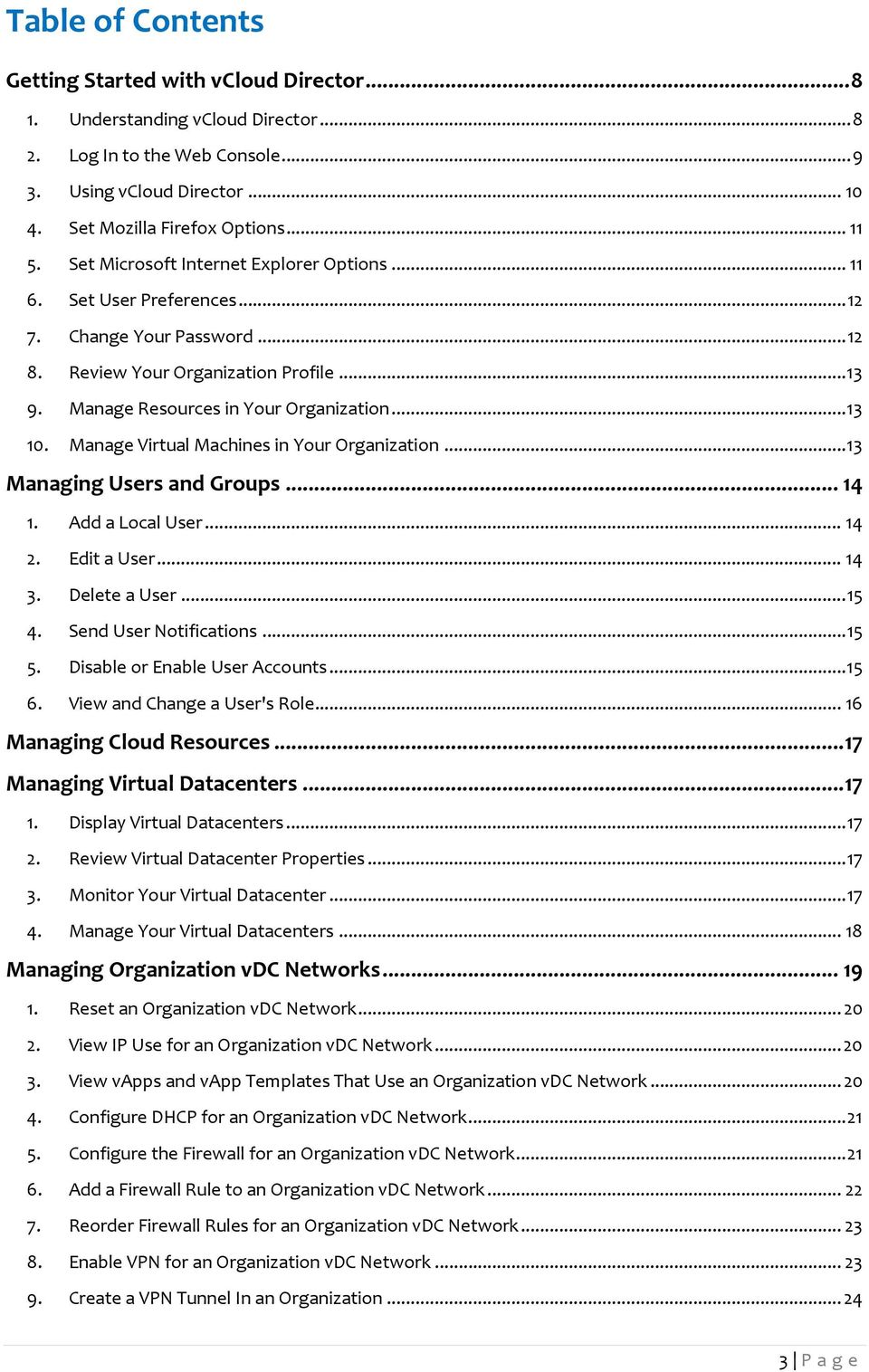
4 10. Create a VPN Tunnel Between Organizations Create a VPN Tunnel to a Remote Network Enable Static Routing for an Organization vdc Network Add Static Routes Between vapp Networks Routed to the Same Organization vdc Network Add Static Routes Between vapp Networks Routed to Different Organization vdc Networks Working with Catalogs Add a New Catalog Access a Catalog Change the Owner of a Catalog Delete a Catalog Modify the Properties of Your Catalog Understanding Catalogs and Their Contents Accessing vapp Templates from a Public Catalog Accessing a Media File from a Public Catalog Working with Media Files Upload Media Files Resume the Upload of a Media File Copy Media Files to a Catalog Move Media Files to Another Catalog Delete Media Files Modify Media File Properties Working with vapp Templates Open a vapp Template Add a vapp Template to My Cloud Download a vapp Template Upload an OVF Package as a vapp Template Resume the Upload of a vapp Template Copy a vapp Template from a Public Catalog to an Organization Catalog Copy a vapp Template Between an Organization's Catalogs Move a vapp Template Between an Organization's Catalogs Delete a vapp Template Save a vapp as a vapp Template Modify vapp Template Properties Working with vapps Create a vapp From a vapp Template Create a New vapp P age
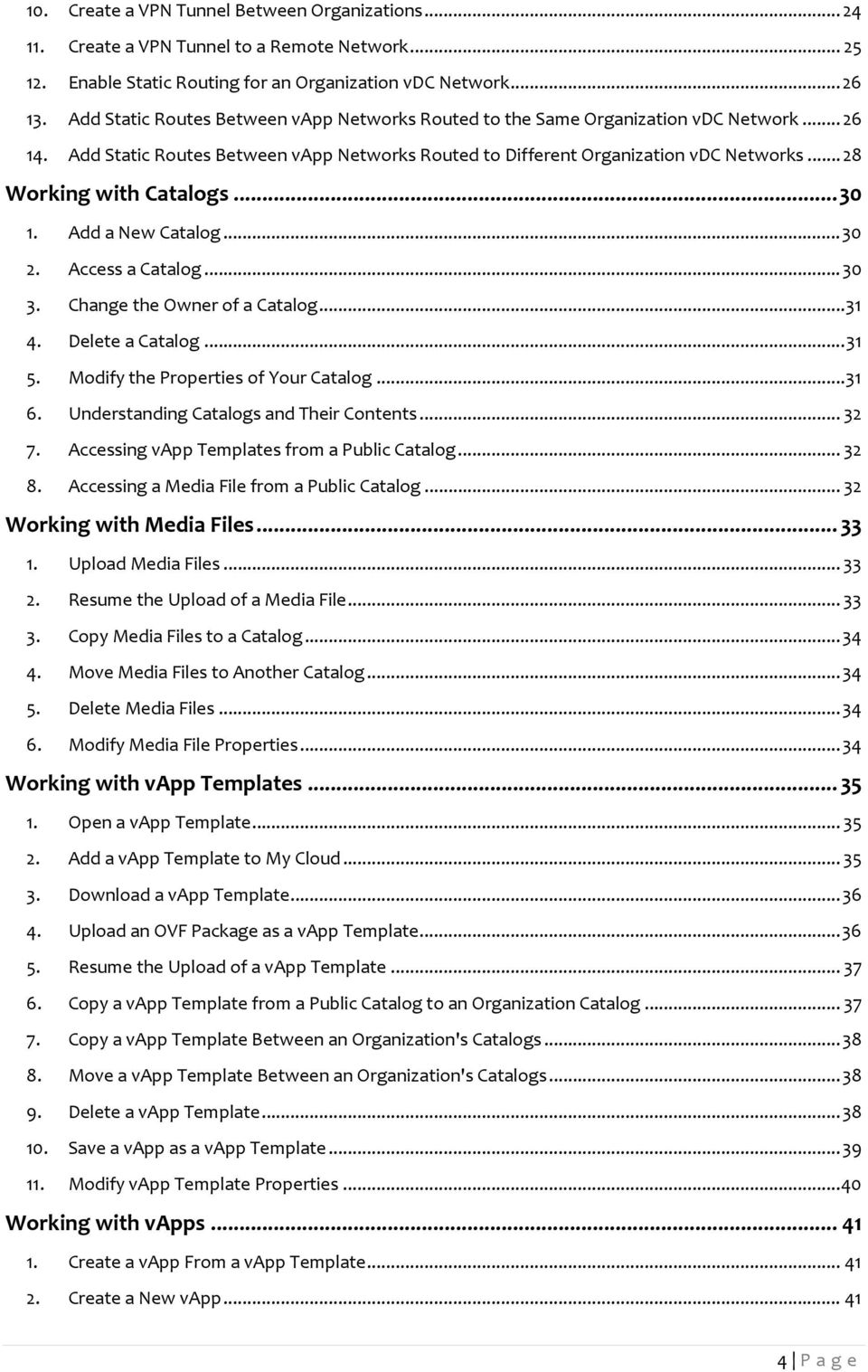
5 3. Complete the vapp Profile Add Virtual Machines to the vapp Configure the Virtual Machines Configure Networks About the vapp Placement Engine Copy a vapp Start a vapp Start a vapp with an Older Version of VMware Tools Stop a vapp Suspend a vapp Discard the Suspended State of a vapp Reset a vapp or Virtual Machine View vapp Virtual Machines Add a Virtual Machine to a vapp Remove Virtual Machines from a vapp Set vapp Start and Stop Options Working with Networks in a vapp View vapp Networks Adding Networks to a vapp Add a vapp Network to a vapp Add an Organization vdc Network to a vapp Reset Your vapp Network Delete a vapp Network Modify Network Properties Display the IP Allocations for Your vapp Network Configure IP Address Persistence Reset Your vapp Network Delete a vapp Network Modify Network Properties Display the IP Allocations for Your vapp Network Modify a vapp Name and Description Reset vapp Leases Share a vapp Display a vapp Diagram Change the Owner of a vapp Create a Snapshot of a vapp P age
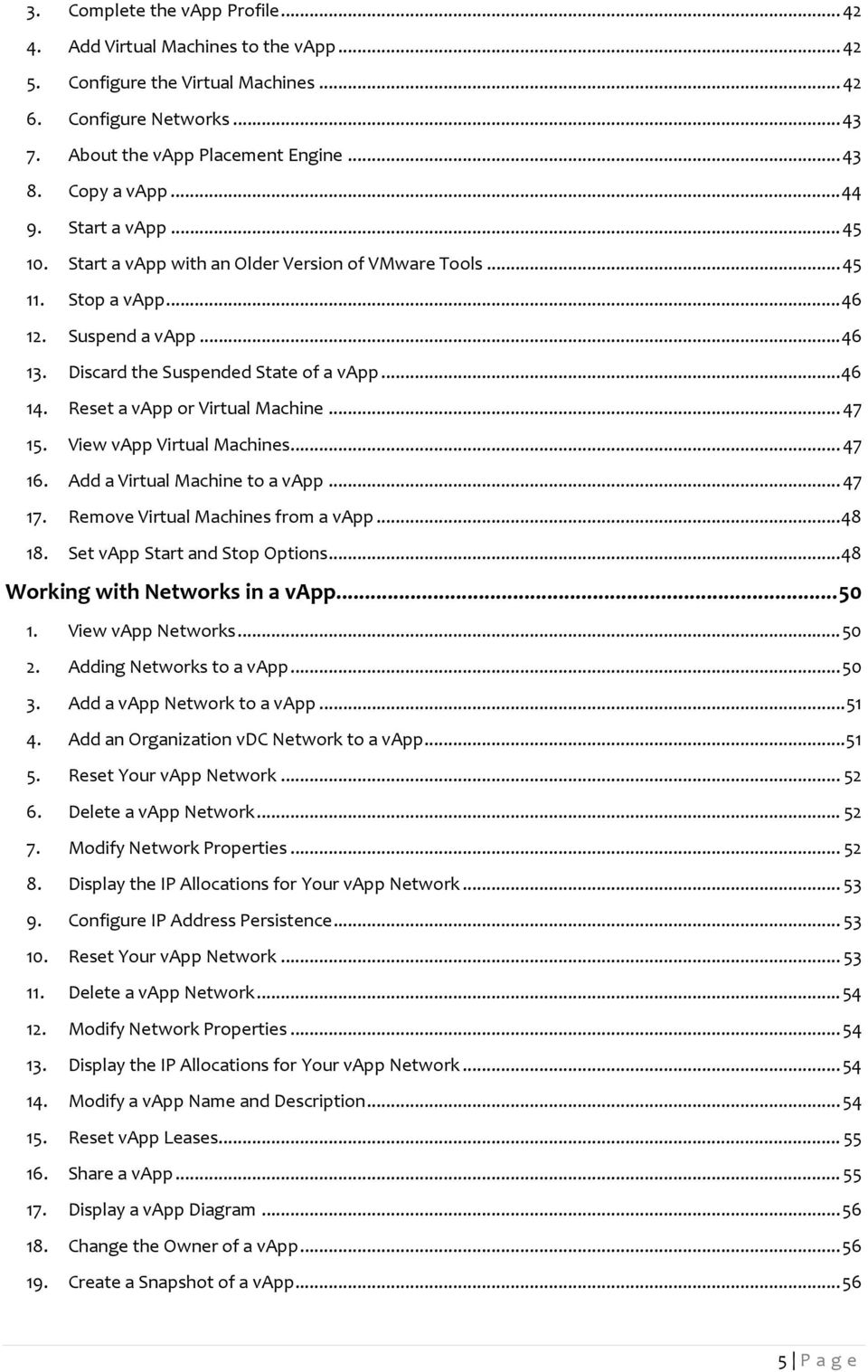
6 20. Revert a vapp to a Snapshot Remove a Snapshot of a vapp Copy a vapp to Another vdc Move a vapp to Another vdc Delete a vapp Configuring Network Services for a vapp Network Configure DHCP for an vapp Network Configure the Firewall for a vapp Network Add a Firewall Rule to a vapp Network Reorder Firewall Rules for a vapp Network Enable IP Masquerading for a vapp Network Add a Port Forwarding Rule to a vapp Network Add an IP Translation Rule to a vapp Network Reorder Port Forwarding Rules for a vapp Network Enable Static Routing for a vapp Network Add Static Routes to vapp Networks Working with Virtual Machines Open a Virtual Machine Console Power On a Virtual Machine Power Off a Virtual Machine Reset a vapp or Virtual Machine Suspend a Virtual Machine Resume a Suspended Virtual Machine Discard the Suspended State of a Virtual Machine Insert a CD/DVD Eject a CD/DVD Insert a Floppy Eject a Floppy Connect Remotely to a Virtual Machine Create a Snapshot of a Virtual Machine Revert a Virtual Machine to a Snapshot Remove a Snapshot of a Virtual Machine Copy or Move a Virtual Machine to a vapp Delete a Virtual Machine Modify Virtual Machine General Properties Modify Virtual Machine CPUs and Memory P age
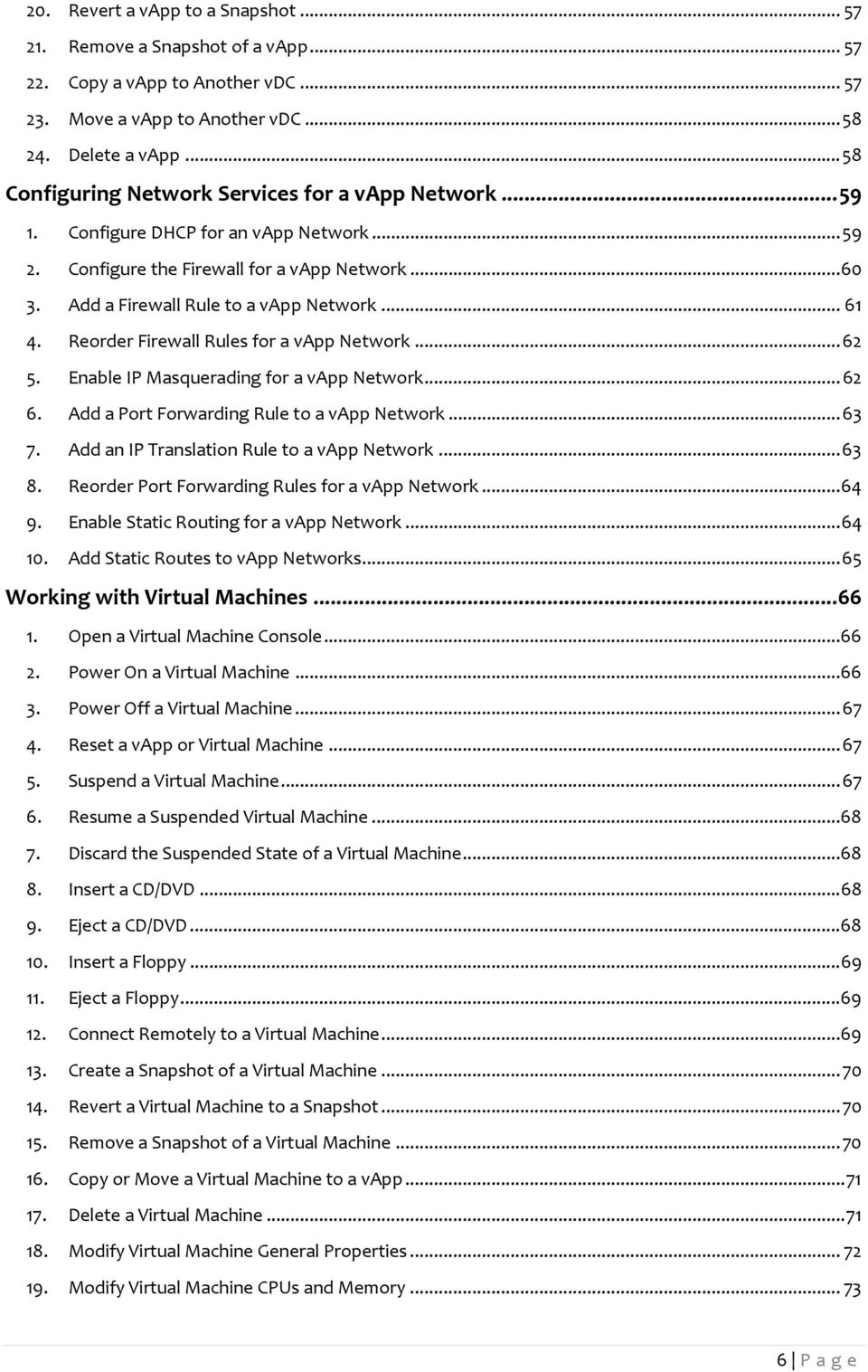
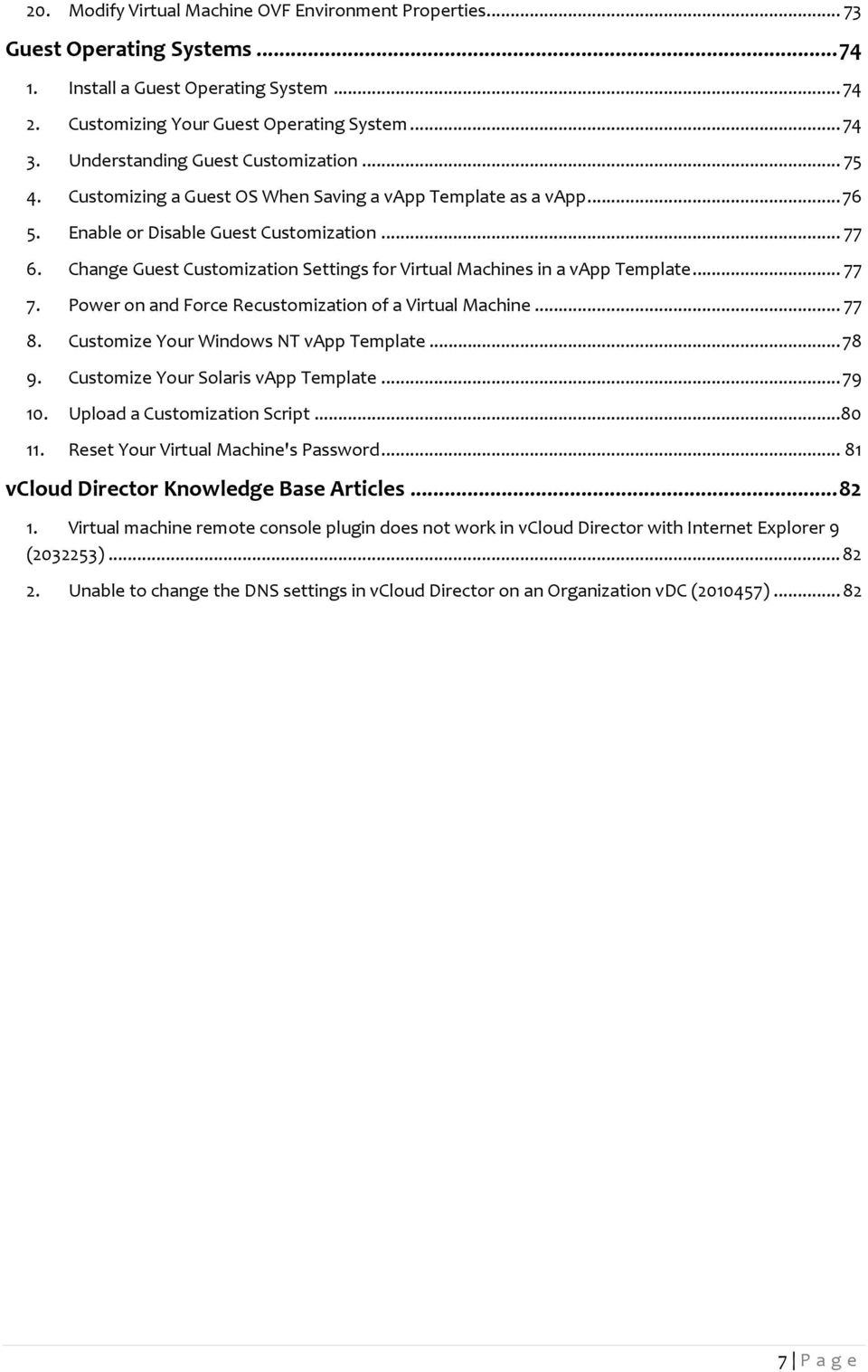
7 20. Modify Virtual Machine OVF Environment Properties Guest Operating Systems Install a Guest Operating System Customizing Your Guest Operating System Understanding Guest Customization Customizing a Guest OS When Saving a vapp Template as a vapp Enable or Disable Guest Customization Change Guest Customization Settings for Virtual Machines in a vapp Template Power on and Force Recustomization of a Virtual Machine Customize Your Windows NT vapp Template Customize Your Solaris vapp Template Upload a Customization Script Reset Your Virtual Machine's Password vcloud Director Knowledge Base Articles Virtual machine remote console plugin does not work in vcloud Director with Internet Explorer 9 ( ) Unable to change the DNS settings in vcloud Director on an Organization vdc ( ) P age
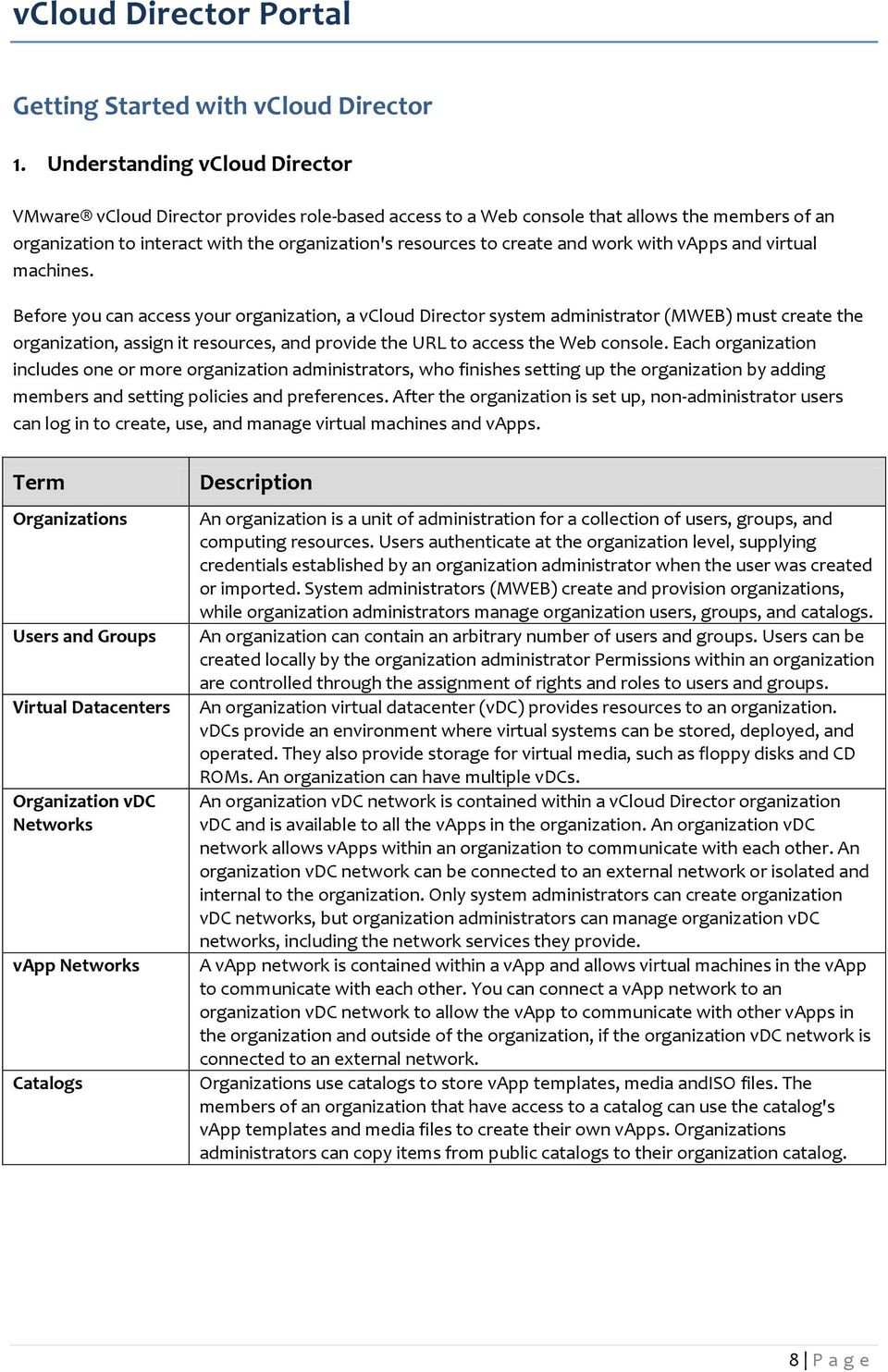
8 vcloud Director Portal Getting Started with vcloud Director 1. Understanding vcloud Director VMware vcloud Director provides role-based access to a Web console that allows the members of an organization to interact with the organization's resources to create and work with vapps and virtual machines. Before you can access your organization, a vcloud Director system administrator (MWEB) must create the organization, assign it resources, and provide the URL to access the Web console. Each organization includes one or more organization administrators, who finishes setting up the organization by adding members and setting policies and preferences. After the organization is set up, non-administrator users can log in to create, use, and manage virtual machines and vapps. Term Organizations Users and Groups Virtual Datacenters Organization vdc Networks vapp Networks Catalogs Description An organization is a unit of administration for a collection of users, groups, and computing resources. Users authenticate at the organization level, supplying credentials established by an organization administrator when the user was created or imported. System administrators (MWEB) create and provision organizations, while organization administrators manage organization users, groups, and catalogs. An organization can contain an arbitrary number of users and groups. Users can be created locally by the organization administrator Permissions within an organization are controlled through the assignment of rights and roles to users and groups. An organization virtual datacenter (vdc) provides resources to an organization. vdcs provide an environment where virtual systems can be stored, deployed, and operated. They also provide storage for virtual media, such as floppy disks and CD ROMs. An organization can have multiple vdcs. An organization vdc network is contained within a vcloud Director organization vdc and is available to all the vapps in the organization. An organization vdc network allows vapps within an organization to communicate with each other. An organization vdc network can be connected to an external network or isolated and internal to the organization. Only system administrators can create organization vdc networks, but organization administrators can manage organization vdc networks, including the network services they provide. A vapp network is contained within a vapp and allows virtual machines in the vapp to communicate with each other. You can connect a vapp network to an organization vdc network to allow the vapp to communicate with other vapps in the organization and outside of the organization, if the organization vdc network is connected to an external network. Organizations use catalogs to store vapp templates, media andiso files. The members of an organization that have access to a catalog can use the catalog's vapp templates and media files to create their own vapps. Organizations administrators can copy items from public catalogs to their organization catalog. 8 P age
9 2. Log In to the Web Console Use the organization URL to log in to your organization and access the Web console. In a browser, type the URL of your organization and press Enter. E.g. Type your user name and password and click Login. The Web console displays a list of the common tasks and resources available to you based on your role. An organization administrator can click the Set up this organization link on the Home tab to finish setting up a newly created organization. 9 P age

10 3. Using vcloud Director When you log into vcloud Director, the first page you see is the Home page. The information that appears on this page are the most common tasks for your role. Organization administrators see the tasks on the right side of the screen under these headings: Organizations and resources Content Users & Groups The vapps in your organization are displayed for easy access: Catalog authors see links to these tasks. Add Cloud Computer System Build new vapp Manage Catalogs New Catalog vapp authors see links to these tasks. Add Cloud Computer System Build new vapp vapp users see links to these tasks. Add Cloud Computer System The vapps in your organization are displayed for easy access. Console Access Only users have a read-only access to vcloud Director. 10 P age

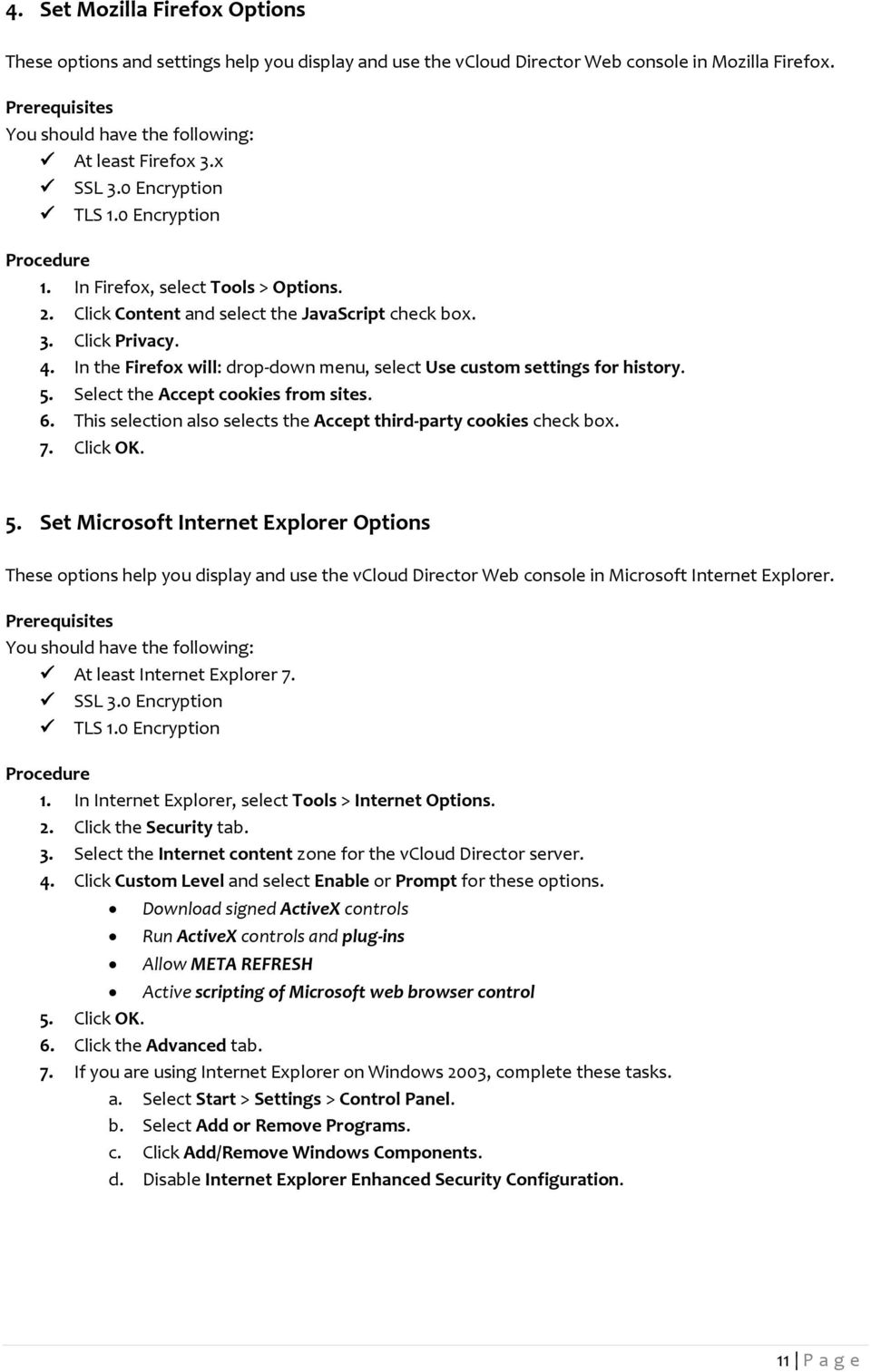
11 4. Set Mozilla Firefox Options These options and settings help you display and use the vcloud Director Web console in Mozilla Firefox. You should have the following: At least Firefox 3.x SSL 3.0 Encryption TLS 1.0 Encryption 1. In Firefox, select Tools > Options. 2. Click Content and select the JavaScript check box. 3. Click Privacy. 4. In the Firefox will: drop-down menu, select Use custom settings for history. 5. Select the Accept cookies from sites. 6. This selection also selects the Accept third-party cookies check box. 7. Click OK. 5. Set Microsoft Internet Explorer Options These options help you display and use the vcloud Director Web console in Microsoft Internet Explorer. You should have the following: At least Internet Explorer 7. SSL 3.0 Encryption TLS 1.0 Encryption 1. In Internet Explorer, select Tools > Internet Options. 2. Click the Security tab. 3. Select the Internet content zone for the vcloud Director server. 4. Click Custom Level and select Enable or Prompt for these options. Download signed ActiveX controls Run ActiveX controls and plug-ins Allow META REFRESH Active scripting of Microsoft web browser control 5. Click OK. 6. Click the Advanced tab. 7. If you are using Internet Explorer on Windows 2003, complete these tasks. a. Select Start > Settings > Control Panel. b. Select Add or Remove Programs. c. Click Add/Remove Windows Components. d. Disable Internet Explorer Enhanced Security Configuration. 11 P age
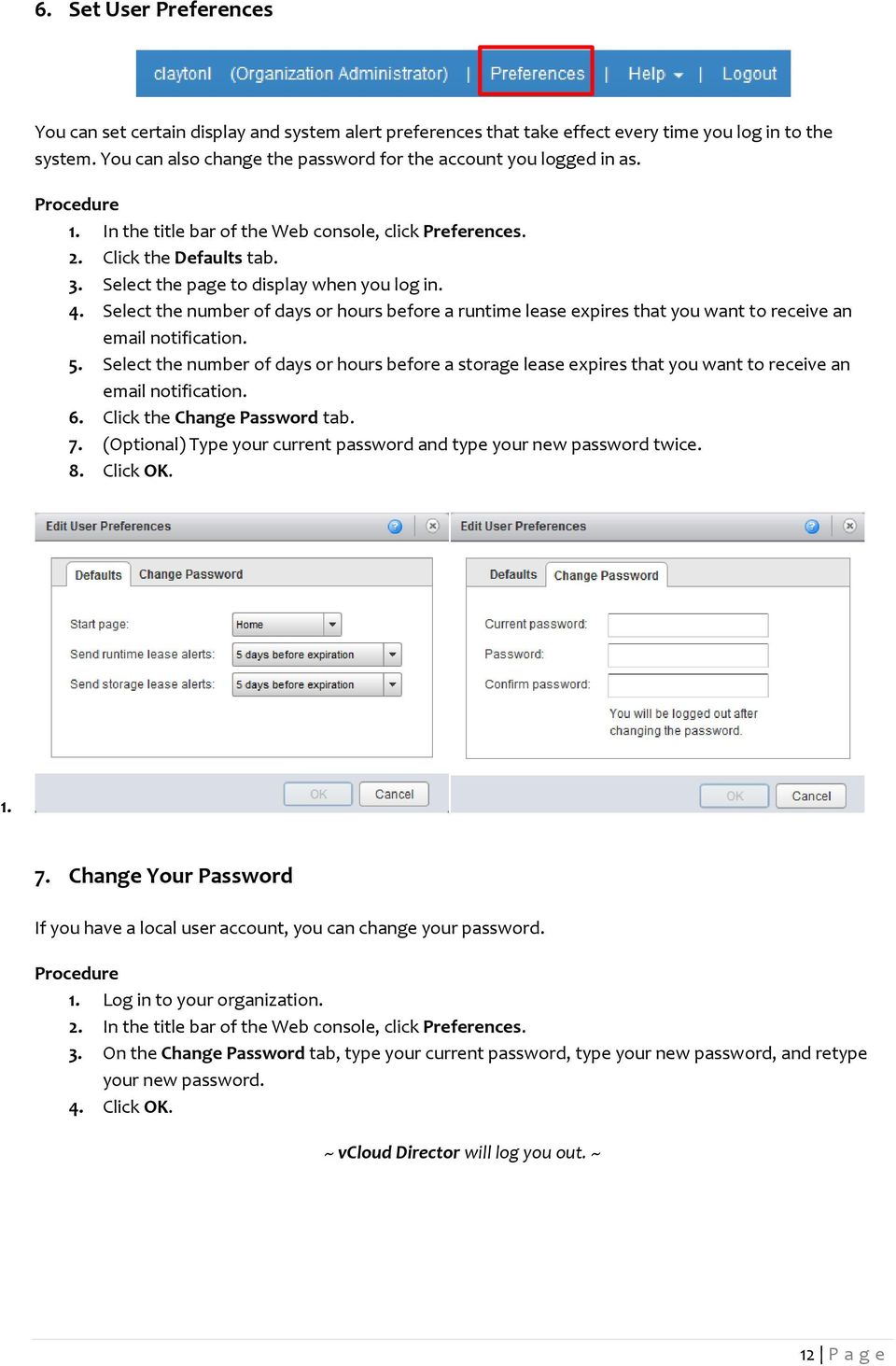
12 6. Set User Preferences You can set certain display and system alert preferences that take effect every time you log in to the system. You can also change the password for the account you logged in as. 1. In the title bar of the Web console, click Preferences. 2. Click the Defaults tab. 3. Select the page to display when you log in. 4. Select the number of days or hours before a runtime lease expires that you want to receive an notification. 5. Select the number of days or hours before a storage lease expires that you want to receive an notification. 6. Click the Change Password tab. 7. (Optional) Type your current password and type your new password twice. 8. Click OK Change Your Password If you have a local user account, you can change your password. 1. Log in to your organization. 2. In the title bar of the Web console, click Preferences. 3. On the Change Password tab, type your current password, type your new password, and retype your new password. 4. Click OK. ~ vcloud Director will log you out. ~ 12 P age
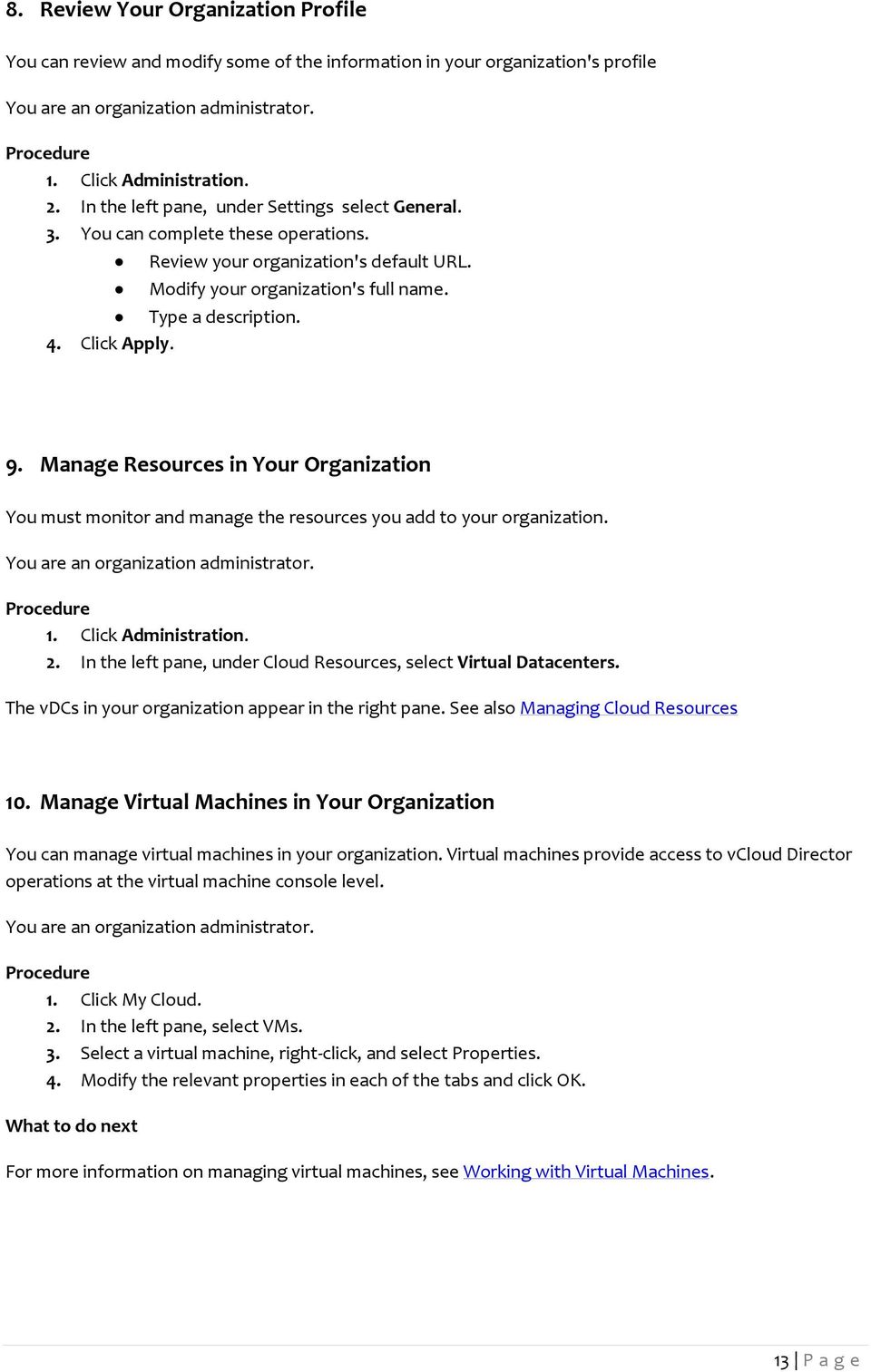
13 8. Review Your Organization Profile You can review and modify some of the information in your organization's profile You are an organization administrator. 1. Click Administration. 2. In the left pane, under Settings select General. 3. You can complete these operations. 4. Review your organization's default URL. Modify your organization's full name. Type a description. Click Apply. 9. Manage Resources in Your Organization You must monitor and manage the resources you add to your organization. You are an organization administrator. 1. Click Administration. 2. In the left pane, under Cloud Resources, select Virtual Datacenters. The vdcs in your organization appear in the right pane. See also Managing Cloud Resources 10. Manage Virtual Machines in Your Organization You can manage virtual machines in your organization. Virtual machines provide access to vcloud Director operations at the virtual machine console level. You are an organization administrator. 2. In the left pane, select VMs. 3. Select a virtual machine, right-click, and select Properties. 4. Modify the relevant properties in each of the tabs and click OK. What to do next For more information on managing virtual machines, see Working with Virtual Machines. 13 P age
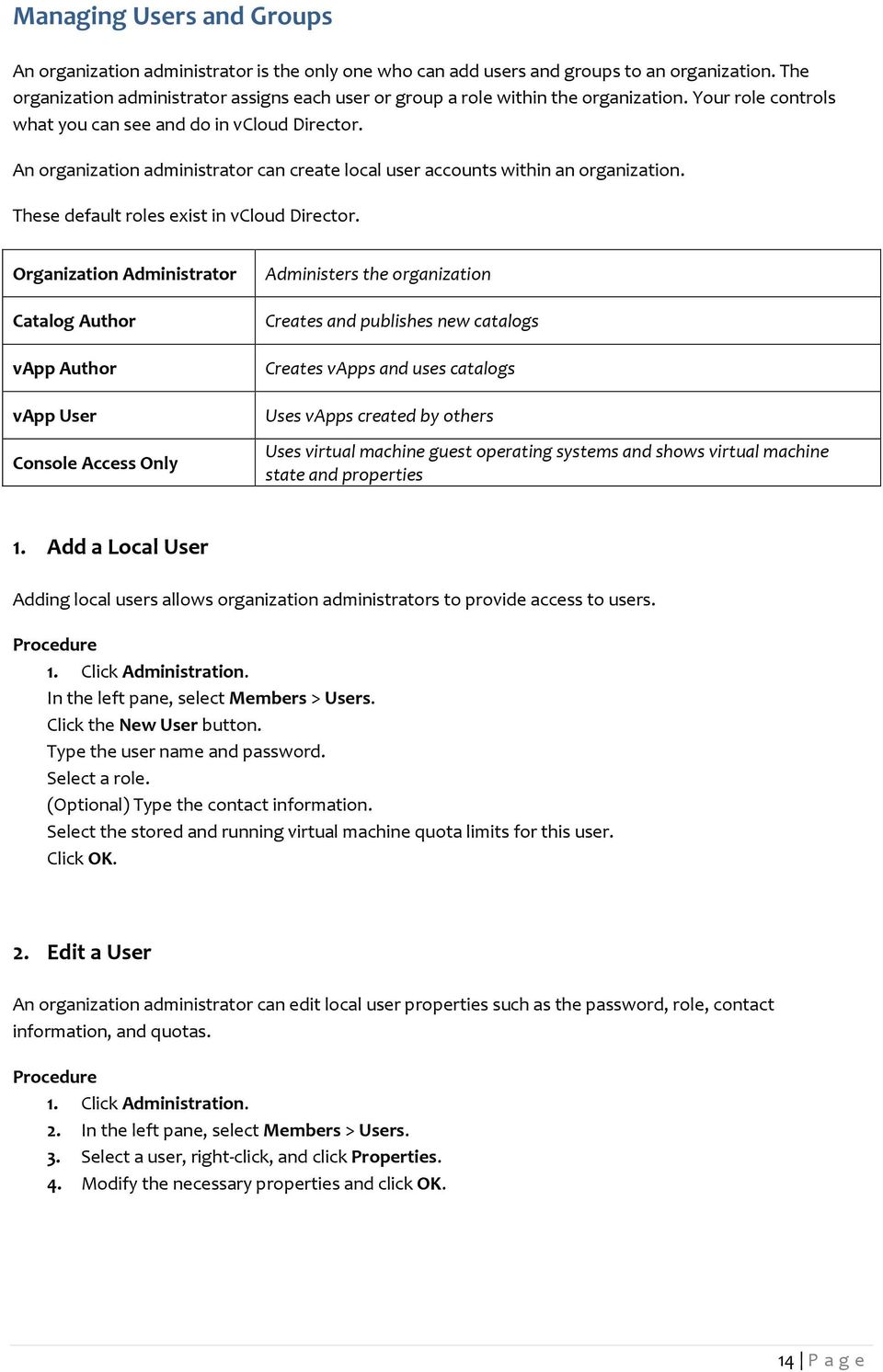
14 Managing Users and Groups An organization administrator is the only one who can add users and groups to an organization. The organization administrator assigns each user or group a role within the organization. Your role controls what you can see and do in vcloud Director. An organization administrator can create local user accounts within an organization. These default roles exist in vcloud Director. Organization Administrator Catalog Author vapp Author vapp User Console Access Only Administers the organization Creates and publishes new catalogs Creates vapps and uses catalogs Uses vapps created by others Uses virtual machine guest operating systems and shows virtual machine state and properties 1. Add a Local User Adding local users allows organization administrators to provide access to users. 1. Click Administration. In the left pane, select Members > Users. Click the New User button. Type the user name and password. Select a role. (Optional) Type the contact information. Select the stored and running virtual machine quota limits for this user. Click OK. 2. Edit a User An organization administrator can edit local user properties such as the password, role, contact information, and quotas. 1. Click Administration. 2. In the left pane, select Members > Users. 3. Select a user, right-click, and click Properties. 4. Modify the necessary properties and click OK. 14 P age
15 3. Delete a User If a user leaves the company or moves to another organization, an organization administrator can delete a user from the organization. 1. Click Administration. 2. In the left pane, select Members > Users. 3. Select a user, right-click, and select Disable Account. 4. Reselect this user, right-click, and select Delete. 5. Click OK. 4. Send User Notifications An organization administrator can send an notification to users to notify them of events or issues in the organization. 1. Click Administration. 2. In the left pane, select Members > Users. 3. Click the Notify button. 4. If you select a user and then click this button, the user's name appears as the recipient. 5. Select the recipients and type a subject. 6. Type the message. 7. Click Send The notification is sent to the selected recipients. ~ vcloud Director transfers ownership of the user's objects to you unless you deselect the Transfer user's objects to me check box. ~ 5. Disable or Enable User Accounts An organization administrator can disable a user account to log the user out of the Web console and prevent the user from logging in again. You can enable a user to allow them to log in. 1. Click Administration. 2. In the left pane, select Members > Users. 3. Select a user, right-click, and select Disable Account or Enable Account. ~ Disabled user accounts have a red circle in the Enabled column and enabled user accounts have a green check mark. After you disable a user's account, you can delete that user ~ 15 P age

16 6. View and Change a User's Role An organization administrator assigns a role when adding a user to the organization. The organization administrator can change the user's role later to give the user more rights or fewer rights. 1. Click Administration. 2. In the left pane, select Members > Users. 3. Select a user, right-click, and select Properties. 4. In the User role in organization: drop-down menu, select a new role for the user. 5. The definition of each role appears as a tool tip. 6. Click OK. 16 P age

17 Managing Cloud Resources A vcloud Director system administrator (MWEB) creates and assigns virtual datacenters and networks to an organization. An organization administrator can view information about these resources and perform a limited set of management tasks. Contact MWEB if you need more organization virtual datacenters or organization vdc networks.. Managing Virtual Datacenters Virtual datacenters (vdcs) provide processor, memory, and storage resources to your organization. They are assigned to your organization by your system administrator (MWEB). An organization can have multiple vdcs. 1. Display Virtual Datacenters When you display the vdcs in your organization, you can monitor the resources, users, and policy settings that you manage. You are an organization administrator. 1. Click Administration. In the left pane, select Cloud Resources > Virtual Datacenters. A list of vdcs in your organization appears in the right pane. For details about a vdc, right-click, and select Open. ~ The vapps, vapp templates, media, storage profiles, edge gateways and networks attached to this vdc are displayed. When you click through each tab, you can right click on an object to see the operations you can complete. ~ 2. Review Virtual Datacenter Properties You can review the properties of the vdcs that are assigned to your organization. 1. Click Administration. Select Cloud Resources > Virtual Datacenters. Select a vdc, right-click, and select Properties. Review the properties and click OK. 3. Monitor Your Virtual Datacenter You can monitor the vdc assigned to your organization and determine when to request additional capacity. You are an organization administrator. 1. Click Administration. 2. Select Cloud Resources > Virtual Datacenters. 3. Click the Monitor button. 17 P age

18 ~ Details about the processor, memory, storage, and allocation model appear. ~ 4. Manage Your Virtual Datacenters You can review information such as the status, allocation model, and the number of vapps in a vdc in your organization. 1. Click Administration. 2. In the left pane, select Cloud Resources > Virtual Datacenters. 3. Click the Manage button. 4. Review the information. 18 P age

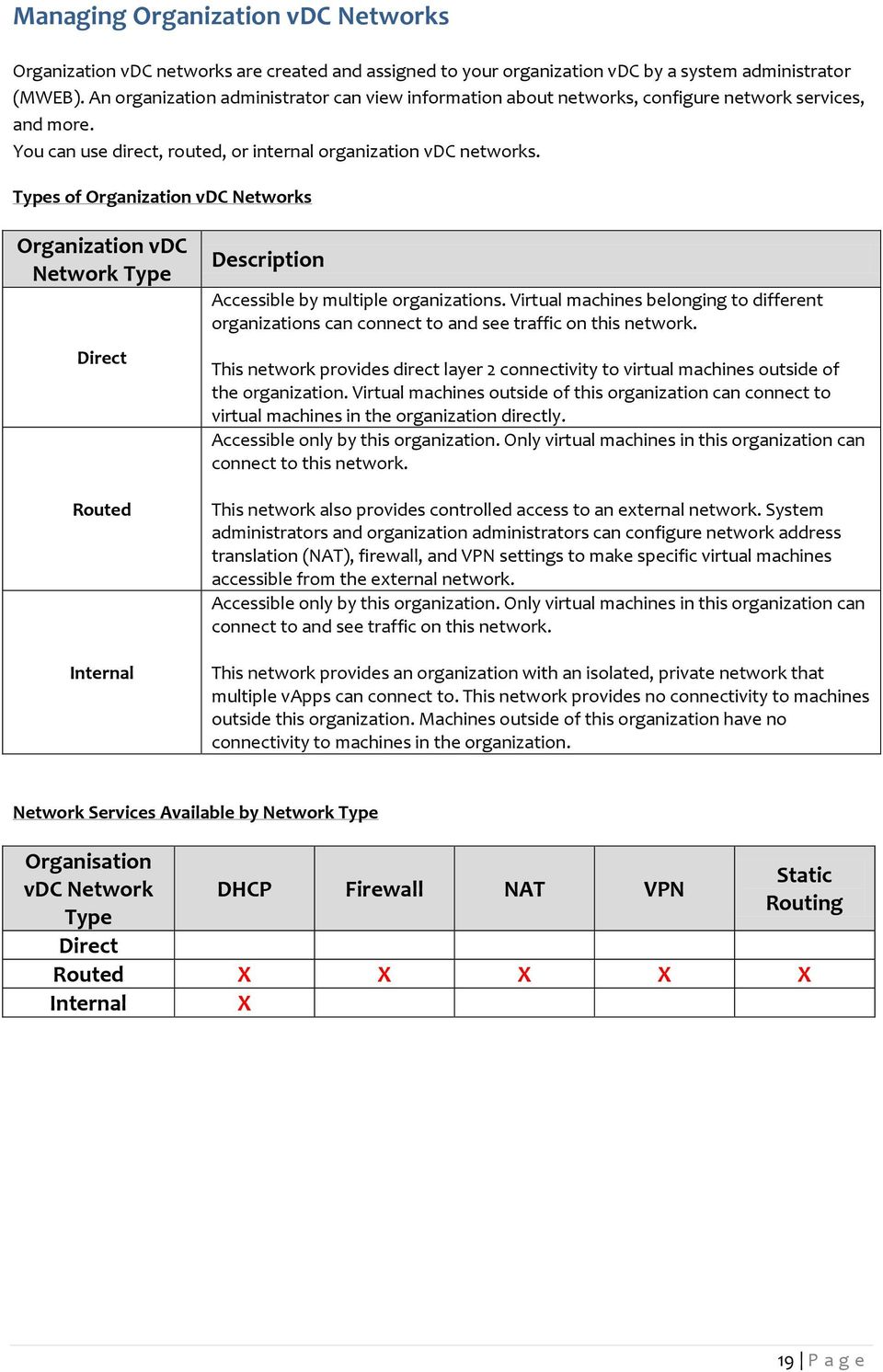
19 Managing Organization vdc Networks Organization vdc networks are created and assigned to your organization vdc by a system administrator (MWEB). An organization administrator can view information about networks, configure network services, and more. You can use direct, routed, or internal organization vdc networks. Types of Organization vdc Networks Organization vdc Network Type Direct Routed Internal Description Accessible by multiple organizations. Virtual machines belonging to different organizations can connect to and see traffic on this network. This network provides direct layer 2 connectivity to virtual machines outside of the organization. Virtual machines outside of this organization can connect to virtual machines in the organization directly. Accessible only by this organization. Only virtual machines in this organization can connect to this network. This network also provides controlled access to an external network. System administrators and organization administrators can configure network address translation (NAT), firewall, and VPN settings to make specific virtual machines accessible from the external network. Accessible only by this organization. Only virtual machines in this organization can connect to and see traffic on this network. This network provides an organization with an isolated, private network that multiple vapps can connect to. This network provides no connectivity to machines outside this organization. Machines outside of this organization have no connectivity to machines in the organization. Network Services Available by Network Type Organisation vdc Network Type DHCP Firewall NAT VPN Static Routing Direct Routed X X X X X Internal X 19 P age
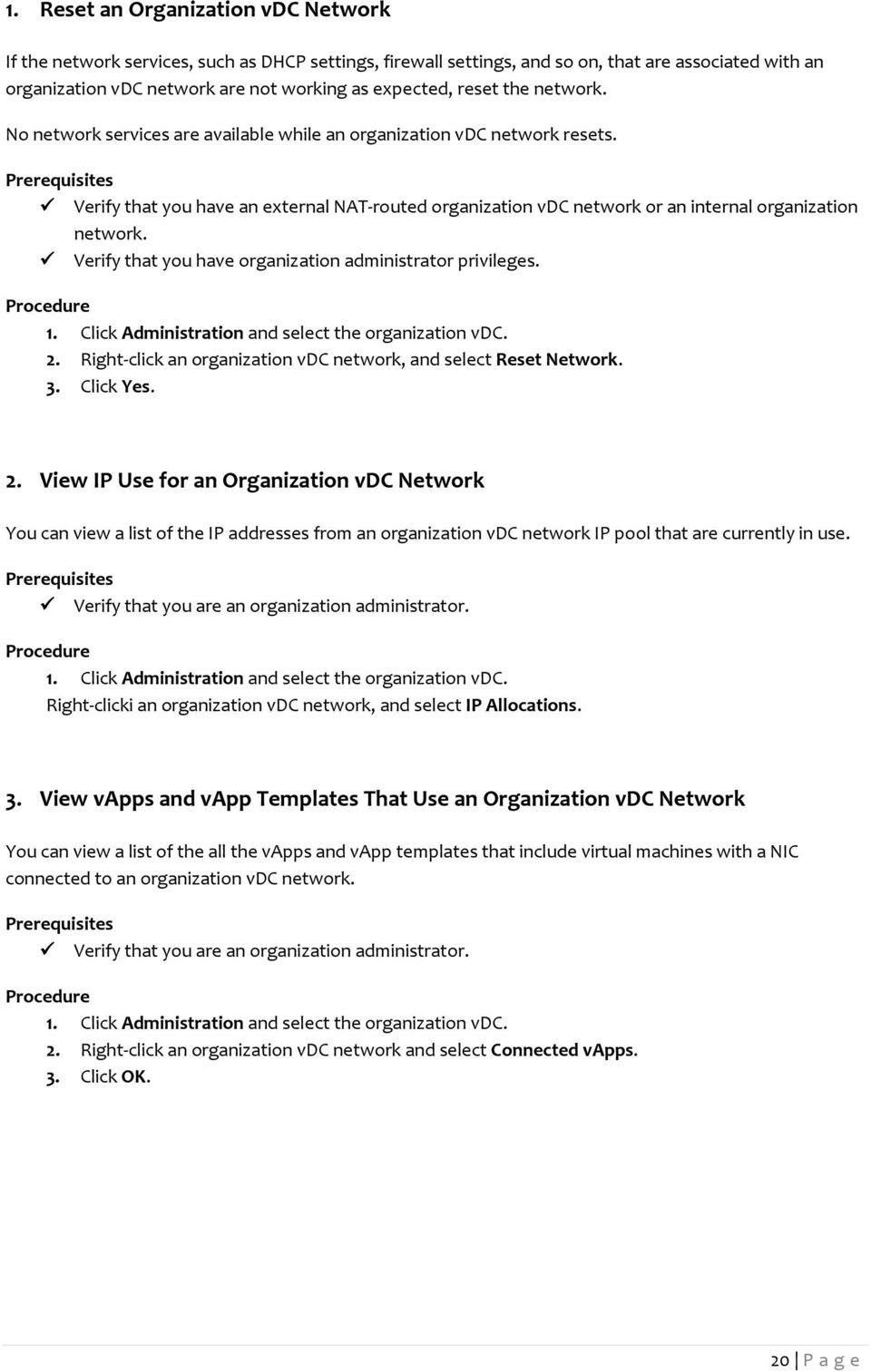
20 1. Reset an Organization vdc Network If the network services, such as DHCP settings, firewall settings, and so on, that are associated with an organization vdc network are not working as expected, reset the network. No network services are available while an organization vdc network resets. Verify that you have an external NAT-routed organization vdc network or an internal organization network. Verify that you have organization administrator privileges. 1. Click Administration and select the organization vdc. 2. Right-click an organization vdc network, and select Reset Network. 3. Click Yes. 2. View IP Use for an Organization vdc Network You can view a list of the IP addresses from an organization vdc network IP pool that are currently in use. Verify that you are an organization administrator. 1. Click Administration and select the organization vdc. Right-clicki an organization vdc network, and select IP Allocations. 3. View vapps and vapp Templates That Use an Organization vdc Network You can view a list of the all the vapps and vapp templates that include virtual machines with a NIC connected to an organization vdc network. Verify that you are an organization administrator. 1. Click Administration and select the organization vdc. 2. Right-click an organization vdc network and select Connected vapps. 3. Click OK. 20 P age
21 4. Configure DHCP for an Organization vdc Network Organization administrators can configure certain organization vdc networks to provide DHCP services to virtual machines in the organization. When you power on a virtual machine with the following configuration, vcloud Director assigns a DHCP IP address to that virtual machine. A NIC connected to an organization vdc network that has DHCP enabled. The IP mode for the connected NIC set to DHCP. Verify that you have a routed organization vdc network or an internal organization vdc network. 1. Click Administration and select the organization vdc. 2. Click the Org vdc Networks tab, right-click the organization vdc network name and select Configure Services. 3. Select Enable DHCP. 4. Type a range of IP addresses or use the default range. vcloud Director uses these addresses to satisfy DHCP requests. The range of DHCP IP addresses cannot overlap with the static IP pool for the organization vdc network. 5. Set the default lease time and maximum lease time or use the default values. 6. Click OK. 5. Configure the Firewall for an Organization vdc Network An organization administrator can configure certain organization vdc networks to provide firewall services. Enable the firewall on an organization vdc network to enforce firewall rules on incoming traffic, outgoing traffic, or both. When you enable the firewall, you can specify a default firewall action to deny all incoming and outgoing traffic or to allow all incoming and outgoing traffic. You can also add specific firewall rules to allow or deny traffic that matches the rules to pass through the firewall. These rules take precedence over the default firewall action. See Add a Firewall Rule to an Organization vdc Network. Verify that a routed organization vdc network is in place. Click Administration and select the organization vdc. 1. Click the Org vdc Networks tab, right-click the organization vdc network name, and select Configure Services. Click the Firewall tab and select Enable firewall to enable firewall services, or deselect it to disable firewall services. 21 P age
22 Select the default firewall action. Option Deny Allow Description Blocks all traffic except when overridden by a firewall rule. Allows all traffic except when overridden by a firewall rule. (Optional) Select the Log check box to log events related to the default firewall action. Click OK. 6. Add a Firewall Rule to an Organization vdc Network An organization administrator can add firewall rules to an organization vdc network that supports a firewall. You can create rules to allow or deny traffic that matches the rules to pass through the firewall. When you add a new firewall rule to an organization vdc network, it appears at the bottom of the firewall rule list. For information about how to set the order in which firewall rules are enforced, see Reorder Firewall Rules for an Organization vdc Network. Verify that you have a routed organization vdc network and enable the firewall for the organization vdc network. See Configure the Firewall for an Organization vdc Network 1. Click Administration and select the organization vdc. 2. On the Org vdc Networks tab, right-click the organization vdc network name and select Configure Services. 3. Click the Firewall tab and click Add. 4. Type a name for the rule. 5. (Optional) Select Match rule on translated IP to have the rule check against translated IP addresses rather than original IP addresses and choose a traffic direction to apply this rule on. 6. Type the traffic Source. Option IP address Range of IP addresses CIDR Internal External Any Description Type a source/destination IP address to apply this rule on. Type a range of source/destination IP addresses to apply this rule on. Type the CIDR notation of traffic to apply this rule on. Apply this rule to all internal traffic. Apply this rule to all external traffic. Apply this rule to traffic from any source. 7. Select a Source port to apply this rule on from the drop-down menu. 22 P age
23 8. Type the traffic Destination. 9. Select the Destination port to apply this rule on from the drop-down menu. 10. Select the Protocol to apply this rule on from the drop-down menu. 11. Select the action. A firewall rule can allow or deny traffic that matches the rule. 12. Select the Enabled check box. 13. (Optional) Select the Log network traffic for firewall rule check box. 14. Click OK and click OK again. 7. Reorder Firewall Rules for an Organization vdc Network Firewall rules are enforced in the order in which they appear in the firewall list. An organization administrator can change the order of the rules in the list. When you add a firewall rule to an organization vdc network, the new rule appears at the bottom of the firewall rule list. To enforce the new rule before an existing rule, reorder the rules. Verify that a routed organization vdc network with two or more firewall rules is in place. 1. Click Administration and select the organization vdc. 2. Click the Org vdc Networks tab, right-click the organization vdc network name, and select Configure Services. 3. Click the Firewall tab. 4. Drag the firewall rules to establish the order in which the rules are applied. 5. Click OK. 8. Enable VPN for an Organization vdc Network An organization administrator can enable VPN for an organization vdc network, then create a secure tunnel to another network. vcloud Director supports VPN between organization vdc networks in the same organization and remote networks. Verify that the following items are in place. o A routed organization vdc network. 1. Click Administration and select the organization vdc. 2. Click the Org vdc Networks tab, right-click the organization vdc network name, and select Configure Services. 3. Click the VPN tab and select Enable VPN. 4. (Optional) Type a public IP address. 5. Click OK. 23 P age
24 9. Create a VPN Tunnel In an Organization An organization administrator can create a VPN tunnel between two organizations vdc networks in the same organization. If the tunnel endpoints have a firewall between them, configure the firewall to allow the following IP protocols and UDP ports: IP Protocol ID 50 (ESP) IP Protocol ID 51 (AH) UDP Port 500 (IKE) UDP Port 4500 Verify that the following items are in place. o At least two routed organization vdc networks with non-overlapping IP subnets and VPN enabled on both networks. 1. Click Administration and select the organization vdc. 2. Click the Org vdc Networks tab, right-click the organization vdc network name, and select Configure Services. 3. Click the VPN tab and click Add. 4. Type a name and optional description. 5. Select a network in this organization from the drop-down menu and select a peer network. 6. Review the tunnel settings and click OK. ~ vcloud Director configures both peer network endpoints. ~ 10. Create a VPN Tunnel Between Organizations An organization administrator can create a VPN tunnel between two organization vdc networks in different organizations. The organizations can be part of the same vcloud Director installation or a different installation. If the tunnel endpoints have a firewall between them, configure the firewall to allow the following IP protocols and UDP ports: IP Protocol ID 50 (ESP) IP Protocol ID 51 (AH) UDP Port 500 (IKE) UDP Port 4500 A routed organization vdc network in each of the organizations. The organization vdc networks must have non-overlapping IP subnets and site-to-site VPN enabled. 24 P age
25 1. Click Administration and select the organization vdc. 2. Click the Org vdc Networks tab, right-click the organization vdc network name, and select Configure Services. 3. Click the VPN tab and click Add. 4. Type a name and optional description. 5. Select a network in another organization from the drop-down menu. 6. Click Connect to another organization, type the login information for the peer organization, and click Continue. Option vcloud URL Organization Username Password Description Base URL of the vcloud instance that contains the peer organization. For example, Do not include /cloud or /cloud/org/orgname in the URL. Organization name that is used as the unique identifier in the organization URL. For example, if the organization URL is type myorg. User name of an organization administrator or system administrator that has access to the organization. Password associated with the user name. 7. Select a peer network. 8. Review the tunnel settings and click Connect. ~ vcloud Director configures both peer network endpoints. ~ 11. Create a VPN Tunnel to a Remote Network An organization administrator can create a VPN tunnel between an organization vdc network and a remote network. If the tunnel endpoints have a firewall between them, configure the firewall to allow the following IP protocols and UDP ports: IP Protocol ID 50 (ESP) IP Protocol ID 51 (AH) UDP Port 500 (IKE) UDP Port 4500 Verify that the following items are in place: A routed organization vdc network and a routed remote network that uses IPSec. 25 P age
26 1. Click Administration and select the organization vdc. 2. Select Cloud Resources > Networks. 3. Click the Organization vdc Network tab, right-click the organization vdc network name, and select Configure Services. 4. Click the VPN tab and click Add. 5. Type a name and optional description. 6. Select a remote network from the drop-down menu. 7. Type the peer settings. 8. Review the tunnel settings and click OK. 9. Make sure the remote peer network endpoint in configured properly ~vcloud Director configures the organization peer network endpoint. ~ 12. Enable Static Routing for an Organization vdc Network An organization administrator can configure certain organization vdc networks to provide static routing services. After you enable static routing on an organization vdc network, you can add static routes to allow traffic between different vapp networks routed to the organization vdc network. Verify that a routed organization vdc network is in place. 1. Click Administration. 2. Under Cloud Resources 3. Select Virtual Datacenters 4. Right-click on the organization vdc > Open 5. Click Org VDC Networks tab 6. Right-click the organization vdc network name and select Configure Services. 7. On the Static Routing tab, select Enable static routing and click OK. 13. Add Static Routes Between vapp Networks Routed to the Same Organization vdc Network An organization administrator can add static routes between two vapp networks that are routed to the same organization vdc network. Static routes allow traffic between the networks. You cannot add static routes between overlapping networks or fenced vapps. After you add a static route to an organization vdc network, configure the network firewall rules to allow traffic on the static route. For vapps with static routes, select the Always use assigned IP addresses until this vapp or associated networks are deleted check box. Static routes only function when the vapps included in the routes are running. If you change the parent network of a vapp, delete a vapp, or delete a vapp network, and the vapp includes static routes, those routes cannot function and you must remove them manually. 26 P age
27 Verify that the following conditions are met: A routed organization vdc network is in place. Static routing is enabled on the organization vdc network. Two vapp networks are routed to the organization vdc network. The vapp networks are in vapps that were started at least once. 1. Click Administration. 2. Under Cloud Resources 3. Select Virtual Datacenters 4. Right-click on the organization vdc > Open 5. Click Org VDC Networks tab 6. Right-click the organization vdc network name and select Configure Services. 7. Click the Static Routing tab and click Add. 8. Type a name, network address, and next hop IP address. 7. The network address is for the first vapp network to which you want to add a static route. The next hop IP address is the external IP address of that vapp network's router. 9. Select Within this network, and click OK. 10. Click OK. 11. Repeat Step 4 through Step 7 to add a route to the second vapp network. Example: Static Routing Example vapp Network 1 and vapp Network 2 are both routed to Org Network Shared. You can create static routes on the organization vdc network to allow traffic between the vapp networks. You can use information about the vapp networks to create the static routes. Network Information Network Name Network Specification Router External IP Address vapp Network / vapp Network / Org Network Shared /24 N/A On Org Network Shared, create a static route to vapp Network 1 and another static route to vapp Network 2. Network Information Static Route to Network Route Name Network Next Hop IP Address Route vapp Network 1 tovapp / In this Network vapp Network 2 tovapp / In This network 27 P age
28 14. Add Static Routes Between vapp Networks Routed to Different Organization vdc Networks An organization administrator can add static routes between two vapp networks that are routed to different organization vdc networks. Static routes allow traffic between the networks. You cannot add static routes between overlapping networks or fenced vapps. After you add a static route to an organization vdc network, configure the network firewall rules to allow traffic on the static route. For vapps with static routes, select the Always use assigned IP addresses until this vapp or associated networks are deleted check box. Static routes only function when the vapps included in the routes are running. If you change the parent network of a vapp, delete a vapp, or delete a vapp network, and the vapp includes static routes, those routes cannot function and you must remove them manually. Verify that you have the following items: Two organization vdc networks routed to the same external network. Static routing is enabled on both organization vdc networks. A vapp network is routed to each organization vdc network. The vapp networks are in vapps that were started at least once. Click Administration and select the organization vdc. 1. Click the Org vdc Networks tab, right-click the organization vdc network name, and select Configure Services. Click the Static Routing tab and click Add. Type a name, network address, and next hop IP address. The network address is for the vapp network to which you want to add a static route. The next hop IP address is the external IP address of the router for the organization vdc network to which that vapp network is routed. Select To external network and click OK. Click Add. Type a name, network address, and next hop IP address. The network address is for the vapp network that is routed to this organization vdc network. The next hop IP address is the external IP address of the router for that vapp network. Select Within this network and click OK. Repeat Step 2 through Step 8 to add static routes to the second organization vdc network. 28 P age
29 Example: Static Routing Example vapp Network 1 is routed to Org vdc Network 1. vapp Network 2 is routed to Org vdc Network 2. You can create static routes on the organization vdc networks to allow traffic between the vapp networks. You can use information about the vapp networks and organization vdc networks to create the static routes. Network Information Network Name Network Specification Router External IP Address vapp Network / vapp Network / Org vdc Network / Org vdc Network / On Org vdc Network 1, create a static route to vapp Network 2 and another static route to vapp Network On Org vdc Network 2, create a static route to vapp Network 1 and another static route to vapp Network Static Routing Settings for Org vdc Network 1 Static Route to Network Route Name Network Next Hop IP Address Route vapp Network 2 tovapp / To external network vapp Network 1 tovapp / Within this Network Static Routing Settings for Org vdc Network 2 Static Route to Next Hop IP Route Name Network Route Network Address vapp Network 1 tovapp / To external network vapp Network 2 tovapp / Within this network What to do next Create firewall rules to allow traffic on the static routes. Also See: Add a Firewall Rule to an Organization vdc Network Reorder Firewall Rules for an Organization vdc Network Configure the Firewall for an Organization vdc Network 29 P age
30 Working with Catalogs A catalog is a container for vapp templates and media files in an organization. Organization administrators and catalog authors can create catalogs in an organization. Catalog contents can be shared with other users in the organization There are two types of catalogs in vcloud Director; organization catalogs and public catalogs. Organization catalogs include vapp templates and media files that you can share with other users in the organization. If a system administrator enables catalog publishing for your organization, you can publish an organization catalog to create a public catalog. MWEB does not allow organizations to publish catalog to the public/other organizations There are two ways to add vapp templates to a catalog. You can upload an OVF package directly to a catalog or save a vapp as a vapp template. For more information, see Upload an OVF Package as a vapp Template and Save a vapp as a vapp Template. You can upload media files directly to a catalog. See Upload Media Files. Members of an organization can access vapp templates and media files that they own or that are shared to them. 1. Add a New Catalog You can create catalogs to group your vapp templates and media files. You are at least a catalog author. 1. Click Catalogs > My Organization's Catalogs On the Catalogs tab, click the Add Catalog button. Type a catalog name and optional description and click Next. Review the summary and click Finish. 2. Access a Catalog Depending on your role in the organization, you can access catalogs in your organization and public catalogs that were published by other organizations. To access a public catalog, you must be an organization administrator. To access a catalog in your organization, you must be at least a vapp author. 1. Click Catalogs In the left pane, click on a catalog option. o My Organization's Catalogs o Public Catalogs In the right pane, select a catalog, right-click, and select Open. 30 P age
31 3. Change the Owner of a Catalog You can change the owner of a catalog. Before you can delete a user who owns a catalog, you must change the owner or delete the catalog. You are an organization administrator. 1. Click Catalogs > My Organization's Catalogs. 2. On the Catalogs tab, right-click a catalog and select Change Owner. 3. Select a user from the list or search for one. You can search for a user by full name or their user name. 4. Click OK. 4. Delete a Catalog You can delete a catalog from your organization. The catalog must not contain any vapp templates or media files. You can move these items to a different catalog or delete them. 1. Click Catalogs. 2. In the left pane, click My Organization's Catalogs. 3. Select a catalog, right-click, and select Delete. 4. Click Yes. 5. Modify the Properties of Your Catalog You can review and modify your catalog properties. 1. Click Catalogs. 2. In the left pane, click My Organization's Catalogs. 3. Select a catalog, right-click, and select Properties. 4. Review the properties in the General, Sharing, and Publishing tabs. 5. Modify the relevant properties and click OK. 31 P age
32 6. Understanding Catalogs and Their Contents A catalog consists of a list of catalogs, vapp templates, and media files in your organization. When you click the Catalogs button in the menu bar, these tabs appear. Catalogs vapp Templates Media 7. Accessing vapp Templates from a Public Catalog You can access vapp templates from published catalogs and copy them to your catalog. You are an organization administrator. 1. Click Catalogs In the left pane, click Public Catalogs. On the vapp Templates tab, select a vapp template, right-click and select an operation. o Open o Add to My Cloud o Download o Copy to Catalog o Properties You cannot modify properties until you copy the vapp template to your catalog. If you select Add to My Cloud, the vapp template is saved and added as a vapp. Click OK. 8. Accessing a Media File from a Public Catalog You can access a media file from a published catalog and add it to your organization. You are an organization administrator. 1. Click Catalogs. 2. In the left pane, click Public Catalogs. Media files are available for use if they reside in the same vdc as your Cloud vapp. 3. On the Media tab, select a media file, right-click and select Copy to Catalog. 4. Click OK. The media file is copied to your catalog. 32 P age
33 Working with Media Files The catalog allows you to upload, copy, move, and edit the properties of media files. 1. Upload Media Files You can upload media files to a catalog. Users with access to the catalog can use the media files to install applications on their virtual machines. Verify that the computer from which you are uploading has Java Plug-in 1.6.0_10 or later installed. 1. Select Catalogs > My Organization's Catalogs. 2. On the Media tab, click Upload. 3. Type the path to the media file path or click Browse, locate the file, and click Upload. 4. Type a name and optional description for the media file. This is the name that appears in vcloud Director. 5. Select the destination vdc, storage profile, and catalog. 6. Click Upload. The media file is uploaded to the specified location. You can click Launch Uploads and Downloads Progress Window to track the progress. 2. Resume the Upload of a Media File If you paused, cancelled, or interrupted the upload of a media file, you can resume it. If you log out of vcloud Director and log in, transfer history is lost. You cannot resume the upload. The default timeout for pending transfer sessions is one hour. You can configure this value. During pending or stopped transfers, the session keep alive heartbeat kicks in every 15 minutes. To ensure that the session does not time out while tasks are paused, make sure the session timeout value is more than 15 minutes. You have initiated the upload or download of a media file. 1. In the Launch the Uploads and Downloads Progress Window, click Pause or Cancel. The status changes to Stopped in the progress window and Waiting in the Media Files page. 2. In the Launch the Uploads and Downloads Progress Window, click Resume. The upload or download process resumes. 3. Monitor the progress in the Launch the Uploads and Downloads Progress window. 33 P age
34 3. Copy Media Files to a Catalog You can copy media files to another catalog. You have access to multiple vdcs. 1. Click Catalogs. 2. On the Media tab, select a media file, right-click, and select Copy To Catalog. 3. Type a name and description. 4. Select the destination catalog and vdc. 5. Click OK. 4. Move Media Files to Another Catalog You can move media files to another catalog in your organization. You have access to multiple catalogs and vdcs. 1. Click Catalogs. 2. On the Media tab, select a media file, right-click, and select Move To Catalog. 3. Select a catalog and a vdc. The catalog you select must be in your organization. 4. Click OK. 5. Delete Media Files You can delete media files from your catalog. 1. Click Catalogs > My Organization's Catalogs. 2. On the Media tab, select a media file, right-click, select Delete. 3. Click Yes. 6. Modify Media File Properties You can review and modify some properties of a media file. 1. Click Catalogs > My Organization's Catalogs. 2. On the Media tab, select a media file, right-click, and select Properties. 3. Modify the name or description. 4. Click OK. 34 P age
35 Working with vapp Templates A vapp template is a virtual machine image that is loaded with an operating system, applications, and data. These templates ensure that virtual machines are consistently configured across an entire organization. 1. Open a vapp Template You can open a vapp template to learn more about the virtual machines that it contains. You are at least a vapp user. 1. Click Catalogs. 2. In the left pane, click on a catalog option. o My Organization's Catalogs o Public Catalogs 3. On the vapp Templates tab, select a vapp template, right-click, and select Open. 2. Add a vapp Template to My Cloud You can add a vapp template as a vapp from your catalog to My Cloud. If the vapp template is based on an OVF file that includes OVF properties for customizing its virtual machines, those properties are passed to the vapp. If any of those properties are user-configurable, you can specify the values. A vapp template is available in a published or a locally shared catalog. 1. Click Catalogs. 2. In the left pane, click on a catalog option. o My Organization's Catalogs o Public Catalogs 3. On the vapp Templates tab, select a vapp template, right-click, and select Add to My Cloud. 4. Type a name and optional description for the vapp. 5. Select a runtime and storage lease and click Next. 6. Select a virtual datacenter, configure the virtual machines in the vapp, and click Next. 7. Configure the custom properties, if any, and click Next. 8. Configure the networking options for the vapp and click Next. 9. Review the vapp summary information and click Finish. vcloud Director creates a vapp on the My Cloud > vapps page. 35 P age
36 3. Download a vapp Template You can download a vapp template from a catalog locally as an OVF file. The computer from which you are downloading must have Java Plug-in 1.6.0_10 or later installed. 1. Click Catalogs. 2. In the left pane, click on a catalog option. o My Organization's Catalogs o Public Catalogs 3. On the vapp Templates tab, select a vapp template, right-click, and select Download. 4. Navigate to the local folder where you want to save the OVF file and click Save. You can click the Launch Uploads and Downloads Progress Window button from My Organization's Catalogs to track the progress. 4. Upload an OVF Package as a vapp Template You can upload an OVF package from remote shares and your local directory to vcloud Director as a vapp template. vcloud Director supports OVFs based on the Open Virtualization Format (OVF) Specification. If you upload an OVF file that includes OVF properties for customizing its virtual machines, those properties are preserved in the vapp template. The computer from which you are uploading must have Java Plug-in 1.6.0_10 or later installed. vcloud Director does not support uploading compressed OVF files. 1. Click Catalogs > My Organization's Catalogs. 2. On the vapp Templates tab, click the Upload button. 3. Type the name and path of the OVF file to upload, or click Browse, select the OVF file, and click Upload. 4. Type a name and optional description for the vapp template. 5. Select a destination vdc and catalog. 6. Click Upload. You can click the Launch Uploads and Downloads Progress Window button to track the progress. 36 P age
37 5. Resume the Upload of a vapp Template If the upload process is interrupted, paused, or cancelled you can resume it. If you log out of vcloud Director and log in, transfer history is lost. You cannot resume the upload. The default timeout for pending transfer sessions is one hour. You can configure this value up to one hour. During pending or stopped transfers, the session keep alive heartbeat kicks in every 15 minutes. To ensure that the session does not time out while tasks are paused, make sure the session timeout value is more than 15 minutes. You have initiated the upload or download of a vapp template. 1. In the Launch Uploads and Downloads Progress Window, click Pause or Cancel. The status changes to Stopped in the progress window and Waiting in the vapp Template page. 2. In the Launch Uploads and Downloads Progress Window, click Resume. The upload or download process resumes. 3. Monitor the progress in the Launch Uploads and Downloads Progress Window. 6. Copy a vapp Template from a Public Catalog to an Organization Catalog You can copy a vapp template from a public catalog to your organization catalog to make it available to users in your organization. You are a vapp author or organization administrator. You have a catalog and vdc. 1. Click Catalogs. 2. In the left pane, click Public Catalogs. 3. On the vapp Templates tab, select a vapp template, right-click, and select Copy To Catalog. 4. Type a name and optional description for the vapp. 5. Select a destination catalog and vdc. 6. Select a shared catalog to give organization users access to the template. 7. Click OK. vcloud Director copies the vapp template to the organization catalog. The vapp appears on the vapp Templates tab in My Organization's Catalogs. 37 P age
38 7. Copy a vapp Template Between an Organization's Catalogs You can copy a vapp template from one catalog in your organization to another catalog in the same organization. This is useful if the catalogs are shared with different users and you want both groups of users to have access to the vapp template. You are an organization administrator, catalog author, or vapp author. You must have access to at least two catalogs and a vdc with available space. 1. Click Catalogs > My Organization's Catalogs. 2. On the vapp Templates tab, right-click a vapp template and select Copy to Catalog. 3. Type a name and optional description for the vapp template. 4. Select the destination catalog and vdc. If you select a published catalog, the vapp template will be available to all organizations in the vcloud Director installation. 5. Click OK. 8. Move a vapp Template Between an Organization's Catalogs You can move a vapp template from one catalog in your organization to another catalog in the same organization. This is useful if you want to move a template from a published catalog to an unpublished catalog or the reverse. You must have access to at least two catalogs and a vdc with available space. 1. Click Catalogs > My Organization's Catalogs. 2. On the vapp Templates tab, right-click a vapp template and select Move To Catalog. 3. Select a destination catalog and vdc. If you select a published catalog, the vapp template will be available to all organizations in the vcloud Director installation. 4. Click OK. ~ vcloud Director copies the source vapp template to the destination catalog and then deletes the source vapp template. ~ 9. Delete a vapp Template You can delete a vapp template from an organization catalog. If the catalog is published, the vapp template is also deleted from Public Catalogs. 1. Click Catalogs > My Organization's Catalogs. 2. On the vapp Templates tab, select a vapp template, right-click, and select Delete. 3. Click Yes. 38 P age
39 10. Save a vapp as a vapp Template You can save a vapp to a catalog as a vapp template. Your organization has a catalog and a vdc with available space. The vapp must be stopped. In the left pane, click vapps. Right-click a vapp and select Add to Catalog. Type a name and optional description for the vapp template. Select a vdc, a catalog, and a storage lease. Select a vapp creation option. This option applies when creating a vapp based on this template. It is ignored when building a vapp using individual virtual machines from this template. Option Make identical copy Description vapps that are created from this vapp template must follow the guest operating system settings of the vapp template. If you select this option, and guest customization is enabled, the guest operating system is personalized. Customize VM settings Guest operating system is personalized regardless of the vapp template settings, and the guest operating system is personalized when the vapp is deployed. This option requires that a supported version of VMware Tools be installed on all virtual machines in the vapp. Click OK. 39 P age
40 11. Modify vapp Template Properties You can modify some basic properties of a vapp template. To make more advanced changes to a vapp template, add it to My Cloud, make the changes, then add it back to the catalog as a new vapp template. 1. Click Catalogs > My Organization's Catalogs. 2. On the vapp Templates tab, right-click a vapp template and select Properties. 3. On the General tab, modify the vapp template name and description. 4. Select a vapp creation option. This option applies when creating a vapp based on this template. It is ignored when building a vapp using individual virtual machines from this template. Option Make identical copy Description vapps that are created from this vapp template must follow the guest operating system settings of the vapp template. If you select this option, and guest customization is enabled, the guest operating system is personalized. Customize VM settings Guest operating system is personalized regardless of the vapp template settings, and the guest operating system is personalized when the vapp is deployed. This option requires that a supported version of VMware Tools be installed on all virtual machines in the vapp. Choose whether or not to mark the vapp template as a Gold Master in the catalog. If you mark a vapp template as a Gold Master, this information appears in the list of vapp templates. To reset the vapp template storage lease, select the Reset lease check box and select a new storage lease. Click OK. 40 P age
41 Working with vapps A vapp consists of one or more virtual machines that communicate over a network and use resources and services in a deployed environment. A vapp can contain multiple virtual machines. 1. Create a vapp From a vapp Template You can create a new vapp based on a vapp template stored in a catalog to which you have access. Only organization administrators and vapp authors can access vapp templates in public catalogs. vapp users and above can access vapp templates in organization catalogs shared to them. If the vapp template is based on an OVF file that includes OVF properties for customizing its virtual machines, those properties are passed to the vapp. If any of those properties are user-configurable, you can specify the values. 1. Click My Cloud > vapps. 2. Click the Add vapp from Catalog button. 3. Select My organization's catalogs or Public catalogs from the drop-down menu. 4. Select a vapp template and click Next. 5. Type a name and optional description for the vapp. 6. Select a runtime and storage lease and click Next. 7. Select a virtual datacenter, configure the virtual machines in the vapp, and click Next. 8. Configure the custom properties, if any, and click Next. 9. Configure the networking options for the vapp and click Next. 10. Review the vapp summary information and click Finish. vcloud Director creates a vapp in My Cloud. 2. Create a New vapp If you don't want to create a vapp based on a vapp template, you can create a new vapp using virtual machines from vapp templates, new virtual machines, or a combination of both. Complete the vapp Profile 1. When you create a new vapp, you must provide some basic information. Add Virtual Machines to the vapp 2. You can search your catalogs for virtual machines to add to the vapp or add new, blank virtual machines. Configure the Virtual Machines 3. Select the virtual datacenter (vdc) in which this vapp is stored and runs when it's started. Name each virtual machine and select the network to which you want it to connect. You can configure additional properties for virtual machines after you complete the wizard. Configure Networks 4. You can determine how the vapp, its virtual machines, and its networks connect to the organization's networks. 41 P age
42 3. Complete the vapp Profile When you create a new vapp, you must provide some basic information. 2. In the left pane, click vapps and click the Build New vapp button. 3. Type a name and optional description. 4. Select a runtime and storage lease and click Next. 4. Add Virtual Machines to the vapp You can search your catalogs for virtual machines to add to the vapp or add new, blank virtual machines. You must be an organization administrator or vapp author to access public catalogs. 1. To add virtual machines from vapp templates, select My organization's catalogs or Public catalogs from the drop-down menu, select one or more virtual machines, and click Add. 2. To add a new virtual machine, click New Virtual Machine, provide the required information about the virtual machine, and click OK. 3. After you finish creating the new vapp, you can power on the new virtual machine and install an operating system. 4. Click Next. 5. Configure the Virtual Machines Select the virtual datacenter (vdc) in which this vapp is stored and runs when it's started. Name each virtual machine and select the network to which you want it to connect. You can configure additional properties for virtual machines after you complete the wizard. 1. Select a vdc. 2. (Optional) Modify the full name and computer name of each virtual machine. 3. Select a primary NIC and network for each virtual machine. 4. Select an IP assignment method for each NIC. 5. If you select Static - Manual, type the IP address. 6. Click Next. 42 P age
43 6. Configure Networks You can determine how the vapp, its virtual machines, and its networks connect to the organization's networks. 1. Select Show networking details. 2. Review the network information. 3. Click Next. 4. Review the summary for the vapp. 5. Click Finish. 7. About the vapp Placement Engine The vcloud Director placement engine determines what resources, including resource pools, datastores, and networks or network pools, on which to place the virtual machines in a vapp. The placement decision is made independently for each virtual machine in a vapp based on the requirements of that virtual machine. The placement engine runs in the following scenarios. When you create a vapp, the placement engine determines what resource pool, datastore, and network pool on which to place the vapp's virtual machines. When you start a vapp, the placement engine might selectively move the vapp's virtual machines to another resource pool, datastore, or network pool if the current resource pool, datastore, or network pool lacks sufficient resources for the vapp to power on. When you change the storage profile of a virtual machine, the placement engine moves the virtual machine to a datastore and resource pool that support the new storage profile. When virtual machines are migrated to different resource pools. The placement engine uses the following criteria to select candidate resource pools for a virtual machine. CPU capacity Memory capacity Number of virtual CPUs Hardware version supported by the host The placement engine filters out disabled resource pools from the candidate list so that no virtual machine is created on a disabled resource pool. When possible, the placement engine places virtual machines on the same hub as other virtual machines in the organization vdc. The placement engine uses the following criteria to select candidate datastores for a vapp and its virtual machines. Storage capacity Storage profile The placement engine filters out disabled datastores from the candidate list so that no virtual machine is created on a disabled datastore. 43 P age
44 The placement engine uses the network name to select candidate network pools for a vapp and its virtual machines. After the placement engine selects a set of candidate resources, it ranks the resources and picks the best location for each virtual machine based on the CPU, virtual RAM, and storage configuration of each virtual machine. While ranking resources, the placement engine examines the current and estimated future resource use. Estimated future use is calculated based on powered-off virtual machines currently placed on a given resource pool and their expected use after they are powered on. For CPU and memory, the placement engine looks at the current unreserved capacity, the maximum use, and the estimated future unreserved capacity. For storage, it looks at the aggregated provisioned capacity provided by the cluster that each resource pool belongs to. The placement engine then considers the weighted metrics of the current and future suitability of each resource pool. The placement engine favors resource pools that provide the minimum of unreserved capacity for CPU and memory and free capacity for storage. It also gives lower preference to yellow clusters so that yellow clusters are only selected if no healthy cluster is available that satisfies the placement criteria. When a virtual machine is powered on, either as part of starting a vapp or on its own, the placement engine runs to validate that the resource pool the virtual machine is assigned to has sufficient resources to support the requirements of the virtual machine. This step is necessary because the resource availability on the resource pool might have changed since the virtual machine was created on the resource pool. If the resource pool lacks sufficient capacity to power on the virtual machine, the placement engine finds another compatible resource pool on the provider vdc that satisfies the requirements of the virtual machine and places the virtual machine there. This substitution might result in the migration of the virtual machine's VMDKs to a different datastore if no suitable resource pools are connected to the datastore the VMDKs are located on. During concurrent deployment situations when a resource pool is close to capacity, the validation of that resource pool might succeed even though the resource pool lacks the resources to support the virtual machine. In these cases, the virtual machine cannot power on. If a virtual machine fails to power on in this situation, start the power on operation again to prompt the placement engine to migrate the virtual machine to a different resource pool. When the cluster that a resource pool belongs to, is close to capacity, a virtual machine on that resource pool might still be able to power on even when no individual host has the capacity to power on the virtual machine. This happens as a result of capacity fragmentation at the cluster level. In such cases, a system administrator should migrate a few virtual machines out of the cluster so that the cluster maintains sufficient capacity. 8. Copy a vapp To create a new vapp based on an existing vapp, you can copy a vapp and modify the copy to meet your needs. You are at least a vapp user. 2. In the left pane, click vapps. 44 P age
45 Select a vapp, right-click, and select Copy to. Type a name and optional description. Select a vdc. Click OK. 9. Start a vapp Starting a vapp, powers on all the virtual machines in the vapp that are not already powered on. 2. In the left pane, click vapps. 3. Select a vapp, right click, and select Start. 10. Start a vapp with an Older Version of VMware Tools If a virtual machine in a vapp has an older version of VMware Tools installed and is enabled for guest customization, you might not be able to start it. 2. In the left pane, select vapps. 3. Select a vapp, right-click, and select Open. 4. Select a virtual machine, right-click, and select Properties. 5. On the Guest OS Customization tab, deselect the Enable Guest Customization check box and click OK. 6. (Optional) Repeat this step for all your virtual machines. 7. Select the vapp, right-click, and select Start. 45 P age
46 11. Stop a vapp Stopping a vapp powers off or shuts down all the virtual machines in the vapp. You must stop a vapp before you can perform certain actions. For example, adding it to a catalog, copying it, moving it, and so on. You can specify whether stopping a vapp powers off or shuts down its virtual machines in the vapp properties page. The vapp must be started. In the left pane, click vapps. Select a vapp, right-click, and select Stop. Click OK. 12. Suspend a vapp You can suspend a vapp to save its current state. The vapp is running. 2. In the left pane, click vapps. 3. Select a vapp, right-click, and select Suspend. 13. Discard the Suspended State of a vapp You can discard the suspended state of a vapp. The vapp must be stopped and in a suspended state. Click My Cloud. 1. In the left pane, click vapps. Select a vapp, right-click, and select Discard Suspended State. Click Yes. 46 P age
47 14. Reset a vapp or Virtual Machine Resetting a virtual machine clears state (memory, cache, and so on), but the vapps and virtual machines continue to run. Your vapp is started and virtual machine is powered on. 2. In the left pane, select vapps or VMs. 3. Select a vapp or virtual machine, right-click, and select Reset. 15. View vapp Virtual Machines You can access and display the virtual machines in a vapp. 2. In the left pane, click vapps. 3. Select a vapp, right-click, and select Open. 4. Click on the Virtual Machines tab. 16. Add a Virtual Machine to a vapp You can add a virtual machine to a vapp. If the virtual machine is based on an OVF file that includes OVF properties for customization, those properties are retained in the vapp. If any of those properties are user-configurable, you can specify the values in the virtual machine's properties pane after you add it to the vapp. For information about supported network adapter types, see You must be an organization administrator or vapp author to access virtual machines in public catalogs. 1. Click the My Cloud tab and click vapps in the left pane. 2. Right-click the vapp and select Open. 3. On the Virtual Machines tab, click the Add VM button. 4. To add virtual machines from vapp templates, select My organization's catalogs or Public catalogs from the drop-down menu, select one or more virtual machines, and click Add. 5. To add a new virtual machine, click New Virtual Machine, provide the required information about the virtual machine, and click OK. After you finish creating the new vapp, you can power on the new virtual machine and install an operating system. 6. Click Next. 7. (Optional) Modify the full name and computer name of each virtual machine. 8. Select a primary NIC and network for each virtual machine. 47 P age
48 (Optional) Select Show network adapter type and select a type for each NIC. Select an IP assignment method for each NIC. If you select Static - Manual, type the IP address. Click Next. Select Show networking details, review the network information, and click Next. Review the summary for the vapp and click Finish. 17. Remove Virtual Machines from a vapp You can remove virtual machines from a vapp. The virtual machine is powered off. 2. In the left pane, click vapps. 3. Select a vapp, right-click, and select Open. 4. On the Virtual Machines tab, select a virtual machine, right-click and select Delete. 5. Click Yes. 18. Set vapp Start and Stop Options You can specify certain options that affect what happens to the virtual machines when a vapp is started and stopped. You are at least a vapp user. 2. In the left pane, click vapps. 3. Select a vapp, right-click, and select Properties. 4. On the Starting and Stopping VMs tab, specify the options. Option Order Start Action Boot Delay Description For vapps with multiple virtual machines, you can specify the order in which the machines start and stop by typing numbers in the text box. Virtual machines with lower numbers start first and stop last. You cannot enter negative numbers. Virtual machines with the same order are started and stopped at the same time. Determines what happens to virtual machines when you start the vapp that contains them. By default, this option is set to Power On. How many seconds vcloud Director waits after starting the virtual machine before starting the next virtual machine. 48 P age
49 Stop Action Stop Delay Determines what happens to virtual machines when you stop the vapp that contains them. By default, this option is set to Power Off, but you can also set it to Shutdown. How many seconds vcloud Director waits after stopping the virtual machine before stopping the next virtual machine. Click OK Example: Starting and Stopping Virtual Machines This example shows a the order, boot delay, and stop delay options for the virtual machines in a vapp and how those options affect when each virtual machine starts and stops. Virtual Machine Start and Stop Options on vapp1 Virtual Machine Order Boot Delay Stop Delay VM VM VM VM VM VM When vapp1 is started, the virtual machines start as follows. 1. VM1, VM2, and VM3 start at the same time. 2. After 20 seconds (the longest boot delay from the order 1 virtual machines), VM4 and VM5 start. 3. After 30 seconds (the longest boot delay from the order 2 virtual machines) VM6 starts. When vapp1 is stopped, the virtual machines stop as follows. 1. VM6 stops. 2. After 10 seconds, VM5 and VM4 stop. 3. After 60 seconds, VM3, VM2, and VM1 stop. 49 P age
50 Working with Networks in a vapp The virtual machines in a vapp can connect to vapp networks (isolated or routed) and organization vdc networks (direct or fenced). You can add networks of different types to a vapp to address multiple networking scenarios. Select the Networking tab in a vapp and select the Show networking details check box to view a list of the networks that are available to the vapp. Virtual machines in the vapp can connect to these networks. If you want to connect a virtual machine to a different network, you must first add it to the vapp. A vapp can include vapp networks and organization vdc networks. A vapp network can be isolated by selecting None in the Connection drop-down menu. An isolated vapp network is totally contained within the vapp. You can also route a vapp network to an organization vdc network to provide connectivity to virtual machines outside of the vapp. For routed vapp networks, you can configure network services, such as a firewall and static routing. You can connect a vapp directly to an organization vdc network. If you have multiple vapps that contain identical virtual machines connected to the same organization vdc network and you want to start the vapps at the same time, you can fence the vapp. This allows you to power on the virtual machines without conflict, by isolating their MAC and IP addresses. 1. View vapp Networks You can access and display the networks in a vapp. 2. In the left pane, click vapps. 3. Select a vapp, right-click, and select Open. 4. Click on the Networking tab. 5. A list of all the network connected to the vapp will be displayed. 2. Adding Networks to a vapp You can add vapp networks and Organization vdc networks to a vapp Add a vapp Network to a vapp Add a vapp network to a vapp to make the network available to virtual machines in the vapp. Add an Organization vdc Network to a vapp Add an organization vdc network to a vapp to make the network available to virtual machines in the vapp. 50 P age
51 3. Add a vapp Network to a vapp Add a vapp network to a vapp to make the network available to virtual machines in the vapp. 2. In the left pane, click vapps, right-click, and select Open. 3. On the Networking tab, select the Show networking details check box. 4. Click the Add Network button. 5. Select vapp Network and click Next. 6. Type the network specifications and click Next. 7. Type a network name and optional description and click Next. 8. Review your vapp network settings and click Finish. vcloud Director creates an isolated vapp network and displays it in the network list. 9. (Optional) Select an organization vdc network in the Connection drop-down menu. This routes the vapp network to the organization vdc network. 10. Click Apply. 4. Add an Organization vdc Network to a vapp Add an organization vdc network to a vapp to make the network available to virtual machines in the vapp. 2. In the left pane, click vapps, right-click, and select Open. 3. On the Networking tab, select the Show networking details check box. 4. Click the Add Network button. 5. Select Organization vdc Network and click Next. 6. Select an organization vdc network and click Finish. vcloud Director adds the organization vdc network and displays it in the network list. 7. (Optional) Select the Fence vapp check box. The connection changes from Direct to Fenced for all organization vdc networks in the vapp. Fencing allows identical virtual machines in different vapps to be powered on without conflict by isolating the MAC and IP addresses of the virtual machines. When fencing is enabled and the vapp is powered on, an isolated network is created from the organization vdc's network pool. A vshield Edge is created and attached to both the isolated network and the organization vdc network. Traffic going to and from the virtual machines pass through the vshield Edge, which translates the IP address using NAT and proxy-ar, which allows a router to pass traffic between two networks using the same IP space. 8. Click Apply. 51 P age
52 5. Reset Your vapp Network If the network services, such as DHCP settings, firewall settings, and so on, that are associated with a vapp network are not working as expected, an organization administrator can reset the network. Network services are not available during the reset. The vapp is running. 2. In the left pane, click vapps. 3. Select a vapp, right-click, and select Open. 4. On the Networking tab, select the Show networking details check box. 5. Select a vapp network, right-click, and select Reset Network. 6. Click Yes. 6. Delete a vapp Network If you no longer need a network in your vapp, you can delete the network. The vapp is stopped and no virtual machines in the vapp are connected to the network. Click My Cloud. In the left pane, select vapps. Select a vapp, right-click, and select Open. On the Networking tab, select the Show networking details check box. Right-click a network in the list and select Delete. Click Apply. 7. Modify Network Properties You can modify the properties of the networks in a vapp. 1. Select Administration. 2. Select Cloud Resources > Networks. 3. Select a network, right-click, and select Properties. 4. You can modify the name, description, and portions of the network specification. 5. Modify the relevant properties and click OK. 6. Click Apply. 52 P age
53 8. Display the IP Allocations for Your vapp Network You can review the IP allocations for the networks in your vapp. 2. In the left pane, select vapps. 3. Select a vapp, right-click, and select Open. 4. On the Networking tab, select the Show networking details check box. 5. Select a network, right-click, and select IP Allocations. 6. Review your allocations and click OK. 9. Configure IP Address Persistence By default, when you stop a running vapp or power off a virtual machine, vcloud Director releases any IP and MAC addresses the virtual machines were using. You can configure a vapp to retain the network addresses of its virtual machines until the vapp, VM, or network is deleted. Static routing relies on the IP addresses of the virtual machines and virtual routers in a vapp. For vapps that use static routing, enable IP persistence to make sure that static routes to and from the vapp remain valid. 2. In the left pane, select vapps. 3. Select a vapp, right-click, and select Open. 4. On the Networking tab, select the Always use assigned IP addresses... check box and click Apply. The virtual machines in the vapp keep their assigned IP and MAC addresses, even when they are powered off. 10. Reset Your vapp Network If the network services, such as DHCP settings, firewall settings, and so on, that are associated with a vapp network are not working as expected, an organization administrator can reset the network. Network services are not available during the reset. The vapp is running. 2. In the left pane, click vapps. 3. Select a vapp, right-click, and select Open. 4. On the Networking tab, select the Show networking details check box. 5. Select a vapp network, right-click, and select Reset Network. 6. Click Yes. 53 P age
54 11. Delete a vapp Network If you no longer need a network in your vapp, you can delete the network. The vapp is stopped and no virtual machines in the vapp are connected to the network. 2. In the left pane, select vapps. 3. Select a vapp, right-click, and select Open. 4. On the Networking tab, select the Show networking details check box. 5. Right-click a network in the list and select Delete. 6. Click Apply. 12. Modify Network Properties You can modify the properties of the networks in a vapp. 1. Select Administration. 2. Select Cloud Resources > Networks. 3. Select a network, right-click, and select Properties. 4. You can modify the name, description, and portions of the network specification. 5. Modify the relevant properties and click OK. 6. Click Apply. 13. Display the IP Allocations for Your vapp Network You can review the IP allocations for the networks in your vapp. 2. In the left pane, select vapps. 3. Select a vapp, right-click, and select Open. 4. On the Networking tab, select the Show networking details check box. 5. Select a network, right-click, and select IP Allocations. 6. Review your allocations and click OK. 14. Modify a vapp Name and Description You can change the name and description associated with a vapp to make it more meaningful. You are at least a vapp user. 54 P age
55 In the left pane, click vapps. Select a vapp, right-click, and select Properties. On the General tab, modify the vapp name and description and click OK. 15. Reset vapp Leases You can reset the runtime and storage leases for a vapp. You are at least a vapp user. 2. In the left pane, click vapps. 3. Select a vapp, right-click, and select Properties. 4. On the General tab, select the Reset leases check box, select a runtime and storage lease, and click OK. 16. Share a vapp You can share your vapps with other groups or users in your organization. The access controls you set determine the operations that can be completed on the shared vapps. 2. In the left pane, click vapps. 3. Select a vapp, right-click, and select Share. 4. Click Add Members. 5. Select the users with whom you want to share the vapp. Option Everyone in the organization Specific users and group Action Select this option. Select this option, select the users and groups, and click Add. 6. Select an access level for the users and groups. Option Full control Read/write Read only Description Users can open, start, save a vapp as a vapp template (Add to Catalog), change the owner, copy to a catalog, and modify properties. Users can open, start, save a vapp as a vapp template (Add to Catalog), copy to catalog, and modify properties. Users only have read access to a vapp. 7. Click OK. 55 P age
56 17. Display a vapp Diagram A vapp diagram provides a graphical view of the virtual machines and networks in a vapp. 2. On the vapps page, select a vapp, right-click, and select Open. 3. Click the vapp Diagram tab. You can perform most of the same operations from this tab that you can from the Virtual Machines and Networking tabs. 18. Change the Owner of a vapp You can change the owner of the vapp, for example, if a vapp owner leaves the company or changes roles within the company. You are an organization administrator. 2. In the left pane, click vapps. 3. Select a vapp, right-click, and select Change Owner. 4. Search for a user or select one from the list. You can search by user name or full name. 5. Click OK. The new owner's name appears in the Owner column on the vapp page. 19. Create a Snapshot of a vapp You can take a snapshot of all the virtual machines in a vapp. After you take the snapshots, you can revert all virtual machines in the vapp to the most recent snapshot, or remove all snapshots. vapp snapshots have the following limitations. They do not capture NIC configurations. You cannot create them if any virtual machine in the vapp is connected to an independent disk. 1. Select My Cloud > vapps. 2. Right-click the vapp and select Create Snapshot. 3. Click OK. 56 P age
57 20. Revert a vapp to a Snapshot You can revert all virtual machines in a vapp to the state they were in when the vapp snapshot was created. Verify that the vapp has a snapshot. 1. Select My Cloud > vapps. 2. Right-click the vapp and select Revert to Snapshot. 3. Click Yes. 21. Remove a Snapshot of a vapp You can remove a snapshot of a vapp. 1. Select My Cloud > vapps. 2. Right-click the vapp and select Remove Snapshot. 3. Click Yes. 22. Copy a vapp to Another vdc When you copy a vapp to another vdc, the original vapp remains in the source vdc. Your vapp is stopped. 2. In the left pane, click vapps. 3. Select a vapp, right-click, and select Copy to. 4. Type a name and description. 5. Select a vdc. 6. Click OK. 57 P age
58 23. Move a vapp to Another vdc When you move a vapp to another vdc, the vapp is removed from the source vdc. Your vapp is stopped. 2. In the left pane, click vapps. 3. Select a vapp, right-click, and select Move to. 4. Select a vdc. 5. Click OK. 24. Delete a vapp You can delete a vapp, which removes it from your organization. Your vapp must be stopped. 2. In the left pane, click vapps. 3. Select a vapp, right-click, and select Delete. 4. Click Yes. 58 P age
59 Configuring Network Services for a vapp Network You can configure network services, such as DHCP, firewalls, network address translation (NAT), and static routing for certain vapp networks. The network services available depend on the type of vapp network. Network Services Available by Network Type Organisation vdc Network Type DHCP Firewall NAT Static Routing Direct Routed X X X X Internal X 1. Configure DHCP for an vapp Network You can configure certain vapp networks to provide DHCP services to virtual machines in the vapp. When you enable DHCP for a vapp network, connect a NIC on virtual machine in the vapp to that network, and select DHCP as the IP mode for that NIC, vcloud Director assigns a DHCP IP address to the virtual machine when you power it on. A routed vapp network or an isolated vapp network. 1. Click the My Cloud tab and click vapps in the left pane. 2. Right-click a vapp and select Open. 3. On the Networking tab, select Show networking details. 4. Right-click the vapp network and select Configure Services. 5. Click the DHCP tab and select Enable DHCP. 6. Type a range of IP addresses or use the default range. vcloud Director uses these addresses to satisfy DHCP requests. The range of DHCP IP addresses cannot overlap with the static IP pool for the vapp network. 7. Set the default lease time and maximum lease time or use the default values and click OK. 8. Click Apply. Note If the DNS settings on a DHCP-enabled vapp network are changed, the vapp network no longer provides DHCP services. To correct this issue, disable and reenable DHCP on the vapp network. 59 P age
60 2. Configure the Firewall for a vapp Network You can configure certain vapp networks to provide firewall services. Enable the firewall on a vapp network to enforce firewall rules on incoming traffic, outgoing traffic, or both. When you enable the firewall, you can specify a default firewall action to deny all incoming and outgoing traffic or to allow all incoming and outgoing traffic. You can also add specific firewall rules to allow or deny traffic that matches the rules to pass through the firewall. These rules take precedence over the default firewall action. See Add a Firewall Rule to a vapp Network. A routed vapp network. 1. Click the My Cloud tab and click vapps in the left pane. 2. Right-click a vapp and select Open. 3. On the Networking tab, select Show networking details. 4. Right-click the vapp network and select Configure Services. 5. Click the Firewall tab and select Enable firewall to enable firewall services or deselect it to disable firewall services. Option Description Deny Blocks all traffic except when overridden by a firewall rule. Allow Allows all traffic except when overridden by a firewall rule Select the default firewall action. (Optional) Select the Log check box to log events related to the default firewall action. Click OK. Click Apply. 60 P age
61 3. Add a Firewall Rule to a vapp Network You can add firewall rules to a vapp network that supports a firewall. You can create rules to allow or deny traffic that matches the rules to pass through the firewall. For a firewall rule to be enforced, you must enable the firewall for the vapp network. See Configure the Firewall for a vapp Network. When you add a new firewall rule to a vapp network, it appears at the end of the firewall rule list. For information about setting the order in which firewall rules are enforced, see Reorder Firewall Rules for a vapp Network. A routed vapp network. 1. Click the My Cloud tab and click vapps in the left pane. 2. Right-click a vapp and select Open. 3. On the Networking tab, select Show networking details. 4. Right-click the vapp network and select Configure Services. 5. Click the Firewall tab and click Add. 6. Type a name for the rule. 7. (Optional) Select Match rule on translated IP to have the rule check against translated IP addresses rather than original IP addresses and choose a traffic direction to apply this rule on. 8. Type the traffic Source. Option IP address Range of IP addresses CIDR Internal External Any Description Type a source/destination IP address to apply this rule on. Type a range of source/destination IP addresses to apply this rule on. Type the CIDR notation of traffic to apply this rule on. Apply this rule to all internal traffic. Apply this rule to all external traffic. Apply this rule to traffic from any source. 9. Select a Source port to apply this rule on from the drop-down menu. 10. Type the traffic Destination. 11. Select the Destination port to apply this rule on from the drop-down menu. 12. Select the Protocol to apply this rule on from the drop-down menu. 13. Select the action. A firewall rule can allow or deny traffic that matches the rule. 14. Select the Enabled check box. 15. (Optional) Select the Log network traffic for firewall rule check box. 16. Click OK and click OK again. 17. Click Apply. 61 P age
62 4. Reorder Firewall Rules for a vapp Network Firewall rules are enforced in the order in which they appear in the firewall list. You can change the order of the rules in the list. When you add a new firewall rule to a vapp network, it appears at the bottom of the firewall rule list. If you want to enforce the new rule before an existing rule, reorder the rules. A routed vapp network with two or more firewall rules. 1. Click the My Cloud tab and click vapps in the left pane. 2. Right-click a vapp and select Open. 3. On the Networking tab, select Show networking details. 4. Right-click the vapp network and select Configure Services. 5. Click the Firewall tab. 6. Drag and drop the firewall rules to establish the order in which the rules are applied. 7. Click OK. 8. Click Apply. 5. Enable IP Masquerading for a vapp Network You can configure certain vapp networks to provide IP masquerade services. Enable IP masquerading on a vapp network to hide the internal IP addresses of virtual machines from the organization vdc network. When you enable IP masquerade, vcloud Director translates a virtual machine's private, internal IP address to a public IP address for outbound traffic. Verify that a routed vapp network exists. 1. Click the My Cloud tab and click vapps in the left pane. 2. Right-click a vapp and select Open. 3. On the Networking tab, select Show networking details. 4. Right-click the vapp network and select Configure Services. 5. Click the NAT tab and select Port Forwarding. 6. Select Enable IP Masquerade and click OK. 7. Click Apply. 62 P age
63 6. Add a Port Forwarding Rule to a vapp Network You can configure certain vapp networks to provide port forwarding by adding a NAT mapping rule. Port forwarding provides external access to services running on virtual machines on the vapp network. When you configure port forwarding, vcloud Director maps an external port to a service running on a port on a virtual machine for inbound traffic. When you add a new port forwarding rule to a vapp network, it appears at the bottom of the NAT mapping rule list. For information about how to set the order in which port forwarding rules are enforced, see Reorder Port Forwarding Rules for a vapp Network. A routed vapp network. 1. Click the My Cloud tab and click vapps in the left pane. 2. Right-click a vapp and select Open. 3. On the Networking tab, select Show networking details. 4. Right-click the vapp network and select Configure Services. 5. Click the NAT tab, select Port Forwarding, and click Add. 6. Configure the port forwarding rule. a. Select an external port. b. Select an internal port. c. Select a protocol for the type of traffic to forward. d. Select a VM interface. e. Click OK. 7. Click OK. 8. Click Apply. 7. Add an IP Translation Rule to a vapp Network You can configure certain vapp networks to provide IP translation by adding a NAT mapping rule. When you create an IP translation rule for a network, vcloud Director adds a DNAT and SNAT rule to the vshield Edge associated with the network's port group. The DNAT rule translates an external IP address to an internal IP address for inbound traffic. The SNAT rule translates an internal IP address to an external IP address for outbound traffic. If the network is also using IP masquerade, the SNAT rule takes precedence. A routed vapp network. 9. Click the My Cloud tab and click vapps in the left pane. 10. Right-click a vapp and select Open. 11. On the Networking tab, select Show networking details. 12. Right-click the vapp network and select Configure Services. 13. Click the NAT tab, select IP Translation, and click Add. 14. Select a VM interface and mapping mode and click OK. 63 P age
64 For Manual mapping mode, type an external IP address. Click OK. Click Apply. 8. Reorder Port Forwarding Rules for a vapp Network Port forwarding rules are enforced in the order in which they appear in the NAT mapping list. You can change the order of the rules in the list. When you add a new port forwarding rule to a vapp network, it appears at the bottom of the NAT mapping rule list. To enforce the new rule before an existing rule, reorder the rules. A routed vapp network with two or more port forwarding rules. 1. Click the My Cloud tab and click vapps in the left pane. 2. Right-click a vapp and select Open. 3. On the Networking tab, select Show networking details and click Details. 4. On the NAT tab, click and drag the rules to establish the order in which the rules are applied and click OK. 5. Click Apply. 9. Enable Static Routing for a vapp Network You can configure certain vapp networks to provide static routing services. After you enable static routing on two or more vapp networks, you can add static routes to allow virtual machines on different vapp networks to communicate. To route traffic between two vapp networks, you must enable static routing on both networks. A routed vapp network. 1. Click the My Cloud tab and click vapps in the left pane. 2. Right-click a vapp and select Open. 3. On the Networking tab, select Show networking details. 4. Right-click the vapp network and select Configure Services. 5. On the Static Routing tab, select Enable static routing and click OK. 6. Click Apply. 64 P age
65 10. Add Static Routes to vapp Networks You can add static routes between two vapp networks that are routed to the same organization vdc network. Static routes allow traffic between the networks. You cannot add static routes to a fenced vapp or between overlapping networks. After you add a static route to a vapp network, configure the network firewall rules to allow traffic on the static route. For vapps with static routes, you should select the Always use assigned IP addresses until this vapp or associated networks are deleted check box. Static routes only function when the vapps containing the routes are running. If you change the parent network of a vapp, delete a vapp, or delete a vapp network, and the vapp includes static routes, those routes cannot function and you must remove them manually. Two vapp networks routed to the same organization vdc network. The vapp networks are in vapps that were started at least once. Static routing is enabled on both vapp networks. 1. Click the My Cloud tab and click vapps in the left pane. 2. Right-click the first vapp and select Open. 3. On the Networking tab, select Show networking details. 4. Right-click the vapp network and select Configure Services. 5. On the Static Routing tab, click Add. 6. Type a name, network address, and next hop IP and click OK. The network address is for the vapp network to which you want to add a static route. The next hop IP is the external IP address of that vapp network's router. 7. Click OK. 8. Click Apply. 9. Repeat Step 2 through Step 8 for the second vapp network. What to do next Create firewall rules for the vapp networks to allow traffic on the static routes. 65 P age
66 Working with Virtual Machines Virtual machines have a guest operating system on which you can install and run any software supported by that operating system. In vcloud Director, you can install VMware Tools, insert DVDs and floppy disks, and remotely connect to virtual machines. These are the most basic operations that you can do on a virtual machine. Power On, which is equal to powering on a physical machine. Power Off, which is equal to powering off a physical machine. Suspend, where the CPU of a deployed virtual machine is frozen. You can suspend a machine when you need to leave a virtual machine but do not want to lose its current state. Reset, which power cycles the virtual machine. 1. Open a Virtual Machine Console Accessing your virtual machine console allows you to view information about a virtual machine, work with the guest operating system, and perform operations that affect the guest operating system. You might be required to download and install VMware Remote Console Plug-In. Click OK in the dialog box that appears. The virtual machine is powered on. 2. In the left pane, click VMs. 3. Select a virtual machine, right-click, and select Popout Console. 4. If you close or refresh a virtual machine console while you have one or more client devices connected, those devices are disconnected. 2. Power On a Virtual Machine Powering on a virtual machine is the equivalent of powering on a physical machine. You cannot power on a virtual machine that has guest customization enabled unless the virtual machine has a current version of VMware Tools installed. A virtual machine that is powered off. 2. In the left pane, click VMs. 3. Select a virtual machine, right-click, and select Power On. 66 P age
67 3. Power Off a Virtual Machine Powering off a virtual machine is the equivalent of powering off a physical machine. A virtual machine that is powered on. 2. In the left pane, click VMs. 3. Select a virtual machine, right-click, and select Power Off. 4. Reset a vapp or Virtual Machine Resetting a virtual machine clears state (memory, cache, and so on), but the vapps and virtual machines continue to run. Your vapp is started and virtual machine is powered on. 2. In the left pane, select vapps or VMs. 3. Select a vapp or virtual machine, right-click, and select Reset. 5. Suspend a Virtual Machine Suspending a virtual machine preserves its current state. A virtual machine that is powered on. 2. In the left pane, click VMs. 3. Select a virtual machine, right-click, and select Suspend. 4. Click Yes. 67 P age
68 6. Resume a Suspended Virtual Machine You can resume a suspended virtual machine to power it on and return it to the state it was in when you suspended it. A suspended virtual machine. 2. In the left pane, click VMs. 3. Select a virtual machine, right-click, and select Resume. 7. Discard the Suspended State of a Virtual Machine If a virtual machine is in a suspended state, you can discard this state, for example, to free storage space. 2. In the left pane, click VMs. 3. Select a virtual machine, right-click, and select Discard Suspended State. 4. Click Yes. 8. Insert a CD/DVD You can access CD/DVD images from catalogs to use in a virtual machine guest operating system. You can install operating systems, applications, drivers, and so on. You have access to a catalog with media files. 2. In the left pane, click VMs. 3. In the right pane, select a virtual machine, right-click, and select Insert CD/DVD from Catalog. 4. Select a media file and click Insert. 9. Eject a CD/DVD After you have finished using a CD or DVD in your virtual machine you can eject it. 2. In the left pane, select VMs. 3. Select a virtual machine, right-click, and select Eject CD/DVD. 68 P age
69 10. Insert a Floppy You can access floppy disk images from catalogs to use in a guest operating system. When you insert a floppy disk, you can install operating systems, applications, drivers, and so on. You have media files in your catalog. 2. In the left pane, click VMs. 3. Select a virtual machine, right-click, and select Insert Floppy from Catalog. 4. Using the drop-down menu, select a floppy disk image or select one from the list and click Insert. 11. Eject a Floppy After you have finished using a floppy disk in your virtual machine you can eject it. 2. In the left pane, select VMs. 3. Select a virtual machine, right-click, and select Eject Floppy. 12. Connect Remotely to a Virtual Machine You can use the Remote Desktop Connection file to connect to a deployed virtual machine from your desktop. The virtual machine must be powered on, running a Windows guest OS, and have Remote Desktop enabled in the guest OS. The virtual machine must have an IP assigned on its network that is accessible by the client. The RDP port 3389 must be open on the guest OS. 2. In the left pane, click VMs. 3. Select a virtual machine, right-click, and select Download Windows Remote Desktop Shortcut File. 4. In the Download RDP Shortcut File dialog box, click Yes. 5. Navigate to the location where you want to save the file and click Save. 6. Double-click the file and select Connect. 69 P age
70 13. Create a Snapshot of a Virtual Machine You can take a snapshot of a virtual machine. After you take the snapshot, you can revert all the virtual machines to the most recent snapshot, or remove the snapshot. Snapshots do not capture NIC configurations. Verify that the virtual machine is not connected to an independent disk. 1. Select My Cloud > VMs. 2. Right-click the vapp and select Create Snapshot. 3. Click OK. 14. Revert a Virtual Machine to a Snapshot You can revert a virtual machine to the state it was in when the snapshot was created. Verify that the virtual machine has a snapshot. 1. Select My Cloud > VMs. 2. Right-click the vapp and select Revert to Snapshot. 3. Click Yes. 15. Remove a Snapshot of a Virtual Machine You can remove a snapshot of a virtual machine. 1. Select My Cloud > VMs. 2. Right-click the vapp and select Remove Snapshot. 3. Click Yes. 70 P age
71 16. Copy or Move a Virtual Machine to a vapp You can copy or move a virtual machine to another vapp. When you copy a virtual machine, the original virtual machine remains in the source vapp. If you move a virtual machine, it is removed from the source vapp. The virtual machine must be powered off. 2. In the left pane, click VMs. 3. Select a virtual machine, right-click, and select Copy to or Move to. 4. Follow the prompts to complete the wizard. 5. Click Finish. 17. Delete a Virtual Machine You can delete a virtual machine from your organization. Your virtual machine must be powered off. 6. Click My Cloud. 7. In the left pane, click VMs. 8. Select a virtual machine, right-click, and select Delete. 9. Click Yes. 71 P age
72 18. Modify Virtual Machine General Properties You can review and modify the name, description, and other general properties of a virtual machine. The virtual machine must be powered off to modify some general properties. 2. In the left pane, click VMs. 3. Select a virtual machine, right-click, and select Properties. 4. On the General tab, modify the properties and click OK. Option Full name Computer name Description Operating System Family Operating System Virtual hardware version Virtual CPU hot add Memory hot add Synchronize time Description The display name of the virtual machine in vcloud Director. The computer/host name set in the guest operating system that identifies the virtual machine on a network. This field is restricted to 15 characters because of a Windows OS limitation on computer names. An optional description of the virtual machines. Drop-down list containing supported operating system families. Drop-down list containing supported operating systems. The virtual hardware version of the virtual machine. Select the check box to enable virtual CPU hot add. This allows you to add virtual CPUs to a powered on virtual machine. This feature is only supported on certain guest operating systems and virtual machine hardware versions. Select the check box to enable memory hot add. This allows you to add memory to a powered on virtual machine. This feature is only supported on certain guest operating systems and virtual machine hardware versions. Select the check box to enable time synchronization between the virtual machine guest operating system and the virtual datacenter in which it is running. 72 P age
73 19. Modify Virtual Machine CPUs and Memory You can modify the number of virtual CPUs and memory for a virtual machine. You must power off the virtual machine before adding CPUs or memory, unless the virtual machine supports memory hot add and virtual CPU hot add. 5. Click My Cloud. 6. In the left pane, click VMs. 7. Select a virtual machine, right-click, and select Properties. 8. On the Hardware tab, select the number of CPUs and total memory for the virtual machine. 9. Click OK. 20. Modify Virtual Machine OVF Environment Properties If a virtual machine includes user-configurable OVF environment properties, you can review and modify those properties. If the vapp containing the virtual machine includes a value for a user-configurable property of the same name, the virtual machine value takes precedence. The virtual machine is powered off and its OVF environment includes user-configurable properties. 2. In the left pane, click VMs. 3. Select a virtual machine, right-click, and select Properties. 4. On the Custom Properties tab, modify the properties and click OK. 73 P age
74 Guest Operating Systems A guest operating system is an operating system that runs inside a virtual machine. You can install a guest operating system in a virtual machine and control guest operating system customization for virtual machines created from vapp templates. 1. Install a Guest Operating System With a guest OS you can manage virtual machines that are based on the available operating systems. The appropriate media file must be in your catalog. 2. In the left pane, click VMs. 3. Select a virtual machine, right-click, and select Insert CD/DVD. 4. Select an available media file in the top panel or select one and add it to your vdc in the bottom panel. 5. Click OK. 6. Point to the virtual machine name and press Ctrl+Alt+Del to boot from the ISO image and start the operating system installer. 7. In the virtual machine console, type the required information to complete the installation. 8. Click Finish. 2. Customizing Your Guest Operating System When you customize your guest OS you can set up a virtual machine with the operating system that you want. vcloud Director can customize the network settings of the guest operating system of a virtual machine created from a vapp template. When you customize your guest operating system, you can create and deploy multiple unique virtual machines based on the same vapp template without machine name or network conflicts. When you configure a vapp template with the prerequisites for guest customization and add a virtual machine to a vapp based on that template, vcloud Director creates a package with guest customization tools. When you deploy and power on the virtual machine for the first time, vcloud Director copies the package, runs the tools, and deletes the package from the virtual machine. 74 P age
75 3. Understanding Guest Customization When you customize your guest operating system, there are some settings and options you should know about. Enable Guest Customization Check Box: This check box is found on the Guest OS customization tab on the virtual machine Properties page. The goal of guest customization is to configure based on the options selected in the Properties page. If this check box is selected, guest customization and re-customization is performed when required. This process is required for all guest customization features, such as the computer name, network settings, setting and expiring the administrator/root password, SID change for Windows Operating systems, and so on, to work. This option should be selected for Power on and Force re-customization to work. If the check box is selected, and the virtual machine's configuration parameters in vcloud Director are out of synch with the settings in the guest OS, the Profile tab on the virtual machines Properties page displays that the settings out of synch with the guest OS and the virtual machine needs guest customization. Guest customization Behavior for vapps and Virtual Machines: The check boxes are deselected. Enable guest customization In Windows guest OSs, Change SID Password reset If you want to perform customization (or you made changes to network settings that need to be reflected in the guest OS), you can select the Enable guest customization check box and set the options on the Guest OS Customization tab of the virtual machine Properties page. When virtual machines from vapp templates are used to create a new vapp and then add a virtual machine, the vapp templates act as building blocks. When you add virtual machines from the catalog to a new vapp, the virtual machines are enabled for guest customization by default. When you save a vapp template from a catalog as a vapp, virtual machines are enabled for guest customization only if the Enable guest customization check box is selected. These are the default values of guest customization settings: The Enable guest customization check box is the same as the source virtual machine in your Catalog. For Windows guest virtual machines, Change SID is the same as the source virtual machine in your catalog. The password reset setting is same as the source virtual machine in your catalog. You can deselect the Enable guest customization check box if required before you start the VApp. If blank virtual machines, which are pending guest OS installation, are added to a vapp, the Enable guest customization check box is deselected by default because these virtual machines are not yet ready for customization. After you install the guest OS and VMware Tools, you can power off the virtual machines, stop vapp, and select the Enable guest customization check box and start the vapp and virtual machines to perform guest customization. 75 P age
76 If the virtual machine name and network settings are updated on a virtual machine that has been customized, the next time you power on the virtual machine, it is re-customized, which resynchronizes the guest virtual machine with vcloud Director. 4. Customizing a Guest OS When Saving a vapp Template as a vapp Before you customize a guest OS in a vapp template, you need to understand the settings you need to make. On the vapp Templates Properties page, if you select Customize VM Settings for the When creating a vapp from this template option, and you select Add to My Cloud or Add from Catalog, the Enable guest customization check box is selected by default and guest customization is performed. These are the default values of guest customization settings. The Enable guest customization check box is selected. For Windows guest VMs, the Change SID option is the same as the source virtual machine in your catalog. Password reset setting is the same as the source virtual machine in your catalog. If you select Make Identical Copy on the vapp template Properties page, and select Add to My Cloud, the settings in the vapp Template are applied to the new vapp, regardless of whether customization is enabled. These are the default values of guest customization settings. The Enable guest customization check box is deselected. In Windows guest virtual machines, the Change SID check box is deselected. The password reset setting is deselected. After you import or upload to a catalog, these are the default values. The Customize VM Settings check box is selected in the vapp The Enable guest customization check box is selected for the virtual machines. For Windows guest VMs, the Change SID check box is selected for the virtual machines. The Password reset setting is selected by default for the virtual machines. If you are a vapp template owner and you import or upload to a catalog, you must check the VMware Tools version installed on the virtual machines in the vapp. To do this, select the vapp template, right-click, and select Open. Tools version is shown in the VMware Tools column. If you select Customize VM Settings, VMware Tools should be installed on all virtual machines. 76 P age
77 5. Enable or Disable Guest Customization You can disable guest customization for a virtual machine or a vapp template. VMware Tools is installed. 2. In the left pane, click vapp or VMs. 3. Select a vapp or virtual machine, right-click, and select Properties. 4. On the Guest OS Customization tab, select or deselect the Enable guest customization check box. 5. Click OK. 6. Change Guest Customization Settings for Virtual Machines in a vapp Template You can change the guest customize settings on virtual machines in a vapp template when the virtual machines are used as building blocks to create a new vapp Click Catalogs. On the vapp Templates tab, select a vapp template, right-click, and select Add to My Cloud. The vapp template is saved as a vapp. Select the vapp, right-click, and select Open. On the Virtual Machines tab, select the virtual machine, right-click, and select Properties. On the Guest Customization OS tab, select or deselect the Enable guest customization check box and click OK. Select the vapp, right-click, and select Add to Catalog. 7. Power on and Force Recustomization of a Virtual Machine If the settings on a guest virtual machine are not in synch with vcloud Director or an attempt to perform guest customization has failed, you can power on and force the recustomization of the virtual machine. Click My Cloud. 1. In vapps, select a vapp, right-click, and select Open. 2. On the Virtual Machines tab, select a virtual machine, right-click, and select Power On and Force 3. Re-customization. 77 P age
78 8. Customize Your Windows NT vapp Template You must manually customize Windows NT vapp templates. Ensure minimum NT SP6 is installed. Ensure VMware Tools are installed. 1. Click Catalogs. 2. On the vapp Templates tab, select a vapp template. 3. Right-click and select Add to My Cloud. 4. In the guest OS, shut down the virtual machine. 5. Power off the virtual machine and ensure that the Enable guest customization check box is selected. You must ensure that the virtual machine's NIC is not set to NONE network. 6. Start the vapp and power on the virtual machine. The Customization CD is mounted automatically after the virtual machine powers on. 7. Right-click on the CD ROM and select Auto play. This step copies the deploypkg.dll file to WINNT folder. 8. Power off the virtual machine. 9. Stop the vapp 10. Right-click the vapp template and select Copy to Catalog. 11. (Optional) Delete the original vapp template. Note If you add new Windows NT vapp Templates, you need to complete only steps 4-7 once. You do not need to repeat these steps for additional virtual machines in the Catalog that result from copying these virtual machines. 78 P age
79 9. Customize Your Solaris vapp Template You must manually customize Solaris vapp templates. Ensure VMware Tools are installed. 1. Click Catalogs. 2. Select a vapp Template, right-click, and select Add to My Cloud. 3. In the guest OS, shut down the virtual machine. 4. Ensure that the Enable guest customization check box is selected and power off the virtual machine. 5. Start the vapp and power on the virtual machine. The Customization CD is mounted automatically after the virtual machine powers on. 6. Log in to the Solaris guest operating system. 7. In the terminal, run these case-sensitive commands: /etc/init.d/volmgt stop /etc/init.d/volmgt start sh /cdrom/cdrom/customize-guest.sh install eject cdrom Run shutdown -y -g0 -i5 to shut down the virtual machine from inside the guest operating system. Stop the vapp. Select the vapp template, right-click, and select Copy to Catalog. (Optional) Delete the original vapp template. Note If you add new Solaris vapp Templates, you need to complete only steps 4-7 once. You do not need to repeat these steps for additional virtual machines in the Catalog that result from copying these virtual machines. 79 P age
80 10. Upload a Customization Script You can upload a customization script to a virtual machine. The script runs before and after guest customization when you deploy a virtual machine based on a vapp template. When you add a customization script to a virtual machine, the script is called: Only on initial customization and force recustomization. With the "precustomization" command line parameter before guest customization begins. With the "postcustomization" command line parameter after guest customization finishes. The customization script cannot exceed 1500 characters. 2. In the left pane, click VMs. 3. In the right pane, select a virtual machine, right-click, and select Properties. 4. On the Guest OS Customization tab, in the Customization Script panel, click Browse. 5. Navigate to your script file and click Open. The file must be a batch file for Windows virtual machines and a shell script for Unix virtual machines. 6. Click OK. Example: Customization Script Examples A sample Windows batch off if "%1%" == "precustomization" ( echo Do precustomization tasks ) else if "%1%" == "postcustomization" ( echo Do postcustomization tasks ) A sample Unix shell script: #!/bin/sh if [ x$1 == x"precustomization" ]; then echo Do Precustomization tasks elif [ x$1 == x"postcustomization" ]; then echo Do Postcustomization tasks fi 80 P age
81 11. Reset Your Virtual Machine's Password You can reset your virtual machine's password. The virtual machine's guest OS is personalized, and your virtual machine is powered off. 7. Click My Cloud. 8. In the left pane, click VMs. 9. Select a virtual machine, right-click, and select Properties. 10. On the Guest OS Customization tab, select the Enable guest customization check box. 11. Select the Allow local administrator password check box. 12. To force all administrators to change the password at the initial log in, select the Require administrator to change password on first login check box. Administrators must know the old password. 13. Determine whether you want an automatically generated password. To use a specific password, select Specify password and type it. 14. (Optional) To use a specific password, select Specify password and type the password. 15. Click OK. 81 P age
82 vcloud Director Knowledge Base Articles 1. Virtual machine remote console plugin does not work in vcloud Director with Internet Explorer 9 ( ) Symptoms The virtual machine remote console plugin fails and does not connect in vcloud Director It repeatedly asks you to install the plugin, but the plugin is already installed You are using Internet Explorer 9 Cause This issue occurs if Protected Mode activated in Internet Explorer 9. Resolution To resolve this issue, disable Protected Mode. To disable Protected Mode: 1. In Internet Explorer, go to Tools > Internet Options > Security. 2. Deselect the Enable Protected Mode option. 3. Restart the Web browser. You should now be allowed to use pop-ups and connect to the virtual machine remote console. 2. Unable to change the DNS settings in vcloud Director on an Organization vdc ( ) Symptoms Cannot change the DNS settings in vcloud Director on an Organization vdc You are unable to change an organization network that is set to connect directly to an external network DNS settings are greyed out and are not editable Cause Only routed (NAT) and internal organization network DNS settings can be changed after the initial creation. Direct organization networks must be removed and readded to make these changes. Resolution To edit the DNS settings, you must remove the network and readd it from within the vcloud Director User Interface. To remove the network and readd it from within the vcloud Director User Interface: 1. Ensure that there are no vapps that are utilizing the network. 2. If any vapp is using the network, edit them and remove networking or change networking to none. 3. Delete the network for which you want to change the DNS settings. 4. Recreate the network with the new DNS settings. 82 P age
vcloud Director User's Guide
 vcloud Director 5.5 This document supports the version of each product listed and supports all subsequent versions until the document is replaced by a new edition. To check for more recent editions of
Cloud Director User's Guide
 Cloud Director 1.0 This document supports the version of each product listed and supports all subsequent versions until the document is replaced by a new edition. To check for more recent editions of this
Installing and Configuring vcloud Connector
 Installing and Configuring vcloud Connector vcloud Connector 2.7.0 This document supports the version of each product listed and supports all subsequent versions until the document is replaced by a new
VMware vcloud Air Networking Guide
 vcloud Air This document supports the version of each product listed and supports all subsequent versions until the document is replaced by a new edition. To check for more recent editions of this document,
vsphere Replication for Disaster Recovery to Cloud
 vsphere Replication for Disaster Recovery to Cloud vsphere Replication 6.0 This document supports the version of each product listed and supports all subsequent versions until the document is replaced
Installing and Configuring vcloud Connector
 Installing and Configuring vcloud Connector vcloud Connector 2.0.0 This document supports the version of each product listed and supports all subsequent versions until the document is replaced by a new
vcloud Air - Virtual Private Cloud OnDemand Networking Guide
 vcloud Air - Virtual Private Cloud OnDemand Networking Guide vcloud Air This document supports the version of each product listed and supports all subsequent versions until the document is replaced by
vsphere Replication for Disaster Recovery to Cloud
 vsphere Replication for Disaster Recovery to Cloud vsphere Replication 5.8 This document supports the version of each product listed and supports all subsequent versions until the document is replaced
Configuration Guide. BES12 Cloud
 Configuration Guide BES12 Cloud Published: 2016-04-08 SWD-20160408113328879 Contents About this guide... 6 Getting started... 7 Configuring BES12 for the first time...7 Administrator permissions you need
CTERA Agent for Linux
 User Guide CTERA Agent for Linux September 2013 Version 4.0 Copyright 2009-2013 CTERA Networks Ltd. All rights reserved. No part of this document may be reproduced in any form or by any means without written
Installing and Configuring vcenter Support Assistant
 Installing and Configuring vcenter Support Assistant vcenter Support Assistant 5.5 This document supports the version of each product listed and supports all subsequent versions until the document is replaced
Aventail Connect Client with Smart Tunneling
 Aventail Connect Client with Smart Tunneling User s Guide Windows v8.7.0 1996-2006 Aventail Corporation. All rights reserved. Aventail, Aventail Cache Control, Aventail Connect, Aventail Connect Mobile,
Initial Access and Basic IPv4 Internet Configuration
 Initial Access and Basic IPv4 Internet Configuration This quick start guide provides initial and basic Internet (WAN) configuration information for the ProSafe Wireless-N 8-Port Gigabit VPN Firewall FVS318N
CTERA Agent for Mac OS-X
 User Guide CTERA Agent for Mac OS-X September 2013 Version 4.0 Copyright 2009-2013 CTERA Networks Ltd. All rights reserved. No part of this document may be reproduced in any form or by any means without
Virtual Appliance Setup Guide
 Virtual Appliance Setup Guide 2015 Bomgar Corporation. All rights reserved worldwide. BOMGAR and the BOMGAR logo are trademarks of Bomgar Corporation; other trademarks shown are the property of their respective
Clientless SSL VPN Users
 Manage Passwords, page 1 Username and Password Requirements, page 3 Communicate Security Tips, page 3 Configure Remote Systems to Use Clientless SSL VPN Features, page 3 Manage Passwords Optionally, you
CTERA Agent for Mac OS-X
 User Guide CTERA Agent for Mac OS-X June 2014 Version 4.1 Copyright 2009-2014 CTERA Networks Ltd. All rights reserved. No part of this document may be reproduced in any form or by any means without written
CTERA Agent for Windows
 User Guide CTERA Agent for Windows May 2012 Version 3.1 Copyright 2009-2012 CTERA Networks Ltd. All rights reserved. No part of this document may be reproduced in any form or by any means without written
Prestige 202H Plus. Quick Start Guide. ISDN Internet Access Router. Version 3.40 12/2004
 Prestige 202H Plus ISDN Internet Access Router Quick Start Guide Version 3.40 12/2004 Table of Contents 1 Introducing the Prestige...3 2 Hardware Installation...4 2.1 Rear Panel...4 2.2 The Front Panel
Configuring IPsec VPN between a FortiGate and Microsoft Azure
 Configuring IPsec VPN between a FortiGate and Microsoft Azure The following recipe describes how to configure a site-to-site IPsec VPN tunnel. In this example, one site is behind a FortiGate and another
F-Secure Messaging Security Gateway. Deployment Guide
 F-Secure Messaging Security Gateway Deployment Guide TOC F-Secure Messaging Security Gateway Contents Chapter 1: Deploying F-Secure Messaging Security Gateway...3 1.1 The typical product deployment model...4
Installing and Configuring WhatsUp Gold
 Installing and Configuring WhatsUp Gold This guide provides information about installing and configuring WhatsUp Gold v14.2, including instructions on how to run the WhatsUp web interface through an Internet
System Administration Training Guide. S100 Installation and Site Management
 System Administration Training Guide S100 Installation and Site Management Table of contents System Requirements for Acumatica ERP 4.2... 5 Learning Objects:... 5 Web Browser... 5 Server Software... 5
Foglight. Foglight for Virtualization, Free Edition 6.5.2. Installation and Configuration Guide
 Foglight Foglight for Virtualization, Free Edition 6.5.2 Installation and Configuration Guide 2013 Quest Software, Inc. ALL RIGHTS RESERVED. This guide contains proprietary information protected by copyright.
CREATING AN IKE IPSEC TUNNEL BETWEEN AN INTERNET SECURITY ROUTER AND A WINDOWS 2000/XP PC
 CREATING AN IKE IPSEC TUNNEL BETWEEN AN INTERNET SECURITY ROUTER AND A WINDOWS 2000/XP PC 1 Introduction Release date: 11/12/2003 This application note details the steps for creating an IKE IPSec VPN tunnel
Installation Guide for Pulse on Windows Server 2012
 MadCap Software Installation Guide for Pulse on Windows Server 2012 Pulse Copyright 2014 MadCap Software. All rights reserved. Information in this document is subject to change without notice. The software
Ajera 7 Installation Guide
 Ajera 7 Installation Guide Ajera 7 Installation Guide NOTICE This documentation and the Axium software programs may only be used in accordance with the accompanying Axium Software License and Services
USER GUIDE WEB-BASED SYSTEM CONTROL APPLICATION. www.pesa.com August 2014 Phone: 256.726.9200. Publication: 81-9059-0703-0, Rev. C
 USER GUIDE WEB-BASED SYSTEM CONTROL APPLICATION Publication: 81-9059-0703-0, Rev. C www.pesa.com Phone: 256.726.9200 Thank You for Choosing PESA!! We appreciate your confidence in our products. PESA produces
Configuring IPsec VPN with a FortiGate and a Cisco ASA
 Configuring IPsec VPN with a FortiGate and a Cisco ASA The following recipe describes how to configure a site-to-site IPsec VPN tunnel. In this example, one site is behind a FortiGate and another site
NSi Mobile Installation Guide. Version 6.2
 NSi Mobile Installation Guide Version 6.2 Revision History Version Date 1.0 October 2, 2012 2.0 September 18, 2013 2 CONTENTS TABLE OF CONTENTS PREFACE... 5 Purpose of this Document... 5 Version Compatibility...
Chapter 6 Configuring the SSL VPN Tunnel Client and Port Forwarding
 Chapter 6 Configuring the SSL VPN Tunnel Client and Port Forwarding This chapter describes the configuration for the SSL VPN Tunnel Client and for Port Forwarding. When a remote user accesses the SSL VPN
User Guide. CTERA Agent. August 2011 Version 3.0
 User Guide CTERA Agent August 2011 Version 3.0 Copyright 2009-2011 CTERA Networks Ltd. All rights reserved. No part of this document may be reproduced in any form or by any means without written permission
Charter Business Desktop Security Administrator's Guide
 Charter Business Desktop Security Administrator's Guide Table of Contents Chapter 1: Introduction... 4 Chapter 2: Getting Started... 5 Creating a new user... 6 Recovering and changing your password...
User Manual. Onsight Management Suite Version 5.1. Another Innovation by Librestream
 User Manual Onsight Management Suite Version 5.1 Another Innovation by Librestream Doc #: 400075-06 May 2012 Information in this document is subject to change without notice. Reproduction in any manner
Kaspersky Lab Mobile Device Management Deployment Guide
 Kaspersky Lab Mobile Device Management Deployment Guide Introduction With the release of Kaspersky Security Center 10.0 a new functionality has been implemented which allows centralized management of mobile
Backup & Disaster Recovery Appliance User Guide
 Built on the Intel Hybrid Cloud Platform Backup & Disaster Recovery Appliance User Guide Order Number: G68664-001 Rev 1.0 June 22, 2012 Contents Registering the BDR Appliance... 4 Step 1: Register the
DEPLOYMENT GUIDE Version 1.0. Deploying the BIG-IP Edge Gateway for Layered Security and Acceleration Services
 DEPLOYMENT GUIDE Version 1.0 Deploying the BIG-IP Edge Gateway for Layered Security and Acceleration Services Table of Contents Table of Contents Using the BIG-IP Edge Gateway for layered security and
Charter Business Phone. Online Control Panel Getting Started Guide. Document Version 1.0
 Charter Business Phone Online Control Panel Getting Started Guide Document Version 1.0 Table of Contents 1 About This Guide...4 2 Overview...5 2.1 Online Control Panel and Call Manager... 5 3 Manual and
vshield Quick Start Guide
 vshield Manager 5.0 vshield App 5.0 vshield Edge 5.0 vshield Endpoint 5.0 This document supports the version of each product listed and supports all subsequent versions until the document is replaced by
WhatsUp Gold v16.1 Installation and Configuration Guide
 WhatsUp Gold v16.1 Installation and Configuration Guide Contents Installing and Configuring Ipswitch WhatsUp Gold v16.1 using WhatsUp Setup Installing WhatsUp Gold using WhatsUp Setup... 1 Security guidelines
In order to upload a VM you need to have a VM image in one of the following formats:
 What is VM Upload? 1. VM Upload allows you to import your own VM and add it to your environment running on CloudShare. This provides a convenient way to upload VMs and appliances which were already built.
OnCommand Performance Manager 1.1
 OnCommand Performance Manager 1.1 Installation and Administration Guide For VMware Virtual Appliances NetApp, Inc. 495 East Java Drive Sunnyvale, CA 94089 U.S. Telephone: +1 (408) 822-6000 Fax: +1 (408)
RealPresence Platform Director
 RealPresence CloudAXIS Suite Administrators Guide Software 1.3.1 GETTING STARTED GUIDE Software 2.0 June 2015 3725-66012-001B RealPresence Platform Director Polycom, Inc. 1 RealPresence Platform Director
IIS, FTP Server and Windows
 IIS, FTP Server and Windows The Objective: To setup, configure and test FTP server. Requirement: Any version of the Windows 2000 Server. FTP Windows s component. Internet Information Services, IIS. Steps:
Barracuda Link Balancer Administrator s Guide
 Barracuda Link Balancer Administrator s Guide Version 1.0 Barracuda Networks Inc. 3175 S. Winchester Blvd. Campbell, CA 95008 http://www.barracuda.com Copyright Notice Copyright 2008, Barracuda Networks
If you have questions or find errors in the guide, please, contact us under the following e-mail address:
 1. Introduction... 2 2. Remote Access via PPTP... 2 2.1. Configuration of the Astaro Security Gateway... 3 2.2. Configuration of the Remote Client...10 2.2.1. Astaro User Portal: Getting Configuration
AT&T CLOUD SERVICES. AT&T Synaptic Compute as a Service SM : How to Get Started. Version 2.0 January 2012
 Version 2.0 January 2012 AT&T CLOUD SERVICES AT&T Synaptic Compute as a Service SM : How to Get Started 2012 AT&T Intellectual Property. All rights reserved. Notice Copyright AT&T Intellectual Property.
Table of Contents. Welcome... 2. Login... 3. Password Assistance... 4. Self Registration... 5. Secure Mail... 7. Compose... 8. Drafts...
 Table of Contents Welcome... 2 Login... 3 Password Assistance... 4 Self Registration... 5 Secure Mail... 7 Compose... 8 Drafts... 10 Outbox... 11 Sent Items... 12 View Package Details... 12 File Manager...
Deployment and Configuration Guide
 vcenter Operations Manager 5 This document supports the version of each product listed and supports all subsequent versions until the document is replaced by a new edition. To check for more recent editions
DEPLOYMENT GUIDE Version 1.2. Deploying F5 with Oracle E-Business Suite 12
 DEPLOYMENT GUIDE Version 1.2 Deploying F5 with Oracle E-Business Suite 12 Table of Contents Table of Contents Introducing the BIG-IP LTM Oracle E-Business Suite 12 configuration Prerequisites and configuration
Virtual Appliances. Virtual Appliances: Setup Guide for Umbrella on VMWare and Hyper-V. Virtual Appliance Setup Guide for Umbrella Page 1
 Virtual Appliances Virtual Appliances: Setup Guide for Umbrella on VMWare and Hyper-V Virtual Appliance Setup Guide for Umbrella Page 1 Table of Contents Overview... 3 Prerequisites... 4 Virtualized Server
Setting Up Scan to SMB on TaskALFA series MFP s.
 Setting Up Scan to SMB on TaskALFA series MFP s. There are three steps necessary to set up a new Scan to SMB function button on the TaskALFA series color MFP. 1. A folder must be created on the PC and
Biznet GIO Cloud Connecting VM via Windows Remote Desktop
 Biznet GIO Cloud Connecting VM via Windows Remote Desktop Introduction Connecting to your newly created Windows Virtual Machine (VM) via the Windows Remote Desktop client is easy but you will need to make
TechNote. Configuring SonicOS for MS Windows Azure
 Network Security SonicOS Contents Overview...1 Deployment Considerations...2 Supported Platforms...2 Configuring a Policy-Based VPN...2 Configuring a Route-Based VPN...17 Overview This TechNote details
Bitrix Site Manager ASP.NET. Installation Guide
 Bitrix Site Manager ASP.NET Installation Guide Contents Introduction... 4 Chapter 1. Checking for IIS Installation... 5 Chapter 2. Using An Archive File to Install Bitrix Site Manager ASP.NET... 7 Preliminary
Installation Guide for Pulse on Windows Server 2008R2
 MadCap Software Installation Guide for Pulse on Windows Server 2008R2 Pulse Copyright 2014 MadCap Software. All rights reserved. Information in this document is subject to change without notice. The software
IaaS Configuration for Cloud Platforms
 vrealize Automation 6.2.3 This document supports the version of each product listed and supports all subsequent versions until the document is replaced by a new edition. To check for more recent editions
Astaro Security Gateway V8. Remote Access via L2TP over IPSec Configuring ASG and Client
 Astaro Security Gateway V8 Remote Access via L2TP over IPSec Configuring ASG and Client 1. Introduction This guide contains complementary information on the Administration Guide and the Online Help. If
UTM - VPN: Configuring a Site to Site VPN Policy using Main Mode (Static IP address on both sites) i...
 Page 1 of 10 Question/Topic UTM - VPN: Configuring a Site to Site VPN Policy using Main Mode (Static IP address on both sites) in SonicOS Enhanced Answer/Article Article Applies To: SonicWALL Security
Installing and Using the vnios Trial
 Installing and Using the vnios Trial The vnios Trial is a software package designed for efficient evaluation of the Infoblox vnios appliance platform. Providing the complete suite of DNS, DHCP and IPAM
VMware vcenter Support Assistant 5.1.1
 VMware vcenter.ga September 25, 2013 GA Last updated: September 24, 2013 Check for additions and updates to these release notes. RELEASE NOTES What s in the Release Notes The release notes cover the following
Configuration Procedure
 How to Establish Site-to-Site VPN between USG and MS Azure Background Microsoft (MS) Azure is an open and flexible cloud platform that enables users to quickly build, deploy, scale and manage applications
Aspera Connect User Guide
 Aspera Connect User Guide Windows XP/2003/Vista/2008/7 Browser: Firefox 2+, IE 6+ Version 2.3.1 Chapter 1 Chapter 2 Introduction Setting Up 2.1 Installation 2.2 Configure the Network Environment 2.3 Connect
CTERA Agent for Windows
 User Guide CTERA Agent for Windows September 2013 Version 4.0 Copyright 2009-2013 CTERA Networks Ltd. All rights reserved. No part of this document may be reproduced in any form or by any means without
Setting Up a Unisphere Management Station for the VNX Series P/N 300-011-796 Revision A01 January 5, 2010
 Setting Up a Unisphere Management Station for the VNX Series P/N 300-011-796 Revision A01 January 5, 2010 This document describes the different types of Unisphere management stations and tells how to install
SSL-VPN 200 Getting Started Guide
 Secure Remote Access Solutions APPLIANCES SonicWALL SSL-VPN Series SSL-VPN 200 Getting Started Guide SonicWALL SSL-VPN 200 Appliance Getting Started Guide Thank you for your purchase of the SonicWALL SSL-VPN
Configuring Windows 2000/XP IPsec for Site-to-Site VPN
 IPsec for Site-to-Site VPN November 2002 Copyright 2002 SofaWare Technologies Inc, All Rights Reserved. Reproduction, adaptation, or translation with prior written permission is prohibited except as allowed
RoomWizard Synchronization Software Manual Installation Instructions
 2 RoomWizard Synchronization Software Manual Installation Instructions Table of Contents Exchange Server Configuration... 4 RoomWizard Synchronization Software Installation and Configuration... 5 System
Configuring SSL VPN on the Cisco ISA500 Security Appliance
 Application Note Configuring SSL VPN on the Cisco ISA500 Security Appliance This application note describes how to configure SSL VPN on the Cisco ISA500 security appliance. This document includes these
How To Set Up A Vpn Tunnel Between Winxp And Zwall On A Pc 2 And Winxp On A Windows Xp 2 On A Microsoft Gbk2 (Windows) On A Macbook 2 (Windows 2) On An Ip
 WINXP VPN to ZyWALL Tunneling 1. Setup WINXP VPN 2. Setup ZyWALL VPN This page guides us to setup a VPN connection between the WINXP VPN software and ZyWALL router. There will be several devices we need
FileMaker Server 11. FileMaker Server Help
 FileMaker Server 11 FileMaker Server Help 2010 FileMaker, Inc. All Rights Reserved. FileMaker, Inc. 5201 Patrick Henry Drive Santa Clara, California 95054 FileMaker is a trademark of FileMaker, Inc. registered
Chapter 8 Router and Network Management
 Chapter 8 Router and Network Management This chapter describes how to use the network management features of your ProSafe Dual WAN Gigabit Firewall with SSL & IPsec VPN. These features can be found by
BlackBerry Enterprise Service 10. Universal Device Service Version: 10.2. Administration Guide
 BlackBerry Enterprise Service 10 Universal Service Version: 10.2 Administration Guide Published: 2015-02-24 SWD-20150223125016631 Contents 1 Introduction...9 About this guide...10 What is BlackBerry
Plesk 11 Manual. Fasthosts Customer Support
 Fasthosts Customer Support Plesk 11 Manual This guide covers everything you need to know in order to get started with the Parallels Plesk 11 control panel. Contents Introduction... 3 Before you begin...
026-1010 Rev 7 06-OCT-2011. Site Manager Installation Guide
 026-1010 Rev 7 06-OCT-2011 Site Manager Installation Guide Retail Solutions 3240 Town Point Drive NW, Suite 100 Kennesaw, GA 30144, USA Phone: 770-425-2724 Fax: 770-425-9319 Table of Contents 1 SERVER
This chapter describes how to set up and manage VPN service in Mac OS X Server.
 6 Working with VPN Service 6 This chapter describes how to set up and manage VPN service in Mac OS X Server. By configuring a Virtual Private Network (VPN) on your server you can give users a more secure
Virtual Web Appliance Setup Guide
 Virtual Web Appliance Setup Guide 2 Sophos Installing a Virtual Appliance Installing a Virtual Appliance This guide describes the procedures for installing a Virtual Web Appliance. If you are installing
Kaseya Server Instal ation User Guide June 6, 2008
 Kaseya Server Installation User Guide June 6, 2008 About Kaseya Kaseya is a global provider of IT automation software for IT Solution Providers and Public and Private Sector IT organizations. Kaseya's
Request Manager Installation and Configuration Guide
 Request Manager Installation and Configuration Guide vcloud Request Manager 1.0.0 This document supports the version of each product listed and supports all subsequent versions until the document is replaced
Hands on Lab: Building a Virtual Machine and Uploading VM Images to the Cloud using Windows Azure Infrastructure Services
 Hands on Lab: Building a Virtual Machine and Uploading VM Images to the Cloud using Windows Azure Infrastructure Services Windows Azure Infrastructure Services provides cloud based storage, virtual networks
efolder BDR for Veeam Cloud Connection Guide
 efolder BDR for Veeam Cloud Connection Guide Setup Connect Preload Data uh6 efolder BDR Guide for Veeam Page 1 of 36 INTRODUCTION Thank you for choosing the efolder Cloud for Veeam. Using the efolder Cloud
Virtual Appliance Setup Guide
 The Virtual Appliance includes the same powerful technology and simple Web based user interface found on the Barracuda Web Application Firewall hardware appliance. It is designed for easy deployment on
Getting started. Symantec AntiVirus Corporate Edition. About Symantec AntiVirus. How to get started
 Getting started Corporate Edition Copyright 2005 Corporation. All rights reserved. Printed in the U.S.A. 03/05 PN: 10362873 and the logo are U.S. registered trademarks of Corporation. is a trademark of
Investment Management System. Connectivity Guide. IMS Connectivity Guide Page 1 of 11
 Investment Management System Connectivity Guide IMS Connectivity Guide Page 1 of 11 1. Introduction This document details the necessary steps and procedures required for organisations to access the Homes
Installing and Configuring vcenter Multi-Hypervisor Manager
 Installing and Configuring vcenter Multi-Hypervisor Manager vcenter Server 5.1 vcenter Multi-Hypervisor Manager 1.1 This document supports the version of each product listed and supports all subsequent
FileMaker Server 15. Getting Started Guide
 FileMaker Server 15 Getting Started Guide 2007 2016 FileMaker, Inc. All Rights Reserved. FileMaker, Inc. 5201 Patrick Henry Drive Santa Clara, California 95054 FileMaker and FileMaker Go are trademarks
WhatsUp Gold v16.3 Installation and Configuration Guide
 WhatsUp Gold v16.3 Installation and Configuration Guide Contents Installing and Configuring WhatsUp Gold using WhatsUp Setup Installation Overview... 1 Overview... 1 Security considerations... 2 Standard
HOWTO: How to configure IPSEC gateway (office) to gateway
 HOWTO: How to configure IPSEC gateway (office) to gateway How-to guides for configuring VPNs with GateDefender Integra Panda Security wants to ensure you get the most out of GateDefender Integra. For this
Deploying the BIG-IP LTM system and Microsoft Windows Server 2003 Terminal Services
 Deployment Guide Deploying the BIG-IP System with Microsoft Windows Server 2003 Terminal Services Deploying the BIG-IP LTM system and Microsoft Windows Server 2003 Terminal Services Welcome to the BIG-IP
Avalanche Remote Control User Guide. Version 4.1.3
 Avalanche Remote Control User Guide Version 4.1.3 ii Copyright 2012 by Wavelink Corporation. All rights reserved. Wavelink Corporation 10808 South River Front Parkway, Suite 200 South Jordan, Utah 84095
Sophos for Microsoft SharePoint startup guide
 Sophos for Microsoft SharePoint startup guide Product version: 2.0 Document date: March 2011 Contents 1 About this guide...3 2 About Sophos for Microsoft SharePoint...3 3 System requirements...3 4 Planning
Lab 4.4.8a Configure a Cisco GRE over IPSec Tunnel using SDM
 Lab 4.4.8a Configure a Cisco GRE over IPSec Tunnel using SDM Objective Scenario Topology In this lab, the students will complete the following tasks: Prepare to configure Virtual Private Network (VPN)
For more information refer: UTM - FAQ: What are the basics of SSLVPN setup on Gen5 UTM appliances running SonicOS Enhanced 5.2?
 TM SSL-VPN: How to setup SSL-VPN feature (NetExtender Access)... of 6 1/12/2013 11:46 PM Question/Title UTM SSL-VPN: How to setup SSL-VPN feature (NetExtender Access) on SonicOS Enhanced (SonicOS 5.6 and
Entrust Managed Services PKI Administrator Guide
 Entrust Managed Services PKI Entrust Managed Services PKI Administrator Guide Document issue: 3.0 Date of issue: May 2009 Copyright 2009 Entrust. All rights reserved. Entrust is a trademark or a registered
DEPLOYMENT GUIDE Version 2.1. Deploying F5 with Microsoft SharePoint 2010
 DEPLOYMENT GUIDE Version 2.1 Deploying F5 with Microsoft SharePoint 2010 Table of Contents Table of Contents Introducing the F5 Deployment Guide for Microsoft SharePoint 2010 Prerequisites and configuration
SonicWALL SSL VPN 3.5: Virtual Assist
 SonicWALL SSL VPN 3.5: Virtual Assist Document Scope This document describes how to use the SonicWALL Virtual Assist add-on for SonicWALL SSL VPN security appliances. This document contains the following
Citrix Access on SonicWALL SSL VPN
 Citrix Access on SonicWALL SSL VPN Document Scope This document describes how to configure and use Citrix bookmarks to access Citrix through SonicWALL SSL VPN 5.0. It also includes information about configuring
Managing Multi-Hypervisor Environments with vcenter Server
 Managing Multi-Hypervisor Environments with vcenter Server vcenter Server 5.1 vcenter Multi-Hypervisor Manager 1.0 This document supports the version of each product listed and supports all subsequent
Fax User Guide 07/31/2014 USER GUIDE
 Fax User Guide 07/31/2014 USER GUIDE Contents: Access Fusion Fax Service 3 Search Tab 3 View Tab 5 To E-mail From View Page 5 Send Tab 7 Recipient Info Section 7 Attachments Section 7 Preview Fax Section
Veeam Backup Enterprise Manager. Version 7.0
 Veeam Backup Enterprise Manager Version 7.0 User Guide August, 2013 2013 Veeam Software. All rights reserved. All trademarks are the property of their respective owners. No part of this publication may