
1 INTRODUCTION. This document describes the procedure to upgrade LTMR.
|
|
|
- Paulina Sullivan
- 10 years ago
- Views:
Transcription


1 1 INTRODUCTION This document describes the procedure to upgrade LTMR. Limitation: this package and procedure describe only the upgrade of the LTMR firmware for all network versions (Modbus, Profibus, DeviceNet, CANopen and Ethernet) 1.1 Setup Content of the TeSysT upgrade package: LTMR Upgrade procedure TeSysT Programmer Different Firmware Packages Installation procedure: 1. Extract the files of the zip in the folder of your choice: the calibration Files folder is reserved for the programmer use. The Firmware Packages folder is created to receive the different Firmware versions included in the TeSysT upgrade package 2. Install the firmware package: Extract the files of each firmware packages zip in the Firmware Packages folder. You can install only the firmware package you want to download into the product You can now use the Programmer Software to upgrade products 1

2 3A. Hardware installation: serial line on SubD Plug RS232 -->RS485 converter to the PC serial port (1) Plug RJ45 cable on the converter and on the HMI port of the LTMR (2) Energize the LTMR: power LED should be green 1 2 3B. Hardware installation: on USB port Plug the USB connector of the TCSMCNAM3MxxxP cable in the PC USB port Plug RJ45 cable on the converter and the HMI port of the LTMR To know which port number is affected to the virtual Com port if using the the TCSMCNAM3MxxxP cable, open the device manager and expand the Ports(COM & LPT) line c Energize the LTMR: power LED should be green 4. Only for Ethernet product: Plug Ethernet cable from one side to TeSys T network port and the other side to the Ethernet RJ45 of the PC Open Network configurations and click on Properties 2

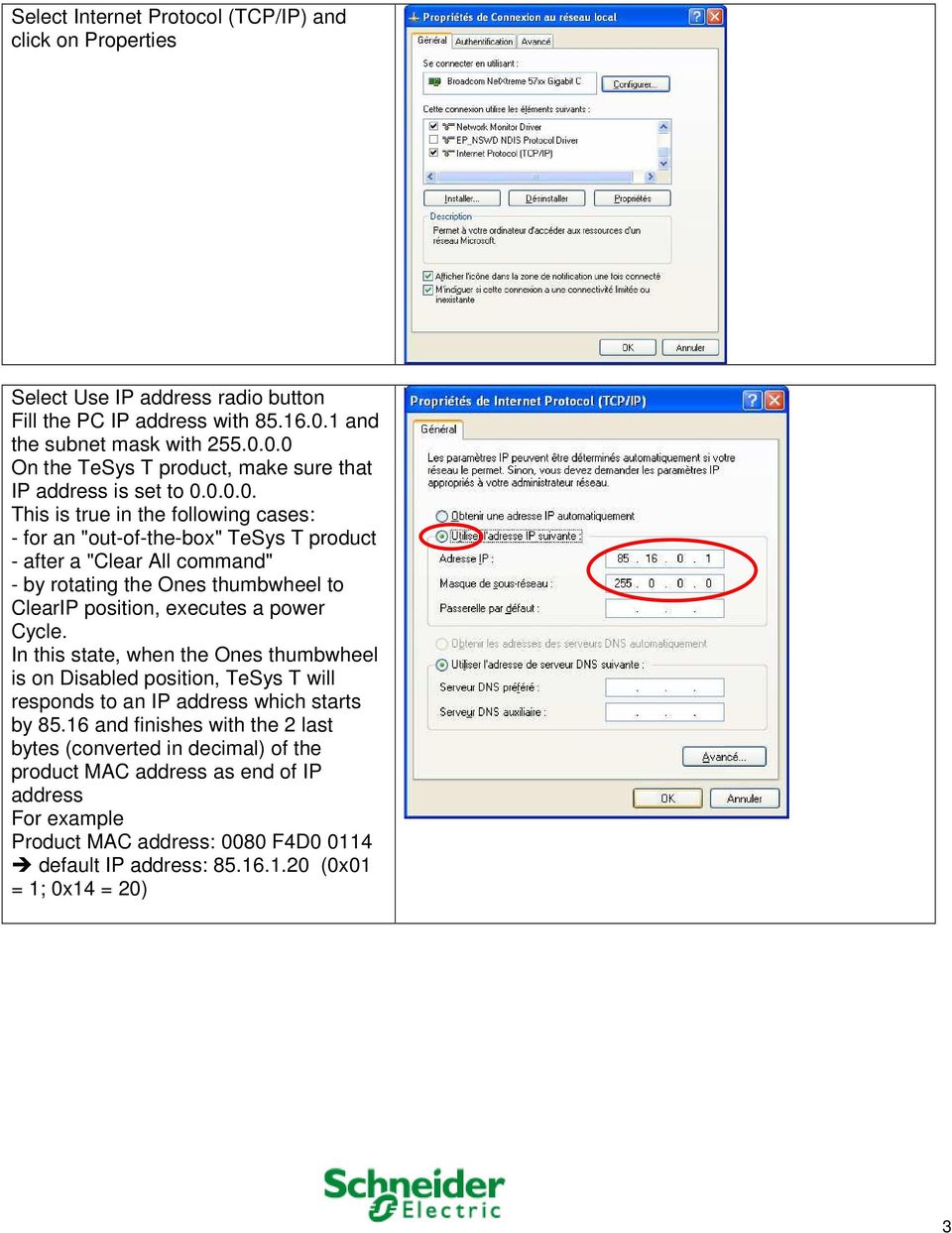
3 Select Internet Protocol (TCP/IP) and click on Properties Select Use IP address radio button Fill the PC IP address with and the subnet mask with On the TeSys T product, make sure that IP address is set to This is true in the following cases: - for an "out-of-the-box" TeSys T product - after a "Clear All command" - by rotating the Ones thumbwheel to ClearIP position, executes a power Cycle. In this state, when the Ones thumbwheel is on Disabled position, TeSys T will responds to an IP address which starts by and finishes with the 2 last bytes (converted in decimal) of the product MAC address as end of IP address For example Product MAC address: 0080 F4D default IP address: (0x01 = 1; 0x14 = 20) 3

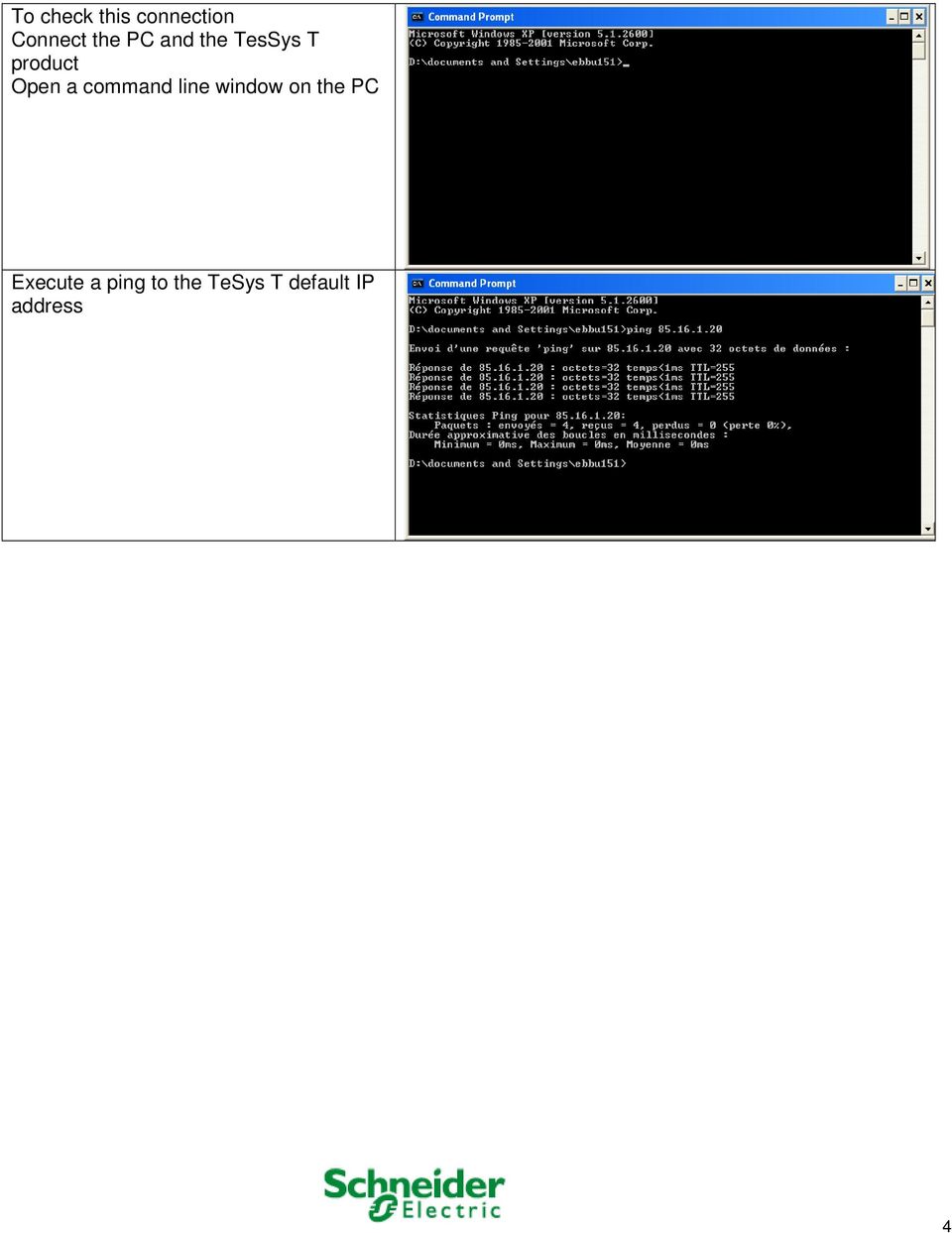
4 To check this connection Connect the PC and the TesSys T product Open a command line window on the PC Execute a ping to the TeSys T default IP address 4
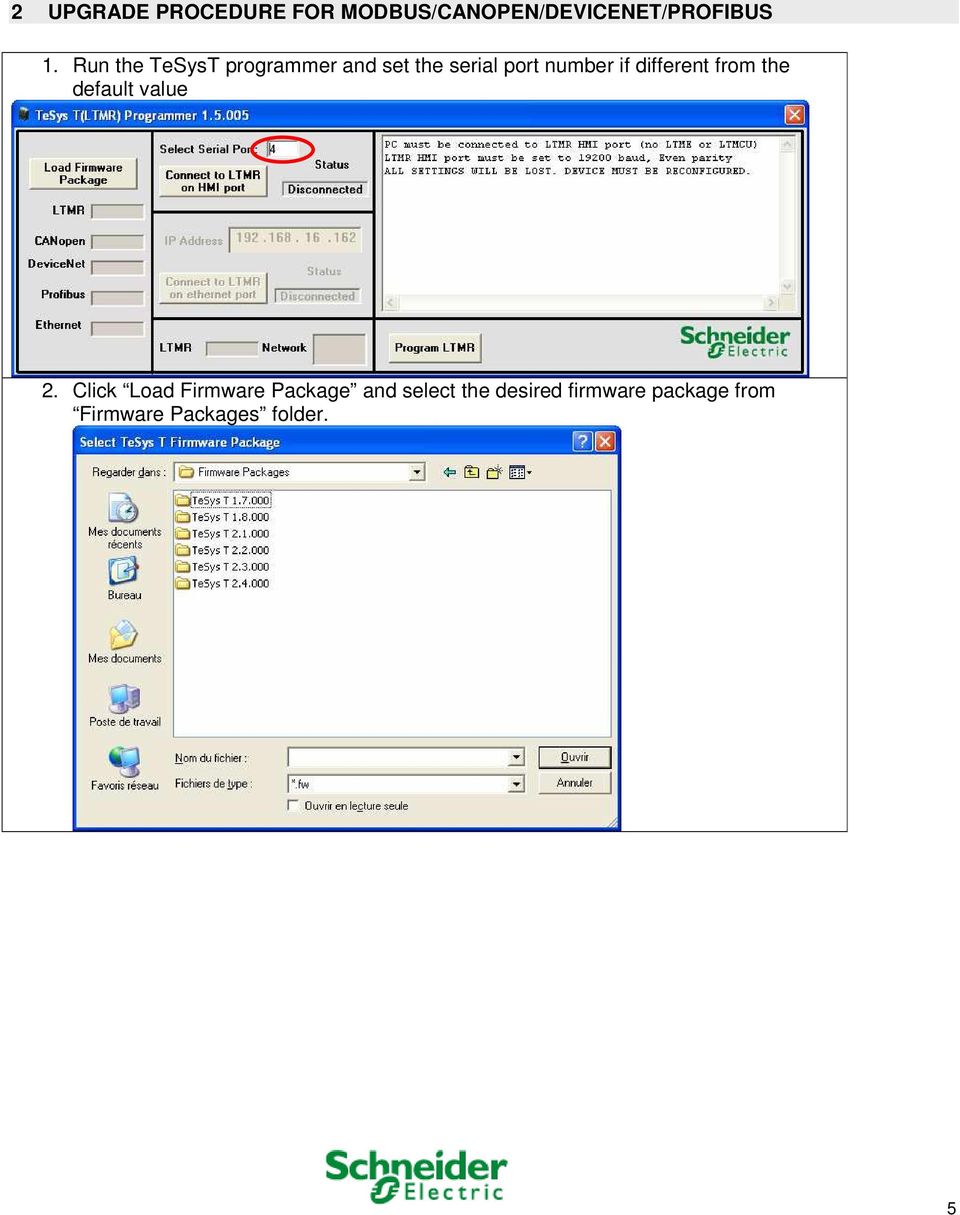
5 2 UPGRADE PROCEDURE FOR MODBUS/CANOPEN/DEVICENET/PROFIBUS 1. Run the TeSysT programmer and set the serial port number if different from the default value 2. Click Load Firmware Package and select the desired firmware package from Firmware Packages folder. 5
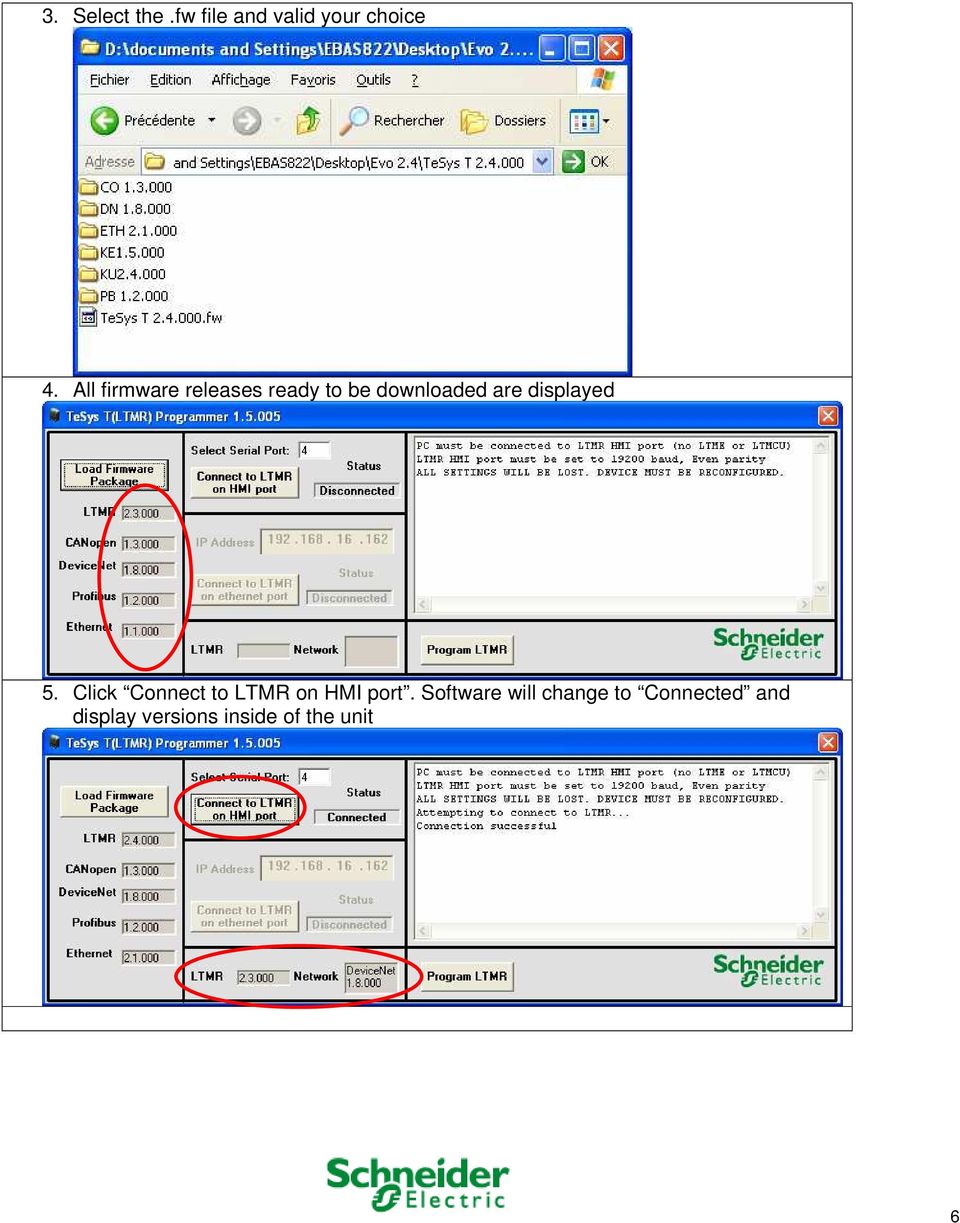
6 3. Select the.fw file and valid your choice 4. All firmware releases ready to be downloaded are displayed 5. Click Connect to LTMR on HMI port. Software will change to Connected and display versions inside of the unit 6
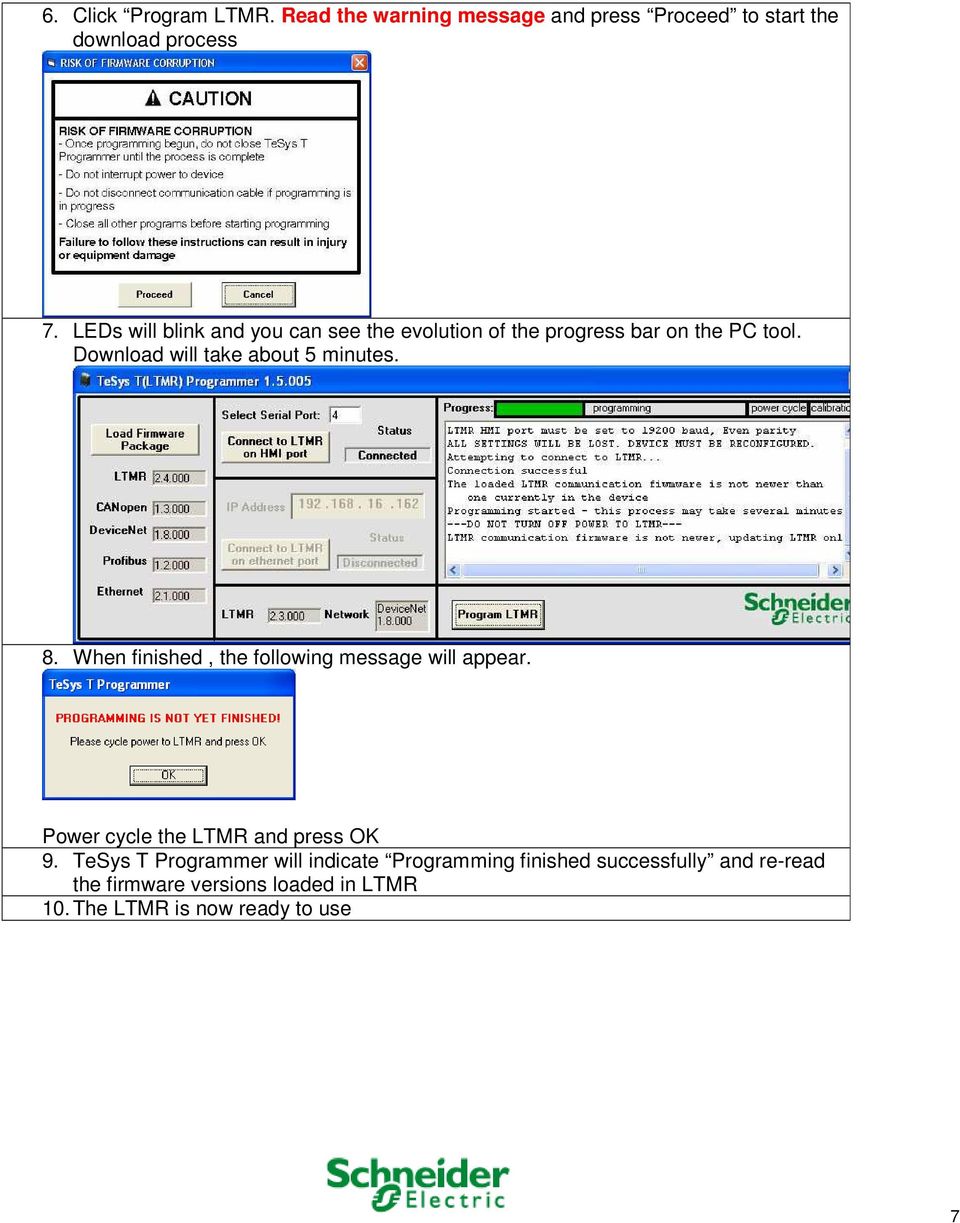
7 6. Click Program LTMR. Read the warning message and press Proceed to start the download process 7. LEDs will blink and you can see the evolution of the progress bar on the PC tool. Download will take about 5 minutes. 8. When finished, the following message will appear. Power cycle the LTMR and press OK 9. TeSys T Programmer will indicate Programming finished successfully and re-read the firmware versions loaded in LTMR 10. The LTMR is now ready to use 7
8 3 UPGRADE PROCEDURE FOR ETHERNET 1. Run the TeSysT programmer and set the serial port number if different from the default value 2. Click Load Firmware Package and select the desired firmware package from Firmware Packages folder. 8

9 3. Select the.fw file and valid your choice 4. All firmware releases ready to be downloaded are displayed 5. Click Connect to LTMR on HMI port. Software will change to Connected and display versions inside of the unit. 9

10 6. A valid IP address which corresponds to the TeSys T Ethernet port must be entered 7. Click on Connect to LTMR on Ethernet port. All firmware versions in the product are identified. Connection state is updated and a message will confirm the connection to Ethernet port Click Program LTMR. Read the warning message and press Proceed to start the download process 10


11 10. LEDs will blink and you can see the evolution of the progress bar on the PC tool. Download will take about 8 minutes. 11. When finished, the following message will appear. Power cycle the LTMR and press OK 12. TeSys T Programmer will indicate Programming finished successfully and re-read the firmware versions loaded in LTMR 13. The LTMR is now ready to use 11

Application Note: Connecting to a 2500 Series Processor using PLC Workshop
 Application Note: Connecting to a 2500 Series Processor using PLC Workshop This application note will describe a step by step process for the three ways to connect to a 2500-CXXX with PLC Workshop. The
To perform Ethernet setup and communication verification, first perform RS232 setup and communication verification:
 PURPOSE Verify that communication is established for the following products programming option (488.2 compliant, SCPI only): DCS - M9C & DCS M130, DLM M9E & DLM-M9G & DLM M130, DHP - M9D, P series, SG,
Quick Note 32. Using Digi RealPort with a Digi TransPort Router. UK Support September 2012
 Quick Note 32 Using Digi RealPort with a Digi TransPort Router UK Support September 2012 1 Contents 1 Introduction... 3 1.1 Outline... 3 1.2 Assumptions... 3 1.3 Version... 3 2 Configuration & scenario...
E-Mon Communication Gateway Utility Instructions for BACnet/mstp
 E-Mon Communication Gateway Utility Instructions for BACnet/mstp The E-Mon Communication Gateway utility will allow you to configure the Device Instance (Node ID) and other parameters needed for your BACnet/mstp
enervista UR Setup Software Quick Connect Instructions:
 enervista UR Setup Software Quick Connect Instructions: The user can connect to the UR relay via front serial port or rear Ethernet port using the Quick Connect feature of enervista UR Setup software.
Plena Voice Alarm System Firmware update
 Plena Voice Alarm System Firmware update 1. Introduction It is advised to update a Bosch Plena Voice Alarm System with the latest released firmware. This Application Note describes how a firmware update
Quick Installation Guide Network Management Card
 Rev.1.1 www.cyberpowersystems.com Quick Installation Guide Network Management Card Intelligent Network Management Card allows UPS to be managed, monitored, and configured via SNMP Card Configuration Tool
User Manual Network Interface
 User Manual Network Interface Rev. 1.00 SRP-350plusll SRP-352plusll http://www.bixolon.com Table of Contents 1. Manual Information...3 2. Specifications...3 2-1 Hardware version...3 2-2 Configuration Tool...3
How to make a diagnostic on TeSysT to start the network?
 How to make a diagnostic on TeSysT to start the network? I- Type of publication Typical application Best know Method (BKM) Troubleshooting guide Level 2 use Internal use Customer II- Product - Product
Keri USB-A Connection and Configuration
 Step 1 - Connect the KPC-1 cable to the K-USB. NOTE: The form of the USB converter may vary, so the unit you receive may not be identical to the one displayed here. Step 2 Plug the USB Connector of the
User Manual Revision 1.400 English Converter / Adapter Ethernet to RS232 / RS485 (Order Code: HD67038-2 HD67038-2-M HD67038-25 HD67038-25-M)
 Document code: MN67038-2_ENG Revision 1.400 Page 1 of 25 User Manual Revision 1.400 English Converter / Adapter Ethernet to RS232 / RS485 (Order Code: HD67038-2 HD67038-2-M HD67038-25 HD67038-25-M) for
Follow these steps to prepare the module and evaluation board for testing.
 2 Getting Started 2.1. Hardware Installation Procedure Follow these steps to prepare the module and evaluation board for testing. STEP1: Plug the EG-SR-7100A module into the sockets on the test board.
Schneider OS-Loader usage via Ethernet or USB.
 LHC Gas Systems 28 th February, 2007 Schneider OS-Loader usage via Ethernet or USB. Jacques ROCHEZ - IT/CO/FE Abstract This document is a guideline on how to configure correctly a PC for the use of the
3.5 EXTERNAL NETWORK HDD. User s Manual
 3.5 EXTERNAL NETWORK HDD User s Manual Table of Content Before You Use Key Features H/W Installation Illustration of Product LED Definition NETWORK HDD Assembly Setup the Network HDD Home Disk Utility
TE100-P21/TEW-P21G Windows 7 Installation Instruction
 Hardware Installation TE100-P21/TEW-P21G Windows 7 Installation Instruction 1. Go to http://www.trendnet.com/downloads/ to download the Windows 7 Utility. Save the file to your desktop. 2. Right click
USER GUIDE. Ethernet Configuration Guide (Lantronix) P/N: 2900-300321 Rev 6
 KRAMER ELECTRONICS LTD. USER GUIDE Ethernet Configuration Guide (Lantronix) P/N: 2900-300321 Rev 6 Contents 1 Connecting to the Kramer Device via the Ethernet Port 1 1.1 Connecting the Ethernet Port Directly
H0/H2/H4 -ECOM100 DHCP & HTML Configuration. H0/H2/H4--ECOM100 DHCP Disabling DHCP and Assigning a Static IP Address Using HTML Configuration
 H0/H2/H4 -ECOM100 DHCP & HTML 6 H0/H2/H4--ECOM100 DHCP Disabling DHCP and Assigning a Static IP Address Using HTML 6-2 H0/H2/H4 -ECOM100 DHCP DHCP Issues The H0/H2/H4--ECOM100 is configured at the factory
Centurion PLUS CPC4 Download Guide
 Centurion PLUS CPC4 Download Guide using C4 File Transfer Utility. 1010537 03 01 10 Section 50 1.0 Background: 1.1 The Centurion PLUS Control system consists of a Centurion PLUS Core (CPC4 1) and Color
USB Driver Installation for Windows XP
 USB Driver Installation for Windows XP USB Serial Converter Driver Installation for Windows XP CAUTION: You must use the drivers on the CD-ROM supplied with your USB Device. DO NOT download drivers from
Guide to Installing BBL Crystal MIND on Windows 7
 Guide to Installing BBL Crystal MIND on Windows 7 Introduction The BBL Crystal MIND software can not be directly installed on the Microsoft Windows 7 platform, however it can be installed and run via XP
Connecting the DG-102S VoIP Gateway to your network
 Contents of Package: DG-102S VoIP Station Gateway Power adapter CD-ROM, including User s Manual Quick Install Guide Requirements: RS-232 Console Cable Two RJ-45 CAT-5 Straight-Through Cables For more information
Installation Instructions for 9555 USB Driver
 Prior to using the data modem features of your 9555 handset; you must first install the VCOMPORT 9555 USB Driver. This driver is compatible with: Windows XP Service Pack 2, Windows 2000 Service Pack 4,
1. Hardware Installation
 4 Port 10/100M Internet Broadband Router with USB Printer server Quick Installation Guide #4824904AXZZ0 1. Hardware Installation A. System Requirement Before you getting started, make sure that you meet
Modbus RTU (RS-485) TCP/IP (Ethernet)
 Eaton Innovative Technology PEM PC Software Installation and Operation Instruction Manual: IM01005006E Rev. 2 March 2007 Modbus RTU (RS-485) TCP/IP (Ethernet) Effective Date 3/2007 For more information
Setup Manual and Programming Reference. RGA Ethernet Adapter. Stanford Research Systems. Revision 1.05 (11/2010)
 Setup Manual and Programming Reference Stanford Research Systems Revision 1.05 (11/2010) Certification Stanford Research Systems certifies that this product met its published specifications at the time
Tutorial: Configuring GOOSE in MiCOM S1 Studio 1. Requirements
 Tutorial: Configuring GOOSE in MiCOM S1 Studio 1. Requirements - Two (2) MiCOM Px4x IEDs with Version 2 implementation of IEC 61850 - Two (2) Cat 5E Ethernet cable - An Ethernet switch 10/100 Mbps - MiCOM
CS 326e F2002 Lab 1. Basic Network Setup & Ethereal Time: 2 hrs
 CS 326e F2002 Lab 1. Basic Network Setup & Ethereal Time: 2 hrs Tasks: 1 (10 min) Verify that TCP/IP is installed on each of the computers 2 (10 min) Connect the computers together via a switch 3 (10 min)
SNAP Printer Web Server Users Manual
 User s Manual SNAP Printer Web Server Users Manual AVERY DENNISON 29 April 2013 Version 1.2 Change List Version Description 1.0 Initial Release 1.1 Updated to add the Batch ID and Batch Count to the main
Windows XP.. ELITE Firmware Update procedures.. v1.41
 Windows XP.. ELITE Firmware Update procedures.. v1.41 Download and Extract the ELITE update. Note.. Please ensure you are logged in to Windows as an Administrator before carrying out the instructions in
CMP-102U. Quick Installation Guide
 CMP-102U Quick Installation Guide V1.0 http://www.cnet.com.tw 1 CMP-102U Supports One High-speed USB2.0 Port MFP Server Supports 10/100Mbps Fast Ethernet Network Quick Installation Guide 1 Package Contents:
Ethernet Interface Manual Thermal / Label Printer. Rev. 1.01 Metapace T-1. Metapace T-2 Metapace L-1 Metapace L-2
 Ethernet Interface Manual Thermal / Label Printer Rev. 1.01 Metapace T-1 Metapace T-2 Metapace L-1 Metapace L-2 Table of contents 1. Interface setting Guiding...3 2. Manual Information...4 3. Interface
QNAP SYSTEMS INC. QNAP Digital Signage Player Web Console Manual
 QNAP SYSTEMS INC. QNAP Digital Signage Player Web Console Manual Table of Content 1 Introduction... 3 1.1 Purpose... 3 1.2 Support Browser... 3 2 System Administration... 3 2.1 Login Page... 3 2.2 Overview
3.1 RS-232/422/485 Pinout:PORT1-4(RJ-45) RJ-45 RS-232 RS-422 RS-485 PIN1 TXD PIN2 RXD PIN3 GND PIN4 PIN5 T+ 485+ PIN6 T- 485- PIN7 R+ PIN8 R-
 MODEL ATC-2004 TCP/IP TO RS-232/422/485 CONVERTER User s Manual 1.1 Introduction The ATC-2004 is a 4 Port RS232/RS485 to TCP/IP converter integrated with a robust system and network management features
[Setup procedure for Windows 95/98/Me]
![[Setup procedure for Windows 95/98/Me]](/thumbs/30/14441671.jpg "[Setup procedure for Windows 95/98/Me]") [Setup procedure for Windows 95/98/Me] a. One Print Server. b. One external AC power adapter. c. One setup CD. (For Windows 95/98/Me/NT/2000/XP). d. One user s manual (included quick guide). a. Turn off
[Setup procedure for Windows 95/98/Me] a. One Print Server. b. One external AC power adapter. c. One setup CD. (For Windows 95/98/Me/NT/2000/XP). d. One user s manual (included quick guide). a. Turn off
PIM31 Remote Setup and Operational Procedures
 PIM31 Remote Setup and Operational Procedures 1 Remote Application and TCP/IP Setup PIM31 Remote Control Panel is the software to control the PIM31 unit from any PC using a TCP/IP cable connection. This
Communication with BushingGard using computer USB port
 Communication with BushingGard using computer USB port There are two ways of communication with BushingGard through computer USB port: Direct communication between computer USB port and BushingGard USB
Phaser 3635MFP Software Upgrade Process
 Overview Phaser 3635MFP Software Upgrade Process The Software Upgrade feature allows the customer to upgrade the machine software as requested by a Xerox Customer Support Center Representative, without
Configuring the Switch with the CLI Setup Program
 APPENDIXC Configuring the Switch with the CLI Setup Program This appendix provides a command-line interface (CLI) setup procedure for a standalone switch. To set up the switch by using Express Setup, see
USB TO UART DRIVER INSTALLATION INSTRUCTIONS FOR EAGLE FIRMWARE VERSION 2.XXX
 USB TO UART DRIVER INSTALLATION INSTRUCTIONS FOR EAGLE FIRMWARE VERSION 2.XXX All files mentioned in this document are located at the Model 599 section of the Transceiver Downloads web page on the TEN-TEC
Guide for Remote Control PDA
 030.0035.01.0 Guide for Remote Control PDA For Use with Bluetooth and a PC Running Windows XP Table of Contents A. Required Parts... 3 B. PC Software Installation... 3 C. ActiveSync Software Configuration...
User Manual Web Operating Panel AP User Manual. General Settings, Updating and Troubleshooting
 User Manual Web Operating Panel AP User Manual General Settings, Updating and Troubleshooting Copyright The documentation and the software included with this product are copyrighted 2010 by Advantech Co.,
Centurion C4 Transfer Guide using C4 File Transfer Utility
 Centurion C4 Transfer Guide using C4 File Transfer Utility 1010536 02 23 11 Section 50 1.0 Background: 1.1 A valid configuration is required for the Centurion system. Configuration files are downloaded
1-Port Wireless USB 2.0 Print Server Model # APSUSB201W. Quick Installation Guide. Ver. 2A
 1-Port Wireless USB 2.0 Print Server Model # APSUSB201W Quick Installation Guide Ver. 2A Section 1 Step 1Connect one end of the Ethernet cable to the RJ-45 port of the Print Server and attach the other
Device Installer User Guide
 Device Installer User Guide Part Number 900-325 Revision B 12/08 Table Of Contents 1. Overview... 1 2. Devices... 2 Choose the Network Adapter for Communication... 2 Search for All Devices on the Network...
Movie Cube. User s Guide to Wireless Function
 Movie Cube User s Guide to Wireless Function Table of Contents 1. WLAN USB Adapter Connection...3 2. Wireless Setup...4 2.1 Infrastructure (AP)...5 2.2 Peer to Peer (Ad Hoc)...7 2.3 Settings for PC...8
Additional Requirements for ARES-G2 / RSA-G2. One Ethernet 10 Base T/100 Base TX network card required for communication with the instrument.
 TA Instruments TRIOS Software Installation Instructions Installation Requirements Your TRIOS Instrument Control software includes all the components necessary to install or update the TRIOS software, as
Using IDENT M System T with Modbus/TCP
 Using IDENT M System T with Modbus/TCP Introduction The Pepperl+Fuchs IDENT M System T consists of two models MTT3000-F180-B12- V45-MON, which is a read only unit and the MTT6000-F120-B12-V45 which is
Technical Note. Setting ACS drive IP address automatically with Rockwell BOOTP/DHCP Server. Contents
 Setting ACS drive IP address automatically with Rockwell BOOTP/DHCP Server Contents System Requirements...2 Software...2 Cabling...2 1.0 Introduction...3 2.0 ACS / TMI Setup...3 3.0 Rockwell BOOTP/DHCP
How do I configure the wireless printer using a USB or Ethernet cable and install the printer driver in Windows?
 How do I configure the wireless printer using a USB or Ethernet cable and install the printer driver in Windows? STEP I: Gather the wireless network settings of your wireless access point or wireless router
Self Help Guide IMPORTANT! Configuring Your Router With Your Modem. Please read the following carefully; This Guide refers to the following Products:
 IMPORTANT! This Guide refers to the following Products: Configuring Your Router With Your Modem Please read the following carefully; Synopsis: A standard (Wireless) Router does not come equipped with the
1 Axis camera configuration... 2 1.1 IP configuration... 2 1.2 Setting up date and time... 4. 2 Installing an IPS Analytics Application...
 Installation Instruction IPS Video Analytics for Axis ACAP Cameras and Encoders Contents 1 Axis camera configuration... 2 1.1 IP configuration... 2 1.2 Setting up date and time... 4 2 Installing an IPS
ABB solar inverters. Installation and setup instruction Aurora Manager TL software and ABB PVI-USB-RS232_485 adapter
 ABB solar inverters Installation and setup instruction Aurora Manager TL software and ABB PVI-USB-RS232_485 adapter Introduction This document details the procedure for the installation on a user s computer
64-Bit Compatibility with Micromeritics Applications
 Tech Tip 7 64-Bit Compatibility with Micromeritics Applications Micromeritics products are designed to operate in most Microsoft Windows environments. However, more current versions of Microsoft Windows,
c. Securely insert the Ethernet cable from your cable or DSL modem into the Internet port (B) on the WGT634U. Broadband modem
 Start Here Follow these instructions to set up your router. Verify That Basic Requirements Are Met Assure that the following requirements are met: You have your broadband Internet service settings handy.
GE Security. FHSD Monitor / Web Server user manual
 GE Security FHSD Monitor / Web Server user manual version 1-0 / november 2004 http://www.geindustrial.com/ge-interlogix/emea 2004 GE Interlogix B.V.. All rights reserved. GE Interlogix B.V. grants the
Quick Installation Guide. Live! Titanium
 Quick Installation Guide Live! Titanium Contents 1. Live! overview... 2. Installation... 3. Network setup... 4. Wireless setup... 5. Configuring your Live!... 6. Troubleshooting... 2 4 7 8 9 10 1 1. Live!
Application & Quick-Start Guide
 Model: CRMWIC Web Intelligent Controller 1 This document will illustrate various ways to connect and use a CRM-WIC as well as programming examples. When connecting CRM-WIC, the installer has several interface
HL2170W Windows Network Connection Repair Instructions
 Difficulty printing from your PC can occur for various reasons. The most common reason a networked Brother machine may stop printing, is because the connection between the computer and the Brother machine
T3 Mux M13 Multiplexer
 T3 Mux M13 Multiplexer User Manual [Type the abstract of the document here. The abstract is typically a short summary of the contents of the document. Type the abstract of the document here. The abstract
Software Installation Guide
 Software Installation Guide This manual explains how to install the software over a USB or network connection. Network connection is not available for models SP 200/200S/203S/203SF/204SF. Flowchart The
About This Guide SolarEdge Configuration Tool Software Guide. About This Guide
 About This Guide 3 About This Guide This user guide is intended for Photovoltaic (PV) system owners, installers, technicians, maintainers, administrators and integrators who are authorized to configure
User Manual Revision 1.002 English
 Document code: MN67513_ENG Revision 1.002 Page 1 of 15 User Manual Revision 1.002 English Gateway / Adapter CAN to Ethernet (Order Code: HD67513 HD67513M) HD67513 for Website HD67513 information: www.adfweb.com?product=hd67513
ipad Installation and Setup
 ipad Installation and Setup INDEX ipad Features Page 2 Charging.. Page 2 User Guide... Page 3 Setup for ipad use in the office (Office wireless network) Setup Office computers Verify Remote Desktop is
1 PC to WX64 direction connection with crossover cable or hub/switch
 1 PC to WX64 direction connection with crossover cable or hub/switch If a network is not available, or if it is desired to keep the WX64 and PC(s) completely separated from other computers, a simple network
Internet Guide. Prepared for 55 John Street
 Internet Guide Prepared for 55 John Street I. Internet Service How do I connect to the Internet? WiFi (Wireless Connectivity) is available throughout the building. In order to connect, you will need a
LPT1 Printer Connector. External Power Supply Connector Power Indicator
 AXIS 1650 Set-up Instructions Page 3 Unpack box Verify that you have all the items listed below: LPT1 Printer Connector Network Indicator Ethernet Connector External Power Supply Connector Power Indicator
Broadband Router ESG-103. User s Guide
 Broadband Router ESG-103 User s Guide FCC Warning This equipment has been tested and found to comply with the limits for Class A & Class B digital device, pursuant to Part 15 of the FCC rules. These limits
Section 5: Installing the Print Driver
 Section 5: Installing the Print Driver In This Section Print Driver Installation for USB Connection Using the Ethernet Connection and a Crossover Cable Print Driver: The Epilog print driver is the software
Application Note CTAN #374
 Application Note CTAN #374 The Application Note is specific to the CT software packages MentorSoft, UniSoft and SeSoft Windows 7 64-bit and the Older CT Software Scope Windows 7 64-bit Professional 64-bit
DOORKING SYSTEMS 1830 SERIES NETWORK WORKSHOP LAN APPLICATIONS ACCESS CONTROL SOLUTIONS LOCAL AREA NETWORK (LAN) CONNECTION REV 04.
 DOORKING SYSTEMS ACCESS CONTROL SOLUTIONS 1830 SERIES NETWORK WORKSHOP LAN APPLICATIONS REV 04.11 LOCAL AREA NETWORK (LAN) CONNECTION Ethernet Connection: An Ethernet Cable, or wireless connection must
DNS-312H Network Attached Storage
 This product can be set up using any current web browser, i.e., Internet Explorer 5x, and Netscape Navigator 4x or above. DNS-312H Network Attached Storage Before You Begin 1. If you purchased this storage
Print Server. Quick Installation Guide
 Print Server Quick Installation Guide Table of Contents INTRODUCTION... 1 INSTALL THE HARWARE... 2 INSTALL UTILITIES FOR WINDOWS 95/98... 3 CONFIGURE THE PRINT SERVER... 4 Network environment without file
Configuring the Beckhoff BK9000 Network Parameters
 Configuring the Beckhoff BK9000 Network Parameters Section Title Page 1 Overview of Steps 1 2 Parts List 1 3 Required Software 1 4 Install Required Software 2 5 Configure Network Parameters 3 1 Overview
Standalone recorder instruction
 Standalone recorder instruction 1,Product profile... 2 2. Hardware interface... 2 2.1 2 &4 &8 channel standalone recorder front panel... 2 2.2 8&16 channel standalone recorder device interface... 3 3,
MaxSea TimeZero NN3D Radar Connection Checklist
 MaxSea TimeZero NN3D Radar Connection Checklist This TechNote only applies to MaxSea TimeZero Explorer. Description Follow this TechNote if you have any of these symptoms: - The Radar Tab (Radar WorkSpace)
How to configure DVR and computer for running Remote Viewer via IP network
 How to configure DVR and computer for running Remote Viewer via IP network Follow these steps to configure a network DVR and a computer with Remote Viewer software to see live pictures via IP network.
Prestige 324. Prestige 324. Intelligent Broadband Sharing Gateway. Version 3.60 January 2003 Quick Start Guide
 Prestige 324 Intelligent Broadband Sharing Gateway Version 3.60 January 2003 Quick Start Guide 1 Introducing the Prestige The Prestige is a broadband sharing gateway with a built-in four-port 10/100 Mbps
Installation of the USB to RS 485 Converter
 Installation of the USB to RS 485 Converter Contents CONTENTS 1 GENERAL INSTRUCTIONS 1 HINT 1 INSTALLATION USING SETUP EXECUTABLE (RECOMMENDED INSTALLATION PROCEDURE) 2 INSTALLATION BY PLUGGING IN THE
Prestige 324 Quick Start Guide. Prestige 324. Intelligent Broadband Sharing Gateway. Version V3.61(JF.0) May 2004 Quick Start Guide
 Prestige 324 Intelligent Broadband Sharing Gateway Version V3.61(JF.0) May 2004 Quick Start Guide 1 1 Introducing the Prestige The Prestige is a broadband sharing gateway with a built-in four-port 10/100
USA MOBILITY CABLE CONNECTION AND SOFTWARE DRIVER INSTALLATION INSTRUCTIONS. For. Unication M90 Device USB To RS232 Adapter TABLE OF CONTENTS
 USA MOBILITY CABLE CONNECTION AND SOFTWARE DRIVER INSTALLATION INSTRUCTIONS For Unication M90 Device USB To RS232 Adapter TABLE OF CONTENTS SECTION 1: ADAPTER CABLE CONNECTION INSTRUCTIONS... 2 SECTION
GW-7552 PRIFIBUS/MODBUS GATEWAY
 GW-7552 PRIFIBUS/MODBUS GATEWAY Quick Start User Guide 1. Introduction This manual introduces the GW-7552's basic setting and operating quickly, the user can refer to the user manual in the ICP DAS companion
Ethernet Radio Configuration Guide
 Ethernet Radio Configuration Guide for Gateway, Endpoint, and Repeater Radio Units April 20, 2015 Customer Service 1-866-294-5847 Baseline Inc. www.baselinesystems.com Phone 208-323-1634 FAX 208-323-1834
Midland BT Updater BTUpdater Program Program file (x86) ), Midland
 Midland BT Updater After you downloaded the BT Updater setup application from the web site, double click on it and follow the installation procedure. The BTUpdater application is automatically installed
User s Manual TCP/IP TO RS-232/422/485 CONVERTER. 1.1 Introduction. 1.2 Main features. Dynamic DNS
 MODEL ATC-2000 TCP/IP TO RS-232/422/485 CONVERTER User s Manual 1.1 Introduction The ATC-2000 is a RS232/RS485 to TCP/IP converter integrated with a robust system and network management features designed
Omni 56K USB Lite Quick Start Guide
 Omni 56K USB Lite Quick Start Guide ZyXEL TOTAL INTERNET ACCESS SOLUTION 1. Hardware Installation Connect your modem to your analog phone or fax. Use the phone cord included to connect to the phone jack
TRENDnet. <a href="mailto:webmaster@ trendnet.com"> www.trendnet.com. Quick Installation Guide. Product Warranty Registration
 Quick Installation Guide Product Warranty Registration website at http://www.trendnet.com www.trendnet.com Please take a moment to register your product online.
3.5 Mobile LAN Disk. User Guide
 3.5 Mobile LAN Disk User Guide Contents 1. Hardware...2 1.1 Power...2 1.2 Ports...2 1.3 Reset Button...2 1.4 LEDs...2 1.5 Front View...3 1.6 Rear View...3 2. Installation....... 4 2.1 Requirements 4 2.2
Configuring the WT-4 for ftp (Ad-hoc Mode)
 En Configuring the WT-4 for ftp (Ad-hoc Mode) Mac OS X Introduction This document provides basic instructions on configuring the WT-4 wireless transmitter and a Mac OS X (10.5.2) ftp server for transmission
PC/POLL SYSTEMS Version 7 Polling SPS2000 Cash Register TCP/IP Communications
 PC/POLL SYSTEMS Version 7 Polling SPS2000 Cash Register TCP/IP Communications PC/POLL SYSTEMS supports native TCP/IP polling for the SPS2000 cash register. It is recommended users have the register updated
Section 5: Connecting the Laser to Your Computer
 Section 5: Connecting the Laser to Your Computer In This Section Connecting the Laser to your Computer USB Port Ethernet Port Connecting the Laser to Your Computer All Epilog systems are designed to be
Using Cisco UC320W with Windows Small Business Server
 Using Cisco UC320W with Windows Small Business Server This application note explains how to deploy the Cisco UC320W in a Windows Small Business Server environment. Contents This document includes the following
Easy Setup Guide for the Sony Network Camera
 -878-191-11 (1) Easy Setup Guide for the Sony Network Camera For setup, a computer running the Microsoft Windows Operating System is required. For monitoring camera images, Microsoft Internet Explorer
Guide for Updating Firmware and Troubleshooting Connection Issues
 Guide for Updating Firmware and Troubleshooting Connection Issues This document provides detailed instructions for updating firmware and for troubleshooting for connection issues with Raspberry Pi board.
User s Manual Network Management Card
 User s Manual Network Management Card RMCARD202 Intelligent Network Management Card allows a UPS system to be managed, monitored, and configured Version 1.0 E-K01-SNMP005-0 TABLE OF CONTENTS Introduction
ADSL Router Quick Installation Guide Revised, edited and illustrated by Neo
 ADSL Router Quick Installation Guide Revised, edited and illustrated by Neo A typical set up for a router PCs can be connected to the router via USB or Ethernet. If you wish to use a telephone with the
Iridium Extreme TM Satellite Phone. Data Services Manual
 Iridium Extreme TM Satellite Phone Data Services Manual Table of Contents 1 OVERVIEW... 1 2 HOW IT WORKS... 1 3 BEFORE INSTALLING... 2 4 USB DRIVER INSTALLATION... 3 5 MODEM INSTALLATION AND CONFIGURATION...
Beckhoff TwinCAT. Assigning IP Addresses to Beckhoff Ethernet Devices
 Beckhoff TwinCAT Assigning IP Addresses to Beckhoff Ethernet Devices Revision: 1.1 Updated: 14 January 2005 Table of Contents 1. Introduction...3 1.1. Ethernet Cross-over Cable Connection... 3 2. Beckhoff
Victoria Combo Remote Control
 Victoria Combo Remote Control enables you to control your tester from any where in world. The only requirement is that the Victoria Combo and the PC are connected to TCP/IP networks either physically or
3.5 LAN HDD Enclosure User s Manual
 3.5 LAN HDD Enclosure User s Manual NOTE: 1. USB and LAN can t be used at the same time. 2. HDD should be formatted as FAT32. Please check Disk utility section in this manual. 3. For internet FTP usage,
SMC7004ABR Barricade Broadband Router Installation Instructions
 SMC7004ABR Barricade Broadband Router Installation Instructions SPECIAL NOTE: Part D Upgrading the Firmware in Your Barricade MUST occur in ALL installations for multiple VPN sessions to work!!! SPECIAL