
Magellan 8100/8100Ω 8200/8200Ω
|
|
|
- Bryce Fisher
- 10 years ago
- Views:
Transcription

1 Magellan 8100/8100Ω 8200/8200Ω Model 8204 shown Product Reference Guide

2 PSC Inc 959 Terry Street Eugene, Oregon Telephone: (541) Fax: (541) An Unpublished Work - All rights reserved. No part of the contents of this documentation or the procedures described therein may be reproduced or transmitted in any form or by any means without prior written permission of PSC Inc. or its wholly owned subsidiaries ("PSC"). Owners of PSC products are hereby granted a non-exclusive, revocable license to reproduce and transmit this documentation for the purchaser's own internal business purposes. Purchaser shall not remove or alter any proprietary notices, including copyright notices, contained in this documentation and shall ensure that all notices appear on any reproductions of the documentation. Should future revisions of this manual be published, you can acquire printed versions by contacting your PSC representative. Electronic versions may either be downloadable from the PSC website ( or provided on appropriate media. If you visit our website and would like to make comments or suggestions about this or other PSC publications, please let us know via the Contact PSC page. Disclaimer PSC has taken reasonable measures to provide information in this manual that is complete and accurate, however, PSC reserves the right to change any specification at any time without prior notice. PSC is a registered trademark of PSC Inc. The PSC logo is a trademark of PSC. All other trademarks and trade names referred to herein are property of their respective owners. Magellan, FirstStrike and SurroundScan are registered trademarks of PSC Inc. All-Weighs, OmegaTek, Produce Rail, Productivity Index Reporting, SmartSentry and Any-Weighs are all trademarks of PSC Inc. This product may be covered by one or more of the following patents: ,568,598 6,578, AU D D D D D D D D D D D D D D D D D D D D D D D D D D D D D EP EP EP EP EP EP EP EP EP EP EP EP GB GB GB GB GB GB GB GB GB GB GB GB GB ISR ISR ISR JP JP JP JP JP JP JP MEX MEX RE37166 Other Patents Pending

3 TABLE OF CONTENTS Section 1. Introduction Manual Overview How to Use This Manual Manual Conventions Scanner and Scanning-Scale Nomenclature Connectors Physical Parameters Scanning Weighing Rated Weight Capacity Minimum Increment Maximum Static Weight (Overload) Automatic Zero Maintenance Warm-Up Time Thermal Equilibrium Power-up User Configurable Warm-up Electrical Specifications Power Supply Laser and Product Safety Labeling Bar Codes Supported Section 2. Site Preparation and Installation Pre-Installation Considerations Checkstand Design Scanner Installation Scanner Maintenance Ergonomic References Scanner Usage Site Preparation Overview Ventilation and Spacing Service Access Power Installation Grounding Product Reference Guide i

4 Checkstand Preparation Liquid Spills and Moisture Counter Cutout Checkstand Mounting Installation Overview Unpacking Operational Verification Diagnostic Modes Scanner Diagnostic Mode Scale Diagnostic Mode Cables & Connections Remote Scale Display Placement/Installation Lighting Considerations Viewing Angle Placing and Installing the Remote Scale Display (Short Pedestal Base ONLY) Changing Weighing Modes Set-Up & Installation Set-up Installation System Power-Up Recap Section 3. Operation and Maintenance Scanning Items Proper Scanning Technique Proper Weighing Technique Operational Controls Operational Modes Power-Up/Selftest & Pre-Operation Power-Up/Selftest Error Reporting Operational Configuration Operating Mode Normal Operation Sleep Mode Additional Functions Programming ii Magellan 8100/8100Ω and 8200/8200Ω Scanner

5 Diagnostic Mode Scanner and Scale Reset Scale Adjustments Zeroing the Scale Calibrating the Scale Operational Maintenance Vertical Scan Window Replacement Horizontal Scan Window Replacement (WRG) Section 4. Problem Isolation Power-Up Selftest Operational Tests Diagnostic Tests Diagnostic Procedures Error Codes Scale Error Reporting Flowcharts Section 5. Calibration Description of Calibration Sequence Motion Test Automatic Zero Setting Test Preparing the Scanner/Scale for Calibration Calibrating the Scale (Pounds & Kilograms) Calibration Verification (U.S. Pounds) Increasing-Load Test (Phase 1) Shift Test Increasing- Load Test (Phase 2) Blanking Test Decreasing-Load Test Return to Zero Test Calibration Verification (Kilograms) Increasing-Load Test (Phase 1) Shift Test (Metric) Increasing- Load Test (Phase 2) Blanking Test Decreasing-Load Test Return to Zero Test Product Reference Guide iii

6 Section 6. Programming Introduction to Label Programming Understanding the Basics Integrating the Scanner With Your Host System Customizing Your Scanner s Operation Programming Overview Programming via Handheld Device What Is Programming Mode? Entering and Exiting Programming Mode Programming Session Programming Sequence LED and Beeper Indicators If You Make a Mistake Return to Factory Settings Test Mode General Scanner and Scale Features Double Read Timeout Laser Timeout Motor Timeout Green LED Idle State Scanner Button Options Power-up Beep Control Good Read Beep Control Good Read Beep Frequency Good Read Beep Length Good Read Beep Volume Good Read When to Indicate Scale Enable Scale Country Mode Scale Enforced Zero Return Scale Interface Type Scale Motion Level Filter Scale LED Enable Remote Display Enable/Disable EAS Active State EAS Timeout Aux Port Mode iv Magellan 8100/8100Ω and 8200/8200Ω Scanner

7 Productivity Index Reporting (PIR) Interface Related Features Interface Type RS-232 Interface Selection RS-232 Wincor-Nixdorf Interface Selection RS-232 Single Cable Interface Selection IBM Port 17 Interface Selection IBM USB Interface Selection Maximum Host-Transmitted Message Length Number of Host Transmission Buffers Global Prefix Global Suffix IBM Features IBM Interface Options IBM Scale Address IBM Transmit Labels in Code 39 Format IBM USB Interface Options IBM USB Scanner Device Type RS-232 Features RS-232 Baud Rate RS-232 Number of Data Bits RS-232 Number of Stop Bits RS-232 Parity RS-232 Hardware Control RS-232 Intercharacter Delay RS-232 Software Flow Control RS-232 Host Echo RS-232 Host Echo Quiet Interval RS-232 Ignore Host Commands RS-232 TTL RS-232 TTL Invert RS-232 Beep on ASCII BEL RS-232 Beep After Weigh RS-232 Beep on Not on File RS-232 ACK NAK Enable RS-232 ACK Character RS-232 NAK Character Product Reference Guide v

8 RS-232 Retry on ACK NAK Timeout RS-232 ACK NAK Timeout Value RS-232 ACK NAK Retry Count RS-232 ACK NAK Error Handling RS-232 Label ID Control Single Cable RS-232 Options Single Cable RS-232 Scanner Only Protocol Single Cable RS-232 RTS CTS Selection Single Cable RS-232 Use BCC Single Cable RS-232 Use ACK/NAK Single Cable RS-232 Use STX Set Single Cable RS-232 STX Character Single Cable RS-232 Use ETX Set Single Cable RS-232 ETX Character Single Cable RS-232 PSC Extensions Symbology Programming UPC-A Enable UPC-A Number System Character Transmission UPC-A Check Character Transmission Expand UPC-A to EAN UPC/EAN AIM ID UPC-A Label ID UPC-A 2-Digit Supplemental Label ID UPC-A 5-Digit Supplemental Label ID UPC-A 128 Supplemental Label ID UPC-E Enable UPC-E Number System Character Transmission UPC-E Check Character Transmission Expand UPC-E to UPC-A Expand UPC-E to EAN UPC-E Label ID UPC-E 2-Digit Supplemental Label ID UPC-E 5-Digit Supplemental Label ID UPC-E 128 Supplemental Label ID EAN-13 Enable EAN-13 First Character Transmission EAN-13 Check Character Transmission vi Magellan 8100/8100Ω and 8200/8200Ω Scanner

9 EAN-13 ISBN Conversion Enable EAN 13 Label ID EAN-13 2-Digit Supplemental Label ID EAN-13 5-Digit Supplemental Label ID EAN Supplemental Label ID Bookland AIM ID Bookland Label ID EAN-8 Enable EAN-8 Check Character Transmission Expand EAN-8 to EAN EAN 8 Label ID EAN-8 2-Digit Supplemental Label ID EAN-8 5-Digit Supplemental Label ID EAN Supplemental Label ID EAN-8 Decoding Levels Other UPC/EAN Options UPC/EAN Reconstruction Price Weight Check Enable EAN Two Label Addons UPC-A and EAN-13 Decoding Levels GTIN Enable GTIN Label ID GTIN 2-Digit Supplemental Label ID GTIN 5-Digit Supplemental Label ID GTIN Code 128 Supplemental Label ID RSS-14 Enable RSS-14 Check Character Transmission RSS-14/EAN-128 Emulation RSS-14 2D Component Enable RSS-14 AIM ID RSS-14 Label ID RSS Expanded Enable RSS Expanded EAN-128 Emulation RSS Expanded 2D Component Enable RSS Expanded AIM ID RSS Expanded Label ID Product Reference Guide vii

10 RSS Expanded Length Control RSS Expanded Maximum Label Length RSS Expanded Minimum Label Length RSS Expanded Fixed Length RSS Expanded Fixed Length Code 39 Enable Code 39 Start Stop Character Transmission Code 39 Check Character Calculation Code 39 Check Character Transmission Code 39 Full ASCII Code 39 AIM ID Code 39 Label ID Code 39 Length Control Code 39 Maximum Label Length Code 39 Minimum Label Length Code 39 Fixed Length Code 39 Fixed Length Code 39 Stitching Pharmacode 39 Enable Pharmacode 39 Start Stop Character Transmission Pharmacode 39 Check Character Transmission Pharmacode 39 Label ID Code 128 Enable Code 128 Transmit Function Characters Convert Code128 to Code Code 128 AIM ID Code 128 Label ID Code 128 Length Control Code 128 Maximum Label Length Code 128 Minimum Label Length Code 128 Fixed Length Code 128 Fixed Length Code 128 Stitching EAN-128 Enable EAN 128 AIM ID EAN 128 Label ID Interleaved 2 of 5 (I 2 OF 5) Enable viii Magellan 8100/8100Ω and 8200/8200Ω Scanner

11 I 2 of 5 Check Character Calculation I 2 of 5 Check Character Transmission I 2 of 5 AIM ID I 2 of 5 Label ID I 2 of 5 Length Control I 2 of 5 Maximum Label Length I 2 of 5 Minimum Label Length I 2 of 5 Fixed Length I 2 of 5 Fixed Length I 2 of 5 Stitching Codabar Enable Codabar Start Stop Character Transmission Codabar Start Stop Character Set Codabar Start Stop Character Match Codabar Check Character Calculation Codabar Check Character Transmission Codabar AIM ID Codabar Label ID Codabar Length Control Codabar Maximum Label Length Codabar Minimum Label Length Codabar Fixed Length Codabar Fixed Length Codabar Stitching Code 93 Enable Code 93 AIM ID Code 93 Label ID Code 93 Length Control Code 93 Maximum Label Length Code 93 Minimum Label Length Code 93 Fixed Length Code 93 Fixed Length Code 93 Stitching MSI/Plessey Enable MSI/Plessey Check Character Calculation MSI/Plessey Number of Check Characters MSI/Plessey Check Character Transmission Product Reference Guide ix

12 MSI/Plessey AIM ID MSI/Plessey Label ID MSI/Plessey Length Control MSI/Plessey Maximum Label Length MSI/Plessey Minimum Label Length MSI/Plessey Fixed Length MSI/Plessey Fixed Length MSI/Plessey Stitching Standard 2 of 5 Enable Standard 2 of 5 Check Character Calculation Standard 2 of 5 Check Character Transmission Standard 2 of 5 AIM ID Standard 2 of 5 Label ID Standard 2 of 5 Length Control Standard 2 of 5 Maximum Label Length Standard 2 of 5 Minimum Label Length Standard 2 of 5 Fixed Length Standard 2 of 5 Fixed Length Standard 2 of 5 Stitching Appendix A. LED/Beeper Indications & Controls... A-1 Appendix B. Cable Information... B-1 Appendix C. Keypad... C-1 Appendix D. Host Commands... D-1 Appendix E. Factory Defaults... E-1 Appendix F. Handheld Data Format Requirements...F-1 Handheld Data Format Requirements General...F-1 PSC Handheld Data Format Requirements...F-2 RSS-14...F-2 RSS Expanded...F-2 UPC-A...F-2 UPC-A with 2-Digit Supplemental...F-2 UPC-A with 5-Digit Supplemental...F-3 UPC-A with Code 128 Supplemental...F-3 x Magellan 8100/8100Ω and 8200/8200Ω Scanner

13 UPC-E... F-3 UPC-E with 2-Digit Supplemental... F-4 UPC-E with 5-Digit Supplemental... F-4 UPC-E with Code 128 Supplemental... F-4 EAN-8... F-5 EAN-8 with 2-Digit Supplemental... F-5 EAN-8 with 5-Digit Supplemental... F-5 EAN-8 with Code 128 Supplemental... F-5 EAN F-6 EAN-13 with 2-Digit Supplemental... F-6 EAN-13 with 5-Digit Supplemental... F-6 EAN-13 with Code 128 Supplemental... F-6 Code F-7 Code 39-Pharmacode... F-7 I 2 of 5... F-7 Codabar... F-8 Code F-8 MSI/Plessey... F-9 Code F-9 PDF F-9 AIM Formats... F-10 UPC-A... F-10 UPC-E... F-10 EAN F-10 EAN-8... F-10 2-Digit Supplemental... F-11 5-Digit Supplemental... F-11 Code 128 Supplemental... F-12 Bookland... F-12 Code F-12 Codabar... F-13 MSI/Plessey... F-13 Code F-13 RSS F-14 RSS Expanded... F-14 I 2 of 5... F-14 Code 128 / EAN F-15 Product Reference Guide xi

14 PDF417...F-15 xii Magellan 8100/8100Ω and 8200/8200Ω Scanner

15 Section 1 Introduction This Product Reference Guide contains comprehensive instructions on how to install the scanner or scanning-scale (either model may be termed scanner for the purpose of simplicity in this manual), how to program it using special programming feature bar code labels, and advanced user information as described in the following overview. Product Reference Guide 1-1

16 Manual Overview Section 1, Introduction, presents the manual s contents, describes features and specifications, provides regulatory and safety information, and lists the bar code symbologies the scanner will read. Section 2, Site Preparation and Installation, supplies physical dimensions for the scanner or scanning-scale and its most common accessories, and details counter preparation and installation. Cable routing, connection and testing are also explained in this section. Section 3, Operation and Maintenance, describes use and maintenance; providing details about operator controls, programming and diagnostic modes, scale zeroing and calibration. Scanner and scale routine maintenance are outlined in this section as well. Section 4, Problem Isolation, provides an outline of three scanning-scale test modes: Selftest, Operational Tests and Diagnostic Tests. Descriptions of the error indications if the scanner detects a system problem and troubleshooting flowcharts to aid in problem resolution are also presented. Section 5, Calibration, explains scale calibration and verification procedures, including procedures for calibrating the scale in pounds as well as kilograms. Section 6, Programming, details procedures and provides custom bar codes for setting programmable scanner and scanning-scale features. This section is organized by the categories: General Features, Interface Related Features and Symbology Related Features. Appendix A, LED/Beeper Indications & Controls, lists the various functions and indications of the scanning-scale control panel features. Appendix B, Cable Information, outlines wire requirements, connector specifications and pinout details for associated product cabling. Appendix C, Keypad, furnishes bar codes representing the digits and characters required to enter extended programming data needed during certain programming sessions. Appendix D, Host Commands, contains a partial listing of available host commands that can be used with a compatible host interface. Appendix E, Factory Defaults, is a table listing factory defaults for the most common interface types. Appendix F, Handheld Data Format Requirements, is a useful resource. 1-2 Magellan 8100/8100Ω and 8200/8200Ω Scanner

17 How to Use This Manual You ll find it helpful to familiarize yourself with the first section of this manual, since it provides both a general description of the product s features and an overview of the manual s contents and organization. Reference the other sections as required for information about scanner or scanning-scale installation, operation, maintenance, calibration and bar code programming. Manual Conventions NOTE blocks contain information that is helpful and recommended. They provide information that is critical to operations and/or procedures described in this manual. LEGAL NOTE LEGAL NOTE blocks indicate procedures or activities which may be regulated under law by governmental agencies. It is your responsibility to ensure compliance with the regulations that govern installation of weighing devices. CAUTION blocks inform you that proper handling (adherence to the procedures described) is required to avoid damage to equipment and/or property. WARNING blocks alert you to potential physical harm or injury. These statements do not include potentially fatal hazards, which would be designated as DANGER blocks. Use of this product does not warrant the need for a DANGER block. Product Reference Guide 1-3

18 Scanner and Scanning-Scale Nomenclature Controls, indicators and other nomenclature are shown in Figure 1-1. Figure 1-1. Scanning-Scale Nomenclature Volume/Tone Push Button Yellow LED Green LED Weighing Surface Lean Oversize Produce Here Scale Zero Push Button Horizontal Window Bonnet Vertical Window All Weighs Platter 1-4 Magellan 8100/8100Ω and 8200/8200Ω Scanner

19 Connectors The appearance of the connector panel will vary depending upon the factory options purchased with your model. Reference Figure 1-2. Figure 1-2. Connector Panel 0.00 Aux. Port Remote Display Power Scale Host POS Terminal EAS Interlock AUXILIARY PORT REMOTE DISPLAY POWER SCALE SCALE HOST POS TERMINAL EAS INTERLOCK Test Port Drives Remote Display AC Brick Input Factory Connected Scale Data (dual Label Data Provides Good Read On Screen OR cable scanner/scale) Scale Data (for output to enable EAS Programming (OSP) Power off Terminal single cable interfaces) antenna RF output Application Download (POT) Brick Input Application Download Provides signal to RS-232 Handheld (where appropriate) drive external speaker Scanner Input Auxiliary RS-232 Label Data Output Connection to this port is Optional Models with scale only Dual cable units only. (Scale connection may be handled through POS Terminal port) Connection to this port is Optional Figure 1-3. Connecting the Optional EAS Interlock Cable EAS Interlock Connection Product Reference Guide 1-5

20 Physical Parameters Scanning Weighing This section provides specifications for performance, environmental and electrical parameters. Reference the second section of this manual, Site Preparation and Installation, for physical measurements of all models and some accessories. The scanner has a scan zone between the two windows where the scanner projects laser light in order to scan items. Three projections, two from the horizontal window and one from the vertical window, combine to form a zone where bar code labels are read. Refer to the Operation and Maintenance section of this manual for more details about the topic: Scanning Items. Specifications for scale capacity, settling time, minimum and maximum static weight, zeroing, and warm-up time are given below. For more information regarding the topic: Proper Weighing Technique, refer to the Operation and Maintenance section of this manual. Rated Weight Capacity The scale s operational weight capacity is: pounds, displayed in 0.01 increments OR kilograms 1, displayed in increments. Minimum Increment The minimum weight that can be accurately measured by the scale is 0.02 lb. (0.005 kg). Maximum Static Weight (Overload) A maximum static weight of 150 pounds (68 kg) can be sustained by the scale without incurring damage or degrading performance. 1. The scale can also be set for 9.99 kg max. 1-6 Magellan 8100/8100Ω and 8200/8200Ω Scanner

21 Warm-Up Time Automatic Zero Maintenance The scale s software constantly monitors and adjusts the Zero point as long as the deviation is within acceptable limits 1, while compensating for any debris accumulation or removal. During power-up, the scale automatically re-zeros after verifying that all subsystems are functional. Additionally, the scale may be manually zeroed by pushing the Scale Zero Push Button located on the top of the vertical enclosure. There are two pertinent warm-up times that apply to the scanner or scanning-scale: NOTE The two warm-up periods can be performed concurrently, thereby reducing the total required warm-up time to 60 minutes. Thermal Equilibrium When the unit is moved from a cooler temperature (such as a storage area) to a warmer environment (such as a checkstand location), 60 minutes must be allowed to acclimate the unit to ambient conditions prior to calibration or operation. Power-up Once installed and powered up, a warm-up time of 15 minutes must be allowed before calibrating or performing weighing operations. User Configurable Warm-up The user may configure the unit for a pre-programmed warm-up time that is activated every time the scanner is powered up. During this time, the scale is viewed by the POS terminal as off-line. 1. Acceptable limitis of deviation are set at -0.2 to +0.6 pounds (-0.078kg to 0.23kg), which is to +2.0% of total capacity. Product Reference Guide 1-7
22 POS Scanner NOTE Contact technical support to learn more about this advanced programmable feature. Figure 1-4. Environmental Specifications Operation +40 C +104 F 10 C 50 F Temperature 10 to +40 C 50 to +104 F Dust Resistant Optics Cavity, IP5X Illumination Artificial Light: Foot-candles Sunlight: Foot-candles Spill Proof (PSC MS ) Humidity Hot / Wet 40 C / 95% RH Hot / Dry 40 C / 5% RH Cold / Dry 10 C / 5% RH Warm / Wet 25%C / 50% RH Storage +70 C +158 F -40 C -40 F Temperature -40 to +70 C -40 to +158 F 1-8 Magellan 8100/8100Ω and 8200/8200Ω Scanner
23 Electrical Specifications Power Supply Before installation, always verify that the site s electrical service meets the scanning-scale s requirements. The scanner has been engineered for compatibility with most international electrical systems operating in ranges from 100 to 240VAC at Hz. Verify that the power source will supply clean electrical power to the equipment; that is, it must be free of excess electrical noise. Check the IEC power cord shipped with the scanning-scale. If the cord will not plug into your AC power receptacle, the power cord shipped is not compatible with your electrical system. Please contact your distributor immediately to receive the necessary information and components to ensure electrical compatibility. The scanner utilizes a single power supply for all models. Unique installation and international connections are accomplished through selection of the proper IEC power cord VOLTAGE FREQUENCY CURRENT (RMS) PART NUMBER VAC ±10% Hz V CAUTION Safe operation of your scanner or scanning-scale requires properly grounded electrical outlets. Be sure to have a qualified electrician certify the earthground connection on circuits which will be used to power the unit. NOTE The scanner is powered on/off by connecting/disconnecting its AC power supply. Product Reference Guide 1-9
24 Laser and Product Safety Laser safety requirements are based on IEC Standard Publication (2001) and CDRH 21CFR, Chapter 1, Subchapter J and (CDRH) Laser Product Performance Standard, User information [ (h)1]: User Maintenance. No user maintenance of the system other than cleaning of the scan windows is required. Radiant Energy. The scanner is an IEC Class 1 and CDRH IIa laser product. The system uses two embedded Class 3B Visible Laser Diodes (VLDs) operating at or nm, in an opto-mechanical scanner, resulting in less than 3.9µW radiated power as observed through a 7mm aperture and averaged over 10 seconds. Maximum emitted peak output power at the lower window is 897µW. No attempt should be made by the user to remove the protective housing of the scanning-scale. Laser Light Viewing. The horizontal and vertical scan windows are the only apertures through which laser light may be observed in this product. Exposure to the light emitted from the scan windows has been shown not to be harmful. The safety record of bar code scanning is perfect after millions of hours of use worldwide. This safe and efficient use of laser technology has gained wide acceptance in industries throughout the world. Operators and installers of the unit should observe the following cautions and warnings: CAUTION Use of controls, adjustments or performance of procedures other than those specified herein may result in hazardous laser light exposure. The use of optical instruments with the scanner will increase eye hazard. (Optical instruments include binoculars, microscopes, telescopes and magnifying glasses. This does not include eyeglasses worn by the user). To prevent exposure to laser light, do not remove the protective housing of the scanner. There are no user-serviceable parts inside your scanner or scanningscale Magellan 8100/8100Ω and 8200/8200Ω Scanner
25 Safety precautions to be taken: CAUTION No adjustments or alteration of the scanner or scanning-scale housing are to be attempted by the user. The failure of the facet wheel motor while the unit is continuing to emit a laser beam causes the emission levels to exceed those for inherently safe operation. The unit has safeguards to prevent this occurrence. If, however, a stationary laser beam is ever emitted, the failing unit should be disconnected from its power supply until repaired by a qualified technician. WARNING This equipment has been tested and found to comply with the limits for a Class A digital device, pursuant to part 15 of the FCC Rules. These limits are designed to provide reasonable protection against harmful interference when the equipment is operated in a commercial environment. This equipment generates, uses, and can radiate radio frequency energy and, if not installed and used in accordance with the instruction manual, may cause harmful interference to radio communications. Operation of this equipment in a residential area is likely to cause harmful interference in which case the user will be required to correct the interference at his or her own expense. This Class A digital apparatus meets all requirements of the Canadian Interference-Causing Equipment Regulations. Cet appareil numerique de la classe A respecte toute les exigences du Reglement sur le material broilleur du Canada. Product Reference Guide 1-11
26 PRODUCT SERVICE NRTL min III max PSC INC. 959 Terry Street EUGENE, OREGON, USA IEC CLASS 1 LASER PRODUCT U.S., CANADA, MEXICO AND JAPAN Class IIa Laser Product. Avoid long term viewing of direct laser light. Appareil à laser de classe IIa. Éviter toute exposition prolongée de la vue à lumière laser directe. Clase IIa Producto Laser. Traté de no ver directamente él Rayo Laser por muchó tíempo. IIa SCANNER/SCALE MODEL 38x PSC CLASS:XXXXXX-XXXXX-XX MANUFACTURED: April, 199x PSC S/N: xxxxxxx Labeling Regulatory, reference and safety labeling is shown in Figure 1-5. Figure 1-5. Labeling/Agency Compliances 0.00 Aux. Port Remote Display Power Scale Host POS Terminal EAS Interlock PSC Scanning, Inc. 959 Terry Street Eugene, OR USA Product of USA This device complies with Part 15 of the FCC Rules. Operation is subject to the following two conditions: (1) this device may not cause harmful interference, and (2) this device must accept any interference received, including interference that may cause undesired operation. CAUTION-LASER RADIATION WHEN OPEN. DO NOT STARE INTO BEAM PRECAUCION-RADIACION LASER SI SE ABRE. NO MIRE HACIA EL RAYO! CUIDADO - RADIA=C7=C3O LASER QUANDO ABERTO. N=C3O OLHE PARA O RAIO. VARO-LASERSÄTEILY, JOS AVOINNA. ALA TUIJOTA SATEESEEN. FARLIGTI-LASERSTRÅLNING OM ÖPPET. STIRRA EJ IN I STRÅLEN. ADVARSELI LAERSTRALING VED ABNING. SE IKKE IND I STRALEN. VORSICHT-NACH Ö FARE! - LASERSTRÅLING NÅR ÅPEN. STIRR IKKE IN I STRÅLEN. THIS LASER PRODUCT COMPLIES WITH 21CFR 1040 AS APPLICABLE AS A CLASS IIA PRODUCT CLASS 1 LASER PRODUCT LASER KLASSE 1 Safety tested Production monitored This illustration shows label placement ONLY. For actual regulatory, patent and other applicable information, view the labels on the product itself, or call your nearest sales or service office. MAGELLAN PSC PSC Scanning, Inc. 959 Terry Street Eugene, Oregon, USA ACN COVERED BY ONE OR MORE OF THE FOLLOWING U.S. PATENTS: 4,709,369 4,749,879 4,792,666 4,798,943 4,799,164 4,861,972 4,861,973 4,866,257 4,868,836 4,879,456 4,963,719 4,991,692 5,144,118 5,179,270 5,198,649 5,229,588 5,410,108 5,459,308 5,440,110 5,475,207 5,493,108 5,705,802 5,723,852 5,834,708 5,929,421 6,059,189 6,237,852 RE37,166 OTHER PATENTS PENDING U S SCANNER/SCALE MODEL 38x 8xxx PSC CLASS:XXXXXX-XXXXX-XX Manufacture Date: April 199x PSC S/N: xxxxxxx SERIAL NUMBER BARCODE IEC LASER PRODUCT U.S., CANADA, MEXICO AND JAPAN MAGELLAN SL SERIAL NUMBER BARCODE n = max e = min III +12V SUPPLY +5V SUPPLY UP TO SPEED MOTOR ENABLE LASER LIFE AM-5011 UK xxxx CAPACITE x.005 kg CAPACITY x.01 lb n = 3000 e =.01 lb Scanner/Scale ONLY CAPACITE CAPACITY 1-12 Magellan 8100/8100Ω and 8200/8200Ω Scanner
27 The scanner and scanning-scale meet or exceeds the requirements for their device type as set forth by the following agencies and regulations: COUNTRY COMPLIANCE COMMENTS Electrical United States UL 1950 TÜV NRTL Canada CAN/CSA C22.2 No TÜV NRTL World IEC60950 / IEC TÜV CB Australia AS 3260 AS (power adapter) Japan MITI T-Mark (Power adapter) Emmisions United States 47CFR Part 15J FCC Canada ICES-0003 Class B Europe EN Class B Australia/N Zealand AS/NZ 3548 Class B Japan VCCI Class B Taiwan CNS Class B Safety & Emissions EMC Directive 89/336/EEC LV Directive 73/23/EEC CE Mark CE Mark Laser Safety United States CDRH, 21CFR Part 1040 CDRH Class IIa laser device Canada same as CDRH SGM-1 specification Australia AS 2211 Weights & Measures United States NIST Handbook 44 (Dept. of Commerce) Canada Measures Canada Australia NSC New Zealand 1987 Part 1 Reg. 4, Reg. 4A Mexico NOM NOM-019-SCFI-1994 New York New York Certificate Europe EN IML R76 NWML Contact PSC Marketing at (541) , or your PSC representative for a complete listing of approvals for other countries. Product Reference Guide 1-13
28 Bar Codes Supported The scanner can read/decode the following bar code types (symbologies): UPC Versions A & E UPC Supplementals and Add-ons (2 & 5 digit supplimentals, Coupon code and Code 128) Plural Stage Dual UPC Bar Codes for Japan ( 2 label read) Reduced Space Symbology (RSS) RSS-14, RSS expanded, RSS Stacked EAN-8 & 13 JAN-8 & 13 UCC/EAN 128 Code 39 Code 39 full ASCII Code 128 (including conversion to Code 39) Code 93 Interleaved 2 of 5 (I 2 of 5) Italian Pharmacode (Code 39) Codabar MSI/Plessey 1-14 Magellan 8100/8100Ω and 8200/8200Ω Scanner
29 Section 2 Site Preparation and Installation This section provides a reference for preparing most checkstands to receive the scanner or scanning-scale. Included are physical parameters and instructions for checkstand preparation, power and ventilation considerations, cable routing information and unit installation. Site Preparation lists all procedures necessary to prepare the checkstand. The instructions that follow, titled Checkstand Preparation, detail steps for the three models that are available (shown in Figure 2-1 below) to facilitate easy installation into almost any checkstand application around the world: Model 8100/8200 Short Scanner Model 8101/8201 Medium Scanner Model 8103/8203 Long Scanner Model 8104/8204 Long Scanner/Scale Model 8102/8202 Medium Scanner/Scale Some models are designed to fit with little or no modification into openings cut for previously installed scanners such as other PSC Magellan scanners, or NCR scanner models 7820/24 and Other models are designed for applications with smaller footprint requirements. Once the procedures in this section are complete, the scanner is ready for operation; with the exception that if a scanning-scale was installed, calibration will be required before placing the unit into operation. You must consult the local weights and measures authority to ensure that all legal requirements are met concerning calibration and certification. Section 5, Calibration, contains detailed procedures for calibrating the scale in either pounds or kilograms. Product Reference Guide 2-1
30 Figure 2-1. The 810x/820x Scanner and Scanner/Scale Family Model 8100/8200 Model 8101/8201 Model 8102/8202 Model 8103/8203 Model 8104/8204 Pre-Installation Considerations It should be noted that the scope of this manual does not encompass all factors related to worker safety and checkstand design. It does, however, offer a list of considerations that may be helpful in ensuring greater safety and productivity. Careful planning using these general guidelines should result in a more efficient, comfortable work environment. The U.S. Bureau of Labor Statistics reports that the incidence of repetitive motion injuries has increased dramatically in recent years. Checkstand design and scanner installation and operation procedures can reduce the risk of repetitive motion injuries, but not eliminate it. Although there are currently no formal guidelines for checkstand ergonomics, the Food Marketing Institute (FMI) and the National Institute of Occupational Safety (NIOSH) of the Department of Health and Human Services have released the reports listed at the end of these recommendations. These reports contain useful suggestions for ergonomic improvement of checkstand designs and scanner installation, maintenance and usage. Portions of the reports are summarized below. For copies of the complete reports, or to inquire about any modifications to the recommendations, contact FMI and NIOSH at the addresses listed at the end of these recommendations. 2-2 Magellan 8100/8100Ω and 8200/8200Ω Scanner
31 Checkstand Design 1. Select a design which allows load-sharing by several muscle groups (for example designs which allow the cashier to use both hands for scanning and bagging). 2. Select checkstands which deliver products to the cashier on an input belt and do not require the unloading of items from a cart. These designs put less stress on the cashiers shoulders and back. 3. Minimize the distance between the input and take-away conveyors (i.e., the distance the cashier has to reach to move the products). 4. Minimize the width of the input conveyor to reduce the cashier s reach to items on the far side of the belt; use a diverter to direct products closer to the cashier. 5. Select a design which encourages the cashier to slide products across the scanner rather than gripping and lifting. Make sure the horizontal surface of the scanner is flush with all surrounding surfaces. 6. Choose a design which integrates the scanner and scale to eliminate extended reaches and lifts during weighing tasks. 7. Provide an easily accessible bag stand at a height inches ( cm) lower than the top surface of the checkstand to reduce stresses to the shoulders, elbows, and risks associated with lifting products into bags. 8. Do not position the bag stand between the cashier and the scanner, due to the increased reach involved. 9. Position the scanner s horizontal scanning surface inches ( cm) above the floor. Maintain a minimum of five inches (12.7 cm) clearance between elbows and work surfaces. 10. Provide adjustable keyboard mounting (height, tilt, and horizontal reach). 11. Position the printer, cash drawer, and other checkstand devices the cashier uses within easy reach (less than 18 inches/45.7 cm). 12. Provide adequate toe space, foot rests or rails, antifatigue mats, and where feasible, an adjustable seat or stand against which the cashiers can lean. Product Reference Guide 2-3
32 Scanner Installation 1. Mount the horizontal surface of the scanner flush with the countertop to encourage slide scanning rather than lifting. 2. Position the centerline of the scanner read area 8-10 inches ( cm) from the edge of the checkstand (cashier side). Scanner Maintenance 1. Keep scanner windows clean. This will improve productivity and reduce rescans. 2. Replace scanner glass when excessive scratches are evident. Ergonomic References Anonymous, 1992, Ergonomic Improvement of Scanning Checkstand Designs, Food Marketing Institute 800 Connecticut Ave. N.W. Washington, D.C Scanner Usage Grant, Katharyn A. et al., 1992, Ergonomic Evaluation of Checkstand Designs in the Retail Food Industry, National Institute of Occupational Safety and Health 4676 Columbia Parkway Cincinnati, Ohio Minimize handling of heavy/bulky products. Leave these items in the cart and use an alternative entry method such as key entry of short PLUs, or handheld scanning. 2. Regularly train cashiers in proper scanning methods and ergonomics principles, such as: Develop a smooth fluid motion during scanning, sharing work equally between hands. Use the entire hand for grasping and lifting items. 2-4 Magellan 8100/8100Ω and 8200/8200Ω Scanner
33 Since the scanner reads labels on all four sides plus the bottom, there is no need to turn a bar code toward either of the scanner windows. Develop efficient scanning motions, not necessarily faster hand movements. Simply slide the item across the scanner s horizontal window with as little orientation motion as necessary. Leave items in an upright position; do not lift and tilt. Learn how the scanner functions and where the scanning area is located. Do not favor either the vertical or horizontal window; slide items across the scanner in their natural orientations on the checkstand as much as possible. Site Preparation Overview Consider the following factors before installing the scanner/scanning-scale and its optional Remote Scale Display. Ventilation Requirements. The scanner operates without the use of a ventilation fan. As long as there is adequate convective air flow and no major heat producing equipment in close proximity, the unit s housing provides adequate heat dissipation. The air temperature in the checkstand around the scanner must not exceed 104 F (40 C). Service Access Requirements. Routine operations such as zeroing and calibration do not require removal of the scanner from the checkstand or disassembly of the product. The installer should plan service access for the AC/DC Power Supply and cables. Recommended Power Installation. Since the typical grocery environment includes conveyor belts and electric motors, care should be taken to ensure that the scanner has a supply of clean power (power without excessive electrical noise). A wiring diagram shows the recommended wiring that will provide the scanner with a clean source of power. Refer to Figure 2-4. Product Reference Guide 2-5
34 Counter Preparation. Since the majority of grocery checkout lanes are designed as left-hand take away, the counter drawings in this section focus on this counter design. Simply reverse the layout for a right-hand take away requirement. The unit scans equally well in either of these two configurations. Liquid Drainage. Should a liquid spill occur, ensure that moisture can flow through the checkstand without pooling. Leveling. Plan ahead and provide screws/bolts in the checkstand mounts and a leveling guide (board) to allow leveling of the scanner or scanningscale within the counter. Use a thick board to replicate the mounting flange on the long scanner or scanning-scale, and adjust screws or bolts until the board is flush within the counter. Use a 4.0 wide board stood on its end to adjust leveling screws/bolts in rail support applications. Cable Routing. Placement of the scanning-scale should be planned to allow easy access to other components as well as optimize communication between the scanner, the POS terminal and the optional Remote Scale Display. Note that cables may drop straight down from the scanner s connector panel, or may be conveniently routed along the unit s side using the hardware provided. Do not route interface cables near any electrical motors or other sources of electromagnetic interference. Remote Scale Display Placement. The customer, and checker in some instances, must be able to easily view and read the Remote Scale Display. Ambient light and mounting height considerations are discussed later in this section. Vertical Clearance. Provision must be made to allow adequate space above the scanner bonnet for removal and replacement of the All Weighs Platter (the L-shaped platter). Optimal clearance permits the platter to be grasped at its top vertical edge and lifted for removal without obstruction (such as a fixed keyboard mount or any type of enclosure). Should such an enclosure be unavoidable, an alternate method of platter removal using two coins may be employed, however a minimum vertical clearance of 1.5 (3.8 cm) MUST be provided (reference Figure 2-2). Another consideration is that the scan zone must be kept free of obstructions such as enclosures, keyboard mounts, etc. 2-6 Magellan 8100/8100Ω and 8200/8200Ω Scanner
35 Figure 2-2. Vertical Clearance DO NOT Obstruct L-Platter Removal DO NOT Obstruct Scan Zone (Keyboard Mount) Allow a minimum clearance of 1.5" (3.8cm) (Enclosure) Ventilation and Spacing The scanning-scale s perimeter housing has been designed to provide adequate space for convective cooling and unrestricted movement of the weighing apparatus. Figure 2-3 shows the debris chutes and ventilation slots. The checkstand design must allow: The ambient air temperature inside the checkstand adjacent to the scanner must not exceed 104 F (40 C). A source of air that provides adequate cooling by convective air flow. NOTE DO NOT place the scanner in a close-fitting, fully enclosed checkstand. Provide a MINIMUM of 16 square inches (103.2 square centimeters) of air intake from below the installation for sufficient convective cooling. Product Reference Guide 2-7
36 If motors, conveyor belts, or other heat producing equipment are located near the scanner, forced air ventilation may be required. In most installations, a 30 cfm (.84 cmm) axial fan should provide sufficient air movement. If a ventilation fan is installed, one with a removable filter that may be washed or replaced is recommended. Figure 2-3. Debris Chutes & Ventilation Slots Service Access Debris Chutes/Ventilation Slots The scanner and scanning-scale have been engineered to allow performance of all routine service and maintenance (such as zeroing and calibration) without removing the scanner from the checkstand. Additionally all cable connections made at the scanner can be connected and removed while the unit is sitting on the countertop. The installer should provide service access to all remaining cable connectors as well as the AC/DC Power Supply (if installed). 2-8 Magellan 8100/8100Ω and 8200/8200Ω Scanner
37 Power Installation Grounding Reference the wiring diagram in Figure 2-4 for the recommended fusing arrangement. The AC/DC Power Supply should have an AC outlet with a clean earth ground. If you are not sure how to verify the amount of electrical noise (interference) on the power line, ask a qualified electrician to measure the input line voltage. Figure 2-4. Input Power Wiring On/Off Switch Checkstand Breaker Panel Neutral Line Ground Neutral Line Ground Panel Ground AC/DC Power Supply On/Off Switch Scanner or Scanner/Scale POS Terminal Power Mains Main Breaker Panel Neutral Line Ground Panel Ground Earth Ground Lighting Inductive Loads (e.g. Conveyor Belts, Motors, etc) Product Reference Guide 2-9
38 Checkstand Preparation Reference Figure 2-5. When performing a first time installation into a new checkstand, verify before cutting that room will be allowed for cabling and the AC/DC Power Supply. When making the opening, take extra care to accurately cut to the correct dimensions. Mounting may require installation of support(s), countertop routing, or other such devices. Depending upon checkstand design, you may wish to install an item diverter to direct items toward the scan window. See the instructions in this manual titled Counter Cutout for more details concerning the location and preparation of the opening. Figure 2-5. Installation Overview Counter Cutout Item Diverter Cabling AC/DC Power Supply Routed Support Lip Support Rails Liquid Spills and Moisture Select a checkstand design which allows fluids to flow through, and directs liquids away from any electronic equipment or storage areas Magellan 8100/8100Ω and 8200/8200Ω Scanner
39 Counter Cutout The most important consideration when planning the counter opening for the scanner is the operator s comfortable reaching distance. The ideal, ergonomically sound installation allows items to be directed within easy reach, and a scanning area requiring no lifting or special orientation of items. If you haven t already read the information at the beginning of this section titled, Pre-Installation Considerations, please do so before continuing these instructions. The symmetrical design of the scanner permits the operator to easily pass items from one hand to the other while scanning (either from right-to-left or left-to-right). With the unique 360- scan zone, scanning is accomplished in one fluid motion. The operator simply slides the item from the conveyor belt or diverter area through the scanning area and passes the item to the other hand, which in turn bags it or places it on a take-away conveyor belt. Movement should flow naturally over the surface of the scanner. Note that the following guidelines for preparing an existing checkstand to accept a scanner, or incorporating the unit into a new checkstand design will not be accurate for all installations. Although these guidelines will suffice for most standard installations, the installer may need to make adjustments for varying counter heights and thicknesses, support design, or other checkstand limitations. Figure 2-6 shows a typical left-hand-take-away checkstand design. Follow these basic steps to install the unit: 1. Select a position for the scanner that offers a smooth product flow which best accommodates the reaching distance of the average operator. 2. Cut the opening in the countertop. Select the appropriate drawing from Figure 2-7, Figure 2-8, or Figure 2-9 for your model. 3. Install the AC/DC Power Supply, the Remote Scale Display cable and the interface cable(s) observing the following: Interface cables (and display cable, if applicable) should be routed away from all highly inductive electrical devices, like motors and conveyor belts, and even away from the unit s power cable if possible. Product Reference Guide 2-11
40 Cables should be easy to remove in the event that replacement is required. A little planning now will save a lot of frustration later. 4. Connect and verify all system operations. The scanner should be installed so that leading and trailing edges of the All Weighs Platter are flush with the countertop to enhance smooth, slide-through scanning (reference the insert in Figure 2-6). Keep in mind that the debris chutes on both sides of the platter provide the necessary clearance for proper scale operation if you are installing a scanning-scale (you won t need to provide an additional gap for that) Magellan 8100/8100Ω and 8200/8200Ω Scanner
41 Figure 2-6. Typical Checkstand Design & Cutout Location Conveyor Remote Display Optional Item Diverter POS Terminal & Printer Keyboard 6.3" (16.0cm) Deadplate Scanner Cash Drawer (Below Scanner) Check Writing Stand (Optional) Scan & Bag Well (Optional) Take-Away Belt Flush Correct Bagging Area Above Flush Incorrect Below Flush Incorrect Product Reference Guide 2-13
42 Refer to the appropriate drawing (Figure 2-7, Figure 2-8, or Figure 2-9) for dimensional information concerning the model you ll be installing. Figure 2-7. Model 8100/8200 (Short Scanner) Cutout Dimensions Models 8100/8200 Dimensions 9.1" (23.1cm) 5.3" (13.46cm) Window 4.375" (11.11cm) 5.1" (12.95cm) 4.125" ±.062 (10.5cm) 13.88" (35.26cm) 12.9 lb. (5.85kg) 11.1" (28.19cm) PLATTER 11.5" (29.21cm) SCANNER Scanner Weight 9.05" (23.0cm) PLATTER 8.57" (21.77cm) Models 8100/8200 Cutout Max. Radius = 0.25" (0.635cm) 4x 14.0" (35.56cm) " (29.53cm) Models 8100/8200 Supports 4.125" ±.062 (10.5cm) Liquid Drainage Liquid Drainage Support Rails 2-14 Magellan 8100/8100Ω and 8200/8200Ω Scanner
43 Figure 2-8. Model 8101, 8201, 8102 and 8202 (Medium Scanner or Scanner/Scale) Cutout Dimensions Models 8101/8201 & Models 8102/8202 Dimensions 9.1" (23.1cm) Window 6.2" (15.75cm) 5.1" (12.95cm) 4.125" ±.062 (10.5cm) 15.7" (39.88cm) 13.2 lb. (6.00kg) Scanner Weight 18.0 lb. (8.16kg) Scanner/Scale Weight 5.3" (13.46cm) 10.65" (27.1cm) PLATTER 10.4" (26.42cm) 11.1" (28.19cm) PLATTER 11.5" (29.21cm) SCANNER/ SCALE Models 8101/8201 & Models 8102/8202 Cutout Max. Radius = 0.25" (0.635cm) 4x " (40.195cm) " (29.53cm) Models 8101/8201 & Models 8102/8202 Supports 4.125" ±.062 (10.5cm) Liquid Drainage Liquid Drainage Support Rails Product Reference Guide 2-15
44 Figure 2-9. Models 8103, 8203, 8104 and 8204 Long Scanner or Scanner/ Scale Cutout Dimensions Models 8103/8203 & Models 8104/8204 Dimensions 9.1" (23.1cm) 1.16" (2.95cm) 0.375" (0.953cm) 5.3" (13.46cm) Window 9.35" (23.75cm) 0.375" (0.953cm) 5.1" (12.95cm) 4.125" ±.062 (10.5cm) 1.93" (4.9cm) 1.0" (2.54cm) 20.0 lb. (9.07kg) 15.2 lb. (6.89kg) 11.5" (29.21cm) SCANNER/SCALE 11.1" (28.19cm) PLATTER Scanner/Scale Weight Scanner Weight 12.60" (32.0cm) PLATTER 6.46" (16.41cm) 20.0" (50.8cm) 13.54" (34.39cm) Models 8103/8203 & Models 8104/8204 Cutout Max. Radius = 0.25" (0.635cm) 4x Rails " (51.12cm) 0.75" (1.905cm) " (29.53cm) 0.75" (1.905cm) " (47.308cm) Models 8103/8203 & Models 8104/8204 Routed Supports 0.75" (1.9 cm) " ±0.06" (51.2 ±0.15 cm) 0.375" ± 0.03" (.95 ±.08 cm) 1.5" (3.8 cm) 0.75"±0.125" (1.9 ±0.32 cm) 4.0" (10.2 cm) Liquid Drainage " ±0.125" (47.3 ±0.32 cm) 0.75"±0.125" (1.9 ±0.32 cm) Liquid Drainage 2-16 Magellan 8100/8100Ω and 8200/8200Ω Scanner
45 Checkstand Mounting There are a number of things to take into account when installing the unit into a checkstand. Key factors are ergonomic/worker safety, loading capacity and stability. Consider the scanner or scanning-scale s weight when calculating the robustness of construction needed to support it as well as maximum capacity of weighed and scanned items. NOTE If you choose to rout a countertop with a thickness of 0.75 (1.9 cm) plywood, you ll need to add a backing strip that supports the area routed out for the support flanges (see Figure 2-5). This support strip should minimally be made of 0.75 (1.9 cm) thick plywood and be approximately 4.0 (10.2 cm) wide and 14.0 (35.6 cm) long. This strip should be glued as well as screwed to the underside of the countertop. Installation Overview Unpacking The preceding Site Preparation Overview dealt with installed location and counter preparations to accommodate the scanner or scanning-scale. Having completed those steps, physical installation of the scanner or scanningscale can begin. The following instructions apply to all models. This section describes: 1. Unpacking the unit. 2. Verifying operation before connecting to a POS system. 3. Routing and connecting cables. 4. Validating that your scanner communication parameters match the POS terminal s system requirements. 5. Functional testing to verify operation when connected to the POS system. The following text describes each of these steps. To unpack the unit: Inspect the package for signs of damage that may have occurred during shipping. If damage is found, report it to your carrier immediately. Product Reference Guide 2-17
46 Lift out the accessory box containing the AC/DC Power Supply, optional Remote Scale Display and cable (if present), and the Quick Reference Guide. Remove the Quick Reference Guide and familiarize yourself with the unit s controls and features. Leave the guide at the checkstand when the installation is complete. Remove the protective packing and carefully lift the unit from the carton. Be sure to save the box and all packing material. In the event of failure, the unit must be returned to the factory in its original packaging. Carefully lift off the All Weighs Platter as shown in Figure 2-19 and remove the protective foam pieces securing the weigh mechanism. Set the platter back in place. NOTE For added protection during shipment, the All Weighs Platter is covered with a tight-fitting layer of vinyl as shown in Figure This vinyl layer MUST BE REMOVED before placing the unit into service. Figure Remove Protective Vinyl Protective vinyl MUST be removed from the platter before use. Proceed to the Operational Verification instructions below Magellan 8100/8100Ω and 8200/8200Ω Scanner
47 Operational Verification Follow these steps to ensure that your unit has arrived undamaged and is fully functional before installing it in the counter and connecting it to your POS system. 1. If the unit is a scanning-scale, connect the Remote Scale Display to the proper connector on the unit s connector panel (refer to Figure 2-17). Note that if the Remote Scale Display is not connected, a scanner power-up Selftest will sound a long, low beep, and the number 8 will appear on the 7-segment display indicating a remote display error. Power-down, connect a known-good Remote Display to the appropriate port, and restart to correct this problem. Alternatively, you can disable the Remote Display using programming bar codes (see Section 6, Programming for more information). 2. Connect the power cable at the scanner then at the AC outlet. When power is applied to the unit, the normal indicator sequence is: The green light will be lit (dim) steadily. If the Selftest detects a problem, the 7-segment display will display a number code. Refer to Section 4, Problem Isolation, for a description of failure codes and problem isolation procedures. NOTE Scale calibration may be necessary to obtain a zero reading on the display on rare occasions. 3. The unit should be permitted to reach thermal equilibrium before proceeding to the next steps. (Reference the topic Warm- Up Time in Section 1.) When the unit is moved from a cooler temperature (such as a storage area) to a warmer environment (such as a checkstand location), a period of 60 minutes must be allowed to acclimate the unit to ambient conditions. Once installed and powered up, a power-up warm-up period of 15 minutes must be allowed before calibrating or performing weighing operations. These two warm-up periods may run concurrently. Product Reference Guide 2-19
48 4. Verify that the scanner or scanning-scale passes an operational test by observing the following: Scanner. Pass UPC/EAN bar code labels in front of the scanner s windows. Since the interface cable is not yet connected to the POS terminal, the scanner may be limited to reading only one or two labels (see the note that follows). The scanner indicates when each label has been successfully read by flashing the green scanner light and emitting a good read tone (beep). NOTE When not connected to the host, the scanner may be limited to reading only one or two labels. (This limitation is dependent upon the interface type.) To scan multiple labels without connecting to the host, place the unit in Scanner Diagnostic Mode by pressing the Volume/Tone Push Button for four seconds. Scale. If the Zero lamp is not lit, press the Scale Zero Push Button momentarily. If the scale is operating correctly, the yellow LED will illuminate and remain on steady, and the display will show a reading of 0.00 lb (0.000 kg for metric). If the display is blank or a is displayed, it may be necessary to calibrate the scale before continuing. Refer to Section 5, Calibration, for calibration procedures. Remote Scale Display. Check to verify that 0.00 lb (0.000 kg for metric) is displayed, then place an item on the weighing platter. Verify that the display shows a weight and that the yellow LED goes out. Remove the item and observe that Remote Scale Display shows 0.00 lb (0.000 kg for metric) and that the yellow LED is On. 5. Unplug the AC power cord from the outlet and disconnect the power cord and Remote Scale Display cable from the scanner s connector panel. After you have verified that the scanner and scale (if present) are completely functional, continue with the following procedures to complete the installation Magellan 8100/8100Ω and 8200/8200Ω Scanner
49 Diagnostic Modes Two diagnostic modes are available which allow you to initiate scanner or scale diagnostic tests, as well as verify the scanner s ability to read bar codes. Scanner Diagnostic Mode While in Scanner Diagnostic Mode, continuous scanning of labels is allowed, permitting the user to scan an unlimited number of bar codes while troubleshooting problems. Under normal operation, the scanner stores label data, awaiting the signal which transmits it to the host. When the scanner is not connected to a host, it may read and store only up to two labels, then quit reading until power is cycled (clearing the memory). Scanner Diagnostic Mode removes this limitation. To place the scanner in Scanner Diagnostic Mode, press the Volume/Tone Push Button for approximately four seconds. While pressing the button, the scanner will first sound three tones, wait a few seconds, then sound six rapid tones; after which you should immediately release the button. While in Scanner Diagnostic Mode, identification numbers for interface 1 type, firmware and configuration will scroll continually across the scanner s 7-segment FRU (Field Replaceable Unit) display. This is useful information for field diagnostics. See Figure 4-1 for the location of the display. For example, if the dual cable RS-232 interface (type 05) were enabled, the firmware designation was R , and the configuration was R , the following would be shown (slowly, with blanking between each of the items): IF-05 r r To exit Scanner Diagnostic Mode, cycle power to the unit or press and hold the Volume/Tone Push Button for eight seconds to reset the scanner. See the topic, Scanner and Scale Reset in Section 3 for more information about unit resets. 1. A listing of scanner interface identification numbers is available in Section 6, under the topic, Interface Type. Product Reference Guide 2-21
50 Cables & Connections Scale Diagnostic Mode To enter Scale Diagnostic Mode, press the Scale Zero Push Button for approximately four seconds. Six rapid tones will be sounded, indicating the unit is leaving normal operation and entering Scale Diagnostic Mode. The Remote Display will flash a 1 across the display while the dignostic routine is being run. When diagnostics are completed successfully, the display will indicate... that the unit has passed the diagnostic test by displaying PASS. a visual verification of display function in that all segments will be displayed in the form of: c XXX. the number of times the scale has been zeroed (represented by x), as in. Zero XXXX a listing of how many times the unit has been calibrated and zeroed in the form of: c XXX where x equals the number of times the scale has been calibrated. If the diagnostics routine is not completed successfully, the scanner will sound a series of tones and the Remote Display will show an error code. Turn to Section 4, Problem Isolation for a description of error codes. Press the Scale Zero Push Button once more to reset the unit and exit Scale Diagnostic Mode. See the topic, Scanner and Scale Reset in Section 3 for more information about unit resets. Considerations when routing the power and interface cables for the scanner and scanning-scale are: Ensure that cables are not pinched, kinked or pierced. Do not route interface cables in close proximity to electrical motors or other sources of electromagnetic interference. Cables can drop directly from their connectors on the scanner, or, alternatively, can be routed along the scanner s side to the back (see Figure 2-11) Magellan 8100/8100Ω and 8200/8200Ω Scanner
51 Do not plug the AC power cord into the outlet at this time. It is a good practice to always connect the power cable to the scanner first before plugging it into the AC receptacle. The procedures titled, Set-Up, provided later in this section will instruct you to connect the power cord at that time. Figure 2-11 illustrates the basic cable routing scheme. Figure Cable Routing Alternate Cable Routing Keyboard Remote Display POS Terminal, Printer & Cash Drawer AC Power Switch (recommended) Scanner AC/DC Power Supply Remote Scale Display Cable (optional Scanner/Scale) Scanner Interface Cable Scale Interface Cable (Scanner/Scale) Product Reference Guide 2-23
52 Figure 2-12 provides physical dimensions for the AC/DC Adapter (part number ). Figure Maximum Physical Measurements: AC/DC Adapter 2.3" (5.8 cm) 3.1" (7.8 cm) 5.51" (14 cm) Remote Scale Display Placement/Installation Lighting Considerations When installing the optional Remote Scale Display, consider both the customer s viewing angle and the amount of daily ambient light conditions anticipated at this installation site. Figure 2-13 shows available adjustment for the display head. The display will be easily readable unless placed in direct sunlight or other very strong light sources. Light interference will not be a factor in most installations Magellan 8100/8100Ω and 8200/8200Ω Scanner
53 Viewing Angle The optimum viewing angle is directly facing the customer. To ensure that the display is easily readable for the majority of your customers, the display should be approximately 48 to 60 (122 to 152 cm) from the floor. NOTE Check with local Weights and Measures authorities regarding proper positioning of scale displays used in retail trade. Figure Remote Scale Display 0.00 lb CAPACITY / CAPACITE - 30 X.01 lb / 15 x.005 kg Product Reference Guide 2-25
54 NOTE The connector at the Remote Scale Display end is secured with a rubber band during shipping to prevent damage to the locking tabs (see Figure 2-15). After routing the cable, remove this rubber band before the cable end connecting to the Remote Scale Display head. Failure to remove the band will keep the connector from latching properly when it is connected to Remote Scale Display port. Placing and Installing the Remote Scale Display (Short Pedestal Base ONLY) 1. Determine where you want to install the Remote Scale Display based on your counter design, the viewing angle and lighting considerations discussed previously. Reference Figure 2-14 for the display s physical dimensions. 2. Use the short pedestal base template provided in Figure 2-16 to mark locations of the mounting screw and cable routing holes. The mounting screw holes are on 3 3/8 (8.57 cm) centers. NOTE Before drilling, ensure the holes in your base match with the holes indicated on the template. 3. The cable can either be routed through a 3/4 (19 mm) diameter hole directly under the mounting base or through the cutout in the back of the base (see Figure 2-15). 4. Drill the mounting screw holes using a drill bit of the appropriate diameter for your mounting screws or bolts. 5. Drill the cable routing hole using a 3/4 (19 mm) drill bit (optional). It may be necessary to shorten the stalk that supports the display head so that the display is installed at eye level Magellan 8100/8100Ω and 8200/8200Ω Scanner
55 Figure Physical Measurements: Remote Display (Short Base) 5.6" 14.2 cm 0.00 lb CAPACITY / CAPACITE - 30 X.01 lb / 15 x.005 kg 2.75" 7.0 cm Minimum 5.3" (13.5 cm) Maximum 11.5" (29.2 cm) 1.0" 2.5 cm 3.375" cm 1.5" 3.8 cm 4.5" 31.6 cm 6. Cut the stalk to fit your installation (if required). 7. Route the cable through the base/stalk so that you can plug the connector into the display head. 8. Remove the rubber band from the connector and attach the connector to the display head. 9. Slip the display head onto the stalk/base. 10. Feed the entire remaining length of the Remote Scale Display interface cable through the cable routing hole so that the assembled Remote Scale Display can be positioned over the mounting screw holes. 11. Install mounting screws or bolts to complete the installation of the Remote Scale Display. Take care not to pinch or pierce the interface cable while securing the Remote Scale Display to the checkstand. Product Reference Guide 2-27
56 Figure Remote Scale Display Components. Display Head Mounting Example Display Stalk Cable Connector Cable end after rubberband is removed " ( cm) 24" (61cm) 11.5" (29cm) Display Base 36" (91cm) (optional cable routing) Interface Cable Figure Remote Scale Short Base Display Mounting Template 4 1/2" (11.4 cm) 3 3/8" (8.57 cm) 1 1/2" (3.8 cm) 3/4" (1.9 cm) FRONT 2-28 Magellan 8100/8100Ω and 8200/8200Ω Scanner
57 Changing Weighing Modes Your scanning-scale has been programmed for weighing in either pounds or kilograms depending upon the initial operating environment that was specified when you ordered your scanning-scale. If you need to change from pounds to kilograms or vice-versa, call technical support. You can verify that the scale is set correctly for your country s requirements by observing that the Remote Scale Display shows the appropriate measurement symbol (lb or kg) when the power-up Selftest is completed. LEGAL NOTE Any time the scale weighing mode is changed, the scale must be re-calibrated before commercial use. Set-Up & Installation Set-up These setup and installation procedures assume that you have already prepared your checkstand to receive the scanner or scanning-scale. If you have not already made the counter cutout and routed power and interface cables, do so now as described in the previous instructions. If your checkstand has been prepared, proceed as follows: 1. Place the unit on the checkstand next to the counter cutout. 2. Route the cables up through the cutout and connect the scanner and scale interface cable(s), and Remote Scale Display cable (optional) to the scanner. Some POS terminals require two interface cables; one for the scanner interface and one for the scale interface. Refer to Figure 2-17 for cable connection locations. If you have a scanner with no scale, there will be only one interface cable to the POS terminal. 3. Connect the power cord to the scanner and route the other end down through the checkstand to the AC power outlet. DO NOT plug the power cord in at this time. Product Reference Guide 2-29
58 4. OPTIONAL Route your EAS antenna cable down through the checkstand cutout. (Reference your EAS controller s set-up instructions for proper EAS antenna installation.) Figure Connecting Cables to the Scanner/Scale 0.00 Aux. Port Remote Display Power Scale Host POS Terminal EAS Interlock AUXILIARY PORT REMOTE DISPLAY POWER SCALE SCALE HOST POS TERMINAL EAS INTERLOCK Test Port Drives Remote Display AC Brick Input Factory Connected Scale Data (dual Label Data Provides Good Read On Screen OR cable scanner/scale) Scale Data (for output to enable EAS Programming (OSP) Power off Terminal single cable interfaces) antenna RF output Application Download (POT) Brick Input Application Download Provides signal to RS-232 Handheld (where appropriate) drive external speaker Scanner Input Auxiliary RS-232 Label Data Output Connection to this port is Optional Models with scale only Dual cable units only. (Scale connection may be handled through POS Terminal port) Connection to this port is Optional Figure Connecting the Optional EAS Interlock Cable EAS Interlock Connection 2-30 Magellan 8100/8100Ω and 8200/8200Ω Scanner
59 Installation a 1. Make sure that all cables are firmly attached (except that the AC/ DC power supply should not be connected to the AC outlet yet). 2. Remove the All-Weighs platter to gain access to the lift handles. Simply grasp the top edge of the platter, tilt slightly and lift off vertically (see Figure 2-19a). If the top edge is blocked, insert a coin into one or both indentations along either side of the platter and pry gently to lift the platter edge. Grasp the raised sides and carefully lift the platter off as shown in Figure 2-19b. Figure Removing the All Weighs Platter (Obstruction) Coin b 3. Rotate the lift handles to the vertical position and pick the unit up using fingers hooked into both handles. Tip: To keep the unit level during installation, spread the remaining fingers to steady the unit as shown in Figure 2-20b. DO NOT attempt to lift the unit using the plastic edges, scale frame, or any features other than the lift handles. 4. Lower the unit into the counter opening, ensuring that none of the cables are pinched, pierced or crimped. Product Reference Guide 2-31
60 5. Re-install the All Weighs Platter and verify that it is flush or just below flush with the countertop. This is necessary to provide smooth scanning from either direction. Make adjustments as needed to align the platter with the counter by moving support rails up or down, or consider installing screws in positions that will allow their use in adjusting the unit s position. NOTE a Failure to install a scanning-scale in a stable and level position will inhibit weighing, calibration and zeroing operations. The platter MUST make unobstructed contact with all of its supports for proper weighing operation. 6. Once installation is complete, proceed with the Operational Verification procedures on page 19. Figure Using the Lift Handles b 2-32 Magellan 8100/8100Ω and 8200/8200Ω Scanner
61 System Power-Up Recap The System Power-Up procedure may vary depending upon the requirements of your POS system. It is generally a good practice to power-down (switch off) all equipment prior to connecting cables. Check with your System Supervisor and/or refer to your POS terminal manual for proper power-down and power-up procedures and interface requirements when connecting any peripheral device. If you have not identified any specific requirements for your POS system, follow these steps. 1. Power-down the POS terminal. 2. Ensure that power is disconnected from the scanner. 3. Connect the scanner and scale interface cables to your POS terminal. This connection may use one or two cables depending upon your POS terminal interface. 4. Connect the Remote Display cable if your model is a scanningscale and make any connections to optional equipment, such as EAS or a handheld scanner. 5. Power-up the scanner or scanning-scale by connecting the power cord to an AC power outlet. Wait for the unit to complete the Selftest routine (10 seconds maximum). 6. Power-up the POS terminal. 7. Verify that both scanning and weighing data are properly communicated between the scanner and your POS system. (Weigh and scan a few items.) If problems are encountered, refer to Section 4, Problem Isolation. 8. You have now completed installation and system integration of the scanner or scanning-scale. At this point, the scale must be calibrated and certified in accordance with the requirements of your state and/or local requirements. Refer to Section 5, Calibration, for calibration procedures. Product Reference Guide 2-33
62 NOTES 2-34 Magellan 8100/8100Ω and 8200/8200Ω Scanner
63 Section 3 Operation and Maintenance Scanning Items The information contained in this section describes how to operate and maintain the scanner and scale. Topics include how to s on scanning, weighing, re-zeroing the scale, removing the top cover and cleaning the upper and lower windows. To scan items using the scanner, slide or push them through the scan zone as shown on this page. The scanner will work equally well with either a left-to-right or right-to-left motion through the scan zone. There is rarely a need to reorient an item s bar code since the scanner can see the left, right, front and back side, as well as the bottom of an item. NOTE Limited Scanning Mode is entered by default by interfaces such as USB and IBM until a Point Of Sale (POS) terminal enables scanning. Labels are chirped while in this mode. Figure 3-1. Scan Zone Horizontal Window Scan Zone Vertical Window Scan Zone Note that eyes... Indicate what the scanner sees. Cashier Side Scan Zone Product Reference Guide 3-1
64 Proper Scanning Technique The scanner was designed to provide the ultimate in ergonomic enhancements for Point-Of-Sale (POS) scanning. To take advantage of these advancements: Practice the techniques below to improve scanning efficiency: Move the product across the horizontal window (See Figure 3-1). Since the scanner reads labels on all four sides plus the bottom, don t favor either the horizontal or vertical scan windows. Keep items in their natural orientation. Remember to slide or push items rather than picking them up. By avoiding any gripping, twisting and rotation of your hands and wrists, you can prevent repetitive motion injuries. This technique also relieves you from lifting possibly thousands of pounds per day. Develop a smooth fluid motion during scanning, sharing work equally between hands. Use the entire hand for grasping and sliding items. Develop efficient scanning motions, not necessarily faster hand movements. Learn typical locations for bar codes on packages; avoid flipping or rotating the items during scanning. Learn how the scanner functions and where the scanning area is located. Avoid covering any portion of the bar code with your hand. 3-2 Magellan 8100/8100Ω and 8200/8200Ω Scanner
65 Proper Weighing Technique 1. The L-shaped All-Weighs platter allows you to place items anywhere on its surface, including leaning against its vertical section, to be weighed accurately. (Reference Figure 3-2.) NOTE It is important that items rest entirely on the platter for their full weight to be accurately recorded. Figure 3-2. L-Shaped Platter & Item Placement L-Platter 2. Once weighed items are in place, enter PLU (price Look-Up) data as described in your POS system instructions. Item weight is displayed on the Remote Display and/or the host display. 3. Remove the item from the weigh platter. Product Reference Guide 3-3
66 Operational Controls The function of scanner and scale controls and indicators is listed in Appendix A, LED/Beeper Indications & Controls. Turn to that appendix for full details. Operational Modes The scanner or scanner/scale features a number of modes that are important to both the user and the system support personnel. These modes can be combined into three groups: pre-operational, operational; and additional functions. The following text describes these modes, what they mean, and how and when they are seen. Power-Up/Selftest & Pre-Operation Pre-Operation describes those steps that must be successfully completed before the scanner sounds the initial good read tone and illuminates the lamps indicating the scanner and/or scale are ready for operation. These steps include Power-Up Selftest, Error Reporting, and Operational Configuration. Power-Up/Selftest Power-Up Selftest begins when power is applied. The scanner s software immediately begins the testing sequence to verify that all systems are functioning properly. This routine, which only takes a few seconds, checks all the functions of the scanner, scale, remote scale display and interface prior to indicating that it is ready for operation. NOTE A tone indicating Selftest is complete is a configurable feature. See the topic Power-up Beep Control in the Programming section of this manual. 3-4 Magellan 8100/8100Ω and 8200/8200Ω Scanner
67 Error Reporting If a fatal error is detected during Selftest or operation, the unit will not advance to Normal Operation Mode. Selftest diagnostics will cause the unit to sound a long, low tone and/or display an error message on the 7- segment display (see Figure 4-1) indicating where the failure occurred. These messages are coded to assist the repair technician in identifying the failed component. If an error is indicated, make note of it and contact your supervisor or technical support representative. A table containing descriptions of these error codes is included in Section 4, Problem Isolation on page 4. If a non-fatal 1 error is detected (such as the loss of one of the two lasers), the unit will sound a long, low tone and display a number on the 7-segment display. The unit will advance to Normal Operating Mode, but performance may be affected until a correction or repair is made. Operational Configuration Once Selftest diagnostics have been successfully run, a tone is emitted (if configured to do so, and the unit enters an operational configuration state. The scanner or scanner/scale will automatically load your specific interface settings which are required to communicate with the host system. There are two conditions that must be met before the unit can enter Operating Mode: No bar code label can be in the scan volume while the unit is in this state. Progress is halted until the label has been removed, thereby ensuring that no extraneous bar code data is sent to the host. If your scanner has a scale, the scale cannot be in motion (usually caused by excessive vibration in the checkstand) for this test to succeed. A Scale in Motion status will be indicated by displaying a period and the applicable weight unit (lb. lb or kg. kg ) that is selected. The scale must be able to capture zero weight. The display will be seen if there is a weight on the platter at power-up. Removing the weight or pressing the Scale Zero Push Button should allow the scale to find zero. 1. Scanner behavior under non-fatal error conditions is configurable. See Section 6, Programming for more details. Product Reference Guide 3-5
68 Operating Mode When the scanner or scanner/scale completes its Selftest successfully, it emits a power-up tone (when configured to do so) and enters Operating Mode. Operating Mode includes Normal Operation (scanning and weighing) and Sleep Mode. These two modes are most commonly observed by the user/operator. Normal Operation This condition is indicated by the green light being on dim and steady. For scanner/scale models, the yellow light indicates that the scale senses a weight of zero on the platter. If you have a scanner without scale model, the yellow lamp will not be lit when the scanner is ready for scanning. NOTE Yellow and Green LED indications are configurable. Your scanner may not be programmed to operate in the standard manner described above. Once the scanner enters Normal Operation, it begins a countdown sequence. If there is no activity during a preset period of time (also called timeout 1 ), the unit will shut off the laser and/or motor in order to prolong the life of the electrical and mechanical components. Once the scanner has timed out, it enters Sleep Mode. Sleep Mode After the scanner has been left idle for a preset period of time, the laser and/or motor automatically turns off (goes to sleep). This state is called Sleep Mode, and is indicated by a slow blink of the green light (blinking at a 2-second rate). To wake up the unit, press anywhere on the weigh platter (scanner/scale models only), press the Volume Selection switch, press the trigger of an attached handheld scanner, or wave your hand in front of the vertical window. The unit will recognize any of these signals as a wake-up call and instantly return to Normal Operation. 1. Timeout and Sleep Mode time delays are programmable features that can be selected through use of the programming labels included in Section 6, Programming. 3-6 Magellan 8100/8100Ω and 8200/8200Ω Scanner
69 Additional Functions Programming Diagnostic Mode Scanner and Scale Reset Additional scanner and scale functions include programming, running scanner or scale diagnostics, initiating a reset, zeroing the scale, and calibrating the scale. When your scanner or scanner/scale is shipped from the factory it is configured to work with the POS system interface at your store and read the bar code symbologies you designated. If you need to change this configuration information for any reason, Section 6, Programming, contains special bar code labels for changing the unit s settings. Refer to Section 2, Diagnostic Modes for details about running scanner and scale diagnostics. Error Codes and Corrective Action in Section 4 provides a table of error codes resulting from diagnostics. The reset procedures and indicators are identical for scanner and scanner/ scale models. As with any electronic equipment, it is sometimes necessary to reset the electronics. The reset procedure allows you to initiate a reset command to the scanner. This may be necessary if the POS terminal has been switched off or the store system has been reset while the unit is on. Reset can also be used to initiate and run the unit s internal Selftest routine. Pressing and holding the Volume/Tone Push Button for approximately ten seconds initiates a reset, which is sounded by a rapid number of beeps. If the motor had been spinning, the lamps will blink while the motor spins down. At that point, the motor will spin back up and the scanner will continue to run the Selftest diagnostics. For more information, see the topic, Power-Up/Selftest & Pre-Operation earlier in this section. Product Reference Guide 3-7
70 Scale Adjustments The scale allows two user adjustments: zeroing and calibration. The first, and most frequently performed, is zeroing the scale. This operation resets the scale s at rest reading to zero which must be within the range of pounds ( grams) to +0.6 pounds (0.27kg) since the last calibration. While the at rest reading remains within the zero range, the scale will automatically adjust itself to true zero. The scale also automatically zeros itself on power-up if the weight present on the scale is within these defined limits. Zeroing the Scale The zeroing operation may be performed by cashiers and other store personnel. Pressing and releasing the Scale Zero Push Button should return the scale to Normal Operation. If the zero point moves out of the zero range due to debris accumulation or other causes, pressing the Scale Zero Push Button will not reset the zero point. In this case the weigh platter must be cleaned, debris chutes cleared of debris or the scale must be recalibrated. With the scanner/scale powered-up and at operating temperature: 1. Remove everything from the weighing surface of the scanner/ scale. 2. Press the Scale Zero Push Button. (See Figure 1-1). 3. The Zero 1 light will turn on and the display will show 0.00 lb (0.000 kg). If it does not, see Section 4, Problem Isolation. 4. You have completed the scale zeroing function. Calibrating the Scale The second adjustment, calibration, defines and sets a standard reference weight range against which all product weights are compared. If your scale is set for weighing in pounds, this range is 0-30 pounds, and, if your scale is set for weighing in kilograms, the range is 0-15 kilograms. The scale must be calibrated upon initial installation, whenever the scale cannot be zeroed, when the scale diagnostics indicate a calibration error, when the weighing measure (pounds or kilograms) is changed, or when the scale module has been replaced. 1. Zero light operation is configurable. 3-8 Magellan 8100/8100Ω and 8200/8200Ω Scanner
71 Normally, once the scale has been calibrated, the calibration must be verified and/or approved by a local regulatory body. In many areas of the United States, the scale calibration switch must be sealed before being placed into service. Consult the agency responsible for regulating weighing devices in your area to ensure that you are meeting all legal and regulatory requirements. Section 5, Calibration, describes the calibration sequence and verification process. Calibration can only be performed if the tamper seal that secures access to the Calibration Switch is broken and the switch cover is removed. Breaking the seal may legally render the scale inoperable until it has been recertified and a new seal attached. Consult your local regulations before removing the calibration seal if you are unsure of the legal requirements. Although the scale will physically continue to weigh products, a broken seal may require recertification by a proper authority as designated by your local laws. Product Reference Guide 3-9
72 Operational Maintenance The scanner or scanner/scale will provide dependable service for many years. The following maintenance procedures will keep your scanner or scanner/scale operating at peak performance. Cleaning the Weigh Platter and Scan Windows. Clean the exterior surfaces of the horizontal and vertical scan windows at least twice daily with a nonabrasive, mild, water-based glass cleaner and paper towels or lint-free cleaning tissues. The textured plastic surfaces and stainless steel can also be cleaned using the same cleaning agents. Cleaning the Air Gap/Debris Chutes & Drip Rail. Daily, clear the debris chutes (see Figure 2-3) between the platter and the outer housing. Most items can be cleared from the debris chutes by carefully running a thin stiff object like a credit card along all sides of the weighing surface. If necessary, remove the top cover to clear the debris chutes and drip rail Magellan 8100/8100Ω and 8200/8200Ω Scanner
73 Vertical Scan Window Replacement a The Vertical Scan Window enclosed in the All Weighs Platter is a replaceable part. Follow these instructions to remove and replace the window: To remove the Vertical Scan Window: 1. Grasp the top edge of the platter, tilt slightly and lift off vertically (see Figure 3-3a). If the top edge is blocked, insert a coin into one or both indentations along either side of the platter and pry gently to lift the platter edge. Grasp the raised sides and carefully lift the platter off as shown in Figure 3-3b. Figure 3-3. Platter Removal (Obstruction) Coin b NOTE Use caution to avoid damage to the now exposed horizontal and vertical scan windows. If cleaning of these windows is necessary, use a nonabrasive, mild, water-based glass cleaner and paper towels or lint-free cleaning tissues and take care to avoid scratching these windows (damage to the windows can degrade scanning performance). Product Reference Guide 3-11
74 2. The vertical bezel cover is held in place by tabs along its top and side edges. To remove it, carefully lift up on the top edge as shown in Figure 3-4a, tilt it out and snap it off. 3. Lift out the vertical window. Carefully dispose of any damaged glass. Figure 3-4. Vertical Scan Window Removal/Replacement a b 4. Fully seat the new vertical scan window into the window channel. 5. Align the vertical bezel cover with the assembly. Press firmly along the top and sides to engage the tabs and secure it in place. 6. Clean both sides of the new vertical scan window using a paper towel or lint free cleaning tissues dampened with a mild, waterbased glass cleaner. DO NOT use abrasive cleaners or pads. 7. Re-install the platter. Vertical scan window replacement is now complete Magellan 8100/8100Ω and 8200/8200Ω Scanner
75 Horizontal Scan Window Replacement (WRG) Wear Resistant Glass (WRG) horizontal scan windows are replaceable and can be removed and replaced following the instructions below. NOTE Sapphire glass does not require replacement, so it is permanently fastened in place. Do not attempt to remove Sapphire glass from the platter. 1. Remove the All Weighs Platter from the scanner as shown in Figure Turn the platter upside down on a clean, dry surface and remove the two screws shown in Figure 3-5. Retain the screws for later reinstallation. 3. Once the retainer is freed from the platter, tilt out the retainer and remove the WRG window as shown. Carefully dispose of any damaged glass. 4. Seat a new WRG window in the cavity. 5. Re-install the retainer using the original two screws. 6. Clean both sides of the new WRG window using a paper towel or lint free cleaning tissues dampened with a mild, water-based glass cleaner. DO NOT use abrasive cleaners or pads. 7. Re-install the platter. WRG window replacement is now complete. Product Reference Guide 3-13
76 Figure 3-5. Removing/Replacing the WRG Window Tilt Retainer Slide WRG Window Out 3-14 Magellan 8100/8100Ω and 8200/8200Ω Scanner
77 Section 4 Problem Isolation In the event of a suspected functional problem, use the troubleshooting references provided in this section. This useful information will help you to identify and resolve the cause of the problem. The scanner/scale has a number of features that indicate when a scanner or scale problem occurs. The unit may: emit a series of tones light the 7-segment Field Replaceable Unit (FRU status) display flash the Green and/or Yellow LEDs display error codes on the Remote Display (if installed) Three error reporting modes are used: Power-Up Selftest, Operational tests and Diagnostic tests. These test sequences are explained on the following pages. Power-Up Selftest The Power-up Selftest is a pre-operational series of tests that must be successfully completed before the scanner indicates readiness for operation. This pre-operational period is the time between power-up and normal operation during which the motor comes up-to-speed and software, firmware and hardware are being tested. These tests ensure that all subsystems are fully functional before turning on the Visible Laser Diode (VLD). Refer to the Section 3 subsection titled, Operational Modes for a more detailed description of this and other scanner and scale modes. Operational Tests These are the tests that run continually during Normal Operation and Sleep Mode. Firmware checks all subsystems, accessory connections and the POS interface to verify everything is operating normally. If a problem is detected at any time, a long, low tone is sounded, an error code is shown on the 7-segment display, and operation may be halted. If you press the Volume/Tone Push Button at that time, a series of tones will be sounded that matches the error code displayed. Product Reference Guide 4-1
78 Diagnostic Tests See Section 2, Diagnostic Modes, for details about running diagnostic tests for the scanner and/or scale. If a problem is discovered during diagnostics, the scanner will provide feedback about the source of the problem. The remainder of this section describes these failure indications and includes troubleshooting flowcharts to help isolate the problem. Diagnostic Procedures Your Point-Of-Sale (POS) system may contain many components that operate as a system. Since almost all scanner or scale problems are caused by either the scanner, scale, POS terminal or communication links between them, these troubleshooting flowcharts focus on these components. Additionally, the optional Remote Scale Display, AC/DC Power Supply and their cables are potential problems addressed in this section. The flowcharts provided in this section walk you through a diagnostic process that will isolate the failed component and instruct as to the corrective action required. Since internal scanner and scale components cannot be replaced by an operator or installer, most functional errors will require the assistance of a trained technical support person. However, if the problem is caused by faulty cable, power supply or remote display, you can fix the problem by replacing the defective component and complete the installation. 4-2 Magellan 8100/8100Ω and 8200/8200Ω Scanner
79 Error Codes If an error is detected, the scanner will sound a long low tone (for three seconds) and alternately flash its LEDs, indicating a failure. When this occurs, press the Volume/Tone Push button to display the error code on the 7-segment display (refer to Figure 4-1). The scanner will also sound a series of beeps corresponding to the error code. The table below describes what these codes mean and what action should be taken for each. When troubleshooting, always remember to check all cable connections first before proceeding with other problem isolation steps. Product Reference Guide 4-3
80 Table 4-1. Error Codes and Corrective Action Error Code 0 Blinking Probable Cause Configuration Corrective Action No POS interface has been selected (Null interface). See the topic, Interface Type, in Section 6 to select the required interface using programming bar codes. 1 Configuration Error See Section 6, Programming, for details about configuring the scanner using programming bar codes. 2 Digital Board Unplug unit and call technical support personnel. 3 Motor Unplug unit and call technical support personnel. 4 Laser Call technical support personnel. 5 Laser Call technical support personnel. 6 Digital Board Unplug unit and call technical support personnel. 7 Scale 8 Remote Display See the topic Scale Error Reporting in this section for problem identification and corrective actions. Connect the Remote Display. If necessary, replace display or cable. Alternatively, you can disable the Remote Display using the programming procedures described in Section 6. A Button Module Call technical support personnel C Scale Calibration Proceed to Section 5, Calibration Decimal Point 3.3 V Present If not lit, call technical support personnel 4-4 Magellan 8100/8100Ω and 8200/8200Ω Scanner
81 Figure Segment LED Display 7-Segment Display Product Reference Guide 4-5
82 Scale Error Reporting Scale diagnostics uses the Remote Scale Display and the Zero Status lamp to communicate specific scale failures. The following chart shows the Remote Display messages, the Scale Status lamp indication, the problem that the scale is experiencing and what action should be taken. When troubleshooting, always remember to check all cable connections first before proceeding with other problem isolation steps. Table 4-2. Scale Error Reporting Remote Display Scale Status Lamp Problem Description Action Required E _1 Flash, pause, 1 blink, long pause, repeat sequence. Too much motion at powerup. Check for stable installation. Change scale motion filter using the labels found in Section 6; restart. If problem persists, scale may require calibration. E 2 Flash, pause, 2 blinks, long pause, repeat sequence. Calibration lost. Call technical support personnel. Recalibrate; restart; recertify (if required). E 3 Flash, pause, 3 blinks, long pause, repeat sequence. Scale communication lost. Internal scanner/scale problem. Call technical support personnel; report error. E 4 Flash, pause, 4 blinks, long pause, repeat sequence. Scale module failure. Call technical support personnel; report error. E 5 Flash, pause, 5 blinks, long pause, repeat sequence. Internal software fault. Call technical support personnel; report error. 4-6 Magellan 8100/8100Ω and 8200/8200Ω Scanner
83 Table 4-2. Scale Error Reporting Remote Display Scale Status Lamp Problem Description Action Required Other Scale Reporting Off Cannot zero at power- up or weight remains on scale for more than 4 minutes or weight has not returned to zero between POS weight requests a. - Check debris chutes. - Verify that the weigh platter moves freely. - Remove item(s) from scale - Press Scale Zero Push Button for more information. - If the scale still fails to zero, recalibrate the scale. --- Off Over- and underweight conditions. - Remove all weight from scale - Rezero. a. This is a configurable feature. Product Reference Guide 4-7
84 Flowcharts The problem isolation flowcharts on the following pages allow you to identify and troubleshoot problems with your system. Figure 4-2. Problem Isolation: Start START For units using an AC/DC adapter, verify that AC power cord is connected to a functional AC outlet. 2. IEC connectors are firmly connected. 3. DC power cord is firmly connected to scanner. If your unit is a model which receives Power Off the Terminal POT), verify that the I/F cable is securely connected at both ends. Power-up Scanner power-up is signified by any or all of the following: - Facet wheel shows movement - Lasers turn on - Status LED(s) turn on - Speaker sounds tone(s) - Remote display shows message - A single red dot is visible on the 7- segment display Flashing Green LED If the Green LED is flashing slowly, the scanner is most likely in Sleep Mode. Press and release the Volume/Tone Push Button, wave your hand in front of the vertical window, or trigger an attached handheld scanner (if present) to "wake-up" the scanner. A flashing Green LED can also mean the scanner has been disabled by the POS terminal. To exit this mode, cycle power or have the terminal re-enable the scanner. Does the scanner power-up? YES Is the Green LED Lit? YES NO NO Power Supply NO Have you checked the power connections? YES Ensure the Green LED is enabled via programming bar codes. Check these potential problems: - AC power cord - AC/DC adaptor - AC outlet Is the Green LED Lit? YES NO Selftest Failure If the scanner fails its Selftest, the following takes place: - Speaker sounds a tone at the lowest value for approx. 3 seconds. - Green and Yellow LEDs flash on and off alternately. - 7-segment display shows a code (1 to C) to indicate the failure. Consult the Selftest flowchart if you're unsure the unit has passed Selftest. Does the scanner pass Selftest? YES NO Go to Selftest flowchart Call Tech Support Go to Scale flowchart NO Does the scale weigh correctly? YES YES Will the scanner read bar codes reliably? NO Go to Poor/No Reading flowchart Other Problems? Call Tech Support 4-8 Magellan 8100/8100Ω and 8200/8200Ω Scanner
85 SELFTEST START Figure 4-3. Problem Isolation: Selftest Does the 7-segment display show 0? YES NO Does the 7-segment display show 1.? NO YES Scan the Factory Defaults bar code to enable the default configuration file. Restart the unit. Does the 7-segment display show 1.? NO YES No interface selected (Null Interface). Select an interface. Does the 7-segment display show 2. or 3.? NO YES Does the 7-segment display show 4. or 5.? NO YES Call Tech Support Does the 7-segment display show 6., 7. or A.? NO YES This could also be shown on the Remote Display as -0- or an error (E #) Does the 7-segment display show 8.? YES Go to Remote Display flowchart Does the 7-segment display show C.? NO YES Go to Scale flowchart Unit passes Selftest Product Reference Guide 4-9
86 Figure 4-4. Problem Isolation: Poor/No Reading Have you verified that all scan windows are clean and scratch-free? POOR/NO READING START Enter Scanner Diagnostic Mode by holding the Volume/Tone Push Button for 4 seconds (until first 3, and then 6 rapid tones are sounded) then release. Scan a known-good bar code. Before proceeding, verify that bar code samples presented to scanner are of good quality and a symbology the scanner can read. A good read is signified by one flash of the Green LED and a single beep 1. Does the scanner read the bar code satisfactorily? YES NO Call Tech Support Reset the scanner by holding down the Volume/Tone Push Button for 8 seconds. If unexpected data is being sent from the host to the scanner, consider enabling the programmable feature Ignore Host Commands to debug the system. Does the scanner pass the data to the POS? NO YES Does the scanner read satisfactorily? NO YES DONE Go to No Transmit to POS flowchart Verify programmable parameters using the information and programming bar codes provided in Section 6. Check bar code symbology options and other configurable features. Does the scanner read satisfactorily? NO YES DONE Troubleshoot the host or call Tech Support. 1 Green and Yellow LEDs and beeper indications are configurable features. Behavior may vary from that described here Magellan 8100/8100Ω and 8200/8200Ω Scanner
87 Figure 4-5. Problem Isolation: No Transmit to POS NO TRANSMIT TO POS START Check the interface (I/F) cable connections. If possible, retest the system using a knowngood I/F cable. Verify programmable parameters using the information and programming bar codes provided in Section 6. Check interface and I/F options, active symbologies and other configurable features. Does the scanner read satisfactorily? NO YES DONE Does the scanner pass the data to the POS? YES DONE NO Troubleshoot the host or call Tech Support. Product Reference Guide 4-11
88 Figure 4-6. Problem Isolation: Scale SCALE START View the Remote Display and/or the Yellow scale status LED for the scale error code. Reference the topic, Scale Error Reporting in Section 4 for more information. -0- shown on YES RemoteDisplay/ Yellow LED off? NO E 1 shown on Remote Display/ Yellow LED Flash once? NO YES If this is a new installation, make sure any foam packing pieces have been removed from the scale cavity before proceeding. Lift off the platter to verify, then set the platter back into position. - Check for debris under platter. - Verify that the weigh platter moves freely. - Remove item(s) from scale. - Press Scale Zero Button - If the scale still fails to zero, recalibrate the scale. Problem is too much motion at power-up. Correct excess vibration in counter if possible....or 7-segment display shows 'C' DONE YES Is problem fixed? Increase the scale motion filter setting by 1. Reference Section 6 for more information. NO Is problem fixed? NO YES Call Tech Support YES Is the motion filter at its maximum setting? NO DONE E 2 shown on Remote Display/ Yellow LED Flash twice? NO YES Problem is calibration lost. Recalibrate the scale using the procedures in Section 5. NO Will the scale calibrate? YES DONE E 3 shown on YES RemoteDisplay/ Yellow LED Flash 3 times? NO Problem is scale communication lost. Verify cable connections to/from the scale. Is problem fixed? NO YES DONE E 4 shown on Remote Display/Yellow LED Flash 4 times. Problem is Scale Load Cell failure. Call Tech Support 4-12 Magellan 8100/8100Ω and 8200/8200Ω Scanner
89 Figure 4-7. Problem Isolation: Remote Display REMOTE DISPLAY START Scanner-scale models that include a Remote Display when shipped from the factory, are configured for use with the display. If you're unsure of the settings for your unit, contact Tech Support. Is the unit configured for a Remote Display? YES NO Use the programming bar codes in Section 6 to enable operation using a Remote Display. Verify that the Remote Display cable is securely attached to the external Remote Display port and reset the scanner. NO Is the problem fixed? YES DONE Is the problem fixed? NO Re-connect using a known-good Remote Display. Reset the scanner and retest. Is the problem fixed? YES Replace the Remote Display YES NO DONE Call Tech Support Product Reference Guide 4-13
90 NOTES 4-14 Magellan 8100/8100Ω and 8200/8200Ω Scanner
91 Section 5 Calibration A number of situations require the scale to be calibrated. They are: at initial installation of the scanner/scale if the scale cannot be re-zeroed if you change the weight measure from pounds to kilograms or vice-versa if diagnostics indicate a calibration error the weigh module has been replaced Follow the procedures on the following pages to ensure that the scanner/ scale will meet Weights and Measurement requirements. LEGAL NOTE Certification of the scanner/scale s weighing apparatus is subject to Federal, State and Local Weights and Measures statutes and is restricted to authorized government agencies and/or duly registered agents thereof. Anytime a scale is calibrated, it should be properly sealed with a lead and wire or paper seal before being placed into service. It is your responsibility to check with the appropriate authorities in your area to ensure compliance with pertinent regulations before removing any official seals or placing a newly calibrated scanner/scale into service. Product Reference Guide 5-1
92 Description of Calibration Sequence The Calibration Sequence sets the scale to an accurate reference point for weighing. This process involves the use of a Field Standard Weight Set (31.5-pounds) for calibration in pounds, (18.5-kilograms) for Metric. Once calibration has been successfully completed, the scanner/scale uses the certified weight as a reference for subsequent weighing activities. These verification procedures follow the U.S. National Institute of Standards and Technology 44 Handbook guidelines for bench/counter scale installations. If any of these tests fail to meet the required weight indications, you must calibrate the scanner/scale. Refer to the calibration procedures in this section for the proper procedures. You may be required by state and/or local regulations to have procedures other than these performed by a certified technician or verification official. Access to the calibration switch should be restricted with a paper or a wire and lead seal after the calibration has been performed if required by your local regulatory agency. NOTE The Calibration Sequence must be performed without removing the scanner/ scale from its installed position. The following tools and supplies will be required to perform the calibration process: 31.5 pound Field Standard Weight Set 1. (English calibration only) kilogram Field Standard Weight Set 2. (Metric calibration only). Lead/Wire or Paper Seal (as required by law). 1. NOTE: Throughout the calibration procedures, specified weights may be achieved by using a combination of weights from this set. eg. 20 lbs may be made up of one lb. weight and two 5.00 lb. weights. 2. NOTE: Throughout the calibration procedures, specific weights may be achieved by using a combination of weights from this set. eg. 10 kgs. may be made up of one 5.00 kg. and five 1.00 kg. weights. 5-2 Magellan 8100/8100Ω and 8200/8200Ω Scanner
93 Motion Test This test verifies that the scale will not zero when the weighing surface of the scanner/scale is in motion. 1. Verify that the Yellow LED 1 is on and the Remote Display reads 0.00 pounds or kilograms. 2. Press lightly on the weigh platter of the scanner/scale with one hand and at the same time press and release the Scale Zero Push Button on the operator s panel. The Yellow LED should turn Off and the Remote Display should not display 0.00 pounds or kilograms. 3. Remove your hand from the weighing platform and verify that the Yellow LED is On and the Remote Display reads 0.00 pounds or kilograms. Automatic Zero Setting Test This test verifies that the scanner/scale automatic zero setting mechanism is operating correctly. 1. Place pounds (4 grams for metric) on the center of the weighing platform. The entire weight must be placed on the weighing platform at once for this test to be valid. The Yellow LED should go Off and the Remote Display should read 0.01 pounds (0.005 kilograms). NOTE The scanner/scale has an adaptive zero capture mechanism that re-zeros the scale over time if there is a slow change in the zero level; thus if all the weight is not placed on the weighing surface at one time, the Yellow LED will remain On and the Remote Display will read 0.00 pounds (0.000 kilograms). When the weight is removed, the Yellow LED will turn off and the display will show a minus sign. lb. Press the Scale Zero Push Button to re-zero the scale. 1. Yellow LED indications can be configured via feature programming and may not be enabled for certain functions. Product Reference Guide 5-3
94 Preparing the Scanner/Scale for Calibration 1. Assure that the scanner/scale is stable, secure and properly installed. (Refer to Section 2, Site Preparation and Installation for instructions on the proper installation of the scanner/scale). 2. Power-up the scanner/scale. 3. Allow the unit to reach temperature equilibrium for at least one hour. If the scanner/scale is already at room temperature, allow at least 15 minutes for acclimatization. 4. Before performing the calibration, the scanner/scale must be prestressed with a weight of more than 30 pounds (15kg). With power turned on, place the entire weight set (including the case) on the weighing surface of the scale. The display should show an underscore and three hyphens, which is the overweight indication. 5. Remove all weight from the weighing surface and ensure that there are no obstructions in the debris chutes of the scanner/scale. See Figure 5-1. Calibrating the Scale (Pounds & Kilograms) 1. Before proceeding, ensure that the scanner/scale has been prepared for this process by performing the preceding steps titled, Preparing the Scanner/Scale for Calibration. 2. Remove the weigh platter and make sure that there are no obstructions in the debris chutes. 3. Cut and remove the seal that secures the calibration switch access cover and remove the cover. This seal may not be present if this is the initial installation of the scanner/scale. 4. Locate the calibration switch (See Figure 5-1). 5. Press and release the Calibration Switch to place the scanner/scale in Calibration Mode. The scanner/scale will sound a tone indicating that it is in Calibration Mode. If the motor was spinning when you initiated Calibration Mode, the motor will stop and the Yellow LED will begin flashing indicating the scale is in Calibration Mode. The display will show the message ESCL (empty scale). 5-4 Magellan 8100/8100Ω and 8200/8200Ω Scanner
95 6. Reinstall the weigh platter. 7. Press the Scale Zero Push Button. The Yellow LED will go out for approximately 10 seconds (or less) and the Remote Display will alternately display and until the scale is ready to proceed. 8. When the scale is ready, the Yellow LED will begin blinking again and the display will show the message Ad20 (add twenty pounds) or Ad10 (add ten kilograms). The scanner/scale will also sound one tone if the scale is weighing in kilograms or two tones for pounds. Place the correct weight (twenty pounds for calibration in pounds, or ten kilograms for metric calibration) from the Field Standard Weight set on the center of the weighing area and press the Scale Zero Push Button again. 9. The Yellow LED will extinguish for approximately 10 seconds and the Remote Display will alternately display and until the scale is ready to proceed. 10. If the calibration was successful, the speaker sounds a single tone, the Scale Status LED begins blinking again, and End- appears in the Remote Display. 11. If the calibration was not successful, the speaker will sound five tones indicating a scale failure, and the Scale Status LED will blink twice, strobe (fast blinks) and then continually repeat this sequence until reset. Remove all weight from the Weigh Platter, and repeat the procedure starting with step Press the Scale Zero Push Button again to permanently store the calibration data and exit Calibration Mode. You have completed the calibration of the scanner/scale. The unit s calibration must now be verified as required by state and/or local weights and measures regulations. The verification procedure must be performed to assure that a scale will pass Weights and Measures requirements before it is placed into commercial/retail service. Product Reference Guide 5-5
96 You have completed the scale calibration procedure. You must now continue with the calibration verification tests to complete the scale s calibration. If you are weighing in pounds, continue with the following procedures to verify that the scale was successfully calibrated and that it weighs properly. If you are weighing in kilograms, turn to the instructions titled, Calibration Verification (Kilograms), later in this section. 5-6 Magellan 8100/8100Ω and 8200/8200Ω Scanner
97 Figure 5-1. Calibration Control ZERO Switch Calibration Switch Debris Chutes Product Reference Guide 5-7
98 Calibration Verification (U.S. Pounds) Once you have completed the calibration sequence, you may be required to perform these step-by-step verification procedures. These procedures follow the National Institute of Standards and Technology Handbook-44 guidelines for grocery scale installations. You may be required by state or local law to have these procedures performed by a certified technician or verified by a proper official. These calibration verification procedures cover five different tests: Increasing-Load Test Shift Test Blanking Test Decreasing-Load Test Return to Zero Test 5-8 Magellan 8100/8100Ω and 8200/8200Ω Scanner
99 Increasing-Load Test (Phase 1) Shift Test This test checks Scale operation with five, ten and fifteen pound weights. 1. Check that the display reads 0.00 lb. when at rest with nothing on the weighing surface. (The Yellow LED is steadily lit). 2. Place a five-pound weight on the center of the weighing surface and check that the display reads 5.00 lb. 3. Place an additional five pounds on the center of the weighing surface and check that the display reads between 9.99 and lb. 4. Place an additional five pounds on the center of the weighing surface and check that the display reads between and Remove the weights and verify that the display reads You have completed the Increasing-Load Test (Phase 1). The Shift Test checks to ensure that items placed anywhere on the weighing surface of the scanner/scale are weighed properly. Refer to Figure 5-2 when performing this test. 1. Place and remove a fifteen-pound load on the center of each of the four quadrants (A, B, C, and D in Figure 5-2) of the scanner/ scale s weigh platter in succession. Verify that a reading of between and lb registers under load and that the display returns to 0.00 between each load. 2. After verifying the accuracy of each quadrant of the weighing surface, remove all weight from the scale. You have completed the Shift Test. Product Reference Guide 5-9
100 Figure 5-2. Shift Test A C B A B D C D 5-10 Magellan 8100/8100Ω and 8200/8200Ω Scanner
101 Increasing- Load Test (Phase 2) After completing the Shift Test, you must complete the Increasing Load Test using 20.0, 25.0 and 30.0 pounds of weight. NOTE Blanking Test The upper limit of the scale is configurable according to POS interface type and may not necessarily be set at 30 pounds, which is the standard setting. For this test, continue to place weights in five pound increments only up to the upper weight limit set for your scale. 1. Place 20.0 pounds in the center of the weighing surface and check that the display reads between and lb. 2. Place an additional five pounds in the center of the weighing surface, increasing the load to 25.0 pounds and check that the display reads between and lb. 3. Place an additional five pounds in the center of the weighing surface increasing the load to 30.0 pounds and check that the display reads between and lb. 4. Remove the weights and verify that the display reads This test ensures that the scanner/scale will indicate its weighing capability has been exceeded if a weight greater than 0.05 pounds over its maximum upper weight limit is placed upon the unit. 1. Place weights that total the upper weight limit plus 0.51 pounds on the scale. For example: If the upper limit is set at 30 pounds, place weights equaling pounds. 2. Verify that the display shows a dash and three hyphens (_ - - -). This is the overweight indication. NOTE The scanner/scale may blank (show an underscore and three hyphens) at any weight greater than its upper limit, but must blank when the upper limit plus 0.51 pounds are set upon the weighing surface. Product Reference Guide 5-11
102 Decreasing-Load Test This test ensures that the scanner/scale responds properly when a heavy object is followed by a significantly smaller object. 1. Place a 30.0-pound load on the scale and verify that the display shows between and pounds. NOTE Return to Zero Test If the upper weight limit for your scale is not set at 30 pounds, begin by placing weight equaling your upper limit setting. 2. Remove weights to leave 20 pounds on the scale. Check that the display shows between and Remove another 15.0 pounds from the scale and check that the scale reads 5.00 lb. 4. You have completed the Decreasing Load Test. This test ensures that, after all other tests have been completed successfully, the scanner/scale returns to zero. Remove all weights from the scale and verify that the scale reads 0.00 lb. After completing this test, close the calibration access cover and seal per local Weights and Measures requirements. This final step must agree with the legal requirements of your state or local government. You have completed the calibration and verification process for weighing in pounds. If the scanner/scale passes all these tests, 1. Remove the weigh platter, install the calibration switch cover and install a seal (if required). 2. Reinstall the weigh platter. If the scanner/scale fails any of these tests, it should be serviced by a qualified technician Magellan 8100/8100Ω and 8200/8200Ω Scanner
103 Calibration Verification (Kilograms) Once you have completed the calibration sequence, you may be required to perform these step-by-step verification procedures. These procedures follow the National Institute of Standards and Technology Handbook-44 guidelines for grocery scale installations. You may be required by state or local law to have these procedures performed by a certified technician or verified by a proper official. These calibration verification procedures cover five different tests: Increasing-Load Test Shift Test Blanking Test Decreasing-Load Test Return to Zero Test Increasing-Load Test (Phase 1) This test checks Scale operation for increasing loads from kg and 7.50 kg. 1. Check that the display reads kg when at rest with nothing on the weighing surface. (The Yellow LED is steadily lit). 2. Place a 100 gram weight on the center of the weighing surface and check that the display reads kg. 3. Place an additional 200 grams on the center of the weighing surface and check that the display reads kg. 4. Place an additional 200 grams on the center of the weighing surface and check that the display reads kg. 5. Place an additional 100 grams on the center of the weighing surface and check that the display reads kg. 6. Place an additional 100 grams on the center of the weighing surface and check that the display reads kg. 7. Place an additional 100 grams on the center of the weighing surface and check that the display reads kg. 8. Place an additional 200 grams on the center of the weighing surface and check that the display reads kg. Product Reference Guide 5-13
104 Shift Test (Metric) 9. Increase the weight on the scale to 7.50 kg on the center of the weighing surface and check that the display reads between and kg. 10. Remove the weights and verify that the display reads kg. You have completed the Increasing-Load Test (Phase 1). The Shift Test checks to ensure that items placed anywhere on the weighing surface of the scanner/scale are weighed properly. Refer to Figure 5-3 when performing this test. 1. Place and remove a 5.0 kilogram load on the center of each of the four quadrants (A, B, C, and D in Figure 5-3) and in the center of the scanner/scale s weighing platform in succession. Verify that the display shows a reading of between and kg for each quadrant/center test and that the display returns to between each load. 2. After verifying the accuracy of each quadrant and the center of the weighing surface, remove all weight from the scale. You have completed the Shift Test Magellan 8100/8100Ω and 8200/8200Ω Scanner
105 Figure 5-3. European Shift Test (Metric) C A CENTER D B A B C CENTER D Increasing- Load Test (Phase 2) After completing the Shift Test, you must complete the Increasing Load Test using 10.00, and 15 kilograms of weight. NOTE The upper limit of the scale is configurable according to POS interface type and may not necessarily be set at 15 kilograms, which is the standard setting. For this test, continue to place weights in 2.50 kilogram increments only up to the upper weight limit set for your scale. 1. Place kilograms in the center of the weighing surface and check that the display reads between kg and kg. 2. Place an additional 2.50 kilograms in the center of the weighing surface and check that the display reads between kg and kg. Product Reference Guide 5-15
106 Blanking Test 3. Place an additional 2.50 kilograms in the center of the weighing surface and check that the display reads between kg and kg. 4. Remove the weights and verify that the display reads kg. 5. You have completed phase two of the increasing load test. This test ensures that the scanner/scale will indicate its weighing capability has been exceeded if a weight greater than 0.82 over its maximum upper weight limit is placed upon the unit. 1. Place weights that total the upper limit plus 0.82 kilograms on the weigh platter. For example: If the upper limit is set at 15 kilograms, place weights equaling kilograms. 2. Verify that the display shows a dash and three hyphens ( _ - - -). This is the overweight indication. NOTE The scanner/scale may blank (show an underscore and three hyphens) at any weight greater than its upper limit, but must blank when the upper limit plus 0.82 kilograms are set upon the weighing surface Magellan 8100/8100Ω and 8200/8200Ω Scanner
107 Decreasing-Load Test This test ensures that the scanner/scale responds properly when a heavy object is followed by a significantly smaller object. 1. Place weights that total 15.8 kilograms. NOTE Return to Zero Test If the upper weight limit for your scale is not set at 15 kilograms, begin by placing weight equaling your upper limit setting plus 0.8 kilograms. 2. Remove weights to leave 10 kilograms on the scale and verify that the display shows between and kilograms. 3. Remove an additional 9.00 kilograms from the scale and check that the scale reads kg. 4. You have completed the Decreasing Load Test. This test ensures that, after all other tests have been completed successfully, the scanner/scale returns to zero. Without any weight on the weigh platter, verify that the scale reads kg. You have completed the calibration and verification process for weighing in kilograms. If the scanner/scale passes all these tests, 1. Remove the weigh platter, install the calibration switch cover and install a seal (if required). 2. Reinstall the weigh platter. If the scanner/scale fails any of these tests, it should be serviced by a qualified technician. Product Reference Guide 5-17
108 NOTES 5-18 Magellan 8100/8100Ω and 8200/8200Ω Scanner
109 Section 6 Programming Introduction to Label Programming The programming bar code labels contained in this manual will allow you to customize and configure features and settings for your scanner (scanner/scale). To ensure full compatibility and proper function, use only the programming bar codes in this manual and other product-specific publications to program scanner features. This manual has been developed to make it quick and easy for users of all levels to find the information needed to understand and configure features. The following descriptions will help you to determine where to go from here. Understanding the Basics If you have little or no prior experience with programming using bar code labels, you should review the first few pages of this section to familiarize yourself with the basics of scanner programming before performing any changes to your configuration. Integrating the Scanner With Your Host System Your scanner MUST be equipped with the correct hardware (interface board, cable, etc.) to properly communicate with your host system. Contact your dealer for information if you have questions about your scanner s hardware compatibility. You may also want to contact the dealer or your system administrator if you have no record of how your scanner was pre-programmed at the factory. Scanners are typically programmed with the default settings for specific interface types (see Appendix E, Factory Defaults for more information); however, your scanner may have been custom configured with settings that are unique to your company or application. Product Reference Guide 6-1
110 Once you know the scanner s current settings, you can determine what changes will be required to allow communication with your host system and/or optional features you choose to modify to customize your installation. After recording the modifications needed, finish reading this section, then turn to the appropriate page and follow the instructions to program the scanner. When all scanner features are programmed to your satisfaction, the scanner is ready to be placed into operation. Customizing Your Scanner s Operation Most scanner programming falls within three general categories: General Scanner and Scale Features - are features common to all interface types. Examples include beeper adjustments such as volume and length, read verification settings, etc. Interface Related Features - are the mandatory settings necessary to allow communication with your host terminal. Examples of these settings are: RS-232 baud rate and parity. CAUTION It is possible, via programming bar codes, to change the interface type (for example: from RS-232 to IBM Port 17). Great care should be taken to select the correct interface type, since you can cause damage to the scanner and/or POS terminal by attempting to change to an incompatible interface. ALWAYS make interface selections with the host cable DISCONNECTED. NOTE Ensure that your planned modifications are compatible with the current interface. For example, baud rate selections are only valid in the RS-232 interface. The scanner will sound an error tone when scanning programming labels for features invalid to the current interface group. Symbology Programming - gives the scanner the capability to autodiscriminate as few as one, and as many as all available symbologies. For optimal scanner performance enable only those symbologies required. Additionally the scanner may be programmed with the standard options available for the various symbologies, such as check digit, minimum label length, fixed and variable length bar codes, etc. 6-2 Magellan 8100/8100Ω and 8200/8200Ω Scanner
111 If you experience difficulties, have questions or require additional information, contact your local distributor, or call your dealer or sales representative. Programming Overview The scanner s programmable feature settings can be modified to accommodate your system s unique requirements. These settings can be communicated to the scanner in one of two ways: 1. Commands can be sent directly from the host. A limited set of host commands are available. Refer to Appendix D for more details or contact Tech Support. 2. The easiest, most comprehensive way to program the scanner is to use the Configurator Express On-Screen Programmining Kit. Ask your dealer for more information about this product. 3. Programming bar code labels can also be used to modify the scanner s programmable settings. This manual provides the bar code labels and instructions necessary to configure the scanner s features and options. NOTE When you program the scanner using any of the methods above, the scanner will store the changes until reprogrammed or returned to factory defaults. Programming via Handheld Device The scanner can also accept programming via its auxilliary port using a handheld scanning device. Eligible handheld devices must have the ability to transmit Code 128 function codes such as the programming bar codes presented in this manual. PSC models QuickScan 1000 and Quick- Scan 6000 support this functionality. Handheld data format requirements (baud rate, parity, etc.) are presented in Appendix F of this manual. Additionally the programmable feature, Aux Port Mode, must be set to External Handheld Input to allow operation. Product Reference Guide 6-3
112 What Is Programming Mode? Programming Mode is a state in which the scanner must be placed in order to accept commands via programming bar code labels. When programming using the bar code labels in this manual, the scanner is typically placed in Programming Mode by scanning the SWITCH label. While in the Programming Mode, the scanner only recognizes the special programming bar codes contained in this programming guide. See Appendix A for information about scanner indications while in the Programming Mode. Entering and Exiting Programming Mode. Use the bar code label below to enter and exit ( switch into and out of) Programming Mode. SWITCH LABEL 6-4 Magellan 8100/8100Ω and 8200/8200Ω Scanner
113 Programming Session A typical programming session is conducted as follows: 1. Scan the SWITCH bar code to place the scanner in Programming Mode. Depending upon its current programming, the scanner may emit a beep or beeps, indicating it has read the bar code and the green LED will flash on and off slowly while the scanner remains in Programming Mode. Normal scanning functions are disabled. 2. Scan the programming bar code(s) that is (are) specially encoded to make the desired changes. With few exceptions 1, the scanner will emit a triple beep each time you scan a valid programming bar code. NOTE Not all features are available for all interfaces and the scanner will sound an error tone when scanning programming bar codes for features invalid to the current interface. Only features supported by the currently active interface will be implemented. NOTE If a bar code is scanned that changes the scanner s interface, all previous configuration items scanned in the programming session are lost. Additionally, when programming a feature requiring you to scan single digits to set a multi-digit number, such as Minimum Label Length, scanning the SWITCH bar code (or any item tag/item value bar code) before completing all input will result in an error tone and cause the scanner to exit Programming Mode. Under these circumstances, the current feature you were trying to set is thrown out; any previous bar codes scanned during the session will take effect. 1. Some features, such as Minimum Label Length, require you to select the label s length by scanning a series of single-digit bar codes. A single good read beep is sounded when scanning these single digits in Programming Mode. Only the final required digit in the sequence will produce a triple beep when scanned, indicating a successfully programmed feature. Product Reference Guide 6-5
114 NOTE It is recommended that programming sessions be limited to one feature at a time. Should you make a mistake in the programming sequence, it can be difficult to discover where an error has been made if several features are programmed at once. Additionally, it can be confusing to determine which features may or may not have been successfully set following such a session. 3. Scan the SWITCH bar code to save any new settings and exit Programming Mode. The scanner will sound a beep and reset upon exiting Programming Mode, and the green LED will return to its usual state (on steady or off). The scanner will exit Programming Mode under the following conditions: the programming sequence has been completed or the SWITCH bar code is scanned five minutes have passed without scanning activity. Any data programmed during the current session will be ignored 1, and the scanner will reset and revert to its condition previous to initiating the exited session. power is disconnected. Disconnecting power during Programming Mode, before scanning the SWITCH bar code, will cause all new settings to be ignored. On power-up, the scanner will return to previous settings. 4. Maintain a good record of all changes made to ensure that you know if the original factory settings have been changed. 1. Exception: If an interface bar code had been read while in Programming Mode, the scanner will operate on the default settings for the new interface. 6-6 Magellan 8100/8100Ω and 8200/8200Ω Scanner
115 Programming Sequence To modify a scanner feature (item), the programming bar codes contained in this manual must be scanned in a given sequence depending upon the feature being programmed (as shown in Table 6-1). There are three possible programming sequences: NOTE If the scanner s interface type must be changed, always be sure that interface configuration is the FIRST item scanned during a programming session. (Selecting an interface type resets ALL other configuration items to the factory default for that interface type.) A. Programming sample A (the most commonly used format) demonstrates how three bar codes are scanned in sequence to do the following: 1. Place the scanner in Programming Mode (SWITCH bar code). 2. Scan the Item Tag 1 that will enable the new feature. 3. End the programming session and reset the scanner (SWITCH bar code). B. Sample B provides an example of a programming feature requiring the entry of a range value. Like sample A, the scanner is placed in Programming Mode and an Item Tag 1 is scanned. Then, a value must be entered before ending the programming session. In the example, three digits must be scanned from the number pad in Appendix C. This type of format, requiring several bar codes, is necessary to allow flexible programming for item values with larger numeric ranges. C. The programming sequence shown in example C requires scanning of a single, extended length bar code. This special programming bar code contains all the data necessary to enter Programming Mode, set the Item Tag 1 and Item Value, and exit Programming Mode (all in one step). 1. An Item Tag is a term used to describe an assigned number, which is encoded in a programming bar code, that toggles (selects, enables, disables, etc.) a specific programming feature. Product Reference Guide 6-7
116 Table 6-1. Programming Sequence SET ITEM TAG ITEM VALUE END/RESET A 1 SWITCH 2 3 ENABLE NEW FEATURE SWITCH B C SWITCH ENABLE NEW FEATURE USING THE FOLLOWING SETTINGS SWITCH ONE BAR CODE CONTAINS SWITCH + ITEM TAG + ITEM VALUE + SWITCH Magellan 8100/8100Ω and 8200/8200Ω Scanner
117 LED and Beeper Indicators The scanner provides a set of indicators that verify/announce the various scanner functions. If You Make a Mistake... If, during a programming session, you find that you are unsure of the scanner s settings or wish to reset the scanner s configuration, use the Return to Factory Settings label below to return the scanner s configuration to the factory settings. Scanning this label will also reset any changes made during previous programming sessions. Return to Factory Settings Scan this bar code to return the scanner to the default settings configured at the factory for the currently active interface. This bar code is typically used to return the scanner to a known operating state when the present programming status is not known, faulty, or suspect. CAUTION Use this bar code with caution, since it will reset ALL features that may have been programmed since the scanner s installation. DO NOT scan the SWITCH bar code before and after scanning this bar code. NOTE RETURN TO FACTORY SETTINGS Product Reference Guide 6-9
118 Test Mode Use this feature to place the scanner into a testing, or demo mode. This special mode disables the scanner interface, meaning that bar code data is not sent out to the host via the scanner interface. This allows the bar code to be scanned continuously without requiring a response from the POS terminal. To return the scanner to normal function, scan the TEST MODE = DIS- ABLE bar code below. NOTE DO NOT scan the SWITCH bar code before and after scanning the bar codes on this page. Scanning the TEST MODE = DISABLE bar code sets the Double Read Timeout to 600ms. TEST MODE = DISABLE TEST MODE = ENABLE 6-10 Magellan 8100/8100Ω and 8200/8200Ω Scanner
119 General Scanner and Scale Features Double Read Timeout The Double Read Timeout feature sets a time limit that determines how much time must pass before reading the same label again (e.g. two identical items in succession). To set the Double Read Timeout: 1. Scan the SWITCH bar code. 2. Scan your selection from the bar codes below. You ll need to cover any unused bar codes on this and the facing page to ensure that the scanner reads only the bar code you intend to scan. 3. Complete the programming sequence by scanning the SWITCH bar code. NOTE If the incidence of multiple reads is not acceptable, increase the Double Read Timeout setting to a higher value. DOUBLE READ TIMEOUT = 400ms DOUBLE READ TIMEOUT = 600ms Product Reference Guide 6-11
120 Double Read Timeout continued Remember to cover any unused bar codes on this and the facing page to ensure that the scanner reads only the bar code you intend to scan. DOUBLE READ TIMEOUT = 800ms DOUBLE READ TIMEOUT = 1 SECOND 6-12 Magellan 8100/8100Ω and 8200/8200Ω Scanner
121 Laser Timeout The laser timeout feature sets the time for switching the visible laser diodes (VLDs) off if the scanner is idle. Using this feature can prolong the life of the VLDs. To set the Laser Timeout: 1. Scan the SWITCH bar code. 2. Scan your selection from the bar codes below. You ll need to cover any unused bar codes on this and the facing page to ensure that the scanner reads only the bar code you intend to scan. 3. Complete the programming sequence by scanning the SWITCH bar code. LASER TIMEOUT = 5 MINUTES Product Reference Guide 6-13
122 Laser Timeout continued Remember to cover any unused bar codes on this and the facing page to ensure that the scanner reads only the bar code you intend to scan. LASER TIMEOUT = 10 MINUTES LASER TIMEOUT = 15 MINUTES 6-14 Magellan 8100/8100Ω and 8200/8200Ω Scanner
123 Motor Timeout The Motor Timeout feature sets the time for automatically switching the motor off when the scanner is not in use. NOTE Laser safety requires that the laser switch off before the motor. If you set the motor timeout shorter than the laser timeout, the motor and the laser will both shut off when the motor timeout expires. To set the Motor Timeout: 1. Scan the SWITCH bar code. 2. Scan your selection from the bar codes below. You ll need to cover any unused bar codes on this and the facing page to ensure that the scanner reads only the bar code you intend to scan. 3. Complete the programming sequence by scanning the SWITCH bar code. MOTOR TIMEOUT = 5 MINUTES Product Reference Guide 6-15
124 Motor Timeout continued Remember to cover any unused bar codes on this and the facing page to ensure that the scanner reads only the bar code you intend to scan. MOTOR TIMEOUT = 10 MINUTES MOTOR TIMEOUT = 15 MINUTES 6-16 Magellan 8100/8100Ω and 8200/8200Ω Scanner
125 Motor Timeout continued Remember to cover any unused bar codes on this and the facing page to ensure that the scanner reads only the bar code you intend to scan. MOTOR TIMEOUT = 30 MINUTES MOTOR TIMEOUT = 60 MINUTES Product Reference Guide 6-17
126 Green LED Idle State This feature specifies the state of the green scanner LED when the scanner is idle and ready to read a label. Options are: Off On dim To set the LED Idle State: 1. Scan the SWITCH bar code. 2. Scan your selection from the bar codes below. You ll need to cover any unused bar codes on this and the facing page to ensure that the scanner reads only the bar code you intend to scan. 3. Complete the programming sequence by scanning the SWITCH bar code. GREEN LED IDLE STATE = OFF GREEN LED IDLE STATE = ON DIM 6-18 Magellan 8100/8100Ω and 8200/8200Ω Scanner
127 Scanner Button Options Configure the scanner volume button to one of the following modes of operation: Enable all functions: Volume, tone, diagnostics and reset. Enable only volume, tone and reset. Enable reset only. Disable all button functions To set the desired Scanner Button Option: 1. Scan the SWITCH bar code. 2. Scan your selection from the bar codes below. You ll need to cover any unused bar codes on this and the facing page to ensure that the scanner reads only the bar code you intend to scan. 3. Complete the programming sequence by scanning the SWITCH bar code. SCANNER BUTTON OPTION = ENABLE ALL FUNCTIONS SCANNER BUTTON OPTION = ENABLE ONLY VOLUME/TONE/RESET Product Reference Guide 6-19
128 Scanner Button Options continued Remember to cover any unused bar codes on this and the facing page to ensure that the scanner reads only the bar code you intend to scan. SCANNER BUTTON OPTION = ENABLE RESET ONLY SCANNER BUTTON OPTION = DISABLE ALL BUTTON FUNCTIONS 6-20 Magellan 8100/8100Ω and 8200/8200Ω Scanner
129 Power-up Beep Control Specifies the type of audible indication that is made when entering scanner-active mode on power-up. Choices are: No beep One beep Three beeps To set the Power-up Beep: 1. Scan the SWITCH bar code. 2. Scan your selection from the three bar codes below. You ll need to cover any unused bar codes on this and the facing page to ensure that the scanner reads only the bar code you intend to scan. 3. Complete the programming sequence by scanning the SWITCH bar code. POWER-UP BEEP = OFF Product Reference Guide 6-21
130 Power-up Beep Control continued Remember to cover any unused bar codes on this and the facing page to ensure that the scanner reads only the bar code you intend to scan. POWER-UP BEEP = ONE BEEP POWER-UP BEEP = THREE BEEPS 6-22 Magellan 8100/8100Ω and 8200/8200Ω Scanner
131 Good Read Beep Control This feature enables/disables scanner beep upon successfully decoding of a label. To set this feature: 1. Scan the SWITCH bar code. 2. Scan your selection from the two bar codes below. You ll need to cover any unused bar codes on this and the facing page to ensure that the scanner reads only the bar code you intend to scan. 3. Complete the programming sequence by scanning the SWITCH bar code. GOOD READ BEEP = DISABLE GOOD READ BEEP = ENABLE Product Reference Guide 6-23
132 Good Read Beep Frequency Adjusts the scanner s good read beep to sound at low, medium, or high frequency (controls the beeper s pitch/tone). Low = 660 Hz Medium = 860 Hz High = 1050 Hz To set the Good Read Beep Frequency: 1. Scan the SWITCH bar code. 2. Scan your selection from the three bar codes below. You ll need to cover any unused bar codes on this and the facing page to ensure that the scanner reads only the bar code you intend to scan. 3. Complete the programming sequence by scanning the SWITCH bar code. GOOD READ BEEP FREQUENCY = LOW 6-24 Magellan 8100/8100Ω and 8200/8200Ω Scanner
133 Good Read Beep Frequency continued Remember to cover any unused bar codes on this and the facing page to ensure that the scanner reads only the bar code you intend to scan. GOOD READ BEEP FREQUENCY = MEDIUM GOOD READ BEEP FREQUENCY = HIGH Product Reference Guide 6-25
134 Good Read Beep Length Specifies the duration of a good read beep. To set the good read beep length: 1. Scan the SWITCH bar code. 2. Scan the bar code, SET GOOD READ BEEP LENGTH. You ll need to cover any unused bar codes on this and the facing page to ensure that the scanner reads only the bar code you intend to scan. 3. Scan the appropriate digits from the keypad in Appendix C that represent the desired good read beep length setting. The selectable range is 1-255, which is the timeout in 10-millisecond increments. Pad all single and double digit numbers with leading zeroes to yield a three-digit entry ( ). Examples: 001 = 10ms 005 = 50ms 040 = 400ms 250 = 2,500ms (2.5 seconds) 4. The scanner will automatically exit Programming Mode when the appropriate amount of digits have been scanned SET GOOD READ BEEP LENGTH 6-26 Magellan 8100/8100Ω and 8200/8200Ω Scanner
135 Good Read Beep Volume Selects the beeper volume upon a good read beep. There are five selectable volumes, with each volume increment adding approximately five decibels to the previous level: 0 = Lowest Volume 1 = Medium-Low Volume 2 = Medium Volume 3 = Medium-High Volume 4 =Highest Volume To set the Good Read Beep Volume: 1. Scan the SWITCH bar code. 2. Scan your selected volume bar code from this or the following pages. You ll need to cover any unused bar codes on this and the facing page to ensure that the scanner reads only the bar code you intend to scan. 3. Complete the programming sequence by scanning the SWITCH bar code. GOOD READ BEEP VOLUME = LOWEST Product Reference Guide 6-27
136 Good Read Beep Volume continued Remember to cover any unused bar codes on this and the facing page to ensure that the scanner reads only the bar code you intend to scan. GOOD READ BEEP VOLUME = MEDIUM LOW GOOD READ BEEP VOLUME = MEDIUM 6-28 Magellan 8100/8100Ω and 8200/8200Ω Scanner
137 Good Read Beep Volume continued Remember to cover any unused bar codes on this and the facing page to ensure that the scanner reads only the bar code you intend to scan. GOOD READ BEEP VOLUME = MEDIUM HIGH GOOD READ BEEP VOLUME = HIGHEST Product Reference Guide 6-29
138 Good Read When to Indicate This feature specifies when the scanner will provide indication (beep and/ or flash its green LED) upon successfully reading a bar code. Good Read = Indicate after decode Good Read = Indicate after transmit Good Read = Indicate after CTS goes inactive, then active NOTE The Indicate after CTS goes inactive... mode applies to RS-232 STD and RS-232 WN interfaces only. If set to this mode in other interfaces, Indicate after decode mode will be implemented. To set the Good Read When to Indicate feature: 1. Scan the SWITCH bar code. 2. Scan the desired mode bar code from this page. You ll need to cover any unused bar codes on this and the facing page to ensure that the scanner reads only the bar code you intend to scan. 3. Complete the programming sequence by scanning the SWITCH bar code. GOOD READ = INDICATE AFTER DECODE 6-30 Magellan 8100/8100Ω and 8200/8200Ω Scanner
139 Good Read When to Indicate continued Remember to cover any unused bar codes on this and the facing page to ensure that the scanner reads only the bar code you intend to scan. GOOD READ = INDICATE AFTER TRANSMIT GOOD READ = INDICATE AFTER CTS GOES INACTIVE, THEN ACTIVE (RS-232 ONLY) Product Reference Guide 6-31
140 Scale Enable Use this feature to enable or disable scale operation. Recalibration/recertification may be required when adding scale functionality. Consult your local Weights and Measures authority. NOTE If this feature is enabled the scanner will expect that it is to function as a scanner-scale, and will indicate an error if it is not a scale-equipped unit. See Error Codes in Section 4 for more information. To set this feature: 1. Scan the SWITCH bar code. 2. Scan your selection from the two bar codes below. You ll need to cover any unused bar codes on this and the facing page to ensure that the scanner reads only the bar code you intend to scan. 3. Complete the programming sequence by scanning the SWITCH bar code. SCALE = DISABLE SCALE = ENABLE 6-32 Magellan 8100/8100Ω and 8200/8200Ω Scanner
141 Scale Country Mode When a weight is presented, the scanner/scale will apply the country-specific weighing rules specified via this feature. NOTE Scale Country Mode applies only when a scale is enabled. RS-232 SASI scale interface supports only U.S.A. mode. SCALE COUNTRY MODE = U.S.A. SCALE COUNTRY MODE = U.K. Product Reference Guide 6-33
142 Scale Country Mode continued Remember to cover any unused bar codes on this and the facing page to ensure that the scanner reads only the bar code you intend to scan. SCALE COUNTRY MODE = AUSTRALIA 6-34 Magellan 8100/8100Ω and 8200/8200Ω Scanner
143 Scale Enforced Zero Return This feature enables/disables the enforced zero return of the scale. Three settings are available for this feature: Disable Scale Must Return to Zero Weight Within Four Minutes Scale will require re-zeroing if a non-zero weight is left on for more than 4 minutes Scale Must Return to Zero Weight Between Weight Requests Re-zeroing required if weight doesn't return to zero between weight requests from the POS, plus scale will require re-zeroing if a non-zero weight is left on for more than 4 minutes. To set this feature: 1. Scan the SWITCH bar code. 2. Scan your selection from the bar codes below. You ll need to cover any unused bar codes on this and the facing page to ensure that the scanner reads only the bar code you intend to scan. The strategy is to select the lowest possible filter level needed that allows normal scale operation. 3. Complete the programming sequence by scanning the SWITCH bar code. SCALE ENFORCED ZERO RETURN = DISABLE Product Reference Guide 6-35
144 Scale Enforced Zero Return continued Remember to cover any unused bar codes on this and the facing page to ensure that the scanner reads only the bar code you intend to scan. SCALE ENFORCED ZERO RETURN = SCALE MUST RETURN TO ZERO WEIGHT WITHIN 4 MINUTES SCALE ENFORCED ZERO RETURN = SCALE MUST RETURN TO ZERO WEIGHT BETWEEN WEIGHT REQUESTS 6-36 Magellan 8100/8100Ω and 8200/8200Ω Scanner
145 Scale Interface Type Use this feature to select the scale interface type. Choices are: No Scale Interface RS-232 SASI RS-232 ICL To set the Scale Interface Type: 1. Scan the SWITCH bar code. 2. Scan your selection from the bar codes below. You ll need to cover any unused bar codes on this and the facing page to ensure that the scanner reads only the bar code you intend to scan. 3. Complete the programming sequence by scanning the SWITCH bar code. SCALE INTERFACE TYPE = NO SCALE INTERFACE SCALE INTERFACE TYPE = RS-232 SASI Product Reference Guide 6-37
146 Scale Interface Type continued Remember to cover any unused bar codes on this and the facing page to ensure that the scanner reads only the bar code you intend to scan. SCALE INTERFACE TYPE = RS-232 ICL 6-38 Magellan 8100/8100Ω and 8200/8200Ω Scanner
147 Scale Motion Level Filter In environments where checkstands generate excessive vibration, the scale can be set to filter a certain amount of the motion with regard to its operation. NOTE This filter is generally used only in applications where scale error E_1 (too much motion at power-up) has occurred. To set this feature: 1. Scan the SWITCH bar code. 2. Scan your selection from the bar codes below. You ll need to cover any unused bar codes on this and the facing page to ensure that the scanner reads only the bar code you intend to scan. The strategy is to select the lowest possible filter level needed that allows normal scale operation. 3. Complete the programming sequence by scanning the SWITCH bar code. SCALE MOTION LEVEL FILTER = LOW SCALE MOTION LEVEL FILTER = MEDIUM LOW Product Reference Guide 6-39
148 Scale Motion Level Filter continued Remember to cover any unused bar codes on this and the facing page to ensure that the scanner reads only the bar code you intend to scan. SCALE MOTION LEVEL FILTER = MEDIUM HIGH SCALE MOTION LEVEL FILTER = HIGH 6-40 Magellan 8100/8100Ω and 8200/8200Ω Scanner
149 Scale LED Enable This feature enables/disables Scale LED (Yellow LED) operation. To set this feature: 1. Scan the SWITCH bar code. 2. Scan your selection from the two bar codes below. You ll need to cover any unused bar codes on this and the facing page to ensure that the scanner reads only the bar code you intend to scan. 3. Complete the programming sequence by scanning the SWITCH bar code. SCALE LED = DISABLE SCALE LED = ENABLE Product Reference Guide 6-41
150 Remote Display Enable/Disable The scanner-scale can be configured to operate with or without a Remote Display. Recalibration/recertification may be required when adding a Remote Display. Consult your local Weights and Measures authority. NOTE If this feature is enabled the scanner-scale will expect that it is connected to a Remote Display, and will indicate an error if one is not. See Error Codes in Section 4 for more information. REMOTE DISPLAY = DISABLE REMOTE DISPLAY = ENABLE 6-42 Magellan 8100/8100Ω and 8200/8200Ω Scanner
151 EAS Active State Specifies the active state polarity of EAS (Electronic Article Survellance); the inactive state is its opposite polarity. EAS output goes active during the good read of a bar code, allowing the EAS device to deactivate a tag on the product. To set the EAS Active State: 1. Scan the SWITCH bar code. 2. Scan bar code below representing the desired setting. You ll need to cover any unused bar codes on this and the facing page to ensure that the scanner reads only the bar code you intend to scan. 3. Complete the programming sequence by scanning the SWITCH bar code. EAS ACTIVE STATE = ACTIVE LOW EAS ACTIVE STATE = ACTIVE HIGH Product Reference Guide 6-43
152 EAS Timeout Specifies the amount of time that an EAS (Electronic Article Survellance) signal is held in its active state for a good read. To set the EAS Timeout: 1. Scan the SWITCH bar code. 2. Scan the bar code, SET EAS TIMEOUT below. You ll need to cover any unused bar codes on this and the facing page to ensure that the scanner reads only the bar code you intend to scan. 3. Scan the appropriate digits from the keypad in Appendix C that represent the desired EAS Timeout duration. The selectable range is 0-255, which is the timeout in 10-millisecond increments. Pad all single and double digit numbers with leading zeroes to yield a three-digit entry ( ). Examples: 000 = EAS timeout disabled 001 = 10ms 005 = 50ms 040 = 400ms 250 = 2,500ms (2.5 seconds) A setting of 0 (000) disables this feature. NOTE 4. The scanner will automatically exit Programming Mode when the appropriate amount of digits have been scanned SET EAS TIMEOUT 6-44 Magellan 8100/8100Ω and 8200/8200Ω Scanner
153 Aux Port Mode Selects the usage for the scanner s optional auxilliary port. The choices listed below are mutually exclusive (only one option can be active at a time). Disabled Port is inactive External Handheld Input Supports PSC handheld scanners (QuickScan 1000, QuickScan 6000, PowerScan) as well as other models such as the Symbol HotShot. Call your dealer for more information about supported devices. NOTE Cable pinout information for the Aux Port is provided in Appendix B of this manual. A connected handheld scanner must be configured to transmit data as outlined in Appendix F. PIR PIR (Productivity Index Reporting) allows the scanner to provide information to an external computer indicating how easy the label was to read. To set this feature: 1. Scan the SWITCH bar code. 2. Scan your selection from the bar codes below. You ll need to cover any unused bar codes on this and the facing page to ensure that the scanner reads only the bar code you intend to scan. 3. Complete the programming sequence by scanning the SWITCH bar code. AUX PORT MODE = DISABLE Product Reference Guide 6-45
154 Aux Port Mode continued Remember to cover any unused bar codes on this and the facing page to ensure that the scanner reads only the bar code you intend to scan. AUX PORT MODE = EXTERNAL HANDHELD INPUT AUX PORT MODE = PIR 6-46 Magellan 8100/8100Ω and 8200/8200Ω Scanner
155 Productivity Index Reporting (PIR) When PIR is enabled, label quality data is appended to decoded data before being presented to the POS. The PIR feature allows the scanner to provide information to an external computer indicating how easy the label was to read. NOTE This value-added feature is a factory-programmed option. Contact your dealer for information about upgrading your system to include this advanced capability. To set this feature: 1. Scan the SWITCH bar code. 2. Scan your selection from the bar codes below. You ll need to cover any unused bar codes on this and the facing page to ensure that the scanner reads only the bar code you intend to scan. 3. Complete the programming sequence by scanning the SWITCH bar code. PIR = DISABLE PIR = ENABLE Product Reference Guide 6-47
156 Interface Related Features Interface Type NOTE The 8100 scanner family supports only a single interface type defined at the factory scanners that support either IBM USB or IBM Port 17 cannot have their interface type changed, and will reject programmining bar codes that attempt to change it scanners that support one of the RS-232 interface types can be changed to another RS-232 type, but cannot be changed to IBM USB or IBM Port 17. Specifies the current scanner interface. Selections are: INTERFACE TYPE INTERFACE IDENTIFICATION NUMBER a RS-232 Standard 05 RS-232 Wincor-Nixdorf 12 RS-232 Single Cable 20 IBM USB 45 IBM Port NOT USER-SELECTABLE Null Interface Indicated by 7-segment FRU display flashing 0 at start-up a. To access a scanner s interface identification number, place the scanner in Scanner Diagnostic Mode and view the 7-segment FRU display (reference Scanner Diagnostic Mode in Section 2 for more information). NOTE A new scanner may have been shipped from the factory with a Null Interface (no interface type selected) to ensure system compatibility at installation. In this case, the correct Interface Type programming bar code must be scanned first before the scanner can be used with a POS system Magellan 8100/8100Ω and 8200/8200Ω Scanner
157 NOTE If the scanner s interface type must be changed, always be sure that interface configuration is the FIRST item scanned during a programming session. (Selecting an interface type resets ALL other configuration items to the factory default for that interface type.) Interface Type continued To select the desired interface: CAUTION Great care should be taken to select the correct interface type, since you can cause damage to the scanner and/or POS terminal by attempting to change to an incompatible interface. ALWAYS make interface selections with the host cable DISCONNECTED. NOTE When an interface is selected, the scanner loads the factory configuration for that interface as the selection is made, erasing any and all custom configuration that may have previously been done. 1. Disconnect current interface cable(s) if currently connected. 2. Scan the SWITCH bar code 3. Scan the bar code representing the appropriate interface located on the following pages. You ll need to cover any unused bar codes adjacent to and on any facing pages to ensure the scanner reads only the bar code you intend to scan. 4. Complete the programming sequence by scanning the SWITCH bar code. NOTE Once the correct interface has been set, it will be necessary to proceed to the appropriate pages in this manual that select parameters and options for that interface. For example, if RS-232 is selected, turn to the pages in this manual headed as features specific to the RS-232 interface. 5. Connect new interface cable(s). Product Reference Guide 6-49
158 RS-232 Interface Selection Remember to cover any unused bar codes on this and the facing page to ensure that the scanner reads only the bar code you intend to scan. CAUTION Great care should be taken to select the correct interface type, since you can cause damage to the scanner and/or POS terminal by attempting to change to an incompatible interface. ALWAYS make interface selections with the host cable DISCONNECTED. INTERFACE TYPE = RS-232 STANDARD 6-50 Magellan 8100/8100Ω and 8200/8200Ω Scanner
159 RS-232 Wincor-Nixdorf Interface Selection Remember to cover any unused bar codes on this and the facing page to ensure that the scanner reads only the bar code you intend to scan. CAUTION Great care should be taken to select the correct interface type, since you can cause damage to the scanner and/or POS terminal by attempting to change to an incompatible interface. ALWAYS make interface selections with the host cable DISCONNECTED. INTERFACE TYPE = RS-232 WINCOR-NIXDORF Product Reference Guide 6-51
160 RS-232 Single Cable Interface Selection Remember to cover any unused bar codes on this and the facing page to ensure that the scanner reads only the bar code you intend to scan. CAUTION Great care should be taken to select the correct interface type, since you can cause damage to the scanner and/or POS terminal by attempting to change to an incompatible interface. ALWAYS make interface selections with the host cable DISCONNECTED. NOTE Single cable installations require connection at the POS Terminal (host) port. The Scale Host port connection is not used for this interface. INTERFACE TYPE = RS-232 SINGLE CABLE 6-52 Magellan 8100/8100Ω and 8200/8200Ω Scanner
161 IBM Port 17 Interface Selection Remember to cover any unused bar codes on this and the facing page to ensure that the scanner reads only the bar code you intend to scan. CAUTION Great care should be taken to select the correct interface type, since you can cause damage to the scanner and/or POS terminal by attempting to change to an incompatible interface. ALWAYS make interface selections with the host cable DISCONNECTED. NOTE Single cable installations require connection at the POS Terminal (host) port. The Scale Host port connection is not used for this interface. INTERFACE TYPE = IBM PORT 17 Product Reference Guide 6-53
162 IBM USB Interface Selection Remember to cover any unused bar codes on this and the facing page to ensure that the scanner reads only the bar code you intend to scan. CAUTION Great care should be taken to select the correct interface type, since you can cause damage to the scanner and/or POS terminal by attempting to change to an incompatible interface. ALWAYS make interface selections with the host cable DISCONNECTED. NOTE Single cable installations require connection at the POS Terminal (host) port. The Scale Host port connection is not used for this interface. INTERFACE TYPE = IBM USB 6-54 Magellan 8100/8100Ω and 8200/8200Ω Scanner
163 Maximum Host-Transmitted Message Length Specifies the maximum number of data characters allowed in messages transmitted to the host. To set the Maximum Host-Transmitted Message Length: 1. Scan the SWITCH bar code. 2. Scan the bar code, SET MAXIMUM HOST-TRANSMITTED MESSAGE LENGTH below. You ll need to cover any unused bar codes on this and the facing page to ensure that the scanner reads only the bar code you intend to scan. 3. Scan the appropriate digits from the keypad in Appendix C that represent the desired maximum host-transmitted message length. The selectable range is data characters. (Labels that are longer than this length are not read.) Pad all single and double digit numbers with leading zeroes to yield a three-digit entry ( ). NOTE If this configuration item is set to 0 (000), there is no general length limit imposed on data being transmitted to the host. 4. The scanner will automatically exit Programming Mode when the appropriate amount of digits have been scanned SET MAXIMUM HOST-TRANSMITTED MESSAGE LENGTH Product Reference Guide 6-55
164 Number of Host Transmission Buffers Specifies the number of host transmission(s) that may be buffered. By buffering data from a bar code, the scanner can continue to read a new bar code while the old one is being transmitted to the host. Selecting BUFF- ERS = 1 means that the first bar code must be transmitted before a new one can be read. A selection of BUFFERS = 2 means that a new bar code can be read while data from the first bar code is transmitted. When the feature, Good Read Beep Control, is enabled, the scanner will beep when the data is placed in a transmission buffer. When a DISABLE SCANNER command is received from the host, the scanner will continue to transmit all data that is buffered. To select the Number of Host Transmission Buffers: 1. Scan the SWITCH bar code. 2. Scan bar code below representing the desired setting. You ll need to cover any unused bar codes on this and the facing page to ensure that the scanner reads only the bar code you intend to scan. 3. Complete the programming sequence by scanning the SWITCH bar code. NUMBER OF HOST TRANSMISSION BUFFERS = 1 NUMBER OF HOST TRANSMISSION BUFFERS = Magellan 8100/8100Ω and 8200/8200Ω Scanner
165 Global Prefix This feature applies to RS-232 interfaces (Standard, Wincor-Nixdorf, and Single Cable). It specifies the prefix that is added to beginning of label transmission. To specify the Global Prefix Character(s): 1. Scan the SWITCH bar code. 2. Scan the bar code, SET GLOBAL PREFIX below. You ll need to cover any unused bar codes to ensure the scanner reads only the bar code you intend to scan. 3. Scan the appropriate characters/digits from the keypad in Appendix C that represent the hex designation for the desired character(s). A table containing the ASCII Character Set and their corresponding Hex Values is available in the inside back cover of this manual. ASCII parameters must be input by scanning a pair of hexadecimal digits for each character. Thus, to set a two-character value of AB, bar codes containing the digits 4, 1, 4, and 2 must be scanned. The selectable range for this option is any hex value from 00 to FF. Up to 20 hex pairs can be designated. NOTE To specify no Global Prefix, scan If designating the full 20 hex pairs, the scanner will automatically exit Programming Mode when the appropriate amount of digits have been scanned. If designating less than 20 hex pairs, you can end the programming sequence early by scanning the TERMI- NATE SEQUENCE bar code. 5. Complete the programming sequence by scanning the SWITCH bar code. Product Reference Guide 6-57
166 Global Prefix continued Remember to cover any unused bar codes on this and the facing page to ensure that the scanner reads only the bar code you intend to scan. SET GLOBAL PREFIX TERMINATE SEQUENCE 6-58 Magellan 8100/8100Ω and 8200/8200Ω Scanner
167 Global Suffix This feature applies to RS-232 interfaces (Standard, Wincor-Nixdorf, and Single Cable). It specifies the suffix that is added to end of a label transmission. Three standard options are available below. Contact your dealer for other alternate settings for this feature. No Global Suffix CR Carriage Return CR LF Carriage Return, Line Feed To set the Global Suffix: 1. Scan the SWITCH bar code. 2. Scan your selection from the bar codes below. 3. Complete the programming sequence by scanning the SWITCH bar code. GLOBAL SUFFIX = NO GLOBAL SUFFIX Product Reference Guide 6-59
168 Global Suffix continued Remember to cover any unused bar codes on this and the facing page to ensure that the scanner reads only the bar code you intend to scan. GLOBAL SUFFIX = CR GLOBAL SUFFIX = CR LF 6-60 Magellan 8100/8100Ω and 8200/8200Ω Scanner
169 IBM Features IBM Interface Options IBM interfaces offer specific control over interaction with certain devices. NOTE The IBM USB interface provides its own set of options. Refer to the feature, IBM USB Interface Options, in this chapter. Options for this feature are as follows: FULL host interface support Accepts scanner and scale configuration host commands. Ignore host interface configuration of scanner and scale Ignores all scanner and scale configuration host commands. To set this feature: 1. Scan the SWITCH bar code. 2. Scan your selection from the bar codes below. You ll need to cover any unused bar codes on this and the facing page to ensure that the scanner reads only the bar code you intend to scan. 3. Complete the programming sequence by scanning the SWITCH bar code. IBM INTERFACE OPTION = FULL HOST INTERFACE SUPPORT IBM INTERFACE OPTION = IGNORE HOST I/F CONFIG OF SCANNER & SCALE Product Reference Guide 6-61
170 IBM Scale Address NOTE This feature applies to IBM Port 17 ONLY. Specifies IBM scale address for IBM Port 17. The following three addresses are available: 6A 6B 6E To set the IBM Scale Address: 1. Scan the SWITCH bar code. 2. Scan the bar code below or from the following page that represents the desired scale address designation. 3. Complete the programming sequence by scanning the SWITCH bar code. IBM SCALE ADDRESS = 6A 6-62 Magellan 8100/8100Ω and 8200/8200Ω Scanner
171 IBM Scale Address continued Remember to cover any unused bar codes on this and the facing page to ensure that the scanner reads only the bar code you intend to scan. IBM SCALE ADDRESS = 6B IBM SCALE ADDRESS = 6E Product Reference Guide 6-63
172 IBM Transmit Labels in Code 39 Format This feature enables/disables scanner's ability to set a symbology identifier for a specified label to Code 39 before transmitting that label data to an IBM host. This applies to: Code 128, Code 93 and Codabar for IBM Port 5B; Code 93 and Codabar for IBM Port 9B. NOTE When enabled, this feature has no effect on IBM Port 17. To enable/disable the IBM Transmit Labels in Code 39 Format feature: 1. Scan the SWITCH bar code. 2. Scan either the enable or disable bar code below. You ll need to cover any unused bar codes on this and the facing page to ensure that the scanner reads only the bar code you intend to scan. 3. Complete the programming sequence by scanning the SWITCH bar code. IBM TRANSMIT LABELS IN CODE 39 FORMAT = DISABLE IBM TRANSMIT LABELS IN CODE 39 FORMAT = ENABLE 6-64 Magellan 8100/8100Ω and 8200/8200Ω Scanner
173 IBM USB Interface Options The IBM-USB interface offers specific control over interaction with certain devices. Options for this feature are as follows: FULL host interface support Accepts scanner and scale configuration host commands. Compatible with Magellan SL host interface support Uses Magellan SL host interface support. Ignore host interface configuration of scanner and scale Ignores all scanner and scale configuration host commands. NOTE This feature applies only to the IBM USB interface. For other IBM interfaces, refer to the feature, IBM Interface Options, earlier in this chapter. To set this feature: 1. Scan the SWITCH bar code. 2. Scan your selection from the bar codes below. You ll need to cover any unused bar codes on this and the facing page to ensure that the scanner reads only the bar code you intend to scan. 3. Complete the programming sequence by scanning the SWITCH bar code. IBM USB INTERFACE OPTION = FULL HOST INTERFACE SUPPORT Product Reference Guide 6-65
174 IBM USB Interface Options continued Remember to cover any unused bar codes on this and the facing page to ensure that the scanner reads only the bar code you intend to scan. IBM USB INTERFACE OPTION = COMPATIBLE W/MAGELLAN SL HOST I/F SUP- PORT IBM USB INTERFACE OPTION = IGNORE HOST I/F CONFIG OF SCANNER & SCALE 6-66 Magellan 8100/8100Ω and 8200/8200Ω Scanner
175 IBM USB Scanner Device Type The IBM-USB protocol allows for the scanner to be identified as one of two different types of barcode scanners. Depending on what other scanners you may already have connected to a USB POS, you may need to change this setting to enable all scanners to communicate. Options are: Table Top Scanner Handheld Scanner To set this feature: 1. Scan the SWITCH bar code. 2. Scan your selection from the bar codes below. You ll need to cover any unused bar codes on this and the facing page to ensure that the scanner reads only the bar code you intend to scan. 3. Complete the programming sequence by scanning the SWITCH bar code. IBM USB SCANNER DEVICE TYPE = TABLE TOP SCANNER IBM USB SCANNER DEVICE TYPE = HANDHELD SCANNER Product Reference Guide 6-67
176 RS-232 Features RS-232 Baud Rate This feature selects the baud rate required for sending and receiving data. NOTE Single cable interfaces are limited to Baud Rate selections up to They cannot communicate at Baud Rates of and up. To specify the RS-232 Baud Rate: 1. Scan the SWITCH bar code. 2. Scan the desired baud rate from the bar codes below and on the immediately following pages. You ll need to cover any unused bar codes on this and the facing page to ensure that the scanner reads only the bar code you intend to scan. 3. Complete the programming sequence by scanning the SWITCH bar code. RS-232 BAUD RATE = 1200 RS-232 BAUD RATE = Magellan 8100/8100Ω and 8200/8200Ω Scanner
177 RS-232 Baud Rate continued Remember to cover any unused bar codes on this and the facing page to ensure that the scanner reads only the bar code you intend to scan. RS-232 BAUD RATE = 4800 RS-232 BAUD RATE = 9600 Product Reference Guide 6-69
178 RS-232 Baud Rate continued Remember to cover any unused bar codes on this and the facing page to ensure that the scanner reads only the bar code you intend to scan. RS-232 BAUD RATE = RS-232 BAUD RATE = Magellan 8100/8100Ω and 8200/8200Ω Scanner
179 RS-232 Baud Rate continued Remember to cover any unused bar codes on this and the facing page to ensure that the scanner reads only the bar code you intend to scan. RS-232 BAUD RATE = RS-232 BAUD RATE = Product Reference Guide 6-71
180 RS-232 Number of Data Bits Specifies number of data bits required for sending and receiving data. To set this feature: 1. Scan the SWITCH bar code. 2. Scan the bar code below representing the desired Data Bit setting. You ll need to cover any unused bar codes on this and the facing page to ensure that the scanner reads only the bar code you intend to scan. 3. Complete the programming sequence by scanning the SWITCH bar code. RS-232 NUMBER OF DATA BITS = 7 RS-232 NUMBER OF DATA BITS = Magellan 8100/8100Ω and 8200/8200Ω Scanner
181 RS-232 Number of Stop Bits Specifies number of stop bits required for sending and receiving data. To set this feature: 1. Scan the SWITCH bar code. 2. Scan the bar code below representing the desired Stop Bit setting. You ll need to cover any unused bar codes on this and the facing page to ensure that the scanner reads only the bar code you intend to scan. 3. Complete the programming sequence by scanning the SWITCH bar code. RS-232 NUMBER OF STOP BITS = 1 RS-232 NUMBER OF STOP BITS = 2 Product Reference Guide 6-73
182 RS-232 Parity Specifies parity required for sending and receiving data. Options for this setting are: RS-232 PARITY = NONE RS-232 PARITY = EVEN RS-232 PARITY = ODD To set this feature: 1. Scan the SWITCH bar code. 2. Scan the bar code below or on the following pages representing the desired Parity setting. You ll need to cover any unused bar codes, as well as facing pages to ensure that the scanner reads only the bar code you intend to scan. 3. Complete the programming sequence by scanning the SWITCH bar code. RS-232 PARITY = NONE 6-74 Magellan 8100/8100Ω and 8200/8200Ω Scanner
183 RS-232 Parity continued Remember to cover any unused bar codes on this and the facing page to ensure that the scanner reads only the bar code you intend to scan. RS-232 PARITY = EVEN RS-232 PARITY = ODD Product Reference Guide 6-75
184 RS-232 Hardware Control Enables/disables use of the RS-232 CTS signal for flow control and/or scan control. Options are: Disable The scanner transmits to the host regardless of any activity on the CTS line. Enable CTS Flow Control The CTS signal controls transmission of data to the host. Enable CTS Scan Control The CTS line must be active for scanner to read and transmit data. While the CTS line is inactive, scanner remains in a host- disabled state; following a successful label transmission, the CTS signal must transition to inactive and then to active to enable scanning for the next label. To set this feature: 1. Scan the SWITCH bar code. 2. Scan bar code below or from the following page for the desired setting. You ll need to cover any unused bar codes on facing pages to ensure that the scanner reads only the bar code you intend to scan. 3. Complete the programming sequence by scanning the SWITCH bar code. RS-232 HARDWARE CONTROL = DISABLE 6-76 Magellan 8100/8100Ω and 8200/8200Ω Scanner
185 RS-232 Hardware Control continued Remember to cover any unused bar codes on this and the facing page to ensure that the scanner reads only the bar code you intend to scan. RS-232 HARDWARE CONTROL = ENABLE CTS FLOW CONTROL RS-232 HARDWARE CONTROL = ENABLE CTS SCAN CONTROL Product Reference Guide 6-77
186 RS-232 Intercharacter Delay Specifies delay between the end of one character and the beginning of the next in 10-millisecond increments. To set the RS-232 Intercharacter Delay: 1. Scan the SWITCH bar code. 2. Scan the bar code below, SET RS-232 INTERCHARACTER DELAY. You ll need to cover any unused bar codes on this and the facing page to ensure that the scanner reads only the bar code you intend to scan. 3. Scan the appropriate digits from the keypad in Appendix C that represent the desired delay. The selectable range is 0-100, which is the delay in 10-millisecond increments. Pad all single and double digit numbers with leading zeroes to yield a three-digit entry ( ). Examples: 001 = 10ms 005 = 50ms 040 = 400ms 100 = 1,000ms (1 second) 4. The scanner will automatically exit Programming Mode when the appropriate amount of digits have been scanned. SET RS-232 INTERCHARACTER DELAY 6-78 Magellan 8100/8100Ω and 8200/8200Ω Scanner
187 RS-232 Software Flow Control Enables/disables RS-232 Flow Control using XON/ XOFF characters.. NOTE This item will be ignored when the feature, RS-232 NAK Character, is enabled To set this feature: 1. Scan the SWITCH bar code. 2. Scan either the enable or disable bar code below. You ll need to cover any unused bar codes on this and the facing page to ensure that the scanner reads only the bar code you intend to scan. 3. Complete the programming sequence by scanning the SWITCH bar code. RS-232 SOFTWARE FLOW CONTROL = DISABLE RS-232 SOFTWARE FLOW CONTROL = ENABLE Product Reference Guide 6-79
188 RS-232 Host Echo When enabled, this feature passes all data through the scanner to the host as it comes in. This feature is used for applications where daisy chaining of RS-232 devices onto the same cable is necessary. If, for example, one of the devices in the chain is a terminal where someone is entering data while another person is simultaneously scanning a bar code requiring transmission to the host, the scanner will wait for the RS-232 channel to be quiet for a specified period of time (set via RS-232 Host Echo Quiet Interval). The scanner can be set to observe this delay before sending its data in order to avoid RS-232 transmission conflicts. NOTE When RS-232 Host Echo is enabled, the following features are ignored: RS- 232 Software Flow Control and RS-232 ACK NAK Enable as well as all other ACK/ NAK related operations, plus processing of RS-232 host commands. To enable/disable this feature: 1. Scan the SWITCH bar code. 2. Scan either the enable or disable bar code below. You ll need to cover any unused bar codes on this and the facing page to ensure that the scanner reads only the bar code you intend to scan. 3. Complete the programming sequence by scanning the SWITCH bar code. RS-232 HOST ECHO = DISABLE RS-232 HOST ECHO = ENABLE 6-80 Magellan 8100/8100Ω and 8200/8200Ω Scanner
189 RS-232 Host Echo Quiet Interval This setting specifies the time interval of RS-232 channel inactivity which must transpire before the scanner will break the host echo loop to transmit the bar code data that has just been scanned to the host = Time in 10-millisecond increments. To set the Host Echo Quiet Interval: 1. Scan the SWITCH bar code. 2. Scan the bar code below, SET RS-232 HOST ECHO QUIET INTERVAL. You ll need to cover any unused bar codes on this and the facing page to ensure that the scanner reads only the bar code you intend to scan. 3. Scan the appropriate digits from the keypad in Appendix C that represent the desired timeout. The selectable range is 0-100, which is the timeout in 10-millisecond increments. Pad all single and double digit numbers with leading zeroes to yield a threedigit entry ( ). Examples: 001 = 10ms 005 = 50ms 040 = 400ms 100 = 1,000ms (1 second) 4. The scanner will automatically exit Programming Mode when the appropriate amount of digits have been scanned. SET RS-232 HOST ECHO QUIET INTERVAL Product Reference Guide 6-81
190 RS-232 Ignore Host Commands When set to ignore host commands, the scanner will ignore all host commands except for the minimum set necessary to keep the interface active, transmit labels, and transmit scale information. For normal operation of the interface, disable this feature. To set this feature: 1. Scan the SWITCH bar code. 2. Scan your selection from the bar codes below. You ll need to cover any unused bar codes on this and the facing page to ensure that the scanner reads only the bar code you intend to scan. 3. Complete the programming sequence by scanning the SWITCH bar code. RS-232 IGNORE HOST COMMANDS = DISABLE RS-232 IGNORE HOST COMMANDS = ENABLE 6-82 Magellan 8100/8100Ω and 8200/8200Ω Scanner
191 RS-232 TTL Specifies whether RS-232 interface provides TTL levels on the output pins TxD and RTS. Choices are: Normal RS-232 levels TTL levels To set this feature: 1. Scan the SWITCH bar code. 2. Scan the bar code below which represents the desired setting for this feature. You ll need to cover any unused bar codes on this and the facing page to ensure that the scanner reads only the bar code you intend to scan. 3. Complete the programming sequence by scanning the SWITCH bar code. RS-232 LEVELS = NORMAL RS-232 RS-232 LEVELS = TTL Product Reference Guide 6-83
192 RS-232 TTL Invert Enables/disables inversion of TTL. To set this feature: 1. Scan the SWITCH bar code. 2. Scan the bar code below which represents the desired setting for this feature. You ll need to cover any unused bar codes on this and the facing page to ensure that the scanner reads only the bar code you intend to scan. 3. Complete the programming sequence by scanning the SWITCH bar code. RS-232 TTL INVERT = DISABLE RS-232 TTL INVERT = ENABLE 6-84 Magellan 8100/8100Ω and 8200/8200Ω Scanner
193 RS-232 Beep on ASCII BEL Enables/disables ability of scanner to beep (sound a good read tone) on receiving an ASCII BEL (07 hex). Disable Enable To enable/disable this feature: 1. Scan the SWITCH bar code. 2. Scan either the enable or disable bar code below. You ll need to cover any unused bar codes on this and the facing page to ensure that the scanner reads only the bar code you intend to scan. 3. Complete the programming sequence by scanning the SWITCH bar code. RS-232 BEEP ON ASCII BEL = DISABLE RS-232 BEEP ON ASCII BEL = ENABLE Product Reference Guide 6-85
194 RS-232 Beep After Weigh Enables/disables the ability of the scanner to beep after weight data is transmitted to the host. Scale interfaces that support this item are: RS-232 ICL, RS-232 SASI, and RS-232 Single Cable. To enable/disable the Beep After Weigh feature: 1. Scan the SWITCH bar code. 2. Scan either the enable or disable bar code below. You ll need to cover any unused bar codes on this and the facing page to ensure that the scanner reads only the bar code you intend to scan. 3. Complete the programming sequence by scanning the SWITCH bar code. BEEP AFTER WEIGH = DISABLE BEEP AFTER WEIGH = ENABLE 6-86 Magellan 8100/8100Ω and 8200/8200Ω Scanner
195 RS-232 Beep on Not on File Select for the host to beep (or not) when a not-on-file condition is detected by the host. This feature is also applicable to single cable RS-232. RS-232 BEEP ON NOT ON FILE = DISABLE ENABLE Product Reference Guide 6-87
196 RS-232 ACK NAK Enable This enables/disables the ability of the scanner to support the RS-232 ACK/NAK protocol. When configured, the scanner and/or host sends an ACK when it receives data properly, and sends NAK when the data is in error. Selections for this option are: Disable Label Transmission the scanner expects an ACK/NAK response from the host when a label is sent) Host Acknowledgement Enabled for Host Commands (the scanner will respond with ACK/NAK when the host sends a command) Label & Host Enabled for both Label Transmission & Host Commands To select the option for RS-232 ACK NAK Enable: 1. Scan the SWITCH bar code. 2. Scan the desired option from bar codes below and on the following page. You ll need to cover any unused bar codes on this and the facing page to ensure that the scanner reads only the bar code you intend to scan. 3. Complete the programming sequence by scanning the SWITCH bar code. RS-232 ACK NAK = DISABLE RS-232 ACK/NAK = LABEL TRANSMISSION 6-88 Magellan 8100/8100Ω and 8200/8200Ω Scanner
197 RS-232 ACK NAK Enable continued Remember to cover any unused bar codes on this and the facing page to ensure that the scanner reads only the bar code you intend to scan. RS-232 ACK/NAK = HOST ACKNOWLEDGEMENT RS-232 ACK/NAK = LABEL & HOST Product Reference Guide 6-89
198 RS-232 ACK Character This feature specifies which ASCII character will be used as an ACK character. NOTE DO NOT set this feature to use previously defined characters such as XON, XOFF or host commands as this will conflict with normal operation of these characters. 8-bit data is not recognized when the feature, RS-232 Number of Data Bits, is set to 7 data bits. To specify the RS-232 ACK Character: 1. Scan the SWITCH bar code. 2. Scan the bar code, SET RS-232 ACK Character below. You ll need to cover any unused bar codes on this and the facing page to ensure the scanner reads only the bar code you intend to scan. 3. Scan the appropriate digits from the keypad in Appendix C that represent the hex designation for the desired character. A table containing the ASCII Character Set and their corresponding Hex Values is available in the inside back cover of this manual. ASCII parameters must be input by scanning a pair of hexadecimal digits for the desired character. For example, if ASCII A were the desired ACK character, you would scan the digits 4, then 1 (the ASCII corresponding hex value). 4. The scanner will automatically exit Programming Mode when the appropriate amount of digits/characters have been scanned. SET RS-232 ACK Character 6-90 Magellan 8100/8100Ω and 8200/8200Ω Scanner
199 RS-232 NAK Character This feature specifies which ASCII character will be used as a NAK character. NOTE DO NOT set this feature to use previously defined characters such as XON, XOFF or host commands as this will conflict with normal operation of these characters. 8-bit data is not recognized when the feature, RS-232 Number of Data Bits, is set to 7 data bits. To specify the RS-232 NAK Character: 1. Scan the SWITCH bar code. 2. Scan the bar code, SET RS-232 NAK Character below. You ll need to cover any unused bar codes on this and the facing page to ensure the scanner reads only the bar code you intend to scan. 3. Scan the appropriate digits from the keypad in Appendix C that represent the hex designation for the desired character. A table containing the ASCII Character Set and their corresponding Hex Values is available in the inside back cover of this manual. ASCII parameters must be input by scanning a pair of hexadecimal digits for the desired character. For example, if ASCII A were the desired NAK character, you would scan the digits 4, then 1 (the ASCII corresponding hex value). 4. The scanner will automatically exit Programming Mode when the appropriate amount of digits/characters have been scanned. SET RS-232 NAK Character Product Reference Guide 6-91
200 RS-232 Retry on ACK NAK Timeout This option specifies the action scanner performs on expiration of the RS- 232 ACK NAK Timeout Value. To set this feature: 1. Scan the SWITCH bar code. 2. Scan either the enable or disable bar code below. You ll need to cover any unused bar codes on this and the facing page to ensure that the scanner reads only the bar code you intend to scan. 3. Complete the programming sequence by scanning the SWITCH bar code. RS-232 RETRY ON ACK NAK TIMEOUT = DISABLE RS-232 RETRY ON ACK NAK TIMEOUT = ENABLE 6-92 Magellan 8100/8100Ω and 8200/8200Ω Scanner
201 RS-232 ACK NAK Timeout Value This item specifies the time the scanner will wait for an ACK character from the host following a label transmission. 0 = Infinite timeout 1-75 = Timeout in 200-millisecond increments To set the ACK NAK Timeout Value: 1. Scan the SWITCH bar code. 2. Scan the bar code below, SET RS-232 ACK NAK TIMEOUT VALUE. You ll need to cover any unused bar codes on this and the facing page to ensure that the scanner reads only the bar code you intend to scan. 3. Scan the appropriate digits from the keypad in Appendix C that represent the desired timeout. A setting of 0 specifies an infinite timeout. The remaining selectable range is 1-75, which is the timeout in 200-millisecond increments. Pad all single digit numbers with a leading zero to yield a two-digit entry (00-75). Examples: 00 = Infinite timeout 01 = 200ms 05 = 1,000ms (1 second) 40 = 8,000ms (8 seconds) 75 = 15,000ms (15 seconds) 4. The scanner will automatically exit Programming Mode when the appropriate amount of digits have been scanned. SET RS-232 ACK NAK TIMEOUT VALUE Product Reference Guide 6-93
202 RS-232 ACK NAK Retry Count This feature sets the number of times for the scanner to retry a label transmission under a retry condition. To set the RS-232 ACK NAK Retry Count: 1. Scan the SWITCH bar code. 2. Scan the bar code, SET RS-232 ACK NAK RETRY COUNT below. You ll need to cover any unused bar codes on this and the facing page to ensure that the scanner reads only the bar code you intend to scan. 3. Scan the appropriate digits from the keypad in Appendix C that represent the desired number. The selectable range is resets. Pad all single and double digit numbers with leading zeroes to yield a three-digit entry ( ). NOTE A setting of 255 specifies retry forever. 4. The scanner will automatically exit Programming Mode when the appropriate amount of digits have been scanned. SET RS-232 ACK NAK RETRY COUNT 6-94 Magellan 8100/8100Ω and 8200/8200Ω Scanner
203 RS-232 ACK NAK Error Handling This item specifies the method the scanner will use to handle errors detected while waiting to receive the ACK character from the host. Errors include unrecognized host commands and communication errors such as parity or framing errors. Ignore Errors (recommended setting) Assume ACK (risk of lost label data) Assume NAK (risk of duplicate label) To select the option for RS-232 ACK NAK Error Handling: 1. Scan the SWITCH bar code. 2. Scan the desired option from the bar codes below. You ll need to cover any unused bar codes on this and the facing page to ensure that the scanner reads only the bar code you intend to scan. 3. Complete the programming sequence by scanning the SWITCH bar code. RS-232 ACK NAK ERROR HANDLING = IGNORE ERRORS Product Reference Guide 6-95
204 RS-232 ACK NAK Error Handling continued Remember to cover any unused bar codes on this and the facing page to ensure that the scanner reads only the bar code you intend to scan. RS-232 ACK NAK ERROR HANDLING = ASSUME ACK RS-232 ACK NAK ERROR HANDLING = ASSUME NAK 6-96 Magellan 8100/8100Ω and 8200/8200Ω Scanner
205 RS-232 Label ID Control This feature specifies whether or not Label IDs are transmitted to the host and if so, whether to attach them as a prefix or suffix. RS-232 LABEL ID CONTROL = DISABLE RS-232 LABEL ID CONTROL = ENABLE AS PREFIX Product Reference Guide 6-97
206 RS-232 Label ID Control continued Remember to cover any unused bar codes on this and the facing page to ensure that the scanner reads only the bar code you intend to scan. RS-232 LABEL ID CONTROL = ENABLE AS SUFFIX 6-98 Magellan 8100/8100Ω and 8200/8200Ω Scanner
207 Single Cable RS-232 Options The RS-232 Single Cable interface shares some configuration options with other RS-232 interfaces. Rather than repeat them in this section as Single Cable options, please find them referenced as follows: RS-232 Baud Rate on page 68 RS-232 Number of Data Bits on page 72 RS-232 Number of Stop Bits on page 73 RS-232 Parity on page 74 RS-232 Software Flow Control on page 79 RS-232 Beep After Weigh on page 86 RS-232 Beep on Not on File on page 87 RS-232 Label ID Control on page 97 Product Reference Guide 6-99
208 Single Cable RS-232 Scanner Only Protocol This sets the type of interface protocol that will be used in Single Cable RS-232. Options are: Scanner/scale RS-232 protocol Scanner only RS-232 protocol To set this feature: 1. Scan the SWITCH bar code. 2. Scan the bar code below representing the desired option. You ll need to cover any unused bar codes on this and the facing page to ensure that the scanner reads only the bar code you intend to scan. 3. Complete the programming sequence by scanning the SWITCH bar code. SINGLE CABLE RS-232 PROTOCOL = SCANNER/SCALE SINGLE CABLE RS-232 PROTOCOL = SCANNER ONLY Magellan 8100/8100Ω and 8200/8200Ω Scanner
209 Single Cable RS-232 RTS CTS Selection Specifies how RTS and CTS are used to control the data flow. RTS is controlled by the Scanner and can be continuously held high/low, or can be asserted during label transmission. The scanner looks at CTS, as the configuration values state, to determine when to send label data. Choices are: Option 0 = RTS is held in low state and CTS is ignored Option 1 = RTS is held in high state and CTS is ignored Option 2 = Assert RTS and wait for CTS to be asserted Option 3 = Assert RTS and ignore CTS Option 4 = RTS held low, wait for CTS to be asserted Option 5 = RTS held high, wait for CTS to be asserted To set this feature: 1. Scan the SWITCH bar code. 2. Scan a bar code below or on the following pages representing the desired option. You ll need to cover any unused bar codes, as well as facing pages to ensure that the scanner reads only the bar code you intend to scan. 3. Complete the programming sequence by scanning the SWITCH bar code. RTS CTS SELECTION = OPTION 0 RTS CTS SELECTION = OPTION 1 Product Reference Guide 6-101
210 Single Cable RS-232 RTS CTS Selection continued Remember to cover any unused bar codes on this and the facing page to ensure that the scanner reads only the bar code you intend to scan. RTS CTS SELECTION = OPTION 2 RTS CTS SELECTION = OPTION Magellan 8100/8100Ω and 8200/8200Ω Scanner
211 Single Cable RS-232 RTS CTS Selection continued Remember to cover any unused bar codes on this and the facing page to ensure that the scanner reads only the bar code you intend to scan. RTS CTS SELECTION = OPTION 4 RTS CTS SELECTION = OPTION 5 Product Reference Guide 6-103
212 Single Cable RS-232 Use BCC Enables/disables the ability of the scanner to use BCC. To set this feature: 1. Scan the SWITCH bar code. 2. Scan either the enable or disable bar code below. You ll need to cover any unused bar codes on this and the facing page to ensure that the scanner reads only the bar code you intend to scan. 3. Complete the programming sequence by scanning the SWITCH bar code. SINGLE CABLE RS-232 USE BCC = DISABLE SINGLE CABLE RS-232 USE BCC = ENABLE Magellan 8100/8100Ω and 8200/8200Ω Scanner
213 Single Cable RS-232 Use ACK/NAK Enables/disables the ability of the scanner to use ACK/NAK. To set this feature: 1. Scan the SWITCH bar code. 2. Scan either the enable or disable bar code below. You ll need to cover any unused bar codes on this and the facing page to ensure that the scanner reads only the bar code you intend to scan. 3. Complete the programming sequence by scanning the SWITCH bar code. SINGLE CABLE RS-232 USE ACK/NAK = DISABLE SINGLE CABLE RS-232 USE ACK/NAK = ENABLE Product Reference Guide 6-105
214 Single Cable RS-232 Use STX Enables/disables the ability of the scanner to use STX. To set this feature: 1. Scan the SWITCH bar code. 2. Scan either the enable or disable bar code below. You ll need to cover any unused bar codes on this and the facing page to ensure that the scanner reads only the bar code you intend to scan. 3. Complete the programming sequence by scanning the SWITCH bar code. SINGLE CABLE RS-232 USE STX = DISABLE SINGLE CABLE RS-232 USE STX = ENABLE Magellan 8100/8100Ω and 8200/8200Ω Scanner
215 Set Single Cable RS-232 STX Character This feature selects the STX character. To specify the STX Character: 1. Scan the SWITCH bar code. 2. Scan the bar code, SET SINGLE CABLE RS-232 STX CHARAC- TER below. You ll need to cover any unused bar codes on this and the facing page to ensure the scanner reads only the bar code you intend to scan. 3. Scan the appropriate characters/digits from the keypad in Appendix C that represent the decimal designation for the desired character. A table containing the ASCII Character Set and their corresponding decimal values is available in the inside back cover of this manual. ASCII parameters must be input by scanning decimal digits for each character. Pad all numbers with leading zeroes to yield a three-digit entry ( ). Thus, to set a single character value of A, bar codes containing the digits 0, 6 and 5 must be scanned. The selectable range for this option is any decimal value from 001 to The scanner will automatically exit Programming Mode when the appropriate amount of digits have been scanned. SET SINGLE CABLE RS-232 STX CHARACTER Product Reference Guide 6-107
216 Single Cable RS-232 Use ETX Enables/disables the ability of the scanner to use ETX. To set this feature: 1. Scan the SWITCH bar code. 2. Scan either the enable or disable bar code below. You ll need to cover any unused bar codes on this and the facing page to ensure that the scanner reads only the bar code you intend to scan. 3. Complete the programming sequence by scanning the SWITCH bar code. SINGLE CABLE RS-232 USE ETX = DISABLE SINGLE CABLE RS-232 USE ETX = ENABLE Magellan 8100/8100Ω and 8200/8200Ω Scanner
217 Set Single Cable RS-232 ETX Character Allows selection of the ETX character. To specify the ETX Character: 1. Scan the SWITCH bar code. 2. Scan the bar code, SET SINGLE CABLE RS-232 ETX CHARAC- TER below. You ll need to cover any unused bar codes on this and the facing page to ensure the scanner reads only the bar code you intend to scan. 3. Scan the appropriate characters/digits from the keypad in Appendix C that represent the decimal designation for the desired character. A table containing the ASCII Character Set and their corresponding decimal values is available in the inside back cover of this manual. ASCII parameters must be input by scanning decimal digits for each character. Pad all numbers with leading zeroes to yield a three-digit entry ( ). Thus, to set a single character value of A, bar codes containing the digits 0, 6 and 5 must be scanned. The selectable range for this option is any decimal value from 001 to The scanner will automatically exit Programming Mode when the appropriate amount of digits have been scanned. SET SINGLE CABLE RS-232 ETX CHARACTER Product Reference Guide 6-109
218 Single Cable RS-232 PSC Extensions When PSC extensions are enabled, scale calibration mode information is communicated to the host. Contact Customer Support for the format of this information. Choices for this feature are: Standard Protocol Support PSC Extensions to Protocol To set this feature: 1. Scan the SWITCH bar code. 2. Scan your selection from the bar codes below. You ll need to cover any unused bar codes on this and the facing page to ensure that the scanner reads only the bar code you intend to scan. 3. Complete the programming sequence by scanning the SWITCH bar code. SINGLE CABLE RS-232 PSC EXTENSIONS = STANDARD PROTOCOL SINGLE CABLE RS-232 PSC EXTENSIONS = SUPPORT PSC EXTENSIONS TO PROTOCOL Magellan 8100/8100Ω and 8200/8200Ω Scanner
219 Symbology Programming NOTE If the scanner s interface type must be changed, always be sure that interface configuration is the FIRST item scanned during a programming session. (Selecting an interface type resets ALL other configuration items including symbology programming to the factory default for that interface type.) UPC-A Enable Enables/disables the ability of the scanner to decode UPC-A labels. To set this feature: 1. Scan the SWITCH bar code. 2. Scan either the enable or disable bar code below. You ll need to cover any unused bar codes on this and the facing page to ensure that the scanner reads only the bar code you intend to scan. 3. Complete the programming sequence by scanning the SWITCH bar code. UPC-A = DISABLE UPC-A = ENABLE Product Reference Guide 6-111
220 UPC-A Number System Character Transmission Enables/disables transmission of a UPC-A number system character. NOTE This feature MUST be enabled for IBM interfaces for proper function. This item is ignored when the advanced feature, Full Label Edit, is enabled. To set this feature: 1. Scan the SWITCH bar code. 2. Scan either the enable or disable bar code below. You ll need to cover any unused bar codes on this and the facing page to ensure that the scanner reads only the bar code you intend to scan. 3. Complete the programming sequence by scanning the SWITCH bar code. UPC-A NUMBER SYSTEM CHARACTER TRANSMISSION = DISABLE UPC-A NUMBER SYSTEM CHARACTER TRANSMISSION = ENABLE Magellan 8100/8100Ω and 8200/8200Ω Scanner
221 UPC-A Check Character Transmission Enables/disables transmission of a UPC-A check character. This item is ignored when the advanced feature, Full Label Edit, is enabled. NOTE To set this feature: 1. Scan the SWITCH bar code. 2. Scan either the enable or disable bar code below. You ll need to cover any unused bar codes on this and the facing page to ensure that the scanner reads only the bar code you intend to scan. 3. Complete the programming sequence by scanning the SWITCH bar code. UPC-A CHECK CHARACTER TRANSMISSION = DISABLE UPC-A CHECK CHARACTER TRANSMISSION = ENABLE Product Reference Guide 6-113
222 Expand UPC-A to EAN-13 Enables/disables expansion of UPC-A labels to EAN/JAN-13. To set this feature: 1. Scan the SWITCH bar code. 2. Scan either the enable or disable bar code below. You ll need to cover any unused bar codes on this and the facing page to ensure that the scanner reads only the bar code you intend to scan. 3. Complete the programming sequence by scanning the SWITCH bar code. EXPAND UPC-A TO EAN/JAN-13 = DISABLE EXPAND UPC-A TO EAN/JAN-13 = ENABLE Magellan 8100/8100Ω and 8200/8200Ω Scanner
223 UPC/EAN AIM ID This feature enables/disables transmission of the UPC/EAN AIM symbology identifier. To set this feature: 1. Scan the SWITCH bar code. 2. Scan your selection from the bar codes below. You ll need to cover any unused bar codes on this and the facing page to ensure that the scanner reads only the bar code you intend to scan. 3. Complete the programming sequence by scanning the SWITCH bar code. UPC/EAN AIM ID = DISABLE UPC/EAN AIM ID = ENABLE Product Reference Guide 6-115
224 UPC-A Label ID This feature specifies a UPC-A label ID to be added to bar code data. NOTE The programming feature, RS-232 Label ID Control, designates whether the Label ID is transmitted as a prefix or suffix or if Label ID is disabled. To set this feature: 1. Scan the SWITCH bar code. 2. Scan the bar code, SET UPC-A LABEL ID below. You ll need to cover any unused bar codes on this and the facing page to ensure the scanner reads only the bar code you intend to scan. 3. Scan the appropriate digits from the keypad in Appendix C that represent the desired Label ID characters; entered as two hex pairs. A table containing the ASCII Character Set and their corresponding Hex Values is available in the inside back cover of this manual. ASCII parameters must be input by scanning a pair of hexadecimal digits for each character. Thus, to set a two-character value of AB, bar codes containing the digits 4, 1, 4, and 2 must be scanned. The selectable range for this option is any hex value from 00 to FF. 4. Complete the programming sequence by scanning the SWITCH bar code. SET UPC-A LABEL ID Magellan 8100/8100Ω and 8200/8200Ω Scanner
225 UPC-A 2-Digit Supplemental Label ID This feature specifies a UPC-A 2-Digit Supplemental label ID to be added to bar code data. NOTE The programming feature, RS-232 Label ID Control, designates whether the Label ID is transmitted as a prefix or suffix or if Label ID is disabled. To set this feature: 1. Scan the SWITCH bar code. 2. Scan the bar code, SET UPC-A 2-DIGIT SUPPLEMENTAL LABEL ID below. You ll need to cover any unused bar codes on this and the facing page to ensure the scanner reads only the bar code you intend to scan. 3. Scan the appropriate digits from the keypad in Appendix C that represent the desired Label ID characters; entered as two hex pairs. A table containing the ASCII Character Set and their corresponding Hex Values is available in the inside back cover of this manual. ASCII parameters must be input by scanning a pair of hexadecimal digits for each character. Thus, to set a two-character value of AB, bar codes containing the digits 4, 1, 4, and 2 must be scanned. The selectable range for this option is any hex value from 00 to FF. 4. Complete the programming sequence by scanning the SWITCH bar code. SET UPC-A 2-DIGIT SUPPLEMENTAL LABEL ID Product Reference Guide 6-117
226 UPC-A 5-Digit Supplemental Label ID This feature specifies a UPC-A 5-Digit Supplemental label ID to be added to bar code data. NOTE The programming feature, RS-232 Label ID Control, designates whether the Label ID is transmitted as a prefix or suffix or if Label ID is disabled. To set this feature: 1. Scan the SWITCH bar code. 2. Scan the bar code, SET UPC-A 5-DIGIT SUPPLEMENTAL LABEL ID below. You ll need to cover any unused bar codes on this and the facing page to ensure the scanner reads only the bar code you intend to scan. 3. Scan the appropriate digits from the keypad in Appendix C that represent the desired Label ID characters; entered as two hex pairs. A table containing the ASCII Character Set and their corresponding Hex Values is available in the inside back cover of this manual. ASCII parameters must be input by scanning a pair of hexadecimal digits for each character. Thus, to set a two-character value of AB, bar codes containing the digits 4, 1, 4, and 2 must be scanned. The selectable range for this option is any hex value from 00 to FF. 4. Complete the programming sequence by scanning the SWITCH bar code. SET UPC-A 5-DIGIT SUPPLEMENTAL LABEL ID Magellan 8100/8100Ω and 8200/8200Ω Scanner
227 UPC-A 128 Supplemental Label ID This feature specifies a UPC-A 128 Supplemental label ID to be added to bar code data. NOTE The programming feature, RS-232 Label ID Control, designates whether the Label ID is transmitted as a prefix or suffix or if Label ID is disabled. To set this feature: 1. Scan the SWITCH bar code. 2. Scan the bar code, SET UPC-A 128 SUPPLEMENTAL LABEL ID below. You ll need to cover any unused bar codes on this and the facing page to ensure the scanner reads only the bar code you intend to scan. 3. Scan the appropriate digits from the keypad in Appendix C that represent the desired Label ID characters; entered as two hex pairs. A table containing the ASCII Character Set and their corresponding Hex Values is available in the inside back cover of this manual. ASCII parameters must be input by scanning a pair of hexadecimal digits for each character. Thus, to set a two-character value of AB, bar codes containing the digits 4, 1, 4, and 2 must be scanned. The selectable range for this option is any hex value from 00 to FF. 4. Complete the programming sequence by scanning the SWITCH bar code. SET UPC-A 128 SUPPLEMENTAL LABEL ID Product Reference Guide 6-119
228 UPC-E Enable Enables/disables the ability of the scanner to decode UPC-E labels. To set this feature: 1. Scan the SWITCH bar code. 2. Scan either the enable or disable bar code below. You ll need to cover any unused bar codes on this and the facing page to ensure that the scanner reads only the bar code you intend to scan. 3. Complete the programming sequence by scanning the SWITCH bar code. UPC-E = DISABLE UPC-E = ENABLE Magellan 8100/8100Ω and 8200/8200Ω Scanner
229 UPC-E Number System Character Transmission Enables/disables transmission of a UPC-E number system character. This item is ignored when the advanced feature, Full Label Edit, is enabled. NOTE To set this feature: 1. Scan the SWITCH bar code. 2. Scan either the enable or disable bar code below. You ll need to cover any unused bar codes on this and the facing page to ensure that the scanner reads only the bar code you intend to scan. 3. Complete the programming sequence by scanning the SWITCH bar code. UPC-E NUMBER SYSTEM CHARACTER TRANSMISSION = DISABLE UPC-E NUMBER SYSTEM CHARACTER TRANSMISSION = ENABLE Product Reference Guide 6-121
230 UPC-E Check Character Transmission Enables/disables transmission of a UPC-E check character. This item is ignored when the advanced feature, Full Label Edit, is enabled. NOTE To set this feature: 1. Scan the SWITCH bar code. 2. Scan either the enable or disable bar code below. You ll need to cover any unused bar codes on this and the facing page to ensure that the scanner reads only the bar code you intend to scan. 3. Complete the programming sequence by scanning the SWITCH bar code. UPC-E CHECK CHARACTER TRANSMISSION = DISABLE UPC-E CHECK CHARACTER TRANSMISSION = ENABLE Magellan 8100/8100Ω and 8200/8200Ω Scanner
231 Expand UPC-E to UPC-A Enables/disables expansion of UPC-E labels to UPC-A. To set this feature: 1. Scan the SWITCH bar code. 2. Scan either the enable or disable bar code below. You ll need to cover any unused bar codes on this and the facing page to ensure that the scanner reads only the bar code you intend to scan. 3. Complete the programming sequence by scanning the SWITCH bar code. EXPAND UPC-E TO UPC-A = DISABLE EXPAND UPC-E TO UPC-A = ENABLE Product Reference Guide 6-123
232 Expand UPC-E to EAN-13 Enables/disables expansion of UPC-E labels to EAN/JAN-13. To set this feature: 1. Scan the SWITCH bar code. 2. Scan either the enable or disable bar code below. You ll need to cover any unused bar codes on this and the facing page to ensure that the scanner reads only the bar code you intend to scan. 3. Complete the programming sequence by scanning the SWITCH bar code. EXPAND UPC-E TO EAN/JAN-13 = DISABLE EXPAND UPC-E TO EAN/JAN-13 = ENABLE Magellan 8100/8100Ω and 8200/8200Ω Scanner
233 UPC-E Label ID This feature specifies a UPC-E label ID to be added to bar code data. NOTE The programming feature, RS-232 Label ID Control, designates whether the Label ID is transmitted as a prefix or suffix or if Label ID is disabled. To set this feature: 1. Scan the SWITCH bar code. 2. Scan the bar code, SET UPC-E LABEL ID below. You ll need to cover any unused bar codes on this and the facing page to ensure the scanner reads only the bar code you intend to scan. 3. Scan the appropriate digits from the keypad in Appendix C that represent the desired Label ID characters; entered as two hex pairs. A table containing the ASCII Character Set and their corresponding Hex Values is available in the inside back cover of this manual. ASCII parameters must be input by scanning a pair of hexadecimal digits for each character. Thus, to set a two-character value of AB, bar codes containing the digits 4, 1, 4, and 2 must be scanned. The selectable range for this option is any hex value from 00 to FF. 4. Complete the programming sequence by scanning the SWITCH bar code. SET UPC-E LABEL ID Product Reference Guide 6-125
234 UPC-E 2-Digit Supplemental Label ID This feature specifies a UPC-E 2-Digit Supplemental label ID to be added to bar code data. NOTE The programming feature, RS-232 Label ID Control, designates whether the Label ID is transmitted as a prefix or suffix or if Label ID is disabled. To set this feature: 1. Scan the SWITCH bar code. 2. Scan the bar code, SET UPC-E 2-DIGIT SUPPLEMENTAL LABEL ID below. You ll need to cover any unused bar codes on this and the facing page to ensure the scanner reads only the bar code you intend to scan. 3. Scan the appropriate digits from the keypad in Appendix C that represent the desired Label ID characters; entered as two hex pairs. A table containing the ASCII Character Set and their corresponding Hex Values is available in the inside back cover of this manual. ASCII parameters must be input by scanning a pair of hexadecimal digits for each character. Thus, to set a two-character value of AB, bar codes containing the digits 4, 1, 4, and 2 must be scanned. The selectable range for this option is any hex value from 00 to FF. 4. Complete the programming sequence by scanning the SWITCH bar code. SET UPC-E 2-DIGIT SUPPLEMENTAL LABEL ID Magellan 8100/8100Ω and 8200/8200Ω Scanner
235 UPC-E 5-Digit Supplemental Label ID This feature specifies a UPC-E 5-Digit Supplemental label ID to be added to bar code data. NOTE The programming feature, RS-232 Label ID Control, designates whether the Label ID is transmitted as a prefix or suffix or if Label ID is disabled. To set this feature: 1. Scan the SWITCH bar code. 2. Scan the bar code, SET UPC-E 5-DIGIT SUPPLEMENTAL LABEL ID below. You ll need to cover any unused bar codes on this and the facing page to ensure the scanner reads only the bar code you intend to scan. 3. Scan the appropriate digits from the keypad in Appendix C that represent the desired Label ID characters; entered as two hex pairs. A table containing the ASCII Character Set and their corresponding Hex Values is available in the inside back cover of this manual. ASCII parameters must be input by scanning a pair of hexadecimal digits for each character. Thus, to set a two-character value of AB, bar codes containing the digits 4, 1, 4, and 2 must be scanned. The selectable range for this option is any hex value from 00 to FF. 4. Complete the programming sequence by scanning the SWITCH bar code. SET UPC-E 5-DIGIT SUPPLEMENTAL LABEL ID Product Reference Guide 6-127
236 UPC-E 128 Supplemental Label ID This feature specifies a UPC-E 128 Supplemental label ID to be added to bar code data. NOTE The programming feature, RS-232 Label ID Control, designates whether the Label ID is transmitted as a prefix or suffix or if Label ID is disabled. To set this feature: 1. Scan the SWITCH bar code. 2. Scan the bar code, SET UPC-E 128 SUPPLEMENTAL LABEL ID below. You ll need to cover any unused bar codes on this and the facing page to ensure the scanner reads only the bar code you intend to scan. 3. Scan the appropriate digits from the keypad in Appendix C that represent the desired Label ID characters; entered as two hex pairs. A table containing the ASCII Character Set and their corresponding Hex Values is available in the inside back cover of this manual. ASCII parameters must be input by scanning a pair of hexadecimal digits for each character. Thus, to set a two-character value of AB, bar codes containing the digits 4, 1, 4, and 2 must be scanned. The selectable range for this option is any hex value from 00 to FF. 4. Complete the programming sequence by scanning the SWITCH bar code. SET UPC-E 128 SUPPLEMENTAL LABEL ID Magellan 8100/8100Ω and 8200/8200Ω Scanner
237 EAN-13 Enable Enables/disables the ability of the scanner to decode EAN/JAN-13 labels. To set this feature: 1. Scan the SWITCH bar code. 2. Scan either the enable or disable bar code below. You ll need to cover any unused bar codes on this and the facing page to ensure that the scanner reads only the bar code you intend to scan. 3. Complete the programming sequence by scanning the SWITCH bar code. EAN-13 = DISABLE EAN-13 = ENABLE Product Reference Guide 6-129
238 EAN-13 First Character Transmission Enables/disables transmission of EAN/JAN-13 first character. This item is ignored when the advanced feature, Full Label Edit, is enabled. NOTE To set this feature: 1. Scan the SWITCH bar code. 2. Scan either the enable or disable bar code below. You ll need to cover any unused bar codes on this and the facing page to ensure that the scanner reads only the bar code you intend to scan. 3. Complete the programming sequence by scanning the SWITCH bar code. EAN-13 FIRST CHARACTER TRANSMISSION = DISABLE EAN-13 FIRST CHARACTER TRANSMISSION = ENABLE Magellan 8100/8100Ω and 8200/8200Ω Scanner
239 EAN-13 Check Character Transmission Enables/disables transmission of an EAN/JAN-13 check character. This item is ignored when the advanced feature, Full Label Edit, is enabled. NOTE To set this feature: 1. Scan the SWITCH bar code. 2. Scan either the enable or disable bar code below. You ll need to cover any unused bar codes on this and the facing page to ensure that the scanner reads only the bar code you intend to scan. 3. Complete the programming sequence by scanning the SWITCH bar code. EAN-13 CHECK CHARACTER TRANSMISSION = DISABLE EAN-13 CHECK CHARACTER TRANSMISSION = ENABLE Product Reference Guide 6-131
240 EAN-13 ISBN Conversion Enable Enables/disables conversion of EAN/JAN-13 labels starting with 978 to Bookland ISBN labels. NOTE If any add-on information is present on the label prior to the conversion to ISBN, the add-on data will be discarded. Only the base label will be converted. To set this feature: 1. Scan the SWITCH bar code. 2. Scan either the enable or disable bar code below. You ll need to cover any unused bar codes on this and the facing page to ensure that the scanner reads only the bar code you intend to scan. 3. Complete the programming sequence by scanning the SWITCH bar code. EAN-13 ISBN Conversion= DISABLE EAN-13 ISBN Conversion = ENABLE Magellan 8100/8100Ω and 8200/8200Ω Scanner
241 EAN 13 Label ID This feature specifies an EAN 13 label ID to be added to bar code data. To set this feature: NOTE The programming feature, RS-232 Label ID Control, designates whether the Label ID is transmitted as a prefix or suffix or if Label ID is disabled. To set this feature: 1. Scan the SWITCH bar code. 2. Scan the bar code, SET EAN 13 LABEL ID below. You ll need to cover any unused bar codes on this and the facing page to ensure the scanner reads only the bar code you intend to scan. 3. Scan the appropriate digits from the keypad in Appendix C that represent the desired Label ID characters; entered as two hex pairs. A table containing the ASCII Character Set and their corresponding Hex Values is available in the inside back cover of this manual. ASCII parameters must be input by scanning a pair of hexadecimal digits for each character. Thus, to set a two-character value of AB, bar codes containing the digits 4, 1, 4, and 2 must be scanned. The selectable range for this option is any hex value from 00 to FF. 4. Complete the programming sequence by scanning the SWITCH bar code. SET EAN 13 LABEL ID Product Reference Guide 6-133
242 EAN-13 2-Digit Supplemental Label ID This feature specifies an EAN-13 2-Digit Supplemental label ID to be added to bar code data. NOTE The programming feature, RS-232 Label ID Control, designates whether the Label ID is transmitted as a prefix or suffix or if Label ID is disabled. To set this feature: 1. Scan the SWITCH bar code. 2. Scan the bar code, SET EAN-13 2-DIGIT SUPPLEMENTAL LABEL ID below. You ll need to cover any unused bar codes on this and the facing page to ensure the scanner reads only the bar code you intend to scan. 3. Scan the appropriate digits from the keypad in Appendix C that represent the desired Label ID characters; entered as two hex pairs. A table containing the ASCII Character Set and their corresponding Hex Values is available in the inside back cover of this manual. ASCII parameters must be input by scanning a pair of hexadecimal digits for each character. Thus, to set a two-character value of AB, bar codes containing the digits 4, 1, 4, and 2 must be scanned. The selectable range for this option is any hex value from 00 to FF. 4. Complete the programming sequence by scanning the SWITCH bar code. SET EAN-13 2-DIGIT SUPPLEMENTAL LABEL ID Magellan 8100/8100Ω and 8200/8200Ω Scanner
243 EAN-13 5-Digit Supplemental Label ID This feature specifies an EAN-13 5-Digit Supplemental label ID to be added to bar code data. NOTE The programming feature, RS-232 Label ID Control, designates whether the Label ID is transmitted as a prefix or suffix or if Label ID is disabled. To set this feature: 1. Scan the SWITCH bar code. 2. Scan the bar code, SET EAN-13 5-DIGIT SUPPLEMENTAL LABEL ID below. You ll need to cover any unused bar codes on this and the facing page to ensure the scanner reads only the bar code you intend to scan. 3. Scan the appropriate digits from the keypad in Appendix C that represent the desired Label ID characters; entered as two hex pairs. A table containing the ASCII Character Set and their corresponding Hex Values is available in the inside back cover of this manual. ASCII parameters must be input by scanning a pair of hexadecimal digits for each character. Thus, to set a two-character value of AB, bar codes containing the digits 4, 1, 4, and 2 must be scanned. The selectable range for this option is any hex value from 00 to FF. 4. Complete the programming sequence by scanning the SWITCH bar code. SET EAN-13 5-DIGIT SUPPLEMENTAL LABEL ID Product Reference Guide 6-135
244 EAN Supplemental Label ID This feature specifies an EAN Supplemental label ID to be added to bar code data. NOTE The programming feature, RS-232 Label ID Control, designates whether the Label ID is transmitted as a prefix or suffix or if Label ID is disabled. To set this feature: 1. Scan the SWITCH bar code. 2. Scan the bar code, SET EAN SUPPLEMENTAL LABEL ID = DISABLE below. You ll need to cover any unused bar codes on this and the facing page to ensure the scanner reads only the bar code you intend to scan. 3. Scan the appropriate digits from the keypad in Appendix C that represent the desired Label ID characters; entered as two hex pairs. A table containing the ASCII Character Set and their corresponding Hex Values is available in the inside back cover of this manual. ASCII parameters must be input by scanning a pair of hexadecimal digits for each character. Thus, to set a two-character value of AB, bar codes containing the digits 4, 1, 4, and 2 must be scanned. The selectable range for this option is any hex value from 00 to FF. 4. Complete the programming sequence by scanning the SWITCH bar code. SET EAN SUPPLEMENTAL LABEL ID = DISABLE Magellan 8100/8100Ω and 8200/8200Ω Scanner
245 Bookland AIM ID This feature enables/disables transmission of the Bookland AIM symbology identifier. To set this feature: 1. Scan the SWITCH bar code. 2. Scan your selection from the bar codes below. You ll need to cover any unused bar codes on this and the facing page to ensure that the scanner reads only the bar code you intend to scan. 3. Complete the programming sequence by scanning the SWITCH bar code. BOOKLAND AIM ID = DISABLE BOOKLAND AIM ID = ENABLE Product Reference Guide 6-137
246 Bookland Label ID This feature specifies a Bookland label ID to be added to bar code data. NOTE The programming feature, RS-232 Label ID Control, designates whether the Label ID is transmitted as a prefix or suffix or if Label ID is disabled. To set this feature: 1. Scan the SWITCH bar code. 2. Scan the bar code, SET BOOKLAND LABEL ID below. You ll need to cover any unused bar codes on this and the facing page to ensure the scanner reads only the bar code you intend to scan. 3. Scan the appropriate digits from the keypad in Appendix C that represent the desired Label ID characters; entered as two hex pairs. A table containing the ASCII Character Set and their corresponding Hex Values is available in the inside back cover of this manual. ASCII parameters must be input by scanning a pair of hexadecimal digits for each character. Thus, to set a two-character value of AB, bar codes containing the digits 4, 1, 4, and 2 must be scanned. The selectable range for this option is any hex value from 00 to FF. 4. Complete the programming sequence by scanning the SWITCH bar code. SET BOOKLAND LABEL ID Magellan 8100/8100Ω and 8200/8200Ω Scanner
247 EAN-8 Enable Enables/disables the ability of the scanner to decode EAN/JAN-8 labels. To set this feature: 1. Scan the SWITCH bar code. 2. Scan either the enable or disable bar code below. You ll need to cover any unused bar codes on this and the facing page to ensure that the scanner reads only the bar code you intend to scan. 3. Complete the programming sequence by scanning the SWITCH bar code. EAN-8 = DISABLE EAN-8 = ENABLE Product Reference Guide 6-139
248 EAN-8 Check Character Transmission Enables/disables transmission of an EAN/JAN-8 check character. This item is ignored when the advanced feature, Full Label Edit, is enabled. NOTE To set this feature: 1. Scan the SWITCH bar code. 2. Scan either the enable or disable bar code below. You ll need to cover any unused bar codes on this and the facing page to ensure that the scanner reads only the bar code you intend to scan. 3. Complete the programming sequence by scanning the SWITCH bar code. EAN-8 CHECK CHARACTER TRANSMISSION = DISABLE EAN-8 CHECK CHARACTER TRANSMISSION = ENABLE Magellan 8100/8100Ω and 8200/8200Ω Scanner
249 Expand EAN-8 to EAN-13 Enables/disables expansion of EAN/JAN-8 labels to EAN/JAN-13. To set this feature: 1. Scan the SWITCH bar code. 2. Scan either the enable or disable bar code below. You ll need to cover any unused bar codes on this and the facing page to ensure that the scanner reads only the bar code you intend to scan. 3. Complete the programming sequence by scanning the SWITCH bar code. EXPAND EAN/JAN-8 TO EAN/JAN-13 = DISABLE EXPAND EAN/JAN-8 TO EAN/JAN-13 = ENABLE Product Reference Guide 6-141
250 EAN 8 Label ID This feature specifies an EAN 8 label ID to be added to bar code data. To set this feature: NOTE The programming feature, RS-232 Label ID Control, designates whether the Label ID is transmitted as a prefix or suffix or if Label ID is disabled. To set this feature: 1. Scan the SWITCH bar code. 2. Scan the bar code, SET EAN 8 LABEL ID below. You ll need to cover any unused bar codes on this and the facing page to ensure the scanner reads only the bar code you intend to scan. 3. Scan the appropriate digits from the keypad in Appendix C that represent the desired Label ID characters; entered as two hex pairs. A table containing the ASCII Character Set and their corresponding Hex Values is available in the inside back cover of this manual. ASCII parameters must be input by scanning a pair of hexadecimal digits for each character. Thus, to set a two-character value of AB, bar codes containing the digits 4, 1, 4, and 2 must be scanned. The selectable range for this option is any hex value from 00 to FF. 4. Complete the programming sequence by scanning the SWITCH bar code. SET EAN 8 LABEL ID Magellan 8100/8100Ω and 8200/8200Ω Scanner
251 EAN-8 2-Digit Supplemental Label ID This feature specifies an EAN-8 2-Digit Supplemental label ID to be added to bar code data. NOTE The programming feature, RS-232 Label ID Control, designates whether the Label ID is transmitted as a prefix or suffix or if Label ID is disabled. To set this feature: 1. Scan the SWITCH bar code. 2. Scan the bar code, SET EAN-8 2-DIGIT SUPPLEMENTAL LABEL ID below. You ll need to cover any unused bar codes on this and the facing page to ensure the scanner reads only the bar code you intend to scan. 3. Scan the appropriate digits from the keypad in Appendix C that represent the desired Label ID characters; entered as two hex pairs. A table containing the ASCII Character Set and their corresponding Hex Values is available in the inside back cover of this manual. ASCII parameters must be input by scanning a pair of hexadecimal digits for each character. Thus, to set a two-character value of AB, bar codes containing the digits 4, 1, 4, and 2 must be scanned. The selectable range for this option is any hex value from 00 to FF. 4. Complete the programming sequence by scanning the SWITCH bar code. SET EAN-8 2-DIGIT SUPPLEMENTAL LABEL ID Product Reference Guide 6-143
252 EAN-8 5-Digit Supplemental Label ID This feature specifies an EAN-8 5-Digit Supplemental label ID to be added to bar code data. NOTE The programming feature, RS-232 Label ID Control, designates whether the Label ID is transmitted as a prefix or suffix or if Label ID is disabled. To set this feature: 1. Scan the SWITCH bar code. 2. Scan the bar code, SET EAN-8 5-DIGIT SUPPLEMENTAL LABEL ID below. You ll need to cover any unused bar codes on this and the facing page to ensure the scanner reads only the bar code you intend to scan. 3. Scan the appropriate digits from the keypad in Appendix C that represent the desired Label ID characters; entered as two hex pairs. A table containing the ASCII Character Set and their corresponding Hex Values is available in the inside back cover of this manual. ASCII parameters must be input by scanning a pair of hexadecimal digits for each character. Thus, to set a two-character value of AB, bar codes containing the digits 4, 1, 4, and 2 must be scanned. The selectable range for this option is any hex value from 00 to FF. 4. Complete the programming sequence by scanning the SWITCH bar code. SET EAN-8 5-DIGIT SUPPLEMENTAL LABEL ID Magellan 8100/8100Ω and 8200/8200Ω Scanner
253 EAN Supplemental Label ID This feature specifies an EAN Supplemental label ID to be added to bar code data. NOTE The programming feature, RS-232 Label ID Control, designates whether the Label ID is transmitted as a prefix or suffix or if Label ID is disabled. To set this feature: 1. Scan the SWITCH bar code. 2. Scan the bar code, SET EAN SUPPLEMENTAL LABEL ID below. You ll need to cover any unused bar codes on this and the facing page to ensure the scanner reads only the bar code you intend to scan. 3. Scan the appropriate digits from the keypad in Appendix C that represent the desired Label ID characters; entered as two hex pairs. A table containing the ASCII Character Set and their corresponding Hex Values is available in the inside back cover of this manual. ASCII parameters must be input by scanning a pair of hexadecimal digits for each character. Thus, to set a two-character value of AB, bar codes containing the digits 4, 1, 4, and 2 must be scanned. The selectable range for this option is any hex value from 00 to FF. 4. Complete the programming sequence by scanning the SWITCH bar code. SET EAN SUPPLEMENTAL LABEL ID Product Reference Guide 6-145
254 EAN-8 Decoding Levels Decoding levels allow the decoder to be set to perform at one of four selectable levels: Very Conservative Slower scan time, however, allows few, if any, misreads. The most secure setting. Slightly More Aggressive Faster scanning, less security. Moderately Aggressive Even faster scanning, but even less security. Very Aggressive Fastest scan speed, but will increase the potential for misreads. The least secure setting. CAUTION Use caution when setting this feature, as the aggressive settings for this feature allow a higher potential for misreads. To set this feature: 1. Scan the SWITCH bar code. 2. Scan the bar code representing the desired option on the following pages. You ll need to cover any unused bar codes on facing pages to ensure that the scanner reads only the bar code you intend to scan. 3. Complete the programming sequence by scanning the SWITCH bar code. NOTE It is important to note that the default for this feature is the VERY CONSER- VATIVE setting. For default settings for other features, see Appendix E Magellan 8100/8100Ω and 8200/8200Ω Scanner
255 EAN-8 Decoding Levels continued Remember to cover any unused bar codes on this and the facing page to ensure that the scanner reads only the bar code you intend to scan. EAN-8 DECODING LEVELS = VERY CONSERVATIVE EAN-8 DECODING LEVELS = SLIGHTLY MORE AGGRESSIVE Product Reference Guide 6-147
256 EAN-8 Decoding Levels continued Remember to cover any unused bar codes on this and the facing page to ensure that the scanner reads only the bar code you intend to scan. EAN-8 DECODING LEVELS = MODERATELY AGGRESSIVE EAN-8 DECODING LEVELS = VERY AGGRESSIVE Magellan 8100/8100Ω and 8200/8200Ω Scanner
257 Other UPC/EAN Options The following pages contain other selectable features for UPC/EAN symbologies: UPC/EAN Reconstruction Price Weight Check Enable EAN Two Label Addons UPC-A and EAN-13 Decoding Levels Product Reference Guide 6-149
258 UPC/EAN Reconstruction Enables/disables the ability of the scanner to decode a class of UPC/EAN labels with voids. The label voids may be caused by printing defects or physical damage. This feature may be helpful in environments with instore printed labels. CAUTION Enabling this feature increases the potential of misreads. To set this feature: 1. Scan the SWITCH bar code. 2. Scan either the enable or disable bar code below. You ll need to cover any unused bar codes on this and the facing page to ensure that the scanner reads only the bar code you intend to scan. Complete the programming sequence by scanning the SWITCH bar code. UPC/EAN RECONSTRUCTION = DISABLE UPC/EAN RECONSTRUCTION = ENABLE Magellan 8100/8100Ω and 8200/8200Ω Scanner
259 Price Weight Check Enables/disables calculation and verification of price/weight check digits. Applies to all UPC-A and EAN/JAN-13 labels with eligible 1 Number System/First Character digits. Options are: Disable 4-digit price/weight 5-digit price/weight 4-digit European price/weight 5-digit European price/weight To set this feature: 1. Scan the SWITCH bar code. 2. Scan the bar code representing the desired option below or on the following pages. You ll need to cover any unused bar codes on facing pages to ensure that the scanner reads only the bar code you intend to scan. 3. Complete the programming sequence by scanning the SWITCH bar code. PRICE WEIGHT CHECK = DISABLE 1. Price Weight Check generally applies to UPC-A labels with a Number System Digit of 2 and EAN/ JAN-13 labels with a First Character of 2. There are a total of six flag digits corresponding to the six types. Checking applies depending upon which type is enabled. Product Reference Guide 6-151
260 Price Weight Check continued Remember to cover any unused bar codes on this and the facing page to ensure that the scanner reads only the bar code you intend to scan. PRICE WEIGHT CHECK = 4-DIGIT PRICE/WEIGHT PRICE WEIGHT CHECK = 5-DIGIT PRICE/WEIGHT Magellan 8100/8100Ω and 8200/8200Ω Scanner
261 Price Weight Check continued Remember to cover any unused bar codes on this and the facing page to ensure that the scanner reads only the bar code you intend to scan. PRICE WEIGHT CHECK = 4-DIGIT EUROPEAN PRICE/WEIGHT PRICE WEIGHT CHECK = 5-DIGIT EUROPEAN PRICE/WEIGHT Product Reference Guide 6-153
262 Enable EAN Two Label Enables/disables the ability of the scanner to decode EAN two-label pairs. To set this feature: 1. Scan the SWITCH bar code. 2. Scan either the enable or disable bar code below. You ll need to cover any unused bar codes on this and the facing page to ensure that the scanner reads only the bar code you intend to scan. 3. Complete the programming sequence by scanning the SWITCH bar code. Contact Customer Support for details about advanced programming for this feature. EAN TWO LABEL = DISABLE EAN TWO LABEL = ENABLE Magellan 8100/8100Ω and 8200/8200Ω Scanner
263 Addons The scanner is capable of processing different types of addon codes, including: 2-Digit Supplemental 5-Digit Supplemental Options are provided on the following pages for your convenience: Disable all addons The scanner will not look for or read addons. Optional 2-Digit and 5-Digit Supplemental Bar codes can be read which include 2-Digit or 5-Digit Supplementals, however, it is not required that addons be included in bar codes. Contact customer support for advanced programming of optional and conditional addons. To set this feature: 1. Scan the SWITCH bar code. 2. Scan the bar code representing the desired option on this and the following page. You ll need to cover any unused bar codes on facing pages to ensure that the scanner reads only the bar code you intend to scan. 3. Complete the programming sequence by scanning the SWITCH bar code. ADDONS = DISABLE Product Reference Guide 6-155
264 Addons continued Remember to cover any unused bar codes on this and the facing page to ensure that the scanner reads only the bar code you intend to scan. ADDONS = OPTIONAL 2-DIGIT AND 5-DIGIT SUPPLEMENTAL Magellan 8100/8100Ω and 8200/8200Ω Scanner
265 UPC-A and EAN-13 Decoding Levels Decoding levels allow the decoder to be set to perform at one of four selectable levels: Very Conservative Slower scan time, however, allows few, if any, misreads. The most secure setting. Slightly More Aggressive Faster scanning, less security. Moderately Aggressive Even faster scanning, but even less security. Very Aggressive Fastest scan speed, but will increase the potential for misreads. The least secure setting. CAUTION Use caution when setting this feature, as the aggressive settings for this feature allow a higher potential for misreads. To set this feature: 1. Scan the SWITCH bar code. 2. Scan the bar code representing the desired option on the following pages. You ll need to cover any unused bar codes on facing pages to ensure that the scanner reads only the bar code you intend to scan. 3. Complete the programming sequence by scanning the SWITCH bar code. NOTE It is important to note that the default for this feature is the SLIGHTLY MORE AGGRESSIVE setting. For default settings for other features, see Appendix E. Product Reference Guide 6-157
266 UPC-A and EAN-13 Decoding Levels continued Remember to cover any unused bar codes on this and the facing page to ensure that the scanner reads only the bar code you intend to scan. UPC-A/EAN-13 DECODING LEVELS = VERY CONSERVATIVE UPC-A/EAN-13 DECODING LEVELS = SLIGHTLY MORE AGGRESSIVE Magellan 8100/8100Ω and 8200/8200Ω Scanner
267 UPC-A and EAN-13 Decoding Levels continued Remember to cover any unused bar codes on this and the facing page to ensure that the scanner reads only the bar code you intend to scan. UPC-A/EAN-13 DECODING LEVELS = MODERATELY AGGRESSIVE UPC-A/EAN-13 DECODING LEVELS = VERY AGGRESSIVE Product Reference Guide 6-159
268 GTIN Enable Enables/Disables the ability to convert UPCE, UPCA, EAN8, and EAN13 labels into the GTIN 14-character format. NOTE If add-on information is present on the base label prior to the conversion taking place, the add-on information will be appended to the converted GTIN bar code. To set this feature: 1. Scan the SWITCH bar code. 2. Scan either the enable or disable bar code below. You ll need to cover any unused bar codes on this and the facing page to ensure that the scanner reads only the bar code you intend to scan. 3. Complete the programming sequence by scanning the SWITCH bar code. GTIN = DISABLE GTIN = ENABLE Magellan 8100/8100Ω and 8200/8200Ω Scanner
269 GTIN Label ID This feature specifies a GTIN label ID to be added to bar code data when GTIN conversion is enabled. NOTE The programming feature, RS-232 Label ID Control, designates whether the Label ID is transmitted as a prefix or suffix or if Label ID is disabled. To set this feature: 1. Scan the SWITCH bar code. 2. Scan the bar code, SET GTIN LABEL ID below. You ll need to cover any unused bar codes on this and the facing page to ensure the scanner reads only the bar code you intend to scan. 3. Scan the appropriate digits from the keypad in Appendix C that represent the desired Label ID characters; entered as two hex pairs. A table containing the ASCII Character Set and their corresponding Hex Values is available in the inside back cover of this manual. ASCII parameters must be input by scanning a pair of hexadecimal digits for each character. Thus, to set a two-character value of AB, bar codes containing the digits 4, 1, 4, and 2 must be scanned. The selectable range for this option is any hex value from 00 to FF (for each of the two characters). 4. Complete the programming sequence by scanning the SWITCH bar code. SET GTIN LABEL ID Product Reference Guide 6-161
270 GTIN 2-Digit Supplemental Label ID This feature specifies a GTIN label ID to be added to bar code data when GTIN conversion is enabled and 2-digit supplemental addon bar code labels are converted. NOTE The programming feature, RS-232 Label ID Control, designates whether the Label ID is transmitted as a prefix or suffix or if Label ID is disabled. To set this feature: 1. Scan the SWITCH bar code. 2. Scan the bar code, SET GTIN 2-DIGIT SUPPLEMENTAL LABEL ID below. You ll need to cover any unused bar codes on this and the facing page to ensure the scanner reads only the bar code you intend to scan. 3. Scan the appropriate digits from the keypad in Appendix C that represent the desired Label ID characters; entered as two hex pairs. A table containing the ASCII Character Set and their corresponding Hex Values is available in the inside back cover of this manual. ASCII parameters must be input by scanning a pair of hexadecimal digits for each character. Thus, to set a two-character value of AB, bar codes containing the digits 4, 1, 4, and 2 must be scanned. The selectable range for this option is any hex value from 00 to FF (for each of the two characters). 4. Complete the programming sequence by scanning the SWITCH bar code. SET GTIN 2-DIGIT SUPPLEMENTAL LABEL ID Magellan 8100/8100Ω and 8200/8200Ω Scanner
271 GTIN 5-Digit Supplemental Label ID This feature specifies a GTIN label ID to be added to bar code data when GTIN conversion is enabled and 5-digit supplemental addon bar code labels are converted. NOTE The programming feature, RS-232 Label ID Control, designates whether the Label ID is transmitted as a prefix or suffix or if Label ID is disabled. To set this feature: 1. Scan the SWITCH bar code. 2. Scan the bar code, SET GTIN 5-DIGIT SUPPLEMENTAL LABEL ID below. You ll need to cover any unused bar codes on this and the facing page to ensure the scanner reads only the bar code you intend to scan. 3. Scan the appropriate digits from the keypad in Appendix C that represent the desired Label ID characters; entered as two hex pairs. A table containing the ASCII Character Set and their corresponding Hex Values is available in the inside back cover of this manual. ASCII parameters must be input by scanning a pair of hexadecimal digits for each character. Thus, to set a two-character value of AB, bar codes containing the digits 4, 1, 4, and 2 must be scanned. The selectable range for this option is any hex value from 00 to FF (for each of the two characters). 4. Complete the programming sequence by scanning the SWITCH bar code. SET GTIN 5-DIGIT SUPPLEMENTAL LABEL ID Product Reference Guide 6-163
272 GTIN Code 128 Supplemental Label ID This feature specifies a GTIN label ID to be added to bar code data when GTIN conversion is enabled and Code 128 supplemental addon bar code labels are converted NOTE The programming feature, RS-232 Label ID Control, designates whether the Label ID is transmitted as a prefix or suffix or if Label ID is disabled. To set this feature: 1. Scan the SWITCH bar code. 2. Scan the bar code, SET GTIN CODE 128 SUPPLEMENTAL LABEL ID below. You ll need to cover any unused bar codes on this and the facing page to ensure the scanner reads only the bar code you intend to scan. 3. Scan the appropriate digits from the keypad in Appendix C that represent the desired Label ID characters; entered as two hex pairs. A table containing the ASCII Character Set and their corresponding Hex Values is available in the inside back cover of this manual. ASCII parameters must be input by scanning a pair of hexadecimal digits for each character. Thus, to set a two-character value of AB, bar codes containing the digits 4, 1, 4, and 2 must be scanned. The selectable range for this option is any hex value from 00 to FF (for each of the two characters). 4. Complete the programming sequence by scanning the SWITCH bar code. SET GTIN CODE 128 SUPPLEMENTAL LABEL ID Magellan 8100/8100Ω and 8200/8200Ω Scanner
273 RSS-14 Enable Enables/disables the ability of the scanner to decode RSS-14 labels. NOTE This value-added feature is a factory-programmed option. Contact your dealer for information about upgrading your system to include this advanced capability. To set this feature: 1. Scan the SWITCH bar code. 2. Scan either the enable or disable bar code below. You ll need to cover any unused bar codes on this and the facing page to ensure that the scanner reads only the bar code you intend to scan. 3. Complete the programming sequence by scanning the SWITCH bar code. RSS-14 = DISABLE RSS-14 = ENABLE Product Reference Guide 6-165
274 RSS-14 Check Character Transmission Enables/disables transmission of the RSS-14 check character. To set this feature: 1. Scan the SWITCH bar code. 2. Scan either the enable or disable bar code below. You ll need to cover any unused bar codes on this and the facing page to ensure that the scanner reads only the bar code you intend to scan. 3. Complete the programming sequence by scanning the SWITCH bar code. RSS-14 CHECK CHARACTER TRANSMISSION = DISABLE RSS-14 CHECK CHARACTER TRANSMISSION = ENABLE Magellan 8100/8100Ω and 8200/8200Ω Scanner
275 RSS-14/EAN-128 Emulation Enables/disables the ability of RSS-14 to be transmitted as EAN-128. To set this feature: 1. Scan the SWITCH bar code. 2. Scan either the enable or disable bar code below. You ll need to cover any unused bar codes on this and the facing page to ensure that the scanner reads only the bar code you intend to scan. 3. Complete the programming sequence by scanning the SWITCH bar code. RSS-14/EAN-128 EMULATION = DISABLE RSS-14/EAN-128 EMULATION = ENABLE Product Reference Guide 6-167
276 RSS-14 2D Component Enable When this feature is enabled, and the software reads an RSS-14 bar code that has a 2D component associated with it, the RSS-14 bar code will not be reported to the terminal. To set this feature: 1. Scan the SWITCH bar code. 2. Scan your selection from the bar codes below. You ll need to cover any unused bar codes on this and the facing page to ensure that the scanner reads only the bar code you intend to scan. 3. Complete the programming sequence by scanning the SWITCH bar code. RSS-14 2D COMPONENT = DISABLE RSS-14 2D COMPONENT = ENABLE Magellan 8100/8100Ω and 8200/8200Ω Scanner
277 RSS-14 AIM ID This feature enables/disables transmission of the RSS-14 AIM symbology identifier. To set this feature: 1. Scan the SWITCH bar code. 2. Scan your selection from the bar codes below. You ll need to cover any unused bar codes on this and the facing page to ensure that the scanner reads only the bar code you intend to scan. 3. Complete the programming sequence by scanning the SWITCH bar code. RSS-14 AIM ID = DISABLE RSS-14 AIM ID = ENABLE Product Reference Guide 6-169
278 RSS-14 Label ID This feature specifies an RSS-14 label ID to be added to bar code data. To set this feature: NOTE The programming feature, RS-232 Label ID Control, designates whether the Label ID is transmitted as a prefix or suffix or if Label ID is disabled. To set this feature: 1. Scan the SWITCH bar code. 2. Scan the bar code, SET RSS-14 LABEL ID below. You ll need to cover any unused bar codes on this and the facing page to ensure the scanner reads only the bar code you intend to scan. 3. Scan the appropriate digits from the keypad in Appendix C that represent the desired Label ID characters; entered as two hex pairs. A table containing the ASCII Character Set and their corresponding Hex Values is available in the inside back cover of this manual. ASCII parameters must be input by scanning a pair of hexadecimal digits for each character. Thus, to set a two-character value of AB, bar codes containing the digits 4, 1, 4, and 2 must be scanned. The selectable range for this option is any hex value from 00 to FF. 4. Complete the programming sequence by scanning the SWITCH bar code. SET RSS-14 LABEL ID Magellan 8100/8100Ω and 8200/8200Ω Scanner
279 RSS Expanded Enable Enables/disables the ability of the scanner to decode RSS-Expanded labels. NOTE This value-added feature is a factory-programmed option. Contact your dealer for information about upgrading your system to include this advanced capability. To set this feature: 1. Scan the SWITCH bar code. 2. Scan either the enable or disable bar code below. You ll need to cover any unused bar codes on this and the facing page to ensure that the scanner reads only the bar code you intend to scan. 3. Complete the programming sequence by scanning the SWITCH bar code. RSS-EXPANDED = DISABLE RSS-EXPANDED = ENABLE Product Reference Guide 6-171
280 RSS Expanded EAN-128 Emulation Enables/disables EAN 128 emulation for RSS Expanded. To set this feature: 1. Scan the SWITCH bar code. 2. Scan either the enable or disable bar code below. You ll need to cover any unused bar codes on this and the facing page to ensure that the scanner reads only the bar code you intend to scan. 3. Complete the programming sequence by scanning the SWITCH bar code. RSS EXPANDED/EAN-128 EMULATION = DISABLE RSS EXPANDED/EAN-128 EMULATION = ENABLE Magellan 8100/8100Ω and 8200/8200Ω Scanner
281 RSS Expanded 2D Component Enable When this feature is enabled, and the software reads an RSS Expanded bar code that has a 2D component associated with it, the RSS Expanded bar code will not be reported to the terminal. To set this feature: 1. Scan the SWITCH bar code. 2. Scan your selection from the bar codes below. You ll need to cover any unused bar codes on this and the facing page to ensure that the scanner reads only the bar code you intend to scan. 3. Complete the programming sequence by scanning the SWITCH bar code. RSS EXPANDED 2D COMPONENT = DISABLE RSS EXPANDED 2D COMPONENT = ENABLE Product Reference Guide 6-173
282 RSS Expanded AIM ID This feature enables/disables transmission of the RSS Expanded AIM symbology identifier. To set this feature: 1. Scan the SWITCH bar code. 2. Scan your selection from the bar codes below. You ll need to cover any unused bar codes on this and the facing page to ensure that the scanner reads only the bar code you intend to scan. 3. Complete the programming sequence by scanning the SWITCH bar code. RSS EXPANDED AIM ID = DISABLE RSS EXPANDED AIM ID = ENABLE Magellan 8100/8100Ω and 8200/8200Ω Scanner
283 RSS Expanded Label ID This feature specifies an RSS Expanded label ID to be added to bar code data. NOTE The programming feature, RS-232 Label ID Control, designates whether the Label ID is transmitted as a prefix or suffix or if Label ID is disabled. To set this feature: 1. Scan the SWITCH bar code. 2. Scan the bar code, SET RSS EXPANDED LABEL ID below. You ll need to cover any unused bar codes on this and the facing page to ensure the scanner reads only the bar code you intend to scan. 3. Scan the appropriate digits from the keypad in Appendix C that represent the desired Label ID characters; entered as two hex pairs. A table containing the ASCII Character Set and their corresponding Hex Values is available in the inside back cover of this manual. ASCII parameters must be input by scanning a pair of hexadecimal digits for each character. Thus, to set a two-character value of AB, bar codes containing the digits 4, 1, 4, and 2 must be scanned. The selectable range for this option is any hex value from 00 to FF. 4. Complete the programming sequence by scanning the SWITCH bar code. SET RSS EXPANDED LABEL ID Product Reference Guide 6-175
284 RSS Expanded Length Control This feature specifies either variable-length or fixed-length decoding for RSS Expanded. To set this feature: 1. Scan the SWITCH bar code. 2. Scan your selection from the bar codes below. You ll need to cover any unused bar codes on this and the facing page to ensure that the scanner reads only the bar code you intend to scan. 3. Complete the programming sequence by scanning the SWITCH bar code. NOTE If variable-length control was selected, you must now set the features RSS Expanded Maximum Label Length and RSS Expanded Minimum Label Length. If fixed-length control was selected, you must now set RSS Expanded Fixed Length 1 and RSS Expanded Fixed Length 2. RSS EXPANDED LENGTH CONTROL = VARIABLE-LENGTH RSS EXPANDED LENGTH CONTROL = FIXED-LENGTH Magellan 8100/8100Ω and 8200/8200Ω Scanner
285 RSS Expanded Maximum Label Length This feature specifies the maximum allowable length of an RSS Expanded label. NOTE Length in this case includes check and data characters. This applies when RSS Expanded Length Control is set to variable-length decoding. Maximum Label Length should be greater than or equal to Minimum Label Length. To set this feature: 1. Scan the SWITCH bar code. 2. Scan the bar code, SET RSS EXPANDED MAXIMUM LABEL LENGTH below. You ll need to cover any unused bar codes on this and the facing page to ensure that the scanner reads only the bar code you intend to scan. 3. Scan the appropriate digits from the keypad in Appendix C that represent the desired maximum label length. The selectable range for this option is 00 to 74. Pad all single digit numbers with a leading zero to yield a two-digit entry (00-74). 4. Complete the programming sequence by scanning the SWITCH bar code. SET RSS EXPANDED MAXIMUM LABEL LENGTH Product Reference Guide 6-177
286 RSS Expanded Minimum Label Length This feature specifies the minimum allowable length of an RSS Expanded label. NOTE Length in this case includes check and data characters. This applies when RSS Expanded Length Control is set to variable-length decoding. Minimum Label Length should be less than or equal to Maximum Label Length. To set this feature: 1. Scan the SWITCH bar code. 2. Scan the bar code, SET RSS EXPANDED MINIMUM LABEL LENGTH below. You ll need to cover any unused bar codes on this and the facing page to ensure that the scanner reads only the bar code you intend to scan. 3. Scan the appropriate digits from the keypad in Appendix C that represent the desired minimum label length. The selectable range for this option is 00 to 74. Pad all single digit numbers with a leading zero to yield a two-digit entry (00-74). 4. Complete the programming sequence by scanning the SWITCH bar code. SET RSS EXPANDED MINIMUM LABEL LENGTH Magellan 8100/8100Ω and 8200/8200Ω Scanner
287 RSS Expanded Fixed Length 1 This feature specifies RSS Expanded first fixed length. NOTE This applies when RSS Expanded Length Control is set to fixedlength decoding. To set this feature: 1. Scan the SWITCH bar code. 2. Scan the bar code, SET RSS EXPANDED FIXED LENGTH 1 below. You ll need to cover any unused bar codes on this and the facing page to ensure that the scanner reads only the bar code you intend to scan. 3. Scan the appropriate digits from the keypad in Appendix C that represent the desired fixed label length. The selectable range for this option is 00 to 74. Pad all single digit numbers with a leading zero to yield a two-digit entry (00-74). 4. Complete the programming sequence by scanning the SWITCH bar code. SET RSS EXPANDED FIXED LENGTH 1 Product Reference Guide 6-179
288 RSS Expanded Fixed Length 2 This feature specifies RSS Expanded second fixed length. NOTE This applies when RSS Expanded Length Control is set to fixedlength decoding. If Fixed Length 2 is set to 00 (zero), then Fixed Length 1 will apply. To set this feature: 1. Scan the SWITCH bar code. 2. Scan the bar code, SET RSS EXPANDED FIXED LENGTH 2 below. You ll need to cover any unused bar codes on this and the facing page to ensure that the scanner reads only the bar code you intend to scan. 3. Scan the appropriate digits from the keypad in Appendix C that represent the desired fixed label length. The selectable range for this option is 00 to 74. Pad all single digit numbers with a leading zero to yield a two-digit entry (00-74). 4. Complete the programming sequence by scanning the SWITCH bar code. SET RSS EXPANDED FIXED LENGTH Magellan 8100/8100Ω and 8200/8200Ω Scanner
289 Code 39 Enable Enables/disables the ability of the scanner to decode Code 39 labels. To set this feature: 1. Scan the SWITCH bar code. 2. Scan either the enable or disable bar code below. You ll need to cover any unused bar codes on this and the facing page to ensure that the scanner reads only the bar code you intend to scan. 3. Complete the programming sequence by scanning the SWITCH bar code. CODE 39 = DISABLE CODE 39 = ENABLE Product Reference Guide 6-181
290 Code 39 Start Stop Character Transmission Enables/disables transmission of Code 39 start and stop characters. This item is ignored when the advanced feature, Full Label Edit, is enabled. NOTE To set this feature: 1. Scan the SWITCH bar code. 2. Scan either the enable or disable bar code below. You ll need to cover any unused bar codes on this and the facing page to ensure that the scanner reads only the bar code you intend to scan. 3. Complete the programming sequence by scanning the SWITCH bar code. CODE 39 START STOP CHARACTER TRANSMISSION = DISABLE CODE 39 START STOP CHARACTER TRANSMISSION = ENABLE Magellan 8100/8100Ω and 8200/8200Ω Scanner
291 Code 39 Check Character Calculation Enables/disables calculation and verification of an optional Code 39 check character. When disabled, any check character in label is treated as a data character. NOTE If check calculation is disabled, the risk is increased that a misread can occur. In particular, if you are using variable length stitching, it is important to use check character calculation to prevent misreads. To set this feature: 1. Scan the SWITCH bar code. 2. Scan either the enable or disable bar code below. You ll need to cover any unused bar codes on this and the facing page to ensure that the scanner reads only the bar code you intend to scan. 3. Complete the programming sequence by scanning the SWITCH bar code. CODE 39 CHECK CHARACTER CALCULATION = DISABLE CODE 39 CHECK CHARACTER CALCULATION = ENABLE Product Reference Guide 6-183
292 Code 39 Check Character Transmission Enables/disables transmission of optional Code 39 check character. This item is ignored when the advanced feature, Full Label Edit, is enabled. NOTE To set this feature: 1. Scan the SWITCH bar code. 2. Scan either the enable or disable bar code below. You ll need to cover any unused bar codes on this and the facing page to ensure that the scanner reads only the bar code you intend to scan. 3. Complete the programming sequence by scanning the SWITCH bar code. CODE 39 CHECK CHARACTER TRANSMISSION = DISABLE CODE 39 CHECK CHARACTER TRANSMISSION = ENABLE Magellan 8100/8100Ω and 8200/8200Ω Scanner
293 Code 39 Full ASCII Enables/disables the ability of the scanner to translate to Code 39 full ASCII labels. To set this feature: 1. Scan the SWITCH bar code. 2. Scan either the enable or disable bar code below. You ll need to cover any unused bar codes on this and the facing page to ensure that the scanner reads only the bar code you intend to scan. 3. Complete the programming sequence by scanning the SWITCH bar code. CODE 39 FULL ASCII = DISABLE CODE 39 FULL ASCII = ENABLE Product Reference Guide 6-185
294 Code 39 AIM ID This feature enables/disables transmission of the Code 39 AIM symbology identifier. To set this feature: 1. Scan the SWITCH bar code. 2. Scan your selection from the bar codes below. You ll need to cover any unused bar codes on this and the facing page to ensure that the scanner reads only the bar code you intend to scan. 3. Complete the programming sequence by scanning the SWITCH bar code. CODE 39 AIM ID = DISABLE CODE 39 AIM ID = ENABLE Magellan 8100/8100Ω and 8200/8200Ω Scanner
295 Code 39 Label ID This feature specifies a Code 39 label ID to be added to bar code data. NOTE The programming feature, RS-232 Label ID Control, designates whether the Label ID is transmitted as a prefix or suffix or if Label ID is disabled. To set this feature: 1. Scan the SWITCH bar code. 2. Scan the bar code, SET CODE 39 LABEL ID below. You ll need to cover any unused bar codes on this and the facing page to ensure the scanner reads only the bar code you intend to scan. 3. Scan the appropriate digits from the keypad in Appendix C that represent the desired Label ID characters; entered as two hex pairs. A table containing the ASCII Character Set and their corresponding Hex Values is available in the inside back cover of this manual. ASCII parameters must be input by scanning a pair of hexadecimal digits for each character. Thus, to set a two-character value of AB, bar codes containing the digits 4, 1, 4, and 2 must be scanned. The selectable range for this option is any hex value from 00 to FF. 4. Complete the programming sequence by scanning the SWITCH bar code. SET CODE 39 LABEL ID Product Reference Guide 6-187
296 Code 39 Length Control This feature specifies whether variable-length or fixed-length decoding will be set for Code 39. To set this feature: 1. Scan the SWITCH bar code. 2. Scan your selection from the bar codes below. You ll need to cover any unused bar codes on this and the facing page to ensure that the scanner reads only the bar code you intend to scan. 3. Complete the programming sequence by scanning the SWITCH bar code. NOTE If variable-length control was selected, you must now set the features Code 39 Maximum Label Length and Code 39 Minimum Label Length. If fixed-length control was selected, you must now set Code 39 Fixed Length 1 and Code 39 Fixed Length 2. When using variable length stitching, it is important to enable Code 39 Check Character Calculation to prevent misreads. CODE 39 LENGTH CONTROL = VARIABLE-LENGTH CODE 39 LENGTH CONTROL = FIXED-LENGTH Magellan 8100/8100Ω and 8200/8200Ω Scanner
297 Code 39 Maximum Label Length This feature specifies the maximum allowable length of a Code 39 label. NOTE Length in this case includes check, data and ASCII characters, but does not include start, or stop characters. This feature applies when Code 39 Length Control is set to variable-length decoding. Maximum label length should be greater than or equal to minimum label length. To set this feature: 1. Scan the SWITCH bar code. 2. Scan the bar code, SET CODE 39 MAXIMUM LABEL LENGTH below. You ll need to cover any unused bar codes on this and the facing page to ensure that the scanner reads only the bar code you intend to scan. 3. Scan the appropriate digits from the keypad in Appendix C that represent the desired maximum label length. The selectable range for this option is 00 to 50. Pad all single digit numbers with a leading zero to yield a two-digit entry (00-50). 4. Complete the programming sequence by scanning the SWITCH bar code. SET CODE 39 MAXIMUM LABEL LENGTH Product Reference Guide 6-189
298 Code 39 Minimum Label Length This feature specifies the minimum allowable length of a Code 39 label. NOTE Length in this case includes check, data and ASCII characters, but does not include start, or stop characters. This feature applies when Code 39 Length Control is set to variable-length decoding. Minumum label length should be less than or equal to maximum label length. To set this feature: 1. Scan the SWITCH bar code. 2. Scan the bar code, SET CODE 39 MINIMUM LABEL LENGTH below. You ll need to cover any unused bar codes on this and the facing page to ensure that the scanner reads only the bar code you intend to scan. 3. Scan the appropriate digits from the keypad in Appendix C that represent the desired minimum label length. The selectable range for this option is 00 to 50. Pad all single digit numbers with a leading zero to yield a two-digit entry (00-50). 4. Complete the programming sequence by scanning the SWITCH bar code. SET CODE 39 MINIMUM LABEL LENGTH Magellan 8100/8100Ω and 8200/8200Ω Scanner
299 Code 39 Fixed Length 1 This feature specifies Code 39 first fixed length. NOTE This applies when Code 39 Length Control is set to fixed-length decoding. The minimum decodable length is four when an optional check character is present. To set this feature: 1. Scan the SWITCH bar code. 2. Scan the bar code, SET CODE 39 FIXED LENGTH 1 below. You ll need to cover any unused bar codes on this and the facing page to ensure that the scanner reads only the bar code you intend to scan. 3. Scan the appropriate digits from the keypad in Appendix C that represent the desired fixed label length. The selectable range for this option is 00 to 50. Pad all single digit numbers with a leading zero to yield a two-digit entry (00-50). 4. Complete the programming sequence by scanning the SWITCH bar code. SET CODE 39 FIXED LENGTH 1 Product Reference Guide 6-191
300 Code 39 Fixed Length 2 This feature specifies Code 39 second fixed length. NOTE This applies when Code 39 Length Control is set to fixed-length decoding. If Fixed Length 2 is set to 00, then Fixed Length 1 will apply To set this feature: 1. Scan the SWITCH bar code. 2. Scan the bar code, SET CODE 39 FIXED LENGTH 2 below. You ll need to cover any unused bar codes on this and the facing page to ensure that the scanner reads only the bar code you intend to scan. 3. Scan the appropriate digits from the keypad in Appendix C that represent the desired fixed label length. The selectable range for this option is 00, no second fixed length, or 01 to 50. Pad all single digit numbers with a leading zero to yield a two-digit entry (00-50). 4. Complete the programming sequence by scanning the SWITCH bar code. SET CODE 39 FIXED LENGTH Magellan 8100/8100Ω and 8200/8200Ω Scanner
301 Code 39 Stitching Enables/disables stitching for Code 39 labels. When parts of a Code 39 bar code are presented to the scanner with this feature enabled, the bar code parts will be assembled by the scanner s software, and the data will be decoded if all bar code proofing requirements are met. To set this feature: 1. Scan the SWITCH bar code. 2. Scan your selection from the bar codes below. You ll need to cover any unused bar codes on this and the facing page to ensure that the scanner reads only the bar code you intend to scan. Complete the programming sequence by scanning the SWITCH bar code. CODE 39 STITCHING = DISABLE CODE 39 STITCHING = ENABLE Product Reference Guide 6-193
302 Pharmacode 39 Enable Enables/disables the ability of the scanner to decode Italian Pharmacode 39 labels. To set this feature: 1. Scan the SWITCH bar code. 2. Scan either the enable or disable bar code below. You ll need to cover any unused bar codes on this and the facing page to ensure that the scanner reads only the bar code you intend to scan. 3. Complete the programming sequence by scanning the SWITCH bar code. PHARMACODE 39 = DISABLE PHARMACODE 39 = ENABLE Magellan 8100/8100Ω and 8200/8200Ω Scanner
303 Pharmacode 39 Start Stop Character Transmission Enables/ disables transmission of start and stop characters for Pharmacode 39. This item is ignored when the advanced feature, Full Label Edit, is enabled. NOTE To set this feature: 1. Scan the SWITCH bar code. 2. Scan either the enable or disable bar code below. You ll need to cover any unused bar codes on this and the facing page to ensure that the scanner reads only the bar code you intend to scan. 3. Complete the programming sequence by scanning the SWITCH bar code. PHARMACODE 39 START STOP CHARACTER TRANSMISSION = DISABLE PHARMACODE 39 START STOP CHARACTER TRANSMISSION = ENABLE Product Reference Guide 6-195
304 Pharmacode 39 Check Character Transmission Enables/disables transmission of Pharmacode 39 check character. This item is ignored when the advanced feature, Full Label Edit, is enabled. NOTE To set this feature: 1. Scan the SWITCH bar code. 2. Scan either the enable or disable bar code below. You ll need to cover any unused bar codes on this and the facing page to ensure that the scanner reads only the bar code you intend to scan. 3. Complete the programming sequence by scanning the SWITCH bar code. PHARMACODE 39 CHECK CHARACTER TRANSMISSION = DISABLE PHARMACODE 39 CHECK CHARACTER TRANSMISSION = ENABLE Magellan 8100/8100Ω and 8200/8200Ω Scanner
305 Pharmacode 39 Label ID This feature specifies a Pharmacode 39 label ID to be added to bar code data. NOTE The programming feature, RS-232 Label ID Control, designates whether the Label ID is transmitted as a prefix or suffix or if Label ID is disabled. To set this feature: 1. Scan the SWITCH bar code. 2. Scan the bar code, SET PHARMACODE 39 LABEL ID below. You ll need to cover any unused bar codes on this and the facing page to ensure the scanner reads only the bar code you intend to scan. 3. Scan the appropriate digits from the keypad in Appendix C that represent the desired Label ID characters; entered as two hex pairs. A table containing the ASCII Character Set and their corresponding Hex Values is available in the inside back cover of this manual. ASCII parameters must be input by scanning a pair of hexadecimal digits for each character. Thus, to set a two-character value of AB, bar codes containing the digits 4, 1, 4, and 2 must be scanned. The selectable range for this option is any hex value from 00 to FF. 4. Complete the programming sequence by scanning the SWITCH bar code. SET PHARMACODE 39 LABEL ID Product Reference Guide 6-197
306 Code 128 Enable Enables/disables the ability of the scanner to decode Code 128 labels. To set this feature: 1. Scan the SWITCH bar code. 2. Scan either the enable or disable bar code below. You ll need to cover any unused bar codes on this and the facing page to ensure that the scanner reads only the bar code you intend to scan. 3. Complete the programming sequence by scanning the SWITCH bar code. CODE 128 = DISABLE CODE 128 = ENABLE Magellan 8100/8100Ω and 8200/8200Ω Scanner
307 Code 128 Transmit Function Characters Enables/disables transmission of Code 128 function characters 1, 2, 3, and 4. Disabled is the recommended setting for all interfaces. NOTE To set this feature: 1. Scan the SWITCH bar code. 2. Scan either the enable or disable bar code below. You ll need to cover any unused bar codes on this and the facing page to ensure that the scanner reads only the bar code you intend to scan. 3. Complete the programming sequence by scanning the SWITCH bar code. CODE 128 TRANSMIT FUNCTION CHARACTERS = DISABLE CODE 128 TRANSMIT FUNCTION CHARACTERS = ENABLE Product Reference Guide 6-199
308 Convert Code128 to Code 39 Enables/disables conversion of Code 128 labels to Code 39. To set this feature: 1. Scan the SWITCH bar code. 2. Scan either the enable or disable bar code below. You ll need to cover any unused bar codes on this and the facing page to ensure that the scanner reads only the bar code you intend to scan. 3. Complete the programming sequence by scanning the SWITCH bar code. CONVERT CODE 128 TO CODE 39 = DISABLE CONVERT CODE 128 TO CODE 39 = ENABLE Magellan 8100/8100Ω and 8200/8200Ω Scanner
309 Code 128 AIM ID This feature enables/disables transmission of the Code 128 AIM symbology identifier. To set this feature: 1. Scan the SWITCH bar code. 2. Scan your selection from the bar codes below. You ll need to cover any unused bar codes on this and the facing page to ensure that the scanner reads only the bar code you intend to scan. 3. Complete the programming sequence by scanning the SWITCH bar code. CODE 128 AIM ID = DISABLE CODE 128 AIM ID = ENABLE Product Reference Guide 6-201
310 Code 128 Label ID This feature specifies a Code 128 label ID to be added to bar code data.. NOTE The programming feature, RS-232 Label ID Control, designates whether the Label ID is transmitted as a prefix or suffix or if Label ID is disabled. To set this feature: 1. Scan the SWITCH bar code. 2. Scan the bar code, SET CODE 128 LABEL ID below. You ll need to cover any unused bar codes on this and the facing page to ensure the scanner reads only the bar code you intend to scan. 3. Scan the appropriate digits from the keypad in Appendix C that represent the desired Label ID characters; entered as two hex pairs. A table containing the ASCII Character Set and their corresponding Hex Values is available in the inside back cover of this manual. ASCII parameters must be input by scanning a pair of hexadecimal digits for each character. Thus, to set a two-character value of AB, bar codes containing the digits 4, 1, 4, and 2 must be scanned. The selectable range for this option is any hex value from 00 to FF. 4. Complete the programming sequence by scanning the SWITCH bar code. SET CODE 128 LABEL ID Magellan 8100/8100Ω and 8200/8200Ω Scanner
311 Code 128 Length Control This feature specifies whether variable-length or fixed-length decoding will be set for Code 128. To set this feature: 1. Scan the SWITCH bar code. 2. Scan your selection from the bar codes below. You ll need to cover any unused bar codes on this and the facing page to ensure that the scanner reads only the bar code you intend to scan. 3. Complete the programming sequence by scanning the SWITCH bar code. NOTE If variable-length control was selected, you must now set the features Code 128 Maximum Label Length and Code 128 Minimum Label Length. If fixed-length control was selected, you must now set Code 128 Fixed Length 1 and Code 128 Fixed Length 2. CODE 128 LENGTH CONTROL = VARIABLE-LENGTH CODE 128 LENGTH CONTROL = FIXED-LENGTH Product Reference Guide 6-203
312 Code 128 Maximum Label Length This feature specifies the maximum allowable length of a Code 128 label. NOTE Length in this case includes function characteres and data characters, but does not include function code change or check character. This feature applies when Code 128 Length Control is set to variable-length decoding. Maximum label length should be greater than or equal to minimum label length. To set this feature: 1. Scan the SWITCH bar code. 2. Scan the bar code, SET CODE 128 MAXIMUM LABEL LENGTH below. You ll need to cover any unused bar codes on this and the facing page to ensure that the scanner reads only the bar code you intend to scan. 3. Scan the appropriate digits from the keypad in Appendix C that represent the desired maximum label length. The selectable range for this option is 01 to 80. Pad all single digit numbers with a leading zero to yield a two-digit entry (01-80). 4. Complete the programming sequence by scanning the SWITCH bar code. SET CODE 128 MAXIMUM LABEL LENGTH Magellan 8100/8100Ω and 8200/8200Ω Scanner
313 Code 128 Minimum Label Length This feature specifies the minimum allowable length of a Code 128 label. NOTE Length in this case includes function characteres and data characters, but does not include function code change or check character. This feature applies when Code 128 Length Control is set to variable-length decoding. Minumum label length should be less than or equal to maximum label length. To set this feature: 1. Scan the SWITCH bar code. 2. Scan the bar code, SET CODE 128 MINIMUM LABEL LENGTH below. You ll need to cover any unused bar codes on this and the facing page to ensure that the scanner reads only the bar code you intend to scan. 3. Scan the appropriate digits from the keypad in Appendix C that represent the desired minimum label length. The selectable range for this option is 01 to 80. Pad all single digit numbers with a leading zero to yield a two-digit entry (01-80). 4. Complete the programming sequence by scanning the SWITCH bar code. SET CODE 128 MINIMUM LABEL LENGTH Product Reference Guide 6-205
314 Code 128 Fixed Length 1 This feature specifies Code 128 first fixed length. NOTE This applies when Code 128 Length Control is set to fixed-length decoding. To set this feature: 1. Scan the SWITCH bar code. 2. Scan the bar code, SET CODE 128 FIXED LENGTH 1 below. You ll need to cover any unused bar codes on this and the facing page to ensure that the scanner reads only the bar code you intend to scan. 3. Scan the appropriate digits from the keypad in Appendix C that represent the desired fixed label length. The selectable range for this option is 01 to 80. Pad all single digit numbers with a leading zero to yield a two-digit entry (01-80). 4. Complete the programming sequence by scanning the SWITCH bar code. SET CODE 128 FIXED LENGTH Magellan 8100/8100Ω and 8200/8200Ω Scanner
315 Code 128 Fixed Length 2 This feature specifies Code 128 second fixed length. NOTE This applies when Code 128 Length Control is set to fixed-length decoding. If Fixed Length 2 is set to 00 (zero), then Fixed Length 1 will apply. To set this feature: 1. Scan the SWITCH bar code. 2. Scan the bar code, SET CODE 128 FIXED LENGTH 2 below. You ll need to cover any unused bar codes on this and the facing page to ensure that the scanner reads only the bar code you intend to scan. 3. Scan the appropriate digits from the keypad in Appendix C that represent the desired fixed label length. The selectable range for this option is 01 to 80. Pad all single digit numbers with a leading zero to yield a two-digit entry (01-80). 4. Complete the programming sequence by scanning the SWITCH bar code. SET CODE 128 FIXED LENGTH 2 Product Reference Guide 6-207
316 Code 128 Stitching Enables/disables stitching for Code 128 labels. When parts of a Code 128 bar code are presented to the scanner with this feature enabled, the bar code parts will be assembled by the scanner s software, and the data will be decoded if all bar code proofing requirements are met. To set this feature: 1. Scan the SWITCH bar code. 2. Scan your selection from the bar codes below. You ll need to cover any unused bar codes on this and the facing page to ensure that the scanner reads only the bar code you intend to scan. Complete the programming sequence by scanning the SWITCH bar code. CODE 128 STITCHING = DISABLE CODE 128 STITCHING = ENABLE Magellan 8100/8100Ω and 8200/8200Ω Scanner
317 EAN-128 Enable Enables/disables the ability of the scanner to decode EAN-128 labels. To set this feature: 1. Scan the SWITCH bar code. 2. Scan either the enable or disable bar code below. You ll need to cover any unused bar codes on this and the facing page to ensure that the scanner reads only the bar code you intend to scan. 3. Complete the programming sequence by scanning the SWITCH bar code. EAN-128 = DISABLE EAN-128 = ENABLE Product Reference Guide 6-209
318 EAN 128 AIM ID This feature enables/disables transmission of the EAN 128 AIM symbology identifier. To set this feature: 1. Scan the SWITCH bar code. 2. Scan your selection from the bar codes below. You ll need to cover any unused bar codes on this and the facing page to ensure that the scanner reads only the bar code you intend to scan. 3. Complete the programming sequence by scanning the SWITCH bar code. EAN 128 AIM ID = DISABLE EAN 128 AIM ID = ENABLE Magellan 8100/8100Ω and 8200/8200Ω Scanner
319 EAN 128 Label ID This feature specifies an EAN 128 label ID to be added to bar code data.. NOTE The programming feature, RS-232 Label ID Control, designates whether the Label ID is transmitted as a prefix or suffix or if Label ID is disabled. To set this feature: 1. Scan the SWITCH bar code. 2. Scan the bar code, SET EAN 128 LABEL ID below. You ll need to cover any unused bar codes on this and the facing page to ensure the scanner reads only the bar code you intend to scan. 3. Scan the appropriate digits from the keypad in Appendix C that represent the desired Label ID characters; entered as two hex pairs. A table containing the ASCII Character Set and their corresponding Hex Values is available in the inside back cover of this manual. ASCII parameters must be input by scanning a pair of hexadecimal digits for each character. Thus, to set a two-character value of AB, bar codes containing the digits 4, 1, 4, and 2 must be scanned. The selectable range for this option is any hex value from 00 to FF. 4. Complete the programming sequence by scanning the SWITCH bar code. SET EAN 128 LABEL ID Product Reference Guide 6-211
320 Interleaved 2 of 5 (I 2 OF 5) Enable Enables/disables the ability of the scanner to decode Interleaved 2 of 5 labels. To set this feature: 1. Scan the SWITCH bar code. 2. Scan either the enable or disable bar code below. You ll need to cover any unused bar codes on this and the facing page to ensure that the scanner reads only the bar code you intend to scan. 3. Complete the programming sequence by scanning the SWITCH bar code. I 2 OF 5 = DISABLE I 2 OF 5 = ENABLE Magellan 8100/8100Ω and 8200/8200Ω Scanner
321 I 2 of 5 Check Character Calculation Enables/disables calculation and verification of an optional Interleaved 2 of 5 check character. NOTE If check character calculation is disabled, the risk is increased that a misread can occur. When disabled, any check characters in a bar code are treated as data characters. To set this feature: 1. Scan the SWITCH bar code. 2. Scan either the enable or disable bar code below. You ll need to cover any unused bar codes on this and the facing page to ensure that the scanner reads only the bar code you intend to scan. 3. Complete the programming sequence by scanning the SWITCH bar code. I 2 of 5 CHECK CHARACTER CALCULATION = DISABLE I 2 of 5 CHECK CHARACTER CALCULATION = ENABLE Product Reference Guide 6-213
322 I 2 of 5 Check Character Transmission Enables/disables transmission of an optional Interleaved 2 of 5 check character. NOTE This feature applies only when I 2 of 5 Check Character Calculation is enabled. This item is ignored when the advanced feature, Full Label Edit, is enabled. To set this feature: 1. Scan the SWITCH bar code. 2. Scan either the enable or disable bar code below. You ll need to cover any unused bar codes on this and the facing page to ensure that the scanner reads only the bar code you intend to scan. 3. Complete the programming sequence by scanning the SWITCH bar code. I 2 of 5 CHECK CHARACTER TRANSMISSION = DISABLE I 2 of 5 CHECK CHARACTER TRANSMISSION = ENABLE Magellan 8100/8100Ω and 8200/8200Ω Scanner
323 I 2 of 5 AIM ID This feature enables/disables transmission of the I 2 of 5 AIM symbology identifier. To set this feature: 1. Scan the SWITCH bar code. 2. Scan your selection from the bar codes below. You ll need to cover any unused bar codes on this and the facing page to ensure that the scanner reads only the bar code you intend to scan. 3. Complete the programming sequence by scanning the SWITCH bar code. I 2 of 5 AIM ID = DISABLE I 2 of 5 AIM ID = ENABLE Product Reference Guide 6-215
324 I 2 of 5 Label ID This feature specifies an I 2 of 5 label ID to be added to bar code data.. NOTE The programming feature, RS-232 Label ID Control, designates whether the Label ID is transmitted as a prefix or suffix or if Label ID is disabled. To set this feature: 1. Scan the SWITCH bar code. 2. Scan the bar code, SET I 2 of 5 LABEL ID below. You ll need to cover any unused bar codes on this and the facing page to ensure the scanner reads only the bar code you intend to scan. 3. Scan the appropriate digits from the keypad in Appendix C that represent the desired Label ID characters; entered as two hex pairs. A table containing the ASCII Character Set and their corresponding Hex Values is available in the inside back cover of this manual. ASCII parameters must be input by scanning a pair of hexadecimal digits for each character. Thus, to set a two-character value of AB, bar codes containing the digits 4, 1, 4, and 2 must be scanned. The selectable range for this option is any hex value from 00 to FF. 4. Complete the programming sequence by scanning the SWITCH bar code. SET I 2 of 5 LABEL ID Magellan 8100/8100Ω and 8200/8200Ω Scanner
325 I 2 of 5 Length Control This feature specifies whether variable-length or fixed-length decoding will be set for I 2 of 5. To set this feature: 1. Scan the SWITCH bar code. 2. Scan your selection from the bar codes below. You ll need to cover any unused bar codes on this and the facing page to ensure that the scanner reads only the bar code you intend to scan. 3. Complete the programming sequence by scanning the SWITCH bar code. NOTE If variable-length control was selected, you must now set the features I 2 of 5 Maximum Label Length and I 2 of 5 Minimum Label Length. If fixed-length control was selected, you must now set I 2 of 5 Fixed Length 1 and I 2 of 5 Fixed Length 2. I 2 OF 5 LENGTH CONTROL = VARIABLE-LENGTH I 2 OF 5 LENGTH CONTROL = FIXED-LENGTH Product Reference Guide 6-217
326 I 2 of 5 Maximum Label Length This feature specifies the maximum allowable length of an I 2 of 5 label. NOTE Length in this case includes check and data characters, but does not include start or stop characters. This feature applies when I 2 of 5 Length Control is set to variable-length decoding. Maximum label length should be greater than or equal to minimum label length. To set this feature: 1. Scan the SWITCH bar code. 2. Scan the bar code, SET I 2 OF 5 MAXIMUM LABEL LENGTH below. You ll need to cover any unused bar codes on this and the facing page to ensure that the scanner reads only the bar code you intend to scan. 3. Scan the appropriate digits from the keypad in Appendix C that represent the desired maximum label length. The selectable range for this option is 02 to 50, even numbers only. Pad all single digit numbers with a leading zero to yield a two-digit entry (02-50). 4. Complete the programming sequence by scanning the SWITCH bar code. SET I 2 OF 5 MAXIMUM LABEL LENGTH Magellan 8100/8100Ω and 8200/8200Ω Scanner
327 I 2 of 5 Minimum Label Length This feature specifies the minimum allowable length of an I 2 of 5 label. NOTE Length in this case includes check and data characters, but does not include start or stop characters. This feature applies when I 2 of 5 Length Control is set to variable-length decoding. Minimum label length should be less than or equal to maximum label length. To set this feature: 1. Scan the SWITCH bar code. 2. Scan the bar code, SET I 2 OF 5 MINIMUM LABEL LENGTH below. You ll need to cover any unused bar codes on this and the facing page to ensure that the scanner reads only the bar code you intend to scan. 3. Scan the appropriate digits from the keypad in Appendix C that represent the desired minimum label length. The selectable range for this option is 02 to 50, even numbers only. Pad all single digit numbers with a leading zero to yield a two-digit entry (02-50). 4. Complete the programming sequence by scanning the SWITCH bar code. SET I 2 OF 5 MINIMUM LABEL LENGTH Product Reference Guide 6-219
328 I 2 of 5 Fixed Length 1 This feature specifies I 2 of 5 first fixed length. NOTE This applies when I 2 of 5 Length Control is set to fixed-length decoding. To set this feature: 1. Scan the SWITCH bar code. 2. Scan the bar code, SET I 2 OF 5 FIXED LENGTH 1 below. You ll need to cover any unused bar codes on this and the facing page to ensure that the scanner reads only the bar code you intend to scan. 3. Scan the appropriate digits from the keypad in Appendix C that represent the desired fixed label length. The selectable range for this option is 02 to 50, even numbers only. Pad all single digit numbers with a leading zero to yield a two-digit entry (02-50). 4. Complete the programming sequence by scanning the SWITCH bar code. SET I 2 OF 5 FIXED LENGTH Magellan 8100/8100Ω and 8200/8200Ω Scanner
329 I 2 of 5 Fixed Length 2 This feature specifies I 2 of 5 second fixed length. NOTE This applies when I 2 of 5 Length Control is set to fixed-length decoding. If Fixed Length 2 is set to 00 (zero), then Fixed Length 1 will apply. To set this feature: 1. Scan the SWITCH bar code. 2. Scan the bar code, SET I 2 OF 5 FIXED LENGTH 2 below. You ll need to cover any unused bar codes on this and the facing page to ensure that the scanner reads only the bar code you intend to scan. 3. Scan the appropriate digits from the keypad in Appendix C that represent the desired fixed label length. The selectable range for this option is 00, or 02 to 50; even numbers only. Pad all single digit numbers with a leading zero to yield a two-digit entry (02-50). 4. Complete the programming sequence by scanning the SWITCH bar code. SET I 2 OF 5 FIXED LENGTH 2 Product Reference Guide 6-221
330 I 2 of 5 Stitching Enables/disables stitching for I 2 of 5 labels. When parts of an I 2 of 5 bar code are presented to the scanner with this feature enabled, the bar code parts will be assembled by the scanner s software, and the data will be decoded if all bar code proofing requirements are met. To set this feature: 1. Scan the SWITCH bar code. 2. Scan your selection from the bar codes below. You ll need to cover any unused bar codes on this and the facing page to ensure that the scanner reads only the bar code you intend to scan. 3. Complete the programming sequence by scanning the SWITCH bar code. NOTE I 2 of 5 Stitching operates using fixed lengths ONLY. I 2 of 5 Fixed Length 1 and/or I 2 of 5 Fixed Length 2 must be properly configured for stitching to work. I 2 OF 5 STITCHING = DISABLE I 2 OF 5 STITCHING = ENABLE Magellan 8100/8100Ω and 8200/8200Ω Scanner
331 Codabar Enable Enables/disables the ability of the scanner to decode Codabar labels. To set this feature: 1. Scan the SWITCH bar code. 2. Scan either the enable or disable bar code below. You ll need to cover any unused bar codes on this and the facing page to ensure that the scanner reads only the bar code you intend to scan. 3. Complete the programming sequence by scanning the SWITCH bar code. CODABAR = DISABLE CODABAR = ENABLE Product Reference Guide 6-223
332 Codabar Start Stop Character Transmission Enables/disables transmission of Codabar start and stop characters. This item is ignored when the advanced feature, Full Label Edit, is enabled. NOTE To set this feature: 1. Scan the SWITCH bar code. 2. Scan either the enable or disable bar code below. You ll need to cover any unused bar codes on this and the facing page to ensure that the scanner reads only the bar code you intend to scan. 3. Complete the programming sequence by scanning the SWITCH bar code. CODABAR START STOP CHARACTER TRANSMISSION = DISABLE CODABAR START STOP CHARACTER TRANSMISSION = ENABLE Magellan 8100/8100Ω and 8200/8200Ω Scanner
333 Codabar Start Stop Character Set This feature selects the format of transmitted Codabar start/stop characters. Options are: ABCD/TN* E ABCD/ABCD abcd/tn* e abcd/abcd To set this feature: 1. Scan the SWITCH bar code. 2. Scan the bar code below or from the following page representing the desired option. You ll need to cover any unused bar codes and facing pages to ensure that the scanner reads only the bar code you intend to scan. 3. Complete the programming sequence by scanning the SWITCH bar code. CODABAR START STOP CHARACTER = ABCD/TN* E CODABAR START STOP CHARACTER = ABCD/ABCD Product Reference Guide 6-225
334 Codabar Start Stop Character Set continued Remember to cover any unused bar codes on this and the facing page to ensure that the scanner reads only the bar code you intend to scan. CODABAR START STOP CHARACTER = abcd/tn* e CODABAR START STOP CHARACTER = abcd/abcd Magellan 8100/8100Ω and 8200/8200Ω Scanner
335 Codabar Start Stop Character Match Enables/disables the requirement that start and stop characters match. To set this feature: 1. Scan the SWITCH bar code. 2. Scan either the enable or disable bar code below. You ll need to cover any unused bar codes on this and the facing page to ensure that the scanner reads only the bar code you intend to scan. 3. Complete the programming sequence by scanning the SWITCH bar code. CODABAR START STOP CHARACTER MATCH = DISABLE CODABAR START STOP CHARACTER MATCH = ENABLE Product Reference Guide 6-227
336 Codabar Check Character Calculation Enables/disables calculation and verification of an optional Codabar check character. NOTE If check character calculation is disabled, the risk is increased that a misread can occur. When disabled, any check characters in a bar code are treated as data characters. To set this feature: 1. Scan the SWITCH bar code. 2. Scan either the enable or disable bar code below. You ll need to cover any unused bar codes on this and the facing page to ensure that the scanner reads only the bar code you intend to scan. 3. Complete the programming sequence by scanning the SWITCH bar code. CODABAR CHECK CHARACTER CALCULATION = DISABLE CODABAR CHECK CHARACTER CALCULATION = ENABLE Magellan 8100/8100Ω and 8200/8200Ω Scanner
337 Codabar Check Character Transmission Enables/disables transmission of an optional Codabar check character. NOTE Applies only when Codabar Check Character Calculation is enabled. This item is ignored when the advanced feature, Full Label Edit, is enabled. To set this feature: 1. Scan the SWITCH bar code. 2. Scan either the enable or disable bar code below. You ll need to cover any unused bar codes on this and the facing page to ensure that the scanner reads only the bar code you intend to scan. 3. Complete the programming sequence by scanning the SWITCH bar code. CODABAR CHECK CHARACTER TRANSMISSION = DISABLE CODABAR CHECK CHARACTER TRANSMISSION = ENABLE Product Reference Guide 6-229
338 Codabar AIM ID This feature enables/disables transmission of the Codabar AIM symbology identifier. To set this feature: 1. Scan the SWITCH bar code. 2. Scan your selection from the bar codes below. You ll need to cover any unused bar codes on this and the facing page to ensure that the scanner reads only the bar code you intend to scan. 3. Complete the programming sequence by scanning the SWITCH bar code. CODABAR AIM ID = DISABLE CODABAR AIM ID = ENABLE Magellan 8100/8100Ω and 8200/8200Ω Scanner
339 Codabar Label ID This feature specifies a Codabar label ID to e added to bar code data. NOTE The programming feature, RS-232 Label ID Control, designates whether the Label ID is transmitted as a prefix or suffix or if Label ID is disabled. To set this feature: 1. Scan the SWITCH bar code. 2. Scan the bar code, SET CODABAR LABEL ID below. You ll need to cover any unused bar codes on this and the facing page to ensure the scanner reads only the bar code you intend to scan. 3. Scan the appropriate digits from the keypad in Appendix C that represent the desired Label ID characters; entered as two hex pairs. A table containing the ASCII Character Set and their corresponding Hex Values is available in the inside back cover of this manual. ASCII parameters must be input by scanning a pair of hexadecimal digits for each character. Thus, to set a two-character value of AB, bar codes containing the digits 4, 1, 4, and 2 must be scanned. The selectable range for this option is any hex value from 00 to FF. 4. Complete the programming sequence by scanning the SWITCH bar code. SET CODABAR LABEL ID Product Reference Guide 6-231
340 Codabar Length Control This feature specifies whether variable-length or fixed-length decoding will be set for Codabar. To set this feature: 1. Scan the SWITCH bar code. 2. Scan your selection from the bar codes below. You ll need to cover any unused bar codes on this and the facing page to ensure that the scanner reads only the bar code you intend to scan. 3. Complete the programming sequence by scanning the SWITCH bar code. NOTE If variable-length control was selected, you must now set the features Codabar Maximum Label Length and Codabar Minimum Label Length. If fixed-length control was selected, you must now set Codabar Fixed Length 1 and Codabar Fixed Length 2. CODABAR LENGTH CONTROL = VARIABLE-LENGTH CODABAR LENGTH CONTROL = FIXED-LENGTH Magellan 8100/8100Ω and 8200/8200Ω Scanner
341 Codabar Maximum Label Length This feature specifies the maximum allowable length of a Codabar label. NOTE Length in this case includes start, stop or check and data characters, but does not include full ASCII shift characters. This feature applies when Codabar Length Control is set to variable-length decoding. Maximum label length should be greater than or equal to minimum label length. To set this feature: 1. Scan the SWITCH bar code. 2. Scan the bar code, SET CODABAR MAXIMUM LABEL LENGTH below. You ll need to cover any unused bar codes on this and the facing page to ensure that the scanner reads only the bar code you intend to scan. 3. Scan the appropriate digits from the keypad in Appendix C that represent the desired maximum label length. The selectable range for this option is 03 to 50. Pad all single digit numbers with a leading zero to yield a two-digit entry (03-50). 4. Complete the programming sequence by scanning the SWITCH bar code. SET CODABAR MAXIMUM LABEL LENGTH Product Reference Guide 6-233
342 Codabar Minimum Label Length This feature specifies the minimum allowable length of a Codabar label. NOTE Length in this case includes start, stop or check and data characters, but does not include full ASCII shift characters. This feature applies when Codabar Length Control is set to variable-length decoding. Minimum label length should be less than or equal to maximum label length. To set this feature: 1. Scan the SWITCH bar code. 2. Scan the bar code, SET CODABAR MINIMUM LABEL LENGTH below. You ll need to cover any unused bar codes on this and the facing page to ensure that the scanner reads only the bar code you intend to scan. 3. Scan the appropriate digits from the keypad in Appendix C that represent the desired minimum label length. The selectable range for this option is 03 to 50. Pad all single digit numbers with a leading zero to yield a two-digit entry (03-50). 4. Complete the programming sequence by scanning the SWITCH bar code. SET CODABAR MINIMUM LABEL LENGTH Magellan 8100/8100Ω and 8200/8200Ω Scanner
343 Codabar Fixed Length 1 This feature specifies Codabar first fixed length. NOTE Length in this case includes start, stop or check and data characters, but does not include full ASCII shift characters. This feature applies when Codabar Length Control is set to fixedlength decoding. Decodable length is four when the optional check character is present. To set this feature: 1. Scan the SWITCH bar code. 2. Scan the bar code, SET CODABAR FIXED LENGTH 1 below. You ll need to cover any unused bar codes on this and the facing page to ensure that the scanner reads only the bar code you intend to scan. 3. Scan the appropriate digits from the keypad in Appendix C that represent the desired fixed label length. The selectable range for this option is 03 to 50. Pad all single digit numbers with a leading zero to yield a two-digit entry (03-50). 4. Complete the programming sequence by scanning the SWITCH bar code. SET CODABAR FIXED LENGTH 1 Product Reference Guide 6-235
344 Codabar Fixed Length 2 This feature specifies Codabar second fixed length. NOTE Length in this case includes start, stop or check and data characters, but does not include full ASCII shift characters. This feature applies when Codabar Length Control is set to fixedlength decoding. Decodable length is four when the optional check character is present. If Fixed Length 2 is set to 00 (zero), then Fixed Length 1 will apply. To set this feature: 1. Scan the SWITCH bar code. 2. Scan the bar code, SET CODABAR FIXED LENGTH 2 below. You ll need to cover any unused bar codes on this and the facing page to ensure that the scanner reads only the bar code you intend to scan. 3. Scan the appropriate digits from the keypad in Appendix C that represent the desired fixed label length. The selectable range for this option is 00, or 03 to 50. Pad all single digit numbers with a leading zero to yield a two-digit entry (03-50). 4. Complete the programming sequence by scanning the SWITCH bar code. SET CODABAR FIXED LENGTH Magellan 8100/8100Ω and 8200/8200Ω Scanner
345 Codabar Stitching Enables/disables stitching for Codabar labels. When parts of a Codabar bar code are presented to the scanner with this feature enabled, the bar code parts will be assembled by the scanner s software, and the data will be decoded if all bar code proofing requirements are met. To set this feature: 1. Scan the SWITCH bar code. 2. Scan your selection from the bar codes below. You ll need to cover any unused bar codes on this and the facing page to ensure that the scanner reads only the bar code you intend to scan. Complete the programming sequence by scanning the SWITCH bar code. NOTE Codabar Stitching operates using fixed lengths ONLY. Codabar Fixed Length 1 and/or Codabar Fixed Length 2 must be properly configured for stitching to work. CODABAR STITCHING = DISABLE CODABAR STITCHING = ENABLE Product Reference Guide 6-237
346 Code 93 Enable Enables/disables the ability of the scanner to decode Code 93 labels. To set this feature: 1. Scan the SWITCH bar code. 2. Scan either the enable or disable bar code below. You ll need to cover any unused bar codes on this and the facing page to ensure that the scanner reads only the bar code you intend to scan. 3. Complete the programming sequence by scanning the SWITCH bar code. CODE 93 = DISABLE CODE 93 = ENABLE Magellan 8100/8100Ω and 8200/8200Ω Scanner
347 Code 93 AIM ID This feature enables/disables transmission of the Code 93 AIM symbology identifier. To set this feature: 1. Scan the SWITCH bar code. 2. Scan your selection from the bar codes below. You ll need to cover any unused bar codes on this and the facing page to ensure that the scanner reads only the bar code you intend to scan. 3. Complete the programming sequence by scanning the SWITCH bar code. CODE 93 AIM ID = DISABLE CODE 93 AIM ID = ENABLE Product Reference Guide 6-239
348 Code 93 Label ID This feature specifies a Code 93 label ID to be added to bar code data.. NOTE The programming feature, RS-232 Label ID Control, designates whether the Label ID is transmitted as a prefix or suffix or if Label ID is disabled. To set this feature: 1. Scan the SWITCH bar code. 2. Scan the bar code, SET CODE 93 LABEL ID below. You ll need to cover any unused bar codes on this and the facing page to ensure the scanner reads only the bar code you intend to scan. 3. Scan the appropriate digits from the keypad in Appendix C that represent the desired Label ID characters; entered as two hex pairs. A table containing the ASCII Character Set and their corresponding Hex Values is available in the inside back cover of this manual. ASCII parameters must be input by scanning a pair of hexadecimal digits for each character. Thus, to set a two-character value of AB, bar codes containing the digits 4, 1, 4, and 2 must be scanned. The selectable range for this option is any hex value from 00 to FF. 4. Complete the programming sequence by scanning the SWITCH bar code. SET CODE 93 LABEL ID Magellan 8100/8100Ω and 8200/8200Ω Scanner
349 Code 93 Length Control This feature specifies whether variable-length or fixed-length decoding will be set for Code 93. To set this feature: 1. Scan the SWITCH bar code. 2. Scan your selection from the bar codes below. You ll need to cover any unused bar codes on this and the facing page to ensure that the scanner reads only the bar code you intend to scan. 3. Complete the programming sequence by scanning the SWITCH bar code. NOTE If variable-length control was selected, you must now set the features Code 93 Maximum Label Length and Code 93 Minimum Label Length. If fixed-length control was selected, you must now set Code 93 Fixed Length 1 and Code 93 Fixed Length 2. CODE 93 LENGTH CONTROL = VARIABLE-LENGTH CODE 93 LENGTH CONTROL = FIXED-LENGTH Product Reference Guide 6-241
350 Code 93 Maximum Label Length This feature specifies the maximum allowable length of a Code 93 label. NOTE Length in this case includes data characters, but does not include start, stop, full ASCII shift, or check characters. This feature applies when Code 93 Length Control is set to variable-length decoding. Maximum label length should be greater than or equal to minimum label length. To set this feature: 1. Scan the SWITCH bar code. 2. Scan the bar code, SET CODE 93 MAXIMUM LABEL LENGTH below. You ll need to cover any unused bar codes on this and the facing page to ensure that the scanner reads only the bar code you intend to scan. 3. Scan the appropriate digits from the keypad in Appendix C that represent the desired maximum label length. The selectable range for this option is 01 to 50. Pad all single digit numbers with a leading zero to yield a two-digit entry (01-50). 4. Complete the programming sequence by scanning the SWITCH bar code. SET CODE 93 MAXIMUM LABEL LENGTH Magellan 8100/8100Ω and 8200/8200Ω Scanner
351 Code 93 Minimum Label Length This feature specifies the minimum allowable length of a Code 93 label. NOTE Length in this case includes data characters, but does not include start, stop, full ASCII shift, or check characters. This feature applies when Code 93 Length Control is set to variable-length decoding. Minimum label length should be less than or equal to maximum label length. To set this feature: 1. Scan the SWITCH bar code. 2. Scan the bar code, SET CODE 93 MINIMUM LABEL LENGTH below. You ll need to cover any unused bar codes on this and the facing page to ensure that the scanner reads only the bar code you intend to scan. 3. Scan the appropriate digits from the keypad in Appendix C that represent the desired minimum label length. The selectable range for this option is 01 to 50. Pad all single digit numbers with a leading zero to yield a two-digit entry (01-50). 4. Complete the programming sequence by scanning the SWITCH bar code. SET CODE 93 MINIMUM LABEL LENGTH Product Reference Guide 6-243
352 Code 93 Fixed Length 1 This feature specifies Code 93 first fixed length. NOTE This applies when Code 93 Length Control is set to fixed-length decoding. To set this feature: 1. Scan the SWITCH bar code. 2. Scan the bar code, SET CODE 93 FIXED LENGTH 1 below. You ll need to cover any unused bar codes on this and the facing page to ensure that the scanner reads only the bar code you intend to scan. 3. Scan the appropriate digits from the keypad in Appendix C that represent the desired fixed label length. The selectable range for this option is 01 to 50. Pad all single digit numbers with a leading zero to yield a two-digit entry (01-50). 4. Complete the programming sequence by scanning the SWITCH bar code. SET CODE 93 FIXED LENGTH Magellan 8100/8100Ω and 8200/8200Ω Scanner
353 Code 93 Fixed Length 2 This feature specifies Code 93 second fixed length. NOTE This applies when Code 93 Length Control is set to fixed-length decoding. If Fixed Length 2 is set to 00 (zero), then Fixed Length 1 will apply. To set this feature: 1. Scan the SWITCH bar code. 2. Scan the bar code, SET CODE 93 FIXED LENGTH 2 below. You ll need to cover any unused bar codes on this and the facing page to ensure that the scanner reads only the bar code you intend to scan. 3. Scan the appropriate digits from the keypad in Appendix C that represent the desired fixed label length. The selectable range for this option is 00, or 01 to 50. Pad all single digit numbers with a leading zero to yield a two-digit entry (01-50). 4. Complete the programming sequence by scanning the SWITCH bar code. SET CODE 93 FIXED LENGTH 2 Product Reference Guide 6-245
354 Code 93 Stitching Enables/disables stitching for Code 93 labels. When parts of a Code 93 bar code are presented to the scanner with this feature enabled, the bar code parts will be assembled by the scanner s software, and the data will be decoded if all bar code proofing requirements are met. To set this feature: 1. Scan the SWITCH bar code. 2. Scan your selection from the bar codes below. You ll need to cover any unused bar codes on this and the facing page to ensure that the scanner reads only the bar code you intend to scan. Complete the programming sequence by scanning the SWITCH bar code. CODE 93 STITCHING = DISABLE CODE 93 STITCHING = ENABLE Magellan 8100/8100Ω and 8200/8200Ω Scanner
355 MSI/Plessey Enable Enables/disables the ability of the scanner to decode MSI/Plessey labels. To set this feature: 1. Scan the SWITCH bar code. 2. Scan either the enable or disable bar code below. You ll need to cover any unused bar codes on this and the facing page to ensure that the scanner reads only the bar code you intend to scan. 3. Complete the programming sequence by scanning the SWITCH bar code. MSI/PLESSEY = DISABLE MSI/PLESSEY = ENABLE Product Reference Guide 6-247
356 MSI/Plessey Check Character Calculation Enables/disables calculation and verification of optional MSI/Plessey check characters. NOTE If check character calculation is disabled, the risk is increased that a misread can occur. When disabled, any check characters in a bar code are treated as data characters. To set this feature: 1. Scan the SWITCH bar code. 2. Scan either the enable or disable bar code below. You ll need to cover any unused bar codes on this and the facing page to ensure that the scanner reads only the bar code you intend to scan. 3. Complete the programming sequence by scanning the SWITCH bar code. MSI/PLESSEY CHECK CHARACTER CALCULATION = DISABLE MSI/PLESSEY CHECK CHARACTER CALCULATION = ENABLE Magellan 8100/8100Ω and 8200/8200Ω Scanner
357 MSI/Plessey Number of Check Characters Specifies number of MSI/Plessey check characters to be calculated and verified. Check characters are always modulus 10. NOTE To set this feature: 1. Scan the SWITCH bar code. 2. Scan the bar code below representing the desired number of MSI/ Plessey check characters to be calculated and verified. You ll need to cover any unused bar codes on this and the facing page to ensure that the scanner reads only the bar code you intend to scan. 3. Complete the programming sequence by scanning the SWITCH bar code. MSI/PLESSEY NUMBER OF CHECK CHARACTERS = 1 MSI/PLESSEY NUMBER OF CHECK CHARACTERS = 2 Product Reference Guide 6-249
358 MSI/Plessey Check Character Transmission Enables/disables transmission of optional MSI/Plessey check characters. NOTE This feature applies only when MSI/Plessey Check Character Calculation is enabled. This item is ignored when the advanced feature, Full Label Edit, is enabled. To set this feature: 1. Scan the SWITCH bar code. 2. Scan either the enable or disable bar code below. You ll need to cover any unused bar codes on this and the facing page to ensure that the scanner reads only the bar code you intend to scan. 3. Complete the programming sequence by scanning the SWITCH bar code. MSI/PLESSEY CHECK CHARACTER TRANSMISSION = DISABLE MSI/PLESSEY CHECK CHARACTER TRANSMISSION = ENABLE Magellan 8100/8100Ω and 8200/8200Ω Scanner
359 MSI/Plessey AIM ID This feature enables/disables transmission of the MSI/Plessey AIM symbology identifier. To set this feature: 1. Scan the SWITCH bar code. 2. Scan your selection from the bar codes below. You ll need to cover any unused bar codes on this and the facing page to ensure that the scanner reads only the bar code you intend to scan. 3. Complete the programming sequence by scanning the SWITCH bar code. MSI/PLESSEY AIM ID = DISABLE MSI/PLESSEY AIM ID = ENABLE Product Reference Guide 6-251
360 MSI/Plessey Label ID This feature specifies an MSI/Plessey label ID to be added to bar code data. NOTE The programming feature, RS-232 Label ID Control, designates whether the Label ID is transmitted as a prefix or suffix or if Label ID is disabled. To set this feature: 1. Scan the SWITCH bar code. 2. Scan the bar code, SET MSI/PLESSEY LABEL ID below. You ll need to cover any unused bar codes on this and the facing page to ensure the scanner reads only the bar code you intend to scan. 3. Scan the appropriate digits from the keypad in Appendix C that represent the desired Label ID characters; entered as two hex pairs. A table containing the ASCII Character Set and their corresponding Hex Values is available in the inside back cover of this manual. ASCII parameters must be input by scanning a pair of hexadecimal digits for each character. Thus, to set a two-character value of AB, bar codes containing the digits 4, 1, 4, and 2 must be scanned. The selectable range for this option is any hex value from 00 to FF. 4. Complete the programming sequence by scanning the SWITCH bar code. SET MSI/PLESSEY LABEL ID Magellan 8100/8100Ω and 8200/8200Ω Scanner
361 MSI/Plessey Length Control This feature specifies whether variable-length or fixed-length decoding will be set for MSI/Plessey. To set this feature: 1. Scan the SWITCH bar code. 2. Scan your selection from the bar codes below. You ll need to cover any unused bar codes on this and the facing page to ensure that the scanner reads only the bar code you intend to scan. 3. Complete the programming sequence by scanning the SWITCH bar code. NOTE If variable-length control was selected, you must now set the features MSI/Plessey Maximum Label Length and MSI/Plessey Minimum Label Length. If fixed-length control was selected, you must now set I 2 of 5 Fixed Length 1 and MSI/Plessey Fixed Length 2. MSI/PLESSEY LENGTH CONTROL = VARIABLE-LENGTH MSI/PLESSEY LENGTH CONTROL = FIXED-LENGTH Product Reference Guide 6-253
362 MSI/Plessey Maximum Label Length This feature specifies the maximum allowable length of an MSI/Plessey label. NOTE Length in this case includes check and data characters, but does not include start, stop or full ASCII shift characters. This feature applies when MSI/Plessey Length Control is set to variable-length decoding. Maximum label length should be greater than or equal to minimum label length. To set this feature: 1. Scan the SWITCH bar code. 2. Scan the bar code, SET MSI/PLESSEY MAXIMUM LABEL LENGTH below. You ll need to cover any unused bar codes on this and the facing page to ensure that the scanner reads only the bar code you intend to scan. 3. Scan the appropriate digits from the keypad in Appendix C that represent the desired maximum label length. The selectable range for this option is 4 to 16. Pad all single digit numbers with a leading zero to yield a two-digit entry (04-16). 4. Complete the programming sequence by scanning the SWITCH bar code. SET MSI/PLESSEY MAXIMUM LABEL LENGTH Magellan 8100/8100Ω and 8200/8200Ω Scanner
363 MSI/Plessey Minimum Label Length This feature specifies the minimum allowable length of an MSI/Plessey label. NOTE Length in this case includes check and data characters, but does not include start, stop or full ASCII shift characters. This applies when MSI/ Plessey Length Control is set to variable-length decoding. Minimum label length should be less than or equal to maximum label length. To set this feature: 1. Scan the SWITCH bar code. 2. Scan the bar code, SET MSI/PLESSEY MINIMUM LABEL LENGTH below. You ll need to cover any unused bar codes on this and the facing page to ensure that the scanner reads only the bar code you intend to scan. 3. Scan the appropriate digits from the keypad in Appendix C that represent the desired minimum label length. The selectable range for this option is 4 to 16. Pad all single digit numbers with a leading zero to yield a two-digit entry (04-16). 4. Complete the programming sequence by scanning the SWITCH bar code. SET MSI/PLESSEY MINIMUM LABEL LENGTH Product Reference Guide 6-255
364 MSI/Plessey Fixed Length 1 This feature specifies MSI/Plessey first fixed length. NOTE This applies when MSI/Plessey Length Control is set to fixed-length decoding. To set this feature: 1. Scan the SWITCH bar code. 2. Scan the bar code, SET MSI/PLESSEY FIXED LENGTH 1 below. You ll need to cover any unused bar codes on this and the facing page to ensure that the scanner reads only the bar code you intend to scan. 3. Scan the appropriate digits from the keypad in Appendix C that represent the desired fixed label length. The selectable range for this option is 4 to 16. Pad all single digit numbers with a leading zero to yield a two-digit entry (04-16). 4. Complete the programming sequence by scanning the SWITCH bar code. SET MSI/PLESSEY FIXED LENGTH Magellan 8100/8100Ω and 8200/8200Ω Scanner
365 MSI/Plessey Fixed Length 2 This feature specifies MSI/Plessey second fixed length. NOTE This applies when MSI/Plessey Length Control is set to fixed-length decoding. If Fixed Length 2 is set to 00 (zero), then Fixed Length 1 will apply. To set this feature: 1. Scan the SWITCH bar code. 2. Scan the bar code, SET MSI/PLESSEY FIXED LENGTH 2 below. You ll need to cover any unused bar codes on this and the facing page to ensure that the scanner reads only the bar code you intend to scan. 3. Scan the appropriate digits from the keypad in Appendix C that represent the desired fixed label length. The selectable range for this option is 0 (zero), or 4 to 16. Pad all single digit numbers with a leading zero to yield a two-digit entry (00, 04-16). 4. Complete the programming sequence by scanning the SWITCH bar code. SET MSI/PLESSEY FIXED LENGTH 2 Product Reference Guide 6-257
366 MSI/Plessey Stitching Enables/disables stitching for MSI/Plessey labels. When parts of an MSI/ Plessey bar code are presented to the scanner with this feature enabled, the bar code parts will be assembled by the scanner s software, and the data will be decoded if all bar code proofing requirements are met. To set this feature: 1. Scan the SWITCH bar code. 2. Scan your selection from the bar codes below. You ll need to cover any unused bar codes on this and the facing page to ensure that the scanner reads only the bar code you intend to scan. 3. Complete the programming sequence by scanning the SWITCH bar code. NOTE MSI/Plessey Stitching operates using fixed lengths ONLY. MSI/Plessey Fixed Length 1 and/or MSI/Plessey Fixed Length 2 must be properly configured for stitching to work. MSI/PLESSEY STITCHING = DISABLE MSI/PLESSEY STITCHING = ENABLE Magellan 8100/8100Ω and 8200/8200Ω Scanner
367 Standard 2 of 5 Enable Enables/disables the ability of the scanner to decode Standard 2 of 5 labels. To set this feature: 1. Scan the SWITCH bar code. 2. Scan either the enable or disable bar code below. You ll need to cover any unused bar codes on this and the facing page to ensure that the scanner reads only the bar code you intend to scan. 3. Complete the programming sequence by scanning the SWITCH bar code. STANDARD 2 OF 5 = DISABLE STANDARD 2 OF 5 = ENABLE Product Reference Guide 6-259
368 Standard 2 of 5 Check Character Calculation Enables/disables calculation and verification of an optional Standard 2 of 5 check character. NOTE If check character calculation is disabled, the risk is increased that a misread can occur. When disabled, any check character in a bar code is treated as data character. To set this feature: 1. Scan the SWITCH bar code. 2. Scan either the enable or disable bar code below. You ll need to cover any unused bar codes on this and the facing page to ensure that the scanner reads only the bar code you intend to scan. 3. Complete the programming sequence by scanning the SWITCH bar code. STANDARD 2 of 5 CHECK CHARACTER CALCULATION = DISABLE STANDARD 2 of 5 CHECK CHARACTER CALCULATION = ENABLE Magellan 8100/8100Ω and 8200/8200Ω Scanner
369 Standard 2 of 5 Check Character Transmission Enables/disables transmission of an optional Standard 2 of 5 check character. NOTE This feature applies only when Standard 2 of 5 Check Character Calculation is enabled. This item is ignored when the advanced feature, Full Label Edit, is enabled. To set this feature: 1. Scan the SWITCH bar code. 2. Scan either the enable or disable bar code below. You ll need to cover any unused bar codes on this and the facing page to ensure that the scanner reads only the bar code you intend to scan. 3. Complete the programming sequence by scanning the SWITCH bar code. STANDARD 2 of 5 CHECK CHARACTER TRANSMISSION = DISABLE STANDARD 2 of 5 CHECK CHARACTER TRANSMISSION = ENABLE Product Reference Guide 6-261
370 Standard 2 of 5 AIM ID This feature enables/disables transmission of the Standard 2 of 5 AIM symbology identifier. To set this feature: 1. Scan the SWITCH bar code. 2. Scan your selection from the bar codes below. You ll need to cover any unused bar codes on this and the facing page to ensure that the scanner reads only the bar code you intend to scan. 3. Complete the programming sequence by scanning the SWITCH bar code. STANDARD 2 of 5 AIM ID = DISABLE STANDARD 2 of 5 AIM ID = ENABLE Magellan 8100/8100Ω and 8200/8200Ω Scanner
371 Standard 2 of 5 Label ID This feature specifies an Standard 2 of 5 label ID to be added to bar code data. NOTE The programming feature, RS-232 Label ID Control, designates whether the Label ID is transmitted as a prefix or suffix or if Label ID is disabled. To set this feature: 1. Scan the SWITCH bar code. 2. Scan the bar code, SET STANDARD 2 of 5 LABEL ID below. You ll need to cover any unused bar codes on this and the facing page to ensure the scanner reads only the bar code you intend to scan. 3. Scan the appropriate digits from the keypad in Appendix C that represent the desired Label ID characters; entered as two hex pairs. A table containing the ASCII Character Set and their corresponding Hex Values is available in the inside back cover of this manual. ASCII parameters must be input by scanning a pair of hexadecimal digits for each character. Thus, to set a two-character value of AB, bar codes containing the digits 4, 1, 4, and 2 must be scanned. The selectable range for this option is any hex value from 00 to FF. 4. Complete the programming sequence by scanning the SWITCH bar code. SET STANDARD 2 of 5 LABEL ID Product Reference Guide 6-263
372 Standard 2 of 5 Length Control NOTE This feature specifies whether variable-length or fixed-length decoding will be set for Standard 2 of 5. To set this feature: 1. Scan the SWITCH bar code. 2. Scan your selection from the bar codes below. You ll need to cover any unused bar codes on this and the facing page to ensure that the scanner reads only the bar code you intend to scan. 3. Complete the programming sequence by scanning the SWITCH bar code. If variable-length control was selected, you must now set the features Standard 2 of 5 Maximum Label Length and Standard 2 of 5 Minimum Label Length. If fixed-length control was selected, you must now set Standard 2 of 5 Fixed Length 1 and Standard 2 of 5 Fixed Length 2. STANDARD 2 OF 5 LENGTH CONTROL = VARIABLE-LENGTH STANDARD 2 OF 5 LENGTH CONTROL = FIXED-LENGTH Magellan 8100/8100Ω and 8200/8200Ω Scanner
373 Standard 2 of 5 Maximum Label Length This feature specifies the maximum allowable length of a Standard 2 of 5 label. Length in this case includes check and data characters, but does not include start or stop characters. This feature applies when Standard 2 of 5 Length Control is set to variable-length decoding. NOTE Maximum label length should be greater than or equal to minimum label length. To set this feature: 1. Scan the SWITCH bar code. 2. Scan the bar code, SET STANDARD 2 OF 5 MAXIMUM LABEL LENGTH below. You ll need to cover any unused bar codes on this and the facing page to ensure that the scanner reads only the bar code you intend to scan. 3. Scan the appropriate digits from the keypad in Appendix C that represent the desired maximum label length. The selectable range for this option is 01 to 50, even numbers only. Pad all single digit numbers with a leading zero to yield a two-digit entry (01-50). 4. Complete the programming sequence by scanning the SWITCH bar code. SET STANDARD 2 OF 5 MAXIMUM LABEL LENGTH Product Reference Guide 6-265
374 Standard 2 of 5 Minimum Label Length This feature specifies the minimum allowable length of an Standard 2 of 5 label. Length in this case includes check and data characters, but does not include start or stop characters. This feature applies when Standard 2 of 5 Length Control is set to variable-length decoding. NOTE Minimum label length should be less than or equal to maximum label length. To set this feature: 1. Scan the SWITCH bar code. 2. Scan the bar code, SET STANDARD 2 OF 5 MINIMUM LABEL LENGTH below. You ll need to cover any unused bar codes on this and the facing page to ensure that the scanner reads only the bar code you intend to scan. 3. Scan the appropriate digits from the keypad in Appendix C that represent the desired minimum label length. The selectable range for this option is 01 to 50, even numbers only. Pad all single digit numbers with a leading zero to yield a two-digit entry (01-50). 4. Complete the programming sequence by scanning the SWITCH bar code. SET STANDARD 2 OF 5 MINIMUM LABEL LENGTH Magellan 8100/8100Ω and 8200/8200Ω Scanner
375 Standard 2 of 5 Fixed Length 1 This feature specifies Standard 2 of 5 first fixed length. NOTE This applies when Standard 2 of 5 Length Control is set to fixed-length decoding. To set this feature: 1. Scan the SWITCH bar code. 2. Scan the bar code, SET STANDARD 2 OF 5 FIXED LENGTH 1 below. You ll need to cover any unused bar codes on this and the facing page to ensure that the scanner reads only the bar code you intend to scan. 3. Scan the appropriate digits from the keypad in Appendix C that represent the desired fixed label length. The selectable range for this option is 1 to 50. Pad all single digit numbers with a leading zero to yield a two-digit entry (01-50). 4. Complete the programming sequence by scanning the SWITCH bar code. SET STANDARD 2 OF 5 FIXED LENGTH 1 Product Reference Guide 6-267
376 Standard 2 of 5 Fixed Length 2 This feature specifies Standard 2 of 5 second fixed length. This applies when Standard 2 of 5 Length Control is set to fixedlength decoding. NOTE If Fixed Length 2 is set to 00 (zero), then Fixed Length 1 will apply. To set this feature: 1. Scan the SWITCH bar code. 2. Scan the bar code, SET STANDARD 2 OF 5 FIXED LENGTH 2 below. You ll need to cover any unused bar codes on this and the facing page to ensure that the scanner reads only the bar code you intend to scan. 3. Scan the appropriate digits from the keypad in Appendix C that represent the desired fixed label length. The selectable range for this option is 1 to 50. Pad all single digit numbers with a leading zero to yield a two-digit entry (01-50). 4. Complete the programming sequence by scanning the SWITCH bar code. SET STANDARD 2 OF 5 FIXED LENGTH Magellan 8100/8100Ω and 8200/8200Ω Scanner
377 Standard 2 of 5 Stitching Enables/disables stitching for Standard 2 of 5 labels. When parts of a Standard 2 of 5 bar code are presented to the scanner with this feature enabled, the bar code parts will be assembled by the scanner s software, and the data will be decoded if all bar code proofing requirements are met. NOTE This applies when Standard 2 of 5 Length Control is set to fixedlength decoding. To set this feature: 1. Scan the SWITCH bar code. 2. Scan your selection from the bar codes below. You ll need to cover any unused bar codes on this and the facing page to ensure that the scanner reads only the bar code you intend to scan. Complete the programming sequence by scanning the SWITCH bar code. STANDARD 2 OF 5 STITCHING = DISABLE STANDARD 2 OF 5 STITCHING = ENABLE Product Reference Guide 6-269
378 NOTES Magellan 8100/8100Ω and 8200/8200Ω Scanner
379 Appendix A LED/Beeper Indications & Controls Figure A-1 shows the operator s controls and indicators. The descriptions following identify the use or function of each component. Figure A-1. Scanner and Scale Controls Green LED Yellow LED Volume/Tone Push Button Scale Zero Push Button Controls and Indicators The control panel consists of two indicator LEDs and two push buttons as described in the following pages. Product Reference Guide A-1
380 Indicator LEDs The green LED indicates scanner status, and the yellow LED is primarily used to show scale status as described in Table A-1 below: Table A-1. Green and Yellow LED Functions LED INDICATION DURATION COMMENT Scale at Zero a Yellow LED on steady The scale is at rest and reads zero weight. The scale is ready to weigh. Scanner Active a (Normal Mode) Good Read Indication a Program Mode Indication Sleep Mode Indication Host Disabled Field Replaceable Unit (FRU) Warning (Error Mode) FRU Indication Green LED on steady and dim Green LED - bright flash Green LED - Continuous flashing Green LED blinks at a 2-second rate 1-second off, 1/10-second on Audible low tone 3 seconds. Alternating Green/Yellow LED flashes continuously. Green LED flashes a coded sequence in concert with the speaker. The scanner is ready for operation. Scanning is immediately available. Indicates a bar code has been read and decoded. Indicates the scanner is in Label Programming Mode. Cycle power to exit Programming Mode. The scanner motor and/or laser have automatically switched off and the unit has entered Sleep Mode due to extended inactivity. Host has disabled scanning. Serves notice that a fatal FRU failure has been detected. Consult Error Codes in Section 4 for more details. If a low tone is heard, but continuous flashing is not observed, the scanner can still function in a limited capacity. Call systems support for service in either case. Occurs ONLY upon Volume/Tone button push following a FRU warning. Enables service technicians to identify FRU failures. a. Certain functions of the Green and Yellow LEDs are selectable to be enabled or disabled. Your scanner may not be programmed to display all indications. A-2 Magellan 8100/8100Ω and 8200/8200Ω Scanner
381 Volume/Tone Push Button The Volume/Tone Push Button also performs multiple functions depending upon the duration of time it is pressed: NOTE Volume changes made using the Volume/Tone Push Button are lost when the scanner is powered-down and are reset to the factory default setting. If you wish to permanently change the volume, use the special programming labels in Section 6, Programming. NOTE If your scanner emits rapid clicking sounds, it may mean you ve accidentally initiated an advanced diagnostic mode used by factory service techicians. To exit this mode, reset the scanner by cycling power or pressing the Volume/ Tone Push Button for ten seconds or longer. Product Reference Guide A-3
382 Table A-2. Volume/Tone Push Button Functions PRESS DURATION Momentary (when scanner is asleep) Momentary (when scanner is awake) Hold, then release when the beeper sounds FUNCTION Wakes scanner from Sleep Mode Increments volume Increments tone COMMENT Alternatively, the scanner can be awakened by: - Moving an object through the scan zone. - A weight change on the scale. - Changing the ambient light. - Scanning with an attached auxiliary scanner. Press the push button momentarily to increase speaker volume. When the loudest volume is reached, a repeated press of the push button cycles volume back to the lowest setting, then volume increases on subsequent press(es). Five volume levels are available. Press the push button for approximately 2 seconds, then release. Each time this is done, the beeper will sound at one of three tones. Stop when the desired tone (high, medium or low) is sounded. 5 Seconds Scanner Diagnostics Mode a This mode allows system support personnel to troubleshoot problems with the scanner. Upon entering Scanner Diagnostic Mode, view the 7-segment display to view Interface Type, Bootloader Version Number, Application Version Number and Configuration File Number. This mode is used to determine if a scanner can read bar codes. Press the button for eight seconds or cycle power to exit Scanner Diagnostics Mode and reset the scanner. 10 Seconds Resets Scanner b Only system support personnel should perform a reset. a. By standard default, this function is normally disabled to prevent accidental activation by users. b. Users should not perform scanner resets except under the direction of systems support personnel. A-4 Magellan 8100/8100Ω and 8200/8200Ω Scanner
383 Scale Zero Push Button The Scale Zero Push Button is used for multiple functions as listed in Table A-3. NOTE The Scale Zero Push Button has no function in a scanner only model. Table A-3. Scale Zero Push Button Functions PRESS DURATION Momentary 4 Seconds FUNCTION Zero Scale Scale Diagnostics Mode a COMMENT When programmed to do so, the yellow LED should be lit when no weight is on the scale, indicating scale at zero. If it is not, press the switch to zero the scale. The unit will sound a click upon pressing the button. This mode allows system support personnel to troubleshoot problems with the scale. Momentarily press the Scale Zero Push Button or cycle power to exit Scale Diagnostics Mode. a. Diagnostics Mode is meant for use by trained systems support personnel. Users should not need to initiate this function under normal circumstances. Calibration Switch This switch initiates the scale s calibration routine. A certified weight set is needed to perform the scale calibration steps detailed in Section 5, Calibration. This switch is not included in scanners without scale modules. Product Reference Guide A-5
384 Calibration Switch Seal This seal allows you to secure the Calibration Switch and restrict access to it. If the calibration seal is broken or missing, you may be prohibited from operating the scale without recertification. Check local and state requirements for specific restrictions. LEGAL NOTE LEGAL NOTE There are regulations that must be followed in order to ensure compliance when operating a weighing device such as the scanner/scale. Failure to observe and comply with these regulations could result in legal action. A-6 Magellan 8100/8100Ω and 8200/8200Ω Scanner
385 Appendix B Cable Information Introduction General Specifications The following pages contain pinout information, enabling you to create standard interface cables for use in interconnecting the scanner, scale, external handheld scanner, and POS terminal. Wire Requirements Cable length should not exceed 15 feet. Wire gauge = Standard for RJ-45 connectors (28-26 AWG). If run exceeds 15 feet, we recommend 26 AWG wire size. Product Reference Guide B-1
386 RS-232 Cable Pinout Scanner Connector Hardware RJ45, 10 Position Cable Pinout Table B-1. RS-232 Cable Pinouts PIN # FUNCTION DESCRIPTION 1 +5V pullup +5V pullup 2 CTS in Clear To Send (input) 3 N/C No Connection 4 RTS out Request To Send (output) 5 RxD in Receive Data (Input) 6 TxD out Transmit Data (output) 7 N/C No Connection 8 +5V out +5V out 9 GND Signal Ground 10 N/C No Connection B-2 Magellan 8100/8100Ω and 8200/8200Ω Scanner
387 RS-232 Cable Pinout continued Scale Connector Hardware RJ45, 10 Position Cable Pinout Table B-2. PIN # FUNCTION DESCRIPTION 1 +5V pullup +5V pullup 2 CTS IN Clear To Send (input) 3 N/C No Connection 4 RTS OUT Request To Send (output) 5 RxD IN Receive Data (Input) 6 TxD OUT Transmit Data (output) 7 N/C No Connection 8 +5V out +5V out 9 Gnd Signal Ground 10 N/C No Connection Product Reference Guide B-3
388 IBM Cable Pinout Scanner and Scale Connector Hardware RJ45, 10 Position Cable Pinout Table B-3 PIN # FUNCTION DESCRIPTION 1 +5V pullup +5V pullup 2 N/C No Connection 3 N/C No Connection 4 Serial I/O B Serial Data - 5 N/C No Connection 6 Serial I/O A Serial Data + 7 N/C No Connection 8 +5V out +5V out 9 Ground Signal Ground 10 N/C No Connection B-4 Magellan 8100/8100Ω and 8200/8200Ω Scanner
389 IBM USB Cable Pinout Scanner and Scale Connector Hardware RJ45, 10 Position Cable Pinout Table B-4 PIN # FUNCTION DESCRIPTION 1 +5V pullup +5V pullup 2 N/C No Connection 3 N/C No Connection 4 USB D- USB D- 5 N/C No Connection 6 USB D+ USB D+ 7 N/C No Connection 8 +5V out +5V out 9 GND Signal Ground 10 N/C No Connection Product Reference Guide B-5
390 Auxiliary Port External Handheld Input Connector Hardware RJ45, 10 Position Cable Pinout Table B-5 PIN # FUNCTION DESCRIPTION 1 +5V pullup +5V pullup 2 CTS in Clear To Send (input) 3 N/C No Connection - Reserved 4 RTS out Request To Send (output) 5 RxD in Receive Data (Input) 6 TxD out Transmit Data (output) 7 N/C No Connection 8 +5V out (500mA max) +5V out 9 GND Signal Ground 10 N/C No Connection B-6 Magellan 8100/8100Ω and 8200/8200Ω Scanner
391 EAS Interlock Connector Scanner and Scale NOTE Antenna Connections. Connect ONLY using approved cables approved by the manufacturer for this product. Connector Hardware RJ-4 Cable Pinout Table B-6 PIN # SIGNAL 1 GND 2 +5V Out 3 EAS Out 4 Speaker Out a a. The Speaker Out line is an analog signal (5Vpp max), connected to one of the internal speaker terminals, intended to connect to an external amplifier to drive an external speaker. Product Reference Guide B-7
392 Power Cable Connector Hardware 6 pin Molex Cable Pinout Table B-7 PIN # FUNCTION DESCRIPTION 1 EARTH GND Earth Ground 2 SIGNAL GND Signal Ground 3 +5V IN +5V in 4 N/C No Connection 5 N/C No Connection 6 +12V IN +12V in Remote Display Connector Hardware 4 pin SDL Cable Pinout Table B-8 PIN # FUNCTION DESCRIPTION 1 +12V OUT +12V out 2 LINE_A_DSPLY LINE A Display 3 LINE_B_DSPLY LINE B Display 4 GND Ground B-8 Magellan 8100/8100Ω and 8200/8200Ω Scanner
393 Appendix C Keypad Use the bar codes in this section to enter numbers and characters as you would select digits/characters from a keypad. Scan your selection from the bar codes below. You ll need to cover any unused bar codes on this and the facing page to ensure that the scanner reads only the bar code you intend to scan. 0 1 Product Reference Guide C-1
394 Use the bar codes in this section to enter numbers and characters as you would select digits/characters from a keypad. Scan your selection from the bar codes below. You ll need to cover any unused bar codes on this and the facing page to ensure that the scanner reads only the bar code you intend to scan. 2 3 C-2 Magellan 8100/8100Ω and 8200/8200Ω Scanner
395 Use the bar codes in this section to enter numbers and characters as you would select digits/characters from a keypad. Scan your selection from the bar codes below. You ll need to cover any unused bar codes on this and the facing page to ensure that the scanner reads only the bar code you intend to scan. 4 5 Product Reference Guide C-3
396 Use the bar codes in this section to enter numbers and characters as you would select digits/characters from a keypad. Scan your selection from the bar codes below. You ll need to cover any unused bar codes on this and the facing page to ensure that the scanner reads only the bar code you intend to scan. 6 7 C-4 Magellan 8100/8100Ω and 8200/8200Ω Scanner
397 Use the bar codes in this section to enter numbers and characters as you would select digits/characters from a keypad. Scan your selection from the bar codes below. You ll need to cover any unused bar codes on this and the facing page to ensure that the scanner reads only the bar code you intend to scan. 8 9 Product Reference Guide C-5
398 Use the bar codes in this section to enter numbers and characters as you would select digits/characters from a keypad. Scan your selection from the bar codes below. You ll need to cover any unused bar codes on this and the facing page to ensure that the scanner reads only the bar code you intend to scan. A B C-6 Magellan 8100/8100Ω and 8200/8200Ω Scanner
399 Use the bar codes in this section to enter numbers and characters as you would select digits/characters from a keypad. Scan your selection from the bar codes below. You ll need to cover any unused bar codes on this and the facing page to ensure that the scanner reads only the bar code you intend to scan. C D Product Reference Guide C-7
400 Use the bar codes in this section to enter numbers and characters as you would select digits/characters from a keypad. Scan your selection from the bar codes below. You ll need to cover any unused bar codes on this and the facing page to ensure that the scanner reads only the bar code you intend to scan. E F C-8 Magellan 8100/8100Ω and 8200/8200Ω Scanner
401 Appendix D Host Commands Accepting Commands from an RS-232 Scanner Host The scanner responds to the following RS-232 commands: COMMAND ASCII HEX COMMENT Enable Scanner E 0x45 Disable Scanner D 0x44 Reset Scanner R 0x52 Not On File Indication F 0x46 Long series of beeps Beep Good Read Tone B 0x42 Beeps if Good Read Beep is enabled Force Good Read Tone 0x01 Beeps regardless of beep setting Bel 0x07 Force Good Read Tone Identification request i 0x69 Returns long response a Health request h 0x68 Returns long response a Status request s 0x73 Returns long response a a. Call Tech Support for information. If one of the above commands is received, the scanner will perform the steps indicated for the command. Host commands for other interfaces is also available. Contact Tech Support for more details. Product Reference Guide D-1
402 NOTES D-2 Magellan 8100/8100Ω and 8200/8200Ω Scanner
403 Appendix E Factory Defaults The following table provides a listing of the most common factory settings for the interfaces shown. Aux Table 5-1. Factory Default Settings RS-232 Wincor- Nixdorf Single Cable IBM 17 IBM USB Double Read Timeout 60 (600ms) 60 (600ms) 60 (600ms) 60 (600ms) 60 (600ms) 60 (600ms) Laser Timeout 20 (5 min.) 20 (5 min.) 20 (5 min.) 20 (5 min.) 20 (5 min.) 20 (5 min.) Motor Timeout 40 (10 min.) 40 (10 min.) 40 (10 min.) 40 (10 min.) 40 (10 min.) 40 (10 min.) Green LED Idle State 2 (on dim) 2 (on dim) 2 (on dim) 2 (on dim) 2 (on dim) 2 (on dim) Scanner Button Options 1 (vol/tone/ reset) 1 (vol/tone/ reset) 1 (vol/tone/ reset) 1 (vol/tone/ reset) 1 (vol/tone/ reset) 1 (vol/tone/ reset) Power-up Beep Control 1 beep 1 beep 1 beep 1 beep 1 beep 1 beep Good Read Beep Control 1 (enable) 1 (enable) 1 (enable) 1 (enable) 1 (enable) 1 (enable) Good Read Beep Frequency 1 (medium) 1 (medium) 1 (medium) 1 (medium) 1 (medium) 1 (medium) Good Read Beep Length 8 (80ms) 8 (80ms) 8 (80ms) 8 (80ms) 8 (80ms) 8 (80ms) Good Read Beep Volume 3 (medhigh) 3 (medhigh) 3 (medhigh) 3 (medhigh) 3 (medhigh) 3 (medhigh) Good Read When to Indicate 0 (after decode) 0 (after decode) 0 (after decode) 0 (after decode) 0 (after decode) 0 (after decode) Scale Enable 0 (disable) 1 (enable) 0 (disable) 1 (enable) 1 (enable) 1 (enable) Scale Country Mode 0 (US) 0 (US) 0 (US) 0 (US) 0 (US) 0 (US) Product Reference Guide E-1
404 Aux RS-232 Wincor- Nixdorf Single Cable IBM 17 IBM USB Scale Enforced Zero Return 0 (disable) 0 (disable) 0 (disable) 0 (disable) 0 (disable) 0 (disable) Scale Interface Type 4 (RS-232 SASI) 4 (RS-232 SASI) 4 (RS-232 SASI) 7 (RS-232 single cable) 1 (IBM Port 17) 3 (IBM USB) Scale Motion Level Filter 0 (low) 0 (low) 0 (low) 0 (low) 0 (low) 0 (low) Scale LED Enable 1 (enable) 1 (enable) 1 (enable) 1 (enable) 1 (enable) 1 (enable) Remote Display Enable/Disable 1 (enable) 1 (enable) 1 (enable) 1 (enable) 1 (enable) 1 (enable) EAS Active State 0 (active low) 0 (active low) 0 (active low) 0 (active low) 0 (active low) 0 (active low) EAS Timeout 2 (20ms) 2 (20ms) 2 (20ms) 2 (20ms) 2 (20ms) 2 (20ms) Aux Port Mode 0 (disable) 0 (disable) 0 (disable) 0 (disable) 0 (disable) 0 (disable) Productivity Index Reporting (PIR) Maximum Host-Transmitted Message Length 0 (disable) 0 (disable) 0 (disable) 0 (disable) 0 (disable) 0 (disable) 0 (no limit) 0 (no limit) 0 (no limit) 0 (no limit) 0 (no limit) 0 (no limit) Number of Host Transmission Buffers 1 (2 buffers) 1 (2 buffers) 1 (2 buffers) 1 (2 buffers) 0 (1 buffer) 0 (1 buffer) Global Prefix ("") ("") ("") ("") Global Suffix 0D00 ("\0D") 0D00 ("\0D") 0D00("") ("") IBM Scale Address 110 IBM Transmit Labels in Code 39 Format 0 (disable) IBM USB Scanner Device Type 0 (fixed scanner) RS-232 Baud Rate 0 (19200) 1 (9600) 1 (9600) 1 (9600) E-2 Magellan 8100/8100Ω and 8200/8200Ω Scanner
405 Aux RS-232 Wincor- Nixdorf Single Cable IBM 17 IBM USB RS-232 Number of Data Bits 1 (8 data bits) 1 (8 data bits) 1 (8 data bits) 0 (7 data bits) RS-232 Number of Stop Bits 0 (1 stop bit) 0 (1 stop bit) 0 (1 stop bit) 0 (1 stop bit) RS-232 Parity 0 (none) 0 (none) 2 (odd) 2 (odd) RS-232 Hardware Control 0 (disable) 0 (disable) 1 (enable CTS flow) RS-232 Intercharacter Delay RS-232 Software Flow Control 0 (none) 0 (none) 0 (none) 0 (disable) 0 (disable) 0 (disable) 0 (disable) RS-232 Host Echo 0 (disable) 0 (disable) RS-232 Host Echo Quiet Interval RS-232 Ignore Host Commands 1 (10ms) 1 (10ms) 0 (disable) 0 (disable) 0 (disable) 0 (disable) 0 (disable) 0 (disable) RS-232 TTL 0 (normal RS-232) 0 (normal RS-232) RS-232 TTL Invert 0 (disable) 0 (disable) RS-232 Beep on ASCII BEL RS-232 Beep After Weigh RS-232 Beep on Not on File RS-232 ACK NAK Enable 0 (disable) 0 (disable) 0 (disable) 1 (enable) 1 (enable) 0 (disable) 1 (enable) 1 (enable) 1 (enable) 1 (enable) 1 (enable) 0 (disable) 0 (disable) 0 (disable) RS-232 ACK Character 6 (ACK) 6 (ACK) 6 (ACK) RS-232 NAK Character 21 (NAK) 21 (NAK) 21 (NAK) Product Reference Guide E-3
406 Aux RS-232 Wincor- Nixdorf Single Cable IBM 17 IBM USB RS-232 Retry on ACK NAK Timeout RS-232 ACK NAK Timeout Value RS-232 ACK NAK Retry Count 1 (enable) 1 (enable) 1 (enable) 1 (200ms) 1 (200ms) 1 (200ms) 3 resets 3 resets 3 resets RS-232 ACK NAK Error Handling 0 (ignore errors) 0 (ignore errors) 0 (ignore errors) RS-232 Label ID Control 1 (enable as prefix) 1 (enable as prefix) 1 (enable as prefix) 1 (enable as prefix) Single Cable RS-232 Scanner Only Protocol 0 (scanner-scale) Single Cable RS-232 RTS CTS Selection Option 5 Single Cable RS-232 Use BCC 0 (disable) Single Cable RS-232 Use ACK/NAK 0 (disable) Single Cable RS-232 Use STX 1 (enable) Set Single Cable RS- 232 STX Character 83 (S) Single Cable RS-232 Use ETX 1 (enable) Set Single Cable RS- 232 ETX Character 13 (CR) Single Cable RS-232 PSC Extensions 0 (std protocol) UPC-A Enable 1 (enable) 1 (enable) 1 (enable) 1 (enable) 1 (enable) 1 (enable) E-4 Magellan 8100/8100Ω and 8200/8200Ω Scanner
407 Aux RS-232 Wincor- Nixdorf Single Cable IBM 17 IBM USB UPC-A Number System Character Transmission UPC-A Check Character Transmission Expand UPC-A to EAN (disable) 1 (enable) 1 (enable) 1 (enable) 1 (enable) 1 (enable) 1 (enable) 1 (enable) 1 (enable) 0 (disable) 1 (enable) 1 (enable) 0 (disable) 0 (disable) 1 (enable) 0 (disable) 0 (disable) 0 (disable) UPC/EAN AIM ID 0 (disable) 0 (disable) 0 (disable) UPC-A Label ID 4100("A") 4100("A") 4100("A") 4100("A") UPC-A 2-Digit Supplemental Label ID UPC-A 5-Digit Supplemental Label ID UPC-A 128 Supplemental Label ID 4100("A") 4100("A") 4100("A") 4100("A") 4100("A") 4100("A") 4100("A") 4100("A") 4100("A") 4100("A") 4100("A") 4100("A") UPC-E Enable 1 (enable) 1 (enable) 1 (enable) 1 (enable) 1 (enable) 1 (enable) UPC-E Number System Character Transmission UPC-E Check Character Transmission Expand UPC-E to UPC- A Expand UPC-E to EAN (enable) 1 (enable) 1 (enable) 1 (enable) 1 (enable) 1 (enable) 0 (disable) 0 (disable) 0 (disable) 0 (disable) 1 (enable) 1 (enable) 0 (disable) 0 (disable) 0 (disable) 0 (disable) 0 (disable) 0 (disable) 0 (disable) 0 (disable) 0 (disable) 0 (disable) 0 (disable) 0 (disable) UPC-E Label ID 4500("E") 4500("E") 4300("C") 4500("E") UPC-E 2-Digit Supplemental Label ID UPC-E 5-Digit Supplemental Label ID 4500("E") 4500("E") 4300("C") 4500("E") 4500("E") 4500("E") 4300("C") 4500("E") Product Reference Guide E-5
408 Aux RS-232 Wincor- Nixdorf Single Cable IBM 17 IBM USB UPC-E 128 Supplemental Label ID 4500("E") 4500("E") 4300("C") 4500("E") EAN-13 Enable 1 (enable) 1 (enable) 1 (enable) 1 (enable) 1 (enable) 1 (enable) EAN-13 First Character Transmission EAN-13 Check Character Transmission EAN-13 ISBN Conversion Enable 1 (enable) 1 (enable) 1 (enable) 1 (enable) 1 (enable) 1 (enable) 1 (enable) 1 (enable) 1 (enable) 0 (disable) 1 (enable) 1 (enable) 0 (disable) 0 (disable) 0 (disable) 0 (disable) 0 (disable) 0 (disable) EAN 13 Label ID 4600("F") 4600("F") 4100("A") 4600("F") EAN-13 2-Digit Supplemental Label ID EAN-13 5-Digit Supplemental Label ID EAN Supplemental Label ID 4600("F") 4600("F") 4100("A") 4600("F") 4600("F") 4600("F") 4100("A") 4600("F") 4600("F") 4600("F") 4100("A") 4600("F") Bookland AIM ID 0 (disable) 0 (disable) 0 (disable) Bookland Label ID 4900 ("I") 4900 ("I") 4100 ("A") 4900 ("I") EAN-8 Enable 1 (enable) 1 (enable) 1 (enable) 1 (enable) 1 (enable) 1 (enable) EAN-8 Check Character Transmission Expand EAN-8 to EAN (enable) 1 (enable) 1 (enable) 0 (disable) 1 (enable) 1 (enable) 0 (disable) 0 (disable) 0 (disable) 0 (disable) 0 (disable) 0 (disable) EAN 8 Label ID 4646 ("FF") 4646 ("FF") 4200 ("B") 4646 ("FF") EAN-8 2-Digit Supplemental Label ID 4646 ("FF") 4646 ("FF") 4200 ("B") 4646 ("FF") EAN-8 5-Digit Supplemental Label ID 4646 ("FF") 4646 ("FF") 4200 ("B") 4646 ("FF") E-6 Magellan 8100/8100Ω and 8200/8200Ω Scanner
409 Aux RS-232 Wincor- Nixdorf Single Cable IBM 17 IBM USB EAN Supplemental Label ID 4646 ("FF") 4646 ("FF") 4200 ("B") 4646 ("FF") EAN-8 Decoding Levels 1 (Very Conservative) 1 (Very Conservative) 1 (Very Conservative) 1 (Very Conservative) 1 (Very Conservative) 1 (Very Conservative) UPC/EAN Reconstruction 0 (disable) 0 (disable) 0 (disable) 0 (disable) 0 (disable) 0 (disable) Price Weight Check 0 (disable) 0 (disable) 0 (disable) 0 (disable) 0 (disable) 0 (disable) Enable EAN Two Label 0 (disable) 0 (disable) 0 (disable) 0 (disable) 0 (disable) 0 (disable) Addons Disable All Disable All Disable All Disable All Disable All Disable All UPC-A and EAN-13 Decoding Levels 2 (Slightly More Aggresive) 2 (Slightly More Aggresive) 2 (Slightly More Aggresive) 2 (Slightly More Aggresive) 2 (Slightly More Aggresive) 2 (Slightly More Aggresive) RSS-14 Enable 0 (disable) 0 (disable) 0 (disable) 0 (disable) 0 (disable) 0 (disable) RSS-14 Check Character Transmission RSS-14/EAN-128 Emulation RSS-14 2D Component Enable 1 (enable) 1 (enable) 1 (enable) 1 (enable) 1 (enable) 1 (enable) 0 (disable) 0 (disable) 0 (disable) 0 (disable) 0 (disable) 0 (disable) 0 (disable) 0 (disable) 0 (disable) 0 (disable) 0 (disable) 0 (disable) RSS-14 AIM ID 0 (disable) 0 (disable) 0 (disable) RSS-14 Label ID 5234 ("R4") 5234 ("R4") 4500 ("E") 5234 ("R4") RSS Expanded Enable 0 (disable) 0 (disable) 0 (disable) 0 (disable) 0 (disable) 0 (disable) RSS Expanded EAN- 128 Emulation RSS Expanded 2D Component Enable 0 (disable) 0 (disable) 0 (disable) 0 (disable) 0 (disable) 0 (disable) 0 (disable) 0 (disable) 0 (disable) 0 (disable) 0 (disable) 0 (disable) RSS Expanded AIM ID 0 (disable) 0 (disable) 0 (disable) Product Reference Guide E-7
410 Aux RS-232 Wincor- Nixdorf Single Cable IBM 17 IBM USB RSS Expanded Label ID 5258 ("RX") 5258 ("RX") 4500 ("E") 5258 ("RX") RSS Expanded Length Control 0 (variable) 0 (variable) 0 (variable) 0 (variable) 0 (variable) 0 (variable) RSS Expanded Maximum Label Length RSS Expanded Minimum Label Length RSS Expanded Fixed Length 1 RSS Expanded Fixed Length Code 39 Enable 1 (enable) 1 (enable) 0 (disable) 1 (enable) 1 (enable) 1 (enable) Code 39 Start Stop Character Transmission Code 39 Check Character Calculation Code 39 Check Character Transmission 0 (disable) 0 (disable) 0 (disable) 0 (disable) 0 (disable) 0 (disable) 0 (disable) 0 (disable) 0 (disable) 0 (disable) 0 (disable) 0 (disable) 1 (enable) 1 (enable) 1 (enable) 1 (enable) 1 (enable) 1 (enable) Code 39 Full ASCII 0 (disable) 0 (disable) 0 (disable) 0 (disable) 0 (disable) 0 (disable) Code 39 AIM ID 0 (disable) 0 (disable) 0 (disable) Code 39 Label ID 2A00 ("*") 2A00 ("*") 4D00 ("M") 4231 ("B1") Code 39 Length Control 0 (variable) 0 (variable) 0 (variable) 0 (variable) 0 (variable) 0 (variable) Code 39 Maximum Label Length Code 39 Minimum Label Length E-8 Magellan 8100/8100Ω and 8200/8200Ω Scanner
411 Aux RS-232 Wincor- Nixdorf Single Cable IBM 17 IBM USB Code 39 Fixed Length Code 39 Fixed Length Code 39 Stitching 1 (enable) 1 (enable) 1 (enable) 1 (enable) 1 (enable) 1 (enable) Pharmacode 39 Enable 1 (enable) 0 (disable) 0 (disable) 0 (disable) 0 (disable) 0 (disable) Pharmacode 39 Start Stop Character Transmission Pharmacode 39 Check Character Transmission Pharmacode 39 Label ID 0 (disable) 0 (disable) 0 (disable) 0 (disable) 0 (disable) 0 (disable) 1 (enable) 1 (enable) 1 (enable) 1 (enable) 1 (enable) 4100("A") 4100("A") 4100("A") 4100("A") Code 128 Enable 1 (enable) 1 (enable) 0 (disable) 1 (enable) 1 (enable) 1 (enable) Code 128 Transmit Function Characters Convert Code128 to Code 39 0 (disable) 0 (disable) 0 (disable) 0 (disable) 0 (disable) 0 (disable) 0 (disable) 0 (disable) 0 (disable) 0 (disable) 0 (disable) 0 (disable) Code 128 AIM ID 0 (disable) 0 (disable) 0 (disable) Code 128 Label ID 2300 ("#") 2300 ("#") 4B00 ("K") 4233 ("B3") Code 128 Length Control 0 (variable) 0 (variable) 0 (variable) 0 (variable) 0 (variable) 0 (variable) Code 128 Maximum Label Length Code 128 Minimum Label Length Code 128 Fixed Length 1 Code 128 Fixed Length Product Reference Guide E-9
412 Aux RS-232 Wincor- Nixdorf Single Cable IBM 17 IBM USB Code 128 Stitching 1 (enable) 1 (enable) 1 (enable) 1 (enable) 1 (enable) 1 (enable) EAN-128 Enable 0 (disable) 0 (disable) 0 (disable) 0 (disable) 0 (disable) 0 (disable) EAN 128 AIM ID 1 (enable) 1 (enable) 0 (disable) EAN 128 Label ID 0000 ("") 0000 ("") 5000 ("P") 0000 ("") Interleaved 2 of 5 (I 2 OF 5) Enable I 2 of 5 Check Character Calculation I 2 of 5 Check Character Transmission 0 (disable) 0 (disable) 0 (disable) 0 (disable) 0 (disable) 0 (disable) 0 (disable) 0 (disable) 0 (disable) 0 (disable) 0 (disable) 0 (disable) 1 (enable) 1 (enable) 1 (enable) 1 (enable) 1 (enable) 1 (enable) I 2 of 5 AIM ID 0 (disable) 0 (disable) 0 (disable) I 2 of 5 Label ID 6900 ("i") 6900 ("i") 4900 ("I") 4232 ("B2") I 2 of 5 Length Control 0 (variable) 0 (variable) 0 (variable) 0 (variable) 0 (variable) 0 (variable) I 2 of 5 Maximum Label Length I 2 of 5 Minimum Label Length I 2 of 5 Fixed Length I 2 of 5 Fixed Length I 2 of 5 Stitching 0 (disable) 0 (disable) 0 (disable) 0 (disable) 0 (disable) 0 (disable) Codabar Enable 0 (disable) 0 (disable) 0 (disable) 0 (disable) 0 (disable) 0 (disable) Codabar Start Stop Character Transmission 0 (disable) 0 (disable) 1 (enable) 0 (disable) 0 (disable) 0 (disable) Codabar Start Stop Character Set 3 (abcd/ abcd) 3 (abcd/ abcd) 3 (abcd/ abcd) 3 (abcd/ abcd) 3 (abcd/ abcd) 3 (abcd/ abcd) E-10 Magellan 8100/8100Ω and 8200/8200Ω Scanner
413 Aux RS-232 Wincor- Nixdorf Single Cable IBM 17 IBM USB Codabar Start Stop Character Match Codabar Check Character Calculation Codabar Check Character Transmission 0 (disable) 0 (disable) 0 (disable) 0 (disable) 0 (disable) 0 (disable) 0 (disable) 0 (disable) 0 (disable) 0 (disable) 0 (disable) 0 (disable) 1 (enable) 1 (enable) 1 (enable) 1 (enable) 1 (enable) 1 (enable) Codabar AIM ID 0 (disable) 0 (disable) 0 (disable) Codabar Label ID 2500 ("%") 2500 ("%") 4E00 ("N") 2500 ("%") Codabar Length Control 0 (variable) 0 (variable) 0 (variable) 0 (variable) 0 (variable) 0 (variable) Codabar Maximum Label Length Codabar Minimum Label Length Codabar Fixed Length Codabar Fixed Length Codabar Stitching 0 (disable) 0 (disable) 0 (disable) 0 (disable) 0 (disable) 0 (disable) Code 93 Enable 0 (disable) 0 (disable) 0 (disable) 0 (disable) 0 (disable) 0 (disable) Code 93 AIM ID 0 (disable) 0 (disable) 0 (disable) Code 93 Label ID 2600 ("&") 2600 ("&") 4C00 ("L") 2600 ("&") Code 93 Length Control 0 (variable) 0 (variable) 0 (variable) 0 (variable) 0 (variable) 0 (variable) Code 93 Maximum Label Length Code 93 Minimum Label Length Code 93 Fixed Length Code 93 Fixed Length Product Reference Guide E-11
414 Aux RS-232 Wincor- Nixdorf Single Cable IBM 17 IBM USB Code 93 Stitching 1 (enable) 1 (enable) 1 (enable) 1 (enable) 1 (enable) 1 (enable) MSI/Plessey Enable 0 (disable) 0 (disable) 0 (disable) 0 (disable) MSI/Plessey Check Character Calculation 1 (enable) 1 (enable) 1 (enable) 1 (enable) MSI/Plessey Number of Check Characters 0 (1 check char) 0 (1 check char) 0 (1 check char) 0 (1 check char) MSI/Plessey Check Character Transmission 1 (enable) 1 (enable) 1 (enable) 1 (enable) MSI/Plessey AIM ID 0 (disable) 0 (disable) 0 (disable) MSI/Plessey Label ID 4000 ("@") 4000 ("@") 4F00 ("O") 4000 ("@") MSI/Plessey Length Control 0 (variable) 0 (variable) 0 (variable) 0 (variable) MSI/Plessey Maximum Label Length MSI/Plessey Minimum Label Length MSI/Plessey Fixed Length 1 MSI/Plessey Fixed Length MSI/Plessey Stitching 0 (disable) 0 (disable) 0 (disable) 0 (disable) Standard 2 of 5 Enable 0 (disable) 0 (disable) 0 (disable) 0 (disable) 0 (disable) 0 (disable) Standard 2 of 5 Check Character Calculation Standard 2 of 5 Check Character Transmission 0 (disable) 0 (disable) 0 (disable) 0 (disable) 0 (disable) 0 (disable) 1 (enable) 1 (enable) 1 (enable) 1 (enable) 1 (enable) 1 (enable) Standard 2 of 5 AIM ID 0 (disable) 0 (disable) 0 (disable) 0 (disable) 0 (disable) 0 (disable) E-12 Magellan 8100/8100Ω and 8200/8200Ω Scanner
415 Aux RS-232 Wincor- Nixdorf Single Cable IBM 17 IBM USB Standard 2 of 5 Label ID 5300 ("S") 5300 ("S") 5300 ("S") 5300 ("S") 5300 ("S") 5300 ("S") Standard 2 of 5 Length Control 0 (variable) 0 (variable) 0 (variable) 0 (variable) 0 (variable) 0 (variable) Standard 2 of 5 Maximum Label Length Standard 2 of 5 Minimum Label Length Standard 2 of 5 Fixed Length 1 Standard 2 of 5 Fixed Length 2 Standard 2 of 5 Stitching (disable) 0 (disable) 0 (disable) 0 (disable) 0 (disable) 0 (disable) Product Reference Guide E-13
416 NOTES E-14 Magellan 8100/8100Ω and 8200/8200Ω Scanner
417 Appendix F Handheld Data Format Requirements This appendix provides application notes to describe the general format of data that can be accepted by the scanner through the auxiliary port as transmitted from a handheld scanner. Handheld Data Format Requirements General 9600 bps, 8 data bits, 1 stop bit, no parity. RTS is used to "bracket" the data received from the handheld: RTS must be asserted high during data transmission, and deasserted after label transmission is complete. No other flow control mechanisms are required or supported. Symbologies requiring fixed lengths (UPC/EAN) will enforce length requirements for validation of the label. Handheld will be required to transmit start and stop characters for Codabar and Code 39 labels. Appropriate industrial length requirements will be enforced (if configured) for validation of the label. Maximum label lengths will be enforced for label validation (i.e. labels longer than the maximum label size will not be validated). Standard PSC formats generally use a single prefix character. The specific formats are provided below. Product Reference Guide F-1
418 PSC Handheld Data Format Requirements The following sections describe label transmission formats that are typically observed in factory configurations of PSC handheld scanners. RSS-14 Prefix must be ASCII characters R4 Check character must be included in label Application identifier 01 must follow the prefix and preceed the base label Label length excluding prefix characters must be 16 characters. Example: R RSS Expanded Prefix must be ASCII characters R4 Check character must be included in label UPC-A Number system must be included in label data. Check digit must be included in label data and is assumed to be correct. Prefix must be an ASCII character 'A' - total length including prefix must be 13. Example: 'A '. UPC-A with 2-Digit Supplemental Number system must be included in label data. Check digit must be included in label data and is assumed to be correct. Supplemental data is appended to base label. Prefix must be an ASCII character 'A' - total length including prefix must be 15. Example: 'A '. F-2 Magellan 8100/8100Ω and 8200/8200Ω Scanner
419 UPC-A with 5-Digit Supplemental Number system must be included in label data. Check digit must be included in label data and is assumed to be correct. Prefix must be an ASCII character 'A' - total length including prefix must be 18. Example: 'A '. UPC-A with Code 128 Supplemental Number system must be included in label data. Check digit must be included in label data and is assumed to be correct. Supplemental data is appended to base label. Prefix must be an ASCII character 'A' - total length including prefix must be greater or equal to 19 Code 128 Supplemental codes are variable length having a minimum of 2 data characters). Characters immediately following base label must be of the form '8100', '8101' or '8102'. Example: 'A '. UPC-E Number system must be included in label data. Check digit must be included in label data and is assumed to be correct. Prefix must be an ASCII character 'E' - total length including prefix must be 9. Example: 'E '. Product Reference Guide F-3
420 UPC-E with 2-Digit Supplemental Number system must be included in label data. Check digit must be included in label data and is assumed to be correct. Supplemental data is appended to base label. Prefix must be an ASCII character 'E' - total length including prefix must be 11. Example: 'E '. UPC-E with 5-Digit Supplemental Number system must be included in label data. Check digit must be included in label data and is assumed to be correct. Prefix must be an ASCII character 'E' - total length including prefix must be 14. Example: 'E '. UPC-E with Code 128 Supplemental Number system must be included in label data. Check digit must be included in label data and is assumed to be correct. Supplemental data is appended to base label. Prefix must be an ASCII character 'E' - total length including prefix must be greater or equal to 15 (code 128 Supplemental codes are variable length having a minimum of 2 data characters). Characters immediately following base label must be of the form '8100', '8101' or '8102'. Example: 'E '. F-4 Magellan 8100/8100Ω and 8200/8200Ω Scanner
421 EAN-8 Check digit must be included in label data and is assumed to be correct. Prefix must be an ASCII characters 'FF' - total length including prefix must be 10. Example: 'FF '. EAN-8 with 2-Digit Supplemental Check digit must be included in label data and is assumed to be correct. Supplemental data is appended to base label. Prefix must be an ASCII characters 'FF' - total length including prefix must be 12. Example: 'FF '. EAN-8 with 5-Digit Supplemental Check digit must be included in label data and is assumed to be correct. Prefix must be an ASCII characters 'FF' - total length including prefix must be 15. Example: 'FF '. EAN-8 with Code 128 Supplemental Check digit must be included in label data and is assumed to be correct. Supplemental data is appended to base label. Prefix must be an ASCII characters 'FF' - total length including prefix must be greater than 16 (code 128 Supplemental codes are variable length having a minimum of 2 data characters). Characters immediately following base label must be of the form '8100', '8101' or '8102'. Example: 'FF '. Product Reference Guide F-5
422 EAN-13 Check digit must be included in label data and is assumed to be correct. Prefix must be an ASCII character 'F'- total length including prefix must be 14. Example: 'F '. EAN-13 with 2-Digit Supplemental Check digit must be included in label data and is assumed to be correct. Supplemental data is appended to base label. Prefix must be an ASCII character 'F'- total length including prefix must be 16. Example: 'F '. EAN-13 with 5-Digit Supplemental Check digit must be included in label data and is assumed to be correct. Prefix must be an ASCII character 'F'- total length including prefix must be 19. Example: 'F '. EAN-13 with Code 128 Supplemental Check digit must be included in label data and is assumed to be correct. Supplemental data is appended to base label. Prefix must be an ASCII character 'F'- total length including prefix must be greater or equal to 20 (code 128 Supplemental codes are variable length having a minimum of 2 data characters). Characters immediately following base label must be of the form '8100', '8101' or '8102'. Example: 'F '. F-6 Magellan 8100/8100Ω and 8200/8200Ω Scanner
423 Code 39 Check character must be included in label data. Label length including start, stop and check characters and excluding prefix character must meet requirements imposed by the main scanner's fixed or variable label length control for this symbology type. Start and stop characters "*" must be included in label. Prefix must be an ASCII character '*'. Example : '**Code 39.TEST*'. Code 39-Pharmacode Check character must be included in label data. Label length including start, stop and check characters and excluding prefix character must meet requirements imposed by the main scanner's fixed or variable label length control for this symbology type. Start and stop characters "*" must be included in label. Prefix must be an ASCII character 'p'. Example: 'p* *'. I 2 of 5 Check character must be included in label data. Label length including check characters and excluding prefix character must meet requirements imposed by the main scanner's fixed or variable label length control for this symbology type. Prefix must be an ASCII character 'i'. Example: 'i '. Product Reference Guide F-7
424 Codabar Check character must be included in label data. Label length including check character and excluding prefix character must meet requirements imposed by the main scanner's fixed or variable label length control for this symbology type. Prefix must be an ASCII character '%'. Start stop character sets must meet the matching requirement set forth by the scanner configuration item Codabar Start Stop Character Match. Start stop character sets must be of the form ABCD/ABCD and must be included in the label. Example: '%s$99.95s' (the lower case s at each end of the example is a placeholder for the start stop character set). Code 128 Prefix must be an ASCII character '#'. Label length excluding prefix character must meet requirements imposed by the main scanner's fixed or variable label length control for this symbology type. Function characters may be transmitted as a hexadecimal value 8x. Where x correlates to function characters 1 thru 4 as follows: x80 = function code 1 x81 = function code 2 x82 = function code 3 x83 = function code 4 For Code 128 programming labels the format is of the general form '#/82nnnnn/r ' - /82 is hexadecimal 82 and /r is carriage return. Example: '#Code_128.Test'. F-8 Magellan 8100/8100Ω and 8200/8200Ω Scanner
425 MSI/Plessey Check character must be included in label data. Label length including check character and excluding prefix character must meet requirements imposed by the main scanner's fixed or variable label length control for this symbology type. Prefix must be an ASCII character Example: Code 93 Prefix must be an ASCII character '&'. Label length excluding prefix character must meet requirements imposed by the main scanner's fixed or variable label length control for this symbology type. Example: '&Code93-test'. PDF417 Prefix must be an ASCII character 'P'. Label length excluding prefix character cannot exceed 300 characters. In addition to this, label length excluding prefix character must meet requirements imposed by the main scanner s fixed or variable label length control for this symbology type. Product Reference Guide F-9
426 AIM Formats AIM specifies a 3-character string that is attached as a prefix to the label data for transmission. Because AIM specifies one identifier for UPC-A, UPC-E and EAN-13 labels, UPC-A, UPC-E and EAN-13 will be received from the handheld and transmitted by the scanner as EAN-13. The ']' character must be the first character received in the label transmission from the handheld. The following sections describe the prefix strings and identify what specific label characteristics can be supported. UPC-A AIM does not specify UPC-A as a separate symbology using this transmission format - labels will be transmitted as EAN-13. Example: ']E '. UPC-E AIM does not specify UPC-E as a separate symbology using this transmission format - labels will be transmitted as EAN-13. Example: ']E '. EAN-13 Check digit must be included in label data and is assumed to be correct. Prefix must be ASCII characters ']E0'- total length including prefix must be 16. Example: ']E '. EAN-8 Check digit must be included in label data and is assumed to be correct. Prefix must be ASCII characters ']E4' - total length including prefix must be 11. Example: ']E '. F-10 Magellan 8100/8100Ω and 8200/8200Ω Scanner
427 2-Digit Supplemental Supplemental data is appended to any EAN base label. Prefix must be ASCII characters ']E1'. length of Supplemental data including prefix must be 5. Total required length is 21 for EAN-13 and 16 for EAN-8. Examples: addon portion is bolded, data is underlined. UPC-A 2-Digit addon UPC-E 2-Digit addon EAN-8 2-Digit addon EAN-13 2-Digit addon ']E ]E112' ']E ]E112' ']E ]E112' ']E ]E112' 5-Digit Supplemental Supplemental data is appended to any EAN base label. Prefix must be ASCII characters ']E2'. Length of supplemental data including prefix must be 8. Total required length is 24 for EAN-13 and 19 for EAN-8. Examples: addon portion is bolded, data is underlined. UPC-A 5-Digit addon UPC-E 5-Digit addon EAN-8 5-Digit addon EAN-13 5-Digit addon ']E ]E212345' ']E ]E212345' ']E ]E212345' ']E ]E212345' Product Reference Guide F-11
428 Code 128 Supplemental Supplemental data is appended to any EAN base label. Prefix must be ASCII characters ']C0'. length of Supplemental data including prefix is variable but must be at least 9. Examples: addon portion is bolded, data is underlined. UPC-A Code 128 addon UPC-E Code 128 addon EAN-8 Code 128 addon EAN-13 Code 128 addon ']E ]C ' ']E ]C ' ']E ]C ' ']E ]C ' Bookland The 'Bookland' / ISBN code will be formatted as a vendor specific AIM label. Length of label data including prefix is 13. Examples: ']X '. Code 39 Check character must be included in label data. Label length including start, stop and check characters and excluding prefix characters must meet requirements imposed by the main scanner's fixed or variable label length control for this symbology type. Start and stop characters "*" must be included in label. Prefix must be ASCII characters ']A0' or ']A1'. Example: '*]A0Code 39.TEST*'. F-12 Magellan 8100/8100Ω and 8200/8200Ω Scanner
429 Codabar Check character must be included in label data. Label length including check character and excluding prefix characters must meet requirements imposed by the main scanner's fixed or variable label length control for this symbology type. Prefix must be ASCII characters ']F0'. Start stop character sets must meet the matching requirement set forth by the scanner configuration item Codabar Start Stop Character Match. Start stop character sets s must be of the form ABCD/ABCD and must be included in the label. Example: ']F0s$99.95s' (the lower case s at each end of the example is a placeholder for the start stop character set). MSI/Plessey Check character must be included in label data. Label length including check character and excluding prefix characters must meet requirements imposed by the main scanner's fixed or variable label length control for this symbology type. Prefix must be ASCII characters ']M0'. Example: ']M '. Code 93 Prefix must be ASCII characters ']G0'. Label length excluding prefix characters must meet requirements imposed by the main scanner's fixed or variable label length control for this symbology type. Example : ']G0Code93-test'. Product Reference Guide F-13
430 RSS-14 Prefix must be ASCII characters ']e0'. Check character must be included in label. Label length excluding prefix characters must be 14 characters. Example: ']e '. RSS Expanded Prefix must be ASCII characters ']e0'. Label length excluding prefix characters must be at least 1 character. Maximum length is the maximum label size supported by the scanner. Example: ']e '. I 2 of 5 Check character must be included in label data. Label length including check characters and excluding prefix characters must meet requirements imposed by the main scanner's fixed or variable label length control for this symbology type. Prefix must be an ASCII character ']I1' (other prefixes specify different check character properties which are not supported). Example: ']I '. F-14 Magellan 8100/8100Ω and 8200/8200Ω Scanner
431 Code 128 / EAN128 Prefix must be either ASCII characters ']C0', ']C1' or ']C2'. Label length excluding prefix character must meet requirements imposed by the main scanner's fixed or variable label length control for this symbology type. If EAN-128 Symbology is Enabled and prefix is ']C1', label will be identified as an EAN128 otherwise it is identified as a Code 128. A prefix of ']C0' designates that no function code is present in the 1st or 2nd character position. A prefix of ']C2' designates that a function code 1 is present in the 2nd character. Example : ']C0Code_128.Test'. PDF417 Prefix must be an ASCII characters ']L0'. Label length excluding prefix character cannot exceed 300 characters. In addition to this, label length excluding prefix character must meet requirements imposed by the main scanner s fixed or variable label length control for this symbology type. Example : ']L0pdf_test_label'. Product Reference Guide F-15
432 NOTES F-16 Magellan 8100/8100Ω and 8200/8200Ω Scanner
433 NOTES Product Reference Guide F-17
434 NOTES F-18 Magellan 8100/8100Ω and 8200/8200Ω Scanner
435 Index (Short Pedestal Base ONLY) Digit Supplemental... F-11 5-Digit Supplemental... F-11 Additional Functions Addons AIM Formats... F-10 Automatic Zero Maintenance Automatic Zero Setting Test Aux Port Mode Bar Codes Supported Blanking Test Blanking Test Bookland AIM ID Bookland Label ID Bookland... F-12 Cable Pinout...B-2 Cable Pinout...B-3 Cable Pinout...B-4 Cable Pinout...B-5 Cable Pinout...B-6 Cable Pinout...B-7 Cable Pinout...B-8 Cable Pinout...B-8 Cables & Connections Calibrating the Scale (Pounds & Kilograms) Calibrating the Scale Calibration Verification (Kilograms) Calibration Verification (U.S. Pounds) Changing Weighing Modes Checkstand Design Checkstand Mounting Checkstand Preparation Codabar AIM ID Codabar Check Character Calculation Codabar Check Character Transmission Codabar Enable Codabar Fixed Length Codabar Fixed Length Codabar Label ID Codabar Length Control Codabar Maximum Label Length Codabar Minimum Label Length Codabar Start Stop Character Match Codabar Start Stop Character Set Codabar Start Stop Character Transmission Codabar Stitching Codabar... F-13 Codabar... F-8 Code 128 / EAN F-15 Code 128 AIM ID Code 128 Enable Code 128 Fixed Length Code 128 Fixed Length Code 128 Label ID Code 128 Length Control Code 128 Maximum Label Length Code 128 Minimum Label Length Code 128 Stitching Code 128 Supplemental... F-12 Code 128 Transmit Function Characters Code F-8 Code 39 AIM ID Code 39 Check Character Calculation Code 39 Check Character Transmission Code 39 Enable Code 39 Fixed Length Code 39 Fixed Length Code 39 Full ASCII Code 39 Label ID Code 39 Length Control Code 39 Maximum Label Length Code 39 Minimum Label Length Code 39 Start Stop Character Transmission Code 39 Stitching Code F-12 Code F-7 Code 39-Pharmacode... F-7 Code 93 AIM ID Code 93 Enable Code 93 Fixed Length Code 93 Fixed Length Code 93 Label ID Code 93 Length Control Code 93 Maximum Label Length Code 93 Minimum Label Length Code 93 Stitching Code F-13 Code F-9 Connectors Convert Code128 to Code Counter Cutout Customizing Your Scanner s Operation Decreasing-Load Test Decreasing-Load Test Description of Calibration Sequence Diagnostic Mode Diagnostic Modes Diagnostic Procedures Diagnostic Tests Double Read Timeout Product Reference Guide I-1
436 EAN 128 AIM ID EAN 128 Label ID EAN 13 Label ID EAN 8 Label ID EAN-128 Enable EAN Supplemental Label ID EAN-13 2-Digit Supplemental Label ID EAN-13 5-Digit Supplemental Label ID EAN-13 Check Character Transmission EAN-13 Enable EAN-13 First Character Transmission EAN-13 ISBN Conversion Enable EAN-13 with 2-Digit Supplemental... F-6 EAN-13 with 5-Digit Supplemental... F-6 EAN-13 with Code 128 Supplemental... F-6 EAN F-10 EAN F-6 EAN Supplemental Label ID EAN-8 2-Digit Supplemental Label ID EAN-8 5-Digit Supplemental Label ID EAN-8 Check Character Transmission EAN-8 Decoding Levels EAN-8 Enable EAN-8 with 2-Digit Supplemental... F-5 EAN-8 with 5-Digit Supplemental... F-5 EAN-8 with Code 128 Supplemental... F-5 EAN-8... F-10 EAN-8... F-5 EAS Active State EAS Timeout Electrical Specifications Enable EAN Two Label Entering and Exiting Programming Mode Ergonomic References Error Codes Error Reporting Expand EAN-8 to EAN Expand UPC-A to EAN Expand UPC-E to EAN Expand UPC-E to UPC-A Flowcharts General Scanner and Scale Features Global Prefix Global Suffix Good Read Beep Control Good Read Beep Frequency Good Read Beep Length Good Read Beep Volume Good Read When to Indicate Green LED Idle State Grounding GTIN 2-Digit Supplemental Label ID GTIN 5-Digit Supplemental Label ID GTIN Code 128 Supplemental Label ID GTIN Enable GTIN Label ID Handheld Data Format Requirements General... F-1 Horizontal Scan Window Replacement (WRG) How to Use This Manual I 2 of 5 AIM ID I 2 of 5 Check Character Calculation I 2 of 5 Check Character Transmission I 2 of 5 Fixed Length I 2 of 5 Fixed Length I 2 of 5 Label ID I 2 of 5 Length Control I 2 of 5 Maximum Label Length I 2 of 5 Minimum Label Length I 2 of 5 Stitching I 2 of 5... F-14 I 2 of 5... F-7 IBM Features IBM Interface Options IBM Port 17 Interface Selection IBM Scale Address IBM Transmit Labels in Code 39 Format IBM USB Interface Options IBM USB Interface Selection IBM USB Scanner Device Type If You Make a Mistake Increasing- Load Test (Phase 2) Increasing- Load Test (Phase 2) Increasing-Load Test (Phase 1) Increasing-Load Test (Phase 1) Installation Overview Installation Integrating the Scanner With Your Host System Interface Related Features Interface Type Interleaved 2 of 5 (I 2 OF 5) Enable Introduction to Label Programming Labeling Laser and Product Safety Laser Timeout LED and Beeper Indicators Lighting Considerations Liquid Spills and Moisture Manual Conventions Manual Overview Maximum Host-Transmitted Message Length Maximum Static Weight (Overload) Minimum Increment I-2 Magellan 8100/8100Ω and 8200/8200Ω Scanner
437 Motion Test Motor Timeout MSI/Plessey AIM ID MSI/Plessey Check Character Calculation MSI/Plessey Check Character Transmission MSI/Plessey Enable MSI/Plessey Fixed Length MSI/Plessey Fixed Length MSI/Plessey Label ID MSI/Plessey Length Control MSI/Plessey Maximum Label Length MSI/Plessey Minimum Label Length MSI/Plessey Number of Check Characters MSI/Plessey Stitching MSI/Plessey... F-13 MSI/Plessey... F-9 Normal Operation Number of Host Transmission Buffers Operating Mode Operational Configuration Operational Controls Operational Maintenance Operational Modes Operational Tests Operational Verification Other UPC/EAN Options PDF F-15 PDF F-9 Pharmacode 39 Check Character Transmission Pharmacode 39 Enable Pharmacode 39 Label ID Pharmacode 39 Start Stop Character Transmission Physical Parameters Placing and Installing the Remote Scale Display Power Installation Power Supply Power-up Beep Control Power-Up Selftest Power-up Power-Up/Selftest & Pre-Operation Power-Up/Selftest Pre-Installation Considerations Preparing the Scanner/Scale for Calibration Price Weight Check Productivity Index Reporting (PIR) Programming Overview Programming Sequence Programming Session Programming via Handheld Device Programming Proper Scanning Technique Proper Weighing Technique PSC Handheld Data Format Requirements... F-2 Rated Weight Capacity Remote Display Enable/Disable Remote Scale Display Placement/Installation Return to Factory Settings Return to Zero Test Return to Zero Test RS-232 ACK Character RS-232 ACK NAK Enable RS-232 ACK NAK Error Handling RS-232 ACK NAK Retry Count RS-232 ACK NAK Timeout Value RS-232 Baud Rate RS-232 Beep After Weigh RS-232 Beep on ASCII BEL RS-232 Beep on Not on File RS-232 Features RS-232 Hardware Control RS-232 Host Echo Quiet Interval RS-232 Host Echo RS-232 Ignore Host Commands RS-232 Intercharacter Delay RS-232 Interface Selection RS-232 Label ID Control RS-232 NAK Character RS-232 Number of Data Bits RS-232 Number of Stop Bits RS-232 Parity RS-232 Retry on ACK NAK Timeout RS-232 Single Cable Interface Selection RS-232 Software Flow Control RS-232 TTL Invert RS-232 TTL RS-232 Wincor-Nixdorf Interface Selection RSS Expanded 2D Component Enable RSS Expanded AIM ID RSS Expanded EAN-128 Emulation RSS Expanded Enable RSS Expanded Fixed Length RSS Expanded Fixed Length RSS Expanded Label ID RSS Expanded Length Control RSS Expanded Maximum Label Length RSS Expanded Minimum Label Length RSS Expanded... F-14 RSS Expanded... F-2 RSS-14 2D Component Enable RSS-14 AIM ID RSS-14 Check Character Transmission RSS-14 Enable Product Reference Guide I-3
438 RSS-14 Label ID RSS F-14 RSS F-2 RSS-14/EAN-128 Emulation Scale Adjustments Scale Country Mode Scale Diagnostic Mode Scale Enable Scale Enforced Zero Return Scale Error Reporting Scale Interface Type Scale LED Enable Scale Motion Level Filter Scanner and Scale Reset Scanner and Scanning-Scale Nomenclature Scanner Button Options Scanner Diagnostic Mode Scanner Installation Scanner Maintenance Scanner Usage Scanning Items Scanning Service Access Set Single Cable RS-232 ETX Character Set Single Cable RS-232 STX Character Set-Up & Installation Set-up Shift Test (Metric) Shift Test Single Cable RS-232 Options Single Cable RS-232 PSC Extensions Single Cable RS-232 RTS CTS Selection Single Cable RS-232 Scanner Only Protocol Single Cable RS-232 Use ACK/NAK Single Cable RS-232 Use BCC Single Cable RS-232 Use ETX Single Cable RS-232 Use STX Site Preparation Overview Sleep Mode Standard 2 of 5 AIM ID Standard 2 of 5 Check Character Calculation Standard 2 of 5 Check Character Transmission Standard 2 of 5 Enable Standard 2 of 5 Fixed Length Standard 2 of 5 Fixed Length Standard 2 of 5 Label ID Standard 2 of 5 Length Control Standard 2 of 5 Maximum Label Length Standard 2 of 5 Minimum Label Length Standard 2 of 5 Stitching Symbology Programming System Power-Up Recap Test Mode Thermal Equilibrium Understanding the Basics Unpacking UPC/EAN AIM ID UPC/EAN Reconstruction UPC-A 128 Supplemental Label ID UPC-A 2-Digit Supplemental Label ID UPC-A 5-Digit Supplemental Label ID UPC-A and EAN-13 Decoding Levels UPC-A Check Character Transmission UPC-A Enable UPC-A Label ID UPC-A Number System Character Transmission UPC-A with 2-Digit Supplemental... F-2 UPC-A with 5-Digit Supplemental... F-3 UPC-A with Code 128 Supplemental... F-3 UPC-A... F-10 UPC-A... F-2 UPC-E 128 Supplemental Label ID UPC-E 2-Digit Supplemental Label ID UPC-E 5-Digit Supplemental Label ID UPC-E Check Character Transmission UPC-E Enable UPC-E Label ID UPC-E Number System Character Transmission UPC-E with 2-Digit Supplemental... F-4 UPC-E with 5-Digit Supplemental... F-4 UPC-E with Code 128 Supplemental... F-4 UPC-E... F-10 UPC-E... F-3 User Configurable Warm-up Ventilation and Spacing Vertical Scan Window Replacement Viewing Angle Warm-Up Time Weighing What Is Programming Mode? Zeroing the Scale I-4 Magellan 8100/8100Ω and 8200/8200Ω Scanner
439 ASCII Character Set The table on this page shows a set of ASCII characters and their corresponding Hex Values. The Hex Values in this table are needed for setting symbology specific label identifiers, as well as enabling custom prefix and suffix characters. ASCII Char. Hex No. ASCII Char. Hex No. ASCII Char. Hex No. ASCII Char. Hex No. NUL SOH STX ETX EOT ENQ ACK BEL BS HT LF VT FF CR SO SI DLE DC1 DC2 DC3 DC4 NAK SYN ETB CAN EM SUB ESC FS GS RS US A 0B 0C 0D 0E 0F A 1B 1C 1D 1E 1F SP! # $ % & ( ) * +, -. / : ; < = >? A 2B 2C 2D 2E 2F A 3B 3C 3D 3E A B C D E F G H I J K L M N O P Q R S T U V W X Y Z [ \ ] ^ _ A 4B 4C 4D 4E 4F A 5B 5C 5D 5E 5F a b c d e f g h i j k l m n o p q r s t u v w x y z { } ~ DEL A 6B 6C 6D 6E 6F A 7B 7C 7D 7E 7F
440 Asia Pacific PSC Hong Kong Hong Kong Telephone: [852] Fax: [852] Italy PSC S.p.A. Vimercate (MI), Italy Telephone: [39] (0) 39/ Fax: [39] (0) 39/ Australia PSC Asia Pacific Pty Ltd. North Ryde, Australia Telephone: [61] 0 (2) Fax: [61] 0 (2) Japan PSC Japan K.K. Shinagawa-ku, Tokyo, Japan Telephone: 81 (0) Fax: 81 (0) France PSC S.A.R.L. LES ULIS Cedex, France Telephone: [33] Fax: [33] Latin America PSC S.A., INC. Miami, Florida, USA Telephone: (305) Fax: (305) Germany PSC GmbH Darmstadt, Germany Telephone: 49 (0) 61 51/ Fax: 49 (0) 61 51/ United Kingdom PSC Bar Code Ltd. Watford, England Telephone: 44 (0) Fax: 44 (0) PSC Inc. 959 Terry Street Eugene, OR Telephone: (541) Fax: (541) PSC INC. R (Rev. G) 5/05
MagellanTM 2200VS and 2300HS
 MagellanTM 2200VS and 2300HS Enhanced Product Reference Guide Datalogic Scanning, Inc. 959 Terry Street Eugene, Oregon 97402 USA Telephone: (541) 683-5700 Fax: (541) 345-7140 An Unpublished Work - All
QUICK START GUIDE. Wasp WLS 9500. www.waspbarcode.com
 QUICK START GUIDE Wasp WLS 9500 www.waspbarcode.com LED Scan Window Beeper Trigger CORD ATTACHMENT Model Number and Serial Number appear here. Cable interface Interface cable modular connector Interface
HS-251xW-TS Series Laser Barcode Scanner User s Manual
 HS-251xW-TS Series Laser Barcode Scanner User s Manual FCC Notes: This equipment generates, uses, and can radiate radio frequency energy and, if not installed and used in accordance with the instructions
Product Reference Guide
 PowerScan 7000 SRI Product Reference Guide Datalogic Scanning, Inc. 959 Terry Street Eugene, Oregon 97402 Telephone: (541) 683-5700 Fax: (541) 345-7140 An Unpublished Work - All rights reserved. No part
Laser Barcode Scanner
 Laser Barcode Scanner User s Manual FCC Compliance This equipment has been tested and found to comply with the limits for a Class A digital device, pursuant to Part 15 of the FCC Rules. These limits are
DUET / VS800 Scanner. DUET Scanner VS800 Scanner. Programming Kit
 DUET / VS800 Scanner DUET Scanner VS800 Scanner Programming Kit PSC Scanning, Inc. 959 Terry Street Eugene, Oregon 97402 Telephone: (541) 683-5700 Telefax: (541) 345-7140 PSC and the PSC logo are registered
BCST-20 Barcode Scanner. Instruction Manual. www.inateck.com
 BCST-20 Barcode Scanner Instruction Manual www.inateck.com IMPORTANT NOTICE Safety Precaution * DO NOT disassemble the scanner, or place foreign matter into the scanner causing a short circuit or circuit
Conference Phone UserÕs Manual. Part No. 54-2070-01R1 Printed in Korea. 2002 Bogen Communications, Inc.
 Part No. 54-2070-01R1 Printed in Korea. 2002 Bogen Communications, Inc. UserÕs Manual Notice Every effort was made to ensure that the information in this guide was complete and accurate at the time of
Laser Barcode Scanner User s Manual
 Laser Barcode Scanner User s Manual FCC Compliance This equipment has been tested and found to comply with the limits for a Class A digital device, pursuant to Part 15 of the FCC Rules. These limits are
AXIS 291 1U Video Server Rack Installation Guide
 AXIS 291 1U Video Server Rack Installation Guide About This Document This document describes how to install Axis blade video servers in the AXIS 291 1U Video Server Rack. Updated versions of this document
Magellan TM 3200VSi. On-Counter Vertical Presentation Scanner. Product Reference Guide
 Magellan TM 3200VSi On-Counter Vertical Presentation Scanner Product Reference Guide Datalogic Scanning, Inc. 959 Terry Street Eugene, Oregon 97402 USA Telephone: (541) 683-5700 Fax: (541) 345-7140 An
MS2xxx SERIES Stratos PRODUCT GUIDE
 Metrologic Instruments, Inc. is a global supplier of choice for data capture and collection hardware, optical solutions, and image processing software. Metrologic has been delivering innovative, quality
Daker DK 1, 2, 3 kva. Manuel d installation Installation manual. Part. LE05334AC-07/13-01 GF
 Daker DK 1, 2, 3 kva Manuel d installation Installation manual Part. LE05334AC-07/13-01 GF Daker DK 1, 2, 3 kva Index 1 Introduction 24 2 Conditions of use 24 3 LCD Panel 25 4 Installation 28 5 UPS communicator
About the HotWire 7900 10-Slot Standalone Shelf
 TM HotWire Model 7900 10-Slot Standalone Shelf Installation Instructions Document Number 7900-A2-GN10-10 About the HotWire 7900 10-Slot Standalone Shelf The HotWire 7900 10-Slot Standalone Shelf is designed
MCR1900 Media Converter 19-Slot Chassis
 MCR1900 Media Converter 19-Slot Chassis Installation Guide Part #5500304-11 Copyright Statement This document must not be reproduced in any way whatsoever, either printed or electronically, without the
Wireless Laser Barcode Scanner ils 6300BU. User s Manual
 Wireless Laser Barcode Scanner ils 6300BU User s Manual FCC Compliance This equipment has been tested and found to comply with the limits for a Class A digital device, pursuant to Part 15 of the FCC Rules.
E-i. Section E. Code Formatting. E/D = Enable/Disable T/DNT = Transmit/Do Not Transmit EX/DNEX = Expand/Do Not Expand
 Section E Code Formatting E/D = Enable/Disable T/DNT = Transmit/Do Not Transmit EX/DNEX = Expand/Do Not Expand C/DNC = Convert/Do Not Convert E/DNE = Enable/Do Not Enable T/DNT UPC-A Check Digit (E - 1)
METROLOGIC INSTRUMENTS, INC. MetroSelect Configuration Guide
 METROLOGIC INSTRUMENTS, INC. MetroSelect Configuration Guide Copyright 2005 by Metrologic Instruments, Inc. All rights reserved. No part of this work may be reproduced, transmitted, or stored in any form
Square D Clipsal DIN-Rail Four-Channel Auxiliary Input Unit
 Square D Clipsal DIN-Rail Four-Channel Auxiliary Input Unit SLCLE5504AUX for Use with Wired C-Bus Networks Instruction Bulletin Retain for future use. Square D Clipsal DIN-Rail Four-Channel Auxiliary Input
Laser Scanner Programming Guide (SE923 laser engine)
 Laser Scanner Programming Guide (SE923 laser engine) CONTENT Technical note... 5 How to recognise the type of the laser barcode engine... 5 How to program the laser barcode reader into default value...
Enter/Exit Programming Mode
 Enter/Exit Programming Mode (This barcode can also be found at back cover page.) Framed values are default values. IMPORTANT NOTICE No warranty of any kind is made in regard to this material, including,
Product Documentation on the World Wide Web
 Hotwire M/SDSL Standalone Termination Units Models 7974-A2, 7975-A2, and 7976-A2 Installation Instructions Document Number 7900-A2-GN11-00 August 2000 Product Documentation on the World Wide Web We provide
DSA E-Series E2600, DE1600, DE6600. en Storage System Site Preparation Guide
 DSA E-Series E2600, DE1600, DE6600 en Storage System Site Preparation Guide DSA E-Series Table of Contents en 3 Table of contents 1 About This Guide 5 2 Specifications of the E2600 Controller-Drive Tray
Mercury Helios 2 ASSEMBLY MANUAL & USER GUIDE
 Mercury Helios 2 ASSEMBLY MANUAL & USER GUIDE TABLE OF CONTENTS INTRODUCTION...1 1.1 MINIMUM SYSTEM REQUIREMENTS 1.1.1 Apple Mac Requirements 1.1.2 PC Requirements 1.1.3 Supported PCIe Cards 1.2 PACKAGE
HP ProDisplay P17A LED Backlit Monitor. User Guide
 HP ProDisplay P17A LED Backlit Monitor User Guide 2013 Hewlett-Packard Development Company, L.P. Microsoft, Windows, and Windows Vista are either trademarks or registered trademarks of Microsoft Corporation
HANDHELD LASER SCANNER
 HANDHELD LASER SCANNER PROGRAMMING GUIDE PSC Scanning, Inc. En Suisse: 959 Terry Street GOMARO s.a. Eugene, Oregon 97402-9120 1123 Aclens - Switzerland Telephone: (541) 683-5700 http://www.gomaro.ch/ Toll
Gigabit Ethernet Switch 10/100/1000 Mbps GS605 / GS608. Installation Guide
 Gigabit Ethernet Switch 10/100/1000 Mbps GS605 / GS608 Installation Guide Introduction The NETGEAR 5/8-Port Gigabit Ethernet Switch Model GS605 / GS608 provides you with a high-speed, reliable, easy-to-use
WARNING CANADIAN D.O.C. WARNING
 Each product and program carries a respective written warranty, the only warranty on which the customer can rely. Avery Dennison Corp. reserves the right to make changes in the product, the programs, and
QuickScan i. QD2100 Barcode Imager. Product Reference Guide
 QuickScan i QD2100 Barcode Imager Product Reference Guide Configuring the Interface KEYBOARD FEATURES AT, PS/2 25-286, 30-286, 50, 50Z, 60, 70, 80, 90 & 95 w/standard Key Encoding Select KBD-AT Keyboard
QuickScan QS6500/QS6500BT
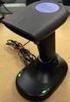 QuickScan QS6500/QS6500BT Product Reference Guide PSC Inc 959 Terry Street Eugene, Oregon 97402 Telephone: (541) 683-5700 Fax: (541) 345-7140 An Unpublished Work - All rights reserved. No part of the contents
USER'S GUIDE NUSCAN 2100 Series
 BARCODE SCANNER USER'S GUIDE NUSCAN 2100 Series Table of Contents 1. Limited Warranty...1 2. Introduction...2 3. Contents...3 4. Barcode Symbologies...3 5. Product Introduction...3 6. Installation...4
CompactLogix Power Supplies Specifications
 Technical Data CompactLogix Power Supplies Specifications 1768 CompactLogix Power Supplies Catalog Numbers 1768-PA3, 1768-PB3 1769 Compact I/O Power Supplies Catalog Numbers 1769-PA2, 1769-PB2, 1769-PA4,
Current valve. for AC 24 V pulse/pause control of electrical loads up to 30 kw
 4 937 DESIO Current valve for AC 24 V pulse/pause control of electrical loads up to 30 kw SEA45.1 Use The current valve is used for the control of electric heating elements in heating, ventilation and
Vision Engravers and Routers PRE-Installation Guide. 2015 Vision Engraving & Routing Systems
 Vision Engravers and Routers PRE-Installation Guide Revised: 8/19/2015 Vision Engravers and Routers PRE-Installation Guide All rights reserved. No parts of this work may be reproduced in any form or by
Product Reference Guide. QuickScan TM QS6500/QS6500BT. General Purpose Handheld Linear Imager Bar Code Reader with Bluetooth Wireless Technology
 QuickScan TM QS6500/QS6500BT General Purpose Handheld Linear Imager Bar Code Reader with Bluetooth Wireless Technology Product Reference Guide Datalogic Scanning, Inc. 959 Terry Street Eugene, Oregon 97402
Programming Reference Guide HP USB Barcode Scanner
 Programming Reference Guide HP USB Barcode Scanner Document Part Number: 430944-002 August 2006 Print this document before setting up the HP USB Barcode Scanner. The document provides the programming bar
TM Advanced Tracking Technologies, Inc. 2003 ATTI All rights reserved
 TM Advanced Tracking Technologies, Inc. 2003 ATTI All rights reserved Copyright 2003, Advanced Tracking Technologies, Inc. All rights reserved. No part of this publication may be reproduced or transmitted
Industrial Bar Code Scanners
 DS4800 Industrial Bar Code Scanners Enhanced Connectivity Ease of use Configuration SW Tool ACR4 technology Smart focus adjustment APPLICATIONS Automated warehousing Reading on pallets Picking systems
FCC COMPLIANCE STATEMENT FOR AMERICAN USERS
 FCC COMPLIANCE STATEMENT FOR AMERICAN USERS This equipment has been tested and found to comply with the limits for a CLASS A digital device, pursuant to Part 15 of the FCC Rules. These limits are designed
Index...1. Introduction...3. Installation- Keyboard Wedge...3 RS-232...3 USB...3. Default Setting for each barcode shown as below:...
 Index Index...1 Introduction...3 Installation- Keyboard Wedge...3 RS-232...3 USB...3 Default Setting for each barcode shown as below:...4 Programming the MS320...5 Interface Selection...7 Keyboard wedge...8
Targus Wireless RF Mouse USER S GUIDE. Making Your Mobile Life Easier.
 Targus Wireless RF Mouse Visit our Web site at: www.targus.com Features and specifications are subject to change without notice. 2004 Targus Group International and Targus, Inc.. 400-0111-001B USER S GUIDE
USER MANUAL Stand Alone Power Supply PSQ 2909 / PSQ 3909 / PSQ 4909 PSQ 2920 / PSQ 3920 / PSQ 4920
 USER MANUAL Stand Alone Power Supply PSQ 2909 / PSQ 3909 / PSQ 4909 PSQ 2920 / PSQ 3920 / PSQ 4920 [This page intentionally left blank] Warning for Your Protection 1. Read these instructions. 2. Keep these
Industrial Bar Code Scanners
 DS6400 Industrial Bar Code Scanners Configuration SW Tool ACR4 technology PackTrack APPLICATIONS Automated warehousing Medium conveyor sorting Reading on forklift trucks Picking systems Automated shop
TMCT-10 Barcode Scanner User Manual. 102, 5661-99 St. Edmonton, AB T6E 3N8 Ph. 780.988.0215 Fax 780.988.0465
 TMCT-10 Barcode Scanner User Manual 102, 5661-99 St. Edmonton, AB T6E 3N8 Ph. 780.988.0215 Fax 780.988.0465 IMPORTANT NOTICE Safety Precaution * DO NOT disassemble the scanner, or place foreign matter
Power Supply Guide Version 1.0 for D-Show
 Power Supply Guide Version 1.0 for D-Show Digidesign 2001 Junipero Serra Boulevard Daly City, CA 94014-3886 USA tel: 650 731 6300 fax: 650 731 6399 Technical Support (USA) tel: 650 731 6100 fax: 650 731
Symbol LS9203. Product Reference Guide
 Symbol LS9203 Product Reference Guide Symbol LS9203 Product Reference Guide 72E-71538-03 Revision A February 2007 Motorola, Inc. 2007. All rights reserved. No part of this publication may be reproduced
Xi2000 Series Configuration Guide
 U.S. Default Settings Sequence Reset Scanner Xi2000 Series Configuration Guide Auto-Sense Mode ON UPC-A Convert to EAN-13 OFF UPC-E Lead Zero ON Save Changes POS-X, Inc. 2130 Grant St. Bellingham, WA 98225
Gateway Port Replicator User Guide
 Gateway Port Replicator User Guide Using the Port Replicator Identifying features Connecting and disconnecting the port replicator 1 Using the Port Replicator Top Power button Component Icon Description
Wireless Internet Keyboard and Laser Mouse
 Wireless Internet Keyboard and Laser Mouse User s Manual Model KB1045LSR FCC STATEMENT KB1045LSR This device complies with part 15 of FCC Rules. Operation is subject to the following two conditions: (1)
Industrial Bar Code Scanners
 DS2100N & DS2400N Industrial Bar Code Scanners Enhanced Connectivity Ease of use Configuration SW Tool ACR-Lite APPLICATIONS Small conveyor sorting Picking systems Items and parts tracking Process control
2100 POS System. 2100 User Guide
 2100 POS System 2100 User Guide Thank you for selecting UTC RETAIL s innovative Model 2100 Point of Sale solution! This guide is designed to acquaint you with the features and functionality of the 2100
SNQ-60x0-320 Series Data Center Switch. Quick Installation Guide
 Introduction This guide is to assist the reader with the most basic form of installation and connection to switches in this series. As there is more than one switch in this series, the diagrams might slightly
QuickScan L. Barcode Scanner. Advanced Data Formatting (ADF) Guide
 QuickScan L Barcode Scanner Advanced Data Formatting (ADF) Guide Datalogic Scanning, Inc. 959 Terry Street Eugene, Oregon 97402 Telephone: (541) 683-5700 Fax: (541) 345-7140 An Unpublished Work - All rights
HP ProDisplay P19A LED Backlit Monitor. User Guide
 HP ProDisplay P19A LED Backlit Monitor User Guide 2013 Hewlett-Packard Development Company, L.P. The only warranties for HP products and services are set forth in the express warranty statements accompanying
OPERATOR S Manual All specifications are subject to change without notice
 OPERATOR S Manual All specifications are subject to change without notice Warning - U.S. This equipment has been tested and founded to comply with the limits for a Class A digital device pursuant to Part
BPM Series. Metered Rack Mount PDUs. Quick Start Guide. Models Covered:
 WTI Part No.: 13963 Rev.: PM Series Metered Rack Mount PDUs Models Covered: PM-8HS20-1 PM-16VS30-1 PM-24VS30-1 PM-24VS30-D PM-8HS20-2 PM-16VS30-2 PM-24VS30-2 PM-24VS30-Y PM-16VS20-1 PM-24VS20-1 PM-24VS20-D
BARCODE READER V 2.1 EN USER MANUAL
 BARCODE READER V 2.1 EN USER MANUAL INSTALLATION OF YOUR DEVICE PS-2 Connection RS-232 Connection (need 5Volts power supply) 1 INSTALLATION OF YOUR DEVICE USB Connection 2 USING THIS MANUAL TO SETUP YOUR
2 Advanced Scanner Configuration Guide
 2 Advanced Scanner Configuration Guide Table of contents Introduction...4 Operational Parameters...4 Set Default Parameter...7 Default Parameters...7 Beeper Volume...7 Beeper Tone...8 Beeper Frequency
16-port Gigabit Switch 10/100/1000 Mbps GS116. Installation Guide
 16-port Gigabit Switch 10/100/1000 Mbps GS116 Installation Guide Introduction The NETGEAR 16-port Gigabit Switch Model GS116 provides you with a low-cost, reliable, high-performance switch to connect up
WF720 Wireless Home Phone User Manual
 WF720 Wireless Home Phone User Manual Content Getting to Know Your Device... 3 Appearance...3 LED Indicator...4 Device Installation... 5 Before You Begin...5 Installing the SIM Card and the Battery...5
Synapse Smart Cable for NEC PC 9821 Interface Guide
 Synapse Smart Cable for NEC PC 9821 Interface Guide 73-12805-0152 Revision A March 1996 For the following Model Configuration: STI80-0152 73-12805-0152 Revision A March 1996 FCC Information This equipment
METROLOGIC INSTRUMENTS INC. MetroSelect Single-Line Configuration Guide
 METROLOGIC INSTRUMENTS INC. MetroSelect Single-Line Configuration Guide Copyright 2005 by Metrologic Instruments, Inc. All rights reserved. No part of this work may be reproduced, transmitted, or stored
User Manual. RK-2d / RK-2t. dedicated KVM switch and rackmount screen technology. Designed and manufactured by Austin Hughes
 dedicated KVM switch and rackmount screen technology User Manual RK-2d / RK-2t 1U Short Depth Keyboard Drawer Designed and manufactured by Austin Hughes 751 Legal Information First English printing, October
Back-UPS Pro 1300/1500 Installation and Operation
 Back-UPS Pro 1300/1500 Installation and Operation Inventory Safety Do not install the Back-UPS in direct sunlight, in excessive heat, humidity, or in contact with fluids. Connect the battery bu059a bu058a
Technical Support. Support Information
 Technical Support Please refer to the Support Information card that shipped with your product. By registering your product at www.netgear.com/register, we can provide you with faster expert technical support
RL HW / RL HW+ / RL HGW / RL HV / RL HVPW/RL HVPW-G
 Auto-Levelling Rotary Laser Level RL HW / RL HW+ / RL HGW / RL HV / RL HVPW/RL HVPW-G 77-496 / 77-429 / 77-439 / 77-497 / 77-427/ 77-441 Please read these instructions before operating the product Auto-Levelling
How To Use A U.S. Cell Phone At Home
 U.S. Cellular Home Phone 1 Contents Getting to Know Your Device...5 Appearance... 5 LED Indicators... 6 Device Installation...7 Before You Begin... 7 Installing the Battery... 7 Installing the Power Adapter...
BroadBand PowerShield. User Manual
 BroadBand PowerShield User Manual 990-0375G 12/2006 Chapter 1 General Information The PowerShield provides a power source for broadband telephony and other DC applications. Safety This Safety Guide contains
ATS Overhead Table Shelf System INSTRUCTION MANUAL
 ATS Overhead Table Shelf System INSTRUCTION MANUAL ATS Overhead Table Shelf System Instruction Manual Warranty Newport Corporation warrants this product to be free of defects in material and workmanship
Preface. Manual Revisions
 Preface D-Link reserves the right to revise this publication and to make changes in the content hereof without obligation to notify any person or organization of such revisions or changes. Manual Revisions
OEM Manual MODEL 2350 ELECTRONIC DUAL CYLINDER SCALE
 OEM Manual MODEL 2350 ELECTRONIC DUAL CYLINDER SCALE Scaletron Industries, Ltd. Bedminster Industrial Park 53 Apple Tree Lane P.O. Box 365 Plumsteadville, PA 18949 USA Toll Free: 1-800-257-5911 (USA &
HCS-3300/3302/3304 USB Remote Programmable Laboratory Grade Switching Mode Power Supply
 1. INTRODUCTION HCS-3300/3302/3304 USB Remote Programmable Laboratory Grade Switching Mode Power Supply User Manual This family of efficient, upgraded SMPS with small form factor, auto cross over CV CC,
Model PS-4001 Power Supply User Instructions
 Model PS-4001 Power Supply User Instructions 9350-7710-000 Rev E 9/2009 PROPRIETARY NOTICE The product information and design disclosed herein were originated by and are the property of Bosch Security
CT20 Barcode Scanner User Manual
 CT20 Barcode Scanner User Manual IMPORTANT NOTICE Safety Precaution * DO NOT disassemble the scanner, or place foreign matter into the scanner cause a short circuit or circuit damage. * DO NOT expose the
UB1 AIR CONDITIONING UNIT INSTALLATION INSTRUCTIONS
 UB1 AIR CONDITIONING UNIT INSTALLATION INSTRUCTIONS INSTALLATION INSTRUCTIONS: Carefully read these instructions before installing your new air-conditioner. AUSTRALIAN AUTOMOTIVE AIR AL00500054E 1 Table
How To Set Up An Ecm Display On A D210 (D210) (D2) (Ecm) (Emc) (Mcd) (Power Supply) (Mm) (Camellom) (Ios)
 English Customer Display DM-D210 Installation Manual 401285101 CAUTIONS This document shall apply only to the product(s) identified herein. No part of this document may be reproduced, stored in a retrieval
Scanner Configuration
 Scanner Configuration SmartScan Manual DOC Version 2.21 This document is specifically designed for the user to print two pages per sheet of paper with optimal print quality. Copyright 2005~ 2008 CIPHERLAB
CL90i. 77-021 Please read these instructions before operating the product. 3 - Beam Self-Leveling Cross Line Laser
 3 - Beam Self-Leveling Cross Line Laser CL90i 77-01 Please read these instructions before operating the product Self-Leveling GB D F I E PT NL DK SE FIN NO PL GR CZ RU HU SK SI BG RO EE LV LT Contents
WHITE PAPER PAPER. Retail Store Automation Systems Management and the Role of the Bar Code Scanner. What Is Retail Store Automation Management?
 WHITE PAPER PAPER Retail Store Automation Systems Management and the Role of the Bar Code Scanner What Is Retail Store Automation Management? Remote Systems Management is the ability to manage and control
IMPORTANT SAFETY INSTRUCTIONS
 IMPORTANT SAFETY INSTRUCTIONS Before you install or use the apparatus, you must read and understand these Important Safety Instructions. At all times when using the apparatus you must follow these Important
CR /Fusion. BEETLE /FUSION Side Combo. Operating Manual
 CR /Fusion BEETLE /FUSION Side Combo Operating Manual The reproduction, transmission or use of this document or its contents is not permitted without express authority. Offenders will be liable for damages.
7 High-Resolution Digital Photo Frame
 TM 16-1003 User s Guide 7 High-Resolution Digital Photo Frame One demo photo included, as illustrated Please read this user s guide before using your new photo frame. Package contents Photo Frame AC Adapter
IP Box Camera ACM-5711. Ver. 081016. Hardware User s Manual
 IP Box Camera ACM-5711 Ver. 081016 Hardware User s Manual 0 0 PRECAUTIONS 1. Read these instructions All the safety and operating instructions should be read before the product is operated. 2. Heed all
Broadband Telecommunications Drop Amplifier
 INSTALL SHEET BDA Broadband Telecommunications Drop Amplifier Introduction The Broadband Telecommunications Drop Amplifier (BDA) is a two-way, 1 GHz amplifier designed for customer-premise amplification
Triple Expansion Chassis
 Triple Expansion Chassis AP9604 Installation Manual Contents Introduction............................. 1 Installation.............................. 2 Power Considerations...................... 5 Operations..............................
PEARL Portable Reading Camera
 PEARL Portable Reading Camera Quick Start Guide Freedom Scientific, Inc. 440528-001 Rev. D Freedom Scientific, Inc., 11800 31 st Court North, St. Petersburg, Florida 33716-1805, USA www.freedomscientific.com
Waveguide Access Point WGA631. Product Guide
 Waveguide Access Point Product Guide Waveguide Access Point Contents 1. Description............................ 3 2. Application............................ 3 3. Technical data... 4 4. Physical interfaces......................
Disclaimers. Important Notice
 Disclaimers Disclaimers Important Notice Copyright SolarEdge Inc. All rights reserved. No part of this document may be reproduced, stored in a retrieval system, or transmitted, in any form or by any means,
RIGOL. Quick Guide. DS1000CA Series Oscilloscope. Aug. 2011. RIGOL Technologies, Inc.
 Quick Guide DS1000CA Series Oscilloscope Aug. 2011 Technologies, Inc. Guaranty and Declaration Copyright 2011 Technologies, Inc. All Rights Reserved. Trademark Information is a registered trademark of
Bar Code CCD Scanner OPERATION MANUAL
 ISO 9002 Certified Lead with technology Win customers with service Bar Code CCD Scanner OPERATION MANUAL 69 Jarltech International Inc. 1998. All rights reserved. Under the copyright laws, this manual
SMART Board 8055i and 8055i-SMP
 SMART Board 8055i and 8055i-SMP Interactive flat panel Installation guide Product registration If you register your SMART product, we ll notify you of new features and software upgrades. Register online
Brake module AX5021. Documentation. Please read this document carefully before installing and commissioning the brake module!
 Documentation Brake module AX5021 Please read this document carefully before installing and commissioning the brake module! Version : 1.2 : 2012.03.05 Date Article-no. : TDmlAX-5021-0000-0200 Page 2/8
Installation Instructions. Wireless Adapter/Repeater. Introduction. 30-3001-887 Rev C
 /Repeater Installation Instructions 30-3001-887 Rev C Workstation Ethernet bcx Controller Repeater Repeater Introduction Schneider Electric has designed a device that allows Andover Continuum controllers
Bubble King. User Manual
 Bubble King User Manual TABLE OF CONTENTS 1. Before You Begin... 3 What Is Included... 3 Unpacking Instructions... 3 Claims... 3 Text Conventions... 3 Icons... 3 Document Information... 3 Product at a
ANI-64S-xRU. Single Section Wall Cabinet INSTRUCTION MANUAL
 ANI-64S-xRU Single Section Wall Cabinet INSTRUCTION MANUAL 122 Rose Ln., Suite 303, Frisco, Texas 75034 TOLL FREE: 1-877-ANEUTRON TOLL: (469) 362-9228 Email: [email protected] A-Neutronics.com SAFETY
BI-300. Barcode configuration and commands Manual
 BI-300 Barcode configuration and commands Manual 1. Introduction This instruction manual is designed to set-up bar code scanner particularly to optimize the function of BI-300 bar code scanner. Terminal
USB Plus+ RFID Reader Setup Guide
 875-0042-03 RevA USB Plus+ RFID Reader Setup Guide 1 Government Limited Rights Notice: All documentation and manuals were developed at private expense and no part of it was developed using Government funds.
MS9500 SERIES VOYAGER PRODUCT GUIDE. Single Line, Hand-Held, 1D, High-Density 1D, PDF-417 2D and Wireless Laser Bar Code Scanners
 MS9500 SERIES VOYAGER PRODUCT GUIDE Single Line, Hand-Held, 1D, High-Density 1D, PDF-417 2D and Wireless Laser Bar Code Scanners Contents About Voyager Scanners Voyager Selection Chart MS9520 Voyager MS9540
Single Day Alarm Clock with. Bluetooth and USB Play-through
 Single Day Alarm Clock with Bluetooth and USB Play-through MODEL : BSC 200 READ THIS INSTRUCTION MANUAL BEFORE OPERATING THE APPLIANCE. SAVE THIS MANUAL FOR FUTURE REFERENCE. TABLE OF CONTENTS IMPORTANT
Out-of-Band Management Card
 Out-of-Band Management Card AP9608 Installation Manual Related Documents For information on using the Out-of-Band Management Card after installation and startup, see the online User s Guide specific to