
2.2 Key instructions Icons Earphone Getting started... 14
|
|
|
- Anabel Franklin
- 10 years ago
- Views:
Transcription
1 WELCOME: Congratulations for being a proud owner of ZEN mobile, it s not a mode of communication but your road to success. Just read the instruction manual carefully and master your ZEN Mobile. Along with the advanced features, ZEN Mobile has a host of handy features like calendar, clock, messaging functions to just name a few. PS: Where any discrepancy arises between the practical function and the manual book, the index and practical function shall prevail. The Company reserves the right of revising the manual book without notice. Contents 1 For your safety About your phone Appearance
2 2.2 Key instructions Icons Earphone Getting started The Battery Install & remove battery Charging SIM card installation Memory card installation Storage Management PC camera Power on and off Call functions Make a call Make a domestic call Make an extension call Make an international call Make a call from Phone book Redial a call by recent call lists Smart dialing
3 4.2 Answer a call Call options Text entry Switch input methods Keyboard input Input special character Input blank Menu operation Access menus by scrolling Access menus by using shortcuts on desk Menu functions Audio player Phonebook Call center Call history Call settings Multimedia Camera Image viewer Video recorder
4 7.4.4 Video player FM Radio Sound Recorder Messages SMS MMS Voice mail server Broadcast message Application Calendar Memo Alarm World Clock User profiles Extra Bluetooth Calculator Ebook Services STK Data Account Internet service
5 7.10 Settings Dual SIM Settings Phone Settings Network Settings Security Settings Restore Factory Settings Sound effect Fun&Games File manager Battery information Operating information Note information Safety information Operating environment Electronic devices Pacemaker Hearing aids Other medical devices Vehicles Potentially dangerous situations
6 10. Care and maintenance
7 1 For your safety Read these simple guidelines. Breaking the rules may be dangerous or illegal. Further detailed information is given in this manual. ROAD SAFETY Always keep your hands free to operate the vehicle while driving. Park the vehicle before using your phone. SWITCH OFF IN AIRCRAFT Using of wireless telephones in aircraft may disrupt the operation of the aircraft. It is dangerous and illegal. Insure switching off the phone before going aboard. SWITCH OFF IN HOSPITALS Follow any restrictions or rules. Switch off the phone near medical equipment. SWITCH OFF WHEN REFUELING Switch off the phone at a refueling point or any fuel or chemicals places
8 SWITCH OFF NEAR BLASTING POINT Don t use the phone where blasting is in progress. Observe restrictions, and follow any regulations or rules. INTERFERENCE All wireless phones may be susceptible to interference, which could affect the performance. USE NORMALLY Use in the normal position explained in the product documentation. Don't touch the antenna unnecessarily. ENHANCEMENTS AND BATTERIES Use only the approved enhancements and batteries. Do not connect incompatible products. EMERGENCY CALLS Ensure the phone is switched on and in service. Enter the emergency number, and then press the talk key. It will give your location. Do not end the call until the permission
9 2 About your phone 2.1 Appearance 1 Receiver 6 Camera 2 LCD Display 7 Back Cover 3 Keypad 8 Speakers 4 Microphone 9 Charging Port 5 I/O Port - 9 -
10 2.2 Key Instructions Keys Left soft key Right soft key Center Key Direction key Talk key 1 Details On the button above the screen shows the description text. In standby mode to enter main menu. On the button above the screen shows the description text. In standby mode to enter phonebook list. On the button above the screen shows the description text. Rolling to browse names, numbers and menus. In standby mode, up key for camera, down key for shortcuts, left key for Write message, right key for Inbox. For SIM1 answering or making a call. In standby mode to enter SIM1 call logs
11 Talk key 2 End key ~ Digital keys For SIM2 answering or making a call. In standby mode to enter SIM2 dialed calls. To end the current call, to return to standby mode from the other menus. Press and hold to power off. To input digitals, letters and special characters. Star key Hash key It has different functions for different uses. It has different functions for different uses. Press the kay to inter Audio player Audio player key Note: In this Manual "Press" certain keys, the Press means click the key. "Press and hold" or long press of a button,
12 which means the key is kept pressed for two or more seconds. 2.3 Icons Icons Details Show the SIM1 s current network signal level. Show the SIM2 s current network signal level Show the battery Power level. You have unread short messages in SIM1. You have unread short messages in SIM2. You have missed calls in SIM1. You have missed calls in SIM2. The alarm is set ON. The headset is plugged. Your phone is set to the general profile. Your phone is set to the Meeting profile. Your phone is set to the Outdoor profile. Key pad is unlocked. Key pad is locked. Bluetooth is opened

13 2.4 Earphone Insert the headset into the headset jack in the phone
14 3 Getting started 3.1 The Battery The lithium battery can be charged and discharged hundreds of times. Please use the approved batteries, and only use the battery charger approved by the phone producer to charge your battery Install & remove battery Remove: ⑴ Slide forward the bottom of the back cover to remove. ⑵ Lift the battery from its slot and take it out. Install: ⑴ Connect the battery s metal touch points separately with the battery compartment metal touch points, and enter the battery base to the slot. ⑵ Slide the back cover toward the top of the phone to lock the cover into its place
15 - 15 -
16 3.1.2 Charging Connect the charger to power supply, and then insert the charger pin into the I/O jack. Charger animation will be displayed at power off status, while right-top power status icon will blink circularly step by step. Disconnect the charger and handset, the charger and power when battery is full

17 Note: 1. Make sure to charge 12 hours when firstly use the battery. 2. When charging, DO NOT remove or take out the battery to avoid the battery circuit to burn out. 3. While charging, it is normal that the phone and charger will become hot. 4. If the battery is completely empty, it may take a period of time before the charging icon appears on the display

18 3.2 SIM card installation

19 Please put SIM1 face down and slide it gently into the fixed position. Please put SIM2 face up and slide it gently into the fixed position. Warning:Before pull out the SIM2, please release the Pin out firstly
20 Please turn off the phone and remove the battery first when you need to get SIM1 out,put your finger on it and slide it out gently; Please remove the memroy card and pull the SIM card pedestal when you need to get SIM2 out, put your fingure on it and slide it out gently;

21 3.3 Memory card installation Please turn off the phone and remove the battery or the charger,put the memory card face down and push it gently into the fixed positon, As the same, turn off the phone and remove the battery
22 when you need to get memory card out. 3.4 Storage Management To manage U disk and memory card storage space. 1. Connect to a computer The USB function of the phone can be activated no matter the phone is powered on or off. While being power off, the phone will enter resource manager directly after the USB cable has plugged in. While being power on, the phone will enter the window of USB Config after the USB cable has plugged in. Please select Mass Storage item. If the memory card has already been installed, you will find both U disk and memory card as removable disks on your PC. Then you can access phone information from your PC, click it and enter to edit it. Some folders have already existed. Save the file in corresponding folder in order to use it normally. For example, Mp3 in My music folder, Video in Video folder, Photos in Photos folder, E-book in E-book folder, Download Pictures in Images folder, Record in Audio folder, Auto Reply in Auto Reply folder, games in mythroad folder, song king in song king
23 folder, Files received by Bluetooth in Received folder. After finished the operation, if you want to exit, click the USB icon on underside-right of computer, select to stop the USB device, and remove it after the information USB device can be remove appears. 2. Format If you format the U disk or memory card, all files saved in it will be lost. By two ways you can format your U disk or Memory card: Format by phone: enter File Manager >select Memory card or phone >select Format. Format by computer: Please complete the format work as following steps: (1) Right click My computer, select manage, and enter to select storage > Disk manage (2) Right click the disk which is corresponding to the memory card, select Format ; (3) Select default in assign unit size and affirm it. System will not build any folders after formatted, so user should create the folders manually
24 3.5 PC camera To establish a web camera, press PC camera. You may be install the driver correctly from CD-ROM before the first use of it. Do as the following steps: 1. When the phone is powered on, insert the USB data cable, the phone screen will automatically pop up a window USB Config ". 2. Select the menu Web camera, screen will show camera capture picture. 3. Through MSN, you can open video functions. To exit PC camera, Close web camera on your PC firstly, then pull out the USB cable. 3.6 Power on and off Press and hold End key to turn on/off the phone. And if you have set PIN or phone code, input it correctly
25 4 Call functions 4.1 Make a call When the name of network service provider appeared on the idle screen, the mobile is ready for call Make a domestic call Enter the phone number including the area code (local calls don t need the area code),then press talk key1 to make a call by SIM1 or press talk key2 to make a call by SIM Make an extension call When making an extension call, click * key three times to get P that is a prefix of extension numbers. It will dial automatically in several seconds since you dialed the telephone exchange. viz.: area code telephone exchange numbers P extension
26 numbers, then press talk key1 to make a call by SIM1 or press talk key2 to make a call by SIM Make an international call Enter the country code, the area code and the phone number, press talk key1 to make a call by SIM1 or press talk key2 to make a call by SIM2. + is needed when input country code, and it can be got by click * key twice. Dial to Hong Kong, Macao and Taiwan phone ibid Make a call from Phone book Enter Phone book, select the phone number, and then press talk key1 to make a call by SIM1 or press talk key2 to make a call by SIM Redial a call by recent call lists In standby mode, press the right selection key to find the recent call lists, scroll to the number or name, then press talk key1 to
27 make a call by SIM1 or press talk key2 to make a call by SIM Smart dialing In the idle,it will display all matching records by directly inputting the name or random telephone numbers of the contact. Dial the number by pressing the talk key1 using SIM1 or talk key2 using SIM Answer a call An incoming call window will be displayed as the phone receives a call. The number will appear on the window if you have opened this function. If this number is not saved in the phonebook, the call s district number will show it on the window. You can answer the call by talk key. If an incoming call arrived during your operation in sub window, a new window will be popped to inform you and your any operation will be broken. If you missed a call, a missed call log will appear after you return to the start screen
28 4.3 Call options During a call, and the options content is changeable according to your call status. The functions of Call Waiting, Call Hold need the support of net work. Here are some parts of the options, like Hold, End, New Call, Phone Book, Messages, Sound Recorder, Mute and DTMF, and multi-part calls should supported by the current network
29 5 Text entry You may be requested to input text message many times when you using this phone. For example, when you write a message or add a new phone book record, you can select different input methods, such as Smart ABC, Smart abc, numeric etc. You can input characters, letters, digitals or special characters including punctuations. 5.1 Switch input methods In a text entry state, you can press the # key to switch from one method to another method. 5.2 Keyboard input Switch to uppercase or lowercase mode. Press a key once to insert the first letter on the key, twice for the second letter, etc. If you pause briefly, the last letter in the display is accepted and your phone awaits the next entry
30 5.3 Input special character When use any kind of method, press * key to display the character list, and then press the direction key to select the item. If you use English method, you can also press 1 key to get the character. 5.4 Input blank When use any kind of method except numeric, Arabic and Thai press 0 key to input blank. 6 Menu operation The phone provides a serious of menu. And you can select it according to your need. The functions exist in these menus and submenus. Access the menus by pressing the shortcut key or scrolling. 6.1 Access menus by scrolling Press the left selection key to enter the main menu in standby mode. Press the direction key scrolling to access the menu and
31 select OK. If the menu have some submenu, Press the direction key scrolling to access the submenu and select OK. Press BACK to back Access menus by using shortcuts on desk In standby mode, you can access menus by touch the short arrow on the left bottom of the screen.you can pull the contents onto the desk or push the contents back to the tool list.of course, you can pull the contents anywhere you like onto the desk
32 7 Menu functions 7.1 Audio player You can play your favorite songs by selecting this option.press the up arrow key to play/pause it;press the down arrow key to stop,press the left/right arrow key to the previous/next song;press the */# key to increase/decrease the volume; press the left soft key or the center key to enter the list of songs.in this list, it shows the songs in the phone and the memory card which added into the play list.you can choose play,view the information of songs,add into ring list, refresh the play list and set the audio player. In the settings menu, you can choose storage,turn on auto generate list,set play mode, bluetooth, sound effect and lyrics
33 Notes:If auto generate list is on,select "refresh the play list "to load songs from the phone and "My Music" folder in memory card.or you can choose add, delete, delete all songs in option menu. 7.2 Phonebook When enter the phonebook menu,you can look over all the contacts in the phone and add contacts by selecting "Add new entry". You can select a contact in list to access options.in this option, you can dial by SIM1 or SIM2, send messages,send multimedia messages,open/edit/delete this entry, edit vcard, add to/remove from the black/red list and set the phonebook. T-Flash Card Phonebook When enter the T-Flash card phonebook,you can look over contact, add contacts and update the match list. You may know more about this function by reading helps in the menu
34 7.3 Call center Set call history and general call settings here Call history Select call history, you can view the information about call history in SIM1 and in SIM2, including missed calls, dialed calls, received calls, delete call log, call time, call cost, SMS counter and GPRS counter Call settings SIM1 and SIM2 call settings, auto redial, speed dial, Outgoing Call Vibrate, Call Priority, More. -SIM1 Call Settings In this menu, you can set the followings: Caller ID: There are these options: Set by Network, Hide Id, and Send Id. Call waiting: If it is supported by your service provider, call waiting will notifies you of an incoming call even if you are in a
35 call. You can then accept, reject, or ignore the incoming call. To make this function available, please contact local network provider. Call divert: Call diverting is a network services, it tells your network to divert incoming calls to another number to avoid missing a call. The following is available: divert All Voice Calls, Divert If Unreachable, Divert If No Answer, Divert If Busy, Divert All Data Calls, and Cancel All Divert. Call Barring: If it is supported by your service provider, this function will enable you to restrict the incoming or outgoing calls. Line Switching: Enter this menu user can switch to line1 or line2. -SIM2 Call Settings Same as SIM1 Call Settings. -Call firewall When you switch on this fun,you can set the call firewall to reject some calls.when the black list is switched on,calls in black list will be rejected automatically.when the red list is switched on,all calls except the contacts in the red list will be rejected automatically
36 -SMS response In call setting,you can switch on/off the message response,and write the answer message.when you reject one call,you can choose to send this message to answer it or not. -Advance settings 1.Auto Redial It can dial the same phone number automatically after a failing dial with this function. 2. Connected to vibration This feature used to reduce mobile phone users in the dial-up hen the radiation, is set to open, make the call in each other's answering the phone prompts the user to vibration mode, you can stay away from the dial-up body, the question was moved to after the vibration Call ears 3.Call time display The function of call time display of the switch settings 4.Call time reminder In this menu can be a certain length of time for the call. 5.Auto quick end When you open automatically limit the call at the time you set a time, the call will automatically end. 6.Sepeed dial
37 Speed dials is a shortcut to dial frequently called numbers. Set the number. 7.4 Multimedia Camera Select camera item to enter preview screen. Click the small icon on the screen to set the effect settings, white balance, delay time, cont shot, scene mode, image s quality, image size. While preview, you can enter the option menu to do the work: Sensor switch, to Photos, Camera settings, Image settings,, White balance, Scene mode, Effect settings, Storage and Restore default to set the parameters Image viewer Access this menu; you can view the pictures in the list. If you select one picture, there are several operations including View, Browse style, Send, Use as, Rename, Delete, Delete all files, Sort by and Storage
38 7.4.3 Video recorder Enter video recorder, press left soft key can enter some options: To player, Sensor switch, Camcorder settings, Video Settings, White balance, Effect settings, Storage, Restore Default. After setting, press center key to start or Suspend recording. And then, press right soft key to stop and save. At the same time press the left/right soft key to return the screen in video preview status Video player Access the menu, you can enter film list and press option to choose a movie clip to Play, Use as, Send, Rename, Delete, Delete all files, Sort by and Storage. While playing, press */# keys to adjust volume, scroll right or left key to adjust the rate of progress, 1 key to switch to full screen
39 7.4.5 FM Radio In the FM radio screen, you can press the left or right direction key to switch broadcast channels; Press down key to stop / play; Press center direction key to enter setting; Press up direction key to open auto search; digital keys 1-9 to choose the channel which in the channel detailed list. During listening the radio, you can adjust volume by key * and #. Search channels 1. In playing menu, Scroll up to turn on/off automatic searching, then scroll left/right to search the channel automatically, the phone would stop searching after reaching a channel. 2. In the option list, select the menu Preset Auto search to search all channels and save them in the channel list automatically. 3. In playing menu, press the number keys to enter the relevant channels. Channel list: At most 20 channels could be saved in the list. Manual Input:
40 Directly input the FM frequency of the channel. Preset Auto search: To search all channels and save them in the channel list automatically. Settings: To set the loud speaker state. Note: Earphone must be connected, or else FM can not be usable Sound Recorder Access this menu; it will display the saved files in the list. 7.5 Messages SMS Write Message Access this menu to edit and send message, press option to do as following: Send to, Input method, Insert template, Insert object, Insert number, Insert name, Insert
41 bookmark, Text format, save to Drafts. After finished editing, user can choose send message by SIM1or SIM2. Inbox Access this menu to view the received messages. When the new message has in SIM1 or in SIM2, the phone will ring, and the corresponding unread message icon also to be able to appear on top of the screen. Drafts Look over the messages which you saved in the draft box.you can edit, send or delete the message in this menu. Outbox Access this menu to view the saved messages in SIM1 or in SIM2. Templates There are predefined SMS in the phone. User can view and use them. SMS Settings Access this menu to do the following functions: Profile Settings,
42 Common settings, Memory Status,and Preferred Storage MMS This function needs the supporting of network operators. Before using, be sure your SIM provides this function or not. You can consult the network operators. Write message Access submenus of write MMS, there are several items: To, Cc, Bcc, subject, attachment and edit content etc. When you edit, you can replace, delete, insert image, audio, video, slide and phonebook contact to the current slide etc. After finished editing and choosing SIM, user can choose Send only, Save and send, Save to Drafts, Send options, Exit. Inbox It stores the received MMS in inbox. When has the new MMS, the phone will ring, the corresponding SIM s unread MMS icon also to be able to appear on top of the screen
43 After download the MMS to the phone, you can do the following functions: view, delete, reply, save etc. Outbox The failed sent MMS will be stored in outbox. Access this menu, user can choose view, resent, forward, delete, delete all, and move to draft, use detail or read properties to operate the MMS. Draft Store the MMS without sending for reed it and sending later. Access this menu, select one MMS from the list and user can view, send, edit, delete, delete all, save as template, properties and use details. Templates There are predefined MMS in the phone. User can view and use them. Message Settings Access this menu, user can edit settings, send settings, and receive settings, server settings. If you use other network SIM, please contact with the local
44 operator and set the parameters. Note: The storage space left for MMS in the phone is limited. So if the space is insufficient, please delete some unnecessary MMS Voice mail server This is a Network Service, and should be supported by the service provider Broadcast message Broadcast public information sent by the network providers. Use Cell Broadcast Service; you can receive information on various subjects from network provider. For more available information, please contact your local network providers
45 7.6 Application Calendar This feature can help you at any time to view the date. Click on other dates can be browsed Memo User can add new memorandum, read the old one or delete all memorandums. After setting a memorandum, the phone will remind user the information at the time appointed Alarm Set the alarm time and it will remind you by alert tone or vibration when the alarm time expires. You can set 5 alarms in the phone at most
46 7.6.4 World Clock User can view the local time of some cities around the world. 7.7 User profiles Profiles define how your phone reacts when you receive a call or a message, how your keypad sounds when you press a key, and more. Each of the available profiles can be left at their default setting or customized to suit your needs. Select and customize the most suitable profile for your situation. The available modes are General, Meeting, Outdoor, Indoor, Headset, Thrifty and Bluetooth. In standby mode, you can press and hold the # key to switch to silent mode. In standby mode, you also can press and hold the 0 key to switch to thrifty mode
47 7.8 Extra Bluetooth The phone supports Bluetooth function. You can use functions such as Hands free call, File Transport and device synchronous via Bluetooth profiles.there are menus as follows: Power - Power on or power off Bluetooth. Visibility: - Enable the phone to be searched or not by Bluetooth My Device - Display the current or once connected device, and inquiry the new one. Search Audio Device - Search for the supported device such as Bluetooth headphone. My name - Enter a name for your phone Advanced Settings - Audio Path: Select the path for Audio. Storage: Set shared folder and access right
48 My Address - Display the information of device address in your phone Calculator The phone can be used as a calculator to finish some simple arithmetic work.press number key to enter the number. Press # key to enter radix point. Press the scroll up, down, left or right key to enter plus, minus, multiplication or division. Press the right soft key can delete a number; Press center key to get the result Ebook You can read TXT format file. While reading, press Option to do the work such as Find, Jump to, Go to bookmark, Add bookmark
49 7.9 Services STK In addition to the functions available on the phone, your SIM card may provide additional services that you can access in this menu. It is shown only if it is supported by your SIM card. The name and contents of the menu depends on the available services. Contact your service provider for more information. Data Account It contains SIM1 s and SIM2 s GPRS data account. In order to use WAP function normally,please right setting: account Name, DNS, user name and password. Internet service Your phone support WAP function. After the necessary settings, you can use this function normally. Note: To open this function, you should apply GPRS service to your SIM card. In WAP user can visiting homepage, display the exist bookmarks, record the website you have visited recently, store the
50 information sent from the service provider and setting WAP Settings Dual SIM Settings Access to the menu you can choose dual SIM open, only SIM1 open, only SIM2 open and flight mode. -Dual SIM Open You can communication with others by two SIM cards together. -Only SIM1 Open You can communication with others only by SIM1. -Only SIM2 Open You can communication with others only by SIM2. -Fight Mode You cannot communication with others in this mode Phone Settings In this menu, you can set the followings: Time and date,
51 Schedule power on/off, Language, Preferred input methods,display characteristic, greeting text, shortcuts, dedicated key,auto update of date and time, UART setup,lcd backlight,delete isiamic home etc Network Settings This feature is available to operate network settings when you are roaming or travel outside. Access the menu you can select the network manually or automatically. Before use the network, you must contact your local service provider or the roaming area before you use this function Security Settings You can set the security settings to protect the phone or SIM card from unauthorized use. The default security code is SIM1 Security Settings SIM1 Lock: Set the phone to ask for your PIN code each time you start your phone (if this function is supported by your SIM card)
52 Note: After three consecutive incorrect PIN code entries, the code will be blocked, and you need the PUK code to unblock it. The PIN code and PUK code are usually supplied by the SIM card. If you don t get them, please contact with the supplier. The default PIN code is 1234 usually. Fixed Dial: If your SIM support fixed dial, it can limit you to call fixed number. When the function is on, it can only call the phone number or phone number start by the fixed dial number. Note: it needs you to input PIN2 code to open or close this function. You can get the PIN2 code from service supplier. If the fixed dial is on, the phonebook only show the number of fixed dial. Barred dial: If it is supported by your service provider, this function will enable you to restrict the incoming or outgoing calls. Note: it needs you to input PIN2 code to open or close this function. You can get the PIN2 code from service supplier. If the fixed dial is on, the phonebook not show the number of barred dial. Change Password: You can change PIN code, PIN2 code here. -SIM2 Security Settings
53 Same as SIM1 Security Settings. -Phone Lock Phone lock can be used to lock the device to avoiding unauthorized use. Set the phone to ask for your security code each time you start your phone. -Auto Keypad Lock In stand-by status, keyboard can be locked by Press left soft key for 2 seconds or closing slide. Press left soft key for 2 seconds or open slide can unlock the keyboard. You can set the auto lock time in the submenu of this function, then the key will automatically be locked if there is no more action of the phone. -Change Password You can change phone lock password here Restore Factory Settings You can reset some of the Phone settings to their original values by input phone lock password
54 Sound effect User can set sound effect in this manu Fun&Games The phone provides user some games. Select Game Help to view the details about the games File manager It provides you the functions such as browsing media files, checking storage space and formatting function. When browsing the media files, you can operate the selected files such as view, rename coping, deleting etc. Notice: MK_IMG file in T card is system file which can not be deleted, moved or copied. 8 Battery information 8.1 Operating information Your device is powered by a rechargeable battery
55 The battery can be charged and discharged hundreds of times but it will eventually wear out. When the talk and standby times are noticeably shorter than normal, please buy a new battery. Use only the approved batteries, and recharge your battery only with approved chargers designated for this device. Unplug the charger from the electrical plug and the device when not in use. Do not leave the battery connected to a charger. Overcharging may shorten its lifetime. If left unused, a fully charged battery will lose its charge over time. 8.2 Note information Do not drop, knock, or shake the device. Rough handling can shorten the life of the battery. Do not make short-circuit occur to the battery. The battery put in hot or cold places, such as in a closed car in summer or winter, will reduce the capacity and lifetime of the battery. Do not put the battery near flammable or explosive goods. Do not dispose of batteries in a fire! Never use any charger or battery that is damaged. Use the battery only for its intended purpose. Dispose of batteries according to local regulations. Please
56 recycle when possible. Do not dispose as household waste. 9 Safety information 9.1 Operating environment Remember to follow any special regulations in force in any area
57 and always switch off your device when its use is prohibited or when it may cause interference or danger. Use the device only in its normal operating positions. Do not keep the device near credit cards and other magnetism medium, some accessories can bring magnetism that may be delete the data. 9.2 Electronic devices Some electronic devices are not adequately shielded from external RF energy Pacemaker Pacemaker manufacturers recommend that a minimum separation of 6in (20cm) should be maintained between a wireless phone and a pacemaker to avoid potential interference with the pacemaker. These recommendations are consistent with the independent research by and recommendations of Wireless Technology Research. To minimize the potential interference, persons with pacemakers should do as below: Always keep the device more than 6 in (20 cm) from their pacemaker when the device is switched on
58 Not carry the device in a breast pocket. Hold the device to the ear opposite the pacemaker. If you have any reason to suspect that interference is taking place, switch off your device immediately Hearing aids Some digital wireless devices may interfere with some hearing aids. If interference occurs, consult your service provider Other medical devices Operation of any radio transmitting equipment, including wireless phones, may interfere with the functionality of inadequately protected medical devices. Switch off your phone in health care facilities when any regulations are posted in these areas instructing you to do so Vehicles RF signals may affect improperly installed or inadequately
59 shielded electronic systems in motor vehicles. For more information, check with the manufacturer or its representative of your vehicle or any equipment that has been added. 9.3 Potentially dangerous situations Switch off your device when in any area with a potentially explosive atmosphere and obey all signs and instructions. Sparks in such areas could cause an explosion or fire resulting in body injury even death. Switch off the device at refueling points such as near gas pumps at service stations. Observe restrictions on the use of radio equipment in fuel depots, storage, and distribution areas, chemical plants or where blasting operations are in progress. Areas with a potentially explosive atmosphere are often but not always clearly marked. They include below deck on boats, chemical transfer or storage facilities, vehicles using liquefied petroleum gas (such as propane or butane), and areas where the air contains chemicals or particles such as grain, dust or metal powders
60 10 Care and maintenance Your device is a product of superior design and craftsmanship and should be treated with care. The suggestions below will help you protect your warranty coverage and enjoy your device for many years
61 Keep your phone and all accessories out of the reach of small children. Keep the device dry. Do not use or store the device in dusty, dirty areas. Its moving parts and electronic components can be damaged. Do not store the device in hot areas. High temperatures can shorten the life of electronic devices, damage batteries, and warp or melt certain plastics. Do not store the device in cold areas. When the device returns to its normal temperature, moisture can form inside the device and damage electronic circuit boards. Do not attempt to open the device other than as instructed in this guide. Do not drop, knock, or shake the device. Rough handling can break internal circuit boards and fine mechanics. Do not contact the device by wet hands, the electric current may strike and damage it. Precipitation, humidity, and all types of liquids or moisture can contain minerals that will corrode electronic circuits. Do not use harsh chemicals, cleaning solvents, or strong detergents to clean the device. Do not paint the device. Paint can clog the moving parts and
62 prevent proper operation. All of the above suggestions apply equally to your device, battery, charger, or any enhancement. If any device is not working properly, take it to the nearest authorized service facility for service
User Manual. Vogue2.8-D6
 User Manual Vogue2.8-D6 S L E E C Index 1. iball Vogue2.8-D6...1 1.1 Phone Overview...1 1.2 Functions of Keys...2 2. Getting Started...3 2.1 Installing the SIM Cards and the Battery...3 2.2 Installing
USER MANUAL. 2. Get started 2.1 Overview The headset contains the following parts as shown in the figure:
 1. Introduction Thank you for purchasing our. Together with Bluetooth mobile phones or other Bluetooth embedded devices, Bluetooth headset allows you the freedom to make and receive calls while on the
GLOBAL. The world s local mobile phone. Quick Start Guide
 GLOBAL The world s local mobile phone Quick Start Guide 1 SAR This mobile phone meets applicable national SAR limits of 2.0 W/Kg. The specific maximum SAR values can be found in the SAR information section
Nokia Bluetooth Headset BH-604 User Guide
 Nokia Bluetooth Headset BH-604 User Guide Issue 1 EN DECLARATION OF CONFORMITY Hereby, NOKIA CORPORATION declares that this HS-96W product is in compliance with the essential requirements and other relevant
Thank you for choosing our mobile phone! Please read this manual before use.
 Thank you for choosing our mobile phone! Please read this manual before use. We reserve the right to upgrade the software and product and/or to make changes to this user manual without prior notice. from
Optional. The Rugged Phone RUGGED MOBILE PHONE. Language. Type of product
 The Rugged Phone RUGGED MOBILE PHONE Language Type of product WELCOME Thank you for choosing the WORKZONE mobile phone. The phone is shockproof, waterproof and dustproof. Please take some time to read
User Guide. Orion Pro X500. www.poshmobile.com
 User Guide Orion Pro X500 www.poshmobile.com 1 Introduction... 3 2 Safety & Notice... 4 3 Start to use... 5 3.1 Touch & type... 5 3.2 Assemble & charge... 5 3.2.1 Switch On and Off... 6 3.2.2 Unlock SIM
Version: 01310310 Printed in Poland
 1 Content List 1. Security...3 2. Enjoy Your Cell Phone Trip...9 2.1. Install/remove the battery...9 2.1.1. Install the battery...9 2.1.2. Remove the battery...10 2.2. Install/Remove SIM Card (phone card)...12
Samba W - Table of Contents
 Samba W - Table of Contents 1.Getting Started... 3 1.1 Installing the SIM Card, SD Card and Battery... 3 2. Input Type... 4 3. Menu Guide... 6 1.2 Messaging... 6 1.3 Call History... 6 1.4 Calculator...
User Guide for the Wireless Headset (HS-11W) 9235346 Issue 1
 User Guide for the Wireless Headset (HS-11W) 9235346 Issue 1 DECLARATION OF CONFORMITY We, NOKIA CORPORATION declare under our sole responsibility that the product HS-11W is in conformity with the provisions
Nokia Bluetooth Headset BH-200 User Guide
 Nokia Bluetooth Headset BH-200 User Guide 1 9246085 Issue 2 DECLARATION OF CONFORMITY We, NOKIA CORPORATION declare under our sole responsibility that the product HS-58W is in conformity with the provisions
Nokia Bluetooth Headset BH-100 9255557/1
 Nokia Bluetooth Headset BH-100 6 7 9 8 10 9255557/1 DECLARATION OF CONFORMITY Hereby, NOKIA CORPORATION declares that this HS-78W product is in compliance with the essential requirements and other relevant
Nokia Bluetooth Headset BH-800 User Guide. 9246974 Issue 2
 Nokia Bluetooth Headset BH-800 User Guide 9246974 Issue 2 DECLARATION OF CONFORMITY We, NOKIA CORPORATION declare under our sole responsibility that the product HS-24W is in conformity with the provisions
User Guide. Lynx A100. www.poshmobile.com
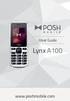 User Guide Lynx A100 www.poshmobile.com POSH LYNX User Manual A100 Directory Before Using... 2 Phone Unlock... 2 SIM Unlock... 2 Function menu Introduction... 2 Phonebook... 2 Call history... 3 Settings...
User s Guide 9357246 Issue 5
 Electronic user's guide released subject to "Nokia User's Guides Terms and Conditions, 7th June, 1998" User s Guide 9357246 Issue 5 DECLARATION OF CONFORMITY We, NOKIA CORPORATION declare under our sole
WiFi Phone WP589 User Guide
 WiFi Phone WP589 User Guide 001.001.024 2010/06/22 1 n CONTENTS For your safety...5 Getting Started...6 Phone Overview...6 To insert the battery...6 Charging the battery...7 Turn on and turn off the phone...7
Nokia X1 01 User Guide
 Nokia X1 01 User Guide Issue 1.1 2 Contents Contents Safety 3 Get started 4 Your dual SIM device 4 Insert the SIM card and battery 4 Insert or remove a memory card 6 Charge the battery 6 Switch on or off
English User s Manual for GSM/GPRS Digital Mobile Phone Model No. L1 LIFE
 User s Manual for GSM/GPRS Digital Mobile Phone Model No. L1 LIFE 1 Congratulations on your purchase of the GSM mobile phone. Please read this User Guide before you use your mobile phone. Notice: If there
Nokia Bluetooth Headset BH-211 9204665/2
 Nokia Bluetooth Headset BH-211 1 2 5 4 7 8 3 6 11 9 10 9204665/2 DECLARATION OF CONFORMITY Hereby, NOKIA CORPORATION declares that this HS-99W product is in compliance with the essential requirements and
PLUM RAM. User Manual
 PLUM RAM User Manual I WELCOME... ERROR! BOOKMARK NOT DEFINED. IMPORTANT SAFETY PRECAUTIONS... 1 GETTING STARTED... 3 BATTERY USE... 3 Installing the battery... 3 Charge the battery... 4 SIM CARD INFORMATION...
Nokia 103 User Guide. Issue 1.0EN
 Nokia 03 User Guide Issue.0EN Keys and parts 7 3 6 5 4 Earpiece Display 3 End/Power key 4 Keypad 5 Navi key (navigation key) 6 Call key 7 ion keys 8 9 0 8 Flashlight 9 Charger connector 0 Microphone Loudspeaker
GSM Desktop phone DPH101. User manual v1.00
 GSM Desktop phone DPH101 User manual v1.00 LEGAL NOTICE Copyright 2011 TELTONIKA Ltd. All rights reserved. Reproduction, transfer, distribution or storage of part or all of the contents in this document
USER GUIDE MOBILE M400
 1 USER GUIDE MOBILE M400 V2 2 P1 3 1 BECAUSE WE CARE Thank you for purchasing this product. This product has been designed and assembled with utmost care for you and the environment. This is why we supply
Nokia Bluetooth Headset BH-607. Issue 2. 1
 Nokia Bluetooth Headset BH-607 2 3 1 4 5 6 7 8 9 11 10 Issue 2. 1 12 13 14 DECLARATION OF CONFORMITY Hereby, NOKIA CORPORATION declares that this BH-607 product is in compliance with the essential requirements
User Guide Nokia 130. Issue 1.0 EN
 User Guide Nokia 130 Issue 1.0 EN User Guide Nokia 130 Contents For your safety 3 Get started 4 Keys and parts 4 Insert the SIM and memory card and battery 4 Charge the battery 6 Lock or unlock the keys
Android Mobile Phone User Manual
 Android Mobile Phone User Manual The manual is applicable for the Grand X mobile phone. Contents Let s get started... 1 Getting to know your phone... 2 Screen control... 2 Open and switch applications...
Nokia Wireless Keyboard (SU-8W) User Guide
 Nokia Wireless Keyboard (SU-8W) User Guide DECLARATION OF CONFORMITY We, NOKIA CORPORATION declare under our sole responsibility that the product SU-8W is in conformity with the provisions of the following
User Guide. BlackBerry Storm 9530 Smartphone. Version: 4.7
 BlackBerry Storm 9530 Smartphone Version: 4.7 SWD-490426-0909090640-001 Contents Shortcuts... 9 BlackBerry basics shortcuts... 9 Phone shortcuts... 9 Camera shortcuts... 9 Media shortcuts... 9 Typing shortcuts...
Nokia Bluetooth Stereo Headset BH-221
 Nokia Bluetooth Stereo Headset BH-221 Issue 2.0 2 Introduction About your headset With the Nokia Bluetooth Stereo Headset BH-221, you can handle calls hands-free, enjoy your favourite music, and listen
Nokia Bluetooth Headset BH-102. Issue 1
 Nokia Bluetooth Headset BH-102 1 2 3 4 45 46 7 8 10 119 Issue 1 DECLARATION OF CONFORMITY Hereby, NOKIA CORPORATION declares that this HS-107W product is in compliance with the essential requirements and
English User Manual GSM Mobile phone Model Q2 CLOUD
 User Manual GSM Mobile phone Model Q2 CLOUD 1 Contents ATTENTION AND PRECAUTIONS... 4 FOR YOUR SAFETY... 4 SECURITY REQUIREMENTS... 5 MAINTENANCE... 5 YOUR PHONE... 7 GETTING STARTED... 9 BATTERY... 9
Nokia Bluetooth Headset BH-101. Issue 1
 Nokia Bluetooth Headset BH-101 1 2 3 4 5 6 7 8 9 11 12 10 Issue 1 DECLARATION OF CONFORMITY Hereby, NOKIA CORPORATION declares that this HS-94W product is in compliance with the essential requirements
User Guide Nokia 106. Issue 1.3 EN
 User Guide Nokia 106 Issue 1.3 EN User Guide Nokia 106 Contents For your safety 3 Get started 4 Keys and parts 4 Get your phone ready 4 Charge the battery 5 Lock the keys 6 Basics 7 Explore your phone
Notes Tasks FM Radio. Games Mobile TV Multimedia. Starmobile 4 Dialer 5 Messaging 6 Warnings and Precautions
 TABLE OF CONTENTS 1 Overview 2 Getting Started Installing the Battery and SIM Cards Installing a Micro SD Card Charging the Battery Phone Lock PIN and PUK Locking the Keypad 3 Main Menu Contacts Call Logs
Nokia Bluetooth Headset BH-104
 Nokia Bluetooth Headset BH-104 2 1 4 5 6 3 7 8 11 12 9 10 DECLARATION OF CONFORMITY Hereby, NOKIA CORPORATION declares that this BH-104 product is in compliance with the essential requirements and other
User Guide Nokia 215 Dual SIM
 User Guide Nokia 215 Dual SIM Issue 1.0 EN User Guide Nokia 215 Dual SIM Contents For your safety 3 Get started 4 Keys and parts 4 Insert SIM, battery, and memory card 4 Charge the battery 6 Lock or unlock
Nokia Bluetooth Headset BH-108 9220721/1
 Nokia Bluetooth Headset BH-108 1 2 3 4 5 6 7 8 9 9220721/1 DECLARATION OF CONFORMITY Hereby, NOKIA CORPORATION declares that this BH-108 product is in compliance with the essential requirements and other
User Guide. Memo S580. www.poshmobile.com
 User Guide Memo S580 www.poshmobile.com Welcome to POSH S580 Memo Quick Guide S580 is designed with Android system, support dual Sim and dual stand-by. Except for the standard communication function, it
SGH-S275. User Manual Please read this manual before operating your phone and keep it for future reference.
 SGH-S275 M O B I L E P H O N E User Manual Please read this manual before operating your phone and keep it for future reference. Intellectual Property All Intellectual Property, as defined below, owned
Otium Gear S Smart Watch User Guide Please read the manual before use. * For further information, please visit www.otiumobile.com
 Otium Gear S Smart Watch User Guide Please read the manual before use. * For further information, please visit www.otiumobile.com 1 About this manual You can use this Gear S as a companion device to some
Nokia USB Modem. Issue 1.1
 Nokia USB Modem Issue 1.1 2 Contents About your USB modem 3 Get started 3 Parts 3 Insert the SIM card 4 Insert a memory card 4 Install the connection manager 6 Uninstall from your computer 6 Internet connection
G5510. GSM Mobile Phone. User Guide
 G5510 GSM Mobile Phone User Guide Copyright Huawei Technologies Co., Ltd. 2012. All rights reserved. Trademarks and Permissions,, and are trademarks or registered trademarks of Huawei Technologies Co.,
Nokia Bluetooth Headset BH-110 User Guide
 Nokia Bluetooth Headset BH-110 User Guide Issue 1.0 2 Introduction About your headset With the Nokia Bluetooth BH-110 headset, you can handle calls hands-free, even when you are using two phones at the
Doro PhoneEasy 612. English
 Doro PhoneEasy 612 English 17 18 19 1. Earpiece 2. Camera shortcut 3. Left selection button 4. Call button 5. Speed dial 6. Voice mail 7. Silent/Input method 8. Microphone 9. SMS shortcut 10. Arrow buttons
Z222 Mobile Phone User guide
 Z222 Mobile Phone User guide LEGAL INFORMATION Copyright 2013 ZTE CORPORATION. All rights reserved. No part of this publication may be excerpted, reproduced, translated or utilized in any form or by any
User s Guide for Nokia 6510
 User s Guide for Nokia 6510 List of menu functions 1. Messages 1. Write message 2. Inbox 3. Outbox 4. Archive 5. Templates 6. My folders 7. Erase messages 8. Voice messages 9. Info messages 10.Service
User Guide Nokia 220. Issue 1.1 EN
 User Guide Nokia 220 Issue 1.1 EN User Guide Nokia 220 Contents Safety 3 Get started 4 Keys and parts 4 Insert SIM, battery, and memory card 4 Charge the battery 6 Lock or unlock the keys 6 Change the
FLY Mobile Phone. User Manual Model: FLY MC100 Please read this manual carefully before operating this product.
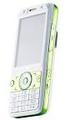 FLY Mobile Phone User Manual Model: FLY MC100 Please read this manual carefully before operating this product. 1 Thanks for choosing FLY products. For the safe and efficient operation of this product,
User s Guide for Nokia 3530
 User s Guide for Nokia 3530 List of menu functions 1. Phone book 1. Search 2. Add name 3. Edit name 4. Delete 5. Copy 6. Add number 7. Settings 1. Memory in use 2. Phone book view 3. Memory status 8. Speed
Back, start, and search key... 3. Lock the keys and screen... 6. Unlock the keys and screen... 7. Set the keys and screen to lock automatically...
 Userguide Nokia Lumia 620 Table of Contents Keys and parts... 3 Back, start, and search key... 3 How to Insert a SIM card... 4 First start-up... 6 Switching Phone ON and OFF... 6 Switch the phone on...
Nokia Bluetooth Headset BH-606 9211748/2
 Nokia Bluetooth Headset BH-606 2 1 4 5 3 7 6 8 9 10 11 12 9211748/2 DECLARATION OF CONFORMITY Hereby, NOKIA CORPORATION declares that this HS-128W product is in compliance with the essential requirements
Doro PhoneEasy 607. English
 Doro PhoneEasy 607 English 1 13 2 3 4 5 12 11 14 15 16 17 18 19 20 6 10 7 9 8 1. Earpiece 2. Microphone 3. Arrow buttons 4. Left selection button 5. Call button 6. Speed dial 7. Voice mail 8. Silent /
Pocket PC Phone Quick Start Guide. Read this guide before operating your Pocket PC Phone.
 Pocket PC Phone Quick Start Guide Read this guide before operating your Pocket PC Phone. 1 Feature Maps Front Panel Components 4. 5. 2. 3. 6. 7. 1. 12. 11. 9. 8. 10. 1 Volume. Press to adjust the volume
Get started. Issue 1
 Get started Issue 1 2008 Nokia. All rights reserved. Nokia, Nokia Connecting People, Nseries, N85, Navi, and Nokia Care are trademarks or registered trademarks of Nokia Corporation. Other product and company
G3512. GSM Mobile Phone. User Guide
 G3512 GSM Mobile Phone User Guide Copyright Huawei Technologies Co., Ltd. 2012. All rights reserved. Trademarks and Permissions,, and are trademarks or registered trademarks of Huawei Technologies Co.,
BLU Vivo 4.3 User Manual
 BLU Vivo 4.3 User Manual 1 Table of Contents Phone Safety Information... 3 Appearance and Key Functions... 4 Installation and Charging... 5 Phone Operation... 7 Communication... 10 Camera... 11 Gallery...
i560 TELUS Handset User s Guide
 i560 TELUS Handset User s Guide Contents Getting Started... 1 Battery... 3 Activating your Mike Account... 6 Powering On and Off... 6 Finding Your Phone Number and Private ID... 7 Handset Basics... 7
Nokia Wireless Audio Adapter AD-47W
 Nokia Wireless Audio Adapter AD-47W ENGLISH The AD-47W adapter allows you to connect a compatible headset supporting Bluetooth wireless technology to your computer (or other compatible device). In this
User s Guide for Nokia 1100. 9356144 Issue 1
 User s Guide for Nokia 1100 9356144 Issue 1 DECLARATION OF CONFORMITY We, NOKIA CORPORATION declare under our sole responsibility that the product Rh-18 is in conformity with the provisions of the following
Easy Use Mobile Phone 9861
 Easy Use Mobile Phone 9861 Instructions Please read this instruction manual thoroughly to ensure you are familiar with the operation of your new Easy Use Mobile Phone. Read all instructions before use.
Doro PhoneEasy 626. English (US)
 Doro PhoneEasy 626 English (US) 1 2 3 4 5 6 7 8 14 13 12 11 10 9 15 20 19 18 17 16 25 24 23 22 21 Note! All illustrations are for illustrative purposes only and may not accurately depict the actual device.
Primo 305 by Doro User Manual
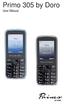 Primo 305 by Doro User Manual U2 1. Speaker Phone with the mobile phone at the ear. 2. Navigation buttons For navigating in menus and text input. In addition by default quick access (see also page 58):
Your Phone This section introduces you to the hardware of the device.
 Your Phone This section introduces you to the hardware of the device. No. Items Functions 1 Earphone jack 2 Strap hole 3 LED / Speaker Use a headset for hands-free conversation or listening to music. It
Nokia Bluetooth Headset BH-109
 Nokia Bluetooth Headset BH-109 Issue 1.0 2 Introduction About your headset With Nokia Bluetooth Headset BH-109, you can handle calls hands-free, even when you are using two mobile devices at the same time.
Contents. Getting started 3 Make and receive the first call.
 Contents Getting started 3 Make and receive the first call. Getting to know your phone 6 Key functions, quick keys, entering letters and characters. Personalizing your phone 15 Choose ring signal, theme
F2400 User Guide - ENGLISH
 F2400 User Guide F2400 User Guide Some of contents in this manual may differ from your phone depending on the software of the phone or your service provider. Part No. MMBB0163204 Issue 1.0 Printed in Korea
Instruction Manual GSM Cell phone Easiphone MM910
 Instruction Manual GSM Cell phone Easiphone MM910 If you need technical assistance, call the following hotline (+48) 32 325 07 00 or [email protected] Our website: http://www.maxcom.pl/ Set content: GSM
Nokia 6303 classic User Guide
 Nokia 6303 classic User Guide 9214002 Issue 3 2 Contents Contents Safety 4 Start up 5 Keys and parts 5 Install SIM card and battery 5 Insert and remove the memory card 6 Charge the battery 6 Antenna 7
GETTING TO KNOW YOUR TELSTRA PRE-PAID 3G WI-FI
 GETTING TO KNOW YOUR TELSTRA PRE-PAID 3G WI-FI LET S GET THIS SHOW ON THE ROAD You must be excited about your brand new Telstra Pre-Paid 3G Wi-Fi. This guide will help you get connected as quickly and
Nokia Charging Connectivity Cable CA-126
 Nokia Charging Connectivity Cable CA-126 9210457/1 ENGLISH With this cable, you can transfer and synchronise data between your compatible PC and Nokia device. You can also use the cable to charge the battery
TABLE OF CONTENTS CHAPTER 2. BASIC OPERATION TURNING THE PHONE ON / OFF...16. DO s...14 DON Ts...14
 TABLE OF CONTENTS CHAPTER 1. BEFORE USING YOUR PHONE PACKAGE CONTENTS...6 HANDSET DESCRIPTION...7 BATTERY USAGE...11 POWER CONNECTION...13 BATTERY HANDLING INFORMATION...14 DO s...14 DON Ts...14 CHAPTER
SGH-S150G. User Manual Please read this manual before operating your phone and keep it for future reference. GH68_37909A Printed in China
 SGH-S150G M O B I L E P H O N E User Manual Please read this manual before operating your phone and keep it for future reference. GH68_37909A Printed in China Intellectual Property All Intellectual Property,
User s Guide for Nokia 1108
 User s Guide for Nokia 1108 DECLARATION OF CONFORMITY We, NOKIA CORPORATION declare under our sole responsibility that the product Rh-18 is in conformity with the provisions of the following Council Directive:
Tecdesk 3500 User Manual
 Fixed Wireless Phones Tecdesk 3500 User Manual English tecdesk.com CONTENTS INTRODUCTION 4 PACKAGE CONTENTS 5 GETTING TO KNOW YOUR PHONE 6 BUTTON FUNCTIONS 11 STATUS ICONS 14 ALPHANUMERIC KEYPAD 15 CALL
Some of the contents in this manual may differ from your phone depending on the software of the phone or your service provider.
 Some of the contents in this manual may differ from your phone depending on the software of the phone or your service provider. World Wide Web http://www.samsungmobile.com Printed in Korea Code No.:GH68-22158A
2.4 GHz Dual Handset Cordless Telephone Answering System 2255 with Caller ID/Call Waiting
 USER S MANUAL Part 2 2.4 GHz Dual Handset Cordless Telephone Answering System 2255 with Caller ID/Call Waiting Please also read Part 1 Important Product Information AT&T and the globe symbol are registered
Content Get Started... 3 Insert SIM card and Memory Card...3 Charging the Battery or Connect to a Computer...4 PAD Overview...
 Content Get Started... 3 Insert SIM card and Memory Card...3 Charging the Battery or Connect to a Computer...4 PAD Overview... 5 Locking and Unlocking the Screen...6 Basic Operation... 7 Switch on/off...
MOTO. Quick Start Guide
 MOTO 9h Quick Start Guide welcome Technology promised to make things easier... but then it gave you more to do phone calls, e-mails, music, photos, videos, the Internet, and more. It s time to take back
V173 GSM. motorola.com
 V173 GSM motorola.com Welcome Welcome to the world of Motorola digital wireless communications! We are pleased that you have chosen the Motorola V173 wireless phone.. Earpiece Listen to your voice calls
HUAWEI F685. Fixed Wireless Terminal USER GUIDE
 HUAWEI F685 Fixed Wireless Terminal USER GUIDE Copyright Huawei Technologies Co., Ltd. 2011. All rights reserved. No part of this document may be reproduced or transmitted in any form or by any means without
125 8880 telstra.com/ppmbb visit a telstra store or partner GETTING TO KNOW YOUR
 FOR MORE INFORMATIoN: 125 8880 telstra.com/ppmbb visit a telstra store or partner GETTING TO KNOW YOUR Telstra PRE-paid 4G wi-fi LET S GET THIS SHOW ON THE ROad WHAT S INSIDE Your Telstra Pre-Paid 4G Wi-Fi
User s Guide for Nokia 7600
 User s Guide for Nokia 7600 DECLARATION OF CONFORMITY We, NOKIA CORPORATION declare under our sole responsibility that the product NMM-3 is in conformity with the provisions of the following Council Directive:
Professional answering machine with time control, SMS service and message transfer. Retell 540 office
 Manual (UK) Professional answering machine with time control, SMS service and message transfer Retell 540 office Safety instructions Safety instructions When installing, connecting and operating the Retell
Electronic user s guide released subject to "Nokia User s Guides Terms and Conditions, 7th June, 1998" User s Guide
 Electronic user s guide released subject to "Nokia User s Guides Terms and Conditions, 7th June, 1998" User s Guide NOKIA and the Arrows logo are registered trademark of Nokia Corporation, Finland. 1996
How To Use A U.S. Cell Phone At Home
 U.S. Cellular Home Phone 1 Contents Getting to Know Your Device...5 Appearance... 5 LED Indicators... 6 Device Installation...7 Before You Begin... 7 Installing the Battery... 7 Installing the Power Adapter...
WF720 Wireless Home Phone User Manual
 WF720 Wireless Home Phone User Manual Content Getting to Know Your Device... 3 Appearance...3 LED Indicator...4 Device Installation... 5 Before You Begin...5 Installing the SIM Card and the Battery...5
Doro PhoneEasy 606. English
 Doro PhoneEasy 606 English 1 2 14 15 3 4 5 6 7 12 11 10 9 13 16 17 18 19 8 1. Earpiece 2. Display 3. Arrow buttons 4. Left selection button 5. Call button 6. Speed dial 7. Voice mail 8. Silent / Input
Device Information This section introduces you to the hardware of the device.
 Device Information This section introduces you to the hardware of the device. No. Items Functions 1 Touch Screen Display screen. Use stylus to select items on screen. 2 3 Windows Flag Key Phone Settings
Operating Instructions
 Panasonic DECT Digital Cordless Telephone System Operating Instructions Before operating this system, please read these instructions completely. THIS EQUIPMENT IS NOT DESIGNED FOR MAKING EMERGENCY TELEPHONY
Doro PhoneEasy 612. English
 Doro PhoneEasy 612 English 17 18 19 1. Earpiece 2. Camera shortcut 3. Left selection button 4. Call button 5. Speed dial 6. Voice mail 7. Silent/Input method 8. Microphone 9. SMS shortcut 10. Arrow buttons
TABLE OF CONTENTS. Legend:
 user guide Android Ed. 1.1 TABLE OF CONTENTS 1 INTRODUCTION... 4 1.1 Indicators on the top tool bar... 5 1.2 First control bar... 7 1.3 Second control bar... 7 1.4 Description of the icons in the main
User s Guide for Nokia 6131
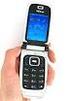 User s Guide for Nokia 6131 DECLARATION OF CONFORMITY We, NOKIA CORPORATION declare under our sole responsibility that the product RM-115 is in conformity with the provisions of the following Council Directive:
2 INSTALLATION AND SETUP
 USER GUIDE UK version 1 BOX CONTENT In the box you will find: 1 mobile handset 1 power adapter 1 handset back cover 1 rechargeable battery pack 1 quick start guide Keep the packing materials in a safe
GPS Vehicle and personal location tracker. User manual
 GPS Vehicle and personal location tracker User manual 1 Contents 1. Product overview... 2 2. Safety instruction... 3 3. Specification and parameters... 3 4. Getting started... 4 4.1 Hardware and accessories...
Primo 413 by Doro. Operating Instructions. by Doro
 Primo 413 by Doro Operating Instructions by Doro 23 U2 i 1. Receiver loudspeaker Making phone calls holding the cell phone to the ear 2. Display 3. Speed-dial buttons Speed-dialling of the numbers saved
Mobile Phone UMX MXE-570. User Guide
 Mobile Phone UMX MXE-570 User Guide 1 Table of Contents 1. Safety and Cautions 4 2. Look and Feel 7 3. Specifications 8 4. Essential Topics 10 5. Getting Started 15 6. Basic Operations 19 7. Using the