
Electronic user s guide released subject to "Nokia User s Guides Terms and Conditions, 7th June, 1998" User s Guide
|
|
|
- Bonnie Russell
- 10 years ago
- Views:
Transcription
1 Electronic user s guide released subject to "Nokia User s Guides Terms and Conditions, 7th June, 1998" User s Guide NOKIA and the Arrows logo are registered trademark of Nokia Corporation, Finland Nokia Mobile Phones. All rights reserved. Nokia Mobile Phones operates a policy of continuous development; therefore we reserve the right to make changes and improvements to any of the products described in this guide without prior notice. EN EN Issue Number 6

2 Contents 1. Important Safety Information Keys, Display and Connectors...9 Keys...9 Selection Keys...10 Display...12 Connectors Getting Started...14 Quick Start...14 The SIM Card...16 Charging a New Battery...18 Using the Batteries...19 Signal Strength...23 Access Codes General Functions...26 Switching On...26 Switching Off...27 Making a Call...28 Receiving a Call...32 Adjusting the Earpiece Volume...34 Speed Dialling...34 Last Number Redial...35 One Touch Dialling...35 Keypad Lock (Keyguard) Memory Functions...38 Standard Memory Locations...38 Locations for Automatically Stored Phone Numbers...38 Notepad Memory Locations...40 Keying in a Name...41 Storing a Phone Number with a Name...44 Recalling a Phone Number from Memory...45 Erasing the Contents of a Memory Location Menu Functions...48 Menu Method NHE-4NX (2110 model II)

3 Shortcut Method Help Texts Network Services Descriptions of Menu Functions Recent Calls (Menu 01) Dialled Calls (Menu 01 1) Received Calls (Menu 01 2) Missed Calls (Menu 01 3) Erase All Recent Calls (Menu 01 4) Messages (Menu 2) Calling Your Voice Mailbox (Menu 2 1) Viewing and Editing SMS Messages (Menu 2 2) Writing and Sending a Message (Menu 2 3) Show Delivery Reports (Menu 2 4) Message Settings (Menu 2 5) Setting The SMS Centre Number (Menu 2 5 1) Sending Messages In Different Formats (Menu 2 5 2) Reply Messages At Your Expense (Menu 2 5 3).. 61 Delivery Reports (Menu 2 5 4) Storage Time of Outgoing Messages (Menu 2 5 5) Setting the Voice Mailbox Number (Menu 2 5 6) Call Divert (Menu 3) Phone Settings (Menu 4) Lights (Menu 4 01) Ringing Volume (Menu 4 2) Ringing Tone (Menu 4 3) Keypad Tones (Menu 4 4) Warning Tones (Menu 4 5) Automatic Redial (Menu 4 6) One Touch Dialling (Menu 4 7) Automatic Answer (Menu 4 8) Cell Info Display (Menu 4 9) Own Number Sending (Menu 4 10) Call Waiting (Menu 4 11)... 70

4 Restore Factory Settings (Menu 4 12)...71 Menu List (Menu 4 13)...72 Language (Menu 4 14)...72 Security Options (Menu 5)...72 PIN Code Request (Menu 5 1)...72 Security Level (Menu 5 2)...73 Call Barring (Menu 5 3)...75 View Fixed Dial List (Menu 5 4)...76 Fixed Dialling (Menu 5 5)...77 Change Access Codes (Menu 5 6)...79 Closed User Group (Menu 5 7)...79 Duration and Cost of Calls (Menu 6)...81 Call Duration (Menu 6 1)...81 Call Costs (Menu 6 2)...82 Call Costs Limit (Menu 6 3)...83 Show Costs In (Menu 6 4)...84 Network Selection (Menu 7)...84 Memory Functions (Menu 8)...86 Memory Selection (Menu 8 1)...86 Memory Status (Menu 8 2)...86 Copy Between Memories (Menu 8 3)...87 Memory Erasing Options (Menu 8 4)...88 Show Own Number (Menu 8 5)...89 Personal Reminders (Menu 9)...90 Welcome Note (Menu 9 1)...90 Countdown Timer (Menu 9 2)...91 In-Call Options (Menu 10)...92 Fax or Data Call (Menu 11)...94 Ringing Options (Menu 12)...95 Number Editor (Menu 13) Sending DTMF Tones Care and Maintenance

5 Important Safety Information 1. Important Safety Information Traffic Safety Do not use a hand-held telephone while driving a vehicle. If using a hand-held phone park the vehicle before conversing. Always secure the phone in its holder; do not place the phone on the passenger seat or where it can break loose in a collision or sudden stop. The use of an alert device to operate a vehicle s lights or horn on public roads is not permitted. Remember: road safety always comes first! Operating Environment Remember to follow any special regulations in force in any area and always switch off your phone whenever it is forbidden to use it, or when it may cause interference or danger. Operation of any radio transmitting equipment, including cellular phones, may interfere with the functionality of inadequately protected medical devices. Consult a physician or the manufacturer of the medical device if you have any questions. Other electronic equipment may also be subject to interference. As with other mobile radio transmitting equipment, users are advised that for the satisfactory operation of the equipment and for the safety of personnel, it is recommended that the equipment should only be used in the normal operating position. Users are advised to switch off the phone when at a refuelling point (service station). Users are reminded of the need to observe restrictions on the use of radio equipment in fuel 5 NHE-4NX (2110 model II) (en) ISSUE (issue 3) NHK-4NX (2140) (en) NHE-4NY (2118) (en) ISSUE 5 NHK-4NY (2148) (en)

6 Important Safety Information depots (fuel storage and distribution areas), chemical plants or where blasting operations are in progress. Do not store or carry flammable liquids, gases or explosive materials in the same compartment as the phone, its parts or accessories. Only qualified personnel should install or service the phone in a vehicle. Faulty installation or service may be dangerous and may invalidate any warranty which apply to the unit. Electronic fuel injection systems, electronic anti-skid braking systems, electronic cruise control systems and other electronic systems can malfunction due to the lack of protection from radio signals. Check regularly that all cellular phone equipment in your vehicle is mounted and operating properly. Switch off your cellular phone when in an aircraft. The use of cellular telephones in an aircraft may be dangerous to the operation of the aircraft, disrupt the cellular network and is illegal. Failure to observe these instructions may lead to suspension or denial of cellular telephone services to the offender, or legal action or both. Emergency Calls IMPORTANT! This phone, like any cellular phone, operates using radio signals, cellular and landline networks as well as userprogrammed functions which cannot guarantee connection in all conditions. Therefore you should never rely solely upon any cellular phone for essential communications (e.g. medical emergencies). 6 NHE-4NX (2110 model II) (en) ISSUE (issue 3) NHK-4NX (2140) (en) NHE-4NY (2118) (en) ISSUE 5 NHK-4NY (2148) (en)

7 Important Safety Information Remember, to make or receive any calls the phone must be switched on and in a service area with adequate cellular signal strength. Emergency calls may not be possible on all cellular phone networks or when certain network services and/or phone features are in use. Check with the local cellular service provider. To make an emergency call: ➊ If the phone is not on, switch it on. Some networks may require that a valid SIM card is properly inserted in the phone. ➋ Press and hold the C key for several seconds to make the phone ready for calls. ➌ Key in the emergency number for your present location (e.g. 112, 000 or other official emergency number). Emergency numbers vary by location. ➍ Press the key. If certain features are in use (Keyguard, Locking, Call Barring etc.), you may first need to turn those features off before you can make an emergency call. Consult this document and your local cellular service provider. When making an emergency call, remember to give all the necessary information as accurately as possible. Remember that your cellular phone may be the only means of communication at the scene of an accident - do not cut off the call until given permission to do so. Using This Guide The phone described in this guide is approved for use in digital cellular networks. A number of features included in this guide are called Network Services. They are special services provided by cellular 7 NHE-4NX (2110 model II) (en) ISSUE (issue 3) NHK-4NX (2140) (en) NHE-4NY (2118) (en) ISSUE 5 NHK-4NY (2148) (en)

8 Important Safety Information service providers. Before you can take advantage of any of these Network Services, you must subscribe to the service(s) you require from your home service provider. You can then activate these functions as described in this guide. The manual activation commands for various services are not presented in this guide (e.g. using and # characters for activating or deactivating services). The phone nevertheless is capable of handling commands given in that form. For these commands please consult with your service providers. Warning! This apparatus is intended for use when supplied with power from ACH-4, ACP-3, LCH-2, or CHH-2. Other usage will invalidate any approval given to this apparatus and may be dangerous. Use only accessories approved by the phone manufacturer. The use of any other types will invalidate any approval or warranty applying to the telephone, and may be dangerous. When you disconnect the power cord of any accessory, grasp and pull the plug, not the cord. NOTE ABOUT THE SECURITY CODE You can find the security code of your phone in a red envelope in the sales package. Keep the code in a safe place. 8 NHE-4NX (2110 model II) (en) ISSUE (issue 3) NHK-4NX (2140) (en) NHE-4NY (2118) (en) ISSUE 5 NHK-4NY (2148)

9 Keys, Display and Connectors 2. Keys, Display and Connectors KEYS To operate this phone, keys are pressed one at a time. Two keys are never to be pressed simultaneously. More detailed information on each key is given later in this guide. Switches the phone on and off. Selection Keys The function of each key depends on the text shown on the bottom line of the display. For more information, see Selection Keys below. ABC Switches between alpha mode and numeric mode. In the menu facility, this key produces a help text on the current function. C Deletes characters and exits the menu facility and memory functions. These keys are used to scroll through menus, submenus or settings. They are also used to browse through memory locations. EN EN 9

10 Keys, Display and Connectors Dials a phone number and answers a call. With the display clear, this key recalls the most recently dialled number. Ends a call wxyz Number and alpha keys. Pressing and holding the 1 key calls your voice mailbox. # Used for special purposes in certain functions. Side Buttons The upper button increases and the lower button decreases earpiece volume. SELECTION KEYS Below the display there are two keys called selection keys. The functions of these keys vary according to the guiding texts at the bottom of the display. Guiding texts C ABC Selection keys 10 NHE-4NX (2110 model II) (en) ISSUE (issue 3) NHK-4NX (2140) (en) NHE-4NY (2118) (en) ISSUE 5 NHK-4NY (2148) (en)

11 Keys, Display and Connectors For example, the Menu selection key (key under the text Menu) gains access to the menu functions and the Memory selection key (key under the text Memory) to the memory functions. Assume you want to switch off the phone s lights. The lights can be adjusted in the Phone Settings - Lights submenu (Menu 4 01). For more information on menu functions, see chapter Menu Functions. ➊ Press the Menu selection key to enter the menu facility. ➋ Press four times to reach the PHONE SETTINGS menu. ➌ Press the Select selection key to enter the menu. ➍ Press once to reach the LIGHTS submenu. ➎ Press the Select selection key to enter the submenu. ➏ Press once to select Off (lights off). ➐ Press the OK selection key to store the setting in your phone s memory. Another example: assume you want to save a name and phone number in the SIM card s or phone s memory. ➊ Press the Memory selection key. ➋ Key in the name. ➌ Press the Save selection key. ➍ Key in the phone number. ➎ Press the Save selection key. ➏ Press the OK selection key to save the name and phone number into the memory location suggested by the phone. EN EN 11

12 Keys, Display and Connectors DISPLAY The phone s display is provided with a series of indicators which inform you about the operation of the phone. A or B D Indicates the memory which is selected currently. "A" refers to the SIM card memory and "B" to the phone s internal memory Indicates that a data call is in progress. The phone is used in other network than your home network. A call is in progress. and bar and bar Indicates the current signal strength at your location. The higher the bar, the better the signal. When the antenna is not visible, you are outside the network s service area. Indicates how much charge there is left in the battery. The higher the bar, the more charge in the battery. 12 NHE-4NX (2110 model II) (en) ISSUE (issue 3) NHK-4NX (2140) (en) NHE-4NY (2118) (en) ISSUE 5 NHK-4NY (2148) (en)

13 Keys, Display and Connectors ABC Indicates that your phone is in alpha mode (letters as well as digits can be entered). Steady: You have received a short (SMS) message. Flashing: Message memory is full. Indicates one of the following: memory location, menu, submenu or setting option. This function is not available. Indicates that there is a list of options to select from. This pointer also indicates the currently selected option. CONNECTORS ➊ For cigarette lighter adapter and fast travel charger. ➋ Power connector for desktop charger CHH-2. ➌ System and data connector for accessories, desktop chargers and HF car kit. ➍ For external antenna. ➊ ➋ ➌ ➍ EN EN 13 NHE-4NX (2110 model II) (en) ISSUE (issue 3) NHK-4NX (2140) (en) NHE-4NY (2118) (en) ISSUE 5 NHK-4NY (2148) (en)

14 Getting Started 3. Getting Started QUICK START If you have a fully charged battery and a miniature SIM card at hand, to get the phone ready for use quickly do as follows: ➊ Remove the battery. (See The SIM Card in this chapter.) ➋ Install the SIM card. (See The SIM Card.) ➌ Install the battery. (See The SIM Card.) ➍ Switch on the phone by pressing and holding the key for a second. A tone is heard and the phone backlight will come on. ➎ If the phone requests the PIN code (delivered with the SIM card), key it in and press the left selection key. ➏ Check that the signal strength indicator (and the bar above it) and the operator s name are shown. Pull the antenna fully out for better reception. ➐ Now the phone is ready for your first call: You can clear the display by pressing and holding the C key. Key in the area code and phone number of the person you wish to call. Press to dial the number. Wait for the answer, then speak. After you have finished your conversation, press to end the call. ➑ If the texts on the display are not shown in English, do as follows: You can clear the display by pressing and holding the C key. Press the left selection key. Press four times. 14 NHE-4NX (2110 model II) (en) ISSUE (issue 3) NHK-4NX (2140) (en) NHE-4NY (2118) (en) ISSUE 5 NHK-4NY (2148) (en)

15 Getting Started Press the left selection key. Press once. Press the left selection key. Move the pointer ( ) to English with or. Press the left selection key. Press the C key to exit the function. EN ➒ The phone can be set to show some or all of its menu functions. Do as follows: Press the Menu selection key. Press four times (PHONE SETTINGS appears). Press the Select selection key. Press twice (MENU LIST appears) Press the Select selection key. Move the pointer ( ) to Complete (show all menu functions) or Short (show some menu functions) with or. Press the OK selection key. Press the C key to exit the function. Please read the previous chapter Keys, Display Indicators and Connectors carefully. Pay special attention to the section on the selection keys since the correct use of these keys is essential for the operation of your phone. For more information on different menu functions, see chapter Menu Functions. EN 15 NHE-4NX (2110 model II) (en) ISSUE (issue 3) NHK-4NX (2140) (en) NHE-4NY (2118) (en) ISSUE 5 NHK-4NY (2148) (en)

16 Getting Started THE SIM CARD The phone can only be used with a valid miniature plug-in SIM card. The card is supplied by your network operator or service provider. Note: The network operator or service provider may prevent the use of the phone with any other but the operator s or provider s own SIM cards. If an unacceptable SIM card is inserted, the message INVALID SIM CARD will be displayed. Should this happen, contact your dealer or network operator. The SIM card contains all information (the phone number, etc.) the cellular network needs for identification of the network user. In addition to the identification information required by the cellular network, the SIM card contains memory space for phone numbers and related names. This memory is called the SIM card memory (memory A). The memory in the phone is called the phone memory (memory B). You may switch between the SIM card memory and the phone memory within Menu 8 1. Switch off the phone and wait for a few seconds before removing or inserting the SIM card. The SIM card and its contacts can be easily damaged by scratches or bending, so be careful when you handle, insert or remove the card. Note: Keep all miniature SIM cards out of small children s reach. INSTALLING THE SIM CARD Before installing the SIM card, switch off the phone (using ) and remove the battery. To remove the battery: 16 NHE-4NX (2110 model II) (en) ISSUE (issue 3) NHK-4NX (2140) (en) NHE-4NY (2118) (en) ISSUE 5 NHK-4NY (2148) (en)

17 Getting Started Press the catch on the top of the battery (1). Next, pull the battery back (2) and lift it away from the phone (3) EN Open the cover of the SIM card reader by sliding it back (1). Open the SIM holder by pulling the metal catch in the direction "Open" (2) Lift the holder into vertical position (3). 1. Slide the card into the holder. Make sure that the bevelled corner of the card is uppermost (see the picture) and that you can see the gold contacts of the card. Close the holder by pushing it towards the phone. EN 17 NHE-4NX (2110 model II) (en) ISSUE (issue 3) NHK-4NX (2140) (en) NHE-4NY (2118) (en) ISSUE 5 NHK-4NY (2148) (en)

18 Getting Started Pull the catch gently in the direction "Lock" (1). When you are sure that the holder is firmly engaged, slide the cover of the SIM card reader back into place (2) Replace the battery: Place the battery onto the rear of the phone (1). 2. Push the battery towards the catch until it clicks into place (2). 1. Make sure the battery is properly installed. CHARGING A NEW BATTERY Your phone is powered by a rechargeable battery. A new battery will provide full performance only after it has completely been charged and discharged two or three times. To charge a new battery by using the fast travel charger ACH-4: ➊ Install the battery. ➋ Connect the lead from the charger to the bottom of your phone. 18 NHE-4NX (2110 model II) (en) ISSUE (issue 3) NHK-4NX (2140) (en) NHE-4NY (2118) (en) ISSUE 5 NHK-4NY (2148) (en)

19 Getting Started ➌ Connect the charger to an AC wall outlet. Segments of the battery indicator bar on the right-hand side of the display will start scrolling. ➍ After the segments stop scrolling and the bar is entirely displayed, the charging is finished and the battery is ready for use. The charging time depends on the type of the battery and charger used. ➎ Disconnect the charger from the AC outlet and the phone. EN USING THE BATTERIES Charging and Discharging the Battery A new battery s full performance is achieved only after two or three complete charge and discharge cycles! The battery can be charged and discharged hundreds of times but it will eventually wear out. When the operating time (talk-time and standby time) is noticeably shorter than normal, it is time to buy a new battery. Use only batteries approved by the phone manufacturer and recharge your battery only with the chargers approved by the manufacturer. When a charger is not in use, disconnect it from the power source. Do not leave the battery connected to a charger for longer than a week, since overcharging may shorten its life. If left unused a fully charged battery will discharge itself in about a week at room temperature. EN For good operation times, discharge the battery from time to time by leaving your phone switched on until it turns itself off (or by using the battery discharge facility of any ap- 19 NHE-4NX (2110 model II) (en) ISSUE (issue 3) NHK-4NX (2140) (en) NHE-4NY (2118) (en) ISSUE 5 NHK-4NY (2148) (en)

20 Getting Started proved accessory available for your phone). Do not attempt to discharge the battery by any other means. Temperature extremes will affect the ability of your battery to charge: it may require cooling or warming first. Note: Use the battery only for its intended purpose. Never use any charger or battery which is damaged or worn out. Do not short circuit the battery. Accidental short circuiting can occur when a metallic object (coin, clip or pen) causes direct connection of the + and - terminals of the battery (metal strips on the back of the battery), for example, when you carry a spare battery in your pocket or purse. Short circuiting the terminals may damage the battery or the connecting object. Leaving the battery in hot or cold places, such as in a closed car in summer or winter conditions, will reduce the capacity and lifetime of the battery. Always try to keep the battery between 15 C and 25 C (59 F and 77 F). A phone with a hot or cold battery may temporarily not work, even when the battery is fully charged. NiMH batteries performance is particularly limited in temperatures below -10 C (14 F). If battery temperature exceeds 40 C the phone will not recharge the battery. Dispose of used batteries in accordance with local regulations. Recycle! Do not dispose of batteries in a fire! 20 NHE-4NX (2110 model II) (en) ISSUE (issue 3) NHK-4NX (2140) (en) NHE-4NY (2118) (en) NHK-4NY (2148) (en)

21 Getting Started Battery Charge Indication The vertical bar above the indicator on the right of the phone display shows the charge level of the battery. The higher the bar, the more power left in the battery. EN Recharging a Battery When the charge is low and only a few minutes of talk time remain, a warning tone will be heard and the message BAT- TERY LOW will be repeated at regular intervals on the display. When the charge level becomes too low for operation, the RECHARGE BATTERY message will be displayed accompanied by a warning tone. If you do not connect the phone to a charger, the phone automatically switches itself off. Note: If the tones have been switched off, only the display messages will appear. Connect your phone directly to a charger or place it in the charging stand with the phone switched on or off. The CHARGING message starts blinking when the phone is switched on. If the phone is switched off, only a short tone is heard. If you use any other charger than the fast travel charger ACH-4 or cigarette lighter charger LCH-2 and the phone is provided with a plastic cap protecting the phone s connectors, first remove the cap and then connect the charger. After charging, replace the cap. In some vehicles, the ignition must be on in order to charge the phone with the cigarette lighter adapter. EN 21 NHE-4NX (2110 model II) (en) ISSUE (issue 3) NHK-4NX (2140) (en) NHE-4NY (2118) (en) ISSUE 5 NHK-4NY (2148) (en)
22 Getting Started Whilst charging, the bar indicating the charge level will scroll. The battery is fully charged when the scrolling stops, the bar appears entirely and the BATTERY FULL message is briefly displayed. Note that the message is not shown if the phone has been connected to the charger with the power switched off. If the NOT CHARGING message is displayed, the charging is suspended. Check that the battery has not overheated (over 40 C). Wait for a while, disconnect the charger, connect it again and retry. If charging still fails, contact your dealer. In all cases, the phone may be used during charging. However, the charging process will be suspended for the duration of the call. Charging Time Typical charging time with all chargers for an empty 550 mah battery (BBH-1S) is about one hour. For charging times of other batteries, refer to the phone s Accessory documentation. Operation times The operation time and the life time of a battery are greatly affected by how you handle it. Take good care of the battery. Less power is consumed when the phone is used near to the cellular network s base station. Keeping the antenna fully extended whenever possible will maintain the connection to the network with less power. The operation times are greatly affected by the signal strength of the cellular network and the parameters set by the network operator. 22 NHE-4NX (2110 model II) (en) ISSUE (issue 3) NHK-4NX (2140) (en) NHE-4NY (2118) (en) ISSUE 5 NHK-4NY (2148) (en)
23 Getting Started SIGNAL STRENGTH Your phone sends and receives radio signals. As with all radio equipment, the quality of radio reception entirely depends on the strength of the radio signal in your area. The strength of the cellular signal is shown by the vertical bar above the indicator on the left-hand side of the display: the higher the bar, the better the signal at your location. EN When is not shown, you are outside the network s service area and cannot make or receive calls with the phone. If the signal strength is not good, you can try to improve call quality by moving the phone slightly. When using the phone in a building, reception may be better near a window. ACCESS CODES There are several access codes that are used by your phone and its SIM card. These codes allow you to protect against unauthorised use of the phone and the SIM card. When requested to do so, key in the code (appears as asterisks) and press the OK selection key. If you make a keying mistake, you can erase the entered digits one by one by pressing the C key repeatedly. Note: Avoid using access codes similar to emergency numbers such as 112 to prevent accidental dialling of the emergency number. SECURITY CODE (5 digits) The security code comes with your phone. The setting of the Security Level function in Menu 5 2 determines whether the code is requested. The security code allows access to all the EN 23 NHE-4NX (2110 model II) (en) ISSUE (issue 3) NHK-4NX (2140) (en) NHE-4NY (2118) (en) ISSUE 5 NHK-4NY (2148) (en)
24 Getting Started phone s memory functions. Keep it, therefore, secret and in a safe place, separate from the phone. If you key in an incorrect security code (CODE ERROR) five times in succession, the phone will not accept new tries for the next five minutes. The security code can be changed within Menu PIN CODE (4 to 8 digits) The PIN (Personal Identity Number) code is supplied with the SIM card. When the PIN code request is enabled within Menu 5 1 (PIN Code Request), the code is required each time the phone is switched on. If you enter a wrong PIN code three times in succession, the PIN code is disabled and cannot be used any more. When you see the prompt Enter PUK code, key in the PUK code (see below) and press the OK selection key. Next, enter a new PIN code at the prompt Enter new PIN: and press the OK selection key. Finally, enter the new code again at the prompt Verify new code: and press the OK selection key. The PIN code can be changed within Menu The PIN code request must be turned on to change the code. PIN2 CODE (4 to 8 digits) The PIN2 code is supplied with some SIM cards. The PIN2 code is required to access some functions, such as charging unit counters, which must be supported by the SIM card. If you enter a wrong PIN2 code three times in succession, the PIN2 code is disabled and cannot be used any more. To change the code, follow the same procedure as for the PIN code. The PIN2 can be changed within Menu NHE-4NX (2110 model II) (en) ISSUE (issue 3) NHK-4NX (2140) (en) NHE-4NY (2118) (en) ISSUE 5 NHK-4NY (2148) (en)
25 Getting Started PUK CODE (at least 8 digits) The PUK (Personal Unblocking Key) is supplied with the SIM card. The code is required when you want to change a disabled PIN code. If you enter a wrong code ten times in succession, you cannot use the SIM card any more. Contact your network operator for a new card. You cannot change the PUK code. If you lose the code, contact your network operator. EN PUK2 CODE (at least 8 digits) The PUK2 code is supplied with some SIM cards. The code is required when you want to change a disabled PIN2 code. If you enter a wrong code ten times in succession, you will not be able to access the functions which require the PIN2 code. To utilise these functions, contact your network operator for a new card. You cannot change the PUK2 code. If you lose the code, contact your network operator. BARRING PASSWORD (4 digits) The barring password is required by the Call Barring network service only. You obtain the code from your network operator when you subscribe to the service. The password can be changed within Menu EN 25 NHE-4NX (2110 model II) (en) ISSUE (issue 3) NHK-4NX (2140) (en) NHE-4NY (2118) (en) ISSUE 5 NHK-4NY (2148) (en)
26 General Functions 4. General Functions SWITCHING ON Extend the antenna fully. The phone will not work properly with a partly extended antenna. Slide the antenna in when you are not using the phone. As with any other radio-transmitting device, avoid unnecessary contact with the antenna when the phone is switched on. ➊ Press and hold the key for one second. If there is no SIM card fitted in the phone, you will be prompted to insert it. Switch off the phone and insert the card (see Installing a SIM Card in the previous chapter). ➋ If the PIN code request is enabled within Menu 5 1: The phone will ask for the PIN code of the SIM card. Key in the code (appears as asterisks) and press the OK selection key. If the code was correct, the message CODE ACCEPTED will appear. (If the code was not correct, see Access Codes in the previous chapter). ➌ With a SIM card which has not been used with the phone before, note the following: If the security level is set to Phone, the phone will ask for the security code of the phone. Key in the code and press the OK selection key. For more information on different security levels, see Security Options - Security Level (Menu 5 2) in chapter Menu Functions. 26 NHE-4NX (2110 model II) (en) ISSUE (issue 3) NHK-4NX (2140) (en) NHE-4NY (2118) (en) ISSUE 5 NHK-4NY (2148) (en)
27 General Functions Note: You can find the security code in a red envelope in the sales package of your phone. ➍ A welcome message will appear, if programmed within Menu 9 1. If you do not want this message to be displayed next time, delete it by pressing the Erase selection key. If you want to retain the message for later use, press the Keep selection key. For more information on welcome messages, see Welcome Note (Menu 9 1) in chapter Menu Functions. ➎ If you are in the service area of a cellular network which can serve you, the name of the network operator and the indicator will appear. The phone is now ready for use. Please read carefully Security Level (Menu 5 2) in chapter Menu Functions and then select the desired security level. If the phone does not work with the newly inserted SIM card, see The SIM Card in chapter Getting Started. The phone can make and receive calls only when it is switched on, has a valid SIM card fitted and is located in the service area of the cellular network ( is shown). However, emergency calls to the international emergency number 112 can usually be made without the SIM card. Check with your network operator. Note: When the phone loses contact with the network, you can try to re-establish the contact by pressing any key of the phone (except for ). If this has no effect, enter the menu Network Selection (Menu 7) and perform automatic or manual network selection. See Network Selection (Menu 7) in chapter Menu Functions. EN EN SWITCHING OFF ➊ Press and hold the key for a second. 27 NHE-4NX (2110 model II) (en) ISSUE (issue 3) NHK-4NX (2140) (en) NHE-4NY (2118) (en) ISSUE 5 NHK-4NY (2148) (en)
28 General Functions MAKING A CALL ➊ Key in the area code and the phone number of the person you wish to call. If you make a mistake, you can delete the digits one by one by pressing the C key repeatedly or clear the whole display by pressing and holding down the C key. ➋ Press the key to dial the phone number. The indicator will come on and the text CALLING and the dialled number will be displayed. If you want to cancel the call, press. ➌ When the phone number disappears and the text CALL 1 is shown, the call is connected. Wait for the answer, then speak. To view the duration of the call, press Menu To alter the volume of the phone s earpiece, use the two buttons on the side of the phone. The upper button increases the volume and the lower button decreases it. To mute the phone s microphone, press and hold the Menu selection key for a second, press or to move the pointer to Mute and press the OK selection key. To unmute the microphone, follow the same procedure but select Unmute instead. ➍ End the call by pressing. Dialling a phone number by using an associated name If you have stored a phone number with a name in a standard memory location (see Storing a Phone Number With a Name in chapter Memory Functions) you can dial the phone number by simply keying in the name and pressing. ➊ Press the ABC key to enter alpha mode. 28 NHE-4NX (2110 model II) (en) ISSUE (issue 3) NHK-4NX (2140) (en) NHE-4NY (2118) (en) ISSUE 5 NHK-4NY (2148) (en)
29 General Functions ➋ Key in the name you stored with the phone number that you want to dial. You don t need to key in the whole name if there is only one name beginning with the same letter(s). For more information on keying in a name, see Keying in a Name in chapter Memory Operations. ➌ Press. If the name keyed in could not be found, the message NAME NOT FOUND will appear. International Calls If you insert a + character in front of the country code, you don t need to know the international access code of the country where you are using the phone. ➊ Press the key twice quickly. A + character will appear. ➋ Key in the country code, area code and phone number of the person you wish to call. ➌ Press to call the number. Making a call while you have a call in progress You may have up to two calls in progress at the same time (network service). Of these two calls, one will be active (the person you are calling can hear you) and the other on hold (the person cannot hear you). One of the calls may be a conference call where up to five persons may participate at a time. For subscription to this function, contact your network operator. ➊ During a call, key in or recall from memory the other phone number that you want to call. EN EN 29 NHE-4NX (2110 model II) (en) ISSUE (issue 3) NHK-4NX (2140) (en) NHE-4NY (2118) (en) ISSUE 5 NHK-4NY (2148) (en)
30 General Functions ➋ To put the first call on hold, press and hold the Menu selection key for a second, move the pointer to Hold and press the OK selection key. ➌ Press to dial the phone number. As the call attempt is made (CALLING is shown), you may cancel the new call by pressing the Drop selection key. ➍ To make the held call active and to put the active call on hold, press (with the display clear of characters). Alternatively: Press and hold the Menu selection key for a second, move the pointer to Swap and press the OK selection key. ➎ To end the active call, press and hold the Menu selection key for a second, move the pointer to Drop call and press the OK selection key. Note that pressing will end both of the calls. ➏ To make the held call active, press and hold the Menu selection key for a second, move the pointer to Unhold and press the OK selection key. Alternatively: Press (with the display clear of characters). Making a conference (multiparty) call A conference call is a call where up to five persons can take part (network service). To create a conference call: ➊ Make a call to the first participant that you wish to take part in the conference call (key in the phone number or name and press ). ➋ Once this person has answered the call, make a call to the second participant in the normal way. The first call is automatically put on hold. ➌ Wait until this second person answers the call. ➍ To join the first participant in the call, press and hold the Menu selection key for a second, move the pointer with 30 NHE-4NX (2110 model II) (en) ISSUE (issue 3) NHK-4NX (2140) (en) NHE-4NY (2118) (en) ISSUE 5 NHK-4NY (2148) (en)
31 General Functions or to Join and press the OK selection key. Now all the participants can hear each other. ➎ If you want to include a new person, make a call to this person in the normal way, press and hold the Menu selection key for a second, move the pointer to Join with or and press the OK selection key. Repeat this operation once more if necessary. ➏ You can have a private conversation with one of the call participants. First, press and hold the Menu selection key for a second, move the pointer to Private and press the OK selection key. A list of call participants will appear. Next, press or to move the pointer to the desired person and press the OK selection key. Now you can talk privately with that person. The other participants can continue to converse with each other. Once you have finished the private conversation, return to the conference call: press and hold the Menu selection key for a second, move the pointer to Join and press the OK selection key. All the participants can now hear each other. ➐ You can drop individual participants from the conference call. First, separate the participant from the call (press and hold the Menu selection key for a second, move the pointer to Private and press the OK selection key). EN EN Next, press and hold the Menu selection key for a second, move the pointer to Drop call and press the OK selection key (en) ISSUE (issue 3) NHK-4NX (2140) (en) NHE-4NY (2118) (en) ISSUE 5 NHK-4NY (2148) (en)
32 General Functions Finally, press and hold the Menu selection key for a second, move the pointer to Unhold and press the OK selection key. ➑ End the conference call by pressing. RECEIVING A CALL When somebody is calling you, the phone will give a ringing tone and the indicator light on the top of the phone and the text CALL text on the display will flash. If the caller can be identified, the caller s phone number (or name if stored in memory) and the text CALLING will be displayed instead. If you have selected SILENT SERVICE within Menu 12, only the keypad and display lights will flash. You can answer the call any time, even while using the memory or menu functions. To answer a call: ➊ Press any key except for, volume keys or. ➋ After the conversation end the call by pressing. If you do not want to answer the call, you can reject it by pressing. To answer a call while you have a call in progress When you have enabled the Call Waiting function in Menu 4 11, the phone will notify you of new incoming calls (this is a network service): ➊ If your network allows you to view the caller s phone number: The caller s phone number and the text WAITING will be displayed. If the phone number is stored in your phone s 32 NHE-4NX (2110 model II) (en) ISSUE (issue 3) NHK-4NX (2140) (en) NHE-4NY (2118) (en) ISSUE 5 NHK-4NY (2148) (en)
33 General Functions memory with a name, the name will be shown instead. If your network does not allow you to view the caller s phone number: The text WAITING CALL will be displayed. ➋ To answer the incoming call, press. Alternatively: press and hold the Menu selection key for a second, move the pointer to Swap and press the OK selection key. The old call is automatically put on hold. ➌ To alternate between the two calls (i.e. put the active call on hold and make the held call active), press. Alternatively: Press and hold the Menu selection key for a second, move the pointer to Swap and press the OK selection key. The text SWAPPED is displayed briefly. ➍ If you want to create a conference call, press and hold the Menu selection key for a second, move the pointer to Join and press the OK selection key. ➎ To end the active call, press and hold the Menu selection key for a second, move the pointer to Drop call and press the OK selection key. will end both of the calls. ➏ To make the held call active, press and hold the Menu selection key for a second, move the pointer to Unhold and press the OK selection key. To answer a call while you have a conference call in progress: ➊ Press to answer the incoming call. Alternatively: Press and hold the Menu selection key for a second, move the pointer to Swap and press the OK selection key. The conference call is automatically put on hold. EN EN 33 NHE-4NX (2110 model II) (en) ISSUE (issue 3) NHK-4NX (2140) (en) NHE-4NY (2118) (en) ISSUE 5 NHK-4NY (2148) (en)
34 General Functions ➋ If you want to include the new caller in the conference call, press and hold the Menu selection key for a second, move the pointer to Join and press the OK selection key. ➌ To end the conference call, press. ADJUSTING THE EARPIECE VOLUME You can alter the volume of the phone s earpiece by using the keys on the side of the phone, even during a call. The upper key increases the volume and the lower key decreases it. SPEED DIALLING Speed dialling is a handy way to call frequently-used phone numbers. You can speed dial phone numbers from standard memory locations 1 to 9 of the currently selected memory. Speed dialling is not possible during a call. ➊ Key in the number of the memory location where you have stored the phone number. If you speed dial from the notepad memory, key in # first and then the notepad location number. ➋ Press. The phone will recall the phone number from the given location, display it briefly, and then dial it. If the memory location is empty, the message LOCATION EMPTY (in numeric mode) will be displayed. 34 NHE-4NX (2110 model II) (en) ISSUE (issue 3) NHK-4NX (2140) (en) NHE-4NY (2118) ( ISSUE 5 NHK-4NY (2148) (en)
35 General Functions LAST NUMBER REDIAL The phone stores every phone number you dial, i.e. call or attempt to call. However, only the last ten phone numbers (and associated names) can be stored in the phone s memory at a time. To redial the last dialled number: ➊ If there are any characters on the display, clear the display by pressing and holding the C key. ➋ Press. The last dialled number appears on the display. ➌ Press to dial the number. To dial any of the ten last dialled numbers: ➊ Press. ➋ Scroll the numbers with or until the desired number is displayed. ➌ To dial the number, press again. Also see Recent Calls - Dialled Calls (Menu 01 1) in chapter Menu Functions. ONE TOUCH DIALLING If the One Touch Dialling function in Menu 4 7 is enabled, you can dial a phone number stored in one of the memory locations 2 to 9 by pressing and holding the proper number key. Note: Pressing and holding the 1 key will call your voice mailbox. For more information, see Setting Your Voice Mailbox Number (Menu 2 5 6) in chapter Menu Functions. EN EN 35 NHE-4NX (2110 model II) (en) ISSUE (issue 3) NHK-4NX (2140) (en) NHE-4NY (2118) (en) ISSUE 5 NHK-4NY (2148) (en)
36 General Functions For instance, to dial a phone number stored in location 8: ➊ Press and hold the 8tuv key for one second. The call is initialized (, the text CALLING and the dialled phone number will appear on the display). Also see Phone Settings - One Touch Dialling (Menu 4 7) in chapter Menu Functions. KEYPAD LOCK (KEYGUARD) The keypad lock or keyguard prevents the keys being accidentally pressed when the phone is, for example, in your pocket. To lock and unlock the keypad: ➊ Press the Menu selection key and then the key within two seconds. The keypad can be locked or unlocked even during a call. When the keypad lock is on: Calls may be possible to the emergency number programmed into your phone (e.g. 112 or other official emergency number). Key in the number and press. The number will be displayed only after you have keyed in all of its digits. To answer a call, press. During a call the keypad remains unlocked and the phone can be operated in the normal way. To end the call, press. 36 NHE-4NX (2110 model (en) ISSUE (issue 3) NHK-4NX (2140) (en) NHE-4NY (2118) (en) ISSUE 5 NHK-4NY (2148) (en)
37 General Functions After the call the keypad lock is automatically turned on. The keypad lock will be automatically turned off when the phone is switched off or when the phone is connected to a car kit. When the phone is removed from the car kit, without being switched off previously, the keypad will be automatically locked again. EN EN 37 NHE-4NX (2110 model II) (en) ISSUE (issue 3) NHK-4NX (2140) (en) NHE-4NY (2118) (en) ISSUE 5 NHK-4NY (2148) (en)
38 Memory Functions 5. Memory Functions Your phone provides numerous memory locations for storing phone numbers and corresponding names. STANDARD MEMORY LOCATIONS The phone utilises either the memory locations on the SIM card (indicated by "A" in the upper left corner of the display) or those built in the phone (indicated by "B"). You may change between the SIM card memory (A) and the phone memory (B) within Menu 8 1. SIM Card Memory The number of standard memory locations available on SIM cards varies from one card to another. Same applies to the length of names and phone numbers which can be stored in the memory locations. If the name or phone number you try to store is too long for the SIM card, the message NUMBER (or NAME) TOO LONG, MAX=nn will appear, where nn is the maximum number of characters that a memory location can hold. Phone Memory (locations 1 to 125) Your phone provides 125 standard ( normal ) memory locations numbered from 1 to 125. Each of the locations can hold a name of up to 20 characters and a phone number of up to 30 digits. LOCATIONS FOR AUTOMATICALLY STORED PHONE NUMBERS The phone automatically registers the phone numbers described below. The phone will also store the name associated with the 38
39 Memory Functions phone number if this can be found in one of the standard memory locations. To delete these phone numbers, see Recent Calls - Erase All Recent Calls (Menu 01 4) in chapter Menu Functions. Last Dialled Numbers (locations L0 to L9) The phone stores the last ten phone numbers that you have dialled in memory locations L0 to L9. The location number is shown in the upper right corner of the display. To review these phone numbers, either: Press (with the display clear), use or to scroll through the phone numbers. (Pressing the ABC key will show the associated names, if any available.) Or: Press Menu 0 1 1, press or to scroll through the phone numbers. (Pressing the ABC key will show the associated names, if any available.) Last Received Calls (locations A0 to A9) The phone can store phone numbers of the last ten callers, providing the function is supported by your network and the calling phones provide their phone numbers. Note that you can prevent your phone number (and name) from being revealed to the receiver, if your network allows this, in Menu To review the phone numbers: Press Menu 0 1 2, press or to scroll through the phone numbers. (Pressing the ABC key will show the associated names, if any available.) Last Missed Calls (locations U0 to U9) The phone can store the last ten phone numbers of unsuccessful call attempts, providing the function is supported by 39
40 Memory Functions your network and the calling phones provide their phone numbers. Note that you can prevent your phone number from being revealed to the receiver, if your network allows this, within Menu If you have missed new calls since you last checked the phone numbers: ➊ With the number of new unanswered calls on the display, press the List selection key to view the phone numbers. If you would rather view the phone numbers later in the Missed Calls submenu, press the Quit selection key. ➋ Scroll through the phone numbers with or. ➌ Press the ABC key for corresponding names, if available. To review the phone numbers later: Press Menu 0 1 3, press or to scroll through the phone numbers. (Pressing the ABC key will show the associated names, if any available.) NOTEPAD MEMORY LOCATIONS The phone also provides ten notepad memory locations. In these locations you can temporarily store a phone number and a corresponding name, e.g. during a call. To erase the phone numbers stored in the notepad memory, see Recent Calls - Erase All Recent Calls (Menu 01 4) in chapter Menu Functions. To store a phone number with a corresponding name into the notepad memory: ➊ Press the Memory selection key. ➋ Key in the name (you are now in alpha mode). 40
41 Memory Functions ➌ Press the Save selection key. ➍ Key in the phone number. ➎ Press the Save selection key. The message SAVE IN LOCATION and the number of the first empty memory location will appear. ➏ To store the name and phone number in the first empty notepad location: Press the # key. To store the name and phone number in a desired notepad location: Press the # key followed by the desired notepad location number (the old contents of the location will be overwritten). ➐ Press the OK selection key. To review the contents of the notepad memory: ➊ Press the # key. ➋ Scroll through the phone numbers with or. Press the ABC key for corresponding names. ➌ With the desired phone number and name on the display, you can store them into a standard memory location in the normal way. KEYING IN A NAME ➊ If in numeric mode, press the ABC key to select alpha mode. The ABC indicator is displayed. Now you can key in letters and special characters as well as numbers. ➋ Press the key that has the desired character (see list below). If the character that you want is not the first to be displayed, press the key again within one second (before the cursor appears) to display the next character. Keep pressing the key until the desired character appears. 41
42 Memory Functions If you miss a character, keep pressing the key until it appears again; or first press the C key and then start pressing the key again. If you want a lower case character, press and hold a key until the character appears in lower case. All further letters will appear in lower case until a key is pressed and held once again. To enter a space between characters, press the # key. To correct a mistake, press the C key. ➌ Once the desired character is on the display and you want to enter a new character, do either of the following: Wait one second if the next required character is located on the same key as the present one. The vertical cursor will appear to the right of the character just pressed. Select the desired character. Alternatively: Press the key and select the character. If the next required character is located on some other than the previously pressed key, pressing the new key will move the cursor along to the next position and the first character on the key will appear. Select the desired character. ➍ To exit alpha mode, press the ABC key. ➎ Store the phone number and the name in memory. See Storing a Phone Number with a Name in this chapter. For instance, to key in Ann Fox : Press the 2abc key (for A). Press 6mno twice (for N) and hold the key until the character appears in lower case (n). Press the key. Press 6mno twice (for n). 42
43 Memory Functions Press # (for a space). Press 3def three times (for f) and hold the key until the character appear in upper case (F). Press 6mno three times (for O) and hold the key until the character appears in lower case (o). Press 9wxyz twice (for x). The characters available are shown below: Key Characters 1 -?!,. : " & $ ( ) / 1 2abc A B C 2 Ä Å À Á Ã Â Æ Ç 3def D E F 3 È É Ë Ê 4ghi G H I 4 â î Ì Í Î 5jkl J K L 5 6mno M N O 6 Ñ Ö Ò Ó Ô Ø 7pqrs P Q R S 7 ß ê 8tuv T U V 8 Ü Ù Ú Û 9wxyz W X Y Z # a space Note: In alpha mode, the numeric characters available for each key are only for use with names. You cannot use the characters as ordinary phone numbers. 43
44 Memory Functions STORING A PHONE NUMBER WITH A NAME ➊ Press the Memory selection key. ➋ Key in the name (of up to 20 characters) that you want to store with the phone number. For details, see Keying in a Name in this chapter. Note: On some SIM cards the name length is limited to 20 or less characters. If you do not want to store a name with the phone number you can skip this step. ➌ Press the Save selection key. ➍ Key in the country code (if necessary), area code and phone number. If you store a + character (press the key twice) in front of the country code, you can use the same phone number abroad. The cellular network will automatically add the international access code of the country from which you are trying to call. ➎ Press the Save selection key. The message SAVE IN LOCATION and the number of the first empty memory location will appear (in the top right corner of the display). ➏ Press the OK selection key to accept the suggested memory location. Or: To store the information in some other location, key in the desired location number and press the OK selection key. Or: Reach the desired location with or and press the OK selection key. ➊ Key in the phone number. ➋ Press the ABC key to select alpha mode. ➌ Key in the name. 44
45 Memory Functions ➍ Press the Memory selection key ➎ Press the Save selection key. ➏ Press the OK selection key or first key in the desired location number and then press the OK selection key. Note: A name can be stored only in one location of the selected memory (SIM card or phone memory). However, you may have the same phone number stored with different names. Storing a name and phone number in the first empty memory location ➊ Key in the required phone number. ➋ Press the ABC key and key in the corresponding name. ➌ Press and hold the Memory selection key. RECALLING A PHONE NUMBER FROM MEMORY You may retrieve phone numbers and names from memory by the number of the memory location where the information is stored or by the name with which the required phone number was stored. To recall a phone number (and name) by location number: ➊ Key in the number of the memory location where the phone number (and name) is stored. ➋ Press the Memory selection key. ➌ Press the Find selection key. The phone number will be displayed. Press the ABC key to view the name stored with the phone number. Or: 45
46 Memory Functions ➊ Key in the location number. ➋ Press the # key. ➌ Press the ABC key to view the associated name. Alternatively you may scroll the locations: ➊ Press or. If you want the scrolling to start from a particular location, first key in the location number and then press or. ➋ Press the ABC key to view the associated name. To recall a phone number by corresponding name: ➊ Press the Memory selection key. ➋ Key in the name or its first letter(s). ➌ Press the Find selection key. The name closest to the keyed in characters will appear. ➍ You may continue to scroll through the names with or until you reach the desired one. To review the phone number stored with the name, press the ABC key. The location number of the name and phone number is shown in the upper right corner of the display. Alternatively: ➊ Press the ABC key to enter alpha mode. ➋ Key in the name or its first letter(s). ➌ Press or. The name closest to the keyed in characters will appear. ➍ You may continue to scroll through the names with or until you reach the desired one. To review the phone number stored with the name, press the ABC key. 46
47 Memory Functions Note: Both the names stored in the SIM card memory (memory A) and those stored in the phone memory (memory B) will be displayed when the security level is set to None or Phone. The names stored in the phone memory will appear first. ERASING THE CONTENTS OF A MEMORY LOCATION You can erase single memory locations within Menu 8 4 (Memory Erasing Options) or by doing as follows: ➊ With the display clear, press the Memory selection key. ➋ At the prompt Name:, press the Save selection key. ➌ At the prompt Phone number:, press the Save selection key again. ➍ Next, do one of the following: Key in the name which is stored in the memory location that you want to erase. Select the desired name with or. Press the ABC key and key in the memory location that you want to erase. Press the ABC key and use or to reach the memory location that you want to erase. ➎ Press the Erase selection key. 47
48 Menu Functions 6. Menu Functions The phone offers a set of functions which allow you to tailor the phone to your particular use. These menu functions are arranged in menus and submenus which can be accessed through the menu facility. In each menu and submenu, you can check and alter the setting of a particular function. The menus and submenus can be entered by scrolling (Menu Method) or using appropriate shortcuts (Shortcut Method). Note that you can access the menu functions even during a call. You can find a list of the menu functions at the back of this guide. MENU METHOD ➊ Press the Menu selection key to enter the menu facility. The display will read View menu. ➋ Press either or to scroll the list of menus until you reach the desired menu. scrolls the list in reverse order. ➌ Press the Select selection key to enter the menu. ➍ If the menu contains any submenus, reach the one you want with or. ➎ Press the Select selection key. The current setting of the function is indicated by the pointer ( ). ➏ Press the or key to scroll the list of setting options until the pointer points to the desired option. ➐ Press the OK selection key to select the option. If you don t want to change the setting after all, you can return to the previous menu level by pressing the Quit selection key. 48
49 Menu Functions Pressing the C key or pressing and holding the Quit selection key will exit the menu facility. SHORTCUT METHOD All the menus, submenus and settings are numbered. This index number is shown in the upper right corner of the display. To access a menu function by its shortcut: ➊ Press the Menu selection key. ➋ Key in the number of the menu function you want to access before the two short lines ( ) in the upper right-hand corner disappear. To access a submenu function by its shortcut: ➊ Press the Menu selection key. ➋ Key in the number of the main menu under which the desired submenu is located. ➌ Key in the number of the submenu where the function can be found before the View options text appears. ➍ Key in the number of the desired setting option before the short line ( _ ) in front of the current option number disappears. For instance, to select the ringing volume level 2 (option 2 in Menu 4 2): Press the Menu selection key (to enter the menu facility), 4 (to enter the Phone Settings menu), 2 (to enter the Ringing Volume submenu), 2 (to select ringing level 2). 49
50 Menu Functions HELP TEXTS Most menu functions are provided with a help text which gives a brief description of the displayed function. ➊ Press the Menu selection key to enter the menu facility. ➋ Scroll the menus with or until you reach the desired function. ➌ Now you can view the help text of the function in two ways. Either: Wait for 5 seconds. The first page of the help text will appear. The text is scrolled automatically. (If you press the ABC key, you can continue the scrolling manually. Pressing the Quit selection key will exit the text.) Once all the pages have been scrolled, the name of the function will be displayed again. Or: Press the ABC key. The first page of the help text will appear. For additional pages, press the ABC key as many times as necessary. Once you have read the text, either press the Select selection key to enter the function or press the Quit selection key (or the ABC key if you are on the last page of the text) to return to the title screen. While reading a help text, you can move to the next or previous menu function by pressing or. 50
51 Menu Functions NETWORK SERVICES Some of the menu functions are network services. These functions can be utilised only if provided by your cellular network. To make use of a network service, you must first subscribe to it. Note that a network service is specific to the SIM card for which you have subscribed it. If you change the SIM card and have not purchased the service for that card, you will not be able to utilise the service. For availability and subscription, contact your network operator. DESCRIPTIONS OF MENU FUNCTIONS The following pages explain how to access and operate each menu and submenu function. Note that only a shortcut is given for each function. You can also use the menu method to access the functions. RECENT CALLS (Menu 01) Within this menu you can review and erase the phone numbers stored automatically by the phone. Note that the Received Calls and Missed Calls functions are network services which work only in networks which allow you to view the caller s phone number. DIALLED CALLS (Menu 01 1) The phone is able to store up to ten phone numbers you have dialled most recently. Press Menu 01 1, use or to scroll through the phone numbers. RECEIVED CALLS (Menu 01 2) This function allows you to review the ten phone numbers from which you have been called. 51
52 Menu Functions Press Menu 01 2, use or to scroll through the phone numbers. MISSED CALLS (Menu 01 3) This function allows you to review the ten phone numbers of people who have tried to reach you with no success. Press Menu 01 3 and use or to scroll through the phone numbers. Note: The phone only registers missed calls when it is switched on and it is used within the network s service area. When you have selected DIVERT WHEN NOT ANSWERED in Menu 3, the phone will regard the diverted calls as missed calls and will store the callers phone numbers in the normal way. ERASE ALL RECENT CALLS (Menu 01 4) This function lets you erase all the phone numbers which appear in Menu 01 1, Menu 01 2 and Menu 01 3 as well as those stored in the notepad memory. To erase the temporarily stored phone numbers: Press Menu Caution: The phone numbers are erased without warning. You cannot undo the operation. Note: The temporarily stored phone numbers are erased whenever you take into use a SIM card which is not included in the phone s SIM card list. The phone numbers are also erased when you change the security level. For more information, see Security Level (Menu 5 2). 52
53 Menu Functions MESSAGES (Menu 2) As well as making and receiving voice and data calls, the phone can also be used for recording and listening to messages in voice mailboxes and for sending and receiving short text messages ( SMS messages ). Voice Messages The voice mailbox feature may be either regarded as a network service or simply as a remote control for your personal answering machine. The use of a voice mailbox is simple: You make a call to the mailbox and listen to the messages you have received. The submenus specific to voice messages are Menu 2 1 (Listen to Voice Messages) and Menu (Set Voice Mailbox Number). SMS Messages The SMS (short message service) function is a network service and may not be supported by your network. Before you can use this function, you must have the phone number of your message service centre available. Contact your network operator for details. When you send an SMS message from your phone, the network s message centre tries to deliver the message to the receiving phone. If the recipient cannot be reached, the message is temporarily stored, for a pre-determined period of time, in the message centre and delivered to the recipient as soon as the receiving phone is available. You may also ask the message centre to convert an ordinary SMS message into some other format such as fax or . When your phone receives an SMS message, the message is stored in the area reserved for SMS messages in the phone or SIM card memory, depending on which one is currently selected. 53
54 Menu Functions The maximum length of an SMS message is 160 characters. The phone has space for five SMS messages of full length. The submenus specific to SMS messages are all but Menu 2 1 and Menu (see Voice Messages above). SMS Message Indicators The indicator at the top of the phone display shows if your phone has received any new messages and if there is any space left for new messages. When is shown continuously: You have received new messages. There is still free space in the message memory. When flashes: The message memory is full and you cannot receive any new messages. To delete unnecessary messages, see Viewing and Editing SMS Messages in this chapter. CALLING YOUR VOICE MAILBOX (LISTEN TO VOICE MESSAGES - Menu 2 1) When you enter this function, the phone dials the phone number stored in Menu To check for new messages in your voice mailbox: ➊ Either: Press Menu 2 1. Or: Press and hold the 1 key. ➋ Key in the password of the mailbox, if required. ➌ Listen to the messages. ➍ End the call by pressing the key. 54
55 Menu Functions VIEWING AND EDITING SMS MESSAGES (READ MESSAGES - Menu 2 2) When you receive an SMS message and there is enough space left in the message memory, the text MESSAGE RE- CEIVED and the indicator will be displayed and a short tone will sound (if the phone s tones have not been set off within Menu 12). When either of the vibration options (RING AND VIBRATE or VIBRATE) is selected in Menu 12, the phone will vibrate. The vibrating option is available only with a special battery. ➊ To read the message immediately: Press the Read selection key. To read the message later: Press the Quit selection key. When you want to read the message, press Menu 2 2 to enter this function. The number of new messages accompanied by the text NEW MESSAGE(S) will appear (also is shown). Press to view the first message. ➋ Scroll through the message(s) with or. The messages are shown in the order that they were received or stored into memory. An unread message is indicated by the text NEW: followed by the date and time of receipt. The text OLD: indicates that the message has already been read. The text OLD: OWN OR EDITED indicates that the message was created or edited by you. If the sender of the message could be identified, the sender s phone number (and name if stored with the 55
56 Menu Functions phone number in memory) will be displayed at the end of the message. With a message on the display, you may press a number key and then perform any memory or menu functions in the normal way, e.g. make a call to the sender of the message. When you delete all characters from the display (press and hold the C key), the message will reappear. ➌ Once you have read the message, you can press the Option or Quit selection key. The Option selection key allows access to a further set of functions. The Quit selection key returns to the previous menu level. ➍ If you pressed the Option selection key, reach one of the following functions with or and press the OK selection key to perform it. The functions available are: Read next Shows the next message. Erase Deletes the current message from memory. Instead of using this function, you may first press the C key and then the OK selection key. Reply Sends a reply message to the sender of the displayed message. Key in your message. Press the OK selection key to send it. Cut number Copies the phone number from the current message onto the display from which you can then dial it or store it elsewhere. (Instead of using this function, you may press while viewing the message.) 56
57 Menu Functions You can dial the number or store it elsewhere in the normal way. Edit Allows you to make changes in the message. and move the cursor right and left, respectively. The number of available characters is shown in the upper right-hand corner of the display. You can delete single characters with the C key. To save an edited message, press the Option selection key, move the pointer to Save and press the OK selection key. Send Sends the message to a desired phone number. Key in the recipient s phone number and press the OK selection key. ➎ When the last new message has been displayed, the indicator will extinguish. WRITING AND SENDING A MESSAGE (WRITE MESSAGES - Menu 2 3) ➊ Press Menu 2 3 to enter this function. ➋ Key in a message of up to 160 characters. The number of available characters is shown in the upper right corner of the display. To include numbers in the message, press the ABC key to enter the numeric mode and key in the numbers. Pressing the ABC key again will bring you back to the alpha mode. To delete characters one by one, press the C key. To delete all characters, press the Option selection key, move the pointer to Erase and press the OK selection key. 57
58 Menu Functions To insert a space, press the # key (in alpha mode). To move the cursor left or right, press the or key. To scroll the message quickly, press and hold down either of these keys. ➌ Once you have written the message, press the Option selection key to access a further set of functions. ➍ Select one of the following functions with or and press the OK selection key to perform the function. The functions available are: Send Sends the message. At the prompt Phone number:, key in the phone number of the recipient and press the OK selection key. If you have not specified the phone number of the message service centre within Menu 2 5 1, key it in now, and press the OK selection key. Save Stores the message in the message memory without sending it. To send the message later, use the Send function in Menu 2 2. Erase Deletes the message from the display. (To remove a message from the message memory, use the Erase function in Menu 2 2.) ➎ If you selected the Send function, the text MESSAGE SENT will appear after the message is delivered to the message service centre. 58
59 Menu Functions SHOW DELIVERY REPORTS (Menu 2 4) This function lets you monitor the progress of your SMS messages dispatch. Before you can use the function, you need to have the Delivery Reports function enabled within Menu This function is a network service. Please contact your network operator for details. Once you have sent an SMS message, you can do the following to check whether the message has already reached its recipient: ➊ Press Menu 2 4 to enter this function. ➋ Scroll through the message report(s) with or. First, the current status of the message dispatch is shown, with the name or phone number of the recipient. The alternatives are: DELIVERED (message has been delivered to its recipient), PENDING (message hasn t been yet delivered to its recipient), FAILED (dispatch has failed and you should try to send the message again). Note: DELIVERED doesn t necessarily mean that the recipient has already read the message. Press to see the date and time of delivery (TIME:). Press once more to see the first 10 characters of the current message (CONTENT:). Note: In some networks the time is not shown. ➌ Press the Quit selection key to exit the menu. Delivered and failed reports are automatically removed from the list when you exit this menu. If you switch off the phone when there are pending messages, the report list is cleared 59
60 Menu Functions and the network will notify you with DELIVERED or FAILED as soon as the message is delivered or the delivery fails. In some cases, if the delivery is still in progress, the network may notify you of this with the PENDING message. MESSAGE SETTINGS (Menu 2 5) Under this submenu, a number of message options are available. Setting the SMS Centre Number (Menu 2 5 1) In order to send SMS messages, the phone must know the phone number of your SMS centre. You can either set the phone number within this submenu or enter it when prompted to do so. You will obtain the phone number from your network operator upon subscription to the SMS service. ➊ Press Menu to enter this function. ➋ Key in the phone number of the message service centre. ➌ Press the OK selection key. Sending an SMS Message in Different Formats (MESSAGE SENT AS - Menu 2 5 2) The network may be able to convert your text message (Text) into one of the following formats: FAX, X400, Paging, , ERMES or Voice (message synthesized from an SMS message). The selected format will apply to all messages until you change it. ➊ Press Menu to enter this function. ➋ Move the pointer with or to the desired format and press the OK selection key. 60
61 Menu Functions In order to receive a converted message, the recipient must have an appropriate terminal device available. For example, the recipient must have a telefax machine or similar device connected to the number you provide if you choose the FAX format. Reply Messages At Your Expense (ACCEPT REPLY COST - Menu 2 5 3) This network service allows the recipient of your SMS message to send you a reply message at your expense. The selected option will apply to all messages until you change it. ➊ Press Menu to enter this function. ➋ Move the pointer to Yes (reply at your expense) or No with or. ➌ Press the OK selection key. DELIVERY REPORTS (Menu 2 5 4) Within this submenu you can turn the Show Delivery Reports function (Menu 2 4) on or off. This function is a network service. Please contact your network operator for details. ➊ Press Menu to enter this function. ➋ Move the pointer to Yes (show reports) or No (don t show reports) with or. ➌ Press the OK selection key. 61
62 Menu Functions Storage Time Of Outgoing Messages (MESSAGE VALIDITY - Menu 2 5 5) This network service allows you to set the time that the SMS messages, that you send from the phone, will be stored at the message service centre. If the receiving end cannot be reached within this period of time, the message will be deleted. The selected option will apply to all messages until you change it. If you wish to know the longest possible storage time (the Max. time setting), contact your network operator. ➊ Press Menu to enter this function. ➋ Move the pointer to the desired setting, e.g. 24 h, with or and press the OK selection key. Setting the Voice Mailbox Number (Menu 2 5 6) Within this submenu you can set the phone number which is dialled when you enter the Listen to Voice Messages function in Menu 2 1 or press and hold the 1 key. ➊ Press Menu to enter this function. ➋ Key in a new phone number or edit the existing one. ➌ Press the OK selection key to store the phone number. Note: If your network uses separate phone numbers for listening to and storing messages in the voice mailbox, store here the number reserved for listening to messages. For calling the number reserved for storing messages, see Making a Call in chapter General Functions and Storing a Phone Number with a Name in chapter Memory Functions. 62
63 Menu Functions CALL DIVERT (Menu 3) The Call Divert network service allows you to direct your incoming calls to another phone number when you do not want to be disturbed, or when the phone is switched off or outside of the network service area. ➊ Press Menu 3 to enter this function. ➋ Reach the desired divert mode with or. The modes available are as follows: DIVERT ALL CALLS (Menu 3 1): All incoming voice calls are diverted. DIVERT WHEN BUSY (Menu 3 2): Incoming voice calls are diverted only when your phone is busy. DIVERT WHEN NOT ANSWERED (Menu 3 3): Incoming voice calls are diverted when you do not answer them. DIVERT IF NOT REACHABLE (Menu 3 4): Incoming voice calls are diverted when your phone is switched off or outside of the network service area. DIVERT ALL FAX CALLS (Menu 3 5): Fax calls are diverted in all circumstances. DIVERT ALL DATA CALLS (Menu 3 6): Data calls are diverted in all circumstances. CANCEL ALL DIVERTS (Menu 3 7): Set all divert modes off. 63
64 Menu Functions ➌ Press the Select selection key to select the mode. Note: If you selected CANCEL ALL DIVERTS, the steps which follow will not be available. ➍ Press or to move the pointer to Activate (set divert mode on), Cancel (set divert mode off) or Status (shows call types which are being diverted). ➎ Press the OK selection key. ➏ Next, do one of the following: If you selected Activate in step 4, the phone will ask for the phone number to which you wish the incoming calls to be diverted. Voice mail Calls will be diverted to the number defined in Menu Other No. Calls will be diverted either to the phone number which was on the display when you entered the Call Divert menu or to the number that you enter now. Note: If your network uses separate phone numbers for listening to and storing messages in the voice mailbox, key in here the number reserved for storing messages. Move the pointer to the desired option with or and press the OK selection key. If you selected Other No., either press the OK selection key to divert the calls to the displayed phone number; or edit the existing number first, and then press the OK selection key. If no phone number is displayed, key it in now and press the OK selection key. The phone calls the network operator and asks it to activate the selected divert mode (REQUESTING...). After 64
65 Menu Functions receiving a response, the phone will end the call automatically, and the message DIVERT ACTIVE will appear. When you are diverting fax or data calls: If you keyed in a phone number before entering the Call Divert menu, this number will appear. If you didn t key in a number before entering the menu, the number to which you diverted the fax or data calls the last time will appear. If you are diverting fax or data calls for the first time, key in the number now at the Number: prompt. In all of these cases, you can edit the number in the normal way. Once the correct number is shown on the display, press the OK selection key. If you selected Cancel in step 4, the selected divert mode is set off. The phone calls the network operator and requests that the selected divert mode be set off. The message DIVERT CANCELLED will appear. If you selected Status in step 4, the phone will indicate the call types (e.g. voice call, data call, fax call) to which the currently selected divert mode applies or can be applied. With the text View list on the display, use or to select the required call type. Next, press the Detail selection key. Two further options, To number and Delay, will appear. The To number option shows the phone number to which the calls are currently diverted. The Delay option can be used only when you have selected the mode Divert When Not Answered. This option indicates the period of time within which your incoming calls, if left answered, are diverted. 65
66 Menu Functions Move the pointer with or to either option and press the OK selection key. The phone number and the delay time will remain on the display for a while so that you can check and write them down. You can modify the phone number in this menu or by using a manual command string. The delay time can be modified by a manual command string only (see the note below). The activated divert mode and the specified phone number (and with the mode DIVERT WHEN NOT ANSWERED, the delay time) will apply to voice calls and all other call types. If you want to activate some other mode and set a different phone number (and delay time) for a single call type, you need to use manual command strings (see the note below). When you make a call and a divert mode is selected (except for CANCEL ALL DIVERTS), the phone will display a text reminding you that your incoming calls will be diverted to another phone number. The text will appear only if your network operator supports this feature. Note: Instead of using this menu function, you may set on and off different divert modes by using manual command strings. In idle mode, key in a command string and press the key to transmit it to the network. For required command strings, contact your network operator. 66
67 Menu Functions PHONE SETTINGS (Menu 4) LIGHTS (Menu 4 01) The keypad and display of the phone are fitted with lights to make them easy to read. When the phone is used as a handportable phone or is connected to a charger: The setting determines whether the lights remain on for 15 seconds after the last keystroke or an incoming call alert (On) or remain permanently off (Off). Note that the lights can be switched on by pressing the key quickly even if Off is selected. When the phone is connected to a handsfree car kit: The lights always remain on (On) or extinguish after 15 seconds (Off). Press Menu 4 01, use or, press the OK selection key. RINGING VOLUME (Menu 4 2) The ringing tone will be heard when you receive a call. There are several volume levels available. When you have set the phone s tones off within Menu 12, the ringing tone will not be heard. Press Menu 4 2, use or (a sample is sounded), press the OK selection key. RINGING TONE (Menu 4 3) You can select from a range of different tone patterns. When you have set the phone s tones off within Menu 12, the ringing tone will not be heard. 67
68 Menu Functions Press Menu 4 3, use or (a sample is sounded), press the OK selection key. KEYPAD TONES (Menu 4 4) A short tone is sounded each time you press a key. You can select a suitable volume level or set the keypad tones off. When you have set the phone s tones off within Menu 12, the keypad tones will not be heard. Press Menu 4 4, use or (a sample is sounded), press the OK selection key. WARNING TONES (Menu 4 5) The phone will sound a warning tone, i.e. error or confirmation tone, for example, when the cellular network is currently too busy to allow new calls or the battery charge is too low. When you have set the phone s tones off within Menu 12, the warning tones will not be heard even if set on. Press Menu 4 5, use or, press the OK selection key. AUTOMATIC REDIAL (Menu 4 6) This function comes in handy when your call attempt is cut off for some reason e.g. when the phone you are trying to call is busy. When this function is set on, your phone will make up to ten attempts to connect with a phone number after an unsuccessful call. Pressing will end the call attempts. Press Menu 4 6, use or, press the OK selection key. 68
69 Menu Functions ONE TOUCH DIALLING (Menu 4 7) When this function is set on, your phone will allow you to dial phone numbers stored in memory locations 2 to 9 by simply pressing and holding the proper number key. Press Menu 4 7, use or, press the OK selection key. AUTOMATIC ANSWER (Menu 4 8) When this function is set on, your phone will automatically receive an incoming call after one ring. This function can only be used when the phone is connected to an approved handsfree car kit which is equipped with the ignition sense option. The ignition has to be switched on. Note that this function works with voice calls only. Press Menu 4 8, use or, press the OK selection key. CELL INFO DISPLAY (Menu 4 9) When this function is set on, the phone will indicate when it is using a network cell based on Micro Cellular Network (MCN) technology. The service area of a cellular network is divided into elements called cells. The network may use the MCN technology in none, some, or all of its cells. Press Menu 4 9, use or, press the OK selection key. The setting will remain in effect even if the SIM card is changed or the phone is switched off. Note: The phone consumes more power when the MCN indication is set on. 69
70 Menu Functions OWN NUMBER SENDING (Menu 4 10) The setting of this function determines whether the phone number of your current SIM card is revealed to the receiving end. This function works only in cellular networks which allow you to view the caller s phone number. For subscription to this service, contact your network operator. The current setting will apply to all outgoing calls until you change it. When you change the SIM card, however, the Preset setting is automatically selected. ➊ Press Menu 4 10 to enter this function. ➋ Press or to move the pointer to Preset, On (number will be revealed) or Off (number will not be revealed). Preset resets the phone to the preferential setting (On or Off) that you have agreed upon with your network operator. For details, contact your network operator. ➌ Press the OK selection key to select the setting. CALL WAITING (Menu 4 11) When this function is set on, the network will notify you of a new incoming call while you have a call in progress. Contact your network operator for subscription of this function. ➊ Press Menu 4 11 to enter this function. ➋ Press or to move the pointer to Activate (set call waiting on), Cancel (set call waiting off) or Status (show call types with which call waiting may be used). ➌ Press the OK selection key. At this stage the phone calls the network operator and 70
71 Menu Functions requests that the requested operation be performed. After receiving a response from the network, the phone will end the call automatically. If you selected Activate or Cancel, call waiting is set on or off, respectively. If you selected Status, the phone will list the call types (e.g. voice call, data call, fax call) to which call waiting applies or can be applied. Press or to scroll through the list. Note: Instead of using this menu function, you may set on and off call waiting by using manual command strings. In idle mode, key in a command string and press the key to transmit it to the network. For required command strings, contact your network operator. RESTORE FACTORY SETTINGS (Menu 4 12) You can reset the settings of the menu functions to their original values. Note that this function will not affect the following items: stored phone numbers and names access codes earpiece volume setting the following SMS message settings: Messages Sent As (Menu 2 5 2), Accept Reply Cost (Menu 2 5 3), Message Validity (Menu 2 5 5) language (Menu 4 14) call timers and cost counters (Menu 6) ➊ Press Menu 4 12 to enter this function. The phone will prompt for the security code. ➋ Key in the five-digit code and press the OK selection key. 71
72 Menu Functions The menu settings will be reset and the message SETTINGS RESTORED will appear. MENU LIST (Menu 4 13) If you do not need all of the menu functions frequently, you may hide some of the menus and submenus. When Complete is selected, the phone will shown all its menu functions. When Short is selected, only the major functions are shown and can be accessed. The function numbering is not affected - the hidden functions are simply skipped. Press Menu 4 13, use or to select Short or Complete, press the OK selection key. LANGUAGE (Menu 4 14) This function allows you to select which language your phone will use for all of its display texts. Press Menu 4 14, use or to select the desired language, press the OK selection key. SECURITY OPTIONS (Menu 5) Your phone is equipped with a versatile security system to prevent unauthorised use or the altering of important settings. Most of the security features grouped under this menu require the five-digit security code. PIN CODE REQUEST (Menu 5 1) Within this submenu you can set the phone to request a PIN code when your phone is switched on. 72
73 Menu Functions Note that some SIM cards do not allow you to turn the PIN code request off. ➊ Press Menu 5 1 to enter this function. ➋ At the prompt Enter PIN code:, key in the PIN code and press the OK selection key. ➌ Press or to move the pointer to On (turn request on) or Off (turn request off). ➍ Press the OK selection key. SECURITY LEVEL (Menu 5 2) The phone is provided with a security system which allows you to prevent unauthorised use of the phone. The system is based on three levels of security: None, Memory and Phone. The selected level determines whether the security code, supplied with the phone, is required to start up the phone and to access certain memory functions, such as selecting the phone memory (memory B). The phone keeps a list of the SIM cards which are used with the phone. This list may contain the information on up to five different SIM cards. When the phone asks for a security code and you enter the correct code, the SIM card s information is added to the SIM card list and the SIM card becomes an owner s card. Besides this information, the phone also memorises which memory - SIM card or phone memory - is selected for use. Regardless of the selected security level, all temporarily stored phone numbers are erased when a new SIM card is installed. On the other hand, these phone numbers are not erased when a previously used SIM card is inserted, regardless of the selected security level. 73
74 Menu Functions Note: Whenever you change the security level, all temporarily stored phone numbers will be erased. ➊ Press Menu 5 2 to enter this function. ➋ Key in the security code and press the OK selection key. ➌ Press or to move the pointer to None, Memory or Phone. None The security code is not required at any time. When the inserted SIM card is the same as last time, the previously selected memory is taken into use. When the SIM card is not the same as previously, the SIM card memory is automatically selected. Memory The security code is not required to start up the phone. In contrast, the code is always required to select the phone memory, even with an owner s card inserted. When there is no owner s card inserted, the SIM card memory (memory A) is automatically selected. Phone When a new SIM card, i.e. not an owner s card, is inserted into the phone, the security code is required to start up the phone. When an owner s card is inserted, the phone recognises the SIM card, does not require the security code and automatically takes the previously selected memory into use. ➍ Press the OK selection key to select the desired security level. 74
75 Menu Functions CALL BARRING (Menu 5 3) The Call Barring network service allows you to place restrictions on outgoing and incoming calls. Note: When calls are barred, calls may be possible to certain emergency numbers in some networks (e.g. 112 or other official emergency number). ➊ Press Menu 5 3 to enter this function. ➋ Reach the desired barring mode with or. The modes available are as follows: OUTGOING CALLS (Menu 5 3 1) Calls cannot be made. INTERNATIONAL CALLS (Menu 5 3 2) Calls cannot be made to foreign countries. INTERNATIONAL EXCEPT TO HOME COUNTRY (Menu 5 3 3) When abroad, calls can be made only within the current country and to your home country, i.e. the country where your home network operator is located. INCOMING CALLS (Menu 5 3 4) Calls cannot be received. INCOMING CALLS IF ABROAD (Menu 5 3 5) Calls cannot be received outside your home country. CANCEL ALL BARRINGS (Menu 5 3 6) Switches all call barring settings off. Calls can be made and received in the normal way. 75
76 Menu Functions ➌ Press the OK selection key. Note: If you selected CANCEL ALL BARRINGS, you can ignore the steps which follow. ➍ Press or to move the pointer to Activate (set the selected barring mode on), Cancel (set the selected barring mode off) or Status (show call types which are or can be barred). ➎ Press the OK selection key. At this stage the phone calls the network operator and requests that the desired operation be performed. After receiving a response from the network, the phone will end the call automatically. ➏ If you selected Activate or Cancel, key in the barring password and press the OK selection key. If you selected Status in step 4, the phone will list the call types (e.g. voice calls, data calls, fax calls) to which call barring applies or can be applied. Press or to scroll through the list. Note: Instead of using this menu function, you may set on and off different barring modes by using manual command strings. In idle mode, key in a command string and press the key to transmit it to the network. For required command strings, contact your network operator. VIEW FIXED DIAL LIST (Menu 5 4) Within this submenu you can review the contents of the fixed dialling list that you created within Menu 5 5. ➊ Press Menu 5 4 to enter this function. ➋ Press the or to scroll the names included in the list. Press the ABC key to review the associated phone numbers. 76
77 Menu Functions ➌ Press the Quit selection key to exit the list. If you have selected Off within Menu 5 5, the message ALL NUMBERS ALLOWED will be displayed. FIXED DIALLING (Menu 5 5) You may restrict your outgoing calls to a pre-determined set of phone numbers. This is called fixed dialling. This function works only with SIM cards which support it. When the function is set on, you can only call a phone number which is included in the fixed dialling list or which begins with the same digit(s) as a phone number on the list. For instance, if you have stored the digits +55 in one of the fixed dialling locations, you can call any phone number beginning with these digits, e.g Note: When the Fixed Dialling is set on or the fixed dialling list is empty, calls may be possible to certain emergency numbers in some networks (e.g. 112 or other official emergency number). ➊ Press Menu 5 5 to enter this function. ➋ Key in the PIN2 code and press the OK selection key. ➌ Press the or key to select On (set the function on), Off (set the function off) or Numbers (edit fixed dialling list) and press the OK selection key. ➍ If you selected Numbers, the first name included in the list will be displayed. You can scroll the names with and. Pressing the ABC key will show the associated phone numbers. If you selected On or Off, you can ignore the steps below. 77
78 Menu Functions ➎ Press the Option selection key to access the following functions: Erase all Removes all names and phone numbers from the list. Add Adds a name (and a phone number) to the list. Remove Removes from the list the name (and the associated phone number) which was on the display when you pressed the Option selection key. Edit Allows you to make changes into the name (and the associated phone number) which was on the display when you pressed the Option selection key. ➏ Select the desired option with or and press the OK selection key. ➐ Next, do one of the following: If you selected Add, key in the desired name at the prompt Name:. Next, press the OK selection key or the ABC key and key in the phone number at the prompt Number:. Press the OK selection key to store the name and phone number in the list. If you selected Erase all, the text ARE YOU SURE? will appear. To clear the dialling list, press the OK selection key. To return to the previous menu level without clearing the list, press the Quit selection key. Note: If you press the OK selection key, you lose the contents of the list permanently. 78
79 Menu Functions If you selected Edit, first modify the name, then press the OK selection key or the ABC key and, finally, modify the phone number. Press the OK selection key to store the changes. CHANGE ACCESS CODES (Menu 5 6) Within this submenu you can change the following access codes: security code (Menu 5 6 1), PIN code (Menu 5 6 2), PIN2 code (Menu 5 6 3), barring password (Menu 5 6 4). ➊ Press Menu 5 6 to enter this submenu. ➋ Press or to select the access code that you want to change. ➌ Press the Select selection key. ➍ Key in the current code and press the OK selection key. ➎ Key in the new code and press the OK selection key. ➏ Key in the new code again and press the OK selection key. Note: The access codes may only include characters 0 to 9. To change the PIN code the PIN code request must be turned on in Menu 5 1. CLOSED USER GROUP (Menu 5 7) This network service allows the restriction of outgoing calls to and incoming calls from a selected group of people, called the user group. This function comes in handy, for instance, when a company lends a SIM card to its employee and wants to restrict the outgoing calls to members of a working team. Note: When calls are limited to Closed User Groups, calls may be possible to certain emergency numbers in some networks (e.g. 112 or other official emergency number). 79
80 Menu Functions You may be a member of up to 10 user groups. For details on creating a user group and activating this service, contact your network operator. ➊ Press Menu 5 7 to enter this function. ➋ Press or to reach one of the following options: None Calls can be made and received in the normal way. You can use this option only if you are entitled to do so. For details, contact your network operator. Preset Resets the phone to use a preferential user group that the SIM card owner has agreed upon with the network operator. (For setting up the default group, contact your network operator.) Set Sets the phone to use a particular user group. Calls can be made to or received from the members of the selected group only. ➌ Press the OK selection key to select the desired option. ➍ If you selected Set, key in the number of the group you want to use. (You obtain this number from your network operator.) If you make a mistake, you can remove a character to the right by pressing the C key. After you have entered the correct number, press the OK selection key. When the phone is switched on or the SIM card is changed, the Preset option is taken into use. 80
81 Menu Functions Note: If you accidentally select a wrong group, you may not be able to make any calls except for emergency calls to the number 112 or receive any calls. In that case, re-enter this submenu and enter the correct group number. DURATION AND COST OF CALLS (DURATION AND COST - Menu 6) Within this menu you can view the duration and cost of your outgoing and incoming calls, reset the timers and counters, limit the duration of calls and select whether the call costs are shown in charging units or units of currency. CALL DURATION (Menu 6 1) Your phone provides two call timers which help you monitor the duration of your calls. You may also reset the timers. Note: The actual invoice for calls by your service provider may vary, depending upon network features, rounding off for billing, and so forth. ➊ Press Menu 6 1 to enter this function. ➋ Use the or key to reach one of the following: LAST CALL DURATION Shows the duration of the last, or current, outgoing or incoming call in hours, minutes and seconds, e.g. 00:02:15. Note: The duration of incoming calls is not displayed when you are within your home network. ALL CALLS DURATION Provides the total duration of calls made or received with any SIM card that you have used with the phone. The duration is shown in hours, minutes and seconds. 81
82 Menu Functions CLEAR TIMERS Resets all timers. ➌ If you selected CLEAR TIMERS, press the OK selection key. Next, key in the security code and press the OK selection key. The message TIMERS CLEARED will show up to indicate that all timers were reset. Note: There is no way to undo the reset operation. CALL COSTS (Menu 6 2) This network service allows you to check the cost of the last, or current, call or the total cost of all calls that you have made or received since the counters were last reset. The costs are shown in charging units or units of the currency that you have set within Menu 6 4. The call cost is shown for each SIM card separately. Note: The actual invoice for calls and services from your service provider may vary, depending upon network features, rounding off for billing, taxes and so forth. ➊ Press Menu 6 2 to enter this function. ➋ Use the or key to select one of the following: LAST CALL UNITS Shows the cost of the last, or current, call in charging units or the currency set in Menu 6 4. ALL CALLS UNITS Shows the total cost of all calls in charging units or the currency set in Menu
83 Menu Functions CLEAR COUNTERS Resets all cost counters. ➌ If you selected CLEAR COUNTERS, press the OK selection key. Next, key in the PIN2 code and press the OK selection key. The message COUNTERS CLEARED will show up to indicate that cost counters were reset. Note: There is no way to undo the reset operation. CALL COSTS LIMIT (Menu 6 3) This function allows you to limit the total costs of outgoing calls to a specified number of charging units or units of the currency that you have set in Menu 6 4. Emergency calls to the number 112 can be made even if there are no charging units left. ➊ Press Menu 6 3 to enter this function. ➋ Key in the PIN2 code and press the OK selection key. ➌ Press the or key to select Set (turn limit on) or None (turn limit off) and press the OK selection key. ➍ If you selected Set, key in the cost limit in charging units or units of the currency. Pressing the # or key will insert a decimal point. ➎ Press the OK selection key. If you activated the cost limit, the quantity of remaining charging or currency units will be continuously shown on the display when in idle mode. When all units have been used, no calls can be made except for emergency calls to the number
84 Menu Functions SHOW COSTS IN (Menu 6 4) Within this submenu you may select whether the call cost limits will be displayed in currency or charging units. Contact your network operator for charging unit prices. ➊ Press Menu 6 4 to enter the function. ➋ Key in the PIN2 code and press the OK selection key. ➌ Use or to select Currency (show limits in currency units) or Units (show limits in charging units) and press the OK selection key. ➍ If you selected Currency, key in the charging unit price and press the OK selection key. Pressing the # or key will insert a decimal point. If you selected Units, call cost limits and the number of remaining cost units will be shown in charging units. ➎ At the prompt Currency name:, key in the currency name that you want to use. ➏ Press the OK selection key. NETWORK SELECTION (Menu 7) The phone can be set to automatically select one of the cellular networks available in your area, or you may select the desired network manually in this menu. This function comes in handy when you want to select a particular network, e.g. due to lower call charges. Normally, i.e. when the Automatic option is selected, the phone tries to utilise the network it was last registered on. When the phone is operated in the service area of your home network (i.e. network of the SIM card currently installed in your phone), that network is automatically selected. Outside of the home network service area, the phone will select one of the networks which have a roaming agreement 84
85 Menu Functions with the home network. If the phone loses contact with the network it is using, it will automatically try to register on some other roaming network. When you pick up a network manually from the network list, the phone will attempt to register on that network. If the phone cannot reach or loses contact with the selected network (the message PLEASE SELECT NETWORK will appear), you have to select some other network. ➊ Press Menu 7 to enter this function. ➋ Press or to reach Automatic or Manual and then press the Select selection key. ➌ If you selected Manual, the phone will search for available networks (SEARCH ACTIVE...) and then show all networks in whose service area the phone is currently located. Press or to reach the desired network and press the OK selection key. Note: All of the listed networks may not be accessed by your phone. If you select other than your home network, this visited network must have a roaming agreement with your home network. If this is not the case, the message NO ACCESS will be displayed. You cannot change the network during a call. Note: When the phone loses contact with the network, you can try to re-establish the contact by pressing any key of the phone (except for ). If this has no effect, enter this menu and perform automatic or manual network selection. 85
86 Menu Functions MEMORY FUNCTIONS (Menu 8) MEMORY SELECTION (Menu 8 1) The phone allows you to store phone numbers and names in the SIM card s memory (known as "memory A") or the phone s internal memory ("memory B"). Within this submenu you can set the phone to use either of these memories. The currently selected memory is shown in the top left corner of the display. ➊ Press Menu 8 1 to enter this function. ➋ If the security level is Memory and you are about to switch from the SIM card memory to the phone memory, the phone will prompt for the security code. Key in the code and press the OK selection key. ➌ Press the or key to move the pointer to A:Card (select card memory) or B:Phone (select phone memory). ➍ Press the OK selection key. MEMORY STATUS (Menu 8 2) Within this submenu you may review the number of empty and full memory locations within the selected memory. ➊ Press Menu 8 2 to enter this function. ➋ Press or for the number of empty and full memory locations. ➌ Press the Quit selection key to exit the function. 86
87 Menu Functions COPY BETWEEN MEMORIES (Menu 8 3) This function allows you to copy phone numbers (and associated names) between the phone s internal memory and the SIM card memory. You can choose to copy individual locations or all locations. If a name is too long to fit in the destination memory, it will be shortened. This is often the case when you copy names and phone numbers from the phone memory into a SIM card. ➊ Press Menu 8 3 to enter this function. ➋ If the security level is set to Memory, key in the security code at the prompt Security code: and press the OK selection key. ➌ Press or to reach FROM PHONE TO CARD or FROM CARD TO PHONE. ➍ Press the OK selection key. ➎ Press or to move the pointer to One by one (copy individual locations) or Copy all (copy all locations). ➏ Press the OK selection key. ➐ Do one of the following: If you selected One by one, scroll the stored names with or until the desired name appears. Pressing the ABC key will display the phone number stored with the name. When the desired name or phone number is displayed, press the Copy selection key. Once you have copied all of the desired locations, press the Quit selection key to return to the previous menu level or the C key to exit the menu facility. If you selected Copy all, press the OK selection key at the prompt START COPYING? to copy all of the mem- 87
88 Menu Functions ory locations or the Quit selection key to return to the previous menu level. MEMORY ERASING OPTIONS (Menu 8 4) This function allows you to remove phone numbers and names from some or all locations of the currectly selected memory (SIM card or phone memory). To clear individual locations of the selected memory: ➊ Press Menu 8 4 to enter this function. ➋ Press or to select One by one (only selected locations will be cleared). ➌ Press the OK selection key. ➍ To select the location(s) that you want to clear, do one of the following: At the prompt Name to be erased:, key in the name which is stored in the location you want to clear. Or: press the ABC key (to select numeric mode) and key in the number of the location to be cleared at the prompt Location to be erased:. In number or alpha mode, use or to select the phone number or name that you want to erase. ➎ Press the Erase selection key to remove the name and phone number from memory. ➏ If you want to remove several names and phone numbers, select the desired name or number with or and press the Erase selection key. Repeat this as many times as necessary. Pressing the Quit selection key will return you to the previous menu level. 88
89 Menu Functions To clear all of the locations of the selected memory: ➊ Press Menu 8 4 to enter this function. ➋ Press or to select Erase all (all locations will be cleared). ➌ Press the OK selection key. ➍ At the prompt ARE YOU SURE?, press the OK selection key to clear the locations. Pressing the Quit selection key will return you to the previous menu level. ➎ While the phone empties the locations, the message ERASING MEMORY... is shown. Once the erasing is completed, the message MEMORY ERASED will appear. Note: Once erased, the memory contents are permanently lost. SHOW OWN NUMBER (Menu 8 5) You may view the phone number(s) assigned to the current SIM card. Some SIM cards do not hold the number and, thus, cannot be shown. Accessing this submenu will result in the message OWN NUMBER NOT ON SIM CARD. ➊ Press Menu 8 5 to enter this function. ➋ If the phone number has an associated name, you may review it by pressing the ABC key. ➌ When the SIM card is provided with several phone numbers, you may scroll them with and. 89
90 Menu Functions PERSONAL REMINDERS (Menu 9) WELCOME NOTE (Menu 9 1) You can program a welcome or reminder message which will show up on the display when the phone is switched on. The maximum length of the message is 30 characters. ➊ Press Menu 9 1 to enter this function. A blinking cursor will appear. Note: If you have a previously programmed welcome message and you pressed the Keep selection key when you switched the phone on, the old message will appear. ➋ Key in a new message or edit the existing one. If you want to include numbers in the message, you may press the ABC key to select the numeric mode and then key in the number(s). Pressing the ABC key again will return you to alpha mode. By pressing the C key you can delete characters to the left of the cursor. By pressing or you can move the cursor right or left, respectively. ➌ To save the new, or edited, message, or to erase the existing message, press the Option selection key. Pressing the Erase selection key will disregard all changes and return you to the previous menu level. ➍ If you pressed the Option selection key in the previous step, move the pointer to Save or Erase. Save Stores the new or edited message for later use. The message will be displayed each time you switch the phone on. 90
91 Menu Functions Erase Removes the message from the display and from the memory. No message will be shown when the phone is switched on next time. ➎ Press the OK selection key to perform the desired operation. Next time you switch the phone on, the stored message will pop up on the display. Once you have read the message, you can either remove it by pressing the Erase selection key or keep it by pressing the Keep selection key or the C key. With the message on the display, you may press a number key and then perform any memory or menu operation in the normal way, e.g. make or receive a call. When you delete all characters from the display (by pressing and holding the C key), the message will be shown again. COUNTDOWN TIMER (Menu 9 2) The phone can be programmed to alarm after a specified period of time. The time will stay in effect only as long as the phone remains switched on. When the phone is switched off or the battery runs out of power, the clock is reset and you have to re-program it. ➊ Press Menu 9 2 to enter this function. ➋ At the prompt Set timer:, key in the time after which the alarm will be issued. For example, 02h 30min sets the phone to alarm after 2 hours and 30 minutes. ➌ Press the OK selection key. Once the given time expires, the phone will play a repeating ringing tone and the message COUNTDOWN TIME UP will 91
92 Menu Functions blink on the display. Press the OK selection key to stop the alarm. If you want to stop the timer before the defined time has expired, enter the function and turn off the timer by keying in a zero (0) four times and pressing the OK selection key. Note: When you have switched the ringing tone off in Menu 12, it will not be heard. When either of the vibration options (RING AND VIBRATE or VIBRATE) has been selected in Menu 12, the phone will also vibrate after the defined time. The vibrating option is available only with a special battery. IN-CALL OPTIONS (Menu 10) Your phone provides a number of control functions that you can use during a call. You cannot utilise each of these functions at all times. For example, you must have one call active and another call on hold in order to make use of the Swap function. To access the in-call options during a call, simply press and hold the Menu selection key for a second. The in-call options are not numbered. You cannot therefore access them by the shortcut method. ➊ Press Menu 10. ➋ Scroll the functions with or. If you have a call in progress, move the pointer to the desired function and press the OK selection key to perform it. 92
93 Menu Functions The in-call options available are as follows: Mute / Unmute Switches off or on the phone s microphone. If the phone is connected to a handsfree car kit, Mute turns off the microphone of this accessory. Hold / Unhold Hold allows you to put a currently active call on hold so that another call can be initiated. Once the new call has been terminated, the original call can be made active again by selecting Unhold. Swap This function is available when you have one active and one held call. Swap makes the held call active and puts the currently active call on hold. In this way you may converse with one party without ending the other call. Instead of using this function, you can press when the display is clear of characters. Drop call Ends the currently active call. This function is useful when there is an active call as well as a held call. In such a situation, pressing would terminate both calls. Send DTMF Transmits as Dual Tone Multi-Frequency tones. This function allows you to communicate with answering machines, computerised telephony systems, etc. Join / Private Join includes a new participant in a conference call. During a conference call, Private allows you to converse privately with a selected call participant. 93
94 Menu Functions FAX OR DATA CALL (Menu 11) Your phone supports the sending and receiving of data via an optional data adapter which connects to the base of your phone. If there is no data adapter connected to the phone when you enter this menu, the message CONNECT TERMINAL will appear. Check that the data adapter is properly set up. The phone will automatically recognise the type of the connected terminal. To create a data or fax connection: ➊ Press Menu 11 to enter this function. ➋ When prompted to do so, key in the phone number of the receiving end and press the OK selection key. ➌ After the transmission, end the call by pressing. Or: ➊ In idle mode, key in the phone number. ➋ Press Menu 11 to call the number. ➌ After the transmission, end the call by pressing. During a transmission, the message DATA CALL or FAX CALL and the D indicator are displayed. For more information, refer to any documentation or instructions which may be supplied with your data adapter, data application or fax application 94
95 Menu Functions RINGING OPTIONS (Menu 12) You can select the indication mode for incoming calls from the following options: RING AND VIBRATE The phone will sound a ringing tone, flash its lights and vibrate. The lights will not flash when the Lights function in Menu 4 01 is set to Off. Note: The vibrating option is available only with a special battery. Consult with your dealer. RING The phone will sound a ringing tone and flash its lights. BEEP The phone will sound a short beep and flash its lights. VIBRATE The phone will vibrate and flash its lights. Note: This option takes effect only with a special battery. SILENT SERVICE The phone will flash its lights only. No tones will be heard, including keypad, warning and countdown timer tones. ➊ Press Menu 12 to enter this function. ➋ Press or to select the option that you want. ➌ Press the OK selection key. When BEEP, VIBRATE or SILENT SERVICE is selected, the text SILENT will be shown on the display in idle mode. Note: When the phone is connected to a handsfree car kit, you can set the indication mode separately for this accessory. With this accessory, RING AND VIBRATE and VIBRATE are not available. 95
96 Menu Functions NUMBER EDITOR (Menu 13) The phone provides a simple editor which allows you to add new digits, e.g. a + character to substitute for international access codes, in front of a phone number, or to edit the existing digits of a phone number. ➊ Recall a phone number from memory (see Recalling a Phone Number from Memory in chapter Memory Functions). ➋ Press Menu 13 to activate this function. The first digit of the phone number and the cursor will start blinking. ➌ To insert a new digit, press the corresponding key. and move the cursor right and left, respectively. To change an existing digit, delete it first by pressing the C key and then key in the desired digit. ➍ To exit the function, press the OK selection key or wait for 10 seconds. ➎ Store the phone number in memory in the normal way (see Storing a Phone Number with a Name in chapter Memory Functions). 96
97 Sending DTMF Tones 7. Sending DTMF Tones The Dual Tone Multi Frequency (DTMF) tones allow you to communicate with answering machines, computerised telephony systems, etc. DTMF tones can be transmitted even when the keypad tones are set off. (I) Manual Transmission ➊ Make a call to the desired phone number. ➋ Key in the digits you want to be sent as DTMF tones. The digits are sent one by one to the network. ➌ Press to end the call. (II) Automatic Transmission ➊ Make a call to the desired phone number. ➋ Press and hold the Menu selection key for a second. ➌ Move the pointer with or to Send DTMF and press the OK selection key. ➍ Key in the number of the memory location where the DTMF digits are stored and press the Find selection key. The digits are recalled from the given location and sent to the network. The Quit selection key will terminate the transmission but not the call. ➎ Press the key to end the call. Linking two memory locations together A memory location may hold up to 30 characters. You may, however, link two locations together if you want to store the phone number of the receiving device and the DTMF digit EN EN 97
98 Sending DTMF Tones sequence together, for instance. To link two locations (only in phone memory): ➊ Key in or recall from memory the phone number (e.g ) that you want to link with a DTMF sequence. ➋ Press the key twice quickly. This adds a + character to the end of the phone number. ➌ Key in the memory location where you will store the DTMF sequence. For example, if the DTMF sequence is to be stored in location 33, the display should read If you use different DTMF sequences in combination with the same phone number, you can skip this step. (If there is no location number after the + character, the phone will prompt for it.) ➍ Store the phone number including the + character (and, optionally, the location of DTMF digits) into memory. ➎ Key in and store the DTMF digit sequence in the given location (location 33 in this case). You can skip this step if you have not stored a location number after the + character in step 3. To send a linked sequence: ➊ Key in the number of the memory location where the first part of the linked sequence is stored. ➋ Press. If you have not specified a location number after the + character, the phone will ask for it after the call has been connected. At the prompt Location number:, key in the location and press the Find selection key. 98
99 Sending DTMF Tones Placing p and w characters between DTMF digits You may insert a pause of 2.5 seconds or a wait in front of, or between DTMF digits. EN For a pause, press the key three times quickly so that a p is displayed. All digits following the pause will be sent as DTMF tones. For a wait character, press the key four times quickly so that a w is displayed. To send a DTMF sequence which contains wait characters: ➊ Make a DTMF call in the normal way. ➋ Wait for answer. Press the DTMF selection key as many times as there are wait characters. All digits following these characters will be sent as DTMF tones. Note: Some SIM cards do not allow pause or wait characters. If your SIM card rejects the characters, first select the phone memory and then store the sequence. 99
100 Care and Maintenance 8. Care and Maintenance Your phone is a product of superior design and craftmanship and should be treated with care. The suggestions below will help you to fulfill the warranty obligations and to enjoy this product for many years. EN Keep the phone and all its parts and accessories out of small children s reach. Keep the phone dry. Precipitation, humidity and liquids contain minerals that will corrode electronic circuits. Do not use or store the phone in dusty, dirty areas. Its moving parts can be damaged. Do not store the phone in hot areas. High temperatures can shorten the life of electronic devices, damage batteries, and warp or melt certain plastics. Do not store the phone in cold areas. When the phone warms up (to its normal temperature), moisture can form inside the phone, which may damage electronic circuit boards. Do not attempt to open the phone. Non-expert handling of the phone may damage it. Do not drop, knock or shake the phone. Rough handling can break internal circuit boards. Do not use harsh chemicals, cleaning solvents, or strong detergents to clean the phone. Wipe it with a soft cloth slightly dampened in a mild soap-and-water solution. If the phone or any of its accessories are not working properly, take them to your nearest qualified service facility. The personnel there will assist you, and if necessary, arrange for service. 100
User s Guide 9357246 Issue 5
 Electronic user's guide released subject to "Nokia User's Guides Terms and Conditions, 7th June, 1998" User s Guide 9357246 Issue 5 DECLARATION OF CONFORMITY We, NOKIA CORPORATION declare under our sole
* and # DESCRIPTION OF KEYS Use the phone keys as follows: ON Press and hold to switch the phone on or off. On the side of phone:
 DESCRIPTION OF KEYS Use the phone keys as follows: On the side of phone: and Select earpiece volume. ON Press and hold to switch the phone on or off. MENU Selects menu mode. STO Stores information in a
User s Guide for Nokia 1108
 User s Guide for Nokia 1108 DECLARATION OF CONFORMITY We, NOKIA CORPORATION declare under our sole responsibility that the product Rh-18 is in conformity with the provisions of the following Council Directive:
using your Orange user guide for the Ericsson er100 phone
 using your Orange phone user guide for the Ericsson er100 phone Antenna The antenna is supplied with the phone and will need to be attached before the phone is switched on. Indicator Light The indicator
User s Guide for Nokia 1100. 9356144 Issue 1
 User s Guide for Nokia 1100 9356144 Issue 1 DECLARATION OF CONFORMITY We, NOKIA CORPORATION declare under our sole responsibility that the product Rh-18 is in conformity with the provisions of the following
User s Guide for Nokia 6510
 User s Guide for Nokia 6510 List of menu functions 1. Messages 1. Write message 2. Inbox 3. Outbox 4. Archive 5. Templates 6. My folders 7. Erase messages 8. Voice messages 9. Info messages 10.Service
User s Guide for Nokia 3530
 User s Guide for Nokia 3530 List of menu functions 1. Phone book 1. Search 2. Add name 3. Edit name 4. Delete 5. Copy 6. Add number 7. Settings 1. Memory in use 2. Phone book view 3. Memory status 8. Speed
User s Guide for Nokia 6310i
 User s Guide for Nokia 6310i List of menu functions 1. Messages 1. Write message 2. Write e-mail 3. Inbox 4. Outbox 5. Archive 6. Templates 7. My folders 8. Erase messages 9. Voice messages 10.Info messages
Thank you for choosing our mobile phone! Please read this manual before use.
 Thank you for choosing our mobile phone! Please read this manual before use. We reserve the right to upgrade the software and product and/or to make changes to this user manual without prior notice. from
User Guide for the Wireless Headset (HS-11W) 9235346 Issue 1
 User Guide for the Wireless Headset (HS-11W) 9235346 Issue 1 DECLARATION OF CONFORMITY We, NOKIA CORPORATION declare under our sole responsibility that the product HS-11W is in conformity with the provisions
Nokia Bluetooth Headset BH-800 User Guide. 9246974 Issue 2
 Nokia Bluetooth Headset BH-800 User Guide 9246974 Issue 2 DECLARATION OF CONFORMITY We, NOKIA CORPORATION declare under our sole responsibility that the product HS-24W is in conformity with the provisions
Nokia Bluetooth Headset BH-604 User Guide
 Nokia Bluetooth Headset BH-604 User Guide Issue 1 EN DECLARATION OF CONFORMITY Hereby, NOKIA CORPORATION declares that this HS-96W product is in compliance with the essential requirements and other relevant
QUALCOMM Globalstar GSP-1600 Tri-Mode Phone User Guide
 QUALCOMM Globalstar GSP-1600 Tri-Mode Phone User Guide This guide is based on the production version of the QUALCOMM Globalstar GSP-1600 Tri-Mode. Software changes may have occurred after this printing.
i560 TELUS Handset User s Guide
 i560 TELUS Handset User s Guide Contents Getting Started... 1 Battery... 3 Activating your Mike Account... 6 Powering On and Off... 6 Finding Your Phone Number and Private ID... 7 Handset Basics... 7
Nokia Bluetooth Headset BH-200 User Guide
 Nokia Bluetooth Headset BH-200 User Guide 1 9246085 Issue 2 DECLARATION OF CONFORMITY We, NOKIA CORPORATION declare under our sole responsibility that the product HS-58W is in conformity with the provisions
Motorola C12A. Digital Cordless Telephone with Digital Answering Machine. For C1211A, C1212A, C1213A and C1214A
 Digital Cordless Telephone with Digital Answering Machine Motorola C12A For C1211A, C1212A, C1213A and C1214A Warning: Charge the handset for 24 hours before use. Welcome... to your new Motorola C12A Digital
GLOBAL. The world s local mobile phone. Quick Start Guide
 GLOBAL The world s local mobile phone Quick Start Guide 1 SAR This mobile phone meets applicable national SAR limits of 2.0 W/Kg. The specific maximum SAR values can be found in the SAR information section
2.4 GHz Dual Handset Cordless Telephone Answering System 2255 with Caller ID/Call Waiting
 USER S MANUAL Part 2 2.4 GHz Dual Handset Cordless Telephone Answering System 2255 with Caller ID/Call Waiting Please also read Part 1 Important Product Information AT&T and the globe symbol are registered
Nokia Bluetooth Headset BH-118 User Guide
 Nokia Bluetooth Headset BH-118 User Guide Issue 1.1 2 Contents Introduction 3 About your headset 3 About Bluetooth connectivity 3 Get started 4 Keys and parts 4 Charge the battery 4 Switch the headset
Edition 4 26 March 97. Response 130 telephone and answering machine. User guide
 Edition 4 26 March 97 Response 130 telephone and answering machine User guide At a glance Directory label For making a note of numbers stored in the memories. One-touch dial memory buttons Allows you to
Nokia Bluetooth Headset BH-109
 Nokia Bluetooth Headset BH-109 Issue 1.0 2 Introduction About your headset With Nokia Bluetooth Headset BH-109, you can handle calls hands-free, even when you are using two mobile devices at the same time.
Nokia Bluetooth Headset BH-110 User Guide
 Nokia Bluetooth Headset BH-110 User Guide Issue 1.0 2 Introduction About your headset With the Nokia Bluetooth BH-110 headset, you can handle calls hands-free, even when you are using two phones at the
UK s best selling phone brand. Quick Set-up and User Guide. BT3510 Digital Cordless Phone with Answering Machine
 UK s best selling phone brand Quick Set-up and User Guide BT3510 Digital Cordless Phone with Answering Machine 2 Important please read first Only use the line cord, power supply and rechargeable batteries
Welcome to the GreatCall Family.
 pms2603 pms1235 pms226 pms298 How-To Guide Welcome to the GreatCall Family. Thank you for choosing the Jitterbug. At GreatCall, we ve made it easy for you to stay Orange - pms 143 connected to friends
Nokia Bluetooth Headset BH-100 9255557/1
 Nokia Bluetooth Headset BH-100 6 7 9 8 10 9255557/1 DECLARATION OF CONFORMITY Hereby, NOKIA CORPORATION declares that this HS-78W product is in compliance with the essential requirements and other relevant
Nokia Bluetooth Headset BH-607. Issue 2. 1
 Nokia Bluetooth Headset BH-607 2 3 1 4 5 6 7 8 9 11 10 Issue 2. 1 12 13 14 DECLARATION OF CONFORMITY Hereby, NOKIA CORPORATION declares that this BH-607 product is in compliance with the essential requirements
USER MANUAL. 2. Get started 2.1 Overview The headset contains the following parts as shown in the figure:
 1. Introduction Thank you for purchasing our. Together with Bluetooth mobile phones or other Bluetooth embedded devices, Bluetooth headset allows you the freedom to make and receive calls while on the
Nokia Bluetooth Headset BH-211 9204665/2
 Nokia Bluetooth Headset BH-211 1 2 5 4 7 8 3 6 11 9 10 9204665/2 DECLARATION OF CONFORMITY Hereby, NOKIA CORPORATION declares that this HS-99W product is in compliance with the essential requirements and
BT Freestyle 750. User Guide
 BT Freestyle 750 User Guide Welcome to your BT Freestyle 750 Digital Cordless Telephone Answering Machine Answering machine with up to 15 minutes digital recording time and helpful voice prompts. 50 Name
Nokia Bluetooth Headset BH-104
 Nokia Bluetooth Headset BH-104 2 1 4 5 6 3 7 8 11 12 9 10 DECLARATION OF CONFORMITY Hereby, NOKIA CORPORATION declares that this BH-104 product is in compliance with the essential requirements and other
User s Guide for Nokia 7600
 User s Guide for Nokia 7600 DECLARATION OF CONFORMITY We, NOKIA CORPORATION declare under our sole responsibility that the product NMM-3 is in conformity with the provisions of the following Council Directive:
User Guide. BT Graphite 2500. Think before you print!
 BT Graphite 2500 User Guide This new interactive user guide lets you navigate easily through the pages and allows you to be directed straight to any websites or email addresses that are referenced Simply
Professional answering machine with time control, SMS service and message transfer. Retell 540 office
 Manual (UK) Professional answering machine with time control, SMS service and message transfer Retell 540 office Safety instructions Safety instructions When installing, connecting and operating the Retell
TABLE OF CONTENTS CHAPTER 2. BASIC OPERATION TURNING THE PHONE ON / OFF...16. DO s...14 DON Ts...14
 TABLE OF CONTENTS CHAPTER 1. BEFORE USING YOUR PHONE PACKAGE CONTENTS...6 HANDSET DESCRIPTION...7 BATTERY USAGE...11 POWER CONNECTION...13 BATTERY HANDLING INFORMATION...14 DO s...14 DON Ts...14 CHAPTER
Nokia Bluetooth Headset BH-101. Issue 1
 Nokia Bluetooth Headset BH-101 1 2 3 4 5 6 7 8 9 11 12 10 Issue 1 DECLARATION OF CONFORMITY Hereby, NOKIA CORPORATION declares that this HS-94W product is in compliance with the essential requirements
Operating Instructions
 Panasonic DECT Digital Cordless Telephone System Operating Instructions Before operating this system, please read these instructions completely. THIS EQUIPMENT IS NOT DESIGNED FOR MAKING EMERGENCY TELEPHONY
Meridian 8314 Business Terminal User Guide
 For additional information, Dial Telecommunications Center Centrex Services... - University of Nebraska - Lincoln Telecommunications Center Nebraska Hall Lincoln, NE 6888-0 (0) 7-000 The University of
AUDIOVOX CDM-9000. Tri-Mode CDMA/AMPS Handheld Portable Cellular Telephone
 AUDIOVOX CDM-9000 Tri-Mode CDMA/AMPS Handheld Portable Cellular Telephone In today s fast paced world, it has become a necessity to have access to real-time information. Your communications tools must
WF720 Wireless Home Phone User Manual
 WF720 Wireless Home Phone User Manual Content Getting to Know Your Device... 3 Appearance...3 LED Indicator...4 Device Installation... 5 Before You Begin...5 Installing the SIM Card and the Battery...5
DIGITAL WIRELESS TELEPHONE. Reference Guide
 DIGITAL WIRELESS TELEPHONE Reference Guide Welcome Welcome to the world of Motorola digital wireless communications! Motorola is a global leader in communications technology. We are pleased that you have
System Phone. User Guide. System DECT 35
 System Phone User Guide System User Instructions The AGFEO Cordless System Phone is designed for the connection / registration to an AGFEO DECT S0 Base or an AGFEO DECT S0-Base plus. The AGFEO will be
WLAN600 Wireless IP Phone Administrator s Guide
 WLAN600 Wireless IP Phone Administrator s Guide Trademark Acknowledgement All brand names are trademarks or registered trademarks of their respective companies. Disclaimer This document is supplied by
8200/8200a. Cordless telephone User Guide
 8200/8200a Cordless telephone User Guide This telephone has been designed for ease of use. Please read the instructions and keep it handy for future reference. If you have any problems with your phone,
F2400 User Guide - ENGLISH
 F2400 User Guide F2400 User Guide Some of contents in this manual may differ from your phone depending on the software of the phone or your service provider. Part No. MMBB0163204 Issue 1.0 Printed in Korea
UK s best selling phone brand. User Guide. BT3710 Digital Cordless Phone With Answering Machine
 UK s best selling phone brand User Guide BT3710 Digital Cordless Phone With Answering Machine 2 This User Guide provides you with all the information you need to get the most from your phone You must set
Nokia Bluetooth Headset BH-108 9220721/1
 Nokia Bluetooth Headset BH-108 1 2 3 4 5 6 7 8 9 9220721/1 DECLARATION OF CONFORMITY Hereby, NOKIA CORPORATION declares that this BH-108 product is in compliance with the essential requirements and other
SGH-S275. User Manual Please read this manual before operating your phone and keep it for future reference.
 SGH-S275 M O B I L E P H O N E User Manual Please read this manual before operating your phone and keep it for future reference. Intellectual Property All Intellectual Property, as defined below, owned
UK s best selling phone brand. User Guide. BT Decor 2200 Corded Phone
 UK s best selling phone brand User Guide BT Decor 2200 Corded Phone 2 This User Guide provides you with all the information you need to get the most from your phone. Before you make your first call you
User Guide. BT Concero 1500. Think before you print!
 BT Concero 1500 User Guide This new interactive user guide lets you navigate easily through the pages and allows you to be directed straight to any websites or email addresses that are referenced. Simply
BT Synergy 5500 User Guide
 BT Synergy 5500 User Guide Welcome to your BT Synergy 5500 Digital Cordless Telephone Answering Machine Display with blue backlight. 250 Name and number phonebook. Copy phonebook entries between other
Nokia Bluetooth Headset BH-102. Issue 1
 Nokia Bluetooth Headset BH-102 1 2 3 4 45 46 7 8 10 119 Issue 1 DECLARATION OF CONFORMITY Hereby, NOKIA CORPORATION declares that this HS-107W product is in compliance with the essential requirements and
i455 Boost Mobile Phone User s Guide
 i455 Boost Mobile Phone User s Guide i Contents Introduction... 1 Welcome to Boost Mobile... 1 Boost Your Way... 1 Getting Started... 2 Battery... 4 Activating Service... 9 Powering On and Off... 9 Enabling
User s Guide EKT-824
 User s Guide EKT-824 The Communiqué Telephone Station Table of Contents Introduction 3 About This Guide 3 The Basics Answering and Making Calls 4 Answering an External Call 4 Answering an Internal Call
BT Big Button 100. User Guide
 BT Big Button 100 User Guide Welcome to your BT Big Button 100 phone Large buttons for easy dialling. Handsfree make and receive calls using the loudspeaker. One-touch 1571 button dials your network answering
Get started. Issue 1
 Get started Issue 1 2008 Nokia. All rights reserved. Nokia, Nokia Connecting People, Nseries, N85, Navi, and Nokia Care are trademarks or registered trademarks of Nokia Corporation. Other product and company
Home Phone with Answering Machine Sonus 1500. Quick set-up and user guide
 Home Phone with Answering Machine Sonus 1500 Quick set-up and user guide 2 Important please read first Only use the line cord, power supply and rechargeable batteries supplied with your phone. Make sure
Nokia Bluetooth Headset BH-606 9211748/2
 Nokia Bluetooth Headset BH-606 2 1 4 5 3 7 6 8 9 10 11 12 9211748/2 DECLARATION OF CONFORMITY Hereby, NOKIA CORPORATION declares that this HS-128W product is in compliance with the essential requirements
SGH-S150G. User Manual Please read this manual before operating your phone and keep it for future reference. GH68_37909A Printed in China
 SGH-S150G M O B I L E P H O N E User Manual Please read this manual before operating your phone and keep it for future reference. GH68_37909A Printed in China Intellectual Property All Intellectual Property,
The phone key, which starts and ends a call. The phone number is prefaced by 1: or 2:, which indicates the line currently in use.
 BeoCom 1 Guide Before you start 3 This Guide contains instructions in how to use the BeoCom 1 handset with a BeoLine base on the Public Switched Telephone Network (PSTN). How to use this Guide The following
WiFi Phone WP589 User Guide
 WiFi Phone WP589 User Guide 001.001.024 2010/06/22 1 n CONTENTS For your safety...5 Getting Started...6 Phone Overview...6 To insert the battery...6 Charging the battery...7 Turn on and turn off the phone...7
Operating Instructions
 PLEASE READ BEFORE USE AND SAVE. Integrated Telephone System Model No. KX-T7FXW Pulse-or-tone dialing capability Operating Instructions Preparation Basic Operation Advanced Operation Useful Information
User s Guide for Nokia 6131
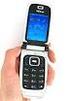 User s Guide for Nokia 6131 DECLARATION OF CONFORMITY We, NOKIA CORPORATION declare under our sole responsibility that the product RM-115 is in conformity with the provisions of the following Council Directive:
cordless telephone with answering machine
 cordless telephone with answering machine Safety precautions Caution: Warning/danger statement, follow safety precautions! Please note that the ringer for incoming calls as well as signal tones are emitted
Nokia Wireless Keyboard (SU-8W) User Guide
 Nokia Wireless Keyboard (SU-8W) User Guide DECLARATION OF CONFORMITY We, NOKIA CORPORATION declare under our sole responsibility that the product SU-8W is in conformity with the provisions of the following
Owner s Manual FULL PREPARATION PACKAGE MOBILE PHONE
 Owner s Manual FULL PREPARATION PACKAGE MOBILE PHONE 2007 Bayerische Motoren Werke Aktiengesellschaft Munich, Germany Reprinting, including excerpts, only with the written consent of BMW AG, Munich.
Sprint iden Digital Multi-service Data-capable Phone. i580 Phone User s Guide
 Sprint iden Digital Multi-service Data-capable Phone i580 Phone User s Guide Contents Getting Started... 1 Removing the Battery Door...3 Locating Your SIM Card...3 Battery...4 Powering On and Off...6 Activating
Operating Instructions
 5.8 GHz Digital Cordless Phone Operating Instructions Model No. KX-TG5050 Pulse-or-tone dialing capability The unit is Caller ID compatible. To display the Caller s name and phone number, you must subscribe
Avaya one-x Deskphone Edition for 9620 IP Telephone User Guide
 Avaya one-x Deskphone Edition for 9620 IP Telephone User Guide 16-300699 Issue 3 January 2007 Contents Contents Notices... 5 Introduction to the 9620 IP Telephone... 7 Overview... 7 About Scrolling and
Printed in China. Issue 1.2 AT&T 03/07. Advanced American Telephones. AT&T and the AT&T logo are trademarks of AT&T Knowledge Ventures, licensed to
 2007 Advanced American Telephones. All rights reserved. AT&T and the AT&T logo are trademarks of AT&T Knowledge Ventures, licensed to Advanced American Telephones. Printed in China. Issue 1.2 AT&T 03/07
USER GUIDE. Cisco Small Business Pro. SPA 500 Series IP Phones Models 504G, 508G, and 509G. Provided by
 USER GUIDE Cisco Small Business Pro SPA 500 Series IP Phones Models 504G, 508G, and 509G Provided by Understanding Your Phoneʼs Lines and Buttons Use the following graphic and table to identify the parts
Iridium 9555 Satellite Phone. User Manual
 Iridium 9555 Satellite Phone User Manual 9555 Handset User s Manual web: www.iridium.com email: [email protected] toll free: +.866.947.4348 phone: +.480.752.555 H2UG090 i I Contents I Introduction.... 2
AVAYA 9608 & 9611G IP DESKPHONE INSTRUCTIONS
 AVAYA 9608 & 9611G IP DESKPHONE INSTRUCTIONS 1 MESSAGE WAITING INDICATOR PHONE DISPLAY NAVIGATION ARROWS and the OK BUTTON PHONE BUTTON MESSAGE BUTTON CONTACTS HISTORY HOME HEADSET SPEAKER VOLUME BUTTON
Digital Cordless Telephone. Motorola S3. For S3001, S3002, S3003 and S3004. Warning: Charge the handset for 24 hours before use.
 Digital Cordless Telephone Motorola S3 For S3001, S3002, S3003 and S3004 Warning: Charge the handset for 24 hours before use. Welcome... to your new Motorola S3000 Digital Cordless Telephone! All handsets
Avaya one-x Deskphone Edition for 9640 IP Telephone User Guide
 Avaya one-x Deskphone Edition for 9640 IP Telephone User Guide 16-600910 Issue 1 January 2007 Contents Contents Notices... 5 Introduction to the 9640 IP Telephone... 7 Overview... 7 About Scrolling and
Nokia Bluetooth Stereo Headset BH-221
 Nokia Bluetooth Stereo Headset BH-221 Issue 2.0 2 Introduction About your headset With the Nokia Bluetooth Stereo Headset BH-221, you can handle calls hands-free, enjoy your favourite music, and listen
User Guide. BT Graphite 2100. Think before you print!
 BT Graphite 2100 User Guide This new interactive user guide lets you navigate easily through the pages and allows you to be directed straight to any websites or email addresses that are referenced Simply
Polycom KIRK 5020 for 8x8 Virtual Office User Guide
 Polycom KIRK 5020 for 8x8 Virtual Office User Guide PM465/1211 January, 2012 Rev B Trademark Information Polycom, the Triangles logo, ReadiManager, SoundPoint, SoundStation, ViaVideo, VoiceStation, Vortex,
VoIP Wireless Handset 7921 & 7925
 VoIP Wireless Handset 7921 & 7925 User Guide UCLA INFORMATION TECHNOLOGY SERVICES Introduction This guide covers the features that are available with the VoIP wireless telephone system. IT Services supports
AVAYA 9608/9611G SIP DESKPHONE INSTRUCTIONS
 AVAYA 9608/9611G SIP DESKPHONE INSTRUCTIONS MESSAGE WAITING INDICATOR PHONE DISPLAY NAVIGATION ARROWS and the OK BUTTON PHONE BUTTON MESSAGE BUTTON CONTACTS HISTORY HOME HEADSET SPEAKER VOLUME BUTTON MUTE
Operating Instructions
 Integrated Telephone System Model No. KX-TS05HGW PLEASE READ BEFORE USE AND SAVE. Pulse-or-tone dialing capability Operating Instructions Preparation Basic Operation Advanced Operation Useful Information
ISDN 970 Telephone USER MANUAL. Copyright 1999 Lucent Technologies Inc. All rights reserved. Printed in Mexico. Issue L3 847937794
 ISDN 970 Telephone USER MANUAL Copyright 1999 Lucent Technologies Inc. All rights reserved. Printed in Mexico. Issue L3 847937794 Table of Contents ABOUT ISDN... 3 ISDN TERMS... 3 A GUIDE TO THIS MANUAL...
PA500II Enterprise Mobile Computer
 PA500II Enterprise Mobile Computer - PA500II - Quick Reference Guide 400891G Version 1.0 PA500II Product Introduction & Accessory Kit After opening the box, ensure the following accessories for the PA500II
How To Use A U.S. Cell Phone At Home
 U.S. Cellular Home Phone 1 Contents Getting to Know Your Device...5 Appearance... 5 LED Indicators... 6 Device Installation...7 Before You Begin... 7 Installing the Battery... 7 Installing the Power Adapter...
User Guide Nokia 106. Issue 1.3 EN
 User Guide Nokia 106 Issue 1.3 EN User Guide Nokia 106 Contents For your safety 3 Get started 4 Keys and parts 4 Get your phone ready 4 Charge the battery 5 Lock the keys 6 Basics 7 Explore your phone
BUSINESS COMMUNICATIONS DIVISION. IP4100 SIP DECT User Guide
 BUSINESS COMMUNICATIONS DIVISION IP4100 SIP DECT User Guide TOSHIBA IP4100 DECT HANDSET END USER GUIDE FEATURES Toshiba IP4100 DECT Handset Features 2.0 inch colour TFT back-lit display Li-ion battery
User Guide for the Orchid Key Phones KP416 & KP832
 User Guide for the Orchid Key Phones KP416 & KP832 Contents Page Introduction 2 Setting Up 2 Setting Date & Time 2 Making & Answering Calls 2 Call Pick 3 Call Transfer 3 Calls On Hold 3 Caller Display
GSM Desktop phone DPH101. User manual v1.00
 GSM Desktop phone DPH101 User manual v1.00 LEGAL NOTICE Copyright 2011 TELTONIKA Ltd. All rights reserved. Reproduction, transfer, distribution or storage of part or all of the contents in this document
USER GUIDE. Copyright 2004 Nokia. All rights reserved.
 USER GUIDE 1 The wireless device described in this guide is approved for the use in GSM 850 and GSM 1900 networks. LEGAL INFORMATION Part No. 9310037, Issue No. 1 Nokia, N-Gage, N-Gage QD, Nokia Connecting
OM2260VW2 USER MANUAL VERIZON WIRELESS HOME PHONE CONNECT
 OM2260VW2 USER MANUAL VERIZON WIRELESS HOME PHONE CONNECT Welcome to Verizon Wireless Thank you for choosing Verizon Wireless Home Phone Connect. You re now connected to the power of America s most reliable
Avaya one-x Deskphone Edition for 9630/9630G IP Telephone User Guide
 Avaya one-x Deskphone Edition for 9630/9630G IP Telephone User Guide 16-300700 Issue 3 May 2007 Contents Contents Notices... 5 Introduction to the 9630/9630G IP Telephone... 7 Overview... 7 Scrolling and
User Guide Dialog 3210, 3211 and 3212 SYSTEM TELEPHONES
 User Guide, and SYSTEM TELEPHONES SYSTEM TELEPHONES, DIALOG, AND USER GUIDE EN/LZT 102 2552 RD Copyright 1999. Ericsson Business Networks AB. All rights reserved. This document contains proprietary information
User's Manual (EN) tiptel Ergophone 6010/6011 GSM. tiptel
 User's Manual (EN) tiptel Ergophone 6010/6011 GSM tiptel Table of contents Table of contents Table of contents... 3 Safety notes... 6 First operation... 8 Checking the contents of the gift box... 8 Installing
Telephone and Voicemail instructions Revised: 8/3/2015. Musom Help Desk: 304 691 1748 [email protected]
 Telephone and Voicemail instructions Revised: 8/3/2015 Musom Help Desk: 304 691 1748 [email protected] Phone and Voicemail Tips Dialing an Outside Line: Dial 9 to get an outside line, and then the
Dialog 4220 Lite/Dialog 4222 Office
 Dialog 4220 Lite/Dialog 4222 Office System telephones for MD110 Communication System User Guide Flinders University Table of Contents Description 2 Incoming Calls... 10 Outgoing Calls... 12 During Calls
IP Phone System: Cisco 7960G and 7940G
 IP Phone System: Cisco 7960G and 7940G Table of Contents: IP Phone System 7940G and 7960G CISCO IP PHONE ROAD MAP...1 NAVIGATE THE PHONE SYSTEM AND USE THE LCD SCREEN...2 SOFT KEYS... 2 USE THE NAVIGATION