
HeartWare Ventricular Assist System
|
|
|
- Colin Fowler
- 10 years ago
- Views:
Transcription
1 HeartWare Ventricular Assist System System Overview Hands-on Practicum GR00307 Rev01 11/12 Module 7/ HeartWare, Inc.

2 HeartWare System Small pump attaches directly to the heart Thin, flexible driveline cable exits skin A small controller & batteries run the pump

3 HVAD Pump Durable Driveline Thin (4.2mm) and flexible cable with durable wires Only One Moving Part No contact within pump when running Miniature Pump 160g centrifugal pump with integrated inflow cannula that provides up to 10 liters of flow

4 Pericardial Placement

5 HeartWare Patient Peripheral Components HeartWare Controller: Controls and manages VAD operation HeartWare Power Sources: Power the controller and pump Batteries AC adapter (plugs into wall outlet) DC adapter (plugs into car outlet) Patient Pack: Holds a controller & 2 batteries; may be worn around waist or over the shoulder HeartWare Shower Bag: Holds a controller & 2 batteries while showering HeartWare Battery Charger: Can simultaneously charge up to 4 batteries

6 HeartWare Controller The controller sends power and operating signals to the HVAD Pump via a percutaneous driveline. It also collects data on system operation. Blue data connector is used by clinicians to adjust pump parameters and download pump information Data Connection Pump driveline is attached to silver driveline connector and must not be disconnected Driveline Connection Power Connection 2 identical power supply connectors - controller requires two power sources at all times Controller Display Provides information on pump parameters (flow, speed, power), power sources and alarms Power Connection

7 HeartWare Controller Display Overview Battery Indicator 1 Battery Indicator 2 Power Source 1 Alarm Indicator Power Source 2 Alarm Mute Button AC/DC Indicator Controller Display Scroll Button

8 HeartWare Controller Display Screen 2 line display for device status and alarms (if activated) Display provides pump information Speed (RPM) Power (Watts) VAD blood flow (L/min) When an alarm occurs, the pump information is replaced by the alarm information

9 HeartWare Controller: Buttons and Alarm Indicator Alarm Mute button Silences medium and low priority alarms for 5 minutes Arrow indicates multiple alarms Scroll button Displays all active alarms Displays pump information Clears a resolved alarm condition Provides a backlight Alarm indicator Lights when 1 or more alarms occur High Priority: Flashing Red Medium Priority: Flashing Yellow Low Priority: Solid Yellow

10 HeartWare Controller: Power Source Indicators Power Source 1 Power Source 2 One power source indicator (labeled 1 or 2 ) will light up based on which port is providing primary power (e.g. 1 in this case) Two battery indicators: Battery Capacity Battery Indicator % 4 GREEN lights 50-74% 3 GREEN lights 25-49% 2 YELLOW lights <24% 1 RED light AC/DC symbol turns green when connected to an AC or DC adapter The AC/DC adapter will always be the primary source of power if connected

11 Connecting the Driveline (Pump) to the HeartWare Controller To Connect Driveline (Pump) to Controller: Align the two red marks and push together on the silver driveline connector An audible click will be heard confirming proper connection Completely cover the controller s silver driveline connector with the driveline cover

12 Disconnecting the Driveline (Pump) from the Controller To Disconnect Driveline (Pump) From Controller: Grasp the driveline connector on the ridged section Grasp here Pull the driveline connector straight out from the controller Do not disconnect by twisting or by pulling the driveline, this can damage the driveline

13 Connecting Power to the HeartWare Controller Grasp the cable of the power source at the back end of the connector (leaving front end of connector free to rotate) Line up the solid white arrow on the connector with the white dot on the controller Gently push (but DO NOT twist) the cable into the controller until it naturally locks into place; you should hear an audible click Confirm the cable is locked by gently pulling the cable near the controller power connector DO NOT force the cable into the controller connector without correct alignment as it may result in damaged connectors Repeat above steps for second power source Grasp here All power sources (batteries, AC adapter, DC adapter) use similar connectors and plug into the same controller power ports.

14 Disconnecting Power from the HeartWare Controller Turn the connector sleeve ONLY counterclockwise until it stops Then pull the connector straight out from the controller Connector sleeve (turn in direction of release arrow)

15 HeartWare Back-up Controller Keep a back-up controller and extra fully charged batteries with the patient at all times in case of an emergency Verify that the back-up controller parameters match the primary controller parameters (e.g., pump speed, viscosity, alarm limit settings and suction detection) The back-up controller should be programmed: Before the implant procedure Upon any parameter change to the primary controller When the primary controller is replaced

16 HeartWare Controller Power Sources HeartWare Battery HeartWare Controller AC Adapter HeartWare Controller DC Adapter
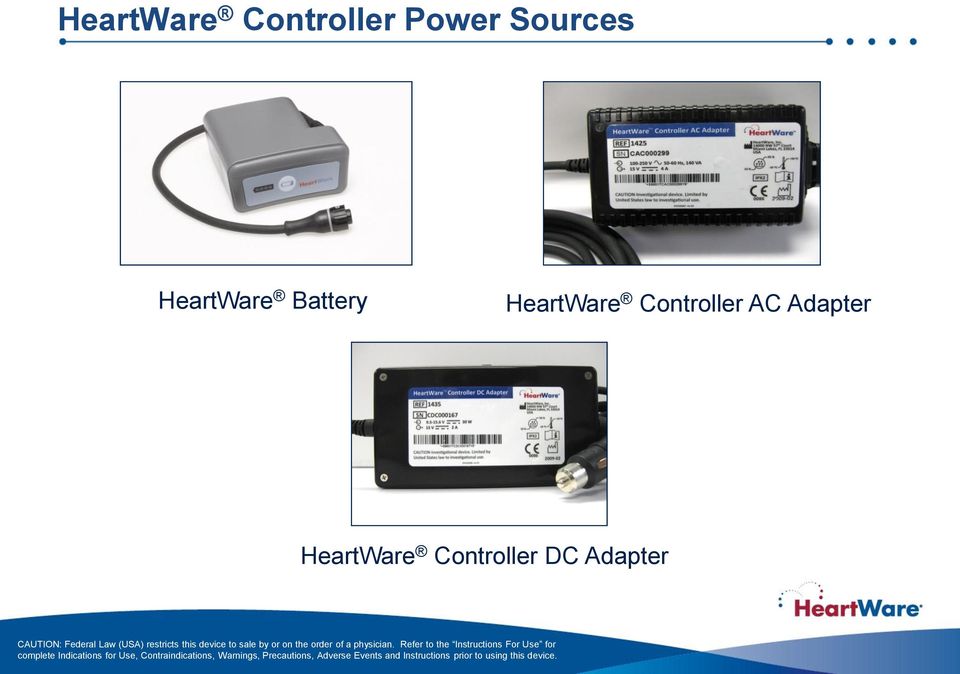
17 Power Sources: AC / DC Adapters HeartWare Controller AC Adapter (for wall outlet) Green light will illuminate on adapter when correctly plugged into a wall outlet HeartWare Controller DC Adapter (for use in car) Green light will be lit on adapter when correctly plugged into a car outlet and receiving power HeartWare Controller AC Adapter NOTE: When using the AC or DC adapter, a HeartWare Battery should always be connected to the controller s second power connection. CAUTION: The DC adapter is for use in vehicles only and may not fit in some vehicles. HeartWare Controller DC Adapter

18 Power Sources: HeartWare Batteries Contain lithium ion cells to power the HVAD Pump. Each battery provides 4 to 6 hours when fully charged. The capacity of each battery in hours is based on: Controller and pump operating power consumption Number of battery charge and discharge cycles The batteries are expected to have a useful operating life of greater than 500 charge and discharge cycles. If a battery provides only two hours of support duration, it should be replaced.

19 Using the HeartWare Batteries Each battery can provide 4 to 6 hours of support Pressing the Test Button will light the Battery Capacity Display The battery will switch to other battery when <25% of power capacity remains. Battery Capacity Battery Capacity Display % 4 GREEN lights 50-74% 3 GREEN lights 25-49% 2 GREEN lights <24% 1 GREEN light NOTE: The battery capacity display on the battery is similar to the battery indicator display on the controller except that only green lights are used on the batteries. Batteries will lose capability over time; when a fully charged battery can only provide two hours of power, replace it

20 Power Sources: Battery Life To maintain full life of the batteries, change batteries only when the controller instructs This will occur when the battery has <24% capacity remaining Three indications on the controller: 1 Battery Indicator will show 1 red light 2 Alarm Indicator will be solid yellow 3 Display will read Low Battery and Replace Battery 1 2 3

21 HeartWare Battery Charger Charges up to 4 batteries at a time Takes up to 5 hours to fully charge a depleted battery Connect and disconnect charger/ battery with same action as controller/battery Powered by AC outlet (wall) only Charger should remain plugged in Batteries not in use should be connected and stored in the charger
22 HeartWare Battery Charger Indicators Battery Charger Power Light: When Green, unit is plugged into wall outlet and is ready for use Ready Light: When Green, battery is fully charged and ready for use Status Light: Light means different things depending upon color (see table below) READY Light STATUS Light Battery Charge Power Light Color of Light Battery State Yellow Flashing Yellow Red Battery being charged; NOT ready for use. Battery not charging. Check battery connections. If connections intact, switch to another battery slot. If problem persists, return battery to HeartWare. Battery too cold or too hot; waiting to charge. Flashing Red Defective battery. DO NOT use. Mark battery and return to HeartWare.
23 Patient Pack (Carry Bag) Patient Pack holds the HeartWare Controller and 2 HeartWare Batteries Instructions on proper packing, use, and care can be found in the Patient Manual
24 Additional Patient Pack Options NOTE: These additional options are for clinical trial patients only HeartWare Shoulder Pack HeartWare Waist Pack Instructions on proper packing, use and care can be found in the Patient Manual
25 HeartWare Shoulder and Waist Pack Use for Patients with Pacemakers or AICDS NOTE: These additional options are for clinical trial patients only HeartWare Shoulder Pack and HeartWare Waist Pack contain magnetic closures Patients with an ICD or Pacemaker should keep these packs away from their chests Per guidelines from pacemaker and ICD manufacturers, magnets should be kept at least 6 inches (15 centimeters) away from the pacemaker or ICD (please refer to manufacturer guidelines for additional information)
26 HeartWare Shower Bag Allows patients to shower with the HeartWare Ventricular Assist System Water resistant (not water proof) - protects the controller and batteries from direct water spray and moisture Instructions on proper packing, use and care can be found in the Patient Manual

27 HeartWare Monitor There are five (5) icons on the monitor to access system information and to manage pump operation. Clinical (Home) Screen Alarm Screen Trend Screen System Screen Monitor Shut Down Monitor Screen Icons
28 HeartWare Monitor Screen Layout Top of screen: Alarm messages Status messages Alarm silence and logout buttons Bottom of screen: Downloading data icon Patient identification Time Postoperative day (POD) Controller power supply status Controller power supply source
29 Clinical (Home) Screen Provides ongoing monitoring information when pump adjustment or access to other screens is not required Displays: Real-time power (Watts) waveform Real-time estimated HVAD Pump blood flow (L/min) waveform
30 Alarm Screen The Alarm Screen has two tabs: [Alarm Log] and [Troubleshooting] Alarm Log Troubleshooting
31 Trend Screen The Trend Screen has two tabs: [Flow/Speed] [Flow/Power] Displayed in Intervals of 60 minutes 4 hours 24 hours 14 days 30 days
32 System Screen The System Screen is accessed by pressing the HVAD Pump icon The System Screen provides access to 3 tabs: [Speed/Control] [Setup] [Alarm Settings] The System Screen is password protected The dialog box shown is used to enter the numeric password User access is timed out after 11 minutes of non-use
33 System Screen Speed/Control Tab The [Speed/Control] tab is used to adjust RPM and to turn the VAD ON or OFF The [Set RPM] button is used to adjust the pump speed (RPM) from 1800 to 4000 The [VAD] button is used to turn the pump on and off. VAD: ON means the HVAD Pump is on and the button is RED and labeled STOP VAD: OFF means the HVAD Pump is NOT pumping; the button is BLUE and labeled START
34 System Screen Setup Tab When the [Setup] tab is pressed, four tabs are displayed at the top: [Patient] [VAD] [Controller] [Monitor]
35 System Screen - Setup/Patient Tab The [Patient] tab is used to enter: [Patient ID] [Implant Date] [Hematocrit] The hematocrit value is used to provide accurate flow estimation [Patient] tab is also used to download patient log files
36 Setup/Patient Tab: Patient Log Files This feature allows the user to obtain alarm and trend data from the controller Connecting a controller to the monitor initiates patient data download from the controller to the monitor The controller must be disconnected from the monitor serial port before the [Log Files] button is accessible Pressing the [Log Files] button initiates download from the monitor to a USB drive
37 System Screen - Setup/VAD Tab The [VAD] tab is used to: Enter the HVAD Pump serial number [VAD ID] Enable or disable the [Suction Response] Fixed mode is the only mode currently available in the US therefore this button is disabled
38 Setup/VAD Tab: Suction Response Two options for [Suction Response]: Default Suction response is [Off] Suction response will say [Alarm Only] when it is enabled (on) Manual changes to the RPM will immediately disable suction detection A Sx Off or Sx On message will be displayed on the Monitor in the lower left corner below the Fixed mode display Suction alarm should be set after the patient is hemodynamically stable The Ventricular Suction Detection must not be turned on while the patient is in a suction condition. Patient should be hemodynamically stable prior to enabling ventricular suction detection alarm.
39 System Screen - Setup/Controller Tab The [Controller] tab is pressed to access [Controller Date], [Controller Time], and [Set Defaults] parameters [Disable VAD Stop Alarm] is used to silence the VAD Stop alarm while programming a controller not connected to a VAD The [Set Defaults] button sets the controller parameters to the original manufacturer settings CAUTION: Do not use the set defaults button on the monitor when a controller is connected to a patient. Pressing it will erase all patient VAD parameter information from the controller. Default settings Set Speed is 2500 RPM Low Flow Alarm threshold is 1.0 L/min High Power Alarm threshold is 16 Watts Suction Detection is Off Data Log Interval:15 minutes Hematocrit: 30%
40 System Screen - Setup/Monitor Tab [Monitor Date] & [Monitor Time] buttons set the date and time on the monitor. [Touchscreen] button is used to initiate touch screen calibration for the monitor. The monitor will only initiate the calibration sequence if the controller is NOT connected to the monitor.
41 System Screen Alarm Settings Tab The [Alarm Settings] tab is used to set the [Low Flow Alarm Limit] and [High Power Alarm Limit] thresholds Both flow and power are time averaged values The [Low Flow Alarm] should be set 2 L/min below the average flow but no less than 2 L/min The [High Power Alarm] should be set 2 above the displayed Watts Default settings Low Flow Alarm Limit is 1.0 L/min High Power Alarm Limit is 16 Watts
42 Monitor Logout and Shut Down The [Logout] button allows the user to log off the password-protected System Screen after completing system adjustments If the System Screen is not used for 11 minutes, the user is automatically logged off The Monitor Shut Down button may be used to turn off the monitor for storage

43 HVAD Pump Flow Waveform Characteristics Waveform Definitions: 1. Flow Pulsatility: The difference between the minimum and maximum of the flow waveform. Pulsatility should be >2 L/min. 2. Waveform Trough: the minimum value of the VAD flow waveform. Trough should be >2 L/min. Flow waveforms provide additional information about the patient condition and VAD performance. Flow Pulsatility Waveform Trough
44 Flow Regions
45 Suction Detection
46 HeartWare Pump Operating Guidelines Speed Range: RPM Recommended clinical operating speed range: RPM RPM Should only be used during implant procedure when weaning from CPB Speed (RPM) Power (watts) Flow (L/min) RPM Speeds above 3200 increase the risk of suction events
47 Post-Operative Management The following are recommended guidelines for optimal post-operative management based on industry standard of care* Continuous flow pumps are preload dependent and sensitive to increased afterload - consider clinical (patient) related changes when assessing changes in pump flow After implantation, the patient is returned to the Intensive Care Unit Consider clinical (patient) related changes when assessing changes in pump flow Fluids, medications and heart rate and rhythm should be optimized to maintain a pump flow index between 2.0 L/min/m 2 and 2.8L/min/m 2 Patients may require inotropic assistance of right ventricular function Control hypertension maintain MAP <85mmHg * Slaughter, et al. (2010). Clinical management of continuous-flow left ventricular assist devices in advanced heart failure. JHLT, 29 (45), S1-S39.
48 Arrhythmias/Emergency Procedures Arrhythmias may occur in the post-operative period OK to defibrillate HeartWare System patients Anti-arrhythmic drugs, pacemakers, and ICDs are compatible with the HeartWare System Institute appropriate ACLS protocols as needed If chest compressions have been administered, confirm function and positioning of HVAD Pump
49 Postoperative Management - Anticoagulation Anticoagulation should be individualized for each patient In general, begin low-dose heparin at 10 units/kg/hr on postoperative day one to a target PTT of seconds Prior to initiation of anticoagulation, chest tube drainage should be less than 40 ml/hr for approximately three hours, the HCT should be stable without the need for transfusion of blood products, and coagulation factors approaching normal Gradually increase the heparin dosage to maintain the PTT in a range of seconds
50 Long Term Management Anticoagulation/Antiplatelet A combination of Warfarin and Aspirin Warfarin should be started and titrated to maintain an INR of In general, 325mg of ASA should be started on POD 1, if no bleeding complications Check for ASA resistance with a reliable test (eg Verify Now) and adjust ASA monotherapy accordingly Other multi-drug options include Aggrenox ASA 81mg plus Clopidogrel
51 Driveline Care Good hand-washing technique Always use aseptic technique Dressing change protocol as per institutional guidelines Prevention of trauma is critical for prevention of infection, so driveline should be immobilized Education of the patient and caregiver in the care and maintenance of the driveline is critical in the effort to prevent infection 1 CAUTION: Prophylactic topical antibiotic ointments such as silver sulfadiazine, betadine or polymixin-neomycin-bacitracin should not be used as these ointments can injure the tissue adjacent to the exit site 1 Slaughter, et al. (2010). Clinical management of continuous-flow left ventricular assist devices in advanced heart failure. JHLT, 29 (45), S1-S39.
52 Driveline Care Wear a cap, mask, and sterile gloves when performing exit site care Aseptic technique should be followed whenever the dressing is removed and the exit site exposed Visually inspect the driveline for tears, kinks, or any traumatic damage Clean exit site with antiseptic cleansing agent daily; then rinse and dry the exit site to avoid tissue injury Cover exit site with an occlusive dressing Immobilize the driveline and keep the extra length under a binder or clothing to minimize potential trauma to the exit site
53 Nutrition / Activity / Hygiene Advance diet as tolerated Have patient ambulate as tolerated Contact sports are contraindicated No swimming Patients may travel via fixed wing aircraft or helicopter Showering is possible with the use of a HeartWare Shower Bag and clinician approval. Until clinician approval, sponge baths only.
54 Nursing System Checks Ongoing checks: Hematocrit Verify HCT value and change as needed Assess each shift and with EVERY speed change: Suction Alarm used to detect suction events. Should be OFF for first hours post-op and when IABP is still in. Verify ON/Alarm only after each speed change, unless physician has ordered alarm to be OFF. Low Flow Alarm alarm should be set at 2 L/min below the actual flow, but no lower than 2.0 L/min High Power Alarm - alarm should be set 2 Watts above actual power reading To check/change settings: Touch the Pump icon on monitor and enter password Touch [Setup] tab and [Patient] tab to change hematocrit; press [VAD] tab to turn [Suction Alarm] ON/OFF Touch [Alarm] tab to adjust [Low Flow Alarm] and [High Power Alarm] Limits
55 Summary of Alarm Display and Audio by Alarm Type High Medium Low Controller Display Flashing Red Triangle Flashing Yellow Triangle Solid Yellow Triangle Controller Audio Loudest intermittent beep Cannot be silenced by the Mute Button Intermittent beep that becomes louder in 1 and 5 min Intermittent beep that becomes louder in 5 and 10 min Controller Silencing Cannot be silenced by the Mute Button The alarm will clear once the problem is resolved May be silenced for 5 min or 1 hour Controller and Electrical Faults may be permanently silenced May be silenced for 5 min Monitor Display Red bell Yellow bell Yellow bell
56 High Priority Alarms Summary (Blank or Flashing Red) Alarm Type High Critical (Blank Display) Alarm Display (line 1) No Message Action (line 2) No Message VAD Stopped Connect Driveline High - Critical (Flashing Red) VAD Stopped Change Controller Critical Battery 1 Replace Battery 1 Critical Battery 2 Replace Battery 2 Controller Failed Change Controller
57 High Priority Alarms: Blank Display Alarm Display (line 1) Action (line2) Potential Causes No Message No Message No power to pump Pump has stopped Potential Actions 1. Connect two new power sources 2. Replace controller 3. Contact clinical specialist No Power (no message): If both power sources are disconnected from the controller, a loud continuous alarm will sound and there will be NO message on the controller display. The HVAD Pump is NOT pumping and power sources should be connected immediately. If this action does not resolve the alarm condition, replace the controller.
58 High Priority Alarms: VAD Stopped Alarm Display (line 1) Action (line2) Potential Causes Potential Actions VAD Stopped Connect Driveline Driveline disconnect Driveline fracture Connector malfunction/breakage VAD electrical failure 1. Reconnect driveline 2. Download and patient log files 3. Call clinical specialist VAD Stopped Change Controller Controller failure VAD failure VAD thrombus or other materials in device 1. Exchange controller 2. Download and patient log files 3. Call clinical specialist
59 High Priority Alarms: Controller Failed, Critical Battery Alarm Display (line 1) Action (line2) Potential Causes Potential Actions Controller Failed Change Controller Controller component failed 1. Exchange controller Critical Battery 1 Critical Battery 2 Replace Battery 1 Replace Battery 2 Limited battery 1 or battery 2 time remaining Critical battery malfunction without adequate secondary power source 1. Replace critical battery with fully charged battery or AC/DC adapter 2. Change controller if new power sources do not correct alarm
60 Medium Priority Alarms Summary Alarm Type Alarm Display (line 1) Controller Fault Action (line 2) Call Medium (Flashing Yellow) Controller Fault High Watts Electrical Fault Call: ALARMS OFF Call Call Low Flow Call Suction Call
61 Medium Priority Alarms: High Watt Alarm Display (line 1) Action (line2) Potential Causes High Watt Call HVAD pump Watts have exceeded High Power Alarm threshold Alarm threshold too close Thrombus or other materials in device High RPM High flow LVAD electrical fault Potential Actions 1. Confirm correct settings for High Power Alarm and pump speed 2. Consider checking blood coagulation labs 3. Assess patient for hemolysis 4. Download and patient log files 5. Consider ECHO to confirm unloading of heart, check for AI, thrombus, etc. 6. Contact clinical specialist
62 Medium Priority Alarms: Electrical Fault Alarm Display (line 1) Action (line2) Potential Causes Potential Actions Electrical Fault Call Fault in continuity of pump-to-controller electrical connections (e.g. contaminated driveline connector) Partial driveline fracture Connector malfunction Controller component failure VAD malfunction Controller dropped 1. Ensure driveline connector is engaged 2. Patient should be seen in clinic/hospital 3. Inspect driveline for defects or the ability to reproduce the alarm 4. Download and patient log files 5. Contact clinical specialist
63 Medium Priority Alarms: Low Flow Alarm Display (line 1) Action (line2) Potential Causes Low Flow Call Average flow dropped below Low Flow Alarm threshold Alarm threshold too close Suction RPM too high or too low Poor VAD filling (tamponade, hypovolemia, right heart failure, arrhythmias, inflow cannula obstruction, etc) High blood pressure Outflow graft kink Potential Actions 1. Confirm VAD parameters 2. Confirm correct settings for Low Flow Alarm limit and hematocrit 3. Confirm BP (MAP < 85 mmhg) 4. Attach patient to monitor and evaluate pump waveform while considering cause of poor LV filling. Consider volume resuscitation if indicated 5. Consider ECHO 6. If no potential patient cause can be identified, download and log files 7. Contact HeartWare Clinical Support
64 Medium Priority Alarms: Suction Alarm Display (line 1) Action (line2) Potential Causes Suction Call RPM too high Poor VAD filling (right heart failure, hypovolemia, tamponade, arrhythmias, inflow cannula obstruction, etc) Thrombus or other materials in device Potential Actions 1. Confirm pump flow trends to evaluate a decrease in mean flow 2. Consider volume resuscitation and/or correct cause of poor ventricular filling 3. Consider decreasing pump speed 4. Consider ECHO 5. Download and patient log files 6. Contact HeartWare Clinical Specialist
65 Medium Priority Alarms: Controller Fault Alarm Display (line 1) Controller Fault Action (line2) Potential Causes Call Controller component malfunction but pump still working Potential Actions 1. Confirm frequency and duration of alarm, concurrent alarms, and pump flow, speed, and power 2. Assess patient for complaints of shortness of breath, chest pain, palpitations, dizziness, etc. 3. If isolated alarm monitor, with download at next visit Controller Fault Call: ALARMS OFF Controller component malfunction Suction detection disabled Low Flow alarm disabled VAD Connect alarm may be disabled High Power alarm may be disabled 1. Multiple alarms within 24 hours without other issues should be assessed at non-emergent visit 2. Multiple alarms within 1 hour with other alarms or symptoms, replace controller and assess in emergent visit 3. Download log files from original controller and new controller 4. Contact HeartWare Clinical Support
66 Handling an Emergency: Changing the Controller 1. Have the patient sit or lie down. 2. Place the new controller within easy reach. 3. Connect back-up power sources to the new controller. Confirm that the power cables are properly locked on the controller by gently pulling on the cable near the connector A Power Disconnect alarm will activate if a second power source is not connected to the new controller within 20 seconds of controller power up A VAD Stopped alarm will activate if the pump driveline is not connected to the new controller within 10 seconds - this alarm will resolve once the pump driveline is connected
67 Handling an Emergency: Changing the Controller 4. Pull back the white driveline cover from the original controller s silver connector. 5. Disconnect the driveline from the original controller by pulling the silver connector away from the controller. Do not disconnect by pulling on the driveline cable. A VAD Stopped alarm may activate. Don t panic. You can silence the alarm after restarting the pump with the new controller, which is the priority.
68 Handling an Emergency: Changing the Controller 6. Connect the driveline to the new controller (align the two red marks and push together). If the VAD Stopped alarm was active on the new controller, it will now resolve. The pump should restart. Verify the pump is working (RPM, L/min, Watts). If the pump does not restart, call for medical assistance immediately.
69 Handling an Emergency: Changing the Controller 7. To prevent the controller alarm from sounding after the power is removed: Original controller If the red alarm adapter is available: before you remove power, insert it into the blue connector on the original controller. If no alarm adapter is available: o Before you remove power, press and hold the alarm mute and scroll buttons simultaneously on the original controller until it beeps, or for at least 5 seconds. o Release the alarm mute and scroll buttons.
70 Handling an Emergency: Changing the Controller 8. Remove both power sources from the original controller. The controller will be turned off and all alarms silenced. 9. Slide the white driveline cover up to cover new controller s silver connector. 10. Contact the VAD Coordinator or hospital to obtain a new back-up controller. New controller WARNING: Keep a spare controller and spare, fully charged batteries available at all times in case of an emergency The alarm adapter silences the No Power alarm and should only be attached to a controller that has failed or malfunctioned and one that is NOT connected to the pump.
Section III. Heart Mate II (2 nd Generation) III.41.1 EMT-BASIC EMT-INTERMEDIATE EMT-PARAMEDIC
 EMT-BASIC EMT-INTERMEDIATE EMT-PARAMEDIC A Ventricular Assist Device, or VAD, is a mechanical device used to substantially support circulation in a patient with significant cardiac ventricular dysfunction.
CALIFORNIA EMERGENCY MEDICAL SERVICES (EMS) MECHANICAL CIRCULATORY SUPPORT (MCS) DEVICES BEST PRACTICES GUIDELINE
 CALIFORNIA EMERGENCY MEDICAL SERVICES (EMS) MECHANICAL CIRCULATORY SUPPORT (MCS) DEVICES BEST PRACTICES GUIDELINE Purpose: To provide information and direction regarding the care of patients who have a
Waveforms. INTRODUCTION TO THE HEARTWARE WAVEFORM ipad APP
 Waveforms INTRODUCTION TO THE HEARTWARE WAVEFORM ipad APP WELCOME Did you ever wonder how you can use the HeartWare System waveforms? Use this app to find out. The HeartWare Waveform App will help you
2.4 GHz Dual Handset Cordless Telephone Answering System 2255 with Caller ID/Call Waiting
 USER S MANUAL Part 2 2.4 GHz Dual Handset Cordless Telephone Answering System 2255 with Caller ID/Call Waiting Please also read Part 1 Important Product Information AT&T and the globe symbol are registered
NEED MORE HELP? PLEASE SEE OUR FAQ SECTION AT: www.zagg.com/faq
 NEED MORE HELP? PLEASE SEE OUR FAQ SECTION AT: www.zagg.com/faq WARRANTY REGISTRATION YOUR ZAGGkeys PRO /PROplus COMES WITH A 1 YEAR MANUFACTURER S WARRANTY. YOU MUST REGISTER YOUR ZAGGkeys PRO/PROplus
Mindray North America. Frequently Asked Questions
 Mindray North America Frequently Asked Questions Product Passport V 1) Q.) What is the Password to save User Settings? A.) The default password is: SYSTEM 2) Q.) Can the Passport V interface to an EMR
Back-UPS Pro 1300/1500 Installation and Operation
 Back-UPS Pro 1300/1500 Installation and Operation Inventory Safety Do not install the Back-UPS in direct sunlight, in excessive heat, humidity, or in contact with fluids. Connect the battery bu059a bu058a
PATIENT GUIDE. Care and Maintenance Drainage Frequency: Max. Drainage Volume: Dressing Option: Clinician s Signature: Every drainage Weekly
 PATIENT GUIDE Care and Maintenance Drainage Frequency: Max. Drainage Volume: Dressing Option: Every drainage Weekly Clinician s Signature: ACCESS SYSTEMS Pleural Space Insertion Site Cuff Exit Site Catheter
DSB-100 Portable Premium Bluetooth Speaker Owner s Manual
 . DSB-100 Portable Premium Bluetooth Speaker Owner s Manual You can print more than one page of a PDF onto a single sheet of paper. 1 Index Preparation Unpacking 3 Overview 4 Sound Quality 4 Design 4 Operation
VersaCare Bed. Quick Reference Guide
 VersaCare Bed Quick Reference Guide Bed Features Item Description Page A Emergency CPR and Emergency 3 Trendelenburg a Control B Battery Back-Up 4 C Foot Controls 4 D Point-of-Care Caregiver Control Panel
Features of Your Cisco Unified IP Phone
 Cisco Unified IP Phone 8961, page 1 Cisco Unified IP Phone 9951, page 9 Cisco Unified IP Phone 9971, page 18 General Phone Information, page 27 Cisco Unified IP Phone 8961 The following sections describe
Biomet SpinalPak Non-Invasive Spine Fusion Stimulator System
 Biomet SpinalPak Non-Invasive Spine Fusion Stimulator System A Patient s Guide 100 Interpace Parkway Parsippany, NJ 07054 800-526-2579 www.biomet.com BNS231003 2009 EBI, LLC. All trademarks are the property
site monitoring Kit Site Monitoring Kit User Manual we prove it.
 site monitoring Kit 1 User Manual Site Monitoring Kit User Manual we prove it. 2 site monitoring Kit Content 1. Introduction 3 2. Content of the Site Monitoring Kit 4 3. Preparation 6 1. Positioning of
X-Plain Subclavian Inserted Central Catheter (SICC Line) Reference Summary
 X-Plain Subclavian Inserted Central Catheter (SICC Line) Reference Summary Introduction A Subclavian Inserted Central Catheter, or subclavian line, is a long thin hollow tube inserted in a vein under the
PA500II Enterprise Mobile Computer
 PA500II Enterprise Mobile Computer - PA500II - Quick Reference Guide 400891G Version 1.0 PA500II Product Introduction & Accessory Kit After opening the box, ensure the following accessories for the PA500II
510 / 511 Cardiorespiratory Monitor Preventative Maintenance Test Procedure
 CAS MEDICAL SYSTEMS, INC. 510 / 511 Cardiorespiratory Monitor Preventative Maintenance Test Procedure using the 2301Multi-Function Tester 44 East Industrial Road Branford, CT 06405 USA [email protected]
Mobile credit & debit card acceptance for your Smart Phone or Tablet. MobilePAY Shuttle
 Mobile credit & debit card acceptance for your Smart Phone or Tablet MobilePAY Shuttle User Information Record your Merchant Account and other useful information here. From time to time, you may need quick
Heart of America Medical Center EMR, EMT, EMT-Intermediate & AEMT Protocols
 USE OF THE LUCAS DEVICE TO PROVIDE EXTERNAL CHEST COMPRESSIONS IN PATIENTS SUFFERING CARDIAC ARREST Purpose This procedure describes the appropriate methods to apply, operate, and discontinue the LUCAS
Patient Instruction Manual
 Patient Instruction Manual Preventice Services, LLC and Preventice Technologies, Inc., are independent, wholly owned subsidiaries of Preventice Solutions, Inc. Welcome to BodyGuardian Verité Your physician
PATIENT GUIDE. Understand and care for your peripherally inserted central venous catheter (PICC). MEDICAL
 PATIENT GUIDE Understand and care for your peripherally inserted central venous catheter (PICC). MEDICAL Introduction The following information is presented as a guideline for your reference. The best
How To Use An Easypad On A Pc Or Macbook Or Ipad (For Pc)
 User Guide Congratulations on your new EasyPad 1000. Please follow the instructions in this manual carefully. Statement: If the final version of this product has any differences from the description of
FiberOptix TM. AP Sensor Zeroing and Calibration Guide INTRA-AORTIC BALLOON PRODUCT SUPPORT HOTLINE. U.S. and Canada: 1-800-447-IABP (4227)
 FiberOptix TM AP Sensor Zeroing and Calibration Guide INTRA-AORTIC BALLOON PRODUCT SUPPORT HOTLINE U.S. and Canada: 1-800-447-IABP (4227) Worldwide: 617-389-8628 Caution: U.S. Federal Law limits this device
Introduction 1 The system 1 The meter 2 The display 3 The mode 3 The measurement 4 Coding the meter 4 How to obtain a drop of blood 6 Application of
 Introduction 1 The system 1 The meter 2 The display 3 The mode 3 The measurement 4 Coding the meter 4 How to obtain a drop of blood 6 Application of the blood 7 Procedure to test glucose 7 Procedure to
User manual DC Safelog. Edition 2014-01-20
 User manual DC Safelog Edition 2014-01-20 2 User manual DC Safelog 1. TABLE OF CONTENTS 2 1. Table of contents... 2 2. Presentation of the parts in DC Safelog... 3 3. Before using the alarm for the first
MAINTENANCE & TROUBLESHOOTING
 MAINTENANCE & TROUBLESHOOTING This section describes how to: clean the lens clean the fan intake filter replace the projection lamp replace the batteries in the remote control use the Kensington lock feature
FiLIP 2 USER GUIDE 2015 Filip Technologies, Inc. All Rights Reserved. APR 2015
 FiLIP 2 USER GUIDE 2015 Filip Technologies, Inc. All Rights Reserved. APR 2015 WELCOME TO THE FiLIP FAMILY FiLIP helps children stay in touch with their parents and helps parents know where their children
USER INSTRUCTIONS FOR GET PORTABLE 12k BTU AIR CONDITIONER MODEL No. GPACU12HR
 USER INSTRUCTIONS FOR GET PORTABLE 12k BTU AIR CONDITIONER MODEL No. GPACU12HR CONTENTS Introduction Safety Notes Identification of parts Installation instructions Operation instructions Maintenance Troubleshooting
Installation and Operation Back-UPS 1250, 1300, 1500
 Installation and Operation Back-UPS 1250, 1300, 1500 Inventory bu001a Safety and General Information This unit is intended for indoor use only. Do not operate this unit in direct sunlight, in contact with
Back-UPS 650 VA 120 V with AVR (BX650CI-LM)
 Back-UPS 650 VA 120 V with AVR (BX650CI-LM) Overview Do not install the unit in direct sunlight, in areas of excessive heat or humidity, or in contact with fluids ON/OFF button Battery connector Circuit
Installation and Operation Manual Back-UPS BX800CI-AS/BX1100CI-AS
 + Installation and Operation Manual Back-UPS BX800CI-AS/BX1100CI-AS Inventory Safety and General Information bu001c This unit is intended for indoor use only. Do not operate this unit in direct sunlight,
Insulin Delivery System. Reference Guide
 Insulin Delivery System Reference Guide Reference Guide As an important member of our family, we would like you to know we understand the importance of managing your diabetes. We care about your health
WF720 Wireless Home Phone User Manual
 WF720 Wireless Home Phone User Manual Content Getting to Know Your Device... 3 Appearance...3 LED Indicator...4 Device Installation... 5 Before You Begin...5 Installing the SIM Card and the Battery...5
Taurus Super-S3 LCM. Dual-Bay RAID Storage Enclosure for two 3.5-inch Serial ATA Hard Drives. User Manual March 31, 2014 v1.2 www.akitio.
 Dual-Bay RAID Storage Enclosure for two 3.5-inch Serial ATA Hard Drives User Manual March 31, 2014 v1.2 www.akitio.com EN Table of Contents Table of Contents 1 Introduction... 1 1.1 Technical Specifications...
Nucleus CP810 Sound Processor and Nucleus CR110 Remote Assistant Troubleshooting Guide
 Nucleus CP810 Sound Processor and Nucleus CR110 Remote Assistant Troubleshooting Guide Symbols Contents Note Important information or advice. Can save inconvenience. Tip Time saving hint or saves inconvenience.
Infinity C Reference Guide
 1 2! Infinity C Reference Guide Table of Contents Components... 1 Hardware Setup... 5 SmartDrive Configuration... 12 Startup... 15 Login... 16 System Configuration... 19 DICOM Setup... 20 Monitoring Status...
How many hours a day do you need to use the therapy? Introduction. How long will it take to improve your wound? What does PICO do? Will it be painful?
 Patient Information Introduction This patient handbook will provide you with important information while you are receiving negative pressure wound therapy (NPWT) from Smith & Nephew s PICO system. The
CAT 885 Troubleshooting Guide
 CAT 885 Troubleshooting Guide Symptom Problem Isolation Steps Resolution No sound from speaker power on the amplifier is on and LED on the power button is glowing blue. power LED in middle of Lightspeed
Portable Air Conditioner. OWNER S MANUAL Read these instructions before use. Model: MF08CESWW. Voltage rating: 115V~60Hz Power rating : 800W
 MODE ALARM Portable Air Conditioner OWNER S MANUAL Read these instructions before use 8 Model: MF08CESWW Voltage rating: 115V~60Hz Power rating : 800W Customer Support : 1-800-474-2147 For product inquiries
Quick Start Turning on the Tablet PC for the First Time
 User s Manual DL46 Getting Started Congratulations on your purchase of a Tablet PC. The Tablet PC is a fully functional PC with built-in LAN, and wireless connectivity. With your Tablet PC you will be
Single Day Alarm Clock with. Bluetooth and USB Play-through
 Single Day Alarm Clock with Bluetooth and USB Play-through MODEL : BSC 200 READ THIS INSTRUCTION MANUAL BEFORE OPERATING THE APPLIANCE. SAVE THIS MANUAL FOR FUTURE REFERENCE. TABLE OF CONTENTS IMPORTANT
SYMBOL MC9060 HAND HELD TERMINAL USER MANUAL
 SYMBOL MC9060 HAND HELD TERMINAL USER MANUAL CORPORATE VERSION FEBRUARY 2007 TABLE OF CONTENTS Welcome... 3 Getting Started... 3 Equipment Setup... 3 Battery Installation... 4 About the Stylus... 5 Aligning
with FLASH TIPS PLUM A+ INFUSION SYSTEM OPERATING INSTRUCTIONS REFER TO SYSTEM OPERATING MANUAL FOR COMPLETE OPERATING INSTRUCTIONS
 with FLASH TIPS CONTENTS Definitions....................................2, 3, 4 Setup PlumSet...................................5 Clinical Care Area...................................5 Simple Delivery
Daker DK 1, 2, 3 kva. Manuel d installation Installation manual. Part. LE05334AC-07/13-01 GF
 Daker DK 1, 2, 3 kva Manuel d installation Installation manual Part. LE05334AC-07/13-01 GF Daker DK 1, 2, 3 kva Index 1 Introduction 24 2 Conditions of use 24 3 LCD Panel 25 4 Installation 28 5 UPS communicator
How To Use A Power Supply Unit (Upu)
 BRAVER UPS (Uninterruptible Power System) User s Manual Safety CAUTION! This UPS utilizes voltages that may be hazardous. Do not attempt to disassemble the unit. The unit contains no user replaceable parts.
Quick Start Guide See Inside for Use and Safety Information
 3 rd Generation Personal 3D Printer Quick Start Guide See Inside for Use and Safety Information The USB Mass Storage Device Contains the User Guide and Quick Start Guide in other Languages Congratulations
OM2260VW2 USER MANUAL VERIZON WIRELESS HOME PHONE CONNECT
 OM2260VW2 USER MANUAL VERIZON WIRELESS HOME PHONE CONNECT Welcome to Verizon Wireless Thank you for choosing Verizon Wireless Home Phone Connect. You re now connected to the power of America s most reliable
SMART Board Troubleshooting
 SMART Board Troubleshooting 1 1 4 2 3 5 6 7 1 - Touch-sensitive surface 5 - On-Screen Keyboard, Right mouse and help 2 - Expansion Slot 6 - Smart Pen Tray 3 - Pens 7 - Status light 4 - Eraser 2 Symptom
BLOOD COLLECTION MIXER
 USER S MANUAL BLOOD COLLECTION MIXER Model CM735 No. CAT.CM73522Ce Centron Technologies Corporation 319-25 Sadang-4-dong, Dongjak-ku Seoul, Korea 156-823 Tel. +82-2.522.7807 Fax +82-2.522.7806 Table of
Inform II. Quick Reference Guide. for Healthcare Professionals BLOOD GLUCOSE MONITORING SYSTEM
 Inform II BLOOD GLUCOSE MONITORING SYSTEM Quick Reference Guide for Healthcare Professionals 2 Table of Contents Important... 4 General Information... 6 ACCU-CHEK Inform II Meter...10 How to Perform Patient
Online UPS. PowerWalker VFI 1000R/1U
 Online UPS PowerWalker VFI 1000R/1U Manual Uninterruptible Power Supply System Table of Contents 1. Important Safety Warning... 1 1-1. Transportation... 1 1-2. Preparation... 1 1-3. Installation... 1 1-4.
User Guide HUAWEI UML397. Welcome to HUAWEI
 User Guide HUAWEI UML397 Welcome to HUAWEI 1 Huawei UML397 4G LTE Wireless Modem User Manual CHAPTER 1 BEFORE USING YOUR UML397 WIRELESS MODEM ABOUT THIS USER MANUAL...4 WHAT S INSIDE THE PRODUCT PACKAGE...4
How To Program An Autodialer
 GJD HYL005 GSM Autodialer Instruction Manual Please read these instructions before you start the installation Features: LCD display. Programmable 9 x 32 digit phone numbers for each trigger. 10 second
Setting Up the Cisco Unified IP Phone
 CHAPTER 3 This chapter includes the following topics, which help you install the Cisco Unified IP Phone on an IP telephony network: Before You Begin, page 3-1 Understanding the Cisco Unified IP Phone 7962G
The FlexiSchools Online Order Management System Installation Guide
 The FlexiSchools Online Order Management System Installation Guide FlexiSchools May 2012 Page 1 of 16 Installation Pack Welcome to the FlexiSchools system. You will have received a disc containing: Sato
Polar Cardio GX: Help Topics
 Polar Cardio GX: Help Topics Table of Contents The Polar Cardio GX system... 1 Quick steps... 2 PC requirements... 2 Training articles... 3 Bluetooth... 3 Introduction to hardware... 5 Base station...
F O R E R U N N E R 6 1 0. q u i c k s t a r t m a n u a l
 F O R E R U N N E R 6 1 0 q u i c k s t a r t m a n u a l Important Information warning Always consult your physician before you begin or modify any exercise program. See the Important Safety and Product
Keep it Simple Timing
 Keep it Simple Timing Support... 1 Introduction... 2 Turn On and Go... 3 Start Clock for Orienteering... 3 Pre Start Clock for Orienteering... 3 Real Time / Finish Clock... 3 Timer Clock... 4 Configuring
R Series Quick Reference Guide
 R Series Quick Reference Guide 2010 ZOLL Medical Corporation. All rights reserved. CPR Index, OneStep, R Series, Real CPR Help, See-Thru CPR, statpadz, and ZOLL are trademarks or registered trademarks
PATIENT GUIDE. Care and Maintenance Drainage Frequency: Max. Drainage Volume: Dressing Option: Clinician s Signature: Every drainage Weekly
 PATIENT GUIDE Care and Maintenance Drainage Frequency: Max. Drainage Volume: Dressing Option: Every drainage Weekly Clinician s Signature: ACCESS SYSTEMS Pleural Space Insertion Site Cuff Exit Site Catheter
DPH-50U VoIP USB Phone Adapter Quick User Guide
 DPH-50U VoIP USB Phone Adapter Quick User Guide Version 1.0 TABLE OF CONTENTS 1. INTRODUCTION...3 2. PACKAGE CONTENTS...4 3. REQUIREMENTS...5 4. DPH-50U INSTALLATION...6 5. ENABLING DPH-50U...16 6. DPH-50U
User Manual I1010Q16DCZ
 User Manual I1010Q16DCZ Explanation, Note and Warning *Explanation: important information, which can help you better use your tablet PC. *Note: indicates that not observing the content may result in hardware
quick reference guide Edge 605/705 GPS-ENABLED BIKE COMPUTER
 quick reference guide Edge 605/705 GPS-ENABLED BIKE COMPUTER MB Warning: This product contains a lithium-ion battery. See the Important Safety and Product Information guide in the product box for important
DRG700 Quick Installation Guide. This guide applies to all DRG700 models
 DRG700 Quick Installation Guide This guide applies to all DRG700 models Contents 1. DRG700 overview... 2. Installation... 3. Network setup... 4. Wireless setup... 5. Configuring your DRG700... 6. Troubleshooting...
Introduction. What does PICO do? How does PICO work?
 Patient Information Introduction This patient handbook will provide you with important information while you are receiving negative pressure wound therapy (NPWT) from Smith & Nephew s PICO system. The
User Guide VERIZON WIRELESS HOME PHONE CONNECT
 User Guide VERIZON WIRELESS HOME PHONE CONNECT label Welcome to Verizon Wireless Thank you for choosing Verizon Wireless Home Phone Connect. You re now connected to America s most reliable wireless network.
IMMS-CCC. IMMS-CCC Hardwire Central Interface. Installation Instructions
 IMMS-CCC IMMS-CCC Hardwire Central Interface Installation Instructions TABLE OF CONTENTS... Choose a Location... 1 Connections... 2 Operations... 3 Software Configuration... 4 Troubleshooting... 5 Loopback
Automated External Defibrillators (AEDs) AP 400.37
 Administrative Procedure Automated External Defibrillators (AEDs) AP 400.37 Procedure for: Principals, Maintenance and Custodial Staff Adopted: April 12, 2013 Submitted by: Superintendent of Business &
User Manual. Therapy System. Electronic Printed Document. Not For Commercial Print. User Responsible For Current Revision Level 340075 Rev D
 Therapy System User Manual September 2007 340075 Rev D ! WARNING Important Safety Information accompanies this device. Indications, Contraindications, Warnings, Precautions and other Safety Information
Nighthawk AC1900 WiF Range Extender
 Nighthawk AC1900 WiF Range Extender Model EX7000 User Manual December 2014 202-11469-01 350 East Plumeria Drive San Jose, CA 95134 USA Nighthawk AC1900 WiF Range Extender Support Thank you for selecting
Using the UPSMON-Plus Monitoring Software
 Using the UPSMON-Plus Monitoring Software With UPSMON-Plus UPS Monitoring software, you can: Monitor battery level, load level, input and output current. Schedule daily, weekly, or monthly battery self
Actiontec Router Troubleshooting
 Actiontec Router Troubleshooting You can use the Power, DSL, and Ethernet lights on the front panel of the Actiontec router to help diagnose home networking connectivity problems. Follow the steps below
How To Use A U.S. Cell Phone At Home
 U.S. Cellular Home Phone 1 Contents Getting to Know Your Device...5 Appearance... 5 LED Indicators... 6 Device Installation...7 Before You Begin... 7 Installing the Battery... 7 Installing the Power Adapter...
Hearing Direct.com. Operating instructions. Model HD 350
 Hearing Direct.com Operating instructions Before use, please read these instructions to help you get the best out of your HearingDirect.com hearing aid Model HD 350 Introduction Hearing Direct.com Welcome
CareSentinel Set Up Guide for Android Devices
 CareSentinel Set Up Guide for Android Devices Compatible Devices: Only devices running Android 4.3 or newer support Bluetooth Smart. Any smart phone or tablet running an Android operating system older
Media Gateway Hardware
 Media Gateway Hardware Getting to Know Your Media Gateway E-1 Media Gateway Front Panel E-1 Media Gateway Back Panel E-2 Media Player Front Panel E-2 Media Player Back Panel E-3 MP 2050 Front E-3 MP 2050
The FlexiSchools Online Order Management System Installation Guide
 The FlexiSchools Online Order Management System Installation Guide FlexiSchools May 2012 Page 1 of 18 Installation Pack Welcome to the FlexiSchools system. You will have received a disc containing: Sato
PJ-673 Mobile Printer USER S GUIDE
 USER S GUIDE PJ-673 Mobile Printer Before using this printer, be sure to read this Users Guide. We suggest that you keep this manual in a handy place for future reference. Version 0 ENG Introduction 0
Fi TV Gold Quick Start Guide
 Quick Start Guide Fi TV Gold Quick Start Guide Welcome to Fi TV! We re happy that you chose EPB Fiber Optics to bring the best movies, sports, news and television programming into your business and we
Using GIGABYTE Notebook for the First Time
 Congratulations on your purchase of the GIGABYTE Notebook P7! This Manual will help you to get started with setting up your notebook. For more detailed information, please visit our website at http://www.gigabyte.com.
PICCs and Midline Catheters
 Patient Education PICCs and Midline Catheters Patient s guide to PICC (peripherally inserted central catheter) and midline catheters What are PICCs and midline catheters used for? Any medicine given over
GETTING TO KNOW YOUR TELSTRA PRE-PAID 3G WI-FI
 GETTING TO KNOW YOUR TELSTRA PRE-PAID 3G WI-FI LET S GET THIS SHOW ON THE ROAD You must be excited about your brand new Telstra Pre-Paid 3G Wi-Fi. This guide will help you get connected as quickly and
SNMP Web card. User s Manual. Management Software for Uninterruptible Power Supply Systems
 SNMP Web card User s Manual Management Software for Uninterruptible Power Supply Systems Table of Contents 1. Overview... 3 1.1 Introduction... 3 1.2 Features... 3 1.3 Overlook... 3 1.4 Installation and
CFMRI Physiological Monitoring System. Operator s Manual
 CFMRI Physiological Monitoring System Operator s Manual This manual provides a quick guidance to using the physiological monitoring system during an MRI session. It is not intended as a substitute for
Fi TV Gold Quick Start Guide
 Quick Start Guide Fi TV Gold Quick Start Guide Welcome to Fi TV! We re happy that you chose EPB Fiber Optics to bring the best movies, sports, news and television programming into your home and we will
tattletale User Guide Consumer unit version 2.48 1 P a g e
 tattletale User Guide Consumer unit version 2.48 1 P a g e Contents Basic 1... 4 Base Unit Features... 4 Initial Setup... 4 Arming... 5 Disarming... 5 Quiet Button... 5 Settings... 5 Settings 2... 6 Quick
PAR Tablet 10 Quick Start Guide
 ParTech, Inc. 8383 Seneca Turnpike New Hartford, NY 13413 p.800.458.6898 www.partech.com PAR Tablet 10 Quick Start Guide PN 770505503 This material has been created in order to accommodate a wide range
HeartWare Ventricular Assist System Instructions for Use
 HeartWare Ventricular Assist System Instructions for Use Caution: Federal law restricts this device to sale by or on the order of a physician. TABLE OF CONTENTS 1.0 INTRODUCTION... 1 2.0 INDICATIONS FOR
Connect and Project: Using a Video Projector in the Classroom
 Connect and Project: Using a Video Projector in the Classroom Apple and Dell Laptops User Guide Training Module Version Date: 7/2008 1 Connect and Project: Using a Video Projector in the Classroom Video
Mobile credit & debit card acceptance for your iphone
 Mobile credit & debit card acceptance for your iphone Datecs Bluepad50 PIN pad Contents Content. Page. User Information...... 1. CardEase Mobile - Introduction......... 2. Basic requirements........3.
Manual for Fire Suppression & Methane Detection System
 Manual for Fire Suppression & Methane Detection System Fogmaker North America Post address: 150 Gordon Dr Exton, PA 19341 Delivery address: 150 Gordon Dr Exton, PA 19341 Tel: 610-265-3610 Fax: 610-265-8327
UPS Monitoring and Management Software
 UPS Monitoring and Management Software LEN.MAN.SOF.141 Rev.1.00/2008 User s Guide: Easy-Mon X 1. Configuration Before Easy-Mon X software can display the electrical data of LEONICS UPS, user has to configure
User Guide for Cisco Unified IP Phones 7961G and 7941G
 User Guide for Cisco Unified IP Phones 7961G and 7941G Common Phone Tasks Softkey Definitions View online help on the phone Press. Place a call Redial a number Switch to the handset during a call Switch
LD2 One & Two Zone Water Detection Alarm Installation and Operation Manual
 CMR Electrical Ltd Bolton House Five Chimneys Lane Hadlow Down East Sussex TN22 4DX Tel: 01825 733600 LD2 One & Two Zone Water Detection Alarm Installation and Operation Manual Contents 1) Operation 2)
Avaya one-x Deskphone Edition for 9640 IP Telephone User Guide
 Avaya one-x Deskphone Edition for 9640 IP Telephone User Guide 16-600910 Issue 1 January 2007 Contents Contents Notices... 5 Introduction to the 9640 IP Telephone... 7 Overview... 7 About Scrolling and
Procedure for Inotrope Administration in the home
 Procedure for Inotrope Administration in the home Purpose This purpose of this procedure is to define the care used when administering inotropic agents intravenously in the home This includes: A. Practice
CS540. Wireless Headset System. User Guide
 CS540 Wireless Headset System User Guide Contents Welcome 3 What s in the Box 4 Base and Headset Basics 5 Accessories 6 Customize Your Headset 7 Change Headset Configuration 7 Left Earloop Assembly 7 Headband
Operating Instructions - Recovery, Backup and Troubleshooting Guide
 Personal Computer Operating Instructions - Recovery, Backup and Troubleshooting Guide Please create your recovery discs immediately after setup. Please read this manual carefully before using your product.
DE1600 DSA E-Series iscsi Disk Arrays. Installation Manual
 DE1600 DSA E-Series iscsi Disk Arrays en Installation Manual DE1600 DSA E-Series iscsi Disk Arrays Table of Contents en 3 Table of Contents 1 Safety Precautions 4 1.1 Warning Notices 4 1.2 Caution Notices
ROTOR LOADER OWNER S MANUAL
 ROTOR LOADER OWNER S MANUAL ROTOR LOADER OWNER S MANUAL WARNING IMPORTANT SAFETY INSTRUCTIONS AND GUIDELINES. Misuse of paintball equipment may cause serious injury or death. QUICK SET-UP GUIDE BATTERY
Vertical Display and Storage B1350-2. SKOPE Gen2: Three Door Chiller
 Vertical Display and Storage User Manual MAN1227 Rev. 3.0 March 2008 edition CONTACT ADDRESSES Designed and Manufactured by New Zealand SKOPE INDUSTRIES LIMITED PO Box 1091, Christchurch New Zealand Freephone: