
User s Guide. MC332dn, MC342dn, MC342dw, MC352dn, MC362dn, MC362dw, MC562dn, MC562dw, ES3452 MFP, ES5462 MFP, MPS2731mc
|
|
|
- Charlotte Kelly
- 10 years ago
- Views:
Transcription
1 User s Guide MC332dn, MC342dn, MC342dw, MC352dn, MC362dn, MC362dw, MC562dn, MC562dw, ES3452 MFP, ES5462 MFP, MPS2731mc

2 PREFACE Every effort has been made to ensure that the information in this document is complete, accurate, and up-to-date. The manufacturer assumes no responsibility for the results of errors beyond its control. The manufacturer also cannot guarantee that changes in software and equipment made by other manufacturers and referred to in this guide will not affect the applicability of the information in it. Mention of software products manufactured by other companies does not necessarily constitute endorsement by the manufacturer. While all reasonable efforts have been made to make this document as accurate and helpful as possible, we make no warranty of any kind, expressed or implied, as to the accuracy or completeness of the information contained herein. The most up-to-date drivers and manuals are available from: Copyright Oki Data Corporation All rights reserved. OKI is a registered trademark of Oki Electric Industry Co., Ltd. Energy Star is a trademark of the United States Environmental Protection Agency. Microsoft, MS-DOS and Windows are registered trademarks of Microsoft Corporation. Apple, Macintosh, Mac and Mac OS are trademarks of Apple Inc. Other product names and brand names are registered trademarks or trademarks of their proprietors. As an Energy Star Program Participant, the manufacturer has determined that this product meets the Energy Star guidelines for energy efficiency. This product complies with the requirements of the Council Directives 2004/ 108/EC (EMC), 2006/95/EC (LVD), 1999/5/ EC (R&TTE) and 2009/125/EC (EuP), as amended where applicable on the approximation of the laws of the member states relating to electromagnetic compatibility, low voltage, radio & telecommunications terminal equipment, and energy using products. The following cables were used to evaluate this product to achieve EMC directive 2004/108/EC compliance and configurations other than this may affect that compliance. CABLE TYPE LENGTH (METRE) CORE SHIELD Power 1.8 USB 5.0 LAN 7.0 Tel 2.0 Modular 7.0 Preface > 2

3 EMERGENCY FIRST AID Take care with toner powder: If swallowed, give small amounts of cold water and seek medical attention. DO NOT attempt to induce vomiting. If inhaled, move the person to an open area for fresh air. Seek medical attention. If it gets into the eyes, flush with large amounts of water for at least 15 minutes keeping eyelids open. Seek medical attention. Spillages should be treated with cold water and soap to help reduce risk of staining skin or clothing. MANUFACTURER Oki Data Corporation, Shibaura, Minato-ku, Tokyo , Japan IMPORTER TO THE EU/AUTHORISED REPRESENTATIVE Oki Europe Limited Blays House Wick Road Egham Surrey, TW20 0HJ United Kingdom For all sales, support and general enquiries contact your local distributor. ENVIRONMENTAL INFORMATION Emergency first aid > 3

4 This product contains software developed by the Heimdal Project. Copyright (c) Kungliga Tekniska Högskolan (Royal Institute of Technology, Stockholm, Sweden). All rights reserved. Redistribution and use in source and binary forms, with or without modification, are permitted provided that the following conditions are met: 1. Redistributions of source code must retain the above copyright notice, this list of conditions and the following disclaimer. 2. Redistributions in binary form must reproduce the above copyright notice, this list of conditions and the following disclaimer in the documentation and/or other materials provided with the distribution. 3. Neither the name of the Institute nor the names of its contributors may be used to endorse or promote products derived from this software without specific prior written permission. THIS SOFTWARE IS PROVIDED BY THE INSTITUTE AND CONTRIBUTORS AS IS AND ANY EXPRESS OR IMPLIED WARRANTIES, INCLUDING, BUT NOT LIMITED TO, THE IMPLIED WARRANTIES OF MERCHANTABILITY AND FITNESS FOR A PARTICULAR PURPOSE ARE DISCLAIMED. IN NO EVENT SHALL THE INSTITUTE OR CONTRIBUTORS BE LIABLE FOR ANY DIRECT, INDIRECT, INCIDENTAL, SPECIAL, EXEMPLARY, OR CONSEQUENTIAL DAMAGES (INCLUDING, BUT NOT LIMITED TO, PROCUREMENT OF SUBSTITUTE GOODS OR SERVICES; LOSS OF USE, DATA, OR PROFITS; OR BUSINESS INTERRUPTION) HOWEVER CAUSED AND ON ANY THEORY OF LIABILITY, WHETHER IN CONTRACT, STRICT LIABILITY, OR TORT (INCLUDING NEGLIGENCE OR OTHERWISE) ARISING IN ANY WAY OUT OF THE USE OF THIS SOFTWARE, EVEN IF ADVISED OF THE POSSIBILITY OF SUCH DAMAGE. Environmental information > 4

5 CONTENTS Preface Emergency first aid Manufacturer Importer to the EU/authorised representative Environmental information Contents Notes, cautions and warnings About this guide Documentation suite Purpose of this guide On-line usage Printing pages Introduction Overview Front view Rear view Control panel Keypad - character switching Qwerty keyboard (MC562dn, MC562dw, ES5462 MFP and MPS2731mc only) Changing the display language Getting started Turning on your machine Turning off your machine When the machine is not used for long time Power saving mode Sleep mode Auto power off Installing drivers and utilities Windows - scanner and printer drivers Mac - printer driver Fax driver (MC342dn, MC342dw, MC362dn, MC362dw, MC562dn, MC562dw, ES5462 MFP and MPS2731mc) Configuration tool ActKey utility Paper recommendations Cassette trays Multi purpose tray Face down stacker Face up stacker Duplex Loading paper Cassette trays Multi purpose tray Configuring the tray settings Registering custom sizes User authentication and access control PIN authentication Logging into the machine Logging out of the machine User name and password authentication Logging into the machine Logging out of the machine Operation from the computer Contents > 5

6 Operation Multi-tasking Loading document(s) Document requirements Scannable area Placing document(s) in the ADF Placing document(s) on the glass Copying Basic operation Increasing copy count Advanced operation Resetting copy settings Auto reset Using the reset/logout button Scanning Installing scanner drivers (TWAIN/WIA/ICA driver) Installation procedure Using ActKey software Setup to use the WSD Scan Installation procedure Scanning methods Scan to Scan to network PC Scan to USB memory Scan to Local PC Connecting VIA USB Connecting VIA Network WSD Scan connection Scan to Remote PC Simple scan node Secure scan mode (for network connection) Secure scan mode (for USB connection) WSD scan (for network connection) Managing profiles Adding a new network profile Deleting a network profile Managing the address book Setting sender and reply to addresses (from/reply to) Creating templates Adding an address entry to the address book Deleting an address entry from the address book Modifying an address entry from the address book Adding a group entry to the address book Deleting a group address entry from the address book Modifying a group address entry from the address book Printing Job lists Print job (MC562dn, MC562dw, ES5462 MFP and MPS2731mc only) Print from USB memory Basic operation Advanced operation Switching online/offline Contents > 6

7 Faxing - MC342dn, MC342dw, MC362dn, MC362dw, MC562dn, MC562dw, ES5462 MFP and MPS2731mc only Sending a fax from the MFP Basic operation Advanced operation Fax receiving Managing the phone book Adding a speed dial entry to the phone book Adding a group entry to the phone book Deleting a speed dial entry from the phone book Deleting a group dial entry from the phone book Modifying a speed dial entry Modifying a group dial entry Registering an entry from reception or transmission history Internet fax Sending a fax from your PC Receiving an internet fax Adding fax numbers to the phone book Adding new groups to the phone book Importing and exporting fax numbers Functions common to copy, fax and scan operations Continuous scan mode Job macros (MC562dn, MC562dw, ES5462 MFP and MPS2731mc only) Maintenance Replacing consumable items Toner cartridge replacement Image drum replacement Replacing the transfer belt unit Fuser replacement Cleaning the unit casing the LED head the paper path in the ADF the underside of the ADF the document glass Installing upgrades Memory upgrade SD card (MC562dn, MC562dw, ES5462 MFP and MPS2731mc only) Additional paper tray Setting the driver device options Windows Mac OS X Troubleshooting Checking the machine s status Checking the device and job status Checking the LED indicator in the power switch Clearing paper jams In the scanner ADF section In the printer section Dealing with unsatisfactory printing Dealing with unsatisfactory copying Fax problem checklist (MC342dn, MC342dw, MC362dn, MC362dw, MC562dn, MC562dw, ES5462 MFP and MPS2731mc) Specifications Contents > 7

8 Appendix A - menu system Reports Paper setup Address book Phone book Profile Network scan destination Store document settings View information Easy setup Admin setup Wireless Setting Index Oki contact details Contents > 8

9 S, CAUTIONS AND WARNINGS A note provides additional information to supplement the main text. CAUTION! A caution provides additional information which, if ignored, may result in equipment malfunction or damage. WARNING! A warning provides additional information which, if ignored, may result in a risk of personal injury. For the protection of your product, and in order to ensure that you benefit from its full functionality, this model has been designed to operate only with genuine original toner cartridges. Any other toner cartridge may not operate at all, even if it is described as compatible, and if it does work, your product's performance and print quality may be degraded. Use of non-genuine products may invalidate your warranty. Specifications subject to change without notice. All trademarks acknowledged. Notes, cautions and warnings > 9

10 ABOUT THIS GUIDE Images used in this manual may include optional features that your product does not have installed. DOCUMENTATION SUITE This guide is part of a suite of online and printed documentation provided to help you become familiar with your product and to make the best use of its many powerful features. The documentation is summarised below for reference and is found on the manuals DVD unless indicated otherwise: > Installation Safety booklet: provides information for safe use of your product. This is a paper document that is packaged with the product and should be read before setting up your machine. > Set-up guide: describes how to unpack, connect and turn on your product. This is a paper document that is packaged with the product. > User s Guide: helps you become familiar with your product and make the best use of its many features. Also included are guidelines for troubleshooting and maintenance to ensure that it performs at its best. Additionally, information is provided for adding optional accessories as your printing needs evolve. > Configuration Guide: provides machine, fax and network configuration information. > Printing Guide: helps you become familiar with the many features of the driver software supplied with your product. > Barcode Printing Guide: helps you become familiar with your product s built in barcode printing feature. > Security Guide: helps you become familiar with your product s security features. > Installation Guides: accompany consumable items and optional accessories to describe how to install them. These are paper documents that are packaged with the consumables and optional accessories. > On-line Help: on-line information accessible from the printer driver and utility software. PURPOSE OF THIS GUIDE The purpose of this guide is to provide you with in-depth information on how to use your machine efficiently and effectively for printing, copying, scanning and faxing 1. The User Guide assumes that the machine has been set up and fully configured. Refer to the Setup Guide and Configuration Guide for guidance. 1. MC342dn, MC342dw, MC362dn, MC362dw, MC562dn, MC562dw, ES5462 MFP and MPS2731mc only. About this guide > 10

11 ON-LINE USAGE This guide is intended to be read on screen using Adobe Reader. Use the navigation and viewing tools provided in Adobe Reader. There are many cross-references within this book, each highlighted as blue text. When you click on a cross-reference the display will instantly jump to the part of the manual containing the referenced material. By using the button in Adobe Reader, you can navigate directly back to where you were before. You can access specific information in two ways: > In the list of bookmarks down the left hand side of your screen, click on the topic of interest to jump to the required topic. (If the bookmarks are not available, use the Contents on page 5.) > In the list of bookmarks, click on Index to jump to the Index. (If the bookmarks are not available, use the Contents on page 5.) Find the term of interest in the alphabetically arranged index and click on the associated page number to jump to the page containing the term. PRINTING PAGES The whole manual, individual pages, or sections may be printed. The procedure is: 1. From the toolbar, select File > Print (or press the Ctrl + P keys). 2. Choose which pages you wish to print: (a) All pages, (1), for the entire manual. (b) Current page, (2), for the page at which you are looking (c) (d) Pages from and to, (3), for the range of pages you specify by entering their page numbers. Click OK. About this guide > 11

12 INTRODUCTION Congratulations on choosing this Multi Function Product (MFP). It is designed with advanced features, to give you clear, vibrant colour prints and crisp black and white pages at high speed on a range of office print media. With this MFP, you can instantly scan paper-based documents and deliver the electronic image to various destinations including addresses, printers, ftp servers or someone else's computer on the network. This MFP also has a walk-up fax facility allowing you to send your documents to a destination fax number instantly. Your MFP includes these features: > Multi-tasking to allow scanning one job while printing another to ensure greater productivity. > Digital Copying - An intuitive control panel, makes digital copying fast and easy. > Up to 600 x 600dpi (dots per inch) copy resolution. > Actkey utility - enables the MFP to receive one key touch commands from a locally connected computer ( pull scan ). > Scan to - Connected to an Ethernet network and a SMTP server, this MFP allows you to transmit document(s) over the internet via . With a touch of the on-screen button and the selection of your recipients' addresses, the document(s) is/are first scanned and converted into an image file, and then transmitted to remote recipients within minutes. > Scan to Network PC - Allows you to send scanned documents to a server or a personal computer's file folder over an intranet with FTP (File Transfer Protocol), HTTP (Hypertext Transfer Protocol), CIFS (Common Internet File System) protocol. The scan to filing feature removes the need for the mail server to handle large attachments. > Multiple Pages Sending - With the Auto Document Feeder (ADF), the MFP allows a stack of up to 50 page document(s) to be continuously scanned. > MC342dn, MC342dw, MC362dn, MC362dw, MC562dn, MC562dw, ES5462 MFP and MPS2731mc: Faxing - An intuitive control panel, makes direct faxing fast and easy. > MC342dn, MC342dw, MC362dn, MC362dw, MC562dn, MC562dw, ES5462 MFP and MPS2731mc: Advanced fax transmission and reception, including delayed transmissions, sending to multiple locations, confidential transmission and reception, and polling. > Address Book/Phone Book/Profiles Managing - This provides a convenient way to manage all the addresses, fax numbers and profiles (filing destinations). > ProQ/High Quality, multi-level technology produces subtler tones and smoother gradations of colour to lend photographic quality to your documents. > 600 x 600, 1200 x 600 dpi (dots per inch) and ProQ/High Quality print resolution for high quality image production showing the finest detail. > Internet Protocol version 6 (IPv6). > Single Pass colour Digital LED technology for high speed processing of your printed pages. > PostScript 3, PCL 5C, PCL 6, IBM PPR and Epson FX emulations for industry standard operation and wide compatibility with most computer software. > 10Base-T and 100Base-TX network connection lets you share this valuable resource among users on your office network. Introduction > 12

13 > Photo Enhance mode to improve printouts of photographic images (not available on PS drivers). > Automatic two-sided (duplex) printing for economical use of paper and compact printing of larger documents. Additionally, the following optional features are also available: > Additional paper tray for loading a further 530 sheets to minimise operator intervention, or different paper stocks for letterhead stationery, alternative paper sizes or other print media. > Additional memory allows printing of more complex pages. For example, high resolution banner printing. > MC562dn, MC562dw, ES5462 MFP and MPS2731mc: SD card for storage of overlays, macros and downloadable fonts, and automatic collation of multiple copies of multipage documents and the download of ICC Profiles. > Four modes of toner save function (Default: Off, Low, Middle, High) are available when using Copy/DirectPrint/Fax function. > MC342dw, MC362dw and MC562dw: Can use wireless LAN. Introduction > 13

14 OVERVIEW FRONT VIEW ADF unit. 8. Multi-purpose tray release recess. 2. ADF paper tray. 9. Top cover release button. 3. Operator panel. 10. Document glass. Menu driven operator controls and LCD panel a. 11. ADF document glass. 4. USB memory port. 12. Document cover. 5. Output stacker, face down. 13. LED heads. Standard printed copy delivery point. Holds up to 14. Fuser release levers. 150 sheets at 80g/m². 15. Toner cartridges (C,M,Y,K). 6. Paper tray. 16. ID unit. Standard paper tray. Holds up to 250 sheets of 17. Power Switch. 80g/m² paper. 7. Multi purpose tray. Used for feeding heavier paper stocks, envelopes and other special media. Also for manual feeding of single sheets when required. a. The display language can be changed to show different languages. (see Changing the display language on page 19). Introduction > 14

15 REAR VIEW LINE TEL MC342dw, MC362dw, MC562dw only 1. Access panel. 2. AC power socket. 3. USB interface. 4. SD card slot (MC562dn, MC562dw, ES5462 MFP and MPS2731mc only). 5. Network interface. a 6. Rear, face up stacker. 7. LINE connection. 8. TEL connection. a. The Network Interface may have a protective plug which must be removed before connection can be made. When the rear paper stacker is folded down paper exits the printer through the rear of the printer and is stacked here face up. This is mainly used for heavy print media. When used in conjunction with the multi purpose feed tray, the paper path through the printer is essentially straight. This avoids bending the paper around curves in the paper path and enables feeding of up to 220g/m² media. Introduction > 15

16 CONTROL PANEL REF. DESCRIPTION 1. Liquid crystal display (LCD) Displays operating instructions and status of your machine. 2. Panel adjust recess The LCD panel can be swivelled upwards from its base position for ease of use. 3. Main function buttons COPY: Pressing this button selects copy mode. This allows you to control the copying process whereby documents to be copied are scanned in the scanner unit (document glass or ADF) and the copies are automatically printed in the printer unit. SCAN: Pressing this button gives access to several send modes. These allow you to select and control the process whereby a document is scanned and the scanned data is sent: by as an attachment, to a local PC, to a network PC, to a USB memory stick. It also allows you to arrange for a document to be scanned from a remote PC. PRINT: Pressing this button selects print mode. This allows you to select and print out a stored job, an encrypted print job or a job stored on a USB memory stick. It also allows you to print out a job list of all recent prints, or switch the machine to an offline state. FAX (MC342dn, MC342dw, MC362dn, MC362dw, MC562dn, MC562dw, ES5462 MFP and MPS2731mc): Pressing this button selects fax send mode. This allows you to control the process whereby a document is scanned and then the scanned data is sent as a fax. 4. RESET/LOG OUT: Pressing this button returns all settings of a selected function to their default values, but does not stop any jobs that are already in progress. At the top level screen, pressing this button logs the user out (if access control is enabled and active). 5.?HELP: Pressing this button when the green LED on the START button is flashing, displays help information on the LCD screen. 6. Keypad Use the numeric buttons to enter, for example, number of copies or a fax number. MC342dn, MC342dw, MC362dn, MC362dw, MC562dn, MC562dw, ES5462 MFP and MPS2731mc: The * and # buttons are also used to navigate menus in touch-tone systems such as voice mail (if you have a telephone handset connected), or in vertical service codes. Refer to Keypad - character switching on page START: > MONO - Pressing this button starts the copying, faxing or scanning process in black & white. > COLOR - Pressing this button starts the copying or scanning process in colour. Green LED illuminates when copying/scanning is possible, if the LED is unlit then that function is not possible, e.g only the Mono button LED illuminates when faxing (colour faxing is not possible). Introduction > 16

17 REF. DESCRIPTION 8. STOP: Pressing this button stops the copying or scanning process. 9. BACK: Used to cancel selections and go back to the top level of the setting. The key is also used to cancel any previous input. 10. POWER SAVE: Pressing this button switches the power save mode on or off, its LED being illuminated when power save mode is on. If the machine has gone into power save mode as indicated by the screen being black and the LED being illuminated, you can return to normal mode by pressing the POWER SAVE button. 11. JOB MACRO (MC562dn, MC562dw, ES5462 MFP and MPS2731mc only): Pressing this button allows you to program short-cuts to your most used operations. For example a fax number you send to every day can be programmed in and then allows you to perform that operation at the touch of a button. Refer to Job macros (MC562dn, MC562dw, ES5462 MFP and MPS2731mc only) on page STATUS: Pressing this button gives access to the status menu screen. Use to check detailed status information about the machine. Flashes/illuminates if there is a status item to be displayed. 13. SETTING: Pressing this button gives access to several setup options on the LCD screen, including the administrator menu, profile options and address books settings. 14. CLEAR: Executes the following actions according to the entered items when pressed or held: > Minimizes a setting value. > Enters zero as a setting value. > Clears what is entered. > Cancels a selected item. 15. DATA IN MEMORY indicator light LED illuminates to show data is stored in the MFP memory. 16. Arrow keys Up: moves the cursor up. Down: moves the cursor down. Left: moves the cursor left. Can also be used to return to the previous screen. Right: moves the cursor right. Can also be use to proceed to the next screen. 17. OK: Used to select and confirm current setting selections. 18. One-touch speed dial keys (MC342dn, MC342dw, MC362dn, MC362dw, MC562dn, MC562dw, ES5462 MFP and MPS2731mc only): Provides one-touch dialling of your most often used or favourite fax numbers or addresses. Eight keys x two groups (press the SHIFT key to switch the groups). 19. Panel lift handle (MC562dn, MC562dw, ES5462 MFP and MPS2731mc only): Lift panel to reveal qwerty keyboard. 20. Qwerty keyboard (MC562dn, MC562dw, ES5462 MFP and MPS2731mc only): Refer to Qwerty keyboard (MC562dn, MC562dw, ES5462 MFP and MPS2731mc only) on page 19. Introduction > 17

18 KEYPAD - CHARACTER SWITCHING Numbers, upper and lower case letters and symbols can be entered using the keypad. Press the key multiple times to switch between characters. When pressing multiple times, you must re-press the key within 2 seconds of the previous press. The example below is based on English being the display language: KEY AVAILABLE CHARACTER 1 1 -> 1 2 a -> b -> c -> 2 -> A -> B -> C 3 d -> e -> f -> 3 -> D -> E -> F 4 g -> h -> i -> 4 -> G -> H -> I 5 j -> k -> l -> 5 -> J -> K -> L 6 m -> n -> o -> 6 -> M -> N -> O 7 p -> q -> r -> s -> 7 -> P -> Q -> R -> S 8 t -> u -> v -> 8 -> T -> U -> V 9 w -> x -> y -> z -> 9 -> W -> X -> Y -> Z 0 SP (space) -> 0 -> SP (space) -> * #. -> _ -> - -> P -> SP (space) -> + ->! -> -> $ -> % -> & -> -> ( -> ) ->, -> / -> : -> ; -> < -> = -> > ->? -> [ -> -> ] -> ^ -> # Introduction > 18

19 QWERTY KEYBOARD (MC562dn, MC562dw, ES5462 MFP AND MPS2731mc ONLY) You can also enter upper and lower case letters and symbols using the qwerty keyboard. You can switch the entry mode from normal mode, CAPS mode and CTRL mode. The mode change is reflected on the screen keyboard display. Normal mode You can enter lower-case letters. CAPS mode By pressing the CAPS key, you can enter upper-case letters. CTRL mode By pressing the CTRL key, you can enter symbols. Numbers and certain characters cannot be entered using the qwerty keyboard. To enter them, use the screen keyboard or keypad. CHANGING THE DISPLAY LANGUAGE The default language used by your MFP for display messages and for report printing is English 1. If required, this can be changed using the Panel Language Setup utility. 1. To ensure your product contains the latest firmware updates, it is recommended that you download the language files from this utility during setup. Introduction > 19

20 GETTING STARTED TURNING ON YOUR MACHINE 1. Plug the AC cable into the AC power socket of your machine. 2. Plug the AC cable into the electric socket. 3. Check that no documents are on the document glass or ADF, and the ADF cover is closed. 4. Hold down the power switch for about a second to turn on the power. The copy standby screen is displayed after your machine became ready status. Turn the power off, and when turning the power back on again, push the power switch after waiting for a few seconds. Getting started > 20

21 TURNING OFF YOUR MACHINE Be sure to follow the procedure below every time you turn off the machine. 1. Hold down the power switch for about a second. Press the power switch for less than 5 seconds. The message Shutdown in progress. Please wait. The machine turns off automatically. appears in the operator panel, and power switch indicator blinks every 1 second. Then the machine turns off automatically and power switch indicator goes out. Turn the power off, and when turning the power back on again, push the power switch after waiting for a few seconds. WHEN THE MACHINE IS NOT USED FOR LONG TIME When the machine is not used for long time due to holidays or trips, pull the power cord from the socket. The machine does not have functional failures if removing the power plug for long time (more than 4 weeks). Getting started > 21
22 POWER SAVING MODE If you do not use the machine for a while, it will enter power saving mode to control the power consumption of the device. To cancel or initiate power saving mode, press the Power Save button on the control panel. If your machine is connected locally (via USB), when it transitions to Sleep mode its status is viewed as off-line. To use the printer in this state, you must press the Power Save button to exit sleep mode. By default, the time interval to enter the power saving mode is set to 1 minute. Refer to Power Save Time on page 187. You can enable or disable the power saving mode. Refer to Power Save Enable on page 188. Getting started > 22
23 SLEEP MODE Your machine transitions from power saving mode to sleep mode after a set period of time. In sleep mode the power consumption of the device in minimal. To cancel or initiate sleep mode, press the Power Save button on the control panel. The machine will not enter sleep mode if an error occurs and the machine requires attention. By default, the time interval to enter sleep mode is set to 30 minutes. Refer to Sleep Time on page 187. You can enable or disable sleep mode. Refer to Sleep on page 189. > When the network connection is switched from wired to wireless, sleep mode is disabled. To enable sleep mode for devices connected using wireless LAN, enable sleep mode from the sleep mode setting menu. (MC342dw, MC362dw, MC562dw only) > When a device using the wireless LAN connection goes into sleep mode, the wireless LAN connection is broken. To reconnect to the wireless LAN, press the power save mode on the device to recover from sleep mode. (MC342dw, MC362dw, MC562dw only) > After the device connected to the wireless LAN has recovered from sleep mode, it automatically connects to the wireless access point using the same settings as before it went into sleep mode. However, it may take up to 1 minute to connect. (MC342dw, MC362dw, MC562dw only) > When the network connection is switched from wireless LAN to wired LAN, sleep mode is enabled. (MC342dw, MC362dw, MC562dw only) Getting started > 23
24 AUTO POWER OFF When your machine is not used for a certain period of time, it turns off the power automatically. Once the machine turns off the power, you need to turn on to use it. The machine has three settings to select the machine's behavior on Auto Power Off. > Enable > Auto Config > Disable Enable: When your machine is not used for a certain period of time, it turns off the power automatically. Auto Config: The machine will not turn off the power automatically under the conditions listed below. > An Ethernet cable is plugged to network interface connection > A telephone cable is plugged to LINE connection Disable: The Auto Power Off function is disabled. The machine will not turn off the power automatically. In the following cases, the Auto Power Off function is also disabled. > When an error occurs > When time-set transmission is scheduled > When the fax transmission is waiting for a redial By factory default, the time interval to turn off the power is set to 4 hours. You can change the time interval by pressing the SETTING key on the operator panel and then selecting Admin Setup > Management > Power Save > Auto Power Off Time. By factory default, Auto Power Off is set to Auto Config or Disable. You can change the setting by pressing the SETTING key on the operator panel and then selecting Admin Setup > User Install > Power Save > Auto Power Off. Getting started > 24
25 INSTALLING DRIVERS AND UTILITIES Example screenshots have been used throughout and may not represent your machine, however the procedure is the same. You must be logged on as an administrator or a member of the Administrators group in order to complete this procedure. If your computer is connected to a network, network policy settings may also prevent you from completing this procedure. The installation instructions below refer to USB connection. For network connection details refer to the Configuration Guide. If you are running Windows Server 2003 or Server 2008, you may need to follow these steps to ensure the WIA service starts when using the scanner driver and ActKey Utility: In the case of Server 2008, Desktop Experience needs to be installed. 1. Click Start > Administrative Tools > Services. 2. Double-click Services. 3. Double-click Windows Image Acquisition (WIA). 4. From the Startup type menu, select Automatic. 5. Under Service status, click Start. 6. Click OK. Getting started > 25
26 WINDOWS - SCANNER AND PRINTER DRIVERS The scanner driver is used for Pull Scan, i.e. Initiating a scan from your PC via software. Compare this to Push Scan where you start the scan by pressing a button on the MFP's front panel. The Oki driver installer program is the recommended installation method. Do not connect the USB cable at this time. You will be instructed when to connect the USB cable when you run the Oki driver installer program. 1. Insert the DVD-ROM and click Install bunch to start the Oki driver installer program. 2. Follow the on-screen instructions to install the drivers. 3. Attach the printer to a USB port of your computer. 4. Switch on the printer. Getting started > 26
27 MAC - PRINTER DRIVER The information in this section is based on Mac OS X Lion (10.7). Other versions may appear slightly different, but the principles are the same. 1. Insert the DVD-ROM and run the Oki driver installer program. 2. Follow the on-screen instructions to install the printer driver. 3. Attach the printer to a USB port of your computer. 4. Switch on the printer. 5. Choose Apple Menu > System Preferences > Print & Scan. 6. If the printer is already in the list of printers, click - to remove it. This is necessary as Lion may not be using the correct Oki printer driver files. 7. Click + to add a new printer. 8. Ensure: > The Default tab is selected and select your machine from the list. > Your machine is displayed as Kind USB in the list of available printers. > The Print Using: selection matches your machine. If Generic PostScript Printer is displayed, select a driver that matches. 9. Click Add. 10. Click Configure... and ensure the hardware options displayed match your machine. Hardware options are not configured automatically. 11. The printer is added to the list of printers. 12. Restart your computer. Getting started > 27
28 FAX DRIVER (MC342dn, MC342dw, MC362dn, MC362dw, MC562dn, MC562dw, ES5462 MFP AND MPS2731mc) The fax driver allows you to send faxes directly from your computer without printing the document first. Windows XP has built-in fax support - you can use your computer's modem to send faxes directly from your computer. With Oki's fax driver you are sending the fax data from your computer to the MFP, and then the MFP automatically sends the document. Before using the internet fax function, you need to configure the server settings. Refer to the Configuration Guide for details. Installing the fax driver This is installed as part of the Oki driver installer wizard. Getting started > 28
29 CONFIGURATION TOOL Installation of the Configuration Tool is optional and can be found on the DVD in the Utilities folder. Follow the on-screen instructions to complete the Configuration Tool installation. The Configuration Tool can discover devices over USB or network connections. 1. To search and install, select Tools > Register Device. 2. Highlight the required search result and when prompted click Yes. The Configuration Tool allows you to set up and manage your MFP. Refer to the Configuration Guide for detailed instructions. Network settings, such as LDAP configuration, cannot be saved to the MFP from the Configuration Tool. For such settings, use the MFP operator panel or MFP web page. Getting started > 29
30 ACTKEY UTILITY The ActKey utility only supports Windows. You must have the scanner driver installed. The ActKey utility enables the MFP to receive one key touch commands from a connected computer. Installation of the ActKey utility is optional and can be found on the DVD in the Utilities folder. Information on using the ActKey utility can be found in Scan to Remote PC on page 73. Setting up the ActKey utility 1. Install the ActKey utility from the DVD: Set-up will place an ActKey icon on your desktop. 2. Double-click this icon to open the ActKey console. 3. Select Options > Button Settings. The following screen displays Select the function you want to set in section (1). 5. Set the parameters for this function in section (2). 6. When you have completed settings, press OK (3). The Utility will return to the ActKey console. Getting started > 30
31 7. To use ActKey in Local PC mode (i.e. push scanning), it must be set as the program to handle scanner events: (a) Click [Start] to select [Control Panel]. (b) Enter [View scanners and cameras] in [Search Control Panel]. (c) Click the [View scanners and cameras] under [Devices and Printers]. (d) Select [OKI MC5(3)x2_ES5(3)4x2 USB] or [OKI MPS2731mc USB] and click [Properties]. If the [User Account Control] dialog box appears, click [Yes]. (e) Click the [Events] tab. (f) Select an event for [Select an event]. (g) Select the [Start this program] check box and then select [ActKey]. (h) Repeat steps (f) and (g) so that [ActKey] is set to all events. (i) Click [OK]. Getting started > 31
32 PAPER RECOMMENDATIONS Your MFP will handle a variety of print media, including a range of paper weights and sizes. This section provides general advice on choice of media, and explains how to use each type. The best performance will be obtained when using standard 75~90g/m² paper designed for use in copiers and laser printers. Use of heavily embossed or very rough textured paper is not recommended. Pre-printed stationery can be used, but the ink must not offset when exposed to the high fuser temperatures used in the printing process. Envelopes CAUTION! Envelopes should be free from twist, curl or other deformations. They should also be of the rectangular flap type, with glue that remains intact when subjected to hot roll pressure fusing used in this type of printer. Window envelopes are not suitable. Labels CAUTION! Labels should also be of the type recommended for use in copiers and laser printers, in which the base carrier page is entirely covered by labels. Other types of label stock may damage the printer due to the labels peeling off during the printing process. Paper recommendations > 32
33 CASSETTE TRAYS SIZE DIMENSIONS WEIGHT (G/M²) A6 a A5 B5 16K (184x260mm) Executive 16K (195x270mm) 16K (197x273mm) A4 Letter Legal 13in. Legal 13.5in. Legal 14in. Custom COM-9 Envelope b COM-10 Envelope b Monarch Envelope b DL Envelope b C5 Envelope b Hagaki a Oufukuhagaki b Nagagata #3 b Nagagata #4 b Yougata #4 b Futo A4 b Index Card b 105 x 148mm Light 64-74g/m² 148 x 210mm Medium Light 75-82g/m² 182 x 257mm Medium g/m² 184 x 260mm Heavy g/m² x 266.7mm Ultra heavy g/m² 195 x 270mm Ultra heavy g/m² 197 x 273mm Tray 1/2: g/m² 210 x 297mm MP Tray: g/m² x 279.4mm Duplex: g/m² x 330.2mm x 342.9mm x 355.6mm 98.4 x 225.4mm x 241.3mm 98.4 x 190.5mm 110 x 220mm 162 x 229mm 100 x 148mm 148 x 200mm 120 x 235mm 90 x 205mm 105 x 235mm 210 x 297mm 76.2 x 127mm a. this paper size can be printed from Tray1 or MP Tray only. b. this paper size can be printed from the MP Tray only. If you have identical paper stock loaded in another tray (2nd tray if you have one, or multi purpose tray) you have the printer automatically switch to the other tray when the current tray runs out of paper. When printing from Windows applications, this function is enabled in the driver settings. When printing from other systems, this function is enabled in the Print Menu. (See Auto Tray Switch: on page 175.) Paper recommendations > 33
34 MULTI PURPOSE TRAY The multi purpose tray can handle the same sizes as the cassette trays but in weights up to 220g/m². For very heavy paper stock use the face up (rear) paper stacker. This ensures that the paper path through the printer is almost straight. The multi purpose tray can feed paper widths from 76mm to 215.9mm and lengths from 127.0mm to 1320mm (banner printing). For paper lengths exceeding 356mm (Legal 14in.) use paper stock between 90g/m² and 128g/m² and the face up (rear) paper stacker. Use the multi purpose tray for printing on envelopes. Up to 10 envelopes can be loaded at one time, subject to a maximum stacking depth of 10mm. FACE DOWN STACKER The face down stacker on the top of the printer can hold up to 150 sheets of 80g/m² standard paper, and can handle paper stocks up to 176g/m². Pages printed in reading order (page 1 first) will be sorted in reading order (last page on top, facing down). FACE UP STACKER The face up stacker at the rear of the printer should be opened and the tray extension pulled out when required for use. In this condition paper will exit via this path, regardless of driver settings. The face up stacker can hold up to 100 sheets of 80g/m² standard paper, and can handle stocks up to 220g/m². Always use this stacker and the multi purpose feeder for paper stocks heavier than 176g/m². DUPLEX The face up stacker cannot be used when printing duplex. Automatic two-sided printing on the same range of paper sizes as tray 2 (i.e. all cassette sizes except A6), using paper stocks from g/m². Paper recommendations > 34
35 LOADING PAPER CASSETTE TRAYS 1. Remove the paper tray from the machine. 2. Fan the paper to be loaded at the edges (1) and in the middle (2) to ensure that all sheets are properly separated, then tap the edges of the stack on a flat surface to make it flush again (3) Loading paper > 35
36 3. Load paper (letter headed paper face down and top edge towards the front of the printer), as shown. a b 4. Adjust the rear stopper (a) and paper guides (b) to the size of paper being used. 5. Close the paper tray gently. 6. Set the correct paper size. Refer to Configuring the tray settings on page 38 and Registering custom sizes on page 39. To prevent paper jams: > Do not leave space between the paper and the guides and rear stopper. > Do not overfill the paper tray. Capacity depends on the type of paper stock. > Do not load damaged paper. > Do not load paper of different sizes or types at the same time. > Close the paper tray gently. Loading paper > 36
37 > Do not pull the paper tray out during printing (except as described below for the 2nd tray). > If you have two trays and you are printing from the 1st (upper) tray, you can pull out the 2nd (lower) tray during printing to reload it. However, if you are printing from the 2nd (lower) tray, do not pull out the 1st (upper) tray. This will cause a paper jam. > For face down printing, make sure the face up (rear) stacker (a) is closed (the paper exits from the top of the printer). Stacking capacity is approximately 150 sheets, depending on paper weight. > For face up printing, make sure the face up (rear) stacker (a) is open and the paper support (b) is extended. Paper is stacked in reverse order and tray capacity is approximately 100 sheets, depending on paper weight. > Always use the face up (rear) stacker for heavy paper (card stock, etc.). a b CAUTION! Do not open or close the rear paper exit while printing as it may result in a paper jam. Loading paper > 37
38 MULTI PURPOSE TRAY 1. Open the multi purpose tray (a). 2. Fold out the paper supports (b). c d b a d 3. Press gently down on the paper platform (c) to ensure it is latched down. 4. Load the paper and adjust the paper guides (d) to the size of paper being used. > For single-sided printing on headed paper load the paper into the multi purpose tray with pre-printed side up and top edge into the printer. > For two-sided (duplex) printing on headed paper load the paper with pre-printed side down and top edge away from the printer. > Envelopes should be loaded face up with top edge to the left and short edge into the printer. Do not select duplex printing on envelopes. > Do not exceed the paper capacity of about 100 sheets or 10 envelopes. Maximum stacking depth is 10mm. 5. Press the tray latch button inwards to release the paper platform, so that the paper is lifted and gripped in place. 6. Set the correct paper size. Refer to Configuring the tray settings on page 38 and Registering custom sizes on page 39. CONFIGURING THE TRAY SETTINGS After you load paper in tray 1, tray 2 (optional), or the MP tray, you need to register the loaded paper on your machine. 1. Press the SETTING button on the control panel. 2. Using the Down arrow key, scroll to Paper Setup and press OK. 3. Using the arrow keys, scroll to the required paper tray and press OK. 4. Press OK to select Paper Size. 5. Using the arrow keys, scroll to the loaded paper size and press OK. 6. Using the Down arrow key, scroll to Media Type and press OK. 7. Using the arrow keys, scroll to the type of media loaded and press OK. 8. Using the Down arrow key, scroll to Media Weight and press OK. 9. Using the arrow keys, scroll to the weight of the loaded paper and press OK. 10. Press the Left arrow key to exit the menu. Loading paper > 38
39 REGISTERING CUSTOM SIZES To load custom size paper, you need to register the width and length of the paper before printing. The range of the sizes you can set differs according to the paper tray. TRAY Tray 1 Tray 2 (optional) MP tray AVAILABLE SIZE RANGE Width: 105 to 216 mm (4.1 to 8.5 inches) Length: 148 to 356 mm (5.8 to 14.0 inches) Width: 148 to 216 mm (5.8 to 8.5 inches) Length: 148 to 356 mm (8.3 to 14.0 inches) Width: 64 to 216 mm (2.5 to 8.5 inches) Length: 127 to 1321 mm (5.0 to 52.0 inches) 1. Press the SETTING button on the control panel. 2. Using the Down arrow key, scroll to Paper Setup and press OK. 3. Using the arrow keys, scroll to the required paper tray and press OK. 4. Using the Down arrow key, scroll to Custom and press OK. 5. Using the keypad, enter the Width and Length of the loaded paper. Press the Right arrow key to move between digits. 6. Press OK. For tray 1 and tray 2, you can configure the Custom setting only when Paper Size is set to Custom. The available size range for duplex printing is the same as that for tray Press the Left arrow key to exit the menu. Loading paper > 39
40 USER AUTHENTICATION AND ACCESS CONTROL If your Administrator has enabled access control on your machine, it will automatically start up in access control mode. You will not be able to use it until you have provided valid login information. If the access control setting is: > PIN; you will need to provide a valid PIN (personal identification number). > User name and password; you will need to provide a valid user name and password. After using it, you will be expected to log out, leaving the machine in access control mode, unable to be used by unauthorised users. PIN AUTHENTICATION LOGGING INTO THE MACHINE 1. Enter your PIN using the keypad on the control panel. 2. Press OK. If authentication succeeds, the top screen displays. LOGGING OUT OF THE MACHINE When you have finished operations, be sure to log out of the machine. 1. Press the BACK button or Left arrow key until the top screen displays. 2. Press the RESET/LOGOUT button on the control panel. After a certain period of time, the machine automatically logs out users. USER NAME AND PASSWORD AUTHENTICATION LOGGING INTO THE MACHINE 1. Make sure that User Name is selected and then press the Right arrow key. 2. Enter your name. 3. Using the arrow keys, highlight Done and then press OK. 4. Make sure that Password is selected and then press OK. 5. Enter your password. 6. Using the arrow keys, highlight Done and then press OK. 7. At the Login screen, press OK. If authentication succeeds, the top screen displays. LOGGING OUT OF THE MACHINE When you have finished operations, be sure to log out of the machine. 1. Press the BACK button or Left arrow key until the top screen displays. 2. Press the RESET/LOGOUT button on the control panel. After a certain period of time, the machine automatically logs out users. User authentication and access control > 40
41 OPERATION FROM THE COMPUTER The authentication type specified on the computer overrides the one specified on the machine. Printing from Windows 1. Open the file you want to print. 2. From the File menu, select Print. 3. Choose the printer driver you want in Select Printer and click Preferences. 4. Select the Job Options tab. 5. Click User Auth Select the Use User Authentication check box. 7. Enter the user name in Username and the password in Password. Clicking Use Windows Login automatically enters your login name on Windows. 8. Click OK. 9. Click OK and then click Print. Printing from Mac 1. Open the file you want to print. 2. From the File menu, select Print. 3. Select your machine s printer driver. 4. Select User Auth... from the panel menu under the Printer and Presets menus. 5. Select the Use User Authentication check box. 6. Enter the user name in User Name and the password in Password. 7. Click Print. You cannot use the PCL XPS printer driver for this function. This procedure uses Windows 7 and NotePad as an example. The procedures and menus may differ depending on the OS you use. This procedure uses Mac OS X 10.7 as an example. The procedures and menus may differ depending on the OS you use. User authentication and access control > 41
42 Faxing (Windows only) 1. Open the file you want to fax. 2. From the File menu, select Print. 3. Select your machine (fax driver) in Select Printer and click Preferences. 4. On the Setup tab, click User Authentication Select the Use User Authentication check box. 6. Enter the user name in Username and the password in Password. Clicking Use Windows Login automatically enters your login name on Windows. 7. Click OK. This procedure uses Windows 7 and NotePad as an example. The procedures and menus may differ depending on the OS you use. 8. Click OK and then click Print. User authentication and access control > 42
43 OPERATION With its intuitive control panel, this Multi Function Product (MFP) is designed to be easy to use. After the machine has been configured, operating is quite straight forward. If your Administrator has enabled access control on your machine, it will automatically start up in access control mode. You will not be able to use it until you have provided valid login information. Refer to User authentication and access control on page 40 for details. The following sections describe how to copy, fax, and scan your documents. Fax function is available on the MC342dn, MC342dw, MC362dn, MC362dw, MC562dn, MC562dw, ES5462 MFP and MPS2731mc only. Refer to Printing on page 89 for details of how to use the printing options available from the control panel. For full details of how to use your machine and any optional accessories to print jobs efficiently and effectively, please refer to the Printing Guide and the Barcode Printing Guide. For full details of how to access and use the security features, please refer to the Security Guide. Operation > 43
44 MULTI-TASKING Your machine can handle more than one task at a time. The table below details which combination of tasks can be performed. 1st 2 n d Copy Scan to / network PC Internet Fax (Tx) Scan to USB memory Fax Tx Fax Rx Print from USB (direct print) PC scan (remote PC) to print Internet Fax (Rx) Print Print from Web (direct print) Copy No Yes Yes No Yes a Yes b Yes Yes a Yes a Scan to / network PC Yes Yes Yes No Yes Yes Yes Yes Yes Internet Fax (Tx) Scan to USB memory No No No No Yes No No Yes Yes Fax Tx Yes Yes Yes Yes c No Yes Yes Yes Yes Fax Rx No d Yes Yes Yes c No Yes b Yes Yes a Yes a Print from USB (direct print) No Yes Yes Yes Yes a Yes b Yes No e Yes a PC scan (remote PC) to print No No No No Yes No No Yes Yes No Yes Yes Yes Yes Yes b Yes No e Yes a Internet Fax (Rx) Print Print from Web (direct print) No f Yes Yes Yes Yes a Yes b Yes Yes a Yes a a. Data is accepted but printing is halted until the 1st action is complete. b. While only printing the first print action (scan is completed), the second action can be allowed to browse the files on the USB memory. c. Operation is accepted but operation is halted until the 1st action is complete. d. Copy is enabled only before the start of printing of a received fax image. e. The second action won't be able to do due to less available memory. f. Copy is enabled after completing the first print action. Operation > 44
45 LOADING DOCUMENT(S) The MFP can scan/copy/send document(s) either from the ADF (Automatic Document Feeder) or on the glass. If you need to send multiple pages, load your papers in the ADF. The ADF can hold up to 50 pages at one time. If you need to scan/copy/send pages from books, newspaper clippings, or paper with wrinkles or curls, place them on the glass. DOCUMENT REQUIREMENTS Before using the ADF, please make sure that your paper meets the following specifications: > Document(s) can range in size from x 139.7mm to x 355.6mm. > Document(s) can range in weight from 60 to 120 g/m ². > Document(s) should be square or rectangular and in good condition (not fragile or worn). > Document(s) should be free of curl, wrinkle, tears, wet ink, or punch holes. > Document(s) should be free of staples, paper clips, paper sticky notes. > Keep the glass clean and without any documents left on it. To transmit irregular types of document(s), place the document(s) on the glass or make a copy first and then transmit the copy instead. When faxing, you can load only A4, letter, or legal size documents in the ADF, and A4 or letter size documents on the document glass. You cannot load mixed size documents. SCANNABLE AREA Text or images within the shaded area are not scanned. Operation > 45
46 PLACING DOCUMENT(S) IN THE ADF 1. If you have multiple pages, fan the pages to avoid paper jams. The ADF holds up to 50 pages at one time. a b c 2. Place the document with the text face UP in the ADF: > If your document is portrait, load with the top edge of the document in first. > If your document is landscape, load with the left edge of the document in first. 3. Adjust the Paper Guides to centre the document in the ADF. Operation > 46
47 PLACING DOCUMENT(S) ON THE GLASS 1. Open the document cover. 2. Place your document with the text face DOWN on the glass: > If your document is portrait, align its top edge to the upper-left corner of the glass. > If your document is landscape, align its right edge to the upper-left corner of the glass. 3. Close the document cover. Operation > 47
48 COPYING If your Administrator has enabled access control on your machine, it will automatically start up in access control mode. You will not be able to use it until you have provided valid login information. Refer to User authentication and access control on page 40 for details. Toner Save Mode settings is available to Copy Function. BASIC OPERATION Place your document(s) with text face UP in the ADF or face DOWN on the glass. 2. If required, press the Copy button (1) on the control panel to prompt the Copy screen. Start ready. Factory default setting is Copy mode. 3. Press Mono (2) to copy your document(s) in black and white, or Colour (3) to copy your document(s) in colour. If you wish to cancel the copy process, press Stop (4) to abort the operation. INCREASING COPY COUNT The machine is preset to a copy count of 1. If you wish to increase the number of copies, select the number of copies with the numeric keypad. To increase the copy count: 1. If required, press the Copy button on the control panel to prompt the Copy screen. Copying > 48
49 2. Enter number of copies required using the numeric keypad. The screen display will confirm the copy count selected. You can select up to 99 copies. ADVANCED OPERATION Using the options available you can alter the copy output to suit your needs: 1. Press the Right arrow key. 2. Select required parameter with Down arrow key and press the OK button or the Right arrow key to display the available options. 3. Using Up or Down arrow keys, select value and press OK. Options are (factory default settings in bold text): FEATURE OPTION DESCRIPTION Scan Size A4, A5, A6, B5, Letter, Legal 13, Legal 13.5, Legal 14, Executive Allows you to select the document size. Duplex Copy OFF(Simplex), Simplex -> Duplex LE, Simplex -> Duplex SE, Duplex -> Duplex, Duplex LE -> Simplex, Duplex SE -> Simplex Turns the duplex (2-sided) function off or on. Note: A6 duplex scan is not supported. Binding Long Edge Bind, Short Edge Bind Sets the default binding to LEF or SEF. Display condition: Duplex Copy is set to Duplex -> Duplex and N-up or Repeat is ON. Paper Feed Auto, Tray 1(A4), Tray 2(A4)*, MP Tray(A4) Allows you to define the paper tray for printing. Auto - Allows for automatic tray selection based on the document image size and/or scaling setting defined. * If fitted. Zoom Auto, 100%, Zoom (25-400%), A4->A5(70%), Leg14->Let(78%), Leg13.5->Let(81%), Leg13->Let(84%), A4->B5(86%), A4->Let(94%), Let->A4(97%), Fit to page(98%), B5->A4(115%), A5->A4(141%) Allows you to scale the copy using the presets values or by scaling in 1% increments up to 400% and down to 0 by entering the value using the keypad. Sort ON, OFF ON prints 1 entire copy/set of the multiple copy document at a time (e.g. pages 1,2,3,1,2,3,1,2,3, ) OFF batch prints the multiple copy document page by page (e.g. pages 1,1,1,2,2,2,3,3,3, ) Copying > 49
50 FEATURE OPTION DESCRIPTION Image Settings Density -3, -2, -1, 0, +1, +2, +3 Adjust density Darker: Keep colour intensity and darker image. Lighter: Reduce colour intensity and gives lighter image. Document Type Text, Text&Photo, Photo, Photo (Glossy) Allows you to specify the type of images on the document. Resolution For Color Normal, Extra Fine Allows you to select the scanning resolution. The Extra Fine setting reproduces a higher resolution image with greater detail, however this requires more disk space. Note: In Mono copy mode, the resolution is fixed to Extra Fine. Background Removal OFF, 1, 2, 3, 4, 5, 6 Allows you to block out the colour background of the image (assuming document has a colour background) - such that the background colour is not printed. Contrast -3, -2, -1, 0, +1, +2, +3 Hue -3, -2, -1, 0, +1, +2, +3 Saturation -3, -2, -1, 0, +1, +2, +3 RGB Red: -3, -2, -1, 0, +1, +2, +3 Green: -3, -2, -1, 0, +1, +2, +3 Blue: -3, -2, -1, 0, +1, +2, +3 Contrast setting High: Enhance brightness Low: Reduce brightness Red/green balance adjustment. Low: Enhance red. High: Enhance green. Saturation setting High: Enhance image sharpness Low: Reduce hue Adjust RGB contrast settings. Use the arrow keys to increment and decrement the values and to move to the next colour setting. Direction Portrait, Landscape Selects the default page orientation. N-In-1 Repeat OFF 2-in-1 4-in-1: Vertical 4-in-1: Horizontal OFF x2 x4 Allows you to print multiple pages of the document to a single sheet of paper. 2-n-1 layout orientation and image order is fixed. If you specify 4-in-1 you can specify horizontal or vertical orientation. If you specify 2-in-1 or 4- in-1, set your original documents on the ADF, alternatively enable Continuous Scan mode and use the document glass (see Continuous Scan on page 51). Allows you to print multiple images of an original document on a single sheet. ID Card Copy ON, OFF Allows you to set ID card copying as the default copy mode. Copying > 50
51 FEATURE OPTION DESCRIPTION Continuous Scan ON, OFF Allows you to continue scanning more documents. Allows you to construct a single scan job from multiple individual sheets or originals. Mixed Size ON, OFF Allows you to load originals of same width but different length in the ADF. The following document sizes can be set concurrently; A3 and A4 LEF, B4 and B5 LEF, A4SEF and A5 LEF. When enabled, the tray setting is automatic, you cannot specify a tray manually. Margin ON, OFF Allows you to change the document top and left margin areas. Input range: -25 to +25mm. Edge Erase ON, OFF Allows you to block out the peripheral areas of the document where spurious shadows and borders may arise when copying with the document cover open (such as with books and magazines) or for other purposes. Input range: 2 to 50mm. 4. Press the Left arrow key or Back button to return to the start menu. 5. If access control is enabled, logout once you are finished to avoid any unauthorised access. RESETTING COPY SETTINGS AUTO RESET All settings you configured for your copy job return to their default values if no operation is made for a set period of time. The factory default setting is 3 minutes. Refer to Operation Timeout on page 186. USING THE RESET/LOGOUT BUTTON By pressing the RESET/LOGOUT button, the settings you configured for your copy job return to their default values. After copying, press the RESET/LOGOUT key to reset the default settings for the next user. Copying > 51
52 SCANNING INSTALLING SCANNER DRIVERS (TWAIN/WIA/ICA DRIVER) This section explains the procedure to install the scanner driver. Before using scan function, install the scanner driver. You can install TWAIN driver and WIA (Windows only) driver at the same time. Install the TWAIN driver and ICA driver (dedicate to the Mac OS X) separately. If you want to use the network scan function, follow the installation procedure below and register the information of your computer and then install the scanner driver. MEMO When using the network scan function in Windows, please install the ActKey utility. REFERENCE Before installing the scanner driver manual, do the network settings.for details on how to do network settings, refer to the Configuration Guide. When using a scanner with a network connection in Windows, if the equipment IP address is changed, please change the settings in Network Configuration. For Mac OS X, please change settings in network scanner setting tools. For details, refer to Configuration Guide. INSTALLATION PROCEDURE MEMO When using the network scan function in Windows, please install the Network Configuration. For Mac OS X, the network scanner setting tools will be installed automatically. For Windows 1. Ensure that your machine and the computer are turned on and connected, and then insert the Software DVD-ROM into the computer. 2. Click Run setup.exe after Auto Play is displayed. If the User Account Control dialog box appears, click Yes. 3. Select the language and then click Next. 4. Select the device of your machine, and then click Next. 5. Read the license agreement and then click I Agree. 6. Select the proper driver under Software, and then click the install icon. 7. Click Next, and then click Custom Installation. Scanning > 52
53 If the scanner driver has been installed, the setup maintenance program of the scanner driver is displayed. Check the checkbox of Add and then click Next to proceed to the step Click Next. 9. Check the checkbox of Network scanner and click Next. 10. Select IP Address or Search MFP check box to enter the address of the machine and then click Next. If you want to set the IP Address, follow procedure 10. Scanning > 53
54 11. If Search MFP is selected, select the machine and click Next. 12. Set the scanner driver name and click Next. 13. Enter the host name, IP address and port number and then click Configure. 14. Click Next. 15. Click Next. Scanning > 54
55 16. Click Finish. For Mac OS X 1. Make sure that the machine is connected to the PC and the power switch of the machine is turned ON. Then, load the Software DVD-ROM on the drive of the PC. 2. Double-click the OKI icon on the desktop. 3. Double-click Drivers > Scanner > Installer for Mac OSX. 4. Click Continue. 5. Click Continue. 6. Check the display and click Continue if OK. Scanning > 55
56 7. Read the license agreement and click Continue. 8. Click Agree if you agree. 9. Click Install. To change the installation location of the driver, click Change Install Location. 10. Enter the administrator's name and password, and click OK. 11. Click Continue Installation. 12. Click Restart. Scanning > 56
57 USING ACTKEY SOFTWARE Using the ActKey, you can start a scan job in specified settings with a click a button. MEMO ActKey does not support Mac OS X. Using WSD Scanning, Actkey does not work. When ActKey is installed, Network Configuration is also installed simultaneously. REFERENCE For details on how to start a scan job, refer to the Configuration Guide. Installing the Software 1. Insert the Software DVD-ROM into your computer. A window opens. 2. Select ActKey from Software. 3. Install the software as instructed. 4. Click Finish. Starting the Software 1. Click Start to select All Programs > Okidata > ActKey > ActKey. Scanning > 57
58 SETUP TO USE THE WSD SCAN The following explains how to set up the PC to use the WSD Scan function. In order to use the WSD Scan function, install this device on the PC. WSD Scan can be used from Scan To Local PC and Scan To Remote PC via Network. To use WSD Scan, the machine has to be connected with the computer which Windows Vista/ Windows7/ Windows Server 2008/ Windows Server 2008R2 was installed via Network. REFERENCE Before starting the following procedure, be sure to check the network connection. For details, see the Configuration Guide. If a scanner is used via WSD Scan connection and if the device IP address is changed, select Uninstall in step 2 of Installation procedure and uninstall the scanner, and then execute the install procedure again. INSTALLATION PROCEDURE MEMO When you follow the procedure below, the WIA is installed automatically as the scanner driver. Before starting the installation, select Network and Sharing Center from the Control Panel and make sure that Network Search is enabled. 1. From the Start menu, select Network. The devices connected to the network are displayed. 2. Right-click the MC362 icon under Multifunction Devices and select Install. If the User Account Control dialog box is displayed, click Yes. Scanning > 58
59 3. When the balloon message saying that the installation is complete is displayed on the task bar, click the balloon to check the details, and click Close. Check the device installation on the machine as follows. 4. Press the SCAN key on the operator panel. 5. Press the to select Local PC and then press OK. 6. Check that Select A Connecting PC is selected, and press OK. 7. Press the to select From WSD Scan, and press OK. 8. Make sure that the device installation PC is displayed as the destination PC. MEMO A maximum of 50 PCs can be registered. SCANNING METHODS If your Administrator has enabled access control on your machine, it will automatically start up in access control mode. You will not be able to use it until you have provided valid login information. Refer to User authentication and access control on page 40 for details Place your document(s) with text face UP in the ADF or face DOWN on the glass. 2. Press the Scan button (1) on the control panel to prompt the Scan Menu screen. 3. Select the scan destination from the following options: > > Network PC Scanning > 59
60 > USB Memory > Local PC > Remote PC Local PC; select target application from the control panel on the MFP. Remote PC; select target application from utility on your PC. 4. Set your scanning options as required. For further details refer to the following sections. 5. Press Mono (2) to scan your document(s) in black and white, or Colour (3) to scan your document(s) in colour. If you wish to cancel the scan process, press Stop (4) to abort the operation. Scanning > 60
61 SCAN TO For illustration purposes only, the features shown are as accessed from the control panel. Using the options available, you can enter information and alter the scan output to suit your needs: 1. Place your document(s) with text face UP in the ADF or face DOWN on the glass. 2. Press the Scan button on the control panel to prompt the Scan Menu screen. 3. If required, use the arrow keys and scroll to , then press OK. Scan Menu Network PC USB Memory 4. Using the options available, you can enter destination(s) and alter the scan output to suit your needs. FEATURE OPTION DESCRIPTION Destination To Operation Menu Edit Destination Type Cc Bcc Operation Menu Operation Menu Delete The Address Close The List Edit Destination Type Delete The Address Close The List Edit Destination Type Delete The Address Close The List Add Destination To: Cc: Bcc: Address Book Select address from the address book. Input range: Group List Select destination group from the list. Input range: Tx History Displays the list of sent s. Scanning > 61
62 FEATURE OPTION DESCRIPTION Add Destination (cont.) To: Cc: Bcc: (cont.) Direct Input Enter address using the on-screen keyboard. LDAP Simple Search Use the on-screen keyboard to enter a search value. Advanced Search Search Method: User Name: Address: Scan Settings Scan Size A4, A5, A6, B5, Letter, Legal 13, Legal 13.5, Legal 14, Executive Use Advanced Search to search the LDAP address book by user name and/or address. Can display up to 100 addresses. Allows you to select the scan size. Duplex Scan OFF, Long Edge Bind, Short Edge Bind Select the bound originals binding position. Note: A6 duplex scan is not supported. Image Settings Density -3, -2, -1, 0, +1, +2, +3 Adjust density Darker: Keep colour intensity and darker image. Lighter: Reduce colour intensity and gives lighter image. Document Type Resolution Background Removal Text, Text&Photo, Photo, Photo (Glossy) 75dpi, 100dpi, 150dpi, 200dpi, 300dpi, 400dpi, 600dpi OFF, 1, 2, 3, 4, 5, 6 Allows you to specify the type of images on the document. Allows you to select the appropriate resolution. Remember the higher the resolution the bigger the file size! Allows you to block out any unintended background colour. Contrast -3, -2, -1, 0, +1, +2, +3 Hue -3, -2, -1, 0, +1, +2, +3 Saturation -3, -2, -1, 0, +1, +2, +3 RGB Red: -3, -2, -1, 0, +1, +2, +3 Green: -3, -2, -1, 0, +1, +2, +3 Blue: -3, -2, -1, 0, +1, +2, +3 Contrast setting High: Enhance brightness Low: Reduce brightness Red/green balance adjustment. Low: Enhance red. High: Enhance green. Saturation setting High: Enhance image sharpness Low: Reduce hue Adjust RGB contrast settings. Use the arrow keys to increment and decrement the values and to move to the next colour setting. Reply To Address Book Select address from the address book. Input range: Scanning > 62
63 FEATURE OPTION DESCRIPTION Scan Settings (cont.) Reply To (cont.) Direct Input Enter address using the on-screen keyboard. LDAP Simple Search Use the on-screen keyboard to enter a search value. Advanced Search Search Method: User Name: Address: Use Advanced Search to search the LDAP address book by user name and/or address. Can display up to 100 addresses. Edit Subject Select Subject Direct Input Enter new or edit the default subject and text templates. Body Select Text For further details refer to Creating templates Direct Input on page 85. File Name User defined Use the on-screen keyboard to enter an appropriate file name. Continuous Scan ON, OFF Allows you to continue scanning more documents. Allows you to construct a single scan job from multiple individual sheets or originals. Refer to Continuous scan mode on page 116 for details. Greyscale ON, OFF Select ON to print in grayscale. File Format Color: PDF, TIFF, JPEG, XPS Mono (Grayscale): PDF, TIFF, JPEG, XPS Mono (Binary): PDF, TIFF, XPS Select the appropriate file format. Encrypted PDF Not Encrypt Encrypt Low, Medium, High Select the appropriate encryption level. Compression Rate Color: High, Medium, Low Mono (Grayscale): High, Medium, Low Mono (Binary): High, Medium, Raw Select the appropriate compression level. Note: Mono (Binary); High = G4 Medium = G3 Edge Erase ON, OFF Use the keypad to enter the width settings. Input range: 5 to 50mm Tx History Displays the list of sent s. Scanning > 63
64 > If you want to use the address book or group list features, be sure to register the addresses in advance. Refer to Managing the address book on page 84. > This machine allows you to send scanned document(s) to multiple addresses. Simply select the destination you require and press OK, then repeat until all the destinations you require are selected. > Up to 48 characters can be entered in the Destination, Reply to and the Subject fields. > If the administrator has set SMTP or POP3 authentication, after sending your scanned document to addresses, and if no more transmission is required, log out of the system. This is to prevent misuse of the user's account for sending s. If there is no other operation within 3 minutes, the system will log out automatically. 5. Press the Mono button to scan your document(s) in black and white, or the Colour button to scan your document(s) in colour. If you wish to cancel the scan process, press the Stop button to abort the operation. On completion the machine will beep and a confirmation message displays. MDN (message disposition notification) and DSN (delivery status notification) can enabled/disabled by the administrator. Refer to MDN Response on page If access control is enabled, logout once you are finished to avoid any unauthorised access. Scanning > 64
65 SCAN TO NETWORK PC The MFP must be connected to a Network server to enable Scan to Network PC to be set up. Refer to the Configuration Guide for details. Before sending your document to a file server, profiles should be set up first to speed up the process. A profile contains a list of filing parameters such as your filing protocol, directory, file name and other scanning parameters. Profiles can be created and managed using the machine s web page or the MFP Setup Tool. You can create up to 50 profiles. Refer to Managing profiles on page Place your document(s) with text face UP in the ADF or face DOWN on the glass. 2. Press the Scan button on the control panel to prompt the Scan Menu screen. 3. Using the Down arrow key, scroll to Network PC and press OK. Scan Menu Network PC USB Memory 4. Using the Down arrow key, scroll to Select Profile and press OK. The list of registered profiles displays. 5. Using the Down arrow key, scroll to the required profile and press OK. 6. Using the Down arrow key, scroll to Scan Setting and press OK. Using the options available, you can enter network information and alter the scan out put to suit your needs. FEATURE OPTION DESCRIPTION Select Profile Scan Setting Scan Size A4, A5, A6, B5, Letter, Legal 13, Legal 13.5, Legal 14, Executive Allows you to select the scan size. Duplex Scan OFF, Long Edge Bind, Short Edge Bind Select the bound originals binding position. Note: A6 duplex scan is not supported. Image Settings Density -3, -2, -1, 0, +1, +2, +3 Adjust density Darker: Keep colour intensity and darker image. Lighter: Reduce colour intensity and gives lighter image. Document Type Text, Text&Photo, Photo, Photo (Glossy) Allows you to specify the type of images on the document. Scanning > 65
66 FEATURE OPTION DESCRIPTION Scan Setting (cont.) Image Settings (cont.) Background Removal OFF, 1, 2, 3, 4, 5, 6 Allows you to block out the colour background of the image (assuming document has a colour background) - such that the background colour is not printed. Resolution 75dpi, 100dpi, 150dpi, 200dpi, 300dpi, 400dpi, 600dpi Allows you to select the appropriate resolution. Remember the higher the resolution the bigger the file size! Contrast -3, -2, -1, 0, +1, +2, +3 Hue -3, -2, -1, 0, +1, +2, +3 Saturation -3, -2, -1, 0, +1, +2, +3 RGB Red: -3, -2, -1, 0, +1, +2, +3 Green: -3, -2, -1, 0, +1, +2, +3 Blue: -3, -2, -1, 0, +1, +2, +3 Contrast setting High: Enhance brightness Low: Reduce brightness Red/green balance adjustment. Low: Enhance red. High: Enhance green. Saturation setting High: Enhance image sharpness Low: Reduce hue Adjust RGB contrast settings. Use the arrow keys to increment and decrement the values and to move to the next colour setting. File Name User defined Use the on-screen keyboard to enter an appropriate file name. Subfolder User defined Enter the subdirectory where the scanned document will be stored. Continuous Scan ON, OFF Allows you to continue scanning more documents. Allows you to construct a single scan job from multiple individual sheets or originals. Refer to Continuous scan mode on page 116 for details. Greyscale ON, OFF Select ON to print in grayscale. File Format Color: PDF, TIFF, JPEG, XPS Mono (Grayscale): PDF, TIFF, JPEG, XPS Mono (Binary): PDF, TIFF, XPS Select the appropriate file format. Scanning > 66
67 FEATURE OPTION DESCRIPTION Scan Setting (cont.) Encrypted PDF Not Encrypt Encrypt Low, Medium, High Select the appropriate encryption level. Compression Rate Color: High, Medium, Low Mono (Grayscale): High, Medium, Low Mono (Binary): High, Medium, Raw Select the appropriate compression level. Note: Mono (Binary); High = G4 Medium = G3 Edge Erase ON, OFF Use the keypad to enter the width settings. Input range: 5 to 50mm 7. Press the Mono button to scan your document(s) in black and white, or the Colour button to scan your document(s) in colour. If you wish to cancel the scan process, press the Stop button to abort the operation. On completion the machine will beep and a confirmation message displays. 8. If access control is enabled, logout once you are finished to avoid any unauthorised access. Scanning > 67
68 SCAN TO USB MEMORY 1. Plug the USB memory into the USB port at the front of the machine. 2. Place your document(s) with text face UP in the ADF or face DOWN on the glass. 3. Press the Scan button on the control panel to prompt the Scan Menu screen. 4. Using the Down arrow key, scroll to USB Memory and press OK. Scan Menu Network PC USB Memory Using the options available, you can enter a file name and alter the scan output to suit your needs. FEATURE OPTION DESCRIPTION Scan Size A4, A5, A6, B5, Letter, Legal 13, Legal 13.5, Legal 14, Executive Allows you to select the scan size. Duplex Scan OFF, Long Edge Bind, Short Edge Bind Select the bound originals binding position. Note: A6 duplex scan is not supported. Image Settings Density -3, -2, -1, 0, +1, +2, +3 Adjust density Darker: Keep colour intensity and darker image. Lighter: Reduce colour intensity and gives lighter image. Document Type Background Removal Resolution Text, Text&Photo, Photo, Photo (Glossy) OFF, 1, 2, 3, 4, 5, 6 75dpi, 100dpi, 150dpi, 200dpi, 300dpi, 400dpi, 600dpi Allows you to specify the type of images on the document. Allows you to block out the colour background of the image (assuming document has a colour background) - such that the background colour is not printed. Allows you to select the appropriate resolution. Remember the higher the resolution the bigger the file size! Contrast -3, -2, -1, 0, +1, +2, +3 Contrast setting High: Enhance brightness Low: Reduce brightness Scanning > 68
69 FEATURE OPTION DESCRIPTION Image Settings (cont.) Hue -3, -2, -1, 0, +1, +2, +3 Red/green balance adjustment. Low: Enhance red. High: Enhance green. Saturation -3, -2, -1, 0, +1, +2, +3 Saturation setting High: Enhance image sharpness Low: Reduce hue RGB Red: -3, -2, -1, 0, +1, +2, +3 Green: -3, -2, -1, 0, +1, +2, +3 Blue: -3, -2, -1, 0, +1, +2, +3 Adjust RGB contrast settings. Use the arrow keys to increment and decrement the values and to move to the next colour setting. File Name User defined Use the on-screen keyboard to enter an appropriate file name. Continuous Scan ON, OFF Allows you to continue scanning more documents. Allows you to construct a single scan job from multiple individual sheets or originals. Refer to Continuous scan mode on page 116 for details. Greyscale ON, OFF Select ON to print in grayscale. File Format Color: PDF, TIFF, JPEG, XPS Mono (Greyscale): PDF, TIFF, JPEG, XPS Mono (Binary): PDF, TIFF, XPS Select the appropriate file format. Encrypted PDF Not Encrypt Encrypt Low, Medium, High Select the appropriate encryption level. Compression Rate Color: High, Medium, Low Mono (Greyscale): High, Medium, Low Mono (Binary): High, Medium, Raw Select the appropriate compression level. Note: Mono (Binary); High = G4 Medium = G3 Edge Erase ON, OFF Use the keypad to enter the width settings. Input range: 5 to 50mm 5. Press the Mono button to scan your document(s) in black and white, or the Colour button to scan your document(s) in colour. If you wish to cancel the scan process, press the Stop button to abort the operation. On completion a confirmation message displays. 6. Remove the USB memory from the machine. 7. If access control is enabled, logout once you are finished to avoid any unauthorised access. Scanning > 69
70 SCAN TO LOCAL PC You can save the scanned data into your local computer. When you press the or, the scan job starts and the ActKey utility and the MONO COLOR TWAIN driver start automatically. You can send the scanned document to a specified application, save it in a specified folder, or send it by fax. In the WSD Scan connection, you can set an application to start and a location where you send or store document for each recipient. The machine can be connected to USB interface or network, but only a computer can be connected at the same time. If the Mac OS X is running, the image capture and the ICA driver start up automatically. You can select a folder and save the scanned documents in it. Connect the machine to a computer via USB or a network. Install ActKey and scanner driver before scanning to a local computer. If you conect the machine to network, follow these instructions. > Set TCP/IP setting to Enable. > Conform the IP version of the machine to that of your computer. > Set up the DNS server. > Enable the network TWAIN setting. If the Mac OS X is running, you can scan a document in the fixed A4 size only on the document glass. If the Mac OS X 10.7 or 10.8 is running and if you scan documents through network connection, you need to start the image capture first. Then, you need to select the machine from the list displayed at the left of image capture screen. To use the MFP in WSD Scan connection, set the followings. > Set the TCP/IP setting of the MFP to Enable. > Match the IP version between the MFP and the PC. > Enable the WSD Scan. > Install the MFP on the PC. REFERENCE For details on how to enable the network TWAIN setting, refer to the Configuration Guide. For details on how to install the ActKey utility, refer to the Configuration Guide. For the procedure to enable WSD Scan, see the Configuration Guide. For the procedure to install the MFP on the PC, see Setup to use the WSD Scan on page 58. Scanning > 70
71 CONNECTING VIA USB 1. Press the SCAN key on the operator panel. 2. Place your document with text face up in the ADF or face down on the document glass. 3. Press the to select Local PC and then press OK. If the Network TWAIN setting is set to Disable, proceed to the step Check that Select A Connecting PC is selected and then press OK. 5. Press the to select From USB Interface and then press OK. 6. Press the to select Select An Application and then press OK. 7. Press the to select where to send the scanned document and then press OK. Selectable location Values to send: Application Folder PC-FAX If the Mac OS X is running, you can select Folder only. 8. Press or. MONO COLOR MEMO If you select Application, the specified application starts and the scanned image is displayed on the application. If you select Folder, the scanned image is saved in the specified folder. If you select PC-FAX, the application for fax transmission starts. After sending the scanned image, send a fax with the fax transmission software on your computer. CONNECTING VIA NETWORK 1. Press the SCAN key on the operator panel. 2. Place your document with text face up in the ADF or face down on the document glass. 3. Press the to select Local PC and then press OK. 4. Check that select Select A Connecting PC is selected and then press OK. 5. Check that From Network is selected and then press OK. 6. Press the to select the computer you want and then press OK. 7. Press the to select Select An Application and then press OK. 8. Press the to select where to send the scanned document and then press OK. Scanning > 71
72 9. Press or. MONO COLOR MEMO If you select Application, the specified application starts and the scanned image is displayed on the application. If you select Folder, the scanned image is saved in the specified folder. If you select PC-FAX, the application for fax transmission starts. After sending the scanned image, send a fax with the fax transmission software on your computer. WSD SCAN CONNECTION 1. Press the SCAN key on the Operation Panel. 2. Place the original on the automatic document feeder or on the scanner glass. 3. Press the to select Local PC and then press OK. 4. Check that the Select A Connecting PC is selected, and press OK. 5. Press the to select From WSD Scan and then press OK. 6. Press the to select the destination PC and then press OK. 7. Press the to select Duplex Scan and then press OK. 8. Press the or to select ON or OFF and then press OK. 9. Press or. MONO COLOR MEMO To start the dual-sided scan, turn its setting On and place the original on the automatic document feeder. If you turn the dual-sided scan On but place the document on the scanner glass, you cannot scan the dual sides of document. When using the scanner application on PC, it will be scanned by the scanner type of scan profile setup on PC, regardless of where the document is set or the setting of Duplex Scan. (A6 is only simplex scanning) Scanning > 72
73 SCAN TO REMOTE PC This function launches the Scanner driver from a utility installed on a PC (ActKey, PaperPort, Image,Adobe Photoshop CS3, etc.) and starts scanning. Connect the machine to a computer via USB or a network. For PC Scan function, there are three modes; simple scan mode, secure scan mode and WSD scan. In simple mode, the scanning can be started from all computers via USB and Network. In secure scan mode, the scanning can be started from only the already registered computers in the machine via USB and Network. In WSD Scan, the scanning can be started from only the already registered computers in the machine via Network. Only a computer can be connected at the same time. MEMO For the following procedure, ActKey will be used as an example for Windows, and Adobe Photoshop CS3 for Mac OS X. The items in this manual may differ depending on the application you are using. Connect the machine to a computer via USB or a network. Install an application (ActKey, PaperPort, etc.) and a scanner driver before starting a scan job. This installation is NOT required for WSD Scan connection. If you connect the machine to network, follow these instructions. > Set TCP/IP setting to Enable. > Conform the IP version of the machine to that of your computer. > Set up the DNS server. > Enable the network TWAIN setting. When in Secure Scan Mode, the administrator needs to register the computer information for carrying out security scans from the control panel or the web site beforehand. For Mac OS X, when carrying out a network scan for the first time, you need to set the connection target when using a driver. When you use the driver for the first time, the connection target selection tool will launch. You do not need to set the connection target after the first time. To operate the MFP in the WSD Scan connection, set the followings. > Set the TCP/IP setting of the MFP to Enable. > Match the IP version between the MFP and the PC. > Enable the WSD Scan. > Install the MFP on the PC. REFERENCE For details on how to install a scanner driver, refer to Installing scanner drivers (TWAIN/WIA/ICA driver) on page 52. Scanning > 73
74 SIMPLE SCAN NODE For Windows 1. Press the SCAN key on the operator panel. 2. Place your document with text face up in the ADF or face down on the document glass. 3. Press the to select Remote PC and then press OK. 4. Check that the TWAIN is selected, and press OK. 5. Start ActKey on your computer. 6. Click the scan button you want. The scan job starts. Scan Button Name: Application1, Application2, Folder, PC-Fax MEMO If you select Application1 or Application2, the specified application starts and the scanned document is displayed on the application. If you select Folder, the scanned document is saved in the specified folder. If you select PC-FAX, the application for fax transmission starts and the scanned document is sent to the application. Send a fax with the fax transmission software on your computer. For Mac OS X (MC332, MC342, MC352, MC362, MC562, ES3452 MFP, ES5462 MFP) If using Image Capture scanner drivers: 1. Press the SCAN key on the operator panel. 2. Place your document with text face up in the ADF or face down on the document glass. 3. Press the to select Remote PC and then press OK. 4. Check that the TWAIN is selected, and press OK. 5. Start Image Capture on your computer. 6. Select the device. 7. Click a scan button. Scanning starts. 8. Select Quit Image Capture from Image Capture. If using TWAIN scanner drivers: 1. Press the SCAN key on the operator panel. 2. Place your document with text face up in the ADF or face down on the document glass. Scanning > 74
75 3. Press the to select Remote PC and then press OK. 4. Check that the TWAIN is selected, and press OK. 5. Start Adobe Photoshop CS3 on your computer. 6. Select Import from File to select OKI MC5(3)x2_ES5(3)4x2 USB or OKI MC5(3)x2_ES5(3)4x2 Network. > If you select OKI MC5(3)x2_ES5(3)4x2 USB, proceed to the step 10. > If you select OKI MC5(3)x2_ES5(3)4x2 Network and the network scan is the second or more scanning, proceed to the step For the first network scan, the dialog box indicating that the tool of connection destination selection is started is displayed, and then click OK. 8. Select a connection destination in the Scan Settings dialog box, and register the host information if necessary. Then, click OK. 9. Select Import from File of Adobe Photoshop CS3 to select OKI MC5(3)x2_ES5(3)4x2 Network. The window appears. 10. Click a scan button. Scanning starts. 11. Select Quit Photoshop from Photoshop. OS X 10.8 cannot use TWAIN scanner drivers. For Mac OS X (MPS2731mc) If using Image Capture scanner drivers: 1. Press the SCAN key on the operator panel. 2. Place your document with text face up in the ADF or face down on the document glass. 3. Press the to select Remote PC and then press OK. 4. Check that the TWAIN is selected, and press OK. 5. Start Image Capture on your computer. 6. Select the device. 7. Click a scan button. Scanning starts. 8. Select Quit Image Capture from Image Capture. If using TWAIN scanner drivers: 1. Press the SCAN key on the operator panel. 2. Place your document with text face up in the ADF or face down on the document glass. 3. Press the to select Remote PC and then press OK. 4. Check that the TWAIN is selected, and press OK. 5. Start Adobe Photoshop CS3 on your computer. Scanning > 75
76 6. Select Import from File to select OKI MPS2731mc USB or OKI MPS2731mc Network. >If you select OKI MPS2731mc USB, proceed to the step 10. >If you select OKI MPS2731mc Network and the network scan is the second or more scanning, proceed to the step For the first network scan, the dialog box indicating that the tool of connection destination selection is started is displayed, and then click OK. 8. Select a connection destination in the Scan Settings dialog box, and register the host information if necessary. Then, click OK. 9. Select Import from File of Adobe Photoshop CS3 to select OKI MPS2731mc Network. The window appears. 10. Click a scan button. Scanning starts. 11. Select Quit Photoshop from Photoshop. OS X 10.8 cannot use TWAIN scanner drivers. SECURE SCAN MODE (FOR NETWORK CONNECTION) For Windows 1. Press the SCAN key on the operator panel. 2. Place your document with text face up in the ADF or face down on the document glass. 3. Press the to select Remote PC and then press OK. 4. Check that the TWAIN is selected, and press OK. 5. Check that Select a connecting PC is selected and then press OK. 6. Check that From Network is selected and then press OK. 7. Press the to select the destination you want and then press OK. 8. Press or. MONO COLOR 9. Start the ActKey on your computer. 10. Click a scan button. For Mac OS X (MC332, MC342, MC352, MC362, MC562, ES3452 MFP, ES5462 MFP) If using Image Capture scanner drivers: 1. Press the SCAN key on the operator panel. 2. Place your document with text face up in the ADF or face down on the document glass. 3. Press the to select Remote PC and then press OK. 4. Check that the TWAIN is selected, and press OK. Scanning > 76
77 5. Check that Select a connecting PC is selected and then press OK. 6. Check that From Network is selected and then press OK. 7. Press the to select the destination you want and then press OK. 8. Press or. MONO 9. If your device s PC Scan Mode is set to Secure Scan Mode, you must use the Network Scanner Setup Tool to make the following settings: >The address of your Mac must be registered with your device. >The port number used for scanning must be registered. This port number can be changed in your device s Network Scan Destination settings. The Network Scanner Setup Tool is installed in the following location: /Applications/OKIDATA/Scanner/ Start the Network Scanner Setup Tool, select your MFP device and change the settings. 10. Start Image Capture on your computer. 11. Select the device. COLOR 12. Click a scan button. Scanning starts. 13. Select Quit Image Capture from Image Capture. If using TWAIN scanner drivers: 1. Press the SCAN key on the operator panel. 2. Place your document with text face up in the ADF or face down on the document glass. 3. Press the to select Remote PC and then press OK. 4. Check that the TWAIN is selected, and press OK. 5. Check that Select a Connecting PC is selected and then press OK. 6. Check that From Network is selected and then press OK. 7. Press the to select the destination you want and then press OK. 8. Press or. MONO COLOR 9. Start the Adobe Photoshop CS3 on your computer. 10. Select Import from File to select OKI MC5(3)x2_ES5(3)4x2 Network. If you select OKI MC5(3)x2_ES5(3)4x2 Network and the network scan is the second or more scanning, proceed to the step For the first network scan, the dialog box indicating that the tool of connection destination selection is started is displayed, and then click OK. 12. Select a connection destination in the Scan Settings dialog box, and register the host information if necessary. Then, click OK. 13. Select Import from File of Adobe Photoshop CS3 to select OKI MC5(3)x2_ES5(3)4x2 Network. The window appears. 14. Click a scan button. Scanning starts. Scanning > 77
78 15. Select Quit Photoshop from Photoshop. OS X 10.8 cannot use TWAIN scanner drivers. For Mac OS X (MPS2731mc) If using Image Capture scanner drivers: 1. Press the SCAN key on the operator panel. 2. Place your document with text face up in the ADF or face down on the document glass. 3. Press the to select Remote PC and then press OK. 4. Check that the TWAIN is selected, and press OK. 5. Check that Select a Connecting PC is selected and then press OK. 6. Check that From Network is selected and then press OK. 7. Press the to select the destination you want and then press OK. 8. Press or. MONO 9. If your device s PC Scan Mode is set to Secure Scan Mode, you must use the Network Scanner Setup Tool to make the following settings: >The address of your Mac must be registered with your device. >The port number used for scanning must be registered. This port number can be changed in your device s Network Scan Destination settings. The Network Scanner Setup Tool is installed in the following location: /Applications/OKIDATA/Scanner/ Start the Network Scanner Setup Tool, select your MFP device and change the settings. 10. Start Image Capture on your computer. 11. Select the device. COLOR 12. Click a scan button. Scanning starts. 13. Select Quit Image Capture from Image Capture. If using TWAIN scanner drivers: 1. Press the SCAN key on the operator panel. 2. Place your document with text face up in the ADF or face down on the document glass. 3. Press the to select Remote PC and then press OK. 4. Check that the TWAIN is selected, and press OK. 5. Check that Select a Connecting PC is selected and then press OK. 6. Check that From Network is selected and then press OK. 7. Press the to select the destination you want and then press OK. 8. Press or. MONO COLOR Scanning > 78
79 9. Start the Adobe Photoshop CS3 on your computer. 10. Select Import from File to select OKI MPS2731mc Network. If you select OKI MPS2731mc Network and the network scan is the second or more scanning, proceed to the step For the first network scan, the dialog box indicating that the tool of connection destination selection is started is displayed, and then click OK. 12. Select a connection destination in the Scan Settings dialog box, and register the host information if necessary. Then, click OK. 13. Select Import from File of Adobe Photoshop CS3 to select OKI MPS2731mc Network. The window appears. 14. Click a scan button. Scanning starts. 15. Select Quit Photoshop from Photoshop. OS X 10.8 cannot use TWAIN scanner drivers. SECURE SCAN MODE (FOR USB CONNECTION) For Windows 1. Press the SCAN key on the operator panel. 2. Place your document with text face up in the ADF or face down on the document glass. 3. Press the to select Remote PC and then press OK. 4. Check that the TWAIN is selected, and press OK. 5. Check that Select a connecting PC is selected and then press OK. 6. Press the to select From USB interface and then press OK. 7. Press or. MONO COLOR 8. ActKey start on the computer. 9. Click the Scan button. For Mac OS X (MC332, MC342, MC352, MC362, MC562, ES3452 MFP, ES5462 MFP) If using Image Capture scanner drivers: 1. Press the SCAN key on the operator panel. 2. Place your document with text face up in the ADF or face down on the document glass. 3. Press the to select Remote PC and then press OK. 4. Check that the TWAIN is selected, and press OK. 5. Check that Select a connecting PC is selected and then press OK. Scanning > 79
80 6. Press the to select From USB interface and then press OK. 7. Press or. MONO COLOR 8. Start Image Capture on your computer. 9. Select the device. 10. Click a scan button. Scanning starts. 11. Select Quit Image Capture from Image Capture. If using TWAIN scanner drivers: 1. Press the SCAN key on the operator panel. 2. Place your document with text face up in the ADF or face down on the document glass. 3. Press the to select Remote PC and then press OK. 4. Check that the TWAIN is selected, and press OK. 5. Check that Select a connecting PC is selected and then press OK. 6. Press the to select From USB Interface and then press OK. 7. Press or. MONO COLOR 8. Start Adobe Photoshop CS3 on your computer. 9. Select Import from File to select OKI MC5(3)x2_ES5(3)4x2 USB. 10. Click a scan button. Scanning starts. 11. Select Quit Photoshop from Photoshop. OS X 10.8 cannot use TWAIN scanner drivers. For Mac OS X (MPS2731mc) If using Image Capture scanner drivers: 1. Press the SCAN key on the operator panel. 2. Place your document with text face up in the ADF or face down on the document glass. 3. Press the to select Remote PC and then press OK. 4. Check that the TWAIN is selected, and press OK. 5. Check that Select a connecting PC is selected and then press OK. 6. Press the to select From USB Interface and then press OK. 7. Press or. MONO COLOR 8. Start Image Capture on your computer. 9. Select the device. 10. Click a scan button. Scanning starts. 11. Select Quit Image Capture from Image Capture. Scanning > 80
81 If using TWAIN scanner drivers: 1. Press the SCAN key on the operator panel. 2. Place your document with text face up in the ADF or face down on the document glass. 3. Press the to select Remote PC and then press OK. 4. Check that the TWAIN is selected, and press OK. 5. Check that Select a connecting PC is selected and then press OK. 6. Press the to select From USB Interface and then press OK. 7. Press or. MONO COLOR 8. Start Adobe Photoshop CS3 on your computer. 9. Select Import from File to select OKI MPS2731mc USB. 10. Click a scan button. Scanning starts. 11. Select Quit Photoshop from Photoshop. OS X 10.8 cannot use TWAIN scanner drivers. WSD SCAN (FOR NETWORK CONNECTION) For Windows 1. Press the SCAN key on the Operation Panel. 2. Place the original on the automatic document feeder or on the scanner glass. 3. Press the to select Remote PC and then press OK. 4. Press the to select WSD Scan and then press OK. 5. Start any scan program on the PC. 6. Click a scan button. The document scan starts. Scanning > 81
82 MANAGING PROFILES ADDING A NEW NETWORK PROFILE Register the information you configured on the computer as a profile. It is necessary when you perform Scan To Network PC with the computer. 1. Press the SETTING button on the control panel to prompt the Setting screen. 2. Using the Down arrow key, scroll to Profile and press OK. 3. Select the desired profile number. 4. Press the Right arrow key to prompt the Operation Menu screen. From here you can register or sort profiles. 5. When registering a new profile, press the Right arrow key to prompt the Profile screen. 6. Ensure Profile Name: is highlighted then press the Right arrow key. 7. Using the arrow keys and on-screen keypad, enter a suitable profile name. MC562dn, MC562dw, ES5462 MFP and MPS2731mc only: You can also use the qwerty keyboard to enter details. 8. Using the arrow keys, highlight Done and press OK. 9. Using the Down arrow key, scroll to Target URL then press the Right arrow key. 10. Using the arrow keys and on-screen keypad, enter the name of the destination computer and the shared folder name as \\name of the destination computer\shared folder name. 11. Using the arrow keys, highlight Done and press OK. 12. Using the Down arrow key, scroll to User Name then press the Right arrow key. 13. Using the arrow keys and on-screen keypad, enter a suitable user name. If domain management is done, enter user name@domain name. 14. Using the arrow keys, highlight Done and press OK. 15. Using the Down arrow key, scroll to Password then press the Right arrow key. 16. Using the arrow keys and on-screen keypad, enter a suitable password. 17. Using the arrow keys, highlight Done and press OK. 18. Using the Down arrow key, scroll to File Name then press the Right arrow key. 19. Using the arrow keys and on-screen keypad, enter a suitable file name. You can enter up to 64 characters. By adding #n to the end of the file name, a serial number is automatically assigned to the end of the name of sent files. By adding #d to the end of the file name, a date is automatically assigned to the end of the name of sent files. 20. Using the arrow keys, highlight Done and press OK. Scanning > 82
83 21. Configure other items if necessary, for example: \\PC1\SalesDev 22. Press OK to register the settings and save the profile entry. The setup for Scan To Network PC is complete. DELETING A NETWORK PROFILE To delete a network profile: 1. Press the SETTING button on the control panel to prompt the Setting screen. 2. Using the Down arrow key, scroll to Profile List and press OK. 3. Select the desired profile number. 4. Ensure Delete is highlighted then press the Right arrow key. 5. At the prompt: > press OK to continue deleting the profile entry, or... > use the Right arrow key to highlight No, then press OK to cancel. Scanning > 83
84 MANAGING THE ADDRESS BOOK SETTING SENDER AND REPLY TO ADDRESSES (FROM/REPLY TO) You can set the address from which s are sent and the address to which responses are sent. 1. Press the SETTING button on the control panel. 2. Using the Down arrow key, scroll to Admin Setup and then press OK. 3. Using the arrow keys and on-screen keyboard, enter the administrator password. The default password is aaaaaa. MC562dn, MC562dw, ES5462 MFP and MPS2731mc only: You can also use the qwerty keyboard to enter details. 4. Select Done and then press OK. 5. Using the Down arrow key, scroll to Scanner Setup and then press OK. 6. Using the Down arrow key, scroll to Setup and then press OK. 7. Using the Down arrow key, scroll to From/Reply to and then press OK. 8. Using the Down arrow key, scroll to From or Reply to and then press OK. 9. Using the on-screen keyboard, enter the address up to 48 characters. MC562dn, MC562dw, ES5462 MFP and MPS2731mc only: You can also use the qwerty keyboard to enter details. 10. Select Done and then press OK. You can select addresses from the address book. 11. Using the Down arrow key, scroll to Close and then press OK. 12. Press the RESET/LOGOUT button. Scanning > 84
85 CREATING TEMPLATES You can create up to five templates with various subject lines and body text. Registering a subject 1. Press the SETTING button on the control panel. 2. Using the Down arrow key, scroll to Admin Setup and then press OK. 3. Using the arrow keys and on-screen keyboard, enter the administrator password. 4. Select Done and then press OK. 5. Using the Down arrow key, scroll to Scanner Setup and then press OK. 6. Using the Down arrow key, scroll to Setup and then press OK. 7. Using the Down arrow key, scroll to Template and then press OK. 8. Make sure that Edit Subject is selected and then press OK. 9. Using the Down arrow key, select a template entry number and then press OK. 10. Using the on-screen keyboard, enter the subject up to 80 characters. 11. Select Done and then press OK. Registering body text The default password is aaaaaa. MC562dn, MC562dw, ES5462 MFP and MPS2731mc only: You can also use the qwerty keyboard to enter details. MC562dn, MC562dw, ES5462 MFP and MPS2731mc only: You can also use the qwerty keyboard to enter details. 1. Follow steps 1 to 7 in Registering a subject on page Using the Down arrow key, scroll to Edit Body and then press OK. 3. Using the on-screen keyboard, enter the body text up to 256 characters. MC562dn, MC562dw, ES5462 MFP and MPS2731mc only: You can also use the qwerty keyboard to enter details. 4. Select Done and then press OK. Scanning > 85
86 ADDING AN ADDRESS ENTRY TO THE ADDRESS BOOK The machine can hold up to 100 addresses in the address book. To assign a new address to the address book: 1. Press the SETTING button on the control panel. 2. Using the Down arrow key, scroll to Address Book and press OK. 3. Press OK to select Address. 4. Using the arrow keys, scroll to the required entry position and press OK. 5. Press OK to select Register. 6. Press the Right arrow key to select Name. 7. Using the keypad or arrows keys and the on-screen keypad, type in the name. The maximum length of name is 16 characters. If you do not enter a name, this column remains blank. 8. Highlight Done and press OK. 9. Using the Down arrow key, scroll to Address and press the Right arrow key. 10. Using the keypad or arrows keys and the on-screen keypad, type in the new address. The maximum length of address is 80 characters. 11. Highlight Done and press OK. 12. If required, use the arrow keys and scroll to Group No. then press the Right arrow key. 13. Using the arrow keys, select the group number to assign the address to and press OK. The check box is selected. You can select multiple entries. 14. Press the Right arrow key to complete. 15. Press OK to confirm. 16. Press OK once more to add your entry to the address book. 17. Press the Left arrow key to exit the menu. DELETING AN ADDRESS ENTRY FROM THE ADDRESS BOOK To delete an address entry from the address book: 1. Press the SETTING button on the control panel. 2. Using the Down arrow key, scroll to Address Book and press OK. 3. Press OK to select Address. 4. Using the arrow keys, scroll to the required entry position and press OK. 5. Using the arrow keys, scroll to Delete and press OK. 6. At the prompt select Yes to continue or select No to cancel the operation. 7. Press OK. Scanning > 86
87 8. Press the Left arrow key to exit the menu. MODIFYING AN ADDRESS ENTRY FROM THE ADDRESS BOOK To edit an address entry from the address book: 1. Press the SETTING button on the control panel. 2. Using the Down arrow key, scroll to Address Book and press OK. 3. Press OK to select Address. 4. Using the arrow keys, scroll to the required entry position and press OK. 5. Press OK to select Edit. 6. Modify the Name, Address and/or Group No. details as required then press OK. 7. Press the Left arrow key to exit the menu. ADDING A GROUP ENTRY TO THE ADDRESS BOOK The machine can hold up to 20 group addresses. To add a new group address to the address book: 1. Press the SETTING button on the control panel. 2. Using the Down arrow key, scroll to Address Book and press OK. 3. Using the Down arrow key, scroll to Group and press OK. 4. Using the arrow keys, scroll to the required entry position and press OK. 5. Press OK to select Register. 6. Press the Right arrow key to select Name. 7. Using the keypad or arrows keys and the on-screen keypad, type in the name. The maximum length of name is 16 characters. 8. Highlight Done and press OK. 9. Using the Down arrow key, scroll to Address No. and press the Right arrow key. 10. Using the arrow keys, select the destination to assign the group to and press OK. The check box is selected. You can select multiple entries. 11. Press the Right arrow key to complete. 12. Press OK to confirm. 13. Press OK once more to add your entry to the address book. 14. Press the Left arrow key to exit the menu. Scanning > 87
88 DELETING A GROUP ADDRESS ENTRY FROM THE ADDRESS BOOK To delete a group address entry from the address book: 1. Press the SETTING button on the control panel. 2. Using the Down arrow key, scroll to Address Book and press OK. 3. Using the Down arrow key, scroll to Group and press OK. 4. Using the arrow keys, scroll to the required entry position and press OK. 5. Using the arrow keys, scroll to Delete and press OK. 6. At the prompt select Yes to continue or select No to cancel the operation. 7. Press OK. 8. Press the Left arrow key to exit the menu. MODIFYING A GROUP ADDRESS ENTRY FROM THE ADDRESS BOOK To edit a group address entry from the address book: 1. Press the SETTING button on the control panel. 2. Using the Down arrow key, scroll to Address Book and press OK. 3. Using the Down arrow key, scroll to Group and press OK. 4. Using the arrow keys, scroll to the required entry position and press OK. 5. Press OK to select Edit. 6. Modify the Name and/or Address No. details as required then press OK. 7. Press the Left arrow key to exit the menu. Scanning > 88
89 PRINTING This chapter details how to use the following print options from the control panel: > Job Lists > Print Job (MC562dn, MC562dw, ES5462 MFP and MPS2731mc only) > Print from USB memory > Switch Online/Offline For full details of how to use your machine and any optional accessories to print jobs efficiently and effectively, please refer to the Printing Guide and the Barcode Printing Guide. MC562dn, MC562dw, ES5462 MFP and MPS2731mc only: For full details of how to access and use the security features, please refer to the Security Guide. JOB LISTS If your Administrator has enabled access control on your machine, it will automatically start up in access control mode. You will not be able to use it until you have provided valid login information. Refer to User authentication and access control on page 40 for details. You can cancel a print job by deleting it from the job list: 1. Press the Print button (1) on the control panel to prompt the Print Menu screen Press OK to select Job Lists Job Lists Print Job Print From USB Memory 3. Using the arrow keys, scroll to the job you want to cancel and then press OK. Printing > 89
90 PRINT JOB (MC562dn, MC562dw, ES5462 MFP AND MPS2731mc ONLY) This section gives a brief overview of how to select and print an encrypted job or a print job that has been stored in the machine. For full details of how to access and use the security features, please refer to the Security Guide. 1. Press the Print button (1) on the control panel to prompt the Print Menu screen Using the Down arrow key, scroll to Print Job and press OK. Job Lists Print Job Print From USB Memory 3. Using the arrow keys, scroll to the job option you require and then press OK. Choose from: > Stored Job > Encrypted Job 4. Enter the PIN or password as appropriate then press OK. 5. Using the Down arrow key, scroll to Print and press OK. If you select Delete you can cancel the print job. Be aware, if you select Delete to cancel an encrypted job, it will delete all jobs with the same password. Printing > 90
91 PRINT FROM USB MEMORY Supported file systems: FAT12, FAT16, FAT32. Supported file formats: JPEG, PDF (v1.7), M-TIFF (v6 Baseline), PRN (PCL, PS). Supported: Up to 32 GB capacity of USB memory. Not Supported: USB hubs, external USB HDDs and encrypted PDFs. Up to 100 files in supported file formats stored in USB memory are displayed on the file list. If more files are stored in USB memory, the list of the stored files may not be displayed properly. You can select and print one file in your USB memory at a time. Toner Save Mode settings is available to Print From USB Memory Function. BASIC OPERATION 1. Plug the USB memory into the USB port at the front of the machine. 2. Press the Print button (1) on the control panel to prompt the Print Menu screen Using the Down arrow key, scroll to Print From USB Memory and press OK. Job Lists Print Job Print From USB Memory 4. Ensure Select Print File is highlighted, then press OK. The list of supported files on the USB stick are display. Printing > 91
92 5. If your file is contained within a folder: (a) Using the arrow keys, scroll to the required folder and press OK. If required, scroll to Folder Property and press OK to check the file information. (b) Press OK to select Open Folder. 6. Using the arrow keys scroll to the file you want to print and press the OK. If required, scroll to File Property and press OK to check the file information. 7. Ensure Select is highlighted, then press OK. 8. If required, scroll to Print Setup and configure the print settings then press OK. Refer to Advanced operation on page 92 for details. 9. Press Mono (2) to print your document(s) in black and white, or Colour (3) to print your document(s) in colour. If you wish to cancel the print process, press Stop (4) to abort the operation. 10. Remove the USB memory from the port after a message is displayed indicating that it is OK to remove the USB memory. ADVANCED OPERATION Using the options available you can alter the print output to suit your needs: 1. Select required parameter with Down arrow key and press the OK button or the Right arrow key to display the available options. 2. Using Up or Down arrow keys, select value and press OK. Options are (factory default settings in bold text): PARAMETER VALUE DESCRIPTION Paper Feed Tray 1(A4), MP Tray(A4) Allows you to define the paper tray for printing. Copies 1 Enter the number of copies of a document to be printed from 1 to 999. Duplex Copy ON, OFF Select the copy method. If duplex copying is specified, select the required binding method. Binding Long Edge Bind, Short Edge Bind Sets the default binding to LEF or SEF. Only available when duplex is ON. Fit ON, OFF Match the page size to the paper size. If the page size of your file is larger or smaller than the effective print area, the page is resized to fit the paper size. 3. Press the Back button to return to the print menu. Printing > 92
93 SWITCHING ONLINE/OFFLINE If you wish to alter the print status of your machine: 1. Press the Print button (1) on the control panel to prompt the Print Menu screen Using the Down arrow key, scroll to Switch Online/Offline and press OK. Print Job Print From USB Memory Switch Online/Offline 3. Using the arrow keys, scroll to your required option and press OK. If you switch the machine Offline it will disable the Copy function also. Printing > 93
94 FAXING - MC342dn, MC342dw, MC362dn, MC362dw, MC562dn, MC562dw, ES5462 MFP AND MPS2731mc ONLY If your Administrator has enabled access control on your machine, it will automatically start up in access control mode. You will not be able to use it until you have provided valid login information. Refer to User authentication and access control on page 40 for details. When faxing, you can load only A4, letter, or legal size documents in the ADF, and A4 or letter size documents on the document glass. You cannot load mixed size documents. Toner Save Mode settings is available to Fax Function. SENDING A FAX FROM THE MFP This section details how to send a fax directly from your MFP. BASIC OPERATION 1 1. Place your document(s) with text face UP in the ADF or face DOWN on the glass. 2. Press the Fax button (1) on the control panel to prompt the Fax Mode screen. 3. Ensure Fax is highlighted, then press OK. 4. Set your destination and send properties as required. Refer to Advanced operation on page 95 for details. 5. Press the Mono button (3) to start sending your document(s). If you wish to cancel faxing, press Stop (4) to abort the operation. You can cancel a job that is being transmitted as long as the message indicating the job has been completed has not displayed. Refer to Fax job view/cancel on page 104 for details on how to cancel a reserved job. When you select a broadcast job, the job itself is cancelled. If you want to cancel an individual destination within a broadcast job, refer to Deleting specified destinations on page 97. Fax transmissions are sent in black and white only Faxing - MC342dn, MC342dw, MC362dn, MC362dw, MC562dn, MC562dw, ES5462 MFP and MPS2731mc only > 94
95 ADVANCED OPERATION Using the options available, you can alter the fax output to suit your needs: FEATURE OPTION DESCRIPTION Fax Add Destination Speed Dial List Select the required speed dial number. You can select multiple entries. Entries must be registered in advance, refer to Adding a speed dial entry to the phone book on page 107. Group List Direct Input Tx History Rx History Fax Functions Scan Size A4, Letter, Legal 13, Legal 13.5, Legal 14 Select the required group dial number. You can select multiple entries. Entries must be registered in advance, refer to Adding a group entry to the phone book on page 108. Enter the destination fax number using the keypad. Use the arrow keys and OK button to select dialling function from the on-screen options: > - (Hyphen) Inserts a hyphen to the entered fax number. > Pause Pauses two seconds when dialling. You can use multiple pauses. > Tone Switches to tone dialling if pulse dialling is set. > PreFix Inserts a prefix number registered in advance. Select a destination from the ten most recent transmissions. Select a destination from the ten most recent receptions. Allows you to select the paper size to match the document size. Resolution Normal, Fine, Extra- Fine, Photo Allows you to specify the type of images on the document. Density -3, -2, -1, 0, +1, +2, +3 Adjust density Darker: Keep colour intensity and darker image. Lighter: Reduce colour intensity and gives lighter image. Duplex Scan Continuous Scan OFF, Long Edge Bind, Short Edge Bind ON, OFF Select the bound originals binding position. Allows you to continue scanning more documents. Allows you to construct a single fax job from multiple individual sheets or originals. Refer to Continuous scan mode on page 116 for details. Faxing - MC342dn, MC342dw, MC362dn, MC362dw, MC562dn, MC562dw, ES5462 MFP and MPS2731mc only > 95
96 FEATURE OPTION DESCRIPTION Fax Functions (cont.) TTI ON, OFF Prints the sender name on the header of the transmitted fax. By default, the name you specified in Sender ID is printed. Refer to Sender ID on page 168. TTI Select user defined Select the user defined TTI header. Note: TTI must be ON. Transmit Confirmation Report Delayed Tx ON, OFF OFF Date Time Select ON to print a fax confirmation after transmission. Delayed transmission allows you to fax documents at a specific date and time. Up to one hundred transmission times can be scheduled up to one month in advance. Fcode Polling ON, OFF To turn ON, use the numeric keypad to enter the sub-address of the remote machine. If required, use the numeric keypad to enter the password of the remote machine. Fcode Tx ON, OFF F Code transmission is a function to communicate using sub addresses or passwords in accordance with the standard of ITU-T. by creating and registering F Code boxes you can execute confidential communication and notice board communication. Use the numeric keypad to enter the subaddress. If required, use the numeric keypad to enter the password of the remote machine. Note: up to 20 F code boxes can be registered, Up to 30 documents can be stored in one box. Note: Polling and FPolling must be OFF. Memory Tx ON, OFF Select OFF to enable real time transmission, i.e. fax transmission synchronisation with scanning. Fax Job View/ Cancel View or cancel a reserved fax job from the list. Fax History Tx History Check the transmission or reception history and results of a fax job. Rx History Manual feed If you wish to send multiple sets of documents from the ADF or flatbed, enable the continuous scan feature. Refer to Continuous scan mode on page 116 for full details. Faxing - MC342dn, MC342dw, MC362dn, MC362dw, MC562dn, MC562dw, ES5462 MFP and MPS2731mc only > 96
97 Broadcasting This function allows you to send a fax to multiple recipients at the same time. By combining abbreviation dials, groups and entering addresses using the numeric keypad, you can specify up to 100 destinations at one time. Deleting specified destinations You can cancel an individual destination within a broadcast job. 1. Make sure that the required destination is selected on the fax standby screen and then press OK. 2. Using the arrow keys, scroll to the destination you want to delete and then press OK. A check box is selected. You can select multiple entries. 3. When you have selected all the destinations to be deleted, press the Right arrow key. 4. Make sure that Delete this destination is selected and then press OK. Manual redial When real time transmission (Memory Tx set to OFF) or polling is executed during broadcasting data, they are executed preferentially. In the case of polling, it is executed preferentially when there is only one address specified. When Broadcast Destination is enabled, the destination numbers are displayed before transmission. Refer to Broadcast Destination on page 170. Your machine is set to redial automatically (refer to Redial Tries on page 170), if you wish to manually redial: 1. Press the FAX button on the control panel. 2. Press OK to select Fax. 3. Press OK to select Add Destination. 4. Using the Down arrow key, scroll to Tx History and press OK. 5. Using the arrow keys, scroll to the required destination and press OK. The check box is selected. You can select multiple entries. 6. When you have selected all the destinations, press the Right arrow key. 7. Press OK to select Finish Destination Selection. 8. Press the Mono button (3) to start sending your document(s). Faxing - MC342dn, MC342dw, MC362dn, MC362dw, MC562dn, MC562dw, ES5462 MFP and MPS2731mc only > 97
98 F Code communication F Code transmission is a function to communicate, using sub addresses or passwords in accordance with the ITU-T standard. By creating F code boxes/sub addresses/passwords, you can execute secure communication, bulletin box communication and polling communication. Up to 20 F code boxes can be registered. Sub address and ID code > A sub address is a number to distinguish various F code boxes that are set in the memory. > A password is a key to prevent wrongful sending and receiving. > An ID code is a key to access a secure box. By using a sub address, the following functions can be used: > F Code Confidential Communication When an F code confidential box is set in the recipient machine, by specifying the sub address of its box, confidential communication can be executed. On the receiving side of the confidential communication, unless the specified ID code is entered, a received document cannot be printed, therefore, this function is useful when sending a document that needs a security protection. Refer to: > Transmission using a sub address (F code transmission) on page 101. > Printing stored documents on page 103. > F Code Bulletin Box Communication When the F code bulletin box is set in the recipient machine, by specifying the sub address of its notice board, a document can be sent to the bulletin box or a document stored in the bulletin box can be taken out (polling). (A password can be specified, if necessary.) Refer to: > Transmission using a sub address (F code transmission) on page 101. > Receiving using a sub address (F code polling) on page 102. > Storing documents in a bulletin box on page 102. Registering an F code box To use F code communication, register an F code box. Register a sub address in each F code box. Make sure to register a sub address. When a secret number is set, only the specific person can operate the F code box. 1. Press the SETTING button on the control panel. 2. Using the Down arrow key, scroll to Admin Setup and press OK. 3. Using the arrow keys and on-screen keypad, enter the Administrator password. Highlight Done and press OK. 4. Using the Down arrow key, scroll to Fax Setup and press OK. 5. Using the Down arrow key, scroll to Fcode Box and press OK. 6. Using the arrow keys, scroll to the required entry position and press OK. Faxing - MC342dn, MC342dw, MC362dn, MC362dw, MC562dn, MC562dw, ES5462 MFP and MPS2731mc only > 98
99 7. Press OK to select Register. 8. Select a type of F code box: > Bulletin Box - refer to Registering an F code Bulletin box on page 99 > Confidential Box - refer to Registering an F code confidential box on page 99. Registering an F code Bulletin box 1. Press OK to select Bulletin Box. 2. Press the Right arrow key to select Box Name. (a) Using the arrow keys and on screen keyboard, enter a box name. (b) Highlight Done and press OK. 3. Using the Down arrow, scroll to Sub-Address and press the Right arrow key. (a) Using the keypad enter the sub address. (b) Highlight Done and press OK. 4. Using the Down arrow key, scroll to I.D.Code and press the Right arrow key: (a) Register an ID Code number (4 digits) using the numeric keypad. (b) If using one-byte characters, up to 16 characters can be registered. A sub address can be registered using up to 20 digits. Numbers, # and * can be registered. If you make a mistake when entering the digits, press the Clear button to delete and then enter the correct digit. The ID code is not displayed, write it down and keep it safe! Press OK. 5. Press OK to complete. Registering an F code confidential box 1. Press OK to select Confidential Box. 2. Press the Right arrow key to select Box Name. (a) Using the arrow keys and on screen keyboard, enter a box name. (b) Highlight Done and press OK. If using one-byte characters, up to 16 characters can be registered. If using double-byte characters, up to 8 characters can be registered. Faxing - MC342dn, MC342dw, MC362dn, MC362dw, MC562dn, MC562dw, ES5462 MFP and MPS2731mc only > 99
100 3. Using the Down arrow, scroll to Sub-Address and press the Right arrow key. (a) (b) Using the keypad enter the sub address. Highlight Done and press OK. 4. Using the Down arrow key, scroll to I.D.Code and press the Right arrow key: (a) Register an ID Code number (4 digits) using the numeric keypad. (b) A sub address can be registered using up to 20 digits. Numbers, # and * can be registered. If you make a mistake when entering the digits, press the Clear button to delete and then enter the correct digit. The ID code is not displayed, write it down and keep it safe! Press OK. 5. If required, use the Down arrow key to scroll to Hold Time. Press the Right arrow key: (a) Enter the required hold time (00 ~ 31) using the numeric keypad. (b) Press OK. Specify a retention period between 0 and 31 days. If 00 is specified, the data will be retained for an indefinite period. Retention period input range is between 0 and 31 days). When 0 is set, documents are retained for an indefinite period. 6. Press OK to complete. Faxing - MC342dn, MC342dw, MC362dn, MC362dw, MC562dn, MC562dw, ES5462 MFP and MPS2731mc only > 100
101 Deleting an F code box You cannot delete an F code box in which documents are stored, it must be empty. 1. Press the SETTING button on the control panel. 2. Using the Down arrow key, scroll to Admin Setup and press OK. 3. Using the arrow keys and on-screen keypad, enter the Administrator password. Highlight Done and press OK. 4. Using the Down arrow key, scroll to Fax Setup and press OK. 5. Using the Down arrow key, scroll to Fcode Box and press OK. 6. Using the arrow keys, scroll to the required entry position and press OK. 7. Using the Down arrow key, scroll to Delete and press OK. 8. Using the arrow keys, highlight Yes to continue or No to cancel. 9. Press the OK button to execute. Transmission using a sub address (F code transmission) By entering a sub address and ID code, F code confidential transmission, F code bulletin transmission and F code polling transmission can be performed. Before operating, ensure you have the necessary sub address and ID code to hand. 1. Place your document(s) with text face UP in the ADF or face DOWN on the glass. 2. Press the Fax button on the control panel to prompt the Fax Ready screen. 3. Press OK to select Fax. 4. Using the Down arrow key, scroll to Fax Functions and press OK. 5. Using the Down arrow key, scroll to Fcode Tx and press OK. 6. Using the arrow keys, scroll to Yes and press OK. 7. Using the numeric keypad, enter the sub-address of the box registered in the recipient machine. 8. Highlight Done and press OK. 9. Press the Left arrow key to exit. 10. Press OK to select Add Destination. 11. Using the arrow keys, scroll to the required destination input method and press OK. 12. Specify a destination. 13. Press OK to complete. 14. Press the Mono button to start sending your document(s). Faxing - MC342dn, MC342dw, MC362dn, MC362dw, MC562dn, MC562dw, ES5462 MFP and MPS2731mc only > 101
102 Receiving using a sub address (F code polling) By entering a sub address and ID code, a document stored in the bulletin box of a recipient machine can be taken out (polling). Before operating, ensure you have the necessary sub address and ID code to hand. 1. Press the Fax button on the control panel to prompt the Fax Ready screen. 2. Press OK to select Fax. 3. Using the Down arrow key, scroll to Fax Functions and press OK. 4. Using the Down arrow key, scroll to Fcode Polling and press OK. 5. Using the arrow keys, scroll to ON and press OK. 6. Using the numeric keypad, enter the sub-address of the box registered in the sender machine. 7. Highlight Done and press OK. 8. Press the Left arrow key to exit. 9. Press OK to select Add Destination. 10. Using the arrow keys, scroll to the required destination input method and press OK. 11. Specify a destination. 12. Press OK to complete. 13. Press the Mono button to start receiving your document(s) Storing documents in a bulletin box Before operating, ensure you have registered the bulletin box in the F-Code box. 1. Place your document(s) with text face UP in the ADF or face DOWN on the glass. 2. Press the SETTING button on the control panel. 3. Using the Down arrow key, scroll to Store Document Settings and press OK. 4. Press OK to select Store. 5. Press OK to select Fcode Bulletin Board. 6. Select the F code box in which to store the document. 7. If an ID code is set, enter the number (4 digits) using the numeric keypad. Press OK. 8. Select a method of storing documents: > Over Write: replace a document in the box. > Add: add a new document to the box. 9. Using the arrow keys, highlight Yes to continue or No to cancel. 10. Press the OK button to execute. Faxing - MC342dn, MC342dw, MC362dn, MC362dw, MC562dn, MC562dw, ES5462 MFP and MPS2731mc only > 102
103 Printing stored documents Print secure received documents, documents received in the bulletin box and documents stored in the bulletin box. When a document is received into an F code box, the F code receiving notice is printed. Check the F code box number and print the stored document. 1. Press the SETTING button on the control panel. 2. Using the Down arrow key, scroll to Store Document Settings and press OK. 3. Using the Down arrow key, scroll to Print and press OK. 4. Press OK to select Fcode Box. 5. Select the F code box storing the document you want to print. 6. If an ID code is set, enter the number (4 digits) using the numeric keypad. Press OK. 7. Select the file number of the document you want to print. Press OK. 8. Using the arrow keys, highlight Yes to continue or No to cancel. 9. Press the OK button to execute. The document that is stored or received is printed. Confidential received documents are automatically deleted after printing. Documents that are received or stored in the bulletin box are not deleted after printing. Deleting stored documents 1. Press the SETTING button on the control panel. 2. Using the Down arrow key, scroll to Store Document Settings and press OK. 3. Using the Down arrow key, scroll to Delete and press OK. 4. Press OK to select Fcode Bulletin Board. 5. Select the F code box storing the document you want to delete. Press OK. 6. If an ID code is set, enter the number (4 digits) using the numeric keypad. Press OK. 7. Select the file number of the document you want to delete. Press OK. 8. Using the arrow keys, highlight Yes to continue or No to cancel. 9. Press the OK button to execute. Faxing - MC342dn, MC342dw, MC362dn, MC362dw, MC562dn, MC562dw, ES5462 MFP and MPS2731mc only > 103
104 Fax job view/cancel If you no longer require a stored fax job, you can cancel and remove it from your MFP s memory. 1. Press the Fax button on the control panel to prompt the Fax Mode screen. 2. Using the arrow keys, scroll to Fax and press OK. 3. Using the Down arrow key, scroll to Fax Job View/Cancel and press OK. 4. Using the Down arrow key, scroll to the fax job you wish to delete and press OK. 5. Check the job contents, then press the Right arrow key. 6. Using the Down arrow key, scroll to Delete and press OK. 7. Using the arrow keys, select Yes to continue or No to cancel and press OK. When you select a broadcast job, the job itself is deleted. If you wish to cancel an individual destination within the broadcast job, refer to Deleting specified destinations on page 97 for details. Fax job reports and listings Refer to Reports on page 159. FAX RECEIVING Your MFP is set to receive faxes automatically. Your MFP is set to fax ready reception mode, if you wish to change this refer to Reception Mode on page 189. If the MFP is actively sending or receiving a fax, then any incoming faxes will be rejected. The machine behaviour differs depending on the specified reception mode. When the machine is receiving faxes, the DATA IN MEMORY indicator is lit and the sender information is displayed on screen. The indicator remains lit while the data is stored in memory. > The sender name and fax number registered on the sender machine are displayed on screen. > If the memory overflows while the machine is receiving data, the reception is cancelled. If this happens, ask the sender to resend the fax. Fax ready mode This is the factory default setting; your machine is set so that it automatically receives faxes. Tel/Fax ready mode When the machine is set to Tel/Fax Ready Mode, you can receive calls and faxes. You must connect an external telephone in advance to receive calls, refer to the Configuration Guide for details. Faxing - MC342dn, MC342dw, MC362dn, MC362dw, MC562dn, MC562dw, ES5462 MFP and MPS2731mc only > 104
105 Receiving faxes The machine automatically starts fax reception. Receiving calls The telephone starts ringing when it receives calls. 1. Pick up the handset to talk when the machine rings. 2. If necessary, press the mono START button and then put down the handset to receive faxes. In case of connecting with far distance telephone, faxes can be received by pressing remote receiver number. Refer to page 114 of Configuration Guide. Ans/Fax ready mode When the machine is set to Ans/Fax Ready Mode, you can use an answering machine and receive faxes automatically. You must connect an external answering machine in advance, refer to the Configuration Guide for details. Receiving faxes The machine automatically starts fax reception. Receiving calls The answering machine rings, the reply message starts, and then it starts recording a message. Tel ready mode Tel Ready Mode is recommended if you often use the external telephone connected to the machine. You must connect an external telephone in advance to receive calls, refer to the Configuration Guide for details. Receiving calls The telephone starts ringing when it receives calls. Receiving faxes The telephone starts ringing when it receives a signal. 1. Pick up the handset when the machine rings. 2. Press the mono START button and then put down the handset to receive faxes. Forward mode Depending on the answering machine and the sender machine, Ans/Fax Ready Mode may not operate correctly. When the machine is set to Forward Mode, it automatically forwards the received faxes to a specified destination. You must specify a forwarding destination in advance. You can register one forwarding destination for this function. Faxing - MC342dn, MC342dw, MC362dn, MC362dw, MC562dn, MC562dw, ES5462 MFP and MPS2731mc only > 105
106 DRD This mode allows the machine to detect a distinctive ring if it has been enabled on the phone line. In this mode, the machine distinguishes the DRD type of the sender. The machine then answers only when it matches the registered DRD type. There are several type of DRD ring pattern. The length of ring ON time and ring OFF time is different. It depends on the Country Code. Please set the Country Code and DRD Type for your suitable DRD ring pattern. Refer to Country Code on page 171. You can register up to four DRD types. Country Code: except New Zealand, Australia and Hong Kong (This pattern is to apply to America's DRD.) Type 1: 2 sec ON - 4 sec OFF repeat Type 2: 0.8 sec ON sec OFF sec ON - 4 sec OFF repeat Type 3: 0.4 sec ON sec OFF sec ON sec OFF sec ON - 4 sec OFF repeat Type 4: 0.3 sec ON sec OFF - 1 sec ON sec OFF sec ON - 4 sec OFF repeat Country Code: New Zealand (This pattern is to apply to New Zealand's DRD.) Type 1: 0.4 sec ON sec OFF sec ON - 2 sec OFF repeat Type 2: 0.4 sec ON sec OFF repeat Type 3: 0.4 sec ON sec OFF sec ON sec OFF sec ON sec OFF repeat Type 4: 0.4 sec ON sec OFF sec ON sec OFF repeat Country Code: Australia (This pattern is to apply to Australia's DRD.) Type 1: 0.4 sec ON sec OFF sec ON - 2 sec OFF repeat Type 2: 0.2 sec ON sec OFF sec ON sec OFF sec ON sec OFF repeat Country Code: Hong Kong (This pattern is to apply to Hong Kong's DRD.) Type 1: 1.2 sec ON - 3 sec OFF repeat Type 2: 0.4 sec ON sec OFF sec ON sec OFF sec ON sec OFF repeat Type 3: 0.5 sec ON sec OFF - 1 sec ON sec OFF sec ON - 3 sec OFF repeat Refer to DRD Type on page 189. Printing received faxes The machine automatically prints out the received fax. > Use only standard or recycled paper. > Available paper sizes are A4, letter, or legal. Images larger than the specified paper are reduced, discarded, or printed onto multiple sheets of paper depending on the reception print settings. Refer to Rx Reduc. Rate on page 171. If the machine cannot print received faxes due to a lack of paper or a paper jam, it will store the received fax data temporarily it s memory. When the problem is resolved, it starts printing automatically. For details on how to load paper, refer to Loading paper on page 35. For details on how to clear paper jams, refer to Clearing paper jams on page 142. To check the reception history, refer to Rx History on page 96. Faxing - MC342dn, MC342dw, MC362dn, MC362dw, MC562dn, MC562dw, ES5462 MFP and MPS2731mc only > 106
107 MANAGING THE PHONE BOOK The following section describes how to add/remove/modify speed and group dial entries to/ from the Phone Book. ADDING A SPEED DIAL ENTRY TO THE PHONE BOOK The machine can hold up to 100 speed dial numbers in the phone book. To add a new speed dial number to the phone book: 1. Press the SETTING button on the control panel. 2. Using the Down arrow key, scroll to Phone Book and press OK. 3. Press OK to select Speed Dial List. 4. Using the arrow keys, scroll to the required entry position and press OK. 5. Press OK to select Register. 6. Press the Right arrow key to select Name. 7. Using the keypad or arrows keys and the on-screen keypad, type in the name. The maximum length of name is 24 characters. 8. Highlight Done and press OK. 9. Using the Down arrow key, scroll to Fax Number and press the Right arrow key. 10. Using the keypad, type in the destination fax number. The maximum length of number is 40 digits. If the destination fax number has an extension number, press the Pause button between numbers. The machine will enter a pause when dialling. If your MFP is connected to a PBX (private branch exchange), you will need to add a Prefix in order to access to the outside line. Refer to the Configuration Guide for details. If you need to change the dialling method for the region, press the Tone button to change the call parameters for this particular number. If you make a mistake while entering the number, press the Clear button to delete the last digit. 11. Highlight Done and press OK. 12. If required, use the arrow keys and scroll to Group No. then press the Right arrow key. 13. Using the arrow keys, select the group number to assign the fax number to and press OK. The check box is selected. You can select multiple entries. Numbers registered to groups from the Speed Dial function are synchronized with the numbers that are registered to groups using the Group No. function. 14. Press the Right arrow key to complete. 15. Press OK to confirm. 16. Press OK once more to add your entry to the phone book. Faxing - MC342dn, MC342dw, MC362dn, MC362dw, MC562dn, MC562dw, ES5462 MFP and MPS2731mc only > 107
108 17. Press the Left arrow key to exit the menu. ADDING A GROUP ENTRY TO THE PHONE BOOK The machine can hold up to 20 group dial settings. To add a new group dial number to the phone book: 1. Press the SETTING button on the control panel. 2. Using the Down arrow key, scroll to Phone Book and press OK. 3. Using the Down arrow key, scroll to Group No. Book and press OK. 4. Using the arrow keys, scroll to the required entry position and press OK. 5. Press OK to select Register. 6. Press the Right arrow key to select Name. 7. Using the keypad or arrows keys and the on-screen keypad, type in the name. The maximum length of name is 16 characters. 8. Highlight Done and press OK. 9. Using the Down arrow key, scroll to Speed Dial and press the Right arrow key. 10. Using the arrow keys, select the speed dial number you wish to assign to the group and press OK. The check box is selected. You can select multiple entries. 11. Press the Right arrow key to complete. 12. Press OK to confirm. 13. Press OK once more to add your entry to the phone book. 14. Press the Left arrow key to exit the menu. DELETING A SPEED DIAL ENTRY FROM THE PHONE BOOK To delete a speed dial entry from the phone book: 1. Press the SETTING button on the control panel. 2. Using the Down arrow key, scroll to Phone Book and press OK. 3. Press OK to select Speed Dial List. 4. Using the arrow keys, scroll to the required entry position and press OK. 5. Using the arrow keys, scroll to Delete and press OK. 6. At the prompt select Yes to continue or select No to cancel the operation. 7. Press OK. 8. Press the Left arrow key to exit the menu. DELETING A GROUP DIAL ENTRY FROM THE PHONE BOOK To delete a group dial entry from the phone book: 1. Press the SETTING button on the control panel. 2. Using the Down arrow key, scroll to Phone Book and press OK. 3. Using the Down arrow key, scroll to Group No. Book and press OK. 4. Using the arrow keys, scroll to the required entry position and press OK. Faxing - MC342dn, MC342dw, MC362dn, MC362dw, MC562dn, MC562dw, ES5462 MFP and MPS2731mc only > 108
109 5. Using the arrow keys, scroll to Delete and press OK. 6. At the prompt select Yes to continue or select No to cancel the operation. 7. Press OK. 8. Press the Left arrow key to exit the menu. MODIFYING A SPEED DIAL ENTRY To modify a speed dial entry: 1. Press the SETTING button on the control panel. 2. Using the Down arrow key, scroll to Phone Book and press OK. 3. Press OK to select Speed Dial List. 4. Using the arrow keys, scroll to the required entry position and press OK. 5. Press OK to select Edit. 6. Modify the Name, Fax Number and/or Group No. details as required then press OK. 7. Press the Left arrow key to exit the menu. MODIFYING A GROUP DIAL ENTRY To modify a group dial entry: 1. Press the SETTING button on the control panel. 2. Using the Down arrow key, scroll to Phone Book and press OK. 3. Using the Down arrow key, scroll to Group No. Book and press OK. 4. Using the arrow keys, scroll to the required entry position and press OK. 5. Press OK to select Edit. 6. Modify the Name, and/or Speed Dial details as required then press OK. 7. Press the Left arrow key to exit the menu. REGISTERING AN ENTRY FROM RECEPTION OR TRANSMISSION HISTORY 1. Press the Fax button on the control panel to prompt the Fax Mode screen. 2. Ensure Fax is highlighted, then press OK. 3. Using the Down arrow key, scroll to Fax History and press OK. 4. Using the arrow keys, highlight Tx History or Rx History as appropriate and press OK. 5. Using the arrow keys, scroll to the required entry and press OK. 6. Check the entry contents and then press the Right arrow key. 7. Press OK to select Register To Speed Dial. 8. Using the arrow keys, scroll to the required entry position and press OK. 9. Continue the registration process as described in Adding a speed dial entry to the phone book on page 107. The fax number is automatically entered. You do not have to enter it manually. Faxing - MC342dn, MC342dw, MC362dn, MC362dw, MC562dn, MC562dw, ES5462 MFP and MPS2731mc only > 109
110 INTERNET FAX SENDING A FAX FROM YOUR PC You must have the fax driver installed on your PC. Download the latest fax driver from your support website. Basic operation 1. At the MFP: Place your document(s) with text face UP in the ADF or face DOWN on the glass. 2. Press the Fax button on the control panel to prompt the Fax Mode screen. 3. Using the Down arrow key, scroll to Internet Fax and press OK. 4. Set your destination and send properties as required. Refer to Advanced operation on page 112 for details. 5. At your PC: From your application s File menu, select Print. 6. In the Select Printer window, highlight the fax driver option. 7. Press the Preferences button to display the fax driver window. 8. On the Setup tab: (a) Select the appropriate media size from the drop-down menu. (b) Set the resolution quality to Ext-Fine, Fine or Normal. (c) Set the orientation to Portrait or Landscape. 9. On the Cover Sheet tab: (a) Set the cover sheet usage settings as appropriate. (b) Select a cover sheet format. 10. On the Sender tab: (a) Enter your name. (b) Enter your fax number. Faxing - MC342dn, MC342dw, MC362dn, MC362dw, MC562dn, MC562dw, ES5462 MFP and MPS2731mc only > 110
111 (c) Enter comments if required. (d) If required select the Add an outside call number checkbox and enter the Outside call number as appropriate. 11. On the Recipient tab: (a) (b) (c) (d) (e) (f) Click the Recipients... button. Select a fax number from the Phone book panel on the right hand side. Refer to Adding fax numbers to the phone book on page 114. Press the Add button to add this number to the recipient list. Repeat (b) and (c) as required to create the recipient list. If you need to remove a number from the recipient list, highlight the appropriate name and then press the Delete button. Once you have completed your list, press the OK button to close the Select Recipients window. 12. Press the OK button to close the fax driver window. 13. Press OK to start sending your fax. If you wish to cancel faxing during transmission to the MFP: 1. Double-click the printer icon in the notification area. 2. Select the job from the print queue. 3. From the Document menu, select Cancel. Once the job is stored in the MFP, you cannot cancel it from the PC, instead you must cancel it directly from the machine. Refer to Fax job view/cancel on page 104 for details. Faxing - MC342dn, MC342dw, MC362dn, MC362dw, MC562dn, MC562dw, ES5462 MFP and MPS2731mc only > 111
112 Advanced operation Using the options available, you can alter the fax output to suit your needs: FEATURE OPTION DESCRIPTION Internet Fax Add Destination To: Cc: Bcc: Address Book Select address from the address book. Input range: Group List Select destination group from the list. Input range: Tx History Displays the list of sent s. Direct Input Enter address using the onscreen keyboard. LDAP Simple Search Use the on-screen keyboard to enter a search value. Advanced Search Search Method: User Name: Address: Scan Setting Scan Size A4, Letter, Legal 13, Legal 13.5, Legal 14 Use Advanced Search to search the LDAP address book by User Name and/or address. Allows you to select the paper size to match the document size. Density -3, -2, -1, 0, +1, +2, +3 Adjust density Darker: Keep colour intensity and darker image. Lighter: Reduce colour intensity and gives lighter image. Resolution Normal, Fine, Extra-Fine, Photo Allows you to specify the type of images on the document. Background Removal OFF, 1, 2, 3, 4, 5, 6 Allows you to block out the colour background of the image (assuming document has a colour background) - such that the background colour is not printed. Reply to Address Book Select address from the address book. Input range: Direct Input Enter address using the onscreen keyboard. LDAP Simple Search Use the on-screen keyboard to enter a search value. Advanced Search Search Method: User Name: Address: Use Advanced Search to search the LDAP address book by User Name and/or address. Edit Subject Select Subject Direct Input Enter new or edit the default e- mail subject and text templates. For further details refer to Body Select Text Creating templates on page 85. Direct Input Faxing - MC342dn, MC342dw, MC362dn, MC362dw, MC562dn, MC562dw, ES5462 MFP and MPS2731mc only > 112
113 FEATURE OPTION DESCRIPTION Scan Setting (cont.) File Name User defined Use the on-screen keyboard to enter an appropriate file name. Duplex Scan ON, OFF Turns the duplex (2-sided) function off or on. Continuous Scan Compression Rate ON, OFF High, Medium, Low Allows you to continue scanning more documents. Allows you to construct a single fax job from multiple individual sheets or originals. Refer to Continuous scan mode on page 116 for details. Select the appropriate compression level. Tx History Check the transmission history and results of an internet fax job. RECEIVING AN INTERNET FAX The machine automatically prints the internet faxes it receives. If the document is larger than A4 size, the machine automatically reduces it to the size of the paper in the specified paper tray. Faxing - MC342dn, MC342dw, MC362dn, MC362dw, MC562dn, MC562dw, ES5462 MFP and MPS2731mc only > 113
114 ADDING FAX NUMBERS TO THE PHONE BOOK you can register up to 1000 destinations. To add a fax destination number to the phone book: 1. From your application s File menu, select Print. 2. In the Select Printer window, highlight the fax driver option. 3. Press the Preferences button to display the fax driver window. 4. Click the Phone book... button. The phone book screen displays. 5. Select FAX number -> New (FAX number). 6. Type in the fax number destination Name. 7. Type in the required FAX number. 8. If required, type in a Comment. 9. Press the OK button to save. ADDING NEW GROUPS TO THE PHONE BOOK To add a new group to the phone book: 1. From your application s File menu, select Print. 2. In the Select Printer window, highlight the fax driver option. 3. Press the Preferences button to display the fax driver window. 4. Click the Phone book... button. The phone book screen displays. 5. Select FAX number -> New (Group). 6. Type in the Group name. 7. If required, type in a Comment. Faxing - MC342dn, MC342dw, MC362dn, MC362dw, MC562dn, MC562dw, ES5462 MFP and MPS2731mc only > 114
115 8. Add recipients to the group list: Maximum 100 recipients in any one group. (a) Select a fax number from the Phone book panel on the right hand side. (b) (c) (d) You can add a new fax number directly by clicking the New (FAX number)... button and adding an entry to the phone book panel. Press the Add-> button to add this number to the group list. Repeat steps (a) and (b) as required to create the group list. If you need to remove a number from the recipient list, highlight the appropriate name and then press the <-Delete button. 9. Once you have completed your list, press the OK button to close the New Group window. IMPORTING AND EXPORTING FAX NUMBERS By using the import and export functions, you can manage fax numbers in a phone book created on another computer. 1. In Windows: Windows 7: select Start > Devices and Printers. Vista: select Start > Control Panel > Hardware and Sound > Printers. Server 2008: select Start > Control Panel > Printers. XP: select Start > Control Panel > Printer and Other Hardware > Printers and Faxes. Server 2003: select Start > Printers and Faxes. 2. Right-click your machine icon and select Printer Preferences. 3. In the Setup tab, click the Phone Book button. 4. From the pull-down menu, click Tool > Export. 5. In the Export File screen, enter a name for the file and click the Save button. The phone book is saved. 6. Import the saved phone book file to the other computer: (a) In the fax driver installed on the computer that the phone book file was imported, start the phone book in the same way, and click Tool > Import in the menu. (b) In the Import File screen, select a phone book file to import. When the Open button is clicked, data is imported to the phone book. Registration of groups cannot be exported. (Destinations included in the group are exported.) Faxing - MC342dn, MC342dw, MC362dn, MC362dw, MC562dn, MC562dw, ES5462 MFP and MPS2731mc only > 115
116 FUNCTIONS COMMON TO COPY, FAX AND SCAN OPERATIONS CONTINUOUS SCAN MODE If you need to scan, copy or fax multiple sets of documents from the ADF or document glass, enable the Continuous Scan option. The example below uses the fax feature, however, the scan and copy features follow the same process. To set the fax to continuous scan: 1. Place your document(s) with text face UP in the ADF or face DOWN on the glass. 2. Press the Fax button on the control panel to prompt the Fax Ready screen. 3. Ensure Fax is highlighted, then press OK. 4. Using the Down arrow key, scroll to Fax Functions and press OK. 5. Using the Down arrow key, scroll to Continuous Scan and press OK. 6. Select ON and press OK. 7. Press the BACK button to exit the menu and return to the Fax Ready screen. 8. Set your send properties as required. 9. Press Mono to start scanning the first document. Once the current scanning operation is complete, the screen will display Please set next document. If you have further documents to scan, ensure Start Scan is highlighted then press OK to continue scanning or use the Down arrow key to select Scan Complete. Functions common to copy, fax and scan operations > 116
117 JOB MACROS (MC562dn, MC562dw, ES5462 MFP AND MPS2731mc ONLY) If you have a routine copy, fax or scan job that you perform on a regular basis, you can program the steps into your MFP and create a short cut allowing you to perform the steps at the touch of a button. You can create up to ten short cuts using the Job Macro function. You can create a macro for the following functions: > Copying (colour and/or mono) > Printing from USB memory > Scanning to > Scanning to network PC > Scanning to USB memory > Fax sending > Internet fax sending Changes to an existing speed dial number or adding a new speed dial number are not carried over to previously configured Job Macros. The Job Macro must be reprogrammed to reflect the changes/editions to the speed dial directory. Creating: To register a short cut: 1. Key in the steps you wish to program; for example if you wish to program a copy job that is double-sided, A5 scan size and the output is 20 copies: (a) Press the Copy button on the control panel. (b) Press the Right arrow key. (c) Press OK to select Scan Size. (d) Using the Down arrow key, scroll to A5 then press OK. (e) Using the Down arrow key, scroll to Duplex Copy then press OK. (f) Using the Down arrow key, highlight the required duplex option then press OK. (g) Press the Back button. (h) Using the numeric keypad, type in Press the Job Macro button on the control panel to prompt the Job Macro screen. 3. Using the arrow keys, select a job number you wish to associate to your program. 4. Press OK. 5. Press OK again. 6. Using the arrow keys and on-screen keyboard enter an appropriate title for the macro. 7. Highlight Enter on-screen then press OK. 8. Select Yes to continue, or No to exit without saving. 9. Press the OK button to complete the registration. You cannot edit the steps within a program, if you wish to change them then you must reprogram the job number. Functions common to copy, fax and scan operations > 117
118 Using: To use a pre-programmed short cut: 1. Press the Job Macro button on the control panel to prompt the Job Macro screen. 2. Using the arrow keys, scroll to the macro you wish to use then press OK. 3. Ensure Restore is highlighted then press OK. 4. Check the settings and then press OK. 5. At the prompt, select Yes to execute the program or No to exit. If access control is enabled and you are not permitted to use certain functions, a message will display and then the screen will return to the confirmation prompt. Select No to return to the Job Macro screen. Deleting: To delete a Job Macro function: 1. Press the Job Macro button on the control panel to prompt the Job Macro screen. 2. Using the arrow keys, scroll to the macro you wish to delete then press OK. 3. Using the arrow keys, scroll to Delete then press OK. 4. At the prompt, select Yes to confirm deletion or No to exit. Editing the title: To edit a Job Macro title: 1. Press the Job Macro button on the control panel to prompt the Job Macro screen. 2. Using the arrow keys, scroll to the macro you wish to edit then press OK. 3. Using the arrow keys, scroll to Title Edit then press OK. 4. Using the arrow keys and on-screen keyboard enter an appropriate title for the macro. 5. Highlight Enter on-screen then press OK. Functions common to copy, fax and scan operations > 118
119 MAINTENANCE REPLACING CONSUMABLE ITEMS Only use genuine original consumables to ensure the best quality and performance from your hardware. Non original products may adversely affect your printer's performance and invalidate your warranty. TONER CARTRIDGE REPLACEMENT When the LCD display indicates TONER LOW, or if print appears faded, first open the top cover and try tapping the cartridge a few times to evenly distribute the toner powder. This will enable you to obtain the best yield from your toner cartridge. CAUTION! To avoid toner wastage and possible toner sensor errors, do not change the toner cartridge(s) until TONER EMPTY is displayed. The toner used in this printer is a very fine dry powder. It is contained in four cartridges: one each for cyan, magenta, yellow and black. Have a sheet of paper handy so that you have somewhere to place the used cartridge while you install the new one. Dispose of the old cartridge responsibly, inside the recycle bag that came with the new cartridge. Follow any regulations, recommendations, etc., which may be in force concerning waste recycling. If you do spill any toner powder, lightly brush it off. If this is not enough, use a cool, damp cloth to remove any residue. Do not use hot water, and never use solvents of any kind. They will make stains permanent. WARNING! If you inhale any toner or get it in your eyes, drink a little water or bathe your eyes liberally in cold water. Seek medical attention immediately. Maintenance > 119
120 1. Gently raise the scanner. 2. Press the cover release (a) and open the top cover (b) fully. b a WARNING! If the MFP has been powered on, the fuser will be hot. This area is clearly labelled. Do not touch. Maintenance > 120
121 3. Note the positions of the four cartridges. It is essential that they go back in the same order Yellow cartridge 2. Magenta cartridge 3. Cyan cartridge 4. Black cartridge (a) Slide the coloured release collar on the cartridge to be replaced fully towards the right hand side of the printer. b a (b) Lift the right-hand end of the cartridge and then draw the cartridge to the right to release the left-hand end as shown, and withdraw the toner cartridge out of the printer. 4. Put the cartridge down gently onto a piece of paper to prevent toner from marking your furniture. Maintenance > 121
122 5. Clean the top of the ID unit with a clean, lint free cloth. 6. Remove the new cartridge from its box but leave its wrapping material in place for the moment. 7. Gently shake the new cartridge from end to end several times to loosen and distribute the toner evenly inside the cartridge. 8. Remove the wrapping material. 9. Holding the cartridge by its top centre, lower it into the printer over the image drum unit from which the old cartridge was removed. 10. Insert the left end of the cartridge into the top of the image drum unit first, pushing it against the spring on the drum unit, then lower the right end of the cartridge down onto the image drum unit. 11. Pressing gently down on the cartridge to ensure that it is firmly seated, slide the coloured collar fully towards the left hand side of the printer. This will lock the cartridge into place and release toner into the image drum unit. Maintenance > 122
123 c b a 12. Gently wipe the LED head surface with a clean, lint free cloth. 13. Close the top cover and press down firmly so that the cover latches closed. 14. Gently lower the scanner. Maintenance > 123
124 IMAGE DRUM REPLACEMENT The image drum assembly comes complete with its own installation details which give full instructions on replacement. You are advised to follow these instructions carefully. REPLACING THE TRANSFER BELT UNIT The belt unit is located under the image drum assembly. Switch off the MFP and allow the fuser to cool for about 10 minutes before opening the cover. Refer to Turning off your machine on page 21 for details. 1. Gently raise the scanner. 2. Press the cover release (a) and open the top cover (b) fully. b a WARNING! If the MFP has been powered on, the fuser will be hot. This area is clearly labelled. Do not touch. 3. Holding it by its handles, lift the image drum assembly, complete with toner cartridges, up and out of the printer. Maintenance > 124
125 4. Place the assembly in a safe place away from direct sources of heat and light. CAUTION! The green image drum surface at the base of each cartridge is very delicate and light sensitive. Do not touch it and do not expose it to normal room light for more than 5 minutes. If the drum unit needs to be out of the printer for longer than this, please wrap the cartridge inside a black plastic bag to keep it away from light. Never expose the drum to direct sunlight or very bright room lighting. 5. Pull the locking levers at each side of the transfer belt up and towards the front of the machine. a b a 6. Using the locking levers (a), lift the belt (b) upwards and withdraw from the machine. 7. Lower the new belt unit into place, with the drive gear towards the rear of the printer. Locate the drive gear into the gear inside the printer by the rear right corner of the unit, and lower the belt unit flat inside the printer. 8. Push the locking levers towards the rear of the machine. This will secure the belt unit in place. Maintenance > 125
126 9. Holding the image drum assembly by its handles, lower it into place in the machine, locating the pegs at the sides into their slots in the sides of the printer cavity. 10. Close the top cover and press down firmly so that the cover latches closed. 11. Gently lower the scanner. Maintenance > 126
127 FUSER REPLACEMENT The fuser is located inside the printer just behind the toner cartridges. WARNING! If the MFP has recently been powered on, some fuser components will be very hot. Handle the fuser with extreme care, holding it only by its handle, which will only be mildly warm to the touch. A warning label clearly indicates the area. Switch off the MFP and allow the fuser to cool for about 10 minutes before opening the cover. Refer to Turning off your machine on page 21 for details. 1. Gently raise the scanner. 2. Press the cover release (a) and open the top cover (b) fully. b a 3. Identify the fuser handle (a) on the top of the fuser unit. a b b 4. Pull the two fuser retaining levers (b) towards the front of the printer so that they are fully upright. 5. Holding the fuser by its handle (a), lift the fuser straight up and out of the printer. If the fuser is still warm, place it on a flat surface which will not be damaged by heat. 6. Remove the new fuser from its packaging and remove the transit material. Maintenance > 127
128 7. Holding the new fuser by its handle, make sure that it is the correct way round. The retaining levers (b) should be fully upright, and the two locating lugs (c) should be towards you. c b b 8. Lower the fuser into the printer, locating the two lugs (c) into their slots in the sides of the printer cavity. 9. Push the two retaining levers (b) towards the rear of the printer to lock the fuser in place. b b 10. Close the top cover and press down firmly so that the cover latches closed. 11. Gently lower the scanner. Maintenance > 128
129 CLEANING CAUTION! Use a clean, moist, lint-free cloth for cleaning. Do not use benzine, thinners or alcohol as a cleaning agent....the UNIT CASING 1. Switch the printer off. Refer to Turning off your machine on page 21 for details. 2. Wipe the unit surface with a soft cloth moistened sparingly with water or neutral detergent. 3. Use a soft dry cloth to dry the unit surface. 4. Switch the printer on....the LED HEAD Clean the LED heads when printing does not come out clearly, has white lines or when text is blurred. There is no need to switch off the printer to clean the lens. 1. Gently raise the scanner. 2. Press the cover release (a) and open the top cover (b) fully. b a Maintenance > 129
130 3. Gently wipe the LED head surface with a clean, lint free cloth. CAUTION! Do not use methyl alcohol or other solvents on the LED head as damage to the lens surface will occur. 4. Close the top cover and press down firmly at both sides so that the cover latches closed. 5. Gently lower the scanner. Maintenance > 130
131 ...THE PAPER PATH IN THE ADF If marks are found on an image which has been read by the ADF, or the ADF does not feed documents smoothly, follow the cleaning procedure below. 1. Switch the MFP OFF. Refer to Turning off your machine on page 21 for details. 2. Open the ADF top cover. 3. Moisten a soft, clean, lint-free cloth and wipe the feed rollers (1) by moving the cloth from side to side Rotate the rollers forward with your finger and repeat step 3 until the rollers are clean. 5. Carefully lift inner cover (2). 6. Wipe rollers (3 & 4) by moving the cloth from side to side. 7. Rotate the rollers forward with your finger and repeat step 6 until the rollers are clean. 8. Wipe the guide (5) from side to side. 9. Wipe the rubber pad (6) and rubber sheet (7) from side to side. 10. Return the inner cover to its original position. 11. Close the ADF top cover....the UNDERSIDE OF THE ADF 1. Open the document cover. 2. Moisten a soft, clean, lint free cloth and remove any marks, as shown. 3. Close the document cover. Maintenance > 131
132 ...THE DOCUMENT GLASS The document glass needs to be cleaned occasionally to ensure optimum image quality and performance. 1. Open the document cover. 2. Moisten a soft, clean, lint free cloth and remove any marks, as shown. 3. Close the document cover. Maintenance > 132
133 INSTALLING UPGRADES This section explains how to install optional equipment into your MFP. This includes: > additional RAM memory > SD card (MC562dn, MC562dw, ES5462 MFP and MPS2731mc only) > additional paper tray MEMORY UPGRADE The basic models come equipped with 256MB of main memory. This can be upgraded with an additional memory board of 256MB or 512MB, giving a maximum total memory capacity of 768MB. 1. Switch the MFP off and disconnect the power cable. Refer to Turning off your machine on page 21 for details. 2. Remove the outer access cover and place it safely to one side. 3. Turn locking screw (a) anti-clockwise and remove the inner access cover (b). Place it safely to one side. b a 4. Carefully remove the new memory board from its wrapping. Try to handle the board only by its short edges, avoiding contact with any metal parts as far as possible. In particular, avoid touching the edge connector. Installing upgrades > 133
134 5. Notice that the memory board has a small cutout in the edge connector, which is closer to one end than the other. 6. Identify the RAM expansion slot in the printer. 7. If the RAM expansion slot already contains a memory upgrade board, that board will have to be removed before you can install the new one. To remove it, proceed as follows, otherwise skip to step 8. (a) (b) Release retaining clips and pull the board out of the slot. Place the removed memory board in the antistatic bag which originally contained the new memory board. 8. Hold the new memory board by its short edges, so that the edge connector faces in towards the RAM expansion slot, and the small cutout is closer to the rear of the printer. 9. Gently push the board into the RAM expansion slot until it latches in and will not go any further. 10. Replace the inner access cover (b) and turn locking screw (a) clockwise to secure it shut. b a Installing upgrades > 134
135 11. Replace the access cover and latch it closed. 12. Reconnect the power cable and switch the MFP on. 13. When the machine is ready, print a menu map as follows: (a) (b) (c) (d) (e) Press the SETTING button. Press the OK button to select Reports. Press the OK button to select Configuration. Press the OK button once more to execute. When the Configuration map is printed, press the Back button to exit the menu system. 14. Examine the first page of the menu map. Near the top of the page, between the two horizontal lines, you will see the current printer configuration. This list contains the figure for total memory size. This should indicate the total memory now installed. Installing upgrades > 135
136 SD CARD (MC562dn, MC562dw, ES5462 MFP AND MPS2731mc ONLY) The SD card enables collating of printed pages and can be used to store overlays and macros, fonts, and secure or proof documents waiting to be printed. Your machine is fitted with a 4GB SD card as standard. If you wish you can upgrade this as your machine supports 16GB SD cards. After replacement, you need to configure the printer driver settings. Refer to Setting the driver device options on page Switch the MFP off and disconnect the power cable. Refer to Turning off your machine on page 21 for details. 2. Remove the outer access cover and place it safely to one side. 3. Turn locking screw (a) anti-clockwise and remove the inner access cover (b). Place it safely to one side. b a 4. Notice that the SD card has one chamfered corner. Installing upgrades > 136
137 5. Gently push the SD card into the slot as shown. 6. Replace the inner access cover (b) and turn locking screw (a) clockwise to secure it shut. b a 7. Replace the access cover and latch it closed. 8. Reconnect the power cable and switch the MFP on. 9. When the machine is ready, print a menu map as follows: (a) (b) (c) (d) (e) Press the SETTING button. Press the OK button to select Reports. Press the OK button to select Configuration. Press the OK button once more to execute. When the Configuration map is printed, press the Back button to exit the menu system. 10. Examine the first page of the menu map. Near the top of the page, between the two horizontal lines, you will see the current printer configuration. This should now indicate that the SD card is installed. Installing upgrades > 137
138 ADDITIONAL PAPER TRAY 1. Switch the MFP off and disconnect the power cable. Refer to Turning off your machine on page 21 for details. 2. Place additional paper tray on desired location. 3. Observing safety rules for lifting and, using locating guides, place machine on top of the additional paper tray. 4. Fit retaining clips as shown. 5. Reconnect the power cable and switch the MFP on. All that remains is to adjust the printer driver to make full use of the new features ( Setting the driver device options on page 139). Installing upgrades > 138
139 SETTING THE DRIVER DEVICE OPTIONS Once your new upgrade has been installed, you may need to update the printer driver so that the additional features are available to your applications. Accessories such as additional paper trays will only be usable if the printer driver on your computer knows they are there. In some cases the hardware configuration of your machine is automatically detected when the driver is installed. However, it is advisable to at least check whether all of the available hardware features are listed in the driver. This procedure is essential if you subsequently add extra hardware features to your machine after the drivers have been installed and set up. Remember that if your machine is shared between users on different computers, the driver must be adjusted on each user s machine. WINDOWS 1. Access the driver s Properties window. (a) Open the Printers window via the Start Menu or from the Windows Control Panel. (b) Right-click the icon for this machine, and choose the properties option from the pop-up menu. 2. Select the Device tab. 3. Set the options for any devices you have just installed. 4. Click OK to close the window and save your changes. MAC OS X Mountain Lion (OS X 10.8), Lion (Mac OS X 10.7), Snow Leopard (Mac OS X 10.6) and Leopard (Mac OS X 10.5) 1. Open the Mac OS X Print & Scan (For Mac OS X 10.5 and 10.6: Print & Fax) Preferences. 2. Ensure your machine is selected. 3. Click Options & Supplies. 4. Click Driver. 5. Select all hardware options appropriate to your machine and click OK. Tiger (Mac OS X 10.4) 1. Open the Mac OS X Print & Fax Preferences. 2. Ensure your machine is selected. 3. Click Printer Setup. 4. Click the menu and choose Installable Options. 5. Select all hardware options appropriate to your machine and click Apply Changes. Installing upgrades > 139
140 Panther (Mac OS X 10.3) 1. Open the Mac OS X Print & Fax Preferences. 2. Click Printing. 3. Click Set Up Printers. 4. Ensure your machine is selected and click Show Info. 5. Click the menu and choose Installable Options. 6. Select all hardware options appropriate to your machine and click Apply Changes. Installing upgrades > 140
141 TROUBLESHOOTING CHECKING THE MACHINE S STATUS From the STATUS key on the control panel, you can check the status of your machine. The STATUS key illuminates or flashes when any trouble is occurring in your machine. 1. Press the STATUS key on the control panel to open the status menu. 2. Ensure that System Status is selected and then press OK. 3. Using the arrow keys, scroll to the item you want to check and then press OK. CHECKING THE DEVICE AND JOB STATUS You can check the device status, such as the residual life of the consumable items, and job lists from the STATUS key. 1. Press the STATUS key on the control panel to open the status menu. 2. Using the Down arrow key, scroll to Device Information and then press OK. 3. Using the arrow keys, scroll to the item you want to check and then press OK. Choose from: > Copy/Print: Displays the list of copy/print jobs currently stored in the machines memory. > Fax Job View/Cancel: displays the list of fax jobs currently stored in the machine s memory. > Supplies Status: Displays consumable status information. > Counter: Print Count: Displays the print count from all available trays. Scan Count: Displays the number of pages scanned from the flatbed and ADF. CHECKING THE LED INDICATOR IN THE POWER SWITCH If the LED indicator in the power switch is blinking at high speed per about 0.3 seconds, the machine may be malfunctioning. Please unplug the AC cord immediately, and contact your dealer. Troubleshooting > 141
142 CLEARING PAPER JAMS Provided that you follow the recommendations in this guide on the use of print media, and you keep the media in good condition prior to use, your MFP should give years of reliable service. However, paper jams occasionally do occur, and this section explains how to clear them quickly and simply. Jams can occur due to paper misfeeding from a paper tray or at any point on the paper path through the MFP. When a jam occurs, the machine immediately stops, and the STATUS LED on the control panel informs you of the event. You can also refer to the instructions on how to clear paper jams by pressing the?help key on the control panel while the error message is displayed. If printing multiple pages (or copies), do not assume that, having cleared an obvious sheet, others will not also be stopped somewhere along the path. These must also be removed in order to clear the jam fully and restore normal operation. IN THE SCANNER ADF SECTION... If a sheet is well advanced out of the ADF, simply grip it and pull gently to draw it fully out. If it does not remove easily, do not use excessive force. 1. Lift the ADF cover (1) Remove any loose paper from the entry to the sheet feeder. 3. If there is any paper trapped in the feed mechanism: (a) Lift the feeder mechanism (2). (b) Remove any paper from ADF mechanism. 4. Lower the ADF cover (1). 5. Press the STOP button to restore the scanning head to the correct position. Troubleshooting > 142
143 IN THE PRINTER SECTION If a sheet is well advanced out of the top of the printer, simply grip it and pull gently to draw it fully out. If it does not remove easily, do not use excessive force. It can be removed from the rear later. 2. Gently raise the scanner. 3. Press the cover release (a) and open the top cover (b) fully. b a WARNING! If the MFP has been powered on, the fuser will be hot. This area is clearly labelled. Do not touch. 4. Holding it by its handles, lift the image drum assembly, complete with the toner cartridges, up and out of the printer. Troubleshooting > 143
144 5. Put the assembly down gently onto a piece of paper to prevent toner from marking your furniture and to avoid damaging the green drum surface, and cover. CAUTION! The green image drum surface at the base of the Image Drum is very delicate and light sensitive. Do not touch it and do not expose it to normal room light for more than 5 minutes. If the drum unit needs to be out of the printer for longer than this, please wrap the cartridge inside a black plastic bag to keep it away from light. Never expose the drum to direct sunlight or very bright room lighting. Troubleshooting > 144
145 6. Look into the printer to check whether any sheets of paper are visible on any part of the belt unit. c d b a e CAUTION! Do not use any sharp or abrasive objects to separate sheets from the belt. This may damage the belt surface. (a) To remove a sheet with its leading edge at the front of the belt (a), lift the plastic guard (e) at the front of the printer, then carefully lift the sheet from the belt and pull it forwards into the internal drum cavity and withdraw the sheet. 2 1 (b) To remove a sheet from the central area of the belt (b), carefully separate the sheet from the belt surface and withdraw the sheet. (c) To remove a sheet just entering the fuser (c), separate the trailing edge of the sheet from the belt, push the fuser pressure release lever (d) towards the front and down to release the fuser s grip on the sheet, and withdraw the sheet Troubleshooting > 145
146 through the drum cavity area. Then allow the pressure release lever to rise again. d If the sheet is well advanced into the fuser (only a short length is still visible), do not attempt to pull it back. (d) To remove a sheet in the fuser, move the two retaining levers (e) towards the front of the machine to release the fuser. Withdraw the fuser unit using the handle (f). f e e (e) Press release lever (g) and pull the trapped paper from the fuser. g Troubleshooting > 146
147 (f) Replace fuser unit into the machine and move locking levers (e) toward the rear of the machine. e e 7. If you were duplex printing when the jam occurred, check the duplex paper path: (a) Check that there is no paper remaining inside the machine. Remove the paper carefully so that it does not tear. If the paper tears, be sure to remove all of the pieces. Pull the locking levers at each side of the transfer belt up and towards the front of the machine. a b a (b) (c) Using the locking levers (a), lift the belt (b) upwards and withdraw from the machine. Look into the printer to check whether any sheets of paper are visible on any part of the paper path. Pull out any sheets found in this area. Troubleshooting > 147
148 (d) Lower the belt unit into place, with the drive gear towards the rear of the printer. Locate the drive gear into the gear inside the printer by the rear right corner of the unit, and lower the belt unit flat inside the printer. (e) Push the locking levers towards the rear of the machine. This will secure the belt unit in place. 8. Holding the image drum assembly by its handles, lower it into place in the machine, locating the pegs at the sides into their slots in the sides of the printer cavity. 9. Lower the top cover but do not press down to latch it closed yet. This will protect the drum from excessive exposure to room lighting while you check the remaining areas for jammed sheets. 10. Open the rear exit tray (h) and check for a sheet of paper in the rear path area (i). i > Pull out any sheets found in this area. h Troubleshooting > 148
149 > If the sheet is low down in this area and difficult to remove, it is probably still gripped by the fuser. In this case raise the top cover, reach around and press down on the fuser pressure release lever (d). d 11. If you are not using the rear exit tray, close it once any paper has been removed from this area. 12. Pull out the paper tray and ensure that all paper is stacked properly, is undamaged, and that the paper guides are properly positioned against the edges of the paper stack. When satisfied, replace the tray. 13. Close the top cover and press down firmly so that the cover latches closed. 14. Gently lower the scanner. When the jam has been cleared, if Jam Recovery is enabled in the Printer Adjust menu, the MFP will attempt to reprint any pages lost due to paper jams (see Jam Recovery: on page 176). Troubleshooting > 149
150 DEALING WITH UNSATISFACTORY PRINTING SYMPTOMS POSSIBLE CAUSES STEPS TO TAKE Vertical white lines can be seen on the printed page. Printed images are fading vertically. Printing is light. Partially faded images. White spots and lines appear in solid printing. Vertical lines appear. The LED head is dirty. The toner is low. Foreign materials may be present in the image drum. Light-shielding film of the image drum cartridge is dirty. The LED head is dirty. The toner is low. The paper is not suitable for the printer unit. The toner cartridge is not properly seated. The toner is low. The paper is moist. The paper is not suitable for the printer unit. Thickness and type of paper are inappropriate. Recycled paper is being used. Paper is moist or dry. The image drum cartridge is damaged. The toner is low. Wipe the LED head with a soft, lint-free cloth. Open the top cover and tap the cartridge a few times to evenly distribute any remaining toner. If symptoms persist, replace the toner cartridge. Replace the image drum cartridge. Wipe the film with a soft, lintfree cloth. Wipe the LED head with a soft, lint-free cloth. Open the top cover and tap the cartridge a few times to evenly distribute any remaining toner. If symptoms persist, replace the toner cartridge. Use recommended paper. Reinstall the toner cartridge. Open the top cover and tap the cartridge a few times to evenly distribute any remaining toner. If symptoms persist, replace the toner cartridge. Use paper stored in proper temperature and humidity conditions. Use recommended paper. Set the correct value of media type and media weight in the Media menu or set one value thicker for media weight. Set one value thicker for media weight in the Media menu. Use paper stored in proper temperature and humidity conditions. Replace the image drum cartridge. Open the top cover and tap the cartridge a few times to evenly distribute any remaining toner. If symptoms persist, replace the toner cartridge. Troubleshooting > 150
151 SYMPTOMS POSSIBLE CAUSES STEPS TO TAKE Horizontal Lines and spots appear periodically. White area of paper is lightly stained. Periphery of the letters is smudged. Toner comes off when it is rubbed. Glossiness is not uniform. All pages are not printed. When the interval is about 94mm (4in), the image drum (the green tube) is damaged or dirty. When the interval is about 30mm (1.2in), there may be foreign particles in the image drum cartridge. When the interval is about 86mm (3.4in), the fuser unit is damaged. The image drum cartridge has been exposed to light. Paper contains static. Too thick paper is used. The toner is low. The LED head is dirty. The thickness and type of the paper are incorrectly set. Recycled paper is used. The thickness and type of the paper are incorrectly set. WSD port is used. Wipe it lightly with a soft cloth. Replace the image drum cartridge when it is damaged. Open/close the top cover, and print again. Replace the fuser unit. Replace the image drum cartridge if the problem is not resolved. Use paper stored in proper temperature and humidity conditions. Use thinner paper. Open the top cover and tap the cartridge a few times to evenly distribute any remaining toner. If symptoms persist, replace the toner cartridge. Wipe the LED head with a soft, lint-free cloth. Set the correct value of media type and media weight in the Media menu or set one value lighter for media weight. Set one value thicker for media weight in the Media menu. Set the correct value of media type and media weight in the Media menu or set one value lighter for media weight. Change the port to the standard TCP/IP port. DEALING WITH UNSATISFACTORY COPYING As well as the suggestions provided in Dealing with unsatisfactory printing on page 150, ensure that the scanner unit glass is clean at all times. Refer to Cleaning on page 129. Troubleshooting > 151
152 FAX PROBLEM CHECKLIST (MC342dn, MC342dw, MC362dn, MC362dw, MC562dn, MC562dw, ES5462 MFP AND MPS2731mc) If a problem occurs, read through the list of problems and solutions before calling for service. The machine will not dial a telephone number: Check the power cable and wall outlet. Make sure that the telephone line (not external telephone or handset) is connected to the LINE socket on the back of the machine. If an external telephone is installed, lift the handset and check for a dial tone. If there is no dial tone, there may be a problem with the telephone line. If there is a dial tone, the machine may be using the wrong dialling method (pulse or tone) for the region. If alternating tones are heard instead of dialling pulses and the region uses pulse dialling, change the call parameters ( MF(Tone)/DP(Pulse) on page 189). The display shows a communications error: This indicates any of a number of problems. > The machine may be incompatible with the remote machine, or the remote machine may not be able to perform the function requested of it such as polling or confidential faxing. > The remote machine may also be out of paper or experiencing a paper jam. > Bad telephone line conditions can also cause communication errors. Try sending the fax again and check to make sure that the correct telephone number is being dialled. > If a prefix number must be dialled to get an outside line, or if the call is to an international destination, a pause may need to be entered after the dial prefix or international dialling code to tell the machine to wait for a dial tone. If there are frequent problems communicating with a particular remote machine, try programming the number into a speed dial key, and then change the parameters for that key. > Lastly, either the local or remote machine may require servicing. Try sending a fax to another location to check the local machine. Faxing is possible but the image of the document printed by the remote machine is very poor: If the faxed document has small type, complex illustrations, photos, or is very light or very dark, try changing the fax density settings (see Density on page 170). Copy the document on the machine to determine how it will transmit. The problem may be caused by telephone line interference. Try sending the document again later. Fax sent but received message was completely blank: Make sure that the document is loaded correctly before faxing; with text face UP in the ADF or face DOWN on the glass. Image of received fax is very poor: Try making a copy of a document on the local machine to make sure it is working properly. If there is still a problem, contact the person sending the fax and ask them to change their fax quality and density settings. Ask the person to make a copy of the document on their machine to ensure that it is working properly. Then ask them to send the fax again. Dialling was tried with a Speed Dial/Group Dial number but nothing happened: Make sure that the Speed Dial number being used is programmed correctly. Documents received are light or have vertical streaks on them, and machine is not out of toner: Gently wipe the lens surface of the MFP's LED array, and then check to see if the machine is working properly (see...the LED head on page 129). Then check to see if the toner or image drum need replacing (see Replacing consumable items on page 119). Machine is set for delayed transmission but it did not send: Check the display to make sure that the MFP is set to the correct time and date (see Time Setup on page 188). Troubleshooting > 152
153 MFP will not poll a remote machine.: Call the person at the remote machine and make sure that they have loaded documents and that their machine is set to polling transmission mode. Machine is connected to a PBX but it is not possible to dial out: Be certain that the dial prefix is entered before the telephone number for each number dialled or programmed into the machine. Additionally, the machine must be programmed for PBX operation before it will work with a PBX (refer to the Configuration Guide for details). Machine always answers before it s possible to use the external telephone: If an external telephone is connected, increase the machine s ring response setting (see Ring Response on page 171). Faxes received sometimes look distorted: If the document received is wider or longer than the paper loaded in the paper tray, the machine automatically reduces the width or length of the document so that it will fit on the paper. This type of problem could also be communication related. Troubleshooting > 153
154 SPECIFICATIONS MFP model MC332dn/MC352dn/ ES5432MFP MC342dn/MC362dn MC562dn/ES5462MFP/ MPS2731mc MC342dw/MC362dw MC562dw Model Number N34325A, N34325B N34326A, N34326B N34327A, N34327B N34326AX, N34326BX N34327AX, N34327BX ITEM MC332dn MC352dn ES5432MFP MC342dn MC342dw MC362dn MC362dw MC562dn MC562dw ES5462MFP MPS2731mc Dimensions 427 x 509 x 445mm (W x D x H) Weight Power supply 29Kg approx. 110 to 127VAC, 50/60Hz±2% 220 to 240VAC, 50/60Hz±2% Power consumption Off: <0.5 W Sleep: <1.2 W <1.5 W Power saving: Stand-by: < 20 W 100 W Operating (Average): 500 W 570 W Operating (Max.): 1170 W Operating environment Print environment Operating 10 to 32 C/20 to 80% RH (optimum 25 C wet, 2 C dry) Idle: 0 to 43 C/10 to 90% RH (optimum 26.8 C wet, 2 C dry) Colour 17 to to 70% RH Noise (Sound pressure level) Operating (Print): 52dB(A) 54dB(A) Operating (Copy): 54dB(A) 55.5dB(A) Standby: Power saving: Inaudible Inaudible Specifications > 154
155 Regulatory wireless LAN statements -FCC Statement -Notice to users in Canada -Europe-CE Declaration of conformity. FCC statement FCC WARNING Changes or modifications not expressly approved by the party responsible for compliance could void the user s authority to operate the equipment. Note: This equipment has been tested and found to comply with the limits for a Class B digital device, pursuant to part 15 of the FCC Rules. These limits are designed to provide reasonable protection against harmful interference in a residential installation. This equipment generates, uses and can radiate radio frequency energy and, if not installed and used in accordance with the instructions, may cause harmful interference to radio communications. However, there is no guarantee that interference will not occur in a particular installation. If this equipment does cause hamful interference to radio or television reception, which can be determined by turning the equipment off and on, the user is encouraged to try to correct the interference by one or more of the following measures: -Reorient or relocate the receiving antenna. -Increase the separation between the equipment and receiver. -Connect the equipment into an outlet on a circuit different from that to which the receiver is connected. -Consult the dealer or an experienced radio/tv technician for help. Notice to users in Canada This device complies with Part 15 of FCC Rules and Industry Canada licence-exempt RSS standard(s). Operation is subject to the following two conditions: (1) this device may not cause interference, and (2) this device must accept any interference, including ingerference that may cause undesired operation of this device. Le présent appareil est conforme aux la partie 15 des règles de la FCC et CNR d Ubdustrie Canada applicables aux appareils radio exempts de licence. L exploitation est autorisée aux deux conditions suivantes : (1) I appareil ne doit pas produire de brouillage, et (2) I utilisateur de I appareil doit accepter tout brouillage radioélectrique subi, même si le brouillage est susceptible d en compromettre le fonctionnement. This Class [B] digital apparatus complies with Canadian ICES-003. Cet appareil numérique de la classe [B] est conforme à la norme NMB-003 du Canada. Specifications > 155
156 Europe - CE Declaration of Conformity This equipment complies with the essential requirements of the European Union directive 1999/5/EC. The telecommunications functionality of this product may be used in the following EU and EFTA countries: Austria, Belgium, Bulgaria, Cyprus, Czech Republic, Denmark, Estonia, Finland, France, Germany, Greece, Hungary, Iceland, Ireland, Italy, Latvia, Liechtenstein, Lithuania, Luxembourg, Malta, Netherlands, Norway, Poland, Portugal, Romania, Slovak Republic, Slovenia, Spain, Sweden, Switzerland, Turkey and United Kingdom. Wireless Operation Channel for Different Domains N.America GHz Ch01-CH11 Europe ETSI GHz Ch01 - Ch13 France Some areas of France have a restricted frequency band. The worst case maximum authorized power indoors is: 10 mw for the entire 2.4 GHz band (2400 MHz MHz). 100 mw for frequencies between MHz and MHz ( Channels 10 through 13 inclusive operate in the band MHz to MHz). There are few possibilities for outdoor use: On private property or on the private property of public persons, use is subject to a preliminary authorization procedure by the Ministry of Defence, with maximum authorized power of 100 mw in the MHz band. Use outdoors on public property is not permitted. In the departments listed below, for the entire 2.4 GHz and: Maximum authorized power indoors is 100 mw. Maximum authorized power outdoors is 10 mw. Departments in which the use of the MHz band is permitted with an EIRP of less than 100 mw indoors and less than 10 mw outdoors: 01 Ain 02 Aisne 03 Allier 05 Hautes Alpes 08 Ardennes 09 Ariège 11 Aude 12 Aveyron 16 Charente 24 Dordogne 25 Doubs 26 Drôme 32 Gers 36 Indre 37 Indre et Loire 41 Loir et Cher 42 Loire 45 Loiret 50 Manche 55 Meuse 58 Nièvre 59 Nord 60 Oise 61 Orne 63 Puy de Dôme 64 Pyrénées Atlantique 66 Pyrénées Orientales 67 Bas Rhin 68 Haut Rhin 70 Haute Saône 71 Saône et Loire 75 Paris 82 Tarn et Garonne 84 Vaucluse 88 Vosges 89 Yonne 90 Territoire de Belfort 94 Val de Marne This requirement is likely to change over time, allowing you to use your wireless LAN card in more areas within France. Please check with ART for the latest Information ( Italia Approved for indoor use only. The outdoor use is subject to an official permission. Specifications > 156
157 Use Wireless Communications This page explains the radio wave used by OkiLAN520w. OkiLAN520w operates at 2.4GHz. No radio license is required to use OkiLAN520w. Take note of the following points. Do not use OkiLAN520w near the following equipments or places. The following equipment may use the same band. If you use OkiLAN520w near this equipment, the radio waves from OkiLAN520w and the following devices may interfere with each other. Microwave, scientific instruments, pacemaker or other medical equipment. Licensed radio station in a factory. Small power radio station (a non-licensed radio station). Do not use OkiLAN520w near a cellular phone, TV or Radio. A cellular phone, TV, and radio use a different radio band than our product. Generally if they are used near OkiLAN520w, it will not cause a problem. However, when they approximate OkiLAN520w, sound or image noise can happen. If there is reinforced concrete/metal between wireless devices, they may not connect. OkiLAN520w can connect through wood or glass, but can have trouble communicating through reinforced concrete/metal. Wireless Equipment for 2.4GHz band This band of equipment is used by a microwave, industry, science, medical equipment and licensed in room or low power (non licensed) radio stations. Before you use this equipment, verify that it will not interfere with other broadcasting. If interference happens, stop using the equipment or change the band. Specifications > 157
158 APPENDIX A - MENU SYSTEM The top-level function menus are: > Reports > Paper Setup > Address Book > Phone Book > Profile > Network Scan Destination > Store Document Settings > View Information > Easy Setup > Admin Setup > Wireless Setting > Enabling Wired Communications [Enabling Wired Communications] is displayed only when wireless is enabled. The menu trees are given to the lowest menu item level. Typically, this can be a parameter that can be set by selecting from a range of values provided or a command that can be executed to display or print a status or setting value. Appendix A - menu system > 158
159 REPORTS ITEM OPTION OPTION/DESCRIPTION Configuration Yes, No Prints out a report of the machine s configuration System File List Yes, No Prints out a file list Demo Page 01:DEMO1 Yes, No Prints a Demonstration page Error Log Yes, No Prints out an error log Scan To Log Enter the Admin Password Yes, No Print the execution result of ScanTo , ScanToNetworkPC or ScanToUSBMemory. MFP Usage Yes, No Prints a full report of the machine usage. Network Information Yes, No Prints out a report of the Network configuration Fax a Speed Dial List Enter the Admin Password Yes, No Prints the list of fax numbers registered for speed dials. Group List Enter the Admin Password Yes, No Prints the list of fax numbers registered under groups. Fax Tx/Rx Log Enter the Admin Password Yes, No Prints the list of the communication results for the latest 100 fax jobs received or sent. Fcode Box List Yes, No Prints the list of fcode boxes. /Internet Fax Journal Report Enter the Admin Password Yes, No Prints the results of the latest 50 Internet Fax jobs. Address Book Enter the Admin Password Yes, No Prints the registered address list. Print PCL Font List Yes, No Prints the list of PCL font samples. PSE Font List Yes, No Prints the list of PostScript font samples. PPR Font List Yes, No Prints the list of IBM PPR font samples. FX Font List Yes, No Prints the list of EPSON FX font samples. Color Tuning Pattern Yes, No Prints a color tuning pattern for adjusting gradation characteristics. Color Profile List Yes, No Prints the list of colour profiles. a. MC342dn, MC342dw, MC362dn, MC362dw, MC562dn, MC562dw, ES5462 MFP and MPS2731mc only. Appendix A - menu system > 159
160 PAPER SETUP ITEM OPTION OPTION/DESCRIPTION Tray 1 Paper Size A4/A5/A6/B5/ Letter/Legal13/ Legal13.5/Legal14/ Executive/ 16K(184x260mm)/ 16K(195x270mm)/ 16K(197x273mm)/ Hagaki/Custom Sets paper in Tray 1. Custom Media Type Media Weight Width: 100~210~216mm Length: 148~297~356mm Plain/Letter Head/ Bond/Recycled/Card Stock/Rough/ Glossy/User Type1/ User Type2/ User Type3/ User Type4/ User Type5 Light/Medium Light/ Medium/Heavy/ Ultra Heavy1 Enter paper width and length. Select the type of media loaded in this tray. This will help the MFP to adjust its internal operating parameters, such as engine speed and fusing temperature, to better accommodate the media to be fed. For example, letterhead may benefit from a slightly lower fusing temperature to ensure that its ink does not offset. Adjusts the MFP for the weight of paper stock loaded in this tray. Tray 2 Paper Size A4/A5/B5/Letter/ Legal13/Legal13.5/ Legal14/Executive/ 16K(184x260mm)/ 16K(195x270mm)/ 16K(197x273mm)/ Custom Sets paper in Tray 2. Custom Media Type Media Weight Width: 148~210~216mm Length: 210~297~356mm Plain/Letter Head/ Bond/Recycled/Card Stock/Rough/ Glossy/User Type1/ User Type2/ User Type3/ User Type4/ User Type5 Light/Medium Light/ Medium/Heavy/ Ultra Heavy1 Enter paper width and length. Select the type of media loaded in this tray. This will help the MFP to adjust its internal operating parameters, such as engine speed and fusing temperature, to better accommodate the media to be fed. For example, letterhead may benefit from a slightly lower fusing temperature to ensure that its ink does not offset. Adjusts the MFP for the weight of paper stock loaded in this tray. Appendix A - menu system > 160
161 ITEM OPTION OPTION/DESCRIPTION MP Tray Paper Size A4/A5/A6/B5/ Letter/Legal13/ Legal13.5/Legal14/ Executive/ 16K(184x260mm)/ 16K(195x270mm)/ 16K(197x273mm)/ Custom/COM-9 Envelope/COM-10 Envelope/Monarch Envelope/DL Envelope/C5 Envelope/Hagaki/ Oufukuhagaki/ Nagagata #3/ Nagagata #4/ Yougata #4/ Futo A4/ Index Card Select the size of paper to be fed from the multi purpose tray. Custom Media Type Media Weight Width: 64~210~216mm Length: 127~297~1321mm Plain/Letter Head/ Labels/Bond/ Recycled/Card Stock/Rough/ Glossy/ User Type1/ User Type2/ User Type3/ User Type4/ User Type5 Light/Medium Light/ Medium/Heavy/ Ultra Heavy1/Ultra Heavy2 Enter paper width and length. Select the type of media to be fed from the multi purpose tray so that the MFP can adjust its internal parameters to better accommodate the selected type of media. Select the media weight to be fed from the multi purpose tray. Select Tray Fax a Tray 1: Tray 2: ON/OFF/ON(Prior) ON/OFF/ON(Prior) Fax: Set tray for received Fax. Tray usage, priority MP Tray: ON/OFF/ON(Prior) given to trays set to ON(Prior), then ON. If tray is set to OFF, it will not be used. Copy Tray 1: Tray 2: ON/OFF/ON(Prior) ON/OFF/ON(Prior) Copy: Set tray for copy jobs. If Tray Selection is MP Tray: ON/OFF/ON(Prior) set to Auto : Tray usage, priority given to trays set to ON, then ON(Prior). If tray is set to OFF, it will not be used. Duplex Last Page Always Print/Skip Blank Page When the last page is only one side, Setting whether to print on both sides. Always Print: Always print on both sides. Skip Blank Page: Printed on one side of the page to the last page odd job. a. MC342dn, MC342dw, MC362dn, MC362dw, MC562dn, MC562dw, ES5462 MFP and MPS2731mc only. Appendix A - menu system > 161
162 ADDRESS BOOK ITEM OPTION OPTION/DESCRIPTION Address Edit/Register No. Select an address number. Max. 100 entries. Name user defined Enter a name for the address entry. Max. 16 characters. Address user defined Enter the address. Max. 80 characters. Group No. Add to a registered group. Delete Yes, No Delete entry. Sort By Name Sort By Number Sort list of entries by name. Sort list of entries by number. Search Group Edit/Register No. Select a group number. Max. 20 group entries. Name user defined Enter a name for the group entry. Max. 16 characters. Address No. Select and assign addresses from resultant list. Max. 100 entries can be register to a group. Delete Yes, No Delete entry. Sort By Name Sort By Number Sort list of entries by name. Sort list of entries by number. Search Appendix A - menu system > 162
163 PHONE BOOK MC342dn, MC342dw, MC362dn, MC362dw, MC562dn, MC562dw, ES5462 MFP and MPS2731mc only. ITEM OPTION OPTION/DESCRIPTION Speed Dial Edit/Register No. Select a speed dial number. Max. 100 speed dial entries. Name user defined Enter a name for the speed dial entry. Max. 24 characters. Fax Number user defined Enter the fax number for the speed dial entry. Max. 40 digits. Group No. Add to a registered group. Delete Yes, No Delete entry. Sort By Name Sort By Number Sort list of entries by name. Sort list of entries by number. Search Group No. Edit/Register No. Select a group number. Max. 20 group entries. Name user defined Enter a name for the group dial entry. Max. 16 characters. Speed Dial Select and assign speed dial entries from resultant list. Max. 100 entries can be register to a group. Delete Yes, No Delete entry. Sort By Name Sort By Number Sort list of entries by name. Sort list of entries by number. Search Appendix A - menu system > 163
164 PROFILE ITEM OPTION VALUE/DESCRIPTION No. Select a profile number. Register Profile Name user defined Sets a profile name. Max. 16 characters. Protocol CIFS, FTP, HTTP Selects a protocol to use for storing files. Target URL user defined Sets a server address and a directory to store the scanned data. Max. 144 characters. Port No. 1 ~ 445 ~65535 Sets a port number. PASV Mode ON OFF Sets whether to use the FTP Passive mode. Display condition: Protocol set to FTP. User Name user defined Sets a user name to use for logging onto the server. Max. 32 characters. Password user defined Sets a password to use when logging onto the server. Max. 32 characters. CIFS Character Set Encode Communication UFT-16, Shift-JIS (FTP) None, Implicit, Explicit (HTTP) None, HTTPS, STARTTLS (CIFS) None Sets a character set to use in CIFS. Display condition: CIFS is set as a protocol. Selects an encryption method for communication. Not available when using CIFS protocol. Choices vary depending on the protocol selected. Scan Size A4, A5, A6, B5, Letter, Legal 13, Legal 13.5, Legal 14, Executive Selects a scan size. Image Settings Density -3, -2, -1, 0, +1, +2, +3 Sets the density of images. Document Type Text, Text&Photo, Photo, Photo (Glossy) Sets the image quality. Background Removal OFF, 1, 2, 3, 4, 5, 6 Sets the default setup of the background removal. Resolution 75dpi, 100dpi, 150dpi, 200dpi, 300dpi, 400dpi, 600dpi Selects a resolution. Contrast -3, -2, -1, 0, +1, +2, +3 Sets the contrast. Hue -3, -2, -1, 0, +1, +2, +3 Sets the red-green colour balance. Saturation -3, -2, -1, 0, +1, +2, +3 Sets the colour saturation. RGB R: -3, -2, -1, 0, +1, +2, +3/ G: -3, -2, -1, 0, +1, +2, +3/ B: -3, -2, -1, 0, +1, +2, +3 Sets the RGB contrast. Appendix A - menu system > 164
165 ITEM OPTION VALUE/DESCRIPTION Register (cont.) File Name user defined Sets a file name. Max. 64 characters. The following options can be set as the default file name: #n: adding a serial number from to #d: adding the date of a file creation (yymmddhhmmss) Greyscale OFF, ON Select ON to print in grayscale. File Format Color PDF, TIFF, JPEG, XPS Sets a file format for scanning. Mono (Greyscale) PDF, TIFF, JPEG, XPS Mono (Binary) PDF, TIFF, XPS Encrypted PDF Not Encrypt Encryption disabled. Encrypt Low, Medium, High Set encryption level. Also enable/disable document open and permissions passwords. Compression Rate Color High, Medium, Low Sets a compression rate for scanning. Mono (Greyscale) High, Medium, Low Mono (Binary) High, Medium, Raw Edge Erase OFF Sets whether to erase the edge shadow created in the surrounding of 2-page spread documents. ON Width: 5 mm Sets an erasing width. Range: 5 to 50 mm. Edit Edit profile settings. Refer to options above for details. Delete Yes, No Delete profile. Sort By Name Sort By Number Sort list of entries by name. Sort list of entries by number. Search Appendix A - menu system > 165
166 NETWORK SCAN DESTINATION ITEM OPTION OPTION/DESCRIPTION No. Select a destination number. Register Destination user defined Sets a destination name. Max. 16 characters. Destination Address user defined Sets a destination sddress. Max. 64 characters. Port No Sets a port number. Available range: 1 to Edit Destination Edit destination name. Destination Address Port No. Edit destination address. Edit port no. Delete Yes, No Deletes destination. Sort By Name Sort By Number Sort list of entries by name. Sort list of entries by number. Search STORE DOCUMENT SETTINGS ITEM OPTION OPTION/DESCRIPTION Store Fcode Bulletin Board Over Write Stores documents in a bulletin box. Delete Fcode Bulletin Board Deletes accumulated documents. Print Fcode Box Prints accumulated documents. Appendix A - menu system > 166
167 VIEW INFORMATION ITEM OPTION OPTION/DESCRIPTION System Information Serial No. Asset No. Lot No. CU Version PU Version Scanner Version Panel Version Total Memory Flash Memory Displays system information SD Memory Card a Network IPv4 Address b Displays network information Subnet Mask b Gateway Address b MAC Address NIC Program Version IPv6 Address (Local) c IPv6 Address (Global) c Network (MC342dw/ MC362dw/ MC562dw only) Network Information Network Connection IPv4 Address Subnet Mask Gateway Address MAC Address NIC Program Version IPv6 Address (Local) IPv6 Address (Global) Displays network information Wireless Information Firmware Version Serial No. SSID Security State Band Channel RSSI Displays wireless information [State]: Not appear when [Network Connection] = [Wired]. [Band]: Not appear when [State] [Connected]. [RSSI]: Not appear when [State] [Connected]. a. MC562dn, MC562dw, ES5462 MFP and MPS2731mc only. b. Appears only when the TCP/IP setting is Enable and the IP Version setting is IPv4. c. Appears only when the TCP/IP setting is Enable and the IP Version setting is IPv6. Appendix A - menu system > 167
168 EASY SETUP The Easy Setup menu is blocked by the Admin password. ITEM OPTION OPTION/DESCRIPTION Date/Time Setting Time Zone Daylight Saving Server SNTP Server (Primary) SNTP Server (Secondary) Manual Date Time Fax Setting a Fax Number user defined Using the keypad and on screen options, enter the fax number of this machine. Sender ID user defined Using the arrow keys and on screen keyboard, enter the sender ID. Network Setting Manual Auto IP Address Specifies whether IP address allocation is automatic (DHCP) or manually assigned. Display condition: TCP/IP protocol must be enabled. Subnet Mask Current assigned subnet mask. To change, enter the address using the keypad. Press OK to register new address. Display condition: TCP/IP protocol must be enabled. Default Gateway Current assigned gateway address. To change, proceed as above. Display condition: TCP/IP protocol must be enabled. DNS Server (Primary) Current assigned DNS server (primary). DNS Server (Secondary) Current assigned DNS server (secondary). WINS Server (Primary) Current assigned WINS server (primary). WINS Server (Secondary) Current assigned WINS server (secondary). Setting Set IP Address of Mail Server user defined Enter the IP address of the mail server. From user defined Enter the sender s address No Authentication SMTP Auth User Name Password Set the authentication method. POP Before SMTP Set Address of POP3 Server User Name Password a. MC342dn, MC342dw, MC362dn, MC362dw, MC562dn, MC562dw, ES5462 MFP and MPS2731mc only. Appendix A - menu system > 168
169 ADMIN SETUP The Admin Setup option is blocked by a password. ITEM OPTION DEFAULT VALUE/DESCRIPTION Copy Setup Default Settings Scan size A4 Refer to Advanced operation on page 49 Duplex Copy OFF(Simplex) for further details. Zoom 100% Sort Image Settings Density: Document Type: Resolution For Color: Background Removal: Contrast: Hue: Saturation: RGB: Direction ID Card Copy Continuous Scan Mixed Size Margin Edge Erase ON 0 Text&Photo Normal R:0/G:0/B:0 Portrait OFF OFF OFF OFF ON (2mm) Appendix A - menu system > 169
170 ITEM OPTION DEFAULT VALUE/DESCRIPTION Fax Setup a Default Settings Resolution Normal Refer to Advanced operation on page 95 Density 0 for further details. Scan Size A4 Continuous Scan OFF TTI ON Transmit Confirmation Report OFF Memory Tx ON Fcode Box Register Confidential Box Box Name Sub-Address Hold Time I.D.Code user defined user defined 0 user defined Confidential Box: received data cannotbe printed without entering ID code (for secret documents). You can also enter a Box Name, Password and specify the hold time for your secure box. Range: Bulletin Box Box Name Sub-Address user defined user defined Bulletin Box: Enable to transmit/receive documents to/from Bulletin. Edit Edit settings. Refer to options above for details. Delete Yes, No Delete entry. Security Function ID Check Tx OFF Check and match the last four digits of the destination fax numbers with those registered in the target. If ON, the MFP will send only when they match. Broadcast Destination ON Fax number confirmation screen displays before sending the fax. Confirm Dial OFF When ON, you will be asked to reenter the destination fax number. The fax will only be sent when the two numbers match. Other Settings Redial Tries 2 time(s) Set the number of redial attempts. Range: 0-10 time(s) Redial Interval 1 minute(s) Set the time between redial attempts. Range: 0-5 minute(s) Appendix A - menu system > 170
171 ITEM OPTION DEFAULT VALUE/DESCRIPTION Fax Setup a (cont.) Other Settings (cont.) Ring Response 1 Ring Enter the number of rings required before receiving an incoming fax. Dialling Pause Duration 2 second(s) Enter the pause duration required. Range: 0-10 second(s) Rx Reduc. Rate Auto Select the Rx reduction rate. Reduc. Margin 24 mm Select the reduction margin. Range: mm ECM Mode ON Error correction mode (ECM) automatically detects and corrects errors in the fax transmission process that are sometimes caused by telephone line noise. Prefix user defined Enter the require dialing prefix (if you are connected via a PBX then you need to enter a prefix to obtain an outside line connection). Received Time Stamp OFF Set to ON if you want the time stamp printed on incoming faxes. Print Check Message ON If enabled, when a transmission error occurs the error content is reported. Fax Setting Service Bit OFF Country Code International Select the country in which the MFP is situated. A/R Full Print Tone For Echo (For Transmission) Tone For Echo (For Reception) ON Disable Disable H/Modem Rate (For Tx) 33.6 Kbps Specify modem rate. H/Modem Rate (For Rx) 33.6 Kbps Specify modem rate. Attenuator 0~15 db Enter Attenuator. It only shows, when ServiceBit = ON. MF Attenuator 0~15 db Enter MF(Tone) Attenuator. It only shows, when ServiceBit = ON. Appendix A - menu system > 171
172 ITEM OPTION DEFAULT VALUE/DESCRIPTION Fax Setup a (cont.) Fax Setting (cont.) Pulse Make Ratio 33% 39% 40% Sets the make rate of DP (10 pps) during call. It only shows, when ServiceBit = ON and Tone/Pulse setting = PULSE. Pulse Dial Type N 10-N N+1 MF (Tone) Duration 75, 85, 100 mseconds Enter MF(Tone) Duration. It only shows, when ServiceBit = ON and Tone/Pulse setting = TONE. Calling Timer 1~255 second(s) It only shows, when ServiceBit = ON. PBX Line Forwarding Setting OFF OFF TAD Mode Type 3 Specify TAD mode type. Tel Priority Mode CNG Detection T/F Timer Programming OFF OFF 35 seconds Soft Ringer Volume High Select volume level. Remote Receive Number OFF Internet Fax Setup Default Settings Scan Size Density A4 0 Refer to Advanced operation on page 112 for further Resolution Normal details. Background Removal 3 Continuous Scan Compression Rate OFF Low Appendix A - menu system > 172
173 ITEM OPTION DEFAULT VALUE/DESCRIPTION Scanner Setup Default Settings Scan Size A4 Allows you to select the scan size. Image Settings Density: Document Type: Background Removal: Resolution: Contrast: Hue: Saturation: RGB: 0 Text&Photo 3 200dpi R:0/G:0/B:0 Allows you to adjust image settings. Continuous Scan OFF Allows you to continue scanning more documents. Allows you to construct a single scan job from multiple individual sheets or originals. Greyscale OFF Select ON to print in grayscale. File Format Color: Mono (Grayscale): Mono (Binary): Encrypted PDF Setting Document Open Password: Permissions Password: Display Default Password: Compression Rate Color: Mono (Grayscale): Mono (Binary): PDF PDF PDF user defined user defined Disable Low Low High Select the appropriate file format. Set the encryption passwords and display option. Select the appropriate compression level. Edge Erase OFF Input range: 5 to 50mm. Setup File Name Template Edit Subject Edit Body user defined Select template from list. From/Reply To From: user defined Sender ID: user defined Used as the name of sender. Reply To: Address Book Direct Input Select address from the address book. Enter address using the on-screen keyboard. Appendix A - menu system > 173
174 ITEM OPTION DEFAULT VALUE/DESCRIPTION Scanner Setup (cont.) From/Reply To (cont.) LDAP Simple Search Use the on-screen keyboard to enter a search value. Advanced Search Search Method User Name Address Use Advanced Search to search the LDAP address book by user name and/or address. Broadcast Destination MDN Response A/R Full Print ON OFF OFF MCF Report OFF Select ON to print a fax confirmation after transmission. Timeout of MCF Report Print Check Message 15 minutes OFF If enabled, when a transmission error occurs the error content is reported. USB Memory Setup File Name user defined Max. 64 characters. #n:assigns a consecutive number as the file name. #d:assigns a created date and time (YYMMDDHHMMSS format) as the file name. TWAIN Setup Network TWAIN ON Port No Range: PC Scan Mode Simple Scan Mode WSD Scan Setup WSD Scan Enable Scanner Calibration Binding Execute Long Edge Bind Yes, No Appendix A - menu system > 174
175 ITEM OPTION DEFAULT VALUE/DESCRIPTION Print From USB Memory Setup Default Settings Paper Feed Tray 1(A4) Selects the default tray for paper feed, Tray 1 (upper), Tray 2 (lower, if installed) or MP Tray (multi purpose tray). Copies 1 Enter the number of copies of a document to be printed. Duplex OFF Switches the Duplex (2 sided) function ON/ OFF. Binding Long Edge Bind Display condition: duplex setting is enabled. Fit ON Sets the printing mode that can fit print data in the printable area. Print Setup Print Menu Tray Configuration Paper Feed: Auto Tray Switch: Tray Sequence: MP Tray Usage: Media Check: Print Setup Copies: Duplex: Binding: Resolution: Toner Save Mode: Mono-Print Speed: Orientation: Lines Per Page: Edit Size: Width: Length: Tray 1 ON Down Do Not Use Enable 1 OFF Long Edge Bind 600x1200dpi OFF Auto Portrait 64 Line(s) Cassette Size 210 mm 297 mm Adjust tray configuration settings. Adjust print setup. Appendix A - menu system > 175
176 ITEM OPTION DEFAULT VALUE/DESCRIPTION Print Setup (cont.) Print Menu (cont.) Printer Adjust Manual Timeout: Wait Timeout: Print Mode Without Color Toner: Jam Recovery: Paper Black Setting: Paper Color Setting: SMR Setting: BG Setting: 60 seconds 40 seconds Alarm Enable Adjust general printer settings. Print Position Adjust Front X Adjust: Front Y Adjust: Back X Adjust: Back Y Adjust: 0.00 mm 0.00 mm 0.00 mm 0.00 mm Range: to mm Drum Cleaning OFF Set to produce idling of a drum before printing in order to reduce horizontal white lines. This shortens image drum life. Hex Dump OFF Prints out the data received from the host PC in hexidecimal code. Color Menu Density Control Auto If set to Auto, image density will be automatically adjusted at power on, when a new image drum or toner cartridge is installed, and at intervals of 100, 300 and 500 drum counts. If a 500 drum count interval occurs during a print job it will occur at the end of that job, and will take up to 55 seconds. If set to manual, this adjustment will only be performed when initiated by the next menu item. Adjust Density Execute Selecting this will perform the auto density set up immediately. Color Tuning/Print Pattern Yes, No Selecting this item prints the colour tuning pattern to help you adjust the colour balance. Appendix A - menu system > 176
177 ITEM OPTION DEFAULT VALUE/DESCRIPTION Print Setup (cont.) Color Menu (cont.) Cyan Highlight Cyan Mid-Tone 0 0 Adjusts image density for each colour component (cyan, Cyan Dark 0 magenta, yellow and black). Normal setting Magenta Highlight 0 is 0. Magenta Mid-Tone 0 Magenta Dark 0 Yellow Highlight 0 Yellow Mid-Tone 0 Yellow Dark 0 Black Highlight 0 Black Mid-Tone 0 Black Dark 0 Cyan Darkness Magenta Darkness 0 0 Adjusts darkness of each colour (cyan, magenta, yellow and Yellow Darkness 0 black). Normal setting is 0. Black Darkness 0 Adjust Registration Execute Performs automatic colour registration adjustment. Normally this is done on power on and when the top cover is opened and then closed. This process accurately aligns the cyan, magenta and yellow images to the black image. Cyan Reg Fine Adj Magenta Reg Fine Adj 0 0 Performs fine adjustment of image timing in relation to Yellow Reg Fine Adj 0 the black image component. Ink Simulation OFF Selects from a range of industry standard colour swatches. UCR Low Selects the limitation of the toner layer thickness. If paper curl occurs in dark printing, selecting Medium or Low sometimes helps reduce curl. CMY100% Density Disable When enabled, black areas are produced using 100% C, M, and Y instead of black. This results in a glossier finish. Appendix A - menu system > 177
178 ITEM OPTION DEFAULT VALUE/DESCRIPTION Print Setup (cont.) Color Menu (cont.) System Configuration Menu CMYK Conversion ON Setting to OFF will simplify the conversion process of CMYK data, which will reduce process time. This setting is ignored when Ink Simulation function is used. Personality Auto Emulation This item selects which industry standard emulation your MFP should use. When set to Auto, incoming data is examined and the correct emulation is automatically selected each time a print job is received. Alarm Release Manual When Manual, noncritical warnings, such as requests for a different paper size, can be cleared by pressing the RESET button. When set to Auto, they are cleared when the print job resumes. Auto Continue OFF Determines whether or not the MFP will automatically recover from a memory overflow condition. Error Report OFF If ON, the MFP will print error details when a PostScript emulation error occurs. PCL Setup Font Source Resident Specifies the location of the PCL default font. Font No. I0 Sets the PCL font number. Font Pitch CPI Sets the width of the PCL default font. Font Height point(s) Sets the height of the PCL default font. Appendix A - menu system > 178
179 ITEM OPTION DEFAULT VALUE/DESCRIPTION Print Setup (cont.) PCL Setup (cont.) Symbol Set PC-8 PCL symbol set. If the font source and number are changed to one which does not support the selected symbol set, this must be changed to an available symbol set for that font. A4 Print Width 78 Column Sets the number of columns subject to Auto LF with A4 paper in PCL. This is the value when Auto CR/ LF Mode is set to OFF with the 10CPI character. White Page Skip OFF Selects whether blank pages are printed or not. CR Function CR Selects whether a received carriage return character (0Dh) also causes a line feed. LF Function LF Selects whether a received line feed character (0Ah) also causes a carriage return. Print Margin Normal Sets the non-printable page area. Normal is PCL compatible. True Black OFF Selects whether black image data is printed using black toner (True Black ON) or 100% CMY. (Valid in PCL emulation mode only.) Pen Width Adjust ON The thinnest line width in PCL, a 1-dot line, may look broken. ON: when the thinnest line width is specified, line width is emphasized to look wider. OFF: the line appears as specified. Tray ID# Tray 2: MP Tray: 5 4 Sets the number to specify Tray 2 and MP Tray for the paper feed destination command in PCL5e emulation. PS Setup L1 Tray Type 1 Switches between Postscript types. Appendix A - menu system > 179
180 ITEM OPTION DEFAULT VALUE/DESCRIPTION Print Setup (cont.) SIDM Setup SIDM Manual ID# 2 Set up Pn specified in MANUAL by MANUAL- 1 ID No.FX/PPR Emu in CSF control command (ESC EM Pn). SIDM Manual2 ID# 3 Set up Pn specified MANUAL by MANUAL- 2 ID No.FX/PPR Emu in CSF control command(esc EM Pn). SIDM MP Tray ID# 4 Set up Pn specified TRAYO(MP Tray) by MP Tray ID No.FX/PPR Emu in CSF control command(esc EM Pn). SIDM Tray1 ID# 1 Set up Pn specified TRAY 1by Tray 1 ID No.FX/PPR Emu in CSF control command(esc EM Pn). SIDM Tray2 ID# 5 Set up Pn specified TRAY 2 by Tray 2 ID No.FX/PPR Emu in CSF control command (ESC EM Pn). IBM PPR Setup Character Pitch 10 CPI Specifies character pitch in IBM PPR emulation. Font Condense 12CPI to 20CPI Specifies 12CPI pitch for Condense Mode. Character Set SET-2 Specifies a character set. Symbol Set IBM-437 Specifies a symbol set. Letter O Style Disable Specifies the style that replaces 9BH with letter o and 9DH with a zero Zero Character Normal Sets the zero to be slashed or unslashed. Line Pitch 6 LPI Specifies the line spacing. White Page Skip OFF Selects whether blank pages are printed or not. Appendix A - menu system > 180
181 ITEM OPTION DEFAULT VALUE/DESCRIPTION Print Setup (cont.) IBM PPR Setup (cont.) EPSON FX Setup CR Function CR Selects whether a received carriage return character (0Dh) also causes a line feed. LF Function LF Selects whether a received line feed character (0Ah) also causes a carriage return. Line Length 80 Column Specifies the number of characters per line. Form Length 11.7 inch Specifies the length of paper. TOF Position 0.0 inch Specifies the distance of print from the top edge of the paper. Left Margin 0.0 inch Specifies the distance of print from the left hand edge of the paper. Fit To Letter Disable Sets the printing mode that can fit print data, equivalent to 11 inches (66 lines), in the LETTER-size printable area. Text Height Same Sets the height of a character. SAME: Regardless of CPI, same height DIFF: As CPI, character heights vary. Character Pitch 10 CPI Specifies character pitch in this emulation. Character Set SET-2 Specifies a character set. Symbol Set IBM-437 Specifies a symbol set. Letter O Style Disable Specifies the style that replaces 9BH with letter o and 9DH with a zero Appendix A - menu system > 181
182 ITEM OPTION DEFAULT VALUE/DESCRIPTION Print Setup (cont.) EPSON FX Setup (cont.) Zero Character Normal Sets the zero to be slashed or unslashed. Line Pitch 6 LPI Specifies the line spacing. White Page Skip OFF Selects whether blank pages are printed or not. CR Function CR Selects whether a received carriage return character (0Dh) also causes a line feed. Line Length 80 Column Specifies the number of characters per line. Form Length 11.7 inch Specifies the length of paper. TOF Position 0.0 inch Specifies the distance of print from the top edge of the paper. Left Margin 0.0 inch Specifies the distance of print from the left hand edge of the paper. Fit To Letter Disable Sets the printing mode that can fit print data, equivalent to 11 inches (66 lines), in the LETTER-size printable area. Text Height Same Sets the height of a character. SAME: Regardless of CPI, same height DIFF: As CPI, character heights vary. Appendix A - menu system > 182
183 ITEM OPTION DEFAULT VALUE/DESCRIPTION Network Menu Network Setup Network Setting TCP/IP Enable Enables or disables this network protocol. IP Version IPv4 Set up the IP version. Display condition: TCP/IP protocol must be enabled. NetBEUI Disable Enables or disables this network protocol. NetBIOS Over TCP Enable Enables or disables this network protocol. Display condition: TCP/IP protocol must be enabled. NetWare Disable Enables or disables this network protocol. EtherTalk Disable Enables or disables this network protocol. Frame Type Auto Selects the Ethernet MAC layer frame type. Display condition: Netware must be enabled. IP Address Set Auto Specifies whether IP address allocation is automatic (DHCP) or manually assigned. Display condition: TCP/IP protocol must be enabled. IPv4 Address Subnet Mask Gateway Address xxx.xxx.xxx. xxx xxx.xxx.xxx. xxx xxx.xxx.xxx. xxx Current assigned IP address. To change, enter the address using the numerical keypad. Press Enter to register new address. Display condition: TCP/IP protocol must be enabled. Current assigned subnet mask. To change, proceed as above. Display condition: TCP/IP protocol must be enabled. Current assigned gateway address. To change, proceed as above. Display condition: TCP/IP protocol must be enabled. DNS Server (Primary) user defined The IP address of your DNS server (primary). Appendix A - menu system > 183
184 ITEM OPTION DEFAULT VALUE/DESCRIPTION Network Menu (cont.) Network Setup (cont.) Network Setting (cont.) DNS Server (Secondary) user defined The IP address of your DNS server (secondary). WINS Server (Primary) user defined The IP address of your WINS server (primary). WINS Server (Secondary) user defined The IP address of your WINS server (secondary). Web Enable Enables or disables web config. facility. Display condition: TCP/IP protocol must be enabled. Telnet Disable Enables or disables Telnet config. facility. Display condition: TCP/IP protocol must be enabled. FTP Disable Enables or disables communication via FTP. Display condition: TCP/IP protocol must be enabled. IPSec Disable Enable via the web page or Configuration Tool. SNMP Enable Enables or disables SNMP of FTP (TCP/IP or NetWare). Display condition: TCP/IP protocol must be enabled. Network Scale Normal Normal: Can work effectively even when connected to a HUB that has a spanning tree feature. However, printer start up time gets longer when computers are connected to two or three small LANs. Small: Computers can cover from two or three small LANs to a large LAN, but it may not work effectively when it is connected to a HUB with a spanning tree feature. HUB Link Setting TCP ACK Auto Negotiate Type1 Sets the hub linking method. Network PS-Protocol RAW Select PostScript data format for the network port. Appendix A - menu system > 184
185 ITEM OPTION DEFAULT VALUE/ DESCRIPTION Network Menu (cont.) Network Setup (cont.) Wireless Setting (MC342dw/ MC362dw/ MC562dw only) Manual Setup SSID Security WEP Key Input SSID. The security of the wireless LAN function. WPA-EAP can set only in Web. Input WEP Key. This item appears when the [WEP] is selected in the [Security]. WPA Encryption Type WPA-PSK coding method This item appears when the [WPA] or [WPA2] is selected in the [Security]. WPA Preshared Key Input Pre Shared Key. This item appears when the [WPA] or [WPA2] is selected in the [Security]. Set automatically (WPS) WPS-PBC WPS-PIN WPS-PBC is executed. WPS-PIN is executed. Wireless reconnection Enabling Wired Communications (MC342dw/MC362dw/MC562dw only) Wireless reconnection is executed. This item appears when the Wireless is enable. Factory Defaults Execute Select Yes to reload the settings present when the unit was setup by the manufacturer. Mail Server Setup SMTP Server user defined Set the host name for the SMTP server. SMTP Port 25 Set the port number. SMTP Encryption None Select encryption method. Receive Setting POP3 Server Disable user defined Set the IP address or host name for the POP3 server. POP3 Port 110 Set the port number. POP3 Encryption None Select encryption method. Authentication Method None Set the authentication method. SMTP User ID SMTP Password POP User ID POP Password user defined user defined user defined user defined Set a user ID for the SMTP server. Set a password for the SMTP server. Set a user ID for the POP3 server. Set a password for the POP3 server. Appendix A - menu system > 185
186 ITEM OPTION DEFAULT VALUE/DESCRIPTION Network Menu (cont.) LDAP Server Setting Server Setting LDAP Server: Port No.: Timeout: Max. Entries: Search Root: user defined second(s) 100 Entries user defined Edit the LDAP server settings. Attribute Name1: Name2: Name3: Address: Additional Filter: cn sn givenname mail user defined Edit the LDAP search attribute if required. Authentication Method: Anonymous Set the authentication method for LDAP. User ID: Password: user defined user defined Set a user ID and password for the LDAP server. Displays when authentication method is set. Encryption None Set the encryption method. Secure Protocol Server Setting Domain user defined Domain must be registered in the DNS server. Management Default Mode Copy Operation Clear Operation Timeout 3 Clear After Job OFF Sound Control Key Touch Tone Volume Middle Select key touch volume level. Fax Buzzer Volume Middle Select volume level. Local Interface USB Menu Soft Reset: Speed: USB PS_Protocol: Offline Receive: Serial Number: Disable 480Mbps RAW Disable Enable Default settings listed, these can be changed if required. System Setup Access Control Disable Enable access control to restrict usage to authorised user only. User Authentication Method Local Appendix A - menu system > 186
187 ITEM OPTION DEFAULT VALUE/DESCRIPTION Management (cont.) System Setup (cont.) Unit Of Measure Millimeter Select unit of measure. Date Format dd/mm/yyyy Select desired date format. Allow All Reports To Print Disable Enable/disable report printing. Near Life LED Enable Enable/disable near life LED. Near Life Status Enable Enable: Display a near-life warning. Disable: Do not display a near-life warning. Address Information Lock Time Out 3 minute(s) Enter time-out duration. USB Memory Interface Enable Select disable to turn off scan to USB function. Panel Contrast 0 Adjust the LCD panel contrast. Power Save Power Save Time 1 minute Select desired time interval before machine enters power save mode. Sleep Time 30 minutes Select desired time interval before machine enters sleep mode. Auto Power Off Time 4 hours Select desired time interval to turn off the machine's power automatically. Silent Mode ON Enable/disable silent mode. ECO Mode ON When ON, if the machine is in power save mode and you send a small print job (1 or 2 pages), the machine will print the job without warming the fuser to the normal operating temperature beforehand. Memory Setup Receive Buffer Size Auto Specify the size of the buffer you want to use to receive data. Resource Save OFF Specify the size of the buffer you want to use for resource saving. Flash Memory Setup SD Memory Card Setup Initialize Initialize Format Partition Execute Execute PCL Common PS Appendix A - menu system > 187
188 ITEM OPTION DEFAULT VALUE/DESCRIPTION Management (cont.) Storage Maintenance Setup Encryption Setup Language Maint Setup Check File System Execute Making changes will automatically restart the system. Erase SD Memory Card Execute Deletion of all data stored in the SD Card. Data cannot be recovered. Initial Lock Enable Enable/disable initial lock. Job Limitation Disable Enable/disable limitation setting. Initialize Execute Making changes will automatically restart the system. Admin Password New Password user defined Enter new password. Enter Password (Verify) user defined Retype your password when prompted to verify. Note: password must be six characters or more. Reset Settings Execute Continuing will automatically restart the system. Job Log Setup Save Job Log Disable Clear Job Log Execute Print Statistics Supplies Report Disable Indication of frequency of consumable exchange/non indication is set. Reset Main Counter Execute Zeros the counter. Reset Supplies Counter Execute User Install Time Zone 00:00 Range: -12:00 to +12:00 minutes in 15 minute increments. Set Daylight Saving ON Enable/disable daylight saving setting. Time Setup Auto Setup SNTP Server (Primary): SNTP Server (Secondary): user defined user defined Set todays date and time automatically. Manual Date: Time: user defined user defined Enter todays date and time using the keypad. Use the arrow keys to move between digits. Power Save Power Save Enable ON Enable/disable power save mode. Appendix A - menu system > 188
189 ITEM OPTION DEFAULT VALUE/DESCRIPTION User Install a (cont.) Power Save (cont.) Sleep ON Enable/disable sleep mode. Auto Power Off Auto Config or Disable Sets the behavior of automatic power off. High Humid Mode OFF If moistened paper is curled significantly after printing, change the setting to ON. Note: Moistened paper means paper that has been left in a high-humidity environment. MF(Tone)/DP(Pulse) Tone Select the appropriate dialling method for the region you are in. Reception Mode Fax Ready Mode Specify the reception mode. DRD Type Type 1 Allows the machine to detect a distinctive ring if it has been enabled on the phone line. Refer to DRD on page 106. Dial Tone Detection OFF Enable/disable dial tone detection. Busy Tone Detection ON Enable/disable busy tone detection. Monitor Control OFF OFF=Not to monitor. Type1= Monitor up to DIS. Type2=Execute monitoring during communication. Monitor Volume Middle Select Volume OFF, Low, Middle, High. TTI Register/ Edit TTI 1: TTI 2: TTI 3: user defined Register/Edit transmit terminal identification (TTI) settings. Standard TTI TTI 1 Select default TTI from the registered list. TTI Number user defined Enter your fax number. TTI Calendar Type dd/mm/yyyy Specify the TTI calendar date format. Super G3 ON OFF=G3, ON=SuperG3 Erase Privacy Data Execute Continuing will delete all settings and registered data. a. MC342dn, MC342dw, MC362dn, MC362dw, MC562dn, MC562dw, ES5462 MFP and MPS2731mc only. Appendix A - menu system > 189
190 WIRELESS SETTING OPTION/DESCRIPTION ITEM Wireless Setting (MC342dw/ MC362dw/ MC562dw only) OPTION Manual Setup SSID Input SSID. Security The security of the wireless LAN function. WPA-EAP can set only in Web. Set automatically (WPS) Wireless reconnection Enabling Wired Communications (MC342dw/MC362dw/MC562dw only) WEP Key WPA Encryption Type WPA Pre-shared Key WPS-PBC WPS-PIN Input WEP Key. This item appears when the [WEP] is selected in the [Security]. WPA-PSK coding method. This item appears when the [WPA] or [WPA2] is selected in the [Security]. Input Pre Shared Key. This item appears when the [WPA] or [WPA2] is selected in the [Security]. WPS-PBC is executed. WPS-PIN is executed. Wireless reconnection is executed. This item appears when the Wireless is enable. Appendix A - menu system > 190
191 INDEX A Address book adding a group entry adding an entry deleting a group entry deleting an entry editing a group entry editing an entry B Belt how to replace C Cleaning the LED head D Duplex paper size and weight limits E Envelopes loading F Fax job view/cancel button Fuser how to replace I Installing drivers fax printer...26, 27 TWAIN Installing MFP drivers and Utilities Setting up the Actkey Utility Installing utilities L Loading documents in the ADF on the glass M Multi purpose tray how to use paper metrics Multi-tasking O Operation Scan to PC (server) option Sending Document(s) via P Paper loading cassette trays loading letterhead recommended types supported sheet sizes Phone book adding a group dial entry adding a speed dial entry deleting a group dial entry deleting a speed dial entry Printer overview Problem checklist fax issues unsatisfactory printing S SD Card how to install T Toner how to replace U Upgrades additional paper tray memory SD card Index > 191
192 OKI CONTACT DETAILS Oki Systems (UK) Limited 550 Dundee Road Slough Trading Estate Slough, SL1 4LE Tel:44 (0) Fax:44 (0) Oki Systems Ireland Limited The Square Industrial Complex Tallaght, Dublin 24, Ireland Tel: Fax: Oki Data(S) P Ltd. Malaysia Rep Office Suite 21.03, 21st Floor Menara IGB, Mid Valley City, Lingkaran Syed Pura 59200, Kuala Lumpur, Malaysia Tel: (60) Fax: (60) OKI Systems - Northern Ireland 40 Sydenham Park Belfast, BT4 1PW Tel:+44 (0) Technical Support for all Ireland: Tel: Fax: [email protected] Oki Data (Singapore) Pte. Ltd. 438A Alexandra Road #02-11/12, Lobby 3, Alexandra Technopark Singapore(119967) Tel:(65) Fax:(65) Oki Systems (Thailand) Ltd. 1168/81-82 Lumpini Tower, 27th Floor Rama IV Road Tungmahamek, Sathorn Bangkok Tel:(662) Fax:(662) /245 Oki Systems (Hong Kong) Ltd. Suite 1908, 19/F, Tower 3, China Hong Kong City 33 Canton Road, TsimShaTsui, Kowloon, Hong Kong Tel: (852) Fax: (852) Oki Data(Australia) Pty Ltd. Levwl1 67 Epping Road, Macquarie Park NSW 2113, Australia Tel: (Support Tel: ) Fax: Comworth Systems Ltd. 8 Antares Place Mairangi Bay, Auckland, New Zealand Tel:(64) Fax:(64) Oki contact details > 192
193 Oki Data Corporation Shibaura, Minato-ku,Tokyo , Japan Oki Europe Limited Blays House Wick Road Egham Surrey, TW20 0HJ United Kingdom Tel: +44 (0) Fax: +44 (0) EE Rev3
ES3452 MFP, ES5462 MFP,
 Configuration Guide This guide supports the following models: MC332dn, MC342dn, MC342dw, MC352dn, MC362dn, MC362dw, MC562dn, MC562dw, ES3452 MFP, ES5462 MFP, MPS2731mc PREFACE Every effort has been made
PREFACE (METRE) Power 1.8 USB 5.0 LAN 15.0. Tel 1.5. Modular 15. Preface > 2
 PREFACE Every effort has been made to ensure that the information in this document is complete, accurate, and up-to-date. The manufacturer assumes no responsibility for the results of errors beyond its
CONTENTS. Contents > 3
 PREFACE Every effort has been made to ensure that the information in this document is complete, accurate, and up-to-date. The manufacturer assumes no responsibility for the results of errors beyond its
PREFACE http://www.okiprintingsolutions.com 07108001 iss.01 -
 Network Guide PREFACE Every effort has been made to ensure that the information in this document is complete, accurate, and up-to-date. The manufacturer assumes no responsibility for the results of errors
Understanding the home screen
 Quick Reference Learning about the printer Using the printer control panel 1 2 3 4 5 6 Understanding the home screen When the printer is turned on, the display shows a basic screen, referred to as the
Understanding the home screen
 Quick Reference Learning about the printer Using the printer control panel 1 2 3 4 5 6 Understanding the home screen When the printer is turned on, the display shows a basic screen, referred to as the
WF-R5690 User's Guide
 WF-R5690 User's Guide Contents WF-R5690 User's Guide... 15 Product Basics... 16 Using the Control Panel... 16 Control Panel Buttons and Lights... 17 Status Icon Information... 18 Status Button Information...
Network Interface Panel User s Guide NPD4747-01 EN
 User s Guide NPD4747-01 EN Contents Contents Copyright and Trademarks Safety Instructions Important Safety Instructions... 4 Cautions and Notes... 4 Getting to Know Your Network Interface Panel Package
MULTIFUNCTIONAL DIGITAL SYSTEMS. Network Fax Guide
 MULTIFUNCTIONAL DIGITAL SYSTEMS Network Fax Guide 2009 KYOCERA MITA Corporation All rights reserved Preface Thank you for purchasing Multifunctional Digital Color Systems. This manual explains the instructions
LASERJET PRO 400. User Guide M401
 LASERJET PRO 400 User Guide M401 HP LaserJet Pro 400 M401 Printer Series User Guide Copyright and License 2012 Copyright Hewlett-Packard Development Company, L.P. Reproduction, adaptation, or translation
Legal Notes. Regarding Trademarks. 2012 KYOCERA Document Solutions Inc.
 Legal Notes Unauthorized reproduction of all or part of this guide is prohibited. The information in this guide is subject to change without notice. We cannot be held liable for any problems arising from
Quick Reference Guide. copy. locked print. fax. scan-to-email
 Quick Reference Guide copy locked print fax scan-to-email Copy Basic Copy Procedure 3 Place original(s) face up in the Auto Document Feeder, or face down on the Platen Glass.. Select the [Copy] function
Checking the Package Contents. Installing the Printer Software. Connecting. Unpacking the. the Printer. Printer. Attaching
 Installing the Printer Software Checking the Package Contents Connecting the Printer Unpacking the Printer Installing the Ink Cartridges Plugging in the Printer Attaching the Printer Parts 4032216-00 EUL
MULTIFUNCTIONAL DIGITAL SYSTEMS. Scanning Guide
 MULTIFUNCTIONAL DIGITAL SYSTEMS Scanning Guide 2011 TOSHIBA TEC CORPORATION All rights reserved Under the copyright laws, this manual cannot be reproduced in any form without prior written permission of
MULTIFUNCTIONAL DIGITAL SYSTEMS. Scanning Guide
 MULTIFUNCTIONAL DIGITAL SYSTEMS Scanning Guide 2009 KYOCERA MITA Corporation All rights reserved Preface Thank you for purchasing Multifunctional Digital Color Systems. This manual provides instructions
DocuPrint C3290 FS Features Setup Guide
 DocuPrint C3290 FS Features Setup Guide Adobe and PostScript are trademarks of Adobe Systems Incorporated in the United States and/or other countries. Apple, Bonjour, ColorSync, EtherTalk, Macintosh, and
HP LaserJet MFP Analog Fax Accessory 300 Send Fax Driver Guide
 HP LaserJet MFP Analog Fax Accessory 300 Send Fax Driver Guide Copyright and License 2008 Copyright Hewlett-Packard Development Company, L.P. Reproduction, adaptation, or translation without prior written
NETWORK PRINT MONITOR User Guide
 NETWORK PRINT MONITOR User Guide Legal Notes Unauthorized reproduction of all or part of this guide is prohibited. The information in this guide is subject to change without notice. We cannot be held liable
DIGITAL MULTIFUNCTIONAL SYSTEM
 MODEL: MX-M283N MX-M363N MX-M453N MX-M503N DIGITAL MULTIFUNCTIONAL SYSTEM Software Setup Guide BEFORE INSTALLING THE SOFTWARE SETUP IN A WINDOWS ENVIRONMENT SETUP IN A MACINTOSH ENVIRONMENT TROUBLESHOOTING
MULTIFUNCTIONAL DIGITAL SYSTEMS. Operator s Manual for AddressBook Viewer
 MULTIFUNCTIONAL DIGITAL SYSTEMS Operator s Manual for AddressBook Viewer 2008, 2009 TOSHIBA TEC CORPORATION All rights reserved Under the copyright laws, this manual cannot be reproduced in any form without
UFR II Driver Guide. UFR II Driver Ver. 2.20 ENG
 UFR II Driver Guide UFR II Driver Ver. 2.20 Please read this guide before operating this product. After you finish reading this guide, store it in a safe place for future reference. ENG 0 Ot UFR II Driver
V1.0 April 2010. Xerox WorkCentre 3550 User Guide
 V1.0 April 2010 Xerox WorkCentre 3550 2010 Xerox Corporation. All Rights Reserved. Unpublished rights reserved under the copyright laws of the United States. Contents of this publication may not be reproduced
Legal Notes. Regarding Trademarks. Model supported by the KX printer driver. 2010 KYOCERA MITA Corporation
 Legal Notes Unauthorized reproduction of all or part of this guide is prohibited. The information in this guide is subject to change for improvement without notice. We cannot be held liable for any problems
MULTIFUNCTIONAL DIGITAL SYSTEMS. Scanning Guide
 MULTIFUNCTIONAL DIGITAL SYSTEMS Scanning Guide 2008, 2009 TOSHIBA TEC CORPORATION All rights reserved Under the copyright laws, this manual cannot be reproduced in any form without prior written permission
Printer / Scanner Reference
 Operating Instructions Printer / Scanner Reference 1 2 3 4 5 6 Getting Started Installing the Software Using the Printer Function Using the TWAIN Scanner Function Troubleshooting Appendix Read this manual
Features Reference. About Unified Communication System. Before Using This Machine. Starting a Meeting. What You Can Do During the Meeting
 Features Reference About Unified Communication System Before Using This Machine Starting a Meeting What You Can Do During the Meeting Leaving a Meeting Managing Address Book Changing Network Configuration
EPSON Stylus. Start Here
 EPSON Stylus C84 EPSON Stylus Start Here C84 CPD-16675R1 4043482-00 XXX 1 Unpack 1 Remove everything from the box. Paper support Printer Manual Power cord Ink cartridges CD-ROM 2 Remove all the blue tape
MULTIFUNCTIONAL DIGITAL COLOR SYSTEMS / MULTIFUNCTIONAL DIGITAL SYSTEMS. Scanning Guide
 MULTIFUNCTIONAL DIGITAL COLOR SYSTEMS / MULTIFUNCTIONAL DIGITAL SYSTEMS Scanning Guide 2012-2015 TOSHIBA TEC CORPORATION All rights reserved Under the copyright laws, this manual cannot be reproduced in
WF-2650 User's Guide
 WF-2650 User's Guide Contents WF-2650 User's Guide... 13 Product Basics... 14 Using the Control Panel... 14 Control Panel Buttons and Lights... 14 Status Icons... 15 Entering Characters on the LCD Screen...
Xerox WorkCentre 6655 Color Multifunction Printer Control Panel
 Control Panel Available services can vary on your printer setup. For details about services and settings, see the User Guide. 3 4 5 Touch screen Menus 6 6 Alphanumeric keypad 7 Job controls 7 Services
HP LaserJet 4050 and 4050 N Printers Getting Started Guide. English
 HP LaserJet 4050 and 4050 N Printers Getting Started Guide English HP LaserJet 4050 and 4050 N Printers Getting Started Guide Copyright Hewlett-Packard Company 1999 All Rights Reserved. Reproduction,
MULTIFUNCTIONAL DIGITAL SYSTEMS. MFP Management Guide
 MULTIFUNCTIONAL DIGITAL SYSTEMS MFP Management Guide 009 KYOCERA MITA Corporation All rights reserved Preface Thank you for purchasing Multifunctional Digital Color Systems. This manual explains the instructions
Xerox WorkCentre 7800 Series Control Panel
 Control Panel Available services can vary on your printer setup. For details about services and settings, see the User Guide. ABC DEF Menus GHI PQRS 7 JKL TUV 8 MNO 6 WXYZ 9 7 Job controls 0 # C Touch
KM-2810/KM-2820 SETUP GUIDE. Please read this Setup Guide before using this machine. Keep it close to the machine for easy reference.
 KM-80/KM-80 SETUP GUIDE Please read this Setup Guide before using this machine. Keep it close to the machine for easy reference. Introduction About this Guide This guide explains the following setting
Installing the OKI MB4x1MFP Network Attached, in Windows 8
 Installing the OKI MB4x1MFP Network Attached, in Windows 8 Preface Note: The following instruction may use screenshots of either the OKI MB471MFP and / or the OKI MB451MFP for illustration purposes. However,
Professional color. without compromise. Samsung Color Laser Printers CLP-620ND and CLP-670ND. Color Xpression
 Professional color without compromise. Color Xpression Samsung Color Laser Printers CLP-620ND and CLP-670ND Efficient color printing for maximum productivity. How will your business benefit from a color
Network Installation Guide. WorkForce 610 Series Artisan 710 Series
 Network Installation Guide WorkForce 610 Series Artisan 710 Series Contents Before You Begin.......................................... 3 Choose Your Connection Type................................ 4 Wireless.............................................
UF-8000. uperior. Plain Paper Laser Fax
 UF-8000 uperior Plain Paper Laser Fax When it comes to office equipment, nothing is more important than consistent, reliable performance. Just because a task is simple doesn t mean that it is always easy
Xerox DocuPrint P12 Print Driver User Guide
 Xerox DocuPrint P12 Print Driver User Guide Xerox Corporation 800 Phillips Road Webster, New York 14580 1998 Xerox Corporation. Xerox, The Document Company, the stylized X, and the identifying product
Network Installation Guide. Artisan 810 Series
 Network Installation Guide Artisan 810 Series Before You Begin Make sure you installed ink cartridges and loaded paper as described on the Start Here sheet. Then follow the instructions in this guide to
General Settings Guide
 Operating Instructions General Settings Guide 1 2 3 4 5 6 7 8 9 Connecting the Machine System Settings Copier / Document Server Features Facsimile Features Printer Features Scanner Features Registering
DIGITAL FULL COLOR MULTIFUNCTIONAL SYSTEM. Software Setup Guide
 DIGITAL FULL COLOR MULTIFUNCTIONAL SYSTEM Software Setup Guide BEFORE INSTALLING THE SOFTWARE SETUP IN A WINDOWS ENVIRONMENT SETUP IN A MACINTOSH ENVIRONMENT TROUBLESHOOTING Thank you for purchasing this
CentreWare Internet Services Setup and User Guide. Version 2.0
 CentreWare Internet Services Setup and User Guide Version 2.0 Xerox Corporation Copyright 1999 by Xerox Corporation. All rights reserved. XEROX, The Document Company, the digital X logo, CentreWare, and
DDST Unit Type A / Type B. Printer / Scanner Reference. Operating Instructions
 DDST Unit Type A / Type B Operating Instructions Printer / Scanner Reference 1 2 3 4 5 6 Getting Started Installing the Software Using the Printer Function Using the TWAIN Scanner Function Troubleshooting
Installation Guide Wireless 4-Port USB Sharing Station. GUWIP204 Part No. M1172-a
 Installation Guide Wireless 4-Port USB Sharing Station 1 GUWIP204 Part No. M1172-a 2011 IOGEAR. All Rights Reserved. PKG-M1172-a IOGEAR, the IOGEAR logo, MiniView, VSE are trademarks or registered trademarks
Xerox 700 Digital Color Press with Integrated Fiery Color Server. Utilities
 Xerox 700 Digital Color Press with Integrated Fiery Color Server Utilities 2008 Electronics for Imaging, Inc. The information in this publication is covered under Legal Notices for this product. 45072726
AR-NB2 A NETWORK EXPANSION KIT. OPERATION MANUAL (for network scanner) SCANNER FUNCTION 17 USING THE NETWORK
 MODEL AR-NB A NETWORK EXPANSION KIT OPERATION MANUAL (for network scanner) Page INTRODUCTION BEFORE USING THE NETWORK SCANNER FUNCTION USING THE NETWORK SCANNER FUNCTION 7 TROUBLESHOOTING SHARPDESK CD-ROM
System Settings Guide
 System Settings Guide Please read this guide before operating this product. After you finish reading this guide, store it in a safe place for future reference. ENG imagerunner 2545i/2545 2535i/2535 2530i/2530
SOFTWARE SETUP GUIDE DIGITAL MULTIFUNCTIONAL SYSTEM
 SOFTWARE SETUP GUIDE DIGITAL MULTIFUNCTIONAL SYSTEM INTRODUCTION CONTENTS INSTALLING THE SOFTWARE (THAT ACCOMPANIES THE MACHINE) INSTALLING THE SOFTWARE (FOR OPTIONS) TROUBLESHOOTING AND USEFUL INFORMATION
MULTIFUNCTIONAL DIGITAL SYSTEMS. Operator's Manual for Remote Scan Driver
 MULTIFUNCTIONAL DIGITAL SYSTEMS Operator's Manual for Remote Scan Driver 2008, 2009 TOSHIBA TEC CORPORATION All rights reserved Under the copyright laws, this manual cannot be reproduced in any form without
DocuPrint M225 dw DocuPrint M225 z Basic User s Guide
 DocuPrint M5 dw DocuPrint M5 z Basic User s Guide Contacting Fuji Xerox IMPORTANT For technical help, you must call Fuji Xerox customer service or your local Fuji Xerox dealer. Technical Support Fuji Xerox
SOFTWARE SETUP GUIDE DIGITAL MULTIFUNCTIONAL SYSTEM
 SOFTWARE SETUP GUIDE DIGITAL MULTIFUNCTIONAL SYSTEM INTRODUCTION CONTENTS INSTALLING THE SOFTWARE (THAT ACCOMPANIES THE MACHINE) INSTALLING THE SOFTWARE (FOR OPTIONS) TROUBLESHOOTING AND USEFUL INFORMATION
WF-3620/WF-3640 User's Guide
 WF-3620/WF-3640 User's Guide Contents WF-3620/WF-3640 User's Guide... 13 Product Basics... 14 Setting Up the Control Panel... 14 Control Panel Buttons and Lights... 15 Status Icons... 16 Status Button...
Contents XP-860 User's Guide... 15 Product Basics... 16 Wi-Fi or Wired Networking... 37
 XP-860 User's Guide Contents XP-860 User's Guide... 15 Product Basics... 16 Using the Control Panel... 16 Control Panel Buttons and Lights... 16 Using the LCD Screen... 17 Adjusting Control Panel Position...
Network FAX Driver. Operation Guide
 Network FAX Driver Operation Guide About this Operation Guide This Operation Guide explains the settings for the Network FAX driver as well as the procedures that are required in order to use the Network
XEROX. WorkCentre Pro 665, 685, 765, 785 System Administrator s Guide
 XEROX WorkCentre Pro 665, 685, 765, 785 System Administrator s Guide Xerox Limited, Global knowledge and Language Services, Enterprise Centre, Bessemer Road, WELWYN GARDEN CITY, AL7 1HL United Kingdom
EPSON Scan Server & EPSON TWAIN Pro Network
 EPSON Scan Server & EPSON TWAIN Pro Network EPSON Scan Server & EPSON TWAIN Pro Network SCANNER UTILITY PROGRAMS All rights reserved. No part of this publication may be reproduced, stored in a retrieval
AW10 All-in-One Printer
 START OK All-in-One Printer AW10 User Guide AW10 All-in-One Printer ADVENT AW10 All-in-One Printer Your ADVENT Printer combines ease of use and KODAK Color Technology to print crisp-looking documents and
MULTIFUNCTIONAL DIGITAL SYSTEMS. Operator's Manual for TWAIN Driver/File Downloader
 MULTIFUNCTIONAL DIGITAL SYSTEMS Operator's Manual for TWAIN Driver/File Downloader 2008 KYOCERA MITA Corporation All rights reserved Preface Thank you for purchasing KYOCERA MITA Multifunctional Digital
Printer Reference. Operating Instructions
 Operating Instructions Printer Reference 1 2 3 4 5 Preparing the Machine Setting Up the Printer Driver Other Print Operations Direct Printing from a Digital Camera (PictBridge) Appendix Read this manual
Contents XP-410 User's Guide... 11 Product Basics... 12 Wi-Fi Networking... 25
 XP-410 User's Guide Contents XP-410 User's Guide... 11 Product Basics... 12 Setting Up the Control Panel... 12 Control Panel Buttons and Lights... 12 Adjusting Control Panel Position... 13 Changing LCD
HG659 Home Gateway. User Guide HUAWEI TECHNOLOGIES CO., LTD.
 HG659 Home Gateway User Guide HUAWEI TECHNOLOGIES CO., LTD. Product Overview...................................... 1 Ports and Buttons.................................................. Indicators.........................................................
Software User's Guide
 Software User's Guide Brother QL-series The contents of this guide and the specifications of this product are subject to change without notice. Brother reserves the right to make changes without notice
AR-M316 AR-M317 AR-M318 AR-M256 AR-M257 AR-M258 DIGITAL MULTIFUNCTIONAL SYSTEM. OPERATION MANUAL (for network scanner)
 AR-M56 AR-M57 AR-M58 MODEL AR-M6 AR-M7 AR-M8 DIGITAL MULTIFUNCTIONAL SYSTEM OPERATION MANUAL (for network scanner) INTRODUCTION BEFORE USING THE NETWORK SCANNER FUNCTION HOW TO USE THE NETWORK SCANNER
Networking. General networking. Networking overview. Common home network configurations. Wired network example. Wireless network examples
 Networking General networking Networking overview A network is a collection of devices such as computers, printers, Ethernet hubs, wireless access points, and routers connected together for communication
Fax Getting Started Guide
 Fax Getting Started Guide April 2009 www.lexmark.com Contents IMPORTANT SAFETY INSTRUCTIONS...3 Getting started...4 Finding more information about the printer...4 Navigating menus using the printer control
Star t Here. Epson Stylus Photo RX620. Unpack and Assemble. 1 Make sure you have all the parts shown here. If any parts are missing,
 Star t Here Epson Stylus Photo RX0 Unpack and Assemble Make sure you have all the parts shown here. If any parts are missing, contact Epson as described on the back of this sheet. Epson Stylus Photo RX0
Scanner Reference. Operating Instructions
 Operating Instructions Scanner Reference 1 2 3 4 5 6 7 Sending Scan Files by E-mail Sending Scan Files by Scan to Folder Storing Files Using the Scanner Function Delivering Scan Files Scanning Originals
General Settings Guide
 Operating Instructions General Settings Guide 1 Connecting the Machine 2 System Settings 3 Copier/Document Server Features 4 Facsimile Features 5 Printer Features 6 Scanner Features 7 Registering Addresses
Before you can use the machine, you must set up the hardware. Please read this Quick Setup Guide for the correct setup procedure.
 FAX-2820 FAX-2920 Before you can use the machine, you must set up the hardware. Please read this Quick Setup Guide for the correct setup procedure. Quick Setup Guide Setting Up the Machine Setup is Complete!
im5530 / im6030 / im7230 / im8530 For Océ and Imagistics Models
 Océ Scanning Guide im5530 / im6030 / im7230 / im8530 For Océ and Imagistics Models SOFTWARE LICENSE AGREEMENT INSTALLING OR OTHERWISE USING THIS SOFTWARE PRODUCT CONSTITUTES YOUR ACCEPTANCE OF THE FOLLOWING
EPSON. Personal Document Station. Printed on recycled paper with at least 10% post-consumer content
 EPSON Personal Document Station @ Printed on recycled paper with at least 10% post-consumer content A Note Concerning Responsible Use of Copyrighted Materials Like photocopiers, scanners can be misused
Scan to FTP Guide. Version 0 ENG
 Scan to FTP Guide To find basic information about network and advanced network features of your Brother machine: See the uu Network User's Guide. To find basic information about network scanning features
HP MediaSmart Server Software Upgrade from v.1 to v.3
 HP MediaSmart Server Software Upgrade from v.1 to v.3 Table of Contents Upgrade Your Server Software to HP MediaSmart Server v.3 2 Before You Begin 3 What's New... 3 Features That Will Change... 4 Prepare
HP MediaSmart Server Software Upgrade from v.2 to v.3
 HP MediaSmart Server Software Upgrade from v.2 to v.3 Table of Contents Table of Contents Upgrade Your Server Software to HP MediaSmart Server v.3 2 Before You Begin 3 What's New 3 Features That Will
MULTIFUNCTIONAL DIGITAL SYSTEMS. Network Fax Guide
 MULTIFUNCTIONAL DIGITAL SYSTEMS Network Fax Guide 2011 TOSHIBA TEC CORPORATION All rights reserved Under the copyright laws, this manual cannot be reproduced in any form without prior written permission
S PT-E550W ELECTRONIC E C LABELING L SYSTEM
 ELECTRONIC E C LABELING L SYSTEM S PT-E0W In order to use your P-touch labeling system safely, read the included Quick Setup Guide first. Read this guide before you start using your P-touch labeling system.
MULTIFUNCTIONAL DIGITAL COLOR SYSTEMS / MULTIFUNCTIONAL DIGITAL SYSTEMS. e-filing Guide
 MULTIFUNCTIONAL DIGITAL COLOR SYSTEMS / MULTIFUNCTIONAL DIGITAL SYSTEMS e-filing Guide 2012-2014 TOSHIBA TEC CORPORATION All rights reserved Under the copyright laws, this manual cannot be reproduced in
DIGITAL MULTIFUNCTIONAL SYSTEM
 MODEL: MX-M283N MX-M363N MX-M453N MX-M503N DIGITAL MULTIFUNCTIONAL SYSTEM Quick Start Guide Before using the machine Functions of the machine and procedures for placing originals and loading paper. Copying
User Guide HUAWEI UML397. Welcome to HUAWEI
 User Guide HUAWEI UML397 Welcome to HUAWEI 1 Huawei UML397 4G LTE Wireless Modem User Manual CHAPTER 1 BEFORE USING YOUR UML397 WIRELESS MODEM ABOUT THIS USER MANUAL...4 WHAT S INSIDE THE PRODUCT PACKAGE...4
WF-3540 User's Guide
 WF-3540 User's Guide Contents WF-3540 User's Guide... 13 Product Basics... 14 Setting Up the Control Panel... 14 Control Panel Buttons and Lights... 14 Changing LCD Screen Language... 15 Turning Off Touch
LBP-1210 Laser Printer
 LBP-1210 Laser Printer Getting Started Guide IMPORTANT: Read this manual carefully before using your printer. Save this manual for future reference. Copyright Copyright 2002 Canon Inc. All information
Lexmark T64x Troubleshooting Guide
 Lexmark T64x Troubleshooting Guide Online technical support Technical support is available on our Lexmark Web site at www.lexmark.com. Checking an unresponsive printer If the printer is not responding,
Phaser 5550N Adds 10/100/1000 Ethernet
 Phaser 5550 Phaser 5550B 3-Tray, 1,100-sheet paper capacity Phaser 5550N Adds 10/100/1000 Ethernet Phaser 5550DN Adds Automatic two-sided printing Phaser 5550DT Adds 1,000-sheet feeder for 2,100-sheet
hp embedded web server for hp LaserJet printers
 hp embedded web server for hp LaserJet printers user guide Trademark Credits Microsoft is a U.S. registered trademark of Microsoft Corporation. Netscape is a U.S. trademark of Netscape Communications Corporation.
JetAdvice Manager Data Collector v. 2.1. Date: 2014-06-30
 JetAdvice Manager Data Collector v. 2.1 Date: 2014-06-30 NOTE The information contained in this document is subject to change without notice. EuroForm makes no warranty of any kind with regard to this
Operating Instructions
 Operating Instructions (For Setting Up) Digital Color Imaging Systems Installation Overview Table of Contents Installation Overview General Installation Overview... Setting Your Machine Network Configuration...
Using These Manuals. How to Use the. Software User Guide. Display examples: 1. Understanding How to Use Your Camera.
 Software User Guide For the safe use of your camera, be sure to read the Safety Precautions thoroughly before use. Types of software installed on your computer varies depending on the method of installation
Communication/Internet Operation Manual
 Communication/Internet Operation Manual To ensure correct use of your camera, read this manual carefully before use. Keep the manual handy for future use. Introduction Thank you for purchasing a Ricoh
Dell V725w User's Guide
 Dell V725w User's Guide January 2012 www.dell.com support.dell.com Machine type(s): 4449 Model(s): 7d1, 7dE Contents 2 Contents Safety information...6 About your printer...7 Thank you for choosing this
HP Color LaserJet CM6040/CM6030 MFP Series Analog Fax Accessory 300 Fax Guide
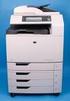 HP Color LaserJet CM6040/CM6030 MFP Series Analog Fax Accessory 300 Fax Guide Copyright and License 2008 Copyright Hewlett-Packard Development Company, L.P. Reproduction, adaptation, or translation without
Operating Instructions
 Operating Instructions (For Setting Up) Digital Imaging Systems Installation Overview Model No. DP-8060 / 8045 / 8035 Table of Contents Setting Your Machine Installation Overview General Installation Overview...
Version 1.0 November 2010. Xerox Phaser 4600/4620 User Guide
 Version 1.0 November 2010 Xerox Phaser 4600/4620 2010 Xerox Corporation. XEROX and XEROX and Design are trademarks of Xerox Corporation in the United States and/or other countries. Changes are periodically
How To Use A Powerpoint 3D Printer On A Pc Or Mac Or Mac (For Pc Or Ipad) On A Mac Or Ipod (For Mac) On An Ipod Or Ipo (For Ipo) On Pc Or Pc
 Xerox ColorQube 90 / 90 / 90 Control Panel Available services can vary on your printer setup. For details about services and settings, see the User Guide.? Menus GHI PRS 7 * ABC JKL TUV 8 0 DEF MNO 6 WXY
WorkForce Pro WP-4530 User's Guide
 WorkForce Pro WP-4530 User's Guide Contents WorkForce Pro WP-4530 User's Guide... 13 Product Basics... 14 Setting Up the Control Panel... 14 Printer Parts - Control Panel Buttons and Lights... 14 Changing
Version 1.0 09/10. Xerox ColorQube 9301/9302/9303 Administration and Accounting
 Version 1.0 09/10 Xerox ColorQube 9301/9302/9303 2010 Xerox Corporation. All Rights Reserved. Unpublished rights reserved under the copyright laws of the United States. Contents of this publication may
TL-PS310U Single USB 2.0 Port MFP and Storage Server
 TL-PS310U Single USB 2.0 Port MFP and Storage Server Rev: 2.0.0 1910010313 Contents Chapter 1 Introduction... 1 1.1 Product Overview...1 1.2 Network Management...1 1.3 Components and Features...1 1.4 Hardware
LASERJET PRO 400 MFP. User Guide M425
 LASERJET PRO 400 MFP User Guide M425 HP LaserJet Pro 400 MFP M425 Series User Guide Copyright and License 2012 Copyright Hewlett-Packard Development Company, L.P. Reproduction, adaptation, or translation