
Maintenance Guide. Outpost Firewall 4.0. Personal Firewall Software from. Agnitum
|
|
|
- Winfred Lawson
- 10 years ago
- Views:
Transcription
1 Maintenance Guide Outpost Firewall 4.0 Personal Firewall Software from Agnitum
2 Abstract This document is intended to assist Outpost Firewall users in installing and maintaining Outpost Firewall and gets users acquainted with Outpost Firewall setup, Agnitum Update and Outpost Firewall Log system maintenance. Copyright by Agnitum, Ltd. All rights reserved.
3 Table Of Contents 1 INSTALLING OUTPOST FIREWALL UNINSTALLING OUTPOST FIREWALL KEEPING YOUR PROTECTION UP-TO-DATE LOG DATABASE MAINTENANCE DATABASE CLEANUP REPAIRING THE LOG DATABASE TECHNICAL SUPPORT... 19

4 Installing Outpost Firewall 4 1 Installing Outpost Firewall Outpost Firewall s installation procedure is similar to that of most Windows programs. Notes: Be sure to uninstall any other firewall software and reboot before installing Outpost Firewall to prevent a system conflict of different firewalls fighting to control network access. If you are installing Outpost Firewall 4.0 over an older version, the setup program will ask you whether you want to retain your configuration settings. To start the installation program of the Outpost Firewall system: 1. Very Important! Before installing Outpost Firewall, uninstall any other firewall software on your computer and reboot. 2. Close all open applications. 3. Click the Start button on the Windows task bar. 4. Select Run on the Start menu. 5. In the Open field of the Run dialog window, enter the full path to the setup program file (OutpostProInstall.exe). For example, if the setup program is on disk D: in the folder Downloads and subfolder Outpost, type into this field: D:\downloads\outpost\OutpostProInstall.exe 6. Click the ОК button. The setup wizard contains several steps. Each step has a Next button that takes you to the next step of the procedure, a Back button that returns you to the previous step and a Cancel button that exits the wizard and aborts the entire setup procedure. The installation begins with Select Language dialog. Choose the language for Outpost Firewall interface and click OK. Setup will display the Welcome dialog that reminds you to close all running applications.
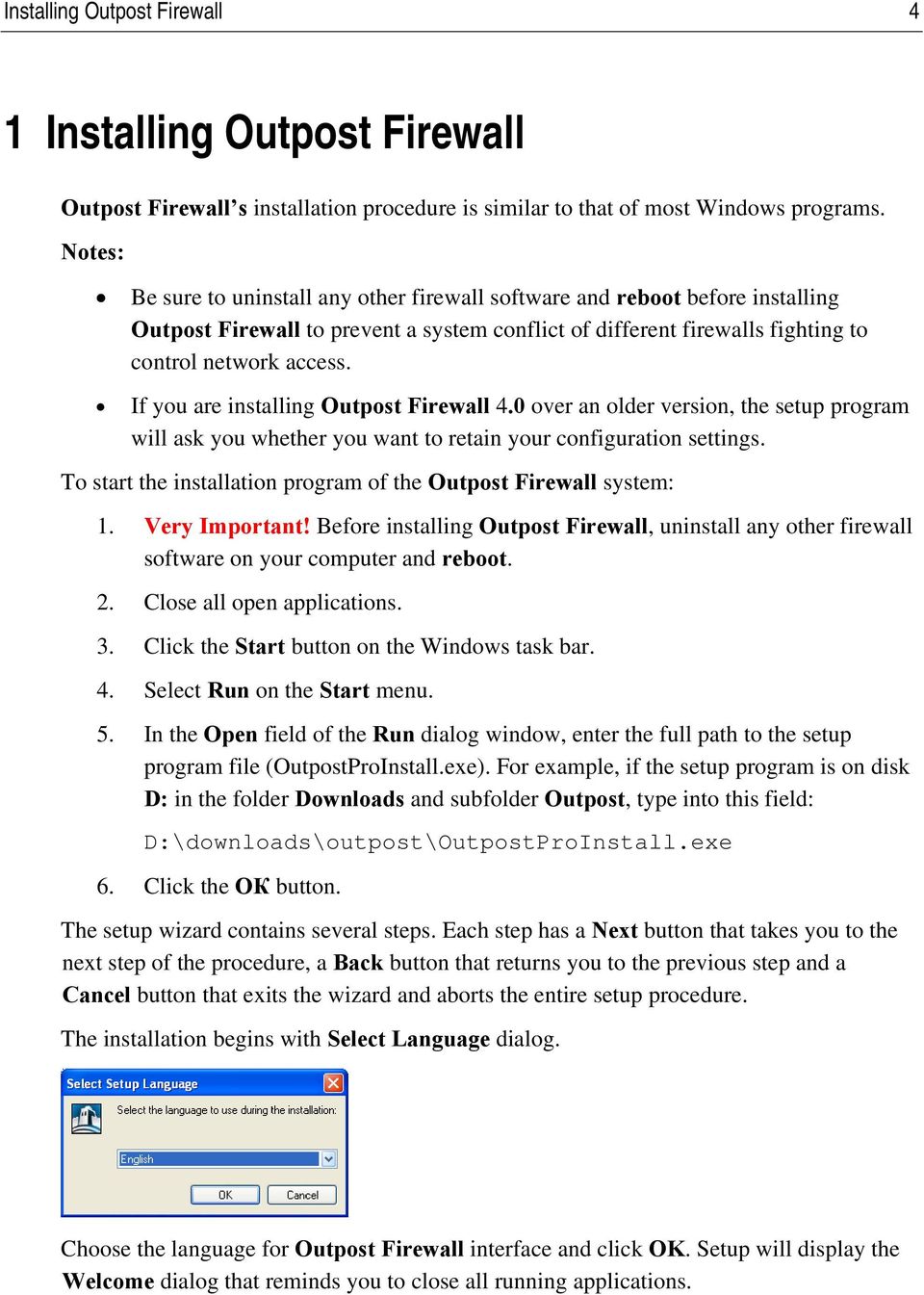
5 Installing Outpost Firewall 5 After clicking the Next button you will be asked to accept the License Agreement to use the Outpost Firewall. Please read it carefully. This dialog s Next button is enabled only if you select the option button I accept the agreement indicating that the License Agreement is acceptable to you.
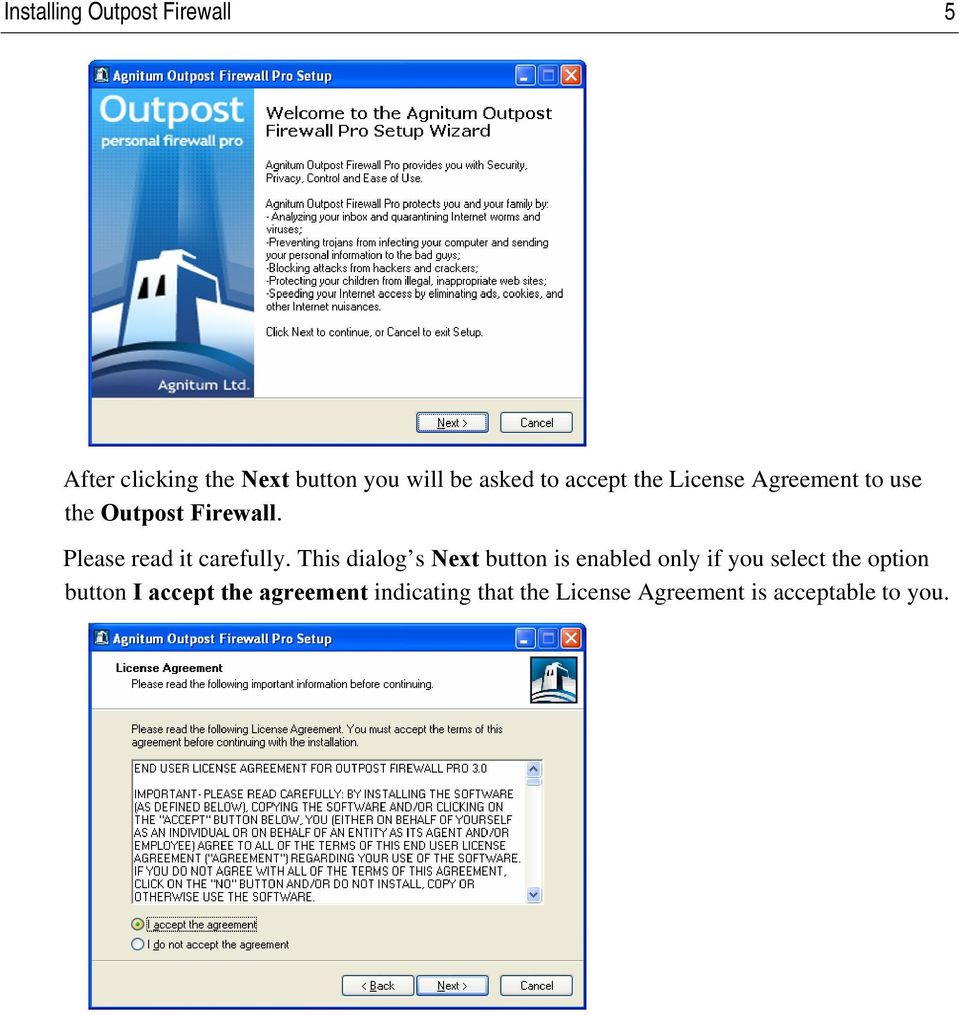
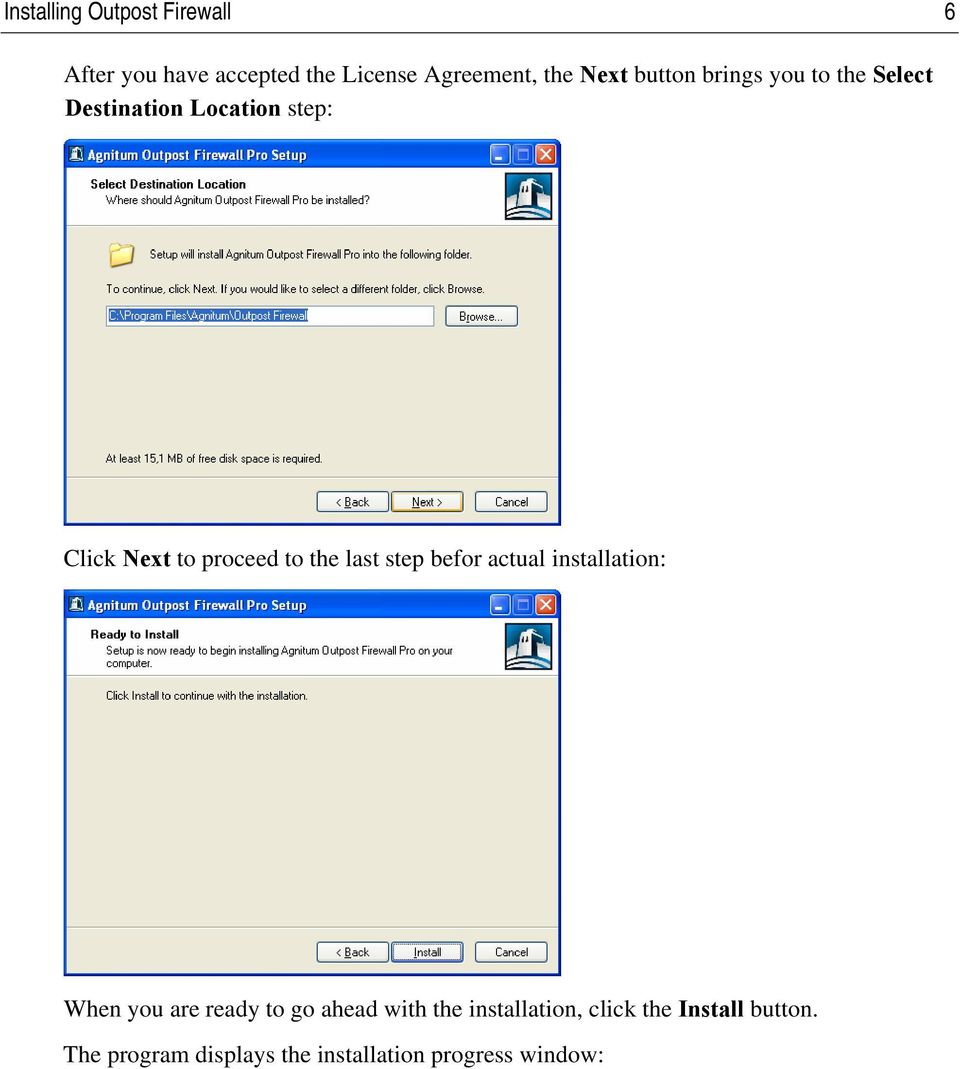
6 Installing Outpost Firewall 6 After you have accepted the License Agreement, the Next button brings you to the Select Destination Location step: Click Next to proceed to the last step befor actual installation: When you are ready to go ahead with the installation, click the Install button. The program displays the installation progress window:
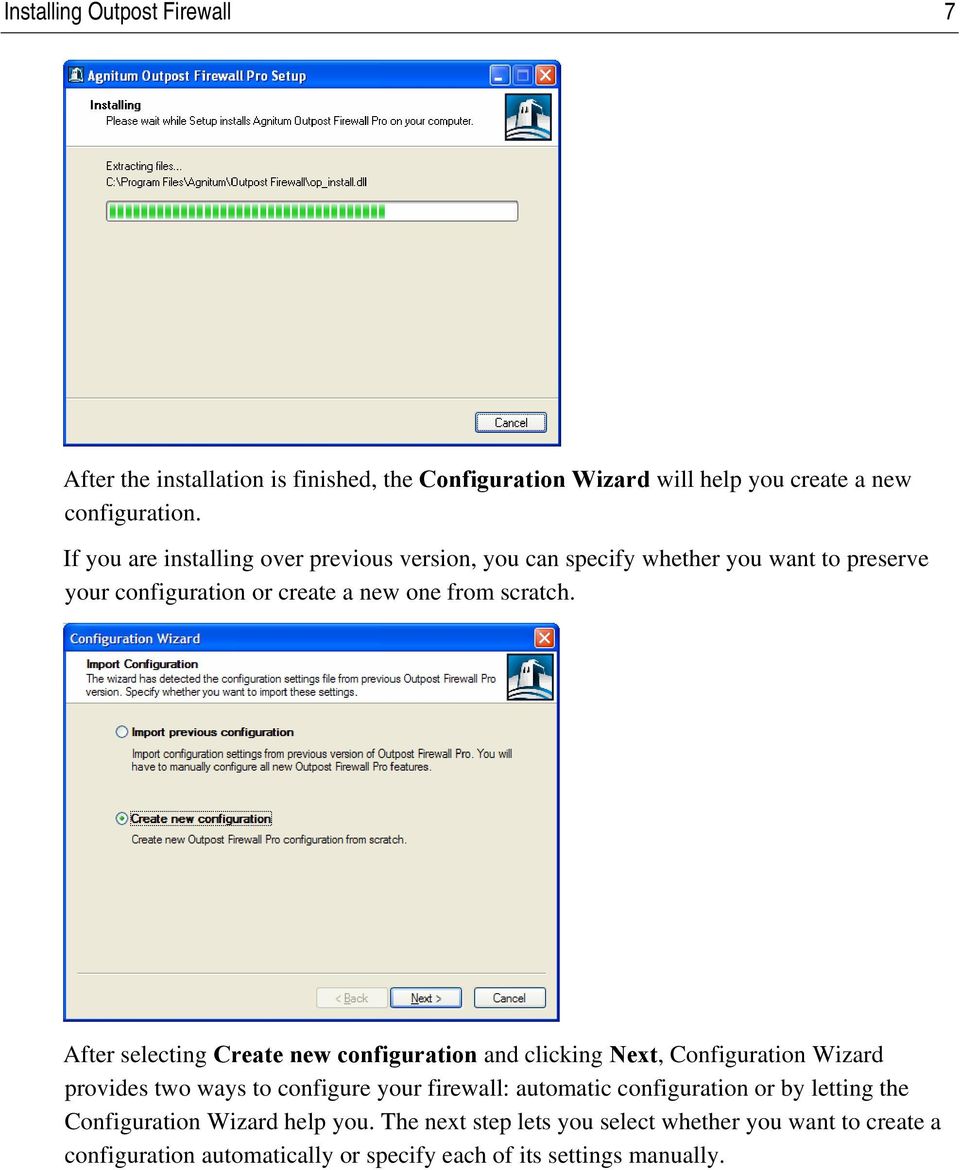
7 Installing Outpost Firewall 7 After the installation is finished, the Configuration Wizard will help you create a new configuration. If you are installing over previous version, you can specify whether you want to preserve your configuration or create a new one from scratch. After selecting Create new configuration and clicking Next, Configuration Wizard provides two ways to configure your firewall: automatic configuration or by letting the Configuration Wizard help you. The next step lets you select whether you want to create a configuration automatically or specify each of its settings manually.
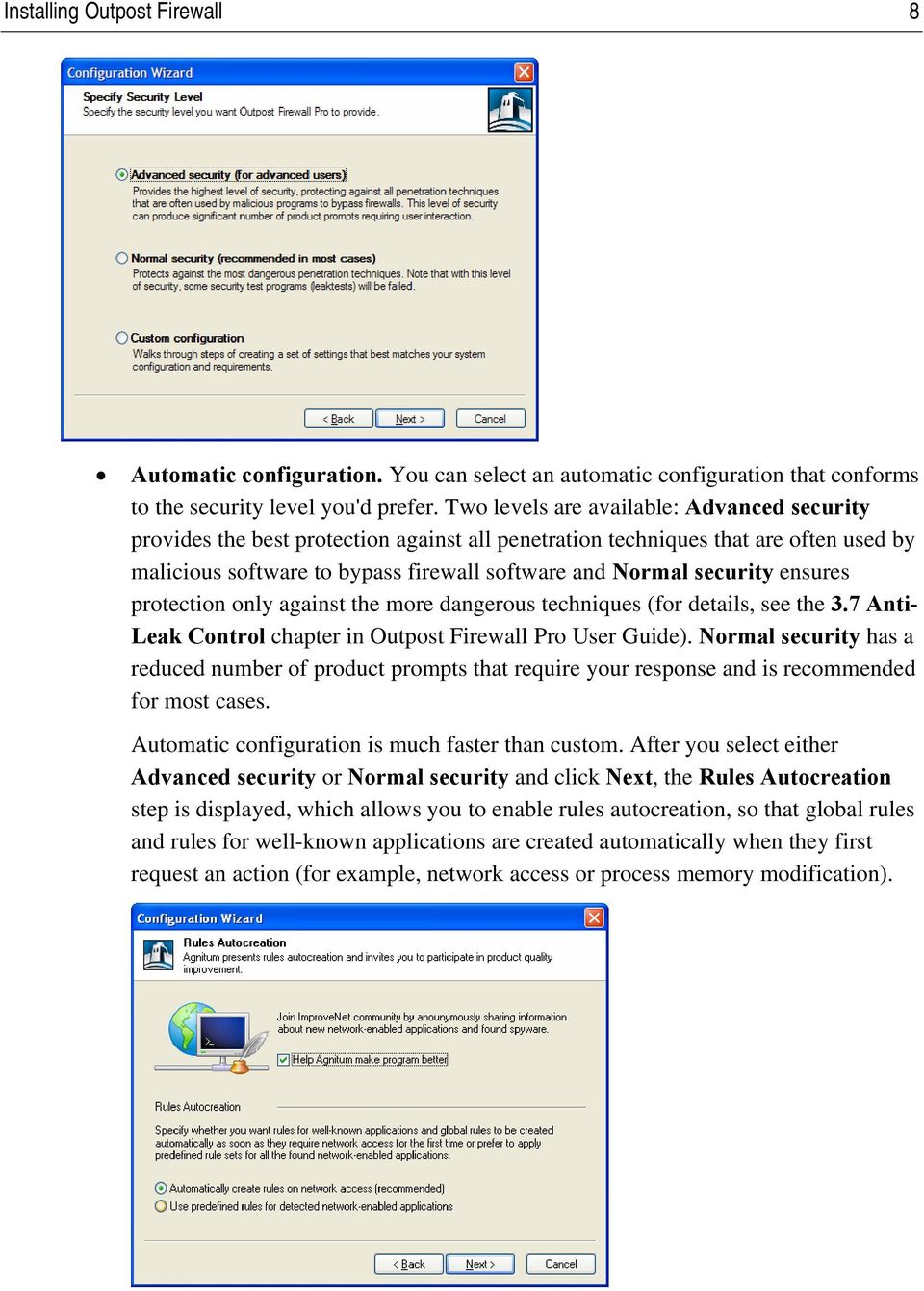
8 Installing Outpost Firewall 8 Automatic configuration. You can select an automatic configuration that conforms to the security level you'd prefer. Two levels are available: Advanced security provides the best protection against all penetration techniques that are often used by malicious software to bypass firewall software and Normal security ensures protection only against the more dangerous techniques (for details, see the 3.7 Anti- Leak Control chapter in Outpost Firewall Pro User Guide). Normal security has a reduced number of product prompts that require your response and is recommended for most cases. Automatic configuration is much faster than custom. After you select either Advanced security or Normal security and click Next, the Rules Autocreation step is displayed, which allows you to enable rules autocreation, so that global rules and rules for well-known applications are created automatically when they first request an action (for example, network access or process memory modification).
9 Installing Outpost Firewall 9 If you do not want to enable rules autocreation, select Use predefined rules for detected applications for the rule sets to be created according to our engineers' built-in presets in order to provide optimal system performance and application security. After clicking Next, Outpost Firewall Pro automatically scans your system and adjusts all its settings without your supervision. It configures network settings, builds the Component Control database, and, in case you selected to use predefined rules, searches for known applications installed on your computer that might require Internet access and configures an appropriate the network access level for each of them. Custom Configuration. If you select Custom configuration, the Configuration Wizard will guide you through the configuration process, allowing you to fine-tune the firewall for each of your specific needs, as well as select the specific configuration settings for each of the networks to which your system is connected and for each of your installed network-enabled applications. By modifying these configuration settings you can define the precise security levels that Outpost Firewall Pro provides. The wizard lets you produce a fully customized configuration, but it takes considerable time and assumes you have advanced knowledge of Windows and your system. After clicking Next, the Rules Autocreation step (see above) is displayed allowing you to enable rules autocreation, so that rules for well-known applications and global rules are created automatically when each application first requires an action (for example, network access or process memory mdification). If you do not want to enable rules autocreation, select Use predefined rules for detected applications for the rule sets to be created according to our engineers' built-in presets to provide optimal system performance and application security. Click Next and Outpost Firewall Pro will automatically detect your network environment. On the Network Configuration step you will see a list of the networks to which your system is connected.

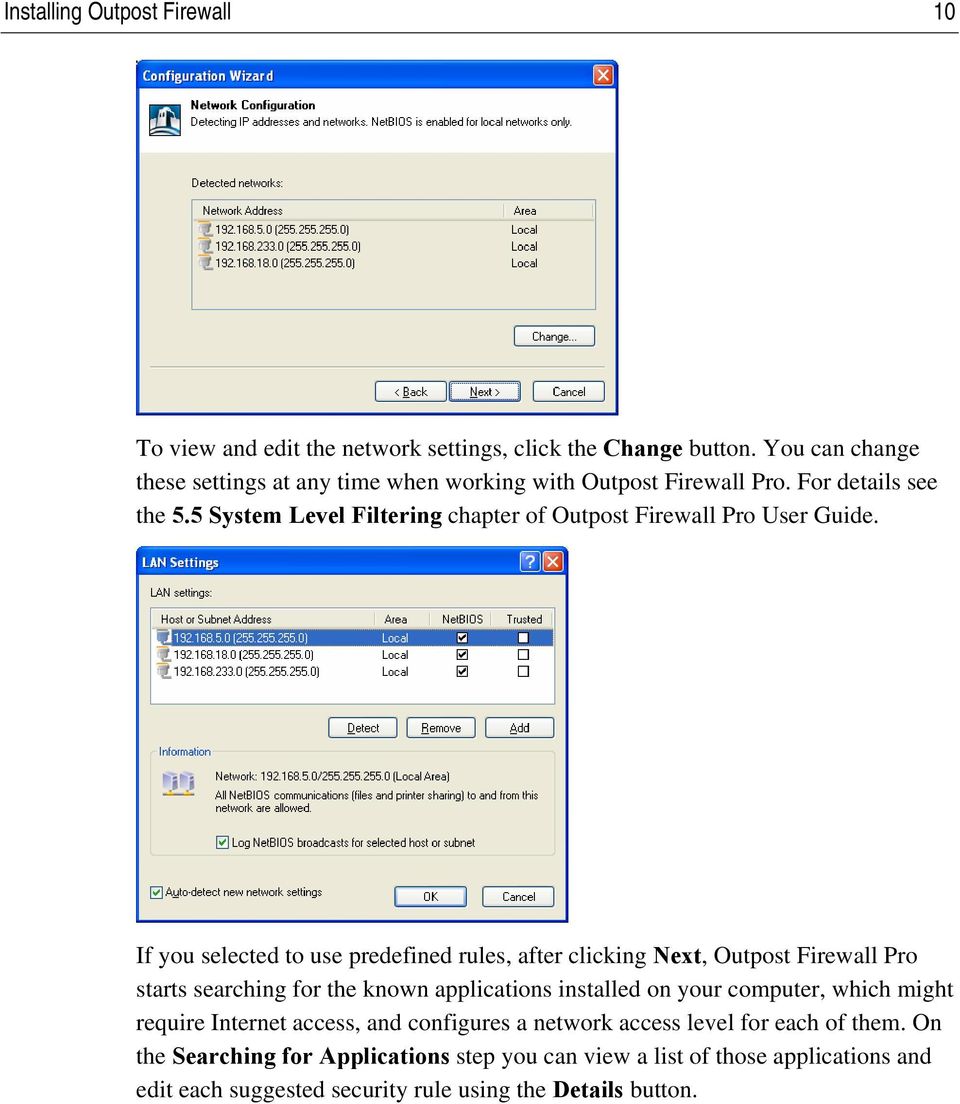
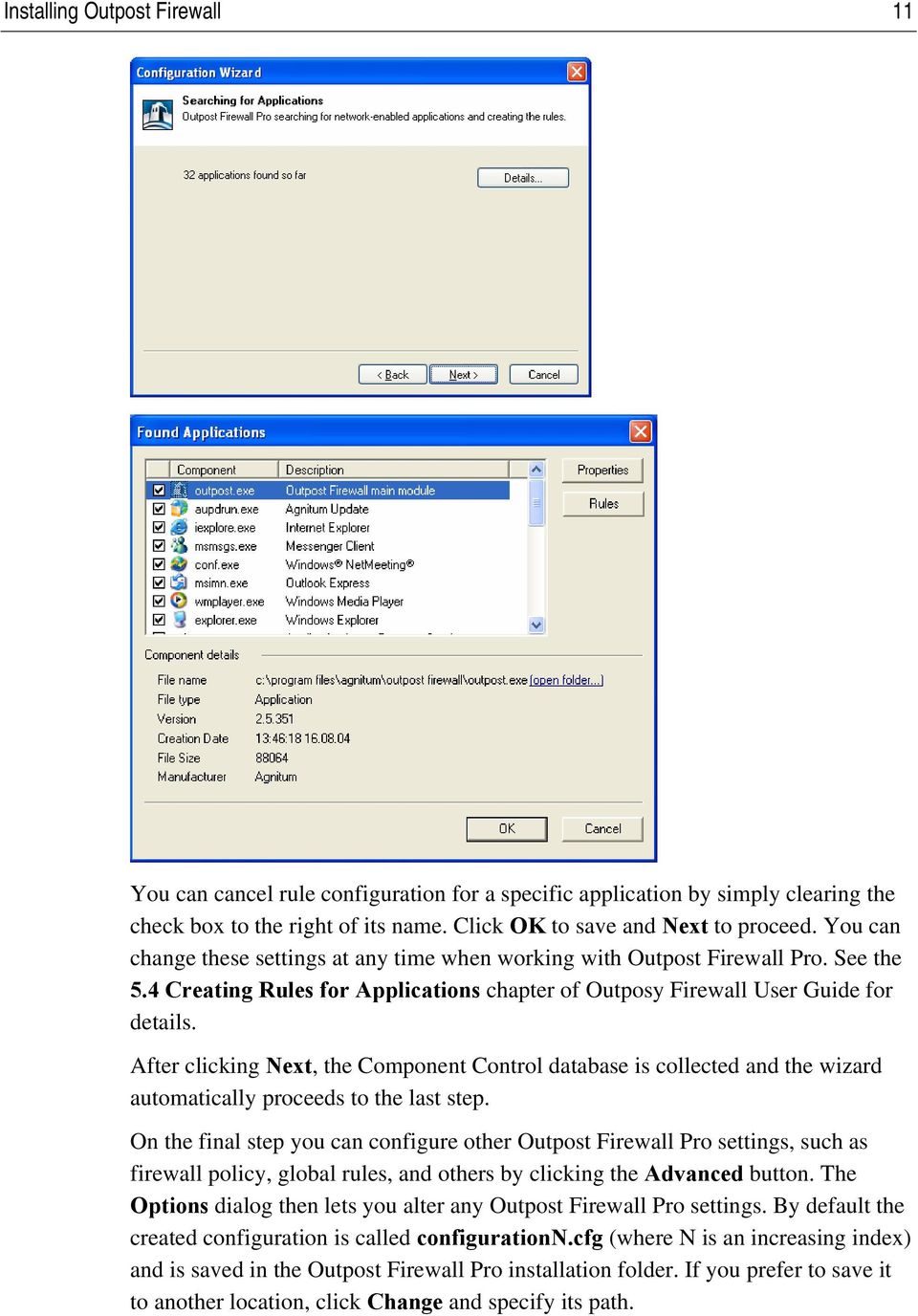
10 Installing Outpost Firewall 10 To view and edit the network settings, click the Change button. You can change these settings at any time when working with Outpost Firewall Pro. For details see the 5.5 System Level Filtering chapter of Outpost Firewall Pro User Guide. If you selected to use predefined rules, after clicking Next, Outpost Firewall Pro starts searching for the known applications installed on your computer, which might require Internet access, and configures a network access level for each of them. On the Searching for Applications step you can view a list of those applications and edit each suggested security rule using the Details button.
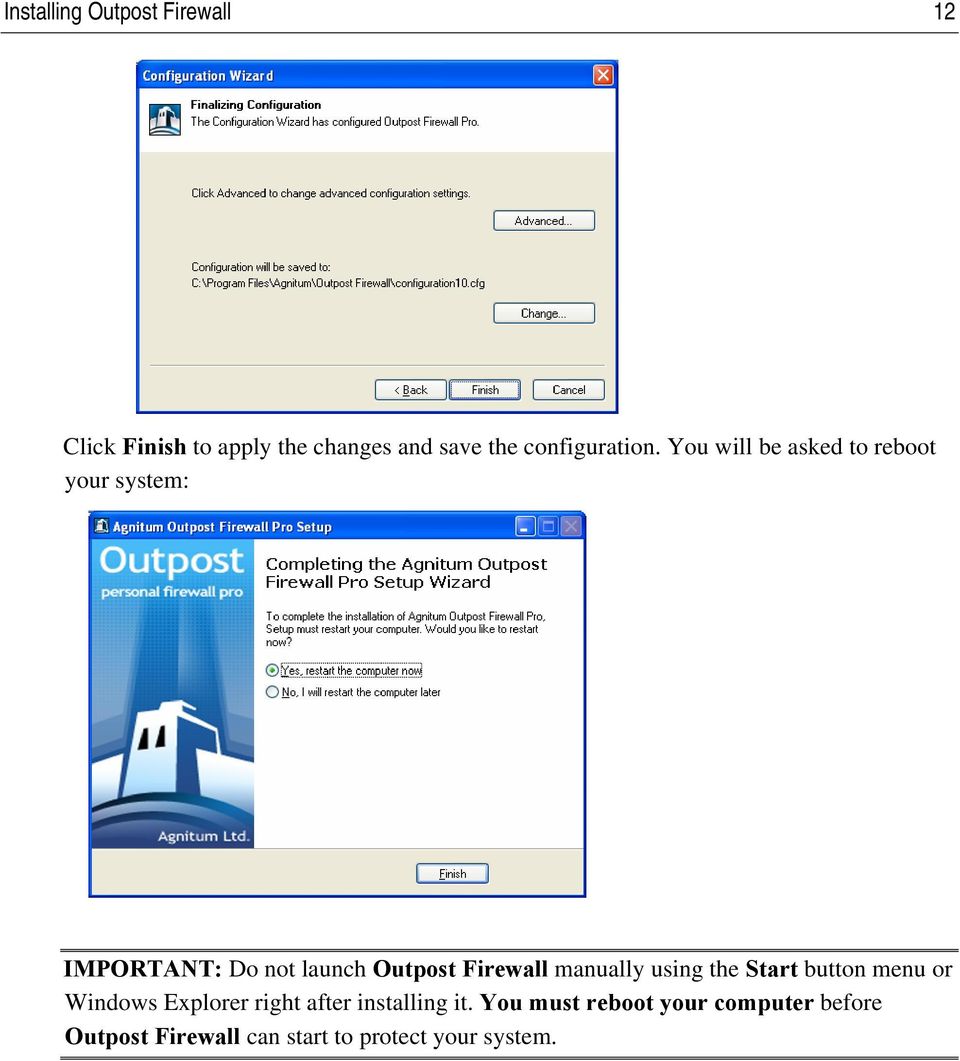
11 Installing Outpost Firewall 11 You can cancel rule configuration for a specific application by simply clearing the check box to the right of its name. Click OK to save and Next to proceed. You can change these settings at any time when working with Outpost Firewall Pro. See the 5.4 Creating Rules for Applications chapter of Outposy Firewall User Guide for details. After clicking Next, the Component Control database is collected and the wizard automatically proceeds to the last step. On the final step you can configure other Outpost Firewall Pro settings, such as firewall policy, global rules, and others by clicking the Advanced button. The Options dialog then lets you alter any Outpost Firewall Pro settings. By default the created configuration is called configurationn.cfg (where N is an increasing index) and is saved in the Outpost Firewall Pro installation folder. If you prefer to save it to another location, click Change and specify its path.
12 Installing Outpost Firewall 12 Click Finish to apply the changes and save the configuration. You will be asked to reboot your system: IMPORTANT: Do not launch Outpost Firewall manually using the Start button menu or Windows Explorer right after installing it. You must reboot your computer before Outpost Firewall can start to protect your system.
13 Uninstalling Outpost Firewall 13 2 Uninstalling Outpost Firewall To uninstall Outpost Firewall: 1. Right-click on Outpost Firewall s system tray icon and select Exit. 2. Click the Windows Start button and select Control Panel > Add or Remove programs. 3. Select Agnitum Outpost Firewall and click Remove. 4. Click Yes to confirm that you are going to uninstall the product and Windows Installer will perform all the necessary actions automatically whereupon you will be prompted to reboot the computer. Note: To avoid software conflicts, restart your system after the uninstall process completes.
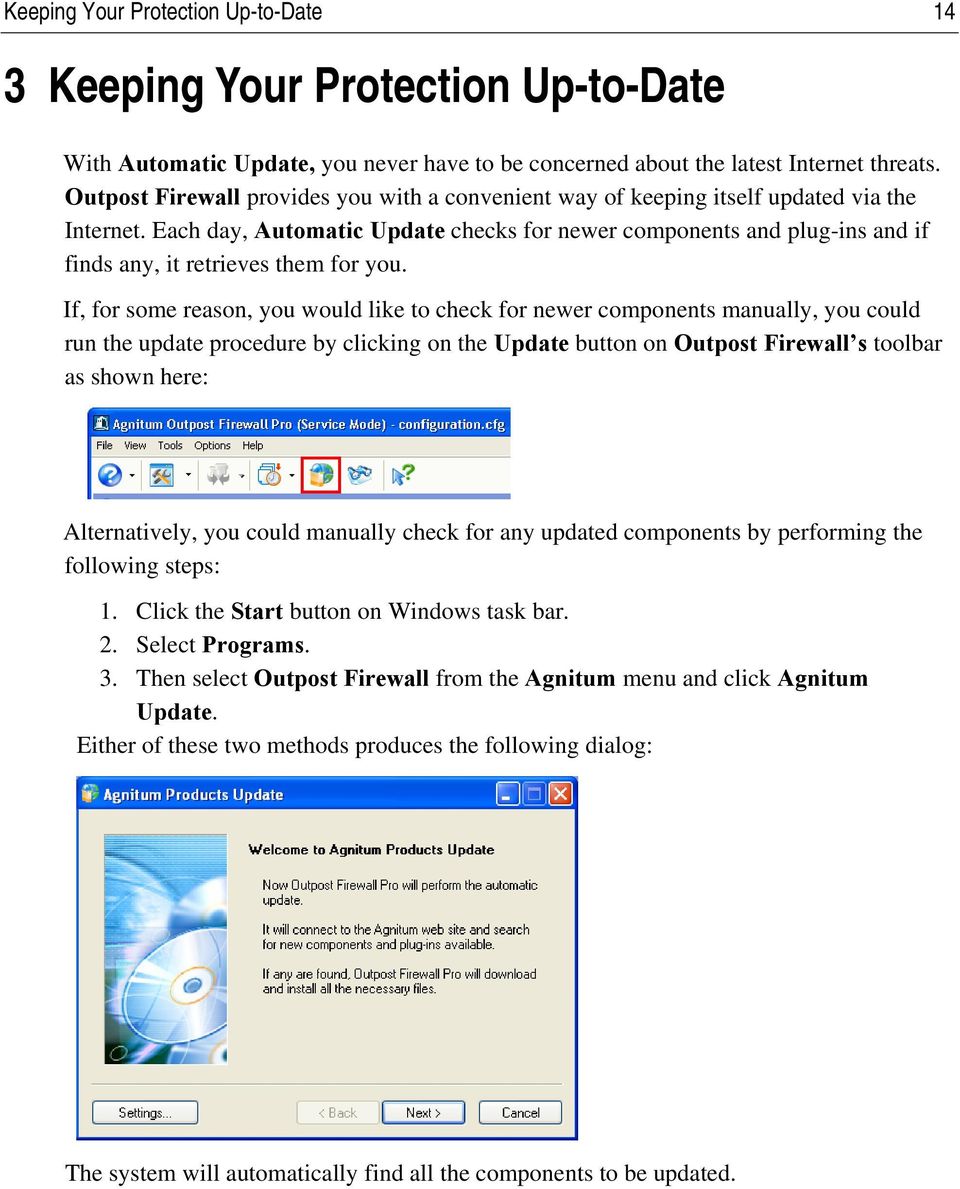
14 Keeping Your Protection Up-to-Date 14 3 Keeping Your Protection Up-to-Date With Automatic Update, you never have to be concerned about the latest Internet threats. Outpost Firewall provides you with a convenient way of keeping itself updated via the Internet. Each day, Automatic Update checks for newer components and plug-ins and if finds any, it retrieves them for you. If, for some reason, you would like to check for newer components manually, you could run the update procedure by clicking on the Update button on Outpost Firewall s toolbar as shown here: Alternatively, you could manually check for any updated components by performing the following steps: 1. Click the Start button on Windows task bar. 2. Select Programs. 3. Then select Outpost Firewall from the Agnitum menu and click Agnitum Update. Either of these two methods produces the following dialog: The system will automatically find all the components to be updated.
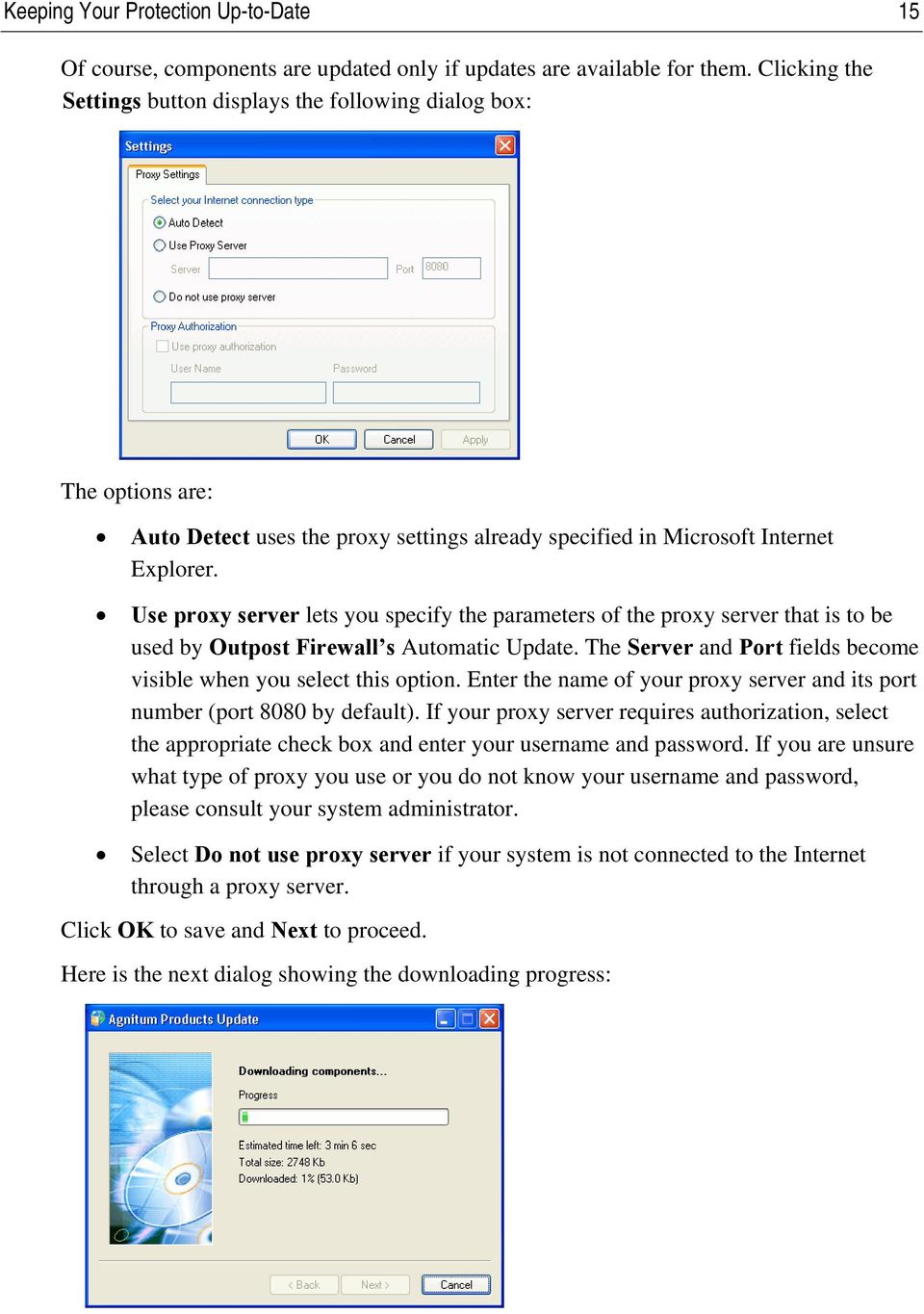
15 Keeping Your Protection Up-to-Date 15 Of course, components are updated only if updates are available for them. Clicking the Settings button displays the following dialog box: The options are: Auto Detect uses the proxy settings already specified in Microsoft Internet Explorer. Use proxy server lets you specify the parameters of the proxy server that is to be used by Outpost Firewall s Automatic Update. The Server and Port fields become visible when you select this option. Enter the name of your proxy server and its port number (port 8080 by default). If your proxy server requires authorization, select the appropriate check box and enter your username and password. If you are unsure what type of proxy you use or you do not know your username and password, please consult your system administrator. Select Do not use proxy server if your system is not connected to the Internet through a proxy server. Click OK to save and Next to proceed. Here is the next dialog showing the downloading progress:
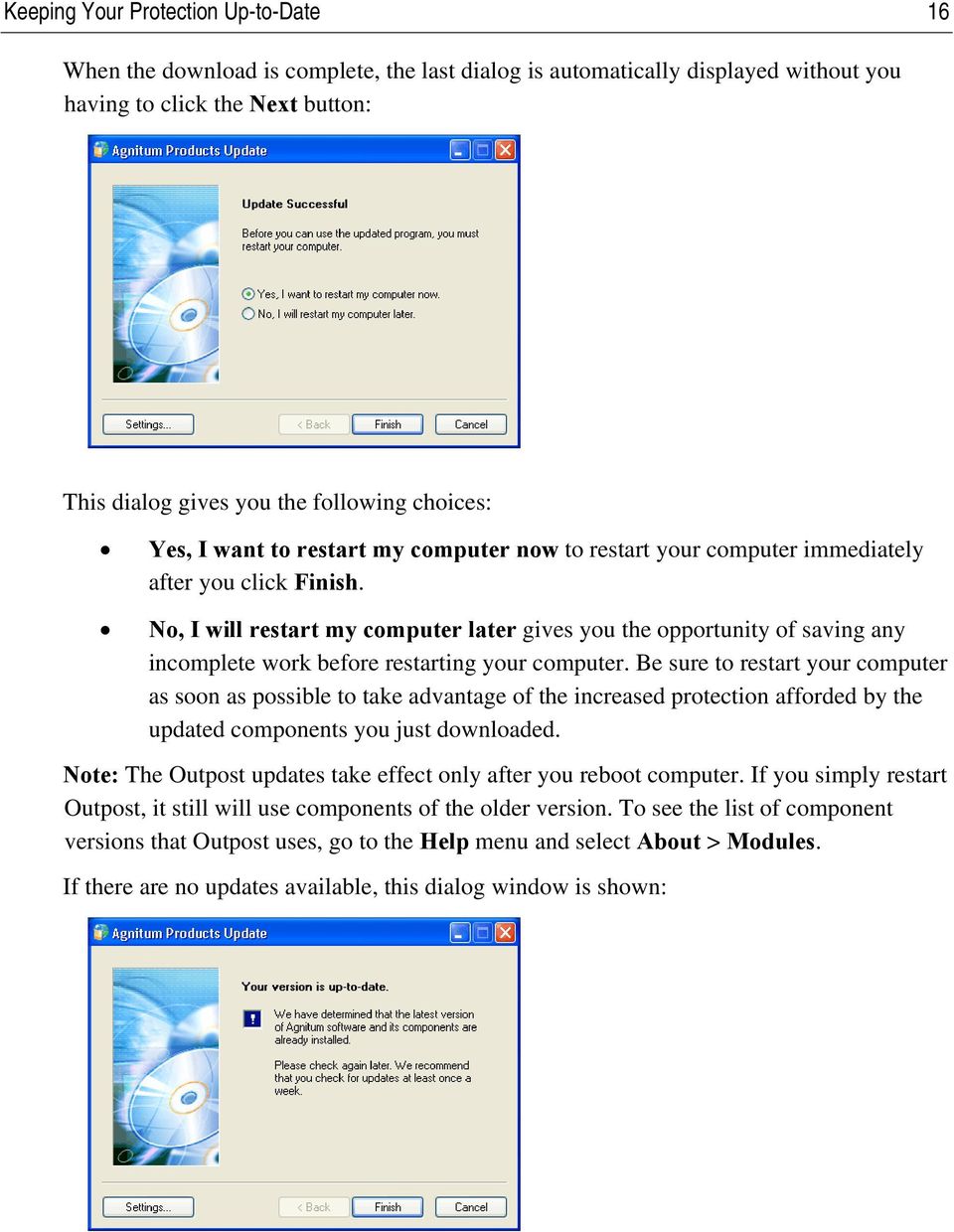
16 Keeping Your Protection Up-to-Date 16 When the download is complete, the last dialog is automatically displayed without you having to click the Next button: This dialog gives you the following choices: Yes, I want to restart my computer now to restart your computer immediately after you click Finish. No, I will restart my computer later gives you the opportunity of saving any incomplete work before restarting your computer. Be sure to restart your computer as soon as possible to take advantage of the increased protection afforded by the updated components you just downloaded. Note: The Outpost updates take effect only after you reboot computer. If you simply restart Outpost, it still will use components of the older version. To see the list of component versions that Outpost uses, go to the Help menu and select About > Modules. If there are no updates available, this dialog window is shown:
17 Log Database Maintenance 17 4 Log Database Maintenance 4.1 Database Cleanup Outpost Firewall logs every activity it detects or performs, consequently the log database is continually growing. Eventually, the log database gets so large that it reduces logging performance as well as wastes disk space. In most cases, it is not necessary to log every Outpost event even if you intend to thoroughly analyze your network s activities. Outpost Firewall features a Log Cleaner that maintains the log database at an optimum size. The Log Cleaner automatically deletes obsolete, outdated events from the database to conserve disk space and maintain high logging performance. To configure the Log Cleaner, open the Outpost Log Viewer and on the File menu click Log cleanup settings. Select Delete obsolete events to preserve the log size to have the Log Cleaner automatically remove outdated log entries from the database or select Keep all records to disable the Log Cleaner. Log cleanup settings allows you to set policies for the log cleanup. Specify the age in days after which events are considered outdated, the maximum number of the most recent event records to keep in the log and the Log database size limit, a value in Megabytes, that determines how large the log database should be allowed to grow. You can either use the same settings for all logs or select to Use individual settings for each log.

18 Log Database Maintenance 18 Log Cleaner analyzes your settings to determine which will result in the smaller database size and then cleans the log to meet that setting s requirements. For example, you specify to delete all records older than 5 days, keep 3000 records maximum and limit the log size to 7 megabytes. Log Cleaner checks the log and determines that keeping all records for the past 5 days results in a log size of 10 megabytes containing 4600 records for that period. Since the specified limit for the number of records (3000) is less than 4600, Log Cleaner computes the space required to keep 3000 records and evaluates it as 8 megabytes. Finally, Log Cleaner looks the evaluated size up against the specified database size limit (in this case, 7MB) and truncates the database to 7 megabytes containing only about 2600 records. Select Display alerts to have the Log Cleaner display all notification messages during the cleanup process. If you do not wish the Log Cleaner to delete any event records, select Keep all records. Note however that Outpost Log Database can grow significantly in size and it is not recommended that you disable the Log Cleaner. Tip. To manually run the Log Cleaner, open the Outpost Firewall main window and press F Repairing the Log Database Outpost Firewall s log may become corrupted if your system crashes or shuts down unexpectedly. To restore the logging system, open the Outpost Log Viewer and select Repair log database on the File menu. This dialog displays the current log database status: file name, size and whether or not the database has errors. If the database has no errors, but you experience logging problems it is recommended that you select Mark database as corrupted and repair on the next OS startup and click OK to have the logging system to attempt to repair the database after you restart Windows. If this does not help, select Mark database as corrupted and create a new one at the next OS startup to have the logging system delete the current logging database and create a blank one after you restart Windows. Important: In this case all the logging information will be lost.

19 Technical Support 19 5 Technical Support If you need assistance in using Outpost firewall, visit its support pages at page for available support options including FAQs, Documentation, Forum, Tips-n-tricks and Troubleshooting.
Outpost Network Security
 Administrator Guide Reference Outpost Network Security Office Firewall Software from Agnitum Abstract This document provides information on deploying Outpost Network Security in a corporate network. It
www.agnitum.com Getting Started Copyright 2010 Agnitum Ltd. All rights reserved.
 www.agnitum.com Getting Started Copyright 2010 Agnitum Ltd. All rights reserved. Abstract This document provides a quick start reference to orientate a first time user in the basic concepts and operations
www.agnitum.com Getting Started Copyright (ñ) 2007 Agnitum Ltd. All rights reserved.
 www.agnitum.com Getting Started Copyright (ñ) 2007 Agnitum Ltd. All rights reserved. Abstract This document provides a quick start reference to orientate a first time user in the basic concepts and operations
www.agnitum.com User Guide Copyright 2010 Agnitum Ltd. All rights reserved.
 www.agnitum.com User Guide Copyright 2010 Agnitum Ltd. All rights reserved. Abstract This is the complete and detailed reference to the Outpost Firewall Pro software. For an entry-level guide, please see
www.agnitum.com User Guide Copyright (ñ) 2007 Agnitum Ltd. All rights reserved.
 www.agnitum.com User Guide Copyright (ñ) 2007 Agnitum Ltd. All rights reserved. Abstract This is the complete and detailed reference to the Outpost Security Suite Pro software. For an entry-level guide,
Sophos Anti-Virus for NetApp Storage Systems startup guide. Runs on Windows 2000 and later
 Sophos Anti-Virus for NetApp Storage Systems startup guide Runs on Windows 2000 and later Document date: July 2007 Contents About this guide...4 About Sophos Anti-Virus for NetApp Storage Systems...5
Driver Updater Manual
 Driver Updater Manual Keep your drivers up-to-date! Improve your system performance and stability by keeping your drivers updated. Automatically find, update and fix the drivers on your computer and turn
Sophos Endpoint Security and Control standalone startup guide
 Sophos Endpoint Security and Control standalone startup guide Sophos Endpoint Security and Control version 9 Sophos Anti-Virus for Mac OS X, version 7 Document date: October 2009 Contents 1 Before you
MyNetFone Virtual Fax. Virtual Fax Installation
 Table of Contents MyNetFone Virtual Fax MyNetFone Virtual Fax Installation... 1 Changing the SIP endpoint details for the fax driver... 11 Uninstalling Virtual Fax... 13 Virtual Fax Installation Follow
Attix5 Pro Server Edition
 Attix5 Pro Server Edition V7.0.2 User Manual for Mac OS X Your guide to protecting data with Attix5 Pro Server Edition. Copyright notice and proprietary information All rights reserved. Attix5, 2013 Trademarks
You may have been given a download link on your trial software email. Use this link to download the software.
 BackupVault / Attix5 Server Quickstart Guide This document takes about 5 minutes to read and will show you how to: Download the software Install the Attix5 Professional Backup software Backup your files
Sophos Anti-Virus standalone startup guide. For Windows and Mac OS X
 Sophos Anti-Virus standalone startup guide For Windows and Mac OS X Document date: June 2007 Contents 1 What you need for installation...4 2 Installing Sophos Anti-Virus for Windows...5 3 Installing Sophos
SOS Suite Installation Guide
 SOS Suite Installation Guide rev. 8/31/2010 Contents Overview Upgrading from SOS 2009 and Older Pre-Installation Recommendations Network Installations System Requirements Preparing for Installation Installing
Installing FileMaker Pro 11 in Windows
 Installing FileMaker Pro 11 in Windows Before you begin the installation process, please exit other open programs and save your work. Installation notes Before you install FileMaker Pro, review the following
SharePoint Wiki Redirect Installation Instruction
 SharePoint Wiki Redirect Installation Instruction System Requirements: Microsoft Windows SharePoint Services v3 or Microsoft Office SharePoint Server 2007. License management: To upgrade from a trial license,
SmartSync Monitor Help
 1.0 (Build 15) 2 Table of Contents Foreword 0 Part I Welcome to SmartSync Monitor 3 Part II Getting Started 4 1 Copyright... 4 2 System... requirements and installation 4 3 Uninstalling... 5 6 Part III
Installation Notes for Outpost Network Security (ONS) version 3.2
 Outpost Network Security Installation Notes version 3.2 Page 1 Installation Notes for Outpost Network Security (ONS) version 3.2 Contents Installation Notes for Outpost Network Security (ONS) version 3.2...
Backing up IMail Server using Altaro Backup FS
 Backing up IMail Server using Altaro Backup FS Purpose The purpose of this document is to provide guidelines and procedures for backing up IMail server system data and user data in case of a hardware or
Net Protector Admin Console
 Net Protector Admin Console USER MANUAL www.indiaantivirus.com -1. Introduction Admin Console is a Centralized Anti-Virus Control and Management. It helps the administrators of small and large office networks
Installing S500 Power Monitor Software and LabVIEW Run-time Engine
 EigenLight S500 Power Monitor Software Manual Software Installation... 1 Installing S500 Power Monitor Software and LabVIEW Run-time Engine... 1 Install Drivers for Windows XP... 4 Install VISA run-time...
Topaz Installation Sheet
 Topaz Installation Sheet P/N 460924001E ISS 08FEB12 Content Introduction... 3 Recommended minimum requirements... 3 Setup for Internet Explorer:... 4 Topaz installation... 10 Technical support... 14 Copyright
Aspera Connect User Guide
 Aspera Connect User Guide Windows XP/2003/Vista/2008/7 Browser: Firefox 2+, IE 6+ Version 2.3.1 Chapter 1 Chapter 2 Introduction Setting Up 2.1 Installation 2.2 Configure the Network Environment 2.3 Connect
SOS SO S O n O lin n e lin e Bac Ba kup cku ck p u USER MANUAL
 SOS Online Backup USER MANUAL HOW TO INSTALL THE SOFTWARE 1. Download the software from the website: http://www.sosonlinebackup.com/download_the_software.htm 2. Click Run to install when promoted, or alternatively,
Printer Driver Installation Guide
 Fujitsu Dot Matrix Printer DL Series Printer Driver Installation Guide - Windows 7 - Windows Server 2008 R2 Rev.01: April 12, 2010 IMPORTANT NOTE TO USERS For Windows 7 / Windows Server 2008 R2, install
SSL Enforcer Documentation
 SSL Enforcer Documentation Introduction Install and Uninstall Getting Started Main Settings Options Log Introduction Today a vast majority of Internet activities like social networking, streaming videos,
Comodo Cloud Drive Software Version 1.0
 2 Comodo Cloud Drive Software Version 1.0 User Guide Guide Version 1.0.101414 Comodo Security Solutions 1255 Broad Street STE 100 Clifton, NJ 07013 Table of Contents 1. Introduction to Comodo Cloud Drive...
Vodafone Text Centre User Guide for Microsoft Outlook
 Vodafone Text Centre User Guide for Microsoft Outlook 1 Contents Introduction 1 System requirements 2 Installation 3 The installation guide 3 First use 5 Send a message 8 Select recipient 8 Enter the message
2. Installation and System requirements
 RELEASE NOTES F-Secure Anti-Virus for Windows Servers Version 9.00 build 333 Copyright 1993-2010 F-Secure Corporation. All Rights Reserved. Portions Copyright 2004 BackWeb Technologies Inc. This product
Stellar Phoenix Exchange Server Backup
 Stellar Phoenix Exchange Server Backup Version 1.0 Installation Guide Introduction This is the first release of Stellar Phoenix Exchange Server Backup tool documentation. The contents will be updated periodically
Installation Instruction STATISTICA Enterprise Small Business
 Installation Instruction STATISTICA Enterprise Small Business Notes: ❶ The installation of STATISTICA Enterprise Small Business entails two parts: a) a server installation, and b) workstation installations
Xerox 700 Digital Color Press with Integrated Fiery Color Server. Utilities
 Xerox 700 Digital Color Press with Integrated Fiery Color Server Utilities 2008 Electronics for Imaging, Inc. The information in this publication is covered under Legal Notices for this product. 45072726
What Is Ad-Aware Update Server?
 Contents What Is Ad-Aware Update Server?...2 Installation and Removal...3 System Requirements...3 Obtaining the Installation File...3 Installing Ad-Aware Update Server...3 Upgrade...4 Repairing, Modifying
Fairfield University Using Xythos for File Sharing
 Fairfield University Using Xythos for File Sharing Version 7.0 Table of Contents I: Manage your Department Folder...2 Your Department Folder... 2 II: Sharing Folders and Files Inside of Fairfield U...3
Linko Software Express Edition Typical Installation Guide
 Linko Software Express Edition Typical Installation Guide Install Database Service Components and Database...1 Install Workstation Components...4 Install DB Administration Tool...6 Office 2003 Security
WhatsUp Gold v16.1 Installation and Configuration Guide
 WhatsUp Gold v16.1 Installation and Configuration Guide Contents Installing and Configuring Ipswitch WhatsUp Gold v16.1 using WhatsUp Setup Installing WhatsUp Gold using WhatsUp Setup... 1 Security guidelines
STATISTICA VERSION 12 STATISTICA ENTERPRISE SMALL BUSINESS INSTALLATION INSTRUCTIONS
 STATISTICA VERSION 12 STATISTICA ENTERPRISE SMALL BUSINESS INSTALLATION INSTRUCTIONS Notes 1. The installation of STATISTICA Enterprise Small Business entails two parts: a) a server installation, and b)
Sophos Anti-Virus for NetApp Storage Systems startup guide
 Sophos Anti-Virus for NetApp Storage Systems startup guide Runs on Windows 2000 and later Product version: 1 Document date: April 2012 Contents 1 About this guide...3 2 About Sophos Anti-Virus for NetApp
ESET Mobile Security Business Edition for Windows Mobile
 ESET Mobile Security Business Edition for Windows Mobile Installation Manual and User Guide Click here to download the most recent version of this document Contents 1. Installation...3 of ESET Mobile Security
STATISTICA VERSION 9 STATISTICA ENTERPRISE INSTALLATION INSTRUCTIONS FOR USE WITH TERMINAL SERVER
 Notes: STATISTICA VERSION 9 STATISTICA ENTERPRISE INSTALLATION INSTRUCTIONS FOR USE WITH TERMINAL SERVER 1. These instructions focus on installation on Windows Terminal Server (WTS), but are applicable
Quick Start. Installing the software. for Webroot Internet Security Complete, Version 7.0
 Quick Start for Webroot Internet Security Complete, Version 7.0 This Quick Start describes how to install and begin using the Webroot Internet Security Complete 2011 software. This integrated suite delivers
Setting up FileMaker 10 Server
 Setting up FileMaker 10 Server Note : If your current live Database folder is located in the default database folder ( C:\Program Files\FileMaker\FileMaker Server\Data\Databases ), move\copy this folder
Follow the instructions below for first-time users only
 Whittier Law School Law Library Cisco NAC Agent Wireless Installation Guide For Microsoft Windows In order to access the wireless network on campus, Microsoft Windows laptop users must go through the Cisco
TABLE OF CONTENTS. Copyright Pro Softnet Corporation. All rights reserved. 2
 Last modified on 08.11.2011 TABLE OF CONTENTS Introduction... 4 Features... 5 General Features... 5 Backup Features... 5 Restore Features... 6 Link for Application Download... 6 Install IBackup for Mac...
Vess A2000 Series. NVR Storage Appliance. Windows Recovery Instructions. Version 1.0. 2014 PROMISE Technology, Inc. All Rights Reserved.
 Vess A2000 Series NVR Storage Appliance Windows Recovery Instructions Version 1.0 2014 PROMISE Technology, Inc. All Rights Reserved. Contents Introduction 1 Different ways to backup the system disk 2 Before
Zanibal Plug-in For Microsoft Outlook Installation & User Guide Version 1.1
 Zanibal Plug-in For Microsoft Outlook Installation & User Guide Version 1.1 Zanibal LLC Phone: +1-408-887-0480, +234-1-813-1744 Email: [email protected] www.zanibal.com Copyright 2012, Zanibal LLC. All
AVG 8.5 Anti-Virus Network Edition
 AVG 8.5 Anti-Virus Network Edition User Manual Document revision 85.2 (23. 4. 2009) Copyright AVG Technologies CZ, s.r.o. All rights reserved. All other trademarks are the property of their respective
Reporting for Contact Center Setup and Operations Guide. BCM Contact Center
 Reporting for Contact Center Setup and Operations Guide BCM Contact Center Document Number: NN40040-302 Document Status: Standard Document Version: 04.00 Part Code: N0060637 Date: June 2006 Copyright 2005
Bitrix Site Manager ASP.NET. Installation Guide
 Bitrix Site Manager ASP.NET Installation Guide Contents Introduction... 4 Chapter 1. Checking for IIS Installation... 5 Chapter 2. Using An Archive File to Install Bitrix Site Manager ASP.NET... 7 Preliminary
Magaya Software Installation Guide
 Magaya Software Installation Guide MAGAYA SOFTWARE INSTALLATION GUIDE INTRODUCTION Introduction This installation guide explains the system requirements for installing any Magaya software, the steps to
ez Agent Administrator s Guide
 ez Agent Administrator s Guide Copyright This document is protected by the United States copyright laws, and is proprietary to Zscaler Inc. Copying, reproducing, integrating, translating, modifying, enhancing,
Upgrading a computer to Windows 10 with PetLinx
 25 August, 2015 Upgrading a computer to Windows 10 with PetLinx Microsoft have recently released Windows 10 and offered it as a free upgrade for user of Windows 7 and 8/8.1. In most cases, computers with
SecuraLive ULTIMATE SECURITY
 SecuraLive ULTIMATE SECURITY Home Edition for Windows USER GUIDE SecuraLive ULTIMATE SECURITY USER MANUAL Introduction: Welcome to SecuraLive Ultimate Security Home Edition. SecuraLive Ultimate Security
Juris Installation / Upgrade Guide
 Juris Installation / Upgrade Guide Version 2.7 2015 LexisNexis. All rights reserved. Copyright and Trademark LexisNexis, Lexis, and the Knowledge Burst logo are registered trademarks of Reed Elsevier Properties
VirtualXP Users Guide
 VirtualXP Users Guide Contents Chapter 1: Introduction... 2 Chapter 2: Install and Uninstall VirtualXP... 3 2.1 System Requirement... 3 2.2 Installing VirtualXP... 3 2.3 Uninstalling VirtualXP... 3 Chapter
Kaseya Server Instal ation User Guide June 6, 2008
 Kaseya Server Installation User Guide June 6, 2008 About Kaseya Kaseya is a global provider of IT automation software for IT Solution Providers and Public and Private Sector IT organizations. Kaseya's
QUANTIFY INSTALLATION GUIDE
 QUANTIFY INSTALLATION GUIDE Thank you for putting your trust in Avontus! This guide reviews the process of installing Quantify software. For Quantify system requirement information, please refer to the
Administration guide. Host software WinCCU Installation. Complete gas volume and energy data management
 Administration guide Host software WinCCU Installation Complete gas volume and energy data management Contents 1 Introduction... 1 Safety first... 1 Warning... 1 Typographic conventions... 1 Product versioning...
NTI Backup Now EZ v2 User s Guide
 NTI Backup Now EZ v2 User s Guide GMAA00423010 11/12 2 Copyright statement This guide is copyrighted by Toshiba Corporation with all rights reserved. Under the copyright laws, this guide cannot be reproduced
Table of Contents. 1. Overview... 3. 1.1 Materials Required. 3 1.2 System Requirements. 3 1.3 User Mode 3. 2. Installation Instructions..
 Table of Contents 1. Overview..... 3 1.1 Materials Required. 3 1.2 System Requirements. 3 1.3 User Mode 3 2. Installation Instructions.. 4 2.1 Installing the On Call Diabetes Management Software. 4 2.2
Manual. 3CX Phone System integration with Microsoft Outlook and Salesforce Version 1.0
 Manual 3CX Phone System integration with Microsoft Outlook and Salesforce Version 1.0 Copyright 2006-2009, 3CX ltd. http:// E-mail: [email protected] Information in this document is subject to change without
WhatsUp Gold v16.2 Installation and Configuration Guide
 WhatsUp Gold v16.2 Installation and Configuration Guide Contents Installing and Configuring Ipswitch WhatsUp Gold v16.2 using WhatsUp Setup Installing WhatsUp Gold using WhatsUp Setup... 1 Security guidelines
BIGPOND ONLINE STORAGE USER GUIDE Issue 1.1.0-18 August 2005
 BIGPOND ONLINE STORAGE USER GUIDE Issue 1.1.0-18 August 2005 PLEASE NOTE: The contents of this publication, and any associated documentation provided to you, must not be disclosed to any third party without
026-1010 Rev 7 06-OCT-2011. Site Manager Installation Guide
 026-1010 Rev 7 06-OCT-2011 Site Manager Installation Guide Retail Solutions 3240 Town Point Drive NW, Suite 100 Kennesaw, GA 30144, USA Phone: 770-425-2724 Fax: 770-425-9319 Table of Contents 1 SERVER
WhatsUp Gold v16.1 Database Migration and Management Guide Learn how to migrate a WhatsUp Gold database from Microsoft SQL Server 2008 R2 Express
 WhatsUp Gold v16.1 Database Migration and Management Guide Learn how to migrate a WhatsUp Gold database from Microsoft SQL Server 2008 R2 Express Edition to Microsoft SQL Server 2005, 2008, or 2008 R2
Overview... 2. Using the Secure Desktop Agent... 4. Troubleshooting... 10
 Overview... 2 Installing... 2 Step 1: Download... 2 Step 2: Install... 2 Step 3: Sign In... 3 Step 4: That's It!... 3 Minimum System Requirements:... 3 Using the Secure Desktop Agent... 4 Accessing & Login
VRC 7900/8900 Avalanche Enabler User s Manual
 VRC 7900/8900 Avalanche Enabler User s Manual WLE-VRC-20030702-02 Revised 7/2/03 ii Copyright 2003 by Wavelink Corporation All rights reserved. Wavelink Corporation 6985 South Union Park Avenue, Suite
Installation Instruction STATISTICA Enterprise Server
 Installation Instruction STATISTICA Enterprise Server Notes: ❶ The installation of STATISTICA Enterprise Server entails two parts: a) a server installation, and b) workstation installations on each of
User Guide Win7Zilla
 User Guide Win7Zilla Table of contents Section 1: Installation... 3 1.1 System Requirements... 3 1.2 Software Installation... 3 1.3 Uninstalling Win7Zilla software... 3 Section 2: Navigation... 4 2.1 Main
How To Install Safari Antivirus On A Dv8000 Dv Recorder On A Pc Or Macbook Or Ipad (For A Pc) On A Microsoft Dv8 (For Macbook) On An Ipad Or Ipa (
 Using Symantec AntiVirus Corporate Edition Version 9.0 Software On a DX8000 DVR DX8000 Digital Video Recorder C1613M-A (12/04) Contents Using Symantec AntiVirus Corporate Edition 9.0 Software.....................................................................5
How To Upgrade A Websense Log Server On A Windows 7.6 On A Powerbook (Windows) On A Thumbdrive Or Ipad (Windows 7.5) On An Ubuntu 7.3.2 (Windows 8) Or Windows
 Websense v7.6 Install or Upgrade Checklist Greetings from Websense Technical Support. Most Websense upgrades complete successfully, and from my years of troubleshooting, I have learned a number of steps
How To Install Database Oasis On A Computer Or Computer (For Free)
 INSTALLATION INSTRUCTIONS Table of Contents Installation Instructions 1 Table of Contents 1 System Requirements 2 Installation 3 Selecting where to Install the Professional Server 3 Installing Prerequisites
Secure Perfect RAID Recovery Instructions
 Secure Perfect RAID Recovery Instructions Contents Overview Dell PowerEdge 2500 RAID Level 1 Recovery Instructions Overview NOTE If you possess a previous version of this document, you may notice changes
Citrix Access Gateway Plug-in for Windows User Guide
 Citrix Access Gateway Plug-in for Windows User Guide Access Gateway 9.2, Enterprise Edition Copyright and Trademark Notice Use of the product documented in this guide is subject to your prior acceptance
Providing Patch Management With N-central. Version 7.1
 Providing Patch Management With N-central Version 7.1 Contents Patch Management 3 Introduction 3 Monitoring for Missing Patches 3 Setting up Patch Management in N-central 4 Adding a WSUS Server to N-central
ACTIVE DIRECTORY DEPLOYMENT
 ACTIVE DIRECTORY DEPLOYMENT CASAS Technical Support 800.255.1036 2009 Comprehensive Adult Student Assessment Systems. All rights reserved. Version 031809 CONTENTS 1. INTRODUCTION... 1 1.1 LAN PREREQUISITES...
All Rights Reserved. Copyright 2006
 All Rights Reserved Copyright 2006 The use, disclosure, modification, transfer, or transmittal of this work for any purpose, in any form, or by any means, without the written permission of the copyright
Legal Notes. Regarding Trademarks. 2012 KYOCERA Document Solutions Inc.
 Legal Notes Unauthorized reproduction of all or part of this guide is prohibited. The information in this guide is subject to change without notice. We cannot be held liable for any problems arising from
Attix5 Pro Server Edition
 Attix5 Pro Server Edition V7.0.3 User Manual for Linux and Unix operating systems Your guide to protecting data with Attix5 Pro Server Edition. Copyright notice and proprietary information All rights reserved.
3 Setting up Databases on a Microsoft SQL 7.0 Server
 3 Setting up Databases on a Microsoft SQL 7.0 Server Overview of the Installation Process To set up GoldMine properly, you must follow a sequence of steps to install GoldMine s program files, and the other
NetBak Replicator 4.0 User Manual Version 1.0
 NetBak Replicator 4.0 User Manual Version 1.0 Copyright 2012. QNAP Systems, Inc. All Rights Reserved. 1 NetBak Replicator 1. Notice... 3 2. Install NetBak Replicator Software... 4 2.1 System Requirements...
Microsoft Security Essentials Installation and Configuration Guide
 Microsoft Security Essentials Installation and Configuration Guide This installation guide is for users who are intending to download the software from Microsoft s web site. If you are not intending on
How To Use Senior Systems Cloud Services
 Senior Systems Cloud Services In this guide... Senior Systems Cloud Services 1 Cloud Services User Guide 2 Working In Your Cloud Environment 3 Cloud Profile Management Tool 6 How To Save Files 8 How To
Getting Started with Vision 6
 Getting Started with Vision 6 Version 6.9 Notice Copyright 1981-2009 Netop Business Solutions A/S. All Rights Reserved. Portions used under license from third parties. Please send any comments to: Netop
Providing Patch Management With N-central. Version 7.2
 Providing Patch Management With N-central Version 7.2 Contents Patch Management 3 Introduction 3 Monitoring for Missing Patches 3 Setting up Patch Management in N-central 4 Adding a WSUS Server to N-central
NAS 253 Introduction to Backup Plan
 NAS 253 Introduction to Backup Plan Create backup jobs using Backup Plan in Windows A S U S T O R C O L L E G E COURSE OBJECTIVES Upon completion of this course you should be able to: 1. Create backup
WhatsUp Gold v16.2 Database Migration and Management Guide
 WhatsUp Gold v16.2 Database Migration and Management Guide Contents CHAPTER 1 How to use this guide CHAPTER 2 Migrating the WhatsUp Gold Microsoft SQL Server 2008 R2 Express Edition database to Microsoft
WhatsUp Gold v16.3 Installation and Configuration Guide
 WhatsUp Gold v16.3 Installation and Configuration Guide Contents Installing and Configuring WhatsUp Gold using WhatsUp Setup Installation Overview... 1 Overview... 1 Security considerations... 2 Standard
Interact for Microsoft Office
 Interact for Microsoft Office Installation and Setup Guide Perceptive Content Version: 7.0.x Written by: Product Knowledge, R&D Date: October 2014 2014 Perceptive Software. All rights reserved Perceptive
17 April 2014. Remote Scan
 17 April 2014 Remote Scan 2014 Electronics For Imaging. The information in this publication is covered under Legal Notices for this product. Contents 3 Contents...5 Accessing...5 Mailboxes...5 Connecting
Sage Intelligence Financial Reporting for Sage ERP X3 Version 6.5 Installation Guide
 Sage Intelligence Financial Reporting for Sage ERP X3 Version 6.5 Installation Guide Table of Contents TABLE OF CONTENTS... 3 1.0 INTRODUCTION... 1 1.1 HOW TO USE THIS GUIDE... 1 1.2 TOPIC SUMMARY...
Lepide Event Log Manager. Users Help Manual. Lepide Event Log Manager. Lepide Software Private Limited. Page 1
 Users Help Manual Lepide Event Log Manager Lepide Software Private Limited. Page 1 Users Help Manual for Lepide Event Log Manager Lepide Software Private Limited, All Rights Reserved This User Guide and
BitDefender Security for Exchange
 Quick Start Guide Copyright 2011 BitDefender 1. About This Guide This guide will help you install and get started with BitDefender Security for Exchange. For detailed instructions, please refer to the
Spector 360 Deployment Guide. Version 7
 Spector 360 Deployment Guide Version 7 December 11, 2009 Table of Contents Deployment Guide...1 Spector 360 DeploymentGuide... 1 Installing Spector 360... 3 Installing Spector 360 Servers (Details)...
INSTALLATION GUIDE Datapolis Process System v 4.2.0.4294
 Datapolis.com, ul Wiktorska 63, 02-587 Warsaw, Poland tel. (+48 22) 398-37-53; fax. (+ 48 22) 398-37-93, [email protected] INSTALLATION GUIDE Datapolis Process System v 4.2.0.4294 Last modification
Abila MIP. Installation Guide
 This is a publication of Abila, Inc. Version 2015.x Copyright 2014 Abila, Inc. All rights reserved. Abila, the Abila logos, and the Abila product and service names mentioned herein are registered trademarks
Using TS-ACCESS for Remote Desktop Access
 Using TS-ACCESS for Remote Desktop Access Introduction TS-ACCESS is a remote desktop access feature available to CUA faculty and staff who need to access administrative systems or other computing resources
Chapter 11 Managing Core Database Downloads
 Chapter 11 Managing Core Database Downloads Research Insight versions 7.7 and higher offer automated delivery of the COMPUSTAT core databases over the Internet through the Database Manager application.
Altaro Hyper-V Backup V4 - User Guide
 Altaro Hyper-V Backup V4 - User Guide 1 / 161 Table of contents Introducing Altaro Hyper-V Backup... 5 Roles... 6 Sample Scenario... 7 Different Editions... 9 Getting Started... 11 System requirements...