
TI-83, TI-83 Plus and the TI-84 GRAPHING CALCULATOR MANUAL. Introductory Statistics. Prem S. Mann Eastern Connecticut State University
|
|
|
- Lewis Daniels
- 10 years ago
- Views:
Transcription
1 TI-83, TI-83 Plus and the TI-84 GRAPHING CALCULATOR MANUAL James A. Condor Manatee Community College to accompany Introductory Statistics Sixth Edition by Prem S. Mann Eastern Connecticut State University JOHN WILEY & SONS, INC.

2 Contents Preface 3 1 Introduction 4 2 Organizing Data 11 3 Numerical Descriptive Measures 17 4 Probability 27 5 Discrete Random Variables 32 6 Continuous Random Variables 39 7 Sampling Distributions 46 8 Estimation of the Mean and Proportion 50 9 Hypothesis Tests: Mean and Proportion Two Populations Chi-Square Tests Analysis of Variance Simple Linear Regression Nonparametric Methods 84 2

3 Preface Statistics is an important field of study, now more so than ever. We are surrounded by statistical information in work and in our everyday lives. Many of us work in professions that require us to understand statistical summaries, and some of us work in areas that require us to produce statistical information. The art of teaching statistics has changed dramatically in recent years, with computational software eliminating the need for many of the previously taught techniques. The answers to many of the complex computations come easier and faster students with today s calculators performing most of the work in elementary statistical analysis. The challenge to the instructor is to get the student to acquire a greater understanding of what (s)he is doing, with the calculator tending to the details of the computations. The TI-83, TI-83 Plus, and TI-84 Plus calculators, by Texas Instruments, are leading examples of the progress in statistical technology. Texas Instruments has provided us with advanced devices at an affordable price that are capable of powerful statistical work and yet is still easy to use. This text will run through the statistical capabilities of the TI-83, TI-83 Plus, and TI-84 Plus calculators. The calculators are almost identical with regards to the type of statistical functions they will perform and the keystrokes needed to call those functions. This text will follow the order of topics presented in Mann s Introductory Statistics, sixth edition, published by John Wiley & Sons, Inc., but should also prove useful with other texts. It will not explain the underlying statistics but instead focus on how best to use the TI-83, TI-83 Plus, and TI-84 Plus calculators in computing them. 3

4 Chapter 1 Introduction Use of Technology Statistics is a field that deals with sets of data. After the data is collected it needs to be organized and interpreted. There is a limit to how much of the work can be done effectively without the help of some type of technology. The use of technology, such as a calculator with enhanced statistical functions can take care of most of the details of our work so that we can spend more time focusing on what we are doing and how to interpret the results. Technology can help us not only to store and manipulate data, but also to visualize what the data is trying to tell us. As we work with a calculator, we will be able to: Enter, revise, and store data. Perform statistical computations on stored data or entered statistics. Draw pictures, based on the data to help us to understand what useful information can be inferred from that data. Advantages of Using a Calculator There are many good statistical software packages available, such as MINITAB, SAS, and SPSS. Excel also contains many statistical built-in functions as well as supporting plug-in s for statistical work. Still, for the student starting to learn statistics, it s hard to beat the advantages of using a powerful hand-held calculator. It is portable and easy to use in many different work environments. It has battery power that lasts far longer than that of a laptop computer. It is less expensive than a computer. It is less expensive than a statistical software package. 4

5 Advantages to Using the TI-83, TI-83 Plus, and TI-84 Plus This calculator manual will focus on how to get the most out of using the TI-83, TI-83 Plus, and the TI-84 Plus calculators by Texas Instruments. The TI-83 was first released in 1996, improving upon its predecessors the TI-81 and TI-82 with the addition of many advanced statistical and financial functions. The TI-83 Plus and the TI-84 Plus have essentially the same features as the TI-83, but with increased memory capacity and a few extra statistical features. They are powerful calculators with advanced functions, but at the same time easy to use. Most complicated statistical computations are handled through menus which prompt you for the necessary input. Data entry and revision is handled through a Stat List Editor that is similar to a spreadsheet in how it is used. Statistical graphs are handled through menus and important parts of the graph can be read by tracing along with the arrow keys. The calculators are built sturdily, and can withstand many falls off of student desks. Entering and Revising Data This chapter focuses on getting numbers into your calculator and storing them for the organization, interpretation, and analysis part of statistics. When you are not given the necessary statistics to perform calculations, you will need to enter data into the calculator to generate the statistics. We will learn how to do statistical calculations with the calculator in future chapters. Using the Stat List Editor The Stat List Editor in the TI-83, TI-83 Plus, and TI-84 Plus calculators provides a convenient way to enter numbers and review them. Numbers from a data set can be stored in a list in the calculator so that we can keep numbers that are related to each other together. Example: Weights Suppose that you have ten people in a room, with the following weights in pounds: 131, 114, 167, 180, 126, 134, 188, 175, 133, 130 If we want to do any sort of analysis on these numbers, we will need to get them into the calculator and keep them together as a group. 5

6 Press the STAT key. To input data or to make changes to an existing set of data values use the Edit function. (number one under the EDIT list). Press the number 1 key. If your stat list editor does not show the columns labeled L1, L2, and L3 you can set up the Editor by selecting SetUpEditor on the previous screen. Press the STAT key. Press the 5 key. Press the ENTER key. If you set up the editor then return to the Edit function. Go ahead and type the ten weights in under the column labeled L1. Press the ENTER key when you are done with one number and ready to move on to the next number. Type in 131 and press the ENTER key. Type in 114 and press the ENTER key. Type in 167 and press the ENTER key. continue until all the data values have been entered. 6

7 Use the up and down arrow keys to go back and forth between the numbers. Try changing the value of one of the entries by typing in a new weight. Clearing a List of Data Values After a list of data values is no longer needed you can delete the values by using one of the following methods. 1. You can highlight each data value and use the DEL key. This method is slow and clears the list one data value at a time. 2. You can highlight the list name, for example L1 at the top of the column, and press the CLEAR key and then press the ENTER key. 3. You can go to the EDIT menu and press the number 4 key to clear list. Press the STAT key. Press the number 4 key. Press the 2 nd key and then press the 1 key to get L1. Press the ENTER key. Entering Lists Directly The home screen is where you do most of your calculator work that doesn t involve menus. Wherever you are on your calculator, you can always get back to the home screen by pressing the 2 nd key and then the MODE key to access the QUIT function. From the home screen, you can enter data into a list by typing it between a set of braces { and }, and separating the numbers by commas: {131, 114, 167, 180, 126, 134, 188, 175, 133, 130} Once you ve typed the numbers in, you will want to save them. Use the store button STO followed by L1, L2 or any other list. ( L1 L6 are above the 1 6 keys.) When you press the STO key, the screen will display an arrow going to the right. {131, 114, 167, 180, 126, 134, 188, 175, 133, 130} L1 Once you ve entered a list from the Stat List Editor, you can see the list by typing its name. For example, if you stored the weights in L1, typing L1 on the home screen will display the list s contents. (You will need to use the left and right arrow keys to see all of the list s contents.) 7

8 You can also store data to a name that you create. From the home screen, you can save a list to a name by using the STO key. {131, 114, 167, 180, 126, 134, 188, 175, 133, 130} WEIGH If you type in WEIGH on the home screen and press the ENTER key the list of numbers will be displayed across the screen. Next we will learn how to create a different name for a list rather than using L1, L2, and so on. Working with Named Lists The lists L1 through L6 are good places to work with data if you won t be needing to save the data. If, on the other hand, you think that you may need the data later on and don t want to accidentally over-write it, you can give the data a name. A list can be named with 1 5 characters. The first character must be a letter or the angle symbol θ theta. The other characters can be a letter, a θ, or a number. To get letters from the keyboard, press the ALPHA key before each letter that appears above and to the right of most of the keys. If you are typing several letters in a row, press A-LOCK (above the ALPHA key), type the letters, and then press the ALPHA key again to release the lock. To create a different name for a list within the Stat List Editor, Press the STAT key. Press the number 1 key. Press the key to highlight the name at the top of one of the columns. Press the 2 nd key and then the DEL key to get to the INS (insert) function. Type in the name of your new list (note that the A-LOCK is already turned on for you, so you don t need to press the ALPHA key before each letter), Press the ENTER key. You are now ready to begin entering data into the newly named list. Getting the Names of Lists Some of the commands needed later in this book will require you to type in the name of a list. If it is one of L1 L6, then you can type it quickly from the keyboard above the 1 6 keys. On the other hand, you cannot just type the name of a named list from the keyboard using the ALPHA key. List names on the TI-83, TI-83 Plus, and TI-84 Plus calculators are distinguished from the names of other variables by a small L to the left of the name. To see this, go into the 8

9 LIST menu, and choose one of the list names there by using the arrow keys and then press the ENTER key. In general, when you need to supply the name of a list to a command or a menu, use the LIST page and the NAMES list. Choosing Lists to Edit There are several ways to control which lists are displayed in the Stat List Editor. If you press the STAT key and then the number 5 key to get to SetUpEditor, you can use that command with a series of list names separated by columns. For example, will configure the Stat List Editor to display lists LAA, LBB, and LCC. As we saw above, if you enter the command SetUpEditor without any list names the Editor goes back to showing L1 L6 by default. If you are already in the Stat List Editor, you can use the arrow keys to highlight the names of lists. If you press INS for insert, you can insert new or existing lists. If you press the DEL key for delete you delete the list from the editor. This does not erase the contents list. If you wish to do that, highlight the name of the list and press the CLEAR button and then the ENTER key. This will leave the list name in the editor and clear its entries. Deleting Lists If you store many lists, programs, etc. on your calculator, it is possible that you may start to run out of memory. If that should happen go into the MEM menu (above the + key) and follow the sub-menus for deleting items from your calculator. This is one of the few places where the steps differ between the TI-83, TI-83 Plus, and TI-84 Plus calculators. Just follow the instructions on the screen. 9

10 Exercises 1. Store the following numbers into the list L2: 11, 23, 35, 47, Store the following numbers into the list ABC: 2, 3, 5, 7, 11, Configure the Stat List Editor to display lists L2, ABC, and L5. 4. Save the following data in a storage location labeled TIME. 23, 45, 56, 32, 42, 22 Solutions 1. Go to the STAT page and select Edit. If L2 is not one of the lists displayed, use the up arrow to highlight one of the column titles, press INS for insert and press the ENTER key. Use the down arrow key to go back down into the column. Type in the numbers, pressing the ENTER key after each one. If you make a typo, use the arrow keys to highlight the entry and enter it again. 2. Press the STAT key and select Edit. Use the up arrow to highlight one of the column titles, press INS for insert. Type ABC and press the ENTER key. Use the down arrow key to go back down into the column. Type in the numbers, pressing ENTER after each one. If you make a typo, use the arrow keys to highlight the entry and enter it again. 3. Go to SetUpEditor and type in L2, ABC, L5. You will need to go to the LIST page and the NAMES list to get the name ABC. The names will appear as the column labels. 4. Go to the home page and type in {23, 45, 56, 32, 42, 22} TIME 10

11 Chapter 2 Organizing Data After the data has been input into the calculator one of the tasks of the statistician is to try to make sense of that data by organizing it. As a consumer of statistics, you are presented with tables and graphical displays of data on a daily basis. This chapter focuses on ways of organizing data on the TI-83, TI-83 Plus, and TI-84 Plus calculators. Frequency Distributions One of the simplest ways of organizing data is to group together similar values. Once we ve grouped them together we can count how many elements there are in each group. Since the TI- 83, TI-83 Plus, and TI-84 plus calculators work only with numerical data, we will be trying to group numbers together. To get some idea of how the numbers are distributed, we will split them into intervals or classes, all of the same width, and count how many are in each class. Listing the classes and their frequencies provide us with information to create a frequency distribution. The calculators do not provide us directly with a frequency distribution, but it will construct a frequency histogram for us which helps us create the frequency distribution. Example: Home Runs The following table lists the number of home runs hit by major league baseball teams during the 2002 season. Enter the number of home runs into a list labeled RUNS. By inspection we can see that the values go from 124 to 230. This gives us a range of = 106. To find the class width we divide the range by the number of classes we desire. We will construct the frequency distribution with five classes. Dividing the range 106 by 5 the number of classes gives us a class width of

12 Team Home Runs Team Home Runs Anaheim 152 Milwaukee 139 Arizona 165 Minnesota 167 Atlanta 164 Montreal 162 Baltimore 165 New York Mets 160 Boston 177 New York Yankees 223 Chicago Cubs 200 Oakland 205 Chicago White Sox 217 Philadelphia 165 Cincinnati 169 Pittsburgh 142 Cleveland 192 St. Louis 175 Colorado 152 San Diego 136 Detroit 124 San Francisco 198 Florida 146 Seattle 152 Houston 167 Tampa Bay 133 Kansas City 140 Texas 230 Los Angeles 155 Toronto 187 Press the WINDOW key. Set Xmin to 124 and Xmax to 234. Set Xscl to our class width 22. Set Ymin to 0 and Ymax to 15. Now that we have told the calculator how to split the data up into classes, we need to tell it that we want a frequency histogram. Press the 2 nd key. Press the Y= key to get to STAT PLOT. Press the ENTER key. With the flashing cursor over On, Press the ENTER key to turn the plot On. Use the arrow keys to select the histogram. Enter the name of our list RUNS for Xlist. Leave Freq at 1, since each of our data values represents only one point. Finally, we need to tell the calculator to draw the graph. 12

13 Press the GRAPH key. Press the TRACE key. Use the arrow keys to move from one bar to the other. (this will supply information on the frequency in each category and the range of values in each category). The histogram provides us with the following information. Lets review the steps for creating a histogram. 1. Enter the data into a list. _Class_ Frequency Determine the range of values for your data, as well as your desired class width. 3. Press the WINDOW key and set Xmin, Xmax, Xscl to the range of values and class width. Set Ymin to 0 and Ymax to a value large enough for the tallest box in the histogram. (You may need to come back and revise this to get it correct.) 4. Press the 2 nd key and then the Y= key to get to STAT PLOT. Make sure that at most one plot is turned on, and select the plot. 5. Turn the plot On by pressing the ENTER key and select the third figure in the first row. Enter the name of your data list in Xlist, and leave Freq as Press the GRAPH key. Example: Travel Time to Work Here we have some data on average travel time (in minutes) to work for the fifty states

14 We re going to construct a frequency histogram from the data. The data ranges from 15.4 to 31.2 so we will have our classes go from 15 to 33. That is a range of = 18, so we will construct six classes of width 3. Go into the Stat List Editor and create a new list called WORK. Enter the times. Press the STAT key. Press the number 1 key. Press the 2 nd key and then the DEL key to get to INS. Type in WORK and then press the ENTER key. Enter the data values. Press the 2 nd key and then the Y= key to get to the STAT PLOT page. Make sure that only one statistic plot is turned on and go into that plot. Turn the plot On. Select the third icon in the first row for Type. Type WORK for Xlist. Leave Freq as 1. Press the WINDOW key. Set Xmin to 15 and Xmax to 33. Set Xscl to 3. Set Ymin to 0 and Ymax to 25. Press the GRAPH key. To get the class and frequency information to appear press the TRACE key. 14

15 Creating a Dotplot You can create a Dotplot by using the scatterplot option under STATPLOT. The steps to create the dotplot are very similar to those needed to create the histogram. We will use the data stored under the label WORK that we used to create the histogram in the previous example. Press the STAT key. Press the number 1 key. Type in the numbers 1 through 50 in the L1 column. Press the 2 nd key and then the Y= key to get to STATPLOT. Press the number 1 key. Turn Plot1 On and highlight the scatterplot under Type. Type L1 in for the Xlist: Type WORK for the Ylist: Select the period under Mark: Press the Zoom Key. Press the number 9 key to get to ZoomStat. The Xlist values 1-50 are used only to spread out the data values. The distribution of the numbers stored in the WORK list can be seen in the variability of the Ylist or on the vertical axis. 15

16 Exercises 1. Take the following statistics exam scores and construct a frequency histogram for them with classes from 50 to 59, from 60 to 69, from 70 to 79, from 80 to 89, and from 90 to Create a dot plot using the above data values. Solutions 1. Enter the data into a list. In STAT PLOT turn one of the plots on, and choose a frequency histogram as the type. Enter the name of your list for Xlist. In WINDOW, set Xmin to 50, Xmax to 100, Xscl to 10, Ymin to 0, and Ymax to 15. Press GRAPH. Your graph should look like this: 2. The data is stored in L1. Type in the numbers 1-40 in L2. In STAT PLOT turn one of the plots on, and choose a dotplot as the type. Press the ZOOM key. Press the number 9 key. 16

17 Chapter 3 Numerical Descriptive Measures After data is collected and organized the next step is usually to generate descriptive statistics. Descriptive statistics helps you describe the contents of the data set. The two most common measures are measures of central tendency and measures of variability. These measures tell you where the data is centered and how spread out it is. The center of the data can be described by such statistics as the mean and the median, while the spread of the data can be described by the standard deviation, the range, and the interquartile range. You may also want to describe where one number is with respect to all the other numbers in a large set of numerical data. You can use percentiles to say what percent of the data lies below a given number. After learning about percentiles, another visual display can be created called the box-and-whisker plot. On the TI-83, TI-83 Plus, and TI-84 Plus calculators, many numerical descriptive statistics for one variable are gathered together into one command called 1-Var Stats. There are two ways of using this command: with ungrouped data and with grouped data. Generating Descriptive Statistics Ungrouped Data Ungrouped data sets are sets where each value is counted as occurring only once. Thus if the list {2, 3, 5, 7} is considered as ungrouped data, it merely consists of the four numbers 2, 3, 5, and 7. Grouped data, as we shall see later, lists the data values and how many times each of those values show up in the data set. The starting point for generating numerical descriptive statistics is getting the data into a list and then using the 1-Var Stats function to get the statistics. 17

18 Example: Prices of CDs. The following data values are the prices of the same popular CD sold from ten different discount stores. Press the STAT key. Press the number 1 key. Enter the data values into L , 14.90, 11.57, 14.65, 17.95, 21.25, 12.95, 20.35, 10.95, Press the STAT key. Press the key to highlight CALC. Press the number 1 key to select 1-Var Stats. Press the 2 nd key and then the number 1 key to get L1. Press the ENTER key. You have to tell the calculator which list you want to use for the computations. If you omit the name of the list, 1-Var Stats uses L1 as its default. The output screen contains many results. You will need to use the down arrow key to see all of them. Let s go through the output line by line. Ë is the sample mean of the data. Σx is the sum of the values in the data set. Σx 2 is the sum of the squares of the values. Sx is the sample standard deviation. σx is the population standard deviation. n is the number of values in the data set. minx is the smallest value in the data set. Q 1 is the first quartile. Med is the median of the data set. Q 3 is the third quartile. maxx is the largest value in the data set. 18

19 The last five numbers (minimum, first quartile, median, third quartile, and maximum) are collectively known as the five-number summary of the data. From the five-number-summary we can compute the range, which is the difference between maxx and minx, and the interquartile range, which is the difference between Q3 and Q1. Example: Average Payroll The following list of data values lists the 2002 total payroll for five Major League Baseball teams. Let s analyze the five payrolls. MLB Team 2002 Total Payroll (millions of dollars) Anaheim Angels 62 Atlanta Braves 93 New York Yankees 126 St. Louis Cardinals 75 Tampa Bay Devil Rays 34 First store the data as a list labeled MLB. Press the STAT key. Press the key to highlight CALC. Press the number 1 key. Press the 2 nd key and then the STAT key to get to the LIST page. MLB is stored under the NAMES list. Select MLB Press the ENTER key. 19

20 The first line displays the sample mean, Ë = 78 million dollars. The fourth line displays the sample standard deviation, Sx = 34.4 million dollars. Use the down arrow key to see that the median payroll is 75 million dollars. The interquartile range is found by subtracting the two quartiles Q3 Q1 = = 61.5 million dollars. The range is maxx minx = = 92 million dollars. Example: Concert Revenues The following table contains the top twelve concert revenues of all time. Let s describe the center and spread of these revenues. Total Revenue Tour Artist (millions of dollars) Steel Wheels, 1989 The Rolling Stones 98.0 Magic Summer, 1990 New Kids on the Block 74.1 Voodoo Lounge, 1994 The Rolling Stones The Division Bell, 1994 Pink Floyd Hell Freezes Over, 1994 The Eagles 79.4 Bridges to Babylon, 1997 The Rolling Stones 89.3 Popmart, 1997 U Twenty-Four Seven, 2000 Tina Turner 80.2 No Strings Attached, 2000 N-Sync 76.4 Elevation, 2001 U Popodyssey, 2001 N-Sync 86.8 Black and Blue, 2001 The Backstreet Boys 82.1 First enter the data into a list labeled CON. Use 1-Var Stats CON. The sample mean Ë is million dollars and the sample median Med is million dollars. The population standard deviation is σ = million dollars, the range is maxx minx = = 47.1 million dollars, and the interquartile range is Q3 Q1 = = million dollars. 20

21 Grouped Data Sometimes a set of data values has many numbers that show up over and over again. Instead of typing those numbers in over and over again you can save time by typing in the numbers that repeat along with how many times it repeats. Example: Multiple Frequencies The following is a list of data values that are ungrouped. 5, 7, 8, 8, 5, 3, 4, 5, 3, 3, 5, 7, 8, 8, 8, 7, 5, 4, 3, 6, 5, 4, 5, 9 The following table shows the same set of data values by showing each different value and how many times the value appears in the data set. This is called a grouped data set. Value Frequency The number 5 appears 4 times in the data set. The number 7 appears 3 time in the data set and so on. If you add up the frequencies, there are 23 numbers in our data set. Data with a frequency count of repeated values is known as grouped data. If the values are stored in L1, and the frequencies are stored in L2, we can call the 1-Var Stats command by typing 1-Var Stats L1, L2 and then pressing the ENTER key. Example: Commuting Time The following table lists the frequency classes for the length in minutes of the commute for all 32 employees of a company. We ll use 1-Var Stats to describe the center and spread of the data. Daily Commuting Time in minutes for Employees. Time Frequency
22 Press the STAT key. Press the number 1 key. Enter the times in L1. Enter the frequencies in L2. Press the STAT key. Press the key to Highlight CALC. Press the ENTER key. Type in L1, L2. Press the ENTER key. The sample mean and median are 9.22 and 8 minutes, respectively. The sample standard deviation is 3.1 minutes, the range is 12 minutes, and the interquartile range is 2.5 minutes. Measures of Position Percentiles The TI-83, TI-83 Plus, and TI-84 Plus do not perform percentile calculations directly, but do simplify them tremendously by helping us to sort data with the command SortD(. Once the data is sorted, the kth percentile is found by counting up to the kth position in the sorted data and dividing by the number of data values in the data set. After the number is divided, you multiply by 100 to get the percentile. The command SortD( is on the STAT page under the EDIT list and is found by pressing the STAT key and then pressing the number 3 key. Example: Final Exam Scores Use the following data set containing Elementary Statistics final exam scores from 16 students. Store the values in a list labeled FINAL. 22
23 Elementary Statistics Final Exam Scores Enter the exam scores into a list with the name FINAL. Press the STAT key. Press the number 1 key. Press the key to highlight L1. Press the 2 nd key and then the DEL key to get to INS. Type in FINAL for the name of the new list. Type in the exam scores. Press the STAT key. Press the number 3 key to get the function SortD(. Press the 2 nd key and then the STAT key to get to LIST. Select FINAL from the list and press the ENTER key. Press the ENTER key again. The data values in the FINAL list are now sorted from highest to lowest. Each data value has an associated percentile or rank. The percentile tells how each data value is ordered with respect to the other data values. Let s compute the percentile for the data value 88. Press the STAT key. Press the number 1 key. Press the key until you get to the bottom of the data set. Press the key until you get to the data value 88 and be certain to count the number of places you go up from the bottom number. The number 88 is 13 numbers up from the bottom. To compute the percentile take 13 divided by 16 which is the total number of numbers in the data set. The percentile is (13/16) X 100 = Percentiles are usually rounded to the nearest whole number so you get the 81 st percentile. 23
24 Box-and-Whisker Plot The TI-83, TI-83 Plus, and TI-84 Plus calculators will take a list of data and automatically draw a box-and-whisker plot for that data. Since there are a number of different types of plots available on the calculator, it is important to make sure that all other plots are turned off before you begin or you graph will be cluttered with several unrelated plots being graphed at the same time. Even worse, it is possible for previous plots to become invalid or the data sets that were used before are changed or deleted, causing an error whenever you try to graph anything new. Before you begin any plotting: Press the Y= key at the top left of the keyboard, and delete or deselect any equations being plotted there. Press STAT PLOT (above the Y= key) and choose 4 to turn off any other statistical plots. There are three stages to creating a box-and-whisker plot. 1. Enter the data into a list as before. 2. Tell the calculator what kind of plot you want. 3. Tell the calculator what size to draw the window for the plot. Example: Household Incomes The following numbers represent household incomes in thousands of dollars for twelve households: We ll use this data to construct a box-and-whisker plot. First store the data in the list L1. Press the 2 nd key and then press the Y= key to get to STATPLOT. Press the number 1 key. Move the cursor to On and press the ENTER key. Use the arrow keys and highlight the box-and-whisker plot picture. Type L1 in for Xlist: 24
25 Set the Freq: to 1. Press the ZOOM key. Press the number 9 key. We have two different types of box-and-whisker plots to select from. One will separate outliers from the maximum or minimum value and the other will include the outliers in to whiskers. If you select the picture that shows two dots after the maximum on the plot, the outliers will be shown outside of the whiskers. 25
26 Exercises 1. Find the mean and sample standard deviation for the following data: Find the median and interquartile range for the following grouped data: Score Frequency What is the percentile rank of 82 in the following data? Create a box-and-whisker plot for the following data: Solutions 1. The sample mean Ë = The sample standard deviation sx = The median is 59. The interquartile range is The number 82 is the 70 th percentile
27 Chapter 4 Probability Generating Random Numbers When working with probabilities, it is sometimes useful to generate numbers that you can t predict, but at the same time follow some standard rules. Computer simulations are a common example of the need for random occurrences within a structured setting. These numbers are called pseudo-random numbers since they are not totally random. Your calculator can generate these types of random numbers. The numbers that will appear on your calculator screen are hard to predict, but you will be able to attach probabilities to them. For each kind of pseudo-random number, we will be able to say what the probability is that it will occur next. Generating Random Numbers Between 0 and 1 Suppose that you would like to generate a number between 0 and 1. You want the number to be unpredictable, but you want every number between 0 and 1 to have an equally likely chance of being generated. A list of these types of numbers that are generated with the random number function on your calculator will be very similar to those found in the random number table in an Elementary Statistics textbook. The function is on the MATH page and can found in the PRB list. Press the MATH key. Press the key until PRB is highlighted. 27
28 Press the ENTER key. Press the ENTER key again. If you continue to press the ENTER key you will generate a different random number between zero and one each time you press the ENTER key. Generating Random Numbers Between any Two Values If you would like to generate random real numbers that are equally likely to occur and fall within a specified range of values you can use the rand function with some additional commands. There isn t a built-in function to generate this kind of pseudo-random number, but we can create the number with just a little extra work. Let s say that you would like to generate some random real numbers between 1 and 100. Press the MATH key. Press the key until PRB is highlighted. Press the ENTER key. Press the X (multiplication key) key to get the * symbol on the calculator. Continue to type in (100-1)+1 Press the Enter key. If you continue to press the ENTER key you will generate a different random number between 1 and 100 each time you press the ENTER key. In general, to generate a real number between values m and n, you need to use the rand function along with the range values in the following format. rand* (n m)+m where n is the larger number. Generating Random Integer Values Between any Two Numbers If you would like to generate random integer numbers that are equally likely to occur and fall within a specified range of values you can use the randint function on your calculator. There is a built-in function that generates this type of pseudo-random numbers. Let s say that you would like to generate some random integer values between 1 and 100. Press the MATH key. Press the key until PRB is highlighted. Press the number 5 key to select randint(. 28
29 After the randint( function appears on your screen you can type in the minimum and maximum values for the range of random numbers you are searching for. The minimum value goes first followed by a comma and then the maximum value. For this example we are looking for random integer values between 1 and 100 so your finished typing would be randint(1,100). Each time you press the ENTER key a different random integer will appear. In general the syntax would look like randint(minimum, maximum). If you needed to generate 20 values then you would have to press the ENTER key 20 times or if you knew ahead of time that you wanted a certain number of randomly-generated integer values within a specified range, use the same function with a slight modification to the inputs. Let s say you wanted 20 of these random numbers. Type in randint(1,100,20) Press the ENTER key. The twenty numbers would be generated at one time and appear across your screen. To see all of the numbers you would need to use the arrow keys to scroll back and forth. The general syntax for this function is randint(minimum, maximum, number). If you wanted to store the numbers in a list to be used with other statistical procedures you can use the same function with once again some additional steps. For example, if you wanted to store the 20 randomly-generated integer values between 1 and 100 in the list L1, you would type in randint (1,100,20) L1. Generating Other Kinds of Real Numbers There are two other functions built into the TI-83, TI-83 Plus, and TI-84 Plus calculators to generate random numbers. There are many situations in statistics where you need to generate numbers from distributions where the numbers are not equally likely to occur. Two of the most commonly used distributions used in statistics are the normal and the binomial. They can be found the same place where the rand and the randint( functions are. Press the MATH key. Press the key until you highlight the PRB. 29
30 The syntax for these functions are similar to those needed for the randint( function. For example, if you wanted to generate 30 numbers from a normal distribution with a mean of 45 and a standard deviation of 8 and store them in L2 you would select number 6 and type in randnorm(45, 8, 30) L2. The general syntax needed is randnorm(µ, σ, number). The syntax for the randbin( to generate random numbers from a binomial distribution is randbin(n, p). This will generate random numbers from a binomial distribution with number of trials n and probability of success on a given trial p. Both functions take a third input m to generate a list of random numbers of length m. 30
31 Exercises 1. Create a random integer value between 50 and 60 inclusive. 2. Create a random real number between 3 and Generate 15 random integer values between 1 and 50 and store them in L1. 4. Select 10 values from a normally distributed population with a mean of 22 and a standard deviation or 2.6. Solutions 1. Type randint(50, 60). 2. Type rand*(17-3) Type randint(1, 50, 15) L1. 4. Type randnorm(22, 2.6, 10) 31
32 Chapter 5 Discrete Random Variables and Their Probability Distributions Mean and Standard Deviation of a Discrete Random Variable Computing the mean and standard deviation of a discrete random variable is slightly different than computing the mean and standard deviation of a set of data values. Each data value in the data set weighs equally in the computation. In a discrete random variable the possible data values are given along with the likelihood of each value occurring on any given single trial. For example: Value (x) Probability P(x) The TI-83, TI-83 Plus, and TI-84 Plus calculators allow you to input the values and their probabilities into separate lists and use the 1-Var Stats function to compute the descriptive statistics. 32
33 Press the STAT key. Press the number 1 key. Enter the x values into L1. Enter the P(x) probabilities into L2. Press the STAT key. Press the key to highlight CALC. Press the number 1 key When 1-Var Stats appears on the calculator screen, type in L1, L2 to get 1-Var Stats L1, L2. After you press the ENTER key you will get the descriptive statistics which includes the population mean and standard deviation. Generating Dependent Probabilities Factorials A common function needed to compute dependent probabilities is factorial. The factorial of n is usually written as n! and that is how you type it on the calculator. The! is found on the MATH page under the PRB list. Lets say that you wanted to find the number of ways six people could be arranged in six different chairs. You could solve this by finding six factorial (6!). Type in the number 6. Press the MATH key. Press the to highlight PRB. Press the number 4 key. Press the ENTER key to get the value
34 Permutations Another common function needed to compute dependent probabilities that uses factorial is the permutation formula. The number of permutations is normally written as npr; on the calculator with the symbol P written between n and r, where n is the total number of elements, and r is the number being selected. Permutations are used when trying to find all possible arrangements of elements taken from a larger selection. Let s say that you wanted to find the number of ways six people could be arranged in ten different chairs. You could solve this by 10 npr 6. Type in the number 10. Press the MATH key. Press the to highlight PRB. Press the number 2 key. Press the number 6 key. Press the ENTER key to get the value Combinations Another similar function needed to compute dependent probabilities that uses factorial is the combination formula. The number of combinations is normally written as ncr; on the calculator with the symbol C written between n and r, where n is the total number of elements, and r is the number being selected. Permutations are use when trying to find all possible groupings of elements taken from a larger selection. Example: Ice Cream An ice cream parlor has six flavors of ice cream. Kristen wants to buy two flavors of ice cream. If she randomly selects two flavors out of six, how many possible combinations are there? In order to find the number of ways of choosing two flavors out of six, we would need to type 6 ncr 2. The symbol ncr is also found under MATH page under PRB. Type in the number 6. Press the MATH key. Press the to highlight PRB. Press the number 3 key. Press the number 2 key. Press the ENTER key to get the value
35 Binomial Probabilities The command for computing binomial probabilities is binompdf(, which is located on the DISTR page (which is found in yellow above the fourth key in the fourth row). To find the probability of x successes out of n trials, each with probability p of success, type binompdf(n, p, x). Example: VCR s Suppose that 5% of all VCR s manufactured by an electronics company are defective. Three VCR s are selected at random. What is the probability that exactly one of them is defective? Press the 2 nd key and then press the VARS key to get to the DISTR page. Press the 0 number key to get the binompdf( function. After binompdf( appears on the screen, type in 3,.05, 1). Press the ENTER key. The result is or 13.5%. Cumulative Binomial Probabilities Sometimes rather than wanting to find the probability that a binomial random number is a single value, we would rather find the probability that it falls up to and including a certain value. The cumulative binomial probability function can help us do so. To find the probability that a binomial random number takes values up to and including a certain value x with number of trials n and probability of success on any given single trial p we use the binomcdf(. Example: Deliveries At the Express House Delivery Service, providing high-quality service to customers is the top priority of the management. The company guarantees a refund of all charges if a package it is delivering does not arrive at its destination by the specified time. It is known from past data that despite all efforts, 7% of the packages mailed through this company do not arrive at their destinations within the specified time. Suppose a corporation mails 10 packages through Express House Delivery Service on a certain day. 35
36 Find the probability that at most 2 or less of these 10 packages will not arrive at its destination within the specified time. Press the 2 nd key and then press the VARS key to get to the DISTR page. Press the ALPHA key and then press the MATH key to get to the letter A which is the binomcdf( function. After binomcdf( appears on the screen, type in 10,.07, 2). Press the ENTER key. The result is or 97.2%. Poisson Probabilities The procedure to find probabilities associated with a Poisson distribution on your calculator are very similar to the ones needed for the binomial probabilities. The function poissonpdf( is also found on the DISTR page directly under the binomcdf( function. To find the probability that a random variable from a Poisson distribution with mean λ, type poissonpdf(λ, x). Example: Telemarketing Suppose that a household receives, on the average, 9.5 telemarketing calls per week. We want to find the probability that the household receives 6 calls this week. Type poissonpdf(9.5, 6); the probability is 7.64%. Cumulative Poisson Probabilities As with the binomial distribution, there is a command poissoncdf( for computing cumulative Poisson probabilities. The poissoncdf( function is also located on the DISTR page. To find the probability that a Poisson random variable with mean λ will take a value at most x, type poissoncdf(λ, x). To find the probability that the random variable will lie between a and b, type poissoncdf(λ, b) poissoncdf(λ, a 1) This will add the probabilities for values up to b, and then subtract off the probabilities for values below a. 36
37 Example: New Bank Accounts Suppose that on the average two new accounts per day are opened at an Imperial Savings Branch bank. Let s find the probability that on a given day at least 7 new accounts are opened. The complement of opening at least 7 new accounts is opening at most 6 new accounts, which has probability poissoncdf(2, 6) = The probability of opening at least 7 new accounts is = Geometric Probabilities Your calculator can compute probabilities for a geometric random variable with probability of success p using the geometpdf( command, located on the DISTR page. To find the probability of the random variable taking the value x, type geometpdf(p, x). Example: Car Ignition Suppose that a car with a bad starter can be started 90% of the time by turning on the ignition. What is the probability that it will take three tries to get the car started? Type geometpdf(0.9, 3); the answer is 0.9%. Cumulative Geometric Probabilities As with the binomial and cumulative probability functions, there is a cumulative version geometcdf(. It can be used to find the probability that a geometric random variable will take a value of at most x by typing geometcdf(p, x). 37
38 Exercises 1. Find 13! 2. Find the number of ways to deal a five-card hand from a deck of 52 cards. 3. Find the number of four-digit numbers that don t have any digits repeated. 4. A company has 50 fork-lifts. On any given day each fork-lift has a 1% chance of needing maintenance. What is the probability that today 3 forklifts will need maintenance? 5. For the same company, what is the probability that at most 5 trucks will need maintenance today? 6. A small store has on the average 23 customers per day. Using a Poisson distribution as a model, find the probability that the store will have 20 customers today. 7. For the same store, what is the probability that they will have more than 21 customers today? 8. Use a geometric distribution to find the probability that it will take 3 rolls to roll a Find the probability that it will take at most 4 rolls to roll a 5. Solutions 1. 6,227,020, Since we don t care about the order of the cards, we want the number of ways of selecting 5 objecsts from 52, ie., 52C5 = 2,598, Since we do care about the order of the digits, we want the number of permutations of four objects chosen from 10, ie., 10P4 = This is a binomial distribution with n = 50, p = 0.01, and the probability is binompdf (50, 0.01, 3) = 1.2%. 5. We want a cumulative binomial probability. Binomcdf (50, 0.01, 5) = % 6. poissonpdf (23,20) = 7.2% 7. This is a cumulative probability problem. The complement of having more than 21 customers is having at most 21 customers, which has probability poissoncdf (23, 21) = 38.9%. The probability of having more than 21 customers is 100% % = 61.1% 8. The probability of rolling a 5 is 1/6. We want geometpdf (1/6, 3) = 11.6%. 9. We want a cumulative probability: geometcdf (1/6, 4) = 51.8%. 38
39 Chapter 6 Continuous Random Variables and the Normal Distribution Continuous random variables are used to approximate probabilities where there are many possibilities or an infinite number of possibilities on a given trial. One of the most common continuous distributions used to approximate probabilities is the normal distribution. Traditionally normal distribution probabilities were figured using a normal distribution table. The table method is being replaced with calculators such as the TI-83, TI-83 Plus, and TI-84 Plus. The calculator reduces the time needed to perform the calculations and reduces the rounding errors that occur because of the brevity of the tables in elementary statistics textbooks. Computing Normal Distribution Probabilities The commands for computing probabilities of finding values that come from a normal distribution are normalpdf(, normalcdf(, and invnorm(. They are located on the DISTR page under the DISTR list. DISTR appears above the VARS key in the fourth row. Standard Normal Distribution Probabilities The function normalpdf( stands for normal probability density function and will approximate the probability of getting a single value from a normally-distributed discrete population. Remember the probability of getting any single value from a continuous distribution is zero since there are an infinite number of possibilities. The values needed for the normalpdf( function are the number, x, you are trying to find the probability of and the mean and standard deviation of the normal distribution: normalpdf(x, µ, σ) Example: Find the probability of getting a 1 on the standard normal distribution. The mean and standard deviation of the standard normal distribution are 0 and 1 respectively. 39
40 Press the 2 nd key and then the VARS key to get to the DISTR page. Press the number 1 key. Type in 1, 0, 1) to get normalpdf(1,0,1). Press the ENTER to get.242. To find the probability of getting a value that falls within a range of values from the standard normal distribution you can use the normalcdf( function which stands for normal cumulative density function. There are three different possibilities; 1) finding the probability that a number will fall to the left of a value under the standard normal distribution 2) finding the probability that a number will fall to the right a value under the standard normal distribution and 3) finding the probability that a number will fall between two values under the standard normal distribution. Example: Finding the Area to the Left To find the area to the left of a number b, type normalcdf( 1E99, b). The E is for scientific notation, and is located above the comma key in the sixth row (where the label appears as EE). The point of using 1E99 is that it is a quick way of typing a very large negative number, as if we were entering 1 million. The results of this function will give you the same values that are on the standard normal distribution table in your elementary statistics book. Find the probability of getting a value to the left of -1.5 on the standard normal distribution. Press the 2 nd key and then the VARS key to get to the DISTR page. 40
41 Press the number 2 key. Type in the number -1. Press the 2 nd key and then the, (comma) key to get the exponential sign E. Type in 99, 0, 1) after the E. Press the ENTER key. The probability is.159. Example: Finding the Area to the Right To find the area to the right of a number a, type normalcdf(a, 1E99). The E is for scientific notation, and is located above the comma key in the sixth row (where the label appears as EE). The point of using 1E99 is that it is a quick way of typing a very large positive number, as if we were entering 1 million. Find the probability of getting a value to the right of 2.27 on the standard normal distribution. Press the 2 nd key and then the VARS key to get to the DISTR page. Press the number 2 key. Type in the number 2.27 followed by a comma. Type in the number 1. Press the 2 nd key and then the, (comma) key to get the exponential sign E. Type in 99, 0, 1) after the E. Press the ENTER key. The probability is
42 Example: Finding the Area Between two values. To find the area between two numbers a and b, type normalcdf(a, b, 0, 1). Find the probability of getting a value between 1.04 and 1.82 on the standard normal distribution. Press the 2 nd key and then the VARS key to get to the DISTR page. Press the number 2 key. Type in the number 1.04, a comma, and then Type the mean and standard deviation 0, 1 and then ). Press the ENTER key. The probability is.115. If the normalcdf( function is used to find probabilities under the standard normal distribution, it is not necessary to type in the mean of zero and standard deviation of one. The calculator accepts these parameters as defaults. Learning to type in these values helps to learn the proper procedure for finding nonstandard normal probabilities. Nonstandard Normal Probabilities The procedure for finding probabilities of values from a nonstandard normally distributed population are the same as those for finding probabilities from standard normal distribution. Example: Find the probability of getting a score of 32 given the distribution is normally distributed with a mean of 45 and a standard deviation of 12. Using the normalpdf( function and typing in the score 32 with a mean of 45 and standard deviation of 12 we get the probability of
43 Find the probability of getting a score less than 32 given the distribution is normally distributed with a mean of 45 and a standard deviation of 12. Using the normalcdf( function and typing in -1E99, then the score 32 with a mean of 45 and standard deviation of 12 we get the probability.139. Example: Soda Cans Suppose that the contents (in ounces) of a soda can labeled 12 ounces follows a normal distribution, with mean 12 and standard deviation (a) What is the probability that the contents of a can selected at random lie between and ounces? normalcdf(11.97, 11.99, 12, 0.015) = (b) What is the probability that the contents of a can selected at random lie between and ounces? normalcdf(12.02, 12.07, 12, 0.015) = Example: Calculator Warranties A calculator has a normally distributed life-span (in months) with mean µ = 54 and standard deviation σ = 8. The calculator s warranty will replace a defective calculator up to 36 months old. What percentage of the calculators produced will be replaced under this warranty? We want to find the probability of the calculator lasting under 36 months: normalcdf( 1E99, 36, 54, 8) = = 1.22%. Inverse Normal Distribution Probabilities There are many times in statistics where we are given a probability, and have to find a relevant z-score or raw score. Such problems are known as inverse normal distribution problems. Again, such computations can be performed using tables of normal probabilities, but the work is tedious, errorprone, and full of rounding errors. Fortunately the calculator has a function, invnorm(, that performs the calculation. The invnorm function is located on the same DISTR page that normalcdf( is. Example: Calculator Warranties Revisited We looked earlier at a warranty for a calculator with a normally distributed life-time in months with mean 54 and standard deviation 8. How long should the warranty offer replacement for defective calculators if we want to replace at most 1% of the calculators? 43
44 To find the score that is associated with the lowest 1% of the area under the normal distribution we use invnorm(. Press the 2 nd key and then the VARS key to get to the DISTR page. Press the number 3 key. Type in.01, 54, 8). Press the ENTER key. We should offer to replace defective calculators up to 35 months old. Example: SAT Scores Given that the 2002 SAT scores were normally distributed with mean 1020 and standard deviation 153, what is the 90th percentile score? invnorm(0.90, 1020, 153) =
45 Exercises 1. What is the probability that a z-score will lie between 2 and 3? 2. How likely is it for a z-score to be over 2.5? 3. What is the chance that a z-score is less than 1.3? 4. The heights in inches at a certain age are normally distributed with mean 48 and standard deviation 3.2. What is the probability that a person at that age is over 53 inches tall? 5. The ph (a measurement of acidity) in a lake is normally distributed with mean 6.8 and standard deviation What is the probability that a measurement of ph will be less than 6.6? 6. Daily high temperatures (in degrees Fahrenheit) in a given city in June are normally distributed with mean 65 and standard deviation 4.5. What is the probability that on a given June day the high temperature will be between 66 and 70? 7. What z-score is at the 80th percentile? 8. Assume that the average GPA at a college is 3.1 with standard deviation 0.3. How large a GPA would a student need to have to be in the top 15% of her/his class? Solutions 1. normalcdf(2, 3, 0,1) = = 2.14%. 2. normalcdf(2.5, 1E99, 0, 1) = = 0.62%. 3. normalcdf (-E99, 1.3, 0, 1) = = 90.32%. 4. normalcdf(53, 1E99, 48, 3.2) = 5.91%. 5. normalcdf(-1e99, 6.6, 6.8, 0.43) = = 32.09%. 6. normalcdf(66, 70, 65, 4.5) = = 27.88%. 7. invnorm(.8, 0, 1) =.84 = 84%. 8. invnorm(.85, 3.1,.3) =
46 Chapter 7 Sampling Distributions A large part of statistics consists of analyzing the probability of getting a sample mean or sample proportion from a repeated number of samples drawn from the same population. Usually we focus on two kinds of statistics from those samples: the sample mean Ë, if the data is quantitative, or the sample proportion ê, if the data is categorical. For large sample sizes, both Ë and ê have normal distributions which makes it much easier to compute their associated probabilities. We will use the normalcdf( function on the calculator as described in Chapter 6 with a slight modification. As before, the answers using normalcdf( function will differ slightly from the answers found from a table of normal probabilities, since the latter involves rounding. Probabilities for Sample Means For a large sample size, we know from the Central Limit Theorem that the sampling distribution for the Ë is normally distributed with µ Ë = µ and σ Ë = σ/ n. To find the probability that a < Ë < b on the TI-83, TI-83 Plus, and TI-84 Plus calculators, use normalcdf(a, b, µ, σ/ n ). The procedure is the same as finding the probability of a single value except for the standard deviation being divided by the square root of the sample size. Remember that if you are finding the area to the left of some value b, we use -1E99 for a. If you are finding the area to the right of some value a, we use 1E99 for b. Example: Cookie Weights Assume that the weights of all packages of a certain brand of cookies are normally distributed with a mean of 32 ounces and a standard deviation of 0.3 ounces. Find the probability that the mean weight, Ë, of a random sample of 20 packages of this brand of cookies will be less than 31.8 ounces. The sample size here is not large, but the distribution is normal to begin with and will remain normal as we average the measurements together. 46
47 Press the 2 nd key and then press the VARS key to get to the DISTR page. Press the number 2 key. Type in -1E99, 31.8, 32,.3/ 20 )) Press the ENTER key. The probability is Example: Tuition According to a recent College report, the average tuition and fees at four year private colleges and universities in the United States is $18,273 for the academic year Suppose that the tuition s exact distribution is unknown but its mean is $18,273 and its standard deviation is $2100. If 49 four-year colleges and universities are chosen at random. What is the probability that the average tuition of the 49 schools is greater than $19,000. Press the 2 nd key and then press the VARS key to get to the DISTR page. Press the number 2 key. Type in 19000, 1E99, 18273, 2100/ 49 )) Press the ENTER key. The probability is
48 Probabilities for Sample Proportions For a large sample size, we know from the Central Limit Theorem that the sampling distribution for ê is normally distributed with µ ê = p and σ ê = pq / n To find the probability that a < ê < b on the calculator, use normalcdf(a, b, p, pq / n ). Note that it is more accurate to type pq / n directly into the normalcdf( command than to compute it separately and type it in. Any time you find yourself typing in an intermediate result in a computation you may be performing some unnecessary rounding. Example: Good Times Ahead According to a 2002 University of Michigan survey, about one-third of Americans are expecting the next five years to bring continuous good times. Assume that 33% of all Americans hold this opinion. If 800 Americans are randomly selected and polled, what is the likelihood that between 35% and 37% of the sample will have this opinion? Select normalcdf( from the DISTR list. Type in 0.35, 0.37, 0.33,. 33*.67 / 800 ) Press the ENTER key. The probability is.106 or 10.6% Example: Voters A candidate for mayor in a large city claims that she is favored by 53% of all eligible voters of that city. Assume that the claim is true. What is the probability that in a random sample of 400 registered voters taken from this city, less than 49% will favor the candidate? normalcdf( 1E99, 0.49, 0.53,. 53*.47 / 400 ) = = 5.45%. 48
49 Exercises 1. Assume that the average annual family income in a given city is $28,000 with standard deviation $3200. If a random sample of fifty families is taken, what is the chance that the average income of the fifty families will be over $29,000? 2. Assume that 2% of all light bulbs produced at a factory are defective. If a random sample of 150 bulbs is taken, what is the probability that less than 4% of the sample bulbs are defective? Solutions 1. normalcdf(29000, 1E99, 28000, 3200/ 50 ) =.013 = 1.3%. 2. normalcdf( 1E99, 0.04,.02,. 02*.98/ 150 ) =.96 or 96%. 49
50 Chapter 8 Estimation of the Mean and Proportion In statistics we collect samples to find things out about a population. If the sample is representative of the population, the sample mean or proportion should be statistically close to the actual population mean or proportion. A way to judge how close the sample statistic may be is to create a confidence interval. This chapter will describe how to use the calculator to compute confidence intervals for population means and proportions. Confidence Intervals for Population Means There are two functions used to compute confidence intervals for the population mean µ: ZInterval for when σ is known, and TInterval for when σ is unknown. Both are found on the STAT page and under the TESTS list. Known Standard Deviation If you are fortunate enough to know the population standard deviation σ, either from theory or from a pilot study, then you would use a Z-based confidence interval to estimate the population mean µ. Example: Textbook Price A publishing company has just published a new college textbook. Before the company decides the price at which to sell this textbook, it wants to know the average price of all such textbooks in the market. The research department at the company took a sample of 36 such textbooks and collected information on their prices. This information produced a mean of $70.50 for this sample. It is known that the standard deviation of the prices of all such textbooks is $4.50. Construct a 90% confidence interval for the mean price of all such college textbooks. We have the population standard deviation σ, so we will use ZInterval. We do not have the data itself, so we will select Stats where it asks for input. We enter 4.5 for σ, 70.5 for Ë, 36 for n, and.90 for C-Level. 50
51 Press the STAT key. Press the twice to highlight TESTS. Press the number 7 key. The first line under ZInterval has two options for Inpt: Data Stats. If the mean and standard deviation are given in the problem then Stats should be selected. If the data values are given in the problem then Data should be selected. In this problem the mean and standard are given. Select Stats by moving the cursor over Stats and then press the ENTER key. Type in 4.5 for σ. Type in 70.5 for Ë. Type in 36 for n. Type in.90 for C-Level. Highlight Calculate and then press the Enter key. The ZInterval output shows the 90% confidence level along with the sample mean and sample size. The 90% confidence interval is between $69.27 and $ This says that with 90% confidence we believe that the true population mean price is between $69.27 and $ Unknown Standard Deviation Most of the time you will not know the population standard deviation. In this case you would use a T-based confidence interval to estimate the population mean µ. There is one extra condition: either your population should be normal or your sample size should be larger than 30. Example: Household Debt According to a report by the Consumer Federation of America National Credit Union Foundation, households with negative assets carried an average of $15,528 in debt in the year Assume that this mean was based on a random sample of 400 households and that the standard deviation of debts for households in this sample was $4200. Make a 99% confidence interval for the 2002 mean debt for all such households. 51
52 We do not have the population standard deviation σ, so we will use TInterval. Press the STAT key. Press the key twice to highlight TESTS. Press the number 8 key. We do not have the data itself, so we will select Stats. We enter 15,528 for Ë, 4200 for s x, 400 for n, and.99 for the C-Level. Select Stats for Inpt: and press the ENTER key. Type in for Ë. Type in 4200 for Sx. Type in 400 for n. Type in.99 for C-Level. Highlight Calculate and press the ENTER key. The TInterval output shows the 99% confidence interval along with the sample mean, standard deviation, and sample size. The 99% confidence interval is from and This says that with 99% confidence we believe that the true population mean price is between $14984 and Confidence Intervals for Population Proportions The function 1-PropZInt computes Z-based confidence intervals for a population proportion where the sample size is large enough, i.e., where both the number of successes and the number of failures are both over five. It is found on the STAT page under the TESTS list. To use 1- PropZInt, enter in the number of successes as x, the sample size as n, and the confidence level as C-Level. Note: x must be a whole number. If you are finding x by multiplying ê by n, you will need to round to the nearest whole number. 52
53 Example: Legal Advice According to a 2002 survey by FundLaw, 20% of Americans needed legal advice during the past year to resolve such thorny issues as trusts and landlord disputes. Suppose a recent sample of 1000 adult Americans showed that 20% of them needed legal advice in the past year to resolve such family-related issues. Find a 99% confidence interval for the percentage of American adults who needed such legal advice. In our sample of 1000 American adults, there were 20% or 200 successes and 800 failures. We can use 1-PropZInt with x = 200, n = 1000, and our C-Level set at Press the STAT key. Press the key twice to get to TESTS. Press the ALPHA key and then the MATH key to get to the letter A. Type in 200 for x. Type in 1000 for n. Type in.99 for C-Level. Highlight Calculate and press the ENTER key. The 1-PropZInt output shows the 99% confidence interval, the sample proportion, and the sample size. The 99% confidence interval is from.167 to.233 which means that we believe with 99% confidence that the true population proportion is between 16.7% and 23.3% 53
54 Exercises 1. Given that σ = 4 for a given population and the following sample data, find a 95% confidence interval for µ Find a 90% confidence interval for µ given the following sample data from a normal population: In a random sample of 350 town residents, 230 of them have cable television. Find a 95% confidence interval for the percentage of all town residents who have cable television. 4. A random sample of 450 soda cans of a given brand finds that the mean volume is ounces with standard deviation 0.37 ounces. Find a 99% confidence interval for the average Solutions 1. Since we are given σ we will use ZInterval. Enter the data into a list and then select data. The 95% confidence interval is (23.466, ). 2. Since we are not given σ we will use TInterval. Enter the data into a list and then select data. The 90% confidence interval is (75.904, ). 3. We use 1-PropZInt with x = 230 and n = 350. The confidence interval is (.60741,.70687). 4. Since we do not have σ and the sample size is large we use TInterval with Ë = and s =.37. The 99% confidence interval is (11.985, ). 54
55 Chapter 9 Hypothesis Tests About the Mean and Proportion Hypothesis Tests About Means Hypothesis tests about means can be Z-based (if σ is known) or T-based (if σ is unknown and either the population is normal or the sample size is over 30). The TI-83, TI-83 Plus, and the TI- 84 Plus calculators provide functions for both the Z-Test and the T-Test. They both provide a p- value for comparison with the test s significance level. Since σ is rarely known, we will use the T-Test to perform our tests of significance. The T-Test is located on the STAT page in the Tests list. The menu for T-Test is very similar to the one for TInterval described in the last chapter. Again you have a choice between working with the data or the summary statistics. The T-Test requires you to enter the null hypothesis, the sample mean, and which alternative hypothesis you are using. Example: Mean Salary According to a salary survey by the National Association of Colleges and Employers, the average salary offered to computer science majors who graduated in May 2002 was $50,352. Suppose this result is true for all computer science majors who graduated in May A random sample of 200 computer science majors who graduated this year showed they were offered a mean salary of $51,750 with a standard deviation of $5240. Using a 1% significance level, can you conclude that the mean salary of this year s computer science graduates is higher than $50,352? The null hypotheses is H 0 : µ = 50,352 and the alternative hypothesis is H 1 : µ > 50,352. We will use the T-Test, choosing Stats, with µ 0 = 50,352, Ë = 51,750, s x = 5240, n = 200, and µ 1 > µ 0 for our alternative hypothesis. 55
56 Press the STAT key. Press the key twice to highlight TESTS. Press the number 2 key. Move the cursor over Stats and press the ENTER key. Type in for µ 0. Type in for Ë. Type in 5240 for Sx. Type in 200 for n. Move the cursor over >µ 0 and press the ENTER key. Move the cursor over Calculate and press the ENTER key. The T-Test output shows the alternative hypothesis: µ>50352 test statistic: t= p-value: E -4 sample mean: Ë=51750 sample standard deviation: Sx=5240 sample size: n=200 The p-value is which is less than 1%. We reject H 0 and conclude that the average salary of this year s computer science graduates is statistically-significantly higher than $50,352. Example: Auto Batteries Grand Auto Corporation produces auto batteries. The company claims that its top-of-the-line Never Die batteries are good, on average, for at least 65 months. A consumer protection agency tested 15 such batteries to check this claim. It found the mean life of these 15 batteries to be 63 months with a standard deviation of 2 months. At the 5% significance level, can you conclude that the claim of the company is true? Assume that the life of such a battery has an approximately normal distribution. Our hypotheses are H 0 : µ = 65 and H 1 : µ < 65. We will use the T-Test, choosing Stats, with µ 0 = 65, Ë = 63, Sx = 2, n = 15, and µ 1 < µ 0 for our alternative hypothesis. 56
57 Press the STAT key. Press the key twice to highlight TESTS. Press the number 2 key. Move the cursor over Stats and press the ENTER key. Type in 65 for µ 0. Type in 63 for Ë. Type in 2 for Sx. Type in 15 for n. Move the cursor over <µ 0 and press the ENTER key. Move the cursor over Calculate and press the ENTER key. The T-Test output shows the alternative hypothesis: µ<65 test statistic: t= p-value: p= e -4 sample mean: Ë=63 sample standard deviation: Sx=2 sample size: n=15 The p-value is , which is less than 5%. We reject H 0 and conclude that the average battery lifetime is statistically-significantly less than 65 months. Hypothesis Tests About Proportions Hypothesis tests about proportions are Z-based for sample sizes over 30. The calculator provides a function called 1-PropZTest that computes a test statistics and p-value. The 1-PropZTest is located on the STAT page under the Tests list. The menu for 1-PropZTest is very similar to the one for 1-PropZInt described in the last chapter. Again you need to enter x, the number of successes, and n, the sample size. You also need to enter p 0, the number that p is being compared with, and the alternative hypothesis. Example: Defective Chips When working properly, a machine that is used to make chips for calculators does not produce more than 4% defective chips. Whenever the machine produces more than 4% defective chips, it needs an adjustment. To check if the machine is working properly, the quality control department at the company often takes samples of chips and inspects them to determine if they are good or defective. One such sample of 200 chips taken recently from the production line contained 14 57
58 defective chips. Test at the 5% significance level whether or not the machine needs an adjustment. Our hypotheses are H 0 : p = 4% and H 1 : p > 4%. We will use 1-PropZTest, with p 0 = 0.04, x = 14, n = 200, and p 1 > p 0 for our alternative hypothesis. Press the STAT key. Press the key twice to highlight TESTS. Press the number 5 key. Type in.04 for p 0. Type in 14 for x. Type in 200 for n. Move the cursor over >P 0 and press the ENTER key. Move the cursor over Calculate and press the ENTER key. The 1-PropZTest output shows the alternative hypothesis: prop >.04 test statistic: Z= p-value: P= sample proportion: ê=.07 sample size: n=200 The p-value is 0.015, which is less than 5%; we reject H 0 and conclude that the machine does need adjustment. Example: Quality Control Direct Mailing Company sells computers and computer parts by mail. The company claims that at least 90% of all orders are mailed within 72 hours after they are received. The quality control department at the company often takes samples to check if this claim is valid. A recently taken sample of 150 orders showed that 129 of them were mailed within 72 hours. Do you think the company s claim is true? Use a 2.5% significance level. Our hypotheses are H 0 : p =.90 and H 1: p <.90. We will use the 1-PropZTest, with p 0 = 0.90, x = 129, n = 150, and p 1 < p 0 for our alternative hypothesis. 58
59 Press the STAT key. Press the key twice to highlight TESTS. Press the number 5 key. Type in.9 for p 0. Type in 129 for x. Type in 150 for n. Move the cursor over <P 0 and press the ENTER key. Move the cursor over Calculate and press the ENTER key. The 1-PropZTest output shows the alternative hypothesis: prop <.9 test statistic: Z= p-value: P= sample proportion: ê=.86 sample size: n=150 The p-value is 0.051, which is more than 2.5%. We fail to reject H 0 and conclude that the machine does not need adjustment. 59
60 Exercises 1. Test at a 5% significance level whether or not µ = 98 given the following sample data from a normal population: Test at a 5% significance level whether or not p is more than 75%, given a sample proportion of 80% and a sample size of 235. Solutions 1. We are testing Ho : µ = 98 versus H 1 : µ ø 98. Enter the data into a list, then use T-Test with Data selected. Using µ 0 = 98 and µøµ 0 as the alternative hypothesis, we find that the p-value is Since the p-value is over 5%, we fail to reject the null hypothesis; µ may be equal to We are testing Ho: p = 75% versus H 1 : p > 75%. Use 1-PropZTest with Data selected. Using P 0 = 0.75, x = 80%(235) = 188, n = 235 and prop> p 0 as the alternative hypothesis, we find that the p-value is Since the p-value is under 5%, we reject the null hypothesis and show evidence that p is more than 75% 60
61 Chapter 10 Estimation and Hypothesis Testing: Two Populations Confidence Interval for µ1 µ2 If you are fortunate enough to have information about the population standard deviations, you can use 2-SampZInt to estimate the difference µ1 µ2 between two population means. The most general approach, though, to estimating the difference of two population means is to compute a T-based confidence interval, which does not make any assumptions about the population s standard deviations. This is provided on the calculator by the function 2-SampTInt. Both of the interval functions are located on the STAT page in the TESTS list. Example: Average Salaries According to the U.S. Bureau of the Census, the average annual salary of fulltime state employees was $49,056 in New York and $46,800 in Massachusetts in Suppose that these mean salaries are based on random samples of 500 full-time state employees from New York and 400 full-time state employees from Massachusetts and that the population standard deviations of the 2001 salaries of all full-time state employees in these two states were $9000 and $8500, respectively. Construct a 95% confidence interval for the difference in 2001 mean salaries between the two states. Let New York employees be Population no.1 and Massachusetts employees be Population no.2. We are given the population standard deviations, so we will use 2-SampZInt with Stats selected. We set σ 1 = 9000, σ 2 = 8500, Ë 1 = 49,056, n 1 = 500, Ë 2 = 46,800, n 2 = 400, and our C-Level at
62 Press the STAT key. Press the key twice to highlight TESTS. Press the number 9 key. Move the cursor over Stats and press the ENTER key. Type in 9000 for σ1. Type in 8500 for σ2. Type in for Ë1. Type in 500 for n1. Type in for Ë2. Type in 400 for n2. Type in.95 for the C-Level. Move the cursor over Calculate and press the ENTER key. The 2-SampZInt output shows the: confidence interval: (1108.8, ) sample means and sample sizes. The 95% confidence interval for µ1 µ2 is ($1108.8, $3403.2). Hypothesis Testing: µ1 = µ2 If you are fortunate enough to have information about the population standard deviations, you can use 2-SampZTest to test whether or not µ1 = µ2 for two population means. The more general approach to performing a hypothesis test on two population means is to perform a T-based test, which does not make any assumptions about the population s standard deviations. This is provided on the calculator by the function 2-SampTTest. Both of these functions are located on the STAT page in the TESTS list. If you have the actual data stored in lists select Data and enter the names of the lists. If instead you have the summary statistics, select Stats. If you have reason to believe that the population standard deviations are the same, select Yes by the prompt Pooled. 62
63 Example: Average Salaries Test at the 1% significance level if the 2001 mean salaries of full-time state employees in New York and Massachusetts are different. We are testing to choose between H 0 : µ1 = µ2 and H 1 : µ1 ø µ2. Since we have the population standard deviations, we will use 2-SampZTest. Press the STAT key. Press the key twice to highlight TESTS. Press the number 3 key. Move the cursor over Stats and press the ENTER key. Type in 9000 for σ1. Type in 8500 for σ2. Type in for Ë1. Type in 500 for n1. Type in for Ë2. Type in 400 for n2. Move the cursor over øµ2 and press the ENTER key. Move the cursor over Calculate and press the ENTER key. The 2-SampZTest output shows the: alternative hypothesis: µ 1 ø µ 2 test statistic: Z= p-value: P= E-4 sample means and sample sizes The p-value is , which is less than 1%. We reject the null hypothesis and conclude that the mean salaries do differ. Paired Samples The confidence intervals and hypothesis tests described above all assume that the samples are taken independently. Two samples that are taken from the same population are said to be dependent. The most common data collection design with dependent samples is called 63
64 Pretest/Posttest. Data is collected from a sample before some type of treatment and then data is collected again from that same sample after the treatment. We then work with the mean difference between the pre and posttest scores. The null hypothesis is that the average difference is zero. By working with the differences between the variables, we can perform a one-sample T- Test. Example: Blood Pressure A researcher wanted to find the effects of a special diet on systolic blood pressure. She selected a sample of seven adults and put them on a dietary plan for three months. The following table gives the systolic blood pressures of the seven adults before and after the completion of the plan. Before After Let µ d be the mean reduction in the systolic blood pressures due to this special dietary plan for the population of all adults. Test to see if there was a significant reduction in systolic blood pressure at a.05 significance level. Assume that the population of paired differences is (approximately) normally distributed. Enter the Before scores into the list labeled L1. Enter the After scores into the list labeled L2. Move the cursor to highlight L3 and type in L1-L2. Press the ENTER key. That will subtract the values in L2 from the values in L1 and store the differences in L3. Press the STAT key. Press the key twice to highlight TESTS. Press the number 2 key to select T-Test. Highlight Data and press the ENTER key. Type in 0 for µ 0. Type in L3 for List since the differences are stored there. Leave Freq at 1. Highlight >µ 0 and press the ENTER key. Highlight Calculate and press the ENTER key. 64
65 The T-Test output shows the: alternative hypothesis: µ>0 test statistic: t= p-value: p= sample mean: Ë=5 sample standard deviation: Sx= sample size: n=7 The p-value is greater than the significance level so we accept the null hypothesis of no significant difference between the pre and posttest scores. There is not enough evidence to claim that the special dietary plan was effective in lowering systolic blood pressure. Two Population Proportions When estimating the difference of two population proportions, p1 p2, or testing to see if they are equal, we can use the functions 2-PropZInt or 2-PropZTest, which are analogous to 1-PropZInt and 1-PropZTest. The functions are also located on the STAT page in the TEST list. As before, in order to use Z-based confidence intervals and tests for two populations we need sample sizes to be at least 30. Example: Toothpaste A researcher wanted to test for differences between toothpaste loyalty when comparing two of the top toothpaste brands. In a sample of 500 users of Toothpaste A taken by this researcher, 100 said they would never switch to another toothpaste. In another sample of 400 users of Toothpaste B taken by the same researcher, 68 said they would never switch to another toothpaste. Test at a 1% significance level whether or not the percentage of all users of Toothpaste A who would never switch to another toothpaste is higher than the percentage of all users of Toothpaste B who would never switch to another toothpaste. Since we want a hypothesis test to see if two population proportions are equal, we will use 2- PropZTest with x 1 = 100, n 1 = 500, x 2 = 68, and n 2 = 400. Our hypotheses are H 0 : p 1 = p 2 versus H 1 : p 1 > p 2. Press the STAT key. Press the key twice to highlight TESTS. Press the number 6 key. 65
66 Enter in the data for the 2-PropZTest. Highlight Calculate and press the ENTER key. The test statistics is 1.15 and the p-value is.13. Since the p-value is larger than the significance level of 1% we accept the null hypothesis. There is not enough evidence to claim significant differences between toothpaste loyalties. 66
67 Exercises 1. Given the following sample data from two populations, find a 95% confidence interval for µ 1 µ 2 : Ë 1 = 23.5 Ë 2 = 17.9 s 1 = 5.1 s 2 = 2.4 n 1 = 38 n 2 = Given the following paired data, test at a 5% significance level whether or not µ 1 = µ 2. x y Given the following sample data, test at a 5% significance level whether or not p 1 < p 2. ê 1 = 23% ê 2 = 37% n 1 = 89 n 2 = Given the following sample data, test at a 5% significance level whether or not µ 1 > µ 2. Ë 1 = 47 Ë 2 = 39 s 1 = 0.2 s 2 = 0.1 n 1 = 66 n 2 = Given the following sample data, find a 90% confidence interval for p1 p2. ê 1 = 74% ê 2 = 65% n 1 = 200 n 2 = Given the following paired data, find a 99% confidence interval for µ1 µ2. x y
68 Solutions 1. Since we do not have the population standard deviations, we will use a T-based confidence interval, 2-SampTInt, and select Stats. We enter the sample statistics and choose No for the Pooled prompt since we do not know that the population standard deviations are equal. The confidence interval is (3.82, 7.38). 2. This is paired data, so we need to examine the differences of the values. We enter the two sets of measurements into L1 and L2, and take their difference as L3. Then we apply T- Test to see if the population mean of the differences is 0. We choose Data and set µ 0 = 0, use L3 as our list, and our alternative hypothesis is that µ øµ0. The p-value is 0.002, which is less than our significance level of 5%. We reject the null hypothesis and have evidence that the means of the two populations do differ. 3. We want to perform a significance test on two different population proportions so we use 2-PropZTest. We will test H 0 : p1 = p2 versus H 1 : p1 < p2. We have n 1 and n 2 = 143 but we do not have x 1 and x 2, so we will need to compute them. x 1 = p 1 n 1 = 23%(89) = 20 and x 2 = p 2 n 2 = 37%(143) = 53. Note that we round x 1 and x 2 to the nearest integers; otherwise we would receive an error message when using 2-PropZTest. The p-value is 0.01, which is less than our significance level 5%. We reject H 0 and conclude that p 1 < p We will use 2-StampTTest since we do not know the population standard deviations. We do not used pooled standard deviations since we do not have any reason to assume that the populations standard deviations are equal. The p-value rounds to 0, so we reject the null hypothesis and conclude that µ1 > µ2. 5. We want to compute a confidence interval for the difference between two different population proportions, so we use 2-PropZInt. x 1 = 74%(200) = 148 and x 2 = 65%(195) = 127. The confidence interval is (.013,.165). 6. This is paired data, so we need to examine differences of the values. We enter the two sets of measurements into L1 and L2, and take their difference as L3. Then we apply TInterval to compute the confidence interval, selecting Data and using L3 as our list. The confidence interval is (-64.02, 50.02). 68
69 Chapter 11 Chi-Square Tests Contingency Tables When you are measuring the relationship between two categorical variables, one of the most important tools for analyzing the results is a two-way frequency table. We can use the table to see if the variables are independent by comparing observed frequencies with the frequencies that would be expected from such a sample if they were independent. A Chi-Square (Χ 2 ) test-statistic can be computed from the observed and expected frequencies. There are two common Chi-Square tests; the Test of Independence and the Goodness-of-Fit test. The function Χ 2 -Test is used for the Test of Independence and is located on the STAT page in the Tests list. The Χ 2 -Test function works differently than the other tests on this menu. It requires you to enter the observed frequencies into a matrix. The computed expected frequencies are then stored automatically in another matrix. The TI-83, TI-83 Plus, and the older models of the TI-84 Plus calculators will not perform the Chi-Square Goodness-of-Fit test. More recently-manufactured TI-84 Plus calculators have a X 2 GOF-Test function on the STAT page and in the TESTS list. It requires you to insert the observed frequencies into L1 and the expected frequencies into L2 before you use the X 2 GOF- TEST function. Example: School Discipline Violence and lack of discipline have become major problems in schools in the United States. A random sample of 300 adults was selected and asked if they favor giving more freedom to schoolteachers to punish students for violence and lack of discipline. The two-way classifications of the responses of the adults is presented in the following table. In Favor Against No Opinion Men Women
70 Test at a 5% significance level whether or not Gender and Opinion are independent. Then check the expected frequencies for any possible practical significant differences between the associated observed and expected frequencies. First the data has to be stored differently than in previous statistical test on the calculator. The data for a Chi-Square test of independence has to be stored in a Matrix. Press the 2 nd key and then the x -1 key to get to MATRX. Press the key twice to highlight EDIT. Press the ENTER key. After MATRIX [A] type in 2 x3. The 2 represents the number of rows in the table. The 3 represents the number of columns in the table. Enter the data values into the matrix as they appear in the table. Press the STAT key. Press the key twice to get to TESTS. Press the ALPHA key and then the PRGM key to get to C: X2-Test The X2-Test output shows: That the observed values are in matrix A That the expected values are in matrix B Move the cursor to Calculate and press the ENTER key. This X 2 -Test output show the: Test statistic: X 2 = P-value: P= Degrees of freedom: df=2 70
71 Since the p-value of.016 is less than the significance level of.05 we reject the null hypothesis that row and column variables are independent. We have evidence that gender does influence opinions concerning school discipline. The see the expected frequencies Press the 2 nd key and then the x -1 key. Press the key twice to get to EDIT. Press the number 2 key to get to [B]. Comparisons such as 70 men were against giving more freedom to teachaers to punish kids and we only expected 59.5 of them to be against it if the variables are really independent. Example: Gender and Cell Phones A researcher wanted to study the relationship between gender and owning cell phones. She took a sample of 2000 adults and obtained the information given in the following table. Own Cell Phone Do Not Own Cell Phone Men Women Test at a 1% level of significance whether or not gender and owning cell phones are independent. Then check the expected frequencies for any possible practical significant differences between the associated observed and expected frequencies. Remember the data has to be stored differently than in previous statistical test on the calculator. The data for a Chi-Square test of independence has to be stored in a Matrix. Press the 2 nd key and then the x -1 key to get to MATRX. Press the key twice to highlight EDIT. Press the ENTER key. 71
72 After MATRIX [A] type in 2 x2. The 2 represents the number of rows in the table. The 2 represents the number of columns in the table. Press the ENTER key. Enter the data values into the matrix as they appear in the table. Press the STAT key. Press the key twice to get to TESTS. Press the ALPHA key and then the PRGM key to get to C: X2-Test The X2-Test output shows: That the observed values are in matrix A That the expected values are in matrix B Move the cursor to Calculate and press the ENTER key. This X 2 -Test output show the: Test statistic: X 2 = P-value: P= E - 6 Degrees of freedom: df=1 Since the p-value is less than the significance level of.01 we reject the null hypothesis that row and column variables are independent. We have evidence that gender does influence cell phone ownership. The see the expected frequencies Press the 2 nd key and then the x -1 key. Press the key twice to get to EDIT. Press the number 2 key to get to [B]. Comparisons such as 640 men owned cell phones can be compare to that we expected gives evidence that gender does influence cell phone ownership. 72
73 Exercises 1. Test at a 5% significance level whether or not state and blood type are independent of each other using the following sample data. Type O Type A Type B Type AB New York California Test at a 5% significance level whether or not car ownership and cell phone ownership are independent of each other using the following sample data. Owns Cell Phone Do Not Own Cell Phone Owns Car Does Not Own Car Solutions 1. The p-value is.58. We fail to reject the null hypothesis and conclude that the two variables may be independent of each other. 2. The p-value is less than.0001 so we reject the null hypothesis that the row and column variables are independent of each other. Car ownership does influence cell phone ownership. 73
74 Chapter 12 Analysis of Variance One-Way Analysis of Variance We have already seen how to test for the equality of means between two different populations with 2-SampZTest and 2-SampTTest. With the added assumption of common population standard deviations, we can extend the tests to more than two populations with a technique known as Analysis of Variance (ANOVA for short). The null hypothesis is that all of the population means are equal; the alternative hypothesis is that at least two of the means differ. The ANOVA function is on the STAT page in the TESTS list. To use it, first store the sample data into lists, one per population. Then call ANOVA(L1, L2,... ) using whatever list names are appropriate. The result contains the F test statistic, degrees of freedom, various sums of squares, mean sums of squares, and most importantly the p-value for the test. Example: Fourth Grade Arithmetic Fifteen fourth-grade students were randomly assigned to three groups to experiment with three different methods of teaching arithmetic. At the end of the semester, the same test was given to all 15 students. The following table gives the scores of the students in the three groups. Method I Method II Method III Calculate the value of the test statistic F. (Assume that the three populations are normally distributed with equal standard deviations. At the 1% significance level, can we reject the null hypothesis that the mean arithmetic score of all fourth-grade students taught by each of these three methods is the same? 74
75 Press the STAT key. Press the ENTER key to get to the Stat Editor. Enter the Method I data values into L1. Enter the Method II data values into L2. Enter the Method III data values into L3. Press the STAT key. Press the key twice to highlight TESTS. Press the ALPHA key and then the COS key to get to ANOVA. Type in L1, L2, L3). Press the ENTER key. The One-way ANOVA output shows the: test statistic: F = p-value: P= and other information used for analysis that is not needed at this time. The p-value is Since this is greater than the significance level of 1%, we fail to reject the null hypothesis. There is not evidence from the data to show that the different teaching methods have significantly different average results. Example: Bank Tellers From time to time, unknown to its employees, the research department at Post Bank observes various employees for their work productivity. Recently this department wanted to check whether the four tellers at a branch of this bank serve, on average, the same number of customers per hour. The research manager observed each of the four tellers for a certain number of hours. The following table gives the number of customers served by the four tellers during each of the observed hours. 75
76 Teller A Teller B Teller C Teller D At a 5% level of significance, test the null hypothesis that the mean number of customers served per hour by each of the four tellers is the same. Assume all the assumptions required to apply the one-way ANOVA procedure hold true. Press the STAT key. Press the ENTER key. Enter the Teller A scores into L1. Enter the Teller B scores into L2. Enter the Teller C scores into L3. Enter the Teller D scores into L4. Press the STAT key. Press the key twice to get to TESTS. Press the ALPHA key and then the COS key to get to ANOVA. Type in L1, L2, L3, L4). Press the ENTER key. The One-way ANOVA output shows the: test statistics: F = p-value: P= E-4 and other information used for analysis that is not needed at this time. The p-value is Since this is less than our significance level 5%, we reject the null hypothesis. There is significant evidence here to show that the tellers job performances are not all the same. 76
77 Exercises 1. Test at a 5% significance level whether or not these samples come from populations with identical means. Assume that the populations are all normally distributed with identical standard deviations. A B C D Solutions 1. The p-value is.779. Accept the null hypothesis. The population means are not significantly different from each other. 77
78 Chapter 13 Simple Linear Regression Simple Linear Regression Models A simple linear regression model is an equation describing how to use one variable x to predict another y, based on the relationship that we see in sample data. Since we are making predictions that may differ from the actual values, we use the symbol y' for the predicted value of y. The simplest possible model is a linear one: y' = a + bx. Before the linear regression model is created by the calculator, the data needs to be input into the stat editor. After the data is entered, the relationship between the two quantitative variables can be viewed in a scatter diagram. Constructing a Scatter Diagram You can create a scatter diagram by using the scatterplot option under STATPLOT. The steps to create the scatter diagram are similar to those needed to create a histogram. We will use the data in the following table to visually show the relationship between nine students English and Math scores. Student A B C D E F G H I English Math
79 Press the STAT key. Press the number 1 key. Type the English scores in L1 Type the Math scores in L2. Press the 2 nd key and then the Y= key to get to STATPLOT. Press the number 1 key. Turn Plot1 On and highlight the scatterplot under Type. Type L1 in for the Xlist: Type L2 for the Ylist: Select any one of the symbols Mark: Press the Zoom Key. Press the number 9 key to get to ZoomStat. If you would like to see the coordinates of the marks, press the TRACE key. Note: if any equations are stored on the Y = page, they may also appear in your diagram. Delete them if they are in the way. Creating a Linear Regression Model The TI-83, TI-83 Plus, and the TI-84 Plus calculators have the function LinReg on the STAT page in the CALC list and will compute a simple linear regression model. Note there are two forms, one that writes the equation as ax+b and the other that writes the equation as a+bx. We will use the latter form. We will also use the English and Math scores from the previous example that are stored in lists L1 and L2. 79
80 Press the STAT key. Press the key. Press the number 8 key. Press the 2 nd key and then the number 1 key to get L1. Press the, (comma) key. Press the 2 nd key and then the number 2 key to get L2. Press the, (comma) key. Press the VARS key. Press the key. Press the ENTER key. Press the number 1 key to get Y1. Press the ENTER key. The LinReg output shows the: general model: y=a+bx y-intercept: a= slope: b= coefficient of determination: r 2 = linear correlation coefficient: r= If the coefficient of determination and correlation coefficient do not show on the LinReg output, you need to turn the diagnostics on using the DiagnosticOn function. To display the coefficient of determination r 2 and linear correlation coefficient r you need to use the following command only once and from then on it will be displayed every time you compute a regression model. Press CATALOG (located above the 0 key) and use the down arrow key until you find the command DiagnosticOn, and then execute it by pressing the ENTER key. Press the 2 nd key and then press the 0 key to get to CATALOG. By pressing the first letter of the function you are looking for you can save time getting to the function. The ALPHA key is engaged automatically when you go into CATALOG so to get to the letter D press the x -1 key. Use the key to continue down until you find DiagnosticOn. Press the ENTER key. 80
81 Hypothesis Tests Just because we can compute a regression model does not mean that it is a valid model. We can test whether or not the variable x can meaningfully predict the variable y by running LinRegTTest to test whether or not B, the population slope coefficient for the model (approximated by b) is really 0. LinRegTTest is located on the STAT page in the TESTS list. The test requires the names of the lists containing the data values and what the alternative hypothesis is. Example: Income versus Food Find the least squares regression line for the data on incomes (in thousands) and food expenditures (in hundreds of dollars) on the seven households given in the following table. (Use income as an independent variable and food expenditure as a dependent variable.) Find the coefficient of determination, the linear correlation coefficient, and test at a 1% significance level whether or not the slope of the regression line for the population would be positive. Income (x) Food Spending (y) We start by entering the data into lists L1 and L2. Press the STAT key. Press the number 1 key. Enter the Income (x) values into L1. Enter the Food Spending (y) values into L2. Press the STAT key. Press the key to highlight CALC. Press the number 8 key. 81
82 Type in L1, L2, Y1. Press the ENTER key. The LinReg output shows the: general model: y=a+bx y-intercept: a= slope: b= coefficient of determination: r 2 = linear correlation coefficient: r= We perform the test of H 0 : B = 0 versus H 1 : B > 0 in LinRegTTest. Press the STAT key. Press the key twice to highlight TESTS. Press the ALPHA key and then the SIN key to get to the letter E: LinRegTTest Type in L1 for the Xlist: Type in L2 for the Ylist: Let the Freq: remain at 1. Move the cursor over >0 and press the ENTER key. Set the RegEQ: to Y1. Highlight Calculate and press the ENTER key. The p-value is , which is less than our significance level of 1%. We reject the null hypothesis and conclude that the slope is significantly greater than zero. Once the model has been computed, to find y' for a given value of x such as x = 10, type Y1(10) and then press the ENTER key. For example, to find the predicted food spending for someone with an income of $20,000 type Y1(20) to get 6.43 or $
83 Exercises Use the following sample data for the exercises in this chapter. Height (in) Weight (lbs) Compute a regression model for this data and also find the coefficient of determination and the linear correlation coefficient. 2. Use the model to estimate the weight of someone who is 5 8, i.e., 68 inches tall. 3. Sketch a scatter diagram with the regression line. 4. Test at a 5% significance level whether or not B = 0 for the population based on this sample data. Solutions 1. The linear regression model is y = X. The coefficient of determination is r 2 =.703. The linear correlation coefficient is r = The estimated weight is Y 1 (68) = The scatterplot with regression line. 4. Using LinRegTTest the p-value is.005 which is less than our significance level of 5% we reject the null hypothesis and conclude that B is significantly greater than zero. 83
84 Chapter 14 Nonparametric Methods Sign Test The Sign Test is one of the most direct nonparametric methods; knowing nothing about the distribution, we can still test claims about the median of a population because any sample measurement stands a 50% chance of being above the median and a 50% chance of being below the median. We can treat sample data as being a binomial experiment, with successes occurring when the measurement is above the median. Similarly, to test if two alternatives are equally likely, we treat our sample data as coming from a binomial experiment and compute the p-value accordingly. In both cases we can test if the population proportion is 50%. We will use 1- PropZTest for our p-value computations if n _ 25; otherwise we can fall back on binomcdf. Example: Opposition to Shopping Mall A developer is interested in building a shopping mall adjacent to a residential area. Before granting or denying permission to build such a mall, the town council took a random sample of 75 adults from adjacent areas and asked them whether they favor or oppose construction of this mall. Of these 75 adults, 40 opposed construction of the mall, 30 favored it, and 5 had no opinion. Can you conclude that the number of adults who oppose construction of the mall is higher than the number who favor it? Use a 1% significance level. Our hypotheses are H0 : p = 50% versus H1 : p > 50%, where p is the proportion of the population that opposed the mall s construction. We will only look at the data coming from respondents who had opinions, with n = 70. We use 1-PropZTest with x = 40 and n = 70. The p-value is 0.116, which is greater than our significance level. We fail to reject the null hypothesis, and can not conclude on the basis of this sample that there is more opposition than support for the construction of the mall. Example: Median Price of Homes A real estate agent claims that the median price of homes in a small town is $137,000. A sample of 10 houses selected by a statistician produced the following data on their prices in dollars. 84
85 Home Price 1 147, , , , , , , , , ,300 Using a 5% significance level, can we conclude that the median price differs from $137,000? Our hypotheses are H0 : the median price is $137,000 versus H1 : the median price differs from $137,000. We replace the sample prices by signs: + if the price is above the hypothetical median $137,000, and if it is below. Home Price We have seven + s out of ten signs. Since it is a two-tailed test, the p-value will be twice the probability of getting seven or more successes out of ten trials in a 77 binomial experiment where p = 0.5. p-value = 2 Pr(X _ 7) = 2(1 Pr(X _ 6) = 2(1 binomcdf(10, 0.5, 6)) = 2( ) = Since the p-value is greater than our significance level 5%, we fail to reject the null hypothesis. The data does not lead us to conclude that the median differs from $137,000. Example: Median Phone Bill A long-distance phone company believes that the median phone bill (for long distance calls) is at least $70 for all the families in New Haven, Connecticut. A random sample of 90 families selected from New Haven showed that the phone bills of 51 of them were less than %70 and 38 of them were more than $70, and 1 family had a phone bill of exactly $70. Using a 1% significance level, can you conclude that the company s claim is true? 85
86 Our hypotheses are H0 : the median is at least $70 versus H1 : the median is less than $70. For a large sample size (n = 89 households that were above or below $70) we can use 1-PropZTest. The p-value is 0.084, which is greater than our significance level. We fail to reject the null hypothesis, and believe that the median price is at least $70. Medians of Paired Data Given paired data, we can test to see if the medians of their respective populations are the same by applying a signs test. If the medians were the same, then there if a 50% chance for one measurement of a pair to be larger than the other. We can replace each pair by a sign indicating whether the first or the second measurement is larger. Example: Blood Pressure A researcher wants to find the effect of a special diet on systolic blood pressure in adults. She selected a sample of 12 adults and put them on this dietary plan for three months. The following table gives the systolic blood pressure of each adult before and after the completion of the plan. Before After Using a 2.5% significance level, can we conclude that the dietary plan reduces the median systolic blood pressure of adults? Our hypotheses are H0 : the diet does not reduce the median systolic blood pressure of adults versus H1 : that it does. We begin by replacing the paired data by signs indicating whether the Before or After pressure is larger: We have ten + s out of twelve signs. Since it is a right-tailed test, the p-value will be the probability of getting ten or more successes out of twelve trials in a binomial experiment where p = 0.5. p-value = Pr(X _ 10) = 1 Pr(X _ 9) = 1 binomcdf(12, 0.5, 9) =
87 Since the p-value is less than our significance level 2.5%, we reject the null hypothesis. The data leads us to conclude that the diet does lower the median systolic blood pressure of adults. Example: Math Anxiety Many students suffer from math anxiety. A statistics professor offered her students a two-hour lecture on math anxiety and ways to overcome it. A total 79 of 42 students attended this lecture. The students were given similar statistics tests before and after the lecture. Thirty-three of the forty-two students scored higher on the tests after the lecture, seven scored lower after the lecture, and two scored the same on both tests. Using a 1% significance level, can you conclude that the median score of students increases as a result of attending this lecture? Assume that these 42 students constitute a random sample of all students who suffer from math anxiety. Our hypotheses are H0 : the lecture does not increase the median score versus H1 : the lecture does increase the median score. We use 1-PropZTest with x = 33 and n = 42. The p-value is , which is less than our significance level 1%. We reject the null hypothesis and conclude that the lecture does raise the median score. Exercises 1. Test at a 5% significance level whether or not the population median is over 10 given the following sample data: One hundred cell-phone customers who have changed their service provider from Company A to Company B are chosen at random. Sixty-three of the customers have lowered their monthly bills, twenty-seven of the customers have higher monthly bills, and the remaining ten customers report having roughly the same monthly bills. Test at a 5% significance level whether the median costs per month for Company B are lower than those for Company A. Solutions 1. 87
88 Index 1-Var Stats, 13 analysis of variance, 65 ANOVA, 65 binomial distribution, 28 binomial probabilities, 28 box-and-whisker plot, 20 Central Limit Theorem, 39 combinations, 28 confidence interval, 43 confidence interval for µ, 43 confidence interval for p, 47 contingency tables, 59 creating lists, 4 cumulative binomial probability, 29 data entry, 2 data, entering, 2 data, grouped, 13, 17, 18 data, revising, 2 data, ungrouped, 13 distribution, binomial, 28 distribution, geometric, 31 distribution, inverse normal, 35 distribution, normal, 34 distribution, Poisson, 30 distribution, sampling, 39 distribution, standard normal, 33 distributions, frequency, 7 entering data, 2 expected frequencies, 59 factorial, 27 first quartile, 14 five number summary, 15 five-number summary, 15 frequency distributions, 7 frequency histogram, 7, 9 geometric distribution, 31 geometric probabilities, 31 grouped data, 13, 17, 18 histogram, frequency, 9 home screen, 3 hypothesis tests about µ, 49 hypothesis tests about p, 50 independence, 59 interquartile range, 15 inverse normal distribution, 35 inverse normal probabilities, 35 lists, 2 creating, 4 deleting, 5 getting names, 4 naming, 4 mean, 14 median, 14 88
89 minimum, 14 naming lists, 4 nonparametric methods, 75 normal distribution, 34 normal probabilities, 34 numbers, pseudo-random, 23 numbers, random, 23 observed frequencies, 59 percentiles, 19 plot, box-and-whisker, 20 Poisson distribution, 30 Poisson probabilities, 30 population standard deviation, 14 probabilities, sample mean, 39 probabilities, sample proportion, 40 pseudo-random numbers, 23 quartile, first, 14 quartile, third, 14 random numbers, 23 range, 15 range, interquartile, 15 revising data, 2 sample mean probabilities, 39 sample proportion probabilities, 40 sample standard deviation, 14 sampling distribution, 39 screen, home, 3 standard deviation, 14 standard normal distribution, 33 standard normal probabilities, 33 Stat List Editor, 2 configuring, 5 third quartile, 14 two-way frequency table, 59 ungrouped data, 13 89
Probability Distributions
 CHAPTER 6 Probability Distributions Calculator Note 6A: Computing Expected Value, Variance, and Standard Deviation from a Probability Distribution Table Using Lists to Compute Expected Value, Variance,
Stats on the TI 83 and TI 84 Calculator
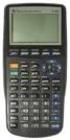 Stats on the TI 83 and TI 84 Calculator Entering the sample values STAT button Left bracket { Right bracket } Store (STO) List L1 Comma Enter Example: Sample data are {5, 10, 15, 20} 1. Press 2 ND and
How Does My TI-84 Do That
 How Does My TI-84 Do That A guide to using the TI-84 for statistics Austin Peay State University Clarksville, Tennessee How Does My TI-84 Do That A guide to using the TI-84 for statistics Table of Contents
USING A TI-83 OR TI-84 SERIES GRAPHING CALCULATOR IN AN INTRODUCTORY STATISTICS CLASS
 USING A TI-83 OR TI-84 SERIES GRAPHING CALCULATOR IN AN INTRODUCTORY STATISTICS CLASS W. SCOTT STREET, IV DEPARTMENT OF STATISTICAL SCIENCES & OPERATIONS RESEARCH VIRGINIA COMMONWEALTH UNIVERSITY Table
2 Describing, Exploring, and
 2 Describing, Exploring, and Comparing Data This chapter introduces the graphical plotting and summary statistics capabilities of the TI- 83 Plus. First row keys like \ R (67$73/276 are used to obtain
Organizing Topic: Data Analysis
 Organizing Topic: Data Analysis Mathematical Goals: Students will analyze and interpret univariate data using measures of central tendency and dispersion. Students will calculate the z-scores for data.
Getting to know your TI-83
 Calculator Activity Intro Getting to know your TI-83 Press ON to begin using calculator.to stop, press 2 nd ON. To darken the screen, press 2 nd alternately. To lighten the screen, press nd 2 alternately.
Engineering Problem Solving and Excel. EGN 1006 Introduction to Engineering
 Engineering Problem Solving and Excel EGN 1006 Introduction to Engineering Mathematical Solution Procedures Commonly Used in Engineering Analysis Data Analysis Techniques (Statistics) Curve Fitting techniques
Academic Support Center. Using the TI-83/84+ Graphing Calculator PART II
 Academic Support Center Using the TI-83/84+ Graphing Calculator PART II Designed and Prepared by The Academic Support Center Revised June 2012 1 Using the Graphing Calculator (TI-83+ or TI-84+) Table of
Using Your TI-89 in Elementary Statistics
 Using Your TI-89 in Elementary Statistics Level of Handout: Target: Intermediate users of the TI-89. If you are a new user, pair up with someone in the class that is a bit familiar with the TI-89. You
Guide for Texas Instruments TI-83, TI-83 Plus, or TI-84 Plus Graphing Calculator
 Guide for Texas Instruments TI-83, TI-83 Plus, or TI-84 Plus Graphing Calculator This Guide is designed to offer step-by-step instruction for using your TI-83, TI-83 Plus, or TI-84 Plus graphing calculator
Pre-Calculus Graphing Calculator Handbook
 Pre-Calculus Graphing Calculator Handbook I. Graphing Functions A. Button for Functions This button is used to enter any function to be graphed. You can enter up to 10 different functions at a time. Use
The right edge of the box is the third quartile, Q 3, which is the median of the data values above the median. Maximum Median
 CONDENSED LESSON 2.1 Box Plots In this lesson you will create and interpret box plots for sets of data use the interquartile range (IQR) to identify potential outliers and graph them on a modified box
Introduction to Statistics Using the TI-83 Graphing Calculator. Dr. Robert Knight
 Introduction to Statistics Using the TI-83 Graphing Calculator By Dr. Robert Knight This document is a working text that is designed specifically for the course of Introductory Statistics that I teach.
Normal Probability Distribution
 Normal Probability Distribution The Normal Distribution functions: #1: normalpdf pdf = Probability Density Function This function returns the probability of a single value of the random variable x. Use
A Correlation of. to the. South Carolina Data Analysis and Probability Standards
 A Correlation of to the South Carolina Data Analysis and Probability Standards INTRODUCTION This document demonstrates how Stats in Your World 2012 meets the indicators of the South Carolina Academic Standards
Solution Let us regress percentage of games versus total payroll.
 Assignment 3, MATH 2560, Due November 16th Question 1: all graphs and calculations have to be done using the computer The following table gives the 1999 payroll (rounded to the nearest million dolars)
SPSS Manual for Introductory Applied Statistics: A Variable Approach
 SPSS Manual for Introductory Applied Statistics: A Variable Approach John Gabrosek Department of Statistics Grand Valley State University Allendale, MI USA August 2013 2 Copyright 2013 John Gabrosek. All
I. Turn it on: Press É
 Graphing Calculator Guide for the TI-83/84 Plus The following pages describe how to use the calculator to graph functions, use some of the matrix menu, use scientific notation, and other various keys.
GeoGebra Statistics and Probability
 GeoGebra Statistics and Probability Project Maths Development Team 2013 www.projectmaths.ie Page 1 of 24 Index Activity Topic Page 1 Introduction GeoGebra Statistics 3 2 To calculate the Sum, Mean, Count,
Exercise 1.12 (Pg. 22-23)
 Individuals: The objects that are described by a set of data. They may be people, animals, things, etc. (Also referred to as Cases or Records) Variables: The characteristics recorded about each individual.
Chapter 4. Probability Distributions
 Chapter 4 Probability Distributions Lesson 4-1/4-2 Random Variable Probability Distributions This chapter will deal the construction of probability distribution. By combining the methods of descriptive
Intro to Excel spreadsheets
 Intro to Excel spreadsheets What are the objectives of this document? The objectives of document are: 1. Familiarize you with what a spreadsheet is, how it works, and what its capabilities are; 2. Using
Introduction to the Graphing Calculator
 Unit 0 Introduction to the Graphing Calculator Intermediate Algebra Update 2/06/06 Unit 0 Activity 1: Introduction to Computation on a Graphing Calculator Why: As technology becomes integrated into all
Statistics Revision Sheet Question 6 of Paper 2
 Statistics Revision Sheet Question 6 of Paper The Statistics question is concerned mainly with the following terms. The Mean and the Median and are two ways of measuring the average. sumof values no. of
Descriptive Statistics
 Y520 Robert S Michael Goal: Learn to calculate indicators and construct graphs that summarize and describe a large quantity of values. Using the textbook readings and other resources listed on the web
The Normal Distribution
 Chapter 6 The Normal Distribution 6.1 The Normal Distribution 1 6.1.1 Student Learning Objectives By the end of this chapter, the student should be able to: Recognize the normal probability distribution
Bowerman, O'Connell, Aitken Schermer, & Adcock, Business Statistics in Practice, Canadian edition
 Bowerman, O'Connell, Aitken Schermer, & Adcock, Business Statistics in Practice, Canadian edition Online Learning Centre Technology Step-by-Step - Excel Microsoft Excel is a spreadsheet software application
0 Introduction to Data Analysis Using an Excel Spreadsheet
 Experiment 0 Introduction to Data Analysis Using an Excel Spreadsheet I. Purpose The purpose of this introductory lab is to teach you a few basic things about how to use an EXCEL 2010 spreadsheet to do
BNG 202 Biomechanics Lab. Descriptive statistics and probability distributions I
 BNG 202 Biomechanics Lab Descriptive statistics and probability distributions I Overview The overall goal of this short course in statistics is to provide an introduction to descriptive and inferential
Scatter Plot, Correlation, and Regression on the TI-83/84
 Scatter Plot, Correlation, and Regression on the TI-83/84 Summary: When you have a set of (x,y) data points and want to find the best equation to describe them, you are performing a regression. This page
You buy a TV for $1000 and pay it off with $100 every week. The table below shows the amount of money you sll owe every week. Week 1 2 3 4 5 6 7 8 9
 Warm Up: You buy a TV for $1000 and pay it off with $100 every week. The table below shows the amount of money you sll owe every week Week 1 2 3 4 5 6 7 8 9 Money Owed 900 800 700 600 500 400 300 200 100
AP STATISTICS REVIEW (YMS Chapters 1-8)
 AP STATISTICS REVIEW (YMS Chapters 1-8) Exploring Data (Chapter 1) Categorical Data nominal scale, names e.g. male/female or eye color or breeds of dogs Quantitative Data rational scale (can +,,, with
Using SPSS, Chapter 2: Descriptive Statistics
 1 Using SPSS, Chapter 2: Descriptive Statistics Chapters 2.1 & 2.2 Descriptive Statistics 2 Mean, Standard Deviation, Variance, Range, Minimum, Maximum 2 Mean, Median, Mode, Standard Deviation, Variance,
The Effects of Atmospheric Conditions on Pitchers
 The Effects of Atmospheric Conditions on Rodney Paul Syracuse University Matt Filippi Syracuse University Greg Ackerman Syracuse University Zack Albright Syracuse University Andrew Weinbach Coastal Carolina
HISTOGRAMS, CUMULATIVE FREQUENCY AND BOX PLOTS
 Mathematics Revision Guides Histograms, Cumulative Frequency and Box Plots Page 1 of 25 M.K. HOME TUITION Mathematics Revision Guides Level: GCSE Higher Tier HISTOGRAMS, CUMULATIVE FREQUENCY AND BOX PLOTS
6 3 The Standard Normal Distribution
 290 Chapter 6 The Normal Distribution Figure 6 5 Areas Under a Normal Distribution Curve 34.13% 34.13% 2.28% 13.59% 13.59% 2.28% 3 2 1 + 1 + 2 + 3 About 68% About 95% About 99.7% 6 3 The Distribution Since
STATS8: Introduction to Biostatistics. Data Exploration. Babak Shahbaba Department of Statistics, UCI
 STATS8: Introduction to Biostatistics Data Exploration Babak Shahbaba Department of Statistics, UCI Introduction After clearly defining the scientific problem, selecting a set of representative members
Center: Finding the Median. Median. Spread: Home on the Range. Center: Finding the Median (cont.)
 Center: Finding the Median When we think of a typical value, we usually look for the center of the distribution. For a unimodal, symmetric distribution, it s easy to find the center it s just the center
Calculator Notes for the TI-89, TI-92 Plus, and Voyage 200
 CHAPTER 1 Note 1A Reentry Calculator Notes for the TI-89, TI-92 Plus, and Voyage 200 If you want to do further calculation on a result you ve just found, and that result is the first number in the expression
Creating A Grade Sheet With Microsoft Excel
 Creating A Grade Sheet With Microsoft Excel Microsoft Excel serves as an excellent tool for tracking grades in your course. But its power is not limited to its ability to organize information in rows and
TI-Inspire manual 1. Instructions. Ti-Inspire for statistics. General Introduction
 TI-Inspire manual 1 General Introduction Instructions Ti-Inspire for statistics TI-Inspire manual 2 TI-Inspire manual 3 Press the On, Off button to go to Home page TI-Inspire manual 4 Use the to navigate
Statistics with List Editor Application for the TI-89 / TI-92 Plus
 Statistics with List Editor Application for the TI-89 / TI-92 Plus The Statistics with List Editor application (Stats/List Editor) adds inferential and more advanced statistics functionality to the TI-89
Bar Graphs and Dot Plots
 CONDENSED L E S S O N 1.1 Bar Graphs and Dot Plots In this lesson you will interpret and create a variety of graphs find some summary values for a data set draw conclusions about a data set based on graphs
Curriculum Map Statistics and Probability Honors (348) Saugus High School Saugus Public Schools 2009-2010
 Curriculum Map Statistics and Probability Honors (348) Saugus High School Saugus Public Schools 2009-2010 Week 1 Week 2 14.0 Students organize and describe distributions of data by using a number of different
Drawing a histogram using Excel
 Drawing a histogram using Excel STEP 1: Examine the data to decide how many class intervals you need and what the class boundaries should be. (In an assignment you may be told what class boundaries to
EXCEL Tutorial: How to use EXCEL for Graphs and Calculations.
 EXCEL Tutorial: How to use EXCEL for Graphs and Calculations. Excel is powerful tool and can make your life easier if you are proficient in using it. You will need to use Excel to complete most of your
Thursday, November 13: 6.1 Discrete Random Variables
 Thursday, November 13: 6.1 Discrete Random Variables Read 347 350 What is a random variable? Give some examples. What is a probability distribution? What is a discrete random variable? Give some examples.
Statistical Functions in Excel
 Statistical Functions in Excel There are many statistical functions in Excel. Moreover, there are other functions that are not specified as statistical functions that are helpful in some statistical analyses.
Statgraphics Getting started
 Statgraphics Getting started The aim of this exercise is to introduce you to some of the basic features of the Statgraphics software. Starting Statgraphics 1. Log in to your PC, using the usual procedure
Data Analysis Tools. Tools for Summarizing Data
 Data Analysis Tools This section of the notes is meant to introduce you to many of the tools that are provided by Excel under the Tools/Data Analysis menu item. If your computer does not have that tool
Below is a very brief tutorial on the basic capabilities of Excel. Refer to the Excel help files for more information.
 Excel Tutorial Below is a very brief tutorial on the basic capabilities of Excel. Refer to the Excel help files for more information. Working with Data Entering and Formatting Data Before entering data
Interpret Box-and-Whisker Plots. Make a box-and-whisker plot
 13.8 Interpret Box-and-Whisker Plots Before You made stem-and-leaf plots and histograms. Now You will make and interpret box-and-whisker plots. Why? So you can compare sets of scientific data, as in Ex.
ADD-INS: ENHANCING EXCEL
 CHAPTER 9 ADD-INS: ENHANCING EXCEL This chapter discusses the following topics: WHAT CAN AN ADD-IN DO? WHY USE AN ADD-IN (AND NOT JUST EXCEL MACROS/PROGRAMS)? ADD INS INSTALLED WITH EXCEL OTHER ADD-INS
SPSS Explore procedure
 SPSS Explore procedure One useful function in SPSS is the Explore procedure, which will produce histograms, boxplots, stem-and-leaf plots and extensive descriptive statistics. To run the Explore procedure,
Getting Started with Excel 2008. Table of Contents
 Table of Contents Elements of An Excel Document... 2 Resizing and Hiding Columns and Rows... 3 Using Panes to Create Spreadsheet Headers... 3 Using the AutoFill Command... 4 Using AutoFill for Sequences...
STT315 Chapter 4 Random Variables & Probability Distributions KM. Chapter 4.5, 6, 8 Probability Distributions for Continuous Random Variables
 Chapter 4.5, 6, 8 Probability Distributions for Continuous Random Variables Discrete vs. continuous random variables Examples of continuous distributions o Uniform o Exponential o Normal Recall: A random
Microsoft Excel Tutorial
 Microsoft Excel Tutorial by Dr. James E. Parks Department of Physics and Astronomy 401 Nielsen Physics Building The University of Tennessee Knoxville, Tennessee 37996-1200 Copyright August, 2000 by James
Texas Instruments BAII Plus Tutorial for Use with Fundamentals 11/e and Concise 5/e
 Texas Instruments BAII Plus Tutorial for Use with Fundamentals 11/e and Concise 5/e This tutorial was developed for use with Brigham and Houston s Fundamentals of Financial Management, 11/e and Concise,
Describing, Exploring, and Comparing Data
 24 Chapter 2. Describing, Exploring, and Comparing Data Chapter 2. Describing, Exploring, and Comparing Data There are many tools used in Statistics to visualize, summarize, and describe data. This chapter
SPSS: Getting Started. For Windows
 For Windows Updated: August 2012 Table of Contents Section 1: Overview... 3 1.1 Introduction to SPSS Tutorials... 3 1.2 Introduction to SPSS... 3 1.3 Overview of SPSS for Windows... 3 Section 2: Entering
Introduction to Statistical Computing in Microsoft Excel By Hector D. Flores; [email protected], and Dr. J.A. Dobelman
 Introduction to Statistical Computing in Microsoft Excel By Hector D. Flores; [email protected], and Dr. J.A. Dobelman Statistics lab will be mainly focused on applying what you have learned in class with
An Introduction to SPSS. Workshop Session conducted by: Dr. Cyndi Garvan Grace-Anne Jackman
 An Introduction to SPSS Workshop Session conducted by: Dr. Cyndi Garvan Grace-Anne Jackman Topics to be Covered Starting and Entering SPSS Main Features of SPSS Entering and Saving Data in SPSS Importing
MBA 611 STATISTICS AND QUANTITATIVE METHODS
 MBA 611 STATISTICS AND QUANTITATIVE METHODS Part I. Review of Basic Statistics (Chapters 1-11) A. Introduction (Chapter 1) Uncertainty: Decisions are often based on incomplete information from uncertain
Exploratory data analysis (Chapter 2) Fall 2011
 Exploratory data analysis (Chapter 2) Fall 2011 Data Examples Example 1: Survey Data 1 Data collected from a Stat 371 class in Fall 2005 2 They answered questions about their: gender, major, year in school,
2015 NFL Annual Selection Meeting R P O CLUB PLAYER POS COLLEGE ROUND 2
 ROUND 2 2 1 33 TENNESSEE 2 2 34 TAMPA BAY 2 3 35 OAKLAND 2 4 36 JACKSONVILLE 2 5 37 NEW YORK JETS 2 6 38 WASHINGTON 2 7 39 CHICAGO 2 8 40 NEW YORK GIANTS 2 9 41 ST. LOUIS 2 10 42 ATLANTA 2 11 43 CLEVELAND
Business Statistics. Successful completion of Introductory and/or Intermediate Algebra courses is recommended before taking Business Statistics.
 Business Course Text Bowerman, Bruce L., Richard T. O'Connell, J. B. Orris, and Dawn C. Porter. Essentials of Business, 2nd edition, McGraw-Hill/Irwin, 2008, ISBN: 978-0-07-331988-9. Required Computing
Probability Distributions
 CHAPTER 5 Probability Distributions CHAPTER OUTLINE 5.1 Probability Distribution of a Discrete Random Variable 5.2 Mean and Standard Deviation of a Probability Distribution 5.3 The Binomial Distribution
Data exploration with Microsoft Excel: univariate analysis
 Data exploration with Microsoft Excel: univariate analysis Contents 1 Introduction... 1 2 Exploring a variable s frequency distribution... 2 3 Calculating measures of central tendency... 16 4 Calculating
Statistics with the TI-86
 Statistics with the TI-86 The TI-86 Manual, besides coming with your calculator, can be downloaded or read in a browser in Adobe Acrobat Reader form from http://education.ti.com/product/pdf/gb/ti86book.pdf.
SAMPLE. Computer Algebra System (Classpad 330 using OS 3 or above) Application selector. Icolns that access working zones. Icon panel (Master toolbar)
 A P P E N D I X B Computer Algebra System (Classpad 330 using OS 3 or above) B.1 Introduction For reference material on basic operations of the calculator, refer to the free downloadable documentation
Fairfield Public Schools
 Mathematics Fairfield Public Schools AP Statistics AP Statistics BOE Approved 04/08/2014 1 AP STATISTICS Critical Areas of Focus AP Statistics is a rigorous course that offers advanced students an opportunity
WEEK #22: PDFs and CDFs, Measures of Center and Spread
 WEEK #22: PDFs and CDFs, Measures of Center and Spread Goals: Explore the effect of independent events in probability calculations. Present a number of ways to represent probability distributions. Textbook
Copyright 2013 by Laura Schultz. All rights reserved. Page 1 of 7
 Using Your TI-83/84/89 Calculator: Linear Correlation and Regression Dr. Laura Schultz Statistics I This handout describes how to use your calculator for various linear correlation and regression applications.
How To Run Statistical Tests in Excel
 How To Run Statistical Tests in Excel Microsoft Excel is your best tool for storing and manipulating data, calculating basic descriptive statistics such as means and standard deviations, and conducting
Probability and Statistics Vocabulary List (Definitions for Middle School Teachers)
 Probability and Statistics Vocabulary List (Definitions for Middle School Teachers) B Bar graph a diagram representing the frequency distribution for nominal or discrete data. It consists of a sequence
business statistics using Excel OXFORD UNIVERSITY PRESS Glyn Davis & Branko Pecar
 business statistics using Excel Glyn Davis & Branko Pecar OXFORD UNIVERSITY PRESS Detailed contents Introduction to Microsoft Excel 2003 Overview Learning Objectives 1.1 Introduction to Microsoft Excel
For another way to generate recursive sequences, see Calculator Note 1D.
 !"# If you want to do further calculation on a result you ve just found, and that result is the first number in the expression you now want to evaluate, you can simply continue the expression. For example,
Expression. Variable Equation Polynomial Monomial Add. Area. Volume Surface Space Length Width. Probability. Chance Random Likely Possibility Odds
 Isosceles Triangle Congruent Leg Side Expression Equation Polynomial Monomial Radical Square Root Check Times Itself Function Relation One Domain Range Area Volume Surface Space Length Width Quantitative
Chapter 3 RANDOM VARIATE GENERATION
 Chapter 3 RANDOM VARIATE GENERATION In order to do a Monte Carlo simulation either by hand or by computer, techniques must be developed for generating values of random variables having known distributions.
TIPS FOR DOING STATISTICS IN EXCEL
 TIPS FOR DOING STATISTICS IN EXCEL Before you begin, make sure that you have the DATA ANALYSIS pack running on your machine. It comes with Excel. Here s how to check if you have it, and what to do if you
A Picture Really Is Worth a Thousand Words
 4 A Picture Really Is Worth a Thousand Words Difficulty Scale (pretty easy, but not a cinch) What you ll learn about in this chapter Why a picture is really worth a thousand words How to create a histogram
IBM SPSS Statistics for Beginners for Windows
 ISS, NEWCASTLE UNIVERSITY IBM SPSS Statistics for Beginners for Windows A Training Manual for Beginners Dr. S. T. Kometa A Training Manual for Beginners Contents 1 Aims and Objectives... 3 1.1 Learning
Using Excel for Analyzing Survey Questionnaires Jennifer Leahy
 University of Wisconsin-Extension Cooperative Extension Madison, Wisconsin PD &E Program Development & Evaluation Using Excel for Analyzing Survey Questionnaires Jennifer Leahy G3658-14 Introduction You
Introduction to SPSS 16.0
 Introduction to SPSS 16.0 Edited by Emily Blumenthal Center for Social Science Computation and Research 110 Savery Hall University of Washington Seattle, WA 98195 USA (206) 543-8110 November 2010 http://julius.csscr.washington.edu/pdf/spss.pdf
SECTION 2-1: OVERVIEW SECTION 2-2: FREQUENCY DISTRIBUTIONS
 SECTION 2-1: OVERVIEW Chapter 2 Describing, Exploring and Comparing Data 19 In this chapter, we will use the capabilities of Excel to help us look more carefully at sets of data. We can do this by re-organizing
Chapter 1: Exploring Data
 Chapter 1: Exploring Data Chapter 1 Review 1. As part of survey of college students a researcher is interested in the variable class standing. She records a 1 if the student is a freshman, a 2 if the student
Common Tools for Displaying and Communicating Data for Process Improvement
 Common Tools for Displaying and Communicating Data for Process Improvement Packet includes: Tool Use Page # Box and Whisker Plot Check Sheet Control Chart Histogram Pareto Diagram Run Chart Scatter Plot
Data Analysis. Using Excel. Jeffrey L. Rummel. BBA Seminar. Data in Excel. Excel Calculations of Descriptive Statistics. Single Variable Graphs
 Using Excel Jeffrey L. Rummel Emory University Goizueta Business School BBA Seminar Jeffrey L. Rummel BBA Seminar 1 / 54 Excel Calculations of Descriptive Statistics Single Variable Graphs Relationships
Our goal, as journalists, is to look for some patterns and trends in this information.
 Microsoft Excel: MLB Payrolls exercise This is a beginner exercise for learning some of the most commonly used formulas and functions in Excel. It uses an Excel spreadsheet called MLB Payrolls 2009_2011
Math Tools Cell Phone Plans
 NATIONAL PARTNERSHIP FOR QUALITY AFTERSCHOOL LEARNING www.sedl.org/afterschool/toolkits Math Tools Cell Phone Plans..............................................................................................
Descriptive statistics Statistical inference statistical inference, statistical induction and inferential statistics
 Descriptive statistics is the discipline of quantitatively describing the main features of a collection of data. Descriptive statistics are distinguished from inferential statistics (or inductive statistics),
Interpreting Data in Normal Distributions
 Interpreting Data in Normal Distributions This curve is kind of a big deal. It shows the distribution of a set of test scores, the results of rolling a die a million times, the heights of people on Earth,
 T O P I C 1 2 Techniques and tools for data analysis Preview Introduction In chapter 3 of Statistics In A Day different combinations of numbers and types of variables are presented. We go through these
X: 0 1 2 3 4 5 6 7 8 9 Probability: 0.061 0.154 0.228 0.229 0.173 0.094 0.041 0.015 0.004 0.001
 Tuesday, January 17: 6.1 Discrete Random Variables Read 341 344 What is a random variable? Give some examples. What is a probability distribution? What is a discrete random variable? Give some examples.
3: Summary Statistics
 3: Summary Statistics Notation Let s start by introducing some notation. Consider the following small data set: 4 5 30 50 8 7 4 5 The symbol n represents the sample size (n = 0). The capital letter X denotes
SPSS Workbook 1 Data Entry : Questionnaire Data
 TEESSIDE UNIVERSITY SCHOOL OF HEALTH & SOCIAL CARE SPSS Workbook 1 Data Entry : Questionnaire Data Prepared by: Sylvia Storey [email protected] SPSS data entry 1 This workbook is designed to introduce
Universal Simple Control, USC-1
 Universal Simple Control, USC-1 Data and Event Logging with the USB Flash Drive DATA-PAK The USC-1 universal simple voltage regulator control uses a flash drive to store data. Then a propriety Data and