
Maintenance and Troubleshooting Guide Series 400 Terminal
|
|
|
- Alexander Pierce
- 10 years ago
- Views:
Transcription
1 Maintenance and Troubleshooting Guide Series 400 Terminal This document provides information on maintaining the Series 400 terminal and resolving any user problems. Document Part Number: Document Revision: B

2 The information in this document is subject to change without notice and should not be construed as a commitment by Kronos Incorporated. Kronos Incorporated assumes no responsibility for any errors that may appear in this manual. This document or any part thereof may not be reproduced in any form without the written permission of Kronos Incorporated. All rights reserved. Copyright 1995, CardSaver, Datakeeper, Datakeeper Central, Gatekeeper, Gatekeeper Central, Imagekeeper, Jobkeeper, Jobkeeper Central, KeepTrac, Kronos, the Kronos logo, ShopTrac, the ShopTrac logo, Solution In A Box, Start.Time, TeleTime, Timekeeper, Timekeeper Central, TimeMaker, and VisionWare are registered trademarks of Kronos Incorporated. CommLink, Comm.Mgr, DKC/Datalink, HyperFind, Labor Activity Manager, Labor Plus, Smart Scheduler, Starter Series, Start.Labor, Start.Quality, Start.WIP, Tempo, the Tempo logo, and Timekeeper Web are trademarks of Kronos Incorporated. AS and AS400 are trademarks, and IBM is a registered trademark of International Business Machines Corporation. INFORMIX-OnLine is a registered trademark of Informix Software, Inc. INTERSOLV is a registered trademark of MERANT Solutions Inc. Java and all Java-based trademarks and logos are trademarks or registered trademarks of Sun Microsystems, Inc. in the United States and other countries. Microsoft, Windows, and Windows NT are registered trademarks of Microsoft Corporation. ORACLE is a registered trademark of Oracle Corporation. Sybase SQLServer is a trademark of Sybase, Incorporated. UNIX is a registered trademark in the United States and other countries, licensed exclusively through X/Open Company Ltd. Velcro is a registered trademark of Velcro Industries B.V. VMS is a registered trademark of Compaq. When using and applying the information generated by Kronos products, customers should ensure that they comply with the applicable requirements of federal and state law, such as the Fair Labor Standards Act. Published by Kronos Incorporated 400 Fifth Avenue, Waltham, Massachusetts Phone: , Fax: Kronos Incorporated Global Support: HELP ( ) For a complete list of the international subsidiaries, see the following Kronos Incorporated Web page: Document Revision History Document Revision Product Version Release Date A November 1995 B May 1999

3 Contents About This Guide Guide Organization...viii Conventions... ix Abbreviations and Terms... x Related Documents...xii Chapter 1: Introduction The Series 400 Terminal and Its Parts Mainboard Available Options The Field Replaceable Unit and Options Maintenance Basics Tools Required for Maintenance Safety Considerations Cleaning the Terminal Before You Call Global Support Chapter 2: Preventive Maintenance The Lithium Battery Determining the Lithium Battery s Life Replacing the Lithium Battery The Lead-Acid Battery Testing the Lead-Acid Battery Replacing the Lead-Acid Battery Verifying the Integrity of the Network

4 Contents Chapter 3: Servicing the Series 400 Terminal Handling Static-Sensitive Components Saving and Restoring Data Terminal Service Utility SL400 for DOS Programming the Series 400 Terminal Removing and Replacing Parts of the Terminal Removing the Battery Backup Board Replacing the Battery Backup Board Removing the I/O Board Replacing the I/O Board Removing the Mainboard Replacing the Mainboard Removing the Keypad Replacing the Keypad Removing the Keypad Membrane Replacing the Keypad Membrane Removing the LCD Replacing the LCD Removing the Reader Cover Replacing the Reader Cover Upgrading Memory RAM Upgrade Boot-EPROM Upgrade Chapter 4: Troubleshooting Terminal Hardware Failures Power-Up Failures Badge-Reading Problems Keypad Problems Lead-Acid Battery Backup Failures Communications Problems Serial Troubleshooting Ethernet Troubleshooting iv Kronos Incorporated

5 Contents Token Ring Troubleshooting Chapter 5: Changing Terminal Firmware Using the Correct Versions About the Flash Utility About the Boot-EPROM About the Flash Application Program Softloading an Application with SL SL400 for Windows SL400 for DOS Chapter 6: Using Maintenance Mode Command Modes Overview Operating in Maintenance Mode Maintenance Mode Password Commands List Executing Commands Appendix A: Error and Status Messages Interpreting Error Messages...A-2 Error Messages...A-3 Status Messages...A-18 Appendix B: Series 400 Terminal Part Numbers Index Part Numbers... B-2 Series 400 Terminal Maintenance and Troubleshooting Guide v

6 Contents vi Kronos Incorporated

7 About This Guide This guide is specifically written for Kronos Customer Service Representatives and all others who install, maintain, and service the Series 400 terminal. The supported features for the Series 400 terminals vary among the applications. You should check your application documentation or with your sales representative to ensure that the application supports the features you need. This preface contains the following sections: Guide Organization Conventions Abbreviations and Terms Related Documents

8 About This Guide Guide Organization This guide contains the following information: Chapter 1, Introduction, provides information on the Series 400 terminal and its parts and optional boards. Some basic maintenance information is provided as well as a section for customers that explains what to do before calling Kronos Global Support. Chapter 2, Preventive Maintenance, provides information on performing preventive maintenance on the Series 400 terminal such as replacing the lithium and lead-acid batteries and verifying the integrity of the network. Chapter 3, Servicing the Series 400 Terminal, describes the procedures used to save and restore Series 400 terminal data and remove and replace parts of the terminal. It also provides information on handling static-sensitive components, and upgrading memory. Chapter 4, Troubleshooting, includes information on troubleshooting Series 400 terminal hardware and power-up failures, resolving badge-reading, keypad, and internal modem module problems, lead-acid battery failures, and communication problems. Chapter 5, Changing Terminal Firmware, describes how to use the SL400 utility to change Series 400 terminal firmware. Chapter 6, Using Maintenance Mode, describes how to use maintenance mode and provides a listing of the maintenance mode commands and procedures. Appendix A, Error and Status Messages, contains a listing of error and status messages, what they mean, and how to resolve the situations that cause them to appear on the Series 400 terminal. Appendix B, Series 400 Terminal Part Numbers, lists part numbers relative to the Series 400 terminal and its options. viii Kronos Incorporated

9 Conventions Conventions This guide uses the following text conventions: Convention Note Caution Warning bold File > Save italic user input Use Emphasizes a key point. Notifies you of potential damage to your data. Notifies you of potential danger to you or damage to the hardware you are using. Heed all warnings. Indicates an important term or phrase. Indicates a menu path. Select each item in sequence. In this example, File > Save means Select the File menu; then select the Save option on that menu. Indicates a variable or placeholder for information that you must specify. For example, filename.sql or password means that you must supply a specific file name or password. Italic also indicates a reference to another document. Indicates information that you must type exactly as shown. For example: Enter SuperUser for the user name. Series 400 Terminal Maintenance and Troubleshooting Guide ix

10 About This Guide Abbreviations and Terms The guide uses the following abbreviations and terms: Abbreviation AC AFT APS AWG BABT CCTV CE CRC CRT CSA DC DOS EEPROM EPROM FCC FIFO FRU I/O IKDE K KOP LCD LED MB OS Meaning alternating current Arbiter File Transfer Kronos Auxiliary Power Source American Wire Gauge British Approvals Board for Telecommunications closed circuit television Conformité Européene cyclical redundancy check cathode-ray tube Canadian Standards Association direct current disk operating system (for example, IBM PC-DOS) electrically erasable programmable read-only memory erasable programmable read-only memory Federal Communications Commission first in, first out RAM Buffer field replaceable unit input/output Imagekeeper Data Exchange software kilobyte of memory Kronos Options Package liquid crystal display light-emitting diode megabyte of memory operating system x Kronos Incorporated

11 Abbreviations and Terms Abbreviation PC PIN PROM RAM TCP/IP TKC UDP UL UPC VAC VDC Meaning personal computer (for example, IBM PC/XT/AT or PS/2) personal identification number programmable read-only memory random access memory Transmission Control Protocol/Internet Protocol Kronos Timekeeper Central software User Datagram Protocol Underwriter s Laboratory Universal Product Code volts alternating current volts direct current Series 400 Terminal Maintenance and Troubleshooting Guide xi

12 About This Guide Related Documents Additional information relating to the Series 400 terminal can be found in these other Kronos documents: Timekeeper Terminal Installation Guide (part number ) provides step-by-step instructions for installing the Series 400 terminal. Series 400 Terminal Configuration Guide (part number ) provides information on configuring operating parameters on the Series 400 terminal. The guide also includes a list and explanation of the procedures and steps that comprise these parameters, as well as configuration worksheets. Series 400 Terminal Host Sofware Interface Guide (part number ) provides information on configuring Series 400 terminals that interact with Kronos data collection and access control host applications. The guide also provides instructions configuring and communicating with Series 400 terminals that interact with host software other than Kronos applications. Timekeeper Terminal Supervisor s Reference (part number ) explains the Series 400 terminal supervisor s procedures and provides information on supervisor and guard modes. Timekeeper Terminal Quick Reference Card (part number ) details operating mode functions, including how they appear on the Series 400 terminal, and the appropriate responses to terminal prompts. The card also contains a list of error messages with their meanings and resolutions. Series 400 Terminal Hardware Options (various part numbers) explains available Series 400 terminal options in individual, stand-alone documents that contain product information as well as troubleshooting procedures and installation instructions. xii Kronos Incorporated

13 Chapter 1 Introduction The Series 400 terminal and the options associated with it are introduced in this chapter. Also provided is some basic maintenance information you should understand before you begin to service the terminal. A section specifically for customers is included on the things to do before calling Kronos Global Support and requesting a service call by a Customer Service Representative (CSR). This chapter contains the following sections: The Series 400 Terminal and Its Parts Maintenance Basics Before You Call Global Support
14 Chapter 1 Introduction The Series 400 Terminal and Its Parts Before you do any maintenance or troubleshooting of the Series 400 terminal, you should become familiar with its parts. You also should be familiar with the option boards that are available with the terminal. Mainboard Kronos provides two types of mainboards for the Series 400 terminal: the 186 board and the 177 board. Some of the connections on the 177 board differ from the connections on the 186 board. The following figure shows in detail the 186 mainboard and its connector locations: 1-2 Kronos Incorporated

15 The Series 400 Terminal and Its Parts Legend 1 LCD cable connector (P2) 2 Keypad cable connector (P1) 3 Ethernet option connector (P3) 4 LEDs (mounted on back side of board) 5 Modem, Token Ring, or twinaxial option connector (J2) 6 RS-485 termination/biasing switch (SW1) 7 Not used and not on all mainboards (P4) 8 Optics assembly (OP1) (mounted on back side of board beneath metal optics shield) 9 RS-232/RS-485 configuration switch (SW2) 10 I/O board cable connector (P5) 11 Fuse (F1) 12 Internal Beeper (BPR1) 13 I/O port (TB1) 14 Communications port (TB2) 15 Battery backup cable connector (TB3) 16 Lithium battery (BATT1) 17 DC wall supply connector (J1 or J3) The mainboard comes in different RAM sizes: 128K, 256K, 512K, and 1MB. For the part numbers for the mainboards, see Appendix B, Series 400 Terminal Part Numbers. Available Options You can add several options that plug into the mainboard, such as an I/O board, a battery backup board, the Ethernet option board, the Token Ring interface board, a modem option board, the auxiliary power source, and the twinaxial interface option. The following sections describe these options. Series 400 Terminal Maintenance and Troubleshooting Guide 1-3

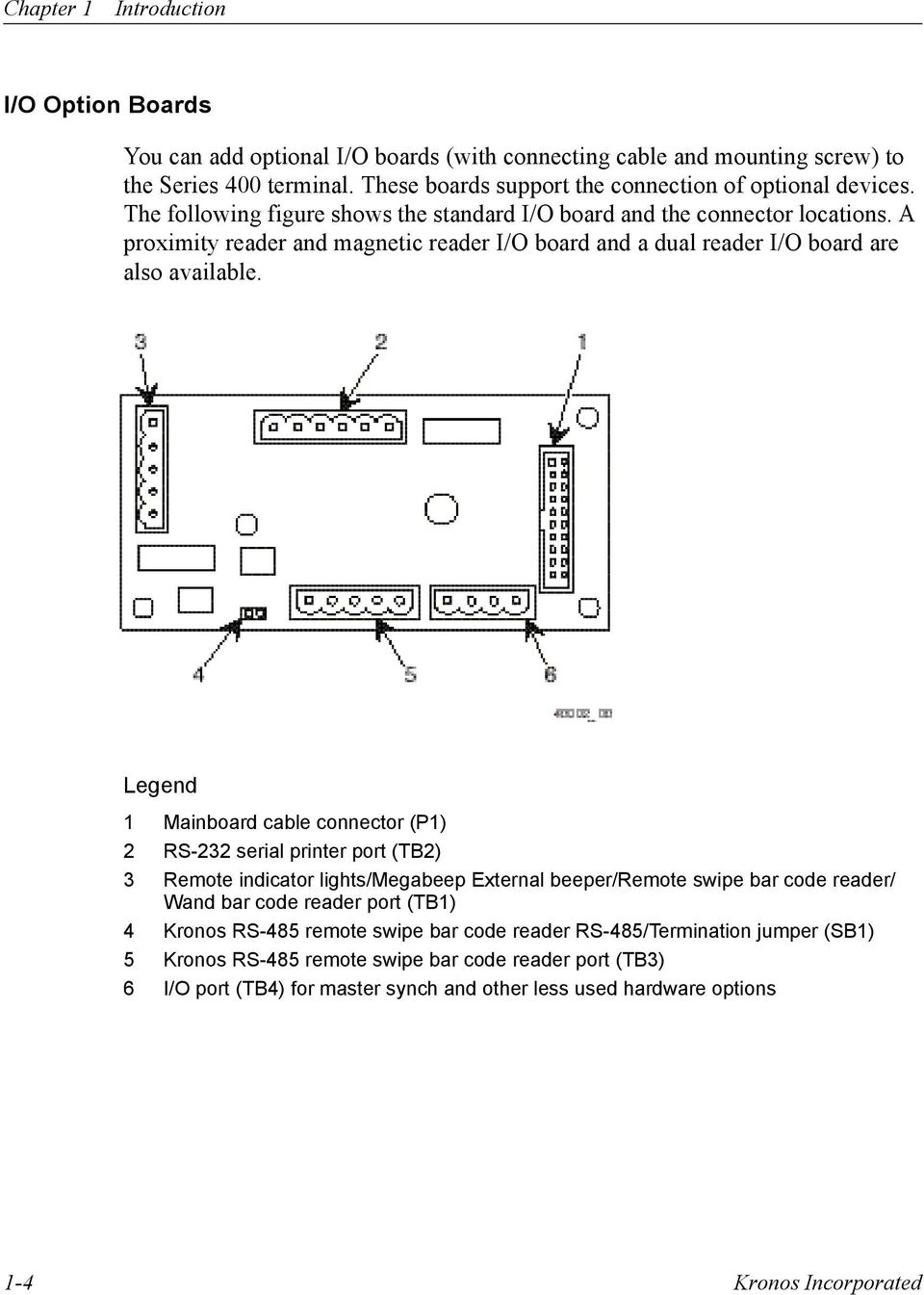
16 Chapter 1 Introduction I/O Option Boards You can add optional I/O boards (with connecting cable and mounting screw) to the Series 400 terminal. These boards support the connection of optional devices. The following figure shows the standard I/O board and the connector locations. A proximity reader and magnetic reader I/O board and a dual reader I/O board are also available. Legend 1 Mainboard cable connector (P1) 2 RS-232 serial printer port (TB2) 3 Remote indicator lights/megabeep External beeper/remote swipe bar code reader/ Wand bar code reader port (TB1) 4 Kronos RS-485 remote swipe bar code reader RS-485/Termination jumper (SB1) 5 Kronos RS-485 remote swipe bar code reader port (TB3) 6 I/O port (TB4) for master synch and other less used hardware options 1-4 Kronos Incorporated
17 The Series 400 Terminal and Its Parts Battery Backup Board You can install an optional 12 VDC lead-acid battery and battery backup board in the Series 400 terminal to provide it with up to 12 hours of full functionality. There is another battery backup board that provides auxiliary power for the proximity reader. The following figure shows the battery backup board and the cable locations: Legend 1 Mainboard cable (INPUT) 2 Fuse (F1) 3 Battery cable (BATT) Note Battery backup board cables are soldered in. Series 400 Terminal Maintenance and Troubleshooting Guide 1-5

18 Chapter 1 Introduction Ethernet Option Board You can install an optional Ethernet board in the Series 400 terminal. This option board provides a way for Series 400 terminals and a host to connect to a standard Ethernet network. TCP/IP UDP is the network protocol used for sending and receiving messages. The following figure illustrates the Ethernet option board and its connectors: Legend 1 Mainboard connector (J1) 2 Flash 3 Output jack (P1) 4 ST-NIC chip 1-6 Kronos Incorporated

19 The Series 400 Terminal and Its Parts Token Ring Board You can install an optional Token Ring board in the Series 400 terminal. This board provides direct connection from Series 400 terminals to the AS/400 Token Ring network. The following figure illustrates the Token Ring board: Legend Volt supply cable (P6) 2 DB9 output (P1) 3 Twisted pair adapter output (P2) 4 Mainboard connector (P3) 5 Status LEDs Series 400 Terminal Maintenance and Troubleshooting Guide 1-7

20 Chapter 1 Introduction Modem Option Board You can install an optional modem board in the Series 400 terminal. Two modem boards are available: the 2400 option board and the high-speed (14.4Kbps) option board. Each of these option boards makes it possible to establish communications over telephone lines between the host and the Series 400 terminal. The following figure illustrates the high-speed modem option board and its connectors: Legend 1 RJ-11 jack for the telco cable 2 Mainboard connector (P1) 1-8 Kronos Incorporated

21 The Series 400 Terminal and Its Parts Auxiliary Power Source Board An optional auxiliary power source board (part number ) is available for use with the Series 400 terminal. This board is a stand-alone power supply that provides DC power to the Series 400 terminal. It is shipped with two 12 volt, 2.2 ampere hour lead-acid batteries. This board comes in a separate metal box and does not plug into the mainboard as the other option boards do. The following figure illustrates the auxiliary power source board and connectors: Legend 1 Negative (-) battery terminals (P3) 2 Positive (+) battery terminals (P1) 3 AC line adapter filter 4 Output jack (P2) Series 400 Terminal Maintenance and Troubleshooting Guide 1-9
22 Chapter 1 Introduction Twinaxial Interface Board You can install an optional twinaxial interface board in the Series 400 terminal. The twinaxial interface allows the Series 400 terminal to be directly connected to, and communicate with, an AS/400 host computer running an AS/400-based Kronos application. The following figure illustrates the twinaxial interface board and its connectors: Legend 1 Twinaxial interface connector (4 pins) 2 Green LED 3 Yellow LED 4 7-pin connector 5 Operational selection jumper (3 pins) 6 8-position DIP switches 1-10 Kronos Incorporated
23 The Series 400 Terminal and Its Parts The Field Replaceable Unit and Options You can send the field replaceable unit (FRU) that is mounted on the wall back to Kronos Incorporated for servicing. The FRU consists of the front cover and the associated mainboard. However, a Kronos CSR can remove and replace some of the components of the FRU at the customer site. In addition, the CSR can add options as needed to the mainboard. Following are elements of the FRU and some of the available options: Auxiliary power source Battery backup board Chassis assembly Cover assembly DC wall supply Ethernet option board Front covers I/O board Keypad Keypad membrane Liquid crystal display (LCD) Lead-acid battery Lithium battery Mainboards (128K, 256K, 512K, and 1MB RAM) Reader cover Token Ring interface board Twinaxial interface board 2400 baud or 14.4Kbps modem option board For part numbers for the above, see Appendix B, Series 400 Terminal Part Numbers. For instructions on removing and replacing the batteries, see Chapter 2, Preventive Maintenance. Series 400 Terminal Maintenance and Troubleshooting Guide 1-11
24 Chapter 1 Introduction Maintenance Basics This section describes the tools you will need to service the terminal, safety considerations, and instructions for cleaning the terminal. Tools Required for Maintenance You need the following tools to service and maintain the Series 400 terminal: Screwdrivers: Phillips #0, #1, #2; and straight blade 1/8 inch and 1/4 inch 5-32 security-head Allen wrench A nonmetallic pointed tool Battery Backup Kit Soft, clean, lint-free cleaning cloths Spray bottle of general-purpose glass cleaner Isopropyl alcohol Kronos Field Service Anti-Static Kit Wire cutters/strippers Safety Considerations The Series 400 terminal is approved by Underwriter s Laboratories (UL), the Canadian Standards Association (CSA), and the Federal Communications Commission (FCC), and ships from the factory in a safe condition. The 14.4Kbps modem option and other option boards have also been approved by the British Approvals Board for Telecommunications (BABT) and have been granted the Conformité Européene (CE) mark. For more information, see the documentation for the specific options. This guide contains information that must be followed to ensure safe operation and maintenance of the terminal. Failure to follow a warning statement can result in personal injury Kronos Incorporated
25 Maintenance Basics Cleaning the Terminal It is important to keep the Series 400 terminal case clean in order to prevent dirt and grease from obscuring the terminal s LCD display or from possibly getting inside the badge reader. Follow these steps to clean the Series 400 terminal s case and keyboard: 1. Using a soft, lint-free cloth, and a spray bottle of glass cleaner, clean the outside of the Series 400 terminal s cover and case. Do not spray the cleaner inside the terminal s case. (When cleaning the terminal s case, spray the cleaner on the cloth do not spray the cleaner directly on the terminal.) 2. Clean the polycarbonate lens that covers the terminal s display. Caution Do not use steel wool, or any other abrasives, or solvents such as alcohol, benzene, or acetone, as they can damage the terminal. Series 400 Terminal Maintenance and Troubleshooting Guide 1-13
26 Chapter 1 Introduction Before You Call Global Support Customers sometimes incur unnecessary costs when they call Kronos Global Support and request that a CSR come out to their site before checking some basic things at the Series 400 terminal. If you are having a problem, do the following: Check the physical connections; for example, check the LED lights and the link lines. Check the connections of any plug-ins. Verify the terminal configuration; for example, is the terminal s password and IP address correct? Also, verify the procedures you used to configure the terminal. Check the network connection; that is, check the link on the port that the terminal is connected to at the hub or switch and verify the circuit and wiring. Ping the terminal from the host PC if your terminal has a Token Ring or Ethernet board. If you can ping the terminal, but it still won t collect or update data, check to see if it is a duplicate IP address problem. To do this for a terminal with an Ethernet board, unplug the Ethernet cable from the back of the terminal. If you can still ping the terminal, another device shares the IP address. For information on how to ping the terminal, see the section Ping Utility in Chapter 4. If you cannot ping the terminal, the PC host may be communicating to the terminal through a switch or some other device. Caution If you change anything, and the problem still exists, go back to the original situation. Do not try to change something else at that point, because you may introduce another problem. If you are still having problems after trying all of the above, contact Kronos Global Support by calling HELP ( ), or visit Kronos Incorporated
27 Chapter 2 Preventive Maintenance The Series 400 terminal requires periodic preventive maintenance to ensure trouble-free operation. Kronos recommends that the terminal receive preventive maintenance once a year. This chapter contains the following sections: The Lithium Battery The Lead-Acid Battery Verifying the Integrity of the Network
28 Chapter 2 Preventive Maintenance The Lithium Battery Each Series 400 terminal is equipped with a 3 VDC lithium battery that protects data stored in the terminal s RAM. The battery also powers the terminal s internal real-time clock if external power is lost. You cannot read badges or make keypad entries while the terminal is operating on lithium battery backup. Each time you restore external power to the Series 400 terminal after it has been operating on lithium battery backup, the terminal updates the amount of time the terminal has been operating on battery backup and sizes the installed RAM. The terminal displays the message LOW LITHIUM BATTERY if the battery is within 14 days of its limit. Determining the Lithium Battery s Life You should replace the Series 400 terminal s lithium battery if one of the following conditions exist: The battery is more than 3 years old. The battery is at or near its maximum usage limit. The terminal displays the message LOW LITHIUM BATTERY. The length of time the 3 VDC lithium battery can supply backup power depends on the Series 400 terminal s RAM size. The following table presents the lithium battery life for each of the Series 400 terminals: RAM Size Lithium Battery Life days 256K 60 days 512K 30 days 1024K 15 days When performing preventive maintenance on the Series 400 terminal, you should determine the remaining life of the lithium battery. Replace the 3 VDC lithium battery if it has a backup capability of 14 days or less. 2-2 Kronos Incorporated
29 The Lithium Battery Follow these steps to determine the remaining life of the Series 400 terminal s lithium battery: 1. Swipe a supervisor badge or maintenance badge through the terminal s integral swipe reader. 2. In response to the PASSWORD prompt, enter a valid supervisor password. The terminal now operates in supervisor mode. 3. Press the * key. In response to the prompt, type 41 at the keypad and press Enter. The terminal displays the battery life in days. If the lithium battery has a life of 14 days or less, then replace the battery by following the instructions in the section, Replacing the Lithium Battery. 4. Press any key to exit command Press the * key. In response to the prompt, type 0 and press Enter to exit supervisor mode and return to normal mode. Replacing the Lithium Battery Warning A lithium battery can explode if improperly replaced, handled, or stored. To avoid this hazard, replace it with the same type of battery or equivalent. Discard a used lithium battery according to local environmental and safety regulations. Use the following precautions when handling, storing, or replacing the lithium battery: Do not short the battery. Do not charge the battery. Do not disassemble the battey. Do not directly solder onto the battery. Do not use or store the battery above the temperature of 158 o F (70 o C). Series 400 Terminal Maintenance and Troubleshooting Guide 2-3
30 Chapter 2 Preventive Maintenance Replace the Series 400 terminal s lithium battery only with a battery supplied by Kronos Incorporated. The Kronos part number for the lithium battery is Follow these steps to remove and replace the Series 400 terminal s lithium battery: 1. Save the terminal s data and configuration. See the section Saving and Restoring Data in Chapter Remove the terminal s security screw which holds the front cover in place. 3. Unplug the terminal. 4. Carefully swing the Series 400 terminal s front cover open so that you have access to the mainboard. 5. Locate the lithium battery on the mainboard. Note the polarity of its connector. The bottom of the connector is positive (+), and the top of the connector is negative (-). 6. Using a nonmetallic pointed tool, carefully remove the old lithium battery from the mainboard and dispose of it according to local environmental and safety regulations. 7. Orient the new lithium battery so that its positive (+) end faces down (the flat side not the tip end, as shown below), and press the battery into its connector. See the following figure: 2-4 Kronos Incorporated
31 The Lithium Battery 8. Since you have just installed a brand new lithium battery, you must update the lithium battery life value, which is stored in RAM. Reset the lithium battery life value by following these steps: a. Swipe a maintenance badge through the Series 400 terminal s integral swipe reader. The terminal operates in maintenance mode and prompts ENTER COMMAND NUMBER. b. Type 190 and press Enter. The terminal prompts ARE YOU SURE?. c. Press Enter to reset the lithium battery life value. The lithium battery s life value is automatically reset to its maximum value. d. In response to the prompt, type 0 and press Enter to exit maintenance mode and return to normal mode. Series 400 Terminal Maintenance and Troubleshooting Guide 2-5
32 Chapter 2 Preventive Maintenance The Lead-Acid Battery You can install an optional 12 VDC lead-acid battery (part number ) and battery backup board in the Series 400 terminal to provide it with up to 12 hours of full functionality, including support of: Full LCD display (backlight automatically dimmed) Integral swipe badge reader Keypad entries Bell relay (device connected to bell relay must have its own power source) I/O board (remote badge reader, printer port, bell relay) Testing the Lead-Acid Battery Warning The type of lead-acid battery used in the Series 400 terminal can generate hundreds of amperes for short periods of time if its terminal posts or cable leads are shorted together. Use extreme caution when handling the battery to ensure that its cable leads do not come in contact with each other and that its terminal posts do not come in contact with metal. If the Series 400 terminal is equipped with an optional 12 VDC lead-acid battery, the battery should be replaced if it s age is 4 years or greater, regardless of condition. To test a lead-acid battery that is less than 4 years of age, follow these steps: 1. Make sure that all power to the Series 400 terminal is off. 2. Carefully swing the terminal s front cover open so that you have access to the 12 VDC lead-acid battery installed within the terminal s case. 3. Disconnect the battery cables from the battery. 4. Remove the battery from the terminal case by gently pushing the terminal s side tabs away from the battery and sliding the battery out. 2-6 Kronos Incorporated
33 The Lead-Acid Battery 5. Install a new battery within the terminal s case. For more information see the section, Replacing the Lead-Acid Battery. 6. Dispose of the old battery properly in accordance with all local environmental and safety regulations. 7. To test the battery backup option, look at the yellow LED on the front of the Series 400 terminal. When you remove AC power while the battery backup option is installed, the yellow LED flashes on and off, indicating that the terminal is being powered by battery. When you restore AC power, the LED illuminates continuously. Replacing the Lead-Acid Battery To replace the lead-acid battery, complete the following steps: 1. Remove the old lead-acid battery by following steps 1 through 4 in the previous section, Testing the Lead-Acid Battery. 2. Locate the battery s red and black terminal tabs. Ensure the red tab is on the right, as in the following figure: Series 400 Terminal Maintenance and Troubleshooting Guide 2-7
34 Chapter 2 Preventive Maintenance 3. Insert the battery into the terminal chassis at a 45-degree angle, as shown in the the following figure: Black Red 4. Rotate the battery into position. The battery will snap into position with side tabs holding it in place, as shown in the following figure: Black Red 2-8 Kronos Incorporated
35 The Lead-Acid Battery 5. Connect the red (+/positive) and black (-/negative) cables from the battery backup board to the matching battery tabs. 6. Connect the battery backup board cable to TB3 located at the bottom center of the terminal s mainboard, as shown in the following figure: To TB3 7. Close and lock the terminal s front cover. Caution Failure to connect the battery cables to the proper terminals on the lead-acid battery can cause the fuse on the battery backup board to blow. Series 400 Terminal Maintenance and Troubleshooting Guide 2-9
36 Chapter 2 Preventive Maintenance Verifying the Integrity of the Network Verify the integrity of the Series 400 terminal s communications capabilities by following these steps: 1. Perform a general inspection of the installation site. Ensure that all communications cables are routed properly and are securely connected to the terminal(s), the host PC, and any other Kronos equipment that may be installed at the site (such as RS-232/RS-485 Smart Converters). 2. While at the installation site, check with the system administrator or other personnel who are familiar with the terminal network to see if they are experiencing any problems with the installation. If so, obtain a detailed explanation of the problem. 3. Inspect the cables. Make sure they are properly attached. 4. Check wires for any breaks. 5. If you are running Timekeeper Central Version 5 or earlier, type the ERRLOG.TKC file to the host PC and look for any communication error messages. If you are running Timekeeper Central Version 6 or later from the Kronos Central Controller shell program, type the Activity History Report and look for any communications error messages. You can also use the Tryit utility of the Terminal Service Utility (TSU) application if you are using a Windows time and attendance application. For information about Tryit, see the section Tryit Utility in Chapter 4. If there are any communications problems, take appropriate action to resolve them. For more information, see the section Communications Problems in Chapter Kronos Incorporated
37 Chapter 3 Servicing the Series 400 Terminal Servicing the Series 400 terminal consists mainly of saving and restoring the terminal s data and removing and replacing malfunctioning components of the field replaceable unit (FRU). Instructions are also included for upgrading memory. This chapter contains the following sections: Handling Static-Sensitive Components Saving and Restoring Data Removing and Replacing Parts of the Terminal Upgrading Memory Note When servicing the Series 400 terminal, collecting data from the terminal is not always an adequate method of saving employee data, as the latest punch status (in or out) is lost on power-up (if the lithium battery is disabled). Prior to servicing the Series 400 terminal, you must save its data by following the steps in the Saving and Restoring Data section in this chapter.
38 Chapter 3 Servicing the Series 400 Terminal Handling Static-Sensitive Components Many assemblies in the Series 400 Terminal have static-sensitive components. Static electricity can cause hardware components to fail. Use the Kronos Field Service Anti-Static Kit (part number ) when handling static-sensitive assemblies. You can damage components if you do not take the following precautions: When handling a static sensitive assembly (such as a printed circuit board) for any reason, first put on the Anti-Static Kit s wrist strap. Wrap the conductive wrist strap around your wrist so that it is comfortable, and secure the fastener. Be sure the other end of the strap is grounded. When you finish handling the assembly, replace it in the Series 400 terminal, or place it on a grounded conductive surface. When shipping or storing a printed circuit board, always place the board in a conductive shipping bag or carton. 3-2 Kronos Incorporated
39 Saving and Restoring Data Saving and Restoring Data When servicing the Series 400 terminal, you may encounter various reasons for disconnecting the terminal from its power source. For example, you may have to remove and replace the terminal s lithium battery, or you may have to replace the terminal itself. Disconnecting the terminal causes the terminal to lose its stored data. Before disconnecting the terminal for any reason, you must save the data in the terminal so important information is not lost. After you finish servicing the terminal, you must then restore the terminal s data. Kronos provides service utilities for Windows and DOS systems that you can use to save and restore the Series 400 terminal s data. These utilities are delivered with the host applications. The utilities SL400 and Softload are included with DOS products. The Terminal Service Utility application is included with Windows products. The Timekeeper C/S product uses Data Collection Manager (DCM), which contains a subset of the functionality available in the Windows and DOS utilities. Terminal Service Utility You can use the utilities of the Terminal Service Utility (TSU) application to save and restore data in a Windows environment. The application includes the following utilities: Check The Check utility reports the current serial parameter settings. It reports the ports available and the baud rate on the Communications Resource Summary screen. Setcomm The Setcomm utility shows the current system settings on the Communications Setup screen. You use this tool to configure serial parameters. Series 400 Terminal Maintenance and Troubleshooting Guide 3-3
40 Chapter 3 Servicing the Series 400 Terminal SL400 You can use the SL400 utility to save and restore data and to update the terminal s flash-eeprom. For information on updating the flash-eeprom, see Chapter 5, Changing Terminal Firmware. SoftLoad You can use the SoftLoad utility to update the terminal s firmware. From the Update Firmware window, you can search for files and browse to change directories. Transfer You use the Transfer utility to transmit commands in a text file from the PC to the terminal. This utility provides a way to change programming and to obtain programming in a text file. It uses the Arbiter File Transfer (AFT) software. See the Series 400 Terminal Configuration Guide and the Series 400 Terminal Host Software Interface Guide for information on using AFT. Tryit You can use the Tryit utility to test the communications line. For instructions for using Tryit see the section Tryit Utility in Chapter 4. You need just the Setcomm and SL400 utilites to save and restore the Series 400 terminal s data. While using these utilities, you can edit and save text files by accessing the Open option on the Files menu. The default for editing is Notepad, but you can use WordPad if it is in the current directory or path. Configuring with Setcomm Before you use the SL400 utility, you must configure the TSU application. To access the Terminal Service Utility application, complete the following steps: 3-4 Kronos Incorporated
41 Saving and Restoring Data 1. Unzip the UTILS.ZIP file and run the SETUP.EXE file. The Terminal Service Utility window appears: 2. From the Terminal Service Utility window, select Tools > Setcomm. The Communications Setup dialog box appears: Complete the following steps to configure the application: 1. Select the radio buttons for the primary and secondary serial ports for serial and modem communications. Be sure to select both the communications (COM) port and the appropriate baud rate to match your system s communications specifications. Series 400 Terminal Maintenance and Troubleshooting Guide 3-5
42 Chapter 3 Servicing the Series 400 Terminal Note For modem terminals, specify a modem initialization string in the Command field. The default should be Z. 2. Click the Advanced button to configure transmission delays if you experience problems communicating with the terminal. Generally the defaults are satisfactory for most communications. 3. Click the Save button and then click the OK button to save these settings. Setcomm creates a COMMLINK.CFG file in the directory that you select. Consult the online Help if you experience any problems. 3-6 Kronos Incorporated
43 Saving and Restoring Data Saving the Terminal Parameters To save the terminal parameters, use the SL400 utility. Caution Before you collect the terminal parameters, be sure to collect the punch data from the terminal using your host software. To access the SL400 utility from the Terminal Service Utility window, select Tools > SL400. The SL400 dialog box appears: To save the terminal parameters, complete the following steps: 1. Check the Save Program Parameters box, and uncheck the other preferences. 2. Specify the terminal for which you want to save the parameters. Enter into the Address field the IP address for Ethernet terminals, the telephone number for modem terminals, or the password for direct connection terminals. 3. Click the Update button to retrieve the terminal s programming parameters. Series 400 Terminal Maintenance and Troubleshooting Guide 3-7
44 Chapter 3 Servicing the Series 400 Terminal The SL400 utility stores the parameters to a specified file, XXXXXX.PRM. The X s in the filename correspond to the six-digit password entered; for example, if the password is , the file is called PRM. After you save the terminal s parameters, you can now service the terminal as required. Restoring the Terminal Parameters Before restoring the parameters, you must cold-start and then reprogram the terminal. For information, see the section Programming the Series 400 Terminal. To restore the terminal parameters, complete the following steps: 1. From the Terminal Service Utility window, select Tools > SL400. The SL400 dialog box appears. 2. Select the Restore Parameters box and clear the other preferences. 3. Specify the terminal for which you want to restore the parameters. Enter into the Address field the IP address for Ethernet terminals, the telephone number for modem terminals, or the password for direct connection terminals. 4. Click the Update button to restore the terminal s parameters. Other TSU Options You can use the DataSave and DataRestore preferences on the SL400 window to save and restore all the data in the terminal. However, the process of saving all the data takes more time than saving just the terminal s parameters. However, if you save just the terminal parameters, remember to reinitialize the terminal using your host application. You can also use the SL400 utility to update the terminal s flash-eeprom. For more information, see the section, Softloading an Application with SL400 in Chapter Kronos Incorporated
45 Saving and Restoring Data SL400 for DOS A DOS version of SL400 is available for Kronos DOS products. You can use this program (SL400.EXE) to save and restore the Series 400 terminal s data. Prior to saving data, ensure that you installed the versions of SL400.EXE, SETCOMM.EXE, CHECK.EXE, and TRYIT.EXE that are compatible with the installed version of your Series 400 terminal application and its associated COMM.FIG file. The SL400 utility has three options: Application update Use this for softloading an application into the flash EEPROM. See Chapter 5, Changing Terminal Firmware for instructions. Terminal Parameters Use this for saving and restoring the terminal s parameters. The process of saving data using this option takes about 30 seconds at a 9600 baud rate; the process of restoring it takes about 1 minute. Caution Prior to using this option, be sure to collect the punch information from the Series 400 terminal. Datasave Use this for saving and restoring the terminal s RAM data. This option saves all data in the terminal. The process of saving data using this option takes about 10 minutes at a 9600 baud rate; the process of restoring data takes about the same amount of time. The time will vary based on the amount of RAM (128K, 256K, 512K or 1024K). Saving the Terminal Parameters Follow these steps to save the Series 400 terminal s parameters using the DOS SL400 utility: 1. Install the appropriate version of SL400.EXE, in the \KRONOS\APPS directory. Series 400 Terminal Maintenance and Troubleshooting Guide 3-9
46 Chapter 3 Servicing the Series 400 Terminal 2. If this is a new software installation, you need to know your computer s communication setup specifications before proceeding. To configure Setcomm: a. Go into the DOS environment and find the directory that contains SETCOMM.EXE. If the SETCOMM.EXE file is not in the \KRONOS\DATA directory, move it to that directory. b. At the DOS prompt, enter SETCOMM and press Enter. c. Edit the information in the opened window to match your system s communications specifications. d. Exit from the DOS window. When you exit, the system creates or modified a COMM.FIG file. e. Check that the modified or new COMM.FIG file is in the same directory as the SL400.EXE file. Both files should be in the \KRONOS\DATA directory. 3. To run the SL400.EXE program from the \KRONOS\DATA directory, enter SL400 at the DOS prompt and press Enter. The Series 400 Service Utility window appears: 3-10 Kronos Incorporated
47 Saving and Restoring Data 4. Select the Terminal Parameters option and press Enter. The Terminal Parameters window appears: 5. Select the Store Parameters option and press Enter. The Store Parameters window appears: Series 400 Terminal Maintenance and Troubleshooting Guide 3-11
48 Chapter 3 Servicing the Series 400 Terminal 6. Enter the password and phone number of the terminal you are saving the parameters from. If there is no phone used, enter 0 for the phone number. Press Enter. The SL400 utility stores the parameters to a specified file, XXXXXX.PRM. The X s in the filename correspond to the six-digit password entered; for example, if the password is , the file is called PRM. When the utility finishes transferring the information, it displays the message: ***Successful Completion*** 7. Press any key to return to the Store Parameters screen. You can save another terminal s parameters or press Esc to exit from the SL400 application. 8. After you have saved the Series 400 terminal s parameters, you can service the terminal as required. Examining the Terminal s Parameter File After you save the terminal s parameters, you can view, print, or modify the information. To view the terminal s parameter file, use the DOS editor. In the directory where the file SL400.EXE is located, enter the following command at the prompt: C:\> edit XXXXXX.PRM Press Enter and the file displays on the screen. To print the terminal s parameters, press the ALT, F, P keys in sequence. You can choose to print selected text only or the complete document. To modify the terminal s parameters, highlight or delete the specific information you want to change and type in the new information. To save the file, press the ALT, F, A keys in sequence. The Save as dialog box appears. Rename the file and save it to any directory. You should rename the file so that the original file will not be modified. It is best to use a file name that is not the password, because you may want to use only a few files for many terminals. You can now use the new parameter file with the changes you made. If you make any changes, be sure to print a copy of the terminal s 3-12 Kronos Incorporated
49 Saving and Restoring Data parameters for future reference. To close the DOS editor, press the ALT, F, X keys in sequence. After you save the terminal s parameters, you can now service the terminal as required. Before restoring the parameters, you must cold-start and reprogram the terminal. Restoring the Terminal Parameters To program the Series 400 terminal before using SL400 to restore the parameters, you need the printed copy of the terminal s parameters. For instructions on printing the parameters, see the section Examining the Terminal s Parameter File. You can also get the information you need from the terminal by swiping a maintenance badge and using Command 90, Procedure 9, Step 1, Procedure 10, Steps 1 and 2, and Procedure 30, Steps 1 and 2. Write down the value for a modem (1 if there is a modem or 2 if there is not). Also write down the baud rate, the password, and the IP address before cold-starting the terminal and beginning the programming procedure. For information on programming the terminal, see the section Programming the Series 400 Terminal. To restore the parameters, go to the DOS directory where SETCOMM.EXE is located, and complete the following steps: 1. Run the SL400.EXE program by entering SL400 and pressing Enter. Series 400 Terminal Maintenance and Troubleshooting Guide 3-13
50 Chapter 3 Servicing the Series 400 Terminal The Series 400 Service Utility window appears: 2. Select the Terminal Parameters option. The Terminal Parameters window appears: 3-14 Kronos Incorporated
51 Saving and Restoring Data 3. Select the Restore Parameters option. You are prompted for the name of the terminal parameter file. 4. Enter the name of the terminal parameter file and press Enter. You are prompted for the password and telephone number. Series 400 Terminal Maintenance and Troubleshooting Guide 3-15
52 Chapter 3 Servicing the Series 400 Terminal 5. Enter the password and telephone number of the terminal you are restoring parameters to and press Enter. The SL400 application starts restoring the parameters. This takes approximately 1 minute to complete at a 9600 baud rate. When the process is completed, the following message displays: ***Successful completion*** 6. Exit from the SL400 application by pressing the Esc key until you are at the DOS prompt. Type Exit to close the DOS window. 7. Start the Kronos host application and initialize the Series 400 terminal. For more information, see the Series 400 Host Software Interface Guide. Programming the Series 400 Terminal After you cold-start the terminal using maintenance command 93, you must reprogram the terminal before you can restore the terminal s parameters. Refer to your notes or to the printed copy of the terminal s parameter file for the values you need to complete the following procedure for programming the terminal: Keystrokes Terminal Displays * 90 Enter PROCEDURE.9 (Some terminals may display PROCEDURE.2 at this point.) * Enter ENTER BATTERY LIFE XX (The XX can be 90, 60, or 30) * PROCEDURE.1 9 Enter PROCEDURE 09 STEP 01 Enter PROCEDURE 09 STEP 01 0 Enter (if no modem) or 1 Enter (if a modem) ENTER VALUE...0 PROCEDURE 09 STEP Kronos Incorporated
53 Saving and Restoring Data Keystrokes Enter BAUD[*/-] 9600 Enter PROCEDURE 09 STEP 03 Enter PROCEDURE 09 STEP 03 ENTER VALUE..0 Enter PROCEDURE 09 STEP 04 Enter PROCEDURE 09 STEP 04 ENTER VALUE...0 Enter PROCEDURE 10 Enter PROCEDURE 10 STEP 01 Enter 2400 Enter (if modem) or 9600 Enter (if no modem) BAUD [+/1] XXXX (The XXXX will be 2400 or 9600) PROCEDURE 10 STEP 02 * PROCEDURE.1 (If a 14.4Kps modem, PROCEDURE 10, STEP 7, 8, & 9; if a Token Ring interface, PROCEDURE 10, STEP 10. Earlier versions of the 400 terminal require Procedure 10, Step 2 to be set to 132 for the modem.) 30 Enter PROCEDURE 30 STEP 01 Enter PROCEDURE 30 STEP 01 XXXXXX Enter (For the XXXXXX use the 6-digit password, such as The password is unique for each terminal.) Terminal Displays PASSWORD PROCEDURE 30 STEP 02 Enter PROCEDURE 30 STEP 02 IP Series 400 Terminal Maintenance and Troubleshooting Guide 3-17
54 Chapter 3 Servicing the Series 400 Terminal Keystrokes XXX.XXX.XXX.XXX Enter (If the terminal has an Ethernet or Token Ring board, use 12-digit IP address, such as (zeros must be used). or Enter (if no Ethernet or Token Ring) PROCEDURE 31 * Enter 83 Enter DATE dd/mm/yy (enter day, then month, and then year) Press Enter after each entry. HH:MM (enter time in 24-hour format or 12-hour format.) Press Enter. Terminal Displays ENTER TIME * Enter MO 04-JAN-99 13:00 KRONOS XXX (Shown here is an example. The date and time you set appears on the display.) Some of the procedures and steps described in the above procedure may vary depending on the optional boards that you use. For more information on a specific board, see the installation guide for that board. For more information about the procedures and steps, see the Series 400 Terminal Configuration Guide Kronos Incorporated
55 Removing and Replacing Parts of the Terminal Removing and Replacing Parts of the Terminal The Kronos Customer Service Representative can remove and replace parts of the Series 400 terminal and the terminal s optional boards. The following figure shows the assembled view of the Series 400 terminal: Series 400 Terminal Maintenance and Troubleshooting Guide 3-19
56 Chapter 3 Servicing the Series 400 Terminal The following figure shows the unassembled view of the terminal parts: Legend 1 Keypad 2 Keypad membrane 3 Reader cover 4 Front cover 5 LCD 6 Mainboard 7 I/O board ribbon cable 8 I/O board 9 Chassis This section contains information on removing and replacing certain components of the field replaceable unit (FRU) and some of the optional boards. These include the following: Battery backup board I/O board 3-20 Kronos Incorporated
57 Removing and Replacing Parts of the Terminal Mainboard Keypad Keypad membrane Liquid crystal display (LCD) assembly Reader cover You can find information about other elements as follows: For information on removing and replacing the 3 VDC lithium battery and the 12 VDC lead-acid battery, see Chapter 2, Preventive Maintenance. For installation instructions for the Ethernet Option Board, see the Ethernet Option Board Assembly and Installation Guide. For installation instructions for the Chassis Assembly, Cover Assembly, DC Wall Supply, and Front Cover, see the Timekeeper Terminal Installation Guide. For information instructions for the Auxiliary Power Source, see the Kronos Auxiliary Power Source Installation Guide. For installation instructions for the modem modules, see the Kronos Terminal 14.4Kbps Modem Option Installation Guide. For installation instructions for the Token Ring board, see the Token Ring Interface Installation Guide. For installation instructions for the Twinaxial interface board, see the Twinaxial Interface Installation Guide. Removing the Battery Backup Board The Series 400 terminal s optional battery backup board is shipped from the factory with its battery cable and mainboard cable soldered to their respective connectors on the board. Series 400 Terminal Maintenance and Troubleshooting Guide 3-21
58 Chapter 3 Servicing the Series 400 Terminal With external power removed from the Series 400 terminal, follow these steps to remove the terminal s optional battery backup board: 1. Carefully open the Series 400 terminal s front cover so that you have access to the battery backup board installed within the terminal s case. Do not swing the cover open more than 90 degrees from its chassis, as the hinge assembly may break. 2. Disconnect the battery cable s red and black leads from the 12 VDC lead-acid battery. 3. Disconnect the cable that connects the battery backup board to the mainboard from connector TB3 on the mainboard. 4. Using a number 2 Phillips-head screwdriver, remove the single screw that secures the battery backup board to the Series 400 terminal s chassis. 5. Remove the battery backup board from the terminal s chassis. The following figure demonstrates how to remove the battery backup board: 3-22 Kronos Incorporated
59 Removing and Replacing Parts of the Terminal Replacing the Battery Backup Board With external power removed from the Series 400 terminal, follow these steps to replace the optional battery backup board (from slot number 1 only): 1. Remove the old battery backup board following the steps in the previous section, Removing the Battery Backup Board. 2. Place a replacement battery backup board within the Series 400 terminal s chassis. The board is shipped from the factory with the battery cable and mainboard cable soldered to their respective connectors on the board. Using a number 2 Phillips-head screwdriver, secure the battery backup board to the terminal s chassis by driving a single 6-32 x.187 screw through the board and into the chassis. The board MUST be located in slot number 1. See the following figure for orientation, and see the section The Lead-Acid Battery in Chapter 2. Series 400 Terminal Maintenance and Troubleshooting Guide 3-23
60 Chapter 3 Servicing the Series 400 Terminal Caution Failure to connect the battery cable to the proper terminals on the 12 VDC battery can cause fuse F1 on the battery backup board to burn out. 3. Connect the battery backup board s battery cable to the 12 VDC lead-acid battery: a. Connect the battery cable s red lead to the positive (+) terminal on the battery. b. Connect the battery cable s black lead to the negative (-) terminal on the battery. 4. Plug the cable that connects the battery backup board to the mainboard into connector TB3 on the mainboard. 5. Connect the Series 400 terminal to its external power source. Removing the I/O Board The Series 400 terminal s optional I/O board is connected to the mainboard s connector P4 (177 board) or P5 (186 board) by way of a cable. Caution If you are removing the I/O board and you do not plan to replace it, be sure to collect the punches in the terminal and save the terminal s data. For instructions see the section Saving and Restoring Data. With external power removed from the Series 400 terminal, follow these steps to remove the terminal s optional I/O board: 1. Carefully open the Series 400 terminal s front cover so that you have access to the I/O board installed within the terminal s case. 2. Disconnect the battery cables from the lead-acid battery. 3. Disconnect the cable that connects P1 on the I/O board to the mainboard. 4. Using a number 2 Phillips-head screwdriver, remove the single screw that secures the I/O board to the Series 400 terminal s case Kronos Incorporated
61 Removing and Replacing Parts of the Terminal 5. Remove the I/O board from the terminal s case. If you are planning to replace the I/O board, proceed to the section Replacing the I/O Board. If you are not planning to replace the I/O board, connect the Series 400 terminal to its external power source and proceed to step 6. The following figure demonstrates how to remove the I/O board: 6. Warm-start the terminal using Procedure 79 or maintenance command 92 to ensure that program mode values are consistent with the fact that there is no longer an I/O board. For information about procedures, see the Series 400 Terminal Configuration Guide. For information about maintenance commands, see Chapter 6, Using Maintenance Mode. Series 400 Terminal Maintenance and Troubleshooting Guide 3-25
62 Chapter 3 Servicing the Series 400 Terminal Replacing the I/O Board With external power removed from the Series 400 terminal, follow these steps to replace the terminal s optional I/O board: 1. Seat a replacement I/O board within the Series 400 terminal s case. 2. Using a number 2 Phillips-head screwdriver, secure the I/O board to the terminal s case by driving a single screw through the board and into the case. 3. Plug the cable that connects the I/O board to the mainboard into connector P1 on the I/O board. 4. Connect the Series 400 terminal to its external power source. The following figure demonstrates how to replace the I/O board: 3-26 Kronos Incorporated
63 Removing and Replacing Parts of the Terminal Removing the Mainboard The mainboard is connected to the front cover by three screws. With external power removed from the Series 400 terminal, follow these steps to remove the terminal s mainboard: 1. Disconnect the Series 400 terminal from its external power source. 2. Unlock and swing open the terminal s front cover. Do not swing the cover open to an angle of more than 90 degrees from its chassis, as the terminal s hinge assembly may break. The mainboard is mounted inside the front cover. 3. Disconnect the DC wall supply s cord from connector J1 or J3 on the mainboard. 4. Disconnect all cables connected to the mainboard, such as the keyboard and display cables and other cables to optional boards. 5. Carefully separate the Series 400 terminal s front cover from the terminal s chassis. Press the hinge pin assembly tabs with one hand while simultaneously pulling the front cover off of the chassis with the other hand. The front cover separates from the chassis with the hinge knuckles and hinge pin assembly connected to it, as the following figure shows: Series 400 Terminal Maintenance and Troubleshooting Guide 3-27
64 Chapter 3 Servicing the Series 400 Terminal 6. Using a number 2 Phillips-head screwdriver, remove the three screws that secure the front cover to the mainboard. 7. Lift the mainboard up and out of the front cover. Note that you must guide the board out of the two supporting posts at the bottom of the front cover. The following figure shows how to remove the mainboard from the front cover: Replacing the Mainboard With external power removed from the Series 400 terminal, follow these steps to replace the terminal s mainboard: 1. Seat the mainboard inside of the front cover with its components facing up. Move the keyboard and display cables out of the way before seating the mainboard. The mainboard should rest on the two supporting posts located at the bottom of the front cover, and the holes in the mainboard must line up with the accepting post on the front cover. 2. Using a number 2 Phillips-head screwdriver, drive a 6-32 x.312 screw through each of the screw holes in the mainboard and into the front cover Kronos Incorporated
65 Removing and Replacing Parts of the Terminal 3. Connect the Series 400 terminal s front cover to its chassis by carefully guiding the two hinge pin assembly tabs through the two brackets provided on the inside of the chassis. 4. Reconnect all cables to the mainboard. 5. Install a lithium battery on the mainboard following the instructions in Chapter 2, Preventive Maintenance, or remove the battery tab if a new or replacement mainboard is used. 6. Plug the DC wall supply s cable into the mainboard s power connector. 7. Plug the DC wall supply into an AC outlet. The terminal should power up normally. 8. Close the terminal s front cover. The following figure shows how to replace the mainboard: 9. Ensure that the mainboard is functioning properly by operating the terminal in maintenance mode and executing the following maintenance mode commands: Command 83: Set Date and Time Series 400 Terminal Maintenance and Troubleshooting Guide 3-29
66 Chapter 3 Servicing the Series 400 Terminal Command 110: Display Firmware and Memory Size Command 111: RAM Test Command 152: Read Badge and Display Value Command 153: Display Test Command 154: Keypad Test Command 156: Test Gate/Bell Port (optional) For more information, see Chapter 6, Using Maintenance Mode. 10. If a time and attendance application has not been loaded into the mainboard s flash-eeprom, do so by following the instructions in Chapter 5, Changing Terminal Firmware. 11. Configure the terminal s operating parameters. Removing the Keypad The Series 400 terminal s rubber keypad should be replaced only if it is cut or otherwise physically damaged. If there are problems with the terminal accepting data from the keypad, it is generally the result of a problem with the keypad membrane (located beneath the rubber keypad; see the sections Removing the Keypad Membrane and Replacing the Keypad Membrane for more information) or the mainboard. With external power removed from the Series 400 terminal, follow these steps to remove the terminal s keypad: 1. Remove the Series 400 terminal s mainboard following the instructions in the section Removing the Mainboard earlier in this chapter. 2. With the mainboard removed, the keypad s four posts, spring washers, and retaining rings are exposed. Remove the washers and retaining rings Kronos Incorporated
67 Removing and Replacing Parts of the Terminal 3. Lift the rubber keypad off of the keypad membrane. The following figure shows how to remove the keypad: Replacing the Keypad With external power removed from the Series 400 terminal, follow these steps to replace the terminal s keypad: 1. Seat the rubber keypad on top of the keypad membrane. Ensure that its four posts pass through the keypad membrane and out through the back of the front cover. 2. Secure the keypad to the back of the front cover by installing a spring washer and a retaining ring over each of its posts. 3. Reinstall the mainboard by following the instructions in the section Replacing the Mainboard earlier in this chapter. 4. Test operation of the keypad by executing maintenance mode command 154. For more information, see Chapter 6, Using Maintenance Mode. Series 400 Terminal Maintenance and Troubleshooting Guide 3-31
68 Chapter 3 Servicing the Series 400 Terminal The following figure shows how to replace the keypad: Removing the Keypad Membrane With external power removed from the Series 400 terminal, follow these steps to remove the terminal s keypad membrane: 1. Remove the Series 400 terminal s mainboard following the instructions in the section Removing the Mainboard. 2. With the mainboard removed, the keypad s four posts, spring washers, and retaining rings are exposed. Remove the washers and retaining rings. 3. Turn the front cover over. 4. Lift the rubber keypad off the keypad membrane. 5. Feed the keypad membrane cable through the provided slot in the front cover and lift the keypad membrane up off the front cover Kronos Incorporated
69 Removing and Replacing Parts of the Terminal Replacing the Keypad Membrane With external power removed from the Series 400 terminal, follow these steps to replace the terminal s keypad membrane: 1. While holding the front cover face up, feed the keypad membrane cable through the provided slot in the front cover. 2. Seat the keypad membrane in place on the front cover. 3. Seat the rubber keypad on top of the keypad membrane. Ensure that its four posts pass through the keypad membrane and out through the back of the front cover. 4. Secure the keypad to the back of the front cover by installing a spring washer and an e-ring over each of its posts. 5. Reinstall the mainboard by following the instructions in the section Replacing the Mainboard. 6. Test operation of the keypad by executing maintenance mode command 154. For more information, see Chapter 6, Using Maintenance Mode. Removing the LCD With external power removed from the Series 400 terminal, follow these steps to remove the terminal s liquid crystal display (LCD): 1. Remove the Series 400 terminal s mainboard following the instructions in the section Removing the Mainboard. 2. With the mainboard removed, the LCD s mounting position on the back of the front cover is exposed. Four mounting posts hold the LCD in display. To remove the LCD, carefully spread the mounting posts apart and lift the LCD up and out. Series 400 Terminal Maintenance and Troubleshooting Guide 3-33
70 Chapter 3 Servicing the Series 400 Terminal The following figure shows how to remove the LCD: Replacing the LCD With external power removed from the Series 400 terminal, follow these steps to replace the terminal s LCD: 1. Spread the four mounting posts apart and seat the LCD in place. 2. Reinstall the mainboard by following the instructions in the section Replacing the Mainboard. 3. Test operation of the LCD by executing maintenance mode command 153. For more information, see Chapter 6, Using Maintenance Mode Kronos Incorporated
71 Removing and Replacing Parts of the Terminal The following figure shows how to replace the LCD: Removing the Reader Cover Kronos provides two types of reader cover; one has a wider slot than the other. With external power removed from the Series 400 terminal, follow these steps to remove the reader cover: 1. Remove the Series 400 terminal s mainboard following the instructions in the section Removing the Mainboard. 2. With the mainboard removed, the reader cover s locking screw and two plastic mounting clips are exposed. Remove the Phillip s screw located on the cover s lower left inside area. 3. In the same area, locate the two plastic mounting clips, holding the reader cover in. 4. Carefully press one side in and pull on the reader cover to remove it. Series 400 Terminal Maintenance and Troubleshooting Guide 3-35
72 Chapter 3 Servicing the Series 400 Terminal Note The metal wear bar may dislodge from the front cover. The following figure shows how to remove the reader cover: Replacing the Reader Cover With external power removed from the Series 400 terminal, follow these steps to replace the reader cover: 1. Place the metal wear bar over the plastic rail, located to the left of the optics window. The long metal wear bar is to be placed to the right. 2. Line up the reader cover over the top of the main cover, aligning the bottom and right side edges and the two plastic mounting clips to pass into the main cover Kronos Incorporated
73 Removing and Replacing Parts of the Terminal 3. Press down on the reader cover snapping it into place. The sound made when you snap the reader cover into place is rather loud, so do not be alarmed. 4. Using a number 2 Phillips-head screwdriver, replace the reader cover s locking screw. 5. Reinstall the mainboard by following the instructions in the section Replacing the Mainboard earlier in this chapter. The following figure demonstrates how to replace the reader cover: Series 400 Terminal Maintenance and Troubleshooting Guide 3-37
74 Chapter 3 Servicing the Series 400 Terminal Upgrading Memory This section describes how to upgrade the memory in the Series 400 terminal. You will need an 5-32 security-head Allen wrench and a nonmetallic pointed tool for removing the lithium battery. For information about static protection when upgrading the terminal s memory, see the section Handling Static-Sensitive Components. If you are not familiar with the mainboard location codes used in this section, see the mainboard figure in the section The Series 400 Terminal and Its Parts in Chapter 1. Caution Upgrading the terminal s memory will erase all terminal configuration information and punch data. Before changing the memory configuration, be sure to save the terminal s data. See the section Saving and Restoring Data earlier in this chapter. RAM Upgrade This section contains information you need to upgrade the Series 400 terminal s random access memory (RAM). The two types of mainboard support different RAM configurations. Mainboard XXX This mainboard supports memory configurations of 128K and 256K. You achieve the memory configurations by installing either one or two 128K memory chips. Mainboard XXX This mainboard supports memory configurations of 128K, 256K, 512K, and 1024K (1MB). You achieve the memory configurations by installing one or two 128 memory chips, or one or two 512K memory chips. Use the shorting jumpers located at J1 to configure the hardware for either 128K or 512K memory chips Kronos Incorporated
75 Upgrading Memory Inserting the Memory Chip During the procedure for installing the memory chip, which is described in Changing the Memory Configuration, you need to insert a memory chip into the socket on the mainboard. If you do not insert the memory chip into the socket properly, the chip will not function. You must first locate Pin 1 of the socket and the memory chip to properly orient the memory chip in the socket on the mainboard. The markings on the mainboard have a rectangular outline for the socket. PIN1 on the mainboard is located in the upper left corner, on the edge of the outline that has a notch. PIN 1 of the memory chip is noted by a small dot in the upper left corner of the chip. When you place the memory chip into the socket, align both PIN1 on the chip and the socket. Be sure that the pins go straight into the socket and that the chip sits flat. You must push firmly to seat the chip properly. Be careful not to push excessively or you may bend or break the pins. Changing the Memory Configuration To install the new memory chip and change and verify the memory configuration, complete the following steps: 1. Disconnect the wall transformer from its AC power source. 2. Using the Allen wrench, remove the screw on the left side of the terminal and open the unit. 3. If a battery backup board is installed, unplug the battery backup connection at TB3 on the mainboard. 4. Using the nonmetallic tool, remove the lithium battery at BATT1, by wedging it through the slots on the side of the holder. Take care not to damage the battery holder when removing the battery. For more details, see the section Replacing the Lithium Battery in Chapter 2. Series 400 Terminal Maintenance and Troubleshooting Guide 3-39
76 Chapter 3 Servicing the Series 400 Terminal 5. Before inserting new memory chips into the appropriate sockets, locate the existing memory chips on the mainboard. On the XXX mainboard, the primary memory chip is at location U4; the secondary is at U5. Note that the primary memory chip is soldered to the mainboard; there is a socket for the secondary memory chip. On the XXX mainboard, the primary memory chip is at location U5; the secondary is at U6. Note that both the primary and secondary memory chips have sockets. If upgrading a XXX or XXX mainboard from 128K to 256K, insert the memory chip into the secondary socket. If upgrading a XXX mainboard from 128K or 256K to 512K, remove any 128K memory chips and insert the 512K memory chip into the primary socket. Place jumpers on shorting jumper pairs 1-2 and 3-4 at J1 (the jumper pairs closest to the secondary socket). If upgrading a XXX mainboard from 128K or 256K to 1024K, remove any 128K memory chips and insert the two 512K memory chips into the sockets. Place jumpers on shorting jumper pairs 1-2 and 3-4 at J1 (the jumper pairs closest to the secondary socket). If upgrading a XXX mainboard from 512K to 1024K, insert the 512K memory chip into the secondary socket. 6. Plug in the battery backup connection at TB3 on the mainboard (if a battery backup board is installed). 7. Install the lithium battery into BATT1, ensuring that the positive (+) side of the battery is positioned on the same side of the holder as the board markings. 8. Close the Series 400 terminal, and using the Allen wrench, replace the screw on the left side of the terminal. 9. Connect the wall transformer to its AC power source. The terminal should turn on normally and display: 1/01/85 12:00A OR 1/01/85 12:00A KOS.2XXX KOS.3XXX The XXX show the boot-eprom version. The date and time are incorrect until initialized Kronos Incorporated
77 Upgrading Memory 10. Check the terminal for memory size. At the terminal keyboard, press the * key. The terminal displays the message. 11. Type 110 and press Enter. The terminal displays the boot-eprom version and the amount of memory: 128K, 256K, 512K, or 1MEG. 12. Restore the terminal s data. For instructions, see the section Saving and Restoring Data earlier in this chapter. Boot-EPROM Upgrade This section contains information you need to upgrade the Series 400 terminal s boot erasable programmable read-only memory (EPROM). Caution Upgrading the boot-eprom will erase all terminal configuration information and punch data. Before upgrading the boot-eprom, be sure to save the terminal s data. See the section Saving and Restoring Data earlier in this chapter. Be sure to cold-start the Series 400 terminal before you upgrade the boot-eprom. Use maintenance command 93 or Procedure 78 to cold-start the terminal. Complete the following steps to upgrade the boot-eprom: 1. Locate the boot-eprom memory chip on the mainboard. The memory chip is at the U2 location on the XXX mainboard and at the U3 location on the XXX mainaboard. 2. Disconnect the DC power source from the terminal. 3. Disconnect the lead-acid battery from the terminal s mainboard. You do not have to remove the lithium battery. 4. Unplug the memory chip from its socket, using a smooth upward tug. To avoid bending the legs of the chip, the best way to remove the chip is with a chip remover. The better chip removers have a piece that settles onto the top Series 400 Terminal Maintenance and Troubleshooting Guide 3-41
78 Chapter 3 Servicing the Series 400 Terminal of the chip while its fingers insert under the body of the chip. The chip remover s fingers secure the chip against the rest of the remover to ensure that pressure is distributed between the two ends of the chip. 5. Align the notch on the new boot-eprom with the notch on socket U3 or U2 on the terminal s mainboard. 6. Plug in the new memory chip being sure to orient it properly so that all the chip s legs are plugged in. For more information, see the section Inserting the Memory Chip. 7. Reconnect the lead-acid battery to the terminal s mainboard. 8. Reconnect the DC power source. 9. Enter maintenance mode and use command 117 to confirm that the boot-eprom upgrade is successful. 10. Restore the terminal s data. For instructions, see the section Saving and Restoring Data earlier in this chapter Kronos Incorporated
79 Chapter 4 Troubleshooting This chapter provides troubleshooting procedures to help isolate the source of hardware malfunctions that can occur while operating the Series 400 terminal. Troubleshooting procedures are provided for the following types of problems: Terminal Hardware Failures Power-Up Failures Badge-Reading Problems Keypad Problems Lead-Acid Battery Backup Failures Communications Problems For troubleshooting information related to specific options, see the following documentation: Ethernet Option Installation and Overview Guide Kronos Terminal 14.4Kbps Modem Option Installation Guide Token Ring Interface Installation Guide Battery Backup Option Installation Guide Dual Reader I/O Board Installation Guide Optional I/O Board Installation Guide Twinaxial Interface Installation Guide Kronos Auxiliary Power Source Installation Guide Universal Relay Installation Guide
80 Chapter 4 Troubleshooting Terminal Hardware Failures Since error messages do not display for most hardware failures, you must perform some hands-on troubleshooting to determine their causes. You need the following tools to troubleshoot the Series 400 terminal s hardware: #0, #1, and #2 Phillips-head screwdrivers 1/8-inch and 1/4-inch flat blade screwdrivers A nonmetallic pointed tool 5-32 security-head Allen wrench AC/DC voltmeter Ohmmeter You also need the following functioning elements of the Field Replaceable Unit (FRU) and option boards. For part numbers, see Appendix B, Series 400 Terminal Part Numbers. Mainboard LCD display assembly DC wall transformer Keypad Auxiliary power source (APS) Remote swipe bar code badge reader 2400 Baud or 14.4Kbps modem module Ethernet option board Token Ring option board Twinaxial interface board The following table summarizes the steps that you should follow when troubleshooting the Series 400 terminal s hardware. This table covers the majority 4-2 Kronos Incorporated
81 Terminal Hardware Failures of troubleshooting contingencies. For additional information, see the sections following the table. Symptom Probable Cause Corrective Action Series 400 terminal fails to power up No LCD backlight Power LED is off Display fails to work DC wall transformer is not plugged in properly to terminal or outlet. AC line is not live or is supplying improper voltage. APS is not installed properly. LED indicator light is burned out. Plug in DC wall transformer. Measure voltage at AC outlet and, if necessary, locate another power source. Reinstall APS properly. Replace mainboard. For more information, see Power-Up Failures. AC line is not live or is supplying improper voltage. DC wall supply is not plugged in properly to terminal or outlet. APS is not installed properly. Display s cable is not connected to mainboard. Display board is malfunctioning. Measure voltage at AC outlet and, if necessary, locate another power source. Plug in DC wall transformer. Reinstall APS properly. Make sure cable is connected to connector P2 on mainboard. Replace with a functioning mainboard. Mainboard is malfunctioning. Replace with a functioning mainboard. For more information, see Power-Up Failures. Series 400 Terminal Maintenance and Troubleshooting Guide 4-3
82 Chapter 4 Troubleshooting Symptom Probable Cause Corrective Action Series 400 terminal fails to read badges (integral reader) Series 400 terminal fails to read badges (remote reader) Keypad fails to work Badge is unreadable. Terminal is improperly configured. Inspect badge. Clean badge and/ or reader. Check bar code symbology, badge reader type, and company ID code. Mainboard is malfunctioning. Connect a functioning mainboard. For more information, see Badge-Reading Problems. Badge is unreadable. Badge reader is improperly connected. Terminal is improperly configured. Inspect badge. Clean badge and/ or reader. Check connections. Check bar code symbology, badge reader type, and company ID code. For more information, see Badge-Reading Problems. Keypad s ribbon cable is improperly connected to mainboard. Keypad is malfunctioning. Make sure ribbon cable is connected to connector P1. Make sure the cable is not twisted or cut. Replace keypad. Mainboard is malfunctioning. Replace mainboard. For more information, see Keypad Problems. 4-4 Kronos Incorporated
83 Terminal Hardware Failures Symptom Probable Cause Corrective Action Internal modem does not communicate Lead-acid battery failure Incorrect baud rate. Make sure internal modem and host modem are configured with the same baud rate (600, 1200, 2400, or 9600 bps, or 14.4Kbps) Procedure 10, Step 1. Ring count must be set to an amount between 1 and 4. Procedure 9, Step 1. Terminals must be configured for RS-485 communications. Make sure terminals are terminated and biased properly. For more information, see the Kronos Terminal 14.4Kbps Modem Option Installation Guide. The battery backup option is improperly installed. Battery backup board battery-charging circuit is not functioning properly. Battery is defective. Reinstall according to specifications. Ensure that fuse F1 is not blown. Replace with functioning battery backup board. Replace with a functioning battery. For more information, see Lead-Acid Battery Backup Failures. Series 400 Terminal Maintenance and Troubleshooting Guide 4-5
84 Chapter 4 Troubleshooting Symptom Probable Cause Corrective Action Communications failure Improper cabling. Improper termination and biasing (RS-485). Improper communication parameter configuration. Hardware defect. Ensure that all communications cables are routed correctly and connected properly. Make sure the network is properly terminated and biased. Check baud rate, communications port configuration, and communications parameters on host PC. Correct where necessary. Use printer port for communications. Replace mainboard with functioning mainboard. For more information, see Communications Problems. 4-6 Kronos Incorporated
85 Power-Up Failures Power-Up Failures If the Series 400 terminal does not power up, then one of the following assemblies may be faulty: DC wall supply APS (if using distributed power over communications lines) LCD display Mainboard Use the following steps when troubleshooting problems that occur when powering up the terminal: 1. Check the Power Status LED, the bottom indicator light on the Series 400 terminal. This light illuminates if the terminal is receiving adequate power. If it does not illuminate, proceed to step 3. If the LED illuminates, but the terminal does not power up, go to step Check the LCD display: a. Remove the AC power from the terminal. b. Disconnect the LCD display s cable from connector P2 on the mainboard. c. Connect a functioning display board to connector P2 on the mainboard. d. Supply AC power to the Series 400 terminal. If the terminal powers up properly, install the functioning display board in the terminal. If the terminal does not power up, proceed to step Using an AC voltmeter set to 150 VAC (or set to 250 VAC for a 220 VAC line), measure the AC voltage. Measured voltages must be in these tolerance ranges: AC hot to ground measures 108 to 132 VAC AC hot to AC neutral measures 108 to 132 VAC AC neutral to ground measures 0 to.5 VAC If the measured AC voltages are not within range, locate another AC power source. Series 400 Terminal Maintenance and Troubleshooting Guide 4-7
86 Chapter 4 Troubleshooting 4. Verify that the DC wall supply is good: a. Check to see that the DC wall supply is plugged into the Series 400 terminal s power connector and to an AC wall outlet. If the wall supply is not plugged in properly, plug it in securely. b. Unplug the DC wall supply from the terminal, but not from the wall outlet. c. Using a voltmeter, measure the DC voltage across CR6. The voltage should measure approximately VDC. If the voltage is present, and within tolerance, then proceed to step 5. If DC power is not present, then replace the DC wall supply with a functioning one. 5. If using distributed power over the communications lines, verify that the APS is installed properly. If the APS is not installed properly, reinstall it properly. If using distributed power over the communications lines, verify that the APS is supplying the proper DC voltage. With the APS connected to an AC power source, measure the voltage output at pin 3 of its network connector. This voltage should measure +36 VDC (+/- 5%). If the APS is outputting the proper voltage level, then proceed to step 6. If the APS is not outputting the proper voltage level, then replace it with a functioning one. 6. If, after performing all of the above steps, the terminal still does not power up properly, replace the mainboard with a functioning mainboard. 4-8 Kronos Incorporated
87 Badge-Reading Problems Badge-Reading Problems If the Series 400 terminal is experiencing badge-reading problems, the source of the problems can usually be traced to one of the following: Bar code badges are unreadable or the badge is out of specification. Remote badge reader is improperly connected to the terminal. Integral or connected badge reader is malfunctioning. The Series 400 terminal is improperly configured for the connected badge reader(s), company ID code of the badges being read, or the bar code symbologies being read. Mainboard is malfunctioning. Use the following procedure to troubleshoot badge-reading problems: 1. Using maintenance mode command 152, verify that the Series 400 terminal can read badges in maintenance mode. Configuration settings are sometimes the cause of badge reader problems. Using maintenance command 152 can cause confusion in diagnosing these problems. Command 152 bypasses configuration settings, and problems that exist while in normal mode can be missed while in maintenance mode. For example, all bar code symbologies are temporarily enabled when command 152 is used, and any configuration setting using Procedure 11 to disable a symbology is ignored. Try using command 10 while operating in guard or supervisor mode. If the badges read properly using command 152 and not command 10, then the problem is in how the Series 400 terminal is configured. Check the settings in Procedures 12, 13, and 14. For more information, see the Series 400 Terminal Configuration Guide. 2. Clean the integral swipe badge reader. 3. Inspect the bar code badges that are being read. If badges are being scraped off, you may need a wider-slot reader. Contact Kronos Global Support. If the badges are damaged in any way, replace them with functioning badges. If the badges are good, then proceed to step 4. Series 400 Terminal Maintenance and Troubleshooting Guide 4-9
88 Chapter 4 Troubleshooting 4. If the connected wand, CCD, handheld laser bar code reader, or remote reader is malfunctioning, follow these steps: a. Disconnect the bar code reader from the Series 400 terminal and connect a functioning reader in its place. b. Attempt to read some badges using the functioning reader. If the terminal fails to read the badges, proceed to step Verify that the Series 400 terminal is configured properly for the attached badge reader(s), the bar code symbologies being read, and the company ID code of the badges being read. Ensure that the bar code symbology that you are attempting to read has been enabled in Procedure 11. The remote reader converts any badge into the Code 128 bar code symbology. Be sure this symbology is not disabled when using a remote reader. Ensure that the correct badge reader type has been enabled in Procedure 1, Step 2. The badge reader only reads the bar code default (3) or generic (4) unless it is a PIN only unit. Ensure that the correct company ID code has been enabled in Procedure 29. For information on these procedures and steps, see the Series 400 Terminal Configuration Guide. Change these program mode values if necessary and then reconfigure the Series 400 terminal. Attempt to read some badges or bar codes after reconfiguring the terminal. If the bar code reader still fails to work properly, proceed to step Check the I/O board if external devices are being used. Replace if defective. 7. If, after performing all of the above steps, the Series 400 terminal still does not read badges, replace the mainboard with a functioning mainboard Kronos Incorporated
89 Keypad Problems Keypad Problems Constant or intermittent keypad problems can usually be attributed to one of the following: Keypad is malfunctioning Mainboard is malfunctioning Use the following procedure to troubleshoot keypad problems: 1. Execute maintenance mode command 154 to test the keypad. 2. Press a key on the keypad. Its corresponding character(s) should appear on the terminal s LCD. If not, proceed to step Press Clear twice to abort. 4. Determine if the keypad s ribbon cable is properly connected to the mainboard: a. Open the Series 400 terminal s front cover. b. Ensure that the keypad s ribbon cable is connected to connector P1 on the mainboard and that it is not twisted or cut. If the cable is improperly connected, reconnect it properly and secure the front cover. 5. Try replacing the keypad membrane. For instructions, see the section Replacing the Keypad Membrane in Chapter 3. If none of the above steps solve the problem, replace the mainboard with a functioning board. Series 400 Terminal Maintenance and Troubleshooting Guide 4-11
90 Chapter 4 Troubleshooting Lead-Acid Battery Backup Failures Failure of the Series 400 terminal s 12 VDC lead-acid battery backup option can be traced to one of the following problems: The battery backup option is installed improperly. The battery backup board s battery-charging circuit is not functioning properly. The lead-acid battery is not holding a charge properly. The battery backup board s sensing circuitry is not functioning properly and is failing to switch the terminal s power source to the lead-acid battery when external power is lost or interrupted. If at any time the 12 VDC lead-acid battery backup option fails to provide backup DC power to the Series 400 terminal when its external power source is lost or interrupted, you should isolate the source of this failure by following these steps: 1. Inspect the Series 400 terminal and ensure that its lead-acid battery option is installed properly: a. Ensure that the battery backup board s black cable is connected to the battery s negative (-) terminal and that its red cable is connected to the battery s positive (+) terminal. b. Ensure that the battery backup board s mainboard cable is connected to connector TB3 on the mainboard. c. Ensure that fuse F1 on the battery backup board is not burned out. If it is, replace it with a 5.0A/125V glass fuse (part number ). d. Ensure that the battery backup board s three cables are soldered to the board properly. 2. With the Series 400 terminal connected to its external power source, ensure that the battery backup board s battery-charging circuitry is functioning properly: 4-12 Kronos Incorporated
91 Lead-Acid Battery Backup Failures a. Using a Kronos field service battery tester (part number ), or a standard multimeter, measure the charge voltage supplied to the lead-acid battery while it is connected to the battery backup board. Place the battery tester/multimeter s probes across the lead-acid battery s positive and negative terminals. b. If this voltage measures less than 12 VDC, then either the lead-acid battery is failing to hold its charge or the battery backup board s battery-charging circuitry is failing. If the voltage measures 12 VDC or greater, go to step 3. c. Replace the lead-acid battery with a functioning battery, and re-measure the voltage. For more information, see the Testing and Replacing the Lead-Acid Battery section in Chapter 2. If the voltage again measures less than 12 VDC, the battery backup board s battery-charging circuitry is not functioning properly. Leave the functioning battery in place as the original battery cannot hold a charge properly. 3. With the Series 400 terminal s battery backup option installed and connected, remove external power from the terminal by unplugging its communications cable connector. Note This step applies only to power over communications set ups; otherwise, you should remove the wall supply. Observe the terminal s power status LED (the bottom yellow LED). If the LED is flashing, the battery backup board s sensing circuitry is functioning properly. If the power status LED is not lit, the battery backup board s sense circuitry is not functioning properly, and the terminal is not being switched over to battery backup when external power is lost or interrupted. Replace the battery backup board with a functioning board. Series 400 Terminal Maintenance and Troubleshooting Guide 4-13
92 Chapter 4 Troubleshooting Communications Problems A single Series 400 terminal or a network of terminals can experience the following communications problems: Serial problems Ethernet problems Token Ring problems Modem problems Serial, Ethernet, and Token Ring troubleshooting information is described in this section. For information on troubleshooting modem problems, see the Kronos Terminal 14.4Kbps Modem Option Installation Guide. Serial Troubleshooting The source of serial communications problems can usually be traced to one of the following: Improper communications cabling Improper RS-485 network termination and biasing Improper configuration of the Series 400 terminal s communications parameters (baud rate, start/stop bits, etc.) Faulty communications hardware Use the following procedure to troubleshoot communications problems: 1. Speak with the system administrator or someone who is familiar with the installation and obtain a specific explanation of the problem. If the customer is running Timekeeper Central Version 5 or earlier, type the ERRLOG.TKC file to the host PC and look for any communication error messages. If the customer is running Timekeeper Central Version 6 or later from the Kronos Central Controller shell program, type the Activity History Report and look for any communications error messages Kronos Incorporated
93 Communications Problems 2. Examine all communications cables and ensure that they are connected correctly to all devices on the network and are routed properly. 3. When troubleshooting a network of daisy-chained Series 400 terminals using RS-485 communications, ensure that the network is properly terminated and biased. 4. Run the SETCOMM.EXE and CHECK.EXE utility programs on the host PC and establish its baud rate and COMM port configuration. 5. Use the TRYIT.EXE, ATRYIT.EXE, and COMMSTAT.EXE utility programs to test communications between the host PC and each terminal on the network. Attempt to isolate the communications problems to a single Series 400 terminal by using TRYIT.EXE. 6. Ensure that the communications parameters of each terminal on the network match those of the host PC. The Series 400 terminal s configuration parameters are set using Procedures 9, 10, and 30 of the terminal program. 7. Check the password to ensure that there are no duplicates in the network. 8. If the communications problems can be isolated to a single terminal, use the following maintenance mode commands to test the terminal s communications hardware: Command 136: Reinitialize Communications Hardware Command 175: Channel A Transmit Test Command 176: Channel A Echo Test Command 177: Channel A External Loopback Test Command 178: Channel A Local Loopback Test Command 179: Channel A Remote Loopback Test Command 138: Test Internal Modem Module (with modem option only) Command 180: Channel B Transmit Test (with I/O board option only) Command 181: Channel B Echo Test (with I/O board option only) Command 182: Channel B External Loopback Test (with I/O board option only) Command 183: Channel B Local Loopback Test (with I/O board option only) Series 400 Terminal Maintenance and Troubleshooting Guide 4-15
94 Chapter 4 Troubleshooting Command 184: Channel B Remote Loopback Test (with I/O board option only) For information on the commands themselves, see Chapter 6, Using Maintenance Mode. 9. If the Series 400 terminal fails any of the maintenance commands listed in step 5, replace its mainboard. Note The RS-232 communications port on the optional I/O board may be configured to perform host communications. This feature is useful in the event of host communications port failure. See the I/O board documentation for more information. Ethernet Troubleshooting You can use the Ping utilty and the Tryit utility to test Ethernet communications. Ping Utility You can test the communications to an Ethernet terminal using the PING.EXE utility program, which is supplied with your installation diskette. The PING.EXE utility can send a signal from the host computer to a Series 400 terminal that has an Ethernet option attached. You can run this program from the installed directory to check the communications to terminals. The command line for PING follows: ping password [-frequency] [-s] [-b] [-?] where password is the 6-digit terminal password and frequency represents the frequency number of a continuous test. Ping assumes that the first two octets of the IP address are the same; therefore, you can only ping terminals which share these first two octets. The optional parameters are: -f invokes a continuous test. You must specify a frequency rate for this 4-16 Kronos Incorporated
95 Communications Problems option. -s displays statistics of the tests such as number of successful tests. -b removes the audio -? displays help on the command line usage For example, if you want to ping a terminal with the password , type: ping If you are unable to successfully ping a terminal, consider the following: Is this a new terminal? An upgraded terminal? Has it ever worked before? Have you verified that the IP address has been entered correctly in the application? Have you checked the terminal s configuration for the proper IP address (Procedure 30, Step 2)? Can you ping other devices on that same segment? If not, contact the the customer Network Administrator or IS personnel. Have you tried to ping the terminal from a host PC on the same segment as the Terminal? If you are experiencing either of the following situations: You have just put in a new Ethernet daughtercard and it will not work and you cannot Ping it. You have just replaced a Series 400 terminal with a new one using the same IP address and it will not work and you cannot ping it. there is a good chance that the host PC is communicating to the terminal through a switch or some other device that builds an Address Resolution Protocol (ARP) table. In this case, it is possible for the switch or other device to still have the IP address of this terminal mapped to the physical address of the original Ethernet daughtercard. You can ask the Network Administrator for a number of things for a workaround: New IP address (they can use the old IP address immediately for another device). To remove the entry from the Switch database (ARP table) Series 400 Terminal Maintenance and Troubleshooting Guide 4-17
96 Chapter 4 Troubleshooting To put a static entry in the switch database (ARP table) If you are able to ping an Ethernet terminal, but software communication fails, run the Tryit utility to further test the communications. Tryit Utility The Tryit utility tests the communication line between the host computer and Timekeeper terminal by establishing a communication link. This utility is part of the Terminal Service Utility application. For more information about this application, see the section Terminal Service Utility in Chapter 3. From the Terminal Service Utility window, select Tools > Tryit. The Tryit dialog box appears: When running Tryit, you must specify the Ethernet IP address. When you click the Test button, the results of the test appear in a message box. Communication is successful when Tryit identifies terminal and version number; otherwise a failure message displays Kronos Incorporated
97 Communications Problems If communication fails, check all cables from the host computer to the Series 400 terminal; also check the passwords and IP addresses. For more information on Ethernet communication, as well as RS-485, RS-232, modem, and twinaxial communication, see the Terminal Communication Network Reference Guide. Token Ring Troubleshooting If you are having difficulty with Token Ring communications, perform a visual inspection of the printed circuit board assembly for damaged components. 1. Ensure that the Series 400 terminal is set for RS-485 communications and biasing and termination. 2. Verify that the following communication parameters are set: Baud rate = 9600 bps (Procedure 10, Step 1). Turnaround delay, data bits, and parity settings add up to 132 (Procedure 10, Step 2). IP address is set up correctly (Procedure 30, Step 2). Network speed is 4 or 16 Mbits (Procedure 10, Step 10). Use Procedure 91 to reset the terminal so that the setting takes effect. 3. Verify that the password (Procedure 30, Step 1) is set to default (all spaces). 4. Check the LEDs on the Token Ring board. There are three LEDs you can use for troubleshooting: LED 3 = power LED 2 = 4 MB LED 1 = 16 MB When the terminal powers up, LEDs 1 and 2 pulse once. All LEDs are off while the field programmable gate array (FPGA) loads. LED 3 comes on Series 400 Terminal Maintenance and Troubleshooting Guide 4-19
98 Chapter 4 Troubleshooting when the software starts to initialize and load the T1 chip. LED 2 or 3 comes on when you attach the board to the ring. Under normal conditions with a 16 MB network connection, LEDs 1 and 3 are on and LED 2 is off. Under normal conditions with a 4 MB network connection, LEDs 2 and 3 are on and LED 1 is off. Under the following fault conditions, here is the status of the LEDs: No network connection: LEDs 1 and 2 are off and LED 3 pulses. No terminal RS-485 communication: LEDs 1 and 2 pulse. Incorrect network speed: LEDs 2 and 3 pulse and LED 1 can be either on or off. 5. Ping the terminal s IP address, not its password; for example: ping For more information about how to ping the terminal, see the section Ping Utility earlier in this chapter. If you can ping the terminal, but it still will not update or collect data, go to step Check for a duplicate IP address by unplugging the NIC cable from the back of the terminal and pinging the IP address of the terminal again. If the ping is successful, you know that another device shares that IP address. If you are experiencing either of the following situations: You have just put in a new Token Ring interface board and it will not work and you cannot ping it. You have just replaced a Series 400 terminal with a new one using the same IP address and it will not work and you cannot ping it. There is a good chance that the host PC is communicating to the terminal through a switch or some other device that builds an Address Resolution Protocol (ARP) table. In this case, it is possible for the switch or other device to still have the IP address of this terminal mapped to the physical address of the original Token Ring interface board Kronos Incorporated
99 Communications Problems You can ask the Network Administrator for a number of things for a workaround: New IP address (they can use the old IP address immediately for another device). To remove the entry from the Switch database (ARP table) To put a static entry in the switch database (ARP table) If you are still having a problem, contact Kronos Global Support. Series 400 Terminal Maintenance and Troubleshooting Guide 4-21
100 Chapter 4 Troubleshooting 4-22 Kronos Incorporated
101 Chapter 5 Changing Terminal Firmware This chapter provides instructions for using the SL400 utility to modify the time and attendance application stored in the Series 400 terminal s flash-eeprom. This chapter describes the following information: Using the Correct Versions Softloading an Application with SL400
102 Chapter 5 Changing Terminal Firmware Using the Correct Versions Before attempting to use a utility to update the flash application in your Series 400 terminal, check the versions of the items described in this section. About the Flash Utility If you are using DOS, use either version 8D.00.03G (or higher) of the SL400.EXE utility or version 8D00.03G (or higher) of the SOFTLOAD.EXE utility to update the Series 400 flash application files. Earlier versions of these utilities cannot properly load.kre files or.kra files. If you are using a Windows system, use the SL400 utility of the Kronos Terminal Service Utility (TSU) application, Version 2A or higher. Note that you can also use the TSU Softload utility to update the flash. About the Boot-EPROM The boot-eprom of your Series 400 terminal is identified by a version stamp of KOS.XXXX, where the XXXX indicates the release version; for example, KOS.2A00 or KOS.2A01. Maintenance command 110 gives you the boot-eprom version. If the boot-eprom version of the Series 400 terminal is KOS.2XXXX, your terminal s mainboard s number is XXX, and you can only softload flash application programs with the file name 400XXXX.KRN. If the boot PROM version of your terminal is KOS.3XXX, your mainboard s number is XXX, and you can only softload flash application programs with the file name 400XXXX.KRE. 5-2 Kronos Incorporated
103 Using the Correct Versions About the Flash Application Program The flash application program is identified by a version stamp of 400.XXXX, where the XXXX indicates the release version; for example, 400.3B02 or 400.3B03. Maintenance command 110 gives you the version. The Ethernet option board has its own flash application program device that controls the higher level Ethernet communications functions, and this flash is also intended to be field upgradeable using the softload process. Ethernet flash programs are identified by the alphanumeric version followed by a.kra extension; for example, ETH1A01.KRA or ETH1A02.KRA. If you softload the wrong flash file type or use an earlier version of SL400.EXE, or you use SOFTLOAD.EXE to softload a 400XXXX.KRE or ETHXXXX.KRA file, the softload fails somewhere in the middle of Block 1. If you allow the softload process to complete after a failure occurs (this may take a few minutes of seeming inactivity), SOFTLOAD and SL400 terminate the softload process appropriately, and the terminal returns to boot mode; that is, the terminal displays KOS.XXXX. You can then softload the proper flash file using the correct version of SOFTLOAD or SL400 and activate the file without incident. Warning If you break the communications link and you cold-start the terminal before the Series 400 terminal is restored to boot mode; that is, while the terminal displays the SOFT LOAD MODE... message, a serious problem can occur. The terminal returns to boot mode but can be in a state where you must return it to the Repair Depot before the correct flash application can be softloaded and activated. Symptoms of a problem include seeing the ERROR 50 message, or the terminal reporting that it is a 460 when in fact it is a 480 or a 420. If this happens, you must return the terminal to the Repair Depot. It cannot be fixed in the field. Series 400 Terminal Maintenance and Troubleshooting Guide 5-3
104 Chapter 5 Changing Terminal Firmware Softloading an Application with SL400 Kronos periodically releases new versions of its time and attendance applications. It is possible to upgrade a Series 400 terminal s flash-eeprom with a new time and attendance application by softloading the application over the communications lines connected to the terminal. If a Series 400 terminal is connected to a modem, it is even possible to upgrade the terminal from a remote site. Kronos provides a SL400 service utility for Windows and DOS systems that you can use to softload an application or to save and restore data. For more information on saving and restoring data, see the section, Saving and Restoring Data, in Chapter 3. SL400 for Windows Use the Windows SL400 utility, which is part of the Terminal Service Utility (TSU) application, to softload an application into the Series 400 terminal s flash-eeprom. For more information about the TSU application, see the section Terminal Service Utility in Chapter 3. Follow these steps to softload the Series 400 terminal with a time and attendance application flash: 1. Save the data in the Series 400 terminal by following the steps in the section Saving and Restoring Data in Chapter 3. Note The Setcomm utility in the TSU application creates a configuration file called COMMLINK.CFG in the TSU directory. 5-4 Kronos Incorporated
105 Softloading an Application with SL Run the TERMUTILS.EXE file. The Terminal Service Utility window appears: 3. From the Terminal Service Utility window, select Tools > SL400. The SL400 dialog box appears: 4. Check the Load Firmware box, and clear the other preferences. Series 400 Terminal Maintenance and Troubleshooting Guide 5-5
106 Chapter 5 Changing Terminal Firmware 5. Specify the file to be loaded by typing the location and file name in the Firmware Selection field. The file extension.krn or.kre indicates that the file is an update file. The file name should reflect the location of the file, in this case the directory 4002A Specify the terminal to be upgraded. Enter into the Address field the IP address for Ethernet terminals, the telephone number for modem terminals, or the password for direct connection terminals. 7. Click the Update button to load the firmware. The SL400 utility program places the target Series 400 terminal in softload mode, erases the application currently loaded in the terminal s flash-eeprom, and loads the new application (?.KRN) into the terminal s flash-eeprom. While the Series 400 terminal is operating in softload mode, it displays a series of messages that reflect the progress of the operation: SOFT LOAD MODE... ERASING FLASH... PROGRAMMING FLASH... BLOCK 1 OF 2, BLOCK 2 OF 2... When the softload is complete, the SL400 utility displays the total number of bytes programmed, (the size of the application sent to the terminal). 8. After the Series 400 terminal has been softloaded, it may display: PROCEDURE.1 This indicates that the Series 400 terminal is operating in program mode. Note The terminal can possibly return to normal mode after a softload if you are not upgrading to the next major version number of the flash application. If the terminal goes to normal mode, the previous configuration and all data stored in the terminal is preserved and there is no need to restore the data. This means you do not have to perform steps 9 through 12. You should now configure all of the terminal s operating parameters as desired (see the Series 400 Terminal Configuration Guide). 5-6 Kronos Incorporated
107 Softloading an Application with SL After you configure the terminal s operating parameters, press * * Enter to exit program mode and return to maintenance mode. The Series 400 terminal s display shows the prompt ENTER COMMAND NUMBER. 10. Restore the saved data to the Series 400 terminal. The prompt reappears. For information on restoring the data, see the section Saving and Restoring Data in Chapter Press Enter to exit maintenance mode and return to normal mode. The Series 400 terminal displays the date and time: WE 01-JAN-92 12:00 KRONOS Use the Timekeeper Central program to run the Broadcast Time to Terminals function, which will synchronize the Series 400 terminals date and time. You can also use Core Central, Data Collection Manager (DCM), Timekeeper Central for Windows Commlink, or Terminal Service Utility (TSU) to synchronize the date and time. Note To test communications between the terminal and the host, use the TSU Tryit utility. SL400 for DOS You can use the DOS SL400.EXE utility to softload an application into the Series 400 terminal s flash-eeprom. Caution Prior to performing a softload, ensure that you install the versions of SL400.EXE, SETCOMM.EXE, CHECK.EXE, and TRYIT.EXE that are compatible with the installed version of your Series 400 terminal application and its associated COMM.FIG file. Series 400 Terminal Maintenance and Troubleshooting Guide 5-7
108 Chapter 5 Changing Terminal Firmware Follow these steps to softload the Series 400 terminal with a time and attendance application flash: 1. Save the data in the Series 400 terminal by following the steps in the Saving and Restoring Data section in Chapter Install the appropriate version of SL400.EXE, SETCOMM.EXE, CHECK.EXE, and TRYIT.EXE in the \KRONOS\DATA directory. 3. If this is a new software installation, run SETCOMM, CHECK, and TRYIT to create a COMM.FIG file; otherwise, use the existing COMM.FIG file. 4. Run the SL400.EXE program from the \KRONOS\DATA directory. The Series 400 Service Utility window appears: 5-8 Kronos Incorporated
109 Softloading an Application with SL Select the Application Update option. The Application Update window appears: 6. Enter the path and file name of the application you want to send to the Series 400 terminal. The file extension.krn or.kre indicates that the file is an update file. The file name should reflect the location of the file, in this case the directory C:\KRONOS\4002A00. Series 400 Terminal Maintenance and Troubleshooting Guide 5-9
110 Chapter 5 Changing Terminal Firmware 7. Press Enter. A window appears that prompts you for a password and telephone number: 8. Enter the password and phone number of the Series 400 terminal to which you want to send the application. If the terminal is a direct connection terminal, leave the phone number blank or type Press Enter. The SL400 utility program places the target Series 400 terminal in softload mode, erases the application currently loaded in the terminal s flash-eeprom, and loads the new application (.KRN or.kre) into the terminal s flash-eeprom. While the Series 400 terminal is operating in softload mode, it displays a series of messages that reflect the progress of the operation: SOFT LOAD MODE... ERASING FLASH... PROGRAMMING FLASH... BLOCK 1 OF 2 When the softload is complete, SL400.EXE displays the total number of bytes programmed (the size of the application sent to the terminal) Kronos Incorporated
111 Softloading an Application with SL Press any key to return to the password and phone number entry window. You can now specify another Series 400 terminal to softload, or you may press Esc repeatedly to exit from the SL400 program. 11. After the Series 400 terminal has been softloaded, it may display: PROCEDURE.1 This indicates that the Series 400 terminal is operating in program mode. Note The terminal can possibly return to normal mode after a softload if you are not upgrading to the next major version number of the flash application.if the terminal goes to normal mode, the previous configuration and all data stored in the terminal is preserved and there is no need to restore the data. This means you do not need to perform steps 12 through 15. You should now configure all of the terminal s operating parameters (see the Series 400 Terminal Configuration Guide). 12. After you configure the terminal s operating parameters, press * * Enter to exit program mode and return to maintenance mode. The Series 400 terminal s display shows the prompt ENTER COMMAND NUMBER. 13. Restore the saved data to the Series 400 terminal. The prompt reappears. For information on restoring the data, see the section Saving and Restoring Data in Chapter Press Enter to exit maintenance mode and return to normal mode. The Series 400 terminal displays the date and time. 15. Use the Timekeeper Central program to run the Broadcast Time to Terminals function, which will synchronize the Series 400 terminals date and time. You can also use Core Central, Data Collection Manager (DCM), or Terminal Service Utility (TSU) to synchronize the date and time. Series 400 Terminal Maintenance and Troubleshooting Guide 5-11
112 Chapter 5 Changing Terminal Firmware 5-12 Kronos Incorporated
113 Chapter 6 Using Maintenance Mode Maintenance mode is available only to those who have maintenance badge access to the Series 400 terminal. This chapter contains the following maintenance mode-related information: Command Modes Overview Operating in Maintenance Mode Maintenance Mode Password Commands List Executing Commands
114 Chapter 6 Using Maintenance Mode Command Modes Overview The Series 400 terminal has five operating modes for its various functions. These modes are guard, maintenance, normal, program, and supervisor. Some Series 400 terminal commands require that the terminal be operating in maintenance mode prior to their execution; others are available in different operating modes. Three types of operating modes require a specially coded badge: Maintenance mode Supervisor mode Guard mode You configure the terminal in program mode. You enter program mode by swiping a maintenance badge and using maintenance command 90, which is described later in this chapter. You can execute all commands in maintenance mode, and a password is optional. For instructions on setting a password, see the section Maintenance Mode Password. You can also execute commands 2 through 10 and 21 through 79 in supervisor mode and commands 12 through 20 in guard mode. A password restricts guard mode and supervisor mode. The commands that you can access in supervisor and guard modes are described in detail in the Timekeeper Terminal Supervisor s Reference. This chapter also references procedures and steps; for example, Procedure 1, Step 9, which are described in detail in the Series 400 Terminal Configuration Guide. Host commands are described in detail in the Series 400 Terminal Host Software Interface Guide. 6-2 Kronos Incorporated
115 Operating in Maintenance Mode Operating in Maintenance Mode The Series 400 terminal s maintenance mode of operation allows you to display technical information about the terminal, execute the terminal s self-diagnostic tests, and perform operational functions. The self-diagnostic tests are extremely useful when troubleshooting hardware malfunctions. To enter maintenance mode, simply swipe your maintenance badge, which is labeled with a large M, through the terminal s badge reader. Note If the terminal sits idle for 45 seconds without any input from the keypad, it automatically exits maintenance mode and returns to normal mode. After the maintenance badge is read, the prompt appears on the terminal s display. To execute a command, use the terminal keypad to enter a command number and press Enter. For detailed descriptions of the commands and how to execute them, see the section Executing Commands. Series 400 Terminal Maintenance and Troubleshooting Guide 6-3
116 Chapter 6 Using Maintenance Mode Maintenance Mode Password You can configure the terminal to require a password to enter maintenance mode. To enable this feature, enter a six-digit password in Procedure 22, Step 3. If you enter 0, the default value, you do not need a password to enter maintenance mode. If you lose the password, you cannot access maintenance mode at the terminal. You must reset the password using the following host command sequence: 90#22#3#password# 6-4 Kronos Incorporated
117 Commands List Commands List The following is a list of the commands described in detail in this chapter in the section Executing Commands. Warning Terminal commands marked with an asterisk (*) can destroy the contents of random access memory (RAM). Be sure that no important data will be lost before executing these commands. Command 0: Exit Maintenance Mode Command 6: Ring Bell Command 7: Silence Bell Command 10: Read Badge and Display Badge Number Command 41: Determine Lithium Battery Life Command 62: Adjust Time Command 83: Set Date and Time* Command 85: Display IEEE Address Command 89: Display Integral Reader Statistics Command 90: Enter Program Mode Command 91: Restart (no data lost) Command 92: Warm-Start (application data lost)* Command 93: Cold-Start (all data lost)* Command 110: Display OS Version and RAM Size Command 111: Test RAM Command 112: Scan and Write RAM* Command 114: Calculate and Display CRC Value for Flash-EEPROM Program Command 115: Display KOP Value Command 116: Calculate and Display CRC Value for Boot-EPROM Program Series 400 Terminal Maintenance and Troubleshooting Guide 6-5
118 Chapter 6 Using Maintenance Mode Command 117: Calculate and Display CRC Value for Ethernet Option Board Command 118: Modem Status Command 119: Advanced Modem Configuration Command 126: Verify Motion Detector or Doormat Command 127: Monitor I/O Daughterboard Input Bit Command 130: Employee Data Reset (for sales demonstration purposes only)* Command 135: Clear the FIFO Buffer* Command 136: Reinitialize Communications Hardware Command 137: Reinitialize Printer Communications Command 138: Test Internal Modem Module Command 139: Reinitialize Ethernet Option Board Command 150: Monitor Main and I/O Input Bits Command 152: Display Badge Information Command 153: Test Display Command 154: Test Keypad Command 155: Test Input Bit 1 Command 156: Test Output Ports Command 157: Adjust Contrast of Display Command 158: Display Data in I/O Port Command 159: Write Data to I/O Port* Command 166: Printer Test Command 174: Use Printer Port for Communications Command 175: Communications Channel A Transmit Test Command 176: RS-485 Communications Channel A Echo Test Command 177: RS-232 Communications Channel A External Loopback Test Command 178: Communications Channel A Local Loopback Test Command 179: Communications Channel A Remote Loopback Test Command 180: RS-232 Communications Channel B Transmit Test 6-6 Kronos Incorporated
119 Commands List Command 181: RS-232 Communications Channel B Echo Test Command 182: Communications Channel B External Loopback Test Command 183: Communications Channel B Local Loopback Test Command 184: Communications Channel B Remote Loopback Test Command 185: Test Ethernet Option Board Communications Command 190: Reset Lithium Battery Life Value Command 252: Test Ethernet Board Flash Series 400 Terminal Maintenance and Troubleshooting Guide 6-7
120 Chapter 6 Using Maintenance Mode Executing Commands The commands described in this section are available in maintenance mode. A listing of the keystrokes required to execute a command follows a brief description of each command. Command 0: Exit Maintenance Mode Command 0 returns the Series 400 terminal to normal mode. If you do not touch the keypad for 45 seconds, the terminal automatically exits maintenance mode and returns to normal mode. Terminal Displays MO 19-APR-99 00:01 Keystrokes/Description Type 0, press Enter. Current date and time, or default setting (01-JAN-92 00:01) displays. Command 6: Ring Bell Command 6 activates the optional external bell/alarm that is connected to the bell relay, which is wired to the Series 400 terminal s Input/Output port (TB1). You can use Procedure 20, Step 2, to set the duration that the bell/alarm sounds. To use this command, you must enable the terminal to control a bell (Procedure 5, Step 3). Terminal Displays SPECIFY INTERVAL 2 Keystrokes/Description Type 6, press Enter. Press Enter, or press a digit (1 through 9) key followed by Enter to specify the duration in minutes that the bell sounds. Ready for next command. 6-8 Kronos Incorporated
121 Executing Commands Command 7: Silence Bell Command 7 tests the optional external bell/alarm that is connected to the bell relay wired to the Series 400 terminal s Input/Output port (TB1). Command 7 silences a ringing bell/alarm. To use this command, you must enable the terminal to control a bell (Procedure 5, Step 3). Terminal Displays Keystrokes/Description Type 7, press Enter. Ready for next command. Command 10: Read Badge and Display Badge Number Command 10 tests the operation of the Series 400 terminal s integral swipe badge reader or optional remote swipe badge reader. Use this command to read a badge and display its contents. When a standard Kronos badge is read, nine digits display. Leading zeros precede the badge number if necessary. When a generic badge is read, all characters encoded on the badge display. If an S (Supervisor) badge is read, only the last two digits of the badge number display for security reasons. Reading a maintenance badge terminates execution of this command. Terminal Displays ENTER BADGE (Badge #) ENTER BADGE Keystrokes/Description Type 10, press Enter. Read badge using connected badge reader. The badge number displays (right-justified) momentarily. The terminal continues to prompt you to read more badges. Press Clear to exit. Ready for next command. Series 400 Terminal Maintenance and Troubleshooting Guide 6-9
122 Chapter 6 Using Maintenance Mode Command 41: Determine Lithium Battery Life Command 41 displays the 3 VDC lithium battery s life (the number of days the battery is capable of supplying backup power). For a list of lithium battery lives, see Chapter 2, Preventive Maintenance. Each time external power is restored to the Series 400 terminal after it has been operating on lithium battery backup, the terminal checks the amount of time the terminal has been operating on lithium battery backup and the amount of RAM installed. The terminal displays the message LOW LITHIUM BATTERY if the battery is within 14 days of its limit. Note When you cold-start the Series 400 terminal (when you remove both its DC wall supply and lithium battery), it prompts for entry of the lithium battery s life. Thus, prior to cold-starting the terminal, you must always determine the lithium battery s life by executing this maintenance command and recording the displayed value. Terminal Displays BATTERY LIFE NN <CLEAR>TO CONTINUE Keystrokes/Description Type 41, press Enter. Number of days remaining in battery s life. Press any key to exit the command. Ready for next command. Command 62: Adjust Time Command 62 adjusts the Series 400 terminal s time (after it has been set using Command 83) by a specified number of minutes Kronos Incorporated
123 Executing Commands Terminal Displays ENTER VALUE Keystrokes/Description Type 62, press Enter. Enter + or - followed by a two-digit number representing the number of minutes the terminal s time is to be incremented (+) or set back (-). Ready for next command. Command 83: Set Date and Time Caution This command can potentially destroy to the contents of RAM. Save the Series 400 terminal s data prior to executing this command. If the time change is significantly large, you lose all of the punch records in the FIFO. If you wish to abort the command, allow the unit to time out of maintenance mode by making no keypad entries for 45 seconds. You cannot abort the command after you enter the date and time. Use the Clear key to erase entries. In the following example, the date is set to April 19, 1999, and the time is set to 11:30 A.M. Command 83 sets the date and time in the Series 400 terminal. The revised date and time are enabled immediately upon execution of the command. Terminal Displays DATE (DD/MM/YY) DATE (DD/MM/YY) DATE (DD/MM/YY) Keystrokes/Description Type 83, press Enter. The date prompt appears using the dd/mm/yy order and format specified in the terminal program (Pr. 2). Type 19 to specify the day as the 19th. Type 04 to specify the month as April. Type 99 to specify the year as Series 400 Terminal Maintenance and Troubleshooting Guide 6-11
124 Chapter 6 Using Maintenance Mode Terminal Displays DATE (DD/MM/YY) ENTER TIME..:.. AM Keystrokes/Description Press Enter to accept the entered date, or press Clear to clear the entered date. Type 1130 and press Enter to specify the time as 11:30 A.M. Ready for next command. Note Use the Kronos Timekeeper Central program selections Initialize and Broadcast Date/Time to send the host PC s date and time to all individual or connected Series 400 terminals. When the terminal uses 24-hour time, midnight is represented as 00:00 not 24:00. 00:00 is an invalid time when the terminal uses 12-hour time. Command 85: Display IEEE Address Command 85 displays the Series 400 terminal s IEEE address. This command applies to Ethernet option installations only. Terminal Displays (Address displays and then clears after about 5 seconds.) Keystrokes/Description Type 85, press Enter. The address will look something like this: XX-X-XX (the X s are the last six characters from the Ethernet board s IEEE address bar code label. Ready for next command. Command 89: Display Integral Reader Statistics Command 89 displays swipe statistics of the Series 400 terminal s three readers: two remote readers and one integral reader. Command 89 provides a way to count the swipes on each reader to determine if they are good or bad swipes. The count 6-12 Kronos Incorporated
125 Executing Commands of all the swipes displays followed by the count for the local reader, the first remote reader, and the second remote reader. You can abort the command at anytime by pressing the Clear key. Terminal Displays ALL READERS GOOD - xxx BAD - yyy LOCAL READER GOOD - xxx BAD - yyy 1ST REMOTE READER GOOD - xxx BAD - yyy 2ND REMOTE READER GOOD - xxx BAD - yyy Keystrokes/Description Type 89, press Enter. (If you use the # key instead of pressing Enter, the terminal resets the counters after displaying them.) The good and bad counts for all readers display first. The good and bad counts for the integral reader display. The good and bad counts for the first remote reader display. The good and bad counts for the second remote reader display. Ready for next command. Command 90: Enter Program Mode Command 90 causes the Series 400 terminal to exit maintenance mode and operate in program mode. This mode of operation allows you to enter or change values for the terminal's operating parameters. For more information, see the Series 400 Terminal Configuration Guide. Prompt/Message PROCEDURE 1... Keystrokes/Description Type 90, press Enter. The terminal is now operating in Program mode. Enter values for the terminal s operating parameters until the desired configuration is achieved. Press * * Enter to exit program mode. Ready for next command. Series 400 Terminal Maintenance and Troubleshooting Guide 6-13
126 Chapter 6 Using Maintenance Mode Command 91: Restart Command 91 provides a simple restart of the Series 400 terminal. When using this command, you do not lose any data. This is the least severe of the set of terminal restart commands. Terminal Displays PASSWORD MO 19-APR-99 00:01 Keystrokes/Description Type 91, press Enter. Enter your communication password. Ready for next command. Command 92: Warm-Start Command 92 performs a warm-start of the application running in the terminal. This erases all of the application data, and the terminal restarts as if power was lost and restored. Warning After using command 92, the only data retained in the terminal is that dealing with boot mode operation, including host communication settings. Terminal Displays PASSWORD Keystrokes/Description Type 92, press Enter. Enter your communication password. 87 ERROR This message appears if there is any uncollected punch information. Press Clear to abort and use your host software to collect the data. TERMINAL BUSY PROCEDURE.1 This message appears while data is being erased. Default operation for restart Kronos Incorporated
127 Executing Commands Command 93: Cold-Start Command 93 performs a cold-start of the terminal. The restart is equivalent to removing power at the terminal, removing the lithium battery, allowing RAM to lose its contents, and then restoring power. Warning Command 93 erases all data from the terminal. This is the most severe of the terminal restart commands. Terminal Displays PASSWORD Keystrokes/Description Type 93, press Enter. Enter your communication password. 87 ERROR This message appears if there is any uncollected punch information. Press Clear to abort and use your host software to collect the data. TERMINAL BUSY 1/01/92 KOS.XXXX This message appears while data is being erased. The top line of the display shows an incorrect date and time. The bottom line shows a number that represents the mainboard of the terminal. This means the terminal is no longer programmed and cannot be used until reprogrammed. See the section Cold-Start Procedure in Chapter 3. Command 110: Display OS Version and RAM Size Command 110 displays the version number of the Series 400 terminal s operating system (OS) software loaded in the terminal s boot-prom followed by the amount of random access memory (RAM) installed in the terminal. Series 400 Terminal Maintenance and Troubleshooting Guide 6-15
128 Chapter 6 Using Maintenance Mode Terminal Displays KRONOS KOS.NXxNN 128K 400.5E00 Keystrokes/Description Type 110, press Enter. Press Clear to exit the command. Ready for next command. Command 111: Test RAM Command 111 tests the ability of the Series 400 terminal s RAM to be written to and read from. This test is nondestructive to the contents of the terminal s RAM. The test repeats itself indefinitely until you exit from it. The display flashes each time 4K of RAM is checked and shows an updated count of the number of completed test cycles. A test cycle completes each time the entire RAM has been checked. The maximum number test cycles that displays is 99,999. Press Clear to exit the test. Upon exit, the green LED lights and the message TEST OK displays if the test succeeds, or the yellow LED lights and the message RAM FAULT displays if the test fails. If the RAM test fails, you can then display the address of the failed memory location. Terminal Displays RAM TEST 0 RAM TEST 1 (etc.) Keystrokes/Description Type 111, press Enter. The test repeats indefinitely. Press Clear to exit the test. 65 RAM FAULT This error message appears only if the test detects a RAM failure. Then the RAM FAULT 2 message displays Kronos Incorporated
129 Executing Commands Terminal Displays RAM FAULT 2 RAM FAULT F2DD Keystrokes/Description Press Clear to clear this message and display the RAM address at which the test failed. In this example, F2DD is the address of the bad memory location. Press Clear to exit the test. Ready for next command. Command 112: Scan and Write RAM Use this command to read the data stored at a RAM location and optionally, write data to a location in RAM. Caution This command can destroy the contents of RAM. Save the Series 400 terminal s data prior to executing this command. To execute the command, enter a valid address in RAM for reading from or writing to. Enter this address as a hexadecimal number ranging from 0 to FFFFF. Addresses 0000 to 1023 are flash-eeprom resident and you cannot alter them. The address range depends on how much memory is installed in the terminal. Following are the ranges for the memory sizes: 128K is 0 1FFFF 256K is 0 3FFFF 512K is 0 7FFFF 1024K is 0 FFFFF Use the keys in the following table in combination with the number keys (0-9) to represent a hexadecimal address or value: Series 400 Terminal Maintenance and Troubleshooting Guide 6-17
130 Chapter 6 Using Maintenance Mode Hex Number A B C D E F Key F1 F2 F3 F4 F5 F6 After typing the address, press Enter. The display shows the address and the value in that address (1CCC B7, for example). You can change the displayed value by pressing Clear to erase the displayed value and typing a new value (in hex). Use the keys listed in the previous table for entering the hex numbers A through F. Press Clear after you enter the value. The display advances to the next memory location and shows the value stored there. You can also change this value. You can press the + or - keys to scan the entire range of RAM addresses without altering the stored data. Press the + key to increment the address or the - key to decrement the address. Command 114: Calculate and Display CRC Value for Flash-EEPROM Program The cyclical redundancy check (CRC) reads and verifies the program that is stored in the flash-eeprom on the mainboard. Each revision of the application software in the flash-eeprom has its own unique CRC value. If the correct CRC value does not display, the application software loaded in the flash-eeprom is corrupt. Correct this problem by softloading the flash-eeprom Kronos Incorporated
131 Executing Commands Terminal Displays TERMINAL BUSY CRC = 455F <CLEAR> TO CONTINUE Keystrokes/Description Type 114, press Enter. This message displays momentarily as the CRC value is calculated. (This value is an example only.) Press Clear to exit. Ready for next command. For the CRC value for each revision, contact Kronos Global Support. Command 115: Display KOP Value Command 115 reads and verifies the Kronos Options Package (KOP) value associated with the time and attendance application stored in the flash-eeprom on the mainboard. Each model of the Kronos Series 400 terminal has its own unique KOP value. Terminal Displays KOP VALUE = FFFFFFFF <CLEAR> TO CONTINUE Keystrokes/Description Type 115, press Enter. The KOP value associated with the terminal model (430, 460, etc.) displays. Press Clear to exit. Ready for next command. Command 116: Calculate and Display CRC Value for Boot-EPROM Program The cyclical redundancy check (CRC) reads and verifies the program that is stored in the boot-eprom on the mainboard. Each revision of the boot-eprom Series 400 Terminal Maintenance and Troubleshooting Guide 6-19
132 Chapter 6 Using Maintenance Mode has its own unique CRC value. If the correct CRC value does not display, the boot-eprom is corrupt. Correct this problem by replacing the EPROM. Terminal Displays TERMINAL BUSY CRC = 455F <CLEAR> TO CONTINUE Keystrokes/Description Type 116, press Enter. This message displays momentarily as the CRC value is calculated. (This value is an example only.) Press Clear to exit. Ready for next command. For the CRC value for each revision, contact Kronos Global Support. Command 117: Calculate and Display CRC Value for Ethernet Option Board Command 117 calculates and displays the CRC value for the accessory board (Ethernet option board). If the correct CRC value does not display, the accessory board is corrupt. To correct the problem, softload the flash-eeprom on the Ethernet board. If you did not install an Ethernet board, the terminal ignores the command. Terminal Displays TERMINAL BUSY CRC = 455F <CLEAR> TO CONTINUE Keystrokes/Description Type 117, press Enter. This message displays momentarily as CRC value is calculated. (This value is used as an example only.) Press Clear to exit. (If no board is present, you are returned to the prompt immediately.) Ready for next command. For the CRC value for each revision, contact Kronos Global Support Kronos Incorporated
133 Executing Commands Command 118: Modem Status Command 118 displays information about the modem that is plugged into the terminal on the modem daughterboard. You must configure the terminal for a modem (Procedure 9, Step 1). If you do not configure the terminal for a modem, it displays the message NO MODEM ALLOCATED. If the terminal is configured but cannot communicate with the modem, it displays the message NO MODEM ACTIVE. If the modem is available, the terminal displays four pieces of information about the modem. If the modem is the older 1200 baud modem, the terminal displays the message UNKNOWN for the three pieces of information that have to do with modem configuration. After you enter the command number and press Enter, the terminal displays information about the modem without any intervention by the user. Terminal Displays INTERNAL 2400B MODEM (or) HIGH SPEED MODEM (One of the following values:) AUTO DETECT V B V.22BIS 2400B V B, V.32BIS 14400B UNKNOWN NORTH AMERICA (or) UNITED KINGDOM EC/DC ENABLED (or) EC/DC DISABLED Keystrokes/Description Type 118, press Enter. The internal modem type. This is based on information received from the modem. Modem protocol value appears. This value is based on the terminal program setting in Procedure 10, Step 7. Country code. This code is based on the terminal program setting on Procedure 10, Step 8. The internal modem supports either North America or United Kingdom. It is not possible to change the country code. Error correction and data compression. This data should match the other modem you are trying to connect to. You enable or disable this feature based on the terminal program setting in Procedure 10, Step 9. Ready for next command. Series 400 Terminal Maintenance and Troubleshooting Guide 6-21
134 Chapter 6 Using Maintenance Mode Command 119: Advanced Modem Configuration Command 119 provides a way to configure the modem with many more configurations using S-Register AT commands. The AT prefix (also known as the attention code), signals the modem that one or more commands follow. These commands are industry standard language used to communicate with the modem. You will need an AT commands reference manual, which explains the S-register settings. After selecting an S-register, you can specify a value to be written into the register. Different modems support different S-registers. Terminal Displays REG VALUE REG Keystrokes/Description Type 119, press Enter. Register. Enter an S-register number. The current contents of the S-register appears. Enter a three-digit number. This changes the S-register value. The system double checks and displays the register value. Press Clear to exit. Ready for next command. Caution This command is for advanced users only. An error in performing this command could cause you to lose communication with the host software. Command 126: Verify Motion Detector or Doormat Command 126 sounds a beep verifying the presence of either a motion detector or doormat used with the Series 400 terminal Kronos Incorporated
135 Executing Commands Terminal Displays (BEEPER SOUNDS) Keystrokes/Description Type 126, press Enter. When the motion detector or doormat is tripped; that is, when the terminal detects a change in the open/close active/inactive state of the device attached to the I/O board. Ready for next command. Command 127: Monitor I/O Daughterboard Input Bit Command 127 is a console command that sits in a loop and watches the state of the input bit (a hardware signal) on the I/O daughterboard. Terminal Displays IO BD DATA IN N Keystrokes/Description Type 127, press Enter. The last character on the line shows the current state of the hardware signal (0 or 1). You can terminate the command by pressing the Clear key. It automatically terminates when the no-progress time limit is reached. Set the no-progress time limit in Procedure 40, Step 1. The default is 45 seconds. Ready for next command. Command 130: Employee Data Reset Command 130 is for sales demonstration purposes only. Command 130 erases some schedule enforcement data, concerning shifts, for all home employees for a specific terminal. When command 130 executes, it appears that the employee never punched before at that terminal. The command also erases all the FIFO data (see command 135). Series 400 Terminal Maintenance and Troubleshooting Guide 6-23
136 Chapter 6 Using Maintenance Mode Caution This command erases all FIFO data. Neither customers nor Kronos Customer Service Representatives should use this command. Only Sales representatives use this command. Terminal Displays ARE YOU SURE? Keystrokes/Description Type 130, press Enter. Press Enter to clear the FIFO buffer and the employee information. Press Clear to exit without clearing the data. Ready for next command. Command 135: Clear the FIFO Buffer Command 135 clears the entire contents of the Series 400 terminal s first in, first out (FIFO) buffer in RAM, including all punch data. Caution This command can destroy the contents of RAM. Save the Series 400 terminal s data before executing this command. Terminal Displays ARE YOU SURE? Keystrokes/Description Type 135, press Enter. Press Enter to clear the FIFO. Press Clear to exit without clearing the FIFO. Ready for next command. Command 136: Reinitialize Communications Hardware Command 136 reinitializes the communications hardware in the Series 400 terminal as if from a restart. Use this command when communications problems 6-24 Kronos Incorporated
137 Executing Commands occur that you cannot solve. Do not execute command 136 while the terminal is transmitting or receiving data. Terminal Displays Keystrokes/Description Type 136, press Enter. The terminal reinitialized the communications hardware and automatically exits the command. Command 137: Reinitialize Printer Communications Command 137 reinitializes the printer communications hardware in the Series 400 terminal as if from a restart. Use this command when communications problems occur that you cannot solve. Do not execute command 137 while the terminal is transmitting or receiving data or while the printer is operational. Terminal Displays Keystrokes/Description Type 137, press Enter. The terminal reinitializes the printer hardware and automatically exits the command. Command 138: Test Internal Modem Module Command 138 tests the operation of the Series 400 terminal s internal modem. During this test, an initialization string is sent to the modem. This initialization string includes a register inquiry seeking the number of rings configured in Procedure 9 of program mode. If you configure the register with a valid number of rings (1 to 4), the terminal sends a command string to the modem to execute a local analog loopback test. If the modem passes the loopback test, the green LED lights and the message TEST OK displays. If the modem fails the loopback test, the yellow LED lights and the message TEST FAILED displays. Series 400 Terminal Maintenance and Troubleshooting Guide 6-25
138 Chapter 6 Using Maintenance Mode If you do not configure the register with a valid number of rings, the terminal aborts execution of the command and displays the message ERROR 64. Terminal Displays MODEM LOOPBACK TEST OK Keystrokes/Description Type 138, press Enter. This message appears as the modem loopback test executes. Upon completion of the local analog loopback test, the green LED lights and the terminal displays the message TEST OK if the test succeeds. If the test fails, the yellow LED lights and terminal displays the message TEST FAILED. If you did not configure Procedure 9 of the Terminal Program with a valid number of rings (1 to 4), the terminal aborts the execution of the command and displays the message ERROR 64. Ready for next command. Command 139: Reinitialize Ethernet Option Board Command 139 reinitializes the Ethernet option board in the Series 400 terminal as if from a restart. Use this command when communications problems occur that cannot be solved. Do not execute command 139 while the terminal is transmitting or receiving data. Prompt/Message Keystrokes/Description Type 139, press Enter. The accessory board is reinitialized and the command is automatically exited. Command 150: Monitor Main and I/O Input Bits Command 150 allows you to display mainboard and I/O daughterboard input bits in binary format. This command displays the current state of eight hardware 6-26 Kronos Incorporated
139 Executing Commands signals, but only six have been defined. The first two signals display as x (no value). The rest of the values represent the following hardware signals: State of the input bit on the mainboard Presence of an I/O board (0=yes, 1=no) Lead-acid battery operation (0=yes, 1=no) State of the input bit on the I/O board State of the CTS signal for the serial port on the mainboard. Terminal Displays DATA IN xx Keystrokes/Description Type 150, press Enter. (This value is an example only.) Press Clear to exit. Ready for next command. Command 152: Display Badge Information Command 152 displays the contents of a swiped badge. For more information, see command 10. Terminal Displays ENTER BADGE (Badge contents displays.) ENTER BADGE Keystrokes/Description Type 152, press Enter. Swipe the badge at the badge reader. Press Clear to exit. Series 400 Terminal Maintenance and Troubleshooting Guide 6-27
140 Chapter 6 Using Maintenance Mode Command 153: Test Display Command 153 tests the operation of the Series 400 terminal s display. After executing the command, the terminal displays columns of pixels from right to left in a sweeping fashion and then turns off the display pixels from left to right. Terminal Displays (The terminal turns on and off columns of display pixels.) Keystrokes/Description Type 153, press Enter. Yellow or green LED lights upon completion of test. Ready for next command. Command 154: Test Keypad Command 154 checks the operation of the Series 400 terminal s keypad. After entering the command number, press any key on the keypad and its corresponding value appears on the display. Press Clear twice to exit the test. Terminal Displays KEYPAD TEST <CLEAR> TWICE ABORTS Keystrokes/Description Type 154, press Enter. Press any key, and its corresponding value appears on the display. Press Clear twice to exit. Ready for next command. Command 155: Test Input Bit 1 Command 155 displays the status of the input line (hardware signal) at the Series 400 terminal s mainboard I/O port (TB1) Kronos Incorporated
141 Executing Commands You need a test connector with switch to execute this command. Terminal Displays Keystrokes/Description Type 155, press Enter. DATA IN.1 The data line is either set high (1) or low (0). Press Clear to exit the test. If you do not press Clear, the test times out after 45 seconds have passed. Ready for next command. Command 156: Test Output Ports Command 156 tests the operation of the output line at the Series 400 terminal s I/O port (TB1) and I/O daughterboard port (if present). When you execute this command, the output bit is toggled on and off each second. The command turns on an output bit, turns it off, then turns on the other output bit, turns it off, and repeats that process indefinitely. You need an ohmmeter, oscilloscope, or test connector (with LED and limiting resistor) to complete this test. Terminal Displays TERMINAL BUSY Keystrokes/Description Type 156, press Enter. This message appears while the ports toggle on and off at 1/2 cycle per second. Press Clear to exit. Ready for next command. Command 157: Adjust Contrast of Display Command 157 allows you to adjust the contrast of the Series 400 terminal s display. The different contrast settings (1 through 16) may be viewed by pressing the + and - keys (or Prev and Next) keys. Series 400 Terminal Maintenance and Troubleshooting Guide 6-29
142 Chapter 6 Using Maintenance Mode Terminal Displays SET CONTRAST <+/-> 5 Keystrokes/Description Type 157, press Enter. Press Enter to accept the present contrast setting, or press the + or - key to select a new contrast setting, and then press Enter. Ready for next command. Command 158: Display Data in I/O Port Command 158 reads the data in the Series 400 terminal s hardware ports and displays it. To use this command, you must enter a valid address associated with a device (see the following table). The range of valid addresses for this command is 00 7F hex. Use the function keys F1 F6 to enter the hex digits A F, respectively. The addresses that may be used with this command are listed below. Address Data Device/Bit Selected 00 0F DUART Chip 10 1-second counter (RTC Chip) second counter (RTC Chip) 12 1-minute counter (RTC Chip) minute counter (RTC Chip) 14 1-hour counter (RTC Chip) hour counter (RTC Chip) 16 Week counter (RTC Chip) 17 1-day counter (RTC Chip) day counter (RTC Chip) 19 1 month counter (RTC Chip) 1A 10-month counter (RTC Chip) 6-30 Kronos Incorporated
143 Executing Commands Address Data Device/Bit Selected 1B 1-year counter (RTC Chip) 1C 10-year counter (RTC Chip) 1D Mode register (RTC Chip) 1E Test register (RTC Chip) 1F Reset register (RTC Chip) 20 Write LCD display instruction rregister 21 Write LCD display data register 22 Read LCD data instruction register 23 Read LCD data register 30 3F Output latch 01 Q1=1 power LED ON 02 Q2=1 beeper ON 04 Q3=1 open gate or turnstile 08 Q4=1 ring bell 10 Q5=1 local reader good read LED ON 20 Q6=1 local reader bad read LED ON 40 Q7=1 remote reader bad read LED ON 80 Q8=1 remote reader bad read LED ON 40 4F Keypad write 50 5F Keypad read 60 6F Bar code counter LSB 70 7F Bar code counter MSB Series 400 Terminal Maintenance and Troubleshooting Guide 6-31
144 Chapter 6 Using Maintenance Mode The procedure below shows how command 158 is executed: Terminal Displays ADDRESS.. ADDRESS DATA IN Keystrokes/Description Type 158, press Enter. Enter the desired address as a two-digit hexadecimal number in the range 00 to 7F. For example, enter 12. Press Clear to exit. Ready for next command. Command 159: Write Data to I/O Port You use command 159 in conjunction with command 158 to modify the data stored in a specified address of the EPROM s I/O driving software. This data is relevant to a particular I/O device. To use this command, you must enter a valid address associated with a device (see the table in the description of command 158). Caution This command can potentially destroy the internal operation of the terminal. Save the Series 400 terminal s data prior to executing this command. Terminal Displays ADDRESS ADDRESS DATA OUT 9001C.. Keystrokes/Description Type 159, press Enter. Enter the desired address as a two-digit hexadecimal number in the range 00 to 7F. For example, enter 1C. Type the desired two-digit hexadecimal number and press Enter, and then press Clear twice to exit. Ready for next command Kronos Incorporated
145 Executing Commands Command 166: Printer Test Command 166 performs an automatic printer test. Terminal Displays PRINTER TEST Keystrokes/Description Type 166, press Enter. The command executes automatically. (Streaming ASCII text is printed.) Press Clear to exit. Ready for next command. Command 174: Use Printer Port for Communications Command 174 enables you to use the Series 400 terminal s printer port (on the optional I/O board) for communications. It is helpful to have this feature if the host communications port fails. Terminal Displays TOGGLE HOST PORT ARE YOU SURE? Keystrokes/Description Type 174, press Enter. Displays the new active port using a COMM PORT A or a COMM PORT B message. Press Enter for Yes; press Clear for No. Ready for next command. Note You need the optional I/O board to execute this command. See the I/O board documentation for more information. Command 175: Communications Channel A Transmit Test Command 175 tests channel A of the Series 400 terminal s dual universal asynchronous receiver transmitter (DUART). When you execute this test, the Series 400 terminal transmits the ASCII character U through its Series 400 Terminal Maintenance and Troubleshooting Guide 6-33
146 Chapter 6 Using Maintenance Mode communications port (TB2) to the serial port on the host PC. To perform this test you must connect the Series 400 terminal s serial port to the host PC s serial port. To monitor the data, you will need a software application such as Kermit or Compro. If this test fails, replace the mainboard. Terminal Displays TRANSMIT CHAR U TRANSMIT CHAR U TEST OK Keystrokes/Description Type 175, press Enter. When the Series 400 terminal displays this message, a continuous stream of U characters should appear on the monitor of the host PC. Press Clear at the terminal s keypad to terminate the test. Upon exiting from the test, the message TEST OK displays and the green LED flashes once if the test was successful. Ready for next command. Command 176: RS-485 Communications Channel A Echo Test Command 176 tests channel A of the Series 400 terminal s DUART. The test verifies the ability of the terminal to echo characters back to a host. To perform this test you must connect the Series 400 terminal s serial port to the host PC s serial port. To monitor the data, you will need a software application such as Kermit or Compro. If this test fails, replace the mainboard. Terminal Displays ECHO TEST COMM PORT ECHO '5' Keystrokes/Description Type 176, press Enter. Type a character at the host PC, for example 5, and its ASCII equivalent appears on the Series 400 terminal s display. The character then echoes back to the host PC s display. To terminate the test, press Clear. Ready for next command Kronos Incorporated
147 Executing Commands Command 177: RS-232 Communications Channel A External Loopback Test Command 177 tests the operation of the Series 400 terminal s communications port while it is configured for RS-232 communications. To perform the test, configure the communications port (TB2) for RS-232 serial communications and loop the TXD signal (pin 1) back to the RXD signal (pin 2). If this test fails, replace the mainboard. Note You must configure the Series 400 terminal for RS-232 communications. Terminal Displays EXTERNAL LOOPBACK TEST OK Keystrokes/Description Type 177, press Enter. Displays momentarily. When the test succeeds, the terminal displays this message and the green LED turns on. 64 ERROR If this message displays and the yellow LED lights, a failure was detected or the required loopback of TXD to RXD was not done. At this point, the terminal automatically exits the test. Ready for next command. Command 178: Communications Channel A Local Loopback Test Command 178 tests the operation of the Series 400 terminal s communications port while it is configured for RS-232 communications. When you execute the test, the DUART loops the TXD signal back to the RXD signal internally. If this test fails, replace the mainboard. Terminal Displays LOCAL LOOPBACK Keystrokes/Description Type 178, press Enter. Displays momentarily. Series 400 Terminal Maintenance and Troubleshooting Guide 6-35
148 Chapter 6 Using Maintenance Mode Terminal Displays TEST OK If the terminal displays this message and the green LED lights, the test succeeded. 64 ERROR If the terminal displays this message and the yellow LED lights, the test failed. Keystrokes/Description At this point, the terminal automatically exits the test. Ready for next command. Command 179: Communications Channel A Remote Loopback Test Command 179 tests the ability of a host device to transmit data to and receive data from the Series 400 terminal. When you execute the test, the terminal s DUART is isolated. Any character received by the terminal s communications port (TB2) automatically echoes back to the sending device. If this test fails, replace the mainboard. Terminal Displays REMOTE LOOPBACK Keystrokes/Description Type 179, press Enter. The terminal displays this message until you exit from the test. Press Clear to exit. Ready for next command. Command 180: RS-232 Communications Channel B Transmit Test Command 180 tests channel B of the Series 400 terminal s DUART. Execution of the test causes the terminal to transmit the ASCII character U through its printer port. To perform this test you must connect the Series 400 terminal s printer port to the host PC s serial port. To monitor the data, you will need a software application such as Kermit or Compro Kronos Incorporated
149 Executing Commands If this test fails, replace the mainboard. Terminal Displays TRANSMIT CHAR U TRANSMIT CHAR U TEST OK Keystrokes/Description Type 180, press Enter. When the Series 400 terminal displays this message a continuous stream of U characters should appear on the host PC s display. Press Clear to terminate the test. Upon exiting from the test, the terminal displays the message TEST OK and the green LED flashes once if the test succeeds. Ready for next command. Command 181: RS-232 Communications Channel B Echo Test Command 181 tests channel B of the Series 400 terminal s DUART. The test verifies the ability of the terminal to echo characters back to a host through its printer port. To perform this test you must connect the Series 400 terminal s printer port to the host PC s serial port. To monitor the data, you will need a software application such as Kermit or Compro. If this test fails, replace the mainboard. Terminal Displays ECHO TEST PRTR PORT ECHO '5' Keystrokes/Description Type 181, press Enter. Type a character at the CRT, for example 5, and its ASCII equivalent appears on the Series 400 terminal s display. The character then echoes back to the host PC s display. To terminate the test, press Clear at the terminal. Ready for next command. Series 400 Terminal Maintenance and Troubleshooting Guide 6-37
150 Chapter 6 Using Maintenance Mode Command 182: Communications Channel B External Loopback Test Command 182 tests the operation of the Series 400 terminal s printer port while it is configured for RS-232 communications. To perform the test, configure the terminal for RS-232 serial communications and loop the TXD signal (pin 1) back to the RXD signal (pin 2). Note that the I/O board requires that the CTS and RTS signals (pins 3 and 4) loop back together so this command can pass. If not, the error message 64 ERROR appears. If this test fails, replace the mainboard. Terminal Displays EXTERNAL LOOPBACK TEST OK Keystrokes/Description Type 182, press Enter. Displays momentarily. If the terminal displays this message and the green LED flashes, the test succeeded. 64 ERROR If the terminal displays this message, the test failed or the required loopback of TXD to RXD was not done. At this point, the terminal exits from the test automatically. Ready for next command. Command 183: Communications Channel B Local Loopback Test Command 183 tests the operation of the Series 400 terminal s printer port while the terminal is configured for RS-232 communications. When the test executes, the DUART loops the TXD signal back to the RXD signal internally. If this test fails, replace the mainboard. Terminal Displays LOCAL LOOPBACK TEST OK Keystrokes/Description Type 183, press Enter. Displays momentarily. If the terminal displays this message and the green LED lights, the test succeeded Kronos Incorporated
151 Executing Commands Terminal Displays 64 ERROR If the terminal displays this message, the test failed. Keystrokes/Description At this point, the terminal exits from the test automatically. Ready for next command. Command 184: Communications Channel B Remote Loopback Test Command 184 tests the ability of a host device to transmit data to and receive data from the Series 400 terminal. When the test executes, the terminal s DUART is isolated. Any character received by the terminal s printer port automatically echoes back to the sending device. If this test fails, replace the mainboard. Terminal Displays REMOTE LOOPBACK Keystrokes/Description Type 184, press Enter. Displays until test is exited. Press Clear to exit. Ready for next command. Command 185: Test Ethernet Option Board Communications Command 185 tests the ability of the Series 400 terminal to transmit to and receive data from the terminal s internal Ethernet controller. This command is applicable only when you install the Ethernet option board and functions only if the option board has a valid Ethernet address. Three tests are available: Loopback test 1 performs internal transmit/receive tests (looped through the NIC module) to verify hardware operation of the Ethernet controller. If this test fails, the Ethernet option board has a hardware fault and should be replaced. Series 400 Terminal Maintenance and Troubleshooting Guide 6-39
152 Chapter 6 Using Maintenance Mode Loopback test 2 also performs internal transmit/receive tests (looped through the ENDEC module) to verify hardware operation of the Ethernet controller. If this test fails, the Ethernet option board has a hardware fault and should be replaced. The broadcast test performs external transmit tests to verify the integrity of the terminal s connection to the network. If this test fails (and tests 1 and 2 pass), the terminal is not properly connected to the network. This test transmits a test message 20,000 times or until a time-out occurs (due to key press inactivity) or you press the Clear key. You execute command 185 as follows: Terminal Displays Keystrokes/Description Type 185, press Enter. ENTER TEST CODE Press 1 for loopback test 1. Press 2 for loopback test 2. Press 3 for the broadcast test. Press the # key for all tests. Press Clear to exit. Ready for next command. Command 190: Reset Lithium Battery Life Value Executing command 190 resets the lithium battery life value to its default value (for a list of default values, see Chapter 2, Preventive Maintenance ). You should reset the life value when you replace the lithium battery while the terminal is connected to an external power source (anytime the battery is replaced without cold-starting the terminal) Kronos Incorporated
153 Executing Commands Terminal Displays ARE YOU SURE? Keystrokes/Description Type 190, press Enter. Press Clear to exit without resetting the lithium battery usage value. Press Enter to reset the value to the full life value (15/60/90). You execute maintenance command 41 to verify that the battery time is reset. Ready for next command. Command 252: Test Ethernet Board Flash Command 252 looks up the device name of the accessary daughterboard (also referred to as the Ethernet daughterboard) and displays a string that represents the device. The letters in the text string indicate the name of the manufacturer and the number if kilobytes. For example, the Ethernet flash is a 512K device. Some older flash devices are only 256K. Possible text strings for an Ethernet flash are: AMD 28F256 AMD 28F512 INTEL 28F256 INTEL 28F512 CAT 28F512 SGS 28F512 Series 400 Terminal Maintenance and Troubleshooting Guide 6-41
154 Chapter 6 Using Maintenance Mode The following procedure shows how to implement command 252: Terminal Displays (ACCESSORY FLASH/DEVICE NAME)/TEST OK Keystrokes/Description Type 252, press Enter. The TEST OK message indicates that the terminal found the device name and that it matches a device name string in the code. If the TEST OK message does not appear, check the accessory device to be sure it is viable. Ready for next command Kronos Incorporated
155 Appendix A Error and Status Messages This appendix provides error and status messages to help isolate the source of any malfunction that occurs while the Series 400 terminal is operating. This appendix contains: Interpreting Error Messages Error Messages Status Messages
156 Appendix A Error and Status Messages Interpreting Error Messages The Series 400 terminal displays two types of messages that can provide helpful information when troubleshooting malfunctions: Error Messages Status Messages This chapter contains all of the error and status messages that the Series 400 terminal can display. It also describes the possible causes of the error message. If you encounter an error message while operating the Series 400 terminal, look up the message and try to correct the problem. Additional information about the procedures, steps, and commands referenced in the following messages is available as follows: Procedures and steps are described in detail in the Series 400 Terminal Configuration Guide. Host commands are included in the Series 400 Terminal Host Software Interface Guide. Supervisor and guard commands are included in the Timekeeper Terminal Supervisor s Reference. Maintenance commands are covered in Chapter 6, Using Maintenance Mode in this guide. Note You can disable error messages 01, 02, and 10 using Procedure 1, Step 1 of the Series 400 terminal program. If you are experiencing any badge reading problems, ensure that these error messages are enabled. A-2 Kronos Incorporated
157 Error Messages Error Messages Error 01: BADGE READ ERROR The Series 400 terminal could not read the badge correctly, or the bar code symbology is not enabled in the terminal program. Clean the reader and test the other badges. If the badge is properly encoded, make sure that the bar code symbology has not been disabled (Procedure 11). Error 03: USE FUNCTION KEY The Series 400 terminal is set so that simple time and attendance punches are disabled. The terminal only accepts punches that have a function key associated with it. This is usually a requirement of the host software. If this behavior is not desirable, change the associated parameter in the Series 400 terminal program using Procedure 5, Step 3, Value 8. Error 04: REPUNCH RESTRICTION The Series 400 terminal rejected a punch because the elapsed time since the employee last punched is less than the repunch interval. There are separate repunch intervals for home and non-home employees. The home employee repunch interval comes from either a restriction profile or a parameter in the terminal program (Procedure 7, Step 1). Non-home employees always have the terminal program parameter applied to their punch (Procedure 7, Step 2). A possible cause of Error 04 is that the terminal time was set to some time in the future, some punches occurred, and then the time was corrected. All punch data stored by the Series 400 terminal can be erased to prevent this error. Erasing data should be done with extreme caution, as all collected and uncollected first in, first out (FIFO) data is included. Maintenance mode command 130 will erase all FIFO data and all current schedule data for all Series 400 Terminal Maintenance and Troubleshooting Guide A-3
158 Appendix A Error and Status Messages employees; however, this data does not include individual schedules for employees, just data reflecting that an employee is currently working a shift. Error 05: PUNCH RESTRICTED The Series 400 terminal rejected a punch because, according to the schedule enforcement information stored in the terminal, the employee is not authorized to punch at this time. The restriction profile includes generic and individual schedules to which the employee is assigned. Error 06: UNKNOWN EMPLOYEE The Series 400 terminal rejected a punch because the employee assigned to this badge or PIN number is not a home employee. The badge inserted has the correct company code, but is not valid at this terminal. You also get this error on the 400 model (not on the 420 or 405 models) when you swipe a badge that is not for a home employee, and cross-punching and access control features are not enabled. Use the employee list to verify employee terminal assignments. To enable the punching of non-home employees, change the setting for Procedure 22 in the terminal program to enable non-home employees to punch, according to their restriction level. Error 07: OFF TIME The Series 400 terminal rejected a punch because it is configured with an off-time that includes the current time of day. If this behavior is not desirable, do the following: Ensure that the off-times are correct, and that the day-of-week exclusion(s) are correct. Refer to Procedure 21, Steps 1 through 4 of the terminal program. Check to see if the punch requires gate access but the current time is during a gate off-time. Refer to Procedure 21, Steps 5 through 12. A-4 Kronos Incorporated
159 Error Messages Error 08: PUNCH RESTRICTED The Series 400 terminal rejected a punch because the restriction level encoded on the badge does not match the restriction template parameter in the terminal program. This applies only to non-home employees. Refer to Procedure 22, Step 1, of the terminal program. Error 09: HOME EMPLOYEE A supervisor used a home employee s badge while executing supervisor command 5. This command is intended for non-home employees; supervisor command 2 is the corresponding command for home employees. Error 10: BADGE DATA ERROR The badge that was swiped was decoded but contains invalid data. For a Kronos standard badge, this could include the wrong company code, out-of-range values for one of the three 1-of-7 code fields, and the wrong checksum for a code 3-of-9 badge. If the badge is not a Kronos standard badge, it is a generic badge. You must use the Series 400 terminal program to configure the terminal to accept generic badges. The following are relevant procedures in the terminal program: Use Procedure 1, Step 2 to enable the use of employee generic badges. Use Procedure 1, Steps 4 through 6 to define characteristics of the employee generic badge bar code. Use Procedure 5, Step 3, Value 64 to enable use of badges for departments and labor accounts. Use Procedure 24, Steps 1 through 3 to define characteristics of the labor accounts for generic bar code badges. Use Procedure 24, Steps 4 through 12 and Steps 14 through 25 to define characteristics of the labor level generic bar code badges (seven labor levels). Set nonzero values in Procedure 24, Steps 4 through 12 to enable the use of expanded labor tracking fields. Series 400 Terminal Maintenance and Troubleshooting Guide A-5
160 Appendix A Error and Status Messages Use Procedure 25, Steps 1 through 3 to define characteristics of a department generic bar code badge. Error 11: UNKNOWN EMPLOYEE The Series 400 terminal rejected a punch because it is configured for access control, and the badge that was swiped is not on any of the gate lists. Error 11 occurs on the 420 terminal model when a simple punch badge ID does not result in a gate opening (home employee or gate lists). The 405 terminal model returns Error 11 when it rejects a badge ID because it is not on the deduct lists. Error 12: PUNCH RESTRICTED The Series 400 terminal rejected a department/labor account/labor level badge because the restriction level encoded on the badge does not match the department badge restriction template specified in the terminal program (Procedure 22, Step 2). Error 13: OUT OF RANGE Error 13 is associated with changing parameter values in the Series 400 terminal program and displays in any of the following situations: The combination of settings for a generic bar code badge size, date size, and number of digits to ignore is invalid. Values for employee, department, labor level, and labor account generic bar code badge settings is invalid. The badge size of a labor level badge is set to that of the labor account badge. Error 14: DEPARTMENT BADGE The Series 400 terminal rejected a badge swipe because the badge number is on the department validation list or on one of the labor level validation lists. The terminal is expecting an employee badge swipe. A-6 Kronos Incorporated
161 Error Messages If this behavior is not desirable, change the setting of Procedure 5, Step 3, in the terminal program to 128. Exclude the weighted value of 128 to turn off this feature. Error 16: OUT OF RANGE Error 16 is associated with changing parameter values in the Series 400 terminal. Possible reasons for this error message are: The generic bar code data size is longer than the maximum possible length. The data size specified for the labor account badge does not match the combined data size settings of the labor levels. Error 18: (sent to host PC) The Series 400 terminal rejected host command 90 (Set Terminal Program) because the terminal is operating in program mode. Do the following: Use host command 99 to force the Series 400 terminal into normal mode. Use host command 90 to edit the terminal program s parameters as desired. For details on host commands, see the Series 400 Terminal Host Software Interface Guide. Error 19: (sent to host PC) The Series 400 terminal rejected host command 10 or 11 (Add Home Employee) because the maximum number of home employees the terminal can accommodate has been reached. Do the following: Check the setting for Procedure 4, Step 1 or Step 7, which determines the maximum number of home employees the terminal can accommodate. This can be done through host command 89. Use host command 120#25# to verify that all home employees in the list belong in the list. For the syntax of the host commands, see the Series 400 Terminal Host Software Interface Guide. Series 400 Terminal Maintenance and Troubleshooting Guide A-7
162 Appendix A Error and Status Messages Error 20: LIST ITEM NOT FOUND The Series 400 terminal could not find the list item you are trying to modify or delete. Note Use of error 20 was discontinued in a later flash version. Any attempts to delete items that are not in the list are no longer considered to be an error. If a modify request is anticipated, and the entry is not already in the list, the attempt is treated as an add. Error 21: LIST NOT FOUND The specified list could not be found or the list number you specified is not valid. Error 22: LIST FULL The specified list (to add to) is full. The validation list has the maximum number of items. Check the Series 400 terminal program setting for the allowable number of entries. See the Series 400 Terminal Configuration Guide to determine which procedure in the terminal program to check. Error 23: (sent to host PC) No memory is allocated for this list. Change the appropriate parameter in the Series 400 terminal program to allocate memory for the list. See the Series 400 Terminal Configuration Guide to determine which procedure in the terminal program to check. Error 24: ERROR A change to a list size limit or other memory allocation parameter (translation text) will not fit in the memory available in the terminal. Check values for the A-8 Kronos Incorporated
163 Error Messages terminal program, or try using the memory sizing utility MEM400 (described in the Series 400 Terminal Configuration Guide). Error 26: OVER CREDIT LIMIT Error 26 is associated with the model 405 Employee Debit Terminal (EDT). The employee attempting a debit transaction is marked by the host system as over their credit limit. Therefore, the terminal does not allow the employee to perform the transaction. The employee may still perform credit transactions. Error 27: WILL NOT BE SPLIT Error 28: EMP S SPLIT FULL These two error messages display together and are associated with model 405 Employee Debit Terminal (EDT). The errors indicate that an employee attempting a debit transaction has reached the maximum number of pay period splits. Large purchases can be split across multiple pay periods, but these messages warn the employee that this transaction will not be split across multiple pay periods. The transaction is accepted and is forwarded to the host. Error 30: NEED BADGE This message appears when an employee attempts to enter a personal identification number (PIN) at the Series 400 terminal while PIN entry is disabled. The employee must swipe a badge at the Series 400 terminal instead. If you enable PIN entry using the terminal program (Procedure 5, Step 1, Value 1), you can also prevent home employees from using PINs (Procedure 16, Step 3) based on their restriction profile. For details on the procedures, see the Series 400 Terminal Configuration Guide. Series 400 Terminal Maintenance and Troubleshooting Guide A-9
164 Appendix A Error and Status Messages Error 36: WARNING FIFO FULL This message is displayed when an operator tries to enter data at a terminal when the first in, first out (FIFO) buffer is full. All punch attempts will be rejected until the FIFO is collected and flushed. Do the following as soon as possible: Use host command 100 (Send Complete FIFO) to send data from the terminal Use host command 110 (Clear FIFO) to flush the data from the terminal. For information on using host commands 100 and 110, refer to the host application collection of data and to the Series 400 Terminal Host Software Interface Guide. Error 41: INVALID SCHEDULE The Series 400 terminal rejected a punch attempt by a home employee because the host software has not sent schedule enforcement information to the terminal. Schedule information includes restriction profiles and generic schedules and allows the terminal to determine whether to accept a punch. Error 42: CONFIG CONFLICT This error is associated with changing parameter values in the Series 400 terminal program. The current settings indicate that the shorthand notation feature is enabled (Procedure 25, Step 4), but there is no memory allocated for the labor account list (Procedure 26, Step 7). Use Procedure 26, Step 7 to allocate memory for the labor account list. Error 43: CONFIG CONFLICT This error is associated with changing parameter values in the Series 400 terminal program. The current settings indicate that the shorthand notation feature is enabled (Procedure 25, Step 4), but one of the prompt sequence settings (Procedure 24, Step 13; Procedure 25, Step 8; Procedure 25, Steps 10 through 13; Procedure 44, Steps 1 through 13) is not compatible with the labor levels enabled (Procedure 25, Steps 1 through 3). Another reason for this error message could be A-10 Kronos Incorporated
165 Error Messages that the value in Procedure 25, Step 4 is greater than the number of enabled labor levels. The Series 400 terminal now supports seven labor levels, but still supports use of just three labor levels. The settings mentioned in the previous paragraph are valid for configurations not using any of the new labor levels. Procedure 33 was added to specify prompting sequences to support all seven labor levels (not just the new labor levels). For details on the procedures, see the Series 400 Terminal Configuration Guide. Error 44: NOT ALLOWED This error is associated with the break enforcement feature. A home employee attempted an in-punch, but the time since the corresponding out-punch is shorter than the minimum set in the Series 400 terminal program. The feature is enabled based on the restriction profile associated with the home employee (Procedure 69, Steps 1 through 15), the shift length, minimum break, and minimum meal are determined when the shift first starts (Procedures 61 through 68, Steps 1 through 15). Error 50: ERROR The Kronos Options Package (KOP) value stored in the Series 400 terminal indicates that the downloaded software is for the wrong product (400 versus 550). Contact Kronos Global Support. Another reason for this error message could be that the wrong Softload file was sent to the terminal. The flash application starts and determines that the KOP bit settings do not agree with the flash application version (420 versus 460). Error 59: ERROR The baud rates set in the Series 400 terminal program for host communication (Procedure 10, Step 1) and printer communication (Procedure 9, Step 2) are not compatible with the hardware (DUART). If both baud rates are greater than 9600, ensure that they are set to the same rate. Series 400 Terminal Maintenance and Troubleshooting Guide A-11
166 Appendix A Error and Status Messages This error is also returned when maintenance command 138 is executed to test the integral modem, and the terminal cannot communicate with the modem. The modem is either inoperable or not installed. Error 60: TABLE FULL While executing host command 65 (Create/Edit Bell Schedule Table), the Series 400 terminal determined that the time of day for the bell does not exist in the current bell schedule, and that the bell table contains the maximum number of entries (fixed at 48). If necessary, use host command 65 to edit the bell schedule as needed. For information on host command 65, see the Series 400 Terminal Host Software Interface Guide. Error 61: INVALID BELL TIME The bell time specified does not exist in the bell schedule, or the time entered is not a valid time of day. Error 62: NOT INSTALLED The action the user attempted involves bells or gates, but they are not enabled in the Series 400 terminal program. Use of both bells and gates is only possible if the optional I/O daughterboard has been installed. This error can be seen when using host commands 65, 66, 120#58#, 121, 122, 123, 124, 129; and maintenance commands 6, 7, l1, 14, 17, 65, 66. This error is also returned if maintenance command 118 is used to interrogate the integral modem, but the integral modem is not enabled. See Procedure 9, Step 1 to enable the integral modem. Error 63: ERROR A hardware problem was detected when the Series 400 terminal was turned on. Contact Kronos Global Support or your Customer Service Representative. A-12 Kronos Incorporated
167 Error Messages Error 64: ERROR An error was detected during the external loopback test (maintenance command 177 or 182). The required loopback was not completed or there was a hardware failure. If the terminal is equipped with an internal modem module, ensure that Procedure 9 has been configured with a valid number of rings (1 to 4). Error 65: RAM FAULT A fatal RAM error has occurred during execution of maintenance command 111. Try cold-starting the terminal. If this fails, return the unit for service. Error 68: CONFIG CONFLICT This is a catch-all error message returned when a resource or configuration conflict prevents the Series 400 from performing a command. Here are some situations when this error is returned: Maintenance command 137 is executed (Reset Printer Port), but the port is being used for host communication. Host command 70 is sent (Store Host Report), but the Series 400 terminal is not configured to store host reports (Procedure 54, Step 2, Value 2). A change to Procedure 4, Step 7 is nonzero, but perimeter control is enabled (Procedure 41, Step 1, Value 1) A change to Procedure 5, Step 5 includes the value 4, but there is no daughterboard installed or the daughterboard is being used for ringing a bell (Procedure 5, Step 3, Value 1) or is being used for perimeter control (Procedure 41, Step 1, Value 1). A change to Procedure 27, Step 1 is being made, but the terminal is configured for expanded labor tracking (Procedure 25, Steps 1 through 3 and 10 through 13). A change to Procedure 27, Step 2 is being made, but the terminal is configured for expanded labor tracking (Procedure 25, Steps 1 through 3 and 10 through 13). Series 400 Terminal Maintenance and Troubleshooting Guide A-13
168 Appendix A Error and Status Messages Error 70: ERROR There is no software loaded in the mainboard flash to support the Datasave or Dataload process that was initiated. Therefore, the boot-eprom does not contain any code to perform the requested action. Error 73: (sent to the host PC) During the softload process, an attempt to erase flash-eeprom failed. Error 74: BAD DEFAULT This error is associated with changing parameter values in the Series 400 terminal program. The default department or labor level value specified is longer than the size specified in the terminal program. Error 75: NO SUCH ENTRY The department, labor level, or labor account entry is not in the validation list. Cross-check list entries in the host software, and download the corrected list to the Series 400 terminal. Error 76: DUART ERROR During a Datasave operation, the Series 400 terminal failed to send all of the RAM contents. This is most likely due to a host communications failure. Error 77: ERROR During programming of the I/O daughterboard flash chip, the memory to be programmed was found not to be blank. Error 78: (sent to host PC) During the softload process, an attempt to program the flash-eeprom failed. A-14 Kronos Incorporated
169 Error Messages Error 79: (sent to host PC) During the softload process of programming the flash-eeprom, the Series 400 terminal rejected data sent by the host software. Error 80: NOT ALLOWED A user is attempting to execute a command that is disabled in the Series 400 terminal program. Refer to Procedure 60 to enable use of the command. Error 81: NO DATA AVAILABLE A user is attempting to select a host report, but there is either no memory allocated for the host report buffer or no reports in the buffer. Error 82: BAD DEFAULT A user is attempting to use a default department or labor level assignment, but the default was not found in the validation list. The Series 400 terminal displays the error message, disregards the default, and prompts for entry of a valid value. The default is not validated when it is specified in the Series 400 terminal program; it is validated when it is used. Ensure that the default is part of the validation list sent by the host software. Error 83: ERROR This error is associated with changing parameter values in the Series 400 terminal program. A user is attempting to set an invalid function key assignment or use a value that is out of range. Not all models support all possible function key functions. Refer to Procedure 50 to verify a correct function number. Series 400 Terminal Maintenance and Troubleshooting Guide A-15
170 Appendix A Error and Status Messages Error 86: PRINTER NOT READY A user is attempting to access the printer attached to the Series 400 terminal through the serial connection on the I/O daughterboard. Either the printer has not been configured in the terminal program (Procedure 9, Step 3), or the printer s hand-shake scheme is not behaving as expected. Error 87: ERROR This error is associated with changing parameter values in the Series 400 terminal program. The change affects memory allocation, and the FIFO must be empty to reallocate memory. The host software must collect and flush the FIFO data before the parameter can be changed, or you can use maintenance command 135 if the saved record FIFO can be erased. Error 92: OUT OF RANGE A legal argument was entered with a value that is out of range, in a command sequence. Reasons for this error message could be that non-numeric values were used for numeric-only arguments or that required arguments are not present. Error 94: INVALID ENTRY A user entered an illegal argument. Reasons for this error message could be that numeric values used are too large or too small or not in an acceptable set of values. Error 95: INVALID PASSWORD A user entered an illegal password. This error is returned in the following situations: When an invalid password has been entered after attempting to enter maintenance mode, supervisor mode, or guard mode. When an invalid access code is entered (gate list or deduct list). A-16 Kronos Incorporated
171 Error Messages When an invalid communications password is entered when attempting to perform a system restart through maintenance commands 90, 91, 93 or terminal program Procedures 78, 79, 80. When a nonmatching password is used with command 69 to change a supervisor or guard password. Error 99: INVALID ENTRY A user entered a nonexistent command or programming procedure number. EXCEPTION nn An error occurred in the software application. Operation of the Series 400 terminal from this point on is unpredictable and unreliable. Note the exception number (nn). If there are uncollected punches in the FIFO, you should use host command 101 (Send FIFO From Last Poll) to collect them as soon as possible. For details, see the Series 400 Terminal Host Software Interface Guide. Depending on the cause of the error, all information stored in the Series 400 terminal may have been erased. You may have to cold-start the terminal and perform a softload operation to load a new application to correct the situation. Contact Kronos Global Support and report the terminal configuration. Series 400 Terminal Maintenance and Troubleshooting Guide A-17
172 Appendix A Error and Status Messages Status Messages The Series 400 terminal displays status messages that provide useful information including current mode of operation, FIFO status. Most of these messages display for clarification. The only exceptions are the FIFO memory warnings and the lithium battery warning. SUPERVISOR MODE The Series 400 terminal is currently operating in supervisor mode. Lack of activity causes an automatic logout of the supervisor. The time-out duration is a parameter you set in the Series 400 terminal program (Procedure 40, Step 1). GUARD MODE The Series 400 terminal is currently operating in guard mode. Lack of activity causes an automatic logout of the guard. The time-out duration is a parameter you set in the Series 400 terminal program (Procedure 40, Step 1). MEMORY NEARLY FULL The Series 400 terminal has reached the FIFO NEARLY FULL condition as defined in the terminal program (Procedure 17, Step 1). Terminal data should be collected as soon as possible. WARNING: MEMORY FULL The Series 400 terminal is critically close to memory capacity, as defined in the terminal program (Procedure 17, Step 2). Terminal data should be collected immediately. WARNING: FIFO FULL The FIFO Series 400 terminal FIFO is full. No more punch records can be recorded. Terminal data should be collected immediately. A-18 Kronos Incorporated
173 Status Messages LOW LITHIUM BATTERY According to calculations performed by the Series 400 terminal, the lithium battery is at or near the end of its life and should be replaced. Battery life is directly related to the amount of RAM installed and how long the terminal has operated without DC power. SOFT LOAD MODE... The Series 400 terminal has been placed in softload mode by a utility program running on the host computer, such as SL400.EXE. Such programs are used to erase the application stored in the terminal s flash-eeprom and softload a new application. For more information, see Chapter 5, Changing Terminal Firmware. The second line (under SOFT LOAD MODE...) on the terminal s display provides extra information about the softload process. The message ERASING FLASH appears while the memory chip is being erased. The message PROGRAMMING FLASH appears while the device is being set up or is accepting a new flash image (new version of the application). The message BLOCK x of 2 appears and updates as data is received from the host system and programmed into the memory chip. DATA SAVER MODE... The Series 400 terminal has been placed in data saver mode by the SL400.EXE utility program running on the host computer. SL400.EXE is used to save a terminal s RAM data. + (between date and time) This indicates that the home employee global restriction credit is in effect at the Series 400 terminal. You can use either host command 3 or supervisor command 3 to manage this feature. Series 400 Terminal Maintenance and Troubleshooting Guide A-19
174 Appendix A Error and Status Messages x (between date and time) This indicates that the non-home employee global restriction credit is in effect at the Series 400 terminal. You can use either host command 4 or supervisor command 4 to manage this feature. * (between date and time) This indicates that both the home employee and non-home employee global restriction credit is in effect at the Series 400 terminal. You can use either host commands 3 and 4 or supervisor commands 3 and 4 to manage this feature. OFF TIME The Series 400 terminal is currently operating during a configured off-time. During off-times, only the time displays (no date). The terminal can only read maintenance, supervisor, and guard badges. WARNING: DOOR IS OPEN A door or gate opened as part of security access has remained open longer than the time allotted in Procedure 41. If it stays open, an alarm will sound if the Series 400 terminal is connected to an alarm system. Check Procedure 41, Steps 3 5. PRINTER NOT READY The Series 400 terminal is set up to have a printer attached to the serial connection on the I/O daughterboard, but the printer is not responding. Check Procedure 54, Step 4 to be sure the value is too small. A-20 Kronos Incorporated
175 Appendix B Series 400 Terminal Part Numbers This appendix contains a complete listing of part numbers relevant to the Series 400 terminal and its options.
176 Appendix B Series 400 Terminal Part Numbers Part Numbers Part Number Description Mainboards - 128K RAM Mainboard Mainboard Mainboard Mainboard Mainboard Mainboards - 256K RAM Mainboard Mainboard Mainboard Mainboards - 512K RAM Mainboard Mainboard Mainboard Mainboards - Gatekeeper (256K RAM) Mainboard Mainboard B-2 Kronos Incorporated
177 Part Numbers Part Number Description Series 400 Terminal Cover Assemblies - 128K RAM Cover Assy. (177 board) Cover Assy. (177 board) Cover Assy. (177 board) Cover Assy. (177 board) Cover Assy. (177 board) Cover Assy. (177 board) Cover Assy. (177 board) Cover Assy. (186 board) Cover Assy. (186 board) Cover Assy. (186 board) Cover Assy. (186 board) Cover Assy. (186 board) Cover Assy. (186 board, black) Cover Assy. (186 board, black) Cover Assy. (186 board, black) Cover Assy. (186 board, ecru) Cover Assy. (186 board, ecru) Cover Assy. (186 board, blue) Cover Assy. (186 board, blue) Series 400 Terminal Cover Assemblies - 256K RAM Cover Assy. (177 board) Cover Assy. (177 board) Cover Assy. (177 board) Cover Assy. (177 board) Cover Assy. (177 board) Cover Assy. (186 board) Cover Assy. (186 board) Cover Assy. (186 board) Series 400 Terminal Maintenance and Troubleshooting Guide B-3
178 Appendix B Series 400 Terminal Part Numbers Part Number Description Cover Assy. (186 board) Cover Assy. (186 board, black) Cover Assy. (186 board, ecru) Cover Assy. (186 board, blue) Series 400 Terminal Cover Assemblies - 512K RAM Cover Assy. (186 board) Cover Assy. (186 board) Cover Assy. (186 board) Cover Assy. (186 board) Cover Assy. (186 board, black) Cover Assy. (186 board, ecru) AC Transformer and AC-Related Wall Transforner AC Outlet Option: Simplex Outlet, Hood, Surge Suppressor AP Surge Suppressor (comes with ) Batteries and Battery-Related /400 Lithium Battery Lead-Acid Battery Battery Backup Kit Cabinet Keypad Keypad Membrane LCD Display Assembly Cover (plastics only, w/o Reader Cover) Reader Cover Chassis Assembly Connectors Position Communication Connector Position Communication Connector B-4 Kronos Incorporated
179 Part Numbers Part Number Position Communication Connector Ethernet Ethernet Option Board (comes with , Ethernet Option Kit) Screws and Brackets Description Hinge Pin Hinge Knuckle Conduit Support Bracket Security Bracket (Metal) Security Head Allen Wrench E-Ring KRONOS Security Screws Screw 4/ Spring Washer Modem, Boards, Fuses, and Cables I/O Board-to-Mainboard Connecting Cable V/5A Fuse (Battery Backup Board) x20, 250V, 1/2 A Time Delay Fuse Battery Backup Board (comes with , Battery Backup Kit) Input/Output Board (comes with , I/O Kit) Kbps Modem Board Punch-on Battery Backup Option: 12 VDC Lead-Acid Battery, Battery Backup Board, Connecting Cables, Mounting Screw Input/Output Board Option: I/O Board, Connecting Cable, Screw Modem Option Kit, 14.4Kbps RS-485 Plenum Communications Cable (Belden 88761) RS-232 Plenum Communications Cable Series 400 Terminal Maintenance and Troubleshooting Guide B-5
180 Appendix B Series 400 Terminal Part Numbers Part Number AWG, 4-conductor, Shielded Communications Cable Miscellaneous Maintenance Badge (Barcode) Supervisor Badge (Barcode) Remote Swipe Barcode Badge Reader Function Key Labels Documentation Description Series 400 Terminal Host Software Interface Guide Series 400 Terminal Installation Guide Series 400 Terminal Configuration Guide Series 400 Terminal Maintenance and Troubleshooting Guide Timekeeper Terminal Supervisor s Reference Timekeeper Terminal Quick Reference Card B-6 Kronos Incorporated
181 Index A address resolution protocol 4-20 Adjust Contrast of Display (command 157) 6-29 Adjust Time (command 62) 6-10 Advanced Modem Configuration (command 119) 6-22 AFT software 3-4 auxiliary power source 4-2, 4-3 board drawing 1-9 B BABT 1-12 badge-read problems 4-4, 4-9 configuration settings 4-9 testing with command bar code badges 4-9 damaged badges 4-9 battery backup board drawing 1-5 removing 3-22 replacing 3-23, 3-24 boot-eprom displaying CRC value 6-19 upgrading memory 3-41 C Calculate and Display CRC Value for Boot-EPROM Program (command 116) 6-19 Calculate and Display CRC Value for Ethernet Option Board (command 117) 6-20 Calculate and Display CRC Value for Flash-EEPROM Program (command 114) 6-18 CE mark 1-12 Check utility 3-3 cleaning the terminal 1-13 Clear the FIFO Buffer (command 135) 6-24 Cold-Start (command 93) 6-15 command modes 6-2 guard 6-2 maintenance 6-2 program 6-2 supervisor 6-2 commands. See maintenance commands communications 4-6, 4-14 error messages 2-10 modem 4-14, 4-19 performing check 2-10 problems 4-14 RS-232 configuration 4-16 serial 4-14 Token Ring board 4-19 twinaxial 4-19 verifying integrity of network 2-10
182 Index Communications Channel A Remote Loopback Test (command 179) 6-36 Communications Channel A Transmit Test (command 175) 6-33 Communications Channel B Remote Loopback Test (command 184) 6-39 Conformité Européene (CE) mark 1-12 CSA 1-12 D data, saving and restoring 3-3 date and time, set command 6-11 Determine Lithium Battery Life (command 41) 6-10 Display Badge Information (command 152) 6-27 Display Data in I/O Port (command 158) 6-30 Display IEEE Address (command 85) 6-12 Display Integral Reader Statistics (command 89) 6-12 Display KOP Value (command 115) 6-19 Display OS Version and RAM Size (command 110) 6-15 E Employee Data Reset (command 130) 6-23 Enter Program Mode (command 90) 6-13 error messages A-1, A BADGE READ ERROR A-3 03 USE FUNCTION KEY A-3 04 REPUNCH RESTRICTION A-3 05 PUNCH RESTRICTED A-4 06 UNKNOWN EMPLOYEE A-4 07 OFF TIME A-4 08 PUNCH RESTRICTED A-5 09 HOME EMPLOYEE A-5 10 BADGE DATA ERROR A-5 11 UNKNOWN EMPLOYEE A-6 12 PUNCH RESTRICTED A-6 13 OUT OF RANGE A-6 14 DEPARTMENT BADGE A-6 16 OUT OF RANGE A-7 18 (sent to host PC) A-7 19 (sent to host PC) A-7 20 LIST ITEM NOT FOUND A-8 21 LIST NOT FOUND A-8 22 LIST FULL A-8 23 (sent to host PC) A-8 24 ERROR A-8, A-9 26 OVER CREDIT LIMIT A-9 27 WILL NOT BE SPLIT A-9 28 EMP S SPLIT FULL A-9 30 NEED BADGE A-9 36 WARNING FIFO FULL A INVALID SCHEDULE A CONFIG CONFLICT A CONFIG CONFLICT A NOT ALLOWED A ERROR 5-3, A ERROR A TABLE FULL A INVALID BELL TIME A NOT INSTALLED A ERROR A ERROR A RAM FAULT A CONFIG CONFLICT A ERROR A (sent to the host PC) A NO SUCH ENTRY A DUART ERROR A ERROR A (sent to host PC) A (sent to host PC) A BAD DEFAULT A NOT ALLOWED A NO DATA AVAILABLE A BAD DEFAULT A ERROR A PRINTER NOT READY A-16 Index-2 Kronos Incorporated
183 Index 87 ERROR A OUT OF RANGE A INVALID ENTRY A INVALID PASSWORD A INVALID ENTRY A-17 EXCEPTION nn A-17 interpreting A-2 Ethernet option board 6-39 broadcast test 6-40 displaying CRC value 6-20 drawing 1-6 loopback test loopback test pinging 4-16 reinitializing 6-26 troubleshooting 4-16 Tryit utility 4-18 Exit Maintenance Mode (command 0) 6-8 F F1 fuse 2-9, 3-24 FCC 1-12 field replaceable unit (FRU) 3-1, 3-19, 3-21, 3-24, 4-2 FIFO buffer, clearing 6-24 figures assembled view of Series 400 terminal 3-19 auxiliary power source board 1-9 battery backup board 1-5 connecting the battery backup board cable 2-9 Ethernet option board 1-6 I/O option board 1-4 inserting lead-acid battery into chassis 2-8 locating the lead-acid battery tabs 2-7 mainboard 1-2 modem option board 1-8 positioning the lithium battery 2-4 removing the battery backup board 3-22 removing the I/O board 3-25 removing the keypad 3-31 removing the LCD 3-34 removing the mainboard 3-28 removing the reader cover 3-36 replacing the battery backup board 3-23 replacing the I/O board 3-26 replacing the keypad 3-32 replacing the LCD 3-35 replacing the mainboard 3-29 replacing the reader cover 3-37 separating the front cover from the chassis 3-27 snapping the lead-acid battery into place 2-8 Token Ring board 1-7 twinaxial interface board 1-10 file extensions.kra 5-2.KRE 5-2.KRN 5-2 firmware, changing 5-1 flash-eeprom 3-4, 3-8, 5-1 CRC value 6-18 loading a new application into 5-4, 5-7, 5-11 front cover opening 3-24 separating from chassis 3-27 FRU. See field replaceable unit G Global Support, things to do before you call 1-14 guard mode 6-2 H hardware problems, troubleshooting 4-2 hex addresses 6-30 I I/O board Series 400 Terminal Maintenance and Troubleshooting Guide Index-3
184 Index displaying input bits 6-26 drawing 1-4 monitoring 6-23 removing 3-24 replacing 3-26 IEEE address, display command 6-12 integral reader displaying statistics 6-13 failure 4-4 internal modem failure 4-5 K keypad failure 4-4 problems 4-11 removing 3-30, 3-31 replacing 3-31 testing 6-28 keypad membrane removing 3-32 replacing 3-33 KOP. See Kronos Options Package Kronos Options Package, displaying value 6-19 L LCD 4-3 removing 3-33 replacing 3-34 troubleshooting 4-7 lead-acid battery backup option 4-12 connecting battery backup cable 2-9 failure 4-5, 4-12, 4-13 replacing 2-7, 2-9 testing 2-6, 4-13 LED 4-3 light-emitting diode. See LED liquid crystal display. See LCD lithium battery 2-2, 2-3, 2-5, 6-10 determining life of 2-2 M orienting with connector 2-4 removing 2-4 replacing 2-3 resetting life value 6-40 mainboard 6-26 displaying input bits 6-26 drawing 1-2 malfunctioning 4-3, 4-11 removing 3-27 replacing 3-28 maintenance basics 1-12 cleaning the terminal 1-13 safety considerations 1-12 tools required 1-12 maintenance commands (Exit Maintenance Mode) (Ring Bell) (Silence Bell) (Read Badge and Display Number) (Determine Lithium Battery Life) (Adjust Time) (Set Date and Time) 6-11, (Display IEEE Address) (Display Integral Reader Statistics) (Enter Program Mode) (Restart) (Warm-Start) (Cold-Start) (Display OS Version and RAM Size) (Test RAM) (Scan and Write RAM) (Calculate and Display CRC Value for Flash-EEPROM Program) (Display KOP Value) (Calculate and Display CRC Value for Boot-EPROM Program) 6-19 Index-4 Kronos Incorporated
185 Index 117 (Calculate and Display CRC Value for Ethernet Option Board) (Modem Status) (Advanced Modem Configuration) (Verify Motion-Detector or Doormat) (Monitor I/O Daughterboard Input Bit) (Employee Data Reset) (Clear the FIFO Buffer) (Reinitialize Communications Hardware) 6-24, (Reinitialize Printer Communications) (Test Internal Modem Module) (Reinitialize Accessory Board) (Monitor Main and I/O Input Bits) (Display Badge Information) (Test Display) (Test Keypad) (Test Input Bit 1) (Test Output Ports) (Adjust Contrast of Display) (Display Data in I/O Port) 6-30, (Write Data to I/O Port) (Printer Test) (Use Printer Port for Communications) (Communications Channel A Transmit Test) (RS-485 Communications Channel A Echo Test) (RS-232 Communications Channel A External Loopback Test) (RS-232 Communications Channel A Local Loopback Test) (Communications Channel A Remote Loopback Test) (RS-232 Communications Channel B Transmit Test) (RS-232 Communications Channel B Echo Test) (RS-232 Communications Channel B External Loopback Test) (RS-232 Communications Channel B Local Loopback Test) (Communications Channel B Remote Loopback Test) (Test Ethernet Option Board Communications) (Reset Lithium Battery Life Value) (Test Ethernet Board Flash) 6-41 maintenance mode 6-2 commands 6-2 executing commands 6-3, 6-5, 6-8 operating in 6-3 password 6-2, 6-4 memory upgrade 3-38 boot-eprom 3-41 changing configuration 3-39 inserting the chip 3-39 locating existing chips 3-40 RAM 3-38 using a chip remover 3-41 modem option board baud 6-21 advanced configuration 6-22 AT commands 6-22 baud rates 4-5 country code 6-21 displaying status 6-21 drawing 1-8 high speed 6-21 loopback test 6-25 problems 4-5 S-Register settings 6-22 Modem Status (command 118) 6-21 Monitor I/O Daughterboard Input Bit (command 127) 6-23 Series 400 Terminal Maintenance and Troubleshooting Guide Index-5
186 Index Monitor Main and I/O Input Bits (command 150) 6-26 N network, verifying integrity of 2-10 O option boards 1-3, 3-21 auxiliary power source 1-9 battery backup 1-5 Ethernet 1-6 I/O 1-4 modem 1-8 Token Ring 1-7 twinaxial 1-10 P part numbers B-2 AC-related B-4 battery-related B-4 cabinet B-4 cables B-5 connectors B-4 documentation B-6 Ethernet B-5 fuses B-5 mainboards B-2 miscellaneous B-6 option boards B-5 screws and brackets B-5 Series 400 terminal cover assemblies B-3 PC boards, handling 3-2 Ping utility 4-16 precautions 3-2 preventive maintenance 2-1 Printer Test (command 166) 6-33 program mode 6-2 enter 6-13 programming the terminal 3-16 R random access memory scanning 6-17 testing 6-16 upgrading 3-38 writing data to 6-17 Read Badge and Display Number (command 10) 6-9 reader cover removing 3-35 replacing 3-36 Reinitialize Communications Hardware (command 136) 6-24 Reinitialize Ethernet Option Board (command 139) 6-26 Reinitialize Printer Communications (command 137) 6-25 remote reader failure 4-4 Reset Lithium Battery Life Value (command 190) 6-40 Restart (command 91) 6-14 restoring data for DOS 3-13 with SL Ring Bell (command 6) 6-8 RS-232 Communications Channel A External Loopback Test (command 177) 6-35 RS-232 Communications Channel A Local Loopback Test (command 178) 6-35 RS-232 Communications Channel B Echo Test (command 181) 6-37 RS-232 Communications Channel B External Loopback Test (command 182) 6-38 RS-232 Communications Channel B Local Loopback Test (command 183) 6-38 RS-232 Communications Channel B Transmit Test (command 180) 6-36 RS-485 Communications Channel A Echo Test (command 176) 6-34 Index-6 Kronos Incorporated
187 Index S safety considerations 1-12 saving data 3-3 terminal parameters 3-7, 3-9 Scan and Write RAM (command 112) 6-17 Series 400 Service Utility 3-10 Series 400 terminal adjusting display 6-29 assembled view 3-19 badge-read failure with 4-4, 4-10 battery backup board connections 1-5 cleaning 1-13 communications failure with 4-6, 4-14 error messages A-3 Ethernet board connections 1-6, 1-7 I/O board connections 1-4 internal modem failure with 4-5 keypad failure with 4-4 keypad test 6-28 LCD failure with 4-3 lead-acid battery failure with 4-5, 4-12, 4-13 LED failure with 4-3 mainboard connections 1-2 modem board connections 1-8 options 1-1 part numbers B-1, B-2 pinging 1-14 power-up failures 4-3, 4-7 precautions with 3-2 programming 3-16 safety considerations with 1-12 status messages A-18, A-20 troubleshooting hardware problems 4-2 unassembled view 3-20 servicing instructions 3-1 Set Date and Time (command 83) 6-11 Setcomm utility 5-4 configuring with 3-4 for DOS 3-10 for Windows 3-3 Silence Bell (command 7) 6-9 SL400 for DOS 5-7 SL400 for Windows 5-4 SL400 utility 3-8, 5-1, 5-7, 5-11 DOS Application Update option 3-9 DOS Datasave option 3-9 DOS Terminal Parameters option 3-9 for DOS 3-9 for Windows 3-4 restoring parameters with 3-13 saving data with 3-7 Softload utility 3-4 softloading a new application 5-4, 5-7, 5-11 using the correct versions 5-2 with SL400 for DOS 5-7 with SL400 for Windows 5-4 static-sensitive components 3-2 status messages A-18, A-20 * (between date and time) A-20 + (between date and time) A-19 DATA SAVER MODE... A-19 GUARD MODE A-18 LOW LITHIUM BATTERY A-19 MEMORY NEARLY FULL A-18 OFF TIME A-20 PRINTER NOT READY A-20 SOFT LOAD MODE... A-19 SUPERVISOR MODE A-18 WARNING DOOR IS OPEN A-20 WARNING FIFO FULL A-18 WARNING MEMORY FULL A-18 x (between date and time) A-20 Store Parameters window 3-11 supervisor mode 6-2 T terminal parameter file examining 3-12 modifying 3-12 printing 3-12 Series 400 Terminal Maintenance and Troubleshooting Guide Index-7
188 Index Terminal Parameters window 3-11, 3-14 terminal parameters, restoring 3-13 Terminal Service Utility 3-3, 4-18, 5-2, 5-4 Check utility 3-3 configuring 3-5 DataRestore option 3-8 DataSave option 3-8 main window 3-4 Setcomm utility 3-3 SL400 utility 3-4 Softload utility 3-4 Transfer utility 3-4 Tryit utility 3-4 Test Display (command 153) 6-28 Test Ethernet Board Flash (command 252) 6-41 Test Ethernet Option Board Communications (command 185) 6-39 Test Input Bit 1 (command 155) 6-28 Test Internal Modem Module (command 138) 6-25 Test Keypad (command 154) 6-28 Test Output Ports (command 156) 6-29 Test RAM (command 111) 6-16 tests channel A external loopback 6-35 channel A local loopback 6-35 channel A remote loopback 6-36 channel B Echo 6-37 channel B external loopback 6-38 channel B local loopback 6-38 channel B remote loopback 6-39 channel B transmit 6-36 DUART channel A echo 6-34 DUART channel A transmit 6-33 Ethernet flash 6-41 Ethernet option board 6-39 I/O port signal 6-28 internal modem module 6-25 keypad 6-28 output ports 6-29 printer 6-33 RAM 6-16 terminal display 6-28 time, adjusting 6-10 Token Ring board 4-2, 4-19 drawing 1-7 LED check 4-19 pinging 4-20 tools for preventive maintenance 1-12 required for maintenance 1-12 Transfer utility 3-4 troubleshooting badge-reading problems 4-4, 4-10 before calling Global Support 1-14 communications problems 4-6, 4-14 Ethernet option board 4-16 hardware problems 4-2 internal modem module 4-5 keypad problems 4-4 LCD failure 4-3 lead-acid battery 4-5, 4-12, 4-13 LED failure 4-3 modem option board 4-5 pinging 4-18 power-up failures 4-3, 4-7, 4-8 Token Ring board 4-19 Tryit utility 4-18 Tryit utility 3-4, 4-18, 5-7 twinaxial interface board 4-2 drawing 1-10 U UL 1-12 Use Printer Port for Communications (command 174) 6-33 V Verify Motion-Detector or Doormat (command 126) 6-22 Index-8 Kronos Incorporated
189 Index W Warm-Start (command 92) 6-14 wrist strap 3-2 Write Data to I/O Port (command 159) 6-32 Series 400 Terminal Maintenance and Troubleshooting Guide Index-9
190 Index Index-10 Kronos Incorporated
Timeclock. Maintenance and Troubleshooting Guide 400 Series Timeclock
 Maintenance and Troubleshooting Guide 400 Series Timeclock Timeclock This document provides information on maintaining the 400 Series timeclock and resolving any user problems. Document Part Number: 4702158-001
INSTALLATION GUIDE. Card Reader & Controller with KIM Swipe Reader for Solitaire 850 / 950 / 850L Learnlok PK2930
 INSTALLATION GUIDE Card Reader & Controller with KIM Swipe Reader for Solitaire 850 / 950 / 850L Learnlok PK2930 Card Reader and Controller Model 3.5 with KIM Swipe Reader Table of Contents 1. Features..................................
Newton Backup Utility User s Guide. for the Windows Operating System
 Newton Backup Utility User s Guide for the Windows Operating System K Apple Computer, Inc. 1995 Apple Computer, Inc. All rights reserved. Under the copyright laws, this manual may not be copied, in whole
Series 4000. User s Guide Series 4000 Badge Timeclock
 User s Guide Series 4000 Badge Timeclock Series 4000 Presents basic concepts of the Series 4000 badge timeclock, instructions for performing functions at the Series 4000 timeclock, maintaining and servicing
AC-115 Compact Networked Single Door Controller. Installation and User Manual
 AC-115 Compact Networked Single Controller Installation and User Manual December 2007 Table of Contents Table of Contents 1. Introduction...5 1.1 Key Features... 6 1.2 Technical Specifications... 7 2.
Honeywell Internet Connection Module
 Honeywell Internet Connection Module Setup Guide Version 1.0 - Page 1 of 18 - ICM Setup Guide Technical Support Setup - Guide Table of Contents Introduction... 3 Network Setup and Configuration... 4 Setting
PCS300 Universal IP Reporting Module V1.0
 PCS300 Universal IP Reporting Module V1.0 Reference and Installation Manual Patents: One or more of the following US patents may apply: 7046142, 6215399, 6111256, 6104319, 5920259, 5886632, 5721542, 5287111,
Mercury Helios 2 ASSEMBLY MANUAL & USER GUIDE
 Mercury Helios 2 ASSEMBLY MANUAL & USER GUIDE TABLE OF CONTENTS INTRODUCTION...1 1.1 MINIMUM SYSTEM REQUIREMENTS 1.1.1 Apple Mac Requirements 1.1.2 PC Requirements 1.1.3 Supported PCIe Cards 1.2 PACKAGE
Compaq Presario Desktop Products. Upgrading and Servicing Guide
 Compaq Presario Desktop Products Upgrading and Servicing Guide The information in this document is subject to change without notice. Hewlett-Packard Company makes no warranty of any kind with regard to
Wireless Router Setup Manual
 Wireless Router Setup Manual NETGEAR, Inc. 4500 Great America Parkway Santa Clara, CA 95054 USA 208-10082-02 2006-04 2006 by NETGEAR, Inc. All rights reserved. Trademarks NETGEAR is a trademark of Netgear,
Automated Time & Attendance System BIG EFFICIENCY FOR BUSINESS
 Automated Time & Attendance System BIG EFFICIENCY FOR BUSINESS PAYROLL BECOMES A UTOMATIC Business owners used to have little choice when it came to processing time and attendance data either spend a lot
Upgrading and Servicing Guide
 Upgrading and Servicing Guide The only warranties for Hewlett-Packard products and services are set forth in the express statements accompanying such products and services. Nothing herein should be construed
Keep it Simple Timing
 Keep it Simple Timing Support... 1 Introduction... 2 Turn On and Go... 3 Start Clock for Orienteering... 3 Pre Start Clock for Orienteering... 3 Real Time / Finish Clock... 3 Timer Clock... 4 Configuring
OWNERS MANUAL. Status Monitor. for Windows 95, 98, ME, NT 4, 2000 & XP. SIGNALCRAFTERS TECH, INC. www.signalcrafters.com
 OWNERS MANUAL Status Monitor for Windows 95, 98, ME, NT 4, 2000 & XP SIGNALCRAFTERS TECH, INC. www.signalcrafters.com 57 Eagle Rock Avenue, East Hanover, NJ 07936 Tel: 973-781-0880 or 800-523-5815 Fax:
EMBEDDED ACCESS CONTROL Hardware Installation Guide
 EMBEDDED ACCESS CONTROL Hardware Installation Guide Lenel goentry Hardware Installation Guide, product version 1.00. This guide is item number DOC- ENHW-ENU, revision 1.003, April 2009 Copyright 2009 Lenel
Quick Start Turning on the Tablet PC for the First Time
 User s Manual DL46 Getting Started Congratulations on your purchase of a Tablet PC. The Tablet PC is a fully functional PC with built-in LAN, and wireless connectivity. With your Tablet PC you will be
ENET-710. ENET-710 - Ethernet Module ENET-710 JAN / 06 FOUNDATION
 ENET-710 ENET-710 - Ethernet Module JAN / 06 ENET-710 FOUNDATION E N E T 7 1 0 ME smar www.smar.com Specifications and information are subject to change without notice. Up-to-date address information is
MaxAttach NAS 4000 Series OS 2.2 Hard Disk Drive Replacement
 MaxAttach NAS 4000 Series MaxAttach NAS 4000 Series OS 2.2 Hard Disk Drive Replacement DOCUMENT OVERVIEW Who Should Use This Instruction Set This MaxAttach NAS 4000 Series by Maxtor HDD Replacement Instruction
Troubleshooting and Diagnostics
 Troubleshooting and Diagnostics The troubleshooting and diagnostics guide provides instructions to assist in tracking down the source of many basic controller installation problems. If there is a problem
Taurus Super-S3 LCM. Dual-Bay RAID Storage Enclosure for two 3.5-inch Serial ATA Hard Drives. User Manual March 31, 2014 v1.2 www.akitio.
 Dual-Bay RAID Storage Enclosure for two 3.5-inch Serial ATA Hard Drives User Manual March 31, 2014 v1.2 www.akitio.com EN Table of Contents Table of Contents 1 Introduction... 1 1.1 Technical Specifications...
MicroTech II McQuay Maverick II Rooftop Unit Controller BACnet Communication Module (MS/TP)
 Installation and Maintenance Manual IM 852 Group: Controls Part Number: IM 852 Date: June 2007 Supercedes: New MicroTech II McQuay Maverick II Rooftop Unit Controller BACnet Communication Module (MS/TP)
PRODUCTIVITY THROUGH INNOVATION 600 CONTROL DIRECT DRIVE TECHNICAL/OPERATION MANUAL
 Rev. D PRODUCTIVITY THROUGH INNOVATION 600 CONTROL DIRECT DRIVE TECHNICAL/OPERATION MANUAL 10 BORIGHT AVENUE, KENILWORTH NEW JERSEY 07033 TELEPHONE: 800-524-0273 FAX: 908-686-9317 TABLE OF CONTENTS Page
History of Revisions. Ordering Information
 No part of this document may be reproduced in any form or by any means without the express written consent of II Morrow Inc. II Morrow, Apollo, and Precedus are trademarks of II Morrow Inc. Windows is
ADP CollectAll Manager v2.4 User s Guide
 ADP CollectAll Manager v2.4 User s Guide ADP CollectAll Manager Version 2.4 User s Guide 2007 Automatic Data Processing, Inc. ADP provides this publication as is without warranty of any kind, either express
Ethernet. Customer Provided Equipment Configuring the Ethernet port.
 Installing the RDSP-3000A-NIST Master Clock. Ethernet Connect the RJ-45 connector to a TCP/IP network. Equipment The following equipment comes with the clock system: RDSP-3000A-NIST Master Clock Module.
MINIMUM TOOL REQUIREMENT FOR EPROM UPGRADE
 Installing and Updating SE422 Access Control Units Firmware! Read all procedures before attempting the field replacement of the EPROM firmware in any equipment. Components are static sensitive and care
Programming and Using the Courier V.Everything Modem for Remote Operation of DDF6000
 Programming and Using the Courier V.Everything Modem for Remote Operation of DDF6000 1.0 Introduction A Technical Application Note from Doppler System July 5, 1999 Version 3.x of the DDF6000, running version
5-port / 8-port 10/100BaseTX Industrial Ethernet Switch User Manual
 5-port / 8-port 10/100BaseTX Industrial Ethernet Switch User Manual Content Overview... 1 Introduction... 1 Features... 3 Packing List... 4 Safety Precaution... 4 Hardware Description... 5 Front Panel...
V Series. Intelligent Programmer Software (DOS Version) User Manual
 V Series Intelligent Programmer Software (DOS Version) User Manual Copyright 1996, 1997, 1999, 2002 Best Lock Corporation dba Best Access Systems. All rights reserved. Printed in the United States of America.
Exeba -ATS. User Guide. Escan Technologies Corporation
 Escan Technologies Corporation Exeba -ATS User Guide Escan Technologies Corp. 12140 Severn Way Riverside, CA 92503 Phone (909) 270-0043 Fax (909) 270-0920 1 ESCAN TECHNOLOGIES CORPORATION Exeba -ATS User
DIRECT INTERNET DATA. User s Guide
 DIRECT INTERNET DATA User s Guide Iridium Satellite LLC Rev. 2; June 15, 2001 DIRECT INTERNET DATA ------------------------------------------------------------------------------------- TABLE OF CONTENTS
UPS Network Interface. Quick InstallationGuide
 UPS Network Interface Quick InstallationGuide Version 1.1 March 1999 COPYRIGHT Copyright 1999 RINGDALE UK Limited. All rights reserved. No part of this publication may be reproduced, transmitted, transcribed,
TEST CHAPTERS 1 & 2 OPERATING SYSTEMS
 TEST CHAPTERS 1 & 2 OPERATING SYSTEMS True/False Indicate whether the statement is true or false. 1. Changes that you make in virtual machines do not affect your physical computer. 2. The size of a bus
T3 Mux M13 Multiplexer
 T3 Mux M13 Multiplexer User Manual [Type the abstract of the document here. The abstract is typically a short summary of the contents of the document. Type the abstract of the document here. The abstract
3.1 RS-232/422/485 Pinout:PORT1-4(RJ-45) RJ-45 RS-232 RS-422 RS-485 PIN1 TXD PIN2 RXD PIN3 GND PIN4 PIN5 T+ 485+ PIN6 T- 485- PIN7 R+ PIN8 R-
 MODEL ATC-2004 TCP/IP TO RS-232/422/485 CONVERTER User s Manual 1.1 Introduction The ATC-2004 is a 4 Port RS232/RS485 to TCP/IP converter integrated with a robust system and network management features
Legal Disclaimers. For C-UL Listed applications, the unit shall be installed in accordance with Part 1 of the Canadian Electrical Code.
 ACS5000 Networking Admin Interface Guide 1/21/2015 Legal Disclaimers Federal Communications Commission (FCC) Compliancy This equipment has been tested and found to comply with the limits for a Class B
SLC 5/05 Processors Firmware/Operating System ControlFLASH Upgrade
 Installation Instructions SLC 5/05 Processors Firmware/Operating System ControlFLASH Upgrade Catalog Numbers 1747-DU501 Topic Page System Requirements 3 Install ControlFLASH 3 Prior to Running ControlFLASH
KANGAROO MOBILE DESKTOP USER GUIDE
 KANGAROO MOBILE DESKTOP USER GUIDE Copyright InFocus Corporation., 2015. All rights reserved. This document contains information proprietary to InFocus Corporation, hereinafter InFocus. Use or disclosure
Centran Version 4 Getting Started Guide KABA MAS. Table Of Contents
 Page 1 Centran Version 4 Getting Started Guide KABA MAS Kaba Mas Welcome Kaba Mas, part of the world-wide Kaba group, is the world's leading manufacturer and supplier of high security, electronic safe
User s Guide for version 5 Page
 Network Management Interface Catalog VPi 32.15E For use with these ATS products: 7000 & 4000 Series (Group 5 Controller) Series 300 (Group 1 Controller), and 940, 962, 436, 434, 447, 448 (Group 6A/7A Control
NOTE: It is the responsibility of the installation organization to have only technically qualified personnel performing the installation.
 This quick start guide provides, basic installation information, drawings, first time power-on instructions, and short descriptions of key terms and concepts for installing the EntraGuard Platinum Telephone
RouteFinder SOHO. Quick Start Guide. SOHO Security Appliance. EDGE Models RF825-E, RF825-E-AP CDMA Models RF825-C-Nx, RF825-C-Nx-AP
 RouteFinder SOHO SOHO Security Appliance EDGE Models RF825-E, RF825-E-AP CDMA Models RF825-C-Nx, RF825-C-Nx-AP Quick Start Guide RouteFinder RF825 Series Quick Start Guide RouteFinder SOHO Security Appliance
IP DSLAM IDL-2402. Quick Installation Guide
 IP DSLAM IDL-2402 Quick Installation Guide Table of Contents Package Contents... 3 Overview... 4 Setup the IDL series IP DSLAM... 5 Safety Instruction... 5 Hardware Installation... 6 WEB Configuration...
Installation Guide. Wyse C Class Conversion to WES7. Wyse USB Firmware Tool TM Release 1.10. Issue: 102910 PN: 883887-17L Rev. B
 Installation Guide Wyse C Class Conversion to WES7 Wyse USB Firmware Tool TM Release 1.10 Issue: 102910 PN: 883887-17L Rev. B Copyright Notices 2010, Wyse Technology Inc. All rights reserved. This manual
Installation Guide. Wyse D Class 4-GB RAM Upgrade Option Kit. Products: D90D7, D90DW. Issue: 121312 PN: 883884-35L Rev. A
 Installation Guide Wyse D Class 4-GB RAM Upgrade Option Kit Products: D90D7, D90DW Issue: 121312 PN: 883884-35L Rev. A Copyright Notices 2012, Wyse Technology Inc. All rights reserved. This manual and
HP UPS R1500 Generation 3
 HP UPS R1500 Generation 3 Installation Instructions Part Number 650952-001 NOTE: The rating label on the device provides the class (A or B) of the equipment. Class B devices have a Federal Communications
How To Power A Power Control On An Ip40 (Ipl) With A Power Supply (Iplug) With An Ip20 Controller (Iphones) With Power Control (Power Control) With No Antenna) With The Ip20 (Power)
 MODEL NUMBER: ISC910-1-0-GB-XX ISC911-5-0-GB-XX IXP20 CONTROLLER SPECIFICATIONS Working Environment Plastic Housing... Power ImproX IXP20 Controller INSTALLATION MANUAL Designed to work in an indoor (dry)
Phone Adapter. with 2 Ports for Voice-over-IP. Installation and Troubleshooting Guide. Model No. PAP2 Ver. 2. Voice
 Phone Adapter with 2 Ports for Voice-over-IP Voice Installation and Troubleshooting Guide Model No. PAP2 Ver. 2 Copyright and Trademarks Specifications are subject to change without notice. Linksys is
Vicon Flash Upgrade Software
 INSTRUCTION MANUAL Notes Refer to XX134 NO. XX134-13-01 REV. 1212 Vicon Flash Upgrade Software It is possible to upgrade software for the SurveyorVFT and Surveyor -Mini Camera Domes through a PC using
N300 WiFi Range Extender
 Model EX2700 User Manual July 2014 202-11395-01 350 East Plumeria Drive San Jose, CA 95134 USA Support Thank you for selecting NETGEAR products. After installing your device, locate the serial number on
Quick Start Guide. Cisco Small Business. 300 Series Managed Switches
 Quick Start Guide Cisco Small Business 300 Series Managed Switches Welcome Thank you for choosing the Cisco 300 Series Managed Switch, a Cisco Small Business network communications device. This device
Cisco 831 Router and Cisco SOHO 91 Router Cabling and Setup Quick Start Guide
 English CHAPTER 1 Cisco 831 Router and Cisco SOHO 91 Router Cabling and Setup Quick Start Guide Cisco One-Year Limited Hardware Warranty Terms Easy Installation: Try These Steps First! (CRWS Users) Overview
Using GIGABYTE Notebook for the First Time
 Congratulations on your purchase of the GIGABYTE Notebook. This manual will help you to get started with setting up your notebook. The final product configuration depends on the model at the point of your
Table of Contents. Hardware Installation...7 Push Button Security... 8. Using the Setup Wizard...10. Configuration...11 Main... 12 Security...
 Table of Contents Table of Contents Product Overview...3 Package Contents...3 System Requirements... 3 Introduction...4 Features... 4 Hardware Overview...5 LEDs... 5 Connection... 6 Hardware Installation...7
Setting Up the Cisco Unified IP Phone
 CHAPTER 3 This chapter includes the following topics, which help you install the Cisco Unified IP Phone on an IP telephony network: Before You Begin, page 3-1 Understanding the Cisco Unified IP Phone 7962G
TX3 Series TELEPHONE ACCESS SYSTEMS. Configurator Quick Start. Version 2.2 Mircom Copyright 2014 LT-973
 TX3 Series TELEPHONE ACCESS SYSTEMS Configurator Quick Start Version 2.2 Mircom Copyright 2014 LT-973 Copyright 2014 Mircom Inc. All rights reserved. Mircom Configurator Software Guide v.2.2 for Windows
Perle 833 Remote Access Server Guide
 Perle 833 Remote Access Server Guide 5500114-11 Copyrights Copyright 1995-2002, Perle Systems Limited and its suppliers. Apple, Macintosh, and AppleTalk are trademarks of Apple Computer Inc. IBM, AT, CA/400,
Troubleshooting and Diagnostics
 Troubleshooting and Diagnostics The troubleshooting and diagnostics guide provides instructions to assist in tracking down the source of many basic controller installation problems. If there is a problem
How to read this guide
 How to read this guide The following shows the symbols used in this Quick start guide with descriptions and examples. Symbol Description Example P oint Reference Caution [ ] This symbol explains information
CALL MANAGER INSTALLATION
 CALL MANAGER INSTALLATION and OPERATION INSTRUCTIONS JULY 17, 2006 Page 1 TABLE OF CONTENTS INTRODUCTION Use of this manual ----------------------------------------------------------------- 2 Product Overview
CipherLab 5100 Time Attendance Utility Manual
 CipherLab 5100 Time Attendance Utility Manual K:\Products\Product Technical\BI\BI-PC5100T\CipherLab5100TimeAttendnaceUtilityManual0707-process.doc Page 1 / 13 1 Login A popup form as follows will appear
ACU-1000 Manual Addendum Replacement of CPM-2 with CPM-4
 ACU-1000 Manual Addendum Replacement of CPM-2 with CPM-4 1 PURPOSE:... 1 2 CPM-4/CPM-2 COMPATIBILITY... 2 2.1 NETWORK CABLES... 2 2.2 FACTORY DEFAULT SETTINGS... 2 2.3 CHANGING THE RS-232 SERIAL PORT BAUD
Diamante WiFi Wireless Communication User Guide. Linksys E1200
 Diamante WiFi Wireless Communication User Guide Linksys E1200 Release: February 2012; August 2011; February 2011 Patent Pending. Copyright 2012, Stenograph, L.L.C. All Rights Reserved. Printed in U.S.A.
Ultra Thin Client TC-401 TC-402. Users s Guide
 Ultra Thin Client TC-401 TC-402 Users s Guide CONTENT 1. OVERVIEW... 3 1.1 HARDWARE SPECIFICATION... 3 1.2 SOFTWARE OVERVIEW... 4 1.3 HARDWARE OVERVIEW...5 1.4 NETWORK CONNECTION... 7 2. INSTALLING THE
Networking. General networking. Networking overview. Common home network configurations. Wired network example. Wireless network examples
 Networking General networking Networking overview A network is a collection of devices such as computers, printers, Ethernet hubs, wireless access points, and routers connected together for communication
Ethernet Radio Configuration Guide
 Ethernet Radio Configuration Guide for Gateway, Endpoint, and Repeater Radio Units April 20, 2015 Customer Service 1-866-294-5847 Baseline Inc. www.baselinesystems.com Phone 208-323-1634 FAX 208-323-1834
1. MOXA NPort Express TCP/IP to RS-232 server
 GS_GSR_GCR_UserManual_App_E_MOXA_V01.doc / 17.08.2009 GeoSIG Ltd. Appendix E Page E-1 1. MOXA NPort Express TCP/IP to RS-232 server 1.1. General Explanations The NPort Express RS-232/422/485 Device server
BX7000 Multi-Access Gateway Getting Started Guide
 BX7000 Multi-Access Gateway Getting Started Guide This guide provides instructions on connecting the Juniper Networks BX Series 7000 Multi-Access Gateway to a network. For more information, see the BX7000
2» 10» 18» 26» PD3 34 00 42»
 » STARDOM Safe Capsule Series User Manual... 2» STARDOM Safe Capsule Serie Bedienungsanleitung... 10» Série STARDOM Safe Capsule Manuel de l utilisateur... 18 26 PD3500 34» Manual de usuario de STARDOM
Wash Select II to WashPay Integration Field Retrofit Installation Guide
 Wash Select II to WashPay Integration Field Retrofit Installation Guide Wash Select II Software Version 6.00 and above POS4000 Software Version 8.25 Unitec www.startwithunitec.com WASH SELECT II TO WASHPAY
PCI/PXI ETHERNET ADAPTERS
 INSTALLATION GUIDE PCI/PXI ETHERNET ADAPTERS Installing Your PCI Board National Instruments offers several Ethernet adapters based on the Intel 82559-compatible Ethernet controller. This document explains
MAKING MODERN LIVING POSSIBLE. AK-SC255 On-Site Installation Guide DANFOSS ELECTRONIC CONTROLS & SENSORS
 MAKING MODERN LIVING POSSIBLE AK-SC255 On-Site Installation Guide DANFOSS ELECTRONIC CONTROLS & SENSORS How to Use This Guide Read this Guide completely as you install and start up your new AK-SC 255 controller.
MCR1900 Media Converter 19-Slot Chassis
 MCR1900 Media Converter 19-Slot Chassis Installation Guide Part #5500304-11 Copyright Statement This document must not be reproduced in any way whatsoever, either printed or electronically, without the
User s Manual TCP/IP TO RS-232/422/485 CONVERTER. 1.1 Introduction. 1.2 Main features. Dynamic DNS
 MODEL ATC-2000 TCP/IP TO RS-232/422/485 CONVERTER User s Manual 1.1 Introduction The ATC-2000 is a RS232/RS485 to TCP/IP converter integrated with a robust system and network management features designed
SAFEPATH 4 Telephone Zone Controller
 SAFEPATH 4 Telephone Zone Controller SP4-TZC P/N 109921 SP4-TZC-P P/N 105590 Installation, Testing, Operation and Maintenance Manual 273 Branchport Avenue, Long Branch, NJ 07740-6899 Ph: (800) 631-2148
Additional Requirements for ARES-G2 / RSA-G2. One Ethernet 10 Base T/100 Base TX network card required for communication with the instrument.
 TA Instruments TRIOS Software Installation Instructions Installation Requirements Your TRIOS Instrument Control software includes all the components necessary to install or update the TRIOS software, as
3.5 EXTERNAL NETWORK HDD. User s Manual
 3.5 EXTERNAL NETWORK HDD User s Manual Table of Content Before You Use Key Features H/W Installation Illustration of Product LED Definition NETWORK HDD Assembly Setup the Network HDD Home Disk Utility
RKAT Audit Trail Module RK-LINK TM Software For the Radio Key 600 Series
 RKAT Audit Trail Module RK-LINK TM Software For the Radio Key 600 Series INSTALLATION & OPERATING GUIDE Rev. B P/N 3321515 20301 NORDHOFF STREET CHATSWORTH, CA 91311 PHONE (818) 882-0020 FAX (818) 882-7052
Quick Installation. A Series of Intelligent Bar Code Reader with NeuroFuzzy Decoding. Quick Installation
 Quick Installation A Series of Intelligent Bar Code Reader with NeuroFuzzy Decoding This chapter intends to get your new FuzzyScan scanner working with your existing system within minutes. General instructions
Quick Start Guide. Cisco Small Business. 200E Series Advanced Smart Switches
 Quick Start Guide Cisco Small Business 200E Series Advanced Smart Switches Welcome Thank you for choosing the Cisco 200E series Advanced Smart Switch, a Cisco Small Business network communications device.
Using GIGABYTE Notebook for the First Time
 Congratulations on your purchase of the GIGABYTE Notebook. This manual will help you to get started with setting up your notebook. The final product configuration depends on the model at the point of your
Installation Guide Wireless 4-Port USB Sharing Station. GUWIP204 Part No. M1172-a
 Installation Guide Wireless 4-Port USB Sharing Station 1 GUWIP204 Part No. M1172-a 2011 IOGEAR. All Rights Reserved. PKG-M1172-a IOGEAR, the IOGEAR logo, MiniView, VSE are trademarks or registered trademarks
Using GIGABYTE Notebook for the First Time
 Congratulations on your purchase of the GIGABYTE Notebook. This manual will help you to get started with setting up your notebook. The final product configuration depends on the model at the point of your
Using GIGABYTE Notebook for the First Time
 Congratulations on your purchase of the GIGABYTE Notebook! This Manual will help you to get started with setting up your notebook. For more detailed information, please visit our website at http://www.gigabyte.com.
Installation Instructions For Controllers with MS/TP Automatic MAC Addressing. Patent Pending 000-019-01
 Installation Instructions For Controllers with MS/TP Automatic MAC Addressing Patent Pending 000-019-01 KMC Controls Important notices Disclaimer 2009, KMC Controls, Inc. TotalControl, BACstage and FullBAC
Using your LED Plus keypad
 Using your LED Plus keypad System 238 System 2316 System 238i System 2316i Part Number 5-051-372-00 Rev B Thank you for purchasing this C&K alarm system Your system is one of the most powerful and advanced
ilan Ethernet Box for 9100 Installation Manual
 ilan Ethernet Box for 9100 Installation Manual 07103-00154 March 11, 2014 Corporate Headquarters: 21405 B Street Long Beach, MS 39560 Phone: (800) 259-6672 Fax: (228) 868-9445 Copyright Notice 2014 Triton.
VRC 7900/8900 Avalanche Enabler User s Manual
 VRC 7900/8900 Avalanche Enabler User s Manual WLE-VRC-20030702-02 Revised 7/2/03 ii Copyright 2003 by Wavelink Corporation All rights reserved. Wavelink Corporation 6985 South Union Park Avenue, Suite
Modbus RTU (RS-485) TCP/IP (Ethernet)
 Eaton Innovative Technology PEM PC Software Installation and Operation Instruction Manual: IM01005006E Rev. 2 March 2007 Modbus RTU (RS-485) TCP/IP (Ethernet) Effective Date 3/2007 For more information
ELCOMPONENT LTD. User Manual
 ELCOMPONENT LTD R-DCU - Remote Data a Collection Unit User Manual al CONTENTS Page 1. GENERAL... 1 2. SPECIFICATION... 4 3. INSTALLATION AND INSTRUCTIONS... 6 4. INSTRUMENT SET-UP AND RESET... 11 All rights
StorTrends 3400 Hardware Guide for Onsite Support
 StorTrends 3400 Hardware Guide for Onsite Support MAN-3400-SS 11/21/2012 Copyright 1985-2012 American Megatrends, Inc. All rights reserved. American Megatrends, Inc. 5555 Oakbrook Parkway, Building 200
User Manual Web Operating Panel AP User Manual. General Settings, Updating and Troubleshooting
 User Manual Web Operating Panel AP User Manual General Settings, Updating and Troubleshooting Copyright The documentation and the software included with this product are copyrighted 2010 by Advantech Co.,
Acano solution. Acano Solution Installation Guide. Acano. January 2014 76-1002-03-B
 Acano solution Acano Solution Installation Guide Acano January 2014 76-1002-03-B Contents Contents 1 Introduction... 3 1.1 Before You Start... 3 1.1.1 Safety information... 3 1.1.2 You will need the following
Router Setup Manual. NETGEAR, Inc. 4500 Great America Parkway Santa Clara, CA 95054 USA 208-10060-01 2006-03-17
 NETGEAR, Inc. 4500 Great America Parkway Santa Clara, CA 95054 USA 208-10060-01 2006-03-17 2006 by NETGEAR, Inc. All rights reserved. Trademarks NETGEAR is a trademark of Netgear, Inc. Microsoft, Windows,
D8X / D16X IPHONE INTERFACE
 Ness icomms App D8X / D16X IPHONE INTERFACE SETUP GUIDE Revision 1.0.0 Table of Contents Copyright Notice... 3 1. Important Information... 4 2. Wiring Diagram... 5 2.1 RS232 Wiring Setup... 5 2.2 IP232
Quick Start Guide. WAP371 Wireless AC/N Dual Radio Access Point with Single Point Setup Quick Start Guide. Cisco Small Business
 Quick Start Guide Cisco Small Business WAP371 Wireless AC/N Dual Radio Access Point with Single Point Setup Quick Start Guide Versión en Español para México en el CD Version en français sur CD Versione
InfoPrint 4247 Serial Matrix Printers. Remote Printer Management Utility For InfoPrint Serial Matrix Printers
 InfoPrint 4247 Serial Matrix Printers Remote Printer Management Utility For InfoPrint Serial Matrix Printers Note: Before using this information and the product it supports, read the information in Notices
Using GIGABYTE Notebook for the First Time
 P55 V3.0 Congratulations on your purchase of the GIGABYTE Notebook. This manual will help you to get started with setting up your notebook. The final product configuration depends on the model at the point
SMART Board 8055i and 8055i-SMP
 SMART Board 8055i and 8055i-SMP Interactive flat panel Installation guide Product registration If you register your SMART product, we ll notify you of new features and software upgrades. Register online
Express5800/120Ed. Rack Mount Kit Installation Procedures PN: 455-01607-001
 Express5800/120Ed Rack Mount Kit Installation Procedures PN: 455-01607-001 Proprietary Notice and Liability Disclaimer The information disclosed in this document, including all designs and related materials,