
PMO Mobile Application Wireframe Document
|
|
|
- Derrick Hamilton
- 10 years ago
- Views:
Transcription
1 1. Introduction: The purpose of this document is to provide wireframe details with structure of the pages and functionality available along with the flow of the screens for PMO mobile application. 2. Overview : India is going mobile. More people today are accessing the internet on their phone than ever before. The application is designed to connect people to Prime Minister's Office and with honorable Prime Minister in easy and few simple steps. 3. Features supported: Following are the features to be supported in the application: a. Voice Recognition b. Responsive Web Design c. Location access d. Push Notifications e. In app browser f. Multiple Language options g. Search within entire application h. Social Sharing option 4. Screens description: Once user installs and launches the PMO application following are the screens that will appear in front of them: 1. Voice message : After initialization of the application, it runs voice command message to get the voice input from user whether user needs voice assistance in the entire application flow. This will be helpful for the visually impaired users and they can use the application by voice command.

2 2. Location Consent pop-up: An alert box is displayed asking user input to share his/her location. If user agrees than in my profile page user s location is displayed. The purpose of this alert box is to get the users location if they agree. Location will help to share push notifications and will help users to know the government s action plan or the major initiatives taken in the users nearby area. Or how the user s life is affecting by the future plans of government in that area. The image below shows the popup for the location consent. SRN01- Location consent popup 3. Login: Users can skip login and enter the PMO s application. However, login details will be required from users in case they want to share any post or want to contribute some ideas or in case of any donation. Suggestion: All the related websites like mygov, swatch-bharat etc should have same login credential for a user. This will provide ease to users. 4. Dashboard/Landing Screen : The landing screen consists of the banner where latest news and happenings will be published in carousel view. There are certain fast forward links displayed in the tile views which takes user to the particular flow. The Logo will be displayed in every page, clicking on it will take it to the home page from anywhere in the entire application.

3 The search button will help user to search any content in the application. The search button will appear on landing screen and when user clicks the toggle button for main menu. Users can also search using voice commands. The banner displays the images for the latest happening and in case of any live event the image for the link to that live event will be shown on the banner. Updates of your area will open the map and will show the government initiatives at the nearby areas. In case of any push notification or updates related to the application the Notification bar is there. Toggle button Banner displaying latest news and events pictures SRN02- Landing Screen

4 5. On Toggle button click: Toggle button is provided in the entire flow of the application and clicking it expands the menu bar. The Menu bar will be scrollable and scrolling up will hide the language selection button and search bar. It consists of following buttons and links: a. Users name (if user is logged in) else there will be sign in option available on the screen. b. Settings button settings button click will navigate user to settings menu c. Search bar search bar will find the matching link as per the keywords entered by the user. (user can also voice command to search and speak whatever menu section he is looking for) d. Language selection option- (the text and voice language will change if user changes the selected language) e. Main Menu content Links to all section are provided. f. Share the app Share the app feature post some description and direct link to download the PMO mobile application on users social networking pages so that people connected to will also be aware of the application. g. Links to PMO s/pm s pages - Links to PMO s/pm s social networking web pages are provided as the icon in the menu bar. It will also have option to view full website for the PMO. Application supports the in app browser so all the links will open t=in the application container only.

5 On Toggle button click menu bar expands SRN03 Toggle button click Direct links to PM s social networking pages and view full website link SRN04 - On scrolling menu bar

6 6. On Settings button click The settings page will be open when user clicks on the settings icon. It consists of various options of changing the UI of the application. This also consists of my profile option where user can edit his personal details. There is sign out button in case user wants to sing out and login with different credentials. SRN05- Settings Menu

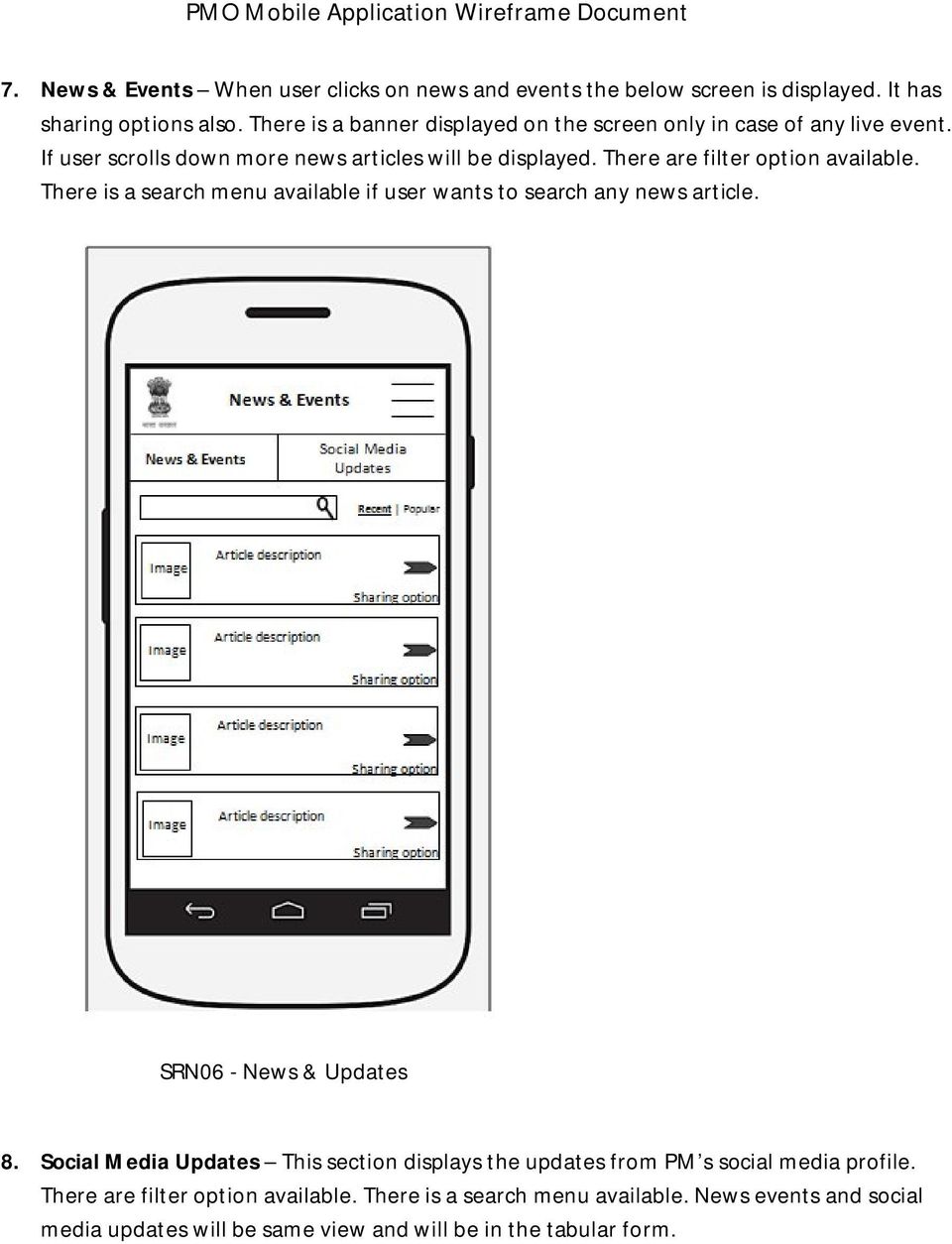
7 7. News & Events When user clicks on news and events the below screen is displayed. It has sharing options also. There is a banner displayed on the screen only in case of any live event. If user scrolls down more news articles will be displayed. There are filter option available. There is a search menu available if user wants to search any news article. SRN06 - News & Updates 8. Social Media Updates This section displays the updates from PM s social media profile. There are filter option available. There is a search menu available. News events and social media updates will be same view and will be in the tabular form.
8 SRN07 Social Media Updates 9. PM s man ki baat - This will be sound cloud link to the PM s radio link. This is the fast forward link for the Mani ki baat link in the gallery/media library. 10. Image Gallery - Image gallery will open and recent pictures will be displayed here. This is fast forward link for the images in the gallery/media library. 11. Major Initiatives by government This link will open a view to the user where details for the major initiatives by government are displayed. This will also include the images as links in the banner on click of which will redirect user to the full website of that particular initiative. 12. Donate/PM s fund Donate button at the right corner on landing screen is for the PM s Fund.

9 Banner displaying pictures related to recent disaster or defense SRN08 PM s Fund screen Clicking on any of the available option user will be directed to that particular donation screen. It consists of description of the scheme in about section and other details.

10 SRN09 Selected Fund Screen Donate button will navigate user to payment screen Payment history and help options are available SRN10- Payment Screen

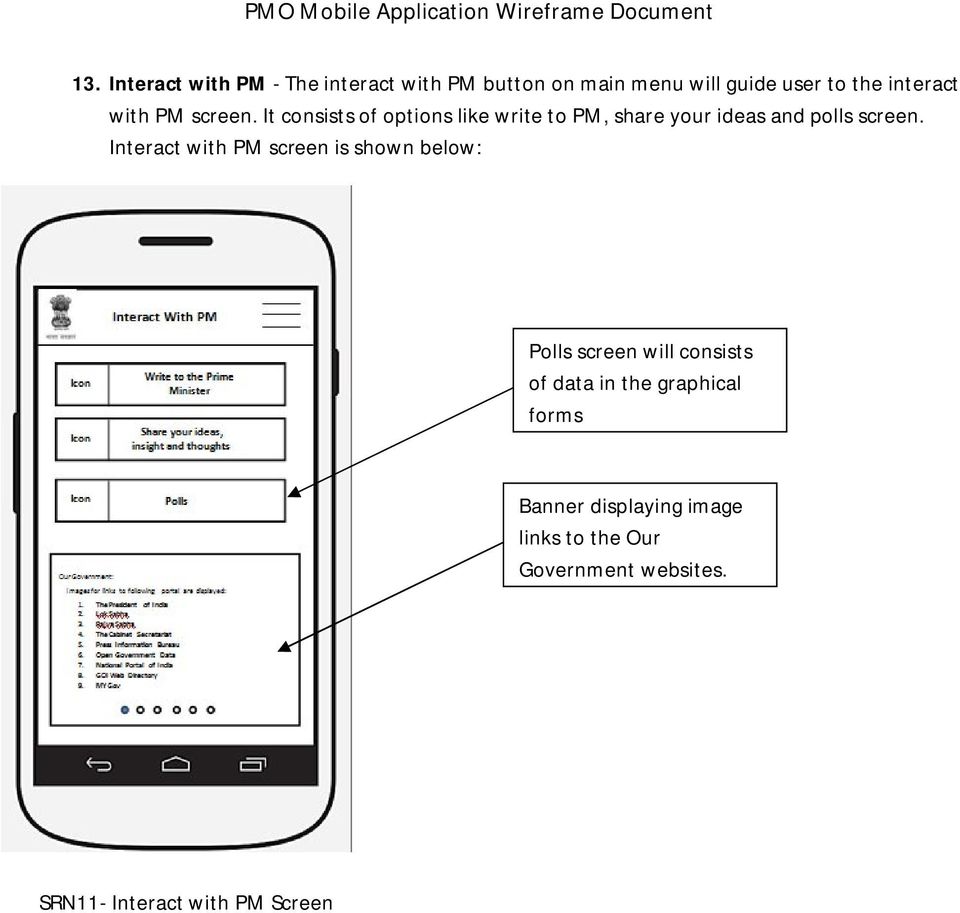
11 13. Interact with PM - The interact with PM button on main menu will guide user to the interact with PM screen. It consists of options like write to PM, share your ideas and polls screen. Interact with PM screen is shown below: Polls screen will consists of data in the graphical forms Banner displaying image links to the Our Government websites. SRN11- Interact with PM Screen
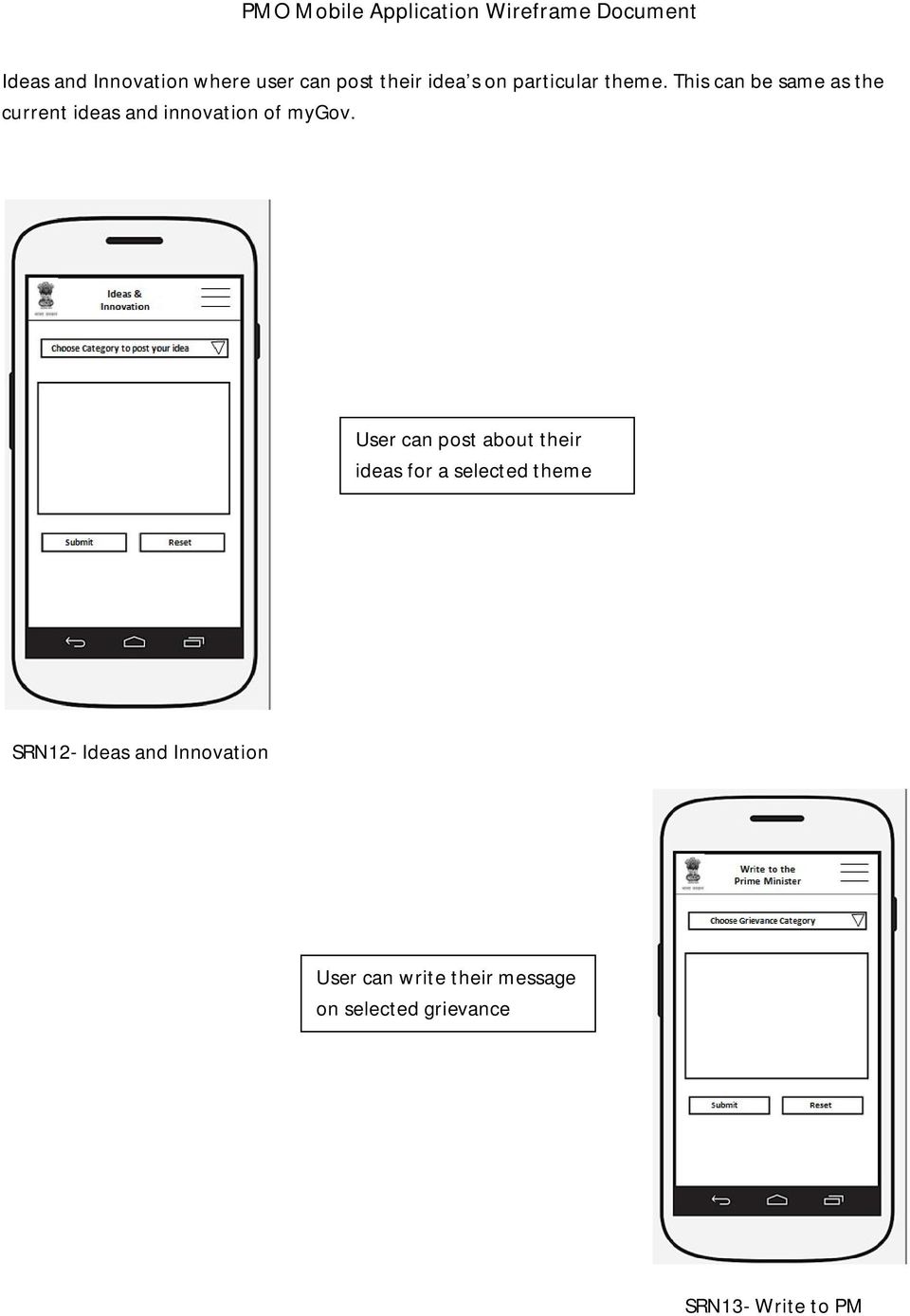
12 Ideas and Innovation where user can post their idea s on particular theme. This can be same as the current ideas and innovation of mygov. User can post about their ideas for a selected theme SRN12- Ideas and Innovation User can write their message on selected grievance SRN13- Write to PM
13 14. Know Your Prime Minister Know your PM links consists of links where user can get information about Honorable prime minister and his governance track record. Users can also have a glance to the former PM s. SRN14- Know Your PM

14 15. PM s Visits- This links share the details about the PM s visit. It has tabular options for the international and domestic visits by PM. PM s international and domestic visits details SRN15- PM s Visits

15 16. Media Library- The media library consists of various links including images, videos, sound clouds etc. Media gallery SRN16- Media Library

16 17. Prime Minister s Office Prime Minister s Office Banner displaying some shareable pictures from PMO SRN17- Prime Minister s Office

17 18. Merchandise Store- There will be a merchandise store where products related to government of India or PM himself will be available. SRN18- Merchandise Store

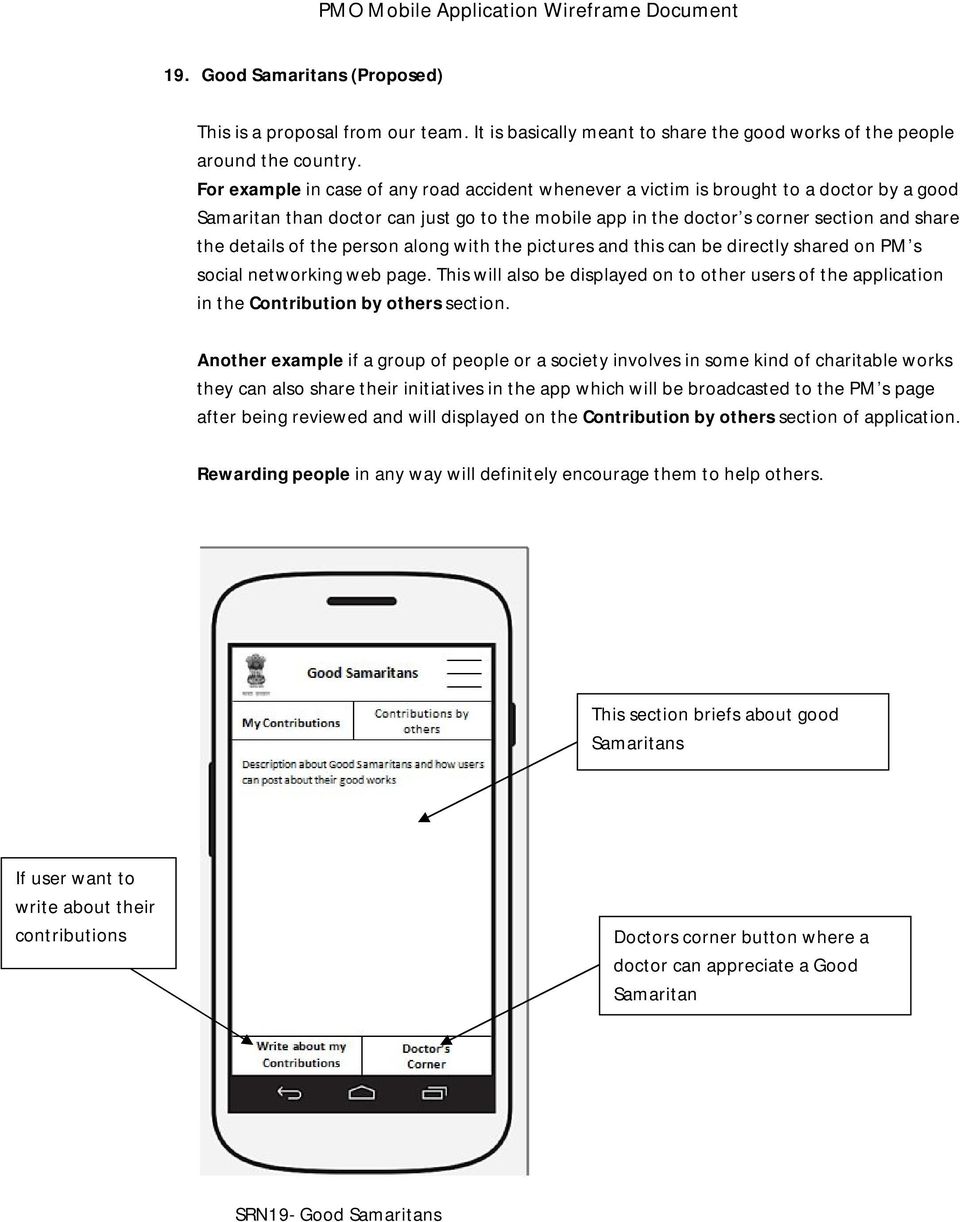
18 19. Good Samaritans (Proposed) This is a proposal from our team. It is basically meant to share the good works of the people around the country. For example in case of any road accident whenever a victim is brought to a doctor by a good Samaritan than doctor can just go to the mobile app in the doctor s corner section and share the details of the person along with the pictures and this can be directly shared on PM s social networking web page. This will also be displayed on to other users of the application in the Contribution by others section. Another example if a group of people or a society involves in some kind of charitable works they can also share their initiatives in the app which will be broadcasted to the PM s page after being reviewed and will displayed on the Contribution by others section of application. Rewarding people in any way will definitely encourage them to help others. This section briefs about good Samaritans If user want to write about their contributions Doctors corner button where a doctor can appreciate a Good Samaritan SRN19- Good Samaritans
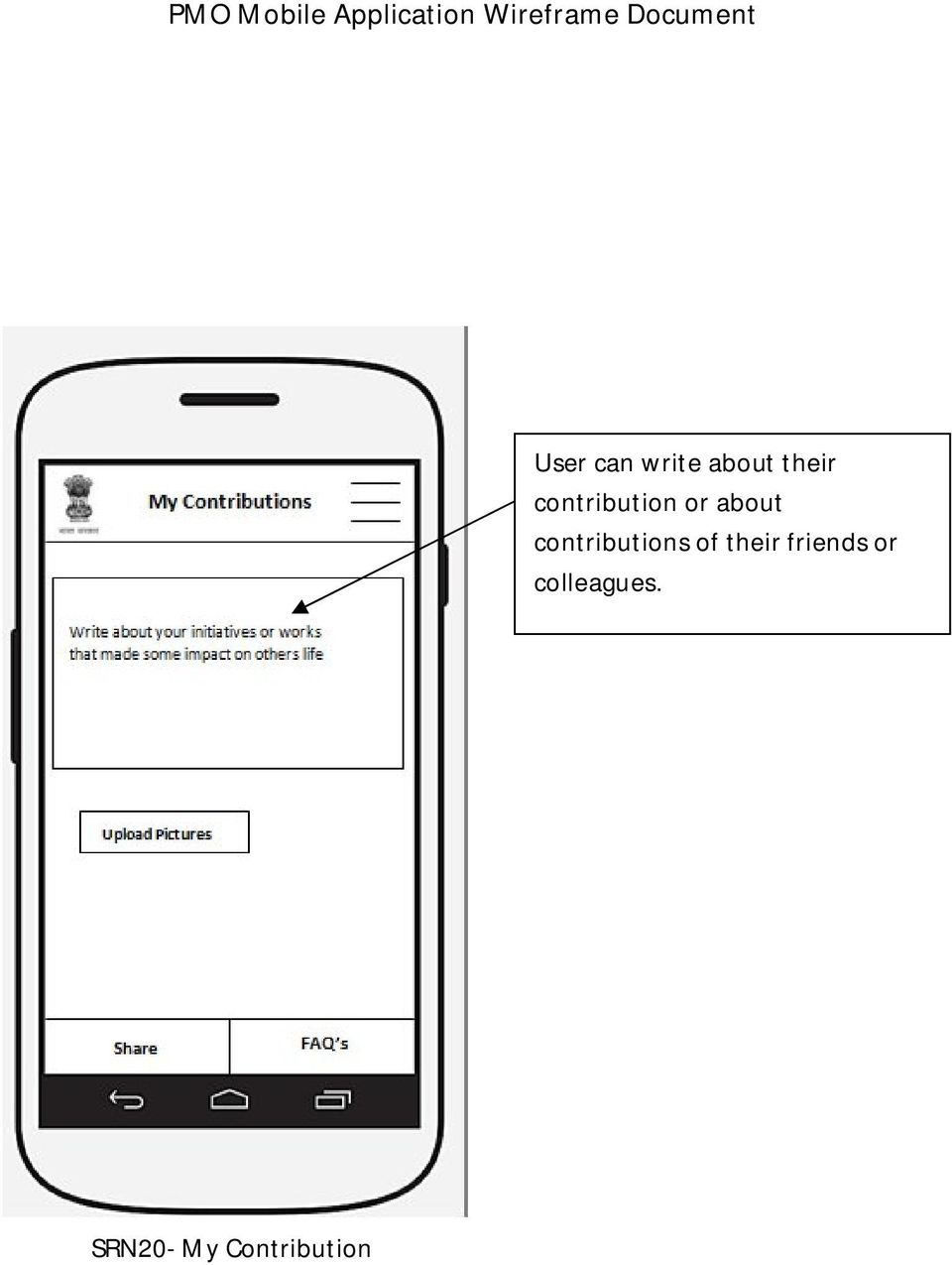
19 User can write about their contribution or about contributions of their friends or colleagues. SRN20- My Contribution
20 A doctor can appreciate a Good Samaritan for helping a victim. Doctor s just need to fill some details of the person and can share with picture SRN21- Doctor s Contribution

21 User can see contribution by others. There are options available for like and share on social networking pages. SRN21- Contribution by Other s
Utilizing SASED OneDrive Cloud Storage
 Utilizing SASED OneDrive Cloud Storage Technology Department 5/29/15 The purpose of this document is to provide guidance on how to transfer and access SASED documents and folders on your SASED provided
Using the Jive for ios App
 Using the Jive for ios App TOC 2 Contents App Overview...3 System Requirements... 4 Release Notes...5 Which Version Am I Using?... 6 Connecting to Your Community... 11 Getting Started...12 Using Your Inbox...13
In a browser window, enter the Canvas registration URL: silverlakemustangs.instructure.com
 How do I sign up for a Canvas account as a Parent? Parents (Observers) can link their Canvas account to their student's account so they can see assignment dues dates, announcements, and other course content.
Salesforce ExactTarget Marketing Cloud Radian6 Mobile User Guide
 Salesforce ExactTarget Marketing Cloud Radian6 Mobile User Guide 7/14/2014 Table of Contents Get Started Download the Radian6 Mobile App Log In to Radian6 Mobile Set up a Quick Search Navigate the Quick
First Time On-Campus VLab Setup Windows XP Edition
 First Time On-Campus VLab Setup Windows XP Edition General: This guide is a step-by-step walkthrough of downloading, installing and configuring VMware View Client for the University of Cincinnati s VLab
Personal Online Banking:
 Personal Online Banking: If you access your account information through CNB Online Banking, our personal banking site, you will be able to import your account transactions directly into Quicken/QuickBooks.
Downloading and Connecting with Lync
 Downloading and Connecting with Lync Download Lync or put in a work order to have Lync Installed for you Click the Staff Email web link from the District website login to Microsoft Office 365 Under Lync,
Project Server Plus Risk to Issue Escalator User Guide v1.1
 Project Server Plus Risk to Issue Escalator User Guide v1.1 Overview The Project Server Plus Risk to Issue Escalator app will immediately raise a risk to an issue at the push of a button. Available within
MOBILE APP INSTRUCTIONS
 MOBILE APP INSTRUCTIONS Overview The IIT 2013 Global Conference mobile app has been developed and brought to you by Sense Corp, a new breed management consulting firm. The app is available for the following
QuickBooks Cloud ProAdvisor Program Frequently Asked Questions
 QuickBooks Cloud ProAdvisor Program Frequently Asked Questions Q1: How is the QuickBooks Cloud ProAdvisor Program different from the QuickBooks ProAdvisor Program? The QuickBooks ProAdvisor Program, includes
Creating a Website with Google Sites
 Creating a Website with Google Sites This document provides instructions for creating and publishing a website with Google Sites. At no charge, Google Sites allows you to create a website for various uses,
Learning Management System (LMS) User Guide Contents
 Learning Management System (LMS) User Guide Contents 1. Navigating around the Portal... 1 1.1. Overview of the Home Page... 1 1.2. Launch Bar... 2 2. Accessing My Tasks... 3 3. Quiz... 4 3.1. Attempting
Click on Login at www.oecd-ilibrary.org and enter the Administrator username and password
 REGISTRATION MANAGEMENT OPTIONS PURPOSE This document explains the various pages and options for institutional registrations at OECD ilibrary. The login as administrator enables the management of the registration
Technology @ QMU. QuickStartIT: QMU Citrix remote desktop service
 Technology @ QMU QuickStartIT: QMU Citrix remote desktop service v1.1, June 2015 What s in this guide? Page Introduction 2 Accessing the Citrix remote desktop service 2 Installing the Citrix receiver (PC)
Onboarding for Administrators
 This resource will walk you through the quick and easy steps for configuring your Paylocity Onboarding module and managing events. Login Launch Events Complete Tasks Create Records Configure Events Module
PORTAL ADMINISTRATION
 1 Portal Administration User s Guide PORTAL ADMINISTRATION GUIDE Page 1 2 Portal Administration User s Guide Table of Contents Introduction...5 Core Portal Framework Concepts...5 Key Items...5 Layouts...5
Client Portal Training
 Client Portal Training Signing In 1. Go to http://www.csus.edu/irt/projects and click on Team Dynamix Client or from your browser, go to https://csus.teamdynamix.com 2. Click on SIGN-IN located in the
Creating a Website with Google Sites
 Creating a Website with Google Sites This document provides instructions for creating and publishing a website with Google Sites. At no charge, Google Sites allows you to create a website for various uses,
Using OwnCloud. OwnCloud is a very easy to use file storage and sharing system that you can access anywhere you have an internet connection.
 Using OwnCloud OwnCloud is a very easy to use file storage and sharing system that you can access anywhere you have an internet connection. 1. Contact the IT Department to set up your account. 2. Once
How To Change Your Site On Drupal Cloud On A Pcode On A Microsoft Powerstone On A Macbook Or Ipad (For Free) On A Freebie (For A Free Download) On An Ipad Or Ipa (For
 How-to Guide: MIT DLC Drupal Cloud Theme This guide will show you how to take your initial Drupal Cloud site... and turn it into something more like this, using the MIT DLC Drupal Cloud theme. See this
ILLUSTRATED INSTRUCTIONS BEGIN ON THE NEXT PAGE
 Add or Change Life Insurance Beneficiaries Please visit the Benefits web site for comprehensive information about Basic life insurance and Supplemental life insurance. Click on a staff category from the
What s New on the SAP Support Portal
 What s New on the SAP Support Portal Navigation Updates Slight adjustments have been made to the top level navigation structure of the SAP Support Portal. These updates will allow any SAP customer to access
An Introduction to Box.com
 An Introduction to Box.com Box is an online file sharing and cloud content management service and it provides features such as: Security controls Space Mobility Online collaboration Mobile access Version
All Colleagues Landing Page
 INTERNAL USE ONLY All Colleagues Landing Page User's Manual Version 5 Table of Contents Login... 2 Password Features... 4 Expired password...4 Password reset...6 Region Selection... 8 Changing Your Region...8
How To Use Senior Systems Cloud Services
 Senior Systems Cloud Services In this guide... Senior Systems Cloud Services 1 Cloud Services User Guide 2 Working In Your Cloud Environment 3 Cloud Profile Management Tool 6 How To Save Files 8 How To
Adobe Summit 2015 Lab 718: Managing Mobile Apps: A PhoneGap Enterprise Introduction for Marketers
 Adobe Summit 2015 Lab 718: Managing Mobile Apps: A PhoneGap Enterprise Introduction for Marketers 1 INTRODUCTION GOAL OBJECTIVES MODULE 1 AEM & PHONEGAP ENTERPRISE INTRODUCTION LESSON 1- AEM BASICS OVERVIEW
Banking at the speed of your life. Online. Mobile. Superior. Safe.
 Banking at the speed of your life. Online. Mobile. Superior. Safe. PARKSTERLING Answers You Can Bank On. At Park Sterling Bank, we know that there are times when our answer can help expand a child s future,
Appendix. In the Appendix: Online Help NCIR Help Desk
 Appendix In the Appendix: Online Help NCIR Help Desk Online Help NCIR s online help function provides you with both screen-specific help and a general help index. You may access online help from any screen
Frog VLE Update. Latest Features and Enhancements. September 2014
 1 Frog VLE Update Latest Features and Enhancements September 2014 2 Frog VLE Update: September 2014 Contents New Features Overview... 1 Enhancements Overview... 2 New Features... 3 Site Backgrounds...
1 Intel Smart Connect Technology Installation Guide:
 1 Intel Smart Connect Technology Installation Guide: 1.1 System Requirements The following are required on a system: System BIOS supporting and enabled for Intel Smart Connect Technology Microsoft* Windows*
Finance Reporting. Millennium FAST. User Guide Version 4.0. Memorial University of Newfoundland. September 2013
 Millennium FAST Finance Reporting Memorial University of Newfoundland September 2013 User Guide Version 4.0 FAST Finance User Guide Page i Contents Introducing FAST Finance Reporting 4.0... 2 What is FAST
ShoreTel Communicator for Web
 Introduction Introduction is a browser-based interface that provides access to ShoreTel Communicator configuration options from any computer using the ShoreTel system. is supported for the Safari 4.0,
To Download Library Books Onto Your KINDLE FIRE
 Using 3M CLOUD LIBRARY 0BOFG JJ To Download Library Books Onto Your KINDLE FIRE To borrow an e-book from the Ocean County Library system, you need to have a valid Ocean County Library card (less than $25
Guest Welcome Screen PRO User Guide
 Guest Welcome Screen PRO User Guide Table of Contents Introduction... 2 Key Terminology... 4 Login... 5 Sign Out...6 Session Expiration...6 Users... 7 User Information (Users > Show All Users > User Name)...7
Centricity2 Mobile Communications App (MCA) Configuration. Schoolwires Centricity2
 Centricity2 Mobile Communications App (MCA) Configuration Schoolwires Centricity2 Trademark Notice Schoolwires, the Schoolwires logos, and the unique trade dress of Schoolwires are the trademarks, service
Taylor & Francis Online Mobile FAQs
 Taylor & Francis Online Mobile FAQs ACCESS Q. How do I access Taylor & Francis Online Mobile? A. Open the browser on your mobile device and enter the URL www.tandfonline.com. As you are accessing the site
Welcome to Mobile Roadie Pro. mobileroadie.com
 Welcome to Mobile Roadie Pro mobileroadie.com Welcome The purpose of this manual is to aquaint you with the abilities you have as a Pro customer, and the additional enhancements you'll be able to make
Onboarding for Administrators
 Welcome! This resource will walk you through the quick and easy steps for configuring your Paylocity Onboarding module and managing events. Login Launch Events Complete Tasks Create Records Configure Events
Step-by-Step Help Guide for Freegal Movies and Television
 Step-by-Step Help Guide for Freegal Movies and Television 0 Table of Contents Welcome 2 What is Freegal Movies and Television 2 Freegal Music Offerings to Patrons 2 Freegal Movies and Television Homepage
Web Conferencing with Microsoft Lync TM. Quick Start Guide
 Web Conferencing with Microsoft Lync TM Quick Start Guide Web Conferencing with Microsoft Lync i Contents Participate in Online Meetings with Lync Web App... 1 Check Your Meeting Readiness... 1 Join the
Using ELMS with TurningPoint Cloud
 Using ELMS with TurningPoint Cloud The ELMS (Canvas) integration enables TurningPoint Cloud users to leverage response devices in class to easily collect student achievement data. Very simply one can load
How to Remotely Access the C&CDHB Network from a Personal Device
 How to Remotely Access the C&CDHB Network from a Personal Device 13/09/2012 Contents Installing the Citrix Receiver for Windows PCs... 2 Installing the Citrix Receiver for Mac OS X... 6 Installing the
Mobile and Text Customer Experience Online Banking Training Guide. i 2015 ChoiceOne Bank
 Mobile Web Banking... 1 Enrolling through traditional Online Banking... 1 Enrolling through mobile device... 3 Login Screen... 5 Locations... 5 Mobile Browser View... 6 Log in to Mobile Banking... 6 Navigating...
Login/ Logout RMS Employer Login Go to Employer and enter your username and password in the Employer Login section. Click on the LOGIN NOW button.
 Recruitment Management System Version 8 User Guide What is Recruitment Management System (RMS)? Recruitment Management System (RMS) is an online recruitment system which can be accessed by corporate recruiters
Recruitment Management System (RMS) User Manual
 Recruitment Management System (RMS) User Manual Contents Chapter 1 What is Recruitment Management System (RMS)? 2 Chapter 2 Login/ Logout RMS Chapter 3 Post Jobs Chapter 4 Manage Jobs Chapter 5 Manage
Initial Setup of Microsoft Outlook with Google Apps Sync for Windows 7. Initial Setup of Microsoft Outlook with Google Apps Sync for Windows 7
 Microsoft Outlook with Initial Setup of Concept This document describes the procedures for setting up the Microsoft Outlook email client to download messages from Google Mail using Internet Message Access
Business Mobile Banking
 Business Mobile Banking Union Bank & Trust Business Mobile Application User Guide Contents Overview... 2 Security... 2 Requirements... 3 Downloading the App... 3 Logging In... 4 One-time Passcode Entry...
Presence & IM. Quick Reference Guide. Build your Contacts list. Getting started. What does your Presence status mean?
 Getting started Status Area: Update presence status, location, or add a message View Tabs: View your contacts, activity feed, conversation or phone Lync Options: View or edit Lync options Quick Reference
Using UMCmarket to make micro-donations to our church!
 Using UMCmarket to make micro-donations to our church! You can use UMCmarket from your desktop PC, laptop, smartphone or tablet. Follow these instructions to get started using UMCmarket and help our church.
A) What Web Browser do I need? B) Why I cannot view the most updated content? C) What can we find on the school website? Index Page Layout:
 A) What Web Browser do I need? - Window 7 / Window 8.1 => Internet Explorer Version 9 or above (Best in Version 11+) Download Link: http://windows.microsoft.com/zh-hk/internet-explorer/download-ie - Window
BI-RADS Atlas 5th Edition e-book Download Instructions (Updated: 12/11/14)
 BI-RADS Atlas 5th Edition e-book Download Instructions (Updated: 12/11/14) Note: These instructions and screenshots are a general guide and may vary with what appears on your device due to differences
Monnit Wi-Fi Sensors. Quick Start Guide
 Monnit Wi-Fi Sensors Quick Start Guide Inside the Box You should find the following items in the box: Monnit Wi-Fi (MoWi ) Sensors 2 x AA Batteries for Each MoWi Sensor Quick Start Guide Note: A MoWi USB
Three Rivers Community College Wireless Network
 Three Rivers Community College Wireless Network TRCC s Information Technology Division offers free wireless network connectivity for students. The network grants students high-speed access to the Internet
Register Manufacturer: Click on Register Manufacturer radio button, choose the State name and click on Login Button. The following screen appears:
 USER MANUAL Click on the Internet Explorer icon on the Computer. Type http://farmer.gov.in/dealers/login.aspx on the address bar of Internet Explorer Window. The following screen will appear. Choose the
Online Services User Guide
 Online Services User Guide Welcome to online banking! Whether you re online or using a mobile device, access your accounts whenever and wherever it s convenient for you. Log In: BankMidwest.com Online
Hatco Lead Management System: http://hatco.scangroup.net/
 Hatco Lead Management System User Guide General Notes: The Hatco Lead Management System (HLMS) is designed to work with modern web browsers, such as Internet Explorer 9 or newer, Firefox, Chrome & Safari.
Alerts. Some Alerts give you unique options for customizing the messages you receive. Calendar events, for instance, allow you to set how far in
 Alerts, RSS and ical feeds Alerts and feeds are both methods of keeping current on site content that changes or updates frequently. The primary difference between them is that Alerts are active: whenever
1. Right click using your mouse on the desktop and select New Shortcut.
 offers 3 login page styles: Standard Login, List Login or Quick Time Punch. Each login page can be saved as a shortcut to your desktop or as a bookmark for easy fast login access. For quicker access to
Quick Start Guide. Screen Sharing. Document Revision: 1.0.3 (May 18, 2015)
 Quick Start Guide Screen Sharing Document Revision: 1.0.3 (May 18, 2015) 2 Table of Contents Quick Start Guide... 1 Starting Application... 3 Joining a Online Meeting... 6 Copyright... 7 For full documentation
Office of elearning & Innovation
 Getting Started with Tri-C Private SoftChalk Cloud Welcome to Private Tri-C SoftChalk Cloud! SoftChalk Cloud is an award winning software that enables you to create interactive web pages that can be incorporated
Qualtrics Survey Tool
 Qualtrics Survey Tool This page left blank intentionally. Table of Contents Overview... 5 Uses for Qualtrics Surveys:... 5 Accessing Qualtrics... 5 My Surveys Tab... 5 Survey Controls... 5 Creating New
Creating an Event Registration Web Page with Special Features using regonline Page 1
 Creating an Event Registration Web Page with Special Features using regonline 1. To begin, enter www.regonline.com in your browser s address bar. A red arrow on each screen shot shows you where to place
OmniTouch 8440 Messaging Software Quick Reference Guide. Messaging Services Telephone User Interface
 Quick Reference Guide Introduction Access to voice messaging is available: Via the Telephone User Interface The Telephone User Interface is accessible from any phone, whether internal or external to the
Chronicle USER MANUAL
 Chronicle USER MANUAL 1st Edition 2 IN THIS MANUAL Part One The Chronicle Interface The Overview Screen The Bill Detail Screen Part Two Creating, Editing and Viewing Bills Creating Your First Bill Editing
Table of Contents. Creating a Newsletter. Loading a Video or Slideshow. Distributing a Newsletter through Exact Target
 Indiana University Copenhagen Publishing System University Communications Newsletter User Manual Last Updated: March 1, 2009 [email protected] Table of Contents Creating a Newsletter Loading a Video or
Everything you ever wanted to know about. Physiotherapy. C a n a d a ONLINE
 Everything you ever wanted to know about Physiotherapy C a n a d a ONLINE Everything you ever wanted to know about Physiotherapy Canada Online... Have questions about how to access Physiotherapy Canada
DOCUMENT MANAGEMENT SYSTEM
 DOCUMENT MANAGEMENT SYSTEM USER S MANUAL By: MIS Department Software Division Page 1 of 14 1. Overview Document Management System is a powerful web based file manager and storage utility. It was developed
How To Create A Team Site In Windows.Com (Windows)
 2004 IAAP International Convention and Education Forum Session: When E-mail Loses Its Charm Date: Tuesday, August 3, 2004, 1:00-3:00 pm Leaders: Annette Marquis and Gini Courter Windows SharePoint Services
Introduction... 2. Download and Install Mobile Application... 2. About Logging In... 4. Springboard... 4. Navigation... 6. List Pages...
 Contents Introduction... 2 Download and Install Mobile Application... 2 About Logging In... 4 Springboard... 4 Navigation... 6 List Pages... 6 Example: Edit Contact... 7 View Pages... 12 Example: Companies...
Citrix Client Install Instructions
 Citrix Client Install Instructions If you are using Citrix remotely, Information Technology Services recommends updating Citrix client to the newest version available online. You must be an administrator
Logging in to Google Chrome
 Logging in to Google Chrome By logging in to Google Chrome, you will be able to quickly access any saved applications, bookmarks, and resources from any location. Please remember...if you are using a lab
Anchor End-User Guide
 Table of Contents How to Access Your Account How to Upload Files How to Download the Desktop Sync Folder Sync Folder How to Share a File 3 rd Party Share from Web UI 3 rd Party Share from Sync Folder Team-Share
Ariba Supplier Mobile App Quick Start Guide
 Ariba Supplier Mobile App Quick Start Guide Table of Contents Getting Started...3 Downloading and Authenticating Your App... 3 Using the Ariba Supplier Mobile App...6 Logging In... 6 Setting Up Alerts
Welcome to the Opus Bank Mobile Banking App User Guide
 Welcome to the Opus Bank Mobile Banking App User Guide 1.855.678.7226 [email protected] www.opusbank.com Table of Contents Enroll in Mobile Banking & Install App... 3 Login to Personal Online
STUDENT EMAIL: Guide for Students
 STUDENT EMAIL: Guide for Students This guide will introduce you to Gmail, which is the student email platform for ACT Public Schools. Gmail is part of our Google Apps for Education offering and will provide
ONLINE ACCESS ONLINE ACCESS FAQS FAQS
 ONLINE ACCESS ONLINE ACCESS FAQS FAQS How do I create an Online Access Account? There are three options for setting up an Online Access Account 1. Use your member number and temporary password given to
Mobile Banking Frequently Asked Questions
 Mobile Banking Frequently Asked Questions What types of Mobile Banking does Midwest BankCentre offer? We offer three types of Mobile Banking: Mobile Apps allows you to easily connect to Midwest BankCentre
GLOBALMEET FOR DESKTOP GLOBALMEET FOR DESKTOP USER GUIDE
 GLOBALMEET FOR DESKTOP GLOBALMEET FOR DESKTOP USER GUIDE Release 1.5 March 2014 TABLE OF CONTENTS GlobalMeet for Desktop Overview 2 Install GlobalMeet for Desktop 3 Download the App 3 System Requirements
NASSAU PUBLIC LIBRARIES MOBILE
 A presentation and proposal for the member libraries of Nassau Library System in Uniondale, New York for a customized mobile application from Capira Technologies, LLC. Overview This presentation will provide
MDM User Guide June 2012
 June 2012 Sy mantec Corporation, 2012 Page 1 Purpose of Document This document provides a guide for users of App Center to set up and use Mobile Device Management (MDM) capabilities. MDM allows the App
Create A Google Site. Introduction to Sites. Create, format, and customize a site. Adapted from:
 Create A Google Site Adapted from: http://edutraining.googleapps.com/training-home/module-5-sites Introduction to Sites Google Sites is an online application that makes creating a class, school, or project
Introduction to RefWorks
 University of Malta Library Introduction to RefWorks A Guide to Prepare & Submit your Personal Academic Publication List Stefania Cassar Outreach Librarian Email: [email protected] Last updated: 3
CMS Training Manual. A brief overview of your website s content management system (CMS) with screenshots. CMS Manual
 Training A brief overview of your website s content management system () with screenshots. 1 Contents Logging In:...3 Dashboard:...4 Page List / Search Filter:...5 Common Icons:...6 Adding a New Page:...7
PISA 2015 MS Online School Questionnaire: User s Manual
 OECD Programme for International Student Assessment 2015 PISA 2015 MS Online School Questionnaire: User s Manual Doc: CY6_CBA_SCQ_MSPrincipalManual.docx September 2014 Produced by ETS, Core 2 Contractor
Inventory CheckOut and Store Manager User s Guide
 Inventory CheckOut and Store Manager User s Guide xlink Concepts Store Manager and Inventory CheckOut apps work together to give you control of your inventory and supplies. If you own or manage a business
Accessing vlabs using the VMware Horizon View Client for OSX
 Accessing vlabs using the VMware Horizon View Client for OSX This document will demonstrate how to download, install, and connect to a virtual lab desktop from a personal Mac OSX computer using the VMware
Remote Viewer Recording Backup
 Remote Viewer Recording Backup Introduction: In this tutorial we will explain how to retrieve your recordings using the Web Service online. Using this method you can backup videos onto your computer using
Spike Tech Tip: How to use your online, cloud-based tools for Spike
 Spike Tech Tip: How to use your online, cloud-based tools for Spike September 30, 2015 Tech Tip: How to use your online, cloud-based tools for Spike ikegps introduced a beta version of its cloud-based
Switching to Gmail from Microsoft Outlook
 Welcome to Gmail What's different, at a glance... Now that you've switched from Microsoft Outlook to Google Apps, here are some tips on beginning to use Gmail as your new mail program. In Microsoft Outlook,
Step by Step. Use the Cloud Login Website
 Step by Step HOW TO Use the Cloud Login Website This How To article will show you how to use the Cloud Login Website to upload and download your files from the cloud. For a complete list of available How
Virginia s Department of Minority Business Enterprise
 Virginia s Department of Minority Business Enterprise SWaM/SDV Dashboard User Manual Note: To view the expenditures and analysis on the Dashboard, a logon name and password is not required. It is required
Mobile: Getting Started with Workday for ipad
 Install and Log in to Workday From your ipad: 1. Tap the App Store Application icon. 2. Tap Search and enter Workday. 3. Select Workday for ipad from the search results. 4. Tap Free to install the app.
Initial Setup of Microsoft Outlook 2011 with IMAP for OS X Lion
 Initial Setup of Microsoft Outlook Concept This document describes the procedures for setting up the Microsoft Outlook email client to download messages from Google Mail using Internet Message Access Protocol
S m a r t M a s t e B T E C O R P O R A T I O N USER MANUAL
 S m a r t M a s t e rtm 2014 B T E C O R P O R A T I O N USER MANUAL S m a r t M a s t e r T M 2 0 1 4 U s e r M a n u a l P a g e 1 o f 2 3 Contents Contents...1 Introduction...2 Audience...2 SmartMaster
RSA Partner Central. How to Log in to Powerlink
 RSA Partner Central How to Log in to Powerlink RSA s Partner Central Combines multiple tools, resources, and applications into one central location. In RSA Partner Central, partners will have access to
Welcome to Sookasa. Getting Started Guide for SafeMonk users
 Welcome to Sookasa Getting Started Guide for SafeMonk users Welcome to Sookasa! About Us Like Safemonk, Sookasa provides Dropbox encryption to protect your information at the file level, so it s safe both