
Virginia s Department of Minority Business Enterprise
|
|
|
- Mercy Black
- 10 years ago
- Views:
Transcription
1 Virginia s Department of Minority Business Enterprise SWaM/SDV Dashboard User Manual Note: To view the expenditures and analysis on the Dashboard, a logon name and password is not required. It is required for submitting data to the Dashboard and reviewing the agency s detailed transactions only.
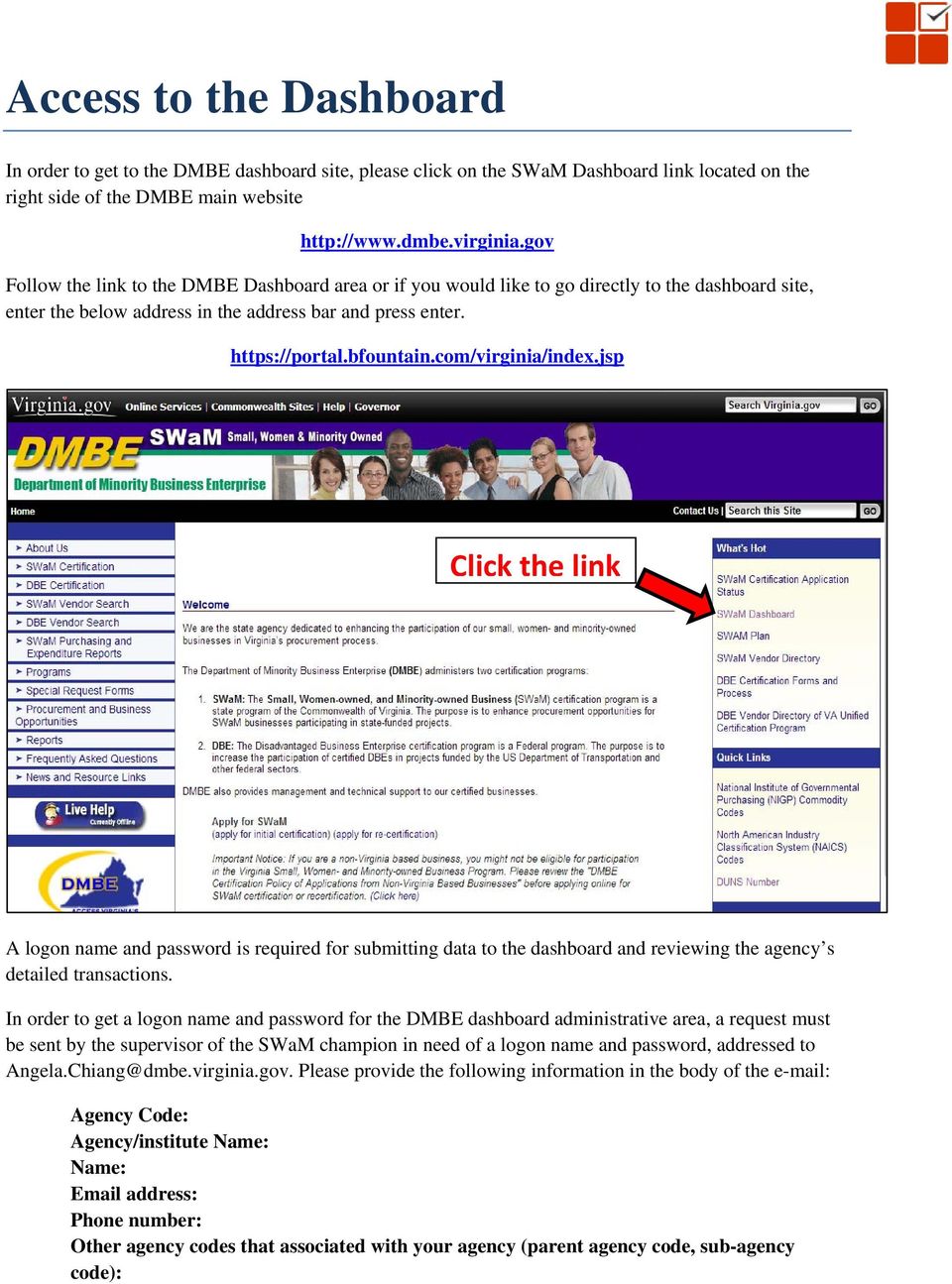
2 Access to the Dashboard In order to get to the DMBE dashboard site, please click on the SWaM Dashboard link located on the right side of the DMBE main website Follow the link to the DMBE Dashboard area or if you would like to go directly to the dashboard site, enter the below address in the address bar and press enter. Click the link A logon name and password is required for submitting data to the dashboard and reviewing the agency s detailed transactions. In order to get a logon name and password for the DMBE dashboard administrative area, a request must be sent by the supervisor of the SWaM champion in need of a logon name and password, addressed to [email protected]. Please provide the following information in the body of the Agency Code: Agency/institute Name: Name: address: Phone number: Other agency codes that associated with your agency (parent agency code, sub-agency code):
3 To view the expenditures and analysis on the Dashboard a login name and password is not required.. It is required for submitting data to the Dashboard and reviewing the agency s detailed transactions only. To get to the SWaM administration area, Click "Login" to access the DMBE Dashboard logon area. Once you log into the application, there are a number of icons in the top right corner of the screen to guide you through the dashboard. Go to Homepage Takes you back to the homepage you have designated. The default homepage is the summary tab. Each user can designate their own home page and navigate directly to that page when they log in. Refresh Dashboard Refreshing the dashboard moves new approved transactions into the dashboard. The process is currently available only to DMBE to manage when the transactions are rolled into the dashboard. Go to Dashboard Area Selecting this button takes the user to the default dashboard page: the Summary view. Go to Administrative Area Takes the authorized users to the administrative area where they can manage their transactions, subcontractor data and their annual SWAM plans.

4 Diversity Dashboard and Analytics To see further details or alternate breakdowns of agency SWaM expenditures, click the tabs located at the top of the graphical chart on the DMBE Dashboard. In order to be able to analyze specific expenditure time periods, the left column, titled Expenditure Summary, will provide the detailed expenditure drill drown for SWaM Discretionary spend. The detailed expenditure amounts can be analyzed for Yearly, Quarterly and Monthly periods. Click on any period on the LHS, and the data for the corresponding period will be presented in the report. The user selections are sticky their period selection is saved and will be used during their future logins.

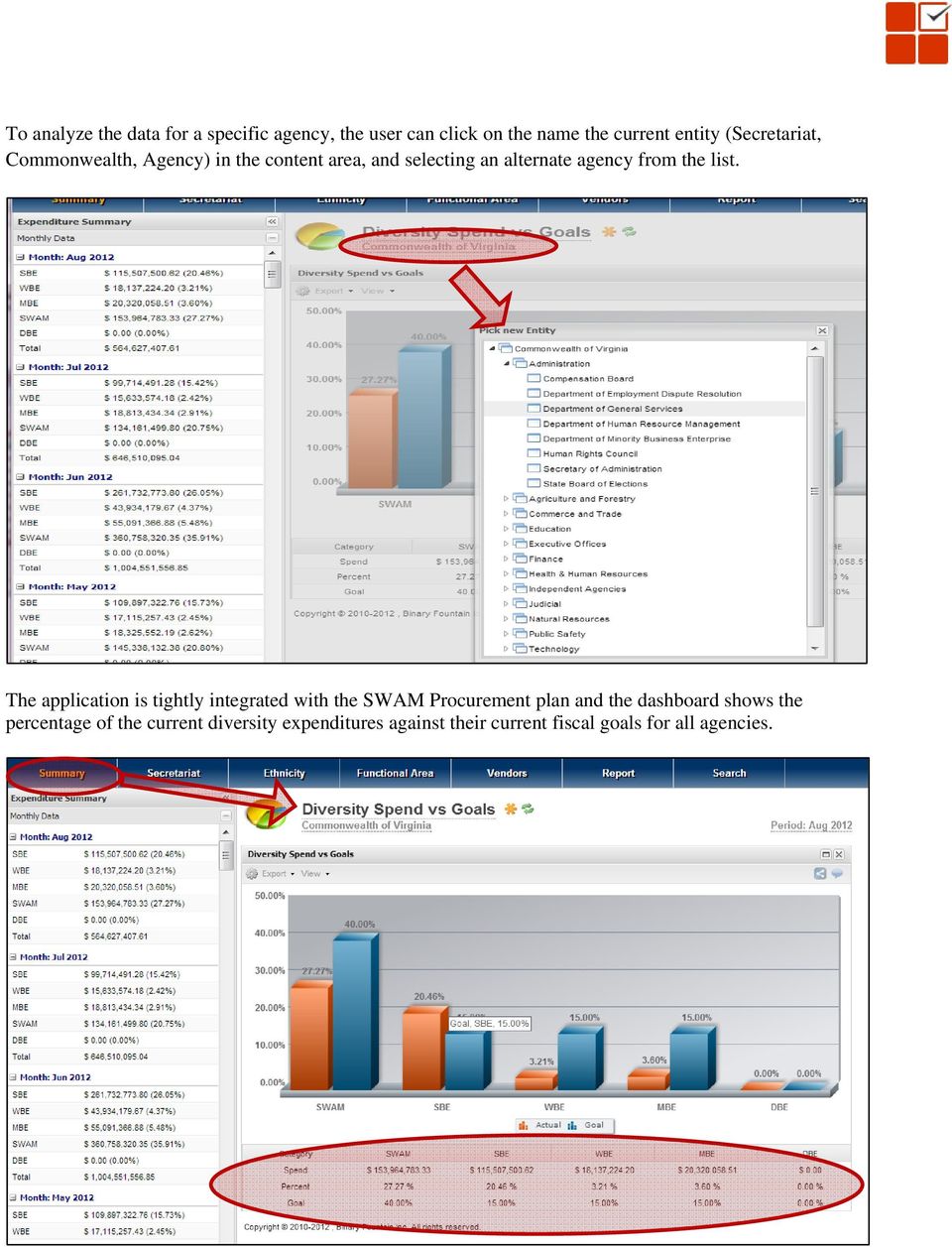
5 To analyze the data for a specific agency, the user can click on the name the current entity (Secretariat, Commonwealth, Agency) in the content area, and selecting an alternate agency from the list. The application is tightly integrated with the SWAM Procurement plan and the dashboard shows the percentage of the current diversity expenditures against their current fiscal goals for all agencies.
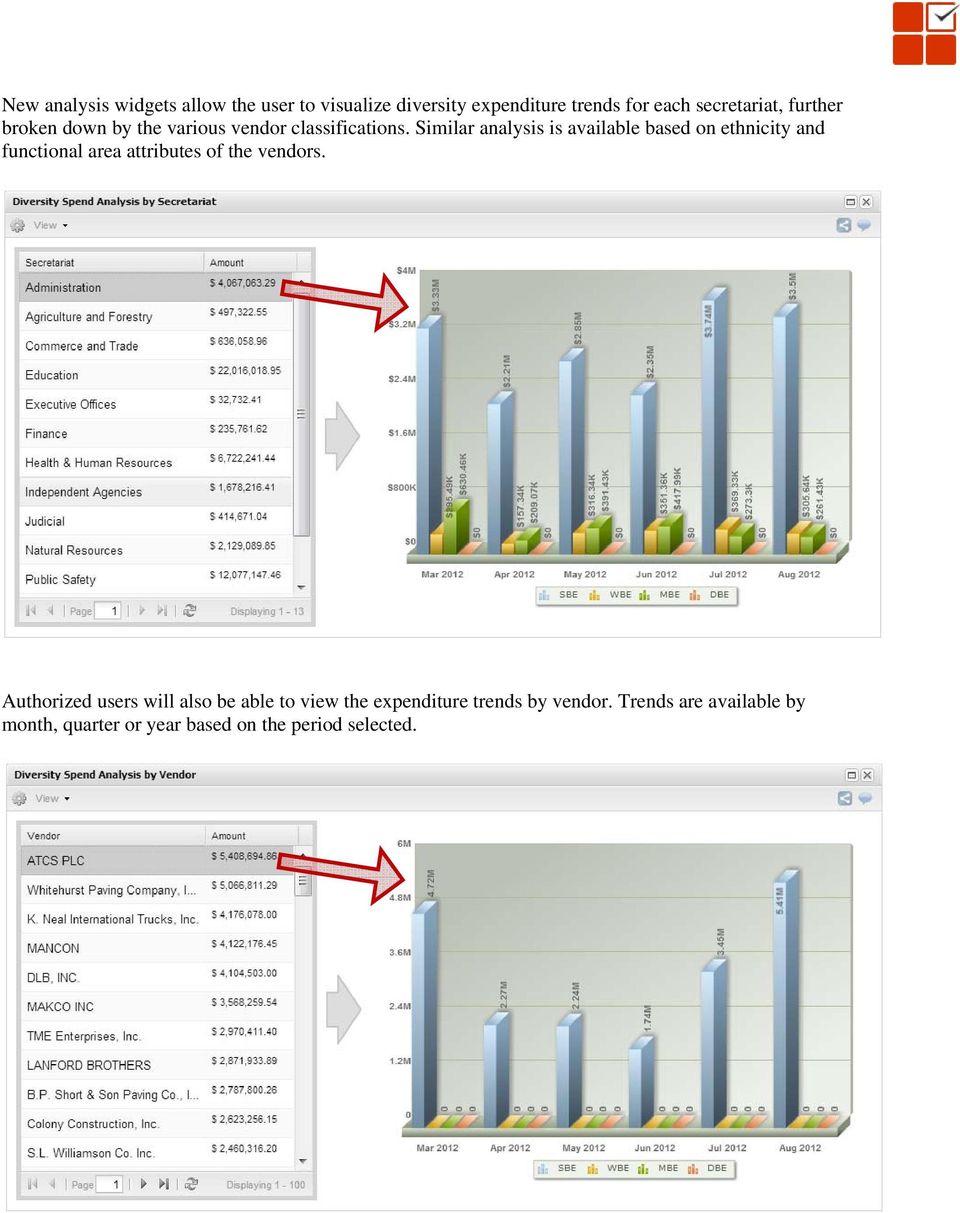
6 New analysis widgets allow the user to visualize diversity expenditure trends for each secretariat, further broken down by the various vendor classifications. Similar analysis is available based on ethnicity and functional area attributes of the vendors. Authorized users will also be able to view the expenditure trends by vendor. Trends are available by month, quarter or year based on the period selected.
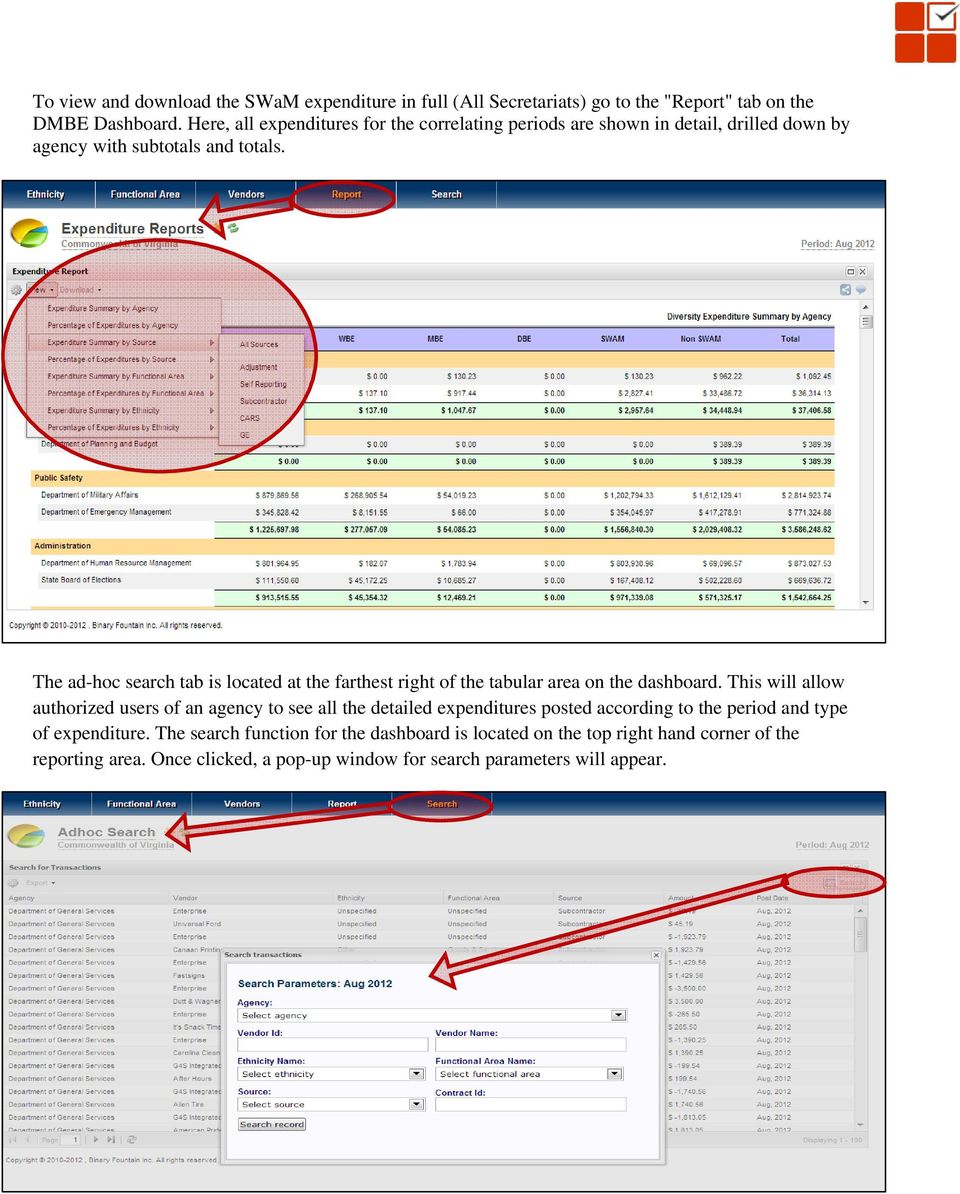
7 To view and download the SWaM expenditure in full (All Secretariats) go to the "Report" tab on the DMBE Dashboard. Here, all expenditures for the correlating periods are shown in detail, drilled down by agency with subtotals and totals. The ad-hoc search tab is located at the farthest right of the tabular area on the dashboard. This will allow authorized users of an agency to see all the detailed expenditures posted according to the period and type of expenditure. The search function for the dashboard is located on the top right hand corner of the reporting area. Once clicked, a pop-up window for search parameters will appear.
8 Dashboard Data Management Overview: Access to the DMBE dashboard is required for submitting data to the Dashboard and reviewing the agency s detailed transactions. Subcontracting expenditures are also submitted on the dashboard. The Dashboard generates SWaM Expenditures monthly and it is done on or nearest to the 20th of each month for the previous month. It is not a real-time system. If April expenditures are reported late, after the refresh date has passed, the amounts will not be automatically included in the posted April expenditures. Entering Expenditure Data (Self-Reporting) In the Transactions area, click on the Add Record menu item located on the top left hand side of the Transaction Management screen. A pop-up titled Add new transaction data should appear. Fill in all the required data and click Update Record to add a new transaction.

9 Each transaction also shows a number of actions you can edit, delete or approve each transaction based on the user credentials. APPROVE Transaction EDIT Transaction DELETE Transaction While it is possible to delete a transaction one at a time, group actions are also possible the user can delete or approve a selected group of transactions as shown below.

10 The search function for the transactions is located on the top right hand corner of the transaction management area. Once clicked, a pop-up window will appear to specify search parameters. Uploading an excel spreadsheet is also another option in entering transactions/self-reporting data. Click the menu called Upload in the transaction management screen. Select Excel Spreadsheet. A pop up (below) will appear. Upload the file and click Submit. Once the file is uploaded, the entries will appear in the Workspace View. While in the Workspace View one is able to edit expenditures that requires editing or correcting, prior to DMBE approval and dashboard refresh.

11 Name of the TAB within Excel (Case Sensitive) Number of Header rows is always 1. Note: The Header format of the excel sheet to be as follows: Example: Transaction excel upload Entering Subcontractor Data In the Subcontractor area, click on the Add Record menu item located on the top left hand side of the Subcontractor Data Management screen. A pop-up titled Add new transaction data should appear. Fill in all the required data and click Update Record to add a new transaction. Each subcontractor transaction also supports a number of actions you can edit, delete or approve each
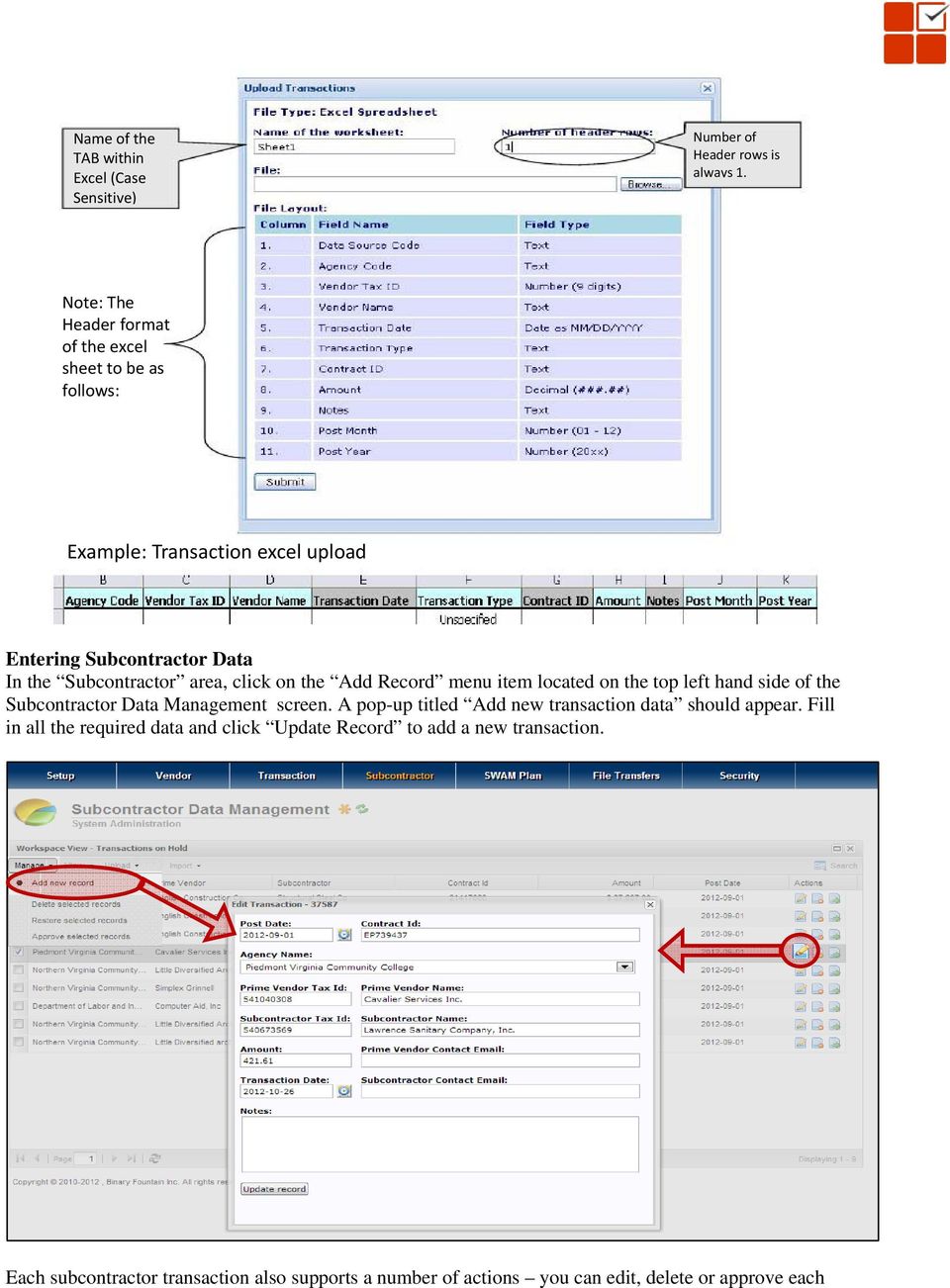
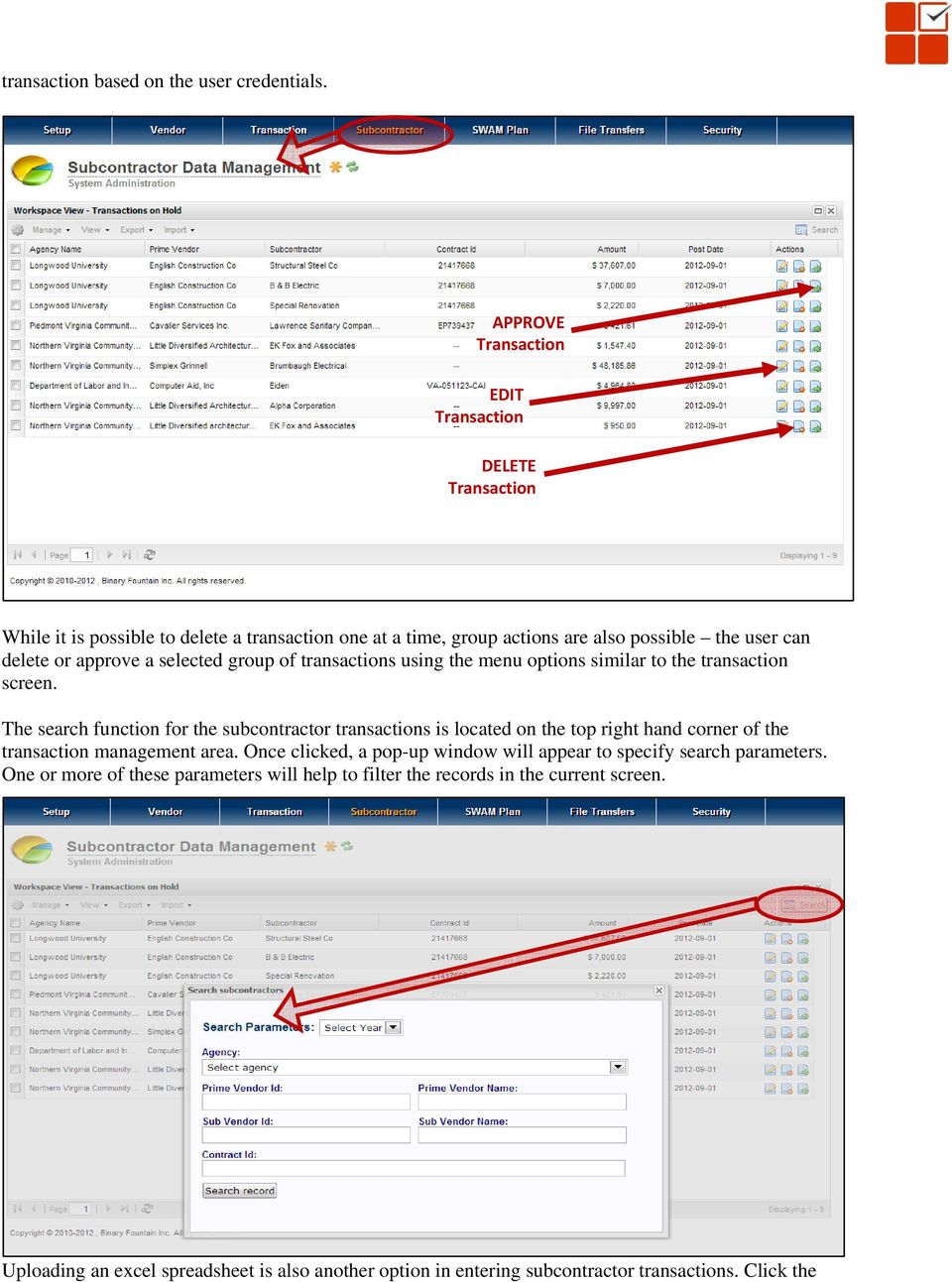
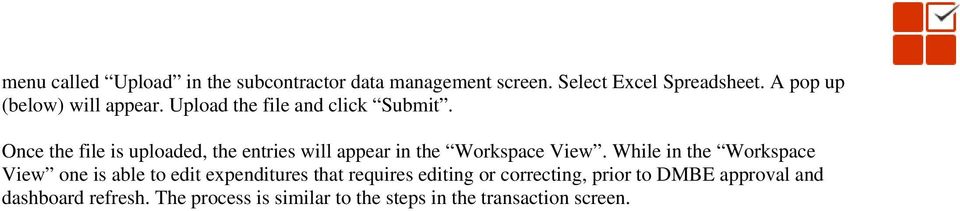
12 transaction based on the user credentials. APPROVE Transaction EDIT Transaction DELETE Transaction While it is possible to delete a transaction one at a time, group actions are also possible the user can delete or approve a selected group of transactions using the menu options similar to the transaction screen. The search function for the subcontractor transactions is located on the top right hand corner of the transaction management area. Once clicked, a pop-up window will appear to specify search parameters. One or more of these parameters will help to filter the records in the current screen. Uploading an excel spreadsheet is also another option in entering subcontractor transactions. Click the
13 menu called Upload in the subcontractor data management screen. Select Excel Spreadsheet. A pop up (below) will appear. Upload the file and click Submit. Once the file is uploaded, the entries will appear in the Workspace View. While in the Workspace View one is able to edit expenditures that requires editing or correcting, prior to DMBE approval and dashboard refresh. The process is similar to the steps in the transaction screen.
COSTARS Sales Reporting Manual December 2013
 COSTARS Sales Reporting Manual December 2013-1 - DGS/COSTARS website Suppliers access the COSTARS website through the DGS website. Follow the steps below to navigate to the COSTARS website. 1. Navigate
How to Login Username Password:
 How to Login After navigating to the SelecTrucks ATTS Call Tracking & Support Site: www.selectrucksatts.com Select Corporate Link to login for Corporate owned Centers/Locations. Username: Your Email Address
Cloud UC Call Recording Interface in SAP dashboard
 FUSION CLOUD UC CALL RECORDING ADMIN GUIDE Contents: INTRODUCTION...3 LOGGING ON...4 HOME TAB (DASHBOARD)...6 First Look...6 Calls by Category...8 Frequent Callers...9 Calls by Location... 10 Call Handler
MicroStrategy Quick Guide: Running the PI Report ITU Data Mart Support Group Go to reporting.gmu.edu and click on Login to Microstrategy
 MicroStrategy Quick Guide: Running the PI Report ITU Data Mart Support Group Go to reporting.gmu.edu and click on Login to Microstrategy ACTION Enter User name and Password. Keep default selection of LDAP
BULK SMS APPLICATION USER MANUAL
 BULK SMS APPLICATION USER MANUAL Introduction Bulk SMS App is an online service that makes it really easy for you to manage contacts and send SMS messages to many people at a very fast speed. The Bulk
Your Archiving Service
 It s as simple as 1, 2, 3 This email archiving setup guide provides you with easy to follow instructions on how to setup your new archiving service as well as how to create archiving users and assign archiving
State Analytical Reporting System (STARS)
 User Guide Financials - Accounts Payable Page 0 Financial Analytics Dashboards and Reports Table of Contents Financial Analytics Dashboards and Reports... 1 Accounts Payable Dashboards... 2 Voucher Details...
Schools CPD Online General User Guide Contents
 Schools CPD Online General User Guide Contents New user?...2 Access the Site...6 Managing your account in My CPD...8 Searching for events...14 Making a Booking on an Event...20 Tracking events you are
How to Run Manager Reports on Budget
 Running Manager Level Reports Introduction: Manager reports can be run at the summary or account detail level. The reports are formatted in the same manner as the Board of Trustees Quarterly Finance and
SAP Business Intelligence ( BI ) Financial and Budget Reporting. 2nd Edition. (Best Seller Over 1,000,000 copies sold)
 SAP Business Intelligence ( BI ) Financial and Budget Reporting 2nd Edition (Best Seller Over 1,000,000 copies sold) August 2009 Table of Contents Log In... 1 Initial Variable Screen... 4 Fund Center Hierarchy
Learn About Analysis, Interactive Reports, and Dashboards
 Learn About Analysis, Interactive Reports, and Dashboards This document supports Pentaho Business Analytics Suite 5.0 GA and Pentaho Data Integration 5.0 GA, documentation revision February 3, 2014, copyright
1. Right click using your mouse on the desktop and select New Shortcut.
 offers 3 login page styles: Standard Login, List Login or Quick Time Punch. Each login page can be saved as a shortcut to your desktop or as a bookmark for easy fast login access. For quicker access to
Next Generation Dashboard Guide
 Next Generation Dashboard Guide For use with READ 180 Next Generation, System 44 Next Generation, FASTT Math Next Generation, iread, MATH 180, and Scholastic Achievement Manager (SAM) version 2.0.2 or
LEARNING RESOURCE CENTRE. Guide to Microsoft Office Online and One Drive
 LEARNING RESOURCE CENTRE Guide to Microsoft Office Online and One Drive LEARNING RESOURCE CENTRE JULY 2015 Table of Contents Microsoft Office Online... 3 How to create folders... 6 How to change the document
Finance Reporting. Millennium FAST. User Guide Version 4.0. Memorial University of Newfoundland. September 2013
 Millennium FAST Finance Reporting Memorial University of Newfoundland September 2013 User Guide Version 4.0 FAST Finance User Guide Page i Contents Introducing FAST Finance Reporting 4.0... 2 What is FAST
NYC Common Online Charter School Application
 NYC Common Online Charter School Application Admin Guide In this guide, you will find information about the following features: How to log in How to view or export basic data 1. Application index How to
Sustainability Dashboard Quick Start Guide
 Sustainability Dashboard Quick Start Guide The Sustainability Dashboard is a web based energy management system that allows users to track a building s performance, generate reports and identify leaks
QUICK START GUIDE. Welcome to EDGAR Pro, your access to SEC filings and more! We ve created this user guide to facilitate your use of this service.
 Welcome to EDGAR Pro, your access to SEC filings and more! We ve created this user guide to facilitate your use of this service. If at any point you need additional assistance, contact our Customer Support
Departmental User Dashboard
 WEBFOCUS Departmental User Dashboard Contents Dashboard Login... 2 Tab Selection... 4 Run Report... 4 Saving output in Excel 2000 format... 6 Excel 2007 Formatting Tips... 7 Dashboard Logoff... 9 Academic
Business Objects 4.1 Quick User Guide
 Business Objects 4.1 Quick User Guide Log into SCEIS Business Objects (BOBJ) 1. https://sceisreporting.sc.gov 2. Choose Windows AD for Authentication. 3. Enter your SCEIS User Name and Password: Home Screen
Sign in. Select Search Committee View
 Applicant Tracking for Search Committees Thank you for agreeing to serve on a search committee at Youngstown State University. The following information will enable you to utilize our online applicant
Integrated Research Application System (IRAS)
 Integrated Research Application System (IRAS) Guidance on electronic submission of supporting documentation with applications and storing files in IRAS. New functionality is being phased in to IRAS to
LOGER S INSTRUCTION MANUAL
 LOGER S INSTRUCTION MANUAL Local Government Electronic Local Government E- (LOGER) Last Updated October 2014 Page 1 of 52 TABLE OF CONTENTS SECTION ONE: Access Logging into LOGER.. 3 SECTION TWO: Annual
CH2M HILL eportal Registration Guide
 CH2M HILL eportal Registration Guide Table of Contents Introduction... 1 The Login Screen... 2 Step 1: Login Request... 2 Step 2: Company Profile... 4 Step 3: Qualification Questionnaire... 7 Introduction
CHAPTER 6: ANALYZE MICROSOFT DYNAMICS NAV 5.0 DATA IN MICROSOFT EXCEL
 Chapter 6: Analyze Microsoft Dynamics NAV 5.0 Data in Microsoft Excel CHAPTER 6: ANALYZE MICROSOFT DYNAMICS NAV 5.0 DATA IN MICROSOFT EXCEL Objectives The objectives are: Explain the process of exporting
IMTS Exhibitor Passport Getting Started Guide
 IMTS Exhibitor Passport Getting Started Guide Thank you for your purchase of the IMTS Exhibitor Passport! To help you make the most of your experience, this guide will give you an overview of each section
MicroStrategy Quick Guide: Reconciliation Expense Report. Contents
 MicroStrategy Quick Guide: Reconciliation Expense Report Contents Log In, Navigate to Dashboard... 2 Review Budget in Dashboard... 4 Re-Prompt Dashboard... 4 Export Summary Budget to Excel... 5 Open Reconciliation
Personal Online Banking:
 Personal Online Banking: If you access your account information through CNB Online Banking, our personal banking site, you will be able to import your account transactions directly into Quicken/QuickBooks.
Marathon Data Systems
 Marathon Data Systems Executive Dashboard Executive Dashboard is a powerful business intelligence tool that allows owners, managers and executives to: Easily see trends that exist within the data that
Version 10.3. End User Help Files. GroupLink Corporation 2014 GroupLink Corporation. All rights reserved
 Version 10.3 End User Help Files GroupLink Corporation 2014 GroupLink Corporation. All rights reserved GroupLink and everything HelpDesk are registered trademarks of GroupLink Corporation. The information
Version 11.0.1. End User Help Files. GroupLink Corporation 2015 GroupLink Corporation. All rights reserved
 Version 11.0.1 End User Help Files GroupLink Corporation 2015 GroupLink Corporation. All rights reserved GroupLink and everything HelpDesk are registered trademarks of GroupLink Corporation. The information
K12 Spam Management http://spam.k12.sd.us Blocked Emails from parents
 K12 Spam Management http://spam.k12.sd.us Blocked Emails from parents If a person (student, parent, etc ) has indicated they sent you an email, but you did not receive it, it s possible it was blocked
File Storage. This is a manual that contains pertinent information about your File Storage space at SLC.
 File Storage This is a manual that contains pertinent information about your File Storage space at SLC. About All students at SLC are provided with an allotment of secure storage space to save and store
http://portal.exxonmobil.com eom User Training
 http://portal.exxonmobil.com eom User Training Secure access to the ExxonMobil portal Enter your username: eu... Enter your password ************ Click Login Click the oil drop icon. (or the Buy Lubricants
Call Recorder User Guide
 Call Recorder User Guide User Types The Call Recorder application includes a web based user interface. You must have the proper credentials to access the interface. There are two types of users of the
ONLINE MERCHANT PORTAL USER GUIDE
 ONLINE MERCHANT PORTAL USER GUIDE MARCH 2015 Content 1. Introduction... 3 1.1. Payments History... 3 2. Getting Started... 4 2.1. Registration... 4 2.2. Logging into Your Account... 6 3. Home Page... 7
HHS Accelerator: Invoices and Payments
 HHS Accelerator: Invoices and Payments Table of Contents Monitoring the Status of an Invoice.....3 View Invoices Listed in HHS Accelerator 3 Stages of an Invoice.. 4 Filter Invoices..... 5 Submit an Invoice....6
Introduction to IBM Digital Analytics Michigan.gov
 Introduction to IBM Digital Analytics Michigan.gov Revised: October 17, 2013 Table of Contents Overview... 3 Accessing Digital Analytics... 3 System Requirements... 3 Main Page... 3 Top Navigation... 4
GUIDE TO THE TRADING PLATFORM CONTENTS. Page OVERVIEW 2. ACCOUNT SUMMARY Transfer funds Account details
 GUIDE TO THE TRADING PLATFORM CONTENTS OVERVIEW 2 Page ACCOUNT SUMMARY Transfer funds Account details 3 SPREAD & BINARY MARKETS Finding your market Opening and closing trades Opening Orders Closing Orders
ClicktoFax Service Usage Manual
 ClicktoFax Service Usage Manual 1. Log in to Fax Service 2. Configure your account 3. Send a fax 4. Receive a fax/search for Faxes/View Faxes 5. Logout 6. Additional Support 1. Log into fax service: a.
GRS Advantage Website User Reference Guide
 GRS Advantage Website User Reference Guide This document describes how to use the GRS Advantage Website. Table of Contents GRS Advantage Website... 2 Accessing the Website... 2 Requesting Access to the
Last Updated on 11/06/2008. www.jobprotech.com
 Last Updated on 11/06/2008 www.jobprotech.com Copyright JobPro Technology, 2008 How to Use this Guide This manual is designed as a reference for JobPro customers. It is not intended to be a replacement
Strategic Information Reporting Initiative (SIRI) User Guide for Student Dashboard
 Strategic Information Reporting Initiative (SIRI) User Guide for Student Dashboard Table of Contents I. Signing into SIRI... 3 A. Logging on... 3 B. Accessing SIRI off campus... 4 C. Questions... 4 II.
Charleston Southern University Procurement Card (P-card) User Guide
 Charleston Southern University Procurement Card (P-card) User Guide Index Overview. 3 Concepts. 3 Terms.. 4 Processing cycle... 4 Contacts... 4 Logging in 5 Home Page.. 6 Customizing Columns 7 Email Notification
USER GUIDE for Salesforce
 for Salesforce USER GUIDE Contents 3 Introduction to Backupify 5 Quick-start guide 6 Administration 6 Logging in 6 Administrative dashboard 7 General settings 8 Account settings 9 Add services 9 Contact
SOS SO S O n O lin n e lin e Bac Ba kup cku ck p u USER MANUAL
 SOS Online Backup USER MANUAL HOW TO INSTALL THE SOFTWARE 1. Download the software from the website: http://www.sosonlinebackup.com/download_the_software.htm 2. Click Run to install when promoted, or alternatively,
A Guide to Submitting Invoices for Related Services
 A Guide to Submitting Invoices for Related Services and SETSS via the Vendor Portal Updated 3/2013 Table of Contents Chapter 1 Overview Pages 1 6 Chapter 2 Vendor Portal Registration Pages 7 9 Chapters
Self Service Banner (SSB) Finance
 Self Service Banner (SSB) Finance I. Self Service Banner Finance Introduction Self Service Banner is a user friendly Banner interface used to research and extract information from the Banner Finance module.
Budgeting in QuickBooks
 Budgeting in QuickBooks Using a budget to plan the expenditure of wing funds helps the wing identify needs along with the ability to analyze the resources necessary to meet those needs. As with any plan,
How Do I Upload Multiple Trucks?
 How Do I Upload Multiple Trucks? 1. Log into account. Please see the How Do I Log into My Account? document (DOC-0125) for additional assistance with logging into PrePass.com. 2. On the Admin Home tab,
Online Services through My Direct Care www.mydirectcare.com
 Online Services through My Direct Care www.mydirectcare.com WEB PORTAL Employers and Employees associated with Consumer Direct have access to online services available through a secure website www.mydirectcare.com.
Concur Expense Guide: Version 2
 Concur Expense Guide: Version 2 Welcome to Concur Expense...3 Log on to Concur...3 Explore the My Concur Page...4 Update Your Expense Profile...5 Step 1: Change Your Password...5 Step 2: Review Your Expense
SAP Business Intelligence ( BI ) Financial and Budget Reporting. 7.0 Edition. (Best Seller At Least 43 copies Sold)
 SAP Business Intelligence ( BI ) Financial and Budget Reporting 7.0 Edition (Best Seller At Least 43 copies Sold) November 2011 Table of Contents Log In... 3 Initial Variable Screen... 5 Multiple / Single
End User Reports. September 2013. Office of Budget & Planning
 End User Reports September 2013 Office of Budget & Planning Table of Contents 1. Access Report in Adaptive Planning... 3 2. Report Viewing... 3 3. Available Budget Reports... 5 Proposed FY14 Budget vs.
Client Timesheet and Expense Instructions Page 1
 Client Timesheet and Expense Instructions Page 1 Log In The web portal allows timesheet approvers to log into the system to view working candidates, approve and reject timesheets, and manage positions.
Active Merchandiser: Review Spotlight Orders and Performance
 The Spotlight application allows you to gain insight into your sales process at a company level and at the individual sales rep and customer level. There are four tools provided for analyzing your sales
Business Objects Version 5 : Introduction
 Business Objects Version 5 : Introduction Page 1 TABLE OF CONTENTS Introduction About Business Objects Changing Your Password Retrieving Pre-Defined Reports Formatting Your Report Using the Slice and Dice
ReceivablesVision SM Getting Started Guide
 ReceivablesVision SM Getting Started Guide March 2013 Transaction Services ReceivablesVision Quick Start Guide Table of Contents Table of Contents Accessing ReceivablesVision SM...2 The Login Screen...
INVESTOR360º CLIENT USER GUIDE
 INVESTOR360º CLIENT USER GUIDE TABLE OF CONTENTS 1. About Investor360 3 1.1 What does Investor360 provide? 3 1.2 Security 3 2. Logging in to Investor360 4 3. Welcome to Investor360 7 4. Navigating in Investor360
URL for test environment: https://smbsalesuat.partners.extranet.microsoft.com/ smbsalesuat/main.aspx
 Title: Assigning leads in Microsoft Dynamics CRM for SMB Date: 2/12/14 Program: Microsoft Dynamics CRM for SMB Type: Video storyboard File name: _draft 2-12_FINAL Writer: Mark Morris ([email protected])
Chapter 10 Encryption Service
 Chapter 10 Encryption Service The Encryption Service feature works in tandem with Dell SonicWALL Email Security as a Software-as-a-Service (SaaS), which provides secure data mail delivery solutions. The
How To Use Textbuster On Android (For Free) On A Cell Phone
 www.textbuster.com 1 Applications and Account Manager Dashboard User Guide For Android phones www.textbuster.com 2 Downloading the TextBuster applications After the TextBuster device is installed into
DASHBOARD FEATURES OVERVIEW
 FAITAS TRAINING APPLICATION SYSTEM DASHBOARD FEATURES OVERVIEW Updated February 016 Melissa A. Starinsky, Director www.fai.gov FAITAS DASHBOARD FEATURES INTRODUCTION The Federal Acquisition Institute Training
AdventNet ManageEngine SupportCenter Plus :: User Guide. Table Of Contents INTRODUCTION... 3 REQUEST... 4. Creating a New Request...
 Table Of Contents INTRODUCTION... 3 REQUEST... 4 Creating a New Request... 5 Quick Create...5 Contact Details...5 Classifying Request Category...5 Prioritizing Request...6 Describe Request...6 Add Attachments
This guide provides step by step instructions for using the IMF elibrary Data - My Data area. In this guide, you ll learn how to:
 This guide provides step by step instructions for using the IMF elibrary Data - area. In this guide, you ll learn how to: Access your favorite and recently used data reports. Make sure you receive email
LEARNING RESOURCE CENTRE GUIDE TO OFFICE 365
 LEARNING RESOURCE CENTRE GUIDE TO OFFICE 365 LEARNING RESOURCE CENTRE OCTOBER 2014/2015 Table of Contents Explanation of One Drive and Microsoft Office Online... 3 How to create a document and folder...
(GXFDWLRQ Backpack Manual 2007 LearningStation. All rights reserved. 9/21/2007
 Backpack Manual 2007 LearningStation. All rights reserved. 9/21/2007 LearningStation, Inc. 8008 Corporate Center Drive Suite 210 Charlotte, NC 28226 704-926-5400 888-679-7058 [email protected]
Verified Volunteers. System User Guide 10/2014. For assistance while navigating through the system, please contact Client Services at:
 Verified Volunteers System User Guide 10/2014 For assistance while navigating through the system, please contact Client Services at: [email protected] - (855) 326-1860 - Option 1 Welcome to Verified
Using Internet or Windows Explorer to Upload Your Site
 Using Internet or Windows Explorer to Upload Your Site This article briefly describes what an FTP client is and how to use Internet Explorer or Windows Explorer to upload your Web site to your hosting
Overview What is a PivotTable? Benefits
 Overview What is a PivotTable? Benefits Create a PivotTable Select Row & Column labels & Values Filtering & Sorting Calculations Data Details Refresh Data Design options Create a PivotChart Slicers Charts
Utilizing SASED OneDrive Cloud Storage
 Utilizing SASED OneDrive Cloud Storage Technology Department 5/29/15 The purpose of this document is to provide guidance on how to transfer and access SASED documents and folders on your SASED provided
Oracle Utilities Meter Data Management Business Intelligence
 Oracle Utilities Meter Data Management Business Intelligence Metric Reference Guide Release 2.3.2 E22567-01 May 2011 Oracle Utilities Meter Data Management Business Intelligence Metric Reference Guide
SAP BusinessObjects Financial Consolidation Web User Guide
 SAP BusinessObjects Financial Consolidation Document Version: 10.0 Support Package 18 2016-02-19 SAP BusinessObjects Financial Consolidation Web User Guide Content 1 General user functions....12 1.1 To
Enterprise Analytics. (Also known as Pyramid Analytics or BI Office) Supported Operating Systems and Internet Browsers
 Enterprise Analytics (Also known as Pyramid Analytics or BI Office) Supported Operating Systems and Internet Browsers Client Specific Settings For full application functionality, some settings will need
Big Lots Vendor Compliance Web Portal User Guide - Vendor
 Big Lots Vendor Compliance Web Portal User Guide - Vendor https://visibility.inovis.com/dataquality/xclient/biglots 1. To login to the system for the first time: Open the New User Notification Invite e-mail
How To Connect Your Transactions To Quickbooks Online From Your Bank Or Credit Card Account On A Pc Or Mac Computer Or Ipa Device
 You can save time and reduce errors by downloading your transactions directly from your bank and credit card accounts from a secure online connection. QuickBooks Online allows you to set these transactions
EchoSign Integration
 EchoSign Integration CURA Technical Support Email: [email protected] Phone: 1.888.322.2362 x 555 EchoSign Integration Page 2 Table of Contents Getting Started With EchoSign... 3 Sending Documents
Project Statistics Dashboard Users Guide
 Project Statistics Dashboard Users Guide Page 1 of 5 Project Statistics Dashboard Analyzing Projects The Project Statistics Dashboard provides an interactive view of projects at various stages of development.
Complete the Payroll Transfer Form
 7 Complete the Topics: Page Complete the Payroll Transfer (PT) Form 7-2 Symbol Key Helpful hints Revised: July 2001 7-1 Complete the Payroll Transfer (PT) Form The Description field, in the header of the
NCAA Single-Source Sign-On System User Guide
 NCAA Single-Source Sign-On System Table of Contents General Description... 1 Glossary of Terms... 1 Common Features Log In... 2 Password... 3 Log Out... 4 Tabs... 4 Buttons and Links... 4 Management and
Getting Started Guide - Desktop
 Getting Started Guide - Desktop 1. Sign Up PERSONAL OPENTEXT CORE ACCOUNT To get started sharing and collaborating on your files from a Mac or Windows browser, you ll need to sign up for your OpenText
Hamline University Administrative Computing Page 1
 User Guide Banner Handout: BUSINESS OBJECTS ENTERPRISE (InfoView) Document: boxi31sp3-infoview.docx Created: 5/11/2011 1:24 PM by Chris Berry; Last Modified: 8/31/2011 1:53 PM Purpose:... 2 Introduction:...
TimeSite & ExpenSite Offline Utility 4.0
 User's Guide to TimeSite & ExpenSite Offline Utility 4.0 By DATABASICS, Inc. Table of Contents Starting Up 1 Introduction 1 Logging On 1 User Profile 1 Offline Work Files 2 Timesheets 3 Creating a New
I. Setting Listserv password
 I. Setting Listserv password Before you can manage the Listserv lists that you own, you will need to set up a Listserv password. This is a one- time procedure, although for security purposes it is a good
CREATING EXCEL PIVOT TABLES AND PIVOT CHARTS FOR LIBRARY QUESTIONNAIRE RESULTS
 CREATING EXCEL PIVOT TABLES AND PIVOT CHARTS FOR LIBRARY QUESTIONNAIRE RESULTS An Excel Pivot Table is an interactive table that summarizes large amounts of data. It allows the user to view and manipulate
Self-Generation Incentive Program. Online Application Database Tutorial
 Self-Generation Incentive Program Online Application Database Tutorial New Applicant Registration If you haven t already registered with the site, you will need to request an account by filling out the
CI Financial Exception Dashboard. User Manual
 CI Financial Exception Dashboard User Manual CONTENTS THE CI FINANCIAL EXCEPTION DASHBOARD... 2 ACCESSING ANU INSIGHT... 2 LOGGING INTO ANU INSIGHT... 3 NAVIGATING TO THE DASHBOARD... 4 THE INSIGHT HOMEPAGE...
Fleet Management System FMS. User Manual
 Fleet Management System FMS User Manual Page 1 of 21 Disclaimer No part of this publication may be reproduced, or transmitted in any form or by any means without the written permission of Control Module,
Infoview XIR3. User Guide. 1 of 20
 Infoview XIR3 User Guide 1 of 20 1. WHAT IS INFOVIEW?...3 2. LOGGING IN TO INFOVIEW...4 3. NAVIGATING THE INFOVIEW ENVIRONMENT...5 3.1. Home Page... 5 3.2. The Header Panel... 5 3.3. Workspace Panel...
Web Intelligence User Guide
 Web Intelligence User Guide Office of Financial Management - Enterprise Reporting Services 4/11/2011 Table of Contents Chapter 1 - Overview... 1 Purpose... 1 Chapter 2 Logon Procedure... 3 Web Intelligence
Document From MAXIMUM BUSINESS INFORMATION TECHNOLOGY ON A. OwnCloud User Manual. TO I Cafe`
 Document From MAXIMUM BUSINESS INFORMATION TECHNOLOGY ON A OwnCloud User Manual TO I Cafe` DATED 20 Sep 2014 User Manual Guid For Owncloud I. Accessing the owncloud Web Interface To access the owncloud
account multiple solutions
 Quick Start Guide 1 Our easy to use guide will get you up and running in no time! The guide will assist you with: Generating your Sage Pay login Navigation Creating contacts Creating system users Setting
Grade Sheet Application
 Grade Sheet Application allows faculty and Faculty Assistants (FAs) to upload grades, from a downloaded spreadsheet retrieved from the My Courses portlet on the portal or by downloading from the Chalk
Client Manager User Guide. Version 1.2 Last update: 30 April 2015
 Version 1.2 Last update: 30 April 2015 TABLE OF CONTENTS 1. Connecting to Client Manager 2 1.1. Logging into the system 2 2. Client Level Features 3 2.1. Group Availability 3 2.2. Client Selection 4 2.3.
Add Title. Electronic Services Verification Instructions
 Add Title Electronic Services Verification Instructions Electronic Services Verification Instructions Access CHAMPS Enter Daily Tasks What to do if the Client is Not in the Home Log services for Multiple
Administrator Instructions for Link2CDMS Contractor Document Management System
 Table of Contents Administrator Instructions for Link2CDMS Contractor Document Management System Getting Started... 2 Viewing Your Approvals Dashboard... 2 Specifying Contractor Approval Status... 7 Adding