
Remote Viewer Recording Backup
|
|
|
- Emmeline Robbins
- 10 years ago
- Views:
Transcription
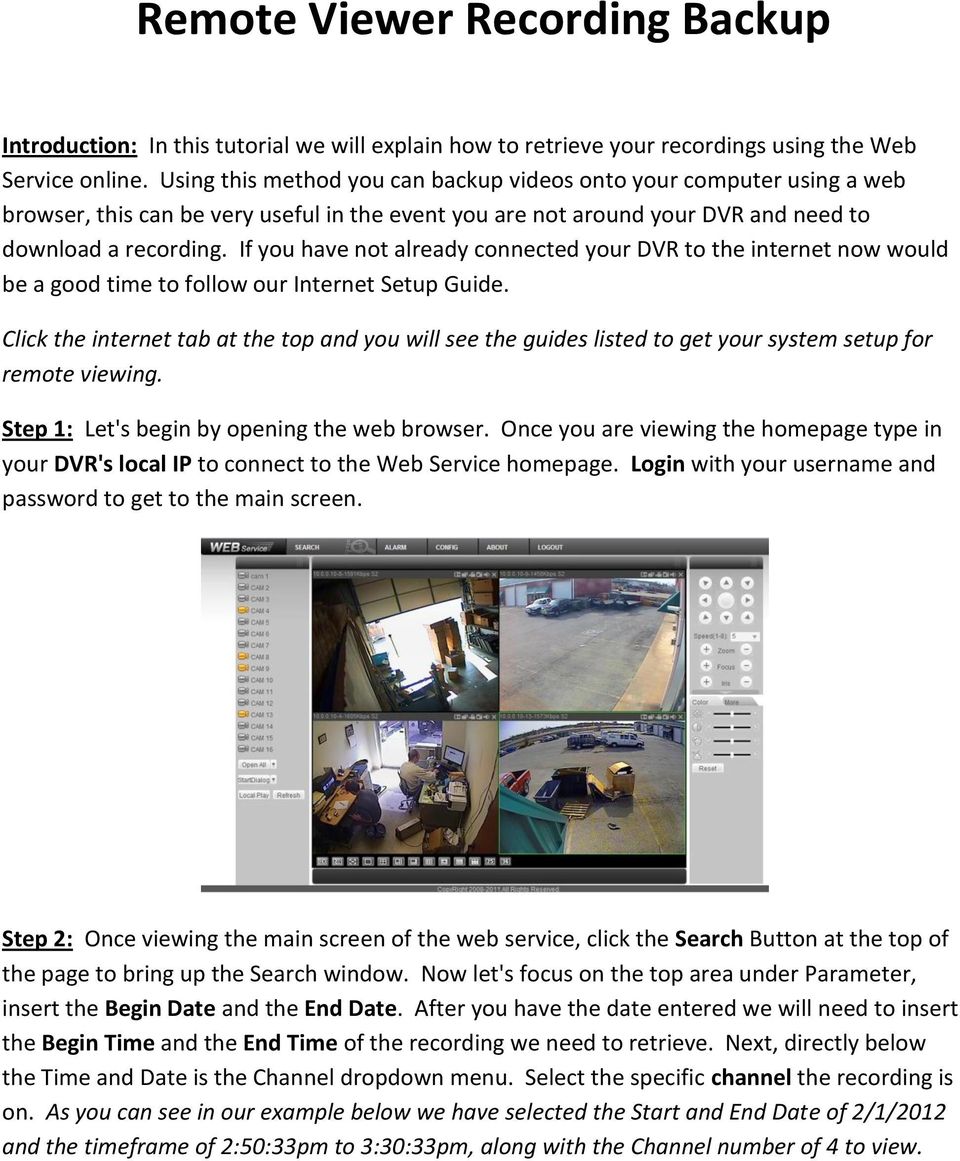
1 Remote Viewer Recording Backup Introduction: In this tutorial we will explain how to retrieve your recordings using the Web Service online. Using this method you can backup videos onto your computer using a web browser, this can be very useful in the event you are not around your DVR and need to download a recording. If you have not already connected your DVR to the internet now would be a good time to follow our Internet Setup Guide. Click the internet tab at the top and you will see the guides listed to get your system setup for remote viewing. Step 1: Let's begin by opening the web browser. Once you are viewing the homepage type in your DVR's local IP to connect to the Web Service homepage. Login with your username and password to get to the main screen. Step 2: Once viewing the main screen of the web service, click the Search Button at the top of the page to bring up the Search window. Now let's focus on the top area under Parameter, insert the Begin Date and the End Date. After you have the date entered we will need to insert the Begin Time and the End Time of the recording we need to retrieve. Next, directly below the Time and Date is the Channel dropdown menu. Select the specific channel the recording is on. As you can see in our example below we have selected the Start and End Date of 2/1/2012 and the timeframe of 2:50:33pm to 3:30:33pm, along with the Channel number of 4 to view.
2 Step 3: Now that we have our time and date selected let's focus on the area directly to the right of the time and date that's labeled Download Type. By default its set to "File", for this tutorial we need to change it to Time. Now that we have selected all the parameters lets click the Search button in the upper right of the screen to find our recordings. If a recording was found it will appear in the box located in the middle of the search window. When your search results appear you will notice they are in a pack time of one hour intervals, don't let this throw you off if you selected a timeframe of less than one hour, as it will still download that specific timeframe that you have selected. Now that we have our recording selected click the Download button in the upper right to bring up the Save As window. Select a folder on your computer that you want to save the recording to then name the file, once complete click the Save button to begin downloading the file to your computer.

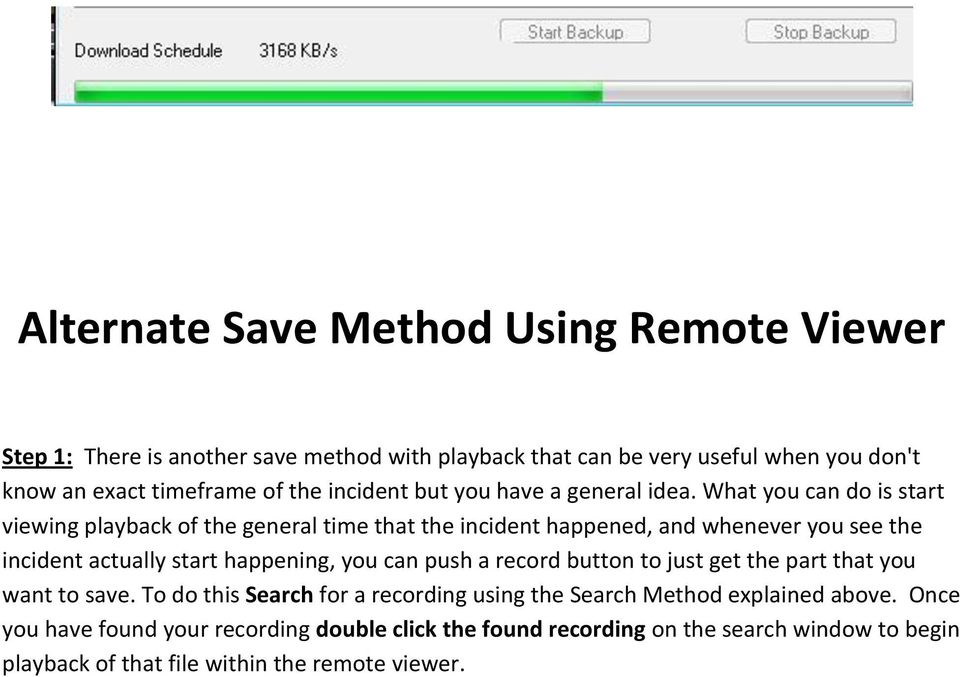
3 Step 4: You will notice a download progress bar at the bottom of the Save screen, once the download is complete a popup window will appear confirming the completion of the download, next we will need to locate the file on the computer. Once located, double click the file to view your recording. (Be sure that you have the file player downloaded on your computer in order to play the file.

4 Alternate Save Method Using Remote Viewer Step 1: There is another save method with playback that can be very useful when you don't know an exact timeframe of the incident but you have a general idea. What you can do is start viewing playback of the general time that the incident happened, and whenever you see the incident actually start happening, you can push a record button to just get the part that you want to save. To do this Search for a recording using the Search Method explained above. Once you have found your recording double click the found recording on the search window to begin playback of that file within the remote viewer.
5 Step 2: Now that we are viewing playback of that timeframe and we see the beginning of the part we would like to record, click the Local Record button in the upper right of the playback window. It appears as a little camera icon. Once you click the icon it will turn white and begin downloading to your computer when you are finished recording your video, click the camera icon again to stop the recording download. Step 3: Now that we have our recording downloaded to our computer we will need to locate it. When using this download method the recordings always save to the file located under C:\RecordDownload. Browse to this file on your computer and there will be a folder in it with
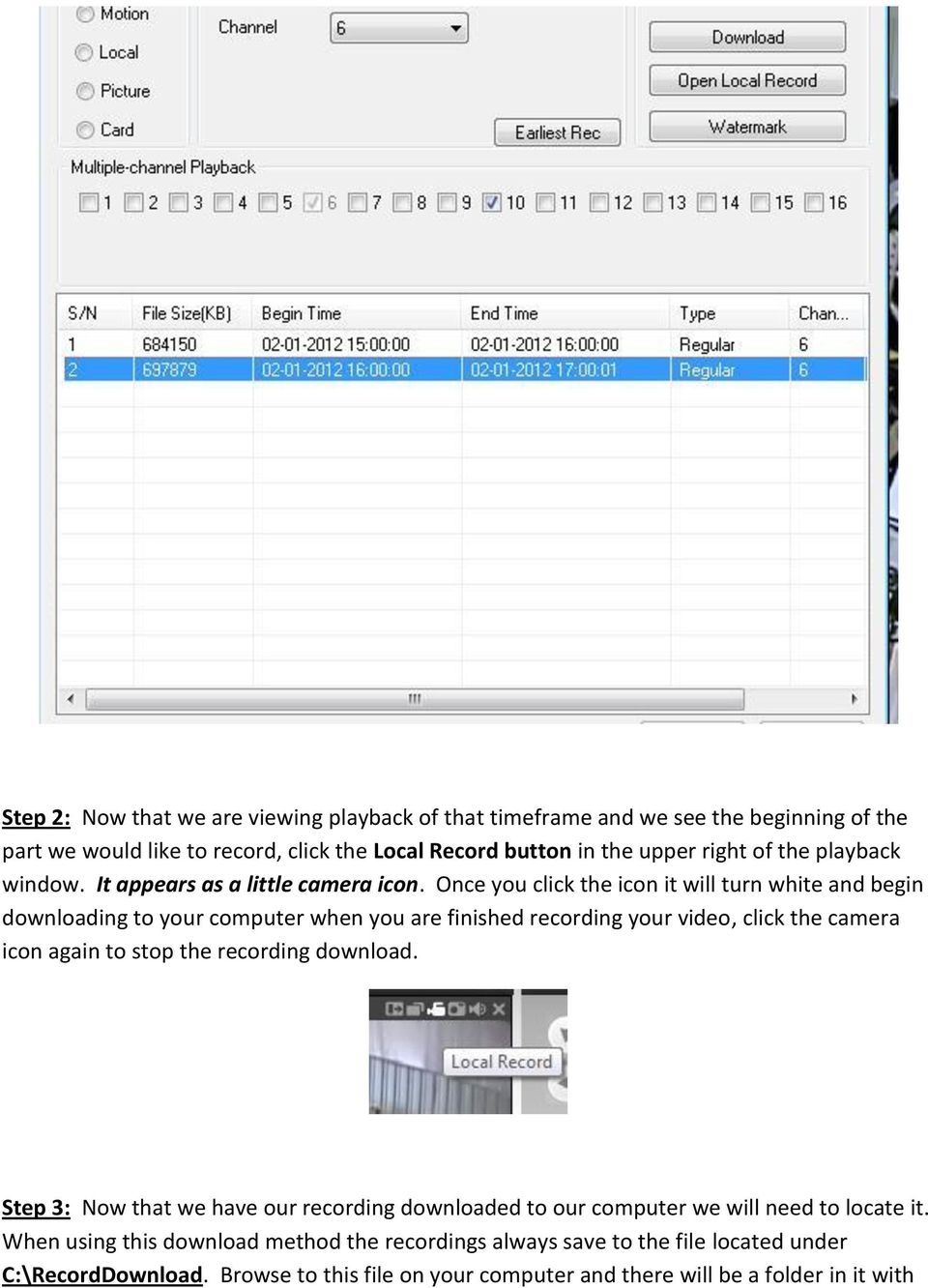
6 the recording you just created. Double click the file to begin playback (again, make sure you have the file player downloaded on your computer).

Send Video Recordings from the DVR to a FTP Server on your PC
 Send Video Recordings from the DVR to a FTP Server on your PC Introduction: The DVR has a useful feature that allows you to download recordings directly to a FTP server on your PC. This is just another
REMOTE ACCESS DDNS CONFIGURATION MANUAL
 REMOTE ACCESS DDNS CONFIGURATION MANUAL Analog DVR Series 1 www.mezory.com INTRODUCTION TO REMOTE ACCESS As the World sinks into one global village, reliable connectivity is one of the most demanding facilities
Creating a Website with Google Sites
 Creating a Website with Google Sites This document provides instructions for creating and publishing a website with Google Sites. At no charge, Google Sites allows you to create a website for various uses,
Citrix Client Install Instructions
 Citrix Client Install Instructions If you are using Citrix remotely, Information Technology Services recommends updating Citrix client to the newest version available online. You must be an administrator
Terminal Four. Content Management System. Moderator Access
 Terminal Four Content Management System Moderator Access Terminal Four is a content management system that will easily allow users to manage their college web pages at anytime, anywhere. The system is
TREND series H.264 DVR Central Management System Quick User Guide
 TREND series H.264 DVR Central Management System Quick User Guide Table of Contents 1. Introduction... 2 2. Install CMS/NVMS Software... 3 3. Create DVR Device... 9 3.1 Add DVR to CMS... 9 3.2 DVR Automatically
Basics of Port Forwarding on a Router for Security DVR s
 Basics of Port Forwarding on a Router for Security DVR s The basic concept of setting up your router to allow for Off Site access to your DVR involves setting up the two necessary ports the Security DVR
ClickView Digital Signage User Manual
 ClickView Digital Signage User Manual Table of Contents 1. What is ClickView Digital Signage?... 3 2. Where do I find ClickView Digital Signage?... 3 2.1. To find ClickView Digital Signage... 3 3. How
GUIDEWIRE. Introduction to Using WebMail. macrobatix. Learn how to: august 2008
 macrobatix GUIDEWIRE august 2008 Introduction to Using WebMail Learn how to: Manage Your Inbox Compose a Message Activate Spam Filter Modify Spam Settings Check Held Messages *To download the complete
DVR4C Remote Viewer Operation Manual Table of Contents EN 3 1. OVERVIEW...5 1.1 MINIMUM PC REQUIREMENTS...5 2. INSTALLING THE PROGRAM...
 DVR4x4RemoteViewer.book Page 3 Tuesday, February 15, 2005 9:19 AM DVR4C Remote Viewer Operation Manual Table of Contents EN 3 1. OVERVIEW...5 1.1 MINIMUM PC REQUIREMENTS...5 2. INSTALLING THE PROGRAM...5
There is a separate guide for students, available from Moodle at Student Resources > General Resources > Using Moodle for Students
 ClickView Help Sheet Using ClickView: Teacher Guide About this Help Sheet This guide is in three parts A. Browsing the ClickView library at ClickView Online B. Adding a ClickView video to a Moodle Course
1. Central Monitoring System Software
 1. Central Monitoring System Software 1-1. General information CMS program is an application with which users not only watch and control remote DVRs, but also receive video/audio data or alarm signals
Schools Remote Access Server
 Schools Remote Access Server This system is for school use only. Not for personal or private file use. Please observe all of the school district IT rules. 6076 State Farm Rd., Guilderland, NY 12084 Phone:
Qvis Security Technical Support Field Manual LX Series
 Table of Contents Page 1: Motion Detection 1.0 Configuring Motion Detection for LX Apollo / LX Zeus DVRs 2 1.1 Motion Playback on LX Apollo / LX Zeus DVRs 3 1.2 Scheduling Motion and Continuous Recording
ImagineWorldClient Client Management Software. User s Manual. (Revision-2)
 ImagineWorldClient Client Management Software User s Manual (Revision-2) (888) 379-2666 US Toll Free (905) 336-9665 Phone (905) 336-9662 Fax www.videotransmitters.com 1 Contents 1. CMS SOFTWARE FEATURES...4
2. PMP New Computer Installation. & Networking Instructions
 ONTARIO CHIROPRACTIC ASSOCIATION PATIENT MANAGEMENT PROGRAM PUTTING EXPERIENCE INTO PRACTICE PMP New Computer Installation & Networking Instructions This document provides installation instructions for
College of Continuing Education Video Production Room
 College of Continuing Education Video Production Room To Begin a Session: Step 1: Turn on the Station by pressing the red switch near the desktop monitor. By doing this the following equipment will be
7. Mobile Phone Support
 7. Mobile Phone Support A state-of-the-art feature of this DVR device is transmitting live feed from the CCTV cameras to your mobile phone, so that you can have on the go access to your surveillance system
How to Remotely Access the C&CDHB Network from a Personal Device
 How to Remotely Access the C&CDHB Network from a Personal Device 13/09/2012 Contents Installing the Citrix Receiver for Windows PCs... 2 Installing the Citrix Receiver for Mac OS X... 6 Installing the
Creating a Website with Google Sites
 Creating a Website with Google Sites This document provides instructions for creating and publishing a website with Google Sites. At no charge, Google Sites allows you to create a website for various uses,
1. Central Monitoring System Software
 1. Central Monitoring System Software 1-1. General information CMS program is an application with which users not only watch and control remote DVRs, but also receive video/audio data or alarm signals
Instruction for IE network monitor
 Instruction for IE network monitor This system features a built-in browser-based software that allows you to access your system remotely over your local area network (LAN) or over the Internet (WAN) using
MiraCosta College now offers two ways to access your student virtual desktop.
 MiraCosta College now offers two ways to access your student virtual desktop. We now feature the new VMware Horizon View HTML access option available from https://view.miracosta.edu. MiraCosta recommends
IBM/Softlayer Object Storage for Offsite Backup
 IBM/Softlayer Object Storage for Offsite Backup How to use IBM/Softlayer Object Storage for Offsite Backup How to use IBM/Softlayer Object Storage for Offsite Backup IBM/Softlayer Object Storage is a redundant
https://weboffice.edu.pe.ca/
 NETSTORAGE MANUAL INTRODUCTION Virtual Office will provide you with access to NetStorage, a simple and convenient way to access your network drives through a Web browser. You can access the files on your
SMS Remote Software User Manual. Pro Series & Contender Series DVRs
 SMS Remote Software User Manual Pro Series & Contender Series DVRs Table of Contents Chapter 1 Overview 1 1.1 In This Manual 1 1.2 Overview 1 1.3 SMS Features 1 1.4 Product Information 1 1.5 System Requirements
Virtual Office Remote Installation Guide
 Virtual Office Remote Installation Guide Table of Contents VIRTUAL OFFICE REMOTE INSTALLATION GUIDE... 3 UNIVERSAL PRINTER CONFIGURATION INSTRUCTIONS... 12 CHANGING DEFAULT PRINTERS ON LOCAL SYSTEM...
How to Remotely View Security Cameras Using the Internet
 How to Remotely View Security Cameras Using the Internet Introduction: The ability to remotely view security cameras is one of the most useful features of your EZWatch Pro system. It provides the ability
SMS (Server Management Software) Digital Video Recorder. User s Manual
 SMS (Server Management Software) Digital Video Recorder User s Manual Contents 1 - Introduction 2 1.1 About this manual 2 1.2 Configuration 2 1.3 SMS Functions 2 1.4 Product Information 2 1.5 System Requirements
ACT State Testing Online Services Tutorial
 ACT State Testing Online Services Tutorial Back-up Test Supervisor Version Released July, 2009 2009 by ACT, Inc., All rights reserved. Back-up Test Supervisor Online Profile Form Introduction The Back-up
Zoho CRM and Google Apps Synchronization
 Zoho CRM and Google Apps Synchronization Table of Contents End User Integration Points 1. Contacts 2. Calendar 3. Email 4. Tasks 5. Docs 3 6 8 11 12 Domain-Wide Points of Integration 1. Authentication
How to use SURA in three simple steps:
 How to use SURA in three simple steps: Most of SURA s functionality can be accessed through these three steps. 1) Download SURA to your computer Go to the SU Downloads page to obtain the SURA utility.
1. Central Monitoring System Software
 1. Central Monitoring System Software 1-1. General information CMS program is an application with which users not only watch and control remote DVRs, but also receive video/audio data or alarm signals
Schools CPD Online General User Guide Contents
 Schools CPD Online General User Guide Contents New user?...2 Access the Site...6 Managing your account in My CPD...8 Searching for events...14 Making a Booking on an Event...20 Tracking events you are
idvr-pro Viewer Software for Mac User Manual ver 0.1
 idvr-pro Viewer Software for Mac User Manual ver 0.1 1 Contents 1. Introduction... Error! Bookmark not defined. 1.1 Summary... Error! Bookmark not defined. 2. Install... Error! Bookmark not defined. 2.1
File Storage. This is a manual that contains pertinent information about your File Storage space at SLC.
 File Storage This is a manual that contains pertinent information about your File Storage space at SLC. About All students at SLC are provided with an allotment of secure storage space to save and store
Open a PDF document using Adobe Reader, then click on the Tools menu on the upper left hand corner.
 This document illustrates how to digitally sign PDF documents using Acrobat Reader 11. The illustrations assume that the user already has a digital certificate. You will need the latest version of Adobe
CCTV Access using Pro Surveillance System (PSS)
 CCTV Access using Pro Surveillance System (PSS) 1) PSS is a computer program that allows you to have full remote access and control for your CCTV system across a network or internet. PSS is especially
KViewCenter Software User Manual 2012 / 04 / 20 Version 2.2.1.0
 KViewCenter Software User Manual 2012 / 04 / 20 Version 2.2.1.0 Table of Contents Chapter 1. KViewCenter Interface... 5 1.1. Log in.... 5 1.2. Log out... 5 1.3. Control Panel... 6 1.4. Control Panel (Preview
1. Open the License Manager either via the Start Menu or from C:\Keri\DoorsNET directory.
 Doors.NET v3.5.1.21 includes a new automatic backup feature that allows you to quickly and easily schedule a full system backup. By default, this backup is performed every week on Friday at 23:00 hours
How To Remotely View Your Security Cameras Through An Ezwatch Pro Dvr/Camera Server On A Pc Or Ipod (For A Small Charge) On A Network (For An Extra $20) On Your Computer Or Ipo (For Free
 How to Remotely View Security Cameras Using the Internet Introduction: The ability to remotely view security cameras is one of the most useful features of your EZWatch Pro system. It provides the ability
Network Setup Guide. 1 Glossary. 2 Operation. 1.1 Static IP. 1.2 Point-to-Point Protocol over Ethernet (PPPoE)
 Network Setup Guide 1 Glossary 1.1 Static IP Computers are communicated and recognized by their own unique IP addresses over the Internet. Static IP provided by your ISP (Internet Service Provider) means
FORM SIMPLICITY QUICK REFERENCE GUIDE PROFESSIONAL/ULTIMATE EDITION
 FORM SIMPLICITY QUICK REFERENCE GUIDE PROFESSIONAL/ULTIMATE EDITION Library Getting a Form 1. Click on Start a Form. (Alternatively, you can click on Library in the menu bar at the top) 2. This will open
HOW TO USE OIT EMAIL VIA THE WEB
 HOW TO USE OIT EMAIL VIA THE WEB A) Logging into your MyOIT account which includes your email account 1) Open a browser such as Firefox, Chrome or Safari. Please do not use Internet Explorer. 2) In the
Technology @ QMU. QuickStartIT: QMU Citrix remote desktop service
 Technology @ QMU QuickStartIT: QMU Citrix remote desktop service v1.1, June 2015 What s in this guide? Page Introduction 2 Accessing the Citrix remote desktop service 2 Installing the Citrix receiver (PC)
How to recover IE Client
 HIKVISION EUROPE B.V. How to recover IE Client (WebClientActiveX Control) Name: WebClientActiveX Control Publisher: HANGZHOU HIKVISION DIGITAL TECHNOLOGY CO.,LTD. Type: ActiveX Control Version: 2.4.0.56
GETTING STARTED WITH QUICKEN 2010, 2009, and 2008-2007 for Windows. This Getting Started Guide contains the following information:
 GETTING STARTED WITH QUICKEN 2010, 2009, and 2008-2007 for Windows Refer to this guide for instructions on how to use Quicken s online account services to save time and automatically keep your records
How To Connect Your Cloud
 How To Connect Your Cloud This tutorial will show you how to connect ncrypted Cloud to multiple cloud storage accounts after installation. This will allow you to apply privacy to all cloud data right from
ACS CLIENT SOFTWARE USER MANUAL
 ACS CLIENT SOFTWARE USER MANUAL 1 ACS USER GUIDE 1.1 System Requirement Recommended System Requirement OS CPU VGA RAM HDD WindowXP, Vista Pentium 4, 2Ghz 1024*768, 64MB 24bit color graphic card 1GB 20MB
Step-by-Step Setup Guide Wireless File Transmitter FTP Mode
 EOS Step-by-Step Setup Guide Wireless File Transmitter FTP Mode Infrastructure & Ad Hoc Networks Mac OS X 10.5-10.6 2012 Canon U.S.A., Inc. All Rights Reserved. Reproduction in whole or in part without
Technology Business Solutions. Online Backup Manager INSTALLATION
 Technology Business Solutions Online Backup Manager 1. Go to the TBS OBM Software Registration Page Click the TBS Logo Under the select an account type choose the PRO version. Page1 of7 2.) Create a new
Microsoft Expression Web
 Microsoft Expression Web Microsoft Expression Web is the new program from Microsoft to replace Frontpage as a website editing program. While the layout has changed, it still functions much the same as
Backing Up and Deleting Files
 CHAPTER 5 Backing Up and Deleting Files Video files can be copied from the hard disk to external storage media, such as CD-R, DVD, MO, or ZIP drives. Video files saved on the hard disk can be easily deleted
16.4.3 Lab: Data Backup and Recovery in Windows XP
 16.4.3 Lab: Data Backup and Recovery in Windows XP Introduction Print and complete this lab. In this lab, you will back up data. You will also perform a recovery of the data. Recommended Equipment The
E-Map Application CHAPTER. The E-Map Editor
 CHAPTER 7 E-Map Application E-Map displays the monitoring area on an electronic map, by which the operator can easily locate the cameras, sensors and alarms triggered by motion or I/O devices. Topics discussed
NATIONAL BUILDINGS CONSTRUCTION CORPORATION LTD. NBCC VIDEO CONFERENCING SOLUTION USER GUIDE
 NATIONAL BUILDINGS CONSTRUCTION CORPORATION LTD. NBCC VIDEO CONFERENCING SOLUTION USER GUIDE Document Release Date: 22.04.2014 Index Starting with Video Conferencing 3 Installation & Setup 3-7 Login to
How to install and use the File Sharing Outlook Plugin
 How to install and use the File Sharing Outlook Plugin Thank you for purchasing Green House Data File Sharing. This guide will show you how to install and configure the Outlook Plugin on your desktop.
Instructions for Registering for a Miradi Account & Installing Miradi Software
 Instructions for Registering for a Miradi Account & Installing Miradi Software www.miradi.org/download Version: March 2015 Introduction The following slides guide users through the process for registering
REMOTE ACCESS - OUTLOOK WEB APP
 REMOTE ACCESS - OUTLOOK WEB APP Outlook Web App Outlook Web App (formally known as Outlook Web Access) offers basic e-mail, calendar and contact access. You will not be able to access any of your documents
Guide to Using Citrix at SLU (Windows)
 1 Guide to Using Citrix at SLU (Windows) Section 1: Installing Citrix Client on Your Computer Page 2 Section 2: Citrix Homepage Page 9 Section 3: Troubleshooting Page 11 Section 4: Opening and Saving Files
ivms-4200 Client Software Quick Start Guide
 ivms-4200 Client Software Quick Start Guide Notices The information in this documentation is subject to change without notice and does not represent any commitment on behalf of HIKVISION. HIKVISION disclaims
Cox Business Premium Online Backup USER'S GUIDE. Cox Business VERSION 1.0
 Cox Business Premium Online Backup USER'S GUIDE Cox Business VERSION 1.0 Table of Contents ABOUT THIS GUIDE... 4 DOWNLOADING COX BUSINESS PREMIUM ONLINE BACKUP... 5 INSTALLING COX BUSINESS PREMIUM ONLINE
account multiple solutions
 Quick Start Guide 1 Our easy to use guide will get you up and running in no time! The guide will assist you with: Generating your Sage Pay login Navigation Creating contacts Creating system users Setting
NVMS-1200. User Manual
 NVMS-1200 User Manual Contents 1 Software Introduction... 1 1.1 Summary... 1 1.2 Install and Uninstall... 1 1.2.1 Install the Software... 1 2 Login Software... 3 2.1 Login... 3 2.2 Control Panel Instruction...
TM Online Storage: StorageSync
 TM Online Storage: StorageSync 1 Part A: Backup Your Profile 1: How to download and install StorageSync? Where to download StorageSync? You may download StorageSync from your e-storage account. Please
Pro Surveillance System 4.0. Quick Start Reference Guide
 Pro Surveillance System 4.0 Quick Start Reference Guide 1 Table of Contents 1) Overview 3 2) Initial Setup Adding a Connection..4 3) Viewing Live Cameras...6 4) Single or Multi Channel Playback..8 5) Predetermined
Using Internet or Windows Explorer to Upload Your Site
 Using Internet or Windows Explorer to Upload Your Site This article briefly describes what an FTP client is and how to use Internet Explorer or Windows Explorer to upload your Web site to your hosting
Utilizing SASED OneDrive Cloud Storage
 Utilizing SASED OneDrive Cloud Storage Technology Department 5/29/15 The purpose of this document is to provide guidance on how to transfer and access SASED documents and folders on your SASED provided
Panopto Recording. Click the Panopto Recorder icon found on the Desktop. Click the Log in with Blackboard button. Page 1
 Panopto Recording The Panopto Recorder allows for a great deal of flexibility in how and what can be recorded. This guide will cover all aspects of recording with one computer (meaning all presentation
Personal Portfolios on Blackboard
 Personal Portfolios on Blackboard This handout has four parts: 1. Creating Personal Portfolios p. 2-11 2. Creating Personal Artifacts p. 12-17 3. Sharing Personal Portfolios p. 18-22 4. Downloading Personal
Vess A2000 Series. NVR Storage Appliance. Windows Recovery Instructions. Version 1.0. 2014 PROMISE Technology, Inc. All Rights Reserved.
 Vess A2000 Series NVR Storage Appliance Windows Recovery Instructions Version 1.0 2014 PROMISE Technology, Inc. All Rights Reserved. Contents Introduction 1 Different ways to backup the system disk 2 Before
An Introduction to Box.com
 An Introduction to Box.com Box is an online file sharing and cloud content management service and it provides features such as: Security controls Space Mobility Online collaboration Mobile access Version
How To Set Up Dataprotect
 How To Set Up Dataprotect This document will show you how to install and configure your computer for a Typical installation. If you have questions about configuring a Custom installation please contact
When To Work Scheduling Program
 When To Work Scheduling Program You should receive your login information by the second week of May. Please login and follow the instructions included in this packet. You will be scheduled based upon the
 on-hand viewer on iphone / ipod touch manual installation and configuration of an FTP server for Mac OS X to transfer data to on-hand viewer application on iphone / ipod touch table of contents 1. Introduction
<User s Guide> Plus Viewer. monitoring. Web
 Plus Viewer 1 < Plus Viewer (web ) > 1-1 Access Method The user can access the DVR system through the web. 1 Enter the IP for the DVR system in the address field of the web browser. 2 The
CDVS-7000 Series Remote Software Users Guide
 CDVS-7000 Series Remote Software Users Guide Crest Electronics, Inc. Version 12.1005 Remote Surveillance Program The remote surveillance program enables users of the Crest 7000 series DVRs to connect remotely
LEARNING RESOURCE CENTRE. Guide to Microsoft Office Online and One Drive
 LEARNING RESOURCE CENTRE Guide to Microsoft Office Online and One Drive LEARNING RESOURCE CENTRE JULY 2015 Table of Contents Microsoft Office Online... 3 How to create folders... 6 How to change the document
IIS, FTP Server and Windows
 IIS, FTP Server and Windows The Objective: To setup, configure and test FTP server. Requirement: Any version of the Windows 2000 Server. FTP Windows s component. Internet Information Services, IIS. Steps:
How to preview ezviz device via Web Browser / Mobile Client / Client Software ivms-4200
 How to preview ezviz device via Web Browser / Mobile Client / Client Software ivms-4200 Contents Attention... 3 Make your device ready before activation... 3 Register and preview via web browser... 5 Register
Content Management System QUICK START GUIDE
 Content Management System QUICK START GUIDE Revised 03/10/11 TABLE OF CONTENTS Pg. 1... Logging In Pg. 2... Navigating to your site folder Pg. 2... The Folder Tree, Site Structure and Wire Frames Explained.
SECTION 1: FIND OUT THE IP ADDRESS OF DVR To find out the IP of DVR for your DVR do the following:
 NOTE! The DVR and PC must be connected to the same router. Things you will need to know : 1. The make and model of the router. 2. If you changed the default r outer login, then you will need to know the
ClickView 24-7 Cloud User Manual
 ClickView 24-7 Cloud User Manual 1 What is ClickView 24-7 Cloud? ClickView 24-7 Cloud is a TV recording service that allows you to go back in time up to 14 days and choose from thousands of TV programmes
Installing the VMware Horizon View Client to Access Hoag Virtual Desktops
 Installing the VMware Horizon View Client to Access Hoag Virtual Desktops Hoag IT Department For questions or further assistance, please contact the Service Desk: 949-764-8600, option 2 1 Table of Contents
10.3.1.6 Lab - Data Backup and Recovery in Windows XP
 5.0 10.3.1.6 Lab - Data Backup and Recovery in Windows XP Introduction Print and complete this lab. In this lab, you will back up data. You will also perform a recovery of the data. Recommended Equipment
FTP Over SSL (FTPS) Core FTP LE. Installing Core FTP LE"
 FTP Over SSL (FTPS) Gordon State College has setup FTP Over SSL (also known as FTPS ) to allow students, faculty, and staff to access resources from our Servers from off-campus using an encrypted connection.
How to Use JCWHosting Reseller Cloud Storage Solution
 How to Use JCWHosting Reseller Cloud Storage Solution Go to https://www.internetspace.co.za and log in with your Cloud Reseller account username and password. How to Use create a cloud account for your
Remote Client Program... 3. Web Client... 39
 Remote Client / Web Client USER MANUAL T Series Digital Video Recorder Remote Client Program... 3 Remote Client Program Installation... 4 Remote Client... 6 Main Window... 6 Site Registration... 7 Group
DocuSign Connect for Salesforce Guide
 Information Guide 1 DocuSign Connect for Salesforce Guide 1 Copyright 2003-2013 DocuSign, Inc. All rights reserved. For information about DocuSign trademarks, copyrights and patents refer to the DocuSign
IP Camera Centralization Management. Client Application. (IPCMonitor) Feb, 2013 Version 1.9. User Manual
 IP Camera Centralization Management Client Application (IPCMonitor) Feb, 2013 Version 1.9 User Manual INDEX 1 Introduction...3 2 Computer Requirement...3 3 Installation...4 4 Devices list...4 4.1 Adding
How to Setup and Connect to an FTP Server Using FileZilla. Part I: Setting up the server
 How to Setup and Connect to an FTP Server Using FileZilla The ability to store data on a server and being able to access the data from anywhere in the world has allowed us to get rid of external flash
MAPPING THE WEBDRIVE REFERENCE GUIDE
 MAPPING THE WEBDRIVE REFERENCE GUIDE INTRODUCTION The university WebDrive is a dedicated drive to host all university web content. For help with mapping the WebDrive, please read the instructions below
Using an Automatic Back Up for Outlook 2003 and Outlook 2007 Personal Folders
 Using an Automatic Back Up for Outlook 2003 and Outlook 2007 Personal Folders Part 1 Install the Personal Folder Backup Utility Note: You should close Outlook and any other applications before installing
BSDI Advanced Fitness & Wellness Software
 BSDI Advanced Fitness & Wellness Software 6 Kellie Ct. Califon, NJ 07830 http://www.bsdi.cc SOFTWARE BACKUP/RESTORE INSTRUCTION SHEET This document will outline the steps necessary to take configure the
www.nuvox.net, enter the administrator user name and password for that domain.
 Page 1 of 7 Cute_FTP Server Names and Authentication Before connecting to an FTP site you need three pieces of information: the server name or the site you are connecting to and a user name and password.
How to connect NUVICO DVR to the internet
 How to connect NUVICO DVR to the internet Section 1. Initial preparations Preparations Finding Network Information NUVICO Connecting Video Anywhere 1 Preparations Is the Internet service up and running
LOREX CLIENT Remote Software 4.0
 LOREX CLIENT Remote Software 4.0 Instruction Manual English Version 2.0 MODEL: L20WD800 Series www.lorexcctv.com Copyright 2008 LOREX Technology Inc. Table of Contents Table of Contents Software Installation...
DDNS Management System User Manual V1.0
 DDNS Management System User Manual V1.0 1 03/01/2012 Table of Contents 1. Introduction.3 2. Network Configuration 3 2.1. Configuring DDNS locally through DVR Menu..3 2.2. Configuring DDNS through Internet
ilaw Installation Procedure
 ilaw Installation Procedure This guide will provide a reference for a full installation of ilaw Case Management Software. Contents ilaw Overview How ilaw works Installing ilaw Server on a PC Installing
ivms-4200 Client Software Quick Start Guide V1.02
 ivms-4200 Client Software Quick Start Guide V1.02 Contents 1 Description... 2 1.1 Running Environment... 2 1.2 Surveillance System Architecture with an Performance of ivms-4200... 3 2 Starting ivms-4200...