
PC-EFTPOS / BWA Merchant Services. Installation Guide. (Verifone Vx810)
|
|
|
- Barry Phillips
- 10 years ago
- Views:
Transcription
1 PC-EFTPOS / BWA Merchant Services Installation Guide (Verifone Vx810) Release 1.04

2 Revision Record Version Date Author Document Revisions Preparation 1.00 July 2011 Harrisson Ghys Richard Bolt Document Creation 1.01 August 2011 Richard Bolt Richard Bolt Added dial up option 1.02 August 2011 Richard Bolt Richard Bolt Minor updates 1.03 August 2011 Richard Bolt Richard Bolt Minor updates 1.04 August 2011 Richard Bolt Richard Bolt Minor updates Copyright PC-EFTPOS Pty Ltd, This document contains information proprietary to PC-EFTPOS Pty Ltd. Any reproduction, disclosure or unauthorised use of this material is expressly prohibited except as may be authorised by PC-EFTPOS Pty Ltd in writing. 1/9a Ponderosa Parade Warriewood NSW 2102 Australia Phone Fax

3 Table of Contents 1. Introduction Before you start BWA Merchant Services Terminology Installing the software for PC-EFTPOS IP Communications Gateway VeriFone Vx810 USB installation Single POS terminal with pinpad PC-EFTPOS Configuration Wizard Multiple POS terminals with separate server (no pinpad on the server machine) PC-EFTPOS Configuration Wizard Determining the IP address of your server Multiple POS terminals (with no separate server) PC-EFTPOS Configuration Wizard Determining the IP address of your server Configuring Multiple POS Terminals PC-EFTPOS Configuration Wizard Trouble shooting General trouble shooting steps Resolving Duplicate Client ID errors... 45

4 1. Introduction This document outlines how to install both the PC-EFTPOS EFT Client and Server software when using the PC-EFTPOS IP Communications Gateway PC-EFTPOS EFT Software must first be installed on the server which will connect directly with BWA Merchant Services. The server must have an internet connection and not connect via a proxy Optionally, on the server which is connecting with BWA Merchant Services, install EMS Lite Record the IP address of the server. Enter this when including additional POS connections. See (2.3.2) 1.1 Before you start Before you begin the installation of both the PC-EFTPOS software and your EFTPOS terminal(s), you should ensure you have the following; An EFTPOS terminal which contains the correct BWA Merchant Services software, The latest PC-EFTPOS IP Communications Gateway installation software, (the software can be downloaded from our website EFTPOS%20Setup.exe Terminal and Merchant ID s (per lane) supplied by BWA Merchant Services, Internet connection (the gateway server shouldn t be connecting to the internet via a proxy) 1.2 BWA Merchant Services Terminology Terminal ID : This is the number that uniquely identified each EFTPOS terminal. Merchant ID : This number uniquely identifies each merchant BWA Merchant Services will issue details for each terminal at the site as well as the connection to BWA Merchant Services. The following outlines the details that BWA Merchant Services will issue: Bank BWA Merchant Services Merchant ID Terminal ID Username Password Help Desk Number PC-EFTPOS BWA Merchant Services(Verifone Vx810) Installation Guide v1.04.docx4 1

5 2. Installing the software for PC-EFTPOS IP Communications Gateway When installing the software to set up for the PC-EFTPOS IP Communications Gateway, the 3 most common choices are as follows: 1) A single POS terminal with a pinpad connecting to the Gateway (refer to Chapter 2.1) 2) Multiple POS terminals with pinpads, and a separate server machine with no pinpad that connects to the Gateway (Refer to Chapter 2.2 for installing the server software and Chapter 2.4 for installing the software on the other terminals) 3) Multiple POS terminals with pinpads, with no separate server machine. In this case you will need to use one of the POS terminals as the server connecting to the Gateway. (Refer to Chapter 2.3 for installing server software on one of the terminals and Chapter 2.4 for installing the software on the other terminals) These three setups are described below. Dial up communications will be supported for backup transaction processing only. PC-EFTPOS BWA Merchant Services(Verifone Vx810) Installation Guide v1.04.docx4 2

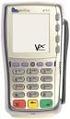
6 2.0 VeriFone Vx810 USB installation. 1. Do not plug the terminal in yet 2. Install the PC-EFTPOS software from EFTPOS%20Setup.exe 3. Follow the installation steps as Section Stop at step (the Configuration Wizard), then follow the steps below 5. Connect the VeriFone Vx810 to a USB port in the computer. 6. If a connection is successfully established between the Verifone terminal and POS (Computer) you should receive the popup window Found New Hardware. This window can be dismissed. Select Cancel or the small x to the top right, shown below; 7. Navigate to the directory C:\PC_EFT\usb\VerixV-Vx810WinUsbDriver as shown below; 8. Double click the installvfi icon, as shown above, to start the installation of the driver. (If you wish to manually assign a COM port, please refer to the README instructions). 9. The installation will complete. The VeriFone Vx810 terminal is now ready to operate. 10. At this point, the PINPad will be asking for a terminal id (supplied by BWA Merchant Services) 11. Follow through the rest of the configuration of the software (from step 2.1.1). 12. Once the software has been installed, enter in your terminal id 13. Terminal will log on to BWA Merchant Services and be ready to use PC-EFTPOS BWA Merchant Services(Verifone Vx810) Installation Guide v1.04.docx4 3

7 2.1 Single POS terminal with pinpad Download and run the PC-EFTPOS IP Communications Gateway software from EFTPOS%20Setup.exe To install the software The default directory is recommended PC-EFTPOS BWA Merchant Services(Verifone Vx810) Installation Guide v1.04.docx4 4

8 For a single POS lane, always select PC-EFTPOS Client And Server option The default folder is recommended PC-EFTPOS BWA Merchant Services(Verifone Vx810) Installation Guide v1.04.docx4 5

9 Click Install to begin the software installation and to start the Configuration Wizard This can take up to several minutes to install. PC-EFTPOS BWA Merchant Services(Verifone Vx810) Installation Guide v1.04.docx4 6

10 2.1.1 PC-EFTPOS Configuration Wizard Give this a try to confirm your connections PC-EFTPOS BWA Merchant Services(Verifone Vx810) Installation Guide v1.04.docx4 7

11 Click Next (F3) if ok. If not, check com ports and click Detect again Select BWA Merchant Services and Click Next (F3) PC-EFTPOS BWA Merchant Services(Verifone Vx810) Installation Guide v1.04.docx4 8

12 Choose the settings that you require here (Com port and terminal). Then click Next Select the No Option Check the COM port number is correctly assigned (see notes below) Then click Next Note: If your PINPad is not automatically detected, or the incorrect COM port number is shown above, then follow these steps to determine the correct COM port number 1) Click on Windows Start button 2) Right Click on My Computer ( Computer on Windows 7) 3) Select Manage 4) Click on Device Manager 5) Click on the + icon in front of Ports to show all COM ports. 6) Take note of the COM port number assigned to the Verifone Vx810 (eg. COM9:) 7) Make sure the same COM Port number is selected from the drop down list in the configuration wizard above PC-EFTPOS BWA Merchant Services(Verifone Vx810) Installation Guide v1.04.docx4 9

13 If you have installed the EMS Server software, enter the IP address here, otherwise leave blank For the PC-EFTPOS IP Gateway, make sure you select the PC-EFTPOS Gateway option PC-EFTPOS BWA Merchant Services(Verifone Vx810) Installation Guide v1.04.docx4 10

14 Enter in the User Id and Password provided to you by PC-EFTPOS for access to the secure IP Gateway Set the priority to High. If later in the config wizard you use a P66/67/68 modem as an optional fallback, you would configure the priority of the modem as 0 - Low This will be the IP address for the secure Financial Gateway. gw0.pceftpos.com You should open up your firewall for this IP address as well as gw1.pceftpos.com The port will always be 443 Optional: If you will be using a P66/67/68 modem as a fallback option to the PC-EFTPOS IP Gateway, you should click Yes here to configure for it. See section of the PC-EFTPOS Installation Guide for more details on this. Click Next (F3) PC-EFTPOS BWA Merchant Services(Verifone Vx810) Installation Guide v1.04.docx4 11

15 Click Complete (F3) PC-EFTPOS BWA Merchant Services(Verifone Vx810) Installation Guide v1.04.docx4 12

16 2.2 Multiple POS terminals with separate server (no pinpad on the server machine) Download and run the PC-EFTPOS IP Communications Gateway software from EFTPOS%20Setup.exe Install the software on your Server machine The default directory is recommended PC-EFTPOS BWA Merchant Services(Verifone Vx810) Installation Guide v1.04.docx4 13

17 When installing on a separate server machine (with no pinpad), you need to select the EFT Server Only option The default folder is recommended PC-EFTPOS BWA Merchant Services(Verifone Vx810) Installation Guide v1.04.docx4 14

18 Click Install to begin the software installation and to start the Configuration Wizard This can take several minutes to install. PC-EFTPOS BWA Merchant Services(Verifone Vx810) Installation Guide v1.04.docx4 15

19 2.2.1 PC-EFTPOS Configuration Wizard Give this a try to confirm your connections. You will only need to do this if you are using a P66/67/68 modem as your fallback option on the server. Otherwise you can press Skip (F2). PC-EFTPOS BWA Merchant Services(Verifone Vx810) Installation Guide v1.04.docx4 16

20 Click Next (F3) if ok. If not, check com ports and click Detect again Select BWA Merchant Services and Click Next (F3) PC-EFTPOS BWA Merchant Services(Verifone Vx810) Installation Guide v1.04.docx4 17

21 For the PC-EFTPOS IP Gateway, make sure you select the PC-EFTPOS Gateway option Enter in the User Id and Password provided to you by PC-EFTPOS for access to the secure IP Gateway Set the priority to High. If later in the config wizard you use a P66/67/68 modem as an optional fallback, you would configure the priority of the modem as 0 - Low This will be the IP address for the secure IP Gateway. gw0.pceftpos.com You should open up your firewall for this IP address as well as gw1.pceftpos.com The port will always be 443 PC-EFTPOS BWA Merchant Services(Verifone Vx810) Installation Guide v1.04.docx4 18
22 Optional: If you will be using a P66/67/68 modem as a fallback option to the PC-EFTPOS IP Gateway, you should click Yes here to configure for it. See section of the PC-EFTPOS Installation Guide for more details on this. Click Next (F3) Click Complete (F3) PC-EFTPOS BWA Merchant Services(Verifone Vx810) Installation Guide v1.04.docx4 19
23 2.2.2 Determining the IP address of your server You have now configured your server for connection to the PC-EFTPOS IP Communications Gateway. For details on configuring your other terminals, please refer to Chapter 2.4 Configuring Multiple POS Terminals. You will need the IP address of this server machine when you are configuring the software for the other terminals You can get this information by performing the following steps 1) Double click on the EFT-Server icon (green $ sign) 2) You may see a button that says Open Control Panel, if so, click the button 3) Click on the Server tab. 4) This will list the IP address of the server. Note this information down for configuring your other terminals Server tab EFT Server icon Note the IP address for this sever machine, as you will need it for configuring your other terminals PC-EFTPOS BWA Merchant Services(Verifone Vx810) Installation Guide v1.04.docx4 20
24 2.3 Multiple POS terminals (with no separate server) Download and run the PC-EFTPOS IP Communications Gateway software from EFTPOS%20Setup.exe If you have no separate sever machine, you will need to select one of the terminals to act as the server and to install the EFT Server software on it. If you have a P66/67/68 modem attached to one of the terminals, to use as a fallback option, you should make this your selected server machine. To install the software on the selected Server machine PC-EFTPOS BWA Merchant Services(Verifone Vx810) Installation Guide v1.04.docx4 21
25 The default directory is recommended Since this machine will be installing the server software and also have a pinpad attached, make sure you select the PC-EFTPOS Client and Server option PC-EFTPOS BWA Merchant Services(Verifone Vx810) Installation Guide v1.04.docx4 22
26 The default folder is recommended PC-EFTPOS BWA Merchant Services(Verifone Vx810) Installation Guide v1.04.docx4 23
27 Click Install to begin the software installation and to start the Configuration Wizard This could take several minutes to install. PC-EFTPOS BWA Merchant Services(Verifone Vx810) Installation Guide v1.04.docx4 24
28 2.3.1 PC-EFTPOS Configuration Wizard Give this a try to confirm your connections PC-EFTPOS BWA Merchant Services(Verifone Vx810) Installation Guide v1.04.docx4 25
29 Click Next (F3) if ok. If not, check com ports and click Detect again Select BWA Merchant Services and Click Next (F3) PC-EFTPOS BWA Merchant Services(Verifone Vx810) Installation Guide v1.04.docx4 26
30 Choose the settings that you require here (Com port and terminal). Then click Next Select the No Option Check the COM port number is correctly assigned (see notes below) Then click Next Note: If your PINPad is not automatically detected, or the incorrect COM port number is shown above, then follow these steps to determine the correct COM port number 1) Click on Windows Start button 2) Right Click on My Computer ( Computer on Windows 7) 3) Select Manage 4) Click on Device Manager 5) Click on the + icon in front of Ports to show all COM ports. 6) Take note of the COM port number assigned to the Verifone Vx810 (eg. COM9:) 7) Make sure the same COM Port number is selected from the drop down list in the configuration wizard above PC-EFTPOS BWA Merchant Services(Verifone Vx810) Installation Guide v1.04.docx4 27
31 If you have installed the EMS Server software, enter the IP address here, otherwise leave blank For the PC-EFTPOS IP Gateway, make sure you select the PC-EFTPOS Gateway option PC-EFTPOS BWA Merchant Services(Verifone Vx810) Installation Guide v1.04.docx4 28
32 Enter in the User Id and Password provided to you by PC-EFTPOS for access to the secure IP Gateway Set the priority to High. If later in the config wizard you use a P66/67/68 modem as an optional fallback, you would configure the priority of the modem as 0 - Low This will be the IP address for the secure IP Gateway. gw0.pceftpos.com You should open up your firewall for this IP address as well as gw1.pceftpos.com The port will always be 443 Optional: If you will be using a P66/67/68 modem as a fallback option to the PC-EFTPOS IP Gateway, you should click Yes here to configure for it. See section of the PC-EFTPOS Installation Guide for more details on this. Click Next (F3) Optional Step: If you want to use TMS then select PC-EFTPOS SLL, otherwise press Skip (F2) PC-EFTPOS BWA Merchant Services(Verifone Vx810) Installation Guide v1.04.docx4 29
33 Click Complete (F3) PC-EFTPOS BWA Merchant Services(Verifone Vx810) Installation Guide v1.04.docx4 30

34 2.3.2 Determining the IP address of your server You have now configured your server for connection to the PC-EFTPOS IP Communications Gateway. For details on configuring your other terminals, please refer to Chapter 2.4 Configuring Multiple POS Terminals. You will need the IP address of this server machine when you are configuring the software for the other terminals You can get this information by performing the following steps 1) Double click on the EFT-Server icon (green $ sign) 2) You may see a button that says Open Control Panel, if so, click the button 3) Click on the Server tab. 4) This will list the IP address of the server. Note this information down for configuring your other terminals Server tab EFT Server icon Note the IP address for this sever machine, as you will need it for configuring your other terminals PC-EFTPOS BWA Merchant Services(Verifone Vx810) Installation Guide v1.04.docx4 31

35 2.4 Configuring Multiple POS Terminals Download and run the PC-EFTPOS IP Communications Gateway software from EFTPOS%20Setup.exe You must make sure you have installed the software on a server machine first. Please refer to Chapter 2.2 or Chapter 2.3 (depending on your configuration) on how to do this. Once the server machine software has been installed, complete the following steps on each of the other POS terminals with connected pinpads. To install the software PC-EFTPOS BWA Merchant Services(Verifone Vx810) Installation Guide v1.04.docx4 32

36 The default directory is recommended Since this machine will have a pinpad attached, make sure you select the PC- EFTPOS Client and Server option PC-EFTPOS BWA Merchant Services(Verifone Vx810) Installation Guide v1.04.docx4 33

37 The default folder is recommended PC-EFTPOS BWA Merchant Services(Verifone Vx810) Installation Guide v1.04.docx4 34
38 Click Install to begin the software installation and to start the Configuration Wizard This can take several minutes to install. PC-EFTPOS BWA Merchant Services(Verifone Vx810) Installation Guide v1.04.docx4 35
39 2.4.1 PC-EFTPOS Configuration Wizard Give this a try to confirm your connections PC-EFTPOS BWA Merchant Services(Verifone Vx810) Installation Guide v1.04.docx4 36


40 Click Next (F3) if ok. If not, check com ports and click Detect again Select BWA Merchant Services and Click Next (F3) PC-EFTPOS BWA Merchant Services(Verifone Vx810) Installation Guide v1.04.docx4 37
41 Choose the settings that you require here (Com port and terminal). Then click Next Select the No Option Check the COM port number is correctly assigned (see notes below) Then click Next Note: If your PINPad is not automatically detected, or the incorrect COM port number is shown above, then follow these steps to determine the correct COM port number 1) Click on Windows Start button 2) Right Click on My Computer ( Computer on Windows 7) 3) Select Manage 4) Click on Device Manager 5) Click on the + icon in front of Ports to show all COM ports. 6) Take note of the COM port number assigned to the Verifone Vx810 (eg. COM9:) 7) Make sure the same COM Port number is selected from the drop down list in the configuration wizard above PC-EFTPOS BWA Merchant Services(Verifone Vx810) Installation Guide v1.04.docx4 38

42 If you have installed the EMS Server software, enter the IP address here, otherwise leave blank Since you should have already installed this software on your server machine make sure you select the Another PC on the network option PC-EFTPOS BWA Merchant Services(Verifone Vx810) Installation Guide v1.04.docx4 39
43 This will be the IP address where you installed the server software. Refer to Chapter for determining the IP address. The port will be 2005 by default Click Next (F3) PC-EFTPOS BWA Merchant Services(Verifone Vx810) Installation Guide v1.04.docx4 40
44 Click Complete (F3) PC-EFTPOS BWA Merchant Services(Verifone Vx810) Installation Guide v1.04.docx4 41

45 3. Trouble shooting 3.1 General trouble shooting steps Check that the status of the PC-EFTPOS SLL connection in the Lines tab of the EFT Server has a status of CONNECTED If it is not CONNECTED, check the properties to make sure that the IP address is set to gw0.pceftpos.com (or ) and port is 443 and that the PC s firewall allows access to the IP address and port PC-EFTPOS BWA Merchant Services(Verifone Vx810) Installation Guide v1.04.docx4 42

46 If the status is CONNECTED, check that the user name and password provided by PC-EFTPOS have been entered correctly in the Server tab If the status is CONNECTED, check that the Default Link in the Links tab is assigned to the PC- EFTPOS SLL interface. If not, you can add it by selecting the line and adding it through the Properties window PC-EFTPOS BWA Merchant Services(Verifone Vx810) Installation Guide v1.04.docx4 43

47 If the status is CONNECTED, make sure that the server PC is not accessing the internet via a proxy Open a web browser and enter the following address You should get a screen as follows If you don t get a message warning about the Security Certificate, then your site may have been blacklisted from our servers. Contact our help desk for further information PC-EFTPOS BWA Merchant Services(Verifone Vx810) Installation Guide v1.04.docx4 44
48 3.2 Resolving Duplicate Client ID errors The internet gateway username/password can only be used on one PC. If it gets used on more than one PC, then it generates a DUPLICATE CLIENT ID (A key is generated and stored in their registry and if it doesn t match with the key on our gateway, then it will lock the user id out) These steps will fix the connection with a customer s internet gateway should it ever drop out with DUPLICATE CLIENT ID error Basically all you need to do is clear out the key from the registry, which will recreate a new one when the EFT Server service is restarted and restore the connection) From the customer s end 1) Click on the Windows Start button 2) Click on All Programs 3) Click on Accessories 4) Click on Run 5) Enter in regedit without the quotes and press on OK 6) Navigate to HKEY_LOCAL_MACHINE\SOFTWARE\Remedy\EFTSRV\SERVER PC-EFTPOS BWA Merchant Services(Verifone Vx810) Installation Guide v1.04.docx4 45
49 7) Double click on the USID field (it will be full of garbage characters) 8) Delete out the characters to make the field blank and then press on OK 9) Restart the EFT Server service, by either rebooting the PC... or follow steps below 10) Click on the Windows Start button 11) Click on All Programs 12) Click on Accessories 13) Click on Run 14) Enter in services.msc without the quotes and press on OK 15) Scroll through the list and find EFT-Server 16) Right click on it and select Restart option 17) It should only take a few seconds for it to restart. If it hangs, then you ll need to reboot the PC instead If you are still unable to connect via the IP Communications Gateway, call PC-EFTPOS Help Desk on (02) for further fault finding analysis. PC-EFTPOS BWA Merchant Services(Verifone Vx810) Installation Guide v1.04.docx4 46
PC-EFTPOS IP Communications Gateway Installation Guide. EFT Client & EFT Server
 PC-EFTPOS IP Communications Gateway Installation Guide EFT Client & EFT Server Release 1.08 March 2011 Revision Record Version Date Author Document Revisions Preparation 1.00 July 08 Richard Bolt Richard
PC-EFTPOS Installation Guide. EFT Client. Release 5.0 April 09
 PC-EFTPOS Installation Guide EFT Client Release 5.0 April 09 Revision Record Version Date Author Document Revisions Preparation 0.01 June 00 Craig Godden Craig Godden Document Creation 1.00 May 01 Craig
The FlexiSchools Online Order Management System Installation Guide
 The FlexiSchools Online Order Management System Installation Guide Installation Pack Welcome to the FlexiSchools system. You will have received a disc containing: Zebra Drivers FlexiSchools Online Order
MyNetFone Virtual Fax. Virtual Fax Installation
 Table of Contents MyNetFone Virtual Fax MyNetFone Virtual Fax Installation... 1 Changing the SIP endpoint details for the fax driver... 11 Uninstalling Virtual Fax... 13 Virtual Fax Installation Follow
Installing SQL Express. For CribMaster 9.2 and Later
 Installing SQL Express For CribMaster 9.2 and Later CRIBMASTER USER GUIDE Installing SQL Express Document ID: CM9-031-03012012 Copyright CribMaster. 1996, 1997, 1998, 1999, 2000, 2001, 2002, 2003, 2004,
Cloud9 Quick Start Guide for CRG
 Cloud9 Quick Start Guide for CRG Contents 1. Topology... 2 1.1 Machine A... 2 1.2 Machine1~N... 2 2. Install and Configure CreditLine... 3 2.1 CreditLine Server... 3 2.2 CreditLine Client... 3 3. Install
Driver Updater Manual
 Driver Updater Manual Keep your drivers up-to-date! Improve your system performance and stability by keeping your drivers updated. Automatically find, update and fix the drivers on your computer and turn
SETTING UP REMOTE ACCESS ON EYEMAX PC BASED DVR.
 SETTING UP REMOTE ACCESS ON EYEMAX PC BASED DVR. 1. Setting up your network to allow incoming connections on ports used by Eyemax system. Default ports used by Eyemax system are: range of ports 9091~9115
FrontDesk Installation And Configuration
 Chapter 2 FrontDesk Installation And Configuration FrontDesk v4.1.25 FrontDesk Software Install Online Software Activation Installing State Related Databases Setting up a Workstation Internet Transfer
The FlexiSchools Online Order Management (FOOM) Installation Guide
 The FlexiSchools Online Order Management (FOOM) Installation Guide Installation Pack Welcome to the FlexiSchools system. You will have been sent an email and two packages delivered by courier, one with
How do I configure the wireless printer using a USB or Ethernet cable and install the printer driver in Windows?
 How do I configure the wireless printer using a USB or Ethernet cable and install the printer driver in Windows? STEP I: Gather the wireless network settings of your wireless access point or wireless router
Sharp Remote Device Manager (SRDM) Server Software Setup Guide
 Sharp Remote Device Manager (SRDM) Server Software Setup Guide This Guide explains how to install the software which is required in order to use Sharp Remote Device Manager (SRDM). SRDM is a web-based
BioWin Network Installation
 BioWin Network Installation Introduction This document outlines the procedures for installing the network version of BioWin. There are three parts to the network version installation: 1. The installation
Installing S500 Power Monitor Software and LabVIEW Run-time Engine
 EigenLight S500 Power Monitor Software Manual Software Installation... 1 Installing S500 Power Monitor Software and LabVIEW Run-time Engine... 1 Install Drivers for Windows XP... 4 Install VISA run-time...
The FlexiSchools Online Order Management System Installation Guide
 The FlexiSchools Online Order Management System Installation Guide FlexiSchools May 2012 Page 1 of 16 Installation Pack Welcome to the FlexiSchools system. You will have received a disc containing: Sato
Credit Card Processing Installation Instructions
 Credit Card Processing Installation Instructions NOTE: Before using these instructions you must have a TERMINAL ID and a NAM ID number. To obtain these numbers, complete and fax the Heartland Agreement
Palomar College Dial-up Remote Access
 Palomar College Dial-up Remote Access Instructions for Windows 95/98 and Windows 2000 Following are instructions to implement dialup access to the Palomar College network, email and Internet. The minimum
a) Network connection problems (check these for existing installations)
 How do I resolve issues with a Client not connecting to the Best Practice server instance? This FAQ is intended to answer common questions about resolving issues with a Best Practice client not connecting
QUANTIFY INSTALLATION GUIDE
 QUANTIFY INSTALLATION GUIDE Thank you for putting your trust in Avontus! This guide reviews the process of installing Quantify software. For Quantify system requirement information, please refer to the
XStream Remote Control: Configuring DCOM Connectivity
 XStream Remote Control: Configuring DCOM Connectivity APPLICATION BRIEF March 2009 Summary The application running the graphical user interface of LeCroy Windows-based oscilloscopes is a COM Automation
16.4.3 Lab: Data Backup and Recovery in Windows XP
 16.4.3 Lab: Data Backup and Recovery in Windows XP Introduction Print and complete this lab. In this lab, you will back up data. You will also perform a recovery of the data. Recommended Equipment The
Troubleshooting Sprint Mobile Broadband USB Modem by Novatel Wireless TM (Ovation TM U727)
 Troubleshooting Sprint Mobile Broadband USB Modem by Novatel Wireless TM (Ovation TM U727) If you are unable to resolve your issue using the Troubleshooting steps below, please contact Sprint Customer
RSM Web Gateway RSM Web Client INSTALLATION AND ADMINISTRATION GUIDE
 RSM Web Gateway RSM Web Client INSTALLATION AND ADMINISTRATION GUIDE Installation and Administration Guide RSM Web Client and RSM Web Gateway 17 August, 2004 Page 1 Copyright Notice 2004 Sony Corporation.
Phaser 3635MFP Software Upgrade Process
 Overview Phaser 3635MFP Software Upgrade Process The Software Upgrade feature allows the customer to upgrade the machine software as requested by a Xerox Customer Support Center Representative, without
WhatsUp Gold v16.1 Installation and Configuration Guide
 WhatsUp Gold v16.1 Installation and Configuration Guide Contents Installing and Configuring Ipswitch WhatsUp Gold v16.1 using WhatsUp Setup Installing WhatsUp Gold using WhatsUp Setup... 1 Security guidelines
Network DK2 DESkey Installation Guide
 VenturiOne Getting Started Network DK2 DESkey Installation Guide PD-056-306 DESkey Network Server Manual Applied Cytometry CONTENTS 1 DK2 Network Server Overview... 2 2 DK2 Network Server Installation...
Guide to Setting up Internet Connection Sharing for Windows
 Guide to Setting up Internet Connection Sharing for Windows Document Date: December 20, 2005 Document Version: Version: 1.0 Disclaimer: Please note that this document is provided on an as is where is basis
Setting up Hyper-V for 2X VirtualDesktopServer Manual
 Setting up Hyper-V for 2X VirtualDesktopServer Manual URL: www.2x.com E-mail: [email protected] Information in this document is subject to change without notice. Companies, names, and data used in examples herein
Topaz Installation Sheet
 Topaz Installation Sheet P/N 460924001E ISS 08FEB12 Content Introduction... 3 Recommended minimum requirements... 3 Setup for Internet Explorer:... 4 Topaz installation... 10 Technical support... 14 Copyright
Installing LearningBay Enterprise Part 2
 Installing LearningBay Enterprise Part 2 Support Document Copyright 2012 Axiom. All Rights Reserved. Page 1 Please note that this document is one of three that details the process for installing LearningBay
STATISTICA VERSION 9 STATISTICA ENTERPRISE INSTALLATION INSTRUCTIONS FOR USE WITH TERMINAL SERVER
 Notes: STATISTICA VERSION 9 STATISTICA ENTERPRISE INSTALLATION INSTRUCTIONS FOR USE WITH TERMINAL SERVER 1. These instructions focus on installation on Windows Terminal Server (WTS), but are applicable
Setting up Hyper-V for 2X VirtualDesktopServer Manual
 Setting up Hyper-V for 2X VirtualDesktopServer Manual URL: www.2x.com E-mail: [email protected] Information in this document is subject to change without notice. Companies, names, and data used in examples
Configuration Guide. Remote Backups How-To Guide. Overview
 Configuration Guide Remote Backups How-To Guide Overview Remote Backups allow you to back-up your data from 1) a ShareCenter TM to either a Remote ShareCenter or Linux Server and 2) Remote ShareCenter
Connecting the DG-102S VoIP Gateway to your network
 Contents of Package: DG-102S VoIP Station Gateway Power adapter CD-ROM, including User s Manual Quick Install Guide Requirements: RS-232 Console Cable Two RJ-45 CAT-5 Straight-Through Cables For more information
Metasys System Direct Connection and Dial-Up Connection Application Note
 Metasys System Direct Connection and Dial-Up Connection Application Note Code No. LIT-1201639 Software Release 5.1 Issued August 27, 2013 Supersedes October 4 2010 Refer to the QuickLIT website for the
801.11n Wireless Broadband Router
 801.11n Wireless Broadband Router WNRT-626 Quick Installation Guide Table of Contents Hardware Installation... 4 Web Configuration... 6 Further Configuration... 8 Thank you for purchasing PLANET 801.11n
10.3.1.6 Lab - Data Backup and Recovery in Windows XP
 5.0 10.3.1.6 Lab - Data Backup and Recovery in Windows XP Introduction Print and complete this lab. In this lab, you will back up data. You will also perform a recovery of the data. Recommended Equipment
Omni 56K USB Lite Quick Start Guide
 Omni 56K USB Lite Quick Start Guide ZyXEL TOTAL INTERNET ACCESS SOLUTION 1. Hardware Installation Connect your modem to your analog phone or fax. Use the phone cord included to connect to the phone jack
If you are unable to set up your Linksys Router by using one of the above options, use the steps below to manually configure your router.
 This article describes how to manually configure a Linksys Router for broadband DSL that uses PPPoE (Point-to-Point Protocol over Ethernet) for authentication. For automatic configuration options, please
How to Remotely View Security Cameras Using the Internet
 How to Remotely View Security Cameras Using the Internet Introduction: The ability to remotely view security cameras is one of the most useful features of your EZWatch Pro system. It provides the ability
MFC6490CW Windows Network Connection Repair Instructions
 Difficulty printing from your PC can occur for various reasons. The most common reason a networked Brother machine may stop printing, is because the connection between the computer and the Brother machine
Installing the TAPI Support Software
 Installing the TAPI Support Software To install and set up the TAPI 2.1-compliant software, use the following steps: 1. Start Web Portal. 2. Click the Options tab. 3. Click the PC Integration tab. 4. Click
ilaw Installation Procedure
 ilaw Installation Procedure This guide will provide a reference for a full installation of ilaw Case Management Software. Contents ilaw Overview How ilaw works Installing ilaw Server on a PC Installing
User Manual. Onsight Management Suite Version 5.1. Another Innovation by Librestream
 User Manual Onsight Management Suite Version 5.1 Another Innovation by Librestream Doc #: 400075-06 May 2012 Information in this document is subject to change without notice. Reproduction in any manner
Network Setup Guide. Introduction. Setting up for use over LAN
 Network Setup Guide This manual contains the setup information required to use the machine over wired LAN. If you use the machine with USB connection, refer to your setup sheet. Introduction To use the
SMS Database System Quick Start. [Version 1.0.3]
![SMS Database System Quick Start. [Version 1.0.3]](/thumbs/27/10030198.jpg "SMS Database System Quick Start. [Version 1.0.3]") SMS Database System Quick Start [Version 1.0.3] Warning ICP DAS Inc., LTD. assumes no liability for damages consequent to the use of this product. ICP DAS Inc., LTD. reserves the right to change this manual
SMS Database System Quick Start [Version 1.0.3] Warning ICP DAS Inc., LTD. assumes no liability for damages consequent to the use of this product. ICP DAS Inc., LTD. reserves the right to change this manual
Dell Statistica 13.0. Statistica Enterprise Installation Instructions
 Dell Statistica 13.0 2015 Dell Inc. ALL RIGHTS RESERVED. This guide contains proprietary information protected by copyright. The software described in this guide is furnished under a software license or
VPN User Guide. For Mac
 VPN User Guide For Mac System Requirements Operating System: Mac OSX. Internet Browser: Safari (Firefox and Google Chrome are NOT currently supported). Disclaimer Your computer must have the system requirements
Working Folder Linkage Setup Guide
 For models listed below, see the respective "Working Foloder Linkage Setup Guide". wfs-mfp-installguide-09_en.pdf - ApeosPort-IV C5570/C4470/C3371/C3370/C2270 - ApeosPort-IV C7780/C6680/C5580 - ApeosPort-IV
Information & Communication Technologies FTP and GroupWise Archives Wilfrid Laurier University
 Instructions for MAC users MAC users have not been joined to the Active Directory Domain. ICT is unable to capture GroupWise archives you may have on your computer automatically or confirm if you have
Windows 7 Hula POS Server Installation Guide
 Windows 7 Hula POS Server Installation Guide Step-by-step instructions for installing the Hula POS Server on a PC running Microsoft Windows 7 1 Table of Contents Introduction... 3 Getting Started... 3
Active Directory Integration
 Active Directory Integration Last updated March 2016 Contents Introduction:... 2 Administration configuration set up:... 2 Configuring for a single OU import... 3 User Importing... 3 Active Directory and
TX3 Series TELEPHONE ACCESS SYSTEMS. Configurator Quick Start. Version 2.2 Mircom Copyright 2014 LT-973
 TX3 Series TELEPHONE ACCESS SYSTEMS Configurator Quick Start Version 2.2 Mircom Copyright 2014 LT-973 Copyright 2014 Mircom Inc. All rights reserved. Mircom Configurator Software Guide v.2.2 for Windows
Front Desk Web Appointment Book Installation
 Front Desk Web Appointment Book Installation 1996-2013 Smartsoft (Australia) Pty Ltd. December 2013 Copyright Smartsoft (Australia) Pty Ltd. 1996-2013 All rights reserved. No part of this publication may
Network Setup Instructions
 Network Setup Instructions This document provides technical details for setting up the Elite Salon & Spa Management program in a network environment. If you have any questions, please contact our Technical
TECHNICAL SUPPORT GUIDE
 TECHNICAL SUPPORT GUIDE INTRODUCTION This document has been developed to provide a guideline for assisting our clients and their technicians with a standard Console Gateway Live configuration. IS THIS
Using Windows Task Scheduler instead of the Backup Express Scheduler
 Using Windows Task Scheduler instead of the Backup Express Scheduler This document contains a step by step guide to using the Windows Task Scheduler instead of the Backup Express Scheduler. Backup Express
CUCM 9.x Configuration Manual for Arc Premium
 CUCM 9.x Configuration Manual for Arc Premium Version 6.0.0 2003-2013 Arc Solutions (International) Ltd. All rights reserved No part of this documentation may be reproduced in any form or by any means
1. Open the License Manager either via the Start Menu or from C:\Keri\DoorsNET directory.
 Doors.NET v3.5.1.21 includes a new automatic backup feature that allows you to quickly and easily schedule a full system backup. By default, this backup is performed every week on Friday at 23:00 hours
The FlexiSchools Online Order Management System Installation Guide
 The FlexiSchools Online Order Management System Installation Guide FlexiSchools May 2012 Page 1 of 18 Installation Pack Welcome to the FlexiSchools system. You will have received a disc containing: Sato
Step One: Downloading and Running the Dial- up Networking (DUN) Installer
 Introduction The Globalstar GSP-1700 can function as a data modem for use with Windows 7 offering uncompressed 9.6 Kbps data throughput. To setup your Windows 7 computer and Globalstar phone for data use,
Step-by-Step Setup Guide Wireless File Transmitter FTP Mode
 EOS Step-by-Step Setup Guide Wireless File Transmitter FTP Mode Ad Hoc Setup Windows XP 2012 Canon U.S.A., Inc. All Rights Reserved. Reproduction in whole or in part without permission is prohibited. 1
Cox Business Premium Online Backup USER'S GUIDE. Cox Business VERSION 1.0
 Cox Business Premium Online Backup USER'S GUIDE Cox Business VERSION 1.0 Table of Contents ABOUT THIS GUIDE... 4 DOWNLOADING COX BUSINESS PREMIUM ONLINE BACKUP... 5 INSTALLING COX BUSINESS PREMIUM ONLINE
Keri USB-A Connection and Configuration
 Step 1 - Connect the KPC-1 cable to the K-USB. NOTE: The form of the USB converter may vary, so the unit you receive may not be identical to the one displayed here. Step 2 Plug the USB Connector of the
PC-EFTPOS Reference Guide
 PC-EFTPOS Reference Guide Vx810 Version 2.05 Sept 2013 Page 1 20-Sep-13 Table of Contents PC-EFTPOS Contact Details... 2 Introduction... 2 Using PC-EFTPOS with a POS... 3 BWA Merchant Services Specific
Download and Install the Citrix Receiver for Mac/Linux
 Download and Install the Citrix Receiver for Mac/Linux NOTE: WOW can only be used with Internet Explorer for Windows. To accommodate WOW customers using Mac or Linux computers, a Citrix solution was developed
How To Connect To An Egrabit With A Vpn On A Pc Or Mac Or Ipad (For Pc Or Ipa) With A Pv (For Mac) Or Ipv (Femalese) With An Ipv Or Ip
 ewon Application User Guide AUG 052 / Rev 1.0 P Contents egrabit - efive Connection Tool This application guide explains how to use the egrabit software to This application guide connection explains how
Brady IP Printer Installation Instructions
 Brady IP Printer Installation Instructions Ensure the following are available before commencing installation: The IP Printer and accessories (Printer, power cable, Product CD including Windows printer
Shellfire L2TP-IPSec Setup Windows XP
 Shellfire L2TP-IPSec Setup Windows XP This guide explains how to configure your Windows XP PC to work with a Shellfire L2TP-IPSec VPN. Index 1. Required data and files... 2 2. Creating a connection...
Setting up VMware ESXi for 2X VirtualDesktopServer Manual
 Setting up VMware ESXi for 2X VirtualDesktopServer Manual URL: www.2x.com E-mail: [email protected] Information in this document is subject to change without notice. Companies, names, and data used in examples
OnDemand. Getting Started Guide
 OnDemand Getting Started Guide Copyright Copyright 2009 ACS Technologies Group, Inc. All rights reserved. Reproduction of any part of this publication by mechanical or electronic means, including facsimile
Installation Instruction STATISTICA Enterprise Small Business
 Installation Instruction STATISTICA Enterprise Small Business Notes: ❶ The installation of STATISTICA Enterprise Small Business entails two parts: a) a server installation, and b) workstation installations
This document is intended to make you familiar with the ServersCheck Monitoring Appliance
 ServersCheck Monitoring Appliance Quick Overview This document is intended to make you familiar with the ServersCheck Monitoring Appliance Although it is possible, we highly recommend not to install other
Setting Up Monthly Reporter
 Setting Up Monthly Reporter April 11, 2014 I. HOW IT WORKS A QUICK OVERVIEW A. AuditWare Development Company maintains a powerful, sophisticated server on which a portion of memory is assigned to each
tpischeduler tpischeduler TotalFBO tpischeduler TotalFBO Initial Installation tpischeduler TotalFBO tpischeduler
 tpischeduler tpischeduler is a plug-in to TotalFBO which provides an online interface to your database. This enables customers and staff to view, change, and delete their own appointments as well as print
educ Office 365 email: Remove & create new Outlook profile
 Published: 29/01/2015 If you have previously used Outlook the with the SCC/SWO service then once you have been moved into Office 365 your Outlook will need to contact the SCC/SWO servers one last time
Digital Voice PC Client Software Setup Guide
 Digital Voice PC Client Software Setup Guide Ramesh Dhami, VA3UV ([email protected]) The information in this guide is for the use of a DV Dongle in conjunction with the Digital Voice Client 1 software to
Spam Marshall SpamWall Step-by-Step Installation Guide for Exchange 5.5
 Spam Marshall SpamWall Step-by-Step Installation Guide for Exchange 5.5 What is this document for? This document is a Step-by-Step Guide that can be used to quickly install Spam Marshall SpamWall on Exchange
Contents. Hardware Configuration... 27 Uninstalling Shortcuts Black...29
 Contents Getting Started...1 Check your Computer meets the Minimum Requirements... 1 Ensure your Computer is Running in Normal Sized Fonts... 7 Ensure your Regional Settings are Correct... 9 Reboot your
PIGCHAMP MOBILE. PigCHAMP Knowledge Software. Installation Guide for Mobile Units
 PIGCHAMP MOBILE PigCHAMP Knowledge Software Installation Guide for Mobile Units Table of Contents: Important Note:... 4 Chapter 1: PC Setup... 5 A. Install PigCHAMP Mobile Manager on Windows XP...5 B.
Table of Contents. 1. Overview... 3. 1.1 Materials Required. 3 1.2 System Requirements. 3 1.3 User Mode 3. 2. Installation Instructions..
 Table of Contents 1. Overview..... 3 1.1 Materials Required. 3 1.2 System Requirements. 3 1.3 User Mode 3 2. Installation Instructions.. 4 2.1 Installing the On Call Diabetes Management Software. 4 2.2
Microsoft IIS 4 Guide to Installing Root Certificates, Generating CSR and Installing SSL Certificate
 Microsoft IIS 4 Guide to Installing Root Certificates, Generating CSR and Installing SSL Certificate Copyright. All rights reserved. Trustis Limited Building 273 New Greenham Park Greenham Common Thatcham
Network/Floating License Installation Instructions
 Network/Floating License Installation Instructions Installation steps: On the Windows PC that will act as License Manager (SERVER): 1. Install HASP Run-time environment, SERVER 2. Plug in the red USB hardware
CLEARONE DOCUMENT 801-000-002 (REVISION 1.0) October, 2008. with Converge Pro Units
 APPLICATION NOTES Converge Pro Products CLEARONE DOCUMENT 801-000-002 (REVISION 1.0) October, 2008. Troubleshooting USB Connections with Converge Pro Units Description This document explains how to connect
USB Driver. Installation Manual
 USB Driver Installation Manual Issue 1.00 Detailed guide for the installation of Actisense USB Drivers under the following operating systems: Windows XP / 2000 Windows Vista USB Driver Installation Manual
(606) 785-3450 Knott County (606) 439-3167 Perry County (606) 633-0778 Letcher County. [email protected]
 TVS CableNet Technical Support Guide Effective August 15, 2006 All materials 2006 TV Service, Inc. This material may not be reproduced in any form except for personal private use by TV Service Cable Internet
Windows XP Virtual Private Network Connection Setup Instructions
 Windows XP Virtual Private Network Connection Setup Instructions Find your My Network Places icon on your desktop or in your control panel under Network and Internet Connections By default, this is NOT
STATISTICA VERSION 12 STATISTICA ENTERPRISE SMALL BUSINESS INSTALLATION INSTRUCTIONS
 STATISTICA VERSION 12 STATISTICA ENTERPRISE SMALL BUSINESS INSTALLATION INSTRUCTIONS Notes 1. The installation of STATISTICA Enterprise Small Business entails two parts: a) a server installation, and b)
Installation instructions for MERLIN Dashboard
 Installation instructions for MERLIN Dashboard Contents Installation Prerequisites:... 2 Procedure to manually backup and restore Views and Settings in AxOEE Manager... 3 For XP users go to:... 3 For Vista
MODEM AND DIAL-UP. Installation/Configuration (Windows 95/98/Me/NT/2000/XP)
 MODEM AND DIAL-UP Installation/Configuration (Windows 95/98/Me/NT/2000/XP) Iridium Satellite LLC 1 February 22, 2006 --------------------------------------------------------------------------------------------------------------------------------------------TABLE
How to Install Multiple Monitoring Agents on a Microsoft Operating System. Version StoneGate Firewall/VPN 2.6 and SMC 3.2
 How to Install Multiple Monitoring Agents on a Microsoft Operating System Version StoneGate Firewall/VPN 2.6 and SMC 3.2 INTRODUCTION This document provides detailed instructions for installing multiple
Select Correct USB Driver
 Select Correct USB Driver Windows often installs updated drivers automatically, and defaults to this latest version. Not all of these drivers are compatible with our software. If you are experiencing communications
WhatsUp Gold v16.2 Installation and Configuration Guide
 WhatsUp Gold v16.2 Installation and Configuration Guide Contents Installing and Configuring Ipswitch WhatsUp Gold v16.2 using WhatsUp Setup Installing WhatsUp Gold using WhatsUp Setup... 1 Security guidelines
Instructions for Installing and Using the FOCUS DL-15 Data Transfer Software
 27 March 2015 Instructions for Installing and Using the FOCUS DL-15 Data Transfer Software Introduction This guide will walk you through the process of transferring data from the FOCUS DL-15 to the computer
Guide to Installing BBL Crystal MIND on Windows 7
 Guide to Installing BBL Crystal MIND on Windows 7 Introduction The BBL Crystal MIND software can not be directly installed on the Microsoft Windows 7 platform, however it can be installed and run via XP
Operating System Installation Guide
 Operating System Installation Guide This guide provides instructions on the following: Installing the Windows Server 2008 operating systems on page 1 Installing the Windows Small Business Server 2011 operating
TSM for Windows Installation Instructions: Download the latest TSM Client Using the following link:
 TSM for Windows Installation Instructions: Download the latest TSM Client Using the following link: ftp://ftp.software.ibm.com/storage/tivoli-storagemanagement/maintenance/client/v6r2/windows/x32/v623/
SOS SO S O n O lin n e lin e Bac Ba kup cku ck p u USER MANUAL
 SOS Online Backup USER MANUAL HOW TO INSTALL THE SOFTWARE 1. Download the software from the website: http://www.sosonlinebackup.com/download_the_software.htm 2. Click Run to install when promoted, or alternatively,
MiraCosta College now offers two ways to access your student virtual desktop.
 MiraCosta College now offers two ways to access your student virtual desktop. We now feature the new VMware Horizon View HTML access option available from https://view.miracosta.edu. MiraCosta recommends