
XStream Remote Control: Configuring DCOM Connectivity
|
|
|
- Eunice Cunningham
- 10 years ago
- Views:
Transcription
1 XStream Remote Control: Configuring DCOM Connectivity APPLICATION BRIEF March 2009 Summary The application running the graphical user interface of LeCroy Windows-based oscilloscopes is a COM Automation Server, and can be controlled from a networked PC using DCOM. To enable DCOM connectivity, various settings must be configured on both the oscillosocpe and PC. This application note describes how to configure your LeCroy Windows-based oscilloscope and PC to allow DCOM connections. This application note describes how to configure your LeCroy Windows-based oscilloscope and PC to allow DCOM connections. The following items must be known and considered: The Operating System running on both the PC and Oscilloscope The level of visibility on an NT domain (if PC and Oscilloscope are even running on the same domain) Users must have administrative rights for both PC and Oscilloscope network locations There are 3 steps in the process of configuring a DCOM connection: A. Prepare the PC B. Prepare the oscilloscope C. Test the connection The following sections describe how to configure the PC and the oscilloscope for several operating systems, including Windows 2000, Windows XP and Windows Vista. Be sure to reference the appropriate section for your OS. Note that the setup includes installing the application XStream Browser on the PC. The installer is available from LeCroy Tech Support, at [email protected]. Note: Be sure to look for your particular Operating System based instructions from Windows XP or Vista, Windows 2000, and Windows Embedded LeCroy Corporation Configuring DCOM Connectivity page 1 of 27

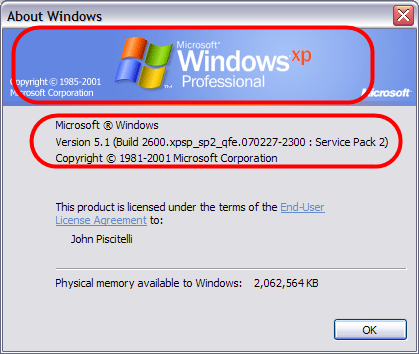
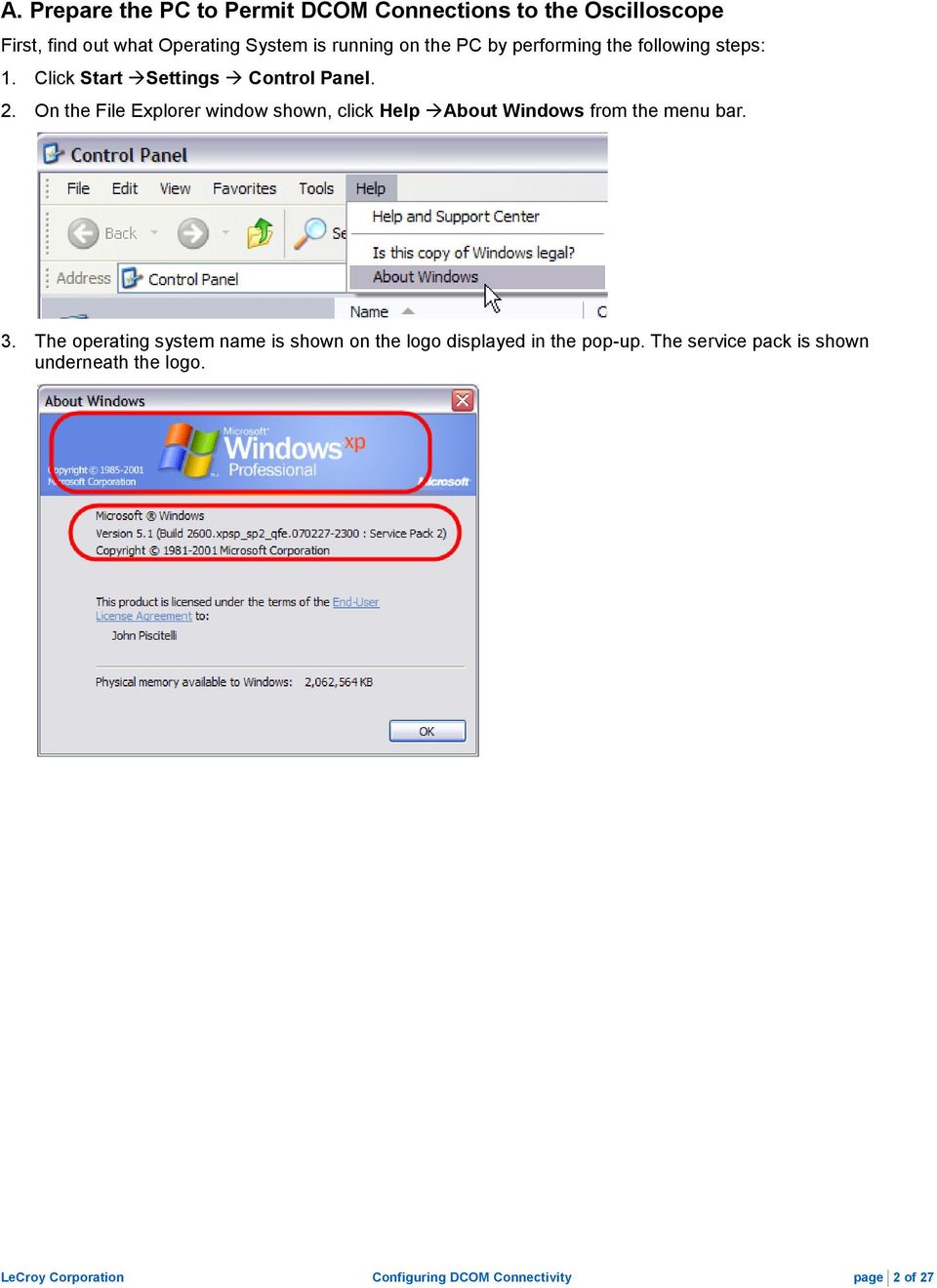
2 A. Prepare the PC to Permit DCOM Connections to the Oscilloscope First, find out what Operating System is running on the PC by performing the following steps: 1. Click Start Settings Control Panel. 2. On the File Explorer window shown, click Help About Windows from the menu bar. 3. The operating system name is shown on the logo displayed in the pop-up. The service pack is shown underneath the logo. LeCroy Corporation Configuring DCOM Connectivity page 2 of 27
3 Prepare the PC Case 1: Windows XP or Vista Note: For PCs running Windows 2000, refer to Prepare the PC Case 2: Windows 2000 SP4 topic found later in this manual. 1. Install XStreamBrowserInstall version or higher 2. Execute dcomcnfg.exe: Click Start Run, enter dcomcnfg.exe and click OK. If Run is not in your start menu, open a command prompt console and run dcomcnfg.exe. 3. Expand Component Services by clicking the + plus sign or triangle symbol (this may take a few minutes). 4. If a Windows Security Alert pop-up is shown, click the Unblock button. 5. Expand Computers, right-click My Computer, and select Properties. LeCroy Corporation Configuring DCOM Connectivity page 3 of 27

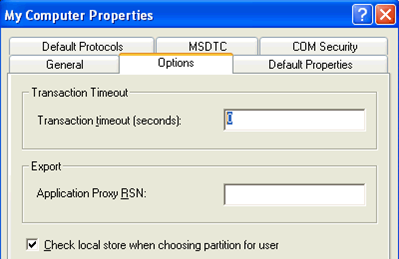
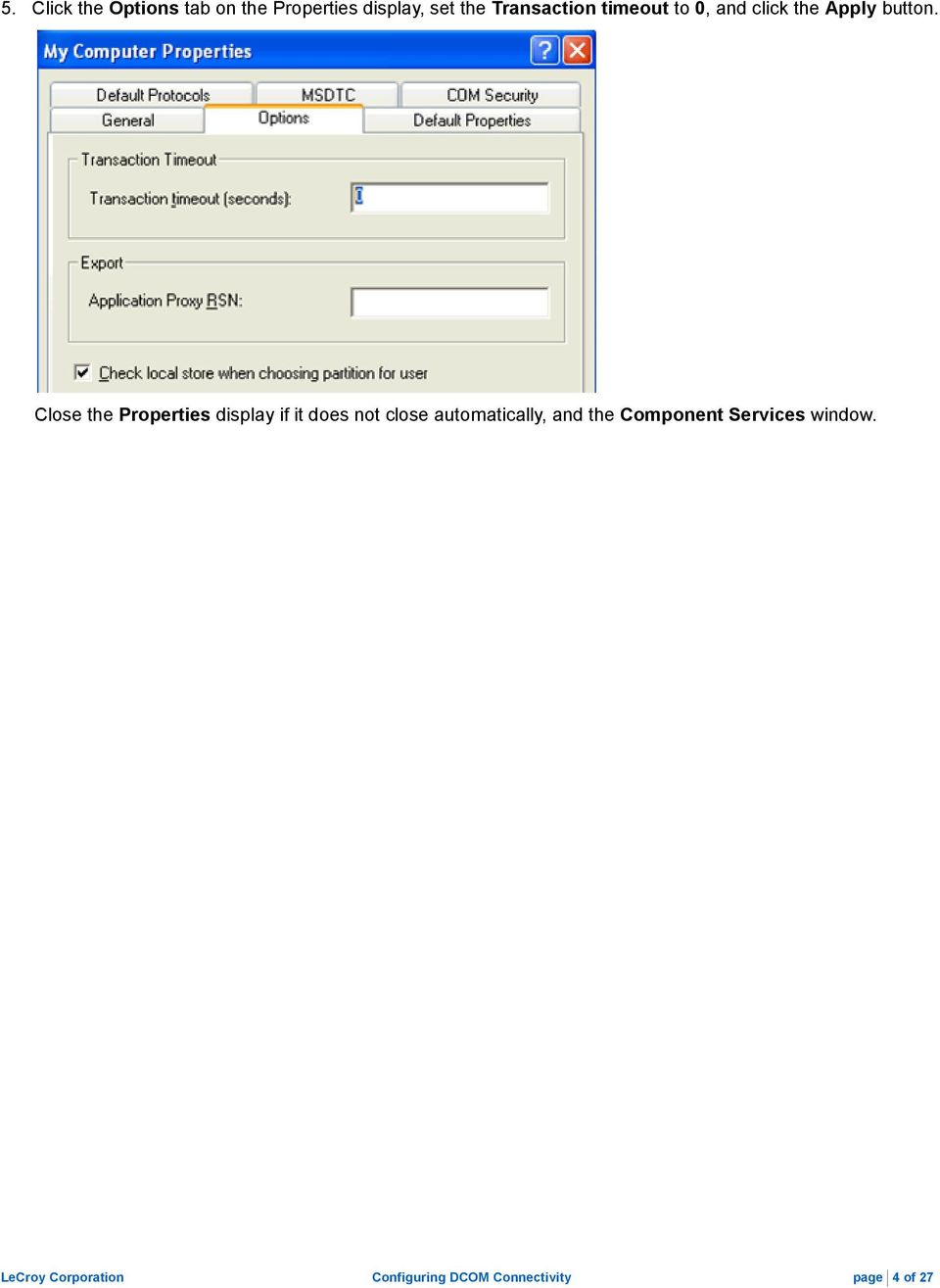
4 5. Click the Options tab on the Properties display, set the Transaction timeout to 0, and click the Apply button. Close the Properties display if it does not close automatically, and the Component Services window. LeCroy Corporation Configuring DCOM Connectivity page 4 of 27
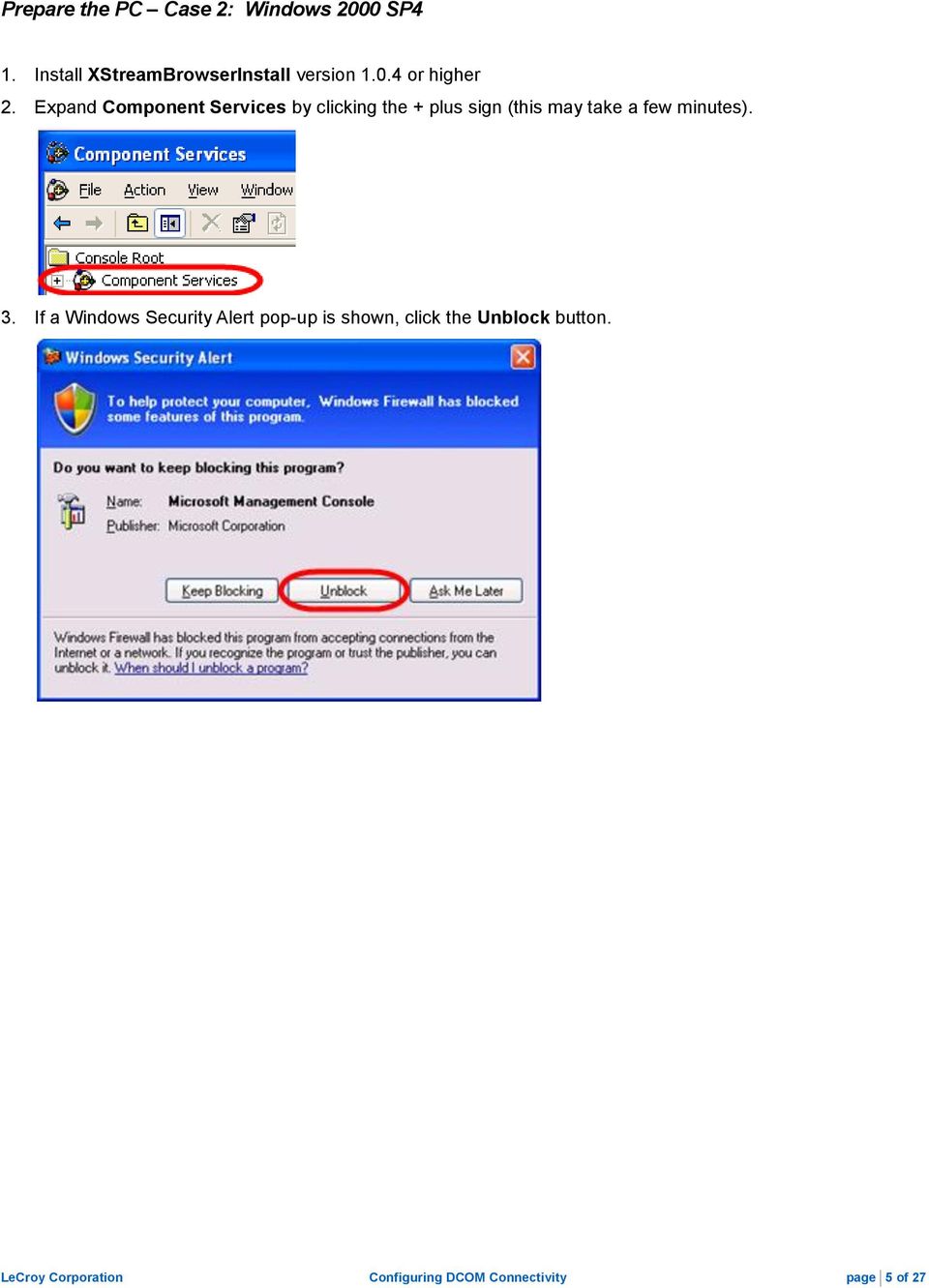
5 Prepare the PC Case 2: Windows 2000 SP4 1. Install XStreamBrowserInstall version or higher 2. Expand Component Services by clicking the + plus sign (this may take a few minutes). 3. If a Windows Security Alert pop-up is shown, click the Unblock button. LeCroy Corporation Configuring DCOM Connectivity page 5 of 27
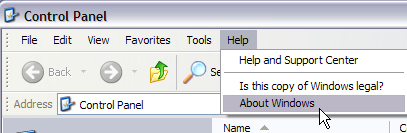
6 B) Prepare the Oscilloscope First, find out what Operating System is running on the oscilloscope by performing the following steps: 1. Click Start Settings Control Panel. 2. On the File Explorer window shown, click Help About Windows from the menu bar. 3. The operating system name is shown on the logo displayed in the pop-up. The service pack is shown underneath the logo. Note: For installation on a PC running Windows 2000 or Windows Embedded, refer to the Oscilloscope Preparation on Windows 2000 or Oscilloscope Preparation on Windows Embedded topics found later in this manual. LeCroy Corporation Configuring DCOM Connectivity page 6 of 27
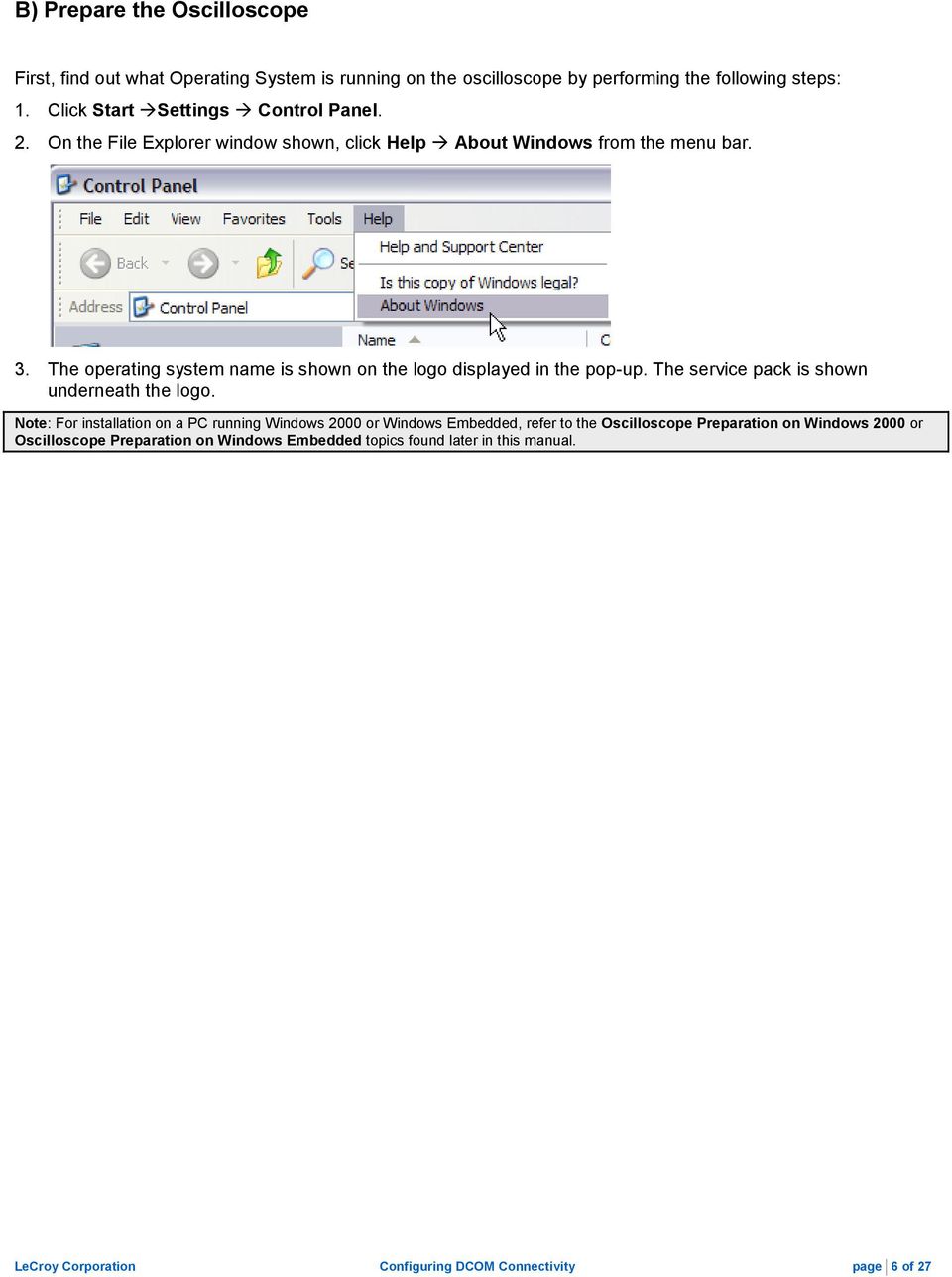

7 Prepare the Oscilloscope Case 1: Windows XP or Vista Creating a System Restore Point on Windows XP or Vista It s always a good idea to create a system restore point before changing any Windows XP system settings. Create one by going to Start Programs Accessories System Tools System Restore Opening the Firewall on Windows XP or Vista Now, we have to make sure the Windows XP firewall is open. 1. Go to Start Control Panel Windows Firewall. For Vista, click Change Settings 2. Click the Exceptions tab on the Windows Firewall display, verify that the LeCroyXStreamDSO Main Application item is checked, and click the Add Port button as follows. LeCroy Corporation Configuring DCOM Connectivity page 7 of 27

8 3. On the Add a Port pop-up, provide port Name (DCOM), Number (135), select the TCP radio button, and click OK. 4. Now turn off simple file sharing by going to Start Settings Control Panel. Double-click on Folder Options. Click the View tab on the Folder Options window, scroll to the bottom, uncheck the Use simple file sharing (Recommended), and click OK. LeCroy Corporation Configuring DCOM Connectivity page 8 of 27
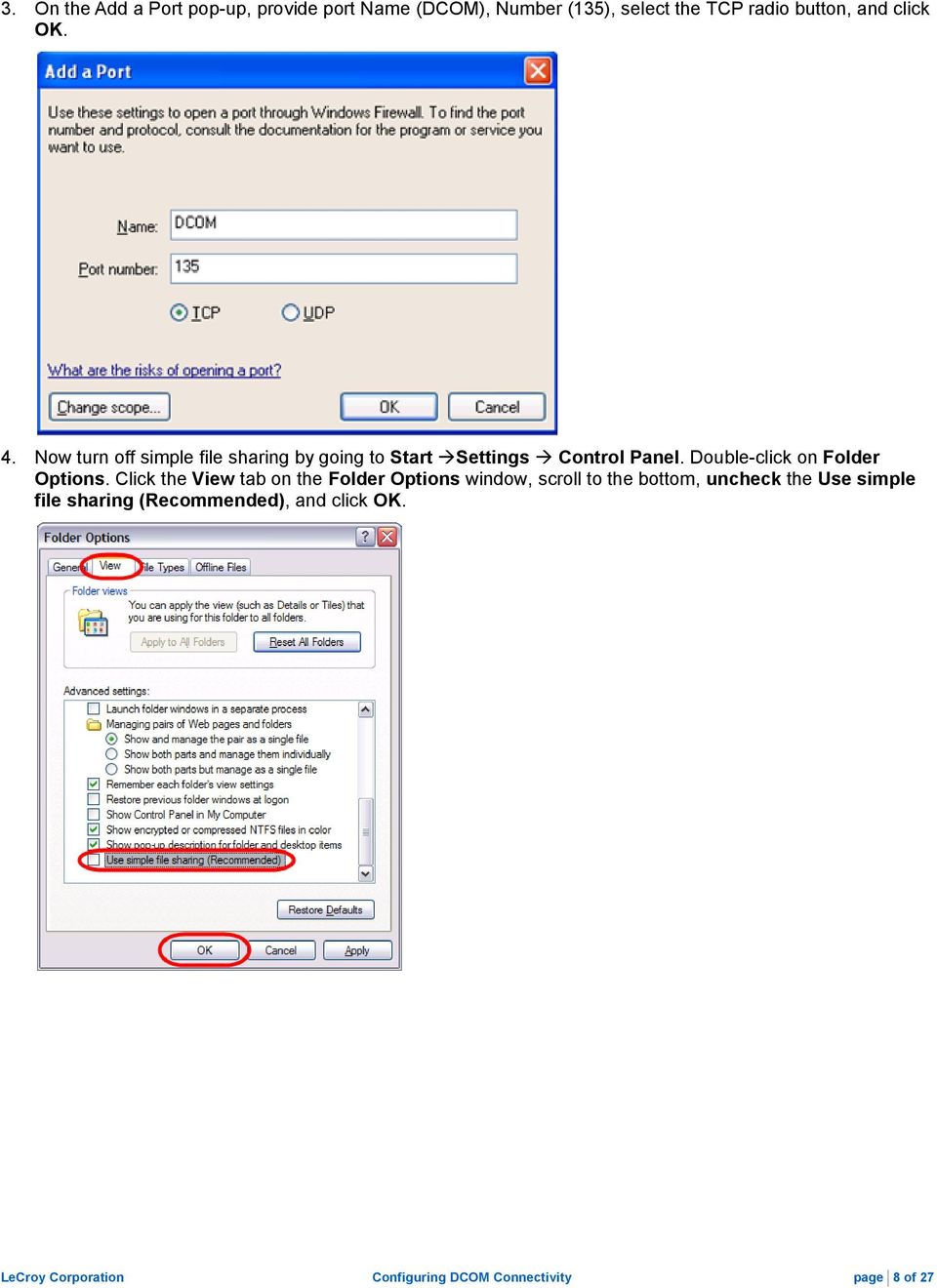
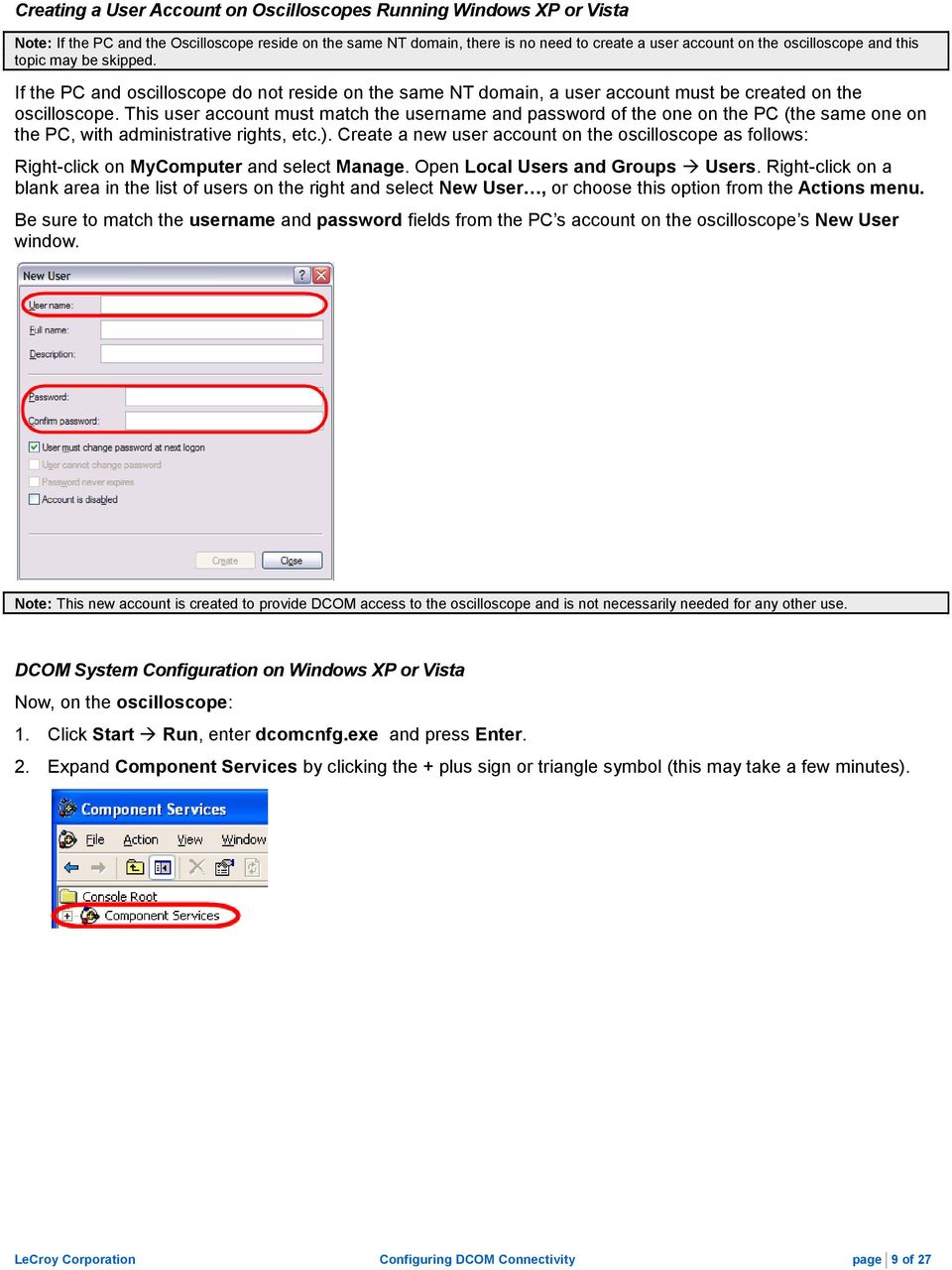
9 Creating a User Account on Oscilloscopes Running Windows XP or Vista Note: If the PC and the Oscilloscope reside on the same NT domain, there is no need to create a user account on the oscilloscope and this topic may be skipped. If the PC and oscilloscope do not reside on the same NT domain, a user account must be created on the oscilloscope. This user account must match the username and password of the one on the PC (the same one on the PC, with administrative rights, etc.). Create a new user account on the oscilloscope as follows: Right-click on MyComputer and select Manage. Open Local Users and Groups Users. Right-click on a blank area in the list of users on the right and select New User, or choose this option from the Actions menu. Be sure to match the username and password fields from the PC s account on the oscilloscope s New User window. Note: This new account is created to provide DCOM access to the oscilloscope and is not necessarily needed for any other use. DCOM System Configuration on Windows XP or Vista Now, on the oscilloscope: 1. Click Start Run, enter dcomcnfg.exe and press Enter. 2. Expand Component Services by clicking the + plus sign or triangle symbol (this may take a few minutes). LeCroy Corporation Configuring DCOM Connectivity page 9 of 27
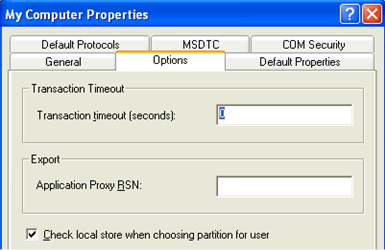
10 3. If a Windows Security Alert pop-up is shown, click the Unblock button. 4. Expand Computers, right-click My Computer, and select Properties. 5. Click the Options tab on the Properties display, set the Transaction timeout to 0, and click the Apply button. LeCroy Corporation Configuring DCOM Connectivity page 10 of 27
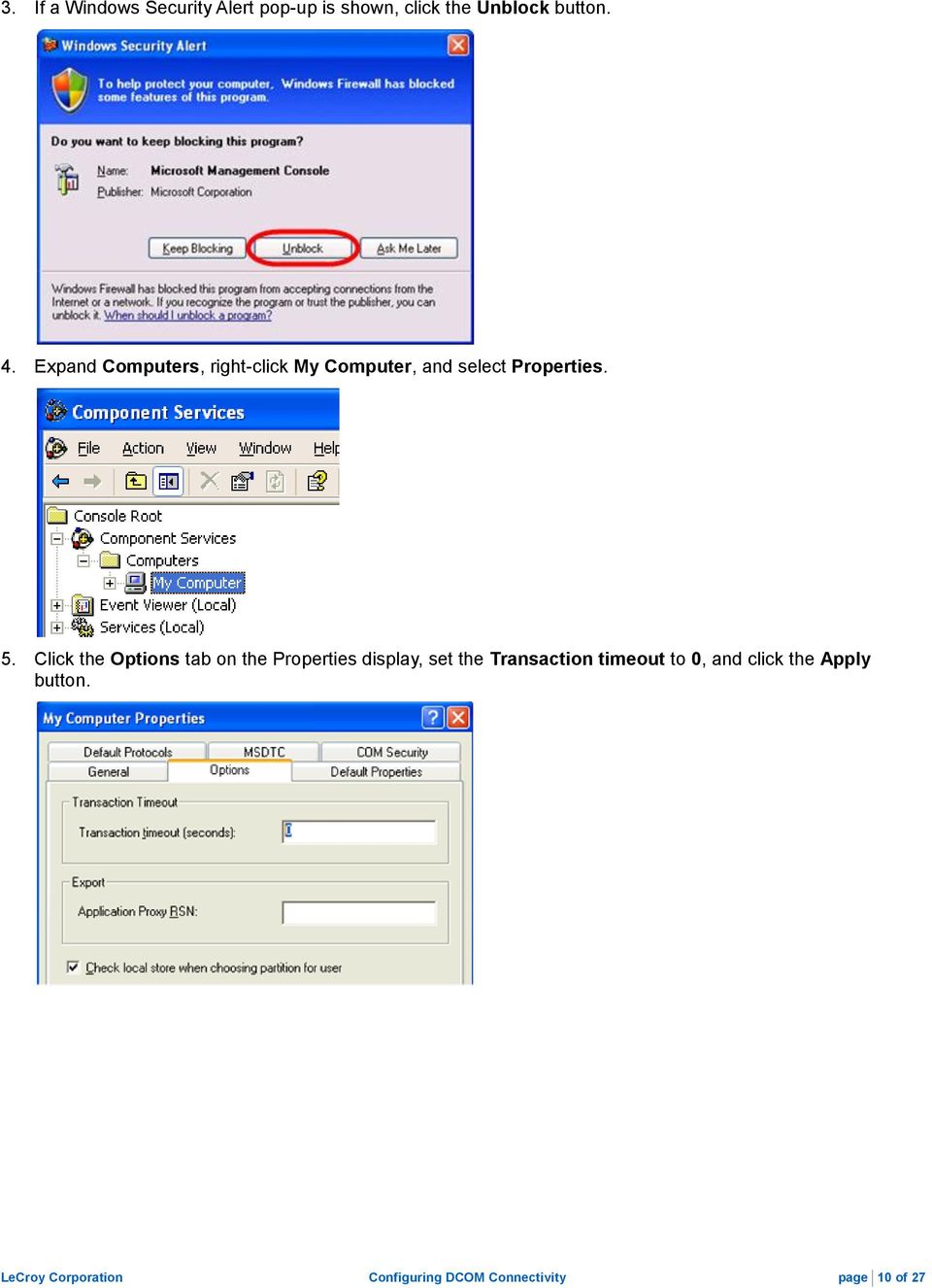

11 6. Click the Default Properties tab and make sure the Enable Distributed COM on this computer check-box is checked and Connect is selected from the Default Authentication Level drop-down. 7. Now, on the COM Security tab, click the Edit Limits button on the Launch and Activation Permissions section. LeCroy Corporation Configuring DCOM Connectivity page 11 of 27

12 8. Click the Add button on the Launch Permission dialogue. If the PC and Oscilloscope ARE on the same NT domain: Select the exact user account used on the PC on the Select Users, Computers, or Groups dialogue and click OK. LeCroy Corporation Configuring DCOM Connectivity page 12 of 27


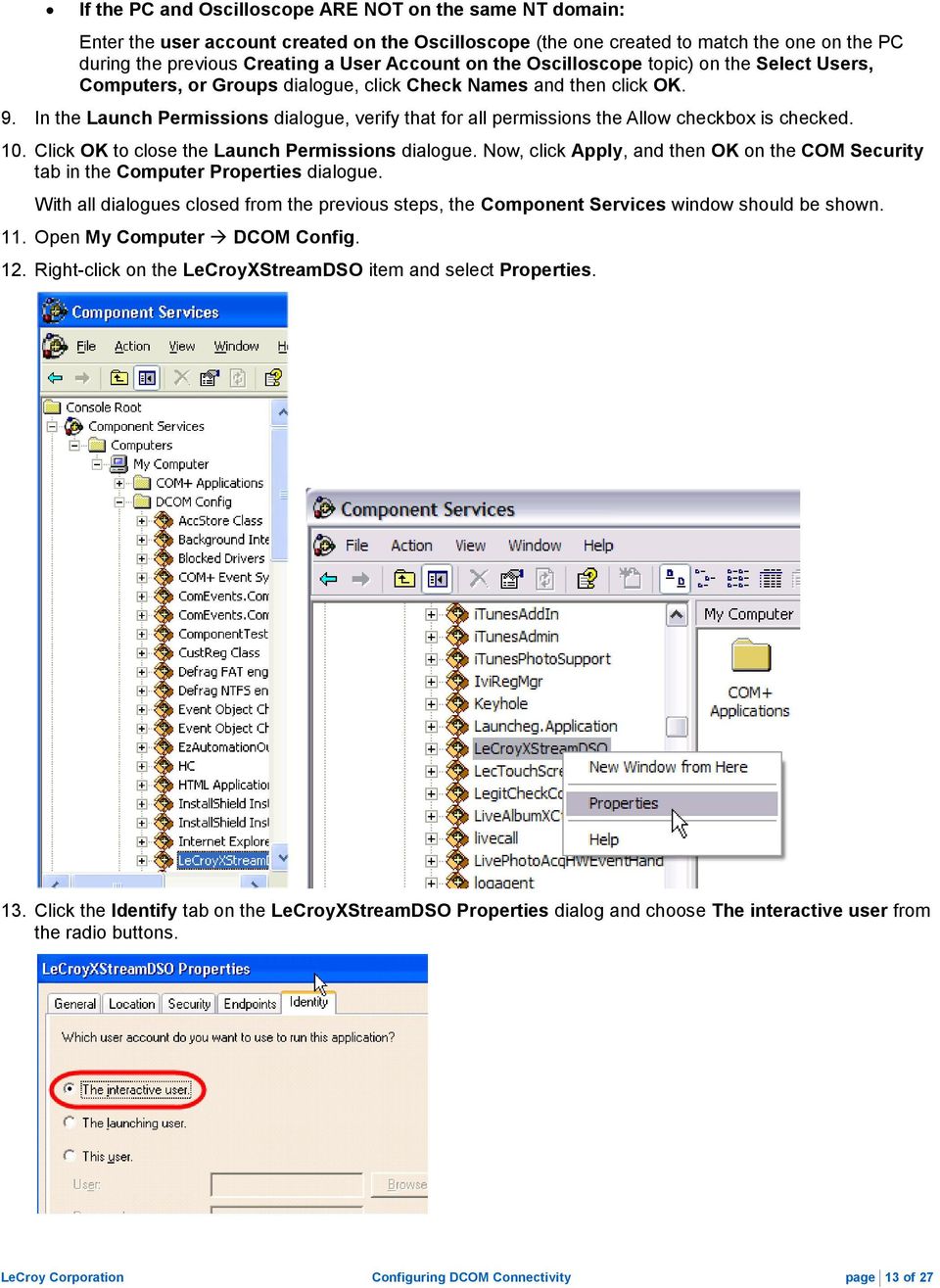
13 If the PC and Oscilloscope ARE NOT on the same NT domain: Enter the user account created on the Oscilloscope (the one created to match the one on the PC during the previous Creating a User Account on the Oscilloscope topic) on the Select Users, Computers, or Groups dialogue, click Check Names and then click OK. 9. In the Launch Permissions dialogue, verify that for all permissions the Allow checkbox is checked. 10. Click OK to close the Launch Permissions dialogue. Now, click Apply, and then OK on the COM Security tab in the Computer Properties dialogue. With all dialogues closed from the previous steps, the Component Services window should be shown. 11. Open My Computer DCOM Config. 12. Right-click on the LeCroyXStreamDSO item and select Properties. 13. Click the Identify tab on the LeCroyXStreamDSO Properties dialog and choose The interactive user from the radio buttons. LeCroy Corporation Configuring DCOM Connectivity page 13 of 27
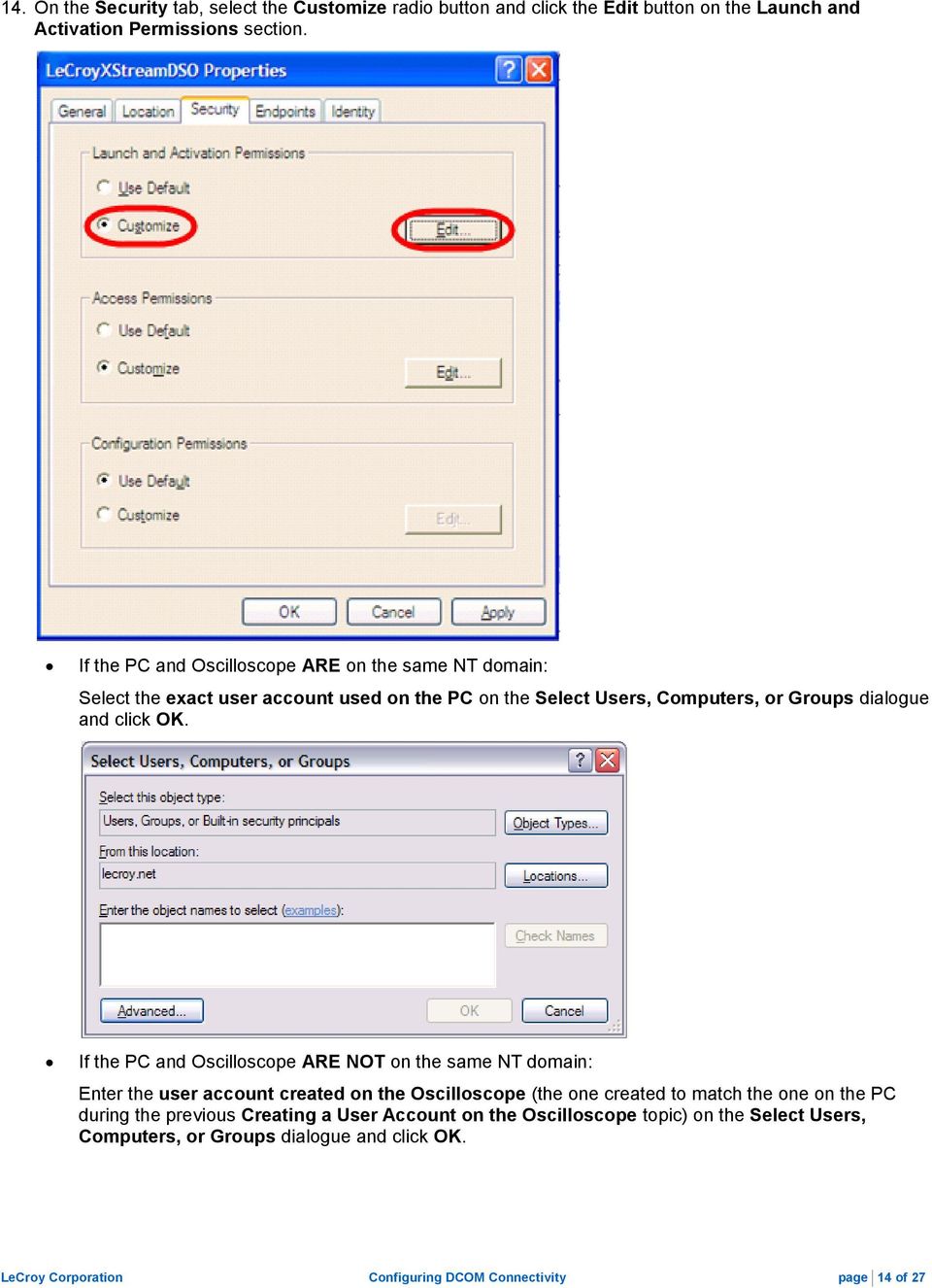
14 14. On the Security tab, select the Customize radio button and click the Edit button on the Launch and Activation Permissions section. If the PC and Oscilloscope ARE on the same NT domain: Select the exact user account used on the PC on the Select Users, Computers, or Groups dialogue and click OK. If the PC and Oscilloscope ARE NOT on the same NT domain: Enter the user account created on the Oscilloscope (the one created to match the one on the PC during the previous Creating a User Account on the Oscilloscope topic) on the Select Users, Computers, or Groups dialogue and click OK. LeCroy Corporation Configuring DCOM Connectivity page 14 of 27
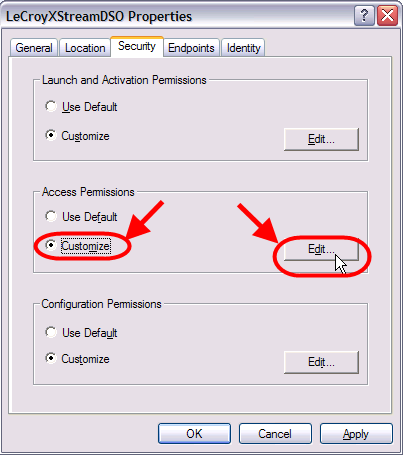
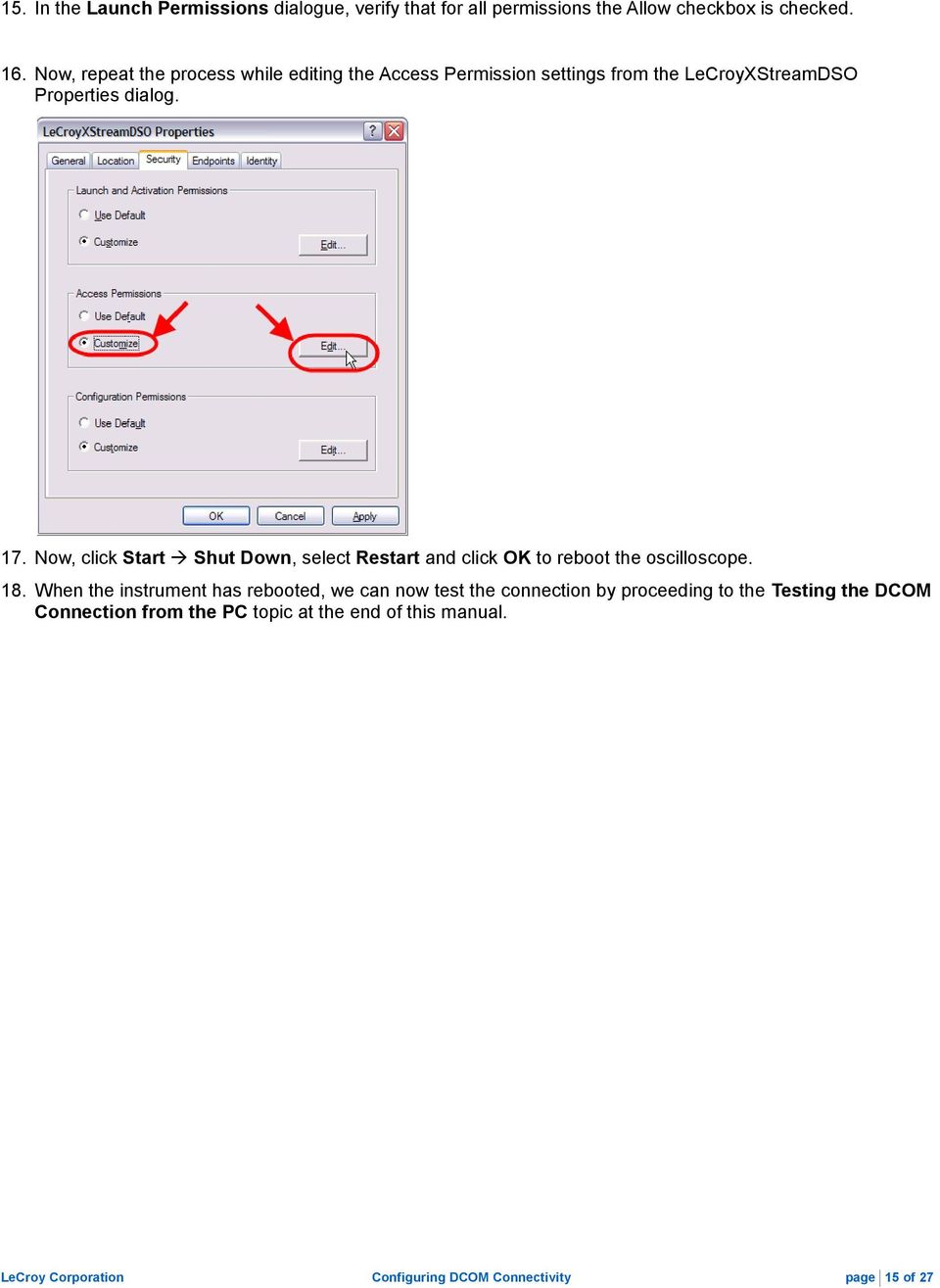
15 15. In the Launch Permissions dialogue, verify that for all permissions the Allow checkbox is checked. 16. Now, repeat the process while editing the Access Permission settings from the LeCroyXStreamDSO Properties dialog. 17. Now, click Start Shut Down, select Restart and click OK to reboot the oscilloscope. 18. When the instrument has rebooted, we can now test the connection by proceeding to the Testing the DCOM Connection from the PC topic at the end of this manual. LeCroy Corporation Configuring DCOM Connectivity page 15 of 27
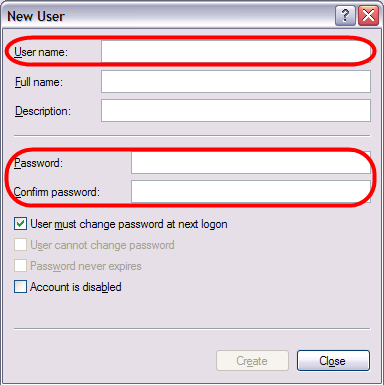
16 Prepare the Oscilloscope Case 2: Windows 2000 First, we ll prepare the oscilloscope by figuring out whether or not a new username must be configured. If the user account is necessary, we ll create it. Creating a User Account on Oscilloscopes Running Windows 2000 Note: If the PC and the Oscilloscope reside on the same NT domain, there is no need to create a user account on the Oscilloscope and this topic may be skipped. If the PC and Oscilloscope do not reside on the same NT domain, a user account must be created on the Oscilloscope. This user account must match the username and password of the one on the PC (the same one on the PC, with administrative rights, etc.). Create a new user account on the oscilloscope as follows: Right-click on MyComputer and select Manage. Open Local Users and Groups Users. Now, right-click on a blank area in the list of users on the right and select New User Be sure to match the username and password fields from the PC s account on the oscilloscope s New User window. Note: This new account is created to provide DCOM access to the oscilloscope and is not necessarily needed for any other use. If the scope is in the same NT domain as the client PC, you will have to set the Hostname (meaning, the scope name, i.e. LCRY0901N11751) to the scope itself. Now, close all open dialogues. DCOM System Configuration on Windows 2000 LeCroy Corporation Configuring DCOM Connectivity page 16 of 27

17 Now, on the Oscilloscope, make the following configurations: 1. Click Start Settings Control Panel. On the Control Panel screen, double-click Administrative Tools and then Component Services. 2. Expand Component Services by clicking the + plus sign (this may take a few minutes). 3. Expand Computers, right-click My Computer, and select Properties. 4. Click the Options tab on the Properties display, set the Transaction timeout to 0, and click the Apply button. 5. Now, click the Default Properties tab and determine how you should configure your system from the following choices: LeCroy Corporation Configuring DCOM Connectivity page 17 of 27

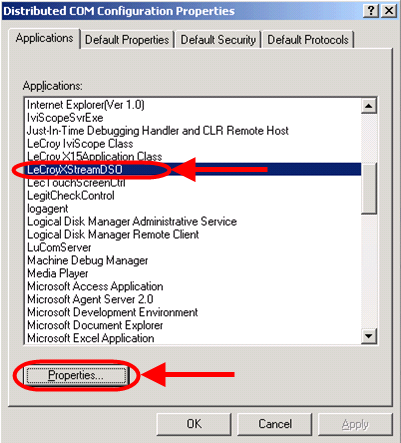
18 PC and Oscilloscope ARE on the Same NT Domain Select Connect, None, or Default on the Default Authentication Level field. PC and Oscilloscope ARE NOT on the Same NT Domain Select None on the Default Authentication Level field. 6. Click the Apply button, and then close all dialogs. 7. Now, click Start Run, enter dcomcnfg.exe and press Enter. 8. Select LeCroyXStreamDSO and click the Properties button. 9. On the Properties dialog, click the Identity tab, and select The interactive user radio button. LeCroy Corporation Configuring DCOM Connectivity page 18 of 27

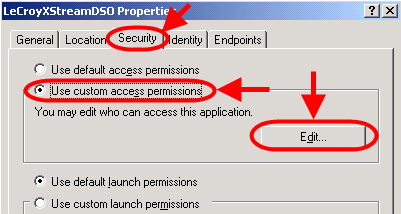
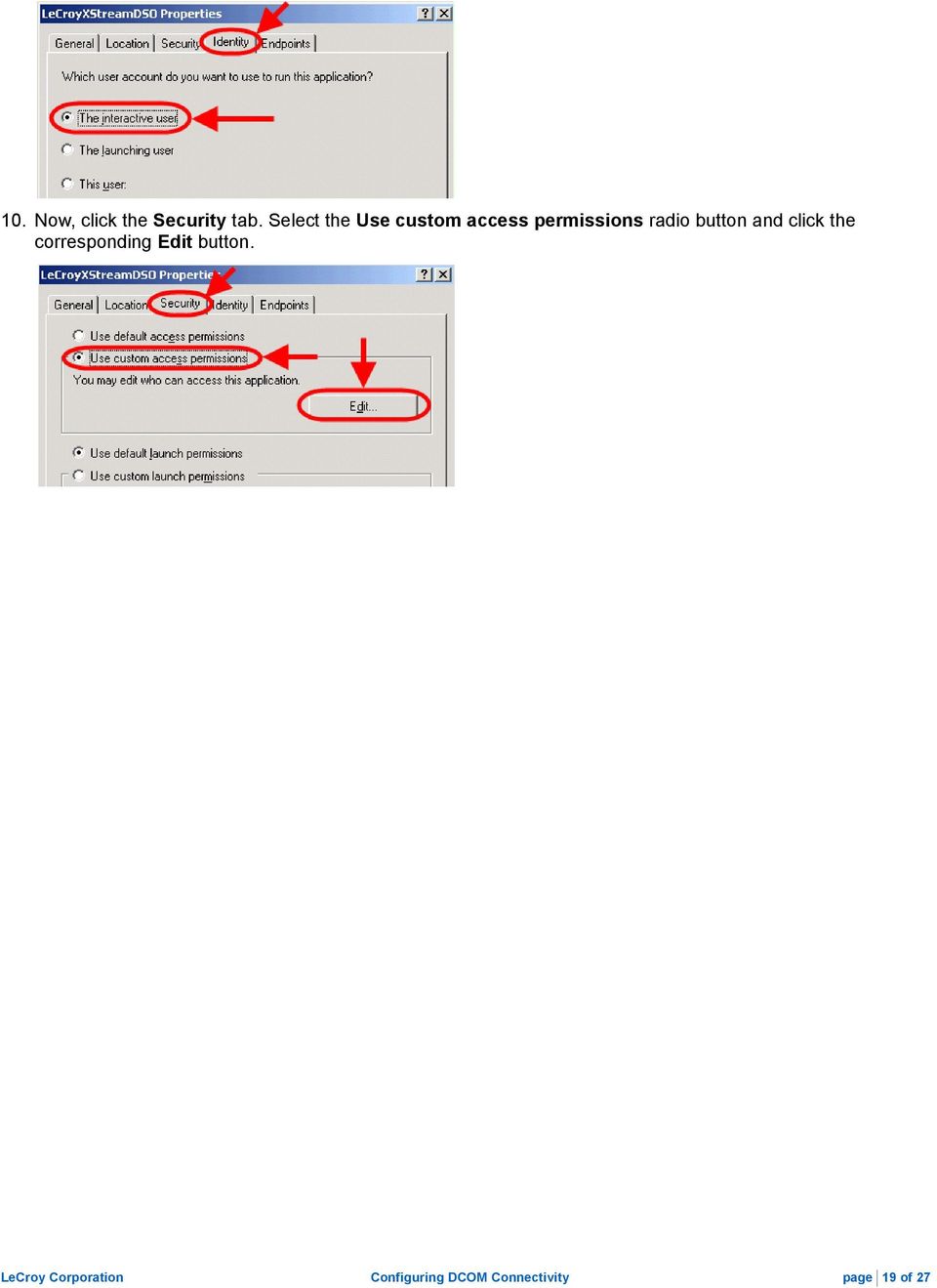
19 10. Now, click the Security tab. Select the Use custom access permissions radio button and click the corresponding Edit button. LeCroy Corporation Configuring DCOM Connectivity page 19 of 27

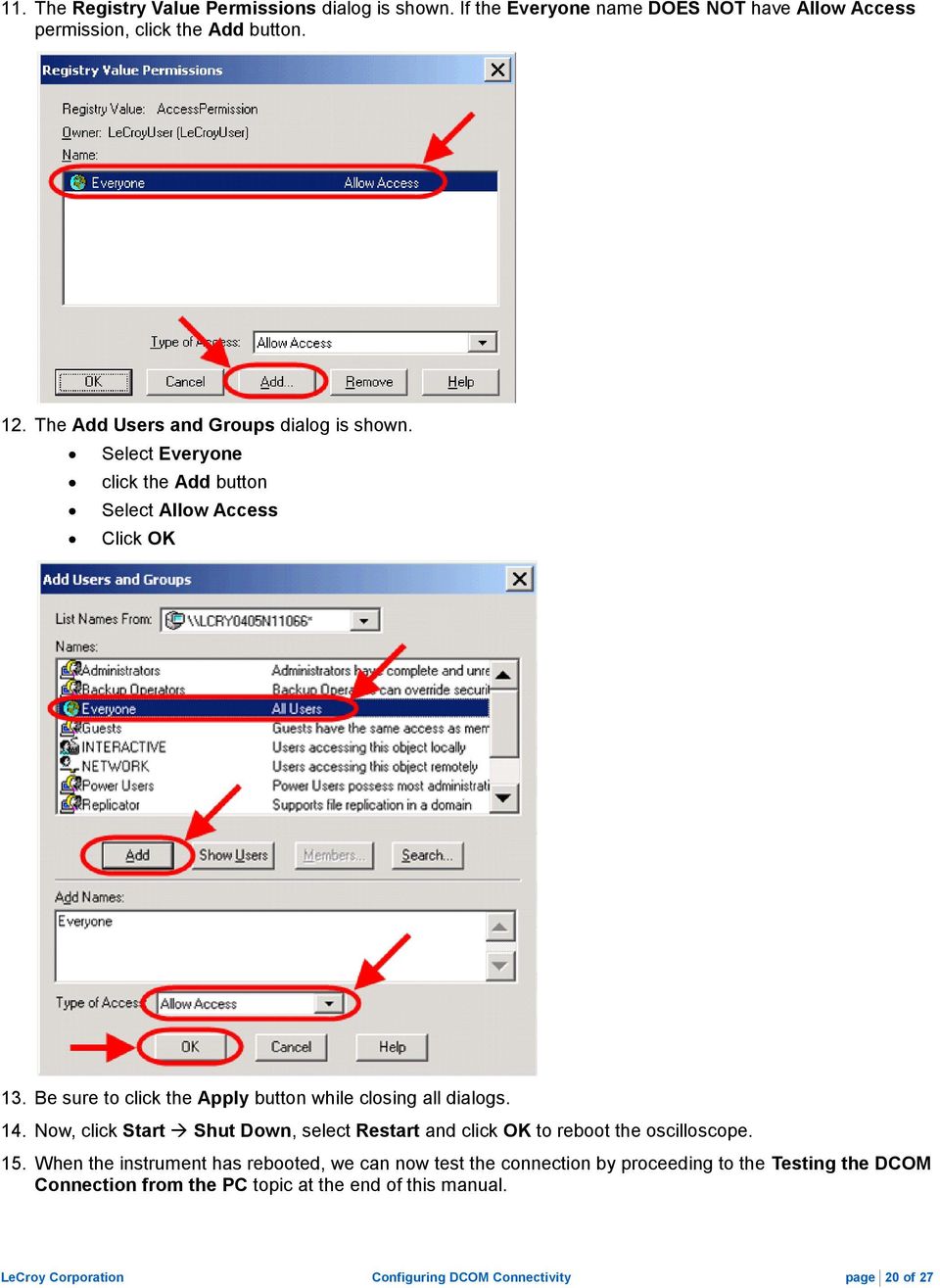
20 11. The Registry Value Permissions dialog is shown. If the Everyone name DOES NOT have Allow Access permission, click the Add button. 12. The Add Users and Groups dialog is shown. Select Everyone click the Add button Select Allow Access Click OK 13. Be sure to click the Apply button while closing all dialogs. 14. Now, click Start Shut Down, select Restart and click OK to reboot the oscilloscope. 15. When the instrument has rebooted, we can now test the connection by proceeding to the Testing the DCOM Connection from the PC topic at the end of this manual. LeCroy Corporation Configuring DCOM Connectivity page 20 of 27
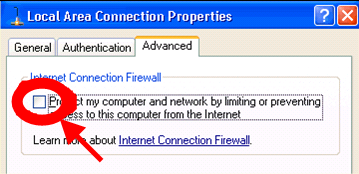
21 Prepare the Oscilloscope Case 3: Windows Embedded To prepare the oscilloscope, we first need to open the XP firewall. Note: Please be advised that after some research we have discovered that the XP Firewall does not work well with DCOM (if at all). One of the problems is that a first connection is established using the default endpoint (port 135), and when a second port is opened it s forced into the range. Also, XP's SP1 firewall does not allow specified port ranges. 1. Click Start Control Panel. Double-click Network Connections and then Local Area Connections. 2. On the Local Area Connection Status dialog, the General tab should be shown. 3. Now, click the Properties button and the Local Area Connection Properties dialog is shown. Click the Advanced tab and make sure the Protect my computer and network by limiting or preventing access to this computer from the Internet check-box is un-checked. If the PC and Oscilloscope ARE in the same NT domain, this is a User Level configuration and there s no need to create a new account on the oscilloscope to allow DCOM connections. If the PC and Oscilloscope ARE NOT in the same NT domain, this is a Share Level configuration and you must create a new account on the oscilloscope to allow DCOM connections. The following topic shows you how. Creating a User Account on Oscilloscopes Running Windows Embedded Note: If the PC and the Oscilloscope reside on the same NT domain, there is no need to create a user account on the Oscilloscope and this topic may be skipped. If the PC and Oscilloscope do not reside on the same NT domain, a user account must be created on the Oscilloscope. This user account must match the username and password of the one on the PC (the same one on the PC, with administrative rights, etc.). Create a new user account on the oscilloscope as follows: 1. Click Start Settings Control Panel. Double-click on User Accounts. 2. Again, when creating this new account, make sure it matches the username and password of the one on the PC (the same one on the PC, with administrative rights, etc.). 3. Select Limited, click Create Account, and Change an Account. 4. Select and highlight the account name just entered and click Create a Password. Enter the same password from the PC account twice and click the Create Password button. Note: This new account is created to provide DCOM access to the oscilloscope and is not necessarily needed for any other use. DCOM System Configuration on Windows Embedded (on the Oscilloscope) LeCroy Corporation Configuring DCOM Connectivity page 21 of 27
22 1. Click Start Run enter dcomcnfg.exe and press Enter. Alternatively: You can click Start Control Panel and double-click Administrative Tools and Component Services. 2. Expand Component Services by clicking the + plus sign (this may take a few minutes). 3. Expand Computers, right-click My Computer, and select Properties. 4. Click the Options tab on the Properties display, set the Transaction timeout to 0, and click the Apply button. 5. Now, click the Default Properties tab and make sure the Enable Distributed COM on this computer check-box is checked and the Default Authentication Level drop-down is set to Connect. LeCroy Corporation Configuring DCOM Connectivity page 22 of 27
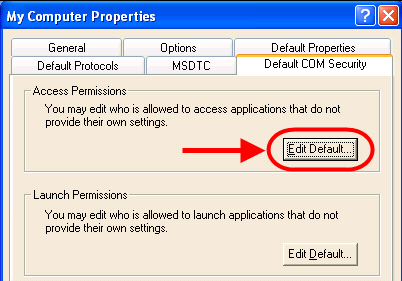
23 6. Click the Default COM Security tab. Click the Edit Default button on the Access Permissions section of the dialog. Note: Users sometimes notice the Default Properties and Default COM Security tab names sometimes are interchanged by Windows. 7. The Access Permissions dialog is shown. Click the Add button. If the PC and Oscilloscope ARE in the same NT domain, this is a User Level configuration. Provide the exact same user account (username and password) created on the PC (covered previously in this manual). If the PC and Oscilloscope ARE NOT in the same NT domain, this is a Share Level configuration. Provide the exact same user account (username and password) created on the PC (covered previously in this manual). However, the username must be preceded by the NT domain name and a backslash \. Example: LECROY\John.Smith. 8. Verify the Allow check-box is checked on the Access Permissions dialog. 9. Click OK on the Access Permissions dialog and Apply, and then OK on the Properties dialog. The Component Services should now be showing. 10. Access the following path from Component Services: Component Services Computers My Computer DCOM Config. Find and right-click on LeCroyXStreamDSO and select Properties. LeCroy Corporation Configuring DCOM Connectivity page 23 of 27

24 11. On the Properties dialog, click the Identity tab and select The interactive user radio button. 12. Click the Security tab on the Properties dialog and select the Customize radio button on the Launch Permissions section. Click the Edit button. LeCroy Corporation Configuring DCOM Connectivity page 24 of 27
25 13. On the resulting dialog, click the Add button. If the PC and Oscilloscope ARE in the same NT domain, this is a User Level configuration. Provide the exact same user account (username and password) created on the PC (covered previously in this manual). Click OK. If the PC and Oscilloscope ARE NOT in the same NT domain, this is a Share Level configuration. Provide the exact same user account (username and password) created on the PC (covered previously in this manual). However, the username must be preceded by the NT domain name and a backslash \. Example: LECROY\John.Smith. 14. Repeat this process (Steps 6-13) for the Launch Permissions (on the Properties dialog). When finished, be sure to click Apply and OK on all dialogs and close the Component Services window. 15. Now, click Start Shut Down, select Restart and click OK to reboot the oscilloscope. 16. When the instrument has rebooted, test the connection from the PC using the following topic (Testing the DCOM Connection from the PC). LeCroy Corporation Configuring DCOM Connectivity page 25 of 27

26 C) Testing the DCOM Connection from the PC Note: Only attempt to test the DCOM Connection from the PC after both the PC and Oscilloscope have been set for DCOM configuration. Let s test the DCOM Connection from the PC to the Oscilloscope using the following steps: 1. If not already done, install XStream Browser. 2. Launch the XStream Browser application on the PC. Make sure that the version of the software is at least by verifying from the Help/About screen Help (Menu Bar) About. 3. On the XStream Browser screen, click File Connect to Remote Instrument (DCOM). 4. The Network Address of DCOM-enabled Instrument dialog is shown. Provide the Scope Name or its IP Address and click OK. LeCroy Corporation Configuring DCOM Connectivity page 26 of 27
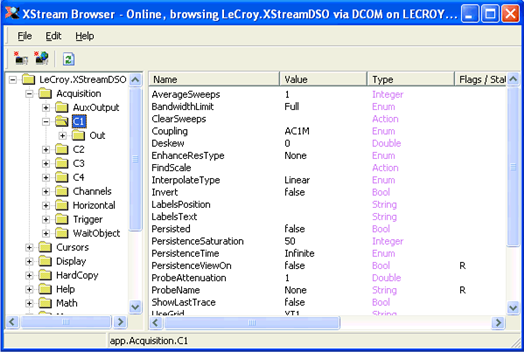
27 5. The XStream Browser screen eventually shows the Automation tree (after clicking OK on the Network Address of DCOM-enabled Instrument dialog). Click through the tree and access scope values to verify connectivity to the oscilloscope. LeCroy Corporation Configuring DCOM Connectivity page 27 of 27
OPC Server Machine Configuration
 OPC Server Machine Configuration General Information For remote OPC Server operation, server must be running under Windows XP Pro, Windows Server 2003, Windows Vista (Business & Ultimate), Windows 7 (Professional
Setting up DCOM for Windows XP. Research
 Setting up DCOM for Windows XP Research 1- Setting up DCOM for Windows XP This document has been produced as a guide to configuring DCOM settings on machines with Windows XP SP2 installed. You must make
DCOM Setup. User Manual
 DCOM Setup User Manual Contents Introduction... 2 Host Computer DCOM Setup... 3 Operation System Windows XP... 3 Setting up DCOM Properties under Windows XP... 3 Setting up Enhanced DCOM Properties under
Kepware Technologies Remote OPC DA Quick Start Guide (DCOM)
 Kepware Technologies Remote OPC DA Quick Start Guide (DCOM) March, 2013 Ref. 03.10 Kepware Technologies Table of Contents 1. Overview... 1 1.1 What is DCOM?... 1 1.2 What is OPCEnum?... 1 2. Users and
Application Note 8: TrendView Recorders DCOM Settings and Firewall Plus DCOM Settings for Trendview Historian Server
 Application Note 8: TrendView Recorders DCOM Settings and Firewall Plus DCOM Settings for Trendview Historian Server DCOM Configuration Introduction This document is intended to provide a check-list of
ilaw Installation Procedure
 ilaw Installation Procedure This guide will provide a reference for a full installation of ilaw Case Management Software. Contents ilaw Overview How ilaw works Installing ilaw Server on a PC Installing
TrueEdit Remote Connection Brief
 MicroPress Server Configuration Guide for Remote Applications Date Issued: February 3, 2009 Document Number: 45082597 TrueEdit Remote Connection Brief Background TrueEdit Remote (TER) is actually the same
Microsoft XP Professional Remote Desktop Connection
 Microsoft XP Professional Remote Desktop Connection With Remote Desktop, you get full, secure access to your work computer via an Internet or network connection. For example, you can connect to your office
This document describes the installation of the Web Server for Bosch Recording Station 8.10.
 Description Content 1 Introduction... 1 2 Web Server for BRS running on Windows 7... 2 3 Web Server for BRS running on Windows Server 2008... 15 4 Web Server for BRS running on Windows XP... 29 5 Web Server
Scan to SMB(PC) Set up Guide
 Scan to SMB(PC) Set up Guide Regarding Trade Names Windows is a registered trademark of Microsoft Corporation in the U.S.A. and/or other countries. Windows XP and Windows Vista are trademarks of Microsoft
Configuring Devices for Use with Cisco Configuration Professional (CCP) 2.5
 Configuring Devices for Use with Cisco Configuration Professional (CCP) 2.5 Objectives Part 1: Configure CCP Access for Routers Enable HTTP/HTTPS server. Create a user account with privilege level 15.
Troubleshooting Guide
 Enable WMI after applying SP2 for XP Company web site: Support email: support@ Support telephone: +44 20 3287-7651 +1 646 233-1163 2 This tutorial will guide you on enabling WMI after applying Service
InduSoft Web Studio + Windows XP SP2. Introduction. Initial Considerations. Affected Features. Configuring the Windows Firewall
 Introduction InduSoft Web Studio + Windows XP SP2 Procedures for Handling the Windows XP OS + Service Pack 2 and InduSoft Web Studio This document describes the InduSoft Web Studio (IWS) functionalities
DCOM settings for computer-to-computer communication between OPC servers and OPC clients
 DCOM settings for computer-to-computer communication between OPC servers and OPC clients 1. Introduction Under OPC DA, the "dcomcnfg" service program is used for computer-to-computer communication between
OPC and DCOM: 5 things you need to know Author: Randy Kondor, B.Sc. in Computer Engineering
 OPC and DCOM: 5 things you need to know Author: Randy Kondor, B.Sc. in Computer Engineering OPC technology relies on Microsoft's COM and DCOM to exchange data between automation hardware and software;
Kepware Technologies KEPServerEX OPC Tunnel
 Kepware Technologies KEPServerEX OPC Tunnel November, 2015 Ref. 1.002 2015 Kepware, Inc. Table of Contents 1. Introduction... 1 2. Overview... 1 3. Prerequisites... 1 4. Terminology... 1 5. Instructions...
MODEM AND DIAL-UP. Installation/Configuration (Windows 95/98/Me/NT/2000/XP)
 MODEM AND DIAL-UP Installation/Configuration (Windows 95/98/Me/NT/2000/XP) Iridium Satellite LLC 1 February 22, 2006 --------------------------------------------------------------------------------------------------------------------------------------------TABLE
support HP MFP Scan Setup Wizard 1.1
 support HP MFP Scan Setup Wizard 1.1 Security Level: Customer Verbal Use Date Written/Updated: October 11, 2007 Document Summary a The Scan Setup Wizard is a Windows utility that end users can download
BSDI Advanced Fitness & Wellness Software
 BSDI Advanced Fitness & Wellness Software 6 Kellie Ct. Califon, NJ 07830 http://www.bsdi.cc SOFTWARE BACKUP/RESTORE INSTRUCTION SHEET This document will outline the steps necessary to take configure the
DCOM & Control List Genetec Information Systems Page i Win2003 Service Pack 1
 Windows 2003 SP1 configuration DCOM & Control List Genetec Information Systems Page i Win2003 Service Pack 1 Table of Contents 1 INTRODUCTION...1 1.1 NETWORK CHANGES IN WINDOWS 2003 SERVER SP1...3 1.1.1
Palomar College Dial-up Remote Access
 Palomar College Dial-up Remote Access Instructions for Windows 95/98 and Windows 2000 Following are instructions to implement dialup access to the Palomar College network, email and Internet. The minimum
DCOM Configuration for Windows NT4, Windows 2000, Windows XP, and Windows XP Service Pack 2
 DCOM Configuration for Windows NT4, Windows 2000, Windows XP, and Windows XP Service Pack 2 Copyright Copyright Copyright 1998-2004 Iocomp Software Incorporated. All rights reserved. No part of this publication
Windows XP Service Pack 2 Issues
 Windows XP Service Pack 2 Issues NOTICE THIS DOCUMENT SHALL NOT BE REPRODUCED IN WHOLE OR IN PART, FOR ANY PURPOSE OR IN ANY FASHION AND DISTRIBUTED WITHOUT THE PRIOR WRITTEN CONSENT OF RICOH CORPORATION.
Setup and Configuration Guide for Pathways Mobile Estimating
 Setup and Configuration Guide for Pathways Mobile Estimating Setup and Configuration Guide for Pathways Mobile Estimating Copyright 2008 by CCC Information Services Inc. All rights reserved. No part of
Nexio Connectus with Nexio G-Scribe
 Nexio Connectus with Nexio G-Scribe 2.1.2 3/20/2014 Edition: A 2.1.2 Publication Information 2014 Imagine Communications. Proprietary and Confidential. Imagine Communications considers this document and
Windows Firewall must be enabled on each host to allow Remote Administration. This option is not enabled by default
 SiteAudit Knowledge Base Local Printer Discovery August 2011 In This Article: Windows Firewall Settings COM Configuration SiteAudit provides discovery and management of printers attached to Windows hosts
User Manual. Onsight Management Suite Version 5.1. Another Innovation by Librestream
 User Manual Onsight Management Suite Version 5.1 Another Innovation by Librestream Doc #: 400075-06 May 2012 Information in this document is subject to change without notice. Reproduction in any manner
Configuring WPA2 for Windows XP
 Configuring WPA2 for Windows XP Requirements for wireless using WPA2 on Windows XP with Service Pack 2 Your wireless card must support 802.1x, AES, and WPA2. Windows XP with service pack 2, it is recommended
Installing Windows Server Update Services (WSUS) on Windows Server 2012 R2 Essentials
 Installing Windows Server Update Services (WSUS) on Windows Server 2012 R2 Essentials With Windows Server 2012 R2 Essentials in your business, it is important to centrally manage your workstations to ensure
CHARTER BUSINESS custom hosting faqs 2010 INTERNET. Q. How do I access my email? Q. How do I change or reset a password for an email account?
 Contents Page Q. How do I access my email? Q. How do I change or reset a password for an email account? Q. How do I forward or redirect my messages to a different email address? Q. How do I set up an auto-reply
DCA Local Print Agent Push Install
 DCA Local Print Agent Push Install PageTrac Support DCA Local Print Agent Push Install System Requirements Each workstation on which you install Local Print Agent must have the following: Windows operating
Network Setup Instructions
 Network Setup Instructions This document provides technical details for setting up the Elite Salon & Spa Management program in a network environment. If you have any questions, please contact our Technical
Scan to SMB Bizhub 7222/28/35
 Scan to SMB Bizhub 7222/28/35 Full instructions can be found in Chapter 6 Using the Scanner Functions in the Network Setup and Scanner Operations User s Guide Set up the SMB Defaults Before adding an SMB
Installation Guidelines (MySQL database & Archivists Toolkit client)
 Installation Guidelines (MySQL database & Archivists Toolkit client) Understanding the Toolkit Architecture The Archivists Toolkit requires both a client and database to function. The client is installed
Team Foundation Server 2012 Installation Guide
 Team Foundation Server 2012 Installation Guide Page 1 of 143 Team Foundation Server 2012 Installation Guide Benjamin Day [email protected] v1.0.0 November 15, 2012 Team Foundation Server 2012 Installation
SQL Server 2008 R2 Express Installation for Windows 7 Professional, Vista Business Edition and XP Professional.
 SQL Server 2008 R2 Express Installation for Windows 7 Professional, Vista Business Edition and XP Professional. 33-40006-001 REV: B PCSC 3541 Challenger Street Torrance, CA 90503 Phone: (310) 303-3600
Contents. VPN Instructions. VPN Instructions... 1
 VPN Instructions Contents VPN Instructions... 1 Download & Install Check Point VPN Software... 2 Connect to FPUA by VPN... 6 Connect to Your Computer... 8 Determine Your Machine Type... 10 Identify 32-bit
Connecting to Delta College Exchange services off-campus
 Connecting to Delta College Exchange services off-campus The following instructions are provided to document the client configuration used to connect to Microsoft Exchange services at Delta College from
523 Non-ThinManager Components
 28 Non-ThinManager Components Microsoft Terminal Servers play an important role in the ThinManager system. It is recommended that you become familiar with the documentation provided by Microsoft about
Latitude NVMS Windows XP SP2 Configuration
 Latitude NVMS Windows XP SP2 Configuration Table of Contents 1 INTRODUCTION...1 1.1 NETWORK CHANGES IN WINDOWS XP SERVICE PACK 2...1 1.1.1 DCOM Security...1 1.1.2 Windows Firewall...2 2 EFFECT OF WINDOWS
Migrating MSDE to Microsoft SQL 2008 R2 Express
 How To Updated: 11/11/2011 2011 Shelby Systems, Inc. All Rights Reserved Other brand and product names are trademarks or registered trademarks of the respective holders. If you are still on MSDE 2000,
DESKTOP CLIENT CONFIGURATION GUIDE BUSINESS EMAIL
 DESKTOP CLIENT CONFIGURATION GUIDE BUSINESS EMAIL Version 2.0 Updated: March 2011 Contents 1. Mac Email Clients... 3 1.1 Configuring Microsoft Outlook 2011... 3 1.2 Configuring Entourage 2008... 4 1.3.
Nagios XI Monitoring Windows Using WMI
 Purpose The Industry Standard in IT Infrastructure Monitoring This document describes how to monitor Windows machines with Nagios XI using WMI. WMI (Windows Management Instrumentation) allows for agentless
Non-ThinManager Components
 Non-ThinManager Components Microsoft Terminal Servers play an important role in the ThinManager system. It is recommended that you become familiar with the documentation provided by Microsoft about their
All Tech Notes and KBCD documents and software are provided "as is" without warranty of any kind. See the Terms of Use for more information.
 Tech Note 461 Troubleshooting Industrial Application Server Bootstrap Communications All Tech Notes and KBCD documents and software are provided "as is" without warranty of any kind. See the Terms of Use
How to setup a VPN on Windows XP in Safari.
 How to setup a VPN on Windows XP in Safari. If you want to configure a VPN connection from a Windows XP client computer you only need what comes with the Operating System itself, it's all built right in.
Allworx OfficeSafe Operations Guide Release 6.0
 Allworx OfficeSafe Operations Guide Release 6.0 No part of this publication may be reproduced, stored in a retrieval system, or transmitted, in any form or by any means, electronic, mechanical, photocopy,
Important Notes for WinConnect Server VS Software Installation:
 Important Notes for WinConnect Server VS Software Installation: 1. Only Windows Vista Business, Windows Vista Ultimate, Windows 7 Professional, Windows 7 Ultimate, Windows Server 2008 (32-bit & 64-bit),
Remote Desktop Setup and Connection Instructions (Windows XP only)
 Remote Desktop Setup and Connection Instructions (Windows XP only) Overview Remote Desktop is a feature available with Windows XP that allows you to log in to your computer at work from another location.
4-441-095-12 (1) Network Camera
 4-441-095-12 (1) Network Camera SNC easy IP setup Guide Software Version 1.0 Before operating the unit, please read this manual thoroughly and retain it for future reference. 2012 Sony Corporation Table
Set Up E-mail Setup with Microsoft Outlook 2007 using POP3
 Page 1 of 14 Help Center Set Up E-mail Setup with Microsoft Outlook 2007 using POP3 Learn how to configure Outlook 2007 for use with your 1&1 e-mail account using POP3. Before you begin, you will need
uh6 efolder BDR Guide for Veeam Page 1 of 36
 efolder BDR for Veeam Hyper-V Continuity Cloud Guide Setup Continuity Cloud Import Backup Copy Job Restore Your VM uh6 efolder BDR Guide for Veeam Page 1 of 36 INTRODUCTION Thank you for choosing the efolder
Exchange Server Backup and Restore
 WHITEPAPER BackupAssist Version 6 www.backupassist.com Cortex I.T. 2001-2007 2 Contents 1. Introduction... 3 1.1 Overview... 3 1.2 Requirements... 3 1.3 Requirements for remote backup of Exchange 2007...
How to connect to VUWiFi
 Wireless Registration Instructions Windows XP How to connect to VUWiFi 1. The first step in setting up your wireless card for VUWiFi is to open your Network Connections window. You can find this by going
WD Sentinel DX4000. Small Office Storage Server. Administrator s Quick Install Guide
 WD Sentinel DX4000 Small Office Storage Server Administrator s Quick Install Guide Kit Contents WD Sentinel DX4000 Ethernet cable AC adapter About Your WD Product Kit Contents WD Sentinel DX4000 Small
The ECU Wireless system uses a captive portal authentication system. There are three steps to configure your computer for wireless access:
 ECU WIRELESS SETUP The ECU Wireless system uses a captive portal authentication system. There are three steps to configure your computer for wireless access: 1. Install a wireless network card into your
Virtual Office Remote Installation Guide
 Virtual Office Remote Installation Guide Table of Contents VIRTUAL OFFICE REMOTE INSTALLATION GUIDE... 3 UNIVERSAL PRINTER CONFIGURATION INSTRUCTIONS... 12 CHANGING DEFAULT PRINTERS ON LOCAL SYSTEM...
Immotec Systems, Inc. SQL Server 2005 Installation Document
 SQL Server Installation Guide 1. From the Visor 360 installation CD\USB Key, open the Access folder and install the Access Database Engine. 2. Open Visor 360 V2.0 folder and double click on Setup. Visor
Peterhouse Computing: Configuring Windows 7 (and Windows Vista) for a wired network connection.
 Peterhouse Computing: Configuring Windows 7 (and Windows Vista) for a wired network connection. Introduction The Peterhouse network uses IEEE802.1x (hereafter.1x ) network authentication to control access
Velocity Web Services Client 1.0 Installation Guide and Release Notes
 Velocity Web Services Client 1.0 Installation Guide and Release Notes Copyright 2014-2015, Identiv. Last updated June 24, 2015. Overview This document provides the only information about version 1.0 of
DESLock+ Basic Setup Guide Version 1.20, rev: June 9th 2014
 DESLock+ Basic Setup Guide Version 1.20, rev: June 9th 2014 Contents Overview... 2 System requirements:... 2 Before installing... 3 Download and installation... 3 Configure DESLock+ Enterprise Server...
How To Create An Easybelle History Database On A Microsoft Powerbook 2.5.2 (Windows)
 Introduction EASYLABEL 6 has several new features for saving the history of label formats. This history can include information about when label formats were edited and printed. In order to save this history,
Web Deployment on Windows 2012 Server. Updated: August 28, 2013
 Web Deployment on Windows 2012 Server Updated: August 28, 2013 Table of Contents Install IIS on Windows 2012... 3 Install Sage 300 ERP...16 Create Web Deployment User...17 Sage 300 ERP Services...22 Web
Step-by-Step Setup Guide Wireless File Transmitter FTP Mode
 EOS Step-by-Step Setup Guide Wireless File Transmitter FTP Mode Infrastructure Setup Windows XP 2012 Canon U.S.A., Inc. All Rights Reserved. Reproduction in whole or in part without permission is prohibited.
Connecting the DG-102S VoIP Gateway to your network
 Contents of Package: DG-102S VoIP Station Gateway Power adapter CD-ROM, including User s Manual Quick Install Guide Requirements: RS-232 Console Cable Two RJ-45 CAT-5 Straight-Through Cables For more information
5.6.2 Optional Lab: Restore Points in Windows Vista
 5.6.2 Optional Lab: Restore Points in Windows Vista Introduction Print and complete this lab. In this lab, you will create a restore point and return your computer back to that point in time. Recommended
Setting up VPN and Remote Desktop for Home Use
 Setting up VPN and Remote Desktop for Home Use Contents I. Prepare Your Work Computer... 1 II. Prepare Your Home Computer... 2 III. Run the VPN Client... 3-4 IV. Remote Connect to Your Work Computer...
Email client configuration guide. Business Email
 Email client configuration guide Business Email August 2013 Contents 1. Mac Email Clients 1.1 Downloading Microsoft Outlook (Professional Plan Users) 1.2 Configuring Microsoft Outlook (Full Exchange Server
How to Set Up Your. Email Account
 How to Set Up Your Email Account Contents Outlook 2002 (Office XP)... 3 Outlook 2003 (Office 2003)... 6 Outlook 2007 (Office 2007)... 10 Outlook 2010 (Office 2010)... 14 Outlook Account Setup Page 2 HOW
1. Set Daylight Savings Time... 3. 2. Create Migrator Account... 3. 3. Assign Migrator Account to Administrator group... 4
 1. Set Daylight Savings Time... 3 a. Have client log into Novell/Local Machine with Administrator Account...3 b. Access Adjust Date/Time...3 c. Make sure the time zone is set to Central Time...3 2. Create
How to Configure a Remote Desktop Licensing Server for vspace 6
 rev 6.1.12 How to Configure a Remote Desktop Licensing Server for vspace 6 This guide will walk you through the process of creating a RDS Licensing server and then configuring your vspace 6 host to connect
Arkay Remote Data Backup Client Quick Start Guide
 Arkay Remote Data Backup Client Quick Start Guide Version 6.1.56.27 September 2005 Quick Start Guide It's easy to get started with Arkay Remote Data Backup and Recovery Service. To start using Arkay Remote
SSL VPN Setup for Windows
 SSL VPN Setup for Windows SSL VPN allows you to connect from off campus to access campus resources such as Outlook email client, file sharing and remote desktop. These instructions will guide you through
Setting up VPN and Remote Desktop for Home Use
 Setting up VPN and Remote Desktop for Home Use Contents I. Prepare Your Work Computer... 1 II. Prepare Your Home Computer... 2 III. Run the VPN Client... 3 IV. Remote Connect to Your Work Computer... 4
Sharp Remote Device Manager (SRDM) Server Software Setup Guide
 Sharp Remote Device Manager (SRDM) Server Software Setup Guide This Guide explains how to install the software which is required in order to use Sharp Remote Device Manager (SRDM). SRDM is a web-based
pcanywhere Advanced Configuration Guide
 Introduction The pcanywhere Solution Advanced Configuration Guide is provided to assist customers with advanced features once they have the Symantec Management Platform with pcanywhere Solution installed.
Instructions for Configuring a SAS Metadata Server for Use with JMP Clinical
 Instructions for Configuring a SAS Metadata Server for Use with JMP Clinical These instructions describe the process for configuring a SAS Metadata server to work with JMP Clinical. Before You Configure
Setting up a VPN connection Windows XP
 Setting up a VPN connection Windows XP 1. Open Control Panel. 2. Click on Network and Internet Connections. 3. Click on Create a connection to the network at your workplace. 4. Select Virtual Private Network
Basic Setup Guide. Remote Administrator 4 NOD32 Antivirus 4 Business Edition Smart Security 4 Business Edition
 Basic Setup Guide Remote Administrator 4 NOD32 Antivirus 4 Business Edition Smart Security 4 Business Edition Contents Getting started...1 Software components...1 Section 1: Purchasing and downloading
Lepide Software. LepideAuditor for File Server [CONFIGURATION GUIDE] This guide informs How to configure settings for first time usage of the software
![Lepide Software. LepideAuditor for File Server [CONFIGURATION GUIDE] This guide informs How to configure settings for first time usage of the software](/thumbs/33/16328811.jpg "Lepide Software. LepideAuditor for File Server [CONFIGURATION GUIDE] This guide informs How to configure settings for first time usage of the software") Lepide Software LepideAuditor for File Server [CONFIGURATION GUIDE] This guide informs How to configure settings for first time usage of the software Lepide Software Private Limited, All Rights Reserved
Lepide Software LepideAuditor for File Server [CONFIGURATION GUIDE] This guide informs How to configure settings for first time usage of the software Lepide Software Private Limited, All Rights Reserved
MICROSOFT OFFICE 365 EXCHANGE ONLINE CLOUD
 6/4/14 Samson V. 1. Configure Outlook 2011 for Exchange Online Step 1 First we need to verify that your Office 2011 is up-to-date. Launch any Office 2011 product (Word, Excel, Outlook) and click on the
Outlook Profile Setup Guide Exchange 2010 Quick Start and Detailed Instructions
 HOSTING Administrator Control Panel / Quick Reference Guide Page 1 of 9 Outlook Profile Setup Guide Exchange 2010 Quick Start and Detailed Instructions Exchange 2010 Outlook Profile Setup Page 2 of 9 Exchange
PigCHAMP Knowledge Software. Enterprise Edition Installation Guide
 PigCHAMP Knowledge Software Enterprise Edition Installation Guide Enterprise Edition Installation Guide MARCH 2012 EDITION PigCHAMP Knowledge Software 1531 Airport Rd Suite 101 Ames, IA 50010 Phone (515)
How To Install And Set Up The Database For Quicdoc And Office Therapy (The Applications)
 Server Database Installer for QuicDoc and Office Therapy Installation Guide What you need to know before you start This Guide was written to assist you in installing and setting up the Database system
Important Notes for WinConnect Server ES Software Installation:
 Important Notes for WinConnect Server ES Software Installation: 1. Only Windows 8/8.1 Enterprise, Windows 8/8.1 Professional (32-bit & 64-bit) or Windows Server 2012 (64-bit) or Windows Server 2012 Foundation
Configuring the OfficeConnect Secure Gateway for a remote L2TP over IPSec connection
 Creating L2TP over IPSec VPNs between the OfficeConnect Cable/DSL Secure Gateway and the Microsoft VPN Client 1.0 Introduction The OfficeConnect Cable/DSL Secure Gateway supports IPSec, PPTP and L2TP over
Installation Instruction STATISTICA Enterprise Server
 Installation Instruction STATISTICA Enterprise Server Notes: ❶ The installation of STATISTICA Enterprise Server entails two parts: a) a server installation, and b) workstation installations on each of
Crystal Print Control Installation Instructions for PCs running Microsoft Windows XP and using the Internet Explorer browser
 Crystal Print Control Installation Instructions for PCs running Microsoft Windows XP and using the Internet Explorer browser Important Notice: You must have administrative rights to your PC to perform
Enterprize Setup Checklist
 Enterprize Setup Checklist Corporate Server 1) Install Windows IIS and FTP 2) Install M$ MSDE Restart Windows 3) Install M$ Image Wizard 4) Install Enterprize Copy SQL databases into Microsoft SQL data
Allworx Installation Course
 VPN Hello and welcome. In the VPN section we will cover the steps for enabling the VPN feature on the Allworx server and how to set up a VPN connection to the Allworx System from your PC. Page 1 VPN The
Changing Your Cameleon Server IP
 1.1 Overview Technical Note Cameleon requires that you have a static IP address defined for the server PC the Cameleon server application runs on. Even if the server PC has a static IP address, you may
Step-by-Step Setup Guide Wireless File Transmitter FTP Mode
 EOS Step-by-Step Setup Guide Wireless File Transmitter FTP Mode Ad Hoc Setup Windows XP 2012 Canon U.S.A., Inc. All Rights Reserved. Reproduction in whole or in part without permission is prohibited. 1
Network/Floating License Installation Instructions
 Network/Floating License Installation Instructions Installation steps: On the Windows PC that will act as License Manager (SERVER): 1. Install HASP Run-time environment, SERVER 2. Plug in the red USB hardware
WA1791 Designing and Developing Secure Web Services. Classroom Setup Guide. Web Age Solutions Inc. Web Age Solutions Inc. 1
 WA1791 Designing and Developing Secure Web Services Classroom Setup Guide Web Age Solutions Inc. Web Age Solutions Inc. 1 Table of Contents Part 1 - Minimum Hardware Requirements...3 Part 2 - Minimum Software
Integrating LANGuardian with Active Directory
 Integrating LANGuardian with Active Directory 01 February 2012 This document describes how to integrate LANGuardian with Microsoft Windows Server and Active Directory. Overview With the optional Identity
BSDI Advanced Fitness & Wellness Software
 BSDI Advanced Fitness & Wellness Software 6 Kellie Ct. Califon, NJ 07830 http://www.bsdi.cc INSTRUCTION SHEET FOR MOVING YOUR DATABASE FROM ONE COMPUTER TO ANOTHER This document will outline the steps
How To Connect To A University Of Cyprus Vpn 3000 From Your Computer To A Computer With A Password Protected Connection
 VPN 3000 Client for Windows XP & VISTA Information Security office University Of Cyprus October 11, 2007 Table of Contents 1. What is VPN 3000? 2. How To Use VPN 3000 3. Installing the VPN 3000 Client
Pro-Watch Software Suite Installation Guide. 2011 Honeywell Release 3.81
 Pro-Watch Software Suite Release 3.81 Installation Guide Document 7-901073, Revision C Pro-Watch Software Suite Installation Guide 2011 Honeywell Release 3.81 Copyright 2011 Honeywell. All rights reserved.
1. Open Thunderbird. If the Import Wizard window opens, select Don t import anything and click Next and go to step 3.
 Thunderbird The changes that need to be made in the email programs will be the following: Incoming mail server: newmail.one-eleven.net Outgoing mail server (SMTP): newmail.one-eleven.net You will also