
Parental Control 2014
|
|
|
- Sydney Nelson
- 10 years ago
- Views:
Transcription
1 Parental Control 2014 Parental Control Software Test and Review Language: English Last Revision: 14 th September

2 Contents Review and Test of Parental Control Software for Windows, ios and Android... 3 Introduction... 3 The limitations of parental control software... 3 Review procedure... 6 Products reviewed and tested... 8 Parental Control Test... 9 Test results Summary of parental control products for Microsoft Windows Summary of parental control products for Apple ios devices Summary of parental control products for Google Android devices Reviews of products for Microsoft Windows AVG Family Safety for Windows Bitdefender Internet Security Blue Coat K9 Web Protection for Windows BullGuard Internet Security CYBERsitter escan Internet Security Suite with Cloud Security ESET Smart Security Fortinet FortiClient F-Secure Internet Security Online Safety G Data Internet Security JusProg Kaspersky Internet Security KinderServer Lavasoft Ad-Aware Total Security McAfee Internet Security with parental controls Microsoft Windows Live Family Safety Net Nanny for Windows Norton Family OpenDNS Family Shield Salfeld Child Control Telekom Kinderschutz Trend Micro Titanium Internet Security Reviews of products for Apple ios Parental Controls in ios AVG Family Safety for ios Deutsche Telekom Surfgarten for ios Reviews of products for Google Android Blue Coat K9 for Android Mobicip Safe Browser for Android NetNanny for Android Ranger Pro Safe Browser for Android Salfeld Chico Browser for Android Vodafone Guardian for Android Copyright and Disclaimer

3 Review and Test of Parental Control Software for Windows, ios and Android This report was commissioned by c t magazin für computer technik 1. Introduction Parental control software allows parents to filter out websites that their children can see, in order to avoid the children being exposed to materials they consider unsuitable, such as pornography, gambling or drugs. This report covers 3 such products for Apple s ios, 5 for Google Android, and 22 for Microsoft Windows. The Windows products include stand-alone products, Internet security suites, and one endpoint security client for business. The review section considers the features available in each product, and how easy each program is to install, configure and use for monitoring purposes. We also test all of the programs with nearly 600 websites that many parents might consider unsuitable for children, in order to test how effective each one is at blocking inappropriate material. The limitations of parental control software Parental control software is no substitute for talking to your children There are many reasons why parents should not rely exclusively on parental control software on their children s/family s devices to shield their children from the realities of life. Children will get to look at the Internet (and TV, newspapers etc.) away from home, and parents have little or no control over this. Children will also meet strangers in real life. Parents need to talk to their children about the potentially dangerous and upsetting things in life, whether or not they use parental control software. There is no universal definition of what s appropriate for children It is not appropriate for AV-Comparatives or the parental-control software manufacturers to decide what children should or should not see on the Internet. Parents must decide for themselves (perhaps after consulting childcare advisers) whether they feel that Playboy magazine should be considered to be pornography or sex education, if cannabis-related sites are as harmful as heroin-related sites, and whether their country s national lottery website counts as gambling. Equally, the definition of cult, a category included in several parental control programs, is very much open to personal interpretation. Some parents may see one faith as a legitimate religion and another as a cult, whilst other parents will take the opposite view. Yet others will regard all forms of supernatural belief with equal scepticism. There is also the controversial question of what constitutes moderate or extremist within a particular philosophy. Parents who would like children to find out about a number of (moderate) belief systems, and form their own opinions of them, should consider the points made in the following section. We note that the Church of Scientology has in the past been put under observation by the German Office for the Protection of the Constitution 2, due to suspicion of illegal activities, and so Germanmade products may tend to block Scientology-related websites. Germany and Austria also have laws that forbid pro-nazi materials, so German software would be expected to block pro-nazi websites Bundesamt für Verfassungsschutz:

4 It s difficult for software to distinguish between good and bad viewpoints on a subject There are many responsible websites on the Internet that offer sensible advice on subjects such as sex, drugs, and anorexia, and many parents might actively encourage their children to visit such sites. Unfortunately, because much of the vocabulary in these sites is the same as in pornography sites or sites which encourage drug use or anorexia, parental control software may block these sites as well. In the case of political and religious websites, it may be difficult for parental control software to distinguish between moderate and extremist viewpoints. We also note that some websites that purport to offer help may have a hidden agenda. For example, one site claiming to help marijuana addicts encourages people to believe that they cannot rid themselves of the addiction alone, and need God to help them. Finally, opponents of blood-sports should note that a Google search for Fox hunting may bring up a natural history site with a photo captioned Fox hunting a mouse ; some parental control programs might block the latter on the basis of the keywords. We suggest that parents accept that in some cases the blanket ban on all sites relating to a subject is probably unavoidable, and that they take the time to find some websites they consider suitable and add these to the product s whitelist. The software needs to be activated, configured and tested by the parent Most of the packages we have tested require configuring and/or activating before use. For Windows products, just a little technical knowledge of Windows is required: the ability to download and install a Windows program, make a standard (non-administrator) Windows account for use by a child 3, and to check which browsers are installed and how to find them. Configuration of the software typically involves assigning the parental controls to the child s Windows account, making sure they are switched on, and defining categories of web page to block, along with times the Internet can be used (where available). For smartphone/tablet products, installation is usually a one-tap process, and there are no user accounts to consider, but parents will still need to configure the software. We strongly advise parents using parental control software to test that it is working as they intend by performing a spot check of whether categories and individual sites are being appropriately blocked/allowed. This could be done quite easily by searching for category names (tobacco, gambling etc.) and then checking some of the resulting URLs. It also makes sense to check that the software cannot be disabled or reconfigured without entering a password that is unknown to the child, and that it cannot be bypassed by simply using a different browser. Sophisticated or complicated? In principle, the more features and options a product offers, the more precisely it will allow parents to control their children s online activities. However, there is also the possibility that parents who are not confident with software configuration will have greater difficulty making it work at all. We feel there is definitely a place for both basic, easy-to-use products, and more sophisticated software that allows increased control but requires greater expertise. As with malware protection software, we recommend that parents use the trial version of a software package before buying, to make sure that it is appropriate for them. 3 Please see -

5 Malware and phishing protection This review only considers parental control features. Obviously, responsible parents will also want to ensure that they are protected against malware and phishing attacks while using their home computers and mobile devices. Details of malware and phishing protection tests can be found on AV- Comparatives website:. Users can see results for some of the Internet security suites and Android products featured in this review, and other security products that could be used in conjunction with any of the standalone parental control products reviewed here. Further advice We suggest that parents may like to look at Get Safe Online, a website supported by the UK Government that promotes safe Internet use. It has a comprehensive section on protecting children from all risks associated with communications technology, including cyber-bullying, sexting and the use of social networks:

6 Review procedure Test systems For Windows products, the test device for the review is a Lenovo ThinkPad Twist with Core i3 processor and 4GB RAM. Windows 7 Professional x64 is installed and fully updated. In nearly all cases, we would expect the products to perform identically on other versions of Windows, but it should be noted that Microsoft s Windows Live Family Safety offers slightly different features under Windows 8.x/RT operating systems compared to older versions such as Windows 7. We create a nonadministrator account to represent a child s account on a family computer. Internet Explorer 11 (present by default in an updated Windows 7 installation) is used as the primary browser for testing. However, we also install Mozilla Firefox and Google Chrome 33.0, and test a few adult/children s sites with these, to check that filtering and monitoring functions work with both additional browsers. All but one of the Android products were tested on an LG Nexus 5 with Android We could not make one of the products (K9) work at all with this system, and so used a Samsung Galaxy S3 with Android instead. All the Android products are themselves alternative browsers (which should disable other browsers or intercept their commands), so we did not install any further browsers on the test system. Apple ios products were tested using an ipad Mini running ios Aside from the parental controls in ios itself, the other two products are both also alternative browsers, so again we did not install any further browsers on the system. System requirements Please note that the system requirements shown for each product are taken from the product s page on the manufacturer s website. Installation The most recent version of the product is installed with default settings (if offered the opportunity to install third-party software as well, we decline). An update is run where applicable, and the device restarted. Windows products only: configuration from the child s Windows account It is very convenient if the parent is able to configure the product whilst logged on to the PC with the child s Windows account, as any changes to settings can be immediately tested. We investigate whether it is possible to do this without allowing the child access to the settings. It is of course always possible to run a Windows program with administrator rights, although we assume the average user would not know how to do this, and so look for an alternative. Setup Once the product has been installed, it is in most cases necessary to configure the protection appropriately for the child or children concerned. In many cases, the parental control protection has - 6 -

7 to be switched on. With some Windows programs, the same rules apply to all users of the computer, but in most cases protection can be customised for each Windows account, in which case we define our standard-user account as the child s account to be protected. If the software allows the parent to enter the age or gender of the child, we choose settings for a nine-year old girl. Otherwise we select the same categories of material to be blocked that we use for the test (see Test section below). Categories We look in the program settings to see which categories of material (pornography, drugs etc.) can be specified. Using Google as a bypass We check whether it is possible to view blocked pages using two of Google s services, namely the Cache and the Translate function. The Cache will show a slightly outdated version of the page, while the Translate service will render a page in a different language. Restricted Search setting All the major search engines have a restricted search setting, which will filter out any links to sites deemed inappropriate for children. We check whether the parental control software has activated this function. What does the child see when a page is blocked? All parental control products in our test show a warning page when access to a website is blocked. We consider whether the alert is appropriately worded for a child and what information is displayed about the blocked page e.g. the URL and category of blocked material it is considered to be in. Blacklisting/whitelisting We look at how easy it is to blacklist or whitelist a specific URL, i.e. to state that it should always be blocked or allowed, respectively, regardless of the category it is in. Time limits and program control We consider features for limiting/defining times for Internet or computer use, and controlling the programs the child can use, where they are present in the product. Help Finally, we look at the help facilities, such as manuals and knowledge bases, which are available for each product

8 Products reviewed and tested The tested products were chosen by the commissioning magazine. The following products and versions were included in this report. Windows Internet security suites with parental control features Bitdefender Internet Security 2014 ( ) BullGuard Internet Security escan Internet Security with Cloud Security ESET Smart Security F-Secure Internet Security Online Safety 2014 ( ) Fortinet FortiClient G Data Internet Security 2015 ( ) Kaspersky Internet Security 2014 ( d) Lavasoft Ad-Aware Total Security McAfee Internet Security with Parental Controls 14.8 Norton Family Trend Micro Titanium Internet Security 2014 ( ) Windows standalone parental control products AVG Family Safety Blue Coat K9 Web Protection CYBERsitter JusProg KinderServer 1.1 Microsoft Windows Live Family Safety Net Nanny OpenDNS Family Shield Salfeld Child Control 2014 (14.621) Telekom Kinderschutz Vodafone 4 Guardian Standalone parental control products for ios and Android devices Parental Controls in ios AVG Family Safety for ios Deutsche Telekom Surfgarten for ios BlueCoat K for Android Mobicip Safe Browser for Android NetNanny for Android Ranger Pro Safe Browser for Android Salfeld Chico Browser for Android Vodafone 6 Guardian Vodafone Guardian is based on the JusProg filter; the results of JusProg can be applied to Vodafone. 5 Results of AVG apply to the paid version only, i.e. they are not applicable to the free version

9 Parental Control Test To check the effectiveness of the parental controls, we configured one test machine for each product. Where possible, we chose the appropriate settings for a 9-year-old girl. Where age groups were not available in a product, we tried to configure the software to block the following categories of website: abortion, alcohol, anorexia/suicide, cults, drugs, gambling, image searches for gore/violence, hate, miscellaneous, pornography, tobacco, anonymous proxy servers, weapons, and webmail/chat/social networks. We then created a list with a total of 586 URLs from these categories, broken down as follows: Abortion: 40 sites, relating to abortion in any way Alcohol: 22 sites advertising or selling alcohol online Suicide and anorexia: 15 sites which might be deemed to encourage anorexia or suicide Cults: 19 sites promoting a creationist ( young earth ) world view 7 Drugs: 20 sites relating to the sale and use of cannabis 8 Gambling: 19 sites which allow online betting Hate: 47 sites of organisations that promote hate on grounds of race, religion or sexuality Image searches: 4 searches for pictures of gore and violence Miscellaneous: amazon.com, BBC News, youtube.com, and a spoof Satanist site Pornography: 291 sites displaying pornographic images and text 9 Proxies: 30 anonymous proxy servers Tobacco: 19 sites selling or advertising tobacco online Weapons: 18 sites selling or advertising weapons online Webmail/Communication: 38 sites providing webmail/chat/social networks We additionally tested 50 obviously child-friendly websites, such as Disney.com, to check for false positives. The test was performed using AV-Comparatives automated Real-World Testing Framework. This ensures that all the test machines access each URL simultaneously, minimising the chances that a site can change during the test. 6 Vodafone Guardian is based on the JusProg filter; the results of JusProg can be applied to Vodafone. 7 As mentioned in the introduction, defining a cult is very much down to personal opinion. We felt that defining cults as groups that oppose accepted science was the most reasonable possible definition for our test. 8 As cannabis is legal in some countries/regions of the world, it is easy to find sites promoting or selling it. 9 While creating the list of pornographic websites for the test, we came across two websites that in our opinion constituted child pornography. Consequently, we reported the URLs to the Austrian police. Both sites display non-explicit pictures of children (which may not in themselves be regarded as pornography) interspersed with clearly pornographic pictures of adults, on the same page. The website addresses were easily found in a Google search for sex/pornography (without any reference to children)

10 Test results Windows Products The table below displays the results with averages for all Windows products. Vendor Overall Porn Other Categories False Alarms Higher is better Higher is better Higher is better Lower is better AVG 87% 99% 76% 0 Bitdefender 83% 97% 71% 31 BlueCoat 84% 99.7% 68% 2 BullGuard 84% 98% 70% 3 CYBERsitter 11% 10% 12% 0 escan 80% 98% 62% 5 ESET 91% 98% 84% 8 Fortinet 76% 99% 53% 0 F-Secure 80% 97% 64% 1 G Data 66% 93% 39% 6 JusProg 99.8% 100% 99.7% 43 Kaspersky Lab 68% 92% 43% 2 KinderServer 99% 99.7% Lavasoft 7% 1% 14% 0 McAfee 75% 95% 57% 3 Microsoft 100% 100% 100% 31 NetNanny 78% 92% 64% 5 Norton 89% 99% 80% 3 OpenDNS 63% 93% 33% 1 Salfeld 56% 87% 39% 0 Telekom 100% 100% 100% 47 Trend Micro 67% 95% 39% 0 Average 75% 88% 62% 10 Key: Best scores 10 Average or better Worse than average 10 According to clustering

11 Mobile products The table below displays the results with averages for all mobile products 11. Vendor OS Overall Porn Other Categories False Alarms Higher is better Higher is better Higher is better Lower is better Apple ios ios 62% 92% 33% 5 AVG ios 87% 99% 76% 14 Surfgarten ios 100% 100% 100% 48 K9 Android 72% 98% 46% 4 Mobicip Android 77% 97% 58% 7 NetNanny Android 71% 89% 52% 8 Ranger Pro Android 50% 67% 34% 4 Salfeld Android 54% 82% 25% 3 Average 12 72% 91% 53% 12 Key: Best scores 13 Average or better Worse than average 11 Vodafone Guardian does not work outside of Germany. The software is based on JusProg and would achieve the same results. 12 Average scores for Apple ios only: Overall 83%; Porn 97%; Other Categories 70%; False Alarms 22. Average scores for Android only: Overall 65%; Porn 87%; Other Categories 43%; False Alarms According to clustering

12 Summary of parental control products for Microsoft Windows AVG Family Safety achieved a competent result in our web-filtering test (using Mozilla Firefox). Its features include monitoring, Internet usage-times control, and program control. The program is not supported on Windows 8 or 8.1, and it cannot be recommended for use with Windows 7 either, due to its incompatibility with Internet Explorer 11. Bitdefender Internet Security s score in the web-filtering test was above average for Windows products, albeit with a high rate of false positives (31). Features included are monitoring, Internet usage-times control, and program control. Most of it is well designed and effective, except for program control. Blue Coat K9 Web Protection has web filtering, monitoring, and Internet usage-times control. It is easily configured with a wide range of categories. The software is free, but controls are applied equally to all Windows accounts. It scored above the average for Windows products in our webfiltering test. BullGuard Internet Security achieved an above-average score for Windows products in the webfiltering test, with no false positives. Features include monitoring, Internet/computer usage-times control and total time control, and program control. It is easy to configure, with good help. CYBERsitter struck us as easy to set up, but with a good range of categories and four levels of strictness. It includes monitoring and Internet usage-times control. Unfortunately, it scored very poorly in our web-filtering test, with only 11% of websites blocked overall. For this reason, it is difficult to recommend. escan Internet Security with Cloud Security includes web filtering, monitoring, Internet usagetimes control. Its overall score in our web-filtering test was a little above the average for Windows products. A number of minor issues make it more suited to technically confident parents. ESET Smart Security was the best-performing Internet security suite in our web-filtering test with a score of 91%. It was especially effective Cults category and had a low rate of false positives. It is easy to configure, with a good range of categories, and also includes monitoring. It would be suitable for parents who do not require time controls and can configure restricted search settings themselves. F-Secure Internet Security features web filtering, Internet usage-times control and total time control. Both web filtering and time limits are very easily configured. Its overall score in our webfiltering test was a little above the average for Windows products. Fortinet FortiClient includes web filtering and monitoring. It requires no setup, as default settings are applied on installation. The software is designed for business, but could be used by parents who can configure restricted search themselves. Its score in our web-filtering test was a fraction above the Windows-product average. G Data Internet Security s features comprise web filtering and monitoring, plus controls for computer/internet usage-times and total time. It is simple to configure but has a very short list of categories that is difficult to edit. Its results in the web-filtering test were below average for Windows products

13 JusProg reached an almost perfect score in our web-filtering test. It did have a high rate of false positives, however (43 out of 50 child-friendly sites blocked). It includes Internet usage-times control as well as web filtering. We found it easy to set up but difficult to bypass, an ideal combination. Kaspersky Internet Security has web filtering and monitoring, controls for computer usage-times and total time, Internet usage-times, plus program control. It combines comprehensive functionality, easy setup, and an excellent online knowledge base. However, its score in the web-filtering test was below average for the Windows products tested. KinderServer s web filtering is already configured and only needs to be activated. This makes setup very simple, but the only way parents can reconfigure the filtering is to add to individual sites to the blacklist or whitelist. The software performed extremely well in our web-filtering test, blocking 99% of sites, but with a high false-positive rate (39). Lavasoft Ad-Aware Total Security is simple to set up, although the settings apply to all users of the computer. It features web-content filtering only, and unfortunately it does not do this well; it took last place in our web filtering test with a 7% block rate, and was a long way behind all other programs in the Pornography category. This makes it difficult to recommend. McAfee Internet Security includes web filtering and monitoring, plus Internet usage-times control. It is easy to set up using pre-defined age groups. Its results in our web-filtering test were exactly average for the Windows products tested. Microsoft Windows Live Family Safety blocked every single one of the test sites in our web-filtering test, although its false positive rate was high at 31. In addition to web filtering, it offers monitoring, computer and Internet usage-times control and total time control, plus program control. It has good options for controlling computer/internet access times, although configuration options for web filtering are limited. Net Nanny has web content filtering, monitoring, and Internet usage-times control. It is simple to configure, and achieved a score slightly above average for Windows products in our web-filtering test. The ability to allow a site but block swearwords is good, although there are no categories for hate or social networks. Norton Family produced a creditable score in the web-filtering test, and did especially well in the Cults category. It includes web-content filtering and monitoring, computer usage-times and total time control features. It is simple to set up once you realise that configuration is done in the browser. OpenDNS has web filtering only. It has a wide range of categories that can be blocked, but unfortunately does not block them very effectively, its score in our test being significantly below the average for Windows products. Setup involves editing the DNS server address for the computer s network adapter(s); this is possibly better suited to technically confident parents. Salfeld Child Control 2014 has a very user-friendly interface and extensive functionality, with excellent help facilities as well. It even includes a remote-control feature. Sadly, its web-filtering abilities are not up to the same standard; its score in the test was well below average for Windows products

14 Telekom Kinderschutz blocked every single one of the websites in our test, but with a very high rate of false positives; 47 of 50 child-friendly sites were blocked too. Functionality includes control of Internet usage-times and program control, although the latter did not work in our test. We also found some annoyances, such as an annoying and pointless pop-up alert when a page is blocked. Trend Micro Titanium Internet Security features web content filtering and monitoring, Internet usage-times control, and program control. It is easy to set up, but its score in our web-filtering test was below average for Windows products. Restricted search was only applied to the Bing search engine. Summary of parental control products for Apple ios devices Apple Parental Controls in ios had the lowest score for ios web-filtering in our test, albeit with few false positives. It includes a program-control component. The web filter is very simple to set up, but parents have limited control over what is blocked, as there is only one category, (Adult Content). However, individual sites can be blacklisted or whitelisted. AVG Family Safety for ios (commercial version) produced a competent score in our web-filtering test, although its level of false positives was above average. We find the description of the product on AVG s website, stating that it is free and with no mention of a commercial version, to be very misleading. We also note that neither the free nor the commercial version disables the default Safari browser or even informs the user that this is necessary. Due to this, and the misleading description, the product cannot be recommended. Deutsche Telekom Surfgarten for ios blocked every one of our test sites, but with a very high rate of false positives; only two of our child-friendly sites were allowed. It includes Internet-usage times and total time, as well as web filtering. We liked the child-friendly block page and the very clear, illustrated instructions for the necessary configuration of ios Restrictions. Summary of parental control products for Google Android devices Blue Coat K9 for Android s had the second highest web-filtering score of all the Android products tested. It includes program control as well as web filtering. In our test, the product did not work at all with Android 4.4.2, and so was tested on version of the OS instead. Mobicip Safe Browser for Android was the highest-scoring Android product in the web-filtering test. It has a Premium version which includes Internet-usage times control, program control and monitoring, in addition to the web filtering in the free version. Setup is very simple as the filter is pre-configured; additional sites can be blacklisted or whitelisted in the Premium version. NetNanny for Android came a very close third amongst Android products in the web-filtering test. Setup involves choosing an age group, for which pre-defined but editable combinations of filtering category have been set. Additional features are Internet-usage times control, monitoring and profanity masking (showing a web page that contains swearwords, but masking them with ###). Ranger Pro Safe Browser for Android scored significantly below the average for Android products in our web-filtering test. It has a Premium version, which includes monitoring and Internet usage-times control in addition to the web filtering function of the free version. As it fails to disable the Google Chrome browser or inform the user that this step is necessary, the program cannot be recommended

15 Salfeld Chico Brower for Android blocked just over half of the websites in our test, putting it well below the average score for Android products. The program includes Internet usage-times control and program control. We found setup and configuration to be confusing at a number of stages; this, combined with the low score in the web-filtering test, makes it difficult to recommend. Vodafone Guardian uses JusProg s web-filtering functionality for users in Germany and A1 customers in Austria. For users in other countries and with other providers, features are limited to Internet/device-usage times and app control

16 AVG Family Safety for Windows Reviews of products for Microsoft Windows System requirements Operating systems: Microsoft Windows XP, Vista, 7 Browsers: Not specified on the product page. Available languages English, French, Italian, Czech Note on Internet Explorer 11 and a message from AVG on their support forum (see screenshot below) confirms this 14. However, the system requirements on the product page of AVG s website do not make any reference to this. Internet Explorer (IE) is built into Windows 7 and 8/8.1, and IE 11 is the current version for both of these operating systems. We feel that AVG should make this incompatibility clear to potential customers before they purchase the product, especially as there is no trial version (see below). Our test showed that AVG Family Safety does not work with Microsoft Internet Explorer 11,

17 Web-Filtering Categories Note on test version We advise readers to try out software products before making a purchase. At the time of writing, no trial version of AVG Family Safety was available. We suggest that any readers considering buying the product should attempt to find out as much as possible about it, e.g. by consulting other reviews or existing users, before purchasing. Features Web content filtering: Yes Internet usage times/total time: Yes/No Computer usage times/total time: No/No Program control: Yes Monitoring: Yes Restricted Search: Yes Configuration from the child s Windows account This can be done easily, as the AVG online account details have to be entered to open the program interface. Setup We initially found setting up the product to be rather confusing. The child has to be entered into a group or set up as a separate entity; you then have to ensure the correct entity is selected when you change settings. Once we had understood this, we found it easy to assign an age group to our child. We chose Youth (9-12). Abortion, Advertising, Alcohol, Art and Museums, Art Nudes, Automotive, Blogs, Business, Chat, Criminal Skills and Hacking, Cult and Occult, Drugs, Dynamic, Educational, Entertainment, File Sharing, Finance and Investing, Forums and Message Boards, Free Host Sites, Freeware and Shareware, Gambling, Games, Glamour, Government, Hate, Health and Fitness, Hobby, Inactive Domains, Job Search, Kids, Lifestyles, Malware, Mature Content R-Rated, Military, Movies and TV, Music, News, NNTP News Groups, Online Videos, Personals and Dating, Politics, Pornography, Portal, Proxies and Anonymizers, Reference, Religion, Science, Search Engine (protected), Search Engine (unprotected), Search Terms, Self-Harm, Sexual Education, Shopping, Social Networking, Sports, Suicide, Technology, Tobacco, Travel, Violence and Gore, Weapons, Webmail. We feel that AVG s range of categories is very extensive. Web-Filtering Test Results Please note that the test was performed with Mozilla Firefox due to Internet Explorer 11 not being supported at the time of testing. Overall: 87% Pornography sites: 99% Non-pornography sites: 76% False positives: 0 Using Google as a bypass Google cache: Google itself is blocked Google Translate: Does not work, AVG popup shows it has been blocked NB: an AVG dialog box sometimes appeared when an allowed site was viewed, asking for permission to access linked content on the page:


18 What details are available? The block page shows the URL of the blocked site and the category/reason. Blacklisting/whitelisting This is straightforward, but please see note in Setup section about ensuring you are configuring the right account/group. Time limits Some parents may find this helpful, as it allows very fine control. Other parents (and indeed their children) may find it to be an annoying waste of time. Restricted search setting Google: restricted search is not enabled. Test sites are blocked by AVG Family Safety, however. Bing: Search page blocked by AVG Family Safety Yahoo: Search page blocked by AVG Family Safety What does the child see when a page is blocked? Parent can set Internet access times by the hour for individual days of the week. Program control Parents can block individual programs in the categories IM Programs, P2P/Torrent, Proxy/Bypass, Malware, Games, Media, . There is a short list of programs in each category these are programs that could be installed on the PC at some time in the future, not just those that are already installed at the moment. Monitoring A list of sites the child has attempted to view but have been blocked can be seen under Activity Monitoring. Programs used, searches and instant messenger use can also be seen: We note that while the dialog shows childfriendly pictures of the family, many children may wonder who their Account Administrator is Help Clicking on the Help link in the program window opens the program s online support page, which has links to FAQs, Documentation, and phone/chat support. This displays a page

19 with 20 links to relevant articles, though with no apparent order: There is a search function, but our search for Time limits brought up a number of irrelevant topics, including a video tutorial on How to install the latest version of AVG, but nothing relating to parental control. Clicking the Get Documentation button on the support start page opens a page from which a number of AVG products, not including Family Safety, can be downloaded, although there is no sign of any documentation even for the other products. We can only describe this as poor, and the help overall as inadequate. Verdict In many ways, AVG Family Safety is an effective parental control program. It blocked 87% of our test websites overall, and obvious ways to bypass the controls have been blocked. There is a wealth of categories that can be allowed or denied, and individual sites can be easily blacklisted or whitelisted. There are however some negative points, such as the dialog box asking for user credentials to access a site possibly just a link on the current page may prove very irritating to many families. We also feel that the help facilities are very much in need of improvement. AVG Family Safety is not supported on Windows 8 or 8.1, and it cannot be recommended for use with Windows 7 either, due to its incompatibility with Internet Explorer

20 Bitdefender Internet Security System requirements Operating systems: Windows XP (32-bit only); Windows Vista, 7, 8, all 32 and 64-bit Browsers: Internet Explorer 7 and higher, Firefox 3.6 and higher In our test, Bitdefender s parental control software worked equally well with Internet Explorer, Firefox and Google Chrome. Available languages English, German, French, Dutch, Portuguese, Italian, Spanish, Rumanian Features Web content filtering: Yes Internet usage times/total time: Yes/No Computer usage times/total time: No/No Program control: Yes Monitoring: Yes Restricted Search: Not as such, but the program applies its own filter to search engines and results. Other: Calls and text messages can be monitored on a mobile phone Configuration from the child s Windows account This can be done by logging on to the Bitdefender account, if the parent remembers the URL for this. It is only possible to reach the page from the Parental Controls tile in the main program window if the program is deliberately run as administrator. Parents need to remember to log out of the Bitdefender account when they have finished making changes. Setup The configuration for the product is done via a web interface, accessed using a Bitdefender account. We found some aspects of setting up

21 Bitdefender s parental controls to be rather unintuitive, for example, the button that needs to be clicked is small and unlabelled (ringed in red in screenshot below): Sports, Suicide, Tabloids, Time Wasters, Travel, Online Videos, Violent Cartoons, Weapons, Web Mail, Web Proxy. Web-Filtering Test results Overall: 83% Pornography sites: 97% Non-pornography sites: 71% False positives: 31 Using Google as a bypass However, we note that a profile can be configured online for the child, and then connected with a user account on the current computer. This is obviously ideal for children who use a number of different devices, as the filtering only has to be set up once. The profile includes the child s age, and the categories to be blocked by web filtering are configured on this basis: Google cache: blocked Google Translate: blocked Restricted search setting Google: No, but the sites found are blocked Bing: Bing itself is blocked Yahoo: Yahoo itself is blocked What does the child see when a page is blocked? We note that the settings only take effect the next time the child logs on to their Windows account. Web-Filtering Categories Advice, Blogs, Business, Casual Games, Computer Games, Drugs, Education, Entertainment, File Sharing, Gambling, Games, Hacking, Hate, Health, Hobbies, Hosting, IM, Job Search, Mature Content, Narcotics, News, Online Dating, Online Games, Online Pay, Online Shopping, Online Photos, Pornography, Portals, Radio Music, Regional TLDS, Religious, Scams, Search Engines, Social Networks, What details are available? There are no details available of the exact URL being blocked, or the category/reason for blocking. It is thus not possible to see exactly which URL has been blocked, or why; the same message is shown whether the page has been blocked because of its content or because of time restrictions on Internet use. Blacklisting/whitelisting Sites to be blocked or allowed can easily be added.
22 Time limits Specific times allowed for Internet use can be set for each individual day. This can be done very easily by dragging the mouse over hourly time-slots for each day; if the time was originally allowed, dragging blocks it, and vice versa. We found this very quick and convenient. Program control We found it unclear how the program control is supposed to work. The interface simply provides a text box to type in the name of the application: Help A User Guide is available to download as a pdf file from the program s page on the Bitdefender website. There is a 5-page section on the parental control feature of the suite, which covers the essentials of setting the controls up. This includes how to add or remove user accounts in various different versions of Windows, which we find very helpful. There are no screenshots aside from icons, though the text is clearly written and well laid-out and formatted. Assuming that non-expert users will not think of typing C:\Windows\System32\calc.exe, we tried typing simply calculator. This was accepted and registered in the list of blocked apps, but did not prevent calculator.exe running under the child s account, even after logging off and on again. There is no list of programs (other than those the child has already used) or browse function. Even when we tried to blacklist programs by clicking the Blacklist button on the list of already used apps, access to the programs was not blocked. Monitoring A clear overview of sites visited by the child is shown on the relevant page of the account website. This includes whether the site was blocked or allowed, exact URL, category, device from which it was accessed, and date and time, along with the option to conveniently blacklist or whitelist a site with a single click There is also a short but very effective section on configuring parental controls Bitdefender Internet Security in the support pages of the manufacturer s website. This includes a number of annotated screenshots, which we find very effective for giving brief but clear instructions. Overall, we found Bitdefender s help for parental controls to be somewhat limited in scope, but very good as far as it goes. Verdict In our test, Bitdefender Internet Security proved to be above average at blocking unsuitable websites, with an overall success rate of 83% (the third-highest score for an Internet Security suite). It also effectively foiled any attempts to get around its controls. We liked the fact that additional devices can quickly be configured by attaching a user account on the device to the child s cloudbased Bitdefender settings. We also found some aspects, such as the display of web activity and the setup of time limits, to be very well thought-out. However, we note that the program produced 31 false positives. We could not make the program-control feature work, and feel that it will prove incomprehensible to the average user.
23 Blue Coat K9 Web Protection for Windows System requirements Operating Systems: Windows XP, Vista, 7, 8 Browsers: Browser-independent In our test, K9 worked equally well with Internet Explorer, Firefox and Chrome. Available languages English only Features Web content filtering: Yes Internet usage times/total time: Yes/No Computer usage times/total time: No/No Monitoring: Yes Program control: No Restricted Search: Yes Setup No setup is required; default settings are enabled during installation. Web-Filtering Categories Abortion, Adult/Mature Content, Alcohol, Alternative Sexuality/Lifestyles, Alternative Spirituality/Occult, Extreme, Gambling, Hacking, Illegal/Questionable, Illegal Drugs, Intimate Apparel/Swimsuit, Open Image/Media Search, Peer-to-Peer, Personals/Dating, Phishing, Pornography, Proxy Avoidance, Sex Education, Spyware/Malware Sources, Spyware Effects, Suspicious, Tobacco, Violence/Hate/Racism. There are yet more categories that could be added: Configuration from the child s Windows account Configuration is web-based and so can be done from any account. Note that filtering categories apply to all accounts, so not ideal for a computer used by the whole family
24 What does the child see when a page is blocked? What details are available? Web-Filtering Test Results Overall: 84% Pornography sites: 99% Non-pornography sites: 68% False positives: 2 Using Google as a bypass Google cache: search page blocked Google Translate: translation blocked Restricted search setting Google: Blue Coat itself filters the results Bing: Blue Coat itself filters the results Yahoo: Blue Coat itself filters the results The alert page shows the address that has been blocked and the reason for blocking it, i.e. the category to which it belongs. There are links to allow the individual site or the entire category, making it easy for parents to make changes if requested. Blacklisting/whitelisting Both are easily configured. Monitoring A breakdown of sites visited by category is provided. This is very detailed, but does not distinguish between user accounts, so there is no indication of who accessed the site. It appears that links/ads on pages are also counted. Time limits Internet usage times can be configured for individual days. There is also a means of blocking web access every evening:
25 Verdict Help Blue Coat K9 blocked 84% of websites overall in our test, an above-average score for Windows products.. We found the software to be very simple to use. Protection is enabled by default, with default settings that will be reasonably appropriate for many families. There is a wide choice of additional categories to block, and individual sites can be simply whitelisted or blacklisted. The controls cannot be easily bypassed using Google tools. Internet usage times can be controlled in addition to content filtering. The only disadvantage of the software is that filtering is applied to all user accounts, making it less than ideal for a single computer used by all the family. The Support link on K9 s configuration webpage provides a forum, FAQ page and Instant Support effectively an online manual with instructions for installing and configuring the product. These include notes on configuring popular antivirus products to work optimally with K9. The list of topics covered in Instant support is comprehensive, and we found the instructions to be clear and simple
26 BullGuard Internet Security System requirements Operating systems: Windows XP, Vista, 7, 8, 8.1 Browsers: Not specified In our test, BullGuard s parental control software worked equally well with Internet Explorer, Firefox and Google Chrome. Available languages Computer usage times/total time: Yes/Yes Program control: Yes Monitoring: Yes Restricted Search: Yes Other: Privacy control Configuration from the child s Windows account This can be done very easily. To alter the settings, the password for the BullGuard account has to be entered. English, German, Danish, Spanish, French, Dutch, Norwegian, Brazilian Portuguese, Swedish, Chinese Features Web content filtering: Yes Internet usage times/total time: Yes/Yes Setup Setting up BullGuard s parental controls is as simple as selecting the child s Windows account and age group. Individual subcategories can easily be added or removed by adding or removing the tick (checkmark) from their respective boxes.
27 Web-Filtering Categories There are 4 main categories, each with its own subcategories: Adult or Sexual (Child abuse images, Nudity, Pornography, Sex education); Controversial (Criminal activity, Cults, Hate and intolerance, Illegal drugs, Illegal software, Plagiarism, Bad taste, Violence, Weapons); Communication or Media (Chat, Dating and personals, Instant messaging, Peer-to-peer, Social Networking, Personal sites); Shopping and Entertainment (Advertisements and popups, Alcohol and tobacco, Gambling, Shopping, Games). Web-Filtering Test results Blacklisting/whitelisting Sites to be blocked or allowed can easily be added using the buttons at the bottom of the web-filtering configuration page. Time limits Note that if the parent configures blocked times at a time when the computer is to be blocked for the child, they will be immediately logged off! Access can be controlled for each individual day of the week, both time of day and total number of hours can be specified. The times set can be for Internet access, or for use of the entire PC: Overall: 84% Pornography sites: 98% Non-pornography sites: 70% False positives: 3 Using Google as a bypass Google cache: safe search activated Google Translate: blocked Restricted search setting Google: Yes, the search terms are blocked Bing: Yes, the search terms are blocked Yahoo: Yes, the search terms are blocked What does the child see when a page is blocked? We found BullGuard s time-limit configuration to be very simple yet comprehensive. Program control This includes a pre-configured list of instant messenger and VOIP clients, which can be selected or deselected individually. There is also the opportunity to add other specific programs, using Windows Explorer s browse dialog box. What details are available? The exact URL of the blocked site is shown, along with the category of banned content
28 Help Clicking the Support link in the main program window opens the relevant Support page of BullGuard s website. This is like an online manual, with a list of topics displayed as a menu on the left, with contents of each article shown on the right. We found the pages on parental control provided a clear and simple overview of the feature, along with effective instructions, including screenshots, for setting it up. Verdict We found BullGuard s parental control software to be simple to set up, with a default configuration that many parents would find appropriate for the age group. The time limit controls struck us as being very comprehensive but easy to configure at the same time. Restricted search configuration and blocks on e.g. Google tools block obvious methods of getting around the controls. Help is also good. It achieved an 84% block rate for the websites in our test, which is an above-average score for Windows products, and the second-highest for an Internet security suite
29 CYBERsitter System requirements All versions of Windows XP, Vista, 7, 8 Available languages English only Features Web content filtering: Yes Internet usage times/total time: Yes/No Computer usage times/total time: No/No Program control: No Monitoring: Yes Restricted Search: Yes Other: No Configuration from the child s Windows account This is very easily done. If the CYBERsitter interface is opened whilst logged on with a standard user account, a Windows UAC prompt appears, demanding administrator credentials. This enables parents to access and test the settings easily, whilst keeping the child out. Setup This is easily performed by clicking the Content Filters tab, selecting the Windows account to be controlled, ticking the check boxes for the desired categories to be blocked, and selecting a strictness level (see next paragraph)

30 Web-Filtering Categories Adults Only Content; Malicious/Phishing; Inappropriate for Kids; Inappropriate in School; Online Chat; Security Circumvention; Mature Theme Sites; Gambing/Wagering; Social Networking; Auction/Bidding Sites; Inappropriate at Work; Free Services. There is a further option: This user can only visit Always Allowable Sites. We find the various Inappropriate categories, along with Adults Only Content, to be very vague. Parents are required to trust CYBERsitter s interpretation of these terms. In addition to the categories, there are also four levels of strictness, ranging from Adult to Children. We chose the 2 nd highest level for our test. What details are available? None (block page not displayed in our test) Blacklisting/whitelisting Individual sites can be blacklisted or whitelisted by clicking the Custom tab in the program window, and then the Always Allowed Sites or Always Blocked Sites tab as applicable. Time limits Internet Access times can be set using the Access Times tab: Web-Filtering Test Results Overall: 11% Pornography sites: 10% Non-pornography sites: 12% False positives: 0 Using Google as a bypass Google cache: cached site blocked Google Translate: translated site blocked Restricted search setting Google: restricted search NOT applied Bing: restricted search applied Yahoo: restricted search applied What does the child see when a page is blocked? Help The Content Filters page includes a help button; clicking on this opens very brief instructions on the basic functions available on the page. The About page includes a link to the support page of the manufacturer s website, which has a fairly brief FAQ section. A support request can also be initiated from the About page. We would describe CYBERsitter s help functions as somewhat limited. In our test, all three browsers displayed the address block.sosnf.com in the address bar when a page was blocked by the software. However, none of the browsers actually displayed this page, instead each browser showed its standard Page cannot be displayed message Verdict We found CYBERsitter very straightforward to install and configure. However, we feel that some of the categories in the web filter, such as inappropriate for kids, are very vague, and mean that parents simply have to trust the manufacturer s definition. Unfortunately, its block rate of only 10% of sites overall in our test means that it cannot be recommended.

31 escan Internet Security Suite with Cloud Security System requirements Operating System: Windows 2000, XP, Vista, 7, 8 Browsers: Internet Explorer 7 or 8 In our test, web filtering worked equally well with Internet Explorer 11, Firefox and Chrome. Available languages English, German, Finnish, French, Italian, Latin Spanish, Portuguese, Spanish, Polish, Chinese & Icelandic. Features Program control: No, not in the sense of parental control. Parents cannot control which applications the child is allowed to use. Monitoring: Yes Restricted Search: No Configuration from the child s Windows account The only way that this can be done is to start the program with administrator rights. Otherwise the parent has to configure the parental controls from their own administrator account, and then log on to the child s account to check that the configuration is working. Web content filtering: Yes Internet usage times/total time: Yes/No Computer usage times/total time: No/No

32 Setup We did not find setting up parental controls with escan Internet Security as easy as with some programs. The feature cannot be seen on the program s home page, as it is a sub-feature of Web Protection. Once the configuration dialog box has been found, the user has to try to work out which account is being configured; it was not clear to us which account was selected, as clicking on the profile s picture seemingly an obvious way to select the account has no effect. Having worked out how to select an account, the parent can assign one of the four age categories. We chose Walled Garden, as none of the alternatives (Adult, Adolescent, Teenager) seemed appropriate for a 9-year-old. Having tested this, we discovered that it is very restrictive. Clicking Edit Profile in the settings shows just how restrictive it is: Web-Filtering Test Results As the category most obviously intended for a 9-year-old blocks every website except apple.com, we tested the default settings for the Teenager age group instead. Overall: 80% Pornography sites: 98% Non-pornography sites: 62% False positives: 5 Using Google as a bypass Google cache: blocked Google Translate: the (translated) text is shown, but all pictures are blocked Restricted search setting Google: No restriction Bing: No restriction Yahoo: No restriction What does the child see when a page is blocked? First of all, a dialog box is shown, in which the password can be entered to unblock the site: To make it clear, all websites are blocked unless specifically allowed, and there is only one website allowed by default, apple.com, which is probably not the site many parents would choose as the only possible site for their child to view. We are surprised that escan could not come up with a short list of childfriendly sites, to make the age group useable. Web-Filtering Categories Pornography, Gambling, Alcohol, Violence, Drugs In our test, we found that this supposed popup frequently appeared as a pop-under, i.e. hidden behind the main window, which renders the browser useless until the user realises what has happened. We note that if the box is visible but no parent is available, the only option the child has is to click on Block, which does not strike us as very


33 intuitive. When this is done, the following page is shown: then any number of squares can be selected by dragging. We found the chart to be rather small, making very precise control necessary: We would suggest that the explanatory text below, including the suggestion to contact the system administrator, is the least childfriendly of any of the products in this review. What details are available? The block page provides the exact URL that has been blocked and the reason/category for this. Blacklisting/whitelisting It is possible to blacklist and whitelist individual websites, though we did not find the means of doing this to be very intuitive. A URL has to be added to an existing category, and is then blocked or allowed along with that category. The obvious categories would appear to be Websites_Allowed to whitelist a site, and Ratings_block_category to blacklist it. Time limits Internet access times can be configured for each individual day. The process for doing this is very simple, namely dragging the mouse over the times/days to be blocked. However, we at first attempted to drag over an area and then click Block Web Access - this in fact only enables one square at a time to be changed, which would be very slow and laborious. The trick is to click Block Web Access first, and Monitoring A log of websites visited, complete with date, time and whether allowed or blocked, is available to administrators (parents). It includes a number of URLs that represent ads or links, rather than domains deliberately visited. Help Clicking the? button and then Online Help opens the program s support web page. This contains a link to the manual, which can be downloaded as a pdf file. There is an 11-page section on the parental control feature, which includes screenshots of all the relevant dialog boxes. Unfortunately, we feel that the text rather tends to state the obvious without providing any help with the difficulties we encountered with the program. For example, a line of text explaining the features of the web protection configuration page: Web Phishing Filter Status: It displays the status of Web phishing filter. We do not think that many readers will feel that they have benefitted by reading this particular sentence. On the other hand, the section on the Web Protection Settings dialog
34 box completely misses out the fact that you have to click on the text (not picture) of the account that you want to change, otherwise you simply lock yourself out of adult websites but leave your children free to see anything and everything. In conclusion, we do not feel that the manual is of very much help. Verdict Whilst it is possible to make use of the parental control features in escan Internet Security Suite, we feel that the program presents some problems in use. We would suggest that escan s parental controls are best suited to determined and technically competent parents. Its score of 80% in our web filtering test was a little above the average for the Windows products tested
35 ESET Smart Security System requirements Operating Systems: Windows XP, Vista, 7, 8.0, 8.1, all 32 and 64-bit Browsers: None specified. In our test, ESET s parental controls worked equally well with Internet Explorer, Firefox and Chrome. Available languages English, German, French, Spanish, Italian, Brazilian Portuguese, Czech, Dutch, Danish, Norwegian, Swedish, Finnish, Russian, and a variety of other European and non-european languages. Features Computer usage times/total time: No/No Program control: No, not in the sense of parental control. Parents cannot control which applications the child is allowed to use. Restricted Search: No Monitoring: Yes Configuration from the child s Windows account The program window can be opened normally when logged on with a non-administrator account. However, when an attempt is made to change the settings, a Windows UAC prompt appears, requiring administrator credentials. If these are entered, the program settings can be changed. This is ideal. Web content filtering: Yes Internet usage times/total time: No/No
36 Setup Initially, the Parental Control page of the suite shows a list of users: Tobacco, File sharing, Alternative Religion and Occult, Online Marketing; Under 13 = Weapons, Shopping, Religion and Philosophy, Recreation and Sport, Nudity, Jobs and Properties, IM Chats and Forums, File Downloading, Content Servers, Business Services; Under 5 and Under 8 use Whitelists; Additionally, Neutral section is whitelist plus 3 blocked items: Not Categorized, Security and Malware, Criminal and Questionable. Categories are allowed or blocked according to the stated age of the child. Clicking on the tick or cross next to the item changes it. Clicking the Not defined link allows the child s age to be entered. This enables protection for that account. NB: there is some confusion as to whether sports and recreation are allowed: the category appears in the Neutral whitelist but also the Under 13 blacklist. Web-Filtering Test Results Overall: 91% Pornography sites: 98% Non-pornography sites: 84% False positives: 8 Clicking on Setup allows the blocked and allowed categories to be seen and altered: Using Google as a bypass Google cache: ESET blocks cached page Google Translate: ESET blocks translated page Restricted search setting Google: No search restrictions applied Bing: No search restrictions applied Yahoo: No search restrictions applied What does the child see when a page is blocked? Web-Filtering Categories Subjects are classified into age groups of under 5, 8, 13, 16, 18: under 18 = Adult content, Criminal and Drugs, Gambling, Miscellaneous, Violence and Hate; under 16 = Pharmacy and Health, Alcohol and
37 We find the warning message to be very suitable for children. What details are available? Clicking on Show Details displays the URL that has been blocked, and the category/reason for blocking it. Blacklisting/whitelisting This is very easily done from the 2 nd tab of the configuration window. Monitoring The log shows a list of all sites that have been blocked while the child was surfing the Internet. Day and time, account and category are shown: screenshots. Overall, we found ESET s help facilities to be excellent. Verdict ESET Smart Security achieved the highest score for an Internet security suite in our web filtering test, blocking 91% of sites overall. It was also one of relatively few programs to score well in the Cults section. We found its parental controls to provide simple, easily configurable web filtering, although there are no time-limit features. There is a good range of categories to block or allow, the suggested age groupings are helpful, and it is easy to add blacklist/whitelist items. Unfortunately, there are no restrictions on search services, meaning that children could access articles on e.g. Wikipedia that parents may consider unsuitable. Parents using ESET Smart Security may like to consider manually enabling and locking safe search settings themselves. Help There is a local help feature, which includes three pages of instructions for setting up and configuring the parental controls. These pages provide simple and clear instructions for the basics, well-illustrated with screenshots. A very similar guide is included in the comprehensive user guide, which can be downloaded from the manufacturer s website. Additionally, ESET s knowledgebase provides a number of guides to individual tasks associated with parental controls; these are clearly explained, with step-by-step instructions illustrated with annotated
38 Fortinet FortiClient Product type Business Endpoint Security Client. Please note that while the program itself has a feature called Parental Control, the feature list on the FortiClient website refers to Web filtering. We find the latter to be a more appropriate description, as the suite is obviously oriented towards a business environment, even if it could be employed by home users. System requirements Operating Systems: Windows XP, Vista, 7, 8, all 32 and 64-bit Browsers: None specified. In our test, Internet Explorer, Firefox and Chrome all worked equally well. Available languages English, German, French, Brazilian Portuguese, Spanish, Korean, Chinese, Japanese Features Web content filtering: Yes Please note that content filtering applies identically to all accounts, meaning anything that is blocked for the child s account is blocked for the parent s account too. We assume this is due to the business-oriented nature of the program. Internet usage times/total time: No
39 Computer usage times/total time: No Program control: No, not in the sense of parental control. Parents cannot control which applications the child is allowed to use. Restricted Search: No Monitoring: Yes Configuration from the child s Windows account If the program is started normally when logged on with the child s account, the configuration controls are not displayed, and so no settings can be changed. To make changes whilst using a non-administrator account, the program has to be run as administrator, and the credentials for an administrator account supplied. We would not expect many home users to know how to do this, although it must be remembered that the product is primarily business-oriented. Test results Overall: 76% Pornography sites: 99% Non-pornography sites: 53% False positives: 0 Using Google as a bypass Google cache: page is displayed, but text only, no pictures or videos. Links blocked. Google Translate: page blocked Restricted search setting Google: restricted search not applied Bing: restricted search not applied Yahoo: restricted search not applied What does the child see when a page is blocked? Setup The Parental Control feature is activated by default, no configuration or activation is needed. Web-Filtering Categories There are two main categories of web filtering that relate to parental control (rather than business use). Adult/Mature content: Abortion, Advocacy Organizations, Alcohol, Alternative Beliefs, Dating, Gambling, Lingerie and Swimsuit, Marijuana, Nudity and Risqué, Other Adult Materials, Pornography, Sex Education, Sports Hunting and War Games, Tobacco, Weapons (Sales). Potentially Liable: Not surprisingly for a business product, the block page is not worded in a very childfriendly manner. What details are available? The block page shows the URL that has been blocked and the category assigned to it. Blacklisting/whitelisting Specific URLs to be blocked or allowed can easily be added from the settings page: Child Abuse, Discrimination, Drug Abuse, Explicit Violence, Extremist Groups, Hacking, Illegal or Unethical, Plagiarism, Proxy Avoidance
40 Verdict Fortinet FortiClient provides simple but effective web filtering. Whilst it is oriented towards business use, it could successfully be employed for basic parental control at home. Its score in our web filtering test, 76% overall, was a fraction above the average for Windows products. We would suggest that parents might like to configure Safe Search for search engines, as this is not configured by FortiClient. Monitoring A list of blocked pages, along with date/time and category, can easily be displayed: Help A manual in pdf format is available from the product s download page on the manufacturer s website. This includes a brief (two-page) but useful guide to configuring the parental control feature. It is clearly written, and illustrated with screenshots. We would describe it as good as far as it goes
41 F-Secure Internet Security Online Safety System requirements Operating Systems: Microsoft Windows XP, 32- bit; Microsoft Windows Vista, 7, 8.0, 8.1, all 32 and 64-bit Browsers: None specified. In our test, F- Secure s parental controls worked equally well with Internet Explorer, Firefox and Chrome. Available languages English, German, French, Spanish, Italian, Brazilian Portuguese, Czech, Dutch, Danish, Norwegian, Swedish, Finnish, Russian, and a variety of other European and non-european languages. Features Program Control: No, not in the sense of parental control. Parents cannot control which applications the child is allowed to use. Restricted Search: No Monitoring: Yes Configuration from the child s Windows account A Windows UAC prompt appears when the user attempts to change settings. If a nonadministrator account is being used, the password for an admin account has to be entered to continue. We find this ideal. Setup This is very simple. In Online Safety, click on the child s account, then Settings: Web content filtering: Yes Internet usage times/total time: Yes/Yes Computer usage times/total time: No/No


42 What does the child see when a page is blocked? Web-Filtering Categories Weapons, Violence, Cults, Drugs, Gambling, Adult, Dating; Forums, Social Networks, Blogs, Illegal Downloads, Anonymizers, Unrated Content. Web-Filtering Test Results Overall: 80% Pornography sites: 97% Non-pornography sites: 64% False positives: 1 Using Google as a bypass Google cache: Text is shown, but graphics and videos blocked. Google Translate: Translation is blocked Note the UAC prompt on the Allow web site button: the administrator password must be entered to allow the site What details are available? The block page shows the URL of the site that has been blocked, but no further information is available. Blacklisting/whitelisting Adding items to the blacklist or whitelist is very simple: Restricted search setting Restricted search settings need to be activated from the Search Result Filter page. If this is done, restricted search settings are applied for all the three major search engines Google, Bing, and Yahoo

43 Time limits by searching. We would describe the help for F-Secure s parental controls as being rather limited. Verdict We found F-Secure Internet Security extremely simple and unproblematic to activate and configure, both for web filtering and time controls. Its results in the web filtering test were a little above the average for Windows products, with 80% of sites blocked. Time of day/day of week can easily be selected from the chart. Total number of hours per day, varied for weekday and weekend, can also be set. Monitoring The statistics section of Online Safety displays numbers of websites visited and blocked. However, we could not find a means of displaying the URLs or categories that had been blocked. Help F-Secure Internet Security 2014 has a local help feature and a downloadable manual, although we could not find any instructions for the parental control feature in either of these. The online knowledgebase contains brief instructions on setting up content filtering and time limits; the two articles can be found
44 G Data Internet Security System requirements Operating systems: Microsoft Windows XP, 32- bit; Microsoft Windows Vista, 7, 8.0, all 32 and 64-bit Browsers: None specified. In our test, Internet Explorer, Firefox and Chrome all worked equally well. Available languages Configuration from the child s Windows account Access is controlled by Windows account; if an attempt is made to change settings when logged on with the child s account, a UAC prompt appears. Entering the correct credentials allows the parent to configure the software. This is ideal. Setup English, German, French, Italian, Spanish, Dutch, Polish Features Web content filtering: Yes Internet usage times/total time: Yes/Yes Computer usage times/total time: Yes/Yes Program Control: No, not in the sense of parental control. Parents cannot control which applications the child is allowed to use. Restricted Search: Yes Monitoring: Yes From the Parental Controls tab, the parent selects the child s account from the list and

45 actives the controls. There is then a choice of Forbidden Content, i.e. a blacklist, or Permitted Content, i.e. a whitelist. Sensibly, activating one of these deactivates the other, so it is always clear what will be allowed or denied. The entries for Monitor Internet/Computer Usage Time allow not only monitoring but also control of the days and times the Internet/computer can be used, and total time per day. Restricted search setting Google: restricted search not applied, but test page blocked anyway Bing: search results page blocked Yahoo: search results page blocked What does the child see when a page is blocked? Web-Filtering Categories There is a very short list of categories to be blocked, namely Drugs, Hackers, Violence, Extremist and Pornography: What details are available? None. There is a standard message for all sites, without any information about the address being blocked or why it has been blocked. We note that additional categories can be added. However, once a new category has been created and the keywords added, there appears to be no means of editing the category or even deleting it; the parent must recreate the category and reconfigure it from scratch. We find this to be extremely inconvenient and suggest that allowing a simple editing function would be a big improvement. Blacklisting/whitelisting There is a whitelisting mode, with pre-defined categories which can be enabled: Web-Filtering Test Results Overall: 66% Pornography sites: 93% Non-pornography sites: 39% False positives: 6 Using Google as a bypass Both the blacklisting and whitelisting modes have the facility to add exceptions. Google cache: cached site is blocked Google Translate: translated site blocked
46 Time limits Parents can specify particular times of day for every day of the week, and total access time, for both the Internet and the computer as a whole. Monitoring Blocked pages, with date/time and category, together with keywords used to define the category, can be seen in the log of the parental control section. Internet usage and computer usage times can also be monitored. Verdict We found G Data s parental control feature easy to set up. The content filter is effective, and time limits can be configured easily. The software was not very effective at blocking websites, however. Its score of 66% overall was below average for Windows products. We also feel that the range of categories is very limited (not including social networking, for example), and that adding/editing new ones is extremely inconvenient. Help Clicking the Help menu and Show Help opens the program s online help service, which is configured much like a Windows Help file. Articles displayed on the left can be shown in the main pane of the window. There are a number of articles listed under Parental Control, which take the user through the basics of configuring the software. The instructions are clear and simple, although there are no screenshots. We would describe the help facility as adequate
47 JusProg System requirements Windows 7 and 8 Version 5 is still available for Windows XP and Vista Available languages Currently only German, but additional interface languages are planned, with the option of changing the language in the program s settings. Features Web content filtering: Yes Internet usage times/total time: Yes Computer usage times/total time: No Program control: No Monitoring: No Restricted Search: Yes (effectively) Other: No Configuration from the child s Windows account Although opening the program interface always requires the administrator password to be entered, only Windows administrator accounts can be used to configure the software. This means the parent must switch between accounts to configure the program. Setup Configuring the web filter is as simple as selecting an age group for the child. The installation wizard explains that the whitelisting principle is used for younger children, whilst blacklisting is employed for older children:
48 What does the child see when a page is blocked? Web-Filtering Categories Categories of material are not provided by the program, only the age group. Parents are thus dependent on the program to define what is and is not appropriate for their children. Web-Filtering Test Results Overall: 99.8% Pornography sites: 100% Non-pornography sites: 99.7% False positives: 43 Using Google as a bypass Google cache: Google itself blocked Google Translate: Google Translate blocked Restricted search setting Google: Google itself blocked Bing: Bing itself blocked Yahoo: Yahoo itself blocked The block page is very comprehensive. It explains that the website is not for you, and suggests that the child may like to ask his/her parents to unblock the site, or report it to the manufacturers as inappropriately blocked. There are also links to relevant security websites, such as an anti-bullying site, and a search box for a child-friendly German search engine, FragFinn.de. What details are available? Only the principal domain name is given. There is no indication as to why the specific site has been blocked. Blacklisting/whitelisting This is easily configured from the settings for the child s account. Time limits These are easy to configure in the settings, and can be set for two periods of Internet access a day
49 Help A button in the program window links to online help. This could best be described as an FAQ page, with topics ordered according to category. It is reasonably comprehensive and well written. There is a very realistic answer to the question Are the parental controls completely secure? : No parental control software can be completely secure, and determined children will find a way to get around the software. Consequently parents should talk to their children exactly as we have suggested in the introduction to this report. Verdict JusProg proved very easy to configure, prevents obvious bypass methods, and has a well-thought-out block page. Its block rate in our test was an outstanding 99.8% overall, including 100% of pornography sites. However, it also has a very high false positive rate (43 out of 50 child-friendly sites blocked). Parents might like to consider setting the age group one level higher than the child s actual age, or adding suitable sites to the whitelist
50 Kaspersky Internet Security System requirements Operating systems: Windows XP, Vista, 7, 8, 8.1, all 32 and 64-bit Monitoring: Yes Restricted Search: Yes Other: private data transfer control, keyword control Browsers: Internet Explorer 8 or higher. In our test, Internet Explorer, Firefox and Chrome worked equally well. Available languages English, German, Arabic, French, Italian, Portuguese, Russian, Spanish, Turkish Features Web content filtering: Yes Internet usage times/total time: Yes/No Computer usage times/total time: Yes/Yes Program control: Yes Configuration from the child s Windows account Kaspersky Internet Security does not prevent non-admin users from changing security settings, but the parental control feature is password-protected. This makes it easy for a parent to configure and test the program from the child s account, but it is important that they set the password before the child does! We also note that the scope of password protection can be defined:

51 Pornography/Erotic, Drugs, Violence, Weapons, Gambling, Explicit Language; Social: Forums and Chat, Social Networks, Webmail; Other: Casual Games, Anonymous Proxy Servers, Payment Systems, Illegal Software, Online Stores Web-Filtering Test Results We would strongly recommend parents to apply password protection to removing the application as well. Setup Applying default settings (suitable for a teenager) to a child s Windows account could not be simpler: the parent just needs to switch parental controls on for that account. However, we feel that the means of selecting an age group for the child (which alters the categories blocked and allowed) is quite easy to overlook. In the configuration page shown below, we did not find the description of the Profile section very obviously related to the child s age: Custom restrictions. Collects data on user s actions. Attempts to visit unwanted websites will be blocked. Overall: 68% Pornography sites: 92% Non-pornography sites: 43% False positives: 2 Bypassing blocked sites Google cache: N/A, as Safe Search is activated Google Translate: translation is blocked Restricted search setting Google: Safe Search is activated Bing: Safe Search is activated Yahoo: Safe Search is activated What does the child see when a page is blocked? What details are available? We initially misunderstood the relevance of the Profile, and only later realised that it is the place to set the age group. We suggest that Kaspersky Lab could make this clearer by noting in the description that it is the place to select an age group for the child. Web-Filtering Categories The block page shows the exact URL that has been blocked, and the category/reason. Blacklisting/whitelisting Individual sites can be easily blacklisted or whitelisted by clicking Add exclusions on the Internet settings page of Parental Control. Web filtering has three main categories, each divided into subcategories as follows. Adult:
52 Time limits Access to the entire computer can be controlled by time of day and total time, with a distinction between weekdays and weekends. We note the child-friendly term bedtime, and also the Outage function this can be used to force children to take a break from the computer, which we feel many parents will value. Internet Access can be limited to number of hours per day, with separate settings for weekdays and weekends. Monitoring Parents can see an overview of visits to sites in potentially blocked categories, number of sites actually blocked, along with time spent on the Internet, for the current day/week/month: Program control age rating, with a complete block on adult games also possible. There are then predefined categories of program that can be blocked, e.g. browsers, games, download managers and instant messengers. Finally, any other individual program can be added with the browse function provided. Help Kaspersky Lab provide a comprehensive manual for KIS 2014 as a pdf file. This is produced to a very high overall standard. The section on parental controls runs to 7 pages and covers the basics of configuring the different subfeatures. Explanations are clear and simple, although there are unfortunately no screenshots in the section. There is also a local help file, which includes similar content to the manual. The best help service, however, is found in the online knowledge base on Kaspersky Lab s website. This has very detailed instructions for configuring the parental control feature, with marked and annotated screenshots used throughout. We would describe this as excellent. Verdict We found Kaspersky Internet Security 2014 s parental control feature to be comprehensive but largely very straightforward to use. Obvious means of getting around the controls have been blocked. Access control includes total usage time per day, and also lets parents configure outage time, making sure the child takes a break from the computer. The online knowledge base provides clear, well-illustrated step-by-step instructions for configuring the product. Overall, we would describe Kaspersky Lab s parental controls as very easy to use. Unfortunately, its score in our web filtering test was below average for Windows products, with 68% of sites blocked overall. There are a number of program control options in KIS Firstly, games can be blocked by
53 KinderServer System requirements Microsoft Windows. No further details are given, but we would expect the product to work with Windows XP, Vista, 7 (tested) and 8. Available languages English, German Features Web content filtering: Yes Internet usage times/total time: No Computer usage times/total time: No Program control: No Monitoring: No Restricted Search: Yes Other: No Configuration from the child s Windows account The product has to be individually activated from every Windows account to be protected. Setup Configuring the product is really only a question of activating it for the relevant account; nothing else is required. Web-Filtering Categories Parents have no choice over categories of material to be blocked, this is done by KinderServer. Web-Filtering Test Results Overall: 99% Pornography sites: 99.7% Non-pornography sites: 99% False positives:

54 Using Google as a bypass Google cache: Google itself blocked Google Translate: Google itself blocked Restricted search setting Google: Google itself blocked Bing: Bing itself is blocked Yahoo: Yahoo itself is blocked What does the child see when a page is blocked? Verdict KinderServer provides a pre-configured web filter which with minimal setup required. We feel it would be suitable for parents with younger children, as its block rate is very high (99% overall), but it also produced many false positives (39) in our test. The only way to make it more suitable for older children is to manually add individual websites to the whitelist. The block page also includes search boxes for two child-friendly search engines, BlindeKuh and FragFinn. What details are available? Only the URL is shown. Blacklisting/whitelisting Websites can be approved (whitelisted) from the program s configuration window. We could not find any means of blacklisting additional sites. Help There is an FAQ page on the KinderServer website. Whilst we would describe this as fairly basic, we would describe it as adequate, due to the simple nature of the program

55 Lavasoft Ad-Aware Total Security System requirements Operating systems: Windows XP, Vista, 7, 8, all 32 and 64-bit Browsers: None specified. In our test, the software worked equally well with Internet Explorer, Firefox and Chrome. Available languages English, German, French, Spanish, Italian, Polish, Portuguese, Dutch, and a variety of other European and non-european languages. Features Web content filtering: Yes Internet usage times/total time: No Computer usage times/total time: No Program control: No, not in the sense of parental control. Parents cannot control which applications the child is allowed to use. Restricted Search: No Monitoring: No Configuration from the child s Windows account Easily done, access is controlled by PIN (has to be set up manually, not enforced). NB: the chosen settings apply equally to all accounts parents will have to live with the restrictions for their children, or constantly switch settings, if they use the same PC. Setup This is very simple. A PIN has to be created to control future access to the settings, and then an age group has to be selected. We chose the category Children Restrictive Under 12. The software cannot distinguish between Windows accounts, so restrictions are applied to all users equally. Web-Filtering Categories Preset age groups: Adult, Under 21, Under 18, Under 12 Permissive, Under 12 Restrictive. Custom categories: Adult/Sexual, Computers,
56 Cultures/Society, Drugs/Alcohol/Tobacco, Fraud/Illegal Activities/Cheating, Games/Gaming, Health/Medical, News, Personal Web Content/Social Networking, Shopping, Violence. Web-Filtering Test Results Overall: 7% Pornography sites: 1% Non-pornography sites: 14% False positives: 0 Using Google as a bypass Google cache: site is blocked Google Translate: allows site to be seen Restricted search setting Google: restricted search not applied, although target site is blocked Bing: restricted search not applied, but target site blocked Yahoo: restricted search not applied What does the child see when a page is blocked? There is no means of blacklisting a site that is not covered by a pre-existing category. Help Clicking the Help icon in the program window shows a range of support options, including links to the online manual and FAQ page. The FAQ page is searchable, and provides clear, well-illustrated instructions for the basics of configuring the feature. The downloadable pdf manual has more detailed instructions, also clear and with abundant screenshots. We would describe the help overall as good. Verdict Lavasoft s parental control component is very easy to set up, with just an age group to be selected. More detailed configuration is difficult, and there is no means of blacklisting individual sites. Parents will have to live with the same settings as their children if they use the same computer, as the software does not recognise different user accounts. Unfortunately, Ad-Aware Total Security s block rate in our test, a mere 7%, means that the program is difficult to recommend. What details are available? The block page displays the URL of the blocked site. Blacklisting/whitelisting If the Custom option is chosen, exceptions to the selected blocked categories can be added
57 McAfee Internet Security with parental controls System requirements Operating Systems: Windows XP, 32-bit; Windows Vista, 7, 8, 8.1, all 32 and 64-bit Browsers: Internet Explorer 7.0 or later; Firefox 4.0 or later; Google Chrome. In our test, the software worked equally well with all three browsers. Computer usage times/total time: No/No Program control: No, not in the sense that parents can control which programs the child can use Monitoring: Yes, report of websites visited in last day/week etc. Note that some websites reported are obviously links/ads on other pages. Restricted Search: Yes Available languages English, German, French, Italian, Spanish, Dutch, Danish, Swedish, Norwegian, Finnish, Portuguese, and a variety of other European and non-european languages Features Web content filtering: Yes Internet usage times/total time: Yes/No Configuration from the child s Windows account This can be done without any difficulty. We must remind parents to set up parental controls after installing the software, as this can be done from the child s account and involves creating the access password. Parents need to shut their children out before the children shut them out!


58 Setup There are pre-configured age groups: under 5 years, 6-8 years, 9-12 years, years, years, and Custom. Selecting an age group shows the allowed and blocked categories for this group: What does the child see when a page is blocked? We found the message to be appropriate for children. What details are available? Web-Filtering Categories Adult, Anonymizers, Chat or Instant Messaging, Dating, Drugs/Alcohol/Tobacco, File Sharing, Gambling, Games, Hate or Discrimination, Historical Revisionism, Kids Safe Websites, Malicious Sites, Miscellaneous, Multimedia or Streaming, Profanity, School Cheating, Shareware or Freeware, Shopping or Auctions, Social Networking, Weapons or Violence. The block page displays the URL that has been blocked, and the category of blocked material. We would describe the text of the alert as appropriate for children. Blacklisting/whitelisting Yes, both can easily be added from the settings Time limits Web-Filtering Test Results Overall: 75% Pornography sites: 95% Non-pornography sites: 57% False positives: 3 Using Google as a bypass Google cache: blocked Google Translate: blocked Restricted search setting Google: Restricted search is not applied, but the search results are blocked anyway Bing: Restricted search is applied Yahoo: Restricted search is applied
59 Help There is a local help function with a quite extensive section on the parental controls feature. It has an overview of the software and its functions, a description of the filtering categories, and instructions for using all of the various sub-features. These are well written and formatted, although unfortunately not illustrated with screenshots. The Help window is not resizable, meaning the reader has to do quite a lot of scrolling to read all but the shortest articles. There is also an FAQ page on the manufacturer s website, although we could not find any articles relating to parental controls. Overall we would describe the help function as quite good. Verdict We found McAfee s parental controls to be easy to set up, and not easy to bypass. One minor suggestion for improvement would be to require the password for parental control to be created during installation of the suite, ensuring children cannot access the settings at any stage. Its score of 75% overall was identical to the average value for the Windows programs tested
60 Microsoft Windows Live Family Safety System requirements Operating systems: Microsoft Windows 7 and 8, both 32 and 64-bit. Please note that the 2011 version of Windows Live Family Safety is still available from the Microsoft Download site, and additionally supports Windows Vista, both 32 and 64-bit versions. Microsoft s website also notes that Windows Live Family Safety may need to be reconfigured after upgrading from Windows 8.0 to 8.1. Browsers: None specified. In our quick test, web filtering and monitoring worked perfectly with Firefox and Chrome, as well as Internet Explorer. Available languages English, German, French, Italian, Spanish, Dutch, Danish, Swedish, Norwegian, Finnish, Portuguese, and a variety of other European and non-european languages. Features Web content filtering: Yes Internet usage times/total time: Yes Computer usage times/total time: Yes Program control: Yes, in the sense of parental control. Parents can decide which programs the child can use. Note that there is some difference in functionality available for Windows 8/RT devices relative to devices running Windows 7. Other features: activity reporting, game restrictions, requests Restricted Search: No, but search engines themselves are blocked Monitoring: Yes

61 Configuration from the child s Windows account Configuration is done online; parents sign in with their own Microsoft account credentials. Simply switching the controls on or off just requires the Microsoft account password to be entered in the Family Safety dialog box. However, please note that changes only come into effect the next time the child logs on to Windows. If parents make changes whilst signed on with the child s account, they need to log off before the changes become active this is shown in the dialog box. Parents must be careful not to tick (check) the Keep me signed in box. Setup Initial setup is quite simple. The child s account is activated in the dialog box of the locally installed software; this includes a link to the Microsoft web page used to configure it. A Microsoft account is required for the latter. Further setup is then performed online. Web filtering can be selected from the overview page, and then a level of filtering restrictions can be chosen: Web-Filtering Categories There are no categories as such, only levels. It is thus not possible to specify e.g. Drugs ; the parent can only choose one of Microsoft s pre-set levels, and make a few minor adjustments by adding or removing individual sites. Web-Filtering Test Results Overall: 100% Pornography sites: 100% Non-pornography sites: 100% False positives: 31 Bypassing blocked sites Google cache: No, Google itself is blocked Google Translate: No, Google Translate itself is blocked Restricted search setting Google: Google itself is blocked Bing: Bing itself is blocked Yahoo: Yahoo itself is blocked What does the child see when a page is blocked? What details are available? Only the URL of the blocked site is displayed
62 Blacklisting/whitelisting Monitoring The web interface displays a chart of total PC use by the child, a summary of web use, and a more detailed breakdown of pages visited, including date and time, whether allowed or blocked, and category. There is also a button at the end of each line to change the status of the site, which we find very convenient: Help The Help menu in the product s local interface has a link entitled How do I set up Family Safety?, which leads to Microsoft s online guide to the product. This has detailed stepby-step instructions for setting up and using the product, well-illustrated with screenshots, which we found to be very good. Verdict We found Windows Live Family Safety to be very easy to set up and use, with a good range of features. It blocked every single one of the sites in our test, albeit with 31 false positives. The software is free, and we feel it is well suited to parents with younger children whose web surfing should be limited to safe sites only. Its one drawback is that it does not appear to allow much fine-grade configuration between the very protective setting for younger children and the more permissive next-level setting. Time limits The total number of hours the child can use the computer per day (by periods of 15 minutes) can be set, but only for Windows 8 and Windows RT. Individual days cannot be specified, but weekdays and weekends can be differentiated. The curfew hours (a rather harsh-sounding term for a child) can also be set, in this case for every individual day of the week, by periods. Program Control The App Restrictions function allows parents to block full-blown programs, but not applets, whereby the distinction is rather unclear. Wordpad, Windows basic word processing program, can be restricted, whereas Paint, the basic graphics program in Windows, cannot
63 Net Nanny for Windows System requirements Operating systems: Windows 7, 8 and 8.1. The previous version of Net Nanny, 6.5, is still available and supports Windows XP and Vista. Browsers: Not specified. In our test, the software worked equally well with Internet Explorer, Firefox and Chrome. Available languages English only Features Web content filtering: Yes Internet usage times/total time: Yes/Yes Computer usage times/total time: No/No Program control: No Monitoring: Yes Restricted Search: Yes Other: Profanity masking. This can be used to allow a child to read a web page which contains swearwords, but masks the swearwords themselves with ###. An example is shown below, from the Wikipedia article on profanity: Configuration from the child s Windows account Net Nanny has its own user accounts, which work independently of Windows accounts. The admin account is created during the setup process. The parent can log on with the child s Windows account, open the Net Nanny program, and sign in with the Net Nanny admin password to make changes. Setup Configuring the product with default settings requires the creation of a child s account, and assigning this to an age group. These are: 4-7, 8-12, 13-17, and 18+. Choosing an age group sets a predefined configuration of the filtering categories; the 8-12 age group we tested is shown below:

64 What details are available? The category is displayed by default, and clicking on the Details button shows the exact URL that is being blocked. Blacklisting/whitelisting Web-Filtering Categories Abortion, Alcohol, Anime, Dating, Death/Gore, Drugs, Gambling, Lingerie/Swimsuits, Mature, Nudity, Pornography, Profanity, Provocative, Proxy, Sexual Health, Suicide, Tobacco, Weapons Web-Filtering Test Results Sites to blacklist or whitelist can easily be entered form the program s console. We note that there are black/whitelists for individual users, but also for the entire family (i.e. they apply to all Net Nanny accounts). Time limits These can easily be set from the console: Overall: 78% Pornography sites: 92% Non-pornography sites: 64% False positives: 5 Using Google as a bypass Google cache: No, Safe Search is activated Google Translate: No Restricted search setting Google: Google SafeSearch is activated Bing: results blocked by Net Nanny Yahoo: Yahoo safe search is activated What does the child see when a page is blocked? Monitoring Details of domains blocked/warned about are supposed to be displayed on the home page of the administration console. However, in our test, despite visiting numerous sites and testing all three browsers, no details of our web history were show. Help There is a comprehensive 73-page manual in pdf format, which can be downloaded from the product s web page. This covers all aspects of installing and configuring the software, starting with instructions on how to find which version of windows you use. We found the instructions to be clear and simple, and very generously illustrated with screenshots. Unfortunately there are no bookmarks and the contents page is not clickable, but this is only a minor point, and the manual is otherwise excellent
65 There is also an online FAQ, with simple answers to common questions, and a knowledge base, which deals with problems such as conflicts with third-party security programs. Verdict Net Nanny is easy to set up, and appears to be very effective at blocking sites within its predefined categories. Restricted search settings are applied where applicable, and obvious bypass mechanisms are blocked. We also note the ability to allow a site but filter out swearwords. We were however surprised that there are no categories for social networks or hate sites, as we feel that many parents would consider these important areas to block or restrict. Net Nanny s score of 78% overall in the web filtering test was a little above average for the Windows products tested
66 Norton Family System requirements Operating systems: Windows XP, 32-bit only; Windows Vista, 7, 8, all 32 and 64-bit Browsers: 32-bit versions of Internet Explorer 7 or higher, Chrome and Mozilla Firefox are supported for phishing protection, safe search and password management; parental control not specified. In our test, the software worked equally well with Internet Explorer, Firefox and Chrome. Available languages English, German, French, Spanish, Italian, Brazilian Portuguese, Czech, Dutch, Danish, Norwegian, Swedish, Finnish, Russian, and a variety of other European and non-european languages. Note on parental control component Norton Family is advertised as a feature of Norton Internet Security, and there is a link to Family on the home page of the Norton Internet Security window. However, in reality, the functionality comes from the Norton Family software which has to be downloaded and installed separately. Configuration of the product is web-based. We feel it would make sense to regard Norton Family as a separate product, the setup of which can be easily initiated from the Norton Internet Security window. Features Web content filtering: Yes Internet usage times/total time: No/No Computer usage times/total time: Yes/Yes Program control: Not in this version Monitoring: Yes Restricted Search: Yes Configuration from the child s Windows account As the product configuration is web-based, it can be configured whilst logged on to the PC using the child s account. Access is controlled by the Norton Account password

67 Setup Initial configuration is web-based, and involves creating a profile for each child to be protected: Education, Sexual Orientation, Shopping, Social Networking, Sports, Suicide, Technology, Tobacco, Travel, Uncategorized, Violence, Weapons, Web Mail, Web Proxies. Web-Filtering Test Results Overall: 89% Pornography sites: 99% Non-pornography sites: 80% False positives: 3 Using Google as a bypass After this, additional Norton Family software has to be downloaded and installed. Configuration then continues in the browser, which we found slightly confusing. After a little bit of exploration, we were able to find how to attach the child s Norton Family account to her Windows account on the local PC, and also to see how web-filtering had been pre-configured for her age group: Google cache: Restricted search enabled Google Translate: translated site blocked Restricted search setting Google: Safe Search enabled Bing: Safe Search enabled Yahoo: Safe Search enabled What does the child see when a page is blocked? Web-Filtering Categories Abortion, Advertising, Alcohol, Art, Automotive, Business, Computer Hacking, Crime, Cult, Discussion and Online Interaction, Drugs, Entertainment and Music, File Sharing, Gambling, Gaming, General, Government, Hate, Health, Job Search, Kids, Legal, Lingerie, Mature Content, Military, News, Online Chat, Personals, Politics, Pornography, Reference/Educational, Religion, Search, Sex We feel that Symantec have made an effort to design a warning page that is suitable for children. What details are available? The block page displays the URL of the site that has been blocked and the category of blocked content it is considered to be.
68 Blacklisting/whitelisting Sites to be blacklisted/whitelisted can be easily added on the Web Site Settings page (see screenshot on previous page). Time limits Clicking on the arrow at the right-hand end of the entry shows further details, including number of attempts to view the site and the device used. Help The time settings configuration page allows specific hours for computer use to be blocked/allowed for individual days of the week. Additionally, total hours per day can be specified, with a distinction between weekdays and weekends. Time can be counted as hours logged on to the computer, or hours of active use, which strikes us as a sensible distinction. When the allowed hours have been used up, the computer can be locked, or alternatively the out-of-time hours can be enabled but reported. We were initially a little confused as to how to access the help functions for Norton Family. The help features accessible via the Norton Internet Security window do not relate to the parental control component, and the Norton Family system tray icon does not provide access to any help features. We found a Help link in the web-based configuration interface, which took us to Symantec s online Help Center for Norton Family. This could be regarded as an online manual, and indeed the same content can be downloaded as a pdf file. A link can be clicked from the list of topics in a column on the left-hand side of the page, the content then being displayed in the panel on the right: Program control Application controls, along with video and messaging controls and some other features are included in the Premier version of Norton Family, though this is not included in the Norton Internet Security subscription. Monitoring The Activity page for each child shows a list of websites visited, along with date and time, category of site, and whether the site was blocked or allowed: Each article contains clear, step-by-step instructions for configuring the individual subfeatures, although there are unfortunately no screenshots. We would describe the help function as good, once you find it. Verdict We found Norton Family s web interface to be very straightforward to use, making it quick and easy to create an account for the child,
69 set up a filtering scheme based on her age, and link this with the Windows account on the PC. Safe Search is applied to the major search engines, and obvious means of bypassing the filters, such as Google Translate, are blocked. Time limitations are comprehensive but easy to administer. We note that Norton have made an effort to make the site blocked page suitable for children. The help features are also good. The software achieved a proficient result in the web-filtering test, with 89% of sites blocked overall, and also performed very well in the Cults category
70 OpenDNS Family Shield System requirements Windows XP, Vista, 7, 8 Available languages English only Features Web content filtering: Yes Internet usage times/total time: No Computer usage times/total time: No Program control: No Monitoring: No Restricted Search: No Other: No Configuration from the child s Windows account As the configuration of OpenDNS Family Shield involves changing the DNS servers used by the network adapter(s), this has to be done using an administrator account. However, the filter applies equally to all accounts, so the parent can test the filter without having to switch to another account. Setup As mentioned above, the service works by changing the DNS servers used for the Internet connection. This provides default content filtering. Customising the web filter involves creating an account, signing in and registering the current external IP address, before using the Web Content Filtering page to select filtering levels/categories. Web-Filtering Categories Academic Fraud, Adult Themes, Adware, Alcohol, Anime/Manga/Webcomic, Auctions, Automotive, Blogs, Business Services, Chat, Classifieds, Dating, Drugs, Ecommerce/Shopping, Educational Institutions, File Storage, Financial Institutions, Forums/Message boards, Gambling, Games, German Youth Protection, Government, Hate/Discrimination, Health and Fitness, Humor, Instant Messaging, Jobs/Employment, Lingerie/Bikini, Movies, Music, News/Media, Non-Profits, Nudity, P2P/File sharing, Parked Domains, Photo Sharing, Podcasts, Politics, Pornography, Portals, Proxy/Anonymizer, Radio, Religious, Research/Reference, Search Engines, Sexuality,

71 Social Networking, Software/Technology, Sports, Tasteless, Television, Tobacco, Travel, Typo Squatting, Video Sharing, Visual Search Engines, Weapons, Web Spam, Webmail Web-Filtering Test Results Overall: 63% Pornography sites: 93% Non-pornography sites: 33% False positives: 1 Help The OpenDNS website provides simple, clear instructions for configuring the service. These are well illustrated with screenshots, and specific to the Windows version, i.e. there are separate sets of instructions for Windows XP, Vista, 7 and 8. Using Google as a bypass Google cache: cached site is blocked Google Translate: site translated without restriction Restricted search setting Google: Restricted search not applied Bing: Restricted search not applied Yahoo: Restricted search not applied What does the child see when a page is blocked? What details are available? The URL is shown, along with the category of excluded material. Blacklisting/whitelisting Sites can easily be blacklisted or whitelisted from the Web Content Filtering page. Unfortunately, at the time of writing (early July 2014), the DNS server addresses provided in the OS-specific instructions were wrong. A separate page, FamilyShield Computer Configuration Instructions, shows the correct addresses to use, but naturally this is confusing for users. We hope that OpenDNS will update the Windows-specific instructions to include the correct addresses. Verdict OpenDNS Family Shield provides a web-filtering service only. Whilst the service could not be described as difficult to set up, we would suggest that it is best suited to IT-literate parents who will proactively seek a solution, rather than having it handed to them on a plate. There is a wide range of filtering categories to choose from, but restricted search settings are not applied, and Google Translate can be used to bypass the filter. Its score of 63% of websites blocked overall was significantly below average for the Windows products tested
72 Salfeld Child Control System requirements Windows 2000, XP, Vista, 7, 8. Available languages English, German, Dutch Features Web content filtering: Yes Internet usage times/total time: Yes/Yes Computer usage times/total time: Yes/Yes Program control: Yes Monitoring: Yes Restricted Search: Yes Other: reporting; remote control. The latter allows the program settings to be changed remotely, by logging in to the Salfeld website. A copy of the program interface is displayed in the browser, providing a very similar interface to that found on the local PC. Configuration from the child s Windows account This can be done easily, as the program requires its own password to be entered before any changes can be made, regardless of the Windows account being used at the time. Setup The setup wizard asks which Windows account to configure for the child, allows time limits to be set for both Internet and PC use on a weekday/weekend basis; Internet filter on; security level none/low/middle/high/very high; we used Middle


73 Web-Filtering Categories Chat and Dating; Sex and Pornography; Violence and Weapons; Proxies, Spyware, Hacks; Webmail; Drugs, Alcohol; Rip-Off Sites; Games; BPJM 15 Content; Search Engine Filters. Web-Filtering Test Results Overall: 56% Pornography sites: 87% Non-pornography sites: 39% False positives: 0 Using Google as a bypass Google cache: search term is blocked Google Translate: text is translated, but pictures are blocked What details are available? The block dialog box shows the category of blocked materials and the URL that has been blocked. Blacklisting/whitelisting Sites to be blocked or allowed can easily be added using the appropriate tabs in the main program window. Time limits Limitations for Internet use and computer use can be very easily added using the day/time grid shown below: Restricted search setting Google: Yes Bing: Yes Yahoo: Yes What does the child see when a page is blocked? Program control The program control feature is very simple to use, allowing the parent to browse for applications using a Windows Explorer dialog box. Once set, program restrictions take effect immediately. Help 15 German Federal Department for Media Harmful to Young Persons There are three help options available: local help, a manual, and instructional videos, all available from the Help menu. The local help function could be described as a manual in standard Windows-Help format. The manual itself is a comprehensive 77-page document in PDF format, covering all aspects of installation and configuration. It is clearly written, generously illustrated with screenshots and has been bookmarked, making it easy to access any
74 individual topic. There are 11 videos in total, each about 5 minutes long, covering major aspects such as installation and using the Internet filter. We would describe the narration as clear and simple. Overall, we feel the help features for the program are outstanding. Verdict We feel Salfeld Child Control 2014 provides comprehensive functionality in a clear, intuitive interface, with excellent help facilities available. One minor suggestion for improvement would be to add pre-configured age groups, combining the security level with filtering categories. Unfortunately, Salfeld blocked only 56% of sites overall, significantly below the average for Windows products
75 Telekom Kinderschutz System requirements The Telekom website merely states that the software also works with Windows 8, without any further details. Once the program is installed, the opening page of the Help file displays the system requirements, which show that all versions of Windows XP, Vista and 7 are supported. We regard this as being akin to putting opening instructions on the inside of the box. Available languages German only Features Web content filtering: Yes Internet usage times/total time: Yes/Yes Computer usage times/total time: No/No Program control: Yes Monitoring: No Restricted Search: yes Other: Download controls Configuration from the child s Windows account This is very straightforward; the password for the program has to be entered when opening it, regardless of user account being used. However, we noticed that while the parent is logged in to the software, the protection is disabled, making it inconvenient to test the configuration changes made, as the parent must log out before seeing what changes have come into effect. Setup This involves entering the name and age of the child, assigning a Windows account, and setting access times and total time allowed. Web-Filtering Categories Pornography/nudity; Shopping; Society/upbringing/religion; Games/gambling; Entertainment/culture; Personal home pages; Medicine; Lifestyle;


76 Information/communication; IT: Criminal activities; Drugs; Job search; Finance/investment; Transport; Weapons/military; Malware; Spam; Violence/extremism; General business activities; Social networks Web-Filtering Test Results Overall: 100% Pornography sites: 100% Non-pornography sites: 100% False positives: 47 Using Google as a bypass Google cache: Google itself is blocked Google Translate: Google itself is blocked Restricted search setting All three major search engines Google, Bing and Yahoo were blocked by default with our chosen settings. We added all three sites to the whitelist to see if restricted search was applied. We were able to access Bing, and found that restricted search was used. Both Google and Yahoo remained completely inaccessible, however. What does the child see when a page is blocked? The text might reasonably be translated as Sorry, you are not allowed to access this site. is not suitable for your age group. There is a search box for the childfriendly German search engine FragFinn, and a link to German Telekom s own children s website. We noted that when a page has been blocked, the following message box is repeatedly shown, and a Windows notification sound played: The text translates as Secure connections are not allowed in your profile. We found this notification to be pointless and irritating. What details are available? Only the URL of the blocked site is shown. Blacklisting/whitelisting Sites to be blocked or allowed can easily be added for individual users or all users, from the Protection Level settings. Time limits Internet access times and total usage time per day can easily be set for each day of the week, using the same dialog box: Program control The program control feature is easy to configure for someone familiar with Windows, and involves simply browsing for the program
77 to be blocked using a Windows Explorer dialog box. However, in our test the feature did not work. We added Notepad to the list of programs to be blocked and saved the configuration. Even after the PC was restarted, it was possible to use Notepad without restriction under the child s account. Help The program has a Windows Help file with 7 pages, the first of these being the misplaced system requirements. The other pages are: First Steps, Settings, Profile Administration, Parent Settings, Logging In and Out, and FragFinn (child-friendly German search engine). We feel the overall scope of the help file is somewhat limited, but the instructions are clear and well-illustrated with screenshots. Verdict Whilst Telekom Kinderschutz is easy to configure, it has a number of annoyances such as the misplaced system requirements, secure connections alert and non-functioning program control. It achieved a perfect score in our test, blocking 100% of sites, but with the very high false-positive score of 47. Whilst this may be appropriate for younger children, parents with older children may wish to consider making the settings less strict, in order to allow the child reasonable Internet access
78 Trend Micro Titanium Internet Security System requirements Operating systems: Windows XP, 32-bit only; Windows Vista, 7 and 8, both 32 and 64-bit Browsers: Internet Explorer 7, 8, 9, 10, 11; Mozilla Firefox and Google Chrome, both latest version. In our test, the software worked equally well with all three browsers. Available languages English, German, French, Spanish, Italian, Brazilian Portuguese, Dutch, Danish, Norwegian, Swedish, Russian, and a variety of other European and non-european languages. Features Web content filtering: Yes Internet usage times/total time: Yes Computer usage times/total time: No Program control: Yes Monitoring: Yes Restricted Search: Yes. This is optional, and can be selected on the website filtering configuration page. Configuration from the child s Windows account This can be done without any difficulty. We must remind parents to set up parental controls after installing the software, as this can be done from the child s account and involves creating the access password. Parents need to shut their children out before the children shut them out! Setup Note that the setup dialog asks about Windows accounts and explains these:


79 Parental Control Review 2014 Using Google as a bypass Google cache: blocked Google Translate: blocked Restricted search setting By clicking the first link, Do your children have their own Windows User Accounts for this computer?, we saw that the non-administrator account on our test PC had been automatically selected for parental controls, but the administrator account had not. For the child s account, age ranges 3-7, 8-12, 13-17, and Custom can be selected, each with a different configuration of categories to block. Google: not restricted Bing: restricted Yahoo: not restricted What does the child see when a page is blocked? Web-Filtering Categories Content filtering categories is divided into major categories, with subcategories that can be blocked or allowed individually. These are: Adult or Sexual (Erotic/Mature, Nudity, Sex Education, Intimate Apparel/Swimsuit, Pornography); Communications or Media (Blogs/Web Communications, , Peer-to- Peer Networks, Streaming Media, Social Networking, Chat/Instant Messaging, Hacking/Proxy Avoidance, Photo Searches, Personals/Dating, Web Advertisement); Controversial (Abortion, Cult/Occult, Tasteless, Weapons/Military, Criminal/Questionable, Illegal Drugs, Violence/Hate/Racism; Shopping and Entertainment (Alcohol/Tobacco, Gambling, Shopping, Auctions, Games). There is also an option entitled Block Untested Websites. Web-Filtering Test Results Overall: 67% Pornography sites: 95% Non-pornography sites: 39% False positives: 0 We note the child-friendly someone who cares about you has decided that you may not open this page. What details are available? The block notification shows the address that has been blocked, and the category/reason for the block. Blacklisting/whitelisting This is done via the link Trust or Block Websites. We note that allowed pages are allowed for all users of the computer, and blocked pages equally blocked for all users. Time limits Internet usage time can be controlled. Times can be specified either for weekdays (Monday to Friday) separately from weekend (Saturday and Sunday), or for each specific day of the
80 Parental Control Review 2014 week. Total hours of Internet use per day can be set for weekdays separately from weekends. Program control Access can be blocked for any individual program. There is a list of common programs and a browse function. Monitoring A log of websites visited from the child s account is available, with date and time for each site. Not that some URLs shown represent links or ads on other pages. Tools. There is a very succinct guide to setting up parental controls; we would describe the scope of this as limited, although we found the content good as far as it goes. Verdict We found Trend Micro Titanium Internet Security to be very easy to configure, from a parental controls point of view. The preconfigured age-group settings make it quick and easy to define a configuration for a child. The protection cannot easily be circumvented using e.g. Google tools. We should however point out that the safe search function did not work with Google, and suggest that parents using the suite may want to configure this themselves, or block the site. Unfortunately, Trend Micro s result in the web filtering test was below average for Windows products, with 67% of sites blocked overall. Help Selecting Online Help from the program s help menu opens the online guide to Trend Micro Titanium products. Instructions for the Parental Controls feature can be found under

81 Parental Control Review 2014 Parental Controls in ios Reviews of products for Apple ios Features Web content filtering: Yes Internet usage times/total time: No/No Computer usage times/total time: No/No Program control: Yes Monitoring: No Restricted Search: Yes Restricted search setting Google: Yes Bing: Yes Yahoo: Yahoo.com is itself blocked What does the child see when a page is blocked? Setup Web filtering is enabled very simply by tapping Settings, General, Restrictions, Websites, then Limit Adult Content. What details are available? Web-Filtering Categories There is no choice of categories available; parents simply have to trust Apple s definition of Adult Content. The URL is visible. As there is no choice of categories in the ios settings, no category information can be shown. Blacklisting/whitelisting This is easily done on the Restrictions page: Web-Filtering Test Results Overall: 62% Pornography sites: 92% Non-pornography sites: 33% False positives: 5 Using Google as a bypass Google cache: the search term is blocked by the restricted search setting, so the filter cannot be bypassed. Google Translate: the filter cannot be bypassed, the site is restricted. Program control Individual apps can very easily be allowed or blocked using a slider switch on the Restrictions page:
82 Parental Control Review 2014 found them simple but adequate, and wellillustrated with screenshots. Verdict Help The parental control filter in ios is very simple to set up, but parents have limited control over what is blocked. There is only one category, Adult Content, although individual sites can be blacklisted or whitelisted. ios overall score of 62% of test sites blocked was the lowest of the three Android products. There are simple but adequate instructions on Apple s support website, which explain the basics of setting up the parental controls. We
83 Parental Control Review 2014 AVG Family Safety for ios System requirements ios version 4.3 or higher Features Web content filtering: Yes Internet usage times/total time: No/No Computer usage times/total time: No/No Program control: No Monitoring: No Restricted Search: Yes Setup When installation is complete, the user is asked to sign in with an AVG account. In our test, we were unable to do this, a message appearing that the credentials were not valid. When we researched this problem, we found an entry in an AVG forum 16 (and also mention on one of the product s support pages 17 ) indicating that it is only possible to log in if the user has a paid-for Family Safety account, i.e. has purchased the Windows version of the product. There is nothing in the program itself (even in the help page) or the download page to indicate that this is the case. It also me=using-avg-family-safety-forios&l=en_us&returl=support_ios_avg_family_safe ty_for_mobile transpires that unless the user logs in, functionality and configuration options are much reduced. We would certainly not expect it to be necessary to read through a product s support pages or forums to find out that the free product is very limited in its scope, and that full functionality can only be enabled by buying the equivalent Windows product. We feel this is very misleading and unacceptable. The program is an alternative browser, with an interface similar to the Mac OS X version of Safari. The blacklist, bookmarks, help, and the limited settings available in the free version are all accessible from the icon to the left of the address bar. We note that the Safari Browser in ios is not removed or disabled by the AVG installation routine, and that it is not affected at all by the filtering in AVG s browser. Thus a child can continue to view any and all Internet pages simply by using Safari instead of the AVG browser, thus rendering the program pointless. Web-Filtering Categories Categories available in the commercial version: Abortion, Advertising, Alcohol, Art and Museums, Art Nudes, Automotive, Blogs, Business, Chat, Criminal Skills and Hacking, Cult and Occult, Drugs, Dynamic, Educational, Entertainment, File Sharing, Finance and Investing, Forums and Message Boards, Free
84 Parental Control Review 2014 Host Sites, Freeware and Shareware, Gambling, Games, Glamour, Government, Hate, Health and Fitness, Hobby, Inactive Domains, Job Search, Kids, Lifestyles, Malware, Mature Content R-Rated, Military, Movies and TV, Music, News, NNTP News Groups, Online Videos, Personals and Dating, Politics, Pornography, Portal, Proxies and Anonymizers, Reference, Religion, Science, Search Engine (protected), Search Engine (unprotected), Search Terms, Self-Harm, Sexual Education, Shopping, Social Networking, Sports, Suicide, Technology, Tobacco, Travel, Violence and Gore, Weapons, Webmail. Web-Filtering Test Results Results for the commercial version. Overall: 87% Pornography sites: 99% Non-pornography sites: 76% False positives: 14 Using Google as a bypass Google cache: Search term is blocked Google Translate: site is blocked Restricted search setting Google: Yes Bing: Yes Yahoo: Yes What does the child see when a page is blocked? What details are available? Only the category, not the URL Blacklisting/whitelisting These are configured using Block Sites and Allow Sites in the web interface. Help There is a help page accessible by tapping the configuration menu and then Help. This mentions logging on with an AVG account when the app is installed, but not that this has to be a paid-for account. It also tells the user how to add and remove URLs from the blacklist, and how to disable Safari. However, it does not state why Safari needs to be disabled (i.e. that children can otherwise use it for completely unrestricted Internet access). Verdict In our test, AVG Family Safety for ios blocked 87% of sites, a competent score and in the middle of the three Android products. However, it produced an above-average number of false positives. We find AVG s description of the product as Free, without mentioning the restrictions, misleading 18. We also find it ridiculous that the program does not disable Safari in its installation routine, or at least make very clear that this has to be done manually, if there is to be any sense in installing Family Safety at all. The product cannot be recommended in its current form and with the current state of information provided by the manufacturer e=overview-of-avg-family-safety-forios&l=en_us&returl=support_ios_avg_family_safe ty_for_mobile
85 Parental Control Review 2014 Deutsche Telekom Surfgarten for ios System requirements ios 5 or later Features Web content filtering: Yes Internet usage times/total time: Yes/Yes Device usage times/total time: No/No Program control: No Monitoring: No Restricted Search: effectively yes; search engines themselves are blocked. Setup A parental account and one or more child accounts have to be created; for the latter, an age group has to be entered. Very clear instructions with screenshots show the parent how to enable Restrictions, password-protect the settings and disable Safari: that the filtering is configured for the current user. The password is also required if the app has been unused for more than about a minute, making it difficult for a child to use the parent s account if the device has been left unlocked and unattended. Web filtering Categories It is not possible to change filtering categories, only the age group of the child. The options are 0-5, 6-11, 12-15, and Test results Surfgarten blocked 100% of our test sites, but also had 48 false positives. The child helpline childline.org was not blocked, fortunately. Using Google as a bypass The Google search engine and related functions such as translate are themselves blocked. Restricted search setting The Google, Bing and Yahoo search engines are completely blocked. What does the child see when a page is blocked? We feel the block page has been well designed for children. The main text states You can only look at this website with your parents : The app is an alternative browser. Every time it is started, a user has to log in, thus ensuring
86 Parental Control Review 2014 major drawback, as the program is intuitive to use, and the setup wizard explains the basic functions effectively. Verdict What details are available? None; the page does not display the URL or category of blocked material. Blacklisting/whitelisting We could not find any means of creating whitelists or blacklists. Time limits These can be configured in the settings of each child account. Time of day or total number of hours of surfing can be specified. Surfgarten is very strict and had the highest block rate in our test, stopping every single one of our test sites. The major three search engines were completely blocked, making it very difficult to bypass the software. We note the high rate of false positives, however. The 6-11 age group can effectively be regarded as whitelist only. Some parents might want to consider setting the age group one higher than the child s actual age, to allow a little more freedom. For example, CBBC, the BBC s website for children, is blocked for the 6-11 age group, but allowed for We liked the very clear, illustrated instructions for configuring the ipad, and also the childfriendly block page. Help There is a very limited FAQ page, with a total of 6 questions, on the Telekom website. We could not find any other form of help for the program. However, we do not feel this is a
87 Parental Control Review 2014 Blue Coat K9 for Android Reviews of products for Google Android Features Web content filtering: Yes Internet usage times/total time: No Device usage times/total time: No Program control: Yes Monitoring: No Restricted Search: Yes Setup No configuration was required after installation. Web-Filtering Categories The web filtering feature is preconfigured and cannot be changed. Web-Filtering Test Results Overall: 72% Pornography sites: 98% Non-pornography sites: 46% False positives: 4 System requirements According to the product s page in the Google Play store, K9 is compatible with Android 2.2 or higher. However, whilst we were able to install it on our Nexus 5 smartphone running Android 4.4.2, the app consistently crashed every time we tried to use it: Using Google as a bypass Google cache: N/A as the search term is blocked by the restricted search function. Google Translate: We were able to access by translating it into German, although it appeared that most of the pictures had been blocked. Restricted search setting Google: Yes Bing: Yes Yahoo: Yes Consequently, we tested K9 on an alternative test device running Android

88 Parental Control Review 2014 What does the child see when a page is blocked? Program control There is a feature entitled App Controls, although we would say this is quite limited in its functionality. The options are: Redirect Web Browsers ( redirect request to other web browsers throughk9 ); Block Google Play; Native App redirection (redirect YouTube and Google Search through K9) Help What details are available? The block page shows the URL that has been blocked, and the category of blacklisted material to which it has been assigned. Blacklisting/whitelisting We could not find a means of creating blacklists or whitelists. We could not find any help functions within the program. The manufacturer s website has an FAQ page, but none of the questions gave any assistance with using the product. Verdict K9 Web Protection for Android is very simple to use, but allows no control over which sites are blocked. It was very effective at blocking pornography websites, but much less so with other categories. It currently appears to be incompatible with Android Its overall score of 72% of websites blocked is the second highest for the Android products tested

89 Parental Control Review 2014 Mobicip Safe Browser for Android System requirements Android 2.2 or higher Features Web content filtering: Yes Internet usage times/total time: Yes (Premium)/No Device usage times/total time: No/No Program control: Yes (Premium) Monitoring: Yes (Premium) Restricted Search: Yes Using Google as a bypass Google cache: Entire page is blocked Google Translate: Entire page is blocked Restricted search setting Google: Yes Bing: Blocks page completely Yahoo: Yes What does the child see when a page is blocked? Setup Installing the App from Google Play involves creating a Mobicip account and signing in. It is necessary to make Mobicip a device administrator. Premium features such as monitoring can be configured using a web interface. Web-Filtering Categories Addiction; Adult/Pornography; Blacklisted URL; Chat/Blog/Social Networking; Custom Phrases; Entertainment/Games; Finance; Health/Medical; Inappropriate Content; Lifestyle/Hobbies; Miscellaneous; Mobile/Downloads; News/Sports; Online Communication/ ; Phishing/Hacking/Security Threats; Shopping; Time Restricted; Tools; Violence; YouTube; YouTube phraselist. Web-Filtering Test Results Overall: 77% Pornography sites: 97% Non-pornography sites: 58% False positives: 7 On some occasions in our test, we found that some unsuitable sites were not displayed, but the Loading message was displayed instead
90 Parental Control Review 2014 What details are available? None. Neither the URL nor the reason for blocking it is displayed. a sample of which is shown below. This includes some video tutorials, which we found simple and clear. Blacklisting/whitelisting Available in Premium version Time limits Available in Premium version Program control Available in Premium version Help Whilst we could not find any local help service for the product, Mobicip provide a comprehensive task-based online support page, Verdict The free version of Mobicip provides a preconfigured web filter. This blocked 77% of the sites in our test, the highest score for an Android product. A comprehensive set of additional features is available in the Premium version

91 Parental Control Review 2014 NetNanny for Android System requirements Android 2.2 or higher sets a predefined configuration of the filtering categories; the 8-12 age group we tested is shown below: Features Web content filtering: Yes Internet usage times/total time: Yes/Yes Device usage times/total time: No/No Program control: No Monitoring: Yes Restricted Search: Yes Other: Profanity masking. This can be used to allow a child to read a web page which contains swearwords, but masks the swearwords themselves with ###. An example is shown below, from the Wikipedia article on profanity: Setup Net Nanny has to be made a Device Administrator during the installation process. Configuration is largely done online, and so any device can be used. It may be more convenient to use a device with a larger screen and physical keyboard. Configuring the product with default settings requires the creation of a child s account, and assigning this to an age group. These are: 4-7, 8-12, 13-17, and 18+. Choosing an age group Web-Filtering Categories Abortion, Alcohol, Anime, Dating, Death/Gore, Drugs, Gambling, Lingerie/Swimsuits, Mature, Nudity, Pornography, Profanity, Provocative, Proxy, Sexual Health, Suicide, Tobacco, Weapons Web-Filtering Test Results Overall: 71% Pornography sites: 89% Non-Pornography Sites: 52% False positives: 8 Using Google as a bypass Google cache: N/A due to search term being blocked by restricted search Google Translate: results blocked by NetNanny


92 Parental Control Review 2014 Restricted search setting Google: Yes, restricted search is applied Bing: Yes, restricted search is applied Yahoo: Yes (results page blocked by NetNanny) What does the child see when a page is blocked? users, but also for the entire family (i.e. they apply to all Net Nanny accounts). In our test, the blacklisting and whitelisting feature did not work with the Android version we used for the test. Time limits These can easily be set from the console: Help NetNanny s website has a video guide to installing and configuring the Android software, which we found to be very informative and helpful. There is also an FAQ page, which we would describe as somewhat limited, but fine as far as it goes. Verdict What details are available? The block page shows the category the block page has been assigned to; in the case above, this is pornography. Tapping Details shows the precise URL that has been blocked. Blacklisting/whitelisting Sites to blacklist or whitelist can easily be entered form the program s console. We note that there are black/whitelists for individual Net Nanny is easy to set up, and appears to be very effective at blocking sites within its predefined categories. Restricted search settings are applied where applicable, and obvious bypass mechanisms are blocked. We also note the ability to allow a site but filter out swearwords. We were however surprised that there are no categories for social networks or hate sites, as we feel that many parents would consider these important areas to block or restrict. Blacklisting and whitelisting did not work with Android 4.4.2, although we would expect them to work as intended on older versions of the OS. Overall, NetNanny blocked 71% of the websites in our test, giving it a very close third place amongst the Android products
93 Parental Control Review 2014 Ranger Pro Safe Browser for Android System requirements Android 2.2 or higher Features Web content filtering: Yes Internet usage times/total time: Yes (Premium)/No Device usage times/total time: No/No Program control: No Monitoring: Yes (Premium) Restricted Search: Yes Setup An administrator account has to be created. There are no other actions to be taken or decisions to be made. Web-Filtering Test Results Overall: 50% Pornography sites: 67% Non-pornography sites: 34% False positives: 4 Using Google as a bypass Google cache: prevented by Safe Search Google Translate: We were able to view Playboy.com without any apparent restriction by translating it into German. Restricted search setting Google: Yes Bing: Yes Yahoo: No Web-Filtering Categories Adult Themes; Adware; Auctions; Lingerie/Bikini; Nudity; Pornography; Social Networking; Tobacco; Online Payment
94 Parental Control Review 2014 What does the child see when a page is blocked? Help We could not find any help features in the program or on the manufacturer s website. Verdict What details are available? Only the URL is visible. There is no explanation as to why the page has been blocked. Blacklisting/whitelisting In the free version, it is possible to configure Whitelist only, i.e. everything except specified sites is blocked, or All except blacklist, i.e. everything except specified sites is allowed. Refining the High, Medium and Low categories with blacklists and whitelists is only allowed in the Premium version. Time limits The product cannot be recommended in its current state. In our test, Ranger Pro Safe Browser did not disable or redirect the Google Chrome browser, which continued to work perfectly normally and display any display any website in any category. This effectively renders Ranger Pro Safe Browser completely useless. The program did not offer us any configuration options or links to online configuration. We had to open the app s page on the Google Play Store in order to find the manufacturer s website address; from this, we were able to log in using the account created during setup, and reach the settings. The program blocked exactly half the URLs in our test, the lowest score for an Android product. Whilst it is possible that some of the program s failings are due to the Android version (4.4), and that it would work better on an older Android version, the system requirements on its Google Play Store page clearly state that it works with Android 2.2 and above. There are no warnings on the webpage or in the program itself that any features will not work with newer Android versions. These are available in the Premium version


95 Parental Control Review 2014 Salfeld Chico Browser for Android System requirements Android 2.2 or higher Features Web content filtering: Yes Internet usage times/total time: Yes/Yes Device usage times/total time: No/No Program control: Yes Monitoring: Yes Restricted Search: Yes Setup Having installed the app from the Google Play Store, we found setting up Chico Browser to be very awkward. When the app is first started, a dialog asks whether the user already has an account: If the user clicks No (which is to be expected), the product s web page is shown full-screen and much magnified, along with an array of icons along the bottom of the screen, which we found bewildering: The confusing icons at the bottom disappear after a few seconds; users may feel relieved at this, or just even more confused. It is possible to zoom out and display the web page at a readable magnification, but it does not allow the user to create an account. To do this, we had to open the default Google Chrome browser and manually navigate to the Salfeld website, where we registered for a trial of the product. This sent registration details to our Gmail address; having configured the smartphone to pick up this address, we were able to find the registration details and log into the account We would describe this process as absurd, and quite beyond the average user. We strongly suggest that Salfeld should at least add instructions to the Google Play Store page to
96 Parental Control Review 2014 inform users that they need to register for the trial version on the Salfeld website, and that the credentials will then be ed to them. Ideally the manufacturers could change the program s setup routine to make it possible to register and configure the program having installed it from the Google Play Store. The user s next task, having managed to gain access to the program, is to configure it. We found this too to be very unintuitive. The relevant section of the web interface s home page is shown below: all be accessed without restriction. We suspect that not many parents would find this useful. Web-Filtering Test Results Overall: 54% Pornography sites: 82% Non-pornography sites: 25% False positives: 3 Using Google as a bypass Google cache: Site is blocked when search term entered Google Translate: Site is blocked when search term entered Restricted search setting We note that User Issues is one of four main groups, which did not fill us with confidence. URL Groups is Salfeld s jargon for filtering categories; we suspect this term is unlikely to be clear to many users. The filtering can be set up by selecting a user by checkbox, and then clicking User Details not something that we feel would be obvious to anybody. Google: Site is blocked when search term entered Bing: Site is blocked when search term entered Yahoo: Site is blocked when search term entered What does the child see when a page is blocked? Web-Filtering Categories Chat and Dating; Sex and Pornography; Violence and Weapons; Proxies, Spyware, Hacks; Webmail; Drugs and Alcohol; Dubious sites; Social Networks; Games/Online Games. We note that the default settings (shown above) only block pornography, whilst sites relating to drugs, spyware and weapons can What details are available? The block page does not show the URL or the reason for blocking it (We do not regard

97 Parental Control Review 2014 Centrally denied category as an explanation). If Report Now is tapped, the precise URL will be seen. Blacklisting/whitelisting These can be entered in the user s settings. Once again we find the interface confusing. The screenshot below shows the user has to specify Host, URL, or Directory; whilst we could have a guess at what is meant here, we doubt that the average user would understand any of the terms used. common names, a check box, and a choice of Allow, Block, or Apply Time. Help Salfeld provide a manual that can be viewed as a web page or downloaded as a PDF document. Unfortunately we feel it has been poorly written from the point of view of the average user. There is no attempt to explain any of the terms used in the interface, such as URL Groups, and there are no relevant screenshots. We suspect that for many users, the manual will not provide any assistance but simply be a further source of frustration. Verdict Time limits These can be configured from the user s settings: Program control We found this function to be very straightforward. Apps are shown with their Salfeld Chico Browser blocked 54% of websites overall in our test, well below the average for Android products. Our overwhelming impression is that the program is very confusing and frustrating to install and use. If the user installs the program from the Google Play Store without registering for a trial version on the website, setup is impossible. We found the block of untitled icons that appears with the address bar to very confusing, and the web interface anything but intuitive. The program might be more usable if a good help service were provided, but sadly we found the manual to be just as confusing as the program itself. The program is difficult to recommend in its current form, simply due to usability issues. What is particularly surprising is that we found Salfeld s Child Control program for Windows, also covered in this review, to be extremely user-friendly, with excellent help facilities

98 Parental Control Review 2014 Vodafone Guardian for Android Setup A password has to be entered to protect the settings. Time limits System requirements Android 2.1 or higher Features Web content filtering: This feature is dependent on geographical location and service provider. It is available for all service providers in Germany, and for at least some A1 contracts/payg cards in Austria. Where available, the web-filtering component uses the JusProg filter (also covered in this review), and so results would be identical to this. Web-Filtering Test Results Vodafone Guardian uses JusProg s webfiltering functionality. Please refer to the results of JusProg on page 48. Internet usage times/total time: Yes/No Device usage times: For calls and texts Total device usage time: No Program control: Yes Monitoring: No Restricted Search: No


99 Parental Control Review 2014 Program control Verdict The web-filtering component has. We have no complaint about this, as the German-language Google Play Store page for the app (which is shown when the Google Play Store is accessed from Austria) clearly states that the Safe Surfing feature is only available in Germany: However, we suspect that many parents will feel that the feature is important, so for users to whom it is unavailable may feel that it is not the ideal product for them. Tapping More allows individual apps to be selected. Help A fairly comprehensive manual in German is available in PDF format from the Vodafone website
100 Parental Control Review 2014 Copyright and Disclaimer This publication is Copyright 2014 by AV-Comparatives. Any use of the results, etc. in whole or in part, is ONLY permitted if the explicit written agreement of the management board of AV- Comparatives, is given prior to any publication. AV-Comparatives and its testers cannot be held liable for any damage or loss, which might occur as result of, or in connection with, the use of the information provided in this paper. We take every possible care to ensure the correctness of the basic data, but liability for the correctness of the test results cannot be taken by any representative of AV- Comparatives. We do not give any guarantee of the correctness, completeness, or suitability for a specific purpose of any of the information/content provided at any given time. No one else involved in creating, producing or delivering test results shall be liable for any indirect, special or consequential damage, or loss of profits, arising out of, or related to, the use or inability to use, the services provided by the website, test documents or any related data. For more information about AV- Comparatives and the testing methodologies, please visit our website. AV-Comparatives (September 2014)
Firewall Test. Firewall protection in public networks. Commissioned by CHIP. Language: English. Last Revision: 11 th April 2014
 Firewall Test Firewall protection in public networks Commissioned by CHIP Language: English Last Revision: 11 th April 2014 www.av-comparatives.org Commissioned by - 1 - Contents Firewall protection in
Director Test Research: David Walkiewicz
 7th August 2015 created by Markus Selinger Test: Parental control software for Windows and Mac OS X Those who don't want their children to be exposed to early unattended lessons in the birds and the bees
Comprehensibility: Look and Feel: Time to install and configure: 130 minutes NAME PROFIL PARENTAL FILTER 2. Profil Technology. Company. Version 2.4.
 NAME PROFIL PARENTAL FILTER 2 Company Profil Technology Version 2.4.0 Type of product Devices supported Operating systems Client Computer Windows 7 (32/64 bit) Windows XP (32/64 bit) Windows Vista (32/64
F-Secure Mobile Security. Android
 F-Secure Mobile Security Android F-Secure Mobile Security TOC 2 Contents Chapter 1: Installation...4 1.1 Installing...5 1.2 Activating...6 1.3 Configuring the product...7 1.4 Uninstalling the product from
The internet has opened up a virtual world to children that offers them amazing ways to learn, play and communicate.
 Quick Start Guide 2 The internet has opened up a virtual world to children that offers them amazing ways to learn, play and communicate. Going online for youngsters is fun, creative and exciting but it
Guideline on Windows 7 Parental Controls
 CMSGu2012-01 Mauritian Computer Emergency Response Team CERT-MU SECURITY GUIDELINE 2011-02 Enhancing Cyber Security in Mauritius Guideline on Windows 7 Parental Controls National Computer Board Mauritius
CyberPatrol SiteSURV Web Filtering User Manual
 CyberPatrol SiteSURV Web Filtering User Manual Page 1 Table of Contents Table of Contents Overview... 3 Product Diagram... 3 How it Works... 3 Managing Internet Access... 4 Activating Your Account... 5
User's voice NET NANNY. Quite simple to install and configure. Improve messages and possible reactions when a page is blocked. Comprehensibility:
 NAME NET NANNY Company Content Watch Version 6.5.13.1 Type of product Devices supported Operating systems Client Computer Microsoft Windows 7 (32/64 bit) Microsoft Windows Vista (32/64 bit) Microsoft Windows,
DriveLock Websecurity
 Whitepaper DriveLock Websecurity Cloud-based internet security CenterTools Software GmbH 2015 Contents 1 DRIVELOCK WEBSECURITY... 2 1.1 WEBSECURITY CLOUDBASIERTE INTERNETSICHERHEIT... 2 1.2 KONFIGURATION
User's voice OPTENET WEBFILTER PC. Comprehensibility: Test user did not provide any comments. Look and Feel: Time to install and configure: 45 minutes
 NAME OPTENET WEBFILTER PC Company Optenet S.A. Version 10.09.69 Type of product Devices supported Operating systems Client Computer Windows XP Sp2 Windows Vista (32 and 64 bits) Windows 7 (32 and 64 bits)
USER MANUAL OPTENET WEB FILTER PC Version 9.8 www.optenetpc.com
 USER MANUAL OPTENET WEB FILTER PC Version 9.8 www.optenetpc.com 06-06-2008 1 2 CONTENTS 1. INTRODUCTION... 6 2. INSTALLATION STEPS... 7 3. SET-UP... 10 3.1. Filter status: Activating/ Deactivating...10
CYBERSITTER NAME. LLC/Solid Oak Software. Company. Version 11.12.7.20. Client. Type of product. Computer. Devices supported
 NAME CYBERSITTER Company LLC/Solid Oak Software Version 11.12.7.20 Type of product Devices supported Operating systems Client Computer Windows Vista (32/64 Bits) Windows 7 (32/64 Bits) Windows XP Windows
Safe internet for business use: Getting Started Guide
 Safe internet for business use: Getting Started Guide Table of Contents 1. Preface 1 2. Before You Install 2 2.1 Disabling Firewalls 2 2.2 About Accelerators 3 3. About Profiles 4 4. Installation and Initial
Anti-Virus Comparative
 Anti-Virus Comparative File Detection Test of Malicious Software including false alarm test Language: English September 2015 Last Revision: 15 th October 2015 Table of Contents Tested Products 3 Introduction
User's Guide. Copyright 2012 Bitdefender
 User's Guide Copyright 2012 Bitdefender Bitdefender Parental Control User's Guide Publication date 2012.06.05 Copyright 2012 Bitdefender Legal Notice All rights reserved. No part of this book may be reproduced
Instructions for Configuring Your Browser Settings and Online Security FAQ s. ios8 Settings for iphone and ipad app
 Instructions for Configuring Your Browser Settings and Online Security FAQ s ios8 Settings for iphone and ipad app General Settings The following browser settings and plug-ins are required to properly
Norton Family Product Manual
 Norton TM Family Product Manual Care for our Environment; It's the right thing to do. Symantec has removed the cover from this manual to reduce the Environmental Footprint of our products. This manual
Single Product Review - Bitdefender Security for Virtualized Environments - November 2012
 Single Product Review Bitdefender Security for Virtualized Environments Language: English November 2012 Last Revision: 1 st December 2012 Review commissioned by Bitdefender - 1 - Bitdefender Security for
How To Test For Performance On A 64 Bit Computer (64 Bit)
 Anti-Virus Comparative Performance Test Impact of Security Software on System Performance Language: English May 2015 Last Revision: 30 th June 2015 Table of Contents 1. Introduction 3 2. Tested products
User's voice. Safe Eyes. User 1: I was surprised how the tool was easy to install and configure. Comprehensibility:
 NAME Safe Eyes Company McAfee Version 6.0.244 Type of product Devices supported Operating systems Client Computer Windows XP Windows 7 Vista Mac OS (with some limitations on functionalities) Price* 1 year,
Anti-Virus Comparative
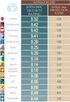 Anti-Virus Comparative File Detection Test of Malicious Software including false alarm test Language: English March 2015 Last Revision: 30 th April 2015 Table of Contents Tested Products 3 Introduction
Using the Online ebooks Library. Moray Council Libraries & Information Services. For more information log on to http://moray.libraryebooks.co.
 Using the Online ebooks Library Moray Council Libraries & Information Services For more information log on to http://moray.libraryebooks.co.uk How does the ebooks Service work? Log in to ebooks website
How To Use Windows Live Family Safety On Windows 7 (32 Bit) And Windows Live Safety (64 Bit) On A Pc Or Mac Or Ipad (32)
 NAME Windows Live Family Safety Company Microsoft Version 2012 Type of product Devices supported Operating systems Price* Client Computer Windows 7 (32 or 64 bit edition) Windows Vista Service Pack 2 Windows
IP Office one-x Portal for IP Office User Guide
 one-x Portal for User Guide 15-601131 Issue 02d - (29 April 2010) 2010 AVAYA All Rights Reserved. Notice While reasonable efforts were made to ensure that the information in this document was complete
Burst Technology. bt-webfilter User Guide
 Burst Technology presents bt-webfilter User Guide Burstek TM 9240 Bonita Beach Road Bonita Springs, FL 34135 Telephone: (239) 495-5900 or toll free (800) 709-2551 Visit the Burstek Website at http://www.burstek.com
8x8 Click2Pop User Guide
 USER GUIDE 8x8 User Guide Getting Started with April 2014 Contents Introduction... 3 What s new.... 3 8x8.... 3 Here is how works...4 8x8 Click2Connect.... 4 Requirements.... 4 Installation on Microsoft
Phone Apps for Online Safety Apple and Android
 Phone Apps for Online Safety Apple and Android Safe Eyes Mobile (Mobile App) Control your child's Internet usage while she's on the iphone by blocking questionable sites. This app has YouTube filtering
Bucksgfl Internet Web Filtering Policy
 Bucksgfl Internet Web Filtering Introduction The requirement to ensure that children and young people are able to use the internet and related communications technologies appropriately and safely is addressed
More information >>> HERE <<<
 More information >>> HERE http://dbvir.com/pcpandora/pdx/cc131/ Tags: pc pandora scam or work?-- vmware
E-Safety Issues and Online Safety
 E-Safety Issues and Online Safety Parents Evening Aims of This Presentation To look at how your children use the internet To raise your awareness of online safety To provide guidance on online safety and
Get Started Guide - PC Tools Internet Security
 Get Started Guide - PC Tools Internet Security Table of Contents PC Tools Internet Security... 1 Getting Started with PC Tools Internet Security... 1 Installing... 1 Getting Started... 2 iii PC Tools
ONLINE ACCOUNTABILITY FOR EVERY DEVICE. Quick Reference Guide V1.0
 ONLINE ACCOUNTABILITY FOR EVERY DEVICE Quick Reference Guide V1.0 TABLE OF CONTENTS ACCOUNT SET UP Creating an X3watch account DOWNLOADING AND INSTALLING X3WATCH System Requirements How to install on a
Norton 360. Benefits. Our ultimate protection, now even more so. Introducing the new Norton 360.
 Norton 360 Our ultimate protection, now even more so. Introducing the new Norton 360. Our ultimate Internet and antivirus protection for all you do online Provides proactive protection, so you can do what
FAQ. Safe Anywhere PC. Disclaimer:
 FAQ Safe Anywhere PC Version: 1.0 Disclaimer: You can freely use (copy and edit) the information in this document for your own purposes. You may want to replace all references to F-Secure, F-Secure launch
How To Use Secureanything On A Mac Or Ipad (For A Mac)
 User Guide for Mac OS X Copyright Webroot SecureAnywhere User Guide for Mac OS X March, 2013 2012-2013 Webroot Software, Inc. All rights reserved. Webroot is a registered trademark and SecureAnywhere is
Anti-Spam Test. Anti-Spam Test. (Consumer Products) Language: English. March 2016 Last Revision: 20 th April 2016. www.av-comparatives.
 Anti-Spam Test Anti-Spam Test (Consumer Products) Language: English March 2016 Last Revision: 20 th April 2016 Commissioned by PC Magazin Table of Contents Tested Products 3 Introduction 4 Test procedure
Kaspersky Password Manager
 Kaspersky Password Manager User Guide Dear User, Thank you for choosing our product. We hope that you will find this documentation useful and that it will provide answers to most questions that may arise.
Anti-Virus Comparative - Performance Test (AV Products) May 2014
 Anti-Virus Comparative Performance Test (AV Products) Impact of Anti-Virus Software on System Performance Language: English May 2014 Last Revision: 10 th June 2014 Table of Contents 1. Introduction 3 2.
WHY DOES MY SPEED MONITORING GRAPH SHOW -1 IN THE TOOLTIP? 2 HOW CAN I CHANGE MY PREFERENCES FOR UPTIME AND SPEED MONITORING 2
 FAQ WHY DOES MY SPEED MONITORING GRAPH SHOW -1 IN THE TOOLTIP? 2 HOW CAN I CHANGE MY PREFERENCES FOR UPTIME AND SPEED MONITORING 2 WHAT IS UPTIME AND SPEED MONITORING 2 WHEN I TRY TO SELECT A SERVICE FROM
`````````````````SIRE QUICK START GUIDE
 `````````````````SIRE QUICK START GUIDE Table of Contents Table of Contents 2 Introduction 3 Set-up 4 Getting Started 5 Set-up Your Backup Profile 6 Custom Backup 7 Launch Your Backup 9 Main Screen 10
Ventura Charter School of Arts & Global Education Board Policy for Acceptable Use and Internet Safety
 Ventura Charter School of Arts & Global Education Board Policy for Acceptable Use and Internet Safety Student Policy--SP004 Ventura Charter School of Arts and Global Education ("School") recognizes the
Puresight Technologies Ltd. Arabic, Dutch, English, German, Greece, Russian. 12 years old users: 1/21 (points 2,67 out of 4)
 NAME PURESIGHT OWL Company Puresight Technologies Ltd. Version 2012.3.9081 Type of product Devices supported Operating systems Client Computer Windows Vista (32/64 bit) Windows XP (32/64 bit) Windows 7
HomeNet. Gateway User Guide
 HomeNet Gateway User Guide Gateway User Guide Table of Contents HomeNet Gateway User Guide Gateway User Guide Table of Contents... 2 Introduction... 3 What is the HomeNet Gateway (Gateway)?... 3 How do
Section 1.0 Getting Started with the Vālant EMR. Contents
 Section 1.0 Getting Started with the Vālant EMR Contents Getting Started with the Valant EMR application:... 2 Hardware Requirements for the Vālant EMR:... 3 Software Requirements for the Vālant EMR:...
Kaspersky Security 9.0 for Microsoft SharePoint Server Administrator's Guide
 Kaspersky Security 9.0 for Microsoft SharePoint Server Administrator's Guide APPLICATION VERSION: 9.0 Dear User! Thank you for choosing our product. We hope that this document will help you in your work
Safe internet: Getting Started Guide
 Safe internet: Getting Started Guide Table of Contents 1. Preface 1 2. Before You Install 2 2.1 Disabling Firewalls 2 2.2 About Accelerators 3 3. About Profiles 4 4. Installation and Initial Configuration
Internet Content Filter Exemption Request Form
 Internet Content Filter Exemption Request Form Version 2.0 This form maybe updated at anytime (without notice) to ensure changes to the HSE Internet Content Filter Standard and/or business practices are
MRG Effitas Online Banking / Browser Security Assessment Project Q2 2013 Results
 MRG Effitas Online Banking / Browser Security Assessment Project Q2 2013 Results 1 Contents: Introduction 3 The Purpose of this Project 3 Tests employed 3 Security Applications Tested 4 Methodology Used
Quick Start. Installing the software. for Webroot Internet Security Complete, Version 7.0
 Quick Start for Webroot Internet Security Complete, Version 7.0 This Quick Start describes how to install and begin using the Webroot Internet Security Complete 2011 software. This integrated suite delivers
E-Safety Issues and Online Safety
 E-Safety Issues and Online Safety Parents Evening Aims of This Presentation To look at how your children use the internet To raise your awareness of online safety To provide guidance on online safety and
Anti-Virus Comparative
 Anti-Virus Comparative Performance Test (Suite Products) Impact of Internet Security Software on System Performance Language: English October 2013 Last Revision: 19 th November 2013 Table of Contents 1.
Verizon Family Protection Powered by McAfee. User Guide
 Verizon Family Protection Powered by McAfee User Guide ii Contents Welcome to Verizon Family Protection Powered by McAfee User Guide 3 Setting up Family Protection 5 Managing your family's protection...6
Kerio Connect. Kerio Connect Client. Kerio Technologies
 Kerio Connect Kerio Connect Client Kerio Technologies 2015 Kerio Technologies s.r.o. Contents Kerio Connect Client.......................................................... 10 Kerio Connect Client.....................................................
E-Safety Issues and Online Safety. Parents Evening
 E-Safety Issues and Online Safety Parents Evening To look at how your children use the internet To raise your awareness of online safety To provide guidance on online safety and privacy for your children
Premium Advertising Sweden UK France Germany
 Premium Advertising Sweden UK France Germany On behalf of Widespace 05.11.2015 Content Study design Management Summary Sample Results Total Sweden UK France Germany Contact 2 Study design Study characteristics
Islington ebooks Help / FAQs
 Islington ebooks Help / FAQs How does the ebook Service work? Using your Library Card and pin, an Islington Libraries user can login into a secure ebook service and select up to 4 ebooks to download at
Alerts. Some Alerts give you unique options for customizing the messages you receive. Calendar events, for instance, allow you to set how far in
 Alerts, RSS and ical feeds Alerts and feeds are both methods of keeping current on site content that changes or updates frequently. The primary difference between them is that Alerts are active: whenever
Kaspersky Internet Security
 Kaspersky Internet Security User Guide APPLICATION VERSION: 16.0 Dear User, Thank you for choosing our product. We hope that this document will help you in your work and will provide answers regarding
Comprehensive Internet filtering for networks of all types and sizes
 Comprehensive Internet filtering for networks of all types and sizes COMPREHENSIVE INTERNET FILTERING UserGate Web Filter is a gateway solution for controlling Internet use on all devices on a local network,
26 Protection Programs Undergo Our First Test Using Windows 8
 Test: Internet Security Packages 1/2013 26 Protection Programs Undergo Our First Test Using Windows 8 Windows 8 is considered to be a secure system thanks to its internal protection package containing
Kaspersky Small Office Security User Guide
 Kaspersky Small Office Security User Guide APPLICATION VERSION: 4.0 Dear User, Thank you for choosing our product. We hope that this document will help you in your work and will provide answers regarding
Password Manager for PC and Android
 H Trend Micro Password Manager for PC and Android Product Guide Trend Micro Inc. 225 E. John Carpenter Freeway, Suite 1500 Irving, Texas 75062 U.S.A. Phone: +1 (817) 569-8900 Toll-free: (888) 762-8763
Henry Ford Health System Remote Access Support Details
 Henry Ford Health System Remote Access Support Details Last Updated: March 5 th, 2014 Access Disclaimer: This document assumes that you already have an ID to access the Henry Ford Health System (HFHS)
Netsafe/ AVG New Zealand. NetSafe/ AVG New Zealand. Cyber Security Research. Cyber Security Research. Supplementary Tables. March 2011.
 NetSafe/ AVG New Zealand Contents Page 1. Objectives and Methodology 3 2. Summary and Conclusions 6 3. Main Findings 8 Online security a serious issue 9 Concern about online challenges 11 Most important
OPTENET PC Web Filter. Version 10.09
 OPTENET PC Web Filter Version 10.09 COPYRIGHT No part of this publication may be reproduced, transmitted, transcribed, stored in a retrieval system, or translated into any language in any form or by any
Staying Safe Online. A Practical Guide for Parents and Children.
 Staying Safe Online A Practical Guide for Parents and Children. Introduction Young people are growing up in a technology rich world. They are surrounded by various forms of technology and they use it extensively
`````````````````SIRE USER GUIDE
 `````````````````SIRE USER GUIDE Table of Contents INTRODUCTION 3 SYSTEM REQUIREMENTS 4 RUNNING SANDISK BACKUP 5 Setup Your First Backup 6 Create Your Backup 7 Custom Backup 8 Dmailer Online 10 Launch
Welcome to Part 2 of the online course, Spyware and Adware What s in Your Computer?
 Welcome to Part 2 of the online course, Spyware and Adware What s in Your Computer? 1 2 This is the second part of a two-part course on spyware and adware. In this portion of the course we will: Review
Personal Archive User Guide
 Personal Archive User Guide Personal Archive gives you an unlimited mailbox and helps you quickly and easily access your archived email directly from Microsoft Outlook or Lotus Notes. Since Personal Archive
Social Networking Sites A Predator s Playground?
 Social Networking Sites A Predator s Playground? Posting too much information on social networking sites may be dangerous. A new craze is spreading among teens across the nation and it s growing with every
The Internet and Network Technologies
 The Internet and Network Technologies Don Mason Associate Director Copyright 2013 National Center for Justice and the Rule of Law All Rights Reserved Inside vs. Outside Inside the Box What the computer
Student ANGEL FAQs. General Issues: System Requirements:
 Student ANGEL FAQs General Issues: What is ANGEL? How do I log in? What is my username and password? How do I activate my account? I forgot my C number/password, what do I do? I registered after the first