
HHS Learning Portal. LMS User Guide
|
|
|
- Marianna Joseph
- 10 years ago
- Views:
Transcription
1 HHS Learning Portal LMS User Guide NIH Training Center National Institutes of Health OD/OM/OHR/WSDD 6120 Executive Blvd., Suite 350 MSC 7170 Rockville, MD Page 1

2 National Institutes of Health Training Center, Rockville Version 1.0, published November Version Number Revision Date Approved By /10/2009 Kimberly Hill NIH LMS Program Manager Approval Date Initial publication Description of Change Please submit any questions or suggestions for changes to December 2009 Page 2

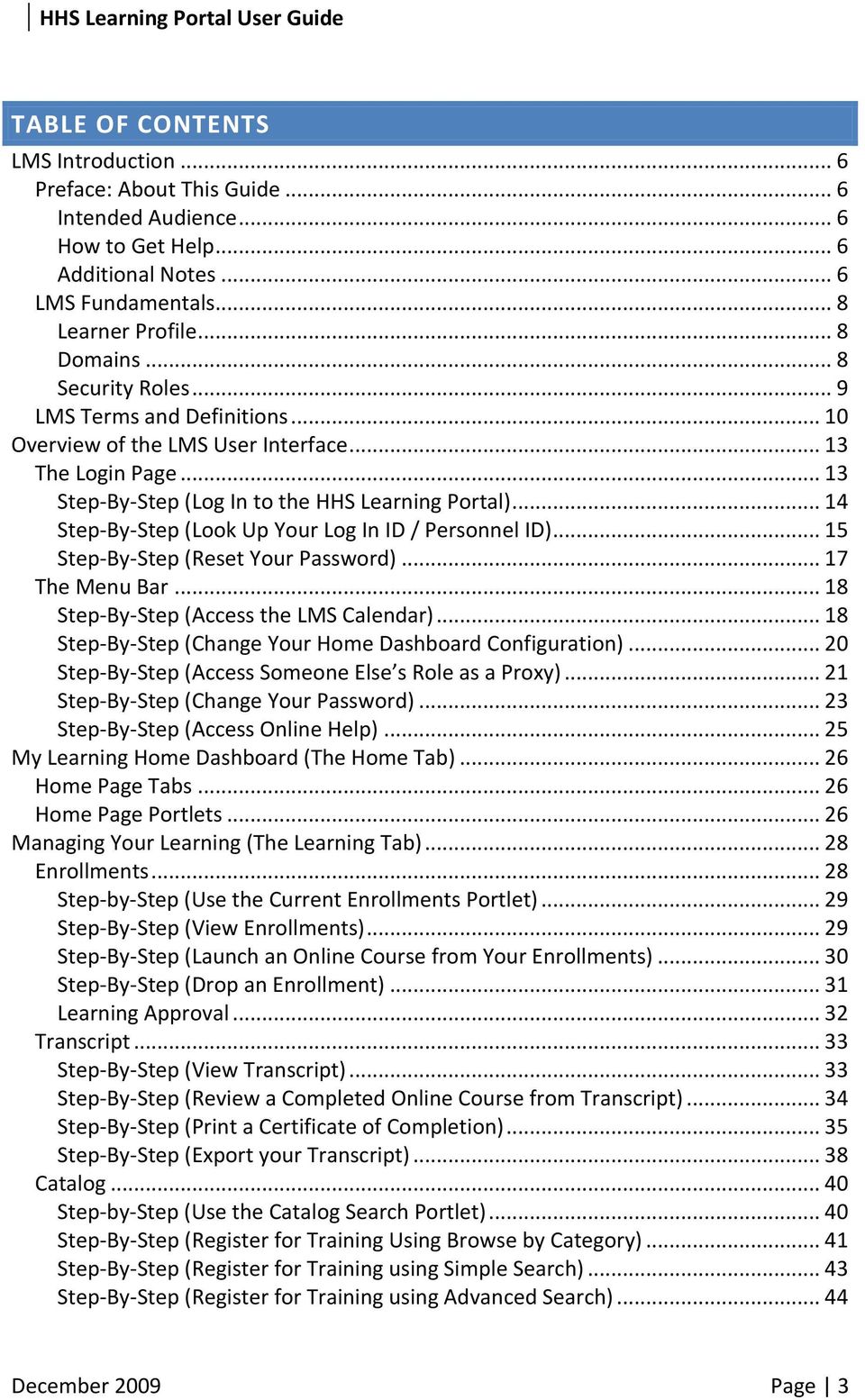
3 TABLE OF CONTENTS LMS Introduction... 6 Preface: About This Guide... 6 Intended Audience... 6 How to Get Help... 6 Additional Notes... 6 LMS Fundamentals... 8 Learner Profile... 8 Domains... 8 Security Roles... 9 LMS Terms and Definitions Overview of the LMS User Interface The Login Page Step-By-Step (Log In to the HHS Learning Portal) Step-By-Step (Look Up Your Log In ID / Personnel ID) Step-By-Step (Reset Your Password) The Menu Bar Step-By-Step (Access the LMS Calendar) Step-By-Step (Change Your Home Dashboard Configuration) Step-By-Step (Access Someone Else s Role as a Proxy) Step-By-Step (Change Your Password) Step-By-Step (Access Online Help) My Learning Home Dashboard (The Home Tab) Home Page Tabs Home Page Portlets Managing Your Learning (The Learning Tab) Enrollments Step-by-Step (Use the Current Enrollments Portlet) Step-By-Step (View Enrollments) Step-By-Step (Launch an Online Course from Your Enrollments) Step-By-Step (Drop an Enrollment) Learning Approval Transcript Step-By-Step (View Transcript) Step-By-Step (Review a Completed Online Course from Transcript) Step-By-Step (Print a Certificate of Completion) Step-By-Step (Export your Transcript) Catalog Step-by-Step (Use the Catalog Search Portlet) Step-By-Step (Register for Training Using Browse by Category) Step-By-Step (Register for Training using Simple Search) Step-By-Step (Register for Training using Advanced Search) December 2009 Page 3
4 Step-By-Step (View Seats Available for an Offering) Step-By-Step (Sort Learning Offerings by Start Date) Certifications Step-By-Step (View and Manage Certifications) Step-by-Step (Add an Internal Certification) Step-by-Step (Delete an Internal Certification) Step-by-Step (Add an External Certification) Step-by-Step (Delete an External Certification Step-by-Step (Check Gaps in Your Certifications) Continuing Education Order History Step-by-Step (View Your Order History) Knowledge Center Step-By-Step (Search for Knowledge Resources Using Simple Search) Step-by-Step (Browse the Knowledge Base) Learning Requests Step-By-Step (Create a Learning Request for a Public Offering) Step-By-Step (Create a Learning Request for a Private Offering) Step-by-Step (View Learning Request History) Learner Administration Step-By-Step (View and Manage Curricula) Step-by-Step (Add a Curriculum) Step-by-Step (Delete a Curriculum) Evaluations & Surveys Step-by-Step (Complete an Evaluation) Step-by-Step (Complete a Survey) Managing your Competencies (The Competencies Tab) Competencies Step-By-Step (View Required Competencies) Step-By-Step (Add a Required Competency) Step-by-Step (Delete a Competency) Step-By-Step (Complete a Competency Self-Assessment) Step-by-Step (Initiate a Competency Multi-Rater Assessment) Step-By-Step (View Competency Assessments) Step-By-Step (Find Training to Close a Competency Gap) Step-By-Step (View Held Competencies) Multi-Rater Assessments (MRAs) Step-By-Step (Manage Your Multi-Rater Assessments) Step-By-Step (Initiate a Competency Multi-Rater Assessment Method 2) Step-by-Step (Initiate a Questionnaire-Based Multi-Rater Assessment) Step-by-Step (Complete Competency Assessments for Others) Managing your Communities (The Collaboration Tab) Communities Step-By-Step (Search For and Join a Community) December 2009 Page 4

5 Step-By-Step (Leave a Community) Organizations Managing Your Learning Plan (The My Learning Plan Tab) My Plans Step-By-Step (Manage Your Learning Plan) Step-By-Step (Add An Activity to Your Learning Plan) Step-By-Step (Delete an Activity From Your Learning Plan) Goals Step-by-Step (Edit a Goal) My Initiatives Recommendations for Me Creating Reports (The Reports Tab) Managing your Profile (The My Profile Tab) Step-By-Step (Verifying your User Profile) Step-By-Step (Adding or Changing Your Address) Helpful Information December 2009 Page 5

6 LMS INTRODUCTION PREFACE: ABOUT THIS GUIDE INTENDED AUDIENCE This guide is intended for all NIH staff using the HHS Learning Portal/LMS. By default, everyone with an LMS account is a Learner. At NIH, everyone with an NIH Enterprise Directory (NED) account should also have an LMS account. As a Learner, you can find and take training in the LMS and use several professional development tools and resources the system has to offer. HOW TO GET HELP If you encounter technical difficulties logging on to the LMS or performing any tasks in this user guide, please contact the LMS Help Desk at or [email protected]. If you have questions about NIH LMS policy, please contact the NIH LMS Team at [email protected]. ADDITIONAL NOTES POP-UPS AND DOWNLOADS Many functions in the LMS require pop-up windows. Make sure your browser allows pop-ups from the HHS Learning Portal. For help with this, please contact the NIH IT Help Desk at Some LMS functions require you to download files, such as printing a certificate of completion from your transcript. You can facilitate this function by checking your browser security settings and allowing file downloads from the HHS Learning Portal. For help with this, please contact the NIH IT Help Desk at SKILLSOFT COURSES If you plan to take one of the many free online Skillsoft courses in the LMS, you can test your computer for compatibility at this link You will need to enter a valid address to run the checker and receive the results via . Please provide the report to your local IT support if any problems are noted. MAC USERS Mac users should view online courses with the Firefox browser, not Safari. December 2009 Page 6

7 LMS INFORMATION Additional information about the HHS Learning Portal/LMS can be found at The HHS Learning Portal/LMS log on screen can be found at and NIH-specific log on instructions can be found at December 2009 Page 7

8 LMS FUNDAMENTALS HHS Learning Portal/LMS: The terms HHS Learning Portal and LMS are used interchangeably and refer to the same system. The Learning Management System (LMS) is a Department-wide system for managing, accessing, and tracking training. As a Department-wide system, the overall LMS is managed at the HHS level hence the name HHS Learning Portal. Following are some concepts and terms that should be understood before beginning to perform tasks in the LMS. LEARNER PROFILE The Learner Profile contains information about the learner, such as employee status, start date, name, and organization. The profile does not contain personally identifiable information such as the employee s social security number or date of birth. The Learner Profile receives data from the following sources on a nightly basis: NIH Enterprise Directory (NED) Capital HR Commissioned Corp Personnel Database Anyone given an NIH Enterprise Directory (NED) account will automatically be given an LMS account. The information in the Learner Profile comes from one or more of the Human Resource system interfaces above. The Learner Profile fields with which you should be most concerned are: Accurate addresses in the LMS will ensure learners receive notifications generated in the LMS. Manager: Having the correct manager (a.k.a. supervisor) listed will allow supervisors to view their direct reports and access training and development information about them. Organization: People are grouped in the LMS according to Organization/SAC Code. (See Appendix A.) This code is used to build audience types (which restrict access to courses), narrow the scope of reports, etc. This code must be correct or learners will neither show up in reports correctly nor have access to the correct training opportunities. DOMAINS Domains (a.k.a. Security Domains) in the LMS are used to segment users into hierarchical groups of people who should all have the same basic security permissions. NIH has its own domain to ensure that all NIH employees and contractors have access to NIH-specific training resources. Having an NIH domain also prevents users in other domains (other agencies within HHS) from viewing and accessing NIH-specific training resources. December 2009 Page 8

9 SECURITY ROLES Every user in the LMS has the security role of Learner. If you are designated as the Manager in someone s Learner Profile, you will automatically have the role of Manager/Supervisor as well. NIH staff who have attended LMS administrator training may have various administrator roles in the system. For a list of people in your IC who have active administrator privileges in the LMS, please see Lists.pdf. December 2009 Page 9

10 LMS TERMS AND DEFINITIONS Audience Types - Audience Types are used to group learners in the system. Similarly, Audience Sub-Types allow for the further grouping of learners within an Audience Type. These groups can then be used to control access to learning offerings in the LMS. Certification A predefined set of courses that have been grouped together, with a deadline for completion. Credentials earned by completing the certification may expire on a predetermined date. Closing a Competency Gap A competency gap can be closed by increasing the calculated gap number to zero or higher. Closing the gap can be accomplished by completing/updating a learner self-assessment or a manager/supervisor assessment, usually after relevant training has been completed. Competency A competency is a skill, knowledge, or behavior that can be measured, calculated, acquired, specified, or tested. Examples of competencies include Java Programming, Written Communications, Product Knowledge, and People Skills. Assigned competencies are required, and assessed competencies are held. Competency Gap This is a measure of the learner s current competency proficiency minus his/her required proficiency level. This value indicates what training, development, and learning is needed in order to make measurable increases to performance. Course A course is organized training with planned objectives for learners to complete. Courses may be offered using a variety of delivery types and may have multiple offerings. Curriculum A predefined set of courses that have been grouped together. A learner must complete all courses to complete the curriculum. Delivery Type A delivery type is the method through which the course content will be presented to learners. Some examples of delivery types are: Online Training, Traditional Classroom, Books, Video, and Webcast. Descriptors Behavioral descriptors are descriptions associated with competency proficiency levels. They are intended to help establish an anchor that raters and reviewers can use when assessing the proficiency level of a learner. Enrollment An offering that a learner is registered for, but has not yet completed. Facility A facility is the actual building at a specific location. An example would be Building 31, which is part of the NIH Main Campus location. Job Families A job family is a collection of related jobs. December 2009 Page 10

11 Job Roles Roles identify specific skills required to perform a job function. Roles can be shared across multiple jobs. Role definitions may include: Competencies competencies required to perform the function (including criticality of the competency and minimum required proficiency) Certifications certifications required to perform the function. Curricula curricula required to perform the function. Attachments additional information about the job function. Job A job is a collection of roles. It inherits the certifications, competencies, and curricula of the associated roles. Job definitions may include: Roles define the functional responsibilities for the job. Next career steps other jobs that represent likely promotion paths for people who hold the job. Attachments additional information about the job functions. NOTE: In the HHS Learning Portal, jobs are listed according to the OPM job series number. Learning Catalog The Learning Catalog is a list of all the learning items in the LMS, such as courses, offerings, certifications, curricula, and packages (groups of courses). To view the learning items of your interest and to register for an item, access the Learning Catalog. Learning Plan Learning plans allow learners to keep track of learning offerings they need to take and other tasks they need to perform as part of their general development. Every learner has a single learning plan. Learners can set or view the progress of each item in their learning plan. In addition, users with certain privileges (like managers) can also view progress on the learning plan items. Location A location is either a geographic location, such as Bethesda, or the name that serves as an identifier, such as NIH Main Campus. Multi-Rater Assessment (MRA) A multi-rater assessment (MRA) is a method by which a learner s competencies are assessed by supervisors, peers, subordinates, and customers. Offering An offering is the specific date and time a course will be presented to learners. In most cases, offerings are limited to specific dates, times, locations, facilities, and rooms. The exception would be self-paced courses, such as online training, where the offering is available to the learner at any time. Offerings are often referred to as classes. Order An order is created when a learner, manager, administrator, or registrar assigns an offering to self or to other learners. Portlet An area, delimited by a border, within the HHS Learning Portal main screen (a.k.a., dashboard) that provides quick access to specific areas of the system, such as a learner's current enrollments, the catalog search, or communities. December 2009 Page 11

12 Proficiency Level Proficiency levels represent the scale on which a competency is measured. Examples of the proficiency levels used at NIH include Fundamental Awareness, Novice, Intermediate, Advanced, and Expert. Ratee The employee whose competencies are being rated. Rater An individual who is completing a competency assessment of someone else. Registration A registration is created when a learner signs up for an offering. Room A room is a designated space, such as a conference room, classroom, or auditorium, found within a specific facility. An example would be Conference Room A in Building 31. Survey A survey is a questionnaire that a respondent uses to evaluate a service or provide general feedback. Transcript a record or history of training taken by a learner December 2009 Page 12

13 OVERVIEW OF THE LMS USER INTERFACE THE LOGIN PAGE The HHS Learning Portal (LMS) requires that you enter a username and password to gain access. It is important to remember that, because this is a Department-wide system, the credentials used to access the LMS are not the same credentials that you use to access your computer and other NIH resources. To log on to the HHS Learning Portal, visit The login page is the first page you come to when attempting to enter the HHS Learning Portal. On the login page there are links for: Look up your ID Forgot your password? Need help? NIH-specific log in instructions LMS Help Desk December 2009 Page 13

14 STEP-BY-STEP (LOG IN TO THE HHS LEARNING PORTAL) Log in instructions for NIH users are also available from a link on the LMS log in page. 1. Determine your Username and Password. Use the following table to determine your Username and initial Password. 2. After logging on the first time, the system will prompt you to create a new, personalized password that is more secure using the following New Password Requirements: New Password Requirements Must be a minimum of 8 characters in length. Must contain at least one upper-case character and one lower-case character. Must not include any part of your login ID or name. Must contain a minimum of 2 alphabetic characters. Must contain a minimum of 1 numeric character. Must contain a minimum of 1 special character. : # $ % ^ & *, _? / ; : \ Cannot be changed more than once every 24 hours. Cannot be one of your 5 previous passwords. Tip: Making your new LMS password the same as the one you use to log on the NIH systems will make it easier to remember. 3. Enter the temporary password assigned to your account in the Old Password field. 4. Enter your new password in both the New Password and Confirm New Password fields. 5. Optional: Enter a Secret Question. December 2009 Page 14

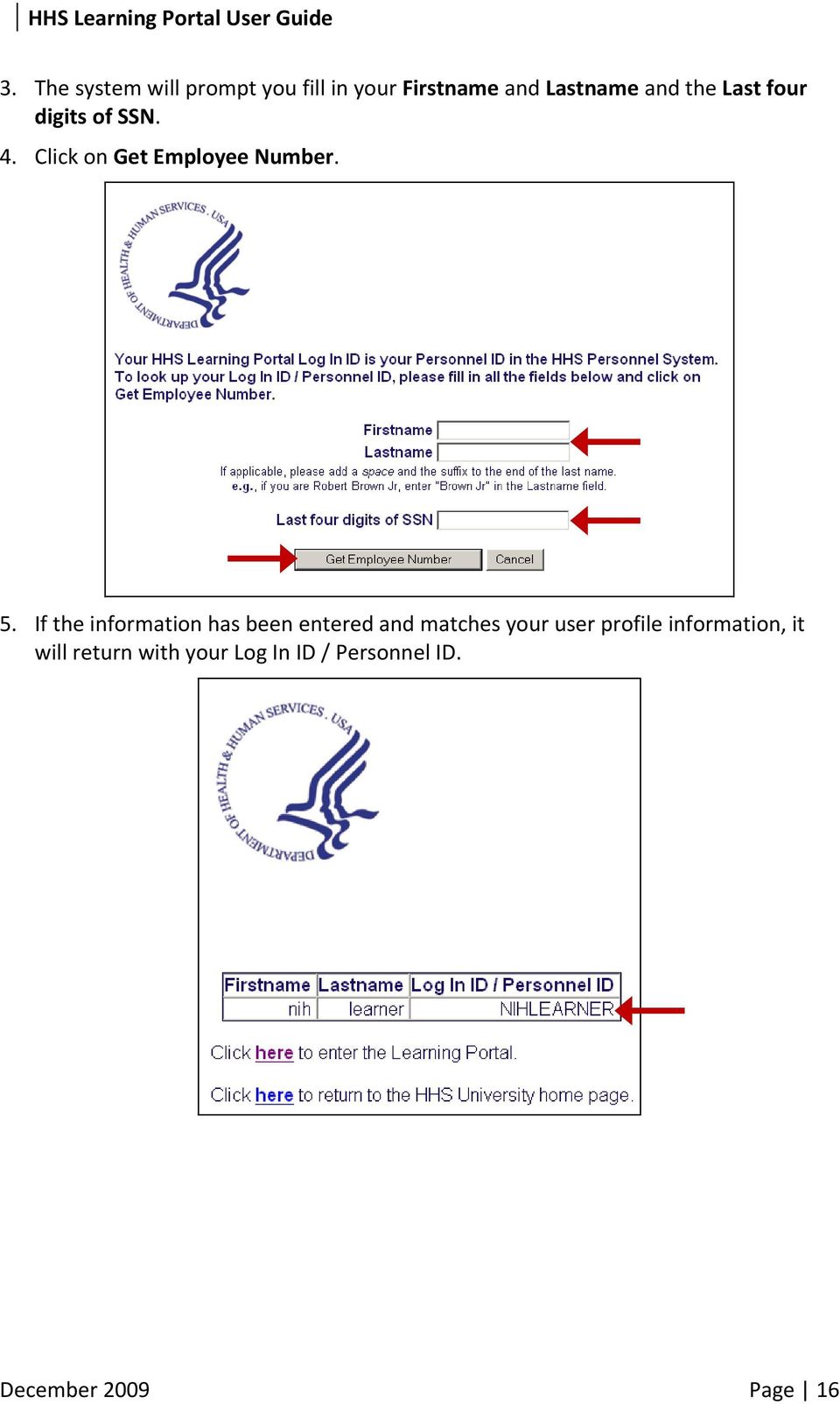
15 Note: The secret question is an optional layer of added security, used to restrict unauthorized access to your LMS password through the Password Reset tool. Although the setup of a secret question is NOT required, it is encouraged. If you choose to select a secret question and answer, then this information will be required for you to be able to use the Forgot Password feature later. 6. Click Save to navigate to the HHS Learning Portal dashboard screen. IMPORTANT: All fields in red with an asterisk (*) require data in order to save changes. STEP-BY-STEP (LOOK UP YOUR LOG IN ID / PERSONNEL ID) If you do not know your Log In ID / Personnel ID for the LMS, use the Look Up Your ID link on the log in screen to retrieve it. Enter your legal first name and last name. If you are a Federal civilian employee or a Commissioned Corps Officer, enter the last four digits of your social security number. All others should enter four zeros. 1. Navigate to the HHS Learning Portal log in page: 2. Click on Look up your ID. Look up your ID link December 2009 Page 15

16 3. The system will prompt you fill in your Firstname and Lastname and the Last four digits of SSN. 4. Click on Get Employee Number. 5. If the information has been entered and matches your user profile information, it will return with your Log In ID / Personnel ID. December 2009 Page 16
17 STEP-BY-STEP (RESET YOUR PASSWORD) If you forget your password, you may request that the self-service password reset tool an auto-generated, temporary password to you. When you access the LMS for the first time after receiving the temporary password, you will be prompted to change it. 1. Navigate to the HHS Learning Portal log in page: 2. Click on Forgot your password? Forgot your password link 3. Enter your LMS username in the Log In ID / Personnel field. NOTE: To determine your LMS username, click the Look up your ID link on the HHS Learning Portal log in page and follow the prompts. 4. Click Submit. NOTE: If additional information is required, you will be prompted to enter it. Otherwise, you will be provided with contact information for additional support. 5. Verify that the address to which your temporary password will be sent is correct. IMPORTANT: If the address listed is incorrect, then you will not receive the temporary password you requested. If your address is incorrect, please contact the LMS Help Desk to have it updated. December 2009 Page 17

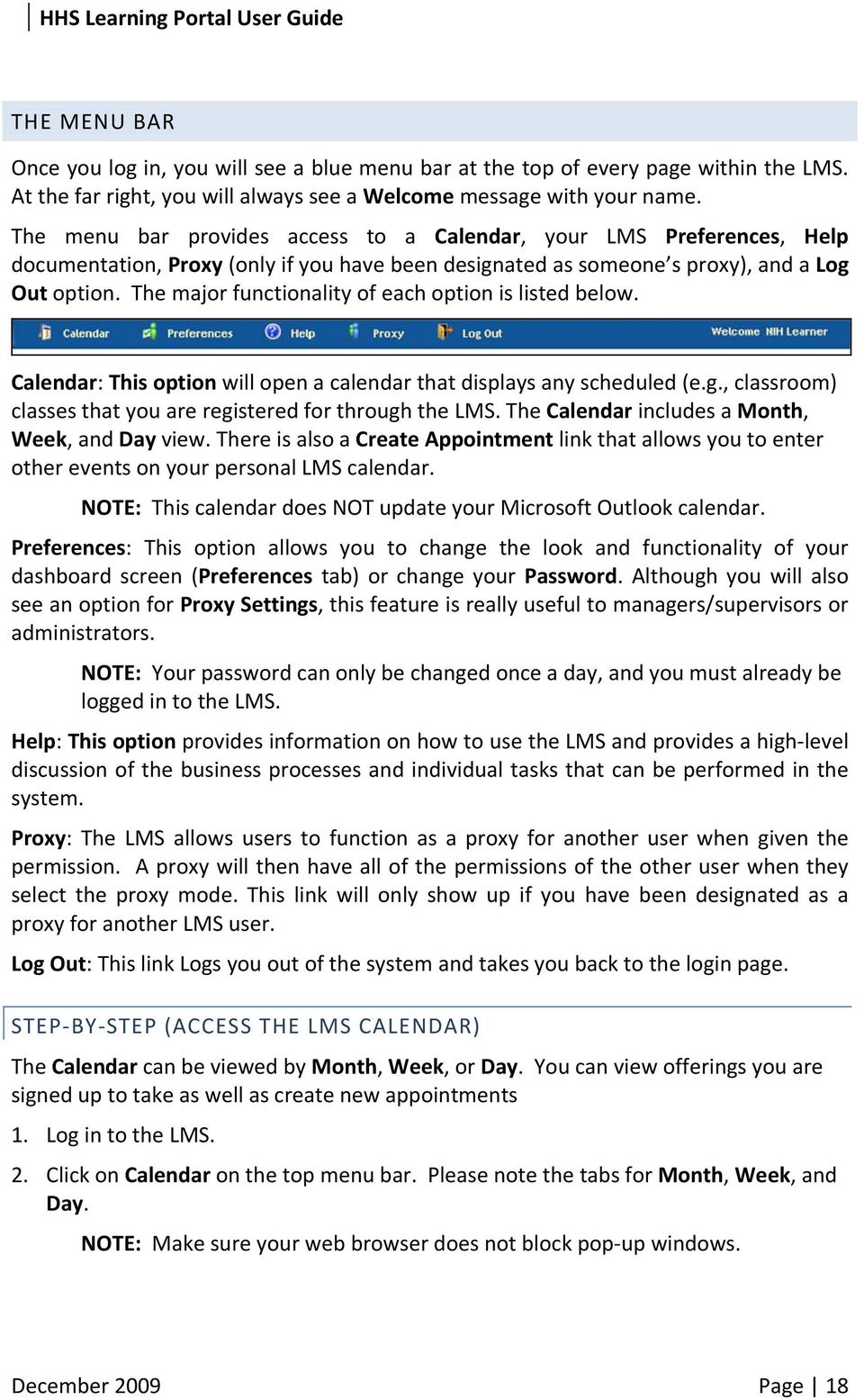
18 THE MENU BAR Once you log in, you will see a blue menu bar at the top of every page within the LMS. At the far right, you will always see a Welcome message with your name. The menu bar provides access to a Calendar, your LMS Preferences, Help documentation, Proxy (only if you have been designated as someone s proxy), and a Log Out option. The major functionality of each option is listed below. Calendar: This option will open a calendar that displays any scheduled (e.g., classroom) classes that you are registered for through the LMS. The Calendar includes a Month, Week, and Day view. There is also a Create Appointment link that allows you to enter other events on your personal LMS calendar. NOTE: This calendar does NOT update your Microsoft Outlook calendar. Preferences: This option allows you to change the look and functionality of your dashboard screen (Preferences tab) or change your Password. Although you will also see an option for Proxy Settings, this feature is really useful to managers/supervisors or administrators. NOTE: Your password can only be changed once a day, and you must already be logged in to the LMS. Help: This option provides information on how to use the LMS and provides a high-level discussion of the business processes and individual tasks that can be performed in the system. Proxy: The LMS allows users to function as a proxy for another user when given the permission. A proxy will then have all of the permissions of the other user when they select the proxy mode. This link will only show up if you have been designated as a proxy for another LMS user. Log Out: This link Logs you out of the system and takes you back to the login page. STEP-BY-STEP (ACCESS THE LMS CALENDAR) The Calendar can be viewed by Month, Week, or Day. You can view offerings you are signed up to take as well as create new appointments 1. Log in to the LMS. 2. Click on Calendar on the top menu bar. Please note the tabs for Month, Week, and Day. NOTE: Make sure your web browser does not block pop-up windows. December 2009 Page 18
19 3. Click Create Appointment. 4. To create an appointment for your calendar, fill in the required fields and click Save. IMPORTANT: All fields in red with an asterisk (*) require data in order to save changes. December 2009 Page 19

20 STEP-BY-STEP (CHANGE YOUR HOME DASHBOARD CONFIGURATION) The Preferences area allows you to change the look and functionality of your Home Dashboard or change your password. 1. Click on Preferences on the top menu bar. 2. Click on the Preferences tab. 3. Under the Home Dashboard Configuration you can select the portlets that are displayed on your home dashboard by checking/unchecking boxes as needed. 4. Do not change settings in the Website Preferences area. 5. Under the Catalog Search Preferences, you can select default search options for the course catalog search feature. IMPORTANT: If you set Catalog Search Preferences, remember that it could affect your search results later. December 2009 Page 20

21 6. The following areas are not currently being used at NIH: Auto-save Reviews Preference, Instant Messenger Information, and Table Row Display Preferences. You should not alter the default settings without valid reason. 7. Click Save. STEP-BY-STEP (ACCESS SOMEONE ELSE S ROLE AS A PROXY) The proxy feature may be used if an LMS user is going to be away for an extended time, and someone else must take care of tasks he/she is responsible for in the LMS. As a Learner, there should be no need to designate a proxy for yourself. However, someone else may designate you as a proxy. You would then be able to log in to the LMS and use his/her permissions to take actions he/she would normally take. The Proxy function should be used cautiously. 1. Click Proxy on the Home Page menu bar. (You will not see this link if you have not been designated as another person s proxy in the LMS.) 2. People for whom you have been designated as a proxy will appear on your list. 3. Click Select next to a person s name to change your role to that of the person listed. 4. Notice that the Welcome message in the blue menu bar has changed to indicate that you are acting as a proxy. IMPORTANT: Be VERY cautious using this role. You and your proxy are both responsible for actions you take in the LMS. December 2009 Page 21
22 5. Turn off your proxy role before resuming any LMS tasks for yourself as a Learner. Select the Proxy link again. 6. Select Exit Proxy Mode and make sure the Welcome message in the blue bar has returned to your name only. December 2009 Page 22
23 STEP-BY-STEP (CHANGE YOUR PASSWORD) The following steps are only necessary if you know your current password, but would like to establish a new one. 1. Log in to the LMS. NOTE: For instruction about logging in, see the STEP-BY-STEP (LOG-IN TO THE HHS LEARNING PORTAL) 2. From the top of any page within the LMS, click the Preferences link on the top menu bar to open the My Account: Preferences window. NOTE: Make sure pop-ups are not blocked by your web browser. Preferences link 3. Select the Password tab. 4. In the Current Password field, enter the password you currently use to log in to the LMS. December 2009 Page 23
24 5. In the New Password field, enter the new password you want to use in the future. Be sure your new password is in line with the following new password requirements: 6. In the Confirm New Password field, re-type the new password exactly as you typed it in Step 5. NOTE: If the confirmed new password in Step 6 is typed differently than it was in Step5, then the following error message displays when attempting to save: The new password must be typed the same way when confirmed. Please try again. 7. If you do not want to create a secret question, click Save and Close. Otherwise, continue to step 8. OPTIONAL: ENTER A SECRET QUESTION The secret question is an optional layer of added security to restrict unauthorized access to your LMS password through the Password Reset tool. Although the setup of a secret question is NOT required, it is encouraged. If you choose to select a secret question and answer, this information will be required for you to successfully use the Forgot Your Password? feature later. 8. Select a Secret Question from the drop-down list. 9. In the Secret Answer field, type the answer to the secret question you selected in Step In the Confirm Secret Answer field, re-type the secret answer exactly as you typed it in Step 9. NOTE: If the confirmed secret answer in Step 10 is typed differently than it was in Step 9, the following error message displays when attempting to save: The new secret answer must be typed the same way when confirmed. Try again. 11. Click Save and Close. New Password Requirements Must be a minimum of 8 characters in length. Must contain at least one upper-case character and one lower-case character. Must not include any part of your login ID or name. Must contain a minimum of 2 alphabetic characters. Must contain a minimum of 1 numeric character. Must contain a minimum of 1 special character. : # $ % ^ & *, _? / ; : \ Cannot be changed more than once every 24 hours Cannot be one of your 5 previous passwords December 2009 Page 24
25 STEP-BY-STEP (ACCESS ONLINE HELP) The Help section offers more information about how to use the system interface and provides a high-level discussion of the business processes and individual tasks that can be performed. 1. Log in to the LMS. NOTE: For instruction about logging in, see the STEP-BY-STEP (LOG-IN TO THE HHS LEARNING PORTAL) 2. From the top of any page within the LMS, click Help on the top menu bar. NOTE: Make sure your web browser does not block pop-up windows. Help link 3. Use the Search tab to search for a specific help topic. 4. Use the Contents tab to browse the complete list of help topics available to you. Help content will appear on the right side of the Help window. December 2009 Page 25
26 MY LEARNING HOME DASHBOARD (THE HOME TAB) The first screen you see when you log on to the LMS is called the Home Dashboard. Note: If you are a manager/supervisor or administrator in the LMS, you will have other roles available to you as well. You can always return to the Home Dashboard by selecting My Learning in the Go To drop-down menu. (If your only role in the LMS is Learner, you will not see a Go To drop-down menu.) Tabs Portlets HOME PAGE TABS Near the top of the screen, just under the HHS logo, you will see seven tabs: Home, Learning, Competencies, Collaboration, My Learning Plan, Reports, and My Profile. These all lead to various areas of functionality in the LMS that will be discussed in more detail later in this user guide. The Home tab will always return you to the Home Dashboard view. HOME PAGE PORTLETS The LMS home page has a variety of portlets. A portlet provides quick access to specific areas of the system, such as a learner's current enrollments, the catalog search, or communities. Functional areas accessed through the portlets can also be accessed through the tabs and menus if you prefer. In the NIH Announcements portlet, you will find special notices, updates, and/or quick links to courses just for NIH staff. To change the appearance of your home dashboard screen, click Configure This Page at the top right of the portlets area. You can select/deselect which portlets show up on your dashboard. December 2009 Page 26
27 IMPORTANT: Be sure to keep the NIH Announcements portlet checked so you do not miss important information for NIH learners. You may also change the order of your portlets by clicking the yellow header bar, dragging, and dropping them into a new position. December 2009 Page 27
28 MANAGING YOUR LEARNING (THE LEARNING TAB) Under the Learning tab, the learner can access: Enrollments Manage courses for which you have an active registration. Transcript View your training history. Catalog Access a list of all the learning items available to you in the LMS. Certifications Manage your certifications. Continuing Education Manage continuing education credits. Order History Access orders (registrations) you have placed for LMS training items. Knowledge Center Access informational documents available in the LMS. Learning Requests Submit requests or view your request history. Learner Administration Access enrollments, curricula, certifications, or transcript. Evaluations & Surveys Access evaluations and surveys assigned to you. ENROLLMENTS Your Enrollments area lists courses you are registered for but have not yet completed. Click the title of any course in your enrollments list to find more information about it. Online courses can be re-launched and finished from the enrollments area. When you complete an online course, it should mark complete automatically and disappear from your enrollments (moves to your transcript). Classroom courses must be closed out by an administrator before they will move from your enrollments to your transcript. In addition to the launch and drop functions explained in detail below, you may also see View Progress and/or View Recommendations under the Actions column. View Progress may allow you to see more detailed information about your progress through a course especially an online course. View Recommendations may list similar courses that you may choose to bookmark or ignore. Click Current Enrollments under the Enrollments menu to return to the My Enrollments screen at any time. The Catalogued Enrollments tab includes all learning items that reside in the HHS Learning Portal. The External Enrollments tab is not in use at this time, but will eventually list training through outside (not in the HHS Learning Portal) organizations that have been approved and paid for through the LMS. December 2009 Page 28
29 STEP-BY-STEP (USE THE CURRENT ENROLLMENTS PORTLET) 1. Log in to the LMS. NOTE: For instruction about logging in, see the STEP-BY-STEP (LOG-IN TO THE HHS LEARNING PORTAL) 2. Locate the Current Enrollments portlet in your home dashboard. 3. You may a. Click the title of an enrollment to access more details about the offering; b. Access the content of an online course using Launch Now; c. Go directly to the catalog search area using Add Learning; d. Go the My Enrollments by clicking either All Enrollments or the portlet title. STEP-BY-STEP (VIEW ENROLLMENTS) 1. Log in to the LMS. NOTE: For instruction about logging in, see the STEP-BY-STEP (LOG-IN TO THE HHS LEARNING PORTAL) 2. Click on the Learning tab. My Enrollments is the default screen. You will see a list of all courses (online and/or classroom) for which you are currently registered. 3. You may view your enrollments by All, Pending Approval, Approved, or Unscheduled using the View Enrollments drop-down menu. December 2009 Page 29
30 STEP-BY-STEP (LAUNCH AN ONLINE COURSE FROM YOUR ENROLLMENTS) 1. Log in to the LMS. NOTE: For instruction about logging in, see the STEP-BY-STEP (LOG-IN TO THE HHS LEARNING PORTAL). 2. Click on the Learning tab. My Enrollments is the default screen. 3. Next to all online courses, you should see Launch listed under the Actions column; click Launch to start the course. 4. Depending on how the course was programmed, you may have to click additional links to reach the course content. Follow the prompts given and proceed to the course content. December 2009 Page 30
31 STEP-BY-STEP (DROP AN ENROLLMENT) 1. Log in to the LMS. NOTE: For instruction about logging in, see the STEP-BY-STEP (LOG-IN TO THE HHS LEARNING PORTAL) 2. Click on the Learning tab. My Enrollments is the default screen. 3. Under the Actions column, click on Drop next to the appropriate offering to cancel your enrollment for that offering. 4. You will see a screen allowing you to check the details of the offering you chose to drop. If you are sure you want to drop the offering, scroll to the bottom of the screen and click Drop. December 2009 Page 31
32 IMPORTANT: Depending on the organization sponsoring the offering - such as HHS University or the NIH Training Center - and whether tuition was involved, you may still have to pay for the offering. Be sure to check the official drop policy (regardless of whether it is entered in the LMS) for the organization sponsoring the offering. 5. You will be returned to My Enrollments, and the offering you dropped will no longer appear in your list. LEARNING APPROVAL The Learning Approval area under the Enrollments menu is where you would approve a request for training if you are in the approval chain for another learner. This functionality is not being used at this time, but will become more relevant at a later date when payment for training is processed through the LMS. Like My Enrollments, this area is separated in to Cataloged Learning (item is administered through the HHS Learning Portal) and External Learning (item is not administered through the HHS Learning Portal) tabs. December 2009 Page 32
33 TRANSCRIPT The My Transcript area provides a record of training that you have taken. You can specify the date range of your transcript items, print certificates of completion, review completed online courses, and export your record from this screen. IMPORTANT: NIH has not yet migrated all training history to the LMS. Your LMS transcript will only include those training items that are managed or recorded in the system. Training histories from NIHTC s NIHITS and CIT s Remedy are recorded in the LMS biweekly. Some training such as NIH Ethics is not yet recorded in the LMS at all. If you are unsure whether you should be seeing a particular training record in the LMS, [email protected] to ask. STEP-BY-STEP (VIEW TRANSCRIPT) 1. Log in to the LMS. NOTE: For instruction about logging in, see the STEP-BY-STEP (LOG-IN TO THE HHS LEARNING PORTAL) 2. Click on the Learning tab. 3. Click on Transcript from the menu item on the left-hand sidebar. You will see the My Transcript screen and a list of training items you have completed. The Active tab is the default view. 4. The date range of the transcript items viewed defaults to the past three months. If you want to view items from before that, adjust the Completion Date after and Completion Date before dates appropriately. 5. Click Search. December 2009 Page 33
34 6. The transcript results list will adjust to include all items completed (or marked complete) within the date range you specified. STEP-BY-STEP (REVIEW A COMPLETED ONLINE COURSE FROM TRANSCRIPT) The content from an online course you have completed may be reviewed from your transcript. 1. Log in to the LMS. NOTE: For instruction about logging in, see the STEP-BY-STEP (LOG-IN TO THE HHS LEARNING PORTAL) 2. Click on the Learning tab. 3. Click on Transcript from the menu item on the left-hand sidebar. 4. Locate the course you want to review, and click View Content. 5. You will see a Progress Report screen for the selected course. Click Launch under the Actions column in the table. December 2009 Page 34
35 6. Follow prompts to access the content as you did when you completed the course the first time. When you are finished, close the course pop-up content window(s) to return to the LMS screen. STEP-BY-STEP (PRINT A CERTIFICATE OF COMPLETION) The following steps will allow you to print out a certificate of completion for a training course that you have finished. 1. Log in to the LMS. NOTE: For instruction about logging in, see the STEP-BY-STEP (LOG-IN TO THE HHS LEARNING PORTAL) 2. Click on the Learning tab. 3. Click on Transcript from the menu item on the left-hand sidebar. December 2009 Page 35
36 4. Locate the course for which you want to print a completion certificate, and click Print Certificate of Completion. 5. The certificate will open in a pop-up window. NOTE: Make sure pop-ups are not blocked by your web browser. 6. Click on the print icon in the upper left corner of the certificate. December 2009 Page 36
37 7. On the next dialog box, click OK to print all pages. 8. If a security message appears, right-click over the yellow bar. Then select Download File You will then have to repeat steps 6 & 7. If this banner does not come up, go on to step A File Download dialog box will appear. Select whether you want to Save or Open the completion certificate file. December 2009 Page 37
38 10. The certificate of completion will open with Adobe Reader. Use the print icon in Adobe Reader to print the certificate. STEP-BY-STEP (EXPORT YOUR TRANSCRIPT) The following steps will allow you to export your transcript to a Microsoft Excel spreadsheet. 1. Log in to the LMS. NOTE: For instruction about logging in, see the STEP-BY-STEP (LOG-IN TO THE HHS LEARNING PORTAL) 2. Click on the Learning tab. 3. Click on Transcript from the menu item on the left-hand sidebar. December 2009 Page 38
39 4. Click Export. 5. When the File Download dialog box appears, click Save or Open as desired. December 2009 Page 39
40 CATALOG The Learning Catalog area allows you to search for training items in the LMS. Browse by Category is the default when you click on the Catalog menu item on the left-hand sidebar under the Learning tab. Learning items may also be found through Simple Search or Advanced Search. STEP-BY-STEP (USE THE CATALOG SEARCH PORTLET) 1. Log in to the LMS. NOTE: For instruction about logging in, see the STEP-BY-STEP (LOG-IN TO THE HHS LEARNING PORTAL) 2. Locate the Catalog Search portlet in your home dashboard. 3. You may a. Use simple search by entering your term in the Search field, specifying where you want to look using the drop-down In field, and clicking Go; NOTE: Simple search from the Catalog Search portlet returns a view similar to that of the Knowledge Center search area. Go to the Knowledge Center section of this guide for more information. b. Go directly to the Advanced Search function; c. Go directly to Browse by Category; d. Go directly to simple search by clicking the title of the portlet. December 2009 Page 40
41 STEP-BY-STEP (REGISTER FOR TRAINING USING BROWSE BY CATEGORY) An LMS catalog category was created specifically for NIH and includes several subcategories. Training administrators should be using these categories to make courses easier for you to find. 1. Log in to the LMS. NOTE: For instruction about logging in, see the STEP-BY-STEP (LOG-IN TO THE HHS LEARNING PORTAL) 2. Click on the Learning tab. 3. Click on Catalog from the menu item on the left-hand sidebar. Browse by Category is the default view. 4. Note the category 1 - NIH Courses with several sub-categories. 5. Click any category to see a list of offerings available to you. December 2009 Page 41
42 6. Click the title of an offering to view more details. Click Register to register for the offering. 7. On the Registration Confirmation screen, pay careful attention to any tuition fees, notes, and other details. IMPORTANT: If the course has tuition due, you must submit a NIHITS nomination for payment to secure your seat in the class. No payment information is being transmitted through the LMS at this time. December 2009 Page 42
43 STEP-BY-STEP (REGISTER FOR TRAINING USING SIMPLE SEARCH) Simple search will allow you to enter part of a title to search courses, offerings, certifications, and curricula in the LMS. 1. Log in to the LMS. NOTE: For instruction about logging in, see the STEP-BY-STEP (LOG-IN TO THE HHS LEARNING PORTAL) 2. Click on the Learning tab. 3. Click Catalog, then Search Catalog from the menu items on the left-hand sidebar. 4. Enter the search criteria you are looking for in the Search String and click Search Learning Catalog. 5. A list of offerings matching your criteria is returned. 6. Click the title of an offering to view more details. Click Register to register for the offering. December 2009 Page 43
44 7. On the Registration Confirmation screen, pay careful attention to any tuition fees, notes, and other details. IMPORTANT: If the course has tuition due, you must submit a NIHITS nomination for payment to secure your seat in the class. No payment information is being transmitted through the LMS at this time. STEP-BY-STEP (REGISTER FOR TRAINING USING ADVANCED SEARCH) Use the Advanced Search option if you are having trouble finding what you are looking for. Be careful not to enter too much specific criteria, thereby making your search too narrow. 1. Log in to the LMS. NOTE: For instruction about logging on, see the STEP-BY-STEP (LOG-IN TO THE HHS LEARNING PORTAL) 2. Click on the Learning tab. 3. Click on Catalog, then Search Catalog from the menu items on the left-hand sidebar. December 2009 Page 44
45 4. Click on the Advanced Search link. 5. Notice that you have many more options by which to search for training, including separate search tabs for Courses, Offerings, Packages, Certifications, and Curricula. Enter your search criteria and click Search Learning Catalog. IMPORTANT: Use the criteria carefully and remember that you will only see training items that match ALL the search parameters you specify. If you are unsure about a data element, it is best to leave that parameter field blank. 6. Click the title of an item to view more details. Use links available in the Actions column as appropriate. December 2009 Page 45
46 STEP-BY-STEP (VIEW SEATS AVAILABLE FOR AN OFFERING) It is possible to view the seats available in an offering before you try to register for it. The following steps will work from any list of offerings returned in a search browse by category, simple, or advanced. 1. From a Learning Offerings search result list, click Modify Table. 2. The Modify Table Display pop-up window appears. Click on the check boxes in the Show column by Current Enrollment and Maximum Enrollment. Then click Save at the bottom of the screen. December 2009 Page 46
47 3. You can now view the Current Enrollment and Maximum Enrollment columns. The difference between these values indicates how many seats are still available in the offering. NOTE: Whenever a list of items in the LMS has a Modify Table link, feel free to check the additional options you have by showing or hiding data columns. STEP-BY-STEP (SORT LEARNING OFFERINGS BY START DATE) You may sort the list of Learning Offerings or any list of items in the LMS - by any of the underlined column headings 1. Log in to the LMS. NOTE: For instruction about logging in, see the STEP-BY-STEP (LOG-IN TO THE HHS LEARNING PORTAL) 2. Click on the Learning tab. 3. Search for learning offerings you need by either using the Browse by Category, Simple Search, or Advanced Search functions. (See above.) 4. In order to view the offerings by the earliest start date, click on the Start Date link at the top of the start date column. December 2009 Page 47
48 5. The Learning Offerings list will refresh, sorted by start date, earliest to latest, with online offerings last (no specific date). To change the sort order from latest to earliest, click the white arrow next to the column title. NOTE: Follow similar steps for sorting the list by any of the columns with an underlined title. December 2009 Page 48
49 CERTIFICATIONS A certification is a prescribed set of courses that you must complete by a deadline in order to gain professional recognition that you meet some knowledge standard or competency to perform a task. Some certifications have to be renewed periodically as well. The Certifications area of the LMS allows you to manage certifications that have been assigned by someone else or selected by you. Internal certifications are those that are set up and administered in the LMS. External certifications are those that are administered outside the LMS. You may add external certifications to your LMS training record. STEP-BY-STEP (VIEW AND MANAGE CERTIFICATIONS) 1. Log in to the LMS. NOTE: For instruction about logging on, see the STEP-BY-STEP (LOG-IN TO THE HHS LEARNING PORTAL) 2. Click on the Learning tab. 3. Click on Certifications from the menu item on the left-hand sidebar. The My Certifications screen is the default. If you have been assigned certifications to complete, they will be listed here. 4. You may click the title of any certification listed to see detailed information, including the percentage complete, required and optional courses, and attachments added by administrators. The Complete Progress Report tab lists who assigned the certification to you and when. December 2009 Page 49
50 5. Click Cancel on the Main tab to return to My Certifications. 6. Under the Actions column you have options to View Certification History, View Progress for All Paths, Start Registration, or Edit/Remove Requirements. Hold your cursor over the Actions link next to the appropriate certification to see the Actions pop-up menu. 7. View Certification History takes you to the same Complete Progress Report mentioned in step 4 above. 8. View Progress for all Paths gives you a pop-up window displaying the available paths through a certification and your progress for each. If more than one path is available through a certification and you wish to change your path, you could do that here. December 2009 Page 50
51 9. Start Registration takes you to the Main tab mentioned in steps 4 and 5 above. From here, you may hold your cursor over the link provided in a course box to see a pop-up menu with options to View Details of the course, Register for Course, or Add to Plan (learning plans are discussed later). 10. Edit/Remove Requirements will allow you to change any details for the certification that an administrator allows you to change. December 2009 Page 51
52 STEP-BY-STEP (ADD AN INTERNAL CERTIFICATION) As a learner, you may elect to work on certifications in the LMS that have not already been assigned to you. An internal certification is one that has been set up for administration through the LMS. 1. Log in to the LMS. NOTE: For instruction about logging on, see the STEP-BY-STEP (LOG-IN TO THE HHS LEARNING PORTAL) 2. Click on the Learning tab. 3. Click on Certifications from the menu item on the left-hand sidebar. The My Certifications screen is the default. 4. Click Add Certification. December 2009 Page 52
53 5. If you know the name of a specific certification you are looking for, type it in the Name field and click Search. Click Search with no information in the data fields to get a list of all certifications in the LMS that are available to you. 6. Click the box under the Select column to select a certification. 7. The screen will refresh and return you to My Certifications, where the certification you just selected will now appear in your list. STEP-BY-STEP (DELETE AN INTERNAL CERTIFICATION) If you select a certification, you do have the ability to delete it later if you decide you no longer want to work on it. 1. Log in to the LMS. NOTE: For instruction about logging on, see the STEP-BY-STEP (LOG-IN TO THE HHS LEARNING PORTAL) 2. Click on the Learning tab. 3. Click on Certifications from the menu item on the left-hand sidebar. The My Certifications screen is the default. December 2009 Page 53
54 4. Under the Actions column you have options to View Certification History, View Progress for All Paths, Start Registration, or Edit/Remove Requirements. Hold your cursor over the Actions link next to the appropriate certification to see the Actions pop-up menu. 5. Edit/Remove Requirements will allow you to change any details for the certification that an administrator allows you to change. 6. Click Remove Requirement to delete the certification from your list completely. 7. Click OK to confirm you want to delete the certification. December 2009 Page 54
55 STEP-BY-STEP (ADD AN EXTERNAL CERTIFICATION) If you have earned a professional certification that was managed outside the HHS Learning Portal, you may still add it to your LMS record. 1. Log in to the LMS. NOTE: For instruction about logging on, see the STEP-BY-STEP (LOG-IN TO THE HHS LEARNING PORTAL) 2. Click on the Learning tab. 3. Click on Certifications from the menu item on the left-hand sidebar. The My Certifications screen is the default. 4. Select the External Certifications tab. Click Add External Certifications. The Add License & Certification pop-up window will appear. 5. If another learner has entered an external certification and/or accrediting institution in the LMS, you will be able to use the Pick from the List radio buttons, enter December 2009 Page 55
56 search criteria in the field provided, and select the appropriate certification and/or accrediting institution. IMPORTANT: You should always search for the certification and accrediting institution before entering them manually. This helps maintain uniform data in the LMS and prevents ending up with multiple versions of the same certification or accrediting institution simply because someone chose to abbreviate or spell differently. 6. If you cannot find the certification and/or accrediting institution you are looking for, select the Enter manually radio buttons, and carefully type the complete, official name of the certification and/or accrediting institution. 7. Use the calendar picker to choose the date on which you completed the certification (Acquired On Date). 8. If the certification expires, enter the Expiration Date. 9. Click Save. December 2009 Page 56
57 10. You will be returned to the My Certifications, External Certifications screen where the certification you just added will appear. 11. Hold your cursor over Actions in the Actions column for a pop-up menu that will allow you to Edit Details of the certification if necessary. 12. The certification will also now appear under your Full Profile, Licenses and Certifications area. STEP-BY-STEP (DELETE AN EXTERNAL CERTIFICATION If you want to delete an external certification from your record for any reason, follow these steps. 1. Log in to the LMS. NOTE: For instruction about logging on, see the STEP-BY-STEP (LOG-IN TO THE HHS LEARNING PORTAL) 2. Click on the Learning tab. 3. Click on Certifications from the menu item on the left-hand sidebar. The My Certifications screen is the default. 4. Select the External Certifications tab. December 2009 Page 57
58 5. Click Delete from the Actions menu. 6. Click OK to confirm. STEP-BY-STEP (CHECK GAPS IN YOUR CERTIFICATIONS) If an administrator has attached internal certifications to either a job (OPM job series) or role in the LMS, you will be able to compare your certification level against those standards. (This is ONLY useful if an administrator has linked a certification to a job or role already.) 1. Log in to the LMS. NOTE: For instruction about logging on, see the STEP-BY-STEP (LOG-IN TO THE HHS LEARNING PORTAL) 2. Click on the Learning tab. 3. Click on Certifications from the menu item on the left-hand sidebar. The My Certifications screen is the default. December 2009 Page 58
59 4. Click on Certification Gap Analysis in the left menu bar. 5. You may click Job Profile to verify what job and/or roles have been assigned to you in the LMS. 6. To check whether a certification has been attached to your job series, type the numbers of your OPM job series in the Job Type field, click the magnifying glass icon, and select the appropriate option from the list. Click Search. 7. If no results are returned, no certification has been linked to your job series by an administrator in the LMS. 8. You may also search by job role. Select the By Role tab. Your role(s) will be listed. December 2009 Page 59
60 9. Begin typing the role you want to check in the Role field, and click the magnifying glass icon. Select the appropriate option from the list. Click Search. 10. If no results are returned, no certification has been linked to your job role by an administrator in the LMS. CONTINUING EDUCATION Moving down the left menu bar options, the Continuing Education area allows you to view any continuing education credits you have earned by taking courses through the LMS. An LMS administrator must establish continuing education requirements in the system before they will be available for you to see. This is not an area NIH has started to use yet. In the future, you will be able to assign yourself continuing education requirements, as well as view those who have, grouped by courses or fields of study. December 2009 Page 60
61 ORDER HISTORY This area allows you to search for and view orders (registrations) you have placed for LMS training items in the past. It provides a record of your actions and indicates the status of a registration (cancelled, confirmed, billed, etc.). STEP-BY-STEP (VIEW YOUR ORDER HISTORY) 1. Log in to the LMS. NOTE: For instruction about logging on, see the STEP-BY-STEP (LOG-IN TO THE HHS LEARNING PORTAL) 2. Click the Learning tab. 3. Click Order History from the left menu bar. 4. There are several criteria by which you may search for an order. To see a list of all training orders attributed to you, leave all the parameters blank and click Search. 5. From the list returned, you may see the status and other information about past orders. Click any order number to see more detail. December 2009 Page 61
62 KNOWLEDGE CENTER The Knowledge Center is much more powerful than the catalog search function. The Knowledge Center searches for content anywhere in the LMS, and includes courses as well as informative documents posted in the Knowledge Base. It allows filters and additional options for your search. Note: If you search from the Catalog Search portlet in the Home Dashboard, you will default to the Knowledge Center search results screen. STEP-BY-STEP (SEARCH FOR KNOWLEDGE RESOURCES USING SIMPLE SEARCH) 1. Log in to the LMS. NOTE: For instruction about logging on, see the STEP-BY-STEP (LOG-IN TO THE HHS LEARNING PORTAL) 2. Click on the Learning tab. 3. Click on Knowledge Center from the menu item on the left-hand sidebar. The Search menu is the default. 4. Enter search criteria in the Find field and click Search. 5. Some basic information is displayed directly on the screen. Click on an item s title for more information. From the Learning Details screen, you may register for the item or add it to your learning plan. 6. You may also register for an offering by clicking Register beneath the course title. December 2009 Page 62
63 NOTE: If the Register link does not appear, it means there are no currently scheduled offerings for that course. 7. If there is no opportunity to Register, you may click Request Private Offering or Request Public Offering to submit a learning request. (Please see the Learning Requests section of this guide for more information.) 8. If you do not want to register now, but want to return to the course at a later time, add it to your learning plan by clicking Add to Plan. 9. There are optional filters on the right hand side of the screen. Click any underlined criteria title for a pop-up menu of options you may choose to narrow and refine your search. Uncheck the box by Show Courses that are not offered to limit the results to only courses that have currently scheduled offerings. December 2009 Page 63
64 10. Other options include a. Advanced Search use this if you are having trouble finding what you are looking for. Be careful not to narrow your search too much by entering too many search criteria. b. Search Tips offers some helpful advice about searching. c. Search Preferences allows you to pre-set search criteria you use all the time. d. Show All Resources or only Learning Catalog items. e. Change the number of items you see per page, or sort by different criteria (Relevance, Alphabetical, Start Date, etc.). BROWSE BY CATEGORY see STEP-BY-STEP (REGISTER FOR TRAINING USING BROWSE BY CATEGORY). STEP-BY-STEP (BROWSE THE KNOWLEDGE BASE) The Knowledge Base is a repository where LMS administrators can post documents that are not attached to courses or other formal learning items. Use of documents in the Knowledge Base is not tracked, and no training record will be recorded. 1. Log in to the LMS. NOTE: For instruction about logging on, see the STEP-BY-STEP (LOG-IN TO THE HHS LEARNING PORTAL) 2. Click on the Learning tab. December 2009 Page 64
65 3. Click on Knowledge Center, then Browse Knowledge Base from the menu item on the left-hand sidebar. 4. You should see an NIH folder. Click the + in front of NIH to expand the folder. 5. Click on NIH, or any subfolder title to list content stored there. 6. Click a document s title for more details. Click Launch to open the document in a new browser window where you can print and/or save it to your computer using the browser print and save icons. December 2009 Page 65
66 LEARNING REQUESTS Use the Learning Requests area to notify an administrator that you would like an existing class to be offered in the future. Although learning requests are submitted and available to LMS administrators, you should contact the organization sponsoring the class you want if you do not hear from them in a reasonable amount of time. NOTE: Learning requests are only for Cataloged Learning, which are courses that already exist in the LMS, but with no active offerings. To request training that does not exist in the LMS, contact the appropriate training organization by phone or . Learning requests may be submitted for public offerings (available to anyone for registration) or private offerings (available only to a select group of people for registration.) STEP-BY-STEP (CREATE A LEARNING REQUEST FOR A PUBLIC OFFERING) If the course you need has no scheduled offerings, and you would like the sponsoring organization to schedule another open enrollment class, submit a learning request for a public offering. 1. Log in to the LMS. NOTE: For instruction about logging in, see the STEP-BY-STEP (LOG-IN TO THE HHS LEARNING PORTAL) 2. Click the Learning tab. 3. Click Learning Requests from the menu item on the left-hand sidebar. The Select type of Learning Request screen is the default. 4. Click the radio button Request new public offering of a course from the Saba Catalog. A public offering is published to the Saba Catalog and is available to all learners. December 2009 Page 66
67 5. Click Next. 6. Enter search criteria in the Find Course for Learning Request screen and click Search. 7. Click on the Select box next to the correct course title. 8. Enter the New Learning Request information, such as Delivery Type, Requested Start On/After dates, Requested End On/Before dates, Location, Facility, and/or Notes. 9. Click Save to submit the learning request. December 2009 Page 67
68 10. You will be taken to the Learning Requests screen, where you should see the new learning request listed. STEP-BY-STEP (CREATE A LEARNING REQUEST FOR A PRIVATE OFFERING) If the course you need has no scheduled offerings, and you would like the sponsoring organization to schedule a class just for your organization, submit a learning request for a private offering. 1. Log in to the LMS. NOTE: For instruction about logging in, see the STEP-BY-STEP (LOG-IN TO THE HHS LEARNING PORTAL) 2. Click the Learning tab. 3. Click Learning Requests from the menu item on the left-hand sidebar. The Select type of Learning Request screen is the default. 4. Click the radio button Request a private offering of a course from the Saba Catalog. A private offering is available only to a specific set of learners. 5. Click Next. December 2009 Page 68
69 6. Provide as much information as possible on the Request Private Offering screen, making sure to complete all required fields (red with an *). 7. Click Save at the bottom of the Request Private Offering screen when you are finished. 8. You will be taken to the Learning Requests screen, where you should see the new learning request listed. STEP-BY-STEP (VIEW LEARNING REQUEST HISTORY) You may view learning requests submitted by you or for you. Do the following in order to check their status or make changes: 1. Log in to the LMS. NOTE: For instructions about logging in, see the STEP-BY-STEP (LOG-IN TO THE HHS LEARNING PORTAL) 2. Click the Learning tab. December 2009 Page 69
70 3. Click Learning Requests, then Request History from the menu items on the left. You should see the Learning Requests screen with a list of your learning requests below the search area. Use the search parameters only if you want to narrow the list displayed. 4. Click the title of any Course to access details about it, including a Register option. 5. Click Edit Details to change the details of the learning request itself. 6. Click Cancel to withdraw the learning request. Click OK to confirm the cancellation. December 2009 Page 70
71 LEARNER ADMINISTRATION The Learner Administration area on the left-hand menu sidebar provides links to access several functions discussed elsewhere in this guide, including Enrollments, Certifications, and Transcript. It also provides access to Curricula, which is detailed below. A curriculum is a set of training items that have been grouped together by an administrator. Unlike certifications, there is usually no deadline for completion or requirement to complete again periodically. The My Curricula area allows you to look at the details and progress made on curricula that have been assigned to you by someone else or selected by you. STEP-BY-STEP (VIEW AND MANAGE CURRICULA) 1. Log in to the LMS. NOTE: For instruction about logging in, see the STEP-BY-STEP (LOG-IN TO THE HHS LEARNING PORTAL) 2. Click on the Learning tab. 3. Click on Learner Administration, then My Curricula from the menu items on the left. You will see the My Curricula screen with any curricula assigned to you listed below the search area. Use the search criteria only if you need to narrow the list of curricula displayed. December 2009 Page 71
72 4. You may click the title of any curriculum listed to see detailed information, including the percentage complete, required and optional courses, and attachments added by administrators. The Complete Progress Report tab lists who assigned the curriculum to you and when. 5. Click Cancel on the Main tab to return to My Curricula. 6. Under the Actions column you have options to View Curricula History, View Progress for All Paths, Start Registration, or Edit/Remove Requirements. Hold your cursor over the Actions link next to the appropriate curriculum to see the Actions pop-up menu. 11. View Curricula History takes you to the same Complete Progress Report mentioned in step 4 above. December 2009 Page 72
73 12. View Progress for all Paths gives you a pop-up window displaying the available paths through a curriculum and your progress for each. If more than one path is available through a curriculum and you wish to change your path, you could do that here. 13. Start Registration takes you to the Main tab mentioned in steps 4 and 5 above. From here, you may hold your cursor over the link provided in a course box to see a pop-up menu with options to View Details of the course, Register for Course, or Add to Plan (learning plans are discussed later). December 2009 Page 73
74 14. Edit/Remove Requirements will allow you to change any details for the curriculum that an administrator allows you to change. Click Close to return to My Curricula. STEP-BY-STEP (ADD A CURRICULUM) As a learner, you have the ability to choose any curriculum available to you in the LMS and assign it to yourself to work on. 1. Log in to the LMS. NOTE: For instruction about logging in, see the STEP-BY-STEP (LOG-IN TO THE HHS LEARNING PORTAL) 2. Click on the Learning tab. 3. Click on Learner Administration, then My Curricula from the menu items on the left. 4. Click Add Curriculum. December 2009 Page 74
75 5. In the Select Curriculum pop-up window, you may search for a specific curriculum by entering part of the title in the Name field and clicking Search. For a list of all curricula available to you in the LMS, click Search without entering anything into the search fields. 6. Click the checkbox under the Select column next to the appropriate curriculum to add it to your curricula list. December 2009 Page 75
76 STEP-BY-STEP (DELETE A CURRICULUM) You may delete a curriculum in your list if it was electively assigned to you. 1. Log in to the LMS. NOTE: For instruction about logging in, see the STEP-BY-STEP (LOG-IN TO THE HHS LEARNING PORTAL) 2. Click on the Learning tab. 3. Click on Learner Administration, then My Curricula from the menu items on the left. 4. Hold your cursor over the Actions link in the Actions column next to the curriculum you want to delete. In the Actions pop-up menu, click Edit/Remove Requirements. 5. In the All Sources for Curriculum pop-up window, click Remove Requirement. 6. Click OK to confirm you want to delete the curriculum. December 2009 Page 76
77 EVALUATIONS & SURVEYS You will only find items in your Evaluations or Surveys area if they have been assigned to you. Evaluations could be attached to courses by administrators, and surveys may be assigned to specific learners or groups. STEP-BY-STEP (COMPLETE AN EVALUATION) 1. Log in to the LMS. NOTE: For instruction about logging in, see the STEP-BY-STEP (LOG-IN TO THE HHS LEARNING PORTAL) 2. Click on the Learning tab. 3. Select Evaluations & Surveys, then Evaluations from the left menu items. 4. If an evaluation was attached to a course you took, it will be listed in the default Current tab. Launch the evaluation and complete it as directed. 5. Evaluations you have finished will be listed under the Completed tab. December 2009 Page 77
78 STEP-BY-STEP (COMPLETE A SURVEY) 1. Log in to the LMS. NOTE: For instruction about logging in, see the STEP-BY-STEP (LOG-IN TO THE HHS LEARNING PORTAL) 2. Click on the Learning tab. 3. Select Evaluations & Surveys, then Surveys from the left menu items. 4. If a survey has been assigned to you, it will be listed in the default Current tab. Launch the survey and complete it as directed. 5. Surveys you have finished will be listed under the Completed tab. December 2009 Page 78
79 MANAGING YOUR COMPETENCIES (THE COMPETENCIES TAB) For general information about competencies and how to use them for your professional development, visit The LMS allows you to self-select competencies you want to work on. Your supervisor and your IC administrator can also assign competencies to you. You may assess your competency proficiency level and find training to improve your skills and knowledge. COMPETENCIES Under the Competencies tab, the learner can get to: My Required Competencies This is the default view. Here you will see a list of competencies that have been assigned to you. My Held Competencies Learners can view competencies against which they have assessed themselves. STEP-BY-STEP (VIEW REQUIRED COMPETENCIES) 1. Log in to the LMS. NOTE: For instruction about logging in, see the STEP-BY-STEP (LOG-IN TO THE HHS LEARNING PORTAL) 2. Click on the Competencies tab. My Required Competencies is the default screen. December 2009 Page 79
80 3. You may filter the list of required competencies by any of the criteria in the View By drop-down menu. 4. You may also modify the table to clear unused columns from your display. Click Modify Table. Deselect the check box under the Show column in the Modify Table Display pop-up window. Click Save. 5. Click on the title of a required competency to access details about it, including a description, the competency group it belongs to, proficiency level descriptions, behavioral descriptors, and any attachments added by administrators. December 2009 Page 80
81 STEP-BY-STEP (ADD A REQUIRED COMPETENCY) 1. Log in to the LMS. NOTE: For instructions about logging in, see the STEP-BY-STEP (LOG-IN TO THE HHS LEARNING PORTAL) 2. Click on the Competencies tab. My Required Competencies is the default screen. 3. Click Add Required Competency. 4. In the Select Competency pop-up window, enter the Name of the competency you want to find and click Search. You may also enter a Competency Group in the search criteria. 5. Select the desired competency by clicking the Select box in the appropriate row. December 2009 Page 81
82 6. The Competency Detail pop-up window will appear. In the Minimum Proficiency Level drop down list, select the proficiency level you are supposed to achieve for your job level. This should be your target proficiency level. 7. Click Save. The new competency will now appear in the My Required Competencies list. STEP-BY-STEP (DELETE A COMPETENCY) You may only delete competencies you have chosen for yourself as electives. 1. Log in to the LMS. NOTE: For instruction about logging in, see the STEP-BY-STEP (LOG-IN TO THE HHS LEARNING PORTAL) 2. Click on the Competencies tab. My Required Competencies is the default screen. 3. If you are able to delete a competency, you will see a Delete link under the Actions column. Click Delete. December 2009 Page 82
83 4. Click OK to confirm the deletion. 5. The competency you deleted will no longer appear in My Required Competencies. STEP-BY-STEP (COMPLETE A COMPETENCY SELF-ASSESSMENT) 1. Log in to the LMS. NOTE: For instruction about logging in, see the STEP-BY-STEP (LOG-IN TO THE HHS LEARNING PORTAL) 2. Click on the Competencies tab. My Required Competencies is the default screen. 3. Click the checkbox in front of any competency you want to assess now. You may click the checkbox in the top blue border to select all the competencies in the list. NOTE: The LMS does not create an assessment form that you can save and come back to later; it treats the assessment of each competency individually. Therefore, it is recommended that you choose a small number of competencies to assess at one time. You can repeat the selection process as many times as you need to in order to assess multiple competencies. 4. When you have selected the competencies you want to assess, click New Self Assessment. 5. The Assess Competencies screen will allow you to complete your self-assessment of the competencies you selected. 6. For more information about any competency, click its title. 7. In the Current Level field, click the drop-down menu and choose the level you think you currently hold for that competency. Click View Descriptors for descriptions to help you choose the level matching your current skill. December 2009 Page 83
84 8. You may add comments to explain your assessment as well. Comments added can be viewed by your supervisor. 9. Click Save when you are finished. 10. Your self-assessment data is now part of your LMS record. December 2009 Page 84
85 STEP-BY-STEP (INITIATE A COMPETENCY MULTI-RATER ASSESSMENT) As a learner, you may ask others to assess your competencies through the LMS. An assessment conducted by your peers, your supervisor, customers, and yourself is called a Multi-Rater (also known as 360 Degree) Assessment. Feedback from others can be very helpful in accurately assessing your own competency levels. The LMS will calculate all assessments completed for a certain competency to give you one Held Level for that competency. 1. Log in to the LMS. NOTE: For instruction about logging in, see the STEP-BY-STEP (LOG-IN TO THE HHS LEARNING PORTAL) 2. Click on the Competencies tab. My Required Competencies is the default screen. 3. Click the checkbox in front of any competency you want others to assess for you. You may click the checkbox in the top blue border to select all the competencies in the list. 4. Click New MRA. 5. You will see a New Multi-Rater Assessment screen. December 2009 Page 85
86 6. Type a meaningful title in the MRA Title field. 7. You may add a Description if desired, and you may either add a Closes On date to indicate when the assessment must be completed, or leave the date field blank to leave the MRA open for an indefinite amount of time. 8. Make sure the list of Competencies to be Assessed is correct. You may Remove Competency or Add Competency using the appropriate links. 9. Below the competencies list, you will indicate the people you want to include as Raters. 10. Click Add Rater to view a Search for People pop-up window. 11. Type the person s legal first name and last name in the Name(s) box and click Search. NOTE: If you do not find the person you are looking for, use Advanced Search instead. Advances Search will allow you to search based on various criteria and/or partial spelling of names. Remember that the LMS contains people s LEGAL names, not nicknames. December 2009 Page 86
87 12. Click the checkbox next to each person in the People results list that you want to assess your competencies. 13. Scroll to the bottom of the pop-up window and click Select. 14. Repeat steps as many times as necessary until everyone you want to include in your MRA is listed under Raters. 15. Your supervisor will need to log in to the LMS to approve or reject people you have added to your MRA. Click Save and Submit for Approval when you are ready to send the MRA request forward. December 2009 Page 87
88 16. You will see a confirmation pop-up window; Click Yes. STEP-BY-STEP (VIEW COMPETENCY ASSESSMENTS) Learners may view a record of assessments made of their own competencies. 1. Log in to the LMS. NOTE: For instruction about logging in, see the STEP-BY-STEP (LOG-IN TO THE HHS LEARNING PORTAL) 2. Click on the Competencies tab. My Required Competencies is the default screen. 3. Click View Assessments in the same row as the desired competency. December 2009 Page 88
89 4. You will see the Competency Assessments screen for that competency, listing all assessments that have been completed. The Past Assessments table includes Date of assessment, whether it was a manager, self, or other assessment (Method), the Level assessed, whether it is included in the current Held Level calculation (only the most recent assessment for each method is included), Comments, and the name of the person who completed the assessment (Details). 5. Click the Competency Name to see more details about it. Under the Details column, click a person s name to see more details. 6. You may Print and/or Export the table of Past Assessments if desired. STEP-BY-STEP (FIND TRAINING TO CLOSE A COMPETENCY GAP) 1. Log in to the LMS. NOTE: For instruction about logging in, see the STEP-BY-STEP (LOG-IN TO THE HHS LEARNING PORTAL) 2. Click on the Competencies tab. My Required Competencies is the default screen. December 2009 Page 89
90 3. Click Close Gap for the desired competency. 4. View the list of Recommended Learning to improve your skills for this competency. 5. Click the title of a Course to view more details, including a Register option. 6. You may also click Register next to the appropriate course without viewing the Course details. IMPORTANT: Your recorded competency level will not automatically improve after completing a course. If you feel you have increased your proficiency level for any competency, you should complete a new assessment to reflect the change. STEP-BY-STEP (VIEW HELD COMPETENCIES) Held competencies are those for which an assessment exists in the LMS. The My Held Competencies screen allows you to view only the competencies you have assessed already. In addition to the date last assessed, many of the same functions are available December 2009 Page 90
91 to you. You may view the competency details (click title), view assessments, and initiate a new multi-rate assessment or self assessment in the competencies you select. 1. Log in to the LMS. NOTE: For instruction about logging in, see the STEP-BY-STEP (LOG-IN TO THE HHS LEARNING PORTAL) 2. Select the Competencies tab. 3. Click My Held Competencies from the menu item on the left-hand sidebar. 4. From My Held Competencies you can perform many of the same tasks you can perform from the My Required Competencies screen. Please see previous Step-by- Step procedures to View Assessments, initiate a New MRA, complete a New Self Assessment, etc. MULTI-RATER ASSESSMENTS (MRAS) Multi-rater assessments (MRAs) are also known as 360 assessments. The LMS allows you to initiate such an assessment for yourself. In this area of the LMS, you may manage your multi-rater assessments and assess others if you have been approved as a rater. STEP-BY-STEP (MANAGE YOUR MULTI-RATER ASSESSMENTS) 1. Log in to the LMS. NOTE: For instruction about logging in, see the STEP-BY-STEP (LOG-IN TO THE HHS LEARNING PORTAL) 2. Select the Competencies tab. 3. Click on Multi-Rater Assessments from the menu item on the left-hand sidebar. December 2009 Page 91
92 4. You will see the Manage Assessments screen. You may Modify Table to change the columns of data you see. You also have Print and Export options. Completed MRAs will be listed under the Completed tab. 5. Click on an MRA Title to view the assessment details. You can see whether your Nominated Raters have been approved by your supervisor (Approval Status), and whether he/she has accepted their role as rater on your assessment (Rater Acceptance). You will also be able to see if your supervisor has rejected a rater you chose. December 2009 Page 92
93 6. Select the Competencies tab to see the competencies included in your MRA, as well as their current assessment level. (You may click the title of any competency to see more details about it.) 7. From the Manage Assessments screen, you may also Edit a Current MRA. Click Edit in the same row as the MRA you want to change. December 2009 Page 93
94 8. You will see the MRA Details screen. 9. From this screen, you may change the Closes On date. 10. You may also Add Raters to include more people in the MRA. (See steps in STEP-BY-STEP (INITIATE A COMPETENCY MULTI-RATER ASSESSMENT) above.) 11. If you choose to re-nominate a rejected rater, click Nominate Again. The person will automatically appear under the Raters list again, pending approval. 12. After making changes, click Save & Submit for Approval. 13. Click Yes on the confirmation pop-up window. December 2009 Page 94
95 STEP-BY-STEP (INITIATE A COMPETENCY MULTI-RATER ASSESSMENT METHOD 2) You may also initiate an MRA from the Manage Assessments screen. The process is only slightly different from the process detailed in STEP-BY-STEP (INITIATE A COMPETENCY MULTI-RATER ASSESSMENT) above. 1. Log in to the LMS. NOTE: For instruction about logging in, see the STEP-BY-STEP (LOG-IN TO THE HHS LEARNING PORTAL) 2. Select the Competencies tab. 3. Click on Multi-Rater Assessments from the menu item on the left-hand sidebar. 4. Click New Assessment. 5. You will see the New Multi-Rater Assessment screen. Select Competency-based, then click Next to see the New Multi-Rater Assessment screen. 6. Type a meaningful title in the MRA Title field. 7. You may add a Description if desired, and you may either add a Closes On date to indicate when the assessment must be completed, or leave the date field blank to leave the MRA open for an indefinite amount of time. December 2009 Page 95
96 8. You must add the competencies you want to be assessed. Click Add Competency. You may filter the Select Competencies list to show your Held or Required competencies. 9. Click the checkbox in front of any competency you want to include. Click Submit when you are finished. The competencies you selected will be listed under Competencies to be Assessed. December 2009 Page 96
97 10. Below the competencies list, you will indicate the people you want to include as Raters. 11. Click Add Rater to view a Search for People pop-up window. 12. Type the person s legal first name and last name in the Name(s) box and click Search. NOTE: If you do not find the person you are looking for, use Advanced Search instead. Advances Search will allow you to search based on various criteria and/or partial spelling of names. Remember that the LMS contains people s LEGAL names, not nicknames. December 2009 Page 97
98 13. Click the checkbox next to each person in the People results list that you want to assess your competencies. 14. Scroll to the bottom of the pop-up window and click Select. 15. Repeat steps as many times as necessary until everyone you want to include in your MRA is listed under Raters. 16. Your supervisor will need to log in to the LMS to approve or reject people you have added to your MRA. Click Save and Submit for Approval when you are ready to send the MRA request forward. December 2009 Page 98
99 17. You will see a confirmation pop-up window; Click Yes. STEP-BY-STEP (INITIATE A QUESTIONNAIRE-BASED MULTI-RATER ASSESSMENT) LMS administrators have the ability to build a questionnaire in the system and use it as an assessment tool. If an administrator has done this, you will be able to initiate a multirater assessment using the questionnaire instead of the pre-formatted competencybased assessment in the LMS. 1. Log in to the LMS. NOTE: For instruction about logging in, see the STEP-BY-STEP (LOG-IN TO THE HHS LEARNING PORTAL) 2. Select the Competencies tab. 3. Click Multi-Rater Assessments from the menu item on the left-hand sidebar. 4. Click New Assessment. 5. You will see the New Multi-Rater Assessment screen. Select Questionnaire-based, then click Next to see the New Multi-Rater Assessment screen. December 2009 Page 99
100 6. Type a meaningful title in the MRA Title field. 7. You may add a Description if desired, and you may either add a Closes On date to indicate when the assessment must be completed, or leave the date field blank to leave the MRA open for an indefinite amount of time. December 2009 Page 100
101 8. Click Add Questionnaire. You will see an Attach Evaluation pop-up window. 9. If you know where the questionnaire is stored, navigate the folder structure to find it. Select the radio button in front of the questionnaire and click Finish to return to the New Multi-Rater Assessment screen. Alternatively, you may use the Search tab to search for the questionnaire instead. IMPORTANT: If a selection radio button is not available in front of an item or it is not returned in your search list, then it has not been set up correctly by an administrator. 10. Begin with step 10 of STEP-BY-STEP (INITIATE A COMPETENCY MULTI-RATER ASSESSMENT METHOD 2) to complete the new MRA and submit it for approval by your supervisor. STEP-BY-STEP (COMPLETE COMPETENCY ASSESSMENTS FOR OTHERS) You could be named as a rater for someone else s multi-rater assessment. The following process details how to complete an assessment for someone else. 1. Log in to the LMS. NOTE: For instruction about logging in, see the STEP-BY-STEP (LOG-IN TO THE HHS LEARNING PORTAL) 2. Select the Competencies tab. December 2009 Page 101
102 3. Click Multi-Rater Assessments, then Assess Others from the menu items on the left. 4. If you have been approved as a rater for someone else, an assessment will be listed on the Conduct Assessments screen. 5. Each assessment will give you the opportunity to either reject you role as a rater or accept your role and complete the assessment. Keep in mind that comments you enter in the assessment form may be seen by the ratee s supervisor. 6. Assessments you have completed in the past will be found under the Completed tab. December 2009 Page 102
103 MANAGING YOUR COMMUNITIES (THE COLLABORATION TAB) The Collaboration tab allows you to access online communities within the HHS Learning Portal. You may also access information about organizations in the LMS. COMMUNITIES When you click on the Collaboration tab, the default view shows a list of communities you are already a member of (click the title to access details). You may also search for additional communities of interest to join. These communities may be formed around a course or a common interest. Depending on how they are set up by the owner, you may be able to post documents to share with group members, participate in discussions with other group members, and contribute to Q&A and wiki pages. There is also a Home Dashboard portlet that will take you directly to the Communities area. STEP-BY-STEP (SEARCH FOR AND JOIN A COMMUNITY) 1. Log in to the LMS. NOTE: For instruction about logging in, see the STEP-BY-STEP (LOG-IN TO THE HHS LEARNING PORTAL) 2. Select the Collaboration tab. My Communities is the default screen. December 2009 Page 103
104 3. If you are already a member of any communities, the communities will be listed in the My Communities table. 4. To find more communities, click Search from the left menu. 5. On the Find and Join Communities screen, enter the appropriate search criteria for the community you are trying to find and click Search. (Clicking Search with no data in the search parameter fields will return a list of all existing communities that are available to you.) 6. Click the Name of a community to see more details. Click Join to become a member of the community. 7. Once you have joined a community, it will be listed in My Communities. Click the community s Name to access it. December 2009 Page 104
105 8. Much like the Home Dashboard of the LMS, the home screen of a community has several quick link boxes and menu tabs for your use. Depending on how the owner has set up a community, the following options may be available to you: a. Members will list all the members of the community. b. Items will allow you to add attachments that show up on the community home page for other members to download. c. Discussions allows members to follow a threaded discussion around topics of interest. d. Q&A allows members to post questions and answer them for each other. e. Wiki allows members to contribute content for other members in a wiki format. STEP-BY-STEP (LEAVE A COMMUNITY) 1. Log in to the LMS. NOTE: For instruction about logging in, see the STEP-BY-STEP (LOG-IN TO THE HHS LEARNING PORTAL) 2. Click on the Collaboration tab. My Communities is the default screen. December 2009 Page 105
106 3. Click Leave under the Leave column for the community you no longer want to be a member of. 4. Click OK to confirm you want to leave the community. ORGANIZATIONS The Organizations area allows you to view how organizations are organized by SAC code in the LMS. NIH SAC codes all begin with HN. You may view information about your own organization, including other people (Members) in it. You may also Browse Organizations across the Department if desired. December 2009 Page 106
107 MANAGING YOUR LEARNING PLAN (THE MY LEARNING PLAN TAB) Under the My Learning Plan tab on the learner page, the learner can view, add, and edit the activities that are on their current learning plans. At NIH, learning plans may also be known as IDPs (Individual Development Plans). MY PLANS STEP-BY-STEP (MANAGE YOUR LEARNING PLAN) 1. Log in to the LMS. NOTE: For instruction about logging in, see the STEP-BY-STEP (LOG-IN TO THE HHS LEARNING PORTAL) 2. Click on the My Learning Plan tab. 3. My Plans, My View and the View Activities tab is the default screen and shows a list of items on your learning plan. 4. You may View Current Activities or View Closed Activities depending on which radio button is selected. 5. As a default, the learning plan items are grouped by Activity Type. You may list them in chronological order by selecting Due Date from the Group By drop-down menu. December 2009 Page 107
108 6. The View Activities table shows the Name of the learning item, type of activity, Status, Due Date, and Source of the assignment. Click the Name of any item to view additional details and options. 7. Different types of learning plan activities will allow you to access different options under the Actions column. Hold your cursor over Actions to see the pop-up menu choices. a. Certifications and curricula will allow you to Start Registration, which takes you to the same item detail screen as clicking the item s Name. You may register for courses and see other details here. You may also View Notes about the learning item if any have been attached. December 2009 Page 108
109 b. Courses will allow you to Edit notes or the due date, Register for the course, utilize quick links to View Enrollments or View Transcript (your own), or View Notes associated with the course. c. Goals are used to add items to your learning plan that are not LMS catalog items, such as a course or certification administered by an organizations outside of HHS. From the learning plan, Goal items allow you to Report Progress you have made toward your goal (Remember, these are not items tracked through the LMS.) and View Notes associated with the goal. (The other options in the pop-up menu are more applicable to the Performance Module, which NIH is not using.) December 2009 Page 109
110 STEP-BY-STEP (ADD AN ACTIVITY TO YOUR LEARNING PLAN) 1. Log in to the LMS. NOTE: For instruction about logging in, see the STEP-BY-STEP (LOG-IN TO THE HHS LEARNING PORTAL) 2. Click on the My Learning Plan tab. 3. My Plans, My View and the View Activities tab is the default screen and shows a list of items on your learning plan. 4. Click Add Activity. 5. You will see a pop-up window listing the types of activities you may add to your learning plan in the LMS. Select an Activity Type (such as Course, for example). IMPORTANT: You should not add Competencies to your learning plan. Competencies you want to develop should be added under the Competencies functional area of the LMS. (See previous section in this manual.) Use Goal to add any type of activity not administered through the LMS. Activities not administered through the LMS could include NIH or HHS courses not in the LMS, courses offered by external organizations (universities or vendors), external certifications, on-the-job training opportunities, developmental job rotations, etc. 6. Click Next. December 2009 Page 110
111 7. The type of activity you select will determine which pop-up window you see next. Fill in required information and then click Save. (See search section under appropriate topic for details on finding a Certification, Curriculum, or Continuing Education requirement.) IMPORTANT: All fields in red with an asterisk (*) require data in order to save changes. a. If you choose to add a Goal, the New Goal window will appear. Many of the instructions and options in this window apply to the Performance Module and should NOT be used by NIH. Add a Title for the goal you are adding, and a Description if desired. December 2009 Page 111
112 b. In the Type field, you should select Learning Goal. c. The screen will refresh with adjusted options. Designate the Start Date and Due Date of the goal activity. d. In the Visibility field, choose the appropriate option from the drop-down menu, then click Save. 8. The item you added will now appear in your View Activities list. December 2009 Page 112
113 STEP-BY-STEP (DELETE AN ACTIVITY FROM YOUR LEARNING PLAN) 1. Log in to the LMS. NOTE: For instruction about logging in, see the STEP-BY-STEP (LOG-IN TO THE HHS LEARNING PORTAL) 2. Click on the My Learning Plan tab. 3. My Plans, My View and the View Activities tab is the default screen and shows a list of items on your learning plan. 4. Select the View Plans tab. 5. Click on Learning Plan. December 2009 Page 113
114 6. You will see a Plan Details: Learning Plan screen with a list of all items on your learning plan. Hold your cursor over Actions in the row of the item you want to delete. 7. You will see a pop-up menu with several options relevant to that specific learning plan item. Select Delete from system entirely to remove the learning plan item from your learning plan. 8. You will be asked to confirm that you want to delete the item. Click OK. 9. The activities list will refresh without the item you deleted. Click My View to return to the main learning plan screen. December 2009 Page 114
115 GOALS The Goals menu allows you to isolate a list of goals only from your learning plan. You may manage your goals from this functional area. STEP-BY-STEP (EDIT A GOAL) 1. Log in to the LMS. NOTE: For instruction about logging in, see the STEP-BY-STEP (LOG-IN TO THE HHS LEARNING PORTAL) 2. Click on the My Learning Plan tab. 3. Select Goals from the left menu bar. My Goals is the default screen. 4. Clicking on the Title of a goal will allow you to edit the details of that goal. You may update the Due Date, Visibility, and other details. December 2009 Page 115
116 NOTE: The instructions on this screen relates primarily to the Performance Module, which NIH is not using. 5. The Progress/Close-out tab will allow you to update the Status of the goal and the Percentage Completed. MY INITIATIVES This area is not currently being used at NIH. RECOMMENDATIONS FOR ME LMS administrators have the option of adding recommendations to courses in the system. If any recommendations exist for courses you have completed, they will appear on the View Recommendations screen. You will then have the option to register for a recommended course or ignore, as desired. December 2009 Page 116
117 CREATING REPORTS (THE REPORTS TAB) Under the Reports tab on the learner page, the learner has access to a variety of reports in the LMS. Reports can be generated, exported, printed, ed and subscribed to if desired. The Reports area is primarily for administrators at this time. Data accessible through reports for learners can be accessed much more easily through the previous sections of this guide. December 2009 Page 117
118 MANAGING YOUR PROFILE (THE MY PROFILE TAB) Under the My Profile tab, learners can see what their personal details, manager, direct reports, and also what roles are assigned. The learner can get to: My Person Details The information in this section is almost all coming from automated data feeds from CapitalHR and/or the NIH Enterprise Directory (NED). If any of your information you see here is incorrect, you must contact your AO and have it corrected in the source system. The one exception is Manager (Supervisor). If the manager listed is not your current supervisor, and LMS Local Learning or Human Capital administrator can update it for you. You will find a list of LMS administrators in the ICs at My Contact Information This screen will allow you to update your work phone, fax, and . (You should not enter your home phone number in this system.) Your address is particularly important as it must be correct for you to receive any automated notifications coming from the LMS (including reset password messages). Be sure to click the save button after making any changes. My Address Your address information is populated from CapitalHR/NED. If it is incorrect, you should talk to your AO about correcting it in the source system. My Job Profile This screen provides another view of your profile information. The Full Profile tab also shows your current job information, competencies summary, licenses and certifications, and languages. STEP-BY-STEP (VERIFYING YOUR USER PROFILE) 1. Log on to the LMS. NOTE: For instruction about logging on, see the STEP-BY-STEP (LOG-IN TO THE HHS LEARNING PORTAL) 2. Select the My Learning role in the drop-down Go To menu. If there is no drop-down Go To menu, then this is the default screen. 3. Click on the My Profile tab. 4. Click Full Profile from the menu item on the left-hand sidebar. December 2009 Page 118
119 5. You can add your picture by clicking on the Update Photo link, modify items in your profile by clicking on the Edit Profile Snapshot link, or add/edit your personal objective by clicking on the Personal Objective link. 6. View the bottom of the page which shows an expanded view of your Current Job Information, Competencies, Licenses and Certifications, and Languages. STEP-BY-STEP (ADDING OR CHANGING YOUR ADDRESS) 1. Log on to the LMS. NOTE: For instruction about logging on, see the STEP-BY-STEP (LOG-IN TO THE HHS LEARNING PORTAL) 2. Select the My Learning role in the drop-down Go To menu. If there is no drop-down Go To menu, then this is the default screen. 3. Click on the My Profile tab. 4. Click My Contact Information from the menu item on the left-hand sidebar. 5. Confirm your address in the field is there and is correct. Change your address if needed. 6. Click Save and Close. December 2009 Page 119
120 December 2009 Page 120
121 HELPFUL INFORMATION HHS Learning Portal log on page HHS Learning Portal Help Desk NIH Training Center web site NIH LMS Information NIH LMS Team Support LMS Administrators in the ICs December 2009 Page 121
HHS Learning Portal. People Administrator. NIH Training Center National Institutes of Health OD/OM/OHR/WSDD. Page 1
 HHS Learning Portal People Administrator NIH Training Center National Institutes of Health OD/OM/OHR/WSDD Page 1 HHS LEARNING PORTAL PEOPLE ADMINISTRATOR Version 3.2 National Institutes of Health Training
PowerSchool Parent Portal User Guide. PowerSchool 7.x Student Information System
 PowerSchool 7.x Student Information System Released December 2011 Document Owner: Documentation Services This edition applies to Release 7.1 of the [product name] software and to all subsequent releases
DI SHAREPOINT PORTAL. User Guide
 DI SHAREPOINT PORTAL User Guide -1- TABLE OF CONTENTS PREFACE... 3 SECTION 1: DI PORTAL ACCESS... 4 REQUEST USER ACCESS... 4 To register... 4 SIGNING IN TO THE PORTAL... 8 To sign in to the DI Portal...
Document Services Online Customer Guide
 Document Services Online Customer Guide Logging in... 3 Registering an Account... 3 Navigating DSO... 4 Basic Orders... 5 Getting Started... 5 Attaching Files & Print Options... 7 Advanced Print Options
Getting Started. Getting Started with Time Warner Cable Business Class. Voice Manager. A Guide for Administrators and Users
 Getting Started Getting Started with Time Warner Cable Business Class Voice Manager A Guide for Administrators and Users Table of Contents Table of Contents... 2 How to Use This Guide... 3 Administrators...
NYS OCFS CMS Contractor Manual
 NYS OCFS CMS Contractor Manual C O N T E N T S CHAPTER 1... 1-1 Chapter 1: Introduction to the Contract Management System... 1-2 CHAPTER 2... 2-1 Accessing the Contract Management System... 2-2 Shortcuts
User Guide. A guide to online services available through Sircon for Education Providers. DOC CX 08/13/10 02/02 v5
 User Guide A guide to online services available through Sircon for Education Providers DOC CX 08/13/10 02/02 v5 Contents Contents Contents... 2 Introduction... 4 About this Guide... 4 Getting Started...
For further support information, refer to the Help Resources appendix. To comment on the documentation, send an email to [email protected].
 Technical Support and Product Information tk20.com Tk20 Corporate Headquarters 10801 MoPac Expressway, Suite 740, Austin, Texas 78759 USA Tel: 512-401-2000 For further support information, refer to the
EXPRESSPATH PROVIDER PORTAL USER GUIDE AUGUST 2013
 EXPRESSPATH PROVIDER PORTAL USER GUIDE AUGUST 2013 2013-2020 Express Scripts, Inc. All rights reserved. No part of this publication may be reproduced or transmitted in any form or by any means, electronic
Cypress Connexion HELP Guide www.cypressconnexion.com
 Welcome to Cypress Connexion your one-stop-shop for accessing and managing your Cypress Communications account online, at your convenience. The following guide will provide you with helpful information
Campus Solutions Self Service: Student Quick Reference Guide
 Campus Solutions Self Service: Student Table of Contents Introduction to Step Sheets... 4 Getting Started in CUNYfirst... 5 Activate My CUNYfirst Account... 6 Log into My CUNYfirst Account... 10 Sign Out
The United States Office Of Personnel Management eopf Human Resources Specialist Training Manual for eopf Version 4.0.
 The United States Office Of Personnel Management eopf Human Resources Specialist Training Manual for eopf Version 4.0. Copyright 1994-2007 by Northrop Grumman. All rights reserved. Northrop Grumman, the
INTRODUCTION TO THE UC LEARNING CENTER. 2 SYSTEM REQUIREMENTS. 3 LOGGING ON TO THE UC LEARNING CENTER. 4 THE UC LEARNING CENTER HOME PAGE. 24 NOTES:.
 UC Learning Center INTRODUCTION TO THE UC LEARNING CENTER... 2 SYSTEM REQUIREMENTS... 3 LOGGING ON TO THE UC LEARNING CENTER... 4 THE UC LEARNING CENTER HOME PAGE... 6 UPDATING YOUR PERSONAL INFORMATION...
Using the SimNet Course Manager
 Using the SimNet Course Manager Using the SimNet Course Manager Contents Overview...3 Requirements...3 Navigation...3 Action Menus...3 Sorting Lists...4 Expanding and Collapsing Sections...4 Instructor
eopf Release E Administrator Training Manual
 eopf Release E Administrator Training Manual i The United States Office Of Personnel Management eopf Administrator Training Manual for eopf v5 eopf Version 4.1, July 2007, March 2008, March 2009; eopf
Table of Contents. Overview of the TEA Login Application... 1. Features... 1. Roles in Obtaining Application Access... 1. Approval Process...
 TEAL Help Table of Contents Overview of the TEA Login Application... 1 Features... 1 Roles in Obtaining Application Access... 1 Approval Process... 2 Processing an Application Request... 4 The Process
DarwiNet Client Level
 DarwiNet Client Level Table Of Contents Welcome to the Help area for your online payroll system.... 1 Getting Started... 3 Welcome to the Help area for your online payroll system.... 3 Logging In... 4
INROADS, INC. TRAINING AND DEVELOPMENT. Intern E- Learning Guide 2012 (rev. 4.2012)
 INROADS, INC. TRAINING AND DEVELOPMENT Intern E- Learning Guide 2012 (rev. 4.2012) 1 Introduction Welcome to another valuable piece of your INROADS development experience, e learning! If you are unfamiliar
NYS OCFS CMS Manual CHAPTER 1...1-1 CHAPTER 2...2-1 CHAPTER 3...3-1 CHAPTER 4...4-1. Contract Management System
 NYS OCFS CMS Manual C O N T E N T S CHAPTER 1...1-1 Chapter 1: Introduction to the Contract Management System...1-2 Using the Contract Management System... 1-2 Accessing the Contract Management System...
The United States Office Of Personnel Management eopf System Administrator Training Manual for eopf Version 4.0.
 The United States Office Of Personnel Management eopf System Administrator Training Manual for eopf Version 4.0. Copyright 1994-2007 by Northrop Grumman. All rights reserved. Northrop Grumman, the Northrop
UC Learning Center: Learner Guide
 UC Learning Center: Learner Guide Updated 3/11/2015 Introduction The UC Learning Center is the web-based learning management system (LMS) used across the University of California, for system wide training
Quick Start Guide to Logging in to Online Banking
 Quick Start Guide to Logging in to Online Banking Log In to Internet Banking: Note: The first time you log in you are required to use your Customer ID. Your Customer ID is the primary account holder s
Employee Training Center (ETC) Registrant Manual
 Employee Training Center (ETC) Registrant Manual Employee Training Center [email protected] 657-278-2064 Supported by the office of Administration / Finance IT Page 1 of 28 Table of
Resource Online User Guide JUNE 2013
 Resource Online User Guide JUNE 2013 CHASE PAYMENTECH SOLUTIONS MAKES NO WARRANTY OF ANY KIND, EITHER EXPRESSED OR IMPLIED, WITH REGARD TO THIS MATERIAL, INCLUDING, BUT NOT LIMITED TO, THE IMPLIED WARRANTIES
Charter Business Phone. Online Control Panel Getting Started Guide. Document Version 1.0
 Charter Business Phone Online Control Panel Getting Started Guide Document Version 1.0 Table of Contents 1 About This Guide...4 2 Overview...5 2.1 Online Control Panel and Call Manager... 5 3 Manual and
2013 EDITION. V-Camp Student. Guide. INTERACTIVE GUIDE Use the buttons shown below to navigate throughout this interactive PDF BACK
 V-Camp Student Guide INTERACTIVE GUIDE Use the buttons shown below to navigate throughout this interactive PDF BACK 03 EDITION V-Camp Student Guide Table of Contents Unit : Table of Contents...iii How
NJCU WEBSITE TRAINING MANUAL
 NJCU WEBSITE TRAINING MANUAL Submit Support Requests to: http://web.njcu.edu/its/websupport/ (Login with your GothicNet Username and Password.) Table of Contents NJCU WEBSITE TRAINING: Content Contributors...
Interskill LMS Admin Guide
 Interskill LMS Admin Guide Guide to Your Own Online Training System A roadmap to training success! Training Online Table of Contents Interskill LMS Overview... 3 The Login Page... 3 Navigation Menu...
STAAR Assessment Management System User s Guide. STAAR Grades 3 8 and End-of-Course Assessments
 STAAR Assessment Management System User s Guide STAAR Grades 3 8 and End-of-Course Assessments March 2, 2016 Student Assessment Division Texas Education Agency 1701 N. Congress Avenue Austin, TX 78701-1494
Certification Quality Initiative User s Guide
 Certification Quality Initiative User s Guide IPC, inc. 3000 Lakeside Drive, Suite 309S Bannockburn, IL 60015 847.615.7100 Certification Quality Initiative User s Guide Copyright 2014 IPC, Inc Bannockburn,
University of Alaska Statewide Financial Systems User Documentation. BANNER TRAVEL AND EXPENSE MANAGEMENT TEM (Quick)
 University of Alaska Statewide Financial Systems User Documentation BANNER TRAVEL AND EXPENSE MANAGEMENT TEM (Quick) Travel and Expense Management Table of Contents 2 Table of Contents Table of Contents...
WorkKeys Internet Version Test Administration and User Guide
 WorkKeys Internet Version Test Administration and User Guide ACT endorses the Code of Fair Testing Practices in Education and the Code of Professional Responsibilities in Educational Measurement, guides
Access and Login. Single Sign On Reference. Signoff
 Access and Login To access single sign on, here are the steps: Step 1: type in the URL: postone.onelogin.com Step 2: Enter your Post student email in the username field Step 3: Enter your Post student
ADP Workforce Now Security Guide. Version 2.0-1
 ADP Workforce Now Security Guide Version 2.0-1 ADP Trademarks The ADP logo, ADP, and ADP Workforce Now are registered trademarks of ADP, Inc. Third-Party Trademarks Microsoft, Windows, and Windows NT are
Single Sign-On Administrator s Guide
 Single Sign-On Administrator s Guide Released 11/22/2013 About this Guide This guide is designed for the people who handle software administrative duties for their agency or organization, and have the
How To Use Thecontinuus Provider Portal
 PROVIDER PORTAL USER GUIDE OCTOBER 13, 2014 TOGETHER ADMINISTRATION OFFICE phone: 608-647-4729 toll free: 1-877-376-6113 fax: 608-647-4754 web: www.continuus.org email: [email protected] CONTENTS System
Smart Web. User Guide. Amcom Software, Inc.
 Smart Web User Guide Amcom Software, Inc. Copyright Version 4.0 Copyright 2003-2005 Amcom Software, Inc. All Rights Reserved. Information in this document is subject to change without notice. The software
Venza Group. Learning Management System (LMS) Login and Dashboard Guide
 10886 Crabapple Rd, Ste 100 Roswell, GA 30075 Phone: 770-685-6500 Fax: 770-685-6553 Venza Group Learning Management System (LMS) Login and Dashboard Guide Table of Contents 1.0 Learning Management System
BEST / Act 230 Funding
 BEST / Act 230 Funding GRANTIUM APPLICATION INSTRUCTIONS FOR FY 16 (2015 2016 Academic Year) Table of Contents Logging into Grantium and Changing Your Password... 3 Forgot Your Password?... 4 How to Get
SUCCESSFACTORS LEARNING USER OVERVIEW REFERENCE GUIDE
 SUCCESSFACTORS LEARNING USER OVERVIEW REFERENCE GUIDE SuccessFactors, Inc. 4401 Wilson Boulevard, Suite 400 Arlington, VA 22203 Tel: (703) 678-0000 www.successfactors.com Confidential and Proprietary For
Beginner s Guide to AIA Contract Documents Online Service for Single-Seat Users
 Beginner s Guide to AIA Contract Documents Online Service for Single-Seat Users Table of Contents Getting Started - Introducing ACD5- AIA Contract Documents New Online Service System Requirements Transitioning
Faculty Introduction to Self-Service
 Faculty Introduction to Self-Service This user guide focuses on how faculty members can use Self-Service to access and update their information. Using a Web browser, faculty members can enter student grades,
User Manual for ADP Manager Self Service
 User Manual for ADP Manager Self Service 1 Introduction to Manager Self Service (MSS) University System of Georgia Training Manual In Manager Self Service (MSS), Employee related data may be entered, updated,
Basic ebusiness Banking User Guide
 Basic ebusiness Banking User Guide 1 Welcome: Welcome to Chemical Bank s ebusiness Banking system. With ebusiness Banking, you can access your accounts 24-hours a day, seven days a week; anywhere an Internet
About mysi-net. A note on privacy. Always Sign Out. mysi-net STAFF FACT SHEET April 20, 2012
 About mysi-net mysi-net is effectively a 'cut-down' version of SI-net, UQ s Student Administration system. It is available for self-service access by students, and allows staff members to search for and
Client Administrator Quick Reference Guide
 Client Administrator Quick Reference Guide Thank you for using ADP's ipaystatements to view your payroll information. Use this Quick Reference Guide to learn how to view your pay statement, understand
Government buyer user manual System Requirements and Administration Version 2.0
 Queensland Government etendering website Government buyer user manual System Requirements and Administration Version 2.0 July 2011 etender Help Desk phone 07 3836 0141 Table of contents 1 Introduction...
Student ANGEL FAQs. General Issues: System Requirements:
 Student ANGEL FAQs General Issues: What is ANGEL? How do I log in? What is my username and password? How do I activate my account? I forgot my C number/password, what do I do? I registered after the first
PROPHIX Reporting What is PROPHIX?
 ALA Financial System PROPHIX Reporting What is PROPHIX? ALA s Financial System upgrade is comprised of three new software solutions: 1. Bill Payment Process (BPP), a Microsoft SharePoint web-based platform
Certification Quality Initiative User s Guide v.2
 Certification Quality Initiative User s Guide v.2 IPC, i n c. 3000 L a k e s i d e D r i v e, S u i t e 309S B a n n o c k b u r n, I L 6 0 015 847.6 1 5.710 0 Certification Quality Initiative User s Guide
CITY OF BURLINGTON PUBLIC SCHOOLS MICROSOFT EXCHANGE 2010 OUTLOOK WEB APP USERS GUIDE
 CITY OF BURLINGTON PUBLIC SCHOOLS MICROSOFT EXCHANGE 2010 OUTLOOK WEB APP USERS GUIDE INTRODUCTION You can access your email account from any workstation at your school using Outlook Web Access (OWA),
STEPfwd Quick Start Guide
 CERT/Software Engineering Institute June 2016 http://www.sei.cmu.edu Table of Contents Welcome to STEPfwd! 3 Becoming a Registered User of STEPfwd 4 Learning the Home Page Layout 5 Understanding My View
Federal Program Office (FPO) User Manual
 Federal Program Office (FPO) User Manual System Navigation NOAA Grants Online Program Management Office August 2015 Table of Contents Overview... 5 Accessing Grants Online... 5 Grants Online Navigation
Microsoft SharePoint is provided by Information Services for staff in Aberystwyth University.
 USING SHAREPOINT E-Services and Communications, Information Services, Aberystwyth University CONTENTS This document shows you how to: Access SharePoint Use your personal My Site area to try out features
Learning Management System. Department Administrator User Guide. March 24, 2015
 Learning Management System Department Administrator User Guide March 24, 2015 Table of Contents Glossary... 0 Overview... 1 Accessing Learn@Work... 1 Logging In... 1 Navigating the Home Page... 1 Featured
ONLINE MERCHANT PORTAL USER GUIDE
 ONLINE MERCHANT PORTAL USER GUIDE MARCH 2015 Content 1. Introduction... 3 1.1. Payments History... 3 2. Getting Started... 4 2.1. Registration... 4 2.2. Logging into Your Account... 6 3. Home Page... 7
University of Alaska Statewide Financial Systems User Documentation. BANNER TRAVEL AND EXPENSE MANAGEMENT TEM (Detail)
 University of Alaska Statewide Financial Systems User Documentation BANNER TRAVEL AND EXPENSE MANAGEMENT TEM (Detail) Travel and Expense Management Table of Contents 2 Table of Contents Table of Contents...
Table of Contents INTRODUCTION... 2 HOME PAGE... 3. Announcements... 7 Personalize & Change Password... 8 Reminders... 9 SERVICE CATALOG...
 Table of Contents INTRODUCTION... 2 HOME PAGE... 3 Announcements... 7 Personalize & Change Password... 8 Reminders... 9 SERVICE CATALOG... 11 Raising a Service Request... 12 Edit the Service Request...
Access to Moodle. The first session of this document will show you how to access your Lasell Moodle course, how to login, and how to logout.
 Access to Moodle The first session of this document will show you how to access your Lasell Moodle course, how to login, and how to logout. 1. The homepage of Lasell Learning Management System Moodle is
How Do I Status My Vendor-Owned Resources in ROSS?
 Page: 1 How Do I Status My Vendor-Owned Resources in ROSS? What do I need to do? How do I do that? 1. Request a new vendor user account Page 2. - Access the NAP environment at https://nap.nwcg.gov/nap/
The LSUHSC N.O. Email Archive
 The LSUHSC N.O. Email Archive Introduction The LSUHSC N.O. email archive permanently retains a copy of all email items sent and received by LSUHSC N.O. Academic email users. Email items will be accessible
Infoview XIR3. User Guide. 1 of 20
 Infoview XIR3 User Guide 1 of 20 1. WHAT IS INFOVIEW?...3 2. LOGGING IN TO INFOVIEW...4 3. NAVIGATING THE INFOVIEW ENVIRONMENT...5 3.1. Home Page... 5 3.2. The Header Panel... 5 3.3. Workspace Panel...
DIRECT MESSAGING END USER GUIDE ALABAMA ONE HEALTH RECORD. Unify Data Management Platform 2012/2013 Software Build 5.15
 DIRECT MESSAGING END USER GUIDE ALABAMA ONE HEALTH RECORD Unify Data Management Platform 2012/2013 Software Build 5.15 April 2015 Proprietary and Confidential Property of Truven Health Analytics Inc.
TOMS User/Student Management Manual. Badger Exam 3-8: A Smarter Balanced Assessment
 TOMS User/Student Management Manual Badger Exam 3-8: A Smarter Balanced Assessment Updated March 16, 2015 TOMS User/Student Management Manual This publication is available from: Office of Student Assessment
SuccessFactors Learning: Scheduling Management
 SuccessFactors Learning: Scheduling Management Classroom Guide v 6.4 For SuccessFactors Learning v 6.4 Last Modified 08/30/2011 2011 SuccessFactors, Inc. All rights reserved. Execution is the Difference
How to Reset Your Password for the ONRR Data Warehouse Portal
 How to Reset Your Password for the ONRR Data Warehouse Portal Audience This document is for all those who access the ONRR Data Warehouse Portal by starting at the following website: https://dwportal.mms.gov/.
PaymentNet Federal Card Solutions Cardholder FAQs
 PaymentNet Federal Card Solutions It s easy to find the answers to your questions about PaymentNet! June 2014 Frequently Asked Questions First Time Login How do I obtain my login information?... 2 How
INTRODUCTION TO THE LS360 LMS
 INTRODUCTION TO THE LS360 LMS LEARNER MODE QUICKSTART GUIDE CONTENTS INTRODUCTION... 3 Overview... 3 YOUR FIRST LOGIN... 4 Username, Password, and Logging In... 4 Visual Guide... 4 A note about regulated
Baylor Secure Messaging. For Non-Baylor Users
 Baylor Secure Messaging For Non-Baylor Users TABLE OF CONTENTS SECTION ONE: GETTING STARTED...4 Receiving a Secure Message for the First Time...4 Password Configuration...5 Logging into Baylor Secure Messaging...7
SAM Brief Student User Guide
 SAM Assessment, Training and Projects for Microsoft Office December 2015 SAM Brief Student User Guide Contents Introduction 1 How to Use SAM 2 Logging in the First Time as a Pre-registered Student 2 Profile
Strategic Asset Tracking System User Guide
 Strategic Asset Tracking System User Guide Contents 1 Overview 2 Web Application 2.1 Logging In 2.2 Navigation 2.3 Assets 2.3.1 Favorites 2.3.3 Purchasing 2.3.4 User Fields 2.3.5 History 2.3.6 Import Data
View Payments. User Guide. Online Merchant Services
 View Payments User Guide Online Merchant Services Copyright Statement Copyright 2010 by American Express Company. All rights reserved. No part of this document may be reproduced in any form or by any electronic
OWA - Outlook Web App
 OWA - Outlook Web App Olathe Public Schools 0 Page MS Outlook Web App OPS Technology Department Last Revised: May 1, 2011 Table of Contents MS Outlook Web App... 1 How to Access the MS Outlook Web App...
VALUE LINE INVESTMENT SURVEY ONLINE USER S GUIDE VALUE LINE INVESTMENT SURVEY ONLINE. User s Guide
 VALUE LINE INVESTMENT SURVEY ONLINE User s Guide Welcome to Value Line Investment Survey Online. This user guide will show you everything you need to know to access and utilize the wealth of information
A Quick and Easy Guide to PERSONAL ONLINE BANKING
 A Quick and Easy Guide to PERSONAL ONLINE BANKING WELCOME Whether you re at home, at work or on the road, BancFirst is available 4 hours a day, 7 days a week with Personal Online Banking. These services
AT&T Voice DNA User Guide
 AT&T Voice DNA User Guide Page 1 Table of Contents GET STARTED... 4 Log In... 5 About the User Dashboard... 9 Manage Personal Profile... 15 Manage Messages... 17 View and Use Call Logs... 22 Search the
Hamline University Administrative Computing Page 1
 User Guide Banner Handout: BUSINESS OBJECTS ENTERPRISE (InfoView) Document: boxi31sp3-infoview.docx Created: 5/11/2011 1:24 PM by Chris Berry; Last Modified: 8/31/2011 1:53 PM Purpose:... 2 Introduction:...
Troubleshooting Guide for NFA/NWCG Online Users
 Troubleshooting Guide for NFA/NWCG Online Users (This guide has been created to help you identify and resolve basic problems you may experience with NFA/NWCG Online. The Table of Contents on page 2 is
Project Management WalkThrough
 PRACTICE CS Project Management WalkThrough version 2014.x.x TL 27715a (1/16/15) Copyright Information Text copyright 2004 2015 by Thomson Reuters. All rights reserved. Video display images copyright 2004
User Manual for Web. Help Desk Authority 9.0
 User Manual for Web Help Desk Authority 9.0 2011ScriptLogic Corporation ALL RIGHTS RESERVED. ScriptLogic, the ScriptLogic logo and Point,Click,Done! are trademarks and registered trademarks of ScriptLogic
MANAGER SELF SERVICE USER GUIDE
 MANAGER SELF SERVICE USER GUIDE FEBRUARY 2016 Contents Note: If using this guide electronically the contents are hyperlinked to each section. Introduction... 2 Using This Manual... 2 Signing in to Workday...
Version 10.3. End User Help Files. GroupLink Corporation 2014 GroupLink Corporation. All rights reserved
 Version 10.3 End User Help Files GroupLink Corporation 2014 GroupLink Corporation. All rights reserved GroupLink and everything HelpDesk are registered trademarks of GroupLink Corporation. The information
Version 11.0.1. End User Help Files. GroupLink Corporation 2015 GroupLink Corporation. All rights reserved
 Version 11.0.1 End User Help Files GroupLink Corporation 2015 GroupLink Corporation. All rights reserved GroupLink and everything HelpDesk are registered trademarks of GroupLink Corporation. The information
Outlook Web App McKinney ISD 5/27/2011
 Outlook Web App McKinney ISD 5/27/2011 Outlook Web App Tutorial Outlook Web Access allows you to gain access to your messages, calendars, contacts, tasks and public folders from any computer with internet
BIG LOTS VENDOR COMPLIANCE WEB PORTAL USER GUIDE - VENDOR 300 PHILLIPI RD. COLUMBUS, OH 43228
 BIG LOTS VENDOR COMPLIANCE WEB PORTAL USER GUIDE - VENDOR 300 PHILLIPI RD. COLUMBUS, OH 43228 Contents Getting Started...4 Tips for Using Actionable Intelligence... 4 Logging into Actionable Intelligence...
Teacher Activities Page Directions
 Teacher Activities Page Directions The Teacher Activities Page provides teachers with access to student data that is protected by the federal Family Educational Rights and Privacy Act (FERPA). Teachers
Professional Mailbox Email Software Setup Guide
 Professional Mailbox Email Software Setup Guide Table of contents Download and Install Microsoft Outlook 2010 or 2011... 2 Enabling access from email software... 4 Setting up Outlook 2010... 6 Before you
CONTRACT MANAGEMENT SYSTEM USER S GUIDE VERSION 2.7 (REVISED JULY 2012)
 CONTRACT MANAGEMENT SYSTEM USER S GUIDE VERSION 2.7 (REVISED JULY 2012) VERSION 2.6 (REVISED APRIL 2012)... I INTRODUCTION... 5 Helpful Hints... 5 Pop-Up Blockers... 5 Users... 6 CPUC Staff Administrator...
Talent Development: Learning Management System. Employee (Faculty & Staff) User Guide
 Talent Development: Learning Management System Employee (Faculty & Staff) User Guide Human Resource Management 1246 West Campus Road Lawrence, KS 66045 785-864-4946 Fax 785-864-5790 http://humanresources.ku.edu
Novell ZENworks Asset Management 7.5
 Novell ZENworks Asset Management 7.5 w w w. n o v e l l. c o m October 2006 USING THE WEB CONSOLE Table Of Contents Getting Started with ZENworks Asset Management Web Console... 1 How to Get Started...
Employee Quick Reference Guide
 Employee Quick Reference Guide Thank you for using ADP's ipaystatements to view your payroll information. Use this Quick Reference Guide to learn how to view your pay statements, W-2s, 1099s, and adjustments.
INVESTOR360º CLIENT USER GUIDE
 INVESTOR360º CLIENT USER GUIDE TABLE OF CONTENTS 1. About Investor360 3 1.1 What does Investor360 provide? 3 1.2 Security 3 2. Logging in to Investor360 4 3. Welcome to Investor360 7 4. Navigating in Investor360
CLIENT PORTAL USER GUIDE
 CLIENT PORTAL USER GUIDE JULY 28, 2011 At Gelman, Rosenberg & Freedman, CPAs we take the privacy and security of your information seriously. That's why we've introduced the Client Portal for sharing your
1 INTRODUCTION... 5 1.1 WHAT IS AUSTRAC ONLINE?... 5 1.2 WHO IS EXPECTED TO USE AUSTRAC ONLINE?... 5 2 HELP... 6
 Contents 1 INTRODUCTION... 5 1.1 WHAT IS AUSTRAC ONLINE?... 5 1.2 WHO IS EXPECTED TO USE AUSTRAC ONLINE?... 5 2 HELP... 6 2.1 THE HELP ICON... 6 2.2 WHO CAN HELP ME WITH AUSTRAC ONLINE?... 6 2.3 WHAT IF
Patient Portal Users Guide
 e-mds Solution Series Patient Portal Users Guide Version 7.0 How to Use the Patient Portal CHARTING THE FUTURE OF HEALTHCARE e-mds 9900 Spectrum Drive. Austin, TX 78717 Phone 512.257.5200 Fax 512.335.4375
How To Log On To The Help Desk On Manageengine Service Desk Plus On Pc Or Mac Or Macbook Or Ipad (For Pc Or Ipa) On Pc/ Mac Or Ipo (For Mac) On A Pc Or Pc Or Mp
 Service Desk Plus: User Guide Introduction ManageEngine ServiceDesk Plus is comprehensive help desk and asset management software that provides help desk agents and IT managers, an integrated console to
Optum Patient Portal. 70 Royal Little Drive. Providence, RI 02904. Copyright 2002-2013 Optum. All rights reserved. Updated: 3/7/13
 Optum Patient Portal 70 Royal Little Drive Providence, RI 02904 Copyright 2002-2013 Optum. All rights reserved. Updated: 3/7/13 Table of Contents 1 Patient Portal Activation...1 1.1 Pre-register a Patient...1