
ArcGIS 3D Analyst. GIS Tutorial 10
|
|
|
- Gregory Bryan
- 9 years ago
- Views:
Transcription
1 OBJECTIVES Load ArcGIS 3D Analyst extension Create 3D Scenes Create a TIN from contours Drape features onto a TIN Create 3D buildings Set observer and target locations Fly through a scene Create multiple views Add 3D effects Create animations Use 3D symbols Perform a line of sight analysis Explore ArcGlobe GIS Tutorial 10 ArcGIS 3D Analyst This tutorial is an introduction to ArcGIS 3D Analyst, an extension for ArcGIS. The extension needs to be installed on your computer before you can start this chapter. 3D viewing can provide insights that would not be apparent readily from a 2D map of the same data. For example, instead of inferring the presence of a valley from 2D contours, in 3D you can actually see the valley and perceive the difference in height between the valley floor and a ridge. This tutorial uses topography, curb, and building data from the city of Pittsburgh s Mount Washington and Central Business District neighborhoods to show you how to display and analyze data in 3D.

2 342 Tutorial 10 ArcGIS 3D Analyst Load ArcGIS 3D Analyst Extension Launch ArcMap 1 From the Windows taskbar, click Start, All Programs, ArcGIS, ArcMap. 2 Click the A new empty map radio button in the ArcMap window and click OK. Add 3D Analyst extension 1 Click Tools, Extensions. 2 Click the check box beside the 3D Analyst extension and click Close.

3 ArcGIS 3D Analyst Tutorial Add 3D Analyst toolbar 1 Right-click on any toolbar and click 3D Analyst. A check appears beside the name of the extension if its toolbar is loaded. The following is the toolbar for 3D Analyst functions. The toolbar can be docked or freefloating.

4 344 Tutorial 10 ArcGIS 3D Analyst Create 3D scenes ArcScene is an application that allows you to display and navigate data in 3D. Launch ArcScene 1 From the 3D Analyst toolbar click the ArcScene button. A new untitled scene opens and you need to add your 2D layers to it. 2 Close ArcMap. Add topo layer 1 In ArcScene click the Add Data button. 2 In the Add Data browser, browse to \Gistutorial\3DAnalyst, click Topo.shp, and click Add.

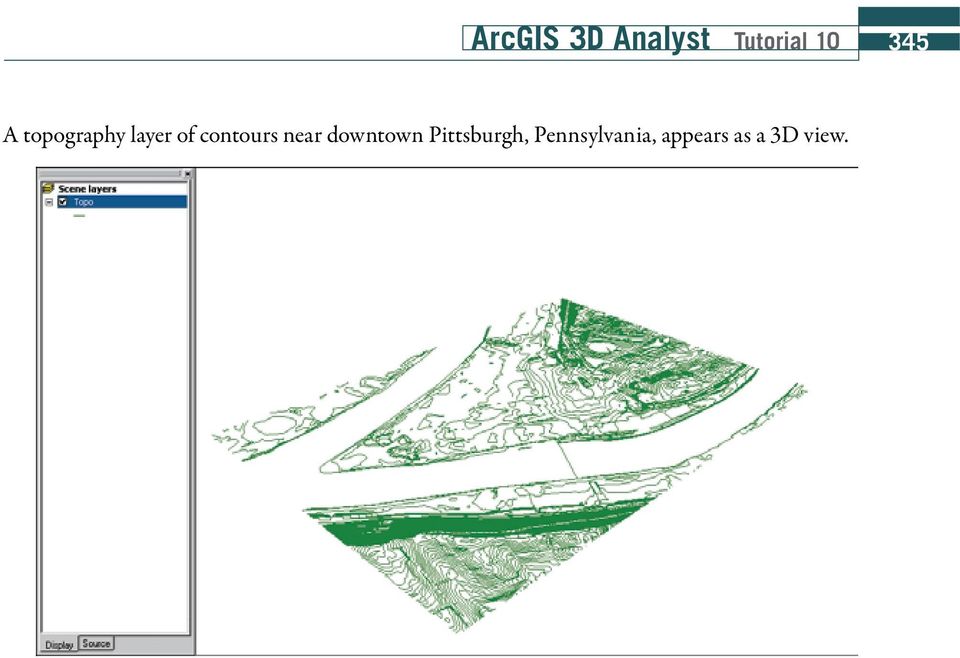
5 ArcGIS 3D Analyst Tutorial A topography layer of contours near downtown Pittsburgh, Pennsylvania, appears as a 3D view.
6 346 Tutorial 10 ArcGIS 3D Analyst Create a TIN from contours Create a TIN (triangulated irregular network) 3D topography known as TIN uses elevation data of the 2D topographic lines as input. A TIN is a vector data model of contiguous nonoverlapping triangles whose vertices are created from sample points of x, y, and z values and displayed as a surface model. 1 Turn on the 3D Analyst toolbar in ArcScene. 2 On the 3D Analyst commands menu from the 3D Analyst toolbar, click Create/Modify Tin, then click Create TIN from Features. Command menu 3 In the Create TIN from Features window, click the check box to the left of Topo. 4 Click the drop-down list for Triangulate as and choose soft line. 5 Change the output TIN to \Gistutorial\3DAnalyst\PGH_TIN. 6 Click OK.

7 ArcGIS 3D Analyst Tutorial D Analyst creates a triangulated irregular network (TIN) from the topography contour lines and adds it as a new layer.

8 348 Tutorial 10 ArcGIS 3D Analyst Navigate 3D view It is often useful to view 3D maps from different angles and the 3D Analyst extension makes it easy to do so. 1 From the Tools toolbar, click the Navigate button. 2 Click and drag the map to view the scene from different angles. You will see that Pittsburgh is fairly flat where the three rivers converge (this area is known as The Point ) and more hilly in the Mount Washington neighborhood to the right of the point in the map below. Mount Washington Flat area The Point

9 ArcGIS 3D Analyst Tutorial Zoom to TIN Zooming to a small area allows you to see the triangulated irregular network better. You can see the many small triangular facets making up the surface of the pgh_tin. 1 Click the Zoom In button. 2 Zoom to a small area on Mount Washington. Zoom to extents Navigation changes to the view in your 3D scene may become confusing. Zooming to the full extent returns the view to the original 3D isometric scene. 1 Click the Full Extent button.

10 350 Tutorial 10 ArcGIS 3D Analyst Turn soft edges off Changing the appearance of edges on the TIN contours and turning off the topography lines will allow you to see other features (added later) more clearly. It can also help you to see the 3D contours better. 1 In the Table of Contents, double-click the PGH_TIN layer s symbol for soft edge. 2 Set the line symbol to No Color. 3 Turn off the original Topo layer.

11 ArcGIS 3D Analyst Tutorial Change TIN color 1 In the table of contents, double-click the green symbol for the PGH_TIN layer. 2 Set the fill color to Tecate Dust or a similar light brown color. The resulting scene shows just the PGH_TIN layer as a light brown color.

12 352 Tutorial 10 ArcGIS 3D Analyst Drape features onto a TIN Add curbs data 1 Click the Add Data button, browse to \Gistutorial\3DAnalyst, click Curbs.shp, and click Add. Curbs appear below the TIN contours.

13 ArcGIS 3D Analyst Tutorial Drape curbs 1 In the table of contents, right-click the Curbs layer and click Properties. 2 Click the Base Heights tab, click the radio button beside Obtain heights for layer from surface, click Apply and OK. The resulting map displays the curbs draped over contours. Your Turn Use the Navigate tool to view the scene from different angles. When finished, zoom to full extent.

14 354 Tutorial 10 ArcGIS 3D Analyst Create 3D buildings Add buildings data 1 Click the Add Data button, browse to \Gistutorial\3DAnalyst, click Bldgs.shp and Add. This action adds the buildings layer with fictitious heights which were assigned in the attribute table. Drape buildings to TIN and extrude buildings 1 Right-click the Bldgs layer and click Properties. 2 Click the Base Heights tab and click the radio button beside Obtain heights for layer from surface.

15 ArcGIS 3D Analyst Tutorial Click the Extrusion tab. 4 Click the Calculator button. 5 Double-click the Height field to extrude the buildings based on the value in the height field. 6 Click OK twice. The resulting view is buildings with various heights all positioned on the topography TIN contours. Note that most of the buildings in the Mount Washington neighborhood appear to be residential houses, and the downtown area contains high-rises.

16 356 Tutorial 10 ArcGIS 3D Analyst Set observer and target locations Zoom in and out 1 Click the Zoom In/Out button. 2 Click and Drag the cursor in the middle of the scene to zoom in or out. Your Turn Practice viewing the scene using the other standard viewing buttons such as Pan, Fixed Zoom In, and Fixed Zoom Out. When finished, zoom to full extent.

17 ArcGIS 3D Analyst Tutorial Set observer location 1 From the Tools toolbar, click the Set Observer button. 2 Click a location at the point where the three rivers in Pittsburgh meet to set the observer location. Observer location The 3D scene places the observer location at the point you pick.

18 358 Tutorial 10 ArcGIS 3D Analyst Navigate and zoom 1 Click the Navigate and Zoom In/Out buttons to move in or out from the observer location. Center view on target location and observer 1 Click the Full Extent button. 2 From the Tools toolbar, click the Center on Target button. 3 Click a location on the Mount Washington neighborhood that overlooks the city of Pittsburgh.

19 ArcGIS 3D Analyst Tutorial Click the Set Observer button. 5 Click the previous observer location at the point, where the three rivers in Pittsburgh meet. The resulting view will be the observer looking from Point State Park to the Mount Washington neighborhood.

20 360 Tutorial 10 ArcGIS 3D Analyst Fly through a scene 1 Click the Full Extent button. 2 From the Tools toolbar, click the Fly button. 3 Click anywhere in the scene with the bird cursor. 4 Slowly move the mouse to the left, right, up, or down. 5 Click the left mouse button to increase your speed. 6 Click the right mouse button to decrease your speed. 7 Press Escape (Esc) key on the keyboard to stop flight. A new view appears where you stop the fly-through. 8 Zoom to the full extent.

21 ArcGIS 3D Analyst Tutorial Create multiple views 1 From the Standard toolbar, click the Add New Viewer button. 2 Click the Navigate and Zoom In/Out buttons to change the view. You may also use the scroll wheel on your mouse to zoom in and out. Your Turn Using the Add New Viewer button, create another view of the opposite side of the study area. Close your new views when finished. Save the 3D scene 1. Click File, Save As. 2. Navigate to \Gistutorial and save the 3D scene as Tutorial10-1.sxd.
22 362 Tutorial 10 ArcGIS 3D Analyst Add 3D effects Special effects such as transparencies, lighting, and shading modes can greatly enhance the 3D experience for the viewer. The Layer Face Culling command turns off the display of front or back faces of an aerial feature or graphic, Layer Lighting turns lighting on or off for the selected layer, Shading Mode allows you to define the type of shading (smooth or flat) to use for the layer selected, and Depth Priority allows you to define which 3D layer should be given higher priority. This is useful when you have two 3D polygon layers that share the same location and might obstruct each other (e.g., parcels and buildings). Add 3D Effects toolbar 1 In the Tutorial10-1.sxd ArcScene document, right-click anywhere in the blank area of a toolbar. 2 Click 3D Effects to turn this toolbar on. The following toolbar appears with options for 3D Effects.
23 ArcGIS 3D Analyst Tutorial Create transparency effect 1 From the 3D Effects toolbar, click the Layer drop-down, and click Bldgs. 2 Click the Layer Transparency button and change the layer s transparency to 50%. Below is the resulting transparency effect for the 3D buildings. Your Turn Change other effects for your 3D buildings including Layer Face Culling, Layer Lighting, Shading Mode, and Depth Priority. Change the effects for the Curbs and PGH TIN layers in your 3D scene. Save the 3D scene 1 Click File, Save As. 2 Navigate to \Gistutorial and save the 3D scene as Tutorial10-2.sxd.
24 364 Tutorial 10 ArcGIS 3D Analyst Create animations 3D Animations allow you to record movements within your views so that you can save and play them back at a later time. Add animation toolbar 1 Working in the same scene, right-click anywhere in the blank area of a toolbar. 2 Click Animation to turn this toolbar on. The following toolbar appears with options for Animations. Record an animation 1 Click the Open Animation Controls button from the Animation toolbar. 2 Click the Record button. 3 Click the Fly button and create a fly-through anywhere in your scene. Click the Esc key to end your flight. 4 Click the Stop button.
25 ArcGIS 3D Analyst Tutorial Play an animation 1 Click the Play button from the Animation Controls toolbar. Your Turn Practice creating animations by zooming into a small area first. Explore the Options menu in the Animation Controls toolbar to see animation play and restore options. Save an animation 1 From the Animation toolbar, click Animation, Save Animation File. 2 Navigate to \Gistutorial and save the animation as Tutorial10-2Animation.asa.
26 366 Tutorial 10 ArcGIS 3D Analyst Export an animation to video 1 From the Animation toolbar, click Animation, Export to Video. 2 Navigate to \Gistutorial and save your animation as Tutorial10-2Animation.avi click Export, and OK. Note: Wait until the animation is fully exported before opening other windows, otherwise they may appear in your animation. Load an animation 1 From the Animation toolbar, click Animation, Load Animation File. 2 In the Open Animation dialog box, navigate to \Gistutorial, click Tutorial10-2Animation.asa and click Open. 3 Click the Play button from the Animation Controls toolbar. 4 Zoom to the full extents and save your ArcScene as \Gistutorial\Tutorial10-3.sxd. Your Turn Launch a video player such as Windows Media Player and play the AVI video that you created. If you have trouble loading and playing your video, choose the animation files in \Gistutorial\ SolutionComponents\Tutorial10. Close the Animation toolbars and zoom to the full extent of your map when finished.
27 ArcGIS 3D Analyst Tutorial Use 3D symbols The 3D Analyst extension comes with many symbols that can be displayed as 3D symbols in ArcScene. You can also create your own symbols and textures to import and display. Add trees layer 1 Working in the same scene, click the Add Data button. 2 In the Add Data browser, browse to \Gistutorial\3DAnalyst, click Trees.shp, and click Add.
28 368 Tutorial 10 ArcGIS 3D Analyst Display points as 3D trees 1 In the table of contents, right-click the Trees layer, and click Properties. 2 Click the Base Heights Tab. 3 Click the radio button beside Obtain heights for layer from surface. 4 Click the Symbology Tab. 5 Click the Symbol button.
29 ArcGIS 3D Analyst Tutorial In the Symbol Selector dialog, click the More Symbols drop-down option and click 3D Trees. 7 Scroll through the symbols until you see the 3D trees, choose Bradford Pear, OK, and OK again. 8 In the table of contents, right-click the Trees layer and click Zoom to Layer.
30 370 Tutorial 10 ArcGIS 3D Analyst 9 Click the Navigate and Zoom In/Out buttons to view the trees from street level. The view below shows trees along a few streets in Pittsburgh in an area undergoing revitalization known as the Fifth and Forbes corridor. 10 Save your ArcScene as \Gistutorial\Tutorial10-4.sxd. Your Turn Add the shapefile called Vehicles.shp and display the vehicles as 3D vehicle symbols using Unique Values based on the "Type" value field from the shapefile's attribute table. Set an angle of 240 degrees for each vehicle so they are driving in the correct direction down this one-way street. Hints: Set the base height for the surface to pgh_tin, and zoom to the layer. Explore the other 3D symbols that come standard with ArcView including 3D Basic, 3D Billboards, 3D Buildings, 3D Industrial, 3D Residential, and 3D Street Furniture.
31 ArcGIS 3D Analyst Tutorial Perform a line-of-sight analysis In this section you will explore how to create a line-of-sight analysis using a 2D TIN in ArcMap. A line-of-sight analysis creates a graphic line between two points showing where the view is obstructed between those points. This line of sight can be copied and pasted into a 3D Scene if necessary. Start a map document 1 Start ArcMap and open a new empty map. Make sure the 3D Analyst toolbar is turned on. Add TIN 1 Click the Add Data button, navigate to \Gistutorial\3DAnalyst, click pgh_tin, click Add, and OK in the message box. The view below shows 2D tin contours. Create a line of sight 1 From the 3D Analyst toolbar, click the Create Line of Sight button. 2 In the Line of Sight window, enter observer and target offsets of 6.
32 372 Tutorial 10 ArcGIS 3D Analyst If you set the observer and target heights to zero the units are the same as the surface s z units and will typically have a view that is more obstructed than one with a height greater than one. 3 Click a point near Pittsburgh s Point where the three rivers meet. 4 Click a point on Mount Washington where the elevation is above 910 feet. The resulting map will show red along the line where the observer s line of sight is obstructed and green along the line where the view is not obstructed. Your Turn Choose additional observer and target points to see line-of-sight visibility. Change the observer and target heights to see if the visibility changes. Save your ArcMap document as \Gistutorial\ Tutorial10-5.mxd.
33 ArcGIS 3D Analyst Tutorial Explore ArcGlobe In this tutorial you used ArcScene and ArcMap, which are designed for those with smaller spatial datasets who wish to examine a defined study area. If you work with larger datasets and need a seamless visualization of both raster and feature data you should consider using ArcGlobe. This section introduces you to some of the basic capabilities of ArcGlobe. Launch ArcGlobe 1 From the 3D Analyst toolbar in ArcMap, click the ArcGlobe button. ArcGlobe opens in a new window. 2 Click and drag the globe view to various parts of the world.
34 374 Tutorial 10 ArcGIS 3D Analyst Add and display vector data 1. Click the Add Data button, navigate to \Gistutorial\World, click Country.shp, Add, then Finish. 2. Drag the Countries layer to the top of the table of contents and change its symbology to a hollow fill, medium gray outline. 3. Click and drag the globe to various parts of the world in the ArcGlobe window. ArcGlobe with added vector layer. Your Turn Add additional vector layers from the \Gistutorial folder. Explore other zooming and display options in ArcGlobe. Save the ArcGlobe document 1. Click File, Save As. 2. Navigate to \Gistutorial and save the ArcGlobe document as Tutorial10-6.3DD.
35 ArcGIS 3D Analyst Tutorial Assignment 10-1 Develop a 3D presentation for downtown historic-site evaluation Many U.S. cities, including the city of Pittsburgh, are experiencing a surge of downtown revitalization. New condominium and apartment projects are in progress and the city planning department wants to verify that this new development does not interfere with existing historic sites. In this assignment, you will help the city planning department raise the awareness of historic sites in downtown Pittsburgh by developing a 3D model and animation of these areas. Assignments Start with the following: C:\Gistutorial\AlleghenyCounty\Parks.shp polygon shapefile of Allegheny County Parks C:\Gistutorial\AlleghenyCounty\Rivers.shp polygon shapefile of Allegheny County rivers C:\Gistutorial\PAGIS\CentralBusinessDistrict\Histsite.shp polygon shapefile of historic sites in the city of Pittsburgh s central business district C:\Gistutorial\3DAnalyst\Bldgs.shp polygon shapefile of buildings in downtown Pittsburgh C:\Gistutorial\3DAnalyst\Curbs.shp polyline shapefile of curbs (sidewalks) in downtown Pittsburgh C:\Gistutorial\3DAnalyst\Topo.shp polyline shapefile of topography contours in downtown Pittsburgh Create a 3D map and animation of historic district Open ArcMap and add the buildings and historic site shapefiles. Create a new shapefile of buildings whose centroids are within historic sites and another shapefile of buildings whose centroids are not within historic sites. Save the new files in C:\Gistutorial\Answers\Assignment10. In ArcCatalog, create new point shapefiles for trees and street furniture (e.g., benches, signs, trash cans, streetlights, etc.) called \Assignment10\HistoricSiteTrees.shp and \Assignment10\HistoricSiteFurniture.shp and assign them the same coordinate system as the historic sites (NAD_1983_StatePlane_Pennsylvania_South_FIPS_3702_Feet). Digitize these points anywhere in historic site locations. Create a new 3D ArcScene called \Assignment10\Assignment10-1.sxd with all of the above shapefiles added. Create a new TIN from the topo layer called \Assignment10\HistoricSiteTIN. Drape the new shapefiles for buildings, street furniture, and trees as well as curbs, parks, and rivers to the TIN. Extrude the buildings using the building height field. Show the nonhistoric buildings using a transparency of 90% and the historic buildings as opaque (0% transparency). Swap the 2D points for trees and street furniture with 3D symbols. Create a fly-through animation focusing on the historic sites called \Assignment10\Assignment10-1.avi.
36 376 Tutorial 10 ArcGIS 3D Analyst Assignments Assignment 10-2 Perform a 3D analysis of conservatory building addition Pittsburgh s local conservatory, Phipps Conservatory ( was built in 1893 by Henry Phipps as a gift to the city of Pittsburgh. Phipps Conservatory recently underwent a major renovation with the addition of a 10,885-square-foot green-engineered welcome center. Future additions will include state-of-art production greenhouses and a one-of-a-kind tropical forest. 3D Analyst extension is very useful to envision the expansion of the conservatory and to also view the entire topography of the study area where the conservatory is located. In this assignment, you will create a 3D TIN; perform a line-ofsight analysis; drape buildings, sidewalks and an aerial photo to the TIN; and create new 3D features. Start with the following: C:\Gistutorial\PAGIS\Phipps\Bldgs.shp polygon layer buildings in the Phipps Conservatory study area. C:\Gistutorial\PAGIS\Phipps\Curbs.shp polyline layer sidewalk curbs in the Phipps Conservatory study area. C:\Gistutorial\PAGIS\Phipps\Topo.shp polyline layer topography contours in the Phipps Conservatory study area. C:\Gistutorial\ \CMUCampus\25_45.tif digital orthographic map. Create line of sight and perform 3D analysis Create a new ArcMap document called C:\Gistutorial\Answers\Assignment10\Assignment10-2.mxd and add the above shapefiles. Create a new TIN from the topo layer called \Assignment10\PhippsTIN. In ArcCatalog, create a new polygon shapefile (coordinate system NAD_1983_StatePlane_Pennsylvania_South_FIPS_3702_Feet) for a new building addition to Phipps Conservatory called \Assignment10\PhippsAddition.shp and digitize a simple 20-foot-tall addition in the front of the conservatory (Phipps Conservatory is labeled as building FID 118 in the bldgs shapefile). Use 3D effects where you think appropriate to focus attention on the new addition. Create a line-of-sight analysis from your new building to the Carnegie Museum of Pittsburgh (FID 20) and to the Café Phipps (FID 180). Export your line-of-sight analysis to a JPEG file called \Assignment10\LineofSight.jpg. Create a new 3D ArcScene called \Assignment10\Assignment10-2.sxd with the above shapefiles added. Drape curbs and the aerial photo to the new TIN with an offset of one foot (to avoid bleeding into the contours). Drape the buildings shapefiles (again with an offset of one foot) and display using the building height field. Create a Power Point presentation called \Assignment10\Assignment10-2.ppt and insert your line of sight images into it. Create 3D views from various angles showing some with the ortho image and some without the ortho image. Copy and paste these into your PPT along with any other information you think useful to show the funders of the Phipps Conservatory addition. Hints Use labels or the attribute table to find the building s FID number. Be sure to apply the aerial photo to the base height of the new TIN and not the aerial photo itself.
37 ArcGIS 3D Analyst Tutorial What to turn in If you are working in a classroom setting with an instructor, you may be required to submit the exercises you created in tutorial 10. Below are files that you are required to turn in. Be sure to use a compression program such as PKZIP or WinZIP to include all files as one.zip document for review and grading. Include your name and assignment number in one.zip document (YourNameAssn10.zip). ArcMap and ArcScene files C:\Gistutorial\Answers\Assignment10\Assignment10-1.sxd C:\Gistutorial\Answers\Assignment10\Assignment10-2.mxd C:\Gistutorial\Answers\Assignment10\Assignment10-2.sxd TIN C:\Gistutorial\Answers\Assignment10\HistoricSiteTIN C:\Gistutorial\Answers\Assignment10\PhippsTIN (be sure to include all files associated with the TIN) Assignments Shapefiles C:\Gistutorial\Answers\Assignment10\HistoricSiteBldgs.shp C:\Gistutorial\Answers\Assignment10\NonHistoricSiteBldgs.shp C:\Gistutorial\Answers\Assignment10\HistoricSiteTrees.shp C:\Gistutorial\Answers\Assignment10\HistoricSiteFurniture.shp C:\Gistutorial\Answers\Assignment10\PhippsAddition.shp Image, animation, and presentation files C:\Gistorial\Answers\Assignment10\LineofSight.JPG C:\Gistutorial\Answers\Assignment10\Assignment10-1.avi C:\Gistutorial\Answers\Assignment10\Assignment10-2.ppt
38
3D Analysis and Surface Modeling
 3D Analysis and Surface Modeling Dr. Fang Qiu Surface Analysis and 3D Visualization Surface Model Data Set Grid vs. TIN 2D vs. 3D shape Creating Surface Model Creating TIN Creating 3D features Surface
Data Visualization. Brief Overview of ArcMap
 Data Visualization Prepared by Francisco Olivera, Ph.D., P.E., Srikanth Koka and Lauren Walker Department of Civil Engineering September 13, 2006 Contents: Brief Overview of ArcMap Goals of the Exercise
Data Visualization. Prepared by Francisco Olivera, Ph.D., Srikanth Koka Department of Civil Engineering Texas A&M University February 2004
 Data Visualization Prepared by Francisco Olivera, Ph.D., Srikanth Koka Department of Civil Engineering Texas A&M University February 2004 Contents Brief Overview of ArcMap Goals of the Exercise Computer
Geography 3251: Mountain Geography Assignment III: Natural hazards A Case Study of the 1980s Mt. St. Helens Eruption
 Name: Geography 3251: Mountain Geography Assignment III: Natural hazards A Case Study of the 1980s Mt. St. Helens Eruption Learning Objectives: Assigned: May 30, 2012 Due: June 1, 2012 @ 9 AM 1. Learn
3D-GIS in the Cloud USER MANUAL. August, 2014
 3D-GIS in the Cloud USER MANUAL August, 2014 3D GIS in the Cloud User Manual August, 2014 Table of Contents 1. Quick Reference: Navigating and Exploring in the 3D GIS in the Cloud... 2 1.1 Using the Mouse...
Spatial Adjustment Tools: The Tutorial
 Spatial Adjustment Tools: The Tutorial By Peter Kasianchuk, ESRI Educational Services In this exercise, you will perform some spatial adjustment and data management operations data to be used in analysis
INTRODUCTION to ESRI ARCGIS For Visualization, CPSC 178
 INTRODUCTION to ESRI ARCGIS For Visualization, CPSC 178 1) Navigate to the C:/temp folder 2) Make a directory using your initials. 3) Use your web browser to navigate to www.library.yale.edu/mapcoll/ and
WFP Liberia Country Office
 1 Oscar Gobbato [email protected] [email protected] WFP Liberia Country Office GIS training - Summary Objectives 1 To introduce to participants the basic concepts and techniques in using Geographic
ESRI China (Hong Kong) Limited
 Tips for Creating 3D Graphics in ArcScene 9.x Article ID : 100003 Software : ArcGIS 3D Analyst 9.x Platform : Windows 2000, Windows XP Date : June 28, 2005 Background Prior to ArcGIS Desktop 9.0, we cannot
Animation in ArcMap Tutorial
 ArcGIS 9 Animation in ArcMap Tutorial Copyright 2005 2008 ESRI All Rights Reserved. Printed in the United States of America. The information contained in this document is the exclusive property of ESRI.
Getting Started With LP360
 Getting Started With LP360 10/30/2014 1 Contents What is LP360?... 3 System Requirements... 3 Installing LP360... 4 How to Enable the LP360 Extension... 4 How to Display the LP360 Toolbar... 4 How to Import
Publishing KML Services Tutorial
 Publishing KML Services Tutorial Copyright 1995-2010 Esri All rights reserved. Table of Contents Tutorial: Publishing a KML service............................ 3 Copyright 1995-2010 ESRI, Inc. All rights
Raster: The Other GIS Data
 04-Raster_Tutorial_Arcgis_93.Doc Page 1 of 11 Raster: The Other GIS Data Objectives Understand the raster format and how it is used to model continuous geographic phenomena Understand how projections &
Government 1009: Advanced Geographical Information Systems Workshop. LAB EXERCISE 3b: Network
 Government 1009: Advanced Geographical Information Systems Workshop LAB EXERCISE 3b: Network Objective: Using the Network Analyst in ArcGIS Implementing a network functionality as a model In this exercise,
Create a folder on your network drive called DEM. This is where data for the first part of this lesson will be stored.
 In this lesson you will create a Digital Elevation Model (DEM). A DEM is a gridded array of elevations. In its raw form it is an ASCII, or text, file. First, you will interpolate elevations on a topographic
Working with Digital Elevation Models and Digital Terrain Models in ArcMap 9
 Working with Digital Elevation Models and Digital Terrain Models in ArcMap 9 1 TABLE OF CONTENTS INTRODUCTION...3 WORKING WITH DIGITAL TERRAIN MODEL (DTM) DATA FROM NRVIS, CITY OF KITCHENER, AND CITY OF
Project Setup and Data Management Tutorial
 Project Setup and Heavy Construction Edition Version 1.20 Corporate Office Trimble Navigation Limited Engineering and Construction Division 5475 Kellenburger Road Dayton, Ohio 45424-1099 U.S.A. Phone:
University of Arkansas Libraries ArcGIS Desktop Tutorial. Section 4: Preparing Data for Analysis
 : Preparing Data for Analysis When a user acquires a particular data set of interest, it is rarely in the exact form that is needed during analysis. This tutorial describes how to change the data to make
Getting Started with the ArcGIS Predictive Analysis Add-In
 Getting Started with the ArcGIS Predictive Analysis Add-In Table of Contents ArcGIS Predictive Analysis Add-In....................................... 3 Getting Started 4..............................................
Version 3.0, April 16, 2012, updated for ArcGIS 10.0 Produced by the Geographic Information Network of Alaska http://www.gina.alaska.
 Using the AlaskaMapped Web Services in ESRI ArcGIS Version 3.0, April 16, 2012, updated for ArcGIS 10.0 Produced by the Geographic Information Network of Alaska http://www.gina.alaska.edu AlaskaMapped
Using Map Topology Editing Tools
 Using Map Topology Editing Tools What You Will Need in ArcView This tutorial, written by Colin Childs, is a companion to the article ArcGIS Topology for ArcView Users, also by Colin Childs, that appeared
Introduction to Autodesk Inventor for F1 in Schools
 Introduction to Autodesk Inventor for F1 in Schools F1 in Schools Race Car In this course you will be introduced to Autodesk Inventor, which is the centerpiece of Autodesk s digital prototyping strategy
ArcGIS Tutorial: Adding Attribute Data
 ArcGIS Tutorial: Adding Attribute Data Introduction A common need in GIS is to map characteristics, or attributes, of different geographic areas. These maps are called thematic maps. Examples of thematic
Importing Terrain and Imagery into STK
 Importing Terrain and Imagery into STK CONTENTS OVERVIEW... 2 IMPORTING TERRAIN DATA TO A SCENARIO... 3 USING THE IMAGERY AND TERRAIN CONVERTER... 3 Creating a 3D Image Inlay... 3 Displaying Your Image
Files Used in this Tutorial
 Generate Point Clouds Tutorial This tutorial shows how to generate point clouds from IKONOS satellite stereo imagery. You will view the point clouds in the ENVI LiDAR Viewer. The estimated time to complete
Software: AutoCAD Civil 3D 2014, NRCS C3D 2014 template, ESRI ArcMap. Notation:Button to Press Displayed Text Icon Action {Text to Enter} Menu Item
 Overview: Use the following processes for exchanging georeferenced data between AutoCAD Civil 3D 2014 and ArcMap. The work must be based in any real world coordinate system. (This example uses NAD 83 UTM
Tutorial 8 Raster Data Analysis
 Objectives Tutorial 8 Raster Data Analysis This tutorial is designed to introduce you to a basic set of raster-based analyses including: 1. Displaying Digital Elevation Model (DEM) 2. Slope calculations
Applying a circular load. Immediate and consolidation settlement. Deformed contours. Query points and query lines. Graph query.
 Quick Start Tutorial 1-1 Quick Start Tutorial This quick start tutorial will cover some of the basic features of Settle3D. A circular load is applied to a single soil layer and settlements are examined.
Welcome to CorelDRAW, a comprehensive vector-based drawing and graphic-design program for the graphics professional.
 Workspace tour Welcome to CorelDRAW, a comprehensive vector-based drawing and graphic-design program for the graphics professional. In this tutorial, you will become familiar with the terminology and workspace
Linear Referencing Tutorial
 Copyright 1995-2010 Esri All rights reserved. Table of Contents An overview of the linear referencing tutorial........................ 3 Exercise 1: Organizing your linear referencing data in ArcCatalog...............
Introduction to Autodesk Inventor for F1 in Schools
 F1 in Schools race car Introduction to Autodesk Inventor for F1 in Schools In this course you will be introduced to Autodesk Inventor, which is the centerpiece of Autodesk s Digital Prototyping strategy
ArcGIS. Image Server tutorial
 ArcGIS 9 ArcGIS Image Server tutorial Copyright 2006, 2007, and 2008 Zanja Technologies, Inc. All rights reserved. The information contained in this work is the property of Zanja Technologies, Inc., under
ArcGIS. Tips and Shortcuts. for Desktop
 ArcGIS Tips and Shortcuts for Desktop Map Navigation Refresh and redraw the display. F5 Suspend the map s drawing. F9 Zoom in and out. Center map. Roll the mouse wheel backward and forward. Hold down Ctrl
Tutorial 3 - Map Symbology in ArcGIS
 Tutorial 3 - Map Symbology in ArcGIS Introduction ArcGIS provides many ways to display and analyze map features. Although not specifically a map-making or cartographic program, ArcGIS does feature a wide
ArcGIS 9 Using ArcGIS 3D Analyst
 ArcGIS 9 Using ArcGIS D Analyst Copyright 000 004 ESRI All rights reserved. Printed in the United States of America. The information contained in this document is the exclusive property of ESRI. This work
Microsoft PowerPoint 2011
 Microsoft PowerPoint 2011 Starting PowerPoint... 2 Creating Slides in Your Presentation... 3 Beginning with the Title Slide... 3 Inserting a New Slide... 3 Adding an Image to a Slide... 4 Downloading Images
Government 98dn Mapping Social and Environmental Space
 Government 98dn Mapping Social and Environmental Space LAB EXERCISE 5: The Analysis of Fields Objectives of this lab: Visualizing raster data Using Spatial Analyst functions to create new data Analysis
TABLE OF CONTENTS. INTRODUCTION... 5 Advance Concrete... 5 Where to find information?... 6 INSTALLATION... 7 STARTING ADVANCE CONCRETE...
 Starting Guide TABLE OF CONTENTS INTRODUCTION... 5 Advance Concrete... 5 Where to find information?... 6 INSTALLATION... 7 STARTING ADVANCE CONCRETE... 7 ADVANCE CONCRETE USER INTERFACE... 7 Other important
ArcGIS online Introduction... 2. Module 1: How to create a basic map on ArcGIS online... 3. Creating a public account with ArcGIS online...
 Table of Contents ArcGIS online Introduction... 2 Module 1: How to create a basic map on ArcGIS online... 3 Creating a public account with ArcGIS online... 3 Opening a Map, Adding a Basemap and then Saving
How to georectify an image in ArcMap 10
 How to georectify an image in ArcMap 10 The University Library has a large collection of historical aerial photos for some North Carolina Counties ( http://www.lib.unc.edu/reference/gis/usda/index.html
A Workflow for Creating and Sharing Maps
 A Workflow for Creating and Sharing Maps By Keith Mann, Esri What You Will Need Item Source ArcGIS Online for Organizations subscription ArcGIS 10.1 for Desktop (Any license level) ArcGIS Spatial Analyst
How to use PGS: Basic Services Provision Map App
 How to use PGS: Basic Services Provision Map App The PGS: Basic Services Provision Map App The main features of the PGP Basic Services web application includes: Navigation Tools Map Tools Main Map Links
Introduction to GIS Base Map Preparation Tutorial Part I. PLAN 211 Digital Visualization for Planning Fall 2006 Prof. David L.
 Part I PLAN 211 Digital Visualization for Planning Fall 2006 Prof. David L. Phillips PLAN 211 Digital Visualization for Planning 1 Introduction to GIS and preparing a Base Map Preface: A wealth of digital
Extracting Aerial Images From GIS Based Ortho Photos Using ArcMap 9
 Extracting Aerial Images From GIS Based Ortho Photos Using ArcMap 9 Tutorial Updated August 2006 CP-208 Plan Preparation Studio - Prof. Elizabeth Macdonald 2 In this tutorial we will learn to extract aerial
INSTRUCTIONS FOR MAKING 3D,.DWG CONTOUR LINES
 INSTRUCTIONS FOR MAKING 3D,.DWG CONTOUR LINES A TUTORIAL FROM SPATIAL AND NUMERIC DATA SERVICES NICOLE SCHOLTZ AND GEOFF IVERSON Overview... 2 A. Get a Digital Elevation Model (DEM)... 3 B. Open ArcMap,
Geocortex HTML 5 Viewer Manual
 1 FAQ Nothing Happens When I Print? How Do I Search? How Do I Find Feature Information? How Do I Print? How can I Email A Map? How Do I See the Legend? How Do I Find the Coordinates of a Location? How
CREATE A 3D MOVIE IN DIRECTOR
 CREATE A 3D MOVIE IN DIRECTOR 2 Building Your First 3D Movie in Director Welcome to the 3D tutorial for Adobe Director. Director includes the option to create three-dimensional (3D) images, text, and animations.
Spatial Analyst Tutorial
 Copyright 1995-2010 Esri All rights reserved. Table of Contents About the ArcGIS Spatial Analyst Tutorial......................... 3 Exercise 1: Preparing for analysis............................ 5 Exercise
Finding GIS Data and Preparing it for Use
 Finding_Data_Tutorial.Doc Page 1 of 19 Getting Ready for the Tutorial Sign Up for the GIS-L Listserv Finding GIS Data and Preparing it for Use The Yale University GIS-L Listserv is an internal University
Map Navigation Controls. An Interactive, Locally Based Knowledge Resource LivingstonLive.org/maps OR gisapps/livingstonviewerinternal
 Livingston County s Internet Mapping Portal User Guide An Interactive, Locally Based Knowledge Resource LivingstonLive.org/maps OR gisapps/livingstonviewerinternal A vast majority of County government
Working with the Raster Calculator
 Working with the Raster Calculator The Raster Calculator provides you a powerful tool for performing multiple tasks. You can perform mathematical calculations using operators and functions, set up selection
Data source, type, and file naming convention
 Exercise 1: Basic visualization of LiDAR Digital Elevation Models using ArcGIS Introduction This exercise covers activities associated with basic visualization of LiDAR Digital Elevation Models using ArcGIS.
Online Digitizing and Editing of GIS Layers (On-Screen or Head s Up Digitizing)
 Online Digitizing and Editing of GIS Layers (On-Screen or Head s Up Digitizing) 2011 Charlie Schweik, Alexander Stepanov, Maria Fernandez, Lara Aniskoff Note: This work is licensed under the Creative Commons
Windows XP Pro: Basics 1
 NORTHWEST MISSOURI STATE UNIVERSITY ONLINE USER S GUIDE 2004 Windows XP Pro: Basics 1 Getting on the Northwest Network Getting on the Northwest network is easy with a university-provided PC, which has
The following is an overview of lessons included in the tutorial.
 Chapter 2 Tutorial Tutorial Introduction This tutorial is designed to introduce you to some of Surfer's basic features. After you have completed the tutorial, you should be able to begin creating your
SMART Board Training Outline Trainer: Basel Badran
 Sharjah Higher Colleges of Technology SMART Board Training Outline Trainer: Basel Badran What is a SMART Board? o Concept & Technology SMART Board Components: o Smart Tools Start Center Recorder Keyboard
Creating Figure Ground Maps in ArcMap 10.x: Basic procedures to download, open, manipulate and print spatial data
 Creating Figure Ground Maps in ArcMap 10.x: Basic procedures to download, open, manipulate and print spatial data These procedures outline: A. Retrieving Property Data B. Uncompressing the Downloaded Files
Getting Started with ArcGIS
 Getting Started with ArcGIS Bob Booth and Andy Mitchell GIS by ESRI Copyright 1999 2001 ESRI. All rights reserved. Printed in the United States of America. The information contained in this document is
ArcScan Tutorial. Copyright 1995-2010 Esri All rights reserved.
 Copyright 1995-2010 Esri All rights reserved. Table of Contents Exercise 1: Interactive vectorization........................... 3 Exercise 2: Automatic vectorization........................... 12 Copyright
Activity: Using ArcGIS Explorer
 Activity: Using ArcGIS Explorer Requirements You must have ArcGIS Explorer for this activity. Preparation: Download ArcGIS Explorer. The link below will bring you to the ESRI ArcGIS Explorer download page.
Help Document for WWW.SAGIS.ORG. Step by step, how-to instructions for navigating and using the Savannah Area GIS viewer.
 Help Document for WWW.SAGIS.ORG Step by step, how-to instructions for navigating and using the Savannah Area GIS viewer. 1 SAGIS Savannah Area GIS is focused on providing access to Geospatial data in a
Microsoft PowerPoint 2010
 Microsoft PowerPoint 2010 Starting PowerPoint... 2 PowerPoint Window Properties... 2 The Ribbon... 3 Default Tabs... 3 Contextual Tabs... 3 Minimizing and Restoring the Ribbon... 4 The Backstage View...
ERCB/AGS Information Series 136. Digital Mapping and 3D Visualization/ Modelling of Subsurface Geology Using ArcGIS 9.2 and Well Log Data
 ERCB/AGS Information Series 136 Digital Mapping and 3D Visualization/ Modelling of Subsurface Geology Using ArcGIS 9.2 and Well Log Data ERCB/AGS Information Series 136 Digital Mapping and 3D Visualization/Modelling
Sweet Home 3D user's guide
 1 de 14 08/01/2013 13:08 Features Download Online Gallery Blog Documentation FAQ User's guide Video tutorial Developer's guides History Reviews Support 3D models Textures Translations Forum Report a bug
Data Interoperability Extension Tutorial
 Data Interoperability Extension Tutorial Copyright 1995-2010 Esri All rights reserved. Table of Contents About the Data Interoperability extension tutorial...................... 3 Exercise 1: Using direct-read
Using Spreadsheets, Selection Sets, and COGO Controls
 Using Spreadsheets, Selection Sets, and COGO Controls Contents About this tutorial... 3 Step 1. Open the project... 3 Step 2. View spreadsheets... 4 Step 3. Create a selection set... 10 Step 4. Work with
Using the Kendall County GIS Basic GIS Viewer
 Using the Kendall County GIS Basic GIS Viewer Link to Viewer Gallery: http://gis.co.kendall.il.us/gisviewer_gallery.aspx Help and About Initial View Introduction Navigation Identify Tool Search Tool Search
Web GIS User Guide MainStreetGIS, LLC
 Web GIS User Guide MainStreetGIS, LLC www.mainstreetgis.com Navigation There are two ways to navigate the map interface: 1. Activate one of the map tools a. Zoom In Tool Activate the tool, then click on
Working With Animation: Introduction to Flash
 Working With Animation: Introduction to Flash With Adobe Flash, you can create artwork and animations that add motion and visual interest to your Web pages. Flash movies can be interactive users can click
Tips & Tricks for ArcGIS. Presented by: Jim Mallard, Crime Analysis Supervisor Arlington, Texas. 2007 IACA Conference Pasadena, Ca
 Tips & Tricks for ArcGIS Presented by: Jim Mallard, Crime Analysis Supervisor Arlington, Texas 2007 IACA Conference Pasadena, Ca Table of Contents Lock & Load Labels for Maximum Speed!...2 Choose your
Publishing Geoprocessing Services Tutorial
 Publishing Geoprocessing Services Tutorial Copyright 1995-2010 Esri All rights reserved. Table of Contents Tutorial: Publishing a geoprocessing service........................ 3 Copyright 1995-2010 ESRI,
HOW TO GET A SOIL MAP FROM THE WEB SOIL SURVEY
 Cooperative Extension of Ocean County Extension Center 1623 Whitesville Road Toms River, NJ 08755-1199 njaes.rutgers.edu/extension 732-349-1227 4-H 732-349-1246 Agriculture 732-349-1247 FCHS 732-349-1247
University of Arkansas Libraries ArcGIS Desktop Tutorial. Section 2: Manipulating Display Parameters in ArcMap. Symbolizing Features and Rasters:
 : Manipulating Display Parameters in ArcMap Symbolizing Features and Rasters: Data sets that are added to ArcMap a default symbology. The user can change the default symbology for their features (point,
DWGSee Professional User Guide
 DWGSee Professional User Guide DWGSee is comprehensive software for viewing, printing, marking and sharing DWG files. It is fast, powerful and easy-to-use for every expert and beginners. Starting DWGSee
SketchUp Instructions
 SketchUp Instructions Every architect needs to know how to use SketchUp! SketchUp is free from Google just Google it and download to your computer. You can do just about anything with it, but it is especially
Florence School District #1
 Florence School District #1 Module 2: SMART Board Basics and Beyond 1 SMART Board Software and Beyond In SMART Notebook software, you can create or open SMART Notebook software (.notebook) files. After
Introduction to Google SketchUp (Mac Version)
 Introduction to Google SketchUp (Mac Version) This guide is handy to read if you need some basic knowledge to get started using SketchUp. You will see how to download and install Sketchup, and learn how
SMART BOARD USER GUIDE FOR PC TABLE OF CONTENTS I. BEFORE YOU USE THE SMART BOARD. What is it?
 SMART BOARD USER GUIDE FOR PC What is it? SMART Board is an interactive whiteboard available in an increasing number of classrooms at the University of Tennessee. While your laptop image is projected on
Welcome to Corel DESIGNER, a comprehensive vector-based drawing application for creating technical graphics.
 Importing 3D models Welcome to Corel DESIGNER, a comprehensive vector-based drawing application for creating technical graphics. In this tutorial, you will modify a three-dimensional model of a transmission
Introduction to Smart Board. Table of Contents. Connection Basics 3. Using the Board (Basics) 4. The Floating Tools Toolbar 5-6
 Introduction to Smart Board Table of Contents Overview 2 Connection Basics 3 Using the Board (Basics) 4 The Floating Tools Toolbar 5-6 The Smartboard Smart Tool Buttons Collecting and Sharing Content with
Image Draping & navigation within Virtual GIS
 Image Draping & navigation within Virtual GIS Draping of Geo Corrected data such as aerial imagery or map data enables virtual 3D field tours to be conducted in an area of interest. This document covers
Raster Tutorial. Copyright 1995-2010 Esri All rights reserved.
 Copyright 1995-2010 Esri All rights reserved. Table of Contents Introduction to the ArcGIS raster tutorial......................... 3 Exercise 1: Creating a mosaic dataset.......................... 4 Exercise
Geodatabase Tutorial. Copyright 1995-2010 Esri All rights reserved.
 Copyright 1995-2010 Esri All rights reserved. Table of Contents A quick tour of the Building a geodatabase tutorial..................... 3 Exercise 1: Organizing your data in the Catalog......................
SMART Board Training Packet. Notebook Software 10.0
 SMART Board Training Packet Notebook Software 10.0 Chris de Treville [email protected] 6301 Benjamin Road Suite 101 Tampa, FL 33634 p: 813.884.7168 f: 813.882.9508 SMART Board Welcome Center
Cookbook for Importing Point Information into a Polygon Shapefile using ArcGIS9
 Cookbook for Importing Point Information into a Polygon Shapefile using ArcGIS9 I. Create a Master polygon shapefile. In addition to the FID field this shapefile must have a field containing a unique ID
OnPoint 7.0 Tools and Functionality
 P a g e 1 OnPoint 7.0 Tools and Functionality The new version of the OnPoint website has the same functionality as the old site, but the look and feel of the page has changed. This document will compare
GIS I Business Exr02 (av 9-10) - Expand Market Share (v3b, Jul 2013)
 GIS I Business Exr02 (av 9-10) - Expand Market Share (v3b, Jul 2013) Learning Objectives: Reinforce information literacy skills Reinforce database manipulation / querying skills Reinforce joining and mapping
Tutorial 4 - Attribute data in ArcGIS
 Tutorial 4 - Attribute data in ArcGIS Note: Before beginning the tutorial, please make sure your server folder is mapped. The data you will be working with this week is contained in a winzip archive called
HELCOM Data and Map Service. User Manual
 HELCOM Data and Map Service User Manual Version 2.2 - February 2015 1 Table of contents 1. General Information... 3 1.1 Background... 3 1.2 Technical requirements... 3 1.3 Contact... 3 2. Accessing HELCOM
SolidWorks. SolidWorks Teacher Guide. and Student Courseware
 SolidWorks SolidWorks Teacher Guide and Student Courseware SolidWorks Corporation Outside the U.S.: +1-978-371-5011 300 Baker Avenue Fax: +1-978-371-7303 Concord, Massachusetts 01742 USA Email: [email protected]
AutoDWG DWGSee DWG Viewer. DWGSee User Guide
 DWGSee User Guide DWGSee is comprehensive software for viewing, printing, marking and sharing DWG files. It is fast, powerful and easy-to-use for every expert and beginners. Starting DWGSee After you install
CREATING A 3D VISUALISATION OF YOUR PLANS IN PLANSXPRESS AND CORTONA VRML CLIENT
 CREATING A 3D VISUALISATION OF YOUR PLANS IN PLANSXPRESS AND CORTONA VRML CLIENT 20-25 Minutes This topic is for users of PlansXpress Total Toolkit Edition. To upgrade to PlansXpress Total Toolkit, call
Kitchen and Bath Design Tutorial
 Chapter 5: Kitchen and Bath Design Tutorial This tutorial continues where the Materials Tutorial left off. You should save this tutorial using a new name to archive your previous work. The tools and techniques
Creating a Guided Tour with Google Earth
 Creating a Guided Tour with Google Earth Before creating a tour, first orient yourself to basic Google Earth functions. To start, download Google Earth to your desktop. This is free through earth.google.com.
Figure 3.5: Exporting SWF Files
 Li kewhatyou see? Buyt hebookat t hefocalbookst or e Fl ash + Af t eref f ect s Chr i sjackson ISBN 9780240810317 Flash Video (FLV) contains only rasterized images, not vector art. FLV files can be output
Geosoft Technical Note Working with 3D Views in Oasis montaj
 Introduction Geosoft Technical Note Working with 3D Views in Oasis montaj Oasis montaj 3D views are a representation of a 3D drawing space on a standard Geosoft map. The 3D capabilities enable you to display
NetCDF Tutorial. Copyright 1995-2010 Esri All rights reserved.
 Copyright 1995-2010 Esri All rights reserved. Table of Contents About the netcdf Tutorial............................... 3 Exercise 1: Displaying a raster layer from a netcdf file................... 4
Creating Fill-able Forms using Acrobat 8.0: Part 1
 Creating Fill-able Forms using Acrobat 8.0: Part 1 The first step in creating a fill-able form in Adobe Acrobat is to generate the form with all its formatting in a program such as Microsoft Word. Then