
Bangor University: Applicant Guide
|
|
|
- Clemence Holt
- 10 years ago
- Views:
Transcription
1 Bangor University: Applicant Guide Contents This guide provides an introduction on how to complete and submit an application for jobs advertised on the jobs.bangor.ac.uk website. Where are jobs advertised? How do I apply for a job? Completing an online application Checking the progress of your application Further Information Where are jobs advertised? All current vacancies at the University are listed at jobs.bangor.ac.uk You can search by different criteria using the drop-down lists and then click Search or just click Search to look at all current vacancies

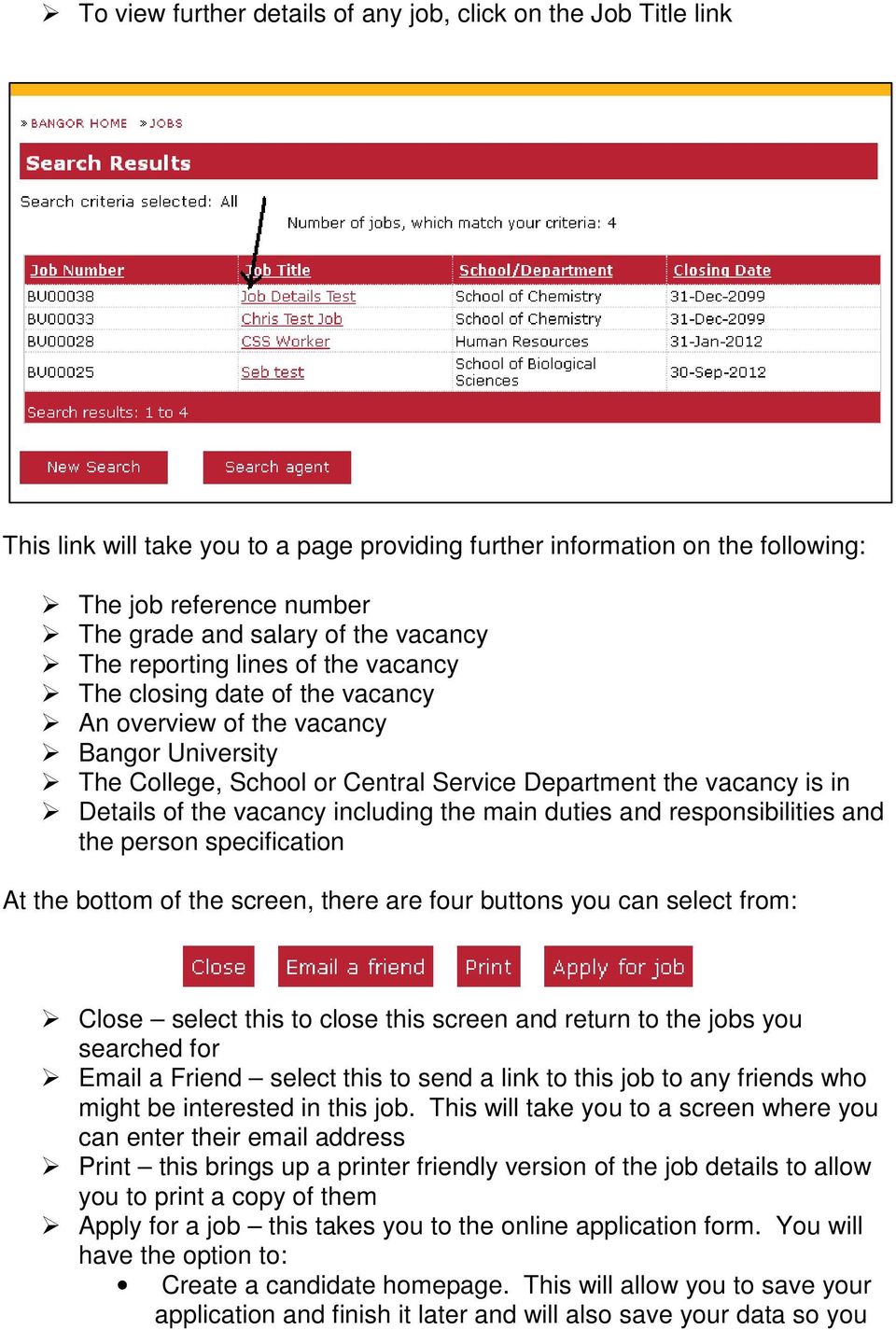
2 To view further details of any job, click on the Job Title link This link will take you to a page providing further information on the following: The job reference number The grade and salary of the vacancy The reporting lines of the vacancy The closing date of the vacancy An overview of the vacancy Bangor University The College, School or Central Service Department the vacancy is in Details of the vacancy including the main duties and responsibilities and the person specification At the bottom of the screen, there are four buttons you can select from: Close select this to close this screen and return to the jobs you searched for a Friend select this to send a link to this job to any friends who might be interested in this job. This will take you to a screen where you can enter their address Print this brings up a printer friendly version of the job details to allow you to print a copy of them Apply for a job this takes you to the online application form. You will have the option to: Create a candidate homepage. This will allow you to save your application and finish it later and will also save your data so you
3 don t have to fill in all your information every time you apply for a job Log-in to your candidate homepage Skip the log-in and just apply for the job How do I apply for a job? Although we are currently still accepting paper applications, online applications help us to provide you and our internal customers with the best possible service. If you are unable to complete the application online, please contact the Human Resources Department on


4 Completing an Application Form Click on the button A statement explaining how your data will be stored and used by Bangor University: Click on the Continue link to confirm you have understood the statement and want to proceed with your application. If you do not wish to proceed you can select the Cancel Submission link You will then be taken through a short sequence of screens to allow you to complete the application and attach any relevant documents. These can be saved at any point, allowing you to complete the application form over a number of sessions. In this process a number of fields are mandatory, these are indicated with a red asterisk *. You will not be able to submit your application until these fields have been completed.


5 The next page gives you the option to create a candidate homepage, log-in to your candidate homepage or skip to the application without creating a homepage To log-in to your candidate homepage, fill in the left hand side of the page (User ID and Password). Click the Login button To create a candidate homepage, fill in the details on the right hand side of the page and click the Create My Candidate Homepage button Creating a candidate homepage allows you to view the status of you application and reuse your details in any future applications you might make. Whilst we d recommend this, it is not required. If you would prefer not to, click the Skip Login button

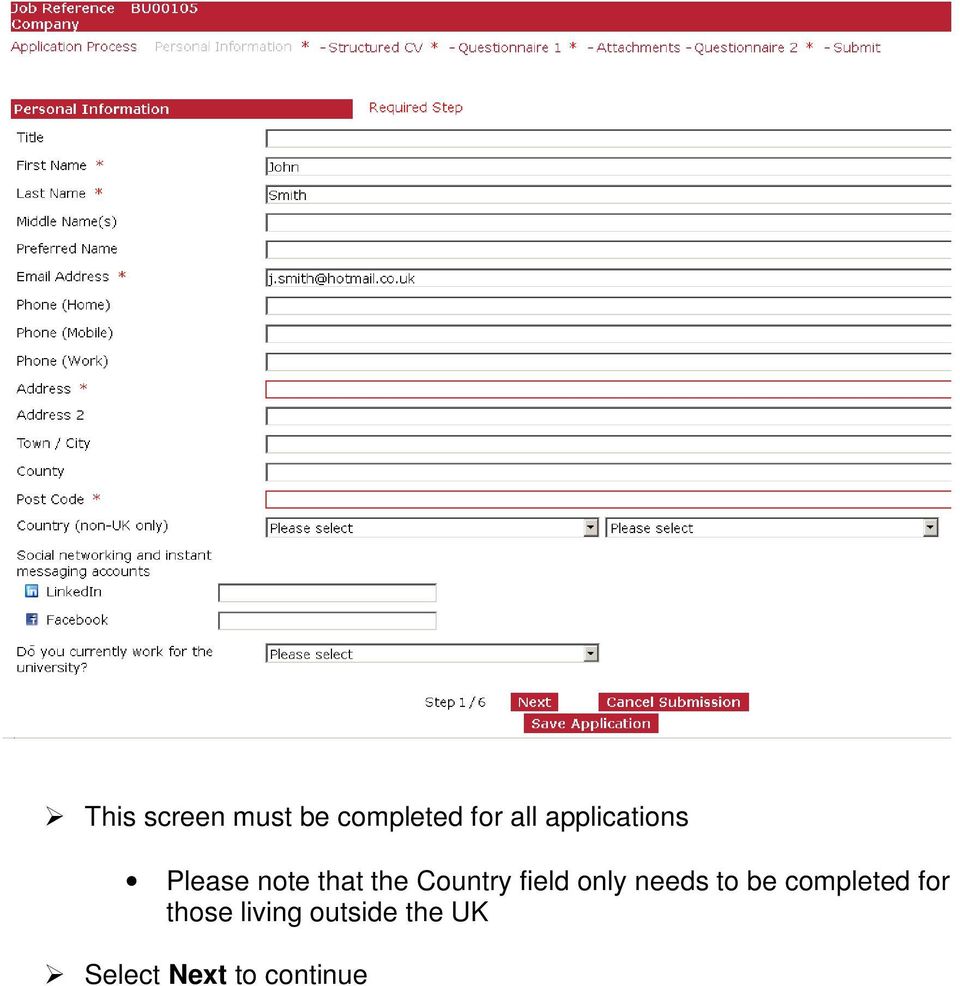
6 This screen must be completed for all applications Please note that the Country field only needs to be completed for those living outside the UK Select Next to continue
7 The next screen allows you to capture details of your employment history, qualifications, rights to work in the UK, language skills and criminal convictions To enter more than one qualification: Enter the details of your first qualification and click the Add Section : Qualification button You can repeat this until all your qualifications appear on the form To enter more than one professional qualification or membership: Enter the details of your first qualification and click the Add Section : Professional Qualification / Membership button You can repeat this until all your qualifications appear on the form To enter your employment history:

8 Enter the details of your previous job To add another job within the same organisation, click the Add Section : Positions button To add another job in a different organisation, click the Add Section : Employer / Organisation button Select Next to continue The next screen gives you the opportunity to demonstrate how you meet the requirements of the job and allows you to capture details of your employment references Select Next to continue

9 The next screen allows you to attach CVs and other documents to your application To attach a CV select the Attach a new document link. You can attach up to 5 documents but it is not mandatory to attach any documents. Please Note: Individual attached document cannot be greater that 2Mb in size. The following attachment types are currently permitted:.bmp,.doc,.gif,.jpeg,.jpg,.pdf,.png,.rtf,.tif,.tiff,.txt,.xls,.docx,.xlsx,.ppt,.pptx Select Next to continue

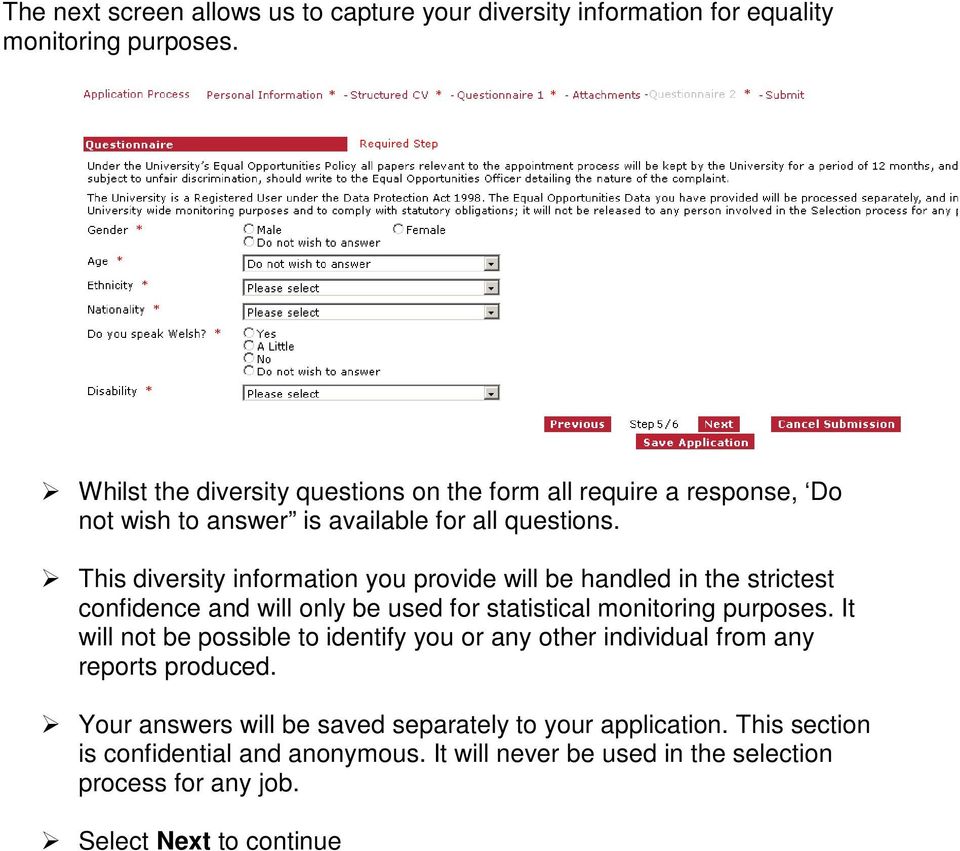
10 The next screen allows us to capture your diversity information for equality monitoring purposes. Whilst the diversity questions on the form all require a response, Do not wish to answer is available for all questions. This diversity information you provide will be handled in the strictest confidence and will only be used for statistical monitoring purposes. It will not be possible to identify you or any other individual from any reports produced. Your answers will be saved separately to your application. This section is confidential and anonymous. It will never be used in the selection process for any job. Select Next to continue
11 The next screen shows whether or not your application is ready for submission If all the required fields have been filled in correctly, the screen will appear like this: Click the Submit button if you are ready to submit your application If you want to revisit any of the sections before submitting, use the links at the top of the page (circled in the above image) If all the required fields have not been filled in correctly, the screen will appear like this: Click on the links to return to the screens with missing data All the fields with missing data will be highlighted in red Once you have filled in the missing data, click the Submit link at the top of the page and click the button You should receive an confirming your application has been submitted. If you have chosen to create a candidate homepage, a separate (titled Candidate Homepage confirmation message ) confirming this has been created will be sent you. Please note: the Candidate homepage confirmation message does not confirm your application has been submitted. If you do not receive a separate message confirming your application has been received you have saved your application rather than submitting it. To submit your application, please activate your homepage using the link provided in the , access you application and select 'submit'.

12 Checking the Progress of your Application If you created a candidate login page when you applied for a job, as well as receiving s to inform you of the status of your application, you can log in to your candidate homepage. Go to the Bangor jobs page: Click Login on the left hand side menu Enter your username and password and click the candidate login button If you have forgotten your username or password, you can click the Forgot Password link. This will open a new window. Enter the details required. You will receive an with your username and password.

13 Your candidate homepage gives you an overview of all your applications and interview information and allows you to change your personal details. 1. Clicking on these links will allow you to update your personal information, view your personal information, change your password and delete your record. 2. If you have been invited to any interviews (called Meetings), these will appear in a table format below these headings. 3. In this table, you can view all of your applications. You can see which jobs you have applied for, all the documents (application form, CV etc.) relating to the jobs, check the status of your application or withdraw your application Further Information For further queries about a particular job, please contact the Human Resources Department: [email protected] Phone: For further queries about using e-recruitment please contact the HR systems team: [email protected] Phone:

Job Applicant Guidance Notes
 Job Applicant Guidance Notes Thank you for your interest in working for Queen Margaret University. The following document has been put together as a guide to ensure that you provide us with an application
North East Jobs. A Guide for Job Applicants
 North East Jobs A Guide for Job Applicants Contents Introduction... 3 Getting started: Registration and Creation of an Account... 3 Finding YHN vacancies... 5 Completion and submission of YHN online application
B&NES Web Recruitment User guide for Applicants
 B&NES Web Recruitment User guide for Applicants Bath and North East Somerset The place to live, work and visit Contents Getting Started... 3 Introduction... 3 How to view current vacancies... 4 How to
User Guide: Web Recruitment
 User Guide: Web Recruitment Contents: Introduction... 3 How to get started... 4 1. New User Registration... 6 2. Completing the Online Application Form... 7 2.1. Application Summary Page... 7 2.2. Personal
ACT State Testing Online Services Tutorial
 ACT State Testing Online Services Tutorial Back-up Test Supervisor Version Released July, 2009 2009 by ACT, Inc., All rights reserved. Back-up Test Supervisor Online Profile Form Introduction The Back-up
How to apply for a job
 How to apply for a job A how to guide for candidates Effective 29 August 2013 auspost.com.au Searching for jobs To begin searching a job with Australia Post, please follow the instructions below. Click
L T A O N L I N E R E C R U I T M E N T
 L T A O N L I N E R E C R U I T M E N T When you click on this webpath - http://recruitment.lta.com.fj/linkrm, the following screen will appear: You will have to click on Register, as circled red so that
Frequently Asked Questions (FAQs) Online Applications
 Frequently Asked Questions (FAQs) Online Applications The following answers to frequently asked questions (FAQs) are provided to support applicants using the University s online recruitment system. Topics:
Recruitment Management System USER GUIDE
 Recruitment Management System USER GUIDE ICIPE Candidates Contents Introduction to Interface Elements... 1 User Session Management... 1 Registering... 1 Logging in to the site... 2 Forgot Username or Password...
Schools CPD Online General User Guide Contents
 Schools CPD Online General User Guide Contents New user?...2 Access the Site...6 Managing your account in My CPD...8 Searching for events...14 Making a Booking on an Event...20 Tracking events you are
NORTHUMBRIA JOBSONLINE GUIDE: EMPLOYERS
 NORTHUMBRIA JOBSONLINE GUIDE: EMPLOYERS Northumbria JobsOnline is our free and effective way of promoting all student, graduate and volunteering opportunities. This is accessed by Northumbria University
Applicant Guide. to the. e-recruitment System
 Applicant Guide to the e-recruitment System Directorate General Human Resources, Budget and Organisation Recruitment & Compensation Division December 2008 TABLE OF CONTENTS 1. LOGGING IN 3 2. SEARCHING
Central Commissioning Facility Research Management Systems (RMS): User Guidance
 Central Commissioning Facility Research Management Systems (RMS): User Guidance Contents 1. How to login and register a new account... 2 2. How to accept an invitation to review... 8 3. How to submit a
University of Portsmouth. Online Recruitment Guide Applying for Vacancies (Candidates Only) Version 1.0 January 2014. Page 1 of 28
 University of Portsmouth Applying for Vacancies (Candidates Only) Version 1.0 January 2014 Page 1 of 28 Contents 1. Logging In... 4 2. Vacancy Alerts... 6 3. Vacancies... 9 4. Your Home Screen... 11 5.
PowerSchool. Parent Single Sign-On (SSO)
 PowerSchool Parent Single Sign-On (SSO) K i n g s C a n y o n U n i f i e d 6 7 5 W M a n n i n g A v e, R e e d l e y, C A 9 3 6 5 4 559-3 0 5-7 0 1 0 w w w. k c u s d. c o m Starting with the 2015-2016
Manchester City Council Online Application Form Guidance
 Version 0.01 Online application form guidance Contents 1 Introduction 2 2 Registering for the online recruitment system 3 3 Overview of Personal Data section 3 3.1 Personal Data 5 3.2 Communication data
Global UGRAD Program
 Application Instructions for Global UGRAD 2016-2017 Portal Step-by-Step I. REGISTERING FOR THE PROGRAM Google Chrome and Mozilla Firefox work best when completing the UGRAD application. We do NOT recommend
Guidelines for Submitting Online Applications Academic Posts
 Guidelines for Submitting Online Applications Academic Posts 1. Registering as a New User for NUI Galway s Online Recruitment Please note the following are the recommended browsers: Internet Explorer v9,
www.etenders.gov.ie Electronic Tender Management System Quick User Guide Supplier
 Electronic Tender Management System Quick User Guide Supplier Page 1 Contents 1. Using the system 1.1 1.2 Supplier registration Finding published tenders 2. Responding to a public advertisement / notice
Welcome to Career Services Management System, the Imperial College Business School s online recruiting system powered by Symplicity.
 SYMPLICITY - CAREER SERVICES MANAGEMENT SYSTEM Employer User Guide Welcome to Career Services Management System, the Imperial College Business School s online recruiting system powered by Symplicity. This
AREA RICERCA Ufficio Dottorati di Ricerca Nazionali ed Internazionali
 REGISTRATION Note: former students can skip the registration process and log in using their account (id123456) 1.1 HOW TO REGISTER: please, go to web page www.univr.it/applicationphd2015 and select the
Australian JobSearch Guide to creating jobs and finding staff in the Employment Services Industry. February 2013
 Australian JobSearch Guide to creating jobs and finding staff in the Employment Services Industry February 2013 JobSearch Employment Services Industry Jobs - Register as an Employer Before you can start
HUMAN RESOURCES MANAGEMENT DEPARTMENT OCTOBER 2010 WIPO E-RECRUITMENT SYSTEM HOW TO APPLY ONLINE. Step-by-Step Guide for Applicants - 1 -
 OCTOBER 2010 HUMAN RESOURCES MANAGEMENT DEPARTMENT WIPO E-RECRUITMENT SYSTEM HOW TO APPLY ONLINE Step-by-Step Guide for Applicants - 1 - Introduction OVERVIEW WIPO s e-recruitment system allows applicants
e-recruitment User Guide and Terms and Conditions
 e-recruitment User Guide and Terms and Conditions jump to: External applicants Internal applicants Terms and Conditions 1 EXTERNAL SEARCHING VACANCIES & APPLYING FOR A POSITION Go to jobs.tcd.ie Enter
Online CPD Tracking System User Manual
 Online CPD Tracking System User Manual Table of Contents Overview... 1 Courses and Seminars... 4 Participation... 6 Presentations, Papers, and Research... 8 CPD Summary... 9 Personal Information... 11
Australian JobSearch. Remote Jobs and Communities Program
 Australian JobSearch Remote Jobs and Communities Program A practical guide to creating job vacancies and finding staff in the Employment and Participation Services Industry with a focus on employment in
Banner Self-Service Direct Deposit Instructions Table of Contents
 Banner Self-Service Direct Deposit Instructions Table of Contents Accessing the Online Form... 2 Primary Accounts... 3 Adding Primary Accounts... 3 Allocation Accounts... 4 Adding Allocation Accounts...
!"#$ Stonington Public Schools Parents Guide for InfoSnap Online Enrollment. for Returning. Students. August. Online Enrollment.
 Stonington Public Schools Parents Guide for InfoSnap Online Enrollment for Returning Students August!"#$ Explains how to complete Returning Student Enrollment forms Online through the PowerSchool Parent
Online Employment Application Guide: Seattle Public Schools
 This guide describes how to apply for jobs using the Seattle Public Schools NEOGOV job application system. The process consists of the following steps: Create an Account Find Jobs Apply for a Job CREATE
How do I begin the application process? The application process has four steps:
 Applicant Frequently Asked uestions What are the advantages of using the online human resources employment site? There are a number of advantages to using the new online site. Some of these include: View
The Cancer Institute NSW Grants Management System User Guide
 The Cancer Institute NSW Grants Management User Guide Version 1.1 12 February 2016 Contents 1. Registration 2 2. Login to the Institute s GMS 3 3. Forgot password 3 4. The home page 4 5. Creating a profile
Provider Express Obtaining Login Access. Information for Network Providers
 Provider Express Obtaining Login Access Information for Network Providers November 2013 Objectives This presentation will review the following features: How to Log in to Provider Express Retrieve a forgotten
EU-METALIC II Application Process
 EU-METALIC II Application Process A walkthrough guide to completing an online application This illustrated step-by-step guide has been designed to take applicants through the application process whilst
Frequently Asked Questions Online Applications
 How do I log in? To log in, click the 'Log-in' tab on the left-hand side of the page. Enter your email address and password and click the 'Log-in' button. If you have not registered before, you will need
KNPC esourcing Portal. Getting Started - Registration & Authentication. KNPC esourcing Registration & Authentication
 Getting Started - Registration & Authentication Supplier Registration & Authentication Process Any new Supplier (Local or International) who wishes to get Prequalified or participate in Tenders run by
Register Manufacturer: Click on Register Manufacturer radio button, choose the State name and click on Login Button. The following screen appears:
 USER MANUAL Click on the Internet Explorer icon on the Computer. Type http://farmer.gov.in/dealers/login.aspx on the address bar of Internet Explorer Window. The following screen will appear. Choose the
Broker Portal Tutorial Broker Portal Basics
 Broker Portal Tutorial Broker Portal Basics Create Agent Connect Link Forgotten Password Change Your Broker Portal Password Delegate View Application Status Create Agent Connect Link Log in to your Producer
And be taken to the Update My Information page (See Updating your My Information on page 2)
 REVIEWER LOGIN AND UPDATING MY INFORMATION Please do not print this document as it is subject to continuous revision. The latest version will always be available here: http://rcnpublishing.com/userimages/contenteditor/1378985279637/reviewer-login-and-updating-
E-Recruitment FAQs. Q: How can I use NEOGOV to track applicant EEO reporting information?
 E-Recruitment FAQs General Q: What website do agencies use to create live job postings? A: NEOGOV users should go to www.neogov.com in order to begin the vacancy posting process. This website is different
Online Statements. About this guide. Important information
 Online Statements About this guide This guide shows you how to: View online statements, including CommBiz Activity Statements (Billing summaries) and online statements for Transaction Accounts, Credit
FAQs for Recruiters. Contents:
 FAQs for Recruiters Contents: Page 2 Introduction to e-recruitment Page 3 Technical Page 5 Job Requisition Page 9 Application Phase Page 12 Shortlisting, Interviewing & Appointing Page 15 elinks and Emails
Online Employment Application Guide
 Online Employment Application Guide This guide describes how to apply for jobs using the LA Careers website. The process consists of the following steps: Create an Account Find Jobs Apply for a Job Create
Online Application Directions for Abington Health. Log onto www.abingtonhealth.org and scroll to the bottom of the page.
 Online Application Directions for Abington Health Log onto www.abingtonhealth.org and scroll to the bottom of the page. Click on Employment at the bottom of the page. Click on one of the Search buttons
External Account Creation and Upload Instructions for the Local Government (LG) Audit Report Collection System
 External Account Creation and Upload Instructions for the Local Government (LG) Audit Report Collection System In order to submit data for any Department of Audits and Accounts (DOAA) web application,
College Credit Plus Funding Application Parent User Manual. College Credit Plus Student Funding Application
 College Credit Plus Funding Application Parent User Manual College Credit Plus Student Funding Application February 2016 Table of Contents Accessing the Funding Application...2 Adding New Funding Application...5
Maryland MESA Database School Coordinators Login and Registration Training Handout
 Maryland MESA Database School Coordinators Login and Registration Training Handout The following information will assist users in creating a user profile in the database, managing student profiles for
NEWPORT CITY COUNCIL EMPLOYEE SELF SERVICE (ESS) USER GUIDE VERSION 2.0 (APRIL 2015)
 NEWPORT CITY COUNCIL EMPLOYEE SELF SERVICE (ESS) USER GUIDE VERSION 2.0 (APRIL 2015) INTRODUCTION Employee Self Service (ESS) is a module of the itrent integrated HR and Payroll system that is managed
Online Application Guide. Step-by-Step Instructions
 Online Application Guide Step-by-Step Instructions Revised 05/14/2014 Table of Contents Searching and Applying for Jobs 3 Check the Status of your Applications..12 Schedule Exam (Interview/Oral, Performance,
Cyber Pay ONLINE Product Manual Payroll Administrator User Guide
 -1- Cyber Pay ONLINE Product Manual Payroll Administrator User Guide -2- Table of Contents 1. Overview 3 2. Logging In 4 a. The Log In Screen 4 b. Forgotten Password 5 3. Basic Interface 5 4. Payroll Entry
Datix Event Reporting System Review
 Management Staff Version Datix Event Reporting System Review Risk Management s Event Reporting System- Intranet Datix EVENT (Incident) REPORTING SYSTEM Datix online reporting is to be used to report any
IntelliPay Billpay Application Documentation
 IntelliPay Billpay Application Documentation Contents Billpay Introduction First Time Payment (With username and password) First Time Payment (Without username and password) Returning Customer Introduction:
Setting up an account and logging in using Design & Print Online. Opening a saved project
 Setting up an account and logging in using Design & Print Online Opening a saved project 1 of 7 Account Set-Up & Login 1. On the Design and Print Online home page click on the Click to start Design & Print
Online Application - Step by Step. Dear applicant,
 Online Application - Step by Step Dear applicant, We have prepared these instructions to assist you with your application at Schaeffler Group. Step by step, we will show you how to store your data and
EQUATE PETROCHEMICAL COMPANY HLL E-RECRUITING USER GUIDE
 EQUATE PETROCHEMICAL COMPANY HLL USER GUIDE CONTENTS Using this guide... 02 Browse vacancies/search for a position... 02 How to register online... 04 Hints for registered users... 05 How to create a profile...
SJC Password Self-Service System FAQ 2012
 The San Jacinto College Password Self-Service System enables students to reset their password quickly and conveniently online. By utilizing this service, you can change your password and gain access to
Health Indicators Advancing Healthy Aging in Your Community. Database Instructions for Managers
 Health Indicators Advancing Healthy Aging in Your Community Database Instructions for Managers Getting to the Database Website You can access the Health Indicators online database in two different ways.
Applying for Archive Service Accreditation: Using the online application system
 Applying for Archive Service Accreditation: Using the online application system 1 Archive Service Accreditation online application system: user guide Table of Contents 1 Registering on the online application
Administrator Instructions for Link2CDMS Contractor Document Management System
 Table of Contents Administrator Instructions for Link2CDMS Contractor Document Management System Getting Started... 2 Viewing Your Approvals Dashboard... 2 Specifying Contractor Approval Status... 7 Adding
STAFF HIRING PROCESS ******************************************* Posting a Position
 Hiring Manager creates a job posting on-line. STAFF HIRING PROCESS ******************************************* Posting a Position 1. From the www.cmich.edu webpage, select CentralLink in the upper right
UCB erequest IIS Requestor - Quick Reference Guide
 UCB erequest - CONTENTS 1 INTRODUCTION... 3 2 HOW TO REGISTER AND LOG-IN... 3 2.1 REGISTER TO RECEIVE AN EXTERNAL REQUESTOR USER ID AND PASSWORD... 3 2.2 LOGIN WITH USER ID AND PASSWORD... 5 3 HOW TO SUBMIT
Application Instructions for YSEALI Generation: Youth Unite Against Drugs Workshop Portal Step-by-Step
 Application Instructions for YSEALI Generation: Youth Unite Against Drugs Workshop Portal Step-by-Step I. REGISTERING FOR THE PROGRAM Google Chrome and Mozilla Firefox work best when completing the YSEALI
And be taken to the Update My Information page (See Updating your My Information on page 2)
 AUTHOR LOGIN AND UPDATING MY INFORMATION Please do not print this document as it is subject to continuous revision. The latest version will always be available here: Please submit any feedback to [email protected]
account multiple solutions
 Quick Start Guide 1 Our easy to use guide will get you up and running in no time! The guide will assist you with: Generating your Sage Pay login Navigation Creating contacts Creating system users Setting
UEL now provides a full-service electronic recruitment process via the new Jobs at UEL website: http://jobs.uel.ac.uk/
 HR Services Employee Handbook JOBS AT UEL - VACANCY MANAGEMENT GUIDELINES Guidance for managers and selection panel members on recruiting and selecting staff using our online recruitment system 1. Introduction
HR Online UC Guide for all staff
 Home HR Online UC Guide for all staff Use the navigation buttons to move through this course Introduct ion Introduction HR Online UC Guide for all staff HR Online is the portal we use to view and manage
How To Recruit At Seattleu.Edu
 Hiring Manager Guide Welcome to the Seattle University Faculty & Staff Recruiting System. The Human Resources department has implemented this system in order to automate many of the paper-driven aspects
How to use Event Manager: Creating an Event without a Template
 How to use Event Manager: Creating an Event without a Template Contents: Page 2 Changing the HR Status Page 5 Enter Event Manager and Create a New Event Page 9 Creating Time Slots for the Event Page 12
If you have any questions about the suitability of a programme, please contact the Admissions Team by emailing [email protected].
 Guide to completing the Online Application Form Welcome to The Courtauld Institute of Art! This guide is intended to provide help with completing the Online Application Form. However, it does not contain
Wireless Web Portal ISO User Guide
 Wireless Web Portal ISO User Guide 2 87 1 Pu llman S tree t, Sa nta An a, C A 927 05 P ho ne. 94 9.4 86.03 20 F a x. 949.4 86.03 33 www. e xa d igm.com Copyright ExaDigm, Inc. All Rights Reserved. Printed
Welcome to the Cleveland State University Job Posting and Application Site Tutorial!
 Welcome to the Cleveland State University Job Posting and Application Site Tutorial! 1 Basic Navigation This tutorial will take approximately 20 minutes. 1) Use the forward and back navigation buttons
Job Application Portal. Manual for the Job Application Portal in the University of Gothenburg e-recruitment system
 Job Application Portal Manual for the Job Application Portal in the University of Gothenburg e-recruitment system Contents The University of Gothenburg s Job Application Portal... 3 Creating a new account...
UBC Engineering Co op Program Using EngCORE Employer Instructions
 UBC Engineering Co op Program Using EngCORE Employer Instructions Engineering Co-op Program Faculty of Applied Science 2385 East Mall Vancouver, BC Canada V6T 1Z4 Phone 604 822 3022 Fax 604 822 3449 [email protected]
Section 18 SEARCHSOFT. Applicant Tracking System
 Section 18 SEARCHSOFT Applicant Tracking System Human Resource Services On-Line Application System SearchSoft: Administrative Access Administrative Access to the SearchSoft System 1. Click on Internet
A Quick Guide to Creating a Job Posting
 Creating a job posting is as easy as 1-2-3! Welcome to ework, Mason s online applicant tracking system. To access the system go to https://jobs.gmu.edu/hr. Log on using your ework user ID and password.
External e-recruit FAQs
 External e-recruit FAQs Contents Login, User ID, and Password... 3 Q: How do I apply for positions within Capital Health?... 3 Q: What is E-Recruit?... 3 Q: How do I access E-Recruit?... 3 Q: How do I
Check current version of Remote Desktop Connection for Mac.. Page 2. Remove Old Version Remote Desktop Connection..Page 8
 CONTENTS SECTION 1 Check current version of Remote Desktop Connection for Mac.. Page 2 SECTION 2 Remove Old Version Remote Desktop Connection..Page 8 SECTION 3 Download and Install Remote Desktop Connection
Quick Step Guide for Internal Applicants
 Quick Step Guide for Internal Applicants Logging Into PeopleSoft/Search the Job Bank 1 Double click the Internet Explorer icon on the desktop to open the Internet. 2 When the Internet window opens, click
HOW TO SET UP AN ACCOUNT AND POST A JOB OR INTERNSHIP ON SYMPLICITY Chaminade Career Services Manager
 HOW TO SET UP AN ACCOUNT AND POST A JOB OR INTERNSHIP ON SYMPLICITY Chaminade Career Services Manager Start at http://www.chaminade.edu/careers Click on the link for Employers, then click on Symplicity
UNIVERSITÀ DEGLI STUDI DI TORINO. ONLINE APPLICATION GUIDELINES PhD Programme in Pure and Applied Mathematics 2015/2016 (31st cycle).
 ONLINE APPLICATION GUIDELINES PhD Programme in Pure and Applied Mathematics 2015/2016 (31st cycle). Read these guidelines carefully and have them with you when you start your online application. Before
Recruiting Module for Hiring Managers
 For additional information, please contact your HR Manager. 1. Logging into the Taleo System 2. Viewing a Requisition 3. Viewing a Candidate Profile 4. From Applicant to Hire: Overview 5. Changing a Step/Status
Sign in. Select Search Committee View
 Applicant Tracking for Search Committees Thank you for agreeing to serve on a search committee at Youngstown State University. The following information will enable you to utilize our online applicant
The Federal Job Search - A "Three - Step Process
 USAJOBS, the federal government's official job search web site provides access to vacancy announcements from all federal government agencies. USAJOBS is updated every business day from a database of numerous
Civil Service Resourcing Vacancy Holder Guidance
 Civil Service Resourcing Vacancy Holder Guidance Contents Introduction Page 3 Activities prior to advertising Page 4 Register as an authorised user Page 6 Civil Service Initial Sift Test (CSIST) Page 7
BRILL s Editorial Manager (EM) Manual for Reviewers
 BRILL s Editorial Manager (EM) Manual for Reviewers Table of Contents Introduction... 2 1. Logging into EM... 2 2. Changing Your Access Codes and Contact Information... 2 3. Agreeing or Declining to Review...
How to apply. Online application process step by step External Candidates
 How to apply. Online application process step by step External Candidates t 2 Online application process step by step External Candidates Status:01/2013 Dear Applicant, With the following instructions
Instructions for creating a profile in PATS, the Providence Applicant Tracking System internal candidates
 1. Access PATS at www.providenceschools.org/pats - the page looks like this: 2. If you are a PPSD employee, select the link labeled Current Employees (Internal Applicants) which will take you to the Providence
Applicant User Guide. SaskPolytech Recruiting and Onboarding System (SROS) Version 2.0 (January 2015) Human Resources
 Applicant User Guide SaskPolytech Recruiting and Onboarding System (SROS) Version 2.0 (January 2015) Human Resources Table of Contents 1. Get ready... 2 1.1 Need to know information... 3 2. Access the
HOW TO CREATE A JOB POSTING FROM TEMPLATE IN THE ONLINE EMPLOYMENT SYSTEM (OES)
 ANGELO STATE UNIVERSITY OFFICE OF HUMAN RESOURCES FAST-TRACK PROCEDURE GUIDE HOW TO CREATE A JOB POSTING FROM TEMPLATE IN THE ONLINE EMPLOYMENT SYSTEM (OES) PURPOSE: This guide describes the process for
INTERNET DESTINATION SALES SYSTEM (IDSS) PARTNER INTERFACE PROGRAM MEMBER INSTRUCTIONS MANUAL
 INTERNET DESTINATION SALES SYSTEM (IDSS) PARTNER INTERFACE PROGRAM MEMBER INSTRUCTIONS MANUAL INTERNET DESTINATION SALES SYSTEM (IDSS) The Internet Destination Sales System (idss) is an online business
2. How to Complete Your Company Registration
 2. How to Complete Your Company Registration Upon completion of your initial registration form you will receive a temporary login for the Mitie Sourcing Portal. This is so you can submit some further information
Quick Guide for Panels Application Website
 Welcome to the Panels Application website This quick guide will cover: v v v v v The login page The Dashboard and navigating your way around the website Completing and submitting an online panel application
CorePortal User Guide E-Recruitment: Short-listing and Interview documentation and process
 CorePortal User Guide E-Recruitment: Short-listing and Interview documentation and process Version 1.0 May 2013 1.1 Introduction For managers involved in short-listing job applicants and / or participating
Access and Login. Single Sign On Reference. Signoff
 Access and Login To access single sign on, here are the steps: Step 1: type in the URL: postone.onelogin.com Step 2: Enter your Post student email in the username field Step 3: Enter your Post student
How to Get Set Up for the 2014 BE-180 and Request an Extension if Needed
 How to Get Set Up for the 2014 BE-180 and Request an Extension if Needed For instructions on how to get set up for the 2014 BE-180 and to request an extension if one is needed, click on one of the links