
Rack installation instructions
|
|
|
- Jonah Dalton
- 10 years ago
- Views:
Transcription
1 Rack installation instructions Review the documentation that comes with the rack cabinet for safety and cabling information. Before you install the server in a rack cabinet, review the following guidelines: v Two or more people are required to install devices 2 or larger in a rack cabinet. v Make sure that the room air temperature is below 35 C (95 F). v Do not block any air vents; usually 15 cm (6 in.) of space provides proper airflow. v Do not leave open spaces above or below an installed server in your rack cabinet. To help prevent damage to server components, always install a blank filler panel to cover the open space and to help ensure proper air circulation. v Install the server only in a rack cabinet with perforated doors. v Plan the device installation starting from the bottom of the rack cabinet. v Install the heaviest device in the bottom of the rack cabinet. v Always install the tip plates on the rack. v Do not extend more than one device out of the rack cabinet at the same time. v Remove the rack doors and side panels to provide easier access during installation. v Connect the server to a properly grounded outlet. v Do not overload the power outlet when you install multiple devices in the rack cabinet. v Install the server in a rack that meets the following requirements: Minimum depth of 70 mm (2.76 in.) between the front mounting flange and inside of the front door. Minimum depth of 157 mm (6.18 in.) between the rear mounting flange and inside of the rear door. Minimum depth of 718 mm (28.27 in.) and maximum depth of 762 mm (30 in.) between the front and rear mounting flanges to support the use of the cable-management arm. Maximum thickness of 4.65 mm (0.18 in.) of the rack mounting flanges Nominal square hole dimension of 9.5 mm (0.375 in.) for racks with square mounting holes Nominal round hole diameter of 7.1 mm (0.28 in.) for racks with round mounting holes v Racks with threaded mounting holes are not supported with these slide rails. Statement 4: Caution: se safe practices when lifting. Statement 26: 18 kg (39.7 lb) 32 kg (70.5 lb) 55 kg (121.2 lb) Caution: Do not place any objects on top of rack-mounted devices. Statement 36: Caution: Always install the slide retention screw. Notes: 1. If you are scaling this server as part of a multinode system, see the rack installation instructions that come with the option kit for instructions on installing the extra hardware required in the multinode setup. 2. You can install the cable-management arm on either side of the server. The installation instructions in this document can be reversed if you are installing the cable-management arm on the side of the server that is not shown.

2 The following illustration shows the items that you need to install the server in the rack cabinet. If any items are missing or damaged, contact your place of purchase. Note: Some items come with the server, not in the rack installation kit. Cable Management Arm box contents Slide rail box contents Cable management arm mounting bracket Cable management arm stop bracket Slide rail (left) Slide rail (right) Cable management support arm Cable ties or hook and loop straps (2) Cable-management arm assembly Front of rails screws (2) M6 screws (4) Shipping Bracket Kit M6 screw (x4) Left shipping bracket Right shipping bracket M5 screw (x4) Cage nut (x4) Clip nut (x4) 2

3 se the following illustration of the front and rear rack-mounting flanges to determine the appropriate rack-mounting holes for installing the slide rails. Optional screws Pins on rails Rear screws Pins on rails Front Rear Note: If the slide rails in your rack installation kit came with shipping thumbscrews, remove them before you begin the following installation procedure. 1 2 L 3 Rack Rear Open the front slide rail latches. Each slide rail is marked with either an R (right) or an L (left). Select one of the slide rails and push up on the front moveable tab 1 ; then, pull out the front latch 2. If a thumbscrew is installed in the slide rail 3, remove it. Install the rear end of the slide rails. Note: When you install a 4 server, be sure to install the slide rails in the second from the bottom of the 4 area in the rack. From the front of the rack, line up the three pins on the rear of the slide rail with the three holes in the selected on the rear of the rack. Push the rails so that the pins go into the holes 1, and drop the slide rail down 2 until it latches into place. If there is a screw with a tag attached installed in the middle hole in the rear bracket, remove the tag and screw and keep the screw for a later step. 3

4 3 4 Rack Front Rack Rear Install the front end of the slide rails. Secure the server in the rear of the rack. Pull the slide rail forward and insert the two lower pins 1 on the front of the rail into the two lower holes in the on the front of the rack. Drop the rail into place until it clicks. Push the front latch 2 in all the way with one hand while you pull on the rail assembly with your other hand. Make sure that the front of the rail flange is in contact with the EIA flange. Install the screws you removed in step two in the middle hole in the rear of the rack. Repeat steps 1 through 4 to install the other rail into the rack. Make sure that each front latch is fully engaged. 4

5 5 6 Install the server on the slide rails. Slide the server into the rack. Pull the slide rails forward 1 until they click, two times, into place. Carefully lift the server and tilt it into position over the slide rails so that the rear nail heads 2 on the server line up with the rear slots 3 on the slide rails. Slide the server down until the rear nail heads slip into the two rear slots, and then slowly lower the front of the server 4 until the other nail heads slip into the other slots on the slide rails. Make sure that the front latch 5 slides over the nail heads. It is possible to install the server horizontally, but it is easier to install when the server is tilted. Lift the locking levers 1 on the slide rails and push the server 2 all the way into the rack until it clicks into place. 5

6 7 8 Install the shipping brackets on the rear of the server, if necessary. (If you are not installing shipping brackets, go to step 9.) Note: If you plan to transport the rack cabinet to another location with the server installed, you must install the shipping brackets. Install the cage nuts (square hole racks) or the clip nuts (round hole racks) on the rack, then slide the brackets into place as shown. Install the four M6 screws into the rear of the brackets. If you installed the shipping bracket, install the screws into the brackets. Install the four M5 screws into the sides of the brackets. 6

7 9 Rack Rear 10 2 Install the cable management support arm. Install the cable management arm stop bracket. The cable-management arm can be installed on either side of the server. This document shows it being installed on the left side. To install the cable-management arm on the right side, follow the instructions and install the hardware on the opposite side. Connect one end of the support arm 1 to the same slide rail to which you plan to attach the cable-management arm so that you can swing the other end of the support arm 2 toward the rack. Make sure the shiny bar is on top, as shown in the illustration. Install the L-shaped cable-management stop bracket 1 on the unattached end of the support arm. Turn the bracket 2 to secure it to the support arm. 7

8 11 12 Connect the stop bracket to the slide rail. To attach the other side of the support arm to the rear of the slide rail, pull the pin out 1, and then slide the bracket 2 into the slide rail. 13 Install the cable management arm mounting bracket. Pull out the mounting bracket pin 1 and slide the mounting bracket 2 into the slide rail onto which you are installing the cable-management arm. Push the bracket into the slide rail until the spring-loaded pin snaps into place. 14 Install the cable management arm. Install the cable management arm. Place the cable-management arm on the support arm. Pull out the cable-management arm pin 1, and then slide the cable-management arm tab 2 into the slot on the inside of the slide rail. Push the tab until it snaps into place. Pull out the other cable-management arm pin 1, and then slide that cable management arm tab into the slot 2 on the outside of the slide rail. Push the tab until it snaps into place. 8

9 15 16 Connect and route the cables. Install the front screws, if necessary. Attach the power cords and other cables to the rear of the server (including keyboard, monitor, and mouse cables, if required). (To access the rear of the server, lift the cable management arm above the stop bracket and rotate it out of the way.) Route the cables and power cords through the cable clamps 1 on the back of the power supplies, then route them in the cable-management arm 2 and secure them with cable ties or hook-and-loop fasteners. Thread a cable tie through the loop 3 on the rear of the server and secure the cables in place so that they do not drop below the cable management arm. Note: Allow slack in all cables to avoid tension in the cables as the cable-management arm moves in the extended position. Slide the server into the rack until it snaps into place. To slide the server out of the rack, press on the release latches 1. Note: When you move the rack cabinet, or if you install the rack cabinet in a vibration-prone area, insert the optional M6 screws 2 in the front of the server. 9

10 17 Secure the cable management arm if you are shipping the server in a rack. If you are shipping the server in a rack, you must secure the cable management arm first. se a cable tie to secure the free end of the cable management arm to the cable management support arm. 10

11 1 Removing the server from the rack 2 nlatch and rotate the front of the server. Lift the server off of the slide rails. To remove the server from the rack, disconnect the cables from the rear of the server. Remove the cable management arm by pulling the pins out while sliding the tabs out of the mounting location. (If you installed shipping brackets on the server, you must also remove them now.) Pull the locking levers 1 forward, while supporting the rear of the server, and lift the front of the server up slightly 2 to clear the nailhead from the slot. After the front nailheads clear the latches, lift up on the rear 1 of the server to level the server. Lift the server out of the rack 2 and place it on a sturdy surface. 11

12 3 4 Rack Front R Rack Rear Remove the rear end of the slide rails. Remove the front end of the slide rails. To disengage the slide rails from the rear of the rack, remove the retention screw 1 if one is installed, then rotate the latch 2 toward the front of the rack. Push the pin 3 in toward the rack, and then lift and push the end of the rail 4 toward the front of the rack. Store this information with your server documentation for future use. To remove the slide rails from the front of the rack, push up the front tab 1 and slide out the front latch 2. Push in the lower pin 3 and lift up slightly on the front of the slide rail 4. Remove the slide rail from the rack. Fourth Edition (April 2011) Printed in the.s.a. Copyright IBM Corporation S Government sers Restricted Rights se, duplication or disclosure restricted by GSA ADP Schedule Contract with IBM Corp.

Rack Installation Instructions
 Rack Installation Instructions Guidelines This publication provides information about how to install your server into a standard rack cabinet using the rail kit shipped with your server. If you no longer
Rack Installation Instructions
 Rack Installation Instructions Second Edition (June 2014) 2014 Contents Chapter 1. Safety information..... 1 Chapter 2. Rack kit parts inentory... 3 Chapter 3. Rack installation...... 5 Identifying the
PS6500 Storage Arrays Rack Mount Instructions
 PS6500 Storage Arrays Rack Mount Instructions Part Number: R724M Rev. A01 Copyright 2010 Dell, Inc. All rights reserved. Dell is a trademark of Dell, Inc. EqualLogic is a registered trademark. All trademarks
Rack Installation. Unpacking the System. Choosing a Setup Location. General Server Precautions. Barracuda Appliances
 This set of instructions applies to racking and rail kit installation for 6XX and above. The Rack Mounting Instructions section below provides information on installing the SC825 chassis into a rack unit
UPDATEUPDATEUPDATE. Converting the tower chassis to a rack-mount chassis. A - M5 13 8 To mount outer member to rack
 UPDATEUPDATEUPDATE Converting the tower chassis to a rack-mount chassis Rail overview Converting your Server to Rack-Mount The rail kit includes the following: Two rail units Five packages of screws (labeled
Express5800/120Ed. Rack Mount Kit Installation Procedures PN: 455-01607-001
 Express5800/120Ed Rack Mount Kit Installation Procedures PN: 455-01607-001 Proprietary Notice and Liability Disclaimer The information disclosed in this document, including all designs and related materials,
Installing Your 960 or 980 Server into a Rackmount Cabinet
 Installing Your 960 or 980 Server into a Rackmount Cabinet 1 2 Contents Installing Your Gateway Server into a Rackmount Cabinet...1 Identifyingpartsintheaccessorykit...2 Rackmounthandlekit... 2 Rackmountrailkit...
AU-110 racking guide NBXPN: 023
 AU-110 racking guide NBXPN: 023 1. Overview NIMBOXX AU-110 Rack Installation This guide provides setup instructions for installing your NIMBOXX AU-110 in a rack. Following these steps in the order given
Installation. Basic Rack Power Distribution Unit for Blade Servers
 Installation Basic Rack Power Distribution Unit for Blade Servers Contents Preliminary Information...................1 Features............................. 1 Receiving inspection................... 1
Dell P Series Monitor VESA Mounting Bracket Installation Instructions
 Dell P Series Monitor VESA Mounting Bracket Installation Instructions The VESA mounting bracket enables a Wyse cloud client to be mounted to the Dell P Series Monitor and the Dell E24 Monitor. The cloud
Installing the IBM Power 720 Express (8202-E4B) and IBM Power 740 Express (8205-E6B)
 Power Systems Installing the IBM Power 720 Express (8202-E4B) and IBM Power 740 Express (8205-E6B) GI11-9821-04 Power Systems Installing the IBM Power 720 Express (8202-E4B) and IBM Power 740 Express
HP 16/18-Port Cable Management Kit Installation Guide
 HP 16/18-Port Cable Management Kit Installation Guide Abstract This document describes how to attach the HP 16 Port or 18 Port Cable Management Kit to an HP rack. The cable management bracket is designed
42U/45U 28" Wide Rack Installation & Service Guide
 42U/45U 28" Wide Rack Installation & Service Guide 96-00171-005 Rev B Important Information Information in this document is subject to change without notice and does not represent a commitment on the part
HP ProLiant DL165 G7 Server. Installation Instructions
 HP ProLiant DL165 G7 Server Installation Instructions Identifying server components Front panel components Figure 1 Front Panel Components / 4 3.5 HDD Item 1 Thumbscrews for rack mounting 2 Drive status
HP Laser Jet 4200/4240/4250/4300/4350 Swing Plate
 HP Laser Jet 4200/4240/4250/4300/4350 Swing Plate 1 Swing Plate Assembly-RM1-0043 1 Swing Plate Kit-5851-2766 (RM1-0043 plus RM1-1091 gear) CAUTION: Fuser may be hot. Turn off printer, unplug it and allow
800-551-1943. HP Laser Jet 2400 Series Fixing Drive Side Plate Assembly Fixing Drive Side Plate Assembly- RM1-1500 page 1
 Fixing Drive Side Plate Assembly- RM1-1500 page 1 CAUTION: Fuser may be hot. Turn off printer, unplug it and allow it to sit for 20 to 30 minutes before performing these maintenance procedures. Fixing
Raritan LCD KVM Console (T1700/T1900)
 QS Rule Raritan LCD KVM Console (T1700/T1900) Quick Setup Guide Thank you for your purchase of the LCD KVM Console, one of the best-known LCD KVM drawers in the current market. The Raritan LCD KVM Console
Secure your IT equipment with confidence... secure with NetClosure
 Secure your IT equipment with confidence... secure with NetClosure SERVER CABINETS NetClosure s REM Series Server Cabinet is the ultimate solution designed and engineered for demanding data center environments.
HP 36-Port InfiniBand Switch Cable Management Kit Installation Guide
 HP 36-Port InfiniBand Switch Cable Management Kit Installation Guide HP Part Number: 574412-doc Published: May 2009 Copyright 2009 Hewlett-Packard Development Company, L.P. The information contained herein
Access Server Rack Cabinet Compatibility Guide
 Access Server Rack Cabinet Compatibility Guide A Guide to the Selection and Evaluation of Access Server Rack Cabinets for Compatibility and Use with Third Party Server Chassis Kalkenstraat 91-93 B-8800
Unpacking, Installation, and Customization
 Unpacking, Installation, and Customization NetShelter WX Enclosure AR100 AR100HD Contents Unpacking... 1 How to Unpack the Enclosure............................... 1 Please Recycle..........................................
Raritan LCD KVM Console (T1700/T1900)
 Raritan LCD KVM Console (T1700/T1900) Quick Installation and Setup Guide Congratulations on your purchase of Raritan LCD KVM Console, one of the best-known LCD KVM drawers in the current market. The Raritan
INSTALLATION AND OPERATING INSTRUCTIONS For Model GL1 Gate Locks
 Securitron Magnalock Corp. www.securitron.com ASSA ABLOY, the global leader Tel 800.624.5625 [email protected] in door opening solutions INSTALLATION AND OPERATING INSTRUCTIONS For Model GL1 Gate
16/32 Channel 1U Rack Mount CCTV Power Supply
 16/32 Channel 1U Rack Mount CCTV Power Supply Manual PH-A3224-GUQ Shown 16-Channel 32-Channel PTC PH-A1612-PUQ PH-A3224-PUQ Glass Fuse PH-A1612-GUQ PH-A3224-GUQ Industrial design 12 Amp 3 Amps per channel
ProLiant DL380 Generation 2 Server Maintenance and Service Guide
 ProLiant DL380 Generation 2 Server Maintenance and Service Guide Second Edition (June 200) Part Number 203840-002 Spare Part Number 228520-00 Compaq Computer Corporation Notice 200 Compaq Computer Corporation
Installation Instructions
 Installation Instructions For Use with PXPV230, PXPV265, PXPD230, and PXPD265 models Attention! - Please read these instructions completely before attempting installation. Always unplug the power supply
FortiAnalyzer. Install Guide. Version 4.0 MR1. Revision 2
 FortiAnalyzer Version 4.0 MR1 Install Guide Revision 2 FortiAnalyzer Install Guide Version 4.0 MR1 1 February 2010 Revision 2 Copyright 2010 Fortinet, Inc. All rights reserved. No part of this publication
S OUNTING INSTRUCTION M M o u n t i n g k i t 2 &
 M O U N T I N G I N S T R U C T I O N S instructions This document is protected by copyright. The SICK AG company retains this right. Reproducing this document in whole or part is only permissible within
Elo Touch Solutions Wall-mounting Kit for the 5501L IDS Touchmonitors
 Installation Manual Elo Touch Solutions Wall-mounting Kit for the 5501L IDS Touchmonitors SW602206 Rev B Table of Contents Chapter 1: Safety Warning... 3 Chapter 2: Kit Contents... 4 Included in Kit...
Tyan Computer. Transport PX22. Service Engineer s Manual
 Tyan Computer Transport PX22 Service Engineer s Manual 1 Precaution To read through the user manual, check all assembly and follow setup process before any operation on this server To keep paper clips,
INSTALLATION INSTRUCTIONS
 INSTALLATION INSTRUCTIONS PARTS REQUIRED Single QuickStand Parts A (1) QuickStand Unit B (1) Base Plate C (1) Platform D (1) Palm Support E (1) VESA Plate F (6) M8 x 18 mm Flat Head Machine Screws G (4)
Cabinets 101: Configuring A Network Or Server Cabinet
 Cabinets 101: Configuring A Network Or Server Cabinet North, South and Central America White Paper May 2012 www.commscope.com Contents Background Information 3 What is a network or server cabinet? 3 What
TASK: Restring or Replace Cord Lock for Cellular, Pleated or Roman Shades
 If replacing the cord lock, skip steps 9-16. 1. Remove shade from installation brackets using a flathead screwdriver. Insert tip of screwdriver between the back of the headrail and the bracket. 2. Remove
Cable Routing Procedures for Dell PowerEdge R310 & R410 Systems
 Cable Routing Procedures for Dell PowerEdge R310 & R410 Systems By Greg Henderson, Riyad Moe, Chris Kitten and Jose L. Flores Dell Datacenter Infrastructure Engineering June 2010 THIS WHITE PAPER IS FOR
Dell E Series Monitor VESA Mounting Bracket Installation Instructions
 Dell E Series Monitor VESA Mounting Bracket Installation Instructions The VESA mounting bracket enables a Wyse cloud client to be mounted to the Dell E Series Monitor. The bracket attaches to the monitor
DIRECTIONS FOR ASSEMBLING BASE & WALL CABINETS
 DIRECTIONS FOR ASSEMBLING BASE & WALL CABINETS TheRTAStore.com STEP 1: CLEAR A WORK SPACE Place your RTA cabinet panels on a smooth, scratch resistant surface in a large, open area. (Some people like to
Rating when used as a weight carrying hitch without spring bars:
 BOLT-TOGETHER WEIGHT DISTRIBUTING HITCH SYSTEM Rating when used as a weight distributing hitch with spring bars: Part Number 48051 4805 48053 48054 Max Tongue Weight 550 Ibs. 750 Ibs. 1000 Ibs. 1400 lbs.
HP ProLiant DL380 G6 Carrier-Grade Server Read Before Install
 HP ProLiant DL380 G6 Carrier-Grade Server Read Before Install Carrier-Grade Instructions HP Part Number: AM275-9001A Published: July 2012 Edition: 3 Copyright 2009, 2012 Hewlett-Packard Development Company,
Customized Server Cabinets
 GOING GREEN WITH CUSTOMIZABLE CABINETS AND RACKS Designed to provide industry leading airflow, CyrusOne s cabinets and rack solutions promote optimal cooling and contribute to reduced power consumption.
Roll-Up Door Maintenance Guide
 R Roll-Up Door Maintenance Guide Cable Replacement on Two Spring Type Balancer Page 1 Panel Replacement - Removable Roller Cover Type Bottom Panel Page 1 Panel Replacement - Removable Roller Cover Type
MOVIEtube CR. Cinematography Rig. Setup Camera Sony PDW-F3 (MTCR-P-10-01) Version 03-2011 / English
 MOVIEtube CR Cinematography Rig (MTCR-P-10-01) Setup Camera Sony PDW-F3 Version 03-2011 / English Step by step assembly instruction 1) The MOVIEtube CR (MTCR-P-10-01) is supplied as shown in the picture
TENSION ISSUES? ROLLER SEE PAGE 7
 ROLLER TENSION ISSUES? SEE PAGE 7 Roller Shade Installation Guide Important: If you have ordered a valance for your shade, you must first read the Valance Installation Guide found in your box. We make
UNPACKING AND ASSEMBLY
 UNPACKING AND ASSEMBLY Assembly Instructions Step 1. Open the two boxes and remove all the parts. Lay out the parts as shown below and read through the assembly instructions before beginning assembly.
DCF Optimized Rack System
 Integrated Cabinet Solutions For Business-Critical Continuity DCF Optimized Rack System User Manual IMPORTANT SAFETY GUIDELINES SAVE THESE INSTRUCTIONS This manual contains important instructions that
SECURITY SYSTEM SMART SIREN KIT
 -J00876 REV. 009-0-09 SECURITY SYSTEM SMART SIREN KIT GENERAL Kit Number 688-0 Models For model fitment information, see the P&A Retail Catalog or the Parts and Accessories section of www.harley-davidson.com
WINDOW REPAIR MANUAL & REFERENCE GUIDE
 WINDOW REPAIR MANUAL & REFERENCE GUIDE TABLE OF CONTENTS DOUBLE HUNG & SINGLE HUNG PARTS 4-5 CASEMENT PARTS 6 SCREEN PARTS 7-8 HOW TO REMOVE TILT-IN SASH 9 HOW TO REMOVE A BALANCE 10 HOW TO INSTALL BALANCE
Intel RAID Maintenance Free Backup Unit 4 Quick Installation User's Guide
 Intel RAID Maintenance Free Backup Unit 4 Quick Installation User's Guide Thank you for buying an Intel RAID Maintenance Free Backup Unit 4. The Intel RAID Maintenance Free Backup Unit 4 supports the Intel
HP UPS R1500 Generation 3
 HP UPS R1500 Generation 3 Installation Instructions Part Number 650952-001 NOTE: The rating label on the device provides the class (A or B) of the equipment. Class B devices have a Federal Communications
CETAC Z-Drive Assembly
 CETAC Z-Drive Assembly Replacement Guide Manual Part Number 610144 Rev 1, 2012 CETAC Technologies, Printed in USA Overview This guide describes the necessary steps to replace the Z-drive assembly on your
Installing your upgrade processor
 Installing your upgrade processor This processor upgrade kit contains the following: Pentium processor with heat sink attached Processor retention bracket Voltage regulator module (VRM) Electrostatic discharge
Installation instructions, accessories - Handsfree for cellular phone, system B, entry level
 XC90 Section Group Weight(Kg/Pounds) Year Month 3 39 0.5/1.1 2006 07 XC90 2003, XC90 2004 IMG-249663 Page 1 of 18 Required tools A0000162 A0000163 IMG-239664 M0000232 IMG-253123 IMG-252223 Page 2 of 18
2740 Whitten Rd Bldg 103 Memphis, TN 38133 Telephone 901-380-9290 Email [email protected]
 Fuel Injection Pump Replacement REMOVAL Diesel Care & Performance Inc 1. Disconnect negative battery terminal. 2. Remove throttle linkage. Fuel Injection Pump Bracket 3. Remove injection pump bracket.
CAR SEAT/ STROLLER INSTRUCTION MANUAL
 CAR SEAT/ STROLLER INSTRUCTION MANUAL English PM-0624AB 3/98 Do not use this 4-in-1 System until you read and understand these instructions! IMPORTANT INFORMATION Thank you for selecting this 4-in-1 System
Range Road RR Series Semi-Automatic Firewood Processor. Crated Unit Assembly Manual
 Range Road RR Series Semi-Automatic Firewood Processor Crated Unit Assembly Manual 1 1) Undo 8-18mm x 19mm Nuts and bolts, 2 on each leg of top frame 2) Lift top of Metal crate off and move out of work
19" Data Racks. Adjustable feet To compensate for uneven floors and assure great stability all feet can be up to 20 mm adjusted.
 19" Data Racks Attractive design and high quality are characteristic. Basic framework is welded from multiple bent metal plate, which assures great rigidity suitable for heavier equipment. All profile
Compaq Presario Desktop Products. Upgrading and Servicing Guide
 Compaq Presario Desktop Products Upgrading and Servicing Guide The information in this document is subject to change without notice. Hewlett-Packard Company makes no warranty of any kind with regard to
Rail Kit Install Guide: Intel Modular Server System MFSYS25 A Guide for Technically Qualified Assemblers of Intel Identified Subassemblies/ Products
 Rail Kit Install Guide: Intel Modular Server System MFSYS25 A Guide for Technically Qualified Assemblers of Intel Identified Subassemblies/ Products Intel Order Number: E12567-002 Disclaimer Information
Panel Track Installation Guide
 Panel Track Installation Guide We make it easy! BTG 493361 EN_0510 Before starting Your new Blinds To Go panel track is custom made to your specifications from the finest materials available. To ensure
Upgrading and Servicing Guide
 Upgrading and Servicing Guide The only warranties for Hewlett-Packard products and services are set forth in the express statements accompanying such products and services. Nothing herein should be construed
Original Assembly Guide
 TCT Multipurpose Single Bevel Sliding Compound Mitre Saw Original Assembly Guide Read instructions before assembling this tool. Table of Contents GB Assembly Guide Read instructions before assembling this
Installation Instructions For Slider Casement Air Conditioners
 Installation Instructions For Slider Casement Air Conditioners NOTE: These instructions describe installation in a typical wood framed window with a wood SLIDE-BY sash, or installation in a metal CASEMENT
Vantage Enclosure Systems
 Vantage Enclosure Systems Custom-configured solutions to store your mission-critical hardware IT Co-location Managed Server Facility WEB HOSTING communications ISP E-business Vantage Enclosures Vantage
Installation Instructions
 Installation Instructions READ BEFORE INSTALLING UNIT For Low Profile Window Air Conditioner INSTALLATION WARNINGS AND CAUTION Carefully read the installation manual before beginning. Follow each step
Installation Instructions
 READ BEFORE INSTALLING UNIT For Slider Casement Air Conditioners To avoid risk of personal injury, property damage, or product damage due to the weight of this device and sharp edges that may be exposed:
Replacement Instructions. Warning: During this procedure, keep small parts away from children.
 apple Power Mac G4 / Macintosh Server G4 ATA Hard Drive Replacement Instructions Follow the instructions in this sheet carefully. Failure to follow these instructions could damage your equipment and void
1. SAFETY RULES WARNING TO REDUCE THE RISK OF FIRE, ELECTRIC SHOCK OR PERSONAL INJURY, MOUNT FAN TO OUTLET BOX MARKED "ACCEPTABLE FOR FAN SUPPORT".
 1 1. SAFETY RULES 1. To reduce the risk of electric shock, insure electricity has been turned off at the circuit breaker or fuse box before beginning. 2. All wiring must be in accordance with the National
MIRAGE. Set-Up Instructions. www.skyline-exhibits.com
 MIRAGE Set-Up Instructions www.skyline-exhibits.com Table of Contents Mirage is available in many sizes from 32 tall tabletops to 92 tall backwalls. The following set-up and repacking instructions depict
Processor Cage Fans, Front and Rear Replacement Instructions
 apple Mac Pro Processor Cage Fans, Front and Rear Replacement Instructions First Steps 1 Shut down computer. Note: Follow these instructions carefully. Failure to do so could damage your equipment and
4RU High Density Shelf Installation Instructions
 4RU High Density Shelf Installation Instructions Table of Contents General Product Information... 1.0 Safety Precautions... 2.0 Tools Required... 3.0 Package Contents... 4.0 Installing the Product Unpacking...
EXPLORE 4-Leg Teaming Table with Screen Share Assembly Instructions
 EXPLORE 4-Leg Teaming Table with Screen Share Monitor Display Requirements: your flat panel display must confirm to the following requirements. y With the stand removed, the monitor must not exceed 40
Replacing Redundant AC Power Supplies in an EX4500 Ethernet Switch Without Disrupting Service
 Replacing Redundant AC Power Supplies in an EX4500 Ethernet Switch Without Disrupting Service This field replacement guide provides instructions for replacing the two AC power supplies in an EX4500 Ethernet
Service Guide. Gateway M275
 Service Guide Gateway M275 Contents Replacing Gateway M275 Components.................................... 1 Identifying the convertible tablet PC model...................................... 2 Identifying
Cable Cubby 1200 and 1400 Installation Guide
 e NT: R.com for thtion O P IM tron talla w.ex uide, ins ations. o ww Go t te user g specific nd ple com ctions, a u instr 00 and 400 Installation Guide This guide provides instructions for an experienced
GEH6290. Mechanism Circuit Breaker. Handle Operating Mechanism Cat. No. Type NEMA 1, 3R, 12, 13 NEMA 4/4X Cat. No. Cat. No. Series Instruction
 GEH6290 g Cable Operator Mechanisms for E150, SE150, SF250, and SG600 Spectra RMS Circuit Breakers Type SCH1/1X, SCH2/2X Flange-Mounted Handle Assemblies, Cable Series SC3L SC10L and Type SC0M1A, SCOM1EF,
BUILT-IN DISHWASHER INSTALLATION INSTRUCTIONS
 BUILT-IN DISHWASHER INSTALLATION INSTRUCTIONS PLEASE READ COMPLETE INSTRUCTIONS BEFORE YOU BEGIN LEAVE INSTALLATION INSTRUCTIONS AND USER'S GUIDE WITH OWNER ALL ELECTRIC WIRING AND PLUMBING MUST BE DONE
SIMPLEX UNICAN LOCKS CHANGING THE CODE / COMBINATION 900 Series 1000 Series L1000 Series LP1000 Series EE1000 Series 2000 Series 2015 Series
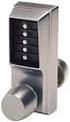 SIMPLEX UNICAN LOCKS CHANGING THE CODE / COMBINATION 900 Series 1000 Series L1000 Series LP1000 Series EE1000 Series 2000 Series 2015 Series 2400/2500 Series 3000 Series 3100 Series Simplex 5000 Series
AMF112 Instruction Manual
 AMF112 Instruction Manual Scan here to view product demo and install videos or visit san.us/103 Milestone AV Technologies 6436 City West Parkway Eden Prairie, MN 55344 USA Customer Service Americas: 800-359-5520
INSTRUCTIONS: LocknCharge Laptop Carts
 INSTRUCTIONS: LocknCharge Laptop Carts www.lockncharge.com Extra Tools required: Hammer, Philips head screwdriver, medium adjustable spanner. (Allen key supplied) (Panel colours for illustration purposes
INSTALLATION INSTRUCTIONS for Bifold Doors (JII103)
 Thank you for selecting JELD-WEN products. Attached are JELD-WEN s recommended installation instructions for premium composite, hollow and solid core molded Bifold Doors. Bifolds are designed for fast
ASSEMBLY INSTRUCTIONS FOR L&L EASY-FIRE AND SCHOOL-MASTER KILNS
 TABLE OF CONTENTS TOOLS NEED FOR THE JOB................. 1 UNPACKING................................ 2 INSPECT FOR VISIBLE DAMAGE.................. 2 CONTENTS OF THE SHIPMENT.................. 2 REMOVE
Service Manual Supplement
 Volvo Trucks North America, Inc. Greensboro, NC USA This Service Bulletin is a supplement to Service Manual, Group, Anti-lock Brake System (ABS), Bendix, VNL, VNM publication number PV /. Service Manual
RS Monitor Backlight Replacement
 Replacement Instructions The RS Monitor s two backlight bulbs should provide many hours of service. However, if they burn out, you can easily replace them. Note Backlight bulbs tend to have a consistent
MGB Chrome Bumper Conversion
 MGB Chrome Bumper Conversion Installation Instructions For 1974 1/2-1980 MGB This kit requires cutting, welding, and painting. Professional installation recommended. Note: Every MGB body is slightly different
Knürr Miracel. Knürr Miracel. 19 Network and Server Rack Platform 1.12 to 1.22 1.11
 Knürr Miracel 19 Network and Server Rack Platform 1.12 to 1.22 1.11 19" Server Rack: Knürr Miracel Strong points 1.13 Knürr Miracel ASP ASP/Server Rack 1.16 Knürr Miracel Server Rack 1.18 Knürr Miracel
All-Season Sunroom Sliding Glass Door Installation Instructions
 ASRESGD-08 All-Season Sunroom Sliding Glass Door Installation Instructions Panel Frame Door Frame Left Side Foam Insulator IE241 H Bar Assembly Door Frame Top Track Panel Frame Door Frame Right Side Stationary
PREASSEMBLED ELEMENTS FOR LIFTING AND SLIDING DOORS
 SYSTEM COMPONENTS PREASSEMBLED ELEMENTS FOR FIFTING AND SLIDING DOORS s r ood gn i d i l s dna gn i t f i f r o f s t neme l e de l bme s s ae r P PREASSEMBLED ELEMENTS FOR LIFTING AND SLIDING DOORS These
WARNING CANADIAN D.O.C. WARNING
 Each product and program carries a respective written warranty, the only warranty on which the customer can rely. Avery Dennison Corp. reserves the right to make changes in the product, the programs, and
PRODUCT: WASHER / WASHER-DRYER COMBO MODEL: AW 120 / AW 122 / AW 125 AWD 120 / AWD 121 / AWD 129
 PRODUCT: WASHER / WASHER-DRYER COMBO MODEL: The information included in this Splendide Repair Manual may change without notice. Please see our web site www.splendide.com/service/docs.html for updates,
User Manual. RK-2d / RK-2t. dedicated KVM switch and rackmount screen technology. Designed and manufactured by Austin Hughes
 dedicated KVM switch and rackmount screen technology User Manual RK-2d / RK-2t 1U Short Depth Keyboard Drawer Designed and manufactured by Austin Hughes 751 Legal Information First English printing, October
KTC Keyless Entry System
 Thank you for purchasing the Snap-on KTC Keyless Tool Control System. The information contained in these instructions is intended to serve as a guide so as to allow the electronic lock feature to be quickly
Fitting Instructions Garador, Westland & Catnic Garage Door Spring Box Roller Wheels & Wall Bracket & Link Arm
 Fitting Instructions for a Garador, Westland & Catnic Garage Door Spring Box Roller Wheels & Wall Bracket & Link Arm These instructions cover, how to replace a Spring Box Assembly to a Garador, Westland
Replacing the Gateway M320 Keyboard
 Replacing the Gateway M320 Keyboard This package includes a replacement keyboard for your Gateway M320 notebook and these printed instructions. Tools you need You need a small Phillips and a small flat-blade
About the BitStorm 6051 POTS Splitter
 BitStorm 6051 Installation Instructions Document Number 6051-A2-GZ40-10 July 2002 About the BitStorm 6051 The BitStorm system enables simultaneous high-speed digital data access and analog voice service
RACK ENCLOSURES & ACCESSORIES
 RACK ENCLOSURES & ACCESSORIES RACK ENCLOSURES NetshelterTM 1 NetShelter VX / NetShelter VS 2 Open Frame Racks 3 NetShelter ES 4 NetShelter WX Part Number Model Height Width Depth Color Application Doors
Front Panel Board Cable Replacement Instructions
 apple Mac Pro Front Panel Board Cable Replacement Instructions First Steps 1 Shut down computer. Note: Follow these instructions carefully. Failure to do so could damage your equipment and void its warranty.
Rollator Cane and Brake Replacement SAFETY SUMMARY (CONTINUED)
 Rollator Cane and Replacement Assembly, Installation and Operating Instructions SAVE THESE INSTRUCTIONS NOTE: Check ALL parts for shipping damage. If shipping damage is noted, DO NOT use. Contact Carrier/Dealer
SALEEN SPEEDLAB SERIES VI STANDARD SC UPGRADE KIT
 SALEEN SPEEDLAB SERIES VI STANDARD SC UPGRADE KIT INSTALLATION MANUAL: 2005 MUSTANG 4.6 3V MANUAL P/N: 10-8002-C14338C SUPERCHARGER KIT P/N: 10-1607-B14083* Saleen Performance, Inc. 1225 East Maple Rd.,
HP ProDisplay P19A LED Backlit Monitor. User Guide
 HP ProDisplay P19A LED Backlit Monitor User Guide 2013 Hewlett-Packard Development Company, L.P. The only warranties for HP products and services are set forth in the express warranty statements accompanying
HP Pavilion All-in-One MS200 series PC. Upgrading and Servicing Guide. Printed in
 HP Pavilion All-in-One MS200 series PC *579907-001* *579907-001* Printed in Upgrading and Servicing Guide Replacing a Wireless Keyboard or Mouse...2 Before You Begin... 2 Replacing the Keyboard or Mouse...