
JUL / 07 VERSION 3.2
|
|
|
- Colin Dominick Wade
- 10 years ago
- Views:
Transcription
1 JUL / 07 VERSION 3.2 ASETVI EWME

2 smar Specifications and information are subject to change without notice. Up-to-date address information is available on our website. web:

3 INTRODUCTION Introduction To fulfill the requirements of a control system, the plant needs a system that can provide specific management functions, such as calibration, diagnostics, identification, materials of construction and setup for the Field Devices. Smar AssetView is a software system for on-line network enabled asset management. The primary objective is to unleash the powerful diagnostics capabilities found in Fieldbus devices in general and particularly in Smar devices, providing several maintenances schemas and making the user interface friendlier. AssetView deals only with devices and is used for the long-term maintenance and device operation. AssetView is not restricted to just displaying error messages from the device, but it can take devices through test sequences, record data, plot charts and analyze them providing a much more sophisticated failure analysis. Another important characteristic of the AssetView is the web technology based architecture. The user interface is the Internet Explorer web browser and it can be used on any Windows platform. Since there will always be a mix of instrument brands in a plant, it is important to have a maintenance tool that is independent of the device manufacturer. The same single software must support devices even though these come from different manufacturers. The device manufacturers know best what information to display, and how to present it for the user to get the best out of their device. The device manufacturer is the ideal candidate to make pages available for their devices, incorporating their knowledge and visualization characteristics, and keeping them up to date with the latest features and capabilities. That's the proposal of AssetView: to allow the manufacturers to develop the devices' home pages. AssetView software is network enabled and allows the user to tap into the information of the devices, indicating the condition of any device at any time, so that users can have a complete overview to picture the status of the entire plant. This product is protected by U.S. patent numbers 6,631,298; 6,725,182 and other U.S. Patents pending. i
4 AssetView User's Manual ii

5 Table of Contents TABLE OF CONTENTS INTRODUCTION... I SECTION 1 - INSTALLATION AND CONFIGURATION USING ASSETVIEW WITH STUDIO USING ASSETVIEW WITH SYSTEM302 VERSION 6.1.X INSTALLING INTERNET EXPLORER 6.0 OR HIGHER INSTALLING IIS ON WINDOWS 2000, WINDOWS XP OR WINDOWS SERVER INSTALLING ASSETVIEW ASSETVIEW LICENSING AFTER THE INSTALLATION CONFIGURING THE WINDOWS FIREWALL CONFIGURING THE DCOM PROPERTIES MANUALLY ASSETVIEW INITIAL SETTINGS CREATING THE DATABASE DATABASE CONFIGURATION FILE USER PERMISSION SERVER CONFIGURING THE COMMUNICATION SECTION 2 - ASSETVIEW SERVER STARTING THE ASSETVIEW SERVER USING SYSTEM302 VERSION USING SYSTEM302 VERSION SELECTING THE TOPOLOGY CONFIGURING THE COMMUNICATION REGISTERING DEVICES UNREGISTERING DEVICES TRACKING TRACKING FAILINGS MANAGING DEVICES IN THE DATABASE EVENT LOG RESETTING THE EVENT LOG USER MANAGEMENT ADDING USERS EDITING USER'S ATTRIBUTES REMOVING A USER CONFIGURING THE MAIL SERVICE SECTION 3 - ASSETVIEW AREAS CHANGING AREAS ATTRIBUTES OPENING THE AREAS TOPOLOGY SECTION 4 - ASSETVIEW iii

6 AssetView User's Manual LOADING THE CONFIGURATION OPENING THE DEVICE HOME PAGE CALIBRATION CONFIGURATION DIAGNOSTICS IDENTIFICATION DEVICE VIEW DISPLAY RECONCILIATION INTEGRATING DEVICES FIELDBUS DEVICES HART DEVICES SECTION 5 - DEVICE LIST SECTION 6 - AUDIT TRAIL REPORTS CONFIGURATION CHANGES REPORT DEVICE DATA REPORT APPLICATION LOG REPORT DEVICE ID LOG REPORT TRACKING HISTORY REPORT DIAGNOSTIC HISTORY REPORT METHOD HISTORY REPORT MAINTENANCE REPORT SECTION 7 - MONITORING THE DEVICE STATUS TRACKING DEFINING THE DEVICE STATUS DEFINING THE DEVICE LOCATION ACKNOWLEDGING THE TRACKING EVENT DIAGNOSTIC ACKNOWLEDGING THE DIAGNOSTIC EVENT CONFIGURING DIAGNOSTIC EVENTS SCHEDULING MAINTENANCES FOR AN EVENT SECTION 8 - MANAGING DEVICE MAINTENANCES ADDING PREVENTIVE AND PREDICTIVE MAINTENANCES EDITING THE MAINTENANCE REMOVING A MAINTENANCE SENDING SERVICE ORDERS SEARCHING FOR MAINTENANCES SEARCHING A PERIOD SEARCHING MAINTENANCE DURING THE MONTH SEARCHING MAINTENANCE DURING THE WEEK OPENING THE MAINTENANCES HISTORY OPENING THE ALARMS LIST iv

7 Table of Contents MAINTENANCE TEMPLATES: USING THE ASSETVIEW MAINTENANCE WIZARD CREATING MAINTENANCE TEMPLATES SAVING MAINTENANCE TEMPLATES OPENING MAINTENANCE TEMPLATES EDITING MAINTENANCE TEMPLATES REMOVING MAINTENANCE TEMPLATES SECTION 9 - DEVICE LIBRARY DEVICE IMAGES ADDING IMAGES REMOVING IMAGES DEVICE MANUALS ADDING MANUALS REMOVING MANUALS DEVICE PROCEDURES ADDING PROCEDURES REMOVING PROCEDURES MANAGING DEVICE NOTES ADDING NOTES UPDATING A NOTE REMOVING NOTES CREATING CUSTOM FOLDERS MANAGING FOLDERS DEFINING AN ICON FOR A FOLDER REMOVING FILES AND FOLDERS SECTION 10 - TROUBLESHOOT APPENDIX A - ASSETVIEW VIRTUAL DIRECTORIES... A.1 CONFIGURING IIS 5.0 ON WINDOWS XP AND WINDOWS A.1 CREATING THE VIRTUAL DIRECTORIES... A.1 CONFIGURING THE PROPERTIES OF THE VIRTUAL DIRECTORIES... A.2 CONFIGURING IIS 6.0 ON WINDOWS SERVER A.4 CONFIGURING THE APPLICATION POOL... A.4 CREATING THE VIRTUAL DIRECTORIES... A.5 CONFIGURING THE PROPERTIES OF THE VIRTUAL DIRECTORIES... A.7 APPENDIX B - ASSETVIEW DATABASE BACKUP PROCEDURES... B.1 CREATING THE BACKUP FILE...B.1 RESTORING THE DATABASE...B.2 APPENDIX C - ASSETVIEW & FY C.1 FY302 HOME PAGE... C.1 FY302 IDENTIFICATION PAGE... C.1 FY302 CONFIGURATION PAGE... C.3 FY302 DIAGNOSTICS PAGE... C.7 FY302 GRAPHICS PAGE... C.10 v

8 AssetView User's Manual FY302 CALIBRATION PAGE... C.16 FY302 DISPLAY PAGE... C.32 FY302 DEVICE VIEW PAGE... C.33 DIAGNOSTIC AND MAINTENANCE FOR POSITIONERS... C.34 PREVENTIVE AND PREDICTIVE MAINTENANCE FOR POSITIONERS... C.35 ASSETVIEW AND THE PROACTIVE MAINTENANCE... C.36 APPENDIX D - ASSETVIEW & TT D.1 TT302 HOME PAGE... D.1 TT302 IDENTIFICATION PAGE... D.1 TT302 CONFIGURATION PAGE... D.3 TT302 DIAGNOSTICS PAGE... D.5 TT302 CALIBRATION PAGE... D.7 TT302 DISPLAY PAGE... D.11 APPENDIX E - ASSETVIEW & LD302...E.1 LD302 HOME PAGE...E.1 LD302 IDENTIFICATION PAGE...E.1 LD302 CONFIGURATION PAGE...E.3 LD302 DIAGNOSTICS PAGE...E.5 LD302 CALIBRATION PAGE...E.6 LD302 DISPLAY PAGE...E.13 LD302 DEVICE VIEW PAGE...E.14 APPENDIX F - ASSETVIEW & DT301...F.1 DT301 HOME PAGE...F.1 DT301 IDENTIFICATION PAGE...F.1 DT301 CONFIGURATION PAGE...F.4 DT301 DIAGNOSTICS PAGE...F.5 DT301 CALIBRATION PAGE...F.6 DT301 MONITORING PAGE...F.12 APPENDIX G - ASSETVIEW & FI G.1 FI302 HOME PAGE... G.1 FI302 IDENTIFICATION PAGE... G.1 FI302 CONFIGURATION PAGE... G.2 FI302 DIAGNOSTICS PAGE... G.3 FI302 CALIBRATION PAGE... G.5 FI302 DISPLAY PAGE... G.8 FI302 MONITORING PAGE... G.9 APPENDIX H - ASSETVIEW & IF H.1 vi

9 Table of Contents IF302 HOME PAGE... H.1 IF302 IDENTIFICATION PAGE... H.1 IF302 CONFIGURATION PAGE... H.2 IF302 DIAGNOSTICS PAGE... H.3 IF302 CALIBRATION PAGE... H.4 IF302 DISPLAY PAGE... H.8 IF302 MONITORING PAGE... H.9 APPENDIX I - ASSETVIEW & FR I.1 FR302 HOME PAGE... I.1 FR302 IDENTIFICATION PAGE... I.1 FR302 CONFIGURATION PAGE... I.2 FR302 DIAGNOSTICS PAGE... I.4 FR302 DISPLAY PAGE... I.5 FR302 DEVICE VIEW PAGE... I.6 APPENDIX J - ASSETVIEW & TP302...J.1 TP302 HOME PAGE... J.1 TP302 IDENTIFICATION PAGE... J.1 TP302 CONFIGURATION PAGE... J.2 TP302 DIAGNOSTICS PAGE... J.3 TP302 CALIBRATION PAGE... J.4 APPENDIX K - ASSETVIEW & FP K.1 FP302 HOME PAGE...K.1 FP302 IDENTIFICATION PAGE...K.1 FP302 CONFIGURATION PAGE...K.2 FP302 DIAGNOSTICS PAGE...K.3 FP302 CALIBRATION PAGE...K.4 FP302 MONITORING PAGE...K.8 APPENDIX L - ASSETVIEW & MAGNETROL PULSAR TM...L.1 MAGNETROL PULSAR HOME PAGE... L.1 MAGNETROL PULSAR IDENTIFICATION PAGE... L.1 MAGNETROL PULSAR CONFIGURATION PAGE... L.2 MAGNETROL PULSAR DIAGNOSTICS PAGE... L.3 MAGNETROL PULSAR CALIBRATION PAGE... L.4 vii

10 AssetView User's Manual viii

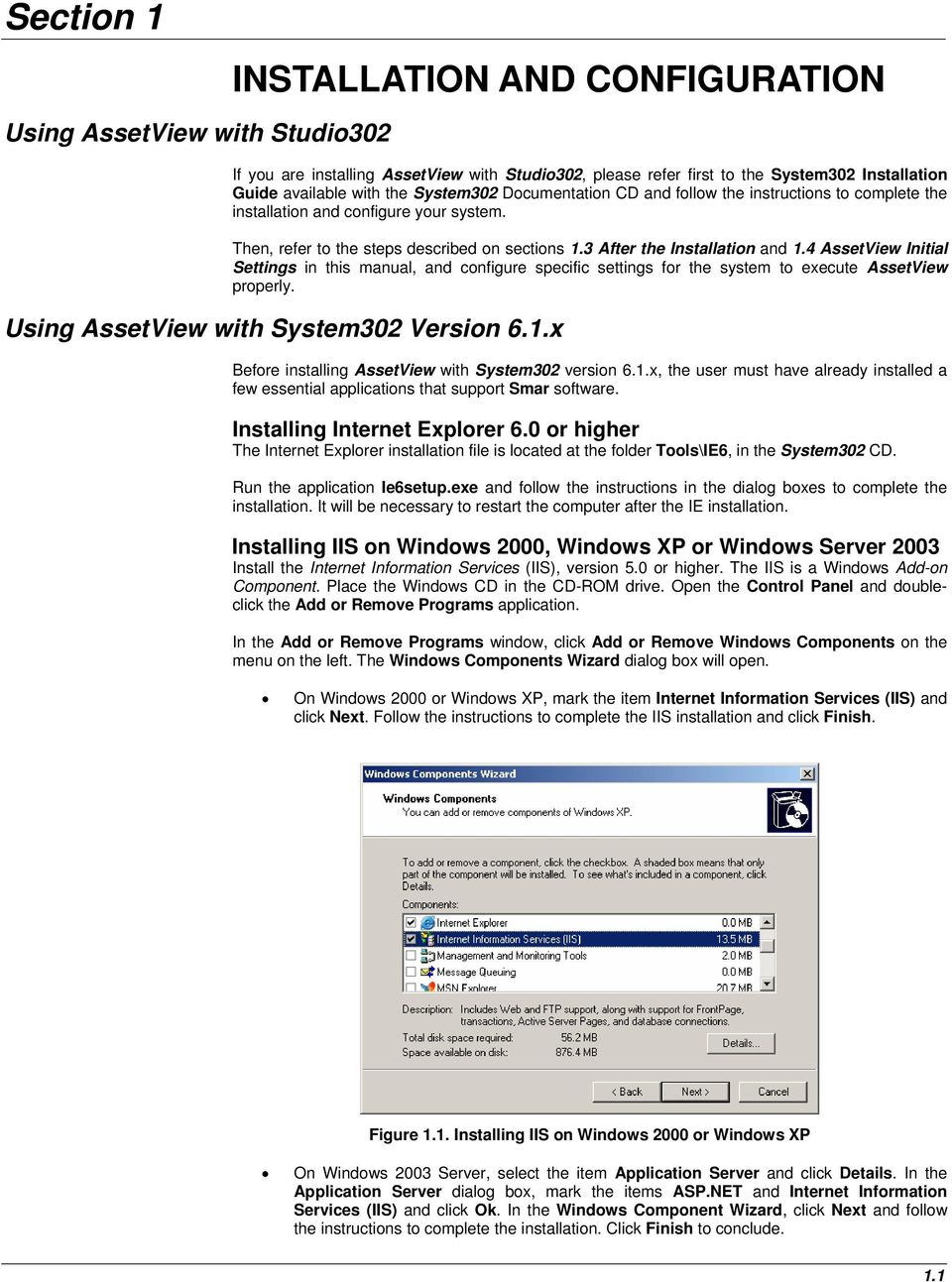
11 Section 1 Using AssetView with Studio302 INSTALLATION AND CONFIGURATION If you are installing AssetView with Studio302, please refer first to the System302 Installation Guide available with the System302 Documentation CD and follow the instructions to complete the installation and configure your system. Then, refer to the steps described on sections 1.3 After the Installation and 1.4 AssetView Initial Settings in this manual, and configure specific settings for the system to execute AssetView properly. Using AssetView with System302 Version 6.1.x Before installing AssetView with System302 version 6.1.x, the user must have already installed a few essential applications that support Smar software. Installing Internet Explorer 6.0 or higher The Internet Explorer installation file is located at the folder Tools\IE6, in the System302 CD. Run the application Ie6setup.exe and follow the instructions in the dialog boxes to complete the installation. It will be necessary to restart the computer after the IE installation. Installing IIS on Windows 2000, Windows XP or Windows Server 2003 Install the Internet Information Services (IIS), version 5.0 or higher. The IIS is a Windows Add-on Component. Place the Windows CD in the CD-ROM drive. Open the Control Panel and doubleclick the Add or Remove Programs application. In the Add or Remove Programs window, click Add or Remove Windows Components on the menu on the left. The Windows Components Wizard dialog box will open. On Windows 2000 or Windows XP, mark the item Internet Information Services (IIS) and click Next. Follow the instructions to complete the IIS installation and click Finish. Figure 1.1. Installing IIS on Windows 2000 or Windows XP On Windows 2003 Server, select the item Application Server and click Details. In the Application Server dialog box, mark the items ASP.NET and Internet Information Services (IIS) and click Ok. In the Windows Component Wizard, click Next and follow the instructions to complete the installation. Click Finish to conclude. 1.1
12 AssetView User's Manual Figure 1.2. Installing IIS on Windows 2003 IMPORTANT If IIS was already installed in the machine but the ASP.NET was not installed, it will be necessary to remove IIS and install ASP.NET together with IIS. In this case, open the Application Server dialog box and unmark the item Internet Information Services (IIS). Click Ok and click Next on the Windows Components Wizard window. Follow the instructions to uninstall IIS. Then, open the Windows Components Wizard window again, select the item Application Server and click Details. Mark the items ASP.Net and Internet Information Services (IIS), click Ok and follow the instruction to complete the installation. To check if the installation was successful, open the Internet Explorer window and type the machine name or localhost. The Internet Information Services page should be loaded. Installing AssetView IMPORTANT To install AssetView, the user must be logged on as an Administrator or a member of the Administrators group. Place the System302 Installation CD at the CD-ROM driver. The Installation dialog box will automatically open. Click Install SYSTEM302. Follow the instructions in the dialog boxes, providing the necessary information during the installation. Make sure to select the Custom installation mode. In the Select Features dialog box, check the option AssetView from the list of applications available: 1.2

13 Installation and Configuration Figure 1.3. Installing AssetView It will be necessary to restart the computer after the installation is complete. IMPORTANT If a database application is not located during the AssetView installation, the MSDE database will be automatically installed. If any error message appears during the AssetView installation and configuration, please refer to the section Troubleshoot for details on how to manually configure the system. AssetView Licensing The AssetView Server requires a HardKey to run properly. A specific number of field devices will be managed according to the license option select by the user. The following table shows the license types available according to the maximum number of field devices installed on the plant. Note that if there are more than 200 instruments, it will not be possible to use the MSDE database, only the SQL Server database. Option Number of Devices: Database Required: 1 25 MSDE or SQL Server MSDE or SQL Server MSDE or SQL Server SQL Server SQL Server SQL Server SQL Server SQL Server SQL Server A 2000 SQL Server 1.3

14 AssetView User's Manual B 2500 SQL Server C 3000 SQL Server D 4000 SQL Server E 5000 SQL Server F 7500 SQL Server G SQL Server Connect the HardKey to the parallel port or the USB port of the machine. Then select Start > Programs > System302 and click on Get License. 1. Click the button Diagnostic. Figure 1.4. Checking the HardKey 2. In the HardKey dialog box, fill the form with the required information and click the button Diagnostic to generate the HardKey log file. 3. A message will indicate if the report was generated successfully. Click OK to open the log file. 4. On the Get License window, click Exit to conclude. After the Installation NOTE If an error message appears during the test, check if the HardKey is connected properly and if you have a valid license. Remember that it is necessary to restart the computer after the installation is complete. Otherwise, it would be necessary to restart the database. From the Start menu, select Programs > Startup > Service Manager. The SQL Server Service Manager dialog box will open. Click Start/Continue and check if the icon of the database server appears in the Windows Taskbar. Figure 1.5. Starting the SQL Server Service Manager 1.4

15 Installation and Configuration Configuring the Windows Firewall If the Windows Firewall is enabled, add the port 80 used by AssetView to the exception list: 1. Open the Windows Control Panel and double-click the option Windows Firewall. 2. The Windows Firewall dialog box will open. Click the Exceptions tab: Figure 1.6. Configuring the Windows Firewall 3. Click the button Add Port. 4. On the Add a Port dialog box, type Web as the port name and type 80 for the port number. Select the TCP protocol and click Ok to conclude. Figure 1.7. Configuring the Port Click Ok on the Windows Firewall window to conclude. Configuring the DCOM Properties Manually Advanced security properties from Windows XP SP2 and Windows Server 2003 SP1 must be configured to enable the communication between AssetView and System302 components. On the Start menu, click Run, type dcomcnfg and click Ok. The Component Services window will open. On the left panel, select Component Services > Computers > My Computer. Right-click the icon My Computer and select the option Properties. On the My Computer 1.5

16 AssetView User's Manual Properties dialog box, select the Default Properties tab and check if the option Enable Distributed COM on this computer is marked. Select the COM Security tab. Click Edit Default on the Access Permissions area. The Access Permission dialog box will open: Figure 1.8. Configuring the Access Permission Click Add and include the user ASP.NET and the following groups: Administrators, Users, Interactive, System, Engineer, AssetViewGuest. See the example on the figure below: Figure 1.9. Adding Users and Groups Click Ok to return to the Access Permission dialog box. For each user and group added, select its icon and mark the Allow column for the options Local Access and Remote Access. 1.6
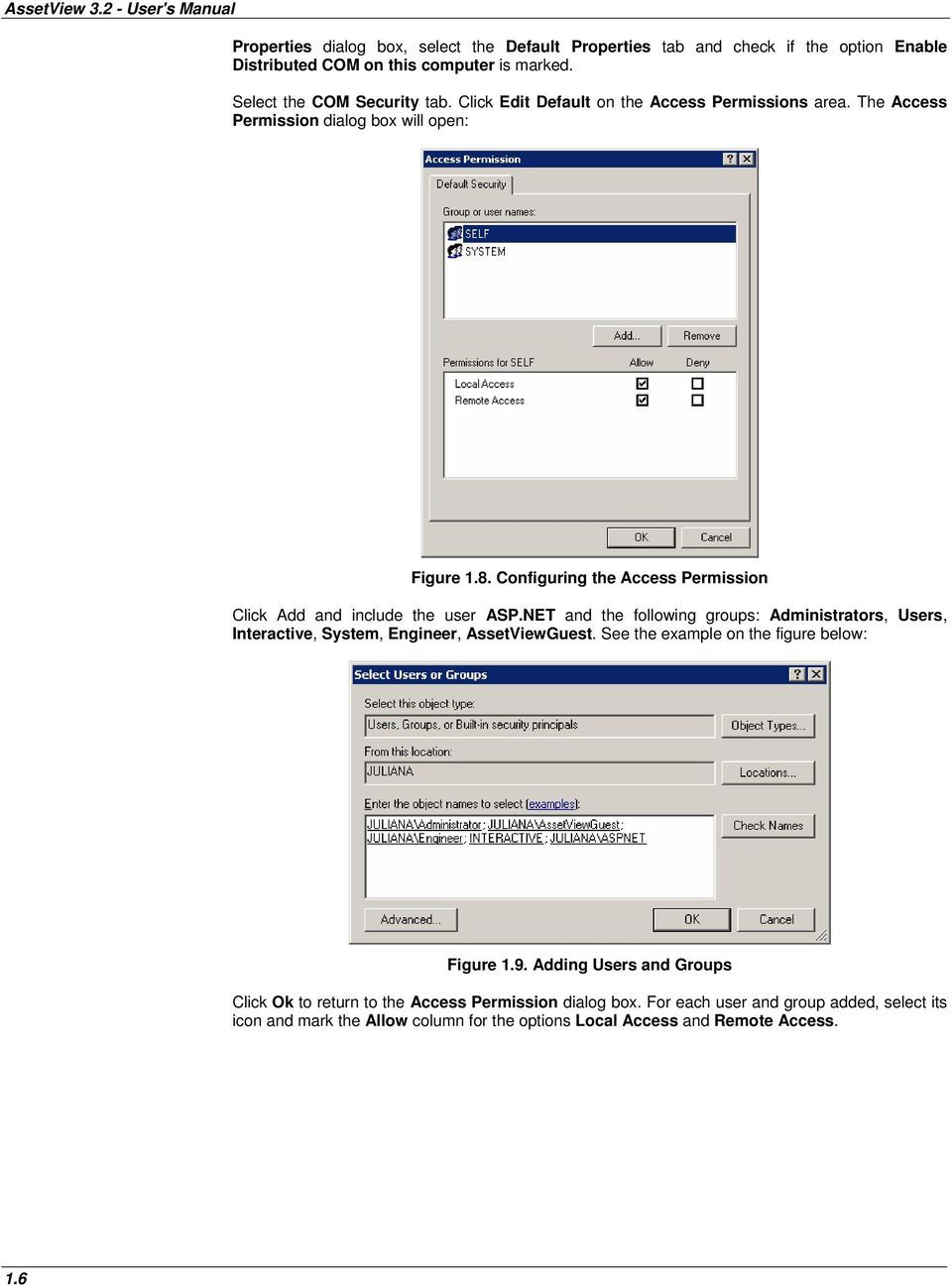
17 Installation and Configuration Figure Local and Remote Access Permissions Click Ok to return to the My Computer Properties dialog box. Then, click Edit Default on the Launch and Activation Permissions area and repeat the steps described above to add the same user and groups, allowing the permission for Local Launch, Remote Launch, Local Activation, and Remote Activation. Figure Launch and Activation Permissions Click Ok to return to the My Computer Properties dialog box and click Ok again to conclude. 1.7

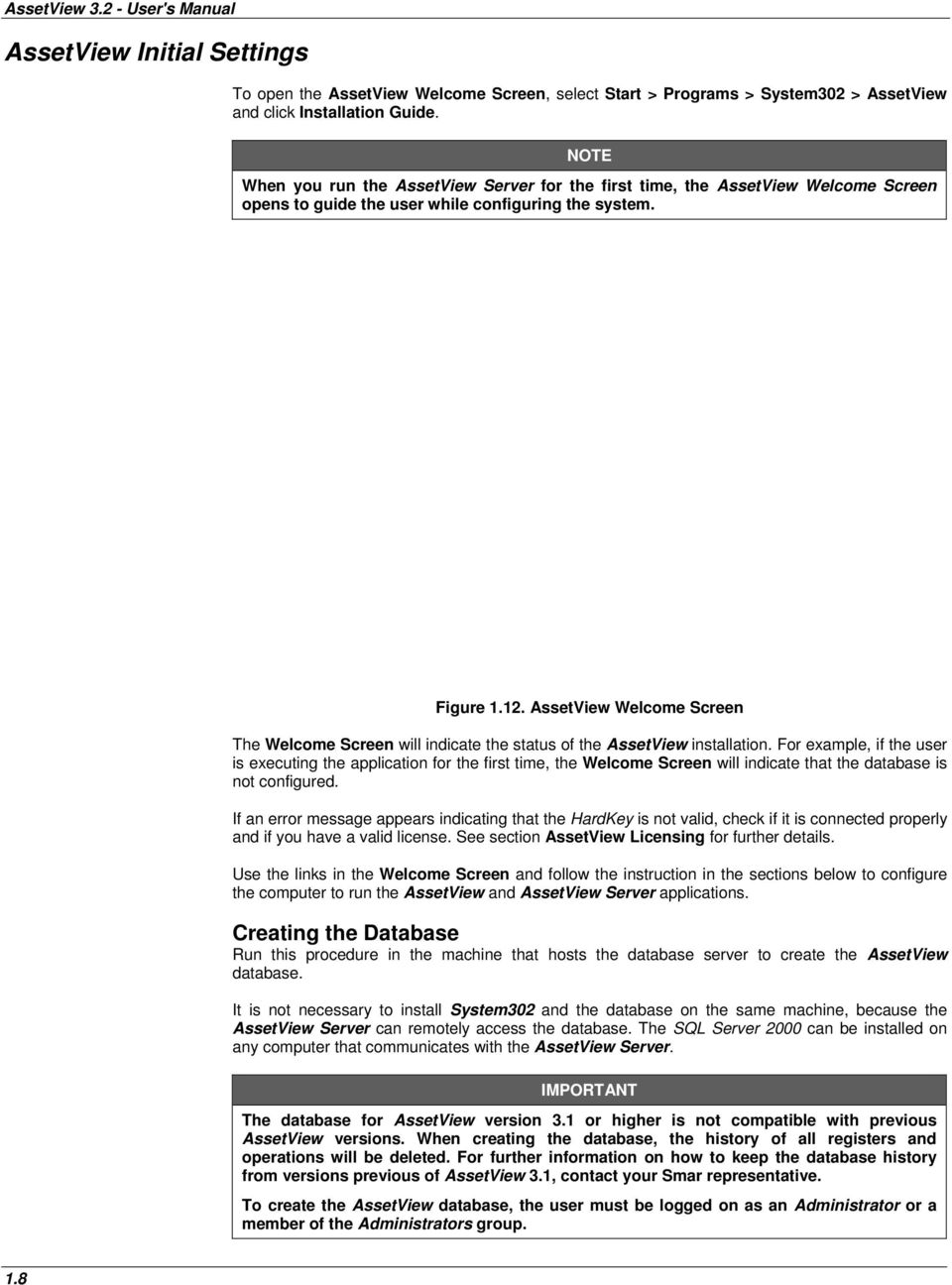
18 AssetView User's Manual AssetView Initial Settings To open the AssetView Welcome Screen, select Start > Programs > System302 > AssetView and click Installation Guide. NOTE When you run the AssetView Server for the first time, the AssetView Welcome Screen opens to guide the user while configuring the system. Figure AssetView Welcome Screen The Welcome Screen will indicate the status of the AssetView installation. For example, if the user is executing the application for the first time, the Welcome Screen will indicate that the database is not configured. If an error message appears indicating that the HardKey is not valid, check if it is connected properly and if you have a valid license. See section AssetView Licensing for further details. Use the links in the Welcome Screen and follow the instruction in the sections below to configure the computer to run the AssetView and AssetView Server applications. Creating the Database Run this procedure in the machine that hosts the database server to create the AssetView database. It is not necessary to install System302 and the database on the same machine, because the AssetView Server can remotely access the database. The SQL Server 2000 can be installed on any computer that communicates with the AssetView Server. IMPORTANT The database for AssetView version 3.1 or higher is not compatible with previous AssetView versions. When creating the database, the history of all registers and operations will be deleted. For further information on how to keep the database history from versions previous of AssetView 3.1, contact your Smar representative. To create the AssetView database, the user must be logged on as an Administrator or a member of the Administrators group. 1.8
19 Installation and Configuration In the Welcome Screen, click the link Creating Database. The Configure SQL Server Database dialog box will open: Figure Configuring the SQL Server Database Select the AssetView database server from the drop-down list and click Create. NOTE If the user selected the MSDE database, the server name should be: "<machine name>/assetview". If the database already exists in the selected server, a message box will open asking if the user wants to create a new database. Click Yes and all existing data will be deleted. Wait a few seconds until the message box opens alerting the user that the database was created. Click Ok to close this dialog box: Figure Creating the SQL Server Database NOTE If the database was not created properly, check the SQL Server configuration and the user login information. Click Close to conclude the database configuration. Creating the Remote Database Follow this procedure to create the AssetView database in a dedicated machine, that is, in the remote computer where all database information will be saved. Locate the AssetView installation folder. The default path is C:\Program Files\Smar\AssetView. Copy the folder SQL Server Support to the remote machine and run the file SqlServer.exe, double-clicking its icon. Select the database server from the drop-down list and click Create. When the database is created, click Close to conclude. 1.9

20 AssetView User's Manual Database Configuration File Now check if the database connection is configured properly. In the Welcome Screen, click the link Database Configuration File. The Data Link Properties dialog box will open: At the Connection tab: Figure Connecting to the SQL Server Database 1. Select the name of the SQL Server. 2. Choose the log on mode. 3. Select the AssetView Database on the server. If the database was created in the remote machine, make sure to select the name of the remote server. 4. Click Test Connection and wait for the message confirming the test succeeded: Figure Testing the connection Click Ok on the Data Link Properties dialog box to conclude. User Permission In the Welcome Screen, click the link User Permission. The Local Users and Groups window will open: 1.10

21 Installation and Configuration Figure Local Users and Groups Window Only the AssetView administrator can configure the access level. The access control of AssetView uses the Windows authentication, and for this reason the AssetView administrator is the administrator of the machine where the System302 was installed. Users added to the Engineers Group will have permission for writing and reading information from the server. Double-click the Engineer group to open the Engineer Properties dialog box. Click Add and select the user(s) to be included in the Engineer group. Click Ok to confirm and conclude this procedure. Users added to the AssetViewGuest group will only have permission to read information from the server. Double-click the AssetViewGuest group to open the Properties dialog box. Click Add and select the user(s) to be included in the AssetViewGuest group. Click Ok to confirm and conclude. Server In the Welcome Screen, click the link Server to configure the SMTP Server address. The Mail Options dialog box will open: Figure Configuring Options 1. Type the name or the IP address of the server in the SMTP Server box. 2. Configure the maximum idle time, in milliseconds, for the communication with the server in the TimeOut box. It is recommended to use a value 10 times bigger than the server's response time. 3. Configure the account for AssetView. 4. If the server requires authentication, select Yes in the Use Authenticate Mode box and type the password for the address in AssetView. 5. If the mail server uses the SSL protocol, check the option SSL and type the corresponding 1.11
22 AssetView User's Manual number for the SMTP port, on the SMTP Port box. 6. Click Ok to save the changes and close this dialog box. NOTE Some servers may require a Domain and User name instead of the address to configure the AssetView Account field. Configuring the Communication In the Welcome Screen, click the link OPC Server to configure the communication interface. The Communication Settings dialog box will open: Figure Configuring the Communication Select the communication server from the list of available servers. Click Ok to conclude. Now the system is ready to execute the AssetView Server and navigate on the AssetView devices pages. The following sections on this manual will describe the AssetView Server interface and how to navigate the pages available for the field devices. 1.12
23 Section 2 ASSETVIEW SERVER The Smar AssetView Server runs transparently to the user. The AssetView Server monitors the devices, controls the number of devices monitored and grants permissions to users. Before initializing the AssetView Server, it is necessary to: Create the device configuration using Syscon. Export the tags. Starting the AssetView Server Initialize the communication using Syscon to check if the settings are correct. Check if the Online Characterization window shows the parameter values in Syscon. It is not necessary to keep the Syscon window open while executing the AssetView Server. Remember that Syscon and AssetView can be installed separately, on different computers. Using System302 Version 6.1 To open the AssetView Server window, click Start > Programs > System302 > AssetView > AssetView Server: Using System302 Version 7.0 Figure 2.1. Initializing the AssetView Server From the Start menu, select Programs > System302 > Studio302 and click on Studio302, as indicated below: Figure 2.2. Starting Studio
24 AssetView User s Manual Click the button on the Studio302 toolbar and the following dialog box will open: Figure 2.3. Initializing the AssetView Server Click the option AssetView Server to execute this application. The following figure shows the AssetView Server window: Selecting the Topology Figure 2.4. AssetView Server Interface The Topology menu allows the user to select the topology configuration to be used by the AssetView Server. To read the configuration saved on a Syscon file, go to the Topology menu and click the option From Syscon Configuration File: 2.2 Figure 2.5. Reading the configuration from a Syscon file
25 AssetView Server The Import Syscon Configuration dialog box will open. Browse the directories to locate the project configuration file (file with the extension.ffp). Select the project file icon and clique Open to conclude. Configuring the Communication Figure 2.6. Selecting the configuration file The plant configuration will be imported to the AssetView Server. During this procedure, a progress dialog box will indicate the information from the blocks and devices that are being read from the configuration file and from the communication network, in case the configuration has HART devices. The communication should have been configured before executing the AssetView Server for the first time, clicking the link OPC Server in the Welcome Screen. If the communication interface has not been configured yet, go to the Settings menu and select Communication. The configuration dialog box will open: Registering Devices Figure 2.7. Configuring the Communication Interface Select the communication server from the list of servers available. Click Ok to conclude. Registering a device implies that the parameter values from this device will be read and stored in the database. NOTE When executing the AssetView Server for the first time, it will be necessary to register the devices in the database. On the main menu, click the option Register: 2.3
26 AssetView User s Manual The List of Devices window will open. Figure 2.8. Registering Devices Figure 2.9. List of Devices Dialog Box Mark the devices to be registered in the database. To select all devices, click the button Select All. To unmark all devices, click the button Clear Selection. The procedure to register the devices has a time limit variable and its default value is 5 minutes. This value can be edited in the Register Time Out box. When the idle time interval defined by the user expires, the register procedure for the instrument being registered is aborted. Click Register to start registering the selected instruments in the database. IMPORTANT For Smar's Fieldbus devices, it is recommended to use the firmware version Some parameters and methods may not be available for devices with other firmware versions. The List of Devices dialog box indicates the functionalities missing in the selected device: 2.4
27 AssetView Server NOTE AssetView can monitor HART devices using the Smar HI302 - HART/Foundation Fieldbus Interface. It is necessary to update the firmware version to 0301 (3.15 or higher) and create the blocks configuration for the HI302. Please refer to the HI302 User s Manual (Chapter 3) for further information. The current AssetView version supports the devices FY301, LD301, TT301, DT301 and TP301. Others HART devices will use a generic page, as well as the devices from other manufacturers. The DBWizard Register application cannot register templates of HART devices. If an instrument selected to be registered doesn't have all blocks required, or has an old firmware revision, the device will be registered in the database but some functionalities, such as calibration and diagnostic methods, may not be available. The example on the figure below shows the dialog box that will appear while the instruments are being registered: Figure Registering devices If the selected instruments have Maintenance Templates, the AssetView Server will register these maintenances after registering the blocks. See section Maintenances Templates for details about the AssetView Maintenance Wizard. The Register Report window will open indicating if the instruments were registered with success: Figure Details Window 2.5
28 AssetView User s Manual Unregistering Devices Click the button Start Tracking to start monitoring and tracking the devices. Refer to the section Tracking for further details. To delete the device register from the database, go to the View menu and click Devices List. The Device List window will open. Right-click the device icon and select Unregister: Tracking Figure Unregistering a Device The option Unregister is also available in the device popup menu, in the Tracking window. A message will appear confirming the operation. Click Yes to remove the device register from the database or click No to cancel. The Tracking option initializes the monitoring of the devices registered in the database, storing the changes of the parameter values in the historical information. On the main menu, click the option Tracking: Figure Tracking devices The AssetView Server starts monitoring the information from the Fieldbus network and the Tracking window displays the information about the devices being monitored. The devices that will be monitored must be registered in the database and online on the Fieldbus network. Figure Tracking results 2.6
29 AssetView Server Tracking Failings If a device is displayed in the Tracking window with a red X on its icon, it means that the device is not being monitored because of a failure in the communication. A typical example of a communication failure occurs when the device goes offline and returns to online mode after a short period of time. The system automatically detects when the instrument starts communicating again. The monitoring process is restarted and the device icon in the Tracking window is restored to its normal state. Right-click the device icon and select Failing Reason to see the details about the tracking fail. This option is also available in the device popup menu, in the Device List window. Managing devices in the database Figure Failing Reasons NOTE To stop tracking the devices, it is necessary to close the AssetView Server. In the Topology menu, click Exit. The user can check the list of devices from the Syscon configuration, the devices registered in the database or remove a device register from the database. On the View menu, click Devices List: The Device List window will open: Figure Opening the Device List Figure Device List Window 2.7
30 AssetView User s Manual Event Log The devices displayed in this dialog box are configured in the Syscon file. The Tracking procedure reads the information related to these devices from the database and from the Fieldbus Network. (See the section Tracking for further information about monitoring a device.) Click the column header to sort the list of devices, toggling between ascendant and descendent sorting. The user can manage the devices while they are removed or added to the database, according to the number of devices allowed by the License Key to be included in the topology. The Device List window will display the information about the devices, such as the manufacturer, the device type and the protocol. The user can display the log with the events executed in the AssetView Server. On the View menu, select the option Event Log. The Event Log window will appear at the bottom of the AssetView Server window. Figure Event Log window In case an error occurred, double-click the corresponding row in the Event Log window to open the Error Message that provides information about the error. Resetting the Event Log Figure Error Details Right-click the Event Log window and select the option Clear Event Log. A message will appear confirming the operation. Click Yes to delete all the information in the Event Log window or click No to cancel. 2.8
31 AssetView Server User Management The Administrator must grant permissions for other users to access the AssetView Server. Click User on the main menu: The Users dialog box will open: Figure Managing Users Adding Users Figure Users dialog box Click the Add button to add a new user. The Add Users dialog box will open: Figure Adding Users 1. Select the group to which the user will be added: Engineers or AssetViewGuest. 2. Type the user name. 3. Type a brief description for the user. 4. Type the user's full name. 5. Choose a password for the user. 6. Type the user's Click Ok. 2.9
32 AssetView User s Manual Users added to the Engineers Group will have permission for writing and reading information from the server. Users added to the AssetViewGuest Group will only have permission to read information from the server. Adding Existing Users In the Add Users dialog box, click Existing to open the list of users for the local machine: Figure Existing Users 1. Select the user name from the list of existing users. 2. Select the group to which the user will be added: Engineers or AssetViewGuest. 3. Type the user's Click Ok. Editing User's Attributes Click the icon of the user in the Users dialog box and click Edit. Only the text box will be enabled for edition. Removing a User Configuring the Mail Service Click the icon of the user in the Users dialog box and click Delete. A message box will appear to confirm the operation. Click Yes to remove the user. The mail service should have been configured before executing the AssetView Server for the first time, clicking the link Server in the Welcome Screen. If the mail service has not been configured yet, go to the Settings menu and select the option Mail. The Mail dialog box will open: 2.10 Figure options
33 1. Type the name or the IP address of the server in the SMTP Server text box. AssetView Server 2. Configure the maximum idle time, in milliseconds, for the communication with the server in the TimeOut box. It is recommended to use a value 10 times bigger than the server's response time. 3. Configure the account for AssetView. 4. If the server requires authentication, select Yes in the Use Authenticate Mode box and type the password for the address in AssetView. 5. If the server uses the SSL protocol, check the option SSL and type the corresponding number for the SMTP port, on the SMTP Port box. 6. Click Ok to save the changes and close this dialog box. 2.11
34 AssetView User s Manual 2.12
35 Section 3 ASSETVIEW AREAS For many reasons, a large plant is usually divided into several areas. From the AssetView point of view, each area is represented by one particular AssetView Server, which will be in charge of registering all devices and keeping track of them. Area_1 AssetServer_1 Area_2 AssetServer_2 Client Internet/Intranet Area_3 AssetServer_3 Area_4 AssetServer_4 Figure 3.1. Managing different areas AssetView provides a Web page with links to all these areas, so the user can easily navigate through these areas just by clicking a link. This Web page can be opened from any of the AssetView Server machines as well as any other client computer (intranet/internet) that has a browser installed. To achieve this functionality, follow the steps below to configure the AssetView areas. To open the AssetView Areas window, go to the Start menu and select Programs > System302 > AssetView > AssetView Areas, as indicated below: The AssetView Areas window will open: Figure 3.2. Initializing the AssetView Areas 3.1
36 AssetView User s Manual Figure 3.3. Configuring Areas Changing Areas Attributes 1. Select the area icon from the list of areas. On the main menu, select Area and click Change Attributes. 2. The Change Attributes dialog box will open. At the AssetServer IP address text box, type the new IP address or the network machine name where the devices from this area have been registered. 3. Click Change to conclude. Figure 3.4. Changing Areas Attributes Repeat the steps described above to change the attributes from other areas. 3.2
37 AssetView Áreas Opening the Areas Topology 1. Open the Web browser and type the Areas page address: address>/assetview/area.htm IMPORTANT The Areas page must be opened in the browser using the server address (name of the server machine) where the areas were configured with the AssetView Areas, as in the figure above. 2. Click the expansion sign next to the plant icon to expand the tree and see the links to the areas: Figure 3.5. Areas topology 3. Clicking a link to an area will open the AssetView page from the respective machine, identified by the IP address configured previously by the AssetView Areas application. 4. On the AssetView page, the user must type the login and password to open the configuration topology tree and access the AssetView functionalities. 3.3
38 AssetView User s Manual Figure 3.6. User Authentication 5. Once the user name and the password are correct, the AssetView topology will open on the browser, as illustrated below: Figure 3.7. Loading the topology 3.4
39 Section 4 Loading the Configuration ASSETVIEW To start AssetView, open the Internet Explorer and type: name/assetview (local or remote access) or (local access) or IP_number/assetview (local or remote access) Figure 4.1. AssetView Home Page On the AssetView main page, the user will have to type the login and password to access the configuration topology tree and the AssetView functionalities. AssetView reads the network topology from the Syscon configuration file. The user can browse the operational devices at different plant locations using AssetView. The frame on the left side of the browser window will display the plant topology. Click the expansion sign to expand the Fieldbus Network and its segments. 4.1
40 AssetView User s Manual Figure 4.2. Browsing the Topology Opening the Device Home Page Each device type has a standard home page layout. Every device in a plant location has a home page from where the user can proceed with the calibration, configuration, identification, diagnostics or reconciliation of the device configuration. Navigating through the topology tree, click on any device icon to display its home page. The figure below shows the home page of the FY302 with the tag name FY-302-AV01: Figure 4.3. Device Home Page According to each device type, the main page may have the following links: 4.2
41 AssetView Calibration Calibration is the correction of sensor reading and physical outputs. During this process messages are displayed to the user indicating the status of this condition. There are specific calibration methods for each device based on scripts defined by the manufacturers. Configuration In the Configuration page, the user can read and write the parameter values of the devices. From this page, the user can also access the Reconciliation page and compare the current configurations to previous configurations of the devices stored in the database. (Refer to the section Reconciliation.) Diagnostics Simple diagnostics are displayed to the user. Comprehensive tests can be done from time to time using several charts to check the condition of the field device. Because of the diagnostic it is possible to first remotely check the device if there really is a failure before going into the field. And yet, because of the detailed information about the Network and device operation provided by the diagnostics, the user knows exactly where the problem is. Identification The Identification page provides all the information relevant to maintenance of the device, such as its manufacturer, device type, tag, serial number, and its versions. Materials of construction for wetted parts are also indicated. Device View The Device View page monitors the instrument data, such as temperature or pressure values read from the instrument. Display In the Display page, the user can configure the device s display, viewing and modifying parameters such as device mnemonics. Reconciliation Reconciliation allows comparison of current device settings with past configurations stored in the database. On the right side of the screen, it is possible to see the changes made previously selected by the user. On the left side, the user can see the changes made on the same items displayed on the right side, but from the moment of the last change executed in the device. The last change is called Current Device Parameterization. 4.3
42 AssetView User s Manual Current Device Parameterization History Integrating Devices Figure 4.4. Reconciliation Page If a moment different from the Current Device Parameterization is displayed on the left side and any previous moment is displayed on the right side, the user will only be able to compare the configurations. The arrows will be disabled and it will not be possible to transfer values. If the Current Device Parameterization is displayed on the left side and any previous moment is displayed on the right side, the user can transfer the values from the previous moment to the device, clicking on the respective arrows. Click Submit to apply the values to the device. Fieldbus Devices Use the DBWizard Register application to integrate Smar or third-party devices that were not installed in the Device Support folder, in the installation directory "Program Files\Smar\ AssetView\Web Pages\". Click the Start menu, point to Programs > System302 > AssetView and click DBWizardRegister: 4.4 Figure 4.5. Starting the DBWizard Register Application
43 AssetView The DB Wizard Register window will open. On the Register menu, click Database: The Register Database dialog box will open. Figure 4.6. Registering the Database Follow these steps to register a device: Figure 4.7. Register Database Dialog Box 1. Select the protocol from the Protocol list box. 2. Select the device manufacturer from the Manufacturer list box. 3. The list of devices will be displayed in the Device Type box. Click the target device to select it. 4. Select the revision of the selected device in the Device Revision list box. 5. Select the revision of the Device Description in the DD Revision list box. 6. Select the revision of the Capability File in the CF Revision list box. 7. Click Registry Database. 4.5
44 AssetView User s Manual If the selected device doesn't exist in the database, the following message will open: Figure 4.8. Creating the Device Template Click Yes to create the device template in the database. The Search in Capabilities Files dialog box will open. Figure 4.9. Configuring the Device Type the Profile and Profile Revision numbers for the blocks. Observe that the numbers must be in the Hexadecimal format. HINT Open the Capability File (*.cff) of the device to locate the Profile and Profile Revision numbers. Or use Syscon to read the Profile and Profile Revision numbers, opening the Block List dialog box of the device. Please refer to the software manual for details. After typing the numbers, click the button to validate them. If the numbers do not match the Profile and Profile Revision in the CFF file, the button displayed. will be 4.6
45 AssetView Figure Checking the Information Once all Profile and Profile Revision numbers are correct, the button is displayed. IMPORTANT The Profile and Profile Revision numbers of the Resource block and Analog Input (or Analog Output block) are required to register the device, because the parameters of these blocks are read by the device's generic pages. Click Ok to register the device. If the template allows multiple instances of the Transducer block, the message below will open so the user can select the number of instances for the block. Figure Selecting the Transducer Block Instances After registering the template, the Wizard will verify if the pages were created for this type of device. See the message below: Figure Selecting the Transducer Block Instances 4.7
46 AssetView User s Manual Click Yes to copy the generic pages from the directory "Program Files\Smar\Assetview\Web Pages\FF Generic" to the device folder. The user can customize these pages by editing the files located in the corresponding folder in the Device Support directory. See the example below: Figure Editing the Device Pages HART Devices The DBWizard Register application cannot be used to register HART instruments. AssetView monitors HART instruments using the Smar HI302 (HART/Foundation Fieldbus Interface). It is necessary to create the blocks configuration for the HI302 to represent the HART instruments installed in the plant. Please refer to the HI302 User s Manual (Chapter 3) for further information. If the HART instrument being registered with the AssetView Server has not been registered in the database, this instrument will be registered as a generic instrument. The List of Devices dialog box will indicate the instrument is generic: 4.8 Figure Generic HART Device
47 AssetView Select the HART instrument and the Details box will indicate the device is generic and it is ready to be registered. Figure Registering a Generic Device HART instruments from Smar or other manufacturers that don't have registered pages will use the generic pages located in the folder "Web Pages\Hart Device Support\GenericHart", inside the AssetView installation folder. Observe the figure below: Figure Generic Pages for HART Instruments 4.9
48 AssetView User s Manual 4.10
49 Section 5 DEVICE LIST Click the link Device List to open a page with the list of all devices: The user can search for a specific device tag: Figure 5.1. Device List Page Figure 5.2. Searching for a Device 1. Type the device tag. 2. Click the button Search. 3. The device will be highlighted in the Device List: 5.1
50 AssetView User s Manual Figure 5.3. Search Results To show all instruments in one single page, mark the option One Page: Figure 5.4. Showing results in one page The user can order the list of devices in alphabetical order, ascendant or descendent, clicking each column header. In the Tag column, click the device tag to open the device home page. The Bridge and Channel columns indicate, respectively, the tag of the controller and to which channel the instrument is connected. In the Track column, the following icons indicate the device status: Indicates the device has communication problems. Indicates the device is operating in normal conditions. Indicates the device is off-line. In the Diag column, the following icons indicate diagnostic events: Indicates that a diagnostic event has occurred. Indicates the device is operating in normal conditions. In the Maint column, the following icons indicate the maintenance status for the device: Indicates there are no pending maintenances for the device. Indicates that maintenance should be executed in the device. 5.2
51 Section 6 AUDIT TRAIL REPORTS AssetView has different types of reports to be configured by the user. Figure 6.1. Audit Trail Reports in AssetView The sections below describe the functionality of these reports and how to generate them. For each report, the following filters will be available: Figure 6.2. Filters for the Reports START DATE: Select the initial date to search for the information to generate the report. END DATE: Select the final date to search for the information to generate the report. PROTOCOL: Select the devices of a specific communication protocol (HART or Fieldbus). DEVICE TYPE: Select the type of the device from the list of devices registered in the database. DEVICE TAG: This filter will display the list of tags from the devices registered in the database. Click this icon to generate the audit trail report in the pdf file format. Click this icon to generate the audit trail report in the MS Excel file format. 6.1
52 AssetView User s Manual Configuration Changes Report This report shows all changed parameters of the device in a specific period of time. To generate this report, click the link Configuration Changes in the Audit Trail Reports page and configure the filters to generate the report in the pdf or xls file format. See the example below: Device Data Report Figure 6.3. Configuration Changes Report This report shows the current status of the device in a specific period of time, listing the last values of all parameters at the selected date. To generate this report, click the link Device Data in the Audit Trail Reports page and configure the filters to generate the report in the pdf or xls file format. Figure 6.4. Device Data Report 6.2
53 Audit Trail Reports Application Log Report AssetView stores the tags of the devices in the database. This report shows all devices to which a specific tag has been assigned. To generate this report, click the link Application Log in the Audit Trail Reports page. After configuring the filters, select the file format to generate the Application Log Report. Device ID Log Report Figure 6.5. Application Log Report This report shows all tags that have been assigned to a specific device ID. To generate this report, click the link Device ID Log in the Audit Trail Reports page. After configuring the filters, click the icon to select the file format and generate the Device ID Log Report: Figure 6.6. Device ID Log Report 6.3
54 AssetView User s Manual Tracking History Report This report shows the occurrences of communication failures. To generate this report, click the link Tracking in the Audit Trail Reports page. After configuring the filters, click the icon to select the file format to generate the Tracking History Report. IMPORTANT While the fail event is not acknowledged by any user, the user name displayed on the report will be System. Once a user acknowledges the event, the name displayed on the report will be updated with the login name of that user. Diagnostic History Report Figure 6.7. Tracking History Report The diagnostic events indicate failures or operational conditions of the devices, and they are stored in the AssetView database. To generate this report, click the link Diagnostic History in the Audit Trail Reports page and configure the filters for the report. Click the icon to select the report file format: pdf or xls. Figure 6.8. Diagnostic History Report 6.4
55 Audit Trail Reports Method History Report Methods are calibration procedures composed by a sequence of reading and writing in the device. The parameter values before writing and the values that were written in the parameters, static or dynamic, are stored in the database. This report shows all methods performed and the parameters that have been changed. To generate this report, click the link Method History in the Audit Trail Reports page. After configuring the filters, select the file format to generate the Method History Report. Maintenance Report Figure 6.9. Method History Report This report shows all maintenances scheduled and performed for each device. To generate this report, click the link Maintenance History in the Audit Trail Reports page. The page with the filter options will be loaded. After configuring the filters, select the file format to generate the Maintenance Report. See the example below: Figure Maintenance Report 6.5
56 AssetView User s Manual 6.6
57 Section 7 MONITORING THE DEVICE STATUS The field devices notify the system when a communication failure or operational conditions occur. To display the events reported to AssetView, click the link Status in the topology to expand the monitoring options. Indicates normal condition, no communication problem occurred. Indicates that a diagnostic event or communication problem has occurred. Tracking The Tracking View page shows the status of the devices and their location. Indicates normal condition, no communication problem occurred. Indicates that a communication problem has occurred. When the device is disconnected from the plant or has communication problems, it appears in the tracking list. Click the link Status > Tracking in the topology to open the Tracking List: Figure 7.1. Tracking List The Bridge and Channel columns indicate, respectively, the tag of the controller and to which channel the device is connected. Click the magnifying glass icon to open a new window that shows detailed information about the device: 7.1
58 AssetView User s Manual Figure 7.2. Device details Defining the device status To define the device status in the tracking list, click the list box in the Status column related to the device: Select the option: Figure 7.3. Device status Off-line: the device is not communicating because it was removed from the plant. Bad Communication: the device is connected to the plant but has communication problems. Click the button Submit to apply the alterations to the device. The tracking event will be automatically acknowledged. See the example below: Figure 7.4. Defining the Device status Defining the device location To define the device's location in the tracking list, click the list box in the Location column related to the device: 7.2
59 Monitoring the Device Status Select the option: Figure 7.5. Device Location On Site: the device is operating in the plant. Warehouse: the device is stored in the warehouse. Maintenance Shop: the device was removed from the plant for maintenance. Disposed: the device was removed from the plant and discarded. Click the button Submit to apply the alterations to the devices. Acknowledging the Tracking Event Click the link ACK in the Tracking View page to acknowledge the event. NOTE The tracking event is automatically acknowledged when the user defines the device status in the Tracking View page, clicking the list box in the Status column related to the device. The Acknowledge Tracking window will open: Figure 7.6. Acknowledge Window Select the cause of the tracking event: Off-line if the device was removed from the plant or Bad Communication if the device has communication problems. Select the option Generate Maintenance to schedule maintenance for the device, corrective or proactive. See section Scheduling Maintenances for an Event for details. Select the option Notification to send s to the plant administrator and technicians. Click the button Submit to acknowledge the tracking event. 7.3
60 AssetView User s Manual NOTE When acknowledging a tracking event, the user doesn't have to define maintenance for the device, or the address to be notified. To create a maintenance related to an acknowledged event, or define an address, click the link ACK in the Tracking View page and the Acknowledge window will open. The Tracking View page will be updated and a check mark will appear in the column ACK for the events that have been acknowledged. Observe the figure below: Figure 7.7. Event Acknowledged Diagnostic The Diagnostic View page shows the events caused by failure notifications or operational conditions programmed by the user to be monitored by the system. Indicates normal condition, no communication problem occurred. Indicates that a diagnostic event has occurred. When a diagnostic event occurs, it appears in the Diagnostic View. Click the link Status > Diagnostic in the topology tree to open the list of diagnostic events: Figure 7.8. Diagnostic View Click the device icon in the Device column to open the corresponding home page. The Block column indicates the tag of the block where the diagnostic event occurred. The Bridge and Channel columns indicate, respectively, the tag of the controller and to which channel the instrument is connected. 7.4 Click the magnifying glass icon to open a new window that shows detailed information about the diagnostic related to the block of the device:
61 Monitoring the Device Status Figure 7.9. Device Details Acknowledging the Diagnostic Event Click the link ACK in the Diagnostic View page to acknowledge the event. The Acknowledge Diagnostic window will open: Figure Acknowledging the Event Select the option Generate Maintenance to schedule maintenance for the device, corrective or proactive. See section Scheduling Maintenances for an Event for details. Select the option Notification to send s to the plant administrator and technicians. Click the button Submit to acknowledge the diagnostic event. 7.5
62 AssetView User s Manual NOTE When acknowledging a diagnostic event, the user doesn't have to define maintenance for the device, or the address to be notified. To create maintenance for an acknowledged event, or define an address, click the link ACK in the Diagnostic View page and the Acknowledge window will open. The Diagnostic View will be updated and a check mark will appear in the column ACK for the events that have been acknowledged. Observe the figure below: Figure Event Acknowledged Configuring Diagnostic Events Click the link Diagnostic > Configuration on the topology tree, as indicated in the figure below, to open the list of events that can be selected for the instruments. Figure Configuring Diagnostic Events The list shows all the events common to the instruments, even if an instrument is not listed in the plant configuration or not registered in the AssetView database. The instruments FY301/302 and LD301 have specific events that can be also configured in the list of events. To activate a diagnostic event, mark the option in the corresponding column: Show: shows an event on the Diagnostic View page. Show Report: the selected diagnostic will be listed on the report. Send sends an to the user, describing the diagnostic. Click the link Configure referring to a diagnostic to select the instruments from which the diagnostics will be send by when the respective events occur. 7.6
63 Monitoring the Device Status Figure List of Diagnostic Events The example from the following figure shows the list of instruments for the diagnostic DEVIATION LIMIT EXCEEDED: Figure List of Instruments for a Diagnostic Event The figure below shows an example of a notification related to a diagnostic. Figure Notification of a Diagnostic Event 7.7
64 AssetView User s Manual Scheduling Maintenances for an Event At the Acknowledge window, for tracking and diagnostic events, select the option Generate Maintenance to schedule maintenance for the device. When the user clicks the button Submit, the window below will open: Figure Generating Maintenance 1. Select the type for the maintenance: proactive or corrective. 2. In the field Description, describe the procedure for executing the maintenance. 3. Click the button Submit to conclude. The window below should appear confirming the maintenance was created: Figure Confirming Maintenance 7.8
65 Section 8 MANAGING DEVICE MAINTENANCES Click the link Maintenances > List in the topology tree to open the list of scheduled maintenances: Figure 8.1. Maintenances List The Type column indicates the type of the maintenance. The icon indicates that the maintenance is recurrent, while the icon indicates the maintenance should be executed only once. Click the device icon in the Device Tag column to open the home page of the device. Adding Preventive and Predictive Maintenances To schedule maintenance for a specific device, click the link Maintenances > New in the topology tree. The Maintenance Scheduling page will be loaded: Figure 8.2. Adding Device Maintenances 1. In the field Occurs, select the maintenance occurrence: customized, daily, weekly, monthly or annual. 2. Select the option Recurrent in case the maintenance should occurs repeatedly. 3. In the field Starting at, select the date and the time that the maintenance should start. To customize the maintenance starting date, click the option Custom, select the maintenance date and the time. 4. Configure the maintenance alert in the field Safety Period, selecting the number of days that the user should be notified in advance. 5. In the field Notify user by , select Yes in the options list to send s to the users, and add the address of the user that will be notified about the maintenance. 6. Click the button Next to proceed describing the maintenance details: 8.1
66 AssetView User s Manual Editing the Maintenance Figure 8.3. Maintenance Details 7. Type the title of the maintenance. 8. Select the device. 9. Select the type of the maintenance: preventive or predictive. 10. Type the instructions to perform the maintenance. 11. Click Next to conclude and update the Maintenances List. In the topology tree, click the link Maintenances > List to open the list of scheduled maintenances. In the column Action, click the edit icon, window., related to the device, to open the Maintenance Edit Figure 8.4. Editing the Maintenance Edit the necessary information and click the button Submit to apply the alterations. 8.2
67 Managing Device Maintenances Removing a Maintenance In the topology tree, click the link Maintenances > List to open the list of scheduled maintenances. In the column Action, click the delete icon,, related to the device. Sending Service Orders Figure 8.5. Removing a Maintenance Click Ok to confirm the operation and remove the selected maintenance. In the topology tree, click the link Maintenances > List to open the list of scheduled maintenances. In the column Action, click the send service order icon,, related to the device. This icon will only be available if any address was assigned to the maintenance. The window to edit the service order will open: Figure 8.6. Sending a Service Order Type the instructions to be sent to the user and click the button Send to send the . The figure below should appear confirming that an has been sent: 8.3
68 AssetView User s Manual Figure 8.7. Confirming the Service Order Searching for Maintenances To search for a specific maintenance, click the link Maintenances > Search in the topology tree. Searching a period The default Maintenance Search page is shown in the figure below: Figure 8.8. Searching for Maintenances 1. Select the beginning of the search in the field Start Date and the end of the search in the field End Date, clicking the icon to open the Calendar dialog box. Figure 8.9. Calendar 2. In the field Device Tag, filter the tag of a specific device; 3. In the field Maintenance, filter the name of the maintenance defined by the user. 4. Click the button Search to view the results. The page with the search results will be loaded. Click the link of the device name to view the information about the maintenance. 8.4
69 Managing Device Maintenances Figure Search Results Searching maintenance during the month Click the button Month to view the maintenances scheduled for the month: Figure Month Calendar Click the link of the maintenance name to view the instructions related to the maintenance. Searching maintenance during the week Click the button Week to view the maintenances scheduled for a selected week: 8.5
70 AssetView User s Manual Figure Week Calendar Opening the Maintenances History 1. Select the beginning of the search in the field Start Date clicking the icon to open the Calendar dialog box. 2. Select the number of weeks from the Week menu. 3. Select the time interval in the Scale area. 4. Select the view mode for the week: horizontal or vertical. 5. Click the link of the maintenance name to view the instructions related to the maintenance. To list the maintenances that have been executed, click the link Maintenances > History in the topology tree. The History Search page will be loaded: Figure Searching for the maintenances executed 1. Select the starting date for the search in the field Start Date. 2. Select the ending date for the search in the field End Date. 3. In the field Device Tag, filter the tag of a specific device. 4. In the field Maintenance, filter the name of the maintenance defined by the user. 5. Click the button Search to view the results. The page with the results for the search will be loaded: 8.6
71 Managing Device Maintenances Figure Maintenances History The icon in the first column indicates that the maintenance has been executed. The icon indicates that the maintenance has been removed. Opening the Alarms List To list the alarms that indicate the status of the scheduled maintenances, click the link Maintenances > Alarms in the topology tree. The page with the alarms list will be loaded: The color indicates the severity of the alarm: Figure Maintenance Alarms Indicates the maintenance should be executed in the near future. Indicates the deadline for the maintenance to be executed. Indicates the date of the maintenance has expired. To register the maintenance, click the icon. The Maintenance Registration window will open: 8.7
72 AssetView User s Manual Figure Registering the Maintenance Type the description of the executed maintenance procedure and click the button Register to confirm that the maintenance has been executed. A message box will open confirming the procedure. Click Ok to conclude. To remove the scheduled maintenance, click the icon related to the maintenance and, in the Maintenance Registration window, type a brief explanation about canceling the maintenance and click the button Remove. A message box will open confirming the procedure. Click Ok to conclude. Maintenance Templates: Using the AssetView Maintenance Wizard The user can create templates for the preventive maintenance of a device, and register these maintenances in the AssetView database. When the device is registered by the AssetView Server, the maintenances are automatically added to the List of Programmed Maintenances. Maintenances templates are created using the AssetView Maintenance Wizard. To run this application, go to the Start menu and select Programs > System302 > AssetView > AV Maintenance Wizard. 8.8
73 Managing Device Maintenances Figure AssetView Maintenance Wizard Creating Maintenance Templates Go to the File menu and click New Template. Then, on the Maintenances menu, select the option New Maintenance Wizard. The Maintenance Template Wizard dialog box will open: Figure Creating Maintenance Templates Type the name for the maintenance template and describe the maintenance procedure that should be executed. Click Next to continue. 8.9
74 AssetView User s Manual Figure Defining the Schedule In the field Occurs, select the maintenance occurrence: customized, daily, weekly, monthly or annual. According to this selection, define the hour, the day of the week, the day of the month or the day of the year that the maintenance should be executed or repeated. Configure the maintenance alert in the field Safety Period, selecting the number of days that the user should be notified in advance about the maintenance. Click Finish to conclude. Saving Maintenance Templates On the File menu, click Save. The Save Maintenance Template dialog box will open: Figure Saving the Maintenance Template Type the name for the file and click Save to conclude. IMPORTANT The maintenance template file must be saved on the AssetView folder, following the default Web pages structure on the Device Support folder. The default path is: C:\Program Files\Smar\Assetview\Web Pages\Device Support\<manufacturer code>\<device type code> For example, if the user creates a maintenance template for Smar s FY302, the file must be saved at: C:\Program Files\Smar\Assetview\Web Pages\Device Support\000302\
75 Managing Device Maintenances Opening Maintenance Templates On the File menu, click Open Template. The Open Maintenance Template dialog box will open: Figure Opening the Maintenance Template Select the icon of the maintenance file and click Open. Editing Maintenance Templates In the field Maintenances Group, select the icon of the maintenance to be edited and click Edit, at the bottom of the AssetView Maintenance Wizard window. Or go to the Maintenances menu and click New Maintenance Wizard. Figure Editing a Maintenance The user can change the title of the maintenance and its description. To edit the scheduling, click the button at the Recurrence Type field. The Recurrence Type dialog box will open: 8.11
76 AssetView User s Manual Figure Editing the Scheduling Select the recurrence type for the maintenance, define the recurrence period and click Ok. It is also possible to edit the period that the user should be notified in advance about the maintenance. Select the number of days in the Safety Period box. To conclude the edition, click End Edit, at the bottom of the AssetView Maintenance Wizard window. Removing Maintenance Templates To remove a maintenance template, select its icon on the Maintenances Group box. On the Maintenances menu, select the option Remove Maintenance. The message box below will open to confirm the operation: Figure Removing a Maintenance Click Yes to confirm the operation or click No to cancel. 8.12
77 Section 9 DEVICE LIBRARY The Device Library is a set of information provided by manufacturers related to the devices, such as user s manuals, calibration procedures, preventive maintenance items, device-related diagrams and images, and notes. Observe the example below: Figure 9.1. Device Library Page Device Images Click the Images icon to open the page that contains links to the diagrams and images related to the device. The example of the following figure shows a list of image files referring to the device LD302 from Smar: 9.1
78 AssetView User s Manual Figure 9.2. Example of Device Images Adding Images To include an image related to the device, type the name of the file or click Browse to locate the file, at the page footer: The dialog box to locate the file will open: Figure 9.3. Adding Images Figure 9.4. Locating the File Select the file of the image and click Open. At the device library page, click Upload File. The link to the new image will be created in the Image page and a copy of the original file will be created in the device s folder, in the device s manufacturer directory located at AssetView\Web Pages\ DeviceLibrary\MANUFACTURERS\, at the default System302 installation directory. 9.2
79 Device Library Removing Images At the device s images page, mark the link(s) related to the image(s) that will be deleted and click Delete. Figure 9.5. Removing Images The link to the image will be deleted and the file will be removed from the related device s folder, in the manufacturer directory at the default installation path \AssetView\Web Pages\DeviceLibrary\ MANUFACTURERS\, at the default System302 installation directory. Device Manuals Click the Manual icon to open the page that contains links to the documentation of the device: Figure 9.6. Links to Manuals Adding Manuals To include a manual related to the device, type the name of the file or click Browse to locate the file, at the page footer: The dialog box to locate the file will open: Figure 9.7. Adding a Manual 9.3
80 AssetView User s Manual Figure 9.8. Locating the File Select the manual file and click Open. At the device library page, click Upload File. The link to the new manual will be created in the Manuals page and a copy of the original file will be created in the device s folder, in the device s manufacturer directory located at AssetView\Web Pages\ DeviceLibrary\MANUFACTURERS\. For example, if a manual was added to Smar FY302, the copy of the file will be created in the default installation directory: C:\Program Files\Smar\AssetView\Web Pages\DeviceLibrary\MANUFACTURERS\SMAR\FY302\manual. Removing Manuals At the device s manuals page, mark the link(s) related to the manual(s) that will be deleted and click Delete. Device Procedures Figure 9.9. Removing Manuals The link to the manual will be deleted and the file will be removed from the related device s folder, in the manufacturer directory at the default installation path \AssetView\Web Pages\DeviceLibrary\ MANUFACTURERS\. Click the icon Procedures to open the page that contains links to the documents related to the device: 9.4
81 Device Library Figure Links to Procedures Adding Procedures To include a procedure related to the device, type the name of the file or click Browse to locate the file, at the page footer: The dialog box to locate the file will open: Figure Adding a Procedure Figure Locating the File Select the procedure and click Open. At the device library page, click Upload File. The link to the new procedure will be created in the Procedures page and a copy of the original file will be created in the device s folder, in the device s manufacturer directory located at AssetView\Web Pages\ DeviceLibrary\MANUFACTURERS\. Removing Procedures At the device s procedures page, mark the link(s) related to the file(s) that will be deleted and click Delete. Figure Removing Links to Procedures 9.5
82 AssetView User s Manual Managing Device Notes The link to the procedure will be deleted and the file will be removed from the related device s folder, in the manufacturer directory at the default installation path \AssetView\Web Pages\DeviceLibrary\ MANUFACTURERS\. Navigate through the Device Library tree, browsing the manufactures and devices. Click a device icon to open the related library page. Click the icon Type Notes to open the list of notes related to the device. Adding Notes Figure Example of Notes for the FY302 To add a note to a device, click the link Add Notes and the page below will open. Type the text and click the button Add Notes. Figure Adding Notes Click the number related to the note in the ID column to open a new window with the complete note text: 9.6
83 Device Library Figure Device Note Updating a Note To update a note, click the link Update Notes. Select the note to be edited and click the button Change. The following page will open: Figure Updating a Note 9.7
84 AssetView User s Manual Figure Editing a Note Edit the text and click the button Update to apply the alterations. Removing Notes To remove a note, click the link Delete Notes. Select the note to be removed and click the button Delete. Creating Custom Folders Figure Deleting Notes The user can select one or more notes to be deleted at the same time, checking the box in the Delete column related to the notes. To create a custom folder for a specific device, open the device s library main page. At the page footer, type the name of the new folder and click Create. Figure Custom Folder in the Device Library The user can also create custom folders on the directory manager page following this procedure. Type the folder name at the Create Directory text box and click Create. Managing Folders Click Manage at the main page footer to manage the folders created in the device library. 9.8
85 Device Library Figure Managing Folders Defining an Icon for a Folder To define an image as the icon of the custom folder, type the file name of the figure or click Browse to locate the file. Then, click Upload File. Figure Defining an icon for a folder The image must be in jpg format and must also be named as the folder created. For example, if the user creates the folder Catalogue, the file name of the image must be Catalogue.jpg. NOTE If the user doesn't create a custom image for the new folder, the image default.jpg will be used as the icon of this new folder in the device library page. Removing Files and Folders To remove a file or folder from the device library page, mark the line(s) related to the item(s) to be removed and click Delete. 9.9
86 AssetView User s Manual Figure Removing Files and Folders 9.10
87 Section 10 TROUBLESHOOT 1. AssetView Server is monitoring the changes of the parameters (Tracking Activated). An online Web page from AssetView is requested and all fields in the page are blank, instead of showing the values. At the same time, the monitoring procedure (Tracking) stops. Run the dcomcnfg application, select the application Smar OPC & Conf Server for DFI302 and click Properties. At the Identity tab, select the option The Interactive User. Click Ok to conclude. Figure Configuring the DCOM Properties 2. When trying to execute an operation in the page, the following error message appears: Figure Error Message The user logged probably doesn t belong to the Engineers group. Refer to the section User Permission on Section 1, in this manual. IMPORTANT! If the user belongs to a domain, the group Engineers must exist in the domain server and the user must be added to this group to perform specific operations. 3. When trying to start the AssetView Server after the installation, the following error message appears: 10.1
88 AssetView User s Manual Figure Database Installation Error This message occurs if Windows is not installed in drive C and the System302 version is prior to version If the user is running the AssetView Server with Windows 2000, click Start > Settings > Control Panel > Administrative Tools > Data Sources (ODBC). If the user is running the AssetView Server with Windows NT, click Start > Settings > Control Panel > ODBC. The ODBC Data Source Administrator dialog box will open. Click the System DSN tab and double-click the AssetView data source name to open the dialog box. Click Select and locate the file AssetView.mdb in the folder <System302 Installation Path>\AssetView\ Database\. Click Ok and close the ODBC Data Source Administrator dialog box. 4. When trying to open the AssetView main page, the following error message appears: "The page cannot be found". The Virtual Directories of AssetView might not have been created correctly during the installation. Refer to the Appendix A for specific information about the Virtual Directories. 5. The Device icon in the Tracking window doesn t have its normal state recovered after the communication is restored. Close the Tracking window and open it again by clicking View > Tracking View. 6. The MSDE database was not installed during the SYSTEM302 Installation. If the MSDE database was not installed on the computer, run the file Install_msde.bat located on the AssetView Installation folder: a. Open the Windows Explorer and locate the AssetView folder. The default path is C:\Program Files\Smar\AssetView\SQLServer Support\MSDE2000A. b. Double-click the file Install_msde.bat to execute it. c. Follow the instruction on the dialog box to complete the database installation. 7. IIS and.net Framework installation: AssetView pages are not shown in the browser. 10.2
89 Troubleshoot Figure AssetView Pages Blank The Internet Information Services must always be installed before the.net Framework. In case the installation order is inverted, follow the procedure below: a. On the Start menu, select Run and type cmd. The command interpreter window will open. b. Execute the file aspnet_regiis.exe located on the default directory C:\WINDOWS\Microsoft.NET\Framework\v \. On the command line, type: C:\WINDOWS\Microsoft.NET\Framework\v \aspnet_regiis.exe -i c. The Internet Information Services will be configured. Wait a few seconds until the procedure is concluded and close the command interpreter window. See the example below: Figure Command Window 10.3
90 AssetView User s Manual 10.4
91 Appendix A ASSETVIEW VIRTUAL DIRECTORIES Configuring IIS 5.0 on Windows XP and Windows 2000 Creating the Virtual Directories If the virtual directories were not created during the System302 installation, it will be necessary to create them according to the procedure described below. Click Start > Settings > Control Panel and double-click Administrative Tools. Start the Internet Services Manager. The Internet Information Services Manager window will open. Expand the directory tree of the server machine and right-click the Default Web Site directory. Select New > Virtual Directory. Figure A.1. IIS Manager The Virtual Directory Creation Wizard dialog box will open. Click Next and type the name AssetView to create the virtual directory. Click Next. Figure A.2. Creating the Virtual Directory Select the path of the new virtual directory. The default installation path is C:\Program Files\Smar\AssetView\Web Pages. Or click Browse and select the AssetView Web Pages directory. A.1
92 AssetView User s Manual Figure A.3. Locating the AssetView Directory Click Next. On the following dialog box, select the options Read and Run scripts (such as ASP). Figure A.4. Configuring the permissions for the Virtual Directory Click Next to complete the wizard and click Finish to conclude. Check if the virtual directory was created at the Internet Information Services window. Once the virtual directory is created correctly, it will be necessary to configure the properties of the virtual directory according to the section below. Configuring the Properties of the Virtual Directories At the Internet Information Services window, expand the directory tree of the Default Web Site directory, right-click the AssetView virtual directory and select Properties from the menu. A.2
93 Appendix A: AssetView Virtual Directories Figure A.5. AssetView Virtual Directory The AssetView Properties dialog box will open. At the Virtual Directory tab, select all of the options in the Local Path rectangle. In the Application Settings rectangle, click Create and type AssetView in the Name box. Select Low (IIS Process) in the Application Protection box: Figure A.6. Properties of the Virtual Directory Click OK to close the dialog box and close the AssetView Properties dialog box. Configuring IIS 6.0 on Windows Server 2003 Configuring the Application Pool It is necessary to create the Application Pool in IIS 6.0 for AssetView: i. Open the Internet Information Services window. Click Start > Settings > Control Panel and double-click Administrative Tools. Then double-click Internet Information Services Manager. A.3
94 AssetView User s Manual ii. Right-click the Application Pool icon and select New > Application Pool. Figure A.7. Creating the Application Pool iii. The Add New Application Pool dialog box will open. Figure A.8. Application Pool Identification iv. Type SmarAssetViewPool as the Application Pool ID and click Ok. v. Right-click the SmarAssetViewPool icon and select Properties. Figure A.9. Application Pool Properties vi. The SmarAssetViewPool Properties dialog box will open. A.4
95 Appendix A: AssetView Virtual Directories Figure A.10. AssetView Application Pool Properties vii. Select the Identity tab, check the option Predefined and select Local System as the user account. viii. Click Ok to conclude. Creating the Virtual Directories Now, it will be necessary to create the Virtual Directories. On the Internet Information Services Manager window, expand the directory tree of the server machine and right-click the Default Web Site icon. Select New > Virtual Directory. Figure A.11. Creating the Virtual Directory for the AssetView Application Pool The Virtual Directory Creation Wizard will open. Click Next and type AssetView as the alias of the virtual directory. Click Next. A.5
96 AssetView User s Manual Figure A.12. Configuring the Virtual Directory Then select the path of the new virtual directory. The default installation path is C:\Program Files\Smar\AssetView\Web Pages. Or click Browse to locate the AssetView Web Pages directory. Figure A.13. Locating the AssetView Directory Click Next to continue. On the following dialog box, select the options Read and Run scripts (such as ASP). A.6
97 Appendix A: AssetView Virtual Directories Figure A.14. Configuring the Permissions for the Virtual Directory Click Next to complete the wizard then click Finish to conclude. Once the virtual directory is created correctly, it will be necessary to configure the properties of the virtual directory according to the Application Pool created previously. Configuring the Properties of the Virtual Directories On the Internet Information Services Manager window, right-click the AssetView virtual directory and select Properties. The AssetView Properties dialog box will open. Figure A.15. AssetView Virtual Directory A.7
98 AssetView User s Manual Figure A.16. Properties of the Virtual Directory At the Virtual Directory tab, select the options Read, Log visits and Index this resource in the Local Path area. In the Application Settings area, select SmarAssetViewPool created previously as the Application pool for the virtual directory. At the Directory Security tab, click Edit in the Anonymous Access and Authentication Control area. Verify that the Anonymous access option is not selected. Figure A.17. Configuring the Authentication Method Click OK to close the dialog box and close the AssetView Properties dialog box. The IIS configuration for AssetView is complete. A.8
99 Appendix B B. ASSETVIEW DATABASE BACKUP PROCEDURES Use the AssetView Backup application to backup the AssetView database. The AssetView Backup is easy to execute, and it can be used with the SQL Server or the MSDE database. The AssetView Backup must be located in the same directory of the file SmarAssetServer.exe, because these applications use the same connection (Assetview.udl). It is recommended to run the AssetView Backup application in the machine where the database server is installed. Even if the AssetView Backup is executed in a remote machine, the backup will be saved in the machine where the database server is installed. Attention: Creating the Backup File Store the backup files in a secure place. It is recommended to save three copies of each backup file and store them in different locations. Execute the backup procedure on regular intervals. Define a reasonable period of time to store old backup versions. IMPORTANT Before executing the AssetView Backup, make sure that the AssetServer is not being executed and the AssetView pages are not open. 1. On the Start menu, select Programs > System302 > AssetView > Backup AssetView Database, as indicated below: Figure B.1. Starting the AssetView Backup 2. The AssetView Backup window will open: Figure B.2. AssetView Backup Window 3. Select the option Backup AssetView Database. The Backup AssetView dialog box will open: B.1
100 AssetView User s Manual Restoring the Database Figure B.3. Saving the Database Backup 4. Select the folder where the backup file will be saved and type the name for the file. 5. Click Save to conclude. Before restoring the database, make sure the AssetServer is not being executed and the AssetView pages are not open. It will be necessary to create a new AssetView database before restoring an old database. Follow the steps described below: 1. To create a new AssetView database, go to the Start menu and select Programs > System302 > AssetView > SqlServer Create Database. 2. The Configure SQL Server Database window will open: Figure B.4. Configure SQL Server Database Window 3. Select the name of the database server and click Create. 4. A message box will open to confirm the operation. Click Yes to proceed. Figure B.5. Confirm the Operation B.2
101 Appendix B: AssetView Database Backup Procedures 5. Wait a few seconds until a message box confirms that the operation was successful. Click Ok and then click Close on the Configure SQL Server Database to conclude. 6. On the AssetView Backup window, select the option Restore AssetView Database. The Backup AssetView dialog box will open: Figure B.6. Locating the Database Backup 7. Select the icon of the backup file that will be restored and click Open. 8. A message box will open to confirm the operation. Click Yes to proceed. 9. Wait a few seconds until a message box confirms that the operation was successful. Click Ok to conclude. Figure B.7. AssetView Backup Database Restored B.3
102 AssetView User s Manual B.4
103 Appendix C FY302 Home Page ASSETVIEW & FY302 The figure below shows the FY302 initial page and links: FY302 Identification Page Figure C.1. FY302 Home Page The following sub-sections will describe each one of the pages developed for the device maintenance. This page displays information relevant to the positioner. The user can easily identify and specify the positioner in the physical plant. C.1
104 AssetView User s Manual Device TAG DEVICE ID SW REVISION HARDWARE REVISION MANUFACTURER Figure C.2. Identification Page indicates the tag associated to the positioner in the physical plant. The tag can use up to 32 characters. indicates the identification code of the positioner. This code can use up to 32 characters. indicates the software revision of the positioner. indicates the hardware revision of the positioner. identifies the positioner manufacturer. DEVICE TYPE identifies the type of the positioner for a specific manufacturer. DEVICE REVISION DD REVISION DEVICE SERIAL NUMBER MAINBOARD SERIAL NUMBER MODULE SERIAL NUMBER ORDERING CODE Actuator indicates the revision of the positioner. indicates the revision of the DD. indicates the serial number of the positioner. indicates the serial number of the main board. indicates the serial number of the positioner transducer module. indicates the ordering code of the positioner. ACT MAIN ID indicates the identification number of the actuator manufacturer. ACT MODEL NUM ACTUATOR SERIAL NUMBER indicates the identification number of the actuator model. indicates the serial number of the actuator. C.2
105 Appendix C: AssetView & FY302 Valve VALVE MAIN ID VALVE MODEL NUM VALVE SERIAL NUMBER indicates the identification number of the valve manufacturer. indicates the identification number of the valve model. indicates the serial number of the valve. FY302 Configuration Page There are a few parameters in the FY302 transducer block that can be used in the predictive and proactive maintenance. Some of them can be read online, while other parameters require the process to stop or the plant control to be set to manual. It is possible to detect performance decreasing comparing the current parameters with standard values and therefore determine the predictive and proactive maintenance. The user can check the general diagnostic status in the FY302 Diagnostic Page. Operational Statistics (OEs) are data stored in the device that inform its usage, abnormal behaviors, or number of times that a specific condition occurred, such as total valve travel (odometer), total of reversals and maximum deviation limit between the valve position and the setpoint. Using the FY302 Configuration Page, the user can set limit conditions for the operational statistics. If a specific OE reaches the limit value, the device notifies the system and this notification is highlighted in the Diagnostic Page. Figure C.3. Configuration Page C.3
106 AssetView User s Manual Device Operation Mode Indicates the operation mode for the device: OOS AUTO MAN CAS if this mode is selected, the value of the parameter Mode Block will be Out of Service for the Resource, Transducer and Analog Output blocks. if this mode is selected, the value of the parameter Mode Block will be Auto for the Resource, Transducer, Display and Analog Output blocks. if this mode is selected, the value of the parameter Mode Block will be Manual for the Analog Output block, and Auto for the Resource, Transducer and Display blocks. if this mode is selected, the value of the parameter Mode Block will be Cas for the Analog Output block, and Auto for the Resource, Transducer and Display blocks. Deviation Alert DEVIATION ENABLED DEVIATION TIME enables checking the difference between the current valve position and the desired set point. If the difference exceeds the dead band for more than a given period of time, an alert will be generated and will remain active until this difference decreases. set a period of time (in seconds). The valve must exceed the dead band during this period of time before generating the alert. DEVIATION DEAD BAND indicates the magnitude of the valve deviation value (in percentage). An alert is generated when the valve exceeds this value during a given period of time. The user can check the status of this diagnostic alarm in the FY302 Diagnostic Page, in Deviation Limit Exceeded. Reversal Alert REVERSAL: indicates the number of times that the valve changes the direction according to the movement. The reversal total is incremented when the valve changes the direction and the movement total exceeds the specified limit. REVERSAL ENABLED REVERSAL LIMIT REVERSAL DEAD BAND enables checking the difference between the reversal total and an established limit. An alert is generated when the reversal total exceeds this limit. indicates the reversal total limit. An alert is generated when the reversal total exceeds this limit. Enter a reversal value lower than the limit to acknowledge the alert. indicates the magnitude of the valve movement value (in percentage). This value is used to increment the reversal total. The user can check the general diagnostic status in the FY302 Diagnostic Page. See the example below: C.4
107 Appendix C: AssetView & FY302 Figure C.4. Reversal Alert The user can check the alarm generated in the FY302 Diagnostic Page: Figure C.5. Advanced Status Note that the variable Reversals in the Valve Totals area exceeded the limit specified. The alarm is indicated in red in the Advanced Status area. Travel Accum Alert TRAVEL (odometer): indicates the equivalent number of full strokes. The travel is incremented when the number of changes exceeds the dead band value. It is used to indicate diaphragm replacement and actuator overhaul. TRAVEL ENABLED TRAVEL LIMIT TRAVEL DEAD BAND enables checking the difference between the odometer and an established limit. An alert is generated when the odometer exceeds this limit. indicates the odometer value limit. An alert is generated when the odometer exceeds this limit. Enter an odometer value lower than the limit to acknowledge the alert. indicates the magnitude of the valve movement value (in percentage). This value is used to increment the odometer. The user can check the status of this diagnostic alarm in the FY302 Diagnostic Page, in Travel Limit Exceeded. C.5
108 AssetView User s Manual Sensor Pressure Alert An alert is generated every time the input pressure exceeds the limit. SENSOR PRESSURE IN HIGH LIMIT SENSOR PRESSURE IN LOW LIMIT indicates the limit of the maximum input pressure. indicates the limit of the minimum input pressure. The user can check the general diagnostic status in the FY302 Diagnostic Page. Travel Control The valve travel conditions will be based on the parameters below. CHARACTERIZATION TYPE CURVE BYPASS CURVE LENGTH FINAL VALUE CUTOFF LOW FINAL VALUE CUTOFF HIGH TRAVEL LIMIT LOW TRAVEL LIMIT HIGH characterization type of the valve. LINEAR: the real position will be represented as a linear chart with the desired position. TABLE: the user can characterize the real positions according to its application. EP25, EP33, and EP50: the EP (Equal Percentage) curves provide a larger travel only for wide set point variation. QO25, QO33, and QO50: the QO (Quick Open) curves provide a larger travel for narrow set point variation. enables/disables the curve. indicates the number of points that will be used to define the curve. if FINAL VALUE is less than this value the valve is forced to be fully closed. FINAL VALUE is the value of the desired position. if FINAL VALUE is greater than this value the valve is forced to be fully open. FINAL VALUE is the value of the desired position. odometer lower limit. odometer upper limit. The user can check the general diagnostic status in the FY302 Diagnostic Page. To configure the points that define the characterization curve, click the link Curve X/ Curve Y, as indicated below: Figure C.6. Characterization Curve The table with the points will open. Type the points of the curve and click Ok to send the values to the device. Click Close to close the table and return to the configuration page. C.6
109 Appendix C: AssetView & FY302 Figure C.7. Points Table FY302 Diagnostics Page This page displays the device status. Figure C.8. Diagnostic Page C.7
110 AssetView User s Manual Valve Totals STROKES REVERSALS TRAVEL (odometer) indicates the number of times that the valve fully opens and closes. indicates the number of times that the valve changes the direction according to the movement. The reversal total is incremented when the valve changes the direction and the movement exceeds the dead band. indicates the equivalent number of full strokes. The travel is incremented when the number of changes exceeds the dead band value. It is used to indicate diaphragm replacement and actuator overhaul. Valve Performance CLOSING TIME OPENING TIME indicates the period of time (in seconds) that the valve takes to go from fully open to fully closed. This time is used to indicate a problem with the actuator, diaphragm leak and problem with the pneumatic tube. indicates the period of time (in seconds) that the valve takes to go from fully closed to fully open. This time is used to indicate a problem with the actuator, diaphragm leak and problem with the pneumatic tube. Valve Position POSITION indicates the current valve position. Temperature HIGHEST TEMPERATURE LOWEST TEMPERATURE CURRENT TEMPERATURE indicates the highest temperature value measured by the temperature sensor of the positioner. indicates the lowest temperature value measured by the temperature sensor of the positioner. indicates the temperature value measured by the temperature sensor of the positioner. Advanced Status Shows the status of the continuous diagnostic, including the conditions of the mechanical module. MAGNET NOT CENTRALIZED OR NOT DETECTED SLOW VALVE MOVEMENT OR LOW AIR SUPPLY TEMPERATURE OUT OF RANGE BASE NOT TRIMMED OUTPUT MODULE NOT INITIALIZED OR NOT CONNECTED DEVIATION LIMIT EXCEEDED TRAVEL LIMIT EXCEEDED REVERSAL LIMIT EXCEEDED automatic alarm. automatic alarm. automatic alarm. automatic alarm. automatic alarm. this alarm indicates the Deviation Limit configured in the configuration page. this alarm indicates the Travel Limit configured in the configuration page. this alarm indicates the Reversal Limit configured in the configuration page. C.8
111 Appendix C: AssetView & FY302 Sensor Pressure SENSOR PRESSURE IN indicates the input pressure sensor reading. SENSOR PRESSURE OUT1 indicates the pressure sensor reading of the output 1. SENSOR PRESSURE OUT2 indicates the pressure sensor reading of the output 2. Sensor Pressure Status SENSOR PRESSURE STATUS indicates the status of the input pressure sensor. Status Shows the device status of the continuous diagnostic, including the condition of the function block, the electronic and the mechanical module. All of the alarms are automatic. The device will notify the user even if the alarm has not been configured. BLOCK CONFIGURATION ERROR LINK CONFIGURATION ERROR SIMULATE ACTIVE LOCAL OVERRIDE DEVICE FAULT STATE SET DEVICE NEEDS MAINTENANCE SOON INPUT FAILURE/PROCESS VARIABLE HAS BAD STATUS OUTPUT FAILURE MEMORY FAILURE LOST STATIC DATA LOST NV DATA READ BACK CHECK FAILED DEVICE NEEDS MAINTENANCE NOW POWER UP OUT-OF-SERVICE GENERAL ERROR CALIBRATION ERROR CONFIGURATION ERROR ELECTRONIC FAILURE indicates the error status of the hardware and software components associated with the block. indicates the error status of a link. indicates that the device is on simulation mode. indicates that the device is being operated manually. indicates that the device is in safe fault state condition. internal diagnostic according to the user configuration or device internal checkup has detected that the device will need maintenance soon. condition of the process variable is BAD. indicates a failure in the output that could be due to the electronic or the mechanical module. indicates an electronic failure according to the internal checkup process, such as an incorrect checksum detected in the main memory. indicates that the device lost data from the flash or the EEPROM memory. indicates that the device lost data from the RAM memory. indicates a discrepancy in reading the read back value. This could be caused by a hardware failure. internal diagnostic according to the user configuration or device internal checkup has detected that the device needs maintenance. indicates that the device has finalized a power up procedure. indicates that the function block is Out-of-Service. an error has occurred and could not be classified as one of the errors below. an error occurred during the device calibration or a calibration error has been detected during the device operation. an error occurred during the device configuration or a configuration error has been detected while operating the device. an electronic component has failed. C.9
112 AssetView User s Manual MECHANICAL FAILURE I/O FAILURE DATA INTEGRITY ERROR SOFTWARE ERROR ALGORITHM ERROR a mechanical component has failed. I/O failure has occurred. indicates that data stored in the system may be no longer valid, for example, because the checksum of the data in the RAM memory has failed when compared to the data in the non-volatile memory. the software has detected an error that could have been caused by an improper interruption of a service routine, an arithmetic overflow, a watchdog timer, etc. the algorithm used in the transducer block generated an error. This could be due to an overflow, data reasonableness failure, etc. FY302 Graphics Page This page allows the user to configure the FY302 graphs. Select the type of the graph, type the delay time to get the desired position (Delay) and click New Graph. C.10 Figure C.9. Graphics Page Remember that this procedure must be executed when the process stops or the plant control is set to manual. Open and close movements may interfere in the process. AssetView will set the Resource and Transducer mode blocks at Auto to draw the chart. The mode block values will be restored at the end of this process. CHARACTERIZATION: this chart will show the behavior of the current valve position compared to the desired value. AssetView will generate the desired value. The user can analyze the behavior of the valve response, such as stuck and stress. It will be easier to set the parameters of the positioner in the Calibration page, such as the Servo_Gain and the Servo_Reset, according to the application tuning and the dynamic response of the positioner (under and overshoot performance). This chart benefits the preventive and predictive maintenance because the user can save the curves and compare them later. Performance results are related to the chosen characterization type, Servo gains and Servo reset parameters.
113 Appendix C: AssetView & FY302 Remember that the response curve will depend on the response inertia of the valve analyzed. For slow valves, the time configured must be longer because it takes longer for the valve to reach the desired position. See the example below: Figure C.10. Characterization Graph Click Compare to compare characterization charts. On the Type Graph menu, select Characterization. Select the moment for the valve position VP1 and another moment for the valve position VP2. Click Compare to conclude. See the example below: Figure C.11. Comparing Graphs STEP RESPONSE: this chart will show the behavior of the current valve position and the desired position value related to the time. It is an easier way to check the tuning between the servo PID and the positioner. The user can analyze the behavior of the valve response, such as stuck and stress. It benefits the preventive and predictive maintenance because the user can save the curves and compare them later. C.11
114 AssetView User s Manual Performance results are related to the chosen characterization type, Servo gains, Servo reset parameters and the valve inertia (slow or fast valve response). After configuring the Delay, type the value for the Setpoint and click Write. This chart lets the user skim in the time coordinates during the analysis. Figure C.12. Step Response Graph Click Compare to compare the valve response. On the Type Graph menu, select Step Response. Select the moment to be compared and click Compare to conclude. See the example below: Figure C.13. Comparing Graphs VALVE SIGNATURE: this chart will show the behavior of the position related to the output pressure. The desired value will be generated by AssetView. This chart allows the user to analyze the behavior of the valve response according to the air pressure. For example, the user can save the chart during the installation or the commissioning procedure and then compare the current chart with the one saved before. It will be possible to check if more pressure is necessary to establish the same position. If it is true, it means that there is a mechanical stuck. C.12
115 Appendix C: AssetView & FY302 NOTE The chart Valve Signature will be plotted only if the FY302 has the pressure sensor. Performance results are related to the chosen characterization type, Servo gains, Servo reset parameters and input pressure. See the example below: Figure C.14. Valve Signature Graph Click Compare to compare the valve response. On the Type Graph menu, select Valve Signature. Select the moment to be compared and click Compare to conclude. See the example below: Figure C.15. Comparing Graphs HYSTERESIS: this chart will show the hysteresis behavior of the valve when moving the valve from fully closed to fully open and vice-versa. It lets the user analyze the behavior of the valve response, such as stuck and stress. It benefits the preventive and predictive maintenance because the user can save the curves and compare them later. Performance results are related to the chosen characterization type, Servo gains and Servo reset parameters. Remember that the response curve will depend on the response inertia of the valve analyzed. For slow valves the time configured must be longer because it takes longer for the valve to reach the desired position. C.13
116 AssetView User s Manual Figure C.16. Hysteresis Graph Click Compare to compare the valve response. On the Type Graph menu, select Hysteresis. Select the moment to be compared and click Compare to conclude. See the example below: Figure C.17. Comparing Graphs C.14
117 Appendix C: AssetView & FY302 TRAVEL DEVIATION: this chart will show the behavior of the error accumulated in the process (between the current valve position and the desired position) related to the time. It lets the user analyze the behavior of the valve response, such as stuck and stress. It benefits the preventive and predictive maintenance because the user can save the curves and compare them later. The value displayed in the histogram is the arithmetic average of 10 acquisitions. In stuck conditions the error accumulated would tend to increase because the instantaneous error would increase. This fact can be verified once the servo PID action increases. Figure C.18. Travel Deviation Graph AS FOUND AS LEFT: this chart allows the user to store the device status before executing a calibration procedure. The user can save the chart of the set point related to the Primary Value. After executing the calibration, generate the chart again with the same characteristics to analyze the deviation. Figure C.19. As Found As Left Graph Select the option Deviation to display the values of the error for each point written in the instrument. C.15
118 AssetView User s Manual Click Compare to compare the valve response. On the Type Graph menu, select As Found As Left. Select the moment to be compared and click Compare to conclude. See the example below: FY302 Calibration Page Figure C.20. Comparing Graphs This page displays configuration data used in the calibration procedures. C.16
119 Appendix C: AssetView & FY302 Device Operation Mode Indicates the operation mode for the device: Figure C.21. Calibration Page OOS AUTO MAN CAS if this mode is selected, the value of the parameter Mode Block will be Out of Service for the Resource, Transducer and Analog Output blocks. if this mode is selected, the value of the parameter Mode Block will be Auto for the Resource, Transducer, Display and Analog Output blocks. if this mode is selected, the value of the parameter Mode Block will be Manual for the Analog Output block, and Auto for the Resource, Transducer and Display blocks. if this mode is selected, the value of the parameter Mode Block will be Cas for the Analog Output block, and Auto for the Resource, Transducer and Display blocks. C.17
120 AssetView User s Manual Valve Settings TYPE FAULT STATE FAULT STATE TIME AIR TO VALVE ACT Tuning Settings RATE DOWN RATE UP KP TR SERVO PID DEAD BAND SERVO PID BYPASS BACKUP RESTORE the user configures the valve type: linear or rotary. safe fault value (in percentage). indicates the time before the valve changes to the safe fault value (in seconds). air condition to open or close. action type: direct or reverse. configures the set point step-down rate (in percentage) related to the time. configures the set point step-up rate (in percentage) related to the time. Servo PID proportional gain. Servo PID integral time. set the Servo PID dead band. It should not be changed by the user. enables/disables the Servo PID. enables save and restore the calibration, setup and important configuration data. It is recommended to run the backup process with the option Sensor Data Backup after the auto-calibration process (setup). Calibration Information MIN SPAN UNIT METHOD LOC DATE WHO indicates the smallest difference allowed between the calibration upper position and the calibration lower position. indicates the calibration unit, in percentage always. indicates the calibration method. Before the device is released, it is calibrated according to the manufacturer criteria. If the user calibrates the positioner, it will indicate that the user executed the calibration. indicates the location of the calibration, such as a laboratory, area 1, etc. indicates the date of the executed calibration. indicates the person responsible for the executed calibration. Position Scale EU 0% EU100% UNITS INDEX indicates the lower limit for the input scale of the position variation. indicates the upper limit for the input scale of the position variation. indicates the engineering unit: percentage (%), radian (rad) or millimeter (mm). To change the scale and the unit, AssetView will display a message indicating that the AO Mode Block will be set at a safe condition, with the value OOS (out of service). C.18 Figure C.22. Configuring the Mode Block Parameter
121 Appendix C: AssetView & FY302 Click Yes and configure the scale limits: Figure C.23. Configuring the Limits Edit the values and click the button Submit. Wait until the values are sent to the device and then click Next to conclude. The AO Mode Block will be restored: Click Ok to conclude. Temperature Calibration CAL TEMPERATURE SECONDARY VALUE UNIT Advanced Setup Figure C.24. Concluding the Procedure indicates the last temperature calibration value of the positioner temperature sensor. The user must type the reference temperature and the device will be calibrated with this value. Note the - 40 to 85 O Celsius limits when executing the calibration. indicates the unit related to the temperature. TSO FINAL VALUE CUTOFF LOW FINAL VALUE CUTOFF HIGH Set Point Limits SP LO LIMIT SP HI LIMIT if FINAL VALUE is less than this value the valve is forced to be fully closed. FINAL VALUE is the value of the desired position. if FINAL VALUE is greater than this value the valve is forced to be fully open. FINAL VALUE is the value of the desired position. set point lower limit of the AO Block. set point upper limit of the AO Block. C.19
122 AssetView User s Manual Flow Char CHARACTERIZATION TYPE CURVE BYPASS CURVE LENGTH characterization type of the valve. LINEAR: the real position will be represented as a linear chart with the desired position. TABLE: the user can characterize the real positions according to its application. EP25, EP33, and EP50: the EP (Equal Percentage) curves provide a larger travel only for wide set point variation. QO25, QO33, and QO50: the QO (Quick Open) curves provide a larger travel for narrow set point variation. enables/disables the curve. indicates the number of points that will be used to define the curve. After selecting the table, the user must type the input and output values in percentage. To configure the points that define the characterization curve, click the link Curve X/ Curve Y, as indicated below: The table with the points will open: Figure C.25. Configuring the Characterization Curve Figure C.26. Points Table Type the points of the curve and click Ok to send the values to the device. Click Close to close the table and return to the calibration page. C.20
123 Appendix C: AssetView & FY302 User Calibration NOTE Whenever the positioner is installed to a valve, it is necessary to execute the autocalibration procedure (setup) before connecting it to the process. The setup procedure will move the valve searching for the physical limits of the position. The user must fix the positioner when the valve is isolated from the process and air is directly applied to it using a manual regulator. Match the arrow of the magnetic part with the arrow of the positioner transducer module when the valve is at 50.0%. This procedure is crucial for the properly operation of the positioner. For further details consult the positioner manual. The setup procedure is necessary even before the lower or upper position calibration. LOWER POS CALIBRATION POINT: this method is used when the user wants to calibrate the 0 and the 100% limits differently from the physical limits set during the setup process. Use this procedure in applications that involve Splitter Range conditions. When this method is selected, a message box appears warning the user that this procedure must be executed when the process stops or the plant control is set at manual. Open and close movements may interfere in the process. Figure C.27. Configuring the Mode Block Click OK and complete the information about the calibration, indicating the location of the calibration, the date and the person responsible for the calibration: Figure C.28. Calibration Data The valve will move to the lower position. The message shown in the figure below appears. Wait until the valve stabilizes the position and click Ok. C.21
124 AssetView User s Manual Figure C.29. Stabilizing the Position Check the current physical position of the lower limit, which is indicated in the actuator scale, and type this value in the New Position text field: Figure C.30. Valve New Position Suppose that the value read in the actuator scale is 10.0%. Once the user types this value and click Ok, the positioner will correct the lower position (set at around 0%). Negative values for the position will execute the correction in the opposite direction of the movement. After visual check, the user indicates whether the correction was successful or the calibration procedure must be executed again. Figure C.31. Checking the Calibration If the correction was successful, click No. Otherwise, if the calibration is not suitable, click Yes. The user can execute the correction. It is possible to lie to the positioner about the value read from the actuator scale. In this way, the positioner will be calibrated lower, according to the user necessities. It is possible to save the calibration in the EEPROM memory of the positioner transducer module, which is recommended. Click Yes to save the calibration data. Figure C.32. Saving Calibration Data UPPER POS CALIBRATION POINT: this method is similar to the Lower Pos Calibration procedure described above. It is used when the user wants to calibrate the 0 and the 100% limits differently from the physical limits set during the setup process. Use this procedure in applications that involve Splitter Range conditions. C.22
125 Appendix C: AssetView & FY302 When this method is selected, a message box appears warning the user that this procedure must be executed when the process stops or the plant control is set at manual. Open and close movements may interfere in the process. Figure C.33. Configuring the Mode Block Click OK and complete the information about the calibration, indicating the location of the calibration, the date and the person responsible for the calibration: Figure C.34. Calibration Data The valve will move to the upper position. The message shown in the figure below appears. The user must wait until the valve stabilizes the position and click Ok to continue. Figure C.35. Stabilizing the Position Check the current physical position of the upper limit, which is indicated in the actuator scale, and type this value in the New Position text field: Figure C.36. Valve New Position C.23
126 AssetView User s Manual Suppose that the value read in the actuator scale is 90.0%. Once the user types this value and click Ok, the positioner will correct the upper position (set at around 100%). Negative values for the position will execute the correction in the opposite direction of the movement. After visual check, the user indicates whether the correction was successful or the calibration procedure must be executed again. Figure C.37. Checking the Calibration If the correction was successful, click No. Otherwise, if the calibration is not suitable click Yes. The user can execute the correction. It is possible to lie to the positioner about the value read from the actuator scale. In this way, the positioner will be calibrated higher, according to the user necessities. It is possible to save the calibration in the EEPROM memory of the positioner transducer module, which is recommended. Click Yes to save the calibration data. Figure C.38. Saving Calibration Data SETUP: When this method is selected, a message box appears warning the user that this procedure must be executed when the process stops or the plant control is set at manual. Open and close movements may interfere in the process. Please refer to the positioner manual for setup details. Figure C.39. Configuring the Mode Block Click OK and the valve will move searching for the lower and upper physical position. Depending on the valve inertia this process may take a few minutes. C.24
127 Appendix C: AssetView & FY302 Figure C.40. Valve Movement The progress bar indicates the percentage of this procedure. The user can also verify the setup status. A message box will appear indicating that the Setup process is completed. Figure C.41. Concluding the Calibration At the end of the setup, it will be possible to save the data: Figure C.42. Saving Calibration Data SETUP REPORT: this option provides an analysis of the data stored during the last Setup process. The data has information about the HALL and the PIEZO sensors. It is useful to report a problem during the Setup process. There are cases where the Setup process is executed and the valve is stuck or the input pressure is too low to allow the movement. In this case, the process will be finalized with Time Out and the lower and upper values of the HALL sensor will be practically the same, which indicates no movement. Another example is the voltage condition of the PIEZO sensor that must be between 30 and 60V in a stable condition of a fixed position. If the voltage is out of this band the mechanical calibration will be necessary at the PIEZO sensor. C.25
128 AssetView User s Manual Figure C.43. Setup Report Click Ok. The figure below shows the Setup Report options: Figure C.44. Report Data Pot DC: VALUE Digital Hall Value: VALUE HIGHEST CAL HALL VALUE LOWEST CAL HALL VALUE DA Output Value: VALUE HIGHEST CAL DA VALUE LOWEST CAL DA VALUE STATUS Piezo: VALUE STATUS digital information of the hardware used to control the position. indicates the current value of the HALL sensor according to the current position. upper value of the HALL sensor calibrated during the Setup process or Upper Pos Calibration process. lower value of the HALL sensor calibrated during the Setup process or Lower Pos Calibration process. indicates the current value of the D/A converter. upper value of the D/A converter calibrated during the Setup process or Upper Pos Calibration process. lower value of the D/A converter calibrated during the Setup process or Lower Pos Calibration process. status of the D/A converter value. indicates the value of the PIEZO sensor voltage. indicates the status of the PIEZO sensor voltage. C.26
129 Appendix C: AssetView & FY302 PRESSURE SENSOR CALIBRATION: selecting this method the user can calibrate the pressure sensors, when they are installed in the positioner. These installations depend on the positioner version. Figure C.45. Checking the Sensor Pressure Click OK and complete the information about the calibration, indicating the location of the calibration, the date and the person responsible for the calibration: Figure C.46. Calibration Data A message box appears warning the user that this procedure must be executed when the process stops or the plant control is set at manual. Open and close movements may interfere in the process. Figure C.47. Configuring the Mode Block Click Ok. Then select the sensor that will be calibrated (Input, Output1 or Output2) and click Ok: Figure C.48. Selecting the Sensor Choose between upper calibration and lower calibration and click Ok: C.27
130 AssetView User s Manual Figure C.49. Selecting the Calibration A message box will open to confirm the limits for the pressure values. Click Ok to continue. Figure C.50. Pressure Value Limits The pressure of the sensor selected will be displayed according to the pressure measured. Click Yes to confirm if the pressure is correct: Figure C.51. Confirming the Pressure Value If the user clicks No it will be necessary to indicate the pressure applied. Observe the values in the manometer of the positioner: Figure C.52. New Pressure Value Type the new value for the pressure and click Ok. If the pressure is correct, the user will be asked to save the data in the transducer module: Figure C.53. Saving Calibration Data C.28
131 Appendix C: AssetView & FY302 TEMPERATURE CALIBRATION: selecting this method the user can calibrate the temperature sensor. Click the Temperature Calibration option and the following message will appear: Figure C.54. Starting the Calibration Click OK and complete the information about the calibration, indicating the location of the calibration, the date and the person responsible for the calibration: Figure C.55. Calibration Data Click Ok to initiate the calibration. The user will have to verify the value of the reference temperature for the device. Figure C.56. Confirming the Temperature Value If the temperature measured is correct, click Yes to complete the calibration procedure. If the temperature value indicated is not correct, click No. The dialog box will appear and the user can type the temperature value: Click Ok to conclude the temperature calibration. Figure C.57. New Temperature Value OVERRIDE: selecting this method, the user can verify the position desired according to a previous Set Point. The message box will appear instructing the user about the safe procedures: C.29
132 AssetView User s Manual Figure C.58. Configuring the Mode Block Click Ok to initiate the process. Select the set point value and click Ok. Figure C.59. Selecting the Set Point The message shown below will open. Click Ok to proceed: Figure C.60. Confirming the Calibration Wait a few seconds for the valve position to be updated in the field Position. Select another value for the Set Point to test the valve position again. Click Cancel to conclude the test and the message will appear indicating to the user that the previous configuration will be restored. C.30
133 Appendix C: AssetView & FY302 Figure C.61. Restoring the Configuration Click Ok to conclude. DYNAMIC VALUES: selecting this method the user can verify the dynamic values of the device. FY302 Display Page Figure C.62. Dynamic Values The user can configure the data shown in the device's display. C.31
134 AssetView User s Manual Figure C.63. Display Page Device Operation Mode Indicates the operation mode for the device: OOS AUTO MAN CAS if this mode is selected, the value of the parameter Mode Block will be Out of Service for the Resource, Transducer and Analog Output blocks. if this mode is selected, the value of the parameter Mode Block will be Auto for the Resource, Transducer, Display and Analog Output blocks. if this mode is selected, the value of the parameter Mode Block will be Manual for the Analog Output block, and Auto for the Resource, Transducer and Display blocks. if this mode is selected, the value of the parameter Mode Block will be Cas for the Analog Output block, and Auto for the Resource, Transducer and Display blocks. Display BLOCK TAG PARAMETER SUB INDEX MNEMONIC INC DEC shows the list of the tags for the instantiated blocks available. shows the list of parameters available to be displayed in the LCD for the block selected in the Block Tag option. indicates the sub-index of the selected parameter. indicates the mnemonic of the parameter selected in the Parameter option. indicates the value to be added or subtracted when acting the parameter via local tuning. C.32
135 Appendix C: AssetView & FY302 DECIMAL POINT NUMB ACCESS ALPHA NUM indicates the digits to the right of the decimal point for the parameter being displayed in the LCD. the user can select the type of access to the selected parameter: monitoring or action. indicates if the alphanumeric field will be used for the mnemonic or for the value. FY302 Device View Page The user can monitor the device's data opening the Device View page. Diagnostic and Maintenance for Positioners Figure C.64. Device View Page With AssetView, the user can take advantage of the digital information provided by the Fieldbus and Hart protocol. The AssetView is a powerful tool for configuring the parameters of positioners and control valves, assisting the management of the control system and the predictive maintenance. It provides the information on the network, performance tests online (charts and trends), configuration/calibration for the positioners, performance monitoring and online diagnostics. The user can also analyze the data stored from several periods ( as found, as left ), reconciliate configurations according to the application needs, and print reports for later analysis. With AssetView, the user can act and control the process stability and its variation by viewing the entire process control, then optimizing the use of devices and assuring a continuous improvement for the system operation. The main goals are to provide a low-cost maintenance, guarantee the continuous and operational functionality of the devices with performance levels accepted by the application process control, minimize the efforts for the corrective maintenance and adapt the system for a safe and reliable operational extension. C.33
136 AssetView User s Manual The use of the AssetView starts during the commissioning of the devices and the process startup, when the user creates the database to be used as reference. The initial database is periodically compared to the current data. In this initial process, the network tuning is optimized according to the processes. The charts and trends will be used. Monitoring the diagnostics online allows the user to easily detect the status of the positioners and the valves being monitored. In the Calibration Page, the user can execute the Auto Setup and calibrate the position, assuring the operation performance of the positioners and the valves. Preventive and Predictive Maintenance for Positioners The status of the positioners and valves must be followed periodically through the Diagnostics Page, for predictive maintenance purposes. The tracking can minimize maintenance costs, because the maintenance will focus on the devices that really need maintenance, and in that way it will be possible to plan and reduce the idle time of the plant. Configuring the process to manual or off-line, it is possible to monitor and test the performance to evaluate the general operation condition of the positioners and valves. The service and the calibration of the positioners are executed to assure the precision and the best performance from the valves. These procedures are executed when the process stops or in Manual mode, and it is not necessary to remove the valves from the process. The analyses and the services suggested by the analysis results are reported right after the tests, and all of the results can be saved in the maintenance database. For example, the analysis can indicate valve struck. After analyzing the tests, it is possible to create a time reference between the calibrations or maintenance of the positioners, actuators and valves. For the positioners, the tests may indicate the actions needed, such as gain adjustments, improvement of the air system or tune. The frequency criterion and the analyses system are essential for the information acknowledgement, so the information stored can be useful for the proactive maintenance. After the calibration, it will be necessary to check the valve signature and verify the dynamic response. If the result is not acceptable, it will be necessary to analyze the valve/actuator and positioner/valve conditions to find the best parameterization. If the control valves tested continue to report control problems, the valve designs should also be analyzed. The design will be based on the minimum, medium and extreme conditions of the process. This phase must be conducted by an application engineer or a technician. The advantage of the digital technology is the qualitative information, not only the values of the process, added to the online monitoring of the valve operation conditions and to the online analysis of the performance curves and deviations. The technology used in the FY302 positioner provides powerful diagnostic algorithms and, through AssetView, it also provides powerful resources for the predictive analyses. The positioner has characterization resources (tables, QO and QE curves), input and output pressure monitoring, temperature monitoring, travel control, strokes control, reversals control, input signals, set point, deviation, etc. With AssetView, it is possible to view online diagnostics safely, without interrupting the process. It is possible to configure the travel limits, strokes, reversals, and alarms. The user can track the condition of the device and prevent problems in the process. The information are read and saved in the tool history for a specific configuration, helping to plan and execute the maintenance. The AssetView can be accessed from anywhere because it was built on Web technology. It is recommended to generate the charts before and after maintenance to register the status of the positioner, the valve, the actuator and the database. The database will be analyzed later to assist the user to decide the period of time needed between maintenances, delaying the following maintenance and reducing the idle time of the device. AssetView and the Proactive Maintenance C.34 Because of the resources available in the positioner and the online monitoring, it is possible to implement the proactive maintenance, determining the problems and their causes. The diagnostic potential of the field devices allow monitoring and registering the conditions, such as valve wearing. Through the diagnostics, the plant technicians execute the proactive maintenance based on the
137 Appendix C: AssetView & FY302 online information, before the problem occurs, not waiting for the maintenance planned, avoiding and reducing the idle time of the plant. The proactive maintenance in the FY302 is implemented by configuring the alarms in the FY302 Configuration Page, such as Reversal, Deviation and Travel. After configuring the alarms, the user can view the alarms in the FY302 Diagnostics Page according to the previous configuration, such as Reversal Limit Exceed, Deviation Limit Exceed and Travel Limit Exceed. The alarms that were not configured by the user are also displayed in the Diagnostics Page, such as Slow Valve Movement or Low Air Supply, Base not Trimmed, Output Module not Initialized or not Connected, etc. C.35
138 AssetView User s Manual C.36
139 Appendix D TT302 Home Page ASSETVIEW & TT302 The figure below shows the TT302 initial page and its options: TT302 Identification Page Figure D.1. TT302 Home Page The following sub-sections will describe each one of the pages developed for the Device maintenance. This page displays information relevant to the temperature transmitter. The user can easily identify and specify the transmitter in the physical plant. D.1
140 AssetView User's Manual Figure D.2. Identification Page Device TAG DEVICE ID DEVICE TYPE DEVICE SERIAL NUMBER DEVICE REVISION HARDWARE REVISION MANUFACTURER MAIN BOARD SERIAL NUMBER FIRMWARE REVISION DD REVISION ORDERING CODE Sensor 1 and Sensor 2 SENSOR TYPE SENSOR CONNECTION SENSOR SERIAL NUMBER SENSOR UPPER RANGE SENSOR LOWER RANGE SENSOR UNIT indicates the tag associated to the transmitter in the physical plant. The tag can use up to 32 characters. indicates the identification code of the transmitter. This code can use up to 32 characters. identifies the type of the transmitter for a specific manufacturer. indicates the serial number of the transmitter. indicates the revision of the transmitter. indicates the hardware revision of the transmitter. identifies the transmitter manufacturer. indicates the serial number of the main board. indicates the software revision of the transmitter. indicates the revision of the DD. indicates the ordering code of the transmitter. indicates the type of the sensor. indicates the number of wires used by the sensor. indicates the serial number of the sensor. indicates the upper range of the sensor. indicates the lower range of the sensor. indicates the unit of the sensor. D.2
141 Appendix D: AssetView & TT302 TT302 Configuration Page This page configures the sensor connected to the transmitter, the type of measurement and the working unit. Instead working with the Primary Value in temperature units, it is possible to work with percentage values. It is also possible to calibrate the transmitter with no reference. The user can check the general diagnostic status in the TT302 Diagnostic Page (refer to the next section). This status is generated according to the user configuration in the TT302 Configuration Page. Figure D.3. Configuration Page Measurement Configuration - Sensor 1 and Sensor 2 COLD JUNCTION COMPENSATION enables the cold junction compensation for thermocouple sensors. PV UNIT PV LOWER RANGE VALUE PV UPPER RANGE VALUE MEASUREMENT METHOD EU UNIT EU 0% EU 100% unit of the process variable. lower limit of the process variable. upper limit of the process variable. the user selects the method of measurement (single or differential). engineering unit. value of the temperature corresponding to 0%, in EU. value of the temperature corresponding to 100%, in EU. D.3
142 AssetView User's Manual Configuration Methods NUMBER OF TRANSDUCERS: this method enables the transmitter to work with two independent sensors. If there is only one sensor, the transducer number will be one. Figure D.4. Configuring the Number of Sensors After selecting the number of transducers, the message will appear confirming the configuration. Click Ok to conclude. Figure D.5. Concluding the Configuration Method SENSOR 1 CONFIGURATION: this method selects the type of the primary sensor and the number of wires. Select the type of the sensor and click Ok: Select the type of the connection: Figure D.6. Configuring the Primary Sensor Figure D.7. Connection Type If there are two sensors, the Double two wires connection must be selected. The message will appear confirming the configuration: Figure D.8. Concluding the Configuration Method D.4
143 Appendix D: AssetView & TT302 SENSOR 2 CONFIGURATION: this method selects the type of the secondary sensor. Figure D.9. Configuring the Secondary Sensor The message will appear confirming the configuration: TT302 Diagnostics Page Figure D.10. Concluding the Configuration Method It will not be necessary to select the sensor connection because the only option available when using two sensors is the Double two wires connection. This page displays the device status. Figure D.11. Diagnostic Page D.5
144 AssetView User's Manual Device Configuration Status HOT BACKUP ACTIVATED indicates that the transmitter is operating with redundant sensors. DUAL SENSOR ACTIVATED indicates that the transmitter is operating with two independent sensors. COLD JUNCTION DEACTIVATED EEPROM SAVING IN PROGRESS DIFFERENTIAL SENSOR ACTIVATED TWO WIRES COMPENSATION ACTIVATED indicates that the compensation of the cold junction is deactivated for the thermocouple sensor. indicates that data is being saved in the serial EEPROM memory. indicates that the differential measurement type is activated. indicates that the compensation of the leads of the two wires sensor is activated. Device Diagnostic POWER UP MEMORY FAILURE DEVICE NEEDS MAINTENANCE SOON DEVICE NEEDS MAINTENANCE NOW ENVIRONMENT TEMP OUT OF RANGE SOFTWARE ERROR ELECTRONICS FAILURE GENERAL ERROR indicates that the device has executed the power up procedure. indicates an electronic failure according to the internal checkup process, such as an incorrect checksum detected in the main memory. the internal diagnostic according to the user configuration or device internal checkup has detected that the device will need maintenance soon. the internal diagnostic according to the user configuration or device internal checkup has detected that the device needs maintenance. indicates that the temperature measured by the terminal temperature sensor is out of limits. the software has detected an error that could have been caused by an improper interruption of a service routine, an arithmetic overflow, a watchdog timer, etc. an electronic component has failed. a general error related to the device has been detected. Sensor 1 Diagnostic and Sensor 2 Diagnostic INPUT FAILURE SENSOR OUT OF RANGE OUT OF SERVICE SENSOR SIMULATION ACTIVATED CALIBRATION ERROR BLOCK CONFIGURATION ERROR DATA INTEGRITY ERROR indicates that the sensor is broken or disconnected. indicates that the temperature value is out of range for the sensor. indicates that the function block is out of service. indicates that the temperature is tracked by a programmed value instead of the temperature measured. indicates that an error occurred during the calibration of the device, or that a calibration error has been detected while operating the device. indicates that there is an error related to the XD_SCALE parameter in the AI function block. indicates that data stored in the system may be no longer valid, for example, because the checksum of the data in the RAM memory has failed when compared to the data in the non-volatile memory. D.6
145 Appendix D: AssetView & TT302 TT302 Calibration Page This page displays configuration data used in the calibration procedures. Figure D.12. Calibration Page Sensor 1 Information and Sensor 2 Information Displays the information for the respective sensor. Calibration Information LAST CALIBRATION TYPE indicates the method used in the last calibration. Environment Temperature Information TEMPERATURE UNIT COLD JUNCTION set the unit of the terminal temperature sensor. enable the cold junction compensation for the thermocouple sensors. Sensor Calibration Information MEASUREMENT METHOD CALIBRATION UNIT MINIMUM SPAN CURRENT LOW POINT CALIBRATION CURRENT HIGH POINT CALIBRATION indicates the type of measurement. indicates the unit for the temperature calibration procedure. indicates the minimum value allowed between the lower and upper points of the calibration. indicates the last lower point of the temperature calibration. indicates the last higher point of the temperature calibration. D.7
146 AssetView User's Manual Calibration Methods LOWER POINT CALIBRATION: this method is used when calibrating the temperature with the user s reference instead of the manufacturer s reference. When this method is selected, a message box appears warning the user to wait for the temperature to stabilize. Figure D.13. Stabilizing the Temperature Click OK and the temperature measured will be displayed. Figure D.14. Confirming the Value of the Temperature If the value displayed is correct, click Yes to conclude this procedure. Otherwise, click No and type the temperature value: Figure D.15. New Temperature Value Click OK to apply the new temperature value and then click Yes to confirm the alteration, as shown in Figure D.14. The calibration procedure will be concluded. UPPER POINT CALIBRATION: this method is similar to the Lower Point Calibration procedure described above. It is used when calibrating the temperature with the user s reference instead of the manufacturer s reference. When this method is selected, a message box appears warning the user to wait for the temperature to stabilize. Figure D.16. Stabilizing the Temperature Click OK and the temperature measured will be displayed. D.8
147 Appendix D: AssetView & TT302 Figure D.17. Confirming the Value of the Temperature If the value displayed is correct, click Yes to conclude this procedure. Otherwise, click No and type the temperature value: Figure D.18. New Temperature Value Click OK to apply the new temperature value and then click Yes to confirm the alteration, as shown in Figure D.17. The calibration procedure will be concluded. LINE RESISTANCE COMPENSATION: this method is used to compensate the lead resistance when two sensors are connected. It is necessary to short-circuit the sensor in the field to determine the total lead resistance. Click Ok to continue. Figure D.19. Sensor Short-Circuit After the procedure is completed, the sensor can be reconnected. Click Ok. Check if the temperature is correct: Figure D.20. Reconnecting the Sensor Figure D.21. Checking the Value of the Temperature If the value displayed is correct, click Yes to conclude this procedure. Otherwise, click No and execute the short-circuit procedure again. DYNAMIC VALUES: this method displays the dynamic parameters of the respective sensor. D.9
148 AssetView User's Manual Figure D.22. Start Monitoring Click Ok to proceed. The following dialog box will display the values of the temperature and the sensor terminal temperature. TT302 Display Page Figure D.23. Monitoring Dynamic Values These values are monitored continuously while the dynamic value dialog box is open. To stop monitoring, click Abort. The user can configure the data shown in the device's display: D.10 Figure D.24. Display Page
149 Appendix D: AssetView & TT302 Display BLOCK TAG PARAMETER SUB INDEX MNEMONIC INC DEC DECIMAL POINT NUMB ACCESS ALPHA NUM shows the list of the tags for the instantiated blocks available. shows the list of parameters available to be displayed in the LCD for the block selected in the Block Tag option. indicates the sub-index of the selected parameter. indicates the mnemonic of the parameter selected in the Parameter option. indicates the value to be added or subtracted when acting the parameter via local tuning. indicates the digits to the right of the decimal point for the parameter being displayed in the LCD. the user can select the type of access to the selected parameter: monitoring or action. indicates if the alphanumeric field will be used for the mnemonic or for the value. D.11
150 AssetView User's Manual D.12
151 Appendix E LD302 Home Page ASSETVIEW & LD302 The figure below shows the LD302 initial page and its options: LD302 Identification Page Figure E.1. LD302 Home Page The following sub-sections will describe each one of the pages developed for the device maintenance. This page displays information relevant to the pressure transmitter. The user can easily identify and specify the transmitter in the physical plant. E.1
152 AssetView User s Manual Figure E.2. Identification Page Device TAG DEVICE TYPE DEVICE SERIAL NUMBER DEVICE REVISION HARDWARE REVISION DEVICE ID MANUFACTURER MAIN BOARD SERIAL NUMBER FIRMWARE REVISION DD REVISION ORDERING CODE indicates the tag associated to the transmitter in the physical plant. The tag can use up to 32 characters. identifies the type of the transmitter for a specific manufacturer. indicates the serial number of the transmitter. indicates the revision of the transmitter. indicates the hardware revision of the transmitter. indicates the identification code of the transmitter. This code can use up to 32 characters. identifies the transmitter manufacturer. indicates the serial number of the transmitter main board. indicates the firmware revision of the transmitter. indicates the revision of the DD. indicates the ordering code of the transmitter. E.2
153 Appendix E: AssetView & LD302 Sensor SENSOR TYPE SENSOR FLUID SENSOR RANGE CODE SENSOR ISOLATION MATERIAL SENSOR SERIAL NUMBER Flange FLANGE TYPE FLANGE MATERIAL DRAIN/VENT MATERIAL O-RING MATERIAL Remote Seal NUMBER OF REMOTE SEALS REMOTE SEAL TYPE REMOTE SEAL FLUID REMOTE SEAL ISOLATION MATERIAL indicates the sensor type of the transmitter. indicates the fluid of the transmitter s sensor. indicates the range of the transmitter s sensor. indicates the isolation material of the sensor. indicates the sensor serial number of the transmitter. indicates the type of the flange. indicates the material of the flange. indicates the material of the drain/vent. indicates the material of the o-ring. indicates the number of remote seals. indicates the type of the remote seal. indicates the fluid of the remote seal. indicates the isolation material of the remote seal. LD302 Configuration Page There are some parameters in the LD302 transducer block that can be used in the predictive and proactive maintenance. It is possible to detect the performance decreasing by comparing the current parameters with the standard values and then schedule the maintenance. The user can check the general diagnostic status in the LD302 Diagnostic Page (refer to the next section). This status is generated according to the user configuration in the LD302 Configuration Page. For example, there can be a Sensor Failure caused by an overpressure or a burnout sensor. E.3
154 AssetView User s Manual Device Operation Mode Indicates the operation mode for the device: Figure E.3. Configuration Page OOS AUTO MAN if this mode is selected, the value of the parameter Mode Block will be Out of Service for the Resource, Transducer and Analog Output blocks. if this mode is selected, the value of the parameter Mode Block will be Auto for the Resource, Transducer, Display and Analog Output blocks. if this mode is selected, the value of the parameter Mode Block will be Manual for the Analog Output block, and Auto for the Resource, Transducer and Display blocks. Measured Type Select the type of the measured variable: LEVEL PRESSURE FLOW indicates the transmitter is measuring the level. indicates the transmitter is measuring the pressure. indicates the transmitter is measuring the flow. E.4
155 Measurement Configuration AUTO ZERO CHARACTERIZATION FUNCTION LOW CUT OFF EU UNIT EU 0% EU 100% PV UNIT PV LOWER RANGE VALUE PV UPPER RANGE VALUE flag that enables and disables the zero cutoff. Appendix E: AssetView & LD302 flag that enables and disables the pressure characterization. indicates the function that acts in the Primary Value: Linear or Table. indicates the value of the pressure cutoff. If the pressure value is lower than the value indicated by Low Cur Off, zero ( 0 ) will be displayed. engineering unit. value of the pressure corresponding to 0%, in EU. value of the pressure corresponding to 100%, in EU. unit of the process variable. lower limit of the process variable. upper limit of the process variable. Alert Configuration MAXIMUM OFFSET DEVIATION OVERPRESSURE LIMIT MAXIMUM GAIN DEVIATION MAXIMUM NUMBER OF OVERPRESSURE indicates the maximum offset deviation that occurs before the alarm goes off. limit for the overpressure. indicates the maximum gain deviation that occurs before the alarm goes off. indicates the maximum number of overpressure that occurs before the alarm goes off. LD302 Diagnostics Page The user can check the general diagnostic status in the LD302 Diagnostic Page. Figure E.4. Diagnostic Page E.5
156 AssetView User s Manual Device Status MAXIMUM PRESSURE MEASURED MAXIMUM TEMPERATURE MEASURED CURRENT OFFSET CURRENT SPAN maximum pressure measured in the sensor. maximum temperature measured in the sensor. current offset of the calibration curve. current span of the calibration curve. Diagnosis This field shows the continuous diagnostic status for the device, including the function block condition, the electronic module condition and the sensor condition. POWER UP SENSOR FAILURE MEMORY FAILURE OUT OF SERVICE DEVICE NEEDS MAINTENANCE SOON DEVICE NEEDS MAINTENANCE NOW CALIBRATION ERROR BLOCK CONFIGURATION ERROR DATA INTEGRITY ERROR SOFTWARE ERROR ELECTRONICS FAILURE GENERAL ERROR indicates that the device has executed the power up procedure. indicates a failure in the sensor, such as burnout or overpressure. indicates an electronic failure according to the internal checkup process, such as an incorrect checksum detected in the main memory. indicates that the function block is out of service. the internal diagnostic according to the user configuration or device internal checkup has detected that the device will need maintenance soon. This diagnostic is related to overpressure in the sensor. the internal diagnostic according to the user configuration or device internal checkup has detected that the device needs maintenance. This diagnostic is related to the sensor of the calibration. indicates that an error occurred during the calibration of the device, or that a calibration error has been detected while operating the device. indicates that there is an error related to the XD_SCALE parameter in the AI function block. indicates that data stored in the system may be no longer valid, for example, because the checksum of the data in the RAM memory has failed when compared to the data in the non-volatile memory. the software has detected an error that could have been caused by an improper interruption of a service routine, an arithmetic overflow, a watchdog timer, etc. an electronic component has failed. a general error related to the device has been detected. E.6
157 Appendix E: AssetView & LD302 LD302 Calibration Page This page displays configuration data used in the calibration procedures. Pressure Calibration Information CALIBRATION UNIT SENSOR LOWER RANGE LIMIT SENSOR UPPER RANGE LIMIT MINIMUM SPAN CURRENT LOW POINT CALIBRATION CURRENT HIGH POINT CALIBRATION FACTORY LOW POINT CALIBRATION FACTORY HIGH POINT CALIBRATION Temperature Calibration Information CALIBRATION UNIT CALIBRATION TEMPERATURE Calibration Methods Figure E.5. Calibration Page indicates the unit for the pressure calibration procedure. indicates the lower limit for the sensor. indicates the upper limit for the sensor. indicates the minimum value allowed between the lower and upper points of the calibration. indicates the last lower point of the pressure calibration. indicates the last higher point of the pressure calibration. indicates the last lower point of the pressure calibration according to the manufacturer s procedure. indicates the last higher point of the pressure calibration according to the manufacturer s procedure. indicates the unit for the temperature calibration procedure. indicates the value of the last calibration of the temperature. NOTE When the transmitter is installed, it is recommended to run the Lower Pressure Calibration procedure to minimize the mounting. Please refer to the transmitter manual for further details. E.7
158 AssetView User s Manual LOWER PRESSURE CALIBRATION: this method is used when calibrating the lower pressure point. The user can select the calibration unit and type the value of the pressure applied as a reference value to the transmitter, observing the sensor limits and the minimum span. When this method is selected, a message box appears warning the user that this procedure must be executed when the process stops or the plant control is set to manual. Figure E.6. Configuring the Mode Block Click Yes, apply the pressure and wait for the sensor to stabilize. Figure E.7. Stabilizing the Pressure Click OK and the pressure measured will be displayed. Figure E.8. Confirming the Value of the Pressure If the value displayed is correct, click Yes to conclude this procedure. Otherwise, click No and type the pressure value: Figure E.9. New Pressure Value Click OK to apply the new pressure value and then click Yes to confirm the alteration, as shown in Figure E.8. The calibration procedure will be concluded. UPPER PRESSURE CALIBRATION: this method is similar to the Lower Pressure Calibration procedure described above. It is used when calibrating the pressure with the user s reference instead of the manufacturer s reference. E.8
159 Appendix E: AssetView & LD302 Figure E.10. Configuring the Mode Block Click Yes, apply the pressure and wait for the sensor to stabilize. Figure E.11. Stabilizing the Pressure Click OK and the pressure measured will be displayed. Figure E.12. Confirming the Value of the Pressure If the value displayed is correct, click Yes to conclude this procedure. Otherwise, click No and type the pressure value: Figure E.13. New Pressure Value Click OK to apply the new pressure value and then click Yes to confirm the alteration, as shown in Figure E.12. The calibration procedure will be concluded. SENSOR CHARACTERIZATION: this method is used to correct the sensor reading in several points. Use a pressure source accurate and stable, such as a dead-weight tester, to guarantee the accuracy to be at least three times better than the transmitter accuracy. Figure E.14. Configuring the Mode Block Click Yes and wait for the pressure to stabilize before performing the trim. The characteristic curve of the sensor can be slightly nonlinear at a certain temperature and for certain ranges. This nonlinearity can be corrected by the Characterization Trim. The user can characterize the transmitter with the operating range to obtain a better accuracy. The characterization is determined from two up E.9
160 AssetView User s Manual to five points. Apply the pressure to the transmitter: Figure E.15. Stabilizing the First Point The pressure measured will be displayed. Click Ok if the pressure is stable. Figure E.16. Confirming the Value of the Pressure Type the value of the pressure that is being applied and click Ok: Apply the pressure for the second point: Figure E.17. New Pressure Value The pressure measured will be displayed: Figure E.18. Stabilizing the Second Point E.10 Figure E.19. Confirming the Value of the Pressure Type the value of the pressure and click Ok:
161 Appendix E: AssetView & LD302 Figure E.20. New Pressure Value To calibrate another point, click Yes in the following box and repeat the procedure described above for the first point. Otherwise, click No to conclude. Figure E.21. Calibrating Other Points TEMPERATURE CALIBRATION: this method is used to calibrate the temperature sensor. Figure E.22. Configuring the Mode Block Click Yes, apply the temperature and wait for the sensor to stabilize. Figure E.23. Stabilizing the Temperature Click Ok to start the calibration. The temperature measured will be displayed: Figure E.24. Confirming the Value of the Temperature If the value displayed is correct, click Yes to conclude this procedure. Otherwise, click No and type the temperature value: E.11
162 AssetView User s Manual Figure E.25. New Temperature Value Click OK to apply the new temperature value and then click Yes to confirm the alteration, as shown in Figure E.24. The calibration procedure will be concluded. DYNAMIC VALUES: this method displays the dynamic parameters of the sensor. Figure E.26. Start Monitoring Click Ok to proceed. The following dialog box will display the values of the temperature and the sensor terminal temperature. Figure E.27. Monitoring Dynamic Values These values are monitored continuously while the dynamic value dialog box is open. To stop monitoring, click Abort. E.12
163 Appendix E: AssetView & LD302 LD302 Display Page The user can configure the data shown in the device's display. Figure E.28. Display Page Display BLOCK TAG PARAMETER SUB INDEX MNEMONIC INC DEC DECIMAL POINT NUMB ACCESS ALPHA NUM shows the list of the tags for the instantiated blocks available. shows the list of parameters available to be displayed in the LCD for the block selected in the Block Tag option. indicates the sub-index of the selected parameter. indicates the mnemonic of the parameter selected in the Parameter option. indicates the value to be added or subtracted when acting the parameter via local tuning. indicates the digits to the right of the decimal point for the parameter being displayed in the LCD. the user can select the type of access to the selected parameter: monitoring or action. indicates if the alphanumeric field will be used for the mnemonic or for the value. E.13
164 AssetView User s Manual LD302 Device View Page The user can monitor the device's data opening the Device View page. Figure E.29. Device View Page E.14
165 Appendix F DT301 Home Page F. ASSETVIEW & DT301 The figure below shows the DT301 initial page and its options: Figure F.1 The following sub-sections will describe each one of the pages developed for the Device maintenance. NOTE Remember that AssetView monitors HART instruments through Smar s HI302 (HART/Foundation Fieldbus Interface). It is necessary to update the HI302 firmware version to 0301 (3.15 or higher) and create the blocks configuration for the HI302. Please refer to the HI302 User s Manual (Chapter 3) for further information DT301 Identification Page This page displays information relevant to the density transmitter. The user can easily identify and specify the transmitter in the physical plant. F.1
166 AssetView User s Manual Figure F.2 Device TAG DESCRIPTOR MESSAGE DATE MANUFACTURER DEVICE TYPE DEVICE ID HART POLLING ADDRESS WRITE PROTECT MODE DEVICE SERIAL NUMBER SENSOR SERIAL NUMBER FIRMWARE REVISION HARDWARE REVISION ORDERING CODE HART REVISION SPECIFIC REVISION DISPLAY indicates the tag associated to the transmitter in the physical plant. The tag can use up to 8 characters. 16-characters field for additional identification of the transmitter. It can be used to identify a location or a service. 32-characters field for any other information, such as the name of the responsible for the last calibration, specific procedures, etc. identifies a relevant date, such as the last calibration, the next calibration or the installation date. The date is stored as bytes: DD = [1,..31], MM = [1..12], YY = [0..255], where the effective year is calculated by [Year = YY]. identifies the transmitter manufacturer. identifies the type of the transmitter for a specific manufacturer. indicates the identification code of the transmitter. This code can use up to 32 characters. indicates the transmitter's address in multidrop mode (0 to 15) or controller mode (0). indicates if the transmitter is protected from writing. indicates the serial number of the transmitter. indicates the serial number of the sensor. indicates the firmware revision of the transmitter. indicates the hardware revision of the transmitter. indicates the ordering code of the transmitter. indicates the HART protocol revision used in the transmitter. indicates the specific revision of the instrument. indicates if the display is installed in the instrument. F.2
167 Appendix F: AssetView & DT301 Probe Info FLANGE TYPE PROBE MATERIAL O-RING MATERIAL INSTALLATION TYPE PROBE TYPE PROBE FLUID DIAPHRAGM MATERIAL ELECTRICAL CONNECTION RANGE indicates the type of the flange. indicates the material in the probe. indicates the type of material for the o-ring. indicates the installation type: top mounting (direct) or side mounting (reverse). indicates the probe type: sanitary or industrial. indicates the fluid used in the probe. indicates the type of the material that composes the diaphragm. indicates the type of the electrical connection. indicates the reading range of the probe. F.3
168 AssetView User s Manual DT301 Configuration Page The Smart Density Transmitter DT301 has a very comprehensive set of HART commands that allow the user to access any implemented functionality. The DT301 configuration page allows the user to configure parameters such as input limits, work range, linearization table, etc. Figure F.3 Device Configuration FAIL SAFE MODE indicates the transmitter action when the instrument is on fail safe mode (in case there is a fail). DAMPING the damping is a digital filter that adjusts the time constant between 0 and 32 seconds. WRITE PROTECT indicates if the transmitter is protected from writing. ACTIVATE activates the polynomial or the linearization table. MEASUREMENT indicates the measurement unit. INSTALLATION indicates the installation type: top mounting (direct) or side mounting (reverse). TEMP UNIT indicates the temperature unit defined by the user. F.4
169 Appendix F: AssetView & DT301 Polynomial UPPER LIMIT LOWER LIMIT AS 0... AS 5 LCD Indic DISPLAY 1ST DISPLAY 2ND LCD DISPLAY indicates the upper limit of the polynomial. indicates the lower limit of the polynomial. defines the parameters values of the polynomial. indicates the first variable selected by the user. indicates the second variable selected by the user. indicates if the display is installed in the instrument. Range 4.0 ma indicates the lower limit for the reading range ma indicates the upper limit for the reading range. PV process variable. OUT ma process variable in ma. Concentration Parameters K-T temperature constant. U-T temperature upper limit. L-T temperature lower limit. K-D density constant. U-D density upper limit. L-D density lower limit polynomial parameters (Conc.). Table Settings NUMBER OF VALID POINTS (Xi,Yi) defines the number of points used in the user table. values of the table points. This value must be in percentage. DT301 Diagnostics Page The user can check the general diagnostic status in the DT301 Diagnostic Page. Figure F.4 F.5
170 AssetView User s Manual Device Status POWER UP DEVICE MALFUNCTION CONFIGURATION CHANGED ANALOG OUTPUT SATURATED PV OUT OF LIMITS TEMPERATURE OUT OF LIMITS OUTPUT CURRENT FIXED indicates that the device has executed the power up procedure. indicates a failure in the sensor or the sensor is disconnected. indicates that parameters of the transmitter were altered. indicates the pressure is out of the limits of the calibrated values or at burn-out (output current at 3,90 or 21,00 ma). indicates the pressure is out-of-limits, the sensor is damaged, the sensor module is not connected, or the transmitter has a false configuration. indicates the temperature is out-of-limits. indicates the output is in constant mode or the transmitter is in multidrop mode. DT301 Calibration Page This page displays configuration data used in the calibration procedures. Figure F.5 Calibration Methods SET CONSTANT GL constant that defines the local gravity acceleration where the instrument is installed. OUTPUT CURRENT TRIM: when the microprocessor generates a 0% output signal, the Digital/Analog converter and the components associated provides a 4mA output. If the signal is 100%, the output should be 20mA. There might be a slight difference between the Smar's current standards and the plant current standard. In this case, follow the steps described below to adjust the current. F.6
171 Appendix F: AssetView & DT301 Make sure the transmitter is off-line. Click Ok. Figure F.6 Figure F.7 Connect the multimeter to the test point. Click Ok to continue. Figure F.8 Connect the ammeter to the test point and select the value of the current that will be calibrated. The current measured will be displayed: Figure F.9 If the value displayed is correct, click Yes to conclude this procedure. Otherwise, click No and type the current value: Figure F.10 Click OK to apply the new current value and then click Yes to confirm the alteration, as shown in Figure F.9. The user can select another current calibration, as showed in the figure below. Select the current value and repeat the steps described above, or click Done to conclude the output current calibration procedure. Figure F.11 F.7
172 AssetView User s Manual TEMPERATURE CALIBRATION: this method is used to calibrate the temperature sensor. Wait until the temperature stabilizes and click Ok. The temperature measured will be displayed: Figure F.12 Figure F.13 If the value displayed is correct, click Yes to conclude this procedure. Otherwise, click No and type the temperature value: Figure F.14 Click OK to apply the new temperature value and then click Yes to confirm the alteration, as shown in Figure F.13. CONCENTRATION CALIBRATION: this method is used to calibrate measurements from the DT301 related to the user standard, that is, to calibrate the concentration or density the user must inform the transmitter the value of the concentration or density that the DT301 should read when in contact with the solution. It is recommended to use at least two standards: one standard shows the lower concentration and the other, the upper concentration. Set the DT301 in contact with the standard solution and wait until the value measured is stable. Select the calibration range for the solution where the DT301 is submerged. Figure F.15 NOTE It is recommended to execute this calibration for the lower limit and then for another concentration with a higher value. The calibration procedure for the Lower option is the same as for the Upper option. F.8
173 Appendix F: AssetView & DT301 Wait until the DT301 is stable and click Ok to proceed. The density value will be displayed: Figure F.16 Figure F.17 If the value displayed is correct, click Yes to conclude this procedure. Otherwise, click No and type the density value that the DT301 should have read: Figure F.18 Click Yes to apply the changes or click No and the value won't be updated. Click Yes to confirm the density value, as showed in Figure F.17. The correct value of the density or concentration will be displayed. In case it is not correct, repeat this calibration procedure. To alter the calibration unit, for example using Brix degree, the user must change the parameter Measurement in the DT301 configuration page. SELF CALIBRATION: this method calibrates the transmitter using the air density or the water density in Brix degree as a reference. According to the measurement parameter configured: if it is air, the unit kg/m3 must be configured; if it is water, select the unit Brix. Figure F.19 Select the variable to be calibrated. Notice that the test point must be in contact with the selected element. Figure F.20 F.9
174 AssetView User s Manual Click Ok to continue. The calibration error will be displayed: Figure F.21 If the error is acceptable, click Yes to conclude the procedure. Otherwise, click No to read the value again. Repeat this step until the error is acceptable and then click Yes to conclude. If the user selects the water, the dialog box below will open before starting the calibration to alert the user that the variable unit must be Brix degree. To change the unit, open the DT301 configuration page and edit the parameter Measurement. Figure F.22 The calibration steps are the same as described for the air, but the Brix degree value in the water is always zero. PRESSURE CALIBRATION: this method corrects any distortions that have occurred in the sensor's mechanical gain, acting on the transference curve span. The upper pressure adjustment is identical to the lower pressure, except for the reference point. The user can select the calibration unit and type the value of the pressure that will be used as a reference value for the transmitter, respecting the range limit of the sensor and the minimum span. OBSERVAÇÃO A specific device must be used to apply the pressure. The transmitter must be in off-line mode. Click Ok and select the value to be calibrated: Figure F.23 F.10 Figure F.24 Apply the input value and wait until the transmitter is stable:
175 Appendix F: AssetView & DT301 Figure F.25 Click OK and the pressure will be displayed. Figure F.26 If the value displayed is correct, click Yes to conclude this procedure. Otherwise, click No and type the pressure value: Figure F.27 Click OK to apply the new pressure value and then click Yes to confirm the alteration, as shown in Figure F.26. F.11
176 AssetView User s Manual DT301 Monitoring Page This page displays the parameters and monitoring data of the density transmitter. Figure F.28 Monit Variables OUT ma output value in ma. OUT % output value in percentage. PV process variable. PV % value of the process variable, in percentage. TEMP temperature value. Device Status Available DEVICE MALFUNCTION CONFIGURATION CHANGED POWER UP OUTPUT CURRENT FIXED ANALOG OUTPUT SATURATED TEMPERATURE OUT OF LIMITS PV OUT OF LIMITS indicates a failure in the sensor or the sensor is disconnected. indicates that parameters of the transmitter were altered. indicates that the device has executed the power up procedure. indicates the output is in constant mode or the transmitter is in multidrop mode. indicates the pressure is out of the limits of the calibrated values or at burn-out (output current at 3,90 or 21,00 ma). indicates the temperature is out-of-limits. indicates the pressure is out-of-limits, the sensor is damaged, the sensor module is not connected, or the transmitter has a false configuration. F.12
177 Appendix G FI302 Home Page G. ASSETVIEW & FI302 The figure below shows the FI302 initial page and its options: FI302 Identification Page Figure G.1 The following sub-sections will describe each one of the pages developed for the Device maintenance. This page displays information relevant to the converter. The user can easily identify and specify the device in the physical plant. G.1
178 AssetView User s Manual Figure G.2 Device TAG DEVICE ID SW REVISION DEVICE REVISION HARDWARE REVISION MANUFACTURER DEVICE TYPE DD REVISION DEVICE SERIAL NUMBER MAIN BOARD SERIAL NUMBER ORDERING CODE Actuator ACT SERIAL NUMBER indicates the tag associated to the converter in the physical plant. The tag can use up to 32 characters. indicates the identification code of the converter. This code can use up to 32 characters. indicates the software revision of the converter. indicates the revision of the converter. indicates the hardware revision of the converter. identifies the converter manufacturer. identifies the type of the converter for a specific manufacturer. indicates the revision of the DD. indicates the serial number of the converter. indicates the serial number of the main board. indicates the ordering code of the converter. indicates the serial number of the actuator. FI302 Configuration Page The FI302 contains three output transducer blocks. The channel number of the AO block corresponds to the terminal block with the same number. G.2
179 Appendix G: AssetView & FI302 Figure G.3 Select the Analog Output Select the AO block to be configured. Parameters Configuration RATE DOWN RATE UP PV UNIT PV LOWER RANGE VALUE PV UPPER RANGE VALUE SP LO LIM SP HI LIM EU UNIT EU 0% EU 100% configures the set point rate down related to the time. configures the set point rate up related to the time. unit of the process variable. lower limit of the process variable. upper limit of the process variable. lower limit of the AO block set point. upper limit of the AO block set point. engineering unit. value of the measuring corresponding to 0%, in EU. value of the measuring corresponding to 100%, in EU. FI302 Diagnostics Page This page displays the device status. G.3
180 AssetView User s Manual Diagnosis Figure G.4 Displays the diagnostic status of the device, including the status of the function block, mechanical module and sensor. POWER UP SENSOR FAILURE OUTPUT FAILURE MEMORY FAILURE OUT OF SERVICE DEVICE NEEDS MAINTENANCE SOON DEVICE NEEDS MAINTENANCE NOW BLOCK CONFIGURATION ERROR CALIBRATION ERROR DATA INTEGRITY ERROR SOFTWARE ERROR ELECTRONICS FAILURE GENERAL ERROR indicates that the device has executed the power up procedure. indicates the sensor of the final element has failed (open current loop, for example). indicates a failure in the output that could be due to the electronic or the mechanical module. indicates an electronic failure according to the internal checkup process, such as an incorrect checksum detected in the main memory. indicates that the function block is out of service. the internal diagnostic according to the user configuration or device internal checkup has detected that the device will need maintenance soon. This diagnostic is related to the output current generated. the internal diagnostic according to the user configuration or device internal checkup has detected that the device needs maintenance. This diagnostic is related to the calibration, for example. indicates that there is an error related to the XD_SCALE parameter in the AO function block. indicates that an error occurred during the calibration of the device, or that a calibration error has been detected while operating the device. indicates that data stored in the system may be no longer valid, for example, because the checksum of the data in the RAM memory has failed when compared to the data in the non-volatile memory. the software has detected an error that could have been caused by an improper interruption of a service routine, an arithmetic overflow, a watchdog timer, etc. an electronic component has failed. a general error related to the device has been detected. G.4
181 Appendix G: AssetView & FI302 FI302 Calibration Page This page displays configuration data used in the calibration procedures. Figure G.5 Number of Transducers Select the transducer block to be calibrated. Calibration Information WHO LOCATION DATE LAST CALIBRATION TYPE indicates the person responsible for the executed calibration. indicates the location of the calibration. indicates the date of the executed calibration. indicates the method used in the last calibration. Actual Calibration Information CALIBRATION UNIT MINIMUM SPAN ACTUAL LO POINT CAL ACTUAL HI POINT CAL indicates the unit for the calibration procedure. indicates the minimum value allowed between the lower and upper points of the calibration. indicates the last lower point of the current calibration. indicates the last higher point of the current calibration. G.5
182 AssetView User s Manual Calibration Methods DYNAMIC VALUE CURRENT: this method shows the current parameters of the converter. Figure G.6 Click Ok to proceed. The dialog box will display the current value measured, as indicated below. Figure G.7 LOWER CURRENT CALIBRATION: this method is used when the user wants to calibrate the lower current. The user can select the calibration unit and type the value of the applied current to be used as the reference value of the converter, respecting the limits and the minimum span. When this method is selected, a message box appears warning the user that this procedure must be executed when the plant control is set at manual. Connect the ammeter to the corresponding output channel of the FI302. Click Ok and wait until the current value is stable. Figure G.8 Click OK and the current will be displayed. Figure G.9 Figure G.10 If the value displayed is correct, click Yes to conclude this procedure. Otherwise, click No and type the current value: G.6
183 Appendix G: AssetView & FI302 Figure G.11 Click OK to apply the new current value and then click Yes to confirm the alteration, as shown in Figure G.10. UPPER CURRENT CALIBRATION: this method is similar to the Lower Current Calibration described above. When this method is selected, a message box appears warning the user that this procedure must be executed when the plant control is set at manual. Connect the ammeter to the corresponding output channel of the FI302. Click Ok and wait until the current value is stable. Figure G.12 Click OK and the current will be displayed. Figure G.13 Figure G.14 If the value displayed is correct, click Yes to conclude this procedure. Otherwise, click No and type the current value: Figure G.15 Click OK to apply the new current value and then click Yes to confirm the alteration, as shown in Figure G.14. G.7
184 AssetView User s Manual Backup Restore Select the method to save the calibration data or restore the configuration data. NONE Ok. FACTORY CAL RESTORE restores the factory calibration data. LAST CAL RESTORE restores data from the last calibration. DEFAULT DATA RESTORE restores default data from the flash memory. SENSOR DATA RESTORE restores sensor data. FACTORY CAL BACKUP saves the factory calibration data. LAST CAL BACKUP saves data from the last calibration. SENSOR DATA BACKUP saves sensor data. FI302 Display Page The user can configure the data shown in the device's display. Figure G.16 Display BLOCK TAG PARAMETER SUB INDEX MNEMONIC INC DEC DECIMAL POINT NUMB ACCESS ALPHA NUM shows the list of the tags for the instantiated blocks available. shows the list of parameters available to be displayed in the LCD for the block selected in the Block Tag option. indicates the sub-index of the selected parameter. indicates the mnemonic of the parameter selected in the Parameter option. indicates the value to be added or subtracted when acting the parameter via local tuning. indicates the digits to the right of the decimal point for the parameter being displayed in the LCD. the user can select the type of access to the selected parameter: monitoring or action. indicates if the alphanumeric field will be used for the mnemonic or for the value. G.8
185 Appendix G: AssetView & FI302 FI302 Monitoring Page This page displays the parameters of the transducer blocks. Figure G.17 Measured Transducer FINAL VALUE FINAL STATUS indicates the final value of the current in the corresponding transducer block. indicates the final status of the current in the corresponding transducer block. G.9
186 AssetView User s Manual G.10
187 Appendix H IF302 Home Page H. ASSETVIEW & IF302 The figure below shows the IF302 initial page and its options: IF302 Identification Page Figure H.1 The following sub-sections will describe each one of the pages developed for the Device maintenance. This page displays information relevant to the converter. The user can easily identify and specify the device in the physical plant. H.1
188 AssetView User s Manual Figure H.2 Device TAG DEVICE ID DEVICE SERIAL NUMBER DEVICE REVISION DD REVISION FIRMWARE REVISION HARDWARE REVISION DEVICE TYPE MANUFACTURER MAIN BOARD SERIAL NUMBER ORDERING CODE Sensor SENSOR SERIAL NUMBER indicates the tag associated to the converter in the physical plant. The tag can use up to 32 characters. indicates the identification code of the converter. This code can use up to 32 characters. indicates the serial number of the converter. indicates the revision of the converter. indicates the revision of the DD. indicates the firmware revision of the converter. indicates the hardware revision of the converter. identifies the type of the converter for a specific manufacturer. identifies the converter manufacturer. indicates the serial number of the main board. indicates the ordering code of the converter. indicates the serial number of the sensor. IF302 Configuration Page The IF302 contains three input transducer blocks. The channel number of the AI block corresponds to the terminal block with the same number. H.2
189 Appendix H: AssetView & IF302 IF302 Diagnostics Page Parameters Configuration Figure H.3 PV UNIT unit of the process variable. PV LOWER RANGE VALUE lower limit of the process variable. PV UPPER RANGE VALUE upper limit of the process variable. OUTPUT UNIT output parameter unit. OUTPUT 0% value of the output parameter corresponding to 0%. OUTPUT 100% value of the output parameter corresponding to 100%. This page displays the device status. Figure H.4 H.3
190 AssetView User s Manual Diagnosis Display the diagnostic status of the device, including the status of the function block, mechanical module and sensor. POWER UP SENSOR FAILURE OUTPUT FAILURE MEMORY FAILURE OUT OF SERVICE DEVICE NEEDS MAINTENANCE SOON DEVICE NEEDS MAINTENANCE NOW BLOCK CONFIGURATION ERROR CALIBRATION ERROR DATA INTEGRITY ERROR SOFTWARE ERROR ELECTRONICS FAILURE GENERAL ERROR indicates that the device has executed the power up procedure. indicates the device sensor has failed (pressure exceeded, for example, in a 4-20mA transmitter). indicates a failure in the output that could be due to the electronic or the mechanical module. indicates an electronic failure according to the internal checkup process, such as an incorrect checksum detected in the main memory. indicates that the function block is out of service. the internal diagnostic according to the user configuration or device internal checkup has detected that the device will need maintenance soon. the internal diagnostic according to the user configuration or device internal checkup has detected that the device needs maintenance. This diagnostic is related to the 4-20mA calibration. indicates that there is an error related to the XD_SCALE parameter in the AI function block. indicates that an error occurred during the calibration of the device, or that a calibration error has been detected while operating the device. indicates that data stored in the system may be no longer valid, for example, because the checksum of the data in the RAM memory has failed when compared to the data in the non-volatile memory. the software has detected an error that could have been caused by an improper interruption of a service routine, an arithmetic overflow, a watchdog timer, etc. an electronic component has failed. a general error related to the device has been detected. IF302 Calibration Page This page displays configuration data used in the calibration procedures. H.4
191 Appendix H: AssetView & IF302 Figure H.5 Number of Transducers Select the transducer block to be calibrated. Calibration Information WHO LOCATION DATE LAST CALIBRATION TYPE indicates the person responsible for the executed calibration. indicates the location of the calibration. indicates the date of the executed calibration. indicates the method used in the last calibration. Actual Calibration Information CALIBRATION UNIT indicates the unit for the calibration procedure. indicates the minimum value allowed between the lower and MINIMUM SPAN upper points of the calibration. ACTUAL CAL POINT LO indicates the last lower point of the current calibration. ACTUAL CAL POINT HI indicates the last higher point of the current calibration. Calibration Methods DYNAMIC VALUE CURRENT: this method shows the current parameters of the converter. Figure H.6 Click Ok to proceed. The dialog box will display the current value measured, as indicated below. H.5
192 AssetView User s Manual Figure H.7 LOWER CURRENT CALIBRATION: this method is used when the user wants to calibrate the lower current. The user can select the calibration unit and type the value of the applied current to be used as the reference value of the converter, respecting the limits and the minimum span. Connect the current generator to the IF302's input channel to be calibrated and apply the lower current value. Click Ok and wait until the current value is stable. Figure H.8 Click Continue and the current will be displayed. Figure H.9 Figure H.10 If the value displayed is correct, click Yes to conclude this procedure. Otherwise, click No and type the current value: Figure H.11 Click OK to apply the new current value and then click Yes to confirm the alteration, as shown in Figure H.10. UPPER CURRENT CALIBRATION: this method is similar to the Lower Current Calibration described above. H.6
193 Appendix H: AssetView & IF302 Connect the current generator to the IF302's input channel to be calibrated and apply the upper current value. Click Ok and wait until the current value is stable. Figure H.12 Click Continue and the current will be displayed. Figure H.13 Figure H.14 If the value displayed is correct, click Yes to conclude this procedure. Otherwise, click No and type the current value: Figure H.15 Click OK to apply the new current value and then click Yes to confirm the alteration, as shown in Figure H.14. Backup Restore Select the method to save the calibration data or restore the configuration data. NONE FACTORY CAL RESTORE LAST CAL RESTORE DEFAULT DATA RESTORE SENSOR DATA RESTORE FACTORY CAL BACKUP LAST CAL BACKUP SENSOR DATA BACKUP Ok. restores the factory calibration data. restores data from the last calibration. restores default data from the flash memory. restores sensor data. saves the factory calibration data. saves data from the last calibration. saves sensor data. H.7
194 AssetView User s Manual FI302 Display Page The user can configure the data shown in the device's display. Figure H.16 Display BLOCK TAG PARAMETER SUB INDEX MNEMONIC INC DEC DECIMAL POINT NUMB ACCESS ALPHA NUM shows the list of the tags for the instantiated blocks available. shows the list of parameters available to be displayed in the LCD for the block selected in the Block Tag option. indicates the sub-index of the selected parameter. indicates the mnemonic of the parameter selected in the Parameter option. indicates the value to be added or subtracted when acting the parameter via local tuning. indicates the digits to the right of the decimal point for the parameter being displayed in the LCD. the user can select the type of access to the selected parameter: monitoring or action. indicates if the alphanumeric field will be used for the mnemonic or for the value. H.8
195 Appendix H: AssetView & IF302 IF302 Monitoring Page This page displays the parameters of the transducer blocks. Measured Transducer PRIMARY VALUE PRIMARY VALUE STATUS Figure H.17 indicates the value of the current output in the corresponding transducer block. indicates the status of the current in the corresponding transducer block. H.9
196 AssetView User s Manual H.10
197 Appendix I FR302 Home Page I. ASSETVIEW & FR302 The figure below shows the FR302 initial page and its options: FR302 Identification Page Figure I.1 The following sub-sections will describe each one of the pages developed for the Device maintenance. This page displays information relevant to the fieldbus relay. The user can easily identify and specify the equipment in the physical plant. I.1
198 AssetView User s Manual Figure I.2 Device TAG DEVICE ID DEVICE TYPE DEVICE SERIAL NUMBER DEVICE REVISION HARDWARE REVISION MANUFACTURER MAIN BOARD SERIAL NUMBER FIRMWARE REVISION DD REVISION RELAY TYPE indicates the tag associated to the device in the physical plant. The tag can use up to 32 characters. identifies the type of the device for a specific manufacturer. indicates the serial number of the device. indicates the revision of the device. indicates the hardware revision of the device. indicates the identification code of the device. This code can use up to 32 characters. identifies the device manufacturer. indicates the serial number of the device main board. indicates the firmware revision of the device. indicates the revision of the DD. indicates the relay type of the device. FR302 Configuration Page There are some parameters in the FR302 that can be used in the predictive and proactive maintenance. The user can check the general diagnostic status in the FR302 Diagnostic Page (see the next section). This status is generated according to the user configuration in the FR302 Configuration Page. I.2
199 Appendix I: AssetView & FR302 Figure I.3 Measurement Configuration - Digital Outputs 1, 2 and PID Step CHANNEL PV SP OUT CAS IN FSTATE TIME FSTATE VAL Indicates the relay output channel. indicates the process variable value. indicates the setpoint value indicates the output value. Indicates the remote setpoint value, which must come from another Fieldbus block, or a DCS block through a defined link. Indicates the time in seconds to ignore the existence of a new fault state condition. If the fault state condition does not persist for FSTATE_TIME seconds and while this time does not elapse, the block will execute in the last actual mode. Indicates the preset analog SP value to use when fault occurs. This value will be used if the I/O option fault state is selected. I.3
200 AssetView User s Manual FR302 Diagnostics Page The user can check the general diagnostic status in the FR302 Diagnostic Page. Figure I.4 Diagnostic BLOCK CONFIGURATION ERROR LINK CONFIGURATION ERROR SIMULATE ACTIVE LOCAL OVERRIDE DEVICE FAILSAFE POWER UP INPUT FAILURE OUTPUT FAILURE MEMORY FAILURE LOST STATIC DATA LOST NV DATA READ BACK CHECK FAILED OUT-OF-SERVICE DEVICE NEEDS MAINTENANCE SOON DEVICE NEEDS MAINTENANCE NOW indicates the error status of the hardware and software components associated with the block. indicates the error status of a link. indicates that the device is on simulation mode. indicates that the device is being operated manually. indicates that the device is in the failsafe mode. indicates that the device has finalized a power up procedure. Indicates a failure in the input variable. indicates a failure in the output that could be due to the electronic or the mechanical module. indicates an electronic failure according to the internal checkup process, such as an incorrect checksum detected in the main memory. indicates that the device lost data from the flash or the EEPROM memory. indicates that the device lost data from the RAM memory. indicates a discrepancy in reading the read back value. This could be caused by a hardware failure. indicates that the function block is Out-of-Service. the internal diagnostic according to the user configuration or device internal checkup has detected that the device will need maintenance soon. the internal diagnostic according to the user configuration or device internal checkup has detected that the device needs maintenance. I.4
201 Appendix I: AssetView & FR302 FR302 Display Page The user can configure the data shown in the device's display. Figure I.5 Display Configuration BLOCK TAG PARAMETER SUB INDEX MNEMONIC INC DEC DECIMAL POINT NUMB ACCESS ALPHA NUM shows the list of the tags for the instantiated blocks available. shows the list of parameters available to be displayed in the LCD for the block selected in the Block Tag option. indicates the sub-index of the selected parameter. indicates the mnemonic of the parameter selected in the Parameter option. indicates the value to be added or subtracted when acting the parameter via local tuning. indicates the digits to the right of the decimal point for the parameter being displayed in the LCD. the user can select the type of access to the selected parameter: monitoring or action. indicates if the alphanumeric field will be used for the mnemonic or for the value. I.5
202 AssetView User s Manual FR302 Device View Page The user can monitor the device's data opening the Device View page. Figure I.6 I.6
203 Appendix J TP302 Home Page J. ASSETVIEW & TP302 The figure below shows the TP302 initial page and its options: TP302 Identification Page Figure J.1 The following sub-sections will describe each one of the pages developed for the Device maintenance. This page displays information relevant to the transmitter. The user can easily identify and specify the transmitter in the physical plant. Figure J.2 J.1
204 AssetView User s Manual Device TAG DEVICE ID SW REVISION DEVICE REVISION HARDWARE REVISION MANUFACTURER DEVICE TYPE DD REVISION DEVICE SERIAL NUMBER MAIN BOARD SERIAL NUMBER ORDERING CODE indicates the tag associated to the transmitter in the physical plant. The tag can use up to 32 characters. indicates the identification code of the transmitter. indicates the serial number of the transmitter. indicates the revision of the transmitter. indicates the hardware revision of the transmitter. identifies the transmitter manufacturer identifies the type of the transmitter for a specific manufacturer. indicates the revision of the DD. indicates the serial number of the transmitter. indicates the serial number of the transmitter main board. indicates the ordering code of the transmitter. TP302 Configuration Page This page configures some parameters of the TP302 input signal. It is possible to configure the channel, type of measurement, unit and alarms. Figure J.3 J.2 Analog Input CHANNEL L TYPE OUT RANGE UNIT OUT RANGE 0% OUT RANGE 100% PV TIME XD SCALE UNIT XD RANGE 0% XD RANGE 100% indicates the input channel of the transmitter. indicates how the output values from transducer block will be used (direct, indirect or square root) indicates unit of the process variable. lower limit of the process variable. upper limit of the process variable. time constant in seconds to the exponential filter to PV. engineering unit. value of the measurement corresponding to 0%, in EU. value of the measurement corresponding to 100%, in EU.
205 Appendix J: AssetView & TP302 Alarms PRIORITY LOW LOW LIMIT PRIORITY LOW LOW LOW LOW LIMIT PRIORITY HIGH HIGHLIMIT PRIORITY HIGH HIGH HIGH HIGHLIMIT priority of the low alarm. limit of the low alarm. priority of the low low alarm. limit of the low low alarm. priority of the high alarm. limit of the high alarm. priority of the high high alarm. limit of the high high alarm. TP302 Diagnostic Page The user can check the general diagnostic status in the TP302 Diagnostic Page. Figure J.4 Diagnostic Status SATURATED HALL VALUE TEMPERATURE OUT OF WORK RANGE. CALIBRATION ERROR INPUT FAILURE OUT OF SERVICE Alarms LOW LIMIT LOW LOW LIMIT HIGHLIMIT HIGH HIGHLIMIT indicates value above or below of the calibration values of the hall sensor. indicates that the temperature measured is out of the work limits. indicates that an error occurred during the calibration of the device, or that a calibration error has been detected while operating the device. indicates that there is a failure in the position sensor (HALL). indicates that the function block is out of service. Indicates that a low alarm has occurred. Indicates that a low low alarm has occurred. Indicates that a high alarm has occurred. Indicates that a high high alarm has occurred. J.3
206 AssetView User s Manual TP302 Calibration Page This page displays configuration data used in the calibration procedures. Figure J.5 Calibration Information METHOD LOCATION DATE WHO POINT LOW POINT HI MIN SPAN UNIT Temperature Calibration CAL TEMPERATURE UNIT indicates the calibration method used. indicates the local of calibration indicates the date of the executed calibration. indicates the person responsible for the executed calibration. indicates the lower calibration value indicates the upper calibration value indicates the smallest difference allowed between the calibration lower position and the calibration upper position. indicates the unit to the position calibration procedure indicates the value of the last temperature calibration. indicates the unit for the temperature calibration procedure. User Calibration TEMPERATURE CALIBRATION: this method is used to calibrate the temperature sensor. J.4
207 Appendix J: AssetView & TP302 Figure J.6 Click Yes, the following picture will appear Figure J.7 Click OK and wait the sensor stabilization. Figure J.8 If the value displayed is correct, click Yes to conclude this procedure. Otherwise, click No and type the temperature value: Figure J.9 Click OK to apply the new temperature value and then click Yes to confirm the alteration, as shown in Figure J.8. LOWER POSITION CALIBRATION: this method is used when calibrating the lower position point. The user can select the calibration unit and type the value of the position applied as a reference value to the transmitter, observing the sensor limits and the minimum span. When this method is selected, a message box appears warning the user that in this procedure must be executed when the process stops or the plant control is set to manual. Click Yes to continue. Figure J.10 J.5
208 AssetView User s Manual Put the position 0%, click Ok and wait until the sensor stabilization. Figure J.11 Click OK and the position in percentage will be displayed: Figure J.12 If the value displayed is correct, click Yes to conclude this procedure. Otherwise, click No and type the position value: Figure J.13 Click OK to apply the new position value and then click Yes to confirm the alteration, as shown in Figure J.12. UPPER POSITION CALIBRATION: this method is similar to the Lower Position Calibration procedure described above. It is used when calibrating the position with the user s reference instead of the manufacturer s reference. When this method is selected, a message box appears warning the user that in this procedure must be executed when the process stops or the plant control is set to manual. Click Yes to continue. Figure J.14 Put the position in 100%, click Ok and wait until the sensor stabilization. J.6 Figure J.15
209 Click OK and the position measured in percentage will be displayed: Appendix J: AssetView & TP302 Figure J.16 If the value displayed is correct, click Yes to conclude this procedure. Otherwise, click No and type the position value: Figure J.17 Click OK to apply the new position value and then click Yes to confirm the alteration, as shown in Figure J.16. Backup Restore BACKUP RESTORE POINT LO BACKUP POINT HI BACKUP POINT LO FACTORY POINT HI FACTORY select the option to save the calibration data or restore de configuration data lower point of the last calibration. upper point of the last calibration. lower point of the factory calibration. upper point of the factory calibration. J.7
210 AssetView User s Manual J.8
211 Appendix K FP302 Home Page K. ASSETVIEW & FP302 The figure below shows the FP302 initial page and its options: FP302 Identification Page Figure K.1 The following sub-sections will describe each one of the pages developed for the Device maintenance. This page displays information relevant to the Foundation fieldbus to pneumatic signal converter. The user can easily identify and specify the transmitter in the physical plant. Figure K.2 K.1
212 AssetView User s Manual Device TAG DEVICE ID DEVICE SERIAL NUMBER DEVICE REVISION DD REVISION FIRMWARE REVISION HARDWARE REVISION DEVICE TYPE MANUFACTURER MAIN BOARD SERIAL NUMBER TRANSDUCER SEREAL NUMBER ORDERING CODE Actuator ACT MAIN ID ACT MODEL NUMBER ACT SERIAL NUMBER Valve VALVE MAIN ID VALVE MODEL NUMBER VALVE SERIAL NUMBER indicates the tag associated to the device in the physical plant. The tag can use up to 32 characters. indicates the identification code of the device. indicates the serial number of the device. indicates the revision of the device. indicates the revision of the DD. indicates the firmware revision of the device. identifies the hardware device manufacturer identifies the type of the device for a specific manufacturer. identifies the device manufacturer indicates the serial number of the device main board. indicates the serial number of the transducer. indicates the ordering code of the device. indicates the identification number of the actuator manufacturer. indicates the identification number of the actuator model. indicates the serial number of the actuator. indicates the identification number of the valve manufacturer. indicates the identification number of the valve model. indicates the serial number of the valve. FP302 Configuration Page This page configures some parameters of the FP302 output signal. It is possible to configure the type of measure, unit, limits, set point and others. The user can check the general diagnostic status in the FP302 Diagnostic Page (see the next section). This status is generated according to the user configuration in the FP302 Configuration Page. K.2 Figure K.3
213 Appendix K: AssetView & FP302 Parameters Configuration RATE DOWN RATE UP PV UNIT PV LOWER RANGE VALUE PV UPPER RANGE VALUE SP LOW LIM SP HI LIM EU UNIT EU 0% EU 100% It indicates the output pressure increase rate, in the event of an input variation, in percentage (of the process variable) per second. It is disabled if on zero or +INF. Rate limiting will apply only in AUTO mode. It indicates the output pressure decrease rate, in the event of an input variation, in percentage (of the process variable) per second. It is disabled if on zero or +INF. Rate limiting will apply only in AUTO mode. unit of the process variable. lower limit of the process variable. upper limit of the process variable. lower limit of the set point. upper limit of the process set point. engineering unit value of the pressure corresponding to 0%, in EU. value of the pressure corresponding to 100%, in EU. FP302 Diagnostic Page The user can check the general diagnostic status in the FP302 Diagnostic Page. Figure K.4 Diagnosis Shows the status of the continuous diagnostic for the device, including the condition of the function block, the electronic module and the sensor. K.3
214 AssetView User s Manual POWER UP SENSOR FAILURE MEMORY FAILURE OUT OF SERVICE DEVICE NEEDS MAINTENANCE SOON DEVICE NEEDS MAINTENANCE NOW BLOCK CONFIGURATION ERROR CALIBRATION ERROR DATA INTEGRITY ERROR SOFTWARE ERROR ELECTRONICS FAILURE GENERAL ERROR indicates that the device has executed the power up procedure. indicates a failure in the sensor, such as burnout or overpressure. indicates an electronic failure according to the internal checkup process, such as an incorrect checksum detected in the main memory. indicates that the function block is out of service. the internal diagnostic according to the user configuration or device internal checkup has detected that the device will need maintenance soon. This diagnostic is related to overpressure in the sensor. the internal diagnostic according to the user configuration or device internal checkup has detected that the device needs maintenance. This diagnostic is related to the sensor of the calibration. indicates that there is an error related to the XD_SCALE parameter in the AI function block. indicates that an error occurred during the calibration of the device, or that a calibration error has been detected while operating the device. indicates that data stored in the system may be no longer valid, for example, because the checksum of the data in the RAM memory has failed when compared to the data in the non-volatile memory. the software has detected an error that could have been caused by an improper interruption of a service routine, an arithmetic overflow, a watchdog timer, etc. an electronic component has failed. a general error related to the device has been detected. FP302 Calibration Page NOTE To update the diagnostic data click in the button REFRESH. This page displays configuration data used in the calibration procedures. Figure K.5 K.4
215 Appendix K: AssetView & FP302 Calibration Information WHO DATE LOCATION LAST CALIBRATION TYPE indicates the person responsible for the executed calibration. indicates the date of the executed calibration. indicates the location of the calibration, such as a laboratory, area 1, etc. indicates the calibration method. Before the device is released, it is calibrated according to the manufacturer criteria. If the user calibrates the converter, it will indicate that the user executed the calibration. Temperature Calibration Information TEMPERATURE UNIT indicates the unit for the temperature calibration procedure. CALIBRATION TEMPERATURE indicates the value of the last calibration of the temperature. Actual Calibration Information CALIBRATION UNIT indicates the unit for the pressure calibration procedure. LOWER RANGE LIMIT indicates the lower limit for the converter. UPPER RANGE LIMIT indicates the upper limit for the converter. MINIMUM SPAN indicates the minimum value allowed between the lower and upper points of the calibration. ACTUAL CAL POINT LO indicates the last lower point of the pressure calibration. ACTUAL CAL POINT HI indicates the last higher point of the pressure calibration. Calibration Methods LOWER PRESSURE CALIBRATION: this method is used when calibrating the lower pressure point. The user can select the calibration unit and type the value of the pressure applied as a reference value to the transmitter, observing the sensor limits and the minimum span. When this method is selected, a message box appears warning the user to apply a pressure. Click OK and wait until the pressure stabilization. Figure K.6 Figure K.7 K.5
216 AssetView User s Manual Click OK and the pressure measured will be displayed. Figure K.8 If the value displayed is correct, click Yes to conclude this procedure. Otherwise, click No and type the pressure value: Figure K.9 Click OK to apply the new pressure value and then click Yes to confirm the alteration, as shown in Figure K.8. UPPER PRESSURE CALIBRATION: this method is similar to the Lower Pressure Calibration procedure described above. It is used when calibrating the pressure with the user s reference instead of the manufacturer s reference. When this method is selected, a message box appears warning the user to apply a pressure. Click OK and wait until the pressure stabilization. Figure K.10 Figure K.11 K.6
217 Appendix K: AssetView & FP302 Click OK and the pressure measured will be displayed. Figure K.12 If the value displayed is correct, click Yes to conclude this procedure. Otherwise, click No and type the pressure value: Figure K.13 Click OK to apply the new pressure value and then click Yes to confirm the alteration, as shown in Figure K.12. TEMPERATURE CALIBRATION: this method is used to calibrate the temperature sensor. Click Yes, apply the temperature and wait for the sensor to stabilize. Figure K.14 Click Ok to start the calibration. The temperature measured will be displayed: Figure K.15 K.7
218 AssetView User s Manual If the value displayed is correct, click Yes to conclude this procedure. Otherwise, click No and type the temperature value: FP302 Monitoring Page Figure K.16 Click OK to apply the new temperature value and then click Yes to confirm the alteration, as shown in Figure K.15. This page monitors the transducer block parameters of the converter. Figure K.17 Monit Report SENSOR PRESSURE PWM VALUE ANALOG VOLTAGE SENSOR TEMPERATURE Indicate the pressure of the sensor. indicates the value PWM (Pulse Width Modulation) to generate the piezo voltage. indicates the voltage value. indicates the temperature of the sensor. K.8
219 Appendix L L. ASSETVIEW & MAGNETROL PULSAR TM Magnetrol Pulsar TM Home Page The figure below shows the Magnetrol Pulsar TM initial page and its options: Figure L.1 The following sub-sections will describe each one of the pages developed for the Device maintenance. Magnetrol Pulsar TM Identification Page This page displays information relevant to the equipment. The user can easily identify and specify the transmitter in the physical plant. L.1
220 AssetView User s Manual Figure L.2 Device TAG DEVICE TYPE DEVICE REVISION DEVICE ID MANUFACTURER DD REVISION Sensor SENSOR TYPE SENSOR SERIAL NUMBER indicates the tag associated to the transmitter in the physical plant. The tag can use up to 32 characters. identifies the type of the transmitter for a specific manufacturer. indicates the revision of the transmitter. indicates the identification code of the transmitter. This code can use up to 32 characters. identifies the transmitter manufacturer. indicates the revision of the DD. indicates the sensor type of the transmitter. indicates the sensor serial number of the transmitter. Magnetrol Pulsar TM - Configuration Page This page configures some parameters of the Magnetrol Pulsar TM. It can be configured the measurement type, engineering unit, cutoff and functions used by the equipment. The user can check the general diagnostic status in the Magnetrol Pulsar TM Diagnostic Page (see the next section). This status is generated according to the user configuration in the Magnetrol Pulsar TM Configuration Page. L.2
221 Appendix L: AssetView & Magnetrol Pulsar TM Measurement Configuration FUNCTION EU UNIT EU 0% EU 100% LOW CUT OFF PV UNIT PV LOWER RANGE VALUE PV UPPER RANGE VALUE Magnetrol Pulsar TM Diagnóstic Page Figure L.3 Indicates the function that acts in the Primary Value: Linear or Table. engineering unit. value of the pressure corresponding to 0%, in EU. value of the pressure corresponding to 100%, in EU. indicates the value of the pressure cutoff. If the pressure value is lower than the value indicated by Low Cur Off, zero ( 0 ) will be displayed. unit of the process variable. lower limit of the process variable. upper limit of the process variable. The user can check the general diagnostic status in the Magnetrol Pulsar TM Diagnostic Page. Figure L.4 L.3
222 AssetView User s Manual Diagnosis Shows the status of the continuous diagnostic for the device, including the condition of the function block, the electronic module and the sensor. BLOCK CONFIGURATION ERROR LINK CONFIGURATION SIMULATION ACTIVE LOCAL OVERRIDE POWER UP INPUT FAILURE OUTPUT FAILURE MEMORY FAILURE LOST STATIC DATA LOST NV DATA OUT OF SERVICE DEVICE NEEDS MAINTENANCE NOW GENERAL ERROR CALIBRATION ERROR CONFIGURATION ERROR ELECTRONICS FAILURE MECHANICAL FAILURE I/O FAILURE DATA INTEGRITY ERROR SOFTWARE ERROR ALGORITHM ERROR indicates that there is an error related to the XD_SCALE parameter in the AI function block. indicates the error status of a link. indicates that the device is on simulation mode. indicates that the device is being operated manually. indicates that the device has finalized a power up procedure. indicates failure in the input signal. indicates failure in the output signal. indicates an electronic failure according to the internal checkup process, such as an incorrect checksum detected in the main memory. indicates that the device lost data from the flash or the EEPROM memory. indicates that the device lost data from the RAM memory. indicates that the function block is out of service. the internal diagnostic according to the user configuration or device internal checkup has detected that the device needs maintenance. This diagnostic is related to the sensor of the calibration. a general error related to the device has been detected. indicates that an error occurred during the calibration of the device, or that a calibration error has been detected while operating the device. an error occurred during the configuration of the device or a configuration error has been detected while operating of the device. an electronic component has failed. E a mechanical component has failed. Indicates that an I/O failure has occurred. indicates that data stored in the system may be no longer valid, for example, because the checksum of the data in the RAM memory has failed when compared to the data in the non-volatile memory. the software has detected an error that could have been caused by an improper interruption of a service routine, an arithmetic overflow, a watchdog timer, etc. the algorithm used in the transducer block generated an error. This could be due to an overflow, data reasonableness failure, etc. Magnetrol Pulsar TM Calibration Page This page displays configuration data used in the calibration procedures. L.4
223 Appendix L: AssetView & Magnetrol Pulsar TM Figure L.5 Calibration Information CALIBRATION UNIT SENSOR LOWER RANGE LIMIT SENSOR UPPER RANGE LIMIT MINIMUM SPAN CURRENT LOWER POINT CALIBRATION CURRENT HIGHER POINT CALIBRATION indicates the unit for the pressure calibration procedure. indicates the lower limit for the sensor. indicates the upper limit for the sensor. indicates the minimum value allowed between the lower and upper points of the calibration. indicates the unit for the pressure calibration procedure. indicates the last higher point of the pressure calibration. L.5
224 AssetView User s Manual L.6
Bitrix Site Manager ASP.NET. Installation Guide
 Bitrix Site Manager ASP.NET Installation Guide Contents Introduction... 4 Chapter 1. Checking for IIS Installation... 5 Chapter 2. Using An Archive File to Install Bitrix Site Manager ASP.NET... 7 Preliminary
Installation Instruction STATISTICA Enterprise Server
 Installation Instruction STATISTICA Enterprise Server Notes: ❶ The installation of STATISTICA Enterprise Server entails two parts: a) a server installation, and b) workstation installations on each of
Desktop Surveillance Help
 Desktop Surveillance Help Table of Contents About... 9 What s New... 10 System Requirements... 11 Updating from Desktop Surveillance 2.6 to Desktop Surveillance 3.2... 13 Program Structure... 14 Getting
How To Create An Easybelle History Database On A Microsoft Powerbook 2.5.2 (Windows)
 Introduction EASYLABEL 6 has several new features for saving the history of label formats. This history can include information about when label formats were edited and printed. In order to save this history,
WhatsUp Gold v16.1 Installation and Configuration Guide
 WhatsUp Gold v16.1 Installation and Configuration Guide Contents Installing and Configuring Ipswitch WhatsUp Gold v16.1 using WhatsUp Setup Installing WhatsUp Gold using WhatsUp Setup... 1 Security guidelines
WhatsUp Gold v16.3 Installation and Configuration Guide
 WhatsUp Gold v16.3 Installation and Configuration Guide Contents Installing and Configuring WhatsUp Gold using WhatsUp Setup Installation Overview... 1 Overview... 1 Security considerations... 2 Standard
User Manual. Onsight Management Suite Version 5.1. Another Innovation by Librestream
 User Manual Onsight Management Suite Version 5.1 Another Innovation by Librestream Doc #: 400075-06 May 2012 Information in this document is subject to change without notice. Reproduction in any manner
QUANTIFY INSTALLATION GUIDE
 QUANTIFY INSTALLATION GUIDE Thank you for putting your trust in Avontus! This guide reviews the process of installing Quantify software. For Quantify system requirement information, please refer to the
Crystal Reports Installation Guide
 Crystal Reports Installation Guide Version XI Infor Global Solutions, Inc. Copyright 2006 Infor IP Holdings C.V. and/or its affiliates or licensors. All rights reserved. The Infor word and design marks
Installation Instruction STATISTICA Enterprise Small Business
 Installation Instruction STATISTICA Enterprise Small Business Notes: ❶ The installation of STATISTICA Enterprise Small Business entails two parts: a) a server installation, and b) workstation installations
WhatsUp Gold v16.2 Installation and Configuration Guide
 WhatsUp Gold v16.2 Installation and Configuration Guide Contents Installing and Configuring Ipswitch WhatsUp Gold v16.2 using WhatsUp Setup Installing WhatsUp Gold using WhatsUp Setup... 1 Security guidelines
Legal Notes. Regarding Trademarks. 2012 KYOCERA Document Solutions Inc.
 Legal Notes Unauthorized reproduction of all or part of this guide is prohibited. The information in this guide is subject to change without notice. We cannot be held liable for any problems arising from
System Administration Training Guide. S100 Installation and Site Management
 System Administration Training Guide S100 Installation and Site Management Table of contents System Requirements for Acumatica ERP 4.2... 5 Learning Objects:... 5 Web Browser... 5 Server Software... 5
VERITAS Backup Exec TM 10.0 for Windows Servers
 VERITAS Backup Exec TM 10.0 for Windows Servers Quick Installation Guide N134418 July 2004 Disclaimer The information contained in this publication is subject to change without notice. VERITAS Software
STATISTICA VERSION 10 STATISTICA ENTERPRISE SERVER INSTALLATION INSTRUCTIONS
 Notes: STATISTICA VERSION 10 STATISTICA ENTERPRISE SERVER INSTALLATION INSTRUCTIONS 1. The installation of the STATISTICA Enterprise Server entails two parts: a) a server installation, and b) workstation
Ekran System Help File
 Ekran System Help File Table of Contents About... 9 What s New... 10 System Requirements... 11 Updating Ekran to version 4.1... 13 Program Structure... 14 Getting Started... 15 Deployment Process... 15
Installation and Operation Manual Portable Device Manager, Windows version
 Installation and Operation Manual version version About this document This document is intended as a guide for installation, maintenance and troubleshooting of Portable Device Manager (PDM) and is relevant
MadCap Software. Upgrading Guide. Pulse
 MadCap Software Upgrading Guide Pulse Copyright 2014 MadCap Software. All rights reserved. Information in this document is subject to change without notice. The software described in this document is furnished
026-1010 Rev 7 06-OCT-2011. Site Manager Installation Guide
 026-1010 Rev 7 06-OCT-2011 Site Manager Installation Guide Retail Solutions 3240 Town Point Drive NW, Suite 100 Kennesaw, GA 30144, USA Phone: 770-425-2724 Fax: 770-425-9319 Table of Contents 1 SERVER
safend a w a v e s y s t e m s c o m p a n y
 safend a w a v e s y s t e m s c o m p a n y SAFEND Data Protection Suite Installation Guide Version 3.4.5 Important Notice This guide is delivered subject to the following conditions and restrictions:
Liebert Nform Infrastructure Monitoring Software. User Manual - Version 4
 Liebert Nform Infrastructure Monitoring Software User Manual - Version 4 TABLE OF CONTENTS 1.0 ABOUT LIEBERT NFORM................................................1 1.1 How Do You Contact Emerson Network
Migrating MSDE to Microsoft SQL 2008 R2 Express
 How To Updated: 11/11/2011 2011 Shelby Systems, Inc. All Rights Reserved Other brand and product names are trademarks or registered trademarks of the respective holders. If you are still on MSDE 2000,
STATISTICA VERSION 9 STATISTICA ENTERPRISE INSTALLATION INSTRUCTIONS FOR USE WITH TERMINAL SERVER
 Notes: STATISTICA VERSION 9 STATISTICA ENTERPRISE INSTALLATION INSTRUCTIONS FOR USE WITH TERMINAL SERVER 1. These instructions focus on installation on Windows Terminal Server (WTS), but are applicable
GE Healthcare Life Sciences UNICORN 5.31. Administration and Technical Manual
 GE Healthcare Life Sciences UNICORN 5.31 Administration and Technical Manual Table of Contents Table of Contents 1 Network setup... 1.1 Network terms and concepts... 1.2 Network environment... 1.3 UNICORN
Spector 360 Deployment Guide. Version 7
 Spector 360 Deployment Guide Version 7 December 11, 2009 Table of Contents Deployment Guide...1 Spector 360 DeploymentGuide... 1 Installing Spector 360... 3 Installing Spector 360 Servers (Details)...
MultiSite Manager. User Guide
 MultiSite Manager User Guide Contents 1. Getting Started... 2 Opening the MultiSite Manager... 2 Navigating MultiSite Manager... 2 2. The All Sites tabs... 3 All Sites... 3 Reports... 4 Licenses... 5 3.
Portions of this product were created using LEADTOOLS 1991-2009 LEAD Technologies, Inc. ALL RIGHTS RESERVED.
 Installation Guide Lenel OnGuard 2009 Installation Guide, product version 6.3. This guide is item number DOC-110, revision 1.038, May 2009 Copyright 1992-2009 Lenel Systems International, Inc. Information
STATISTICA VERSION 12 STATISTICA ENTERPRISE SMALL BUSINESS INSTALLATION INSTRUCTIONS
 STATISTICA VERSION 12 STATISTICA ENTERPRISE SMALL BUSINESS INSTALLATION INSTRUCTIONS Notes 1. The installation of STATISTICA Enterprise Small Business entails two parts: a) a server installation, and b)
Point of Sale 2015 Enterprise. Installation Guide
 Point of Sale 2015 Enterprise Installation Guide Contents About this guide 3 System Requirements - Microsoft SQL Server 2008 R2 Express 3 System Requirements - POS Enterprise 2015 (Administrator) 3 System
NTI Backup Now EZ v2 User s Guide
 NTI Backup Now EZ v2 User s Guide GMAA00423010 11/12 2 Copyright statement This guide is copyrighted by Toshiba Corporation with all rights reserved. Under the copyright laws, this guide cannot be reproduced
XStream Remote Control: Configuring DCOM Connectivity
 XStream Remote Control: Configuring DCOM Connectivity APPLICATION BRIEF March 2009 Summary The application running the graphical user interface of LeCroy Windows-based oscilloscopes is a COM Automation
HIRSCH Velocity Web Console Guide
 HIRSCH Velocity Web Console Guide MAN012-1112 HIRSCH Velocity Web Console Guide MAN012-1112, November 2012 Version 1.1 Copyright 2012 Identive Group. All rights reserved. ScramblePad and ScrambleProx are
Welcome to MaxMobile. Introduction. System Requirements. MaxMobile 10.5 for Windows Mobile Pocket PC
 MaxMobile 10.5 for Windows Mobile Pocket PC Welcome to MaxMobile Introduction MaxMobile 10.5 for Windows Mobile Pocket PC provides you with a way to take your customer information on the road. You can
Reference and Troubleshooting: FTP, IIS, and Firewall Information
 APPENDIXC Reference and Troubleshooting: FTP, IIS, and Firewall Information Although Cisco VXC Manager automatically installs and configures everything you need for use with respect to FTP, IIS, and the
Advanced Event Viewer Manual
 Advanced Event Viewer Manual Document version: 2.2944.01 Download Advanced Event Viewer at: http://www.advancedeventviewer.com Page 1 Introduction Advanced Event Viewer is an award winning application
Table of Contents. CHAPTER 1 About This Guide... 9. CHAPTER 2 Introduction... 11. CHAPTER 3 Database Backup and Restoration... 15
 Table of Contents CHAPTER 1 About This Guide......................... 9 The Installation Guides....................................... 10 CHAPTER 2 Introduction............................ 11 Required
Welcome to MaxMobile. Introduction. System Requirements
 MaxMobile 10.5 for Windows Mobile Smartphone Welcome to MaxMobile Introduction MaxMobile 10.5 for Windows Mobile Smartphone provides you with a way to take your customer information on the road. You can
Intellicus Cluster and Load Balancing (Windows) Version: 7.3
 Intellicus Cluster and Load Balancing (Windows) Version: 7.3 Copyright 2015 Intellicus Technologies This document and its content is copyrighted material of Intellicus Technologies. The content may not
Issue Tracking Anywhere Installation Guide
 TM Issue Tracking Anywhere Installation Guide The leading developer of version control and issue tracking software Table of Contents Introduction...3 Installation Guide...3 Installation Prerequisites...3
TANDBERG MANAGEMENT SUITE 10.0
 TANDBERG MANAGEMENT SUITE 10.0 Installation Manual Getting Started D12786 Rev.16 This document is not to be reproduced in whole or in part without permission in writing from: Contents INTRODUCTION 3 REQUIREMENTS
VERITAS Backup Exec 9.1 for Windows Servers Quick Installation Guide
 VERITAS Backup Exec 9.1 for Windows Servers Quick Installation Guide N109548 Disclaimer The information contained in this publication is subject to change without notice. VERITAS Software Corporation makes
Configuration Guide. Remote Backups How-To Guide. Overview
 Configuration Guide Remote Backups How-To Guide Overview Remote Backups allow you to back-up your data from 1) a ShareCenter TM to either a Remote ShareCenter or Linux Server and 2) Remote ShareCenter
ATX Document Manager. User Guide
 ATX Document Manager User Guide ATX DOCUMENT MANAGER User Guide 2010 CCH Small Firm Services. All rights reserved. 6 Mathis Drive NW Rome, GA 30165 No part of this manuscript may be copied, photocopied,
How To Set Up An Intellicus Cluster And Load Balancing On Ubuntu 8.1.2.2 (Windows) With A Cluster And Report Server (Windows And Ubuntu) On A Server (Amd64) On An Ubuntu Server
 Intellicus Cluster and Load Balancing (Windows) Intellicus Enterprise Reporting and BI Platform Intellicus Technologies [email protected] www.intellicus.com Copyright 2014 Intellicus Technologies This
MCTS Guide to Microsoft Windows Server 2008 Applications Infrastructure Configuration (Exam # 70-643)
 MCTS Guide to Microsoft Windows Server 2008 Applications Infrastructure Configuration (Exam # 70-643) Chapter Six Configuring Windows Server 2008 Web Services, Part 1 Objectives Create and configure Web
Studio 5.0 User s Guide
 Studio 5.0 User s Guide wls-ug-administrator-20060728-05 Revised 8/8/06 ii Copyright 2006 by Wavelink Corporation All rights reserved. Wavelink Corporation 6985 South Union Park Avenue, Suite 335 Midvale,
NETWORK PRINT MONITOR User Guide
 NETWORK PRINT MONITOR User Guide Legal Notes Unauthorized reproduction of all or part of this guide is prohibited. The information in this guide is subject to change without notice. We cannot be held liable
Installation / Backup \ Restore of a Coffalyser.Net server database using SQL management studio
 Installation / Backup \ Restore of a Coffalyser.Net server database using SQL management studio This document contains instructions how you can obtain a free copy of Microsoft SQL 2008 R2 and perform the
GFI LANguard 9.0 ReportPack. Manual. By GFI Software Ltd.
 GFI LANguard 9.0 ReportPack Manual By GFI Software Ltd. http://www.gfi.com E-mail: [email protected] Information in this document is subject to change without notice. Companies, names, and data used in examples
Installing and Configuring WhatsUp Gold
 Installing and Configuring WhatsUp Gold This guide provides information about installing and configuring WhatsUp Gold v14.2, including instructions on how to run the WhatsUp web interface through an Internet
Installation Guide for Pulse on Windows Server 2008R2
 MadCap Software Installation Guide for Pulse on Windows Server 2008R2 Pulse Copyright 2014 MadCap Software. All rights reserved. Information in this document is subject to change without notice. The software
Installation and Program Essentials
 CS PROFESSIONAL SUITE ACCOUNTING PRODUCTS Installation and Program Essentials version 2015.x.x TL 28970 3/26/2015 Copyright Information Text copyright 1998 2015 by Thomson Reuters. All rights reserved.
GFI LANguard 9.0 ReportPack. Manual. By GFI Software Ltd.
 GFI LANguard 9.0 ReportPack Manual By GFI Software Ltd. http://www.gfi.com E-mail: [email protected] Information in this document is subject to change without notice. Companies, names, and data used in examples
HP IMC Firewall Manager
 HP IMC Firewall Manager Configuration Guide Part number: 5998-2267 Document version: 6PW102-20120420 Legal and notice information Copyright 2012 Hewlett-Packard Development Company, L.P. No part of this
Spector 360 Deployment Guide. Version 7.3 January 3, 2012
 Spector 360 Deployment Guide Version 7.3 January 3, 2012 Table of Contents Deploy to All Computers... 48 Step 1: Deploy the Servers... 5 Recorder Requirements... 52 Requirements... 5 Control Center Server
Setting up an MS SQL Server for IGSS
 Setting up an MS SQL Server for IGSS Table of Contents Table of Contents...1 Introduction... 2 The Microsoft SQL Server database...2 Setting up an MS SQL Server...3 Installing the MS SQL Server software...3
CTERA Agent for Mac OS-X
 User Guide CTERA Agent for Mac OS-X September 2013 Version 4.0 Copyright 2009-2013 CTERA Networks Ltd. All rights reserved. No part of this document may be reproduced in any form or by any means without
TOPS v3.2.1 Calendar/Scheduler User Guide. By TOPS Software, LLC Clearwater, Florida
 TOPS v3.2.1 Calendar/Scheduler User Guide By TOPS Software, LLC Clearwater, Florida Document History Version Edition Date Document Software Trademark Copyright First Edition Second Edition 02 2007 09-2007
Migrating helpdesk to a new server
 Migrating helpdesk to a new server Table of Contents 1. Helpdesk Migration... 2 Configure Virtual Web on IIS 6 Windows 2003 Server:... 2 Role Services required on IIS 7 Windows 2008 / 2012 Server:... 2
enicq 5 System Administrator s Guide
 Vermont Oxford Network enicq 5 Documentation enicq 5 System Administrator s Guide Release 2.0 Published November 2014 2014 Vermont Oxford Network. All Rights Reserved. enicq 5 System Administrator s Guide
Immotec Systems, Inc. SQL Server 2005 Installation Document
 SQL Server Installation Guide 1. From the Visor 360 installation CD\USB Key, open the Access folder and install the Access Database Engine. 2. Open Visor 360 V2.0 folder and double click on Setup. Visor
Installation Guide for Pulse on Windows Server 2012
 MadCap Software Installation Guide for Pulse on Windows Server 2012 Pulse Copyright 2014 MadCap Software. All rights reserved. Information in this document is subject to change without notice. The software
Lepide Software. LepideAuditor for File Server [CONFIGURATION GUIDE] This guide informs How to configure settings for first time usage of the software
![Lepide Software. LepideAuditor for File Server [CONFIGURATION GUIDE] This guide informs How to configure settings for first time usage of the software](/thumbs/33/16328811.jpg "Lepide Software. LepideAuditor for File Server [CONFIGURATION GUIDE] This guide informs How to configure settings for first time usage of the software") Lepide Software LepideAuditor for File Server [CONFIGURATION GUIDE] This guide informs How to configure settings for first time usage of the software Lepide Software Private Limited, All Rights Reserved
Lepide Software LepideAuditor for File Server [CONFIGURATION GUIDE] This guide informs How to configure settings for first time usage of the software Lepide Software Private Limited, All Rights Reserved
HP A-IMC Firewall Manager
 HP A-IMC Firewall Manager Configuration Guide Part number: 5998-2267 Document version: 6PW101-20110805 Legal and notice information Copyright 2011 Hewlett-Packard Development Company, L.P. No part of this
MGC WebCommander Web Server Manager
 MGC WebCommander Web Server Manager Installation and Configuration Guide Version 8.0 Copyright 2006 Polycom, Inc. All Rights Reserved Catalog No. DOC2138B Version 8.0 Proprietary and Confidential The information
StruxureWare Power Monitoring 7.0.1
 StruxureWare Power Monitoring 7.0.1 Installation Guide 7EN02-0308-01 07/2012 Contents Safety information 5 Introduction 7 Summary of topics in this guide 7 Supported operating systems and SQL Server editions
Installation & Configuration Guide
 Installation & Configuration Guide Bluebeam Studio Enterprise ( Software ) 2014 Bluebeam Software, Inc. All Rights Reserved. Patents Pending in the U.S. and/or other countries. Bluebeam and Revu are trademarks
Video Administration Backup and Restore Procedures
 CHAPTER 12 Video Administration Backup and Restore Procedures This chapter provides procedures for backing up and restoring the Video Administration database and configuration files. See the following
Web Deployment on Windows 2012 Server. Updated: August 28, 2013
 Web Deployment on Windows 2012 Server Updated: August 28, 2013 Table of Contents Install IIS on Windows 2012... 3 Install Sage 300 ERP...16 Create Web Deployment User...17 Sage 300 ERP Services...22 Web
Lenovo Online Data Backup User Guide Version 1.8.14
 Lenovo Online Data Backup User Guide Version 1.8.14 Contents Chapter 1: Installing Lenovo Online Data Backup...5 Downloading the Lenovo Online Data Backup Client...5 Installing the Lenovo Online Data
USER GUIDE WEB-BASED SYSTEM CONTROL APPLICATION. www.pesa.com August 2014 Phone: 256.726.9200. Publication: 81-9059-0703-0, Rev. C
 USER GUIDE WEB-BASED SYSTEM CONTROL APPLICATION Publication: 81-9059-0703-0, Rev. C www.pesa.com Phone: 256.726.9200 Thank You for Choosing PESA!! We appreciate your confidence in our products. PESA produces
Intelligent Power Protector User manual extension for Microsoft Virtual architectures: Hyper-V 6.0 Manager Hyper-V Server (R1&R2)
 Intelligent Power Protector User manual extension for Microsoft Virtual architectures: Hyper-V 6.0 Manager Hyper-V Server (R1&R2) Hyper-V Manager Hyper-V Server R1, R2 Intelligent Power Protector Main
OPC Server Machine Configuration
 OPC Server Machine Configuration General Information For remote OPC Server operation, server must be running under Windows XP Pro, Windows Server 2003, Windows Vista (Business & Ultimate), Windows 7 (Professional
ilaw Installation Procedure
 ilaw Installation Procedure This guide will provide a reference for a full installation of ilaw Case Management Software. Contents ilaw Overview How ilaw works Installing ilaw Server on a PC Installing
AMD RAID Installation Guide
 AMD RAID Installation Guide 1. AMD BIOS RAID Installation Guide.. 2 1.1 Introduction to RAID.. 2 1.2 RAID Configurations Precautions 3 1.3 Installing Windows XP / XP 64-bit / Vista / Vista 64-bit With
Legal Notes. Regarding Trademarks. 2013 KYOCERA Document Solutions Inc.
 Legal Notes Unauthorized reproduction of all or part of this guide is prohibited. The information in this guide is subject to change without notice. We cannot be held liable for any problems arising from
Quick Scan Features Setup Guide. Scan to E-mail Setup. See also: System Administration Guide: Contains details about E-mail setup.
 Quick Scan Features Setup Guide XE3024EN0-2 This guide includes instructions for: Scan to E-mail Setup on page 1 Scan to Mailbox Setup on page 6 Network Scanning Setup on page 9 Scan to PC Setup on page
MICROSTRATEGY 9.3 Supplement Files Setup Transaction Services for Dashboard and App Developers
 NOTE: You can use these instructions to configure instructor and student machines. Software Required Microsoft Access 2007, 2010 MicroStrategy 9.3 Microsoft SQL Server Express 2008 R2 (free from Microsoft)
Sophos for Microsoft SharePoint startup guide
 Sophos for Microsoft SharePoint startup guide Product version: 2.0 Document date: March 2011 Contents 1 About this guide...3 2 About Sophos for Microsoft SharePoint...3 3 System requirements...3 4 Planning
TRBOnet Enterprise 3.0
 TRBOnet Enterprise 3.0 Installation and Configuration Guide TRBOnet Enterprise Installation and Configuration Guide 2 Contents: Architecture Overview 1 1.1. Architecture Overview 1 1.2. System Diagram
PaperPort PSP Server 3 SERVER ADMINISTRATOR S GUIDE
 PaperPort PSP Server 3 SERVER ADMINISTRATOR S GUIDE 1. Third party licenses and notices 5 2. Welcome 6 3. Installation requirements 7 3.1. System requirements 7 3.2. Installing prerequisites 7 3.3. Pre-installation
Moving the TRITON Reporting Databases
 Moving the TRITON Reporting Databases Topic 50530 Web, Data, and Email Security Versions 7.7.x, 7.8.x Updated 06-Nov-2013 If you need to move your Microsoft SQL Server database to a new location (directory,
PROJECTIONS SUITE. Database Setup Utility (and Prerequisites) Installation and General Instructions. v0.9 draft prepared by David Weinstein
 PROJECTIONS SUITE Database Setup Utility (and Prerequisites) Installation and General Instructions v0.9 draft prepared by David Weinstein Introduction These are the instructions for installing, updating,
Kaseya 2. Installation guide. Version 7.0. English
 Kaseya 2 Kaseya Server Setup Installation guide Version 7.0 English September 4, 2014 Agreement The purchase and use of all Software and Services is subject to the Agreement as defined in Kaseya s Click-Accept
Juris and Juris Suite 2.5 Service Pack 2. Installation Guide
 Juris and Juris Suite 2.5 Service Pack 2 Installation Guide Table of Contents Introduction... 2 Planning and Preparation... 2 System Requirements... 2 Server Required Pre-Install Items... 2 Servers Running
Manual Password Depot Server 8
 Manual Password Depot Server 8 Table of Contents Introduction 4 Installation and running 6 Installation as Windows service or as Windows application... 6 Control Panel... 6 Control Panel 8 Control Panel...
Novell ZENworks Asset Management 7.5
 Novell ZENworks Asset Management 7.5 w w w. n o v e l l. c o m October 2006 USING THE WEB CONSOLE Table Of Contents Getting Started with ZENworks Asset Management Web Console... 1 How to Get Started...
How To Use Senior Systems Cloud Services
 Senior Systems Cloud Services In this guide... Senior Systems Cloud Services 1 Cloud Services User Guide 2 Working In Your Cloud Environment 3 Cloud Profile Management Tool 6 How To Save Files 8 How To
rev. 31 (applies to CyBro OPC Server v3.0.4 and later)
 CyBro OPC Server User Manual rev. 31 (applies to CyBro OPC Server v3.0.4 and later) 2003-2013 Cybrotech Ltd www.cybrotech.co.uk Index Index... 1 General... 2 Installation... 2 Activation code... 2 Configuration...
PowerLogic ION Enterprise 5.6
 PowerLogic ION Enterprise 5.6 Power Management Software User Guide April 2007 Notices This section describes the symbols used in this guide. Danger This alerts you to things that may cause serious injury
How To Use The Policy Patrol Archiver Server
 POLICY PATROL ARCHIVER FOR ADMINISTRATORS Manual MANUAL Policy Patrol Archiver For Administrators This manual, and the software described in this manual, are copyrighted. No part of this manual or the
Portions of this product were created using LEADTOOLS 1991-2010 LEAD Technologies, Inc. ALL RIGHTS RESERVED.
 Installation Guide Lenel OnGuard 2010 Installation Guide, product version 6.4. This guide is item number DOC-110, revision 1.045, May 2010 Copyright 1995-2010 Lenel Systems International, Inc. Information
Avaya Network Configuration Manager User Guide
 Avaya Network Configuration Manager User Guide May 2004 Avaya Network Configuration Manager User Guide Copyright Avaya Inc. 2004 ALL RIGHTS RESERVED The products, specifications, and other technical information
This document describes the installation of the Web Server for Bosch Recording Station 8.10.
 Description Content 1 Introduction... 1 2 Web Server for BRS running on Windows 7... 2 3 Web Server for BRS running on Windows Server 2008... 15 4 Web Server for BRS running on Windows XP... 29 5 Web Server
Upgrading from Call Center Reporting to Reporting for Contact Center. BCM Contact Center
 Upgrading from Call Center Reporting to Reporting for Contact Center BCM Contact Center Document Number: NN40010-400 Document Status: Standard Document Version: 02.00 Date: June 2006 Copyright Nortel Networks
GFI Product Manual. ReportPack Manual
 GFI Product Manual ReportPack Manual http://www.gfi.com [email protected] The information and content in this document is provided for informational purposes only and is provided "as is" with no warranty of
Installation & Upgrade Guide. Hand-Held Configuration Devices Mobility DHH820-DMS. Mobility DHH820-DMS Device Management System Software
 Installation & Upgrade Guide Hand-Held Configuration Devices Mobility DHH820-DMS Mobility DHH820-DMS Device Management System Software WARNING notices as used in this manual apply to hazards or unsafe
Maintaining the Content Server
 CHAPTER 7 This chapter includes the following Content Server maintenance procedures: Backing Up the Content Server, page 7-1 Restoring Files, page 7-3 Upgrading the Content Server, page 7-5 Shutting Down