
Novell ZENworks Asset Management 7.5
|
|
|
- Percival Joseph
- 10 years ago
- Views:
Transcription
1 Novell ZENworks Asset Management 7.5 w w w. n o v e l l. c o m October 2006 USING THE WEB CONSOLE
2 Table Of Contents Getting Started with ZENworks Asset Management Web Console... 1 How to Get Started... 1 Novell Trademarks... 1 Apache Server... 1 Using the Web Console... 2 Navigation Overview... 2 Navigating the Web Console... 3 The Menu and Filter Tabs... 5 Customizing the Web Console... 5 Security and Access... 5 Web Console Options... 8 Viewing Reports Viewing Graphs Exporting Data Using Custom Reports and Alerts Apache License Using the Asset Inventory Tab The Asset Inventory Tab Using the Workstation Inventory Page Using the Network Discovery Page Using the Asset Management Tab The Asset Management Tab Using the Software Usage Page Using the Software Management Page Managing Contracts Using the Administration Tab Managing Local Products Managing Web Applications Managing Document Files Monitoring the Status of Alerts and Date Notifications Managing User Roles Local Software Products Web Applications Documents Page Reference Alert Status Page Reference User Roles Page Reference Glossary ii
3 Getting Started with ZENworks Asset Management Web Console Application Version 7.5 Document Version October 2006 The Web Console is a browser-based control environment. Use it to access all of the web-based functionality available as part of ZENworks Asset Management. How to Get Started Use the following topics to get you started using ZENworks Asset Management to manage your assets. Web Console Overview - How to get around the Web Console. Software Management Overview - Basic overview of the compliance process, including the steps required to view the compliance status for a single product. Compliance Building Blocks - The Parts of the ZENworks Asset Management system. Recommended Approach - The steps to get management of your assets under way. Novell Trademarks For a list of Novell trademarks, see the Novell Trademark and Service Mark list. Apache Server The ZENworks Asset Management Web Console uses the Apache Tomcat server. 1

4 Using the Web Console See below for general information about how to get around the Web Console. Navigation Overview The ZENworks Asset Management Web Console contains two navigation bars across the top of the window. Depending on page you are viewing, there may also be a left navigation pane. The top bar contains three buttons: Help, Options, and Log Out, described below. The second bar, a tabbed navigation bar, contains four tabs: Home, Asset Inventory, Asset Management, and Administration, described below. Each tab contains links to a number of pages. The left navigation pane contains a Menu tab and sometimes a Filter tab, described below. Notes: The Asset Management tab appears only if you have purchased the full version of ZENworks Asset Management. The Administration tab appears only if you have Enterprise Administrator or Enterprise Assistant privileges. All ZENworks Asset Management users have access privileges to the certain tabs. Access is limited to other tabs, depending on your user role. For more information, see Security and Access. 2
5 Using the Web Console Navigating the Web Console Click Help to view the Web Console's online help system. Click Options to edit available options for the Web Console. Options vary, depending on your user role. Click Log Out to log out of the Web Console. Use the Home tab to view to the Web Console Home page. Asset Inventory Tab Use the Asset Inventory > Workstation Inventory page of the Web Console to view workstation hardware and software inventory, and to initiate scans of selected workstations. For computers with the ZENworks Asset Management client software installed, view a list of machines and comprehensive hardware and software reports, find machines, create, save and run custom reports, set alerts based on custom reports, edit machine demographics, create Local Products and execute scan now commands for one or more machines. Use the Asset Inventory > Network Discovery page of the Web Console to view and manage your printers, hubs, routers, and other network hardware discovered using the ZENworks Asset Management Network Discovery Engine. For devices discovered through the Network Discovery Engine, view a list of devices and reports, create, save and run custom reports, set alerts based on custom reports, identify machines without the ZENworks Asset Management client software installed, and edit device demographics and lease information. Asset Management Tab Use the Asset Management > Software Usage page of the Web Console to view a variety of software usage reports, including Application usage, Software File usage, Server Software usage, and Web Application usage. For Windows computers with the ZENworks Asset Management client software installed, view local and server-based application usage by product, user and machine. Also view usage associated with collected software files. Use the Asset Management > Software Management page of the Web Console, (formerly called "Software Compliance") to manage and reconcile software purchase records and to view a variety of product, license, and compliance reports generated by ZENworks Asset Management Software Management. Import software purchase records, manage product catalog, define license entitlements, reconcile product catalog to discovered products, attach document files, allocate licenses to groups or workstations, establish software standards, view compliance status and usage reports, and create, save, and run custom reports. 3
6 Using the ZENworks Asset Management Web Console Use the Asset Management > Contract Management page of the Web Console to manage and reconcile software purchase records and to view a variety of product, license, and compliance reports generated by ZENworks Asset Management Software Management. Define IT contract details, including key dates, vendor, financial, SLA, lease, and renewals, attach related documents, associate contracts with assets, licenses, and demographics. Set date notifications, view contract reports, and create, save, and run custom reports. Administration Tab Use the Administration > Local Software Products page to manage local products. View, edit, and delete local software products created through local product creation reports. Use the Administration > Web Applications page to define and manage Web Applications. View, add, edit, and delete web applications. Use the Administration > Documents page to manage documents associated with contracts. Upload, view and delete document files available for attachment to Contract and License Records. Use the Administration > Alert Status page to manage Alerts and Date Notifications. Review details about the Alerts and Date Notifications that have been setup in ZENworks Asset Management. Use the Administration > User Roles page to add, edit, and delete ZENworks Asset Management users. Add, change and remove user security privileges, including assigning roles and individual user access rights for Web Console tabs and folders, and change user passwords. 4

7 Using the Web Console The Menu and Filter Tabs From each page of the Web Console, one or both of the following tabs is available: Menu tab - All pages of the Web Console have a Menu tab, from which you can access the commands and reports available from the page. Filter tab - Many pages also have a Filter tab, allowing you to narrow a search or limit the amount of data contained in a report. For more information on using filters, see Using Filter and Sort Options. Customizing the Web Console To a certain extent, you can customize the Web Console. For more information see Web Console Options. Logging In to the Web Console You can launch the Web Console in two ways. For each method, the Log-In procedure is slightly different: From ZENworks Asset Management Manager - You do not have to log in to the web console; your Manager authentication is used automatically. The default tab appears immediately. Using a URL supplied your ZENworks Asset Management administrator - Paste the URL into your browser's address box. When you first enter the Web Console from a URL, a Log In page appears. Enter the user name and password supplied by your administrator. The default URL is: server>:8080/rtrlet/rtr?act=network.login&rtyp=login Logging Out of the Web Console To log out of the Web Console: Click Log Out at the top right of the Web Console, or exit your browser. Security and Access Your level of user role determines which data you are able to access, view or edit. Each Web Console page has its own default limitations with respect to user roles, as shown in the table below. An Enterprise Administrator can limit any user's access to any Web Console page. An Enterprise Administrator can also limit access all standard reports, all custom reports, or to specific folders of standard or custom reports. See About Page- and Folder-level Security below. 5
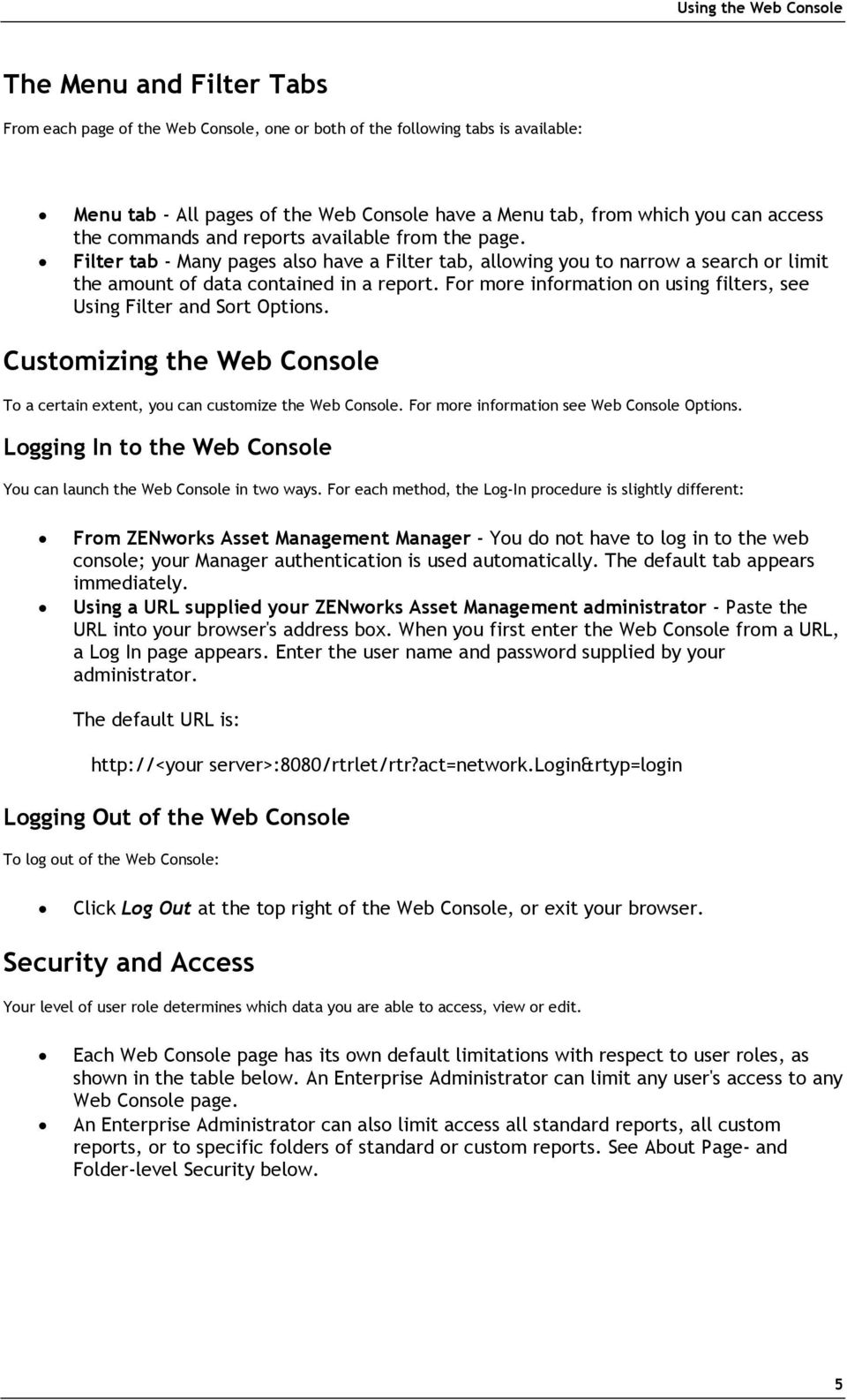
8 Using the ZENworks Asset Management Web Console Web Console Tabs and User Roles The table below shows the default level of access to Web Console pages for each User Role. Notes: The table below shows only the default access for different user roles. An Enterprise Administrator can place further limitations on any user's access from the Administration tab's User Roles page. "All functions" includes creating, editing, exporting and importing custom report definitions. Page Workstation Inventory Network Discovery Software Usage Software Management Contract Management Enterprise Enterprise Administrator Assistant View all data All Custom Report functions for all domains View, Add, Edit, Delete All Custom Report functions for all domains View all data All Custom Report functions for all domains View, Add, Edit, Delete All Custom Report functions for all domains View, Add, Edit, Delete All Custom Report functions for all domains View all data All Custom Report functions for all domains View, Add, Edit, Delete All Custom Report functions for all domains View all data All Custom Report functions for all domains View, Add, Edit, Delete All Custom Report functions for all domains View, Add, Edit, Delete All Custom Report functions for all domains Enterprise Analyst Domain Administrator Asset Inventory Tab View your domain(s) only View all data View existing Custom Reports only View Only View existing Custom Reports only Asset Management Tab View All Data View existing Custom Reports only View Only View existing Custom Reports only View Only View existing Custom Reports only All Custom Report functions for your domain(s) Domain Assistant View your domain(s) only View existing reports only Domain Analyst View your domain(s) only View existing reports only No access No access No access No access No access No access No access No access No access No access No access No access 6
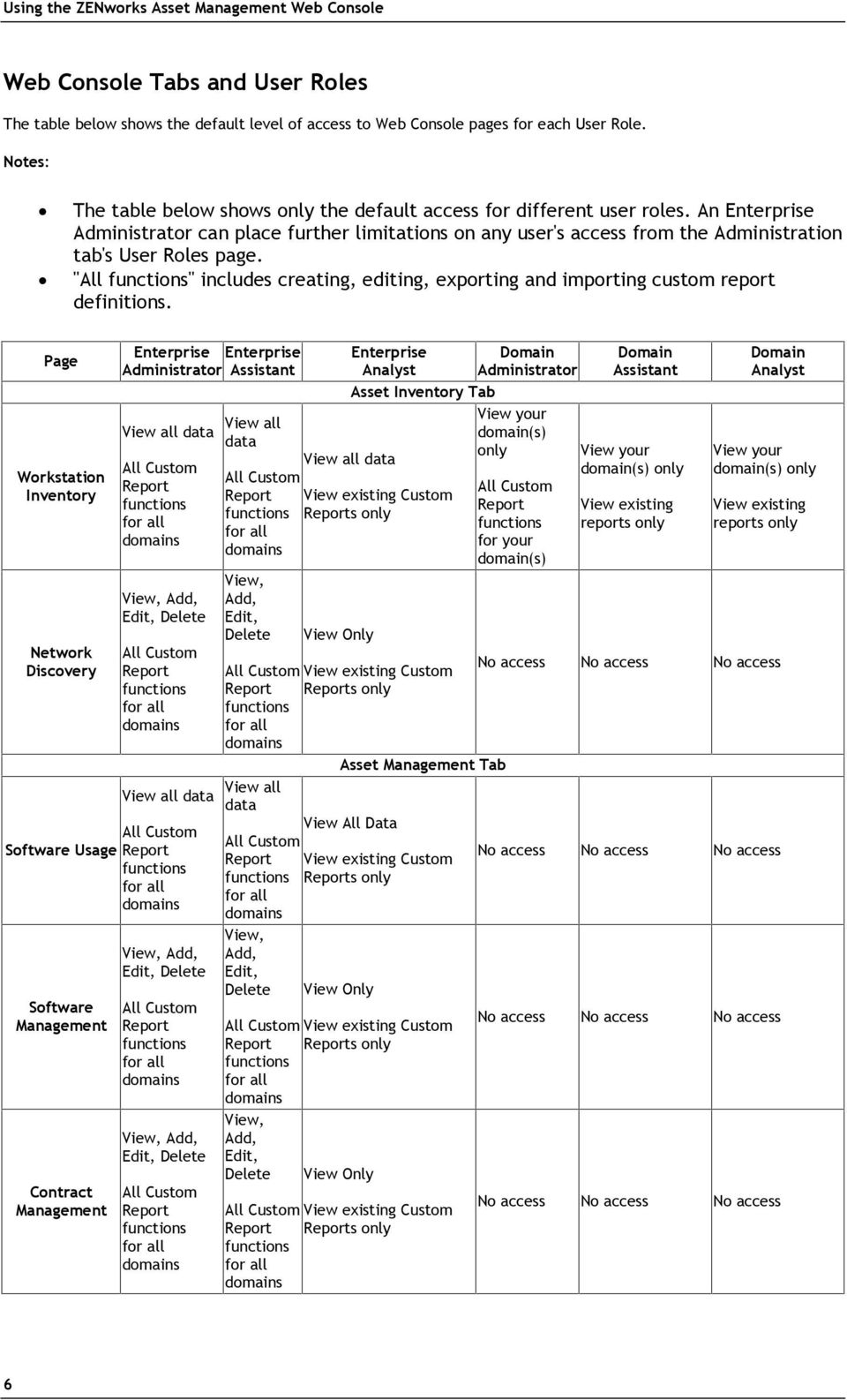
9 Using the Web Console View, Add, Edit, Delete Administration Tab View, Add, Edit, Delete Local Software Products All Custom Report functions for all domains View, Add, Edit, Delete All Custom Report functions for all domains View, Add, Edit, Delete No access No access No access No access Web Applications Documents All Custom Report functions for all domains View, Add, Edit, Delete View all data All Custom Report functions for all domains View, Add, Edit, Delete View all data No access No access No access No access No access No access No access No access Alert Status User Roles Options All Custom Report functions for all domains View, Add, Edit, Delete All functions All Custom Report functions for all domains No access No access No access No access No access No access No access No access No access Default page. Password About Page- and Folder-level Security Other Default page. Password Default page. Password Default page. Password Default page. Password By default, a user is given access defined by the role assigned to the user. Within those access limits, an Enterprise Administrator can further limit access for that user. A user can be prevented from viewing the following: Any page normally available by default Any report folder Any custom report folder 7
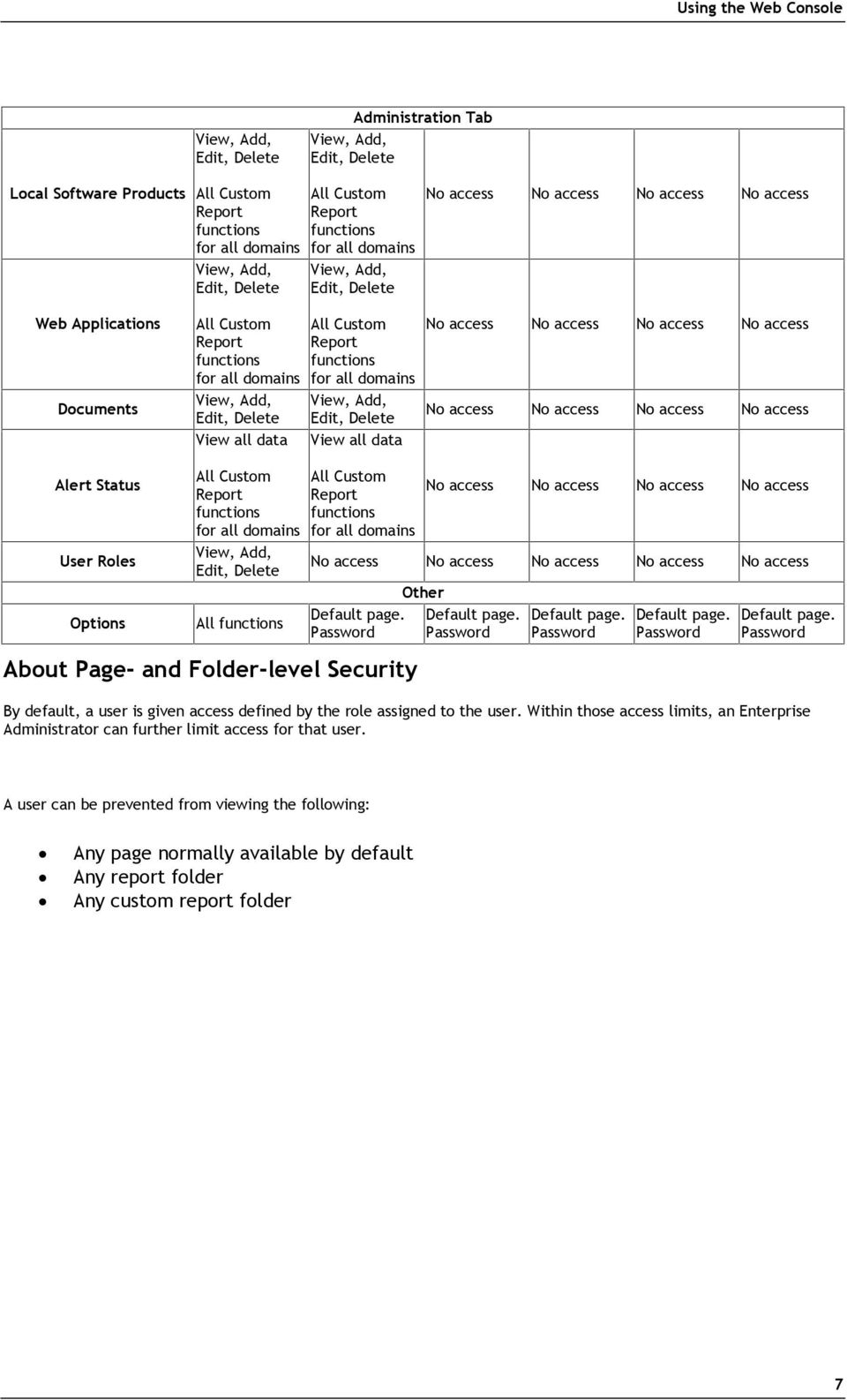
10 Using the ZENworks Asset Management Web Console Web Console Options Use the Web Console Options page to: Specify the tab that appears after you log in to the Web Console Change your login password Specify the graphics file used to display your company logo on reports (Enterprise Administrators only) Specify an server for use with Alerts and Notifications (Enterprise Administrators only) Manage a list of contacts to be used with Alerts and Notifications (Enterprise Administrators only) Specify the default settings for Date Notifications Note to Administrators: By default, Software Management reports run automatically with the default filter options when you call them from the Asset Management > Software Management tab. If you have large amounts of data, there may be a significant delay before the report appears. You can disable this feature, so that the report does not run until you set up a filter and click Search. For more information see TID # Changing the Default Tab When you log in to the ZENworks Asset Management Web Console the Home tab is selected by default. You can change what appears by default, using the Web Console Options page. To change the default tab: 1. Near the upper right corner of the Web Console page, click Options. The Web Console Options page appears in a new window. 2. From the Default Login Tab drop-down menu, choose the tab you want to appear by default. 3. Click Update. The next time you log in, the selected tab appears. Changing Your Password Use the Password Maintenance section of the Web Console Options page to change your login password. To change your login password: 1. Click Change Password. The Change Password window appears. 2. Enter your current password in the Enter Current Password box. 3. Enter your new password in the Enter New Password box and again in the Enter New Password Again box. 4. Click Submit. Your password is changed. 8
11 Using the Web Console Displaying Your Company Logo On Reports You can display your company logo on the reports that appear in the Web Console. Note: The file must be in.gif format. To display your company logo in the Web Console and in reports: 1. Copy the graphics file containing your company logo into the \Tomcat4\webapps\rtrlet\brandinglogos directory on the machine where your ZENworks Asset Management Web Console is installed. 2. Near the upper right corner of the Web Console page, click Options. The Web Console Options page appears. 3. In the Logo File Name text box, enter the name of the graphics file containing your company logo. 4. Click Update. The next time you log in, your logo appears on all reports available from the Web Console. Specifying an Server for Alerts and Date Notifications To send Alerts when custom reports are run, or to send Date Notifications associated with contracts, you must specify an SMTP server to use for sending Alert and Date Notification messages. To specify an SMTP server: 1. Near the upper right corner of the Web Console page, click Options. The Web Console Options page appears in a new window. 2. In the Manage Server section of the Web Console Options page, click Manage E- mail Server. The Server Information page appears in a new window. 3. In the SMTP Server box, enter the name or IP address of the SMTP Server you want to use. Edit the Port if appropriate. 4. In the Sender Address box, enter the address you want to appear as the sender of the In the Account Login Name box, enter the login name for the account you want to use for sending messages. 6. In the Account Password box, enter the password for the specified account. Note: ZENworks Asset Management stores the password in encrypted form. 7. Enter the same password in the Verify Account Password box. 8. Click Update. Alert and Date Notification messages are now sent through this account. 9
12 Using the ZENworks Asset Management Web Console Importing Addresses for Use With Alerts and Notifications You can import a group of addresses you want to appear in the Contacts list in the Schedule/Alert window or in a Date Notification. Addresses can be imported in two ways: From information gathered by ZENworks Asset Management From a comma-separated list in a text file You can also delete all existing addresses from the Contacts list. Importing from Inventory Data You can import addresses into the Contacts list from Inventory Data collected by ZENworks Asset Management during the inventory process. This information could come from the Collection Editor, from Active Directory Imports, or can be entered directly from ZENworks Asset Management Manager. To import addresses from inventory data: 1. In the Manage Addresses section of the Web Console Options page, click Manage Addresses. The Manage Addresses window appears. The default setting of the Import From drop-down menu is set to Inventory Data. 2. Click Import. addresses are imported from inventory data. All available addresses are imported from workstation information in your inventory. Importing Addresses from a Text File You can import addresses from a comma-separated text file. The format is: [name],[ address][cr] Example: James Doe, [email protected] Jane H. Doe, [email protected] To import addresses from a text file: 1. In the Manage Addresses section of the Web Console Options page, click Manage Addresses. The Manage Addresses window appears. 2. From the Import From drop-down menu, choose to Comma-Separated File. The E- mail Address File box appears. 3. Click Browse..., choose the text file you want to import, and click Open. The path for the selected file appears in the address import file box. 4. Click Import. The addresses in the selected file are imported. Note: If the file contains any addresses that match existing addresses, they are not imported. 10
13 Using the Web Console Deleting all Addresses from the Contacts List You can delete all addresses from the Contacts list. To delete all addresses from the Contacts list: 1. In the Manage Addresses section of the Web Console Options page, click Manage Addresses. The Manage Addresses window appears. 2. Click Delete... A confirmation window appears. 3. Click Ok. All addresses are deleted from the Contacts list. Changing the Default Settings for Date Notifications Use the Default Date Notification Settings section of the Web Console Options page to specify the default settings for Date Notifications. To change the default setting for Date Notifications: 1. Click Default Date Notification Settings. 2. In the Send Notification X Days Before Associated Date box, enter the default number of days before a Notification's specified date you want the notification to be sent. 3. If you want the notification to be repeated, click to select Repeat Notification, then specify the period and repeat count in the Every [Day/Week/Month] for [X] [Days/Weeks/Months] boxes. 4. If you want the notification record to be deleted when all instances of the notification have been sent, click to select Delete Date Notification Record When Complete. 5. Click the left or right arrow buttons to move address in the Contacts box to or from the To box. 6. If you want to specify a default additional recipient, enter it in the Additional Recipients box. 7. When finished, click Submit. The default settings are saved. 11
14 Using the ZENworks Asset Management Web Console Viewing Reports Use the Standard reports to view and filter data in useful ways. For every page that contains Standard reports, they appear in the Reports folder of the Menu tab in the left frame. Depending on which report you choose, the right frame may show different types of information: Some reports display automatically when you click them. Most reports display a summary, from which you drill-down to greater detail as needed. Some reports require you to enter filter criteria before viewing the report. Some reports provide a History column, from which you can view Change History for a workstation or component. See Viewing Change History. Using Custom Reports You can also create, view, and edit custom reports, and create Alerts from them. For more information, see Using Custom Reports and Alerts. 12
15 Using the Web Console Viewing Graphs Many reports and lists allow you to view and print the data in a graph format. This feature creates a file in PDF format, and uses the Adobe Acrobat Reader plug-in to display the graph in your browser. Note: Adobe Acrobat Reader is required. Viewing a Graph If a report contains support for graph viewing, a Graph link appears at the bottom of the report window. If the report contains more than 100 lines, a Graph (All) link appears. To view a report as a graph: 1. View the report. Use Filter and Group options as necessary to narrow your search. 2. Click Graph. A graph of the data in the current window in PDF format appears in a new window. If the current report contains more than 100 lines, click Graph (All) to graph all the data in the report. The PDF contains at least three pages - a bar chart, a pie chart, and a line chart. Bar charts can span multiple pages. 13
16 Using the ZENworks Asset Management Web Console Exporting Data You can export data from a report shown in the right frame of the Web Console in the following formats: Excel (.XLS) - You can export report data in Excel's native format. If you have Excel, you can open this file directly with Excel. Comma-separated file (.CSV) - You can export report data to a comma-separated text file. This file contains one line per row, with row columns in each line separated by commas. Portable Document Format (.PDF) - You can export report data to a PDF file. Exporting Data From the Current Window If the report you are viewing has 200 rows or fewer, all items are included in the exported data. Use the Excel, CSV, or PDF buttons at the bottom of the right frame to export only the data for the current window. Exporting Data For the Entire List If the report that you are viewing contains more than 200 rows, it is broken into multiple pages. Use the Excel (All), CSV (All), or PDF (All) buttons at the bottom of the right frame to export all report data. Exporting the Data All export methods work in exactly the same way. To export the data shown in the current window: 1. Click Excel, CSV, PDF, Excel (All), CSV (All), or PDF (All), located at the bottom of the right frame. The File Download window appears. 2. In the File Download window, To open the file, click Open. The application associated with the export file type is launched, and opens the exported file. To save the file, click Save. A standard file Save As dialog appears. Enter a file name, choose a location, and click Save. The report is exported in the selected format. Note: If your browser is set up with a plug-in for PDF format (most browsers are,) the document appears in a browser window. If you want to save the document, click the Acrobat Reader's save button. Alternatively, you can right-click or Control-click the export link (Excel, CSV, etc.) and choose the appropriate command to save the file. 14
17 Using the Web Console Using Custom Reports and Alerts In addition to viewing the Standard reports and Custom reports available from a given Web Console page, you can create custom reports in any of these pages for a wide variety of purposes. Any of these reports can be viewed and printed, but you can also schedule them to run periodically. The output can either be stored automatically for later viewing, or can be sent as an Alert. Custom Reports and Web Console Pages The options available in a custom report vary, depending on which page the report is created in. Only those options that are relevant to a particular page appear, including report focus, column names, and filtering criteria. Each page has its own set of reports and folders. See Also Viewing the Custom Reports List What You Can Do With Custom Reports Working With Custom Reports Working With Custom Report Folders About Custom Report Scope Custom Report Reference Viewing the Custom Reports List Each page has its own set of custom reports. Your level of permissions determines which pages and which custom reports you can view and edit. For more information, see Security and Access. To view the Custom Reports List: 1. Click the tab. A navigation tree appears in the left frame. 2. Click plus (+) to expand the Custom Reports branch of the tree. 3. Continue to expand branches of the tree until you find the report you want. 15

18 Using the ZENworks Asset Management Web Console What You Can Do With Custom Reports Run them just as they are. A number of pre-defined custom reports are shipped with new versions of ZENworks Asset Management. Edit an existing report. You may find that some aspect of a report does not meet your needs. In this case, you can edit the report. Novell recommends that you make a copy of the report definition before you edit it. Copy an existing report. You may find that a report meets your needs, but you would like a similar report with slightly different search criteria. For example, from the "Compliance - Adobe Products" report, you might make a "Non-compliance - Adobe Products" report. You can simply copy the definition, change the name, and change the search criteria. Create a new report. You can create a completely new report from scratch, and save it in any folder you choose. Create new folders to hold report definitions. You may find yourself creating many report definitions. You can create new folders to help you organize your definitions. You can also move reports from one folder to another. Schedule a report to run periodically. You may want to run certain reports daily, weekly, or monthly. You can schedule them to run automatically. The results of the reports appear in the Scheduled Reports Output folder. Schedule a report to run as an Alert. You can schedule a report to run periodically, with the results sent by to one or more recipients. You can also choose to have the results stored in the Scheduled Reports Output folder. Delete or rename a report. You may find you don't need a particular report definition, or that the name is not useful. You can delete or rename the report. Delete or rename a folder. You may find you don't need a particular folder any more, or that the name is not useful. You can delete or rename the folder. Import and export report definitions - Novell and our partners may create a custom report definition for a particular purpose. If you have the proper permissions (see below), you can import these custom report definitions. Notes: Your user role determines which of the functions above you can perform. For more information user roles, see Security and Access. For Scheduled Reports Output, the report scope and your user role determine which reports are visible to you. Working With Custom Report Folders When you first install ZENworks Asset Management, a number of pre-defined custom reports are included in the Custom Reports folder. By default, any new reports you create appear in a folder you are viewing when you create the report. You can create new folders, rename or delete existing folders, and move custom report definitions between folders. Viewing the contents of a custom report folder You can view the contents of any folder as a report definition summary list, or as a list of links in the Custom Reports tree. To view the contents of a custom report folder: Click the link for the folder whose contents you want to view. A summary list of reports contained in the folder appears in the right frame. Click the folder's plus (+) icon to expand the folder. A list of report definitions appears as links in the Custom Reports tree below the folder link. 16

19 Using the Web Console Creating a new custom report folder You can create as many custom folders as you like. Each folder appears as a sub-folder of the Custom Reports tree. To create a new folder: 1. In the Custom Reports tree, click the Custom Reports link. A summary of existing reports and folders appears in the right frame. 2. At the bottom of the right frame, click Add New Folder. The New Folder page appears in a new window. 3. Enter a name in the New Folder text box. 4. Click Add. The new folder appears in the Custom Reports tree. Renaming a custom report folder You can rename any existing custom reports folder. To rename a custom reports folder: 1. Click the link for the folder you want to rename. A summary list of reports appears in the right frame. 2. At the bottom of the right frame, click Rename Folder. 3. The Rename Folder page appears in a new window. 4. In the New Name box, enter a new name for the folder. 5. Click Save. The folder appears in the Custom Reports tree with its new name. Moving or copying a custom report from one folder to another You can move an existing report from one folder to another. You can also copy a report, saving the copy in a new folder. To move a custom report to a different folder: 1. In the Custom Reports tree, click to select the report you want to move. A report definition summary appears in the right frame. 2. At the bottom of the right frame, click Edit. The selected report's definition appears in a new window. 3. In the Folder drop-down list, choose the folder to which you want to move the report definition. 4. At the bottom of the report definition window, click Save. The report definition is moved to the new folder. To copy a custom report to a different folder: 1. In the Custom Reports tree, click to select the report you want to copy. A report definition summary appears in the right frame. 2. At the bottom of the right frame, click Copy. A copy of the selected report's definition appears in a new window. 3. In the Name box, enter a new name or edit the existing name. 4. In the Folder drop-down menu, choose the folder to which you want to save the copied report definition. 5. At the bottom of the report definition window, click Save. The copied report definition is saved in the new folder. 17

20 Using the ZENworks Asset Management Web Console Deleting a custom report folder When you delete a custom report folder, you delete all report definitions contained in the folder. Be sure you want to delete all the report definitions in the selected folder. To delete a custom reports folder: 1. In the Custom Reports tree, click the link for the folder you want to delete. A list of reports appears in the right frame. 2. At the bottom of the right frame, click Delete Folder. A confirm dialog appears. 3. Click Delete to delete the folder. The selected folder is removed from the Custom Reports tree. Working With Custom Reports You can create, edit, copy, run, rename, or delete a custom report. You can also schedule it to run periodically, either as a report to be stored in the Scheduled Reports Output folder for later viewing (or deleting), or as an alert to be E- mailed to one or more recipients, or both. You can export a custom report definition that can be imported for use on another ZENworks Asset Management server. Reports can also depend on the output of other reports, including results in one report based on the output of another. Editing an existing custom report ZENworks Asset Management comes with a number of custom reports. Any of these reports can be edited. Note: You must have the correct permissions to edit a custom report. For more information, see Security and Access. To edit an existing report: 1. In any of the custom reports folders in the left frame, click the report definition you want to edit. A summary of the selected report definition appears in the right frame. 2. At the bottom of the right frame, click Run. The report runs, with the results appearing in the right frame. If no entries appear, no data was found that matches your report's search criteria. For a complete reference to the Custom Report Definition window, see Custom Report Window Reference. 18

21 Using the Web Console Copying an existing custom report You can create a copy of any report definition. To copy an existing report: 1. In any of the custom report folders in the left frame, click the report definition you want to copy. A summary of the selected report definition appears in the right frame. 2. At the bottom of the right frame, click Copy. The Custom Report Definition page opens in new window. The name box contains "Copy of " and the name of the report you are copying. 3. Edit the name of the report if you want to change it. 4. Select a new folder if you want to save it in a different folder from the original. Note: If you folder you want to save it in does not exist, you can save it in the current folder and move it later. 5. Edit the Scope, Columns and Criteria areas of the copied report. For a complete reference to the Custom Report Definition window, see Custom Report Window Reference. 6. When finished, click Save. The new copy is saved in the selected folder. Creating a new custom report You can create a completely new custom report. To create a new report: 1. In the left frame, click any custom report folder. A list of existing reports contained in that folder appears. 2. At the bottom of the right frame, click New Report. The New Report page opens in a new window. 3. Enter a name for the new report. 4. In the Focus area, click to choose a Focus for the report. The Focus determines which columns and search criteria are available to your report. 5. Click Continue... The Custom Report Definition page appears. 6. In the Name box, edit the name if you want to change it. 7. Enter a Description if you want to include one. 8. From the Folder drop-down list, choose the folder you want to store the report definition in. Note: If you folder you want to save it in does not exist, you can save it in the current folder and move it later. 9. Edit the Scope, Columns and Criteria areas of the new report. For a complete reference to the Custom Report Definition window, see Custom Report Window Reference. For more on Report Scope, see About Custom Report Scope. 10. If you find that you have chosen the wrong Focus for the report, click Back and choose a new focus. 11. When finished, click Save. The new report is saved in the selected folder. 19
22 Using the ZENworks Asset Management Web Console Creating a new Alert Creating an Alert is identical to creating a custom report, except that you can specify one or more recipients of an E- mail message. The message can contain a link to a stored report, or you can choose to attach an Excel spreadsheet. For more information, see Scheduling a custom report, an alert, or both. When you save an Alert, it appears in the Alerts folder. Running a custom report You can run a custom report at any time, and view its output in the right frame. To run a custom report: 1. In any of the custom report folders in the left frame, click the definition you want to run. A summary of the selected report definition appears in the right frame. 2. At the bottom of the right frame, click Run. The report runs immediately, and the results appear in the right frame. Scheduling a custom report, an alert, or both You can schedule a custom report to run periodically. You can: Run the report and save the output to the Scheduled Reports Output folder. Run the report as an Alert, and the resulting output to one or more specified addresses. Run the report as an Alert, and the resulting output to one or more specified addresses, but also save the output to the Scheduled Reports folder. Note: The addresses available in the Contacts list, the return address of the sender, and the outgoing mail server are specified in the Web Console Options page. For more information, see Web Console Options. To schedule a custom report: 1. In any of the custom report folders in the left frame, click the report definition you want to schedule. A summary of the selected report definition appears in the right frame. 2. At the bottom of the right frame, click Schedule/Alert. The Schedule/Alert page appears in a new window, showing the name of the selected report definition. 3. In the Start Date box, click and click to choose a date from the calendar. 4. From the Frequency drop-down menu, choose how often you want the Alert to run. 5. In the Output section, click to choose Store Report Results, Send an Alert, or Both. 20
23 Using the Web Console 6. If you want an Alert to be sent only when matching records are found and the report contains data, select Send alert/store results only when matching records are found. 7. In the Maximum Records box, enter the maximum number of records you want to include in the report. 8. If you chose Send an Alert or Both, a number of additional options appear. In the Delivery Format section, choose Excel Attachment or Link to Stored Report. 9. In the Contacts box, click to select the recipients you want to send the alert to. 10. To move the selected recipients to the To box, click To move all recipients, click. For a complete reference to the Custom Report Definition window, see the schedule section of the Custom Report Window Reference topic. 11. If you want to specify additional recipients, enter their addresses in the Additional Recipients box, separated by commas (,). 12. When finished, click Save. The Alert or report runs on the specified schedule. Viewing and Deleting the output of a scheduled report Use the Scheduled Reports Output folder of the Custom Reports tree to view a list of reports whose output has been stored there. You can view the list of reports by title or by date. You can also delete any stored report. To change the way the Scheduled Reports Output folder is organized: 1. In the Custom Reports tree, click the link for the Scheduled Reports Output folder. A Report Group selector appears in the right frame. 2. From the Report Group drop-down menu, choose to group reports by Date or by Title. 3. Click Submit. An All Titles or All Dates subfolder appears in the Scheduled Reports Output folder in the Custom Reports tree. To view a list of available reports in the Scheduled Reports Output folder: In the Custom Reports tree, expand the Scheduled Reports Output folder, then expand the All Titles or All Dates subfolder. A list of stored reports appears in the Custom Reports tree. Click a report link to view the report. In the Custom Reports tree, expand the Scheduled Reports Output folder, then click the link for the All Titles or All Dates folder. A list of reports appears in the right frame. Click a report link to view the report. To delete a stored report: 1. View the report as described above. The selected report appears in the right frame. 2. At the bottom of the right frame, click Delete Report. A confirm window appears. 3. Click Delete to delete the selected report. It disappears from the list of custom reports in the left frame. 21
24 Using the ZENworks Asset Management Web Console Renaming a custom report You can rename any existing report definition. To rename a custom report: 1. In any of the custom report folders in the left frame, click the report definition you want to rename. A summary of the selected report definition appears in the right frame. 2. At the bottom of the right frame, click Edit. The Custom Report Definition page appears in a new window. 3. In the Name box, edit the report name. 4. When finished, click Save. The selected report definition appears in the selected folder with the new name. Deleting a custom report You can delete a custom report definition. Caution: You cannot retrieve a report definition once you have deleted it. To delete a custom report definition: 1. In any of the custom report folders in the left frame, click the report definition you want to delete. A summary of the selected report definition appears in the right frame. 2. At the bottom of there right frame, click Delete. The Custom Report Definition page disappears from the Custom Reports tree. Importing and Exporting Custom Report Definitions You can import a custom report definition created on another ZENworks Asset Management system. You can also export your own custom report definitions for use on other ZENworks Asset Management systems. Note: You must have proper permissions to import a report definition. For more information, see Security and Access. To import a report definition: 1. Click the link for Custom Reports. A list of report folders appears in the right frame. 2. At the bottom of the right frame, click Import Custom Report Definition. The Import Custom Report Definition window appears. 3. Click Browse... and locate the file containing the custom report definition. 4. Click Import. The selected report appears in the Imported Report Definitions folder. Note: If you do not already have one, an Imported Report Definitions folder is created for you automatically. 22
25 Using the Web Console To export a report definition: 1. In the Custom Reports tree, click the link for the custom report definition you want to export. A summary of the report definition appears in the right frame. 2. In the lower right corner of the right frame, click Export. A standard Save As dialog appears. 3. Choose a location for the file, and click Save. The report definition is saved in a file at the specified location. Dependent Reports When creating custom reports, you can make the results in one report depend on the output of another report. You could use this feature, for example, to create a report that shows all workstations in Building X that have a particular application installed (or not installed). Dependent Reports in the Workstation Inventory Page In the Asset Inventory > Workstation Inventory page, a report can depend on any Workstation report. You can specify that results from your Workstation Inventory report appear only if a workstation appears in another report. This is useful, for example, if you want to show workstations in a particular group that do not have a certain product installed on them. Dependent Reports in the Network Discovery Page In the Asset Inventory > Network Discovery page, a report can depend on any Network Device report. You can specify that results from your report appear only if a network device appears in another report. This is useful, for example, if you want to show all buildings in a particular group in which a certain network device is installed. Dependent Reports in the Software Usage Page In the Asset Management > Software Usage page, a report can depend on any Workstation report. You can specify that results from your Software Usage report appear only if a workstation appears in another report. This is useful, for example, if you want to show workstations in a particular group that have application usage that meets certain criteria, such as "All Microsoft Application Usage for Workstations in Building X." Creating a Dependent Report The process for creating a dependent report is the same in the Workstation Inventory, Network Discovery, and Software Usage pages. To create a report that depends on the output of another report: 1. Create or edit the report. 2. In the Custom Report Definition's Criteria section, click to add a line. 23
26 Using the ZENworks Asset Management Web Console 3. If you are creating a report from the Workstation Inventory or Software Usage page, choose Workstation from the Field drop-down menu. The Operator box changes to in report. If you are creating a report from the Network Discovery page, choose Network Device from the Field drop-down menu. The Operator box changes to in report. 4. If you want the results of the report to depend on workstations or network devices that appear in the report, leave the Operator setting as is. If you want the results to appear if the workstation or network device does not exist, choose not in report from the Operator drop-down menu. 5. Click, then choose the report you want this report to depend on. 6. Make sure that boolean operator for the previous criteria line is set to AND, rather than OR. 7. Choose the rest of the criteria for the report. Example: Show all Workstations in Building X that have Excel installed 1. On the Workstation Inventory page, create a report that shows workstations from Building X, (named Workstations in Building X). 2. Create a report showing Workstations that have Excel installed (Product = "Excel"). 3. Add a line to the Criteria section that depends on the Workstations in Building X report. Make sure the boolean operator for the previous line is set to AND. When you run the report, it shows only those workstations in Building X that have Excel installed. About Custom Report Scope The scope of a report definition is the area of the enterprise that it has access to. If the scope of the report definition is the entire enterprise, the report produces results from the entire enterprise. If the scope of the report definition is a list of domains, the report produces results only from those domains. How does the report scope get assigned? When you create a report definition, it is assigned a scope. If you do nothing, your scope is assigned to the report definition. For example, if the you are an enterprise level user, the report has access to all domains. If you are a domain level user, the report has access to just the domains that you have access to. How does the report scope affect what you see? The report scope affects what you see only in Asset Inventory and Software Usage reports. You can see only those report definitions, schedules, and stored results whose scope is a subset of your scope. The scope of a stored result is the same as the scope of the report definition at the time the stored result was created. You can change scope of the report definition, but a stored result always has the scope it was created with. 24
27 Using the Web Console How do you set or change the report scope? You change the scope of a report definition the Custom Report Definition detail page. The scope also appears in the header of all custom reports. For more information on editing the report scope, see Working With Custom Reports. For a complete reference to the Custom Report Definition window, see Custom Report Window Reference. The choices available for scope depend on your user role and the domains you have access to. Enterprise level users can choose All Domains or any combination of domains. Domain level users can choose only from the domains they have access to. For more information, see Security and Access. Custom Report Reference The following sections describe the elements that appear in various pages of the Custom Reports features. Custom Report Definition Summary Use the Custom Report Definition Summary window to view a summary of the Custom Report Definition. Description - Descriptive text about the report Type - Report type and focus Columns - A list of columns in the report Criteria - The search criteria for the report Scope - The report scope Creator - The user who created the report Creation Date - The date the report was created Last Run Date - The date that the report was last run Use the commands at the bottom of the right frame as follows: Run - Run the selected report immediately. Schedule/Alert - Schedule the selected report to run at a specified time, for a specified period, as a stored report, as an alert or both. Edit, Edit Report Definition - Edit the definition of the selected report. Copy - Create a copy of the selected report. Delete - Delete the selected report. Export - Save the report definition to a file that can be imported by another ZENworks Asset Management system. Excel - Export the viewed records of the report to an Excel spreadsheet. Excel All - Export all records in the report to an Excel spreadsheet. PDF - Convert the viewed records of the report to a PDF file. PDF All - Convert all records in the report to a PDF file. Graph - Convert the viewed records of the report to a graph, and output to a PDF. Graph All - Convert all of the data in the report to a graph, and output to a PDF. 25
28 Using the ZENworks Asset Management Web Console New Report Window Use the New Report Window to set the name and focus for a custom report. This is the first step in creating a new custom report. Name - Enter a name for the new report. Focus - Click to choose a focus for the report. Choosing a focus determines the available columns and search criteria for the new report. New focus options may appear with new releases. Custom Report Definition Window Use the Custom Report Definition Window to create or edit report definitions. Through this window, you can specify all the information necessary to create a wide variety of reports. Name - Enter or edit the name for the report. Folder - Choose a folder in which you want to save the report definition. Use this control to move an existing report from one folder to another, or to specify a destination folder for a new report. Description - Enter text to describe the report. This description appears in the Report Definition Summary. Type - Shows the selected focus for the report. Scope - Set a scope for the report. Click to choose a domain. For more information, see Edit Report Scope Window Reference. Columns Add a column to the report. Click to move a selected column name from the Available box to the Displayed box. Add all columns to the report. Click to move all column names from the Available box to the Displayed box. Remove a column from the report. Click to move a selected column name from the Displayed box to the Available box. Remove all columns from the report. Click to move all column names from the Displayed box to the Available box. Move the selected column up. Click to move the selected column toward the top of the list in the Displayed box. This moves the column to the left in the report. Move the selected column down. Click to move the selected column toward the bottom of the list in the Displayed box. This moves the column to the right in the report. 26
29 Using the Web Console Criteria Use the criteria to include or exclude entries in the report based on a value in the database. Add search criteria - Click to add another line of search criteria. Remove search criteria - Click to remove the selected line from the search criteria. Choose from a list of available values - Click to select from a list of available values for the selected criteria field. Choose a date from a calendar - Click to view a calendar on which you can click to choose a date. Note: Many Custom Reports appear with default criteria. Except in Custom Reports, ZENworks Asset Management automatically filters out the following: Workstations that have been marked as deleted Products that have been deleted In Custom Reports, however, you can view workstations and products that have been deleted. For this reason, default criteria in the Custom Reports definitions have been established to filter deleted products and workstations. These criteria can be removed so that deleted workstations and products can be included. Summary Criteria - Some Custom Report types offer Summary Criteria. Use summary criteria to include or exclude entries in the report based on a calculated value. Each available option in the Summary Field drop-down menu corresponds to an available column in the Columns section. Summary criteria are added exactly in the same way as other criteria. Example: Many reports include an Installations column, which is available as Summary Criteria. If you want to see only products for which you have more than 100 installations, add a Summary Criteria entry as follows: Installations >
30 Using the ZENworks Asset Management Web Console Schedule Window Use the Schedule/Alert window to schedule the selected report, either to be stored or to be ed as an alert. Start Date - Click to select a date from a calendar window. Frequency - Choose from the Frequency drop-down menu to specify how often you want the report to be run. Maximum Records - Enter a value in the Maximum Records box to limit the number of entries in the report. Output - Click to choose a destination for the output of the report. Click Store Report Results to store the report in the Scheduled Reports Output folder. Click Send an Alert ( ) to send the report as an alert to the specified recipients. Click Both to store the report results and send them as an alert. Non-empty results only - Select or clear this check box to choose whether the result should be stored or ed if it the resulting report is empty. If Send an Alert ( ) or Both is selected Delivery Format - Choose a format for the delivery of the Alert. Click Excel Attachment to send the report in Excel format as an attachment to the E- mail. Click Link to Stored Report to send an containing links to the stored report and an Excel file stored on the Web Console Server. From - Shows the address of the sender. Recipients - Choose recipients from the Contacts list: Add an recipient to the Alert. Click to move a selected recipient from the Contacts box to the To box. Add all recipients to the Alert. Click to move all recipients from the Contacts box to the To box. Remove an recipient from the Alert. Click to move a selected recipient from the To box to the Contacts box. Remove all recipients from the Alert. Click to move all recipients from the To box to the Contacts box. Additional Recipients - Enter addresses for recipients that do not appear in the Contacts list. Note: Addresses can be added to the Contacts list from the Web Console Options page. 28
31 Using the Web Console Edit Report Scope Window Use the Edit Report Scope to define the scope for the selected report. For more information, see About Custom Report Scope. All Domains - Click this button to allow this custom report to be available to all domains. Selected Domains - Click this button, then choose the domains for which you want this report to be available. Add a domain to the report scope - Click to move a selected domain name from the Available Domains box to the Active Domains box. Add all domains to the report scope. Click to move all domain names from the Available Domains box to the Active Domains box. Remove a domain from the report scope. Click to move a selected domain name from the Active Domains box to the Available Domains box. Remove all domains from the report scope. Click to move all domain names from the Active Domains box to the Available Domains box. Apache License Apache License Version 2.0, January TERMS AND CONDITIONS FOR USE, REPRODUCTION, AND DISTRIBUTION 1. Definitions. "License" shall mean the terms and conditions for use, reproduction, and distribution as defined by Sections 1 through 9 of this document. "Licensor" shall mean the copyright owner or entity authorized by the copyright owner that is granting the License. "Legal Entity" shall mean the union of the acting entity and all other entities that control, are controlled by, or are under common control with that entity. For the purposes of this definition, "control" means (i) the power, direct or indirect, to cause the direction or management of such entity, whether by contract or otherwise, or (ii) ownership of fifty percent (50%) or more of the outstanding shares, or (iii) beneficial ownership of such entity. "You" (or "Your") shall mean an individual or Legal Entity exercising permissions granted by this License. "Source" form shall mean the preferred form for making modifications, including but not limited to software source code, documentation source, and configuration files. "Object" form shall mean any form resulting from mechanical transformation or translation of a Source form, including but not limited to compiled object code, generated documentation, and conversions to other media types. "Work" shall mean the work of authorship, whether in Source or Object form, made available under the License, as indicated by a copyright notice that is included in or attached to the work 29
32 Using the ZENworks Asset Management Web Console (an example is provided in the Appendix below). "Derivative Works" shall mean any work, whether in Source or Object form, that is based on (or derived from) the Work and for which the editorial revisions, annotations, elaborations, or other modifications represent, as a whole, an original work of authorship. For the purposes of this License, Derivative Works shall not include works that remain separable from, or merely link (or bind by name) to the interfaces of, the Work and Derivative Works thereof. "Contribution" shall mean any work of authorship, including the original version of the Work and any modifications or additions to that Work or Derivative Works thereof, that is intentionally submitted to Licensor for inclusion in the Work by the copyright owner or by an individual or Legal Entity authorized to submit on behalf of the copyright owner. For the purposes of this definition, "submitted" means any form of electronic, verbal, or written communication sent to the Licensor or its representatives, including but not limited to communication on electronic mailing lists, source code control systems, and issue tracking systems that are managed by, or on behalf of, the Licensor for the purpose of discussing and improving the Work, but excluding communication that is conspicuously marked or otherwise designated in writing by the copyright owner as "Not a Contribution." "Contributor" shall mean Licensor and any individual or Legal Entity on behalf of whom a Contribution has been received by Licensor and subsequently incorporated within the Work. 2. Grant of Copyright License. Subject to the terms and conditions of this License, each Contributor hereby grants to You a perpetual, worldwide, non-exclusive, no-charge, royalty-free, irrevocable copyright license to reproduce, prepare Derivative Works of, publicly display, publicly perform, sublicense, and distribute the Work and such Derivative Works in Source or Object form. 3. Grant of Patent License. Subject to the terms and conditions of this License, each Contributor hereby grants to You a perpetual, worldwide, non-exclusive, no-charge, royalty-free, irrevocable (except as stated in this section) patent license to make, have made, use, offer to sell, sell, import, and otherwise transfer the Work, where such license applies only to those patent claims licensable by such Contributor that are necessarily infringed by their Contribution(s) alone or by combination of their Contribution(s) with the Work to which such Contribution(s) was submitted. If You institute patent litigation against any entity (including a cross-claim or counterclaim in a lawsuit) alleging that the Work or a Contribution incorporated within the Work constitutes direct or contributory patent infringement, then any patent licenses granted to You under this License for that Work shall terminate as of the date such litigation is filed. 4. Redistribution. You may reproduce and distribute copies of the Work or Derivative Works thereof in any medium, with or without modifications, and in Source or Object form, provided that You meet the following conditions: (a) You must give any other recipients of the Work or Derivative Works a copy of this License; and (b) You must cause any modified files to carry prominent notices stating that You changed the files; and (c) You must retain, in the Source form of any Derivative Works that You distribute, all copyright, patent, trademark, and attribution notices from the Source form of the Work, excluding those notices that do not pertain to any part of the Derivative Works; and (d) If the Work includes a "NOTICE" text file as part of its distribution, then any Derivative Works that You distribute must 30
33 Using the Web Console include a readable copy of the attribution notices contained within such NOTICE file, excluding those notices that do not pertain to any part of the Derivative Works, in at least one of the following places: within a NOTICE text file distributed as part of the Derivative Works; within the Source form or documentation, if provided along with the Derivative Works; or, within a display generated by the Derivative Works, if and wherever such third-party notices normally appear. The contents of the NOTICE file are for informational purposes only and do not modify the License. You may add Your own attribution notices within Derivative Works that You distribute, alongside or as an addendum to the NOTICE text from the Work, provided that such additional attribution notices cannot be construed as modifying the License. You may add Your own copyright statement to Your modifications and may provide additional or different license terms and conditions for use, reproduction, or distribution of Your modifications, or for any such Derivative Works as a whole, provided Your use, reproduction, and distribution of the Work otherwise complies with the conditions stated in this License. 5. Submission of Contributions. Unless You explicitly state otherwise, any Contribution intentionally submitted for inclusion in the Work by You to the Licensor shall be under the terms and conditions of this License, without any additional terms or conditions. Notwithstanding the above, nothing herein shall supersede or modify the terms of any separate license agreement you may have executed with Licensor regarding such Contributions. 6. Trademarks. This License does not grant permission to use the trade names, trademarks, service marks, or product names of the Licensor, except as required for reasonable and customary use in describing the origin of the Work and reproducing the content of the NOTICE file. 7. Disclaimer of Warranty. Unless required by applicable law or agreed to in writing, Licensor provides the Work (and each Contributor provides its Contributions) on an "AS IS" BASIS, WITHOUT WARRANTIES OR CONDITIONS OF ANY KIND, either express or implied, including, without limitation, any warranties or conditions of TITLE, NON-INFRINGEMENT, MERCHANTABILITY, or FITNESS FOR A PARTICULAR PURPOSE. You are solely responsible for determining the appropriateness of using or redistributing the Work and assume any risks associated with Your exercise of permissions under this License. 8. Limitation of Liability. In no event and under no legal theory, whether in tort (including negligence), contract, or otherwise, unless required by applicable law (such as deliberate and grossly negligent acts) or agreed to in writing, shall any Contributor be liable to You for damages, including any direct, indirect, special, incidental, or consequential damages of any character arising as a result of this License or out of the use or inability to use the Work (including but not limited to damages for loss of goodwill, work stoppage, computer failure or malfunction, or any and all other commercial damages or losses), even if such Contributor has been advised of the possibility of such damages. 9. Accepting Warranty or Additional Liability. While redistributing the Work or Derivative Works thereof, You may choose to offer, and charge a fee for, acceptance of support, warranty, indemnity, or other liability obligations and/or rights consistent with this License. However, in accepting such obligations, You may act only on Your own behalf and on Your sole responsibility, not on behalf of any other Contributor, and only if You agree to indemnify, defend, and hold each Contributor harmless for any liability incurred by, or claims asserted against, such Contributor by reason of your accepting any such warranty or additional liability. 31
34 Using the Asset Inventory Tab The Asset Inventory Tab Use the Asset Inventory tab to: Manage your Workstation Inventory View and manage devices discovered using the Network Discovery engine. Note: The reports you are able to view and the data you are able to edit depends on your user role. For more information on user roles and access, see Security and Access. 32
35 Using the Asset Inventory Tab Using the Workstation Inventory Page Use the Asset Inventory tab's Workstation Inventory page to view a list of systems, and to view a variety of and custom reports. The Workstation Inventory page is divided into two frames: The Left Frame - shows a list of systems in your inventory database, organized in the form of a tree. Below the inventory list is a list of reports, organized by category. such as software, hardware, and usage reports. For detailed information on the System List, see Viewing the System List. For more information on using reports, see Viewing Reports. The Right Frame - displays the inventory data or report results, depending on what branch of the tree you have selected on the left. To view a report or inventory list: 1. Expand the tree until you find the list or report you want to view. 2. Click the link for the selected list or report. 3. In the right frame, drill-down to the specific information you are looking for. To change the way data is sorted in a report or list: Click a column heading. The data is sorted by that column. To reverse the sort order: Click the column heading again. To print a list of systems or a report: Click PDF. The report is converted to a PDF file, ready for printing. Note: You must have Acrobat Reader installed in order to view and print PDFs. To export data to an Excel spreadsheet or CSV file: Click Excel. The viewed page of the report is converted to a spreadsheet, and opens in Excel. Click Excel All to export all pages of the report to Excel. Click CSV. The report is converted to a comma-separated text file. You can choose to Open or Save. If you choose Open, the file is opened in the application associated with CSV files. 33
36 Using the ZENworks Asset Management Web Console Viewing the System List By default, the System List is organized by Department. You can organize the data in a number of ways. To change the way your system list is organized: 1. In the left frame of the Asset Inventory > Workstation Inventory page, click System List. A list of system groups appears in the right frame. 2. In the right frame, choose a System Group from the drop-down list. 3. If you want to group your systems further, choose a sub-group from the System Sub- Group drop-down list. Choose None (the default) if you do not want to sub-group your systems. 4. Click Submit. The System List in the left frame is re-organized to reflect your changes. Note: When viewing reports from the Workstation Inventory page, if the report you have chosen displays a summary, it is organized using your grouping choice from step 2 above. To view a list of systems within a System List group or sub-group: 1. In the left frame, click plusses (+) to expand the System List tree, until you see the list you want to view. 2. Click the link for the list you want to view. The list appears in the right frame. 3. Drill-down through the data on the right to view more details about a particular system. Scanning a Workstation Immediately Sometimes you need to initiate a scan of a workstation between collection cycles. For example, if you have enabled Software File Scanning in a Collection Option Set, you might not want to wait until the next scheduled collection to scan the machine. You can initiate a scan of one or more workstations from the Web Console. To initiate the scan of a workstation: 1. View a list of workstations. The System List on the Workstation Inventory page is a good way to find a machine quickly. 2. At the bottom of the right frame, click Select for Scan. A check box appears next to each workstation in the list. 3. Click the check boxes for the machines you want to scan. Click a checked box to clear it. To select or clear all of the check boxes at once, select or clear the Select check box at the top of the column. 4. Click Scan Selected Workstations. A scan is scheduled for immediate execution for each selected machine. 34
37 Using the Asset Inventory Tab About Reports & Platforms When you collect inventory data from multiple platforms, the following should be kept in mind: Macintosh machines, hardware, and applications appear in reports in the same way they do for Windows machines. Macintosh is one type of Platform. Certain reports do not apply to Macintosh, UNIX, or Linux platforms. These reports contain additional text at the top of the page, indicating that they are only for Windows machines. When discovering products, the platform becomes part of the discovered product definition. About Workstation Inventory Reports The Workstation Inventory reports provide you with many different ways to view the data collected by ZENworks Asset Management. Using the Workstation Inventory Reports Use the Workstation Inventory reports to view your inventory data in a number of ways: Find - Use the Find feature to find one or more workstations that match the criteria you specify. Systems - Use the Systems menu to view groups of systems (such as workstations and servers,) organized in a variety of ways. You can drill down to view comprehensive information about each system. Software Applications - Use this set of reports to view your installed software in a number of ways - check the status of Anti-virus software, view software by Category, Manufacturer, or Product, track duplicate serial numbers, applications that use a lot of bandwidth, and view a number of other useful software reports. Software Files - View a list of software files collected when the Collect Software File Information box is checked in the Collector Tab of a Collection Option Set. You can also view a report showing the usage of any of those files. Hardware Components - Use this set of reports to view installed hardware components associated with your systems. View lists of hardware by Category, Manufacturer, or Product, check disk space, BIOS versions, serial numbers, processors and memory. Upgrade Readiness - Check the state of your workstations with respect to upgrading application software and operating systems. License Tracking - If you are not using ZENworks Asset Management Software Management, use this category to view license information that has been entered in ZENworks Asset Management Manager. For more information, see Analyzing License Compliance in the Administration book of ZENworks Asset Management Manager's online help. ZENworks Asset Management Admin - Use the reports in this category to help you manage your ZENworks Asset Management installation. 35
38 Using the ZENworks Asset Management Web Console Workstation Inventory Custom Reports A number of pre-defined custom reports are available with a new installation of ZENworks Asset Management. They appear in the following folders. You can also create your own custom reports, either in existing folders or in new folders. HW Components - View a number of hardware component-related reports. SW Applications - View a number of Software Application reports, with a focus on Anti- Virus configuration Systems - View reports related to workstations, with a focus on workstation attributes, product or file filtering, connection information, or workstation history. Alerts - View a list of reports that have been created as Alerts. An Alert is a report that runs at a specified time, and the output is sent to one or more recipients in an message. Scheduled Reports Output - View a list of reports that have been run at a scheduled time. Viewing Change History The Workstation Detail report contains a History link. Click this link to view Change history for the workstation. Many component reports contain a History column, if any history has been recorded. The history information shown in these reports represents all of the changes, additions, and deletions since the workstation or component was first scanned by ZENworks Asset Management, or for the period set in the Keep All Workstation History Data for preference in the ZENworks Asset Management Manager's Enterprise Options dialog, available from the Tools menu. The default value is one year. About Software File Reports Use these reports, available from the Asset Inventory tab > Workstation Inventory page, to review a list of Software Files found on workstations on your network. View any of these reports: By Category - Drill down to a list of categories (Software Files by Category), and again to a list of software files (Software Files List) for that category. By Manufacturer - Drill down to a list of manufacturers (Software Files by Manufacturer), again to a list of products (Software Files: Product List) for that manufacturer, again to a list of workstations containing copies of those products (Software Files: Workstation List), and finally to a list of software files on a selected workstation (Software Files List for Workstation) or a list of products for a selected workstation (Software Files: Product List). By Workstation - Drill down to a list of workstations, and again to a list of software files on a selected workstation (Software Files List for Workstation) or a list of products for a selected workstation (Software Files: Product List). 36
39 Using the Asset Inventory Tab Each report drills down to one or more of these reports: Software Files List Software Files by Category Software Files by Manufacturer Software Files: Workstation List Software Files List for Workstation - You can create local products from this list. Software Files: Product List Software Files Report Columns Explained Each report shows a set of columns from the list below, calculated the same way in each report. Certain columns are not applicable to certain reports, and do not appear. Where applicable, the calculations used to arrive at a displayed value are explained. Much of this information is read from the file's VRB (Version Resource Block) data. # of Files, # of Products The number of files or products found on a particular workstation. See "Unique Files, Unique Products" below for an explanation of files and products. Unique Files, Unique Products, Total Files The number of unique and total files found. The difference between these two values represents the number of duplicate files or products found. A "Unique File" has a unique combination of file name, extension and date. A "Unique Product" has a unique combination of Manufacturer, Version and Language. A unique file or product is counted only once, even if it appears on more than one workstation. Manufacturer, Product, Version Shows any available information contained in the file's VRB data block. (All files sharing the same values in these three fields are considered part of the same product.) File Name, Extension, File Date Identifies the file. Size The file's size in bytes. Path The location of the file on the selected workstation. Language The application's specified language. Category System File, Ancillary, or Other. Choose these categories in the ZENworks Asset Management Manager's Collector tab when defining a Collection Option set. Copies The number of copies of the file found. Workstation, Login, User, MAC Address - Information about the workstation on which one or more software files were found. Software Files List Report Columns File Name, Extension, File Date Category - (Appears only when viewing "All" categories) Copies Drill down to view the Software Files: Workstation List. 37
40 Using the ZENworks Asset Management Web Console Software Files: Workstation List Report Columns Workstation Login User Mac Address # of Files Drill down to view the Software Files List for Workstation. You can create local products from this list. # of Products Drill down to view the Software Files: Product List. Software Files List for Workstation Use the Software Files list to create local products from software files discovered during a Software File scan. Report Columns: Software Files List Select - Click to select or clear checkboxes for software files you want to use to create one or more local products. Click to select or clear checkboxes for all files on the current page. File Name, Extension, File Date Size Path Software Files: Product List Report Columns Manufacturer Product Version Language Category Copies Drill down to view the Software Files: Workstation List Report. 38
41 Using the Asset Inventory Tab Software Files By Category Use this report to view Software File grouped by Category. (System File, Ancillary, or Other. Choose these categories in the ZENworks Asset Management Manager's Collector tab when defining a Collection Option set.) The first page of the report shows the available groups as defined by the top-level filter in the System List tree. Drill Down Tree Software Files by Category Software Files List Software Files: Workstation List Software Files List for Workstation Software Files: Product List Report Columns Category Unique Files Total Files Software Files By Manufacturer Use this report to view software files grouped by Manufacturer. The first page of the report shows the available groups as defined by the top-level filter in the System List tree. Drill Down Tree Software Files by Manufacturer Software Files: Product List Software Files: Workstation List Software Files List for Workstation Software Files: Product List 39
42 Using the ZENworks Asset Management Web Console Software Files By Workstation Use this report to software files grouped by Workstation. The first page of the report shows the available groups as defined by the top-level filter in the System List tree. Drill Down Tree Software Files: Workstation List Software Files List for Workstation Software Files: Product List 40
43 Using the Asset Inventory Tab About Reports & Virtual Machines ZENworks Asset Management scans machine emulation software, such as VMware and Virtual PC in the same way it scans any real workstation. The information reported from these installations should be viewed with the following information in mind. Finding virtual machines and machines that host virtual machines You can identify machines that host virtual machines as well as virtual machine installations. A Hosts of Virtual Machines custom report, available in the Custom Reports > Systems folder of the Asset Inventory tab > Workstation Inventory page, shows a list of virtual machines. In the same folder, Virtual Machines report lists all installed virtual machines. The Workstation Detail report for a machine lists virtual machines at the bottom of the report. Virtual machines in reports Virtual machines look exactly like real workstations in reports. In some reports it may be difficult to distinguish virtual machines from real ones. Here are some ways that you can distinguish virtual machines from real ones: System List and Standard Reports - When viewing a list of systems or a standard report from the Reports tab, you can specify group and sub-group methods. For either the group or sub-group method, you can choose Virtual Machine Type as a group. This separates virtual machines from real workstations in all standard reports. Workstation Detail - When viewing the Workstation Detail for a machine, all virtual machines installed on that machine are listed at the bottom of the report. If you view the Workstation Detail report for a virtual machine, "(Virtual Machine)" appears in the report header after the machine name. With Virtual Machines report - The With Virtual Machines report lists all machines on which virtual machines are installed, as well as the machine name and other information about each installation of a virtual machine Custom reports - Two pre-defined custom reports, the Hosts of Virtual Machines report and the Virtual Machines report, allow you to identify hosts of virtual machines and virtual machines themselves. The Hosts of Virtual Machines report and the uses the Hosts Virtual Machine(s)=Yes criterion to find virtual machine hosts. The Virtual Machines report uses the Workstation is Virtual=Yes criterion to find virtual machines that have been scanned by ZENworks Asset Management. You can use these criteria in your own custom reports. Hardware and Software Discovery When you scan virtual machines, hardware and software are reported as follows: Software discovery - Any software that is installed within the virtual machine's environment is discovered and reported in the same manner as it is on real machines. Hardware discovery - With the exception of the processor, all hardware discovered on a virtual machine is virtual. This may cause some inaccuracies in the actual quanities when virtual hardware is included along with with real hardware in total quantities. 41
44 Using the ZENworks Asset Management Web Console Using the Network Discovery Page Use the Asset Inventory > Network Discovery page to view and manage your printers, hubs, routers, and other network hardware discovered through the ZENworks Asset Management Network Discovery Engine. Note: Access to this page is determined by your user role. See Security and Access for more information. Overview Use the Network Discovery page to view and edit the results of your network discovery scans. When viewing the Network Discovery page, the Web Console window is divided into two frames: The Left Frame - contains the Device List tree, a list of devices that were discovered on your network, organized in the form of a tree. It also contains a list of reports. The Right Frame - depending on what you have selected in the left frame, the right frame shows report results or information about your network devices. To view a report or device list: 1. Expand the tree until you find the list or report you want to view. 2. Click the link for the selected list or report. To change the way data is sorted in a report or list: Click a column heading. The data is sorted by that column. To reverse the sort order: Click the column heading again. To print a list of systems or report: Click PDF. The report is converted to a PDF file, ready for printing. Note: You must have Acrobat Reader installed in order to view and print PDFs. To export data to an Excel spreadsheet or CSV file: Click Excel. The viewed page of the report is converted to a spreadsheet, and opens in Excel. Click Excel All to export all pages of the report to Excel. Click CSV. The report is converted to a comma-separated text file. You can choose to Open or Save. If you choose Open, the file is opened in the application associated with CSV files. 42
45 Using the Asset Inventory Tab Viewing the Device List By default, the Device List is organized by device Type (Example: network printer, router or switch) and by Subnet. You can change the way your device list is organized. To change how your device list is organized: 1. In the left frame of the Network Discovery page, click Device List. 2. In the right frame choose the Device List group you want to use. (Example: Type, Manufacturer, Subnet, or Location) 3. Choose the Device List sub-group you want to use. (Example: Type, Manufacturer, Subnet, Location or None.) 4. Click Submit. The Device List in the left frame is re-organized to reflect your changes. To view a list of network devices in a particular Device List group or sub-group: In the left frame of the Network Discovery page, click to select the Device List group or sub-group you want to view. The selected group of devices appears in the right frame. In the right frame, drill-down through the data to view more details about a particular device. To convert the data to a PDF, click PDF. Exporting Data You can export data from a report shown in the right frame of the Web Console in the following formats: Excel (.XLS) - You can export report data in Excel's native format. If you have Excel, you can open this file directly with Excel. Comma-separated file (.CSV) - You can export report data to a comma-separated text file. This file contains one line per row, with row columns in each line separated by commas. Portable Document Format (.PDF) - You can export report data to a PDF file. Exporting Data From the Current Window If the report you are viewing has 200 rows or fewer, all items are included in the exported data. Use the Excel, CSV, or PDF buttons at the bottom of the right frame to export only the data for the current window. Exporting Data For the Entire List If the report that you are viewing contains more than 200 rows, it is broken into multiple pages. Use the Excel (All), CSV (All), or PDF (All) buttons at the bottom of the right frame to export all report data. 43
46 Using the ZENworks Asset Management Web Console Exporting the Data All export methods work in exactly the same way. To export the data shown in the current window: 1. Click Excel, CSV, PDF, Excel (All), CSV (All), or PDF (All), located at the bottom of the right frame. The File Download window appears. 2. In the File Download window, To open the file, click Open. The application associated with the export file type is launched, and opens the exported file. To save the file, click Save. A standard file Save As dialog appears. Enter a file name, choose a location, and click Save. The report is exported in the selected format. Note: If your browser is set up with a plug-in for PDF format (most browsers are,) the document appears in a browser window. If you want to save the document, click the Acrobat Reader's save button. Alternatively, you can right-click or Control-click the export link (Excel, CSV, etc.) and choose the appropriate command to save the file. Adding, Editing, and Deleting Devices Adding, Editing, and Deleting Devices Using the Network Discovery page, you can: Add a device to your Device List. Edit information for a device that already exists in your Device List Delete a device from your Device List. Note: To add, edit or delete devices, you must be an Enterprise Administrator or Assistant. Adding a Device When viewing a list of devices, use the Add button to add a device to the Device List. To add a device: 1. Before adding the device, make sure you know it's IP address. The IP address is used to make sure that the new device is discovered. 2. From the Device List tree, click the Device List group or sub-group to which you want to add device. The selected list of devices appears in the right frame. 3. In the right frame, click Add. A blank Device Information form appears in the right frame. 4. In the Device Information form, enter information about the device. Note: Required fields are noted with red labels. 5. Click Submit. The new device appears in the Device List. 44
47 Using the Asset Inventory Tab Editing Device Information When viewing a list of devices, use the Edit button to edit the details for the selected device. To edit the details for a device: 1. In the selected Device List, drill-down to view the details for the device you want to edit. 2. Click Edit. A Device Information form appears. 3. In the Edit Device Information form, edit the information for the selected device. 4. Click Submit. The device details appear, showing the changes you ve made. Deleting a Device When viewing a device s details, use the Delete button to delete the selected device from the Device List. To delete a device from the Device List: 1. In the selected Device List, drill-down to view the details for the device you want to delete. 2. Click Delete. A confirmation window appears. 3. Click OK to confirm. The device disappears from the Device List. Adding, Editing, and Deleting Device Groups You can organize your network devices by Device Group, which gives you some additional control over how you view your discovery data. There are four kinds of Device Groups Type, Subnet, Manufacturer, and Location. During the discovery process, each network device is automatically associated with a Type, Subnet and Manufacturer group. The Location group is a special group you can use to associate devices with demographic or location information that is not available during the discovery process. With the exception of the Subnet group, you can change the group a device is associated with. 45
48 Using the ZENworks Asset Management Web Console Changing Device Group Associations You can change group associations for a single device, or you can change associations for all devices in a group. You can also delete an entire group of devices. Changing Group Associations for a Single Device When viewing details for a device, use the Edit button to change the device groups (and other details) for the selected device. To change the device group for a single device: 1. View the details for the device you want to edit. 2. At the bottom of the window, click Edit. The Device Information form appears, containing information for the selected device. 3. From the Type, Manufacturer, or Location drop-down list, choose a different device group. To add a device group, enter text in the box below the drop-down list. 4. Click Submit. The network device appears in the specified group. Changing Group Associations for a Set of Devices When viewing all devices of a particular group, use the Edit button to change the device type for the selected devices. To change the device group for all devices in a group: 1. In the Device List tree, click to select the group whose type you want to change. The selected group appears in the right frame. 2. At the bottom of the window, click Edit. The Device Group form appears. 3. In the Device Group form, choose a device group from the Device Group drop-down list, or to create a new device group, enter text in the box below the pop-up menu. 4. Click Submit. The network devices appear in the selected group. Deleting a Device Group To delete a device group: 1. In the Device List tree, click the group you want to delete. 2. At the bottom of the right frame, click Delete. A confirmation window appears. 3. Click OK to confirm. The device group disappears from the Device List tree. 46
49 Using the Asset Inventory Tab Using Network Discovery Reports When you select a report to run, you may be prompted to enter custom filter criteria. In the Find Device report, each field contains an asterisk (*) which acts as a wildcard. See Performing Wildcard Searches below. Depending on the report you choose, the right frame may show different types of information: Some reports display automatically when you click them. Some require you to enter filter criteria before viewing the report. Some reports display a summary, from which you drill-down to greater detail as needed. Some reports support viewing as a graph. See Viewing Graphs for more information. Using Custom Reports You can also create, view, and edit custom reports, and create Alerts from them. For more information, see Using Custom Reports and Alerts. Performing Wildcard Searches In the Find Devices report, each text box contains an asterisk (*) by default. This character acts as a wild card. You can use the wild card character in conjunction with other characters to perform advanced searches. For example, Enter "Illustrator*" in the Product Name text box to find all versions of Illustrator. Enter "*strator*" in the Product Name text box to find products whose name contains "strator". (This could be useful for finding products with varied spellings.) 47
50 Using the Asset Management Tab The Asset Management Tab Use the Asset Management tab to: Monitor application usage. Manage your software assets and monitor your software licensing compliance. Manage contracts and associated documents. Note: The reports you are able to view and the data you are able to edit depends on your user role. For more information on user roles and access, see Security and Access. Using the Software Usage Page Use these reports to monitor usage of local applications, served applications, network applications, and web applications. All of these reports are available from the Asset Management > Software Usage page, available only with the full version of ZENworks Asset Management. Choose a report from any of these folders: App Usage - Choose from a number of reports to view total application usage, local application usage, or served application usage. Web App Usage - View web application usage by application, user, or workstation. Software File Usage - View software file usage by category, manufacturer, user, or workstation. For more information on software files, see About Software File Reports. Network Software Usage - View network software usage by product, server, user, or workstation. All Usage - These reports bring all application usage together by user or workstation. 48
51 Using the Asset Management Tab About Application Usage Reports Use these reports to review usage patterns and to identify unused or under-utilized applications. You can find the reports below in the App Usage folder, available from the Asset Managment tab's Software Usage page. Click a column heading to sort the list by that column, and again to reverse the sort order. Click Change Time Period or Change Time Period/Filters to control the time period covered by the report. Click Excel, CSV, or PDF to export the report data to an Excel spreadsheet, commaseparated file, or PDF. Total App Usage Folder These reports show usage for both local and served applications. By Product By Workstation By User Usage Collection History Local App Usage Folder These reports show only local application usage. By Product By Workstation By User Served App Usage Folder These reports show usage for served applications. By Product By Server By User By Workstation 49
52 Using the ZENworks Asset Management Web Console Application Usage Report Columns Explained These reports use a common set of columns, calculated the same way in each report. Certain columns are not applicable to certain reports, and do not appear. Where applicable, the calculations used to arrive at a displayed value are explained. Manufacturer, Product, Version Identifies the application by manufacturer, product name, and version. Current Installations The number of copies of the named application found installed at the time the report was run. Drills down to a list of workstations on which the application is installed. Note: These reports, which can cover a specified time period, make no distinction between those applications that were already installed at the beginning of the time period and those that were installed after start or end of the time period. It reports usage information on all applications that are installed at the time the report is run. In other words, it does not reflect the history of installation, only usage of applications during a specified time period - those applications installed after the specified time period show usage values of zero. Total Used The number of installed applications that saw some usage during the report period covered (and are still installed.) Drills down to a list of workstations on which the product has some usage. Local Installs Used - The number of applications installed on local machines that saw some usage during the report period covered (and are still installed.) Hours Used - The number of hours a particular application has been used. Instances Used The number of copies of the application used by a particular user (Application Usage By User report only) # Not Used The number of installed applications that have had no usage during the report period. Drills down to a list of workstations on which the product has no usage. Total Active The number of installed applications that saw some active time during the reporting period. Ave. Usage Days The number of Component-Days divided by the number of components that had usage, rounded to the nearest whole number. A component is an installed copy of a product. A Usage Day is a day on which the component saw some usage. A Component-Day is the total Usage Days for a component. For example, if one person used a product on Monday, Tuesday, and Friday, and another used the product Monday through Friday, the product would have an average usage of (3+5)/2 = 4 usage days. Hours Active/Total Hours Active The total number of hours that the product was active during the reporting period. It is the sum of active hours for all installed copies of the product, rounded to nearest whole number. Local Hours Active - The total number of hours that the product was active on a local machine during the reporting period. It is the sum of active hours for all local installed copies of the product, rounded to nearest whole number. Note: When monitoring usage of an application run from a Windows Terminal Server installation, the usage is attributed to the local machine serving the application, rather than the client machine. Last Used Date - The last date that the product was used. Local Last Used Date - The last date a local version of the application was used. 50
53 Using the Asset Management Tab # of App Starts - The number of times the application was started. # of Days with Starts - The total number of days during which the application was started. # of Local Users - The total number of users who used the application on a local machine during the reporting period. Served Hours Active - The total number of hours that the product was active when running from a server during the reporting period. It is the sum of active hours for all server-installed copies of the product, rounded to nearest whole number. Workstations Used From (Served) - The total number of workstations from which the served application was used. # of Applications Served - The total number of applications served from the selected server during the reporting period. # of Applications Used - The total number of applications that saw usage from the selected server during the reporting period. # of Applications Not Used - The total number of applications that saw no used from the selected server during the reporting period. # of Users - The total number of users who used the selected product, or used a product from a server, during the reporting period. Setting the Time Period and Report Filters You can set the time period for any usage report. Certain reports allow you to set a filter to narrow the focus of the report. To change the time period and apply a report filter (if available): At the bottom of the right frame when viewing a report, click Change Time Period or Change Time Period/Filters. The Usage Report Filter window appears. The Usage Report Filter dialog Time Period - From the drop-down menu, choose the period for which you want to view the report. Detail - Click to choose Used Applications Only, Unused Applications Only, or All Applications. This filter appears only for certain reports. 51
54 Using the ZENworks Asset Management Web Console Total Application Usage By Product Use this report to view usage information at the product level. The first page of the report shows the available groups (such as Department, Cost Center, or other defined group.) Drill-down to view a list of manufacturers with an total number of products installed for each. Drill-down further to view a list of the manufacturer's products and their usage. Report Columns Manufacturer, Product, Version Local Installations Drills down to a list of workstations on which the application is installed. Local Hours Active - The number of hours the product was used on local machines. Ave. Usage Days - The average number of days the product was used on local machines during the specified period. Served Installations Used - Drills down to a list of servers from which the product was used. Workstations Used From - Drills down to a list of workstations that used the product from a server. # of Users - Drills down to a list of users that used the product from a server. Served Hours Active - The number hours the served product was active. Ave. Usage Days - The average number of days the product was used from a server during the specified period. Total Hours Active - The total number of hours the product was active during the specified period. Total Ave. Usage Days - The total (local and served) average number of days the product was used during the specified period. Total Application Usage By Workstation Use this report to view a usage of applications by workstation. The first page of the report shows a list of workstations by group. Drill down into a workstation to view a list of applications on selected workstation. Report Columns Manufacturer, Product, Version Local Hours Active Local Last Used Date # of Days with Starts # of Local Users - Drill down to a list of local users with a summary of usage for each user. Served Hours Active # of Served Users - Drill down to a list of served users with a summary of usage for each user. Total Hours Active 52
55 Using the Asset Management Tab Total Application Usage By User Use this report to view a usage of applications by user. The first page of the report shows a list of groups of users. Drill down to view the users in a group. Drill down to view a list of applications for the selected user. Notes: The listed applications are not necessarily on workstations the user is associated with. Applications are tracked by the user's login name, which could be used on more than one workstation. This report is not available to domain level users. For more information, see Security and Access. Report Columns Manufacturer, Product, Version Local Hours Active Local Installs Used - Drill down to a list of workstations on which the product was installed and used. Served Hours Active Workstations Used From (Served) - Drill down to a list of workstations on which the served product was used. Total Hours Active Usage Collection History Use this report to view information on the workstations monitored for application usage. The first page lists groups, with a count of monitored workstations for each group. This report gives you a sense of the extent of usage monitoring on the PCs in your current inventory as you view the usage trends for these PCs. (For various reasons, some workstations may not be monitored as much as others - this report help you take this fact into consideration.) Drill down to view a list of time periods and the number of workstations monitored during each time period. Drill down again to view a list of workstations monitored during the time period. Report columns Machine name Drill down to view the Workstation Detail for the selected workstation. Login name - The user's login name. Mac Address - The machine's MAC address. IP Address - The machine's IP address. Inventory Date - The last date that the machine was scanned. 53
56 Using the ZENworks Asset Management Web Console Local Application Usage By Product The first page of the report shows the available groups (such as Department, Cost Center, or other defined group.) Drill-down to view a list of manufacturers with an total number of products installed for each. Drill-down further to view a manufacturer's products and their usage. Report Columns Product Version Current Installations Total Used # Not Used Last Used Date # of App Starts Hours Used Hours Active Ave. Usage Days Local Application Usage By Workstation The first page of the report shows the available groups (such as Department, Cost Center, or other defined group.) Drill-down to view a list of workstations. Drill-down further to view a list of products installed on the selected workstation, with usage for each product. Report Columns Manufacturer, Product, Version Installs Used # of App Starts Hours Used Hours Active Ave. Usage Days Local Application Usage By User The first page of the report shows the available groups (such as Department, Cost Center, or other defined group.) Drill-down to view a list of users with an total number of products used for each. Drill-down further to view a list of products used by the selected user, with usage data for each product. Report Columns Manufacturer, Product, Version Local Last Used Date # of Days with Starts # of Local Users Hours Used Hours Active Ave. Usage Days 54
57 Using the Asset Management Tab Served Application By Product The first page of the report shows the available groups (such as Department, Cost Center, or other defined group.) Drill-down to view a list of manufacturers with an total number of products installed for each. Drill-down further to view a manufacturer's products and their usage from the server. Report Columns Product, Version Served Installations Used Total Used # Not Used Workstations Used From # of Users Last Used Date Hours Used Hours Active Ave. Usage Days Served Application By Server The first page of the report shows the available groups (such as Department, Cost Center, or other defined group.) Drill-down to view a list of servers with application usage, workstation from which the applications were used, and the number of users who used them. Report Columns Server # of Applications Served # of Applications Used # of Applications Not Used Workstations Used From # of Users Served Application By User The first page of the report shows the available groups (such as Department, Cost Center, or other defined group.) Drill-down to view a list of users with the total number of served applications used by each user. Drill-down further to view a list of products used by the selected user, with usage data for each product. Report Columns Manufacturer, Product, Version Servers Used From Workstations Used From Hours Used Hours Active Ave. Usage Days 55
58 Using the ZENworks Asset Management Web Console Served Application By Workstation The first page of the report shows the available groups (such as Department, Cost Center, or other defined group.) Drill-down to view a list of workstations. Drill-down further to view a list of products installed on the selected workstation, with usage for each product. Report Columns Manufacturer, Product, Version # of Local Users Servers Used From Hours Used Hours Active Ave. Usage Days 56
59 Using the Asset Management Tab About Web Application Usage Reports Use the Web Application Usage reports to view usage of all defined web applications. You can find the reports below in the Web App Usage folder, available from the Asset Managment tab's Software Usage page. Web applications are defined from the Administration tab. Click a column heading to sort the list by that column, and again to reverse the sort order. Click Change Time Period to control the time period covered by the report. Click Excel, CSV, or PDF to export the report data to an Excel spreadsheet, commaseparated file, or PDF. These reports show usage of web applications: By Web App By User By Workstation Web Application Usage by Web Application Use this report to view web application usage information by application. The first page of the report shows the available groups (such as Department, Cost Center, or other defined group.) Drill-down to view a list of web applications and their usage. Report columns Web Application Version Workstations Used From - Drill down to a list of workstations from which the web application was used. # of Users - Drill down to a list of users who used the web application during the specified time period. Hours Used Hours Active Ave. Usage Days Web Application Usage by User Use this report to view web application usage information by user. The first page of the report shows the available groups (such as Department, Cost Center, or other defined group.) Drill down to view a list of users and the number of web applications they have used. Drill down again to view web application usage for a particular user. Report Columns Web Application Version Workstations Used From - Drill down to view a list of workstations from which the web application was used. # of App Starts Hours Used Hours Active Ave. Usage Days 57
60 Using the ZENworks Asset Management Web Console Web Application Usage by Workstation Use this report to view web application usage information by workstation. The first page of the report shows the available groups (such as Department, Cost Center, or other defined group.) Drill-down to view a list of workstations with web application usage. Drill down again to view web application usage for a particular workstation. Report Columns Web Application Version # of Users - Last Used Date # of App Starts Hours Used Hours Active Ave. Usage Days 58
61 Using the Asset Management Tab About Software File Usage Reports Software files are those files discovered during a scan, but not currently found in the ZENworks Asset Management Knowledgebase as part of a software product. From a list of software files, you can create your own Local Products, groups of software files which then appear as products in reports, for those applications not currently in the Knowledgebase. Use the Local Product Creation reports in the Custom Reports folder of the Software Usage page to create Local Products. For more information, see Creating Local Products. Use these reports, available from the Asset Management > Software Usage tab, to review a list of Software Files, their usage patterns and to identify files that might require license tracking, that violate Software Standards, or for any number of other purposes particular to your organization. Click a column heading to sort the list by that column, and again to reverse the sort order. Click Change Time Period to control the time period covered by the report. Click Excel, CSV, or PDF to export the report data to an Excel spreadsheet, commaseparated file, or PDF. Note: The usage values as shown in these reports are recalculated each time a workstation is scanned. They represent usage between the last two collection cycles. View any of these reports: By Category By Manufacturer By Workstation Each report drills down to one of these reports: Software Files List Workstation List Software Files List for Workstation Product List 59
62 Using the ZENworks Asset Management Web Console Software Files/Usage Report Columns Explained Each report shows a set of columns from the list below, calculated the same way in each report. Certain columns are not applicable to certain reports, and do not appear. Where applicable, the calculations used to arrive at a displayed value are explained. Much of this information is read from the file's VRB (Version Resource Block) data. # of Files, # of Products The number of files or products found on a particular workstation. See "Unique Files, Unique Products" below for an explanation of files and products. Unique Files, Unique Products, Total Files The number of unique and total files found. The difference between these two values represents the number of duplicate files or products found. A "Unique File" has a unique combination of file name, extension and date. A "Unique Product" has a unique combination of Manufacturer, Version and Language. A unique file or product is counted only once, even if it appears on more than one workstation. Manufacturer, Product, Version Shows any available information contained in the file's VRB data block. (All files sharing the same values in these three fields are considered part of the same product.) File Name, Extension, File Date, Category Identifies the file. Size The file's size in bytes. Path The location of the file on the selected workstation. Language The application's specified language. Category System File, Ancillary, or Other. Choose these categories ZENworks Asset Management Manager in the Collector tab of a Collection Option set. Copies The number of copies of the file found. Hours Running The number of hours the application was run between the last two workstation scans. Hours Active The number of hours the application was active (had application focus) between the last two workstation scans. Startups The number of times the application was launched between the last two workstation scans. Software Files List Report Columns File Name, Extension, File Date, Category Copies Drill down to view the Workstation List. Hours Running Hours Active Startups Workstation List Report Columns Workstation Login User Mac Address # of Files Drill down to view the Software Files List for Workstation. # of Products Drill down to view the Product List. 60
63 Using the Asset Management Tab Software Files List for Workstation Report Columns: Software Files List File Name, Extension, File Date Size Path Hours Running Hours Active Startups Product List Report Columns Manufacturer Product Version Language Category Copies Drill down to view the Workstation List Report Hours Running Hours Active Startups Software Files/Usage By Category Use this report to view Software File and usage information grouped by Category. (System File, Ancillary, or Other. Choose these categories in the ZENworks Asset Management Manager's Collector tab when defining a Collection Option set.) The first page of the report shows the available groups as defined by the top-level filter in the System List tree. Drill Down Tree Software Files by Category Software Files List Workstation List Software Files List for Workstation Product List 61
64 Using the ZENworks Asset Management Web Console Software Files/Usage By Manufacturer Use this report to view usage information grouped by Manufacturer. The first page of the report shows the available groups as defined by the top-level filter in the System List tree. Drill Down Tree Software Files by Manufacturer Product List Workstation List Software Files List for Workstation Product List Software Files/Usage By Workstation Use this report to view usage information grouped by Workstation. The first page of the report shows the available groups as defined by the top-level filter in the System List tree. Drill Down Tree Workstation List Software Files List for Workstation Product List 62
65 Using the Asset Management Tab About Network Software Usage Reports Use the Network Software Usage reports to view usage of all applications launched from a network drive. You can find the reports below in the Network Software Usage folder, available from the Asset Managment tab's Software Usage page. Click a column heading to sort the list by that column, and again to reverse the sort order. Click Change Time Period/Filters to control the time period covered by the report. Click Excel, CSV, or PDF to export the report data to an Excel spreadsheet, commaseparated file, or PDF. These reports show usage of web applications: By Product By Server By User By Workstation Network Software Usage by Product Use this report to view network software usage information by product. The first page of the report shows the available groups (such as Department, Cost Center, or other defined group.) Drill-down to view a list of applications and their usage. Report Columns Manufacturer, Product, Version Servers - Drill down to see a list of servers from which a product has been run. Workstations Used From - Drill down to the Network Software Usage by Workstation report and again to see network software usage for the selected workstation. Hours Used Hours Active Ave. Usage Days Network Software Usage by Server Use this report to view network software usage information by product. The first page of the report shows a list of servers, the number of applications launched from each, and the number of workstations that launched them. Drilldown to view the Network Software Usage by Product or Network Software Usage by Workstation report. Report Columns Server # of Network Apps Used - Drill down to the Network Software by Product report. Workstations Used From - Drill down to the Network Software Usage by Workstation report and again to see network software usage for the selected workstation. 63
66 Using the ZENworks Asset Management Web Console Network Software Usage by User Use this report to view network software usage information by user. The first page of the report shows the available groups (such as Department, Cost Center, or other defined group.) Drill-down to view a list of users, and again to view network software usage for the selected user. Report Columns Manufacturer, Product, Version Instances Used Hours Used Hours Active Ave. Usage Days Network Software Usage by Workstation Use this report to view network software usage information by workstation. The first page of the report shows the available groups (such as Department, Cost Center, or other defined group.) Drill-down to view a list of workstations, and again to view a list of network applications and their usage for the selected workstation. Report Columns Workstation - Drill down to view network application usage for the selected workstation. User MAC Address IP Address # of Network Apps Used Instances Used 64
67 Using the Asset Management Tab About All Usage Reports Use these reports to view a summary of software usage for all types of applications in one report. View usage By User or By Workstation. You can find these reports in the Reports > All Usage folder, available from the Asset Managment tab's Software Usage page. Click a column heading to sort the list by that column, and again to reverse the sort order. Click Change Time Period to control the time period covered by the report. Click Excel, CSV, or PDF to export the report data to an Excel spreadsheet, commaseparated file, or PDF. All Application Usage by User Use the All Application Usage by User report to view a summary of application use by a single user. The first page of the report shows a list of users, and a total number of applications used for each user. Drill-down to view a list of applications, grouped by usage type. Drill-down further to view details about the usage for that application. Click one of these links at the top of the report to go directly to the selected usage group: Local Usage Served Usage Web App Usage Network Usage Report Columns - Local Application Usage Manufacturer Product Version Installs Used # of App Starts Hours Used Hours Active Average Usage Days Report Columns - Served Application Usage Manufacturer Product Version Servers Used From Workstations Used From Hours Used 65
68 Using the ZENworks Asset Management Web Console Hours Active Average Usage Days Report Columns - Web Applicastion Usage Web Application Version Workstations Used From # of App Starts Hours Used Hours Active Ave. Usage Days Report Columns - Network Application Usage Manufacturer Product version Hours Used Hours Active Ave. Usage Days All Application Usage By Workstation Use the All Application Usage by Workstation report to view a summary of application use from the selected workstation. The first page of the report shows a list of workstations, with information about the workstation and the user that logged in to that workstation. Drill-down to view a list of applications, grouped by usage type, with usage about each application. Drill-down further to view details about the usage for that application. Click one of these links at the top of the report to go directly to the selected usage group: Local Usage Served Usage Web App Usage Software File Usage Network Usage Report Columns - Local Application Usage Manufacturer Product Version Local Last Used Date # of Days with Starts # of Local Users Hours Used Hours Active Ave. Usage Days 66
69 Using the Asset Management Tab Report Columns - Served Application Usage Manufacturer Product Version # of Local Users Servers Used From Hourse Used Hours Active Ave. Usage Days Report Columns - Web Application Usage Web Application Version # of Users Last Used Date # of App Starts Hours Used Hours Active Ave. Usage Days Report Columns - Software File Usage File Name Extension File Daste Size Path Hours Running Hours Active Startups 67
70 Using the ZENworks Asset Management Web Console Creating and Editing Local Products ZENworks Asset Management can identify thousands of different commercial products during the scan of a workstation. Nonetheless, your organization may use hardware and software products that are not among those that ZENworks Asset Management automatically identifies. These products can include commercial products, internally developed software, or custom-built PCs. You can add such a product to the inventory database by defining it as a local product. Before you can create a local product, one or more workstations need to be scanned with the File Scan option turned on. If file scanning is turned off, only those products that are found in the Novell Product Knowledgebase are shown. You turn file scanning on or off in a Collection Option Set, using the ZENworks Asset Management Manager. If you select more than one file in the creation of local products, each software file becomes a local product. To relate all of the software files to a single local product, you need to merge them to one product. When you merge the local products to one product, you must choose which local product you want to use as the "target" for the merge. All of the selected software files are added to the local product you select and, as a group, become the product definition for the local product. Note: You can also create local products from the Manager. For more information, see Creating a Local Product in the Manager's online help. What do you want to do? See an overview of the process of creating local products Create one or more local products from a set of software files View a list of local products Edit a local product's details Merge two or more local products Remove a software file from a local product Delete a local product View the page reference for local products Overview of the Local Product Creation Process The process of creating a local product follows these steps: 1. Scan one or more machines to generate a list of software files. Software file scanning must be turned on in the collection option set used to scan the machine. This is done from the Manager. 2. View a list of software files in a Web Console Local Product Creation report. 3. Select the software files you want to include in the local product. 4. Create local products from each of the selected software files. 5. Merge the local products into a single product. 68
71 Using the Asset Management Tab Creating a Local Product When a file scan has been completed, local products can be created in several ways; one way is from the Web Console. You must be an enterprise administrator to create local products. To create a local product: 1. From the Asset Management > Software Usage page, expand Custom Reports > Local Product Creation. 2. Click Software Files by Machine. The report's definition summary appears in the right frame. Note: You can create local products from any report that shows a list of software files, as long as the report includes the Machine Name column. 3. At the bottom of the right frame, click Run. A list of software files appears, with a check box to the left of each file in the list. Click a column header to sort by that column. Click again to reverse the sort order. 4. Select or clear the check boxes for those files you want to add as local products. To select or clear all of the check boxes at once, select the Select check box at the top of the column. 5. At the bottom of the right frame, click Create Local Products. A Make Local Products window appears, telling you how many local products have been created. 6. Click Go to Product Detail. A list of local products appears, including one product for each software file you selected in step 5 above. You are now ready to merge the software files into a single local product. Merging Local Products When you select multiple files, ZENworks Asset Management creates a single local product for each software file you select. You can merge products together, creating a single product from multiple products. This product, made up of multiple files, becomes the "fingerprint" for the product. To merge local products: 1. Click the Administration tab, then click the Local Software Products tab. (Enterprise Administrators and Enterprise Assistants only.) A list of local products appears in the right frame. A list of local products by manufacturer appears in the left frame. A check box appears to the left of each product. 2. Select the check boxes for those products you want to merge. To select or clear all of the check boxes at once, select or clear the Select check box at the top of the column. 3. Click Merge Selected Products. The Merge Products window appears, with a list of selected products. 4. Click to choose the target product - that is, the product with which you want to merge the other selected products. 5. Click Merge. The details for the target product appear, including the files from all products merged with the target product. 69
72 Using the ZENworks Asset Management Web Console Editing Product Details You can edit general information about a product, such as the Manufacturer, Product Name, or Version. You can also edit information about each file in the product definition. To edit product details: 1. In the Administration tab > Local Software Products page's left frame, expand Local Software Products. A list of local products appears. 2. If the local product has a manufacturer associated with it, and you know the manufacturer's name, click it in the left frame. Otherwise, locate the product in the Local Products list. 3. Click the product name for the local product you want to edit. The Details page appears, showing details for the selected product. 4. Make changes, then click Update Product. For information, see the Local Product Detail page reference. Removing Files from a Product Definition If one or more files were added to a product definition inadvertently, you may want to remove them from a product definition so they are not recognized as part of the product. To remove a file from a product definition: 1. Edit the product's details as described above. 2. Locate the file you want to remove from the product definition. 3. Click to select the Remove File check box. 4. Click Update Product. The selected file is removed from the product definition. Note: When you remove a file from a product definition, the file no longer appears in the local products list. If you remove a file accidentally, follow the steps in Creating a Local Product above, and select the file you want to add. Then merge the resulting local product with the one from which you removed it. Deleting a Product Definition You can remove a local product definition completely. To delete a local product: 1. View a list of local products, and find the product you want to delete. 2. Click the product name to view the details for the selected product. 3. At the bottom of the right frame, click Delete Product. A confirm window appears. 4. Click Delete. The local product definition is deleted. 70
73 Using the Asset Management Tab About the Local Product Creation Reports Two reports are available in the Local Product Creation folder, found in the Custom Reports folder of the Asset Management tab > Workstation Inventory page: Software Files by Machine - Lists individual files by Machine Name, and includes file names, file extensions, and file folders containing the software files. If a file exists at more than one location on the machine, it is listed once for each location. Unique Software Files - Lists files that are determined to have a unique fingerprint; that is, one file is listed for each unique set of VRB data found. If a file is found on multiple machines, but each instance contains the same VRB data, it is listed only once. Note: You can also create your own custom reports that allow you to create local products. As long as a report can uniquely identify a software file, you can create local products from it. To create a report that allows you to create local products, it must contain one of these two sets of columns: File Name File Extension VRB Company VRB Product Name VRB Product Version VRB File Version or Machine Name File Name File Extension File Folder 71
74 Using the ZENworks Asset Management Web Console Using the Software Management Page Use the Software Management page to: View, add, edit and import software purchase records. Reconcile purchased products with discovered products. Manage software licenses, reconciling purchase records and discovered products to licenses, allocating licenses to sites, departments, cost centers, or workstations. View a variety of reports related to software purchases, licensing, and compliance. Export report data to spreadsheets, comma-separated files, or PDFs, or create a graph of report data in a PDF. Note: Access to this page is determined by your user role. See Security and Access for more information. Software Management Overview Purchase Record Overview Product Catalog Overview Discovered Product Overview License Record Overview Software Management - Overview Use ZENworks Asset Management Software Management to reconcile purchased software products and software products discovered through ZENworks Asset Management to License Records, to ensure compliance with software license agreements. ZENworks Asset Management Software Management is designed to track compliance for software products that are licensed on a "per installation" basis. For an overview of Novell's recommended approach, see Recommended Approach. Before you can get a complete picture of your compliance status, you must reduce your unreconciled counts down to zero by reconciling them to License Records, or by excluding them. A quick way to check these counts is through the Status Summary report, available from the Software Management page's Reports > Software Compliance menu. Note: You can get useful information from the Compliance report before your Unreconciled quantity is at zero. For example, you can work to reconcile all products from a certain manufacturer, such as Microsoft. How is Compliance Determined? In a general sense, ZENworks Asset Management Software Management compares information about software products you've purchased with installed software products discovered by ZENworks Asset Management. This is an oversimplification in order to make the process of determining your compliance status reasonably flexible, there are some other parts of the system fundamental to its operation. For an overview of the workings of ZENworks Asset Management Software Management, see Compliance Building Blocks. 72
75 Using the Asset Management Tab What is Automated, and What is Not While the process of discovery of installed products can be automated, the compliance determination process requires some input from a user. Here are some parts of the process that require information from a user Enter or import software purchases To prove compliance, you need to prove that you have purchased licenses for the products you've installed. With ZENworks Asset Management Software Management, you add or import Purchase Records, containing information about the products you've purchased and the quantities of those products. Novell provides reseller connectors for several large software vendors. These vendors can provide you with a report of your purchases that can be used to import purchase records directly. This can greatly simplify the purchase record entry process, and increase the accuracy of your complance reports. For more information, see Import File Formats. Associate the products you've purchased with Discovered Products Even if you import purchase data provided by a software reseller, there is no reliable way for ZENworks Asset Management Software Management to associate a product you've purchased product with a product discovered by ZENworks Asset Management. To allow flexibility in working with your data while still providing accurate compliance status, you do not associate your purchases directly with your Discovered Products. Instead, you build a catalog of products, and associate, or reconcile, those products with License Records. You then reconcile Discovered Products to the same License Records. Through this mechanism, you can make additional purchases of the same software in different forms, and an accurate license count is maintained. You can use the Auto-reconcile page, available from the Software Management tab > License Records menu, to create a license record for each discovered product. This can speed the process of creating license records. 73
76 Using the ZENworks Asset Management Web Console The Steps To Compliance for a Single Software Product For each software application you install, you must complete these steps before the Compliance report can present accurate information about the status of your compliance. These steps can be completed in any order, but all steps must be completed. When you have completed the following basic steps for a software product, you can view the product's Compliance status. Enter purchasing information Add a Catalog Product to the Product Catalog Add a License Record for the product Reconcile the Catalog Product and Discovered Product to a License Record Enter Purchasing Information 1. Add a Purchase Record - Each Purchase Record corresponds to the invoice or purchase order you used to purchase the software. You can add Purchase Records in two ways: - Add records in batches by importing them from the Import Purchase Records page. - Add records by entering them from the Add Purchase Record page. 2. Add line items to the Purchase Record - Each line item in the purchase record contains a product from the Product Catalog. - If the software product exists, click Choose Product, and choose the Catalog Product you want to add to the Purchase Record. - If the software product does not exist you can click Add New Product on the Choose Product page to add it to the Product Catalog. For more information on entering Purchase Records, see Purchase Record Overview. Add a Catalog Product to the Product Catalog This usually happens as part of the process of entering a purchase, but you can add products to the Product Catalog, even when you have not purchased those products. When you import a batch of purchase records, any products in the Import File that do not appear in the Product Catalog are added automatically. Add a License Record for the Product For each unique version of a software product there must be a License Record. (Example: Adobe Acrobat 5.0, regardless of whether it is purchased as part of a volume license, a multi-pack, or as a single retail copy.) This record represents a license for a unique software product version, and allows you to purchase additional units and upgrades while maintaining an accurate count of available licenses. The Compliance report shows a list of License Records. License Records can be added easily during the reconciliation process. 74
77 Using the Asset Management Tab Reconcile the Catalog Product and Discovered Product to a License Record Once you have created a License Record for the product, you can associate, or reconcile, the product to the License Record. Reconcile the Catalog Product(s) to the License Record - You can associate one or more Catalog Products with a single License Record. For example, single copies, and multi-packs can be associated with the same license record, since they are all licensing the same product. Reconcile the Discovered Product to the License Record - You can associate one or more Discovered Products with a single License Record. For example, if a license agreement covers all 5.x versions of a software product, you can reconcile them all to the same License Record. Working with Upgrades If a software product is an upgrade to a product you've already purchased, you can associate the product with it's previous version. Once you've made this association, the license count can be adjusted to take the upgrade into consideration. For more information, see Working with Software Upgrades. Importing Data Because you may have purchased hundreds of software products through thousands of transactions,we recommend that you import your data into ZENworks Asset Management Software Management. The Import process adds Purchase Records, and also adds Catalog Products if they do not already exist in the Product Catalog. For more information, see Importing Purchase Records. 75
78 Using the ZENworks Asset Management Web Console Compliance Building Blocks The License Record is the "glue" that connects one or more products from the Product Catalog with one or more Discovered Products from the ZENworks Asset Management Inventory. Purchase records contain line items representing the purchase of quantities of Catalog Products. The Discovered Products are filtered through the License Knowledgebase, which delivers the subset of ZENworks Asset Management Inventory products known to require license tracking. ZENworks Asset Management Software Management uses these major components to determine the compliance status of a particular product: ZENworks Asset Management Inventory - software inventory data collected through the ZENworks Asset Management inventory process. Discovered Products - products from your ZENworks Asset Management inventory filtered through the Novell License Knowledgebase. Use the Discovered Products menu to reconcile one or more Discovered Products to a particular License Record. For example, if your license agreement entitles you to all the point releases of a given major version of a product, you can assign all discovered versions to the same License Record. Note: Discovered Products are filtered through the License Knowledgebase, which reduces the total number of Discovered Products by consolidating, combining, or excluding them in a number of ways. For more information, see About the License Knowledgebase. Purchase Records - Purchase Records document the purchase of one or more software products and form the basis for license entitlements and proof-of-ownership. If a Purchase Record contains multiple line items, each line item represents the purchase of a Catalog Product. A purchase record has two parts: -The Purchase Record's header contains information about the purchase transaction (PO #, Reseller, Order Date, etc.) -The Purchase Record's line items, each of which contains a product from the Product Catalog, along with a purchase quantity and other product-specific information. You can also associate purchase record line items to organization demographics, specifying a Cost Center, Site, and/or Department for each line item. This allows you to group and display your reports by demographics. For more information on using demographics see Importing and Demographics. Use the Purchase Records menu to add, view, edit, and delete your Purchase Records and to import batches of Purchase Records. Purchase Records are also added automatically as part of the Purchase Record Import process. 76
79 Using the Asset Management Tab Product Catalog - The Product Catalog is a list of unique products that have been (or may be) purchased by your organization. Products in this list should correspond to individual part numbers. Organizations tend to purchase the same product in many different transactions over time; the Product Catalog allows ZENworks Asset Management Software Management to calculate an aggregate license quantity from many purchase transactions of a particular product. For example, you might purchase a single copy, a 10-pack, or a 100-pack for the same version of software. Each of these is a Catalog Product, but the purchase of each entitles you to a different number of licenses for that version of software. You would reconcile these to a single License Record. Use the Product Catalog menu to add, view and edit Catalog Products, and to reconcile those products to a particular Software License Record. Catalog Products are also added automatically as part of the Purchase Record Import process. Note: A product must appear in the Product Catalog before you can add it to a Purchase Record. License Record - This is the core object used to determine compliance status, serving as the "glue" that connects Discovered Products to Purchase Records. The Compliance Report shows a list of License Records. You can drill-down to the details about the Catalog Products and Discovered Products related to those licenses. A License Record represents the total number of licenses you own for a particular product. In one scenario, for example, you may have purchased licenses for a product on several different occasions. In your first purchase transaction you bought a single license, in order the evaluate the product. Over time, you purchased additional licenses as other users requested the product. These purchases might have been made from different resellers, and in different quantities, some single copies, possibly some multi-packs. In another scenario, you might be migrating all your workstations to Office You may have purchased some copies of Office along with new computers, while others were purchased for existing computers. A License Record ties together these multiple purchases of a software product, providing a total count of the number of licenses that your organization owns for that product, as well as a total number of installations. These counts appear in the Compliance Report. Use the License Records menu to add, view and edit Software Licenses and to reconcile them to Catalog Products and Discovered Products. You can also add License Records when reconciling Catalog Products or Discovered Products. 77
80 Using the ZENworks Asset Management Web Console Recommended Approach We recommend the following approach getting started using ZENworks Asset Management Software Management. Step 1 - Conduct a ZENworks Asset Management inventory or update your current inventory. Step 2 - Import or add Purchase Records. Step 3 - Reconcile Discovered Products and Create License Records. Step 4 - Reconcile Catalog Products to License Records. Step 5 - View Compliance Reports. Step 1 - Conduct a ZENworks Asset Management inventory or update your current inventory. For information on conducting a ZENworks Asset Management inventory, see the ZENworks Asset Management Users' Guide or ZENworks Asset Management Manager help. Step 2 - Import or add Purchase Records. You can import a batch of purchase records using the Start Import command. For more information, see Importing Overview. You may also want to review the Product Catalog to make adjustments for multi-packs. Step 3 - Reconcile Discovered Products and Create License Records. This process creates new License Records and reconciles them to Discovered Products in one procedure. To create License Records 1. From the Discovered Products menu, choose Reconcile to License Record. 2. Click to select one or more Discovered Products. 3. Click Reconcile to License Record. 4. Click Add License Record. 5. Click Done to save License Record. 6. Repeat steps 2 through 5 until no more Unreconciled Discovered Products appear in the list. Note: This step is also a good time to exclude any products you don't want to appear in license calculations. For more information, see Excluding Discovered Products. 78
81 Using the Asset Management Tab Step 4 - Reconcile Catalog Products to License Records. Note: Before completing this step, you may want to review the Product Catalog to make adjustments for multi-packs. 1. From the Product Catalog menu, choose Reconcile to License Record. 2. Click to select one or more Catalog Products. 3. Click Reconcile to License Record. 4. Click to select an appropriate License Record. 5. Click Done to reconcile the Catalog Products to the selected License Record. 6. Repeat steps 2 through 5 until no more Unreconciled Catalog Products appear in the list. Step 5 - View Compliance Reports. The Compliance Report shows the compliance status for products for which License Records have been created and reconciled to both Discovered Products and Catalog Products. Additional compliance-related reports are available in the Custom Reports > Software Compliance folder. To view the Compliance Reports: From the Reports menu, choose Software Compliance > Compliance Report to view your compliance status. From the Custom Reports folder, run any of the reports in the Software Compliance folder. 79
82 Using the ZENworks Asset Management Web Console Using the Filter And Sort Options You can use the Filter Options to view a subset of data in any list of Purchase Records, Catalog Products, License Records, Discovered Products, or in any of the Compliance Reports. You can also sort any list in a number of ways. Filtering a List or Report Use the Filter tab, found in the left frame, to narrow your search when viewing a list or report. To use the Filter Options to narrow your search: 1. Choose the options you want to use from the View By, Search, and Group By sections. Note: The options available vary, depending on what list you are viewing. 2. Click Search. The records matching your View By and Search criteria appear, arranged by the specified Group Options. For a summary of Filtering Options, see the View, Filter, and Group Options Reference. Sorting a List or Report Use the Sorting feature of any list to sort the data by any column. To sort a list or report: Click any column heading that has an active link. The data is sorted by that column. To reverse the sort order: Click the column heading again to reverse the sort order. 80
83 Using the Asset Management Tab Working With Purchase Records Purchase Records document the purchase of one or more software products. If a Purchase Record contains multiple line items, each line item represents the purchase of a Catalog Product. Use the Purchase Record menu to add, edit, and delete Purchase Records. Each Purchase Record may contain one or more products from the Product Catalog. What would you like to do? Add a Purchase Record Edit a Purchase Record Delete one or more Purchase Records Import a batch of Purchase Records Replace the value of an existing Cost Center, Department or Site in all Purchase Records Purchase Records Menu Reference Imports - Start Import Imports - View Import History Imports - View Active Imports Add Purchase View/Edit Purchase Delete Purchase Replace Demographics 81
84 Using the ZENworks Asset Management Web Console Adding a Single Purchase Record Use the Add Purchase command. available from the Purchase Records menu, to add a single Purchase Record. To add a Purchase Record: 1. From the Purchase Records menu, choose Add Purchase. The Add Purchase Record page appears in the right frame. 2. Enter Purchase Record's header information in the Add Purchase Record form. Note: You must enter a value in the PO # or Order Date box. 3. Click Choose Product to add one or more products to the Purchase Record. The Add Catalog Product to Purchase Record page appears in a new window, containing a list of Catalog Products in the Product Catalog. 4. Use the filter options in the left frame to narrow your search if necessary. 5. Click the check box in the Select column to choose the product you want to add to the Purchase Record. If the product you want to add does not appear in the Product Catalog, click Add New Product to add a product to the Product Catalog. 6. When finished, click Next. The Choose Product page appears, showing the product you've chosen. 7. Enter a Purchase Quantity (required). 8. Enter an invoice number in the Invoice # box. You can also enter a Serial Number, and choose values in the Site, Department, and Cost Center drop-down menus. If appropriate, add a Comment, which is saved with the line item. 9. Enter values in the Unit MSRP and Unit Price boxes. 10. Click Done. The View/Edit Purchase Record page appears, showing the products you've added to the purchase record. 11. To add more products to the purchase record, follow steps 3 through 8 above. When finished adding products to the Purchase Record, click Done. The Purchase Record is saved, and the Add Purchase Record page appears. 12. To add more Purchase Records, follow steps 2 through
85 Using the Asset Management Tab Editing a Purchase Record Use the View/Edit Purchase command, available from the Purchase Records menu, to edit existing Purchase Records. To edit a Purchase Record : 1. From the Purchase Records menu, choose View/Edit Purchase command. A list of Purchase Records appears in the right frame. 2. Use the filter options in the left frame to narrow your search, if necessary. 3. In the list of Purchase Records, click any active link for the Purchase Record you want to edit. The View/Edit Purchase Record page appears, showing information about the selected Purchase Record. 4. Edit the purchase record as necessary: - Edit the Purchase Record's header information. - Click a link for any product in the Purchase record, then edit the Purchase Qty, Serial Number, Cost Center, Department, Site, Comment, Unit MSRP, or Unit Price for any product in the Purchase Record. - Add a Catalog Product to the Purchase Record - click Choose Product, and follow the steps to adding Catalog Products to a Purchase record as described in Adding a Single Purchase Record. - Delete a Catalog Product from the Purchase Record - click the Delete icon that appears to the left of the Catalog Product entry. 5. When finished, click Done. The Purchase Record Detail report appears in the right frame, showing the changes you've made. Deleting a Purchase Record Use the Delete Purchase command, available from the Purchase Records menu, to delete a Purchase Record. To delete a Purchase Record: 1. From the Purchase Records menu, choose Delete Purchase. The Delete Purchase Records page appears in the right frame. 2. Use the filter options in the left frame to narrow your search if necessary. 3. Click check boxes in the Select column to choose the Purchase Records you want to delete. 4. When you have selected all Purchase Records you want to delete, click Delete. The selected records disappear from the list of Purchase Records. 83
86 Using the ZENworks Asset Management Web Console Replacing Demographic Information in Purchase Records The values available from the Site, Department or Cost Center drop-down menus in Purchase Record line items come directly from Purchase Records, either imported or entered directly. These values might not match the demographic values that appear in your ZENworks Asset Management inventory. You can replace a Site, Department or Cost Center value for all Purchase Records with a value from your Discovered Products inventory, so that they correspond. Once the demographic values in your Purchase Records match the values in your Discovered Products, you can group and filter information in your reports and other lists by a specific demographic. Use the Replace submenu of the Purchase Record menu to change the value for a Site, Department or Cost Center for all line items in all Purchase Records that use that information. Note: The values that appear in the Site, Department or Cost Center drop-down menus come from the values entered in your Purchase Records. To replace demographic information: 1. From the Purchase Record menu, choose one of the options in the Replace menu. 2. The Replace Demographics page appears in the right frame. 3. In the upper drop-down list, choose the demographic value in your Purchase Records you want to replace. 4. In the lower drop-down list, choose the demographic value in your ZENworks Asset Management database you want to use to replace the old value. 5. When finished, choose Replace. The new demographic value is replaced in all Purchase Records that use it. 84
87 Using the Asset Management Tab Importing Purchase Records Use the Import submenu, available from the Purchase Records menu, to import batches of Purchase Records, and to view the history of Purchase Records you've imported in the past. What happens when you import Purchase Records? When you import a batch of Purchase Records, a Purchase Record is added for each unique purchase order, and a Catalog Product is added for each unique item in the import file. This is the most efficient way to enter a large number of purchase transactions and their associated catalog products. Note: The import process gives you an excellent opportunity to take advantage of grouping and filtering options that use demographics. If you populate the Site, Department or Cost Center columns in your import file, you can group, filter, and sort by any of these demographics. For more information, see Importing and Demographics. What would you like to do? Learn about the file format required for importing Purchase Records Learn about including demographic information in the Import File Import a batch of Purchase Records View the history of previous imports of Purchase Records View the status of an import Preparing Your Import File To prepare for importing Purchase Records, you need to create an Import File that matches a format described in Import File Formats. Once you have your data in the proper format, you may want to scan the data to make sure it contains reasonable information before you import it. Things to Check Once the file is formatted as described, you may want to check the following: Licenses Per Package - A quantity of one is used If this column does not contain a value. You can enter a value before you import the file, or you can enter a value after you have imported the data. The LicensesPerPackage column should contain the number of licenses represented by the purchase of one unit of this product. For example, if the product is a 10-pack, this column should contain a value of 10. Demographic Information - If you want to make use of demographic information for grouping, filtering, and sorting, you can include demographic information for each line item in the Site, Department, and CostCenter columns. For more information, see Importing and Demographics below. Importing and Demographics To get the most out of ZENworks Asset Management Software Management's demographic grouping features, you need to make sure that the demographic information gets into the system for every record. An easy way to do this is to include the information with each line item of your import file. The Site, Department, and Cost Center Fields 85
88 Using the ZENworks Asset Management Web Console The Site, Department, and Cost Center fields, columns of the Import File, are used by ZENworks Asset Management Software Management for tracking demographics. You can associate any line item with a value in any or all of these columns so that license quantities can be summarized within a particular demographic. In order for these values to be meaningful in ZENworks Asset Management Software Management, corresponding demographics must be associated with workstations in the ZENworks Asset Management inventory. If you are planning to make use of demographic tracking, you may want to populate these columns with meaningful values before you import your Purchase Record data. Note: If a demographic value you have used during an import doesn't match a value in the ZENworks Asset Management inventory, you can replace that value globally with one from the ZENworks Asset Management inventory at a later time. For more information, see Replacing Demographic Information. 86
89 Using the Asset Management Tab Import File Formats Before you can import Purchase Records, you must make sure that your file matches one of the required import formats. Standard File Format The standard format is described in Standard Import File Format. Additional Formats The following are reseller connectors, additional file formats supported by ZENworks Asset Management Software Management. Reseller Format Reseller Report Software House International Standard ZENworks Asset Management License Compliance Report Softchoice Corporation Custom Product History Report Software Spectrum Standard ZENworks Asset Management Reseller Connector Report (all versions) Notes: If you supply site, department or cost center information to Software Spectrum as part of your purchase information, you may request that this information is included in your report. These fields are not included in the default report template. Software Spectrum does not populate the serial number field. CompuCom Standard CompuCom Compliance Report 87
90 Using the ZENworks Asset Management Web Console The Standard Software Management Import File Format Before you can import Purchase Records, you must make sure that your file matches one of the required import formats. This topic describes the format of the standard import file. For information on other formats, see Import File Formats. File Format The file must be an ASCII tab-delimited text file, with one row per line item. The first line of the file must contain column headers, and must match the field names defined below. Column Headers Each row of the Import File contains a line item in a Purchase Record. There are two parts to each row in the Import File: Purchase Record Header Fields - These fields contain information specific to a particular invoice, purchase order, or other purchase transaction. They appear in columns Purchase Record Product Fields - These fields contain information about a particular line item in the purchase record. They appear in columns Note: You may omit any columns that are not required. 88
91 Using the Asset Management Tab Purchase Record Header Fields The first 13 columns of the Import file contain header information, specific to the Purchase Record. For each line item in a Purchase Record, you must repeat all of the Purchase Record information. The Purchase Record data is contained in the following columns: Column # Field Name Field Definition Comments 1 PO# 1 Purchase order number. This reference helps link to supporting documentation and establish proof-of-ownership. 2 OrderDate 1 Order date. 3 Reseller Reseller from whom the products in this order were purchased. 4 Recipient The individual to whom the products in this order were shipped. 5 CompanyName The name of the company or entity that executed the order. 6 ShippingAddress1 Shipping address - line 1 street, PO Box, internal mail code, etc. 7 ShippingAddress2 Shipping address - line 2 8 ShippingAddress3 Shipping address - line 3 9 City City order was shipped to. 10 State State order was shipped to. 11 Zip Zip code or mail code order was shipped to. 12 Country Country order was shipped to. 13 Notes Text field for general notes about the purchase record. 1 - one of these fields must be included in the record; one or more of these fields are used to define a unique purchase record in the ZENworks Asset Management database. 89
92 Using the ZENworks Asset Management Web Console Purchase Record Product Fields Columns contain information about a single line item of a purchase record. A purchase record can contain multiple invoices. An invoice or purchase record can contain multiple line items, each representing a single product, as long as the information in columns 1-13 remains the same for each line item. Column # Field Name Field Definition Comments 14 Manufacturer 3 Manufacturer of the product ordered. 15 ProductName 2,3 Name or description of the product ordered. 16 Version 3 The version of the product ordered. 17 ProductType 3 The type of product ordered. The Product Type field helps establish what the product represents (Examples: full license, upgrade, media, etc.) 18 LicensesPerPackage 3 The number of licenses represented by this form of the product. 19 ResellerSKU The SKU number assigned by the reseller. 20 MfrPart# The part number assigned by the manufacturer. 21 PurchaseQty The number of units purchased in the order. 22 Serial# The software serial number associated with the product ordered. 23 Site The Site to which the software licenses are assigned. 24 Department The Department to which the software licenses are assigned. 25 CostCenter The Cost Center to which the software licenses are assigned. Example: If the product is a 5-pack, then this value=5. Defaults to 1 if no value is specified. This value may be important when communicating with a particular reseller. If available, this field can often be used distinguish one product from another. The Site, Department, and Cost Center fields are used by ZENworks Asset Management Software Management for tracking demographics. You can associate a line item with a value in any or all of these columns so that license quantities can be summarized within a particular demographic. In order for these values to be meaningful in ZENworks Asset Management Software Management, corresponding demographics must be associated with workstations in the ZENworks Asset Management inventory. 26 Comment Text field for general comments about the product purchased. 27 Invoice# Invoice number. This reference helps link to supporting documentation and establish proof-of-ownership.note: Multiple invoices can be associated with the same purchase order number. 28 UnitMSRP Numeric field representing the product's Manufacturers' Suggested Retail Price 29 UnitPrice Numeric field representing the product's Unit Price. 30 ExtendedPrice Numeric field representing the product's Extended Price. Notes about price fields:if currency symbols and thousands separators appear in the fields, they are stripped out when the data is imported.the importer uses the locale of the server to determine what characters are used for thousands and monetary decimal separators. If your values contain a mix of currencies, the imported cost values may be incorrect.if no value exists in the ExtendedPrice field, a value is calculated based on the values of the PurchaseQty and UnitPrice fields. If a value exists, it is imported, and is not checked to see if it matches a calculated value. 2 - Required field 3 - The Manufacturer, Product Name, Version, Product Type, and Licenses Per Package fields are used to determine the existence of a unique product. 90
93 Using the Asset Management Tab Softchoice Import File Format This format is generated from the Softchoice Corporation's Product History Report. File Format The file must be an ASCII tab-delimited text file, with one row per line item. The first line of the file must contain column headers, and must match the field names defined below. Column Headers Each row of the Import File contains a line item in a Purchase Record. There are two parts to each row in the Import File: Purchase Record Header Fields - These fields contain information specific to a particular invoice, purchase order, or other purchase transaction. They appear in columns Purchase Record Product Fields - These fields contain information about a particular line item in the purchase record. They appear in columns Note: You may omit any columns that are not required. 91
94 Using the ZENworks Asset Management Web Console Purchase Record Header Fields The first 13 columns of the Import file contain header information, specific to the Purchase Record. For each line item in a Purchase Record, you must repeat all of the Purchase Record information. The Purchase Record data is contained in the following columns: Column # Field Name Softchoice Field Name Field Definition Comments 1 PO# 1 PURCHASEORDER Purchase order number. This reference helps link to supporting documentation and establish proof-of-ownership. 2 OrderDate 1 ORDERDATE Order date. 3 Reseller Reseller from whom the products in this order were purchased. 4 Recipient SHIPCONTACTNAME The individual to whom the products in this order were shipped. 5 CompanyName COMPANYNAME The name of the company or entity that executed the order. 6 ShippingAddress1 SHIPADDR Shipping address - line 1 Street, P.O. Box, Internal mail code, etc. 7 ShippingAddress2 SHIPCITYSTZIP Shipping address - line 2 8 ShippingAddress3 Shipping address - line 3 9 City City order was shipped to. 10 State State order was shipped to. 11 Zip Zip code or mail code order was shipped to. 12 Country Country order was shipped to. 13 Notes Text field for general notes about the purchase record. 1 - one of these fields must be included in the record; one or more of these fields are used to define a unique purchase record in the ZENworks Asset Management database. 92
95 Using the Asset Management Tab Purchase Record Product Fields Columns contain information about a single line item of a purchase record. A purchase record can contain multiple invoices. An invoice or purchase record can contain multiple line items, each representing a single product, as long as the information in columns 1-13 remains the same for each line item. Column # Field Name Softchoice Field Field Definition Name 14 Manufacturer 3 PUBLISHER Manufacturer of the product ordered. 15 ProductName 2,3 ITEMDESC Name or description of the product ordered. 16 Version 3 The version of the product ordered. 17 ProductType 3 The type of product ordered. Comments The Product Type field helps establish what the product represents (Examples: full license, upgrade, media, etc.) 18 LicensesPerPackage 3 The number of licenses Example: If the product is a 5- represented by this form pack, then this value=5. Defaults of the product. to 1 if no value is specified. 19 ResellerSKU SKU The SKU number assigned by the reseller. 20 MfrPart# MFGSKU The part number assigned by the manufacturer. This value may be important when communicating with a particular reseller. If available, this field can often be used distinguish one product from another. 21 PurchaseQty QTYORD The number of units purchased in the order. 22 Serial# The software serial number associated with the product ordered. 23 Site The Site to which the software licenses are assigned. The Site, Department, and Cost Center fields are used by ZENworks Asset Management 24 Department The Department to which Software Management for the software licenses are tracking demographics. You can assigned. associate a line item with a value 25 CostCenter The Cost Center to which in any or all of these columns so the software licenses are that license quantities can be assigned. summarized within a particular demographic. In order for these values to be meaningful in ZENworks Asset Management Software Management, corresponding demographics must be associated with workstations in the ZENworks Asset Management inventory. 93
96 Using the ZENworks Asset Management Web Console 26 Comment COMMENTS Text field for general comments about the product purchased. 27 Invoice# INVOICE Invoice number. This reference helps link to supporting documentation and establish proof-of-ownership. 28 UnitMSRP Numeric field representing the product's Manufacturers' Suggested Retail Price 29 UnitPrice SELLPRICE Numeric field representing the product's Unit Price. 30 ExtendedPrice INVTOTAL Numeric field representing the product's Extended Price. Note: Multiple invoices can be associated with the same purchase order number. Notes about price fields: If currency symbols and thousands separators appear in the fields, they are stripped out when the data is imported. The importer uses the locale of the server to determine what characters are used for thousands and monetary decimal separators. If your values contain a mix of currencies, the imported cost values may be incorrect. If no value exists in the ExtendedPrice field, a value is calculated based on the values of the PurchaseQty and UnitPrice fields. If a value exists, it is imported, and is not checked to see if it matches a calculated value. 2 - Required field 3 - The Manufacturer, Product Name, Version, Product Type, and Licenses Per Package fields are used to determine the existence of a unique product. 94
97 Using the Asset Management Tab Unused Softchoice Fields The following Softchoice import file fields are ignored during the import process. ORDERNO INVDATE PURCHASEREF ORDERSTATUS LINENO QTYSHP COMPANYNAMESHIP COMPANYNAMEBILL BILLCONTACTNAME BUYERNAME BILLADDR BILLCITYSTZIP ATTN REQ ITEM 95
98 Using the ZENworks Asset Management Web Console Importing Your Purchase Records Use the Start Import command, available from the Purchase Records menu's Import submenu, to import purchase records from a text file. To import a set of purchase records from a text file: 1. Prepare your Import File as described in Preparing Your Import File. Make sure the text file you are using to import your purchase records matches the format defined in The Import File Format. 2. From the Purchase Records menu's Import submenu, choose Start Import. The Start Import page appears. 3. Click Browse, then choose the text file containing the Purchase Records you want to import. 4. Click Start Import. The View Active Imports page appears, and shows the status of your import. The page refreshes every 20 seconds. 5. If you want to check your import to make sure it imported as expected, you can choose View Import History from the Imports submenu. 6. Review your imported data as described in Reviewing Your Imported Data. Viewing Your Active Imports Use the View Active Imports command, available from the Purchase Records menu's Import submenu, to view the status of a Purchase Record import process. If you have queued up several purchase record imports, you can delete any import process that is not yet underway. For an explanation of all columns of the View Active Imports page, see the View Active Imports reference topic. To view your active imports: From the Purchase Records menu, choose View Active Imports from the Imports submenu. The View Active Imports page appears in the right frame. To delete any waiting imports: 1. In the Select column click check boxes to select the import processes you want to delete. To select all waiting import processes, click Select All. To clear all selected import processes, click Clear Selection. 2. Click Delete to delete all selected import processes. Note: If an import process starts before you click Delete, it may not be deleted. 96
99 Using the Asset Management Tab Viewing Your Import History Use the View Import History command, available from the Purchase Records menu's Import submenu, to view a history log of previous Purchase Record import operations. To view your import history: From the Purchase Record's Import submenu, choose the View Import History command. The Import History page appears in the right frame, showing a list of History Records. For an explanation of the columns in the Import History page, see the Import History Reference topic. To delete an entry from the Import History log: 1. In the Select column, click the check boxes for the History Records you want to delete. To select all records, Select All. To clear all check boxes, click Clear Selection. 2. Click Delete to delete the selected History Records. The selected History Records disappear from the list. Note: Deleting a History Record does not delete any of the imported records. It simply deletes the entry from the History log. Reviewing Your Imported Data Once you have imported a batch of Purchase Records, you should check the following: Make sure the data imported properly - If your import file was not formatted correctly, the import may have succeeded, but the data may be in the wrong fields. This will probably be quite obvious. Review the Import History report The Row Count in the history entry should match the number of rows in your Import file. The number of Details Created (Purchase Record line items) in the history entry should match the number of line items in your Import file. One Detail should be created for each line item. For more information, see Viewing Your Import History. Make sure your Licenses Per Package quantities are correct - For products with multiple licenses, such as 5- or 10-packs, make sure the Licenses Per Package quantities appear correctly in the View/Edit Catalog Products page. You can narrow your search for multi-packs by searching the Product Type or Product fields for "pak" or "pack." For the steps to changing these values, see Editing a Catalog Product. 97
100 Using the ZENworks Asset Management Web Console Working With the Product Catalog Use the Product Catalog menu to add, edit, delete Catalog Products. You can also reconcile catalog products to licenses and exclude them so they do not appear as unreconciled products. What is a Catalog Product? A Catalog Product represents the form in which you can purchase the software and its license(s). For example, a single copy or a 10-pack of a particular version of a software product are different Catalog Products. Each appears as a separate Catalog Product in the Product Catalog. What do you want to do? Add or Edit a Catalog Product Delete A Catalog Product Reconcile Catalog Products to a License Exclude a Catalog Product Specify a Catalog Product as an Upgrade to another Catalog Product Product Catalog Menu Reference Add Product View/Edit Product Delete Product Exclude Product Reconcile to License 98
101 Using the Asset Management Tab Adding a Catalog Product Use the Add Product command, available from the Product Catalog menu, to add a product to the Product Catalog. To add a product to your Product Catalog: 1. From the Product Catalog menu, choose Add Product. The Add Catalog Product page appears in the right frame. 2. Choose a manufacturer from the drop-down list. If the manufacturer does not appear in the list, choose --Add a New List Item-- at the top of the drop-down list. 3. Enter a Product name, choose a Product Type from the drop-down list, and enter the Version and Mfg. Part # in the boxes provided. 4. Enter a value in the Licenses Per Pkg. box. (Example: if the product is a 10-pack, enter 10 here.) This value defaults to 1, and needs to be changed only if the product entitles you to more than one license for the specified version of software. 5. If the software is an upgrade to a previous version of software, click the Upgrade check box. For more information on how to handle upgrades, see Working with Software Upgrades. 6. To keep the product from appearing as an unreconciled product, click the Exclude check box. For more information about excluding products, see Excluding Purchased Products. 7. To reconcile the catalog product to an existing license record, or to add a new License Record, click Reconcile to License. For more information, see Reconciling Catalog Products. 8. When finished, click Done. Editing a Catalog Product Use the View/Edit Product command, available from the Product Catalog menu, to edit products already in your Product Catalog. To edit a Catalog Product : 1. From the Product Catalog menu, choose View/Edit Product. A list of products in your Product Catalog appears. 2. Use the filter options in the left frame to narrow your search, if necessary. 3. Click any active link in the row showing the Catalog Product you want to edit. The View/Edit Catalog Product page appears, containing information about the selected product. 4. Make changes to any information about the product. 5. To reconcile the Catalog Product to a License Record, click Reconcile to License. If the Upgrade check box is selected, you can make changes to the upgrade information about the product. For more information, see Working with Software Upgrades. 6. To keep the product from appearing as an unreconciled product, click the Exclude check box. For more information about excluding products, see Excluding Purchased Products. 7. Click Done to save your changes. 99
102 Using the ZENworks Asset Management Web Console Deleting a Product Use the Delete Product command, available from the Product Catalog menu, to delete one or more products from the Product Catalog. To delete products from the Product Catalog: 1. From the Product Catalog menu, choose Delete Product. The Delete Catalog Products page appears in the right frame, showing a list of Catalog Products. 2. Use the filter options in the left frame to narrow your search, if necessary. 3. Click the check boxes in the Select column for any products you want to delete. 4. Click Select All to select all the products on the current page, or click Clear Selection to clear all check boxes in the Select column. 5. Click Delete Catalog Products. A confirmation box appears. Note: If the product is contained in a Purchase Record, or if the product is reconciled to a License Record, you cannot delete the product from the Product Catalog. To delete it, you must first delete from the License Record and/or Purchase Record. 6. Click OK. The selected products disappear from the Product Catalog. Reconciling Catalog Products Use the Reconcile to License command, available from the Product Catalog menu, to reconcile one or more Catalog Products to an existing License Record. You can also add a new License Record from the Reconcile Products to License page. What is a Software License? A Software License represents your entitlement to run a copy of a specific version of software. A License Record represents the total number of licenses you own for a particular product. Why do I have to reconcile Catalog Products to licenses? Once you have imported or entered a number of Purchase Records: You may have two or more entries in your Product Catalog for the same product, such as single copies and 5-packs. Reconciling a Catalog Product to a License Record is one-half of the process of determining your compliance status for a software product. It allows ZENworks Asset Management Software Management to determine the total number of licenses you've purchased for the product, based on the number of purchases of the products in the Product Catalog you have associated with that License Record. That's why you reconcile - to connect entries in your Product Catalog through a License Record to one or more Discovered Products. This allows ZENworks Asset Management Software Management to calculate your compliance status by comparing your Discovered Products to the licenses you've purchased. The License Record is the "glue" that allows you to connect one or more purchased products to one or more discovered products. 100
103 Using the Asset Management Tab What happens when I reconcile a Catalog Product to a license? When you reconcile a Catalog Product to a license, you are associating that particular unique manufactured software product version as it appears in the Product Catalog with a unique License Record. Through this process, you can associate different forms of the same product, such as single copies and multi-packs, with a single License Record. This allows the Compliance report to show an accurate license count for the product, no matter how many times you purchase it, or in what form. To reconcile a Catalog Product to a License: 1. From the Product Catalog menu, choose Reconcile to License. The Reconcile Catalog Products to License page appears in the right frame, showing a list of available Catalog Products. Use the filter options in the left frame to narrow your search, if necessary. 2. In the Select column, click the check boxes for the products you want to reconcile, and click Reconcile to License Record. In a new window, a list of Catalog Products you selected appears. Below it, a list of available License Records appears. Use the filter options in the left frame to narrow your search, if necessary. Note: If you choose a product that is already reconciled to another license, a confirmation appears, warning you that the product is already reconciled. If you then click OK, the association with the other license is broken, and the product is reconciled to the selected license. Note: If the license you are looking for does not appear in the list, click Add License. The Add License Record page appears. For more information on creating licenses, see Adding a License Record. 3. In the Select column, click the check box for the license you want to reconcile to the selected Catalog Products. Note: You can choose only one license. If you choose more than one, an error message appears. 4. Click Done. The View/Edit License Record page appears in the right frame, showing all Catalog Products and Discovered Products currently reconciled to this license, including the ones you just selected. 5. When finished, click Done. The Reconcile Catalog Products to License page appears. If you are viewing Unreconciled Products, the reconciled products disappear from the list. 101
104 Using the ZENworks Asset Management Web Console Working with Software Upgrades Through ZENworks Asset Management Software Management, you can maintain an accurate view of your compliance status for a product through a series of upgrades to the product. Before you can handle upgrades correctly, you may find it helpful to understand what happens to licenses when you upgrade a software product. What happens to my licenses when I upgrade? When you upgrade from one version of software to another, the number of licenses you are entitled to install for that software does not change. Instead, you are shifting your entitlement from one version of the software to another. This means for each copy of the new version you install, your entitlement to run the old version decreases by one. This is called the Adjusted License Count. How do I deal with upgrades? Before your Compliance report can display accurate information about a software product and its upgrades, you must specify the relationship between the full product you have purchased and the upgrades to that product. Here are some key concepts about handling upgrades: The product you are upgrading from must be in the Product Catalog, and must have its own License Record. The product you are upgrading to must be in the Product Catalog, and must have its own License Record. To enter a Catalog Product as an upgrade: 1. Enter the Catalog Product as you would any other. 2. Add a License Record for the product. 3. Make sure you have a Purchase Record containing a Catalog Product for the software version you want to upgrade from, and that it is reconciled to a License Record. For example, if you want to enter an Adobe Acrobat 5.0 as an upgrade to Adobe 4.x, you must have a Purchase Record containing the Catalog Product record for Adobe 4.x, and it must be reconciled to a License Record for Adobe Acrobat 4.x. 4. From the Product Catalog menu, choose View/Edit Product, choose filter options if necessary, and click the link for the upgrade version of software. The Edit Catalog Product page appears in the right frame. 5. Click Upgrade From License Record. A list of available licenses appears. 6. In the Select column, click the check box for the license for the earlier version of software, the one you are upgrading from. 7. Click Done. The View/Edit Product page appears in the right frame, showing the selected License Record in the Upgraded From area. 102
105 Using the Asset Management Tab Excluding Catalog Products In some cases, you may not want a Catalog Product to appear in your Compliance report. For example, if your Purchase Records contain line items other than software, such as media, manuals, or other documents. Use the Exclude Product command, available from the Product Catalog menu, to exclude products. When you exclude a Catalog Product, it is no longer counted and does not appears as an Unreconciled Catalog Product. To exclude a Catalog Product: 1. From the Product Catalog menu, choose Exclude Product. The Exclude Catalog Product page appears in the right frame, showing a list of catalog products. 2. Use the filter options in the left frame to view Included Products or All Products, and to narrow your search, if necessary. 3. In the Select column, click the check boxes for those products you want to exclude. 4. Click Exclude Product. A check mark appears in the Excluded column for the selected products. Note: if you choose a product that has been reconciled, a confirmation appears, warning you that you are about to exclude a product that is already reconciled to a license. To include a product that is currently excluded: 1. From the Product Catalog menu, choose Exclude Product. The Exclude Catalog Product page appears in the right frame, showing a list of catalog products. 2. Use the filter options in the left frame to view Excluded Products, and to narrow your search, if necessary. The Exclude Product button changes to Include Product. 3. In the Select column, click the check boxes for those products you want to include. 4. Click Include Product. The selected products disappear from the list. 103
106 Using the ZENworks Asset Management Web Console Working With Discovered Products Use the Discovered Products menu to view a list of products determined by ZENworks Asset Management to be installed in your environment. What do you want to do? Reconcile Discovered Products to License Records Exclude Discovered Products from the Compliance Report Define Software Standards Categories and assign Discovered Products to them Discovered Products Menu Reference Exclude Product Reconcile to License Record Manage Software Standards About the License Knowledgebase When ZENworks Asset Management scans a machine for software, it generates a more detailed list than is needed for license tracking purposes. The License Knowledgebase applies a set of rules and mappings to the ZENworks Asset Management software inventory data to reduce unnecessary detail, presenting the information needed for license tracking. The License Knowledgebase adjusts your view of Discovered Products list in the following ways: It consolidates related versions, service releases, and language versions to the minor release level (example: 3.1) into a single product. It excludes products, such as browsers and viewers, that are known not to require licensing. It recognizes a software suite, and ignores its components, so they are counted together as a single installation. When individual components are discovered, not as part of a suite, they are reported as individual installations. Because the Discovered Products list is filtered through the License Knowledgebase, the installed counts as they appear in the Discovered Products list can be significantly lower than the counts as they appear in ZENworks Asset Management. Note: The License Knowledgebase continues to develop, as the products of more manufacturers are identified for consolidation or exclusion. A new version of the License Knowledgebase is included with each release of ZENworks Asset Management. 104
107 Using the Asset Management Tab Reconciling Discovered Products Use the Reconcile to License command, available from the Discovered Products menu, to reconcile one or more discovered products to an existing License Record. What happens when I reconcile a Discovered Product to a license? When you reconcile a Discovered Product to a license, you are associating that particular unique product in your installed software inventory with a unique license record. Through this process, you can connect discovered products through the License Record to the products you've purchased. This allows the Compliance report to show an accurate comparison between software installations and licenses for software products. To reconcile a Discovered Product to a License: 1. From the Discovered Products menu, choose Reconcile to License Record. The Reconcile Discovered Products to License page appears in the right frame, showing a list of Discovered Products. 2. Use the filter options in the left frame to narrow your search, if necessary. 3. In the Select column, click check boxes for the products you want to reconcile, and click Reconcile to License Record. A list of available License Records appears in a new window. Use the filter options in the left frame to narrow your search, if necessary. Notes: If you choose a product that is already reconciled to another license, a confirmation appears, warning you that the product is already reconciled. If you then click OK, the association with the other license is broken, and the product is reconciled to the selected license. If the license you are looking for does not appear in the list, click Add License. The Add License Record page appears. For more information on creating licenses, see Adding a License Record. 4. In the Select column, click the check box for the license you want to reconcile to the selected Discovered Products. Note: You can choose only one license. If you choose more than one, an error message appears. 5. Click Done. The View/Edit License Record page appears in the right frame. If you are viewing Unreconciled Products (the default view), the products you reconciled disappear from the list. 105
108 Using the ZENworks Asset Management Web Console Excluding Discovered Products In some cases, you may need to exclude certain Discovered Products, even though they have been discovered on one or more systems. Here are some example of discovered products you might want to exclude: The product does not require license tracking, (example: freeware or software bundled with a licensed application) Note: The License Knowledgebase maintained by Novell typically excludes these types of applications (when known) so they do not appear as Discovered Products. If a product of this type is not excluded by the License Knowledgebase, you may want to exclude it for the purposes of compliance analysis or tracking. The product is a demo or evaluation version. Use the Exclude Product command, available from the Discovered Products menu, to excluded Discovered Products from the Compliance report. To exclude a Discovered Product : 1. From the Discovered Products menu, choose Exclude Product. The Exclude Discovered Products page appears in the right frame, showing a list of Discovered Products. 2. Use the filter options in the left frame to narrow your search, if necessary. 3. In the Select column, click the check boxes for those products you want to exclude. 4. Click Exclude Product. If you are viewing Included Products only, the selected products disappear from the list. If you are viewing All Products, a check mark appears in the Excluded column for the selected products. Note: You cannot exclude a product that has been reconciled. If you want to exclude the product, you must delete the Discovered Product from the License Record. For more information, see Viewing and Editing Licenses. To include a product that is currently excluded: 1. From the Discovered Products menu, choose Exclude Product. The Exclude Discovered Products page appears in the right frame, showing a list of Discovered Products. 2. Use the filter options in the left frame to narrow your search, if necessary. In order to view excluded products, you must choose Excluded Products or All Products in the View section of the filter. 3. In the Select column, click the check boxes for those products you want to include. 4. Click Exclude Product. If you are viewing Excluded Products only, the selected products disappear from the list. If you are viewing All Products, the check mark in the Excluded column for the selected products disappears. 106
109 Using the Asset Management Tab Managing Software Standards Use the Manage Software Standards command, available from the Discovered Products menu, to define Software Standards categories and to assign Discovered Products to them. Overview You can define categories you can use to group Discovered Products into groups that are meaningful to your organization. You can use these categories in a variety of ways, but the most common application is to track installed products as they conform to your organization's policies and standards for software installations. For example, you might define these three categories, and assign all of your Discovered Products to one of the three: Standard Non-Standard Policy Violation Once you have defined these categories and assigned Discovered Products to them, you can view the Software Standards report, and easily see a list of products in each category, and the number of installations of each product. You can drill down to see a list of workstations containing a particular product, and further to view a list of Discovered Products on a particular workstation. Manage Software Standards View vs. Reconcile Discovered Products View There is an important difference between the list of products that appears in the Manage Software Standards page and the list that appears in the Reconcile to License page. Here is the difference: Page Reconcile Discovered Products page Shows Only those Discovered Products that are not excluded on the Exclude Product page. This is because when looking at a list of products from a software license compliance perspective, you are not interested in those products that do not require license tracking. Manage Software Standards page All products, regardless of whether they are excluded or not. This is because when managing Software Standards, you are likely to want to know about installed products that do not require licenses, but may represent a violation of company Software Standards policy. 107
110 Using the ZENworks Asset Management Web Console Assigning a Discovered Product to a Standards Category By default, no Standards categories are defined. You can easily create new standards as you are assigning products to them. 1. From the Discovered Products menu, choose Manage Software Standards. The Manage Software Standards page appears in the right frame. 2. In the Select column, click a check box to select a product you want to assign to a Standards category. 3. At the bottom of the right frame, click Set Standards Category. The Select Standards Category page appears in the right frame. 4. In the Standard drop-down menu, choose the Standards category you want to assign to the selected Discovered products. If the Standards category you want to use does not appear in the list, choose --Add a new list item--. A New List Item window appears. In the Standard box, enter the name of the new Standards category and click Add to List. A message confirms that the new category has been added to the list, and the new category appears in the Standard box. 5. Click Done. The selected Discovered Products are assigned to the selected (or new) Standards category. Assigning Multiple Discovered Products to a Standards Category You can assign many products at once using a combination of features in the Manage Software Standards page. Use the following features to help you isolate groups of products and select them for assignment to Standards categories. View - View by All Products, or view only User-Defined (Local) Products Filter by - Filter by one or more selections you choose from lists of Manufacturers, Software Categories, Software Subcategories, or Standards Categories, or choose a field and enter a Search String to search for a particular value. You can use this feature to sort for those products with no assigned Standards category. Sort by - Click a column header to sort by that column. Click the column again to reverse the sort order. Select All and Clear Selection - Use these commands to select or clear all check boxes in the Select column at one time. Viewing the Software Standards Report Use the Software Standards Report page to view a list of Discovered Products and their Software Categories and Subcategories, and their assigned Standards Categories. You can also export the list to an Excel spreadsheet. For more information, see Software Standards Report. To view the Software Standards Report: From the Reports menu, choose Software Standards. Use the View and Filter by controls in the left frame to narrow the list. Click Excel at the bottom of the right frame to export the current data to an Excel spreadsheet. 108
111 Using the Asset Management Tab Managing Software Collections A software collection is a group of applications that may come bundled together, but are not recognized as a suite during the scanning process. By defining a collection, you can specify that if this set of applications is found on the same machine, they can assumed to be a suite or collection. If one of the applications is found without the others, it is considered to be a separate product. Once defined, the software collection appears as a discovered product, instead of its underlying member products. Usage is still tracked individually for a software collection's member products, and is available in the Software Usage reports by drilling down into the software collection. You can specify certain applications as Required. In doing so, you are specifying that the group of applications cannot be considered a collection unless the specified application is among them. Conversely, the collection could still be detected if an application that is not specified as required in the collection definition is not found on the same machine as the required applications. For example, a software suite could be bundled with several bonus programs from other manufacturers. You could uninstall one or more of those programs, and the collection would still be detected if those programs were not tagged as required. Adding a Software Collection Use the Add Collection command, available from the Software Collections submenu of the Discovered Products menu of the Asset Management tab's Software Management page, to add a software collection. To add a software collection: 1. From the Asset Management tab, click Software Management. The View/Edit LIcense Records page appears. 2. From the Discovered Products menu in the left frame, expand the Software Collections submenu. A list of submenu items appears 3. Click Add Collection. The Add Collection page appears. 4. Choose a Manufacturer from the drop-down list or choose Add a new list item (located at the top of the list) to add a new manufacturer. 5. Enter a Product Name. 6. Enter an optional Version number. 7. Enter an optional comment in the Notes box. 8. At the bottom of the right frame, click Add Member Products. The Add Discovered Products to Software Collection page appears in a new window, containing a list of products. 9. Use the filters in the left frame to narrow your search. 10. In the left column, click to select the check boxes for the products you want to add to the software collection. Select or clear all check boxes at once by clicking the check box in the column header. 11. Click Done. The selected products appear in the lower half of the View/Edit Collection page. 12. By default, all selected products are required. Clear the Required check box for any product you do not want to require as part of the collection. 13. Click Done. The View/Edit Software Collections page appears, showing the updated list of software collections. 109
112 Using the ZENworks Asset Management Web Console Viewing and Editing Software Collections You might need to edit a software collection definition at some point; change the name, the manufacturer, or version, add or remove member products, or change which products are required as part of the collection. Use the View/Edit Collection command, available from the Software Collections submenu, to edit a software collection definition. To edit a software collection definition: 1. From the Asset Management tab, click Software Management. The View/Edit LIcense Records page appears. 2. From the Discovered Products menu in the left frame, expand the Software Collections submenu. A list of submenu items appears 3. Click View/Edit Collection. The View/Edit Software Collections page appears, showing a list of defined software collections. o To add a new software collection definition, click New. The Add Collection page appears. (See Adding a Software Collection for more information.) o Click Excel, CSV, or PDF to export the list to an Excel spreadsheet, a commaseparated text file, or a PDF file. o Click Change Time Period to change the period over which the Active Usage Quantity is shown. o Use the filters in the left frame to narrow your search. 4. Click the Product you want to edit. The View/Edit Collection page appears, showing the details of the collection, along with a list of member products. 5. Do any of the following: o Edit the details in the Manufacturer, Product, Version, or Notes boxes. o Select or clear Required check boxes for member products. o Click X to the left of a member product to remove it. o Click Add Member Products to add new products to the collection. 6. When finished, click Done. The View/Edit Software Collections page appears, showing the updated list of software collections. Deleting a Software Collection Use the Delete Collection command, available from the Software Collections submenu, to delete a software collection definition. To delete a software collection definition: 1. From the Asset Management tab, click Software Management. The View/Edit LIcense Records page appears. 2. From the Discovered Products menu in the left frame, expand the Software Collections submenu. A list of submenu items appears 3. Click Delete Collection. The Delete Software Collections page appears, showing a list of defined software collections. 4. Use the filters in the left frame to narrow your search. 110
113 Using the Asset Management Tab 5. In the left column, click to select the check boxes for the software collection definitions you want to delete. Select or clear all check boxes at once by clicking the check box in the column header. 6. Click Delete. A confirm message appears. 7. Click OK. The Delete Software Collections page appears with the selected collections removed. Working With Licenses Use the License Record menu to add, edit, and delete License Records, and to reconcile licenses to Catalog Products and Discovered Products. What is a License Record? A License Record serves as the "glue" between products in the Product Catalog and Discovered Products (products discovered by ZENworks Asset Management.) By reconciling Catalog Products and Discovered Products to a License Record, you establish the basis for tracking licenses for a particular product. Once you have reconciled a license to the appropriate Catalog Products and Discovered Products for a given product, your Software Management Report can give you accurate information about the compliance status of related software products. The Compliance Report shows a list of License Records, and calculates license counts from Purchase Records and installation counts of Discovered Products associated with each License Record. What do you want to do? Add a License Record Edit an existing License Record Delete a License Reconcile a License to Catalog Products Reconcile a License to Discovered Products Add a License for each unreconciled Discovered Product Set Allocations for Licenses Attach a document to this license 111
114 Using the ZENworks Asset Management Web Console License Record Menu Reference Add License View/Edit License Delete License License Allocation - Initialize Allocations License Allocation - Allocation Worksheet Auto-reconcile Adding a License Record For every line you want to track licensing for, you must have a License Record. You can add a License Record two ways: Using the Add License Record command, available from the License Records menu. Using the Add License Record button, available from the Reconcile Catalog Products: Select License or Reconcile Discovered Products: Select License pages. Using this method reconciles the product to the License Record at that same time. Adding a License Record from a Select License Page Use the Add License Record button, available from the Reconcile Catalog Products: Select License or Reconcile Discovered Products: Select License pages to add a License Record. Note: Using this method reconciles the product to the License Record at that same time. To use the Add License Record button to add a License Record: 1. From the Product Catalog menu or the Discovered Products menu, choose Reconcile to License Record. The Reconcile Catalog Products or Reconcile Discovered Products page appears. You can also click Reconcile to License Record from the View/Edit Catalog Products page. 2. In the Select column, click the check box for the product you want to reconcile and create a license for, and click Reconcile to License Record. In a new window, product you selected appears. 3. Click the Add License Record button. A new License Record appears, containing information from the product you selected. 4. Edit the Manufacturer, Product, or Version as necessary, add a comment, and click Done. The License Record is saved, and is reconciled to the selected product. 112
115 Using the Asset Management Tab Adding a License Record from the License Records Menu Use the Add License command, available from the License Records menu, to add a new License Record. To use the Add License Record command to add a new License Record: 1. From the License Records menu, choose Add License. The Add License page appears in the right frame. 2. Choose a Manufacturer from the drop-down list. If the Manufacturer you want to use does not appear in the list, choose --Add New List Item-- from the top of the drop-down list and enter a manufacturer name. 3. Choose a Product from the drop-down list. If the Product you want to use does not appear in the list, choose --Add New List Item- - from the top of the drop-down list and enter a product name. 4. Enter a version number or, if there are multiple versions that relate to a single license, enter useful text here, such as "3.x-5.x" or "multiple." Example: Through a series of purchase transactions, you purchase a few copies each of versions 6.0, 6.1, and 6.2 of a product. The manufacturer's license allows you to run any of the versions, so you are not concerned with tracking the upgrades of these products. You can reconcile all three products to a single license record, so they appear as one item in the Compliance Report.. You could enter "6.x" In the version number box. 5. To reconcile this license to one or more Catalog Products, click Reconcile to Catalog Products. To reconcile this license to one or more Discovered Products, click Reconcile to Discovered Products. To specify allocations for this license, click Allocation Worksheet. 6. When you are finished with this License Record, click Done. The View/Edit License Records page appears, showing a list of License Records. Viewing and Editing Licenses Use the View/Edit License command from the License Records menu to edit License Records. To edit a License Record : 1. From the License Records menu, choose View/Edit License. A list of available License Records appears. 2. Use the filter options in the left frame to narrow your search, if necessary. 3. Click an active link for the License Record you want to edit. The Edit License Record page appears in the right frame. 113
116 Using the ZENworks Asset Management Web Console 4. To reconcile this license to one or more Catalog Products, click Reconcile to Catalog Products. To reconcile this license to one or more Discovered Products, click Reconcile to Discovered Products. To specify allocations for this license, click Allocation Worksheet. To attach one or more documents to this license, click Attach Document(s). To break the association of a Catalog Product or Discovered Product with this license, click the "X" icon to the left of the product you want to delete from the license. Note: A product becomes unreconciled when you delete it from a license. 5. When you are finished with this License Record, click Done. The View/Edit License Records page appears, showing a list of License Records. Deleting a License Use the Delete License command, available from the License Records menu, to delete one or more License Records. To delete a License Record : 1. From the License Records menu, choose Delete License. The Delete License Record page appears in the right frame, showing a list of License Records. 2. Use the filter options in the left frame to narrow your search, if necessary. 3. Click the check boxes in the Select column for any Licenses you want to delete. Note: If a check box is disabled, the License Record is reconciled to either a Catalog or Discovered Product, and cannot be deleted until delete the reconciliations in the License Record.. 4. Click Select All to select all the products on the current page, or click Clear Selection to clear all check boxes in the Select column. 5. Click Delete License. A confirmation box appears. 6. Click OK. The selected products disappear from the list of License Records. Note: If a License Record has been reconciled to one or more Catalog or Discovered Products, you must delete those reconciliations from the License Record before you can delete it. 114
117 Using the Asset Management Tab Reconciling From a License You can reconcile Catalog Products and Discovered Products to Licenses from two different points of view. You can reconcile to a license from the Product Catalog menu and the Discovered Products menu. For more information, see Reconciling Catalog Products and Reconciling Discovered Products. You can also reconcile from a license - that is, you can choose a license, then reconcile it to Catalog Products and to Discovered Products. To reconcile from a license: 1. From the License Records menu, choose View/Edit Licenses. A list of available licenses appears in the right frame. 2. Use the filter options in the left frame to narrow your search, if necessary. 3. Click an active link for the license you want to reconcile. The Edit License Record page appears in the right frame. 4. To reconcile to Catalog Products, click Reconcile to Catalog Products. A list of Catalog Products appears in the right frame. To reconcile to Discovered Products, click Reconcile to Discovered Products. A list of Discovered Products appears in the right frame. 5. Choose the products you want to reconcile to the license as described in Reconciling Catalog Products and Reconciling Discovered Products. Note: If you choose a product that is already reconciled to another license, a confirmation appears, warning you that the product is already reconciled. If you then click OK, the association with the other license is broken, and the product is reconciled to the selected license. To delete a reconciled product from a license: Click the Delete icon to the left of the product. The deleted product is no longer reconciled to a license. 115
118 Using the ZENworks Asset Management Web Console Using Auto-reconcile Use the Auto-reconcile command to view a list of suggestions for creating License Records. This list is based on your Discovered Products list, and suggests records only for those Discovered Products that are neither reconciled nor excluded. It also suggests products from your Product Catalog that are likely matches for the Discovered Products. To use Auto-reconcile to create new license records: 1. From the License Records menu, choose Auto-reconcile. The Auto-reconcile page appears in the right frame, with a short description of the function. 2. If you want to create a new license for each discovered product for which no license exists, click to choose Create New License. If you want to reconcile any newly discovered products for which licenses already exist, click to choose Add to Existing License. 3. Use the View and Filter Options in the left frame to narrow your search or click Start Auto-reconcile to view all suggested licenses. A list of suggested licenses appears, along with their corresponding Discovered Products. 4. Click check boxes to select the suggested License Records you want to create. 5. If any Catalog Products appear, clear the check boxes for any Catalog Products you do not want to reconcile to the suggested License Records. 6. If you want to accept all the suggestions in the current window, click Select All. All check boxes in the current window are checked. 7. When all check boxes in the current window are set the way you want them, click Create Licenses. For each checked Suggested License Record, a new License Record is created, reconciled to its corresponding Discovered Product. For each Catalog Product checked, the License Record is also reconciled to the corresponding Catalog Product. Notes: Be sure to click Create Licenses after making your selections. If you view another page of records without clicking Create Licenses, your selections are lost and the records are not created. The following note is added to the License Record when it is created, if you haven't entered a note yourself: "Created by Auto-Reconcile on [date] [time]" 116
119 Using the Asset Management Tab Editing Suggested License Record Names Each Suggested License Record's manufacturer, name, and version are set to match those in its corresponding Discovered Product exactly. For each Suggested License Record, you can edit the manufacturer, name or version before it is saved. To edit the manufacturer, name, or version for a Suggested License Record: 1. Click the Suggested License Record name. An Edit License page opens in a new window. 2. Make your changes, and click Create Licenses. The Suggested License Record shows your changes. Note: When you edit License Record, it is selected automatically when you return to the Suggested License Records page. How Does Auto-reconcile Attempt to Match Catalog Products to Discovered Products? 1. Start with Unreconciled Discovered Products - Auto-reconcile starts with Discovered Products, since the name, manufacturer, and version for a Discovered Product are reliably accurate and consistent, because they come from the ZENworks Asset Management License Knowledgebase. It only looks at products that are unreconciled and have not been excluded. 2. Look for Catalog Products that might be possible candidates - It then looks at the manufacturer, name, and version for each unreconciled Catalog Product, and tries to find products that might be candidates for a match to the Discovered Product. 3. Disregard upgrades, media, documentation, and books - Auto-reconcile tries to avoid suggesting matches for certain kinds of Catalog Products. It does not include a product as a suggested match if the name of the Catalog Product is an upgrade or an order for media. 117
120 Using the ZENworks Asset Management Web Console Attaching a Document to a License Record Use the Attach Document(s) command, available from the View/Edit License Records page to attach documents to the selected license record. You can also attach documents to contracts. To attach a document to a license record: 1. Edit the license record to which you want to attach the document. The View/Edit License Record page appears, and includes a list of documents attached to the selected license record (if any have been attached.) 2. Click Attach Document(s). A list of available documents appears in a new window. 3. Use the Filters in the left frame to narrow your search. 4. In the left column of the document list, select the documents you want to attach. Select or clear the check box in the column header to select or clear all check boxes. Note: If the document you want to attach does not appear in the document list, it has probably not been uploaded yet. If you are an Enterprise Administrator, you can upload the document as described in Managing Document Files, then select attach it as described above. 5. Click Done. The window closes, and the selected documents appear in the license record's document list. To detach (remove) document from the license record: Click the "X" icon to the left of the document you want to remove from the license's document list. A confirmation message appears. Click OK to detach the document. Note: The document is not deleted, it is just detached from the license record. 118
121 Using the Asset Management Tab Working with License Allocations A software license is a company asset, and can be allocated in various ways. You may want to re-allocate licenses after the initial purchase, as things change within your company. For example, you may move computers from one site to another, or you may un-install software on one computer, and install it on another. Software Management make it easy for you to manage these changes while maintaining an overall view of your software license compliance. Methods for Allocating Licenses You may want to allocate your licenses in different ways: By Demographic - You may want to allocate licenses by various demographics, such as Site, Department, or Cost Center. Using this method, for example, you can allocate a license to every workstation in the engineering department. This makes it easy to see where your licenses are allocated without the need to know which workstations are associated with a demographic group. By Workstation - You may want to associate licenses directly with workstations. This is particularly useful when you have special workstations, such as CAD systems, to which you are allocating licenses for certain applications. By Both - You may find that, for the most part, you want to allocate your licenses by some demographic, such as Department. You may also have a need to allocate some licenses by Workstation. For example, if everyone in your graphics department uses Adobe Illustrator, but a few individuals outside the department do graphics work, you might need to allocate licenses to those few workstations, while the rest are allocated by department. Getting Started Managing Your License Allocations There are two steps you need to take to get started with License Allocations: Step 1 - Initialize your Allocations - By default, no licenses are allocated. Use the Initialize Allocations command, available from the License Records menu's License Allocation submenu, to set initial values for License Allocations for a large group of products at once. For more information, see Setting Initial License Allocation Values. You can allocate licenses based on your current installed inventory - a license is allocated for each installed copy of an application. Using this method, you can choose to allocate licenses based on demographic information (such as Site, Department, or Cost Center,) or you can allocate them directly to the workstations on which they are installed. You can also allocate them based on your product Purchase Records - when you use this approach, licenses are allocated only by Demographic. For each Purchased Product, licenses are allocated based on the information contained in the Site, Department, or Cost Center boxes within the Purchase Records.. Step 2 - Review your allocations and make any corrections - Once you have set your initial allocations, use the Allocation Worksheet, available from the License Records menu's License Allocation submenu, to review and edit the allocations created during the initialization process. For more information, see Using the Allocation Worksheet. Step 3 -View the License Allocations Reports - You can view any one of a number of License Allocation reports. 119
122 Using the ZENworks Asset Management Web Console Setting Initial License Allocation Values Use the Initialize Allocations command, available from the License Records menu's License Allocation submenu, to set the initial allocation values for your licenses. You can allocate licenses in two ways: Based on your purchase records -You can also allocate them based on your product Purchase Records - when you use this approach, licenses are allocated only by Demographic. For each copy of a Purchased Product, a license is allocated based on the information contained in the Site, Department, or Cost Center boxes within the Purchase Records. If you base your allocations on your purchase records, you can allocate them by Demographic (Site, Department, or Cost Center) Based on your inventory - for each installed copy of software discovered by ZENworks Asset Management, a license is allocated. If you base your allocations on your inventory, you can allocate them: - by Demographic (Site, Department, or Cost Center) - by Workstation To set your initial license allocations: 1. From the License Records menu's License Allocation submenu, choose Initialize Allocations. The "Initialize License Allocations: Step 1 - Choose License Records" page appears in the right frame. 2. In the Select column, click the check boxes for those products for which you want to set initial license values. To select all the products in the list, click Select All. To clear the check boxes for all selected products, click Clear Selection. Note: You can run this initialization process at any time. You may want to use the View and Filter by controls to view a subset of available products, or to view only those products for which licenses have not been allocated. You can then set your initial allocations for a product or group of products. 3. When you have selected all the products for which you want to allocate licenses, click Next. The "Step 2 - Choose Initialization Options" page appears in the right frame. 4. Choose the type of allocation for the selected licenses - Click Demographic to allocate licenses based on a Site, Department, or Cost Center. If you choose this option, click Site, Department, or Cost Center. Click Workstation to allocate licenses based on installed copies found on workstations. 120
123 Using the Asset Management Tab 5. Choose a data source for the initialization: Click Initialize from Purchase Records to allocate licenses based on your Purchase Records. Click Initialize from Inventory to allocate a license for each copy of a product discovered on a workstation. 6. Choose whether, when importing new Purchase Records, you would like to update license allocations based on demographic data contained in the import file. 7. Click Done. The Initialize License Allocations page appears. By default, this page shows only Unallocated Licenses. If no License Allocations appear, click Allocated Licenses. You can now use the Allocation Worksheet to review your allocations and make any necessary changes. Note: You can change the options you set in steps 4 and 6 from the Allocation Worksheet Options page, available from the License Allocations Worksheet. 121
124 Using the ZENworks Asset Management Web Console Using the Allocation Worksheet Use the Allocation Worksheet to edit the License Allocations for a particular software license. Once you have selected a license for editing, you can modify the allocations for a workstation or demographic group, change the demographic you want to use for allocating licenses for the product, add allocations for more workstations, or delete a workstation allocation. To choose a license record for editing: 1. From the License Records menu, choose Allocation Worksheet from the License Allocation submenu. The License Allocation Worksheet page appears in the right frame, showing a list of license records, their license quantities, and allocation quantities. Note: An unallocated license amount with a negative value indicates that you have allocated more licenses than you own. This could mean that the license has not been reconciled to a Purchased Product, or that you are out of compliance. 2. Use the View and Filter by controls to narrow your view if necessary. 3. In the License column, click the link for the License Record you want to edit. 4. The allocation detail for the selected license appears in the License Allocation Worksheet. 5. Edit allocations as described below. When finished, click Done. Editing License Allocations What you see in the license allocation detail for a particular license depends on whether the license has been allocated by demographic, by workstation, or both. If, when you initialized your License Allocation values, you chose one of the options that allocates licenses by demographic (Site, Department, or Cost Center,) a Demographic Allocations area appears in the Allocation Worksheet, showing your current demographic allocations. If you chose to initialize your License Allocations from your Inventory, based on workstations, one license is allocated for each workstation on which the selected product is found, and an entry appears in a Workstation Allocations area for each workstation to which the product is allocated. Editing Demographic License Allocations Use the Demographic Allocations area of the License Allocation Worksheet to allocate licenses based on demographic data. Your demographic choices can come from Purchase Records or from Discovered Products in your inventory. When allocating licenses by demographic, you can do any of the following: Edit the allocation quantity for a particular Site, Department, or Cost Center. Add another Site, Department, or Cost Center, then allocate licenses to it. Delete an entry from the Demographic Allocations area. 122
125 Using the Asset Management Tab To edit the allocation quantity for a Site, Department, or Cost Center: 1. In the License Allocation Worksheet, choose a license record for editing. 2. In the New Allocation box, enter a new quantity for the demographic entry you want to change. This is the number of licenses you want to allocate to that Site, Department, or Cost Center. 3. If you want to change the existing allocations for other Sites, Departments, or Cost Centers, enter the new quantities. 4. When finished, click Update Allocations. The new quantities appear in the License Quantity summary a the top of the page, and in the Current Allocation column for each demographic entry. To add another Site, Department, or Cost Center: 1. In the License Allocation Worksheet, choose a license record for editing. 2. At the bottom of the Demographic Allocations area, choose the Site, Department, or Cost Center from the Add New <demographic> drop-down menu. Note: If the demographic you want to use does not appear (if, for example, you see "Add New Site" instead of "Add New Department,") you can change the demographic you use for allocations from the License Allocations Worksheet Options page. For more information, see Setting Allocation Worksheet Options. 3. Enter a quantity for the new Site, Department, or Cost Center. 4. When finished, click Update Allocations. The new quantities appear in the License Quantity summary a the top of the page, and in the Current Allocation column for each demographic entry. To delete an entry from the Demographic Allocations area: 1. In the License Allocation Worksheet, choose a license record for editing. 2. In the Select column, click to select the entry you want to delete. 3. At the bottom of the right frame, click Delete Allocation. A confirm message appears. 4. Click OK. The allocation entry disappears from the Demographic Allocations area. Editing Workstation Allocations Use the Workstation Allocations area of the License Allocation Worksheet to allocate licenses to individual workstations. When allocating licenses to workstations, you can do any of the following: Add another workstation. Each workstation entry allocates one license. Delete a workstation entry from the Workstation Allocations area. 123
126 Using the ZENworks Asset Management Web Console To add a workstation allocation entry: 1. In the License Allocation Worksheet, choose a license record for editing. 2. At the bottom of the right frame of the License Allocation Worksheet, click Add Workstations. The Find Workstations to Allocation Licenses page opens in a new window. 3. Enter search criteria in the User Information, Workstation Data, or Location Data sections to help you narrow your search, then click Search. Note: If you click Search with no criteria, all workstations are shown. Use this page to find workstations that match the specified search criteria. You do not have to complete the form completely. Enter information in any field to narrow your search for the workstations you are looking for. 4. In the License View section, choose to view Workstations with related Discovered Products installed or All Workstations. Note: If these buttons are disabled, the License has not be reconciled to any Discovered Products. 5. In the Select columns to display section, select or clear the check boxes for the columns you want to appear in the results of the workstation search. The machine name is always displayed. 6. Click Next. A list of workstations appears. 7. In the Select column, click to select the workstations you want to add to the Workstation Allocations area. For each workstation you choose, one license is allocated. To choose all the workstations in the list, click Select All. To clear the check boxes for all selected workstations, click Clear Selection. 8. When you have selected all the workstations you want to add to the Workstation Allocations area, click Next at the bottom of the Add workstations page. The Add Workstations window closes, and the selected workstations appear in the Workstation Allocations area of the License Allocations Worksheet. To delete a workstation allocation entry: 1. In the License Allocation Worksheet, choose a license record for editing. 2. In the Select column, click the check boxes to choose the workstations you want to delete from the Workstation Allocation area. 3. At the bottom of the right frame, click Delete Allocation. The selected workstation entries disappear from the Workstation Allocation area. 124
127 Using the Asset Management Tab Setting Allocation Worksheet Options If the demographic you want to use to allocate licenses does not appear in the License Allocation Worksheet after you have selected a License Record for editing, use the Options command at the bottom of the right frame to change it. You can specify whether license allocations are affected when you import new purchase records containing demographic data. Caution: When you choose a different demographic from the License Allocation Worksheet Options page, all allocations for the current demographic are deleted. Make sure you want make the change. To change your License Allocation Worksheet Options: 1. In the License Allocation Worksheet, choose a license record for editing. 2. At the bottom of the right frame, click Options. The Allocation Worksheet Options page appears in a new window. 3. In the Choose Demographic section, click to choose the demographic you want to use when allocating licenses. 4. In the Choose Importer Behavior section, click Yes or No to specify whether you want allocations to be updated when you import purchase records containing demographic data. 125
128 Using the ZENworks Asset Management Web Console Using the Reports Menu From the Asset Management tab > Software Management page's Reports menu, choose one of the following reports: Compliance Report - Shows a list of all defined software licenses and the compliance status for each license. Drill-down to view more detail about purchases, installations, and licenses. Unreconciled Products - From this submenu, choose the Catalog Products or Discovered Products report. Use these reports to track the products you haven't yet reconciled. Purchase Summary - Shows a list of Purchase Records, with one row per record. Click a link to view or edit the record. Purchase Detail - Shows a list of Purchase Records and their line items, with one row per line item. Click a Purchase Record link to view or edit the record. License Allocation - From this submenu, choose the Current Allocations, Allocations vs Installations, Allocation Exceptions, or Duplicate Allocations report. Alerts/Custom Reports - Shows the Custom Reports tree in the left frame. View, create, and edit custom reports, schedule reports and alerts, and view the output of previously scheduled reports. For more information on using Custom Reports, see Using Custom Reports and Alerts. Viewing More Detail in a Report On any report, click any active link to "drill-down" to more detail related to that link. For example, in the Compliance report, click a value in the License column to view the Purchased Product Detail for the selected License Record. In some cases, such as in the Unreconciled Products reports, a link takes you to the View/Edit page for the selected record. Exporting Data to Excel Any report generated by ZENworks Asset Management Software Management can be exported to an Excel spreadsheet. Two export options are available, depending on how many records you are viewing: Excel - Button always available. -If there are fewer than 100 records in your report, click this button to launch Excel and open a window containing the data from the report you are viewing. -If there are more than 100 records in your report, click this button to launch Excel and open a window contain the data from the current page of the report. Excel All - Button appears when your report contains more than 100 records. Click this button to launch Excel and open a window containing all the data in the report. 126
129 Using the Asset Management Tab Software Management Tab Reference Purchase Records Use the Purchase Records menu to add, edit, and delete Purchase Records, to import Purchase Records from a text file, and to replace demographic values in Purchase Records with values from your Discovered Products inventory. Imports Submenu - Use this submenu to start an import or to view your import history. Add Purchase - Use this command to add individual Purchase Records View/Edit Purchase - Use this command to edit Purchase Records. Delete Purchase - Use this command to delete one or more Purchase Records. Replace Demographics - Use this command to change the value of a demographic (Cost Center/Department/Site) with one from your Discovered Products inventory. Imports Submenu Start Import Use the Start Import command to upload a batch of Purchase Records from a tab-delimited text file. For information on the file format, see The Import File Format. Choose Import File Click Browse to choose a file containing the Purchase Records you want to import. For file format requirements, see The Import File Format. View Active Imports Select - Click to select an Import job for deletion. Records Created - The number of Purchase Records created. Details Created - The number of line items added to Purchase Records. Products Created -The number of Catalog Products created. Import Start Time - The start time of the import. Import End Time - The end time of the import. Duration (HH:MM:SS) - The duration of the import. Errors - The number of errors encountered during the import. File Name - The name of the import file. File Size (KB) - The size of the import file. Row Count - The number of rows in the file. Status - The current import status of the file. Waiting () In Progress (yellow exclamation point) Failed (red "X") Successful (blue checkmark) Progress - The percentage of the import completed. Select All - Click to select all waiting import processes. Clear Selection - Click to clear the selection of all selected import processes Delete - Click to delete all selected import processes. Note: If a process is already underway, you can't delete it. Refresh - Click to refresh the page. By default, the page refreshes every 20 seconds. 127
130 Using the ZENworks Asset Management Web Console View Import History Use the View Import History command to view a list of History records. Select - Click the Delete icon in this column to delete the entry for an import. Records Created - the number of Purchase Record headers created by this import. Details Created - the number of Purchase Record detail line items created by this import. Products Created - the number of Catalog Products created by this import. Import Start Time - the time at which the import was started. Import End Time - the time at which the import was finished. Duration - the duration import process in milliseconds. Errors - the number of errors encountered during the import. File Name - the name of the file uploaded for this import. File Length - the length in bites, of the import file. Row Count - the number of rows contained in the import file. Status - indicates current status of an import: In Progress (yellow exclamation point) Failed (red x) Successful (blue checkmark) Add Purchase, View/Edit Purchase Use the Add Purchase command. available from the Purchase Records menu to add a single Purchase Record to the Purchase Records table. Use the View/Edit Purchase command, available from the Purchase Records menu, to edit existing Purchase Records. Use the filter and group options to narrow your search. Click any active link for the Purchase Record you want to edit. Click any column header to sort by that column. Click again to reverse the sort order. Add, View/Edit Purchase Record page Purchase Order/Order Date - One of these is required. Enter a Purchase Order number, or choose an Order Date. Reseller - the vendor of the software. Recipient - the person or department requesting the items in the Purchase Record. Company - the company name Shipping Address - Enter three lines of shipping address information in the three text boxes. City/State/Zip/Country - Enter the shipping information in each text box. Notes - Enter useful comments about the purchase record. Choose Product - Click this button to add Catalog Products to the Purchase Record. Done - Click this button when all Catalog Products have been added to the Purchase Record. 128
131 Using the Asset Management Tab Choose Product window - Catalog Product list Click Choose Product from the Add or View/Edit Purchase Record. Select - Click a check box in the Select Column for each Catalog Product you want to add to a Purchase Record. Add Catalog Product - If the Catalog Product you want to add to the Purchase Record does not exist in the Product Catalog, click this button to add a new Catalog Product to the Product Catalog. Next - Click this button add your selected Catalog Products to the Purchase Record. Click any column header to sort by that column. Click again to reverse the sort order. Choose Product window - Choose Product page Manufacturer - shows the name of the Manufacturer Product Name - shows the name of the selected Catalog Product. Version - shows the version of the selected Catalog Product. Licenses Per Pkg - shows the number of licenses you are purchasing when you buy this product. Purchase Qty - enter the number of units of this product you are purchasing. Invoice # - enter the invoice number associated with this purchase record. You may enter multiple invoices with the same Purchase Order number. Serial Number - enter the serial number of this product if applicable. Cost Center - choose a demographic value for this product's Cost Center, or choose --Add a new list item-- and enter a new value. Department - choose a demographic value for this product's Department, or choose --Add a new list item-- and enter a new value. Site - choose a demographic value for this product's Site, or choose --Add a new list item-- and enter a new value. Comments - enter a comment about the purchase of this product. Unit MSRP* - enter the Manufacturers' Suggested Retail Price. Unit Price* - enter the product's unit price. Extended Price* - enter an extended price. If you do not enter a value, one is calculated based on the values of the Purchase Qty and Unit Price. *Prices are shown in the currency defined by your server settings. 129
132 Using the ZENworks Asset Management Web Console Add Purchase, View/Edit Purchase Use the Add Purchase command. available from the Purchase Records menu to add a single Purchase Record to the Purchase Records table. Use the View/Edit Purchase command, available from the Purchase Records menu, to edit existing Purchase Records. Use the filter and group options to narrow your search. Click any active link for the Purchase Record you want to edit. Click any column header to sort by that column. Click again to reverse the sort order. Add, View/Edit Purchase Record page Purchase Order/Order Date - One of these is required. Enter a Purchase Order number, or choose an Order Date. Reseller - the vendor of the software. Recipient - the person or department requesting the items in the Purchase Record. Company - the company name Shipping Address - Enter three lines of shipping address information in the three text boxes. City/State/Zip/Country - Enter the shipping information in each text box. Notes - Enter useful comments about the purchase record. Choose Product - Click this button to add Catalog Products to the Purchase Record. Done - Click this button when all Catalog Products have been added to the Purchase Record. Choose Product window - Catalog Product list Click Choose Product from the Add or View/Edit Purchase Record. Select - Click a check box in the Select Column for each Catalog Product you want to add to a Purchase Record. Add Catalog Product - If the Catalog Product you want to add to the Purchase Record does not exist in the Product Catalog, click this button to add a new Catalog Product to the Product Catalog. Next - Click this button add your selected Catalog Products to the Purchase Record. Click any column header to sort by that column. Click again to reverse the sort order. Choose Product window - Choose Product page Manufacturer - shows the name of the Manufacturer Product Name - shows the name of the selected Catalog Product. Version - shows the version of the selected Catalog Product. Licenses Per Pkg - shows the number of licenses you are purchasing when you buy this product. Purchase Qty - enter the number of units of this product you are purchasing. 130
133 Using the Asset Management Tab Invoice # - enter the invoice number associated with this purchase record. You may enter multiple invoices with the same Purchase Order number. Serial Number - enter the serial number of this product if applicable. Cost Center - choose a demographic value for this product's Cost Center, or choose --Add a new list item-- and enter a new value. Department - choose a demographic value for this product's Department, or choose --Add a new list item-- and enter a new value. Site - choose a demographic value for this product's Site, or choose --Add a new list item-- and enter a new value. Comments - enter a comment about the purchase of this product. Unit MSRP* - enter the Manufacturers' Suggested Retail Price. Unit Price* - enter the product's unit price. Extended Price* - enter an extended price. If you do not enter a value, one is calculated based on the values of the Purchase Qty and Unit Price. *Prices are shown in the currency defined by your server settings. Delete Purchase Use the filter and group options to narrow your search. Select - Click a check box in the Select Column for each Purchase Record you want to delete Delete Purchase Record - Click this button to delete the selected Purchase Records. A confirm message appears, and allows you to cancel the operation. Click any column header to sort by that column. Click again to reverse the sort order. Replace Demographics Replace Cost Center/Department/Site Demographics Cost Center/Department/Site Values from Purchase Records - Choose the demographic value you want to replace in all matching Purchase Records. Cost Center/Department/Site Values from Discovered Products - Choose the demographic value from a Discovered Product you want to use to replace the selected Cost Center, Department, or Site value in all matching Purchase Records. 131
134 Using the ZENworks Asset Management Web Console Product Catalog Use the Product Catalog menu to add, edit, delete,. and exclude Catalog Products, and to reconcile Catalog Products to Licenses. Add Product - Use this command to add a product to your Product Catalog. View/Edit Product - Use this command to edit Catalog products. Delete Product - Use this command to delete one or more Catalog Products. Exclude Product - Use this command to exclude Catalog Products from your Software Management Report. Reconcile to License Record - Use this command to reconcile one or more Catalog Products to a License Record. Add and View/Edit Product Add Product - Use the Add Product command to add a product to your Product Catalog. View/Edit Product - Use the View/Edit Product command to edit Catalog products. A list of Purchase Records appears. Click any active link for a Purchase Record to view and edit the Purchase Record. Use the filter options to narrow your search. Click any column header to sort by that column. Click again to reverse the sort order. After you choose the record you want to edit, the View/Edit Catalog Product page appears in the right frame. Enter or edit the values as follows: Manufacturer - Choose a manufacturer from the drop-down list, or choose --Add New List Item-- at the top of the list, then enter a Manufacturer name. Product - (required) Enter the name of the software product. Product Type - Choose a Product Type from the drop-down list, or choose --Add New List Item-- at the top of the list, then enter a Product Type. Version - Enter a version indicator Mfr. Part # - Enter a manufacturer's part number. Licenses per Pkg. - Enter the number of licenses per software package. Notes: Enter a comment about the product. Upgrade - If the software version is an upgrade to a previous version, select this check box. The Upgrade From License button becomes active. Reconcile to License - Click this button to reconcile to a License Record. Upgrade From License - Click this button to select the License Record this version is upgrading Done - Saves any changes you've made. 132
135 Using the Asset Management Tab Add and View/Edit Product Add Product - Use the Add Product command to add a product to your Product Catalog. View/Edit Product - Use the View/Edit Product command to edit Catalog products. A list of Purchase Records appears. Click any active link for a Purchase Record to view and edit the Purchase Record. Use the filter options to narrow your search. Click any column header to sort by that column. Click again to reverse the sort order. After you choose the record you want to edit, the View/Edit Catalog Product page appears in the right frame. Enter or edit the values as follows: Manufacturer - Choose a manufacturer from the drop-down list, or choose --Add New List Item-- at the top of the list, then enter a Manufacturer name. Product - (required) Enter the name of the software product. Product Type - Choose a Product Type from the drop-down list, or choose --Add New List Item-- at the top of the list, then enter a Product Type. Version - Enter a version indicator Mfr. Part # - Enter a manufacturer's part number. Licenses per Pkg. - Enter the number of licenses per software package. Notes: Enter a comment about the product. Upgrade - If the software version is an upgrade to a previous version, select this check box. The Upgrade From License button becomes active. Reconcile to License - Click this button to reconcile to a License Record. Upgrade From License - Click this button to select the License Record this version is upgrading Done - Saves any changes you've made. Delete Product Use the Delete Product command to delete one or more Catalog Products. A list of Catalog Products appears. Use the filter options to narrow your search. Select - Click a check box in this column to choose the Catalog Products you want to delete. Delete Catalog Product - Click this button to delete the selected products. A confirmation box appears. Click any column header to sort by that column. Click again to reverse the sort order. 133
136 Using the ZENworks Asset Management Web Console Exclude Product Use the Exclude Product command from the Product Catalog menu to exclude one or more Catalog Products. You can also use this command to include products that are currently excluded. Excluded products do not appear as unreconciled. Choose to View Included Products, Excluded Products, or All Products. Use the filter options to narrow your search. Note: If you want to include products that are currently excluded, you must view Excluded Products. When you choose the Exclude Product command from the Product Catalog menu, a list of Catalog Products appears. Click the License icon to view the License to which the Discovered Product is reconciled. Select - Click a check box in this column to choose the Catalog Products you want to exclude. Exclude Catalog Product - (Appears while viewing Included Products or All Products.) Click this button to exclude the selected products. Note: if you choose to exclude a product that has been reconciled, a confirmation box appears, and allows you to cancel the operation. Included Catalog Product - (Appears only while viewing Excluded Products.) Click this button to include the selected (currently excluded) products. Click any active link for a product to view and edit the Catalog Product. Click any column header to sort by that column. Click again to reverse the sort order. Reconcile to License Record (Purchased Products) Use the Reconcile to License Record command from the Product Catalog menu to reconcile one or more Catalog Products to a License Record. For more information, see Reconciling Catalog Products. Click the check box in the Select column for the Catalog Products you want to reconcile. To edit the information for a Catalog Product, click an active link for the product you want to edit. The View/Edit Catalog Products page appears in the right frame. Click Reconcile to License Record when you are finished selecting the Catalog Products you want to reconcile. The Reconcile Products: Select License page appears. Click any column header to sort by that column. Click again to reverse the sort order. Reconcile Catalog Products: Select License Click the check box in the Select column for the License Record you want to reconcile to the selected Catalog Products, shown at the top of the window. Click any column header to sort by that column. Click again to reverse the sort order. 134
137 Using the Asset Management Tab License Records Use the License Records menu to add, edit, and delete License Records. Add License - Use this command to add a new License Record. View/Edit License - Use this command to edit an existing License Record and the Catalog Products and Discovered Products associated with it. Delete License - Use this command to delete one or more License Records. License Allocation Submenu - Use this submenu to set initial values for your License Allocations, and to edit those values. Auto-reconcile - Use this command to view a list of suggestions for creating License Records. Using this list, you can create new license records based on discovered products. Add, View or Edit License Use the Add License command to add a new License Record. Use the View/Edit License command to edit an existing License Record and the Catalog Products and Discovered Products associated with it. Click any active link for a License Record to view and edit the License Record. Use the filter options to narrow your search. Click any column header to sort by that column. Click again to reverse the sort order. After you choose the record you want to edit, the View/Edit Catalog Product page appears in the right frame. Enter or edit the values as follows: Manufacturer - (required) Choose a Manufacturer from the drop-down list, or choose -- Add New List Item-- at the top of the list, then enter a Manufacturer name. Product - (required) Choose a product from the drop-down list, or choose --Add New List Item-- at the top of the list, then enter a Product name. Version - (required) Enter a version number or indicator. Example: "1.0", "3.x", "Multiple". Platform: Choose a platform from the drop-down list. Notes: Enter a comment about the license. Delete icon - Click this icon to delete a Catalog Product or Discovered Product from this license. Reconcile to Catalog Product - Click this button to reconcile one or more Catalog Products to this license. Reconcile to Discovered Product - Click this button to reconcile one or more Discovered Products to this license. Done - Saves any changes you've made. 135
138 Using the ZENworks Asset Management Web Console Add, View or Edit License Use the Add License command to add a new License Record. Use the View/Edit License command to edit an existing License Record and the Catalog Products and Discovered Products associated with it. Click any active link for a License Record to view and edit the License Record. Use the filter options to narrow your search. Click any column header to sort by that column. Click again to reverse the sort order. After you choose the record you want to edit, the View/Edit Catalog Product page appears in the right frame. Enter or edit the values as follows: Manufacturer - (required) Choose a Manufacturer from the drop-down list, or choose -- Add New List Item-- at the top of the list, then enter a Manufacturer name. Product - (required) Choose a product from the drop-down list, or choose --Add New List Item-- at the top of the list, then enter a Product name. Version - (required) Enter a version number or indicator. Example: "1.0", "3.x", "Multiple". Platform: Choose a platform from the drop-down list. Notes: Enter a comment about the license. Delete icon - Click this icon to delete a Catalog Product or Discovered Product from this license. Reconcile to Catalog Product - Click this button to reconcile one or more Catalog Products to this license. Reconcile to Discovered Product - Click this button to reconcile one or more Discovered Products to this license. Done - Saves any changes you've made. Delete License Use the Delete License command to delete a License Record. Select - Click a check box in this column to choose the License Records you want to delete. Delete - Click this button to delete a License Record. A confirmation box appears. Note: You can delete only one License Record at a time. Click any active link for a License Record to view and edit the License Record. Use the filter options to narrow your search. Click any column header to sort by that column. Click again to reverse the sort order. 136
139 Using the Asset Management Tab License Allocation Submenu Use the Allocation Submenu to set initial values for License Allocations, and to set and edit allocation values for individual licenses. Initialize Allocations Use the Initialize Allocations command to set initial allocation values for allocations. For a step-by-step procedure, see Setting Initial License Allocation Values. View -Choose to view Licenses with Allocations or Licenses without Allocations. Filter by - Choose to view by Manufacturer or Value. Initialize Allocations: Step 1 - Choose License record(s) Select - Click check boxes in this column to select products for initialization. Manufacturer - Software manufacturer License - The Product name as it appears in the License Record Version - Version as it appears in the License Record License Quantity - The number of licenses for which purchase records exist Unallocated Licenses - The number of licenses that haven't been allocated Demographic Allocations - The number of licenses allocated by demographic Workstation Allocations - The number of licenses allocated to workstations Select all - Click to select all license records in found set. Clear Selection - Click to clear all selected license records. Next - Click to initialize allocations for the selected license records. Initialize License Allocations: Step 2 - Choose Initialization Options Selected License(s) - Lists the licenses selected for initialization. License Allocation values are set based on your choice of Allocation Type and Initialization Data Source. Allocation Type - Choose the type of allocation for the selected license(s). If you choose Demographic, licenses are allocated based on Discovered Products or Purchase Records associated with the selected Site, Department, or Cost Center. Initialization Data Source - Choose a data source for the initialization. If you choose Initialize from Purchase Records, one license is allocated for each copy of an application purchased. If you choose Initialize from Inventory, one license is allocated for each copy of an application found on a workstation. If the workstation is associated a selected Demographic, the license is allocated to the Demographic. Otherwise, it is allocated to the workstation. Update Allocations When Importing - Click Yes to update license allocations based on demographic data in future imports of Purchase Records. Done - Click to set initial License Allocations based on your selected Allocation Type and Initialization Data Source. 137
140 Using the ZENworks Asset Management Web Console License Allocation Worksheet (Product List) Manufacturer - The Software manufacturer. License - The Product name as it appears in the License Record. Click this link to edit the allocations for the product. Version - Version as it appears in the License Record. License Quantity - The number of licenses for which purchase records exist. Unallocated Licenses - The number of licenses that haven't been allocated. Note: A negative number here indicates that more licenses have been allocated than have been purchased. Demographic Allocations - The number of licenses allocated by demographic. Workstation Allocations - The number of licenses allocated to workstations. (Product Detail) Demographic Allocations Area Select - Click to select this entry for deletion. Site/Department/Cost Center - The value of the demographic selected for allocations. Workstation Count - Total workstations in the demographic group. Current Allocation - The number of licenses currently allocated to this demographic. Installed -The number of copies discovered on workstations in this demographic. Variance - The difference between Current Allocation Quantity and Installed Quantity. New Allocation - Edit this value to change the number of licenses allocated to this demographic. Workstation Allocations Area Select - Click to select this entry for deletion. Machine Name - The name of this workstation as it appears in your inventory. Login Name - The name of the user associated with this workstation. IP Address - The IP address of this workstation. Site - The site to which this workstation is assigned. Dept - The department to which this workstation is assigned. Cost Center - The Cost Center to which this workstation is assigned. Installed - The product is installed on this workstation. Duplicate Allocations - The license is allocated both to a demographic and directly to a workstation in that demographic. Select All - Click to Demographic and Workstation Allocation entries. Clear Selection - Click to clear all selected entries. Delete Allocations - Click to delete all selected entries. Update Allocations - Click to update all changed allocation values. Add Workstations - Click to add workstation allocations to the Workstation Allocation area. Options - Click to choose a new demographic to use for allocations, and to specify whether allocations should be affected when importing purchase records. Done - Click to leave return to the License Allocation Worksheet's Product List view. 138
141 Using the Asset Management Tab Auto-reconcile Use the Auto-reconcile command to create a license record for each unreconciled Discovered Product in your current inventory. When you choose this command, a list of suggested License Records appears. For each Discovered Product that has not been reconciled or excluded, the following controls and information appear: Create License Record - Click this checkbox to accept this suggestion to create a License Record. For Discovered Product - The name of the product as it appears in the Discovered Products List. Catalog Products - Lists products from your Product Catalog that are likely matches for the Discovered Product. Click the checkboxes for those Catalog Products you want to reconcile to the Discovered Product. Select All - Click this button to select all suggested License Records and all suggested Catalog Products on the current page. Clear Selection - Click this button to clear all checked boxes on the current page. Use the Filter Options in the left frame to narrow your search. Discovered Products Use this menu to exclude Discovered Products from the Compliance report, and to reconcile Discovered Products to License Records. Exclude Product - Use this command to exclude Discovered Products from the Compliance report. Reconcile to License - Use this command to reconcile Discovered Products to License Records. Manage Software Standards - Use this command to define Software Standards categories and to assign Discovered Products to them. Exclude Product Use the Exclude Product command from the Discovered Products menu to exclude one or more Discovered Products. You can also use this command to include products that are currently excluded. Excluded products do not appear as unreconciled. Choose to View All Knowledgebase Products or Products in current inventory. Choose to View Included Products, Excluded Products, or All Products. Use the filter options to narrow your search. Note: If you want to include products that are currently excluded, you must view Excluded Products. 139
142 Using the ZENworks Asset Management Web Console When you choose the Exclude Product command from the Discovered Products, a list of Discovered Products appears. Click the License icon to view the License to which the Discovered Product is reconciled. Select - Click a check box in this column to choose the Discovered Products you want to exclude. Exclude Catalog Product - (Appears while viewing Included Products or All Products.) Click this button to exclude the selected products. Note: if you choose to exclude a product that has been reconciled, a confirmation box appears, and allows you to cancel the operation. Included Catalog Product - (Appears only while viewing Excluded Products.) Click this button to include the selected (currently excluded) products. Click any column header to sort by that column. Click again to reverse the sort order. Reconcile to License (Discovered Products) Use the Reconcile to License Record command from the Discovered Products menu to reconcile one or more Discovered Products to a License Record. For more information, see Reconciling Discovered Products. Click the check box in the Select column for the Discovered Products you want to reconcile. Click Reconcile to License Record when you are finished selecting the Discovered Products you want to reconcile. The Reconcile Products: Select License page appears. Click any column header to sort by that column. Click again to reverse the sort order. Reconcile Discovered Products: Select License Click the check box in the Select column for the License Record you want to reconcile to the selected Discovered Products, shown at the top of the window. Click any column header to sort by that column. Click again to reverse the sort order. View/Edit Discovered Product Use the View/Edit Discovered Product page to enter notes or to exclude a discovered product. Enter or edit values as follows: Manufacturer - The Manufacturer name discovered with the product Product - The name of the discovered product Version - The version of the discovered product Notes - Enter a comment about the product. Exclude - Select or clear this check box to include or exclude this product. Related Inventory Products - Lists all inventory products associated with this product. Done - Click this link to save your changes. 140
143 Using the Asset Management Tab Managing Software Standards Use the Manage Software Standards command, available from the Discovered Products menu, to assign one or more Discovered Products to a user-defined Standards Category. You can use this function for a number purposes: Identify those products that should be installed on all workstations in a department. Identify those products that should never be installed on any workstation. Identify those products that are approved for use for a particular purpose. Identify those products that should be installed only on workstations used for a particular specialized purpose. You can define as many Standards Categories as you want. Assigning Products to a Standards Category You create new Standards Categories as part of the assignment process. Once you have assigned products to Standards Categories, you can view them using the Software Standards Report. To assign a group of products to a Standards Category: 1. From the Discovered Products menu, choose Manage Software Standards. The Manage Software Standards page appears in the right frame. 2. Use the View and Filter by options to narrow your search. 3. In the Select column, click the check boxes for those products you want to assign to a Standards Category. To select all products, click Select All. To clear the Select boxes for all products, click Clear Selection. 4. Click Set Standards Category. The Select Standards Category page appears in the right frame. 5. In the Standard drop-down menu, choose the Standards Category you want to apply to the selected products. If the Standards Category you want to use does not appear in the drop-down menu, choose --Add a new list item--, enter a new category name, and click Ok. The selected category appears in the Standard drop-down menu. 6. Click Done. The Manage Software Standards page appears, showing the assigned category in the Standards Category column for the selected products. 7. Continue with steps 2 through 6 to assign more products to Standards Categories. To remove a Standards Category assignment: 1. From the Discovered Products menu, choose Manage Software Standards. The Manage Software Standards page appears in the right frame. 2. Use the View and Filter by options to narrow your search. 3. In the Select column, click the check boxes for those products for which you want to remove assignments. 4. Click Set Standards Category. The Select Standards Category page appears in the right frame. No Standards Category is selected. 5. Click Done. The Manage Software Standards page appears, showing no category in the Standards Category column for the selected products. 6. Continue with steps 2 through 6 to remove assignments from more products. 141
144 Using the ZENworks Asset Management Web Console Reports Choose from the following reports. Software Compliance - From this submenu, choose the Compliance Report or the Status Summary. Use these reports to view detailed or summarized compliance status. Unreconciled Products - From this submenu, choose the Unreconciled Purchases Report and the Unreconciled Discovered Products Report. Use these reports to track the products you haven't yet reconciled. Inventory Comparison - Shows a list of inventory products and the corresponding discovered products. It is useful for seeing all minor versions of a product, and how many of each version are installed. Purchase Summary Report - Shows a list of Purchase Records, with one row per record. Click a link to view or edit the record. Purchase Detail Report - Shows a list of Purchase Records and their line items, with one row per line item. Click a Purchase Record link to view or edit the record. License Allocation -From this submenu, choose the Current Allocations, Allocations vs Installations, Allocation Exceptions, or Duplicate Allocations report. Alerts/Custom Reports - Shows the Custom Reports tree in the left frame. View, create, and edit custom reports, schedule reports and alerts, and view the output of previously scheduled reports. Software Standards Report - Shows a list of Discovered Products and their assigned Standards Categories as defined through the Manage Software Standards page. Suites Reports - From this submenu, choose the Suites/Components to view discovered products that are considered to be software suites, and the Standalone Components report to view discovered products that are suite components installed as standalone products. 142
145 Using the Asset Management Tab Compliance Report Use the Compliance report to view your current compliance status. Note: This report is meaningful only for those software products that contain licenses, and whose licenses are reconciled to the correct Catalog Products and Discovered Products. Click any column header to sort by that column. Click again to reverse the sort order. Use the View, Filter, and Group options to narrow your search. If you have created allocations for licenses, you can choose to view only the selected demographics. Click the Excel button to export the data you are viewing to an Excel spreadsheet. For more information, see Exporting Data. Click PDF to convert the report to a PDF file. For more information, see Exporting Data. Click CSV to convert the report to a comma-separated text file. For more information, see Exporting Data. If your search result contains more than 200 records, click Excel All, PDF All, or CSV All to export the entire data set. For more information, see Exporting Data. Click Change Report Time Period to view records within a different date range. Drill-down Tree Software Management Report View/Edit License Record Catalog Product Detail Purchase Record Detail Discovered Product Summary Compliance Report Columns Discovered Product Workstation List Application Usage Application Usage by Workstation Discovered Product Detail Workstation Detail Manufacturer - Manufacturer name as it appears in the License. License -Product name as it appears in the License. Version - Version as it appears in the License. Platform - Platform on which the application is installed. License Quantity - The cumulative quantity of all purchases of a catalog product linked to a license record. Click this quantity to see the Product Catalog Detail for the selected product. Installed Quantity - the total number of copies of the software installed. Click this quantity to see the Discovered Product Summary for the selected product. Over / -Under - your current compliance status for the product. 143
146 Using the ZENworks Asset Management Web Console Active Usage Quantity - The number of workstations on which the product has seen active usage over the specified time period. Unused Licenses - License Quantity minus Active Usage Quantity, not less than zero. Unused Installations - Installed Quantity minus Active Usage Quantity, not less than zero. Catalog Product Detail Manufacturer - Manufacture name as it appears in the License. Product -Product name as it appears in the License. Version - Version as it appears in the License. Product Type - Type of product as it appears in the Product Catalog. Purchase Quantity - the total number of copies originally purchased. Upgrade Quantity - the number of upgrade copies purchased License Quantity -The cumulative quantity of all purchases of a catalog product linked to a license record. Click the total in this column to view the Purchase Record Detail for the selected product. Purchase Record Detail Catalog Products Purchased/Upgrades Purchased: PO # - Purchase order number Invoice # - Invoice number Date - Purchase date Reseller - Name of the software reseller Manufacturer - Manufacture name as it appears in the License. Product - Product name as it appears in the License. Version - Version as it appears in the License. Product Type - type of product as it appears in the Purchase Record Mfr. Part # - Manufacturer part number Purchase Quantity - the number of units purchased License Quantity - the number of licenses purchased (number of units X number of Licenses Per Package) Site - Site associated with the purchase record. Department - Department associated with the purchase record. Cost Center - Cost Center associated with the purchase record. Discovered Product Summary Manufacturer - Manufacture name as it appears in the License. Product - Product name as it appears in the License. Version - Version as it appears in the License. Installed Quantity - The total number of installations of the selected product found. Click this quantity to view the Discovered Product Workstation List report, a list of workstations on which the selected product is installed. Active Usage Quantity - The number of workstations on which the product has seen active usage over the specified time period. Opens the Application Usage Report in a new window. Unused Licenses - License Quantity minus Active Usage Quantity, not less than zero. 144
147 Using the Asset Management Tab Unused Installations - Additional Columns for Suite Components Component Product - The name of the suite component. Version - The version of the suite component. Installed Quantity - The total number of installations of the selected product found. Click this quantity to view the Discovered Product Workstation List report, a list of workstations on which the selected product is installed. Active Usage Quantity - The number of workstations on which the suite component has seen active usage over the specified time period. Discovered Product Workstation List Machine Name - Name of the workstation. Click the name of a workstation to view the Discovered Product Detail Report for that workstation. Login Name - Login ID of the user logged in. Mac Address - MAC address of the workstation IP Address - IP address assigned to the workstation. Discovered Product Detail Workstation - The name of the workstation. Click this name to view the Workstation Detail Report. Manufacturer - Name of the manufacturer as it appears in the License Knowledgebase. Discovered Product - Name of the product as it appears in the License Knowledgebase. Version - Version of the product as it appears in the License Knowledgebase. Excluded by ZENworks - Checked if the product is excluded by the License Knowledgebase. Excluded by User - Checked if the product is excluded by the user. Suite Component - Checked if the product is detected as part of a software suite. Inventory Product - Name of the product as it appears in the ZENworks Asset Management inventory. Path - File path to the installed software product on the selected workstation. Active Usage Days - Application Usage Manufacturer - Name of the manufacturer as it appears in the License Knowledgebase. Product - Name of the product as it appears in the License Knowledgebase. Version - Version of the product as it appears in the License Knowledgebase. Current Installations - The number of copies of this product discovered on workstations. Total Used - The number of installations for which there is active usage history. # Not Used - The number of installations for which there is no active usage history. Hours Used - The total number of hours this product has been used on all workstations. Ave. Usage Days - The average number of days this product has been used on a workstation. 145
148 Using the ZENworks Asset Management Web Console Application Usage by Workstation Workstation - The name of the workstation Login - The user's login name. User - The user's real name. Department - The department to which the workstation is assigned. Site - The site to which the workstation is assigned. MAC Address - The workstation's MAC address. IP Address - The workstation's assigned IP address. Copies - The number of copies of the application discovered on the workstation. Workstation Detail Contains information down to the component level for the selected workstation. Note: Because this report is not filtered through the License Knowledgebase, there may be discrepancies between it and the Discovered Product Detail report. 146
149 Using the Asset Management Tab Reports - Unreconciled Products Reports (Submenu) From this submenu, choose the Unreconciled Purchases Report and the Unreconciled Discovered Products Report. Use these reports to view and edit the products you haven't yet reconciled. Click the Excel button to export the data you are viewing to an Excel spreadsheet. If your search result contains more than 100 records, click Excel All to export the entire data set. For more information, see Exporting Your Data To Excel. Click any column header to sort by that column. Click again to reverse the sort order. Unreconciled Catalog Products Use the Unreconciled Catalog Products Report to view a list of Catalog Products that are not currently reconciled. Manufacturer - Manufacturer name as it appears in the Catalog Product record. Product - Product name as it appears in the Catalog Product record. Version - Version as it appears in the Catalog Product record. Product Type - Product Type as it appears in the Catalog Product record. Licenses Per Pkg - The number of licenses per package for this Catalog Product. License Quantity - The total number of licenses for this product represented by all Purchase Records. Unreconciled Discovered Products Drill-down Tree: Unreconciled Discovered Products Report Discovered Product Workstation List Discovered Product Detail Workstation Detail Use the Unreconciled Discovered Products Report to view a list of Discovered Products that are not currently reconciled. Manufacturer - Manufacturer name as determined by ZENworks Asset Management. Product - Product name as determined by ZENworks Asset Management. Version - Product version as determined by ZENworks Asset Management. Installed Quantity - The total number of installations as determined by ZENworks Asset Management. Click a value in the Installed Quantity column to view a list of workstations on which the software is installed. From this list, you can drill-down to view a list of workstations on which a product is installed, and further to the Discovered Product Detail, to view details about any of those workstations. Active Usage Quantity - The number of workstations on which the discovered product has seen active usage over the specified time period. Note: The Discovered Product Detail report is filtered through the License Knowledgebase. The Workstation Detail report is not. As a result, you may see software installed on a Workstation Detail report that does not appear in the Discovered Product Detail report. For example, the License Knowledgebase does not report multiple copies of the same software on a machine. You would see all installed copies in the Discovered Product Detail report. 147
150 Using the ZENworks Asset Management Web Console Inventory Comparison Report ZENworks Asset Management's Knowledgebase contains a product definition, a kind of "fingerprint", for each software application it tracks. Simplified, the product definition is of a list of software files that make up the product. When a minor release or service pack of a software application is published, its product definition is consolidated with the other minor releases of that application. This allows the application to be reported as one product, rather than a separate product for each minor release. Major releases are always considered to be different products. The Inventory Comparison report allows you to see the relationships between the consolidated product and its various minor release versions, and the installed quantity of each minor version. This can be a quick way, for example, to see how many workstations are running one service pack or another. You can also see which products are installed as part of a suite, and which are installed as standalone components. Drill Down Tree Inventory Comparison Report Workstation List Workstation Detail Report Columns Inventory Product - The discovered name of the product. Installed Quantity - The number of installations of the product. This represents a single version of a product. Discovered Product - The discovered name of the product. If multiple versions are discovered, this column is blank for all rows except the first row of the product. Installed Quantity - The number of installations of the product, with all minor versions consolidated into one product. This represents the total of all versions in the Inventory Product's Installed Quantity column. If multiple versions are discovered, this column is blank for all rows except the first row of the product. Suite Component - The number of workstations on which the product is installed as part of a suite. Stand Alone - The number of workstations on which the product is installed as a standalone component. Excluded by ZENworks - Checked if this product is excluded automatically by ZENworks Asset Management. Excluded by User - Checked if this product is excluded by a user. Local Product - Checked if this product is defined as a local product. 148
151 Using the Asset Management Tab Purchase Record Summary Report Use the Purchase Record Summary Report to view a list of Catalog Products and your purchase quantities for those licenses. Click the Excel button to export the data you are viewing to an Excel spreadsheet. If your search result contains more than 100 records, click Excel All to export the entire data set. For more information, see Exporting Your Data To Excel. Click PDF to convert the report to a PDF file. Click CSV to convert the report to a CSV (comma-separated) file. Click any column header to sort by that column. Click again to reverse the sort order. Click Graph to view a graph of Average Unit Price and Total Price. For more information, see Viewing Graphs. Drill-down Tree Purchase Record Summary Report View/Edit Catalog Product Purchase Record Detail View/Edit Purchase Record Report Columns Manufacturer - Manufacturer name as it appears in the Product Catalog. Product - Product name as it appears in the Product Catalog. Click a product name to view or edit the selected Catalog Product. Product Type - Product type as it appears in the Product Catalog. Version - Product version as it appears in the Product Catalog. Licenses Per Pkg - Number of licenses per package for the product. Purchase Qty - Total quantity of product purchased. Click a value in this column to view or edit the Purchase Record for the selected product. Average Unit Price - Total of all Unit Price values divided by the number of Purchase Qty. Total Price - Total of Extended Price for all purchases of this product. Purchase Record Detail Report Use the Purchase Record Detail Report to view a list of Purchase Records, and the line items in each record. To edit a Purchase Record, click an active link for the record you want to edit. Click the Excel button to export the data you are viewing to an Excel spreadsheet. If your search result contains more than 100 records, click Excel All to export the entire data set. For more information, see Exporting Your Data To Excel. Click any column header to sort by that column. Click again to reverse the sort order. Report Columns PO # - The Purchase Order number as it appears in the Purchase Record header. Invoice # - The Invoice number as it appears in the Purchase Record header. 149
152 Using the ZENworks Asset Management Web Console Reseller - The Reseller name as it appears in the Purchase Record header. Order Date - The Order Date as it appears in the Purchase Record header. Manufacturer - Manufacturer name as it appears in the Product Catalog. Product - Product name as it appears in the Product Catalog. Click a product name to view or edit the selected Purchase Record. Product Type - Product type as it appears in the Product Catalog. Version - Product version as it appears in the Product Catalog. Licenses Per Pkg - Number of licenses per package for the product. Purchase Qty - Number of licenses purchased as it appears in the Purchase Record. Unit MSRP - Manufacturers' Suggested Retail Price as it appears in the Purchase Record. Unit Price - Product's unit price as it appears in the Purchase Record. Extended Price - Product's extended price, calculated from the Unit Price and the Purchase Qty. 150
153 Using the Asset Management Tab License Allocation Reports Use the Reports menu's License Allocation submenu to choose from a number of License Allocation reports. Current Allocations - Use this report to view a list of licenses and their current allocations. Allocations vs Installations - Use this report to view the difference between your installed software and your license allocations. Demographic Over-Allocations - Use this report to view a list of products where the number of licenses allocated to a demographic exceeds the number of installations for that demographic. Demographic Under-Allocations -Use this report to view a list of products where the number of installations exceeds the number of licenses allocated to that demographic. Workstation Over-Allocation - Use this report to view a list of products where the number of licenses allocated to workstations exceeds the number of installations. Installations with no Allocations - Use this report to view a list of products where the number of installations exceeds the number of allocated licenses. Duplicate Allocations - Use this report to view a list of products for which duplicate allocations are found. Current Allocations Use this report to view a list of licenses and their current allocations. Drill Down Tree: Current License Allocation Summary Report Current License Allocation Detail Report Workstation List Workstation Detail Report Current License Allocation Summary Report Manufacturer - Manufacturer name as it appears in the License record. License - Product name as it appears in the License record. Version - Version as it appears in the License record. License Quantity - Number of licenses for this product you own (for which purchase transactions have been entered.) Allocated Licenses - Number of licenses you have allocated, either to a demographic group or to a workstation. Unallocated Licenses - Number of licenses you have not yet allocated. (License Quantity minus Allocated Licenses) Current License Allocation Detail Report Demographic Allocations Site/Dept/Cost Center -The value of the demographic to which this license is allocated. Workstation Count - The number of workstations in this demographic. Allocated Quantity - The number of licenses for this product allocated to this demographic. 151
154 Using the ZENworks Asset Management Web Console Workstation Allocations Machine Name - Name of the workstation to which this license is allocated. Login Name - Login name associated with this workstation. IP Address - IP address of this workstation. Site - Site with which this workstation is associated. Dept - Department with which this workstation is associated. Cost Center - Cost Center with which this workstation is associated. Duplicate Allocation - A check mark appears if this workstation matches a demographic to which this license is also allocated. (The license is allocated to the demographic, and is also allocated directly to the workstation.) Workstation List Report This report appears when you click a workstation quantity. Machine Name - Name of the workstation to which this license is allocated. Login Name - Login name associated with this workstation. IP Address - IP address of this workstation. Site - Site with which this workstation is associated. Dept - Department with which this workstation is associated. Cost Center - Cost Center with which this workstation is associated. Installed - a check mark appears if the selected product is installed on this workstation. Allocations vs Installations Use this report to view the difference between your installed software and your license allocations. Drill Down Tree Allocation vs Installation Report Allocation vs Installation Detail Report Workstation List Workstation Detail Report Allocation vs Installation Report Manufacturer - Manufacturer name as it appears in the License record. License - Product name as it appears in the License record. Version - Version as it appears in the License record. License Quantity - Number of licenses for this product you own (for which purchase transactions have been entered.) Allocated Quantity - Number of licenses you have allocated, either to a demographic group or to a workstation. Installed Quantity - Number of copies installed. Total Variance - (Allocated Quantity minus Installed Quantity) A positive number means you have allocated more licenses than the number of copies you have installed. A negative number means you have installed more copies than the number you have allocated. Non-zero values are shown in red. 152
155 Using the Asset Management Tab Over-allocations - Over-allocation values as shown in the Over-allocation Detail reports. Non-zero values are shown in red. Under-allocations - Under-allocation values as shown in the Under-allocation Detail reports. Non-zero values are shown in red. Allocation vs Installation Detail Report Demographic Allocations Site/Dept/Cost Center -The value of the demographic to which this license is allocated. Workstation Count - The number of workstations in this demographic. Allocated Quantity - The number of licenses for this product allocated to this demographic. Installed Quantity - The number of copies of this product installed on workstations associated with this demographic. Variance - The difference between Allocated Quantity and Installed Quantity. Workstation Allocations Machine Name - Name of the workstation to which this license is allocated. Login Name - Login name associated with this workstation. IP Address - IP address of this workstation. Site - Site with which this workstation is associated. Dept - Department with which this workstation is associated. Cost Center - Cost Center with which this workstation is associated. Duplicate Allocation - A check mark appears if this workstation matches a demographic to which this license is also allocated. (The license is allocated to the demographic, and is also allocated directly to the workstation.) Demographic Over-Allocations Use this report to view a list of products where the number of licenses allocated to a demographic exceeds the number of installations for that demographic. Drill Down Tree Demographic Over-allocation Report Demographic Over-allocation Report: Demographic List Workstation List Workstation Detail Report Demographic Over-allocation Report Manufacturer - Manufacturer name as it appears in the License record. License - Product name as it appears in the License record. Version - Version as it appears in the License record. Allocated Quantity - Number of licenses you have allocated, either to a demographic group or to a workstation. Installed Quantity - Number of copies installed. 153
156 Using the ZENworks Asset Management Web Console Total Variance - (Allocated Quantity minus Installed Quantity) A positive number means you have allocated more licenses than the number of copies you have installed. A negative number means you have installed more copies than the number you have allocated. Note: It is possible to have a Total Variance of zero, but have variances for a particular demographic. For example if you allocate 100 licenses to the Boston site, but they are installed on the Chicago site, the total variance would be zero, but Boston shows 100 licenses over-allocated, while Chicago shows an under-allocation of 100 licenses. These anomalies are more apparent in the Allocations vs Installations Summary report. Total Over-allocation - The total number of licenses over-allocated for this product. Demographic Over-allocation Report: Demographic List Site/Department/Cost Center - The demographic by which this license is allocated. Workstation Count - The number of workstations associated with this demographic. License Allocation - The number of licenses allocated to this demographic. Installed Quantity - The number of copies of this product installed. Over-Allocation - The total over-allocation of licenses for this demographic. Demographic Under-Allocations Use this report to view a list of products where the number of installations exceeds the number of licenses allocated to that demographic. Drill Down Tree Demographic Under-allocation Report Demographic Under-allocation Report: Demographic List Workstation List Workstation Detail Report Demographic Under-allocation Report Manufacturer - Manufacturer name as it appears in the License record. License - Product name as it appears in the License record. Version - Version as it appears in the License record. Allocated Quantity - Number of licenses you have allocated, either to a demographic group or to a workstation. Installed Quantity - Number of copies installed. Total Variance - (Allocated Quantity minus Installed Quantity) A positive number means you have allocated more licenses than the number of copies you have installed. A negative number means you have installed more copies than the number you have allocated. Note: It is possible to have a Total Variance of zero, but have variances for a particular demographic. For example if you allocate 100 licenses to the Boston site, but they are installed on the Chicago site, the total variance would be zero, but Boston shows 100 licenses over-allocated, while Chicago shows an under-allocation of 100 licenses. These anomalies are more apparent in the Allocations vs Installations Summary report. Total Under-allocation - The total number of licenses under-allocated for this product. Demographic Under-allocation Report: Demographic List Site/Department/Cost Center - The demographic by which this license is allocated. Workstation Count - The number of workstations associated with this demographic. 154
157 Using the Asset Management Tab License Allocation - The number of licenses allocated to this demographic. Installed Quantity - The number of copies of this product installed. Under-Allocation - The total Under-allocation of licenses for this demographic. Workstation Over-Allocations Use this report to view a list of products where the number of licenses allocated to workstations exceeds the number of installations. Drill Down Tree Workstation Over-allocation Report Workstation List Workstation Detail Report Workstation Over-allocation Report Manufacturer - Manufacturer name as it appears in the License record. License - Product name as it appears in the License record. Version - Version as it appears in the License record. Allocated Quantity - Number of licenses you have allocated, either to a demographic group or to a workstation. Installed Quantity - Number of copies installed. Workstation Allocations without Installations - Number of workstations to which the license is allocated, but is not installed. Installations with no Allocations Use this report to view a list of products where the number of installations exceeds the number of allocated licenses. Drill Down Tree Installations with no Allocations Report Workstation List Workstation Detail Report Installations with no Allocations Report This report shows a list of licenses and the count of workstations on which the product is installed, but for which no licenses have been allocated. Manufacturer - Manufacturer name as it appears in the License record. License - Product name as it appears in the License record. Version - Version as it appears in the License record. Allocated Quantity - Number of licenses you have allocated, either to a demographic group or to a workstation. Installed Quantity - Number of copies installed. Installations without Allocations - Number of workstations on which the product is installed but but to which it is not allocated. Duplicate Allocations Use this report to view a list of products for which duplicate allocations are found. Duplicate Allocation Summary Report 155
158 Using the ZENworks Asset Management Web Console Manufacturer - Manufacturer name as it appears in the License record. License - Product name as it appears in the License record. Version - Version as it appears in the License record. Demographic - The demographic to which this license is allocated. Duplicate Allocations - The number of duplicate allocations associated with this license. (License is allocated to the demographic, and also directly to workstations.) Alerts/Custom Reports Use the Alerts/Custom Reports command, available from the Reports menu of the Software Management tab, to view the Custom Reports tree in the left frame. Using the Custom Reports tree, you can create, view, and edit an endless variety of custom reports, and create Alerts from them. For more information, see Using Custom Reports and Alerts. Software Standards Report Use this report to view a list of products with their defined Standards Categories and the number of installations. Drill down to see a list of workstations on which these products are installed. For more information, see Managing Software Standards. Drill Down Tree Software Standards Report Workstation List Workstation Detail Report Columns Manufacturer - Manufacturer name as it appears in the Discovered Product. License - Product name as it appears in the Discovered Product. Version - Version as it appears in the Discovered Product. Software Category - ZENworks Asset Management Knowledgebase Category Software Subcategory - ZENworks Asset Management Knowledgebase Subcategory Standards Category - User-defined category Installed Quantity - Number of installed copies of this product 156
159 Using the Asset Management Tab Suites Reports Use the Suites reports to view products that are designated as suites in the ZENworks Asset Management Knowledgebase. Two reports are available: Suites/Components report - This report shows installed products that are designated as suites and usage of each component product. Standalone Components report - This report shows installed products that are installed as standalone products, but designated as components of a software suite. Suites/Components Report Use this report to view a list of products designated as suites, and the number of installations of each suite. Drill down to see a list of workstations on which these products are installed. Drill Down Tree Discovered Suites/Components Report Discovered Product Workstation List Discovered Product Detail View/Edit License Record Report Columns Manufacturer - Manufacturer name as it appears in the Discovered Product. Product - Contains the name of the suite and the names of its individual components. Version - Version as it appears in the Discovered Product. Installed Quantity - The number of installed copies of this product Active Usage Quantity - The number of installed copies for which there is active usage history. Unused Installations - The number of installed copies for which there is no active usage. Not Installed - The number of licenses for which no installation has been found. License - The name of the license record associated with the suite. Standalone Components Report Use this report to view installed products that are installed as standalone products, but designated are as components of a software suite. Drill-down Tree Discovered Standalone Components Report (below) Discovered Product Workstation List Discovered Product Detail View/Edit License Record 157
160 Using the ZENworks Asset Management Web Console Report Columns Manufacturer - Manufacturer name as it appears in the Discovered Product. Product - Contains the name of the suite component. Version - Version as it appears in the Discovered Product. Installed Quantity - The number of installed copies of this product Active Usage Quantity - The number of installed copies for which there is active usage history. Unused Installations - The number of installed copies for which there is no active usage. License - The name of the license record associated with the component's suite. Filter Tab Reference - Software Management Page Use the View, Filter By, and Group By options to narrow your search and view a particular set of data. The options vary from one report to another as described below. For information on how to use the search filters, see Using the Value, Manufacturer, and Order Date Filters below. Notes on Grouping: The Group By options appear only when your Purchased Products or Discovered Products contain demographic data in the Site, Department, or Cost Center fields. Items that are not assigned to a Site, Department, or Cost Center, it appears in the Other category. Purchase Records menu View/Edit Purchase Records Filter by: Value, Order Date Group By: None, Site, Department, Cost Center Choose Product window - Catalog Product list View: Unreconciled Products, Reconciled Products, All Productions Filter by: Manufacturer, Value Delete Purchase Records Filter by: Value, Order Date Group By: None, Site, Department, Cost Center Product Catalog menu View/Edit Product View: Included Products, Excluded Products, All Products View: Unreconciled Products, Reconciled Products, All Products View: Non-upgrade Products, Upgrade Products, All Products Filter by: Manufacturer, Value Delete Product View: Included Products, Excluded Products, All Products View: Unreconciled Products, Reconciled Products, All Products View: Non-upgrade Products, Upgrade Products, All Products Filter by: Manufacturer, Value 158
161 Using the Asset Management Tab Exclude Product View: Included Products, Excluded Products, All Products View: Unreconciled Products, Reconciled Products, All Products View: Non-upgrade Products, Upgrade Products, All Products Filter by: Manufacturer, Value Reconcile To License Record View: Unreconciled Products, Reconciled Products, All Products Filter by: Manufacturer, Value License Records menu View/Edit License Records License Records: Without Catalog Products,Without Discovered Products, With no Products, All Licenses Platform: Windows, Mac, All Platforms Filter by: Manufacturer, Value Delete License Records License Records: Without Catalog Products,Without Discovered Products, With no Products, All Licenses Platform: Windows, Mac, All Platforms Filter by: Manufacturer, Value License Allocation Submenu - View/Edit License Allocations License Records: With Allocations, Without Allocations, All Licenses Filter by: Manufacturer, Value Auto-reconcile Filter by: Manufacturer, Value Discovered Products menu Exclude Product View: All Knowledgebase Products, Products in Current Inventory View: Included Products, Excluded Products, All Products View: Unreconciled Products, Reconciled Products, All Products Platform: Windows, Mac, All Platforms Filter by: Manufacturer, Software Category, Software Subcategory, Value Reconcile To License Record View: Unreconciled Products, Reconciled Products, All Products Platform: Windows, Mac, All Platforms Filter by: Manufacturer, Software Category, Software Subcategory, Value 159
162 Using the ZENworks Asset Management Web Console Reports menu Software Compliance Reports: Compliance Report License Records: Over, Equal, Under, All Platform: Windows, Mac, All Platforms Filter by: Manufacturer, Value Group By: None, Cost Center, Department, Site Unreconciled Products Reports: Catalog Products Report Filter by: Manufacturer, Value Group By: None, Cost Center, Department, Site Discovered Products Report Platform: Windows, Mac, All Platforms Filter by: Manufacturer, Value Inventory Comparison Report View: Included Products, Excluded Products, All Products View: Suite Components Only, Non-Suite Components Only, All Products Filter by: Manufacturer, Value Purchase Summary Report Filter by: Manufacturer, Value Group by: None, Cost Center, Department, Site Purchase Detail Report Filter by: Value, Order Date Group By: None, Site, Department, Cost Center License Allocation Reports: Current Allocations License Records: With Allocations, Without Allocations, All Licenses Filter by: Manufacturer, Value Allocations vs Installations License Records: With Allocations, Without Allocations, All Licenses Filter by: Manufacturer, Value Demographic Over-Allocations Filter by: Manufacturer, Value Demographic Under-Allocations Filter by: Manufacturer, Value Workstation Over-Allocations Filter by: Manufacturer, Value Installations with no Allocations Filter by: Manufacturer, Value Duplicate Allocations Filter by: Manufacturer, Value Software Standards Report View: All Products, User-Defined (Local) Products Platform: Windows, Mac, All Platforms Filter by: Manufacturer, Software Category, Software Subcategory, Standards Category, Value Suites Reports Suites/Components View by: Unreconciled Products, Reconciled Products, All Products Filter by: Manufacturer, Value Standalone Components View by: Unreconciled Products, Reconciled Products, All Products Filter by: Manufacturer, Value 160
163 Using the Asset Management Tab Using the Value, Manufacturer, and Order Data Filters To Search by Value: 1. Click Value to search by value. A list of available column names appears. 2. Click in the list of column names, click to select the column you want to search. 3. Enter text in the Search String box. 4. Click Search. The result of your search appears in the right frame. To Search by Manufacturer: 1. Click Manufacturer. A list of available manufacturers appears. 2. Click to select the manufacturer you want to filter by. To choose more than one manufacturer, shift-click to choose contiguous manufacturers, or control-click to choose non-contiguous manufacturers. 3. Click Search. The result of your search appears in the right frame. To Search by Order Date: 1. Click Order Date. The On, Before, and After radio buttons and a set of date dropdown menus appear. 2. Click to choose On, Before, or After. 3. In the drop-down menus, choose a month, day, and year. 4. Click Search. The result of your search appears in the right frame. 161
164 Using the ZENworks Asset Management Web Console Managing Contracts You can use ZENworks Asset Management to track contracts associated with your hardware and software, and to notify a specified set of recipients when selected events associated with a contract occur. You can also attach electronic documents to contracts for later reference. Once you have created a contract, you can associate any number of workstations, network devices, users, licenses, departments, sites, or cost centers with the contract. View and Edit Date Notifications Adding a New Contract Use the Add Contract Record command, available from the Contract Management page, to create a new contract. To add a new contract record: 1. In the Menu tab of the Asset Management > Contract Management page, expand Contracts. A list of contract-related commands appears. 2. Click Add Contract Record. The Contract Record page appears in the right frame. 3. Enter information about the contract in the General, Vendor, SLA, and Lease tabs. Boxes marked with an asterisk (*) are required. 4. Any date can be used for triggering a Date Notification. Enter the date first, then select the Date Notification check box below the date. Note: When you add Date Notifications, they are based on the the default Date Notification settings, and are sent through the server specified in the Server settings, both available to Enterprise Administrators from the Options page. The default Date Notification and server settings must be set up before a Date Notification can be sent. 5. Attach documents to the contract from the Documents tab. 6. Associate assets, users, licenses, departments, sites, or cost centers with the contract from the Associations tab. 7. View a financial summary for the contract from the Financial tab. 8. View a history of renewals for the contract from the Renewal History tab. 9. To view all contract information in one window, click the All tab. For information on each tab, see Contract Reference. 162
165 Using the Asset Management Tab Viewing and Editing Contract Records Use the View/Edit Contract Records command, available from the Contract Management page, to view and edit existing contracts. 1. In the Menu tab of the Asset Management > Contract Management page, expand Contracts. A list of contract-related commands appears. 2. Use the filter in the Filter tab of the left frame to narrow your search. 3. Click View/Edit Contract Records. The Contract Record page appears in the right frame, showing a list of existing contracts. 4. Click the Contract ID for the contract you want to edit. The Contract record appears in the right frame. 5. Enter information about the contract in the General, Vendor, SLA, and Lease tabs. Boxes marked with an asterisk (*) are required. 6. Any date can be used for triggering a Date Notification. Enter the date first, then select the Date Notification check box below the date. 7. Attach documents to the contract from the Documents tab. 8. Associate assets, users, licenses, departments, sites, or cost centers with the contract from the Associations tab. 9. View a financial summary for the contract from the Financial tab. 10. View a history of renewals for the contract from the Renewal History tab. 11. To view all contract information in one window, click the All tab. For information on each tab, see Contract Reference. 163
166 Using the ZENworks Asset Management Web Console Attaching a Document to a Contract Use the Attach Document(s) command, available from the Documents tab of the Contract Record page to attach documents to the selected contract. You can also attach documents to license records. To attach a document to a contract: 1. Edit the contract to which you want to attach the document. 2. Click the Documents tab. A list of documents attached to the selected contract appears. 3. Click Attach Document(s). A list of available documents appears in a new window. 4. Use the Filters in the left frame to narrow your search. 5. In the left column of the document list, select the documents you want to attach. Select or clear the check box in the column header to select or clear all check boxes. Note: If the document you want to attach does not appear in the document list, it has probably not been uploaded yet. If you are an Enterprise Administrator, you can upload the document as described in Managing Document Files, then select attach it as described above. 6. Click Done. The window closes, and the selected documents appear in the Documents tab's document list, and are attached to the contract. To detach (remove) document from the contract: Click the "X" icon to the left of the document you want to remove from the contract's Documents tab. A confirmation message appears. Click OK to detach the document. Note: The document is not deleted, it is just detached from the contract. 164
167 Using the Asset Management Tab Deleting Contracts Use the Delete Contract Records command, available from the Contract Management page, to delete contract records. To delete a contract: 1. In the Menu tab of the Asset Management > Contract Management page, expand Contracts. A list of contract-related commands appears. 2. Click Delete Contract Records. The Delete Contracts page appears in the right frame, showing a list of contracts. 3. Use the filter in the Filter tab of the left frame to narrow your search. 4. In the left column of the right frame, click to select the check boxes for the contracts you want to delete. Select the check box in the column heading to select or clear all check boxes. 5. At the bottom of the page, click Delete. A confirm message appears. 6. Click OK. The selected contract records are deleted. Renewing A Contract When you want to renew a contract, use the Renew Contract command, available from the General Tab of the Contract Management page to renew your contract. Note: The Renew Contract command is available only if Renewal Option is set to Yes. To renew a contract: 1. From the Contract Management page, click View/Edit Contract Records. A list of contracts appears. 2. Click the Contract ID of the contract you want to renew. The contract record appears, showing the General tab. 3. Click Renew Contract. The Renew Contract window appears, showing the current contract end date. 4. Click the calendar icon and choose a New End Date. 5. Click the Effective Date calendar icon and choose a effective date for the renewal. 6. Enter any notes in the Notes box. 7. Click Apply. If the effective date has been reached, the new end date appears in the Current End Date box. If the effective date is in the future, the end date remains unchanged until the effective date is reached, at which time, the renewal is applied. The renewal transaction appears in the Renewal History tab. 165
168 Using the ZENworks Asset Management Web Console Associating Information with Contracts You can associate a contract with one or more workstations, network devices, users, license records, departments, sites, or cost centers. What happens when you make an association? When you make an association with a contract: The association count for that association type reflects the association, and appears as a link, in the contract's Associations tab and in the Association Details report (available from the Reports menu). If you associate a license record with one or more contracts, the associated contracts are listed in the View/Edit License Record page (as well as in the contract's Associated Licenses list) with a link back to the contract record. Working with Associations For each type of association, the window from which you make your choices is designed to make your selection as easy as possible, and the process of association is essentially the same. To make an association: 1. From the Contract Management page, click View/Edit Contract Records. A list of contracts appears. 2. Click the Contract ID of the contract for which you want to create associations. The contract record appears, showing the General tab. 3. Click the Associations tab. The Associations tab appears, showing a summary of current associations. 4. Click the numeric link for the type of association you want to make. A list of current associations appears. 5. Click Add. A window appears, showing a list of items available for association. If you chose workstations or network devices, a search form appears. Enter any search criteria you want to use to narrow your search, or click Search with the default form contents to view all available workstations. 6. Once you have a list of available items for association, select the check boxes for the items you want to associate with the contract. Select the check box in the column heading to select all items in the list. Click a column heading to sort by that column; click again to reverse the sort. 7. When you have selected all the items you want to associate with the contract, click Done. The selected items appear in the associations tab. 8. Click Done. The summary of associations appears, and reflects the associations you added to the selected association group. To remove an association: 1. Click the numeric link for the type of association you want to remove. A list of current associations appears. 2. Select the check box for the items you want to remove from the associations list. 3. Click Remove. The associations list is updated, and the selected items are removed. 4. Click Done. The summary of associations appears, and reflects the associations you removed from the selected association group. To export an associations list: Click Excel, CSV, or PDF to export the list you are viewing to the selected format. 166
169 Using the Asset Management Tab About Parent and Child Contracts You can associate any number of contracts with a parent contract. Once associated, the parent contract's ID appears in the Parent Contract ID column of the View/Edit Contracts page. To associate a contract with a parent contract: 1. From the View/Edit Contracts page, click the Contract ID of contract you want to associate with a parent contract. The Contract Record's General tab appears. 2. Choose a contract from the Parent Contract ID (Name) drop-down menu. 3. Click Done. The View/Edit Contracts page appears, showing the selected contract ID in the Parent Contract ID column. Click the Parent Contract ID column heading to sort by that column; click it again to reverse the sort order. Managing Date Notifications For each date notification specified in a contract, a Date Notification record is saved. You can view and edit a number of details about each notification. Note: When you add Date Notifications, they are based on the the default Date Notification settings, and are sent through the server specified in the Server settings, both available to Enterprise Administrators from the Options page. The default Date Notification and server settings must be set up before a Date Notification can be sent. Here are some of the things you can do with notifications: View a list of Date Notifications Edit details for a notification Delete one or more notifications Export a list of notifications Viewing a List of Notifications 1. In the Menu tab of the Asset Management > Contract Management page, expand Date Notifications. A list of Date Notification-related commands appears. 2. Click View/Edit Notification Records. The View/Edit Date Notifications page appears in the right frame, showing a list of defined notifications. 3. Use the Filter tab to narrow your search. 4. Click the Notification name for the Notification record you want to view or edit. Click link in the Source Contract column to edit the details for the contract in which this notification record was defined. 5. Click, Excel, CSV, or PDF to export the Notifications list. 167
170 Using the ZENworks Asset Management Web Console Editing Notification Details 1. In the Menu tab of the Asset Management > Contract Management page, expand Date Notifications. A list of Date Notification-related commands appears. 2. Click View/Edit Notification Records. The View/Edit Date Notifications page appears in the right frame, showing a list of defined notifications. 3. Use the Filter tab to narrow your search. 4. Click the Notification name for the Notification record you want to edit. Click link in the Source Contract column to edit the details for the contract in which this notification record was defined. 5. Click Excel, CSV, or PDF to export the Notifications list. See Date Notification Reference for information on the details of a Date Notification record. Deleting Notification Records 1. In the Menu tab of the Asset Management > Contract Management page, expand Date Notifications. A list of Date Notification-related commands appears. 2. Click Delete Notification Records. The Delete Date Notifications page appears in the right frame, showing a list of defined notifications. 3. Use the Filter tab in the left frame to narrow your search. 4. In the left column, click to select the check boxes for the Notification records you want to delete. Click the check box in the column header to select or clear all check boxes. 5. Click Delete. A confirm message appears. 6. Click OK to delete the selected Notification records. Exporting the Notification List Use the Excel, CSV, or PDF at the bottom of the View/Edit Date Notifications or Delete Date Notifications pages to export the Notifications list into an Excel spreadsheet, a comma-separated file, or a PDF. 168
171 Using the Asset Management Tab Contract Reference Use the Contract page to add and edit details for a contract. The Contract page contains the following tabbed sections: Contract List - View a list of contracts. Click a Contract ID to edit the contract. General tab - Enter general information about the current contract, such as the name, description, contract cost, start and end dates, and renewal information. Vendor tab - Enter information about the contract vendor. Financial tab - View a read-only financial analysis of the contract cost. SLA tab - Enter information to help you track the contract's service level. Lease tab - If the contract is a lease, enter information about the lease. Documents tab - Attach electronic documents to the contract. Renewal History tab - View a read-only renewal history of the contract. Associations tab - Associate various assets, users, software licenses, departments, sites, or cost centers with the contract. All tab - View and edit information from all the Contract page tabs in one page. Contract List Contract ID - A unique identifier for a contract as defined on the General tab. Contract Name - A descriptive name for the contract. Type - The Contract type as defined on the General tab. Status - The current status of the contract. Start Date - The contract's original start date. End Date - The contract's current end date. Vendor Name - The vendor's name. Parent Contract ID - The Contract ID of the specified parent contract. Click this link to view or edit the parent contract. Parent Contract Name - The name of the specified parent contract. General Tab Data Contract ID (required) - A unique identifier for a contract. If you create a new contract with the same identifier, a sequential number is appended to the Contract ID. Contract Name - Enter a name for the contract. Contract Description - Enter a description of the contract. Total Cost - Enter a total cost for the contract. Parent Contract ID (Name) - Choose a parent contract, if one exists, from the dropdown list. General Description of Terms and Conditions - Enter a description of terms and condition. Contract Type - Choose a contract type from the drop-down list. To add a new contract type, choose Add a New List Item. Contract Status - Choose a contract status from the drop-down list. To add a new type of contract status, choose Add a New List Item. Original Start Date - Enter a contract start date or click the calendar icon and choose a date. Select the Date Notification check box to send a Date Notification when this date is reached. 169
172 Using the ZENworks Asset Management Web Console Current End Date - Enter a contract end date or click the calendar icon and choose a date. Select the Date Notification check box to send a Date Notification when this date is reached. Evergreen - Click to select this check box if you want the contract to specify the contract open-ended. Time Remaining - Computes the time remaining in the contract. This is a read-only control. Renewal Option - Choose Yes or No from the drop-down menu. Renewal Provision - If you chose a Renewal Option value of Yes, enter any renewal provisions in this text box. Notice Date - Enter a general-purpose date for use with Date Notifications. You can use it to remind you of anything related to the contract, such as a renewal reminder. Select the Date Notification check box to send a Date Notification when this date is reached. Notice Description - Enter a description of the Notice Date. You can use this to explain the purpose of the Notice. Commands Renew Contract - click this link to renew a contract. A window appears, in which you can enter a new end date, an effective date, and a comment. Vendor Tab Vendor Name - Enter the name of the contract vendor. Vendor ID - Enter an ID for the vendor. Account Number - Enter your Account number with this vendor. Program Name - If the contract is part of a program offered by the vendor, enter the program name here. Primary Vendor Contact/Phone Number/ Address - Enter name, phone number and address for the primary vendor contact. Internal Contact/Phone Number/ Address - Enter name, phone number and E- mail address for an internal vendor contact. Secondary Vendor Contact/Phone Number/ Address - Enter name, phone number and address for a secondary vendor contact. Financial Tab Use the Financial tab to view a read-only financial analysis of the contract. Total Cost - The total contract cost. Annualized Cost - The contract's cost-per-year. Per Asset - A total or annualized cost-per-asset. Per User - A total or annualized cost-per-user. Per Department - A total or annualized cost-per-department. Per Cost Center - A total or annualized cost-per-cost center. Per Site - A total or annualized cost-per-site. Per License - A total or annualized cost-per-license. 170
173 Using the Asset Management Tab SLA (Service Level Agreement) Tab Use the SLA tab to track service level performance as it compares to the contracted service level. Data Service Level Metric (new) - Enter a service level metric agreed to in the contract. Example: "Same-day (24hr) response to all tech support calls". Actual Service Level - Enter an actual service level. Example: "Same-day response to 90% of tech support calls, remaining 10% handled within 72hrs" Start Date - Enter a start date for service level tracking. Select the Date Notification check box to send a Date Notification when this date is reached. End Date - Enter an end date for service level tracking. Select the Date Notification check box to send a Date Notification when this date is reached. Commands Add SLA Metric - Use this command to add additional metric entries without clicking Done to save the contract. Lease Tab If the contract is for a lease use the Lease tab to enter information about the lease. Delivery Procedures - Enter information about delivery procedures specified by the lease. Return Obligations - Enter information about any return obligations specified by the lease. Rights to Relocate, Alter, Sub-lease - Enter information about any relocation, alteration, or sub-lease rights specified by the lease. Defaults and Remedies - Enter information about any defaults or remedies specified by the lease. Insurance Provisions - Enter information about any insurance requirements specified by the lease. Insurance Cost - Enter an insurance cost amount resulting from the lease. Equipment Modification Provisions - Enter information about any equipment modification provisions specified by the lease. Purchase Option - If the lease includes a purchase option, enter details. End-of-Lease Provisions - Enter information about any end-of-lease provisions specified by the lease. Prevailing Law - Enter information about any prevailing law that affects the lease. Order Date - Enter an order date associated with the lease. Select the Date Notification check box to send a Date Notification when this date is reached. Ship Date - Enter a ship date. Select the Date Notification check box to send a Date Notification when this date is reached. Delivery Date - Enter a delivery date. Select the Date Notification check box to send a Date Notification when this date is reached. Signature Date - Enter a signature date. Select the Date Notification check box to send a Date Notification when this date is reached. Inspection Date - Enter an inspection date. Select the Date Notification check box to send a Date Notification when this date is reached. Acceptance Date - Enter an acceptance date. Select the Date Notification check box to send a Date Notification when this date is reached. 171
174 Using the ZENworks Asset Management Web Console Documents Tab Columns When you click the Documents tab, a list of documents associated with the Contract appears. X - Click this button to detach the document from the contract. A confirmation message appears. Document ID - The identifier for the document. File Name - The file name of the document. Click this link to download or open the file. File Type - The file's type or extension. File Size - The size (in bytes) of the document. Description - A description of the document. Date Attached - The date the document was attached to the contract. Attached By - The ZENworks Asset Management user that uploaded the document. Commands Attach Document(s) - Click this button to view a list of uploaded documents in a new window, and to attach an uploaded document to the current contract. You can also upload a document from this window. Renewal History Tab Click this tab to view the renewal history for the current contract. You can delete renewals from this page, as well as renew the contract. Columns Date Entered - The date the contract was renewed. Entered By - The ZENworks Asset Management user that entered the renewal transaction. End Date Before Renewal - The previous end date. End Date After Renewal - The end date after the renewal transaction. Renewal Effective Date - The effective date of the renewal. Notes - Notes about this renewal. Commands Renew Contract - Click this link to renew the current contract. 172
175 Using the Asset Management Tab Associations Tab Workstations Assets - Shows the number of workstations associated with this contract. Click the numeric link to view or edit the workstation associations for this contract. Network Device Assets - Shows the number of network devices associated with this contract. Click the numeric link to view or edit the network device associations for this contract. Users - Shows the number of users associated with this contract. Click the numeric link to view or edit the user associations for this contract. License Records - Shows the number of licenses associated with this contract. Click the numeric link to view or edit the licenses associations for this contract. Departments - Shows the number of departments associated with this contract. Click the numeric link to view or edit the department associations for this contract. Sites - Shows the number of sites associated with this contract. Click the numeric link to view or edit the site associations for this contract. Cost Centers - Shows the number of cost centers associated with this contract. Click the numeric link to view or edit the cost center associations for this contract. Commands Add - Click to open a window and add new items to the selected associations list. See Editing Associations below for more information on editing an associations list. Remove - Select or clear check boxes for those items you want to remove, then click this link. A confirmation message appears. See Editing Associations below for more information on editing an associations list. Excel/CSV/PDF - Click one of these links to export the Associations list in the selected format. Editing Associations Depending on the type of association you clicked, a different set of columns appears, related to that type of association. You can add or remove associated assets, users, license records, sites, departments, or cost centers to a contract. To add associations to a contract: 1. Click the numeric link for the type of item you want to add. A list of items of the selected type that are associated with this contract appears. 2. Click Add. If you are viewing associations other than Workstations, a list of available items of the selected type appears. Use the filters in the window's left frame to narrow your search. If are viewing Workstation or Network Device associations, a search form appears. Enter appropriate values to narrow your search, and click Search. A list of workstations appears. 3. In the left column, click to select the check boxes for those items you want to associate with the current contract. Click the check box in the column header to select or clear all check boxes. 4. Click Done. The selected associations are added to the contract, and appear in the associations list. 173
176 Using the ZENworks Asset Management Web Console To remove associations from a contract: 1. Click the numeric link for the type of item you want to add. A list of items of the selected type that are associated with this contract appears. 2. In the left column, click to select the check boxes for those items you want to remove from the associations list. Click the check box in the column header to select or clear all check boxes. 3. Click Remove. A confirmation message appears. 4. Click OK. The selected associations are removed from the contract, and disappear in the associations list. All Tab Click the All tab to view and edit information from all the Contract page tabs in one page. Commands Add SLA Metric - Click this link to add an SLA metric to the contract. For more information, see the SLA tab reference. Attach Document(s) - Click this link to attach one or more documents to the contract. For more information, see the Documents tab reference. Renew Contract - Click this link to renew the contract. For more information, see the General tab reference. PDF - Click this link to export the contract information to a PDF file. 174
177 Using the Asset Management Tab Date Notification Reference Use the Date Notification Record page to edit the details for the selected Date Notification record. Notification Name - Edit the name of the notification record. This is created automatically when you select a Date Notification check box in a contract record. Source Contract - The name of the source contract from which this notification record was created. Date field - The name of the date field from which this notification record was created. Send Notification [X] Days before - Enter a number of days here to specify the number of days prior to the specified notification date that the notification is sent. Repeat Notification - Select this check box to send this notification repeatedly. Every [Day/Week/Month] for [X] [Days/Weeks/Months] - If the Repeat Notification box is checked, specify the period and number of times you want to send the notification. Delete Date Notification Record When Complete - Select this check box to delete the notification record after the notification and any repeats have been sent. Message Subject - Enter the subject that appears in the Notification message. Message Content - Enter the text of the notification message. From - The read-only address from which the message is sent. Recipients - Choose the recipients for the notification. Additional Recipients - Enter an additiona recipient for the notification. Contract Report Reference Use the reports available in the Contract Management Page's Reports menu to view details about reports. Choose from these reports: General Contract report - Use this report to view general details about contracts. Date Details report - Use this report to view details about the contract's start and end dates, renewal information, and notice date. Vendor Details report - Use this report to view details about the vendors associated with contracts. Financial Details report - Use this report to view annualized and total cost analysis of each contract. SLA Details report - Use this report to view Service Level of Agreement information about each contract. Lease Details report - Use this report to view information about lease contracts. Document Details report - Use this report to view information about documents associated with contracts. Renewal Details report - Use this report to view information about contract renewals. Association Details report - Use this report to view the number of workstations, network devices, users, departments, sites, cost centers, or licenses associated with each contract. Parent/Child Details report - Use this report to view the relationships between parent and child contracts. Use the filters available for each report to narrow your search. For more information see Contract Page Filter Tab Reference topic. 175
178 Using the ZENworks Asset Management Web Console General Contract Report Use this report to view general details about contracts. Report Columns Contract ID Contract Name Type Status Total Cost ($) Start Date End Date Vendor Name Parent Contract ID Parent Contract Name Date Details Report Use this report to view details about the contract's start and end dates, renewal information, and notice date. Report Columns Contract ID Contract Name Start Date End Date Time Remaining (Months) Renewal Option Renewal Provision Notice Date Notice Description Vendor Details Report Use this report to view details about the vendors associated with contracts. Report Columns Contract ID Contract Name Vendor ID Vendor Name Account Number Program Name Primary Vendor Contact Secondary Vendor Contact Internal Contact 176
179 Using the Asset Management Tab Financial Details Report Use this report to view annualized and total cost analysis of each contract. Report Columns Contract ID Contract Name Total Cost ($) Per Asset ($) Per User ($) Per Cost Center ($) Per Site ($) Per License ($) Annual cost ($) Per Asset ($) Per User ($) Per Cost Center ($) Per Site ($) Per License ($) SLA Details Report Use this report to view Service Level of Agreement information about each contract. Report Columns Contract ID Contract Name SLA Metric Actual Service Level Start Date End Date Lease Details Report Use this report to view information about lease contracts. Report Columns Contract ID Contract Name Date Ordered Date Delivered Date Accepted Insurance Provisions End-of-Lease Provisions 177
180 Using the ZENworks Asset Management Web Console Document Details Report Use this report to view information about documents associated with contracts. Report Columns Contract ID Contract Name File Name File Type As-of Date Date Attached Attached By Renewal Details Report Use this report to view information about contract renewals. Report Columns Contract ID Contract Name Date Entered Entered By End Date Before Renewal End Date After Renewal Renewal Effective Date Notes Association Details Report Use this report to view the number of workstations, network devices, users, departments, sites, cost centers, or licenses associated with each contract. Report Columns Contract ID Contract Name Workstation Assets Network Device Assets Users Departments Cost Centers Sites Licenses 178
181 Using the Asset Management Tab Parent/Child Details Report Use this report to view the relationships between parent and child contracts. Note: When using a filter to narrow the scope of the report, the filter is applied only to top-level contracts. Any contracts having a relationship with a parent contract are shown if the parent contract is shown by the filter. If the parent contract is not shown as a result of the filter, the child contracts are also not shown. Report Columns Contract ID Contract Name Type Status Total Cost ($) Start Date End Date Vendor Name 179
182 Using the ZENworks Asset Management Web Console Filter Tab Reference - Contract Management Page Use the View and Filter By options to narrow your search and view a particular set of data. The options vary from one report to another as described below. Contracts Menu View/Edit Contract Records Filter by: Contract Type, Contract Status, Vendor Name, Program Name, Current End Date, Value Delete Contract Records - Filter by: Contract Type, Contract Status, Vendor Name, Program Name, Current End Date, Value Date Notifications Menu View/Edit Notification Records View: All Notifications, Pending Notifications, In-Progress Notifications, Completed Notifications Delete Notification Records View: All Notifications, Pending Notifications, In-Progress Notifications, Completed Notifications Reports Menu General Contract report Filter by: Contract Type, Contract Status, Vendor Name, Program Name, Current End Date, Value Date Details report Filter by: Original Start Date, Current End Date, Notice Date, Value Vendor Details report Filter by: Vendor Name, Program Name, Value Financial Details report - Filter by: Contract Type, Contract Status, Value SLA Details report Filter by: Contract Type, Contract Status, Value Lease Details report Filter by: Date Ordered, Date Delivered, Date Accepted, Value Document Details report Filter by: File Type, Value Renewal Details report Filter by: Date Entered, End Date Before Renewal, End Date After Renewal, Renewal Effective Date, Value Association Details report Filter by: Contract Type, Contract Status, Value Parent/Child Details report Filter by: Contract Type, Contract Status, Value Note: When using a filter to narrow the scope of the Parent/Child Details report, the filter is applied only to top-level contracts. Any contracts having a relationship with a parent contract are shown if the parent contract is shown by the filter. If the parent contract is not shown as a result of the filter, the child contracts are also not shown. 180
183 Using the Administration Tab Use the Administration Tab to manage your ZENworks Asset Management users, and to manage your list of local products. Note: You must be logged in as an Enterprise Administrator or Enterprise Assistant to access the Administration tab. On the Administration tab, you can do the following: View a list of current users Add a new user Edit an existing user Change a User's password Delete an existing user You can also manage local products (products not currently in the Novell License Knowledgebase.) You can: View a list of local products Edit a local product's details Merge two or more local products Remove a software file from a local product Delete a local product See also Create Local Products Page Reference for Local Products Managing Local Products Use the Administration tab's Local Software Products page to manage local software products (products not currently in the Novell License Knowledgebase.) Local software products are created from Software Files reports available from the Asset Inventory tab > Workstation Inventory page. 181
184 Using the ZENworks Asset Management Web Console Managing Web Applications Use the Administration tab's Web Applications page to define web-based applications for which you want to track usage. Once defined, usage for a web application appears in the Web App Usage reports available from the Asset Management tab's Software Usage page. Defining a Web Application A web application is defined and recognized by what is displayed as the title text in the browser window's title bar (excluding the browser name, which appears in Internet Explorer and Firefox's title bars) when viewing a web application. You can specify one or more titles to associate with a particular web application. A web application is considered terminated when all associated windows have closed. To define a web application: 1. From the Administration tab, click Web Applications. The Web Applications page appears, showing a list of defined web applications. 2. At the bottom of the right frame, click New Application. A blank Details page appears. 3. Enter a Manufacturer or choose one from the drop-down list. 4. In the Application box, enter the name of the web application. 5. Enter a Version if applicable. 6. Enter a Window Title for the first window you want to define for the application. 7. Click Save Application. The details are saved, and the Details page appears, containing the information you entered, along with a blank Window Title box. 8. Repeat steps 6 and 7 until you have defined all the window names you want to associate with the web application. Note: You can use the standard "*" and "?" wildcards in your window titles. ("*" represents any number of characters, "?" represents a single character.) For example, you could create a single web application for all Google pages with the window title "*Google*", or you could create separate applications for Google Search and Google Maps with "*Google Search*" and "*Google Maps*". Editing a Web Application Definition You may want to change some of the details about a web application, changing the titles of certain windows and adding new ones, deleting others. To edit a web application definition: 1. From the Administration tab, click Web Applications. The Web Applications page appears, showing a list of defined web applications. 2. In the left frame, click a manufacturer to narrow your search. 3. In the right frame, click the Application link for the web application you want to edit. Details for the selected application appear. 4. Edit the details as necessary. To delete a window definition, select the Remove Window Title check box beside that window definition. 5. When finished editing, click Update Application. The Details page appears, showing the changes you've made. 182
185 Using the Administration Tab Deleting a Web Application Use the Delete Application command, available from the web application's Details page, to delete the selected web application. To delete a web application: 1. From the Administration tab, click Web Applications. The Web Applications page appears, showing a list of defined web applications. 2. In the left frame, click a manufacturer to narrow your search. 3. In the right frame, click the Application link for the web application you want to delete. Details for the selected application appear. 4. At the bottom of the right frame, click Delete Application. A confirmation message appears. 5. Click Delete. The web application definition is deleted, and the Web Applications list appears. Exporting and Graphing the Web Applications List You can export the web applications list to an Excel spreadsheet, a comma-separated text file, or a PDF file. You can also graph the usage by workstation. For more information, see Exporting Data and Viewing Graphs, both found in the chapter Using the Web Console. 183
186 Using the ZENworks Asset Management Web Console Managing Document Files Use the Documents page, available from the Administration tab, to manage all documents uploaded for the purpose of attaching to contracts or license records. Uploading a Document Use the Upload Document command, available from the Documents menu, to upload a document. To upload a document: 1. From the Administration tab, click Documents. The Documents page appears in the right frame, showing a list of documents. 2. In the Documents menu in the left frame, click Upload Document. The Document Upload page appears in the right frame. 3. Click Browse. A Choose File dialog box appears. 4. Navigate to the file you want to upload, and click Open. The path to the selected file appears next to the Browse button. 5. Enter a Document ID, Description, Source Location, As-of Date, and edit the Local Path. All of these are optional and editable. 6. Click Upload. The file is uploaded, and appears in the document list, available for attaching to a contract or license record. Viewing and Editing Document Records Use the View/Edit Document Records command, available from the Documents menu, to view the document list. This is the default view when you click Documents from the Administration tab. From the document list, you can do any of the following: Edit a document record - edit information about the document, such as Document ID, Description, Source Location, As-of Date, and Local Path. Download a copy of the document - download the document to your local machine. Export the document list - export the list to an Excel, comma-separated, or PDF file. Editing a Document Record To edit a document record: In the document list, click the document record's Document ID. 184
187 Using the Administration Tab Downloading the Document To download a document: 1. In the document list, click the document record's File Name. If the document's type is associated with a browser plug-in, the document opens in your browser. Otherwise, a standard file dialog box appears. Note: If you want to save a document that opens in your browser, Right-click or Control-click the document record's File Name, and choose Save Target As or Save Link As, depending on your browser. 2. Choose the location where you want to save the local copy of the document, and click Save. A copy of the file is saved on your local machine at the selected location. Exporting the Document List You can export the document list to an Excel spreadsheet, a comma-separated text file, or a PDF file. To export the document list: Click Excel, CSV, or PDF. For Excel and CSV files, a standard file download dialog box opens. For PDF files, a new browser window opens, containing the exported PDF file. Deleting Documents Use the Delete Document Records command, available from the Documents menu, to delete document records from the document list. To delete one or more document records: 1. From the Administration tab, click Documents. The Documents page appears in the right frame, showing a list of documents. 2. In the Documents menu in the left frame, click Delete Document Records. The Delete Documents page appears in the right frame. 3. Use the Filter tab in the left frame to narrow your search. 4. In the left column, select the document records you want to delete by clicking the check boxes. Click the check box in the column header to select or clear all check boxes at once. 5. Click Delete. A confirm message appears. 6. Click OK. The selected document records are deleted. 185
188 Using the ZENworks Asset Management Web Console Monitoring the Status of Alerts and Date Notifications Use the Alert Status page to view reports showing the status of alerts and date notifications that have been created by ZENworks Asset Management users. These reports can be useful in verifying that alerts and notfications have been sent successfully, as well as to trouble-shoot failed alerts and notifications. The reports available from the Alert Status page are pre-defined custom reports; you can create your own reports as well. Choose from the following reports in the Alert Status folder: All Alerts Past 30 Days Failed Alerts Past 30 Days Successful Alerts Past 30 Days Choose from the following reports in the Date Notification Status folder: All Notifications Past 30 Days Failed Notifications Past 30 Days Successful Notifications Past 30 Days Alert Status Reports Use the Alert Status reports to view the status of alerts. Report Columns Event Identifier - A unique identifier for the alert. Message Type - The type of status message that was logged. Message Text - The text of the status message. Event Final Status (All Alert Status Reports Only) - The status of the alert when all attempts to send it are complete. Date Notification Status Reports Event Identifier - A unique identifier for the notification. Message Type - The type of status message that was logged. Message Text - The text of the status message. Event Final Status (All Date Notification Reports Only) - The status of the notification when all attempts to send it are complete. 186
189 Using the Administration Tab Managing User Roles Use the User Roles page of the Administration Tab to manage your ZENworks Asset Management users. Note: You must be logged in as an Enterprise Administrator or Enterprise Assistant to access the Administration tab. You can manage your ZENworks Asset Management users in any of the following ways: View a list of current users Add a new user Edit an existing user Change a User's password Delete an existing user View a list of Logged-in users Viewing Details for a ZENworks Asset Management User Use the Users section of the navigation tree in the left frame of the User Roles page to view the current list of users authorized to use ZENworks Asset Management. The list is organized hierarchically by User Role. For more information on user roles, see Security and Access. To view a list of users within a user role, and the details for a user: 1. In the left frame, click plusses (+) to expand the Users tree, until you see the user you want to view. 2. Click the link for the user you want to view. The User Details page appears in the right frame, showing details for the selected user. Editing a ZENworks Asset Management User's Details When viewing the details for a user, you can edit the user's access permissions in a variety of ways. The options available depend on the user's User Role. For more information on user roles, see Security and Access. If you are an Enterprise Administrator, you can set the following: User Role - Choose from a drop-down list to specify the User Role for the selected user. Allow Access - Select or clear the Access check boxes to grant or deny access to the selected page. Standard Reports/Custom Reports - Select or clear the check boxes for the listed reports and custom report folders to grant or deny access. When you have finished editing details for the selected user, Click Update User Details. The user's details are saved. 187
190 Using the ZENworks Asset Management Web Console Changing a User's Password When viewing details for a user, you can change the user's password. To change a user's password: 1. When viewing details for a user, click Change Password. The Change Password page appears in a new window. 2. In the Enter New Password box, enter a new password. 3. To confirm the password, enter it again in the Enter New Password Again box. 4. Click Submit. The user's password is changed to the specified password. Note: The password must conform to the requirements defined by the Password Rules command, available in the Manager. Adding a New User You can add a new user from the User Roles page. To add a new user: 1. In the left frame, click Users or one of the user roles within the Users folder. A list of users appears. 2. At the bottom of the right frame, click New User. The Add a User page appears in a new window. 3. In the User Name box, enter a login name for the new user. 4. In the Password box, enter a login password for the new user. 5. To confirm the password, enter it again in the Password Again box. 6. Choose the user's role from the User Role drop-down menu. 7. Click Submit. The user is added, and the User Details for the new user appears. 8. Edit the access details for the new user, and click Update User Details. The new user's details are updated. Deleting a User When viewing details for a user, you can delete the user. To delete a user: 1. When viewing details for a user, click Delete User. A confirmation window appears. 2. Click Delete. The selected user is deleted. 188
191 Using the Administration Tab Viewing a List of Logged-In Users You can view a list of users that are currently logged in to ZENworks Asset Management. You also can export the list to Excel, CSV (comma-separated file), or PDF. To view a list of logged-in users: In the left frame, click Logged In Users. The Logged In Users report appears, showing each user's name, user role, and the date and time the user logged in. 189
192 Using the ZENworks Asset Management Web Console Local Software Products Use the Local Software Products page to manage your local products. In the left frame, click Local Software Products to view a list of products by manufacturer. In the right frame, click a column heading to sort by that column. Click the column heading again to reverse the sort order. In the right frame, click a product name to edit details for the product. In the right frame, click Select Products to Merge to merge two or more products together. In the right frame, click Excel to export the current list to an Excel spreadsheet. In the right frame, click PDF to export the current list to a PDF file. In the right frame, click Graph to view a graph of the current data in a PDF file. (Only available for graphable data.) Local Software Products List Reference Use the Local Software Products List to view a list of currently defined products. Manufacturer - The name of the manufacturer for the product. Product - The name of the local product. Version - The version of the local product. File - A list of file names associated with the local product. Date Last Modified - The date that the local product definition was last modified. Installations - The number of copies of the local product in your current inventory. Product Details Reference Use the Product Details page to review and edit the details for the selected product. The first section of the page, Product Naming, contains global information about the local product. The Product Recognition section contains information about each file associated with the product. Product Naming This section, at the top of the page, contains information about the product. Manufacturer - Enter or edit the manufacturer's name. Product - Enter or edit the product name. Version - Enter or edit the product version. Click Use version entered here to display this version number with the product name. Category - Choose a category from the drop-down list, or enter a new category. Always report this version - Click this button to display the version in this box when the local product appears in a report. Product Recognition For each software file associated with the product, this information appears and can be edited. File Name - Enter or edit the file name. Remove File - Select this check box to remove the file from the product definition. The file is removed from the definition when you click Update Product. 190
193 Using the Administration Tab Extension - Enter or edit the file's extension. Size - Enter or edit the file's size. VRB Company Name - Enter or edit the Company Name as it appears in the VRB data. Select Use for Recognition to use the Company Name when determining whether a file is part of a local product. VRB Product Name - Enter or edit the product name as it appears in the VRB data. Select Use for Recognition to use the Product Name when determining whether a file is part of a local product. VRB Product Version - Enter or edit the product version as it appears in the VRB data. Select Use for Recognition to use the Product Version when determining whether a file is part of a local product. Click Report the version found here to display this file's VRB Product Version number with the product name. VRB File Version - Enter or edit the file version as it appears in the VRB data. Select Use for Recognition to use the File Version when determining whether a file is part of a local product. Click Report the version found here to display this file's VRB File Version number with the product name. VRB Language - Enter or edit the language as it appears in the VRB data. Select Use for Recognition to use the Language when determining whether a file is part of a local product. Note: When you clear the Use for Recognition check box for a VRB Data field, you are relaxing the conditions used to determine whether a file is part of an existing local product. Page Commands Update Product - Click this link to save your changes to the product details. Delete Product - Click this link to delete the product. 191
194 Using the ZENworks Asset Management Web Console Web Applications Use the Web Applications page to define and manage web applications. Web Applications Menu Reference In the left frame, click the plus (+) to expand the Web Applications tree to view a list of manufacturers of web applications. In the left frame, click a manufacturer name to view a list of web applications by that manufacturer. In right frame, click an application name to view details for that application. Web Applications List Reference Use the Web Applications list to view defined web applications. Web Application List Columns Manufacturer - The web application's specified manufacturer. Application - The name of the web application. Drill down to view details for the selected web application. Version - The specified application version. Date Last Modified - The date the web application definition was last updated. Workstations Used From - The number of workstations from which the application has been used. Web Application List Page Commands Excel, CSV, PDF - Export the list to a spreadsheet, comma-separated file, or PDF. Graph - View the list as a series of graphs in PDF format. New Application - Create a new web application definition. Web Application Details Reference Use the Web Application Details page to create or edit a web application definition. Application Naming Manufacturer - Click, then choose a manufacturer from the list that appears in a new window. To create a new manufacturer, enter a new manufacturer in the Manufacturer box. Application - Enter an application name. Version - Enter an application version. Application Recognition Window Title - Enter a window title, then click Update Application. Remove Window Title - Select this check, then click Update Application to remove the window title from the web application definition. 192
195 Using the Administration Tab Page Commands Update Application - Click to save your changes to the web application and to add a new Window Title line. Delete Application - Click to delete the web application definition. A confirmation window appears. 193
196 Using the ZENworks Asset Management Web Console Documents Page Reference Documents Menu Reference Upload Document View/Edit Document Records Delete Document Records View/Edit Documents List Reference Document ID File Name File Type File Size Description Server Name Date Uploaded Uploaded By Page Commands Excel, CSV, PDF - Export the list to a spreadsheet, comma-separated file, or PDF. View/Edit Document Reference File Name File Length Upload Date Uploaded By User Document ID Description Page Commands Done Alert Status Page Reference Use the Alert Status page to monitor the status of alerts and date notifications. Note: The Alert and Date Notification Status reports are custom reports. For detailed information about these reports, see Monitoring Alert & Notification Status. For information about creating and editing custom reports, see Using Custom Reports and Alerts. 194
197 Using the Administration Tab User Roles Page Reference In the left frame, click the Users link to view a list of all ZENworks Asset Management users. In the left frame, click a User Role link to view a list of users in that role in the right frame. In the left frame, click Logged In Users to view a list of users current logged in to ZENworks Asset Management. In the left frame, click a user to view and edit details for the selected user in the right frame. In the right frame, click New User to add a ZENworks Asset Management user. In the right frame, click Excel to export the current list to an Excel spreadsheet. In the right frame, click PDF to export the current list to a PDF file. In the right frame, click CSV to export the current list to a comma-delimited text file. User List In the right frame, click a column heading to sort by that column. Click the column heading again to reverse the sort order. In the right frame, click a user name to edit the details for the user. User Details Use the User Details page, available in the right frame, to edit details about the selected user. User Role - Choose a user role from the drop-down menu. Scope - Click this button to open the Report Scope window, to specify the domains in which the user can view reports. Reports Tab - Select or clear check boxes to control the user's access to Standard or Custom Inventory Reports. Clear the Tab Access check box to disable the user's access to the Reports tab. Network Discovery Tab- Select or clear check boxes to control the user's access to Standard or Custom Network Discovery Reports. (Does not appear for all user roles.) Clear the Tab Access check box to disable the user's access to the Network Discovery tab. Software Management Tab - Select or clear check boxes to control the user's access to Standard or Custom Software Compliance reports. Clear the Tab Access check box to disable the user's access to the Software Management tab. Admin Tab - Select or clear check boxes to control the user's access to Local Products or Users. Clear the Tab Access check box to disable the user's access to the Admin tab. Update User Details - Click this link to save changes to the User Details page. The changes are saved. Change Password - Click this link to change a user's password. A new Change Password window opens. Delete User - Click this link to delete a user. A new Delete User confirmation window opens. New User - Click this link to add a new user. A New User window opens. 195
198 Using the ZENworks Asset Management Web Console New User Window Use the New User window to enter login information about a user. User Name - Enter the user's login name. Password - Enter the user's login password. Password Again - Enter the user's login password again, to make sure it is correct. User Role - Choose a user role from the drop-down menu. For more information on user roles, see Security and Access. Submit - Click this button to save the new user's information. Change Password Window Enter New Password - Enter a new login password for the selected user. Enter New Password Again - Enter the new password again to make sure it is correct. Submit - Click this button to save the new password. Delete User Window Delete - Click this button to delete the selected user. Cancel - Click this button if you do not want to delete the user. 196
199 Glossary A Active product: An "active" product is one that has had the workstation's focus, or was "in the foreground, during a specified period. Adjusted Licenses: The number of licenses associated with the purchase of a catalog product after upgrades to that software version have been taken into account. Ancillary Application File: A file found during a software file scan whose file and path properties indicate a direct relationship with an application that is currently in the ZENworks Asset Management Knowledgebase. C Catalog Product: A software product in the Product Catalog. Component: An installed copy of a software product Component-Day: Total number of Usage days for a component. D Discovered Products: Products from your ZENworks Asset Management inventory filtered through the Novell License Knowledgebase. Drill-down: Click links in a report or list to display a greater level of detail about something. H header: The part of a purchase record containing information about the transaction, such as the Order Date, PO Number, Reseller, who the products are for, etc. Hours Active: The total number of hours that the product was active during the reporting period.the sum of active hours for all installed copies of the product, rounded tonearest whole number. Inventory: software inventory data collected through the ZENworks Asset Management inventory process. Lic/Pkg: The total number of licenses to which you are entitled associated with a specific Catalog Product. I L License Knowledgebase: A product database developed and maintained by Novell used to filter ZENworks Asset Management inventory data for use in determining software compliance. License Qty: The total number of licenses to which you are entitled. It is cumulative quantity of all purchases of a catalog product linked to a license record. License Record: A data record used as the "connector" between one or more Purchased and one or more Discovered Products. The Software Management Report shows a list of License Records, calculating the compliance figures for all associated products and their upgrades. Licenses Per Package: The total number of licenses to which you are entitled associated with a specific Catalog Product. O Original Licenses: The number of licenses associated with the purchase of a catalog product before adjusting for upgrades. 197
200 Other File: Includes any file that does not match the criteria for System Files or Ancillary Application Files. Over-licensed: A compliance status in which you have installed fewer copies of a particular product than you have purchased. (You are in compliance for this product.) Pre-defined Report: A custom report included with an installation of ZENworks Asset Management. P Product Catalog: A database of Catalog Products. You might purchase a single license, a 10-pack, or a 100-pack. Each of these becomes an entry in the Product Catalog, or a Catalog Product, and represents one or more Software Licenses. Use the Product Catalog menu to add, view and edit Catalog Products, and to assign those products to a particular Software License. Purchase Qty: The number of units of a specific Catalog Product purchased. Purchase Record: A record entered into the Software Management system corresponding to an invoice or purchase order used to purchase software products. A purchase record may contain one or more software products from the Product Catalog. Purchased Product: A software product for which you have documentation of purchases. A purchased product may represent one or more licenses. R Reconcile: To connect or associate one or more Catalog Products or Discovered Product to a License Record S Software Files: Files collected as part of a Software File Scan. Any files found that are not in the ZENworks Asset Management Product Knowledgebase (PRU) or associated with those products are collected as Software Files. Software Standards: User-defined categories you can use to group Discovered Products that are meaningful to your organization. A common use of Software Standards is to track installed products as they conform to your organizations policies and standards for software installations. Standard Report: A report installed with ZENworks Asset Management, found in a page's Reports folder. Unlike Custom Reports, standard reports cannot be edited. SVG: Scalable Vector Graphics System File: A file found during a software file scan whose file and path properties indicate a direct relationship to the workstation's operating system. U Under-licensed: A compliance status in which you have installed more copies of a particular product than you have purchased. (You are not in compliance for the product.) Usage Day: A day on which a component saw some usage. V VRB: Version Resource Block - information within an application file that may contain useful information about the product version. 198
WatchDox Administrator's Guide. Application Version 3.7.5
 Application Version 3.7.5 Confidentiality This document contains confidential material that is proprietary WatchDox. The information and ideas herein may not be disclosed to any unauthorized individuals
https://weboffice.edu.pe.ca/
 NETSTORAGE MANUAL INTRODUCTION Virtual Office will provide you with access to NetStorage, a simple and convenient way to access your network drives through a Web browser. You can access the files on your
WatchDox for Windows. User Guide. Version 3.9.5
 WatchDox for Windows User Guide Version 3.9.5 Notice Confidentiality This document contains confidential material that is proprietary WatchDox. The information and ideas herein may not be disclosed to
Hamline University Administrative Computing Page 1
 User Guide Banner Handout: BUSINESS OBJECTS ENTERPRISE (InfoView) Document: boxi31sp3-infoview.docx Created: 5/11/2011 1:24 PM by Chris Berry; Last Modified: 8/31/2011 1:53 PM Purpose:... 2 Introduction:...
Administrator Operations Guide
 Administrator Operations Guide 1 What You Can Do with Remote Communication Gate S 2 Login and Logout 3 Settings 4 Printer Management 5 Log Management 6 Firmware Management 7 Installation Support 8 Maintenance
Legal Notes. Regarding Trademarks. 2012 KYOCERA Document Solutions Inc.
 Legal Notes Unauthorized reproduction of all or part of this guide is prohibited. The information in this guide is subject to change without notice. We cannot be held liable for any problems arising from
Note: With v3.2, the DocuSign Fetch application was renamed DocuSign Retrieve.
 Quick Start Guide DocuSign Retrieve 3.2.2 Published April 2015 Overview DocuSign Retrieve is a windows-based tool that "retrieves" envelopes, documents, and data from DocuSign for use in external systems.
WatchDox for Windows User Guide. Version 3.9.0
 Version 3.9.0 Notice Confidentiality This document contains confidential material that is proprietary WatchDox. The information and ideas herein may not be disclosed to any unauthorized individuals or
Dell SupportAssist Version 2.0 for Dell OpenManage Essentials Quick Start Guide
 Dell SupportAssist Version 2.0 for Dell OpenManage Essentials Quick Start Guide Notes, Cautions, and Warnings NOTE: A NOTE indicates important information that helps you make better use of your computer.
Administration Guide. WatchDox Server. Version 4.8.0
 Administration Guide WatchDox Server Version 4.8.0 Published: 2015-11-01 SWD-20151101091846278 Contents Introduction... 7 Getting started... 11 Signing in to WatchDox... 11 Signing in with username and
v6.1 Websense Enterprise Reporting Administrator s Guide
 v6.1 Websense Enterprise Reporting Administrator s Guide Websense Enterprise Reporting Administrator s Guide 1996 2005, Websense, Inc. All rights reserved. 10240 Sorrento Valley Rd., San Diego, CA 92121,
Copyright 2012 Trend Micro Incorporated. All rights reserved.
 Trend Micro Incorporated reserves the right to make changes to this document and to the products described herein without notice. Before installing and using the software, please review the readme files,
Webmail Instruction Guide
 Webmail Instruction Guide This document is setup to guide your through the use of the many features of our Webmail system. You may either visit www.safeaccess.com or webmail.safeaccess.com to login with
ServerView Inventory Manager
 User Guide - English FUJITSU Software ServerView Suite ServerView Inventory Manager ServerView Operations Manager V6.21 Edition October 2013 Comments Suggestions Corrections The User Documentation Department
NETWRIX EVENT LOG MANAGER
 NETWRIX EVENT LOG MANAGER ADMINISTRATOR S GUIDE Product Version: 4.0 July/2012. Legal Notice The information in this publication is furnished for information use only, and does not constitute a commitment
Netmail Search for Outlook 2010
 Netmail Search for Outlook 2010 Quick Reference Guide Netmail Search is an easy-to-use web-based electronic discovery tool that allows you to easily search, sort, retrieve, view, and manage your archived
User Guide. Version 3.2. Copyright 2002-2009 Snow Software AB. All rights reserved.
 Version 3.2 User Guide Copyright 2002-2009 Snow Software AB. All rights reserved. This manual and computer program is protected by copyright law and international treaties. Unauthorized reproduction or
Netwrix Auditor for SQL Server
 Netwrix Auditor for SQL Server Quick-Start Guide Version: 7.1 10/26/2015 Legal Notice The information in this publication is furnished for information use only, and does not constitute a commitment from
WebSpy Vantage Ultimate 2.2 Web Module Administrators Guide
 WebSpy Vantage Ultimate 2.2 Web Module Administrators Guide This document is intended to help you get started using WebSpy Vantage Ultimate and the Web Module. For more detailed information, please see
Server Installation Guide ZENworks Patch Management 6.4 SP2
 Server Installation Guide ZENworks Patch Management 6.4 SP2 02_016N 6.4SP2 Server Installation Guide - 2 - Notices Version Information ZENworks Patch Management Server Installation Guide - ZENworks Patch
Presentation Reporting Quick Start
 Presentation Reporting Quick Start Topic 50430 Presentation Reporting Quick Start Websense Web Security Solutions Updated 19-Sep-2013 Applies to: Web Filter, Web Security, Web Security Gateway, and Web
NETWORK PRINT MONITOR User Guide
 NETWORK PRINT MONITOR User Guide Legal Notes Unauthorized reproduction of all or part of this guide is prohibited. The information in this guide is subject to change without notice. We cannot be held liable
Netwrix Auditor for Windows Server
 Netwrix Auditor for Windows Server Quick-Start Guide Version: 7.0 7/7/2015 Legal Notice The information in this publication is furnished for information use only, and does not constitute a commitment from
Novell ZENworks Asset Management
 Novell ZENworks Asset Management Administrative Best Practices and Troubleshooting www.novell.com APRIL 19, 2005 2 GETTING THE MOST OUT OF NOVELL ZENWORKS ASSET MANAGEMENT The award-winning asset tracking
Using Webmail. Technical Manual: User Guide. Document Updated: 1/07. The Webmail Window. Displaying and Hiding the Full Header.
 Using Webmail Technical Manual: User Guide The Webmail Window To save an attachment: 1. Click once on the attachment name. Or, if there are multiple attachments, click the Save icon to save all attachments
Evaluator s Guide. PC-Duo Enterprise HelpDesk v5.0. Copyright 2006 Vector Networks Ltd and MetaQuest Software Inc. All rights reserved.
 Evaluator s Guide PC-Duo Enterprise HelpDesk v5.0 Copyright 2006 Vector Networks Ltd and MetaQuest Software Inc. All rights reserved. All third-party trademarks are the property of their respective owners.
Managing Contacts in Outlook
 Managing Contacts in Outlook This document provides instructions for creating contacts and distribution lists in Microsoft Outlook 2007. In addition, instructions for using contacts in a Microsoft Word
InfoView User s Guide. BusinessObjects Enterprise XI Release 2
 BusinessObjects Enterprise XI Release 2 InfoView User s Guide BusinessObjects Enterprise XI Release 2 Patents Trademarks Copyright Third-party contributors Business Objects owns the following U.S. patents,
Using Webmail. Document Updated: 11/10. Technical Manual: User Guide. The Webmail Window. Logging In to Webmail. Displaying and Hiding the Full Header
 Using Webmail Technical Manual: User Guide Webmail is supported in the following browsers: Windows Internet Explorer 6, Internet Explorer 7, Firefox 2, and Firefox 3 Mac OSX Safari 2, Safari 3, Firefox
History Explorer. View and Export Logged Print Job Information WHITE PAPER
 History Explorer View and Export Logged Print Job Information WHITE PAPER Contents Overview 3 Logging Information to the System Database 4 Logging Print Job Information from BarTender Designer 4 Logging
HDA Integration Guide. Help Desk Authority 9.0
 HDA Integration Guide Help Desk Authority 9.0 2011ScriptLogic Corporation ALL RIGHTS RESERVED. ScriptLogic, the ScriptLogic logo and Point,Click,Done! are trademarks and registered trademarks of ScriptLogic
How To Use Senior Systems Cloud Services
 Senior Systems Cloud Services In this guide... Senior Systems Cloud Services 1 Cloud Services User Guide 2 Working In Your Cloud Environment 3 Cloud Profile Management Tool 6 How To Save Files 8 How To
Business Objects InfoView Quick-start Guide
 Business Objects InfoView Quick-start Guide Last Modified: 10/28/2015 The latest PDF version of this document can be found at: http://www.calpolycorporation.com/docs/finance/boeinfoviewquickstart.pdf What
NETWRIX FILE SERVER CHANGE REPORTER
 NETWRIX FILE SERVER CHANGE REPORTER ADMINISTRATOR S GUIDE Product Version: 3.3 April/2012. Legal Notice The information in this publication is furnished for information use only, and does not constitute
Netwrix Auditor for Active Directory
 Netwrix Auditor for Active Directory Quick-Start Guide Version: 7.1 10/26/2015 Legal Notice The information in this publication is furnished for information use only, and does not constitute a commitment
DocuPrint C3290 FS Features Setup Guide
 DocuPrint C3290 FS Features Setup Guide Adobe and PostScript are trademarks of Adobe Systems Incorporated in the United States and/or other countries. Apple, Bonjour, ColorSync, EtherTalk, Macintosh, and
Avaya Network Configuration Manager User Guide
 Avaya Network Configuration Manager User Guide May 2004 Avaya Network Configuration Manager User Guide Copyright Avaya Inc. 2004 ALL RIGHTS RESERVED The products, specifications, and other technical information
HIRSCH Velocity Web Console Guide
 HIRSCH Velocity Web Console Guide MAN012-1112 HIRSCH Velocity Web Console Guide MAN012-1112, November 2012 Version 1.1 Copyright 2012 Identive Group. All rights reserved. ScramblePad and ScrambleProx are
User Manual for Web. Help Desk Authority 9.0
 User Manual for Web Help Desk Authority 9.0 2011ScriptLogic Corporation ALL RIGHTS RESERVED. ScriptLogic, the ScriptLogic logo and Point,Click,Done! are trademarks and registered trademarks of ScriptLogic
TRUSTWAVE VULNERABILITY MANAGEMENT USER GUIDE
 .trust TRUSTWAVE VULNERABILITY MANAGEMENT USER GUIDE 2007 Table of Contents Introducing Trustwave Vulnerability Management 3 1 Logging In and Accessing Scans 4 1.1 Portal Navigation and Utility Functions...
1 Introduction 2 Installation 3 Getting Started: Default Reports 4 Custom Reports 5 Scheduling Reports
 GFI Product Manual The information and content in this document is provided for informational purposes only and is provided "as is" with no warranty of any kind, either express or implied, including but
Creating and Managing Online Surveys LEVEL 2
 Creating and Managing Online Surveys LEVEL 2 Accessing your online survey account 1. If you are logged into UNF s network, go to https://survey. You will automatically be logged in. 2. If you are not logged
How To Configure CU*BASE Encryption
 How To Configure CU*BASE Encryption Configuring encryption on an existing CU*BASE installation INTRODUCTION This booklet was created to assist CU*Answers clients with the configuration of encrypted CU*BASE
GFI LANguard 9.0 ReportPack. Manual. By GFI Software Ltd.
 GFI LANguard 9.0 ReportPack Manual By GFI Software Ltd. http://www.gfi.com E-mail: [email protected] Information in this document is subject to change without notice. Companies, names, and data used in examples
Email -- Reading and Printing Email
 Email -- Reading and Printing Email Checking for New Email By default, webmail checks for new email automatically. If you want to manually check for new email, click the Check Email button. Or, click the
Value Line Investment Survey Online
 Value Line Investment Survey Online User s Guide Welcome to Value Line Investment Survey Online. This user guide will show you everything you need to know to access and utilize the wealth of information
GFI LANguard 9.0 ReportPack. Manual. By GFI Software Ltd.
 GFI LANguard 9.0 ReportPack Manual By GFI Software Ltd. http://www.gfi.com E-mail: [email protected] Information in this document is subject to change without notice. Companies, names, and data used in examples
Web Mail Classic Web Mail
 April 14 Web Mail Classic Web Mail Version 2.2 Table of Contents 1 Technical Requirements... 4 2 Accessing your Web Mail... 4 3 Web Mail Features... 5 3.1 Home... 5 3.1.1 Mailbox Summary... 5 3.1.2 Announcements...
Chapter 10 Encryption Service
 Chapter 10 Encryption Service The Encryption Service feature works in tandem with Dell SonicWALL Email Security as a Software-as-a-Service (SaaS), which provides secure data mail delivery solutions. The
MICROSOFT OUTLOOK 2011 READ, SEARCH AND PRINT E-MAILS
 MICROSOFT OUTLOOK 2011 READ, SEARCH AND PRINT E-MAILS Lasted Edited: 2012-07-10 1 Find the Inbox... 3 Check for New Mail... 4 Manually check for new messages... 4 Change new incoming e-mail schedule options...
Amazon WorkMail. User Guide Version 1.0
 Amazon WorkMail User Guide Amazon WorkMail: User Guide Copyright 2016 Amazon Web Services, Inc. and/or its affiliates. All rights reserved. Amazon's trademarks and trade dress may not be used in connection
Lenovo Online Data Backup User Guide Version 1.8.14
 Lenovo Online Data Backup User Guide Version 1.8.14 Contents Chapter 1: Installing Lenovo Online Data Backup...5 Downloading the Lenovo Online Data Backup Client...5 Installing the Lenovo Online Data
SAS. Cloud. Account Administrator s Guide. SAS Documentation
 SAS Cloud Account Administrator s Guide SAS Documentation The correct bibliographic citation for this manual is as follows: SAS Institute Inc. 2014. SAS Cloud: Account Administrator's Guide. Cary, NC:
Netwrix Auditor for Exchange
 Netwrix Auditor for Exchange Quick-Start Guide Version: 8.0 4/22/2016 Legal Notice The information in this publication is furnished for information use only, and does not constitute a commitment from Netwrix
EMC Smarts Network Configuration Manager
 EMC Smarts Network Configuration Manager Version 9.4.1 Advisors User Guide P/N 302-002-279 REV 01 Copyright 2013-2015 EMC Corporation. All rights reserved. Published in the USA. Published October, 2015
Vector HelpDesk - Administrator s Guide
 Vector HelpDesk - Administrator s Guide Vector HelpDesk - Administrator s Guide Configuring and Maintaining Vector HelpDesk version 5.6 Vector HelpDesk - Administrator s Guide Copyright Vector Networks
Asset Inventory Reference
 www.novell.com/documentation Asset Inventory Reference ZENworks 11 Support Pack 3 July 2014 Legal Notices Novell, Inc., makes no representations or warranties with respect to the contents or use of this
Horizon Debt Collect. User s and Administrator s Guide
 Horizon Debt Collect User s and Administrator s Guide Microsoft, Windows, Windows NT, Windows 2000, Windows XP, and SQL Server are registered trademarks of Microsoft Corporation. Sybase is a registered
Universal Management Service 2015
 Universal Management Service 2015 UMS 2015 Help All rights reserved. No parts of this work may be reproduced in any form or by any means - graphic, electronic, or mechanical, including photocopying, recording,
SonicWALL GMS Custom Reports
 SonicWALL GMS Custom Reports Document Scope This document describes how to configure and use the SonicWALL GMS 6.0 Custom Reports feature. This document contains the following sections: Feature Overview
Decision Support AITS University Administration. EDDIE 4.1 User Guide
 Decision Support AITS University Administration EDDIE 4.1 User Guide 2 P a g e EDDIE (BI Launch Pad) 4.1 User Guide Contents Introduction to EDDIE... 4 Log into EDDIE... 4 Overview of EDDIE Homepage...
OWA - Outlook Web App
 OWA - Outlook Web App Olathe Public Schools 0 Page MS Outlook Web App OPS Technology Department Last Revised: May 1, 2011 Table of Contents MS Outlook Web App... 1 How to Access the MS Outlook Web App...
University of Minnesota Voucher and Journal Imaging Guide for ImageNow 6.2
 University of Minnesota Voucher and Journal Imaging Guide for ImageNow 6.2 INTRODUCTION... 2 LAUNCHING IMAGENOW AND LOGGING IN... 2 IMAGENOW TOOLBAR... 3 VENDOR PAYMENT OR JOURNAL ENTRY WORKFLOW... 3 OPENING
Hosted Fax Service User Guide. Version 3.2 March, 2010 This document is subject to change without notice.
 Hosted Fax Service User Guide Version 3.2 March, 2010 This document is subject to change without notice. Table of Contents 1 Quick Start: Sending a Fax by Email... 3 2 Quick Start: Sending a Fax from Web
User Guide. Trade Finance Global. Reports Centre. October 2015. nordea.com/cm OR tradefinance Name of document 8/8 2015/V1
 User Guide Trade Finance Global Reports Centre October 2015 nordea.com/cm OR tradefinance Name of document 2015/V1 8/8 Table of Contents 1 Trade Finance Global (TFG) Reports Centre Overview... 4 1.1 Key
ArcMail Technology Defender Mail Server Configuration Guide for Microsoft Exchange Server 2003 / 2000
 ArcMail Technology Defender Mail Server Configuration Guide for Microsoft Exchange Server 2003 / 2000 Version 3.2 ArcMail Technology 401 Edwards Street, Suite 1601 Shreveport, LA 71101 Support: (888) 790-9252
Outlook Web Access (OWA) User Guide
 Outlook Web Access (OWA) User Guide September 2010 TABLE OF CONTENTS TABLE OF CONTENTS... 2 1.0 INTRODUCTION... 4 1.1 OUTLOOK WEB ACCESS SECURITY CONSIDERATIONS... 4 2.0 GETTING STARTED... 5 2.1 LOGGING
GFI Product Manual. ReportPack Manual
 GFI Product Manual ReportPack Manual http://www.gfi.com [email protected] The information and content in this document is provided for informational purposes only and is provided "as is" with no warranty of
Novell ZENworks Asset Management 7.5
 Novell ZENworks Asset Management 7.5 w w w. n o v e l l. c o m October 2006 INSTALLATION GUIDE Table Of Contents 1. Installation Overview... 1 If you are upgrading... 1 Installation Choices... 1 ZENworks
SAP BusinessObjects Financial Consolidation Web User Guide
 SAP BusinessObjects Financial Consolidation Document Version: 10.0 Support Package 18 2016-02-19 SAP BusinessObjects Financial Consolidation Web User Guide Content 1 General user functions....12 1.1 To
Tracking Network Changes Using Change Audit
 CHAPTER 14 Change Audit tracks and reports changes made in the network. Change Audit allows other RME applications to log change information to a central repository. Device Configuration, Inventory, and
ProjectWise Explorer V8i User Manual for Subconsultants & Team Members
 ProjectWise Explorer V8i User Manual for Subconsultants & Team Members submitted to Michael Baker International Subconsultants & Team Members submitted by Michael Baker International ProjectWise Support
Using FileMaker Pro with Microsoft Office
 Hands-on Guide Using FileMaker Pro with Microsoft Office Making FileMaker Pro Your Office Companion page 1 Table of Contents Introduction... 3 Before You Get Started... 4 Sharing Data between FileMaker
Dashboard Admin Guide
 MadCap Software Dashboard Admin Guide Pulse Copyright 2014 MadCap Software. All rights reserved. Information in this document is subject to change without notice. The software described in this document
Netwrix Auditor for SQL Server
 Netwrix Auditor for SQL Server Quick-Start Guide Version: 8.0 4/22/2016 Legal Notice The information in this publication is furnished for information use only, and does not constitute a commitment from
Configuration Task 3: (Optional) As part of configuration, you can deploy rules. For more information, see "Deploy Inbox Rules" below.
 Configure the E-mail Router After the E-mail Router has been installed, you can configure several aspects of it. Some of these configuration tasks are mandatory. Others are optional in that you use them
Novell Filr. Mobile Client
 Novell Filr Mobile Client 0 Table of Contents Quick Start 3 Supported Mobile Devices 3 Supported Languages 4 File Viewing Support 4 FILES THAT CANNOT BE VIEWED IN THE FILR APP 4 FILES THAT GIVE A WARNING
Quick Scan Features Setup Guide. Scan to E-mail Setup. See also: System Administration Guide: Contains details about E-mail setup.
 Quick Scan Features Setup Guide XE3024EN0-2 This guide includes instructions for: Scan to E-mail Setup on page 1 Scan to Mailbox Setup on page 6 Network Scanning Setup on page 9 Scan to PC Setup on page
The Reporting Console
 Chapter 1 The Reporting Console This chapter provides a tour of the WebTrends Reporting Console and describes how you can use it to view WebTrends reports. It also provides information about how to customize
Web Mail Guide... Error! Bookmark not defined. 1 Introduction to Web Mail... 4. 2 Your Web Mail Home Page... 5. 3 Using the Inbox...
 Powered by Table of Contents Web Mail Guide... Error! Bookmark not defined. 1 Introduction to Web Mail... 4 1.1 Requirements... 4 1.2 Recommendations for using Web Mail... 4 1.3 Accessing your Web Mail...
CCC Report Center Overview... 3. Accessing the CCC Report Center... 4. Accessing, Working With, and Running Reports... 6. Customizing Reports...
 CCC Report Center Contents 2 Contents CCC Report Center Overview... 3 Accessing the CCC Report Center... 4 Accessing, Working With, and Running Reports... 6 Customizing Reports... 11 Creating Ad Hoc Views
Strategic Asset Tracking System User Guide
 Strategic Asset Tracking System User Guide Contents 1 Overview 2 Web Application 2.1 Logging In 2.2 Navigation 2.3 Assets 2.3.1 Favorites 2.3.3 Purchasing 2.3.4 User Fields 2.3.5 History 2.3.6 Import Data
Installation and Program Essentials
 CS PROFESSIONAL SUITE ACCOUNTING PRODUCTS Installation and Program Essentials version 2015.x.x TL 28970 3/26/2015 Copyright Information Text copyright 1998 2015 by Thomson Reuters. All rights reserved.
Launch Create Store. Import Orders Enter Orders Manually Process Orders. Note: Ctrl+click on a number to jump to that topic.
 Order Manager Version 5 QUICK START GUIDE Updated 1/6/11 About the Quick Start Guide This Quick Start Guide is designed to help users get started with the Order Manager as rapidly as possible. Although
NETWRIX USER ACTIVITY VIDEO REPORTER
 NETWRIX USER ACTIVITY VIDEO REPORTER ADMINISTRATOR S GUIDE Product Version: 1.0 January 2013. Legal Notice The information in this publication is furnished for information use only, and does not constitute
GETTING STARTED GUIDE. FileAudit VERSION. www.isdecisions.com
 GETTING STARTED GUIDE FileAudit 5 VERSION www.isdecisions.com Introduction FileAudit monitors access or access attempts to sensitive files and folders on Microsoft Windows servers. FileAudit allows you
Administration Quick Start
 www.novell.com/documentation Administration Quick Start ZENworks 11 Support Pack 3 February 2014 Legal Notices Novell, Inc., makes no representations or warranties with respect to the contents or use of
Google Docs A Tutorial
 Google Docs A Tutorial What is it? Google Docs is a free online program that allows users to create documents, spreadsheets and presentations online and share them with others for collaboration. This allows
NetWrix File Server Change Reporter. Quick Start Guide
 NetWrix File Server Change Reporter Quick Start Guide Introduction... 3 Product Features... 3 Licensing... 3 How It Works... 4 Getting Started... 5 System Requirements... 5 Setup... 5 Additional Considerations...
Quick Start Guide. www.uptrendsinfra.com
 Quick Start Guide Uptrends Infra is a cloud service that monitors your on-premise hardware and software infrastructure. This Quick Start Guide contains the instructions to get you up to speed with your
HP ALM. Software Version: 12.50. Tutorial
 HP ALM Software Version: 12.50 Tutorial Document Release Date: December 2015 Software Release Date: December 2015 Legal Notices Warranty The only warranties for HP products and services are set forth in
4cast Client Specification and Installation
 4cast Client Specification and Installation Version 2015.00 10 November 2014 Innovative Solutions for Education Management www.drakelane.co.uk System requirements The client requires Administrative rights
EXPLORER AND REAL-TIME ANALYZER USER GUIDE
 EXPLORER AND REAL-TIME ANALYZER USER GUIDE Websense Enterprise Websense Web Security Suite TM -including Corporate Edition v6.3 1996 2006, Websense, Inc. All rights reserved. 10240 Sorrento Valley Rd.,
DiskPulse DISK CHANGE MONITOR
 DiskPulse DISK CHANGE MONITOR User Manual Version 7.9 Oct 2015 www.diskpulse.com [email protected] 1 1 DiskPulse Overview...3 2 DiskPulse Product Versions...5 3 Using Desktop Product Version...6 3.1 Product
Using Outlook Web App
 Using Outlook Web App About Outlook Web App Using a web browser and the Internet, Outlook Web App (OWA) provides access to your Exchange mailbox from anywhere in the world at any time. Outlook Web App
Managing Identities and Admin Access
 CHAPTER 4 This chapter describes how Cisco Identity Services Engine (ISE) manages its network identities and access to its resources using role-based access control policies, permissions, and settings.
Using SSH Secure Shell Client for FTP
 Using SSH Secure Shell Client for FTP The SSH Secure Shell for Workstations Windows client application features this secure file transfer protocol that s easy to use. Access the SSH Secure FTP by double-clicking
BOTTOM UP THINKING EMAIL SETUP INSTRUCTIONS. Unique businesses require unique solutions CLIENT GUIDE
 BOTTOM UP THINKING Unique businesses require unique solutions EMAIL SETUP INSTRUCTIONS CLIENT GUIDE INDEX How to connect a. Deciding on best method (POP or IMAP) Setting up email on devices Webmail a.
Results CRM 2012 User Manual
 Results CRM 2012 User Manual A Guide to Using Results CRM Standard, Results CRM Plus, & Results CRM Business Suite Table of Contents Installation Instructions... 1 Single User & Evaluation Installation
ER/Studio Enterprise Portal 1.0.2 User Guide
 ER/Studio Enterprise Portal 1.0.2 User Guide Copyright 1994-2008 Embarcadero Technologies, Inc. Embarcadero Technologies, Inc. 100 California Street, 12th Floor San Francisco, CA 94111 U.S.A. All rights