
LogMeIn Rescue Technician Console. User Guide
|
|
|
- Loraine Carpenter
- 10 years ago
- Views:
Transcription
1 LogMeIn Rescue Technician Console User Guide

2 Contents About LogMeIn Rescue...5 About the LogMeIn Rescue Technician Console...5 About the LogMeIn Rescue Administration Center...5 About Security in LogMeIn Rescue...6 About Rescue in a Multilingual Environment...6 How to Set Technician Console Language...7 How to Set Language for the Technician Console for Collaborators...7 About Customer-side Language Settings...8 Technician Console Fundamentals...9 LogMeIn Rescue System Requirements...9 Technician Desktop Device System Requirements...9 Customer Desktop Device System Requirements...9 Customer Mobile Device System Requirements...10 Launching the Technician Console in a Browser...10 Technician Console Desktop App for Windows and Mac...10 How to Install the Desktop App...11 How to Run the Desktop App...12 How to Set Up One-Click Login to the Desktop App...13 About Technician Console Permissions...13 Managing Technician Status...13 Setting up the Technician Console...14 How to Change Technician Console Color...14 How to Set Sound Alerts...14 How to Set Session-end and Log-off Prompts...14 How to Set Rescue to Automatically Start Sessions...15 How to Enable Spell Check...15 Managing Sessions...15 About the Session Toolbar...15 Using the Queue tabs to Locate Sessions...17 Using the Session List to View Sessions...17 How to Edit Fields on the Session List...18 How to Switch Between Multiple Active Sessions...19 How to Put a Session on Hold...19 How to Transfer a Session...20 Communicating with Customers...20 About the Technician Console Chat Panel...20 About Predefined Replies and URLs...23 How to Send a File to a Customer...25 How to Send a Customer Survey...25 Documenting your Sessions...26 How to View Session History (Log and Notes)...26 How to Take Notes During a Session...26 Monitoring Technicians...27 How to Monitor a Technician's Desktop...27 How to Join a Monitored Technician's Session...28 Supporting Desktop Devices...29 Connecting to PCs and Macs...29 How to Start a PC/Mac Session via Link and Messaging Tool...29 ii LogMeIn Rescue Technician Console User Guide

3 Contents How to Start a PC/Mac Session via PIN Code...30 How to Start a PC/Mac Session via About the Channel Form Connection Method...31 About the Calling Card Connection Method...32 Connecting to On-LAN Computers...33 How to Connect to a Computer on a Local Area Network...33 Working with Unattended Computers...34 About Unattended Access...34 How to Request Unattended Access to a Customer's Computer...34 How to Start an Unattended Session...35 How to Manage Accessible Unattended Computers...35 Understanding the Customer Experience...36 The Customer Experience: Rescue Applet...36 The Customer Experience: Instant Chat...37 The Customer Experience: Calling Card...38 Sharing your Screen with Customers...39 How to Share your Screen with a Customer...39 About Customer Controls During Technician Screen Sharing...40 Collaborating with Other Technicians...40 About Technician Collaboration...40 How to Invite an Internal Technician to Collaborate...40 How to Invite an External Technician to Collaborate...41 How to Join a Collaboration Session...42 About Lead Technician Capabilities During Collaboration...43 About Collaborating Technician Capabilities...45 Controlling a Customer's Computer...46 How to Remote Control a Customer's Computer...46 How to View a Customer's Desktop without Taking Control...46 About Customer User Rights During Remote Control...47 How to View the Customer's Computer in Fullscreen Mode...48 How to View a Remote Control Session in a Secondary (Tear-Away) Window...48 How to Change Screen Size During Remote Control...49 How to Change the Color Quality of the Customer's Screen...49 How to Magnify a Section of the Customer's Screen...49 How to Open the Windows Task Manager on the Customer's Computer (Ctrl-Alt-Del)...50 How to Copy and Paste Between Devices (Clipboard Synchronization)...50 How to Use Local and Remote Keyboard Layouts (Keyboard Synchronization)...51 How to Draw on the Customer's Screen...51 How to Use the Laser Pointer...51 How to Record Sessions...51 How to Make a Screen Capture During Remote Control...52 Using File Manager...52 How to Manage Files on a Customer's Device...52 How to Navigate and Sort Files using File Manager...53 How to Transfer Files Between Computers using File Manager...54 How to Edit Files using File Manager...55 How to Select Files using File Manager...55 Working with System Information...55 About System Information Dashboard...55 About System Information Processes...56 About System Information Services...56 About System Information Applications...56 About System Information Interactive User...56 About System Information Drivers...56 iii

4 About System Information Startup...56 About System Information Event Viewer...57 Rebooting a Customer's Device...57 Working with Scripts...58 How to Create and Edit Scripts...58 How to Deploy a Script...59 Deploying the Rescue Calling Card...59 How to Deploy the Calling Card to a Customer's Computer...59 Supporting Mobile Devices...61 About LogMeIn Rescue+Mobile...61 About Click2Fix...61 Connecting to a Mobile Device...63 How to Start a Mobile Session by SMS...63 How to Start a Mobile Session via PIN Code...64 How to Start a Mobile Session via Link and Messaging Tool...64 The Customer Experience: Mobile Applet...65 Controlling a Mobile Device...65 Launch Remote Control from Click2Fix...65 Launch Remote Control from Customer Display...66 QuickNav: Jump to Specific Destinations on a Mobile Device...66 Smartphone Hot Keys...67 Managing Settings on a Mobile Device...68 Managing Settings on a Mobile Device Using Click2Fix...68 Pushing Settings to a Mobile Device from Device Configuration...72 Managing Files on a Mobile Device...73 Working with Mobile Device System Information...74 Working with Mobile System Info via Click2Fix...74 Working with Mobile System Info on the System Info Tab...76 Supporting Android Devices...80 Supporting ios Devices...82 Supporting BlackBerry Devices...84 How to Set BlackBerry Device Permissions...84 Wireless Applet Deployment to BlackBerry smartphones...86 How to Uninstall the Applet from a BlackBerry...86 About Advanced BlackBerry Connection Settings...86 Providing Support via Rescue Lens...88 How to Start a Rescue Lens Session...88 Technician Starts the Session...88 Customer Launches the Rescue Lens App...89 Technician Supports the Customer...90 Managing a Rescue Lens Session...91 What Can the Technician Do?...91 What Can the Customer Do?...93 Appendix - Session statuses in the Rescue Technician Console...94 Session status changes in the Rescue Technician Console...96 Session status changes during technician monitoring Legal Notice iv LogMeIn Rescue Technician Console User Guide

5 About LogMeIn Rescue LogMeIn Rescue is used to provide instant remote support to customers and employees. With Rescue, you can gain control of a remote PC, Mac, or smartphone over the web in seconds, without the need to pre-install software. Increase first call resolution. Multi-session handling, Instant chat, technician collaboration and more help reduce escalations to level 2 support and solve more issues on the first call. Decrease average call handle times. Advanced diagnostic, collaboration and reporting tools accelerate problem identification and resolution. Reduce costly device returns. Diagnostic tools, device history and remote device configuration help technicians resolve more issues remotely and reduce unnecessary returns. To try Rescue for free, go to the LogMeIn Rescue website and create a Rescue trial account by clicking Try for free. To purchase subscriptions, go to the LogMeIn Rescue website. About the LogMeIn Rescue Technician Console Technicians provide remote support using the LogMeIn Rescue Technician Console. Technicians can choose to run the Technician Console in a supported browser or as a desktop application. Key features: Direct connection to the Customer via PIN code or ed link Desktop View and Remote Control, including Whiteboard Detailed Session History & Notes Chat Interface with Predefined Replies, URL Push, and File Transfer Detailed System Diagnostics, including Reboot & Reconnect Collaboration with internal or external technicians Note: A limited version of the Technician Console is used by unlicensed technicians during an external collaboration session. For details, see the LogMeIn Rescue Technician Console Collaboration Version User Guide. About the LogMeIn Rescue Administration Center Administrators use the LogMeIn Rescue Administration Center to configure LogMeIn Rescue to reflect any support organization; from one support technician, to teams of support technicians with different responsibilities and capabilities. This intuitive online interface is used by administrators to create and assign permissions for other administrators and Technician Groups. Administrators can also create support channels - web-based links that automatically connect customers to technicians. The Administration Center allows Administrators to: Copyright 2015 LogMeIn, Inc. 5

6 Create Technician Groups and assign group permissions Assign support channels to specific Technician Groups Enable and view reports of technician performance Enable and view reports of customer satisfaction levels And more. See the LogMeIn Rescue Administration Center User Guide for details. About Security in LogMeIn Rescue There is no need to open any extra ports on your corporate or personal firewall, as all communication between the technician and the customer s computer makes use of the standard web protocol (HTTP). An encrypted connection is established between technician and customer, using established Internet protocols (256-bit SSL). Once the support session has ended, all access rights to the customer s device are revoked. It is possible to channel sessions to a chosen group of technicians. For example, support requests from certain executives with access to sensitive information could be channeled exclusively to senior support technicians. Sessions can be recorded to provide a trail of a technician s actions. An MD5 hash is calculated and recorded for each file transfer. Generating an MD5 hash makes it possible to check whether a file sent to a customer s device has been changed. Nothing is permanently installed on the customer s computer. A small Applet is downloaded when the session starts and is removed when the session ends. The only exception is the Rescue Calling Card application. For more information, see the LogMeIn Rescue Architecture Whitepaper. About Rescue in a Multilingual Environment Supported Languages The LogMeIn Rescue web site, Technician Console, Administration Center, User Guides, Mobile BlackBerry Applet, and the PIN code entry form are available in the following languages: de German en English es Spanish fr French it Italian ja Japanese nl Dutch pt-br Portuguese (Brazilian) Note: The Technician Console is also available in Chinese (both zh-tw and zh), Korean (ko) and Thai (th). The Rescue Applet for PC and Mac, mobile apps, Calling Card, and Instant Chat interface are available in the following languages: ar Arabic ko Korean 6 LogMeIn Rescue Technician Console User Guide

7 bg Bulgarian cz Czech da Danish de German el Greek en English es Spanish fi Finnish fr French he Hebrew hr - Croatian hu Hungarian it Italian nl Dutch no Norwegian pl Polish pt Portuguese pt-br Portuguese (Brazilian) ro Romanian ru Russian sk - Slovak sv Swedish th Thai tr Turkish zh Chinese zh-tw Chinese (Taiwan) ja Japanese The Android app is available in these additional languages: es-ar, et, fa, in, lt, lv, my, sl, sr, vi Tip: To resolve problems with keyboard layout during remote control, see How to Use Local and Remote Keyboard Layouts (Keyboard Synchronization) on page 51. Tip: For self-hosted Instant Chat, you can add or remove languages to meet your organization's requirements. See How to Customize Instant Chat Language Files in the LogMeIn Rescue Customization and Integration Guide. How to Set Technician Console Language The browser-based version of the Technician Console will use the language that is active on the Rescue Login page, Administration Center, or My Account page when you launch the Technician Console. The desktop app will use the language selected at the time of installation. For example, if you are viewing the Rescue Login page in Spanish when you launch the Technician Console, then the Technician Console will open in Spanish. To change the active language used by the browser-based console: a) Exit the Technician Console. b) Change the active language on the Login page or My Account page. c) Re-launch the Technician Console in your browser. To change the language used by the desktop app, uninstall and reinstall the desktop app. Be sure to choose the desired language during installation. How to Set Language for the Technician Console for Collaborators The language used by the Technician Console for Collaborators is determined as follows: Copyright 2015 LogMeIn, Inc. 7

8 If the external technician is invited via link, the Collaborator version of the Technician Console will use the same language as the inviting technician. If the external technician is invited via PIN code, then the collaborating technician is able to select from available languages on the PIN code entry page (for example, LogMeIn123.com). Available languages: DE, EN, ES, FR, IT, JA, NL, PT-BR About Customer-side Language Settings The LogMeIn Rescue Applet, Instant Chat, and Calling Card will run in the language selected as the active language on the customer's computer. If the Applet is not available in the customer's language, the English version will be used. The Instant Chat panel has a language selector, while the Applet and Calling Card do not. The Mobile Applet will automatically detect the target smartphone's language setting and run in that language. If the Applet is not available in the customer's language, the English version will be used. Tip: In Windows, language is set using the Control Panel > Regional and Language Settings > Language tab. Example Assume you are a UK-based technician using Rescue in English. You make contact with a customer in Germany. Your customer is using a German version of Windows, but she has changed her Regional and Language Settings to Turkish. She will see the Applet in Turkish. 8 LogMeIn Rescue Technician Console User Guide

9 Technician Console Fundamentals LogMeIn Rescue System Requirements Technician Desktop Device System Requirements Any computer running the LogMeIn Rescue Technician Console must meet the following system requirements. Important: Make sure you are using up to date, officially supported third-party technology together with LogMeIn. LogMeIn is designed for use with third-party products and services (browser, OS, etc.) that are officially supported by their respective vendors and well-maintained by the end user (latest patches and updates installed). Learn more Standalone version of Technician Console: Microsoft Windows 7, 8, 8.1, XP (SP3), Vista Apple Macintosh OS X 10.7 (Lion) and above for Technician Console for Mac desktop application A working Internet connection (minimum recommended speed 28Kbytes/sec, or ISDN or faster, if performing remote control or remote viewing) Up to 100MB of memory plus 20MB per remote control session Up to 30MB of storage space plus 20MB for all smartphone simulations Additional requirements for the browser-based Technician Console: Server 2003, Server 2008 (including 64 bit versions of each) Internet Explorer 7, 8, 9, 10, 11 with support for 128-bit or 256-bit encryption Firefox 3.6 or higher Chrome is not currently supported Requirements for using the Collaboration version of the Technician Console: Microsoft Windows 7, 8, 8.1, XP (SP3), Vista A working Internet connection (minimum recommended speed 28Kbytes/sec, or ISDN or faster, if performing remote control or remote viewing) Up to 100MB of memory plus 20MB per remote control session Customer Desktop Device System Requirements Technicians using LogMeIn Rescue can provide remote support to computers meeting the following system requirements: Microsoft Windows 7, 8, 8.1, 10, XP, Vista, Server 2003, Server 2008, Server 2012 (including 64 bit versions of each); Windows 98, ME, and Apple Macintosh OS X 10.4 (Tiger), 10.5 (Leopard), 10.6 (Snow Leopard), 10.7 (Lion), 10.8 (Mountain Lion), 10.9 (Mavericks), and (Yosemite). Note: Rescue Applet over Mac Instant Chat supports only MAC OS X 10.6 (Snow Leopard) and above. Copyright 2015 LogMeIn, Inc. 9
10 For optimal performance, the customer should be connected to the Internet via a broadband connection (T1, cable modem, ISDN, or DSL); 28K dial-up is also supported 100MB, plus an additional 20MB of memory for each remote control session (Technician Collaboration can cause simultaneous remote control sessions on the customer device) Customer Mobile Device System Requirements All devices running a supported platform can be supported by technicians with the LogMeIn Rescue mobile add-on. For details, visit this page: Launching the Technician Console in a Browser The first time a technician logs on at the LogMeIn Rescue website from a particular PC, a small software client is offered for download and installation. A Technician Console client MSI installer is also available in case the automatic download and install does not succeed. Restriction: On a Mac, the Technician Console cannot be run in a browser. Technicians can also run the Technician Console as a desktop application. See Technician Console Desktop App for Windows and Mac on page 10. Technician Console Desktop App for Windows and Mac Technician Console as a desktop application is available for technicians both on Windows and Mac computers. The desktop app offers the same set of features as the browser-based version. The only difference is that it runs as a standalone executable, which means it can be launched with a single click no browser required. 10 LogMeIn Rescue Technician Console User Guide

11 Restrictions and limitations for the Technician Console for Mac The following Technician Console features are not available on Mac: Technician screen sharing Screen recording with MSVC codec (falls back to MRLE codec) Monitoring the desktop of a technician running the Technician Console for Mac Integrated content portal (ICP) Connect On LAN Single Sign-on (SSO) login Note: Files saved/exported during a session are available at Users/[username]/Library/Application Support/LogMeIn-Rescue/Bottles/logmeinrescue/drive_c/users/crossover/My Documents How to Install the Desktop App On Windows Option 1. Click this link to download and install the desktop app Copyright 2015 LogMeIn, Inc. 11
![On LAN Single Sign-on (SSO) login Note: Files saved/exported during a session are available at Users/[username]/Library/Application](/docs-images/40/9249247/images/page_11.jpg "Support/LogMeIn-Rescue/Bottles/logmeinrescue/drive_c/users/crossover/My Documents How to Install the Desktop App On Windows Option 1.")

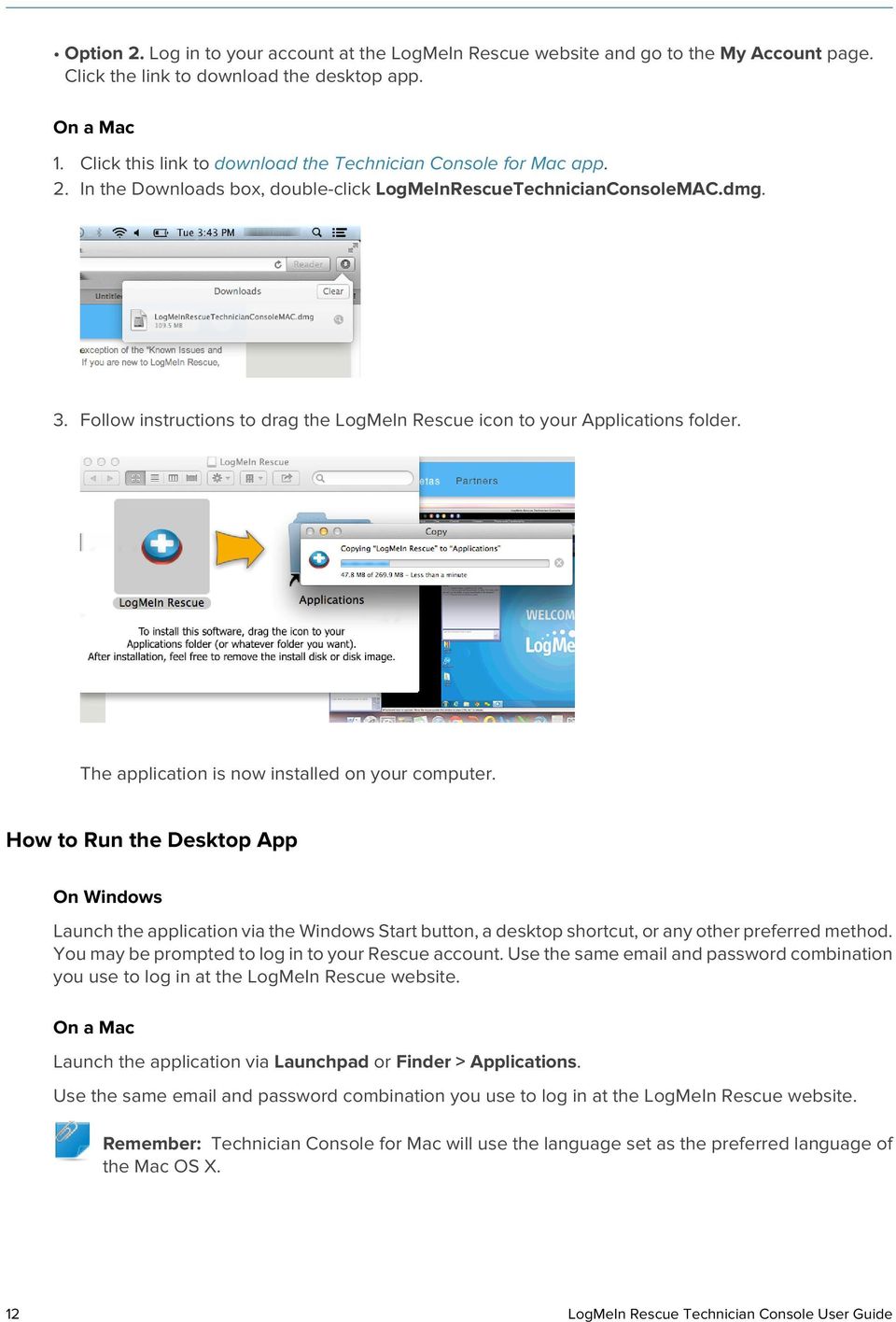
12 Option 2. Log in to your account at the LogMeIn Rescue website and go to the My Account page. Click the link to download the desktop app. On a Mac 1. Click this link to download the Technician Console for Mac app. 2. In the Downloads box, double-click LogMeInRescueTechnicianConsoleMAC.dmg. 3. Follow instructions to drag the LogMeIn Rescue icon to your Applications folder. The application is now installed on your computer. How to Run the Desktop App On Windows Launch the application via the Windows Start button, a desktop shortcut, or any other preferred method. You may be prompted to log in to your Rescue account. Use the same and password combination you use to log in at the LogMeIn Rescue website. On a Mac Launch the application via Launchpad or Finder > Applications. Use the same and password combination you use to log in at the LogMeIn Rescue website. Remember: Technician Console for Mac will use the language set as the preferred language of the Mac OS X. 12 LogMeIn Rescue Technician Console User Guide
13 How to Set Up One-Click Login to the Desktop App You can tell Rescue to remember your user name and password when you log in to the desktop app. About Technician Console Permissions The exact features you can use and actions you can take in the LogMeIn Rescue Technician Console may depend on permissions granted by a Rescue administrator, a collaborating technician, and potentially a customer during a session. Check with a Rescue Administrator or lead collaborating technician if you experience permission-related problems. Managing Technician Status Status is communicated in the log and illustrated by an icon displayed next to the technician's name in the Console Status area at the upper left of the Technician Console. Online An online technician can accept any session allowed for his Technician Group. Away A technician can set his own status to Away by clicking the Online icon. The Away icon will flash while the technician is in Away status. Click the flashing Away icon to switch back to Online. Sessions cannot be transferred to an Away technician, but an Away technician can see all sessions in his queue and pick up new sessions. Administrators can set technician status to automatically switch to Away after a given period of system-level inactivity. Busy A technician cannot set his own status to Busy. This is an automatic setting controlled by the Rescue administrator. Administrators can set technician status to automatically switch to Busy once a technician reaches a given number of active sessions. Copyright 2015 LogMeIn, Inc. 13

14 Sessions cannot be transferred to a Busy technician, but a Busy technician can see all sessions in his queue and pick up new sessions. Setting up the Technician Console How to Change Technician Console Color Go to Options > Color Scheme to choose from the available color schemes. All functionality is the same for all the color schemes. How to Set Sound Alerts Set the Technician Console to play sounds when particular events occur. The sounds are standard bells and beeps and cannot be customized. 1. On the Technician Console Options menu, select Configure Sound Alerts. The Sound Alerts dialog box is displayed. 2. You can set the following options: Play a sound when the Technician Console is minimized and a new session enters a private or channel queue Play a sound when the Technician Console is open and a new session enters a private or channel queue Play a sound when a customer intentionally disconnects Play a sound when the network connection is temporarily lost Play a sound when a customer refuses a permission request Play a sound when a session changes status to Urgent Play a sound when new chat text arrives while the Technician Console is minimized or not in focus Play a sound when new chat text arrives when the chat box is not in focus Play a sound when a customer sends a file A sound will play when each selected event occurs. 3. Click OK to apply your settings. How to Set Session-end and Log-off Prompts Set the Technician Console to ask you to confirm each time you end a customer session or log off from the Technician Console. 1. In the Technician Console, select Options. The Options menu opens. 2. You can set the following options: Select Prompt Before Ending Session if you want to be asked to confirm each time you close a customer session Select Prompt before Closing Console if you want to be asked to confirm each time you log off or close the Technician Console 14 LogMeIn Rescue Technician Console User Guide

15 How to Set Rescue to Automatically Start Sessions You can set all PIN Code and Link sessions to go directly from Connecting status to Active without having to select Start on the Session Toolbar. Select Options > Auto-start Incoming Private Sessions. Tip: If this option is disabled, your Rescue administrator may have set the default behavior in the Administration Center (Administration Center > Settings > Technician Console > Auto-start incoming private sessions). How to Enable Spell Check Enable spell check to automatically check the spelling of all text you enter in the Rescue Chat panel. To enable spell check, select Tools > Spell Check > Download [language] Dictionary. The active spelling dictionary will appear with a checkmark next to the language name. Select Turn Off to deactivate the spell check. Managing Sessions About the Session Toolbar Use the Session Toolbar to take action on sessions in your Session List. New Session Unattended Access Use the New Session button to start a new Private Session. This option is only available if the agent's Technician Group has permission to start Private Sessions. Unattended Access Over LAN Click Computers to open a list of computers on the Unattended Accessible tab for which Unattended Access has been enabled. See Working with Unattended Computers on page 34. Only computers which you have the right to access are shown. Copyright 2015 LogMeIn, Inc. 15

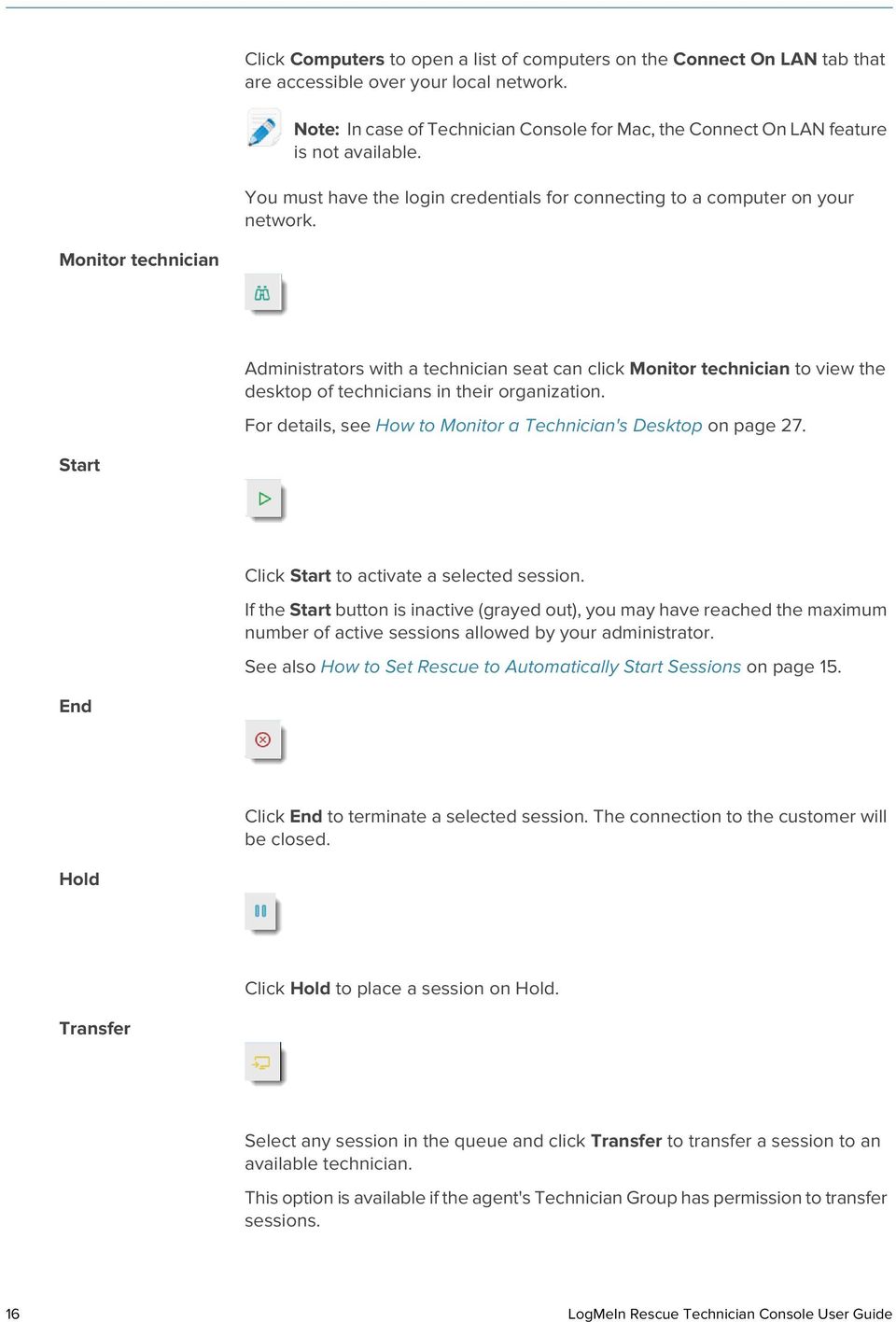
16 Click Computers to open a list of computers on the Connect On LAN tab that are accessible over your local network. Note: In case of Technician Console for Mac, the Connect On LAN feature is not available. You must have the login credentials for connecting to a computer on your network. Monitor technician Administrators with a technician seat can click Monitor technician to view the desktop of technicians in their organization. For details, see How to Monitor a Technician's Desktop on page 27. Start Click Start to activate a selected session. If the Start button is inactive (grayed out), you may have reached the maximum number of active sessions allowed by your administrator. See also How to Set Rescue to Automatically Start Sessions on page 15. End Click End to terminate a selected session. The connection to the customer will be closed. Hold Click Hold to place a session on Hold. Transfer Select any session in the queue and click Transfer to transfer a session to an available technician. This option is available if the agent's Technician Group has permission to transfer sessions. 16 LogMeIn Rescue Technician Console User Guide
17 Screen Sharing Click the Screen Sharing button to initiate screen sharing with a customer. This option is available if the agent's Technician Group has permission to use the Screen Sharing feature. Invite Technician (Collaborate) Click Invite Technician to initiate Technician Collaboration. This option is only available if the agent's Technician Group has permission to send collaboration invitations. Using the Queue tabs to Locate Sessions Use the Queue tabs to locate accessible sessions. Select a queue to change the sessions displayed in the Session List. All Private Queue Channel Queue Active Sessions Monitored Select the All queue to show all sessions from all queues. Select the Private Queue to show Private Sessions of any status. Select the Channel Queue to show Channel Sessions of any status. Select the Active Sessions queue to show only sessions with Active status. Administrators can select the Monitored queue to show technicians being monitored. This tab is not visible to technicians. Using the Session List to View Sessions The Session List (also sometimes referred to simply as the "queue") displays all sessions for the selected queue. To take action on a listed session, select the session and click the appropriate Session Control To copy various session details for use in other programs, right click on a session and select Copy to Clipboard You can customize Session List columns by right-clicking any column and selecting columns from the resulting menu You can edit any Custom Field (as defined in the Administration Center) directly from the Session List for any Active session. Colors, sounds and visual effects Various colors, sounds and visual effects are used to highlight sessions at different times. Copyright 2015 LogMeIn, Inc. 17

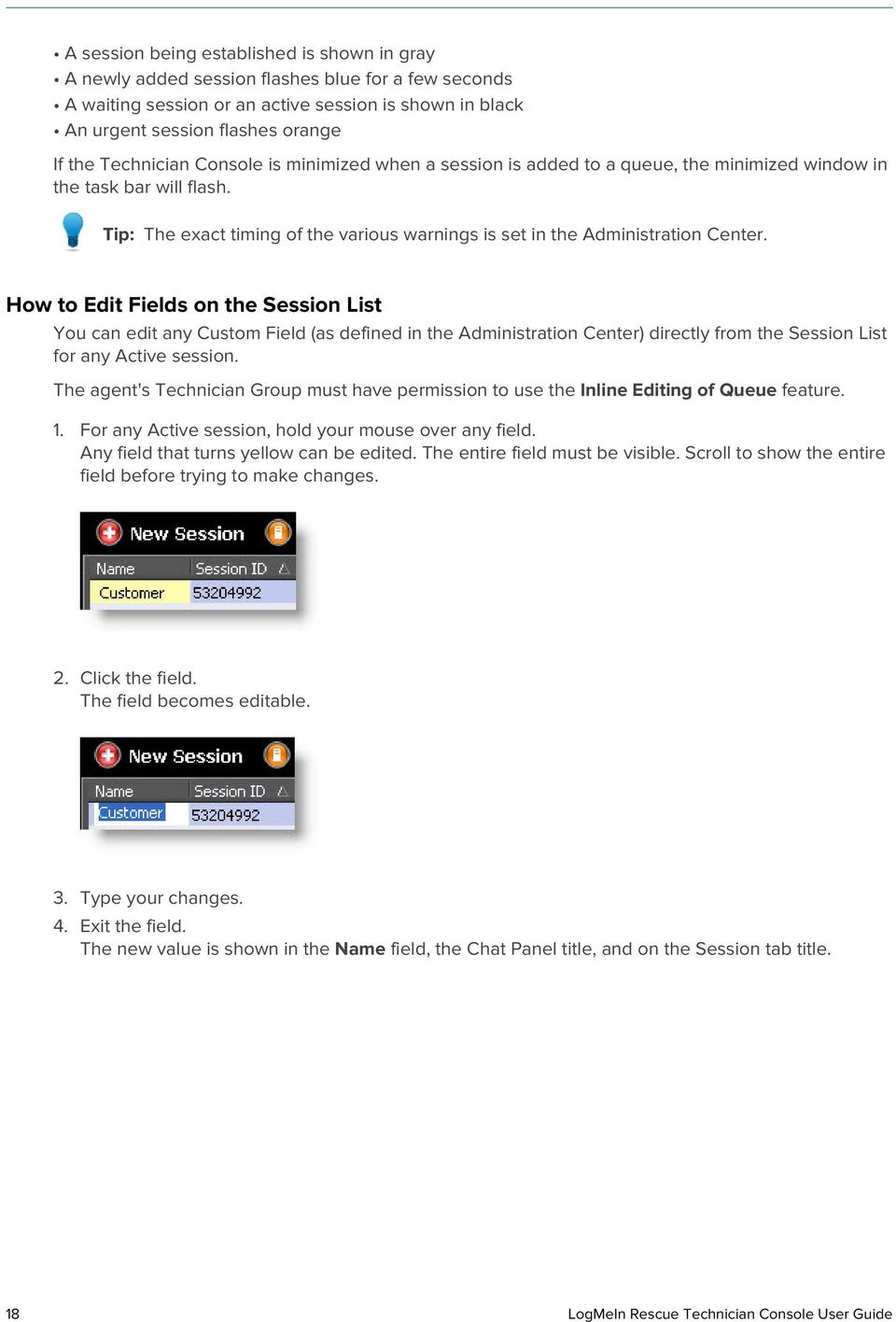
18 A session being established is shown in gray A newly added session flashes blue for a few seconds A waiting session or an active session is shown in black An urgent session flashes orange If the Technician Console is minimized when a session is added to a queue, the minimized window in the task bar will flash. Tip: The exact timing of the various warnings is set in the Administration Center. How to Edit Fields on the Session List You can edit any Custom Field (as defined in the Administration Center) directly from the Session List for any Active session. The agent's Technician Group must have permission to use the Inline Editing of Queue feature. 1. For any Active session, hold your mouse over any field. Any field that turns yellow can be edited. The entire field must be visible. Scroll to show the entire field before trying to make changes. 2. Click the field. The field becomes editable. 3. Type your changes. 4. Exit the field. The new value is shown in the Name field, the Chat Panel title, and on the Session tab title. 18 LogMeIn Rescue Technician Console User Guide
19 How to Switch Between Multiple Active Sessions Use the Active Session tabs to switch between up to ten concurrent sessions. Click on the session you want to work with. You will be able to support the customer using the Technician Console tabs and workspace. Caution: For Private Sessions, the name shown on the Session tab is the name you enter in the Generate New Session dialog box when you create the session. If you do not enter a name or other identifier when you create a session, then the Active Session tab for that session will be labeled Customer. Other options for switching sessions: Click the Chat panel belonging to the target customer's session Click the target session in the Session List Note: The time shown on the Active Session tab is the elapsed time for the current session status. Tip: You can maintain ten active sessions at a time. Since On Hold sessions do not count as Active, the hold feature gives you flexibility when managing multiple sessions. How to Put a Session on Hold The agent's Technician Group must have permission to hold sessions. A session can remain On Hold for 14 days. Copyright 2015 LogMeIn, Inc. 19

20 1. On the Session List, select the session you want to place on hold. 2. Click the Hold button. The session remains in your Session List with the status On Hold. Tip: The session timer will show the Time On Hold, as well as the cumulative Total Time of the session. Any active remote control sessions will close when you place a customer On Hold. To restore the session, select it and click Start. Note: You can maintain ten active sessions at any time. Since On Hold sessions do not count as Active, the hold feature gives you flexibility when managing multiple sessions. How to Transfer a Session The agent's Technician Group must have permission to transfer sessions. 1. Select any session in the Session List and click Transfer. The Transfer Session window is displayed. 2. In the Enter Comment field, enter useful information for the technician to whom you are transferring the session. 3. Use the Search box to help locate the organization member to whom you want to transfer the session. You can select any organization member shown in bold. Note: The list of organization members visible in the Transfer Session window depends on a permission granted by a Rescue Administrator. 4. Select the technician to whom you want to transfer the session. 5. Click OK. The session appears in the selected technician's Session List as incoming and in your own as Outgoing. Tip: To cancel the transfer, click Start while the session is Outgoing. 6. The receiving technician selects the session and clicks Start to activate. The session is removed from your Session List. The transfer is complete. Communicating with Customers About the Technician Console Chat Panel Use the Chat panel to communicate with customers during active sessions. 20 LogMeIn Rescue Technician Console User Guide

21 Unless you are in Collaboration mode, chat sessions are limited to two participants: the technician and the customer. The Chat panel consists of the following elements. Session controls Click the tab of any session you want to work with. Click a down arrow to minimize a session. Click an X to close a session. Click a right arrow to restore a minimized chat session. Screen Share button Click the Share Screen icon to share your screen with a customer. Invite Technician button Chat Enabled/Disabled buttons Log area Click the Invite Technician icon to collaborate with other technicians. This option is available if the agent's Technician Group has permission to use the Collaboration feature and at least one other technician is online and available. This option is available if the agent's Technician Group has permission to use the Enable/Disable Chat feature. Copyright 2015 LogMeIn, Inc. 21
22 The Log area shows the chat conversation and also other activities, such as status changes and connection messages Text Input box 22 LogMeIn Rescue Technician Console User Guide
23 Use the Text Input box to type messages and view input before you send it to the customer. If you do not see the Text Input box, chat may be disabled for your account (check with your administrator for more information). Send File button Click the Send File button to send a single file to the customer. This option is not available during Instant Chat in chat-only mode. Push URL button Allows you to push a URL to the customer. Type the URL into the text input field and then send it to the customer by clicking URL. For Applet-based sessions, the website automatically opens on the customer s machine. For Instant Chat in Chat-only mode, the customer must click a link. See About Predefined Replies and URLs on page 23. Predefined Replies Allows you to choose from a list of frequently used messages and URLs. See About Predefined Replies and URLs on page 23. About Predefined Replies and URLs A Predefined Reply or URL is a string of text or a URL that a technician can send to a customer. Predefined replies and URLs help you save time and keystrokes. FTP addresses can also be sent using the Push URL function. How to Send a Predefined Reply You can send a predefined reply to a customer at any time during an active session. 1. On the Chat console, click the Predefined Reply button. A menu is displayed showing all available predefined replies. 2. Select the predefined reply you want to send to the customer. The text of the selected reply appears in the Chat box. 3. Optional: edit the text. 4. Press Enter or click the Send button. The reply is sent to the customer. How to Send a Predefined URL You can send a predefined URL to a customer at any time during an active session. The agent's Technician Group must have permission to send URLs. 1. On the Chat console, click the Push URL button. Copyright 2015 LogMeIn, Inc. 23
24 A menu is displayed showing all available predefined URLs. 2. Select the predefined URL you want to send to the customer. The text of the selected reply appears in the Chat box. 3. Optional: edit the text. 4. Press Enter or click the Send button. The URL opens in the customer's default browser. How to Add an Individual Predefined Reply or URL 1. From the Tools menu, select Manage Predefined Replies. The Manage Predefined Replies tab is displayed in the Technician Console workspace. 2. On the Predefined Replies or Predefined URLs tab, click Add New. The Add New Predefined Reply form is displayed. 3. Give the reply or URL a short Name. 4. Type the text of the reply or the URL in the Content box. All content is text only. Formatting is not available. Note: You can also enter an FTP address. 5. Click Save. You can send the predefined replies and URLs via the Chat panel. How to Export Predefined Replies and URLs An administrator or technician can create a set of standard replies and URLs and then export them to an XML file. Other technicians will then be able to import the replies and URLs into their own Technician Console. 1. Create a set of predefined replies and URLs. 2. From the Tools menu, select Manage Predefined Replies. The Manage Predefined Replies tab is displayed in the Technician Console workspace. 3. On the Manage Predefined Replies tab, click the Import/Export tab. 4. Click Export. The Save As dialog box is displayed with replies.xml in the File name field. 5. Choose a location where you would like to save replies.xml. You should choose a location accessible to other members of your organization. Remember: Files saved/exported during a session are available at Users/[username]/Library/Application Support/LogMeIn-Rescue/Bottles/logmeinrescue/drive_c/users/crossover/My Documents 6. Click Save Your replies and URLs are saved as an XML file. 24 LogMeIn Rescue Technician Console User Guide
25 How to Import Predefined Replies and URLs An administrator or technician can create a set of standard replies and export them to XML. Follow this procedure to import the replies XML file into your own Technician Console. An administrator or other technician must first create and export an xml file containing the predefined replies and URLs. 1. From the Tools menu, select Manage Predefined Replies. The Manage Predefined Replies tab is displayed in the Technician Console workspace. 2. On the Manage Predefined Replies tab, click the Import/Export tab. 3. Click Import. The Open dialog box is displayed. 4. Locate the xml file and click Open. The replies are added to you are list of predefined replies. You can send any of the imported predefined replies via the Chat panel. How to Send a File to a Customer Follow this procedure to send a single file to a customer via LogMeIn Rescue. The customer must be running the Rescue Applet or Calling Card. This option is not available during Instant Chat in chat-only mode. The agent's Technician Group must have permission to send files. You can only send one file at a time. 1. On the Chat console, click the Send File button. The Open dialog box is displayed. 2. Select the file you want to send to the customer and click Open. The customer is prompted to save the file. 3. Ask the customer to choose a location and click Save. The file is saved to the customer's chosen location. An MD5 fingerprint is generated and communicated to both the technician and the customer in the log. How to Send a Customer Survey A Rescue Administrator must activate Customer Survey at the Technician Group or Channel level for this feature to be available. Automatic Deployment at Session End For all Applet-based sessions, the customer survey automatically opens in a browser window at session end. For Instant Chat sessions in Chat-only mode, the customer is prompted to open the survey when the technician ends the session. Sample Message: "0:00 AM [Technician Name] would like you to complete a brief Customer Survey. Open Customer Survey" The customer must click the link to open the survey. Copyright 2015 LogMeIn, Inc. 25
26 Manual Push During Session At any time during an active session, right-click a session in the Session List and select Push Customer Survey. For Applet-based sessions, the customer survey automatically opens in a browser window. For Instant Chat sessions in Chat-only mode, the customer is prompted to open the survey. Documenting your Sessions See also: How to Record Sessions on page 51 How to Make a Screen Capture During Remote Control on page 52 How to Send a Customer Survey on page 25 How to View Session History (Log and Notes) Use the History & Notes tab to view the session log and any notes made during past sessions with the current in-session device. Note: When supporting an ios device, the History & Notes tab is not available. 1. During an Active session, click the History & Notes tab. The History tab has two sub-tabs: History and Add/Edit Notes. On the History sub-tab, a list of past sessions with the current in-session device is displayed. 2. To view the session log, click View in the Logfile column. 3. To view notes made during a session, click View in the Notes column. How to Take Notes During a Session You can take notes during a session and save the notes along with the session log in the session history. Note: When supporting an ios device, the History & Notes tab is not available. 1. During an Active session, click the History & Notes tab. The History tab has two sub-tabs: History and Add/Edit Notes. 2. Click the Add/Edit Notes tab. 3. Type your note on the Add/Edit Notes tab. 4. Click Save to save your note. Any technician will be able to view the note on the History tab during the next session with the same device. 26 LogMeIn Rescue Technician Console User Guide
27 Monitoring Technicians How to Monitor a Technician's Desktop Administrators can view the desktop of technicians in their organization from within the LogMeIn Rescue Technician Console. Requirements: A Master Administrator or Administrator with both an administrator and a technician license can use this feature Both the administrator and the monitored technician must be running a Technician Monitoring enabled version of the Technician Console A Master Administrator can monitor any technician in an organization An Administrator can monitor any technician in a Technician Group to which he has administrative rights Restriction: Monitoring the desktop of a technician running the Technician Console for Mac is not supported. 1. On the Technician Console Session toolbar, click the Monitoring button. The Monitor Technician dialog box is displayed. 2. In the Monitor Technician dialog box, select the technician you want to monitor. Note: The list of technicians visible in the Monitor Technician dialog box depends on a permission granted by a Rescue Administrator. Optional: In a large organization, use the Filter field to locate technicians. 3. Click OK. A connection is made to the technician's computer and a new Session tab appears in the Technician Console workspace showing the technicians name. 4. You must authenticate yourself to the technician's computer. On the Session tab showing the technician's name, select an authentication method. Select Use current credentials to send the Windows credentials you used to log on to your current Windows session. You must be a Windows administrator or otherwise have user rights on the target machine. Select Add username and password to use a different combination with valid user rights on the target machine. Tip: If the domain name is needed in the Username field, the acceptable formats are username@domain and domain\username. Select Request Authorization to ask the technician for permission to monitor his desktop. 5. Click Launch Monitoring. The technician's desktop is displayed on the Session tab in your Technician Console workspace. Copyright 2015 LogMeIn, Inc. 27
28 Note: The technician will be notified if the Notify technician when monitoring desktop option is selected in the LogMeIn Rescue Administration Center on the Global Settings tab. How to Join a Monitored Technician's Session Using the Technician Console, Administrators can invite themselves to join a monitored technician's session as a Collaborating Technician. This procedure assumes that you are already monitoring a technician. 1. On the Technician Console workspace, select the Session tab for the monitored technician. The Session tab has two sub-tabs: Desktop and Active Sessions. 2. Select the Active Sessions sub-tab. A list of the technician's current sessions is displayed. 3. Select the session you want to join. 4. Click Join Session. You join the session as a Collaborating Technician. See also About Collaborating Technician Capabilities on page LogMeIn Rescue Technician Console User Guide
29 Supporting Desktop Devices Connecting to PCs and Macs LogMeIn Rescue connection methods are defined as either Private or Channel. A Private connection is made when the technician initiates a remote session with a customer (the direction is from the technician to the customer). PIN code, Link, and SMS are all Private connection methods. A Channel connection is made when a customer initiates contact with a technician through a channel link or form, or using the Rescue Calling Card (the direction is from the customer to the technician). See also: Connecting to On-LAN Computers on page 33 Working with Unattended Computers on page 34 How to Start a PC/Mac Session via Link and Messaging Tool Follow this procedure to connect to a customer using a link that you send to a customer using a messaging service or related tool. The agent's Technician Group must have permission to start Private Sessions. The agent's Technician Group must have permission to use the Link connection method. 1. On the Session toolbar, click New Session. The Create New Session window is displayed. 2. Type the customer's name or other identifier in the Name field. You will use this name to identify the session on the Active Session tab and in the Session List. 3. Select the Link tab. 4. Click Copy Link to Clipboard. The link is copied to your clipboard. 5. Paste the link into your messaging tool and send it to your customer. 6. Ask your customer to open the message and click the link or paste it to his browser. The customer sees a dialog box asking him to download the Rescue Applet. 7. Tell the customer to download the Applet. The download should take about 15 to 30 seconds. Note: The download procedure may vary depending on the customer's operating system and browser. 8. Once the download is complete, ask the customer to click Run to execute the Applet. Once the Applet is installed, the customer status will change from Connecting to Waiting. 9. Pick up the session by selecting it in the Session list and clicking Start. Customer Status will change to Active. You can now use the Technician Console to deliver remote support. Copyright 2015 LogMeIn, Inc. 29
30 How to Start a PC/Mac Session via PIN Code Follow this procedure to connect to a customer using a PIN code. The agent's Technician Group must have permission to start Private Sessions. The agent's Technician Group must have permission to use the PIN Code connection method. 1. On the Session toolbar, click New Session. The Create New Session window is displayed. 2. Type the customer's name or other identifier in the Name field. You will use this name to identify the session on the Active Session tab and in the Session List. 3. Select the PIN Code tab. 4. Click Create PIN Code. Rescue generates a 6-digit PIN code and displays it in the Generate New Session window and in the Session Log. 5. Ask the customer to go to the PIN code entry site: Desktops and notebooks connect at 6. The customer enters the PIN and clicks Connect to technician. The customer will see a dialog box asking him to download the Rescue Applet. 7. Tell the customer to download the Applet. The download should take about 15 to 30 seconds. Note: The download procedure may vary depending on the customer's operating system and browser. 8. Once the download is complete, ask the customer to click Run to execute the Applet. Once the Applet is installed, the customer status will change from Connecting to Waiting. 9. Pick up the session by selecting it in the Session list and clicking Start. Customer Status will change to Active. You can now use the Technician Console to deliver remote support. How to Start a PC/Mac Session via Follow this procedure to connect to a customer using a link sent via . The agent's Technician Group must have permission to start Private Sessions. The agent's Technician Group must have permission to use the connection method. 1. On the Session toolbar, click New Session. The Create New Session window is displayed. 2. Type the customer's name or other identifier in the Name field. You will use this name to identify the session on the Active Session tab and in the Session List. 3. Select the tab. 4. Choose how you want to send the to the customer: To use your own client and account, choose Send via my default client on this computer. To allow Rescue to send the , choose Send on my behalf via the LogMeIn Rescue servers and enter a valid address in the To field. 30 LogMeIn Rescue Technician Console User Guide
31 Additionally, technicians with the mobile add-on can select This is for a mobile device if the customer is using a smartphone. (If you know the customer s platform, you can choose to manually set Device Platform using the drop-down list on the Create New Session dialog box. Manual detection may be necessary if local browser settings prevent automatic detection.) 5. Click Link. The is generated (and sent if you chose to send the mail via the Rescue system). 6. Ask your customer to open the message and click the link or paste it to his browser. The customer sees a dialog box asking him to download the Rescue Applet. 7. Tell the customer to download the Applet. The download should take about 15 to 30 seconds. Note: The download procedure may vary depending on the customer's operating system and browser. 8. Once the download is complete, ask the customer to click Run to execute the Applet. Once the Applet is installed, the customer status will change from Connecting to Waiting. 9. Pick up the session by selecting it in the Session list and clicking Start. Customer Status will change to Active. You can now use the Technician Console to deliver remote support. Sample Containing a Connection Link The default text of the Connection is set in the Administration Center on the Settings tab. From: Technician's Name, Your Organization Sent: Monday, December 31, :36 PM To: Customer's Name Subject: Connection link Please click the link below to request a live support session: Best Regards, Support Team About the Channel Form Connection Method Channel Form is useful if you offer web-based support to your customers. This method allows you to host both a link on your website/intranet as well as a questionnaire which your customers have to complete. Process Overview: Channel Form A Rescue Administrator assigns any of the ten available channels in the Administration Center to a Technician Group A Rescue Administrator develops the custom web form and defines the custom fields A Rescue Administrator makes the Channel Form available on an Internet or Intranet site A customer opens the Channel Form, enters all required information, and submits the form Copyright 2015 LogMeIn, Inc. 31
32 The support session is assigned to the Channel Queue of the Technician Group(s) associated with the channel Any online technician in an assigned Technician Group can activate the support session Benefits of the Channel Form Method Pre-qualify your users with various customizable conditions: error codes, user ID, problem type Collect contact information from your end users; such as phone numbers or addresses Integrates into online functions such as user authentication or automated qualification of the user s request via a simple HTML code element Allows the best tracking of the user and the problem in the Rescue database Points to consider: Customers may try to connect 24 hours a day, so Rescue Administrators must use 'No Technician Available' settings to deal with connections made outside of business hours When customers are initiating session requests, Rescue Administrators must use dynamic channel and team re-routing to control traffic during peak hours Web developer and/or graphic design resources may be required for customization and integration About the Calling Card Connection Method The LogMeIn Rescue Calling Card allows for both Channel and Private connections. When your customers need support, they simply click the Calling Card icon to open your branded Calling Card Applet. Unlike other connection methods, the Calling Card needs to be installed on the customer's PC before it can be used. It exists as a desktop shortcut or Quick Launch icon, which the customer clicks to launch the pre-installed Calling Card Applet. The Calling Card can be downloaded as an MSI installer from your website, or it can be silently deployed by technicians during the first Rescue session with the customer, using the Technician Console. The Calling Card can be customized in appearance; including text, logos, images, and color schemes. For advanced Calling Card customization options, see the Customization and Integration Guide. Important: Calling Card is not available if the customer is using a Mac. Process Overview: Calling Card A Rescue Administrator generates Calling Card Installers for channels in the Administration Center A Rescue Administrator allows Calling Card deployment for Technician Groups A Rescue Administrator associates Calling Card Installers with Technician Groups Optional: Rescue Administrators may customize the Calling Card's appearance Customers download the Calling Card application or it is deployed by technicians via the Technician Console A customer opens the Calling Card and connects to your organization using a PIN provided by a specific technician or via the channel associated with the Calling Card The support session is assigned to the individual technician who provided the PIN, or to the Channel Queue of the Technician Group(s) associated with the channel The individual technician or any online technician in an assigned Technician Group can activate the support session 32 LogMeIn Rescue Technician Console User Guide
33 Benefits of Calling Card Connection Once the Calling Card is installed, it offers an easy, one-click, no-download connection Branding allows you to extend your corporate appearance right to the customer s desktop The layout can be dynamically changed, for example to announce special offers and marketing messages Each Calling Card is linked to a channel Points to consider: Customers may try to connect 24 hours a day, so Rescue Administrators must use 'No Technician Available' settings to deal with connections made outside of business hours When customers are initiating session requests, Rescue Administrators must use dynamic channel and team re-routing to control traffic during peak hours Web developer and/or graphic design resources may be required for customization and integration Connecting to On-LAN Computers How to Connect to a Computer on a Local Area Network Access computers on your Local Area Network and provide support and maintenance without end-user interaction. The agent's Technician Group must have Connect On LAN permission. Restriction: The Connect On LAN feature is not available for Technician Console for Mac. 1. On the Session Toolbar, click the Computers icon. The Computers list is displayed. 2. On the Computers list, click the Connect On LAN tab to see a list of accessible computers. 3. Filter computers by name or IP address. Tip: You can search and connect at any time. You do not need to wait for the entire list of computers to load. 4. Select the computer you want to access and click Connect. Important: If you do not have Administrator rights, you are prompted to enter the login credentials of the computer you want to access. The session appears in the Technician Console in Connecting status. The applet launches on the remote computer and the session starts. The customer does not have to grant access to the computer, so you can manage it without customer interaction. Technical Information for Advanced Users Required Windows settings: File and Printer sharing must be allowed on the customer's firewall. Copyright 2015 LogMeIn, Inc. 33
34 Network access: Sharing and security model for local accounts must be set to Classic - local users authenticate as themselves on the customer's computer (Control Panel > [System and Security in Win7] > Administrative Tools > Local Security Policy > Local Policies > Security Options > Network access: Sharing and security model for local accounts). Both the technician and customer computer must use a compatible NTLM authentication method: Control Panel > [System and Security in Win7] > Administrative Tools > Local Security Policy > Local Policies > Security Options > Network security: LAN Manager authentication level (for example, set both to Send NTLMv2 response only). Remote Registry service must not be disabled on the remote computer. Go to Control Panel > Administrative Tools > Services, right-click Remote Registry and click Properties. Set Startup type to Automatic or Manual. NetBIOS uses ports 135, 137, 138, 139 Windows uses NTLM authentication to acquire administrator rights. This authentication uses randomly allocated TCP ports: , or on Vista and Windows Server Communication through these ports must be allowed by firewalls. Working with Unattended Computers About Unattended Access Unattended access allows a technician to connect to a remote computer when no user is present. Technicians are often unable to resolve an issue during a single Rescue session; the job may be too big, or the customer may need his computer. The technician and customer could theoretically arrange a time for a second session, but it is more practical for the technician to continue work later at a time more convenient for all even when the customer is not present. How to Request Unattended Access to a Customer's Computer Unattended access allows a technician to connect to a remote computer when no user is present. Requirements: The agent's Technician Group must have permission to use unattended access Unattended access requests cannot be sent during the following session types: Instant Chat in Chat-only mode, Mobile Applet 1. During an Active session, click the Unattended Access tab. 2. Under Credentials required, you may be given the choice between the following options (depending on the authentication settings made in the Administration Center): Option At connection At setup Description Require valid administrator credentials at the start of every unattended session Use credentials entered by the customer during unattended setup 34 LogMeIn Rescue Technician Console User Guide
35 3. Set the duration of unattended access in terms of days, a specific date range, indefinitely, and for a specific daily time range. Note: When the customer's computer is in a different time zone, you can choose to set unattended access according to either local (technician) or customer time. Important: The duration of unattended access is limited to two weeks when you authenticate using customer credentials. 4. Click Request Unattended Access to submit the request to the customer. The customer must approve the request. When the technician is required to enter valid Administrator credentials at the start of every unattended session, the customer simply clicks OK to approve the request When the technician is allowed to use customer credentials, the customer is prompted to enter his Windows user name and password Once unattended access is active, the session can be ended. How to Start an Unattended Session Unattended access allows a technician to connect to a remote computer when no user is present. Requirements: The agent's Technician Group must have permission to use unattended access The customer's computer must be powered on and not in sleep mode for the technician to be able to launch an unattended session 1. On the Session Toolbar, click the Computers icon. The Computers list is displayed. 2. Select a computer from the list. 3. Click Connect. 4. You must enter valid Administrator credentials unless you are using credentials entered by the customer during setup of unattended access. You can now use the Technician Console to deliver remote support. How to Manage Accessible Unattended Computers Use the Unattended Accessible Computers dialog box to manage unattended computers under your control. 1. On the Session Toolbar, click the Computers icon. The Computers list is displayed. 2. On the Computers list, click the Unattended Accessible tab to see a list of list of computers that you can access while they are unattended. 3. Manage your accessible computers: Copyright 2015 LogMeIn, Inc. 35
36 Type in the Filter box to locate a computer by name Use the Show box to filter computers by status Select a computer and click Delete to disable unattended access Note: Delete is inactive when other technicians can access the selected computer. 4. Click Close. Changes are saved. Understanding the Customer Experience Customers experience Rescue remote support through one of the following tools. Rescue Applet Instant Chat Rescue Calling Card Rescue+Mobile Applet We have also created an illustrated Step-by-Step Connection Guide for LogMeIn Rescue that you can share with customers who need help during the connection process. The Customer Experience: Rescue Applet The customer is asked to install this small executable file to his computer when a technician initiates a normal session. Figure 1: Standard Rescue Applet interface Customer capabilities using the Applet: Chat with the technician(s) 36 LogMeIn Rescue Technician Console User Guide
37 View a detailed session log Allow or deny the technician the right to perform certain actions Send individual files to a technician Change the display font size Revoke permissions, such as remote control or file management, from the technician by clicking the large X in the upper-left corner End a session by clicking the small X in the upper-right corner Note: The Applet automatically removes itself at session conclusion. The Customer Experience: Instant Chat Instant Chat allows a support technician to engage in a two-way chat session with a customer without forcing the customer to download any software. Figure 2: Standard Instant Chat interface With Instant Chat you lose no functionality, but rather gain the flexibility to use the Rescue Applet or not. Tip: To open a remote session or troubleshoot the customer's device, prompt the customer to download the Rescue Applet. Customers have the following capabilities using the Instant Chat interface in chat-only mode: Chat with the technician(s) Copyright 2015 LogMeIn, Inc. 37
38 View a detailed session log Allow or deny the technician the right to perform certain actions (install the Applet, start remote control) End a session by clicking the large X at upper left Change the display language using the Language Selector Change the display font size For detailed information on Instant Chat setup and customization, see the LogMeIn Rescue Customization and Integration Guide. How to Launch the Rescue Applet during Instant Chat During an Instant Chat session, the Chat-Only Mode dialog box informs the technician that advanced Rescue tools can only be activated if the customer is running the Rescue Applet. 1. In the Chat-Only Mode dialog box, click Prompt for Download. The customer receives a message asking him to download the Rescue Applet by clicking a link in the chat box. 2. The customer clicks the link and installs the Applet. The Instant Chat interface now acts as the full Rescue Applet. Once the Applet is running, the technician can start remote control and perform all activities he is normally able to perform using the Rescue Applet. The Customer Experience: Calling Card It's helpful to understand the customer's experience during a Calling Card session. Before the session begins, the customer can choose a connection method using the Connect menu (PIN code or a Channel). The customer can also change Proxy Settings by clicking Settings menu. Figure 3: Standard Rescue Calling Card interface, before connection The customer has the following capabilities during a Calling Card session: Chat with the technician(s) 38 LogMeIn Rescue Technician Console User Guide
39 View a detailed session log Allow or deny the technician the right to perform certain actions Send individual files to a technician (or to the Lead Technician during a Collaboration Session) Change the display font size End Remote Control by clicking the large X at upper left End a session by clicking the small X at upper right View a brief Help file Figure 4: Standard Rescue Calling Card interface, in session Sharing your Screen with Customers How to Share your Screen with a Customer Give a customer view-only access to your desktop with a single click. Requirements: The customer must be running the Rescue Applet or Calling Card Technician Screen Sharing will not function during Instant Chat until the customer has downloaded the Rescue Applet Technician Screen Sharing will not function when the technician is using the Technician Console for Mac. The customer must be running a supported Windows operating system (Screen Sharing is currently not compatible with Mac) Allow screen sharing with customers must be enabled at the Technician Group level in the Administration Center 1. During an active session, click the Screen Sharing button on the Chat panel or on the Session toolbar. Copyright 2015 LogMeIn, Inc. 39
40 The customer will see your desktop in a new window. Important: If the customer's desktop is being displayed on your screen, the customer will see a confusing "mirror effect" during Technician Screen Sharing. To prevent confusion, do not share your desktop during remote control. 2. To end Technician Screen Sharing and continue the support session, click the Screen Sharing button again. The customer can end Technician Screen Sharing by closing the screen sharing window. The session will remain active. Tip: You can also share your screen with a customer when you are participating in a Collaboration session as a Collaborating Technician. About Customer Controls During Technician Screen Sharing Technicians should be aware of the following controls available to customers during a Technician Screen Sharing session. Full Screen Options Multiple Monitors Zoom Magnifying Glass End Screen Sharing The customer clicks Full Screen to open the technician desktop to cover the entire customer desktop area. The customer clicks Options to change color settings and viewing options. When the technician is using more than one monitor, the customer clicks the Monitors button to switch between available monitors. The customer clicks the zoom option to get a more or less detailed view of the technician desktop. The customer clicks the Magnifying Glass to activate a box that he can drag around the technician s desktop to show a small area of the screen in high resolution. The customer clicks End to stop screen sharing. The End button is only available for the customer in Full Screen mode. Collaborating with Other Technicians About Technician Collaboration How to Invite an Internal Technician to Collaborate With Technician Collaboration, multiple technicians can simultaneously support a single customer. Technicians can improve problem resolution by inviting online and available technicians from their Rescue organization to an Active session. 40 LogMeIn Rescue Technician Console User Guide
41 Requirements: The customer must be running the Rescue Applet, Calling Card The session must be Active Send collaboration invitations must be enabled at the Technician Group level in the Administration Center 1. On the Session List, select the Active session to which you want to invite another technician. 2. On the Session toolbar, click the Invite Technician button. The Invite Technician dialog box is displayed. 3. In the Invite Technician dialog box, select the technician you want to invite. Note: The list of technicians visible in the Invite Technician dialog box depends on a permission granted by a Rescue Administrator. Remember: Technician Collaboration is not designed to be used as a meeting tool. To achieve optimal performance, limit participation to four or five technicians. Performance will be impacted by the speed and power of the customer's device. 4. In the Set Permissions section, select the permissions you want to grant to the Collaborating Technician. Note: All existing Technician Group permissions are applied unless otherwise specified by the Lead Technician, either at the time of invitation or during the session. 5. In the Comment box, type a message to the Collaborating Technician. 6. Click OK. A Collaboration invitation is sent to the selected technician. The Collaborating Technician sees the Invitation in his Session List. How to Invite an External Technician to Collaborate With Technician Collaboration, multiple technicians can simultaneously support a single customer. Technicians can improve problem resolution by inviting online and available technicians from outside their Rescue organization to an Active session. Requirements: The customer must be running the Rescue Applet, Calling Card The session must be Active Invite external technicians must be enabled at the Technician Group level in the Administration Center The external technician must be running a supported Windows operating system: Microsoft Windows 7, Vista (including 64-bit); XP 1. On the Session List, select the Active session to which you want to invite another technician. 2. On the Session toolbar, click the Invite Technician button. The Invite Technician dialog box is displayed. Copyright 2015 LogMeIn, Inc. 41
42 3. In the Invite Technician dialog box, select the External tab. 4. Choose from the available invitation options, as determined by settings made in the Administration Center. Invite unlisted technician Invite approved technician Remember: Technician Collaboration is not designed to be used as a meeting tool. To achieve optimal performance, limit participation to four or five technicians. Performance will be impacted by the speed and power of the customer's device. 5. In the Set Permissions section, select the permissions you want to grant to the Collaborating Technician. 6. In the Comment box, type a message to the Collaborating Technician. 7. Click OK. The Invitation to External Technician is displayed. 8. Choose from the available connection methods, as determined by settings made in the Administration Center. PIN Code Link 9. The procedure for sending the invitation to an external technician is similar to the procedure for starting a new session. You must send the PIN Code, , or link to the external technicians. To join, the external technician accepts the invitation and downloads the Technician Console Collaboration version. The session's status changes to Collaborating once the external technician joins. Can sessions be transferred to an external technician? Technicians cannot transfer sessions to an external technician. To receive a transferred session, a technician must be part of your Rescue organization and logged in with a valid Rescue subscription. How to Join a Collaboration Session With Technician Collaboration, multiple technicians can simultaneously support a single customer. Technicians can improve problem resolution by inviting online and available technicians from inside or outside their Rescue organization to an Active session. Collaboration is by invitation only. This procedure assumes you have been invited by a Lead Technician from within your own organization. Administrators can invite themselves using the Technician Monitoring feature. See Monitoring Technicians on page You see a session on your Session List with the status Invitation. Select the session. 2. On the Session toolbar, click Start to accept the invitation and join the session. The session appears as Collaborating in the Session List. 3. You can now participate in the session. The Lead Technician has ultimate control over your permissions during the session. See About Collaborating Technician Capabilities on page LogMeIn Rescue Technician Console User Guide
43 4. To leave the session, click the X on the Collaboration Panel (at the top of the Chat panel). The session does not end; the Lead Technician remains Active. About Lead Technician Capabilities During Collaboration During a Collaboration Session, the Lead Technician can perform the following actions. Hand-off Lead Technician status This is only available for collaborating technicians within your Rescue organization. External collaborating technicians cannot become lead technician. In the example below, Chris Jones hands off the Lead status to Sam Russel. Cancel a hand-off This is only available for collaborating technicians within your Rescue organization. External collaborating technicians cannot become lead technician. In the example below, Chris Jones cancels handing off the Lead status to Sam Russel. Remove a Collaborating Technician from a session Click the X next to a collaborating technician's name. Change permissions Click a collaborating technician's name to change permissions. Copyright 2015 LogMeIn, Inc. 43
44 Share their own screen with the customer Only available if this feature is enabled at the Technician Group level in the Administration Center. Invite additional technicians The lead technician can invite additional internal or external technicians, depending on permissions set in the Administration Center. Enable/Disable Chat Only available if this feature is enabled at the Technician Group level in the Administration Center. 44 LogMeIn Rescue Technician Console User Guide
45 Chat privately with Collaborating Technicians The customer will not see the communications. Collaborative chat is available even when chat with the customer is disabled at the Technician Group level. Place the session on hold End the session When the lead technician places the session on hold, the session goes on hold for all participants. Only available if this feature is enabled at the Technician Group level in the Administration Center. The session ends for all participants. About Collaborating Technician Capabilities During a Collaboration Session, a Collaborating Technician can perform the following actions: Accept an invitation to take over the Lead Technician role Once the Lead role is accepted, the technician assumes all of the capabilities of a Lead Technician. Chat privately with Collaborating Technicians The customer will not see the communications. Collaborative chat is available even when chat with the customer is disabled at the Technician Group level. Leave the Collaboration Session Place a session on Hold, but only for himself The session does not end. Others will be able to continue to support the customer. Others will be able to continue to support the customer. Copyright 2015 LogMeIn, Inc. 45
46 The customer will not see the communications. Collaborative chat is available even when chat with the customer is disabled at the Technician Group level. Transfer the session Screen sharing Only available if this feature is enabled at the Technician Group level in the Administration Center. Only available if this feature is enabled at the Technician Group level in the Administration Center. Restriction: A Collaborating Technician cannot receive files sent by a customer using the Applet Send File feature. Controlling a Customer's Computer How to Remote Control a Customer's Computer Use Remote Control to operate the customer's device. Requirements: The agent's Technician Group must have permission to launch remote control sessions. The session must be Active. During Instant Chat, remote control can only be started once the customer has downloaded the Rescue Applet. 1. On the Technician Console Customer Desktop tab, click Launch Remote Control Session. The customer is prompted to accept or decline your request to control his computer. 2. Ask the customer to accept the request. Remote control begins. 3. Use the Remote Control toolbar to manage the remote session. All other Workspace tabs remain available. 4. To end remote control, click the red X on the Remote Control toolbar. Remote control ends, but the session remains active. Caution: Transferring the session or placing it on Hold will end remote control. How to View a Customer's Desktop without Taking Control Use Desktop Viewing to view a customer's desktop without taking control of the device. Requirements: The agent's Technician Group must have permission to launch desktop viewing During Instant Chat, desktop viewing can only be started once the customer has downloaded the Rescue Applet The session must be Active 1. On the Technician Console Customer Desktop tab, click Launch Desktop Viewing Session. If the customer is prompted to accept or decline your request, ask them to accept. 46 LogMeIn Rescue Technician Console User Guide
47 2. Use the Remote Control toolbar to manage the session. During desktop viewing, some toolbar options are disabled. All other Workspace tabs remain available. 3. To end desktop viewing, click the red X on the Remote Control toolbar. Desktop viewing ends, but the session remains active. About Customer User Rights During Remote Control When you access a customer's computer, you inherit the customer's user rights. As a result, you may encounter support scenarios where the user of the remote device does not have the rights you need to fully support the machine. To overcome this problem, you can run the Rescue Applet as a Windows System Service Local System account or Mac OS X daemon. The following table helps clarify when this feature is useful. Customer's Operating System Windows 7, Vista, Server 2008 Windows 7, Vista, Server 2008 Windows NT-based Windows NT-based Mac OS X Mac OS X Customer's Rights Administrator, with User Account Control (UAC) activated Non-administrator Administrator, but you want to switch users without losing the active session Non-administrator Administrator, but you want to switch users without losing the active session. Non-administrator How to Restart the Rescue Applet as a Windows System Service or Mac Daemon To log on as a different Windows or Mac user, you must restart the Applet as a Windows System Service or Mac OS X daemon. You must be in an Active session with a customer lacking Administrator rights on the host. You must be able to enter Administrator credentials. 1. On the Technician Console workspace, select the Customer Desktop tab (this is the tab you use to launch remote control and desktop viewing). 2. In the Username and Password fields, enter valid Administrator credentials for the remote device. Tip: If the domain name is needed in the Username field, the acceptable formats are username@domain and domain\username. 3. Click Restart Applet as Windows System Service (or Mac OS X daemon). The chat log will indicate when the customer applet has started as a Windows system service (or Mac OS X daemon) and is reconnected. 4. Launch remote control. 5. Log-off the current user or switch between users without losing your connection to the machine. Tip: To activate the login dialog box during a remote control session, press the Ctrl-Alt-Insert keyboard shortcut or click the Ctrl-Alt-Del button on the Remote Control toolbar. Copyright 2015 LogMeIn, Inc. 47
48 Note: Rescue ensures that the technician will be logged out at the end of any session in which a technician restarts the Applet as a Windows System Service. The customer will be forced to log back in to his original limited-rights account at the end of the support session, thus eliminating potential security risks. How to View the Customer's Computer in Fullscreen Mode In Fullscreen Mode the customer's display covers the technician's entire display. Fullscreen mode gives you the most realistic "as if you were there" experience. On the Remote Control toolbar, click the Fullscreen button. The LogMeIn interface is minimized and the host computer's display appears on your entire screen. Only the Remote Control toolbar remains visible. To exit fullscreen mode, click the Fullscreen button again. Tip: To keep the toolbar visible, click the Pin icon on the Fullscreen version of the Remote Control toolbar. How to View a Remote Control Session in a Secondary (Tear-Away) Window By detaching a Remote Control session, you can view the customer's computer in a secondary window outside of the main Technician Console workspace. On the Remote Control toolbar, click the Tear Away button next to the Customer Desktop tab. The customer's screen is detached from the Technician Console and appears in a new window. You can move this window to your secondary display. Another way to detach the session is to drag-and-drop the Customer Desktop tab. To return the session to the Technician Console, click the Attach button next to the Customer Desktop tab or on the detached window itself. To always launch remote control sessions in a separate window, select Options > Launch Tear-Away Session Windows. 48 LogMeIn Rescue Technician Console User Guide
49 How to Change Screen Size During Remote Control View the customer's display in a way that you find comfortable. 1. On the Remote Control toolbar, click the View Settings button. 2. Select the appropriate setting. Actual size Select Actual Size to show the host display exactly as it appears to the host-side user. When using this option you may need to scroll to see the entire screen. Fit to Window Select Fit to Window to make the entire host display visible on the client display without the need to scroll. Stretch to Window When in Full Screen Mode, use this option to stretch the host display to fill the entire client display even if the host is set to a lower resolution than your own. Your selection is applied immediately. Tip: To change the actual screen resolution of the host display, edit the host Desktop Properties (Windows) or System Preferences (Mac). How to Change the Color Quality of the Customer's Screen Select a lower setting to optimize the amount of information transferred during remote control, or select a higher setting to improve the quality of the image. 1. On the Remote Control toolbar, click the View Settings button. The Color Quality options are displayed. 2. Select the appropriate setting. Tip: Choose Automatically adjust color settings to allow LogMeIn to detect the optimal setting. Very Low (grayscale) This is best if you are using a slow connection, such as a dial-up modem Low This setting offers excellent performance with acceptable color quality Medium This setting offers a good balance between performance and color quality High This setting offers excellent color reproduction, but potentially slower performance Auto Choose Auto to allow LogMeIn Rescue to detect the optimal setting Your selection is applied immediately. How to Magnify a Section of the Customer's Screen The Magnifying Glass feature opens a box that you move on the customer's screen to view a small area in high resolution without otherwise adjusting your resolution. The Magnifying Glass is available when screen resolution is less than 100%. Copyright 2015 LogMeIn, Inc. 49
50 1. On the Remote Control toolbar, click the Magnifying Glass button. The magnifying glass is activated. 2. Drag the box. Any area within the box in displayed in high resolution. 3. Click the Magnifying Glass button again to deactivate the magnifying glass. How to Open the Windows Task Manager on the Customer's Computer (Ctrl-Alt-Del) During a remote session, the Ctrl-Alt-Del key combination entered on the technician's computer will only be registered by the client. This feature is not available during Desktop Viewing. On the Remote Control toolbar, click the Task Manager button. The Windows Task Manager opens on the customer's computer. How to Copy and Paste Between Devices (Clipboard Synchronization) Use Clipboard Synchronization to save time and avoid errors by directly copying and pasting information between devices during remote control. This feature is not available during Desktop Viewing. Note: If the customer is using a BlackBerry smartphone, clipboard synchronization will not function. On the Remote Control toolbar, select Clipboard Synchronization On. Anything copied on either device is available to be pasted to the other. To enable clipboard synchronization for all sessions, select Options > Clipboard Synchronization Enabled. 50 LogMeIn Rescue Technician Console User Guide
51 How to Use Local and Remote Keyboard Layouts (Keyboard Synchronization) Use Keyboard Synchronization to ensure that the text you type appears according to the selected keyboard's layout. This feature is not available during Desktop Viewing. 1. On the Remote Control toolbar, click Keyboard Synchronization. 2. Select Local or Remote depending on which computer's keyboard layout you want to use. How to Draw on the Customer's Screen Use the Whiteboard to activate a pencil tool that you can use to draw freehand images on the customer's screen. 1. On the Remote Control toolbar, click the Whiteboard icon and select Whiteboard On. The pencil tool is activated. Note: You cannot control the host while Whiteboard is enabled. 2. Draw on the host screen. The pencil tool leaves a red line on the customer's screen. All drawings appear on both the Technician Console and the customer's computer. 3. To erase drawings, click the Whiteboard button and select Erase Drawings or Whiteboard Off. How to Use the Laser Pointer The Laser Pointer is a small red dot that the client-side user moves around the host screen to highlight features for the host-side user. 1. On the Remote Control toolbar, click the Laser Pointer button and select Laser Pointer On. To the host-side user, the laser pointer appears as a simple red dot. Note: You cannot control the host while Laser Pointer is enabled. 2. To exit, click Laser Pointer again and select Laser Pointer Off. How to Record Sessions Follow this procedure to make a recording of all on-screen activity during a Remote Control or Desktop Viewing session. The agent's Technician Group must have permission to record sessions. 1. During Remote Control or Desktop Viewing, click the Screen Recording icon on the Remote Control toolbar. Copyright 2015 LogMeIn, Inc. 51
52 2. Select Start Screen Recording. If you have not yet done so, you will be asked to choose a folder where screen recordings will be saved. Note: The customer is prompted during a remote control session when the technician starts screen recording. This prompt is displayed even if the customer previously granted the technician permission to access his computer. 3. Recording begins. All activity on the customer's screen will be recorded. 4. To stop recording, click the Screen Recording button again and select Stop Screen Recording. Screen recording is ended. The session does not end. The recording is saved to the assigned location. Tip: To set the folder where you want to save the recording file, select Options > Screen Recording Folder.... Note: Recording file format is set in the LogMeIn Rescue Administration Center on the Settings tab. If files are saved to the LogMeIn proprietary.rcrec format, then you will need to convert them to.avi using the LogMeIn Rescue AVI Converter tool. How to Make a Screen Capture During Remote Control Create a screen capture of the customer's desktop. You can only capture the entire customer display. You cannot select a specific area to capture. Click the screen capture icon on the Remote Control toolbar. Using File Manager How to Manage Files on a Customer's Device Use the File Manager to easily and securely transfer files between your computer and the customer's device. Requirements: The agent's Technician Group must have permission to launch File Manager During Instant Chat, File Manager can only be started once the customer has downloaded the Rescue Applet The session must be Active 1. On the Technician Console File Manager tab, click Launch File Manager Session. 52 LogMeIn Rescue Technician Console User Guide
53 The customer is prompted to accept or decline your request to control his computer. 2. Ask the customer to accept the request. The File Manager session begins. 3. Use the File Manager toolbar to work with the customer's files and folders. All other Workspace tabs remain available. 4. To end the File Manager session, click the red X on the File Manager toolbar. The File Manager session closes, but the session remains active. Caution: Transferring the session or placing it on Hold will end the File Manager session. How to Navigate and Sort Files using File Manager Navigate and Sort options are accessed via a drop-down menu on the File Manager toolbar. Shortcut keys are available for each item. Note: The host computer's files are displayed in the right frame, the client computer's in the left. Use the Tab key to switch between the two frames. Option Refresh Up Drive list Select left drive Select right drive Go to folder Sort by Name Sort by Type Sort by Size Sort by Date Show Shortcut F5 Backspace Ctrl+Backspace Alt+F1 Alt+F2 Ctrl+G Ctrl+1 Ctrl+2 Ctrl+3 Ctrl+4 Description Refreshes the folders on both the client and host computer. Moves up to the parent directory. Displays the available root drives on the selected computer. Click to select the disk drive you want to view in the left pane of the File Manager window. Click to select the disk drive you want to view in the right pane of the File Manager window. Click this item to open a box where you can type the name of a specific folder or directory you want to view. Sort the directory contents by file name. Sort the directory contents by file type. Sort the directory contents by file size. Sort the directory contents by the date files were last modified. Select Show folders for all users, Show hidden files, and/or Show system files in any combination. Tip: Click to change between the local and the remote disk drives on the left/right pane of the File Manager window (the shortcut is Alt+1 and Alt+2). Copyright 2015 LogMeIn, Inc. 53
54 How to Transfer Files Between Computers using File Manager Transferring files between computers is as easy as selecting files and dragging them to the appropriate folder. Otherwise, use the appropriate options on the File Manager toolbar. Option Icon Shortcut Description Copy Ctrl+C Copy the selected file or folder from the existing location to the selected new location. The copied file or folder is now in both locations. Move Ctrl+X Cut a file or folder from the existing location and move it to the new location. The moved file or folder is now only in the new location. Synchronize Ctrl+S Update the current folders to the client and host so that their contents are the same. Files and folders that exist only on one side are copied normally. If both folders contain one or more files that are different on the client and host, the newer version will be copied. The folders must be open, not simply selected. Replicate Ctrl+R Files and folders that do not exist in the destination folder are copied normally. Files that already exist in the destination folder will be transferred from the source folder. If a destination folder contains a file or a folder that does not exist in the source it will be deleted. This is very useful if you update the Source folder and want to push those changes to the Destination. 54 LogMeIn Rescue Technician Console User Guide
55 How to Edit Files using File Manager Edit options are accessed on the File Manager toolbar or by right clicking on a file. Shortcut keys are available for each option. Option Icon Shortcut Description Create Folder Ctrl+N Create a new folder in the selected location Rename F2 Rename a selected file or folder Delete Delete key Delete a selected file or folder How to Select Files using File Manager File selection options are accessed on the File Manager toolbar. Shortcut keys are available for each option. Option Icon Shortcut Description Select files + (on the numeric keypad) Opens a dialog box you can use to select multiple files Unselect files - (on the numeric keypad) Opens a dialog box you can use to clear selected files Select all Ctrl+A Selects all files in the current location Select none Ctrl+- (on the numeric keypad) Clears all selections in the current location Invert selection * (on the numeric keypad) Change the current selection status to its opposite (any selected item becomes cleared and any unselected items becomes selected) Working with System Information From the System Info tab you can examine various aspects of the customer's device, but cannot make any changes. About System Information Dashboard The System Info Dashboard tab provides a snapshot of the current status of the customer's device. During an active session, click Request Information to retrieve data from the customer's device. The following view-only information is available. System Information CPU Information Gives details of the customer's Operating System, BIOS, when the device was last booted, and which user is logged in. Gives details of the make, type and speed of the host's central processing unit. Copyright 2015 LogMeIn, Inc. 55
56 Memory Information Disk Drives Processes (top 5) Events (top 5) Scheduled Tasks (last 5) Provides a complete breakdown of the host's memory size and usage. Gives the amount of used and free space on each disk drive on the customer's device. Gives the names of the five processes that are using most CPU time, the percentage of CPU time they are using, and their memory usage. Gives the five most recent Events from the Application Event Log and System Event Log that have a status other than Information. This is the same information you can see with Administrative Tools/Event Viewer within Windows. Gives a list of the five most recently executed scheduled tasks, as run with Windows Scheduled Tasks feature. About System Information Processes System Info > Processes gives information about running processes, similar to Windows Task Manager > Processes. During an active session, click Request Process Information to retrieve data from the customer's device. About System Information Services System Info > Services gives information about registered services, similar to Windows Administrative Tools > Services. During an active session, click Request Services Information to retrieve data from the customer's device. About System Information Applications System Info > Applications gives information about installed programs, similar to Windows Control Panel > Add/Remove Programs. During an active session, click Request Application Information to retrieve data from the customer's device. About System Information Interactive User System Info > Interactive User gives details of the account the customer used to log in to his device. This includes information about the user, the group to which the user belongs, and the user's privileges. During an active session, click Request Interactive User Information to retrieve data from the customer's device. About System Information Drivers System Info > Drivers gives driver details similar to Windows Control Panel > System > Hardware > Device Manager (when examining the properties of individual devices). During an active session, click Request Driver Information to retrieve data from the customer's device. About System Information Startup System Info > Startup gives details of applications and processes started when the device starts. 56 LogMeIn Rescue Technician Console User Guide
57 This includes applications and processes started from entries in the registry and those started because they are in a defined startup folder (for example, c:\documents and settings\all users\start menu\programs\startup). During an active session, click Request Startup Information to retrieve data from the customer's device. About System Information Event Viewer System Info > Event Viewer offers an event viewer much like that found in Windows (Control Panel > Administrative Tools > Event Viewer). Recent application, security, and system events are shown in a tabbed interface, and can be sorted according to name, date, source, event, user and computer. During an active session, click Request Event Viewer Information to retrieve data from the customer's device. Rebooting a Customer's Device Click the Reboot tab to access options for restarting a customer's device during a remote session. Note: Only available if this feature is enabled at the Technician Group level in the Administration Center. Reboot Option Normal Reboot and Reconnect Safe Reboot and Reconnect Emergency Reboot and Reconnect Description All applications on the customer's device are closed down in an orderly manner and the device is restarted. The customer will have to enter any hardware or other passwords, after which the support session is resumed. During this process the session status is shown as Rebooting. Use this option to restart the customer's computer in safe-mode with networking enabled. Safe-mode is a special way for Windows to load when there is a system-critical problem that interferes with the normal operation of Windows. This option does not allow applications and other processes to terminate gracefully; the customer may lose unsaved data. Windows will, however, shut down properly and flush all outstanding file operations to disk. Caution: This option should be used with care. The customer will need to enter any hardware or other passwords, after which the support session is resumed. Request Windows Credentials To allow you to reboot a device while the customer is not present at his machine, the customer can be asked to enter his login credentials. This information remains on the customer's device, is encrypted, and cannot be accessed or seen. Copyright 2015 LogMeIn, Inc. 57
58 Reboot Option Description Restriction: If the customer device has a BIOS password configured, or any other hardware-related security mechanism, Unattended Boot Mode cannot work. Working with Scripts How to Create and Edit Scripts An unlimited number of scripts and resource files can be specified in the Technician Console. LogMeIn Rescue will transfer and execute the script inside the Rescue temp folder on the host computer. Script deployment must be enabled at the Technician Group level in the Administration Center. 1. In the Console Status area, select Tools > Manage Scripts. The Manage Scripts page is displayed. 2. Click Add New. 3. Name the new script in the Script name field. 4. Next to the Script file field, click Browse to locate the pre-written script. The script file must be present on your computer. 5. Use the Resource file field to attach any other file needed to run or support the script. A resource file is any file that you send to a customer via the script. For example, if the script sends a ZIP file to the customer, the ZIP file is the resource file. The resource file must be present on your computer. 6. To make the script run automatically when a session starts, select Execute when Applet starts. 7. Select the operating system(s) on which the script will run. 8. Click Save. Scripts will be listed in the Local Scripts section on the Scripts tab and will be available for deployment during an active session. Click Import or Export to import/export script definitions from/to an XML file. Click the up and down arrows to the left of a numbered script to change the order in which scripts will execute. Remember: Only those scripts will run automatically that have the Execute when Applet starts box selected. Tip: Sample scripts are available in the LogMeIn Community Script Repository. Tip: You can find your most frequently used scripts more easily by making them favorites. Click the star icon next to the script you want to make favorite. The script appears on your Favorite Scripts list. 58 LogMeIn Rescue Technician Console User Guide
59 You can have maximum five scripts on your Favorite Scripts list. How to Deploy a Script Follow this procedure to deploy a script during an active session. Script deployment must be enabled at the Technician Group level in the Administration Center. 1. Click the Scripts tab. A list of available scripts is displayed. 2. Select the script you want to deploy. 3. Click Deploy. The script is deployed. Remember: Running an embedded script manually requires the Run embedded script permission to be set in the Administration Center. Embedded scripts are configured by Administrators in the Administration Center. Deploying the Rescue Calling Card How to Deploy the Calling Card to a Customer's Computer Install the Calling Card on the customer's PC from the Technician Console. Requirements: The agent's Technician Group must have permission to deploy the Calling Card A Rescue Administrator must have already applied a Calling Card to the agent's Technician Group The session must be Active The Calling Card cannot be deployed to a Mac 1. Click the Calling Card tab. 2. Select one of the following options: Select Launch Calling Card immediately after installation if you want the Calling Card application to run once it has been successfully installed on the customer's computer Copyright 2015 LogMeIn, Inc. 59
60 Select Launch Calling Card every time the remote device is started to set the Calling Card application to open each time the target device is started Tip: Customers can clear this setting on the Settings > General tab of the Calling Card. 3. Click Install Calling Card. The Calling Card installer is deployed and executed. The customer may be prompted to give you permission to deploy the installer. If so, ask the customer to accept the deployment. Once installation is complete, the customer will be able to initiate sessions via the Calling Card. 60 LogMeIn Rescue Technician Console User Guide
61 Supporting Mobile Devices About LogMeIn Rescue+Mobile With LogMeIn Rescue+Mobile, remote support technicians can quickly connect to and troubleshoot today's most popular smartphones as if the device were in their own hands. The product supports BlackBerry, Apple ios devices, and Android devices. The Rescue+Mobile add-on can help you cut costs, save time, increase first call resolution, and show users how to use their smartphone or tablet. Rescue provides a simulation of many popular smartphone models. The technician can manipulate the screen, use its keypad, and control it as if it were in his own hands. What You Get Remote control over most leading smartphone platforms Proven helpdesk technology Reduced support costs Increased customer satisfaction Accelerated adoption of new services Increased first-call resolution and a decrease in no trouble found device returns The ability to solve difficult issues for your highly valued customers Shorter support lines at your retail outlets About Click2Fix The Click2Fix tab gives technicians a set of tools for analyzing and resolving the most commonly encountered issues faced by mobile customers. The agent's Technician Group must have permission to use Click2Fix for mobile. The Click2Fix tab opens by default for each session with a mobile device Widget Info and Alert Bar Notes The blue Info Bar shows basic device info (manufacturer, device model, phone number). The red Alert Bar highlights important issues or action items. For example, battery information, flagged applications, or out-of-date firmware. Detect flagged apps: Upon connection to an Android or BlackBerry, the Technician Console will automatically check for unwanted or missing apps according to parameters set in an XML uploaded by an administrator. Detect out-of-date firmware: Upon connection to an Android or BlackBerry, the Technician Console will automatically check a device's firmware Copyright 2015 LogMeIn, Inc. 61
62 Widget Mobile Network with APN settings transfer System Web Shortcuts Battery Connections Device View QuickNav Direct URL Notes according to OS properties defined in a file uploaded by an administrator. The file can also contain a URL to current firmware. View mobile network info. For Android, BlackBerry and ios, you can also click Network setup to send predefined APN settings to the customer's device. Available settings are set by an administrator. For Android, BlackBerry, and ios, you can view basic information about the customer's device. Exact information may vary by platform and device. For example: System version Baseband number Build number Internal storage SD Card IMEI For Android, BlackBerry, and ios, you can push icons that give the customer access to web content from their home screen. Available shortcuts are set by an administrator. For Android, BlackBerry, and ios, you can view battery details. For Android and BlackBerry, push settings that help optimize battery usage on the customer's device. Settings can include the following: Switch off Wi-Fi Switch off Bluetooth Switch off GPS Change brightness settings Change display timeout settings For Android, BlackBerry, and ios, you can view a device's Bluetooth, GPS, and Wi-Fi connections. For Android and BlackBerry, you can also manage a device's Bluetooth, GPS, Wi-Fi connections. For Android, BlackBerry and ios, you can view the customer's screen. You can zoom in to draw on the screen. With supported devices, technicians can also start a remote control session. For Android, you can jump to specific destination on the customer s mobile device. For Android, BlackBerry, and ios, you can send customers predefined or custom URLs, which automatically open on the device. 62 LogMeIn Rescue Technician Console User Guide
63 Widget Notes For Android, you can view configuration information about the accounts configured in the default app of the customer's device. You can also add new accounts. For ios, you can add new accounts to the default app of the customer's device. Applications Processes For Android, you can view and manage missing or unwanted (flagged) applications. For Android, you can view processes and applications running on the device, and see how much memory they are using. You can also kill selected processes and running applications. Remember: The exact features you can use and actions you can take depend on permissions granted by a Rescue administrator. If a specific widget is inactive (grayed-out), you may not have permission to use it. Connecting to a Mobile Device How to Start a Mobile Session by SMS The agent must have an active Rescue+Mobile add-on licence. The agent's Technician Group must have permission to start Private Sessions. The agent's Technician Group must have permission to use the SMS connection method. 1. On the Session toolbar, click New Session. The Create New Session window is displayed. 2. Type the customer's name or other identifier in the Name field. You will use this name to identify the session on the Active Session tab and in the Session List. 3. Click Send SMS. If you know the customer s platform, you can choose to manually set Device Platform using the drop-down list on the Create New Session dialog box. Manual detection may be necessary if local browser settings prevent automatic detection. A confirmation box appears detailing the phone number and the PIN code that has been sent to the customer in an SMS (text) message. 4. The customer opens the SMS message. The customer clicks to download the applet if not already installed. Note: The download procedure may vary depending on the customer's operating system. 5. Pick up the session by selecting it in the Session list and clicking Start. Customer Status will change to Active. Copyright 2015 LogMeIn, Inc. 63
64 How to Start a Mobile Session via PIN Code Follow this procedure to connect to a customer using a PIN code. The agent must have an active Rescue+Mobile add-on licence. The agent's Technician Group must have permission to start Private Sessions. The agent's Technician Group must have permission to use the PIN Code connection method. 1. On the Session toolbar, click New Session. The Create New Session window is displayed. 2. Type the customer's name or other identifier in the Name field. You will use this name to identify the session on the Active Session tab and in the Session List. 3. Select the PIN Code tab. 4. Click Create PIN Code. Rescue generates a 6-digit PIN code and displays it in the Create New Session window and in the Session Log. 5. Ask the customer to go to the PIN code entry site: On devices running the Rescue+Mobile app, the user launches the app to view the PIN entry screen On devices without a Rescue+Mobile app, the PIN code entry site is oty.com or rescuemobile.com 6. The customer enters the PIN. The customer clicks to download the applet if not already installed. Note: The download procedure may vary depending on the customer's operating system. 7. Pick up the session by selecting it in the Session list and clicking Start. Customer Status will change to Active. You can now use the Technician Console to deliver remote support. How to Start a Mobile Session via Link and Messaging Tool Follow this procedure to connect to a customer's mobile device using a link that you send to a customer using a messaging service or related tool. The agent must have an active Rescue+Mobile add-on licence. The agent's Technician Group must have permission to start Private Sessions. The agent's Technician Group must have permission to use the Link connection method. 1. On the Session toolbar, click New Session. The Create New Session window is displayed. 2. Type the customer's name or other identifier in the Name field. You will use this name to identify the session on the Active Session tab and in the Session List. 3. Select the Link tab. 4. Click Copy Link to Clipboard. The link is copied to your clipboard. 5. Paste the link into your messaging tool and send it to your customer. 6. The customer clicks the link in the message. The customer clicks to download the applet if not already installed. 64 LogMeIn Rescue Technician Console User Guide
65 Note: The download procedure may vary depending on the customer's operating system. 7. Once the download is complete, ask the customer to click Run to execute the Applet. Once the Applet is installed, the customer status will change from Connecting to Waiting. 8. Pick up the session by selecting it in the Session list and clicking Start. Customer Status will change to Active. You can now use the Technician Console to deliver remote support. The Customer Experience: Mobile Applet What can a customer using a smartphone do during a session? Chat View a detailed session log Allow or deny the technician the right to perform certain actions Send individual files to a technician Cancel a file transfer End Remote Control End Display Sharing Pause Display Sharing (on Android and BlackBerry) Pause Display Viewing (on Android and BlackBerry) End a session Note: An iphone user can chat and allow or deny an configuration file sent by the technician during an Instant Chat session. Controlling a Mobile Device The agent must have an active Rescue+Mobile add-on licence. The agent's Technician Group must have permission to launch remote control sessions. The session must be Active. Note: Due to Android OS security restrictions, the only Android devices that can be controlled are Samsung, HTC, Motorola, and Sony devices running Android OS 4.0 or later. Devices from other manufacturers cannot be controlled. Remote Control may also work on some Samsung, HTC, Motorola, and Sony devices running Android OS 2.3, but it will never work on 2.3 devices from other manufacturers. Launch Remote Control from Click2Fix The agent's Technician Group must have permission to use Click2Fix for mobile. 1. On the Click2Fix tab under Device view, click Switch to remote control in a new window to open a tear-away window. A new window opens showing the customer's device. Copyright 2015 LogMeIn, Inc. 65
66 Tip: If you stop remote control, but want to start it again, click Control the customer's device in a new window to re-open a tear-away window. 2. Chat with the customer and remote control the device. Use your computer keyboard as normal Use your mouse to control the mobile device s keypad The following features are available when you remote control a mobile device: Android BlackBerry Apple ios White Board Laser Pointer Screen Capture Screen Recording No 3. Click End on the Session toolbar to end the session. Launch Remote Control from Customer Display The agent's Technician Group must have permission to use the Classic display for mobile. 1. On the Customer Display tab, click Launch Remote Control Session to activate remote control. If available, you will see a simulation of the customer s device. Otherwise, you will see the generic simulation. 2. Chat with the customer and remote control the device. Use your computer keyboard as normal Use your mouse to control the mobile device s keypad The following features are available when you remote control a mobile device: Android BlackBerry Apple ios White Board Laser Pointer Screen Capture Screen Recording No 3. Click End on the Session toolbar to end the session. QuickNav: Jump to Specific Destinations on a Mobile Device Click2Fix offers the QuickNav widget, which enables technicians to jump to specific settings or destinations on the customer's device. The agent's Technician Group must have permission to use Click2Fix for mobile. The session must be Active. 66 LogMeIn Rescue Technician Console User Guide
67 On the Click2Fix tab under QuickNav, click the destination you want to open on the customer's device. Don't see the one that you want? Click More...to get a list of all the available destination items. Tip: Pin your favorite items to the widget. The selected destination opens on the customer's device. QuickNav Examples With remote control. You are controlling the customer's device and want to change privacy settings. Instead of clicking through to privacy settings, you click the QuickNav Privacy destination item. You will see that the "Privacy settings" destination opens on the customer's device. Without remote control. You want to guide the customer to privacy settings on their mobile device. Rather than coach the customer through all the steps to reach privacy settings, you click the QuickNav Privacy destination item. On the customer's device, the "Privacy settings" destination opens. Now you can coach the customer to change the required setting. Smartphone Hot Keys These keyboard shortcuts are useful when working in a remote session with a non-simulated device. Android Hot Keys F2 F3 F6 F7 Settings > Wireless and Network Information Settings > About Phone Settings > SD Card and Privacy > Reset Phone Google Play Store Note: Some Android devices do not support hot keys. BlackBerry Hot Keys F1 F2 F3 F4 F5 F6 Send key Menu key Trackball Escape key End key Options Copyright 2015 LogMeIn, Inc. 67
68 Managing Settings on a Mobile Device Managing Settings on a Mobile Device Using Click2Fix Specialized widgets on the Click2Fix tab provide technicians with a quick and easy solution for managing settings on the customer 's mobile device. The agent's Technician Group must have permission to use Click2Fix for mobile. The session must be Active. How to Push APN Settings to a Mobile Device This feature is only available when settings are defined in the Administration Center. 1. Click the Click2Fix tab. The Click2Fix widgets appear. 2. In the Mobile Network widget, click Network Setup The list of available pre-defined APN settings appears. 3. Choose the desired predefined APN, and click Push. The selected APN settings are transferred to the customer's mobile device. How to Push Web Shortcut Icons With the Web Shortcuts widget, a technician can push a web shortcut icon to the customer's device giving them quick and easy access to frequently used sites. This feature is only available when settings are defined in the Administration Center. 1. Click the Click2Fix tab. The Click2Fix widgets appear. 2. In the Web Shortcuts widget, click Start. The list of available predefined web shortcuts appears. 3. Choose the desired predefined web shortcut, and click Push. The selected web shortcut icon is pushed and installed to the customer's device. How to Push Direct URLs Technicians can send customers predefined or custom URLs, which automatically open in their mobile's default browser. How to Send a Custom URL 1. Click the Click2Fix tab. The Click2Fix widgets appear. 2. Under Direct URL widget, type your custom URL in the enter URL here window. 3. Click Send custom URL. The custom URL automatically opens in the default browser of the customer's device. How to Send a Predefined URL 1. Click the Click2Fix tab. The Click2Fix widgets appear. 68 LogMeIn Rescue Technician Console User Guide
69 2. Under Direct URL, click Select other predefined URL... A list of predefined URLs appears. 3. Select the desired URL, and click Send. Tip: If the URL you want to push is on the list under Recently sent, then just select the URL, and click Send. The selected predefined URL automatically opens in the default browser of the customer's device. How to Push Battery Optimization Settings For Android and BlackBerry, technicians can push settings that help optimize battery usage on the customer's device. 1. Click the Click2Fix tab. The Click2Fix widgets appear. 2. In the Battery widget, click Optimize battery use. The Optimize battery use window is displayed. 3. Choose from the available actions and click Apply settings. Switch off Wi-Fi Switch off Bluetooth Switch off GPS Change Display brightness settings Set Display timeout How to Push Quick Connection Settings Technicians can toggle on and off Bluetooth, GPS and Wi-Fi connection settings of Android and Blackberry devices. 1. Click the Click2Fix tab. The Click2Fix widgets appear. 2. Under Connections, click the connection method that you want to toggle on or off. The selected connection method is toggled on/off on the customer's device. How to Manage Missing and Unwanted Applications This feature is only active when the App Checker list has been uploaded in the Administration Center at Global Settings > Mobile device settings > App Checker List Upload. 1. Click the Click2Fix tab. The Click2Fix widgets appear. 2. In the Applications widget, click Show all applications. The Applications window is displayed. Copyright 2015 LogMeIn, Inc. 69
70 3. Choose from the following options. Option Uninstall an Unwanted Application Description This feature is only active when the App Checker list has been uploaded in the Administration Center at Global Settings > Mobile device settings > App Checker List Upload. 1. Click Flagged. Flagged applications on the device are displayed on a list. 2. Select the flagged application you want to uninstall, and click Uninstall application. Note: Pre-deployed applications cannot be uninstalled from a device. In this case, the Uninstall updates button is displayed. This removes the latest update of the concerned application. Send URL for Missing Application 1. In the Applications window, click Missing. Missing applications on the device are displayed on a list. 2. Select the missing application with which you want to provide help to your customer, and click Send URL. The URL predefined for this application in the LogMeIn Rescue Administration Center is pushed to the customer's device. Tip: For example, you can push the URL of the app in Google Play to make it easier for the customer to install the missing app. 70 LogMeIn Rescue Technician Console User Guide
71 How to Kill Processes and Running Applications Technicians can kill selected applications and processes to free up device memory for improved performance. 1. Click the Click2Fix tab. The Click2Fix widgets appear. 2. In the Processes widget, click Show all processes. The Processes window is displayed showing all processes and running applications on the device. 3. Depending on whether you want to kill a process or a running application, click Processes or Running applications. 4. Select the process or application you want to kill, and click Kill selected. The selected process or application is terminated on the customer's device. Fastpath: On the opening widget screen, technicians can view those five processes and running applications that use the most memory. All a technician has to do to kill any of these is the following: 1. On the opening widget screen, select the process or application you want to kill. 2. Click Kill selected. Tip: You can customize the information displayed in the Processes window. To select what information is displayed, on the Processes window right-click the header row of the table, and select the categories you want to see. How to Add a New Account Technicians can add new accounts to the default app of the customer's mobile device. 1. Click the Click2Fix tab. The Click2Fix widgets appear. 2. In the widget, click Add new IMAP/POP3 account. The Add new window is displayed. Copyright 2015 LogMeIn, Inc. 71
72 3. Fill in the fields. 4. Click Apply At the bottom of the window, the Settings transferred notification is displayed. The new account has been successfully configured on the customer's device. Fastpath: To speed up configuration, in the field type the address belonging to the account you want to add. Click Retrieve domain-specific settings. For major providers, the widget will automatically fill in configuration fields. All you have to submit is the password(s) belonging to the account. Pushing Settings to a Mobile Device from Device Configuration Use the Device Configuration tab to change settings on the customer's mobile device. The agent must have an active Rescue+Mobile add-on licence. The agent's Technician Group must have permission to configure mobile device settings. For Android and ios, additional permissions are required on the Administration Center Settings tab under Mobile Device Configuration. The session must be Active. 1. On the Technician Console, select the Device Configuration tab. The available settings are displayed. 2. Choose from the available settings. Platform Android Available Tabs Wi-Fi settings APN settings 72 LogMeIn Rescue Technician Console User Guide
73 Platform ios BlackBerry Available Tabs settings Exchange ActiveSync settings Access Point settings Passcode settings Restrictions settings Web Clips settings Wi-Fi settings settings 3. Click Request Settings to view the settings available on the customer's device. Important: Wi-Fi must be enabled. The settings are displayed. 4. Click Push Settings. Remember: Wi-Fi must be enabled. For most operating systems, the settings are applied on the customer's device immediately after being pushed. Important: Customer's on ios may be prompted to install a Profile. Managing Files on a Mobile Device Use the File Manager to easily and securely transfer files between your computer and the customer's device. Supported platforms: Android BlackBerry Not available for ios Other requirements: The agent's Technician Group must have permission to launch File Manager. The session must be Active. 1. On the Technician Console File Manager tab, click Launch File Manager Session. The customer may be prompted to accept or decline your request to control his device. If so, ask the customer to accept the request. The File Manager session begins. 2. Use the File Manager toolbar to work with the customer's files and folders. All other Workspace tabs remain available. 3. To end the File Manager session, click the red X on the File Manager toolbar. Copyright 2015 LogMeIn, Inc. 73
74 The File Manager session closes, but the session remains active. Note: You can move and delete files with the File Manager from the device's SD card, but not from its memory. From the device's memory, you can only copy files to your local drive. Working with Mobile Device System Information Working with Mobile System Info via Click2Fix Viewing Mobile System Info via Click2Fix The Click2Fix tab gives technicians a convenient tool for analyzing various aspects of the customer's device. With specialized widgets, technicians can retrieve specific data from the mobile device. The agent's Technician Group must have permission to use Click2Fix for mobile. The session must be Active. Info Bar and Alert Bar Immediately upon starting a session, technicians get some of the most important information about the mobile device. The blue Info Bar shows basic device information. For example: Manufacturer Device model Phone number The red Alert Bar highlights important issues or action items. For example: Battery information (power level, temperature) Flagged and Missing applications Out-of-date or rooted firmware Battery warnings are triggered by the following hardcoded settings: Battery Power "Very Low" Battery Temperature "Overheating" < 20% > 55 degrees Celsius App Checker Upon starting a session with an Android or BlackBerry device, the Technician Console checks for apps according to parameters set in an XML file uploaded in the Administration Center. Firmware Checker Upon starting a session with an Android, BlackBerry and ios device, the Technician Console automatically checks the firmware of the device according to OS properties defined in a file uploaded in the Administration Center. The file can also contain a URL to current firmware. 74 LogMeIn Rescue Technician Console User Guide
75 Mobile Network Information For Android, BlackBerry and ios devices, technicians can view network information from the customer's device. Depending on platform, these may include: Home Operator Roaming Operator Connection Type Signal Strength Signal Strength is determined by the following hardcoded settings: High Medium Low Very Low dbm dbm dbm dbm and lower System Information For Android, BlackBerry and ios devices, technicians can view basic system information from the customer's device. Depending on platform, these may include: System version Baseband number Build number Memory Internal storage SD Card IMEI Connection Information Technicians can view connection status for Bluetooth, GPS and Wi-Fi. Battery Status Information For Android, BlackBerry and ios devices, technicians can view basic battery details. Processes Information Technicians can view processes and applications running on an Android device, and see how much memory they are using. Applications Information This feature is only active when the App Checker list has been uploaded in the Administration Center at Global Settings > Mobile device settings > App Checker List Upload. Upon connection to an Android device, the Technician Console will check for missing or unwanted (flagged) apps according to parameters set in an XML file uploaded in the Administration Center. Information Technicians can view configuration information about the accounts configured in the default app of the customer's mobile device. Copyright 2015 LogMeIn, Inc. 75
76 The accounts configured in the default app are listed on the widget. Click the eye icon next to the account for which you want to view the configuration parameters. Working with Mobile System Info on the System Info Tab How to View General System Information for a Mobile Device The agent's Technician Group must have permission to view system information. The session must be Active. 1. On the System Info tab, click Dashboard. The system info Dashboard is displayed. 2. Click Request Information to retrieve data from the customer's device. The customer may be prompted to accept or decline your request. 3. The following view-only information is available, depending on the customer's operating system. Android BlackBerry Apple ios System Information OS Default Browser Path No No No Device model Device screen Device PIN No No Locale and Time Zone No No How to View CPU Information for a Mobile Device The agent's Technician Group must have permission to view system information. The session must be Active. 1. On the System Info tab, click Dashboard. The system info Dashboard is displayed. 2. Click Request Information to retrieve data from the customer's device. The customer may be prompted to accept or decline your request. 3. The following view-only information is available, depending on the customer's operating system. Android BlackBerry Apple ios CPU Information No No No How to View Memory Information for a Mobile Device The agent's Technician Group must have permission to view system information. The session must be Active. 1. On the System Info tab, click Dashboard. 76 LogMeIn Rescue Technician Console User Guide
77 The system info Dashboard is displayed. 2. Click Request Information to retrieve data from the customer's device. The customer may be prompted to accept or decline your request. 3. The following view-only information is available, depending on the customer's operating system. Android BlackBerry Apple ios Memory Information How to View Wireless and Network Information for a Mobile Device The agent's Technician Group must have permission to view system information. The session must be Active. 1. On the System Info tab, click Dashboard. The system info Dashboard is displayed. 2. Click Request Information to retrieve data from the customer's device. The customer may be prompted to accept or decline your request. 3. The following view-only information is available, depending on the customer's operating system. Android BlackBerry Apple ios Wireless and Network Information No Radio Manufacturer No No No Phone number No Serial/IMEI number No Subscriber number No Current operator No Network connect type (GSM/CDMA) No Signal Strength No No How to View Battery and Power Consumption Information for a Mobile Device The agent's Technician Group must have permission to view system information. The session must be Active. 1. On the System Info tab, click Dashboard. The system info Dashboard is displayed. 2. Click Request Information to retrieve data from the customer's device. The customer may be prompted to accept or decline your request. 3. The following view-only information is available, depending on the customer's operating system. Android BlackBerry Apple ios Battery Information Power source Copyright 2015 LogMeIn, Inc. 77
78 Android BlackBerry Apple ios Charge status Power remaining / Lifetime Voltage No Current Battery Drain No No No Average Battery Drain No No No Temperature No Chemistry No No Backup charge status No No No How to View Storage/Disk Drive Information for a Mobile Device The agent's Technician Group must have permission to view system information. The session must be Active. 1. On the System Info tab, click Dashboard. The system info Dashboard is displayed. 2. Click Request Information to retrieve data from the customer's device. The customer may be prompted to accept or decline your request. 3. The following view-only information is available, depending on the customer's operating system. Android BlackBerry Apple ios Storage / Disk Drive How to View the Top 5 Processes for a Mobile Device The agent's Technician Group must have permission to view system information. The session must be Active. 1. On the System Info tab, click Dashboard. The system info Dashboard is displayed. 2. Click Request Information to retrieve data from the customer's device. The customer may be prompted to accept or decline your request. 3. The following view-only information is available, depending on the customer's operating system. Android BlackBerry Apple ios Top 5 Processes No No How to View System Processes Running on a Mobile Device The agent's Technician Group must have permission to view system information. The session must be Active. 78 LogMeIn Rescue Technician Console User Guide
79 Supported platforms: Android BlackBerry ios 1. On the System info tab click Processes. 2. To retrieve data from the customer's device, click Request Process Information. The customer may be prompted to accept or decline your request. All processes running on the device are displayed. How to Terminate a Process for a Mobile Device The agent's Technician Group must have permission to view system information. The session must be Active. Supported platforms: Android 1. On the System info tab, click Processes. 2. To terminate a selected process on the customer's device click End Process. The selected process is terminated on the customer's device. How to View Services Registered on a Mobile Device The agent's Technician Group must have permission to view system information. The session must be Active. Supported platforms: Android BlackBerry (Service Books) Not available for ios 1. On the System info tab, click Services. 2. To retrieve data from the customer's device, click Request Services Information. The customer may be prompted to accept or decline your request. All services registered on the device are displayed. How to View Applications Installed on a Mobile Device The agent's Technician Group must have permission to view system information. The session must be Active. Supported platforms: Android BlackBerry (Service Books) Not available for ios 1. On the System info tab, click Applications. 2. To retrieve data from the customer's device, click Request Application Information. The customer may be prompted to accept or decline your request. Copyright 2015 LogMeIn, Inc. 79
80 All applications installed on the device are displayed. How to Launch an Application for a Mobile Device The agent's Technician Group must have permission to view system information. The session must be Active. Supported platforms: Android 1. On the System info tab, click Applications. 2. To launch an application on the customer's device, click Launch Application. The application is running on the customer's device. How to Uninstall an Application from a Mobile Device The agent's Technician Group must have permission to view system information. The session must be Active. Supported platforms: Android 1. On the System info tab, click Applications. 2. To uninstall an application from the customer's device, click Uninstall Application. The application is uninstalled from the customer's device. How to View Recent Events from a Mobile Device - Logcat View application, security, and system events. The agent's Technician Group must have permission to view system information. The session must be Active. Supported platforms: Android 1. On the System info tab, click Logcat. 2. To view recent events on the customer's device, click Request Logcat. Logcat opens. Recent application, security, and system events are shown in a tabbed interface, and can be sorted according to name, date, source, event, user and computer. Supporting Android Devices This section summarizes how Rescue+Mobile can be used to support Android devices. Remember: The actual set of features available to a technician is set at the group level in the Administrator Center. 80 LogMeIn Rescue Technician Console User Guide
81 Rescue+Mobile App for Android The customer must have the Rescue+Mobile app for Android. The app can be downloaded from Google Play or by following a link sent during connection to the technician. Connection Methods SMS PIN Code Link and Messaging Tool Tip: For detailed information concerning the process of starting a remote support session on Android devices, see LogMeIn Rescue Step-by-Step Connection Guide. Click2Fix Tab The Click2Fix tab gives technicians a set of tools for analyzing and resolving the most commonly encountered issues faced by mobile customers. The following widgets are available for Rescue sessions with Android devices: Info and Alert Bar Mobile Network System Web Shortcuts Battery Connections Direct URL Device View QuickNav Processes Applications View basic device info and highlighted issues or action items. View mobile network information. Push predefined APN settings. View basic information about the customer's device (System Version, Baseband number, Build number, IMEI, etc.). Push icons that give the customer access to web content from their home screen. View battery details and push settings that help optimize battery utilization. View and manage a device s Bluetooth, GPS, and Wi-Fi connections. Send customers predefined or custom URLs, which open in their default browser. View a simulation of the customer s device. With supported devices, technicians can also start a remote control session. Jump to specific destination on the customer s mobile device. View processes and applications running on an Android device, and see how much memory they are using. Kill selected processes and running applications. View and manage missing or unwanted (flagged) applications. View configuration information about the accounts configured in the default app of the customer's device. Add new accounts. Customer Display Tab Launch Remote Control Session View and control the customer's device. Depending on permissions, the following features may also be available when controlling an Android: Chat Copyright 2015 LogMeIn, Inc. 81
82 White Board Laser Pointer Screen Capture Screen Recording Launch Display Viewing Session View the customer's device. Depending on permissions, the following features may also be available when controlling an Android: White Board Laser Pointer System Info Tab Dashboard Processes Services Applications Logcat The Dashboard tab provides access to the following information: System Information (OS, Baseband number, Build number, Device model, etc.) Memory Information Wireless and Network Information Battery and Power Consumption Information Storage Information View and terminate processes running on the customer's device. View services registered on the customer's device. View all applications installed on the customer's device; launch and uninstall applications. View recent events of the customer s device. File Manager tab Transfer files between customer and technician. History and Notes tab Add/Edit Notes History and Notes Capabilities Take notes during a session and save them. View the session log and any notes made during the active or past sessions with the current in-session device. Supporting ios Devices This section summarizes how Rescue+Mobile can be used to support ios devices (iphone, ipad, ipod touch). Remember: The actual set of features available to a technician is set at the group level in the Administrator Center. 82 LogMeIn Rescue Technician Console User Guide
83 Rescue+Mobile App for ios For a full-featured experience, the customer's device should be running the Rescue+Mobile app for ios, which the customer must download from the App Store. When the customer has the Rescue app for ios, Rescue+Mobile technicians can push configuration settings and view system info. Otherwise, the session can be run in Safari using Instant Chat, which only allows the technician to push configuration settings. Connection Methods SMS PIN Code Link and Messaging Tool Tip: For detailed information concerning the process of starting a remote support session on ios devices, see LogMeIn Rescue Step-by-Step Connection Guide. Click2Fix Tab The Click2Fix tab gives technicians a set of tools for analyzing and resolving the most commonly encountered issues faced by mobile customers. The following widgets are available for Rescue sessions with an ios device with the app: Info and Alert Bar Mobile Network System Web Shortcuts Battery Connections Direct URL Processes View basic device info and highlighted issues or action items. View mobile network information. Push predefined APN settings. View basic information about the customer's device. Push icons that give the customer access to web content from their home screen. View battery details. View a device s Bluetooth, GPS, and Wi-Fi connections. Send customers predefined or custom URLs, which open automatically. View how much of the available memory is used by running processes and applications. Add new accounts to the default app. Customer Display Tab Launch Remote Control Session Launch Display Viewing Session View and control the customer's device. Depending on permissions, the following features may also be available when controlling an ios: Chat White Board Laser Pointer View the customer's device. Depending on permissions, the following features may also be available when viewing an ios: White Board Copyright 2015 LogMeIn, Inc. 83
84 Laser Pointer System Info Tab Dashboard Processes The Dashboard tab provides access to the following information: System Information (OS, Device model, Device screen) Memory Information Wireless and Network Information Battery and Power Consumption Information Storage Information Process (Top 5 per CPU) View processes running on the customer's device. Device Configuration Tab settings Exchange ActiveSync settings Access Point settings Passcode settings Restrictions settings Web Clips settings Wi-Fi settings History and Notes Capabilities Add/Edit Notes History and Notes Capabilities Take notes during a session and save them. View the session log and any notes made during the active or past sessions with the current in-session device. Supporting BlackBerry Devices Depending on permissions set in the Administrator Center, the following features are available when connected to a BlackBerry device: System Info tab History & Notes tab Device Configuration tab ( configuration) Hot Keys Chat Customer Terms of Service (Admin) Click2Fix tab How to Set BlackBerry Device Permissions In some cases, the Mobile Applet will function only after your customer has granted appropriate Application Permissions to the Applet. Ask your customer to follow these instructions. 84 LogMeIn Rescue Technician Console User Guide
85 Note: Some customers may not be able to modify settings due to a centrally administered BlackBerry IT Policy. 1. Depending on the BlackBerry OS your device runs, do one of the following: On devices running OS5 or earlier, in the device options, click Applications. If you cannot find the Applications menu, click Advanced Options > Applications. On devices running OS6 or later, tap Option > Device > Application Management. 2. Highlight the LogMeIn Rescue application. 3. Press the Menu key and then select Edit Permissions. 4. Set the following permissions to Allow. Connections > Carrier Internet, Company Network, Wi-Fi Interactions > Interprocess Communication, Device Settings Modification, Module Management, Keystroke Injection, Screen Capturing, Security Timer Reset User Data > Files, Key Store Note: You may only see Connections, Interactions, and User Data as permissions. Tip: If a customer experiences problems with permissions, he can access permission settings during the Applet download process by selecting Set application permissions before starting the download. Rescue generally sets all required permissions automatically, so this feature should only be used as part of your troubleshooting efforts. Copyright 2015 LogMeIn, Inc. 85
86 Wireless Applet Deployment to BlackBerry smartphones For details, see the Knowledge Base article How do I configure LogMeIn Rescue+Mobile over BlackBerry Enterprise Server (BES)? How to Uninstall the Applet from a BlackBerry Your customers can follow this procedure to uninstall the Mobile Applet from a BlackBerry device. On devices running BlackBerry OS5 or earlier, do the following: 1. From the Home menu, open the Options screen. 2. Select > Advanced Options > Applications > LogMeIn Rescue > Delete > Delete Confirm Note: You may have Advanced Options and Applications on the same level in the Options screen. Reboot may be required. On devices running BlackBerry OS6 or later, do the following: 1. On the Home screen, tap and hold LogMeIn Rescue. 2. Tap Delete. About Advanced BlackBerry Connection Settings Your BlackBerry customers can access advanced Connection Settings from the PIN Entry screen. This feature is useful for troubleshooting connection issues with BES, Wi-Fi, and APN (if there is an APN setting available in the network). For each type of connection, the following options can be set: Disabled Enabled The Applet will not try to use this connection The Applet will try to use this connection 86 LogMeIn Rescue Technician Console User Guide
87 Forced The Applet tries to use this connection first (only one option at a time can be set to Forced) For APN, the customer can enter service provider APN settings for the Direct TCP internet connection. Copyright 2015 LogMeIn, Inc. 87
88 Providing Support via Rescue Lens Rescue Lens is LogMeIn Rescue's video-enabled support solution. With Rescue Lens, support technicians are able to use the camera of a customer's mobile device to provide a secure, live camera feed to the LogMeIn Rescue Technician Console, thus allowing them to see the actual situation the customer is facing and help them solve complex set-up, configuration or troubleshooting issues. Restriction: Rescue Lens is not available for Technician Console for Mac. How to Start a Rescue Lens Session Follow this procedure to connect to a customer using a PIN code Tip: Other Rescue connection methods are available for Rescue Lens. For details, see Connecting to a Mobile Device on page 63. Required permissions: The agent's Technician Group must have permission to start Rescue Lens sessions. The agent's Technician Group must have permission to start Private Sessions. The agent's Technician Group must have permission to use the PIN code connection method. Technician Starts the Session 1. Log in to the LogMeIn Rescue Technician Console. 2. On the Session toolbar, click New Session. The Create New Session window is displayed. 88 LogMeIn Rescue Technician Console User Guide

89 3. Select Rescue Lens as session type. 4. Type the customer's name or identifier in the Name field. You will use this name to identify the session on the Active Session tab and the Session List. 5. Select the PIN Code tab. 6. Click Create PIN Code. Rescue generates a 6-digit PIN code and displays it in the Create New Session window and in the Session Log. Customer Launches the Rescue Lens App 1. Ask the customer to launch the Rescue Lens App. Note: If the customer does not yet have the Rescue Lens app, they must first download it from Google Play or App Store. Note: The customer may see a tutorial. They can tap Skip or OK. 2. The customer is prompted to grant access to the device camera. Tell them to tap OK. 3. The customer enters the PIN. Note: Although the camera image is already displayed on the customer's mobile device, it is not yet streamed to the Technician Console. 4. The customer accepts the End-User License Agreement. Copyright 2015 LogMeIn, Inc. 89
90 Technician Supports the Customer Pick up the session by selecting it in the Session list and Clicking Start. The Rescue Lens support session starts; a live video feed is streamed from the camera of the customer's device to the technician. 90 LogMeIn Rescue Technician Console User Guide
91 Managing a Rescue Lens Session What Can the Technician Do? During a Rescue Lens session, the technician can perform the following actions: Remember: The actual set of features available to a technician is set at the group level in the Administration Center. End session Copyright 2015 LogMeIn, Inc. 91
92 Hold session Transfer session When the technician places a session on hold, camera stream is paused on the customer's side and the session goes to On Hold status in the Technician Console. You can transfer a Rescue Lens session only to another technician who has permission to use Rescue Lens. Chat Whiteboard The technical can chat with the customer and send predefined URLs using the Send as URL button on the Chat console. The technician can use the Whiteboard feature to draw on the camera image appearing on the customer s screen to highlight particular areas or objects. For example, the technician can highlight a part that needs to be removed or a plug/switch that needs attention. Multi-object tracking ensures that annotations stay attached to the object that appeared behind the drawing at the time of annotation. For example, if the customer moves their camera away from a circled button, the circle stays "attached" to the button and moves with it, thus ensuring that the correct button remains highlighted. Note: Whiteboard functionality is not supported on iphone 4 devices. Screen recording Technicians can make a recording of all on-screen activity during a Rescue Lens session by clicking the Screen Recording icon on the Rescue Lens toolbar. The agent's Technician Group must have permission to record sessions. Rescue Lens session recordings are always saved to.mkv format and should be played back using VLC media player. Screen capture Technicians can create screen captures during a Rescue Lens session. 92 LogMeIn Rescue Technician Console User Guide
93 Configure View Settings Technicians can select from the following options to specify zoom settings of the video stream: Actual Size Fit Window Stretch to Window Specify custom zoom % value Note: Rescue Lens utilizes HD video streaming with adaptive video quality to automatically adjust video stream quality based on the available bandwidth. Technicians cannot manually set video quality. Restriction: Technician Collaboration is not available for Rescue Lens sessions. Important: To support mobile devices using advanced Rescue+Mobile support tools (remote control, diagnostic and troubleshooting tools, etc.), the technician must have an active Rescue+Mobile add-on license. What Can the Customer Do? During a Rescue Lens session, the customer can perform the following actions: Chat Pause streaming Disconnect The customer can communicate with the technician via chat. The customer can extend and minimize the chat dialogue on the screen of the mobile device by swiping up or down. Using the Menu button, the customer can Pause streaming at any time during the session. When the customer taps Pause streaming, only the camera stream is stopped, the support session stays Active in the Technician Console. The camera stream is also paused when the Rescue Lens goes to the background. Using the Menu button, the customer can Disconnect at any time during the session. Copyright 2015 LogMeIn, Inc. 93
94 Appendix - Session statuses in the Rescue Technician Console The following table describes the possible statuses that are displayed in the Status column of the session queue in the Rescue Technician Console. Status Active Description Session is picked up either by a technician, or automatically by the Technician Console (if it was an incoming private session). Previous status Next status Waiting Closed Incoming Closed by technician Outgoing Incoming On Hold Outgoing Timed out Closed by waiting customer Aborted Rebooting On Hold Reconnecting Offline Collaborating Closed (by active customer) The customer closed the session. Active On Hold Incoming Outgoing Closed by technician Removed from TC queue (after closed by technician) The technician clicked Close Active session on the already closed Closed session. Timed out The technician closed a timed out session after the Admin-defined idle timeout was exceeded (as defined in Administration Center > Technician Group > Settings tab > Time-outs) The technician closed an active session none Closed by waiting customer Collaborating The technician did not pick up the session and the customer closed the session. The technician invited another technician to collaborate in the session and the invited technician already accepted the invitation. Waiting none Active Active On Hold Closed Rebooting On Hold Rebooting 94 LogMeIn Rescue Technician Console User Guide
95 Status Description Previous status Next status Removed from TC queue (after timeout) Connecting Incoming Invitation Offline On Hold Outgoing Rebooting The applet starts downloading after a PIN code is generated or the customer initiates a session on a channel. Session has been transferred but not yet picked up by the intended recipient. This is the status that the intended recipient can see. The technician was invited to collaborate in a session but has not yet accepted the invitation. Rebooting or reconnecting fails for more than five minutes. Even if reconnecting fails and the session goes to Offline status, the Technician Console tries to reconnect to the customer's computer. The session was put on hold. Technician A has transferred a session, but it has not yet been picked up by Technician B. The technician reboots the customer's device. PIN code generated or channel connection is initiated Waiting Waiting Active Active Timed out On Hold Closed by waiting customer Closed Reconnecting Rebooting none Collaborating Removed from TC queue Rebooting Waiting Reconnecting Incoming or Outgoing if the session was in Incoming or Outgoing status before the customer's device tried to reboot or reconnect On Hold if it was in On Hold status Active Timed out Closed Closed by technician Active Active Incoming Timed out Outgoing Closed Reconnecting Outgoing Rebooting Rebooting Offline Reconnecting Collaborating Collaborating See Incoming status. See Incoming status. Active Waiting Incoming Incoming or Outgoing if the Outgoing On Hold session was in Incoming or Outgoing status Copyright 2015 LogMeIn, Inc. 95
96 Status Description Previous status Next status On Hold if the session was in On Hold status Closed Closed by technician Active Collaborating Reconnecting There is a network connection problem on either the customer's or the technician's side. Active Waiting Incoming Incoming or Outgoing if the Outgoing session was in Incoming or On Hold Outgoing status Waiting On Hold if the session was in On Hold status Active Timed out Closed Offline Timed out The session timed out either because the Admin-defined timeout was exceeded or due to system timeout (after two weeks). Active Waiting Incoming Outgoing Closed by technician if the Admin-defined timeout exceeded none if there is a system timeout Waiting The customer downloaded and started the applet, and then connected to the Rescue gateway. Connecting Active Incoming Outgoing Timed out Closed by waiting customer Reconnecting Rebooting Session status changes in the Rescue Technician Console The following table describes how a session can get from a certain status to another one. Start status Connecting Connecting End status Waiting Removed from TC queue How to get there Customer downloads and starts the Applet. 1. Technician creates a PIN code but does not run the Applet or accepts the T&C. Tip: You can define the T&C in Administration Center > Technician Group > Settings tab > Customer Applet. 96 LogMeIn Rescue Technician Console User Guide
97 Start status Waiting Waiting Waiting Waiting Waiting Active Active Active End status Active Outgoing Removed from TC queue Reconnecting Rebooting Closed Timed Out Removed from TC queue How to get there 2. Technician lets the connecting session time out (for example, after one minute, or as defined in Administration Center > Technician Group > Settings tab > Time-outs). 1. Technician creates a PIN code and shares that with the customer by any connection method. 2. Customer downloads the Applet. 3. Technician starts a session in the Technician Console. Technician transfers the session from Technician Console session queue. 1. Customer downloads the Applet. 2. Technician lets the connecting session time out (as defined in Administration Center > Technician Group > Settings tab > Time-outs). 1. Customer downloads the Applet. 2. LAN gets disabled on customer's side. Session will be in Reconnecting status in one minute. Technician initiates a reboot on the customer's computer while the session is in Waiting status in the Technician Console queue. 1. Customer downloads the Applet. 2. Technician starts a session in the Technician Console. 3. The Applet is closed on the customer side. 1. Admin sets Active session idle timeout in the Administration Center. (For example, to one minute.) 2. Customer downloads the Applet. 3. Technician starts a session in the Technician Console. Technician Console should not be in focus until Active session idle timeout is reached. Certain processes will prevent time out, including the following: an open remote control, screen sharing, or file manager session; a pending file transfer; an open save dialog; or a pending Calling Card deployment. Technician closes an active session by clicking End session. Copyright 2015 LogMeIn, Inc. 97
98 Start status Active Active Active Active Active On Hold On Hold On Hold On Hold On Hold On Hold Reconnecting End status Rebooting Reconnecting Collaborating On Hold Outgoing Active Outgoing Rebooting Collaborating Closed Reconnecting Active How to get there Technician initiates a reboot from Technician Console or asks the customer to reboot his computer. Technician disables LAN connection on the Customer's side or Customer's computer loses network connection. 1. Technician A invites Technician B to a session to collaborate. 2. Technician A gives lead status to Technician B. 3. Technician B gives lead status back to Technician A. In this case, the status of Technician B changes from Active to Collaborating. Technician clicks Hold session on an active session. Technician clicks Transfer session on an active session. 1. Technician places the session on hold. 2. Technician clicks Start session. 1. Technician places the session on hold. 2. Technician clicks Transfer session. 1. Technician places the session on hold. 2. Customer reboots his computer. 1. Technician accepts a collaboration invitation by clicking Start session. 2. Technician places the collaboration session on hold by clicking Hold session. 3. Technician clicks Start session to start the session again. 1. Technician places the session on hold. 2. Customer closes the Applet. 1. Technician places the session on hold. 2. LAN gets disabled on customer's side. 1. Technician initiates a session. 2. Technician clicks Start session to start it. 3. LAN gets disabled on customer's side. 4. LAN is enabled. 98 LogMeIn Rescue Technician Console User Guide
99 Start status Reconnecting Reconnecting Reconnecting Reconnecting Reconnecting Reconnecting Offline Offline Offline Offline End status On Hold Timed Out Removed from TC queue Waiting Incoming Offline Active Timed Out Removed from TC queue On Hold How to get there 1. Technician places the session on hold. 2. LAN gets disabled on customer's side. 3. LAN is enabled. 1. Admin sets Active session idle timeout in the Administration Center. (For example, to one minute.) 2. LAN gets disabled on customer's side. 3. Active session idle timeout expires. 1. LAN gets disabled on customer's side. 2. Technician clicks End session. 1. Customer downloads the Applet but the Technician does not start the session. 2. LAN gets disabled on customer's side. 3. LAN is enabled. 1. Technician transfers a session. 2. LAN gets disabled on customer's side. 3. LAN is enabled. 1. LAN gets disabled on customer's side. 2. Technician waits more than five minutes. 1. LAN gets disabled on customer's side. 2. Technician waits more than five minutes. 3. LAN is enabled. 1. Admin sets active session timeout to at least eight minutes in the Administration Center. 2. LAN gets disabled on customer's side. Technician selects a session in Offline status and clicks End session. 1. Technician places the session on hold. 2. LAN gets disabled on customer's side. 3. Technician waits more than five minutes. 4. LAN is enabled. Copyright 2015 LogMeIn, Inc. 99
100 Start status Offline Incoming Incoming Incoming Incoming Incoming Outgoing Outgoing Outgoing Outgoing Outgoing End status Waiting Outgoing Reconnecting Rebooting Removed from TC queue Active Active Incoming Rebooting Closed Removed from TC queue How to get there 1. Customer downloads and starts the Applet but the Technician does not start it in the Technician Console. 2. LAN gets disabled on customer's side. 3. Technician waits more than five minutes. 4. LAN is enabled. 1. Technician starts a session in the Technician Console. 2. Technician clicks Transfer session and selects a technician group or channel. 1. Technician transfers a session. 2. LAN gets disabled on customer's side. 1. Technician transfers a session. 2. Customer's computer is rebooted. 1. Technician transfers a session. 2. Close the Applet or pick up the outgoing session in the original Technician Console. Technician picks up an incoming session. 1. Technician A transfers a session to Technician B. 2. Technician A clicks Start session on the Outgoing session. In this case, the session is removed from the TC queue of Technician B, who did not pick up the incoming session. 1. Technician A transfers a session to Technician B. 2. Technician B transfers the incoming session back to Technician A. 1. Technician transfers a session. 2. Technician reboots the customer's computer. 1. Technician transfers a session. 2. Customer closes the Applet. 1. Technician A transfers a session to Technician B. 2. Technician B picks up the session. 100 LogMeIn Rescue Technician Console User Guide
101 Start status Invitation Invitation Collaborating Collaborating Collaborating Collaborating Collaborating Collaborating End status Collaborating Removed from TC queue Rebooting Removed from TC queue (Timed Out) Closed On Hold Removed from TC queue Active How to get there In this case, the session is removed from the TC queue of Technician A. 1. Technician starts a session in the Technician Console. 2. Technician clicks Invite technician. 3. The invited technician click Start session. 1. Technician starts a session in the Technician Console. 2. Technician clicks Invite technician. 3. Technician clicks Remove technician. 1. Technician starts a session in the Technician Console. 2. Technician A invites Technician B to a session to collaborate. 3. Technician B accepts the invitation. 4. Technician B reboots the customer's computer from the Technician Console or from the customer's side. 1. Admin sets Active session idle timeout in the Administration Center. (For example, to one minute.) 2. Technician removes focus from the Technician Console while collaborating. 1. Technician starts a session in the Technician Console. 2. Technician A invites Technician B to a session to collaborate. 3. Technician A close the session as the lead technician or the Customer closes the session. Technician clicks Hold session while collaborating. 1. Technician A invites Technician B to a session to collaborate. 2. Technician A clicks Remove technician to remove Technician B. In this case, the session is removed from the TC queue of Technician B. 1. Technician A invites Technician B to a session to collaborate. Copyright 2015 LogMeIn, Inc. 101
102 Start status Rebooting Rebooting Rebooting Rebooting Rebooting Rebooting Rebooting End status Active Closed Removed from TC queue Outgoing On Hold Incoming Collaborating How to get there 2. Technician A hands-off lead status to Technician B. 3. Technician B accepts the lead status by clicking the Accept lead status blinking green button above his chatlog. Either the Technician or the customer reboots the customer's computer. 1. Technician A invites Technician B to a session to collaborate. 2. One of the Technicians reboots the customer's computer. 3. Technician with the lead closes the session during reboot. 1. Technician A invites Technician B to a session to collaborate. 2. Technician A (with the lead) reboots the customer's computer. 3. Technician A removes the collaborating Technician B during reboot. 1. Technician initiates a session. 2. Technician clicks Transfer session. 3. Technician reboots the customer's computer after the session acquires Outgoing status. 1. Technician starts a session in the Technician Console. 2. Technician places the session on hold. 3. Reboot the customer's computer from the Applet side. 1. Technician starts a session in the Technician Console. 2. Technician clicks Transfer session. 3. Customer reboots the his computer. 1. Technician A starts a session. 2. Technician A clicks Invite technician. 3. Technician B accepts the invitation. 4. Technician B reboots the customer's computer. After reboot, Technician B's status changes from Rebooting to Collaborating. 102 LogMeIn Rescue Technician Console User Guide
103 Start status Rebooting Closed Timed Out Timed Out End status Waiting Removed from TC queue Timed Out Removed from TC queue How to get there 1. Technician initiates a session but does not start it. 2. Customer restarts his computer. 1. Technician starts a session in the Technician Console. 2. Customer closes the session. 3. Technician clicks End session in the Technician Console. 1. Admin sets Active session idle timeout in the Administration Center. (For example, to one minute.) 2. Technician initiates a session. 3. Technician move focus from the Technician Console so that the session times out. 4. Technician leaves the Timed Out session in the Technician Console queue and wait at least three minutes. The session remains in Timed Out status and does not disappear from the queue. 1. Admin sets Active session idle timeout in the Administration Center. (For example, to one minute.) 2. Technician initiates a session. 3. Technician moves focus from the Technician Console so that the session times out. 4. Technician clicks End session. Session status changes during technician monitoring The following table describes how a session changes its status while a technician is monitoring another technician. Start status Connecting End status Waiting Action to take 1. Technician A clicks Monitoring technician and selects Technician B. 2. Technician A clicks OK. The session is only in Waiting status for a brief moment. Copyright 2015 LogMeIn, Inc. 103
104 Start status Waiting Active Active Closed End status Active Closed Removed from TC queue Removed from TC queue Action to take 1. Technician A clicks Monitoring technician and selects Technician B. 2. Technician A clicks OK. 1. Technician A clicks Monitoring technician and selects Technician B. 2. Technician A clicks OK. 3. Technician B logs out or closes his Technician Console. 1. Technician A clicks Monitoring technician and selects Technician B. 2. Technician A clicks OK. 3. Technician A clicks End session. Technician A clicks End session while monitoring Technician B. 104 LogMeIn Rescue Technician Console User Guide
105 Legal Notice PUBLISHED BY LogMeIn, Inc. 320 Summer Street Suite 100 Boston, MA All rights reserved. No part of the contents of this document may be reproduced or transmitted in any form or by any means without the written permission of the publisher. AppGuru, LogMeIn Backup, BoldChat, LogMeIn Central, Cubby, LogMeIn Hamachi, join.me, LogMeIn Pro, LogMeIn Rescue or LogMeIn Rescue+Mobile, and Xively, along with their related software, including the Network Console, and the other denoted terms in this publication are the trademarks and service marks of LogMeIn, Inc., and may be registered in the U.S. Patent and Trademark Office and in other countries. All other trademarks and registered trademarks are property of their respective owners. This publication may contain the trademarks and service marks of third parties and such trademarks and service marks are the property of their respective owners. These marks may be registered and/or used in the U.S. and other countries around the world. These third party marks include, but are not limited to, Blackberry, Windows, Apple, iphone, ipod Touch, itunes App Store and related trademarks, names and logos. These third party marks are the property of Research In Motion Limited, Microsoft Corporation, and Apple, Inc., respectively, and are registered and/or used in the U.S. and other countries around the world. THE SPECIFICATIONS AND INFORMATION REGARDING THE PRODUCTS AND SERVICES IN THIS MANUAL ARE SUBJECT TO CHANGE WITHOUT NOTICE. ALL STATEMENTS, INFORMATION, AND RECOMMENDATIONS IN THIS MANUAL ARE BELIEVED TO BE ACCURATE BUT ARE PRESENTED WITHOUT WARRANTY OF ANY KIND, EXPRESS OR IMPLIED. USERS MUST TAKE FULL RESPONSIBILITY FOR THEIR APPLICATION OF ANY PRODUCTS AND SERVICES. THE LICENSE AND LIMITED WARRANTY FOR THE ACCOMPANYING PRODUCT AND SERVICES ARE SET FORTH IN THE LOGMEIN TERMS AND CONDITIONS AND ARE INCORPORATED HEREIN BY THIS REFERENCE. Copyright 2015 LogMeIn, Inc. 105
106 Index Index A access network computers 33 Administration Center overview 5 App Store 88 attach remote control window 48 automatically start sessions 15 B BlackBerry 84 application permissions 84 connection settings 86 uninstall the applet 86 wireless deployment 86 C Calling Card deploying to the customer 59 the customer's experience 38 chat about the chat panel 20 Chat 91 Click2Fix 61 clipboard synchronization 50, 51 collaborating with other technicians 40 collaboration 43, 45 about 40 invite external technician 41 invite internal technician 41 join session 42 color color codes and warnings for sessions 17 quality during remote control 49 Technician Console interface 14 confirmations when closing the Technician Console 14 when ending a session 14 connect to customers 29, 63, 65 connecting to an unattended computer 35 via Calling Card 32 via Channel 31 via 30 via messaging tool 29, 64 via PIN code 30, 64 copy and paste between computers 50, 51 copying files from one computer to another 54 ctrl+alt+del 50 customer experience 36 customizing custom field contents 17 session list columns 17 sound alerts 14 D desktop viewing 46 detach remote control window 48 display size during remote control 49 draw during remote control 51 E connection method step-by-step 30 End session 91 F file manager 52 File Manager open files for editing 55 select files 55 sort files 53 files copying 54 moving 54 replicating 54 synchronizing 54 fullscreen 48 G Google Play 88 H hold 19 Hold session 91 I inline editing of queue 18 installation Technician Console client 10 Instant Chat launch the Applet from Instant Chat 38 the customer's experience 37 iphone LogMeIn Rescue Technician Console User Guide
107 Index L languages customer-side settings 8 set Technician Console language 7 supported 6 laser pointer 51 M Mac OS X daemon 47 magnify screen during remote control 49 manage files 52 Managing a Rescue Lens Session 91 messaging tool connection method step-by-step 29, 64 mobile keyboard shortcuts 67 QuickNav 66 mobile add-on overview 61 monitoring technicians step-by-step 27 moving files from one computer to another 54 Multi-object tracking 91 N network computers access 33 P Pause streaming 91 permissions 43, 45 about technician permissions 13 PIN code 88 PIN code connection method step-by-step 30, 64 placing a session on hold 19 predefined replies 23 predefined replies and URLs 23 export 24 import 25 predefined URLs 23 add 24 purchase subscriptions 5 Q queue about 17 R remote controll user rights 47 Rescue Applet supported languages 6 the customer's experience 36 resolution 48 S screen capture during remote control 52 Screen recording 91 screen sharing customer controls 40 screen size 49 scripts 58 deploy 59 edit and create 58 security overview 6 sending a customer survey 25 sending a file to a customer 25 session history 26 join 28 logs 26 notes 26 session controls 15 sharing your screen with customers step-by-step 39 SMS connection method step-by-step 63 sound alerts 14 Start a Rescue Lens Session 88 supporting mobile phones 61 switching between sessions 19 sync clipboard 50, 51 system information 55 applications 56 dashboard 55 drivers 56 interactive user 56 processes 56 services 56, 57 startup 56 system requirements 9 T Task Manager 50 tear away 48 Technician Console 88 overview 5 Transfer session 91 transferring a session 20 reboot 57 record sessions 51 remote control
108 Index U unattended access about 34 manage computers 35 request 34 start a session 35 W warnings color codes and warnings for sessions 17 whiteboard 51 Whiteboard 91 Windows System Service 47 Windows Task Manager LogMeIn Rescue Technician Console User Guide
LogMeIn Rescue Administration Center. User Guide
 LogMeIn Rescue Administration Center User Guide Contents About LogMeIn Rescue...5 About the LogMeIn Rescue Administration Center...5 About the LogMeIn Rescue Technician Console...5 About LogMeIn Rescue+Mobile...6
Powerful Remote Support
 Deliver secure on-demand remote support to PCs, Macs and mobile devices. LogMeIn is a comprehensive web-based remote support solution that provides on-demand permissionbased access to remote PCs, Macs
LogMeIn Rescue+Mobile for Android
 LogMeIn Rescue+Mobile for Android Contents How to Connect to an Android Device...3 How to Start a Code Session on an Android Device...4 How to Chat with the Customer...5 How to Manage Files on a Customer's
Novell Filr. Windows Client
 Novell Filr Windows Client 0 Table of Contents Supported Environments 2 Supported Languages 2 Getting Started 3 Which Folders Are Synchronized 3 What Actions Are Supported 4 Configuring Folders to Synchronize
Dell SonicWALL SRA 7.5 Secure Virtual Meeting and Secure Virtual Assist
 Dell SonicWALL SRA 7.5 Secure Virtual Meeting and Secure Virtual Assist Document Scope This document describes how to configure and use the Dell SonicWALL SRA Secure Virtual Meeting feature and the Dell
Copyright Pro Softnet Corporation. All rights reserved. 2 of 24
 Copyright Pro Softnet Corporation. All rights reserved. 2 of 24 Remote Access Helpdesk User Manual TABLE OF CONTENTS Introduction...4 Features...4 Administrator: Manage Technicians...5 Technician: Initiate
Personal Archive User Guide
 Personal Archive User Guide Personal Archive gives you an unlimited mailbox and helps you quickly and easily access your archived email directly from Microsoft Outlook or Lotus Notes. Since Personal Archive
TeamViewer 8 Manual Remote Control
 TeamViewer 8 Manual Remote Control Rev 8.1-12/2012 TeamViewer GmbH Kuhnbergstraße 16 D-73037 Göppingen www.teamviewer.com Table of Contents 1 About TeamViewer... 6 1.1 About the software... 6 1.2 About
SonicWALL SSL VPN 3.5: Virtual Assist
 SonicWALL SSL VPN 3.5: Virtual Assist Document Scope This document describes how to use the SonicWALL Virtual Assist add-on for SonicWALL SSL VPN security appliances. This document contains the following
Novell Filr. Mobile Client
 Novell Filr Mobile Client 0 Table of Contents Quick Start 3 Supported Mobile Devices 3 Supported Languages 4 File Viewing Support 4 FILES THAT CANNOT BE VIEWED IN THE FILR APP 4 FILES THAT GIVE A WARNING
TeamViewer 7 Manual Remote Control
 TeamViewer 7 Manual Remote Control TeamViewer GmbH Kuhnbergstraße 16 D-73037 Göppingen teamviewer.com Table of Contents 1 About TeamViewer... 5 1.1 About the software... 5 1.2 About the manual... 5 2 Basics...
Last modified on 03-01-2010 for application version 4.4.4
 Last modified on 03-01-2010 for application version 4.4.4 RemotePC User Manual Table of Contents Introduction... 3 Features... 3 Install the Remote Access Host application... 4 Install the Remote Access
WebEx Meeting Center User Guide
 WebEx Meeting Center User Guide For Hosts, Presenters, and Attendees 8.17 Copyright 1997 2010 Cisco and/or its affiliates. All rights reserved. WEBEX, CISCO, Cisco WebEx, the CISCO logo, and the Cisco
Kerio Connect. Kerio Connect Client. Kerio Technologies
 Kerio Connect Kerio Connect Client Kerio Technologies 2015 Kerio Technologies s.r.o. Contents Kerio Connect Client.......................................................... 10 Kerio Connect Client.....................................................
Verizon Remote Access User Guide
 Version 17.12 Last Updated: August 2012 2012 Verizon. All Rights Reserved. The Verizon names and logos and all other names, logos, and slogans identifying Verizon s products and services are trademarks
Password Memory 6 User s Guide
 C O D E : A E R O T E C H N O L O G I E S Password Memory 6 User s Guide 2007-2015 by code:aero technologies Phone: +1 (321) 285.7447 E-mail: [email protected] Table of Contents Password Memory 6... 1
How To Use Senior Systems Cloud Services
 Senior Systems Cloud Services In this guide... Senior Systems Cloud Services 1 Cloud Services User Guide 2 Working In Your Cloud Environment 3 Cloud Profile Management Tool 6 How To Save Files 8 How To
TeamViewer 10 Manual Remote Control
 TeamViewer 10 Manual Remote Control Rev 10.3-201506 TeamViewer GmbH Jahnstraße 30 D-73037 Göppingen www.teamviewer.com Table of contents 1 About TeamViewer 5 1.1 About the software 5 1.2 About the manual
TeamViewer 9 Manual Remote Control
 TeamViewer 9 Manual Remote Control Rev 9.2-07/2014 TeamViewer GmbH Jahnstraße 30 D-73037 Göppingen www.teamviewer.com Table of Contents 1 About TeamViewer... 6 1.1 About the software... 6 1.2 About the
WebEx Remote Access User s Guide
 About This Guide This guide introduces you to WebEx Remote Access and its features. This guide assumes that you have a user account for your Remote Access service. Note To obtain a user account, contact
LogMeIn Rescue Step-by-Step Connection Guide
 LogMeIn Rescue Step-by-Step Connection Guide Contents About this Guide...3 Starting a PIN Code Session: Windows + Internet Explorer...4 Starting a PIN Code Session: Windows + Firefox...6 Starting an Email
Amazon WorkMail. User Guide Version 1.0
 Amazon WorkMail User Guide Amazon WorkMail: User Guide Copyright 2016 Amazon Web Services, Inc. and/or its affiliates. All rights reserved. Amazon's trademarks and trade dress may not be used in connection
Citrix GoToAssist Corporate Representative User Guide
 Citrix GoToAssist Corporate Representative User Guide Version 9.1 Citrix Online 2009 Citrix Online, LLC. All rights reserved. 6500 Hollister Avenue Santa Barbara, CA 93110 (888) 259-8414 Fax: (805) 964-6426
Live Office. Personal Archive User Guide
 Live Office Personal Archive User Guide Document Revision: 14 Feb 2012 Personal Archive User Guide Personal Archive gives you an unlimited mailbox and helps you quickly and easily access your archived
Enterprise Remote Control 5.6 Manual
 Enterprise Remote Control 5.6 Manual Solutions for Network Administrators Copyright 2015, IntelliAdmin, LLC Revision 3/26/2015 http://www.intelliadmin.com Page 1 Table of Contents What is Enterprise Remote
Operating Instructions Driver Installation Guide
 Operating Instructions Driver Installation Guide For safe and correct use, be sure to read the Safety Information in "Read This First" before using the machine. TABLE OF CONTENTS 1. Introduction Before
Features Reference. About Unified Communication System. Before Using This Machine. Starting a Meeting. What You Can Do During the Meeting
 Features Reference About Unified Communication System Before Using This Machine Starting a Meeting What You Can Do During the Meeting Leaving a Meeting Managing Address Book Changing Network Configuration
Personal Call Manager User Guide. BCM Business Communications Manager
 Personal Call Manager User Guide BCM Business Communications Manager Document Status: Standard Document Version: 04.01 Document Number: NN40010-104 Date: August 2008 Copyright Nortel Networks 2005 2008
Tivoli Integrated Portal Online help. Version 1.0 Tivoli Integrated Portal 2.2
 Tivoli Integrated Portal Online help Version 1.0 Tivoli Integrated Portal 2.2 Tivoli Integrated Portal Online help Version 1.0 Tivoli Integrated Portal 2.2 Note Before using this information and the product
Remote Desktop Services Guide
 Remote Desktop Services Guide Mac OS X V 1.1 27/03/2014 i Contents Introduction... 1 Install and connect with Mac... 1 1. Download and install Citrix Receiver... 2 2. Installing Citrix Receiver... 4 3.
Manual - TeamViewer 6.0
 Manual - TeamViewer 6.0 Revision TeamViewer 6.0 9947c Table of Contents Table of Contents 1 Scope of Service... 1 1.1 About TeamViewer... 1 1.2 New with Version 6.0... 1 1.3 Functions of Mac and Linux
TeamViewer 7 Manual Remote Control
 TeamViewer 7 Manual Remote Control TeamViewer GmbH Kuhnbergstraße 16 D-73037 Göppingen www.teamviewer.com Table of Contents 1 About TeamViewer... 5 1.1 About the software... 5 1.2 About the manual... 5
http://docs.trendmicro.com
 Trend Micro Incorporated reserves the right to make changes to this document and to the products described herein without notice. Before installing and using the product, please review the readme files,
Open Cloud Store. End-user manual. For
 Open Cloud Store - End-user manual For 1 Version control... 3 2 Introduction to BackupAgent... 4 3 Configuring BackupAgent... 5 3.1 Create a BackupAgent account... 5 3.2 Download and install the BackupAgent
Sharp Remote Device Manager (SRDM) Server Software Setup Guide
 Sharp Remote Device Manager (SRDM) Server Software Setup Guide This Guide explains how to install the software which is required in order to use Sharp Remote Device Manager (SRDM). SRDM is a web-based
Reporting for Contact Center Setup and Operations Guide. BCM Contact Center
 Reporting for Contact Center Setup and Operations Guide BCM Contact Center Document Number: NN40040-302 Document Status: Standard Document Version: 04.00 Part Code: N0060637 Date: June 2006 Copyright 2005
ReadyNAS Remote. User Manual. June 2013 202-11078-03. 350 East Plumeria Drive San Jose, CA 95134 USA
 User Manual June 2013 202-11078-03 350 East Plumeria Drive San Jose, CA 95134 USA Support Thank you for selecting this NETGEAR product. After installing your device, locate the serial number on the label
For keyboard and touchscreen BlackBerry devices User manual
 TSMobiles Terminal Service client for Mobiles For keyboard and touchscreen BlackBerry devices User manual Introduction... 3 System Requirements... 3 1. Configuring Remote Desktop on computer... 4 2. Installation...
USER GUIDE: Trading Central Indicator for the MT4 platform
 USER GUIDE: Trading Central Indicator for the MT4 platform 1 Table of content Description...3 Installation process...4 Features and parameters...8 Upgrade process... 10 2 Description Trading Central Indicator
Getting Started with VMware Horizon View (Remote Desktop Access)
 Getting Started with VMware Horizon View (Remote Desktop Access) Use The Links Below To Navigate This Document Using VMware Horizon View with Tablet and Smartphone APP or Mobile Web Browser Walk Through
SAP Cloud Identity Service Document Version: 1.0 2014-09-01. SAP Cloud Identity Service
 Document Version: 1.0 2014-09-01 Content 1....4 1.1 Release s....4 1.2 Product Overview....8 Product Details.... 9 Supported Browser Versions....10 Supported Languages....12 1.3 Getting Started....13 1.4
Representative Console for Android Phone. Version 2.1
 Representative Console for Android Phone Version 2.1 Thank you for using Bomgar. At Bomgar, customer service is a top priority. Help us provide you with excellent service. If you have any feedback, including
Law Conferencing uses the Webinterpoint 8.2 web conferencing platform. This service is completely reservationless and available 24/7.
 Law Conferencing uses the Webinterpoint 8.2 web conferencing platform. This service is completely reservationless and available 24/7. This document contains detailed instructions on all features. Table
2X SecureRemoteDesktop. Version 1.1
 2X SecureRemoteDesktop Version 1.1 Website: www.2x.com Email: [email protected] Information in this document is subject to change without notice. Companies, names, and data used in examples herein are fictitious
Using Avaya Aura Messaging
 Using Avaya Aura Messaging Release 6.3.2 Issue 1 December 2014 Contents Chapter 1: Getting Started... 4 Messaging overview... 4 Prerequisites... 4 Accessing your mailbox from any phone... 4 Accessing the
CallPilot. Release 2.0. My CallPilot User Guide
 TM CallPilot. Release 2.0 My CallPilot User Guide Contents Welcome to My CallPilot................................3 Getting started........................................4 Logging in...........................................5
Telephony Toolbar Corporate. User Guide
 Telephony Toolbar Corporate User Guide Release 7.1 March 2011 Table of Contents 1 About This Guide...7 1.1 Open Telephony Toolbar - Corporate... 7 1.2 First Time Login... 8 1.3 Subsequent Use... 11 2 Using
Kaspersky Security Center Web-Console
 Kaspersky Security Center Web-Console User Guide CONTENTS ABOUT THIS GUIDE... 5 In this document... 5 Document conventions... 7 KASPERSKY SECURITY CENTER WEB-CONSOLE... 8 SOFTWARE REQUIREMENTS... 10 APPLICATION
Windows and MAC User Handbook Remote and Secure Connection Version 1.01 09/19/2013. User Handbook
 Windows and MAC User Handbook How to Connect Your PC or MAC Remotely and Securely to Your U.S. Department of Commerce Account Developed for You by the Office of IT Services (OITS)/IT Service Desk *** For
Liquid OS X User Guide
 Basic Use To use Liquid on selected text: Liquid OS X User Guide Select the text CMD-shift-2 Now Liquid appears with your selected text inserted, ready for you to choose a command. Choose a command by
LogMeIn Backup. Getting Started Guide
 LogMeIn Backup Getting Started Guide Contents Getting Started with LogMeIn Backup...3 About LogMeIn Backup...3 How does LogMeIn Backup Work, at-a-glance?...3 About Security in LogMeIn Backup...3 LogMeIn
Bomgar License Comparison
 Feature Standard Enterprise Multi-OS Support Support customers who are using Windows 95-Vista or the latest versions of Macintosh, SuSE, Ubuntu, RedHat, Fedora, Windows Mobile, and Blackberry. For providing
Remote Control 5.4 Setup Guide
 Remote Control 5.4 Setup Guide A remote control solution designed for Network Administrators Copyright 2014, IntelliAdmin, LLC Revision 5/15/2014 http://www.intelliadmin.com Page 1 Table of Contents Quick
Colligo Email Manager 6.0. Offline Mode - User Guide
 6.0 Offline Mode - User Guide Contents Colligo Email Manager 1 Key Features 1 Benefits 1 Installing and Activating Colligo Email Manager 2 Checking for Updates 3 Updating Your License Key 3 Managing SharePoint
Backup Exec 15. Quick Installation Guide
 Backup Exec 15 Quick Installation Guide 21344987 Documentation version: 15 PN: 21344987 Legal Notice Copyright 2015 Symantec Corporation. All rights reserved. Symantec, the Symantec Logo, the Checkmark
Parallels Panel. Parallels Small Business Panel 10.2: User's Guide. Revision 1.0
 Parallels Panel Parallels Small Business Panel 10.2: User's Guide Revision 1.0 Copyright Notice ISBN: N/A Parallels 660 SW 39 th Street Suite 205 Renton, Washington 98057 USA Phone: +1 (425) 282 6400 Fax:
SAP BusinessObjects Document Version: 4.1 Support Package 7 2015-11-27. Dashboards and Presentation Design Installation Guide
 SAP BusinessObjects Document Version: 4.1 Support Package 7 2015-11-27 Dashboards and Presentation Design Installation Guide Content 1 Document History....3 2 About this Guide....4 3 Planning Installations....5
Kaspersky Security Center Web-Console
 Kaspersky Security Center Web-Console User Guide CONTENTS ABOUT THIS GUIDE... 5 In this document... 5 Document conventions... 7 KASPERSKY SECURITY CENTER WEB-CONSOLE... 8 SOFTWARE REQUIREMENTS... 10 APPLICATION
escan Corporate Edition User Guide
 Anti-Virus & Content Security escan Corporate Edition (with Hybrid Network Support) User Guide www.escanav.com [email protected] The software described in this guide is furnished under a license agreement
Internet and Email Help. Table of Contents:
 Internet and Email Help The following tips are provided to assist you in troubleshooting and managing your Plex Internet and email services. For additional issues or concerns, you may also call our Product
OpenScape Web Collaboration
 OpenScape Web Collaboration Give your teams a better way to meet Enabling the Bring-Your-Device-to-Work era OpenScape Web Collaboration is a scalable, reliable, and highly secure web conferencing solution
Support Center User Guide
 Support Center User Guide Installing, Managing and Using Support Center Version 8.0 2013 ENC Technology Corp. All rights reserved. 2244 Faraday Ave STE 120 Carlsbad CA 92008 (760) 727-7277 Fax: (760) 454-0487
WebEx. Remote Support. User s Guide
 WebEx Remote Support User s Guide Version 6.5 Copyright WebEx Communications, Inc. reserves the right to make changes in the information contained in this publication without prior notice. The reader should
User Guide. Version 3.2. Copyright 2002-2009 Snow Software AB. All rights reserved.
 Version 3.2 User Guide Copyright 2002-2009 Snow Software AB. All rights reserved. This manual and computer program is protected by copyright law and international treaties. Unauthorized reproduction or
Networking. General networking. Networking overview. Common home network configurations. Wired network example. Wireless network examples
 Networking General networking Networking overview A network is a collection of devices such as computers, printers, Ethernet hubs, wireless access points, and routers connected together for communication
Emerge Assistant Toolbar Guide
 Emerge Assistant Toolbar Guide 031114/FT/13v1/EX Page 0 Table of Contents Table of Contents... Error! Bookmark not defined. Table of Figures... 5 Questions?... 8 1 Introduction... 9 1.1 About Emerge Assistant
Lindenbaum Web Conference
 Product information Lindenbaum Web Conference Lindenbaum Your partner for high-quality conferencing Scalable, secure and easy-to-use web conference Lindenbaum Web Conference is a secure and reliable web
SMART Meeting Pro System Administrator s Guide
 PLEASE THINK BEFORE YOU PRINT SMART Meeting Pro System Administrator s Guide Windows Operating Systems Product Registration If you register your SMART product, we ll notify you of new features and software
http://docs.trendmicro.com
 Trend Micro Incorporated reserves the right to make changes to this document and to the products described herein without notice. Before installing and using the product, please review the readme files,
DSI File Server Client Documentation
 Updated 11/23/2009 Page 1 of 10 Table Of Contents 1.0 OVERVIEW... 3 1.0.1 CONNECTING USING AN FTP CLIENT... 3 1.0.2 CONNECTING USING THE WEB INTERFACE... 3 1.0.3 GETTING AN ACCOUNT... 3 2.0 TRANSFERRING
Legal Notes. Regarding Trademarks. 2013 KYOCERA Document Solutions Inc.
 Legal Notes Unauthorized reproduction of all or part of this guide is prohibited. The information in this guide is subject to change without notice. We cannot be held liable for any problems arising from
Oracle Beehive. Using Windows Mobile Device Release 2 (2.0.1.7)
 Oracle Beehive Using Windows Mobile Device Release 2 (2.0.1.7) E28326-01 July 2012 Document updated July, 2012 This document describes how to access Oracle Beehive from your Windows Mobile device using
Akin Gump Strauss Hauer & Feld LLP Remote Access Resources (DUO)
 Akin Gump Strauss Hauer & Feld LLP Remote Access Resources (DUO) Firm Laptop Windows Home PC Mac Computer Apple ipad Android Devices Exit akingump.com 2015 Akin Gump Strauss Hauer & Feld LLP Check Point
Corporate Telephony Toolbar User Guide
 Corporate Telephony Toolbar User Guide 1 Table of Contents 1 Introduction...6 1.1 About Corporate Telephony Toolbar... 6 1.2 About This Guide... 6 1.3 Accessing The Toolbar... 6 1.4 First Time Login...
GREEN HOUSE DATA. E-Mail Services Guide. Built right. Just for you. greenhousedata.com. Green House Data 340 Progress Circle Cheyenne, WY 82007
 GREEN HOUSE DATA Built right. Just for you. E-Mail Services Guide greenhousedata.com 1 Green House Data 340 Progress Circle Cheyenne, WY 82007 Table of Contents Getting Started on Business Class Email
HP Backup and Recovery Manager
 HP Backup and Recovery Manager User Guide Version 1.0 Table of Contents Introduction Installation How to Install Language Support HP Backup and Recovery Manager Reminders Scheduled Backups What Can Be
Education Software Installer 2014
 Education Software Installer 2014 SYSTEM ADMINISTRATOR S GUIDE FOR MAC OS X OPERATING SYSTEM SOFTWARE Product registration If you register your SMART product, we ll notify you of new features and software
TeamViewer 7 Manual Meeting
 TeamViewer 7 Manual Meeting TeamViewer GmbH Kuhnbergstraße 16 D-73037 Göppingen www.teamviewer.com Table of contents 1 About TeamViewer... 5 1.1 About the software... 5 1.2 About the manual... 5 2 Basics...
Bomgar 10.6 License Comparison
 Bomgar 10.6 License Comparison Multi-Platform Support Customer Technician/Representative Windows Windows 95-Windows 7 Server 2003 Server 2008 Windows 2000-Windows 7 Server 2003 Server 2008 Mac OS X OS
Datasharp Optimum Connect Toolbar
 Datasharp Optimum Connect Toolbar User Guide Release 17 Document Version 1 WWW.DATASHARP.CO.UK Table of Contents 1 About This Guide...6 1.1 Open Datasharp Optimum Connect Toolbar... 6 1.2 First Time Login...
What is Oracle Web Conferencing?
 Oracle Collaboration Suite Using Oracle Web Conferencing Release 2 (9.0.4.2.0) Part No. B12133-02 March 2004 Use this document to learn the basics of Oracle Web Conferencing. It is recommended that conference
`````````````````SIRE QUICK START GUIDE
 `````````````````SIRE QUICK START GUIDE Table of Contents Table of Contents 2 Introduction 3 Set-up 4 Getting Started 5 Set-up Your Backup Profile 6 Custom Backup 7 Launch Your Backup 9 Main Screen 10
Oracle Taleo Enterprise Mobile for Talent Management Cloud Service Administration Guide
 Oracle Taleo Enterprise Mobile for Talent Management Cloud Service Administration Guide Feature Pack 14B Part Number: E58323-02 May 27, 2015 Mobile for Talent Management Cloud Service Administration Guide
This document also includes steps on how to login into HUDMobile with a grid card and launch published applications.
 Office of the Chief Information Officer Information Technology Division COMPUTER SELF-HELP DESK - TRAINING TIPS AND TRICKS HUDMOBILE ON HOME MACS This document is a step-by-step instruction to check or
NETWORK PRINT MONITOR User Guide
 NETWORK PRINT MONITOR User Guide Legal Notes Unauthorized reproduction of all or part of this guide is prohibited. The information in this guide is subject to change without notice. We cannot be held liable
Virtual Workplace Personal Device Client Installation Instructions
 Virtual Workplace Personal Device Client Installation Instructions 1 Table of Contents About this Installation Guide... 2 Client Overview... 2 VMware Horizon View Clients... 2 UniPrint Clients... 3 Client
Copyright 2012 Trend Micro Incorporated. All rights reserved.
 Trend Micro Incorporated reserves the right to make changes to this document and to the products described herein without notice. Before installing and using the software, please review the readme files,
TP-LINK TD-W8901G. Wireless Modem Router. Advanced Troubleshooting Guide
 TP-LINK TD-W8901G Wireless Modem Router Advanced Troubleshooting Guide Released on 2009.09.25 Version 1.0 Content Summary... 3 Troubleshooting Flow Chart and Resolutions... 3 Check 1... 3 Check 2... 4
TRADING CENTRAL INDICATOR FOR METATRADER USERS GUIDE. Blue Capital Markets Limited 2013. All rights reserved.
 TRADING CENTRAL INDICATOR FOR METATRADER USERS GUIDE Blue Capital Markets Limited 2013. All rights reserved. Content What is TC.TechnicalAnalysis Indicator? 1 Installation Process 2 Features and Parameters
Kony MobileFabric Messaging. Demo App QuickStart Guide. (Building a Sample Application
 Kony MobileFabric Kony MobileFabric Messaging Demo App QuickStart Guide (Building a Sample Application Apple ios) Release 6.5 Document Relevance and Accuracy This document is considered relevant to the
ISL AlwaysOn 1.0 Manual
 Contents 2 Table of Contents Foreword 0 Part I Introduction 3 Part II Security Statement 4 Part III System requirements 6 Part IV Setting up ISL AlwaysOn on a computer 7... 1 Register ISL Online account
Getting Started with Vision 6
 Getting Started with Vision 6 Version 6.9 Notice Copyright 1981-2009 Netop Business Solutions A/S. All Rights Reserved. Portions used under license from third parties. Please send any comments to: Netop
Communicator for Mac Help
 Communicator for Mac Help About the ShoreTel Communicator Introduction to the ShoreTel Communicator for Mac ShoreTel Communicator elements Learn about the window layout, panels, icons, buttons and notifications
User Manual. Onsight Management Suite Version 5.1. Another Innovation by Librestream
 User Manual Onsight Management Suite Version 5.1 Another Innovation by Librestream Doc #: 400075-06 May 2012 Information in this document is subject to change without notice. Reproduction in any manner
AzMERIT Secure Browser Installation Manual For Technology Coordinators
 AzMERIT Secure Browser Installation Manual For Technology Coordinators 2014-2015 Revised January 5, 2015 Prepared by the American Institutes for Research Descriptions of the operation of the Test Information
Remote Support. User Guide 7.23
 Remote Support User Guide 7.23 Copyright 1997 2011 Cisco and/or its affiliates. All rights reserved. WEBEX, CISCO, Cisco WebEx, the CISCO logo, and the Cisco WebEx logo are trademarks or registered trademarks
2. Manage the power of the target device
 Please have "MagicConnect user account list" that we sent you upon delivery time be ready at your hand Here, we take OS: Windows 7 Ultimate, Display method: category as a sample for describing this Quick
Table of Contents. Welcome... 2. Login... 3. Password Assistance... 4. Self Registration... 5. Secure Mail... 7. Compose... 8. Drafts...
 Table of Contents Welcome... 2 Login... 3 Password Assistance... 4 Self Registration... 5 Secure Mail... 7 Compose... 8 Drafts... 10 Outbox... 11 Sent Items... 12 View Package Details... 12 File Manager...
Getting Started with WebEx Access Anywhere
 Getting Started with WebEx Access Anywhere This guide provides basic instructions to help you start using WebEx Access Anywhere quickly. This guide assumes that you have a user account on your meeting