
Draper Inc., Motorized Flexshade Handbook Table of Contents
|
|
|
- Hannah Cannon
- 10 years ago
- Views:
Transcription
1 Draper Inc., Motorized Flexshade Handbook Table of Contents 1. Introduction To Motorized Shades How to Measure, Recommendations and Tips Motorized Terms Radio Motor Transmitters...5 A. Handheld 1 and 4 channel remotes...6 B. Handheld 20 Channel...7 C. Wall Switches 1 and 4 Channel D. Radio Remote Control Motor Programming Instructions...10 E. RTS Dry Contact Interface...11 F. Universal RTS Interface G. RTS Repeater Radio Motor Accessories...15 A. Battery Wands...16 B. Plug-IN Transformers...17 C. Din Rail, 3, 6, 12 motor, Transformers D. 5 & 10 Motor Power Panels...24 E. 8 Motor Power Panel...25 F. RTS Receiver for Standard Motor G. Sunis RTS Light Sensor Programming/Operating/Installation Instructions Toggle (SP/DT) and DP/DT, Keyed, and Multi-Station Switch Motor Pigtails and Quick Disconnects Isolating Relay Review and Wiring GC4 Overview and Wiring SC1 Overview and Wiring SGC4 Overview and Wiring SPGC4 Overview and Wiring IntelliFlex Inputs Overview...47 A. Input Device Sample Confi g...48 B. IR and RF Remote Control C. IntelliFlex Wall Switch Submittal and Instructions D. RS 232 Interface...55 E. Sun Sensor F. Timer G. Dry Contact Convertor IntelliFlex Overview and Planning Sheet IntelliFlex Quick Reference Guide Intelligent Motor Overview...75 A. Limits and ILT Switch...76 B. ILT 4 Jack Interface...77 C. IP Interface...78 D. Draper Digital Network Programming E. RS485-ILT Link...81 F. Draper Digital Network Smart Switch...82 G. Draper Digital Network Sample Confi guration Explode View of Motorized Flexshade Components Motor Quick Reference Sheet S2RH and 510S2RH- Standard and Heavy Duty Motors S2RH-ST and 506G- Quiet Standard and Heavy Duty Motors S2ILTRH and 504S2ILTRH-ST- Intelligent and Quiet Intelligent Motor S2RH-RTS and 510S2RH-RTS- Standard and Heavy Duty Radio Motors S2RHST-RTS- Quiet Radio Motor S2PA and 510 S2PA- Standard and Heavy Duty Motors for Flexshade S2ILT- Intelligent Motor for Flexshade S2-RTS and 510S2-RTS- Standard and Heavy Duty Radio Motors for Flexshade S1RH and 510S1RH- Standard and Heavy Duty Motors, 220V, export S1RH-ST- Quiet Standard Motor, 220V, export S1PA and 510S1PA- Standard and Heavy Duty Motors for Flexshade 2, 220V, export R2- Colossal Shade Motor ST-30, Low Voltage Radio Motor BA-RTS, Battery Radio Motor Minimum motorized Shade Widths Motor Flexshade, Flexshade 2, and Colossal Installation Instructions Scenario: Working Shades from a 12V trigger such as a projector Scenario: Working Shades from a Hospital Bed, Motion Sensor, lighting System with Dry contact Scenario: Working Shades with Multi-Station High Voltage Switches Scenario: Working Shades from a Home Automation System (Crestron, AMX, etc.) via Dry Contact Scenario: Working Shades from a Home Automation System (Crestron, AMX, etc.) via RS Scenario: SPDT/DPDT Wiring Diagrams Scenario: SC1 to Hill-ROM Draper, Inc. Contact Information For Order Forms Visit (765)

2 Introduction to Motorized Shades Motorized shades can be a big profi table opportunity or a big pain depending on how you go about it. Being educated on the product before handling or installing it will greatly increases your chances at having a successful, profi table install. This is why we at Draper, Inc. have created this motorized document. We hope this gives you more help on understanding and installing your motorized shade jobs. Motorized shades offer your customer many benefi ts. These bullets points are important to remember when selling motorized shades. Motorized FlexShades are available in any size from 2 through 14 wide. Larger sizes are available with FlexShade 2 or Colossal FlexShade. Installation choices range from simple mounting brackets, to endcaps and fascia, to complete extruded pockets with bottom closure panels. Motorized FlexShades retract completely when not in use for an unobstructed view. Choose a glare control fabric mesh or translucent or a free-hanging room darkening fabric. Depending on size, battens may be used for a smooth, fl at surface. Compact, tubular gearmotors located within each roller provide smooth, reliable operation. Up to fi ve Motorized FlexShades can be coupled to reduce the number of motors. A simple wall switch is included with each motorized unit. Or choose the most versatile motor control system: IntelliFlex offers total fl exibility in how you group, sub-group or individually control your shades. Draper s extensive offering of motorized shades and controls can be diffi cult to understand so please contact us with any questions or concerns that this document cannot answer or raises. (765) Page 2 of 125

3 How to Measure for Draper Shades FlexShades are custom fabricated for each opening, and must be measured accurately. Determine the area to be covered, and decide where brackets or endcaps will be attached. Be careful to allow for any irregularity which will interfere with the proper operation of the unit (i.e. handles, irregular trim, locks or opening not square and plumb). Inside Mount 1. Measure from six positions at each window top, center, and bottom for the width; left, center, and right for the height. 2. Measure the width of the opening, providing Draper with the EXACT window opening width at the window s narrowest point. DO NOT MAKE ANY DEDUCTIONS for bracketing or mounting Draper will make the necessary deductions. 3. Measure the height of the opening, providing Draper with the EXACT window opening height at the window s shortest point. Again, DO NOT MAKE ANY DEDUCTIONS Draper will take the appropriate deductions. 4. Note for Inside Mount Lightbloc Shade Draper will take the appropriate deductions from your EXACT OPENING dimensions in both width and height. Outside Mount 1. Measure the width of the window, specifying the EXACT width and height you want the product to be. Draper will make your product to the exact size you specify. NOTE adding overlap to a shade increases privacy while decreasing light leaks. 2. Note for the Outside Mount Lightbloc Shade Draper will fabricate the unit to your EXACT OVERALL dimensions, taking no deductions. Make sure to account for the side and sill channels. Cloth Measurement: Exact width of cloth. Depending on product, overall width may be wider than fabric. Pocket: If mounting shade brackets or headbox in a pocket above window opening, give the exact overall height (top of pocket to sill) and the exact width of pocket. Draper will make necessary deductions. Seams: As standard, shades that are both wider and taller than the maximum available fabric width in any given style will be seamed horizontally ( transversed or railroaded ) at Draper s discretion with the seam placed as Inside Measure high as possible (from the bottom of the shade up) unless otherwise specifi ed. Stays: Draper may, at our sole discretion, add stays to the shade in pockets or at seam locations to improve surface fl atness and reliable operation. Stays are made of spring steel and measure ¼ wide and are inserted in pockets in the fabric measuring approximately 11/8 wide. Shades over 10 wide OR over 14 in height will have stays placed at intervals of no more than 96 (Colossal shades taller than the widest fabric width have stays at intervals of no more than 63 ). Note for LightBloc and Skylight Systems: IM LightBloc Draper will deduct 1/8 from your exact opening dimensions in both width and length. Be sure several measurements are taken to discover any irregularities in the opening. Outside Measure IM Skylight Draper will deduct 3/4 from your exact opening dimensions in both width and length. Draper provides angles to be installed around the opening and the shade rests on the angles. Be sure several measurements are taken to discover any irregularities in the opening. OM LightBloc and Skylight Draper will fabricate the unit to your exact dimensions, taking no deductions. Note which units, if any, abut at mullions. Installation Tips Motor Testing It is recommended to test and set all motor limits prior to electrician wiring motor. Draper sells a test cord, C , for this. Testing and setting limits on all motor types before the electrician wires the motor is helpful in fi nding problems before the motor has to be disconnected from electricity. Motor can lose their limits in shipping even if they are set at Draper, Inc. Shimming This is an installation practice used in the fi eld to correct fabric tracking. Shade fabrics are not smooth surfaces so as they roll on themselves, then they will want to walk left or right. Correcting this tracking can be done through shimming. You increase the diameter of one side of the shade by adding tape which will draw the fabric towards the applied tape. To shim, you will run the fabric down to where it is attached to the roller. You will then apply an 1 square piece of duct tape to the roller with half on the roller and half on the shade cloth to the outside edge of the cloth. You may apply up to three pieces in an overlapping fashion on top of each other to help more severe tracking issues. The larger the piece of duct tape and the more toward the outside of the roller the tape is attached, then the more the fabric will move to that side. (765) Page 3 of 125

4 Terms In trying to understand motorized shades, it is important to know certain terminology. These terms used by Draper, electricians, and others when discussing motorized cover how power brought to the shades, wire size used, control types used, and more. High Voltage or Line Voltage These terms refer to 110 or greater voltage. In the US and Canadian markets, most high voltage shades jobs are supplying 110 to 120 VAC to the motors. This type of voltage will most likely be in conduit. Low Voltage For Draper shades, this is referring to 24 VDC. Low voltage power comes from a transformer receiving high voltage. Transformer For Draper shades, this is an item that changes high voltage to low voltage. Conduit This is the metal piping that is used to protect wires in the ceiling or walls. Gauge This refers to the diameter of the wires. For Draper high voltage shades, the gauge of wire going from the motor to the controls is typically US 18 gauge. Lower numbers are large diameters. Pigtail or Motor Lead This refers to the wires coming off of the motor. The standard length for these is 6, but they can be ordered up to 24. Amps or amperage This is a measurement of power on an electrical circuit. You may be asked the amp draw of a motor so the electrician does not put too many motors on an electrical circuit. Home run This refers to a straight line of wires being supplied from a singular motor to a singular controller or singular port on a controller. Parallel Wiring This refers to 2 or more motors being wired together to a controller or a port on a controller. Dry Contact These are the closures on a controller. There are three ports that make up the closure; up, common, and down. The common port is sending out power. When the common port connects with either the up or down port then the shade will react in that direction. This type of closure allows for low voltage systems to operate shades. RS 232, RS 485, RS 422 These are computer languages that can be used to operate shades. Data Cable and CAT 5 These are the low voltage wire used to carry power to low voltage shades or communication signals between low voltage devices. (765) Page 4 of 125

5 Radio Motor Transmitters There are several types of radio motor transmitters, and here is a listing of them and when you need them. A radio motor can learn up to twelve different transmitters. - Single Channel Transmitter, C This is a one channel remote for operating one shade or one group of shades. It is able to send an up, stop, down, and intermediate stop command. - Four Channel Transmitter, C This is a four channel remote with a 5th channel that can be used as well for operating up to 5 groups of shades in individually or 4 groups individually and as a group. It is able to send an up, stop, down, and intermediate stop command per channel. - Single Channel Wall Switch, C This is a one channel wall switch for operating one shade or one group of shades. It is able to send an up, stop, down, and intermediate stop command. - Four Channel Wall Switch, C This is a four channel remote with a 5th channel that can be used as well for operating up to 5 groups of shades in individually or 4 groups individually and as a group. It is able to send an up, stop, down, and intermediate stop command per channel Channel Transmitter, C This is a 20 channel remote which can be used to operate 20 groups of shades. It has timer, vacations, and other user functions that one may enjoy. A single or four channel remote is required to fi rst set the motor limits before using this transmitter. - Chronis Timer, C This single channel transmitter is used to run radio motors at certain programmed times. A single or four channel remote is required to fi rst set the motor limits before using this transmitter. - Dry Contact Interface, C This single channel transmitter sends out a command based on the connections made on the dry contact inputs. This device is used for interfacing radio motors with low voltage control systems. A single or four channel remote is required to fi rst set the motor limits before using this transmitter. - Universal RTS Interface, C This is a 16 channel transmitter which sends out commands based on the inputs of IR, RS 232, and RS 485 that it receives. A single or four channel remote is required to fi rst set the motor limits before using this transmitter. - RTS Repeater, C This repeater plugs into a wall, and it is used to extend range of a transmitter by picking up a signal and re-emitting it. - Sunis RTS Light Sensor, C This is a single-channel interior light sensor. This device can have light sensitivity settings. Adjust to operate radio motor shades per your lighting needs. (765) Page 5 of 125

6 Telis Transmitters Telis hand-held radio transmitters are compatible with RTS Motors and external RTS receivers such as Centralis or HRC-RF. Each Telis transmitter can operate any number of motors or receivers. Each motor or receiver will memorize up to 12 transmitters. The four channel transmitter can be used for group and individual control of window treatments. MECHANICAL SPECIFICATIONS Overall Dimensions: L: 5¼ in. W: 15/8 in. D: 11/16 in. Operating Temperature: 41 F to 104 F Typical Range (Optimal Conditions): 65 ft. ELECTRICAL SPECIFICATIONS Power: 3V Lithium battery, Cr2430 Frequency: Mhz GENERAL OPERATING INSTRUCTIONS NOTE: Please Consult RTS Motor or Receiver Instructions for Specifi c Product Details. 1. Place the RTS Motor or Receiver in Programming Mode as described in the Operating Instructions. 2. Press the programming button on the back of the Telis transmitter to program it in the memory of the RTS Motor or Receiver. 3. Pressing the UP button will raise the window covering, while pressing the DOWN button will lower it. To stop the window covering, simply press the STOP button. 4. Pressing the Channel Selector button on the four channel transmitter will switch between channels 1 through four and the group (or fi fth) channel. The corresponding LEDs will light to indicate the channel selected. Channel selector button on Multi- Channel Transmitter (765) Page 6 of 125

7 20-Channel Transmitter This is a 20-channel, Composio, handheld transmitter for Radio Motors. It has an interactive screen for setting functions. It also has a dock for placing the transmitter on the wall. The Composio gives one greater control over large groupings of Radio Motors than other transmitters. The Composio cannot be used to program limits like the 1 and 4 channel transmitters. Programming instruction for the transmitter come packaged with it. It is a fairly large with several options for a user to select. 6 7 /8" H x 2 3 /16" W x 1" Thick Remote Size 3" H x 1 3 /16" W Dock Size-screws to wall Range 65' under ideal conditions, repeaters can be added. (765) Page 7 of 125

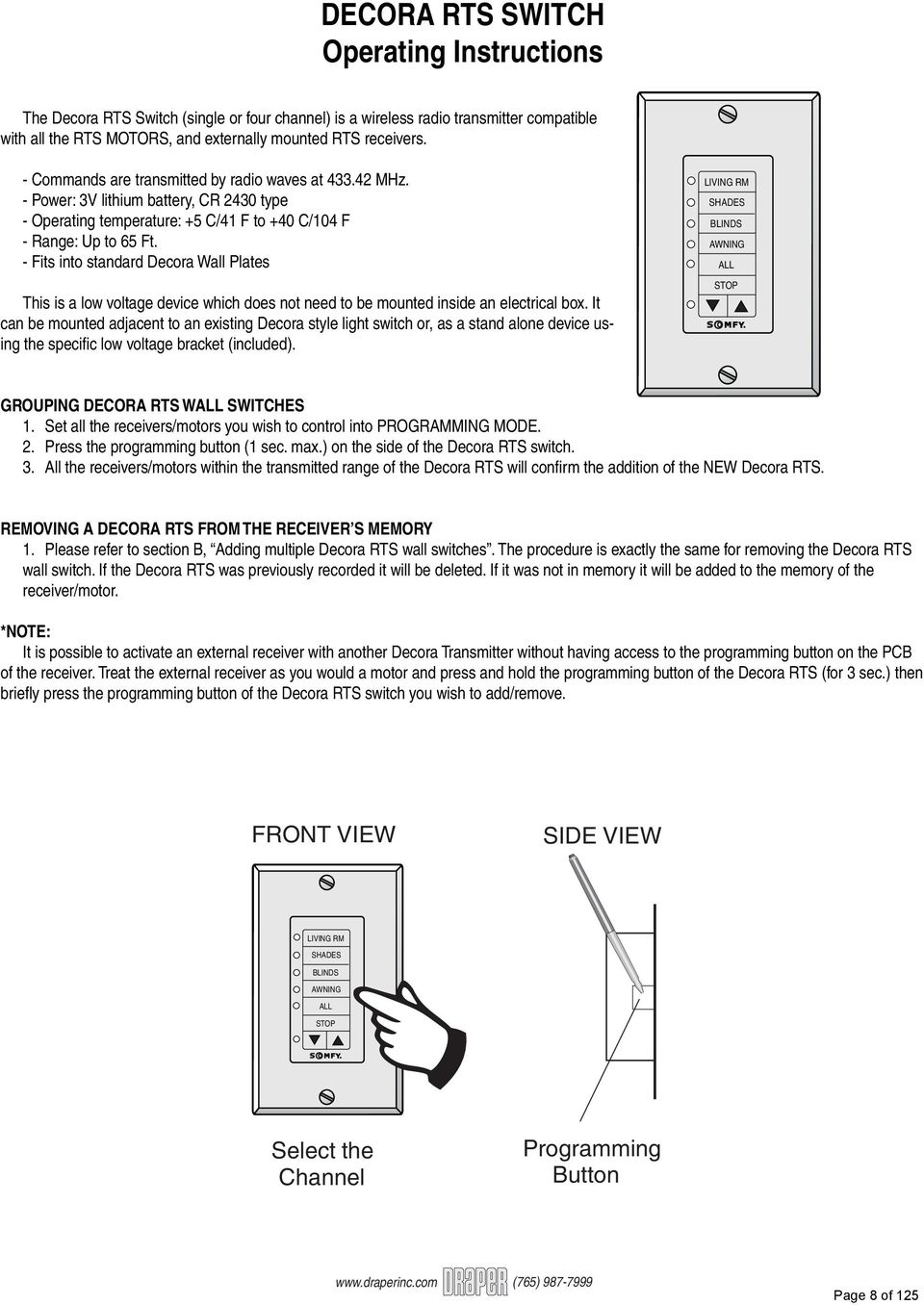
8 DECORA RTS SWITCH Operating Instructions The Decora RTS Switch (single or four channel) is a wireless radio transmitter compatible with all the RTS MOTORS, and externally mounted RTS receivers. - Commands are transmitted by radio waves at MHz. - Power: 3V lithium battery, CR 2430 type - Operating temperature: +5 C/41 F to +40 C/104 F - Range: Up to 65 Ft. - Fits into standard Decora Wall Plates This is a low voltage device which does not need to be mounted inside an electrical box. It can be mounted adjacent to an existing Decora style light switch or, as a stand alone device using the specifi c low voltage bracket (included). LIVING RM SHADES BLINDS AWNING ALL STOP GROUPING DECORA RTS WALL SWITCHES 1. Set all the receivers/motors you wish to control into PROGRAMMING MODE. 2. Press the programming button (1 sec. max.) on the side of the Decora RTS switch. 3. All the receivers/motors within the transmitted range of the Decora RTS will confi rm the addition of the NEW Decora RTS. REMOVING A DECORA RTS FROM THE RECEIVER S MEMORY 1. Please refer to section B, Adding multiple Decora RTS wall switches. The procedure is exactly the same for removing the Decora RTS wall switch. If the Decora RTS was previously recorded it will be deleted. If it was not in memory it will be added to the memory of the receiver/motor. *NOTE: It is possible to activate an external receiver with another Decora Transmitter without having access to the programming button on the PCB of the receiver. Treat the external receiver as you would a motor and press and hold the programming button of the Decora RTS (for 3 sec.) then briefl y press the programming button of the Decora RTS switch you wish to add/remove. FRONT VIEW SIDE VIEW LIVING RM SHADES BLINDS AWNING ALL STOP Select the Channel Programming Button (765) Page 8 of 125
9 DECORA RTS SWITCH Mounting Instructions The special low-voltage bracket is specifi cally designed to mount the Decora RTS wall switch next to an existing Decora light switch with an electrical box already behind the drywall. This bracket differs from other off the shelf low-voltage brackets because it is offset to one side. This allows a double gang Decora style cover plate to fi t over both switches without installing a double gang electrical box behind the drywall. It is also possible to mount this bracket as a stand alone low voltage device. INSTALLATION PROCEDURE NOTE: This bracket is designed for an existing electrical box already behind the sheetrock. If a retrofi t electrical box was used, it is recommended to remove the single gang and replace it with a double gang retrofi t box. 1. Orient the brackets fl at side against the wall keeping the thin side closest and centered with the existing electrical switch box. 1 5 /8" 2. Align the inside edge of the thin side on the bracket with the outside edge of the switch box. Then trace the inside shape (as shown by the dashed line in the diagram) of the bracket. (sheetrock not shown for clarity) Existing Electrical Box 3. Cut traced opening into drywall. Be careful not to make the opening larger than necessary, to ensure a tight fi t. Use dimensions in diagram below. Do not exceed these dimensions to ensure a proper fi t of the bracket. 3 7 /16" Wood 2 x /16" thin side of bracket Inside Edge 1 5 /8" 4. Insert bracket (as shown) into hole, keeping the thin side closest to the existing switch box, and laying fl at on drywall. 5. To keep the bracket in place, bend tabs 90 around drywall, as tightly as possible. 6. Mount low voltage switch into bracket, with its edge fl ush against electrical switch box. 7. Finish the installation by mounting a standard double gang Decora switch cover plate, over both switches 2 5 / 8" drywall 1 5 / 16" Allow Antenna to be extended freely inside wall BATTERY LIFE The RTS Switches are powered by a 3V battery (type 2430) which provides about 3 years operation assuming 4 operations per day. When the battery becomes discharged, the control LED no longer lights up when a command is sent, and the command is not carried out. HOW TO REPLACE THE BATTERY 1. Remove the screws on the back cover of the RTS Switch. 2. Slide the battery out of its holder by pushing it with a screwdriver. 3. Insert the new battery, maintaining its correct polarity. NOTE: Do not throw the battery in the trash, but dispose of it properly. (765) Page 9 of 125

10 Radio Remote Control Motor Programming Instructions When you receive a radio remote control motor from Draper, Inc., the motor has no programming on it so it must be learned and programmed to work on the transmitter that you have at the job. Here are the initial programming instructions. ➀ Connect power to 1 motor. Select the transmitter/channel to which you plan to learn the motor. Press and hold the UP and DOWN buttons at the same time until the motor jogs, then release. ➁ Check the motor run direction by press either the UP or DOWN buttons. This is important because if you do step 3 without doing this step, then you will need to reset the motor. If you need to reverse the motor direction, then press the STOP button (middle button which might be labeled MY) for 5 seconds until the motor jogs. Check the direction again to make sure that it works. ➂ Move the motor to its upper limit position. Press the STOP and DOWN buttons at the same time until the motor starts to move down, then release. You will stop the motor at its lower limit. You can use the UP and DOWN buttons to adjust the motor to the correct lower limit position if need be. ➃ Once the motor is at its lower limit position, then press the UP and STOP buttons at the same time until the motor starts to move up, then release. The motor should move to the upper limit position in step 3 and stop. ➄ Once the motor has stopped at its upper limit position, then press and hold the STOP button for 5 seconds until the motor jogs. ➅ Now, you must put the motor into USER mode. Find the programming button which is a small button on the back or side of the transmitter and press it until the motor jogs. Once you have done this, then the motor will operate in normal fashion. ➆ Disconnect power to this motor and move to the next in your installation and start with step 1. Reconnect motor to power when all motors are programmed. Reset Motor Instructions If the motor is not working or responding correctly and you want to reprogram it from the beginning and clear all previous programming, then follow these steps. ➀ Disconnect the motor from power for 2-5 seconds, reconnect to power for seconds, disconnect from power for 2-5 seconds, and reconnect to power. The motor should move down a little after you reconnect to power the last time. ➁ You will then need to fi nd the programming button which is a small button on the back or side of the transmitter. You will need to depress the button for seconds. The motor should jog up and down once then pause and jog a second time during this time period. Once the motor has completed its second jog, then you can start at step 1 of initial programming as the motor is clear. Setting an Intermediate Stop This is done once the shade is in USER mode from the initial programming at top. ➀ Move the motor to the mid-point location that you want the stop located. ➁ Press and hold the STOP button until the motor jogs. ➂ Now, if you hit the STOP button when the motor is standing still, it will move to that intermediate location. ➃ If you want to delete the stop, then go to the intermediate stop and press and hold the STOP button until the motor jogs. Add/Delete a Channel/Transmitter To add a channel/transmitter, you just need to follow a couple of steps. ➀ Select the channel/transmitter that is currently operating the motor, then press the programming button until the motor jogs. ➁ Select the new channel/transmitter that you want to add to the motor, then press the programming button until the motor jogs. ➂ The motor should now work on both the old and new channel/transmitter. To delete a channel/transmitter, you just need to follow a couple of steps. ➀ Select the channel/transmitter that is currently operating the motor and you want to keep, then press and hold the programming button until the motor jogs. ➁ Select the channel/transmitter that you want to remove, then press and hold the programming button until the motor jogs. ➂ The motor should now only work on the channel/transmitter on step 1. Adjust Limits in User Mode If your initial limits have changed or you want to fi ne tune a motor, you do not need to reset the motor and re-program it. You can just change the limits with these steps. ➀ Move the motor to the limit (upper or lower) that you want to change. ➁ Press and hold the UP and DOWN buttons until the motor jogs. ➂ Move the motor to its new limit location. ➃ Press and hold the STOP button until the shade jogs. These instructions are different for low voltage and Intelligent motors with radio technology. (765) Page 10 of 125

11 RTS Dry Contact Interface Operating Instructions The RTS Dry Contact Interface can be used to communicate between home automation or other third party systems and RTS Motors and Inteo line of controls. RED BLACK GREEN WHITE BatteryHolder ProgrammingButton NOTE: Please consult RTS Motor Instructions for specific product details. 1 Place the RTS Motor in Programming Mode as described in the individual product operating instructions. 2 Press the programming button on the RTS Interface to program it in the memory of the RTS Motor. 3 To activate an UP command, a momentary contact (relay) closure is required between the WHITE and GREEN wires. 4 To activate a DOWN command, a contact closure is required between the BLACK and GREEN wires. 5 To activate a STOP command or Intermediate Position, a contact closure is required between the RED and GREEN wires. Page 11 of 125

12 A B CDE F DESCRIPTION Universal RTS Interface II The addressable Universal RTS Interface II (URTSI II) can be used to communicate between home automation or other third party systems and RTS Motors and controls. It is capable of individual or group control, and can be operated via infrared remote, RS232 and RS485 serial communication. Once an input is activated, an RTS radio command is sent to the automated window treatment. Part Number: CONNECTION DIAGRAM Back of Interface control box IR Sensor Modular Pin-Out (Shown Tab-side Down) Pin 4 IR Signal Common Antenna Power Pin 1 +5V DC N/C IR Sensor Input RS232 Input or RS485 Input Front of Interface control box RS485 Input/Output Power/Transmit LED RS232/RS485 Pin-Out (Shown Tab-side Down) Pin 8 Pin 1 Common RS232 RX +5V DC RS232 TX RS485 B RS485 A UP Button STOP Button DOWN Button Program Button URTSI Address or RTS Channel Rotary Switch NOTE: Do Not remove antenna. If a new antenna is needed, it must be ordered from Somfy to ensure FCC requirements are maintained. FCC INFORMATION This device complies with Part 15 of the FCC Results. Operation is subject to the following two conditions: 1. This device may not cause harmful interference, and 2. This device must accept any interference received, including that which may cause undesired operation. NOTE: This equipment has been tested and found to comply with the limits for CLASS B digital device, pursuant to Part 15 of FCC Rules. These limits are designed to provide reasonable protection against harmful interference when the equipment is operated in a commercial environment. This equipment generates, uses and can radiate radio frequency energy and, if not installed and used in accordance with the instructions, may cause harmful interference to radio communications. However, there is no guarantee that interference will not occur in a particular installation. If this equipment does cause harmful interference to radio or television reception, which can be determined by turning the equipment off and on, the user is encouraged to try to correct the interference by one or more of the following measures: 1. Reorient or relocate the receiving antenna 2. Increase the separation between the equipment and receiver 3. Connect the equipment into an outlet on a circuit different from that to which receiver is connected 4. Consult the dealer or experienced radio/tv technician for help. WARNING Changes or modifi cations not expressly approved by the manufacturer could void the user s authority to operate the equipment. Page 12 of 125

13 OPERATION A. INITIAL SETUP 1. Connect a 9v DC transformer (included) to the receptacle on the back of the control box. The LED will light green to indicate power. 2. Be careful not to mount or enclose Interface on or in metal, as this may effect radio reception. 3. Set the RTS Receiver or motor into its Programming Mode. Refer to the installation instructions of the relevant RTS receiver or motor for this procedure. NOTE: for initial programming provide power only to the motor or control being programmed. 4. Using the rotary switch, select the channel to be programmed. Letters A through F stand for channels 10 through 15, 0 for 16. Briefl y press the programming button (1 sec. max), the window treatment will jog to indicate the channel has been memorized. 5. Repeat the steps above for each channel or product to be memorized, up to To test the control operation, simply press the UP, STOP or DOWN buttons on the front of the control. The window treatment should move appropriately. The LED will fl ash red to indicate the radio signal has been transmitted. B. INFRARED OPERATION 1. The RTS Interface is compatible with Somfy s multichannel transmitter. Connect an infrared sensor to the appropriate connector on the back of the Interface. 2. Each individual motor is activated by fi rst aiming the transmitter at the sensor and pressing the desired unit number on the transmitter and then pressing the UP or DOWN buttons. Press the center button to STOP the window treatment at any time. C. RS232 OPERATION 1. The Somfy RS232 interface uses the following communications settings: 9600 Baud, 8 Data Bits, 1 Stop Bit, No Parity 2. Set the rotary switch to position The basic format for communication is as follows: URTSI ADDR MOTOR CHAN DIR The URTSI address is 01. The motor channel should be 2 digits from 01 to 16. The directional commands are: U = Up D = Down S = Stop (Must be Capital letters) 4. Examples: Motor 1 UP: 0101U Motor 5 DOWN: 0105D Motor 12 STOP: 0112S D. RS485 OPERATION 1. The Somfy RS485 interface uses the following communications settings: 9600 Baud, 8 Data Bits, 1 Stop Bit, No Parity 2. With RS485, it is possible to connect 16 Universal RTS Interfaces on one network. Each Interface will have its own address. To select the address, set the rotary switch to the desired number. Letters A through F stand for addresses 10 through 15, 0 for The basic format for communication is as follows: URTSI ADDR MOTOR CHAN DIR The URTSI address should be 2 digits from 01 to 16. The motor channel should be 2 digits from 01 to 16. The directional commands are: U = Up D = Down S = Stop (Must be Capital letters) 4. Examples: URTSI 1, Motor 1 UP: 0101U URTSI 3, Motor 12 DOWN: 0312D URTSI 14, Motor 9 STOP: 1409S URTSI 10, Motor 15 UP: 1015U MECHANICAL SPECIFICATIONS Overall Dimensions: L: 3 in. W: 4 in. D: 1 3/8 in. Typical Range (Optimal Conditions): 65 ft. ELECTRICAL SPECIFICATIONS Power: 9V DC, 200mA Frequency: Mhz Page 13 of 125

14 RTS Repeater Description The RTS Repeater can be used in installations to extend the range of the standard Radio Technology signal. It will receive the signal from a Telis or similar device and retransmit the signal to a RTS compatible motor or receiver. Part Number Mechanical Specifications Overall Dimensions: L: 4 in. W: 2¼ in. H: 1 3 /8 in. Frequency: MHz Range: 60ft Operating Procedures Simply plug the receiver into any 120v AC outlet. It should be located at least halfway between the transmitting device (Telis) and receiving device (RTS Motor). The red LED will blink, indicating communication. Page 14 of 125

15 Radio Motor Accessories In the previous section radio motor transmitter information was given. This section talks about the accessory parts that come with Radio Motors. We have broken down the accessories and to which motor that they belong. Battery motor accessory is: Battery Wands- Wands are included with new battery motor shades. The battery wand replacements are part no. C There are now reloadable AA battery wands available and part no. is C Battery Cables Part No. Item C " Battery Cable C " Battery Cable C " Battery Cable Low Voltage motor accessories are: Transformers- Transformers are need to supply power to each low voltage motors. The transformers come in different amperages to power different quantities of motors. Part No. Item Type C VDC, 1.66A for 1 motor Plug-in outlet C VDC, 2.5A for 1 motor Plug-in outlet C VDC, 5A for 3 motor Plug-in outlet C VDC, 10A for 6 motors Plug-in outlet C VDC, 15A for 9 motors Plug-in outlet C VDC, 20A for 12 motors Plug-in outlet C VDC, 5A for 3 motors Din Rail Mount C VDC, 10A for 6 motors Din Rail Mount C VDC, 20A for 12 motors Din Rail Mount Other- Part No. Item C motor Power Distribution Panel C motor Power Distribution Panel C DCT Motor Limit Tool C DCT White Switch C DCT Ivory Switch Radio Motor, high voltage, accessories are: Motor Pigtails- Pigtails are needed at different length to connect the motor to power. These motor leads can have a 3 prong plug attached to connect to an outlet or be bought with a plug already molded. The standard is 6 with no 3 prong plug. Part No. Item C RTS Motor cable, no plug C RTS Motor cable, no plug C RTS Motor cable, with 3 prong NEMA plug C RTS Motor cable, with 3 prong NEMA plug C RTS Motor cable, with 3 prong NEMA plug C RTS Motor cable, with 3 prong NEMA plug Standard Motor Accessory to turn the motor into a radio motor is: RTS Receiver for Standard Motor- C Page 15 of 125

16 Battery Wands Battery Wands are the power source for battery motors. Wands do come with every motor purchased. Replacement wands can be purchased if needed. Draper only uses the 12V double battery wand or reloadable wand. Battery life is highly variable depending on the shades size and number of operations that one runs. Typically, the life is 1 to 3 years. Another thing other than shade size and operation which may reduce battery life is RF interface. If a battery motor is reading RF interface from an item, then it will stay on and drain battery power much faster. There is no way of knowing if there is interface draining the motor until it happens. Also conditions can change over time depending on whom or what is the source of the RF interface. Reloadable wands will use 8 AA batteries to obtain the 12V needed to run the shade. Battery Motors will run at different speeds depending on size of shade and type of battery supplying power. Mounting battery wands can be done with the clips that are sent with the motors. There are 2 wands to mount when install 12V batteries and just one to mount when installing reloadable wands. Battery Wand Size 12V Battery 1 Battery size 16" long x 11 /16" diameter Reloadable Wand Size 18" long x 11 /16" diameter (screw on cap is ¾" diameter) Page 16 of 125

17 Plug-In Transformers These transformers are for supplying 24VDC to our low voltage motors. There are 6 types of transformers, but the numbers and type of these transformers are subject to change at any time without notice. These transformers are not special to window shade motors and you may source a transformer which meets the power requirements needed on your own. If you want something different than we carry, we recommend that you do this. Plug-in transformers are called this because they plug into an outlet for power. They will then feed power directly to a motor or a power panel feeding motors. The dims of the current transformers offered are as listed below. Single Motor- Wall Plug-in Dims: 2¼" w x 4" h x 1¼" d Single Motor- Floor Plug-in, this transformer does not plug right into an outlet, but a cord plugs into it then into the outlet like a laptop transformer. Dims: 2½" w x 3 7 /8" h x 1¼" d Three Motor- Table top/shelf Plug-in Dims: 7 1 /8" w x 2" h x 8 5 /8" d Six Motor- Table top/shelf Plug-in Dims: 7 1 /8" w x 2¾" h x 8 5 /8" d Nine Motor- Table top/shelf Plug-in Dims: 7 1 /8" w x 2¾" h x 8 5 /8" d Twelve Motor- Table top/shelf Plug-in Dims: 7 1 /8" w x 2¾" h x 8 5 /8" d Page 17 of 125

18 Features: - AC input range selectable by switch - Protections: Short circuit/overload/over voltage/over temperature - Cooking by free air convection - Can be installed on DIN rail TS-35/7.5 or 15 - UL 508 (industrial control equipment) approved - LED indicator for power on - 100% full load burn-in test - Fixed switching frequency at 55KHz - 3 years warranty DIN-Rail Transformer DR-120 SPECIFICATION MODEL DR DC Voltage 24V Rated Current 5A Current Range 0 5A Rated Power 120W Ripple & Noise (max.) Note 2. 60mVp-p OUTPUT Voltage Adj. Range 24 28V Voltage Tolerance Note 3. ±1.0% Line Regulation ±0.5% Load Regulation ±1.0% Set Up, Rise Time Hold-Up Time (Ty.) 36ms/230VAC 32ms/115VAC at full load Voltage Range VAC/ VAC by switch VDC Frequency Range Hz INPUT Effi ciency (Typ.) 64% AC Current (Typ.) 2.6A/115VAC 1.6A/230VAC Inrush Current (Typ.) Cold Start 20A/115VAC 40A/230VAC Leakage Current <3.5mA/240VAC % rated output power Overload Protection type: Constant current limiting, recovers Automatically after fault condition is removed PROTECTION Over Voltage 29-33V Protection type: Shut down o/p voltage, re-power on to recover Over Temperature 90 C±5 C(TSW1) Protection type: shut down o/p voltage, recovers automatically After temperature goes down Working Temp C (refer to output load deraling curve Working Humidity 20 90% RH non-condensing ENVIRONMENT Storage Temp. Humidity C, 10 95% RM Temp, Coeffi cient ±0.03%/C (0-50 C) Vibration Hz, 2G 10min./1cycle.60min.each along X, Y, Z axes; Mounting Compliance to IEC Safety Standards UL508, UL , TUV EN approved Withstand Voltage!/P-O/P.3KVAC I/P-FG.1.5KVAC 0/P-FG.0.5KVAC SAFETY & Isolation Resistance I/P-O/:, I/P-FG, O/P-FG:100M Ohms/500VDC EMC (Note 4.) EMI Conduction & Radiator Compliance to EN55011, EN55022, (CISPR22) Class B Harmonic Current Compliance to EN ,-3 EMS Immunity Compliance to EN ,2,3,4,5,6,8,11, ENV50204, EN55024, EN (EN ), heavy industry level, criteria A MTBF 136.8Khrs.min. MIL-HDBK-217F (25 C) OTHERS Dimension 65.5 x x 100 mm (W x H x D) Packing 0.78Kg; 20pcs/16.5Kg/1,29CUFT NOTE: ➀ All parameters NOT specially mentioned are measured at 230VAC input, rated load and 25 C of ambient temperature. ➁ Ripple & noise are measure at 20MHz of bandwidth by using a 10 twisted pair-wire terminated with a 0.1uf & 47uf parallel capacitor. ➂ Tolerance: includes set up tolerance, fi re regulation and load regulation. ➃ The power supply is considered a component which will be installed into a final equipment. The final equipment must be reconfirmed that it still meets EMC directives. Page 18 of 125

19 DIN-RailTransformer DR-120 Page 2 (765) Page 19 of 125

20 DIN-RailTransformer DR-240 Features: - Universal AC input/full range - Built in active PFC function - Protections: Short circuit/overload/over voltage/over temperature - Cooking by free air convection - Can be installed on DIN rail TS-35/7.5 or 15 - UL 508(industrial control equipment/approved - LED indicator for power on - 100% full load burn-in test - Fixed switching frequency at 100KHz - 3 years warranty SPECIFICATION MODEL DRP DC Voltage 24V Rated Current 10A Current Range 0 10A Rated Power 240W Ripple & Noise (max.) Note 2. 80mVp-p OUTPUT Voltage Adj. Range 24 28V Voltage Tolerance Note 3. ±1.0% Line Regulation ±0.5% Load Regulation ±1.0% Set Up, Rise Time 800ms, 40ms/230VAC 800ms, 40ms/115VAC at full load Hold-Up Time (Ty.) 24ms/230VAC 24ms/115VAC at full load Voltage Range Note VAC VDC Frequency Range Hz INPUT Effi ciency (Typ.) 84% AC Current (Typ.) 2.8A/115VAC 1.4A/230VAC Inrush Current (Typ.) Cold Start 27A/115VAC 45A/230VAC Leakage Current <3.5mA/240VAC % rated output power Overload Protection type: Constant current limiting, recovers automatically after fault condition is removed PROTECTION Over Voltage 30 36V Protection type: Shut down o/p voltage, re-power on to recover Over Temperature 100 C±5 C(TSW1)detect on heat sink of power transistor Protection type: shut down o/p voltage, recovers automatically after temperature goes down Working Temp C (refer to output load derating curve) Working Humidity 20 90% RH non-condensing ENVIRONMENT Storage Temp. Humidity C, 10 95% RH Temp, Coeffi cient ±0.03%/C (0-50 C) Vibration Hz, 2G 10min./.1cycle.60min.each along X, Y, Z axes; Mounting Compliance to IEC Safety Standards UL508, UL , TUV EN approved Withstand Voltage!/P-O/P.3KVAC I/P-FG.1.5KVAC 0/P-FG.0.5KVAC SAFETY & Isolation Resistance I/P-O/P, I/P-FG, O/P-FG:100M Ohms/500VDC EMC (Note 4.) EMI Conduction & Radiation Compliance to EN55011 (CISPR11) EN55022 (CISPR22), EN Class B Harmonic Current Compliance to EN ,-3 EMS Immunity Compliance to EN ,2,3,4,5,6,8,11, ENV , EN55024, EN (EN ), heavy industry level, criteria A MTBF 105.5Khrs.min. MIL-HDBK-217F (25 C) OTHERS Dimension mm(W H D ) Packing 1.2Kg; 12pcs/16.5Kg/1.29CUFT NOTE: ➀ All parameters NOT specially mentioned are measured at 230VAC input, rated load and 25 C of ambient temperature. ➁ Ripple & noise are measure at 20MHz of bandwidth by using a 10 twisted pair-wire terminated with a 0.1uf & 47uf parallel capacitor. ➂ Tolerance: includes set up tolerance, fi re regulation and load regulation. ➃ The power supply is considered a component which will be installed into a final equipment. The final equipment must be reconfirmed that it still meets EMC directives. ➄ Derating may be needed under low input voltages. Please check the derating curve for more details. Page 20 of 125

21 DIN-RailTransformer DR-240 Page 2 (765) Page 21 of 125
22 DIN-RailTransformer DR-480S Features: - AC input range selectable by switch - Built in passive PFC function compliance to EN High-effi ciency 89% and low dissipation - Protections: Short circuit/over Load/Over voltage/over temperature - Cooling by free air convection - Built-in constant current limiting circuit - Can be installed on DIN rail TS-35/7.5 or 15 - UL 508 (industrial control equipment) approved - EN (EN ) industrial immunity level - 100% full load burn-in test - 3 years warranty SPECIFICATION MODEL DRP480S-24 DC Voltage 24V Rated Current 20A Current Range 0 20A Rated Power 480W Ripple & Noise (max.) Note mVp-p OUTPUT Voltage Adj. Range 24 28V Voltage Tolerance Note 3. ±1.0% Line Regulation ±0.5% Load Regulation ±1.0% Set Up, Rise Time 1200ms, 40ms/230VAC,115VAC at full load Hold-Up Time (Ty.) 23ms/230VAC, 115VAC at full load Voltage Range Note VAC/ VAC by switch FDC Frequency Range Hz Power Factor (Typ.) 0.7/230VAC only INPUT Effi ciency (Typ.) 89% AC Current (Typ.) 8A/115VAC 3.2A/230VAC Inrush Current (Typ.) Cold Start 27A/115VAC 45A/230VAC Leakage Current <3.5mA/240VAC % rated output power Overload Protection type: Constant current limiting, recovers automatically after fault condition is removed PROTECTION Over Voltage 30 36V Protection type: Shut down o/p voltage, re-power on to recover Over Temperature 100 C±5 C(TSW: detect on heat sink of power switch Protection type: shut down o/p voltage, recovers automatically after temperature goes down Working Temp C (refer to output load derating curve) Working Humidity 20 90% RH non-condensing ENVIRONMENT Storage Temp. Humidity C, 10 95% RH Temp, Coeffi cient ±0.03%/C (0-50 C) Vibration Component Hz, 2G 10min./.1cycle.60min.each along X, Y, Z axes; Mounting Compliance to IEC Safety Standards UL508, UL , TUV EN approved Withstand Voltage!/P-O/P.3KVAC I/P-FG.1.5KVAC 0/P-FG.0.5KVAC SAFETY & Isolation Resistance I/P-O/P, I/P-FG, O/P-FG:100M Ohms/500VDC EMC (Note 4.) EMI Conduction & Radiation Compliance to EN55011, EN55022, (CISPR22) Class B Harmonic Current Compliance to EN ,-3 EMS Immunity Compliance to EN ,2,3,4,5,6,8,11, ENV50204, EN , EN (EN ), heavy industry level, criteria A MTBF 187.9Khrs.min. MIL-HDBK-217F (25 C) OTHERS Dimension mm(W H D ) Packing 2.60Kg; 6pcs/16.6Kg/1.75CUFT NOTE: ➀ All parameters NOT specially mentioned are measured at 230VAC input, rated load and 25 C of ambient temperature. ➁ Ripple & noise are measure at 20MHz of bandwidth by using a 10 twisted pairwire terminated with a 0.1uf & 47uf parallel capacitor. ➂ Tolerance: includes set up tolerance, fire regulation and load regulation. ➃ The power supply is considered a component which will be installed into a final equipment. ➄ The final equipment must be reconfirmed that it still meets EMC directives. Page 22 of 125
23 DIN-RailTransformer DR-480S Page 2 (765) Page 23 of 125
24 5 and 10 Motor Power Panels The 5 & 10 motor power panels are for powering the Low Voltage Radio Motors. They are not required, but they do make installation easier. A transformer is still needed, and it will feed power to the panel. You can parallel wire the motors directly into the power feed off the transformer. This, however, makes connecting and disconnecting the motor from power to program it diffi cult and cumbersome. With a power panel you can disconnect or connect each motor individually for programming, this will make installation quicker. A power panel is also set-up to work with wiring that might have been pulled for a different system. The diagram below shows the panel and how motors plug into it. 10 Motor Panel = C Motor Panel = C Gauge/2 conductor 150 Ft. Maximum Sonesse 30 Motor Connect motor to terminals 5 & 6 of motor connector Connect motor connector to power panel Power LEDs 12/24V DC Input _ Power Supply Input + 18 Gauge/2 Conductor 5 Ft. Maximum 2A Fuse Page 24 of 125
25 8 Motor Power Panels The Power Distribution Panel is used to distribute 12 or 24V DC power to up to 8 low voltage motors. The panel includes mounting snaptrack and mating motor connectors. Typically the panel and power supply is installed in an electrical cabinet supplied by others. There are also 5- and 10-motor panels. Part Number: TBA 22 Gauge/2 conductor 150 Ft. Maximum Sonesse 30 Motor Connect motor to terminals 5 & 6 of motor connector Connect motor connector to power panel Power LEDs 12/24V DC Input _ Power Supply Input + 18 Gauge/2 Conductor 5 Ft. Maximum 2A Fuse Page 25 of 125
26 RTS Receiver for Standard Motor The Universal Receiver provides RTS capability to standard motors. It can be used stand-alone as a radio control, or with RTS sensors for sun and wind control. Tow user-defi ned intermediate positions can be programmed. This control is packaged in a weatherproof enclosure and includes watertight strain-relief fi ttings for wires entering the box. Part No.: C INSTALLATION PROCEDURES 1 The Universal Receiver should be mounted as close to the motor as possible. If mounted outside, ensure that the connections are facing down to avoid rain seepage. Avoid mounting the control against any metallic surface, as this may affect radio reception. 2 Connect high voltage wires according to the wiring diagram on the next page. Make sure to use included watertight strain relief fi ttings to maintain the weatherproofi ng of the enclosure. 3 If used, the RTS sensor should be placed close to the awning or shading system to make sure the wind speed or sun intensity is measured at the product. Guard against installing the wind sensor too close to an obstruction such as a chimney, gutter or the window covering itself, which could block the wind and cause erroneous sensor readings. The sensor should also not be mounted in the shade or be obstructed by trees, to ensure accurate sunlight readings. PROGRAMMING PROCEDURES RECORDING THE INTERMEDIATE POSITION FROM THE TOP OF THE WINDOW TREATMENT - Bring the window treatment to its upper limit using the Telis transmitter. Press the DOWN and MY buttons simultaneously until the awning begins to move, then release. - Stop the window treatment at the intermediate position desired. Press the MY button for 2 seconds to memorize that position. RECORDING THE INTERMEDIATE POSITION FROM THE BOTTOM OF THE WINDOW TREATMENT - Bring the motorized treatment to its lower limit. Press the UP and MY buttons simultaneously until the awning begins to move, then release. - Stop the window treatment at the position desired. Press the MY button for 2 seconds to memorize that position. DELETING AN INTERMEDIATE POSITION - Briefl y press the MY button of the Telis transmitter to reach the desired intermediate position. - Continue to press the MY button for 10 seconds until the programming led on the Central is Receiver stops blinking. That position is now deleted. TO ADD A NEW TRANSMITTER or SENSOR TO THE MEMORY OF THE RECEIVER - Press the programming button, for more than 2 seconds, on a transmitter that is already memorized by the Universal Receiver to wake up the receiver. The programming led on the Receiver will blink, and the motor will jog. Press the programming button on the new transmitter or sensor to attach it to the Universal Receiver. The programming led on the receiver will light and the motor will jog indicating the transmitter or sensor is memorized. TO REMOVE A TRANSMlffi R or SENSOR FROM THE MEMORY OF THE RECEIVER - Press the programming button, for more than 2 seconds, on a transmitter that is already memorized by the Universal Receiver to wake up the receiver. The programming led on the Receiver will blink, and the motor will jog. Press the programming button on the transmitter or sensor you want to remove from memory. The programming led on the receiver will light and the motor will jog indicating that transmitter or sensor will no longer operate the Universal Receiver. TO REMOVE All TRANSMITTERS or SENSORS FROM THE MEMORY OF THE RECEIVER - Press and hold the programming button of the Unviersal Receiver for more than 7 seconds until the led blinks and the motor jogs twice. This removes All memorized transmitters or sensors. Page 26 of 125
27 RTS Receiver for Standard Motor Page 2 of 2 OPERATING INSTRUCTIONS System Set Up 1 With power off, wire the Universal Receiver as indicated above. Turn all circuit breakers on (motors should not move). 2 The motor can be tested using the sequence button located on the Universal Receiver board. Each press of the switch will sequence through the directions as follows; DEPRESS 1 UP DIRECTION DEPRESS 2 STOP DEPRESS 3 DOWN DIRECTION DEPRESS 4 STOP 3 Set the Universal Receiver into programming mode by pressing the programming button on the receiver until the LED lights (about 2 seconds). The motor will jog. 4 Press the programming button on the Teli transmitter or RTS sensor to be memorized. The programming LED will blink and the motor will jog indicating the transmitter has been memorized. 5 Operate the motor in the DOWN direction using the radio transmitter. 6 The motorized window covering should move down or out. If this is incorrect, turn off the circuit breakers and reverse the red and black wires of the motor. Operating Procedures REMOTE ONLY CONTROL 1 Pressing the UP button on the Telis transmitter will move the window treatment up or in. The DOWN button will move the treatment down or out. 2 To stop the motorized product at any time, press the MY button on the transmitter. 3 To reach one of the intermediate positions, the window treatment must fi rst be at the upper or lower limit, and stopped. Pressing the MY button on the transmitter will move the window treatment to the desired position. WIND ONLY OPERATION 4 If wind monitoring is desired, an Eolis Sensor RTS or Eolis Wirefree must fi rst be memorized into the receiver. Press the programming button on the receiver until the LED blinks and the motor jogs. Press the programming button on the bottom of the sensor. The programming LED on the receiver will light and the motor will jog, indicating the sensor has been memorized. 5 Set the desired wind speed on the sensor as specifi ed in the product's operating instructions. 6 When the monitored wind speed is greater than the setting, the UP direction will activate after 2 seconds. As long as the wind speed remains high, all other commands will be ignored. 7 When the wind speed drops below the set value, a manual command can be given with the radio transmitter after only one minute. SUN AND WIND OPERATION 8 If sun and wind monitoring is desired, an Eolis Sensor RTS or combination Eolis Wirefree and Sunis must fi rst be memorized into the receiver. Press the programming button on the receiver until the LED blinks and the motor jogs. Press the programming button on the sensor. The programming LED on the receiver will light and the motor will jog, indicating hte sensor has been memorized. 9 Set the desired wind speed and sun intensity on the sensor as specifi ed in the product's operating instructions. 10 When the monitored wind speed is greater than the setting, the UP direction will activate after 2 seconds. As long as the wind speed remains high, all other commands will be ignored. 11 When the measured sun intensity is greater than the set level, a DOWN command is given after a 2 minute delay, assuming no wind is present. If the upper intermediate position is set, the shade will go to that position. Otherwise, it will go to the lower limit. 12 When the sun intensity falls below the set level, the shade will automatically retract after a minute delay, assuming no wind is present. Page 27 of 125
28 Sunis RTS Light Sensor Programming/Operating/Installation Instructions DESCRIPTION The Sunis RTS Light Sensor is a wireless radio transmitter compatible with RTS motors and externally mounted RTS receivers. Window or Sill mounted, the Sunis RTS operates motorized window coverings in accordance to the amount of sunlight received. Sunlight sensitivity (threshold) can be adjusted for varying degrees of sunlight intensity. Commands are transmitted by radio waves at MHZ Power: 3V Lithium battery, CR2430 Operating temperature: 0 deg. C/32 deg. F deg. C/140 deg. F Range: Up to 65ft. Mount: Window glass/sill Dimensions: Diameter 2 3 /16" /(55.5mm) x Depth ¾" /(19mm) Indoor Use Only STEP ONE: PROGRAMMING ADDING A SUNIS RTS LIGHT SENSOR INITIAL INSTALLATION Note: During initial programming, provide power only to motor or RTS receiver being programmed. 1 Carefully remove rear cover to expose sensor control setting panel. 2 Set the RTS Receiver or Motor into Programming Mode (Refer to the installation instructions of the relevant RTS receiver or motor for this procedure). On/Off Selector Switch Control Setting Panel Program Button 3 Slide the ON/OFF selector switch to the ON or Position. 4 Using a paperclip or similar device, briefl y press the programming button (1 second max) located onthe Sunis light sensor (see Figure 1). The RTS receiver or Motor will confi rm the addition of the new Sunis light sensor in their respective manners. Rear Cover Note: Repeat steps 1-3 when multiple motors are required to operate from the Sunis light sensor DELETING A SUNIS RTS LIGHT SENSOR FROM MEMORY 1 Using a Paperclip or similar device, press and hold the program button (3 sec.) on the previously addressed Sunis Light Sensor or Telis Transmitter (see Figure 1). The RTS receiver or motor will confi rm programming mode in their respective manners. Figure 1 2 Using a paperclip or similar device, briefl y press the programming button (1 sec. max) located on the Sunis Light Sensor (see Figure 1.) The RTS receiver or Motor will confi rm the deletion of the Sunis Light Sensor in their respective manners. Page 28 of 125
29 Sunis RTS Light Sensor Programming/Operating/Installation Instructions Page 2 of 4 STEP TWO: INSTALLATION MOUNTING SUNIS LIGHT SENSOR TO WINDOW GLASS OR SILL 1 Attach the screw-in" suction cup mounting device for Window Mount or Sill Mount (see Figure 2). 2 Determine the appropriate mounting location and throughly clean window glass or sill area of debris or residue. Firmly press suction cup mount onto INSIDE window (glass or sill) positioning sensor towards the OUTSIDE of window (see Figure 3). Note: Sunis light sensor MUST BE free from obstructions in order to correctly sense incoming light. Sill mount may not be suitable for some window installations. Window Glass Mount Window Sill Mount Figure 2 Figure 3 STEP THREE: SETTING THE LIGHT (SUN) SENSITIVITY (THRESHOLD) 1 Carefully remove rear cover of Sunis Light sensor exposing control setting panel. 2 Slide the ON/OFF selector switch to the ON or Position. 3 Momentarily press the Mode Button, LED Indicator will illuminate to a red color for approx. 15 seconds. Note: LED indicator light will remain illuminated for approximately 15 seconds. Should the LED Indicator light extinguish prior to establishing the light sensitivity (threshold) setting, simply press the MODE BUTTON momentarily to reactivate LED light. 4 Using a small screw driver (or similar device) rotate the Sun Sensitivity Selector to the fully CLOCKWISE (+) position. LED will remain illuminated (red color) (see Figure 4). Figure 4 5 Slowly rotate the Sun Sensitivity Selector COUNTER CLOCKWISE (-) until the LED indicator illuminates to a green color. A green colored LED indicates the present light value (threshold) At this value (threshold) the Sunis sensor will provide the necessary DOWN COMMAND to the motor or RTS receiver. *Note: Rotating the Sun Sensitivity Selector to a FULL COUNTER CLOCKWISE (-) position will simulate sun if no sun is present. It is not recommended to leave the selector (Threshold setting) in this position. (765) Page 29 of 125
30 Sunis RTS Light Sensor Programming/Operating/Installation Instructions Page 3 of 4 STEP FOUR: OPERATION The Sunis WireFree RTS Light Sensor cans be operated in either Demonstration Mode (temporary) or Standard (default) mode. DEMONSTRATION MODE Demonstration mode reduces the standard operating time delays, permitting almost instantaneous operating/output response from the Sunis light sensor. This mode facilitates initial light sensitivity (threshold) settings and quickly demonstrates the operation of the motorized end product. 1 Press and hold MODE BUTTON until LED indicator blinks (color red) LED will continue to blink for approx. 30 seconds then extinguish (4ee Figure 5). 2 If necessary, adjust sun sensitivity (threshold) setting (refer to STEP 3. [4 & 5]) LED will blink during this mode. Should LED indicator extinguish prior to fi nal setting, simply press the mode button momentarily to reactivate blinking LED indicator. 3 Sunis RTS light sensor will send a "DOWN" command to the RTS receiver or motor after 5 seconds of sensing light within the set threshold. Figure 5 4 Sunis RTS light sensor will send a "UP" command to the RTS receiver or motor IMMEDIATELY after sensing light that HAS NOT reached (or below) the set threshold. Note: 1 Sunis light sensor will automatically default to standard operating mode after 3 minutes. 2 *Rotating the Sun Sensitivity Selector to a FULL COUNTER CLOCKWISE (-) position will simulate sun if no sun is present. It is not recommended to leave the selector (Threshold setting) in this position. STANDARD OPERATING MODE Standard operating mode (default) employs output response time delays. 1 Refer to STEP 3. [1-5] (Setting the Light (Sun) Sensitivity Threshold) 2 Sunis RTS light sensor will send a "DOWN" command to the RTS receiver or motor after 5 Minutes of sensing light within the set threshold. 3 Sunis RTS light sensor will send a "UP" command to the RTS receiver or motor after 30 Minutes of sensing light that HAS NOT reached (or below) the set threshold. Note: LED indicator light will remain illuminated for approx. 15 seconds. To confirm present light level, momentarily press the mode button to illuminate the LED indicator light. GREEN LED: INDICATES SUN (Light) WITHIN THRESHOLD SETTING RED LED: INDICATES SUN (Light) BELOW THRESHOLD SETTING Note: The Sunis WireFree RTS light sensor is capable of providing control in accordance to light level conditions only. Once a command is sent, the Sunis will not send another command until there is a change in light condition. (765) Page 30 of 125
31 Sunis RTS Light Sensor Programming/Operating/Installation Instructions Page 4 of 4 REPLACING THE BATTERY The Sunis RTS Light Sensor uses a lithium battery (Type: CR2430). LED INDICATOR LIGHT will illuminate Orange (color) when battery needs replacing. 1 Carefully remove rear cover of Sunis Light sensor exposing the control setting panel (See Figure 6). 2 Firmly grip the molded indentations and rotate control setting panel to open (counterclock wise) position. 3 Carefully separate from sensor case to expose battery holder. 4 Replace battery with correct rated/type battery. Be certain of battery polarity (+) and (-) when installing new battery. Note: Do not use any tools when replacing the battery as there is a risk of damaging the sensor circuitry. Figure 6 TROUBLESHOOTING GUIDE PROBLEM POSSIBLE CAUSE Window covering does not react to The Sensor Selector is in the Off position. Sunis Sensor The Sensor is not programmed to motor or RTS receiver. The Light sensitivity (Threshold) values are incorrectly set. The Battery is low/weak and needs replacing. The Sensor cover is dirty or obstructed. The Sensor is incorrectly positioned/mounted. Window covering may have received a subsequent command from another RTS control (i.e., Telis transmitter or Chronis timer). Window covering moves too frequently The Sensor is in Demo mode Window covering reacts incorrectly A bright light source is affecting the sensor. Motorized window covering (Directional output) is programmed incorrectly. FCC INFORMATION This device complies with Part 15 of the FCC Results. Operation is subject to the following two conditions: 1 The device may not cause harmful interference, and 2. This device must accept any interference received, including that which may cause undesired operation. NOTE: This equipment has been tested and found to comply with the limits for CLASS B digital device, pursuant to Part 15 of FCC Rules. These limits are designed to provide reasonable protection against harmful interference when the equipment is operated in a commercial environment. This equipment generates, uses and can radiate radio frequency energy and, if not installed and used in accordance with the instructions, may cause harmful interference to radio communications. However, there is no guarantee that interference will not occur in a particular installation. If this equipment does cause harmful interference to radio television reception, which can be determined by turning the equipment off and on, the user is encouraged to try to correct the interference by one or more of the following measures: 1 Reorient or relocate the receiving antenna 2. Increase the separation between the equipment and receiver3. Connect the equipment into an outlet on a circuit different from that to which receivers connected 4. Consult the dealer or experienced radio TV technician for help. WARNING: Changes or modifi cations not expressly approved by the manufacturer could void the user s authority to operate the equipment. (765) Page 31 of 125
32 Toggle Switch (SP/DT) and Princess Rocker (DP/DT) The maintain toggle switch (SP/DT) is the standard switch which is sent with shades. Maintain switches when fl ipped stay in the up or down position for one to walk away while the shade moves. Ivory is the standard color (Part ), but one can get it in white (Part ). The momentary toggle switch is an alternate switch which one can have in place of the maintained. They come in ivory (Part ) or white (Part ). The momentary switch returns to the center/off position when one releases the switch. The above switch types are rated for V and 15A. This means that US and export markets can use the switch and the motor draw through the switch can be up to 12A. The switch fi ts in a single gang box and uses a conventional light switch cover plate. The maintained rocker switch (DP/DT) is an up-charge switch which can run two motors at the same time. It comes in ivory (Part C ) and white (Part C ). There are two sets of relays on the back of the switch to wire each motor. The motors cannot be parallel wired to the switch. The momentary rocker switch is an alternate to the maintained rocker. This switch must be held in place to keep from moving to the center/ off position unlike the maintain switch which stays in position. The momentary switch comes in ivory (Part C ) and white (Part C ). The above switch types are rated for V and 15A. This means that US and export markets can use the switch and the motor draw through the switch can be up to 12A. The switch fi ts in a single gang box and uses a princess rocker switch cover plate. Page 32 of 125
33 Technical Data Sheet KS-3 Three Position Key Switch By Draper USES: COMPATIBILITY: CONTACTS: RATING: DESCRIPTION: The KS-3 replaces the standard single-station control switch for all products (screens, shades or projector lifts) where the directional functions (Up and Down) need to be combined with the security of a key switch. It is not intended for use with any other control. KS-1 Power Supply Key Switch. The KS-3 is intended as the sole control station, and cannot be used as a multiple station control. It can, however, be used with the KS-1 power supply key switch, although having two key switches is redundant. It is not intended for use with any other control. Two cam-operated Single-Pole, Single-Throw contact blocks (On-Off), wired to emulate Single-Pole, Double-Throw, Center Off (On-Off-On). Maintained action. 600 Volts, UL recognized, CSA recognized. 3-position key operator. Cover plate is stainless steel. Four 6" wire leads: black, black, red and blue (2 commons, down and up). 2¾" x 4½" cover plate fits a single-gang box. PART NUMBER: ILLUSTRATION: 2¾" 2 11 /16" 1 9 /16" 1¾" 4½" UP OFF DOWN Red - Down Black - Com Black - Com Blue - Up Copyright 2010 Draper Inc. Form KS-3_TechDataSheet10-R Printer in U.S.A. Page 33 of 125
34 Technical Data Sheet MS-3R/MS-4R Multiple Station Control By Draper USES: COMPATIBILITY: CONTACTS: RATING: DESCRIPTION: PART NUMBER: The MS-3R and MS-4R are 3- and 4-wire versions of the same switch, used for controlling one screen from multiple locations, using the motor s voltage (115 or 220). MS-4R is the first control station in a series of stations. It is also the intermediate control(s) in the case of three or more stations. The fourth wire passes electricity to the next switch in the series. This fourth wire is taped off to create the MS-3R. MS-3R is the last control station in a series of stations. Therefore, it does not need to pass electricity to a next switch. It is used with one or more MS-4R controls.. MS-3R and MS-4R are used with each other as multiple control stations. They can also be powered on and off with the KS-1 Power Supply Key Switch. They are not intended for use with any other controls. Single-Pole, Triple-Throw (On-On-On). Momentary (spring-loaded) action. 16 Amps, 277 Volts, UL recognized, CSA recognized. Switch is a black, Euro-style (rounded or oval) rocker switch. Cover plate is aluminum, finished silver satin. Four 6" wire leads: black, red, blue and black (common, down, up, next switch). MS-3R and MS-4R start out as the same control. The 3 and 4 indicate the number of wires connected to the switch. The fourth wire is taped off to create the MS-3R. 2¾" x 4½" cover plate fits a single-gang box MS-3R MS-4R MS-3R and 1 MS-4R ILLUSTRATION: UP DOWN Black - Next Red - Down Black - Com Blue - Up Copyright 2009 Draper Inc. Form MS-3R_MS-4R_TechDataSheet09 Printer in U.S.A. Page 34 of 125
35 Motor Pigtails and Disconnects Motor Pigtails are a standard of 6 with a 18 gauge 3 conductor with a ground on 4 wire motors. It is a 18-2 with 3 wire motors. The pigtails do come in longer lengths up to wire pigtails also can come with an optional 3 prong plug (see page 20). All motor pigtails are not plenum rated. They are a PVC jacketed cable with a diameter of 5 /16". Quick disconnect plugs come as a standard on Motorized Flexshades with brackets, fascia, or headbox (excluding small pocket headbox). They are not on Motorized Flexshades in Access Pockets (single, dual or ultimate), and they are not on Lightblocs, Colossals, Flexshade 2s, skylights or Romans. The male plug is one foot off the motor. The female lead which can be sent early is toward the J-Box. It is available in 5' lengths (Part C ) as a standard, but you can also order female leads at 11' (Part C ), 17' (Part C ), and 23 (Part C ). A female plenum rated lead of 23' (C ) is also available. The female lead can be replaced with a wall entry plate, C , for plugging the male connector into the wall or J-box face plate. The picture below is the standard plug set-up. Each plug is 2" long so 4" when together. The female is 1¼" w at the base and 7 /8" wide at the neck. It is 7 /8" high. The male plug is 1¼" w at the base and 1 3 /8" wide at the neck. It is 7 /8" high. Page 35 of 125
36 Isolating Relays The isolating relay (ISO relay) prevents feedback between motors and allows multiple motors to run off a 120V switch. The switches that Draper supplies are 15A so twelve standard motors are able to run off one switch with isolating relays. To further help you decide if isolating relays are right for you, here are some conditions in which you would use them: - You want to run multiple shades at one time, together off of one high voltage wall switch. - You have parallel wired motors that you are trying to fi x. - You want to remote locate controls in J-boxes by the shades to reduce wiring. - You want the cheapest, most effective way to control up to twelve motors from one high voltage switch. Isolating relays are not to be used if the following are your conditions. - You are planning at any point and time to run the shades from a low voltage system such as AMX, Crestron, Vantage, etc. - You want to operate a group of shades as two or more groups and together. - You want to have preset intermediate stop action. - You want to operate the shades from an IntelliFlex input device such as a sun sensor, IntelliFlex wall switch, IR remote, RF remote, etc. - You want the controls to come in an electrical enclosure. - You want to upgrade the system at a later time to work from a computer or other low voltage switching device. Page 36 of 125
37 Please Note ➀ Make sure power is disconnected before installing controls. ➁ This product is designed to be a job site rescue device by allowing multiple motors to be connected to one motor control or switch and provides group control of these motors. Each motor must have its own ISO Relay. Make sure the total FLA of all motors grouped together does not exceed the load carrying capacity of the switch or motor control being used. ➂ When installing an ISO into an enclosure, maintain a minimum of.2" (5mm) spacing in all directions using the supplied spacers. An insulator plate should also be used. Shorts will result in damage to the component. ➃ All metal traces may have AC power on them and must be insulated from the user and from electrical ground. An INS-ISO (Draper Part# C ) insulation board is provided. ➄ Large black part may have a small voltage on it immediately after unit is active. ➅ To achieve Pollution Degree 2 environment, mount in an enclosure with tight fi tting seams or one that is gasketed. ➆ The Main Disconnect and Branch Circuit Protection shall be provided by installer. Protection for shade motor must be provided at the switch or breaker panel. ➇ Maximum surrounding air temperature 70 degrees Celsius. ➈ Use copper conductors rated 75 degrees Celsius or higher only, 18-12AWG. Please Note: This device has not been evaluated for reliability to the Standard for Tests for Safety-Related Controls Employing Solid-State Devices, UL 991 and therefore is not considered suitable for entrapment protection. Inserting wire into spring terminal ➀ Open spring terminal by inserting screwdriver into upper opening. ➁ Insert wire into lower opening. ➂ Remove screwdriver. Wiring Instructions Isolating Relay Gen-2 by Draper Part Number C Electrical Specifications Input: Line Voltage: 115v AC +/- 10% E Output: 3SMW 115V AC 5 FLA 1 /6 HP Window Shade Control Dims: 2.07" L x 1.41" W x 0.82" H (52.6 x 35.8 x 20.8 mm) 1 Isolating Relay fi ts in a standard single gang J-Box. (For a wiring diagram of more than one Isolating Relay Daisy chained together, see below) To switch and/or next ISO 115 Neutral Up Down From Motor: White-Neutral Motor Up Motor Down This can be any Single Pole, Double Throw switch Wiring Diagram of more than one Isolating Relay Daisy-Chained 115V AC Hot Neutral Motor Neutral Black - Up Red - Down Note: Motor red and black wires will need to "flip" if one motor is right hand and the other is left hand. ISO To V AC Motor 1 Neutral Up Down INPUT INPUT Green Green To V AC Motor 2 Neutral Up Down INPUT INPUT ISO Earth Ground To Additional Motor Green Wire Fabric un roll ing from back of roller (standard) Right hand motor (Standard) Black Up Red Down Left hand motor Black Down Red Up Fabric unrolling from front of roller (reverse roll) Right hand motor (Standard) Red Up Black Down Left hand motor Red Down Black Up Interior side Interior side To additional ISOs Copyright 2009 Draper Inc. Form ISO_WD09 Printed in U.S.A. If you encounter any difficulties installing/wiring your IntelliFlex control, call your dealer or Draper, Inc., Spiceland, Ind., (765) ; or fax (765) Page 37 of 125
38 IntelliFlex GC4 The GC4 (group control 4 motors) prevents feedback between motors and allows multiple motors to run off a 120V switch. The switches that Draper supplies are 15A so twelve standard motors or three GC4' s are able to run off one switch with GC4' s. To further help you decide if a GC4 is right for you, here are some conditions in which you would use them: - You want to run multiple shades at one time, together off of 1 high voltage wall switch. - You want controls in an electrical enclosure and a UL rating on the assembly. - You want to "home run" wires to a control location. - You want the cheapest, most effective way to control up to 12 motors from one high voltage switch. GC4' s are not to be used if the following are your conditions. - You are planning at any point and time to run the shades from a low voltage system such as AMX, Crestron, Vantage, etc.. You want to operate a group of shades as two or more groups and together. - You want to have preset intermediate stop action.. You want to operate the shades from an IntelliFlex input device such as a sun sensor, IntelliFlex wall switch, IR remote, RF remote, etc. - You want the controls to be remotely located near the motors to reduce wiring. - You want to upgrade the system at a later time to work from a computer or other low voltage switching device. Page 38 of 125
39 Wiring Instructions GC4 Gen-2 Control by Draper Part Number C Please Note ➀ Make sure power is disconnected before installing controls. ➁ This product allows up to four motors to be connected to one motor control or switch and provides group control of these motors. Make sure the total FLA of all motors grouped together does not exceed the load carrying capacity of the switch or motor control being used. ➂ Up to 3 GC4s (12 motors total) can be banked as long as the switch ratings are not exceeded and 80% of the circuit breaker rating is not exceeded. ➃ GC4 enclosure is 8" x 8" x 4". ➄ The Main Disconnect and Branch Circuit Protection shall be provided by installer. ➅ Maximum surrounding air temperature 70 degrees Celsius. ➆ Use copper conductors rated 75 degrees celsius or higher only, 18-12AWG. Please Note: This device has not been evaluated for reliability to the Standard for Tests for Safety-Related Controls Employing Solid-State Devices, UL 991 and therefore not considered suitable for entrapment protection. Electrical Specifications Input: Line Voltage: 115v AC +/- 10% Output: 115VAC Largest Motor 1FLA, 4FLA Total Inserting wire into spring terminal ➀ Open spring terminal by inserting screwdriver into upper opening. ➁ Insert wire into lower opening. ➂ Remove screwdriver. E SMW Window Shade Control To Motor To Motor Ground Ground White Black (Up) Red (Down) White (Neutral) Red (Down) Black (Up) White (Neutral) Note: Motor red and black wires will need to "flip" if one motor is right hand and the other is left hand. White (Neutral) Black (Up) Red (Down) White (Neutral) Black (Up) Red (Down) Ground Connect all Ground wires to ground block provided To Motor To Motor Neutral Line Power v AC Black Brown Black Red Brown Ground appropriately White (Neutral) Red (Down) Black (Up) Motors connect here as in above diagram Connect all Ground wires to ground block provided Red Black Ground Connected to Box Switch Additional GC4 (if applicable) Fabric un roll ing from back of roller (standard) Right hand motor (Standard) Black Up Red Down Left hand motor Black Down Red Up Interior side Fabric unrolling from front of roller (reverse roll) Right hand motor (Standard) Red Up Black Down Left hand motor Red Down Black Up Interior side Copyright 2009 Draper Inc. Form GC4_WD09 Printed in U.S.A. If you encounter any difficulties installing/wiring your IntelliFlex control, call your dealer or Draper, Inc., Spiceland, Ind., (765) ; or fax (765) Page 39 of 125
40 IntelliFlex SC1 The SCI (smart control 1 motor) gives intelligence to standard motor. This intelligence allows you to group shades and run them from low voltage switching. You may run the SC l' s from a number of IntelliFlex inputs. Here are some conditions in which you would use them: - You want to control shades individually and as a group. - You want to have up to four preset intermediate stop locations. - You want to reduce wiring by remotely locating the controls near motors. - You want to offer the ability to upgrade the system in the future. - You want to be able to change shade groups and operations in the future no matter the layout of the rooms. - You want the most intelligent control for a standard motor. - You want to interface standard motors with a low voltage control system or computer. SCl's are not to be used if the following are your conditions. - You want to use high voltage switching to control the shades. - You want the controls to come in an electrical enclosure. - You want the cheapest group control operation. - You do not want to locate the controls near the shades. - You do not want to learn how to program a control from an IR remote. Page 40 of 125
41 Caution ➀ Make sure power is disconnected before installing controls. ➁ To Reduce the Risk Of Fire, Electric Shock, Or Injury To Persons, Installation Work And Electrical Wiring Must Be Done By Qualified Person(s) In Accordance With All Applicable Codes And Standards. ➂ To reduce the risk of fire and electric shock, install SC1-Gen2 only with listed window shade operator(s) rated maximum 9.8 amps at 115VAC each. ➃ SC1-Gen2 is a line voltage control, designed to operate one motor. Activation by low voltage input commands. If you want to switch two or more motors, ISO relays must be installed in the circuit. ➄ SC1-Gen2 is electrically hot on the back of the circuit board. INS-SC1 (Draper Part Number C ) insulation board is provided. Please Note: For low voltage wiring requirements, Draper recommends consulting with a professional low voltage electrical contractor. It is very important that shielded and stranded CAT 5 cable be used to prevent any electrical interference. Dry input terminals. This can be any Single Pole, Double Throw switch (Torque dry input screw terminals to 3 Lb-In. Data BUS "Eye" Port Data BUS "Aux" Port Copyright 2010 Draper Inc. Form SC1-Gen2_WD10 Printed in U.S.A. Wiring Instructions SC1-Gen2 Control by Draper Please Note: When connecting data "BUS," never link an "Eye" port to another "Eye" port. You may link your BUS from "Eye" to "Aux" or "Aux" to "Aux." All BUS command input devices must connect to an "Eye" port in order to power the input device. Dry input terminals. This can be any Single Pole, Double Throw switch (Torque dry input screw terminals to 3 Lb-In. Wiring Instructions for Controlling Multiple Shades with One SC1 Please Note: This confi guration will limit SC1-Gen2 functions. Data BUS "Aux" Port Data BUS "Eye" Port Electrical Specifications Input: Data: +12VDC BUS Commands Low Voltage: Dry Contact 0v AC Line Voltage: VAC 50-60Hz Output: ½ HP, 115VAC 9.8 FLA / 230VAC 4.9 FLA. Signal Output is Class 2. Dimensions: 2 1 /8" W x 3¼" L x 7 /8" H. One SC1-Gen2 fits in a deep single gang J-Box. Wiring Instructions for Controlling One Shade with One SC1 SC1 115/230VAC Hot (black/brown) Neutral (white/blue) To 115/230VAC Motor Ground Motor Neutral -white/blue Black - Up Red/Brown - Down 115/230VAC Hot (black/brown) Neutral (white/blue) Motor Neutral -White/Blue Black - Up Red/Brown - Down Note: Motor red/brown and black wires will need to "flip" if one motor is right hand and the other is left hand. ISO Please Note: This device has not been evaluated for reliability to the Standard for Tests for Safety-Related Controls Employing Solid-State Devices, UL 991 and therefore not considered suitable for entrapment protection. Inserting wire into spring terminal ➀ Open spring terminal by inserting screwdriver into upper opening. ➁ Insert wire into lower opening. ➂ Remove screwdriver. To 115/230VAC Motor 1 Neutral Up Down INPUT Green To additional ISOs Green To 115/230VAC Motor 2 Neutral Up Down INPUT ISO Earth Ground To Additional Motor Green Wire Note: Motor red/brown and black wires will need to flip if one motor is right hand and the other is left hand. Fabric un roll ing from back of roller (standard) Right hand motor (Standard) Black Up Red/Brown Down Left hand motor Black Down Red/Brown Up Interior side Fabric unrolling from front of roller (reverse roll) Right hand motor (Standard) Red/Brown Up Black Down Left hand motor Red/Brown Down Black Up Part Number C Interior side All connection wires must conform to the motor manufacturer s recommendation and prevailing electrical codes. Use appropriate Class 2 wiring as determined by location of use or install as required by Article 725 of the NEC and local codes. USE COPPER CONDUCTORS ONLY rated at 75 C or higher. Please Note: All input devices (low voltage LED switches, IR eye, RF receiver) which connect to the Eye jack must be connected using electrically straight 6-conductor modular cable (RJ25). This means colors do not cross over: blue leads to blue, green to green, etc. (see diagram below) CORRECT INCORRECT PIN 6 BLUE YELLOW GREEN RED BLACK WHITE Tab facing away (down) PIN 1 PIN 1 Tab facing away (down) PIN 6 WHITE BLACK RED GREEN YELLOW BLUE WHITE BLACK RED GREEN YELLOW BLUE PIN 6 Six-Pin Layout COLOR PIN # FUNCTION WHITE 1 RQ CLOCK BLA CK 2 COMMON RED 3 +5VDC GREEN 4 RQ DA TA YELLOW 5 RP DA TA BLUE 6 +12VDC Tab facing away (down) E SMW Window Shade Control PIN 1 PIN 1 Tab facing away (down) PIN 6 WHITE BLACK RED GREEN YELLOW BLUE If you encounter any diffi culties installing/wiring your IntelliFlex control, call your dealer or Draper, Inc., Spiceland, Ind., (765) ; or fax (765) Page 41 of 125
42 SC1-Gen2 Control by Draper Page 2 of 2 To Motor Black (Dir) Red (Dir) Neutral Dry Contacts To Switch, splitter or other input device To Eye Port To Motor Black (Dir) Red (Dir) Neutral Aux Port Aux Port Eye Port Neutral AC (115/VAC 220VAC) To Motor Neutral Red (Dir) Black (Dir) To Motor Neutral Red (Dir) Black (Dir) Aux Port Dry Contacts Eye Port Aux Port Eye Port Dry Contacts Data cable from Aux Port to Eye port of next SPGC4 (765) Page 42 of 125
43 IntelliFlex SGC4 The SGC4 (smart group control 4 motors) gives intelligence to standard motors. This intelligence allows you to group shades and run them from low voltage switching. You may run the SGC4' s from a number of IntelliFlex inputs. Here are some conditions in which you would use them: - You want to control shades as a group. - You want the most cost effective group control that works with low voltage switching. - You want the controls in an electrical enclosure and to be a UL assembly. - You want to offer the ability to upgrade the system in the future. - You want to interface standard motors with a low voltage control system or computer. SGC4's are not to be used if the following are your conditions. - You want to use high voltage switching to control the shades. - You want the controls to be remotely located to reduce wiring. - You want preset intermediate stops or the ability to regroup shades. - You want to locate the controls near the shades. - You do not want to learn how to program a control from an IR remote. Page 43 of 125
44 Caution ➀ Make sure power is disconnected before installing controls. ➁ SGC4 is a line voltage control, designed to operate up to 4 motors as a group, activated by Low Voltage input commands. ➂ To Reduce the Risk Of Fire, Electric Shock, Or Injury To Persons, Installation Work And Electrical Wiring Must Be Done By Qualified Person(s) In Accordance With All Applicable Codes And Standards. ➃ SGC4 enclosure is 8" x 8" x 4". ➄ Main Disconnect and Branch Circuit Protection provided by installer. ➅ Maximum surrounding air temperature 40 C. ➆ Use copper conductors rated 75 Celsius or higher only, 18-12AWG. Please Note: This device has not been evaluated for reliability to the Standard for Tests for Safety-Related Controls Employing Solid-State Devices, UL 991 and therefore not considered suitable for entrapment protection. COPPER CONDUCTORS ONLY rated at 75 C or higher. Note: Motor red/brown and black wires will To need to flip if one Motor motor is right hand and the other is left To hand. Motor Max of 100 feet of low voltage cable between controls, or control and input with circuit board. To 115 VAC Wiring Instructions All connection wires must conform to the motor manufacturer s recommendation and prevailing electrical codes. Use appropriate Class 2 wiring as determined by location of use or install as required by Article 725 of the NEC and local codes. USE SGC4-Gen2 Control by Draper Ground Ground Black (Up) Red (Down) White (Neutral) Up Com Down Programmable Dry Contact Inputs: This can be any Single Pole, Double Throw switch Eye Port: In from previous Aux port or input device To Switch, splitter or other input To Eye Port device Black (Up) White (Neutral) Electrical Specifications Input: Data: +12VDC BUS Commands Low Voltage: Dry Contact 0v AC Line Voltage: 115VAC +/- 10% Output: 115VAC Largest Motor 1FLA, 4FLA Total Signal Output Class 2 Red (Down) Aux Port: Out to next IntelliFlex motor control Aux or Eye port Please Note: All input devices (low voltage LED switches, IR eye, RF receiver) which connect to the Eye jack must be connected using electrically straight 6-conductor modular cable (RJ25). This means colors do not cross over: blue leads to blue, orange to orange, etc. (see diagram below). Neutral AC (115VAC) Fabric un roll ing from back of roller (standard) Right hand motor (Standard) Black Up Red Down Left hand motor Black Down Red Up White (Neutral) Black (Up) Interior side Red (Down) White (Neutral) White (Neutral) Red (Down) Black (Up) Black (Up) Red (Down) Fabric unrolling from front of roller (reverse roll) Right hand motor (Standard) Red Up Black Down Left hand motor Red Down Black Up Ground Part Number C Please Note: All input devices (low voltage LED switches, IR eye, RF receiver) which connect to the Eye jack must be connected using electrically straight 6-conductor modular cable (RJ25). This means colors do not cross over: blue leads to blue, green to green, etc. (see diagram below) CORRECT INCORRECT PIN 6 BLUE YELLOW GREEN RED BLACK WHITE Six-Pin Layout Tab facing away (down) COLOR PIN # FUNCTION WHITE 1 RQ CLOCK BLA CK 2 COMMON RED 3 +5VDC GREEN 4 RQ DA TA YELLOW 5 RP DA TA BLUE 6 +12VDC PIN 1 PIN 1 Tab facing away (down) PIN 6 WHITE BLACK RED GREEN YELLOW BLUE Please Note: For low voltage wiring requirements, Draper recommends consulting with a professional low voltage electrical contractor. It is very important that shielded and stranded CAT 5 cable be used to prevent any electrical interference. WHITE BLACK RED GREEN YELLOW BLUE PIN 6 Tab facing away (down) Please Note: Connect all Ground wires to ground block provided To Motor E SMW Window Shade Control PIN 1 PIN 1 Tab facing away (down) PIN 6 WHITE BLACK RED GREEN YELLOW BLUE Interior side Right hand motor (Standard) To Motor Copyright 2010 Draper Inc. Form SGC4-Gen2_WD10 Printed in U.S.A. Inserting wire into spring terminal ➀ Open spring terminal by inserting screwdriver into upper opening. ➁ Insert wire into lower opening. ➂ Remove screwdriver. If you encounter any difficulties installing/wiring your IntelliFlex control, call your dealer or Draper, Inc., Spiceland, Ind., (765) ; or fax (765) Page 44 of 125
45 IntelliFlex SPGC4 The SPGC4 (smart programmable group control 4 motors) gives intelligence to standard motors. This intelligence allows you to group shades and run them from low voltage switching. You may run the SPGC4' s from a number of IntelliFlex inputs. Here are some conditions in which you would use them: - You want to control shades individually and as a group. - You want to have up to four preset intermediate stop locations. - You want the controls in an electrical enclosure and to be a UL assembly. - You want to offer the ability to upgrade the system in the future. - You want to be able to change shade groups and operations in the future no matter the layout of the rooms. - You want the most intelligent control for a standard motor. - You want to interface standard motors with a low voltage control system or computer. SPGC4's are not to be used if the following are your conditions. - You want to use high voltage switching to control the shades. - You want the controls to be remotely located to reduce wiring. - You want the cheapest group control operation. - You want to locate the controls near the shades. - You do not want to learn how to program a control from an IR remote. Page 45 of 125
46 Caution ➀ Make sure power is disconnected before installing controls. ➁ SPGC4 is a line voltage control, designed to individually operate 4 motors, activated by Low Voltage input commands. ➂ SPGC4 enclosure is 8" x 8" x 4". ➃ The Main Disconnect and Branch Circuit Protection shall be provided by installer. ➄ Maximum surrounding air temperature 50 C. ➅ Use copper conductors rated 75 Celsius or higher only, 18-12AWG. Please Note: This device has not been evaluated for reliability to the Standard for Tests for Safety-Related Controls Employing Solid-State Devices, UL 991 and therefore not considered suitable for entrapment protection. Max of 100 feet of cable between controls, or control and input with circuit board. Inserting wire into spring terminal ➀ Open spring terminal by inserting screwdriver into upper opening. ➁ Insert wire into lower opening. ➂ Remove screwdriver. To Switch, splitter or other input device Copyright 2010 Draper Inc. Form SPGC04-Gen2_WD10 Printed in U.S.A. Wiring Instructions SPGC4-Gen2 Control by Draper To To Eye Port Motor Dry Contacts Black (Dir) Red/Brown (Dir) Neutral To Aux Port Motor Electrical Specifications Input: Data: +12VDC BUS Commands Low Voltage: Dry Contact 0VAC Line Voltage: VAC 50-60Hz Output: 115VAC 60Hz: Largest Motor 1FLA, 4FLA Total 230VAC 50-60Hz: Largest Motor 1FLA, 4FLA Total Signal Output is Class 2. Aux Port Eye Port Black (Dir) Red/Brown (Dir) Neutral Neutral AC (115/ 230VAC) Dry Contacts Aux Port Fabric un roll ing from back of roller (standard) Right hand motor (Standard) Black Up Red Down Interior side To Motor Neutral Red/Brown (Dir) Black (Dir) Aux Port Eye Port Data cable from Aux Port to Eye port of next SPGC4 To Motor Neutral Red/Brown (Dir) Black (Dir) Please Note: Connect all Ground wires to ground block provided. Eye Port Dry Contacts Fabric unrolling from front of roller (reverse roll) Right hand motor (Standard) Red Up Black Down Part Number C E SMW Window Shade Control Please Note: All input devices (low voltage LED switches, IR eye, RF receiver) which connect to the Eye jack must be connected using electrically straight 6-conductor modular cable (RJ25). This means colors do not cross over: blue leads to blue, green to green, etc. (see diagram below) CORRECT INCORRECT PIN 6 BLUE YELLOW GREEN RED BLACK WHITE Tab facing away (down) Six-Pin Layout COLOR PIN # FUNCTION WHITE 1 RQ CLOCK BLA CK 2 COMMON RED 3 +5VDC GREEN 4 RQ DA TA YELLOW 5 RP DA TA BLUE 6 +12VDC PIN 1 PIN 1 Tab facing away (down) PIN 6 WHITE BLACK RED GREEN YELLOW BLUE WHITE BLACK RED GREEN YELLOW BLUE PIN 6 Tab facing away (down) PIN 1 PIN 1 Tab facing away (down) PIN 6 Please Note: For low voltage wiring requirements, Draper recommends consulting with a professional low voltage electrical contractor. It is very important that shielded and stranded CAT 5 cable be used to prevent any electrical interference. WHITE BLACK RED GREEN YELLOW BLUE Interior side Left hand motor Left hand motor Red Down Black Down Black Up Red Up If you encounter any diffi culties installing/wiring your IntelliFlex control, call your dealer or Draper, Inc., Spiceland, Ind., (765) ; or fax (765) Page 46 of 125
47 1 ALL STOP ALL IntelliFlex Inputs We have many different low voltage input devices for controlling shades through IntelliFlex. Here is a listing and brief description of each input available to you. OPEN CLOSE OPEN CLOSE IR control - IR control- This is an IR eye plugged in an SC1, SGC4, or SPGC4 to receive IR remote commands. - RF control- This is an RF receiver plugged in an SC1, SGC4, or SPGC4 to receive RF remote commands. Long range antennas are available. OPEN CLOSE OPEN CLOSE STOP RF control - IntelliFlex wall switch- This switch comes as a BUS version which plugs directly into a SC1, SGC4, or SPGC4 or an RF version which talks to an RF receiver. These versions of the switch are programmable to send out whatever commands are desired. Dry contacts version which are not programmable are also available for some types. IntelliFlex wall switch - RS 232 interface- This is an RS 232 bridge to run shades from RS 232 commands. These commands can give full function to the controls. Technology made simple R2D7 v2 SYS 7 SYS 6 SYS 5 SYS 4 SYS 1 SYS 2 SYS 3 RS-232 MAIN RS 232 interface - Sun sensors- This is an interior sensor that will read light intensity and run a group of shades up and down accordingly. It does not track the sun s movement. - Timer- This item will run a group of shades up and down at given times of the day. Switch EYE BUS RS232 Wind Input Disable Light Switch Sensor Red = Program Mode Green = Visible Light (Test Mode Only) PSSW Sun sensor - Dry Contact Converter- This item takes dry contact commands and turns them into bus commands for the SC1 s to respond. CAL CLK PGM AUTORAND MAN OFF AM PM 12:00 d MO TU WE TH FRSA SU ON MODE NEXT/ ON/ OFF RESET Timer - SolarFlex- This is a sun tracking software which is programmed to drive a specifi c building s shades per the needs of the end user based on the sun s position. DAY/ DST HOUR+ YEAR- M+ ZONE- YEAR- - Dry Contacts- The SC1, SGC4, and SPGC4 are built with dry contacts already on them so one can connect dry contacts to one of the controls to drive it. The dry contacts on the controller itself will not communicate on the BUS line. Dry Contact Converter - Two-way communication on the bus line can be accomplished with certain input set-ups and cabling. Ask Draper for more details. Dry Contacts Page 47 of 125
48 Input Device Sample Configuration by Draper Notes on Cable Lengths: You can have a total of approximately 100 feet of cable between SC1s, up to a maximum of 1000 feet. However, any device that includes a Repeater can drive 1000 feet of cable regardless. SC1, SPGC4 or SGC sample "Bus" System shown (motors on line voltage side). Multiple "Systems" may be combined and "linked" in an installation. To Motor (s) To Motor (s) To Motor (s) To Motor (s) To Motor (s) To Motor (s) SC1, SPGC4 or SGC4 IR Eyes have no circuit board and can only drive about 20' of cable. SC1, SPGC4 or SGC4 From "Aux" To "Eye"* 4 SC1, SPGC4 or SGC4 6 From "Aux" To "Eye"* 8 From "Aux" To "Aux" (can also be "Aux to Eye")* SC1, SPGC4 or SGC4 SC1, SPGC4 or SGC4 To "Eye" Port (+75mA) From "Aux" To "Aux" (can also be "Eye to Aux" if Eye port is not in use)* To "Eye" Port (+75mA) To "Eye" Port (+75mA) Splitter Splitter From "Aux" To "Aux" (can also be "Eye to Aux" if "Eye" port not in use)* To "Eye" Port (+75mA) Splitter Eye Eye Main Aux Eye Eye Main Aux Eye Eye Main Aux IR Signal to Eye IR Receiving Eye (-2 ma) Sun Sensor PSSW (-13 ma) Splitter Notes on Power Consumption: Any input device may be connected to any available Eye port. All Eye ports are "powered" by the "SC1" they feed off of. Each SC1 Eye port provides 75 milliamps at 5v of power to the connected input devices. You may attach any combination of input devices to an SC1 Eye port, as long as the combined power requirements do not exceed the available power from the SC1 (see chart below) IntelliFlex Switch (Local/Sub-group/ Master Control) (-8 ma) R2D7 (-17 ma) Eye Eye Main Aux PSI 60 (-9 ma) PC/ Home Automation Sun Sensor Eye RR24 RF Receiver SPDT: Keyswitch, Mag. switch, etc. *Never connect "Eye" port to "Eye" port RF Signal to Receiver (-17 ma) IntelliFlex Switch (Local/Sub-group/ Master Control) (-8 ma) Input Device Power Consumption Chart Input Device 1 Power Consumption (milliamps) RF Remote Receiver 17 IR Receiver Eye 2 Sun Sensor 13 IntelliFlex Bus Switch 8 IntelliFlex RF Switch (not on Bus) 0 IntelliFlex Dry Contact Switch (not on Bus) 0 PSI60 9 R2D7 (RS232 Translator) 17 Hardwired Keypad 1 RF Keypad (not on Bus) 0 1 IR Eye can drive a maximum of 25 SC1s. Other accessories can drive a maximum of 70 SC1s. Please Note: Wiring diagrams are available for each control and input device at Copyright 2007 Draper Inc. Form IntelliFlex-InputDeviceConfi g07 Printed in U.S.A. Page 48 of 125
49 Installation Instructions IR Remote Control by Draper Caution: ➀ The IR Receiver Eye must connect to an "Eye" Jack on an SC1 or Splitter. If it connects to a Splitter, then the Main Jack of the Splitter must connect to the "Eye" Jack of an SC1. ➁ Main Jack on splitters connects to Eye Jack on SC1. ➂ Any Aux Jack can be connected to any Aux or Eye Jack. ➃ Never connect any two Eye Jacks together. ➄ For IR commands to work, or for remote programming, there must be at least one Eye connected to one of the Eye Jacks. Installing the IR Eye The IR Eye must connect to an Eye Jack on an SC1 (see Fig. 1) or Splitter. If the eye connects to a Splitter, then the Main Jack of the Splitter must connect to the Eye Jack of an SC1. The IR Eye is line-of-sight: It must be visible to see the infrared signal from the transmitter. Eye Jack for connecting control devices to SC1 Figure 1 The combined length of ALL cables in the system (Eye to SC1, plus SC1 to SC1, plus Splitter to SC1, plus Eye to Splitter, plus Splitter to Splitter) can be up to 100 feet per SC1 without problems. The Repeater/Timer Interface with built-in IR fi lter (Part # C ) can be used if additional length is needed. Contact Draper for further information. If the cable length is too long, some units may operate sporadically where the motor pulses on and off. Some units may not operate at all, or may operate intermittently. Similar symptoms can come from interference in the room. Sunlight is a very strong infrared source. Try to place the sensor out of direct or bright reflected sunlight. The Repeater/Timer Interface with built-in IR filter (Part # C ) can be used to help solve this problem. Sunlight will also reduce your effective range. Expected line-of-sight range with no interference is at least 50 feet, usually as much as 100 feet. Electronically ballasted fl uorescent lighting and Halogen lights can cause similar trouble. None of the wires associated with the IR sensor should be run next to power lines. And all wires should be kept at least 18" away if run parallel to a power line. If they must go near power lines, they should cross at a right angle. They may need to be shielded if running near very noisy power lines. One eye can be connected to multiple boards by daisy-chaining SC1s together, or using a Splitter. Never use a standard telephone splitter for this connection. Larger splitters are available contact Draper for more information. All connections are made with standard "telephone" type cord, but connectors are "fl ipped" so a standard phone cable will not work. See "A Note on Wiring" on page 2. The installer will need a 6P4C telephone plug crimping tool, with 6P4C plugs, and silver satin 4 conductor phone wire (all are available from Draper). 6P6C plugs will also work, as will 6 conductor wire with these plugs. When connected together, all receivers must be powered for any of them to work. Any unit that is not powered will short out the IR signal. Manual Aux Jack for linking SC1s together IR Eye in plastic box shown. IR Eye with length of modular cable is also available (see page 2), and plugs into the SC1 or other Bus control in the same fashion. inputs will work but the IR will not. If a splitter is not available, the wiring can be done manually. Assuming the yellow wire is on the right of the plug with the cable toward you and the flipper away from you (this is how all SC1s are wired), then: ➀ The black wire is common or ground (not AC or earth ground) which is the same as the common pin on the 3 wide screw terminal for manual switch. Connect all black wires together. ➁ The yellow wire (sometimes white) is the demodulated IR signal. This line is normally about 5 volts (pulled high by a resistor on the SC1). Connect all these wires together. ➂ The red wire is 5 Volt power. Do not connect 5 volt lines of multiple receivers together. Connect the red wire from any one receiver to the red wire from the eye or the accessory unit. ➃ All green wires are unused and should be cut off and isolated from each other. ➄ Make sure that none of the wires flip i.e., yellow is always on the right. Multiple eyes allow operation from more than 1 room, or to cover the room more completely. Operation from multiple rooms can also be done using standard IR repeater systems, such as X-10 Powermid or products from Xantech. Radio repeaters such as a remote extender or Leapfrog can also be used. When using a Xantech IR repeater system, do not attempt to run the signal directly from the connecting block into the SC1. Simply place an emitter near one of the IR Eyes. Eye Jack for connecting control devices to SC1 Installing IR Eye and SC1 into JBox To AC Power and Motor Earth Ground INS-SC1 Plastic Snap To Optional Manual Switch 1" flat head screws in J-box Infrared Cover fits in Decora Plate Short screws.062" Nylon Washer Please Note: Orientation MUST be as shown so the ground terminal connection on the terminal block connects to the aluminum plate via the screw. Please see page 2 for more installation information and IR codes. Powermid is a registered trademark of X-10. Leapfrog is a registered trademark of Terk Technologies Corporation. Please Note: Draper recommends using a PDA or PC to program your IntelliFlex controls. Software is available at For button press sequences to manually program, see SC1 Quick Reference Guide at Copyright 2004 Draper Inc. Form IntelliFlex-IR_Inst04 Printed in U.S.A. If you encounter any difficulties installing/wiring your IntelliFlex IR control, call your dealer or Draper, Inc., Spiceland, Ind., (765) ; fax (765) ; Page 49 of 125
50 IntelliFlex IR Remote Control by Draper Page 2 of 2 Installing IR Eye Only into J-Box IR Eye Only 1" flat head screws in J-box Infrared Cover fits in Decora Plate IR Codes IR wavelength is 950 nm. Light is modulated at 38 KHz with 1/3 duty cycle. An on pulse must be at least 158 µseconds (µs) long (6 cycles) and should not be longer than 448 µs (17 cycles). From the start of a pulse till the start of the next pulse is 1050 µs for a 0 bit, and 2000 µs for a 1 bit. A Flash is 11 pulses (10 bits), minimum time between fl ashes (interflash time) is 11 mseconds (ms). When using the small eye the minimum interflash time is 25 ms, 30 ms is recommended. There is NO preamble. Channel 1 OPEN sequence is The sequence always starts with 01, so for simplicity strip that off, and we get = hex 42 (see figure below). Please Note: low = off, high =38 KHz signal on. Flash Interflash Time (30 ms) µs Optional Cable Accessories Splitter Modular Jack Adapter Modular Cable Coupler 1050 µs 2000 µs time The complete table of codes (in hex) is: OPEN1 42 OPEN13 40 CLOSE1 22 CLOSE13 20 OPEN2 62 OPEN14 60 CLOSE2 12 CLOSE14 10 OPEN3 32 OPEN15 30 CLOSE3 0a CLOSE15 08 OPEN4 4a OPEN16 48 CLOSE4 2a CLOSE16 28 OPEN5 1a OPEN17 18 CLOSE5 06 CLOSE17 04 OPEN6 46 OPEN18 44 CLOSE6 26 CLOSE18 24 OPEN7 16 OPEN19 14 CLOSE7 0e CLOSE19 0c OPEN8 56 OPEN20 54 CLOSE8 36 CLOSE20 34 OPEN9 4e OPEN21 4c CLOSE9 2e CLOSE21 2c OPEN10 5a OPEN22 58 CLOSE10 3a CLOSE22 38 OPEN11 02 OPEN23 1c CLOSE11 72 CLOSE23 70 OPEN12 6a OPEN24 68 CLOSE12 66 CLOSE24 64 OPEN ALL (1-12) 76 OPEN ALL (13-24) 74 CLOSE ALL (1-12) 6e CLOSE ALL (13-24) 6c STOP 52 A Note on Wiring The IR Receiver Eye must be plugged in to an open "Eye" jack (see diagram on page 1). All input devices connect using electrically straight 4-conductor modular cable. Please note: If you use standard telephone cable, you must first remove one connector, turn it over and re-attach, to ensure that the cable is electrically straight (see diagram below). Please Note: Draper recommends using a PDA or PC to program your IntelliFlex controls. Software is available at For button press sequences to manually program, see SC1 Quick Reference Guide at (765) Page 50 of 125
51 Installation Instructions RF Remote Control by Draper ➀ The Radio Frequency receiver must be connected to an Eye Jack on an SC1 or splitter. ➁ Mount receiver with the antenna pointing up. ➂ Do not mount receiver on or near a metal surface. ➃ Each RF receiver must be trained to hear each transmitter before it will work. ➄ Each receiver can learn to hear up to fi ve different transmitters. "Silver Satin" 4-conductor Flat Modular Phone Cable must not "flip" (i.e., black is always on left). To next SC1 Eye Aux SC1 Installing the Receiver Connect the receiver to the Eye Jack on an SC1 or splitter (see Fig. 1). If the eye connects to a splitter, then the Main Jack of the Splitter must connect to the Eye Jack of an SC1. Mount the receiver with the antenna pointing up. For longer range reception, detach the provided antenna and attach the optional Long Range Antenna Part # C (see Fig. 2). Please Note: For information on installing SC1 or other BUS command controls, please see the instruction sheet for the appropriate item. Tested to Comply With FCC Standards FOR HOME OR OFFICE USE This Class B digital apparatus meets all requirements of the Canadian Interference- Causing Equipment Regulations. To Eye Port on SC1 Program Mode Press to Learn Transmitter RR UP If no transmitters are known (factory default): ➀ The red LED will turn on as soon as the unit is powered. ➁ The red LED will flash every 10 seconds until a transmitter is learned. ➂ Pressing the learn button has no meaning while in this mode (the LED will turn off while the button is pushed). To clear all known transmitters: ➀ Press and hold the learn button for 5 seconds. The red LED will blink on and remain on, until a new transmitter is learned. ➁ Release the button, the red LED will come on. The unit is ready to learn the 1st transmitter. Please Note: If you press and release the learn button and the red LED does not come on, the list may be full and no more transmitters can be learned. The unit may also not be powered correctly to fix this, clear receiver and start over. The receiver will not pass commands to the SC1: ➀ While in the learn mode (the red LED is on). ➁ While the button is pressed. Please Note: The stop command will be sent to the SC1 system if the transmitter s STOP button is still pressed when the receiver exits from learn mode after learning the transmitter. Installing the RF Keypad or Wall Switch If using an RF Wall Mounted Keypad or RF Wall Switch, first test for reception and successful operation of the switch in the desired location. Then, cut hole in appropriate location, attach transmitter module to switch or keypad using modular cable, and attach switch to wall. Please see Fig. 3 (below), and information provided with the specific switch or keypad for more information. Three AAA batteries required. Figure 1 Figure 2 Training Your RF Receiver The receiver can learn up to 5 different transmitters. It ships from the factory with NO transmitters learned: you must train it in the field to work with your specifi c transmitters. If the receiver is new with no transmitters learned, the LED will automatically come on when plugged into an Eye port. ➀ Press and release the Learn Transmitter button on the receiver. The red LED will come on if 5 transmitters have not already been learned. The unit is now ready to learn another radio transmitter. ➁ Press any button on the radio transmitter. The LED on the receiver will go out. This transmitter is added to the list of known transmitters. The receiver returns to normal operation after it has learned a transmitter. If this transmitter is already known to the receiver, the LED will remain lit because the transmitter does not need to be learned again. If no command is received within 10 seconds: ➀ The red LED will fl ash off, then on, and then go out. No new transmitters were learned. ➁ If no transmitters are known, the LED will turn back on immediately. If the red LED is on and the learn button is pressed and released: ➀ The red LED will turn off with no changes to the learned list. ➁ If no transmitters are known, the LED will turn back on immediately. OPEN CLOSE OPEN ALL Figure 3 RF Handheld Transmitters CLOSE STOP Please see page 2 for information on radio frequencies and codes. Please Note: For button press sequences to manually program your control, see SC1 Quick Reference Guide at Copyright 2007 Draper Inc. Form IntelliFlex-RF_Inst07 Printed in U.S.A. If you encounter any difficulties installing/wiring your IntelliFlex RF control, call your dealer or Draper, Inc., Spiceland, Ind., (765) ; or fax (765) Page 51 of 125
52 IntelliFlex RF Remote Control by Draper Page 2 of 2 A Note on Interference This equipment has been tested and found to comply with the limits for a class B digital device, pursuant to part 15 of the FCC Rules. These limits are designed to provide reasonable protection against harmful interference in a residential installation. This equipment generates, uses and can radiate radio frequency energy and if not installed and used in accordance with the instructions, may cause harmful interference to radio communications. However, there is no guarantee that interference will not occur in a particular installation. If this equipment does cause harmful interference to radio or television reception, which can be determined by turning the equipment off and on, the user is encouraged to try to correct the interference by one or more of the following measures: ➀ Reorient or relocate the receiving antenna. ➁ Increase the separation between the equipment and receiver. ➂ Connect the equipment into an outlet on a circuit different from that to which the receiver is connected. ➃ Consult the dealer or an experienced radio/tv technician for help. Operation with non-approved equipment is likely to result in interference to radio and TV reception. The user is cautioned that changes and modifi cations made to the equipment without the approval of manufacturer could void the user s authority to operate this equipment. Radio Codes Radio Frequency is 418 MHz ± 75 KHz, on-off keying. On Off Start 0 Bit 1 Bit All times in the following description are nominal with a tolerance of ± 5%, however, all times must change proportionally. A packet of data consists of: A start sequence, 20 address bits, and 16 data bits. The packet is similar to that used by the Holtek brand of data encoder chips. The Start sequence consists of: 471 µs on, 471 µs off, 973 µs on, 973µs off, 471 µs on, 471 µs off, 973 µs on, 973 µs off, 471 µs on. Address & data bits consist of: A 0 bit being defi ned as 471 µs off, 973 µs on, A 1 bit being defi ned as 973 µs off, 471 µs on. The start sequence plus the address and data bits make a packet 57 msec long. There must then be a pause of 17 msec before the packet is transmitted again. The address is encoded in 20 bits (A0 = least signifi cant bit, A8 = most significant bit of 512 possible addresses): A0 0 A1 0 A2 0 A3 0 A4 A5 A6 A7 A The button data is encoded in 16 bits (D0 = least signifi cant bit, D7 = most significant bit of 256 possible numbers): 1 D0 1 D1 1 D2 1 D3 1 D4 1 D5 1 D6 1 D7 The button data is converted into a command compatible with the BUS connecting receiver controls together. The complete table of codes (in hex) is: OPEN1 42 OPEN10 5a OPEN19 14 CLOSE1 22 CLOSE10 3a CLOSE19 0c OPEN2 62 OPEN11 02 OPEN20 54 CLOSE2 12 CLOSE11 72 CLOSE20 34 OPEN3 32 OPEN12 6a OPEN21 4c CLOSE3 0a CLOSE12 66 CLOSE21 2c OPEN4 4a OPEN13 40 OPEN22 58 CLOSE4 2a CLOSE13 20 CLOSE22 38 OPEN5 1a OPEN14 60 OPEN23 1c CLOSE5 06 CLOSE14 10 CLOSE23 70 OPEN6 46 OPEN15 30 OPEN24 68 CLOSE6 26 CLOSE15 08 CLOSE24 64 OPEN7 16 OPEN16 48 CLOSE7 0e CLOSE16 28 OPEN ALL 76 OPEN8 56 OPEN17 18 CLOSE ALL 6e CLOSE8 36 CLOSE17 04 OPEN ALL (13-24)* 74 OPEN9 4e OPEN18 44 CLOSE ALL (13-24)* 6c CLOSE9 2e CLOSE18 24 STOP 52 * These commands correspond to channel 25 on the R2D7 RS232 Serial Translater. Optional Cable Accessories Splitter Modular Jack Adapter Modular Cable Coupler A Note on Wiring The RF Receiver must be plugged in to an open "Eye" jack (see diagram on page 1). All input devices connect using electrically straight 4-conductor modular cable. Please note: If you use standard telephone cable, you must first remove one connector, turn it over and re-attach, to ensure that the cable is electrically straight (see diagram below). (765) Page 52 of 125
53 Wall Switch by 2 button, 1 channel horizontal switch for 1 shade or group of shades 2 button, 2 channel sequencing switch for 1 shade or group of shades 3 button, 3 channel sequencing switch for 1 shade or group of shades 3 button, 1 stop vertical switch for 1 shade or group of shades BUS command Dry Contact RF (requires 1 RFTM p/n C , ordered separately) BUS command Dry Contact RF (requires 1 RFTM p/n C , ordered separately) BUS command Dry Contact RF (requires 1 RFTM p/n C , ordered separately) BUS command RF (requires 1 RFTM p/n C , ordered separately) 4 button, 2 channel horizontal switch for 2 shades or groups of shades 4 button, 4 channel sequencing switch for 4 shades or groups of shades 4 button, 2 stop vertical switch for 1 shade or group of shades 5 button, 3 stop vertical switch for 1 shade or group of shades BUS command Dry Contact RF (requires 1 RFTM p/n C , ordered separately) BUS command Dry Contact RF (requires 1 RFTM p/n C , ordered separately) BUS command RF (requires 1 RFTM p/n C , ordered separately) BUS command RF (requires 1 RFTM p/n C , ordered separately) 5 button, 5 channel sequencing switch for 1 shade or groups of shades 6 button, 3 channel horizontal switch for 3 shades or groups of shades 6 button, 6 channel sequencing switch for 6 shades or groups of shades 6 button, 1 stop, 2 groups vertical switch for 2 shades or groups of shades BUS command RF (requires 1 RFTM p/n C , ordered separately) BUS command Dry Contact RF (requires 1 RFTM p/n C , ordered separately) BUS command Dry Contact RF (requires 1 RFTM p/n C , ordered separately) BUS command RF (requires 1 RFTM p/n C , ordered separately) 6 button, 4 stop vertical switch for 1 shade or group of shades 6 button, 6 channel vertical switch for 1 shade or group of shades 8 button, 8 channel sequencing switch for 8 shades or groups of shades 8 button, 4 channel horizontal switch for 4 shades or groups of shades BUS command RF (requires 1 RFTM p/n C , ordered separately) BUS command RF (requires 1 RFTM p/n C , ordered separately) BUS command RF (requires 1 RFTM p/n C , ordered separately) BUS command RF (requires 1 RFTM p/n C , ordered separately) 8 button, 2 stop, 2 groups vertical switch for 2 shades or groups of shades 10 button, 10 channel sequencing switch for 10 shades or groups of shades 10 button, 5 channel horizontal switch for 5 shades or groups of shades 10 button, 3 stop, 2 groups vertical switch for 2 shades or groups of shades BUS command RF (requires 1 RFTM p/n C , ordered separately) BUS command RF (requires 1 RFTM p/n C , ordered separately) BUS command RF (requires 1 RFTM p/n C , ordered separately) BUS command RF (requires 1 RFTM p/n C , ordered separately) 12 button, 12 channel sequencing switch for 12 shades or groups of shades BUS command RF (requires 1 RFTM p/n C , ordered separately) 12 button, 6 channel horizontal switch for 6 shades or groups of shades BUS command RF (requires 1 RFTM p/n C , ordered separately) 12 button, 4 stop, 2 groups vertical switch for 2 shades or groups of shades BUS command RF (requires 1 RFTM p/n C , ordered separately) Please Note: For wiring and programming instructions, please see page 2. Please Enter Appropriate Information: Switch: How Many? Switch: How Many? Switch: How Many? Switch: How Many? PROJECT: ARCHITECT: CONTRACTOR: SUPPLIER: Copyright 2007 Draper Inc. Form IntelliFlexWall Switch_Sub07 Printed in U.S.A. DATE: REVISED: Page 53 of 125
54 IntelliFlex Wall Switch by Draper Programming IntelliFlex Switch Dry Contact: Does not have a Bus connection, and is not programmable. It is somewhat configurable, based on how it is connected it must be connected directly to each device it is controlling. Bus: Programming requires physical contact with the back of the switch. This allows programming of which button sends which command, and other options. The switch must be powered by installing it on the SC1 Bus. Plug it into any available Eye jack. RF: Battery operated. Programming the RF switch requires physical contact with the back of the switch, and allows programming of which button sends which command, along with other options. When replacing batteries, test switch to make sure it works. If not, remove batteries, wait a few seconds, then re-insert them. The switch may operate with low batteries, but programming may not work. Programming Switch Locally Using IR Transmitter Press programming button on back of switch. Red LED on back of switch will come on, indicating it is in program mode. This method uses the eye on the back of the switch, so you must use an IR transmitter for programming, and you must have access to the back of the switch. Bus commands are ignored during this process. To set button # on the switch to send a new command : ➀ Press programming mode button on back of switch (red LED appears). ➁ Press and release the switch button you want to program. The LED will change from red to green. ➂ Press the command on the IR transmitter you want to be assigned at the button you just selected (pressing Stop at this point will assign the stop command to the selected button). ➃ The LED will go back to red and you are back in program mode; e.g. to program the top left button to send Close 7: press the top left button, then press Close 7 on the IR transmitter. Clear button # : Press programming mode button on back of switch (red LED will appear). Press OPEN # on the IR transmitter, where # is the switch button number to clear. The red LED will blink off then back on, and you are back in program mode. Reset to factory default: Press programming mode button on back of switch(red LED will appear). Press CLOSE ALL on IR transmitter. The red LED will blink off then back on, and you are back in program mode. If this is an RF switch, the radio address will not change. Exit programming mode: Press STOP on the IR transmitter, and LED will turn off; or, LED will turn off automatically after 10 seconds of no IR commands or buttons pushed. Please Note The eye on the back of the switch is only for programming and will not act as a receiving eye. (Switch Front/ Button Map) Program Button Hardwired Bus Command Switch Program Button "Eye" Jack RF Bus Command Switch Dry Contact Switch (not programmable) COM 6 "Eye" Jack COM COM COM 3 COM 4 7 COM 8 Page 2 of 2 (Switch Back/ Board Map) Please Note: This drawing indicates all possible connection and button locations. Your switch may not have the same number of buttons or connections, but their locations will be consistent with these "maps." Dry Contact switch is not programmable. (765) Page 54 of 125
55 Installation Instructions Wall Switch by Draper RF Bus Wall Switch Program Button "Eye" Jack Bus Wall Switch Program Button "Eye" Jack Dry Contact Wall Switch (Switch Front/ Button Map) Please Note: This drawing indicates all possible connection and button locations. Your switch may not have the same number of buttons or connections, but their locations will be consistent with these "maps." Compare your switch with these diagrams, and wire the buttons and connections on your switch accordingly. Dry Contact switch is not programmable. Dry Contact switch can be connected to a Bus via a PSI COM 6 COM COM COM 3 COM 4 7 COM 8 (Switch Back/ Board Map) Please Note: For programming instructions, please see page 2. Copyright 2007 Draper Inc. Form IntelliFlex-WallSwitch_Inst07 Printed in U.S.A. If you encounter any difficulty installing or ser vic ing your IntelliFlex Switch, call your dealer or Draper, Inc., Spiceland, Indiana, (765) ; or fax (765) Page 55 of 125
56 IntelliFlex Wall Switch by Draper Page 2 of 2 Programming IntelliFlex Switch Dry Contact: Does not have a Bus connection, and is not programmable. It is somewhat configurable, based on how it is connected it must be connected directly to each device it is controlling. Can be connected to a Bus via PSI60. RF: Battery operated. Programming the RF switch requires physical contact with the back of the switch, and allows programming of which button sends which command, along with other options. When replacing batteries, test switch to make sure it works. If not, remove batteries, wait a few seconds, then re-insert them. The switch may operate with low batteries, but programming may not work. Programming Switch Locally Using IR Transmitter Press programming button on back of switch. Red LED on back of switch will come on, indicating it is in program mode. This method uses the eye on the back of the switch, so you must use an IR transmitter for programming, and you must have access to the back of the switch. Bus commands are ignored during this process. To set button # on switch to send a new command : ➀ Press programming mode button on back of switch (red LED appears). ➁ Press and release the switch button you want to program. The LED will change from red to green. ➂ Press the command on the IR transmitter you want to be assigned at the button you just selected (pressing Stop at this point will assign the stop command to the selected button). ➃ The LED will go back to red and you are back in program mode; e.g. to program the top left button to send Close 7: press the top left button, then press Close 7 on the IR transmitter. Clear button # : Press programming mode button on back of switch (red LED will appear). Press OPEN # on the IR transmitter, where # is the switch button number to clear. The red LED will blink off then back on, and you are back in program mode. Reset to factory default: Press programming mode button on back of switch(red LED will appear). Press CLOSE ALL on IR transmitter. The red LED will blink off then back on, and you are back in program mode. If this is an RF switch, the radio address will not change. Change RF switch s radio address: Press programming mode button on back of switch (red LED will appear). Press Open 13 on the IR transmitter. Red LED will blink off then back on, and the radio address will be changed. Exit programming mode: Press STOP on the IR transmitter, and LED will turn off; or, LED will turn off automatically after 10 seconds of no IR commands or buttons pushed. Please Note The eye on the back of the switch is only for programming and will not act as a receiving eye. (765) Page 56 of 125
57 Installation Instructions R2D7 RS232 Professional Integration Interface by Draper Please Note ➀ Includes free GUI software capable of scheduling timed events and global alignment positioning of shades. ➁ For information on programming and operation, see IntelliFlex Programmer instructions available at ➂ This input device can be used with SC1, SGC4 or SPGC4. Codes and Technical Information To Bus System 1 To Bus System 2 To Bus System 3 To Bus System 7 (or to RF Transmitter) To Bus System 6 To Bus System 5 To Bus System 4 To RS232 Port: Yellow = Rx (Receive data from control system) Green = Tx (Transmit data to control system) Red = Unused Black = Gnd (Signal Ground) Serial Port to Motor Link Information Data Number of characters 1 Header (Start of command) * (asterisk) for use on RP B US 1 Subsystem number or if BUS, 7 99 if Radio 1 or 2 Administration command V 3 = report version R = make port 7 Radio 4 B = make port 7 BUS 5 o = open c = close s = stop Command p = program q 6 = quit sending 1 Channel Time to send th of seconds 13 (this value is optional) 3 Terminator ; (semicolon) or CR (enter key) 1 Pause Send a command on an unused channel for the desired pause time. Motor Link to Serial Port Event R2D7 sends Powered up version, X -on LF if good command Terminator is received U sent if command cannot be understood CR is sent after command has been relayed to motors Buffer 14 overflows and all data is purged O is sent Buffer is half full X -off (Ctrl -S) Buffer is empty X -on (Ctrl -Q), but only if X -off was previously sent Special characters Character Description ASCII Character Number ; Semicolon, signifies end of command 59 (0x3B) CR Carriage return, signifies end of command 13 (0x0D) * Asterisk, Shift 8 on most keyboards 42 (0x2A) LF Line feed, ignored (not used) 10 (0x0A) X -off Ctrl -S on most keyboards, requests sender to stop sending 19 (0x13) X -on Ctrl -Q on most keyboards, requests sender to resume sending 17 (0x11) You may also need... Serial Port Adapter Converts a standard DB9 serial output of a PC into an RJ11 connection providing RS232 serial commands. USB-to-DB9 Serial Port Converter Serves as a bridge between USB port and standard RS232 Serial Port. 1. Total message length may be as short as 2 and as long as 10 characters, typically means ALL systems, for super groups ALL does not include the radio channels. 3. Version reports 2.1 then R if administered as Radio, or B if BUS, followed by carriage return (All characters after V in this command are ignored). 4. Radio requires a RF TM be plugged into port 7 jack. 5. Case is important: o is different from O and so on. 6. Stop sending a forever command. Any other command will stop transmission, but an error will be reported. 7. If command is stop or quit, then this value is optional and ignored = ALL = cut strap ALL (note that version 2.0 used 25 for this channel). 10. If no digits, then the command is sent for 2 seconds, except for stop and program which are sent for ¼ second. 11. Time between commands =.5 sec if multiple commands are buffered (Time =.1 sec after a stop) = Forever, use the q command to stop transmission. 13. Max timed pulse = 50 sec. If this is a radio command, the value is rounded up to the nearest 10th second. 14. Buffer is 120 bytes long. Copyright 2004 Draper Inc. Form IntelliFlex-RS232_Inst04 Printed in U.S.A. If you encounter any difficulties installing/wiring your IntelliFlex RS232 Professional Integration Interface, call your dealer or Draper, Inc., Spiceland, Ind., (765) ; fax (765) ; or [email protected]. Page 57 of 125
58 Installation and Programming Guide Sun and Wind Sensor V1.l and Sun Sensor Switch V4 by Draper, Inc. Connect to the Sun and Wind Sensor as shown: All wires labeled Common are connected together and are electrically the same as the Black wire on the Bus; any common wire can be used in place of any other common wire in the drawing. The Light Sensor may be connected to the spring-loaded connector or to the sensor jack. For best results, use only one of the Light Sensors shown. More than one light sensor can be installed on either or both connections; however, if this is done the sensors' scale is disturbed. Sharing a Light Sensor between two Sun and Wind Sensors is not supported. The actual light sensor is the small round device in the box. This part does not have to be in direct sunlight, but it may be if desired. (If the indoor white box is in direct sunlight it may discolor over time.) The small white box must NOT be mounted outdoors it is NOT weatherproof. A weatherproof sensor may easily be connected to the spring-loaded connector. If the sensor becomes disconnected, then the control unit will not be able to detect sunlight and will report total darkness all the time. The wire to the light sensor may be up to 500 feet long and wire type and gauge does not matter, but exterior rated wire should be used if the wire is exposed to the elements. When connected to a modular jack, this sensor uses the black and green wires as shown. The two BUS jacks are electrically connected together in parallel. 5VDC Power (the red wire) is shared between BUS and Sun Sensor Switch (DSK) jacks. Commands on the Sun Sensor Switch jack are repeated to the BUS jacks, and vice versa. This unit works well with other accessories on the same SC1 Bus. SUN AND WIND SENSOR LED: The LED is bi-colored. -On power-up, the LED will blink red, green if unit is Bus, green, red if unit is RF (lowercase indicates short LED blink, while UPPERCASE indicates LONG LED blink). -The GREEN LED will flash briefly whenever the unit is transmitting to the SC1 Bus or via RF. -The GREEN LED on solid indicates program mode. Note this is opposite the Sun and Wind Sensor. -The RED LED will flash briefly whenever the unit is unable to transmit to the SC1 Bus due to traffic, indicating that the command is being discarded. SUN AND WIND SENSOR Accessory Enter Program Mode: To Enter Program Mode: -Using a programmable remote: press & hold STOP; while still holding STOP press both OPEN7 and CLOSE7. -Release all three buttons; within 6 seconds press CLOSE 'N', where N represents the accessory number of this device (factory default for N is 1), or CLOSE ALL will put all accessories in program mode. Note that Stop+7+7 Close 1 is supported by the R2D7 command: *1a01. Copyright 2008 IntelliFlex_SUN AND WIND SENSOR_Programming_Inst08 Printed in USA Page 58 of 125
59 SUN AND WIND SENSOR V1.l and SUN SENSOR SWITCH V4 by Draper Page 2 of 9 The Program Mode LED must now be lit solid GREEN, if it is not, repeat the above steps. The SUN AND WIND SENSOR will automatically exit program mode after 20 seconds if no commands are received. If programming commands started via an eye on the BUS, then BUS must be used to complete this programming. The same goes for the Sun Sensor Switch jack. While in programming mode, commands seen on either jack are repeated to the other. While in programming mode, sun and wind sensors and all switches are ignored. When program mode exits, the sun sensor is reset to where the level is now, there are no pending events. SUN AND WIND SENSOR Configuration This Sheet uses "#" for this unit's accessory number - new units will use a 1 where the # is (ALL also works). 1 The accessory number is reset to 1. Radio address is not changed Defaults: Accessory number = 1, Plugged into SC1 (RP) Bus, Standard Wind Timing. For the most reliable operation, this unit should be hardwired to the SC1 system. If that is not practical, the SUN AND WIND SENSOR may be connected to an RFTM for wireless operation. Please see "Installing SUN AND WIND SENSOR using radio (RFTM): Step by Step" for more info. Putting the SUN AND WIND SENSOR in Demo Wind Timing mode is useful for demonstrating the unit to a potential client without having to wait several minutes to see actions. Demonstrating the Sun Sensor is achieved by setting a fast Sun Delay Time as described under the Sun Sensor section of this document. Command send time is not selectable. It is 1/4 second for all commands. This means the controlled SC1 action must not be momentary, or they must be sticky, which is what is recommended in the notes. Page 59 of 125
60 SUN AND WIND SENSOR V1.l and SUN SENSOR SWITCH V4 by Draper Page 3 of 9 Sun Actions: This Sheet uses "#" for this unit's accessory number - new units will use a 1 where the # is (ALL also works). 2 The LED will turn RED then back to GREEN to indicate you are in a multi-button sequence. 3 This means whatever "button" you want to "send" at the selected event, STOP means ignore the event. 4 Completing this sequence automatically turns off user selection of sun "level" via Sun Sensor Switch. 5 See "Sun Thresholds and Levels" for full explanation. 6 See "Sun Intermediate Stops" for full explanation. Summer and Winter events are both set the same. 7 See "SUN assuming fixed levels" for full explanation and warning. 8 Completing this sequence automatically turns on user selection of sun "level" via Sun Sensor Switch. Page 60 of 125
61 SUN AND WIND SENSOR V1.l and SUN SENSOR SWITCH V4 by Draper Page 4 of 9 Defaults: Sun sensor timing = 10 minutes, low sunrise at 68 with increment of 3, low sunset at 48 with increment of 3. User level selection is allowed and is set to high, Summer and Winter Actions =No Intermediate Positions on Sun (as shown in "Sun Intermediate Stops"), Sun Sensor not disabled via a channel, No channel to switch between Summer & Winter, Sun Sensor always uses Summer Actions. Sun Intermediate Stops No Intermediate Positions on Sun, use default settings (S+7+7 > C# > C10 > 01): When the "high" LED on the Sun Sensor Switch display blinks, then the sunrise event is pending. When the selected delay time expires, Close ALL will be sent. The sunrise event has then happened and the high LED will stop blinking. When the "low" LED on the Sun Sensor Switch display blinks, then the sunset event is pending. After the delay time, Open ALL will be sent. The sunset event has then happened and the low LED will stop blinking. Other levels of sun will display appropriately with no bus commands. The user may adjust all levels up or down using the Sun Sensor Switch. One Intermediate Position on Sun (S+7+7 > C# > C10 > 02): If it was dark and is getting brighter (motor assumed open), and the "medium" LED on the Sun Sensor Switch display blinks, then the 1" position sunrise event is pending. When the selected delay time expires, Open23 will be sent. This sunrise event is then finished and the LED will stop blinking. When the "hgh" LED on the Sun Sensor Switch display blinks, then the full sunrise event is pending. After the delay time, Close ALL will be sent. The sunrise event has then finished and the high LED will stop blinking. As it gets darker, the "medium" LED on the Sun Sensor Switch display will blink. This indicates the 1st position sunset event is pending. After the delay time, Open23 will be sent and the LED will stop blinking. When the "low" LED on the Sun Sensor Switch display blinks, then the full sunset event is pending. After the delay time, Open ALL will be sent and the low LED will stop blinking. Other levels of sun will display appropriately with no bus commands. The user may adjust all levels up or down using the Sun Sensor Switch. Two Intermediate Positions on Sun, use default settings (S+7+7 > C# > C10 103): Page 61 of 125
62 SUN AND WIND SENSOR V1.l and SUN SENSOR SWITCH V4 by Draper Page 5 of 9 Three Intermediate Positions on Sun, use default settings (S+7+7 > C# > C10 > 08): Four Intermediate Positions on Sun, use default settings (S+7+7 > C# > C10 > 09): Sun Thresholds and Levels User selection of "level using Sun Sensor Switch: If the user presses the appropriate buttons on the Sun Sensor Switch to set the Sun threshold, all thresholds are moved up or down appropriately. All pending sun actions are lost when a level is selected. Example: Default sunrise setting is 68 with 3 increment, sunset is 48 with 3 increment. The sunrise LEDs at low setting indicate 68,71,74,77,80, and at high setting 80,83,86,89,92. The sunset LEDs at low setting indicate 48,5 1,54,57, Mi, and at high setting 60,63,66,69,72. At low setting with 2 intermediate positions Open23 will be sent at 71, Close23 at 77, Close ALL at 80, Close23 at 57, Open23 at 5 1, and Open ALL at 48. At medium setting the numbers change to: 77, 83, Close 86, 57, and Open 54. Setting Sun Thresholds To set the sun thresholds you must enter the two-digit low threshold number and then enter the two digit increment. For example, entering 40 as the low sunset threshold with an increment of 04, sets the low 5 thresholds from low to high to: 40,44,48,52,56, and the high 5 thresholds to 56,60,64,68,72. This example would be done with the following sequence: S+7+7 > C# > C5 > 04 > 0 10 > 0 10 > 04 The following sequence must be completed to change any thresholds: 1- Press S+7+7 > C#, the GREEN programming LED must light. 2- Press C4, the LED will blink off then GREEN, and you are setting sunrise thresholds (or press C5 for sunset). 3- Press to select the 10's of percent of the low threshold (01 0 selects O), the LED will blink RED then GREEN. 4- Press to select the 1's of percent of the low threshold, the LED will blink RED then GREEN. 5- Press to select the 10's of percent of the increment, the LED will blink RED then GREEN. 6- Press to select the 1's of percent of the increment, the LED will blink off and then be GREEN. If bad numbers are entered, the LED will flash GREEN & RED a few times and then be GREEN and the original thresholds are UNCHANGED and the accessory is still in program mode but must get a close command next. Errors include: -Entering a starting threshold where low sunrise would not be more than low sunset. -Entering an increment of 0. -Entering a threshold and increment where the high threshold (Low + 8" Increment) would be > 99 percent. -Entering a threshold and increment where a sunrise would not be more than the associated sunset. -Programming either sunrise or sunset thresholds automatically sets the threshold to high (default). If you are not using the Sun Sensor Switch to change between the thresholds, then the high threshold set is the only one used. The programming sequence MUST still be completed. After installation, be sure to select a Sun Sensor Delay of at least 10 minutes. Page 62 of 125
63 SUN AND WIND SENSOR V1.l and SUN SENSOR SWITCH V4 by Draper Page 6 of 9 SUN assuming fixed levels The sun sensor is capable of sending independent bus commands as a result of each of the 5 sunrise and sunset events, and the thresholds may be adjusted individually. However, once this capability is enabled, the user selectable "level" is disabled. The Sun Sensor Switch is simply a display of sun levels in this case. Setting any sun event to a custom value (S+7+7 > C# > C1 or C2 > Cx... ) automatically turns off the users ability to set the level. You can force the ASM to allow user selection using S+7+7 > C# > C10 > 04 > S, however, operation may be strange. Setting Sun Thresholds individually S+7+7 > C# > C4 or C5 > Ow > Ox > Oy > Oz may still be used to set multiple thresholds at once; please see that section above. The highest 5 (as though the user selected high level) are the values used in fixed mode. To set a specific sun threshold you must enter the two-digit threshold after selecting the threshold to set. For example, setting the medium sunrise threshold to 86 would be done with the following sequence: S+7+7 > C# > C4 > C3 > 08 > 04 The following sequence must be completed to change any threshold: 1. Press > C#, the GREEN programming LED must tight. 2. Press C4, the LED will blink off then GREEN, and you are setting sunrise thresholds (or press C5 for sunset). 3. Press C 1-5 to select which threshold to set, the LED will blink RED then GREEN. 4. Press I0 to select the 10's of percent for this threshold (0 10 select 01, the LED will blink RED then GREEN. 5. Press to select the 1's of percent for this threshold, the LED will blink off and then be GREEN. If bad numbers are entered, the LED will flash GREEN & RED a few times and then be GREEN and the original thresholds are UNCHANGED; the accessory is still in program mode but must get a close command next. Errors include: -Entering a sunrise threshold smaller than the associated sunset. -Entering a sunset threshold larger than the associated sunrise. Programming any individual threshold automatically sets the "level" to high (default). If you are not using the Sun Sensor Switch to change between the thresholds, then the thresholds as described under "intermediate positions using default"' are the ones used. After installation be sure to select a Sun Sensor Delay of at least 10 minutes. Installing SUN AND WIND SENSOR using radio (RFTM): Step by Step The SUN AND WIND SENSOR may be connected to an RFTM for wireless operation. However, the batteries on an RFM will not power the SUN AND WIND SENSOR for very long, so a DCPM must also be used. The "change radio address" may be used if more than one SUN AND WIND SENSOR is connected to a system using radio and they happen to have the same address. Connect everything as shown: This setup allows the SUN AND WIND SENSOR to convert BUS commands received on the Sun Sensor Switch (DSK) port to radio commands. You must have a method of getting commands into the Sun Sensor Switch port to program the SUN AND WIND SENSOR. This can be accomplished by temporarily plugging an eye in the Sun Sensor Switch jack. Using an IR only handheld transmitter, program the SUN AND WIND SENSOR to radio mode (S+7+7 > C# > C8 > 02). Press the "learn" button on the RR that you want the SUN AND WIND SENSOR to talk to. Its LED must come on. Quickly press a button on the IR transmitter aimed at the eye plugged into the SUN AND WIND SENSOR. (This will cause the SUN AND WIND SENSOR to send a radio command that will be learned by the RR.) The LED on the RR must go out when the button is pressed indicating the RR has learned the radio address of the SUN AND WIND SENSOR. Press an open or close command on the IR transmitter and make sure the appropriate action happens on the SC1 system. Page 63 of 125
64 SUN AND WIND SENSOR V1.l and SUN SENSOR SWITCH V4 by Draper Page 7 of 9 Draper Sun Switch (DSK) (optional): This Sheet uses $ for this Sun Sensor Switch's accessory number - new units will use a 6 where the # is (ALL also works). 14 This means open + close, all others are turned off 15 This means whatever button" you want to "send" when the button is pushed. Sun Sensor Switch MUST be plugged into the Sun Sensor Switch (DSK) jack for it to work correctly. Defaults: Accessory number = 6. Open button sends OPEN 1. Stop button sends STOP (this is All Stop). Close button sends CLOSE 1. Sun & Wind Mode (both GREEN and RED LEDs will display on the Programming Switch). It is possible to make the open & close buttons send commands that do not control this motor simulator, but this would probably be confusing. The open/stop/close LEDs are updated according to the status of the SUN AND WIND SENSOR ''motor simulator" to which it is connected regardless of any channel number (s). Note that the default channel for the Sun Sensor Switch is 1 and the default channel for the SUN AND WIND SENSOR is 22, so the Sun Sensor Switch channels should be changed to 22 for use with SUN AND WIND SENSOR. Power-Up The LEDs go through a sequence where all LEDs are turned on so you may easily determine if any are not working. After this sequence is completed, the Decorator Switch may take a few seconds before the correct state is displayed. The sequence begins: All 6 RED LEDs on the Programming unit, then All 6 GREEN LEDs on the Programming unit, then ALL 4 LEDs on the Control unit. Then the bottom 4 LEDs will flash RED for ¼ of a second indicating WALL SWITCH is version 4. The version of the SUN AND WIND SENSOR must be 1 and the Sun Sensor Switch must be 4 for correct operation. Configuring the WALL SWITCH & SUN AND WIND SENSOR using the WALL SWITCH: Press and hold the 2 buttons indicated below for 5 seconds to perform the configuration shown. After completion, the LEDs next to the buttons held will come on green for 1 second. If 5 RED LEDs come on, then that configuration is not allowed. Sun & Wind Display: Medium-high (3d) and medium-low (5th) buttons. The Sun Sensor Switch will display and set both Sun and Wind. The SUN AND WIND SENSOR does not change any settings. Sun Only Display: Medium-high (3d) and low (6 th ) buttons. The Sun Sensor Switch will display and set only Sun. Multi-positions on sun are not affected. This does not stop wind detection; the Sun Sensor Switch will just never report wind levels and the user cannot select a wind threshold. The SUN AND WIND SENSOR does not change any settings. Page 64 of 125
65 SUN AND WIND SENSOR V1.l and SUN SENSOR SWITCH V4 by Draper Page 8 of 9 NO intermediate positions on Sun: High (2 nd from the top) and medium-high (3d from the top) buttons. Sunrise & Sunset events will be set as shown in "Sun Intermediate Stops'' section above under No Intermediate Positions." Selected Sun level is set to high. The SC1s intended to be controlled by the SUN AND WIND SENSOR are NOT affected by this action and must be programmed separately. ONE intermediate position on Sun: High (2nd) and medium (4th) buttons. Sunrise & Sunset events will be set as shown in "Sun Intermediate Stops" section above under "One Intermediate Position." Selected Sun level is set to high. The SC1s intended to be controlled by the SUN AND WIND SENSOR are NOT affected by this action and must be programmed separately. TWO intermediate positions on Sun: High (2 nd ) and medium-low (5th) buttons. Sunrise & Sunset events will be set as shown in "Sun Intermediate Stops" section above under "Two Intermediate Positions." Selected Sun level is set to high. The SC1s intended to be controlled by the SUN AND WIND SENSOR are NOT affected by this action and must be programmed separately. THREE intermediate positions on Sun: High (2nd) and low (6 th ) buttons. Sunrise & Sunset events will be set as shown in "Sun Intermediate Stops" section above under 'Three Intermediate Positions." Selected Sun level is set to high. This button combination may be called Toggle Reference in the Sun Sensor Switch documentation, but the function is as described here for SUN AND WIND SENSOR. The SC1s intended to be controlled by the Sun and Wind Sensor are NOT affected by this action and must be programmed separately. FOUR intermediate positions on Sun: Medium-high (3d) and medium (4 th ) buttons. Sunrise & Sunset events will be set as shown in "Sun Intermediate Stops" section above under "Four Intermediate Positions." Selected Sun level is set to high. This button combination may be called Toggle Motor Leads in the Sun Sensor Switch documentation, but the function is as described here for SUN AND WIND SENSOR. The SC1s intended to be controlled by the Sun and Wind Sensor are NOT affected by this action and must be programmed separately. Sun Sensor in Summer mode: Medium (4th) and medium-low (5th) buttons. All Sunrise & Sunset events will be Summer actions. This button combination may be called Auto-return in the Sun Sensor Switch documentation, but the function is as described here for SUN AND WIND SENSOR. Sun Sensor in Summer mode: Medium (4th) and low (6th) buttons. All Sunrise & sunset events will be Winter actions. This button combination may be called Auto-return in the Sun Sensor Switch documentation, but the function is as described here for SUN AND WIND SENSOR. Pressing the button combination to start Calibration will light all 5 LEDs indicating the function is not supported. Programming the Sun Sensor Switch, Accessory number, BUS & Sun Sensor Switch jacks: There is no association between the Sun Sensor (Decorator) Switch "accessory number" and simulated SC1 "main channel". The Sun Sensor Switch simply works with whatever SUN AND WIND SENSOR it is plugged into. The messages going between the Sun Sensor Switch for status display and the SUN AND WIND SENSOR are special and not repeated to the BUS jack. You cannot program the Sun Sensor Switch using S+7+7 CloseALL unless you are using a splitter etc. The CloseALL command is interpreted by the SUN AND WIND SENSOR as "'enter program mode" - and it turns on its Page 65 of 125
66 SUN AND WIND SENSOR V1.l and SUN SENSOR SWITCH V4 by Draper Page 9 of 9 GREEN LED and awaits programming commands -and the Sun Sensor Switch goes into program mode, and they do not use the same programming steps. Sun Sensor Switch Reporting Delay: Be aware that the LEDs on the Sun Sensor Switch may lag behind an actual change in light level or other event by as much as 6 seconds. This is particularly significant when demonstrating light reactions. Debug feature, simulating an event: The Sun Sensor Switch can be used to simulate an event to verify that everything is programmed as desired. Press and hold the desired 'level" button on the Programming Switch, then press and hold the STOP (middle) button for 4 seconds to simulate the event associated with that level of wind. Press and hold the desired button on the Programming Switch, then press and hold the top button for 4 seconds to simulate the event associated with that level at sunrise (Summer/Winter is whatever is currently selected). Press and hold the desired button on the Programming Switch, then press and hold the bottom button for 4 seconds to simulate the event associated with that level at sunset. If there is no action associated with that level then nothing will happen. Be careful to not push multiple buttons on the Programming Switch, as that may cause a configuration change! Order dependent programming on SUN AND WIND SENSOR: Forcing user level set must be done only after setting all events C 1... or C2.... Resetting accessory to factory default, or selecting default actions on multi-sun, puts full sunrise and sunset events on channel 22 regardless of simulator 'main' channel, so this setting must be made before changing main channel actions. Page 66 of 125
67 Installation Instructions LCD Timer by Draper ➀ The timer acts as a normally open (NO) switching device. ➁ The timer may be set to deliver up to seven (7) On/Off setting pairs. Each setting pair can be set to activate: everyday, once a week, every weekday, or weekends only. ➂ When connecting to SC1 or PSI60, polarity does not matter ➀ The timer acts as a normally open (NO) switching device. This delivers a closed contact in the On Mode, and an open contact in the Off Mode. ➁ The manual inputs of an SC1 or PSI60 when set into SPST mode may be set to react to these types of contact by opening and closing motorized products to their respective limits. ➂ The timer may be set to deliver up to seven (7) On/Off setting pairs. Each setting pair can be set to activate: everyday, once a week, every weekday or weekends only. ➃ The timer can be used as a local switch by pressing the clear Cover/ Switch, and activating the Next/On/Off operation. ➄ The timer is capable of many other powerful and fl exible features (including: Astronomic Feature, Automatic Daylight Savings Time adjustment, Random Operation feature, and much more). Please see timer Installation and Operating Instructions (included with the timer). Connecting to PSI60 or SC1 ➀ The BLACK and BLUE wires from the timer should be connected to the Common and Up (Open) terminals on a PSI60 or SC1. Please Note: Polarity does not matter. ➁ Be sure to confi gure manual inputs of the PSI60 or SC1 you are using for Single Pole Single Throw (SPST). Please refer to the documentation for the PSI60 or SC1 to correctly enable the SPST Manual Switch setting. Please Note: If using a PSI60, be sure to program the PSI60 to send the specific SC1 Bus command you wish the timers action to initiate. ➂ See page 2 of these instructions for confi guring the timer to activate at the desired time(s). Technical Notes ➀ The timer s blue and black wire gauge is too large to fi t the screw terminals of a PSI60 or SC1. Use the wire-nuts provided with the timer to connect a smaller gauge wire (18-28 AWG is acceptable) to make interfacing with the screw terminals possible. ➁ Two wires have been provided for making the connection noted above. ➂ The red wire on the Timer is used for three-way line voltage switching, and is not used in IntelliFlex applications. ➃ Upon initial insertion of the battery, the timer may enter a mode where the internal motor-switch may cycle repeatedly. In this case, press and release the Reset button once, and the timer should function normally. If this does not resolve the issue, refer to the Troubleshooting Guide on page 2 of these instructions. ➄ The timer has an internal backup battery (not serviceable), which will hold your timer memory settings for a short period of time (refer to the timer documentation for details.) This internal backup battery allows you an opportunity to replace the AAA battery without losing your timer memory settings. ➅ For additional actions at the same installation, please purchase additional timers. EYE BUS To Eye jack on SC1 BUS Optional Eye PSI60 CAL CLK PGM AUTORAND MAN OFF AM PM 12:00 d MO TU WE TH FR SA SU ON MODE DAY/ DST NEXT/ ON/ OFF HOUR+ YEAR- RESET M+ ZONE- YEAR- { { Figure 1 Switch B (Wire additional LCD timer to this switch) CAL CLK PGM AUTORAND MAN OFF AM PM 12:00 d MO TU WE TH FR SA SU ON MODE DAY/ DST NEXT/ ON/ OFF HOUR+ YEAR- MO D D CAL CLK PGM AUTORAND MAN OFF AM PM 12:00 d MO TU WE TH FRSA SU ON Close Common Open Close Common Open Program Mode LED RESET M+ ZONE- YEAR- _ Connecting PSI60 to LCD Timer Figure 2 Connecting One SC1 to LCD Timer Figure 3 Connecting Multiple SC1s to LCD Timer + CAL CLK PGM AUTORAND MAN OFF AM PM 12:00 d MO TU WE TH FR SA SU ON MODE DAY/ DST NEXT/ ON/ OFF HOUR+ YEAR- RESET M+ ZONE- YEAR- Figure 4 Copyright 2007 Draper Inc. Form IntelliFlex-LCDTimer_Inst07 Printed in U.S.A. If you encounter any difficulties installing/wiring your IntelliFlex LCD Timer, call your dealer or Draper, Inc., Spiceland, Ind., (765) ; or fax (765) Page 67 of 125
68 IntelliFlex LCD Timer by Draper Page 2 of 3 Programming/Setting the LCD Timer Resetting the timer Press the reset and the Next/On/Off buttons at the same time. Release the buttons and wait for 12:00 to start blinking. Setting the calendar Press the mode button one time. Cal will appear in the top left corner. Year will be flashing between the word year and If the year is not showing 2000 you must repeat the reset procedure. To adjust the year, press the m+zone button (bottom right). If you pass the current year use the (bottom center) button to subtract a year. Press the Next/On/Off button one time. Date will be flashing. Press the day/dst (bottom left) button to set the current day. Press the M+zone (bottom right) to set the current month. Press the Next/On/Off button one time. DST/Auto will be fl ashing. Press the Day/ DST button (bottom left) to select Daylight Savings Time. If daylight savings is not being used press the button again and select man. Press the Next/On/ Off button one time. Zone will be fl ashing. Press the M+zone year button (bottom right) and select the zone area of your location (South, Central or North see Fig. 7). Press the Next/On/Off button one time. SUNUP will be flashing, showing the preset time for this zone. To adjust this time, press the Hour/Year button (bottom center) to adjust the hour and the M+zone button (bottom right ) to adjust the minutes. Press the Next/On/Off button one time. SUNDN will be fl ashing, showing the preset time for this zone. To adjust this time, press the Hour/Year button (bottom center) to adjust the hour and the M+zone to (bottom right) to adjust the minutes. The calendar portion of the timer is now set. Note: you must continue and set both the clock and the programming function. Setting the clock Press the mode button one time. Clk will be displayed in the left corner of the timer. Using the Hour/Year button (bottom center) to set the hour of your current time. Using the M+zone (bottom right) button set the minutes of your current time. Programming Press the mode button one time. Pgm will be displayed on the top left corner of the timer. We are setting the On time for Program :--- 1on will be displayed on the screen. Press the Day/DST (bottom left) button to select the day or series of days the timer is to turn on. You can either select the Astro time which will adjust as the days get longer and shorter or a specifi c time. To use the Astro time, press the Day/DST until snst appears on the screen (all seven days will be shown on the bottom of the timer). To use a specific time press the Day/DST button and select the day or series of days the timer is to turn on. Use the Hour/Year (bottom center) button to select the hour to turn the unit on. Use the M+zone (bottom right) button to set the minutes of your on time. Press the Next/On/Off button one time. We are now setting the Off time for program 1. Press the Day/DST (bottom left) to select the day or series of days of operation. To use the Astro time press the button until snup appears on your screen. To select a specifi c time, press the button and select a day or series of days the unit is to turn off. Press the Hour Year (bottom center) button and set the hour of your Off time. Press the M+zone (bottom right) button to select the minutes of your Off time. For additional programs press the Next/On/Off button to the next program and follow above steps. Exit Programming Press the Mode button once for Auto or twice for Auto Rand. Note: your timer is in the on position. If the program calls for the unit to be off at this time Press the next On/Off button to toggle the unit to off. NEXT/ ON/ OFF NEXT/ON/OFF RESET RESET MODE MODE DAY/ DST Switches between ON and OFF settings when programming the time. Confirms program entry and advances timer to next selection. Switch from one program mode to another. DAY/DST Changes days when setting calendar or programming ON and OFF times. Press to select automatic or manual daylight savings time. Calendar Mode AM/PM Indicator Clock Mode CAL CLK PGM AUTORAND MAN OFF AM PM 12:00 d MO TU WE TH FRSA SU ON MODE DAY/ DST NEXT/ ON/ OFF HOUR+ YEAR- Program Mode RESET M+ ZONE- YEAR- M+ ZONE+ YEAR+ M+ ZONE + YEAR+ HOUR+ YEAR- CAL CLK PGM AUTORAND MAN OFF AM PM 12:00 d MO TU WE TH FR SA SU ON Days of the week Figure 5 Auto Mode Figure 6 Figure 7 On Setting Random Mode Press RESET while holding down NEXT/ON/OFF button to clear all previous programming. Advances months in the calendar mode. Advances minutes in the clock and program modes. Advances years in the calendar mode. HOUR+ YEAR- Subtracts years in the calendar mode. Advance hours in the clock and program modes. Manual Mode Off Setting Program # Auto Daylight Savings Battery Replacement The 15 Volt alkaline battery should operate your timer for 1½ years or more under typical conditions. High or low temperature or frequent use of the manual pushbutton will reduce the battery life. Replace the battery when the digital display is dim, the message lobat (meaning low battery) is displayed or if the timer fails to operate. Press any button to clear the lobat message. The timer has built-in memory protection providing at least 15 seconds to change a weak battery without losing your time-of-day setting. You do not need to turn off the load or the power in order to replace the battery; however, do not attempt to switch the timer on or off while the battery is out or your time setting will be lost and the timer will need to be reset. (765) Page 68 of 125
69 IntelliFlex LCD Timer by Draper Page 3 of 3 (765) Page 69 of 125
70 Installation Instructions PSI60 Bus Command Converter by Draper ➀ Make sure power is disconnected before installing controls. ➁ Make sure AC Amperage of any wall switches are not exceeded, and that wires are large enough for loads. ➂ All AC motor controls are UL approved. Installing the PSI60 ➀ Connect the PSI60 to the SC1 network (see Fig. 1). SC1 AUX EYE To other SC1s Optional Eye EYE SC1 Hot PSI60 Figure 1 General installation guidelines based on type of switch SPDT Momentary Switch or Somfy 3-Button Switch: SC1 control will be programmed to SPDT Momentary by factory default (SPDT Momentary Switch). Button action is exactly like the keypad. A momentary press of either directional button sends the appropriate command. The motor action will be maintained, running the shade to its limit. If the command is repeated, this will stop the motor at that point in its travel. SPDT Maintained Switch: Program SC1 to Stop on Manual Button Release. A standard SPST maintained switch will now operate the SC1 control just like normal AC switching. Press Down, latching the switch down = the shade runs down. Action of Up is the same. Return switch to center = Stop. SPST Maintained Switch: Program SC1 for SPST Switches. Connect the two wires from the switch to common and open. Electrical closing of switch sends Close. Opening of switch sends Open. Enabling Invert causes closing of the switch to send Open and vice versa (useful for winter/summer if using a thermostat). To Stop a motor while it is running: Quick Toggle of the switch (running open fl ip to Close then back to Open ) will stop the motor. SPST Momentary Push-Button Switch: Program SC1 for SPST Switches. Connect switch between common and close. A Momentary Press of this switch sends a command to run. The direction that the motor runs is in relation to the last command that the SC1 received, so it could be Open or it could be Close. This switch method is a true sequential switching action. Timed relay closure from automation system: Program to factory default (SPDT Momentary Switch). Closure of either relay sends the appropriate command. The contact time of this Momentary closure should be ½ second. Neutral This wire MUST connect to an EYE port Ground Motor Neutral Red - UP Black - DOWN Program Mode LED Close Common Right Switch Open Close Common Left Switch Open 110V AC Motor For use with X-10 controls: ➀ SPDT Mode: Program to factory default, and connect 2 universal modules in momentary mode (one between open and common, the other between close and common.) ➁ Activate the open module to open the shade; activate the close module to close the shade; simply repeat any command to stop the shade. ➂ SPST Mode: Maintained Using one universal module connect two wires between Open and Common. X-10 to deliver a maintained contact. Electrically Closed=shade closed. Electrically Open=shade open. The delay times within the X-10 system make it difficult to stop the motor using the Quick Toggle feature of the SC1. Programming the PSI60 To Enter Program Mode ➀ Using a programming remote - press & hold Stop. ➁ While still holding Stop, press both Open 7 and Close 7, then release all three buttons. Within 6 seconds press Close All. The Red Program Mode LED on the PSI60 must now be lit. If it is not repeat the above steps. In the following table, S = Stop, C = Close, O = Open. Desired Change LED: on blink blink off Left Switch Channel to 1 S+7+7 C ALL C 1 O 1 S Left Switch Channel to N (N = ALL, 1-60) S+7+7 C ALL C 1 O N S Left Switch Channel to ALL S+7+7 C ALL C 1 O ALL S Reset the Left Switch options to factory default S+7+7 C ALL C 2 O ALL S SPST Switches on Left S+7+7 C ALL C 2 O 3 S SPDT Maintained Switch on Left S+7+7 C ALL C 2 O 2 S Invert Left SPST switch S+7+7 C ALL C 2 O 4 S Right Switch Channel to N (N = ALL, 1-60) S+7+7 C ALL C 3 O N S Notes: The right switch must be SPDT Momentary. Its type cannot be changed via programming. Left switch default is SPDT Momentary switch. The PSI60 unit is also a repeater. This unit cannot be used as the only repeater in a system unless everything is already programmed, because enter program commands are blocked and NOT repeated. While programming this unit (red LED is on) IR signals are not repeated. Note that the Palm Pilot will not program this unit correctly. Pushing a second button while another is active will cause the first button to be interrupted. The SC1 will probably ignore the change. Wait at least ¼ second between button pushes or subsequent pushes will be misinterpreted. If you plan to use two switches simultaneously, it is recommended that they both be SPDT momentary. If left and right switches are pushed simultaneously, note that only one will be handled at a time. ALL on the cut strap T12 cannot be sent by PSI60. Copyright 2007 Draper Inc. Form IntelliFlex-PSI60_Inst07 Printed in U.S.A. If you encounter any difficulties installing/wiring your IntelliFlex PSI60, call your dealer or Draper, Inc., Spiceland, Ind., (765) ; or fax (765) Page 70 of 125
71 IntelliFlex Control System Introductory Overview. The IntelliLFex control System is an intelligent yet simple package of controls and inout devices that provides a single spurce opportunity to install any type of motor controls on a range of products and have them all work together seamlessly in an installation. The heart of the system is the SC1, a single motor switching relay with a built in microprocessor. You can think of the SC1 as being 2 different switches in one. The relay component acts as a switch to turn the powere on and off to the motor, operator or device you wish to control. With the IntelliFlex syatem, the processor on the SC1 control acts as the switch to tell the relay when to turn on and off. Eye Jack for connecting control devices to SC1 To Optional Manual Switch To AC Power and Motor Earth Ground Aux Jack for linking SC1s together From Wall Switch, IR, RF, or other control device Figure 1 The SC1-Gen2 communication system uses the power of each device's microprocessor to receive and interpret commands. There are two ways of sending commands to the system. One is through a set of dry contact closure terminals on each SC1-Gen2. The second and most powerful method is via a low voltage data communication Bus system. Each SC1-Gen2 has two RJ25 6-conductor modular phone plug ports that can be used to link multiple devices together. The microprocessor on each device listens for commands addressed to it. The Bus utilizes a proprietary protocol allowing up to 60 channels of communication to be shared between devices in a single system. Multiple systems can be combined in an installation. Each microprocessor is programmed with fi rmware, which acts as the operating code for the system. Each device s fi rmware can be written to through special programming functions, allowing special features and actions to be enabled and modifi ed. (For a complete listing of special functions see our quick reference programming guide.) The key feature to reprogram for any installation is what is referred to as the Main Address. This is the primary Bus channel to which the SC1 processor is programmed to respond. While it is not necessary to edit this address, doing so allows each SC1-Gen2 in a Bus system to be addressed individually. Once an SC1-Gen2 has a unique main address on the Bus it can be addressed and programmed remotely, thereby eliminating the need to gain physical access to the SC1-Gen2 to modify or change its configuration! Controls Other features include up to six subgroup functions per SC1-Gen2 and the ability to enable up to four mid-window stopping positions. It can be set to turn a light on or off. The motor output terminals can be reversed via programming, eliminating the need for an electrician to deal with motor polarity, etc. Inputs: The SC1-Gen2 dry contact input terminals are unique in the ability to change, through programming, the way the relays respond to contact closures. These terminals can be used in a standard latch and run mode or can be set to require a maintained contact for momentary motor action. They can also be set to X10 timing mode. This fl exibility allows the system to be integrated with virtually any automation system. The Bus communication is capable of receiving input commands from a wide variety of different input devices (see our reference sheet, and sample input device confi guration sheets) in any combination and number and at any time, allowing great fl exibility and power in providing a control system ranging from the most simplistic to the most complex, all in a plug and play fashion. Input devices include, but are not limited to, IP devices to launch commands remotely via a Local Area Network (LAN), RS232 devices for launching commands from a local PC or HA system, sun sensors, wind sensors, timers, thermostat interfaces, interface devices for other building automation and fi re alarm system overrides, radio remote controls, infrared remote controls, wireless wall switches and keypads, hardwired wall switches and keypads, standard toggle switches and key switches. Each input device can be used to launch individual, subgroup or group actions, or any combination thereof. Commands can also locate multiple shades to as many as four intermediate stops. In addition, Draper has developed a standard custom switch program that allows the user to choose a wall switch confi gured to provide intuitive labeling and actions in a stocking switch program. The IntelliFlex Wall Switch is available in over 50 stocking confi gurations. Each of up to 12 available buttons can be programmed to send any command necessary, creating an extremely fl exible user interface for the system. Draper provides a number of ways to program the system and all are relatively inexpensive and simple to use. These include programming functions from a number of different keypads and transmitters, but the fastest and simplest methods are done using free programming PC software (requires Draper s RS232 translator to connect to the system). For the most current information, check out our Web site, www. draperinc.com. by Copyright 2009 Draper Inc. Form IntelliFlex_Overview09 Printed in U.S.A. Page 71 of 125
72 Controls Planning Sheet Main Channel Assignment* Stop Enabled (A or B) Group Channel Open Command Position (%) Close Command Position (%) Stop Enabled (A or B) Assign Group Numbers: Group Channel Open Command Position (%) Close Command Position (%) Stop Enabled (A or B) Group Channel Open Command Position (%) Close Command Position (%) Shade Location Shade 1 Shade 2 Shade 3 Shade 4 1st Group 2nd Group 3rd Group 4th Group 5th Group 6th Group Main Channel Assignment* Stop Enabled (A or B) Group Channel Open Command Position (%) Close Command Position (%) Stop Enabled (A or B) Group Channel Open Command Position (%) Close Command Position (%) Stop Enabled (A or B) Group Channel Open Command Position (%) Close Command Position (%) Shade Location Shade 5 Shade 6 Shade 7 Shade 8 1st Group 2nd Group 3rd Group 4th Group 5th Group 6th Group Main Channel Assignment* Stop Enabled (A or B) Group Channel Open Command Position (%) Close Command Position (%) Stop Enabled (A or B) Group Channel Open Command Position (%) Close Command Position (%) Stop Enabled (A or B) Group Channel Open Command Position (%) Close Command Position (%) Shade Location Shade 9 Shade 10 Shade 11 Shade 12 1st Group 2nd Group 3rd Group 4th Group 5th Group 6th Group Stop Enabled (A or B) Stop Enabled (A or B) Stop Enabled (A or B) by Group Channel Group Channel Group Channel Open Command Position (%) Open Command Position (%) Open Command Position (%) Close Command Position (%) Close Command Position (%) Close Command Position (%) Please Note: Main Channel Assignment = Shade at 0%/100% Stop (A/B) = Indicate whether Stop A or Stop B is enabled (If more grids are required, please copy this page. Be sure to submit all layout grids to Draper, and keep a copy for yourself.) PROJECT: ARCHITECT: CONTRACTOR: SUPPLIER: Copyright 2007 Draper Inc. Form IntelliFlex_PlanningSheet07-R Printed in U.S.A. DATE: REVISED: Page 72 of 125
73 SC-1 Quick Reference Guide (OS firmware version 3) by Draper This Sheet uses # for the receiver s main channel number - new units will use a 1 where # is. Note that # can also be ALL if you want to program several receivers S = Stop C = Close 0 = Open LED on blink blink off Reset EVERYTHING to factory default S+7+7 O ALL hold 5 sec. until blink S Reset everything except main channel to factory default S+7+7 O # C ALL S Main Channel to N ew channel (N = 1 through 59), S+7+7 O # C 1 O N S 1ST Group Channel to N ew channel (N = 1 through 60) S+7+7 O # C 2 O N S 1ST Group Channel OFF S+7+7 O # C 2 O ALL S Set 2ND Group Channel (same as above) S+7+7 O # C 3 O N S Set 3RD Group Channel (same as above) S+7+7 O # C 4 O N S Set 4TH Group Channel (same as above) S+7+7 O # C 5 O N S Set 5TH Group Channel (same as above) S+7+7 O # C 13 O N S Set 6TH Group Channel (same as above) S+7+7 O # C 14 O N S Set Sequential Action Channel (same as above) S+7+7 O # C 20 O N S Set Specifi c Stop Channel (same as above) S+7+7 O # C 22 O N S Reset the following options to factory default S+7+7 O # C 6 O ALL S Momentary Motor Action S+7+7 O # C 6 O 1 S Reverse Motor Direction S+7+7 O # C 6 O 2 S Do NOT Act on ALL buttons from Transmitter S+7+7 O # C 6 O 3 S Stop On Transmitter Button Release S+7+7 O # C 6 O 8 S Disable the Deadbeat Counter S+7+7 O # C 6 O 11 S Enable the Deadbeat Counter, and reset it to 120 S+7+7 O # C 6 O 12 S Reset the following options to factory default S+7+7 O # C 7 O ALL S SPST Manual switch S+7+7 O # C 7 O 1 S Stop On SPDT Manual Switch Release S+7+7 O # C 7 O 3 S Swap Open and Close on SPDT, Invert SPST S+7+7 O # C 7 O 5 S Enable SPST Magnetic Switch as Override S+7+7 O # C 7 O 6 S Turn off all A intermediate stops (factory default) S+7+7 O # C 10 O ALL S Enable Intermediate Stop A on the main channel S+7+7 O # C 10 O 1 S Enable Int. Stop A on 1ST group channel S+7+7 O # C 10 O 2 S Enable Int. Stop A on 2ND group channel S+7+7 O # C 10 O 3 S Enable Int. Stop A on 3RD group channel S+7+7 O # C 10 O 4 S Enable Int. Stop A on 4TH group channel S+7+7 O # C 10 O 5 S Enable Int. Stop A on 5TH group channel S+7+7 O # C 10 O 6 S Enable Int. Stop A on 6TH group channel S+7+7 O # C 10 O 14 S Enable Int. Stop A on the ALL channel S+7+7 O # C 10 O 7 S Enable Int. Stop A on Manual Switches S+7+7 O # C 10 O 8 S Calibrate the travel times **Required for using Int. Stop A or B** S+7+7 O # C 10 O 10 ** Reference the bottom (close limit) instead of top (open) S+7+7 O # C 10 O 11 S (if both A & B stops are set on a channel, A takes precedence) Intermediate Stop A Open Button, default is 20% closed Set to 10x+y percent of travel time away from reference end S+7+7 O # C 11 Ox Oy S min = 0 0 (at ref.), max = 9 9 (opposite limit) use O10 for 0 Intermediate Stop A Close Button, default is 80% closed S+7+7 O # C 12 Ox Oy S Turn off all B Intermediate stops (factory default) S+7+7 O # C 15 O All S Enable intermediate Stop B on the main channel S+7+7 O # C 15 O 1 S Enable Int. Stop B on 1ST group channel S+7+7 O # C 15 O 2 S Enable Int. Stop B on 2ND group channel S+7+7 O # C 15 O 3 S Enable Int. Stop B on 3RD group channel S+7+7 O # C 15 O 4 S Enable Int. Stop B on 4TH group channel S+7+7 O # C 15 O 5 S Enable Int. Stop B on 5TH group channel S+7+7 O # C 15 O 6 S Enable Int. Stop B on 6TH group channel S+7+7 O # C 15 O 14 S Enable Int. Stop B on the ALL channel S+7+7 O # C 15 O 7 S Enable Int. Stop B on Manual Switches S+7+7 O # C 15 O 8 S (if both A & B stops are set on a channel, A takes precedence) Intermediate Stop B Open Button, default is 40% closed S+7+7 O # C 16 Ox Oy S Intermediate Stop B Close Button, default is 60% closed S+7+7 O # C 17 Ox Oy S ** There is no Stop button press at the end of the calibration command. Calibration required for Int. Stops to work.** Copyright 2008 Draper Inc. Form DraperSC1QuickReferenceGuide_08 Printed in U.S.A. Page 73 of 125
74 SC-1 Quick Reference Guide by Draper Page 2 of 2 Defaults: Main Channel = 1, Group Channels 1-6 = off, no sequencing action channel, Maintained Motor Action, Standard Motor Direction, Act on ALL buttons from Transmitter, Standard action on the group buttons, Standard IR Release Time, Do not Stop On Transmitter Button Release, Deadbeat Counter Disabled, Demo mode Off. SPDT Manual Switch, Standard Timing, Do not Stop On Switch Release, Standard action (not sticky), Switch inputs as labeled, Magnetic Switch Override Disabled. Run Time = 180 sec. Standard accuracy on Intermediate stops, Intermediate stop reference is at the top, Auto Tilt not enabled, Travel Time unknown (i.e., not calibrated). Intermediate Stop A not enabled on any channel or on the manual switch, Open to Int. Stop A = 20%, Close to Int. Stop A = 80%, no nudge amount. Intermediate Stop B not enabled on any channel or on the manual switch, Open to Int. Stop B = 40%, Close to Int. Stop B = 60%, no nudge amount. Minimum load = 0.144A (17 Watts). Stall load = 6.04 Amps (the maximum rating of the unit at 115V, 695 Watts). Turn on Delay time = 0 sec (immediate). Calibration & Intermediate stops: If you are changing the motor direction (C6 O2) or Using the bottom reference (C10 O11), these options must be selected before doing the calibration (C10 O10). The motor limits must be set before doing the calibration. If the limits are changed, then you must recalibrate. Calibration is required before intermediate stops will work. If the unit is not calibrated correctly, the intermediate stops will be different when going open than when going closed. The stops will also be off if the material is thick, or if the motor does not move at a constant speed in both directions. The intermediate stops are calculated based on % of travel time plus nudge offset. % and nudge can be set before calibration if so desired. 20% = rolling shade barely closed = 20% down from top (assuming top is reference) If travel time is unknown (not yet calibrated), all intermediate stop commands are ignored. If you are changing the intermediate stop percent, then you must calibrate the unit after entering the new percent before it becomes active. If the unit is calibrated and power cycles, and an intermediate stop button is pressed before the unit goes to the reference, then the command will cause the motor to auto reset, i.e., go to the reference limit, then back to the intermediate stop. Standard action: There is an auto reset every 6TH intermediate stop movement if the motor does not go to either limit. Any user action that stops the motor part way will cause the next intermediate stop command to auto reset. There is an auto reset if an intermediate stop command is received that will cause the motor to go up, or if the motor has gone up anytime since being at the top. This Quick Reference guide does not include all SC1 features. If you have a questions on a possible features, please contact Draper, Inc. 24 Channel IR Remote (C ) and IR eye required for prgramming. SC1 s are factory set channel 1. SGC4 s are factory set channel 1. SPGC4 has 4 SC1 s with factory set main channels 1 through 4. Main channel information applies to step 2 of programming (see below). OPEN CLOSE OPEN CLOSE ALL STOP What is S ? Answer: Hold all three buttons at the same time to get into program mode. Example: I need to change the SC1 main channel from current channel to a new channel. From Above: S+7+7, O# C1 O N Stop. Step 1 Step 2 Step 3 Step 4 Step 5 Step 1-Remote Into Program Mode S+7+7, see left, remote LED in upper left will blink on release of buttons if step is done properly. Step 2- SC1 Into Program Mode O# is open button of current SC1 main channel. SC1 LED will light if step is done correctly. Step 3- File On SC1 To Change Hit close of channel listed, SC1 LED will blink. Step 4- Change File Hit open of channel listed or wanted, SC1 LED will blink. Special Program Note: Wait no more than 8 seconds between steps or SC1 exits program mode. Step 5- Stop Hit red Stop button, except calibration, LED will go off. (765) Page 74 of 125
75 Intelligent (ILT) Motor Overview The Intelligent Motor is designed to offer the sophisticated, diverse control of a window shade. The motor contains a controller inside of it. This means that there are two wires exiting the motor head. One wire is for power. It is a high voltage wire which will supply power to the motor at all times. The other wire is low voltage. This wire will connect to control and operate the motor. High voltage wire can be hard wired into power or one can attach a 3 prong and plug it into an outlet. The low voltage wire can connect to multiple items for operation. Some items are: ILT Wall Switch, This switch must be used for setting limits. Limits are not factory set and must be done on site with this item. It can also be used to control the motor. ILT Limit Tool and Address Reader for High Voltage, C This device is used to set a motor's limits and retrieve the address from the motor. Smart Switches for DDN: 3-Button, C and 6-Button, C These switches will operate any motor (s) on the DDN. ILT Wall Switch Jack Modular Interface, C This item has 4 modular jacks for plugging in any combination of inputs such as ILT switches and motors. This device also has a dry contact interface for operating Intelligent Motors with dry contacts. All motors connect to the interface will operate as a group. 4-Jack Modular Interface, C RF Receiver, C This receiver plugs onto the low voltage lead or into a 4-jack interface. You use RF transmitters (page 7) to run the motors. RF Receiver, C IR Receiver and Transmitter, single channel, The eye plugs into a 4-jack interface for IR control. IP Interface, C This device allows for virtual switches and PC interface to the DDN. RS 485 Control Tap C ; and Power Tap C The RS 485 tap allows one to connect Intelligent Motors together on a network to run shades from an IP interface. Phoenix Block, C Terminals for contacting power taps to power, and smart switches to dry contacts. A variety of other controls can control the Intelligent Motor when it is on an RS 485 network. Sun sensors, smart switches are just a couple. If you are planning to work Intelligent Motors from a RS 485 network please review these documents and contact Draper, Inc. IR Receiver and Transmitter, single channel RS 485 Control Tap, C , and Power Tap, C Page 75 of 125
76 ILT Switch and Limit Sets The ILT switch has a modular connector on the back to plug in the Intelligent Motor, once the motor is connected then limits can be set and the shade can be operated. The ILT switch fi ts into a single gang box with a decora face plate and is fl ush with the plate. Setting Limits on an Intelligent Motor Shade are as follows: ➀ Connect the ILT switch to motor via the modular cable port. The cable connectors MUST NOT be crimped in reverse as with standard telephone cable. ➁ Set the slide switch to the lower position. Press and hold the down button to run the shade to the desired lower limit. If the shade moves the opposite direction, release the button and depress the stop button. This will reverse the motor direction. You may then continue running to the lower limit. Once at the lower limit move the slide switch to the middle position. ➂ Set the slide switch to the upper position. Move the shade to the desired upper limit by depressing the up button. ➃ Once at the upper limit move the slide switch to the middle position. When the slide switch is in the middle position, then the shade is in user mode. The shade will move in momentary fashion when the slide switch is up or down for setting limits. To set an intermediate stop: ➀ Run the shade to the desired intermediate stop. ➁ Press the stop button for at least 3 seconds to record the position. ➂ Now when the shade is stopped, you may press the stop button to run it to the record intermediate stop position. U p D o w n C + o 5V DC m o n To Motor with Built-In Low Voltage S T O P Slide Switch Back View To Motor with Built-In Low Voltage Page 76 of 125
77 ILT Dry Contact Interface Wiring Diagram To ILT Motors The ILT Dry Contact Interface will operate up to four ILT motors as a group from an external device such as a home automation system. U P +5v C O M D W N ➀ To activate an UP command, a momentary contact closure is required between the UP and COM terminals. ➁ To activate a DOWN command, a momentary contact closure is required between the DWN and COM terminals. Dry Contact Input ➂ To activate a STOP command, a momentary contact closure is required. 2" W. x 2" L. x 1 1 /8" H. Typical Application TO 120V AC ILT MOTORS U P +5v C O M D W N Page 77 of 125
78 Draper Digital Network IP Interface The Draper Digital Network IP Interface is a serial device server used to connect the RS485 SDN BUS consisting of ILT2 motors and control devices to a managed LAN network. The fi rmware of the IP Interface is remotely upgradeable over the Internet. The SDN IP Interface contains an internal Web server with confi guration software that is accessed via any standard Web browser. The IP Interface is compatible with both the PC and the Mac platforms. Main software features: An almost unlimited number of personalized GUls can be confi gured and created, remotely deployed and then accessed from a link on the individual users desktop allowing personal solar shading control. The Graphical User Interface actions have associated URL commands for interfacing with 3rd party IP control systems. Remote access to the IP Interface for confi guration and remote diagnostics is available through HTTP port 80, un-proxied. Completely automated shade movements can be programmed via internal time scheduling and solar angle utility. LAN: Ethernet: 10/100 Mbps, RJ45 Protection: Built-in 1.5 KV magnetic isolation Serial Interface: Interface: RS- 232 (Half duplex RS-485 with adapter) No. of Ports: 1 Port Type: DB9 (Male) Transmission Speed: Kbps Signals: Tx, Rx, RTS, CTS, DTR, DSR, DCD, GND Serial Line Protection: 15 KV ESD for all signals Serial Communication Parameters: Parity: None, Even, Odd, Space, Mark Data Bits: 5,6,7,8 Power Requirements: Power Input: 9 to 18 VDC Power Consumption: 300 ma@12v Mechanical: Casing: Steel case (1 mm) Dimensions (w x H x D): 2.87 x 1.00 x 3.75 in Gross Weight: kg Software Features: Protocols: ICMP, IP, TCP, UDP, DHCP, BOOTP, Telnet, DNS, SNMP, HTTP, SMTP Confi guration: Web console, Telnet console Environment: Operating Temperature: 0 to 55 C (32 to 131OF), 5 to 95%RH, non-condensing Storage Temperature: -20 to 85 C (-4 to 185 F), 5 to 95%RH, non-condensing Regulatory Approvals: EMC FCC Class A, CE Class A, Safety UL, CUL, TÜV Warranty: 5 years Page 78 of 125
79 Draper Digital Network The Draper Digital Network which is run from the IP interface mentioned on the previous page is programmed through a series of actions. These actions and items used to program the system are constantly changing so it is required to contact Draper before programming a Digital Network. Here are the items that you will currently need to program a Draper Digital Network. 1 Laptop Computer 2 RS 485 adaptor cable- Draper can direct you where to buy. 3 DB9 to Cat 5 convertor- Draper can direct you where to buy. 4 Cat 5 patch cord at least 3 long 5 ILT TAP- Buy from Draper 6 9V battery 7 GUI for programming- Draper will provide GUI With these items, you will be able to obtain motor addresses and set group address to operate shades in the desired groups, up to 16 groups per motor. The fi rst part of installing a Draper Digital Network is to obtain the address of each motor and note the address on a planning sheet or building fl oor plan. To obtain a motor address, you will need to do the following. 1 Power must be on to the shade. 2 You will need the GUI installed on your laptop. 3 You will connect the laptop to the low voltage line on the motor. This is done by connecting the RS 485 adaptor cable to the laptop, the DB9 adaptor to the RS 485 cable, a Cat 5 cable from the DB9 to the ILT tap, and then you plug the motor into the ILT tap. A 9V battery or transformer will need to be supplying power to the tap to work. 4 You will then bring up the motor GUI and hit the GET ADDRESS button to retrieve the motor address. 5 You will then need to mark down the address on a planning sheet or fl oor plan. The next part of the install is the planning out of groups for operating the shades. You have the motor address, but you need to decide what groups you want the motor to belong to by assigning like group addresses with different motors. If two motors have the same address in any group, then they will run together when that address is told to go up or down. Steps to consider in grouping shades are: 1 Each motor address must be 6 characters long using numbers 0-9 and A-F. 2 You have 16 group addresses per motor. 3 Any two shades with the same address in them, whether it is a group 1 or group 5 or group16 address, will work together. 4 If using smart switches or virtual switches, you will want to program an individual address to each motor to make motor changes easier. Page 79 of 125
80 The next part of the install is to program the group addresses. For this you will have to check several different things: 1 Are the low voltage lines from the motors going to an ILT Tap? Are the ILT Taps connected together with Cat 5? Do you have a 12V trans former feeding power to every 40 ILT Taps? 2 You may use a splitter to put up to 3 motors in an ILT Tap, but a motor cannot have more than 30 of cable between it and an ILT Tap even with a splitter. 3 If the Draper Digital Network is programmed and powered, then you may plug your computer into an ILT Tap on the network and program. 4 The laptop will plug in as before, but the ILT Tap that it now plugs into will be on the network. 5 You will pull up the GUI that you used to get the motor address. 6 You will type in a motor address that you wish to program and hit the GET DATA button. 7 The motor will talk back. If you get an error, then you need to check your set-up as communication is not getting to the motor. 8 You will then change the group addresses to be as you want them and hit Compute IP Range, then hit the Send Data button. This will program the motor with the addresses that you want. 9 You will then proceed back to step 6 for the next motor address until all motors are programmed. Lastly, you will program smart switches and the IP interface to the switch confi guration that you want. You program the IP interface and smart switch as follows. 1 A smart switch is programmed with the same set-up as you used to get a motor address. Except, you will plug in a smart switch not a motor, but you will plug a smart switch into the ILT Tap by connecting the Cat 5 to the switch. 2 You will pull up a GUI on your laptop for programming the switch and you will determine what addresses you want the switch to send when buttons are pressed. 3 To program the IP interface, you will need to connect to the server. You will type in the IP address of the interface and access the settings on the interface. 4 At the settings page, you will set up virtual buttons and what actions you want behind each button. Programming switches, motor, and IP interface will have more details than this so please use these pages as a reference for the amount of work done to program the system. (765) Page 80 of 125
81 RS485-ILT Link DESCRIPTION The RS485-ILT Link will enable third party communication to Somfy s line of intelligent (ILT) motors, and for programming and receiving addresses from intelligent motors. MECHANICAL SPECIFICATIONS Overall Dimensions: L: 3 1 /8 in. W: 2 5 /8 in. H: ¾ in. CONNECTION DIAGRAM Low Voltage Input Detail +9V DC Ground RS485 B RS485 A Down Up Ground Termination Resistor A termination resistor of at least 120ohms should be placed only at the extreme ends of the data line, and no more than two resistors should be placed in any system that does not use repeaters. RS485 Connector (RJ45) Pin Out Pin 1 Pin RS485 A 2 - RS485 B 3 - NOT CONNECTED 4 - BUS POWER +9V 5 - BUS POWER +9V 6 - NOT CONNECTED 7 - BUS POWER GND 8 - BUS POWER GND ORDERING INFORMATION Description Part Number RS485 - ILT Link Page 81 of 125
82 Draper Digital Network Smart Switch Description: The Smart Switch is a control device which outputs the DDN protocol over RS-485, providing digital control of the Digital Network. The Smart Switch allows the DDN to function as a stand alone natural lighting control system and can be fully customized though the DDN Smart Switch Confi guration Software. The Smart Switch is available in 3-button and 6-button versions which can be located anywhere on the Draper Digital Network. Specification: -Three button Smart Switch -Catalog # Six button Smart Switch -Catalog # Buttons are fully programmable -Standard Decora style -Mounts in a single gang box -8 dry contact inputs for system integration -IR compatible -Warranty: 5 years Back of Switch Cat5 Network Connection 8 Dry Contact Inputs Power LED Page 82 of 125
83 Draper Digital Network (DDN) Sample Configuration Control Room Draper Digital Network IP Interface Part No. C To LAN 12V DC Power Supply Part No. C Button Smart DDN Switch Part No. C Button Smart DDN Switch Part No. C Phoenix Block Part No. C Control Tap Part No. C Power Tap Part No. C Cat-5 Tee Part No. C Window Shade Window Shade 256 Max. Nodes (tap or DDN switches) 4000 Feet Max. Network Cable Length 30 Feet Max. Tap-to-Motor Cable Length Window Shade Window Shade DDN Switch (Local) Part No. C Projection Screen Page 83 of 125
84 V Standard and Quiet Motorized Flexshade Motor Mounting Bracket Small C Large C Motor End Cap Small C Large C Idler Gudgeon Assembly 2 Tube C Tube C End Cap Cover Retainer Clip C End Cap Cover Idler End Cap Small C Large C Idler Mounting Bracket Right Small C Right Large C Left Small C Left Large C (Shown to right) Ceiling Small C Ceiling Large C Fascia: 3 7/8 4 5/8 Motor Adapter Bracket Small C as shown Large C not shown Stud C brackets only not shown Quiet C Stud used with Quiet motor Page 84 of 125
85 ILT DC Altus Motors Standard 4-Wire Motors Flexshade 506S2RH N 24" 29" Y P 510S2RH N 25" 30" Y P 504S2RH-ST Y N 32" 37" Y P 506G Y N 24" T Flexshade 2 506S2PA N 6" T 510S2PA N 36" P Flexshade/Export 506S1RH N 24" 29" Y P 510S1RH N 25" 30" Y P 503S1RH-ST Y N 32" 37" Y P Flexshade 2/Export 506S1PA N 36" T 510S1PA N 36" T 660R N 48" T 506S2RH-RTS Y 27 1 /8" 32¼" Y R 510S2RH-RTS Y 29" 34" Y R 504S2RHST-RTS Y Y 32" R 506S2-RTS Y 36" R 510S2-RTS Y 36" R ST-30 Y DC 1.8 N F/S 24V only R BA-RTS DC n/a N/A F/S Battery only R 506S2ILTRH Y 27¼" 32¼" Y R Quiet Motor Torque (Nm) RPM Volts Amps Parallel Wire 1.5" Aluminum 2" Aluminum 2" Steel 2 1/8" Steel 3" Steel 3 1/8" Steel 4" Steel 6" Flexshade MO Flexshade 2 Lightbloc Skylight Colossal Min Width Min. Crank Width Crank overide "Limit Setting P=Push Button T=Turn Screw R=Remote/Switch Set" Standard motor Motor Specifications Available tube sizes Draper Products Min/ at a glance Max, C.O., Limit Type Draper Motor Grid Page 85 of 125
86 Motor Name: 506S2RH Torque in Nm: 6 RPM: 38 Standard Motor Lead Length: 6 Volts: 120 Amps:.95 Min. Shade Width: 24 om With Crank Override 29 om Parallel Wire: No Roller Diameter Choices: 2 aluminum, 2 steel, 2 1/8 steel, 3 steel, 3 1/8 steel Product (s) Used In: Motorized Flexshades, Lightblocs, Skylights Part No: C Optional Lead Lengths: 12 and 24 Lead Type: 18-3 w/ground Limit Type: Push Button Used in: Plug Options: Wago w or w/o wall plate Anderson w or w/o wall plate Quick Disconnect, 4-wire only Flexshade, Skylight, Lightbloc Hardware Only Controls that motor can wire into: Isolating Relays, SC1 controllers, GC4 control, SGC4 control, SPGC4 control, Keyed Wall Switch, SP/DT toggle switch, DP/DT toggle switch, Animeo for questions on other controls ask Draper, Inc. Installation Procedure: 1. Install brackets, endcaps, or box to mount shade 2. Test motor using a motor test cable and adjust limits. 3. Let electrician connect to wiring 4. If control programming is required, then program and set controls. 5. Test motors through wiring using switching Special Notes: This is the standard motor for Draper s Flexshade line. If you are pricing a shade, this is the included motor in the pricing. Page 86 of 125
87 Motor Name: 510S2RH Torque in Nm: 10 RPM: 38 Standard Motor Lead Length: 6 Volts: 120 Amps: 1.3 Min. Shade Width: 25 om With Crank override 30 om Parallel Wire: No Roller Diameter Choices: 2 aluminum, 2 steel, 2 1/8 steel, 3 steel, 3 1/8 steel Product (s) Used In: Motor Flexshades, Skylights as needed Part No: C Optional Lead Lengths: 12 and 24 Lead Type: 18-3 w/ground Plug Options: Wago w or w/o wall plate Anderson w or w/o wall plate Limit Type: Push Button Used in: Flexshade and Skylight Hardware Only Controls that motor can wire into: Isolating Relays, SC1 controllers, GC4 control, SGC4 control, SPGC4 control, Keyed Wall Switch, SP/DT toggle switch, DP/DT toggle switch, Animeo for questions on other controls ask Draper, Inc. Installation Procedure: 1. Install Brackets, endcaps, or box to mount shade 2. Test motor using a motor test cable and adjust limits. Special Notes: This motor is step up in power from the standard motor. It is included in pricing where needed. 3. Let electrician connect to wiring 4. If control programming is required, then program and set controls. 5. Test motors through wiring using switches Page 87 of 125
88 Motor Name: 504S2RH-ST Torque in Nm: 4 RPM: 32 Volts: 120 Amps:.95 Parallel Wire: No Roller Diameter Choices: 2 aluminum, 2 steel, 2 1/8 steel Product (s) Used In: Motorized Flexshades, Lightblocs Standard Motor Lead Length: 6 Min. Shade Width: 32 om Part No: C With Crank Override 37 om Optional Lead Lengths: 12 and 24 Lead Type: 18-3 w/ground Plug Options: Wago w or w/o wall plate Anderson w or w/o wall plate Limit Type: Push Button Used in: Flexshade and Lightbloc Hardware Only Controls that motor can wire into: Isolating Relays, SC1 controllers, GC4 control, SGC4 control, SPGC4 control, Keyed Wall Switch, SP/DT toggle switch, DP/DT toggle switch, Animeo for questions on other controls ask Draper, Inc. Installation Procedure: 1. Install brackets, endcaps, or box to mount shade 2. Test motor using a motor test cable and adjust limits. 3. Let electrician connect to wiring 4. If control programming is required, then program and set controls. Special Notes: This is the quiet motor for Draper s Flexshade line. If you are pricing a shade, this is not included in the shade pricing. It requires an extra charge. Decibels Test motors through wiring using switching Page 88 of 125
89 Motor Name: 506G Torque in Nm: 6 Motion Control Motor RPM: 34 Volts: 120V Amps:.9 Parallel Wire: No Roller Diameter Choices: 2 aluminum, 2 steel, 2 1/8 Steel, 3 steel, 3 1/8 steel Product (s) Used In: Motorized Flexshades Standard Motor Lead Length: 6 Min. Shade Width: 24 om Optional Lead Lengths: 30 Part No: C Lead Type: 18-3 w/ground Plug Options: Wago w or w/o wall plate Anderson w or w/o wall plate Limit Type: Turn Screw Hardware Restrictions: Cannot go into Duals, Access Pocket, Ult. Access, Lightblocs, Flexshade 2, Skylight and Colossal. Controls that motor can wire into: Isolating Relays, SC1 controllers, GC4 control, SGC4 control, SPGC4 control, Keyed Wall Switch, SP/DT toggle switch, DP/DT toggle switch, Animeo for questions on other controls ask Draper, Inc. Installation Procedure: 1. Install hardware for shade 2. Mount motor and test limits and operation 3. Let electrician tie into controls Special Notes: This quiet motor does not have a crank override option, and it does not fit into all hardware._used for shades either too small or too large for standard quiet motors. 4. Program controls Decibels Test operation through controls Page 89 of 125
90 Motor Name: 506S2ILTRH Torque in Nm: 6 RPM: 38 Volts: 120 Amps:.95 Parallel Wire: Yes Roller Diameter Choices: 2 aluminum, 2 steel, 2 1/8 steel, 3 steel, 3 1/8 steel Product (s) Used In: Motorized Flexshades, Lightblocs Min. Shade Width: 27 1/4 om With Crank Override 32 1/4 Part No: C Standard Motor Lead Length: 6 Optional Lead Lengths: 12 and 24 Lead Type: 18-2 w/ground Plug Options: 3-prong Limit Type: Remote Set Used in: Flexshade, Skylight, Lightbloc Hardware Only Controls that motor can wire into: This motor does not wire into any controls. It is controlled via controllers that plug into the data cable existing the motor head. Installation Procedure: 1. Install brackets, endcaps, or box to mount shade 2. Test motor, set limits, and bind to controls 3. Let electrician connect to wiring Special Notes: This motor has built-in intelligence for operation. It has both a data cable and high voltage cable exiting the motor head. The data cable ties into control and the high voltage ties into power. Page 90 of 125
91 Motor Name: 504S2ILTRH-ST Torque in Nm: 4 RPM: 38 Volts: 120 Amps:.95 Parallel Wire: Yes Roller Diameter Choices: 2 aluminum, 2 steel, 2 1/8 steel Product (s) Used In: Motorized Flexshades, Lightblocs Min. Shade Width: 32 om Part No: C Standard Motor Lead Length: 6 Optional Lead Lengths: 12 and 24 Lead Type: 18-2 w/ground Plug Options: 3-prong Limit Type: Remote Set Used in: Motorized Flexshade Controls that motor can wire into: This motor does not wire into any controls. It is controlled via controllers that plug into the data cable existing the motor head. Installation Procedure: 1. Install brackets, endcaps, or box to mount shade 2. Test motor, set limits, and bind to controls 3. Let electrician connect to wiring Special Notes: This motor has built-in intelligence for operation. It has both a data cable and high voltage cable exiting the motor head. The data cable ties into control and the high voltage ties into power. Page 91 of 125
92 Motor Name: 506S2RH-RTS Torque in Nm: 6 RPM: 38 Volts: 120 Amps:.95 Parallel Wire: Yes Roller Diameter Choices: 2 aluminum, 2 steel, 2 1/8 steel, 3 steel, 3 1/8 steel Product (s) Used In: Motorized Flexshades Min. Shade Width: 27 1/8 om With Crank Override 32 1/4 Part No: C Standard Motor Lead Length: 6 Optional Lead Lengths: 12 and 24 Lead Type: 18-2 w/ground Plug Options: 3-prong Limit Type: Remote Set Used in: Flexshade, Lightbloc, Skylight Only Dual Headboxes Not Recommended Controls that motor can wire into: This motor does not wire into any controls. It is controlled via RTS Transmitters, both handheld and wall switch. Installation Procedure: 1. Install brackets, endcaps, or box to mount shade 2. Test motor, set limits, and channels from transmitter. Special Notes: This motor has a built-in radio receiver, and it is an up-charge on regular shade pricing. 3. Let electrician connect to wiring Page 92 of 125
93 Motor Name: 510S2RH-RTS Torque in Nm: 10 RPM: 38 Standard Motor Lead Length: 6 Volts: 120 Amps: 1.3 Min. Shade Width: 29 om With Crank override 34 om Parallel Wire: Yes Roller Diameter Choices: 2 aluminum, 2 steel, 2 1/8 steel, 3 steel, 3 1/8 steel Product (s) Used In: Motor Flexshades and Skylights as needed Part No: C Optional Lead Lengths: 12 and 24 Lead Type: 18-2 w/ground Plug Options: 3-prong Limit Type: Remote Set Used in: Flexshade and Skylight Hardware Only Dual Headboxes Not Recommended Controls that motor can wire into: This motor is not wired into any controls. It is operated through RTS transmitters, both hand held and wall switch. Installation Procedure: 1. Install Brackets, endcaps, or box to mount shade 2. Test motor and set limits and channels using remote Special Notes: This motor has a built-in radio receiver, and it is an up-charge on regular shade pricing. 3. Let electrician connect to wiring Page 93 of 125
94 Motor Name: 504S2RHST-RTS Torque in Nm: 4 RPM: 38 Volts: 120 Amps:.95 Product (s) Used In: Motor Flexshades Parallel Wire: Yes Roller Diameter Choices: 2 aluminum, 2 steel, 2 1/8 steel Min. Shade Width: 32 om Part No: Standard Motor Lead Length: 6 Optional Lead Lengths: 12 and 24 Lead Type: 18-2 w/ground Plug Options: 3-prong Limit Type: Remote Set Used in: Flexshade and Skylight Hardware Only Dual Headboxes Not Recommended Controls that motor can wire into: This motor is not wired into any controls. It is operated through RTS transmitters, both hand held and wall switch. Installation Procedure: 1. Install Brackets, endcaps, or box to mount shade 2. Test motor and set limits and channels using remote Special Notes: This motor has a built-in radio receiver, and it is an up-charge on regular shade pricing. This motor is also a quiet motor. 3. Let electrician connect to wiring Page 94 of 125
95 Motor Name: 506S2PA Torque in Nm: 6 RPM: 38 Volts: 120 Amps:.95 Roller Diameter Choices: 4 Parallel Wire: No Product (s) Used In: Flexshade 2 Min. Shade Width: 36 om Part No: C Standard Motor Lead Length: 6 Optional Lead Lengths: 12 and 24 Lead Type: 18-3 w/ground Plug Options: Wago w or w/o wall plate Anderson w or w/o wall plate Limit Type: Turn Screw Used in: Flexshade 2 hardware only Controls that motor can wire into: Isolating Relays, SC1 controllers, GC4 control, SGC4 control, SPGC4 control, Keyed Wall Switch, SP/DT toggle switch, DP/DT toggle switch, Animeo for questions on other controls ask Draper, Inc. Installation Procedure: 1. Mount hardware and shade into hardware Special Notes: This is the standard motor for a Flexshade 2 2. Test motor and adjust limits 3. Let electrician tie into electrical 4. Program controls 5. Test shade operation through switching Page 95 of 125
96 Motor Name: 510S2PA Torque in Nm: 10 RPM: 38 Volts: 120 Amps: 1.3 Parallel Wire: No Roller Diameter Choices: 4 steel Product (s) Used In: Flexshade 2 Min. Shade Width: 36 om Part No: C Standard Motor Lead Length: 6 Optional Lead Lengths: 12 and 24 Lead Type: 18-3 w/ground Limit Type: Push Button Used in: Plug Options: Wago w or w/o wall plate Anderson w or w/o wall plate Flexshade 2 Hardware only Controls that motor can wire into: Isolating Relays, SC1 controllers, GC4 control, SGC4 control, SPGC4 control, Keyed Wall Switch, SP/DT toggle switch, DP/DT toggle switch, Animeo for questions on other controls ask Draper, Inc. Installation Procedure: 1. Install Brackets, endcaps, or box to mount shade 2. Test motor using a motor test cable and adjust limits. Special Notes: This motor is step up in power from the standard Flex 2 motor. It is included in pricing where needed. 3. Let electrician connect to wiring 4. If control programming is required, then program and set controls. 5. Test motors through wiring using switches Page 96 of 125
97 Motor Name: 506S2ILT Torque in Nm: 6 RPM: 38 Volts: 120 Amps:.95 Roller Diameter Choices: 4 steel Parallel Wire: Yes Product (s) Used In: Flexshade 2 Min. Shade Width: 36 om Part No: C Standard Motor Lead Length: 6 Optional Lead Lengths: 12 and 24 Lead Type: 18-2 w/ground Plug Options: 3-prong Limit Type: Remote Set Used in: Flexshade 2 Hardware only Controls that motor can wire into: This motor does not wire into any controls. It is controlled via controllers that plug into the data cable existing the motor head. Installation Procedure: 1. Install brackets, endcaps, or box to mount shade 2. Test motor, set limits, and bind to controls 3. Let electrician connect to wiring Special Notes: This motor has built-in intelligence for operation. It has both a data cable and high voltage cable existing the motor head. The data cable ties into control and the high voltage ties into power. Not for all FlexShade 2 sizes. Page 97 of 125
98 Motor Name: 506S2-RTS Torque in Nm: 6 RPM: 38 Volts: 120 Amps:.95 Roller Diameter Choices: 4 steel Parallel Wire: Yes Product (s) Used In: Flexshade 2 Min. Shade Width: 36 om Part No: C Standard Motor Lead Length: 6 Optional Lead Lengths: 12 and 24 Lead Type: 18-2 w/ground Plug Options: 3-prong Limit Type: Remote Set Used in: Flexshade 2 Hardware only Controls that motor can wire into: This motor does not wire into any controls. It is controlled via RTS Transmitters, both handheld and wall switch. Installation Procedure: 1. Install brackets, endcaps, or box to mount shade 2. Test motor, set limits, and channels using transmitter. Special Notes: This is a radio motor for the Flexshade 2, and it is an extra charge on top of the shade price. 3. Let electrician connect to wiring. Page 98 of 125
99 Motor Name: 510S2-RTS Torque in Nm: 10 RPM: 38 Volts: 120 Amps: 1.3 Roller Diameter Choices: 4 steel Parallel Wire: Yes Product (s) Used In: Flexshade 2 Min. Shade Width: 36 om Part No: C Standard Motor Lead Length: 6 Optional Lead Lengths: 12 and 24 Lead Type: 18-2 w/ground Plug Options: 3-prong Limit Type: Remote Set Used in: Flexshade 2 Hardware only Controls that motor can wire into: This motor does not wire into any controls. It is controlled via RTS Transmitters, both handheld and wall switch. Installation Procedure: 1. Install brackets, endcaps, or box to mount shade 2. Test motor, set limits, and channels using transmitter. Special Notes: This is a radio motor for the Flexshade 2, and it is an extra charge on top of the shade price. 3. Let electrician connect to wiring Page 99 of 125
100 Motor Name: 506S1RH Torque in Nm: 6 RPM: 38 Standard Motor Lead Length: 6 Volts: 230 Amps:.95 Min. Shade Width: 24 om With Crank Override 29 om Parallel Wire: No Roller Diameter Choices: 2 aluminum, 2 steel, 2 1/8 steel, 3 steel, 3 1/8 steel Product (s) Used In: Motorized Flexshades, Lightblocs, and Skylights Part No: C Optional Lead Lengths: 12 and 24 Lead Type: 18-3 w/ground Plug Options: Wago w or w/o wall plate Anderson w or w/o wall plate Limit Type: Push Button Used in: Flexshade, Lightbloc, Skylight Hardware Only Controls that motor can wire into: Isolating Relays, SC1 controllers, GC4 control, SGC4 control, SPGC4 control, Keyed Wall Switch, SP/DT toggle switch, DP/DT toggle switch, Animeo for questions on other 230V controls ask Draper, Inc. Installation Procedure: 1. Install brackets, endcaps, or box to mount shade 2. Test motor using a motor test cable and adjust limits. 3. Let electrician connect to wiring Special Notes: This is the standard motor for Draper s 230V Flexshade line. If you are pricing a shade, this is the included motor in the pricing. 4. If control programming is required, then program and set controls. 5. Test motors through wiring using switching Page 100 of 125
101 Motor Name: 510S1RH Torque in Nm: 10 RPM: 38 Volts: 230 Amps: 1.3 Product (s) Used In: Motor Flexshades Parallel Wire: No Roller Diameter Choices: 2 aluminum, 2 steel, 2 1/8 steel, 3 steel, 3 1/8 steel Min. Shade Width: 25 om With Crank override 30 om Part No: C Standard Motor Lead Length: 6 Optional Lead Lengths: 12 and 24 Lead Type: 18-3 w/ground Plug Options: Wago w or w/o wall plate Anderson w or w/o wall plate Limit Type: Push Button Used in: Flexshade Hardware Only Controls that motor can wire into: Isolating Relays, SC1 controllers, GC4 control, SGC4 control, SPGC4 control, Keyed Wall Switch, SP/DT toggle switch, DP/DT toggle switch, Animeo for questions on 230V other controls ask Draper, Inc. Installation Procedure: 1. Install Brackets, endcaps, or box to mount shade 2. Test motor using a motor test cable and adjust limits. 3. Let electrician connect to wiring Special Notes: This motor is step up in power from the standard export motor. It is included in pricing where needed. 4. If control programming is required, then program and set controls. 5. Test motors through wiring using switches Page 101 of 125
102 Motor Name: 503S1RH-ST Torque in Nm: 3 RPM: 32 Volts: 230 Amps:.95 Parallel Wire: No Roller Diameter Choices: 2 aluminum, 2 steel, 2 1/8 steel Product (s) Used In: Motorized Flexshades, Lightblocs Standard Motor Lead Length: 6 Min. Shade Width: 32 om Part No: C With Crank Override 37 om Optional Lead Lengths: 12 and 24 Lead Type: 18-3 w/ground Plug Options: Wago w or w/o wall plate Anderson w or w/o wall plate Limit Type: Push Button Used in: Flexshade and Lightbloc Hardware Only Controls that motor can wire into: Isolating Relays, SC1 controllers, GC4 control, SGC4 control, SPGC4 control, Keyed Wall Switch, SP/DT toggle switch, DP/DT toggle switch, Animeo for questions on other 230V controls ask Draper, Inc. Installation Procedure: 1. Install brackets, endcaps, or box to mount shade 2. Test motor using a motor test cable and adjust limits. 3. Let electrician connect to wiring Special Notes: This is the quiet motor for Draper s 230V Flexshade line. If you are pricing a shade, this is the included motor in the pricing. 4. If control programming is required, then program and set controls. 5. Test motors through wiring using switching. Page 102 of 125
103 Motor Name: 506S1PA Torque in Nm: 6 RPM: 38 Volts: 230 Amps:.95 Roller Diameter Choices: 4 Parallel Wire: No Product (s) Used In: Flexshade 2 Min. Shade Width: 36 om Part No: C Standard Motor Lead Length: 6 Optional Lead Lengths: 12 and 24 Lead Type: 18-3 w/ground Plug Options: Wago w or w/o wall plate Anderson w or w/o wall plate Limit Type: Turn Screw Used in: Flexshade 2 Hardware only Controls that motor can wire into: Isolating Relays, SC1 controllers, GC4 control, SGC4 control, SPGC4 control, Keyed Wall Switch, SP/DT toggle switch, DP/DT toggle switch, Animeo for questions on other 230V controls ask Draper, Inc. Of course, these are 230V versions of these controls. Installation Procedure: 1. Mount hardware and shade into hardware 2. Test motor and adjust limits Special Notes: This is the standard motor for a Flexshade 2 in export sales. 3. Let electrician tie into electrical 4. Program controls 5. Test shade operation through switching Page 103 of 125
104 Motor Name: 510S1PA Torque in Nm: 10 RPM: 38 Volts: 230 Amps:1.3 Roller Diameter Choices: 4 Parallel Wire: No Product (s) Used In: Flexshade 2 Min. Shade Width: 36 om Part No: C Standard Motor Lead Length: 6 Optional Lead Lengths: 12 and 24 Lead Type: 18-3 w/ground Plug Options: Wago w or w/o wall plate Anderson w or w/o wall plate Limit Type: Turn Screw Used in: Flexshade 2 Hardware only Controls that motor can wire into: Isolating Relays, SC1 controllers, GC4 control, SGC4 control, SPGC4 control, Keyed Wall Switch, SP/DT toggle switch, DP/DT toggle switch, Animeo. For questions on other 230V controls ask Draper, Inc. Installation Procedure: 1. Mount hardware and shade into hardware 2. Test motor and adjust limits Special Notes: This is the more powerful motor for a 230V Flexshade 2. The price list is adjusted for the Motor. 3. Let electrician tie into electrical 4. Program controls 5. Test shade operation through switching Page 104 of 125
105 Motor Name: 660R2 Torque in Nm: 60 RPM: 14 Volts: 120 Amps: 2.5 Roller Diameter Choices: 6 Parallel Wire: No Product (s) Used In: Colossal Min. Shade Width: 48 om Part No: C Standard Motor Lead Length: n/a Optional Lead Lengths: No Options Lead Type: 18-3 w/ground Plug Options: Wago w or w/o wall plate Anderson w or w/o wall plate Limit Type: Turn Screw Used in: Colossal Only Controls that motor can wire into: Isolating Relays, SC1 controllers, GC4 control, SGC4 control, SPGC4 control, Keyed Wall Switch, SP/DT toggle switch, DP/DT toggle switch, Animeo. For questions on other controls ask Draper, Inc. Installation Procedure: 1. Mount complete unit Special Notes: This is the standard motor for a Colossal. 2. Test motor and adjust limits 3. Let electrician tie into electrical 4. Program controls 5. Test shade operation through switching Page 105 of 125
106 Motor Name: ST-30 Torque in Nm: 2 RPM: 28 Volts: 24VDC Amps: 1.8 Roller Diameter Choices: 1 ½ aluminum Parallel Wire: YES Product (s) Used In: Low Voltage Shades only Standard Motor Lead Length: 15 Min. Shade Width: Optional Lead Lengths: Part No: C N/A Lead Type: 22-2, awg/conductor Plug Options: Plug-in Transformer or power box Limit Type: Remote Set Controls that motor can wire into: Used in: Brackets, fascia, or headbox only Works with RTS transmitters only, handheld and wall switch Installation Procedure: 1. Install hardware 2. Install motorized shade Special Notes: This motor can possibly tie into existing low voltage wiring. Transformer required to power shades. 3. Install transformer 4. Test motor and set limits from transmitter Page 106 of 125
107 Motor Name: BA-RTS Torque in Nm: 1 RPM: 27 Volts: 12 V Amps: n/a Roller Diameter Choices: 1 ½ aluminum Parallel Wire: n/a Product (s) Used In: Battery Flexshade only Min. Shade Width: Part No: C Standard Motor Lead Length: n/a Optional Lead Lengths: n/a Lead Type: n/a Plug Options: n/a Limit Type: Remote Set Controls that motor can wire into: Used in: Brackets, fascia, or headbox only Works with RTS transmitters only, handheld and wall switch Installation Procedure: 1. Install hardware 2. Install motorized shade Special Notes: Dual Battery Pack part no. is C Replacement motor price does include a battery pack and is kit part number Install battery pack 4. Test motor and set limits from transmitter Page 107 of 125
108 Minimum Shade Sizes Motorized 24" OM (24 1 /8" IM) 506 Motorized shade regular motor in 2" roller (Dual 24 1 /8" OM -24¼" 1M) (If using Somfy 504 Quiet Motor add 7½") 24 1 /8" OM (24¼" IM) 506 Motorized shade regular motor in 3" roller (If using Somfy 504 Quiet Motor add 7½") 24¼" OM (24 3 /8" IM) 506 Motorized shade regular motor in 3" roller with 1 /8" brackets (If using Somfy 504 Quiet Motor add 7½") 27 1 /8" OM (27¼" IM) Motorized shade with 506 Altus RTS Round Head or ILT Motor in a 2" or 2 1 /8" Roller (If ILT Quiet Motor or Altus Quiet Motor, add 7½") 27¼" OM (28 3 /8" IM) Motorized shade with 506 Altus RTS Round Head or ILT Motor in 3" or 3 1 /8" Roller (If ILT Quiet Motor or Altus Quiet Motor, add 7½") 14" OM (14 1 /8" IM) 12 V Battery Motor shade 18" OM (18 1 /8" IM) Low Voltage ST30 24 V Quiet Motor 24 7 /16" OM (24 9 /16" IM) Motorized lightbloc 506 motor (Dual 24 9 /16" OM /16" IM) (If using Somfy 504 Quiet Motor add 7½") 27¼" OM (27 3 /8" IM) Motorized Lightbloc with 506 Altus RTS Round Head or ILT Motor (add 7½" if ILT Quiet Motor or Altus Quiet Motor) 36" OM (36 1 /8" IM) Flexshade 2 36" OM (36 1 /8" IM) Colossal 28" OM (28¼" IM) Roman Motorized regular motor 29" OM (29 1 /8" IM) 506 Motorized shade with crank override regular motor-old style endcap system 29 1 /8" OM (29¼" IM) 506 Motorized shade with crank override regular motor-small snap on endcap system 29 3 /16"OM (29 5 /16" IM 506 Motorized shade with crank override regular motor -large snap on endcap system 24" OM (24 1 /8" IM) MotionCo Quiet Motor in 2" roller (No small pocket hdbx available at this time.) 24 1 /8" OM (24¼" IM) MotionCo Quiet Motor in 3" roller 28 5 /8" OM (29 3 /8" IM) Skylight using 506 Motor or crank operated (Using 1½" Spring roller up to 96" high. 1¾" minimum is 34 3 /8" OM (35 1 /8" 1M) (NOTE: The spring roller is the ruler of the minimum size.) 33½" OM (34¼" IM) Skylight using Somfy 504 Quiet Motor (Using 1½" Spring roller up to 96" high. 1¾" minimum is 34 3 /8" OM (35 1 /8" 1M) (NOTE: The spring roller is the ruler of the minimum size if using the 1¾" spring roller.) 29 1 /8" OM (29 7 /8" IM) Skylight using ILT or Altus RH Motor 36 5 /8" OM (37 3 /8" IM) Skylight using ILT Quiet Motor or Altus Quiet Motor Page 108 of 125
109 Minimum Shade Sizes Continued The following is for coupled shades 27" OM (27 1 /16" IM -we take a 1 /16" off the left & right panel to equal a total 1 /8" IM deduction) for 506 Motorized Coupled unit (If using Somfy 504 Quiet Motor add 7½") OR 30 1 /8" OM (30 1 /16" IM -we take a 1 /16" off the left & right panel to equal a total 1/8" 1M deduction) for 506 Altus RTS Round Head or ILT Motor (If ILT Quiet Motor or Altus Quiet Motor, add 7½") 9¾" OM (9¾" IM -No IM deductions are made on center panels) for a center sleeve on a coupled unit 6¼" OM (6 5 /16" IM -we take a 1 /16" off the left & right panel to equal a total 1 /8" IM deduction) for idler end of a couple unit (765) Page 109 of 125
110 Installation Instructions Motorized FlexShade by Draper Mounting Endcaps Caution ① Inspect all boxes to make sure you have received the proper shades and parts. Controls may be shipped separately, or in same carton as shades. ② Open cartons lengthwise. ③ All brackets, fascia, headboxes, pockets, wall clips, and other hardware must be installed level. Shades must be level and square. ④ Make sure the limit switches are pointed down or accessible when placing the motor in brackets/endcaps. ⑤ All motors should be tested and limits set using test cord before electrician wires shade. ⑥ Before connecting switches, controls, or electrical, make sure power is off. Wiring indicated in diagram by dashed lines must be completed by an electrician. ⑦ Do not wire motors in parallel without written permission from Draper. ⑧ It is the installer s responsibility to make sure appropriate fasteners are used for mounting surface. ⑨ Please read the following installation guidelines thoroughly and follow them carefully. Failure to do so may cause product to fall or otherwise fail, and invalidates warranty. Please Note: Custom products/installations may not be reflected by this document. Call Draper, Inc. if you have questions about your installation. Snap end covers into place (see Fig. 3). Mark wall, jamb or ceiling for placement of mounting endcaps. Drill small starter hole (if necessary) in mounting surface. Mount endcaps using appropriate fasteners for surface (see Fig. 4 for endcap dimensions). If this is a coupled unit, be sure to mount coupled endcap in the center position. The installer is responsible for selecting mounting hardware appropriate for site conditions. Caution: Before mounting shades, verify measurements on the card provided with the shade, and ensure the endcaps are installed at the correct width. ① ② ③ ④ Figure 3 Mounting Brackets Endcaps ① Mark wall, jamb or ceiling for placement of mounting brackets. Caution: Before mounting shades, verify measurements on the card provided with the shade, and ensure the brackets are installed at the correct width. ② Drill small starter hole in mounting surface (if necessary). ③ Mount brackets using appropriate fasteners for surface (see Fig. 1 for bracket types). The installer is responsible for selecting mounting hardware appropriate for site conditions. Please Note: The brackets show are for standard and Quiet 110V motors. Hardware for other motors will vary. Please see page 4 of these instructions for comparison drawinga. Brackets 5/16" 5/8" 21/4" 41/2" 3" 17/8" 31/4" 33/4" 5/8" 2" 2" 17/8" 21/4" 7/8" 3" 11/4" Large Endcap Inside/Outside Ceiling Operator End (Right Standard) Ceiling Inside/Outside Idler End (Left Standard) 31/4" 2" 41/2" 31/4" 11/4" 21/2" Small Endcap Figure 4 ⑤ Place operator (motor) end into its endcap (see Fig. 5). ⑥ For coupled units see separate instruction sheet for Coupled FlexShades. ⑦ Slide notched pin into idler endcap and attach retainer clip(see Fig. 5). Please Note: Install motor so that limit switches are pointed down or accessible. *Retainer clip Figure 1 ④ Place operator (motor) end onto its bracket. If a coupled unit, see separate instruction sheet for Coupled FlexShades. ⑤ Slide notched pin on idler end into slot on bracket. Slip retainer clip onto idler end between bracket and roller (see Fig. 2). *Don't forget Idler End to install re- (Left Standard) tainer clip! * Retainer clip Operator End Large Hardware (Right Standard) Operator End (Small Hardware) (Right Standard) Figure 5 Fascia ① Snap end covers onto endcaps. ② If Crank override is provided, remove crank *Don't forget to install retainer clip! Please Note: Install motor so that limit switches are pointed down or accessible. Figure 2 Copyright 2010 Draper Inc. Form MotorizedFlexShade_Inst10-R2 Printed in U.S.A. handle assembly from endcap and discard washers (see Fig. 6). ③ Follow steps 1 through 6 under "Mounting Endcaps" section. ④ Place groove along top of fascia over endfigure 6 caps, and snap into place (see Fig. 7 on page 2). Fascia is not fully seated until it clicks into place on both ends. Once in place, check for secure fit. If not secure, secure with appropriate fastener (not included). If you encounter any difficulties installing or servicing your Motorized FlexShade, call your dealer or Draper, Inc., Spiceland, Ind., (765) , or fax (765) Page 110 of 125
111 Motorized FlexShades by Draper Page 2 of 4 Fascia-Large Hardware Clicks into place STEP 1 STEP 2 Square Fascia-Small Hardware Clicks into place STEP 1 STEP 2 Figure 7 5 If crank override is included, re-attach to endcap (see Fig. 8). Make sure fascia is in place before attaching crank handle, so the screws attach both the handle and the fascia to the endcap. Small Hardware Large Hardware Figure 8 Surface (Ceiling/Wall) Headbox or Pocket Headbox 1 Snap endcap covers onto endcaps. 2 Place endcaps into back/top portion of wall/ceiling headbox or into pocket extrusion of large pocket headbox. Using pre-drilled holes in endcaps, mark the headbox for drilling. Caution: Before mounting shades, verify measurements on the card provided with the shade, and ensure the unit is installed at the correct width. 3 Drill holes in back or top, depending on whether you will be mounting the headbox to the wall or ceiling, or in a pocket. 4 Attach endcaps and wall/ceiling headbox back/top or large pocket headbox extrusion to wall, ceiling or pocket using mounting hardware appropriate for site conditions. The installer is responsible for selecting mounting hardware appropriate for site conditions. Surface Headbox Large Pocket Headbox STEP 1 STEP 2 STEP 3 Figure 9 Clicks into place STEP 1 STEP 2 Radius Fascia-Small Hardware STEP 1 Square Fascia-Small Hardware Clicks into place STEP 1 STEP 2 Fascia-Large Hardware Clicks into place STEP 2 Square Fascia-Small Hardware Clicks into place STEP 1 STEP 2 Small Pocket Headbox Secure closure panel to endcap with screw (765) Install shade following steps 2-5 under "Fascia" section. 6 Attach headbox fascia or pocket closure (see Fig. 9). Note on surface style headbox: Fascia is not fully seated until it clicks into place on both ends. Once in place, check for secure fit. If not secure, secure with appropriate fastener (not included). 7 If crank override was included, reattach to endcap (see Fig. 8). Make sure fascia is in place before attaching crank handle, so that the screws attach both the handle and the fascia to the endcap. Please note that when you remove the crank handle assembly (if provided) there will be no washers to discard. Field Adjustments Each Draper Solar Control Shade is tested to ensure proper operation. Even with this testing, some fi eld adjustments may be needed for telescoping. If shade is telescoping, place a piece of high quality gaffer tape about 1" wide on the exposed roller (where the fabric will cover it) on the side that you want the fabric drawn toward. For example: if fabric is tracking to the left, place the tape on the right side. Electrical Connections Shade operates on V, 60 Hz. current. Shade is shipped with internal wiring complete and control switch(es) fully boxed, and standardly supplied with a 6' cable lead. Longer lead can be substituted by removing two screws in motor end of roller, removing lead, plugging new lead in, and replacing screws. Wire to connect shade to switch(es) and switch(es) to power supply should be fur nished by installer. Con nec tions should be made in ac cor dance with attached wiring diagram, and wiring should comply with national and local electrical codes. DO NOT wire motors in parallel without written permission from Draper. All operating switches should be off before power is connected. Please Note: For low voltage wiring requirements, Draper recommends consulting with a professional low voltage electrical contractor. It is very important that shielded and stranded CAT 5 cable be used to prevent any electrical interference. Cleaning and Maintenance Idlers on motorized shades may occasionally need lubrication. If lubrication is required, apply a small amount of a lithium based grease direct to the idler pin. Most of Draper s standard fabrics may be cleaned at the window by vacuuming with a soft brush attachment. They may also be cleaned by using a sponge or soft cloth and mild solution of warm soapy water. A dishwashing liquid, such as Ivory liquid, is recommended. A clean dry cloth is recommended for the metal fi nish. Exceptions are Flocké, Obion, Roc-Rol and Phifer SW7000 fabrics, which must be cleaned with a dry art sponge. Limit Switch Adjustments Standard and Quiet Motors CAUTION: Be sure all switches are in off position before adjusting limit switches. Always be pre pared to shut off man u al ly when new ad just ment is being tested. Do not allow the shade roller to become exposed by running the shade fabric too far down. Shade may be se vere ly damaged if allowed to run too far up or down. Each shade s lim it switch must be set if using group control system. Motor should be installed so limit switches are pointed down or accessible. Push Button Limits 1 Fully depress both limit switch push buttons, then operate wall switch to make sure system works properly. 2 Raise shade to desired up stop position. 3 Set upper limit by depressing and releasing the proper (back) push button. 4 Lower shade to desired down stop position. 5 Set lower limit by depressing and releasing the proper (front) push button. Screw-Type Limits 1 Determine which direction of fabric travel corresponds with arrows on motor. 2 Operate shade to desired down stop position. Set limit by turning the proper socket toward the + to lower the limit, and - to raise it. 3 Operate shade to desired up stopping position. Set limit by turning the proper screw toward the - to raise the limit, and + to lower it. Limit Switch Adjustments RTS Motors For instructions of setting limits on these motors, consult Draper's Motorized Shade Handbook, available in the motorized shades section of Limit Adjustments (ILT Motors) 1 Connect the ILT switch to the motor via the terminal blocks, or via the modular port using four conductor modular cable. When using modular cable, the cable connectors MUST NOT be crimped in reverse, as with standard telephone cable. 2 Set the slide switch to the lower position. Press and hold the DOWN button on the switch to move the viewing surface to the desired lower limit. If the shade moves in the opposite direction, release the DOWN button and press and hold down the STOP button for four seconds. This will reverse the operation of the UP and DOWN switches. 3 Move slider switch into center position.wait a couple of seconds. Please Note: If you move the slider switch from down to up in one motion it sets the two limits in the same postion. 4 Set the slide switch to the higher position. Move the shade to the desired upper limit by pressing and holding the UP button on the wall switch. 5 Return the slide switch to the center position to return to normal operation. 6 To set the shade to an intermediate position, move the shade to the desired position and press the STOP button. Press and hold the STOP button for at least three seconds to record the position. Page 111 of 125
112 Motorized FlexShades by Draper Page 3 of 4 Please Note: Pressing and releasing the UP button on the switch will move the shade to its upper limit. Pressing and releasing the DOWN button will move the shade to its lower limit. While the motor is in motion, pressing the STOP button for less than two seconds will stop the shade at its present position. Once the motor is stopped, pressing the STOP button will move the shade to its intermediate position. Pressing and holding the STOP button, when the motor is at rest or in motion, for at least three seconds will record a new position. Slide Switch U D p ow n Back View POSITION DOWN UP CENTER STOP STO P C + o 5V DC m on To Motor with Built-In Low Voltage To Motor with Built-In Low Voltage FUNCTION Set LOWER limit Set UPPER limit Normal Operation Standard and Quiet Single Shade Wiring Diagram Do not wire motorized units in parallel without written consent from Draper. Internal Shade Wiring White (Common) Black Red Green (Ground) NOTE: This wiring diagram is for standard right-hand motor place ment and fabric from rear of roller. For left hand motor place ment with fabric from rear of roller, Red becomes Up and Black becomes Down. Red Black Control switch Single gang box by others Min. 4" x 2 1 /8" x 1 7 /8" deep Black NOTE: Test shade operation. If shade direction does not correspond with the switch orientation, turn power back off then switch the Dashed wiring by electrician red and black wires from the motor to the switch. To V Line For multiple shade or low voltage wiring consult diagrams provided with control V ILT Standard and Quiet Shade Wiring Diagrams Single Low Voltage Control Multiple Low Voltage Controls Internal Shade Wiring Internal Shade Wiring White (Neutral) White (Neutral) Black Black Green (Ground) Green (Ground) Radio Technology V Motors Internal Screen Wiring White (Neutral) Black Green (Ground) Dashed wiring by electrician Data Cable Dashed wiring by electrician Optional splitter Dashed wiring by electrician To V Line Wall Switch, RF or IR Receiver, or integrated control system To V Line Data Cables Wall Switches, RF or IR Receivers, or integrated control systems To V Line Wall Switch or RF Receiver Multiple ILT Motors to V Power Supply (Dashed wiring by electrician) Optional Modular Splitter Data Cable Wall Switch, IR or RF Receiver or integrated control system (765) Page 112 of 125
113 Page 4 of 4 Motorized FlexShades by Draper V Standard and Quiet Motorized FlexShade (Shown with Fascia) V Standard or Quiet Operator 24 Volt Radio Technology Quiet FlexShade (Shown with Fascia) 24V Radio Technology Quiet Operator V ILT Standard and Quiet Motorized FlexShade (Shown with Fascia) V Altus/RTS Standard or Quiet Operator (765) Page 113 of 125
114 Caution ➀ Inspect all boxes to make sure you have received the proper shades and parts. Controls may be shipped separately, or in same carton as shades. ➁ Open cartons lengthwise. ➂ All brackets, fascia, headboxes, pockets, wall clips and other hardware must be installed level. Shades must be level and square. ➃ Before connecting switches, controls, or electrical, make sure power is off. Wiring indicated in diagram by dashed lines must be completed by an electrician. Do not wire motors in parallel. ➄ Installation of this product requires two people. ➅ It is the installer s responsibility to make sure appropriate fasteners are used for mounting surface. ➆ Please follow installation guidelines carefully. Failure to do so invalidates warranty. Mounting Brackets and Endcaps ➀ Mark wall, jamb or ceiling for placement of mounting brackets or endcaps. ➁ Drill small starter hole in mounting surface (if necessary). ➂ Mount brackets using appropriate fasteners for surface (see Fig. 1 for bracket and endcap types). Centers of mounting holes are approximately 13 /16" in from outer edge of endcap/bracket. Please Note: It is the responsibility of the installer to ensure the mounting surface and mounting hardware are of appropriate type and strength. Mounting Brackets Installation Instructions FlexShade 2 by Draper ➂ Rotate the roller assembly idler pin so that the ¼" hole in the shaft is aligned with the ¼" hole in the idler end bracket (see Fig. 3). ➃ Place idler pin into the idler end bracket. ➄ Insert the cotter pin through the idler end bracket and shaft. ➅ Insert the motor end of the roller assembly into the motor end bracket (see Fig. 3). Cotter Pin Figure 3 Caution: The cotter pin must be correctly installed to insure safe operation of the shade. If misalignment of the holes in the idler shaft and bracket prevent the cotter pin from being installed, then the roller assembly must be completely removed and re-installed. ➆ Ensure that the motor retainer ring is properly installed around the grooves in the motor and the motor end bracket. ➇ Install the motor retainer ring screw and tighten. Please note: Maximum torque for tightening screw is 5 lb-inches. ➈ Use the cable strap with self-adhesive attachment pads to secure the motor cable to the endcap (see Fig. 4). This will prevent possible damage to the cable by the roller during shade operation. Pin End (Left Standard) Motor End (Right Standard) Endcaps for Headbox or Fascia Pin End (Left Standard) Figure 1 Shade Installation Please Note: Installation of Shade Assembly requires two people. ➀ Remove screw from the motor retainer ring. ➁ Install the motor retainer ring into the groove in the motor end bracket (see Fig. 2). Do not re-install the screw yet. Caution: Be sure motor is fully re-seated in the bracket, and re-secured carefully with the motor retaining spring. Figure 2 Motor End (Right Standard) Figure 4 ➉ Run electrical wiring (see "Electrical Connections," page 2), and set limits (see "Adjustments," page 2). Headbox ➀ Remove headbox cover (see Fig. 5). Figure 5 ➁ Remove shade and roller from headbox/endcaps. ➂ Mount headbox and endcaps in desired location. ➃ Re-install shade roller (see "Shade Installation" section). ➄ Run electrical wiring (see "Electrical Connections," page 2). ➅ Set limits (see "Adjustments," page 2). ➆ Re-install headbox cover. 1 2 Copyright 2010 Draper Inc. FormFlexShade2_Inst10 Printed in U.S.A. If you encounter any difficulties installing or servicing your FlexShade 2, call your dealer or Draper, Inc., Spiceland, Ind., (765) , or fax (765) Page 114 of 125
115 FlexShade 2 Instructions by Draper page 2 of 2 Fascia ➀ Mount endcaps and follow steps outlined in "Shade Installation" section to assemble shade. ➁ Run electrical wiring (see "Electrical Connections"). ➂ Set limits (see "Adjustments"). ➃ Install fascia (see Fig. 6). Single Shade Wiring Diagram For multiple shades or low voltage wiring consult diagrams provided with control. Internal Shade Wiring White (Common) Black (Up) Red (Down) Green (Ground) Brown Red Control switch Single gang box by others Min. 4" x 2 1 /8" x 1 7 /8" deep Black Figure 6 Adjustments Your shade motor will feature either push-button or setscrew limit switches. Use appropriate steps below for your type of motor. At no time should viewing surface be unrolled enough to expose any part of shade roller. These instructions are for right-hand motor, fabric from rear of roller. For left-hand motor, fabric from rear of roller, directions noted below should be reversed. Push-Button Limit Switches: ➀ Fully depress both limit switch push buttons, then operate wall switch to make sure system works properly. ➁ Raise shade to desired up stop position. ➂ Set upper limit by depressing and releasing the proper (back) push button (See Fig. 7). ➃ Lower shade to desired down stop position. ➄ Set lower limit by depressing and releasing the proper (front) push button (see Fig. 7). NOTE: Each shade s lim its must be set if using group control. Figure 7 Setscrew/Socket Limit Switches: Adjusting Back (White) Socket White socket is located on the motor end of roller (see Fig. 8) and is accessible to a small fl at screw driv er or 5 /32" hex key. Turning the socket counterclockwise will allow the roller to run farther up or down (as appropriate). Turning it clockwise will shorten op er a tion, caus ing it to stop sooner. A full revolution of the socket will alter the stopping position of the shade by ap prox i mate ly 1 1 /4". Adjusting Front (Yellow) Socket Yellow socket is located on the motor end of roller (see Fig. 8) and is accessible to a small flat screwdriver. Turning the socket counterclockwise will allow the roller to run farther up or down (as appropriate). Turning it Front (Yellow) Back (White) Bottom View Front (Yellow) Back (White) Screws Side View Figure 8 clockwise will shorten op er a tion, caus ing it to stop sooner. A full revolution of the socket will alter the stopping position of the shade by ap prox i mate ly 1 1 /4". Please Note: Each shade s lim its must be set if using group control. Electrical Connections Shade operates on v, 60 Hz. current. Shade is shipped with internal wiring complete and control switch (es) fully boxed, and standardly supplied with a 6' cable lead. Longer lead can be substituted by removing two screws in motor end of roller, removing lead, plugging new lead in, and replacing screws. Wire to connect shade to switch (es) and switch (es) to power supply should be fur nished by installer. Con nec tions should be made in ac cor dance with attached wiring diagram, and wiring should comply with national and local electrical codes. DO NOT wire motors in parallel. All operating switches should be off before power is connected. + Bottom View Side View Please Note: For low voltage wiring requirements, Draper recommends consulting with a professional low voltage electrical contractor. It is very important that shielded and stranded CAT 5 cable be used to prevent any electrical interference. + (765) To V Line Dashed wiring by electrician NOTE: Wiring diagram for standard right-hand motor placement with fabric from rear of roller, or left-hand motor place ment with fabric from front of roller. For left hand motor place ment with fabric from rear of roller or right hand motor place ment with fabric from front of roller, Red is Up and Black is Down. Dimensions B Headbox/Fascia with Endcaps A Brackets Only A C B D E Shade Width Fascia or Headbox Fabric Width = Shade Width - 2" Brackets Only Fabric Width = Shade Width /8" Mounting Hole Dimensions/Locations 1 7 /16" 3½" 11 /16" 7 /16" NOTE: Fascia or headbox will add 1 /8" between the wall and the bracket; headbox will add 1 /16" between ceiling or wall and the bracket. Centers of mounting holes in endcaps and brackets are located approximately 13 /16" in from the outer edge of the endcap/bracket. Headbox Fascia Brackets with Endcaps with Endcaps Only A 6 5 /8" 6 1 /2" 5 7 /16" B 6 5 /8" 6 1 /2" 5 7 /16" C N/A N/A 3 1 /4" D N/A N/A 3 1 /4" E 1" 1" 15 /16" Please Note: Maximum bundle diameter is 5 1 /4" (for Headbox, Fascia or Brackets) Cleaning and Maintenance Idlers on motorized shades may occasionally need lubrication. If lubrication is required, apply a small amount of a lithium based grease direct to the idler pin. Most of Draper s standard fabrics may be cleaned at the window by vacuuming with a soft brush attachment. They may also be cleaned by using a sponge or soft cloth and mild solution of warm soapy water. A dishwashing liquid, such as Ivory liquid, is recommended. A clean dry cloth is recommended for the metal finish. Exceptions are Flocké, Roc-Rol and Phifer SW7000 fabrics, which must be cleaned with a dry art sponge. 3 /8" E Page 115 of 125
116 Caution ➀ Read instructions through completely before proceeding. ➁ Follow instructions carefully. Installation con trary to in struc tions invalidates warranty. ➂ Pick up shade from ends only. Picking headbox up at other points will damage case and may damage fabric. ➃ Entire bottom of shade headbox should be unobstructed to permit access to bottom panel for making electrical connections or servicing. ➄ Shade should be installed level (using a carpenter s level). ➅ Operating switch(es) packed separately in shade carton. Do not discard with packing material. ➆ Shade operates on V, 60 Hz. current. NOTE: Shade has been thoroughly inspected and tested at factory and found to be operating properly prior to shipment. Mounting Shade Regardless of mounting method used, the following points apply: ➀ Shade should be lifted into position only by the end mounting brackets. Draper provides eyebolts to use in hoisting the shade. Never attempt to lift shade along its length. ➁ Shade should be positively and securely supported so that vibration or even abusive pulling will not weaken in stal la tion. ➂ Installer must insure that fasteners used are of adequate strength and suitable for the mounting surface chosen. Installer must also insure that wall or ceiling structure are of adequate strength. Supporting hardware (chains, cables, rods, etc.) must be essentially vertical. ➃ Entire bottom of headbox must be readily accessible after in stal la tion is complete. ➄ Front, back and top of case must be straight not forced to warp or bow. Adjust spreader bars to keep large cases from warping. ➅ Do not use headbox to support adjacent sections of ceiling. ➆ If optional ceiling fl ange trim kits are attached, use hardware provided. ➇ If headbox is painted, slots on bottom of case should be shielded to protect viewing surface from paint splatters or overspray. ➈ After the headbox is mounted, and before the shade is operated, you will need to remove the shipping brackets from inside the headbox. First, remove the closure panel (see instructions on page 2). You will find the shipping brackets on the motor-end endcap one in front of the roller and one behind (see Fig. 1). Remove the black hexagonal brackets with a wrench, taking care not to damage the fabric or loosen the wiring (see caution note below). Replace the closure panel. Caution: Shade is shipped with motor wiring mounted to the headbox. Be careful not to pull the wiring loose from the headbox while removing the brackets if wiring is loose, it could be damaged during shade operation. If wiring does come loose, re-mount as it was. ➉ Do not seal unit in ceiling until electrical connections have been made and shade has been operated successfully. Installation/Operating Instructions Colossal FlexShade by Draper Electrical Connections Shade operates on V, 60 Hz. current. Junction box is located just above the closure panel, at the motor end of shade. To properly remove closure panel, two people should follow the steps on page two of these instructions. The junction box access plate is held closed with pan head screws and may be opened with a Phillips screwdriver. Removal of access plate exposes red, black and white pigtail leads and green internal ground wire per wiring diagram attached. Shade is shipped with internal wiring complete and control switch(es) fully boxed. Wire connecting shade to switch(es) and switch(es) to power supply should be furnished by installer. Con nec tions should be made in ac cor dance with attached wiring diagram, and wiring should comply with national and local electrical codes. All operating switches should be off before power is con nect ed. Please Note: For low voltage wiring requirements, Draper recommends consulting with a professional low voltage electrical contractor. It is very important that shielded and stranded CAT 5 cable be used to prevent any electrical interference. Operation When shade is first operated, be cautious! Cycle unit down and up several times to confirm satisfactory operation. Adjustments Shade has been factory set and should not nor mal ly require further ad just ment. However, if you desire to change the up and down stopping positions, proceed as follows: CAUTION: Be sure all switches are in off position before adjusting limit switches. Always be pre pared to shut shade off man u al ly when new ad just ment is being tested. Shade may be se vere ly damaged if allowed to run too far up or too far down. ADJUSTING FULLY UP POSITION Put a small screw driver in the groove of the yellow button on the motor and press vertically until hearing a "click". Raise the shade by pressing the "up" switch on unit. Press the "stop" switch when the shade is at the desired position. Then press the yellow button on motor until you hear a "click", then release. ADJUSTING FULLY DOWN POSITION Put a small screw driver in the groove of the white button on the motor and press vertically until hearing a "click". Lower the shade by pressing the "down" switch on unit. Press the "stop" switch when the shade is at the desired position. Then press the white button on motor until you hear a "click", then release. AT NO TIME SHOULD SHADE BE UNROLLED ENOUGH TO EXPOSE ANY PART OF SHADE ROLLER. Please Note: The above instructions affect only the limits on the motors. For adjustment procedures using Draper s IntelliFlex Control Systems, please consult the installation information for the appropriate control /4" 8" 3 /8" -16 threaded rod (use for adjusting deflection in extremely long units) by others. 1 /2" threaded rod (for suspending shade) by others. Eyebolts for hoisting shade (do not lift shade by center of case). Headbox support brackets. 12" Knockouts for electrical connections (two per end) with plastic plugs Caution: Do not remove the roller assembly from the case unless necessary for repairs. If the roller assembly is removed, be sure motor is fully re-seated in the bracket, and re-secure it carefully with the motor retaining spring and screw (see diagram below). Figure 1 (roller and fabric removed for clarity) Please note: Maximum torque for tightening screw is 5 lb-inches. Copyright 2010 Draper Inc. Form ColossalFlexShade_Inst10 Printed in U.S.A. Please see back page for dimensional diagrams of case and optional wall mounting bracket, wiring diagrams and in struc tions on removing and replacing the bottom closure. If you encounter any diffi culties installing or ser vic ing your Colossal FlexShade, call your dealer or Draper, Inc., Spiceland, Indiana, (765) or fax (765) Page 116 of 125
117 Colossal FlexShade by Draper Page 2 of 2 Optional Wall Mounting Bracket 1" Dimensions* * * - Case support brackets will be evenly spaced along the case 8" 3 1 /4" 2 7 /8" 2 7 /8" 12" 2" 1 3 /8" 3 1 /4" 2 7 /8" 13 1 /4" 2¼" 2¼" 1 /2" dia. Bottom Closure Removal/Replacement Removal and replacement of the bottom closure panel requires two people. Closure should be handled as shown in Step 5 below to prevent bowing of the closure during handling. Before removing bottom closure, you must fi rst remove brackets at each end of case (see drawing at right). 3 /8" dia. Screw and washer 2" 2" 1 3 /4" *Please Note: Optional wall brackets add 1¾" per bracket to case length. Wall mounting bracket hole location is 1" from end of case. Wiring Diagrams Internal Shade Wiring White (Common) Black Red Green (Ground) Step 1 Red Black Control switch Single gang box by others Min. 4" x 2 1 /8" x 1 7 /8" deep Black Step 2 Step 3 Dashed wiring by electrician Step 4 Step 5 To V Line NOTE: Test shade operation. If shade direction does not correspond with the switch orientation, turn power back off and switch the red and black wires from the motor to the switch. Cleaning and Maintenance Idlers on motorized shades may occasionally need lubrication. If lubrication is required, apply a small amount of a lithium based grease direct to the idler pin. Most of Draper s standard fabrics may be cleaned at the window by vacuuming with a soft brush attachment. They may also be cleaned by using a sponge or soft cloth and mild solution of warm soapy water. A dishwashing liquid, such as Ivory liquid, is recommended. A clean dry cloth is recommended for the metal finish. Exceptions are Flocké, Roc-Rol and Phifer SW7000 fabrics, which must be cleaned with a dry art sponge. (765) Page 117 of 125
118 To 12V DC switched outlet (i.e. Projector) - Brown + Orange Red Normally open Black Common Blue Normally closed 4-Jack Interface, SC1 Dry Contact, RTS Dry Contact, SGC4, SPGC4 Wiring by Installer Tolerance Down Common Up Down To other CGS Controllers Draper, Inc. 411 S. Pearl St. Spiceland, IN Title GCS & Control by Modified VIC-12 Scale By Date DWG No. None TDC GCSIIVIC12-Shades Page 118 of 125
119 To Station-Bed Interface (this interface is not sold by Draper) 4-Jack Interface, SC1 Dry Contact, RTS Dry Contact, SGC4, SPGC4 Wiring by Installer Tolerance Down Common Up Down To other CGS Controllers Draper, Inc. 411 S. Pearl St. Spiceland, IN Title GCS & Control by Nurse Call Scale By Date DWG No. None TDC GCSIINC-Shades Page 119 of 125
120 L1 N G Multiple-Station Control (SS-4R) 1p3T, Momentary Multiple-Station Control (SS-4R) 1p3T, Momentary Red-Down Black- Common Black-Next Blue- Up Red-Down Black- Common Black-Next Blue- Up 4-Conductor + Ground by Others 4-Conductor + Ground by Others Black - Next Red - Down Black - Com Blue - Up Tolerance Wiring by Installer Down Multiple-Station Control (SS-3R) 1p3T, Momentary Red-Down Black-Next Black- Common Blue- Up MOTOR ISO GC4 3-Conductor + Ground by Others Draper, Inc. 411 S. Pearl St. Spiceland, IN Title Multiple-Station Control Scale By Date DWG No. None TDC MS4R-Shades 115 VAC Supply Page 120 of 125
121 To Home Automation Crestron, AMX, Etc. 115 VAC Supply N L 4-Jack Interface, SC1 Dry Contact, RTS Dry Contact, SGC4, SPGC4 Wiring by Installer Tolerance Down Common Up Down To other Controllers Draper, Inc. 411 S. Pearl St. Spiceland, IN Title IntelliFlex & Home Automation Scale By Date DWG No. None TDC IntelliFlex-HomeAuto Page 121 of 125
122 Universal RS 232 To Bus System 7 (or to RF Transmitter) To Bus System 6 To Bus System 5 To Bus System 4 SC1, SGC4, SPGC4 To Bus System 1 To Bus System 2 To Bus System 3 OR Home Automation System R2D7 To RS232 Port: Yellow = Rx (Receive data from control system) Green = Tx (Transmit data to control system) Red = Unused Black = Gnd (Signal Ground) Home Automation System Tolerance Draper, Inc. 411 S. Pearl St. Spiceland, IN Down Title RS232 and Home Automation Scale By Date DWG No. None TDC RS232-HomeAuto Page 122 of 125
123 Sheet of Order # Job Name: Location: Model: Submittal Date: Revised: Revised: Dealer: Drawn: As Built: Page 123 of 125
124 Pins may vary per your installation Page 124 of 125
125 Contacting Draper Telephone (U.S. and Canada) Fax Faxed/ ed purchase orders are processed directly. However, incomplete orders will be placed on hold until questions are answered. Draper will default to standards when applicable. To ensure complete and accurate orders are received, please use Draper order forms. Region Regional Manager Shade Region CT, NH, ME, MA, RI, VT, Eastern Canada (NB, NF, NS, PE, ON, QC) NJ, NY, PA DC, DE, KY, MD, VA, WV FL, GA, NC, SC IL, IN, MI, OH, KY (Cincinnati area only) TX Order forms are available online at Internet Our Web site, is a convenient, 24-hour source for product information. addresses are available below and in the Contact Us section of our website. Eric Guffey, LEED AP, CTS ext [email protected] Todd Garner, CSI, IIDA ext [email protected] Stuart Milligan, CTS, LEED AP ext [email protected] Matt Schultz, CSI, CDT, LEED AP [email protected] Art Tober, CSI, CDT [email protected] Chad Tabor, CTS ext [email protected] Key Contacts Sales/Marketing Management ```````````````````ext. address Chris Broome, CSI, LEED AP ````````````````````````````````````1205 [email protected] Window Coverings Manager Jeff Miller, LEED AP 1235 [email protected] Green Buildings Specialist Clint Childress, LEED AP 1240 [email protected] CT, NH, ME, MA, RI, VT, Eastern Canada (NB, NF, NS, PE, ON, PQ) NY PA, NJ DC, DE, KY, MD VA, WV FL GA, NC, SC IL, MI, KY (Cincinnati area only), OH IN TX Shade Sales Specialist Karen Reno ext [email protected] Karen Reno ext [email protected] Kylee Bowling ext [email protected] Kylee Bowling ext [email protected] Dan Turner ext [email protected] Tracy Linville ext [email protected] Lana Mathews ext [email protected] Dan Turner ext [email protected] Lana Byrket ext [email protected] IA, MN, MT, NE, ND, SD, WI, Central Canada (AB, MB, SK) Brian Kunz, LEED AP, CTS ext [email protected] IA, MN, MT, NE, ND, SD, WI, Central Canada (AB, MB, SK) Doug Ross ext [email protected] AZ, CA (Southern), NV (Southern), HI AL, AR, LA, MS, MO, TN AK, CA (Northern), NV (Northern), OR, WA, Western Canada (BC) CO, ID, KS, NM, OK, UT, WY, Kansas City (MO) Kathy Greenway, CSI [email protected] Ross Rhoades [email protected] Mike Mitchell [email protected] Leo Nickel [email protected] AZ, CA (Southern), NV (Southern), HI AL, AR, LA, MS, MO, TN AK, CA (Northern), NV (Northern), OR, WA, Western Canada (BC) CO, ID, KS, NM, OK, UT, WY Kansas City (KS), Kansas City (MO) Special Assistance NAME EXT. ADDRESS Technical Support Mike Oldham 1244 [email protected] Clint Childress, LEED AP 1240 [email protected] Ryan Carmony 1242 [email protected] Credit Debra Searcy 1224 [email protected] Amy Magee 1256 [email protected] Melissa Mondrush 1210 [email protected] Leonor New 1209 [email protected] Customer Service Manager Beverly Ferguson 1206 [email protected] Returns Amy Denney 1293 [email protected] Traffi c Support Tina Loveless 1213 [email protected] Order Status Debbie Spera 1217 [email protected] Customer Service Support Carol McLemore 1253 [email protected] Lana Byrket ext [email protected] Cindy Howard [email protected] Dan Turner ext [email protected] Lana Byrket ext [email protected] Cindy Howard [email protected] Doug Ross ext [email protected] Page 125 of 125
650W Single Output Power Supply 15V 24V. 27V 48V Rated Current. 0 ~ 100A 0 ~ 50A 0 ~ 40A 0 ~ 27A 0 ~ 24A 0 ~ 13.6A Rated Power
 Features: Universal AC input / Full range Programmable output Voltage (0% ~ 05%) Programmable output Current (% ~ 05%) + / 0.5A auxiliary output Forced current sharing at parallel operation Power OK signal
650W Single Output Power Supply
 AK-650 series Features : Universal AC input with active PFC Programmable output Voltage ( 0% ~ 05% ) Programmable output Current ( % ~ 05% ) High efficiency up to 9% + / 0.5A auxiliary output Intelligent
1000W Single Output Power Supply 15V 24V. Protection type: Total Power limit, Latch-style (Recovery after reset AC power ON or inhibit)
 000W Single Output Power Supply AK-000 series Features: Universal AC input / Full range Programmable output Voltage (0% ~ 05%) Programmable output Current (% ~ 05%) + / 0.5A auxiliary output U profile,
Single Output Switching Power Supply
 .. RS- Code: CLP-A Single Output Switching Power Supply SPECIFICATION MODEL OUTPUT INPUT PROTECTION ENVIRONMENT SAFETY EMC (Note 6) OTHERS NOTE DC VOLTAGE RATED CURRENT CURRENT RANGE RATED POWER RIPPLE
PB-600 series. 600W Single Output Battery Charger SPECIFICATION MODEL PB-600-12 PB-600-24 PB-600-48 14.4V 28.8V 57.6V 13.8V
 .. 600W Single Output Charger PB600 series SPECIFICATION MODEL OUTPUT INPUT PROTECTION FUNCTION ENVIRONMENT SAFETY & EMC (Note 2) OTHERS NOTE BOOST CHARGE VOLTAGE FLOAT CHARGE VOLTAGE RECOMMENDED BATTERY
O WA-120U series IP67. 120W Single Output Switching Power Supply. Features. Aplications
 Features UniversalACinput/Fulrange Built-inactivePFCfunction Higheficiencyupto91% Protections:Shortcircuit/Overcurent/ Overvoltage/Overtemperature Fanlesdesign,colingbyfreairconvection Colingbyfreairconvection
Power Supplies 3. SDN-P DIN Rail Series
 SDN-P DIN Rail Series The SDN DIN Rail power supplies provide industry leading performance. Sag Immunity, transient suppression and noise tolerant, the SDN series ensures compatibility in demanding applications.
Datasheet. Arrant-Light Oy. 120W DR Series 3.8.2015
 3.8.2015 Arrant-Light Oy Datasheet 120W DR Series DR120 Series 120W Single Output LED Driver Features: Constant current and voltage output Universal AC input 100~305VAC Built in active PFC function Output
Square D Clipsal DIN-Rail Four-Channel Auxiliary Input Unit
 Square D Clipsal DIN-Rail Four-Channel Auxiliary Input Unit SLCLE5504AUX for Use with Wired C-Bus Networks Instruction Bulletin Retain for future use. Square D Clipsal DIN-Rail Four-Channel Auxiliary Input
ALIMENTATORI SWITCHING MONOFASE DA 75W CON FUNZIONE PFC 75W, SINGLE PHASE, SWITCHING POWER SUPPLY WITH PFC FUNCTION
 ALIMENTATORI SWITCHING MONOFASE DA 7W CON FUNZIONE PFC 7W, SINGLE PHASE, SWITCHING POWER SUPPLY WITH PFC FUNCTION Tensione di ingresso universale 90 ~ 6Vac Universal input voltage : 90 ~ 6Vac Funzione
SDN INSTRUCTIONS 07/10, Ver 1.2. Somfy Digital Network (SDN) Installation and Programming
 Somfy Digital Network (SDN) Installation and Programming SSoomffyy SSyysst teemss IInncc.. 1 Table of Contents 1 General Information and Features... 3 1.1 ILT2 Motor... 3 1.2 SDN Switches... 4 1.3 ILT2
RoHS APPROVAL SHEET. ituner 12V/6.6A SERIES NO. (E17) EA10953A. ( ) Edac Power Electronics (Suzhou) Co., Ltd. 59 No.59, Chang Sheng Road, Sheng Pu,
 APPROVAL SHEET CUSTOMER ituner CUSTOMER P/N DESCRIPTION EDAC MODEL 12V/6.6A SERIES NO. (E17) EA10953A DATE 2010-06-22 REVISION 0 APPROVED DESIGN PREPARE RoHS CONCLUSION APPROVED CONDITON CUSTOMER S APP
Somfy RTS Trouble Shooting Guide
 Somfy RTS Trouble Shooting Guide Table of Contents: Updated: 4-19-2012 Understanding How RTS Motors Work Thermal Protection for Motors Understanding How RTS Motor Programming Works RTS Range Problems RF
LevelOne IFE-0500 4-Port PoE + 1-Port TP Industrial Fast Ethernet Switch User Manual
 LevelOne IFE-0500 4-Port PoE + 1-Port TP Industrial Fast Ethernet Switch User Manual Ver. 1.0.0-0711 1 FCC Warning This Equipment has been tested and found to comply with the limits for a Class-A digital
I STAR COMPUTER CO., LTD
 I STAR COMPUTER CO., LTD Mini Redundant Power Supply 300W+300W for IPC-Computer Model No. TC-300R8 Table of content 1. Introduction...1 2. Specification 2.1 Input Voltage...1 2.2 DC Output...1 2.3 PS-ON
Outdoor 33.6W Dual Port Passive Power-over-Ethernet Midspan For External Security Cameras and Wireless Access Points
 Outdoor 33.6W Dual Port Passive Power-over-Ethernet Midspan For External Security Cameras and Wireless Access Points Features SELV Compliant No Detection Passive Injector Gigabit Compatible Full Protection
Wireless Alarm System. Window/Door Sensor. User s Manual. Choice ALERT. Control all Sensors & accessories from one location
 45131 Wireless Alarm System Window/Door Sensor User s Manual Choice ALERT Control all Sensors & accessories from one location Table of Contents Important Safeguards 4 Introduction 5 Installation 6 Assigning
3000W Single Output Power Supply
 SP-3000 s eries SPECIFICATION MODEL OUTPUT INPUT POTECTION OTHES NOTE DC OLTAGE ATED CUENT CUENT ANGE ATED POWE OLTAGE ADJ. ANGE LINE EGULATION LOAD EGULATION SETUP, ISE TIME HOLD UP TIME (Typ.) OLTAGE
JNIOR. Overview. Get Connected. Get Results. JNIOR Model 310. JNIOR Model 312. JNIOR Model 314. JNIOR Model 410
 The INTEG is an Ethernet I/O (digital, analog) device that monitors and controls a small set of process signals. functions as both basic I/O for integration with another application or system AND as a
IMPORTANT SAFETY INSTRUCTIONS
 IMPORTANT SAFETY INSTRUCTIONS Before you install or use the apparatus, you must read and understand these Important Safety Instructions. At all times when using the apparatus you must follow these Important
Draper Low Voltage, Remote Control, Serial and Network Wiring Guide
 Draper Low Voltage, Remote Control, Serial and Network Wiring Guide Copyright 2007 Draper Inc. Form LV-RC-Serial-Network_Wiring07 Print ed in U.S.A. Draper Low Voltage, Remote Control, Serial and Network
Short Range Wireless Switch System Handheld 8 Installation and Operations Guide
 Phone: (866) 701-1146 Fax: (425) 216-7558 www.remotecontroltech.com Short Range Wireless Switch System Handheld 8 Installation and Operations Guide Introduction... 2 Before Installation... 2 Receiver Installation...
3000W Single Output Power Supply
 SPECIFICATION MODEL OUTPUT INPUT POTECTION DC OLTAGE ATED CUENT CUENT ANGE ATED POWE OLTAGE ADJ. ANGE LINE EGULATION LOAD EGULATION SETUP, ISE TIME HOLD UP TIME (Typ.) OLTAGE ANGE FEQUENCY ANGE EFFICIENCY
PWM-90 series IP67 TRC ELECTRONICS, INC. 1.888.612.9514. www.trcelectronics.com/meanwell. Mean Well PWM-90 Series
 TRC ELECTRONICS, INC. 90W PWM output LED power LED supply Power Supply Constant Voltage PFC High Efficiency 90W Ⅱ Ⅱ IP67 TRC ELECTRONICS, INC. 90W PWM output LED power supply SPECIFICATION MODEL OUTPUT
4.3-inch Back-Up Camera
 TM 4.-inch Back-Up Camera Model No.: PKC0BU4 Owner s Manual and Warranty Information Read these instructions completely before using this product. Retain this Owner s Manual for future reference. INTRODUCTION
33.6W Power over Ethernet Waterproof Adapter PoE Plus Single Port Injector for Outdoor Application
 33.6W Power over Ethernet Waterproof Adapter PoE Plus Single Port Injector for Outdoor Application Features Compliant with the IEEE802.3at Standard -40 to +60 C Temperature Range Diagnostic LEDs Full Protection
Chrome DIN Rail Power Supply 24V 30W 1 Phase (Class II & NEC Class 2) / DRC-24V30W1AZ
 Highlights & Features Protection Class II, Double Isolation (No Earth connection is required) Universal AC input voltage without power de-rating Efficiency > 87.0% @ 115Vac & 230Vac NEC Class 2 / Limited
2013 VTech Printed in China 91-009656-000 US
 Rechargeable Power Pack User s Manual 2013 VTech Printed in China 91-009656-000 US INTRODUCTION The Rechargeable Power Pack makes it easier than ever to keep the InnoTab 3 or InnoTab 3S charged and ready
Chrome DIN Rail Power Supply 24V 91.2W 1 Phase (Class II & NEC Class 2) / DRC-24V100W1AZ
 Highlights & Features Protection Class II, Double Isolation (No Earth connection is required) Universal AC input voltage without power de-rating Efficiency > 87.0% @ 115Vac, > 89.0% @ 230Vac NEC Class
USER MANUAL Stand Alone Power Supply PSQ 2909 / PSQ 3909 / PSQ 4909 PSQ 2920 / PSQ 3920 / PSQ 4920
 USER MANUAL Stand Alone Power Supply PSQ 2909 / PSQ 3909 / PSQ 4909 PSQ 2920 / PSQ 3920 / PSQ 4920 [This page intentionally left blank] Warning for Your Protection 1. Read these instructions. 2. Keep these
Dialog Telephone Interface Module Installation Sheet
 Dialog Telephone Interface Module Installation Sheet Description The Dialog Telephone Module (DTIM), model number 60-879- 95R, is a battery operated communication link between the security system control
PT-6000 Power Tower INSTALLATION MANUAL SPECIFICATIONS
 PT-6000 Power Tower INSTALLATION MANUAL 10.5 9.75 12 22.75 10.75 MAXIMUM SOIL HEIGHT: DO NOT ALLOW FILL TO EXCEED THIS LEVEL! 11.5 4 4 13 Optional PT-BASE for new installations or when previous 2000/6000
PWM-60 series IP67 TRC ELECTRONICS, INC. 1.888.612.9514. www.trcelectronics.com/meanwell
 60W PWM output LED power supply Ⅱ IP67 Ⅱ TRC ELECTRONICS, 60W PWM output INC. LED power supply SPECIFICATION MODEL OUTPUT INPUT PROTECTION DC VOLTAGE RATED CURRENT RATED POWER DIMMING RANGE PWM FREQUENCY
This equipment has been tested and found to comply with the limits for a Class B digital device, pursuant to part 15 of the FCC Rules.
 Power Max Level 2 Charging Station en Installation and Operating Instructions This equipment has been tested and found to comply with the limits for a Class B digital device, pursuant to part 15 of the
Installation Instructions. Wireless Adapter/Repeater. Introduction. 30-3001-887 Rev C
 /Repeater Installation Instructions 30-3001-887 Rev C Workstation Ethernet bcx Controller Repeater Repeater Introduction Schneider Electric has designed a device that allows Andover Continuum controllers
Business Audio System: Music & Messaging MP3 Player. by Grace Digital Audio. User Guide. Model No. GDI-USBM10
 Business Audio System: Music & Messaging MP3 Player by Grace Digital Audio User Guide Model No. GDI-USBM10 User Guide Contents Introduction 2 Safety & General Use Information 2 Features 3 Set Up & Operation
MICROSENS. Central 48 V DC Power Supplies for PoE-Components. Description. Features
 Central 48 V DC Power Supplies for PoE-Components MICROSENS Description Active network equipment which is supporting the Power-over-Ethernet functions, typically requires a powerful 48 V DC power supply.
Telephone- and leased line modem for industrial applications TD-36
 Telephone- and leased line modem for industrial applications TD-36 Modem for industrial PSTN- and leased line applications The TD-36 is an analogue V.34 PSTN modem as well as an industrial 2-wire leased
StructureScan HD Module. Installation Guide ENGLISH. www.bandg.com www.simrad-yachting.com www.lowrance.com
 StructureScan HD Module Installation Guide ENGLISH www.bandg.com www.simrad-yachting.com www.lowrance.com Disclaimer As Navico is continuously improving this product, we retain the right to make changes
FCC COMPLIANCE STATEMENT FOR AMERICAN USERS
 FCC COMPLIANCE STATEMENT FOR AMERICAN USERS This equipment has been tested and found to comply with the limits for a CLASS A digital device, pursuant to Part 15 of the FCC Rules. These limits are designed
www.jameco.com 1-800-831-4242
 Distributed by: www.jameco.com 1-800-831-4242 The content and copyrights of the attached material are the property of its owner. 15W Output Switching ower Supply NFM-15 s e ries SECIFICATION MODEL OUTUT
Install Guide CT101. Caution. Caution
 Install Guide CT101 PG 1 Caution top cover Your thermostat is a precise instrument, handle it with care. Turn off electricity to the system before installing or servicing thermostat or any part of the
User Manual CABLE TESTER CT100. Professional 6-in-1 Cable Tester
 User Manual CABLE TESTER CT100 Professional 6-in-1 Cable Tester 2 CABLE TESTER CT100 User Manual 1. Introduction Congratulations! With the CT100, you have purchased an indispensable tool that enables you
Model: 308-1412 Manual DC: 080215 WIRELESS COLOR FORECAST STATION
 Model: 308-1412 Manual DC: 080215 WIRELESS COLOR FORECAST STATION FRONT VIEW SENSOR TX141TH-Bv2 LED TX Sensor Battery Cover Sensor Battery Compartment 2 AA Buttons Battery Compartment 3 AAA BACK VIEW Battery
BroadBand PowerShield. User Manual
 BroadBand PowerShield User Manual 990-0375G 12/2006 Chapter 1 General Information The PowerShield provides a power source for broadband telephony and other DC applications. Safety This Safety Guide contains
Portable Air Conditioner
 Portable Air Conditioner Owner's Manual Model:3 in 1 12,000 Btu/h Series 3 Please read this owner s manual carefully before operation and retain it for future reference. CONTENTS 1. SUMMARY...1 2. PORTABLE
Wireless RainSensor TM. User s Guide
 Wireless RainSensor TM Models RS1000 and RFS1000 (+Freeze) User s Guide Contents Page Component Overview............2 Quick Start Installation Instructions..3 Detailed Installation Instructions....4 Connecting
Chrome DIN Rail Power Supply 12V 54W 1 Phase (Class II & NEC Class 2) / DRC-12V60W1AG
 Highlights & Features Protection Class II, Double Isolation (No Earth connection is required) Universal AC input voltage and full power up to 55 C Power will not de-rate for the entire input voltage range
SP1790JK 900MHz Wireless Indoor/Outdoor Speakers. User Manual INTRODUCTION FEATURES IMPORTANT SAFETY INFORMATION
 SP1790JK 900MHz Wireless Indoor/Outdoor Speakers INTRODUCTION This 900 MHz digital hybrid wireless speaker system uses the latest wireless technology that enables you to enjoy music and TV sound anywhere
OC821 Iris Outdoor Camera Set-Up Guide. RC8221 Iris. Camera Set-Up Guide
 Outdoor Camera Set-Up Guide RC8221 Iris Camera Set-Up Guide 2 2 A B Package Contents Basic A. Outdoor Setup Camera This B. chapter Power provides Adapter details on how to setup and mount the camera. C.
Transmitter Speed. Instructions for use Betriebsanleitung Mode d emploi Instrucciones para el uso Istruzioni per l uso
 Transmitter Speed 1 9 3 5 0 Instructions for use Betriebsanleitung Mode d emploi Instrucciones para el uso Istruzioni per l uso E L S Tr a n s m i t t e r S p e e d M a n u a l 0 2. 0 2. 2 0 1 0 / / 7
5-port 10/100Base-TX Industrial Switch (314500) User s Guide
 5-port 10/100Base-TX Industrial Switch (314500) User s Guide COPYRIGHT All rights reserved. No part of this publication may be reproduced, stored in a retrieval system, or transmitted in any form or by
HCS-3300/3302/3304 USB Remote Programmable Laboratory Grade Switching Mode Power Supply
 1. INTRODUCTION HCS-3300/3302/3304 USB Remote Programmable Laboratory Grade Switching Mode Power Supply User Manual This family of efficient, upgraded SMPS with small form factor, auto cross over CV CC,
AXIS 291 1U Video Server Rack Installation Guide
 AXIS 291 1U Video Server Rack Installation Guide About This Document This document describes how to install Axis blade video servers in the AXIS 291 1U Video Server Rack. Updated versions of this document
Series AMEPR30-AZ up to 2.5A AC-DC / DC-DC LED Driver / Converter
 FEATURES: Click on Series name for product info on aimtec.com Models Single output Model Max Output Power (W) 1 AC-DC Constant Current or Constant Over temperature protection Voltage LED Driver Over current
On/Off Relay Switch and 3-Way Switch Kit
 45637/45638 Wireless Lighting Control On/Off Relay Switch and 3-Way Switch Kit marthome Control the On/Off status of permanently installed lighting, fans and more! www.lowes.com/iris 2012 JASCO Made in
QFP910. Water detector. Building Technologies. CE1N2732en. Synco living
 2 732 Synco living Water detector QFP910 Wireless radio sensor to record water puddles RF communication based on KNX standard (868 MHz unidirectional) Battery operation with standard 1.5 V batteries Use
ST Series POWER SUPPLIES USER INSTRUCTIONS
 Introduction These instructions detail the installation and operation requirements for the ST20 & ST35 power supplies. These have been designed for operation in RV s providing a DC power system, with optional
DLP-PU/E Instruction Manual
 Instruction Manual BEFORE USING THE POWER SUPPLY UNIT Pay attention to all warnings and cautions before using the unit. Incorrect usage could lead to an electrical shock, damage to the unit or a fire hazard.
USER S GUIDE. EE210 - Humidity and Temperature Transmitter for demanding Climate Control Applications GENERAL CAUTION CONNECTION DIAGRAM
 USER S GUIDE EE210 - Humidity and Temperature Transmitter for demanding Climate Control Applications GENERAL The EE210 transmitter, available for wall or duct mounting, is designed for the highly accurate
Moxa EtherDevice Switch
 Moxa EtherDevice Switch EDS-205 Hardware Installation Guide Third Edition, June 2008 2008 Moxa Inc., all rights reserved. Reproduction without permission is prohibited. P/N: 1802002050000 Overview The
Product and functional description
 Product and functional description The KNX / DALI gateway N 141/02 is a 4 MU wide, DINrail mounted KNX device with one DALI interface to which up to 64 DALI actuators (e.g. DALI ballasts) can be connected
5-port / 8-port 10/100BaseTX Industrial Ethernet Switch User Manual
 5-port / 8-port 10/100BaseTX Industrial Ethernet Switch User Manual Content Overview... 1 Introduction... 1 Features... 3 Packing List... 4 Safety Precaution... 4 Hardware Description... 5 Front Panel...
Drayton Digistat +2RF/+3RF
 /+3RF Programmable Room Thermostat Wireless Model: RF700/22090 Model: RF701/22092 Power Supply: Battery - Thermostat Mains - Digistat SCR Invensys Controls Europe Customer Service Tel: 0845 130 5522 Customer
LED Security Spotlight User Manual
 MOT ION-TR ACKING LED Security Spotlight User Manual www.jascoproducts.com 1-800-654-8483 2 TABLE OF CONTENTS Parts List 3 Questions? Missing Parts? 4 Installation (Wall mount) 6-9 Installation (Eave mount)
UB1 AIR CONDITIONING UNIT INSTALLATION INSTRUCTIONS
 UB1 AIR CONDITIONING UNIT INSTALLATION INSTRUCTIONS INSTALLATION INSTRUCTIONS: Carefully read these instructions before installing your new air-conditioner. AUSTRALIAN AUTOMOTIVE AIR AL00500054E 1 Table
Manual. Simrad StructureScan LSS-1 Sonar Module. English
 Manual Simrad StructureScan LSS-1 Sonar Module English www.simrad-yachting.com A brand by Navico - Leader in Marine Electronics Disclaimer As Navico is continuously improving this product, we retain the
Wiser Panel Meter, Model Number WISERCTPM200 Installer s Guide
 Instruction Bulletin EAV85226 08/2014 Wiser Panel Meter, Model Number WISERCTPM200 Installer s Guide Retain for future use. Product Description Kit Contents The Wiser Panel Meter is for use in energy management
MCR1900 Media Converter 19-Slot Chassis
 MCR1900 Media Converter 19-Slot Chassis Installation Guide Part #5500304-11 Copyright Statement This document must not be reproduced in any way whatsoever, either printed or electronically, without the
Model: 616-146v2 Quick Setup Guide DC: 071015 Atomic Projection Alarm with Indoor and Outdoor Temperature
 Model: 616-146v2 Quick Setup Guide DC: 071015 Atomic Projection Alarm with Indoor and Outdoor Temperature Snooze/Backlight BUTTONS Time, Alarm with Snooze, & Calendar Projection Arm Rotates 180 Indoor/Outdoor
mysensors mysensors Wireless Sensors and Ethernet Gateway Quick Start Guide Information to Users Inside the Box mysensors Ethernet Gateway Quick Start
 mysensors Information to Users mysensors Wireless Sensors and Ethernet Gateway Quick Start Guide This equipment has been tested and found to comply with the limits for a Class B digital devices, pursuant
ST815 Illumination Sensor with LCD
 ST815 Illumination Sensor with LCD The Illumination Sensor with LCD (refer to as Illumination Sensor hereafter) is a Z-Wave TM enabled device which is fully compatible with any Z-Wave TM enabled network.
Instruction Manual. 2in1 LAN Tester & Multimeter. Model: LA-1011
 Instruction Manual 2in1 LAN Tester & Multimeter Model: LA-1011 1 Contents Introduction... Features... Safety Precautions.. Meter Description... Electrical Specification... Operation.. AutoRanging Multimeter.
CPCI-3U-AC-300W-R. Rugged 300W AC Input 3U CompactPCI Power Supply. Electrical Specification for: Telkoor Part Number: 900-4602-0000
 Electrical Specification for: CPCI-3U-AC-300W-R Rugged 300W AC Input 3U CompactPCI Power Supply Telkoor Part Number: 900-4602-0000 GENERAL SCALE RELEASE DATE 12/9/06 SHEET 1 OF 6 REVISION HISTORY Rev Level
RCP-1000 / RCP-1U Instruction Manual
 RCP- / RCP-U Instruction Manual . Safety Guidelines.... Introduction of Series Models.... Introduction.... Features.... Order Information....4 Main Specification.... Mechanical Specification and Input
RC8021 Indoor Camera Installation Guide
 RC8021 Indoor Camera Installation Guide P/N: 957YL502GJ Document Version: 1.0 Copyright 2011. All Rights Reserved. All trademarks and trade names are the properties of their respective owners i Package
帝 聞 企 業 股 份 有 限 公 司 DEE VAN ENTERPRISE CO., LTD. SP-235864 DSL-20WA 420024 1 Revision: A Date: 2011.10.24 FOR AC-DC LED DRIVER MODEL NO.
 CUSTOMER: PART NUMBER: A200 APPROVAL SHEET FOR AC-DC LED DRIVER MODEL NO. DSL-20WA 420024 1 ORDER NO: SP-235864 承 認 書 确 認 后 請 簽 回 一 份 CUSTOMER APPROVED SIGNATURE DEE VAN ENTERPRISE CO., LTD (Head-Quarter)
25 Code GTO Digital Keypad
 2 Code GTO Digital Keypad Instructions for Wired and Wireless Installations (FM1-G only) Thank you for purchasing the GTO Digital Keypad. Be sure to read the directions carefully and completely. Before
LIEBERT VNSA Installation Sheet
 LIEBERT VNSA Installation Sheet Description The Liebert vnsa network switch is designed for connecting multiple Ethernet-ready devices and comes in various models. The unit may have: A Liebert icom display
SCREENLOGIC INTERFACE WIRELESS CONNECTION KIT
 SCREENLOGIC INTERFACE WIRELESS CONNECTION KIT FOR INTELLITOUCH AND EASYTOUCH CONTROL SYSTEMS INSTALLATION GUIDE IMPORTANT SAFETY INSTRUCTIONS READ AND FOLLOW ALL INSTRUCTIONS SAVE THESE INSTRUCTIONS Technical
TEP 200WIR Series, 180 240 Watt
 TEP 200WIR Series, 180 240 Watt Features Chassis mount with screw terminal block Including EMI filter to meet EN 55022, class A Ultra wide 4:1 input voltage ranges 8.5 36, 16.5 75, 43 160 VDC EN 50155
Variety of Control Options Control is possible via wall switches, remote control systems or integration into building management systems.
 Breezway Altair Powerlouvre Window 35 Breezway Altair Powerlouvre Window The Powerlourve Window motor is neatly concealed within the Easyscreen TM Frame or the Component Powerlouvre Head Section. Automated
TS93 EMR T/PT/TDE. Surface applied door closer
 TS EMR T/PT/TDE Surface applied door closer Installation instructions: Pull side track mount door closer with smoke detector (EMR T) Push side track mount door closer with smoke detector (EMR PT) Double
Model 70A00-1. GSM Cellular Communications Center
 Home Automation, Inc. Model 70A00-1 GSM Cellular Communications Center Operation Manual Document Number 70I00-1 Rev A August, 2009 Contents Description... 1 Use with security systems...1 Everyday use...2
WIRELESS STATUS MONITOR
 INSTALLATION INSTRUCTIONS WIRELESS STATUS MONITOR (WSM or AUWSM) The most current version of this document is available for download at: http://www.ir-swa.com P/N: M053-032-D Schlage 245 W. Roosevelt Road,
Stove Guard Kit User Manual
 Stove Guard Kit User Manual Innohome improves the Safety of your Home. inno home www.innohome.com Stove Guard Kit User Manual Stove Guard Kit User Manual Congratulations! You now own one of the most intelligent
Personal Assistance System Owner's Guide
 Owner's Guide PSC07 READ THIS FIRST This equipment generates and uses radio frequency energy, and if not installed and used properly, that is, in strict accordance with the manufacturers instructions,
=============================== WARNING
 =============================== WARNING EXPLANATION OF GRAPHICAL SYMBOLS This symbol is intended to alert the user to the presence of unprotected dangerous voltage" within the product's enclosure that
Product and Applications Description. Application Programs. Example of Operation. GAMMA instabus Technical Product-Information.
 Product and Applications Description The power supply units N 125/x2 can supply DC 24 V power from an additional pair of terminals (yellowwhite). This DC 24 V output voltage can be used to power e.g. an
BOSE. Link AL8 HOMEWIDE WIRELESS AUDIO LINK
 BOSE Link AL8 HOMEWIDE WIRELESS AUDIO LINK Français English SAFETY INFORMATION Please read this owner s guide Please take the time to follow the instructions in this owner s guide carefully. It will help
Wireless Alarm System. Alarm Siren. User s Manual. Choice ALERT. Control all Sensors & accessories from one location
 45136 Wireless Alarm System Alarm Siren User s Manual Low Batt On Armed ON/OFF LEARN Choice ALERT Control all Sensors & accessories from one location Table of Contents Important Safeguards 4 Introduction
USER MANUAL. PingBrother EPIW104 managed passive poe switch & IP watchdog
 USER MANUAL PingBrother EPIW104 managed passive poe switch & IP watchdog CONTENT Content... 2 Chapter 1... 3 1.1 Preface... 3 1.2 CE mark warning... 3 1.3 FCC warning... 4 Chapter 2... 5 2.1 Physical description...
AXIS T81B22 DC 30W Midspan
 INSTALLATION GUIDE AXIS T81B22 DC 30W Midspan ENGLISH About this Document This document includes instructions for installing AXIS T81B22 on your network. Previous experience of networking will be beneficial
MANUAL PC1000R [email protected]
 MANUAL PC1000R [email protected] Features The APart PC1000R is a professional multisource CD/USB/SD card music player, equipped with balanced and unbalanced analog outputs, coaxial and optical digital
SECTION 13850 DETECTION AND ALARM
 SECTION 13850 DETECTION AND ALARM PART 1 GENERAL 1.01 SUMMARY A. Section Includes 1. Control Panel 2 Associated Equipment B. Products Installed But Not Supplied Under This Section 1. Section 16140 - Wiring
8-port 10/100Base-TX +2-port 100Base-FX Switch. User s Guide
 8-port 10/100Base-TX +2-port 100Base-FX Switch User s Guide COPYRIGHT All rights reserved. No part of this publication may be reproduced, stored in a retrieval system, or transmitted in any form or by
BUILT-IN DISHWASHER INSTALLATION INSTRUCTIONS
 BUILT-IN DISHWASHER INSTALLATION INSTRUCTIONS PLEASE READ COMPLETE INSTRUCTIONS BEFORE YOU BEGIN LEAVE INSTALLATION INSTRUCTIONS AND USER'S GUIDE WITH OWNER ALL ELECTRIC WIRING AND PLUMBING MUST BE DONE
Quick Connect. quick - simple - efficient. www.g-mw.de
 Quick Connect quick - simple - efficient www.g-mw.de Phone: +49 9103 7129-0 Fax: +49 9103 7129-207 Innovative connection technology to plug three single-phase current transformers to multifunctional power
AC/DC Power Modules C B. TML Series, 20 & 40 Watt. Features. 20 Watt Models
 TML Series, 0 & 0 Watt Features C B Scheme LVD UL 090- Encapsulated power supplies with increased power density Replaces TML and TML 0 series PCB mount or chassis mount with screw terminals Single, dual
Evolution Digital HD Set-Top Box Important Safety Instructions
 Evolution Digital HD Set-Top Box Important Safety Instructions 1. Read these instructions. 2. Keep these instructions. 3. Heed all warnings. 4. Follow all instructions. 5. Do not use this apparatus near