
Wireless RainSensor TM. User s Guide
|
|
|
- Ross Cox
- 10 years ago
- Views:
Transcription
1 Wireless RainSensor TM Models RS1000 and RFS1000 (+Freeze) User s Guide Contents Page Component Overview Quick Start Installation Instructions..3 Detailed Installation Instructions....4 Connecting the Receiver Control Wires Connecting the Receiver Power Wires Initial Receiver Testing Rainfall Adjustment Vent Ring Adjustment Mounting the Sensor Transmitter.7 Freeze Sensor Installation Wireless RainSensor Operation....9 Normal Operation Smart Bypass Power Down Receiver Learn Mode Attention Required Battery Replacement Changing Sensor/Transmitter Code.10 Troubleshooting Specifications Electromagnetic Compatibility Technical Assistance Numbers Sensor/Transmitter Receiver Introduction Congratulations on your purchase of the Irritrol Wireless RainSensor. The Wireless RainSensor components are designed for easy installation, so your sensor-controlled irrigation system will be up and running in minutes. Before attempting the installation, please read through these instructions in their entirety, and refer to the installation instructions for your irrigation system controller/timer in regards to connecting a rain sensor or rain switch. The Wireless RainSensor is designed to work with either Normally Open or Normally Closed sensor circuits. Important: Please note the following information regarding installation and use of the Wireless RainSensor components: The RainSensor Receiver Module is designed to operate with 24 VAC power only. Connecting the receiver wiring to 120/240 VAC power will result in equipment damage and may void warranty. Installation methods must comply with all applicable national and local building codes. If you are unsure about proper wiring practices, have a qualified contractor perform the installation for you. The Receiver cover should always be used when the Receiver is installed outdoors. The Sensor/Transmitter should never be submerged in water or installed inside a rain gutter.

2 Component Overview Figure Receiver (Figure 1) 1 - Weather-resistant Cover: 3 Slides upward to remove. Protects the receiver module when located 4 outdoors. Keep the cover installed at all times other than when 5 manually operating the receiver. 2 - Antenna wire: 6 Straighten vertically for the best reception. 3 - Sensor Status Indicator: Steady light - Sensor is active (either rain or freeze). Blinking light - Indicates receiver 7 has been bypassed for one rain cycle. Smart Bypass TM button pressed once. Press again to exit bypass mode. 4 - Signal Indicator: Indicates quality of last received signal. Steady light - good signal. Blinking light - fair signal. No light - poor signal (relocate Sensor Transmitter). 5 - Smart Bypass TM Button: Press to temporarily override the sensor when active. Press and hold for 5 7 seconds to turn off the receiver. 6 - Power Indicator: Steady light - 24 VAC power is connected. Blinking light - Sensor/Transmitter battery power low, or other communication problem. No light - Unit is off or is disconnected from 24 VAC. 7 - Multi-wire Cable: 20" (50cm) color-coded wires provided for controller connections. Sensor/Transmitter (Figure 2) 1 - Spindle: Press down and hold to manually test transmitter operation. 2 - Rainfall Adjustment Cap: Adjusts the Sensor/Transmitter to signal the receiver when the accumulated rainfall reaches 1/8" (3mm), 1/4" (6mm), 1/2" (12mm) or 3/4" (19mm). 3 - Vent Ring: Adjust dry-out rate. 4 - Universal Mounting Bracket with Quick-Clip TM : Simplifies installation on rain gutter, or roof eaves, fences, etc. Sensor/Transmitter adjusts easily to the vertical position. 5 - Conduit Adapter: Alternative mounting option for conduit mount. 6 - Antenna Wire: Straighten downward for maximum range. 2 Figure

3 Quick Start Installation Instructions The following instructions are provided for the experienced installer. Refer to Figures 3 5 below. Note: When installing Sensor/Transmitter model RFS1000 for freeze detection, refer to additional freeze sensor installation information on page Disconnect power to the irrigation system controller. 2. Always mount the Receiver FIRST, adjacent to the controller with either the provided stainless steel screws or double-sided foam tape. 3. Attach Receiver control wires to the sensor inputs OR to break the valve common: a. Disconnect common valve wire and common pump/master valve wire (if present). b. Attach White wire to common wire(s) with a wire connector. c. Attach Brown wire (only) to common terminal on controller. 4. Connect the wires to the controller s 24 VAC power source terminals. 5. Straighten the Receiver antenna wire upward and the Sensor/Transmitter antenna wire downward. 6. While holding the Sensor/Transmitter at close range to the Receiver, press and hold the spindle to test the wiring. The Power, Signal and Sensor Status indicators should be ON. 7. Adjust the Rainfall Adjustment Cap to the desired rainfall activation amount. 8. Adjust the Vent Ring to the desired dry-out rate. 9. Mount the Sensor/Transmitter in an unobstructed location away from sprinklers. Important: Reconfirm proper operation of the Sensor/Transmitter at the final mounting location. Figure 3 White Brown Yellow To 24 VAC To 24 VAC To Sensor Terminal or to Break Valve Common To Sensor Terminal (Normally Closed) or to Break Valve Common To Sensor Terminal (Normally Open) (For Normally Open sensor, see Detailed Instructions) Figure 4 Press and hold down to test Figure 5 Do not over-tighten thumbscrew Antenna wire extended straight down Rain gutter (cross section view) 3 Conduit Mount Stainless Steel Antenna wire extended straight down

4 Detailed Installation Instructions There are two main components of the Wireless RainSensor: the Receiver and the Sensor/Transmitter. The Receiver is installed adjacent to or within the cabinet of the irrigation system controller. The Sensor/Transmitter is installed outdoors where it is exposed to unobstructed rainfall. Mounting the Receiver 1. Always mount the Receiver FIRST, adjacent to the controller with either the provided stainless steel screws or double-sided foam tape. The connection wire cable is 20" (50cm) long, so before attaching the Receiver, make sure the wires will easily reach the controller s connection terminals. Wiring the Receiver There are two parts involved in wiring the Receiver: Part 1: Attach the Receiver control wires (similar to hard-wired sensors). Part 2: Attach the low-voltage power wires to supply 24 VAC to the Receiver. Part 1 - Control Wire Connection The Receiver control wires are used to interrupt the common wire of the valves or they can be connected directly to the sensor input terminals of the controller (if provided). 1. Disconnect power to the controller. 2. Follow applicable wiring procedure A or B or C. Note: The following diagrams are representations only and do not depict actual controller layouts. Refer to the installation instructions provided with your controller for specific wire connection information. A. Controllers with sensor inputs (with or without pump/master valve): Refer to Figure 6. Find the controller sensor terminals (generally marked Sensor, SEN or S ) and directly connect the White and Brown* wires to these terminals in any order. There may be a jumper wire or tab connecting the terminals that must be removed and/or a sensor bypass/control switch that must be activated. Figure 6 Irrigation System Controller To Valves Brown* White Common From Valves *Note: Use Yellow wire in place of Brown if a Normally Open sensor is required. 4

5 B. Controllers with no sensor inputs and no pump start or master valve: Refer to Figure 7. Disconnect the valve common wire from the controller s common terminal (generally marked C, Com, or VC ). Join this wire to the White wire using a wire connector. Attach the Brown wire to the valve common terminal. Note: The yellow wire is not used in this application. Figure 7 Irrigation System Controller To Valves Brown Common From Valves White Wire Connector C. Controllers with pump start or master valve and no sensor inputs: Refer to Figure 8. Disconnect all common control wires from the common terminal(s) of the controller (generally marked C, Com, or VC ). Join these wires to the White wire using a wire connector. (Be sure to include the common wire from the Pump Start Relay in this connection). Attach the Brown wire to the common terminal. Note: The yellow wire is not used in this application. Figure 8 Irrigation System Controller To Valves Brown Pump Start Relay Common From Valves White Wire Connector 5

6 Part 2 - Power Wire Connection Note: The Receiver requires a nominal voltage of 24 VAC to operate. It should only be connected to an irrigation controller that uses a 24 VAC UL listed Class 2 transformer to supply power. Caution: Do not connect the Receiver directly to 120/240 VAC power as this may result in irreversible damage. If you are in doubt, contact a qualified installer or electrician. 1. Disconnect power to the controller. 2. Follow applicable wiring procedure A or B. A. Controllers with 24 VAC terminals: Refer to Figure 8 (page 5). Terminals for 24 VAC power are present on the majority of controllers. Typical markings are 24 VAC, 24 and 24, 0 and 24 and Hot Post and 24. Verify correct voltage, then simply attach the two power wires to these terminals leaving existing connections in place. B. Controllers with no 24 VAC terminals: Refer to Figure 9. On controllers that do not have 24 VAC terminals, connect the two power wires to the transformer s secondary 24 VAC power wires where they attach to the controller s circuit board. Note: This procedure will require a solder or wire-splice connection. If you are unsure how to do this correctly, contact a qualified contractor or electrician for assistance. Figure 9 24 VAC UL listed Irrigation System Controller To Valves Brown Common From Valves White Wire Connector Initial Receiver Testing Reconnect power to the controller and verify the Receiver s Power Indicator is illuminated. Prior to mounting the Sensor/Transmitter, hold it at close range to the Receiver, then lightly press and hold the spindle. The Sensor Status indicator should illuminate and remain on until the spindle is released. The Signal Indicator should also illuminate during the test to verify good signal strength. If either indicator does not illuminate, recheck your wiring. Verify that both antennas are fully extended and straight. 6

7 Rainfall Adjustment The Sensor/Transmitter can be adjusted to Figure 10 respond when it has detected nominal rainfall in the following amounts: 1/8" (3mm), 1/4" (6mm), 1/2" (12mm) or 3/4" (19mm). Carefully rotate the 1/4" (6mm) 1/8" (3mm) 1/2" (12mm) Rainfall Adjustment Cap so the pins are positioned 3/4" (19mm) in the desired slots. Be sure to align the slots and Vent Hole pins properly, as this adjustment does not require excessive force. See Figure 10. Note: Avoid using the 1/8" (3mm) setting in high humidity conditions. Vent Ring Adjustment Closing the vent holes will slow the sensor dry-out rate, uncovering the holes will accelerate the dry-out rate. For most installations, a fully closed vent is appropriate. Installing the Sensor/Transmitter Note: If installing Wireless RainSensor model RFS1000 for freeze detection, please refer to additional instructions provided on page 8. Testing Signal Strength at the Installation Site The Receiver s Signal Indicator provides an indication of the strength of the last valid received signal. Prior to testing the Sensor/Transmitter in its final location, clear the Signal Indicator first so the test will represent the signal as received during the final check. To clear the Signal Indicator from previous tests, simply press the Smart Bypass button once, then once again to exit the bypass mode. Prior to final placement, test the Sensor/Transmitter signal by lightly pressing and holding the spindle as described in Initial Receiver Testing on page 6. Note: If the location of the Sensor/Transmitter is not providing a valid signal to the Receiver, verify Sensor/Transmitter operation at close range and choose another mounting location. For additional information, refer to Improving Reception on page 10. Tip! If the Receiver is not visible to the installer, turn on a watering zone which is visible from the installation location and the activation of the Sensor/Transmitter will shut off the test zone. Please note that the manual activation cycle of some controllers bypasses the sensor inputs. You will need to run an automatic/timed watering program for these types of controllers. 7

8 Installation The Sensor/Transmitter should be mounted vertically with the antenna wire extending straight down. Avoid installations where the antenna wire would contact any metal object. Mount the Sensor/Transmitter as close to the Receiver as possible to avoid interference of the wireless signal. The unit should be exposed to unobstructed rainfall, but not in contact with sprinkler spray or runoff from the roof. Mounting to the outside edge of a rain gutter is simple with the Quick-Clip TM bracket. See Figure 11. The Sensor/Transmitter can also be mounted on any suitable solid structure using the supplied stainless steel screws. To mount the Sensor/Transmitter to conduit using the conduit adapter, simply remove the Quick-Clip TM bracket, replace with the provided conduit adapter and secure the adapter to the conduit. See Figure 12. Wireless RainSensor with Freeze Sensor (model RFS1000) Please follow the installation instructions for the basic Wireless RainSensor with the following considerations: Install the Sensor/Transmitter as close to the controller and Receiver as possible. Although the Wireless RainSensor with Freeze option has a maximum range of 300', it is highly recommended that the units be installed no greater than 100' apart. Install the unit in the coolest location of the controlled area, out of direct sunlight and avoiding direct southern exposure. A northeast to northwest shaded exposure works well. Important: Avoid installation of the unit near a large heat storing object or heat producing device such as a dryer vent or chimney. Note: The installation and operation of a freeze sensor should be used in conjunction with frequent visual checks of your sprinkler system. While freeze sensors are designed to prevent inadvertent watering during near or below freezing conditions, there are instances in which manual intervention is required. Air temperatures may be above freezing while ground and vegetation temperatures remain below freezing. Operation of your sprinkler system during these conditions may cause icing. Very rapid air temperature changes may also result in inadvertent watering, should the timing of sprinkling coincide with rapid temperature changes. The Sensor/Transmitter should be inspected for damage and manually tested regularly to ensure proper operation. CAUTION: Visual checks and prudent manual watering suspension must be used in conjunction with any freeze sensor. A freeze sensor should only be relied upon as an aid along with good watering practices including frequent visual checks. This device is not intended for farm/crop protection. 8 Figure 11 Do not over-tighten thumbscrew Antenna wire extended straight down Rain gutter (cross section view) Figure 12 Conduit Mount Stainless Steel Screws Antenna wire extended straight down

9 Wireless RainSensor Operation Normal Operation When the Wireless RainSensor activates due to sufficient rainfall or freezing temperatures (model RFS1000 only), the Sensor Status indicator will remain illuminated on the Receiver. After the rain sensor dries out, the controller will resume its normal watering schedule and the Sensor Status Indicator will turn off. The amount of rain required to activate the sensor can be set using the cap adjustment on the Sensor/Transmitter. Dry-out rates for the rain sensor vary dependent on ambient conditions such as temperature, sun exposure, humidity and wind the same conditions your soil experiences. Smart Bypass Your Wireless RainSensor can be temporarily deactivated (if in active state) by using the built-in Smart Bypass button. Simply press this button once and the Sensor Status light will blink until the next time the Wireless RainSensor resets (dries out) - all automatically. Pressing the Smart Bypass button again resumes the active state. Pressing the Smart Bypass button while the sensor is not active (dry or above freezing) will cause the sensor to ignore the next rain/freeze signal. Power Down In order to turn the Receiver OFF entirely, press and hold the Smart Bypass button until the Sensor Status indicator begins blinking rapidly (5 7 seconds). Release the Smart Bypass button and confirm the Power indicator goes out and flashes periodically. Simply press the Smart Bypass button once to turn the unit back on. Receiver Learn Mode It may be necessary to set the receiver s address code to the appropriate Sensor/Transmitter if the units were purchased separately or if initial communication testing fails. To do this, press and hold the Smart Bypass button until the Status and Signal indicators blink in unison (12 15 seconds). Activate the corresponding Sensor/Transmitter at close range (by pressing down on the spindle) to change the existing Receiver code to that of the new Sensor/Transmitter. The indicators will stop blinking upon learning the new code. Pressing the Smart Bypass button again will exit the learn mode if no valid code is received. Attention Required When the Power indicator blinks, it indicates that one of the following conditions exists: The Sensor/Transmitter s battery is getting low and should be replaced. If the batteries are good, a problem with communication is indicated. Relocating the Sensor/Transmitter may be necessary to provide a better signal. The Sensor/Transmitter may have a dirty or jammed sensing mechanism. Check and clean the cap and disk assembly, especially in areas prone to dirt or debris accumulation. 9

10 Sensor/Transmitter Battery Replacement 1. Remove the bottom cover of the Sensor/Transmitter by pressing down on the thumb-release lever on the side of the unit. Carefully slide the circuit board out. See Figure Remove the battery cover and replace using two Figure 13 3V CR2032 (or equivalent) batteries. Install with positive (+) side of the batteries facing up. 3. Reassemble the unit in reverse order. Changing the Sensor/Transmitter Code The transmission code for the unit is identified by stickers on the Sensor/Transmitter and Receiver. Although, in most cases, even if two identical units are installed, unwanted activations would only occur if the two sensors are set for different rainfall amounts. However, the code may be manually changed as follows: 1. Remove the bottom cover of the Sensor/Transmitter by pressing down on the thumb-release lever on the side of the unit. Carefully slide the circuit board out. See Figure Identify the code wire loops (small black wire and white wire loops) and cut one or both loops using end-cutting pliers. 3. Reassemble the Sensor/Transmitter and follow the procedures provided in Receiver Learn Mode above. Transmitter Code Wire Loops CR2032 Batteries Battery Cover 10

11 Troubleshooting Signal Indicator (Installation Validation TM ) The Signal Indicator provides instant signal strength feedback for the installer. The indicator always shows the strength of the last signal received. In order to clear this signal, simply press the Smart Bypass button once; pressing the button again will exit the bypass mode. Improving Reception The Wireless RainSensor operates under Part 15 of the FCC rules. This means that it has to comply with certain standards and is only allowed to transmit up to a certain power level. In rating transmitters of any form, typically a Line-of-Sight (LOS) value is used in order to show the relative effectiveness of a transmitter and allow a transmitter and receiver to be compared to one another using a fair (apples to apples) method. The Wireless RainSensor operates up to 300' (91.4m) LOS - meaning in an open field, with no obstructions, the Sensor/Transmitter and Receiver pair will successfully communicate up to 300' (91.4m) apart. However, in almost all installations, there are obstacles between the Sensor/Transmitter and Receiver such as walls, floors, etc. The obstacles will all affect the transmitted signal and typically reduce the radiated power that will be read by the receiver. Different objects such as walls and floors affect the transmitted signal differently depending on the material composition, geometry, and thickness. Typically, most residential and light commercial construction materials do not reduce the effective transmitted signal enough to pose problems under normal installation conditions. However there are some installations with very thick, dense walls, or that involve large amounts of radio frequency interference (electrical switching rooms etc.) where the effective range of the Wireless RainSensor may be greatly reduced. Some helpful tips on mounting the Sensor/Transmitter and Receiver for the best Radio Frequency (RF) performance: Always try to keep the antennas straight and fully extended (straight up on the Receiver and straight down on the Sensor/Transmitter). Try to maintain a parallel orientation of one antenna to the other. Avoid installing either unit where the antennas are in close proximity to large metal objects. Attempt to mount the units as close together as possible to reduce the potential for interference or signal reduction. If the signal strength is not good in one location, try another location - even as little as a few feet of movement can change from a weak spot to a strong spot. Interior locations where cell phones or cordless phones have trouble with reception may indicate areas with poor RF signal transmission. If possible avoid an installation where the Sensor/Transmitter is located exactly above the Receiver. Move the Sensor/Transmitter slightly offset to one side. When the RF signal is passing through walls, keep in mind that it has less thickness to penetrate when it passes straight through the wall. In other words, passing diagonally through a wall increases its effective thickness. Because every installation is different, the ONLY guaranteed method to verify an installation is to physically TRY IT! 11

12 Specifications: Model Numbers: RS Wireless RainSensor RFS Wireless RainSensor + Freeze Receiver Mounting Options: Stainless steel screws and/or double-sided foam tape. Sensor/Transmitter Mounting Options: Quick-Clip TM rain gutter bracket, roof eaves/fascia mounting bracket with stainless steel screws and conduit adapter for conduit mount. Sensor/Transmitter Range: Up to 300' (91.4m) LOS (line-of-sight). Sensor Type: Industry-standard hygroscopic disc stack with adjustable rainfall sensitivity. Transmitter Battery Type: (2) 3V cells - CR2032 (or equivalent). Average Battery Life: Five years Operating Temperature Range: -20 F to 120 F (-29 C to 49 C) Receiver Power Input: VAC/VDC, 100mA (from existing controller/timer with Class 2, UL-approved transformer). Relay Contacts Output: Normally Open (NO) and Normally Closed (NC) 3A at 24 VAC. Receiver Controls: Sensor Status Indicator, Signal Indicator, Smart Bypass Switch, Power Indicator with low battery/poor communication warning. Electromagnetic Compatibility Domestic: This device complies with FCC rules Part 15. Operation is subject to the following two conditions: (1) This device may not cause harmful interference and (2) this device must accept any interference that may be received, including interference that may cause undesirable operation. This equipment generates and uses radio frequency energy and if not installed and used properly, that is, in strict accordance with the manufacturer's instructions, may cause interference to radio and television reception. It has been type tested and found to comply with the limits for a FCC Class B computing device in accordance with the specifications in Subpart J of Part 15 of FCC Rules, which are designed to provide reasonable protection against such interference in a residential installation. However, there is no guarantee that interference will not occur in a particular installation. If this equipment does cause interference to radio or television reception, which can be determined by turning the equipment off and on, the user is encouraged to try to correct the interference by one or more of the following measures: Reorient the receiving antenna, relocate the remote control receiver with respect to the radio/tv antenna or plug the irrigation controller into a different outlet so that the irrigation controller and radio/tv are on different branch circuits. If necessary, the user should consult the dealer or an experienced radio/television technician for additional suggestions. The user may find the following booklet prepared by the Federal Communications Commission helpful: "How to Identify and Resolve Radio-TV Interference Problems". This booklet is available from the U.S. Government Printing Office, Washington, DC Stock No International: This is a CISPR 22 Class B product. FCC ID: OF7WRS1 IC: A For Technical Assistance: or Irritrol Form Number Rev. B

Installer Guide smart connect
 Installer Guide smart connect TM 7330 Wireless Remote Humidity Sensor Please read all instructions before proceeding. The wireless remote humidity sensor monitors the humidity passing through the return
Wireless Alarm System. Window/Door Sensor. User s Manual. Choice ALERT. Control all Sensors & accessories from one location
 45131 Wireless Alarm System Window/Door Sensor User s Manual Choice ALERT Control all Sensors & accessories from one location Table of Contents Important Safeguards 4 Introduction 5 Installation 6 Assigning
Model: 616-146v2 Quick Setup Guide DC: 071015 Atomic Projection Alarm with Indoor and Outdoor Temperature
 Model: 616-146v2 Quick Setup Guide DC: 071015 Atomic Projection Alarm with Indoor and Outdoor Temperature Snooze/Backlight BUTTONS Time, Alarm with Snooze, & Calendar Projection Arm Rotates 180 Indoor/Outdoor
2013 VTech Printed in China 91-009656-000 US
 Rechargeable Power Pack User s Manual 2013 VTech Printed in China 91-009656-000 US INTRODUCTION The Rechargeable Power Pack makes it easier than ever to keep the InnoTab 3 or InnoTab 3S charged and ready
GSM-EXT Cable Assembly Installation Guide
 GSM-EXT Cable Assembly Installation Guide For Documentation and Online Support: http://www.security.honeywell.com/hsc/resources/mywebtech General Information The GSM-EXT cable assembly is used to connect
4.3-inch Back-Up Camera
 TM 4.-inch Back-Up Camera Model No.: PKC0BU4 Owner s Manual and Warranty Information Read these instructions completely before using this product. Retain this Owner s Manual for future reference. INTRODUCTION
Model 53603. Owner s Manual. Español - P. 19 Français - P. 39
 Model 53603 Owner s Manual Español - P. 19 Français - P. 39 Table of Contents I. Introduction............................ 1 Sample Watering Plan.......................... 1 II. Installation...........................
PC Tab Security System INSTRUCTION MANUAL
 PC Tab Security System INSTRUCTION MANUAL This manual is intended as a Quick Start manual covering the basic functions that have been enabled on the alarm panel. The alarm panel is capable of extensive
OC821 Iris Outdoor Camera Set-Up Guide. RC8221 Iris. Camera Set-Up Guide
 Outdoor Camera Set-Up Guide RC8221 Iris Camera Set-Up Guide 2 2 A B Package Contents Basic A. Outdoor Setup Camera This B. chapter Power provides Adapter details on how to setup and mount the camera. C.
Wiser Panel Meter, Model Number WISERCTPM200 Installer s Guide
 Instruction Bulletin EAV85226 08/2014 Wiser Panel Meter, Model Number WISERCTPM200 Installer s Guide Retain for future use. Product Description Kit Contents The Wiser Panel Meter is for use in energy management
RC8021 Indoor Camera Installation Guide
 RC8021 Indoor Camera Installation Guide P/N: 957YL502GJ Document Version: 1.0 Copyright 2011. All Rights Reserved. All trademarks and trade names are the properties of their respective owners i Package
Wireless Indoor/ Outdoor Thermometer
 Wireless Indoor/ Outdoor Thermometer Owner s Manual Please read before using this equipment. ˆ Contents FCC Information... 3 FCC Declaration of Conformity... 5 Preparation... 5 Installing Batteries...
How To Use A U.S. Cell Phone At Home
 U.S. Cellular Home Phone 1 Contents Getting to Know Your Device...5 Appearance... 5 LED Indicators... 6 Device Installation...7 Before You Begin... 7 Installing the Battery... 7 Installing the Power Adapter...
Wireless Alarm System. Silent Alert. User s Manual. Choice ALERT. Control all Sensors & accessories from one location
 45137 Wireless Alarm System Silent Alert User s Manual Choice ALERT Control all Sensors & accessories from one location Table of Contents Important Safeguards 4 Introduction 4 Adding a Silent Alert to
ES-CAM2AU IP Camera. www.etiger.com
 ES-CAM2AU IP Camera www.etiger.com EN Box content Connect your smartphone to the camera - ES-CAM2AU x1 - Mounting bracket x1 - AC Adaptor x1 - User Manual x1 and apps Before using the ES-CAM2AU, download
WPR400 Wireless Portable Reader
 P516-098 WPR400 Wireless Portable Reader User guide Para el idioma español, navegue hacia www.schlage.com/support. Pour la portion française, veuillez consulter le site www.schlage.com/support. Contents
HRC-100-RS-RF. Wireless Rain/Freeze Sensor I n s t r u c t i o n M A N U A L HRC-100-RS-RF
 HRC-100-RS-RF Wireless Rain/Freeze Sensor I n s t r u c t i o n M A N U A L HRC-100-RS-RF 08HYD005598 04008-24 ra.indd 1 11/16/07 3:39:35 PM Table Of Contents Section 1: introduction... 03 Section 2: installation
Indoor/Outdoor Color Camera with Built-in 2.4 GHz Wireless Transmitter, plus X10 controlled power supply, and Video Receiver.
 Indoor/Outdoor Color Camera with Built-in 2.4 GHz Wireless Transmitter, plus X10 controlled power supply, and Video Receiver. OWNER'S MANUAL VR36A XC18A XM13A MODEL VK69A (INCLUDES XC18A CAMERA, XM13A
OC810 Outdoor Camera Setup Guide
 OC810 Outdoor Camera Setup Guide P/N: 957YU60001 Document Version: 1.0 Copyright 2010. All Rights Reserved. All trademarks and trade names are the properties of their respective owner i Package Contents
LED Security Spotlight User Manual
 MOT ION-TR ACKING LED Security Spotlight User Manual www.jascoproducts.com 1-800-654-8483 2 TABLE OF CONTENTS Parts List 3 Questions? Missing Parts? 4 Installation (Wall mount) 6-9 Installation (Eave mount)
Short Range Wireless Switch System Handheld 8 Installation and Operations Guide
 Phone: (866) 701-1146 Fax: (425) 216-7558 www.remotecontroltech.com Short Range Wireless Switch System Handheld 8 Installation and Operations Guide Introduction... 2 Before Installation... 2 Receiver Installation...
Dialog Telephone Interface Module Installation Sheet
 Dialog Telephone Interface Module Installation Sheet Description The Dialog Telephone Module (DTIM), model number 60-879- 95R, is a battery operated communication link between the security system control
Key. ➍ Micro USB Port ➎ Operating System Toggle Keys ➏ Foam Screen Protectors. ➊ On/Off switch ➋ Bluetooth Connect Button (flashes when searching)
 INSTRUCTION MANUAL ➏ ➋ ➊ Product Features ➎ ➍ ➌ Built-in wireless Bluetooth 3.0 keyboard Compatible across ios, Android, and Windows, enabling you to mix and match with devices Ultra-thin, lightweight
OC810 Outdoor Camera Installation Guide
 OC810 Outdoor Camera Installation Guide P/N: 957YU601GJ Document Version: 1.0 Copyright 2011. All Rights Reserved. All trademarks and trade names are the properties of their respective owner i Package
Atomic Projection Alarm with Indoor and Outdoor Temperature
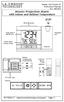 Model: WS-5220U-IT Instruction Manual DC: 082415 Atomic Projection Alarm with Indoor and Outdoor Temperature SNOOZE button Time, Alarm + WWVB Icon Projection arm Indoor Temp., Outdoor Temp. Battery Compartment
TK400 WIRELESS TEST KIT
 P516-226 TK400 WIRELESS TEST KIT INSTRUCTIONS FOR TK400 TEST KIT Para el idioma español, navegue hacia www.schlage.com/support. Pour la portion française, veuillez consulter le site www.schlage.com/support.
AXIS 291 1U Video Server Rack Installation Guide
 AXIS 291 1U Video Server Rack Installation Guide About This Document This document describes how to install Axis blade video servers in the AXIS 291 1U Video Server Rack. Updated versions of this document
InnoMedia ESBC 9380-4B. Quick Install Guide. www.innomedia.com 1
 InnoMedia ESBC 9380-4B Quick Install Guide www.innomedia.com 1 Table of Contents Introduction 2 Package Contents 2 CAUTION 2 Installation 3 Wall-Mounting Instructions 5 Troubleshooting 6 Appendix A. LED
SP1790JK 900MHz Wireless Indoor/Outdoor Speakers. User Manual INTRODUCTION FEATURES IMPORTANT SAFETY INFORMATION
 SP1790JK 900MHz Wireless Indoor/Outdoor Speakers INTRODUCTION This 900 MHz digital hybrid wireless speaker system uses the latest wireless technology that enables you to enjoy music and TV sound anywhere
Model 70A00-1. GSM Cellular Communications Center
 Home Automation, Inc. Model 70A00-1 GSM Cellular Communications Center Operation Manual Document Number 70I00-1 Rev A August, 2009 Contents Description... 1 Use with security systems...1 Everyday use...2
Wireless Alarm System. Alarm Siren. User s Manual. Choice ALERT. Control all Sensors & accessories from one location
 45136 Wireless Alarm System Alarm Siren User s Manual Low Batt On Armed ON/OFF LEARN Choice ALERT Control all Sensors & accessories from one location Table of Contents Important Safeguards 4 Introduction
User Manual CABLE TESTER CT100. Professional 6-in-1 Cable Tester
 User Manual CABLE TESTER CT100 Professional 6-in-1 Cable Tester 2 CABLE TESTER CT100 User Manual 1. Introduction Congratulations! With the CT100, you have purchased an indispensable tool that enables you
This equipment has been tested and found to comply with the limits for a Class B digital device, pursuant to part 15 of the FCC Rules.
 Power Max Level 2 Charging Station en Installation and Operating Instructions This equipment has been tested and found to comply with the limits for a Class B digital device, pursuant to part 15 of the
ADSL Modem Installation Guide. Model # 36R515 Part # 030-300108 Rev. D Revision Date 12/2000. ADSL Modem Installation Guide
 ADSL Modem Installation Guide Model # 36R515 Part # 030-300108 Rev. D Revision Date 12/2000 ADSL Modem Installation Guide Installation Instructions Westell ADSL Modem 1. Package Inspection and Contents...2
Manual. Simrad StructureScan LSS-1 Sonar Module. English
 Manual Simrad StructureScan LSS-1 Sonar Module English www.simrad-yachting.com A brand by Navico - Leader in Marine Electronics Disclaimer As Navico is continuously improving this product, we retain the
Model: 308-1412 Manual DC: 080215 WIRELESS COLOR FORECAST STATION
 Model: 308-1412 Manual DC: 080215 WIRELESS COLOR FORECAST STATION FRONT VIEW SENSOR TX141TH-Bv2 LED TX Sensor Battery Cover Sensor Battery Compartment 2 AA Buttons Battery Compartment 3 AAA BACK VIEW Battery
Application and Instruction Manual Motion Activated Solar Powered LED Security Light with Camera MODEL: XP-2H38WC
 Application and Instruction Manual Motion Activated Solar Powered LED Security Light with Camera MODEL: XP-2H38WC Please do not return this item to the store. If you have any questions, please contact
Wireless Alarm System. Panic Button. User s Manual. Choice ALERT. Control all sensors, accessories and remote transmitters from one location
 Wireless Alarm System Panic Button User s Manual Choice ALERT Control all sensors, accessories and remote transmitters from one location Table of Contents Important Safeguards 4 Introduction 5 Activating
StructureScan HD Module. Installation Guide ENGLISH. www.bandg.com www.simrad-yachting.com www.lowrance.com
 StructureScan HD Module Installation Guide ENGLISH www.bandg.com www.simrad-yachting.com www.lowrance.com Disclaimer As Navico is continuously improving this product, we retain the right to make changes
InnoMedia ESBC 9580-4B. Quick Install Guide. www.innomedia.com 1
 InnoMedia ESBC 9580-4B Quick Install Guide www.innomedia.com 1 Table of Contents Introduction 2 Package Contents 2 CAUTION 2 Installation 3 Wall-Mounting Instructions 5 Troubleshooting 6 Appendix A. LED
Targus Wireless RF Mouse USER S GUIDE. Making Your Mobile Life Easier.
 Targus Wireless RF Mouse Visit our Web site at: www.targus.com Features and specifications are subject to change without notice. 2004 Targus Group International and Targus, Inc.. 400-0111-001B USER S GUIDE
with MERCURY FREE 1 HP Relays ! WARNING Before using this product read and understand instructions.
 B Installation & Maintenance Instructions MM-414 Series 150E and 157E Low Water Cut-Off/Pump Controllers For Steam Boilers and Other Level Control Applications A Typical Applications: Primary or secondary
ES-CAM2A IP Camera. www.etiger.com
 ES-CAM2A IP Camera www.etiger.com EN Box content - ES-CAM2A x1 - Mounting bracket x1 - AC Adaptor x1 - User Manual x1 and apps Before using the ES-CAM2A, download the app isecurity+ on the App Store or
ST815 Illumination Sensor with LCD
 ST815 Illumination Sensor with LCD The Illumination Sensor with LCD (refer to as Illumination Sensor hereafter) is a Z-Wave TM enabled device which is fully compatible with any Z-Wave TM enabled network.
Personal Assistance System Owner's Guide
 Owner's Guide PSC07 READ THIS FIRST This equipment generates and uses radio frequency energy, and if not installed and used properly, that is, in strict accordance with the manufacturers instructions,
AIRAVE 2.5 User Guide
 AIRAVE 2.5 User Guide 2012 Sprint. Sprint and the logo are trademarks of Sprint. Other marks are trademarks of their respective owners. 911702 Rev. 51.13 Important Messages IMPORTANT: Sprint s policies
Wireless Travel Mouse with 5-Buttons User Manual
 Wireless Travel Mouse with 5-Buttons User Manual Product Features 1. Radio frequency 27MHz wireless transmission 2. Use of 256 ID codes to prevent interference between several wireless mice being used
RI-215A Operator s Manual. Part Number: 71-0045RK Revision 0 Released: 10/3/05
 RI-215A Operator s Manual Part Number: 71-0045RK Revision 0 Released: 10/3/05 Warranty RKI Instruments, Inc., warrants gas alarm equipment sold by us to be free from defects in materials and workmanship,
Schlage Control Smart Locks
 Schlage Control Smart Locks with Engage technology User guide Schlage Control Smart Locks with Engage technology User Guide Contents 3 Warranty 4 Standard Operation 4 Operation from the Inside 4 Operation
u-traq autopro GPS Vehicle Tracking System Product # 1020-PRO User s Guide Installation and Operating Instructions
 u-traq autopro GPS Vehicle Tracking System Product # 1020-PRO User s Guide Installation and Operating Instructions Table of Contents Before Installing 2 GPS Fundamentals 3 Checking the Contents of the
Installation & Operation Manual HANDS-FREE BLUETOOTH MEDIA INTEGRATION KIT. Perfect for ANDROID TM
 GET CONNECTED Installation & Operation Manual HANDS-FREE BLUETOOTH MEDIA INTEGRATION KIT TranzIt BLU HF ISFM2351 Perfect for ANDROID TM Note to Readers, The information contained within the following documentation
FTP-1000 Touchpad/Display. Installation Manual. Stay. Away. Disarm. Quick Exit
 FTP-1000 Touchpad/Display Installation Manual A B 1 2 3 4 5 6 7 8 9 0 * # Stay Away Disarm Quick Exit C D Copyright Disclaimer Trademarks and patents Intended use FCC compliance Copyright 2005, GE Security
u-traq autopro GPS Vehicle Tracking System Product # 1020-PRO User s Guide Installation and Operating Instructions
 u-traq autopro GPS Vehicle Tracking System Product # 1020-PRO User s Guide Installation and Operating Instructions Before Installing Table of Contents Before Installing 2 GPS Fundamentals 3 Checking the
25 Code GTO Digital Keypad
 2 Code GTO Digital Keypad Instructions for Wired and Wireless Installations (FM1-G only) Thank you for purchasing the GTO Digital Keypad. Be sure to read the directions carefully and completely. Before
NX-591NE-GSM NetworX GSM 3G HSPA+ Module Installation Sheet
 NX-591NE-GSM NetworX GSM 3G HSPA+ Module Installation Sheet The NX-591NE-GSM is a microprocessor-controlled GSM interface module used to connect the NetworX series of control panels to GSM cellular networks
On/Off Relay Switch and 3-Way Switch Kit
 45637/45638 Wireless Lighting Control On/Off Relay Switch and 3-Way Switch Kit marthome Control the On/Off status of permanently installed lighting, fans and more! www.lowes.com/iris 2012 JASCO Made in
Adding to Z-Wave TM Network
 PAN04-1/-2/-3 In Wall Dual relay(1 way) switch module This in-wall switch module is able to detect Instant power wattage (5~1500W) and overload wattage (1600~1700W) of connected light or appliances. When
ADEMCO 4500 Thermostat
 ADEMCO 4500 Thermostat User Guide N7972V1 5/05 Rev. A TABLE OF CONTENTS About the 4500 Thermostat...1 Saving Money on Energy Bills...1 The 4500 Thermostat Provides Comfort and Convenience...1 How the 4500
IMPORTANT SAFETY INSTRUCTIONS
 IMPORTANT SAFETY INSTRUCTIONS Before you install or use the apparatus, you must read and understand these Important Safety Instructions. At all times when using the apparatus you must follow these Important
Business Audio System: Music & Messaging MP3 Player. by Grace Digital Audio. User Guide. Model No. GDI-USBM10
 Business Audio System: Music & Messaging MP3 Player by Grace Digital Audio User Guide Model No. GDI-USBM10 User Guide Contents Introduction 2 Safety & General Use Information 2 Features 3 Set Up & Operation
BOSE. Link AL8 HOMEWIDE WIRELESS AUDIO LINK
 BOSE Link AL8 HOMEWIDE WIRELESS AUDIO LINK Français English SAFETY INFORMATION Please read this owner s guide Please take the time to follow the instructions in this owner s guide carefully. It will help
ScreenLogic Wireless Connection Kit. Installation Guide. pool/spa control system
 pool/spa control system ScreenLogic Wireless Connection Kit Installation Guide P/N 520663 - Rev B 8 Technical Support Contact Technical Support at: Sanford, North Carolina (8 A.M. to 5 P.M.) Phone: (800)
mysensors mysensors Wireless Sensors and Ethernet Gateway Quick Start Guide Information to Users Inside the Box mysensors Ethernet Gateway Quick Start
 mysensors Information to Users mysensors Wireless Sensors and Ethernet Gateway Quick Start Guide This equipment has been tested and found to comply with the limits for a Class B digital devices, pursuant
9,'(2 #6(3$5$725 8VHU V#0DQXDO 96043;
 9,'(2 #6(3$5$725 8VHU V#0DQXDO 96043; Introduction 3 Features 3 Specifications 4 Installation 4 Stand-Alone Installation 4 Daisy-Chain Installation 5 Preventing Radio & TV Interference 6 Limited Warranty
Portable Satellite TV Antenna. VQ1000 Owner s Manual
 Portable Satellite TV Antenna VQ1000 Owner s Manual Model VQ1 Solutions for Mobile Markets 11200 Hampshire Avenue South, Bloomington, MN 55438-2453 Phone: (952) 922-6889 Fax: (952) 922-8424 20963 REV E
Usage, Installation, Warranty and Service Information
 T13C Table Updater for Seating Management U S E R M A N UA L Usage, Installation, Warranty and Service Information Long Range Systems, LLC 4550 Excel Parkway, Suite 200 Addison, TX 75001 800.437.4996 www.lrsus.com
SCREENLOGIC INTERFACE WIRELESS CONNECTION KIT
 SCREENLOGIC INTERFACE WIRELESS CONNECTION KIT FOR INTELLITOUCH AND EASYTOUCH CONTROL SYSTEMS INSTALLATION GUIDE IMPORTANT SAFETY INSTRUCTIONS READ AND FOLLOW ALL INSTRUCTIONS SAVE THESE INSTRUCTIONS Technical
BPM Series. Metered Rack Mount PDUs. Quick Start Guide. Models Covered:
 WTI Part No.: 13963 Rev.: PM Series Metered Rack Mount PDUs Models Covered: PM-8HS20-1 PM-16VS30-1 PM-24VS30-1 PM-24VS30-D PM-8HS20-2 PM-16VS30-2 PM-24VS30-2 PM-24VS30-Y PM-16VS20-1 PM-24VS20-1 PM-24VS20-D
Residential Irrigation Controller NEW. Owner s Manual and Programming Instructions Compatible with Hunter Remotes and Solar Sync RUN
 SYSTEM OFF CURRENT TIME/DAY MANUAL-ONE STATION START TIMES SEASONAL ADJUSTMENT WATER DAYS Residential Irrigation Controller RUN SENSOR BYPASS ACTIVE RUN TIMES NEW Owner s Manual and Programming Instructions
PT-6000 Power Tower INSTALLATION MANUAL SPECIFICATIONS
 PT-6000 Power Tower INSTALLATION MANUAL 10.5 9.75 12 22.75 10.75 MAXIMUM SOIL HEIGHT: DO NOT ALLOW FILL TO EXCEED THIS LEVEL! 11.5 4 4 13 Optional PT-BASE for new installations or when previous 2000/6000
FB-500A User s Manual
 Megapixel Day & Night Fixed Box Network Camera FB-500A User s Manual Quality Service Group Product name: Network Camera (FB-500A Series) Release Date: 2011/7 Manual Revision: V1.0 Web site: Email: www.brickcom.com
Simon XT/XTi CDMA Module V4 Installation Instructions
 Simon XT/XTi CDMA Module V4 Installation Instructions Content Contact information... 1 Introduction... 1 Compatibility... 1 Account Creation... 1 Installation... 1 Power Up... 3 CDMA Phone Test (Module
QUICK START GUIDE CX-MC200LE-VZ
 QUICK START GUIDE CX-MC200LE-VZ LTE/EV-DO Business-Grade Modem For use with Juniper Networks CX111 3G/4G Bridge with Enhanced Performance and Reliability GETTING READY TO USE YOUR CX-MC200LE-VZ MODEM Thank
User s Guide. Sprinkler Timer with Computer Programming Option. ECXTRA Features
 User s Guide Sprinkler Timer with Computer Programming Option ECXTRA Features OUTDOOR MODEL A B C ON MANUAL NEXT START OFF ON MANUAL START OFF INDOOR MODEL NEXT Easily expandable to 10 Zones (Indoor model)
Disclaimers. Important Notice
 Disclaimers Disclaimers Important Notice Copyright SolarEdge Inc. All rights reserved. No part of this document may be reproduced, stored in a retrieval system, or transmitted, in any form or by any means,
PiSector Home security systems
 PiSector Home security systems User Manual (ALM-S02) Read manual fully before use. PiSector Inc., USA, www.pisector.com Thank you for purchase this alarm system, For proper use and your safety, please
SmartCard On-Board Reader (# 8105) SmartCard Desktop Reader (# 8108) SmartCards, Pack of 10 (# 8112) Starter Interrupter Kit (# 8116)
 athena Includes: SmartCard On-Board Reader (# 8105) SmartCard Desktop Reader (# 8108) SmartCards, Pack of 10 (# 8112) Starter Interrupter Kit (# 8116) Davis Instruments, 3465 Diablo Avenue, Hayward, CA
WIRELESS ALARM KIT INSTRUCTION MANUAL COMPLETE ALARM SYSTEM FOR HOME OR BUSINESS. Model Number: IT214054
 WIRELESS ALARM KIT COMPLETE ALARM SYSTEM FOR HOME OR BUSINESS Model Number: IT214054 INSTRUCTION MANUAL Warranty Details/Support This product is warranted against defects for a period of One year if the
Installation Instructions. Wireless Adapter/Repeater. Introduction. 30-3001-887 Rev C
 /Repeater Installation Instructions 30-3001-887 Rev C Workstation Ethernet bcx Controller Repeater Repeater Introduction Schneider Electric has designed a device that allows Andover Continuum controllers
INSTALLATION GUIDE. Card Reader & Controller with KIM Swipe Reader for Solitaire 850 / 950 / 850L Learnlok PK2930
 INSTALLATION GUIDE Card Reader & Controller with KIM Swipe Reader for Solitaire 850 / 950 / 850L Learnlok PK2930 Card Reader and Controller Model 3.5 with KIM Swipe Reader Table of Contents 1. Features..................................
FCC COMPLIANCE STATEMENT
 MEDIA CONVERTER Fiber to UTP Ethernet Media Converter ET90110SC ET90110ST Instruction Guide * Actual product may vary from photo Revised: December 6, 2002 The Professionals Source For Hard-to-Find Computer
B100. single-line business telephone
 users guide B100 single-line business telephone B100 TELEPHONE DIAGRAM TABLE OF CONTENTS 1) FEATURES......2 1.1 FLASH 1.2 LAST NUMBER REDIAL 1.3 MUTE 1.4 HANDSET VOLUME CONTROL 1.5 DATA PORT 1.6 HEARING
Pad. Quick Start Guide
 Pad Quick Start Guide Copyright 2008 Mimio Congratulations on your mimio Pad purchase! mimio Pad is a 4 GHz wireless pad. To configure mimio Pad for use, install the mimio Studio software and plug the
Home Security Alarm System
 Home Security Alarm System User Manual (ALM-S02) Read manual carefully before use. PiSector Inc., USA www.pisector.com Thank you for purchasing this home security alarm system. For your safety and better
RADIO CONTROLLED DIGITAL CLOCK MODELS 88905 / 88906
 RADIO CONTROLLED DIGITAL CLOCK MODELS 88905 / 88906 QUICK SETUP GUIDE IMPORTANT! INSTALL BATTERIES IN THE OUTDOOR TRANSMITTER BEFORE INSTALLING BATTERIES IN THE RADIO-CONTROLLED CLOCK. ALKALINE BATTERIES
The Third Rail System User Manual
 The Third Rail System User Manual System Contents: Slim Case and Smart Battery for iphone 4 Slim Case for iphone 4 Smart Battery micro-usb Cable USB Adapter Cable User Manual Smart Battery only Smart Battery
CMR-KIT Maintenance Remote User s Guide. Installation Setup Operation Service
 CMR-KIT Maintenance Remote User s Guide Installation Setup Operation Service Table of Contents Page CMR-KIT System Overview..................1 Transmitter Components..................2 3 Receiver Components....................4
7 High-Resolution Digital Photo Frame
 TM 16-1003 User s Guide 7 High-Resolution Digital Photo Frame One demo photo included, as illustrated Please read this user s guide before using your new photo frame. Package contents Photo Frame AC Adapter
User Guide for the Kidde RemoteLync. Remote Notification Device
 User Guide for the Kidde RemoteLync Remote Notification Device 120V AC 3 Color LED Indicator Voice Message System For questions concerning your device, please call our Product Support Line at 1-800-880-6788.
ReadyNet Easy Jack 2 Voice/Data and Data Only Owner s Manual PX-211d and PX-211v
 ReadyNet Easy Jack 2 Voice/Data and Data Only Owner s Manual PX-211d and PX-211v Phonex Broadband Corporation dba ReadyNet 6952 High Tech Drive Midvale, Utah 84047 801.566.0100 Phone 801.566.0880 Fax www.readynetsolutions.com
MODELS 7007 Gorilla Cycle Alarm 7017 Gorilla Cycle Alarm with 2-way pager system 1017 2-way pager system
 MODELS 7007 Gorilla Cycle Alarm 7017 Gorilla Cycle Alarm with 2-way pager system 1017 2-way pager system Remote Control Motorcycle Alarm System Installation & Operation Instructions Sistema de Alarma de
INSTALLATION GUIDE ConnectLine TV Adapter Getting started
 INSTALLATION GUIDE ConnectLine TV Adapter Getting started PURPOSE OF THIS GUIDE READ THIS FIRST Before your hearing instruments can receive sound from the TV, the adapter must be connected to the TV and
PCMCIA Wireless LAN Card User s Manual
 PCMCIA Wireless LAN Card User s Manual Rev 1.0 Regulatory compliance FCC Warning This equipment has been tested and found to comply with the limits for a Class B digital device, pursuant to part 15 of
USB Dual Handset Adapter for Nortel 1100-Series IP Phones
 1021 USB Dual Handset Adapter for Nortel 1100-Series IP Phones User Guide Document#: 90-00039 [email protected] [email protected] www.algosolutions.com Table of Contents Algo 1021 USB Dual
Wireless Alarm System. Wireless Keypad. User s Manual. Choice ALERT. Control all sensors, accessories and remote transmitters from one location
 Wireless Alarm System Wireless Keypad User s Manual 1 2 3 4 Choice ALERT Control all sensors, accessories and remote transmitters from one location Table of Contents Important Safeguards 4 Introduction
VEHICLE SECURITY SYSTEM G25/G20
 VEHICLE SECURITY SYSTEM G25/G20 Limited Lifetime Warranty This vehicle security system is warranted to the original purchaser, to be free from defects in material and workmanship. The manufacturer will
ES-CAM3A Outdoor IP Camera
 ES-CAM3A Outdoor IP Camera www.etiger.com EN Specifications - Image sensor: 1/3 CMOS, 3.15 MP - Video resolution: 160x90, 320x180, 640x360, 1280x720 (H.264) - Digital zoom: 2x - Focal: 3.6mm, Aperture:
Wireless Alarm system s manual
 MOUNTVIEW TECH AUSTRALIA PTY LTD Wireless Alarm system s manual ADS A180 Series ADS Security 1/11/2011 1. Before You Begin For your safety and the safety of others, and to ensure that you get the most
with SmartPort Connection Connection with SmartPort
 Residential/Light Residential/Light Commercial Commercial Remote Control Remote System Control System Owner s Manual Owner s and Manual and Installation Installation Instructions Instructions For use with
Home Signal Distribution Kit for Satellite TV Plus SIRIUS
 SR-101C SIRIUS/DBS Signal Combiner System SR-2261 Combiner-Outdoor Made in China DBS IN SIRIUS IN SR-101C SIRIUS/DBS Signal Combiner System SR-2251 Splitter-Indoor Made in China DC IN DBS OUT SIRIUS OUT