
Hostopia WebSiteOS 4.0 Help
|
|
|
- Christian Collins
- 10 years ago
- Views:
Transcription
1 Hostopia WebSiteOS 4.0 Help

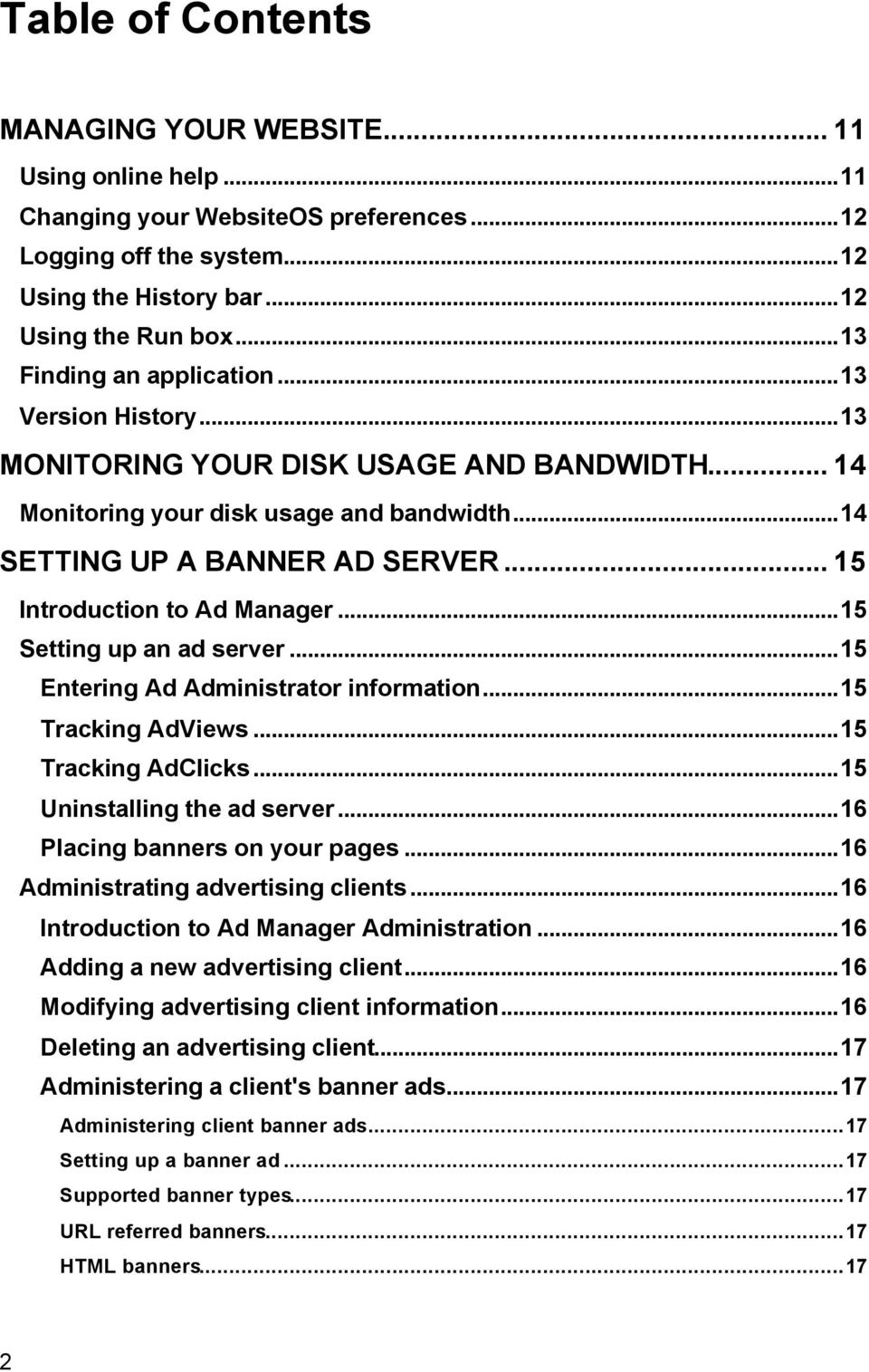
2 Table of Contents MANAGING YOUR WEBSITE Using online help...11 Changing your WebsiteOS preferences...12 Logging off the system...12 Using the History bar...12 Using the Run box...13 Finding an application...13 Version History...13 MONITORING YOUR DISK USAGE AND BANDWIDTH Monitoring your disk usage and bandwidth...14 SETTING UP A BANNER AD SERVER Introduction to Ad Manager...15 Setting up an ad server...15 Entering Ad Administrator information...15 Tracking AdViews...15 Tracking AdClicks...15 Uninstalling the ad server...16 Placing banners on your pages...16 Administrating advertising clients...16 Introduction to Ad Manager Administration...16 Adding a new advertising client...16 Modifying advertising client information...16 Deleting an advertising client...17 Administering a client's banner ads...17 Administering client banner ads...17 Setting up a banner ad...17 Supported banner types...17 URL referred banners...17 HTML banners
3 Entering information for a URL referred banner...18 Entering information for an HTML banner...18 Viewing statistics generated by a banner ad...18 Sending clients statistics and notices...18 CREATING A BUSINESS CARD WEBSITE Definition of Business Card and Website Wizard websites...19 Business Card Builder viewing areas...19 Building a site with the business card builder wizard...19 Manually creating a Business Card website...20 Manually creating a Business Card website...20 Using a template to design your website...20 Adding a background image to your website...20 Controlling site color settings...20 Entering and modifying site contact information...20 Editing site contents by Advanced HTML Block Editor...21 Displaying your corporate logo on your website...21 Publishing your Business Card website...21 CHANGING YOUR PASSWORD Changing your password...22 DETERMINING YOUR SITE'S DISK SPACE USAGE Determining your disk space usage...23 ADMINISTERING YOUR DOMAIN'S MAIL ACCOUNTS Introduction to EasyMail...24 Configuring your mail client...24 Managing regular accounts...25 Introduction to the Accounts function...25 Creating a regular mail account...25 View mail accounts information...26 Delete a mail account...26 Changing a mail account password forwarding setup

4 Managing alias accounts...28 Introduction to the Aliases function...28 Creating an alias mail account...28 View alias accounts information...28 Deleting an alias account...29 Changing alias forwarding...29 Replying automatically to incoming messages...30 Introduction to Autoresponders...30 Creating an autoresponder...30 Activating and deactivating an autoresponder...31 Editing an autoresponder...31 Deleting an autoresponder...31 Eliminating spam from mailboxes...32 Introduction to Spam Filter...32 Enabling Spam Filter...32 Configuring Spam Filter advanced options...32 Explanation of advanced options...34 More information about Spam Filter...36 Managing Personal Mail...37 Introduction to Personal Mail...37 Enabling Personal Mail for your accounts...37 Disabling Personal Mail for your accounts...37 Configuring the catch-all address...38 View command history...38 SENDING ANNOUNCEMENTS ABOUT YOUR SITE Introduction to Announcer...39 Our spamming policy...39 Managing distribution lists...40 Creating a new list...40 Erasing a list...40 Add addresses to a list...40 Removing an address from a list

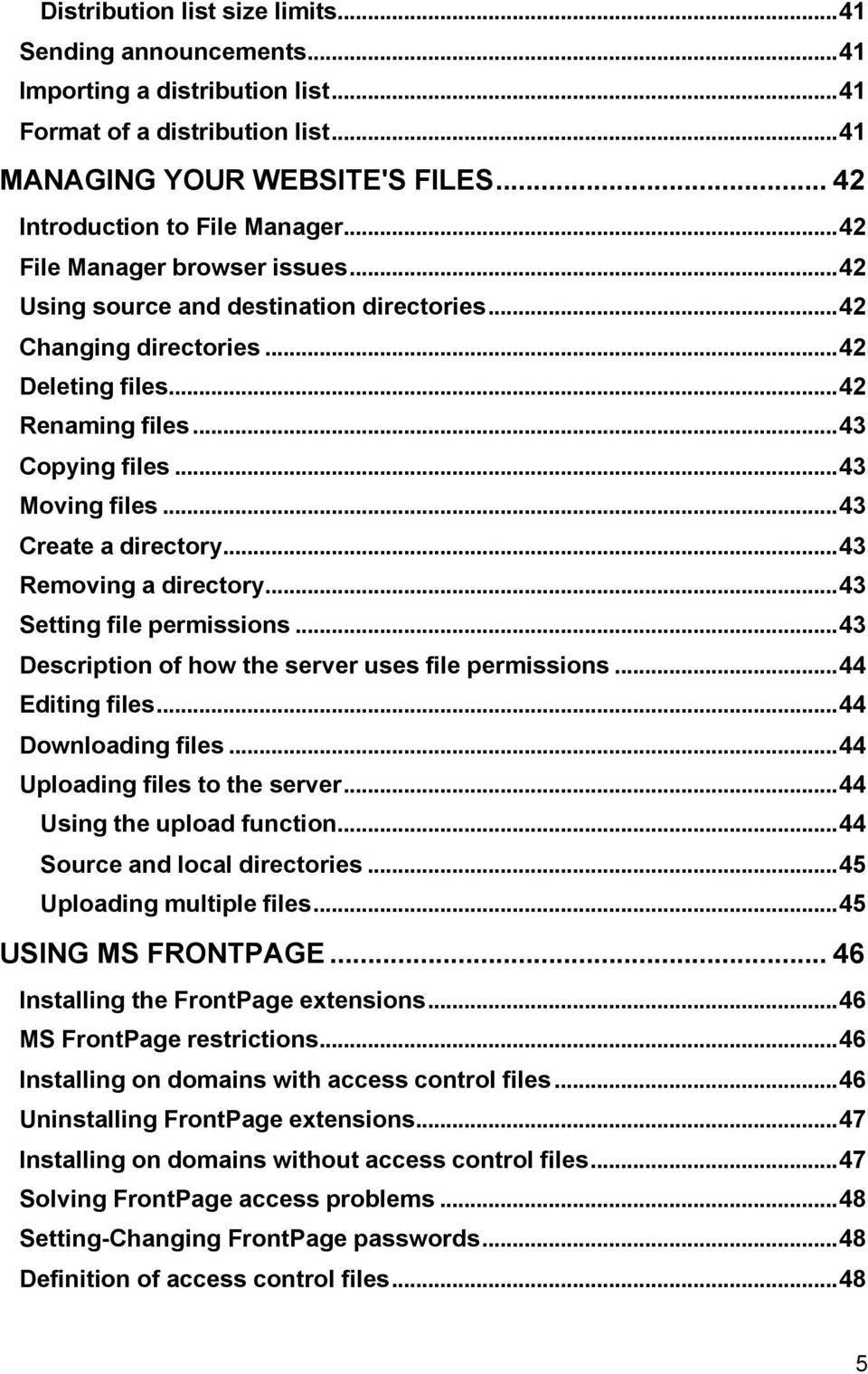
5 Distribution list size limits...41 Sending announcements...41 Importing a distribution list...41 Format of a distribution list...41 MANAGING YOUR WEBSITE'S FILES Introduction to File Manager...42 File Manager browser issues...42 Using source and destination directories...42 Changing directories...42 Deleting files...42 Renaming files...43 Copying files...43 Moving files...43 Create a directory...43 Removing a directory...43 Setting file permissions...43 Description of how the server uses file permissions...44 Editing files...44 Downloading files...44 Uploading files to the server...44 Using the upload function...44 Source and local directories...45 Uploading multiple files...45 USING MS FRONTPAGE Installing the FrontPage extensions...46 MS FrontPage restrictions...46 Installing on domains with access control files...46 Uninstalling FrontPage extensions...47 Installing on domains without access control files...47 Solving FrontPage access problems...48 Setting-Changing FrontPage passwords...48 Definition of access control files
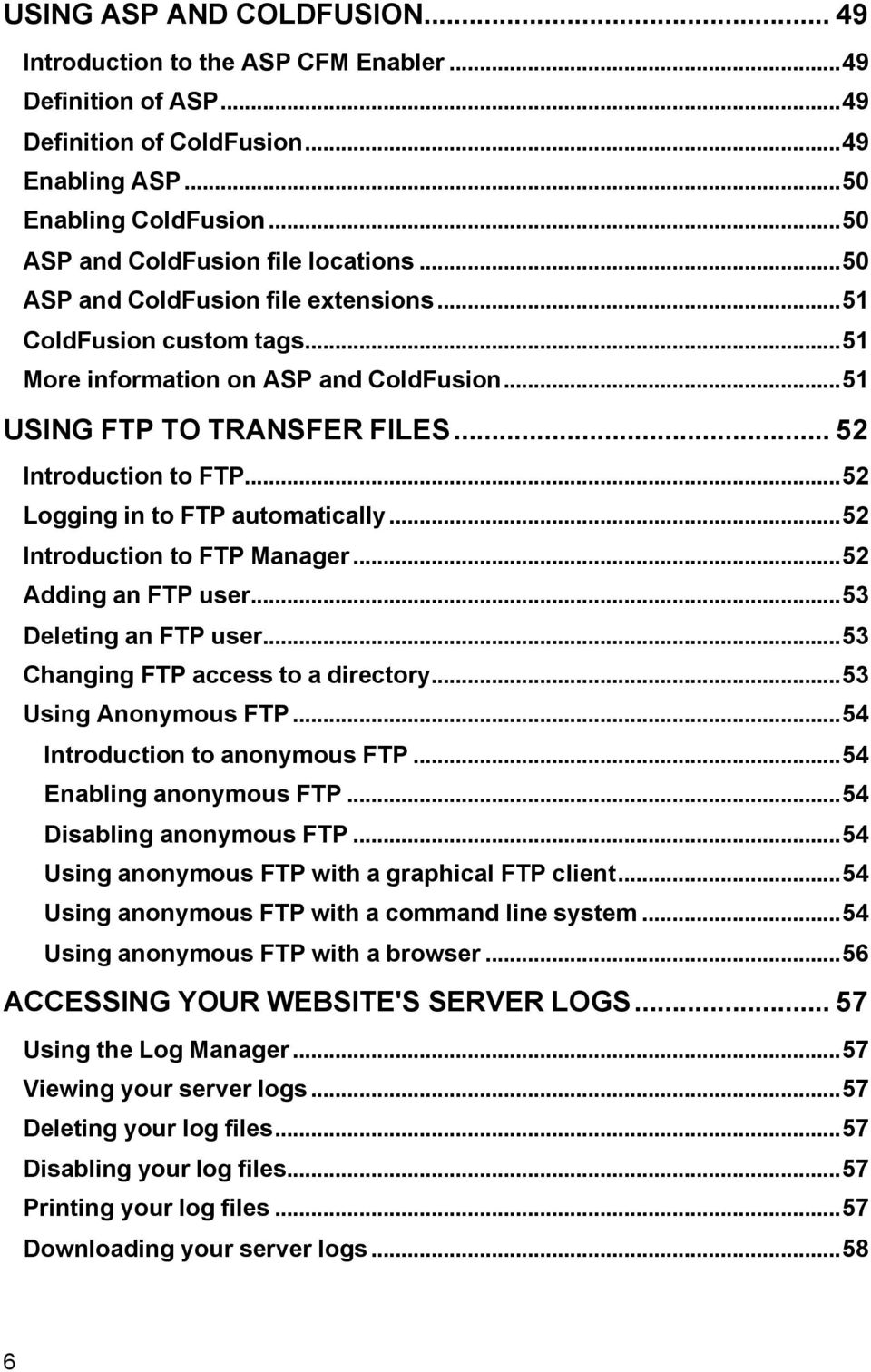
6 USING ASP AND COLDFUSION Introduction to the ASP CFM Enabler...49 Definition of ASP...49 Definition of ColdFusion...49 Enabling ASP...50 Enabling ColdFusion...50 ASP and ColdFusion file locations...50 ASP and ColdFusion file extensions...51 ColdFusion custom tags...51 More information on ASP and ColdFusion...51 USING FTP TO TRANSFER FILES Introduction to FTP...52 Logging in to FTP automatically...52 Introduction to FTP Manager...52 Adding an FTP user...53 Deleting an FTP user...53 Changing FTP access to a directory...53 Using Anonymous FTP...54 Introduction to anonymous FTP...54 Enabling anonymous FTP...54 Disabling anonymous FTP...54 Using anonymous FTP with a graphical FTP client...54 Using anonymous FTP with a command line system...54 Using anonymous FTP with a browser...56 ACCESSING YOUR WEBSITE'S SERVER LOGS Using the Log Manager...57 Viewing your server logs...57 Deleting your log files...57 Disabling your log files...57 Printing your log files...57 Downloading your server logs
7 Rotating and dating log files...58 ADDING PRE-WRITTEN CGI SCRIPTS TO YOUR PAGES Introduction to the Plug- in Scripts function...59 Using Plug- in Scripts...59 Available scripts...59 FormMail...59 TextCounter...61 Counter...62 Guestbook...63 Search engine...63 PROMOTING YOUR WEBSITE Using the Promote Site function...64 Creating and editing meta tags...64 Selecting search engines...65 Unsuccessful search engine submissions...65 More information about search engines...65 CHECKING THE INTEGRITY OF YOUR WEBSITE Using the Site Checker function...67 Checking internal and external links...67 Checking a secured website...67 Pointing Site Checker to your home page...67 ANALYZING YOUR SERVER LOGS Introduction to Web Stats...68 Generating reports...68 Configuring your report settings...70 Viewing reports...71 Description of report statistics...71 RESTORING YOUR SITE CONTENT Introduction to File Restore...74 Restoring your website content

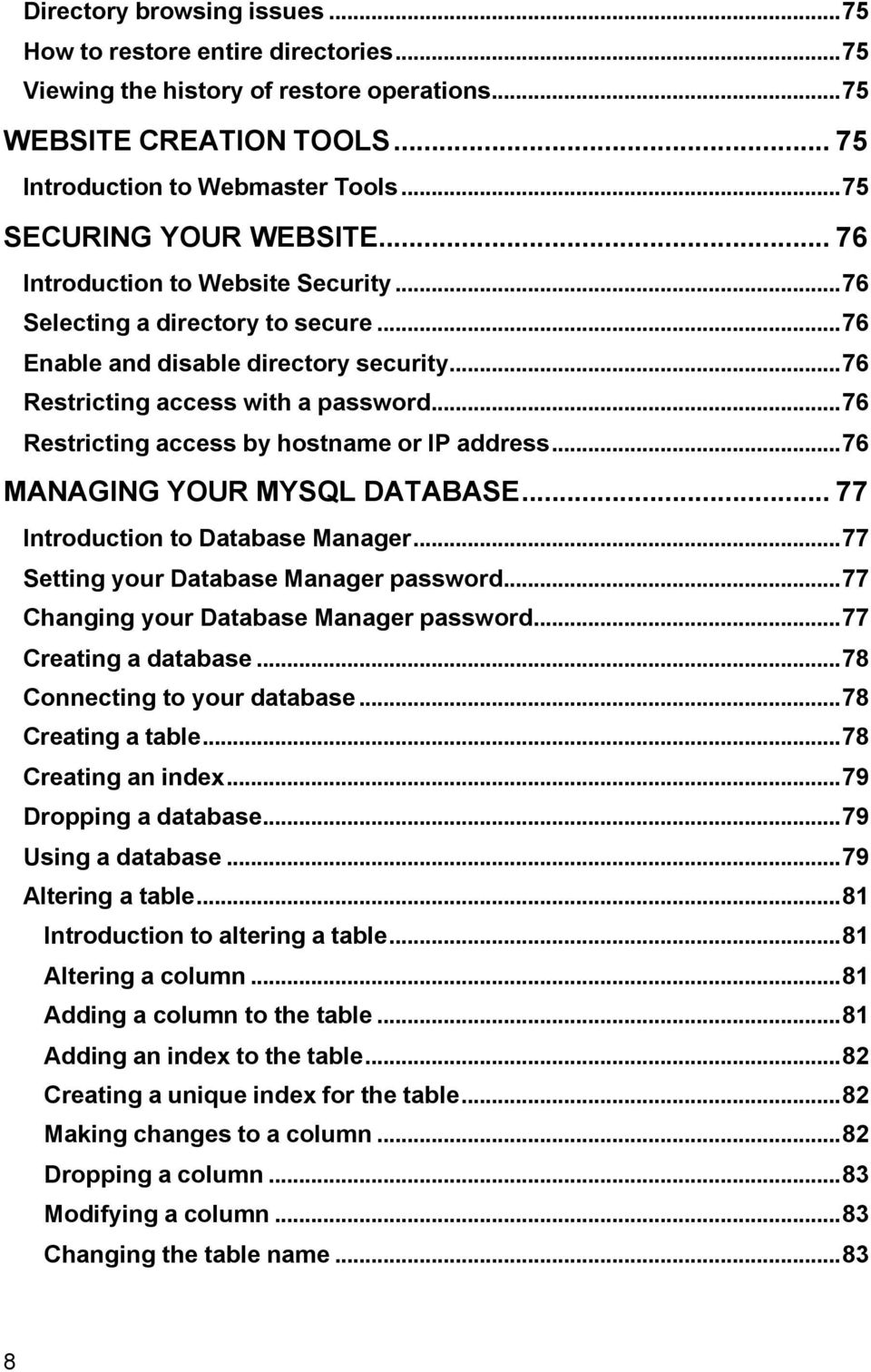
8 Directory browsing issues...75 How to restore entire directories...75 Viewing the history of restore operations...75 WEBSITE CREATION TOOLS Introduction to Webmaster Tools...75 SECURING YOUR WEBSITE Introduction to Website Security...76 Selecting a directory to secure...76 Enable and disable directory security...76 Restricting access with a password...76 Restricting access by hostname or IP address...76 MANAGING YOUR MYSQL DATABASE Introduction to Database Manager...77 Setting your Database Manager password...77 Changing your Database Manager password...77 Creating a database...78 Connecting to your database...78 Creating a table...78 Creating an index...79 Dropping a database...79 Using a database...79 Altering a table...81 Introduction to altering a table...81 Altering a column...81 Adding a column to the table...81 Adding an index to the table...82 Creating a unique index for the table...82 Making changes to a column...82 Dropping a column...83 Modifying a column...83 Changing the table name
9 Deleting rows from a table...84 Dropping a table...84 Getting information about a table or column...84 Inserting data into a table...85 Updating data within a table...85 Selecting data from the database...85 Display information about the database...87 Display information about columns...87 Display information about table indexes...87 Display information about table keys...87 Display the list of tables in a database...87 SETTING UP A SSL CERTIFICATE Introduction to SSL Manager...88 Setting up a Generic SSL Certificate...88 Setting up a Private SSL Certificate...89 CREATING A WEBSITE WIZARD WEBSITE Introduction to Website Wizard...91 Browser compatibility with Website Wizard...91 Importing a Business Card website into Website Wizard...92 Selecting a website design...92 Personalizing your site...92 Setting up your buttons...93 Adding or removing a logo...95 Editing the content of a single page site...95 Editing layout and content...95 HTML tags...97 Example of a simple HTML page...98 Previewing a Website Wizard site Publishing a Website Wizard site Editing a Website Wizard site Publishing your site after editing Creating a new website

10 POINTING YOUR DOMAIN Introduction to Domain Pointing Pointing your domain Changing the pointed at domain Retaining the pointed URL Removing domain pointing Tracking hits to your pointed domain Forwarding your

11 Managing your website Using online help Using online help In order for all of this information to be useful to you, you have to know how to find it. The Table of Contents, Index and Search tabs on the left side of this window and the buttons within the help topic are the tools you need. Contents The Table of Contents shows you how the support information is organized, and you can quickly look at all of the support topics to find what you are looking for. Click on a topic to view it. Index The Index allows you to search for information related to an important keyword. Type in the keyword in the field labeled "Type in the keyword to find:" and the nearest match in the Index will be highlighted. Click on an index entry to see the topics that are related to the word. Click on a topic to view it. If only one topic is related to an index entry, it will automatically appear when you click on the entry. Search Search allows you to quickly scan through every help topic for the word (or words) you are looking for. Type what you are looking for in the field labeled "Type in the word(s) to search for:" and push Enter. All topics that contain that text will be displayed. Click on a topic to view it. "Open Table of Contents" button If you click the "Open Table of Contents" button in a help topic, the Table of Contents will open up and highlight the help topic you are viewing. This can help you find other related information. "Show/Hide" button The "Show" or "Hide" button can be used to include or exclude the Table of Contents, Index and Search tabs. Hiding these tools can be helpful if you would like to view the topic in a larger window. "Related topics" button If you click on the "Related topics" button in a help topic, a pop-up menu will appear with a list of topics that are related to the one you are viewing. Click on a topic to view it. 11
12 Changing your WebsiteOS preferences The WebsiteOS Preferences menu allows you to select a language and a background. Click on the "WebsiteOS Preferences" logo. A dialog box will appear. Language: To change the language setting, select your preferred language in the "Language" field, and click "Apply." Background: To change your background color, click the color wheel. Select a colored square from the pop-up chooser, and click "Apply." Be sure that your background image is set to "(none)." To change your background image, select the name of the image from the "Image" drop-down menu and click "Apply." If a background image is selected, your background color will not be visible. Logging off the system When you are ready to leave your administration session, click the "Logout" option. This will log you out of your session. Using the History bar The History bar contains links to the applications you accessed most recently. Click on a link for immediate access to the application. Using the Run box If you know the name of the application you are looking for, type in the first few letters in the text box, and press "Tab." The Run box will complete the name of the application for you. Finally, click the "Run" button or press "Enter" to open the application. 12

13 Finding an application To open an application, click on the appropriate category in the main menu. An application menu will open. To open an application, click on its name. Please note that you may not have access to applications that are not included in your package. The applications are categorized as shown below: Announcer EasyMail Setup E-commerce Ad Manager EcBuilder Download Site Builders ASP/CFM Enabler Business Card FrontPage Manager Plug-in Scripts Website Wizard Webmaster Tools Security Change Password FTP Manager Website Security SSL Manager Statistics Disk Usage Log Manager Web Stats Website Management DB Manager File Manager File Restore Site Checker Site Promoter Version History Current help version: v5.5 13
14 Monitoring your disk usage and bandwidth Monitoring your disk usage and bandwidth Information about your mailboxes, disk space and bandwidth use is easily accessible in a display window that appears when you log in to the WebsiteOS. This display also includes a link to your website. If you click on this link, your website will open in a new window. If you open an application group from the main menu, it will replace the Account Information display. You can return to the Account Information display by clicking the blue "i" for Information. Note that the bandwidth does not show in real time. It is updated every 15 minutes. 14

15 Setting up a banner ad server Introduction to Ad Manager To access the Ad Manager, select E-commerce from the main menu, and select Ad Manager from the e-commerce menu. This function allows you to configure an ad server for use on your website. An ad server allows you to place rotating banner advertisements on your website, manage your advertising clients, and to collect statistics on banner views and "click throughs." Setting up an ad server Entering Ad Administrator information The ad server setup page allows you to configure the ad server for use on your website. To begin the setup process, enter the ad administrator's name, address, username, and password into the text boxes provided, then click the "Next" button. Tracking AdViews The Ad Manager Setup page allows you the option of tracking AdViews. An AdView is logged when a visitor to your site views a banner ad. The Ad Administrator lets you bill your advertising clients by the number of AdViews generated. To track AdViews on your site, check the "Log AdViews" checkbox. Tracking AdClicks The Ad Manager Setup page allows you the option of to tracking AdClicks. An AdClick is logged when a visitor to your site clicks on a banner ad. The Ad Administrator lets you bill your advertising clients by the number of AdClicks generated. To track AdClicks on your site, check the "Log AdClicks" checkbox. 15

16 Uninstalling the ad server If you need to remove your ad server (including any existing banner statistics), click the "Uninstall Ad Manager" button on the Ad Manager Setup page. A popup warning message is displayed before removing the ad server. To cancel the uninstall operation, click the "Cancel" button. Once you uninstall your ad server, its data cannot be recovered. Placing banners on your pages Once you your ad server is setup, you can place rotating banner advertisements on your website. Placing rotating banners on your pages involves using scripts written in PHP. These scripts require the pages on which they are placed to have a "phtml" file extension. For example, if you wanted a banner on the first page of your website, you would call the file index.phtml. A sample script and explanation for implementing banner rotation is provided on the second page of the Ad Manager Setup page. This script can be cut and pasted into your pages as necessary. This page also provides in-depth information on the script's design and implementation. Administrating advertising clients Introduction to Ad Manager Administration This function allows you to administer your ad server. You have control over adding and editing client information, deleting clients, banner configuration, and generating statistics. You can give your clients access to the statistics generated by their banners or have the statistics automatically ed to them. Adding a new advertising client This function allows you to add new advertising clients. To add a client, click the "Add new client" link. The client information page will be displayed. Fill in the information required and click the "Go" button to finish the operation. Modifying advertising client information To modify an existing client's information, select a client from the drop-down menu and click the "Go" button. The client information page will be displayed. Edit the information as required and click the "Go" button to finish the operation. 16

17 Deleting an advertising client To delete an existing client, select a client from the drop-down menu and click the "Go" button. A warning will be displayed stating that the deletion process is permanent. You have the option of canceling the operation or continuing it. Administering a client's banner ads Administering client banner ads To setup a banner, select a client from the drop-down menu and click the "Go" button. A list of banners will be displayed along with the option to ad a new banner. Setting up a banner ad To add a new banner, click the "Add new banner" link. The edit banner page will be displayed. After filling in the appropriate information on the page, the banner will be displayed. Click the "Go" button to complete the operation. Supported banner types You can display URL referred banners as well as HTML banners on your pages. URL referred banners URL referred banners are banners that reside at a specific URL address. These banners do not have to be uploaded to your site. They can reside on a remote server. URL referred banners can be advantageous to your clients as they can update their banners locally and the changes will be reflected immediately on your pages. This avoids the process of uploading and downloading the banners for modification. HTML banners An HTML banner is a banner generated by HTML. You can enter the HTML directly into the Ad Manager Banner Administration page or supply a URL. 17

18 Entering information for a URL referred banner To setup a URL referred banner, click the "Banner referred to through URL" radio button from the Ad Manager Banner Administration's "Ad Banner" link. You must have the following information to setup a URL referred banner ad: the URL, the banner's dimensions in pixels, its ALT text and the text to be displayed below the banner. Entering information for an HTML banner To setup an HTML banner, click the "HTML banner" radio button from the Ad Manager Banner Administration's "Ad Banner" link. You can enter the HTML directly into the Ad Manager Banner Administration page or supply a URL. Viewing statistics generated by a banner ad To view a client's statistics, select a client from the drop-down menu and click the "Go" button. Various banner statistics will be displayed including the number of hits. Sending clients statistics and notices To automatically send client statistics and expiry notices, click the "Send Client Statistics & Expiry Notices" link. A status page will be displayed confirming a successful operation. Click the "OK" button to return to the Ad Administration function. 18

19 Creating a Business Card website Definition of Business Card and Website Wizard websites To access the Business Card or Website Wizard applications, select Site Builders from the main menu, and select the desired application from the Site Builders menu. A Business card website is created using the Business Card application. This application can create a simple, but professional looking single-page website that can be created with a wizard. Several templates are available to provide professional quality background images and site designs. A Website Wizard website is created using the Website Wizard application. This application can quickly create a professional looking website with up to nine pages. Even with no experience with web design, you can use a variety of templates, layouts and your own images to create a customized website. More advanced users can integrate their own HTML into their Website Wizard pages. Business Card Builder viewing areas The Business Card Website Builder has two main viewing areas. The top area displays the various control and design options, while the bottom area is a preview display of your page. To view changes to your page without making them permanent, click the "Preview" button. To make the changes permanent and have them posted immediately, click the "Publish" button. When viewing a changed page, be sure to click your browser's "Refresh" button. Building a site with the business card builder wizard You can automate the creation process by using the "wizard". Activate the wizard by clicking the "Start Wizard" button. The wizard guides you through the creation process step by step and includes template selection and a choice of logos. Use of the wizard is optional. You can add content to your page by clicking the appropriate feature buttons on the builder page. Using the wizard assures that all important page elements are included. 19

20 Manually creating a Business Card website Manually creating a Business Card website You can create a Business Card website without using the "wizard". The top viewing area of the Business Card Website Builder has buttons that control every page element from color to images. Using a template to design your website To choose a template, click the "Choose Template" button. A template chooser page will be displayed. The templates reflect differing themes and images. Clicking on a template image returns you to the main design page with the template displayed in the bottom area. Adding a background image to your website The wizard contains several background images that can be added to your page. To choose a background, click the "Choose Background Image" button. The background picker will display several background styles. Choose a style from the drop-down menu and select a background. Controlling site color settings The color of most page elements can be set from the builder page. To set a color, enter a hexadecimal (hex) color value or standard color name in the appropriate text box or click on the color selector. Color selectors are represented by multicolored rectangles and display a range of colors and their respective hex values Choose a color by clicking on the desired square. The color will be automatically set by the selector. Click the "Close" button when done. Entering and modifying site contact information You can use two methods to enter your contact information. 1. The "Content" button allows you to enter all your contact information on one page. To enter your contact information on one page, click the "Content" button. Fill in the displayed fields as necessary and click the "Done" button. 2. Beside the "Content" button are a series of editing buttons representing each contact element. Unlike the "Content" button, these buttons give you 20

21 control over formatting. To change the font size, style, name or text of a specific contact element, click the appropriate element button from within the pop-up editor. The font picker will be displayed, allowing you to make changes to the text. When the changes have been made, click the "Done" button. Editing site contents by Advanced HTML Block Editor You can make changes to the content of your site using "Advanced HTML Block Editor". To access this function, from the "Font Picker" page click the "advanced" button. Displaying your corporate logo on your website The business card website builder can display your corporate logo. To upload a logo, enter the location of the logo in the supplied text box or select a logo from your hard drive by clicking the "Browse" button. Business Card supports "GIF" and "JPG" file types for your logo. To display the logo, click the "Publish" button. To disable the display of the logo on your website, click the "Disable logo" check box. Publishing your Business Card website To instantly publish your page, click the "Publish" button. To view your changes without publishing the page, click the "Preview" button. The "Preview" option is an excellent way to explore various page configurations without committing to the changes. 21
22 Changing your password Changing your password To change your password, select Security from the main menu, and select Change Password from the Security menu. The "Change Password" function allows you to change your administrative/ftp access password. The change password page has three fields for entering the current password (for security purposes), the new password and confirmation of the new password. Confirming the new password ensures that the text is entered correctly. A new password must be different from the present password and has to be a minimum of four characters. Click the "Next" button to submit the new password to the server. If the server rejects the new password, you will receive an error message. Follow the suggestions of the error message and resubmit the form with the corrected information. After a successful submission, the password is immediately changed. You will be asked to logout and log back in to the WebsiteOS with the new password. 22
23 Determining your site's disk space usage Determining your disk space usage To access the Disk Usage function, select Statistics from the main menu, and select Disk Usage from the Statistics menu. The "Disk Usage" function reports the disk space usage of your website. It provides a listing of each directory and the amount of space used. The report is in plain text and can be cut and pasted for printing. 23
24 Administering your domain's mail accounts Introduction to EasyMail To access the EasyMail application, select from the main menu, and select EasyMail Setup from the menu. The "EasyMail" function allows you to manage your domain's accounts. EasyMail setup is a full featured accessory that allows a novice user to easily configure various account features. These accounts can be accessed by traditional mail reading clients as well as over the web with WebMail. EasyMail includes the following functions: Accounts Autoresponders Spam Filtering Personal Mail Catch-all Aliases History These functions can be accessed by clicking the desired tab from the EasyMail page. Configuring your mail client To configure your mail client, follow the instructions provided in the following links: Configure Agent Configure Claris er (Mac) Configure Connection Configure Eudora Configure Microsoft Outlook Configure Microsoft Internet Mail Configure Microsoft Exchange Configure Netscape Mail Configure Pegasus Mail Configure Pine 24
25 Managing regular accounts Introduction to the Accounts function The EasyMail Accounts function allows you to manage various aspects of your mail setup. Using this function you can: Create a regular mail account View your existing mail accounts and passwords Delete regular mail accounts Change regular accounts password Forward your accounts To access the Accounts function, click the "Accounts" tab from the EasyMail main page. Creating a regular mail account A Regular account has a physical mailbox on the system that can be accessed by any POP or IMAP mail client as well as WebMail. It can also be forwarded temporarily to another address by using the "Forward To" option. The "Accounts" function allows you to create regular new mail accounts. To create a new account, click the "Create" button from the "Accounts" main page. The "Add" page will be displayed. Enter a username and password for the new account. A valid username must start with a letter or number a-z, 0-9 and may contain a-z, 0-9, ".", and "-" characters. Two. characters in a row is not valid. A "." can neither be preceded by nor followed by a "-" and no account can end in "." or "-". Remember that some mailers may not support usernames longer than 16 characters. addresses are case insensitive. If you want to forward your new mail account, enter the "forward to" address(s) in the "Forward To" textbox. To forward your account to more than one address, you must enter them in the "Forward To" textbox separated by commas with no spaces. The guidelines described above for account names should be followed. When you forward the new account, you can choose to keep a copy of incoming mail in the forwarded account mailbox. To activate this option, click the "Keep a copy of forwarded in this account's mailbox " check box. Click the "Apply" button to save your changes. Click the "OK" button to save your changes and exit EasyMail. 25
26 View mail accounts information You can view your domain's Regular accounts and associated passwords using the "Accounts" function. This function displays your domain's Regular accounts in the "Regular Accounts" list. Account password can be viewed by clicking on the name of the account from the "Regular Accounts" list. The account's password will be displayed in the "Password" textbox. If an account is forwarded, you can view the "forward to" address(es) by selecting the account from the "Regular Accounts" list. The forward to address(es) will be displayed in the "Forward To" textbox. The total number of Regular accounts available is shown below the "Regular Accounts" list. Delete a mail account To delete a regular mail account, select an account from the "Regular Accounts" list and click the "Delete" button to complete the operation. By deleting an account, its entire mailbox contents are deleted as well. This process cannot be reversed. To recreate a deleted account, you must create it using the "Create" option. Messages held in the account (regular account) before deletion can not be recovered. The mail account deletion process is permanent. Note that when you delete an account, it will be queued for deletion and the account will be removed the next day. Changing a mail account password To change the password for any user's account, select a regular account from the "Regular Accounts" list. The account's password will be displayed in the "Password" textbox. Enter the new password in the "Password" textbox. Click the "Apply" button to save the new password or click the "OK" button to save the new password and exit EasyMail. To cancel the operation and exit EasyMail, click the "Cancel" button. forwarding setup The "Accounts" function allows you to forward your Regular accounts to another address. To forward an account, choose the account from the "Regular Accounts" list and enter an existing address in the "Forward To" textbox. This address can be either an external address (e.g. a hotmail account) or one of your 26
27 domain's regular accounts. You can forward an account to multiple addresses by entering the addresses in the "Forward To" textbox separated by commas and with no space. To change the forward to account(s), enter the new account(s) in the "Forward to" textbox. You have also the option of keeping a copy of in the forwarded account mailbox after forwarding the account. Click the " Keep a copy of forwarded in this account's mailbox " checkbox to activate this option. forwarding can be cancelled by deleting the "forward to" account(s). After making the necessary changes click the "Apply" button to complete the operation or click the "OK" button to save changes and exit EasyMail. Click the "Cancel" button to cancel the changes and exit EasyMail. Note: Please expect a 10 to 15 minute delay before any forwarding changes become active. 27
28 Managing alias accounts Introduction to the Aliases function Alias accounts are accounts that do not have a physical mailbox on the system, and must be forwarded to an existing regular account. The EasyMail Aliases function allows you to manage your alias mail accounts. Using this function you can: Create an alias mail account View your existing alias mail accounts Delete alias mail accounts Change your alias accounts forwarding To access the Aliases function, click the "Aliases" tab from the EasyMail main page. Creating an alias mail account The "Aliases" function allows you to create Alias mail accounts. Alias accounts are accounts that do not have a physical mailbox and must be forwarded to an existing regular account. To create a new alias account, click the "Create" button from the "Aliases" main page. The create alias page will be displayed. Enter a username for the new Alias account in the "Username" textbox. Enter the address you want the new Alias account to be forwarded to in the "Forward To" textbox. This address can be either an external address (e.g. a hotmail account) or one of your domain's regular accounts. You can forward an alias account to multiple addresses by entering the addresses in the "Forward To" textbox separated by commas and with no space. Click the "Apply" button to save the new account or click the"ok" button to save the new account and return to the "Aliases" main page. Click the "Cancel" button to cancel the operation and return to the "Aliases" main page. View alias accounts information The "Aliases" function allows you to view all your Alias accounts and associated "forward to" addresses. Alias accounts are accounts that do not have a physical mailbox and must be forwarded to a regular existing account. To view the account(s) your Alias account is forwarded to, select the Alias account from the "Alias Accounts" list. The "forward to" account(s) will be displayed in the "Forward To" textbox. 28
29 Deleting an alias account To delete an alias mail account, select an account from "Alias Accounts" list and click the "Delete" button to complete the operation. To recreate a deleted account, you must create it using the "Create" option. The mail account deletion process is permanent. Note that when you delete an account, it will be queued for deletion and the account will be removed the next day. Changing alias forwarding Alias accounts must be forwarded to one or multiple existing accounts when they are created,since they do not have a physical mailbox. The "Aliases" function allows you to change the"forward to" address(es) associated with the alias accounts. To change the "forward to" accounts, select your desired alias account from the "Alias Accounts" list, the "forward to" address(es) will be displayed in the "Forward To" textbox. You can forward an alias account to multiple addresses by entering the addresses in the "Forward To" textbox separated by commas and with no space. Enter the new address(es) in the "Forward TO" text box and click the "Apply" button to complete the operation or click the "OK" button to save changes and exit EasyMail. To cancel the operation and exit EasyMail, click the "Cancel" button. 29
30 Replying automatically to incoming messages Introduction to Autoresponders The Autoresponder function allows you to automatically reply with a pre-written message to all or certain sent to an address. For example you could set up an autoresponder when you are out of office for a few days or alert those ing you that you are away. Click the "Autoresponder" tab from the EasyMail main page and the Autoresponder page will be displayed. Creating an autoresponder To create an autoresponder for an account, choose the account from the drop-down list and click the "Add" button from the "Autoresponder"main page. A new page will be displayed that allows you to create a new autoresponder for the specified account. You can create as many autoresponders as you need for each account. Enter a name for the autoresponder in the "Responder name" textbox. The next step is to specify the messages that you want this autoresponder to reply to by setting a condition. messages that meet this condition will receive this autoresponder as their reply. If you want the message sent to everyone who sends an to the account, choose "no condition" from the " Header Field" list and leave the "Search Text" textbox blank. This is the default. If you want the autoresponder to reply to messages from a specific address, choose the "From an address" option from the " Header Field" drop-down list and enter the desired address in the "Search Text" textbox. You can enter multiple addresses in the "Search Text" textbox. They must be entered comma separated with no space. You can set the autoresponder to reply to the messages that are sent to a specific address. For example, if an has the specified address in its "CC:" field, the autoresponder will apply to it. Choose the "To an address" option from the " Header List" and enter the address in the "Search Text" textbox. You can enter multiple addresses in the "Search Text" textbox. They must be entered comma separated with no space. You can reply to messages who's subject contains some specific text. Select the "where Subject contains" option from the " Header Field" list and enter the text in the "Search Text" textbox. 30
31 Enter the autoresponder's message in the "Responder Message" text area and click the "Apply" button to complete the operation or "OK" button to save the autoresponder and return to the Autoresponder main page. Click the "Cancel" button to cancel the operation and return to the Autoresponder main page. Note that autoresponders do not work for forwarded accounts. Activating and deactivating an autoresponder In order for an autoresponder to work, you must activate it. To activate an autoresponder choose the account the autoresponder belongs to from the drop-down list. The list of autoresponder's associated with that account will be displayed in the "Inactive Responders" list. Highlight the desired responder and click the "on" button. The autoresponder will be moved to the "Active Responders" list. To deactivate an autoresponder, select it from the "Active Responders" list and click the "off" button. The autoresponder will be moved to the "Inactive Responders" list. Editing an autoresponder You can edit an existing responder by using the Edit option of Autoresponder. If the responder you want to edit is active, you must deactivate it first, because the Autoresponder function does not allow an active responder to be edited. Highlight the responder you want to edit from "Inactive Responder" list and click the "Edit" button. The responder details will be displayed. Make the necessary changes to the responder fields and click the "Apply" button to complete the operation or "OK" button to save changes and return to the Autoresponder main page. Click the "Cancel" button to cancel the operation and return to the Autoresponder main page. Deleting an autoresponder To delete an autoresponder, choose the account the responder is associated with. The account's active and inactive autoresponders will be displayed. If the responder you want to delete is active, you must deactivate it first, because the Autoresponder function does not allow an active responder to be deleted. Highlight the responder you want to delete from the "Inactive Responder" list and click the "Remove" button. You will be prompted to confirm the deletion. The responder will be removed permanently. To recreate the responder you must use the "Add" option. 31
32 Eliminating spam from mailboxes Introduction to Spam Filter The Spam Filtering function of EasyMail allows you to prevent unsolicited (spam) from reaching your mailbox. The Spam filter is a set of instructions which search the header and text of your incoming to see if it meets one or more specific conditions. The Spam Filter sorts suspected spam into two categories, mail from known spam sources (which is definitely spam), and other mail which is probably spam, but might also be legitimate. It then tags this with appropriate headers, and responds according to the parameters you have set. After enabling spam filtering for an account, you can choose the default parameters or you can change the parameters using the "Advanced" options. The EasyMail Spam Filtering function uses Spam Bouncer version 1.3. Enabling Spam Filter To enable Spam Filter for an account, choose the account from the "EasyMail Accounts" list and click the "Enable Spam Filtering" checkbox. Click the "Apply" button to complete the operation or "OK" button to complete operation and return to the Autoresponder main page. Click the "Cancel" button to cancel the operation and Return to the Autoresponder main page. By enabling the spam filtering for an account, a set of default options will be activated for that account. If you want to change this default setting you should use the "Advanced" option of Spam Filtering. When you enable the spam filtering for an account using the default options, any definite or probable spam sent to that account will be deleted. Configuring Spam Filter advanced options To access Spam Filter advanced options, highlight the account you want to set the options for from the "EasyMail Accounts" list, enable it and click the "Advanced" button. The Spam Filtering advanced options page will be displayed. Change the settings as desired and click the "Apply" button to complete the operation or click the "OK" button to save the changes and return to the Spam Filtering main page. Click the "Cancel" button to cancel the changes and return to the Spam Filtering main page. Before saving the new setting you can retrieve the default settings by clicking the "Reset Defaults" button. Each advanced option is a link that when clicked will pop up a context sensitive 32
33 help window. The four groups of advanced options are: Filter Responses Languages Filter Configuration Miscellaneous Features Filter Responses SPAMREPLY Specifies how to handle messages identified as definite spam. Choose the desired option from the "SPAMREPLY" drop-down list. BLOCKREPLY Specifies how to handle messages identified as probable spam. Choose the desired option from the "BLOCKREPLY" drop-down list. Languages If you receive in languages other than English, you must specify those languages using the "Languages" option. Click the check boxes next to the desired languages. Filter Configuration NOBOUNCE This is a list of addresses or domains that will bypass filtering entirely. To add an address or domain to the NOBOUNCE list, enter the address or domain you want to bypass filtering in the "NOUBOUNCE" textbox and click the "Add" button to complete the operation. The address or domain will be added to the "NOBOUNCE" list. To remove an address or domain from the "NOBOUNCE" list, select the address or domain from the "NOBOUNCE" list and click the "Remove" button. The address or domain will be deleted from the list. To remove all the entries from the "NOBOUNCE" list click the "Remove All" button. ORBSCHECK ORBSCHECK checks against ORBS relay blacklist. To activate this option click the checkbox. RBLCHECK RBLCHECK checks the Mail Abuse Prevention System (MAPS) Realtime Blackhole List (RBL). This option is activated by default. To deactivate this option leave the checkbox unchecked. RSSCHECK RSSCHECK checks the Mail Abuse Prevention System (MAPS) RSS Open Relay Blacklist. To activate this option click the checkbox. Miscellaneous Features ALTFORM ALTFROM allows you to specify another account you own. This is used to avoid giving spammers your usual address. from this account will bypass filtering. 33
34 Choose an address different from your usual address from the "ALTFORM" drop-down list. BYPASSWD BYPASSWD allows you to specify a password that when entered in the Subject line of an , will bypass filtering. Enter your desired password in the "BYPASSWD" textbox. DULCHECK DULCHECK checks the Mail Abuse Prevention System (MAPS) Dial-Up List (DUL). To activate this option click the checkbox. GARBLEDCHARSET GARBLEDCHARSET checks non-latin character sets and missing, wrong, or corrupted MIME headers. This option is activated by default. To deactivate this option leave the checkbox unchecked. Explanation of advanced options ALTFORM : should be set a different address than your usual , but a valid address, and preferably one which DOES NOT forward to your normal account. This is used to avoid giving spammers at some particularly egregious sites your usual address, and to bypass blocks that some spammers and spam friendly sites will put to prevent your sending them mail if you complain often enough and effectively enough. Change this address frequently to defeat these filters. BLOCKREPLY : handles mail which the filter tags as probable spam, but which may contain some real as well. Valid values are SILENT that deletes the and NOTIFY that sends a notice and copy of his back to the sender with instructions on how to bypass the Spam Filter if this is not spam. BYPASSWD : a password which, when included on the "Subject:" line of an , causes the Spam Filter to pass the mail immediately into your incoming mail box without further filtering. DULCHECK : if set to "Yes", tells the Spam Bouncer to check the Mail Abuse Prevention System (MAPS) Dial-Up List (DUL), which lists IP addresses that are part of ISP dial up pools, and block sent directly to your system from these IP addresses. That will block a considerable amount of spam. GARBLEDCHARSET : controls the GARBLEDCHARSET filter that tests for non-latin character sets and missing, wrong or corrupted MIME headers which should accompany any such character sets. The default for this variable is yes, which enables this filter. Users who expect to receive in a non-latin character set, or who find it is catching too much legitimate , can set this variable to no to disable the filter. CHINESE: Set CHINESE=yes if you receive in Chinese. Otherwise leave it set to no (the default), and the Spam Bouncer will delete any in this language. 34
35 JAPANESE: Set JAPANESE=yes if you receive in Japanese. Otherwise leave it set to no (the default), and the Spam Bouncer will delete any in this language. KOREAN: Set KOREAN=yes if you receive in Korean. Otherwise leave it set to no (the default), and the Spam Bouncer will delete any in this language. NOBOUNCE : tells the Spam Filter the addresses and domains whose you want the Spam Filter to skip filtering and deliver directly to you. ORBSCHECK : If set to "yes", tells the Spam Filter to check the ORBS Relay blacklist, which lists IP addresses associated with mail servers which are open relays, or allow anyone from any part of the Internet to send to any other part of the Internet. A relay listed in the ORBS blacklist has not necessarily been used to send spam; it merely can be used to do so. The ORBS blacklist is generally considered aggressive, and can result in blocking a considerable amount of legitimate as well as spam if you correspond with people at sites which host an open relay. This variable is set to no by default. To enable ORBS relay testing, set it to yes. RBLCHECK : if set to "Yes" tells the Spam Filter to check the Mail Abuse Prevention Sysem (MAPS) Realtime Blackhole List (RBL) which lists IP addresses associated with domains which have spammed repeatedly. Sites listed on the RBL are highly likely to be sources of spam and will rarely be sources of you want to receive. RSSCHECK : if set to "Yes" tells the Spam Filter to check the MAPS RSS Open Relay blacklist, which lists IP addresses associated with mail servers that are open relays and through which spam has been sent least once. This field is set to no by default. To enable SSR relay testing, set it to "Yes". SPAMREPLY : specifies how to handle mail which the filter tags as definitely spam and should contain no valid mail. Options include SILENT that deletes the , BOUCE that sends a simulated mailer-daemon bounce message to the spammer, and COMPLAIN that sends a complaint and a copy of the spam to the spammer's postmaster for spammers and in most cases also to the upstream ISPs, and BOTH that both sends a bounce and complains. TURKISH: Set TURKISH=yes if you receive in Turkish. Otherwise leave it set to no (the default), and the Spam Bouncer will delete any in this language. 35
36 More information about Spam Filter Spam Bouncer MAPS (Mail Abuse Prevention System ) MAPS RSS (Relay Spam Stopper) MAPS RBL (Realtime Blackhole List) MAPS DUL (Dial-up User List) 36
37 Managing Personal Mail Introduction to Personal Mail The EasyMail's Personal Mail function allows you to control access to Personal Mail. The Personal Mail application allows account owners to administer various aspects of their account without having to log into WebsiteOS. Account owners can configure forwarding, spam filtering, and autoresponders as well as change their account password. Personal Mail is accessed via a URL in the form of: For example, the Personal Mail access URL for [email protected] is Enabling Personal Mail for your accounts The Personal Mail function allows you to enable access to the Personal Mail application for your entire domain or for specific accounts. By default Personal Mail access is enabled for all accounts. To enable access to Personal Mail for your entire domain, select the "Provide/Restrict access to all users" check box from the "Personal Mail" tab. To enable access to Personal Mail for specific account(s), select the check box next to your desired account(s) from the "Personal Mail" tab. After making changes, click the "Apply" to save changes, or click the "OK" button to save changes and exit EasyMail. To restore the original setting, click the "Cancel" button. Disabling Personal Mail for your accounts The Personal Mail function, allows you to disable access to Personal Mail for your entire domain or for the specific accounts. By default Personal Mail access is enabled for all accounts. To disable access to Personal Mail for your entire domain, uncheck the "Provide/Restrict access to all users" check box from the "Personal Mail" tab. To disable access to Personal Mail for specific account(s), uncheck the check box next to your desired account(s) from the "Personal Mail" tab. After making changes, click the "Apply" to save changes, or click the "OK" button to save changes and exit EasyMail. To restore the original setting, click the "Cancel" button. 37
38 Configuring the catch-all address This function allows you to redirect improperly addressed sent to your domain to a catch-all address. We define an improperly addressed as an message sent to your domain to an undefined account. Example: If your domain is "mycar.com" and you have not defined an account for [email protected] through EasyMail, all sent to the '[email protected]' address is considered improperly addressed and will be redirected to your catch-all address. You can create, change and remove a catch-all address using the "Catch- All" function. Click the "Catch-All" tab. Creating a catch-all address Enter an existing address in the "Catch-all Address" textbox and click the "Apply" button to complete the operation or "OK" button to save the catch-all address and exit EasyMail. Click the "Cancel" button to cancel the operation and exit EasyMail. Note that you can only set one catch-all address per domain. The existing address that you set as your catch-all can be either an external address (e.g. a hotmail account) or one of your domain's regular accounts. Changing a catch-all address To change a catch-all address, enter another existing address in the "Catch-all Address" textbox and click the "Apply" button to complete the operation or "OK" button to save the new catch-all address and exit EasyMail. Click the "Cancel" button to cancel the operation and exit EasyMail. Removing a catch-all address To remove a catch-all address, leave the "Catch-all Address" textbox blank and click the "Apply" button to complete the operation or "OK" button to complete the operation and exit EasyMail. Click the "Cancel" button to cancel the operation and exit EasyMail. View command history This function allows you to view a list of issued mail administration commands. To view the EasyMail command history, click the"history" tab and the "EasyMail History" will be displayed. To close the EasyMail, click the "OK" button. This feature is useful for tracking your work if a command is issued by mistake or if there is more than one person administering your mail. 38
39 Sending announcements about your site Introduction to Announcer To access the Announcer application, select from the main menu, and select Announcer from the menu. Announcer is an easy way for you to keep your customers or friends up-to-date with what is new and exciting on your website. With Announcer you can manage distribution lists of addresses and send messages based on these lists. Announcer uses a simple text format for its distribution lists which allows you to create lists on your local machine and upload them to your account. Please be aware that Announcer is not to be used for spamming. Our spamming policy It is well known that spamming (sending junk ) generates a very negative response from most of its recipients. Since it is in everyone s best interest to avoid this, we enforce a strict Anti-Spamming Policy. According to our policy, sending spam from your domain will result in the termination of your account. To ensure that you do not unintentionally generate spam, please obtain the permission of your intended recipients before adding them to an Announcer distribution list. We appreciate your cooperation. 39
40 Managing distribution lists Creating a new list To create a new distribution list, select the "Manage Lists" option from Announcer's main page and click the "Next" button. When the Manage lists page is displayed, enter the name of the list in the text box and click the "New List" button. If the list already exists, an error message will be displayed. If the list is created successfully, the name of the list will appear in the Distribution Lists text area. Erasing a list To erase a distribution list, select the "Manage Lists" option from Announcer's main page and click the "Next" button. When the Manage lists page is displayed, select the name of the list from the "Distribution List" text area and click the "Erase List" button. You will be prompted to continue the operation. If you are certain that you want to delete the list, click the "OK" button. Once a distribution list is erased, it cannot be recovered. Add addresses to a list To add an address to a distribution list, select the "Manage Lists" option from Announcer's main page and click the "Next" button. Select a distribution list to add the address to from the "Distribution Lists" text area and click the "Addresses..." button. Enter the address that you want to add to the list in the text box and click the "Add Address" button. If the address is already in the selected list, an error message will be displayed. If the address is successfully added to the selected list, the address will appear in the "Recipients" text area. The number of recipients in the list is displayed at the bottom of the text area. Removing an address from a list To remove an address from a distribution list, select the "Manage Lists" option from Announcer's main page and click the "Next" button. Select the address to delete from the "Recipients" text area and click the "Remove Address" button. You will be prompted to continue the operation. If you are certain that you 40
41 want to delete the address, click the "OK" button. You can erase multiple addresses by selecting more than one address in the "Recipients" text area. Once an address is erased, it cannot be recovered. Distribution list size limits Each distribution list is limited to 600 addresses. If you attempt to use a list with over 600 addresses, a warning message will be displayed and the mailing operation will be cancelled. If you have to mail to more than 600 people, you will have to use more than one list. Sending announcements To send an announcement, select the "Manage Lists" option from Announcer's main page and click the "Next" button. Select the "Send announcements" option, click the "Next" button and the Send announcements page will be displayed. From the Send announcements page, choose a distribution list from the "To" drop-down menu. Fill in the "From" and "Subject" text boxes and enter your announcement in the "Message" text area. When you are satisfied with your announcement, send it by clicking the "Send Now" button. Your announcement will be sent to every recipient on the selected distribution list. Announcements can also be sent from the Manage lists option by clicking the "Send Message" button. Importing a distribution list To import a distribution list, FTP (or use File Manager's "Upload" function) the list to your account's "announcer" directory. The list will automatically appear in Announcer's "Distribution Lists" text area. Before uploading the list, ensure that it conforms with Announcer's distribution list format. Format of a distribution list If you are interested in manually creating or editing an Announcer distribution list, make sure that it fits the following format guidelines: 1. The list is a plain text file. 2. Each address is entered on a separate line. 3. The file extension of the list must be "lst". 41
42 Managing your website's files Introduction to File Manager To access File Manager, select Website Management from the main menu, and select File Manager from the Website Management menu. The File Manager function allows you to take full control of your website files. It is a safe alternative to full shell access for sophisticated users. You can copy, move, delete, rename and edit files, create and remove directories, change file permissions and upload files from your local computer to the server. File Manager is best used to manipulate files that have been previously uploaded to your website. To upload more than one file at a time, an FTP client is generally more efficient. File Manager browser issues Many of the features in File Manager involve using filenames. If you are using Internet Explorer to access File Manager, you can double click on directories to open them. The double clicking feature does not work with Netscape Navigator. To access directory contents with Netscape, select the directory and click the "ChDir" button. Using source and destination directories Unlike an FTP client, File Manager's source and destination directories are located on the server. The destination directory is only used for copy and move commands, not for uploading files from your local machine. Changing directories To change the directory that you are currently viewing, select the directory name from the viewing window and click the "ChDir" button. The contents of the selected directory will be displayed. If you are using Internet Explorer, double clicking the directory name will open it. Deleting files To delete a file, select the filename and click the "Delete" button. Multiple files can be deleted in one operation using standard windows selection methods (control and shift clicking). You will be warned before the operation occurs. A dialog box gives you the option of aborting the procedure. Once a file is deleted, it cannot be recovered. 42
43 Renaming files To rename a file, select the file to be renamed and enter the new name in the "Filename" field. Click the "Rename" button to finish the operation. Copying files To make a copy of an existing file, select the file to be copied from the "Source" directory. Select a target directory in the "Destination" directory window and click the "Copy" button. Moving files To move a file from its original location to a new location, select the file to be moved. Select a target directory from the "Destination" directory window and click the "Move" button. Create a directory To create a new directory, open the parent directory from the "Source" directory window. Enter the name of the new directory in the "Filename" field. Click the "MkDir" button to complete the operation. Removing a directory To remove a directory, select the directory from the "Source" directory window and click the "RmDir" button. If the directory is not empty, an error message will be displayed in the results window. To delete a directory that is not empty, first remove all the contents of the directory, then use the "RmDir" command again. Setting file permissions File Manager uses standard UNIX file permissions. To set permissions on a file, select the file in the "Source" directory window. Check the desired permission check boxes and click the "Set Perm" button. You can set the same permissions on a group of files by selecting the files together using standard Windows selection methods (control and shift clicking). 43
44 Description of how the server uses file permissions When the server accesses a file, it assumes owner permissions. Since the server assumes owner permissions, there is no need to set a file's permissions so that the group and other users can read them. This makes your files very secure. The exception to this rule are ASP and ColdFusion files. For technical reasons these files minimally require group read permission. Editing files File Manager allows you to edit text files on the server. This is convenient since you do not have to edit the file on a local machine, then upload it to the server. To edit a file on the server, select the file from the "Source" directory window and click the "Edit" button. An editing window will appear. Edit the file as necessary and click the "Save" button. To cancel the editing and not save the changes, click the "Abort" button. If you try to edit a non-text format file, a warning message will be displayed and access will be denied. Downloading files File Manager's "Download" function allows you to download files from the server to your local machine. Note that you cannot download files from the "cgi-bin" directory using this function. To download a file, choose the file you want to download from the "Source Dir" window and click the "Download" button. The "File Download" dialog box will be displayed. Specify the local directory where you want to save the file. The file will be downloaded to the specified directory on your machine. Downloading multiple files Only one file at a time can be downloaded. To download more than one file at a time, it is more efficient to use an FTP client. Uploading files to the server Using the upload function To upload a file to the server, ensure that the target directory is open in the source directory window. Select a file from your local machine by clicking the "Browse" button or enter the full path into the text box. When the file has been selected, click the "Upload" button. The file will be uploaded to the source directory. 44
45 Source and local directories The "Source" directory window is not to be confused with the local directory from where a file is being uploaded. The directory that is open in the source directory window is where the uploaded file will reside. The destination directory window has no connection to this operation. Uploading multiple files Only one file at a time can be uploaded. To upload more than one file at a time, it is more efficient to use an FTP client. 45
46 Using MS FrontPage Installing the FrontPage extensions If you want to use Microsoft FrontPage to develop your website, you must first install FrontPage extensions. The FrontPage Manager function will automatically install the 2002 extensions for you. To access the FrontPage Manager, select Site Builders from the main menu, and select FrontPage Manager from the Site Builders menu. MS FrontPage restrictions Installing the FrontPage extensions will remove some advanced administrative functions. This is done intentionally so that FrontPage users do not corrupt their sites. FTP access is removed for this reason. Upon your request, we can restore your FTP access. The applications disabled are: Ad Manager, Business Card, Plug-in scripts, File Manager, Website Security and Database Manager. Installing on domains with access control files When attempting to install the FrontPage extensions on a domain with access control files, FrontPage Manager finds these files and performs the following operations in order to complete the installation: 1. Renames the access control file to a temporary name. Note that renaming the control access file will OPEN access to the directory associated with it, until install is complete. 2. An attempt to Turn FrontPage ON (install) is done again. If there are more access files, the second one is found and will be renamed temporarily. This will continue until there is no more access files and the FrontPage extensions are installed. 3. Returns the access control file(s) to its original name.this will re-secure access to this directory. If the installation process is interrupted or cancelled for any reason before the last step is complete, one or more access control files will become orphaned. This means that they will not return to their original name. As a result, directories associated with those access files will no longer be secure and can be accessed without any restriction. In this case, the next time you access FrontPage Manager, you will be notified and prompted to either rename the orphaned 46
47 access control file to its original name or delete it. The latter will result in a open access to the associated directory. To install the FrontPage extensions on a domain with access control files, select the "Turn FrontPage ON (install)" radio button and click the "Next" button. Read the warning messages and click the "Next" button to continue. Enter a password in the "Enter a Password" textbox and click the "Next" button. The FrontPage Manager checks for the access control files and prompts you to rename them in order to complete the operation. Read the warning messages and click the "Next" button. This step will be repeated until the last control access file is found and renamed. At this point the extensions are installed and the result of operation will be displayed in the "Results" panel. Click the "Done" button to return to the "FrontPage Manager" main page. Uninstalling FrontPage extensions To uninstall the FrontPage extensions, select the "Turn FrontPage OFF (uninstall)" radio button. A list of directories and files related to the extensions which will be deleted as a result of uninstall is displayed. After reviewing the list, click the "Next" button to complete the operation. Installing on domains without access control files To install FrontPage extensions, select the "Turn FrontPage ON (install)" radio button. Warning messages concerning FrontPage restrictions will be displayed: Installing FrontPage will Disable the following: 1. Ad Manager, Business Card, File Manager, Plug-in Scripts & Security menu options. 2. FTP access to your web site. You will only be able to transfer web pages to your site using the FrontPage "publish" facility. After reading the warning messages, click the "Next" button. You will be prompted to set up a FrontPage password. Enter a password in the supplied textbox and click the "Next" button. If you have no access control file on your domain, the extensions will be installed and the result of operation will be displayed. The results of the last operation performed is always displayed in the "Last Job results" text area at the bottom of the "FrontPage Manager" main page. FrontPage extensions can be removed using the "Turn FrontPage OFF (uninstall)" option. If you perform an installation for a domain that has FrontPage extensions already installed, the FrontPage Manager will upgrade the existing extensions. 47
48 Solving FrontPage access problems Certain situations such as an unexpected disconnection or multiple users trying to connect to a FrontPage web simultaneously can prevent you from logging into your account. When this occurs, two files are modified (frontpg.lck and service.lck) and access to the web is denied. To correct this problem, select the "Unlock FrontPage Web" radio button and click "Next". The _vti_pvt/frontpg.lck and _vti_pvt/service.lck files will be deleted and access to the web will be restored. Setting-Changing FrontPage passwords When you first install the FrontPage extensions on your domain, you will be prompted for a password. This password is used to secure access to your FrontPage web. When you access your web with the FrontPage client, you will be prompted for this password. The FrontPage password is independent of your domain password. It is used exclusively for accessing your FrontPage web with the FrontPage client. Once the FrontPage password is set, it can be changed by selecting the "Change FrontPage Password" radio button from the "FrontPage Manager" main page. Note that you can change your FrontPage password after installing the extensions on your domain. Select the "Change FrontPage Password" and click the "Next" button. Enter the new password in the "Enter New Password" textbox and click the "Next" button to complete the operation. The results of operation will be displayed in the results panel. Click the "Done" button to return to the FrontPage Manager main page. Definition of access control files Access control files allow you to password protect a directory on your website. They can be created and edited via the "Website Security" function of WebsiteOS. Access control files are.htaccess files that contain webserver directives that control access to specific areas of a domain. 48
49 Using ASP and ColdFusion Introduction to the ASP CFM Enabler To access the ASP/CFM Enabler, select Site Builders from the main menu, and select ASP/CFM Enabler from the Site Builders menu. The ASP/CFM Enabler allows you to use ASP and ColdFusion files on your domain. Our servers will serve your ASP and ColdFusion files correctly only after you enable the appropriate service on your domain. If you have an SSL certificate installed on your domain, you can also enable secure ASP and secure ColdFusion using the ASP/CFM Enabler. Definition of ASP Microsoft Active Server Page (ASP) is a server-side scripting technology that can be used to create dynamic and interactive Web applications. An ASP page is an HTML page that contains server-side scripts that are processed by a web server before being sent to the user s browser. You can combine ASP with Extensible Markup Language (XML) and Hypertext Markup Language (HTML) to create powerful interactive Web sites. ASP is a feature of the Microsoft Internet Information Server. Since the serverside script is building a regular HTML page, it can be served to almost any browser. An ASP file can be created by including a script written in VBScript or JScript in an HTML file. Definition of ColdFusion ColdFusion, developed by Allaire, is a complete Web application server for developing and delivering scalable e-business applications. The ColdFusion solution consists of two related packages: ColdFusion Studio Tightly integrated with ColdFusion Server, ColdFusion Studio provides visual programming, database, and debugging tools for building sophisticated Web applications. ColdFusion Server ColdFusion Server offers all the runtime services for delivering your e-business applications built on a highly scalable and open architecture. ColdFusion uses a tag-based, server scripting language that is ideal for programming Web applications. Processed entirely on the server, the ColdFusion Markup Language (CFML) cleanly integrates with HTML for user interface and 49
50 XML for data exchange. Both open and extensible, CFML supports more than 70 server-side tags, 200 functions, and 800 third-party components. In addition, ColdFusion supports Java and C++. Enabling ASP To enable ASP on your domain, first upload your ASP files to your account. Next, select the ASP/CFM Enabler function from the main WebsiteOS page. Select the "ASP" tab. The enabler will display all the ASP files in your domain. To set up the files to be correctly read by the web server, check the "Standard ASP" checkbox. Click the "Apply" button to complete the operation. If you have an SSL certificate installed on your domain, you may enable secure ASP. To do this, first enable standard ASP (see above). After you have enabled standard ASP, check the "Secure ASP" checkbox. Click the "Apply" button to complete the operation. To disable ASP or secure ASP on your domain, remove the checkmark from the appropriate checkbox and click the "Apply" button. Enabling ColdFusion To enable ColdFusion on your domain, first upload your ColdFusion files to your account. Next, select the ASP/CFM Enabler function from the main WebsiteOS page. Select the "ColdFusion" tab. The enabler will display all the ColdFusion files in your domain. To set up the files to be correctly read by the web server, check the "Standard ColdFusion" checkbox. Click the "Apply" button to complete the operation. If you have an SSL certificate installed on your domain, you may enable secure ColdFusion. To do this, first enable standard ColdFusion (see above). After you have enabled standard ColdFusion, check the "Secure ColdFusion" checkbox. Click the "Apply" button to complete the operation. To disable ColdFusion or secure ColdFusion on your domain, remove the checkmark from the appropriate checkbox and click the "Apply" button. ASP and ColdFusion file locations ASP and ColdFusion files can be stored anywhere within a domain's public directory. It does not matter if the files are in subdirectories of public. It is important that the files have the proper extensions. 50
51 ASP and ColdFusion file extensions In order for the web server to correctly identify and parse ASP and ColdFusion files, ASP files must have an "asp" extension and ColdFusion files must have a "cfm" or "cfml" extension. ColdFusion custom tags For security reasons, our servers do not support ColdFusion custom tags. More information on ASP and ColdFusion More information concerning ASP and ColdFusion can be found at the following URLs: Microsoft article on ASP and scripting Microsoft ASP tutorial Allaire's very complete ColdFusion information site ColdFusion evaluation downloads 51
52 Using FTP to transfer files Introduction to FTP FTP (File Transfer Protocol) allows a person to transfer files between two computers, generally connected via the Internet. A browser, such as Internet Explorer or Netscape, can use FTP. Please note that FTP support varies widely between browsers from full drag and drop capability to download only. If your domain name is yourname.com, you can use a browser s FTP access by entering a URL in the form of ftp://[email protected]. You will be asked to enter your WebsiteOS password. Graphical FTP clients often display two panels, one representing your local hard disk and the other representing the remote filestore. To transfer a file, click on it to highlight it, and then click on the Transfer button or the arrow button that points in the direction you want the file to go. Upload generally means moving the file from your local machine to the remote machine; Download generally means moving the file from the remote machine to your local machine. Command line systems require you to enter commands from the keyboard. Type the ftp command followed by the name or IP number of the site you want to connect to. Logging in to FTP automatically Clicking the auto-ftp icon on the right side of the taskbar will launch an FTP session to your domain in a new browser window. After authenticating with your WebsiteOS password, the account can be accessed via the browser's FTP functions. Please note that FTP support varies widely between browsers from full drag and drop capability to download only. Introduction to FTP Manager To access the FTP Manager, select Security from the main menu, and select FTP Manager from the Security menu. FTP Manager controls access to directory specific FTP and Anonymous FTP. Directory specific FTP allows you to give a user FTP access to a specified directory of your website. Using an FTP client, the user will be able to upload files to your website and download files from your website. For each user, you may grant FTP access to only one directory. The user will have access to all directories that are located below this directory. Anonymous FTP allows users to 52
53 download files from a specific directory without a password. An FTP user will not have access to any other part of your website or other applications within the WebsiteOS. Adding an FTP user To add an FTP user, click the Create button on the main FTP Manager page. Enter the FTP username and password in the Username and Password fields. In the Directory List drop-down menu, select the directory that the user will access. Remember that the user will also have access to all directories under this directory. Click the OK button if you would like to add the user and return to the main FTP Manager page. Click the Apply button if you would like to add the user and continue to add other users. NOTE: Your domain name will be appended to the chosen username. For example, if your username is ftpuser and your domain name is yourname.com, you should use the username ftpuser.yourname.com for FTP access. Deleting an FTP user To remove a user from the FTP access list, select their username on the main page of FTP Manager. Click the Delete button. Changing FTP access to a directory When you highlight a user on the main FTP Manager page, the user s password and the directory that the user currently can access are displayed in the Password and Current Directory fields. To change the directory that an FTP user can access, highlight the username on the main page of FTP Manager. Use the menu labeled Change FTP Directory to select the new directory that you would like the user to access. Click the OK or Apply button to implement this change. To change the FTP user s password, highlight the username on the main page of FTP Manager. Enter the new password in the Password field. Click the OK or Apply button to implement this change. 53
54 Using Anonymous FTP Introduction to anonymous FTP Anonymous FTP allows people to download files from your website even if they do not have an account on the system. If your package includes this feature, it is accessible in the FTP Manager application. If anonymous FTP is enabled, it will use the anonftp directory that is located in the root directory. Only files located in this directory can be downloaded by anonymous FTP. When anonymous FTP users connect to your domain, they will automatically be sent to this directory. The anonftp directory must have read and execute permissions for other in order to use anonymous FTP. Anonymous FTP is included in bandwidth calculations. Enabling anonymous FTP If your package includes anonymous FTP, you can enable the feature using the FTP Manager application. Within this application, click on the Anonymous FTP tab. Check the Enable Anonymous FTP box. Disabling anonymous FTP If anonymous FTP is enabled on your domain, you can disable it using the FTP Manager application. Within this application, click on the Anonymous FTP tab. Remove the checkmark from the Disable Anonymous FTP box. Using anonymous FTP with a graphical FTP client Connect using FTP by entering the following information where it is appropriate: URL your domain name (e.g. yourname.com) Username anonymous Password your complete address (e.g. [email protected]) IMPORTANT: After you have logged in, change the remote directory to your domain (e.g. yourname.com). Usually this is done using a change directory option. This will automatically take you to the anonftp directory. You may download any files that are in this directory. Using anonymous FTP with a command line 54
55 system Connect using FTP by entering the following information where it is appropriate: URL your domain name (e.g. yourname.com) Username anonymous Password your complete address (e.g. IMPORTANT: After you have logged in, change the remote directory to your domain (e.g. yourname.com). EXAMPLE: The example below uses the domain yourname.com. In the example, the file newtest.txt is downloaded from the domain. > ftp yourname.com Connected to yourname.com. 220 Website FTP Server Ready Name (yourname.com:user): anonymous 331 Anonymous login ok, send your complete address as your password. Password: password 230 Anonymous access granted, restrictions apply. Remote system type is UNIX. Using binary mode to transfer files. ftp> cd yourname.com 250 CWD command successful. ftp> ls 200 PORT command successful. 150 Opening ASCII mode data connection for file list. -rw-r--r-- 1 yourname.com 0 6 Oct 3 04:00 newtest.txt -rw-r--r-- 1 yourname.com Nov 1 19:16 test 226 Transfer complete. ftp> get newtest.txt local: newtest.txt remote: newtest.txt 200 PORT command successful. 150 Opening BINARY mode data connection for newtest.txt (6 bytes). 100% ************************************************** 6 00:00 ETA 226 Transfer complete. 6 bytes received in 0.01 seconds (0.70 KB/s) ftp> 221 Goodbye. 55
56 Using anonymous FTP with a browser If your domain name is yourname.com the full path to the anonymous FTP directory is ftp://yourname.com/yourname.com. 56
57 Accessing your website's server logs Using the Log Manager To access the Log Manager function, select Statistics from the main menu, and select Log Manager from the Statistics menu. The Log Manager allows you to obtain raw server logs about your site activity and traffic. You can view and/or delete, print, download, and date your log files. You may disable logging altogether to conserve your disk space. Your server logs can also be downloaded for use with other statistics packages. You can use the Web Stats function to analyze and view your log files in an easy-to-read, graphical display. While Log Manager allows you to manage your log files and view them in their raw state, Web Stats makes them human readable. Viewing your server logs To view your log file, select the "View selected logs" option from the "Options" tab and click the "Next" button. The selected server logs for your domain will be displayed in a message window. Deleting your log files To delete your log file, select the "Delete selected logs" option from the "Options" tab and click the "Next" button. The results of the operation will be displayed in a message window. Once deleted, the log cannot be recovered. Disabling your log files If you want to disable your log file, select the "Disable activity logs" option from the "General" tab and press the "Next" button. If logging has been disabled, select "Enable logging" if you want to resume logging. You can also disable your error log by clicking the "Disable Error Log" button. If your error logs are already disabled, the "Enable Error log" button will be present. Your server logs can become large and count against your domain's disk quota. Disabling your logs will save disk space. Printing your log files To print one or more log files, select the "Print selected logs" option from the "Options" tab and click the "Next" button. The selected logs will be displayed. To print the logs, click the "Print Logs" button and your browser's Print function dialog box will be displayed. 57
58 Downloading your server logs To download one or more log files to your local machine, select the "Download selected logs" option from the "Options" tab and click the "Next" button. A "Save" dialog box will be displayed. Fill out the required options on the dialog box and click the "Save" button. If you select more than one log, the selected logs will be compressed in Zip format before being downloaded. Rotating and dating log files If you would like to have your server logs stored according to a specific date, use the Rotate Activity Logs function. This function creates a text file from the activity log, and resets the log. The name of this text file is a combination of the date it is created and words "access log" appended in front of it separated by an underscore. Example: The activity logs rotated on January 5, 2001 will be saved in a file named: access_log_jan5_2001 If you rotate your activity log more than once a day, the log's information will be appended to the present day's dated text file. The dated text files, along with the activity log are displayed in a scrollable panel under the "Options" tab. To rotate your activity log, click the "Rotate Activity Logs" button under the "Options" tab. 58
59 Adding pre-written CGI scripts to your pages Introduction to the Plug-in Scripts function To access the Plug-in Scripts, select Site Builders from the main menu, and select Plug-in Scripts from the Site Builders menu. This is a feature for our customers who want to use pre-written CGI scripts such as FormMail or TextCounter. Plug-in scripts will be continuously added to the system. Using Plug-in Scripts To use a plug-in script, click the desired script. A script setup page will be displayed with several options. The options include mandatory and optional settings. Plug-in scripts cannot be used with FrontPage extensions. When the script is setup, it will be placed in your cgi-bin directory. A new directory will be created to hold data files if necessary. Available scripts FormMail The FormMail script is a universal form to an gateway. Use this script if you want to have a form's contents ed to you, but aren't sure how to write the code for it. After setting the desired values for the fields, click the "Install" button to complete the operation. The results of operation will be displayed. Follow the instructions on the results page to start using the FormMail script. The following is the description of FormMail various configuration options. To use this script only the Mandatory field must be filled out. Mandatory field Recipients address: this field allows you to specify the address you want your form results to be mailed to. Suggested fields Your subject: this field allows you to specify the subject that you wish to appear in the that is sent to you after this form has been filled out. Enter your desired subject in the "Your subject" textbox. Allow user enter subject: this field allows you to include a textbox in your form for users to enter a subject. Click the "Allow user enter subject" textbox to include the subject textbox. Allow User to enter their address: this field allows you to include a field in your form for users to enter their return address. Click the "Allow User to enter their address" check box to include the textbox. 59
60 Optional fields Redirect url: this field allows you to specify a URL to redirect the users to after they submit the form. Enter your desired URL in the "Redirect url" textbox. Example: If you want to redirect the users to the mycar.com domain after submitting the form you should enter the following in the "Redirect url" field: If you leave this field blank, the user will see a default message. Required fields: this field allows you to require certain fields in your form to be filled in before the user can successfully submit the form. If the required fields are not filled in, the user will be notified of what they need to fill in and a link back to the form will be provided. Enter all field names that you want to be mandatory in the "Required fields" textbox separated by commas. Title on result page: this field allows you to specify the title and header that will appear on the resulting page if you do not specify a redirect. Enter your desired title in the "Title on result page" textbox. Sort order: this field allows you to choose the order in which you wish your variables to appear in the that FormMail generates. You can sort the fields alphabetically by entering the word "alphabetic" in the "Sort order" textbox. You can specify a set order in which you want the fields to appear in your mail message. Enter the phrase "order:" as the first part of your value in the "Sort order" textbox and then follow that with the comma separated field names you want to be listed in the message Example: order:name1, name2, etc... Environment variables: this field allows you to have Environment variables included in the message you receive after a user has filled out your form. Print config: this field allows you to specify which of the config variables you would like to have printed in your message. By default, no config fields are printed to your . Enter the comma separated list of your desired config fields in the "Print config" textbox. Print blank links: this field allows you to have all form fields printed in the return HTML, regardless of wether or not they were filled in. Click the "Print blank links" checkbox for turning this option on. Return link url: this field allows you to specify a URL that will appear as your "Return link title", on the following report page. This field will not be used if you have the redirect field set. Enter your desired URL in the "Return link url" textbox. 60
61 Return link title: this is the title that will be used to link the user back to the page you specify with "Return link url". Enter your desired title in the "Return link title". Missing fields redirect: this field allows you to specify a URL that users will be redirected to if there are listed in the required form fields that are not filled in. This will enable you to customize an error page instead of displaying the default. Background image: this field allows you to specify a background image that will appear if you do not have the "Redirect url" field set. This image will appear as the background to the form result page. Enter the absolute path to the image in the "Background image" textbox. Background color: this field allows you to specify a bgcolor for the form result page. This field should not be set if the "Redirect url" field is set. Enter your the color (e.g. Black) or a number sign (#) followed by the hexadecimal value of the color your want to set for the result page background. Example: For a background color of white enter #FFFFFF Text color: this field works in the same way as "Background color" field, except that it will change the color of your text. Link color: this field allows you to change the color of links on the resulting page and it works the same way as "Text color" field. Vlink color: changes the color of visited links on the result page and it works the same way as "Link color" field. Alink color: changes the color of active links on the result page and it works the same way as "Vlink color" field. TextCounter TextCounter allows you to include a text counter on any page. After setting the necessary fields, click the "Install" button from "Mandatory" or "Optional" pages to create the script. The results of the operation, values of counter and the code to be inserted in your page will be displayed. Cut and paste the code onto the pages in which you want to have a counter. Click the "Reset" button to retrieve the original values. Mandatory field Data directory path: this field allows you to specify the path to the directory under which TextCounter's files will be stored. A new data file will be created for each page you add your text counter to in the specified directory. The default for this field is the textcounter directory which will be created under your home directory after installation. 61
62 Optional fields Show Link: this field allows you to link your text counter that appears on your page to a URL. Enter your desired URL in the "Show Link" textbox. Auto Create: this field allows you to enable or disable Auto Create. When Auto Create is enabled which is the default, you will be able to create the counter on all your pages by copying and pasting the provided code after installing TextCounter. If you want to disable it uncheck the "Auto Create" check box. Show Date: by clicking "Show Date", the date on which you started the counter will appear with the counter. Leave the "Show Date" check box unchecked if you don't want the date to appear on your page. Lock Seconds: this field defines how long the program will wait for the lock file to be cleared before overwriting the current lock file. Locks are used to avoid simultaneous writing to the count file. Without a lock, simultaneous access to your site will result in overwriting the count file. Pad Size: this field allows you to specify the number of digits displayed by the counter. To maintain the number you specified through "Pad Size" field, zeros will be added to the front of the current count. Counter The counter plugin script allows you to include a graphical counter on any page. With this script you have the option of including custom images for the counter digits. Mandatory field In the "Fly Counter" page, click the "Mandatory" tab and enter your desired name and path for the counter directory in the "Data directory path" textbox or choose the default which is fly_counter. Optional fields In the "Fly Counter" page, click the "Optional" tab to change the default settings of the counter. The settings are: Number of hits: This field allows you to choose the starting number of the counter which is zero by default. To change the default, choose another value from the drop-down menu. Fly Counter Visible: You can make the counter invisible to the visitors of your site by unchecking the "Fly Counter Visible" checkbox. 62
63 Size of Image: Sets the size of images used for the counter. The size is 40x40 pixels by default. You can change the size by choosing a new value from the drop-down menu. Frame Width: The counter images don't have any frame by default. You can choose your desired frame width from the drop-down menu. Click the "Install" button from "Mandatory" or "Optional" pages to create the script. The results of the operation, values of counter and the code to be inserted in your page will be displayed. Cut and paste the code onto the pages in which you want to have a counter. Click the "Reset" button to retrieve the original values. If you want to include your own images for the counter, they should be named as the default images ( 0.gif, 1.gif, 2.gif,..., and 9.gif). Guestbook The Guestbook plugin script will allow you to add a guestbook to your site. To install the guestbook, choose the desired options from the "GuestBook" page and click the "Install" button. Click the "Reset" button to restore the original setting. After clicking the "Install" button the results of the operation including confirmation, location of the guestbook directory and its values as well as a link to your guestbook will be displayed. There are three options that can be set: Hyperlinked: clicking the "Hyperlinked" checkbox will make addresses in your guestbook become hyperlink. Line Breaks: This option turns line breaks in the comment field into <br> tags. Allow HTML: This option will allow you to turn on or off the use of HTML tags by guestbook users. Search engine The Search Engine plugin script allows you to add an indexing and searching system to your domain. Both HTML documents and plain text files can be searched by this search engine. Installing To install the search engine, click on the "Install" tab on the "Search Engine" 63
64 page and then click the "Next" button. The result of the installation will be displayed at the bottom of the page. Indexing After installing the search engine, you need to index your domain. Click on the "Index" tab on the "Search Engine" page and then click the "next" button. The index information and a link to the search engine will be displayed at the bottom of the page Note: Every time you add content and new pages to your domain you have to reindex your domain from "Search Engine" page. Accessing the search page To access your domain's search page, use the link supplied during the process. This page can be modified by hand to suit your needs. Promoting your website Using the Promote Site function To access the Site Promoter function, select Website Management from the main menu, and select Site Promoter from the Website Management menu. The Promote Site function allows you to promote your site by automatically sending promotion material to the top search engines. To promote your website, select the appropriate URL from the list provided. Enter the page that you want to promote and your contact address. Click the "Next" button to continue. Information concerning the selected page is collected and displayed on the promotion page. Your submission will be reviewed by the search engine, and may be added to its database within several weeks. There is no guarantee that any search engine will list your site. Creating and editing meta tags If you want to edit your site's description and keywords, click the "MetaWiz" button. The MetaWiz page allows you to edit your page's meta tags. Fill in the description and keyword text boxes to describe your page. Click the "Next" button when finished. 64
65 Selecting search engines After editing your site's descriptive information, select the search engines to be contacted. Click the "Next" button to complete the process. Your site promotion information is presented in a form that is acceptable to the search engines. The search engine's response codes are compared to known responses and the results are displayed in real-time. Unsuccessful search engine submissions Search engines make no guarantees of any kind that they will list your site in a search. If your website is not listed after a few months, there can be several explanations. Your content is dynamically generated. Some spiders can easily overwhelm and crash sites serving dynamic content, so search engines limit the dynamic pages they index. Your page uses frames. Frames tend to cause problems with search engines, because frames don't fit the conceptual model of the web where every page corresponds to a single URL. The URL contains special characters such as:?, =, %, &. The host server is non-operational when the spider is working. The URL is submitted without the " prefix, or does not include a trailing slash ( / ) if the URL doesn t include a file name(e.g., For more specific guidelines about a particular search engine, please refer to the search engine s help files. More information about search engines Different search engines use different criteria to determine a website s rank in a search. There is no guarantee that any search engine will list your site after you use the site promote application. You should read each search engine s help files to learn exactly how websites are ranked. Understanding how search engines work will help you use these tools more effectively. Note: The name of each search engine in the site promote application is a link to the search engine to help you find more information. Generally speaking, search engines match criteria entered by a user with information contained in a database of Internet resources. These resources can 65
66 be anything from HyperText Transfer Protocol (HTTP) links to File Transfer Protocol (FTP) links to Newsgroup postings and references. Some search engines are more effective than others due to the size of the resource database and the method in which it is queried. Many search engines use spiders that roam the Internet looking for websites. These spiders crawl from page to page via hyperlinks, so the more sites that link to you, the more likely it is that the spiders will find you. Other search engines use criteria such as the title, keyword meta tags, word frequency in the document, and document length to determine your listing. 66
67 Checking the integrity of your website Using the Site Checker function To access the Site Checker function, select Website Management from the main menu, and select Site Checker from the Website Management menu. The Site Checker function allows you to view the structure of your website, check your pages for broken links, list links pointing to external sites, view your website images, get a run-down of problems sorted by author, locate pages that may be slow to download, show new and old pages, give pages that have no title and show links that are not checked. Checking internal and external links You can generate reports for internal and external links, and there is an optional flag that allows you to exclude external links during site checking. Normally, when Site checker is examining a page and finds a link that points to an external document, it will check to see if that external document exists. If the check external links option is disabled, external links will not be checked. Using the "Verifying external links" option takes between 5 and 10 minutes to complete. Checking a secured website If you have set website authentication, the username and password must be entered in order for the page(s) to be checked. Site Checker allows only one username/password combination, therefore all protected directories must have a common username/password. The common username/password can be an administration password or it can be created for the express purpose of checking the site and be deleted after the check is completed. Pointing Site Checker to your home page The base URL points to the document that is the top level of your site, commonly referred to as the "home page". The Site Checker will start following all links and URLs beginning with this page. 67
68 Analyzing your server logs Introduction to Web Stats To access the Web Stats function, select Statistics from the main menu, and select Web Stats from the Statistics menu. Web Stats is a web server log file analysis program. It produces usage statistics from your website's server logs. The statistical results are presented in both columnar and graphical format. Yearly, monthly, daily and hourly usage statistics are presented, along with the ability to display usage by site, URL, referrer, user agent (browser) and country. Note that Web Stats keeps its statistics for 12 months. To keep your statistics for a longer period of time you have two options: Rename the "stats" directory, which is located inside your "public" directory or move it to another location. Web Stats will create a new directory the next time it is run. When the new "stats" directory is created, it will only contain the statistics from the date it is created and the new reports will be generated from the available statistics. Copy the contents of your "stats" directory to another location. Web Stats uses Webalizer Version server log analysis program. Generating reports Creating a report When you log into Web Stats for the first time, you will be prompted to create a report using your log files. Select the "Create" radio button from the Web Stats main page. Click the "Apply" button to complete the operation without closing the Web Stats page or "OK" button to complete the operation and to exit Web Stats. Click the "Cancel" button to cancel the operation and exit Web Stats. Creating a report using all log files available in log directory Web Stats allows you to create a report that uses all available rotated and active server logs. Click the "Advanced' button from the Web Stats main page. The Web Stats advanced page will be displayed. Click the "General" tab and select the "Create new report using all log files available" radio button. Every time you create a report using all log files, the old report will be saved by default, click the "Do Not Save Old Report" check box to overwrite the old report. By creating a report using all log files, all files in "stats" directory will be overwritten. 68
69 If the log files inside the "logs" directory are deleted or moved to another location, you will not be able to create a report using all log files. In this case, you must move the log files back to the "logs" directory before creating a report using all log files. The log files you upload or move to the "logs" directory should have the standard name format of activity log files. The old report and associated files will be saved in a directory inside your public directory. The name format for this directory is a combination of the date and time you saved it with the word "stats" appended in front of it (i.e. stats_jan18_2001_18_07_41). You can download the contents of this directory using File Manager or a FTP client. You can use these old reports for further reference. If the activity log file is larger than 50K, by default it will be rotated when you run the Web Stats. To avoid log rotation, click the "Disable Log Rotation" check box. Click the "Apply" button to complete the operation or "OK" button to create the report and exit Web Stats. Click the "Cancel" button to cancel the operation and return to the Web Stats main page. Updating the report A report is not be updated automatically every time you run Web Stats. You must use the update function in order to have an up to date report. This option allows you to update your report using the access log file. To update the report, select the "Update Report" radio button from the Web Stats main page. Click the "Apply" button to complete the operation without closing the Web Stats page or "OK" button to complete the operation and to exit Web Stats. Click the "Cancel" button to cancel the operation and exit Web Stats. If you are performing an update from the advanced section of Web Stats, clicking the "Cancel" button will take you to the Web Stats main page. Displaying the report To display the report using the default report settings, select the "Display Report" button from the Web Stats main page. Click the "Apply" button to complete the operation or "OK" button to complete the operation and to exit Web Stats. The usage statistics for your domain will be displayed in a new browser window. Click the "Cancel" button to cancel the operation and exit Web Stats. Excluding IP addresses and URLs The "Web Stats" function allows you to exclude IP addresses and/or URLs from your report. To exclude a URL, click the "Advanced" button then click the "Report Settings" tab from the "Advanced" pane. Enter the IP address or URL you want to exclude from the report in the "Ignore site" textbox and click the "Add" button. The IP or URL will appear in the "Ignore site" list. After adding an IP or URL you should click the "Apply" or "OK" button in order to save the IP address or URL to 69
70 be ignored for further "Web Stats" operations. Click the "Cancel" button to discard the IP or URL you added. To remove an IP or URL from the "Ignore site" list, select the radio button next to the IP address or URL and click the "Delete" button. After clicking the "Delete" button, you need to click the "Apply" or "OK" button for the deletion to take effect. To cancel the deletion, click the "Cancel" button. Configuring your report settings Web Stats allows you to configure the report settings as desired by changing the top table keyword options. To configure the report setting, click the "Advanced" button from the Web Stats main page. Click the "Report Settings" tab. Set the "Top Table Keywords Options" as desired. Click the "Apply" button to save the changes or click "OK" to save the changes and return to the main page. To discard changes and return to the Web Stats main page, click the "Cancel" button. You must create a report using all log files available in log directory in order to apply changes made to the report settings. The "Top Table Keywords Options" are described in detail below: Time periods The yearly (index) report shows statistics for a 12-month period, and links for each month. The monthly report has detailed statistics for that month, with additional links to any URL's and referrers found. Top Entry and Exit Pages The Top Entry and Exit Pages give a rough estimate of what URL is used to enter your site, and what the last pages viewed are. Because of limitations in the HTTP protocol, log rotations, etc. this number should be considered a good "rough guess" of the actual numbers. It will give a good indication of the overall trend where users come into, and exit your site. Top Entry - This option specifies the number of entries to display in the "Top Entry Pages" table. To disable the table, use a value of zero (0). Top Exit - This option specifies the number of entries to display in the "Top Exit Pages" table. To disable the table, use a value of zero (0). Agents This option specifies the number of entries to display in the "Top User Agents" table. To disable the table, use a value of zero (0). 70
71 Countries This option specifies the number of entries to display in the "Top Countries" table. To disable the table, use a value of zero (0). Top Referrers and All Referrers The Top Referrers option specifies the number of entries to display in the "Top Referrers" table of sites that have referred people to your website. To disable the option, enter a value of zero (0). The All Referrers option will display a report of all referrers to a site in a separate HTML page. By default, the All Referrers option will be off. The option can be enabled by changing its setting to "on." It should be noted that in order for the All Referrers report to be generated, the number set in the Top Referrers option must be less than the website's actual number of referrers. If there are less than 5 referrers in total, the All Referrers report cannot be generated. Top Sites This option specifies the number of entries to display in the "Top Sites" table. To disable the table, use a value of zero (0). Top URLs This option specifies the number of entries to display in the "Top URLs" table. To disable the table, use a value of zero (0). Viewing reports After your report is displayed, be sure to refresh the page via your browser's Reload (Netscape) or Refresh (IE) to ensure you are viewing the current report. Description of report statistics To view statistics for a specific month, click the month from the month column of the "Summary by month" table. The various statistics that Web Stats generates are described below: Hits Any request made to the server which is logged is considered a "hit". The requests can be for any resource: HTML pages, graphic images, audio files, cgi scripts, etc. Each valid line in the server log is counted as a hit. This number represents the total number of requests that were made to the server during the specified report period. 71
72 Hits by response code After a client makes a request to the server, the server returns a response code (status code). The Response code shows the result of the request. "Hits by response code" represents the total number of requests that received the same specified status code. Some common response codes are: 200 OK 302 Found 304 Not Modified 400 Bad Request 401 Unauthorized 403 Forbidden 404 Not found 500 Server error Files Some requests made to the server require that the server responds to the requesting client. This type of request is considered a "file" and the file total is incremented. The relationship between "hits" and "files" may be thought of as "incoming requests" and "outgoing responses". Pages Any HTML document, or process that generates an HTML document, is considered a page. This does not include graphic images, audio clips, etc. This number represents only the number of "pages" requested. What actually constitutes a "page" is determined by file extension. Agents A user agent is a web browser. The User Agent statistic details the type and version of the browsers used to view the domain. Sites Each request made to the server comes from a unique site, which can be referenced by a name or an IP address. The site's number shows how many unique IP addresses made requests to the server during the reporting period. Visits Whenever a request is made to the server from a given IP address, the amount of time since a previous request by the address is calculated. If the time difference is greater than a pre-configured "visit timeout" value (or has never made a request before), it is considered a "new visit". This total is incremented both for the site, and the IP address. The time-out value is 30 minutes. KBytes The KBytes (kilobytes) value shows the amount of data, in KB that was sent out by the server during the specified reporting period. This value is generated 72
73 directly from the log file, so it is up to the web server to produce accurate numbers in the logs. In general, this should be a fairly accurate representation of the amount of outgoing traffic. 73
74 Restoring your site content Introduction to File Restore File Restore allows you to restore your website s content from a series of time based periods (one hour, one day, etc.). While we highly recommend that you always keep local copies of your website s content, File Restore offers a convenient method for restoring it without having to use your local backups. Please note that this application has the potential to overwrite existing files during a restore operation. To ensure you are aware of this possibility File Restore requires that you confirm the details of a restore operation before restoring content. Restoring your website content If you need to restore parts of your website content, select the File Restore application from the WebsiteOS Website Management menu. Before setting up your restore job, File Restore requires that you acknowledge a warning concerning keeping local backups of your site content and about the possibility of overwriting files. Once you have read the warning, click the Accept button to continue. After clicking the accept button, you have to choose a time period from which to restore content. Select a time from the drop down list and click the Next button to continue. Once a time period has been selected, you must select the files that you want to restore and select the location that you want them to be restored to. The Select files to restore list allows you to browse your selected time period and to select the files you want to restore. The Restore files to list allows you to select a directory to restore your selected files to. Click the Restore-> button to start the restore operation. After clicking the Restore-> button, a summary of the restore operation is displayed. You are warned that files being restored will overwrite existing files with the same name. After reviewing the details of the operation, click the Confirm button to complete the operation. Once the selected files have been restored, File Restore will display a summary of the operation. Click the Done button to close File Restore. 74
75 Directory browsing issues While most browsers will allow you to double click a directory in the Select files to restore and Restore files to lists to view its contents, it is possible your browser will not support this function. If your browser will not open a directory by double clicking it, select a directory and click the list s Change Dir button. How to restore entire directories File Restore only restores files. It cannot restore directories. To restore a directory, you will have to recreate it via File Manager and restore its content via File Restore. Viewing the history of restore operations File Restore keeps a log of your restore operations. To view this log, click the File Restore History tab. Website Creation Tools Introduction to Webmaster Tools To access Webmaster Tools, select Site Builders from the main menu, and select Webmaster Tools from the Site Builders menu. The Webmaster Tools function is a collection of website creation tool links. The links point to the following categories of tools: Accessories Color Pickers Special FX Style Sheets Editors (Advanced) Editors (Beginner) Editors (Text) Validators Image Mappers Image Animators Image Editors FTP Applications 75
76 Securing your website Introduction to Website Security To access the Website Security function, select Security from the main menu, and select Website Security from the Security menu. If you have the need to restrict parts of your website, the Website Security function allows you to set up an authorization list. This list will restrict browser access to specific website directories. Access to restricted areas of the website can be granted with a username/password combination or by hostname/ip address. Selecting a directory to secure To secure a directory, select the directory from the drop-down menu on the Website Security page. The directory must exist before it can be secured. Enable and disable directory security Once a directory has been selected, you can enable or disable its security settings. Choose either enable or disable from the security drop-down menu. Restricting access with a password To restrict access to a directory with a username/password combination, first check the "Restricting access by username and password" checkbox. You can enter a new user's username and password as well as the text for the secure login dialog box. When all the options have been selected, click the "Next" button to complete the operation. Restricting access by hostname or IP address You can restrict access to a directory by hostname or IP address. Before entering a hostname or IP address, ensure that the enable flag is set. To add a new site, enter the hostname in the site field. When all the options have been selected, click the "Next" button to complete the operation. 76
77 Managing your MySQL database Introduction to Database Manager To access the Database Manager, select Website Management from the main menu, and select DB Manager from the Website Management menu. Database Manager is a web based MySQL client that allows you to create and manipulate a maximum of two MySQL databases. Database Manager is designed for advanced users. Knowledge of relational databases and SQL is required in order to use this Database Manager efficiently. Database Manager is best used for creating databases and tables. For populating a database, you should consider using a script(php, ColdFusion) or CGI. Database Manager builds SQL statements from the various options that you select. This is the reason for the "Build SQL Query" button. Viewing the Query gives you an opportunity to review the query before running it. Clicking the "Run SQL Query" button submits the query to the SQL server. You can find more information about MySQL database at: Setting your Database Manager password The first time you access Database Manager, you are prompted to set a password. Enter a password in the "Enter password" textbox and the Confirm password textbox, and click the "Create user" button to complete the operation. Note that this password is only for database administration. Click the "Databases" tab to start using Database Manager. You will be prompted to enter this password in order to log into Database Manager. Enter your Database Manager password in the "Enter Password" textbox and click the "Login" button to complete the operation. Changing your Database Manager password To change your Database Manager password at any time, click the "Users" tab from the "Database Manager" main page. Enter your new password in the "Enter New Password" textbox and check the box labeled Yes, I want to change the password for the selected user. Click OK. The result of operation will appear at bottom of the page. 81
78 Creating a database You can create a maximum of 2 databases if you own a BGSILVER or higher package. This option allows you to create an entirely new, empty database. To create a database, click on the Databases tab from the "Database Manager" page. Select the "Create" option from the "Select" list and choose Database from the second list. Enter the name of the database you want to create and click the "Build SQL Query" button. The detail of SQL query will be displayed at the bottom of the page. After reviewing the detail of SQL query click the "Run SQL Query" button to complete the operation. The results of operation will be displayed at the bottom of the page. Your user name is appended to the end of every database name. The Total maximum length is 64 characters long and any "." (dot) or "-" (dash) in the database name is automatically converted to "_" (underscore). For example if you choose "customers" as your database name and your domain is mycar.com, the complete database name will be: customers_mycar_com Connecting to your database In order to connect to the database you have created, you need the following arguments to include in your application/script: MySQL server name (hostname): megasqlservers.com Database user name: dbm.yourdomain example: dbm.mycar.com Password: The password will be the same as your Database Manager password. Database name: It will be the complete name of database as outlined in Creating a database. Creating a table Using this option, you can create tables within an existing database. To create a table, choose the "Create" option from the "Select" list. Select "Table" from the next list. Enter the name of table you want to create in the "Table Name" textbox. In order to create a table, you need to define at least one column for your table. Enter the column name in the "Column Name" textbox. Choose the data type for the column from the drop-down menu. Assign the attributes for the selected data 82
79 type by clicking the appropriate check boxes next to data type drop-down menu. You can enter the maximum length of data for the column in the "length" textbox. Enter the default value for the column in the "Default" textbox if necessary. Click the "Build SQL Query" button. After reviewing the SQL Query click the "Run SQL Query" button to complete the operation. The result of operation will appear at the bottom of the page. Creating an index "Create Index" allows you to add an index to an existing table. To create an index, select "Create" from the "Select" list. Choose "Index" from the next list and then select "ON". A list of tables within your database will be displayed, choose the table you want to create the index for. Enter the name of index in the "Index Name" textbox and select the column name you want to be used for indexing. If you want the entries for the indexed column to be unique click the "Unique" checkbox. Select the order in which you want to index your column, from the "Column Order" drop-down menu. Click the "Build SQL Query" button and after reviewing the SQL Query click on the "Run SQL Query" to complete the operation. The result of operation will appear at the bottom of the page. Dropping a database This option allows you to remove permanently a database with all of its associated files. Note that if you drop a database, it can not be restored. To drop a database, choose "Drop" from the "Select" list, choose the Database option from the next list and select the database you want to drop. The SQL query details will appear at the bottom of the page. Review the query and click the "Run SQL Query" button to complete the operation. The result of operation will appear at the bottom of the page. Using a database The "Use" option allows you to select a default database, to be used for subsequent queries. Every time you login to the Database Manager, you have to use this option to access an existing database. To use a database select the "Use" option from the "Select" list and choose the specific database you want to work with. Click the "Run SQL Query" to complete the operation. 79
80 After performing "Use Database", you will have several options in the "Select" list to choose from in order to make changes to the database. These options include: Alter Create Delete Drop Desc Insert Select Show Update 80
81 Altering a table Introduction to altering a table To alter a table, choose "Alter" from the "Select" list. Select the table you want to alter. A list with the following actions will be displayed in the "Database Manager" page(we will call this list the "Alter list" ). You can use these actions in order to modify the structure of a table: Alter Add Change Drop Modify Rename Altering a column To alter a column, select "Alter" from the "Select" list. Choose "Alter" from the Alter list. You will have two options at this point : Set and Drop. To set the default value for a column, select the column that you want to set the default value for and enter the default value in the "Column Name" textbox and click the "Build SQL Query" button. After reviewing the SQL query click the "Run SQL Query" button to complete the operation. To drop the existing default value of a column, choose the "Drop" option. Select the column you want to drop the default value for and click on the "Build SQL Query" button. After reviewing the SQL query click the "Run SQL Query" to complete the operation. The result of the operation will be displayed at the bottom of the page. Adding a column to the table To add a column to the table, choose the "Alter" option from the "Select" list. Select the "Add" option from the "Alter" list, then select "Column" from the next list. Enter the new column name in the "Column Name" textbox and select the column type from the "Column Type" drop-down menu. Specify the location of the new column in the table by clicking one of the "Insert Column" radio buttons. If you click "After" radio button, you have to select a column from the "Column Name" list. First: will insert the new column before the first existing column. Last: will insert the new column after the last existing column. After: will insert the new column after the column selected from the "Column Name" menu. 81
82 Choose the data type for the column from the drop-down menu. Assign the attributes for the selected data type by clicking the appropriate check boxes next to the data type drop-down menu. You can enter the maximum length of data for the column in the "length" textbox. Enter the default value for the column in the "Default" textbox if necessary. Click the "Build SQL Query" button. After reviewing the SQL Query click the "Run SQL Query" button to complete the operation. The result of operation will appear at the bottom of the page. Adding an index to the table Normally, you create all indexes on a table at the time the table itself is created with "Create Table". "Add Index" allows you to add indexes to the existing tables. To add an index to your table, choose the "Alter" option from the "Select" list. Select "Add" from the "Alter" list, then select "Index" from the next list. Enter a name for the index in the "Index Name" textbox. Select the column that you want to index, from the "Column Name" list. Select the order in which you want to index from the "Column Order" drop-down menu. Click the "Build SQL Query" button and after reviewing the SQL Query click on the "Run SQL Query" to complete the operation. The result of operation will appear at the bottom of the page. Creating a unique index for the table This option is identical to "Add Index" except that the values of the indexed column are guaranteed to be unique. It means if a user attempts to add a value that already exists to a unique index, it will return an error. To create a unique index, choose the "Alter" option from the "Select" list. Select the "Add" option from the "Alter" list and select "Unique" from the next list. Enter a name for the unique index in the "Unique Name" textbox. Choose the column, you want to index, from the "Column Name" list. Click the "Build SQL Query" button and after reviewing the SQL Query click on the "Run SQL Query" to complete the operation. The result of operation will appear at the bottom of the page. Making changes to a column This option allows you to change the name, type and attributes of an existing column. You can use this option for renaming the column without having to create a new column and losing the data as a result. 82
83 Note that when you want to rename a column, you still need to set the data type and attribute fields for the query return your desired result. To change a column, choose the "Alter" from the "Select" list. Select the "Change" option from the "Alter" list. Choose the column you want to make changes to from the "change Column Name" list. Enter the new name in the "to new Column Name" textbox. Choose the new attributes for the column. After making the necessary changes click the "Build SQL Query" button and after reviewing the SQL query click the "Run SQL Query" button to complete the operation. The result of the operation will be displayed at the bottom of the page. Dropping a column Using this option, you can delete a column from a table. Note that this will remove a column and all of its data from a table permanently. The data destroyed in this manner can't be recovered. To delete a column from the table, select "Alter" from the "Select" list. Choose the "Drop" option of the "Alter" list, then select "Column" from the next list. Choose the column you want to drop from the "Column Name" list and click the "Build SQL Query". After reviewing the SQL query click the "Run SQL Query" to complete the operation. The result of operation will be displayed at the bottom of the page. Modifying a column The modify option is the same as change except that it does not allow you to change the column name. You can change the attributes of a column using the modify option. To modify a column, choose "Alter" from the "Select" list. Select the "Modify" option from the "Alter" list. Choose the column you want to make changes to from the "change Column Name" list. Set the desired attributes for the column and click the "Build SQL Query" button. After reviewing the SQL query click the "Run SQL Query" button to complete the operation. The result of the operation will be displayed at the bottom of the page. Changing the table name The "Rename" option allows you to change the name of a table. This operation 83
84 does not affect any of the data or indices within a table, but the table's name. To change the name of a table, choose "Alter" from the "Select" list. Select the "Alter" option from the "Select" list. Choose the table you want to rename and choose the "Rename" option from the "Alter" list. Enter the new name for the table in the "to New Table Name" textbox and click the "Build SQL Query" button. After reviewing the SQL Query click the "Run SQL Query" button to complete the operation. The result of operation will appear at the bottom of the page. Deleting rows from a table This option allows you to delete rows from a table. Note that if you do not set a condition for deleting rows, this will erase the entire table and recreate it as an empty table. The deleted data can not be recovered. To delete rows from a table, select the "Delete" option from the "Select" list. Then choose the table from the tables list. Set the condition for deleting the rows using the "optional where" panel fields. Choose the column name based on which you want to set the condition from the "Column Name" list. Select the "Equals" or "Like" operators from the drop-down menu. Enter the value of the selected column for the rows you want to delete. Click the "Build SQL Query" button. After reviewing the SQL Query click the "Run SQL Query" button to complete the operation. The result of operation will appear at the bottom of the page. Dropping a table This option will erase an entire table permanently and deletes the data associated with the table. To drop a table, choose the "Drop" option from the "Select" list. Select "Table" from the next list. A list of tables inside your database will appear. Select the table you want to delete and click the "Run SQL Query" button. The result of the operation will be displayed at the bottom of the page. Getting information about a table or column The "Desc" option will allow you to get information about a table or column. To describe a table, choose the "Desc" option from the "Select" list. Select the table you want to get information for. If you want the information about a specific column, you should select a column from the "Column Name" list from the "Optional" panel. Click the "Build SQL Query" button and after reviewing the SQL query click the "Run SQL Query" button to complete the operation. The complete information about all columns or the specified column will be displayed at the bottom of the page. 84
85 Inserting data into a table This option allows you to insert data into a table. Using this option, you can insert a given value to a given column. To complete the other columns of the same row, you should use the "Update" option from the "Select" list. Columns in the table that are not assigned any value are set to their default value or NULL. To insert data into a table, choose "Insert" from the "Select" list and select the table you want to add the data to. From the "Column Name" list, choose the column you want to add a value to. Enter the value into the "Column Value" textbox and click the "Build SQL Query" button. After reviewing the SQL Query, click the "Run SQL Query" button to complete the operation. The result of the operation will appear at the bottom of the page. Updating data within a table This option allows you to alter data within a table. It is used to change actual data within a table. After creating a row using the "Insert" option and inserting a given value to a given column, you should use this option to populate the other fields of the same row. To update a row in the table, choose "Update" from the "Select" list and select the table you want to update. From the "Column Name" list, choose the column you want to add a value to. Enter the value into the "Column Value" textbox. You should use "Where clause" in order to enter data into a specific row in a table by specifying a value that must be matched by the column in question. In the "optional where" panel, choose the column name from the "Column Name" list. Select "equal" or "like" from the drop-down menu and enter the matching value in the "Column Value" textbox. Click the "Build SQL Query" button. After reviewing the SQL Query click the "Run SQL Query" button to complete the operation. The result of operation will appear at the bottom of the page. Selecting data from the database This option allows you to retrieve data from database tables. To retrieve data from a database, choose the "Select " option from the "Select" list. Select the table you want to retrieve data from. Now you have three option to choose from : 1. To display all columns from the table, click the "All Columns" checkbox. After reviewing the SQL Query, click the "Run SQL Query" button to complete the operation. The result of the query will be displayed at the bottom of the page. 85
86 2. To display an individual column, choose the column you want to display from the "Individual Column Name" list. Ensure that option 1, "All Columns" is not highlighted. Click the "Build SQL Query" button. After reviewing the SQL Query click the "Run SQL Query" to complete the operation. The result of the query will be displayed at the bottom of the page. 3. To display data from the database using the aggregate functions, select your desired aggregate function from the "aggregate function" list. Choose the column from the "Column Name" list. Ensure that option 1, "All Columns" or option 2, Individual Column" are not highlighted. Click the "Build SQL Query" button. After reviewing the SQL Query click the "Run SQL Query" to complete the operation. The result of the query will be displayed at the bottom of the page. You can use "Where clause" in order to pick out specific rows in a table by specifying a value that must be matched by the column in question. You should combine this by any one of the above options. In the "optional where" panel, choose the column name from the "Column Name" list. Select "equal" or "like" from the drop-down menu and enter the matching value in the "Column Value" textbox. Click the Back button to return to the query building page after you have generated a result set. 86
87 Display information about the database Display information about columns This option allows you to display information about the columns within a table. Choose "Show" from the "Select" list and select "Fields" from the next list. Highlight "from", the list of tables within the database will be displayed. Select a table and click the "Run SQL Query" button to complete the operation. The complete information about the columns will be displayed at the bottom of the page. Display information about table indexes This option allows you to get information about indexes on a table. This is synonymous to the "Show Keys" option. Choose "Show" from the "Select" list and select "Index" from the next list. Highlight "from", the list of tables within the database will be displayed. Select a table and click the "Run SQL Query" button to complete the operation. The complete information about the table indexes will be displayed at the bottom of the page. Display information about table keys This option allows you to get information about indexes on a table. This is synonymous to the "Show Index" option. Choose "Show" from the "Select" list and select "Keys" from the next list. Highlight "from", the list of tables within the database will be displayed. Select a table and click the "Run SQL Query" button to complete the operation. The complete information about the table indexes will be displayed at the bottom of the page. Display the list of tables in a database This option allows you to display a list of tables within a data base. Choose "Show" from the "Select" list and select "Tables" from the next list. Click the "Run SQL Query" button to complete the operation. A list of tables will be displayed at the bottom of the page. 87
88 Setting up a SSL Certificate Introduction to SSL Manager To access the SSL Manager, select Security from the main menu, and select SSL Manager from the Security menu. The SSL Manager allows you to use our generic SSL certificate or set up your private SSL certificate on your domain without having to contact our support staff. From the SSL Manager main page you have two choices: Use generic SSL Certificate (free) Generate a Certificate Signing Request (CSR) Setting up a Generic SSL Certificate The SSL Manager allows you to set up our generic SSL certificate on your domain To set up the SSL certificate, select the "Use generic SSL Certificate (free) " radio button from the "SSL Manager" page and click the "Next" button. You will be prompted to confirm installation. Click the "Next" button to complete the operation. This will set up our generic SSL certificate on your domain. The result of operation will be displayed on the "SSL Manager" page. The result includes the name of the directories you have to use for secure content and a link to your secure site. The two directories are called "secure" and "secure-cgi-bin". Your secure content can be accessed at: domain/ Click the "Finish" button to exit SSL Manager. Securewebexchange.com The domain is a browser's access point to your secure content. The secure and secure-cgi-bin directories are used to store your secure content and are accessible via FTP and the WebsiteOS File Manager. As these directories exist outside of your public directory, they cannot be directly accessed by a web browser. As noted in the above paragraph, the securewebexchange.com domain is used by a browser to view your secure content. Implementation examples These examples use a fictitious domain called "bobscars.com" and assume that the SSL Manager has been run to set up the domain on securewebexchange. To view a secure order form called "order.html", the order.html file is uploaded to 88
89 the bobscars.com "secure" directory. Users of the form will access it via the securewebexchange.com domain at: To use a secure CGI called "process.cgi" to process the order form, the process.cgi file is uploaded to the bobscars.com secure-cgi-bin directory. Within the "order.html" page, the CGI is called from the form tag: <form action=" method="post" > Please note that you do not have File Manager or FTP access to the securewebexchange.com domain. All secure content changes MUST be done via your domain's secure and secure-cgi-bin directories. Repairing the secure directories If you delete the secure directory, the secure site will not be accessible. You will need to re-install the SSL certificate in order to access your secure site again. If you delete your secure-cgi-bin directory, you can view your secure site but need to reinstall the SSL certificate in order to re-create the secure-cgi-bin directory and have it linked to the secure site. In the event that you delete one of these directories unintentionally, you can contact us in order to restore the files inside the directories. Setting up a Private SSL Certificate The SSL Manager allows you to set up a Private SSL Certificate. Generating the SSL key and certificate The first step in setting up your private SSL certificate is to generate a key and Certificate Request (CSR) using the SSL Manager. Select the "Generate a Certificate Signing Request (CSR)" radio button from the SSL Manager page and click the "Next" button. A form will be displayed that allows you to enter the required information for generating the key and CSR. Fill out the form and click the "Next" button. The information you entered will be displayed. Click the "Back" button if you want to make any changes to this information. If the information you entered is correct, click the "Next" button. A CSR and key will be created and your CSR will be displayed. This is your selfsigned certificate and you can use it as a temporary certificate while you are waiting for a real certificate. Click the "Next" button to set up the CSR on our servers. The result of operation and the name of your certificate file will be displayed. Click the "Finish" button to exit the SSL Manager. Click the "Cancel" button anytime during the process to exit SSL Manager without saving the changes made during that step. 89
90 Purchasing the Certificate To purchase the certificate, it to a Certificate Authority along with your "Proof of Organizational Name" and "Proof of right to use Domain Name". The "Proof of Organizational Name" in most cases is a copy of your company registration documents or certificate of incorporation. The "Proof of the right to use Domain Name" in most cases is a printout of your whois information. There are exceptions to both proofs. Contact your Certificate Authority for their exact specifications before sending any documents. The Certificate Authority may ask you about the server type your certificate will be installed on. Our server type is "apache with mod_ssl" To purchase the certificate at a later time, log into the "SSL Manager". Select the "View your Certificate Signing Request (CSR)" radio button and click the "Next" button. The CSR will be displayed. Copy the certificate and send it to the Certificate Authority along with documents described above. The following is a list of some Certificate Authorities for your reference: Ntrust Uploading your purchased certificate The last step of creating a secure site is to upload the certificate you receive from your Certificate Authority. After receiving your certificate from your Certificate Authority, you need to upload it to our servers in order for us to set up your secure site. To upload your certificate, select the "Upload your certificate " radio button and click the "Next" button. A form will be displayed. Paste the body of certificate in the text area. Click the "Next" button to complete the operation. The result of operation will be displayed. Click the "Finish" button to exit SSL Manager. Your certificate will be set up the next business day. Click "Cancel" to cancel the upload and exit the SSL Manager. Checking your secure site SSL Manager allows you to verify if your certificate has been set up. To verify that your certificate has been set up, select the "Secure site status" radio button and click the "Next" button. The status of your secure site as well as a link to your secure website will be displayed. Click the "Back" return to the SSL Manager main page. 90
91 Creating a Website Wizard website Introduction to Website Wizard To access the Website Wizard application, select Site Builders from the main menu, and select Website Wizard from the Site Builders menu. The Website Wizard is a robust tool that allows you to quickly create a professional looking website with no knowledge of HTML. Your website can have up to nine pages and can be customized to meet your needs. The seven steps in the Website Wizard are described below. After you have used Website Wizard, you can use the menu on the left to go directly to the step you would like to edit. Welcome Introduction to Website Wizard, edit your website or create a new one Designs Choose a design for your website Personalize Enter contact information, slogans etc. Buttons* Choose the number of buttons, labels and characteristics Pages* Choose the content of each page and upload images Preview Preview your site before it is published Finish View your published website * These steps are not included if you are building a single page website. WARNING: When you publish your website, the Website Wizard will rewrite your index.html page if you already have one, and it will create several files and a new directory in your public directory. Be sure to backup important files before using Website Wizard. When you are using this application, click Back to return to the last step, Next to continue to the next step and Cancel to leave the Website Wizard. If you have trouble moving to the next step, you may have forgotten to enter an important piece of information. Browser compatibility with Website Wizard Website Wizard contains advanced functionality that may not be compatible with older web browsers. We suggest the latest versions of either Microsoft Internet Explorer or Netscape. 91
92 Importing a Business Card website into Website Wizard If you have already used the Business Card application to build a website, your website will be imported into Website Wizard automatically. All of your content will be saved and available for editing. You may need to select a new template. Selecting a website design The design template you choose will determine the colors and the overall look and feel of your website. The same Website Wizard page may look very different depending on the template you select. Two design templates used for the same Website Wizard Page 1 View the templates View your Website Wizard design choices by scrolling through the designs on the right. If you do not like the designs that are displayed and you are building a multi-page site, use the Select Category drop-down menu to view a different category with more design choices. 2 Select a design Click on one of the designs to select it. The design you have selected will be displayed in the middle of the window. Personalizing your site The Personalize step of Website Wizard allows you to enter specific information for your website. Fields that are marked with an asterisk are required fields. You will not be able to continue to the next step if these fields are left blank. Your name, company name, slogan, etc. will be displayed on your site in various places depending on the design you choose. Your address will be used to address an to you if you create a button 92
93 on your site that automatically sends you an . The keywords and description you enter can increase the probability of appearing in search engine results. The information in these fields will not be visible on your site, but it will be stored in a hidden part of your website that search engines check for information. Enter your keywords in a comma separated list, and include words that apply to your website. The description of your website should be short and descriptive. It will be displayed if a search engine lists your site. Example: Keywords - books, reading, read, library, list, children, kids, 10, ten Description A reading list for ten-year-old children. Setting up your buttons Buttons provide links to pages within your website or to other sites on the Internet. A logical set of buttons will make it much easier for people to find information on your site. In most of the Website Wizard templates, buttons will appear on the left side of your website or along the top of your website. The design you choose will determine the general appearance of your buttons. Button setup allows you to decide how many buttons your Website Wizard site will have, what they will say and what will happen when they are clicked. First, select the number of buttons you want on your website from the drop-down menu labeled How many buttons would you like? Then enter the appropriate information for each of your buttons. Button text: This text will be displayed on your button. Long button labels may be truncated if they do not fit into the amount of space available, so be sure to inspect your buttons when you preview your pages later. Link to: This is where the button will take you if it is clicked. There are several page types, which are described below. You should not enter an Internet address (URL) under the Link to field unless you are linking to an external site. Home Page Most people configure the first button to link to their home page. A button that links to your home page will take you back to your home page (also known as your index page), which is automatically opened when someone goes to your domain via a browser. Be sure that the Link opens in field is set to Default frame if you want your home page to include your design template when this button is selected. You will be able to add the content of this page in the next step. A custom page built with Website Wizard Select this option if you want a button to take you to a Website Wizard page that includes your design template. If you select this option, you will be able to enter content for the page in the next step. 93
94 Send me an - Select this option if you want a button to create a mailto: link. This will open an message addressed to you. Website Wizard will use the address you entered when you personalized your website. Link to an external site - Select this option and enter an Internet address (URL) if you want the button to open a page on the Internet outside of your website. It is usually best to have the Link opens in field set to New window or Entire window if your button links to another website. If the external site is opened into Default frame, it will appear inside of your design template. An external site opening inside a Website Wizard "Default frame" An external site opening in the "Entire window" or a "New window" Link opens in: This is where the information will be displayed if the button is clicked. When a button on your website is clicked, a variety of things can happen. The Link opens in menu determines where the information associated with the button will be displayed. You can choose to display the information in the default frame, the entire window or a new browser window. Default frame When someone clicks on the button, they will still be able to see the design template that you chose in step three. The content of the page will be displayed inside of the design. Entire window When someone clicks on the button, the content of the page will be displayed without the design template. In order to view the buttons and the header of your Website Wizard site, they will have to use the Back button on their browser. New window When someone clicks on the button, an additional browser window will open, and it will display the page without the design template. The Website Wizard window will still be open. 94
95 A Website Wizard page opening in the "Default frame" A Website Wizard page opening in the "Entire window" or a "New window" Adding or removing a logo To add a logo to a single page Website Wizard site, go to the Preview step. Click the Browse button to search for the image you would like to use. Select the appropriate file, and click Open. Click the Upload Logo button to add the logo to your website. A thumbnail version of the image will be displayed. To remove the logo, click the No Logo button. No logo will appear on your website. Editing the content of a single page site Single page Website Wizard websites can contain up to six content lines. To edit this content, select the appropriate content line from the drop-down menu, and enter the desired content in the text box. If you would like to preserve line breaks in the content, check the Preserve line breaks check box. Repeat this for as many content lines as you would like to include. Editing layout and content The layout and content of your pages will determine what information is available on your website and how it is formatted. There are several aspects of layout and content that should be considered for each page of your Website Wizard multipage website. 1 - Select a page to edit To work with the layout and content of a page, select it from the Page menu at the top left of the Website Wizard window. If you cannot select a page, click Back to check your button settings for that button. You may not have linked the button to a custom page built with Website Wizard. The button may send you an or link to an external link instead. 95
96 2 - Select a layout for a page The layout choices are displayed at the top right of the Website Wizard window. There is a blue box around the layout that is currently selected. Select the layout that you would like to use for the page by clicking on it. The number of content zones in your chosen layout will determine the number of content zones that you can fill with text or images. 3 Select a zone to edit Click on a zone to edit the information that will be displayed there. Empty zones are marked with an arrow. The zone you are currently editing is outlined in red. 4 - Enter Text, HTML, or an image in a zone Text/ HTML To enter text or HTML into a zone, select the content zone in your layout that you want to work on, and select the Text tab. Enter your text in the text box. You can format your text using the Font, Size, Color and Align menus. Any formatting that you choose for the text will be applied to the entire zone. You may wish to learn a few HTML tags in order to format your text in other ways, but be sure to edit your code carefully. To insert a line break into your text, use the following tag: <br> Images To insert an image in a zone, select the content zone that you want to edit, and select the Image tab. Select an image from the Select image drop-down menu. A thumbnail version of the image will be displayed, and the image s dimensions will be displayed. Height: To change the image s height on your page, enter the new dimension. Width: To change the image s width on your page, enter the new dimension. Alt. Text: Enter the text that you would like to be displayed if your image cannot be displayed for any reason. Align: Select Left, Right or Center. This is where your image will be aligned within its zone. Uploading a new image to your site Click the Browse button to search for an image on your computer to upload to your website. When you have located the image file (.gif,.jpg or.png format), highlight it and click Open. You should see the name of the file in the upload window. Click Upload to add the image to your image list. This image will automatically be selected for the zone you are currently editing. Finding images for your library Several websites that allow you to use royalty-free images for personal use are:
97 Click Apply to save the content for the zone. 5 Click the Preview Page button When you click the Preview Page button, a new window will open with the page you are currently working on. Previewing your page allows you to verify that your layout and content meet your expectations. You should continue to edit your zones until the page looks the way you intended it to. 6 Repeat steps 3 5 for each zone HTML tags The meanings of some common HTML tags are shown below: <HTML> This tag tells the browser this file is an HTML document. </HTML> End of the HTML document. Note: Approximately 99% of all HTML tags need to be added in pairs. Notice that a <HTML> tag is located at the very beginning and the very end of the document. There are only a handful of tags that do not need this "pair" structure. <HEAD> Beginning of the header. The header can contain other additional material that is not to be displayed on the page. These can be comments and meta-tags provide information to browsers and search spiders about the document. </HEAD> End of the header. <TITLE> This indicates the start of your page title, which is displayed in your browser's title bar. </TITLE> End of the title <BODY BGCOLOR="FFFFFF"> Tells the browser that the body of the document starts here, and that the background is white. For a list of hexadecimal colors, go to: </BODY> End of the body. <CENTER> Centers the alignment of whatever is between this tag and </CENTER> 97
98 <IMG SRC="clouds.jpg" ALIGN="BOTTOM"> This tag inserts an image called "clouds.jpg" and aligns it with the bottom of any nearby text. Alignment options include "Middle," "Left" and "Right". <BR> A line break indicates that the line should end here. <a href=" Name</a> This links the text "Link Name" to the URL in quotes ( If you click on the words "Link Name" in the browser, it will open the page at the URL. <a href="mailto:[email protected]">[email protected]</a> This opens a browser's client when people click on the text between the tags, so people can send you an from your webpage. The "TO:" field will contain the address specified in the first tag. <HR> This inserts a Horizontal Rule, which is a horizontal line. <H1>This is a Header</H1> Headers can be created using tags <H1> through <H6>. <H1> is the largest header. <H3>This is a Medium Header</H3> <P> This starts a new paragraph. </P> This ends the paragraph. <B> Text between these tags will be bold text. </B> <I> Text between these tags will be italicized. </I> Example of a simple HTML page Hypertext Markup Language (HTML) is the most common language used to create documents on the World Wide Web. HTML uses hundreds of different tags to define a layout for web pages. Most tags require an opening <tag> and a closing </tag>. Example: <b>on a webpage, this sentence would be in bold print.</b> Below is an example of a very simple page: 98
99 This is the code used to make the page: <HTML> <HEAD> <TITLE>Your Title Here</TITLE> </HEAD> <BODY BGCOLOR="FFFFFF"> <CENTER><IMG SRC="clouds.jpg" ALIGN="BOTTOM"> </CENTER> <HR> <a href=" Name</a> is a link to another nifty site <H1>This is a Header</H1> <H2>This is a Medium Header</H2> Send me mail at <a href="mailto:[email protected]"> [email protected]</a>. <P> This is a new paragraph! <P> <B>This is a new paragraph!</b> <BR> <B><I>This is a new sentence without a paragraph break, in bold italics.</i></b> <HR> </BODY> </HTML> 99
100 Previewing a Website Wizard site Before you publish a Website Wizard website, click the Preview Site button to review your website. A new window will open with your website. This is exactly what your site will look like if you publish it on the Internet. You should continue to edit your site until you are happy with its appearance. Publishing a Website Wizard site To publish a Website Wizard site, go to the last step of the Website Wizard. If you would like to save your settings and publish your site, make sure both checkboxes are checked and click the Finish button. Your new website will be published on your domain. Your settings will be saved so that you can make changes later. If you are not ready to publish your Website Wizard website, but you would like to save your work, check Save current session but do not check Publish my site. Click the Finish button. Your settings will be saved so that you can make changes later, but nothing will be visible on the Internet. To publish a new Website Wizard website without saving your new settings, check Publish my site but do not check Save current session. Click the Finish button. Your new settings will not be saved, but they will be visible on the Internet. If you recently registered your domain name, your website may not be immediately visible on the Internet. It may take hours for DNS to propagate. During this time you will not be able to view your Website Wizard site using the link provided on this page. However, you can access your site before DNS propagation using: domain For example you can view a domain called "mycar.com" at: Editing a Website Wizard site Editing within Website Wizard If you have created a Website Wizard website, all of your settings are saved for you. Open the Website Wizard. Select, Edit my website, and go to the step you would like to edit. Most changes will not influence anything else on your website. Editing outside of Website Wizard If you are an advanced user or are interested in learning more about HTML, you can use the File Manager to edit the pages created by Website Wizard. If you change the HTML generated by Website Wizard, you may break some aspects of your site. 100
101 You can repair this damage by going through the Website Wizard steps again. This will overwrite any changes that you made to the pages. If there are changes you would like to save, be sure to make backup copies of the files. Publishing your site after editing To publish a Website Wizard site after editing, go to the last step of the Website Wizard. Click the "Finish" button. Your new website will be published on your domain. If your browser displays an old version of your website after you publish the new one, you must clear your browser's cache. This will force the browser to load the page from the server. How to clear the cache in Netscape 1 -Open Netscape 2 - Click the "Edit" menu bar 3 - Choose "Preferences" 4 -Click on the sign next to the "Advanced" category and choose "Cache" 5 - Click "Clear Memory Cache" and then click "OK" 6 - Click "Clear Disk Cache" and then click "OK" 7 - Click "OK" Netscape has two different caches, and it is important to clear both. The memory cache is less permanent than the disk cache. How to clear the cache in Internet Explorer 1 - Click the "Tools" menu bar 2 - Choose "Internet Options" 3 - On the "General" tab, click "Clear History" 4 - When it asks "Delete all items in your History folder?", click "OK" 5 - Click "OK" Creating a new website To begin using the Website Wizard, select the type of website you would like to create. You may choose a Single page site or a Multi-page site. You can create a single page website initially and convert it to a multi-page site later. If you have already created a website using Website Wizard, you can either edit your existing website or start over to create an entirely new site. To create a new site, choose one of the following options: Create a new website. Overwrite my current website when I publish the new one. 101
102 This option will clear any information that has been entered into the Website Wizard, but it will not change a website that has already been published on the Internet. The existing website will be replaced when you publish your new one. Create a new website. Delete my current website now and set up a default "Under Construction" page. (All site content will be permanently deleted.) This option will delete the current website and clear all of the information in the Website Wizard. An Under Construction page will replace your website until you publish your new site. 102
103 Pointing your domain Introduction to Domain Pointing To access the Domain Manager, select Website Management from the main menu, and select Domain Manager from the Website Management menu. Domain Pointing allows you to point your domain at another URL and redirect sent to your domain to a catch-all address. This function is available only to owners of the "Domain Pointing Package". Pointing your domain To point your domain, enter the new URL in the "Point your Website at this URL" textbox. If you want the "pointed" URL to appear in the browser's Address/Location bar, check the "Show pointed URL in Address/Location Bar" check box. Click the "Next" button to complete the operation. The results of the operation will be displayed at the bottom of the page. Changing the pointed at domain To change the "pointed at" URL, enter the new URL in the "Point your Website at this URL" textbox. If you want the "pointed" URL to appear in the browser's Address/Location bar, check the "Show pointed URL in Address/Location Bar" check box. Click the next button to complete the operation. The results of the operation will be displayed at the bottom of the page. If you attempt to use the new "pointed at" URL and your browser displays the previous "pointed at" URL, this is due to the fact that browsers cache URLs. If this happens, ensure that your browser downloads a fresh copy of the page by clicking the browser's "Refresh" (Reload in the case of Netscape) button. Retaining the pointed URL To retain the pointed URL, click the "Show pointed URL in Address/Location Bar" check box. If you select this option, your pointed domain's URL will appear in the browser's Address bar after being pointed. If you do not select this option your domain will be re-directed to the "pointed at" URL. The "pointed at" URL will appear in the browser's Address bar after being pointed. Removing domain pointing To remove domain pointing, leave the "Point your Website at this URL" textbox blank and click the "Next" button to complete the operation. The results of the operation will be displayed at the bottom of the page. 103
104 Tracking hits to your pointed domain To keep track of hits to your pointed domain, point your domain to a default page in the "pointed at" domain. This default page must contain a "Meta" tag with the "http-equiv" attribute set to "refresh" and the URL set to your "pointed at" home page. This forces the page to reload the "pointed at" home page and as a result, hits to your "pointed" domain will be counted and included in WebStats reports. Example: If you want to point a domain called mycar.com at the domain yourcar.com, in order to keep track of hits to mycar.com, you should point your domain at a default page in yourcar.com (e.g. yourcar.com/default.html) and this page (default.html) should include the following "Meta" tag: <head> < meta http-equiv="refresh" content="0;url= </head> All hits to the page default.html will indicate a hit on the pointed domain (mycar.com). Forwarding your This option allows you to redirect sent to your pointed domain to a catch-all address. Creating a catch-all address Enter an existing address in the "Forward all to this address" textbox and click the "Next" button. The results of the operation will be displayed in a panel on the "Domain Pointing" page. Changing a catch-all address To change a catch-all address, enter another existing address in the "Forward all to this address" textbox and click the "Next" button. The results of the operation will be displayed in a panel on the "Domain Pointing" page. Removing a catch-all address To remove a catch-all address, clear the "Forward all to this address" textbox and click the "Next" button. The results of the operation will be displayed in a panel on the "Domain Pointing" page. 104
Hostopia Web Hosting - Getting Started
 Hostopia Web Hosting - Getting Started Getting Started www.elihosting.net Main Menu www.elihosting.net Home Page Administrative Access: For Email and Website Setup & Maintenance... Point your browser to
USING WEBSITEOS...10 USING E-COMMERCE ON YOUR WEBSITE...11. Setting up a banner ad server... 11
 Table of Contents USING WEBSITEOS...10 Managing your website... 10 Accessing your account... 10 Using online help... 10 Changing your WebsiteOS preferences... 10 Logging off the system... 11 Using the
Getting Started - The Control Panel
 Table of Contents 1. Getting Started - the Control Panel Login Navigation Bar Domain Limits Domain User Account Properties Session Management 2. FTP Management Creating and Editing Users Accessing FTP
SaskTel Web Hosting Feature Overview
 SaskTel Web Hosting Feature Overview Table of Contents Website OS4 and Desktop... 3 Ad Manager... 6 EasyLiveChat... 7 EasyStoreMaker & EasyStoreMaker Pro... 7 Appointment Scheduler... 9 EasyBlog Builder...10
EasyMail Setup. User Guide. Issue 3 September 2012. Welcome to AT&T Website Solutions
 Issue 3 September 2012 EasyMail Setup User Guide Welcome to AT&T Website Solutions We are focused on providing you the very best web hosting service including all the tools necessary to establish and maintain
Webmail Instruction Guide
 Webmail Instruction Guide This document is setup to guide your through the use of the many features of our Webmail system. You may either visit www.safeaccess.com or webmail.safeaccess.com to login with
CPanel User Guide DOCUMENTATION VERSION: 1.2
 CPanel User Guide DOCUMENTATION VERSION: 1.2 Table of contents 1 What is CPanel? 8 2 How do I get help? 9 3 CPanel themes 10 4 How do I use CPanel? 11 4.1 Logging on..............................................
Using Webmail. Document Updated: 11/10. Technical Manual: User Guide. The Webmail Window. Logging In to Webmail. Displaying and Hiding the Full Header
 Using Webmail Technical Manual: User Guide Webmail is supported in the following browsers: Windows Internet Explorer 6, Internet Explorer 7, Firefox 2, and Firefox 3 Mac OSX Safari 2, Safari 3, Firefox
Using Webmail. Technical Manual: User Guide. Document Updated: 1/07. The Webmail Window. Displaying and Hiding the Full Header.
 Using Webmail Technical Manual: User Guide The Webmail Window To save an attachment: 1. Click once on the attachment name. Or, if there are multiple attachments, click the Save icon to save all attachments
4. Client-Level Administration
 4. Client-Level Administration Introduction to Client Usage The Client Home Page Overview Managing Your Client Account o Editing Your Client Record View Account Status Report Domain Administration Page
Distributor Control Center Private Label/Channel Administrators
 March 13, 2014 Distributor Control Center Private Label/Channel Administrators Version 2.6.3 Everyone.net Table of Contents Distributor Control Center... 1 1 The Distributor Control Center... 4 1.1 Introduction...
A User s Guide to Helm
 A User s Guide to Helm WebHost Automation Ltd http://www.webhostautomation.com/ January 2006 Doc: HELM300.02.09 Complying with all applicable copyright laws is the responsibility of the user. Without limiting
Email -- Reading and Printing Email
 Email -- Reading and Printing Email Checking for New Email By default, webmail checks for new email automatically. If you want to manually check for new email, click the Check Email button. Or, click the
Plesk for Windows Copyright Notice
 2 Plesk for Windows Copyright Notice ISBN: N/A SWsoft. 13755 Sunrise Valley Drive Suite 325 Herndon VA 20171 USA Phone: +1 (703) 815 5670 Fax: +1 (703) 815 5675 Copyright 1999-2007, SWsoft Holdings, Ltd.
Using Webmail. Document Updated: 9/08. Technical Manual: User Guide. The Webmail Window. Displaying and Hiding the Full Header.
 Using Webmail Technical Manual: User Guide Webmail is supported in the following browsers: Windows Internet Explorer 6, Internet Explorer 7, Firefox 2, and Firefox 3 Mac OSX Safari 2, Safari 3, Firefox
Web Hosting Getting Started Guide
 Web Hosting Getting Started Guide This guide describes: - Hosting Terms and Definitions - How to sync a domain with your hosting account - How to change your domain s nameservers - How to use FTP to upload
WebCUR ListServ. ListServ Help Manual
 WebCUR ListServ ListServ Help Manual WebCUR-ListServ Help Manual Table of Contents System Overview... 2 Getting Started... 2 Send A List Message... 4 Send A Web Page... 5 Send A List Invitation... 6 Manage
What browsers can I use to view my mail?
 How to use webmail. This tutorial is our how-to guide for using Webmail. It does not cover every aspect of Webmail; What browsers can I use to view my mail? Webmail supports the following browsers: Microsoft
Webmail User Guide. The Webmail Window. Logging In to Webmail. Displaying and Hiding the Full Header. Printing an Email. Composing a New Email
 Webmail User Guide Rev: November, 2012 Webmail is supported in the following browsers: Windows Internet Explorer 6, Internet Explorer 7, Firefox 2, and Firefox 3 Mac OSX Safari 2, Safari 3, Firefox 2,
Using Your New Webmail
 Using Your New Webmail Table of Contents Composing a New Message... 2 Adding Attachments to a Message... 4 Inserting a Hyperlink... 6 Searching For Messages... 8 Downloading Email from a POP3 Account...
700 Fox Glen Barrington, Illinois 60010 ph: [847] 842-9570 fx: [847] 842-0190 www.excaltech.com [email protected]. Webmail System User Guide
![700 Fox Glen Barrington, Illinois 60010 ph: [847] 842-9570 fx: [847] 842-0190 www.excaltech.com support@excaltech.com. Webmail System User Guide](/thumbs/28/12481810.jpg "700 Fox Glen Barrington, Illinois 60010 ph: [847] 842-9570 fx: [847] 842-0190 www.excaltech.com support@excaltech.com. Webmail System User Guide") 700 Fox Glen Barrington, Illinois 60010 ph: [847] 842-9570 fx: [847] 842-0190 www.excaltech.com [email protected] Webmail System User Guide Last Updated November 14, 2013 -2- Table of Contents Welcome
700 Fox Glen Barrington, Illinois 60010 ph: [847] 842-9570 fx: [847] 842-0190 www.excaltech.com [email protected] Webmail System User Guide Last Updated November 14, 2013 -2- Table of Contents Welcome
Web Mail Classic Web Mail
 April 14 Web Mail Classic Web Mail Version 2.2 Table of Contents 1 Technical Requirements... 4 2 Accessing your Web Mail... 4 3 Web Mail Features... 5 3.1 Home... 5 3.1.1 Mailbox Summary... 5 3.1.2 Announcements...
If you encounter difficulty or need further assistance the Archdiocesan help desk can be reached at (410) 547-5305, option 1. Email Access Methods:
 ArchMail (www.archbalt.org/archmail) is a centrally hosted email system for the employees of the Archdiocese. To simplify employee access multiple methods for accessing email have been established. This
Webmail 6.0 User guide
 Webmail 6.0 User guide Table of Contents Overview...4 What is WebMail 6.0?...4 Login to WebMail 6.0...4 The WebMail 6.0 Main Screen...5 Main Menu...6 Secondary Menu...6 Feature Details...6 Home...7 1)
Parallels Plesk Control Panel
 Parallels Plesk Control Panel Copyright Notice ISBN: N/A Parallels 660 SW 39 th Street Suite 205 Renton, Washington 98057 USA Phone: +1 (425) 282 6400 Fax: +1 (425) 282 6444 Copyright 1999-2008, Parallels,
AT&T Website Solutions SM Online Presence Portal your control panel
 .0 AT&T Website Solutions SM Online Presence Portal your control panel Welcome to AT&T Website Solutions SM. We are focused on providing you the very best web products and services including all the tools
WHY USE ILLUMIN8 MARKETING FOR HOSTING YOUR WEB SITE?
 QUESTIONS OR COMMENTS? email [email protected] or call 608-796-1990 WHY USE ILLUMIN8 MARKETING FOR HOSTING YOUR WEB SITE? Yes, there are cheaper (even free) alternatives out there. What we will
Manage. Help Documentation. This document was auto-created from web content and is subject to change at any time. Copyright (c) 2016 SmarterTools Inc.
 Help Documentation This document was auto-created from web content and is subject to change at any time. Copyright (c) 2016 SmarterTools Inc. Manage Email Users An email user account represents a person's
DIY Email Manager User Guide. http://www.diy-email-manager.com
 User Guide http://www.diy-email-manager.com Contents Introduction... 3 Help Guides and Tutorials... 4 Sending your first email campaign... 4 Adding a Subscription Form to Your Web Site... 14 Collecting
Using Outlook WebAccess
 Using Outlook WebAccess Outlook Toolbars - Terminology Update all folders New Move/Copy Reply Forward Check for New Messages Help Show/Hide Folders Delete Reply to All Show/Hide Reading Pain Search Address
WEBMAIL USER MANUAL AN INTRODUCTION TO WLINK WEBMAIL. Table of content:
 WEBMAIL USER MANUAL Table of content: An introduction to Wlink WebMail Interface guide Read/Delete Email Compose/Send Email Attachment Searching Email Message filter Spam setting Whitelist/Blacklist Email
Dealer Services. Administrator Guide. DealerMail. *343087* September 15, 2010 64972-02
 Dealer Services Administrator Guide DealerMail *343087* September 15, 2010 64972-02 September 2010 These materials are the property of The Dealer Services Group of ADP, Inc. and are licensed to you for
Parallels Plesk Automation. Customer s Guide. Parallels Plesk Automation 11.5
 Parallels Plesk Automation Customer s Guide Parallels Plesk Automation 11.5 Last updated: 17 March 2015 Contents Quick Start with Hosting Panel 4 Set Up Your First Website... 4 1. Create Your Site... 5
Pinpointe User s Guide
 Pinpointe User s Guide Edition 2.1 October 2008 About This User s Guide How to Use This User s Guide This user s guide describes Pinpointe s Graphical User Interface (GUI). It shows you how to use each
Domain Name. Domain Registrar. Web Site cpanel. www..com. www..net. www..biz URL: Username: Password: www.mydomain.com/cpanel. Username: Password:
 314 Main Street Onalaska, WI 54650 608-787-8887 Why Use The Idea Center for Hosting Your Web Site? Yes, there are cheaper (even free) alternatives out there. What we will offer you is a reliable service,
MailEnable Web Mail End User Manual V 2.x
 MailEnable Web Mail End User Manual V 2.x MailEnable Messaging Services for Microsoft Windows NT/2000/2003 MailEnable Pty. Ltd. 486 Neerim Road Murrumbeena VIC 3163 Australia t: +61 3 9569 0772 f: +61
UOFL SHAREPOINT ADMINISTRATORS GUIDE
 UOFL SHAREPOINT ADMINISTRATORS GUIDE WOW What Power! Learn how to administer a SharePoint site. [Type text] SharePoint Administrator Training Table of Contents Basics... 3 Definitions... 3 The Ribbon...
cpanel 11 User Manual
 cpanel 11 User Manual Table Of Contents README FIRST...1 README FIRST...1 Common Questions...3 Common Questions...3 Advanced...9 Apache Handlers...9 Cron Jobs...10 Error Pages...12 Frontpage Extensions...14
Vodafone Hosted Services. Getting started. User guide
 Vodafone Hosted Services Getting started User guide Vodafone Hosted Services getting started Welcome. Vodafone Hosted Services has been designed to make it as easy as possible to keep control over your
MS Outlook 2002/2003. V1.0 BullsEye Telecom Email
 IMAP Settings Manual Our application allows you to access your email in many different ways. For those of you who do not wish to use the Webmail interface, you may also manage your email and custom folder
Patented hosting technology protected by U.S.Patents 7,0909,948; 7,076,633. Patents pending in the U.S.
 Copyright Notice ISBN: N/A SWsoft. 13755 Sunrise Valley Drive Suite 600 Herndon VA 20171 USA Phone: +1 (703) 815 5670 Fax: +1 (703) 815 5675 Copyright 1999-2007, SWsoft Holdings, Ltd. All rights reserved
Customer Control Panel Manual
 Customer Control Panel Manual Contents Introduction... 2 Before you begin... 2 Logging in to the Control Panel... 2 Resetting your Control Panel password.... 3 Managing FTP... 4 FTP details for your website...
Chapter 15: Forms. User Guide. 1 P a g e
 User Guide Chapter 15 Forms Engine 1 P a g e Table of Contents Introduction... 3 Form Building Basics... 4 1) About Form Templates... 4 2) About Form Instances... 4 Key Information... 4 Accessing the Form
Server Management Tool (SMT) 6.0 For Linux Web Hosting Customers User Manual
 Server Management Tool (SMT) 6.0 For Linux Web Hosting Customers User Manual Advanced Internet Technologies, Inc. AUGUST 2012 Page 1 TABLE OF CONTENTS INTRO TO SERVER MANAGEMENT & WEBSITE MANAGEMENT TOOLS...
Configuring, Customizing, and Troubleshooting Outlook Express
 3 Configuring, Customizing, and Troubleshooting Outlook Express............................................... Terms you ll need to understand: Outlook Express Newsgroups Address book Email Preview pane
Outlook. Getting Started Outlook vs. Outlook Express Setting up a profile Outlook Today screen Navigation Pane
 Outlook Getting Started Outlook vs. Outlook Express Setting up a profile Outlook Today screen Navigation Pane Composing & Sending Email Reading & Sending Mail Messages Set message options Organizing Items
SmarterMail Email User Guide
 SmarterMail Email User Guide Page 1 of 16 What is SmarterMail? SmarterMail gives email administrators and users and more power and control than ever before with the most flexible email server currently
Web Mail Guide... Error! Bookmark not defined. 1 Introduction to Web Mail... 4. 2 Your Web Mail Home Page... 5. 3 Using the Inbox...
 Powered by Table of Contents Web Mail Guide... Error! Bookmark not defined. 1 Introduction to Web Mail... 4 1.1 Requirements... 4 1.2 Recommendations for using Web Mail... 4 1.3 Accessing your Web Mail...
End User Guide The guide for email/ftp account owner
 End User Guide The guide for email/ftp account owner ServerDirector Version 3.7 Table Of Contents Introduction...1 Logging In...1 Logging Out...3 Installing SSL License...3 System Requirements...4 Navigating...4
Parallels Plesk Panel
 Parallels Plesk Panel Copyright Notice ISBN: N/A Parallels 660 SW 39th Street Suite 205 Renton, Washington 98057 USA Phone: +1 (425) 282 6400 Fax: +1 (425) 282 6444 Copyright 1999-2010, Parallels, Inc.
Configuring Your Gateman Email Server
 Configuring Your Gateman Email Server Your Gateman Lifestyle Server includes an Email Server that provides users access to email via an email client and via your web browser using your laptop and mobile
1 Accessing E-mail accounts on the Axxess Mail Server
 1 Accessing E-mail accounts on the Axxess Mail Server The Axxess Mail Server provides users with access to their e-mail folders through POP3, and IMAP protocols, or OpenWebMail browser interface. The server
How To Set Up Total Recall Web On A Microsoft Memorybook 2.5.2.2 (For A Microtron)
 Total Recall Web Web Module Manual and Customer Quick Reference Guides COPYRIGHT NOTICE Copyright 1994-2009 by DHS Associates, Inc. All Rights Reserved. All TOTAL RECALL, TOTAL RECALL SQL, TOTAL RECALL
Vodafone Hosted Services. Getting your email. User guide
 Vodafone Hosted Services Getting your email User guide Welcome. This guide will show you how to get your email, now that it is hosted by Vodafone Hosted Services. Once you ve set it up, you will be able
ConvincingMail.com Email Marketing Solution Manual. Contents
 1 ConvincingMail.com Email Marketing Solution Manual Contents Overview 3 Welcome to ConvincingMail World 3 System Requirements 3 Server Requirements 3 Client Requirements 3 Edition differences 3 Which
For detailed information on these options and more, please read the appropriately titled topic in this help document.
 Introduction to Webmail Webmail allows you to perform a variety of e-mail related tasks, such as viewing, composing, and sending e-mail messages. Individuals who have used e-mail clients and word processors
EMAIL CAMPAIGNS...5 LIST BUILDER FORMS...
 Basic User Guide Table of Contents INTRODUCTION...1 CAMPAIGNER FEATURES...1 WHO SHOULD READ THIS GUIDE?...1 GETTING STARTED...2 LOGGING IN TO CAMPAIGNER...2 DASHBOARD...3 Modify Your Dashboard...4 EMAIL
Module One: Getting Started... 6. Opening Outlook... 6. Setting Up Outlook for the First Time... 7. Understanding the Interface...
 2 CONTENTS Module One: Getting Started... 6 Opening Outlook... 6 Setting Up Outlook for the First Time... 7 Understanding the Interface...12 Using Backstage View...14 Viewing Your Inbox...15 Closing Outlook...17
INTERSPIRE EMAIL MARKETER
 INTERSPIRE EMAIL MARKETER Interspire Pty. Ltd. User s Guide Edition 1.3 April 2009 3 About This User s Guide How to Use This User s Guide This user s guide describes Interspire Email Marketer s Graphical
Wimba Pronto. Version 3.1. Administrator Guide
 Wimba Pronto Version 3.1 Administrator Guide Wimba Pronto 3.1 Administrator Guide Overview 1 Accessing the Wimba Pronto Administration Interface 2 Managing Multiple Institutions 3 General Features 4 Configuring
Strategic Asset Tracking System User Guide
 Strategic Asset Tracking System User Guide Contents 1 Overview 2 Web Application 2.1 Logging In 2.2 Navigation 2.3 Assets 2.3.1 Favorites 2.3.3 Purchasing 2.3.4 User Fields 2.3.5 History 2.3.6 Import Data
emarketing Manual- Creating a New Email
 emarketing Manual- Creating a New Email Create a new email: You can create a new email by clicking the button labeled Create New Email located at the top of the main page. Once you click this button, a
Plesk 7.6 For Windows E-mail User Guide
 SWsoft, Inc. Plesk 7.6 For Windows E-mail User Guide (Revision 1.0) (c) 1999-2006 ISBN: N/A SWsoft, Inc. 13755 Sunrise Valley Drive Suite 325 Herndon VA 20171 USA Phone: +1 (703) 815 5670 Fax: +1 (703)
When you first login to your reseller account you will see the following on your screen:
 Step 1 - Creating Your Administrative Account We presume that your Reseller account has been created. Here's how to create your Administrative account which you'll use to create your hosting plans, add
Using Your New Webmail
 1 Using Your New Webmail Contents Compose a New Message... 3 Add an Attachment... 5 Insert a Hyperlink... 6 Forward an Email... 7 Search Email... 8 Download Email from an existing POP3 Account... 9 Move
Outlook Web Access (OWA) User Guide
 Outlook Web Access (OWA) User Guide September 2010 TABLE OF CONTENTS TABLE OF CONTENTS... 2 1.0 INTRODUCTION... 4 1.1 OUTLOOK WEB ACCESS SECURITY CONSIDERATIONS... 4 2.0 GETTING STARTED... 5 2.1 LOGGING
Focus On echalk Email. Introduction. In This Guide. Contents:
 Focus On echalk Email Introduction Email can be very useful in a school setting. For instance, instead of writing out a memo and delivering it to everyone s mailbox in the main office, you can simply send
MailEnable Connector for Microsoft Outlook
 MailEnable Connector for Microsoft Outlook Version 2.23 This guide describes the installation and functionality of the MailEnable Connector for Microsoft Outlook. Features The MailEnable Connector for
WHM Administrator s Guide
 Fasthosts Customer Support WHM Administrator s Guide This manual covers everything you need to know in order to get started with WHM and perform day to day administrative tasks. Contents Introduction...
Content Management System User Guide
 Content Management System User Guide support@ 07 3102 3155 Logging in: Navigate to your website. Find Login or Admin on your site and enter your details. If there is no Login or Admin area visible select
Mailbox control panel. User guide
 Mailbox control panel User guide Close this window Mailbox control panel user guide Mailbox control panels enable you to configure your settings for a specific mailbox with ease, with features ranging
Safe internet for business use: Getting Started Guide
 Safe internet for business use: Getting Started Guide Table of Contents 1. Preface 1 2. Before You Install 2 2.1 Disabling Firewalls 2 2.2 About Accelerators 3 3. About Profiles 4 4. Installation and Initial
Parallels Plesk Panel
 Parallels Plesk Panel Copyright Notice ISBN: N/A Parallels 660 SW 39th Street Suite 205 Renton, Washington 98057 USA Phone: +1 (425) 282 6400 Fax: +1 (425) 282 6444 Copyright 1999-2009, Parallels, Inc.
SpamPanel Reseller Level Manual 1 Last update: September 26, 2014 SpamPanel
 SpamPanel Reseller Level Manual 1 Last update: September 26, 2014 SpamPanel Table of Contents Domains... 1 Add Domain... 2 MX verification Tool... 4 Overview... 5 Incoming... 6 Incoming Bandwidth Overview...
SMT v4.0 Users Guide (Linux version)
 SMT v4.0 Users Guide (Linux version) Table of Contents 1. Manage Customer Billing 2. Provision Web Services a. Add a virtual host b. Password protect a directory c. Enable virtual host logs d. Change password
Microsoft Outlook 2010
 Microsoft Outlook 2010 Prepared by Computing Services at the Eastman School of Music July 2010 Contents Microsoft Office Interface... 4 File Ribbon Tab... 5 Microsoft Office Quick Access Toolbar... 6 Appearance
email-lead Grabber Business 2010 User Guide
 email-lead Grabber Business 2010 User Guide Copyright and Trademark Information in this documentation is subject to change without notice. The software described in this manual is furnished under a license
How To Use The Control Center For One Business On Everyone.Net (For Free)
 March 13, 2014 Control Center For one_business Version 1.1.6 Client Services Table of Contents 1 Preface... 4 1.1 Intended audience... 4 1.2 Overview... 4 2 The Control Center... 5 2.1 Accessing the Control
Email Getting Started Guide Unix Platform
 Edition/Issue Email Getting Started Guide Unix Platform One of the most important features of your new Web Hosting account is access to a personalized Email solution that includes individual Email addresses
Avaya Network Configuration Manager User Guide
 Avaya Network Configuration Manager User Guide May 2004 Avaya Network Configuration Manager User Guide Copyright Avaya Inc. 2004 ALL RIGHTS RESERVED The products, specifications, and other technical information
Netigate User Guide. Setup... 2. Introduction... 5. Questions... 6. Text box... 7. Text area... 9. Radio buttons...10. Radio buttons Weighted...
 Netigate User Guide Setup... 2 Introduction... 5 Questions... 6 Text box... 7 Text area... 9 Radio buttons...10 Radio buttons Weighted...12 Check box...13 Drop-down...15 Matrix...17 Matrix Weighted...18
How To Use The Mail Control Console On A Pc Or Macbook 2.5.3 (For A Macbook)
 MX Control Console & Spam Quarantine Report User Guide Product Version: 2.5 Release Date: Document Version: ed_eug_2.5.3_gr Copyright 2004 MX Logic, Inc. RESTRICTION ON USE, PUBLICATION, OR DISCLOSURE
Plesk for Windows Copyright Notice
 2 Plesk for Windows Copyright Notice ISBN: N/A SWsoft. 13755 Sunrise Valley Drive Suite 325 Herndon VA 20171 USA Phone: +1 (703) 815 5670 Fax: +1 (703) 815 5675 Copyright 1999-2007, SWsoft Holdings, Ltd.
Lenovo Online Data Backup User Guide Version 1.8.14
 Lenovo Online Data Backup User Guide Version 1.8.14 Contents Chapter 1: Installing Lenovo Online Data Backup...5 Downloading the Lenovo Online Data Backup Client...5 Installing the Lenovo Online Data
RSCCD REMOTE PORTAL TABLE OF CONTENTS: Technology Requirements NOTE
 RSCCD REMOTE PORTAL The RSCCD Remote Portal allows employees to access their RSCCD Email (via Outlook Web Access), Department (Public) Folders, Personal (H Drive) Folder, and the District Intranet from
How To Use Senior Systems Cloud Services
 Senior Systems Cloud Services In this guide... Senior Systems Cloud Services 1 Cloud Services User Guide 2 Working In Your Cloud Environment 3 Cloud Profile Management Tool 6 How To Save Files 8 How To
Parallels Plesk Control Panel
 Parallels Plesk Control Panel Copyright Notice ISBN: N/A Parallels 660 SW 39 th Street Suite 205 Renton, Washington 98057 USA Phone: +1 (425) 282 6400 Fax: +1 (425) 282 6444 Copyright 1999-2008, Parallels,
How to Use Swiftpage for SageCRM
 How to Use Swiftpage for SageCRM 1 Table of Contents Basics of the Swiftpage for SageCRM Integration 3 How to Install Swiftpage for SageCRM and Set Up Your Account...4 Accessing Swiftpage s Online Editor
FRONTPAGE FORMS... ... ...
 tro FRONTPAGE FORMS........................................ CREATE A FORM.................................................................................. 1. Open your web and create a new page. 2. Click
User Manual version 3.1. Contents
 User Manual version 3.1 Contents 1What is Confixx? General Information... 3 1.1 Login... 3 1.2 Settings Lag... 3 2 The Sections of the Web Interface... 3 3 General... 4 3.1 Overview... 4 3.2 Change Password...
Site Administration. User s Guide
 Site Administration User s Guide Copyright 1997-2010. Cisco and/or its affiliates. All rights reserved. WEBEX, CISCO, Cisco WebEx, the CISCO logo, and the Cisco WebEx logo are trademarks or registered
CHARTER BUSINESS custom hosting faqs 2010 INTERNET. Q. How do I access my email? Q. How do I change or reset a password for an email account?
 Contents Page Q. How do I access my email? Q. How do I change or reset a password for an email account? Q. How do I forward or redirect my messages to a different email address? Q. How do I set up an auto-reply
Set Up and Maintain Customer Support Tools
 Set Up and Maintain Customer Support Tools Salesforce, Winter 16 @salesforcedocs Last updated: December 10, 2015 Copyright 2000 2015 salesforce.com, inc. All rights reserved. Salesforce is a registered