
Using Your New Webmail
|
|
|
- Russell Mills
- 10 years ago
- Views:
Transcription
1 1 Using Your New Webmail

2 Contents Compose a New Message... 3 Add an Attachment... 5 Insert a Hyperlink... 6 Forward an Search Download from an existing POP3 Account... 9 Move s to s Different Folder Manage Address Book and Contacts Export Contacts Import Contacts Allow or Block Senders Create an Signature Enable Auto-reply Change Webmail Language Set the Time Zone Upload and Share Files Customize Spam Settings Use the Calendar
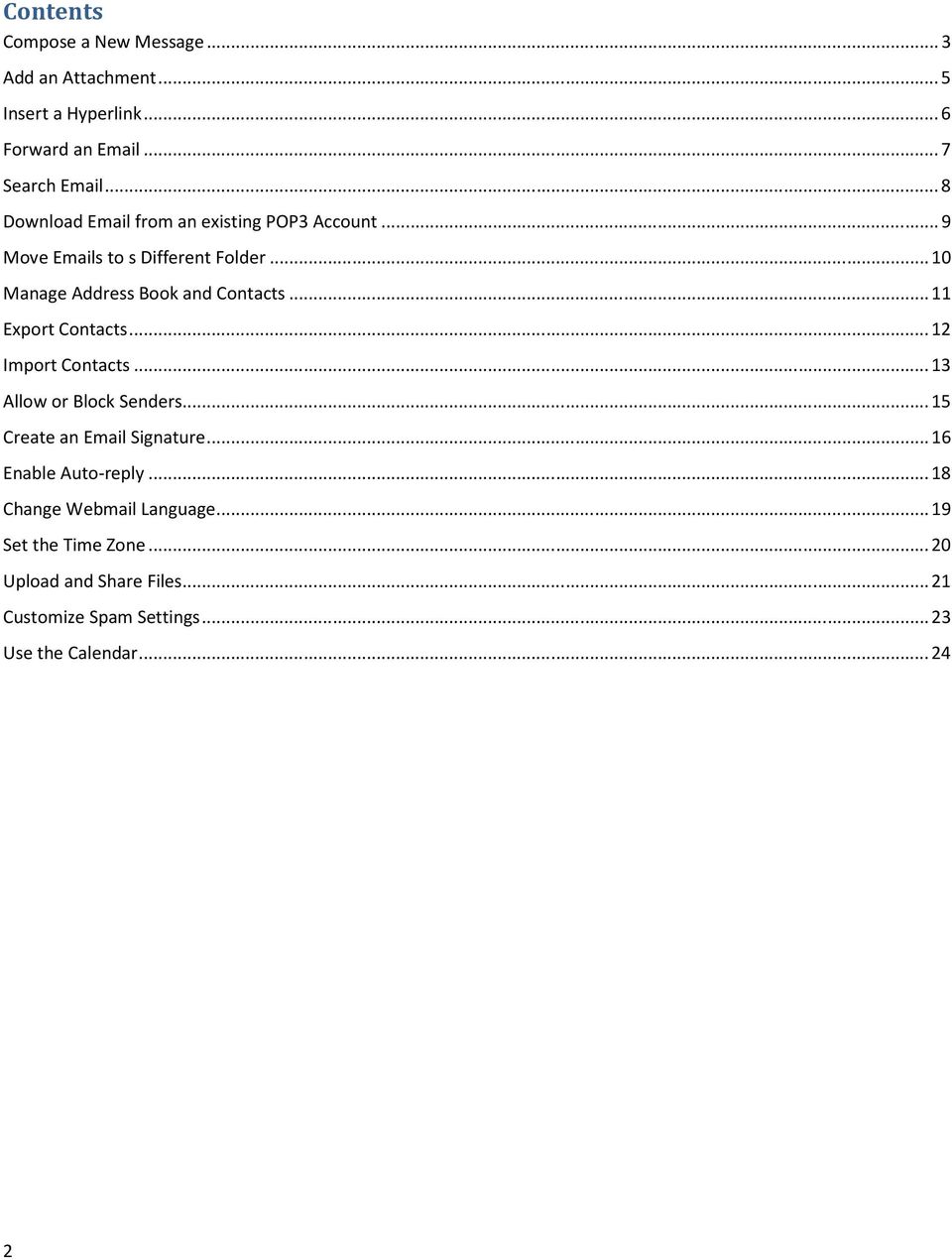
3 Compose a New Message 1, Click Mail, and then click Compose. 2. In the To field, enter the address(es) you want to send the to (separate multiple addresses with a comma). Alternatively, in the Contacts pane on the left side, select one or more addresses from your saved contacts list, and then click the To button at the bottom of the pane. 3. To include a carbon copy (CC) recipient click Add CC and enter the address(es) in the CC field as you did the To field in Step 2. In the example, the message is addressed to "[email protected]". The CC recipient "[email protected]" will receive a copy of the and will also be able to see that the was sent to "[email protected]". 4. To include a blind carbon copy (BCC) recipient click Add BCC and enter the address(es) in the BCC field as you did in the To field in Step 2. In the example, the is addressed to "[email protected]". The BCC recipient "[email protected]" will receive a copy of the and will also be able to see that it was sent to "[email protected]". However, none of the recipients (in the To, Cc or Bcc fields) can see that there were any BCC recipients. 3
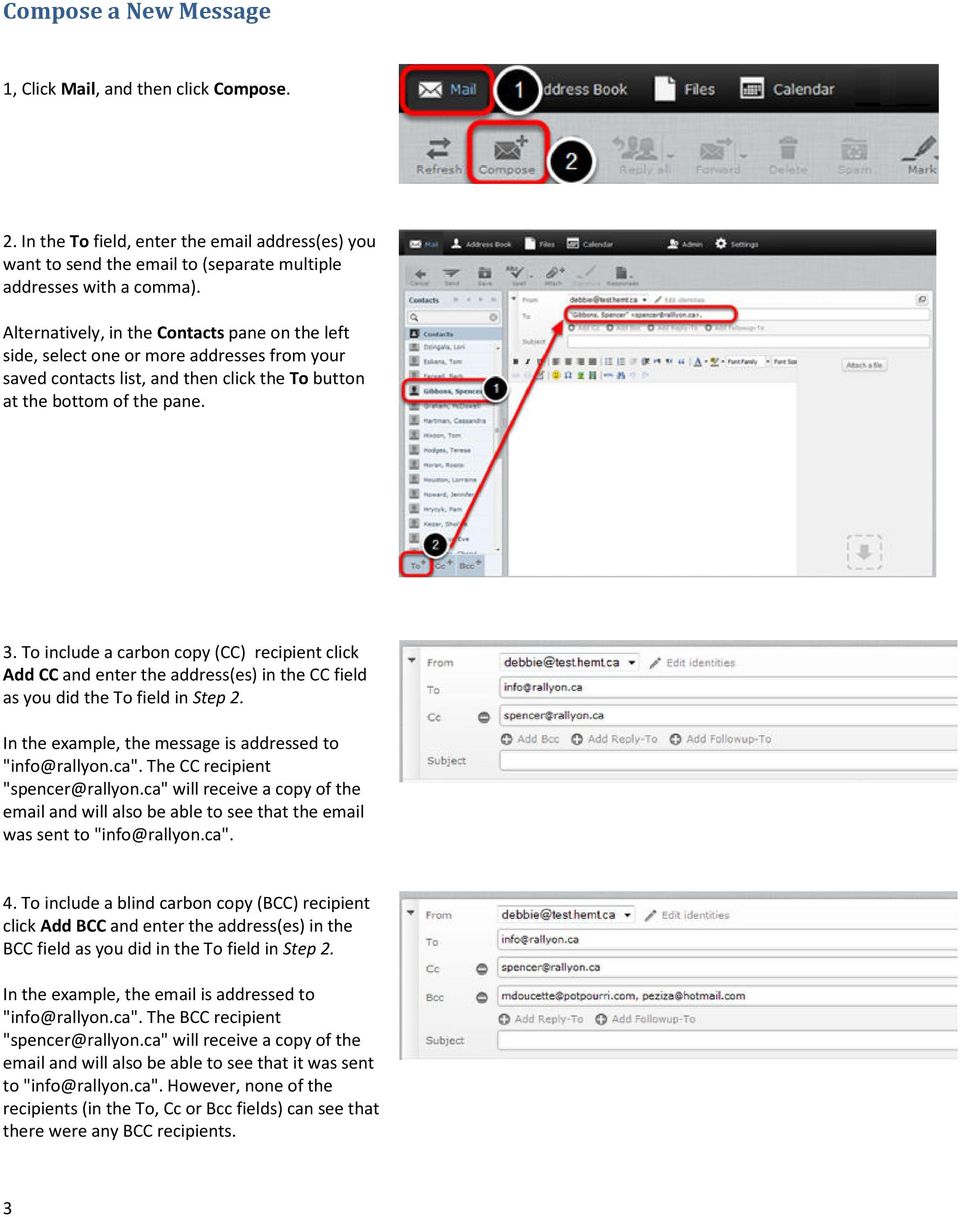
4 5. In the Subject field, enter a subject for your message. 6. Type the body of your in the text box. 7. When finished, click Send to send your . 4
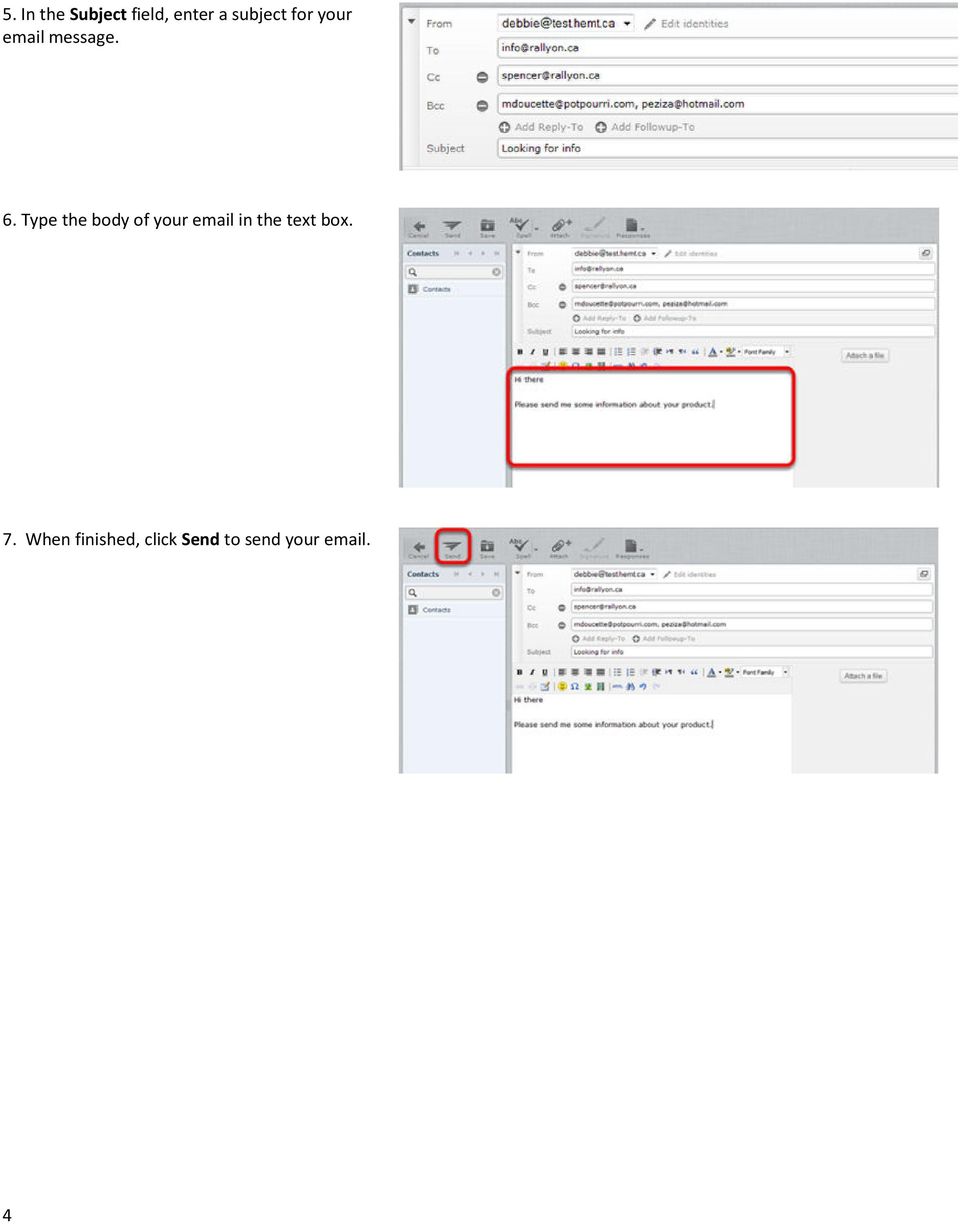
5 Add an Attachment 1. Prior to sending a composed , click the Attach button at the top of the screen or the Attach a file button on the right side. 2. In the File Upload pop-up window, select the file(s) you want to attach, and then click Open. 3. Click Upload. 4. The attached files are now visible in the . 5
6 Insert a Hyperlink 1. In the body of , enter the text that you want to make a hyperlink. This can be the actual location or URL (such as or any text (such as click here). 2. Highlight the text that you want to make a hyperlink. 3. Click the Insert/Edit link button. 4. In the Insert Link pop-up window enter the link destination in the Link URL field. For example, 5. Click Insert. Optional: Select a Target option to open a new window when the hyperlink is selected or to open the link in the same window. Enter a Title to display additional text when the cursor is hovered over the hyperlink. 6

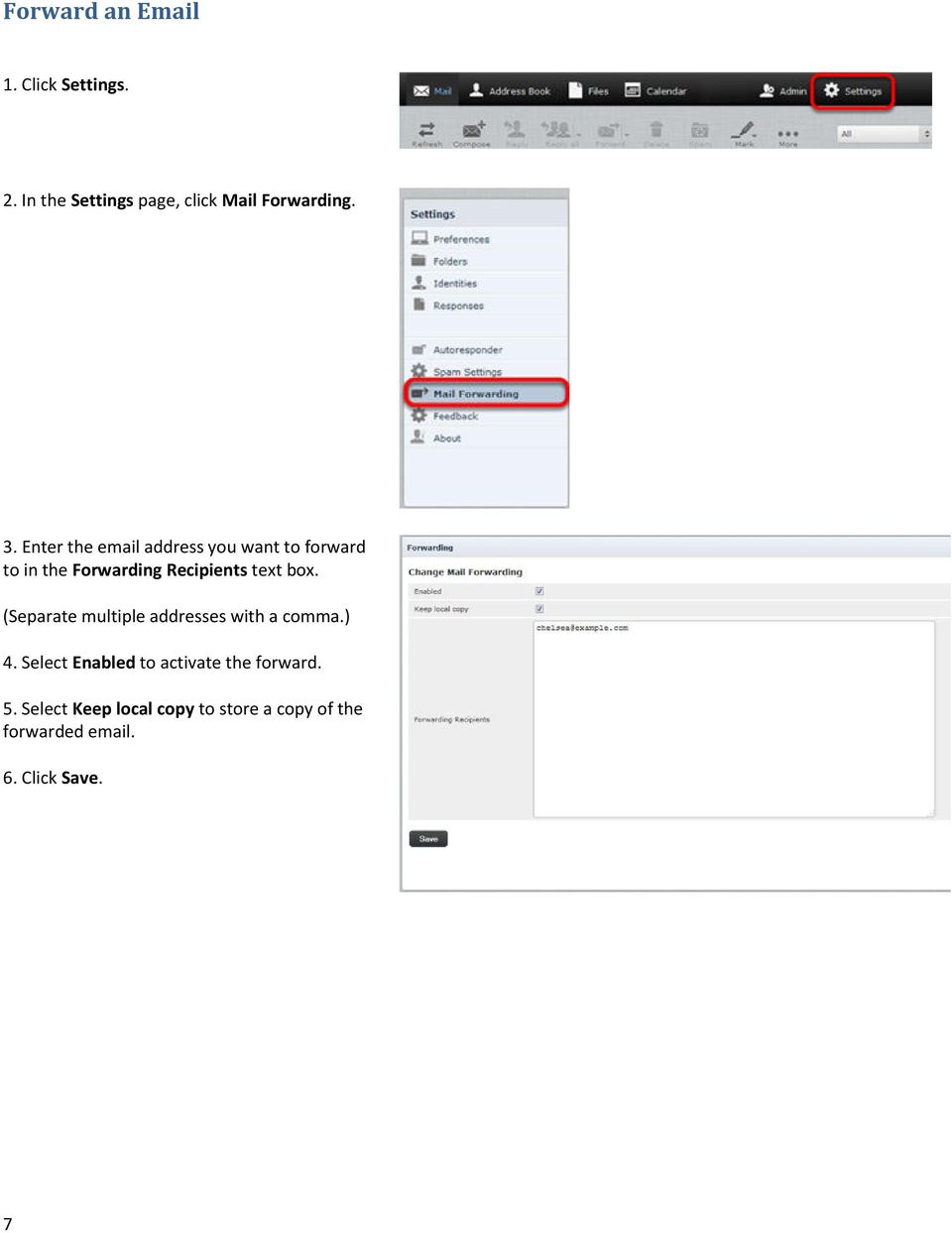
7 Forward an 1. Click Settings. 2. In the Settings page, click Mail Forwarding. 3. Enter the address you want to forward to in the Forwarding Recipients text box. (Separate multiple addresses with a comma.) 4. Select Enabled to activate the forward. 5. Select Keep local copy to store a copy of the forwarded Click Save. 7
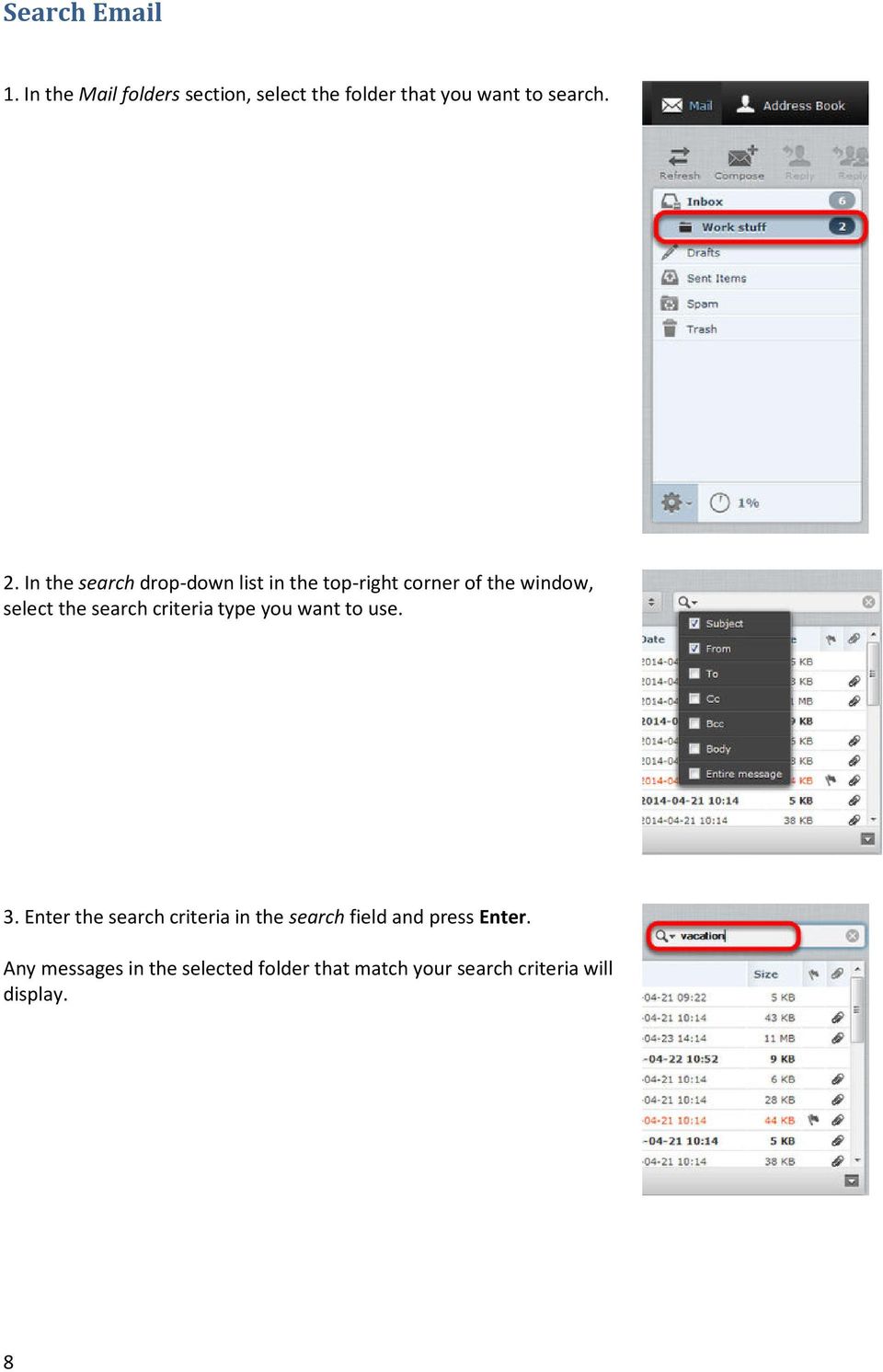
8 Search 1. In the Mail folders section, select the folder that you want to search. 2. In the search drop-down list in the top-right corner of the window, select the search criteria type you want to use. 3. Enter the search criteria in the search field and press Enter. Any messages in the selected folder that match your search criteria will display. 8
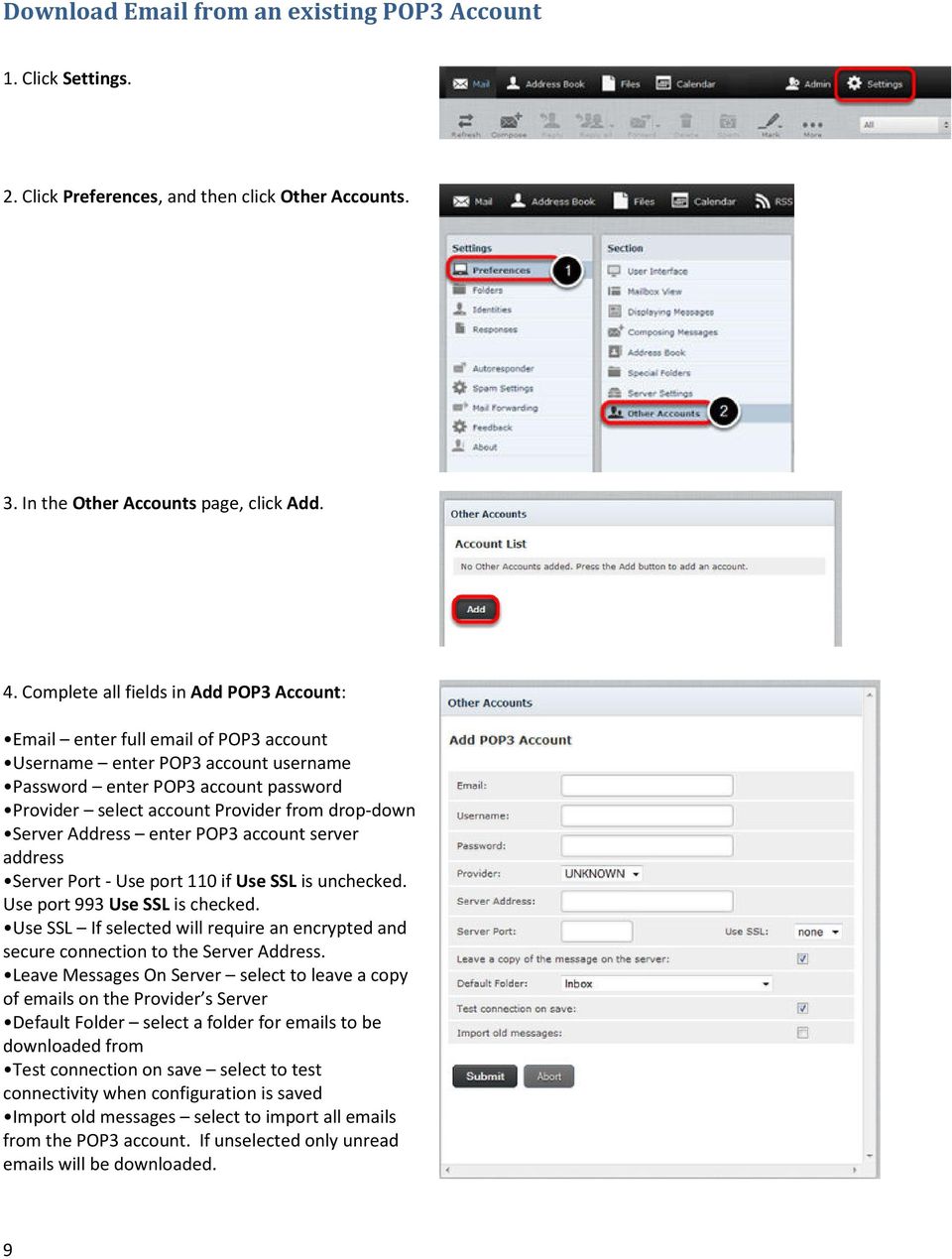
9 Download from an existing POP3 Account 1. Click Settings. 2. Click Preferences, and then click Other Accounts. 3. In the Other Accounts page, click Add. 4. Complete all fields in Add POP3 Account: enter full of POP3 account Username enter POP3 account username Password enter POP3 account password Provider select account Provider from drop-down Server Address enter POP3 account server address Server Port - Use port 110 if Use SSL is unchecked. Use port 993 Use SSL is checked. Use SSL If selected will require an encrypted and secure connection to the Server Address. Leave Messages On Server select to leave a copy of s on the Provider s Server Default Folder select a folder for s to be downloaded from Test connection on save select to test connectivity when configuration is saved Import old messages select to import all s from the POP3 account. If unselected only unread s will be downloaded. 9
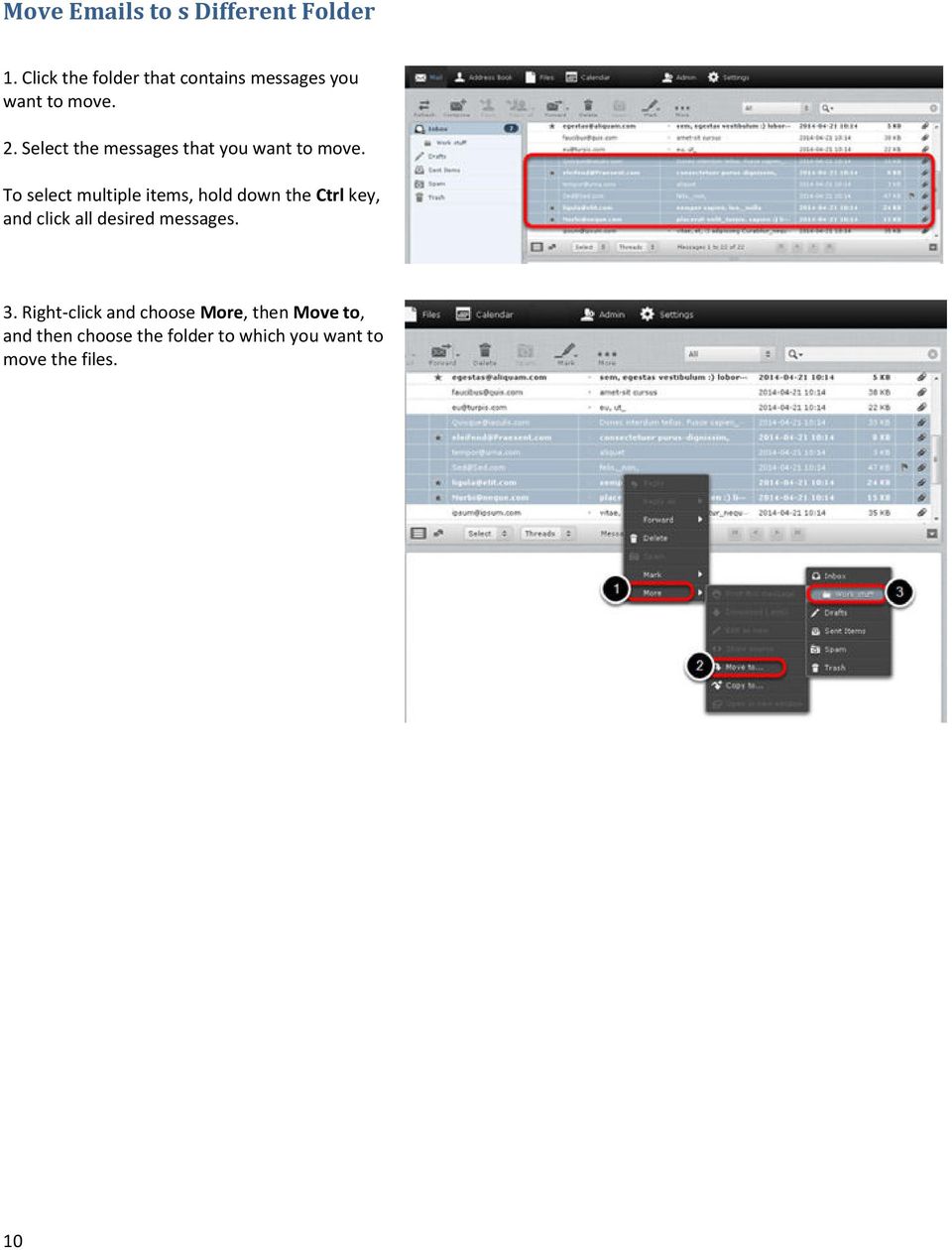
10 Move s to s Different Folder 1. Click the folder that contains messages you want to move. 2. Select the messages that you want to move. To select multiple items, hold down the Ctrl key, and click all desired messages. 3. Right-click and choose More, then Move to, and then choose the folder to which you want to move the files. 10
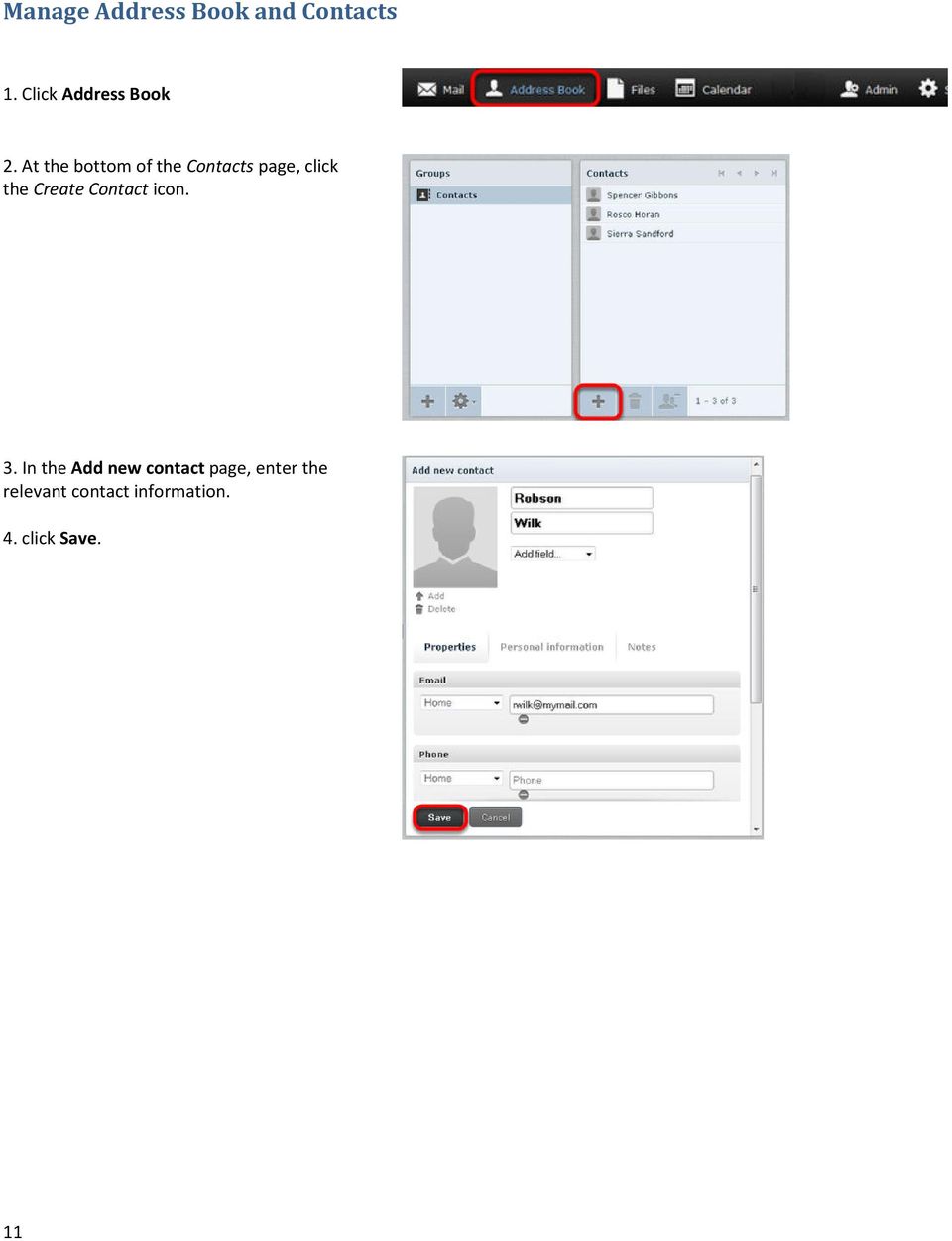
11 Manage Address Book and Contacts 1. Click Address Book 2. At the bottom of the Contacts page, click the Create Contact icon. 3. In the Add new contact page, enter the relevant contact information. 4. click Save. 11
12 Export Contacts 1. Click Address Book. 2. From the Groups page, choose the group that contains the contacts to export. Select Contacts if you want to export all of the contacts in the Address Book. 3. Optionally, click to select the individual contacts that you want to export. To select multiple contiguous items, select the first item, hold down the Shift key, and then click the last item. To select multiple non-contiguous items, hold down the Ctrl key and click on each of the items that you want to select. 4. From the Export drop-down list, choose Export all or Export selected. 5. Specify where to save the exported file if prompted; otherwise, contacts.vcf will be in the Downloads folder on your computer. 12

13 Import Contacts 1. Click Address Book. 2. Select a group to add the imported contacts to. If a group is not selected the new imported contacts will be added to the Contacts group only. 3. Click Import. 4. Click Browse and navigate to the contacts file that you want to import. 5. Select the file. 6. Click Open. 13
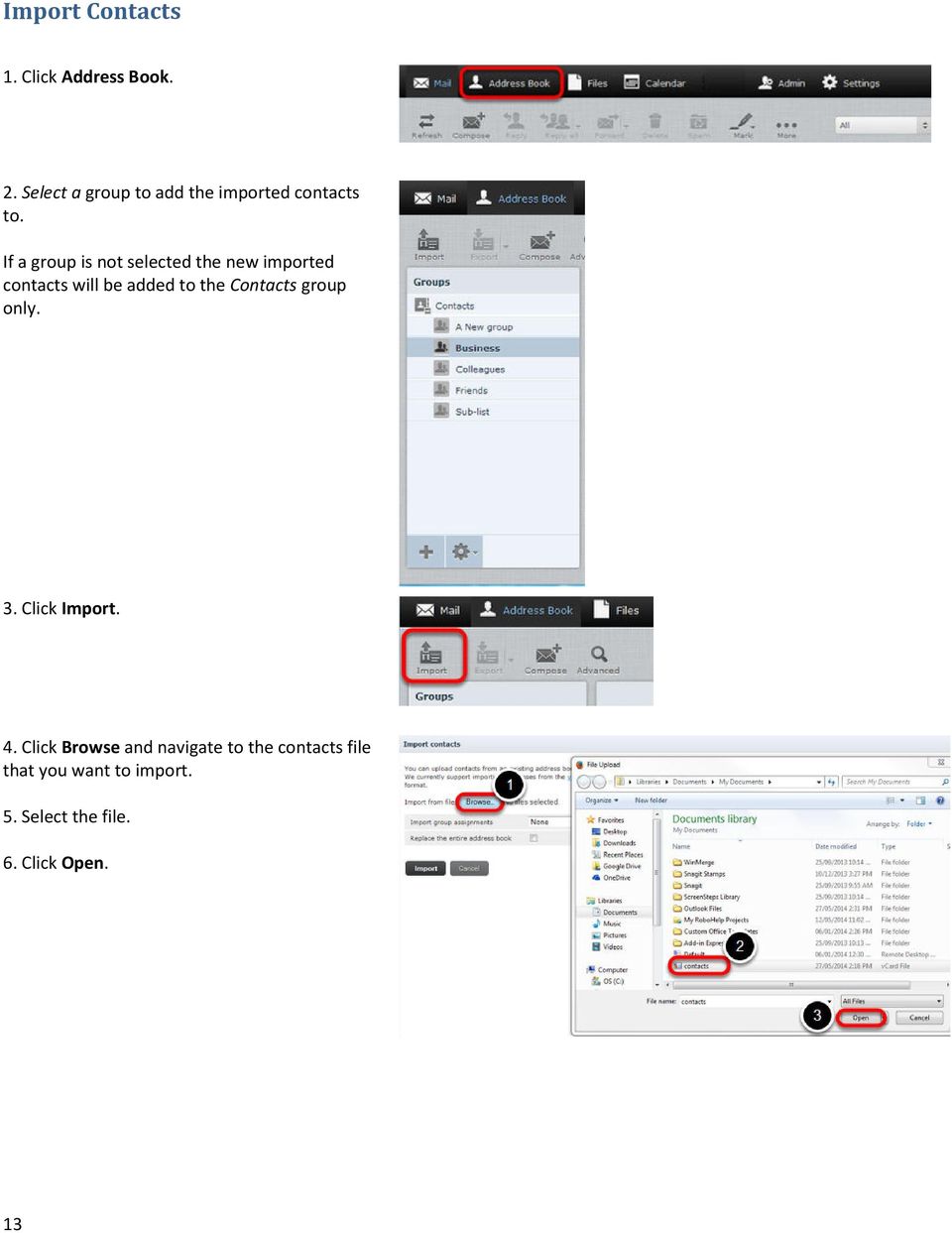
14 5. In the Import group assignments drop-down list, select which address book the contacts should be imported to. The Replace the entire address book checkbox will delete all contacts from the selected address book before importing. Be careful with this option; the deletion cannot be undone! 6. Click Import. 14

15 Allow or Block Senders Webmail provides a tool that allows you to block or allow from specific senders. You can add up to 1000 entries in the Blocked Senders list and 1000 entries in the Allowed Senders list. Make sure that you enter the sender's address or domain as it appears in the sender's "Return-Path." The return path is in the first line of the headers. This may not be the same as the address that is displayed in the From field of the message. 1. Click Settings. 2. In the Settings page, click Spam Settings. 3. In the Allowed Senders or Blocked Senders text box, enter the addresses that you want to allow or block. 4. Click Save. 15

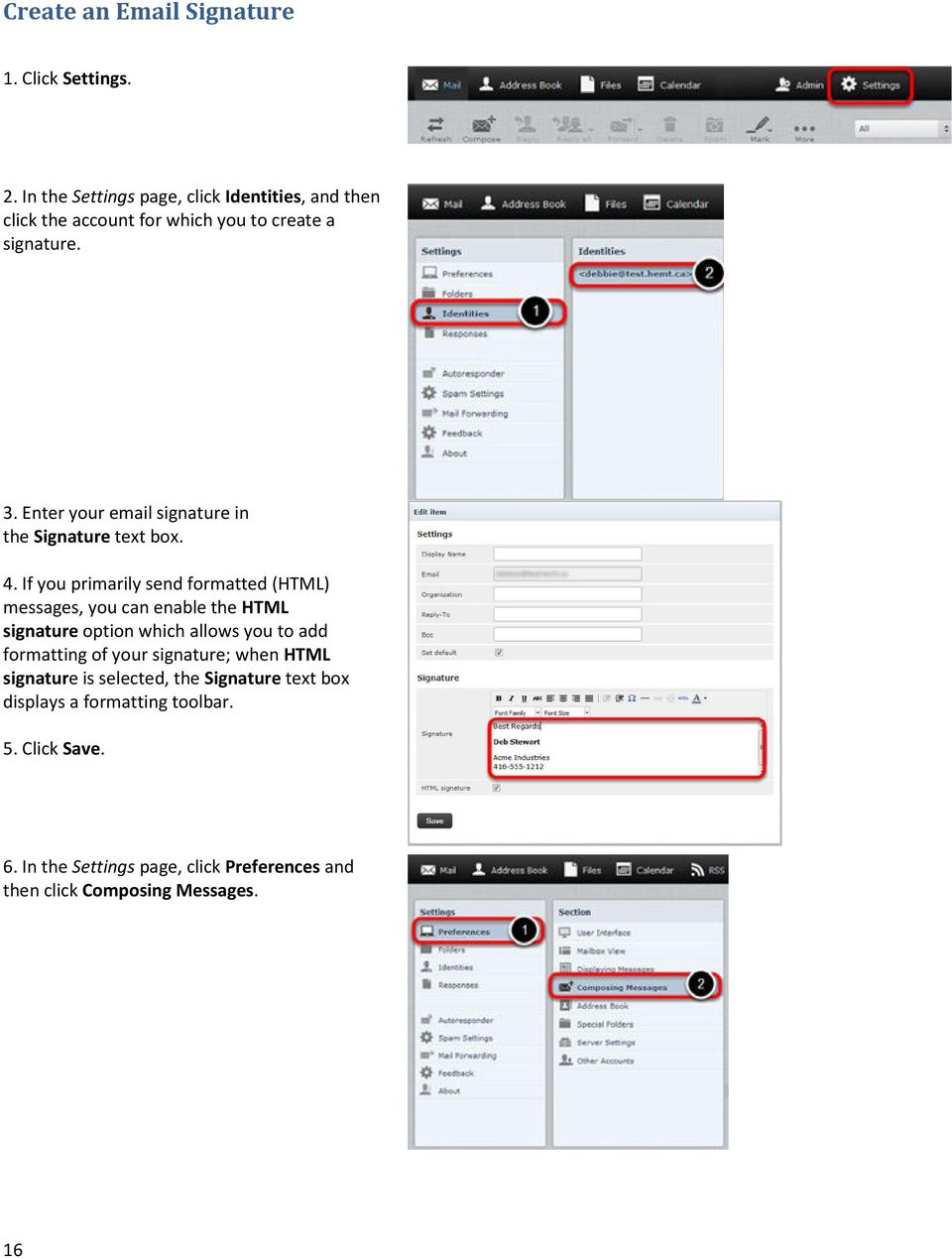
16 Create an Signature 1. Click Settings. 2. In the Settings page, click Identities, and then click the account for which you to create a signature. 3. Enter your signature in the Signature text box. 4. If you primarily send formatted (HTML) messages, you can enable the HTML signature option which allows you to add formatting of your signature; when HTML signature is selected, the Signature text box displays a formatting toolbar. 5. Click Save. 6. In the Settings page, click Preferences and then click Composing Messages. 16
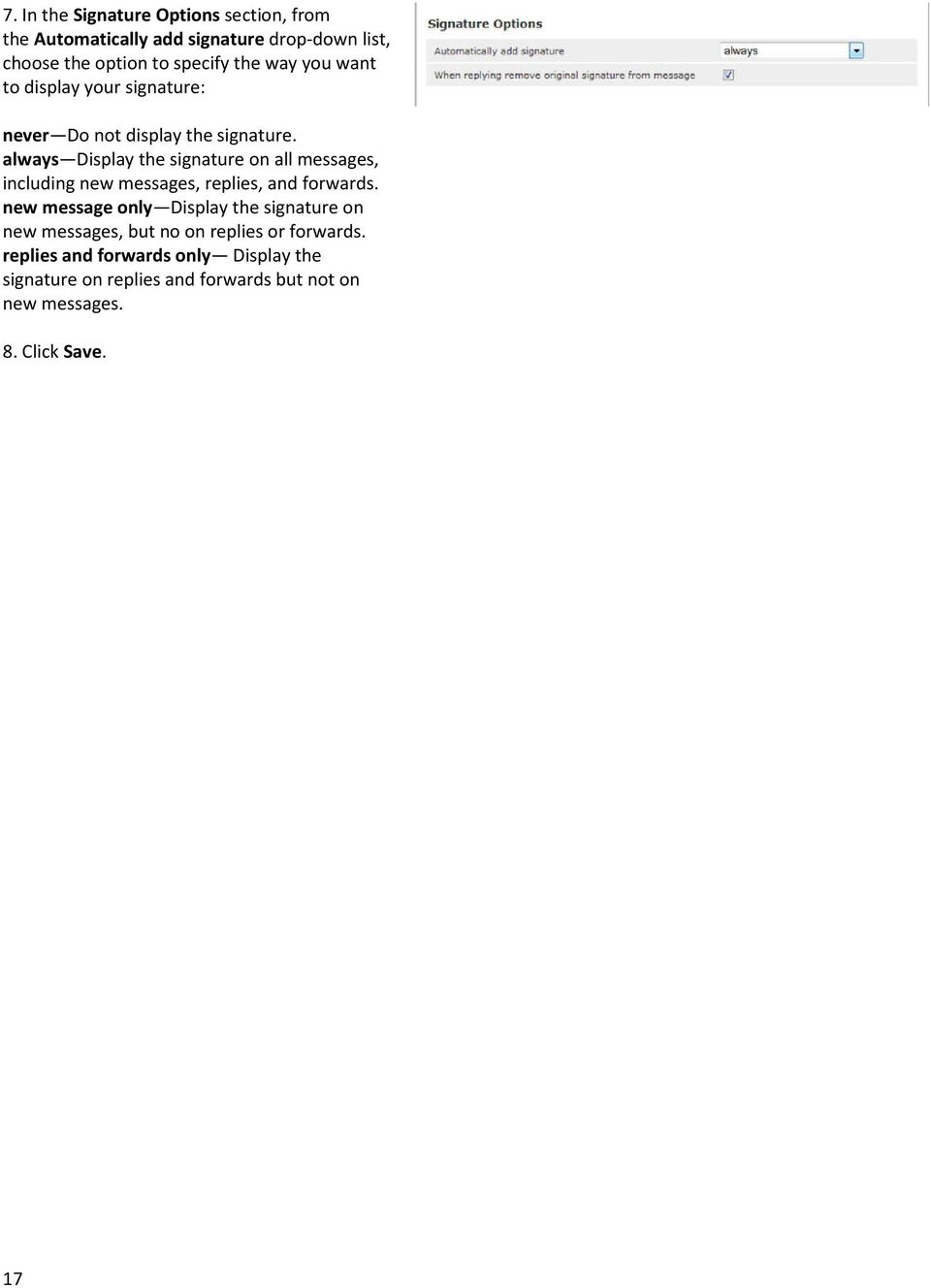
17 7. In the Signature Options section, from the Automatically add signature drop-down list, choose the option to specify the way you want to display your signature: never Do not display the signature. always Display the signature on all messages, including new messages, replies, and forwards. new message only Display the signature on new messages, but no on replies or forwards. replies and forwards only Display the signature on replies and forwards but not on new messages. 8. Click Save. 17
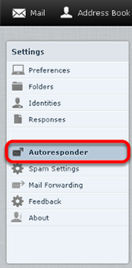

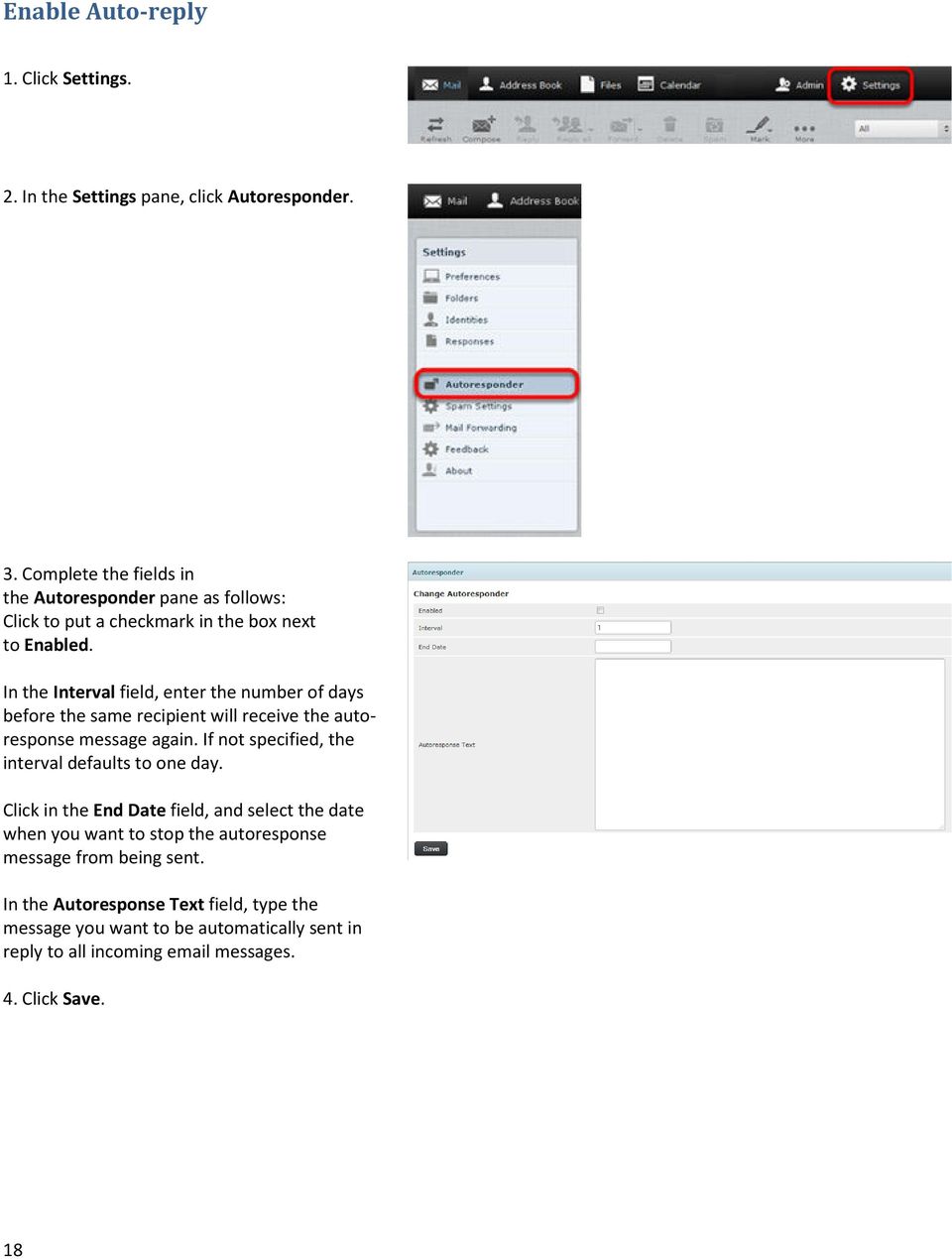
18 Enable Auto-reply 1. Click Settings. 2. In the Settings pane, click Autoresponder. 3. Complete the fields in the Autoresponder pane as follows: Click to put a checkmark in the box next to Enabled. In the Interval field, enter the number of days before the same recipient will receive the autoresponse message again. If not specified, the interval defaults to one day. Click in the End Date field, and select the date when you want to stop the autoresponse message from being sent. In the Autoresponse Text field, type the message you want to be automatically sent in reply to all incoming messages. 4. Click Save. 18
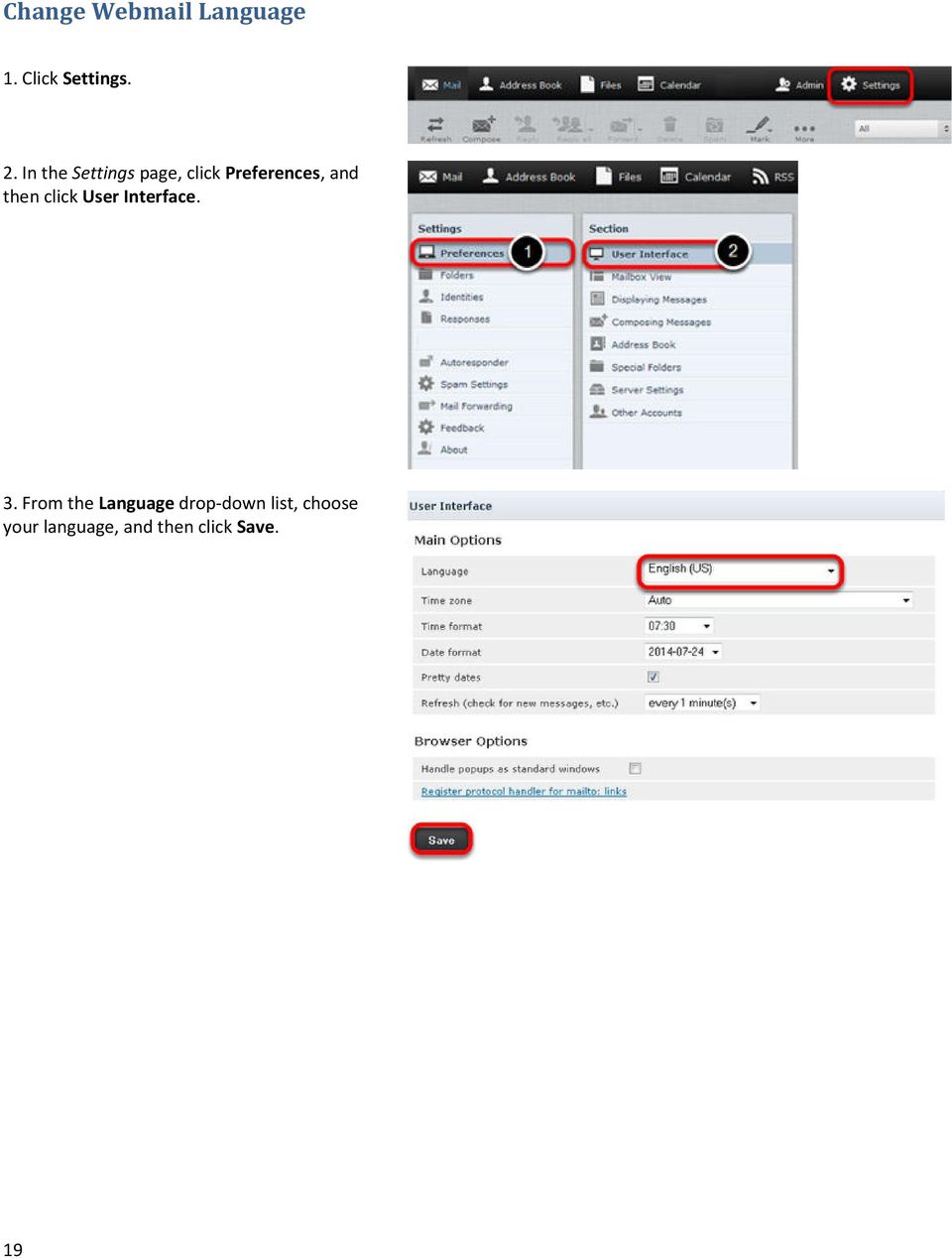
19 Change Webmail Language 1. Click Settings. 2. In the Settings page, click Preferences, and then click User Interface. 3. From the Language drop-down list, choose your language, and then click Save. 19
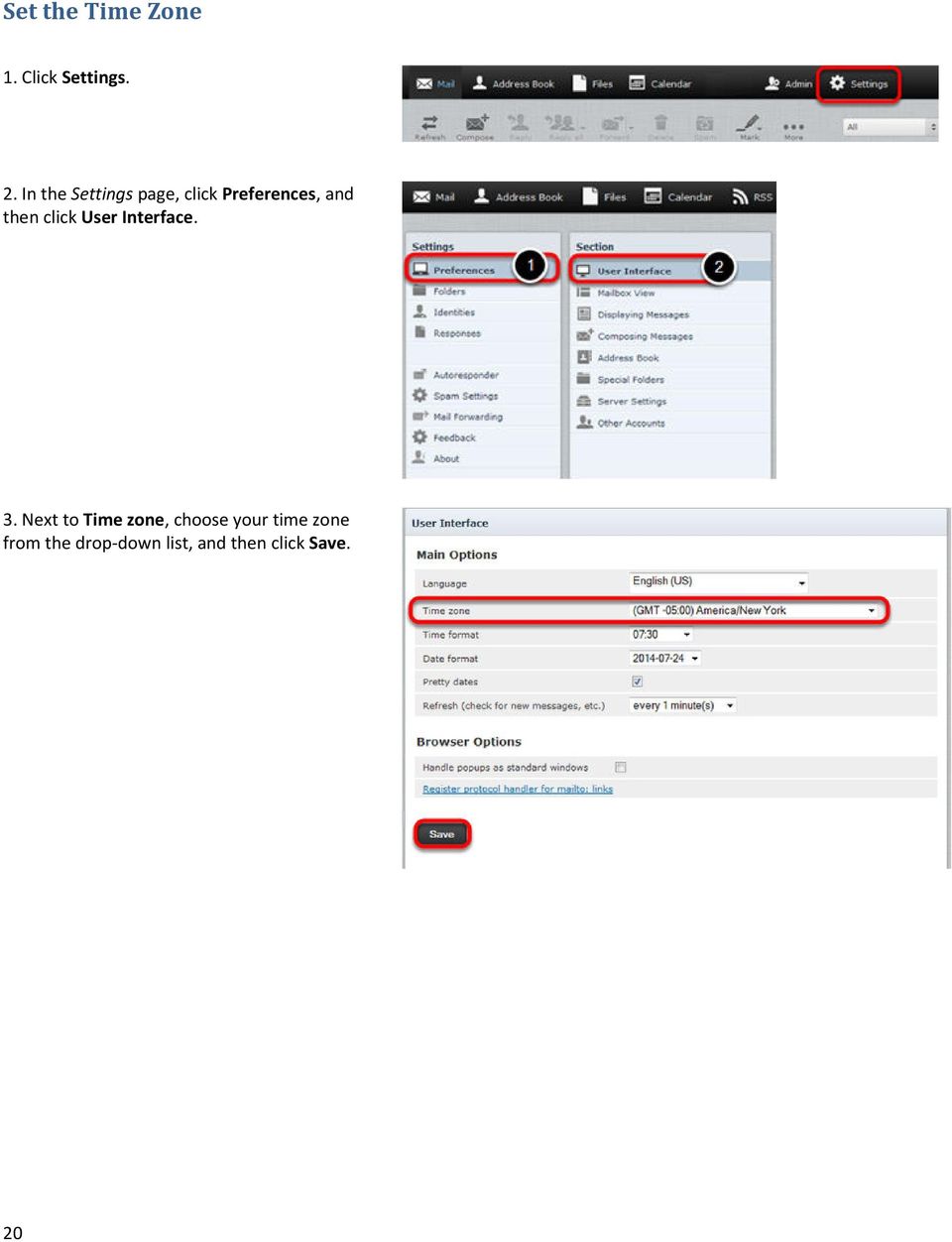
20 Set the Time Zone 1. Click Settings. 2. In the Settings page, click Preferences, and then click User Interface. 3. Next to Time zone, choose your time zone from the drop-down list, and then click Save. 20
21 Upload and Share Files File sharing allows you to share files outside of . The largest file attachment you can send in your is 25 MB. Using file sharing you can share or store a back-up copy of files larger than 25 MB. Important: Files uploaded to Webmail count against your mail storage quota. 1. Click Files. 2. Optionally, select the folder where you want to store the file. If you don`t select a folder, the file will be stored at the top level, also known as the root. 3. Click the upload icon 4. Browse to the file that you want to upload, select it, and then click Open. 5. Hover over the desired file or folder and click Share. 21
22 6. Select Share link. 7. Highlight and copy the link displayed. Paste this link in any online communications ( , IM, social networking, etc.) to share your file(s). 8. Enter an address in the link to person text box and click Send. Select Password protect to enter a password that the recipient must use to access the shared files. Select Set expiration date to enter a date that the shared files will no longer be visible to the recipient. 22
23 Customize Spam Settings By default, when a message arrives in your mailbox that Webmail identifies as spam, that message has a flag added to it, to indicate that it is spam. The spam flag is not visible to you, but if you add your own custom tag, then all incoming spam messages will have your custom spam tag added to their Subject line. By default, incoming spam messages are sent to your Spam folder. However, you can change the destination folder of incoming spam. 1. Click Settings. 2. In the Settings pane, click Spam Settings. 3. In the Subject Tag field, enter the custom spam tag that you want to use. 4. From the drop-down menu next to Spam Folder, select the folder where you want incoming spam messages to be delivered. 5. Choose the spam blocking level from the drop-down menu next to Threshold Level, and then 6. Click Save. 23
24 Use the Calendar 1. Click Calendar. You can click Day, Week, Month or Agenda to view or add upcoming events. To add events to the calendar, double-click a time slot. You can then set details such as the name of the event, the location, and the duration. Click the Repeat tab to create a recurring event such as a weekly meeting. 24
25 You can also set reminders to appear when the event is coming up. You can have reminders that are set at a specific number of minutes, hours or days before (or even after) the start or the end of the event, and you can set a reminder for a specific date and time. 25
Using Your New Webmail
 Using Your New Webmail Table of Contents Composing a New Message... 2 Adding Attachments to a Message... 4 Inserting a Hyperlink... 6 Searching For Messages... 8 Downloading Email from a POP3 Account...
What browsers can I use to view my mail?
 How to use webmail. This tutorial is our how-to guide for using Webmail. It does not cover every aspect of Webmail; What browsers can I use to view my mail? Webmail supports the following browsers: Microsoft
Webmail Instruction Guide
 Webmail Instruction Guide This document is setup to guide your through the use of the many features of our Webmail system. You may either visit www.safeaccess.com or webmail.safeaccess.com to login with
Email -- Reading and Printing Email
 Email -- Reading and Printing Email Checking for New Email By default, webmail checks for new email automatically. If you want to manually check for new email, click the Check Email button. Or, click the
Using Webmail. Technical Manual: User Guide. Document Updated: 1/07. The Webmail Window. Displaying and Hiding the Full Header.
 Using Webmail Technical Manual: User Guide The Webmail Window To save an attachment: 1. Click once on the attachment name. Or, if there are multiple attachments, click the Save icon to save all attachments
Using Webmail. Document Updated: 11/10. Technical Manual: User Guide. The Webmail Window. Logging In to Webmail. Displaying and Hiding the Full Header
 Using Webmail Technical Manual: User Guide Webmail is supported in the following browsers: Windows Internet Explorer 6, Internet Explorer 7, Firefox 2, and Firefox 3 Mac OSX Safari 2, Safari 3, Firefox
Using Webmail. Document Updated: 9/08. Technical Manual: User Guide. The Webmail Window. Displaying and Hiding the Full Header.
 Using Webmail Technical Manual: User Guide Webmail is supported in the following browsers: Windows Internet Explorer 6, Internet Explorer 7, Firefox 2, and Firefox 3 Mac OSX Safari 2, Safari 3, Firefox
User Guide for Kelani Mail
 User Guide for Kelani Mail Table of Contents Log in to Kelani Mail 1 Using Kelani Mail 1 Changing Password 2 Using Mail Application 3 Using email system folders 3 Managing Your Mail 4 Using your Junk folder
Outlook Live Basics. for Students
 Outlook Live Basics for Students 2 Outlook Live for Support Staff Outlook Live for Support Staff 3 Getting Started... 6 Signing into your Outlook Account... 6 Migrating your Account... 8 Address Book...
Webmail User Guide. The Webmail Window. Logging In to Webmail. Displaying and Hiding the Full Header. Printing an Email. Composing a New Email
 Webmail User Guide Rev: November, 2012 Webmail is supported in the following browsers: Windows Internet Explorer 6, Internet Explorer 7, Firefox 2, and Firefox 3 Mac OSX Safari 2, Safari 3, Firefox 2,
BCSD WebMail Documentation
 BCSD WebMail Documentation Outlook Web Access is available to all BCSD account holders! Outlook Web Access provides Webbased access to your e-mail, your calendar, your contacts, and the global address
Web Mail Guide... Error! Bookmark not defined. 1 Introduction to Web Mail... 4. 2 Your Web Mail Home Page... 5. 3 Using the Inbox...
 Powered by Table of Contents Web Mail Guide... Error! Bookmark not defined. 1 Introduction to Web Mail... 4 1.1 Requirements... 4 1.2 Recommendations for using Web Mail... 4 1.3 Accessing your Web Mail...
Email User Manual. [Outlook Web App 2013]
![Email User Manual. [Outlook Web App 2013]](/thumbs/30/14055838.jpg "Email User Manual. [Outlook Web App 2013]") [Outlook Web App 2013] Central Information Systems Division March 2014 Table of Contents 1. To Login... 4 2. To Logout... 5 3. Change Password... 5 4. Email Messaging... 6 4.1 Create a New Mail... 6 4.2
[Outlook Web App 2013] Central Information Systems Division March 2014 Table of Contents 1. To Login... 4 2. To Logout... 5 3. Change Password... 5 4. Email Messaging... 6 4.1 Create a New Mail... 6 4.2
Outlook Web Access E-mail
 Outlook Web Access E-mail A. Accessing the mailbox via the Internet 1. Open your browser Firebox or Internet Explorer 2. In the URL address location box, key mail.asbury.edu for students and mail2.asbury.edu
ZIMBRA LAYOUT. Keyboard Shortcuts Hitting G and the beginning letter of any of the tabs will instantly take you to that tab
 TABS ZIMBRA LAYOUT Overview Pane TABS Mail Inbox, compose new Address Book contacts (university contacts do not show up in book; however, they will show up in search) Calendar appointments (can be shared)
Outlook 2010. Mail, Calendar, Contacts, Notes & Tasks. User Guide
 User Guide Outlook 2010 Mail, Calendar, Contacts, Notes & Tasks IT Training (818) 677-1700 [email protected] www.csun.edu/it/training CSUN IT Training YouTube Channel http://www.youtube.com/user/csuninfotech
Outlook Web Access (OWA) User Guide
 Outlook Web Access (OWA) User Guide September 2010 TABLE OF CONTENTS TABLE OF CONTENTS... 2 1.0 INTRODUCTION... 4 1.1 OUTLOOK WEB ACCESS SECURITY CONSIDERATIONS... 4 2.0 GETTING STARTED... 5 2.1 LOGGING
Changes to Skillnet Group Emails. Outlook and Outlook Express Users
 Changes to Skillnet Group Emails Skillnet Group emails are moving from the current provider to our own exchange mail server. This will mean that you will have a much improved web-mail system and almost
Outlook Web Access (OWA or WebMail) Frequently Asked Questions
 Outlook Web Access (OWA or WebMail) Frequently Asked Questions If you are a part-time staff member, adjunct faculty member, or Villanova student, you will access your Villanova email using a program called
Outlook. Getting Started Outlook vs. Outlook Express Setting up a profile Outlook Today screen Navigation Pane
 Outlook Getting Started Outlook vs. Outlook Express Setting up a profile Outlook Today screen Navigation Pane Composing & Sending Email Reading & Sending Mail Messages Set message options Organizing Items
Outlook 2007 - Exchange
 Information Technology MS Office Outlook 2007 Users Guide Outlook 2007 - Exchange Mail, Calendar, Contacts, Notes & Tasks Folders IT Training & Development 677-1700 [email protected] TABLE OF CONTENTS
MeritMail User Guide ZCS 8.0
 MeritMail User Guide ZCS 8.0 August 2012 Table of Contents 1 Setting Up Your Account................................... 11 Using Advanced and Standard Versions....................... 11 Signing In and
MailEnable Web Mail End User Manual V 2.x
 MailEnable Web Mail End User Manual V 2.x MailEnable Messaging Services for Microsoft Windows NT/2000/2003 MailEnable Pty. Ltd. 486 Neerim Road Murrumbeena VIC 3163 Australia t: +61 3 9569 0772 f: +61
How To Use Outlook On A Pc Or Macbook With A Pc (For A Pc) Or Macintosh (For An Ipo) With A Macbook Or Ipo With A Ipo (For Pc) With An Outlook (For Macbook
 Outlook for Mac Getting started, reading and sending emails When you use Outlook for the first time, we suggest starting with a few minor adjustments to make the interface more familiar. From the View
Table of Contents Chapter 1 INTRODUCTION TO MAILENABLE SOFTWARE... 3 MailEnable Webmail Introduction MailEnable Requirements and Getting Started
 Webmail User Manual Table of Contents Chapter 1 INTRODUCTION TO MAILENABLE SOFTWARE... 3 MailEnable Webmail Introduction MailEnable Requirements and Getting Started Chapter 2 MAILENABLE KEY FEATURES OVERVIEW...
Outlook Web Access An Introductory Guide
 Outlook Web Access An Introductory Guide IT Training & Assessment Unit, Queen s University Belfast 1 Contents Logging on... 3 Email... 3 Compose a Message... 4 Saving an Email Attachment... 5 Saving a
Microsoft Outlook 2010
 Microsoft Outlook 2010 Prepared by Computing Services at the Eastman School of Music July 2010 Contents Microsoft Office Interface... 4 File Ribbon Tab... 5 Microsoft Office Quick Access Toolbar... 6 Appearance
700 Fox Glen Barrington, Illinois 60010 ph: [847] 842-9570 fx: [847] 842-0190 www.excaltech.com [email protected]. Webmail System User Guide
![700 Fox Glen Barrington, Illinois 60010 ph: [847] 842-9570 fx: [847] 842-0190 www.excaltech.com support@excaltech.com. Webmail System User Guide](/thumbs/28/12481810.jpg "700 Fox Glen Barrington, Illinois 60010 ph: [847] 842-9570 fx: [847] 842-0190 www.excaltech.com support@excaltech.com. Webmail System User Guide") 700 Fox Glen Barrington, Illinois 60010 ph: [847] 842-9570 fx: [847] 842-0190 www.excaltech.com [email protected] Webmail System User Guide Last Updated November 14, 2013 -2- Table of Contents Welcome
700 Fox Glen Barrington, Illinois 60010 ph: [847] 842-9570 fx: [847] 842-0190 www.excaltech.com [email protected] Webmail System User Guide Last Updated November 14, 2013 -2- Table of Contents Welcome
Microsoft Outlook Web App Quick Reference Card
 Microsoft Outlook Web App Quick Reference Card Accessing Outlook Web App You can access your mailbox through any browser that supports HTML 3.2 and ECMA. To access your mailbox, enter your OWA web address/url
Basics of Microsoft Outlook/Email. Microsoft Outlook
 Basics of Microsoft Outlook/Email Microsoft Outlook Workshop Outline for Improve Your Outlook Microsoft Outlook Contents Starting the application... 3 The Outlook 2010 window... 3 Expanding and minimizing
Stores copies of items you sent to others, by default. Stores items created offline that you want to send the next time you are online
 Outlook Folders: All new messages are stored in Inbox unless rules are created. Stores copies of items you sent to others, by default Stores temporarily deleted items until you permanently delete or retrieve
Web Mail Classic Web Mail
 April 14 Web Mail Classic Web Mail Version 2.2 Table of Contents 1 Technical Requirements... 4 2 Accessing your Web Mail... 4 3 Web Mail Features... 5 3.1 Home... 5 3.1.1 Mailbox Summary... 5 3.1.2 Announcements...
Connecting to LUA s webmail
 Connecting to LUA s webmail Effective immediately, the Company has enhanced employee remote access to email (Outlook). By utilizing almost any browser you will have access to your Company e-mail as well
OUTLOOK WEB APP (OWA): MAIL
 Office 365 Navigation Pane: Navigating in Office 365 Click the App Launcher and then choose the application (i.e. Outlook, Calendar, People, etc.). To modify your personal account settings, click the Logon
For detailed information on these options and more, please read the appropriately titled topic in this help document.
 Introduction to Webmail Webmail allows you to perform a variety of e-mail related tasks, such as viewing, composing, and sending e-mail messages. Individuals who have used e-mail clients and word processors
Outlook 2011 Window. [Day], [Work Week], [Full [Home]. Schedule and plan: Click the [New
![Outlook 2011 Window. [Day], [Work Week], [Full [Home]. Schedule and plan: Click the [New](/thumbs/27/11891778.jpg "Outlook 2011 Window. [Day], [Work Week], [Full [Home]. Schedule and plan: Click the [New") MS Outlook 2011 Quick Reference for Macintosh The Ribbon consists a series of tabs giving access to buttons, menus, and dialog boxes in various groups to facilitate locating the tools required for a particular
MS Outlook 2011 Quick Reference for Macintosh The Ribbon consists a series of tabs giving access to buttons, menus, and dialog boxes in various groups to facilitate locating the tools required for a particular
Using Outlook Web App
 Using Outlook Web App About Outlook Web App Using a web browser and the Internet, Outlook Web App (OWA) provides access to your Exchange mailbox from anywhere in the world at any time. Outlook Web App
Getting Started with University Gmail
 Getting Started with University Gmail USER GUIDE V1.0 User Services IT Services University of Malta 2013 User Services IT Services University of Malta Msida MSD 2080 Malta May only be reproduced with permission
If you encounter difficulty or need further assistance the Archdiocesan help desk can be reached at (410) 547-5305, option 1. Email Access Methods:
 ArchMail (www.archbalt.org/archmail) is a centrally hosted email system for the employees of the Archdiocese. To simplify employee access multiple methods for accessing email have been established. This
Grapevine Mail User Guide
 Grapevine Mail User Guide Table of Contents Accessing Grapevine Mail...2 How to access the Mail portal... 2 How to login... 2 Grapevine Mail user guide... 5 Copying your contacts to the new Grapevine Mail
Microsoft Outlook 2013 -And- Outlook Web App (OWA) Using Office 365
 1 C H A P T E R Microsoft Outlook 2013 -And- Outlook Web App (OWA) Using Office 365 1 MICROSOFT OUTLOOK 2013 AND OUTLOOK WEB ACCESS (OWA) Table of Contents Chapter 1: Signing Into the Microsoft Email System...
Using Outlook WebAccess
 Using Outlook WebAccess Outlook Toolbars - Terminology Update all folders New Move/Copy Reply Forward Check for New Messages Help Show/Hide Folders Delete Reply to All Show/Hide Reading Pain Search Address
Kerio Connect. Kerio Connect Client. Kerio Technologies
 Kerio Connect Kerio Connect Client Kerio Technologies 2015 Kerio Technologies s.r.o. Contents Kerio Connect Client.......................................................... 10 Kerio Connect Client.....................................................
Entourage - an Introduction to E-mail
 Entourage - an Introduction to E-mail Version 2004 for Macintosh Table of Contents What is Entourage Starting Entourage The Navigation Pane Getting Help Creating and Sending a Message Using the UI Exchange
OUTLOOK 2013 - GETTING STARTED
 OUTLOOK 2013 - GETTING STARTED Information Technology September 1, 2014 1 GETTING STARTED IN OUTLOOK 2013 Backstage View Ribbon Navigation Pane View Pane Navigation Bar Reading Pane 2 Backstage View contains
O UTLOOK 2003 HELP SHEET MAIL. Opening the program. Mail
 O UTLOOK 2003 HELP SHEET MAIL Opening the program At Work Double-click the icon on your desktop. Or click the Start button. If this icon is displayed, click on it. If it is not displayed, click Start,
GUIDEWIRE. Introduction to Using WebMail. macrobatix. Learn how to: august 2008
 macrobatix GUIDEWIRE august 2008 Introduction to Using WebMail Learn how to: Manage Your Inbox Compose a Message Activate Spam Filter Modify Spam Settings Check Held Messages *To download the complete
MailEnable Connector for Microsoft Outlook
 MailEnable Connector for Microsoft Outlook Version 2.23 This guide describes the installation and functionality of the MailEnable Connector for Microsoft Outlook. Features The MailEnable Connector for
Outlook Web App OWA Quick Guide. Getting you up to speed quickly.
 Outlook Web App OWA Quick Guide Getting you up to speed quickly. Information Services 8-1-2014 Contents Exploring the OWA (Outlook Web App) User Interface... 2 Getting Started... 2 Mail... 6 Creating and
Catholic Archdiocese of Atlanta Outlook 2003 Training
 Catholic Archdiocese of Atlanta Outlook 2003 Training Information Technology Department of the Archdiocese of Atlanta Table of Contents BARRACUDA SPAM FILTER... 3 WHAT IS THE SPAM FILTER MS OUTLOOK PLUG-IN?...
Managing Contacts in Outlook
 Managing Contacts in Outlook This document provides instructions for creating contacts and distribution lists in Microsoft Outlook 2007. In addition, instructions for using contacts in a Microsoft Word
New Features in Outlook Web Access
 New Features in Feature and functionality Logon Screen Navigation Description User logon screen for Navigation in resembles navigation in Microsoft Office Outlook 2007. Drag-and-Drop Move items by dragging
Microsoft Office 365 Outlook Web App (OWA)
 CALIFORNIA STATE UNIVERSITY, LOS ANGELES INFORMATION TECHNOLOGY SERVICES Microsoft Office 365 Outlook Web App (OWA) Spring 2013, Version 1.0 Table of Contents Introduction...3 Signing In...3 Navigation
OUTLOOK 2010 TIPS TABLE OF CONTENTS 1. SEND A BLIND CARBON COPY MARQUETTE UNIVERSITY IT SERVICES
 OUTLOOK 2010 TIPS TABLE OF CONTENTS 1.Send a Blind Carbon Copy... 1 2. Change the view of the Outlook window... 2 3. Use Out of Office Assistant... 2 4. Create Rules... 4 5. Use Autocomplete... 5 6. Request
The online email environment
 The online email environment These are the options for the selected application. Navigation Pane is comprised of a folders list and oneclick access to your Inbox, Calendar, Contacts, and Tasks folders
Microsoft Exchange 2010 Email Training. Microsoft Outlook 2007 Outlook Web App
 Microsoft Exchange 2010 Email Training Microsoft Outlook 2007 Outlook Web App Table of Contents INTRODUCTION 1.1 What Does Microsoft Exchange Do? 1.2 Advantage/Disadvantage 1.3 Outlook 2007 vs. Outlook
WEBMAIL USER MANUAL AN INTRODUCTION TO WLINK WEBMAIL. Table of content:
 WEBMAIL USER MANUAL Table of content: An introduction to Wlink WebMail Interface guide Read/Delete Email Compose/Send Email Attachment Searching Email Message filter Spam setting Whitelist/Blacklist Email
USING OUTLOOK WEB ACCESS
 USING OUTLOOK WEB ACCESS 17 March 2009, Version 1.0 WHAT IS OUTLOOK WEB ACCESS? Outlook Web Access (OWA) is a webmail service of Microsoft Exchange Server. The web interface of Outlook Web Access resembles
Outlook 2013 ~ e Mail Quick Tips
 The Ribbon: Home tab New Email to send a new mail New Items to send a new mail, a new appointment, a new meeting, a new contact, a new task, a new Lync Meeting Ignore to ignore a request Clean Up to clean
School Mail System. - Access through Office 365 Exchange Online. User Guide FOR. Education Bureau (EDB)
 School Mail System - Access through Office 365 Exchange Online User Guide FOR Education Bureau (EDB) Version: 1.0 May 2015 The Government of the Hong Kong Special Administrative Region The contents of
Outlook Web App User Guide
 Outlook Web App Table of Contents QUICK REFERENCE... 2 OUTLOOK WEB APP URL... 2 Imagine! Help Desk...... 2 OUTLOOK WEB APP MAIN WINDOW... 2 KEY NEW FEATURES... 3 GETTING STARTED WITH OUTLOOK... 4 LOGGING
Charter Email. Email Addresses Create / Manage
 Charter Email Email Addresses Create / Manage You can create and manage your email addresses from your My Account. If you have not already done so as the primary account holder, you will need to create
Gmail: Sending, replying, attachments, and printing
 If you're using an old version of Gmail, your Inbox may look a little different. Gmail: Sending, replying, attachments, and printing Welcome to Gmail. This document will give you a quick overview of how
Tutorial for Horde email. Contents
 Tutorial for Horde email Contents Basics 1. Starting Horde 2. Reading emails 3. Replying / Forwarding 4. New email 5. Attachments 6. Save as Draft 7. Address books Adding contact details and accessing
OWA - Outlook Web App
 OWA - Outlook Web App Olathe Public Schools 0 Page MS Outlook Web App OPS Technology Department Last Revised: May 1, 2011 Table of Contents MS Outlook Web App... 1 How to Access the MS Outlook Web App...
USING MS OUTLOOK. Microsoft Outlook
 USING MS OUTLOOK In this tutorial you will learn how to use Microsoft Outlook with your EmailHosting.com account. You will learn how to setup an IMAP account, and also how to move your emails and contacts
Welcome to NETVIGATOR Email
 About NETVIGATOR Email Welcome to NETVIGATOR Email NETVIGATOR Email service is a full-featured messaging and collaboration application offering reliable, high-performance email, contact lists, calendaring,
EMAIL QUICK START GUIDE
 IT Services Microsoft Outlook 2010 EMAIL QUICK START GUIDE Contents What is Outlook?...2 Quick Guide to Email...2 Create a new e-mail message...2 Forward or reply to an e-mail message...2 Creating new
Secure Message Center User Guide
 Secure Message Center User Guide Using the Department of Banking Secure Email Message Center 2 Receiving and Replying to Messages 3 Initiating New Messages 7 Using the Address Book 9 Managing Your Account
How do I start a new email message?
 Composing Email There are several preferences you can set for composing email. How do I start a new email message? How do I address an email message? How do I find an email address? How do I write an email
CITY OF BURLINGTON PUBLIC SCHOOLS MICROSOFT EXCHANGE 2010 OUTLOOK WEB APP USERS GUIDE
 CITY OF BURLINGTON PUBLIC SCHOOLS MICROSOFT EXCHANGE 2010 OUTLOOK WEB APP USERS GUIDE INTRODUCTION You can access your email account from any workstation at your school using Outlook Web Access (OWA),
Don't have Outlook? Download and configure the Microsoft Office Suite (which includes Outlook)!
 UVa Exchange Service Outlook 2013 Quickstart Guide Don't have Outlook? Download and configure the Microsoft Office Suite (which includes Outlook)! In this Quickstart Guide, you will learn to: Send and
Email. Help Documentation. This document was auto-created from web content and is subject to change at any time. Copyright (c) 2013 SmarterTools Inc.
 Help Documentation This document was auto-created from web content and is subject to change at any time. Copyright (c) 2013 SmarterTools Inc. Email Email Overview SmarterMail users can send and receive
Student Office 365 Outlook Web App OWA Quick Guide. Getting you up to speed quickly.
 Student Office 365 Outlook Web App OWA Quick Guide Getting you up to speed quickly. Information Services 9-5-2014 Contents Logging into the CWU Student Outlook Web App... 3 Getting Started with Office
Webmail with. Sun Convergence
 Webmail with 09 08 1 TABLE OF CONTENTS TABLE OF CONTENTS 1 2 1.1 Getting started 2 1.2 Reading E-mail 4 Sorting 4 Searching 4 Opening a message 5 Writing a message 6 1.3 Sending E-mail 6 Message with an
Training Manual. Version 6
 Training Manual TABLE OF CONTENTS A. E-MAIL... 4 A.1 INBOX... 8 A.1.1 Create New Message... 8 A.1.1.1 Add Attachments to an E-mail Message... 11 A.1.1.2 Insert Picture into an E-mail Message... 12 A.1.1.3
WHAT S NEW IN OUTLOOK 2010 & HOW TO CUSTOMIZE IT
 WHAT S NEW IN OUTLOOK 2010 & HOW TO CUSTOMIZE IT THE RIBBON... 2 CONTEXTUAL TABS... 4 THE FILE TAB... 4 DIALOG BOXES... 5 MINIMIZING THE RIBBON... 5 CUSTOMIZING THE RIBBON... 6 CUSTOMIZING THE QUICK ACCESS
Email at Bradford - Outlook
 This document provides guidance for staff using Office 365 with Microsoft Outlook 2010 for email at the University of Bradford. The University of Bradford retains copyright for this material, which may
Office 365 Employee Email San Jac Outlook 2013
 Office 365 Employee Email San Jac Outlook 2013 Interface Overview 1. Quick Access Toolbar contains shortcuts for the most commonly used tools. 2. File tab (Backstage View) contains tools to manage account
Outlook 2010 Tips & Tricks
 University of Texas at Brownsville & Texas Southmost College Information Technology Services User Support Services Help Desk 882-HELP (4357) [email protected] Outlook 2010 Tips & Tricks 1 OUTLOOK 2010 TIPS
Module One: Getting Started... 6. Opening Outlook... 6. Setting Up Outlook for the First Time... 7. Understanding the Interface...
 2 CONTENTS Module One: Getting Started... 6 Opening Outlook... 6 Setting Up Outlook for the First Time... 7 Understanding the Interface...12 Using Backstage View...14 Viewing Your Inbox...15 Closing Outlook...17
Office Outlook web access Reference Guide
 U TO R E XC H A N G E : C a l e n d a r i n g a n d e m a i l u p g r a d e w i t h M i c r o s o f t E xc h a n g e Office Outlook web access Reference Guide To log in, go to owa.utoronto.ca. You will
How to access your email via Outlook Web Access
 How to access your email via Outlook Web Access 1) Open your internet browser and type in the following address: www.law.miami.edu * Aol users must minimize their browser and use Internet Explorer 6.0+
Outlook Email. User Guide IS TRAINING CENTER. 833 Chestnut St, Suite 600. Philadelphia, PA 19107 215-503-7500
 Outlook Email User Guide IS TRAINING CENTER 833 Chestnut St, Suite 600 Philadelphia, PA 19107 215-503-7500 This page intentionally left blank. TABLE OF CONTENTS Getting Started... 3 Opening Outlook...
Microsoft Outlook 2003 Quick How-to Guide
 Microsoft Outlook 2003 Quick How-to Guide Microsoft Outlook 2003 Quick How-to-Guide This document is designed to be a quick guide for the most common tasks in Outlook. It is separated into different sections
Microsoft Outlook 2010 Part 1: Introduction to Outlook
 CALIFORNIA STATE UNIVERSITY, LOS ANGELES INFORMATION TECHNOLOGY SERVICES Microsoft Outlook 2010 Part 1: Introduction to Outlook Spring 2015, Version 1.4 Table of Contents Introduction...3 Starting Outlook...3
Sending an Encrypted/Unencrypted Message. Let's Begin: Log In and Set Up Security Questions. Create Additional ProMailSource Accounts:
 Let's Begin: Log In and Set Up Security Questions To start, you can log in from the ProMailSource home page. Sending an Encrypted/Unencrypted Message Every message you send through ProMailSource is automatically
GroupWise Web Access 8.0
 GroupWise Web Access 8.0 How to check your email via the Internet For More Information, please contact: Administrative Office of the Courts Technology Help Desk (615) 532 9503 or (800) 448-7980 Table of
Microsoft Outlook 2010 Part 1: Introduction to Outlook
 CALIFORNIA STATE UNIVERSITY, LOS ANGELES INFORMATION TECHNOLOGY SERVICES Microsoft Outlook 2010 Part 1: Introduction to Outlook Spring 2012, Version 1.0 Table of Contents Introduction...3 Starting the
STAFF MAIL. User Guide. Please see the next page for an important note
 STAFF MAIL User Guide Please see the next page for an important note Important note: This user guide was written to support the use of the original Staffmail system. A newly rewritten version is in preparation
Outlook 2010 FAQ Fayetteville Public Schools K-12 Instructional Technology Fayetteville, Arkansas
 Contents What s New in Outlook 2010?... 2 Why does the menu toolbar look different?... 2 What is Conversation View?... 2 How do I change Conversation View settings?... 2 What are Mail Tips?... 2 Where
USING MS OUTLOOK WITH FUSEMAIL
 USING MS OUTLOOK WITH FUSEMAIL In this tutorial you will learn how to use Microsoft Outlook with your FuseMail account. You will learn how to setup an IMAP account, and also how to move your emails and
1. Open the preferences screen by opening the Mail menu and selecting Preferences...
 Using TLS encryption with OS X Mail This guide assumes that you have already created an account in Mail. If you have not, you can use the new account wizard. The new account wizard is in the Accounts window
Cloud. Hosted Exchange Administration Manual
 Cloud Hosted Exchange Administration Manual Table of Contents Table of Contents... 1 Table of Figures... 4 1 Preface... 6 2 Telesystem Hosted Exchange Administrative Portal... 7 3 Hosted Exchange Service...
Beginners Guide. Entourage 2004
 Beginners Guide to Entourage 2004 Table of Contents Computer Services Introduction... 2 New e-mail service at NUI, Galway... 2 Online Documentation... 2 The Entourage Window... 3 Creating a Signature File...
PolyU Email Service. MS Outlook 2010. User Manual
 PolyU Email Service MS Outlook 2010 User Manual Version 1.0 Last Update: 5 October 2015 PolyU Email: www.polyu.edu.hk/email ITS HelpCentre Support: www.polyu.edu.hk/hots ITS HelpCentre Support Hotline:
Microsoft Office Outlook 2013
 Microsoft Office Outlook 2013 Navigating the Outlook Interface The Components of the Outlook 2013 Interface Component Title bar Quick Access Toolbar The ribbon Ribbon tabs Folder pane Content pane Sort
NEW WEBMAIL QUESTIONS & INFO
 NEW WEBMAIL QUESTIONS & INFO QUESTIONS/ANSWERS Will I lose my mail? No Will I lose my contacts? No Will my calendars event be lost? No Will my user name and password stay the same? Yes Will I still be