
DStv Explora FAQ s Contents
|
|
|
- Charlotte Fisher
- 10 years ago
- Views:
Transcription
1 DStv Explora FAQ s Contents GENERAL...2 NAVIGATION...5 REMOTE...7 DSTV SWITCH & INSTALLATION DStv CATCH UP & BOXOFFICE RECORDINGS & REMINDERS ACCESSORIES SMARTCARD APPLICATIONS AUDIO EPG & TV Guide XtraView INSTALLATION WIZARD COMPARISON KNOWN ISSUES ESCALATIONS

2 General 1. What is the name of the new HD PVR decoder? DStv Explora 2. When will the DStv Explora launch? It will be available in retail outlets from 15 November Where can I purchase the DStv Explora? The Explora is available in MultiChoice branches and agencies, and retail outlets. 4. What are the key and unique features of the DStv Explora? More Content Two times more space for your recordings - up to 220 hours of personal recorded content More Catch Up DStv Catch Up includes movies and series stacking up to two episodes available at any time Two times more Series Recordings up to 40 Better Content Discovery Advanced content discovery with search results across 8-day TV guide, playlist and DStv Catch Up Search movies currently running and upcoming, live sport for the next 24 hours, as well as theme, key word and advanced searches. Modern and Intuitive user interface DStv Central button from where to manage all activities DStv Catch Up now have posters for better discovery of content. Ability to find other airings of a specific movie or show New remote control with dedicated shortcut buttons to DStv Central, DStv Catch Up, Playlist, Search, TV and Options Plus all the great features of the current PVRs, just better View 1, Record 1 Pause Live TV for up to 2 hours Applications refreshed and modernized SuperSport, Weather Parental Control HD capable (720p and 1080i) Dolby Digital 5.1 capable XtraView capable (compatible with all other XtraView decoders) Widescreen capable 2

3 5. What does the DStv Explora cost? The price for the Explora differs from country to country please refer to country price list for the retailing price in your country. Remember also that use of the PVR functionality requires payment of an additional monthly access fee. 6. How many tuners will the DStv Explora have? 3 7. What are the functionalities of each tuner of the DStv Explora? Tuner 1 = LIVE TV Tuner 2 = recordings Tuner 3 = DStv Catch Up, Apps and TV Guide Even though the Explora has 3 tuners internally, it has only one input for the satellite cable. 8. Do I need specific software for my DStv Explora software to work after installation? Once the DStv Explora is properly installed, new software needs to be downloaded. An installation wizard will guide you through this process. This process should not be interrupted until complete (decoder displays video). 9. Is the DStv Explora XtraView compatible? Yes, it is compatible with all other XtraView decoders *minimal monthly access fee is applicable to XtraView connections. 10. Will I need a new TV to work with the DStv Explora? Does the Dstv Explora only work with HD TV s? The DStv Explora is designed to work with HD ready and Full HD TV s. However, when connected to a non-hd TV it will be usable, but the experience will not be optimal. 11. Is the DStv Explora a dual view decoder (like the SD PVR)? No, this is a view 1 record 1 decoder. Xtraview is available for this purpose. 12. What is the size of the buffer of the DStv Explora (will it be 2 hours like the current decoders)? Yes, the buffer will remain at 2 hours. However on the DStv Explora, the buffer will be retained on a channel change and when you switch to your recordings, DStv Catch Up and applications such as and Weather. 13. Will I require an additional Decoder Care Contract (DCC) for my DStv Explora? It is recommended that you get a Decoder Care Contract for every one of your decoders including the DStv Explora. Decoder Care Contracts are valid per decoder, thus your DStv Explora will not be covered by the DCC of your other decoders. 14. If I am a DStv Compact or Compact Plus customer and I purchase the DStv Explora, can I still make use of the PVR functionality and is there a cost? 3

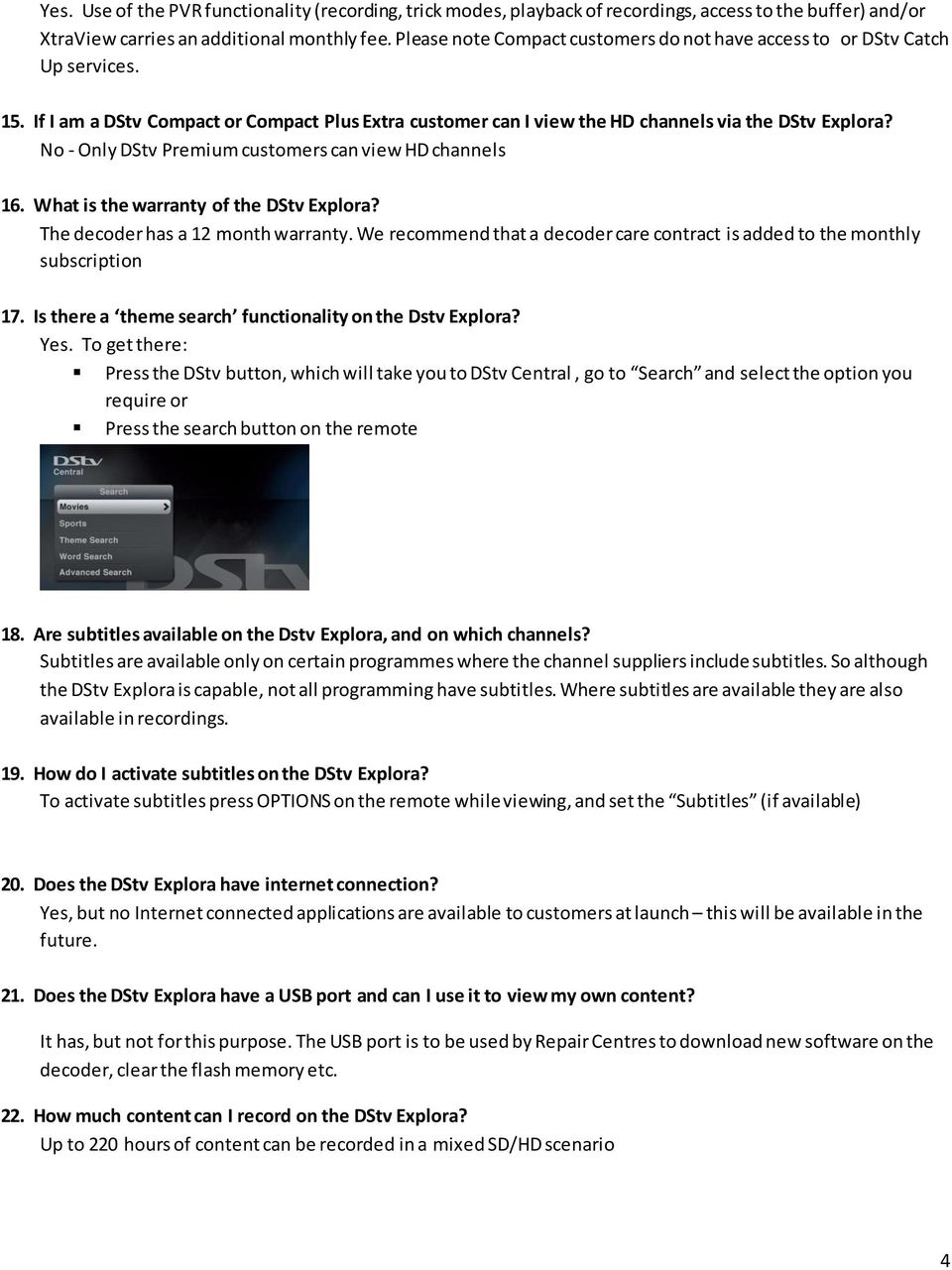
4 Yes. Use of the PVR functionality (recording, trick modes, playback of recordings, access to the buffer) and/or XtraView carries an additional monthly fee. Please note Compact customers do not have access to or DStv Catch Up services. 15. If I am a DStv Compact or Compact Plus Extra customer can I view the HD channels via the DStv Explora? No - Only DStv Premium customers can view HD channels 16. What is the warranty of the DStv Explora? The decoder has a 12 month warranty. We recommend that a decoder care contract is added to the monthly subscription 17. Is there a theme search functionality on the Dstv Explora? Yes. To get there: Press the DStv button, which will take you to DStv Central, go to Search and select the option you require or Press the search button on the remote 18. Are subtitles available on the Dstv Explora, and on which channels? Subtitles are available only on certain programmes where the channel suppliers include subtitles. So although the DStv Explora is capable, not all programming have subtitles. Where subtitles are available they are also available in recordings. 19. How do I activate subtitles on the DStv Explora? To activate subtitles press OPTIONS on the remote while viewing, and set the Subtitles (if available) 20. Does the DStv Explora have internet connection? Yes, but no Internet connected applications are available to customers at launch this will be available in the future. 21. Does the DStv Explora have a USB port and can I use it to view my own content? It has, but not for this purpose. The USB port is to be used by Repair Centres to download new software on the decoder, clear the flash memory etc. 22. How much content can I record on the DStv Explora? Up to 220 hours of content can be recorded in a mixed SD/HD scenario 4
5 NAVIGATION 23. How do I get to DStv Central on the DStv Explora? Press the blue DStv button on the remote. 24. How do I get to the different main (top) menu items and sub menu items in DStv Central? You can navigate the main menu items by pressing left or right and the sub menus by pressing up/down. 25. How do I apply a setting that I changed in the DStv Explora? The DStv Explora will apply changes to settings as soon as you move away from the setting or setting screen. You do not have to press OK to apply a setting. Enter or select the value for a setting, and the press UP/DOWN to move away from that setting, or press BACK to move away from the screen. The setting will then be applied. 26. How do I get back to the main (top) menu when I am in any sub menu? Press the BACK button to jump back to the top menu. 27. How do I change Aspect Ratio on the DStv Explora? You can do this one of 2 Ways a) Use the shortcut keep pressing ARC on your remote (bottom left hand side), until the desired aspect ratio appears. This change to Aspect Ratio will only be temporary and will reset to the default ARC setting when you change to another channel. b) Press the blue DStv button on the A5 or A6 remote; go to SETTINGS, then to USER PREFERENCES, then VIDEO AND AUDIO. Choose the desired setting for ASPECT RATIO. This Aspect Ratio setting will be the default aspect ratio setting. 28. How can I change display options? Press the OPTIONS button on the A5 or A6 remote from LIVE TV. This will launch the Display Option menu and allows you to set the following: Aspect Ratio temp ARC change, power off (are we sure its not on channel change) reset to default ARC setting Language Soundtrack option Subtitles (when available) Channel Group 5

6 29. What are the different channel group environments in the DStv Explora? My DStv channels this shows all the channels subscribed to Channel group 1 this can be personalized (by giving it a name and colour, and selecting only your favourite channels to appear in the list). Channel 100 will always be a default favourite channel and cannot be removed. All Channels shows all the channels, even ones not subscribed to We have created these applications so that only certain channels are shown in the TV Guide, i -plate and grid. If you press P+/- you will only go through the channels of that channel group environment. 30. What is a favourite channel group? This is a feature in the DStv Explorer that can create a list of favourite channels. The favourite group feature allows a subscriber to group their favourite channels into one list so they view only the channels that they want to watch. This means no more navigating through the channels you hardly ever view even the TV Guide and TV Grid will only include these selected channels. You can set up Channel Group 1 in the DStv Explora as your favourite channel group and you can also give this group a unique name and a colour. 31. Can I add audio channels to a favourite group of the DStv Explora? Yes 32. How do I set up a favourite group to the DStv Explora? Press the blue DStv button on the A5 or A6 remote, go to USER PREFERENCES, then FAVOURITE CHANNELS. You can select the channels to be in your favourite group, and you can give your group a name and a colour. 33. How do I know if I am in my favourite channel group? Only your selected channels will be in the grid, i-plate and TV Guide. The Favourite group colour you chose will appear for certain elements in the various screens. 34. If I am in my favourite group, how do I get to view a channel that is not in my channel group? You can: From LIVE TV you can enter the channel number of a channel that is not in your favourite group. The DStv Explora will tune to that channel and the channel environment will automatically switch to My DStv Channels group Press the OPTIONS button to go to the options menu, and select My DStv Channels group 35. How do I access my audio channels on the DStv Explora? You can: 6

7 enter the audio number from LIVE TV press the blue DStv button on the A5 or A6 remote, go to WATCH NOW, then go to AUDIO CHANNELS Access audio channels from the channel grid. Press GRID (RIGHT) to show the channel grid. 36. How do I use Slow motion on the DStv Explora? Press and hold the PLAY/ PAUSE button for 3 seconds. The icon on the screen will change to a slowmo icon. You can then use the FF or REW button for different slowmo speeds (1/2 speed, ¼ speed, 1/8 speed). To return to normal play, press the PLAY/PAUSE button REMOTE 37. What remote is packaged with the DStv Explora? A5 Model 38. What remote controls are compatible with the DStv Explora? The A5 and A6 remotes A5 has no learning capability A6 has learning capability to control other home theatre equipment (you need the original equipment remote to "teach" the A6). 39. Where can I purchase a new remote to work with my DStv Explora? At MultiChoice branches, agencies and retail outlets or at DStv.com. Only the A6 remote will be available to purchase. (This may vary from country to country). 40. What is the cost of the A6 remote? The price will differ from country to country please contact your nearest MultiChoice branch for the country price list on remotes. 7

8 41. Can I swop my A5 remote for an A6 remote? No. You can purchase an A6 remote in retail. This will be for your own cost. 42. Is the remote able to control other home theatre devices? Only the A6 model. It is a learning remote (you need the original equipment remote to "teach" the A6) 43. Can I use the DStv universal remote (A4) with my DStv Explora? No, the DStv Explora is only compatible with the A5 and A6 remotes 44. Is the A6 a universal remote? No, it is a learning remote (you need the original remote to "teach" the A6) 45. What is the difference between the A5 and A6 remote? A5 can NOT be learned to control other home theatre equipment A6 can be taught to control other home theatre equipment Please note that the TV button of the: - A5 is black - A6 is white 46. Why is the DStv Explora not responding to my remote? The DStv Explora will only respond to the A5 or A6 remotes, make sure you are using one of these remotes The DStv Explora and the remote need to be set to the same mode i.e. 1,2 or 3. See Q51. Batteries : Check that the batteries of the remote is not flat and that they are correctly inserted Interference: Your TV could be causing high levels of infra-red interference. Read your TV's manual or get a MultiChoice accredited installer to help. 47. How do I set the remote modes on the DStv Explora? Press the blue DStv button on the remote, scroll to SETTINGS, SYSTEM SETTINGS, and then REMOTE CONTROL. Mode 1, 2 and 3 will be available. Choose from Respond, Relay or Ignore 48. How do I set the remote mode of the A5 and A6 remote? To set to: Mode 1 Press and hold the INFO button, until the LED marked 1 blinks Mode 2 Press and hold the BACK button, until the LED marked 2 blinks Mode 3 Press and hold the INFO and BACK buttons together, until the LED marked 1 and the LED marked 2 blinks simultaneously 49. How do I know in what remote mode my A5 or A6 remote is? Press any button and see what LED s go on: Mode 1 LED marked 1 blinks Mode 2 LED marked 2 blinks Mode 3 LED s marked 1 and 2 will blink together 8

9 50. How can I get my other DStv Explora not to respond to commands from the A5/A6? On each decoder, set a different remote mode e.g. mode 1 on the first and mode 2 on the second (see 51). Set the remote control belonging to each decoder to the matching mode. 51. How do I get the DStv Explora decoder not to respond to commands from the A3/A4? The remote listen mode set for DStv Explora should be different to the remote mode set on your other decoder. E.g. if the DStvExplora is set to listen to remote mode 3, then the other decoder should be set to listen only to remote mode 1. Thus the DStv Explora remote should only transmit in remote mode 3 and the other decoder should only transmit in remote mode What button on the A5 and A6 remote do I use to change the Aspect Ratio? Press the ARC button on the remote to change Aspect Ratio. Press the button to toggle through the different ARC settings. There will be an indicator on the top right of the screen to indicate what ARC setting is active. 53. What is the OPTIONS button on the A5 and A6 remote for? The OPTION button will launch: Display options menu when pressed from LIVE TV Will launch the list options (such as sort order, view type) when pressed from a list (such as the playlist, search result list, Catch Up screen) 54. What happened to the SHIFT button on the A5 and A6 remote? The need for a SHIFT button has been eliminated as many customers found it difficult to use 55. What happened to the EXIT button on the A5 and A6 remote? The A5 and A6 remotes have a BACK button and a TV button. BACK button : takes you one step back TV button : o Go to LIVE TV when watching playback video (DStv Catch Up, BoxOffice or recording) o Go to playback video from any other screen while watching DStv Catch Up, BoxOffice or a recording 56. What happened to the yellow, red, white, blue or green colour buttons on the A5 and A6 remote? Function Button on other remotes Button on A5 and A6 Notes Playlist Red PLAYLIST Slow Motion White PAUSE/PLAY Press and hold PAUSE/PLAY until slow motion becomes active BoxOffice Green BOXOFFICE Future service offering Status Bar Yellow STATUSBAR (UP) Bookmark Blue BOOKMARK (DOWN) Toggle to TV/ - The DStv Explora does not toggle 9

10 Audio/TV between TV and Audio environments. See question 39 on how to go to audio channels 57. Nothing happens when I press the PROFILE button on the A5 or A6 remote This button is reserved for future use, and is not currently active. DSTV SWITCH & INSTALLATION 58. What is the purpose of the DStv Switch? You will need a DStv switch if you are using a twin or quad LNB. The switch converts multiple cables into a single cable and is available at your nearest MultiChoice Office or agent. You do not need a DStv Switch if you use a SatCR (Unicable) LNB. 59. Should I replace my other multiswitches with the DStv Switch? It is possible that the DStv Switch could replace your existing MultiSwitch. This depends on your current installation. Check with your accredited DStv installer. It is recommended that you minimize the number of switches in you installation to ensure the signal loss is kept at a minimum. 60. Can I use the DStv Switch to boost my signals? No. 61. The blue LED on my switch is not going on? This LED will only light up if the switch is correctly powered. The switch is powered by all the decoders connected to it. 62. This LED will only light up if the switch is correctly powered. The switch is powered by all the decoders connected to it. How do I connect the switch? Cables from dish/lnb go IN on IS20 inputs (H/L and V/L) Cable to DStv Explora go OUT on A or B Cables to other decoders (not Exploras) go OUT on 1, 2, 3 or 4 Refer to installation document for diagrams. 63. What should I connect to the MultiSwitch Outputs? You can connect any other DStv decoder except the DStv Explora 64. How should I connect my existing (not DStv Explora) decoder to the MultiSwitch outputs? The four MultiSwitch outputs (1, 2, 3, 4) are identical, and connections can be made in any way. Single View Decoder requires any one. HD PVR 2P and 2U requires any two. HD PVR 4P will require all four. 10
11 65. To which one of the two DStv Explora Unicable Outputs (A or B) on the DStv Switch should I connect my DStv Explora? You can connect your Explora to any ONE of these two outputs, either A or B 66. To which two of the four LNB inputs on the DStv Switch should I connect my Twin LNB? If in an IS20 country, connect your twin LNB cables into the connectors marked H/L and V/L. These are marked "IS20 Twin LNB Inputs" printed in orange. Any of the two cables can go to any of the two inputs. If in an E36B/A country, connect your QUAD LNB cables into the connectors marked H/H, V/H and V/L. These are marked "E36 LNB Inputs" printed in purple. Any of the three cables can go to any of the three inputs. 67. Should I connect all 4 my Quad LNB cables to the inputs of the DStv Switch? Preferably Yes, but for IS20 territories you can connect any two cables to the two inputs marked "IS20 Twin LNB Inputs" printed in orange. Any of the two cables can go to any of the two inputs. For the E36B/A countries, you need to connect at least three cables to the inputs marked in purple. Any cable can go to any input. 68. How do I know which cable to connect to which one of the IS20 LNB inputs (V/L or H/L) on the DStv Switch? It does not matter which way round you connect it - any way round will work. 69. How do I know which cable to connect to the E36 LNB inputs (V/H, H/H or V/L) on the DStv Switch? It does not matter which way round you connect it - any way round will work. 70. What are the cable length limitations when connecting the DStv Switch It is recommended that the cable used between the DStv Switch and the Explora should be maximum 50 meters. However, if you have to extend this distance, ensure you are using a high quali ty coax cable (low loss). Check with an accredited MultiChoice installer. 71. Does the DStv Switch have a warranty? Yes. 12 Months 72. Can I put the switch outside e.g. on my roof? No, the switch is not water or sun proof 73. Do I have to use all 3 the DStv Switch cables that are included in the DStv Explora packaging? No, if you connect only your DStv Explora, you will need one. The other cables are intended to connect your existing decoders to the DStv switch outputs. The number of cables you should use will depend on your setup. 74. The DStv Switch cable is too short, how do I connect my DStv Explora with such short cables? You can purchase longer cables from retail or a MultiChoice accredited installer can supply it. Remember maximum cable length is 15m. 75. What is the cost of the DStv switch? The cost of the switch differs from country to country please contact your nearest MultiChoice office for the country price list for the switch. 11

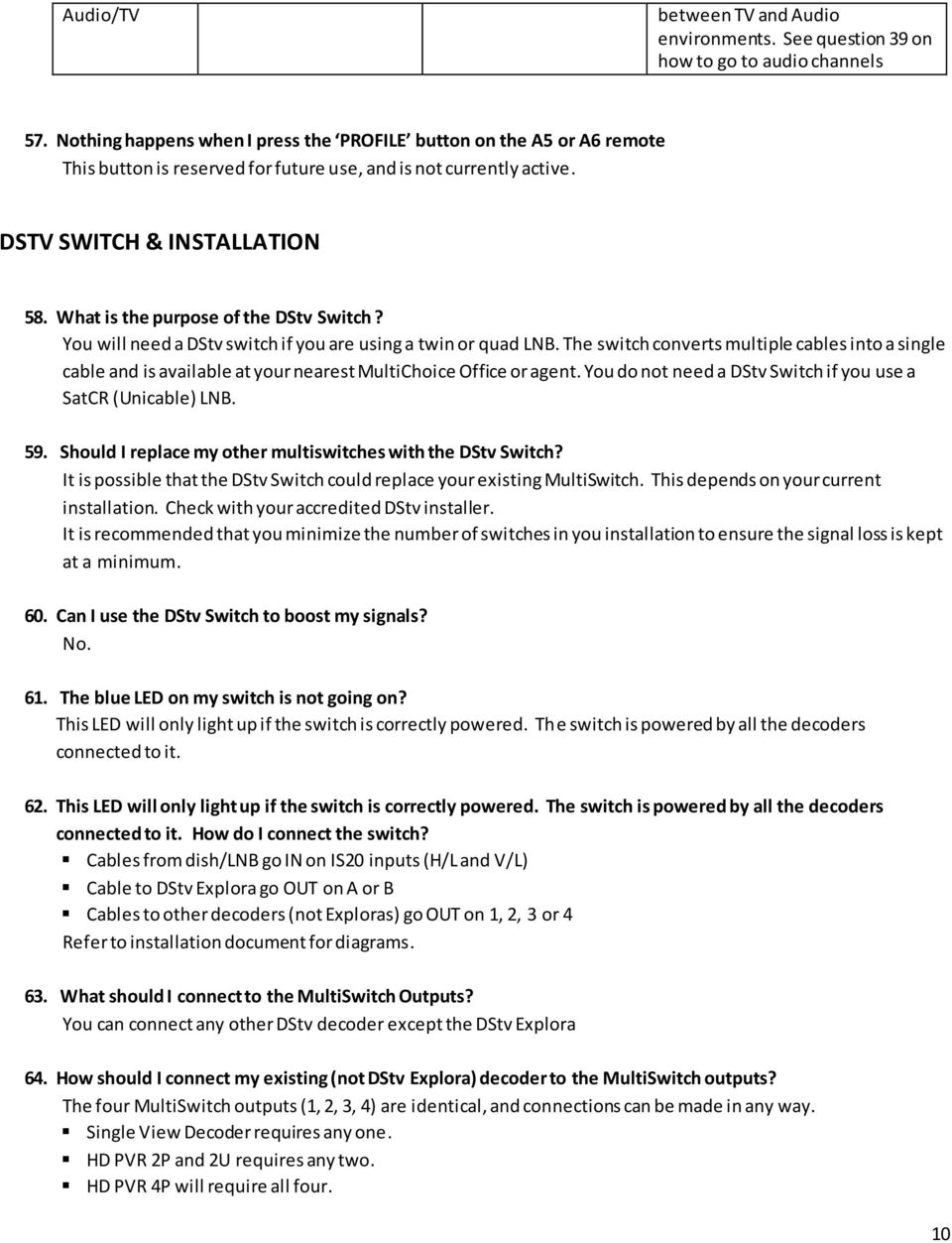
12 76. How and where should I connect the DStv switch? Refer to the DStv Switch manual included with the Explora packaging, or download the manual from Does the blue LED indicate that the DStv Switch is connected correctly? No. The blue LED only indicates that the switch is powered. You need verify that the DStv Explora is getting sufficient signal by Pressing the DStv button, then go to the SETTINGS, then SATELLITE SETTINGS and then to HOME NETWORK. Verify that the signal strength and quality bars in the Signal Strength Monitor are more than half filled. 78. How should I connect accessories to the DStv Explora? The picture below shows the back of the decoder. The DStv Explora accessories will be colour coded as per the back of the decoder Colour Descriptors LEFT AUDIO RCA Out Port RIGHT AUDIO RCA Out Port VIDEO OUT RCA Out Port RF IN Used for XtraView/ TV Link connection RF OUT Used for XtraView/ TV Link connection UNICABLE TM IN Satellite input to the DStv Explora HDMI Output to visual equipment DIGITAL AUDIO OUTPUT To get Dolby digital sound on audio equipment ETHERNET CONNECTION LAN connection for future use USB PORTS For future use POWER INPUT Insert power supply provided with the DStv Explora here 12

13 79. Can I install the DStv Explora myself? It may be possible, depending on your abilities and existing installation. If you are unsure about any installation aspect, rather call a MultiChoice accredited installer. Refer to the manual packaged with the switch for easy to use instructions. 80. Will I need to upgrade my installation to be able to use a DStv Explora? If you have a Quad or Quattro LNB you don t need to upgrade your installation. You will need the DStv Switch that is available at the MultiChoice Office. If you are in a E36 country, and you have a Twin LNB, you will need to replace it with either a SatCR LNB (one cable installation) or with a QUAD LNB (Three cable Installation) If you have a SatCR LNB, it can be connected directly to the DStv Explora. Check with your MultiChoice accredited installer. If you have a Single LNB, you will have to upgrade your installation to a QUAD LNB. You cannot use the cable from the Single LNB, even if you split the feed. 81. Will all the cables I need be packaged with the DStv Explora decoder? The DStv Explora is packaged with 3x 50cm coax cables. Additional cables may be required depending on your installation. 82. If I have a SatCR installation will I need additional equipment / installation changes? No, you do not but it could depend on your installation. Check with your MultiChoice accredited installer. Scenario A: If you intend to only use the DStv Explora it may be plugged directly into the DStv Explora. Scenario B: If you have other decoders that need to be connected, please contact an accredited MultiChoice installer. 83. What size dish do you recommend for the DStv Explora? A 90cm dish is recommended by MultiChoice for all installations, not only DStv Explora. 84. If my dish is not 90cm, will I require a new dish to be able to use the DStv Explora? MultiChoice recommends a 90cm dish for all installations. Your decoder might function with a smaller dish, but your experience will not be optimal as you will be more susceptible to signal interruptions during rain. 85. I have a no signal error on my DStv Explora, what do I do? If this condition persist contact a MultiChoice accredited installer. 86. I don t get any one of these on my DStv Explora: Information on my iplate, No TV Guide info No new DStv Catch Up titles Interactive services (weather 24, news 24,SSActive) is not working Your installation might be faulty please contact MultiChoice accredited installer 13

14 87. How do I know that my DStv Explora is getting good signals? Press the HELP button on the remote and press DOWN to highlight SIGNAL. Press OK twice to view Tuner 1 Status. The signal quality bar should be at a minimum of 50%. Press LEFT to go to Tuner 2 Status. The signal quality bar should be at a minimum of 50%. Press LEFT to go to Tuner 3 Status. The signal quality bar should be at a minimum of 50%. If all 3 tuners are not at least at 50% signal quality, please contact a MultiChoice accredited installer. 88. I performed a scan and nothing happened, it just went back to the screen with the SCAN button Wait for the levels in the 6x signal bars to be at least half full, and THEN only press OK to SCAN. If SCAN is started before the 6x signal bars are all at least half full, the scan will not be successful. If your signal meter bars do not fill up to half within 30 seconds, contact a MultiChoice Accredited installer. 89. Can I use any coax cable for installation of my DStv Explora It is strongly recommended you use high quality, low loss coax cable. 90. Can I connect my DStv Explora to the satellite wall outlet provided by my complex/mud? Usually these outlets are standard L-Band and not SatCR. Check with your installer / body corporate. DStv CATCH UP & BOXOFFICE (future service) 91. What happened to Video On Demand? DStv Catch Up is the new name for what was originally branded as DStv On Demand. This service will launch Online from 15 August in all 50 countries in which MultiChoice operates. 92. Will this decoder have DStv Catch Up capabilities? Yes. It an increased library of DStv Catch Up titles: more series, movies, documentaries, kids programming, specialist events and sporting highlights than previous PVR decoders. 93. What more can I expect on the DStv Catch Up offering on the DStv Explora. How is it different from the previous offering? Previously, DStv Catch Up only offered Series and Sport. The DStv Explora gets an expanded offering of Movies, Series, Sport, Documentaries and other entertainment content. Series also offers the current and previous episode, known as series stacking. 94. One of the other features of the DStv Explora. What is BoxOffice? BoxOffice is a future movie rental service that is available on both the PVR and online platforms. BoxOffice will be launched in phases in the rest of Africa in the future. 14

15 95. How many BoxOffice movies will there be on the DStv Explora? 20 movies in future. 96. Why can I not see any DStv Catch Up titles? New Decoder: A new decoder will not have any titles, and will take at least 48 hours to populate the full catalogue. If you still don t see any titles downloaded after 12 hours please check your settings and installation or contact a MultiChoice accredited installer Hard Drive Formatted decoder: After you formatted the HDD in your decoder, all your DStv Catch titles will be erased and it will take at least 48 hours to populate the full catalogue Subscription: Only DStv Premium subscribers can view DStv Catch Up Installation: Your installation might be faulty. Contact a MultiChoice accredited installer 97. What DStv package do I need to subscribe to, to be able to access DStv Catch Up? Only DStv Premium subscribers will have access to DStv Catch Up (Access to DStv Catch Up on PVRs requires an active PVR Access subscription). 98. What error messages may pop up for DStv Catch Up? For non-premium subscribers the following message will appear on the screen: DStv Catch Up is not available on this package. 99. What does the message DStv Catch Up is not available in this country on the DStv Explora mean? Scenario 1: This could be a new installation. Please wait a few minutes for this error to clear. Scenario 2: Catch Up is not available with your selected package I don t want to see the posters in the DStv Catch Up screens. How do I get to this screen to show lists like my other decoder did? Press the OPTIONS button from these screens and change the VIEW options from POSTERS to TEXT How do I know what DStv Catch Up titles I have watched already? A tick icon will show on the side of posters of viewed titles. 15

16 RECORDINGS & REMINDERS 102. Can I set remote recordings on the DStv Explora from my cellphone? No. However, later in future you can load the DStv app onto your cellphone/ipad and set a reminder for specific shows How many recording hours will be available on the DStv Explora? The DStv Explora offers up to 220 hours of recording capability Can I only record in HD with the DStv Explora? Or can I record in SD as well? HD content can only be recorded in HD. Content will only be recorded in SD if there is no HD version available How many channels can I view and how many can I record simultaneously with the DStv Explora? You can view 1 channel and record 1 channel Will series recording be available on the DStv Explora? Yes, on programmes that are series linked (indicated by circular arrows next to the event name in the TV Guide or on the i-plate) How many series can I set recordings on with the DStv Explora? How do I prioritise my series recordings with the DStv Explora? Press the DStv button, go to PLANNER, then SERIES MANAGER, then press OK on the series, then select to increase or decrease the priority. Please note: The list of series have to be sorted in order of PRIORITY order to be able to set the priority. Press the OPTIONS button to select the sort order of the list How do I record a programme, with the DStv Explora, that does not have an event / series recording option? Set a Manual Recording: Press the DStv button, go to PLANNER, then go to CREATE MANUAL RECORDING, and set your required options. You can also set a recording from the iplate, lists (like search results) or from the TV Guide. Press OK, and then go to SET MANUAL RECORDING Can I set a manual recording on the DStv Explora to record a series at a certain time only on weekdays? Yes, when setting up the manual recording select weekly from the frequency list. 16

17 111. What do I do if I get a conflict icon on the DStv Explora? Press HELP to show the screen to resolve the conflict Will recordings on the DStv Explora have subtitles? Yes, if the content that is recorded had subtitles. Subtitles are also available in behind live, buffer viewing 113. I set a recording for a programme on my DStv Explora, but the recording is not in playlist after it was supposed to record? Press the DStv button, go to PLANNER, then to SCHEDULES. See if the recording is listed to record at another time than initially scheduled for. This might be due to automatic conflict resolution. Go to FAILED RECORDINGS to see if the recording failed I want to record 2 shows, but they are on at the same time. Can I record both shows with my DStv Explora? With the DStv Explora you can only record 1 show at a time. You can set a recording for the one show and set a recording on another airing of the other show (if available) Why would I want to prioritise series recordings on the DStv Explora? If you want to record two series that are broadcast in the same time slot, priorities will allow the DStv Explora to know which series to record first, and which series to record when there is a repeat When I want to set a recording, a conflict notification error appears, what should I do? Select the option to resolve the conflict: Schedule other airing Schedule a recording for a repeat of the show you want to record Resolve it myself Goes to the Resolve Conflict screen where you can resolve the conflict Cancel this request Cancel the last recording you attempted to set ACCESSORIES The following items are included in the packaging when purchasing a DStv Explora. Item Quantity Picture DStv Explora 1 DStv Remote 1 Documentation 1 17

18 Smartcard 1 Power Supply 1 RCA Cables 1 HDMI Cables Will other power supplies be compatible with the DStv Explora? No, do not attempt to use any other power supply, even if the plug seems to fit. The DStv Explora power supply can be easily recognized by its blue plug Is the Power Protector compatible with the DStv Explora? Yes, and it is highly recommended that the Power Protector be used to protect the Explora against any power surges, spikes and lightning. The Power Protector is available at the MultiChoice Office. SMARTCARD 119. What smartcard will be packaged with this decoder? Premium smartcard 120. Will I need to change the smartcard on my other decoders for the XtraView set up? No 18

19 APPLICATIONS 121. What interactive applications will be available on the DStv Explora? News 24 (only on IS20)Weather SuperSport Active 122. Can I only get my SuperSport application via the menu on the DStv Explora? No, you can still access the SuperSport app by pressing OK on any channel, including sports channels My APPS section is blank? Please try again in a few minutes, it is possible that updates are occurring. If the section remains blank after several hours, check you installation or contact a MultiChoice accredited installer I am using the APPS and the decoder froze? Perform a power cycle (pull out the power cable and then put it back, allow the decoder to power up) AUDIO 125. What are the soundtrack options available on the DStv Explora? Available sound tracks are dependent on the specific channel. These include: English - Original English- Family isizulu, isixhosa, setswana, sesotho, Swahili, Afrikaans, French, Portuguese and many others Dolby Digital 5.1 is available. This is dependent on the specific programme. Customers should select Fixed in the Audio Output settings and English Original. Please note if the Audio Output is set to "Variable", the DStv Explora will never output Dolby Digital What type of Dolby soundtrack is available on the DStv Explora? The DStv Explora is Dolby Digital 5.1 capable (when available) Why are some words silent in the program I am watching on the DStv Explora? You might have selected the English - Family soundtrack. Swear words are blanked out on this soundtrack. 19

20 128. Will DMX DJ be available on the DStv Explora? Yes When I press MUTE, the DStv Explora does not go silent? The DStv Explora has a half MUTE function. Press MUTE once to do a half mute, press MUTE again to do a full mute. This can be deactivated How can I activate/deactivate the half mute function of the DStv Explora? Press the blue DStv button, which will take you to DStv Central, go to SETTINGS, select VIDEO AND AUDIO, select HALF MUTE to be OFF or ON 131. The artist and song title are not in sync with DMX DJ play out on the DStv Explora? We are aware of this issue. There is currently approximately a 2.5 minute lag. We are working to resolve this I put my soundtrack option to be Portuguese but I still hear English? Soundtracks are only available for certain content. If the default soundtrack you selected is not available, the decoder will use the next soundtrack you selected. If that soundtrack is also not available, the available soundtrack of the content will be played. Set the soundtrack options by pressing the blue DStv button, go to SETTINGS, then go to VIDEO & AUDIO EPG & TV Guide 133. How many lines of information will be available on the iplate of the DStv Explora? You can configure this to be 2, 3, 4 or 5 lines. Press the blue DStv button, go to SETTINGS, choose USER PREFERENCES, then GENERAL. Set the i-plate lines How many hours of the TV guide information can I view from the iplate of the DStv Explora? 24 hours How many days of information can I view from the TV guide of the DStv Explora? 8 days of TV Guide and synopsis What is the ʘ in the TV Guide of the DStv Explora? It will show when the event name cannot be shortened to fit the block. The i indicates there is more information about the item name available. Navigate to that item to see the full name of the event at the bottom of the screen Can I set a Banner Reminder on the DStv Explora? 20

21 Yes. It is not called a Banner Reminder anymore, but a Reminder and is shown by small alarm bell icon to indicate a reminder set on an event Can I set an Autotune Reminder on the DStv Explora? No. You can set a normal Reminder. When the reminder trigger you can select if you want to tune to that event, or continue current viewing. XtraView 139. Can the DStv Explora be connected in an XtraView network? Yes Can I do the XtraView set up of the DStv Explora on my own? No. Do not attempt to disconnect your existing XtraView installation. MultiChoice needs to disconnect your existing XtraView installation on the MultiChoice system. Customers are advised to call the MultiChoice call centre to have a CSR guide them through the process telephonically to ensure that the set up is according to our specifications and works properly What other DStv decoders can be connected to the DStv Explora with XtraView? PVR Name PVR Picture Additional info UEC DSD 3U View 1 UEC DSD 1131 View 1 UEC DSD 3U View 1 Result of this installation: View 2 Record 1 21
22 PVR Name PVR Picture Additional info DStv SD PVR View 2 Record 1 Result of this installation: View 3 Record 2 PVR Name PVR Picture Additional info DStv Pace 2P HD PVR View 1 Record 1 DStv UEC 2U HD PVR View 1 Record 1 Result of this installation: View 2 Record 2 PVR Name PVR Picture Additional info DStv Pace 4 Tuner HD PVR View 1 Record 2 DStv UEC 4 Tuner HD PVR View 1 Record 2 Result of this installation: View 2 Record 3 22
23 PVR Name PVR Picture Additional info DStv Explora View 1 Result of this installation: View 2 Record Can the DStv Explora be a primary and secondary decoder in an XtraView set up? Yes it can be but if it is paired with the SD PVR, the SD PVR has to be the secondary decoder 143. Can 2 DStv Explora decoders be paired with an XtraView installation? Yes. Note you will require 2 DStv switches for this type of installation and the Satellite settings of one of th e DStv Explora s have to be changed. Note to CSR: If at any time you get to the stage where a factory reset is performed, make sure that the satellite settings is set up again to allow 2 Explora s to be connected in XtraView 144. What are the default satellite settings of the DStv Explora? The DStv Explora is populated with the default satellite settings shown in the table below Explora 1: Home Network Settings 146. Tuner 1 Frequency (MHz) Tuner 2 Frequency(MHz) Tuner 3 Frequency(MHz) Tuner 1 Index Tuner 2 Index Tuner 3 Index What should I set the satellite settings of the DStv Explora to? These settings should NEVER be changed, unless: Connecting the DStv Explora to a SMATV installation. A MultiChoice accredited installer should assist with this setup. Connecting 2 Explora s in one installation. Keep the settings of 1 st DStv Explora as the default, and set the satellite settings of the 2 nd DStv Explora to the table below. 23
24 159. Explora 2: Home Network Settings 160. Tuner 1 Frequency (MHz) Tuner 2 Frequency (MHz) Tuner 3 Frequency (MHz) Tuner 1 Index tuner 2 Index Tuner 3 Index If I have a DStv decoder in one room, and a TV link connected to my DStv Explora that is in another room, can I use my other decoder s remote to control my Explora via the TV Link? No, you have to use the A5 or A6 to control the Explora. You will need an additional A5 or A6 remote to control the DStv Explora via the TV Link If I have a DStv Explora in this room, and a TV link connected to my other decoder that is in another room, can I use my DStv Explora s remote to control my other decoder via the TV Link? No, you cannot use the A5 or A6 to control other decoders. You will need an additional remote to control the other decoder via the TV Link. INSTALLATION WIZARD 174. What is the installation wizard on the DStv Explora? It is a step-by-step guide that will help you set up your decoder and to get you connected to the satellite How do I access the installation wizard on the DStv Explora? The Installation wizard will automatically start up when decoder is used for the first time or after a hard drive format Do I have to use the installation wizard? Yes. New DStv Explora s will not have software on them, so you have to go through the installation wizard process in order to get software downloaded to the DStv Explora Can I stop/ exit during the installation wizard on the DStv Explora? Yes, you can continue later, but you should not interrupt once the software download starts. 24
25 COMPARISON 178. What is the difference between the DStv Explora and HDPVR 2P? DSTV EXPLORA HD PVR 2P 3 Tuners 2 Tuners One single coax cable for all tuners 2 x coax cables for 2 tuners Need DStv Switch to connect to Twin/ Can work with the connection from Twin LNB and Quad/Quattro LNB. Can connect to certain SatCR SatCR LNB LNB s. Average 220 Hours of User Recordings Average 50 Hours of User Recordings DStv Catch Up: DStv Catch Up: Series, Movies, Documentaries, other and Sport Series and Sport 2 Episode of series available through series 1 Episode per series stacking 20 BoxOffice titles 15 BoxOffice titles Retains time-shift buffers with channel change and when switching between BoxOffice, DStv Time-Shift buffer lost upon channel change Catch Up, recordings etc. Automatically schedules the repeat event for recording, if recording is lost in conflict No automatic scheduling of repeat events Customised and advanced search options available Basic search available 3 front-panel buttons 9 Front-panel buttons No PIN required to enter settings and advanced options PIN is required to enter advanced options. Not able to set transparent OSD/Menu Option available to set transparent OSD/Menu Default Safety nets for Recordings: Start - 1 min, End - 1 min Default Safety nets for Recordings: Start - 3 min, End - 10 min The limit for series recording is 40 The limit for series recording is 20 Setting value does not have to be confirmed. A changed setting value is applied as soon as navigate away from the setting (with UP/DOWN/BACK button) Pressing OK on the current event of a different channel gives various options to choose from Installation Wizard to assist with setup Only reminders Change setting values has to be to be confirm by saving settings before exiting any settings screen Pressing OK on the current event of a different channel changes channel No installation wizard Autotune and banner reminders 25
26 On screen help that changes as you navigate or change settings Has DStv Central Navigate menu with drop down menus Help button on remote takes user to info central Fast foward/slowmo at 4 speeds, Rewind@3 speed Event name visible in statusbar Colour of favourite groups can be changed Name of favourite group can be personalised. In the TV Guide there are 2 lines of guide still visible when the extended info is opened. These 2 lines of guide can be navigated while the extended info is open. Playlist can be viewed in movies, series and sport categories Go to audio channels via menu, grid, or entering audio channel number Full mute and half mute functionality Find Other Airings functionality No software loaded. Needs to be downloaded as part of installation. Time based recording can be set from the event Dedicated VOD tuner, more reliable VOD download Remote related: Compatible with A5 and A6 remotes Slowmo with PLAY/PAUSE button STATUSBAR shortcut button (UP button) BOOKMARK shortcut button (DOWN button) PLAYLIST shortcut button (Red) BOXOFFICE button (Green) REPLAY short cut (LEFT button) No shortcut button for PG Remote has shortcut buttons for DStv Catch Up ARC Search No DStv Central Navigate menu with numbers Fast forward and Rewind -4 speeds, Slowmo-2 speeds No events name visible in statusbar Colour of favourite group only lavender Name of favourite group cannot be changed Whole screen becomes extended info, have to close the extended info to navigate the guide. Playlist can only be viewed as one list Button to go to audio environment Only full mute functionality No function to find other airings Software loaded during manufacture Time based recordings can only be set from the MENU Recordings interfered with VOD downloads Compatible with A3 and A4 remotes White button used for slowmo Yellow button to show statusbar Blue button for bookmark Red button to access playlist Green button to access BoxOffice Flick toggle switch left for 10 second replay Could access PG settings from remote (SHIFT + PG) User needs to press SHIFT + to access ARC. To access DStv Catch Up, user needs to go through other screens No Search Button 26
27 KNOWN ISSUES 179. Scrolling of lists If you scroll fast down the list, there could be a momentary delay, every 30 seconds or so DMX DJ The song title and artist will be about 2.5 minutes out of sync Recorded event not showing immediately in scheduler Just after a recording has been set, there might be a conflict resolution happening in the background. This recorded event may not immediately reflect in the schedules, but only a few minutes later Back to back series record We are aware of this issue and we are working on a resolution. When setting back to back recordings on the same channel, there might be a small part (1minute) of the beginning of a recording that seems missing. This is because the beginning of a recording was included with the previous recording. Solve by: Find the start of recordings at end of the previous recording After entering the HOME NETWORK screen I cannot exit this screen? We are aware of this issue and we are working on a resolution. Solve by: Navigate to SCAN ALL, wait for all 6 signal bars in the Signal Strength Meter to fill more than half full, press OK to perform a scan and then exit the screen I see a pink screen after a software upgrade Solve by: Change channels. Then put the TV into standby, and then take it out of standby The decoder is sluggish and does not respond timeously to RCU commands Confirm that batteries are not flat. The RCU should have alkaline batteries and not rechargeable batteries I sort my Catch Up list in another order than A-Z. When I return to Catch Up it reverted back to A-Z sorting. Why? We are aware of this issue and we are working on a resolution. ESCALATIONS To follow the Africa escalation procedure, however the decoder support team is available to assist. 27
DSTV DECODER SETUP MANUAL July 2013
 DSTV DECODER SETUP MANUAL July 2013 DSTV SINGLE VIEW AND SD PVR DECODER SETUP How to program your Single View and SD PVR DSTV Decoders STEP 1 Ensure that the DSTV decoder is connected correctly to the
(2012 10 24) manual_tocomsat duo LITE.indd 20-1 2012-10-24 7:44:57
 (2012 10 24) manual_tocomsat duo LITE.indd 20-1 2012-10-24 7:44:57 TABLE OF CONTENTS Table of Contents Table of Contents Safety Warning General Information Package Contents & Features Front Panel Rear
Big Sandy Broadband DVR Guide
 Big Sandy Broadband DVR Guide Contents Big Sandy Broadband DVR Don t Miss a Thing 3 Control Live TV 3 Playback Controls Using the Video Control Buttons 4 Playback Controls Using the Remote Control Arrow
XtraView Installation Manual
 XtraView Installation Manual Version: 2.0a Date: 23/11/2008 MultiChoice Broadcast Technology Division C. Fourie p1/33 Public Release Table of Contents XtraView Installation Manual V2_0a.doc DOCUMENT REVISION
User s Reference Manual
 User s Reference Manual Welcome to i-guide. Introducing the all-new interactive program guide from TV Guide and your cable system. i-guide TM is intuitive, intelligent and inspiring. It unlocks a world
Welcome to your new Sky±HD box
 Sky±HD User Guide Welcome to our handy guide designed to help you get the most from your Sky+HD box. Whether you need to make sure you re set up correctly, or simply want to learn more about all the great
Using the System ORDER YOUR BELL EXPRESSVU PROGRAMMING. Page 3-1
 Using the System ORDER YOUR BELL EXPRESSVU PROGRAMMING This procedure notifies the Bell ExpressVu Customer Service Call Centre that your system is on-line and installed. You need to have your services
DTA INSTALLATION PROCESS & USER GUIDE FOR CHARTER BUSINESS CUSTOMERS
 DTA INSTALLATION PROCESS & USER GUIDE FOR CHARTER BUSINESS CUSTOMERS This guide is intended for owners or managers and front desk personnel. This guide is not intended for guests. Customer Care 1-800-314-7195
DVB-T VERTO. User Manual HD TERRESTRIAL DIGITAL TV STB & PLAYER MT4162
 DVB-T VERTO HD TERRESTRIAL DIGITAL TV STB & PLAYER MT4162 User Manual EN 2 Index Index...2 Overview...2 Remote Control...3 Battery installation in remote control...4 Using remote control...4 Connections...4
01 PLUG IT IN. Connect one end of the UHF aerial cable into your UHF Aerial wall point and the other into the TV AERIAL IN slot on IGLOO s back.
 START ME UP 01 PLUG IT IN Bring life to IGLOO. You ve only got 3 cables to plug in, easy! STEP 1 Connect one end of the UHF aerial cable into your UHF Aerial wall point and the other into the TV AERIAL
Please click on the Table of Contents item you are interested in to go directly to the information. Connections and Devices...5
 Please click on the Table of Contents item you are interested in to go directly to the information. Connections and Devices...5 MTS HDTV Set-Top Box General Information and Maintenance... 5 Connecting
A25/CND. User s Reference Manual
 A25/CND. User s Reference Manual Welcome to i-guide. Introducing the new interactive program guide from Prevue and your cable system. i-guide TM is intuitive, intelligent and inspiring. It unlocks a world
Digital Cable TV. User Guide
 Digital Cable TV User Guide T a b l e o f C o n T e n T s DVR and Set-Top Box Basics............... 2 Remote Playback Controls................ 4 What s on TV.......................... 6 Using the OK Button..................
Set Top Box User Guide. Global Reach with a Local Touch
 Set Top Box User Guide Global Reach with a Local Touch Table of Contents REMOTE SET UP 3 SET TOP BOX DIAGRAM 4 SET TOP BOX SETTINGS 5 TURN ON/OFF 5 TV INPUT SETTINGS 5 ADJUSTING THE VOLUME 5 RESETTING
Hi! Let s get started.
 Hi! Let s get started. What s in the box Roku 2 player Roku 2 enhanced remote Headphones 2 x AA batteries for remote A/V cable (RCA) Power adapter Get to know your Roku 2 A Front view B E C Back view
RCN DIGITAL CABLE USERS GUIDE
 RCN DIGITAL CABLE USERS GUIDE WELCOME Congratulations! Thanks to your new Digital Cable Service, you now have access to the most cutting-edge cable television services available, only from RCN. At RCN,
1. The FOXTEL iq remote control
 Quickstart Guide 1. The FOXTEL iq remote control FOXTEL Takes you from the TV Guide (or any FOXTEL screen) to the last channel you were watching. Takes you back to FOXTEL after you have been using AV mode
SET-TOP USER GUIDE SET-TOP USER GUIDE
 SET-TOP USER GUIDE SET-TOP USER GUIDE If you have more questions about your service, go to ArmstrongOneWire.com or call Customer Support at 1.877.277.5711. Table of contents WELCOME TO ARMSTRONG TELEVISION
DVR GUIDE. Using your DVR/Multi-Room DVR. 1-866-WAVE-123 wavebroadband.com
 DVR GUIDE Using your DVR/Multi-Room DVR 1-866-WAVE-123 wavebroadband.com Table of Contents Control Live TV... 4 Playback Controls... 5 Remote Control Arrow Buttons... 5 Status Bar... 5 Pause... 6 Rewind...
Quick Start Guide English
 Quick Start Guide 1. Checking Accessories Quick Start Guide User s Manual Remote Control & Batteries Manual & Quick Start Guide HUMAX Wi-Fi USB Adapter (Supplied with HDR-2000T/1TB/WD) HDMI Cable Ethernet
User s Reference Manual
 A25 User s Reference Manual Welcome to i-guide. Introducing the new interactive program guide from TV Guide and your cable system. i-guide TM is intuitive, intelligent and inspiring. It unlocks a world
EV-8000S. Features & Technical Specifications. EV-8000S Major Features & Specifications 1
 EV-8000S Features & Technical Specifications EV-8000S Major Features & Specifications 1 I. General Description EV-8000S is fully compliant with the international DVB standard and thus transmits digital
DIGITAL CABLE & DVR QUICK GUIDE. cable television made simple
 DIGITAL CABLE & DVR QUICK GUIDE Grande Communications cable television made simple Table of Contents TABLE OF CONTENTS Using Your Remote remote Control 1 programming the Remote 2 Interactive Program Guide
Digital Cable Your guide to home entertainment with a personal touch
 Your guide to home entertainment with a personal touch 1.888.345.1111 Sudbury 560.1565 eastlink.ca Exciting New Services Welcome to Home Entertainment Questions? We Have the Answers As one of EastLink
High-Definition Personal Digital Recorder. user guide
 High-Definition Personal Digital Recorder user guide Contents Welcome to MY SKY HDi................... 1 MY SKY HDi................................... 1 Updates to MY SKY HDi......................... 1
Fi TV Gold Quick Start Guide
 Quick Start Guide Fi TV Gold Quick Start Guide Welcome to Fi TV! We re happy that you chose EPB Fiber Optics to bring the best movies, sports, news and television programming into your home and we will
Welcome to the world of Sky±HD
 Using Sky±HD Welcome to the world of Sky±HD This is your essential guide to using your Sky±HD box What do you want to do? Learn about HD page 6 Get started page 10 See what s on page 16 Use your Planner
Connections and Setup
 12 Connections and Setup HOW TO CONNECT YOUR SATELLITE RECEIVER Use the information in this chapter to connect your receiver to other equipment. CONNECTING TO THE NEARBY HDTV (TV1) CONNECTING TO THE REMOTE
VAST TV. Enjoy watching the channels you love.
 VAST TV Vast is committed to providing you with quality advanced broadband services at a great value. Choose from a variety of TV packages and enjoy more entertainment with Vast OnDemand, digital music
TechniSat HDFS Satellite HD Digital Receiver. USB Recorder Instructions
 TechniSat HDFS Satellite HD Digital Receiver USB Recorder Instructions 1 Contents 1 Contents...2 2 Introduction...3 3 Getting Started...4 3.1 Formatting...4 4 Scheduled Recording...6 4.1 Manual Timer...6
Evolution Digital HD Set-Top Box Important Safety Instructions
 Evolution Digital HD Set-Top Box Important Safety Instructions 1. Read these instructions. 2. Keep these instructions. 3. Heed all warnings. 4. Follow all instructions. 5. Do not use this apparatus near
CAUTION RISK OF ELECTRIC SHOCK NO NOT OPEN
 Evolution Digital HD Set-Top Box Important Safety Instructions 1. Read these instructions. 2. Keep these instructions. 3. Heed all warnings. 4. Follow all instructions. 5. Do not use this apparatus near
Getting Started With The. Explorer
 Getting Started With The Explorer 8300 and 8300HD DVR Record your favorite programs when you re busy Record one program and watch another Record two live programs while watching a third program you recorded
Welcome to your new Sky±HD box
 Sky±HD User Guide Welcome to our handy guide designed to help you get the most from your Sky±HD box. Whether you need to make sure you re set up correctly, or simply want to learn more about all the great
Digital TV Recorder user guide. Vodafone Power to you
 Digital TV Recorder user guide Vodafone Power to you Welcome to your Digital TV Recorder set top box Digital TV Recorder user guide This is your guide to using the Digital TV Recorder set top box, including
SHAWDIRECT SATELLITE TV - USER GUIDE. Essential HD Receiver (HDDSR 600) Advanced HD Receiver (HDDSR 605) Advanced HDPVR (HDPVR 630)
 SHAWDIRECT SATELLITE TV - USER GUIDE Essential HD Receiver (HDDSR 600) Advanced HD Receiver (HDDSR 605) Advanced HDPVR (HDPVR 630) A. PREFACE 2012 Shaw Satellite G.P. All trademarks and copyrights are
ABOUT YOUR SATELLITE RECEIVER
 2 Satellite Receiver ABOUT YOUR SATELLITE RECEIVER This chapter gives you an overview and a description of your satellite receiver. SATELLITE RECEIVER OVERVIEW SINGLE AND DUAL MODES REMOTE CONTROL SATELLITE
HD Digital Receiver. User s Manual. HD-5400S HD-5600S TivuMax Pro. The default password is 0000.
 HD Digital Receiver User s Manual HD-5400S HD-5600S TivuMax Pro The default password is 0000. Contents & Accessories Contents Contents & Accessories...2 Contents Accessories Quick Start Guide...3 Front
mini box User s Manual
 mini box User s Manual Version. Updated: 0/0/4 04 Cox Communications, Inc. Table of Contents Chapter : Introduction... About This Manual... Chapter : Installing & Activating Your mini box... 4 Connecting
inside i-guidetm user reference manual
 inside i-guidetm user reference manual Copyright 2010 Rovi Corporation. All rights reserved. Rovi and the Rovi logo are trademarks of Rovi Corporation and/or its subsidiaries. This document contains confidential
Receiver Customization
 9242_13_Ch11_eng 6/11/07 9:36 AM Page 1 Receiver Customization PERSONALIZING YOUR SATELLITE RECEIVER Take a look through this chapter and you ll find out how to change settings on the receiver to make
DVR Guide. Dual Tuner HD-Capable DVR. You go get the popcorn. Your show waits for you.
 DVR Guide Dual Tuner HD-Capable DVR You go get the popcorn. Your show waits for you. USING YOUR REMOTE CONTROL TV: When programmed, enables control of your TV. Cable: Enables control of your digital cable
Digital Television User Guide
 Digital Television User Guide Table of Contents THE HURONTEL HOME BUNDLE >> Finally you can receive Home Phone (with Calling Features), High Speed Fibre Optic Internet and 100% Digital TV including 1 Digital
Satellite HD Digital Television Recorder. User s Manual FOXSAT-HDR. The default password is 0000.
 Satellite HD Digital Television Recorder FOXSAT-HDR The default password is 0000. Notice Thank you for purchasing a Humax Foxsat-HDR (Digital Television Recorder) Your Foxsat-HDR supports freesat+ provided
Your Sky+ remote control Sky set your remote to control your Sky+ box
 USING YOUR SKY + Your Sky+ remote control Sky set your remote to control your Sky+ box tv set your remote to control your TV box office show Box Office programmes tv guide check out TV listings mute turn
THIS IS GOING TO BE EXCITING. AND EASY.
 FiOS TV USER GUIDE 2015 WELCOME TO FiOS TV. NOW YOU CAN Record More Shows. Watch In More Places. Store More Recordings. THIS IS GOING TO BE EXCITING. AND EASY. 1 ALL YOU NEED TO KNOW ABOUT FiOS TV Your
DVB-T2 DIGITAL TV BOX
 DVB-T2 DIGITAL TV BOX QUALITY OF DIGITAL TELEVISION MT4159 User Manual EN 2 Index Index...2 Introduction...3 Front panel...3 Rear panel...3 Remote control...4 Hardware configuration...5 Connecting tuner
Hi! Let s get started.
 Hi! Let s get started. What s in the Box Roku player Remote control 2 x AAA batteries for remote A/V cable RCA Power adapter Get to know your roku A Front view B C F Back view D E A B C D E F Status light
Receiver Customization
 11 Receiver Customization PERSONALIZING YOUR SATELLITE RECEIVER Use the information in this chapter to customize your receiver. USING SHARED VIEW USING CALLER ID CHANGING LANGUAGES USING CLOSED CAPTIONING
Welcome to life on. Get started with this easy Self-Installation Guide.
 Welcome to life on Get started with this easy Self-Installation Guide. Welcome to a network that s light years ahead. Welcome to life on FiOS. Congratulations on choosing Verizon FiOS! You re just a few
Connections and Setup
 9242_14_Ch12_eng 6/11/07 9:36 AM Page 1 Connections and Setup HOW TO CONNECT YOUR SATELLITE RECEIVER Do you have a handful of cables and a head full of questions? This chapter is the perfect place to find
MTS Ultimate TV Service. User Guide
 MTS Ultimate TV Service User Guide MTS Ultimate TV Service Complete User Guide Welcome to MTS Ultimate TV....1 MTS Ultimate TV Set-Top Box General Information and Maintenance....2 The Remotes....3 Getting
User Guide. Plaza HDR S freesat digital HD TV recorder
 User Guide Plaza HDR S freesat digital HD TV recorder CONGRATULATIONS on buying a Manhattan Plaza HDR S freesat receiver. This high performance unit lets you record and watch the best of digital TV and
Shaw Direct Satellite TV - User Guide. Essential HD Receiver (HDDSR 600) Advanced HD Receiver (HDDSR 605) Advanced HDPVR (HDPVR 630)
 Shaw Direct Satellite TV - User Guide Essential HD Receiver (HDDSR 600) Advanced HD Receiver (HDDSR 605) Advanced HDPVR (HDPVR 630) Preface 2014 Shaw Satellite G.P. All trademarks and copyrights are the
ZA Smart TV Series QUICK START GUIDE
 ZA Smart TV Series QUICK START GUIDE GETTING STARTED Unpacking your Television Ensure the following accessories are included in the box with your TV. Remote control and batteries (2 x AAA) Quick Start
HD Interactive Set-Top Box GX-SH530CF. User Guide
 HD Interactive Set-Top Box GX-SH530CF User Guide Contents Getting Started--------------------------------------------------------03 HD Interactive Set-top Box.............................................
REV3-16.11.19.03 TV Guide Interactive. We Make TV Better SM i
 REV3-16.11.19.03 TV Guide Interactive. We Make TV Better SM i TV Guide Interactive Reference Manual Revision Date: November 19, 2003 TV Guide Interactive, Inc. 7140 South Lewis Tulsa, Oklahoma 74136 CONFIDENTIAL
Hi! Let s get started.
 Hi! Let s get started. What s in the box Roku player Remote control with in-ear headphone jack 2 x AA Alkaline batteries In-ear headphones Power adapter Get to know your Roku B A Front view C D E Back
Welcome to a bigger, faster, more powerful world.
 Welcome to a bigger, faster, more powerful world. User Guide charter.com/welcome 1 LEGAL POLICIES & TERMS AND CONDITIONS FOR CHARTER RESIDENTIAL SERVICES You may obtain a copy of the Terms and Conditions
Movie Cube N150H. User s Manual
 Movie Cube N150H User s Manual (v1.0) TABLE OF CONTENTS 1. Main Features... 4 1.1 Front panel... 4 1.2 Back panel... 4 2. Remote Control... 5 3. Welcome Page... 6 4. Installation Guide... 6 5. Program...
WELCOME TO XFINITY TV
 WELCOME TO XFINITY TV MORE WAYS TO GET MORE ENTERTAINMENT XFINITY TV offers more ways to get more entertainment so you can enjoy shows and movies instantly on any screen. Catch up on the latest episodes
VAST TV. Enjoy watching the channels you love.
 VAST TV Vast is committed to providing you with quality advanced broadband services at a great value. Choose from a variety of TV packages and enjoy more entertainment with Vast OnDemand, digital music
Table of Contents. Table of Contents. Table of Contents. VUDU Movies...38 Activating VUDU... 38 Browsing VUDU Catalog... 42
 COPYRIGHT 2012 Entone, Inc. All rights reserved. This document contains proprietary information protected by copyright. No part of this publication may be reproduced, stored in a retrieval system, or transmitted
Pace plc. DC60Xu HD HD DTA. Monday, June 25, 2012. Private & Confidential
 Pace plc DC60Xu HD HD DTA Monday, June 25, 2012 DC60Xu HD DTA 3 DC60Xu HD DTA Overview High Definition adapter for encrypted services Simple channel up/down via RCU Channel 3/4 RF output MPEG 4 and MPEG
User s Reference Manual
 User s Reference Manual 1 5 6 6 6 7 9 9 10 11 11 11 13 14 14 15 16 17 17 19 21 21 21 21 21 21 21 21 23 23 24 24 24 24 Table of Contents Welcome Digital Cable Box (Set-Top Box) Motorola DCT6412 Recording
It s here a New Breed of TV entertainment.
 Quick Start Guide 1 2 It s here a New Breed of TV entertainment. Welcome to Fetch TV an exciting new television experience that puts you in control of the best TV, great movies, and popular interactive
Higth definition from A to Z. www.azbox-hd.com
 Higth definition from A to Z www.azbox-hd.com Do you Feel the full HD multimedia? Wifi Web Browser Yes, you read this correctly. O2media present a new line of AzBox HD receivers, with the AzBox HD Elite
Setup Guide. You re minutes away from a whole new way of watching TV. Of controlling TV. Of thinking about what TV can be.
 Setup Guide You re minutes away from a whole new way of watching TV. Of controlling TV. Of thinking about what TV can be. Unpack the box From HD video calling on your couch to house-of-the-future touch
Fetch TV User Guide Fetch TV User Guide 1 User Guide
 User Guide Fetch TV User Guide Fetch TV User Guide Fetch TV User Guide 3 Welcome to Fetch TV 4 Home Screen 5 Top Shows 5 Watch Live TV 7 Pause, Play and Rewind Live TV 9 TV Guide Electronic Program Guide
ENJOY ENTERTAINMENT BETTER
 TV ENJOY ENTERTAINMENT BETTER 1 2 Table Of Contents 4 Setting Up Your Remote Control 5 Find Channels/Search 7 Aspect Ratio Settings 8 Output Resolution Settings 9 Parental Control 10 Menu Bar 10 Settings
This product may be protected by one or more of the following U.S. Patents: 6,418,556; 7,100,185; 5,809,204; 6,396,546; 5,940,073; and 6,239,794.
 DVR user manual Copyright 2010 Rovi Corporation. All rights reserved. Rovi and the Rovi logo are trademarks of Rovi Corporation. Passport is a registered trademark of Rovi Corporation and/or its subsidiaries.
USER MANUAL ITV101E v.1.0. PlayXtreme INTERNET TV HUB
 USER MANUAL ITV101E v.1.0 PlayXtreme INTERNET TV HUB CONTENTS About the Device... 1 Package Contents... 2 Design... 2 Front Panel... 3 Back Panel... 3 Getting Started... 4 Planning Your Network... 5 Connecting
Fi TV Gold Quick Start Guide
 Quick Start Guide Fi TV Gold Quick Start Guide Welcome to Fi TV! We re happy that you chose EPB Fiber Optics to bring the best movies, sports, news and television programming into your business and we
Ref. 717501 SATELLITE. User Manual. High Definition TV Satellite Receiver. w w w. t e l e v e s. c o m
 SATELLITE High Definition TV Satellite Receiver Ref. 717501 User Manual w w w. t e l e v e s. c o m Index SATELLITE 1. Safety recommendations............................................................
Transparent Video System. User s s Manual TVS-3000 TCC-6000 HD DVR
 Transparent Video System User s s Manual TVS-3000 TCC-6000 HD DVR CONTENTS Safety Instructions 1 Appearance 2 Remote Control Unit 4 How to Format the Hard Disk Drive 6 Inserting Smartcard 6 Receiver Connections
INSTRUCTION MANUAL All-In-One GSM Home Alarm System SB-SP7200-GSM
 INSTRUCTION MANUAL All-In-One GSM Home Alarm System SB-SP7200-GSM Revised: August 28, 2014 PRODUCT REFERENCE MOUNTING ACCESSORIES PIR / MOTION DETECTION UNIT MAIN UNIT POWER ADAPTER MOUNTING ACCESSORIES
Hello! Let s get started.
 Hello! Let s get started. What s in the Box Roku player Enhanced remote control 2 x AA batteries for remote A/V Cable Power adapter Get to know your roku B A Front view C D G Back view E F H A B C D E
Getting to Know Xsight... 3. Home Screen and Everyday Use... 9. Settings... 11. PC Setup... 17. 2 www.oneforall.com
 User Manual English English Getting to Know Xsight........................................ 3 Unpacking and Setting Up Xsight............................................................. 3 Using Xsight
FNC-1000 User Guide Table of Contents
 FNC-1000 User Guide Table of Contents Table of Contents Page 1 Package Contents Page 2 Open Box & Remove Content Page 3 Connecting the FNC-1000 Page 4 Initializing the FNC-1000 Page 5 FNC-1000 Controller
Remember that contact with 230V AC power can be lethal or can cause a severe electric shock. To avoid this risk:
 User Guide DT840INZ FOR YOUR SAFETY Your IGLOO has been manufactured to meet international safety standards. To obtain the best results and operate safely it is important that you read the safety instructions
Using your Sky digibox
 Using your Sky digibox Your Sky remote control Sets your remote control to control your digibox tv Sets your remote control to control your TV box office Shows the Box Office screen tv guide Shows the
Notice. Reverse engineering and disassembly are prohibited.
 Notice The information in this document is subject to change without notice. Every effort has been made in the preparation of this document to ensure accuracy of the contents, but all statements, information,
Instruction Manual. High Definition Personal Video Recorder Digital Satellite Receiver
 Instruction Manual High Definition Personal Video Recorder Digital Satellite Receiver The XPEED LX1digital receiver is fully compliant with the international Digital Video Broad-casting (DVB) standard,
welcome guide Digital Satellite TV
 welcome guide Digital Satellite TV amazing satellite tv right from space. Amazing customer service that s right next door. contents 3 Installation 4 using your universal remote 6 The hardware 7 TV browsing
HubStation HD DCI82SHB. User Guide
 HubStation HD DCI82SHB User Guide Contents 1 Getting Started HubStation HD / 1 StarHub Universal Remote Control / 2 Smart Card / 3 2 Guide To High Definition TV Applications HDTV / 4 Resolution / 5 Surround
WELCOME TO WOW! Dear Valued Customer,
 for Cable WELCOME TO WOW! Dear Valued Customer, First of all, let me personally say thank you for choosing WOW! We believe in providing bundle choices that meet your needs at a price that won t break the
Frequently Asked Questions (FAQ) Moxi HD DVR
 Frequently Asked Questions (FAQ) Moxi HD DVR Find answers to common questions that arise while using Moxi HD DVR. For more assistance, visit the Moxi HD DVR User Guide, and the Troubleshooting Guide accessible
Breathe. Relax. Here Are the Most Commonly Asked Questions and Concerns About Setting Up and Programming the SurroundBar 3000.
 Breathe. Relax. Here Are the Most Commonly Asked Questions and Concerns About Setting Up and Programming the SurroundBar 3000. Our Customer Service Department has compiled the most commonly asked questions
How To Watch Tv On Tv On Pc Or Mac (For Pc) On A Pc Or Ipad (For Mac) On Tv Or Ipa) On Pc (For Blackburn) On An Iphone Or Ipro (For Whiteford
 Cisco Videoscape Voyager Vantage Client User Interface Table of Contents Introducing the Cisco Videoscape Voyager Vantage Client User Interface... 6 Welcome... 6 About the AT8500 AllTouch IR Universal
Digital Transport Adapter
 Hargray Digital Television Digital Transport Adapter Ver la Guía en español en el reverso. Contact us 1.877.HARGRAY hargray.com Included in this Kit Digital Transport Adapter (DTA) You ll be connecting
Home Network. Installation Instructions
 Home Network Installation Instructions TM Installation Instructions Table of Contents Overview...2 Installation Considerations...2 Quick Installation Instructions...2 Identifying and Creating the Home
How To Use Your Tv On A Tv On Tv On An Iphone Or Ipad (For Aiphone)
 Hargray s Voyager HD/DVR user guide Hargray s Voyager HD/DVR Hargray s Voyager HD/DVR Welcome Hargray s Voyager HD/DVR is the on-screen interface of your Set Top Box (STB) that you use to navigate, control
Welcome to FOXTEL Digital!... 1 Your FOXTEL Digital set-top unit... 1 Updates to your digital set-top unit... 1 Getting in touch with FOXTEL...
 Welcome to FOXTEL Digital!......... 1 Your FOXTEL Digital set-top unit...... 1 Updates to your digital set-top unit..... 1 Getting in touch with FOXTEL........ 1 For your safety.................... 2 Getting
Starting a Videoconference with a portable unit:
 Starting a Videoconference with a portable unit: 1. Plug in the power bar with the TV & Video conference unit and the Network Line. 2. If the LED above the power button on the video conference is off,
Moxi Whole Home HD DVR QUICK REFERENCE GUIDE
 Moxi Whole Home HD DVR QUICK REFERENCE GUIDE Let s get started with learning more about what your Moxi System can do. This is a quick reference guide to get you up and running. Contents: Menu Quick Look
Setting up your Gateway Media Center
 Setting up your Gateway Media Center Notices 2003 Gateway, Inc. All rights reserved. Gateway, Gateway Country, the Gateway stylized logo, and the black-and-white spot design are trademarks or registered
STB- 2. Installation and Operation Manual
 STB- 2 Installation and Operation Manual Index 1 Unpacking your STB- 2 2 Installation 3 WIFI connectivity 4 Remote Control 5 Selecting Video Mode 6 Start Page 7 Watching TV / TV Guide 8 Recording & Playing
Welcome to the Most. Personalized TV Experience
 Welcome to the Most Personalized TV Experience Meet TiVo Service from Cogeco 2 Get ready to live the TiVo experience. Welcome to TV like you ve never seen it. With TiVo Service from Cogeco, 1 you get incredible
DVB-T 730. User s Manual
 EPG Program Reservation There are 10 program timers to bring up reminder for a reserved program. 20 seconds before the start of the reserved program, a pop-up window will remind viewer. If no further instruction,