
XtraView Installation Manual
|
|
|
- Coleen Patrick
- 9 years ago
- Views:
Transcription
1 XtraView Installation Manual Version: 2.0a Date: 23/11/2008 MultiChoice Broadcast Technology Division C. Fourie p1/33 Public Release

2 Table of Contents XtraView Installation Manual V2_0a.doc DOCUMENT REVISION HISTORY FAQ S CHOOSING AN XTRAVIEW OPTION EXPLANATION OF XTRAVIEW MENU ITEMS INSTALLATION 1A: DECODERS IN SEPARATE ROOMS INSTALLATION 1B: DECODERS IN ONE ROOM INSTALLATION 2A: HD PVR DECODER IN SEPARATE ROOMS INSTALLATION 2B: HD PVR DECODER IN ONE ROOM INSTALLATION 3A: HD PVR + HD PVR IN SEPARATE ROOMS INSTALLATION 3B: HD PVR + HD PVR IN ONE ROOM INSTALLATION 4A: HD PVR + SD PVR IN SEPARATE ROOMS INSTALLATION 4B: HD PVR + SDPVR IN ONE ROOM LNB INSTALLATION OPTIONS p2/33 Public Release

3 Document Revision History XtraView Installation Manual V2_0a.doc Version Date Change Detail /06/2008 Initial Release of Installation Options document 1.1 9/07/2008 Added installation with HD and SD PVR in same room /07/2008 General text corrections and clarifications. Improved 1B. Improved 2B. Deleted 2C. (Obsolete due to improved 2B) Improved 3A Improved 3B Deleted 3C. (Obsolete due to improved 3A) Improved 4A Improved 4B 1.2b 24/07/2008 Added specific remote designations 1.2c 26/07/2008 Added Which XtraView Combination Should You Use page /11/2008 Document still under review accidentally posted on forum /11/2008 Added FAQ s section Updated and improved the proposed installations based on new software capabilities. Name changed to XtraView Installation Manual to reflect the additional information included in the document. 2.0a 25/11/2008 Corrected Communication Port values for 2B and 4A Added LNB installation options p3/33 Public Release

4 1 FAQ S 1.1 Why XtraView and not Dual View? Dual View requires complex software that proved expensive and very time-consuming when trying to add even the simplest new functionality. Making the HD PVR Dual View capable would have added at least R1500 to the price. People with one TV are not forced to pay for functionality they cannot / don t want to use. You can add viewing environments as and when you need them. With separated decoders, high-quality video and audio is possible in more than one room. With XtraView you can also have full interactivity at the 2 nd viewing point. 1.2 Basically what is XtraView? XtraView is a simple way of proximity control it forces two decoders to stay relatively close together which allows MultiChoice to see them as being used in the same household and thereby allowing a reduced subscription on the second decoder. 1.3 How does it work? Decoders are linked together by way of a heartbeat. The heartbeat is sent from the primary decoder to the secondary decoder every 30 seconds. The primary decoder will talk to no other secondary decoder and the secondary decoder will listen to no other primary decoder. If the secondary decoder loses the heartbeat for more than 3 minutes, it will stop showing video and audio until the heartbeat is restored. The heartbeat is sent from a RF port via the normal RF cable and received on a RF port. For this reason, XtraView decoders need special RF tuners and not all decoders can be used in a XtraView network. The RF cable carrying the heartbeat can also be used to carry video and audio as well as relayed remote commands. 1.4 But is XtraView really secure? MultiChoice has only implemented the first part of the system. Implementing the second part will introduce additional complexity for the viewer and will be avoided until piracy is detected. MultiChoice has a very effective, county-wide anti-piracy department which is monitoring the situation closely. 1.5 What is this Primary and Secondary? In an XtraView network the primary decoder is the one which sends the heartbeat and the secondary is the one that needs to receive it in order to continue functioning. These roles need to be assigned when you activate the network. Both decoders need to be independently connected to the satellite and have their own activated smartcards. There is no difference in the functionality of a decoder because it is a primary or a secondary decoder. There are however some important points to remember when deciding which decoder is the primary and which is the secondary: 1. The SD PVR does not have the hardware capability to generate heartbeats (or relay remote commands), but it does have the capability of receiving it - so it can only serve as a secondary decoder. 2. The primary decoder will not loose services when the link between the decoders is broken. So for less hassles, if a decoder is to be taken on holiday, it should be selected as the primary. 3. Because a break in the heartbeat for whatever reason will interrupt recordings on the PVR if it is the secondary decoder, it should be made the primary when the network has only one PVR. p4/33 Public Release

5 1.6 About TV1 and TV2 Remote modes In order to enable the control of multiple viewing environments, newer MultiChoice remotes all have more than one TV mode. The SD PVR had two viewing environments and its remote also made provision for 4 players in each of the two modes 1 A, B, C, & D and 2A, B, C, & D. As multiplayer applications are not envisaged in the near to mid-term future, this feature has been dropped in the new generation of remote controls. The modes were reduced to TV1 and TV2 and a more robust remote language was introduced. (The SD remote language is known to sometimes cause unwanted commands) The SD PVR is capable of listening to both the original SD PVR as well as the new HD PVR remote. The HD PVR is only capable of listening to the HD PVR remote. (The first software allowed control from both remote types, but due to conflict caused when using an SD and HD PVR in an XtraView network, as well as the wrong command issue on the SD remote, this was dropped.) Due to the possibility of having three viewing environments with an XtraView combination using an SD and HD PVR and to cover any possible future expansion, the next generation of remotes will make provision for four TV modes - TV1, 2, 3 and 4. Until the 4-mode remote becomes available, conflict between the viewing environments of the SD PVR and HD PVR can be avoided by using the SD Remote only mode on the SD PVR. There is no fixed relationship between the primary and secondary status of the decoder and using the TV1 or TV2 remote mode. Generally TV1 is used for the primary decoder and TV2 is used for the secondary decoder, but the remote modes can be assigned the other way around by adjusting the remote mode in the XtraView menu 1.7 What are Relayed remote commands? XtraView-capable decoders can pass-on remote commands. If a decoder is set to react to e.g. TV1 commands from the remote, it can relay any TV2 command it receives. In other words, if your installation has decoders in different rooms and you are sitting in one room, you can watch and control content from the decoder in the other room without the need for a TV eye or remote blaster. This capability is set using the options in the XtraView menu. 1.8 Explain Remote Relay and tvlink/ TV eye Neither the tvlink setting nor the Remote Relay functionality is dependant on XtraView. Both can be used with having XtraView. Remote Relay is only possible with the HD PVR or 1110 remotes. The remote commands from the SD PVR remote cannot be relayed. (They use different remote languages ) TV eyes and most remote blasters are capable of relaying commands from the 1110, SD and HD PVR remotes. Remote relay can be sent and received with either the or RF OUT ports as long as the Communication Port setting in the XtraView menu is set correctly. Tvlink reception on the 1110 and HD PVR is always on as it uses the same mechanism as the heartbeat. On these decoders, the tvlink setting only serves to power the tv eye (or an external amplifier) - so if an externally powered TV eye is used, it is not necessary to turn the tvlink setting on. Note 1: The tvlink power is only available off the RF OUT port. Note 2: Due to a misunderstanding, current decoder software still has a dependency between tvlink and XtraView. In some cases the tvlink setting will therefore be incorrectly greyed-out. This is due to be fixed in a future software release. p5/33 Public Release

6 1.9 How can you view content from a decoder in another room? Because the decoders have to be joined using a normal RF cable, video services from one, or even both decoders can be sent through the that cable at the same time as the heartbeat. This means that content from a decoder can be viewed and controlled in another room similar to TV2 on a Dual View decoder. In most XtraView installations it is possible to configure the network to share content from all decoders to all viewing environments Which decoders are XtraView Capable? Due to the RF tuner functionality required by XtraView (The ability to create or at least receive heartbeats ), only newer decoders can be used in an XtraView network. The SD PVR can only be used as a secondary decoder. Allowed decoder combinations are: o o HD PVR o HD PVR + SD PVR o HD PVR + HD PVR 1.11 What is HDCP? HDTV is only available off the HDMI connector. The HDMI connector will only provide video if the receiving device is HDCP (copy protection) complaint. These restraints are as a result of contract agreements with content providers to prevent high-quality piracy. None of the analogue outputs (RF, AV, S-Video, YPrPb or RGB) will provide better than 576i resolution. MultiChoice is becoming SimPlay complaint. SimPlay is a company that tests interoperability and implementation of HDMI and HDCP. Most new HDTV devices are going for SimPlay certification. More intelligent and flexible HDMI and HDCP functionality will be released in future software downloads Programming the HD PVR remote to emulate the SD PVR remote: In rooms where access to both SD and HD PVR services are required and where the SD PVR has been set to only listen to the SD PVR remote, it might be handy to program one of the programmable modes on the HD PVR remote to emulate the SD PVR remote as that would eliminate the need to have two remotes to control the two PVRs. This is done in the following way: To program SD PVR TV1 into e.g. mode C: o Turn dial to C o Press and hold standby until mode window blinks 3 times o Enter It is now possible to control the SD PVR TV1 by using the C mode on the HD PVR remote. To program SD PVR TV2 into e.g. mode D: o Turn dial to D o Press and hold standby until mode window blinks 3 times o Enter It is now possible to control the SD PVR TV2 by using the D mode on the HD PVR remote. p6/33 Public Release

7 2 CHOOSING AN XTRAVIEW OPTION How many independent view ing points do you need? Independent view ing means being able to change channels w ithout influencing view ers in other rooms 2 3 Do you w ant PVR Functionality? NO YES NO Do you w ant independent PV R functionality in both rooms? YES This is only possible if you have a SD PV R + HD PV R You need 2 x 1110 decoders You need HD PV R You need 2 x HD PV R Can the decoders be placed next to the TV s? Can the decoders be placed next to the TV s? Can the decoders be placed next to the TV s? NO NO NO NO Can the decoders be placed next to the TV s? YES YES YES YES Installation 1A p10 Installation 2A p14 Installation 3A p18 Installation 4A p22 Installation 1B p12 Installation 2B p16 Installation 3B p20 Installation 4B p25 The installation options as shown on these pages are not the only ones possible. These have been selected as providing the best balance between flexibility and simplicity. p7/33 Public Release

8 3 EXPLANATION OF XTRAVIEW MENU ITEMS 3.1 Communication Port : This setting indicates which port ( or RF Out) is connected to the cable that links to the other decoder. This is the port through which the heartbeat is sent or received. Any port can be used on the decoders as long as the actual installation & communication port option are exactly the same. This setting will also determine if video is shared from the decoder or received from another decoder. This is also the port from which and Relayed remote commands will be sent. (If applicable) Relayed remote commands are detected off both ports. 3.2 Remote Mode This setting determines the remote mode that the decoder will react to. On the HD PVR or 1110 decoders the choice is between TV1 or TV2. On the SD PVR the choice is between SD and HD Remote or SD Remote only. When set to SD remote only, the SD PVR will ignore commands from the HD PVR or 1110 remote. On the HD PVR and 1110, the chosen Remote Mode will determine the available choices for the next two settings: (Note that changing the remote mode at any time will set both these settings to Off ) 3.3 Relay Remote Commands This determines if the decoder will relay unused remote commands to the network through the selected Communication Port. Available settings are OFF and the opposite of whatever the Remote Mode setting is. I.e. OFF and TV1 (if the remote mode is TV2) or OFF and TV2 (If the remote mode is TV1) This basically enables the decoder to act like a tv eye Commands from the SD PVR remote cannot be Relayed 3.4 Accept Relayed Commands This setting enables or disables the reception of commands as relayed from another decoder or tvlink. Available settings are OFF and whatever the Remote mode is. (The decoder can only react to commands as selected in Remote Mode) 3.5 tvlink This setting is not found in the XtraView menu, but it is important to note the following: o For the SD PVR the tvlink setting MUST BE ON for XtraView to work. (The SD PVR s heartbeat reception circuitry is disabled if the tvlink setting is not on.) p8/33 Public Release

9 o Power can only be supplied through the RF Out port. Any externally powered equipment must therefore be connected through RF Out if it is to make use of the tvlink power setting. Note: Due to a misunderstanding, current decoder software still has a dependency between tvlink and XtraView. In some cases the tvlink setting will therefore be incorrectly greyed-out. This is due to be fixed in a future software release. p9/33 Public Release

10 4 INSTALLATION 1A: DECODERS IN SEPARATE ROOMS 4.1 Installation Diagram 1110 (TV2) AV TV2 via AV or RF Lounge RF Out 1110 (TV1) RF Out AV TV1 via AV or RF TV2 via RF Bedroom 4.2 In Short: Each room has independent access to all live MultiChoice services. Optimum video and audio quality is possible in each room. 4.3 Advantages: Each room has totally independent access to all live MultiChoice services Each room has access to the best possible picture and sound quality It is possible to view/ monitor and control TV2 services from the bedroom. TV1 is private and cannot be viewed from the lounge. 4.4 Disadvantages: TV1 services cannot be viewed from the lounge. 4.5 Notes: Grey and orange items are optional and need only be included if that additional functionality is required. The banded line just indicates that the cable carries multiple signals. The default RF channel on at least one decoder will have to be changed. p10/33 Public Release

11 4.6 Settings: Suggested Primary/ Secondary There is no real technical reason to choose one over the other. Choose the one on which you least want to lose viewing, or intend taking with you on holiday as primary. TV1 Settings Set Communication Port to RF IN Set Remote Mode to TV1 Set Relay Remote Commands to TV2 Set Accept Relayed Commands to OFF TV2 Settings Set Communication Port to RF OUT Set Remote Mode to TV2 Set Relay Remote Commands to OFF Set Accept Relayed Commands to TV2 4.7 Usage: Viewing terrestrial channels at any TV (optional): Just switch TV to the correctly tuned RF channel. To view TV2 in the lounge: Switch TV to AV. Use TV2 mode on the remote control. To view TV1 in the bedroom: Switch TV to AV Use TV1 mode on the remote control To view TV2 in the bedroom (optional): Switch the TV to the channel tuned to receive the RF signal from the secondary (TV2) decoder. Use TV2 mode on the remote control. (The bedroom decoder will relay TV2 commands to the lounge decoder) Note: Changing channels will affect viewing in the lounge p11/33 Public Release

12 5 INSTALLATION 1B: DECODERS IN ONE ROOM 5.1 Installation Diagram Remote blaster RX 1110 (TV2) RF Out 1110 (TV1) RF Out AV TV2 via AV TV1 via AV2/ RF AV2 Lounge Bedroom TV1 via RF TV2 via RF Terrestrial (RF) Remote blaster TX 5.2 In Short: Each room has independent access to all live MultiChoice services. 5.3 Advantages: Each room has totally independent access to all live MultiChoice services. Both TV1 and TV2 services can be viewed and controlled from the bedroom. 5.4 Disadvantages: Bedroom viewing is restricted to RF (terrestrial analogue) quality video and mono audio. This installation requires a remote blaster (not included with the decoders) for relaying remote commands from the 2nd environment. 5.5 Notes: All grey items are optional and need only be included if that additional functionality is required. The default RF channel on at least one decoder will have to be changed. A remote blaster (not supplied) is required for this installation The banded line just indicates that the cable carries multiple signals. p12/33 Public Release

13 5.6 Settings: Suggested Primary/ Secondary There is no real technical reason to choose one over the other. Choose the one on which you least want to lose viewing, or intend taking with you on holiday as primary. TV1 Settings Set Communication Port to RF IN Set Remote Mode to TV1 Set Relay Remote Commands to OFF Set Accept Relayed Commands to OFF TV2 Settings Set Communication Port to RF OUT Set Remote Mode to TV2 Set Relay Remote Commands to OFF Set Accept Relayed Commands to OFF 5.7 Usage: Viewing terrestrial channels at any TV (optional): Just switch TV to the correctly tuned RF channel. To view TV2 in the lounge: Switch TV to AV. Use TV2 mode on the remote control. To view TV1 in the lounge: Switch TV to AV2/ RF Use TV1 mode on the remote control To view TV1 in the bedroom: Switch the TV to the channel tuned to receive the RF signal from the primary (TV1) decoder. Use TV1 mode on the remote control. (Remote blaster to relay the commands to the decoder) Note: Changing channels may affect viewing in the lounge. To view TV2 in the bedroom: Switch the TV to the channel tuned to receive the RF signal from the secondary (TV2) decoder. Use TV2 mode on the remote control (Remote blaster to relay the commands to the decoder) Note: Changing channels may affect viewing in the lounge p13/33 Public Release

14 6 INSTALLATION 2A: HD PVR DECODER IN SEPARATE ROOMS 6.1 Installation Diagram HD PVR (TV1) HDMI TV1 via HDMI Lounge RF Out 1110 (TV2) RF Out AV TV2 via AV or RF TV1 via RF Bedroom 6.2 In Short: Each room has independent access to all live MultiChoice services. Optimum video and audio quality is possible in each room. The PVR and its stored content can be viewed and controlled from both rooms. 6.3 Advantages: Each room has totally independent access to all live MultiChoice services Each room has access to the best possible picture and sound quality It is possible to view/ monitor and control the HD PVR (TV1) services from the bedroom. TV2 is private and cannot be viewed from the lounge. 6.4 Disadvantages: TV2 services cannot be viewed from the lounge. 6.5 Notes: Grey and orange items are optional and need only be included if that additional functionality is required. p14/33 Public Release

15 The purple line indicates a connection to the satellite dish and may consist of up to 4 cables, depending on the LNB used. The banded line just indicates that the cable carries multiple signals. The default RF channel on at least one decoder will have to be changed. 6.6 Settings: Suggested Primary/ Secondary It is suggested that the HDPVR is used as the primary it prevents any recordings from being lost due to any possible failure of the link between the decoders and also enables you to take the PVR (and all its recorded content) with you on holiday. TV1 Settings Set Communication Port to RF OUT Set Remote Mode to TV1 Set Relay Remote Commands to OFF Set Accept Relayed Commands to TV1 TV2 Settings Set Communication Port to RF IN Set Remote Mode to TV2 Set Relay Remote Commands to TV1 Set Accept Relayed Commands to OFF 6.7 Usage: Viewing terrestrial channels at any TV (Optional): Just switch TV to the correctly tuned RF channel. To view TV1 in the lounge: Switch TV to HDMI. Use TV1 mode on the remote control. To view TV2 in the bedroom: Switch TV to AV Use TV2 mode on the remote control To view TV1 in the bedroom (optional): Switch the TV to the channel tuned to receive the RF signal from the HD PVR decoder. Use TV1 mode on the remote control Note: Changing channels will affect viewing in the lounge p15/33 Public Release

16 7 INSTALLATION 2B: HD PVR DECODER IN ONE ROOM 7.1 Installation Diagram HDMI TV1 via HDMI TV2 via AV (or RF) Remote blaster TX Remote blaster RX HD PVR (TV1) AV RF Out TV2 via RF TV1 (HD) via RF RF Out 1110 decoder (TV2) AV Lounge Bedroom 7.2 In Short: Both decoders are installed in one room. Only one cable is required to the 2nd room. Live services are available independently and the PVR can be shared. 7.3 Advantages: Each room has totally independent access to all live MultiChoice services. Only a single cable is required to the 2 nd room. PVR services can be viewed and controlled from the bedroom as well. 7.4 Disadvantages: The bedroom will be able to view RF (terrestrial analogue) quality video and mono audio only. A remote blaster (not supplied with the decoders) is required for controlling viewing from the 2 nd room. 7.5 Notes: All grey items are optional and need only be included if that additional functionality is required. p16/33 Public Release

17 The purple line indicates a connection to the satellite dish and may consist of up to 4 cables, depending on the LNB used. The default RF channel on at least one decoder will have to be changed. The banded line just indicates that the cable carries multiple signals. A remote blaster (not supplied with the decoders) is required for remote control from the second room. 7.6 Settings: Suggested Primary/ Secondary It is suggested that the HDPVR is used as the primary it prevents any recordings from being lost due to any possible failure of the link between the decoders and also enables you to take the PVR (and all its recorded content) with you on holiday. TV1 Settings Set Communication Port to RF IN Set Remote Mode to TV1 Set Relay Remote Commands to OFF Set Accept Relayed Commands to OFF TV2 Settings Set Communication Port to RF OUT Set Remote Mode to TV2 Set Relay Remote Commands to OFF Set Accept Relayed Commands to OFF 7.7 Usage: Viewing terrestrial channels at any TV (Optional): Just switch TV to the correctly tuned RF channel. To view TV1 in the lounge: Switch TV to HDMI. Use TV1 mode on the remote control. To view TV2 in the lounge (Optional): Switch TV to AV. Use TV2 mode on the remote control. To view TV1 in the bedroom: Switch TV to the RF channel tuned to the TV1 decoder. Use TV1 mode on the remote control (The remote blaster will relay the commands) To view TV2 in the bedroom: Switch TV to the RF channel tuned to the TV2 decoder. Use TV2 mode on the remote control (The remote blaster will relay the commands) p17/33 Public Release

18 8 INSTALLATION 3A: HD PVR + HD PVR IN SEPARATE ROOMS 8.1 Installation Diagram HD PVR (TV2) HDMI TV2 via HDMI TV1 via RF Lounge RF Out Splitter/ amplifier(s) RF Out HD PVR (TV1) HDMI TV1 via HDMI TV2 via RF Bedroom 8.2 In Short: Each room has independent access to all live MultiChoice services. Optimum video and audio quality is possible in each room. Content from both HD PVRs can be viewed and controlled from either room. Note: Content from the PVR in the other room will be in RF (terrestrial analogue) quality only. 8.3 Advantages: Each room has totally independent access to all MultiChoice services with PVR functionality. Each room has access to the best possible picture and sound quality It is possible to view/ monitor and control all services from the either room. A combined total of up to 300 hours of recorded content is accessible from both rooms. 8.4 Disadvantages: Content from the PVR in the other room is only available in RF quality. Watching content from the PVR in the other room will affect any viewing in that room. p18/33 Public Release

19 8.5 Notes: Grey items are optional and need only be included if that functionality is required. The purple lines indicate a connection to the satellite dish and may consist of up to 4 cables, depending on the LNB used. The banded line just indicates that the cable carries multiple signals. The default RF channel on at least one decoder will have to be changed. 8.6 Settings: Suggested Primary/ Secondary There is no real technical reason to choose one over the other. Choose the one on which you least want to lose viewing, or intend taking with you on holiday as primary. TV1 Settings Set Communication Port to RF Out Set Remote Mode to TV1 Set Relay Remote Commands to TV2 Set Accept Relayed Commands to TV1 TV2 Settings Set Communication Port to RF Out Set Remote Mode to TV2 Set Relay Remote Commands to TV1 Set Accept Relayed Commands to TV2 8.7 Usage: Viewing terrestrial channels at any TV (Optional): Just switch the TV to the correctly tuned RF channel. To view TV1 in the lounge: Switch TV to RF channel tuned to the TV1 PVR. Use TV1 mode on the remote control. (The local decoder will relay the remote command) Note: This will affect any viewing in the bedroom. To view TV2 in the lounge: Switch TV to the HDMI input. Use TV2 mode on the remote control. To view TV1 in the bedroom: Switch TV to the HDMI input. Use TV1 mode on the remote control To view TV2 in the bedroom: Switch TV to RF channel tuned to the TV2 PVR Use TV2 mode on the remote control. (The decoder will relay the remote command) Note: This will affect any viewing in the lounge. p19/33 Public Release

20 9 INSTALLATION 3B: HD PVR + HD PVR IN ONE ROOM 9.1 Installation Diagram HDMI (1) HD PVR (TV1) RF Out TV1 via HDMI TV2 via HDMI2/ AV HDMI 2/ AV TV2 via RF HD PVR (TV2) RF Out Lounge DC-pass RF splitter/ amplifier Bedroom 9.2 In Short: Independent access to all MultiChoice services with PVR functionality at two viewing points. The 2 nd point (bedroom in this case) has reduced quality of service but requires only a single cable. 9.3 Advantages: Each room has totally independent access to all live MultiChoice services with PVR functionality. 9.4 Disadvantages: HDTV services can only be viewed in standard resolution and terrestrial signal quality (RF quality video and mono audio) in the bedroom. A tvlink or remote blaster (neither is supplied with the decoders) is required for controlling viewing from the 2 nd room. 9.5 Notes: All grey items are optional and need only be included if that additional functionality is required. The purple lines indicate a connection to the satellite dish and may consist of up to 4 cables, depending on the LNB used. The default RF channel on at least one decoder will have to be changed. p20/33 Public Release

21 The banded line just indicates that the cable carries multiple signals. A tvlink eye or remote blaster (neither is supplied) is required. 9.6 Settings: Suggested Primary/ Secondary There is no real technical reason to choose one over the other. Choose the one on which you least want to lose viewing, or intend taking with you on holiday as primary. TV1 Settings Set Communication Port to RF OUT Set Remote Mode to TV1 Set Relay Remote Commands to OFF Set Accept Relayed Commands to TV1* TV2 Settings Set Communication Port to RF OUT Set Remote Mode to TV2 Set Relay Remote Commands to OFF Set Accept Relayed Commands to TV2* * Applicable if a tvlink eye is used. If so, one of the decoders must also have its tvlink setting switched ON in order to power the tvlink eye in the 2 nd room. 9.7 Usage: Viewing terrestrial channels at any TV (Optional): Just switch TV to the correctly tuned RF channel. To view TV1 in the lounge: Switch TV to HDMI. Use TV1 mode on the remote control. To view TV2 in the lounge: Switch TV to HDMI 2 or AV (or RF). Use TV2 mode on the remote control. To view TV1 in the bedroom: Switch TV to the RF channel tuned to the TV1 PVR. Use TV1 mode on the remote control. (tvlink or remote blaster will relay the commands) To view TV2 in the bedroom: Switch TV to the RF channel tuned to the TV2 PVR. Use TV2 mode on the remote control. (tvlink or remote blaster will relay the commands) p21/33 Public Release
22 10 INSTALLATION 4A: HD PVR + SD PVR IN SEPARATE ROOMS 10.1 Installation Diagram HDMI HD PVR (TV1) Remote blaster RX TV1 (HD PVR) via HDMI Monitor only of SD PVR (TV1 &TV2) via RF DC-pass RF splitter/ amplifier TV2 (SD PVR) via RF TV1 (HD PVR) via RF TV1 (SDPVR) via RF RF Out Lounge Kids room Remote blaster TX SD PVR (TV1 & TV2) RF Out AV TV1 (SD PVR) via AV TV1 (HD PVR) via RF TV2 (SDPVR) via RF Bedroom 10.2 In Short: Three rooms with independent access including PVR functionality to all MultiChoice services. Each room has independent access to all live MultiChoice services. Optimum video and audio quality is possible in two rooms. HD PVR content can be made available everywhere, but SD PVR content can only be viewed and controlled from 2 rooms Advantages: Three rooms each with totally independent access including PVR functionality to all MultiChoice services. Optimum viewing experience possible in two rooms. HD PVR content can be made available everywhere Disadvantages: If HD control is desired from the bedroom, a remote blaster (not supplied) is required. Additional HD remotes may be required for controlling HD viewing from the 2 nd and 3 rd rooms. SD services can only be viewed and controlled in two rooms*. p22/33 Public Release
23 *Note an extra set of remote blasters could transfer remote signals from the lounge to the bedroom, thereby allowing control of the SD PVR content from the lounge as well. (I.e. SD and HD content then available and controllable from everywhere) If attempting this, the remote blaster pairs needs to be shielded from one another, or it will cause an unending remote circuit Notes: All grey items are optional and need only be included if that additional functionality is required. The purple lines indicate a connection to the satellite dish and may consist of up to 4 cables, depending on the LNB used. The default RF channel setting on at least one decoder will have to be changed. The striped lines are still single cables - the different colours just indicate that multiple channels are carried in that cable Settings: Suggested Primary/ Secondary The HD PVR decoder has to be the primary due a hardware limitation on the SD PVR. HD PVR (TV1) Settings Set Communication Port to RF OUT Set Remote Mode to TV1 Set Relay Remote Commands to OFF Set Accept Relayed Commands to TV1 SD PVR Settings Set Remote Mode to SD Remote only tvlink setting must be ENABLED Usage: Viewing terrestrial channels at any TV (Optional): Just switch the TV to the correctly tuned RF channel. To view TV1 (HD PVR) in the lounge: Switch TV to HDMI. Use TV1 mode on the HD PVR remote control. To monitor SD PVR services in the lounge: Switch TV to the RF channel tuned to the TV1 or TV2 services of the SD PVR see note under Disadvantages. To view TV1 (SD PVR) in the bedroom: Switch TV to AV Use TV1 mode (1A, B, C or D) on the SD PVR remote control To view TV1 (HD PVR) in the bedroom (optional): Switch TV to the RF channel tuned to the HD PVR. Use the TV1 mode on the HD PVR remote control. (Remote blaster will transfer commands to the HD PVR) p23/33 Public Release
24 To view TV2 (SD PVR) in the bedroom: Switch TV to AV2 or the RF channel tuned to the TV2 services of the SD PVR Use TV2 mode (2A, B, C or D) on the SD PVR remote on the SD PVR remote control. To view TV2 (SD PVR) in the kids room: Switch TV to the RF channel tuned to the TV2 services of the SD PVR Use TV2 mode (2A, B, C or D) on the SD PVR remote on the SD PVR remote control. (tvlink will relay the commands) To view TV1 (HD PVR) in the kids room: Switch TV to the RF channel tuned to the HD PVR Use TV1 mode on the HD PVR remote. (tvlink will relay the commands) To view TV1 (SD PVR) in the kids room: Switch TV to the RF channel tuned to the TV1 services of the SD PVR Use TV1 mode (1A, B, C or D) on the SD PVR remote on the remote control. (tvlink will relay the commands) Remember that the HD PVR remote can be programmed to emulate the SD PVR remote. (See p6) p24/33 Public Release
25 11 INSTALLATION 4B: HD PVR + SDPVR IN ONE ROOM 11.1 Installation Diagram SD PVR (TV1 &TV2) RF Out HDMI HD PVR (TV1) AV RF Out TV1 (HD PVR) via HDMI TV1 (SDPVR) via AV1 TV2 (SD PVR) via AV2 HDMI DC-pass RF splitter/ amplifier(s) Lounge TV1 (SDPVR) via RF TV2 (SDPVR) via RF TV1 (HD PVR) via RF TV2 (SDPVR) via RF TV1 (SDPVR) via RF TV1 (HD PVR) RF via In RF Bedroom Kids room 11.2 In Short: Decoders in one room, so less cabling. 3 Viewing environments each with independent access to live services as well as the recorded content from both PVRs Advantages: HD and SD PVR services are available everywhere Disadvantages: Viewing at 2nd and 3rd points is restricted to RF (terrestrial analogue) quality video and mono audio. Additional HD remotes may be required for controlling HD viewing from the 2 nd and 3 rd rooms. Additional TV eyes (or remote blasters) are required Notes: All grey items are optional and need only be included if that additional functionality is required. The purple lines indicate a connection to the satellite dish and may consist of up to 4 cables, depending on the LNB and or multi-switch used. The default RF channel settings will have to be changed. The banded line just indicates that the cable carries multiple signals. p25/33 Public Release
26 11.6 Settings: Suggested Primary/ Secondary The HD PVR decoder has to be the primary due a hardware limitation on the SD PVR. HDPVR Settings Set Communication Port to RF OUT Set Remote Mode to TV1 Set Relay Remote Commands to OFF Set Accept Relayed Commands to TV1 SD PVR Settings Set Remote Mode to SD Remote only tvlink setting must be ENABLED Usage: Viewing terrestrial channels at any TV (Optional): Just switch TV to the correctly tuned RF channel. To view TV1 (HD PVR) in the lounge: Switch TV to HDMI. Use TV1 mode on the HD PVR remote control. To view TV1 (SD PVR) in the lounge: Switch TV to AV1. Use TV1 (1A, B, C or D) on the SD PVR remote control*. To view TV2 (SD PVR) in the lounge: Switch TV to AV2. Use TV2 (2A, B, C or D) on the SD PVR remote control*. To view TV1 (SD PVR) in the bedroom or kids room Switch TV to the RF channel tuned to TV1 on the SD PVR Use TV1 (1A, B, C or D) mode on the SD PVR remote. (tvlink will relay the commands) To view TV2 (SD PVR) in the bedroom or kids room Switch TV to the RF channel tuned to TV2 on the SD PVR Use TV2 (2A, B, C or D) mode on the SD PVR remote. (tvlink will relay the commands) To view HD PVR in the bedroom or kids room Switch TV to the RF channel tuned to the HD PVR Use TV1 mode on the HD PVR remote. (tvlink will relay the commands) *Remember that the HD PVR remote can be programmed to emulate the SD PVR remote. (See p6) Note: The TV eyes could be replaced with remote blasters if desired. p26/33 Public Release
27 12 LNB INSTALLATION OPTIONS Option 1 Twin LNB Option 2 Single LNB Single LNB p27/33 Public Release
28 12.2 HD PVR HD PVR Option 1 SATCR LNB SATCR Feed HD PVR Normal Feed 1110 HD PVR Option 2 Quad LNB 4-way Multi-switch 4 x normal feed HD PVR 1110 Normal Feed p28/33 Public Release
29 HD PVR Option 3 Twin LNB 4 x normal feed 6-way Multi-switch HD PVR 1110 Normal Feed Quad LNB HD PVR Option 4 4 x normal feed Single LNB HD PVR Normal Feed 1110 p29/33 Public Release
30 12.3 HD PVR + HDPVR SATCR LNB HD PVR + HD PVR Option 1 SATCR Feed HD PVR Normal Splitter HD PVR SATCR Feed HD PVR + HD PVR Option 2 Twin LNB 4 x Normal feed 8-way Multi-switch HD PVR HD PVR 4 x Normal Feed p30/33 Public Release
31 HD PVR + HD PVR Option 3 Quad LNB 4-way Multi-switch 4 x Normal feed HD PVR 4-way Multi-switch 4 x Normal Feed HD PVR SATCR LNB HD PVR + HD PVR Option 4 SATCR Feed HD PVR SATCR LNB SATCR Feed HD PVR It is also possible to use 2 x quad LNB or 2 x twin LNB with 4-way multi-switches. p31/33 Public Release
32 12.4 HD PVR + SD PVR HD PVR + SD PVR Option 1 Twin LNB 4 x Normal feed 6-way Multi-switch HD PVR SD PVR 2 x Normal Feed HD PVR + SD PVR Option 2 Quad LNB 4-way Multi-switch 4 x Normal feed HD PVR 2 x Normal Feed SD PVR p32/33 Public Release
33 SATCR LNB HD PVR + DV PVR Option 4 HD PVR Twin LNB DV PVR A quad LNB, or a twin running through a 4-way multiswitch could also be used for the HD PVR. p33/33 Public Release
DSTV DECODER SETUP MANUAL July 2013
 DSTV DECODER SETUP MANUAL July 2013 DSTV SINGLE VIEW AND SD PVR DECODER SETUP How to program your Single View and SD PVR DSTV Decoders STEP 1 Ensure that the DSTV decoder is connected correctly to the
LINE IN, LINE OUT TO TV, VIDEO IN, VIDEO OUT
 1 Based on the information you provided we are unable to match you with a specific hookup recommendation. For your convenience this document provides the four most common hookup configurations for the
DStv Explora FAQ s Contents
 DStv Explora FAQ s Contents GENERAL...2 NAVIGATION...5 REMOTE...7 DSTV SWITCH & INSTALLATION... 10 DStv CATCH UP & BOXOFFICE... 14 RECORDINGS & REMINDERS... 16 ACCESSORIES... 17 SMARTCARD... 18 APPLICATIONS...
LINE IN, LINE OUT AUDIO IN, AUDIO OUT FIXED, VARIABLE TO TV, VIDEO IN, VIDEO OUT. 2010 Sony Electronics Inc. All rights reserved.
 Based on the information you provided we are unable to match you with a specific hookup recommendation. For your convenience this document provides the four most common hookup configurations for the devices
LINE IN, LINE OUT AUDIO IN, AUDIO OUT FIXED, VARIABLE TO TV, VIDEO IN, VIDEO OUT. 2010 Sony Electronics Inc. All rights reserved.
 This is a general recommendation based on the information you provided. You can customize the connections to suit your individual preferences and viewing habits. Some hookup recommendations have two cable
Important HP Media Center PC Updates
 Important HP Media Center PC Updates Your system uses Microsoft Windows XP Media Center Edition 2005. Before starting the system and using the Media Center setup wizard, please read this updated information
ABOUT YOUR SATELLITE RECEIVER
 2 Satellite Receiver ABOUT YOUR SATELLITE RECEIVER This chapter gives you an overview and a description of your satellite receiver. SATELLITE RECEIVER OVERVIEW SINGLE AND DUAL MODES REMOTE CONTROL SATELLITE
Connections and Setup
 12 Connections and Setup HOW TO CONNECT YOUR SATELLITE RECEIVER Use the information in this chapter to connect your receiver to other equipment. CONNECTING TO THE NEARBY HDTV (TV1) CONNECTING TO THE REMOTE
Connections and Setup
 9242_14_Ch12_eng 6/11/07 9:36 AM Page 1 Connections and Setup HOW TO CONNECT YOUR SATELLITE RECEIVER Do you have a handful of cables and a head full of questions? This chapter is the perfect place to find
VAST. Satellite Digital TV.
 VAST (Viewer Access Satellite Television) Satellite Digital TV. Compiled and written by Ronald H Tew of The Wandering Tews Issue 7, 22 nd January 2011. Web site: www.wanderingtews.com Web sites to check
User Manual Wireless HD AV Transmitter & Receiver Kit
 Ma User Manual REV.1.0 Thank you for purchasing this. Please read the following instructions carefully for your safety and prevention of property damage. Do not use the product in the extreme hot, cold,
Digital Satellite Receiver
 USER GUIDE Digital Satellite Receiver Models DSR207, DSR317, DSR505, and DSR530 CONTENTS IMPORTANT SAFETY INSTRUCTIONS...1 DSR BASICS SYMBOLS/ICONS...6 Front Panel...6 Back Panel...7 CONNECTING YOUR DSR...10
HDHomeRun Installation Instructions (20090830)
 HDHomeRun Installation Instructions (20090830) I. HDHomeRun Connections: Dual Tuner 1 2 3 4 5 6 7 8 Single Tuner 1 2 3 5 6 8 Front 1. Power LED 2. Network LED 3. Tuner0 LED 4. Tuner1 LED Back 5. Power
HDTV Anywhere USER MANUAL 3. 20672/ 20140710 HDTV Anywhere ALL RIGHTS RESERVED MARMITEK
 HDTV Anywhere USER MANUAL 3 20672/ 20140710 HDTV Anywhere ALL RIGHTS RESERVED MARMITEK 2 MARMITEK SAFETY WARNINGS To prevent short circuits, this product should only be used inside and only in dry spaces.
Contents For your safety........................2 Welcome to digital satellite TV!...........3
 Contents For your safety........................2 Welcome to digital satellite TV!...........3 Updates to your box........................ 3 Inserting the batteries in your remote control... 3 Your remote
DIRECTV MFH2 Single Wire Satellite Distribution System
 DIRECTV MFH2 Single Wire Satellite Distribution System Introduction The DIRECTV MFH2 System is a single-wire solution for distributing all DIRECTV Ku/Ka satellite bands from each orbital satellite slot
Technicolor ATSC-8. User s Guide. 2012 Technicolor. All Rights reserved
 Technicolor ATSC-8 User s Guide 2012 Technicolor. All Rights reserved Introduction This document describes the process and procedures for integrating the ATSC-8 product with the COM1000 digital head-end
Evolution Digital HD Set-Top Box Important Safety Instructions
 Evolution Digital HD Set-Top Box Important Safety Instructions 1. Read these instructions. 2. Keep these instructions. 3. Heed all warnings. 4. Follow all instructions. 5. Do not use this apparatus near
CAUTION RISK OF ELECTRIC SHOCK NO NOT OPEN
 Evolution Digital HD Set-Top Box Important Safety Instructions 1. Read these instructions. 2. Keep these instructions. 3. Heed all warnings. 4. Follow all instructions. 5. Do not use this apparatus near
JACKSON COUNTY SCHOOL BOARD Marianna, Florida. Down and Dirty IPTV
 JACKSON COUNTY SCHOOL BOARD Marianna, Florida Down and Dirty IPTV Topics of discussion: The goal of this presentation is to introduce you to Internet Protocol Television (IPTV) and to show you how to use
HDHomeRun Installation Instructions (20121008)
 HDHomeRun Installation Instructions (20121008) I. HDHomeRun Connections: HDHomeRun 3G Dual Tuner Back 1. Power connector 2. Network connector 3. Signal In Back 4. Power/Network LED 5. Tuner 0 6. Tuner
BeoVision 7. Supplement
 BeoVision 7 Supplement On-screen menus This supplement contains corrections to the Guide and Reference book. The main corrections refer to the Onscreen menus, the CONNECTIONS menu and the socket panels.
Roomie Remote Version 3
 Roomie Remote creates a customized virtual remote that lets you control your home theater components and other devices with an ios device. This guide shows how to configure the Roomie Remote app to watch
Wireless Audio Video Sender
 SV-1710 702363 UK D F E P I NL SF S DK N Wireless Audio Video Sender 1 2 Aligned A B 3 IR-receiver WWW.EFORALL.COM 3 UK Table of Contents UK The Product.......................................................
User Guide. Plaza HDR S freesat digital HD TV recorder
 User Guide Plaza HDR S freesat digital HD TV recorder CONGRATULATIONS on buying a Manhattan Plaza HDR S freesat receiver. This high performance unit lets you record and watch the best of digital TV and
Higth definition from A to Z. www.azbox-hd.com
 Higth definition from A to Z www.azbox-hd.com Do you Feel the full HD multimedia? Wifi Web Browser Yes, you read this correctly. O2media present a new line of AzBox HD receivers, with the AzBox HD Elite
Receiver Customization
 9242_13_Ch11_eng 6/11/07 9:36 AM Page 1 Receiver Customization PERSONALIZING YOUR SATELLITE RECEIVER Take a look through this chapter and you ll find out how to change settings on the receiver to make
DVB-T 730. User s Manual
 EPG Program Reservation There are 10 program timers to bring up reminder for a reserved program. 20 seconds before the start of the reserved program, a pop-up window will remind viewer. If no further instruction,
Setting Up Your Digital-to-Analog Converter Box (Basic) FCC Consumer Facts
 Setting Up Your Digital-to-Analog Converter Box (Basic) This Fact Sheet describes the installation of a digital-to-analog converter box with your current antenna and analog TV. This guide will help you
1. The FOXTEL iq remote control
 Quickstart Guide 1. The FOXTEL iq remote control FOXTEL Takes you from the TV Guide (or any FOXTEL screen) to the last channel you were watching. Takes you back to FOXTEL after you have been using AV mode
HD udta Quick-Start Guide
 HD udta Quick-Start Guide Vyve Broadband HD Set-Top Box Important Safety Instructions 1. Read these instructions. 2. Keep these instructions. 3. Heed all warnings. 4. Follow all instructions. 5. Do not
2008 PVR Remote Functionality Guide V1.1
 2008 PVR Remote Functionality Guide V1.1 1. LED Indications 1 2. Basic Colour Button Functionality 1 3. Shift Functionality 1 4. Programming 2 4.1. Programming a Device onto your Remote Control 2 4.1.1.
Harmony Smart Control. User Guide
 Harmony Smart Control User Guide Harmony Smart Control User Guide Table of Contents About this Manual... 6 Terms used in this manual:... 6 At a Glance... 6 Features... 6 Supported devices... 6 Know your
Receiver and Remote Controls
 9242_4_Ch2_eng 6/11/07 9:29 AM Page 1 2 Receiver and Remote Controls ABOUT YOUR SATELLITE RECEIVER This chapter helps you get to know your remote control, which lets you use all the functions of your receiver.
ZINWELL. Hey, I ve Got a Multi-Switch! Now what? installation guide ZINWELL. DIRECTV Approved Indoor/Outdoor Wideband 6x8 Multi-Switch Model WB68
 ZINWELL Hey, I ve Got a Multi-Switch! Now what? Multi-Switch IG-half.indb 1 ZINWELL DIRECTV Approved Indoor/Outdoor Wideband 6x8 Multi-Switch Model WB68 installation guide 9/6/05 1:34:41 PM For technical
Pace plc. DC60Xu HD HD DTA. Monday, June 25, 2012. Private & Confidential
 Pace plc DC60Xu HD HD DTA Monday, June 25, 2012 DC60Xu HD DTA 3 DC60Xu HD DTA Overview High Definition adapter for encrypted services Simple channel up/down via RCU Channel 3/4 RF output MPEG 4 and MPEG
EV-8000S. Features & Technical Specifications. EV-8000S Major Features & Specifications 1
 EV-8000S Features & Technical Specifications EV-8000S Major Features & Specifications 1 I. General Description EV-8000S is fully compliant with the international DVB standard and thus transmits digital
DIGITAL TERRESTRIAL TELEVISION AND CURRENT ANALOG TV RECEPTION A GUIDE FOR Bowen Town
 DIGITAL TERRESTRIAL TELEVISION AND CURRENT ANALOG TV RECEPTION A GUIDE FOR Bowen Town This brochure has been prepared by all local commercial television stations, the ABC and SBS to assist television viewers
N7 Netstream HD!!! For Digital cable, DVB-T or satellite
 User Manual N7 Netstream HD!!! For Digital cable, DVB-T or satellite User manual N7 Series Njoy Digital BV 2011 All rights reserved Page 1 Index General Information! 1.1! Introduction of the N7! 1.2! Features!
Kinivo 301BN HDMI Switch
 Kinivo 301BN HDMI Switch User Manual 2012 Kinivo LLC. All rights reserved. Kinivo is a trademark of Kinivo LLC. Bluetooth word mark and the Bluetooth logo are registered trademarks of Bluetooth SIG. All
Set Top Box User Guide. Global Reach with a Local Touch
 Set Top Box User Guide Global Reach with a Local Touch Table of Contents REMOTE SET UP 3 SET TOP BOX DIAGRAM 4 SET TOP BOX SETTINGS 5 TURN ON/OFF 5 TV INPUT SETTINGS 5 ADJUSTING THE VOLUME 5 RESETTING
Starting a Videoconference with a portable unit:
 Starting a Videoconference with a portable unit: 1. Plug in the power bar with the TV & Video conference unit and the Network Line. 2. If the LED above the power button on the video conference is off,
Welcome to FOXTEL Digital!... 1 Your FOXTEL Digital set-top unit... 1 Updates to your digital set-top unit... 1 Getting in touch with FOXTEL...
 Welcome to FOXTEL Digital!......... 1 Your FOXTEL Digital set-top unit...... 1 Updates to your digital set-top unit..... 1 Getting in touch with FOXTEL........ 1 For your safety.................... 2 Getting
Extender for HDMI Long Range. www.gefentv.com GTV-HDMI-CAT5LR. User Manual
 Extender for HDMI Long Range GTV-HDMI-CAT5LR User Manual www.gefentv.com Technical Support: Telephone (818) 772-9100 (800) 545-6900 Fax (818) 772-9120 Technical Support Hours: 8:00 AM to 5:00 PM Monday
InFocus Projector Setup Guide for Digital Cable TV How to connect digital cable TV to an InFocus projector
 InFocus ojector Setup Guide for Digital Cable TV How to connect digital cable TV to an InFocus projector Digital Cable Box Coax Outlet S-232 Table of Contents Good Better - For the quickest setup using
CABLE ONE ALL DIGITAL
 CABLE ONE ALL DIGITAL The world is going All Digital and so is Cable ONE. With the switch from analog to digital technology, Cable ONE will be able to add new channels, especially more HD channels, and
HANTZ + PARTNER The Upgrade Company! www.hantz.com
 Quick Start Guide X3000 HD Network Media Player X3000 HD NETWORK MEDIA PLAYER POWER HANTZ + PARTNER The Upgrade Company! www.hantz.com A Get to know your HELIOS X3000 Thank you for purchasing the HELIOS
Welcome to JT Fibre. All you need to know about your new next generation Broadband
 Welcome to JT Fibre All you need to know about your new next generation Broadband Welcome to the future of Broadband and Landline technology. Your home is now connected to Jersey s exciting new Fibre Broadband
DVBLink TVSource. Installation and configuration manual
 DVBLink TVSource Installation and configuration manual DVBLogic 2010 Table of contents Table of contents... 2 Introduction... 4 Installation types... 4 DVBLink TVSource local installation... 4 DVBLink
3D Input Format Requirements for DLP Projectors using the new DDP4421/DDP4422 System Controller ASIC. Version 1.3, March 2 nd 2012
 3D Input Format Requirements for DLP Projectors using the new DDP4421/DDP4422 System Controller ASIC Version 1.3, March 2 nd 2012 Overview Texas Instruments will introduce a new DLP system controller ASIC
Receiver Customization
 11 Receiver Customization PERSONALIZING YOUR SATELLITE RECEIVER Use the information in this chapter to customize your receiver. USING SHARED VIEW USING CALLER ID CHANGING LANGUAGES USING CLOSED CAPTIONING
Connecting A Television Set To SAORVIEW
 Connecting A Television Set To integrated Digital Television (id) Set-Top-Box (STB) Other Device Examples Integrated Digital Television (id) Integrated Digital Television (id) to Aerial approved integrated
Hi! Let s get started.
 Hi! Let s get started. What s in the Box Roku player Remote control 2 x AAA batteries for remote A/V cable RCA Power adapter Get to know your roku A Front view B C F Back view D E A B C D E F Status light
MediaQ M310. Quick Start HUAWEI TECHNOLOGIES CO., LTD.
 MediaQ M310 Quick Start HUAWEI TECHNOLOGIES CO., LTD. 1 Welcome Thank you for choosing HUAWEI MediaQ M310. With your MediaQ, you can: > Integrate your home media and access a variety of applications. >
Installation and Operation Manual Blackmagic Converters. Mac OS X Windows
 Installation and Operation Manual Blackmagic Converters Mac OS X Windows July 2015 2 Welcome Thank you for purchasing Blackmagic Converters for your production needs. Blackmagic Mini Converters, Mini Converter
DIRECTV Set Top Box and Content Protection Description
 DIRECTV Set Top Box and Content Protection Description DIRECTV Set Top Boxes There are tens of millions of active DIRECTV set-top boxes (STBs). All DIRECTV STBs receive 100% digital input signals. The
Simple satellite TV in residential complexes
 Simple satellite TV in residential complexes Up to three TV s connected in the same apartment your ultimate connection Sat SCR Multiswitch Advantages for the installer, tenant and landlord in residential
Widex Dex FAQ. General
 Widex Dex FAQ General Q: What is WidexLink Technology? A: WidexLink is the proprietary digital wireless transmission technology for hearing aids and external devices like cell phones, TV etc Q: What is
DVCrypt Conditional Access System
 DVCrypt Conditional Access System Quick start guide 1. Introduction DVCrypt is a conditional access system for digital TV broadcasting networks (DVB). It consists of hardware modules and client/server
HDMI Switch USER MANUAL VS481A
 HDMI Switch USER MANUAL VS481A FCC Information This equipment has been tested and found to comply with the limits for a Class B digital device, pursuant to Part 15 of the FCC Rules. These limits are designed
Media Gateway Hardware
 Media Gateway Hardware Getting to Know Your Media Gateway E-1 Media Gateway Front Panel E-1 Media Gateway Back Panel E-2 Media Player Front Panel E-2 Media Player Back Panel E-3 MP 2050 Front E-3 MP 2050
television audience measurement - a guide
 television audience measurement - a guide TV audiences - who measures them? Nielsen Television Audience Measurement have been providing the ratings measurement service in Ireland since 1996. Their current
BeoVision 11. BeoVision 11 40 BeoVision 11 46 BeoVision 11 55
 BeoVision 11 BeoVision 11 40 BeoVision 11 46 BeoVision 11 55 Dear Customer This guide contains additional information about your product and describes some features and functions from the Getting Started
DVB-T2 DIGITAL TV BOX
 DVB-T2 DIGITAL TV BOX QUALITY OF DIGITAL TELEVISION MT4159 User Manual EN 2 Index Index...2 Introduction...3 Front panel...3 Rear panel...3 Remote control...4 Hardware configuration...5 Connecting tuner
Wireless Joey High/Standard Definition Uses Wireless Joey Access Point. Receivers Wireless Joey
 High/Standard Definition Uses Access Point Receivers 01 Installation Rules Installing a Whole-Home System Installing a Receiver Follow this procedure to install a receiver. To ensure a proper installation,
OneRemote converter type 36012639 for 3/5 port HDMI expander For B&O BeoVision (STB Gefen operated)
 Beo4 and Beolink 1000 are remote control terminals from Bang & Olufsen. OneRemote supplies interface modules that allow third party equipment to be operated via a Bang & Olufsen remote control system.
USER MANUAL. www.snr7.com [email protected] Toll Free: 844-305-4967
 USER MANUAL Introduction Cut the cord to cable TV! The Lala streaming media device will help you do that. Sick of paying the dreaded monthly cable bill? Good, so are 72% of the people out there! The average
4 x 2-Port HDMI MATRIX SWITCH MANUAL (DS-48300)
 4 x 2-Port HDMI MATRIX SWITCH MANUAL (DS-48300) Table of Contents 1.0 Introduction... 2 2.0 Specification..... 3 3.0 Package Contents......3 4.0 Panel Description.... 4 5.0 Connection and Operation. 4
DVBLink For IPTV. Installation and configuration manual
 DVBLink For IPTV Installation and configuration manual DVBLogic 2010 Table of contents Table of contents... 2 Introduction... 4 Installation types... 4 DVBLink for IPTV local installation... 4 DVBLink
MyM 3T. User Manual. English
 User Manual Compact unit with 2 DVB-T tuners MPEG-2 and MPEG-4 compliant 3 analogue modulators Two CI for decryption or multidecryption NICAM or A2 stereo 12-volt power supply Low power consumption MyM
Modem and Local Area Networks. Document Part Number: 383057-002
 and Local Area Networks Document Part Number: 383057-002 October 2005 Contents 1 Modem Using the modem cable............................ 2 Using a country-specific modem cable adapter.......... 3 Modem
reach a younger audience and to attract the next-generation PEG broadcasters.
 PEG Streaming Public, Education, and Government (PEG) TV channels have been going through an evolution. Once the exclusive domain of "cable TV", PEG's have evolved to become Community Media Centers, serving
DTA INSTALLATION PROCESS & USER GUIDE FOR CHARTER BUSINESS CUSTOMERS
 DTA INSTALLATION PROCESS & USER GUIDE FOR CHARTER BUSINESS CUSTOMERS This guide is intended for owners or managers and front desk personnel. This guide is not intended for guests. Customer Care 1-800-314-7195
ELEMENTS OF CABLE TELEVISION
 1 ELEMENTS OF CABLE TELEVISION Introduction Cable television, from its inception, developed in western countries into two separate systems called Master Antenna Television (MATV) and Community Cable Television
Hello! Let s get started.
 Hello! Let s get started. What s in the Box Roku player Enhanced remote control 2 x AA batteries for remote A/V Cable Power adapter Get to know your roku B A Front view C D G Back view E F H A B C D E
STB- 2. Installation and Operation Manual
 STB- 2 Installation and Operation Manual Index 1 Unpacking your STB- 2 2 Installation 3 WIFI connectivity 4 Remote Control 5 Selecting Video Mode 6 Start Page 7 Watching TV / TV Guide 8 Recording & Playing
IPTV Primer. August 2008. Media Content Team IRT Workgroup
 TV Primer August 2008 Media Content Team IRT Workgroup What Is TV? TV is the delivery of video and audio programming via Internet Protocol () over a broadband network TV can run on a converged network
Set up and using the WinTV v7 application with HD PVR 2
 Set up and using the WinTV v7 application with HD PVR 2 To run the WinTV v7 application for watching TV, recording videos and playing them back on your PC, double click on the WinTV icon on your Windows
User's Manual 4x2 Matrix Switch
 User's Manual 4x2 Matrix Switch Product number: KN39754 Thank you for purchasing the 4x2 Matrix Switch from KanaaN. We hold several brands to produce and distribute our products: LEICKE (power adapters,
DVR GUIDE. Using your DVR/Multi-Room DVR. 1-866-WAVE-123 wavebroadband.com
 DVR GUIDE Using your DVR/Multi-Room DVR 1-866-WAVE-123 wavebroadband.com Table of Contents Control Live TV... 4 Playback Controls... 5 Remote Control Arrow Buttons... 5 Status Bar... 5 Pause... 6 Rewind...
The Parts of the System
 2 The Parts of the System THE RECEIVER THE RECEIVER FRONT PANEL Power Light This green light on the receiver front panel lights up when the receiver is turned ON. This light flashes when the receiver memory
Lynx Broadband Installation Manual for Residential Packages with a 20 db Amp Quick Start Guide (first two pages)
 Lynx Broadband Installation Manual for Residential Packages with a 20 db Amp Quick Start Guide (first two pages) 1. Be sure that your kit includes all the parts shown in the Check the Equipment section
TX-58DX902B TX-65DX902B TX-50DX750B TX-58DX750B TX-65DX750B TX-40DX700B TX-50DX700B TX-58DX700B. e HELP. English
 TX-58DX902B TX-65DX902B TX-50DX750B TX-58DX750B TX-65DX750B TX-40DX700B TX-50DX700B TX-58DX700B e HELP English Read first ehelp How to use 13 Features 4K resolution 14 Home Screen 15 Info Frame 16 Touch
JBL CINEMA BASE. Home Cinema 2.2 all-in-one soundbase for television OWNER S MANUAL
 JBL CINEMA BASE Home Cinema 2.2 all-in-one soundbase for television OWNER S MANUAL JBL CINEMA BASE TABLE OF CONTENTS INTRODUCTION 1 DESCRIPTION AND FEATURES 1 JBL CINEMA BASE TOP PANEL CONTROLS 2 JBL CINEMA
DAB1001. Wireless Digital Radio Interface. Installation & User Guide
 DAB1001 Wireless Digital Radio Interface Installation & User Guide Contents Contents... 2 Introduction... 3 Contents of Package... 4 Installation... 5 Product Overview... 5 Installation Procedure... 5
Digital Active Indoor Antenna SRT ANT 10 ECO
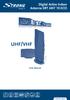 Digital Active Indoor Antenna SRT ANT 10 ECO Picture similar User Manual Table of contents 1.0 INTRODUCTION 1 2.0 PACKAGE CONTENT 1 3.0 SAFETY NOTES 2 4.0 CONNECTING THE ANTENNA 2 1.0 INTRODUCTION Thank
TIME WARNER DIGITAL CABLE
 IF IT S WORTH WATCHING IN 3D IT S ON TIME WARNER DIGITAL CABLE 3D TV FAQ & SETUP GUIDE What Equipment do I Need to View Sports in 3D? Equipment I Need Time Warner Digital Cable Set Top Box (Connected Directly
Adding Local HD Channels to LodgeNet Installations. A Case Study
 Adding Local HD Channels to LodgeNet Installations Adding Local HD Channels to LodgeNet Installations TABLE OF CONTENTS 1 GENERAL... 3 1.1 SCOPE OF DOCUMENT... 3 1.2 APPLICATION DESCRIPTION... 3 2 INSTALLATION
Charter Digital Cable and Charter HD Easy Install Guide
 Charter Digital and Charter HD Easy Install Guide Your guide to installing and setting up your Charter HD and Digital Charter Digital and Charter HD Easy Install Guide -888-GET CHARTER (-888-8-7) charter.com
Instructions for - Installation of Satellite Channels
 ENGLISH Instructions for - Installation of Satellite Channels Updated: March 2011 Experience Reality AQUOS LCD-TVs Spring/Summer 2011 Page - 1 - LE820 - LE822 - LE814 - LE824 - LE914 - LE925 Contents:
RFS-805. Digital Modulator AV to COFDM. User Manual
 RFS-805 Digital Modulator AV to COFDM User Manual 1. Purpose of use RFS-805 is a digital modulator designed for a processing audio and video signals into COFDM (DVB-T) multiplex. 2. Installation The connections
2005 by Mediacom Communications Corporation. All Rights Reserved. Mediacom Communications assumes no liability nor responsibility for the use of any
 2005 by Mediacom Communications Corporation. All Rights Reserved. Mediacom Communications assumes no liability nor responsibility for the use of any content, materials, or techniques included in this guide.
Fi TV Gold Quick Start Guide
 Quick Start Guide Fi TV Gold Quick Start Guide Welcome to Fi TV! We re happy that you chose EPB Fiber Optics to bring the best movies, sports, news and television programming into your business and we
D g i i g t i a t l a l T V T V f o f r o r MD M U Multi Dwelling Units
 Digital TV for MDU Multi Dwelling Units Introduction What is digital TV? Freeview ( FTA digital services) Delivered via your antenna and MATV system PAY TV (Foxtel, Austar, Select TV) Delivered via Telstra
FREE TV AUSTRALIA OPERATIONAL PRACTICE OP 60 Multi-Channel Sound Track Down-Mix and Up-Mix Draft Issue 1 April 2012 Page 1 of 6
 Page 1 of 6 1. Scope. This operational practice sets out the requirements for downmixing 5.1 and 5.0 channel surround sound audio mixes to 2 channel stereo. This operational practice recommends a number
LIGHTMOOR VILLAGE INTEGRATED RECEPTION SYSTEM. Telford A RESIDENTS GUIDE
 LIGHTMOOR VILLAGE Telford INTEGRATED RECEPTION SYSTEM A RESIDENTS GUIDE What is the Integrated Reception System? This booklet sets out some information for the Integrated Reception System (or IRS) for
Cable TV Headend Solutions
 Product Family DVX Platform Cable TV Headend Solutions The DVX platform TELESTE DVX is a complete solution for digital and analogue broadcasting infrastructures for cable operators. The offering includes
Local and Ultra Local Content in Broadcast Mobile TV
 Local and Ultra Local Content in Broadcast Mobile TV Richard LHERMITTE ENENSYS Technologies France ABSTRACT Broadcast Mobile TV is meant to be one of the next killer application for Mobile operators and
AM TRANSMITTERS & RECEIVERS
 Reading 30 Ron Bertrand VK2DQ http://www.radioelectronicschool.com AM TRANSMITTERS & RECEIVERS Revision: our definition of amplitude modulation. Amplitude modulation is when the modulating audio is combined
Troubleshooting Guide
 Poor or Distorted Picture Troubleshooting Guide Poor picture quality compared to what was seen in the store. Picture is distorted. (Macroblock, small block, dots, pixelization.) Wrong or missing color