
ISP Daisy Chain Download User Manual
|
|
|
- Dorcas Hensley
- 10 years ago
- Views:
Transcription
1 ISP Daisy Chain Download User Manual Version 7.1 Technical Support Line: LATTICE or (408) pds4104 -RM Rev 7.1.1

2 Copyright This document may not, in whole or part, be copied, photocopied, reproduced, translated, or reduced to any electronic medium or machine-readable form without prior written consent from Lattice Semiconductor Corporation (LSC). The software described in this manual is copyrighted and all rights are reserved by Lattice Semiconductor Corporation. Information in this document is subject to change without notice. The distribution and sale of this product is intended for the use of the original purchaser only and for use only on the computer system specified. Lawful users of this product are hereby licensed only to read the programs on the disks, cassettes, or tapes from their medium into the memory of a computer solely for the purpose of executing them. Unauthorized copying, duplicating, selling, or otherwise distributing this product is a violation of the law. Trademarks The following trademarks are recognized by Lattice Semiconductor Corporation: Generic Array Logic, ISP, ispanalyzer, ispate, ispcode, ispdcd, ispdownload, ispds, ispds+, ispexpert, ispgds, ispgdx, isphdl, ispjtag, ispsmartflow, ispstarter, ispstream, ispsvf, ispta, isptest, ispturbo, ispvector, ispverilog, ispvhdl, ispvm, Latch-Lock, LHDL, pds+, RFT, Total ISP, and Twin GLB are trademarks of Lattice Semiconductor Corporation. E 2 CMOS, GAL, ispgal, isplsi, pds, plsi, Silicon Forest, and UltraMOS are registered trademarks of Lattice Semiconductor Corporation. Microsoft, Windows, and MS-DOS are registered trademarks of Microsoft Corporation. IBM is a registered trademark of International Business Machines Corporation. Other brand and product names have been used for identification purposes and may be trademarks of their respective companies. Lattice Semiconductor Corporation 5555 NE Moore Court Hillsboro, OR (503) April 1999 ISP Daisy Chain Download User Manual 2

3 Limited Warranty Lattice Semiconductor Corporation warrants the original purchaser that the Lattice Semiconductor software shall be free from defects in material and workmanship for a period of ninety days from the date of purchase. If a defect covered by this limited warranty occurs during this 90-day warranty period, Lattice Semiconductor will repair or replace the component part at its option free of charge. This limited warranty does not apply if the defects have been caused by negligence, accident, unreasonable or unintended use, modification, or any causes not related to defective materials or workmanship. To receive service during the ninety-day warranty period, contact Lattice Semiconductor at: Phone: LATTICE Fax: (408) [email protected] If the Lattice Semiconductor support personnel are unable to solve your problem over the phone, we will provide you with instructions on returning your defective software to us. The cost of returning the software to the Lattice Semiconductor Service Center shall be paid by the purchaser. Limitations on Warranty Any applicable implied warranties, including warranties of merchantability and fitness for a particular purpose, are hereby limited to ninety days from the date of purchase and are subject to the conditions set forth herein. In no event shall Lattice Semiconductor Corporation be liable for consequential or incidental damages resulting from the breach of any expressed or implied warranties. Purchaser s sole remedy for any cause whatsoever, regardless of the form of action, shall be limited to the price paid to Lattice Semiconductor for the ISP Daisy Chain software. The provisions of this limited warranty are valid in the United States only. Some states do not allow limitations on how long an implied warranty lasts, or exclusion of consequential or incidental damages, so the above limitation or exclusion may not apply to you. This warranty provides you with specific legal rights. You may have other rights which vary from state to state. ISP Daisy Chain Download User Manual 3

4 Table of Contents Preface Purpose of this Manual Scope of this Manual Where to Look for Information Manual Conventions Related Documentation Chapter 1 Introduction System Requirements Installation Procedure Software Support Technical Support Customer Hotline Chapter 2 ISP Daisy Chain Download Overview Software Features Software Design Flow Programming Features Programming Chains Device Types Security Feature ISP Download Support Programming Setups Using a PC and the isp Engineering Kit Model Using Third-Party Programmers Using Automatic Test Equipment (ATE) User Interface ISP Daisy Chain Download Window Menu Bar and Toolbar ispvm Window Menu Bar and Toolbar ISP Daisy Chain Download User Manual 4

5 Chapter 3 Device Programming Programming ISP Devices Using Windows on the PC Programming File Formats Using the ispdcd Tool Using the ispvm Tool Downloading Using ispdcd Invoking the ispdcd Tool Configuration Files Creating a New Chain Configuration Opening an Existing Chain Configuration Verifying a Chain Configuration Saving a Chain Configuration Performing Operations on the Chain User Electronic Signature (UES) Editing a UES Scanning the Board for the UES Turbo Downloading Using ISP Bit Streams Building a Bit Stream Saving a Bit Stream Loading an Existing Bit Stream Verifying a Bit Stream Downloading a Bit Stream Using ATE Using ATE Vectors Simulating ATE Functions Generating SVF Files Building Single-Device SVF Files Building Turbo SVF Files Processing SVF Files Processing a Single SVF File Processing a Turbo SVF File Changing the Port Downloading Using ispvm Invoking the ispvm Tool Configuration Files Creating a New Chain Configuration Opening an Existing Chain Configuration Verifying a Chain Configuration Saving a Chain Configuration Performing Operations on the Chain Viewing an Operation Report Building VMF Files Changing the Port Exiting the Program ISP Daisy Chain Download User Manual 5

6 Preface This preface contains sections about the following information: Purpose of this user manual What is in this user manual Where to look for information Documentation conventions Related documentation ISP Daisy Chain Download User Manual 6

7 Purpose of this Manual Purpose of this Manual This manual describes the capabilities and use of the in-system programmable Large Scale Integration (isplsi ) circuit download software and procedures. It serves as a primary learning guide for downloading JEDEC and VIP files with the configuration setup (.dld,.cdf) files to programmable devices. Intended for use by design engineers who are knowledgeable in system design, system architectures, and the use of design programs, this manual will guide you through the download process from within a PC Windows environment. Scope of this Manual The following topics are covered in this manual. System installation requirements and procedures ISP Daisy Chain Download (ispdcd ) software features and design flow Configuring multiple device daisy chains ispdcd programming setups Graphic User Interface (GUI) features and usage Managing ispdcd files, including JEDEC and VIP design files Setting and editing a User Electronic Signature (UES) Device programming using the standard ispdcd interface and the integrated ispvm TM interface Turbo downloading Generating ATE Vector Files Simulating ATE Functions Where to Look for Information Chapter 1, Introduction Provides an introduction to the manual and gives the installation procedure for the ISP Daisy Chain Download software. Chapter 2, ISP Daisy Chain Download Overview Provides an overview of the ispdcd software, including features, design flow, programming setups, and the user interface. Chapter 3, Device Programming Describes in detail how to perform device programming using the Lattice Semiconductor ISP Daisy Chain Download system software tool. ISP Daisy Chain Download User Manual 7

8 Manual Conventions Manual Conventions The following table lists the conventions used in this manual. Convention Italics Bold Courier Font Bold Courier Definition and Usage Italicized text represents variable input. For example: design.dld This means you must replace design with the file name that you used for all the files relevant to your design. Valuable information may be italicized for emphasis. Book titles appear in italics. The beginning of a procedure also appears in italics. For example: To create a new configuration: Valuable information may be boldfaced for emphasis. Commands are shown in boldface. For example: 1. Select Command Turbo Download Build from the ISP Daisy Chain Download menu. Monospaced (Courier) font indicates file and directory names and text that the system displays. For example: The C:\DCD\EXE subdirectory contains... Bold Courier font indicates text you type in response to system prompts. For example: C:> dld <path_name><file_name>... Vertical bars indicate options that are mutually exclusive; you can select only one. For example: OK Cancel Quotes NOTE CAUTION TIP Titles of chapters or sections in chapters in this reference manual are shown in quotation marks. For example: See Chapter 2, ISP Daisy Chain Download Overview. Indicates a special note. Indicates a situation that could cause loss of data or other problems. Indicates a special hint that makes using the software easier. Indicates a menu option leading to a submenu option. For example: Command Turbo Download Build ISP Daisy Chain Download User Manual 8

9 Related Documentation Related Documentation The following is a list of manuals that provide information on related Lattice Semiconductor products: ispexpert Compiler User Manual ispexpert Compiler Getting Started Manual Lattice Semiconductor ISP Encyclopedia ispexpert System User Manual ispexpert System Getting Started Manual ISP Daisy Chain Download User Manual 9

10 Chapter 1 Introduction This chapter introduces the ISP Daisy Chain Download (ispdcd) system hardware and software requirements, installation procedure, and describes how to get help. System Requirements To run the ispdcd software as a stand-alone application, you need the following hardware: IBM PC-AT 486-compatible (or higher) 1 serial port 1 parallel port 8 MB RAM Approximately 2.4 MB of disk space EGA/VGA display (VGA is recommended) CD-ROM drive Microsoft Windows-compatible mouse and mouse driver If you install ispdcd as a part of the ispexpert Compiler software package, see the ispexpert Compiler Getting Started Manual for the system requirements. If you install ispdcd as a part of the ispexpert System software package, see the ispexpert System Getting Started Manual for the system requirements. ISP Daisy Chain Download User Manual 10

11 Installation Procedure Installation Procedure The ISP Daisy Chain Download (ispdcd) software can be installed from CD or the Lattice website in one of four ways: as a part of the ispexpert Compiler installation as a part of the ispexpert System installation as a part of the ispgdx installation as a stand-alone installation NOTE If you plan to replace an older version of ISP software with a newer version, it is recommended that you first uninstall the older version of software before continuing. Installing ispdcd from ispexpert Compiler, ispexpert System, or ispgdx If you choose to install the ispdcd software during installation of the ispexpert Compiler, ispexpert System, or ispgdx software packages, refer to the ispexpert Compiler Getting Started Manual or the ispexpert System Getting Started Manual for information. During the installation process, the ispdcd software files are placed into the locations shown below. Installing from ispexpert Compiler or ispexpert System: <drive>:\isptools\ispcomp\bin Installing from ispgdx: <drive>:\isptools\ispgdx\bin Installing ispdcd as a Stand-Alone Application The installation setup program requires that Microsoft Windows 95, Windows 98, or Windows NT 4.0 be installed on your system. The following procedure automatically installs the ISP Daisy Chain Download (ispdcd) software under the Microsoft Windows environment. To install the ISP Daisy Chain Download software: 1. When installing from a CD, first insert the Lattice Semiconductor Corporation CD- ROM into the CD drive and select Run... from the Start menu. Enter the following command in the Run dialog box: <cd_drive>:setup When installing from the Lattice website, double-click the setup.exe file icon to begin the installation process. The installation program checks for the Windows O/S; if Windows NT is detected, the program installs the download driver (isp.sys). ISP Daisy Chain Download User Manual 11

12 Installation Procedure NOTE System Administrator privileges are required to install the download driver. 2. After you have accepted the software license agreement and chosen the destination for your files, the installation software displays the Lattice ISP software already installed on your system. Click Next. 3. In the Product Options dialog box (Figure 1-1), select the ISP Daisy Chain Download option and deselect all other options. Click Next. Figure 1-1. Product Options Dialog Box 4. Follow the instructions that appear on your screen to complete the installation. When installed as a stand-alone application, the ispdcd files are placed by default into the following directory: <drive>:\isptools\ispdcd ISP Daisy Chain Download User Manual 12

13 Software Support Software Support In most cases, this manual will answer your questions. However, if you have further questions about using the ISP Daisy Chain Download software, contact Lattice Semiconductor Corporation for assistance. Technical Support Before contacting Lattice Semiconductor Technical Support, take a moment to review the following information for possible answers or solutions. 1. Consult the Lattice Semiconductor documentation that you received with your software; it will answer most of your questions. 2. Ensure that the hardware meets the minimum system requirements listed under System Requirements on page Verify that your system hardware and peripherals are set up according to their respective documentation and that all cable connections are secure. 4. Verify that the proper installation of Microsoft Windows is running in enhanced mode. Customer Hotline If you have any questions or problems with this software, please call the Lattice Semiconductor Applications Hotline at LATTICE ( ) or (408) The hotline is available Monday through Friday from 8:00 AM to 5:00 PM, Pacific Time. Or, send to [email protected]. Information Need Customer Resource USA & Canada Other Locations Telephone Hotline LATTICE (408) Fax (408) isplsi/ispgdx Applications Support Bulletin Board System (408) [email protected] World Wide Web Downloads Telephone Hotline ISP-PLDS (503) Fax (503) GAL/ispGAL/ispGDS Applications Support Bulletin Board System (503) [email protected] World Wide Web Downloads ISP Daisy Chain Download User Manual 13

14 Software Support Information Need Customer Resource USA & Canada Other Locations Telephone Hotline ISP-PLDS (503) Literature Fax (503) World Wide Web Downloads ISP Daisy Chain Download User Manual 14

15 Chapter 2 ISP Daisy Chain Download Overview The ISP Daisy Chain Download (ispdcd) software is a comprehensive design download package that provides an efficient method of programming ISP devices using JEDEC and VMF files generated from any compatible software tool. This complete device programming tool allows you to quickly and easily download your designs to your devices. Software Features The ispdcd software package offers the following features: Support for the Microsoft Windows 95, 98, and NT 4.0 design environments Multivendor support using the ispvm feature JEDEC file transfer via a download cable directly from your system JEDEC file transfer to a third-party programmer Detection and identification of as many as 200 devices at once Easy set-up menus for multiple ports Simple device configuration menus Single ISP device programming Multiple ISP device daisy chain programming Mixed chain downloading including JTAG device recognition Turbo downloading of daisy-chained devices ispstream TM bit building, saving and loading Serial Vector Format (SVF) file support Virtual Machine Format (VMF) file support Boundary Scan Description Language (BSDL) recognition UES (User Electronic Signature) reading and coding ATE vector file generation and simulation support Online help ISP Daisy Chain Download User Manual 15

16 Software Design Flow Software Design Flow The ISP Daisy Chain Download software with the integrated ispvm tool uses any JEDEC file or VMF file to program, in-system (on the board), a device or multiple devices. The board can be a one-device programmer or it can be inside your CPU on the board itself, which requires no external programmer. ISP Daisy Chain Download also recognizes mixed chains with non-lsc JTAG compatible devices. Once the cables are properly connected, the ISP Daisy Chain Download software can identify the number of devices you wish to program and accept your instructions. A diagram of the ispdcd functional design flow is shown in Figure 2-1. VMF Files OBJ Files JEDEC Files SVF Files JEDEC Files BSDL Files DLD Files ASCII Text Editor VMF File Linker SVF VMF Turbo Download ispstream Compiler Daisy Chain Configuration File Editor ispstream ispdcd ispvm ispstream File ispate ATE Vector Writer Parallel Port Driver ispsvf Serial Vector File Writer ispcode C Programs Embedded CPU C Compiler ATE Vector Files Third-Party ATE Vector Compiler ispdownload Cable SVF File Third-Party Bscan Test System EXE Program Embedded ISP Third Party In-Circuit Test System Figure 2-1. ispdcd Functional Flow ISP Daisy Chain Download User Manual 16

17 Programming Features Programming Features The ISP Daisy Chain Download software allows you to program your designs onto ISP (in-system programmable) devices. In-system (on-board) programming is particularly advantageous because it eliminates the necessity of mounting, plugging, and socketing devices on a device programmer. This minimizes the risk of bent or broken pins that can occur when handling devices. Devices can be re-programmed many times, depending on your system needs. In addition, a security feature can be set so that the device cannot be read once it is programmed. The ISP Daisy Chain Download software is easy to use, fast, and comprehensive. One screen provides all you need to download designs to your devices. From the main window, you can quickly configure the port setup by specifying such parameters as device type, the JEDEC or VMF file you want to load onto each particular device, and the mode of operation that you want to perform for each device. Once you supply the setup information, you can check your setup to identify any errors and resolve them prior to downloading the design files onto the appropriate devices. The integrated ispvm tool provides an open programming application that allows programming of all ISP devices through the use of VMF-format files. Since VMF files contain the fusemap data plus the algorithm needed to program devices, they are faster and more universal than the standard JEDEC file format. With the ispvm tool you can: Build and save VMF files from JEDEC files and download the VMF files directly from your system Convert SVF files to VMF files and download them directly from your system The ispvm is easily accessed as a menu item from the standard ispdcd window and provides the same look, usability, and design flow as the standard ispdcd system. ISP Daisy Chain Download User Manual 17

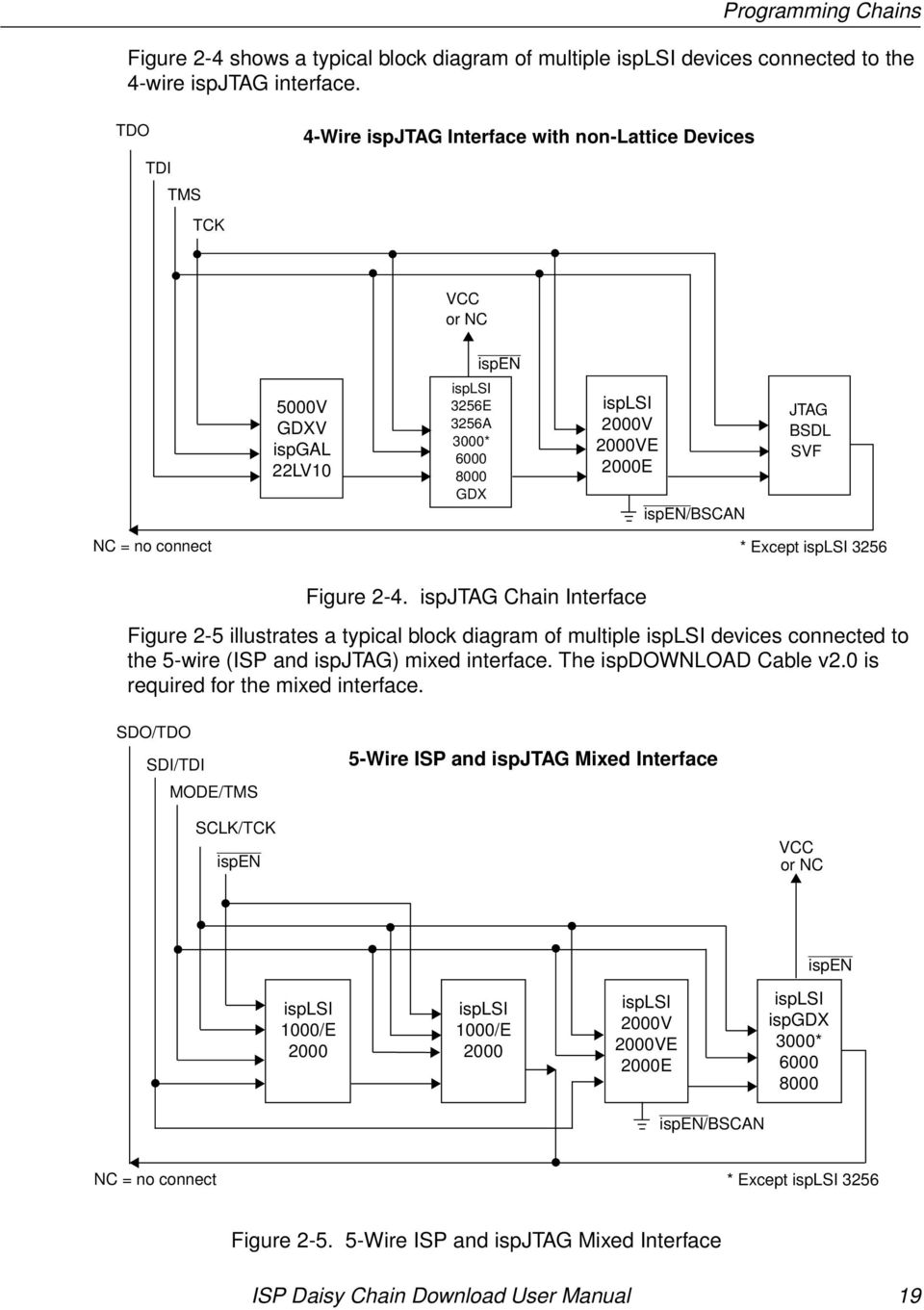
18 Programming Chains Programming Chains Figure 2-2 provides a typical block diagram of multiple ISP devices cascaded together. The figure shows various ISP features, such as device identification, command shifting, device bypass, and command execution. SDO SDI MODE 5-Wire ISP Interface SCLK ispen isplsi isplsi ispgdx ispgal ispgds 1000/E V Figure 2-2. Multiple ISP Interface Figure 2-3 provides a typical block diagram of multiple isplsi devices connected to the 5-wire ispjtag interface. TDO TDI TMS 5-Wire ispjtag Interface TCK ispen/bscan isplsi 2000V 2000VE 2000E isplsi 2128V isplsi 2128V isplsi 2128V Figure 2-3. Multiple ispjtag Interface ISP Daisy Chain Download User Manual 18

19 Programming Chains Figure 2-4 shows a typical block diagram of multiple isplsi devices connected to the 4-wire ispjtag interface. TDO TDI TMS TCK 4-Wire ispjtag Interface with non-lattice Devices VCC or NC ispen 5000V GDXV ispgal 22LV10 isplsi 3256E 3256A 3000* GDX isplsi 2000V 2000VE 2000E ispen/bscan JTAG BSDL SVF NC = no connect * Except isplsi 3256 Figure 2-4. ispjtag Chain Interface Figure 2-5 illustrates a typical block diagram of multiple isplsi devices connected to the 5-wire (ISP and ispjtag) mixed interface. The ispdownload Cable v2.0 is required for the mixed interface. SDO/TDO SDI/TDI MODE/TMS 5-Wire ISP and ispjtag Mixed Interface SCLK/TCK ispen VCC or NC ispen isplsi 1000/E 2000 isplsi 1000/E 2000 isplsi 2000V 2000VE 2000E isplsi ispgdx 3000* ispen/bscan NC = no connect * Except isplsi 3256 Figure Wire ISP and ispjtag Mixed Interface ISP Daisy Chain Download User Manual 19
20 Programming Chains Device Types ISP devices can be divided into the following types: JTAG Devices with a known Instruction Register length. JTAG devices are always put into the bypass mode of operation (NOP). BSDL Devices with a given BSDL file. BSDL devices are always put into the bypass mode of operation by looking for the instruction register bit length in the BSDL file. SVF Devices with a given SVF file. All Lattice devices are operated on first because this device is put in bypass mode. The instruction register bit length of the device is obtained from the user-provided SVF file. After specified operations on Lattice devices have completed, each SVF device is processed in sequence. Security Feature The isplsi and ispgal22v10 devices contain a security bit that enables or disables program verification. If the security bit is enabled, the device program cannot be read, thus preventing unauthorized access to your design. When you use the Lattice ispexpert Compiler software, you can turn on the Security check box in the Device Options section of the Device Selection dialog box. Alternatively, you can control the security bit through the SECURITY Device Control Option in a Parameter File. The security bit can also be set when programming devices by selecting one of the appropriate operation mode options, such as Program, Verify, and Secure. The security feature defaults to SECURITY OFF. For additional information on the security feature, see the ispexpert Compiler User Manual for details on how to set the security bit. ISP Daisy Chain Download User Manual 20

21 ISP Download Support ISP Download Support Before you can program devices using the ISP Daisy Chain Download software, you must first have the following: the proper programming setup a JEDEC-format ASCII file or a VMF-format file to download onto a programmable device. Programming Setups There are four primary hardware setups that can be used to program Lattice Semiconductor ISP devices: In-system (without removing the devices from the circuit board) Using the isp Engineering Kit Model 100 Using a third-party programmer Using automatic test equipment (ATE) Using a PC and the isp Engineering Kit Model 100 One of the setups that can be used to program devices is a PC along with the isp Engineering Kit Model 100. The PC s parallel port and the kit hardware provide the physical interface needed to download your design files using the ispdcd software. The isp Engineering Kit Model 100 contains the following: Universal Programming Module 25-pin parallel port adapter ispdownload cable System cable Power supply converter 200 ma) North America and Asia only isp Engineering Kit Hardware Assembly Manual, Model 100 ISP Daisy Chain Download User Manual 21
22 ISP Download Support To program ISP devices directly on the universal programming module (Figure 2-6), a socket adapter (purchased separately) is required. A unique socket adapter board is available for each package type and includes an ISP sample device. Figure 2-6. Universal Programming Module with Socket Adapter Table 2-1 shows a partial list of the socket adapters that are now available from Lattice Semiconductor Corporation. A 5- to 3-volt converter, purchased separately, is required to program 3.3-volt isplsi devices. To determine if a device requires a converter, refer to Table 2-1. A diagram of a setup using a PC and the isp Engineering Kit Model 100 is shown in Figure 2-7. PC Parallel Port and Parallel Cable Power Supply Converter Universal Programming Module with Socket Adapter Lattice Security Key ispdownload cable 25-pin Parallel Port Adapter Figure 2-7. Sample Programming Setup ISP Daisy Chain Download User Manual 22
23 ISP Download Support Socket Adapter Part Number Table 2-1. Socket Adapter Boards Pins Device Type pds4102-j44 44 isplsi 2032 isplsi 2032LV/V* pds4102-t44 44 isplsi 1016E isplsi 2032 isplsi 2032LV/V* Package Type PLCC TQFP pds4102-j68 68 isplsi 1024 PLCC pds4102-j84 84 isplsi 1032 PLCC pds4102-t isplsi 1032 isplsi 1032E isplsi 2064 TQFP pds4102-q isplsi 1048 PQFP pds4102-q isplsi 1048C isplsi 1048E isplsi 2096 PQFP pds4102-t isplsi 2128 TQFP pds4102-m isplsi 2128 MQFP isplsi 3256/A pds4102-t176/2128v 176 isplsi 2128V* TQFP pds4102-j84/2064v 84 isplsi 2128V* PLCC pds4102-t100/2128v 100 isplsi 2128V* TQFP pds4102-m isplsi 6192 MQFP pds4102-m isplsi 3192 MQFP pds4102-m isplsi 3256E MQFP pds4102-b272/5256v 272 isplsi 5256V* BGA isplsi 5384V* pds4102-b492/8840v 492 isplsi 8840V* BGA * The 5- to 3-volt converter must be purchased separately and used in conjunction with the socket adapter to program these 3.3-volt devices. ISP Daisy Chain Download User Manual 23
24 ISP Download Support Ordering the isp Engineering Kit Model 100 or 5- to 3-Volt Converter To order the isp engineering kit, socket adapters, or 5- to 3-volt converter, contact a Lattice Semiconductor sales representative. The part numbers are as follows: isp Engineering Kit Model 100 pds4102-pm (North America and Asia) pds4102e-pm (Europe) 5- to 3-Volt Converter pds4102-3/5adp Using Third-Party Programmers Third-party programming setups may be used to download designs to your devices. Refer to the documentation for the specific programmer that you are using. Table 2-2 lists the LaticeSC-qualified, third-party device programmers for the ISP families. Table 2-2. Lattice-Qualified Programmers Vendor Advin Systems BP Microsystems Data I/O Model Pilot GL/GCE, Pilot U40/U84/U168/U256 CP/PLD-1128, BP , 3900, ChipLab, Unisite 40, Unisite 48, Autosite Logical Devices Allpro 32/40, Allpro 88 Stag System General ZL30/A/B, System 3000, Quasar 1040/1084, Eclipse Turpro-1/FX, Turpro-1 NOTE High pin-count socket adapters are available from Emulation Technology. For a complete listing of certified third-party PLD programmers that support the ISP families, refer to the Third Party Programming Tools Guide. You can obtain this Data Sheet from the following sources: The Lattice Semiconductor Literature Department ( ) The Lattice Semiconductor world wide web site ( ISP Daisy Chain Download User Manual 24
25 ISP Download Support Using Automatic Test Equipment (ATE) Using ATE setups to program and verify ISP devices improves product testability, and avoids the overhead and time penalties associated with stand-alone, third-party programmers. With the ispdcd software, you can use JEDEC files to generate test vectors to program devices via an ATE setup. For information on ATE setups, refer to the vendor documentation for the specific ATE being used. For information on generating ATE vectors, refer to Chapter 3, Device Programming. Table 2-3 lists the vendor and equipment models supported by Lattice Semiconductor. Table 2-3. Lattice-Supported ATE Company Hewlett Packard GenRad Marconi Teradyne Model All testors, including: Models 3060, 3065, 3070, 3073 GR228X/e Series 4200 Series Z1800 Series and Z8000 Series NOTE: Vector Processor Option must be installed. ISP Daisy Chain Download User Manual 25
26 User Interface User Interface The ispdcd user interface provides the following two main windows: ISP Daisy Chain Download window ispvm window You can switch from one window to the other using View ispvm and View ispdcd. The ispdcd window is decribed below. For information on the ispvm window, refer to ispvm Window on page 33. ISP Daisy Chain Download Window When you invoke the ispdcd tool, the ISP Daisy Chain Download main window appears (Figure 2-8). You can use the pull-down menus or the tool bar icons to perform the various functions needed to download JEDEC files to the devices in the daisy chain. Incorporated into the main window is the Messages window that displays all system messages and can be resized, but not closed. Menu Bar Toolbar Messages Window Figure 2-8. ISP Daisy Chain Download Window ISP Daisy Chain Download User Manual 26
27 User Interface Menu Bar and Toolbar The following tables summarize the ispdcd menu bar commands and associated toolbar icons. The File menu contains the commands shown in Table 2-4. Table 2-4. File Menu Commands Command Icon Description New Creates a new configuration setup. Open Opens a previously saved configuration setup. Save Saves a named configuration setup. Recent File N/A Displays a list of recently accessed files. Save As N/A Names and saves a configuration setup. Exit N/A Exits the ISP Daisy Chain Download program. The Edit menu contains the commands shown in Table 2-5. Table 2-5. Edit Menu Commands Command Set Operations Description Lists the available operation modes for each file, which can then be selected. Although some operation modes are only available for specific configurations, they include the following: Program and Verify Performs a download of the design pattern, then verifies the chip program (device pattern) with the original.jed file to ensure the device was programmed correctly. The file name must be specified. This is the default mode of operation. Program, Verify and Secure Performs a download of the design pattern, verifies the chip program (device pattern) with the original.jed file to ensure the device was programmed correctly, and then sets the security bit so that the device cannot be read. The file name must be specified. ISP Daisy Chain Download User Manual 27
28 User Interface Table 2-5. Edit Menu Commands (Continued) Command Set Operations (Continued) Description Checksum Verifies check sum value of the chip and sends the information to the Status field for the corresponding device. Read and Save Reads the chip program and writes it to the specified JEDEC file. Erase Erases the chip program and the security fuse for the device you specify. No Operation Indicates that no operation will be performed for that device. Clear File Names Set Chain Type Clears all displayed file names and instruction bit length of the devices. Lists the available daisy chain download configurations, which can then be selected. Available chain types include the following: 5-Wire ISP Chain Sets the daisy chain download configuration for 5-wire ISP chain devices. 4-Wire JTAG Chain Sets the daisy chain download configuration for 4-wire JTAG chain devices. Set Flag Type Lists the available flag types, which can then be selected. Available flag types are: Hexadecimal Sets the flag type to hexadecimal format. ASCII Sets the flag type to ASCII format. ISP Daisy Chain Download User Manual 28
29 User Interface The Configuration menu contains the commands shown in Table 2-6. Table 2-6. Configuration Menu Commands Command Icon Description Port Assignment N/A Sets the parallel port(s) for the download configuration. The ISP Daisy Chain Download software can detect the default port assignment if you have the cables connected properly when you start the program. Use this option to reset the port. Scan Board Scan Mixed Chain Scans the board and detects the configuration setup of an ISP chain or an ispjtag chain. Scans the board and detects the configuration setup of both an ISP chain and an ispjtag chain on the same board. The View menu contains the commands shown in Table 2-7. Table 2-7. View Menu Commands Command Icon Description ispvm N/A Displays the ispvm window. ispdcd N/A Displays the ispdcd window. The Command menu enables you to verify or download a configuration using the commands shown in Table 2-8. Table 2-8. Command Menu Commands Command Icon Description Check Configuration Setup Board Diagnostic Verifies your setup once you set up the configuration properly. It is recommended that you run the Check Configuration Setup operation prior to downloading to ensure that your JEDEC device files are loading onto the correct devices. This operation is optional. Performs a diagnostic on the daisy chain configuration in your.isp or.dld file (if the configuration setup window is not open and you choose this feature, the Board Diagnostic window will appear and allow you to choose a new.dld file, open a.dld file, or load an.isp file. ISP Daisy Chain Download User Manual 29
30 User Interface Table 2-8. Command Menu Commands (Continued) Command Icon Description Run Operation in Sequential Mode Run ISP Part of a Mixed Chain Turbo Download Build Turbo Download Verify Turbo Download Run Turbo Download Turbo Download Save ISP File Turbo Download Load ISP File Executes the non-turbo downloading procedure. Builds the turbo ispstream automatically if it has not been built. Your design files are programmed onto the devices as specified by the device type, JEDEC file attached, and operation. If the Read and Save or Checksum modes of operation are required, select sequential mode downloading. Otherwise, select turbo downloading. For more information about daisy-chaining your devices, see the ISP Encyclopedia. Processes only the ISP part of the mixed chain and ignores the entire ispjtag part of the mixed chain. Prepares the ISP bit stream for downloading. Builds the ispstream on the daisy-chained devices according to the current device configuration setup. Verifies the current ispstream against that of the devices. This option can be used after you build the ispstream by selecting either the Program and Verify or the Verify mode of operation. Checks the configuration setup file, then downloads the ispstream to the devices. This feature also builds the ispstream automatically if it has not yet been built. Saves a built ispstream file to any directory. Loads a previously saved ispstream file in preparation for device programming. Once you load the ISP bit stream file, you can perform a download without having to build the bit stream again. ISP Daisy Chain Download User Manual 30
31 User Interface Table 2-8. Command Menu Commands (Continued) Command Icon Description Edit File UES Lists the character types that can be programmed for your user electronic signature (UES) using the Windows version of the ispdcd software. Character type selections are the following: Hexadecimal Selects the hexadecimal character type for programming your UES. ASCII Selects the ASCII character type for programming your UES. Display Board UES Lists the formats in which board UES values can be displayed. Selectable formats are: Hexadecimal Scans the board, returns the UES values of all devices in the chain, and displays them in hexadecimal format. ASCII Scans the board, returns the UES values of all devices in the chain, and displays them in ASCII format. Display Mixed Chain UES Lists the formats in which mixed chain UES values can be displayed. Selectable formats are: Hexadecimal Displays the ispjtag chain UES of a mixed chain in hexadecimal format. ASCII Displays the ispjtag chain UES of a mixed chain in ASCII format. Generate ATE Vectors Simulate ATE Testing Generate SVF Files Generates the test vector files that are used to program and verify ISP devices with automatic test equipment (ATE). Simulates ATE functions. By simulating the test vector files, you ensure that the test vector files will properly download onto the ISP devices. Builds single-device SVF files for a device or Turbo SVF file for the entire chain of devices. ISP Daisy Chain Download User Manual 31
32 User Interface Table 2-8. Command Menu Commands (Continued) Command Icon Description Process SVF Processes SVF files. This function can only be used to simulate Lattice Turbo SVF files. The Help menu contains the commands shown in Table 2-9: Table 2-9. Help Menu Options Command Icon Description Help Topics Provides online help for the Daisy Chain Download software, including a software introduction and command references. About ispdcd N/A This dialog box provides name, version, and copyright information for the ISP Daisy Chain Download software. ISP Daisy Chain Download User Manual 32
33 ispvm Window Menu Bar User Interface The ispvm main window (Figure 2-9) is very similar in layout to the ISP Daisy Chain Download main window, but it provides the specific pull-down menus and tool bar icons required to download VMF files to the daisy-chained devices. The ispvm window is accessed from the ISP Daisy Chain Download window menu bar (View ispvm). Toolbar Messages Window Figure 2-9. ispvm Window Menu Bar and Toolbar The following tables summarize the ispvm menu bar commands and associated toolbar icons. The File menu contains the commands shown in Table Table File Menu Commands Command Icon Description New Creates a new configuration setup. Open Opens a previously saved configuration setup. ISP Daisy Chain Download User Manual 33
34 User Interface Table File Menu Commands (Continued) Command Icon Description Save Saves a named configuration setup. Recent File N/A Displays a list of recently accessed files. Save As N/A Names and saves a configuration setup. Exit N/A Exits the ISP Daisy Chain Download program. The Edit menu contains the commands shown in Table Table Edit Menu Commands Command Icon Description Set Operations N/A Lists the available operation modes for each file, which can then be selected. Although some operation modes are only available for specific configurations, they include the following: JTAG Program and Verify Performs a download of the design pattern, then verifies the chip program (device pattern) with the original.jed file to ensure the device was programmed correctly. The file name must be specified. This is the default mode of operation. JTAG Program, Verify and Secure Performs a download of the design pattern, verifies the chip program (device pattern) with the original.jed file to ensure the device was programmed correctly, and then sets the security bit so that the device cannot be read. The file name must be specified. JTAG Verify Verifies the chip program (device pattern) with the original.jed file to ensure the JTAG device was programmed correctly. JTAG Erase Erases the chip program and the security fuse for the device you specify. JTAG No Operation Indicates that no operation will be performed for that device. ISP Daisy Chain Download User Manual 34
35 User Interface Table Edit Menu Commands (Continued) Command Icon Description Clear File Names N/A Clears all displayed file names and the instruction bit length of all devices. Set Flag Type N/A Lists the available flag types, which can then be selected. Available flag types are: Hexadecimal Sets the flag type to hexadecimal format. ASCII Sets the flag type to ASCII format. View Report Displays a report file after device operations have completed. The report file consists of an ASCII text file that summarizes the operations performed and the results. The Configuration menu contains the commands shown in Table Table Configuration Menu Commands Command Icon Description Port Assignment N/A When selected, the Port Assignment dialog box appears, which allows you to set the parallel port(s) for the download configuration. The software detects the default port assignment when you start the program with the cables connected properly. Use this option to reset the port. The View menu contains the commands shown in Table Table View Menu Commands Command Icon Description ispvm N/A Displays the ispvm window. ispdcd N/A Displays the ispdcd window. ISP Daisy Chain Download User Manual 35
36 User Interface The Command menu contains the commands shown in Table Table Command Menu Commands Command Icon Description Check Configuration Setup Run Operation Build VMF File Verifies your configuration setup. It is best to run the Check Configuration Setup operation before you download to ensure that your VMF device files are loading onto the correct devices. Downloads your design files onto the chained devices, one device at a time, as specified (for example: device type, VMF file attached, and operation). When selected, the Build *.VMF dialog box appears that allows you to build VMF files from JEDEC files or SVF files. The Help menu contains the commands shown in Table Table Help Menu Options Command Icon Description Help Topics N/A Provides online help for the ispvm software, including a software introduction and command references. About ispvm N/A This dialog box provides name, version, copyright information, and system resource information for the ispvm software. ISP Daisy Chain Download User Manual 36
37 Chapter 3 Device Programming In order to program devices, you need a file containing the design to download to your devices, and the hardware to transfer the design file. For information on programming hardware, refer to Chapter 2, ISP Daisy Chain Download Overview and the appropriate third-party or ATE documentation as required. This chapter contains information on the file types and the specific procedures used to program ISP and ispjtag devices. Programming ISP Devices Lattice Semiconductor high-density ISP devices have an advanced feature that allows you to program and reprogram in-system without removing your devices from the printed circuit board. This feature eliminates the need for sockets and avoids the common reliability problems associated with sockets. In-system programming can be done with an ispdownload cable connected between the system and the board. Using Windows on the PC A convenient way to program ISP devices in-system (on the board) is to use a PC (Windows environment) and the isp Engineering Kit Model 100. Another method is to implement the ISP algorithm for your system and the ISP Daisy Chain Download software. This manual describes the method of programming that uses a PC running Windows 95/98. For information on using other setups, refer to the ISP Encyclopedia. Programming File Formats The primary file formats that are used to program ISP and ispjtag devices are the JEDEC, ISP bit stream, ATE Vector, SVF, and VMF formats. JEDEC (.jed) are ASCII files produced by a compiler, such as the ispexpert Compiler by Lattice Semiconductor, and contain data that specifies the fusemap for the device to be programmed. ISP Bit Stream (.isp) files combine one or more JEDEC files into a serial data stream that allows for much faster transfer of programming data to the devices. ATE Vector files can be generated from JEDEC files, using the ispdcd tool, and used to program devices using automatic test equipment. ISP Daisy Chain Download User Manual 37
38 Programming ISP Devices SVF (.svf) files store data for programming one or more fixed algorithm devices in ATE-type programming environments. SVF files can be built from JEDEC files and used themselves to program devices, or used to build VMF files to program devices. VMF (.vmf) files are produced by a compiler and contain both the fusemap and the algorithm needed to program devices; therefore, VMF files are faster and more universal than JEDEC files for programming devices. In addition to using existing VMF files, new VMF files can also be built from JEDEC or SVF files using the ispvm feature. For many file formats, the standard ispdcd tool is used to program devices. However, in order to program devices using VMF design files, or convert SVF files to VMF design files, you must use the integrated ispvm tool. Using the ispdcd Tool The following tasks can be accomplished using the standard ispdcd tool: Create or load existing configuration (.dld) files Download JEDEC files directly to your devices Convert one or more JEDEC files to an ISP bit stream for downloading Convert the JEDEC file to ATE Vectors, which are then used with automatic test equipment to program the devices For ispjtag devices only: Convert the JEDEC files to SVF files for downloading To download designs using the ispdcd window, refer to Downloading Using ispdcd on page 39. Using the ispvm Tool The following tasks can be accomplished using the integrated ispvm tool: Create or load existing configuration (.cdf) files Convert JEDEC files to VMF files for downloading Convert SVF files to VMF files for downloading To download designs using the ispvm window, refer to Downloading Using ispvm on page 63. For additional information about the ISP interface, programming multiple ISP devices in a daisy-chained configuration, and unique programming features of each ISP device, see the Lattice Semiconductor ISP Encyclopedia. ISP Daisy Chain Download User Manual 38
39 Downloading Using ispdcd Daisy chain downloading consists of the following general steps: 1. Invoking the Lattice ISP Daisy Chain Download software 2. Creating a chain configuration 3. Verifying the chain configuration 4. Performing operations on the chain Invoking the ispdcd Tool To invoke the ispdcd tool: Downloading Using ispdcd From the Windows desktop, select Start Programs Lattice Semiconductor ispdcd. When you invoke the ispdcd download program, the ISP Daisy Chain Download window appears (Figure 3-1).The software first scans to determine if there is a download cable connected to the board. If an ispdownload cable is not attached, an alert appears in the Messages window. Figure 3-1. ISP Daisy Chain Download Window Configuration Files Configuration files contain information about the device chain, such as: the index number of each device as it appears in the chain, the ISP device type, the design file you wish to download to each specific device, and the operation(s) that you wish to perform on each device. ISP Daisy Chain Download User Manual 39
40 Downloading Using ispdcd Configuration File Format Using the ispdcd tool, configuration files are saved in the download data (.dld) format. You can either create a new configuration setup (.dld) file or load an existing one. To create a new configuration file, follow the procedure below for the different chain types. To load an existing configuration, refer to Opening an Existing Chain Configuration on page 46. Creating a New Chain Configuration Using the ispdcd tool, you can create chain configuration files for the following three types of download chain configurations: ISP chain or an ispjtag chain using isplsi devices ispjtag chain with isplsi devices and non-lsc JTAG devices Mixed ISP and ispjtag chain If the target hardware is connected to your PC (for example, using the isp Engineering Kit Model 100), the easiest way to create a configuration is to first scan the chain. The software identifies all ISP and JTAG devices available for programming, regardless of how they are ported or mounted, and lists device order and type. To automatically detect a configuration by scanning the chain, perform step 1. To create a configuration manually without scanning it, skip step 1 and proceed to step 2. To automatically detect a chain configuration: 1. If the target hardware is connected to your PC or the isp Engineering Kit Model 100, select Configuration Scan Board for ISP chains, or Configuration Scan Mixed Chain for mixed ISP/ispJTAG chains, or click the related icons. If more than 200 devices are connected to the board, an alert appears in the Messages window. Otherwise, the Scan Board Configuration Setup window appears (Figure 3-2). A basic configuration file now exists that contains all devices in the chain, but you must still specify what JEDEC files to use and what operations to perform. If you use this scan method, you can now skip ahead to step 8 on page 45. Otherwise, go to step 2 on the next page. ispjtag Chain with isplsi Devices and non-lsc JTAG Device Chains The method used for ispjtag chains containing isplsi devices and non-lsc JTAG devices is the same as that used for chains containing only isplsi devices. However, if the non-lsc JTAG devices contain a non-jtag compliant capture-ir pattern, the scan will fail. If this is the case, simply follow the procedure beginning with step 2. ISP Daisy Chain Download User Manual 40
41 Downloading Using ispdcd Figure 3-2. Scan Board Configuration Setup Window (Mixed Chain) To create a chain configuration without scanning: 2. Select File New or click the New Configuration Setup File icon from the ISP Daisy Chain Download menu. The New Configuration dialog box appears (Figure 3-3). For mixed chains, an additional section, ispjtag Information, is added to the lower portion of the New Configuration dialog box (Figure 3-4). Figure 3-3. New Configuration Dialog Box ISP Daisy Chain Download User Manual 41
42 Downloading Using ispdcd Figure 3-4. New Configuration Dialog Box (Mixed Chains) 3. In the Options area of the New Configuration dialog box, select the desired interface option. 4. In the ISP Information area of the New Configuration dialog box, enter the number of ISP devices that you want to program in the range of 1 (the default value) to 200 (the maximum value). For mixed chains, also enter the number of ispjtag devices in the ispjtag Information area of the New Configuration dialog box. NOTE If you use the download cable (part number pds4102-dl), Lattice recommends that you configure no more than eight ISP devices in a daisy chain. Otherwise, we recommend a buffer for every SCLK/TCK and MODE/TMS signal. 5. In the ISP Information section of the New Configuration dialog box, select an ISP device type from the default device pull-down list. For mixed chains, also select a device type from the default device pulldown list in the ispjtag Information section of the dialog box. If you do not select a device, the ISP/ispJTAG device will be set according to the default device (Table 3-1). Table 3-1. Default Devices Chain Option 5-wire ISP interface 4-wire ispjtag Chain 5-wire ISP & ispjtag Mixed Interface Default Device isplsi1016e isplsi2032ve isplsi1016e & isplsi2032ve 6. Click OK. The New Configuration Setup window appears (Figure 3-5). New Configuration Setup options are listed and described in Table 3-2. ISP Daisy Chain Download User Manual 42
43 Downloading Using ispdcd. Figure 3-5. New Configuration Setup Window Table 3-2. New Configuration Setup Options Options/ Features Comment Box Index Number Devices File Name/ Instruction Bits Checksum Description Allows you to enter a comment of up to 256 characters about the.dld file. Lists the order of the identified devices; this column is not editable. Use the pull-down list to select the following device types when creating a configuration: JTAG Denotes non-lsc JTAG-compatible devices SVF Denotes an SVF vector file is available for the device BSDL Denotes a BSDL file is available for the device Displays the file name (.jed) and the instruction register bit length of the JTAG device. An all 1s instruction is sent to non-lsc JTAG devices to put them in bypass mode on all operations. Enter the file name in the field or choose Browse to locate a file. The checksum of the given JEDEC file is read and displayed. ISP Daisy Chain Download User Manual 43
44 Table 3-2. New Configuration Setup Options (Continued) Downloading Using ispdcd Options/ Features Operation Description Lists the operation mode for each file; the default is Program & Verify. Operation modes include those listed below. NOTE: Some modes of operation are only available for specific configurations. PV (Program & Verify) Performs a download of the design pattern, then verifies the chip program (device pattern) with the original.jed file to ensure the device was programmed correctly. The file name must be specified. PVS (Program, Verify & Secure) Performs a download of the design pattern, verifies the chip program (device pattern) with the original.jed file, and sets the security bit so that the device cannot be read. V (Verify) Compares the chip program (device pattern) with the specified.jed file. C (Checksum) Computes the check sum value of the chip and sends the information to the Status field for the corresponding device. RS (Read & Save) Reads the chip program and writes it to the specified JEDEC file. E (Erase) Erases the chip program and the security fuse for the device you specify. NOP (No Operation) Indicates that no operation will be performed for that device. JPV (JTAG Program & Verify) Performs a download of the design pattern, then verifies the chip program (device pattern) with the original.jed file to ensure the JTAG device was programmed correctly. A file name must be specified. JPVS (JTAG Program, Verify & Secure) Performs a download of the design pattern, verifies the chip program (JTAG device pattern) with the original.jed file, and sets the security bit so that the device cannot be read. JV (JTAG Verify) Compares the chip program (device pattern) with the specified JTAG file. JRS (JTAG Read & Save) Reads the chip program and writes it into the specified JTAG file. The file name must be specified. If the file name already exists, a dialog box appears asking if you want to replace the existing file. JE (JTAG Erase) Erases the chip program and the security fuse for the specified JTAG device. JNOP (JTAG No Operation) Indicates that no operation will be performed for that JTAG device. The device is set to bypass mode. NOTE: JNOP is the only available option for a non-lsc JTAG device. ISP Daisy Chain Download User Manual 44
45 Table 3-2. New Configuration Setup Options (Continued) Downloading Using ispdcd Options/ Features Status Description Shows the success factor after running a download procedure; the default is NA until the ispdcd software for the configuration setup is executed. Status results include the following: Pass Fail Hexadecimal Value Done NA (not applicable). The JTAG devices will remain NA throughout your download procedure. 7. In the New Configuration Setup window, select the device type from the Devices field pull-down list for each device in the chain. 8. Enter the JEDEC design file name or select Browse to find a file. If you choose browse, the Browse JEDEC File dialog box appears (Figure 3-6). Locate your file and choose Open. The Browse dialog box closes and the.jed file name that you chose appears in the Configuration Setup dialog box for that device. 9. Select the mode of operation from the Operation pull-down list. Figure 3-6. Browse JEDEC Files Dialog Box ISP Daisy Chain Download User Manual 45
46 Opening an Existing Chain Configuration To open a chain configuration: Downloading Using ispdcd 1. Select File Open or click the Open Configuration Setup File icon in the ispdcd menu. The Open File dialog box appears and the Files of type field defaults to DLD (*.dld). 2. Select the desired configuration (.dld) file. 3. Click Open to execute or click Cancel to close the dialog box. Verifying a Chain Configuration Once you have created (or opened) a configuration file and specified the configuration parameters for each device in the chain, you can verify that the configuration file is valid before performing operations on the chain. To verify a chain configuration: Select Command Check Configuration Setup or select the Check Configuration Setup icon. The software performs a configuration check and displays the results in the Messages window. Once your configuration is verified, you can save the configuration and perform operations on the chain. Saving a Chain Configuration Once you have set all configuration parameters and verified it as valid, you can save your configuration. To save a chain configuration: 1. Select File Save As from the menu bar or click the Save Configuration Setup icon from the ISP Daisy Chain Download toolbar. The Save As.DLD dialog box appears. 2. Type the name of your design file in the File name field. The file extension defaults to.dld, so you need only enter the file name itself. However, if you enter more than eight characters, the file name is truncated. The full name of a file is not recognized against the truncated file name so the truncated file name overwrites itself each time you perform a save. 3. Use the Save in pull-down list to choose the directory into which the configuration file will be saved. 4. Click Save. The name.dld appears in the main ISP window. ISP Daisy Chain Download User Manual 46
47 Performing Operations on the Chain To perform the operations you specified on the device(s) in the chain: Downloading Using ispdcd Select Command Run Operation in Sequential Mode or click the Run Operation icon in the ispdcd menu. The operations specified are performed on each device in sequence. To program multiple devices quickly, use the turbo download feature. Refer to Turbo Downloading Using ISP Bit Streams on page 50. User Electronic Signature (UES) The JEDEC file contains User Electronic Signature (UES) data that you can edit or read in from the board. The UES can be set or read using either hexadecimal or ASCII formats. NOTE The transmission checksum is recalculated each time the UES is modified. Editing a UES To edit a JEDEC file s UES in hexadecimal format: 1. Select Command Edit File UES Hexadecimal from the ISP Daisy Chain Download menu or click the Edit UES File icon to edit a JEDEC file s UES. The menu command allows you to choose either Hexadecimal or ASCII format, whereas the icon defaults to hexadecimal. The Open.JED File dialog box appears (Figure 3-7). Figure 3-7. Open.JED Dialog Box 2. Select a.jed file. Click Open. The UES dialog box appears (Figure 3-8). You may also choose to edit the UES from the JEDEC file selected for a specific device in the chain. Simply click on the Edit UES of the JEDEC file icon adjacent to the file name of that device (Figure 3-9). ISP Daisy Chain Download User Manual 47
48 Downloading Using ispdcd 3. The default device for the given JEDEC file appears in the Device pull-down list. If the device that you are using is JTAG programmable, the UES is normally only 32 bits long. In this case, use the Device pull-down list to select the JTAG device that matches the correct UES size. Figure 3-8. JEDEC File with UES Dialog Box Figure 3-9. Edit UES Icon for a Specific JEDEC File 4. Type in the signature using only hexadecimal characters (0-9 and A-F). The Digit edit position field displays the current bit position as you type. After entering the UES, click Update. 5. The UES Write Successful dialog box appears telling you the signature was saved in the.jed file. NOTE Remember, the UES is embedded on the device only after you perform a download. If you select the Close button before you select Update, the dialog box closes and the new signature is not saved to the.jed file. To edit a UES in ASCII format: Editing a UES in ASCII format works in similar fashion; however, in ASCII format, you are allowed to enter any printable character with the exception of control characters. The default ASCII signature for a file is... (the dot character). ISP Daisy Chain Download User Manual 48
49 Downloading Using ispdcd Scanning the Board for the UES You can scan the chain for the UES values of all the devices in an ISP chain or an ispjtag chain, or all the ispjtag devices in a mixed ISP/ispJTAG chain. To read the UES values from an ISP or ispjtag chain: 1. Select Command Display Board UES Hexadecimal or the Display Single Chain UES icon from the ISP Daisy Chain Download menu. The UES in Hexadecimal (Figure 3-10) or UES in ASCII window appears. The icon defaults to hexadecimal format, but by using the pull-down menu command, you may also select the ASCII option. Check the Messages window to confirm that the scan function of the devices was successful. To read the UES values from a mixed ISP/ispJTAG chain: If your board has a mixed chain, select the Command Display Mixed Chain UES menu option or the Display Mixed Chain UES icon to display the UES of the JTAG chain. You may select either ASCII or Hexadecimal format. Figure UES in Hexadecimal Window You cannot edit the signatures on the devices in this dialog box. This command only allows you to view the signature and comment that you have already downloaded onto the devices. If you have not downloaded a personal signature onto your devices, the default signature data will appear in the signature field. NOTE The default signature for low-density devices is 0. The default signature for high-density devices is F in hexadecimal format. For additional information on UES, refer to User Electronic Signature. This document is available from the following sources: The Lattice Semiconductor Literature Department ( ) The Lattice Semiconductor world wide web site ( ISP Daisy Chain Download User Manual 49
50 Turbo Downloading Using ISP Bit Streams Downloading Using ispdcd Turbo downloading differs from the Run Operation command in the way the ISP bit stream is read from the JEDEC files and sent to the daisy chain. Turbo downloading programs multiple devices in a parallel fashion, rather than sequentially. This saves a significant amount of time with a large number of devices; in fact, the more devices that are chained together, the more time you save. Another advantage of turbo downloading is that you can save your ISP bit stream and reuse it for downloading to the same device configuration. Building a Bit Stream To build a bit stream: 1. Create or load a configuration. Ensure that you have selected.jed files for each device and the file names are displayed in the File Name/Instruction Bits field of the configuration window. 2. Select Command Turbo Download Build or click on the Build Turbo Download icon from the ispdcd window toolbar. The process builds the ISP bit stream and stores it in a temporary buffer. Check the messages window for important information. When the bit stream has been successfully completed, the Messages window will display the following message: Building ISP Chain: Operation is done. No error. End: Turbo Download->Build. ISP Daisy Chain Download User Manual 50
51 Downloading Using ispdcd Saving a Bit Stream After building an ISP bit stream, you can save it as an.isp file for later use. To save a bit stream: 1. Select Command Turbo Download Save ISP File or click on the Save ISP File icon from the ispdcd window toolbar. The Save as.isp File dialog box appears (Figure 3-11). Figure Save as.isp Dialog Box 2. Enter the name of the new.isp file and select the destination. 3. Click on Save to save the file as an.isp file (the.isp extension will be added automatically by the system). Loading an Existing Bit Stream If you previously saved an ISP bit stream, you can reuse it; you do not need to rebuild the ISP bit stream for the same device configuration. This function retrieves a named.isp file and loads it into the buffer for downloading. To load an ISP bit stream: 1. Select Command Turbo Download Load ISP File or select the Load ISP File icon from the ISP Daisy Chain Download menu. The Open.ISP File dialog box appears. 2. Type in the name of your design file in the File Name field. All.isp files in the current directory are displayed. If the ISP bit stream file you desire does not have an.isp extension, the file will not appear in the Field name list. In that case, select ALL (*.*) in the Files of type field. 3. Click Open to load the ISP bit stream file. The name.isp appears in the configuration setup window. The ISP bit stream file is loaded into the buffer and reconstructs the configuration setup window. You can now download the file. You may also click Cancel to close the Open.ISP File dialog box. 4. Check the Messages window to verify that the bit stream has been loaded successfully. ISP Daisy Chain Download User Manual 51
52 Downloading Using ispdcd Verifying a Bit Stream When you verify an ISP bit stream, the software checks the stream against the devices to verify that the.dld file (configuration setup) is present and accurate. The Turbo Download Verify option processes only the verify section of the ISP bit stream; the erase and program section is unconditionally bypassed. To verify the ISP bit stream: 1. If an ISP bit stream is not loaded, load or build an.isp file. 2. Select Command Turbo Download Verify or click on the Verify Turbo Download icon. 3. Check the Messages window. It should list each device by index number, type, and state that the configuration setup check was successful. Downloading a Bit Stream Once the ISP bit stream has been verified, you may download the bit stream by selecting Command Turbo Download Run Turbo Download or clicking on the Run Turbo Download icon. The system checks the configuration setup file and then downloads the ISP bit stream file to the devices. The Messages window displays the process and results. ISP Daisy Chain Download User Manual 52
53 Using ATE Downloading Using ispdcd The ispate option can be used to convert one or more JEDEC files to the ATEspecific vector format. The ATE then applies these vectors to the ISP interface pins to program or verify the ISP devices as part of the board test program. In addition, the ispate option supports the Lattice Daisy Chain programming configuration, which allows one or more ISP devices to be turbo-programmed in a serial chain through a single set of ISP programming signals. The ispate option can also create vectors in JEDEC format (ispvector), which allows you to convert to ATE format. Using ATE Vectors You can use automatic test equipment (ATE) to program and verify ISP devices, instead of using stand-alone device programmers. Because you can customize your ISP device configurations specifically for board-level testing, you can enhance the testability of your product. Any ATE programming solution requires a JEDEC file and a method to translate the JEDEC file into signals on the ISP interface driven by the ATE. The following options are available for performing this translation: Create ATE-specific test vectors to program the devices using a translation tool from Lattice Semiconductor Compile the programming vectors to an ATE program using the compiler provided by the ATE vendor This section discusses how to create programming test vectors. For additional information on configuring ATE with Lattice Semiconductor software and devices, refer to the ispate Software Data Sheet. This document is available on the Lattice Semiconductor world wide web site ( NOTE Only Turbo programming is supported by ATE test vendors. To generate ATE vectors: Select Command Generate ATE Vectors or the Generate ATE Vectors icon from the ISP Daisy Chain Download menu bar. The ATE Vector File Options dialog box appears (Figure 3-12). ISP Daisy Chain Download User Manual 53
54 Downloading Using ispdcd Figure ATE Vector File Options Dialog Box ATE Vector File Option Box fields are described in Table 3-3. Table 3-3. ATE Vector File Option Box Option Tester Type UES Verify Short Pulse (reduce 80%) Erase Vector Only Description A pull-down menu with Lattice Semiconductor supported and compatible testers. Note: To specify Marconi as the tester, select ispvector in the pull-down menu. Verifies the User Electronic Signature data for isplsi devices. For temporary test programming, the Short Pulse option is an option that allows you to cut programming time. It is not guaranteed for permanent download to your device. Erase Vectors can be created by selecting the Erase or JTAG Erase modes of operation in the New Configuration Setup window. You can use this option, if the Programming and Verify or the JTAG Programming and Verify modes of operation are used in the.dld file. The programming and verification vectors are discarded to leave behind only erase vectors and ID check vectors. ISP Daisy Chain Download User Manual 54
55 Table 3-3. ATE Vector File Option Box (Continued) Downloading Using ispdcd Option Disable Post Bulk Erase Verify Split File without Initialization Maximum Vectors/File Source File (*.DLD or *.ISP) Output File Base Name (*.PCF) (*.GR) (*.ASC) (*.TST) Header File Name (*.HDR) Description This option determines if the post bulk erase verify vectors will be generated in each vector file. By checking this box, fewer vectors are generated and the file sizes are smaller. However, post bulk erase verify vectors help to confirm that the device is erased properly. This option (for HP ATE testers only) allows the vector files to be split according to size to save vector size. Pull down resistors on ispen, MODE and SCLK are mandatory to use this option. This option includes the maximum number of vectors allowed in each vector file. This data can be obtained from the ATE vendor. A default setting of 0 builds one ispvector file. This option includes the ISP bit stream file name you will use to create the ATE vector files. This file must be either a configuration setup file (.dld) or an ISP bit stream (.isp) file. If you are unsure of the file name, click Browse for a selection. This option includes the file name base (six characters or less) that will be appended incrementally by the ATE generation process file format. The file extension depends on the ATE vendor. For example, if you enter vec as the base name for the HP 3070 tester, and 128 files are created, the file names will appear as vec0.pcf, vec1.pcf, vec2.pcf, etc. This option includes the file name (if the file is located in your current directory) or full path (if the file is located in another directory) for the header data that you type in any text editor file. The header data, in the default.hdr format, can include the author name, the type of configuration setup that this header will appear with, pin definitions, signal names, timing information, etc. The ispdcd software will affix this header data to the head of each ATE vector file it generates. This option is only available for certain testers. ISP Daisy Chain Download User Manual 55
56 Downloading Using ispdcd The following steps provide an example of how to complete the ATE Vector File Options dialog box (Figure 3-13). 1. Select the tester type with the Tester Type pull-down menu. This field must be set according to the ATE you are using. Select HP Type in a.isp or.dld file name in the Source File field or click Browse. The Open.ISP/.DLD File dialog box appears. Once you select a file, the path appears in the Source File field. Type ate2.isp or ate2.dld. 3. Enter a number in the Maximum Vectors/File field. Obtain a valid number range from the ATE specifications for whichever tester type you are using. For this example, leave this field at the default value of Enter a file base name in the Output File Base field. Type vec. 5. Enter a name in the Header File Name field (This field is only required by Teradyne and Hewlett Packard tester types). Type HP3070.HDR. 6. Click the check box to disable the post bulk erase verify feature (this feature is turned on by default). 7. Click the check box to disable the split file feature (this feature is turned on by default). 8. Click OK. Check the Messages window for a successful notice and to determine how many files were generated. CAUTION To ensure permanent download, do not use the Short Pulse option when programming the final pattern onto your devices. Figure Filling in the ATE Vector File Options Dialog Box You can open and edit the vector files using any text editor. The vector files include markers that identify the beginning of each device and the end of the chain. These ISP Daisy Chain Download User Manual 56
57 Downloading Using ispdcd help to isolate pins for troubleshooting. The dot extensions for vector files are determined by the tester type that you select. Simulating ATE Functions Using your PC, you can simulate ATE functions. Using a parallel port, the simulation downloads the vectors from the ispvector files to your devices. By simulating the test vector files, you ensure that the test vector files will program correctly. To simulate ATE vectors: 1. Select Command Simulate ATE Testing or click on the Simulate ATE Testing icon from the ISP Daisy Chain Download menu. The ATE Download Simulation dialog box appears (Figure 3-14). 2. Select a file type from the Type Of ATE File pull-down list. 3. Click to disable the Find Time Only option. 4. Enter the base file name in the Base File Name Of ATE File field. 5. Specify the number of files in the Number Of Files field (unlimited). 6. Click OK. Check the Messages window for verification of successful completion of the process. Figure ATE Download Simulation Dialog Box ATE Download Simulation dialog box fields are described in Table 3-4. Table 3-4. ATE Download Simulation Dialog Box Option Type Of ATE File Find Time Only Description Specifies the type of ATE vector file to simulate. Lattice Semiconductor supports the ispvector (.tst) file type as well as several third-party testers. Calculates the time that the downloading process will take. When this option is used, full simulation will not take place ISP Daisy Chain Download User Manual 57
58 Downloading Using ispdcd Table 3-4. ATE Download Simulation Dialog Box (Continued) Option Base File Name Of ATE File Number Of Files Description Includes the base file name of the vector files you want to simulate. Enter a name that is six characters or fewer. The ispdcd software assumes your vector file is located in your current working directory. Type in the same base file name that you used in the Output File Base field (vec). Specifies the number of files into which the ispvector file is split. There is no limit to the number of files that can be specified. The number of files is determined during the Command Generate ATE function. The Messages window displays the number of files. ISP Daisy Chain Download User Manual 58
59 Generating SVF Files Downloading Using ispdcd The ispsvf option can be used to convert one or more JEDEC files to the industry standard SVF file format. BSCAN tools, such as Asset InterTek, Goepel, and JTAG technology, can be used to apply SVF vectors to Test Access Port (TAP) pins for programming or verifying ISP devices as a part of the BSCAN test. The ispdcd software allows you to build one of the following two types of SVF files: Single Device SVF files Turbo SVF Files Building Single-Device SVF Files Use the following steps to create a single device SVF file: 1. Select Command Generate SVF Files or click on the Generate SVF File icon. The Build SVF File dialog box appears (Figure 3-15). In the Options area, choose Build SVF file for single device and note the following: The source file Browse button and edit field are deactivated, preventing you from changing the DLD file name. The Device Information fields are activated, allowing you to choose any single device in the chain. If a foreign device is chosen, that device will be ignored. Figure Build SVF File Dialog Box (Single-Device SVF File) 2. Enter the index number for the device in the chain for which you want to generate the SVF file. 3. Enter a JEDEC file name or use Browse to specify the JEDEC file that you wish to use to build the SVF file. 4. Enter a name for the new SVF file in the Save SVF File As field or use Browse. You can change the SVF file name or the destination of the SVF file. 5. Click OK. The SVF file is generated; watch the Messages window for verification of successful completion of the process. ISP Daisy Chain Download User Manual 59
60 Downloading Using ispdcd Building Turbo SVF Files Selecting this option allows you to create a turbo SVF file for all devices in the chain. Use the following steps to create a turbo SVF file: 1. Select Command Generate SVF Files or click on the Build SVF File icon. The Build SVF File dialog box appears (Figure 3-16). In the Options area, choose Build turbo SVF file and note the following: Device information fields are deactivated. You can use the configuration setup file (.dld or.isp) in the New Configuration Setup window to create the Turbo SVF file or change the configuration setup file in the Source File box. 2. If desired, enter a new JEDEC file name to replace the file name already displayed, or use Browse to specify a new JEDEC file from which to generate the turbo SVF file. 3. Enter a name for the new SVF file in the Save SVF File As field or use Browse. You can change the SVF file name or the destination of the SVF file. 4. Click OK. The turbo SVF file is generated; watch the Messages window for verification of successful completion of the process. Figure Build SVF File Dialog Box (Turbo SVF File) ISP Daisy Chain Download User Manual 60
61 Downloading Using ispdcd Processing SVF Files There are two methods of processing SVF files. Processing single SVF files Processing Turbo SVF files Processing a Single SVF File To process a single SVF file in a daisy chain of ispjtag devices: 1. Open a new or existing configuration (.dld file) setup. 2. Select SVF devices in the Devices pull-down list for the device. 3. Enter the SVF file name or select Browse to find a previously generated, singledevice SVF file. 4. Select Command Turbo Download Run Turbo Download or click on the Run Operation icon. Processing a Turbo SVF File To process a Turbo SVF file for all devices in an ispjtag daisy chain: 1. Select Command Process SVF or click on the Process SVF file icon. The SVF Processor dialog box appears (Figure 3-17). 2. If you want to process an SVF file for the JTAG part of the mixed chain configuration, select the Mixed Chain option. When this option is selected, only the JTAG part of the mixed chain is processed. 3. Enter the desired turbo SVF file name or select Browse to find a previously generated turbo SVF file that you wish to process. 4. Click OK. Figure SVF Processor Dialog Box ISP Daisy Chain Download User Manual 61
62 Changing the Port Downloading Using ispdcd When you launch the ispdcd software with the cables properly connected, the software identifies the first port it detects. The Port Assignment menu option allows you to change the port setup to accommodate your port requirements. To change the port setup: 1. Select Configuration Port Assignment from the ispdcd menu. The Port Assignment dialog box appears (Figure 3-18). Figure Port Assignment Dialog Box 2. Select a port from the Parallel Port Selection pull-down list. Ensure that your port choice is highlighted. 3. Click OK to execute your change. If the download cable is not connected or cannot be detected, an error message is displayed in the Messages window. ISP Daisy Chain Download User Manual 62
63 Downloading Using ispvm Daisy chain downloading consists of the following general steps: 1. Invoking the required Lattice download tool (ispvm) 2. Creating (or opening) a chain configuration 3. Verifying the chain configuration 4. Performing operations on the chain Invoking the ispvm Tool To invoke the ispvm tool: Downloading Using ispvm 1. Start the ISP Daisy Chain Download software. From the Windows desktop, select Start Programs Lattice Semiconductor ispdcd. The ISP Daisy Chain Download window appears. 2. Select ispvm. From the pull-down menu bar, select View ispvm (Figure 3-19). The ispvm window is displayed (Figure 3-20). Figure Invoking the ispvm Tool The software first scans to determine if there is a download cable connected to the board. If an ispdownload cable is not attached, an alert appears in the Messages window. ISP Daisy Chain Download User Manual 63
64 Downloading Using ispvm Figure ispvm Main Window Configuration Files Configuration files contain the index number of each device as it appears in the chain, the ISP device type, the design file you wish to download to each specific device, and the operation(s) that you wish to perform on each device. Configuration File Format When using the ispvm tool, configuration files are not saved in the download data (.dld) file format used by the ispdcd tool; instead, configuration files are saved in the configuration download file (.cdf) format. ISP Daisy Chain Download User Manual 64
65 Creating a New Chain Configuration Downloading Using ispvm You can either create a new chain configuration setup file or load an existing one. To create a new configuration, follow the procedure below. To open an existing configuration, refer to Opening an Existing Chain Configuration on page 69. You can use the ispvm to create a new configuration file for the ispjtag chain with isplsi devices and non-lsc JTAG devices configuration. To create a new chain configuration: 1. Select File New or click the New Configuration Setup File icon. The New Configuration dialog box appears (Figure 3-21). The 4-wire ispjtag Chain Interface option is selected. Figure New Configuration Dialog Box 2. In the ispjtag Chain Information area of the dialog box, enter the number of ispjtag devices that you want to program in the range of 1 (the default value) to 200 (the maximum value). 3. In the ispjtag Chain Information area of the New Configuration dialog box, select a device type from the default device pull-down menu of the New Configuration dialog box. If you do not select a device, the default device is the isplsi2032ve. 4. Click OK. The New Configuration Setup window appears (Figure 3-22). New Configuration Setup options are listed and described in Table 3-5. ISP Daisy Chain Download User Manual 65
66 Downloading Using ispvm Figure New Configuration Setup Window 5. In the New Configuration Setup window, select the device type from the Devices field pull-down menu for each device in the chain. 6. Enter the design file name or select Browse in the File Name/Instruction Bits field to find a VMF file. If you choose Browse, the Browse VMF Files dialog box appears. Locate your file and choose OK. The Browse dialog box closes and the.vmf file name that you chose appears in the Configuration Setup dialog box for that device. You can also choose to build a VMF file from existing JEDEC or SVF files. For instructions on building VMF files, refer to Building VMF Files on page Select the mode of operation from the Operation pull-down menu. You can now verify and save the specified download configuration, and use it to program the device chain. ISP Daisy Chain Download User Manual 66
67 Downloading Using ispvm Table 3-5. New Configuration Setup Options Options/ Features Comment Box Index Number Devices File Name/ Instruction Bits Checksum Operation Description Allows you to enter a comment (up to 256 characters in length) about the.cdf file. Lists the order of the identified devices (not editable). Use the pull-down list to select the following device types when creating a configuration: JTAG Denotes non-lsc JTAG-compatible devices. SVF Denotes a SVF vector file is available for the device. L-VMF Denotes a VMF file is available that was built with one or more devices. BSDL Denotes a BSDL file is available for the non-lsc JTAG device. Displays the file name (.vmf) and the instruction register bit length of the JTAG device. An all 1s instruction is sent to non-lsc JTAG devices to put them in bypass mode on all operations. Enter the file name in the field or choose Browse to locate a file. Displays the checksum of the given VMF file. Lists the operation mode for each file (the default is JTAG Program & Verify). Operation modes include those listed below. NOTE: Some modes of operation are only available for specific configurations. JPV (JTAG Prog & Ver) Downloads the design pattern using the specified.vmf file, then verifies the chip program (device pattern) with the original.vmf file to ensure that the JTAG device was programmed correctly. The file name must be specified. JPVS (JTAG Prog, Ver & Secure) Performs a download of the design pattern, then verifies the chip program (device pattern) with the original.vmf file to ensure that the JTAG device was programmed correctly, and sets the security bit so that the device cannot be read. The file name must be specified. JV (JTAG Verify) Compares the chip program (device pattern) with the specified.vmf file. JE (JTAG Erase) Erases the chip program and the security fuse for the JTAG device you specify. JNOP (JTAG No Op) Indicates that no operation will be performed for that JTAG device. The device will be put in bypass mode. It is the only option for a non-lsc JTAG device. ISP Daisy Chain Download User Manual 67
68 Downloading Using ispvm Table 3-5. New Configuration Setup Options Options/ Features Comment Box Status Description Allows you to enter a comment (up to 256 characters in length) about the.cdf file. Shows the success factor after running a download procedure (the default is NA until the ISP Daisy Chain Download software for the configuration setup is executed). Status results include the following: Pass Fail Done NA (not applicable). The JTAG devices will remain NA throughout the download procedure. ISP Daisy Chain Download User Manual 68
69 Opening an Existing Chain Configuration To open a configuration: Downloading Using ispvm 1. Select File Open or click the Open Configuration Setup File icon in the ispvm menu. 2. Select the desired configuration (.cdf) file. 3. Click OK to execute or click Cancel to close the dialog box. Verifying a Chain Configuration Once you have created (or opened) a configuration file and specified the VMF file for each device in the chain, you can verify that the configuration file is valid before performing operations on the chain. To verify a configuration: Select Command Check Configuration Setup or select the toolbar Check Configuration Setup icon. The software performs a configuration check and displays the results in the Messages window. Once your configuration is verified, you can save the configuration and perform operations on the chain. ISP Daisy Chain Download User Manual 69
70 Saving a Chain Configuration Downloading Using ispvm Once you have set all configuration parameters and verified that the configuration is valid, you can save your configuration as a.cdf file. This file can be opened to reprogram the same chain configuration, or modified to program different configurations. To save a configuration: 1. Select File Save As or click the Save Configuration Setup File icon from the ISP Daisy Chain Download menu. The Save As.CDF File dialog box appears. 2. Type in the name of your configuration file in the File name field. You do not need to enter the extension; the.cdf extension will be added automatically. If you enter more than eight characters for the file name, the file name will be truncated. Remember that the full name of a file is not recognized against the truncated file name; therefore, the truncated file name overwrites itself each time you perform a save. 3. Choose the directory to which you wish to save the file; the file type defaults to CDF (*.cdf). 4. Click OK. The name.cdf appears in the main ispvm window. Performing Operations on the Chain Once you have completely set up a chain configuration, you can perform the operations you specified in the setup process on the chain. To perform the operations you specified on the chain: Select Command Run Operation in the ispvm pull-down menu bar or click the Run Operation icon in the ispvm toolbar. The chain configuration is verified, the operations specified are performed, and the results are displayed in the Messages window. ISP Daisy Chain Download User Manual 70
71 Viewing an Operation Report Downloading Using ispvm After performing operations on the device chain, you can view an ASCII text file that summarizes the operations and results. To view the operation report file: Select Edit View Report in the ispvm menu bar or click the View Report File icon in the ispvm toolbar to display the report (Figure 3-23). Figure Sample Operation Report File ISP Daisy Chain Download User Manual 71
72 Building VMF Files Downloading Using ispvm When setting up a download configuration using the ispvm tool, you must specify the design file that you wish to download for each device in a chain. You can choose either an existing VMF file for each device, or you can build a VMF file for each device in the chain from existing JEDEC or SVF files. To build a VMF file: 1. In the New Configuration Setup window, click on the Build VMF File icon (Figure 3-24) for the specific device desired. Alternatively, you may select Command Build VMF File, or click the Build VMF File icon from the toolbar. The Build *.VMF Files dialog box appears (Figure 3-25). 2. If you clicked the Build VMF File icon for a specific device, the Device Name field and Device Information field values are already displayed for the selected ISP LSC device. Otherwise, use the Device Name pull-down list to select the desired device and display device parameters in the Device Information section of the Build *.VMF Files dialog box. Build VMF File Icon for Device #1 in the Chain Figure Build VMF File Icon for a Specific Device in a Chain ISP Daisy Chain Download User Manual 72
73 Downloading Using ispvm Converting SVF Files Figure Build *.VMF Files Dialog Box 3. If you wish to build a VMF file from an existing SVF file, select SVF for the device name and proceed to the next step. Otherwise, skip to step When you select SVF for the device name, the Device Information section of the Build *.VMF Files dialog box changes to Option (Figure 3-26) and the Source File type defaults to.svf. Use the Vendor Information pull-down menu to select the device vendor. Figure Option Section of Build *.VMF Files Dialog Box 5. Select the Default Frequency by clicking the radio button next to the desired frequency. 6. In the lower portion of the Build *.VMF Files dialog box, locate the Source File (*.SVF) field and enter the file name for the desired SVF file. Or, click Browse to select the desired.svf file from the Browse SVF Files dialog box. 7. In the Target File (*.VMF) field, the default file name is displayed that consists of the source file name with a.vmf extension. You can accept the default file name, enter a different file name, or click on Browse to select the desired.vmf file name from the Save As.VMF File dialog box. 8. Use the Operation pull-down list to select the desired operation for the device. 9. To convert the specified SVF file, click on Generate VMF. ISP Daisy Chain Download User Manual 73
74 Downloading Using ispvm 10.When a dialog box appears on your screen indicating that the VMF file has been generated, click OK to continue. 11.Click Close to return to the main ispvm window. You can now verify and save the specified download configuration, and use it to perform operations, using the specified VMF file(s), on the device chain. Remember, you must specify the desired operation(s) for each device before attempting to run operations. Converting JEDEC Files 12. If necessary, enter the appropriate values for the parameters in the Device Information section of the Build *.VMF Files Dialog dialog box. 13.In the lower portion of the Build *.VMF Files dialog box, locate the Source File (*.JED) field and enter the file name for the desired JEDEC file. Or click on Browse to select the desired.jed file from the Browse JEDEC Files dialog box. 14.In the Target File (*.VMF) field, the default file name is displayed that consists of the source file name with a.vmf extension. You can accept the default file name, enter a different file name, or click on Browse to select the desired.vmf file name from the Save As.VMF File dialog box. 15. Use the Operation pull-down menu to select the desired operation for the device. 16. To convert the specified JEDEC file, click on Generate VMF. 17.When a dialog box appears on your screen indicating that the VMF file has been generated, click OK to continue. 18.Click Close to return to the main ispvm window. You can now verify and save the specified download configuration, and use it to perform operations, using the specified VMF file(s), on the device chain. Remember, you must specify the desired operation(s) for each device before attempting to run operations. ISP Daisy Chain Download User Manual 74
75 Changing the Port Downloading Using ispvm When you launch the ispdcd software with the cables properly connected, it identifies the first port it detects. This menu option allows you to change the port setup to accommodate your port requirements. To change the port setup: 1. Select Configuration Port Assignment from the ispvm menu. The Port Assignment dialog box appears (Figure 3-27). Figure Port Assignment Dialog Box 2. Select a port from the Parallel Port Selection pull-down list. Ensure that your choice is highlighted. 3. Click OK to execute your changes. If the cable is not connected or cannot be detected (if the board power is not on, for example), an error message is displayed in the Messages window. Exiting the Program To quit the ISP Daisy Chain Download software: 1. Select File Exit from the ISP Daisy Chain Download menu. The Save Configuration Setup dialog box appears if you have not saved this file. 2. Click Yes to save the changes and exit the ISP Daisy Chain Download program. Click No to exit without saving the changes. If you created a new configuration and did not name it, the Save As dialog box appears. Enter or select the desired filename and then click OK to save the new configuration and exit the ISP Daisy Chain Download software. ISP Daisy Chain Download User Manual 75
76 Index A Adapters Socket 24 ASCII UES editing 48 ATE Setups 25 Simulating functions Base File Name of ATE File option 58 Find Time Only option 57 Number of Files option 58 Type of ATE File option 57 Vector File Options dialog box 54, 56 Vector files Description of 37 Generating 53 Options 54 B Board Socket adapter 24 Building files Single-device SVF 59 Turbo SVF 60 VMF 72 C Capture-IR pattern 40 Changing the port setup 62, 75 Check Configuration Setup command 29, 36 Checksum 44 Command menu ispdcd 29 ispvm 36 Comment box 43, 67 Configuration files.cdf files 64 Creating 65 Opening 69 Saving 70 Verifying 69.dld files 40 Creating 40 Opening 46 Saving 46 Verifying 46 Configuration menu 29, 35 Configuration setup 43, 67 Converter, 5- to 3-volt 24 Creating a chain configuration 40, 65 Customer hotline 13 D Design flow, software 16 Device Programming chains 18 Security feature 20 Types 20 E Edit menu ispdcd 27 ispvm 34 Editing UES in ASCII 48 UES in hexadecimal 47 Erase 44 Exiting the software 75 F File menu ispdcd 27 ispvm 33 H Hardware System requirements 10 Help 13 Help menu ispdcd 32 ispvm 36 Hexadecimal UES editing 47, 48 Hotline, customer 13 I Index number 43, 67 Instruction bits 43, 67 Interface ISP 18 ispjtag 18 ispjtag (non-lsc) 19 Mixed ISP/ispJTAG 19 ISP Daisy Chain Download User Manual 76
77 Index ISP bit stream Downloading 52 Loading 51 Saving 51 Verifying 52 isp Engineering Kit Model , 37 ispate option 53 ispate Software Data Sheet 53 ispdcd Functional Design Flow 16 ispvm Invoking 63 Main window 33 J JEDEC files Converting to VMF files 74 Description of 37 JTAG Erase 44, 67 JTAG No Operation 44, 67 JTAG Program & Verify 44, 67 JTAG Program, Verify & Secure 44, 67 JTAG Read & Save 44 JTAG Verify 44, 67 M Main window ISP Daisy Chain Download (ispdcd) 26 ispvm 33 Menu bar ispdcd 27 Command menu 29 Configuration menu 29 Edit menu 27 File menu 27 Help menu 32 View menu 29 ispvm 33 Command menu 36 Configuration menu 35 Edit menu 34 File menu 33 Help menu 36 View menu 35 Messages window 26 Model 100, isp Engineering Kit 21, 37 N New Configuration Setup options 43, 67 Setup window 43, 66 New configuration Creating 40, 65 Detecting automatically 40 Saving 46, 70 Verifying 46, 69 No Operation 44 O Opening.cdf files 69.dld files 46 Operation modes 44, 67 Operation report 71 P Performing operations In turbo mode 50 Sequentially 47 Port Assignment 75 Configuration menu option 62 Program & Verify 44 Programmers Adapters 24 Third-party 24 Programming Chains 18 Features 17 File formats 37 In-System 39, 63 Module, Universal 22 Sequential downloading 47 Setups 21 Turbo downloading 50 R Read & Save 44 Requirements System hardware/software 10 Run Operation command 47, 70 S Scan Board command 29, 40 Scan Mixed Chain command 29, 40 Scanning the board for the UES 49 Security feature Device 20 Service Hotline 13 Setups, programming ATE 25 PC and isp Engineering Kit 21 Third-party programmers 24 Short Pulse option 54, 56 Signature, User Electronic 49 Socket adapter board Part numbers 23 Use of 22 ISP Daisy Chain Download User Manual 77
78 Index Software Design flow 16 Exiting 75 Installation 11 SVF files Building single-device SVF files 59 Building turbo SVF files 60 Converting to VMF files 73 Description of 38 Processing single-device SVF files 61 Processing turbo SVF files 61 System Hardware/software requirements 10 T Technical support 13 Third-party programmers 24 Turbo download Building ISP bit streams 50 Description of 50 Downloading ISP bit streams 52 Loading ISP bit streams 51 Saving ISP bit streams 51 Verifying ISP bit streams 52 U UES Characters allowed 48 Default signature 49 Editing 48 Scanning for 49 Verifying 54 Universal Programming Module 22 User Electronic Signature (UES) Editing 47 V Vectors, ATE 53 Verify 44 Verifying Chain configurations 46, 69 ISP bit streams 52 UES 54 View menu ispdcd 29 ispvm 35 VMF files Building 72 Description of 38 W Window, main ispdcd 26 ispvm 33 ISP Daisy Chain Download User Manual 78
isppac-powr1220at8 I 2 C Hardware Verification Utility User s Guide
 November 2005 Introduction Application Note AN6067 The isppac -POWR1220AT8 device from Lattice is a full-featured second-generation Power Manager chip. As part of its feature set, this device supports
LatticeXP2 Configuration Encryption and Security Usage Guide
 April 2013 Introduction Technical Note TN1142 Unlike a volatile FPGA, which requires an external boot-prom to store configuration data, the LatticeXP2 devices are non-volatile and have on-chip configuration
ISP Engineering Kit Model 300
 TM ISP Engineering Kit Model 300 December 2013 Model 300 Overview The Model 300 programmer supports JTAG programming of all Lattice devices that feature non-volatile configuration elements. The Model 300
In-System Programming Design TM. Guidelines for ispjtag Devices. Introduction. Device-specific Connections. isplsi 1000EA Family.
 In-System Design TM February 2002 Introduction In-system programming (ISP ) has often been billed as a direct replacement for configuring a device through a programmer. The idea that devices can simply
2-Bay Raid Sub-System Smart Removable 3.5" SATA Multiple Bay Data Storage Device User's Manual
 2-Bay Raid Sub-System Smart Removable 3.5" SATA Multiple Bay Data Storage Device User's Manual www.vipower.com Table of Contents 1. How the SteelVine (VPMP-75211R/VPMA-75211R) Operates... 1 1-1 SteelVine
NDA-30141 ISSUE 1 STOCK # 200893. CallCenterWorX-Enterprise IMX MAT Quick Reference Guide MAY, 2000. NEC America, Inc.
 NDA-30141 ISSUE 1 STOCK # 200893 CallCenterWorX-Enterprise IMX MAT Quick Reference Guide MAY, 2000 NEC America, Inc. LIABILITY DISCLAIMER NEC America, Inc. reserves the right to change the specifications,
5-Bay Raid Sub-System Smart Removable 3.5" SATA Multiple Bay Data Storage Device User's Manual
 5-Bay Raid Sub-System Smart Removable 3.5" SATA Multiple Bay Data Storage Device User's Manual www.vipower.com Table of Contents 1. How the SteelVine (VPMP-75511R/VPMA-75511R) Operates... 1 1-1 SteelVine
 Control Technology Corporation CTC Monitor User Guide Doc. No. MAN-1030A Copyright 2001 Control Technology Corporation All Rights Reserved Printed in USA The information in this document is subject to
SPI Flash Programming and Hardware Interfacing Using ispvm System
 March 2005 Introduction Technical Note TN1081 SRAM-based FPGA devices are volatile and require reconfiguration after power cycles. This requires external configuration data to be held in a non-volatile
Yosemite Server Backup Installation Guide
 Yosemite Server Backup Installation Guide Part number: First edition: October, 2010 Legal and notice information Copyright 2004, 2012 Barracuda Networks, Inc. Under copyright laws, the contents of this
Title Page. Installation Guide. PowerChute plus Version 5.0.1. for Windows 95
 Title Page PowerChute plus Version 5.0.1 for Windows 95 Notice Page : PowerChute plus for Windows 95 version 5.0.1 PowerChute plus License Statement This software is protected by both United States copyright
Block 3 Size 0 KB 0 KB 16KB 32KB. Start Address N/A N/A F4000H F0000H. Start Address FA000H F8000H F8000H F8000H. Block 2 Size 8KB 16KB 16KB 16KB
 APPLICATION NOTE M16C/26 1.0 Abstract The following article describes using a synchronous serial port and the FoUSB (Flash-over-USB ) Programmer application to program the user flash memory of the M16C/26
hp digital home networking wireless USB network adapter hn210w quick start guide
 hp digital home networking wireless USB network adapter hn210w quick start guide Revision #: 15 Page: 1 of 11 Printed: 08/15/01 04:44 PM The Hewlett-Packard Company makes no warranty of any kind with regard
SCADAPack E ISaGRAF 3 User Manual
 SCADAPack E ISaGRAF 3 User Manual 2 SCADAPack E ISaGRAF 3 User Manual Table of Contents Part I ISaGRAF 3 User Manual 3 1 Technical... Support 3 2 Safety... Information 4 3 Preface... 6 4 Overview... 8
VERITAS Backup Exec TM 10.0 for Windows Servers
 VERITAS Backup Exec TM 10.0 for Windows Servers Quick Installation Guide N134418 July 2004 Disclaimer The information contained in this publication is subject to change without notice. VERITAS Software
VisualDSP Emulation Tools Installation Guide for Windows 95/98/NT/2000
 VisualDSP Emulation Tools Installation Guide for Windows 95/98/NT/2000 a Notice Analog Devices Inc. reserves the right to make changes to or to discontinue any product or service identified in this publication
Operating Instructions
 Operating Instructions (For Setting up the Printer Driver and the Panasonic Document Management System) Digital Imaging Systems Model No. DP-800P / 800E / 806P Installation Table of Contents Installation
History of Revisions. Ordering Information
 No part of this document may be reproduced in any form or by any means without the express written consent of II Morrow Inc. II Morrow, Apollo, and Precedus are trademarks of II Morrow Inc. Windows is
Microsoft File and Print Service Failover Using Microsoft Cluster Server
 Microsoft File and Print Service Failover Using Microsoft Cluster Server TechNote First Edition (March 1998) Part Number 309826-001 Compaq Computer Corporation Notice The information in this publication
Installation Guide. Wyse R Class Conversion to Xenith Pro. Wyse USB Firmware Tool TM Release 1.18 Products: R10L, R50L, R90L, R90LW, R90L7
 Installation Guide Wyse R Class Conversion to Xenith Pro Wyse USB Firmware Tool TM Release 1.18 Products: R10L, R50L, R90L, R90LW, R90L7 Issue: 031213 PN: 883887-30L Rev. B Copyright Notices 2013, Wyse
IMPORTANT! CPD 8424R1
 IMPORTANT! You need to reinstall EPSON Image Authentication System (IAS) on your camera if it was installed before your camera was repaired. Please see your EPSON Image Authentication System User s Guide
Intel Rapid Storage Technology
 Intel Rapid Storage Technology User Guide August 2011 Revision 1.0 1 Document Number: XXXXXX INFORMATION IN THIS DOCUMENT IS PROVIDED IN CONNECTION WITH INTEL PRODUCTS. NO LICENSE, EXPRESS OR IMPLIED,
Cisco Cius Development Guide Version 1.0 September 30, 2010
 Cisco Cius Development Guide Version 1.0 September 30, 2010 Americas Headquarters Cisco Systems, Inc. 170 West Tasman Drive San Jose, CA 95134-1706 USA http://www.cisco.com Tel: 408 526-4000 800 553-NETS
RSM Web Gateway RSM Web Client INSTALLATION AND ADMINISTRATION GUIDE
 RSM Web Gateway RSM Web Client INSTALLATION AND ADMINISTRATION GUIDE Installation and Administration Guide RSM Web Client and RSM Web Gateway 17 August, 2004 Page 1 Copyright Notice 2004 Sony Corporation.
Database Binary Backup PC Utility
 Database Binary Backup PC Utility Reference Manual (Version 3.xx) DRAFT 2 The flexible way to communicate The information contained in this document is proprietary and is subject to all relevant copyright,
EPSON. Personal Document Station. Printed on recycled paper with at least 10% post-consumer content
 EPSON Personal Document Station @ Printed on recycled paper with at least 10% post-consumer content A Note Concerning Responsible Use of Copyrighted Materials Like photocopiers, scanners can be misused
EPSON Scan Server & EPSON TWAIN Pro Network
 EPSON Scan Server & EPSON TWAIN Pro Network EPSON Scan Server & EPSON TWAIN Pro Network SCANNER UTILITY PROGRAMS All rights reserved. No part of this publication may be reproduced, stored in a retrieval
Copyright 1999 by EPSON America, Inc. 3/99 Torrance, California, USA
 EPSON is a registered trademark of SEIKO EPSON Corporation. PhotoPC is a registered trademark, and HyPict, Image Authentication System, and FaxAdvice are trademarks of EPSON America, Inc. SoundAdvice is
Using the Agilent 3070 Tester for In-System Programming in Altera CPLDs
 Using the Agilent 3070 Tester for In-System Programming in Altera CPLDs AN-628-1.0 Application Note This application note describes how to use the Agilent 3070 test system to achieve faster programming
PARTNER ACS R4.0 Remote Administration R4.0. Getting Started
 PARTNER ACS R.0 Remote Administration R.0 Getting Started 8-6-66 700080 Issue May 00 Copyright 00, Avaya Inc. Document 8-6-66 All Rights Reserved 700080 Printed in USA Issue May 00 Notice Every effort
Ash Capture Control User Guide
 Ash Capture Control User Guide Revision 1.4 Table of Contents Software Installation... 3 Hardware Installation... 6 System Block Diagram... 7 Using Ash Capture Control... 8 Launching the Application...
Version Eight. Installation Guide
 Version Eight Installation Guide CaseWare IDEA Inc. is a privately held software development and marketing company, with offices in Toronto and Ottawa, Canada, related companies in The Netherlands and
Exeba -ATS. User Guide. Escan Technologies Corporation
 Escan Technologies Corporation Exeba -ATS User Guide Escan Technologies Corp. 12140 Severn Way Riverside, CA 92503 Phone (909) 270-0043 Fax (909) 270-0920 1 ESCAN TECHNOLOGIES CORPORATION Exeba -ATS User
ABEL Design Manual. Version 8.0. Technical Support Line: 1-800-LATTICE DSNEXP-ABL-RM Rev 8.0.2
 ABEL Design Manual Version 8.0 Technical Support Line: 1-800-LATTICE DSNEXP-ABL-RM Rev 8.0.2 Copyright This document may not, in whole or part, be copied, photocopied, reproduced, translated, or reduced
TAP CONNECT JTAG CABLE
 TAP CONNECT JTAG Cable Application Notes TAP CONNECT JTAG CABLE ontap JTAG Test & Programming Cable Installation and Setup Instructions for Standard and Low Voltage Cable Rev. V Table of Contents About
FAS Asset Accounting FAS CIP Accounting FAS Asset Inventory SQL Server Installation & Administration Guide Version 2011.1
 FAS Asset Accounting FAS CIP Accounting FAS Asset Inventory SQL Server Installation & Administration Guide Version 2011.1 2011 Sage Software, Inc. All rights reserved. Published by Sage 2325 Dulles Corner
Newton Backup Utility User s Guide. for the Windows Operating System
 Newton Backup Utility User s Guide for the Windows Operating System K Apple Computer, Inc. 1995 Apple Computer, Inc. All rights reserved. Under the copyright laws, this manual may not be copied, in whole
Data Analysis Software
 TRAKPRO Data Analysis Software User s Manual November 1996 P/N 1980200 Rev. D TSI Incorporated TRAKPRO Data Analysis Software User s Manual November 1996 P/N 1980200 Rev. D SHIP TO: TSI Incorporated 500
RDC-7 Windows XP Installation Guide
 RDC-7 Windows XP Installation Guide CONTENTS 1. End User License Agreement...3 2. Important notes...4 3. Customer support...4 4. Installing the USB driver...4 I. Prior to installation...4 II. Installation
USBSPYDER08 Discovery Kit for Freescale MC9RS08KA, MC9S08QD and MC9S08QG Microcontrollers User s Manual
 USBSPYDER08 Discovery Kit for Freescale MC9RS08KA, MC9S08QD and MC9S08QG Microcontrollers User s Manual Copyright 2007 SofTec Microsystems DC01197 We want your feedback! SofTec Microsystems is always on
Topaz Installation Sheet
 Topaz Installation Sheet P/N 460924001E ISS 08FEB12 Content Introduction... 3 Recommended minimum requirements... 3 Setup for Internet Explorer:... 4 Topaz installation... 10 Technical support... 14 Copyright
QuarkCopyDesk 8.12 ReadMe
 QuarkCopyDesk 8.12 ReadMe CONTENTS Contents QuarkCopyDesk 8.12 ReadMe...4 System requirements...5 Mac OS...5 Windows...5 Installing: Mac OS...7 Performing a silent installation...7 Preparing for silent
Centran Version 4 Getting Started Guide KABA MAS. Table Of Contents
 Page 1 Centran Version 4 Getting Started Guide KABA MAS Kaba Mas Welcome Kaba Mas, part of the world-wide Kaba group, is the world's leading manufacturer and supplier of high security, electronic safe
User Manual. Software SmartGUI. Dallmeier electronic GmbH & Co.KG. DK 200.004.000 GB / Rev. 1.2.6 / 031222
 User Manual Software SmartGUI 1 DK 200.004.000 GB / Rev. 1.2.6 / 031222 Software SmartGUI Copyright All rights reserved. No part of this document may be copied, photocopied, reproduced, translated, transferred
MasterBlaster Serial/USB Communications Cable User Guide
 MasterBlaster Serial/USB Communications Cable User Guide 101 Innovation Drive San Jose, CA 95134 www.altera.com Software Version: 80 Document Version: 1.1 Document Date: July 2008 Copyright 2008 Altera
COM Port Stress Test
 COM Port Stress Test COM Port Stress Test All rights reserved. No parts of this work may be reproduced in any form or by any means - graphic, electronic, or mechanical, including photocopying, recording,
MultiOne. Getting started
 MultiOne Getting started Philips Lighting B.V. 2015 1 Introduction This Getting started guide covers the following topics to help you start using MultiOne: The MultiOne system The MultiOne software Working
CodeWarrior Development Studio for Freescale S12(X) Microcontrollers Quick Start
 CodeWarrior Development Studio for Freescale S12(X) Microcontrollers Quick Start SYSTEM REQUIREMENTS Hardware Operating System Disk Space PC with 1 GHz Intel Pentum -compatible processor 512 MB of RAM
USB 2.0 VGA ADAPTER USER MANUAL
 USB 2.0 VGA ADAPTER USER MANUAL CONTENTS INTRODUCTION... 3 FEATURES... 3 SYSTEM REQUIREMENTS... 3 PACKAGE CONTENTS... 3 SUPPORTED COMMON DISPLAY RESOLUTION... 4 TECHNICAL SPECIFICATIONS... 4 INSTALLATION
Operating Instructions
 Operating Instructions (For Setting Up) Digital Imaging Systems Installation Overview Model No. DP-8060 / 8045 / 8035 Table of Contents Setting Your Machine Installation Overview General Installation Overview...
Guest PC. for Mac OS X. User Guide. Version 1.6. Copyright 1996-2005 Lismore Software Systems, Ltd. All rights reserved.
 Guest PC for Mac OS X Version 1.6 User Guide Copyright 1996-2005 Lismore Software Systems, Ltd. All rights reserved. Table of Contents About Guest PC... 1 About your Virtual Computer... 1 Creating a Virtual
Mitsubishi Electric Q Series PLC Ladder Monitor. Operation Manual
 Mitsubishi Electric Q Series PLC Ladder Monitor Operation Manual Preface Thank you for purchasing Pro-face's PLC Ladder Monitor Add-on Kit for the Mitsubishi Electric Q Series PLC. This manual ("Mitsubishi
/ WMS / LITE INDUSTRIAL)
 Acknowledgements Trademark Information COREflex Software Microsoft, Windows, Windows NT/ 2000/ XP, and Access are registered trademarks of Microsoft Corporation. Quickbooks is a registered trademark of
Remote Management System
 RMS Copyright and Distribution Notice November 2009 Copyright 2009 ARTROMICK International, Inc. ALL RIGHTS RESERVED. Published 2009. Printed in the United States of America WARNING: ANY UNAUTHORIZED
SOFTWARE SETUP GUIDE DIGITAL MULTIFUNCTIONAL SYSTEM
 SOFTWARE SETUP GUIDE DIGITAL MULTIFUNCTIONAL SYSTEM INTRODUCTION CONTENTS INSTALLING THE SOFTWARE (THAT ACCOMPANIES THE MACHINE) INSTALLING THE SOFTWARE (FOR OPTIONS) TROUBLESHOOTING AND USEFUL INFORMATION
TR-3 Channel Editor. Software Manual
 TR-3 Channel Editor Software Manual Trilithic Company Profile Trilithic is a privately held manufacturer founded in 1986 as an engineering and assembly company that built and designed customer-directed
Imaging Computing Server User Guide
 Imaging Computing Server User Guide PerkinElmer, Viscount Centre II, University of Warwick Science Park, Millburn Hill Road, Coventry, CV4 7HS T +44 (0) 24 7669 2229 F +44 (0) 24 7669 0091 E [email protected]
LatticeECP2/M S-Series Configuration Encryption Usage Guide
 Configuration Encryption Usage Guide June 2013 Introduction Technical Note TN1109 All Lattice FPGAs provide configuration data read security, meaning that a fuse can be set so that when the device is read
SOS Suite Installation Guide
 SOS Suite Installation Guide rev. 8/31/2010 Contents Overview Upgrading from SOS 2009 and Older Pre-Installation Recommendations Network Installations System Requirements Preparing for Installation Installing
Corrosion Data Management Software Version 3.1.3
 Corrosion Data Management Software Version 3.1.3 Metal Samples Corrosion Monitoring Systems A Division of Alabama Specialty Products, Inc. 152 Metal Samples Road, Munford, AL 36268 Phone: 256-358-4202
PKZIP 6.0. Command Line for Windows Getting Started Manual
 PKZIP 6.0 Command Line for Windows Getting Started Manual Copyright 2000-2002 PKWARE, Inc. All Rights Reserved. No part of this publication may be reproduced, transmitted, transcribed, stored in a retrieval
Wormhole Switch JUC400
 For MAC & Windows OS Wormhole Switch JUC400 User Manual JUC400 Ver4.0 Required Environments Windows - OS: Windows 7 / Vista / XP / 2000 - Available USB port (USB 2.0 is recommended) - CPU: Intel Pentium
Installation Guide. APA-1460 SlimSCSI. PCMCIA-to-SCSI Host Adapter
 R Installation Guide APA-1460 SlimSCSI PCMCIA-to-SCSI Host Adapter Introduction This document explains how to install and use Adaptec s APA -1460 SlimSCSI PCMCIA-to-SCSI adapters. The SlimSCSI adapters
footscan SCSI system Installation guide: balance software
 footscan SCSI system Installation guide: balance software Doc nr RS-PRD-00137-01 PN 80000061 Page 1 Information in this guide is subject to change without notice. No part of this document may be reproduced
DUKANE Intelligent Assembly Solutions
 PC Configuration Requirements: Configuration Requirements for ipc Operation The hardware and operating system of the PC must comply with a list of minimum requirements for proper operation with the ipc
Imaging License Server User Guide
 IMAGING LICENSE SERVER USER GUIDE Imaging License Server User Guide PerkinElmer Viscount Centre II, University of Warwick Science Park, Millburn Hill Road, Coventry, CV4 7HS T +44 (0) 24 7669 2229 F +44
VERITAS Backup Exec 9.1 for Windows Servers Quick Installation Guide
 VERITAS Backup Exec 9.1 for Windows Servers Quick Installation Guide N109548 Disclaimer The information contained in this publication is subject to change without notice. VERITAS Software Corporation makes
Python for Series 60 Platform
 F O R U M N O K I A Getting Started with Python for Series 60 Platform Version 1.2; September 28, 2005 Python for Series 60 Platform Copyright 2005 Nokia Corporation. All rights reserved. Nokia and Nokia
ATF1500AS Device Family. Application Note. In-System Programming of Atmel ATF1500AS Devices on the HP3070. Introduction.
 In-System Programming of Atmel ATF1500AS Devices on the HP3070 Introduction In-System Programming (ISP) support of Programmable Logic Devices (PLD) is becoming a requirement for customers using Automated
IBM Client Security Solutions. Client Security User's Guide
 IBM Client Security Solutions Client Security User's Guide December 1999 1 Before using this information and the product it supports, be sure to read Appendix B - Notices and Trademarks, on page 22. First
BP-2600 Concurrent Programming System
 BP-2600 Concurrent Programming System! With BP s 6th Generation Technology, the BP-2600 is the fastest universal production programmer available! Very Low Voltage Support down to 1.5V! Concurrent Programming
SOFTWARE SETUP GUIDE DIGITAL MULTIFUNCTIONAL SYSTEM
 SOFTWARE SETUP GUIDE DIGITAL MULTIFUNCTIONAL SYSTEM INTRODUCTION CONTENTS INSTALLING THE SOFTWARE (THAT ACCOMPANIES THE MACHINE) INSTALLING THE SOFTWARE (FOR OPTIONS) TROUBLESHOOTING AND USEFUL INFORMATION
CashFlow Programming Module CPM
 CashFlow Programming Module CPM Installation & User Guide GB REV G4 08/08/2006 Table of Content Table of Content... 2 CashFlow Programming Module (CPM)... 4 What is a CPM?... 4 CPM Identification... 4
Adapting the PowerPC 403 ROM Monitor Software for a 512Kb Flash Device
 Adapting the PowerPC 403 ROM Monitor Software for a 512Kb Flash Device IBM Microelectronics Dept D95/Bldg 060 3039 Cornwallis Road Research Triangle Park, NC 27709 Version: 1 December 15, 1997 Abstract
The Helios Microsoft Windows Server
 The Helios Microsoft Windows Server COPYRIGHT This document Copyright 1992 Distributed Software Limited. All rights reserved. This document may not, in whole or in part, be copied, photocopied, reproduced,
Parallels Desktop for Mac
 Parallels Software International, Inc. Parallels Desktop for Mac Quick Start Guide 3.0 (c) 2005-2007 Copyright 2006-2007 by Parallels Software International, Inc. All rights reserved. Parallels and Parallels
Scanner Wedge for Windows Software User Guide
 Scanner Wedge for Windows Software User Guide Contents INSTALLING THE SCANNER WEDGE SOFTWARE 2 ACTIVATING THE SCANNER CONNECTION 3 TRACING SCANNER OUTPUT 7 FORMATTING OUTPUT 9 SELECTING START-UP OPTIONS
NEC Projector User Supportware 2 Software Utility Installation Guide
 NEC Projector User Supportware 2 Software Utility Installation Guide Image Express Utility 2.0 Desktop Control Utility 1.0 Ulead Photo Explorer 8.0 Viewer PPT Converter 2.0 PC Control Utility 3.0 To Our
Intel Matrix Storage Manager 8.x
 Intel Matrix Storage Manager 8.x User's Manual January 2009 Revision 1.0 Document Number: XXXXXX INFORMATION IN THIS DOCUMENT IS PROVIDED IN CONNECTION WITH INTEL PRODUCTS. NO LICENSE, EXPRESS OR IMPLIED,
Step-by-Step Guide to Securing Windows XP Professional with Service Pack 2 in Small and Medium Businesses
 Step-by-Step Guide to Securing Windows XP Professional with Service Pack 2 in Small and Medium Businesses 2004 Microsoft Corporation. All rights reserved. This document is for informational purposes only.
TIBCO Fulfillment Provisioning Session Layer for FTP Installation
 TIBCO Fulfillment Provisioning Session Layer for FTP Installation Software Release 3.8.1 August 2015 Important Information SOME TIBCO SOFTWARE EMBEDS OR BUNDLES OTHER TIBCO SOFTWARE. USE OF SUCH EMBEDDED
HP Point of Sale (POS) Peripherals Configuration Guide ap5000 VFD Windows (non-opos)
 HP Point of Sale (POS) Peripherals Configuration Guide ap5000 VFD Windows (non-opos) Document Version 3.23 November 2010 1 Copyright 2007-2010 Hewlett-Packard Development Company, L.P. The information
Duplex ID Card & License Scanner. User Guide
 Duplex ID Card & License Scanner User Guide CE Conformity and FCC Statement This equipment has been tested and found to comply with the limits of the European Council Directive on the approximation of
FileMover 1.2. Copyright Notice. Trademarks. Patents
 FileMover 1.2 Copyright Notice No part of this publication may be reproduced, transmitted, transcribed, stored in a retrieval system, or translated into any human or computer language, in any form or by
QuickBack. User s Guide
 QuickBack Data backup, volume cloning and file / folder archiving utility. Features automated scheduling, compression, encryption, CD/DVD burning and can preserve volume backup bootability. Part of the
SOFTWARE LICENSE LIMITED WARRANTY
 CYBEROAM INSTALLATION GUIDE VERSION: 6..0..0..0 IMPORTANT NOTICE Elitecore has supplied this Information believing it to be accurate and reliable at the time of printing, but is presented without warranty
DriveRight. Fleet Management Software. Getting Started Guide. CarChip. DriveRight. Drivers. Vehicles. Product #8186
 DriveRight Fleet Management Software Getting Started Guide CarChip DriveRight Drivers Vehicles Product #8186 DriveRight Fleet Management Software Getting Started Guide; P/N 8186 Davis Instruments Part
DIGIPASS CertiID. Getting Started 3.1.0
 DIGIPASS CertiID Getting Started 3.1.0 Disclaimer Disclaimer of Warranties and Limitations of Liabilities The Product is provided on an 'as is' basis, without any other warranties, or conditions, express
HP DeskJet 970C Series Printer Network Guide for Windows. English
 HP DeskJet 970C Series Printer Network Guide for Windows English Table of Contents 1 Using Your Printer on a Network Setting Up Your Printer.......................................................... 2
Strata CIX Voice Mail System
 TOSHIBA Office Products Group Strata CIX Voice Mail System System Administrator Guide April 2006 Publication Information Toshiba of Canada Limited, reserves the right, without prior notice, to revise this
for the VaultDR Online Plugin for Linux-based Operating Systems
 Redefining Data Protection Title Page User s Guide for the VaultDR Online Plugin for Linux-based Operating Systems NVE 7009-36B 01/19-07 Copyrights NetVault:Backup - User s Guide for the VaultDR Online
InfoPrint 4247 Serial Matrix Printers. Remote Printer Management Utility For InfoPrint Serial Matrix Printers
 InfoPrint 4247 Serial Matrix Printers Remote Printer Management Utility For InfoPrint Serial Matrix Printers Note: Before using this information and the product it supports, read the information in Notices
WinPFT File Transfer Utility (Catalog No. 2711-ND7)
 Technical Data WinPFT File Transfer Utility (Catalog No. 2711-ND7) Overview WINPFT is a stand-alone Windows utility which lets you transfer applications developed for standard PanelView terminals or Dataliner
COMSPHERE 6700 SERIES NETWORK MANAGEMENT SYSTEM
 COMSPHERE 6700 SERIES NETWORK MANAGEMENT SYSTEM SECURITY MANAGER FEATURE SUPPLEMENT Document No. 6700-A2-GB41-30 February 1998 Copyright 1998 Paradyne Corporation. All rights reserved. Printed in U.S.A.
WHITE PAPER. HP Guide to System Recovery and Restore
 WHITE PAPER January 2003 Prepared By PSG Product Software Engineering Hewlett-Packard Company CONTENTS Purpose3 Using Safe Mode To Diagnose And Correct Problems 4 Using the Recovery Console To Repair Damaged
Legal Notes. Regarding Trademarks. Model supported by the KX printer driver. 2010 KYOCERA MITA Corporation
 Legal Notes Unauthorized reproduction of all or part of this guide is prohibited. The information in this guide is subject to change for improvement without notice. We cannot be held liable for any problems
Contents. Hardware Configuration... 27 Uninstalling Shortcuts Black...29
 Contents Getting Started...1 Check your Computer meets the Minimum Requirements... 1 Ensure your Computer is Running in Normal Sized Fonts... 7 Ensure your Regional Settings are Correct... 9 Reboot your
Promise FastTrak 100-Lite RAID Controller
 Promise FastTrak 100-Lite RAID Controller User s Manual Version 1.3, November 9, 2001 Copyright Copyright by Promise Technology, Inc. ( Promise ), XP. No part of this manual may be reproduced or transmitted
Meridian 1 Meridian 1 Attendant PC LAN Interface Installation Guide
 Meridian 1 Meridian 1 Attendant PC LAN Interface Installation Guide Document Number: P0874391 Document Release: Standard 1.00 Date: November 1997 Year Publish FCC TM 1997 All rights reserved Printed in