
v7.1 SP2 Installation and Upgrade Guide
|
|
|
- Paul May
- 10 years ago
- Views:
Transcription
1 v7.1 SP2 Installation and Upgrade Guide

2 Copyright 2012 Sage Technologies Limited, publisher of this work. All rights reserved. No part of this documentation may be copied, photocopied, reproduced, translated, microfilmed, or otherwise duplicated on any medium without prior written consent of Sage Technologies Limited. Use of the software programs described herein and this documentation is subject to the End User Licence Agreement enclosed in the software package, or accepted during system sign-up. Sage, and the Sage logo are registered trademarks or trademarks of The Sage Group PLC. All other marks are trademarks or registered trademarks of their respective owners.
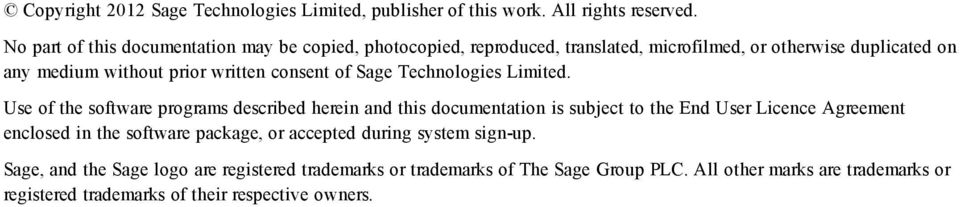
3 Contents Chapter 1: About This Guide 1-1 Chapter Summary 1-1 Chapter 2: System Overview 2-1 System Architecture Overview 2-1 Client Software Requirements 2-1 Cross-Browser Compatibility 2-2 Files and Applications you may need on the Client 2-2 Recommendations for Client Hardware 2-3 Recommendations for Solo Clients 2-3 Access for Mobile Users 2-3 Server Software 2-4 CRM on Vista 2-4 Database Servers 2-4 Web Servers 2-5 CRM Installations on a 64-Bit Server 2-5 Windows 2008 and IIS CRM Installations on Windows 2008 Server 2-6 Installing Microsoft SQL Server Express on Windows 2008 Server R2 2-6 CRM Installations on Windows 2008 Small Business Server 2-6 Recommendations for Server Hardware 2-7 General Recommendations 2-7 Solo Installations 2-8 Server Memory 2-8 Installations with Under 50 Users 2-8 Installations with Over 50 Users 2-8 Installations with Over 200 Users 2-8 Installations with Several Hundred Users 2-8 Test Servers 2-8 Chapter 3: Security Overview 3-1 User Authentication / Password Setup 3-1 Installation and Upgrade Guide Contents i

4 Contents Password Encryption 3-1 Password Expiry 3-1 Security Profiles and Territories 3-1 Field Security 3-2 Company Team Restrictions 3-2 Restrict Sensitive Info 3-2 Restrict Updates 3-3 Principles of a Secure Installation 3-3 Server Security 3-3 Database Security 3-3 Firewalls 3-4 Application Security 3-5 Up-to-date software 3-5 Chapter 4: Installation 4-1 Prerequisites 4-1 Running the Setup Program 4-1 Installing CRM for the First Time 4-1 Installing CRM when a Version is Already Installed 4-3 Using the License Key Update Application 4-5 Installing CRM for an Oracle Database 4-5 Install Changes for Version Apache Tomcat 4-6 Apache Tomcat Redirector 4-7 Check Tomcat Settings 4-7 New Folders in WWWRoot 4-8 Uninstalling CRM 4-8 Running the Uninstall Shield 4-8 Uninstalling Manually 4-9 Chapter 5: Server Administration 5-1 Scheduling Backup of the CRM Database 5-1 Restoration of a Backup of the CRM Database 5-1 Setting up a Database Maintenance Plan 5-2 Contents ii Sage CRM

5 Contents Why Perform Manual Backups? 5-2 Backing up the Database 5-3 Backing up the Registry 5-3 Backing Up Program Files 5-3 Chapter 6: Multi-server CRM 6-1 Installing Multi-server CRM 6-1 Prerequisites 6-1 Installation 6-1 Multi-server CRM Configuration Settings 6-2 Making Changes on a CRM Server 6-3 Load Balancing 6-3 Load Balancing Example 6-3 Chapter 7: Introduction to Upgrading 7-1 Preparing for an Upgrade 7-1 Recommended Steps in the Upgrade Process 7-2 Chapter 8: Running a Test Upgrade 8-1 Preparing for a Test Upgrade 8-1 Licensing 8-1 Software Installation 8-1 Baseline Testing 8-2 Script Customizations 8-2 Checking Phone and Table Changes 8-2 Dropped Columns 8-3 New Link Tables 8-4 Dropped Views 8-5 Running the CheckPhone Utility 8-7 Updating Customizations 8-7 Solo 8-9 Exchange Integration 8-9 Upgrading from v7.1 SP1 to v7.1 SP Migration of the Communications Details field 8-10 Installing Backups to the Test Environment 8-10 Installation and Upgrade Guide Contents iii
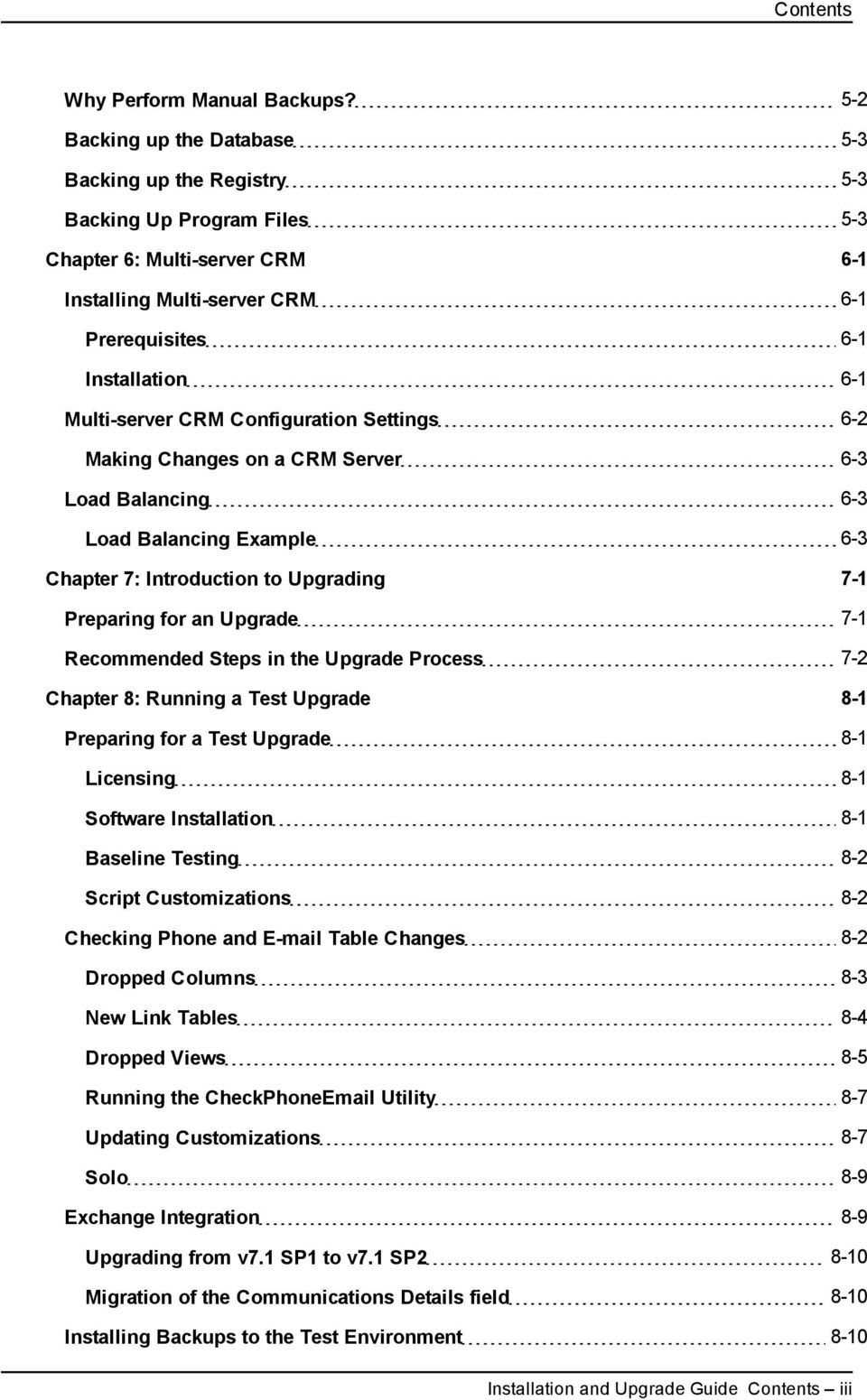
6 Contents Performing a Test Upgrade 8-10 Reviewing Test Upgrade Logs 8-11 Testing a Test Upgrade 8-11 Chapter 9: Upgrading Sage CRM 9-1 Preparing for a Live Upgrade 9-1 Understanding which Scripts Run During the Upgrade 9-1 Running the Upgrade Install Shield 9-2 Reviewing the Upgrade Log 9-3 Starting the CRM Indexer Service 9-4 Testing a Live Upgrade 9-4 Chapter 10: Restoring a Live Environment 10-1 Planning for Restoring a Live Environment 10-1 Re-registering the EWARE.DLL 10-1 Restoring the Database Backup 10-1 Restoring the Registry Backup 10-2 Uninstalling Services 10-2 Re-installing Services 10-3 Redirecting the Web Site 10-3 Chapter 11: Upgrading Multi-Server CRM 11-1 Preparing for Upgrading Multi-Server CRM 11-1 Multi-Server CRM Upgrade Process 11-1 Running the Install Shield on the Database Server 11-2 Running the Install Shield on a non-database Server 11-2 Chapter 12: Upgrade Checklist 12-1 Sample Upgrade Checklist 12-1 Chapter 13: Troubleshooting 13-1 View Error 13-1 Troubleshoot Redirector Errors 13-1 Contents iv Sage CRM

7 Chapter 1: About This Guide This guide is for Sage CRM System Administrators and Sage CRM Certified Consultants and is intended as an introduction to the Sage CRM system architecture and system requirements, as well as providing detailed instructions on installing or upgrading Sage CRM. Please note that while the document refers to Sage CRM, CRM, or the CRM system throughout, regional products may use different brand names. We assume that you are an experienced Sage CRM System Administrator or Certified Consultant, and are familiar with: The administration tasks covered in the Sage CRM System Administrator Guide. Backup and restoration procedures for SQL databases, or whatever database type you are working with. Chapter Summary Chapter System Overview Installation Server Administration Multi-server CRM Introduction to Upgrading Running a Test Upgrade Upgrading Sage CRM Restoring a Live Environment Upgrading Multi Server CRM Upgrade Checklist Troubleshooting Description An introduction to the system architecture and recommended client and server specifications. How to install the software using the Setup program. Backup recommendations. An introduction to CRM in a multi-server environment. Recommended steps in the upgrade process. Requirements for setting up a test environment and procedures for running a test upgrade. How to perform and test an upgrade. How to restore a live environment in the event of a failed upgrade. How to upgrade a multi-server CRM environment. A list of key milestones in the upgrade process. Troubleshooting tips. Installation and Upgrade Guide 1-1

8

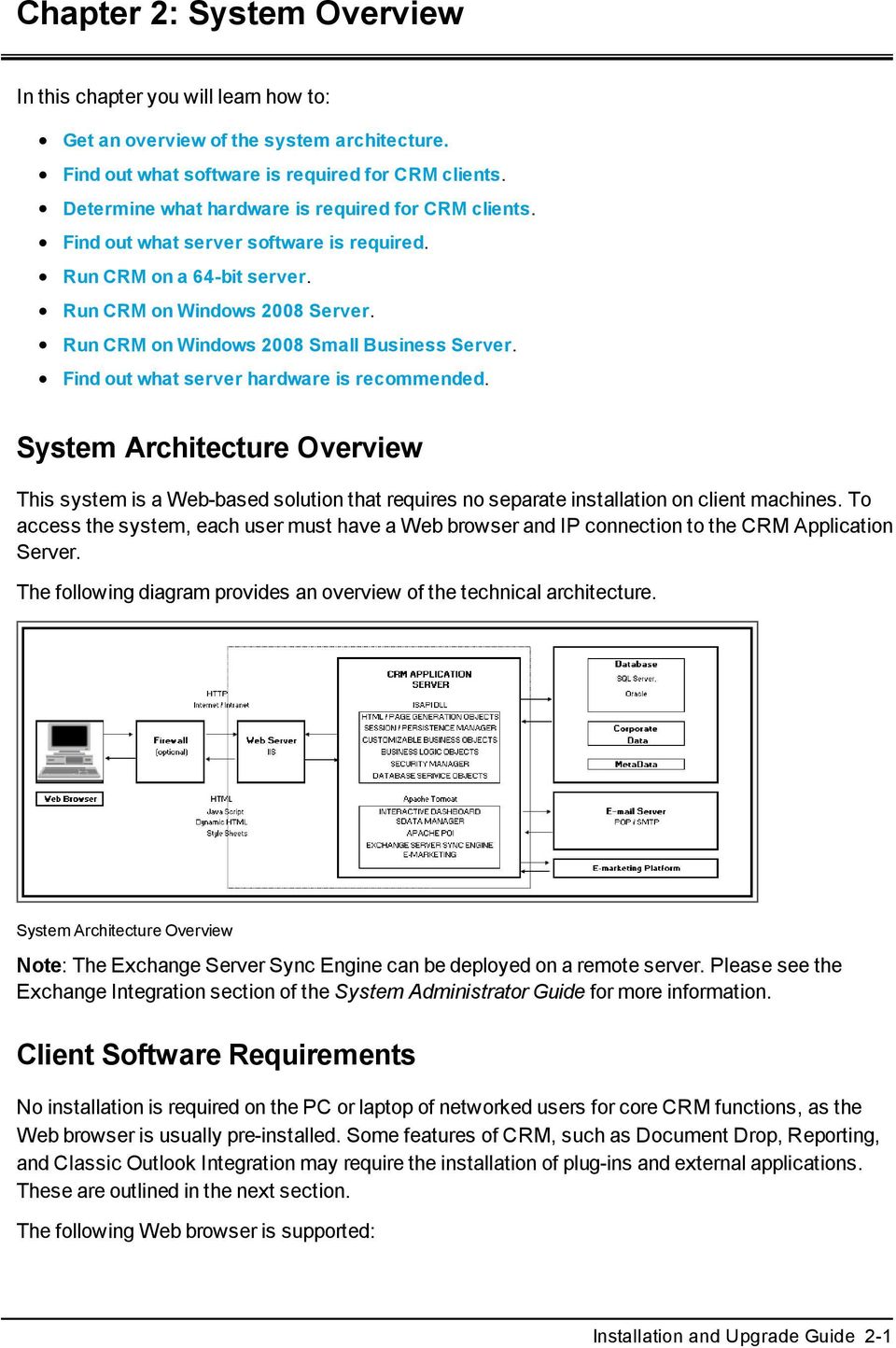
9 Chapter 2: System Overview In this chapter you will learn how to: Get an overview of the system architecture. Find out what software is required for CRM clients. Determine what hardware is required for CRM clients. Find out what server software is required. Run CRM on a 64-bit server. Run CRM on Windows 2008 Server. Run CRM on Windows 2008 Small Business Server. Find out what server hardware is recommended. System Architecture Overview This system is a Web-based solution that requires no separate installation on client machines. To access the system, each user must have a Web browser and IP connection to the CRM Application Server. The following diagram provides an overview of the technical architecture. System Architecture Overview Note: The Exchange Server Sync Engine can be deployed on a remote server. Please see the Exchange Integration section of the System Administrator Guide for more information. Client Software Requirements No installation is required on the PC or laptop of networked users for core CRM functions, as the Web browser is usually pre-installed. Some features of CRM, such as Document Drop, Reporting, and Classic Outlook Integration may require the installation of plug-ins and external applications. These are outlined in the next section. The following Web browser is supported: Installation and Upgrade Guide 2-1
10 Chapter 2 Microsoft Internet Explorer (7, 8 and 9) Note: If you experience performance issues with IE, it may be due to the number of HTTP connections open at any one time (for example, multiple tabs within a single browser session, one of which is CRM, with a dashboard including multiple RSS feeds). To prevent this issue affecting CRM performance, it is recommended that CRM is opened in its own browser window. Cross-Browser Compatibility The Main Menu area of Sage CRM is compatible with the following browsers: Apple Safari 5 Google Chrome (latest version) Mozilla Firefox (latest version) There are still some minor differences to look out for in the Main Menu area. The main ones are: Hot Keys the documented hot keys, such as Alt + T to create a new task from the Calendar tab are supported on IE only. The Send Using Outlook button on the New screen this is not supported in non-ie browsers There are some areas of the product which are supported in IE only. These include: The Administration menu Self Service Demo Web Site Crystal Reports Classic Dashboard Classic Outlook Integration Outlook Plug-in for Exchange Lite Outlook Plug-in (Cloud) Solo CTI Files and Applications you may need on the Client Document Plug-in: To use the Document Drop functionality. Only available when working with CRM in Internet Explorer. The first time a user encounters one of the features requiring the plug-in (for example, the My CRM Calendar page displaying the Document Drop icon), they are prompted to download a plug-in. Instructions are provided on-screen. Users must be administrators or power users of their machine to install the plug-in. Your browser must also be configured to accept plugins. Access to Document Drop can be disabled by the System Administrator from Administration and Documents Documents & Reports Configuration. Note: If you experience errors while using IE 7 in combination with the Skype plug-in, Mastermind, it is recommended that you temporarily disable the Mastermind plug-in,or upgrade Skype to the latest version.more information can be found on Skype's web site. Adobe Reader: To view CRM reports in Adobe PDF format, Adobe Reader must be installed on the client machine. The Adobe Reader can be downloaded from Adobe Flash Player: To display and/or interact with any charts in v7.1 SP2 and earlier versions of v7.1, you must have the Adobe Flash player on either the CRM server or the client machine 2-2 Sage CRM

11 Chapter 2: System Overview ideally on both for the best user experience. Flash is required on the client machine to display charts in embedded Adobe Flash format - this provides the interactive and animation element of the charts. Flash is required on the CRM server to display the charts as server-rendered bitmaps, or static images. Please refer to Interacting with Charts in the User Guide for more information. The Adobe Flash Player can be downloaded from Outlook Plug-in for Exchange Integration:Your System Administrator can roll out the Outlook plug-in for Exchange Integration by Active Directory Group Policy, or you can install it manually.to install manually, users must be administrators or power users of their machine, be running Outlook 2007 or 2010, and must have been enabled by their System Administrator to view the plug-in button. Outlook Plug-in for Classic Outlook Integration: To install CRM Outlook Integration, users download the Outlook Plug-in for Classic Outlook Integration from within CRM in the My CRM Preferences tab. Users must be administrators or power users of their machine to install the Outlook Plugin. The Outlook Plugin requires XML Parser and the.net Framework to be on the client. These are checked for during the install process and installed if not present. Note: Users are required to have either Outlook 2007 or Outlook 2010 to use Classic Outlook Integration. Sage CRM Outlook client integration is supported for accounts running on Microsoft Exchange Server MAPI or POP3. Roaming Profiles are not supported. Microsoft Office applications: The data upload feature accepts files in *.XLS or *.XLSX format, created by Microsoft Office Excel 2007 or later versions. Data Upload also accepts *.CSV files. You can save mail merge templates that you create in Microsoft Word in *.DOC, *.DOCX, *.HTM, and *.HTML formats. Microsoft Word 2007 or later, or another program that can open *.DOC, and *.DOCX files, must be installed in order to view merged documents. Recommendations for Client Hardware As the application uses a Web browser, the client hardware specification is determined by the minimum Web browser requirements for the client operating system. Recommendations for Solo Clients Recommendations for Solo Clients. A Core 2 Duo (or comparable) processor with at least 1 GB of RAM is required. 65 MB of disk space is required for the Client installation. The disk space required for the Client s filtered data will vary depending on your offline profile. Access for Mobile Users Mobile users can access the system using a dial-up connection via RAS or the Internet. They can connect to CRM as if they were at their desk, and the full functionality available to them at their desk is available to them via dial-up - the interface is exactly the same. Because CRM only delivers HTML and JavaScript to the user's Web browser, it is ideally suited to this type of usage. Any security implications can be overcome via firewall software, ensuring the integrity of data at all times, and by encrypting all data transferred. Mobile users have a choice of how to access the system. Using a dial-up connection via RAS or the Internet, they can connect to CRM as if they were at their desk. The full functionality available to them at their desk is available to them via dial-up, and the interface is exactly the same. Because CRM only delivers HTML and JavaScript to the user's Web Installation and Upgrade Guide 2-3

12 Chapter 2 browser, it is ideally suited to this type of usage. Solo users can download the CRM database, work offline, and synchronize with the central database via a dial-up connection. Typical data synchronization times for Solo users is two or three minutes, but this depends on the number of updates made to both client and server databases. Either option has security implications, which can be overcome via firewall software, ensuring the integrity of data at all times, and by encrypting all data transferred. Note: It is recommended that Solo Clients limit the number of database records they synchronize to 10,000 or less. Server Software For a standard implementation, an overview of the supported software environments can be found in the Software Support Matrix available in the following location: One of each of the application server, database server and Web server products must be installed prior to installing the application. Note that in addition to CRM license costs, customers need to independently purchase licenses for this software. This should be organized by your IT department using their established suppliers. It may be possible to reuse licenses purchased for other applications if they are not currently being used. Sage CRM can be run in a virtualized environment. Configuration, setup, and performance of the virtual environment are the responsibility of your IT department. CRM on Vista The CRM server needs to be set as Trusted Site in Vista if a client machine is running CRM on Vista. Database Servers TCP/IP must be enabled for SQL Server installations. Oracle databases can run on a Unix or a Windows operating system. Microsoft SQL Server cluster In a high-availability environment, Sage CRM can be used with a Microsoft SQL server cluster in an active/passive configuration. This configuration will provide resiliency in the database layer of your solution. Note: A Microsoft SQL Server cluster should be configured according to Microsoft s specifications and guidelines. Installing Sage CRM onto a Microsoft SQL server cluster works in the exact same manner as installing Sage CRM onto a single Microsoft SQL Server instance. Provide the SQL cluster address and SQL logon credentials when prompted in the Database Server Login dialog box during the Sage CRM installation. Please see Running the Setup Program (page 4-1) for more information. Database Size The default setting for the initial database size is 0.5GB (512 MB), but this can be changed during the installation process. SQL Express Editions are largely for demo installations of Sage CRM and are not recommended for use in Production environments. The primary reason for this is owing to the database size restrictions as outlined below: 2-4 Sage CRM
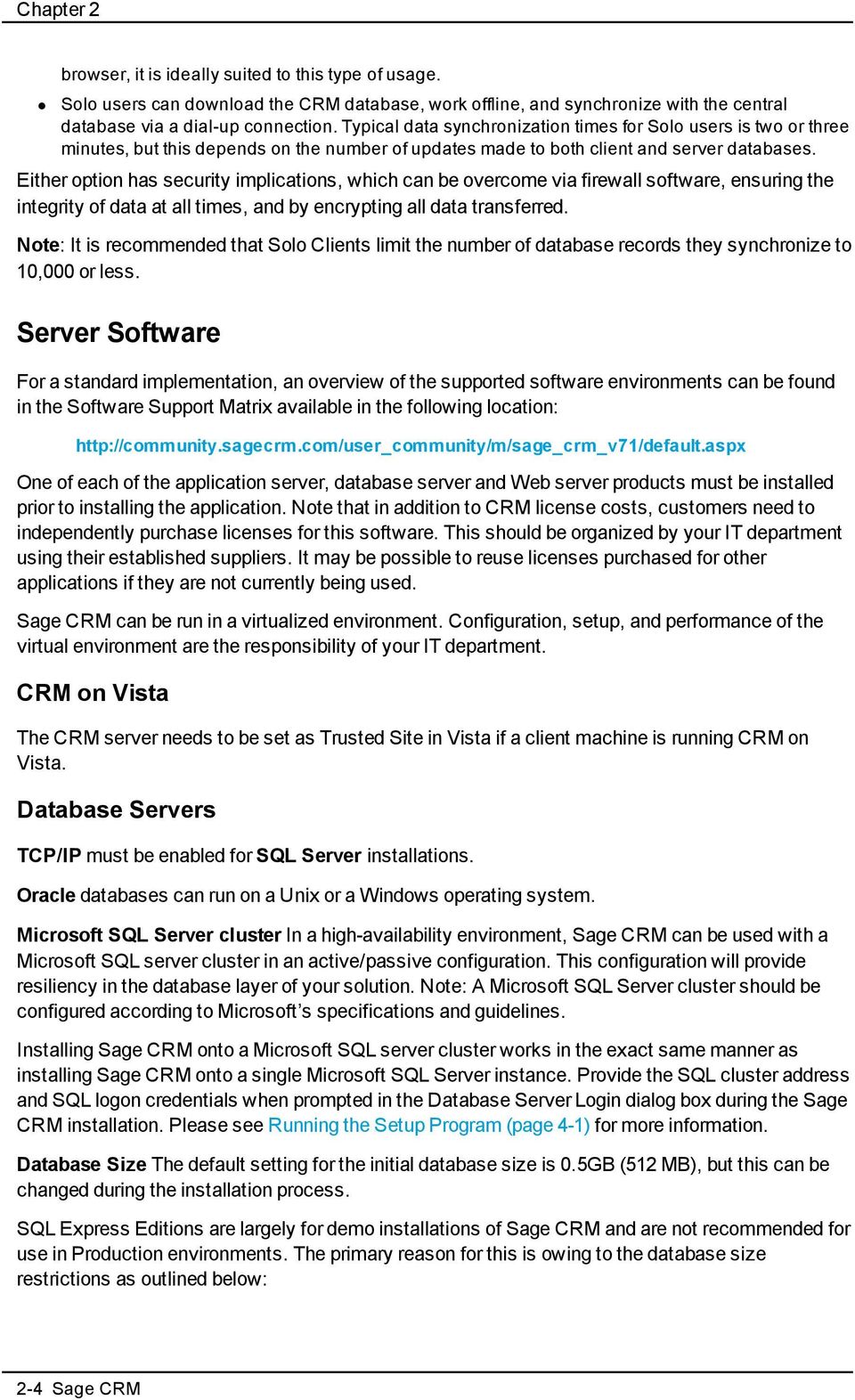
13 Chapter 2: System Overview SQL Server 2005 & SQL Server 2008 Express Editions are limited to creating databases of 4GB in size. SQL Server 2008 R2 allows for the creation of up to a 10GB database. Database Collation The Sage CRM installation create its own SQL collation on the CRM database. In previous versions, it inherited it the collation from SQL Server (at the database server level). Localized installs of CRM should run more smoothly as a result. The CRM install creates the following default collations: EN Latin1_General_CI_AS DE Latin1_General_CI_AS ES Modern_Spanish_CI_AS FR French_CI_AS CS Chinese_PRC_CI_AS Web Servers If you are working with IIS 7.0, you must make sure you have the following components selected under Internet Information Services World Wide Web Services Application Development Tools: ASP ISAPI Extensions ISAPI Filters If you are using the Extensibility Module with IIS 6.0, check that IIS Web Service Applications Active Server Pages is not set to Prohibited. When working with IIS 6.0 or above please check that the Enabled Parent Paths option is enabled. If it is disabled you may experience errors when working with Self Service and custom ASP pages. Please refer to for more information. CRM Installations on a 64-Bit Server Windows 2008 and IIS 7 CRM is a 32-bit application which can run on a 64-bit server. If you are installing on Windows 2008 x64, you need to do the following after the install for all application pools under the DefaultWebSite. To enable 32 bit ISAPI.dll to run on IIS 7.0 x64: 1. Click the Application Pools node. 2. Select the AppPool item you want to change. 3. Select Advanced Settings from the Actions panel. 4. On the Advanced Settings dialog box, set Enable 32-bit Applications to True. 5. Click OK. Note: Oracle is not supported for 64-bit Operating Systems. Installation and Upgrade Guide 2-5
14 Chapter 2 CRM Installations on Windows 2008 Server Before installing CRM, ensure that IIS is installed as a Server Role. To check IIS is installed as a Server Role: 1. Select Start All Programs Administrative Tools Server Manager Roles. 2. Select Add Roles.The Add Roles Wizard is displayed. 3. Click Next. 4. Select Web Server (IIS). Then, in the Role Services section of the Add Roles Wizard, make sure that the following role services are selected for your install: Application Development ASP.NET Application Development ASP (set Enable Parent Paths to True) Security Windows Authentication (if Auto Logon is required) Management Tools IIS Management Console and IIS Management Compatibility. Note: You also need to ensure in IIS that the Anonymous Authentication Credentials are using Application Pool Identity or are hard-coded with a local administrator account, otherwise you may experience issues when editing CRM System Settings. Installing Microsoft SQL Server Express on Windows 2008 Server R2 If you are installing Sage CRM on Windows 2008 Server R2 and have no database installed, you must install the Microsoft.NET Framework 3.5 Service Pack via the server feature in order for Microsoft SQL Server Express to install. To install the.net Framework 3.5 Service Pack on Windows 2008 Server R2: 1. Select Start Administrative Tools Server Manager 2. From the Features Summary panel, select the Add Features option. 3. Select the.net Framework Features option. 4. Click Install. CRM Installations on Windows 2008 Small Business Server The following steps are prerequisite to getting Sage CRM running on Small Business Server (SBS) Premium and SBS Standard: 1. Install CRM. 2. In IIS Application Pools Default Application Pool Advanced Settings Set Enable 32 Bit Applications to True. 3. Turn off UAC in the Control Panel User Accounts. 4. Launch CRM, if you get "Service Unavailable HTTP Error 503. The service is unavailable", change the following line in your applicationhost.config file, which is located %windir%\system32\inetsrv\config\: From: <add name="passwordexpirymodule" image="c:\windows\system32\rpcproxy\rpcproxy.dll" /> 2-6 Sage CRM
15 Chapter 2: System Overview To: <add name="passwordexpirymodule" image="c:\windows\system32\rpcproxy\rpcproxy.dll" precondition="bitness64" /> Note: This step may not be necessary on a clean SBS Standard machine, as the precondition bitness64 is set by default. 5. Launch CRM. 6. If you get HTTP Error Internal Server Error, run the following command to turn off HTTP compression: %windir%\system32\inetsrv\appcmd.exe set config - section:system.webserver/httpcompression /-[name='xpress'] 7. Reset IIS. 8. Launch CRM. Recommendations for Server Hardware Sage CRM installations comprise of a web / application server that run IIS and Apache Tomcat and a database server to store the records. A file share is also required to store library files, although this is generally stored on the web server. The following sections provide general recommendations for CRM installations, as well as specifications for large CRM installations. These recommendations assume no other software is installed on the servers.where a customer installation of Sage CRM is running additional software or web applications, the person installing Sage CRM must add the requirements of that additional software to these Sage CRM recommendations. General Recommendations For the web server we recommend using disk mirroring (RAID 1). For the database server we strongly recommend using a RAID 10 disk array system. The RAID 10 allows you to swap out a failed drive with minimal disruption to your production environment and improves performance. Larger sites should consider the use of a fibre channel SAN. Each site must have adequate backup and recovery capabilities. We recommend that you use an Uninterruptible Power Supply. We strongly suggest that you have a "hot stand-by" system that has a backup database. This standby system should have a very similar configuration to the primary production system. The standby system can also be used for development and testing. The amount of disk space required varies widely based on the number of customer records, archiving plans, and backup policies. The disk space can also vary widely based on the amount of information held for each customer. Therefore, it is important to try to estimate this prior to installation and purchase sufficient disk storage to allow for significant growth in the volume of data. It is important to keep in mind what type of user will be working with the system. For example, 200 call center users use the system more intensively than 200 sales and marketing users. The guidelines given below are for call center type users on a non-customized system. Please bear in mind that product customizations can significantly impact the performance of Sage CRM and should be carefully evaluated when specifying hardware. For older hyper-threading capable CPU s, hyper-threading should be turned off. Installation and Upgrade Guide 2-7
16 Chapter 2 Solo Installations Regardless of number of users, every Solo CRM system should have a dedicated database server. The database is regularly used for heavier synchronization processes coming from Solo Clients. Server Memory The default setting for the initial database size is 0.5GB (512MB), but this can be changed during the installation process. Database server memory size is critical to performance and should be no less than the anticipated database size after one year plus 1 gigabyte. If you expect the database to be 6 gigabytes after one year plan on a server with at least 7 gigabytes of memory. If this rule of thumb indicates a server with 4 or more gigabytes of memory you should deploy Windows bit edition or above with 64-bit database software. The web servers should have at least 4 gigabytes of memory. Note: Oracle 64 is supported in a distributed environment only. Installations with Under 50 Users Servers. You may keep the web server and database server on the same machine provided the database size is less than 2 gigabytes and there is a minimum of 4 gigabytes of RAM on the server. Processors. The machine should have 2 quad core processors, but need not to be high spec, e.g. Intel Xeon E5330 or AMD Opteron Installations with Over 50 Users Servers. Split the Database server and Web server across two machines. Processors. The machines should have 2 quad core processors, e.g. Intel Xeon X5550 or AMD Opteron 2382 but higher spec processors should be considered to allow for growth in user number. Installations with Over 200 Users Processors. The processors in each of the machines must be high specification, for example AMD Opteron 8431 or Intel Xeon E7450. Installations with Several Hundred Users Processors. The processors in each of the machines must be high specification, for example AMD Opteron 8431 or Intel Xeon E7450. The database server should be dual six core, i.e. Intel Xeon X7460. Multi-Server Option. Multi-server CRM should be considered. Test Servers It is recommended to have one or more Test Servers to replicate the above. One server is sufficient for this unless bench marking is being run, in which case, you should replicate the server specification and configuration as closely as possible. Future phases of projects and change requests also need a test environment after the initial "Go Live" is achieved. 2-8 Sage CRM

17 Chapter 2: System Overview For every third-party server involved in the deployment of CRM, there should also be an equivalent testing server. For example Exchange server, Accounting server. Installation and Upgrade Guide 2-9

18

19 Chapter 3: Security Overview In this chapter you will learn how to: Apply user authentication and passwords. Apply security profiles and territories. Apply field security. Apply company team restrictions. Apply principles of a secure installation. User Authentication / Password Setup A user requires a User Name logon ID to access the system. You can also set the minimum length and strength of passwords. These settings can be accessed from Administration Users Security Policies. Password Encryption A user's password is encrypted both within the system and in the database for maximum security. The System Administrator can change, but not view, a user's existing password. Password Expiry The number of days for the password to expire is set within Administration Users User Configuration. When the password is changed, the expiry date is adjusted accordingly. The Password Never Expires field in the User Details page must be set to False for this setting to take effect. Security Profiles and Territories The System Administrator can manage security access rights across the organization by setting up security Profiles and, if required, security Territories. Profile. A profile is a way of grouping users together when defining access rights (View, Update, Insert, Delete). Territory. In addition to basic access rights profiles, you can further divide users rights by territory. For example, you may want users in the Europe territory to view all Opportunities within the USA territory, but not to be able to update them. Complex inter-territory security rights and exception handling are also catered for using Advanced Policies. Profiles and Territories are set up from Administration Security, and assigned to users within Administration Users. Please see the Security Management chapter in the System Administrator Guide for more information. Installation and Upgrade Guide 3-1
20 Chapter 3 Field Security The System Administrator can set up field security for the whole CRM system, for individuals, teams, and for security profiles via the Administration Customization <Entity> Fields tab. For example, it is possible to make a field invisible to some users, allow others to view the contents of the field but not to change them, and to give others both read and write rights. In addition, it is also possible to make it mandatory for the user to enter a value in the field before submitting the form. For more information on Field Security please refer to the Using Field Security chapter in the System Administrator Guide. Access rights set for Everyone, an individual user, and a security profile Company Team Restrictions Restrict Sensitive Info Rights to view the following tabs can be restricted for individual users depending on company team membership. This means that if you have not been assigned to work on an account via the Company Team tab, you may not view or update information in the following tabs: Quick Look Dashboard Marketing (if available) Notes Communications Opportunities Cases Company Team Documents The tabs are displayed with "no entry" signs. Company tabs If a user selects one of the restricted tabs, a dialog box is displayed to inform the user that they must be on the team to view the information. These access rights can be set up in the User Details page. 3-2 Sage CRM

21 Chapter 3: Security Overview If a user searches for a related entity, such as an Opportunity, and they are not on the Company Team of the associated company, when they click on the hyperlink of the entity in the list, the following message is displayed: "You do not have security rights to view this entity". Restrict Updates The Delete and Edit buttons are available on the Company summary page only if the user is on the Company team. In addition, rights to update the following tabs can be restricted for individual users depending on company team membership. This means that if you have not been assigned to work on an account via the Company Team tab, you may view, but not update any of the following information related to that account: Quick Look Notes Communications Leads Opportunities Cases Documents Principles of a Secure Installation Backing up database information is just one element, albeit a critical one, in an overall approach to maintaining a secure and stable CRM installation. By adhering to best practices, administrators can minimize the risks of service interruption and data corruption that can arise from sophisticated deployments. Server Security There are many ways to secure the system from unauthorized access: Use NT Challenge/Response to allow access to clients with a valid domain login. Use SSL Encryption to secure your data sessions with client users. Use a Firewall to restrict unauthorized access from outside of your network and allow only authorized users through. Separate the domain controller server from the CRM application and database servers. In a Windows Server Systems environment, the Domain Controller (DC) serves as a "gatekeeper" to the domain resources by storing account information, authenticating users, and enforcing security policies. The defences offered by a configured DC are further enhanced by placing it behind a robust firewall. You can use all four or a combination of the above methods to secure connections to the system. Database Security Users do not have direct access to the SQL database. The eware DLL accesses the database by using a predefined logon. When a user requests data, the eware DLL connects to the database using MDAC and retrieves the required data. For more security the eware DLL can be configured to Installation and Upgrade Guide 3-3
22 Chapter 3 access SQL using a login with limited access, or access with the appropriate rights to add, change and delete data from every table in the database. Administrators should address the potential of remote users obtaining administrator level access to the system by ensuring appropriate passwords are associated with the "sa" account. If you need to change the logon password: 1. Log onto CRM with System Administrator rights. 2. Select Administration System Database. You will now be able to see the logon that the user uses to access the SQL database. 3. Click on the Change button and type in the new password. 4. Select the Save button. To start SQL Server Enterprise Manager: 1. Go to the appropriate Server registration (that is, the name of your Server) and expand the tree. Select the Security folder and then Logins. 2. Right-click on the login you want to change and click on Properties to change the password. 3. You will now have to go to the Management folder and right click on SQL Server Agent. Click Properties and select the Connection tab. Input the new password here. 4. You must now stop and start IIS (Internet Information Services) so as to reinitialize it due to the password change. At the DOS command prompt type the following: net stop iisadmin /y net start w3svc net start msftpsvc SSL (Secure Sockets Layer) Without using a Firewall, IIS can use different methods to secure transmitted and received data. One of the methods of securing data is by using a SSL server certificate. This ensures that data that has been transmitted and received between the server and the user is encrypted. There are two versions of SSL encryption 40bit and 128bit. At the moment it is possible to crack the 40bit encryption with the right amount of computing power but at today's computing standards it is not possible to crack 128bit. SSL cannot protect your server from unauthorized access; it can only encrypt sessions between the server and a user. An SSL certificate can be imported into IIS to create a secure connection between CRM and its users. When a client logs onto CRM, the SSL certificate is downloaded and the data sent to and from the client is encrypted. Using this method, anybody can log on and download the SSL certificate. To be more secure, IIS can be configured to only allow clients with a SSL certificate installed on their machine and deny anybody without the appropriate certificate. Also, IIS can use Windows NT Challenge/Response, which basically requests a user to login using a valid user name and password for that domain, before giving them access to any data. Firewalls If you plan to let users access the system remotely, the best way that you can protect your network from the Internet is to install a Firewall. This will ensure that only authorized traffic accesses your CRM database and protects your server from unauthorized users. By using a Firewall you can configure rules to only allow certain traffic through and to only allow traffic originating from a specific source. By doing this you can ensure that your server is protected from Internet attacks. You can 3-4 Sage CRM
23 Chapter 3: Security Overview also install a Firewall in all of your remote sites and set up Virtual Private Networks (VPNs) to increase the security of data being sent. Also, mobile users can be set up as mobile firewall users so they can access the VPN and transmit and receive data securely. Application Security When a user wants to gain access to the system he or she must be assigned a valid user name and password within CRM by the System Administrator. Within the system each user can be assigned different levels of access security depending on their job role (for example, IT, Accounts). To increase security all users should be advised to use an alphanumeric password of no less than 6 characters.the more secure HTTPS protocol protects data from unauthorized access through the use of an encrypted SSL. When IIS uses SSL encryption CRM is aware of this and when the client attaches any documents to a form in CRM, it sends it through the encrypted session. Up-to-date software Regular installation of software such as Windows Updates and the slipstreaming of software patches minimize software security vulnerability. Recognized anti-virus software is also a necessary tool for any network system. Installation and Upgrade Guide 3-5
24
25 Chapter 4: Installation In this chapter you will learn how to: Prepare to install the software. Run the setup program. Use the License Key Update application. Install CRM for an Oracle database. Install Changes for Version 7.1. Uninstall CRM. Prerequisites To install CRM you need: The software described in System Overview (page 2-1). CRM connects to the database using Microsoft Data Access Components (MDAC). If your system does not support MDAC, or the latest version, it is installed as part of setup. The latest version of the Java Runtime Environment (JRE) installed. Note: Installing the 64-bit JRE will delete any existing 32-bit jvm.dll files. If you are installing a trial version of CRM, you must have at least IIS 6 installed. An evaluation version of SQL Server is installed during the setup if it does not already exist. A valid license key. The license key takes into account your company name. Care must be taken during the installation to enter this information exactly as instructed by the vendor. The CRM CD or Install Download. The install includes a setup utility that you can use to install CRM, documentation in PDF format, and a Microsoft SQL Server evaluation install. Note: During installation CRM will access and update your registry and install software. Running the Setup Program The process for installing CRM differs depending on whether a CRM installation already exists on the server or if this is the first CRM installation. Both procedures are described below. Note: It is recommended that when installing Sage CRM, a dedicated SQL Server user for CRM should be used (i.e. not the "sa" user). Alternatively, ensure there is a back-up user with the same privileges as "sa" in SQL Server. Both of these measures will prevent access issues if the "sa" user gets locked out of CRM. Installing CRM for the First Time To install CRM if no other CRM installs exist on the server: 1. Run the SETUP.EXE from the CD or from the location where you copied and saved the install. The first Sage CRM install page is displayed. This page is localized for your country, however, the options available normally include at least one type of Sage CRM install option and the ability to view the Sage CRM documentation. Installation and Upgrade Guide 4-1
26 Chapter 4 2. Select one of the options to install Sage CRM. 3. At the first Sage CRM Install Shield Wizard page, select Next to continue. 4. Review the Software License Agreement. If you accept all of its terms, select the I Accept The Terms Of The License Agreement option and click Next; otherwise select the I Do Not Accept... option and Cancel to end the installation. 5. If you select I Accept, the User Details dialog box is displayed. User Details dialog box 6. Type your name in the Name field, your company name in the Company field, and your license key in the License field. The company name and license key must be typed in exactly the same way as provided to you by the vendor. 7. Select Next. The Database Selection dialog box is displayed. 8. Choose either Existing Microsoft SQL Server or Install Microsoft SQL Server Express and select Next. If you select the Existing Microsoft SQL Server option, the Installation Name dialog box is displayed. The SQL server needs to have a case insensitive collation.binary or casesensitive collations are not supported. The default SQL Server port is If you select the Install Microsoft SQL Server Express option, you will be prompted to install the software. For more information on installing Microsoft SQL Server Express on Windows Server 2008 R2, please refer to CRM Installations on Windows 2008 Server (page 2-6). Note: The sa password for the SQL Server 2008 Express install is "SageCRMv71", and the instance name is "crmsqlexpress". The SQL Server Express port will be chosen automatically. 9. Type the installation name. It is recommended that you use the default installation name, CRM. If you enter an alternative name, please make sure there are no spaces in the name. 10. Select Next. The Choose Destination Location dialog box is displayed. 11. Set the default location for the CRM program files. IIS looks in this location for the CRM home page. Note: Including extended characters in the installation path or folder is not supported in v7.1. If you wish to include such characters, you will need to implement a workaround. A suggested workaround is to run Tomcat as a service using the.net tool RunAsService. This is an open source tool ( which registers a.net Windows service that is configured to run any executable. 4-2 Sage CRM
27 Chapter 4: Installation 12. Select Next. The Database Server Login dialog box is displayed. 13. Confirm your server name and your SQL Server user ID, and enter the password for this user ID. Note: The Window Authentication option is not available during an install or upgrade. 14. Enter the initial size you want the Sage CRM database to be, for example: 1024 (for 1GB), 2048 (for 2GB), 4120 (for 5GB), (for 10GB). The default size is 512MB (0.5GB). You must enter an integer (no decimals), and the minimum you can enter is 50. This field has no upper limit validation, but the entry should accurately reflect your database and disk space limitations. Select Next to continue. The Select Setup Type dialog box is displayed. 15. Decide whether or not to include demonstration data in your installation, then select the Next button to continue. The Default Currency dialog box is displayed. Including demonstration data means that you get sample companies, leads, opportunities, cases, solutions, communications, people, territories, users, campaigns, and workflows. If you do not select demonstration data, you get sample workflows, but no other sample data. 16. Select a default currency from the list. If your default currency is not displayed on the list, click on the New button. The following dialog box is displayed: Currency dialog box Add the currency name, for example Norwegian Krone, and internationally recognized code, for example NOK, and click the OK button. The new currency is displayed in the list. The default currency is displayed in a read-only format against all currency type fields in CRM. If your implementation deals with multiple currencies, this forms the Base Currency against which all other currencies are calculated. 17. Select Next. The HTTP Protocol And Proxy Settings dialog box is displayed. If you are using the HTTPS protocol or use a proxy server for Internet access, select the Use Https or Use Proxy setting, and select Next to continue. If you select the Use Proxy setting, you will be prompted to enter your proxy address, port number, and authentication details if required. 18. Review the current settings, and select Next to continue. The CRM installation begins. Messages inform you of the progress. When the installation is complete, the Setup Complete dialog box is displayed. 19. Select Finish to complete the installation process. The Readme file is displayed. When you close the Readme file, the Logon page is displayed. Installing CRM when a Version is Already Installed To install CRM when one or more installs already exist on the server: 1. Follow Steps 1 to 4 in the installation procedure described in Installing CRM for the First Time (page 4-1), and select Yes to accept the licensing agreement. You are prompted to select an installation type. Installation and Upgrade Guide 4-3
28 Chapter 4 Dialog box listing installation types 2. The option you select determines the next part of the installation procedure. A description of each installation option and the steps you need to follow having chosen an option are described below. New Install: This creates a completely new CRM installation on the server. If you select this option, follow the steps below to proceed with the installation: Complete Steps 5 through 19 in the previous section. Please refer to Installing CRM for the First Time (page 4-1). Upgrade Previous Version of CRM: This option allows you to upgrade from version 7.0 SP1. To upgrade from 6.2, you must first upgrade to 7.0 using the 7.0 SP1 install. Versions older than 6.2 are not supported. As with all upgrades, it is recommended that you make a full backup of your data prior to upgrading. For more information about upgrading from a previous version of CRM, please refer to Running the Upgrade Install Shield (page 9-2). Change Existing Install of CRM: This option enables you to change specific components in CRM without the need to do a full upgrade. Components you can reinstall using this option are the Database, Registry, Program Files, IIS Aliases, and License Key. The ability to change the license key means that you can easily "add on" CRM features that were not purchased as part of the original license, or you can increase the number of licensed users. Note: You can also use the License Key Update application as an alternative way to update your install if the only change you need to make is to the license key. Please refer to Using the License Key Update Application (page 4-5) for more information. If you select the Change Existing Install of CRM option, follow the steps below to proceed with the installation: The next step depends on how many CRM install exist on the server. If there is one installation, you are brought directly to the Reinstall Options dialog box. If there is more than one installation, select the CRM install you want to upgrade. When you do this, you are brought directly to the Reinstall Options dialog box. Select the components you want to reinstall from the Reinstall Options dialog box, and select Next. You are prompted to backup components that will be affected. It is recommended that you perform the backups before you proceed. The outcome is slightly different if you select the License Key option. When you do this, you are prompted to enter the new license key. Then, the New CRM Features dialog box is displayed. Any differences between your previous license and the new one are listed here. 4-4 Sage CRM
29 Chapter 4: Installation If there any configurable options, you will be prompted to change them now. For example, if you have chosen to update the CTI component, you will be prompted to enter information about your current location. Click Next and the install will proceed automatically. Complete Reinstall: This option enables you to reinstall an existing CRM installation. Note: The existing installation is completely overwritten when you select this option. If you select the Complete Reinstall option, follow the steps below to proceed with the installation: The next step depends on how many CRM installs exist on the server. If there is one installation, you are brought directly to the Select Setup Type dialog box. If there is more than one installation, select the one you want to reinstall. When you do this, you are brought to the Select Setup Type dialog box. Complete Steps 12 through 19 in the previous section. Please refer to Installing CRM for the First Time (page 4-1) to complete the installation. Using the License Key Update Application The License Key Update application can be used an alternative to selecting the Change Existing Install Of CRM option in the CRM install shield, if the only change you want to make is to the license key. To run the license key update application: 1. Navigate to your install location, and select the License Update folder:..\program Files\Sage\CRM\[install name]\license Update 2. Launch LICENSEKEYUPDATE.EXE. 3. Enter the new license key. 4. Click Next and complete the wizard steps. The License Key Update application is also available with the CRM install files in:..\sage\crm\utils\en\license Update Installing CRM for an Oracle Database When installing CRM for an Oracle database, there are a number of important configuration tasks that need to be carried out to ensure that Oracle can communicate with the CRM UTF-8 (Unicode) database. Note: Oracle s UTF8 character set, available since version 8.0 of the DBMS, is actually not UTF-8 but an implementation of CESU-8. The character set AL32UTF8, introduced by Oracle in version 9.0, is UTF-8 compliant. Oracle recommends that you use AL32UTF8 for UTF-8 compliance. Please see Oracle's web site for more information. These include: Ensuring that the Oracle database is configured as a UTF-8 database. Ensuring that CRM is installed with the correct Oracle settings. A number of steps need to be taken during a CRM for Oracle installation. To start the CRM for Oracle installation: Installation and Upgrade Guide 4-5
30 Chapter 4 1. Begin the installation in the normal way, and follow the steps described in Running the Setup Program (page 4-1) until the Database Selection dialog box is displayed. 2. When the Database Selection dialog box is displayed, choose Oracle, and select Next. The Oracle Information dialog box is displayed. The table at the end of this section describes the Oracle database setup fields. The Oracle DB Name is made up of: [machine name] + [domain name]. Field Oracle Service Name Database Server System User Name System Password CRM User Name CRM Password TableSpace Size (MB) TableSpace Name TableSpace Path Description The name of your Oracle service. The name of the database server. The name of the Oracle system administrator. The password of the Oracle system administrator. The name of the CRM user with system administrator privileges. The password of the CRM system administrator. The size of the Oracle database. The name of the Oracle database. The location of the Oracle database. Notes on the information entered in the Oracle information dialog box: The setup program uses this information to create the database for CRM. The System User Name and Password are needed to create the Oracle Table Space and CRM user name specified. If the wrong information is entered here, the setup will fail. Once the installation process is successfully completed, you are given the option to launch CRM straight away. A program group is also added to the start menu. 3. Once you have completed the information on the Oracle Information dialog box, select Next. Continue with the installation, and refer to Running the Setup Program (page 4-1) for the next steps. Note: If you encounter the following error message during the CRM installation (or during an upgrade or reinstall), "Database in use, please drop the database first locally from the database server", you need to log onto the database server and drop the database to complete the installation. Install Changes for Version 7.1 There are a number of important changes to install behavior in version 7.1 to be aware of. Please note that modification of CRM's Tomcat installation is not supported. In particular, installation of 3rd party or bespoke applications into Tomcat or modifications of Tomcat configuration files, unless specifically requested by Sage Level 3 Support or a Sage Operating Company. Apache Tomcat A Tomcat service is installed with each instance of version 7.1. The Tomcat files for each install are in:..program Files\Sage\CRM\[installname]\tomcat 4-6 Sage CRM
31 Chapter 4: Installation Each Tomcat server requires its own port. The IIS-Tomcat proxy anchors on the following port info matching in..\program Files\Sage\CRM\[installname]\tomcat\ conf\server.xml <Connector port="16009" protocol="http/1.1" redirectport="8443" /> Apache Tomcat Redirector An Apache Tomcat redirector is installed to accommodate the Interactive Dashboard and SData features. Common files for the redirector are installed in:..\program Files\Sage\CRM\Services\IISUtils All rules are contained in the CRM.REWRITER.RULES file located here:..\program Files\Sage\CRM\Services\IISUtils\CRMRewriter The redirector in v7.1 is an ASP.NET Reverse Proxy, which is a 32-bit/64-bit ASP.NET web application configured in standard Apache format. This ASP.NET rewriter uses the HTTP protocol instead of binary socket and can be accessed directly in a browser, so you can easily check whether Tomcat is working. To test the connection you can enter the following test URL into your browser: Note: The ISAPI filters that were present in v7.0 have been removed. The SData virtual directory points to the physical location of the ASP.NET web app. To check this location is correct, you can go to Start Control Panel Administrative Tools Internet Information Services, expand the Default Web Site, right-click on sdata and select Properties and check the physical path. The basic function of the redirector is to remove the SData part of any incoming URL. Once this is removed, the URL will be redirected to the Tomcat web app as required. For example, an SData request may come in as but needs to be rewritten to The rewritten URL will then be redirected to the Tomcat web app. Check Tomcat Settings To check that Tomcat is working properly, you can enter the following URL into your browser: Port number]/[installname]j/sagecrm/-/$schema You can find the Tomcat port number in the server.xml file located in:..\program Files\Sage\CRM\[installname]\tomcat\conf To check that the IIS rewrite rules are working, enter the following URL into your browser: Installation and Upgrade Guide 4-7
32 Chapter 4 New Folders in WWWRoot The following folders have been added to the WWWRoot folder:..\program Files\Sage\CRM\[installname]\WWWRoot\GWT\..\Program Files\Sage\CRM\[installname]\WWWRoot\File Screen..\Program Files\Sage\CRM\[installname]\WWWRoot\FusionCharts The GWT folder contains the file gwt.js, which is used by the Interactive Dashboard and File screens to retrieve data from the eware.dll. The File Screen folder contains files and folders that are used for the new File screen that has been introduced with the Exchange Integration feature. The FusionCharts folder contains files and folders relating to the updated chart types available throughout Sage CRM. Note: It is important not to change any configuration files or folders unless instructed to do so. Uninstalling CRM You can remove CRM using the CRM Uninstall Shield, or you can remove it manually. Running the Uninstall Shield To Uninstall CRM using the Uninstall Shield in Windows XP: 1. Select Start Control Panel, and select Add/Remove Programs. 2. Click on Sage CRM and select the Remove button. 3. When the CRM Uninstall dialog box is displayed, select Next. The Database Login Details dialog box is displayed. If you have more than one CRM installation, select the installation you want to remove from the Uninstall list and select Next. Note that this dialog box is not displayed if you have a single CRM installation. If the installation is a Self Service or Multi-server CRM install, a dialog box is displayed to ask you if you are sure you want to remove the database (in the case of Multi-server CRM) or the Self Service installation and Web site (in the case of Self Service). Select Yes to continue. 4. Confirm your server name and your SQL Server user ID, and enter the password for this user ID. Select Next to continue. 5. Select Yes to confirm that you want to uninstall all of the CRM components listed. When the uninstall is complete, a dialog box is displayed. 6. Select the View Uninstall Log File check box if you want to view logging information and click Finish. The log file is displayed. If you need to delete any files manually, details are specified in the log. To Uninstall CRM using the Uninstall Shield in Windows 7: 1. Select Start Control Panel and select the Uninstall A Program hyperlink. 2. Click on Sage CRM and click the Uninstall button. 3. Follow steps 3-6 above. 4-8 Sage CRM
33 Chapter 4: Installation Uninstalling Manually Note that the steps listed below are based on an installation of CRM that uses the default installation name, CRM, and assume CRM was installed on the D: drive. If you used a different installation name, use it in place of CRM. If you used a different drive name, use it in place of D:. To uninstall CRM Manually: 1. Remove all CRM services (Escalation, Integration, Manager, Indexer). This can be done from a command prompt, for example:..\program Files\Sage\CRM\Services>crmindexerservice.exe /U The Apache Tomcat service can be removed from a command prompt:..\program Files\Sage\CRM\[install name]\tomcat\bin>service.bat remove [install name]tomcat6 2. Unregister the DLL: Select Start Run and type: regsvr32 "D:\Program Files\Sage\CRM\CRM\WWWRoot\eware.dll" /u Note: Enclosing the path in quotation marks allows for the space between Program and Files. When the RegSvr32 dialog box is displayed, click Yes to confirm that you want the eware.dll unregistered. 3. Select Start Control Panel Administrative Tools Internet Information Services and remove the CRM entry located on the Default Web Site tree on the left-hand pane. Note: In Windows 7, you must select Start Control Panel All Control Panel Items Administrative Tools Internet Information Services (IIS) Manager 4. Open Start Programs Microsoft SQL Server Enterprise Manager and, on the left-hand pane, expand the Databases tree to locate the CRM database. Then, right-click on the CRM database and select Delete to remove it. 5. Remove the registry entries: Select Start Run, type Regedit, and select the OK button. If you only have one CRM installation on your machine, expand HKEY_LOCAL_ MACHINE/SOFTWARE/ and delete the eware folder by right-clicking and selecting Delete. If you have multiple CRM installations, expand HKEY_LOCAL_ MACHINE/SOFTWARE/eWare/Config and delete the appropriate key from this location. Expand HKEY_LOCAL_MACHINE/SOFTWARE/eWare/Mapping and delete the appropriate key from this location. 6. Delete the CRM installation directory: Stop the Web service by selecting Start Run and typing net stop iisadmin /y. Note: you can access the Run command in Windows 7 by pressing the Windows logo key + R. Click the OK button. Once the service has stopped, from Windows Explorer, go to... \Program Files\Sage\CRM\CRM and delete the CRM folder, that is, the folder containing the CRM installation files. From Windows Explorer delete the eware.cpl file, which is located on C:\winnt\system32 if WINNT is your system directory. Installation and Upgrade Guide 4-9
34 Chapter 4 7. Reboot your computer. When you do this, all Sage CRM components are removed from memory Sage CRM
35 Chapter 5: Server Administration In this chapter you will learn how to: Schedule a backup of the CRM database. Restore a backup of the CRM database. Set up a database maintenance plan. Understand when to perform manual backups. Back up the database. Back up the registry. Back up program files. Scheduling Backup of the CRM Database This section takes you through a sample backup procedure for the CRM database using SQL Server. For the latest backup procedures for SQL Server, or if you are using another database, we recommend you refer to the manufacturer's Web site (for example, the Oracle Technology Web site for Oracle databases) and documentation. 1. Either through direct access to the Server machine, or via any local machine with SQL installed, open SQL Enterprise Manager and connect to the server machine. A list of all the databases stored on the server is displayed. 2. Select the CRM database by clicking on its name. A summary screen is displayed. 3. One of the options is Backup Database. Select this to create a backup job. Alternatively, you can select the Tools menu and choose the Backup Database option. A dialog box is displayed allowing you to specify the type and destination for the backup. Unless you have any valid reason to change these settings, you should use a complete database backup to Disk. 4. In the destination area, choose Disk and then click the Add button. This will bring up an additional dialog box asking for the destination directory to store the backup files. This defaults to the backup directory within your SQL installation (for example, C:\MSSQL\BACKUP), although you may wish to specify an alternative directory. 5. Once you have correctly specified both the type and destination of the backup job, you can click on the Schedule option at the end of the SQL Server Backup window. The Schedule Task dialog box allows you to specify a schedule by which this backup task will run. Ideally, having it run every night should be sufficient. Once the schedule and the backup job have been specified and saved, your database will be backed up to files every night. However, you should include these files on any server backup procedures you may have, like storage to a tape drive or remote disk. Restoration of a Backup of the CRM Database To restore a CRM database that has been backed up using the method previously discussed, you follow more or less the same procedure. Installation and Upgrade Guide 5-1
36 Chapter 5 1. Open SQL Enterprise Manager and connect to the SQL Server on which your CRM database is stored. 2. Click on the database you wish to restore and then choose Restore Database in the same summary screen you chose Backup from. However, if the database does not exist in the first place, you need to select the Tools menu and choose Restore Database. The Restore Database dialog box which appears will default to restore from a database. You should change the setting to Restore from Device. 3. Then, using the Select Devices button, you specify the directory that you specified during the backup procedure. The database will then be restored from files onto your SQL Server. Setting up a Database Maintenance Plan It is strongly recommended that you set up a database maintenance plan as part of your CRM Server Administration. This section takes you through a sample plan for a SQL Server install. For detailed information on setting up the tasks and plan for SQL Server (or to implement an equivalent plan for Oracle), please refer to the manufacturer s web site. To set up a new database maintenance plan for SQL Server: 1. Open Microsoft SQL Server Management Studio. 2. Expand the Management folder in the Object Explorer. 3. Right click Maintenance Plans, and select Maintenance Plan Wizard. 4. Follow the steps in the Wizard until all the tasks have been defined. Typical tasks to include and run regularly (e.g. nightly) are: Database Consistency Check Shrink Database Reorganize Indexes Rebuild Indexes Update Statistics Database Backup - Full Database Backup - Transaction Log Maintenance Cleanup Why Perform Manual Backups? Performing a manual backup is recommended before any customization work is implemented in a live environment. When performing an upgrade, you are offered the option to have the system make an automatic backup of the database and registry. However, it is recommended that you also perform manual backups of the database, registry, and program files before beginning any work on an upgrade. A manual backup is important because it allows you to: Preserve a complete set of system, database, and registry files that can be stored completely independently of the upgrade environment, thus providing added security against data loss during the upgrade procedure. 5-2 Sage CRM
37 Chapter 5: Server Administration Restore the customer s environment in-house, allowing you to create a mirror image of the customer s existing CRM environment. You can then carry out the upgrade procedure and post upgrade testing in-house, or on a test server at the customer site. Backing up the Database To back up the CRM database manually: 1. Decide on a location in which to save your backup files and ensure that you have sufficient space to do so. 2. Open the Database Administration tool, for example, SQL 2008 Management Studio, and back up the database from there. 3. Save the restored database files to the backup folder. 4. Zip up the database backup files to save space. 5. Delete the unzipped database backup file. Note: If you experience any difficulties when backing up the database, you should contact the IT Administrator at the customer site. Backing up the Registry To back up the registry manually: 1. Decide on a location in which to save your backup files and ensure that you have sufficient space to do so. 2. From the desktop on the Web Server, open Start Run, and type Regedit in the Run dialog box. 3. Click OK. The Registry Editor is opened. 4. Navigate to HKEY_LOCAL_MACHINE\SOFTWARE\eWare\Config\<Install Name> 5. Select File Export. The Export Registry File dialog box is displayed. 6. Type a file name in the File Name field and browse to your backup location. 7. Select the Save button. 8. In the Registry Editor, navigate to HKEY_LOCAL_MACHINE\SOFTWARE\eWare\Mappings. 9. Select the file that corresponds to the install you are upgrading. 10. Select File Export. The Export Registry File dialog box is displayed. 11. Type a file name in the File Name field and browse to your backup location. 12. Select the Save button. Backing Up Program Files To back up Sage CRM program files manually: 1. Decide on a location in which to save your backup files and ensure that you have sufficient space to do so. 2. Browse to the Sage CRM install files. By default, the files are installed to..\program Files\Sage\CRM\[install name]. 3. Create a zip file containing the install name folder and all sub-folders. 4. Save the zip file to your backup location. Installation and Upgrade Guide 5-3
38
39 Chapter 6: Multi-server CRM In this chapter you will learn how to: Install multi-server CRM. Change multi-server CRM configuration settings. Understand how multi-server CRM performs load balancing. Installing Multi-server CRM Sage CRM can be implemented in a fully distributed environment, where a single database is accessible through multiple servers. The main benefit of the Multi-server CRM solution is enhanced performance due to efficient load balancing. The load balancing can be performed by CRM or by a dedicated load balancing application. Prerequisites To install Multi-server CRM you need: To decide on which servers in the cluster you want to install the CRM application on. You also need to decide what database server the database is to be created on. In a typical multi-server CRM environment, CRM install files will be created on the Web/Application servers and the database will reside on a separate, dedicated database server. To decide on which servers in the cluster you want CRM Services such as the Indexer, Escalation, and Manager to run. They only have to be installed once. The services are usually run on the first ("primary") web server, but in a multi-server CRM environment they can split across other application servers in your cluster, for example: Application server 1 (primary web server) - manager Application server 2 - Indexer service Application server 3 - Escalation service A valid license that includes Multi-server CRM. Your license key can be used on all of the servers in the cluster you are about to set up. Installation To install Multi-server CRM, first install CRM on the first or primary web server. This first install should also install the CRM database to the database server. Subsequently you can install CRM on the other web servers in the cluster. The database will not be installed for those installations as the CRM database only needs to be installed once during the multi-server CRM installation. In multiserver environments, only one single Replication Engine instance should be installed on the first server in a group. To accommodate the Interactive Dashboard and SData features, a Tomcat service is installed on the web server. In a multi-server CRM environment, the Tomcat service is installed on each web server in the cluster. The Tomcat files are in:..program Files\Sage\CRM\[installname]\tomcat Installation and Upgrade Guide 6-1
40 Chapter 6 If changes are made to custom tables on the database, the Tomcat service on each web server will reload its metadata (so will the EWARE.DLL on each web server). Note: You need to make sure that the database server has enough concurrent connections to reload the sum of one DLL per web server plus one Tomcat database connection pool per web server. To install CRM on the server on which the database will reside: 1. Follow the instructions on the setup screen as you would for a typical CRM installation. 2. Take a note of the installation name you specify in the Installation name dialog box. This name is required when you are installing the other servers in the Multi-server CRM environment. 3. The database will be automatically installed on the server as it would be in a normal CRM installation. To install the other CRM servers: 1. Follow the instructions on the setup screen as you would for a typical CRM installation. 2. Ensure that the name you enter in the Installation name dialog box is the installation name you specified during the original CRM installation. You took a note of this name in Step 2 above. 3. Check the location in the Choose Destination dialog box, and select Next. 4. Next change the name in the Database Server field to the server on which the CRM database was installed previously. 5. When the next dialog box is displayed, select No so that the database is not installed on this server. 6. Install all of the other servers in the same way. Note: For the Document Library feature to work correctly in multi-server environments, a shared UNC network path with the appropriate access rights to the Library folder is required. This is defined in Administration and Documents Documents & Reports Configuration Physical Root Directory For Mail Merged Documents and Default Document Templates Location For Mail Merge. Multi-server CRM Configuration Settings Database configuration settings are set up automatically when you install Multi-server CRM. To view Multi-server CRM configuration settings for the server on which the database is installed: 1. Open Administration System Database. 2. Select the Change button. The Database settings page is displayed in edit mode. There are three new fields on the page for Multi-server CRM CRM Server Names, Do Load Balancing, and DTLS Server Name. The following table describes the Multi-server CRM fields on the Database settings page. Field CRM Server Names Description The names of all the CRM Servers in the cluster separated by semi colons. Do Load Balancing Set to True to ensure that load balancing is performed by CRM. If you want to use a specialized application to perform the load balancing, set the option to False. 6-2 Sage CRM
41 Chapter 6: Multi-server CRM Field DTLS Server Name Fully qualified CRM Web Server Names Description Delayed Table Level Script server name. That is, the name of the server that you want all Table Level Scripts performed on. Note: If this server is an HTTPS server, then the server name needs to be the same as the one specified on the server's SSL certificate. The complete domain name for CRM Web Servers, consisting of the hostname and the domain name. For example, a fully qualified domain name for a mail server might be mymail.sage.com. In this example, the hostname is mymail, and the host is located within the domain sage.com. Note: If any of these servers require HTTPS, then the server name needs to be the same as the one specified on the server's SSL certificate. When all the servers are set up, you will notice that the entry in the Default database field is the same on each of the CRM servers in the Multi-server CRM environment. This is the name of the original CRM installation the database to which all the servers will connect. Making Changes on a CRM Server Once Multi-server CRM is set up, any changes you make on any CRM server are reflected on all of the other CRM servers in the cluster. Metadata is refreshed on all the servers if any customization is carried out. If an IIS reset or a recycle of the application pool is performed on the servers in the cluster, you must log on each server in the cluster manually in order for load balancing to operate normally. Load Balancing When a user attempts to log onto CRM in a Multi-server CRM environment that is configured for load balancing: 1. The List of all available servers is obtained from the custom_sysparams table. 2. The number of users logged onto each server is calculated, and the name of the server with the lowest number of logged on users is obtained. 3. The CRM Logon page is submitted to the server with the lowest number of logged on users. 4. Once the user has been logged on, the name of the server that the user has been logged onto can be seen in the URL. Load Balancing Example This example illustrates what happens when four users attempt to log onto CRM in a Multi-server CRM environment. Note the following regarding the CRM system depicted below: Load balancing has been configured. Installation and Upgrade Guide 6-3
42 Chapter 6 There is a cluster of three servers, Server 1, Server 2 and Server 3. The CRM database resides on Server 2. Each server can access the CRM Database. User 1 logs on from Client 1, then User 2 logs on from Client 2, then User 3 logs on from Client 1, and then User 4 logs on from Client 3. Users are logged onto the database as follows, see the diagram below for an illustration: 1. User 1 and User 4 are logged onto the CRM Database by Server User 2 is logged onto the CRM Database by Server User 3 is logged onto the CRM Database by Server 3. Load Balancing in a Multi-server CRM system 6-4 Sage CRM
43 Chapter 7: Introduction to Upgrading In this chapter you will learn how to: Prepare for upgrading. Follow a structured approach for upgrading. Preparing for an Upgrade This guide can be used when performing an upgrade from Sage CRM version 7.0 SP1 to version 7.1 SP2 or from version 7.1 or 7.1 SP1 to version 7.1 SP2. Generally when upgrading from version 7.1 or 7.1 SP1 to version 7.1 SP2 you would just run a patch. However you can run a full install if you wish. Please note, however, that although the installer will run all upgrade scripts as normal to bring the database up to date, it will not perform any phone/ normalization. For more information on phone/ normalization, please refer to Checking Phone and Table Changes (page 8-2). Note: If you are upgrading from CRM version 6.2 SP1 to version 7.1 SP2 you first need to upgrade to version 7.0 SP1 and log on to the CRM system before upgrading to version 7.1 SP2. Before beginning an upgrade, you should note the following: When upgrading to version 7.1 SP2, users require a 7.1 license key for the new version. This guide can be used with all types of upgrades, including Sage CRM with non-standard functionality, such as the Extensibility Module. When performing a Solo upgrade, you should also consult the Sage CRM 7.1 SP1 Solo Guide for specific instructions on upgrading Solo Client. This guide can be used when upgrading CRM with all database types. For information on backing up and restoring specific database types, please consult the IT Administrator at the customer site, or the relevant database documentation. Depending on factors such as the size of an existing installation, the number of existing customizations, and the number of users, a Sage Business Partner may sometimes be directly involved with some aspect of an upgrade at a customer site. Such consultancy is billable and may include tasks such as running a trial upgrade, running a live upgrade, post-upgrade testing, and Administrator or User training on the upgraded software. Indexes or statistics are not removed from databases during upgrade. If a database column has a statistic or index on it, it may cause an error in Sage CRM during the upgrade process. It is important that any of these errors are recorded and rectified to ensure Sage CRM is upgraded completely and successfully. Automatically created indexes or statistics names would begin with "_ dta_index_" or "_dta_stat_", respectively, and any that are causing problems can be safely deleted in order to upgrade successfully. If you delete any problematic indexes or statistics, it is recommended that you run a database optimization process (for example, the MSSQL Database Tuning Advisor) after the install. Version 7.0 shipped with demo interactive dashboards and demo gadgets. These demo gadgets rely on specific data sources being present in the CRM install in order to display. If these data sources have been removed or have been heavily customized prior to the upgrade then these gadgets may not display correctly when viewed in 7.1 SP2 after upgrading. In addition, users must be given access to Enterprise Reports (in Administration Users) to be able to view data on gadgets based on Report data sources. Installation and Upgrade Guide 7-1
44 Chapter 7 After the Upgrade, v7.1 SP2 CRM users and administrators have access to Welcome Dashboards. These are displayed by default if the user did not have a default dashboard set up in v7.0. If a User has a default dashboard set, then that is the first dashboard they see after upgrading, however, the Welcome Dashboard can be selected from the dashboard drop-down list. Recommended Steps in the Upgrade Process A poorly implemented upgrade can cause downtime at a customer site. However, if an upgrade is well planned and executed, problems can be identified early and solved without causing any disruption to the customer site. To help avoid some of the problems associated with poor upgrades, it is recommended that you perform the following steps when upgrading: Create a manual backup of the CRM program files, the registry, and the database. Set up a test environment that mimics the live environment as closely as possible. Perform a test upgrade on the test environment. Test the test upgrade. This is the best time to find potential problems relating to both regularly used and customized functionality. When you are happy with the results of the test upgrade, perform the live upgrade. Sanity check the live upgrade. A full system test should not be required at this stage as potential issues should already have been isolated and solved during earlier testing on the trial upgrade. 7-2 Sage CRM
45 Chapter 8: Running a Test Upgrade In this chapter you will learn how to: Prepare for a test upgrade. Check phone and table changes. Understand how to work with Exchange Integration. Install backups to the test environment. Perform a test upgrade. Review test upgrade logs. Test a test upgrade. Preparing for a Test Upgrade A test environment is an integral part of the Sage CRM upgrade procedure. The test environment allows the Sage CRM consultant to carry out trial runs of the upgrade procedure. If errors are found during the upgrade procedure they can be dealt with on the test environment. The test environment will be useful for ensuring that an upgraded system has been tested satisfactorily, and particularly for performing crucial post-upgrade system testing around upgraded advanced customizations, regularly used functionality, and data integrity in a controlled, non-live environment. A test environment minimizes the likelihood of downtime once the live upgrade takes place. Ideally, the test environment should mirror the production environment. While this may not always be possible, it should be noted that the accuracy of the test results will decrease as the test environment diverges from the live environment. Licensing A separate license key will be required for the test install. Your local Sage Op-Co can provide you with a trial license key free of charge. This key can be made to mimic the live license key functionality exactly, and it should include the Extensibility Module. It will expire three months after installation. Software Installation To mirror the live environment successfully, Microsoft IIS, database management software (for example, SQL Server or Oracle), and a clean CRM install (of the existing version) must be installed on the test server. The current live database, the live registry, and the program files must then be restored to the test environment. Please refer to Installing Backups to the Test Environment (page 8-10). All third-party software that Sage CRM is using or with which it is integrated must be installed on the test environment. This may include ACCPAC Advantage Series, ACCPAC Pro Series, Fax Serve, Crystal Reports, CRM Management, and CRM Escalation Service. Installation and Upgrade Guide 8-1
46 Chapter 8 Note: The test environment should not reside on the same server as the live Sage CRM Web Server or SQL Server, as variables added into a production environment increase the end-user s chance of downtime. For example, if IIS is required to be reset on the test Web server, and the client is running Sage CRM on the same server, then the production system will be impacted. Baseline Testing Once you have set up your test environment, you should perform some quick tests to ensure that it is functioning as an exact mirror of the live environment. These tests should focus on the most commonly used CRM functionality and components. For example, if you generate reports of a particular type on a daily basis, you should test the exact same procedure on the test environment. If the test environment is at the customer site, it may be useful to have some CRM users perform the tasks they do regularly on the test environment. It is not recommended that you spend a lot of time testing functionality that is never used by the customer. If you are testing an upgrade of Solo Client on the test environment, please see the Sage CRM 7.1 SP1 Solo Guide for additional information on performing a Solo upgrade. Script Customizations If the client s license includes the Extensibility Module, any changes to the Sage CRM product can be scripted into an ES file. To ensure that any customizations made in the test environment can be carried across to the upgraded live environment, it is recommended that the test license include the Extensibility Module. Checking Phone and Table Changes A number of fields relating to phone and data have been dropped in 7.1 and two new link tables (for phone and ) have been created. There should be no impact on the end user phone and data still behaves in exactly the same way as it does in 7.0 for example, the system still saves separate phone number records for company and person records. There is no actual phone and data sharing occurring as a result of these changes. On upgrade, CRM overrides any system view or core view changes that have been made. Any changes made can be viewed in the user_views.eschange.html and views.eschange.html files. Prior to upgrade, you should check that the phone and data in the company and person tables that in the and phone tables match. If they do not, you should update the phone and data in the company and person tables to correspond to the phone and data held in the company and person tables. If you do not ensure the data in these tables matches prior to upgrade, data will be lost. For example, adding or phone data to the company table in version 7.0 and not updating the respective or phone tables prior to upgrade means you will lose the or phone data that was added to version 7.0. Heavily customized Sage CRM systems are those most likely to be affected by these changes. If you think your system may be affected: 8-2 Sage CRM
47 Chapter 8: Running a Test Upgrade 1. Read the detailed description of the changes in this section. 2. Follow the standard test upgrade procedure, which should be carried out for all upgrades, regardless of customization. 3. Use the CHECKPHONE .EXE utility available from..\program Files\Sage\CRM\[installname]\Setup\CRMUtils to help identify any further customization areas you may need to review. More information on running this utility can be found later in this section. 4. Check the upgrade logs to see if any errors have occurred on the upgrade. 5. If modifications to your customizations are required, carry these out first. Note: If you have made index or back-end changes, or have modified stored procedures or DLLs, these modifications will not be picked up by the CheckPhone utility. Dropped Columns The following columns have been dropped in v7.1: Table Company Company Company Company Company Company Company Person Person Person Person Person Person Person Phone Phone Field Comp_ Address Comp_PhoneNumber Comp_PhoneAreaCode Comp_PhoneCountryCode Comp_FaxNumber Comp_FaxAreaCode Comp_FaxCountryCode Pers_ Address Pers_PhoneNumber Pers_PhoneAreaCode Pers_PhoneCountryCode Pers_FaxNumber Pers_FaxAreaCode Pers_FaxCountryCode Emai_CompanyId Emai_AccountId Emai_PersonId Emai_Type Phon_CompanyId Phon_AccountId Installation and Upgrade Guide 8-3
48 Chapter 8 Table Phone Phone Field Phon_PersonId Phon_Type In order to minimize the impact on customizations, new views have be created on the Company and Person tables, which contain joins to the Business record and the Business and Fax Phone records. The and Phone data is shown in alias fields, which allows the legacy field names to be used. This ensures that lists and reports, which use the dropped columns, continue to work with no change as long as the views on which they are based are joined with the field names intact. For example, if you had created a report based on the vcompanysummary view in version 7.0, and added the company address to your content fields in the report, the comp_ address field is an actual field on the company table. After you upgrade, the physical comp_ address field is dropped, but the vcompanysummary view will have been altered during the upgrade to include a field called "comp_ address," which is now a view field calculated by joining to the appropriate record. So your report should work seamlessly. New Link Tables New link tables have been created for Phone and . Each link table has an EntityID and a RecordID. PhoneLink table A unique index has been created on Plink_EntityId + Plink_RecordId + Plink_Type for the PhoneLink table. PLink_PhoneId is a foreign key to Phon_PhoneId. PLink_EntityId is a foreign key to Custom_Tables(Bord_Tableid). PLink_RecordId holds the actual company/account or person ID depending on value in PLink_ EntityId. 8-4 Sage CRM
49 Chapter 8: Running a Test Upgrade The equivalent changes have been implemented for . Dropped Views The following views have been dropped: vphone v The following views, created automatically on install/upgrade to replace the dropped views, filter out Company, Person and Account phone numbers from the main PhoneLink table using the entity id (and the equivalent for ): CREATE VIEW vcompanyphone AS SELECT <Phon_FullNumber>,Phon_PhoneId, Phon_AreaCode, Phon_ CountryCode, Phon_Number, PLink_RecordId, PLink_Type FROM PhoneLink INNER JOIN Phone ON PLink_PhoneId = Phon_PhoneId WHERE PLink_EntityId = <CompanyTableId> AND Phon_Deleted IS NULL CREATE VIEW vaccountphone AS SELECT <Phon_FullNumber>,Phon_PhoneId,Phon_AreaCode, Phon_ CountryCode, Phon_Number, PLink_RecordId, PLink_Type FROM PhoneLink INNER JOIN Phone ON PLink_PhoneId = Phon_PhoneId WHERE PLink_EntityId = <AccountTableId> AND Phon_Deleted IS NULL CREATE VIEW vpersonphone AS SELECT <Phon_FullNumber>,Phon_PhoneId, Phon_AreaCode, Phon_ CountryCode, Phon_Number, PLink_RecordId, PLink_Type FROM PhoneLink INNER JOIN Phone ON PLink_PhoneId = Phon_PhoneId WHERE PLink_EntityId = <PersonTableId> AND Phon_Deleted IS NULL The following views have been added to recreate the normalized fields, which have been dropped from the Company and Person tables. All standard views that use Company and Person have been altered to use these views instead, to ensure that fields are still available. Any new custom views that use Company and Person may need to be updated if they use any of the dropped columns. The CheckPhone utility should highlight any views that need to be updated: Installation and Upgrade Guide 8-5
50 Chapter 8 CREATE VIEW vcompanype AS SELECT C .Emai_ Address as Comp_ Address, CPhone.Phon_CountryCode as Comp_PhoneCountryCode, CPhone.Phon_AreaCode as Comp_PhoneAreaCode, CPhone.Phon_Number as Comp_PhoneNumber, CFax.Phon_CountryCode as Comp_FaxCountryCode, CFax.Phon_AreaCode as Comp_FaxAreaCode, CFax.Phon_Number as Comp_FaxNumber, Company.* FROM Company LEFT JOIN vcompany C ON ELink_RecordId = Comp_ companyid AND UPPER(ELink_Type) = 'BUSINESS' LEFT JOIN vcompanyphone CPhone ON CPhone.PLink_RecordId = Comp_CompanyId AND UPPER(CPhone.PLink_type) = 'BUSINESS' LEFT JOIN vcompanyphone CFax ON CFax.PLink_RecordId = Comp_ CompanyId AND UPPER(CFax.PLink_Type) = 'FAX' WHERE Comp_Deleted IS NULL CREATE VIEW vpersonpe AS SELECT P .Emai_ Address as Pers_ Address, PPhone.Phon_CountryCode as Pers_PhoneCountryCode, PPhone.Phon_AreaCode as Pers_PhoneAreaCode, PPhone.Phon_Number as Pers_PhoneNumber, PFax.Phon_CountryCode as Pers_FaxCountryCode, PFax.Phon_AreaCode as Pers_FaxAreaCode, PFax.Phon_Number as Pers_FaxNumber, Person.* FROM Person LEFT JOIN vperson P ON P .ELink_RecordId = Pers_PersonId AND P .ELink_Type = 'Business' LEFT JOIN vpersonphone PPhone ON PPhone.PLink_RecordId = Pers_PersonId AND UPPER(PPhone.PLink_type) = 'BUSINESS' LEFT JOIN vpersonphone PFax ON PFax.PLink_RecordId = Pers_ PersonId AND UPPER(PFax.PLink_type) = 'FAX' WHERE Pers_Deleted IS NULL The CheckPhone utility will not pick up changes to customized views. New custom views that are not used by any screens, lists, or reports cannot be validity checked. The log file generated by the CheckPhone utility will list any places that refer to dropped columns where the reference is no longer valid. For example, if you create a report in 7.0 and it contains only the fields that have been dropped, it will not be visible in version 7.1 until the view is fixed. 8-6 Sage CRM
51 Chapter 8: Running a Test Upgrade Note: If you are updating any views, and your installation includes Solo, then you should make the same updates to the Sqlite version of the views. Running the CheckPhone Utility A utility is supplied with v7.1 to help identify customized areas which make use of the dropped columns. To run the utility: 1. Go to the CRMUtils folder of your CRM install:..\program Files\Sage\CRM\[installname]\Setup\CRMUtils 2. Run the file CHECKPHONE .EXE. The results of the check are displayed a log file, CHECKPHONE .HTML. The next section gives guidelines for changing customized areas identified by the utility. Updating Customizations This section lists gives guidelines for code to review/change in your customizations. Remove updates to dropped columns on Company and Person tables Any code that writes back denormalized information to the company and person tables can be simplified to remove these updates. All redundant code should be deleted not just commented out. References to dropped columns on Company and Person tables Wherever the old columns are used in the code in a SQL statement, the code must be changed to ensure that the view being used is a new view, which includes the alias fields (a join to vcompanype or vpersonpe), so that those fields will still be available. If views are not used then the code must be changed to use views. In some cases it may make more sense to just include an extra SELECT to get back the phone/ information required. Views vphone and v These views have been dropped and must be replaced everywhere with the applicable entity view, for example, v<entity>phone, v<entity> depending on the data required. SELECT Phone/ Where old fields are used in the WHERE clause when finding Phone/ information. The following table shows how this is done: Old WHERE Clause WHERE Phon_CompanyId = X AND phon_ AccountId IS NULL AND Phon_PersonId IS NULL WHERE Phon_AccountId = X AND Phon_ PersonId IS NULL Change to SELECT FROM vcompanyphone vaccountphone New WHERE clause WHERE Plink_ CompanyId = x WHERE Plink_ AccountId = X Installation and Upgrade Guide 8-7
52 Chapter 8 Old WHERE Clause Change to SELECT FROM New WHERE clause WHERE Phon_PersonId = X vpersonphone WHERE Plink_ PersonId = X WHERE Emai_CompanyId = X AND Emai_ AccountId IS NULL AND Emai_PersonId IS NULL WHERE Emai_AccountId = X AND Emai_ PersonId IS NULL vcompany vaccount WHERE ELink_ CompanyId = x WHERE ELink_ AccountId = X WHERE Emai_PersonId = X vperson WHERE ELink_ PersonId = x CREATE Phone/ Any code that inserts a record into the Phone table, must be altered to insert a record into the PhoneLink table as well. For example: Create a new Person with Business, Fax and Mobile numbers filled in. In the old data structure, the following records would have been created in the Phone table. Phon_CompanyId Phon_AccountId Phon_PersonId Phon_Type Phon_Number 100 NULL 200 Business NULL 200 Fax NULL 200 Mobile This must be replaced with three records in the PhoneLink table and three records in the Phone table. There should be one PhoneLink record and one Phone record for each phone number entered on the screen. PhoneLink table: PLink_EntityId PLink_RecordId PLink_Type PLink_PhoneId Business Fax Mobile 3 Phone table: 8-8 Sage CRM
53 Chapter 8: Running a Test Upgrade Phon_PhoneId Phon_Number The same logic should be followed for , Company, and Account. UPDATE Phone/ Any code that updates the Phone table must be changed to update the PhoneLink table as well. For example, the old data structure would generate an update statement like this: UPDATE Phone SET Phon_CountryCode = 'x', Phon_AreaCode = 'Y', Phon_Number = '1234' WHERE Phon_PersonId = X and Phon_Type = 'Fax' This needs to be replaced with: UPDATE Phone SET Phon_CountryCode = 'x', Phon_AreaCode = 'Y', Phon_Number = '1234' WHERE Phon_PhoneId = (SELECT PLink_PhoneId FROM PhoneLink WHERE Plink_EntityId = <PersonEntityId> AND PLink_RecordId = X and PLink_Type = 'Fax') Follow the same logic for , Company and Account. DELETE Phone/ When a phone number is cleared out in the edit screen, both the phone and the phonelink record are soft deleted (Phon_Deleted = 1, PLink_Deleted = 1). The same applies to . Solo The Solo client should not be re-installed until all changes made to dropped fields on the server have been updated. Exchange Integration It is possible to upgrade from a v7.0 system that has the Classic Outlook plug-in installed to v7.1 SP2 and to successfully install and work with the Exchange Integration feature. When the Exchange Integration area is exposed, all links between records in Outlook clients and records in CRM are broken - similar to what happens during an Outlook Integration Sync Info Reset. If you were using the Classic Outlook Integration in v7.0 and want to switch to the new Exchange Integration feature on upgrade, CRM's Deduplication rules will be responsible for linking records on Exchange with records in CRM, providing they fall within the right date range for the sync. In other words, CRM does not use old Outlook IDs for deduplication or linking purposes. Installation and Upgrade Guide 8-9
54 Chapter 8 The same applies to any records previously linked between CRM and Exchange under the old Exchange Integration feature. All links between records in Exchange and CRM via the old Exchange Integration feature will be broken when the upgrade to 7.1 SP2 is performed. CRM's deduplication rules perform the deduplication or linking on any previously linked records, i.e. CRM will not use Classic Exchange Integration IDs in CRM for deduplication or linking purposes. For more information on the Exchange Integration feature, please refer to the Exchange Integration chapter in the System Administrator Guide. Upgrading from v7.1 SP1 to v7.1 SP2 On upgrade from v7.1 SP1 to v7.1 SP2, the v7.1 SP1 Tomcat webapp is deleted and a new one deployed. This means any changes that have been made to the syncengine.properties file will need to be made again. Note: This will also be an issue for the SwiftPage sync engine on upgrade. Migration of the Communications Details field One of the features of Exchange Integration is the introduction of a Subject field for communications. Upon upgrade to v7.1, an upgrade script in the 7.1 installer will populate the new Subject field with details from existing communications. This ensures that the Subject field for existing communications in an upgraded install will always have a value. Installing Backups to the Test Environment Before performing a test upgrade, you must first install the backup files to the test environment to ensure that the test environment mirrors the live environment. To install backups to the test environment: 1. Set up a trial install of the current version of CRM. For example, if the client currently uses CRM version 7.0 SP1, install version 7.0 SP1 on the test environment. The trial key used must have the same number of users and the same optional functionality as the key used in the live environment. 2. Stop IIS. 3. Restore the database backup that you have taken from the live environment. Refer to Restoring the Database Backup (page 10-1) for more details. 4. Restore the registry backup. Refer to Restoring the Registry Backup (page 10-2) for more information. 5. Copy the system files that you have backed up from the backup area to the test environment. 6. Re-register the EWARE.DLL. Refer to Re-registering the EWARE.DLL (page 10-1) of this guide. 7. Restart IIS. Performing a Test Upgrade The procedure for performing a test upgrade is the same as for performing a live upgrade. Refer to Running the Upgrade Install Shield (page 9-2) for more details Sage CRM
55 Chapter 8: Running a Test Upgrade Reviewing Test Upgrade Logs When the trial upgrade has finished, you can view the upgrade log files. The log files can provide important information on any errors that may have occurred during the upgrade. Refer to Reviewing the Upgrade Log (page 9-3) for more information on reviewing upgrade logs. Testing a Test Upgrade When you have finished a trial upgrade, it should be tested to ensure that any bugs or errors are identified and corrected. When testing the test upgrade, you should focus on testing frequently used functionality and components. Refer to Testing a Live Upgrade (page 9-4) more information on testing an upgrade. You should perform the live upgrade only when you are completely satisfied that the test upgrade has been successful. Installation and Upgrade Guide 8-11
56
57 Chapter 9: Upgrading Sage CRM In this chapter you will learn how to: Prepare for a live upgrade. Understand which scripts run during an upgrade. Run the upgrade Install Shield. Review the upgrade log. Start the CRM Indexer Service. Test a live upgrade. Preparing for a Live Upgrade Before beginning a live upgrade, you should take note of the following: If you intend to perform the upgrade after office hours, it is recommended that you retrieve the license key and test it during office hours so that any problems can be addressed while assistance is available. To test the key, start the upgrade. If the key is not accepted, select the Cancel option and contact your license key provider. If the key is accepted, you should also select the Cancel option at this point as the purpose of this test is merely to ensure that the key is functional. Note that IIS is stopped for the duration of an upgrade. This will affect customer sites if there are other Web applications running on the same server as CRM. It is generally recommended that, where possible, CRM be installed on a dedicated server. You should give CRM end users advance notice that they will be unable to use CRM for the duration of the upgrade. You should do a manual backup of the database, registry, and program files. Please refer to Why Perform Manual Backups? (page 5-2) for more information on performing manual backups. Ensure that you have a backup of any system views you have customized as these may be overwritten on upgrade. Ensure that you upgrade to the very latest CRM release, up to and including the latest patch service pack for that release. If you are upgrading Solo Clients, all 7.0 SP1 users should synchronize their data. Please refer to the Sage CRM 7.1 SP1 Solo Guide for more information on upgrading Solo Clients. If you are upgrading from a pre-7.0 version of Sage CRM, it is recommended that you review field level scripts which have been used to control access to fields in the user interface - for example, hiding a field for a certain user type. These fields may be exposed in the SData feed on the Interactive Dashboard. The SData schema supports CRM's standard security features (field security, security profiles, and territories). Understanding which Scripts Run During the Upgrade The following scripts run when the upgrade Install Shield is activated: CustomPages.es updates the CRM internal custom pages. Custom_Captions.es Adds new captions and translations to the system. Installation and Upgrade Guide 9-1
58 Chapter 9 updatehelplink.es Inserts all new help file content. update_metadata.es Updates and cleans all metadata. addconstraints.es Applies database integrity constraints. views.es Runs and upgrades system views. user_views.es Runs and upgrades customizable CRM user views. Tables.es Updates the schema, adding new tables, columns, and adjusted columns. Update_indexes_mssql.sql Docpath.es Provides custom metadata for the DocStore, DocTemplates, and ReportsRootDirectory. Running the Upgrade Install Shield To run the upgrade Install Shield: 1. Place the Sage CRM setup CD in the CD drive. The Sage CRM Installation screen is displayed. 2. Select Install Sage CRM. The Install Shield Wizard is displayed. 3. Click on the Next button to continue. 4. Review the Software License Agreement. If you accept all of its terms, select the I accept the terms of the license agreement option and click Next; otherwise select the I do not accept option and Cancel to end the installation. If you accept the terms of the license agreement, the setup type dialog box is displayed. 5. Select the Upgrade Previous Version Of CRM option. 6. Click on Next to continue. The Select Install dialog box is displayed. 7. Choose the install you wish to upgrade. Note: It is recommended that you use the default installation name, CRM, when installing and upgrading Sage CRM. 8. Click on the Next button. The Customer Information dialog box is displayed. 9. Make sure your name is in the Name field, and your company name is in the Company Name field. 10. Enter the license key in the License Key field. 11. If you have a Solo license key, the Solo Installation dialog box is displayed. 12. Enter the Solo license key. 11. Select Next. The Database Server Login dialog box is displayed. 12. Confirm your database server name, port number. and your SQL Server user ID, and enter the password for this user ID. Note: The Window Authentication option is not available during an install or upgrade. 13. Select Next to continue. 14. Select the Backup Existing Copy Of The Database, Program Files And Registry option. 15. Select Next. The Database Backup Location dialog box is displayed. 16. Browse to the backup location for the database. 17. Click on the Next button. The Start Copying Files page is displayed. 18. Click on the Next button. 19. Click Next. The HTTP Protocol And Proxy Settings dialog box is displayed. If you are using the HTTPS protocol or use a proxy server for Internet access, select the Use Https Or Use Proxy setting, and select Next to continue. If you select the Use Proxy setting, you will be prompted to enter your proxy address, port number, and authentication details if required. 9-2 Sage CRM
59 Chapter 9: Upgrading Sage CRM 20. Click Next. A dialog box is displayed informing you that you need to stop IIS to continue. 21. Click on Yes. IIS is stopped and the backups are created. When this process has finished a dialog box is displayed to tell you where the program files, database, and registry are backed up. 22. Click on OK to continue. Note: If you have multiple phone or records for an entity of the same type, you will receive a warning that any duplicate records may be deleted. It is recommended that you tidy up any duplicate data manually before going ahead with the upgrade, because there is no guarantee that the correct records will be removed automatically by Sage CRM. All duplicate records are exported to CSV files in the following location:..\program Files\Sage\CRM\[installname]\Setup. 23. The Setup Complete Dialog box is displayed when the upgrade has completed. Setup Complete dialog box 23. Select the Launch Sage CRM Now and View Upgrade Log Files check boxes. 24. Select Finish. The CRM Logon page is displayed in a new browser window. If any of the colors or images from the original install are displayed on the logon page: 1. Open Tools Internet Options and ensure that the General tab is selected. 2. From the Temporary Internet Files panel, select the Delete Files button. 3. When the Delete Files dialog box is displayed, select the Delete All Offline Content check box and click OK. 4. Refresh the CRM logon page. The CRM logon page is displayed with the latest colors and images. The Upgrade Log is displayed in a separate browser window. Reviewing the Upgrade Log The Upgrade Log should be reviewed to ensure that all elements, such as views, tables, indexes, index constraints, and registry keys, have been fully upgraded. To review the upgrade log: 1. To view the upgrade log, browse to..\program Files\Sage\CRM\[install name]\setup, and open UPGRADELOG.HTML. The Upgrade Summary panel is displayed. The Upgrade Summary panel lists all the scripts that were run during the upgrade and indicates whether they were successful. Refer to Understanding which Scripts Run During the Upgrade (page 9-1) for more information on Installation and Upgrade Guide 9-3
60 Chapter 9 the scripts that are run during the upgrade. 2. If you want to return to the Upgrade Summary panel at any point, select the Upgrade Summary hypertext link at the top of the screen. 3. Check the CRM Script Logs on the top part of the left-hand panel. All CRM script files (ES files) that were run are listed here. Each item on the list is a hypertext link. 4. Click on a link to view a report of any of the ES scripts that ran. When you do this, a summary report is displayed in the right-hand panel. 5. Click on the Expand All button to view the full report. You can click on any of the view names or bolded items to collapse the list. You can then click on the item again to expand it. 7. Scroll down the report and review each section. The message "NB must be fixed" is displayed to indicate a problem that needs to be resolved. You need to correct the problems manually if they are indicated in this way. 8. Next check the SQL Scripts Logs at the bottom part of the left-hand panel. All SQL scripts that were run during the upgrade are listed as LOG files here. 9. Click on a log hypertext link to review the log file for any of the SQL scripts that ran during the upgrade. 10. If errors occur while an SQL script is running, an additional HTML file is displayed that corresponds to the LOG file. An asterisk symbol (*) is included at the end of the HTML file name to highlight the fact that this HTML file has been generated. 11. When you click on the hypertext link of the HTML file, a summary of the error is displayed in the right-hand panel. You can click on the LOG file to view the SQL script log. 12. After you have reviewed both files, you need to resolve any problems manually. Starting the CRM Indexer Service The CRM Indexer Service is required to feed data to the CRM Keyword Search function. The service no longer needs to be started manually. However, if it has been stopped and you want to start it again, you can do so manually. To start the CRM Indexer Service: 1. Select Control Panel Administrative Tools Services. 2. Right-click on CRM Indexer Service and select Start. Testing a Live Upgrade You should discuss testing requirements with the customer in advance. Post-upgrade testing should not involve a comprehensive test of all CRM functionality. It is recommended that test time be focused on testing: Functionality that is used frequently by the particular customer. Advanced customizations. In general, testing customer customizations should take a large amount of the allotted test time. Data integrity. Data checks should be carried out to ensure that upgraded data appears as expected. Note: If the test environment is at the customer site, it can be beneficial to have some of the end users at the customer site carry out checks on frequently used functionality. The following is a guide to functionality that should be tested post-upgrade: 9-4 Sage CRM
61 Chapter 9: Upgrading Sage CRM Test Action S Logon is successful Mail merge / document drop functionality working well, and with the correct plugin Report writer presenting in all formats (HTML, PDF, CSV, XLS) management functioning as expected, including customizations Functionality regularly used by the customer working as expected Previous functional integration with third party database functioning Advanced customizations (.ASP pages) functioning as expected Custom icons copied to new install location Upgraded Solo client functioning Outlook and Exchange integration functioning as expected All plugins (Outlook, xewarecontrol Version, OfflineInstall, and CTI) updated and working as expected All plugins compatible with and match the upgraded CRM version Library location checked Add/Find/Edit/Delete records for each of entities System help functioning Data upload functioning as expected Verify that the Interactive Dashboard loads successfully (My CRM Dashboard) Verify that Interactive Dashboard loads successfully in the Company context (Company context Dashboard), and that the default dashboard is the Company Summary dashboard Installation and Upgrade Guide 9-5
62
63 Chapter 10: Restoring a Live Environment In this chapter you will learn how to: Plan for the restoration of a live environment. Re-register the EWARE.DLL. Restore the database backup. Restore the registry backup. Uninstall services. Reinstall services. Redirect the web site. Planning for Restoring a Live Environment If a live upgrade fails, or if there are problems with functionality in a new upgrade, it is recommended that the customer site be returned to the pre-upgrade live environment while any problems are being addressed. This will minimize downtime at the customer site. Note: The following steps all relate to the restoration of a 7.0 SP1 live environment. To restore a 7.0 SP1 live environment, you must complete the following steps: Re-register the 7.0 SP1 EWARE.DLL. Restore the database backup. Restore the registry backup. Uninstall the 7.1 management and escalation services. Restore the 7.0 SP1 management and escalation services. In IIS Administration, redirect the web site from the new 7.1 site to the old 7.0 SP1 site. Stop and restart IIS. Re-registering the EWARE.DLL To re-register a 7.0 SP1 EWARE.DLL: 1. Select Start Run. 2. Type regsvr32 C:\Program Files\Sage\CRM\<install name>_backup\eware.dll and click OK. The RegSvr32 dialog box is displayed. 3. Click Ok to complete the DLL registration. Restoring the Database Backup To restore the database backup: Installation and Upgrade Guide 10-1
64 Chapter Open the Database Administration tool, for example, SQL 2005 Management Studio. 2. Save the restored database files to the backup folder. 3. Restore the backed up database to the old 7.0 SP1 install. Note: Please refer to your database administration documentation for information on restoring backed up databases. If you experience any difficulties when restoring the database, you should contact the IT Administrator at the customer site. Restoring the Registry Backup To restore the backed up registry: 1. From the desktop on the Web Server, open Start Run, and type Regedit in the Run dialog box. 2. Click OK. The Registry Editor is opened. 3. Browse to HKEY_LOCAL_MACHINE\SOFTWARE\eWare\Config 4. Select File Import. The Import Registry File dialog box is displayed. 5. Browse to the location where you have backed up the registry and select the registry file. 6. Select the Open button. The Registry Editor dialog box is displayed. 7. Click OK to complete the registry import. 8. In the Registry Editor, browse to HKEY_LOCAL_MACHINE\SOFTWARE\eWare\Mappings. 9. Select File Import. The Import Registry File dialog box is displayed. 10. Browse to the location where you have backed up the registry and select the mappings file. 11. Select the Open button. The Registry Editor dialog box is displayed. 12. Click OK to complete the mappings import. Uninstalling Services To uninstall the management service application: 1. Select Start Run and type cmd. The DOS prompt window is displayed. 2. Browse to the folder where the EWARE MANAGER.EXE file is saved. By default, this is located in..\program Files\Sage\CRM\Services. 3. Type eware manager /u. 4. Press the Enter key. A pop-up box is displayed to inform you that the service has been successfully uninstalled. To uninstall the escalation service application: 1. Select Start Run and type cmd. The DOS prompt window is displayed. 2. Browse to the folder where the CRMESCALATIONSERVICE.EXE file is saved. By default, this is located in..\program Files\Sage\CRM\Services. 3. Type CRMEscalationService /u. 4. Press the Enter key. A pop-up box is displayed to inform you that the service has been successfully uninstalled Sage CRM
65 Chapter 10: Restoring a Live Environment Re-installing Services You do not need to re-install the 7.0 SP1 management service application but if you want to, you can: 1. Select Start Run and type cmd. The DOS prompt window is displayed. 2. Browse to the folder where the EWARE MANAGER.EXE file is saved. By default, this is located in..\program Files\Sage\CRM\Services. 3. Type eware manager /i. 4. Press the Enter key. A pop-up box is displayed to inform you that the service has been successfully installed. You do not need to re-install the 7.0 SP1 escalation service application but if you want to, you can: 1. Select Start Run and type cmd. The DOS prompt window is displayed. 2. Browse to the folder where the CRMESCALATIONSERVICE.EXE file is saved. By default, this is located in..\program Files\Sage\CRM\Services. 3. Type CRMEscalationService /i. 4. Press the Enter key. A pop-up box is displayed to inform you that the service has been successfully installed. Redirecting the Web Site To redirect the Web Site: 1. Open IIS. 2. Browse to <Local Computer> Web Sites Default Web Site. 3. Right-click on the install name and select Properties. The CRM Properties dialog box is displayed. CRM Properties 4. The new upgraded site location is displayed in the Local Path field. You must replace this path with the path for the backed up 7.0 SP1 site that you are restoring. For example, type C:\Program Files\Sage\CRM\[installname]_backup in the Local Path field. 5. Click on OK. Installation and Upgrade Guide 10-3
66
67 Chapter 11: Upgrading Multi-Server CRM In this chapter you will learn how to: Prepare for upgrading multi-server CRM. Understand the Multi-server CRM upgrade process. Run the Install Shield on the Database Server. Running the Install Shield on a non-database Server. Preparing for Upgrading Multi-Server CRM When upgrading multi-server CRM you should note the following: When upgrading to version 7.1 SP2 from version 7.0 SP1, you will require only a 7.1 license key. Your license key can be used on all of the servers in the cluster you are about to set up. Before beginning an upgrade, ensure that all servers (with the exception of the Database Server) are disconnected from the database. You can you have multiple Tomcat servers pointing at the one database provided the database is configured to provide enough connections to serve the multiple connection pools. Each Tomcat server opens a connection pool of 10 connections by default. Multi-Server CRM Upgrade Process When upgrading multi-server CRM from version, you should perform the following steps: Create a manual backup of the database from the CRM Database Server. Please refer to Why Perform Manual Backups? (page 5-2) for more details. For all CRM Servers in the cluster, including the Database Server, create manual backups of the program files and the registry. Please refer to Why Perform Manual Backups? (page 5-2) for more details. Set up a test environment that mimics the live environment as closely as possible. For example, if there are four servers in your multi-crm cluster, then you should set up four separate test servers, with each one being an exact (or close) copy of one of the live servers. Refer to Running a Test Upgrade (page 8-1) for more information on setting up a test environment. Perform a test upgrade on the test environment. Refer to Running a Test Upgrade (page 8-1) for more information on performing a test upgrade. Test the test upgrade. Refer to Running a Test Upgrade (page 8-1) for more information on testing a test upgrade. When you are happy with the results of the test upgrade, perform the live upgrade on each of the CRM Servers, starting with the Database Server. Refer to Running the Install Shield on the Database Server (page 11-2) and Running the Install Shield on a non-database Server (page 11-2) in this chapter for more details on upgrading each CRM server in the cluster. Test the live upgrade. Refer to Testing a Live Upgrade (page 9-4) for more information about testing a live upgrade. Installation and Upgrade Guide 11-1
68 Chapter 11 Running the Install Shield on the Database Server To run the upgrade Install Shield: 1. Place the Sage CRM set up CD in the CD drive. The Sage CRM Installation screen is displayed. 2. Select Install Sage CRM. The Install Shield Wizard is displayed. 3. Click on the Next button to continue. 4. Review the Software License Agreement. If you accept all of its terms, select the I accept the terms of the license agreement option and click Next; otherwise select the I do not accept option and Cancel to end the installation. If you accept the license agreement, the setup type dialog box is displayed. 5. Select the Upgrade Previous Version of CRM option. 6. Click Next to continue. If you have more than one CRM install, the Select Install dialog box is displayed. 7. Choose the install you wish to upgrade. 8. Click on the Next button. The Customer Information dialog box is displayed. 9. Make sure your name is in the Name field, and your company name is in the Company Name field. 10. Enter the license key in the License Key field. 11. If you have a Solo license key, the Solo Installation dialog box is displayed. 12. Enter the Solo license key. 13. Select Next. The Database Server Login dialog box is displayed. 14. Confirm your database server name, port number. and your SQL Server user ID, and enter the password for this user ID. 15. Select Next to continue. 16. The Backup Files dialog box is displayed. 17. Select the Backup Existing Copy Of The Database, Program Files, And Registry option. 18. Select Next. The Database Backup Location dialog box is displayed. 19. Browse to the backup location for the database. 20. Click on the Next button. The Start Copying Files page is displayed. 21. Click on the Next button. A dialog box is displayed informing you that you need to stop IIS to continue. 22. Click Yes. IIS is stopped and the backups are created. When this process has finished, a dialog box is displayed to confirm where the program files, database, and registry have been backed up. 23. Click OK to continue. The Setup Complete Dialog box is displayed when the upgrade has completed. 24. Select the Launch Sage CRM Now and View Upgrade Log Files checkboxes. 25. Select Finish. The CRM Logon page is displayed in a new browser window. Running the Install Shield on a non-database Server To run the upgrade Install Shield: 11-2 Sage CRM
69 Chapter 11: Upgrading Multi-Server CRM 1. Place the Sage CRM set up CD in the CD drive. The Sage CRM Installation screen is displayed. 2. Select Install Sage CRM. The Install Shield Wizard is displayed. 3. Click on the Next button to continue. 4. Review the Software License Agreement. If you accept all of its terms, select the I accept the terms of the license agreement option and click Next; otherwise select the I do not accept option and Cancel to end the installation. If you accept the license terms, the setup type dialog box is displayed. 5. Select the Upgrade Previous Version of CRM option. 6. Click Next to continue. The Select Install dialog box is displayed. 7. Choose the install you wish to upgrade. 8. Click on the Next button. The Customer Information dialog box is displayed. 9. Make sure your name is in the Name field, and your company name is in the Company Name field. 10. Enter the license key in the License Key field. 11. Click on the Next button. A dialog box is displayed to remind you that all servers must be disconnected from the database. 12. If you are ready to continue, select Yes. The Backup Files dialog box is displayed. 13. Select the Backup Is Not Required option. 14. Select Next. A dialog box is displayed informing you that you need to stop IIS to continue. 15. Click Yes. The Setup Complete Dialog box is displayed when the upgrade is complete. 16. Select the Launch Sage CRM Now and View Upgrade Log Files checkboxes. 17. Select Finish. The CRM Logon page is displayed in a new browser window. Installation and Upgrade Guide 11-3
70
71 Chapter 12: Upgrade Checklist In this chapter you will learn how to: Build checks into the upgrade process. Sample Upgrade Checklist The following is a list of items that might be included on an upgrade checklist: Test Action Complete Manual Backup Pre-Test Upgrade Complete backup of Sage CRM database Complete backup of Sage CRM program files Complete backup of Sage CRM registry key Generate Test Environment Source trial license key for current version (with EM) Source trial license key for upgrade version (with EM) Install dependant third party software on test environment Install current Sage CRM version using trial license key Restore manual backup database to test environment Delete vsentinal out of the views in the restored Sage CRM database Restore Sage CRM program files to test environment Confirm Windows NT security has been correctly set Restart IIS Complete base line testing (UAT test) Script customizations using component manager and Zip Test Upgrade Complete install shield upgrade to current version Upgrade to latest service pack of Sage CRM Upgrade Logs Review upgrade logs for errors Installation and Upgrade Guide 12-1
72 Chapter 12 Test Action Complete Investigate each error and document resolution or outcome Complete resolutions for each error Function Testing Complete generic functionality testing Complete additional functionality testing Document and resolve any functional irregularities Client Customization Testing Complete visual scan of screen customizations Complete custom functionality testing Document and resolve any custom irregularities Data Integrity Testing Complete random sampling of 20 company records Client completes data integrity testing Document and resolve any data irregularities Freeze Live System Estimate downtime for production system and document risks to client Obtain client sign off to move forward with live upgrade Lock users out of the Sage CRM system as server is taken offline Live Manual Backup Pre Live Upgrade Complete backup of Sage CRM database Complete backup of Sage CRM program files Complete backup of Sage CRM registry key Live Upgrade Complete install shield upgrade to current version Upgrade to latest service pack of Sage CRM Upgrade Logs Review upgrade logs for errors Investigate each error and document resolution or outcome Complete resolutions for each error 12-2 Sage CRM
73 Chapter 12: Upgrade Checklist Test Action Complete Live Manual Backup Post Live Upgrade Complete backup of Sage CRM database Complete backup of Sage CRM program files Complete backup of Sage CRM registry key Function Testing Complete generic functionality testing Complete additional functionality testing Document and resolve any functional irregularities Client Customization Testing Complete visual scan of screen customizations Complete Custom functionality testing Document and resolve any custom irregularities Data Integrity Testing Complete random sampling of 20 company records Client completes data integrity testing Document and resolve any data irregularities Installation and Upgrade Guide 12-3
74
75 Chapter 13: Troubleshooting In this chapter you will learn how to: Troubleshoot the view error. Troubleshoot redirector issues. View Error A common error can occur when a standard Sage CRM view has been modified in the implementation to include specific fields. During the upgrade process, CRM checks all of the standard views against the expected view. If it finds a standard view is in any way different from what was expected, it will log an error, retain the current view syntax, and add the upgraded view with the view name appended with _New. For these cases, it is important to ensure that the only change to the affected view is the additional fields that had been added prior to the implementation. Troubleshoot Redirector Errors It is not recommended that you run two different versions on the Sage CRM server, i.e a version 7.0 install alongside a version 7.1 SP2 install. However, if it is necessary for demo or test purposes to continue to run a version 7.0 install on the same machine as a version 7.1 SP2 install, it will not work due to the changes in the redirector. To get version 7.0 to work with the new redirector: 1. Select Control Panel Administrative Tools Services and stop your 7.0 Tomcat service if it is running 2. Browse to..\program Files\Sage\CRM\Services\IISUtils\CRMRewriter and edit the CRM.REWRITER.RULES file by adding a line to the file to link to your 7.0 install: RewriteRule ^/sdata/[your7.0tomcatwebapp]/(.*)$ /$1?%{QUERY_STRING} [P]. 3. Edit the SERVER.XML file in..\program Files\Sage\CRM\[installname]\tomcat\ conf by commenting out or deleting the line "[Connector port]=[your7.0tomcatport]" protocol= AJP/1.3 /] and inserting a line like <Connector port="[your7.0tomcatport]" protocol="http/1.1" redirectport="8443"]. 4. Start Internet Information Services and make sure that you have a virtual directory called [your7.0tomcatwebapp]j that has a local path that is identical to the local path for the sdata virtual directory, that is..\[crminstall]\services\iisutils\crmrewriter. Note: You can check what this should be by looking at the 7.1 Tomcat webapp virtual directory. If you have this 7.0 virtual directory but it is pointing at the old URLRedirector directory, delete it and add it again but now pointing at the new ASP.NET redirector. 5. Restart the 7.0 Tomcat service. 6. Restart IIS. 7. Check that your 7.1 SP2 install still works as expected. Installation and Upgrade Guide 13-1
76 Chapter Check that you can reach your 7.0 tomcat directly with this URL: port]/[your7.0tomcatwebapp]/sagecrm/-/$schema. You should get an XML response. 9. Check that your 7.0 install is fully working by logging in as normal Sage CRM
77 CRM Document Version Code: IMP-UPG-ENG
v7.1 Technical Specification
 v7.1 Technical Specification Copyright 2011 Sage Technologies Limited, publisher of this work. All rights reserved. No part of this documentation may be copied, photocopied, reproduced, translated, microfilmed,
Sage CRM Technical Specification
 Sage CRM Technical Specification Client Software This document outlines the recommended minimum software and hardware requirements for running Sage CRM. Please note that while the document refers to Sage
Sage CRM Technical Specification
 Sage CRM Technical Specification Client Software This document outlines the recommended minimum software and hardware requirements for running Sage CRM. Please note that while the document refers to Sage
Sage CRM. Sage CRM 7.3 Installation and Upgrade Guide
 Sage CRM Sage CRM 7.3 Installation and Upgrade Guide Copyright 2014 Sage Technologies Limited, publisher of this work. All rights reserved. No part of this documentation may be copied, photocopied, reproduced,
Sage CRM Technical Specification
 Sage CRM Technical Specification Client Software This document outlines the recommended minimum software and hardware requirements for running Sage CRM. Please note that while this document refers to Sage
7.0 System Administrator Guide
 7.0 System Administrator Guide Copyright 2010 Sage Technologies Limited, publisher of this work. All rights reserved. No part of this documentation may be copied, photocopied, reproduced, translated, microfilmed,
Sage CRM 7.3 SP2 Installation and Upgrade Guide. Revision: IMP-UPG-ENG-73SP2-1.0 Updated: April 2016
 Sage CRM 7.3 SP2 Installation and Upgrade Guide Revision: IMP-UPG-ENG-73SP2-1.0 Updated: April 2016 2016, The Sage Group plc or its licensors. Sage, Sage logos, and Sage product and service names mentioned
System Administration Training Guide. S100 Installation and Site Management
 System Administration Training Guide S100 Installation and Site Management Table of contents System Requirements for Acumatica ERP 4.2... 5 Learning Objects:... 5 Web Browser... 5 Server Software... 5
v7.1 SP2 What s New Guide
 v7.1 SP2 What s New Guide Copyright 2012 Sage Technologies Limited, publisher of this work. All rights reserved. No part of this documentation may be copied, photocopied, reproduced, translated, microfilmed,
Installation Guide for Pulse on Windows Server 2012
 MadCap Software Installation Guide for Pulse on Windows Server 2012 Pulse Copyright 2014 MadCap Software. All rights reserved. Information in this document is subject to change without notice. The software
http://docs.trendmicro.com
 Trend Micro Incorporated reserves the right to make changes to this document and to the products described herein without notice. Before installing and using the product, please review the readme files,
Installation Guide for Pulse on Windows Server 2008R2
 MadCap Software Installation Guide for Pulse on Windows Server 2008R2 Pulse Copyright 2014 MadCap Software. All rights reserved. Information in this document is subject to change without notice. The software
WhatsUp Gold v16.2 Installation and Configuration Guide
 WhatsUp Gold v16.2 Installation and Configuration Guide Contents Installing and Configuring Ipswitch WhatsUp Gold v16.2 using WhatsUp Setup Installing WhatsUp Gold using WhatsUp Setup... 1 Security guidelines
Copyright 2011 Sage Technologies Limited, publisher of this work. All rights reserved.
 v7.1 Release Notes Copyright 2011 Sage Technologies Limited, publisher of this work. All rights reserved. No part of this documentation may be copied, photocopied, reproduced, translated, microfilmed,
MGC WebCommander Web Server Manager
 MGC WebCommander Web Server Manager Installation and Configuration Guide Version 8.0 Copyright 2006 Polycom, Inc. All Rights Reserved Catalog No. DOC2138B Version 8.0 Proprietary and Confidential The information
http://docs.trendmicro.com
 Trend Micro Incorporated reserves the right to make changes to this document and to the products described herein without notice. Before installing and using the product, please review the readme files,
Sage ERP MAS 90 Sage ERP MAS 200 Sage ERP MAS 200 SQL. Installation and System Administrator's Guide 4MASIN450-08
 Sage ERP MAS 90 Sage ERP MAS 200 Sage ERP MAS 200 SQL Installation and System Administrator's Guide 4MASIN450-08 2011 Sage Software, Inc. All rights reserved. Sage, the Sage logos and the Sage product
Sharp Remote Device Manager (SRDM) Server Software Setup Guide
 Sharp Remote Device Manager (SRDM) Server Software Setup Guide This Guide explains how to install the software which is required in order to use Sharp Remote Device Manager (SRDM). SRDM is a web-based
WhatsUp Gold v16.1 Installation and Configuration Guide
 WhatsUp Gold v16.1 Installation and Configuration Guide Contents Installing and Configuring Ipswitch WhatsUp Gold v16.1 using WhatsUp Setup Installing WhatsUp Gold using WhatsUp Setup... 1 Security guidelines
WhatsUp Gold v16.3 Installation and Configuration Guide
 WhatsUp Gold v16.3 Installation and Configuration Guide Contents Installing and Configuring WhatsUp Gold using WhatsUp Setup Installation Overview... 1 Overview... 1 Security considerations... 2 Standard
Sage 300 ERP 2014. Sage CRM 7.2 Integration Guide
 Sage 300 ERP 2014 Sage CRM 7.2 Integration Guide This is a publication of Sage Software, Inc. Version 2014 Copyright 2013. Sage Software, Inc. All rights reserved. Sage, the Sage logos, and the Sage product
7.0 Self Service Guide
 7.0 Self Service Guide Copyright 2010 Sage Technologies Limited, publisher of this work. All rights reserved. No part of this documentation may be copied, photocopied, reproduced, translated, microfilmed,
Table of Contents. Introduction...9. Installation...17. Program Tour...31. The Program Components...10 Main Program Features...11
 2011 AdRem Software, Inc. This document is written by AdRem Software and represents the views and opinions of AdRem Software regarding its content, as of the date the document was issued. The information
Quick Install Guide. Lumension Endpoint Management and Security Suite 7.1
 Quick Install Guide Lumension Endpoint Management and Security Suite 7.1 Lumension Endpoint Management and Security Suite - 2 - Notices Version Information Lumension Endpoint Management and Security Suite
Metalogix SharePoint Backup. Advanced Installation Guide. Publication Date: August 24, 2015
 Metalogix SharePoint Backup Publication Date: August 24, 2015 All Rights Reserved. This software is protected by copyright law and international treaties. Unauthorized reproduction or distribution of this
Sage 100 ERP. Installation and System Administrator s Guide
 Sage 100 ERP Installation and System Administrator s Guide This is a publication of Sage Software, Inc. Version 2014 Copyright 2013 Sage Software, Inc. All rights reserved. Sage, the Sage logos, and the
Networking Best Practices Guide. Version 6.5
 Networking Best Practices Guide Version 6.5 Summer 2010 Copyright: 2010, CCH, a Wolters Kluwer business. All rights reserved. Material in this publication may not be reproduced or transmitted in any form
Core Protection for Virtual Machines 1
 Core Protection for Virtual Machines 1 Comprehensive Threat Protection for Virtual Environments. Installation Guide e Endpoint Security Trend Micro Incorporated reserves the right to make changes to this
WebSpy Vantage Ultimate 2.2 Web Module Administrators Guide
 WebSpy Vantage Ultimate 2.2 Web Module Administrators Guide This document is intended to help you get started using WebSpy Vantage Ultimate and the Web Module. For more detailed information, please see
3M Command Center. Installation and Upgrade Guide
 3M Command Center Installation and Upgrade Guide Copyright 3M, 2015. All rights reserved., 78-8129-3760-1d 3M is a trademark of 3M. Microsoft, Windows, Windows Server, Windows Vista and SQL Server are
Veeam Backup Enterprise Manager. Version 7.0
 Veeam Backup Enterprise Manager Version 7.0 User Guide August, 2013 2013 Veeam Software. All rights reserved. All trademarks are the property of their respective owners. No part of this publication may
Sage ERP Accpac 6.0A. SageCRM 7.0 I Integration Guide
 Sage ERP Accpac 6.0A SageCRM 7.0 I Integration Guide 2010 Sage Software, Inc. All rights reserved. Sage, the Sage logos, and all Sage ERP Accpac product and service names mentioned herein are registered
vcenter Chargeback User s Guide
 vcenter Chargeback 1.6 This document supports the version of each product listed and supports all subsequent versions until the document is replaced by a new edition. To check for more recent editions
Sage 300 ERP 2012. Sage CRM 7.1 Integration Guide
 Sage 300 ERP 2012 Sage CRM 7.1 Integration Guide This is a publication of Sage Software, Inc. Version 2012 Copyright 2012. Sage Software, Inc. All rights reserved. Sage, the Sage logos, and the Sage product
SMART Vantage. Installation guide
 SMART Vantage Installation guide Product registration If you register your SMART product, we ll notify you of new features and software upgrades. Register online at smarttech.com/registration. Keep the
Pearl Echo Installation Checklist
 Pearl Echo Installation Checklist Use this checklist to enter critical installation and setup information that will be required to install Pearl Echo in your network. For detailed deployment instructions
LifeSize Control Installation Guide
 LifeSize Control Installation Guide April 2005 Part Number 132-00001-001, Version 1.0 Copyright Notice Copyright 2005 LifeSize Communications. All rights reserved. LifeSize Communications has made every
Sage HRMS 2014 Sage Employee Self Service
 Sage HRMS 2014 Sage Employee Self Service Pre-Installation Guide October 2013 This is a publication of Sage Software, Inc. Document version: October 17, 2013 Copyright 2013. Sage Software, Inc. All rights
Enterprise Manager. Version 6.2. Installation Guide
 Enterprise Manager Version 6.2 Installation Guide Enterprise Manager 6.2 Installation Guide Document Number 680-028-014 Revision Date Description A August 2012 Initial release to support version 6.2.1
User Manual. Onsight Management Suite Version 5.1. Another Innovation by Librestream
 User Manual Onsight Management Suite Version 5.1 Another Innovation by Librestream Doc #: 400075-06 May 2012 Information in this document is subject to change without notice. Reproduction in any manner
How To Install Powerpoint 6 On A Windows Server With A Powerpoint 2.5 (Powerpoint) And Powerpoint 3.5.5 On A Microsoft Powerpoint 4.5 Powerpoint (Powerpoints) And A Powerpoints 2
 DocAve 6 Service Pack 1 Installation Guide Revision C Issued September 2012 1 Table of Contents About the Installation Guide... 4 Submitting Documentation Feedback to AvePoint... 4 Before You Begin...
1 Review Information About this Guide
 Oracle Database Client Quick Installation Guide 11g Release 2 (11.2) for Microsoft Windows x64 (64-Bit) E49700-03 December 2014 This guide describes how to quickly install the Oracle Database Client product
Copyright 2010 Sage Technologies Limited, publisher of this work. All rights reserved.
 7.0 Release Notes Copyright 2010 Sage Technologies Limited, publisher of this work. All rights reserved. No part of this documentation may be copied, photocopied, reproduced, translated, microfilmed, or
Sage Accpac CRM 5.8. Self Service Guide
 Sage Accpac CRM 5.8 Self Service Guide Copyright 2005 Sage Technologies Limited, publisher of this work. All rights reserved. No part of this documentation may be copied, photocopied, reproduced, translated,
v7.1 SP1 Release Notes
 v7.1 SP1 Release Notes Copyright 2011 Sage Technologies Limited, publisher of this work. All rights reserved. No part of this documentation may be copied, photocopied, reproduced, translated, microfilmed,
Preparing Your Network for an MDsuite Installation
 Preparing Your Network for an MDsuite Installation Professional Data Services 1632 East 23 rd Avenue Hutchinson, KS 67502 Toll-free: 800.875.0480 Fax: 858.486.5493 www.mdsuite.com Introduction This document
Installing and Configuring WhatsUp Gold
 Installing and Configuring WhatsUp Gold This guide provides information about installing and configuring WhatsUp Gold v14.2, including instructions on how to run the WhatsUp web interface through an Internet
Desktop Surveillance Help
 Desktop Surveillance Help Table of Contents About... 9 What s New... 10 System Requirements... 11 Updating from Desktop Surveillance 2.6 to Desktop Surveillance 3.2... 13 Program Structure... 14 Getting
Web Filter. SurfControl Web Filter 5.0 Installation Guide. www.surfcontrol.com. The World s #1 Web & E-mail Filtering Company
 Web Filter SurfControl Web Filter 5.0 Installation Guide www.surfcontrol.com The World s #1 Web & E-mail Filtering Company NOTICES NOTICES Copyright 2005 SurfControl plc. All rights reserved. No part
Installation and Deployment
 Installation and Deployment Help Documentation This document was auto-created from web content and is subject to change at any time. Copyright (c) 2016 SmarterTools Inc. Installation and Deployment SmarterStats
SafeGuard Enterprise Web Helpdesk. Product version: 6.1
 SafeGuard Enterprise Web Helpdesk Product version: 6.1 Document date: February 2014 Contents 1 SafeGuard web-based Challenge/Response...3 2 Scope of Web Helpdesk...4 3 Installation...5 4 Allow Web Helpdesk
NETWRIX FILE SERVER CHANGE REPORTER
 NETWRIX FILE SERVER CHANGE REPORTER ADMINISTRATOR S GUIDE Product Version: 3.3 April/2012. Legal Notice The information in this publication is furnished for information use only, and does not constitute
Ekran System Help File
 Ekran System Help File Table of Contents About... 9 What s New... 10 System Requirements... 11 Updating Ekran to version 4.1... 13 Program Structure... 14 Getting Started... 15 Deployment Process... 15
SageCRM 6.1. What s New Guide
 SageCRM 6.1 What s New Guide Copyright 2007 Sage Technologies Limited, publisher of this work. All rights reserved. No part of this documentation may be copied, photocopied, reproduced, translated, microfilmed,
Pcounter Web Report 3.x Installation Guide - v2014-11-30. Pcounter Web Report Installation Guide Version 3.4
 Pcounter Web Report 3.x Installation Guide - v2014-11-30 Pcounter Web Report Installation Guide Version 3.4 Table of Contents Table of Contents... 2 Installation Overview... 3 Installation Prerequisites
FileMaker Server 13. Getting Started Guide
 FileMaker Server 13 Getting Started Guide 2007 2013 FileMaker, Inc. All Rights Reserved. FileMaker, Inc. 5201 Patrick Henry Drive Santa Clara, California 95054 FileMaker and Bento are trademarks of FileMaker,
SafeGuard Enterprise Web Helpdesk. Product version: 6 Document date: February 2012
 SafeGuard Enterprise Web Helpdesk Product version: 6 Document date: February 2012 Contents 1 SafeGuard web-based Challenge/Response...3 2 Installation...5 3 Authentication...8 4 Select the Web Helpdesk
Ajera 7 Installation Guide
 Ajera 7 Installation Guide Ajera 7 Installation Guide NOTICE This documentation and the Axium software programs may only be used in accordance with the accompanying Axium Software License and Services
FileMaker Server 7. Administrator s Guide. For Windows and Mac OS
 FileMaker Server 7 Administrator s Guide For Windows and Mac OS 1994-2004, FileMaker, Inc. All Rights Reserved. FileMaker, Inc. 5201 Patrick Henry Drive Santa Clara, California 95054 FileMaker is a trademark
Ajera 8 Installation Guide
 Ajera 8 Installation Guide Ajera 8 Installation Guide NOTICE This documentation and the Axium software programs may only be used in accordance with the accompanying Axium Software License and Services
Portions of this product were created using LEADTOOLS 1991-2009 LEAD Technologies, Inc. ALL RIGHTS RESERVED.
 Installation Guide Lenel OnGuard 2009 Installation Guide, product version 6.3. This guide is item number DOC-110, revision 1.038, May 2009 Copyright 1992-2009 Lenel Systems International, Inc. Information
NSi Mobile Installation Guide. Version 6.2
 NSi Mobile Installation Guide Version 6.2 Revision History Version Date 1.0 October 2, 2012 2.0 September 18, 2013 2 CONTENTS TABLE OF CONTENTS PREFACE... 5 Purpose of this Document... 5 Version Compatibility...
EntraPass WebStation. Installation Manual DN1864-1005
 EntraPass WebStation Installation Manual EntraPass WebStation Installation Manual Table of Contents General Information...1 Copyright Info...1 Technical Support...1 Overview...2 Introduction... 2 Description...
User Guide. CTERA Agent. August 2011 Version 3.0
 User Guide CTERA Agent August 2011 Version 3.0 Copyright 2009-2011 CTERA Networks Ltd. All rights reserved. No part of this document may be reproduced in any form or by any means without written permission
Sage CRM 7.3 Terminal Services & Citrix Support Guide
 Sage CRM 7.3 Terminal Services & Citrix Support Guide Contents Introduction... 2 Which Versions are Supported in 7.3?... 2 Using Citrix... 3 Installing the Outlook Plug-in for Exchange Integration... 3
SafeGuard Enterprise Web Helpdesk
 SafeGuard Enterprise Web Helpdesk Product version: 5.60 Document date: April 2011 Contents 1 SafeGuard web-based Challenge/Response...3 2 Installation...5 3 Authentication...8 4 Select the Web Help Desk
HP Business Availability Center
 HP Business Availability Center for the Windows and Solaris operating systems Software Version: 8.05 Business Process Monitor Administration Document Release Date:September 2010 Software Release Date:
FAS Asset Accounting FAS CIP Accounting FAS Asset Inventory SQL Server Installation & Administration Guide Version 2011.1
 FAS Asset Accounting FAS CIP Accounting FAS Asset Inventory SQL Server Installation & Administration Guide Version 2011.1 2011 Sage Software, Inc. All rights reserved. Published by Sage 2325 Dulles Corner
Issue Tracking Anywhere Installation Guide
 TM Issue Tracking Anywhere Installation Guide The leading developer of version control and issue tracking software Table of Contents Introduction...3 Installation Guide...3 Installation Prerequisites...3
TANDBERG MANAGEMENT SUITE 10.0
 TANDBERG MANAGEMENT SUITE 10.0 Installation Manual Getting Started D12786 Rev.16 This document is not to be reproduced in whole or in part without permission in writing from: Contents INTRODUCTION 3 REQUIREMENTS
Reporting for Contact Center Setup and Operations Guide. BCM Contact Center
 Reporting for Contact Center Setup and Operations Guide BCM Contact Center Document Number: NN40040-302 Document Status: Standard Document Version: 04.00 Part Code: N0060637 Date: June 2006 Copyright 2005
NETWRIX WINDOWS SERVER CHANGE REPORTER
 NETWRIX WINDOWS SERVER CHANGE REPORTER INSTALLATION AND CONFIGURATION GUIDE Product Version: 4.0 March 2013. Legal Notice The information in this publication is furnished for information use only, and
MEGA Web Application Architecture Overview MEGA 2009 SP4
 Revised: September 2, 2010 Created: March 31, 2010 Author: Jérôme Horber CONTENTS Summary This document describes the system requirements and possible deployment architectures for MEGA Web Application.
Portions of this product were created using LEADTOOLS 1991-2010 LEAD Technologies, Inc. ALL RIGHTS RESERVED.
 Installation Guide Lenel OnGuard 2010 Installation Guide, product version 6.4. This guide is item number DOC-110, revision 1.045, May 2010 Copyright 1995-2010 Lenel Systems International, Inc. Information
026-1010 Rev 7 06-OCT-2011. Site Manager Installation Guide
 026-1010 Rev 7 06-OCT-2011 Site Manager Installation Guide Retail Solutions 3240 Town Point Drive NW, Suite 100 Kennesaw, GA 30144, USA Phone: 770-425-2724 Fax: 770-425-9319 Table of Contents 1 SERVER
TIBCO Spotfire Web Player 6.0. Installation and Configuration Manual
 TIBCO Spotfire Web Player 6.0 Installation and Configuration Manual Revision date: 12 November 2013 Important Information SOME TIBCO SOFTWARE EMBEDS OR BUNDLES OTHER TIBCO SOFTWARE. USE OF SUCH EMBEDDED
FileMaker Server 8. Administrator s Guide
 FileMaker Server 8 Administrator s Guide 1994-2005 FileMaker, Inc. All Rights Reserved. FileMaker, Inc. 5201 Patrick Henry Drive Santa Clara, California 95054 FileMaker is a trademark of FileMaker, Inc.,
USER GUIDE WEB-BASED SYSTEM CONTROL APPLICATION. www.pesa.com August 2014 Phone: 256.726.9200. Publication: 81-9059-0703-0, Rev. C
 USER GUIDE WEB-BASED SYSTEM CONTROL APPLICATION Publication: 81-9059-0703-0, Rev. C www.pesa.com Phone: 256.726.9200 Thank You for Choosing PESA!! We appreciate your confidence in our products. PESA produces
Embarcadero Performance Center 2.7 Installation Guide
 Embarcadero Performance Center 2.7 Installation Guide Copyright 1994-2009 Embarcadero Technologies, Inc. Embarcadero Technologies, Inc. 100 California Street, 12th Floor San Francisco, CA 94111 U.S.A.
Sage CRM 6.2 SP1 What's New Guide
 Sage CRM 6.2 SP1 What's New Guide Copyright 2009 Sage Technologies Limited, publisher of this work. All rights reserved. No part of this documentation may be copied, photocopied, reproduced, translated,
Release Notes for Websense Email Security v7.2
 Release Notes for Websense Email Security v7.2 Websense Email Security version 7.2 is a feature release that includes support for Windows Server 2008 as well as support for Microsoft SQL Server 2008. Version
Copyright 2012 Trend Micro Incorporated. All rights reserved.
 Trend Micro Incorporated reserves the right to make changes to this document and to the products described herein without notice. Before installing and using the software, please review the readme files,
Dovico Timesheet v12 INSTALLATION GUIDE
 v12 TABLE OF CONTENTS System Requirements... 1 NEW INSTALLATION... 2 UPGRADE from a previous version of Dovico Timesheet 5 System Requirements Deployment Options Either installed on your server or use
HP Client Automation Standard Fast Track guide
 HP Client Automation Standard Fast Track guide Background Client Automation Version This document is designed to be used as a fast track guide to installing and configuring Hewlett Packard Client Automation
Enterprise Manager. Version 6.2. Administrator s Guide
 Enterprise Manager Version 6.2 Administrator s Guide Enterprise Manager 6.2 Administrator s Guide Document Number 680-017-017 Revision Date Description A August 2012 Initial release to support version
Installation Guide: Delta Module Manager Launcher
 Installation Guide: Delta Module Manager Launcher Overview... 2 Delta Module Manager Launcher... 2 Pre-Installation Considerations... 3 Hardware Requirements... 3 Software Requirements... 3 Virtualisation...
Sage 200 Web Time & Expenses Guide
 Sage 200 Web Time & Expenses Guide Sage (UK) Limited Copyright Statement Sage (UK) Limited, 2006. All rights reserved If this documentation includes advice or information relating to any matter other than
Server Installation Guide ZENworks Patch Management 6.4 SP2
 Server Installation Guide ZENworks Patch Management 6.4 SP2 02_016N 6.4SP2 Server Installation Guide - 2 - Notices Version Information ZENworks Patch Management Server Installation Guide - ZENworks Patch
LifeSize Control TM Deployment Guide
 LifeSize Control TM Deployment Guide July 2011 LifeSize Control Deployment Guide 2 LifeSize Control This guide is for network administrators who use LifeSize Control to manage video and voice communications
Sage 200 On Premise. Deployment and Installation Guide
 Sage 200 On Premise Deployment and Installation Guide v2013 Copyright statement Sage (UK) Limited and Sage Hibernia Limited, 2013. All rights reserved. If this documentation includes advice or information
BlackBerry Enterprise Server Express for Microsoft Exchange. Version: 5.0 Service Pack: 4. Upgrade Guide
 BlackBerry Enterprise Server Express for Microsoft Exchange Version: 5.0 Service Pack: 4 Upgrade Guide Published: 2013-02-21 SWD-20130221113643226 Contents 1 Overview: BlackBerry Enterprise Server Express...
RSA Authentication Manager 7.1 Basic Exercises
 RSA Authentication Manager 7.1 Basic Exercises Contact Information Go to the RSA corporate web site for regional Customer Support telephone and fax numbers: www.rsa.com Trademarks RSA and the RSA logo
Installation Guide: Migrating Report~Pro v18
 Introduction... 2 Overview... 2 System Requirements... 3 Hardware Requirements... 3 Software Requirements... 3 Assumptions... 4 Notes... 4 Installation Package Download... 5 Package Contents... 5 Pre-Installation
Identikey Server Windows Installation Guide 3.1
 Identikey Server Windows Installation Guide 3.1 Disclaimer of Warranties and Limitations of Liabilities Disclaimer of Warranties and Limitations of Liabilities The Product is provided on an 'as is' basis,
Installing CaseMap Server User Guide
 Installing CaseMap Server User Guide CaseMap Server, Version 1.8 System Requirements Installing CaseMap Server Installing the CaseMap Admin Console Installing the CaseMap SQL Import Utility Testing Installation
SYSTEM REQUIREMENTS...3
 Contents INTRODUCTION...1 Web Suite Setup Checklist... 2 SYSTEM REQUIREMENTS...3 SERVER REQUIREMENTS... 3 Hardware Requirements... 3 Software Requirements... 3 CLIENT/WORKSTATION REQUIREMENTS... 5 Hardware
Bosch ReadykeyPRO Unlimited Installation Guide, product version 6.5. This guide is item number DOC-110-2-029, revision 2.029, May 2012.
 Bosch ReadykeyPRO Unlimited Installation Guide, product version 6.5. This guide is item number DOC-110-2-029, revision 2.029, May 2012. Copyright 1995-2012 Lenel Systems International, Inc. Information