
Verizon FiOS Router MI424WR. User Manual
|
|
|
- Stuart Phelps
- 10 years ago
- Views:
Transcription
1 Verizon FiOS Router MI424WR User Manual

2 Contents FiOS Router User Manual 1 Introduction 1.0 Introduction 1.1 Package Contents 1.2 System Requirements 1.3 Features 1.4 Getting to Know the FiOS Router 2 Connecting the FiOS Router 2.0 Introduction 2.1 Setting Up the FiOS Router 2.2 Computer Network Configuration 2.3 Configuring the FiOS Router 2.4 Features 2.5 Main Screen 3 Setting Up a Wireless Network 3.0 Introduction 3.1 Overview 3.2 Connecting a Wireless Client 3.3 Wireless Status 3.4 Basic Security Settings 3.5 Advanced Security Settings 3.6 Setting Up a Wireless Client 4 Configuring My Network Settings 4.0 Introduction 4.1 Accessing My Network Settings 4.2 Using My Network Settings

3 Contents FiOS Router User Manual (con t) 5 Using Network Connections 5.0 Introduction 5.1 Accessing Network Connections 5.2 Network (Home/Office) Connection 5.3 Ethernet Connection 5.4 Wireless Access Point Connection 5.5 Coax Connection 5.6 Broadband Ethernet Connection 5.7 Broadband Coax Connection 5.8 WAN PPPoE Connection 5.9 WAN PPPoE 2 Connection 6 Configuring Security Security 6.0 Introduction 6.1 Overview 6.2 Firewall 6.3 Access Control 6.4 Port Forwarding 6.5 DMZ Host 6.6 Port Triggering 6.7 Remote Administration 6.8 Static NAT 6.9 Advanced Filtering 6.10 Security Log 7 Parental Controls 7.0 Introduction 7.1 Activating Parental Controls 7.2 Rule Summary

4 Contents FiOS Router User Manual (con t) 8 Configuring Advanced Settings 8.0 Introduction 8.1 Using Advanced Settings 8.2 Utilities 8.3 DNS Settings 8.4 Network Settings 8.5 Configuration Settings 8.6 Time Settings 8.7 Firmware Upgrade 8.8 Routing Settings 9 Monitoring the FiOS Router 9.0 Introduction 9.1 Router Status 9.2 Advanced Status 10 Troubleshooting 10.0 Introduction 10.1 Troubleshooting Tips 10.2 Frequently Asked Questions A Configuring Quality of Service A.0 Introduction A.1 Traffic Priority A.2 Traffic Shaping

5 Contents FiOS Router User Manual (con t) B Specifications B.0 Introduction B.1 General B.2 LED Indicators B.3 Environmental C Notices C.0 Introduction C.1 Regulatory Compliance Notices C.2 Modifications C.3 NEBS Requirements C.4 GPL

6 1 1.0 Introduction 1.1 Package Contents 1.2 System Requirements 1.3 Features 1.4 Getting to Know the FiOS Router Introduction 6

7 The Verizon FiOS Router lets you transmit and distribute digital entertainment and information to multiple devices via coaxial cables. The FiOS Router also supports Ethernet and Wi-Fi networking, making it the most versatile and flexible router available today. 7

8 1 Introduction 1.1 Package Content 1.1 Package Content The following is a list of the items included with the FiOS Router: Black Power adapter Yellow cable (Ethernet, 6 ft.) White cable (Ethernet, 10 ft.) Quick Start Guide Installation Guide User Manual CD Wireless Networking Guide Wall-mount template Vertical stand 1.2 Minimum System Requirements The FiOS Router must be used with the following systems and software: Computer with Ethernet capability Microsoft Windows 98SE, Me, 2000, XP, or Vista; Mac OS 9 or greater; Linux/ BSD, Unix Internet Explorer 5.0 or higher; Netscape Navigator 7.0 or higher TCP/IP network protocol installed on each computer 8

9 FiOS Router User Manual 02/11/ Features The FiOS Router features: Multiple networking standards support, including: WAN - Ethernet and MoCA interfaces LAN g, b, Ethernet, and MoCA interfaces Integrated wired networking with 4-port 10/100 Mbps Ethernet switch and MoCA Integrated wireless networking with g access point featuring: g enabled to support speeds up to 54 Mbps wirelessly b compatibility, communicating with b wireless products at speeds up to 11 Mbps Enterprise-level security, including : Fully customizable firewall with Stateful Packet Inspection Content filtering with URL-keyword based filtering, parental control, customizable filtering policies per computer, and notification Denial of service protection against IP spoofing attacks, intrusion and scanning attacks, IP fragment overlap, ping of death, and fragmentation attacks Event logging Intrusion detection MAC address filtering NAT DMZ hosting Access control Advanced wireless protection featuring WPA, WPA2, WEP 64/128 bit encryption, 802.1x authentication, and MAC address filtering ICSA certification Other options, including: DHCP server option 9

10 1 Introduction 1.3 Features DHCP server/pppoe server auto-detection DNS server LAN IP and WAN IP address selection MAC address cloning Port forwarding PPPoE support QoS support (end to end layer 2/3) featuring Diffserv, 802.1p/q prioritization, configurable upstream/downstream traffic shaping, random early detection and pass-through of WAN-side DSCPs, PHBs, and queuing to LAN-side devices Remote management and secured remote management using HTTPS Reverse NAT Static NAT Static routing Time zone support VLAN multicast support VPN IPSec (VPN passthrough only) 10

11 FiOS Router User Manual 02/11/ Getting to Know the FiOS Router This section contains a quick description of the FiOS Router s lights (LEDs), ports, etc. The FiOS Router has several indicator lights on its front panel, and a series of ports and switches on its rear panel. 1.4a Front Panel The front panel of the FiOS Router has a series of indicator lights: Power, WAN Ethernet, WAN Coax, Internet, LAN Ethernet (4), LAN Coax, USB, and Wireless. It also features a WPS button. Power Light The Power light displays the FiOS Router s current status. If the Power light glows steadily green, the FiOS Router is receiving power and fully operational. When the Power light flashes rapidly, the FiOS Router is initializing. If the Power light is not illuminated or glows red when the Power cord is plugged in and the Power switch is turned on, the FiOS Router has suffered a critical error and technical support should be contacted. 11

12 1 Introduction 1.4 Getting to Know the FiOS Router WAN Ethernet Light The WAN Ethernet light illuminates when the FiOS Router is connected to the Internet via Ethernet. If flashing, data traffic is passing across the port. WAN Coax Light The WAN Coax light glows steadily or flashes when the FiOS Router is connected to the Internet via coaxial cable. Internet Light When the Internet light glows steadily green, the FiOS Router is connected to the ISP (Internet Service Provider). If it glows amber, there is a physical connection to the ONT (Optical Network Terminator), but authentication has not taken place (i.e., no IP address is present). LAN Ethernet Lights (1, 2, 3, 4) The LAN Ethernet lights illuminate when the FiOS Router is connected to a local network via one or more of its Ethernet ports. If flashing, data traffic is passing across the port(s). LAN Coax Light The LAN Coax light glows steadily or flashes when the FiOS Router is connected to a local network via its Coax port. USB Light The USB light illuminates when the FiOS Router is connected to a device via a USB cable. Wireless Light The Wireless light illuminates when the FiOS Router s wireless access point is turned on. If flashing, data traffic is passing across the wireless connection. 12

13 FiOS Router User Manual 02/11/09 Wi-Fi Protected Setup WiFi Protected Setup (WPS) is an easier way to set up a wireless network. Instead of entering passwords or multiple keys on each wireless client (laptop, printer, external hard drive, etc.), the FiOS Router can create a wireless network that only requires the pressing of buttons (one on the FiOS Router, and one on the client [either built-in, or on a compatible wireless card]) to allow wireless clients to join the FiOS Router s wireless network. Although the WPS button is included on the FiOS Router, WPS functionality will not be enabled until a future firmware release. The button is included so that WPS can be activated at a later date without having to physically change the FiOS Router. The GUI does not include the WPS option. 1.4b Rear Panel The rear panel of the FiOS Router has eight ports (Coax, Power, LAN Ethernet [4], WAN Ethernet, and USB), a Power switch, a Reset button, and a wireless antenna LAN WAN USB Coax On/Off Reset Coaxial Cable (from Coax Port to Set Top Box) Power Adapter (from Power Port to Wall Outlet) Ethernet Cable (from LAN Ethernet Port to Computer/Device) Ethernet Cable (from WAN Port to ISP Connection) USB Cable (from USB Port to Device) Coax Port The Coax port connects the FiOS Router to the ISP or other devices using a coaxial cable. 13
![), the FiOS Router can create a wireless network that only requires the pressing of buttons (one on the FiOS Router, and one on the client [either built-in, or on a compatible wireless card]) to](/docs-images/41/5604861/images/page_13.jpg "allow wireless clients to join the FiOS Router s wireless network. Although the WPS button is included on the FiOS Router, WPS functionality will not be enabled until a future firmware release.")
14 1 Introduction 1.4 Getting to Know the FiOS Router Power Port The Power port connects the FiOS Router to an electrical wall outlet via the Power cord. Power Switch The Power switch powers the FiOS Router on and off. Reset Button To restore the FiOS Router s factory default settings, press and hold the Reset button for approximately ten seconds. The reset process will start about ten seconds after releasing the button. When the FiOS Router resets, all the lights on the front panel turn off, and then some of the lights start flashing. The FiOS Router has completed its reset process when the Power light glows steadily green. Caution! Do not unplug the Power cord from the FiOS Router during the reset process. Doing so may result in the loss of the FiOS Router s configuration information. If this occurs, reset the FiOS Router again. LAN Ethernet Ports (4) The LAN Ethernet ports connect devices to the FiOS Router via Ethernet cables to create a local area network (LAN). The LAN Ethernet ports are 10/100 Mbps auto-sensing ports, and either a straight-through or crossover Ethernet cable can be used when connecting devices to the ports. WAN Ethernet Port The WAN Ethernet port connects the FiOS Router to the ISP using an Ethernet cable. USB Port The USB port provides up to 5 VDC for attached devices (to charge a cell phone, for example). In the future, with a firmware release upgrade, the USB host functionality will be available for devices such as external storage and cameras. Wireless Antenna The FiOS Router s wireless antenna is used to transmit a wireless signal to other wireless devices on its wireless network. 14

15 2 2.0 Introduction 2.1 Setting Up the FiOS Router 2.2 Computer Network Configuration 2.3 Configuring the FiOS Router 2.4 Main Screen Connecting the FiOS Router 15

16 Connecting the FiOS Router and accessing its Graphical User Interface (GUI) are both simple procedures, varying slightly depending on the computer s operating system. However, no configuration is necessary to access the GUI when taking advantage of Universal Plug-and-Play support. 16

17 FiOS Router User Manual 02/11/ Setting Up the FiOS Router There are three parts to setting up the FiOS Router: Connecting the Cables, Configuring the Router, and Connecting Other Computers/Set Top Boxes. 2.1a Connecting the Cables Note: If a different router was being used previously, disconnect it. Remove all router components, including power supplies and cables, as they will not work with the FiOS Router Get the FiOS Router and black Power cord from the box. Plug the black Power cord in the black port on the back of the FiOS Router and then into a power outlet. Turn the FiOS Router on. Make sure the Power light on the front of the FiOS Router glows steadily green. Plug the yellow Ethernet cable from the box into one of the four yellow Ethernet ports on the back of the FiOS Router. Make sure the computer is powered on, then plug the other end of the yellow Ethernet cable into an Ethernet port on the computer. Make sure at least one of the Ethernet LAN lights on the front of the FiOS Router glows steadily green. This may take a few moments. The phone company previously installed a high-speed wall jack somewhere in the house. Locate it and note its type (Ethernet or coaxial). If Ethernet, follow steps 8a and 8b. If coaxial, follow steps 9a and 9b. Then, continue to step 10. a. If connecting via Ethernet, get the white Ethernet cable from the box and plug one end in the white port on the back of the FiOS Router. b. Plug the other end of the white Ethernet cable into the high-speed Ethernet jack. 17

18 2 Connecting the FiOS Router 2.2 Computer Network Configuration 9. a. If connecting via coaxial cable, get a coaxial cable and connect one end to the red Coax port on the back of the FiOS Router. b. Connect the other end of the coaxial cable to a coax jack. 10. Make sure the Ethernet WAN light (if connecting via Ethernet) or Coax WAN light (if connecting via coaxial cable) on the front of the FiOS Router glows steadily green. If connecting via coaxial cable, this may take a few minutes. Note: If the Ethernet WAN light or Coax WAN light does not illuminate, make sure the cable (Ethernet or coaxial) is connected properly at both ends. 2.2 Computer Network Configuration Each network interface on the computer should either be configured with a statically defined IP address and DNS address, or instructed to automatically obtain an IP address using the Network DHCP server. The FiOS Router is set up, by default, with an active DHCP server, and we recommend leaving this setting as is. 2.2a Configuring Dynamic IP Addressing To set up a computer to use dynamic IP addressing: Windows Vista 1. Select Network and Sharing in the Control Panel. 2. Click View Status, then click Properties. 3. Click Continue in the User Account Control window In the General tab of the Local Area Connection Properties window select Internet Protocol Version 4 (TCP/IPv4), then click Properties. The Internet Protocol Version 4 (TCP/IPv4) Properties window appears. Click the Obtain an IP address automatically radio button. Click the Obtain DNS server address automatically radio button. Click 8. OK in the Internet Protocol Version 4(TCP/IPv4) Properties window, then click OK in the Local Area Connection Properties screen to save the settings. 18

19 FiOS Router User Manual 02/11/09 Windows XP 1. Select Network Connections in the Control Panel. 2. Right-click Ethernet Local Area Connection, then click Properties. 3. In the General tab, select Internet Protocol (TCP/IP), then click Properties The Internet Protocol (TCP/IP) Properties window appears. Click the Obtain an IP address automatically radio button. Click the Obtain DNS server address automatically radio button. 7. Click OK in the Internet Protocol (TCP/IP) Properties screen, then click OK in the Local Area Connection Properties screen to save the settings. Windows Select Network and Dialing Connections in the Control Panel. 2. Right-click on the Ethernet connection s icon, then click Properties. 3. Select Internet Protocol (TCP/IP) component, then click Properties The Internet Protocol (TCP/IP) Properties window appears. Click the Obtain an IP address automatically radio button. Click the Obtain DNS server address automatically radio button. Windows 98/Me 1. Select Network in the Control Panel. 2. Select the TCP/IP settings for the network card, then click Properties. 3. Click the Obtain an IP address automatically radio button in the IP Address tab. 4. Click Disable DNS in the DNS configuration tab. 5. Click OK in the TCP/IP Properties screen. 6. Click OK in the Network screen to reboot and save the settings. 19

20 2 Connecting the FiOS Router 2.2 Computer Network Configuration Windows NT 1. Click Network in the Control Panel. The Network window appears. 2. In the Protocol tab, select Internet Protocol (TCP/IP), then click Properties In the IP Address tab, click the Obtain an IP address automatically radio button. In the DNS tab, verify no DNS server is defined in the DNS Service Search Order text box and no suffix is defined in the Domain Suffix Search Order text box. Macintosh OS X 1. Click on the Apple icon in the top left corner of the desktop. 2. From the menu that appears, select System Preferences. 3. The System Preferences window appears. Click Network. 4. From the Network window, make sure Ethernet in the list on the left is highlighted and displays Connected. 5. Click Assist me. 6. From the tab that appears, click Diagnostics. 7. Follow the instructions in the Network Diagnostics assistant. Linux Login into the system as a super-user by entering su at the prompt. Type ifconfig to display the network devices and allocated IPs. Type pump -i <dev>, where <dev> is the network device name. Type ifconfig again to view the newly allocated IP address. Make sure no firewall is active on device <dev>. 20

21 FiOS Router User Manual 02/11/ Configuring the FiOS Router 1. Open a web browser on the computer connected to the FiOS Router. In the Address text box, type: then press Enter on the keyboard. 2. The Login Setup screen appears. Select a new user name and password and enter them in the appropriate text boxes (the password must be entered twice, for validation purposes). Write the new user name and password down on a piece of paper and keep it in a safe place, since they will be needed to access the FiOS Router s GUI (Graphical User Interface) in the future. 3. In the bottom part of the screen, select the correct time zone from the Time Zone drop-down list, then click OK at the bottom of the screen. The FiOS Router is now configured. 21
22 2 Connecting the FiOS Router 2.3 Configuring the FiOS Router 2.3a Connecting Other Computers/Set Top Boxes The FiOS Router can connect to other computers or set top boxes in three ways: via Ethernet, via wireless connection, or via coaxial cable. Ethernet Get an Ethernet cable and plug one end into one of the open yellow Ethernet ports on the back of the FiOS Router. Plug the other end of the Ethernet cable into an Ethernet port on the computer. Make sure the corresponding Ethernet LAN light on the front of the FiOS Router glows steadily green. Repeat these steps for each computer to be connected to the FiOS Router via Ethernet. Wireless Make sure each computer to be connected wirelessly has built-in wireless or an attached wireless adapter. Make sure the computer uses the same ESSID and WEP key as the FiOS Router by launching the computer s wireless application Enter the ESSID and WEP key found on the sticker on the bottom of the FiOS Router in the computer s wireless settings and click Save. Make sure to configure the computer to use 64/40-bit WEP encryption. Make sure the changes were implemented by surfing the Internet from the computer. Repeat these steps for every other computer to be connected to the FiOS Router wirelessly. 22
23 FiOS Router User Manual 02/11/09 Coaxial Make sure all set top boxes are turned off. Disconnect any adapter currently connected to the coaxial jack in the room where the FiOS Router is. Connect one end of the coaxial cable to the coaxial wall jack, and the other end to the red Coax port on the back of the FiOS Router. Power up the set top box. Make sure the Coax LAN light on the front of the FiOS Router glows steadily green. This may take a few minutes. When it does, the set top box is connected to the FiOS Router. 2.4 Main Screen After logging into the FiOS Router s GUI (see Configuring the FiOS Router at the beginning of this chapter), the Main screen appears. 23
24 2 Connecting the FiOS Router 2.4 Main Screen The Main screen has a menu occupying the top of the screen. Below that, the screen is divided into three columns: My Router, My Network, and Action Zone. 2.4a Menu The Main screen s menu contains links to all of the configuration options of the FiOS Router: Wireless Setup (explained in chapter 4 of this manual), My Network (chapter 5), Firewall Settings (chapter 6), Parental Controls (chapter 7), Advanced (chapter 8), and System Monitoring (chapter 9). 2.4b My Router This section displays the status of the FiOS Router s network and Internet connection. A green light signifies the FiOS Router is connected; a yellow light means the FiOS Router is attempting to connect; and a red light signifies the FiOS Router s connection is down. Broadband Connection The Broadband Connection section of the My Router column displays the state of the FiOS Router s broadband connection ( Connected or Disconnected ) for the two connection options ( Coax Status and Ethernet Status ), and the WAN IP address of the broadband connection. Quick Links The Quick Links section of the My Router column contains a list of frequently accessed settings, including Change Wireless Settings, Change Login User Name & Password, Enable Gaming, and Logout. 2.4c My Network The My Network column of the Main screen displays the connection type, name, and IP address of all devices connected to the FiOS Router s network. The icon associated with the device will be displayed normally (signifying an active device) or shaded (signifying the device has not been active for at least 60 seconds). The user can also configure the basic settings of each device by clicking on its icon. These settings are described in more detail in chapter 3. 24
25 FiOS Router User Manual 02/11/09 2.4d Action Zone This column contains links to various Verizon Web sites, and other informational links. Clicking on the icon above Go to Internet Now connects the user to the home page configured on the user s web browser. 25
26 3 3.0 Introduction 3.1 Overview 3.2 Connecting a Wireless Client 3.3 Wireless Status 3.4 Basic Security Settings 3.5 Advanced Security Settings 3.6 Setting Up a Wireless Client Setting Up a Wireless Network 26
27 Wireless networking enables you to free yourself from wires and plugs, making your devices more accessible and easier to use. This chapter explains how to create a wireless network using the FiOS Router, including accessing and configuring wireless security options. 27
28 3 Setting Up a Wireless Network 3.1 Overview 3.1 Overview The FiOS Router provides the user with wireless connectivity over the b and g standards (the most common wireless standards) b has a maximum data rate of 11 Mbps, while g has a maximum data rate of 54 Mbps. Both operate in the 2.4 GHz range. The FiOS Router s wireless feature is turned on, with wireless security activated, by default. The level of security is 64/40-bit WEP, with a unique WEP key already entered. This information is displayed on a sticker located on the bottom of the FiOS Router. The FiOS Router integrates multiple layers of security. These include the IEEE 802.1x port-based authentication protocol, RADIUS client, EAP-MD5, EAP-TLS, EAP-TTLS, EAP-PEAP, Wired Equivalent Privacy (WEP), Wi-Fi Protected Access (WPA) and firewall and VPN applications. 3.2 Connecting a Wireless Client To connect a wireless client to the FiOS Router: Note: The following procedure assumes the FiOS Router s default wireless settings are intact. If they have been changed, use the new ESSID and wireless security settings. For more details, see the Connecting a Wireless Windows XP Client section of this chapter In the wireless client s configuration interface, enter the FiOS Router s ESSID (found on a sticker on the bottom of the FiOS Router s case) in the appropriate text box or field (this varies depending on the wireless client s manufacturer). Enter the FiOS Router s WEP key (also found on the sticker on the bottom of the FiOS Router s case) in the wireless client s configuration interface. Save the changes and exit the wireless client s configuration interface. The client should now detect and join the FiOS Router s wireless network. If not, check the wireless client s documentation, or contact its manufacturer. 28
29 FiOS Router User Manual 02/11/ Wireless Status Clicking on the Wireless Settings icon from the Main screen s menu generates the Wireless Status screen, which displays the current status of the wireless connection. 3.3a Radio Enabled Displays whether the FiOS Router s wireless radio is active. 3.3b SSID The SSID (Service Set Identifier) is the network name shared among all devices on a particular wireless network. The SSID must be identical for all devices on the wireless network. It is case-sensitive and cannot exceed 32 characters. Make sure the SSID is the same for all devices to be connected to the wireless network. The FiOS Router comes from the factory with an SSID already entered and displayed here. The default SSID can also be found on a sticker on the bottom of the FiOS Router. 3.3c Channel Displays the channel to which the wireless connection is currently set. All devices on the wireless network must be on the same channel to function correctly. 29
30 3 Setting Up a Wireless Network 3.3 Wireless Status 3.3d Security Enabled Displays what kind of security is active on the wireless connection, and the security encryption key. 3.3e SSID Broadcast Displays whether the FiOS Router is broadcasting its SSID. If activated, the SSID of the FiOS Router s wireless network is broadcast wirelessly. 3.3f MAC Authentication Displays whether the FiOS Router is using MAC (Media Access Control) address authentication to allow wireless devices to join the network. 3.3g Wireless Mode Displays the types of wireless device that can join the network. Options include b, g, or Mixed (allows both b- and g-equipped wireless devices to join the network). 3.3h Packets Received/Sent Displays the number of packets received and sent since the FiOS Router s wireless capability was activated. 30
31 FiOS Router User Manual 02/11/ Basic Security Settings To configure the FiOS Router s wireless network for basic security, select Basic Security Settings from the menu on the left side of any Wireless Settings screen. The Basic Security Settings screen appears Click the On radio button to activate the FiOS Router s wireless radio. Enter the name of the wireless network in the SSID text box (the SSID name in the figure above is an example; enter a different name for the SSID). Select the channel at which the FiOS Router s wireless radio communicates by selecting it from the Channel drop-down list. Click the WEP radio button to activate WEP (Wired Equivalent Privacy) security on the wireless network. Select a WEP security level from the select a WEP Key drop-down list (options include 64/40 bit or 128/104 bit ). 31
32 3 Setting Up a Wireless Network 3.4 Basic Security Settings Enter the key code in the Key Code text box. Each character must be a letter from A-F or a number from 0-9. If 64/40 bit was selected in step 5, enter 10 characters. If 128/104 was selected, enter 26 characters. Write down the wireless settings displayed on the screen. Other wireless devices wishing to join the FiOS Router s wireless network must use these same settings when configuring the device s wireless networking scheme. 8. Click Apply to save the settings. 32
33 FiOS Router User Manual 02/11/ Advanced Security Settings To configure the FiOS Router s advanced wireless network security settings, select Advanced Security Settings from the menu on the left side of any Wireless Settings screen. The Advanced Security Settings screen appears. Note: The Advanced Security Settings should be configured by experienced technical users only. 3.5a Level 1 (Wireless Security) This section is used to configure different types of wireless security. Select the type of wireless security to be applied to the wireless network by clicking the appropriate radio button, then configure the security settings in the subsequent screens. 33
34 3 Setting Up a Wireless Network 3.5 Advanced Security Settings WEP If WEP was selected in the Advanced Security Settings screen, the WEP Key screen appears Select the appropriate network authentication level from the drop-down list. Options include Open System Authentication, Shared Key Authentication, or Both. Activate WEP key 1 by clicking the radio button next to 1 on the left side. Select the length of key 1 by selecting 64/40 bit or 128/104 bit from the appropriate drop-down list in the Key Length column. Select the type of key from the appropriate drop-down list in the Entry Method column. If Hex is selected, the key must be made up of hexadecimal digits. If ASCII is selected, the key can be made up of any characters. Enter the key in the appropriate text box in the Encryption Key column. If 64/40 bit was chosen in step 2, enter 10 characters. If 128/104 bit was chosen, enter 24 characters. Depending on what option was selected in step 3, enter hexadecimal or ASCII characters. 6. Click Apply to save changes. 34
35 FiOS Router User Manual 02/11/ x WEP If 802.1x WEP (Wired Equivalent Privacy) was selected, the WEP+802.1x Radius Settings screen appears. To generate the full screen, click in the Enabled check box to activate x WEP is a robust security protocol that uses port control with dynamically changing encryption keys automatically updated over the network x WEP uses a RADIUS (Remote Authentication Dial-in Service) server for authentication purposes. This server must be physically connected to the FiOS Router. Also, the user must enable the RADIUS client embedded in the FiOS Router (to do this, see chapter 9, Advanced Settings ) Click in the Enabled check box to enable WEP+802.1x security. Enter the RADIUS server IP address in the Server IP text boxes. Enter the RADIUS server s port number in the Server Port text box. Enter the RADIUS server s shared secret in the Shared Secret text box. 5. Click Apply to save changes. 35
36 3 Setting Up a Wireless Network 3.5 Advanced Security Settings WPA If WPA (Wi-Fi Protected Access) was selected, the WPA Key screen appears Verify the authentication method selected is Pre-Shared Key. Enter a phrase of at least eight characters in the Pre-Shared Key text box. Verify that ASCII is selected in the associated drop-down list. Select the proper encryption algorithm (TKIP or AES). Click in the Group Key Update Interval check box to activate the group key update interval, and set the interval time in the text box to the right. 5. Click Apply at the bottom of the screen to save changes. WPA2 If WPA2 was selected, the WPA2 screen appears Verify the authentication method selected is Pre-Shared Key. Enter a phrase of at least eight characters in the Pre-Shared Key text box. Verify that ASCII is selected in the associated drop-down list. Select the proper encryption algorithm (TKIP or AES). 36
37 FiOS Router User Manual 02/11/09 4. Click in the Group Key Update Interval check box to activate the group key update interval, and set the interval time in the text box to the right. 5. Click Apply at the bottom of the screen to save changes. 3.5b Level 2 (SSID Broadcast) This section is used to configure the FiOS Router s SSID broadcast capabilities. Selecting SSID Broadcast generates the SSID Broadcast screen. Click the Enable radio button to enable SSID broadcasting. If enabled, the SSID of the FiOS Router s wireless network will be broadcast wirelessly. To disable SSID broadcasting, click the Disable radio button. 3.5c Level 3 (Limiting Access) This option is used to limit access to the FiOS Router s wireless network. 37
38 3 Setting Up a Wireless Network 3.5 Advanced Security Settings Wireless MAC Authentication Wireless MAC authentication allows the user to allow or deny access to the FiOS Router s wireless network by a particular device s MAC address. Selecting Wireless MAC Authentication from the Advanced Security Settings screen generates the Wireless MAC Authentication screen. To set up wireless MAC authentication: Click in the Enable Access List check box. Select either Accept all devices listed below or Deny all devices listed below by clicking the appropriate radio button. Selecting Accept causes all devices listed by MAC address to access the FiOS Router s wireless network. Selecting Deny causes all listed devices to be denied access. Enter the MAC address of a device in the Client MAC address text box. 4. Click Add. 5. Repeat steps 3 and 4 to add more devices to the list. 6. When finished listing devices, click Apply. To remove a MAC address, select it from the List list box, then click Remove. 38
39 FiOS Router User Manual 02/11/ b/g Mode This option allows the user to select the wireless communication standard compatible with the devices to be connected on the wireless network from the drop-down list. Options include b, g, or Mixed (allows both b and g-equipped wireless devices to join the network). 3.5d Other Advanced Wireless Options Clicking Other Advanced Wireless Options at the bottom of the Advanced Security Settings screen generates (after clicking throught the Warning screen) another Advanced Wireless Options screen. When should this rule occur? Displays the time during which the rule is active. To configure schedule rules, see chapter 8, Advanced Settings. 39
40 3 Setting Up a Wireless Network 3.5 Advanced Security Settings Network Select the type of connection being configured from this drop-down list (options: Network [Home/Office], Broadband Connection, or DMZ). MTU MTU (Maximum Transmission Unit) specifies the largest packet size permitted for Internet transmission. Automatic sets the MTU at Other choices include Automatic by DHCP, which sets the MTU according to the DHCP connection, and Manual, which allows the user to set the MTU. Transmission Rate Select the wireless transmission rate from the drop-down list, or select Auto to have the FiOS Router automatically select the best transmission rate. This setting adjusts the bit rate of the FiOS Router s wireless transmissions. CTS Protection Mode Activating CTS (Clear to Send) Protection Mode allows mixed b/g networks to operate at maximum efficiency. Select Auto from the drop-down list to activate. Select None to deactivate. CTS Protection Type Select from the two options: cts-only (for mixed b/g networks) or rts-cts. (for a/b/g networks). Frame Burst - Max Number Frame Burst allows packet bursting, which increases overall network speed. Enter the maximum number of frame bursts in this text box. Frame Burst - Burst Time Enter the burst time of the frame bursts in this text box. 40
41 FiOS Router User Manual 02/11/09 DTIM Interval Enter the DTIM (Delivery Traffic Indication Message) interval value (in milliseconds) in this text box. A DTIM is a countdown mechanism for the FiOS Router, informing wireless network clients of the next window for listening to broadcast and multicast messages. Fragmentation Threshold Setting the correct fragmentation threshold can increase the reliability of frame transmissions on the wireless network. Enter the fragmentation threshold in this text box. RTS Threshold Enter the RTS (Request to Send) threshold in this text box. This setting controls what size data packet the low level RF protocol issues to an RTS packet. 41
42 3 Setting Up a Wireless Network 3.6 Setting Up a Wireless Client 3.6 Setting Up a Wireless Client If the computer has wireless capabilities and is running Windows XP or Vista, it will automatically recognize the existing wireless network and try to create a wireless connection. View this connection under Windows Network Connections. 3.6a Joining an Open Wireless Network (Window XP) Note: The following description and images are in accordance with Microsoft Windows XP, Version 2002, running Service Pack 2. If running another operating system, see the documentation that came with the wireless adapter being used. Click 1. Network Connections in the Control Panel. The Network Connections window appears. 42
43 FiOS Router User Manual 02/11/09 2. Double-click the wireless connection icon. The Wireless Network Connection screen appears, displaying all available wireless networks in the vicinity. If the FiOS Router is connected and active, the FiOS Router s wireless connection is displayed. Note that the connection s status is Not connected in the figure below. 3. Click the connection once to mark it, then click Connect at the bottom of the screen. After clicking throught the Warning screen, and establishing the connection, its status will change to Connected. An icon appears in the notification area, announcing the successful initiation of the wireless connection. 43
44 3 Setting Up a Wireless Network 3.6 Setting Up a Wireless Client 4. Test the connection by disabling all other connections in the Network Connections window and browsing the Internet. The FiOS Router s wireless network can now be accessed from the configured computer. However, any other user with a wireless-equipped device can also access the wireless network. To prevent this, secure the wireless network, as explained in the Wireless Security section of this chapter. 3.6b Joining a Secured Wireless Network (Windows XP) This section assumes the FiOS Router s wireless network is set up with 64-bit WEP security. Click 1. Network Connections in the Control Panel. The Network Connections window appears. 44
45 FiOS Router User Manual 02/11/09 2. Double-click the wireless connection icon. The Wireless Network Connection screen appears, displaying the available wireless connections. Select the FiOS Router s network. Click the connection once to mark it, then click 3. Connect at the bottom of the screen. The following login window appears, asking for a Network Key, which is the pre-shared key used when configuring the FiOS Router s WEP security (see the WEP section in this chapter). 45
46 3 Setting Up a Wireless Network 3.6 Setting Up a Wireless Client 4. Enter the network (WEP) key in both text boxes and click Connect. After the connection is established, its status will change to Connected, as shown below. An icon appears in the notification area, announcing the successful initiation of the wireless connection. 5. Test the connection by disabling all other connections in the Network Connections window and surfing the Internet. Manual Wireless Network Connection If the login window shown in step 3 does not appear and the connection attempt fails, configure the connection manually using the following procedure: Click the connection once to mark it and then click 1. Change Advanced Settings in the Related Tasks box on the left part of the window. 46
47 FiOS Router User Manual 02/11/09 2. The Wireless Network Connection Properties window appears. Select Wireless Networks. Click the connection to highlight it, then click 3. Properties. The connection s Properties Window appears. 47
48 3 Setting Up a Wireless Network 3.6 Setting Up a Wireless Client From the Network Authentication drop-down list, select Open. From the Data Encryption drop-down list, select WEP. Enter the pre-shared key in both the Network key and the Confirm network key text boxes. 7. Click OK, then OK again. 8. When attempting to connect to the wireless network, the login window appears, pre-populated with the pre-shared key. Press Connect to connect. Since the network is now secured, only users who know the pre-shared key will be able to connect. 3.6c Setting Up a Wireless Windows Client (Vista) If the computer has wireless capabilities and is running Windows Vista, it will automatically recognize the existing wireless network and try to create a wireless connection. View this connection under Windows Network Connections Click the wireless icon the system tray (in the lower right corner of the desktop) and, from the menu that appears, select Connect to a Network. A Connect to a Network window appears. Select the FiOS Router s wireless network. 48
49 FiOS Router User Manual 02/11/09 3. Another Connect to a Network window appears. Enter the WEP key of the network in the appropriate text box. Click 4. Connect. A third Connect to a Network window appears, stating that the connection was successful 49
50 4 4.0 Introduction 4.1 Accessing the My Network Settings 4.2 Using the My Network Settings Configuring My Network Settings 50
51 Once the FiOS Router is physically connected and the FiOS Router s Main screen is displayed in a web browser, a list of devices connected to the FiOS Router s network appears in the My Network column of the screen. From here, some basic network settings can be configured. 51
52 4 Configuring My Network Settings 4.1 Accessing My Network Settings 4.1 Accessing My Network Settings To access My Network, click the My Network icon in the Main screen. The My Network screen appears: On the far right side of the screen, in the Connected Devices section, is list of the devices currently connected to the FiOS Router s network, listed by connection type and number. The rest of the screen contains the My Network section, which displays each device connected to the FiOS Router s network, and a series of basic configuration settings for each device. 52
53 FiOS Router User Manual 02/11/ Using My Network Settings Various settings can be accessed for a particular device, as follows. 4.2a Access Device For devices that can be accessed (such as Internet cameras and networked hard drives), locate it in the My Network column, then click Access Devices to use the device over the network. 4.2b Access Shared Files To access the shared files on a particular device, locate the device in the My Network column, then click Access Shared Files. A list of shared files appears on the screen. 4.2c Website Blocking Clicking Website Blocking generates the Parental Control screen. For more information about using parental controls, see chapter 7, Using Parental Controls. 4.2d Block Internet Services Internet services blocking is used to prevent a device on the network from accessing particular services available on the Internet, such as receiving or downloading files from FTP sites. To set up Internet services blocking on a networked device: Locate the device in the My Network column, then click 1. Block Internet Services. The Access Control screen appears. 53
54 4 Configuring My Network Settings 4.2 Using My Network Settings 2. Click Add in the Networked computer/device column. The Add Access Control Rule screen appears If this access control rule applies to all networked devices, select Any from the Networked Computer/Device list box. If this rule applies to certain devices only, select User Defined and click Add. Then, in the Edit Network Object screen, add a network object (for more details about adding network objects, see the Advanced Settings chapter of this manual). Select the Internet protocol to be blocked from the Protocol drop-down list. 5. If this rule will be active continuously, select Always from the When should this rule occur? drop-down list. If the rule will only be active at certain times, select User Defined and click Add. Then, add a schedule rule (for more details about schedule rules, see the Advanced Settings chapter of this manual). Note: Make sure the FiOS Router s date and time settings for your time zone are set correctly for schedule rules to function properly. 6. Click Apply to save the changes. The Access Control screen will display a summary of the access control rule. Note: To block a service that is not included in the list, select User Defined from the Protocol drop-down menu. The Edit Service screen appears. Define the service, then click Apply. The service will then be automatically added to the top section of the Add Access Control Rule screen, and will be selectable. 54
55 FiOS Router User Manual 02/11/09 The user may disable an access control and the service made available without having to remove the service from the Access Control table. This may be useful to make the service available only temporarily, with the expectation that the restriction will be reinstated later. To temporarily disable an access control, clear the check box next to the network computer/device. To reinstate the restriction at a later time, select the check box next to the network computer/device. To remove an access restriction from the Access Control table, click Remove for the service. The service will be removed from the Access Control table. Note: When Web Filtering is enabled, HTTP services cannot be blocked by access control. 4.2e Enable Applications Activating Enable Applications (also known as port forwarding) allows the network to be exposed to the Internet in certain limited and controlled ways, enabling some applications to work from the local network (game, voice, and chat applications, for example), as well as allowing Internet access to servers in the local network. To set this up on a networked device, locate the device in the My Network column, then click Enable Applications. The Port Forwarding screen appears. 55
56 4 Configuring My Network Settings 4.2 Using My Network Settings 1. Click Add. The Add Port Forwarding Rule screen appears Enter the host name (from the drop-down list) or local IP address of the computer providing the service in the Local Host text box. Note that only one local network computer can be assigned to provide a specific service or application. Select the Internet protocol to be provided from the Protocol drop-down list. Depending on the protocol selected, additional options appear in the screen. Select the connection with which this port forwarding rule will be active from the WAN Connection Type drop-down list. To select a port to forward communications to (this is optional), select Specify from the Forward to Port drop-down list, then, in the text box that appears, enter the port number. If no port is identified, select Same as Incoming Port. If this port will be active all the time, select Always from the When should this rule occur? drop-down list. If the rule will only be active at certain times, select User Defined and click Add. Then, add a schedule rule (for more details about schedule rules, see the Advanced Settings chapter of this manual). 56
57 FiOS Router User Manual 02/11/09 7. Click Apply to save the changes. Note: Some applications, such as FTP, TFTP, PPTP, and H323, require the support of special specific Application Level Gateway (ALG) modules to work inside the local network. Data packets associated with the aforementioned applications contain information that allows them to be routed correctly. An ALG is needed to handle these packets and ensure they reach their intended destinations. The FiOS Router is equipped with a robust list of ALG modules, enabling maximum functionality in the local network. The ALG is automatically assigned based on the destination port. 4.2f View Device Details To view information about a networked device, or to test a device s connection, locate the device in the My Network column, then click View Device Details. The Host Information screen appears. 1. Click Test Connectivity. The Diagnostics screen appears. 57
58 4 Configuring My Network Settings 4.2 Using My Network Settings 2. The FiOS Router automatically runs a ping test, and the results are displayed in the Diagnostics screen. 4.2g Rename This Device To rename a networked device, locate the device in the My Network column, then click Rename This Device. The Rename Device screen appears. Enter the new name of the device in the New Name text box and, if needed, select a new icon for the device from the New Icon drop-down list. 58
59 5 5.0 Introduction 5.1 Accessing Network Connections 5.2 Network (Home/Office) Connection 5.3 Ethernet Connection 5.4 Wireless Access Point Connection 5.5 Coax Connection 5.6 Broadband Ethernet Connection 5.7 Broadband Coax Connection 5.8 WAN PPPoE Connection 5.9 WAN PPPoE 2 Connection Using Network Connections 59
60 The FiOS Router supports various local area network (LAN) and wide area network (WAN, or Internet) connections via Ethernet or coaxial cables. The Network Connections screens are used to configure the various aspects of the FiOS Router s network and Internet connections, and create new connections. 60
61 FiOS Router User Manual 02/11/ Accessing Network Connections Caution! The settings covered in this chapter should be configured by experienced network technicians only. To access the FiOS Router s network connections, in the My Network screen, click Network Connections from the menu on the left side. The Network Connections screen appears. Click Advanced to expand the screen and display all connection entries. To select a connection, click on its name. The rest of this chapter describes the different network connections available on the FiOS Router, as well as the connection types that can be created. 61
62 5 Using Network Connections 5.2 Network (Home/Office) Connection 5.2 Network (Home/Office) Connection Select Network (Home/Office) in the Network Connections screen to generate the Network (Home/Office) Properties screen. This screen displays a list of the local network s properties. The only modifications that can be made from this screen are disabling the connection (by clicking Disable) or renaming the connection (by entering a new name in the Rule Name text box). Note: When a network is disabled, its formerly underlying devices will not be able to get the DHCP address from the network interface to which they were connected. The Network (Home/Office) connection is used to combine several network devices under one virtual network. For example, a home/office network can be created for Ethernet and other network devices. 62
63 FiOS Router User Manual 02/11/09 5.2a Configuring the Home/Office Network Click Settings in the Network (Home/Office) Properties screen to generate a second Network (Home/Office) Properties screen. General The top part of the screen displays general communication parameters. We recommend not changing the default values in this section unless familiar with networking concepts. Status Displays the connection status of the network. When should this rule occur? Displays when the rule is active. To schedule rules, see the Advanced Settings chapter. Network Select the type of connection being configured from the drop-down list (options: Broadband Connection, Network [Home/Office], or DMZ). Connection Type Displays the type of connection. Physical Address Displays the physical address of the network card used for the network. MTU MTU (Maximum Transmission Unit) specifies the largest packet size permitted for Internet transmission. Automatic sets the MTU at Other choices include Automatic by DHCP, which sets the MTU according to the DHCP connection, and Manual, which allows the MTU to be set manually. 63
64 5 Using Network Connections 5.2 Network (Home/Office) Connection Internet Protocol This section has three options: No IP Address, Obtain an IP Address Automatically, and Use the Following IP Address. No IP Address Select this option if the connection will have no IP address. This is useful if the connection operates under a bridge. Obtain an IP Address Automatically Select this option if the network connection is required by the ISP to obtain an IP address automatically. The server assigning the IP address also assigns a subnet mask address, which can be overridden by entering another subnet mask address. Use the Following IP Address Select this option if the network connection uses a permanent (static) IP address, then the IP address and subnet mask address. Bridge The Bridge section of the Configure Network (Home/Office) screen is used to specify which networks can join the network bridge. Verizon does not support using the FiOS Router in Bridge mode. Using Bridge mode may cause problems with the FiOS Router, including the complete disabling of all video services used with the FiOS Router. Status The Status column displays the connection status of a particular device. STP Click in the device s STP check box to enable Spanning Tree Protocol on the device. This protocol provides path redundancy while preventing undesirable loops in the network. Action The Action column contains an icon that, when clicked, generates the configuration screen of the particular device. 64
65 FiOS Router User Manual 02/11/09 DNS Server Domain Name System (DNS) is the method by which website or domain names are translated into IP addresses. Specify such an address manually, according to the information provided by the ISP. To manually configure DNS server addresses, select Use the Following DNS Server Addresses. Specify up to two different DNS server addresses, one primary, the other secondary. IP Address Distribution The IP Address Distribution section of the Configure Network (Home/Office) screen is used to configure the FiOS Router s Dynamic Host Configuration Protocol (DHCP) server parameters. DHCP automatically assigns IP addresses to network devices. If enabled, make sure to configure the network devices as DHCP Clients. There are three options in this section: Disabled, DHCP Server, and DHCP Relay. Disabled Select this option if statically assigning IP addresses to the network devices. DHCP Server To set up the network bridge to function as a DHCP server: 1. Select DHCP Server Enter the IP address at which the FiOS Router starts issuing addresses in the Start IP Address text boxes. Since the FiOS Router s default IP address is , the Start IP Address should be Enter the end of the IP address range used to automatically issue IP addresses in the End IP Address text boxes. The maximum IP address that can be entered here is Enter the subnet mask address in the Subnet Mask text boxes. The subnet mask determines which portion of a destination LAN IP address is the network portion, and which portion is the host portion. 65
66 5 Using Network Connections 5.2 Network (Home/Office) Connection 5. If Windows Internet Naming Service (WINS) is being used, enter the WINS server address in the WINS Server text boxes Enter the amount of time a network device will be allowed to connect to the FiOS Router with its currently issued dynamic IP address in the Lease Time in Minutes text box. Click in the Provide Host Name If Not Specified by Client check box to have the FiOS Router automatically assign network devices with a host name, in case a host name is not provided by the user. DHCP Relay Select this option to have the FiOS Router function as a DHCP relay, and enter the IP address in the screen that appears. Routing The FiOS Router can be configured to use static or dynamic routing. Dynamic routing automatically adjusts how packets travel on the network, while static routing specifies a fixed routing path to neighboring destinations. To configure routing: Enter a device metric in the Device Metric text box. The device metric is a value used by the FiOS Router to determine whether one route is superior to another, considering parameters such as bandwidth and delay time. Click in the Default Route check box to define this device as a default route. Click in the Multicast - IGMP Proxy Internal check box to activate multicasting. Multicasting enables the FiOS Router to issue IGMP (Internet Group Management Protocol) host messages on behalf of hosts the FiOS Router discovers through standard IGMP interfaces. IGMP proxy enables the routing of multicast packets according to the IGMP requests of local network devices asking to join multicast groups. 66
67 FiOS Router User Manual 02/11/09 Routing Table Clicking New Route generates the New Route window, where a new route can be configured. Additional IP Addresses Clicking New IP Address generates the Additional IP Address Settings screen, where additional IP addresses can be created to access the FiOS Router via the Network (Home/Office) connection. 5.3 Ethernet Connection An Ethernet connection connects computers to the FiOS Router using Ethernet cables, either directly or via network hubs and switches. Click Ethernet in the Network Connections screen (if needed, click Advanced at the bottom of the screen to reveal the Ethernet link below Network [Home/Office] ) to generate the Ethernet Properties screen. This screen displays a list of the connection s properties. The only modifications that can be made from this screen are disabling the connection (by clicking Disable) or renaming the connection (by entering a new name in the Rule Name text box). Note: If disabling the connection, the FiOS Router must be rebooted for the change to take effect. 67
68 5 Using Network Connections 5.3 Ethernet Connection 5.3a Configuring the Ethernet Connection Click Settings at the bottom-right of the Ethernet Properties screen to generate another Ethernet Properties screen. General The top part of the screen displays general communication parameters. We recommend not changing the default values in this section unless familiar with networking concepts. Status Displays the connection status of the Ethernet switch. When should this rule occur? Displays when the rule is active. To schedule rules, see the Advanced Settings chapter. Network Select the type of connection being configured from the drop-down list (Network [Home/Office], Broadband Connection, or DMZ). Connection Type Displays the type of connection. Physical Address Displays the physical address of the network card used for the network. 68
69 FiOS Router User Manual 02/11/09 MTU MTU (Maximum Transmission Unit) specifies the largest packet size permitted for Internet transmission. Automatic sets the MTU at Other choices include Automatic by DHCP, which sets the MTU according to the DHCP connection, and Manual, which allows the MTU to be set manually. Additional IP Addresses Clicking New IP Address generates the Additional IP Address Settings screen, where additional IP addresses can be created to access the FiOS Router via the Ethernet connection. HW Switch Ports This section displays the connection status of the FiOS Router s four Ethernet ports. Clicking on a connection s Action icon (in the column on the right) generates the Port Settings screen, where ingress and egress policies can be edited. 69
70 5 Using Network Connections 5.4 Wireless Access Point Connection 5.4 Wireless Access Point Connection A Wireless Access Point connection connects devices wirelessly. Click Wireless Access Point in the Network Connections screen (if needed, click Advanced at the bottom of the screen to reveal the Wireless Access Point link below Network [Home/Office] ) to generate the Wireless Access Point Properties screen. This screen displays a list of the connection s properties. The only modifications that can be made from this screen are disabling the connection (by clicking Disable) or renaming the connection (by entering a new name in the Name text box). Note: If disabling the connection, the FiOS Router must be rebooted for the change to take effect. 5.4a Configure Wireless Access Point Click Settings at the bottom-right of the Wireless Access Point Properties screen generates a second Wireless Access Point Properties screen. 70
71 FiOS Router User Manual 02/11/09 General The top part of the screen displays general communication parameters. We recommend not changing the default values in this section unless familiar with networking concepts. Status Displays the status of the wireless access point connection. When should this rule occur? Displays when the rule is active. To schedule rules, see the Advanced Settings chapter Network Select the type of connection being configured from the drop-down list (options: Network [Home/Office], Broadband Connection, or DMZ). Connection Type Displays the type of connection. Physical Address Displays the physical address of the network card used for the network. MTU MTU (Maximum Transmission Unit) specifies the largest packet size permitted for Internet transmission. Automatic sets the MTU at Other choices include Automatic by DHCP, which sets the MTU according to the DHCP connection, and Manual, which allows the MTU to be set manually. Additional IP Addresses Clicking New IP Address generates the Additional IP Address Settings screen, where additional IP addresses can be created to access the FiOS Router via the Wireless Access Point connection. 71
72 5 Using Network Connections 5.5 Coax Connection 5.5 Coax Connection A Coax connection connects devices (such as set-top boxes) to the FiOS Router using a coaxial cable. Click Coax in the Network Connections screen (if needed, click Advanced at the bottom of the screen to reveal the Coax link below Network [Home/Office] ) to generate the Coax Properties screen. This screen displays a list of the connection s properties. The only modifications that can be made from this screen are disabling the connection (by clicking Disable) or renaming the connection (by entering a new name in the Name text box). Note: If disabling the connection, the FiOS Router must be rebooted for the change to take effect. 5.5a Configure Coax Click Settings at the bottom-right of the Coax Properties screen generates a second Coax Properties screen. 72
73 FiOS Router User Manual 02/11/09 General The top part of the screen displays general communication parameters. We recommend not changing the default values in this section unless familiar with networking concepts. Status Displays the status of the coax connection.v When should this rule occur? Displays when the rule is active. To schedule rules, see the Advanced Settings chapter Network Select the type of connection being configured from the drop-down list (options: Network [Home/Office], Broadband Connection, or DMZ). Connection Type Displays the type of connection. Physical Address Displays the physical address of the network card used for the network. MTU MTU (Maximum Transmission Unit) specifies the largest packet size permitted for Internet transmission. Automatic sets the MTU at Other choices include Automatic by DHCP, which sets the MTU according to the DHCP connection, and Manual, which allows the MTU to be set manually. Coax Link Set up the coax link options in this section of the Configure Coax screen. Options include Channel, Privacy, and Password. Channel Select the Channel from the drop-down list (select from 1-6, or Automatic ). Privacy Toggle Privacy by clicking in the Enabled check box. If Privacy is activated, all devices connected via coaxial cable must use the same password. We recommend leaving the Privacy option deactivated. Password Enter the Coax Link password in this text box. CM Ratio Select the CM Ratio from the drop-down menu here. 73
74 5 Using Network Connections 5.5 Coax Connection Additional IP Addresses Clicking New IP Address generates the Additional IP Address Settings screen, where additional IP addresses can be created to access the FiOS Router via the Coax Link Ethernet connection. Coax Connection Status Click Go to LAN Coax Stats to generate the Coax Connection Status screen, which gives an overview of all the devices connected to the FiOS Router via coaxial cable. 74
75 FiOS Router User Manual 02/11/ Broadband Ethernet Connection A Broadband Ethernet connection connects the FiOS Router to the Internet using an Ethernet cable. Click Broadband Connection (Ethernet) from the Network Connections screen to generate the Broadband Connection (Ethernet) Properties screen. This screen displays a list of the connection s properties. The only modifications that can be made from this screen are disabling the connection (by clicking Disable) or renaming the connection (by entering a new name in the Rule Name text box). Note: If disabling the connection, the FiOS Router must be rebooted for the change to take effect. 75
76 5 Using Network Connections 5.6 Broadband Ethernet Connection 5.6a Configuring the Broadband Ethernet Connection Click Settings at the bottom-right of the first Broadband Connection (Ethernet) Properties window to generate another Broadband Connection (Ethernet) Properties screen. General The top part of the screen displays general communication parameters. We recommend not changing the default values in this section unless you are familiar with networking concepts. Status Displays the status of the Ethernet connection ( Down, Connected, etc.) Schedule Displays when the rule is active. To configure rules, see the Advanced Settings chapter. Network Select the type of connection being configured from the drop-down list (options: Network [Home/Office], Broadband Connection, or DMZ). 76
77 FiOS Router User Manual 02/11/09 Connection Type Displays the type of connection. Since this is an Ethernet Connection, Ethernet is displayed. Physical Address Displays the physical address of the network card used for the network. MTU MTU (Maximum Transmission Unit) specifies the largest packet size permitted for Internet transmission. Automatic, sets the MTU at Other choices include Automatic by DHCP, which sets the MTU according to the DHCP connection, and Manual, which allows the MTU to be set manually. Internet Protocol This section includes three options: No IP Address, Obtain an IP Address Automatically, and Use the Following IP Address. No IP Address Select this option if the connection has no IP address. This is useful if the connection is operating under a bridge. Obtain an IP Address Automatically Select this option if the ISP requires the connection to obtain an IP address automatically. The server assigning the IP address also assigns a subnet mask address, which can be overridden by clicking in the Override Subnet Mask check box and entering another subnet mask address. Additionally, the DHCP lease can be renewed and/or released by clicking on the appropriate DHCP Lease button. The Expires In value displays how long until the DHCP lease expires. Use the Following IP Address Select this option if the connection uses a permanent (static) IP address. The ISP should provide this address, along with a subnet mask address, default gateway address, and, optionally, primary and secondary DNS server addresses. DNS Server The Domain Name System (DNS) is the method by which website or domain names are translated into IP addresses. This connection can be configured to automatically obtain a DNS server address, or an address can be specified manually, according to the information provided by the ISP. To configure the connection to automatically obtain a DNS server address, select Obtain DNS Server Address Automatically from the DNS Server drop-down list. To manually configure DNS server addresses, select Use the Following DNS Server Addresses. Specify up to two different DNS server addresses, one primary, the other secondary. 77
78 5 Using Network Connections 5.6 Broadband Ethernet Connection IP Address Distribution The IP Address Distribution section of the Configure Broadband Connection (Ethernet) screen is used to configure the FiOS Router s Dynamic Host Configuration Protocol (DHCP) server parameters. DHCP automatically assigns IP addresses to network devices. If enabled, make sure to configure the network devices as DHCP Clients. There are three options in this section: Disabled, DHCP Server, and DHCP Relay. Caution! We strongly recommend leaving this setting at Disabled. Disabled Select this option if statically assigning IP addresses to the network devices. DHCP Server To set up the FiOS Router to function as a DHCP server: 1. Select DHCP Server Enter the IP address at which the FiOS Router starts issuing addresses in the Start IP Address text boxes. Since the FiOS Router s default IP address is , the Start IP Address must be or higher. Enter the end of the IP address range used to automatically issue IP addresses in the End IP Address text boxes. The maximum IP address that can be entered here is Enter the subnet mask address in the Subnet Mask text boxes. The subnet mask determines which portion of a destination LAN IP address is the network portion, and which portion is the host portion. If a Windows Internet Naming Service (WINS) is being used, enter the WINS server address in the WINS Server text boxes. Enter the amount of time a network device will be allowed to connect to the FiOS Router with its currently issued dynamic IP address in the Lease Time in Minutes text box. Just before the time is up, the device s user will need to make a request to extend the lease or get a new IP address. Click in the Provide Host Name If Not Specified by Client check box to have the FiOS Router automatically assign network devices with a host name, in case a host name is not provided by the user. 78
79 FiOS Router User Manual 02/11/09 DHCP Relay Select this option to have the FiOS Router function as a DHCP relay. To enter a new IP address for the relay, click New IP Address. The DHCP Relay Server Address screen appears. Enter the new IP address in the appropriate text boxes, then click Apply. Routing Routing Mode Select one of the following two Routing modes: Route - Select this option to cause the FiOS Router to act as a router between two networks. NAPT - Select this option to activate NAPT (Network Address and Port Translation), which refers to network address translation involving the mapping of port numbers and allows multiple machines to share a single IP address. Use NAPT if the local network contains multiple devices, a topology that necessitates port translation in addition to address translation. Device Metric The device metric is a value used by the FiOS Router to determine whether one route is superior to another, considering parameters such as bandwidth, delay, and more. Default Route Click in this check box to define the connection as a the default route. Multicast - IGMP Proxy Default Click in this check box to enable the FiOS Router to issue IGMP (Internet Group Management Protocol) host messages on behalf of hosts the FiOS Router discovers through standard IGMP interfaces. IGMP proxy enables the routing of multicast packets according to the IGMP requests of local network devices asking to join multicast groups. Routing Table Clicking New Route generates the New Route window, where a new route can be configured. 79
80 5 Using Network Connections 5.7 Broadband Coax Connection Internet Connection Firewall Click in the Enabled check box to activate the FiOS Router s firewall on the connection. Additional IP Addresses Clicking New IP Address generates the Additional IP Address Settings screen, where additional IP addresses can be created to access the FiOS Router via the connection. 5.7 Broadband Coax Connection A Broadband Coax connection connects the FiOS Router to the Internet using a coaxial cable. Click Broadband Connection (Coax) in the Network Connections screen to generate the Broadband Connection (Coax) Properties screen. This screen displays a list of the connection s properties. The only modifications that can be made from this screen are disabling the connection (by clicking Disable) or renaming the connection (by entering a new name in the Name text box). Note: If disabling the connection, the FiOS Router must be rebooted for the change to take effect. 80
81 FiOS Router User Manual 02/11/09 5.7a Configuring the Broadband Coax Connection Click Settings at the bottom of the Broadband Connection (Coax) Properties screen to generate another Broadband Connection (Coax ) Properties screen. General The top part of the screen displays general communication parameters. We recommend not changing the default values in this section unless you are familiar with networking concepts. Status Displays the status of the connection ( Down, Connected, etc.). When should this rule occur? Displays when the rule is active. To schedule rules, see the Advanced Settings chapter. Network Select the type of connection being configured from the drop-down list (options: Network [Home/Office], Broadband Connection, or DMZ). 81
82 5 Using Network Connections 5.7 Broadband Coax Connection Connection Type Displays the type of connection. Since this is a coaxial connection, Coax is displayed. Physical Address Displays the physical address of the network card used for the network. MTU MTU (Maximum Transmission Unit) specifies the largest packet size permitted for Internet transmission. Automatic sets the MTU at Other choices include Automatic by DHCP, which sets the MTU according to the DHCP connection, and Manual, which allows the MTU to be set manually. Coax Link Check and configure the coax link connection in this section of the screen. Auto Detection Select whether you want the FiOS Router to automatically detect a coaxial link here. Privacy Toggle Privacy by clicking in the Enabled check box. If Privacy is activated, all devices connected via coaxial cable must use the same password. We recommend leaving the Privacy option deactivated. Password Enter the Coax Link password here. CM Ratio Select the CM Ratio from the drop-down menu here. WAN Coax Connection Speeds This section displays the FiOS Router s Tx and Rx speeds (in Mbps). Internet Protocol This section includes three options: No IP Address, Obtain an IP Address Automatically, and Use the Following IP Address. No IP Address Select this option if the connection has no IP address. This is useful when the connection is operating under a bridge. 82
83 FiOS Router User Manual 02/11/09 Obtain an IP Address Automatically Select this option if the ISP requires the connection to obtain an IP address automatically. The server assigning the IP address also assigns a subnet mask address, which can be overridden by clicking in the Override Subnet Mask check box and entering another subnet mask address. Additionally, the DHCP lease can be renewed and/or released by clicking on the appropriate DHCP Lease button. The Expires In value displays how long until the DHCP lease expires. Use the Following IP Address Select if the WAN connection is configured using a permanent (static) IP address. The ISP should provide this address, along with a subnet mask address, default gateway address, and, optionally, primary and secondary DNS server addresses. DHCP Lease Renew or release the current DHCP lease by clicking on the appropriate button. DNS Server The Domain Name System (DNS) is the method by which website or domain names are translated into IP addresses. The connection can be set to automatically obtain a DNS server address, or an address can be set manually, according to information provided by the ISP. To configure the connection to automatically obtain a DNS server address, select Obtain DNS Server Address Automatically from the DNS Server drop-down list. To manually configure DNS server addresses, select Use the Following DNS Server Addresses. Specify up to two different DNS server addresses, one primary, the other secondary. IP Address Distribution The IP Address Distribution section of the Configure Broadband Connection (Coax) screen allows the user to configure the FiOS Router s Dynamic Host Configuration Protocol (DHCP) server parameters. The DHCP automatically assigns IP addresses to network devices. If enabled, make sure to configure the network devices as DHCP Clients. There are three options in this section: Disabled, DHCP Server, and DHCP Relay. Caution! We strongly recommend leaving this setting at Disabled. 83
84 5 Using Network Connections 5.7 Broadband Coax Connection Disabled Select this option if statically assigning IP addresses to the network devices. DHCP Server To set up the Broadband Coax connection to function as a DHCP server: 1. Select DHCP Server Enter the IP address at which the FiOS Router starts issuing addresses in the Start IP Address text boxes. Since the FiOS Router s default IP address is , the Start IP Address must be Enter the end of the IP address range used to automatically issue IP addresses in the End IP Address text boxes. The maximum IP address that can be entered here is Enter the subnet mask address in the Subnet Mask text boxes. The subnet mask determines which portion of a destination LAN IP address is the network portion, and which portion is the host portion. If a Windows Internet Naming Service (WINS) is being used, enter the WINS server address in the WINS Server text boxes. Enter the amount of time a network device will be allowed to connect to the FiOS Router with its currently issued dynamic IP address in the Lease Time in Minutes text box. Just before the time is up, the device s user will need to make a request to extend the lease or get a new IP address. Click in the Provide Host Name If Not Specified by Client check box to have the FiOS Router automatically assign network devices with a host name, in case a host name is not provided by the user. DHCP Relay Select this option to have the FiOS Router function as a DHCP relay, and enter the IP address in the screen that appears. 84
85 FiOS Router User Manual 02/11/09 Routing Routing Mode Select one of the following two Routing modes: Route - Select this option to cause the FiOS Router to act as a router between two networks. NAPT - Select this option to activate NAPT (Network Address and Port Translation), which refers to network address translation involving the mapping of port numbers and allows multiple machines to share a single IP address. Use NAPT if the local network contains multiple devices, a topology that necessitates port translation in addition to address translation. Device Metric The device metric is a value used by the FiOS Router to determine whether one route is superior to another, considering parameters such as bandwidth, delay, and more. Default Route Click in this check box to define the connection as a the default route. Multicast - IGMP Proxy Default Click in this check box to enable the FiOS Router to issue IGMP (Internet Group Management Protocol) host messages on behalf of hosts the FiOS Router discovers through standard IGMP interfaces. IGMP proxy enables the routing of multicast packets according to the IGMP requests of local network devices asking to join multicast groups. Internet Connection Firewall Enable or disable the firewall for this interface. It is recommended to keep the firewall enabled for all of the FiOS Router s connection interfaces. Additional IP Addresses Click New IP Address to generate the Additional IP Address Settings screen, where additional IP addresses can be created to access the FiOS Router via the connection. 85
86 5 Using Network Connections 5.8 WAN PPPoE Connection 5.8 WAN PPPoE Connection WAN Point-to-Point Protocol over Ethernet (PPPoE) relies on two widely accepted standards: Point-to-Point Protocol and Ethernet. PPPoE enables Ethernet networked computers to exchange information with computers on the Internet. PPPoE supports the protocol layers and authentication widely used in PPP and enables a point-to-point connection to be established in the normally multipoint architecture of Ethernet. A discovery process in PPPoE determines the Ethernet MAC address of the remote device in order to establish a session. Click WAN PPPoE in the Network Connections screen to generate the WAN PPPoE Properties screen. This screen displays a list of the connection s properties. The only modifications that can be made from this screen are disabling the connection (by clicking Disable) or renaming the connection (by entering a new name in the Name text box). 86
87 FiOS Router User Manual 02/11/09 5.8a Configuring the WAN PPPoE Connection Click Settings in the WAN PPPoE Properties screen to generate another WAN PPPoE Properties screen. General The top part of the screen displays general communication parameters. We recommend not changing the default values in this section unless familiar with networking concepts. Status Displays the connection status of the WAN PPPoE connection. ( Down, Disabled, Connected, etc.) When should this rule occur? Displays when the rule is active. To schedule rules, see Advanced Settings chapter. 87
88 5 Using Network Connections 5.8 WAN PPPoE Connection Network Select the type of connection being configured from the drop-down list (Broadband Connection, Network (Home/Office), or DMZ). Connection Type Displays the type of connection. Since this is PPPoE connection, PPPoE is displayed. MTU MTU (Maximum Transmission Unit) specifies the largest packet size permitted for Internet transmission. Automatic, sets the MTU at Other choices include Automatic, which sets the MTU according to the connection to the ISP, and Manual, which allows the MTU to be set manually. Underlying Connection Specify the underlying connection above which the protocol initiates from the drop-down list, which displays all possible underlying devices. PPP Configuration Point-to-Point Protocol (PPP) is the most popular method for transporting packets between the user and the ISP. Service Name Specify the networking peer s service name, if provided by the ISP, in this text box. On-Demand To use PPP on demand to initiate the point-to-point protocol session only when packets are actually sent over the Internet, click in this check box. This option should be active on a limited basis Idle Time Before Hanging Up Enter the amount of idle time, in minutes, before the PPP session automatically ends. Time Between Reconnect Attempts In this text box, specify the duration between PPP reconnect attempts, as provided by the ISP. PPP Authentication Point-to-Point Protocol (PPP) currently supports four authentication protocols: Password Authentication Protocol (PAP), Challenge Handshake Authentication Protocol (CHAP), and Microsoft CHAP versions 1 and 2. Select the authentication protocols the FiOS Router may use when negotiating with a PPTP server in this section. Select all the protocols if no information is available about the server s authentication methods. Note that encryption is performed only if Microsoft CHAP, Microsoft CHAP version 2, or both are selected. 88
89 FiOS Router User Manual 02/11/09 Warning: The PPP Authentication settings should not be changed unless instructed to do so by your ISP. Login User Name Enter the user name (provided by the ISP) in this text box. Login Password Enter the password (provided by the ISP) in this text box. Support Unencrypted Password (PAP) Password Authentication Protocol (PAP) is a simple, plain-text authentication scheme. The user name and password are requested by the networking peer in plain-text. PAP, however, is not a secure authentication protocol. Man-in-the-middle attacks can easily determine the remote access client s password. PAP offers no protection against replay attacks, remote client impersonation, or remote server impersonation. Support Challenge Handshake Authentication (CHAP) Click in this check box to activate CHAP, a challenge-response authentication protocol that uses MD5 to hash the response to a challenge. CHAP protects against replay attacks by using an arbitrary challenge string per authentication attempt. Support Microsoft CHAP Click in this check box if communicating with a peer that uses Microsoft CHAP authentication protocol. Support Microsoft CHAP Version 2 Select this check box if communicating with a peer that uses Microsoft CHAP Version 2 authentication protocol. PPP Compression The PPP Compression Control Protocol (CCP) is responsible for configuring, enabling, and disabling data compression algorithms on both ends of the point-to-point link. It is also used to signal a failure of the compression/ decompression mechanism in a reliable manner. For each compression algorithm (BSD and Deflate), select one of the following from the drop-down list: Reject Selecting this option rejects PPP connections with peers that use the compression algorithm. If Reject is activated, throughput may diminish. Allow Selecting this option allows PPP connections with peers that use the compression algorithm. Require Selecting this option insures a connection with a peer using the compression algorithm. 89
90 5 Using Network Connections 5.8 WAN PPPoE Connection Internet Protocol Select one of the following Internet Protocol options from the Internet Protocol drop-down list: Obtain an IP Address Automatically This option is selected by default. Change only if required by the ISP. The server that assigns the FiOS Router with an IP address also assigns a subnet mask. Override the dynamically assigned subnet mask by selecting the Override Subnet Mask and entering a different subnet mask. Use the Following IP Address Select this option to configure the FiOS Router to use a permanent (static) IP address. The ISP should provide this address. DNS Server The Domain Name System (DNS) is the method by which website or domain names are translated into IP addresses. The FiOS Router can be configured to automatically obtain a DNS server address, or the address can be entered manually, according to the information provided by the ISP. To configure the connection to automatically obtain a DNS server address, select Obtain DNS Server Address Automatically from the DNS Server drop-down list. To manually configure DNS server addresses, select Use the Following DNS Server Addresses from the DNS Server drop-down list. Up to two different DNS server addresses can be entered (Primary and Secondary). Routing Routing Mode Select one of the following two Routing modes: Route - Select this option to cause the FiOS Router to act as a router between two networks. NAPT - Select this option to activate NAPT (Network Address and Port Translation), which refers to network address translation involving the mapping of port numbers and allows multiple machines to share a single IP address. Use NAPT if the local network contains multiple devices, a topology that necessitates port translation in addition to address translation. Device Metric The device metric is a value used by the FiOS Router to determine whether one route is superior to another, considering parameters such as bandwidth, delay, and more. 90
91 FiOS Router User Manual 02/11/09 Default Route Click in this check box to define the connection as a the default route. Multicast - IGMP Proxy Default Click in this check box to enable the FiOS Router to issue IGMP (Internet Group Management Protocol) host messages on behalf of hosts the FiOS Router discovers through standard IGMP interfaces. IGMP proxy enables the routing of multicast packets according to the IGMP requests of local network devices asking to join multicast groups. Routing Table Clicking New Route generates the New Route screen, where a new route can be configured. Internet Connection Firewall Click in the Enabled check box to activate the FiOS Router s firewall on the WAN PPPoE connection. 5.8 WAN PPPoE 2 Connection Click WAN PPPoE 2 in the Network Connections screen to generate the WAN PPPoE 2 Properties screen. WAN PPPoE 2 is used for the FiOS Router s PPPoE connections over coaxial cable. This screen displays a list of the connection s properties. The only modifications that can be made from this screen are disabling the connection (by clicking Disable) or renaming the connection (by entering a new name in the Name text box). 91
92 5 Using Network Connections 5.8 WAN PPPoE 2 Connection 5.8a Configuring the WAN PPPoE 2 Connection Click Settings in the WAN PPPoE 2 Properties screen to generate another WAN PPPoE Properties screen. General The top part of the screen displays general communication parameters. We recommend not changing the default values in this section unless familiar with networking concepts. Status Displays the connection status of the WAN PPPoE connection. ( Down, Disabled, Connected, etc.) When should this rule occur? Displays when the rule is active. To schedule rules, see Advanced Settings chapter. Network Select the type of connection being configured from the drop-down list (Broadband Connection, Network (Home/Office), or DMZ). 92
93 FiOS Router User Manual 02/11/09 Connection Type Displays the type of connection. Since this is PPPoE connection, PPPoE is displayed. MTU MTU (Maximum Transmission Unit) specifies the largest packet size permitted for Internet transmission. Automatic, sets the MTU at Other choices include Automatic, which sets the MTU according to the connection to the ISP, and Manual, which allows the MTU to be set manually. Underlying Connection Specify the underlying connection above which the protocol initiates from the drop-down list, which displays all possible underlying devices. PPP Configuration Point-to-Point Protocol (PPP) is the most popular method for transporting packets between the user and the ISP. Service Name Specify the networking peer s service name, if provided by the ISP, in this text box. On-Demand To use PPP on demand to initiate the point-to-point protocol session only when packets are actually sent over the Internet, click in this check box. This option should be active on a limited basis Idle Time Before Hanging Up Enter the amount of idle time, in minutes, before the PPP session automatically ends. Time Between Reconnect Attempts In this text box, specify the duration between PPP reconnect attempts, as provided by the ISP. PPP Authentication Point-to-Point Protocol (PPP) currently supports four authentication protocols: Password Authentication Protocol (PAP), Challenge Handshake Authentication Protocol (CHAP), and Microsoft CHAP versions 1 and 2. Select the authentication protocols the FiOS Router may use when negotiating with a PPTP server in this section. Select all the protocols if no information is available about the server s authentication methods. Note that encryption is performed only if Microsoft CHAP, Microsoft CHAP version 2, or both are selected. Warning: The PPP Authentication settings should not be changed unless instructed to do so by your ISP. 93
94 5 Using Network Connections 5.8 WAN PPPoE 2 Connection Login User Name Enter the user name (provided by the ISP) in this text box. Login Password Enter the password (provided by the ISP) in this text box. Support Unencrypted Password (PAP) Password Authentication Protocol (PAP) is a simple, plain-text authentication scheme. The user name and password are requested by the networking peer in plain-text. PAP, however, is not a secure authentication protocol. Man-in-the-middle attacks can easily determine the remote access client s password. PAP offers no protection against replay attacks, remote client impersonation, or remote server impersonation. Support Challenge Handshake Authentication (CHAP) Click in this check box to activate CHAP, a challenge-response authentication protocol that uses MD5 to hash the response to a challenge. CHAP protects against replay attacks by using an arbitrary challenge string per authentication attempt. Support Microsoft CHAP Click in this check box if communicating with a peer that uses Microsoft CHAP authentication protocol. Support Microsoft CHAP Version 2 Select this check box if communicating with a peer that uses Microsoft CHAP Version 2 authentication protocol. PPP Compression The PPP Compression Control Protocol (CCP) is responsible for configuring, enabling, and disabling data compression algorithms on both ends of the point-to-point link. It is also used to signal a failure of the compression/ decompression mechanism in a reliable manner. For each compression algorithm (BSD and Deflate), select one of the following from the drop-down list: Reject Selecting this option rejects PPP connections with peers that use the compression algorithm. If Reject is activated, throughput may diminish. Allow Selecting this option allows PPP connections with peers that use the compression algorithm. Require Selecting this option insures a connection with a peer using the compression algorithm. 94
95 FiOS Router User Manual 02/11/09 Internet Protocol Select one of the following Internet Protocol options from the Internet Protocol drop-down list: Obtain an IP Address Automatically This option is selected by default. Change only if required by the ISP. The server that assigns the FiOS Router with an IP address also assigns a subnet mask. Override the dynamically assigned subnet mask by selecting the Override Subnet Mask and entering a different subnet mask. Use the Following IP Address Select this option to configure the FiOS Router to use a permanent (static) IP address. The ISP should provide this address. DNS Server The Domain Name System (DNS) is the method by which website or domain names are translated into IP addresses. The FiOS Router can be configured to automatically obtain a DNS server address, or the address can be entered manually, according to the information provided by the ISP. To configure the connection to automatically obtain a DNS server address, select Obtain DNS Server Address Automatically from the DNS Server drop-down list. To manually configure DNS server addresses, select Use the Following DNS Server Addresses from the DNS Server drop-down list. Up to two different DNS server addresses can be entered (Primary and Secondary). Routing Routing Mode Select one of the following two Routing modes: Route - Select this option to cause the FiOS Router to act as a router between two networks. NAPT - Select this option to activate NAPT (Network Address and Port Translation), which refers to network address translation involving the mapping of port numbers and allows multiple machines to share a single IP address. Use NAPT if the local network contains multiple devices, a topology that necessitates port translation in addition to address translation. Device Metric The device metric is a value used by the FiOS Router to determine whether one route is superior to another, considering parameters such as bandwidth, delay, and more. 95
96 5 Using Network Connections 5.8 WAN PPPoE 2 Connection Default Route Click in this check box to define the connection as a the default route. Multicast - IGMP Proxy Default Click in this check box to enable the FiOS Router to issue IGMP (Internet Group Management Protocol) host messages on behalf of hosts the FiOS Router discovers through standard IGMP interfaces. IGMP proxy enables the routing of multicast packets according to the IGMP requests of local network devices asking to join multicast groups. Routing Table Clicking New Route generates the New Route screen, where a new route can be configured. Internet Connection Firewall Click in the Enabled check box to activate the FiOS Router s firewall on the WAN PPPoE connection. 96
97 6 6.0 Introduction 6.1 Overview 6.2 Firewall 6.3 Access Control 6.4 Port Forwarding 6.5 DMZ Host 6.6 Port Triggering 6.7 Remote Administration 6.8 Static NAT 6.9 Advanced Filtering 6.10 Security Log Configuring Security Settings 97
98 The FiOS Router s security suite includes comprehensive and robust security services: Stateful Packet Inspection, firewall, user authentication protocols, and password protection mechanisms. These features allow users to connect their computers to the Internet and without worrying about security threats. 98
99 FiOS Router User Manual 02/11/ Overview This chapter covers the following security features: Firewall - select the security level for the firewall. Access Control - restrict access from the local network to the Internet. Port Forwarding - enable access from the Internet to specified services provided by computers on the local network. DMZ Host - configure a network host to receive all traffic arriving at the FiOS Router which does not belong to a known session. Port Triggering - define port triggering entries to dynamically open the firewall for some protocols or ports. Remote Administration - enable remote configuration of the FiOS Router from any Internet-accessible computer. Static NAT - allow multiple static NAT IP addresses to be designated to devices on the network. Advanced Filtering - control the firewall s settings and rules. Security Log - view and configure the security log. 99
100 6 Configuring Security Settings 6.2 Firewall 6.2 Firewall The FiOS Router s firewall is the cornerstone of the FiOS Router s security suite. It has been exclusively tailored to the needs of the residential/office user and is pre-configured to provide optimum security. The firewall provides both the security and flexibility home and office users seek. It provides a managed, professional level of network security while enabling the safe use of interactive applications, such as Internet gaming and video-conferencing. Additional features, including surfing restrictions and access control, can also be configured locally through the FiOS Router s GUI, or remotely by a service provider. The firewall also supports advanced filtering, designed to allow comprehensive control over the firewall s behavior. Specific input and output rules can be defined, the order of logically similar sets of rules can be controlled, and distinctions between rules that apply to Internet and local network devices can be made. The firewall regulates the flow of data between the local network and the Internet. Both incoming and outgoing data are inspected and then either accepted (allowed to pass through the FiOS Router) or rejected (barred from passing through the FiOS Router) according to a flexible and configurable set of rules. These rules are designed to prevent unwanted intrusions from the outside, while allowing local network users access to required Internet services. The firewall rules specify what types of services available on the Internet can be accessed from the local network and what types of services available in the local network can be accessed from the Internet. Each request for a service the firewall receives, whether originating in the Internet or from a computer in the local network, is checked against the firewall rules to determine whether the request should be allowed to pass through the firewall. If the request is permitted to pass, all subsequent data associated with this request (a session ) will also be allowed to pass, regardless of its direction. 100
101 FiOS Router User Manual 02/11/09 For example, when accessing a website on the Internet, a request is sent out to the Internet for this site. When the request reaches the FiOS Router, the firewall identifies the request type and origin (HTTP and a specific computer in the local network, in this case). Unless the FiOS Router is configured to block requests of this type from this computer, the firewall allows this request to pass out onto the Internet. When the website is returned from the web server, the firewall will associate it with this session and allow it to pass, regardless of whether HTTP access from the Internet to the local network is blocked or permitted. Note that it is the origin of the request, not subsequent responses to this request, which determines whether a session can be established or not. 6.2a General Screen The General screen is used to configure the FiOS Router s basic firewall settings. 101
102 6 Configuring Security Settings 6.2 Firewall The FiOS Router features three pre-defined firewall security levels: Maximum, Typical, and Minimum. The table below summarizes the behavior of the FiOS Router for each of the three security levels. Security Level Maximum Security Typical Security Minimum Security Internet requests (incoming traffic) Blocked - No access to local network from Internet, except as configured in the Port Forwarding, DMZ host, and Remote Access screens. Blocked - No access to local network from Internet, except as configured in the Port Forwarding, DMZ host, and Remote Access screens. Unrestricted - Permits full access from Internet to local network; all connection attempts permitted. Local network requests (outgoing traffic) Limited - Only commonly used services, such as web browsing and , are permitted. Unrestricted - All services are permitted, except as configured in the Access Control screen. Unrestricted - All services are permitted, except as configured in the Access Control screen. These services include Telnet, FTP, HTTP, HTTPS, DNS, IMAP, POP3 and SMTP. Note: Some applications (such as some Internet messengers and Peer-To-Peer client applications) tend to use these ports if they cannot connect with their own default ports. When applying this behavior, these applications will not be blocked outbound, even at the Maximum Security level. 102
103 FiOS Router User Manual 02/11/09 To configure the FiOS Router s firewall security settings: From the General screen, select a security level by clicking the appropriate radio button. Using the Minimum Security setting may expose the local network to significant security risks, and thus should only be used for short periods of time. Check the Block IP Fragments box to protect the local network from a common type of hacker attack that uses fragmented data packets to sabotage the network. Note that VPN over IPSec and some UDP-based services make legitimate use of IP fragments. IP fragments must be allowed to pass into the local network to use these services. 3. Click Apply to save changes. 6.3 Access Control Access control is used to block specific computers within the local network (or even the whole network) from accessing certain services on the Internet. For example, one computer can be prohibited from surfing the Internet, another computer from transferring files using FTP, and the whole network from receiving incoming . Access control defines restrictions on the types of requests that can pass from the local network out to the Internet, and thus may block traffic flowing in both directions. In the example given above, computers in the local network can be prevented from receiving by blocking their outgoing requests to POP3 servers on the Internet. Access control also incorporates a list of preset services in the form of applications and common port settings. 103
104 6 Configuring Security Settings 6.3 Access Control 6.3a Allow or Restrict Services To view and allow/restrict these services: 1. Select Access Control from the left side of any Security screen. The Access Control screen appears. Note: The Allowed section is only visible when the firewall is set to Maximum. 104
105 FiOS Router User Manual 02/11/09 2. Click Add. The Add Access Control Rule screen appears. Note: To block a service, click Add in the Blocked section of the Access Control screen. To allow outgoing traffic, click Add in the Allowed section of the screen. 3. If this access control rule applies to all networked devices, select Any from the Networked Computer/Device list box. If this rule applies to certain devices only, select User Defined and click Add. Then, create and add a network object (for more details about adding network objects, see the Advanced Settings chapter of this manual). 4. Select the Internet protocol to be allowed or blocked from the Protocol drop-down list. 5. If the rule will be active all the time, select Always from the When should this rule occur? drop-down list. If the rule will only be active at certain times, select User Defined and click Add. Then, add a schedule rule (for more details about schedule rules, see the Advanced Settings chapter of this manual). 6. Click Apply to save the changes. The Access Control screen will display a summary of the new access control rule. Note: To block a service not included in the list, select User Defined from the Protocol drop-down menu. The Edit Service screen appears. Define the service, then click OK. The service will then be automatically added to the top section of the Add Access Control Rule screen, and will be selectable. An access control can be disabled and the service made available without having to remove the service from the Access Control table. This may be useful to make the service available temporarily, with the expectation that the restriction will be reinstated later. To temporarily disable an access control, clear the check box next to the service name. 105
106 6 Configuring Security Settings 6.4 Port Forwarding To reinstate the restriction at a later time, select the check box next to the service name. To remove an access restriction from the Access Control table, click Remove for the service. The service will be removed from the Access Control table. 6.4 Port Forwarding In its default state, the FiOS Router blocks all external users from connecting to or communicating with the network, making it safe from hackers who may try to intrude on the network and damage it. However, the network can be exposed to the Internet in certain limited and controlled ways to enable some applications to work from the local network (game, voice, and chat applications, for example) and to enable Internet access to servers in the network. Port forwarding (sometimes referred to as local servers) supports both of these functions. To grant Internet users access to servers inside the local network, each service provided, as well as the computer providing it, must be identified. To do this: Select 1. Port Forwarding from the left side of any Security screen. The Port Forwarding screen appears. 106
107 FiOS Router User Manual 02/11/09 2. Click Add. The Add Port Forwarding Rule screen appears Enter the host name (from the drop-down list) or local IP address of the computer providing the service in the Local Host text box. Note that only one local network computer can be assigned to provide a specific service or application. Select the Internet protocol to be provided from the Protocol drop-down list. Depending on the protocol selected, additional options appear in the screen. Select the connection with which this port forwarding rule will be active from the WAN Connection Type drop-down list. To select a port to forward communications to (this is optional), select Specify from the Forward to Port drop-down list, then, in the text box that appears, enter the port number. If no port is identified, select Same as Incoming Port. If this port will be active all the time, select Always from the When should this rule occur? drop-down list. If the rule will only be active at certain times, select Specify Schedule and click Add. Then, add a schedule rule (for more details about schedule rules, see the Advanced Settings chapter of this manual). 8. Click Apply to save the changes. How many computers can use a service or play a game simultaneously? The answer may be a bit confusing. All the computers on the network can behave as clients and use a specific service simultaneously. Being a client means the computer within the network initiates the connection; for example, a computer on the network can open an FTP connection with an FTP server on the Internet. But only one computer on the network can operate as a server and respond to requests from computers on the Internet (outside the local network). 107
108 6 Configuring Security Settings 6.5 DMZ Host 6.5 DMZ Host The DMZ (De-Militarized Zone) host feature allows one device on the network to operate outside the firewall. Designate a DMZ host: To use an Internet service, such as an online game or video-conferencing program, not present in the Port Forwarding list and for which no port range information is available. To expose one computer to all services without restriction or security. Warning: A DMZ host is not protected by the firewall and may be vulnerable to attack. Designating a DMZ host may also put other computers in the local network at risk. When designating a DMZ host, consider the security implications and protect it if necessary. To designate a local computer as a DMZ host: 1. Select DMZ Host from the left side of any Security screen. The DMZ Host screen appears. 2. Click in the DMZ Host IP Address check box, then enter the IP address of the computer to be designated as a DMZ host. Note that only one network computer can be a DMZ host at any time. 3. Click Apply. Click in the DMZ Host IP Address check box again to disable the DMZ host. 108
109 FiOS Router User Manual 02/11/ Port Triggering Port triggering can be used for dynamic port forwarding configuration. By setting port triggering rules, inbound traffic is allowed to arrive at a specific network host using ports different than those used for the outbound traffic. The outbound traffic triggers which ports inbound traffic is directed. For example, a gaming server is accessed using UDP protocol on port The gaming server responds by connecting the user using UDP on port 3333 when starting gaming sessions. In this case, port triggering must be used, since it conflicts with the following default firewall settings: The firewall blocks inbound traffic by default. The server replies to the FiOS Router s IP, and the connection is not sent back to the host, since it is not part of a session. To resolve the conflict, a port triggering entry must be defined, which allows inbound traffic on UDP port 3333, only after a network host generated traffic to UDP port This results in accepting the inbound traffic from the gaming server, and sending it back to the network host which originated the outgoing traffic to UDP port To use port triggering: 1. Select Port Triggering from the left side of any Security screen. The Port Triggering screen appears. 2. Select either User Defined or Show All Services from the drop-down list next to Add. 109
110 6 Configuring Security Settings 6.7 Remote Administration 3. If Show All Services is selected in step 2, select a Service from the list. The service is added to the Port Triggering screen as an active protocol. 4. If User Defined is selected in step 2, the Edit Port Triggering Rule screen appears. Enter a service name in the appropriate text box, then configure its inbound and outbound trigger ports by clicking the appropriate links Remote Administration The FiOS Router can be accessed and controlled not only from within the local network, but also from the Internet using remote adminstration. To access, select Remote Administration from the left side of any Security screen. The Remote Administration screen appears. 6.7a Telnet Telnet is used to create a command-line session and gain access to all system settings and parameters using a text-based terminal. Select the Telnet port to be used by clicking in the appropriate check box, then click Apply. 110
111 FiOS Router User Manual 02/11/09 6.7b Web Management Web Management is used to obtain access to the FiOS Router s GUI and gain access to all settings and parameters,using a web browser. Both secure (HTTPS) and non-secure (HTTP) access is available. Select the port to be used by clicking in the appropriate text box, then click Apply. Note: Telnet and Web Management remote administration access may be used to modify or disable firewall settings. Local IP addresses and other settings can also be changed, making it difficult or impossible to access the FiOS Router from the local network. Therefore, remote adminstration access to Telnet or Web Management services should be activated only when absolutely necessary. 6.7c Diagnostic Tools Diagnostic Tools are used for troubleshooting and remote system management by a user or the ISP. Note: Encrypted remote administration is performed using a secure SSL connection, and requires an SSL certificate. When accessing the FiOS Router for the first time using encrypted remote administration, a warning appears regarding certificate authentication because the FiOS Router s SSL certificate is self-generated. When encountering this message under these circumstances, ignore it and continue. Even though this message appears, the self-generated certificate is safe, and provides a secure SSL connection. 111
112 6 Configuring Security Settings 6.8 Static NAT 6.8 Static NAT Static NAT allows devices behind a firewall and configured with private IP addresses appear to have public IP addresses on the Internet. This allows an internal host, such as a web server, to have an unregistered (private) IP address and still be accessible over the Internet. To do this: 1. Select Static NAT from any Security screen. The Static NAT screen appears. 2. Click Add. The Add NAT/NAPT Rule screen appears Select a source address from the Specify Address drop-down list in the Local Host row, or enter a IP address in the text box to the right. Enter the public IP address in the Public IP Address text boxes. Select the WAN connection type from the WAN Connection Type dropdown list. If using port forwarding, activate the Enable Port Forwarding check box, then select a protocol from the Protocol drop-down menu. Repeat these steps to add more static IP addresses from the network. 112
113 FiOS Router User Manual 02/11/ Advanced Filtering Advanced filtering is designed to allow comprehensive control over the firewall s behavior. Specific input and output rules can be defined, the order of logically similar sets of rules controlled, and distinctions made between rules that apply to Internet and rules that apply to local network devices. To access, select Advanced Filtering from any Security screen. The Advanced Filtering screen appears. Two sets of rules can be configured: input rules and output rules. Following is a description of the set ordering for inbound and outbound packets. 6.9a Inbound/Outbound Packets - Rule Sets There are numerous rules automatically inserted by the firewall to provide improved security and block harmful attacks. These pre-populated rules displayed are required for operation on the Verizon network. 113
114 6 Configuring Security Settings 6.9 Advanced Filtering To configure advanced filtering rules, click Add next to the rule title. The Add Advanced Filter screen appears. To add an advanced filtering rule, define the following rule parameters: 6.9c Matching To apply a firewall rule, a match must be made between IP addresses or ranges and ports. Use the Source Address and Destination Address drop-down lists to define the coupling of source and destination traffic. Port matching will be defined when selecting protocols. For example, if the FTP protocol is selected, port 21 will be checked for matching traffic flow between the defined source and destination IPs. 6.9d Operation This is where the action the rule will take is defined. Select one of the following radio buttons: Drop - Deny access to packets that match the source and destination IP addresses and vcp reset to the origination peer. Accept - Allow access to packets that match the source and destination IP addresses and protocol ports defined in upper section of the screen. The data transfer session will be handled using Stateful Packet Inspection (SPI). 114
115 FiOS Router User Manual 02/11/09 Accept Packet - Allow access to packets that match the source and destination IP addresses and protocol ports defined in upper section of the screen. The data transfer session will not be handled using Stateful Packet Inspection (SPI), so other packets that match this rule will not be automatically allowed access. This setting is useful when creating rules that allow broadcasting. 6.9e Logging Click in this check box to add entries relating to this rule to the security log. 6.9f Scheduler (When should this rule occur?) If advanced filtering needs to be active all the time, select Always from the When should this rule occur? drop-down list. If the rule will only be active at certain times select User Defined and click Add. Then, add a schedule rule (for more details about schedule rules, see the Advanced Settings chapter of this manual) 6.10 Security Log The security log displays a list of firewall-related events, including attempts to establish inbound and outbound connections, attempts to authenticate at an administrative interface (MegaControl Panel or Telnet terminal), firewall configuration, and system start-up. To access the security log, select Security Log from any Security screen. The Security Log screen appears. 115
116 6 Configuring Security Settings 6.10 Security Log 6.10a Time The time (based on the FiOS Router s date and time settings) the event occurred. 6.10b Event There are three kinds of events listed in the system log: Firewall Info, Firewall Setup, and System Log. 6.10c Event-Type The Details column displays more information about the packet or the event, such as protocol, IP addresses, ports, etc. The following are the available event types that can be recorded in the security log: 802.1Q - a 802.1Q (VLAN) packet has been accepted. Access control - a packet has been accepted/blocked because of an access control rule. Advanced Filter Rule - a packet has been accepted/blocked because of an advanced filter rule. ARP - an ARP packet has been accepted. AUTH:113 request - an outbound packet for AUTH protocol has been accepted (for maximum security level). Broadcast/Multicast protection - a packet with a broadcast/multicast source IP has been blocked. Connection closed - debug message regarding connection. Connection opened - debug message regarding connection. Default policy - a packet has been accepted/blocked according to the default policy. Defragmentation failed - the fragment has been stored in memory and blocked until all fragments have arrived and defragmentation can be performed. DHCP relay agent - a DHCP relay packet has been received (depends on the distribution) 116
117 FiOS Router User Manual 02/11/09 DHCP request - the FiOS Router sent a DHCP request (depends on the distribution) DHCP response - the FiOS Router received a DHCP response (depends on the distribution) DMZ network packet - a packet from a demilitarized zone network has been blocked. Echo/Chargen/Quote/Snork protection - a packet has been blocked due to Echo/Chargen/Quote/Snork protection. Error: No memory - a new connection has not been established because of lack of memory. Firewall internal - from the firewall internal mechanism, in case this eventtype is recorded, an accompanying explanation will be added. Firewall rules were changed - the firewall rule set has been modified. Firewall status changed - the firewall changed status from up to down or the vice versa, as specified in the event type description. First packet in connection is not a SYN packet - a packet has been blocked due to a TCP connection that started without a SYN packet. Fragmented packet - a fragment has been rejected. Fragmented packet, bad align - a packet has been blocked because, after defragmentation, the packet was badly aligned. Fragmented packet, header too big - a packet has been blocked because, after defragmentation, the header was too big. Fragmented packet, header too small - a packet has been blocked because, after defragmentation, the header was too small. Fragmented packet, no memory - a fragmented packet has been blocked because there is no memory for fragments. Fragmented packet, overlapped - a packet has been blocked because, after defragmentation, there were overlapping fragments. 117
118 6 Configuring Security Settings 6.10 Security Log Fragmented packet, packet exceeds - a packet has been blocked because, after defragmentation, the packet exceeded. Fragmented packet, packet too big - a packet has been blocked because, after defragmentation, the packet was too big. FTP port request to 3rd party is forbidden (Possible bounce attack) - a packet has been blocked. ICMP Flood Protection - a packet has been blocked, stopping an ICMP flood. ICMP protection - a broadcast ICMP message has been blocked. ICMP redirect protection - an ICMP redirected message has been blocked. ICMP replay - an ICMP (Internet Control Message Protocol) replay message has been blocked. IGMP packet - an IGMP packet has been accepted. Illegal packet options - the options field in the packet s header is either illegal or forbidden. IP Version 6 - an IPv6 packet has been accepted. IPV6 over IPV4 - an IPv6 over IPv4 packet has been accepted. Malformed packet: Failed parsing - a packet has been blocked because it is malformed. Maximum security enabled service - a packet has been accepted because it belongs to a permitted service in the maximum security level. Multicast IGMP connection - a multicast packet has been accepted. NAT Error: connection pool is full. No connection created -a connection has not been created because the connection pool is full. NAT Error: Conflict Mapping already exists - a conflict occurred because the NAT mapping already exists, so NAT failed. NAT Error: No free NAT IP - no free NAT IP, so NAT has failed. NAT out failed - NAT failed for this packet. 118
119 FiOS Router User Manual 02/11/09 Outbound Auth1X - an outbound Auth1X packet has been accepted. Packet invalid in connection - an invalid connection packet has been blocked. Parental control - a packet has been blocked because of parental control. Passive attack on ftp-server: Client attempted to open Server ports - a packet has been blocked. PPP Discover - a PPP discover packet has been accepted. PPP Session - a PPP session packet has been accepted. PPTP connection - a packet inquiring whether the FiOS Router is ready to receive a PPTP connection has been accepted. Remote administration - a packet designated for the FiOS Router management has been accepted/blocked. Router initiated traffic - all traffic the FiOS Router initiates is recorded. Service - a packet has been accepted because of a certain service, as specified in the event type. Spoofing protection - a packet from the Internet with a source IP belonging the local network has been blocked. STP packet - an STP (Spanning Tree Protocol) packet has been accepted/rejected. SynCookies Protection - a SynCookies packet has been blocked. Trusted device - a packet from a trusted device has been accepted. UDP Flood Protection - a packet has been blocked, stopping a UDP flood. User authentication - a message arrived during login time, including both successful and failed authentication. Wildcard connection hooked - debug message regarding connection. Wildcard connection opened - debug message regarding connection. WinNuke protection - a WinNuke attack has been blocked. 119
120 6 Configuring Security Settings 6.10 Security Log 6.10d Details Displays a textual description of the event. 6.10e Security Log Settings To view or change the security log settings: 1. Click Settings in the Security Log screen. The Security Log Settings screen appears. 2. Select the type of activities that will generate a log message: Accepted Incoming Connections - activating this check box generates a log message for each successful attempt to establish an inbound connection to the local network. Accepted Outgoing Connections - activating this check box generates a log message for each successful attempt to establish an outgoing connection to the public network. 3. Select the type of blocked events to be listed in the log: All Blocked Connection Attempts - activating this check box generates log messages for all blocked events. 120
121 FiOS Router User Manual 02/11/09 Other Blocked Events - if All Blocked Connection Attempts is un-checked, select specific blocked events from this list to generate log messages Click in the Remote Administration Attempts check box to write a log message for each remote-administration connection attempt, whether successful or not. Click in the Connection States check box to track connection handling by the firewall and Application Level Gateways (ALGs). 6. Click Apply to save changes. 121
122 7 7.0 Introduction 7.1 Activating Parental Controls 7.2 Rule Summary Using Parental Controls 122
123 The abundance of harmful information on the Internet poses a serious challenge for employers and parents alike - How can I regulate what my employee or child does on the Internet? The FiOS Router s Parental Controls allow users to control and monitor Internet access on all locally networked devices. 123
124 7 Using Parental Controls 7.1 Activating Parental Controls 7.1 Activating Parental Controls To create a basic access policy for a computer on the FiOS Router s network, click Parental Control from the top of the Home screen and follow these instructions: 1. The Parental Control screen appears. From the Networked Computer/ Device list box, select a computer/device, then click Add. The computer/ device appears in the Selected Devices list box. 2. In the Limit Access by section, select one of the following options: Block the following Websites and Embedded Keywords within a Website - blocks all websites or keywords entered in step 4 from being accessed on the computers/devices selected in step 2. Allow the following Websites and Embedded Keywords within a Website - allows access only to the websites or keywords entered in step 4 on the computers/devices selected in step 2. Blocking ALL Internet Access - blocks all Internet access on the computers/ devices selected in step
125 FiOS Router User Manual 02/11/09 3. Enter the URL address of a website and, if applicable, the embedded keyword within the website. Click Add. The websites and/or keywords selected will appear in the textbox to the right. If you make a mistake, or wish to delete a previously entered website/keyword, select it, then click Remove. 4. If needed, you can create a schedule for when you want the rule to be active, or inactive. In the Create Schedule section, select the affected days. 5. Select whether the rule will be active or inactive during the schedule you created by clicking the radio button next to the appropriate option. 125
126 7 Using Parental Controls 7.2 Rule Summary 6. If you want more precise control over the schedule, set up an hourly schedule by entering the start and end times in the appropriate text boxes. Make sure to specify AM or PM. Note: The hourly schedule only affects the days selected in step 5. For example, if you select Saturday and Sunday, a start time of 10 a.m., and an end time of 3 p.m., the scheduled time will be Saturday/Sunday, 10 a.m. to 3 p.m. 7. In the Create Rule Name section, enter a rule name and description in the appropriate text boxes. 8. Click Apply to save and apply the new rule. 7.2 Rule Summary Clicking Rule Summary from the menu on the left side generates the Rule Summary screen. The Rule Summary screen displays a list of all rules created for the FiOS Router. Additionally, the rule can be viewed by clicking the magnifying glass in the View Rule column, or edited by clicking on the icon in the Edit Rule column. 126
127 8 8.0 Introduction 8.1 Using Advanced Settings 8.2 Utilities 8.3 DNS Settings 8.4 Network Settings 8.5 Configuration Settings 8.6 Time Settings 8.7 Firmware Upgrade 8.8 Routing Settings Configuring Advanced Settings 127
128 Advanced Settings cover a wide range of configurations available for the FiOS Router s firmware and network.changes to any of the Advanced Settings could adversely affect the operation of the FiOS Router and the local network, and should be made with caution. 128
129 FiOS Router User Manual 02/11/ Using Advanced Settings To access the FiOS Router s Advanced Settings, click Advanced at the top of the Home screen. Click Yes in the Warning screen, and the Advanced screen appears. The following settings are explained in this chapter: Diagnostics - perform diagnostic tests on the FiOS Router Restore Defaults - reset the FiOS Router to its default settings Reboot Router - restart the FiOS Router MAC Cloning - clone MAC addresses ARP Table - display active devices and their IP and MAC addresses, etc. Users - create and manage remote users Quality of Service (QoS) - explained in Appendix A of this manual Local Administration - allows the user to grant local Telnet access Remote Administration - explained in chapter 4 of this manual Dynamic DNS - configure Dynamic DNS settings DNS Server - manage the local (LAN) network for host name and IP address 129
130 8 Configuring Advanced Settings 8.1 Using Advanced Settings Network Objects - create and manage network objects (discrete LAN subsets) Universal Plug and Play - configure Universal Plug and Play settings SIP ALG - manage SIP ALG settings MGCP ALG - manage MGCP ALG settings Protocols - manage and create open ports for various Internet protocols or customize an application Configuration File - manage configuration files System Settings - modify the system s settings Port Configuration - configure the FiOS Router s ports Date and Time - configure the FiOS Router s clock and calendar Scheduler Rules - schedule firewall activation Firmware Upgrade - download and install new versions of the FiOS Router s firmware Routing - manage routing policies IP Address Distribution - manage the IP addresses of devices on the network 130
131 FiOS Router User Manual 02/11/ Utilities The first collection of Advanced Settings (beneath the Toolbox icon) are the Utilities. 8.2a Diagnostics The Diagnostics screen can assist in testing network connectivity. This feature pings (ICMP echo) an IP address and displays the results, such as the number of packets transmitted and received, round trip time, and success status. To diagnose network connectivity: 1. Click Diagnostics from the Advanced screen. The Diagnostics screen appears. 2. Enter the IP address or domain name to be tested in the Destination field. 3. Click Go. 4. In a few seconds, diagnostics statistics will be displayed. If no new information is displayed, click Refresh. 131
132 8 Configuring Advanced Settings 8.2 Utilities 8.2b Restore Defaults If the FiOS Router s factory default settings need to be restored (to build a new network from the beginning, for example), use the following procedure: 1. Click Restore Defaults in the Advanced screen. The Attention screen appears. 2. If needed, click Save Configuration File to save the FiOS Router s current configuration to a file. The FiOS Router s current settings can then be reapplied after restoring default settings (see Configuraton File in this chapter for more information). 3. Click Restore Defaults. The FiOS Router will restart, and factory default settings will be applied Note: All of the FiOS Router s settings and parameters will be restored to their default values after performing the Restore Default procedure. This includes the administrator password; a user-specified password will no longer be valid. 8.2c Reboot the FiOS Router To reboot the FiOS Router: 1. Click Restart in the Advanced screen. The Reboot Router screen appears. 2. Click OK to restart the FiOS Router. This may take up to one minute. To reenter the FiOS Router s GUI after restarting the FiOS Router, click the web browser s Refresh button. 132
133 FiOS Router User Manual 02/11/09 8.2d MAC Cloning A MAC (Media Access Control) address is a unique hexadecimal code that identifies a device on a network. All networkable devices have a MAC address. When replacing another network device with the FiOS Router, the installation process can be simplified by copying the MAC address of the existing computer to the FiOS Router. To do this: 1. Click MAC Cloning in the Advanced screen. The MAC Cloning screen appears. 2. Enter the MAC address to be cloned in the To Physical Address text boxes. 3. Click Clone My MAC Address to capture the MAC address of the computer currently accessing the FiOS Router s GUI. The FiOS Router will now have the new MAC address. 8.2e ARP (Address Resolution Protocol) Table Clicking ARP Table in the Advanced screen generates the ARP Table screen. This screen displays the IP and MAC addresses of each DHCP connection. 133
134 8 Configuring Advanced Settings 8.2 Utilities 8.2f Users To manage individual users: 1. Click Users in the Advanced screen, which generates the Users screen. 2. Click New User, which generates the User Settings screen. 3. When adding a user, specify the following parameters: Full Name - The user s full name. User Name - The name a remote user will use to access the home or office network. This entry is case-sensitive. New Password/Retype New Password - The password for the user (and enter again to confirm). Permissions - The level of access the user is allowed. Options include Administrator or Limited. 134
135 FiOS Router User Manual 02/11/09 Notification - notification can be used to receive indications of system events for a predefined severity classification. The available types of events are System or Security events. The available severity of events are Error, Warning, and Information. To configure notification for a specific user: Make sure an outgoing mail server has been configured in System Settings. If not, click Click Here to Configure Notification Mail Server to configure the outgoing mail server. Enter the user s address in the Notification Address text box. Select the System and Security notification levels in the System Notify Level and Security Notify Level drop-down lists. Note: Changing any of the user parameters will prompt the connection associated with the user to terminate. For changes to take effect, activate the connection manually after modifying user parameters. 8.2g Quality of Service The FiOS Router s QoS (Quality of Service) capabilities are covered in detail in appendix A of this manual. 135
136 8 Configuring Advanced Settings 8.2 Utilities 8.2h Local Administration Clicking Local Administration in the Advanced screen generates the Local Administration screen. This screen allows the user to grant local Telnet access using a particular Telnet port. To use, select a Telnet port by clicking in the appropriate check box, then click Apply. 8.2i Remote Administration The FiOS Router s Remote Administration capabilities are covered in detail in the chapter 6 of this manual. 136
137 FiOS Router User Manual 02/11/ DNS Settings The second section of the Advanced window is the DNS (Domain Name System) settings section, which includes Dynamic DNS and DNS Server. 8.3a Dynamic DNS Dynamic DNS creates a dynamic IP address to be aliased to a static hostname, allowing a computer on the network to be more easily accessible from the Internet. Typically, when connecting to the Internet, the service provider assigns an unused IP address from a pool of IP addresses, and this address is used only for the duration of a specific connection. Dynamically assigning addresses extends the usable pool of available IP addresses, while maintaining a constant domain name. This allows the user to access a device (a camera, for example) from a remote location, since the device will always have the same IP address. When using Dynamic DNS, each time the IP address provided by the ISP changes, the DNS database changes accordingly to reflect the change. In this way, even though the IP address of the computer changes often, its domain name remains constant and accessible. Setting up Dynamic DNS To set up Dynamic DNS on the FiOS Router, click Dynamic DNS in the Advanced screen. When the Dynamic DNS screen appears, click New Dynamic DNS Entry. 137
138 8 Configuring Advanced Settings 8.3 DNS Settings Another Dynamic DNS screen appears. Configure the following parameters: Host Name Enter the full Dynamic DNS domain in this text box. Connection Select the connection with which to couple the Dynamic DNS service. Options include Broadband Connection (Ethernet), Broadband Connection (Coax), and WAN PPPoE. Provider Select the FiOS Router s Dynamic DNS account provider from the drop-down list. User Name Enter the Dynamic DNS user name in this text box. Password Enter the Dynamic DNS password in this text box. 138
139 FiOS Router User Manual 02/11/09 Dynamic DNS System Select one of the options from the drop-down list. Wildcard Select the Wildcard check box to allow any URL that includes the domain name (here.yourhost.dyndns.org, for example) to connect. Mail Exchanger Enter the mail exchange server address. This will redirect all s arriving at the Dynamic DNS address to the mail server. Backup MX Select this check box to designate the mail exchange server to be a backup server. Offline Disable the Dynamic DNS feature by clicking this check box. This feature is available only to users who have purchased some type of upgrade credit from the Dynamic DNS provider. Note that changing the redirection URL can only be performed via the Dynamic DNS provider s website. 139
140 8 Configuring Advanced Settings 8.3 DNS Settings SSL Mode If the Dynamic DNS service chosen supports SSL, select the SSL mode from the drop-down menu (options: None, Chain, Direct). To edit the host name or IP address of an entry: 1. Click the appropriate Edit icon in the Action column. The DNS Entry screen appears. 2. If the host was manually added to the DNS Table, its host name and/or IP address can be modified. Otherwise, only modify its host name. 3. Click Apply to save the changes. To remove a host from the DNS table, click the appropriate Delete icon in the Action column. The entry will be removed from the table. 8.3b DNS Server The Domain Name System (DNS) translates domain names into IP addresses and vice versa. The FiOS Router s DNS server is an auto-learning DNS, which means that when a new computer is connected to the network, the DNS server learns its name and automatically adds it to the DNS table. Other network users can immediately communicate with this computer using either its name or its IP address. The FiOS Router s DNS also provides the following services: Shares a common database of domain names and IP addresses with the DHCP server. Supports multiple subnets within the local network simultaneously. 140
141 FiOS Router User Manual 02/11/09 Automatically appends a domain name to unqualified names. Allows new domain names to be added to the database using the FiOS Router s GUI. Permits a computer to have multiple host names. Permits a host name to have multiple IPs (needed if a host has multiple network cards). The DNS server does not require configuration. However, the list of computers known by the DNS can be viewed or a new computer can be added to the list. DNS Table To view the list of computers stored in the DNS table, click DNS Server in the Advanced screen. The DNS Server screen appears. To add a new entry to the list: 1. Click Add DNS Entry in the DNS Server screen. The DNS Entry screen appears. 2. Enter the computer s host name in the Host Name text box. 141
142 8 Configuring Advanced Settings 8.4 Network Settings 3. Enter the computer s IP address in the IP Address text boxes. 4. Click Apply to save the changes. 8.4 Network Settings The Network Settings section of the Advanced screen includes settings that affect the FiOS Router s network. 8.4a Network Objects Network objects is used to define a part of the FiOS Router s network (a group of computers, for example) by MAC addresses, IP addresses, and/or host names. The defined part becomes a network object, and settings, such as configuring system rules, can be applied to all the devices defined as part of the network object at once. For example, instead of setting the same website filtering configuration to five computers one at a time, the computers can be defined as a network object, and website filtering configuration can then be applied to all the computers simultaneously. Network objects can be used to apply security rules based on host names instead of IP addresses. This may be useful, since IP addresses change from time to time. Moreover, it is possible to define network objects according to MAC addresses, making rule application more persistent against network configuration settings. To define a network object: Click 1. Network Objects in the Advanced screen. The Network Objects screen appears. 142
143 FiOS Router User Manual 02/11/09 2. Click Add. The Edit Network Object screen appears. 3. Specify a name for the network object in the Description text box. 4. Click Add. The Edit Item screen appears. 5. Select the type of network object type from the Network Object Type list box. Options include IP address, IP Subnet, IP Range, MAC Address, Host Name, and DHCP Option. Repeat to create other network objects, if needed. When finished, click 6. Apply to save all created network objects. 143
144 8 Configuring Advanced Settings 8.4 Network Settings 8.4b Universal Plug and Play (UPnP) To access the UPnP settings, perform the following: 1. Click Universal Plug and Play in the Advanced screen. The Universal Plug and Play settings screen appears Click in the Allow Other Network Users to Control Wireless Broadband FiOS Router s Network Features check box to enable UPnP and allow UPnP services to be defined on any of the network hosts. Click in the Enable Automatic Cleanup of Old Unused UPnP Services check box to enable automatic cleanup of invalid rules. When enabled, this feature checks validity of all the UPnP services and rules every five minutes. Any old and unused UPnP defined service is removed, unless a user defined rule depends on it. Since there is a maximum limitation on the number of UPnP defined services (256), enable the cleanup feature if the limit is in danger of being exceeded. Select whether all WAN connections, or only the main WAN connection, will have UPnP active, from the WAN Connection Publication drop-down list. UPnP services are not deleted when disconnecting a computer without proper shutdown of the UPnP application (e.g., messenger). Thus, services may often not be deleted,. This will eventually lead to exhaustion of rules and services, and no new services can be defined. In this scenario, the cleanup feature will find the invalid services and remove them, preventing services exhaustion. 144
145 FiOS Router User Manual 02/11/09 8.4c SIP ALG This screen allows the user to enable/disable SIP ALG. It is disabled by default. Do not enable this option unless instructed to do so by the ISP. 8.4d MGCP ALG This screen allows the user to enable/disable MGCP ALG. It is disabled by default. Do not enable this option unless instructed to do so by the ISP. 145
146 8 Configuring Advanced Settings 8.4 Network Settings 8.4e Protocols Protocols features a list of preset and user-defined applications and common port settings. Protocols can be used in various security features, such as Access Control and Port Forwarding. New protocols can be added to support new applications or existing ones can be edited when needed. To define a protocol: 1. Click Protocols in the Advanced screen. The Protocols screen appears. 2. Click Add at the bottom of the screen. The Edit Service screen appears. 146
147 FiOS Router User Manual 02/11/09 3. Name the service in the Service Name text box and, if needed, enter a description of the service in the Service Description text box, then click Add Service Ports. The Edit Service Server Ports screen appears. 4. Select a protocol from the Protocol drop-down list. To create a new protocol, select Other. After selecting a protocol, the screen will refresh, displaying the relevant text boxes needed to edit the particular protocol. 5. Click Apply to save the changes. 8.5 Configuration Settings This section includes settings that affect the FiOS Router s configuration. 8.5a Configuration File Use the FiOS Router s Configuration File feature to view, save, and load configuration files, which are used to backup and restore the FiOS Router s current configuration. To do this: Click 1. Configuration File in the Advanced screen. The Configuration File screen appears. 147
148 8 Configuring Advanced Settings 8.5 Configuration Settings 2. Click Load Configuration File to load the previous configuration from a file and restart the FiOS Router. Only configuration files saved on a particular FiOS Router can be applied to the FiOS Router; configuration files cannot be transferred between FiOS Routers. 3. Click Save Configuration File to backup the current configuration to a file. WARNING! Manually editing a configuration file can cause the FiOS Router to malfunction or become completely inoperable. 148
149 FiOS Router User Manual 02/11/09 8.5b System Settings Clicking System Settings in the Advanced screen generates the System Settings screen, where various system and management parameters can be configured. 149
150 8 Configuring Advanced Settings 8.5 Configuration Settings System Use the System section of this screen to configure the following two options: Wireless Broadband Router s Hostname - Specify the FiOS Router s host name by entering it into the this text box. The host name is also the FiOS Router s URL address, so it can be entered here rather than Local Domain - Specify the network s local domain by entering it into this text box. Wireless Broadband Router Use this section to configure the following: Automatic Refresh of System Monitoring Web Page - Click in this check box to activate the automatic refresh of system monitoring web pages. Prompt for Password When Accessing via LAN - Click in this check box to cause the FiOS Router to ask for a password when trying to connect to the network. Warn User Before Network Configuration Changes - Click in this check box to activate user warnings before network configuration changes take effect. Session Lifetime - After the FiOS Router has been inactive for a period of time, the user must reenter a user name and password to continue accessing the GUI. To change the length of this time period, enter the amount of time (in seconds) in the Session Lifetime text box. Configure a number of concurrent users - Used to limit the number of users that can access the FiOS Router at the same time. Select the number of users from the drop-down list. 150
151 FiOS Router User Manual 02/11/09 Management Application Ports This section allows the following management application ports to have their default port numbers to be changed: Primary/secondary HTTP ports Primary/secondary HTTPS ports Primary/secondary Telnet ports Secure Telnet over SSL ports Management Application SSL Authentication Options This section allows the user to access the FiOS Router s GUI through a browser or Telnet as a secure socket layer (SSL) session. System Logging Use this section to configure the following system log options. Enable Logging - Click in this check box to activate system logging. Low Capacity Notification Enabled - Click in this check box to activate low capacity notification (works in tandem with Allowed Capacity Before Notification and System Log Buffer Size options). Allowed Capacity Before Notification - Enter the percentage of system log buffer capacity reached to trigger an notification. System Log Buffer Size - Enter the size of the system log buffer in this text box. Remote System Notify Level - This feature is used to specify the type of information received for remote system logging. Options include None, Error, Warning, and Information. 151
152 8 Configuring Advanced Settings 8.5 Configuration Settings Security Logging Use this section to configure the following security log options. Low Capacity Notification Enabled - Click in this check box to activate low capacity notification (works in tandem with Allowed Capacity Before Notification and Security Log Buffer Size options). Allowed Capacity Before Notification - Enter the percentage of security log buffer capacity reached to trigger an notification. Security Log Buffer Size - Enter the size of the security log buffer in this text box. Remote Security Notify Level - This feature is used to specify the type of information received for security logging. Options include None, Error, Warning, and Information. Outgoing Mail Server Use this section to configure the outgoing mail server options. This server is used to format and send system and security log notifications. Server - Enter the host name of the outgoing (SMTP) server in this text box. From Address - notifications require a from address. Enter a from address in this text box. Port - Enter the port number of the server in this text box. Server Requires Authentication - If the server requires authentication, click in this check box, then enter a user name and password in the User Name and Password text boxes that appear. 152
153 FiOS Router User Manual 02/11/09 Auto WAN Detection When activated, Auto WAN Detection causes the FiOS Router to automatically search for a WAN connection. Enable Logging - Clicking in this check box activates automatic WAN detection. PPP Timeout - Enter the amount of time (in seconds) before the FiOS Router stops attempting to establish a broadband PPP connection. DHCP Timeout - Enter the amount of time (in seconds) before the FiOS Router stops attempting to establish a broadband DHCP connection. Number of Cycles - Enter the number of times the FiOS Router attempts to detect a broadband PPP and DHCP connection. Auto Detection Continuous Trying - Click in this check box to cause the FiOS Router to indefinitely search for a broadband connection. 8.5c Port Configuration Port configuration allows the user to set up the FiOS Router s Ethernet ports as either full- or half-duplex ports, at either 10 Mbps or 100 Mbps. Selecting the Auto option causes the port to emulate the speed and duplex configuration of the port with which it is communcating. 153
154 8 Configuring Advanced Settings 8.6 Time Settings 8.6 Time Settings The Time settings section of the Advanced window features utilities that involve times, dates and schedules. 8.6a Date and Time To configure date, time, and daylight saving settings, perform the following: 1. Click Date and Time in the Advanced screen. The Date and Time screen appears. 2. Select the local time zone from the drop-down list. The FiOS Router can automatically detect daylight saving setting for selected time zones. If the daylight saving settings for a time zone are not automatically detected, the following four fields will be displayed: Enabled - Select this check box to enable daylight saving time. Start - Date and time when daylight saving starts. End - Date and time when daylight saving ends. Offset - The amount of time daylight saving time changes. 154
155 FiOS Router User Manual 02/11/09 To perform an automatic time update: Click in the Enabled check box in the Automatic Time Update section. Select the protocol to be used to perform the time update by selecting either the Time of Day or Network Time Protocol radio button. Specify how often to perform the update in the Update Every text box. 4. Define time server addresses by clicking Add on the bottom of the Automatic Time Update section and entering the IP address or domain name of the time server in the Time Server Settings screen. 8.6b Scheduler Rules Scheduler rules are used for limiting the activation of firewall rules to specific time periods, either for days of the week, or for hours of each day. To define a rule: 1. Make sure the FiOS Router s date and time are set correctly. To do this, see the Date and Time section in this chapter. Click 2. Scheduler Rules in the Advanced screen. The Scheduler Rules screen appears. 155
156 8 Configuring Advanced Settings 8.6 Time Settings 3. Click Add. The Set Rule Schedule screen appears Enter a name for the rule in the Rule Name text box. Specify if the rule will be active or inactive during the designated time period by clicking the appropriate Rule Settings radio button. 6. Click Add Rule Schedule. The Edit Rule Schedule screen appears. 7. Select or active or inactive days of the week by clicking in the appropriate text boxes. 156
157 FiOS Router User Manual 02/11/09 8. If applicable, click New Hours Range Entry to define an active/inactive hourly range. The Edit Hour Range screen appears. Enter a start and end time in the appropriate text boxes. 9. Click Apply. Note: Make sure the FiOS Router s date and time settings are properly configured for the time zone. 8.6c Clock Set Click on this button at the bottom of the Date and Time screen (which generates the figure, below) to set the FiOS Router s time and date. 157
158 8 Configuring Advanced Settings 8.7 Firmware Upgrade 8.7 Firmware Upgrade The FiOS Router offers a built-in mechanism for upgrading its firmware without losing custom configurations and settings. There are two methods for upgrading the firmware: Upgrading from the Internet - use this method to upgrade the FiOS Router s firmware by remotely downloading an updated software image file. Upgrading from a local computer - use a software image file predownloaded to the computer s disk drive to upgrade. 8.7a Upgrading From the Internet The FiOS Router s firmware can be automatically updated via the Internet. From the drop-down list next to the globe icon near the top of the Firmware Upgrade screen, a list of options appears, as described below. Automatically Check and Upgrade If Automatically Check for New Version and Upgrade Wireless Broadband Router is selected, enter the period of time the FiOS Router checks for a new upgrade, and the URL at which to get the upgrade, in the appropriate text boxes. The FiOS Router will then check at each time interval for upgrades and, if one is available, upgrade the FiOS Router s firmware. Automatically Check and Send If Automatically Check for New Version and Notify via is selected, enter the period of time the FiOS Router checks for a new upgrade, and the URL at which to get the upgrade, in the appropriate text boxes. The FiOS Router will then check at each time interval for firmware upgrades and, if one is available, send an to the address listed in the System Settings. Automatic Check Disabled If Automatically Check Disabled is selected, the FiOS Router will not automatically check for firmware upgrades. 158
159 FiOS Router User Manual 02/11/09 Manual Checking and Upgrading To manually upgrade the FiOS Router s firmware: 1. Click Check Now in the Firmware Upgrade screen. 2. If a new version is available, click Force Upgrade. A download process will begin. When downloading is completed, a confirmation screen appears, asking whether to upgrade to the new version. 3. Click Apply. The upgrade process will begin and should take no longer than one minute to complete. At the conclusion of the upgrade process the FiOS Router automatically reboots. The new firmware runs, maintaining any custom configurations and settings. 8.7b Upgrading From a Local Computer To upgrade from a local computer: Click 1. Firmware Upgrade from the Advanced screen. The Firmware Upgrade screen appears. 159
160 8 Configuring Advanced Settings 8.7 Firmware Upgrade 2. In the Upgrade From a Computer in the Network section, click Upgrade Now. The Upgrade From a Computer in the Network screen appears Enter the path of the software image file, or press the Browse button to browse for the file, and click Apply. Make sure to only use files with an rmt extension when performing the firmware upgrade procedure. When loading is completed, a confirmation screen appears, asking whether to upgrade to the new version. Click Apply. The upgrade process begins and should take no longer than one minute to complete. At the conclusion of the upgrade process the FiOS Router automatically reboots. The new firmware will run, maintaining any custom configurations and settings. 160
161 FiOS Router User Manual 02/11/ Routing Settings The final section of the Advanced screen is Routing settings, which includes Routing and IP Address Distribution. 8.8a Routing Access the routing table rules by clicking Routing in the Advanced screen. The Routing screen appears. Routing rules can be added, edited, or deleted from the Routing screen. To add a router, click New Route. The Route Settings screen appears. When adding a routing rule, the following parameters must be specified: Rule Name - Select the type of network from the drop-down list. Destination - The destination is the destination host, subnet address, network address, or default route. The destination for a default route is
162 8 Configuring Advanced Settings 8.8 Routing Settings Netmask - The network mask is used in conjunction with the destination to determine when a route is used. Gateway - Enter the FiOS Router s IP address. Metric - A measurement of the preference of a route. Typically, the lowest metric is the most preferred route. If multiple routes exist to a given destination network, the route with the lowest metric is used. IGMP (Internet Group Management Protocol) Multicasting The FiOS Router provides support for IGMP multicasting, which allows hosts connected to a network to be updated whenever an important change occurs in the network. A multicast is simply a message that is sent simultaneously to a pre-defined group of recipients. When joining a multicast group, all messages addressed to the group will be received by the user, much like when an message is sent to a mailing list. To activate IGMP multicasting 1. Select Routing in the Advanced screen. 2. Activate the Internet Group Management Protocol check-box. 3. Click Apply. Domain Routing Domain routing is used in multi-router local network configurations. Normally, to access a device connected to one router from another router on the network, its IP address must be used. Activating domain routing (by clicking in the appropriate check box) allows the user to access to the computer by name (as well as IP address). 162
163 FiOS Router User Manual 02/11/09 8.8b IP Address Distribution The FiOS Router s DHCP server makes it possible to easily add computers configured as DHCP clients to the network. It provides a mechanism for allocating IP addresses to these hosts and for delivering network configuration parameters to them. For example, a client (host) sends out a broadcast message on the network requesting an IP address for itself. The DHCP server then checks its list of available addresses and leases a local IP address to the host for a specific period of time and simultaneously designates this IP address as taken. At this point, the host is configured with an IP address for the duration of the lease. The host can choose to renew an expiring lease or let it expire. If it chooses to renew a lease, it will also receive current information about network services, as it did with the original lease, allowing it to update its network configurations to reflect any changes that occurred since it first connected to the network. If the host wishes to terminate a lease before its expiration, it can send a release message to the DHCP server, which will then make the IP address available for use by others. The FiOS Router s DHCP server: Displays a list of all DHCP hosts devices connected to the FiOS Router. Defines the range of IP addresses that can be allocated in the network. Defines the length of time for which dynamic IP addresses are allocated. Provides the above configurations for each network device and can be configured and enabled/disabled separately for each network device. Can assign a static lease to a network computer so that it receives the same IP address each time it connects to the network, even if this IP address is within the range of addresses that the DHCP server may assign to other computers. Provides the DNS server with the host name and IP address of each computer connected to the network. 163
164 8 Configuring Advanced Settings 8.8 Routing Settings To view a summary of the services currently being provided by the DHCP server, click IP Address Distribution in the Advanced screen. The IP Address Distribution screen appears. Editing DHCP Server Settings To edit the DHCP server settings for a device: 1. Click the appropriate icon in the Action column. The DHCP Settings screen for the device appears Select the IP Address Distribution from the drop-down list. Options include DHCP Server, DHCP Relay, or Disable. Complete the following fields: Start IP Address Range, End IP Address Range - determines the number of hosts connected to the network in this subnet. Start specifies the first IP address assigned in this subnet and End specifies the last IP address in the range. 164
165 FiOS Router User Manual 02/11/09 Subnet Mask - used to determine to which subnet an IP address belongs. An example of a subnet mask value is WINS Server - The WINS (Windows Internet Naming Service) server determines the IP address associated with a network device. Lease Time - each device will be assigned an IP address by the DHCP server for a limited time ( Lease Time ) when it connects to the network. When the lease expires, the server will determine if the computer has disconnected from the network. If it has, the server may reassign this IP address to a newlyconnected computer. This feature ensures that IP addresses not in use will become available for other computers on the network. Provide host name if not specified by client - when activated, the FiOS Router assigns the client a default name if the DHCP client has no host name. 4. Click Apply to save the changes. DHCP Connections To view a list of computers currently recognized by the DHCP server, click Connection List at the bottom of the IP Address Distribution screen. The DHCP Connections screen appears. 165
166 8 Configuring Advanced Settings 8.8 Routing Settings To define a new connection with a fixed IP address: 1. Click New Static Connection in the DHCP Connections screen. The DHCP Connection Settings screen appears Enter a host name for this connection. Enter the fixed IP address to assign to the computer. Enter the MAC address of the computer s network card. 5. Click the Apply to save changes. Note: A device s fixed IP address is actually assigned to the specific network card s MAC address installed on the network computer. If this network card is replaced, the device s entry in the DHCP Connections list must be updated with the new network card s MAC address. To remove a host from the table, click the appropriate Delete icon in the Action column. 166
167 9 9.0 Introduction 9.1 Router Status 9.2 Advanced Status Monitoring the FiOS Router 167
168 The FiOS Router s System Monitoring screens display important system information, including basic router settings, system log, key network device parameters and network traffic statistics. 168
169 FiOS Router User Manual 02/11/ Router Status Click System Monitoring at the top of the Home screen to display the Router Status screen, which displays the FiOS Router s basic settings. 9.2 Advanced Status After selecting Advanced Status and clicking Yes in the Warning screen, the monitoring options appear: System Logging, Full Status/System wide Monitoring of Connections, Traffic Monitoring, and Broadband Monitoring. 169
170 9 Monitoring the FiOS Router 9.2 Advanced Status 9.2a System Logging Click System Logging in the Advanced Status screen to generate the System Log screen. The System Log displays a list of the most recent activities of the FiOS Router. 170
171 FiOS Router User Manual 02/11/09 9.2b Full Status/System wide Monitoring of Connections 1. Click Full Status/System wide Monitoring of Connections in the Advanced Status screen (and click through the Warning screen) to generate the Full Status/System wide Monitoring of Connections screen, which features a table summarizing the monitored connection data. Click 2. Refresh to update the table, or click Automatic Refresh On to constantly update the displayed parameters. 171
172 9 Monitoring the FiOS Router 9.2 Advanced Status 9.2c Traffic Monitoring The FiOS Router constantly monitors traffic within the local network and between the local network and the Internet. To view up-to-the-second statistical information about data received from and transmitted to the Internet, and about data received from and transmitted to computers in the local network, click Traffic Monitoring in the Advanced Status screen. This generates the Traffic Monitoring screen. 9.2d Bandwidth Monitoring To monitor the FiOS Router s bandwidth use, click Bandwidth Monitoring. The Bandwidth Monitor screen appears. 172
173 Introduction 10.1 Troubleshooting Tips 10.2 Frequently Asked Questions Troubleshooting 173
174 This chapter lists a series of problems that may be encountered while using the FiOS Router, and offers techniques that may overcome these problems. Note that the techniques may not solve the problem (or problems). Also included are frequently asked questions. 174
175 FiOS Router User Manual 02/11/ Troubleshooting Tips Accessing the FiOS Router if Locked Out If the FiOS Router s connection is lost while making configuration changes, a setting that locks access to the FiOS Router s GUI may have inadvertantly been activated. There are three common ways to lock access to the FiOS Router: Scheduler If a schedule has been created that applies to the computer over the connection being used, the FiOS Router will not be accessible during the times set in the schedule. To regain access, either wait until the connection is scheduled to be active again, or restore the default settings to the FiOS Router. LAN Firewall If the firewall setting for the local network is set to maximum, no computers from the network will be able to connect to the FiOS Router. To gain access, restore the default settings to the FiOS Router. Access Control If the access control setting for the computer is set to block the computer, access to the FiOS Router will be denied. To gain access, restore the default settings to the FiOS Router. Restoring the FiOS Router s Default Settings There are two ways to restore the FiOS Router s default settings. The first is to use the tip of a ballpoint pen and press and hold the Reset button on the back of the FiOS Router for at least ten seconds. The second is to access the FiOS Router s GUI and navigate to the Advanced Settings screen. Click Restore Defaults and read the instructions on-screen. Note that after performing either of these two procedures, all previously saved settings on the FiOS Router will be lost. 175
176 Troubleshooting Frequently Asked Questions LAN Connection Failure Ensure the FiOS Router is properly installed, the LAN connections are correct, and the power is on. Confirm the computer and FiOS Router are on the same network segment. If unsure, let the computer get the IP address automatically by initiating the DHCP function, then verify the computer is using an IP address within the default range ( through ). If the computer is not using an IP address within the range, it will not connect to the FiOS Router. Ensure the Subnet Mask address is set to Time out error occurs when entering a URL or IP Address Verify all the computers are working properly. Ensure the IP settings are correct. Ensure the FiOS Router is on and connected properly. Verify the FiOS Router s settings are the same as the computer Frequently Asked Questions I ve run out of Ethernet ports on my FiOS Router. How do I add more computers? Plugging in an Ethernet hub or switch expands the number of ports on the FiOS Router. Run a standard Ethernet cable from the Uplink port of the new hub or switch to a yellow Ethernet port on the FiOS Router. How do I change the password on the FiOS Router s Graphic User Interface? From the FiOS Router s GUI Home screen, click Advanced, then Users. From the Users screen, click Administrator, which generates the User Settings screen. In the General section of the screen, change the password. 176
177 FiOS Router User Manual 02/11/09 Is the wireless option on by default on the FiOS Router? Yes. The FiOS Router s wireless option is activated out of the box. Is the wireless security on by default when the wireless option is activated? Yes, with a unique 64-bit WEP (Wired Equivalent Privacy) key. Which connection speeds does the FiOS Router support? The Ethernet Internet connection supports 100 Mbps. The LAN Ethernet connections support 10/100 Mbps. The g wireless connection supports up to 54 Mbps (depending on signal quality, etc.). The MoCA connection supports 270 Mbps. Are the FiOS Router s Ethernet ports auto-sensing? Yes. Either a straight-through or crossover Ethernet cable can be used. Can I use an b wireless card to connect to the FiOS Router? Yes, the FiOS Router can interface with b cards or g cards. The g standard is backward compatible with the b standard. The FiOS Router can be setup to handle just g wireless cards, just b wireless cards, or both. Can my wireless signal pass through floors, walls, and glass? The physical environment surrounding the FiOS Router can have a varying effect on signal strength and quality. The more dense the object (a concrete wall compared to a plaster wall, for example), the greater the interference. Concrete or metal-reinforced structures will experience a higher degree of signal loss than 177
178 Troubleshooting Frequently Asked Questions those made of wood, plaster, or glass. How do I find out what IP address my computer is using? Windows 95, 98, 98SE, and Me - Select Start, Run, and type winipcfg. Press Enter. When the Winipcfg window appears, ensure your network device is selected. Windows NT, 2000, and XP - Select Start, Run and type cmd. Press Enter. When the command screen appears, type ipconfig and press Enter. Windows Vista - Click the Windows button and select Control Panel. In the Control Panel, click Network and Sharing Center. In the Network and Sharing Center window, click View Status. In the Local Area Connection Status window, click Details. My computer cannot connect to the Internet via MoCA. What should I do? First, check the connection, and make sure all cables are connected correctly. Then make sure the NIM is still connected, and check the Ethernet connection to the NIM from the computer. A computer cannot be connected directly via a MoCA cable; it must go through a NIM to connect. The NIM converts the MoCA signal to an Ethernet signal the computer can understand. I used DHCP to configure my network. Do I need to restart my computer to refresh my IP address? No. Follow these steps to refresh the IP address: Windows 95, 98, 98SE, and Me - Select Start, Run, type winipcfg, and press Enter. Ensure the Ethernet adapter is selected in the device box. Press the Release_all button, then press the Renew_all button. Windows NT 4.0 and Select Start, Run, type cmd, and press Enter. At the DOS prompt, type ipconfig /release, then type ipconfig /renew. 178
179 FiOS Router User Manual 02/11/09 Windows XP and Vista - Unplug the Ethernet cable or wireless card and plug it back in. I cannot access the FiOS Router s Graphical User Interface? What should I do? If you cannot access the FiOS Router s Graphical User Interface, make sure the computer connected to the FiOS Router is set up to dynamically receive an IP address. I have an FTP or Web server on my network. How can I make it available to users on the Internet? For a Web server, enable port forwarding for port 8088 to the IP address of the server and set up the Web server to receive on that port, as well. (Configuring the server to use a static IP address is recommended.) For an FTP server, enable port forwarding for port 21 to the IP address of the server. (Configuring the server to use a static IP address is recommended.) How many computers can be connected through the FiOS Router? The FiOS Router is capable of 254 connections, but we recommend having no more than 45 connections. As you increase the number of connections, you decrease the available speed for each computer. What is the default user name for the FiOS Router? The default user name for the FiOS Router is admin and the default password is password (all lower case, no quotation marks). When logging into the FiOS Router the first time (or after restoring the FiOS Router s default settings), the user is asked to create a new user name and password after entering the default user name and password. Enter the new user name and password, write them down on a piece of paper, and keep it in a safe place. The new user name and password will be needed to access the User Interface in the future. 179
180 A A.0 Introduction A.1 Traffic Priority A.2 Traffic Shaping Configuring Quality of Service 180
181 Quality of Service refers to the capability of a network device to provide better service to selected network traffic. This is achieved by shaping the traffic and processing higher priority traffic before lower priority traffic. The FiOS Router provides several different methods of configuring Quality of Service. 181
182 Configuring Quality of Service A A.1 Traffic Priority STOP! Do not change any Quality of Service settings unless instructed to do so by the ISP. A.1 Traffic Priority Traffic Priority manages and avoids traffic congestion by defining inbound and outbound priority rules for each device on the FiOS Router. These rules determine the priority that packets, traveling through the device, will receive. QoS parameters (DSCP marking and packet priority) are set per packet, on an application basis. QoS can be configured using flexible rules, according to the following parameters: Source/destination IP address, MAC address, or host name Device Source/destination ports Limit the rule for specific days and hours The FiOS Router supports two priority marking methods for packet prioritization: DSCP 802.1p Priority 182
183 FiOS Router User Manual 02/11/09 The matching of packets by rules is connection-based, known as Stateful Packet Inspection (SPI), using the FiOS Router s firewall mechanism. Once a packet matches a rule, all subsequent packets with the same attributes receive the same QoS parameters, both inbound and outbound. Connection-based QoS also allows inheriting QoS parameters by some of the applications that open subsequent connections. For instance, QoS rules can be defined on SIP, and the rules will apply to both control and data ports (even if the data ports are unknown). Applications that support such inheritance have an ALG in the firewall. They are: SIP MSN Messenger/Windows Messenger TFTP FTP MGCP H.323 Port triggering applications PPTP IPSec 183
184 Configuring Quality of Service A A.1 Traffic Priority A.1a Setting Priority Rules To set priority rules: Click 1. Quality of Service in the Advanced screen. The Traffic Priority screen appears. This screen is divided into two identical sections, one for QoS input rules and the other for QoS output rules, which are for prioritizing the inbound and outbound traffic, respectively. Each section lists all the devices on which rules can be set. Rules can be set on all devices at once by clicking Add in the All Devices row. 184
185 FiOS Router User Manual 02/11/09 2. After choosing the traffic direction and the device on which to set the rule, click Add in the appropriate row. The Add Traffic Priority Rule screen appears. Set the following parameters: Source Address The source address of the packets sent to or received from the network object. To add an address: 1. Select User Defined from the drop-down list. The screen refreshes and an Add link appears. 2. Click Add, then add a new network object (see the Advanced Settings chapter to learn how to add a network object). Clicking Add is the same as clicking New Entry in the Network Objects screen. Destination Address The destination address of the packets sent to or received from the network object. This address can be configured in the same manner as the source address. 185
186 Configuring Quality of Service A A.1 Traffic Priority Protocol Choose a specific traffic protocol from the drop-down list, or add a new one. To add a new traffic protocol: 1. Select User Defined from the drop-down list. The screen refreshes and an Add link appears. 2. Click Add, and add a new protocol (see the Advanced Settings chapter to learn how to add a protocol). Note that clicking Add is equivalent to clicking New Entry in the Protocols screen. Set Priority Activate this check box to add a priority to the rule. The screen will refresh, allowing a selection between one of eight priority levels, zero being the lowest and seven the highest (each priority level is mapped to low/medium/high priority). This sets the priority of a packet on the connection matching the rule, while routing the packet. Set DSCP Activate this check box to mark a DSCP value on packets matching a connection that matches this rule. The screen will refresh, allowing the user to enter the Hex value of the DSCP. Log Packets Matched by This Rule Check this check box to log the first packet from a connection matched by this rule. Schedule By default, the rule will always be active. However, scheduler rules can be configured to define time segments during which the rule may be active. 186
187 FiOS Router User Manual 02/11/09 A.2 Traffic Shaping Traffic Shaping is the solution for managing and avoiding congestion where the network meets limited broadband bandwidth. Typical networks use a 100 Mbps Ethernet LAN with a 100 Mbps WAN interface router. This is where most bottlenecks occur A traffic shaper is essentially a regulated queue that accepts uneven and/or bursty flows of packets and transmits them in a steady, predictable stream so that the network is not overwhelmed with traffic. While traffic priority allows basic prioritization of packets, traffic shaping provides more sophisticated definitions, such as: Bandwidth limit for each device Bandwidth limit for classes of rules Prioritization policy TCP serialization on a device Additionally, QoS traffic shaping rules can be defined for a default device. These rules will be used on a device that has no definitions of its own. This enables the definition of QoS rules on the default WAN, for example, and their maintenance even if the PPP or bridge device over the WAN is removed. A.2a Device Traffic Shaping This section describes the different Traffic Shaping screens and terms, and presents the feature s configuration logic. Click 1. Quality of Service in the Advanced screen, then click Traffic Shaping. The following screen appears. 187
188 Configuring Quality of Service A A.2 Traffic Shaping 2. Click Add. The Add Device Traffic Shaping screen appears. 3. Select the device for which the traffic will be shaped. The drop-down list includes all the FiOS Router s devices, as well as the option to select all devices in each category (e.g., All LAN Devices, All WAN Devices ). In this example, select the default WAN device option. 4. Click Apply. The Edit Device Traffic Shaping screen appears. Configure the following parameters: Tx Bandwidth Tx bandwidth limits the FiOS Router s bandwidth transmission rate. The purpose is to limit the bandwidth of the WAN device to that of the weakest outbound link.. This forces the FiOS Router to be the network bottleneck, where sophisticated QoS prioritization can be performed. 188
189 FiOS Router User Manual 02/11/09 TCP Serialization Enable TCP Serialization from its drop-down list, either for active voice calls only or for all traffic. The screen will refresh, adding a Maximum Delay text box. This function allows the maximum allowed transmission time frame (in milliseconds) of a single packet to be defined. Any packet requiring a longer time to be transmitted will be fragmented to smaller sections. This avoids transmission of large, bursty packets that can cause delay or jitter for real-time traffic, such as VoIP. Queue Policy The class policy determines the traffic policy of routing packets inside the class. Depending on the type of device, options include Strict Policy and Class Based. Rx Bandwidth In the same manner, this Rx bandwidth limits the FiOS Router s bandwidth reception rate. A.2b Shaping Classes The bandwidth of a device can be divided to reserve constant portions of bandwidth to predefined traffic types. Such a portion is known as a shaping class. When not used by its predefined traffic type or owner (for example VoIP), the class will be available to all other traffic. However, when needed, the entire class is reserved solely for its owner. Also, the maximum bandwidth that a class uses can be limited, even if the entire bandwidth is available. When a shaping class is defined for a specific traffic type, two shaping classes are created. The second class is the Default Class, which is responsible for all the packets that do not match the defined shaping class, or any other classes that might be defined on the device. This can be viewed in the Class Statistics screen. 189
190 Configuring Quality of Service A A.2 Traffic Shaping To define a shaping class: 1. Click Add in the Tx Traffic Shaping section of the Edit Device Traffic Shaping screen. The Add Shaping Class screen appears. 2. Name the new class and click Apply. 3. Click the class name in the Edit Device Traffic Shaping screen to edit the shaping class. The Edit Shaping Class screen appears. Configure the following parameters: Class Priority Select the priority of this class from the drop-down menu (0 being highest priority, while 7 is lowest.) Bandwidth Reserved: Enter the amount of bandwidth (in Kbits/second) to be reserved for this class only. Maximum: Select the amount of bandwidth available to this class. Options include Unlimited or Specify. If Specify is enabled, enter the bandwidth amount (in Kbits/second, or as a percentage of the total bandwidth) in the appropriate text box. 190
191 FiOS Router User Manual 02/11/09 Policy Select a QoS policy from the drop-down menu. Options include Priority, FIFO (First In, First Out), Fairness (balanced set), RED (Random Early Detection), and WRR (Weighted Round Robin). When should this rule occur? By default, the rule will always be active. However, scheduler rules can be configured to define time periods during which the rule is active. To learn how to configure scheduler rules, see the Advanced Settings chapter. A.2c Ingress Data The FiOS Router can control outgoing data fairly easily. It can queue packets, delay them, give precedence to other packets, or drop them. This helps in resolving upload (Tx) traffic bottlenecks, and in most cases is sufficient. However, in the case of download (Rx) traffic bottlenecks, the ability to control the flow is much more limited. The FiOS Router cannot queue packets, since in most cases the local network (LAN) is much faster then the Internet (WAN), and when the FiOS Router receives a packet from the Internet, it passes it immediately to the local network. QoS for ingress data has the following limitations, which do not exist for outgoing data: QoS can only be applied to TCP streams (UDP streams cannot be delayed) No borrowing mechanism When reserving Rx bandwidth, it is strictly taken from the bandwidth of all other classes Furthermore, the FiOS Router cannot control the behavior of the ISP, which may not have proper QoS handling. Unfortunately, this is a common situation. Let s look at a scenario of downloading a large file and surfing the Internet at the same time. Downloading the file is distinguished by small requests, followed by very large responses. This may result in blocking HTML traffic at the ISP. A solution for such a situation is limiting the bandwidth of low-priority TCP connections (such as the file download). 191
192 Configuring Quality of Service A A.2 Traffic Shaping A.2d Differentiated Services Code Point Settings In order to understand what DSCP is, one must first be familiarized with the Differentiated Services model. Differentiated Services (Diffserv) is a Class of Service (CoS) model that enhances best-effort Internet services by differentiating traffic by users, service requirements, and other criteria. Packets are specifically marked, allowing network nodes to provide different levels of service, as appropriate for voice calls, video playback, or other delay-sensitive applications, via priority queuing or bandwidth allocation, or by choosing dedicated routes for specific traffic flows. Diffserv defines a field in IP packet headers referred to as the Differentiated Services Codepoint (DSCP). Hosts or routers passing traffic to a Diffserv-enabled network will typically mark each transmitted packet with an appropriate DSCP. The DSCP markings are used by Diffserv network routers to appropriately classify packets and to apply particular queue handling or scheduling behavior The FiOS Router provides a table of predefined DSCP values, which are mapped to 802.1p priority marking method. Any of the existing DSCP setting can be edited or deleted, and new entries can be added. Click 1. Quality of Service at the top of the Home screen, then click DSCP Settings. The DSCP Settings screen appears. 192
193 FiOS Router User Manual 02/11/09 2. To edit an existing entry, click the appropriate icon in the Action column. To add a new entry, click Add. In either case, the Edit DSCP Settings screen appears. 3. Configure the following parameters: DSCP Value (hex) - Enter the DSCP value as a hexadecimal value p Priority - Select a 802.1p priority level from the drop-down list, zero being the lowest and seven the highest (each priority level is mapped to low/medium/high priority). The default DSCP value for packets with an unassigned value is zero. 4. Click Apply to save the settings. A.2e 802.1p Settings The IEEE 802.1p priority marking method is a standard for prioritizing network traffic at the data link/mac sub-layer p traffic is simply classified and sent to the destination, with no bandwidth reservations established. The 802.1p header includes a 3-bit prioritization field, which allows packets to be grouped into eight levels of priority. By default, the highest priority is seven, which might be assigned to network-critical traffic. Values five and six may be applied to delay-sensitive applications such as interactive video and voice. Data classes four through one range from controlled-load applications down to loss eligible traffic. Zero is the value for unassigned traffic and used as a best effort default, invoked automatically when no other value has been set. 193
194 Configuring Quality of Service A A.2 Traffic Shaping A packet can match more than one rule. This means that: The first class rule has precedence over all other class rules (scanning is stopped once the first rule is reached). The first traffic-priority (classless) rule has precedence over all other traffic priority rules. There is no prevention of a traffic-priority rule conflicting with a class rule. In this case, the priority and DSCP setting of the class rule (if given) will take precedence. 1. Click Quality of Service in the Advanced screen, then click 802.1p Settings. The 802.1p Settings screen appears. 2. The eight 802.1p values are pre-populated with the three priority levels: Low, Medium, and High. These levels can be changed for each of the eight values in their respective drop-down lists. 3. Click Apply to save the settings. A.2f Class Statistics The FiOS Router provides accurate, real-time information on the traffic moving through the defined device classes. For example, the amount of packets sent, dropped, or delayed are just a few of the parameters monitored per each shaping class. 194
195 FiOS Router User Manual 02/11/09 To view class statistics, click Quality of Service at the top of the Home screen, then click Class Statistics. The following screen appears. Note that class statistics will only be available after defining at least one class (otherwise the screen will not present any information). A.2g Class Identifier To create a class identifier, click Quality of Service in the Advanced screen, then click Class Identifier. The Class Identifier screen appears. Enter the information needed in the appropriate text boxes, then click Apply. 195
196 B B.0 Introduction B.1 General B.2 LED Indicators B.3 Environmental Specifications 196
197 This appendix lists the FiOS Router s specifications, including standards, cabling type, and environmental. Note that the specifications listed here are subject to change without notice. 197
198 Specifications B B.1 General B.1 General Model Number MI424WR (FiOS Router) Standards IEEE 802.3x IEEE 802.3u IEEE b, g (Wireless) IP IP version 4 MoCA Two channels (WAN, LAN) WAN MoCA frequency: 975 MHz MHz (single channel) LAN MoCA frequency: 1125 MHz MHz (6 channel) Firewall ICSA certified Speed LAN Ethernet: 10/100 Mbps auto-sensing Wireless: g 54 Mbps optimal Cabling Type Ethernet 10BaseT: UTP/STP Category 3 or 5 Ethernet100BaseTX: UTP/STP Category 5 198
199 FiOS Router User Manual 02/11/09 B.2 LED Indicators Power, WAN Ethernet, WAN Coax, Internet, LAN Ethernet (4), LAN Coax, USB, Wireless, WPS B.3 Environmental Power External, 10V DC, 1.6A Certifications FCC Part 15, UL Operating Temperature 0º C to 40º C (32º F to 104º F) Storage Temperature -20º C to 70º C (-4º F to 158º F) Operating Humidity 8% to 93% (non-condensing) Storage Humidity 5% to 100% (non-condensing) 199
200 C C.0 Introduction C.1 Regulatory Compliance Notices C.2 Modifications C.3 NEBS Requirements C.4 GPL Notices 200
201 This appendix lists various compliance and modification notices, as well as the NEBS requirements and GPL. 201
202 Specifications C C.1 Regulatory Compliance Notices C.1 Regulatory Compliance Notices Class B Equipment This equipment has been tested and found to comply with the limits for a Class B digital device, pursuant to Part 15 of the FCC Rules. These limits are designed to provide reasonable protection against harmful interference in a residential installation. This equipment generates, uses, and can radiate radio frequency energy and, if not installed and used in accordance with the instructions, may cause harmful interference to radio communications. However, there is no guarantee that interference will not occur in a particular installation. If this equipment does cause harmful interference to radio or television reception, which can be determined by turning the equipment off and on, the user is encouraged to try to correct the interference by implementing one or more of the following measures: Reorient or relocate the receiving antenna; Increase the separation between the equipment and receiver; Connect the equipment to an outlet on a circuit different from the one to which the receiver is connected; Consult the dealer or an experienced radio or television technician for help. C.2 Modifications The FCC requires the user to be notified that any changes or modifications made to this device that are not expressly approved by Actiontec Electronics, Inc., may void the user s authority to operate the equipment. Declaration of conformity for products marked with the FCC logo United States only. This device complies with Part 15 of the FCC Rules. Operation is subject to the following two conditions: This device may not cause harmful interference; This device must accept any interference received, including interference that may cause unwanted operation. 202
203 FiOS Router User Manual 02/11/09 Note: To comply with FCC RF exposure compliance requirements, the antenna used for this transmitter must be installed to provide a separation distance of at least 20 cm from all persons and must not be co-located or operating in conjunction with any other antenna or transmitter. For questions regarding your product or the FCC declaration, contact: Actiontec Electronics, Inc. 760 North Mary Ave. Sunnyvale, CA United States Tel: (408) Fax: (408) C.3 NEBS Requirements Warning: The red WAN Coax Port is intended for connection to Verizon FiOS only. It must not be connected to any exterior or interior Coax wires that are not designated for Verizon FiOS. Laptop Computer w/ Wireless Adapter Set Top Box w/ Television VoIP Device w/ Telephone Desktop Computer ONT Fiber Optic Set Top Box w/ Television Broadband Home Router Ethernet or Coaxial Connection Typical Broadband Home Router Installation Caution: The Broadband Home Router must be installed inside the home. The Router is not designed for exterior installation. 203
204 Specifications C C.4 GPL (General Public License) C.4 GPL (General Public License) This product includes software code developed by third parties, including software code subject to the enclosed GNU General Public License (GPL) or GNU Lesser General Public License (LGPL). The GPL Code and LGPL Code used in this product are distributed WITHOUT ANY WARRANTY and are subject to the copyrights of the authors, and to the terms of the applicable licenses included in the download. For details, see the GPL Code and LGPL Code for this product and the terms of the GPL and the LGPL, which are available on the enclosed product disk and can be accessed by inserting the disk into your CD-ROM drive and opening the GPL.exe file. 204
Verizon FiOS Router MI424WR. User Manual
 Verizon FiOS Router MI424WR User Manual Contents FiOS Router User Manual 1 Introduction 1.0 Introduction 1.1 Package Contents 1.2 System Requirements 1.3 Features 1.4 Getting to Know the FiOS Router 2
Wireless Broadband Router
 Wireless Broadband Router MI424WR rev. I User Manual Contents FiOS Router User Manual 1 Introduction 1.0 Introduction 1.1 Package Contents 1.2 System Requirements 1.3 Features 1.4 Getting to Know the FiOS
Wireless Broadband Router
 Wireless Broadband Router MI424WR rev. G User Manual Contents FiOS Router User Manual 1 Introduction 1.0 Introduction 1.1 Package Contents 1.2 System Requirements 1.3 Features 1.4 Getting to Know the FiOS
Wireless Broadband Router. User Manual. Solutions for the Digital Life. Model #: MI424-WR. Firmware Version: 4.0.16.1.45.120. Ver 1.
 Wireless Broadband Router Model #: MI424-WR Firmware Version: 4.0.16.1.45.120 User Manual Ver 1.1 Solutions for the Digital Life Table of Contents 1 Introduction 1 Package Contents 1 Minimum System Requirements
Wireless Broadband Router MI424WR. User s Manual
 Wireless Broadband Router MI424WR User s Manual Table of Contents 1 Introduction 1 Package Contents 1 Minimum System Requirements 2 Features 2 Getting to Know the Router 4 2 Connecting the Router 9 Setting
Wireless Broadband Router
 Wireless Broadband Router Model #: MI424WR Firmware Version: 4.0.16.1.44.28 User Manual Ver 2.0 Solutions for the Digital Life Table of Contents 1 Introduction 1 Package Contents 1 Minimum System Requirements
FiOS Quantum Gateway USER GUIDE. Model FiOS-G1100. 2014 Verizon Wireless
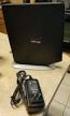 FiOS Quantum Gateway USER GUIDE Model FiOS-G1100 2014 Verizon Wireless CONTENTS 01/ INTRODUCTION 1.0 Package 7 Contents 1.1 System 7 Requirements 1.2 Features 7 1.3 Getting to 10 Know Your Gateway 02/
LTE Internet (Installed)
 LTE Internet (Installed) 1 Getting Started... 1 1.1 Basic Concepts... 3 1.2 Contents of the HBR Box... 4 1.3 Getting to Know the HBR... 5 1.3.1 Front Panel... 6 1.3.2 Back Panel...10 2 Setup... 12 2.1
Wireless DSL Gateway GT704WG. User s Manual
 Wireless DSL Gateway GT704WG User s Manual Table of Contents 1 Introduction 1 Minimum System Requirements 1 Features 2 Getting to Know the Gateway 3 2 Performing a Quick Setup 7 Accessing Quick Setup Screens
Frontier FiOS Gateway USER GUIDE. Model: FiOS-G1100. Copyright 2016 Frontier Communications. All Rights Reserved.
 Frontier FiOS Gateway USER GUIDE Model: FiOS-G1100 CONTENTS 01/ INTRODUCTION. 1.0 Package Contents. 1.1 System Requirements. 1.2 Features. 1.3 Getting to Know Your Gateway 02/ CONNECTING YOUR GATEWAY 2.0
your Gateway Windows network installationguide 802.11b wireless series Router model WBR-100 Configuring Installing
 your Gateway Windows network installationguide 802.11b wireless series Router model WBR-100 Installing Configuring Contents 1 Introduction...................................................... 1 Features...........................................................
A Division of Cisco Systems, Inc. GHz 2.4 802.11g. Wireless-G. Access Point with SRX. User Guide WIRELESS WAP54GX. Model No.
 A Division of Cisco Systems, Inc. GHz 2.4 802.11g WIRELESS Wireless-G Access Point with SRX User Guide Model No. WAP54GX Copyright and Trademarks Specifications are subject to change without notice. Linksys
User Guide. E-Series Routers
 User Guide E-Series Routers Table of Contents Table of Contents Product overview E900/E1200/E1500/E2500/E3200 1 Back view 1 Bottom view 1 E4200 2 Top view 2 Back view 2 Setting Up Your E-Series Router
Quick Start Guide. WRV210 Wireless-G VPN Router with RangeBooster. Cisco Small Business
 Quick Start Guide Cisco Small Business WRV210 Wireless-G VPN Router with RangeBooster Package Contents WRV210 Router Ethernet Cable Power Adapter Product CD-ROM Quick Start Guide Welcome Thank you for
VDSL2/GigE Wireless 11n Gateway. Model #: T1200H, T2200H. User Manual. Ver 1.0. Solutions for the Digital Life
 VDSL2/GigE Wireless 11n Gateway Model #: T1200H, T2200H User Manual Ver 1.0 Solutions for the Digital Life Table of Contents Introduction 1 Minimum System Requirements 1 Features 2 Getting to Know the
Wireless DSL Gateway GT704WGB. User Manual
 Wireless DSL Gateway GT704WGB User Manual Contents Wireless DSL Gateway User Manual 1 Introduction 1.0 Introduction 1.1 System Requirements 1.2 Features 1.3 Important Safety Instructions 1.4 Getting to
MN-700 Base Station Configuration Guide
 MN-700 Base Station Configuration Guide Contents pen the Base Station Management Tool...3 Log ff the Base Station Management Tool...3 Navigate the Base Station Management Tool...4 Current Base Station
USER GUIDE AC2400. DUAL BAND GIGABIT Wi Fi ROUTER. Model# E8350
 USER GUIDE AC2400 DUAL BAND GIGABIT Wi Fi ROUTER Model# E8350 Table of Contents Product overview E8350..................................... 1 Setting Up Your E-Series Router Where to find more help.........................
WHR-300HP2 User Manual
 AirStation WHR-300HP2 User Manual www.buffalotech.com 35020025-01 Contents Chapter 1 - Product Overview...6 Package Contents...6 Diagrams and Layout...6 Front Panel...6 Back Panel...8 Bottom...9 Chapter
Wireless Broadband Router. Manual
 Wireless Broadband Router Manual 1 Introduction... 4 Features... 4 Minimum Requirements... 4 Package Content... 4 Note... 4 Get to know the Broadband Router... 5 Back Panel... 5 Front Panel... 6 Setup
Wireless VDSL Modem Router. User Manual. Solutions for the Digital Life. Model #: V1000H. Ver 1.0
 Wireless VDSL Modem Router Model #: V1000H User Manual Ver 1.0 Solutions for the Digital Life Table of Contents Introduction 1 Minimum System Requirements 1 Features 1 Getting to Know the Modem Router
Nokia Siemens Networks. CPEi-lte 7212. User Manual
 Nokia Siemens Networks CPEi-lte 7212 User Manual Contents Chapter 1: CPEi-lte 7212 User Guide Overview... 1-1 Powerful Features in a Single Unit... 1-2 Front of the CPEi-lte 7212... 1-2 Back of the CPEi-lte
ZyAIR G-2000 Plus 802.11g Wireless 4-port Router Quick Start Guide
 ZyAIR G-2000 Plus 802.11g Wireless 4-port Router Quick Start Guide Version 3.60 3/2005 Table of Contents 1 Introducing the ZyAIR... 3 2 Hardware Connections... 4 2.1 Side Panel and Connections... 4 2.2
Wireless LAN Access Point. IEEE 802.11g 54Mbps. User s Manual
 Wireless LAN Access Point IEEE 802.11g 54Mbps User s Manual Table of Contents Chapter 1 Introduction... 1 1.1 Package Contents...2 1.2 Features...2 1.3 Specifications...2 1.4 Physical Description...3 Chapter
NOTICE. All brand and product names are the trademarks of their respective owners. Copyright 2011 All rights reserved.
 X7N USER MANUAL NOTICE This document contains proprietary information protected by copyright, and this Manual and all the accompanying hardware, software, and documentation are copyrighted. No part of
AC1900, N900, and N450 WiFi Cable Data Gateways
 AC1900, N900, and N450 WiFi Cable Data Gateways Models C6300BD, CG4500BD, and CG3000Dv2 User Manual March 2015 202-11434-03 350 East Plumeria Drive San Jose, CA 95134 USA Support Thank you for selecting
ENHWI-N3. 802.11n Wireless Router
 ENHWI-N3 802.11n Wireless Router Product Description Encore s ENHWI-N3 802.11n Wireless Router s 1T1R Wireless single chip can deliver up to 3x faster speed than of 802.11g devices. ENHWI-N3 supports home
USER GUIDE AC2600 MU-MIMO GIGABIT ROUTER. Model# EA8500
 USER GUIDE AC2600 MU-MIMO GIGABIT ROUTER Model# EA8500 Table of Contents Product overview EA8500.....................................1 Setting Up Your Router Where to find more help.........................
UIP1868P User Interface Guide
 UIP1868P User Interface Guide (Firmware version 0.13.4 and later) V1.1 Monday, July 8, 2005 Table of Contents Opening the UIP1868P's Configuration Utility... 3 Connecting to Your Broadband Modem... 4 Setting
STATIC IP SET UP GUIDE
 STATIC IP SET UP GUIDE VERIZON D-LINK 2750B & ACTIONTEC GT784 WNV WIRELESS GATEWAY Verizon High Speed Internet for Business Verizon High Speed Internet for Business YOUR NEW STATIC IP CONNECTION AND SET
Wireless-G. User Guide. GHz 2.4 802.11g. A Division of Cisco Systems, Inc. WIRELESS. Model No.WRT54GP2
 Your Internet Telephone Company offering you more - connecting you for less A Division of Cisco Systems, Inc. GHz 2.4 802.11g Wireless-G WIRELESS User Guide Model No.WRT54GP2 Copyright and Trademarks Specifications
LW310V2 Sweex Wireless 300N Router
 LW310V2 Sweex Wireless 300N Router Please notice! On the included CD-ROM you will find the Setup Wizard. This easy install procedure will show you how to setup the router step-by-step. Do not expose the
A Division of Cisco Systems, Inc. GHz 2.4 802.11g. Wireless-G. USB Network Adapter with RangeBooster. User Guide WIRELESS WUSB54GR. Model No.
 A Division of Cisco Systems, Inc. GHz 2.4 802.11g WIRELESS Wireless-G USB Network Adapter with RangeBooster User Guide Model No. WUSB54GR Copyright and Trademarks Specifications are subject to change without
Front LEDs... 2 Rear Ports... 3 BASIC INSTALLATION... 4 Connecting Your Router... 5 Network Configuration... 6
 0 P a g e Table of contents Front LEDs... 2 Rear Ports... 3 BASIC INSTALLATION... 4 Connecting Your Router... 5 Network Configuration... 6 Gateway Configuration... 11 Accessing your gateway... 11 Displaying
EW-7438RPn V2 User Manual
 EW-7438RPn V2 User Manual 09-2013 / v1.0 CONTENTS I. Product Information... 1 I-1. Package Contents... 1 I-2. System Requirements... 1 I-3. LED Status... 1 I-4. Hardware Overview... 3 I-5. Safety Information...
ZyWALL 5. Internet Security Appliance. Quick Start Guide Version 3.62 (XD.0) May 2004
 ZyWALL 5 Internet Security Appliance Quick Start Guide Version 3.62 (XD.0) May 2004 Introducing the ZyWALL The ZyWALL 5 is the ideal secure gateway for all data passing between the Internet and the LAN.
USER GUIDE Cisco Small Business
 USER GUIDE Cisco Small Business WBPN Wireless-N Bridge for Phone Adapters December 2011 Cisco and the Cisco Logo are trademarks of Cisco Systems, Inc. and/or its affiliates in the U.S. and other countries.
Wireless Cable Gateway CG3100Dv3
 Wireless Cable Gateway CG3100Dv3 User Manual 350 East Plumeria Drive San Jose, CA 95134 USA October 2011 202-10942-01 v1.0 2011 NETGEAR, Inc. All rights reserved No part of this publication may be reproduced,
Wireless-G. GHz 2.4 802.11g. Broadband Router with 2 Phone Ports. Installation and Troubleshooting Guide WRT54GP2. VoIP
 A Division of Cisco Systems, Inc. GHz 2.4 802.11g VoIP Wireless-G Broadband Router with 2 Phone Ports Installation and Troubleshooting Guide Model No. WRT54GP2 Copyright and Trademarks Specifications are
Networking. General networking. Networking overview. Common home network configurations. Wired network example. Wireless network examples
 Networking General networking Networking overview A network is a collection of devices such as computers, printers, Ethernet hubs, wireless access points, and routers connected together for communication
PePWave Surf Series PePWave Surf Indoor Series: Surf 200, AP 200, AP 400
 PePWave Surf Series PePWave Surf Indoor Series: Surf 200, AP 200, AP 400 PePWave Surf Outdoor Series: Surf AP 200/400-X, PolePoint 400-X, Surf 400-DX User Manual Document Rev. 1.2 July 07 COPYRIGHT & TRADEMARKS
N600 WiFi USB Adapter
 Model WNDA3100v3 User Manual December 2014 202-11470-01 350 East Plumeria Drive San Jose, CA 95134 USA Support Thank you for selecting NETGEAR products. After installing your device, locate the serial
English version. LW320/LW321 Sweex Wireless 300N Router. Package Contents. Terminology list
 LW320/LW321 Sweex Wireless 300N Router Do not expose the Sweex Wireless 300N Router to extreme temperatures. Do not place the device in direct sunlight or in the direct vicinity of heating elements. Do
Quick Installation Guide DAP-1360. Wireless N 300 Access Point & Router
 DAP-1360 Wireless N 300 Access Point & Router BEFORE YOU BEGIN Delivery Package Access point DAP-1360 Power adapter DC 12V Ethernet cable (CAT 5E) (brochure). If any of the items are missing, please contact
Wireless N Router DX-NRUTER USER GUIDE
 Wireless N Router DX-NRUTER USER GUIDE 2 Contents Contents Dynex DX-NRUTER Wireless N Router Introduction...2 Product features...3 Setting up your wireless router...8 Troubleshooting...55 Legal notices...67
Table of Contents. Wireless Security...40 What is WEP?...40 Configure WEP...41 What is WPA?...42 Configure WPA-PSK (Personal)... 43.
 Table of Contents Table of Contents Product Overview...4 Package Contents...4 System Requirements... 4 Introduction...5 Features... 6 Hardware Overview...7 Connections... 7 LEDs...8 Configuration...9 Web-based
PLA4231. User s Guide. Quick Start Guide. 500 Mbps Powerline Wireless N Extender. Default Login Details. Version 1.00 Edition 1, 12/2012
 PLA4231 500 Mbps Powerline Wireless N Extender Version 1.00 Edition 1, 12/2012 Quick Start Guide User s Guide Default Login Details LAN IP Address http://192.168.1.2 Password 1234 www.zyxel.com Copyright
Connecting to the Internet. LAN Hardware Requirements. Computer Requirements. LAN Configuration Requirements
 Connecting to the Internet LAN Hardware Requirements Computer Requirements LAN Configuration Requirements Installation Performed by Time Warner Cable Technician Connecting via Ethernet Connecting via USB
A Division of Cisco Systems, Inc. GHz 2.4 802.11g. Wireless-G. User Guide. Broadband Router WIRELESS WRT54GL. Model No.
 A Division of Cisco Systems, Inc. GHz 2.4 802.11g WIRELESS Wireless-G Broadband Router User Guide Model No. WRT54GL Copyright and Trademarks Specifications are subject to change without notice. Linksys
Configuration. Windows 98 and Me Configuration
 Configuration Windows 98 and Me Configuration Installing the TCP/IP Protocol Windows 2000 Configuration Windows XP Configuration Wireless Configuration 128-Bit Encryption Wireless Security in Windows XP
Configuring Your Network s Security
 Configuring Your Network s Security Security is an important issue when using a wireless home network. Because radio waves are used to transfer information between your networked computers, it's possible
High Speed Internet DSL Modem GT701C. User s Manual
 High Speed Internet DSL Modem GT701C User s Manual Table of Contents 1 Introduction 1 Minimum System Requirements 1 Features 2 Getting to Know the Modem 3 2 Performing a Quick Setup 7 Accessing Quick Setup
Prestige 324 Quick Start Guide. Prestige 324. Intelligent Broadband Sharing Gateway. Version V3.61(JF.0) May 2004 Quick Start Guide
 Prestige 324 Intelligent Broadband Sharing Gateway Version V3.61(JF.0) May 2004 Quick Start Guide 1 1 Introducing the Prestige The Prestige is a broadband sharing gateway with a built-in four-port 10/100
2 Setting Up the Hardware for a Wired Ethernet Network... 13. 3 Setting Up the Software for an Ethernet Network... 21
 Contents 1 Networking Basics............................................... 1 Selecting a network connection........................................ 2 Wired Ethernet network...........................................
Prestige 324. Prestige 324. Intelligent Broadband Sharing Gateway. Version 3.60 January 2003 Quick Start Guide
 Prestige 324 Intelligent Broadband Sharing Gateway Version 3.60 January 2003 Quick Start Guide 1 Introducing the Prestige The Prestige is a broadband sharing gateway with a built-in four-port 10/100 Mbps
You may refer the Quick Installation Guide in the package box for more information.
 Hardware Installation: 1. Turn off your modem. 2. Use one Ethernet cable to connect your modem to WAN port (Blue) port of BR-6228nC. 3. Use another Ethernet cable to connect your PC to one LAN Port (Yellow)
USB/Ethernet DSL Modem Model #: GT701 User Manual
 USB/Ethernet DSL Modem Model #: GT701 User Manual Solutions for the Digital Life Table of Contents 1 Introduction 1 Package Contents 1 Minimum System Requirements 2 Features 2 Getting to Know the Modem
User Manual DIR-632. Multifunction Wireless Router Supporting WiMAX, 3G GSM/CDMA with Built-in 8-port Switch
 DIR-632 Multifunction Wireless Router Supporting WiMAX, 3G GSM/CDMA with Built-in 8-port Switch October 2011 Contents Chapter 1. Introduction...5 Contents and Audience...5 Conventions...5 Document Structure...5
Linksys WAP300N. User Guide
 User Guide Contents Contents Overview Package contents 1 Back view 1 Bottom view 2 How to expand your home network 3 What is a network? 3 How to expand your home network 3 Where to find more help 3 Operating
A Division of Cisco Systems, Inc. Wireless A/G. USB Network Adapter. User Guide WIRELESS WUSB54AG. Model No.
 A Division of Cisco Systems, Inc. WIRELESS Wireless A/G USB Network Adapter User Guide Model No. WUSB54AG Copyright and Trademarks Specifications are subject to change without notice. Linksys is a registered
Connect Box. Manual. Installation, Tips & Tricks. More Power, More Joy.
 Connect Box Manual Installation, Tips & Tricks More Power, More Joy. upc cablecom GmbH Postfach 8021 Zürich upc-cablecom.ch Help Line: 0800 66 88 66 Table of Contents 1 Overview 6 Contact Information 6
DSL Modem. User Manual. Solutions for the Digital Life. Model #: GT701D. Ver 1.0
 DSL Modem Model #: GT701D User Manual Ver 1.0 Solutions for the Digital Life Table of Contents 1 Introduction 1 Minimum System Requirements 1 Features 2 Getting to Know the Modem 3 2 Performing a Quick
Chapter 4 Customizing Your Network Settings
 . Chapter 4 Customizing Your Network Settings This chapter describes how to configure advanced networking features of the Wireless-G Router Model WGR614v9, including LAN, WAN, and routing settings. It
DSL-2600U. User Manual V 1.0
 DSL-2600U User Manual V 1.0 CONTENTS 1. OVERVIEW...3 1.1 ABOUT ADSL...3 1.2 ABOUT ADSL2/2+...3 1.3 FEATURES...3 2 SPECIFICATION...4 2.1 INDICATOR AND INTERFACE...4 2.2 HARDWARE CONNECTION...4 2.3 LED STATUS
Belkin Wireless Cable/DSL Gateway Router
 Belkin Wireless Cable/DSL Gateway Router User Manual F5D6230-3 Table of Contents Introduction................................................ 1-3 Knowing your Belkin Router....................................
PLA Series. User s Guide. Quick Start Guide. Powerline Ethernet Adapters. PLA4101, PLA4111, PLA4201, PLA4201 v2, PLA5205, PLA5215, PLA5206, PLA5405
 PLA Series Powerline Ethernet Adapters PLA4101, PLA4111, PLA4201, PLA4201 v2, PLA5205, PLA5215, PLA5206, PLA5405 Utility Version 7.0.1 Edition 1, 05/2014 Default Network Name: HomePlugAV Quick Start Guide
TRENDnet User s Guide. Cover Page
 Cover Page Table of contents Product Overview... 4 Package Contents... 4 Features... 4 Product Hardware Features... 5 Application Diagram... 6 Wireless Performance Considerations... 7 Basic Router Setup...
A Division of Cisco Systems, Inc. Wireless-G. User Guide. Broadband Router WIRELESS WRT54GL (EU/LA) Model No.
 A Division of Cisco Systems, Inc. WIRELESS Wireless-G Broadband Router User Guide Model No. WRT54GL (EU/LA) Copyright and Trademarks Specifications are subject to change without notice. Linksys is a registered
Wireless-N. User Guide. Broadband Router WRT300N WIRELESS. Model No.
 2.4 GHz WIRELESS Wireless-N Broadband Router User Guide Model No. WRT300N Copyright and Trademarks Specifications are subject to change without notice. Linksys is a registered trademark or trademark of
Wireless-N Broadband Router
 USER GUIDE Model: WRT160N About This Guide About This Guide Icon Descriptions While reading through the User Guide you may see various icons that call attention to specific items. Below is a description
A Division of Cisco Systems, Inc. GHz 2.4 802.11g. Wireless-G. User Guide. Access Point with Power Over Ethernet WIRELESS WAP54GP. Model No.
 A Division of Cisco Systems, Inc. GHz 2.4 802.11g WIRELESS Wireless-G Access Point with Power Over Ethernet User Guide Model No. WAP54GP Copyright and Trademarks Specifications are subject to change without
Broadband Phone Gateway BPG510 Technical Users Guide
 Broadband Phone Gateway BPG510 Technical Users Guide (Firmware version 0.14.1 and later) Revision 1.0 2006, 8x8 Inc. Table of Contents About your Broadband Phone Gateway (BPG510)... 4 Opening the BPG510's
Static Business Class HSI Basic Installation NETGEAR 7550
 Static Business Class HSI Basic Installation Table of Contents Multiple LAN Support... 3 Full BHSI Install Summary... 7 Physical Connections... 8 Auto Configuration... 9 Auto Configuration... 9 Gateway
Prestige 202H Plus. Quick Start Guide. ISDN Internet Access Router. Version 3.40 12/2004
 Prestige 202H Plus ISDN Internet Access Router Quick Start Guide Version 3.40 12/2004 Table of Contents 1 Introducing the Prestige...3 2 Hardware Installation...4 2.1 Rear Panel...4 2.2 The Front Panel
CPEi 800/825 Series. User Manual. * Please see the Introduction Section
 CPEi 800/825 Series User Manual * Please see the Introduction Section Contents Introduction...iii Chapter 1: CPEi 800/825 User Guide Overview... 1-1 Powerful Features in a Single Unit... 1-2 Front of the
Prestige 623R-T. Quick Start Guide. ADSL Dual-link Router. Version 3.40
 Prestige 623R-T ADSL Dual-link Router Quick Start Guide Version 3.40 February 2004 Introducing the Prestige The Prestige 623R-T ADSL Dual-link Router is the ideal all-in-one device for small networks connecting
Cable Modem/Router with Wireless-N
 Cable Modem/Router with Wireless-N U S E R M A N U A L NOTICE This document contains proprietary information protected by copyright, and this Manual and all the accompanying hardware, software, and documentation
Wireless Router Setup Manual
 Wireless Router Setup Manual NETGEAR, Inc. 4500 Great America Parkway Santa Clara, CA 95054 USA 208-10082-02 2006-04 2006 by NETGEAR, Inc. All rights reserved. Trademarks NETGEAR is a trademark of Netgear,
ESR-9753 802.11b/g/n SOHO Router
 ESR-9753 is a 1T1R Wireless Single chip 11N Broadband Router that delivers up to 3x faster speeds than 802.11g devices. ESR-9753 supports home network with superior throughput and performance and unparalleled
WiFi Cable Modem Router C3700
 User Manual Note: This document is for certification purposes only. Images are for position only and might differ from the actual product. October 2013 350 East Plumeria Drive San Jose, CA 95134 USA Support
Linksys E800. User Guide
 User Guide Contents Contents Product overview Package contents 1 Features 1 Back view 2 Bottom view 2 Setting Up: Basics How to create a home network 3 What is a network? 3 How to set up a home network
BoB TM 4 port wireless VoIP router
 BoB TM 4 port wireless VoIP router Table of Contents Chapter 1 Introduction...4 Chapter 2 Product Overview...5 Chapter 3 Knowing BoB Lite...8 Chapter 4 Connection and configuration...9 Chapter 5 Modem
D-Link AirPlus Xtreme G VDI-624
 D-Link AirPlus Xtreme G VDI-624 High-Speed 2.4 GHz Wireless Router TM Manual Version 2.43 Building Networks for People Contents Package Contents...3 Introduction...4 Wireless Basics...8 Getting Started...
Broadband ADSL2+ Modem DM111PSPv2
 Broadband ADSL2+ Modem DM111PSPv2 User Manual 350 East Plumeria Drive San Jose, CA 95134 USA August 2011 202-10913-01 v1.0 2011 NETGEAR, Inc. All rights reserved No part of this publication may be reproduced,
USER GUIDE. Wireless-G Broadband Router. Model No: WRT54G
 USER GUIDE Wireless-G Broadband Router Model No: WRT54G About This Guide About This Guide Icon Descriptions While reading through the User Guide you may see various icons that call attention to specific
Wireless-N. User Guide. Broadband Router WRT300N (EU/LA) WIRELESS. Model No.
 2,4 GHz WIRELESS Wireless-N Broadband Router User Guide Model No. WRT300N (EU/LA) Copyright and Trademarks Specifications are subject to change without notice. Linksys is a registered trademark or trademark
Quick Start Guide. RV 120W Wireless-N VPN Firewall. Cisco Small Business
 Quick Start Guide Cisco Small Business RV 120W Wireless-N VPN Firewall Package Contents Wireless-N VPN Firewall Ethernet Cable Power Adapter Quick Start Guide Documentation and Software on CD-ROM Welcome
D-Link AirPlus Xtreme G DI-624
 D-Link AirPlus Xtreme G DI-624 High-Speed 2.4 GHz Wireless Router TM Manual Building Networks for People Contents Package Contents...3 Introduction...4 Wireless Basics...8 Getting Started... 11 Using the
Table of Contents. Product Overview...4 Package Contents...4 System Requirements...4 Features...5 Hardware Overview...6 Connections...6 LEDs...
 Table of Contents Product Overview...4 Package Contents...4 System Requirements...4 Features...5 Hardware Overview...6 Connections...6 LEDs...7 Installation...8 Before you Begin...8 Wireless Installation
GHz 2.4 802.11g. Wireless-G. User Guide. Broadband Router WIRELESS WRT54G. Model No.
 GHz 2.4 802.11g WIRELESS Wireless-G Broadband Router User Guide Model No. WRT54G Copyright and Trademarks Specifications are subject to change without notice. Linksys is a registered trademark or trademark
N300 Wireless ADSL2+ Modem Router DGN2200M Mobile Edition
 N300 Wireless ADSL2+ Modem Router DGN2200M Mobile Edition User Manual 350 East Plumeria Drive San Jose, CA 95134 USA November 2011 202-10604-02 v1.0 2011 NETGEAR, Inc. All rights reserved No part of this
ESR-9752 802.11b/g/n SOHO Router
 ESR-9752 is a 2T2R Wireless Single chip 11N Broadband Router that delivers up to 6x faster speeds and 3x extended coverage than 802.11g devices. ESR-9752 supports home network with superior throughput
ESR-9750. (Go Green Series) Wireless-N Broadband Router / AP / Repeater. 2.4 GHz 802.11b/g/n 300 Mbps
 PRODUCT DESCRIPTION ESR-9750 is a Wireless 11N Broadband Router that delivers up to 6x faster speeds and 3x extended coverage than 802.11g devices. ESR-9750 supports home network with superior throughput
BiPAC 7404V series. VoIP/(802.11g) ADSL2+ (VPN) Firewall Router. Quick Start Guide
 BiPAC 7404V series VoIP/(802.11g) ADSL2+ (VPN) Firewall Router Quick Start Guide VoIP/(802.11g) ADSL2+ (VPN) Firewall Router For more detailed instructions on configuring and using the Billion VoIP/(802.11g)
N600 Wireless Dual Band Gigabit Router WNDR3700v3 Setup Manual
 N600 Wireless Dual Band Gigabit Router WNDR3700v3 Setup Manual NETGEAR, Inc. 350 E. Plumeria Drive San Jose, CA 95134 USA May 2011 208-10774-02 v1.0 2011 by NETGEAR, Inc. All rights reserved. Trademarks
SOHO 6 Wireless Installation Procedure Windows 95/98/ME with Internet Explorer 5.x & 6.0
 SOHO 6 Wireless Installation Procedure Windows 95/98/ME with Internet Explorer 5.x & 6.0 Before You Begin Before you install the SOHO 6 Wireless, you must have: A computer with a 10/100BaseT Ethernet card