
Wireless Broadband Router. Manual
|
|
|
- Edith Collins
- 10 years ago
- Views:
Transcription
1 Wireless Broadband Router Manual 1

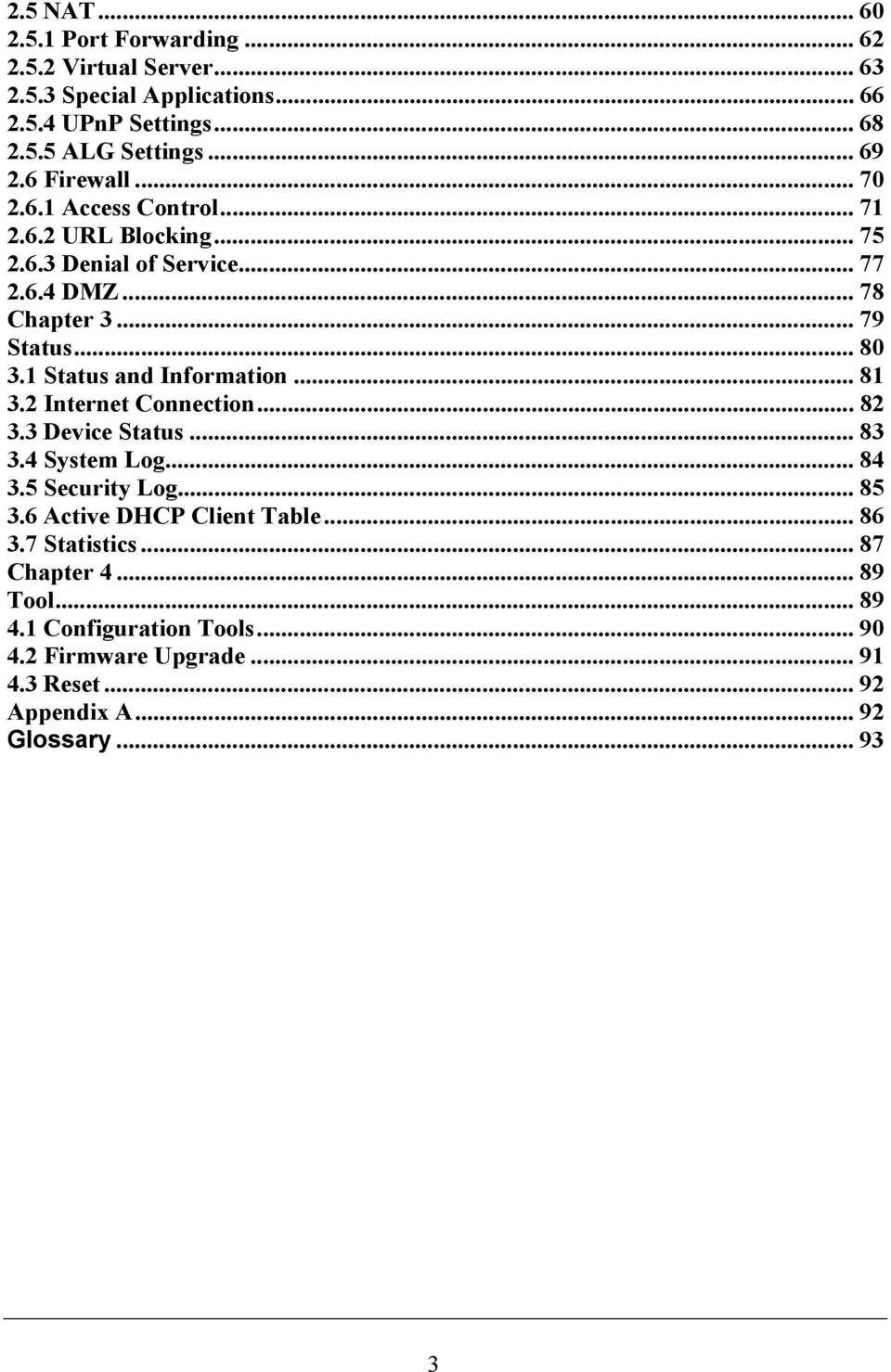
2 Introduction... 4 Features... 4 Minimum Requirements... 4 Package Content... 4 Note... 4 Get to know the Broadband Router... 5 Back Panel... 5 Front Panel... 6 Setup Diagram...6 Getting started... 7 Chapter Quick Setup...16 Step 1) Time Zone Step 2) Broadband Type Cable Modem Fixed-IP xdsl PPPoE PPTP L2TP Telstra Big Pond Chapter General Settings System Time Zone Password Settings Remote Management WAN Dynamic IP Static IP Address PPPoE (PPP over Ethernet) PPTP L2TP Telstra Big Pond DNS DDNS LAN Wireless Basic Settings Advanced Settings Security WEP x x WEP Static key WPA Pre-shared key WPA Radius Access Control

3 2.5 NAT Port Forwarding Virtual Server Special Applications UPnP Settings ALG Settings Firewall Access Control URL Blocking Denial of Service DMZ Chapter Status Status and Information Internet Connection Device Status System Log Security Log Active DHCP Client Table Statistics Chapter Tool Configuration Tools Firmware Upgrade Reset Appendix A...92 Glossary
4 Introduction Congratulations on purchasing this Wireless Broadband Router. This Wireless Broadband Router is a cost-effective IP Sharing Router that enables multiple users to share the Internet through an ADSL or cable modem. Simply configure your Internet connection settings in the Wireless Broadband Router and plug your PC to the LAN port and you're ready to share files and access the Internet. As your network grows, you can connect another hub or switch to the router s LAN ports, allowing you to easily expand your network. The Wireless Broadband Router is embedded with a IEEE g/b access point that allows you to build up a wireless LAN. The Wireless Broadband Router provides a total solution for the Small and Medium-sized Business (SMB) and the Small Office/Home Office (SOHO) markets, giving you an instant network today, and the flexibility to handle tomorrow's expansion and speed. Features High Internet Access throughput (50M) Allow multiple users to share a single Internet line Supports up to 253 users Internet Access via Cable or xdsl modem Access Private LAN Servers from the Public Network Equipped with four LAN ports (10/100M) and one WAN port (10/100M) Provides IEEE g/b wireless LAN access point Support DHCP (Server/Client) for easy setup Support advance features such as: Special Applications, DMZ, Virtual Servers, Access Control, Firewall. Allow you to monitor the router s status such as: DHCP Client Log, System Log, Security Log and Device/Connection Status Easy to use Web-based GUI for configuration and management purposes Remote Management allows configuration and upgrades from a remote site (over the Internet) Minimum Requirements One External xdsl (ADSL) or Cable modem with an Ethernet port (RJ-45) Network Interface Card (NIC) for each Personal Computer (PC) PCs with a Web-Browser (Internet Explorer 4.0 or higher, or Netscape Navigator 4.7 or higher) Package Content One 4-port Broadband router unit One Quick Installation Guide One User Manual CD One Power Adapter Accessories Note The WAN idle timeout auto-disconnect function may not work due to abnormal activities of some network application software, computer virus or hacker attacks from the Internet. For example, some software sends network packets to the Internet in the background, even when you are not using the Internet. So please turn off your computer when you are not using it. This function also may not work with some ISP. So please make sure this function can work properly when you use this function in the first time, especially your ISP charge you by time used. 4
5 Get to know the Broadband Router Back Panel The diagram (fig1.0) below shows the broadband router s back panel. The router s back panel is divided into three sections, LAN, WAN and Reset: Figure 1.0 1) Local Area Network (LAN) The Broadband router s 4 LAN ports are where you connect your LAN s PCs, printer servers, hubs and switches etc. 2) Wide Area Network (WAN) The WAN port is the segment connected to your xdsl or Cable modem and is linked to the Internet. 3) Reset The Reset button allows you to do one of two things. 1) If problems occur with your router, press the router s reset button with a pencil tip (for less than 4 seconds) and the router will re-boot itself, keeping your original configurations. 2) If problems persist or you experience extreme problems or you forgot your password, press the reset button for longer than 4 seconds and the router will reset itself to the factory default settings (warning: your original configurations will be replaced with the factory default settings) 5

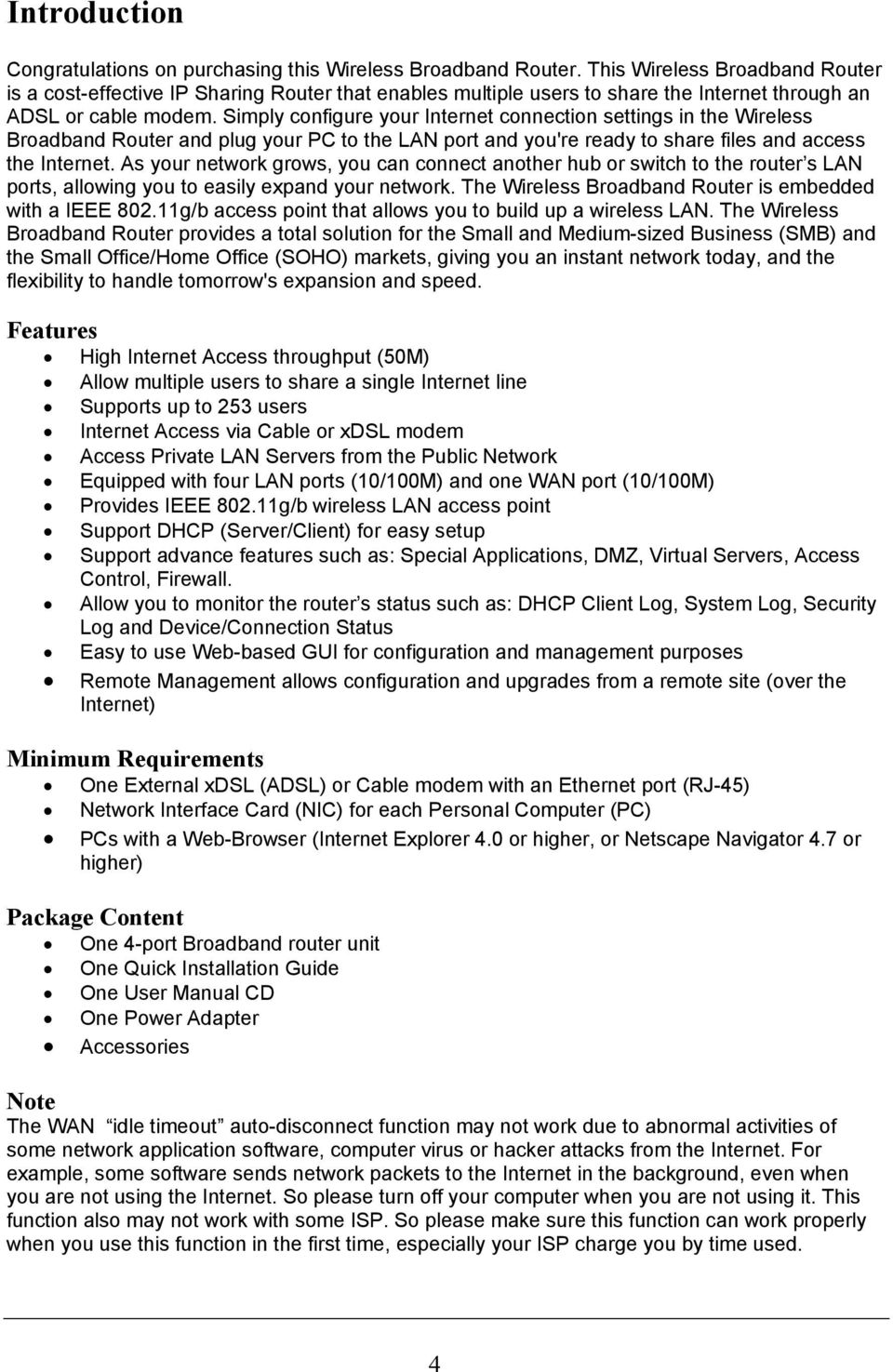
6 Front Panel On the router s front panel there are LED lights that inform you of the router s current status. Below is an explanation of each LED and its description. LED Light Status Description PWR ON Router s power supply is on WAN 10/100M ON WAN port 100Mbps is connected Off WAN port 10Mbps is connected WAN LNK/ACT ON WAN is connected Off No WAN connection Flashing WAN port has Activity (ACT), data being sent LAN 10/100M ON LAN port 100Mbps is connected (Port 1-4) Off LAN port 10Mbps is connected LAN LNK/ACT ON LAN is connected (Port 1-4) Off No LAN connection Flashing LAN port has Activity (ACT), data being sent WLAN-G ON Wireless LAN has been activated Off Wireless LAN is disabled Flashing Wireless LAN has Activity (ACT) data being sent Setup Diagram Figure 1.2 below shows a typical setup for a Local Area Network (LAN). 6
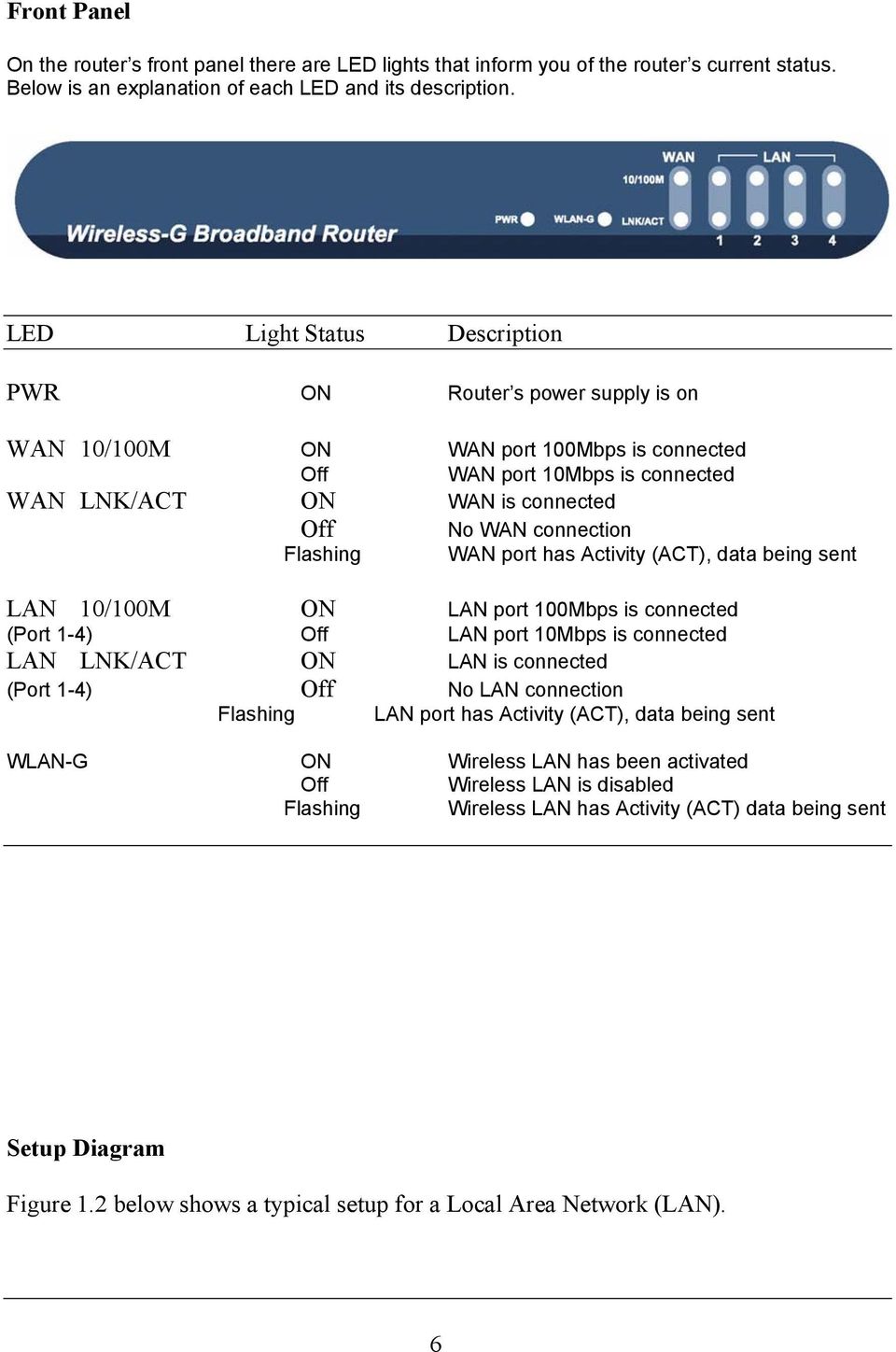
7 Figure 1.2 Getting started This is a step-by-step instruction on how to start using the router and get connected to the Internet. 1) Setup your network as shown in the setup diagram above (fig 1.2). 7
8 2) You then need to set your LAN PC clients so that it can obtain an IP address automatically. All LAN clients require an IP address. Just like an address, it allows LAN clients to find one another. (If you have already configured your PC to obtain an IP automatically then proceed to step 3, page 11) Configure your PC to obtain an IP address automatically By default the broadband router s DHCP is on, this means that you can obtain an IP address automatically once you ve configured your PC to obtain an IP address automatically. This section will show you how to configure your PC s so that it can obtain an IP address automatically for either Windows 95/98/Me, 2000 or NT operating systems. For other operating systems (Macintosh, Sun, etc.), follow the manufacturer s instructions. The following is a step-by-step illustration on how to configure your PC to obtain an IP address automatically for 2a) Windows 95/98/Me, 2b) Windows XP, 2c) Windows 2000 and 2d) Windows NT. 2a) Windows 95/98/Me 1: Click the Start button and select Settings, then click Control Panel. The Control Panel window will appear. 2: Double-click Network icon. The Network window will appear. 3: Check your list of Network Components. If TCP/IP is not installed, click the Add button to install it now. If TCP/IP is installed, go to step 6. 4: In the Network Component Type dialog box, select Protocol and click Add button. 5: In the Select Network Protocol dialog box, select Microsoft and TCP/IP and then click the OK button to start installing the TCP/IP protocol. You may need your Windows CD to complete the installation. 6: After installing TCP/IP, go back to the Network dialog box. Select TCP/IP from the list of Network Components and then click the Properties button. 7: Check each of the tabs and verify the following settings: Bindings: Check Client for Microsoft Networks and File and printer sharing for Microsoft Networks. Gateway: All fields are blank. DNS Configuration: Select Disable DNS. WINS Configuration: Select Disable WINS Resolution. IP Address: Select Obtain IP address automatically. 8
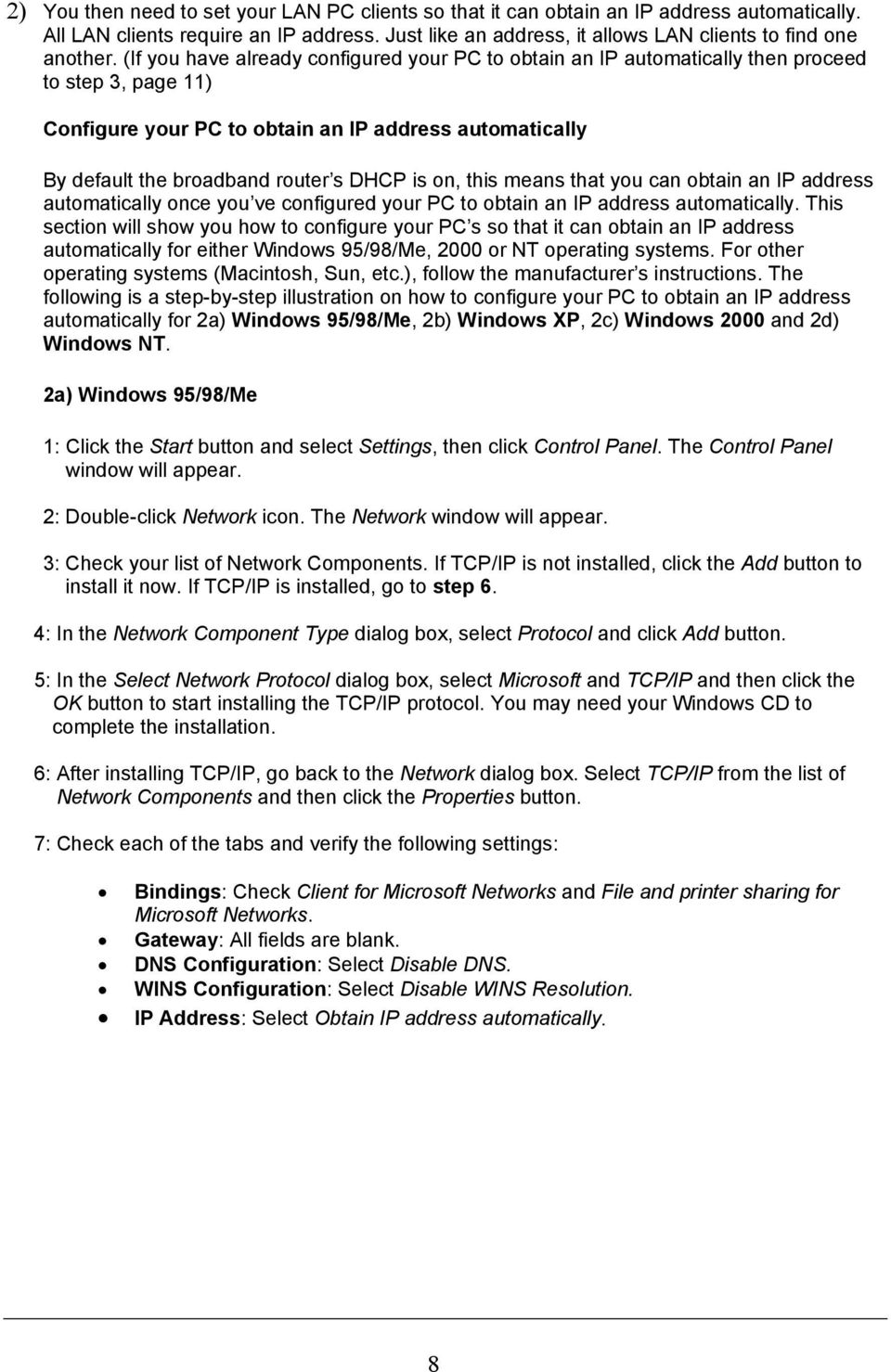
9 8: Reboot the PC. Your PC will now obtain an IP address automatically from your Broadband Router s DHCP server. Note: Please make sure that the Broadband router s DHCP server is the only DHCP server available on your LAN. Once you ve configured your PC to obtain an IP address automatically, please proceed to Step 3 2b) Windows XP 1: Click the Start button and select Settings, then click Network Connections. The Network Connections window will appear. 2: Double-click Local Area Connection icon. The Local Area Connection window will appear. 3: Check your list of Network Components. You should see Internet Protocol [TCP/IP] on your list. Select it and click the Properties button. 4: In the Internet Protocol (TCP/IP) Properties window, select Obtain an IP address automatically and Obtain DNS server address automatically as shown on the following screen. 9
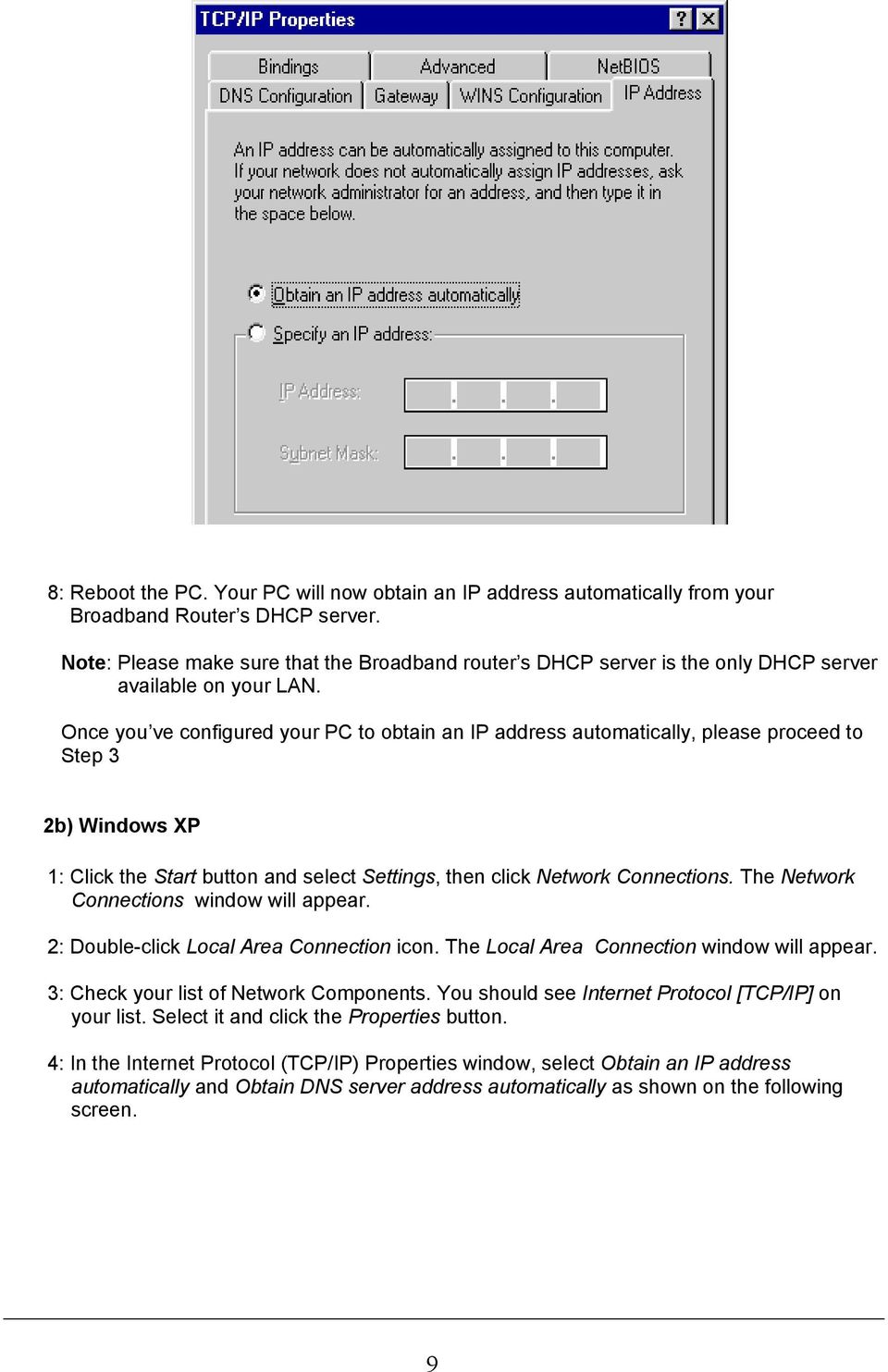
10 5: Click OK to confirm the setting. Your PC will now obtain an IP address automatically from your Broadband Router s DHCP server. Note: Please make sure that the Broadband router s DHCP server is the only DHCP server available on your LAN. Once you ve configured your PC to obtain an IP address automatically, please proceed to Step 3. 2c) Windows : Click the Start button and select Settings, then click Control Panel. The Control Panel window will appear. 2: Double-click Network and Dial-up Connections icon. In the Network and Dial-up Connection window, double-click Local Area Connection icon. The Local Area Connection window will appear. 3: In the Local Area Connection window, click the Properties button. 4: Check your list of Network Components. You should see Internet Protocol [TCP/IP] on your list. Select it and click the Properties button. 5: In the Internet Protocol (TCP/IP) Properties window, select Obtain an IP address 10

11 automatically and Obtain DNS server address automatically as shown on the following screen. 6: Click OK to confirm the setting. Your PC will now obtain an IP address automatically from your Broadband Router s DHCP server. Note: Please make sure that the Broadband router s DHCP server is the only DHCP server available on your LAN. Once you ve configured your PC to obtain an IP address automatically, please proceed to Step 3. 2d) Windows NT 1: Click the Start button and select Settings, then click Control Panel. The Control Panel window will appear. 2: Double-click Network icon. The Network window will appear. Select the Protocol tab from the Network window. 3: Check if the TCP/IP Protocol is on your list of Network Protocols. If TCP/IP is not installed, click the Add button to install it now. If TCP/IP is installed, go to step 5. 4: In the Select Network Protocol window, select the TCP/IP Protocol and click the Ok 11
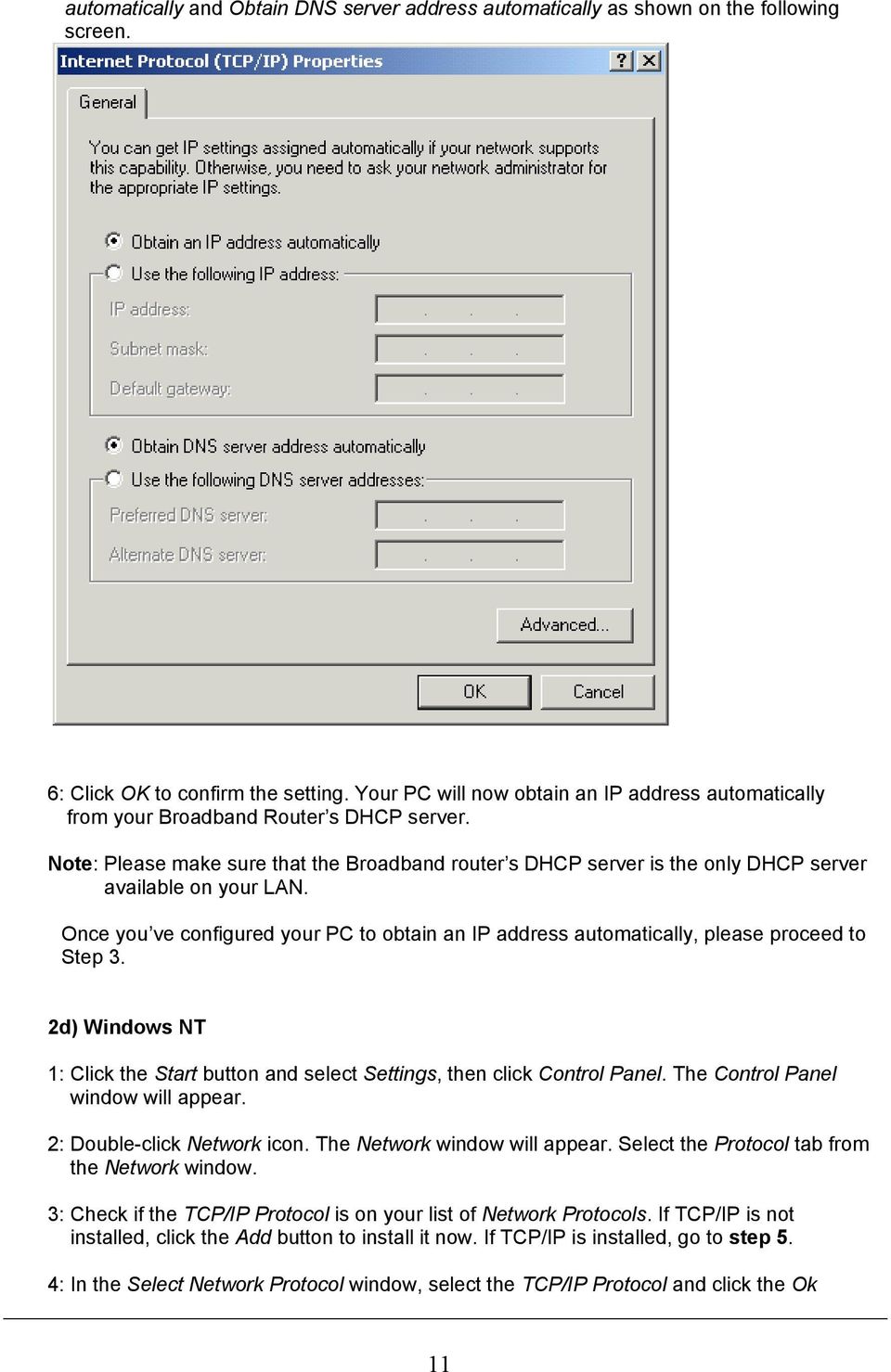
12 button to start installing the TCP/IP protocol. You may need your Windows CD to complete the installation. 5: After you install TCP/IP, go back to the Network window. Select TCP/IP from the list of Network Protocols and then click the Properties button. 6: Check each of the tabs and verify the following settings: IP Address: Select Obtain an IP address from a DHCP server. DNS: Let all fields are blank. WINS: Let all fields are blank. Routing: Let all fields are blank. 7: Click OK to confirm the setting. Your PC will now obtain an IP address automatically from your Broadband Router s DHCP server. Note: Please make sure that the Broadband router s DHCP server is the only DHCP server available on your LAN. Once you ve configured your PC to obtain an IP address automatically, please proceed to Step 3. 12
13 3) Once you have configured your PCs to obtain an IP address automatically, the router s DHCP server will automatically give your LAN clients an IP address. By default the Broadband Router s DHCP server is enabled so that you can obtain an IP address automatically. To see if you have obtained an IP address, see Appendix A. Note: Please make sure that the Broadband router s DHCP server is the only DHCP server available on your LAN. If there is another DHCP on your network, then you ll need to switch one of the DHCP servers off. (To disable the Broadband router s DHCP server see chapter 2 LAN Port) 4) Once your PC has obtained an IP address from your router, enter the default IP address (broadband router s IP address) into your PC s web browser and press <enter> 5) The login screen below will appear. Enter the User Name and Password and then click <OK> to login. Note: By default the user name is admin and the password is For security reasons it is recommended that you change the password as soon as possible (in General setup/system/password, see chapter 2) 6) The HOME page screen below will appear. The Home Page is divided into four sections, Quick Setup Wizard, General Setup, Status Information and Tools. Quick Setup Wizard (Chapter 1) If you only want to start using the broadband router as an Internet Access device then you ONLY need to configure the screens in the Quick Setup Wizard section. General Setup (Chapter 2) If you want to use more advanced features that the broadband router has to offer, then you ll need to configure the Quick Setup Wizard and the General Setup section. Alternatively, you 13

14 can just configure the General Setup section, since the General Setup/WAN and the Quick Setup Wizard contain the same configurations. Status Information (Chapter 3) The Status Information section is for you to monitor the router s current status information only. Tools (Chapter 4) If you want to Reset the router (because of problems) or save your configurations or upgrade the firmware then the Tools section is the place to do this. Menu Quick Setup Wizard (Chapter 1) General Setup (Chapter 2) Description Select your Internet connection type and then input the configurations needed to connect to your Internet Service Provider (ISP). This section contains configurations for the Broadband router s advance functions such as: Address Mapping, Virtual Server, Access Control, Hacker Attack Prevention, DMZ, Special applications and other functions to meet your LAN requirements. 14
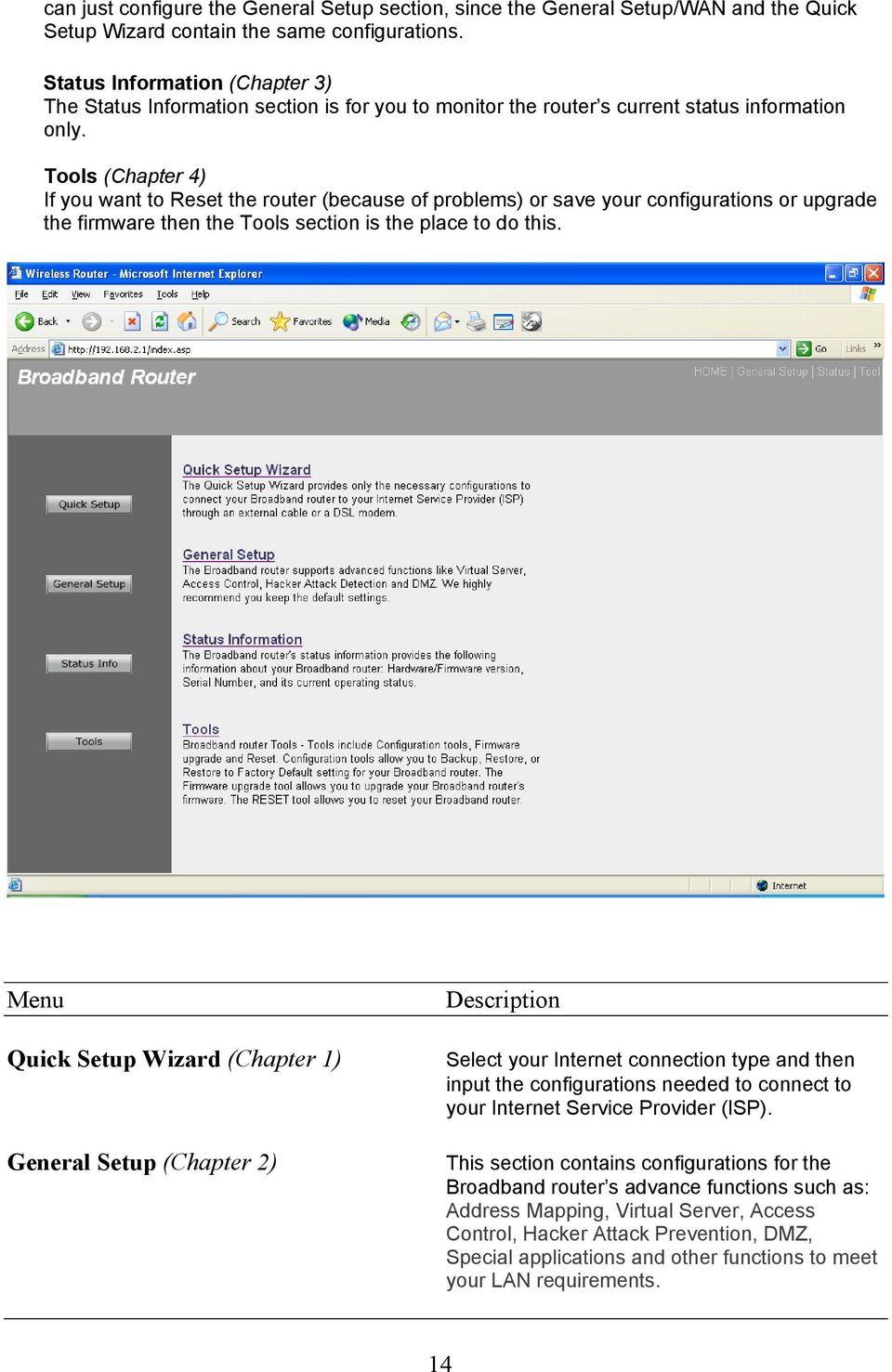
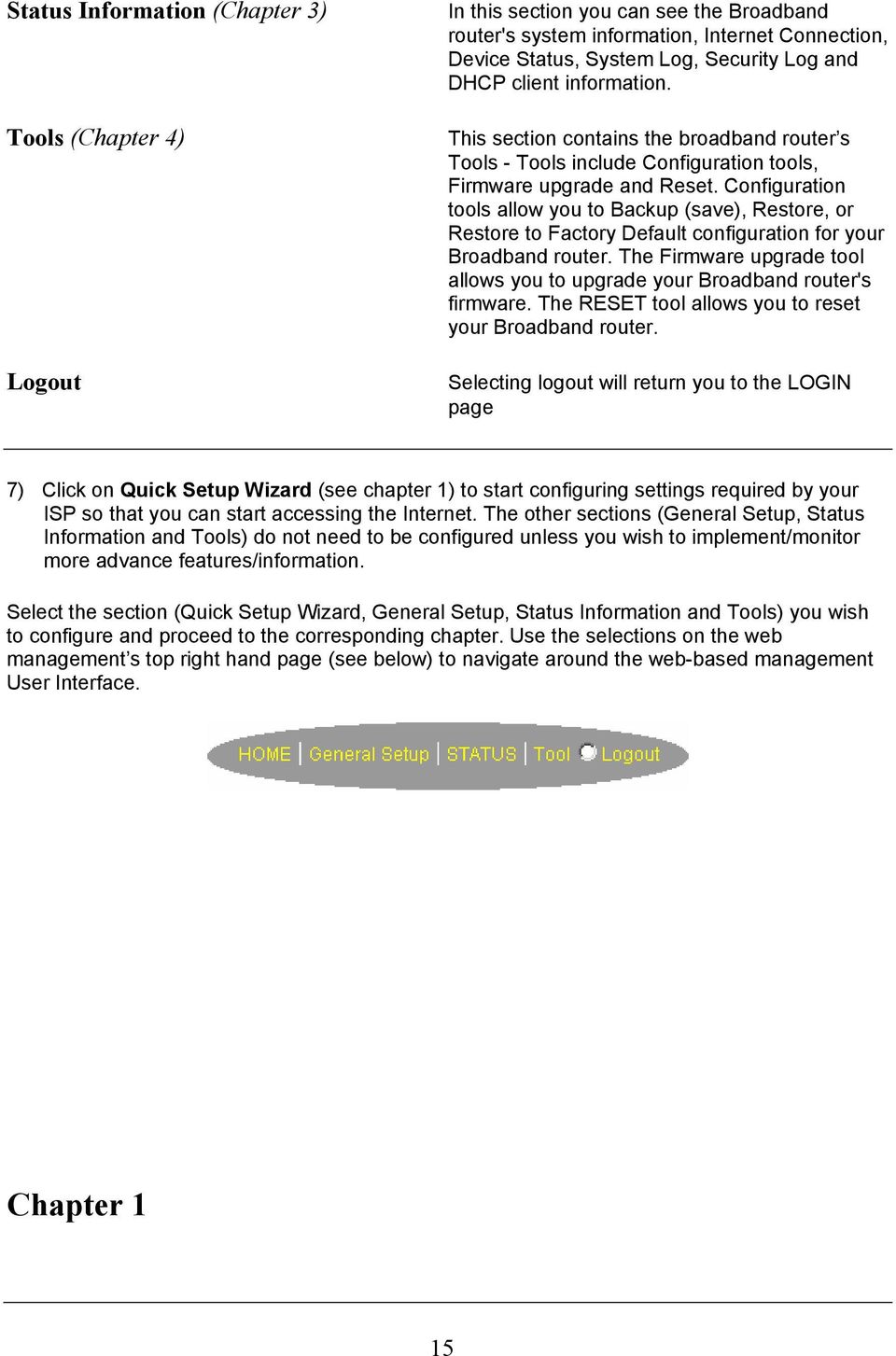
15 Status Information (Chapter 3) Tools (Chapter 4) Logout In this section you can see the Broadband router's system information, Internet Connection, Device Status, System Log, Security Log and DHCP client information. This section contains the broadband router s Tools - Tools include Configuration tools, Firmware upgrade and Reset. Configuration tools allow you to Backup (save), Restore, or Restore to Factory Default configuration for your Broadband router. The Firmware upgrade tool allows you to upgrade your Broadband router's firmware. The RESET tool allows you to reset your Broadband router. Selecting logout will return you to the LOGIN page 7) Click on Quick Setup Wizard (see chapter 1) to start configuring settings required by your ISP so that you can start accessing the Internet. The other sections (General Setup, Status Information and Tools) do not need to be configured unless you wish to implement/monitor more advance features/information. Select the section (Quick Setup Wizard, General Setup, Status Information and Tools) you wish to configure and proceed to the corresponding chapter. Use the selections on the web management s top right hand page (see below) to navigate around the web-based management User Interface. Chapter 1 15
16 Quick Setup The Quick Setup section is designed to get you using the broadband router as quickly as possible. In the Quick Setup you are required to fill in only the information necessary to access the Internet. Once you click on the Quick Setup Wizard in the HOME page, you should see the screen below. Step 1) Time Zone The Time Zone allows your router to base its time on the settings configured here, this will affect functions such as Log entries and Firewall settings. Parameter Set Time Zone Time Server Address Enable Daylight Savings Description Select the time zone of the country you are currently in. The router will set its time based on your selection. You can manually assign time server address if the default time server dose not work. The router can also take Daylight savings into account. If you wish to use this function, you must check/tick the enable box to enable your daylight saving configuration (below). 16

17 Start Daylight Savings Time End Daylight Savings Time Select the period in which you wish to start daylight Savings Time Select the period in which you wish to end daylight Savings Time Click on NEXT to proceed to the next page (step 2) Broadband Type. Step 2) Broadband Type In this section you have to select one of four types of connections that you will be using to connect your broadband router s WAN port to your ISP (see screen below). Note: Different ISP s require different methods of connecting to the Internet, please check with your ISP as to the type of connection it requires. Menu Description 1.1 Cable Modem Your ISP will automatically give you an IP address 1.2 Fixed-IP xdsl Your ISP has given you an IP address already 1.3 PPPoE Your ISP requires you to use a Point-to-Point Protocol over Ethernet (PPPoE) connection. 17

18 1.4 PPTP Your ISP requires you to use a Point-to-Point Tunneling Protocol (PPTP) connection. 1.5 L2TP Your ISP requires you to use a Layer Two Tunneling Protocol (L2TP) connection. 1.6 Telstra Big Pond This Protocol only used for Australia s ISP connection. Click on one of the WAN type and then proceed to the manual s relevant sub-section (1.1, 1.2, 1.3, 1.4, 1.5 or 1.6). Click on Back to return to the previous screen. 1.1 Cable Modem Choose Cable Modem if your ISP will automatically give you an IP address. Some ISP s may also require that you fill in additional information such as Host Name and MAC address (see screen below). Note: The Host Name and MAC address section is optional and you can skip this section if your ISP does not require these settings for you to connect to the Internet. Parameters Description 18
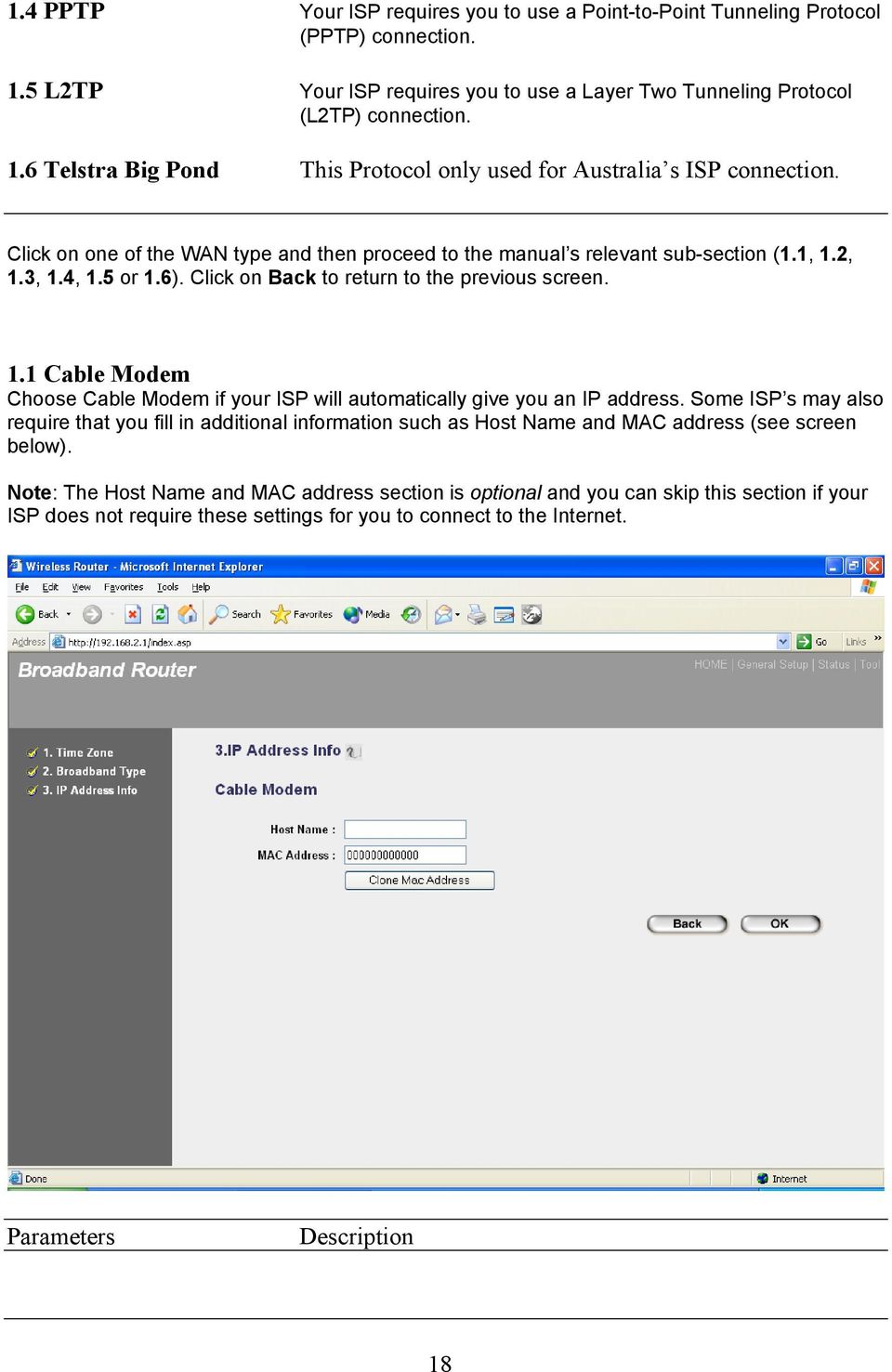
19 Host Name MAC Address If your ISP requires a Host Name, type in the host name provided by your ISP, otherwise leave it blank if your ISP does not require a Host Name. Your ISP may require a particular MAC address in order for you to connect to the Internet. This MAC address is the PC s MAC address that your ISP had originally connected your Internet connection to. Type in this MAC address in this section or use the Clone MAC Address button to replace the WAN MAC address with the MAC address of that PC (you have to be using that PC for the Clone MAC Address button to work). To find out the PC s MAC address see Appendix A. (see Glossary for an explanation on MAC address) Click <OK> when you have finished the configuration above. Congratulations! You have completed the configuration for the Cable Modem connection. You can start using the router now, if you wish to use some of the advance features supported by this router see chapter 2, 3, Fixed-IP xdsl Select Fixed-IP xdsl if your ISP has given you a specific IP address for you to use. Your ISP should provide all the information required in this section. Parameters Description 19
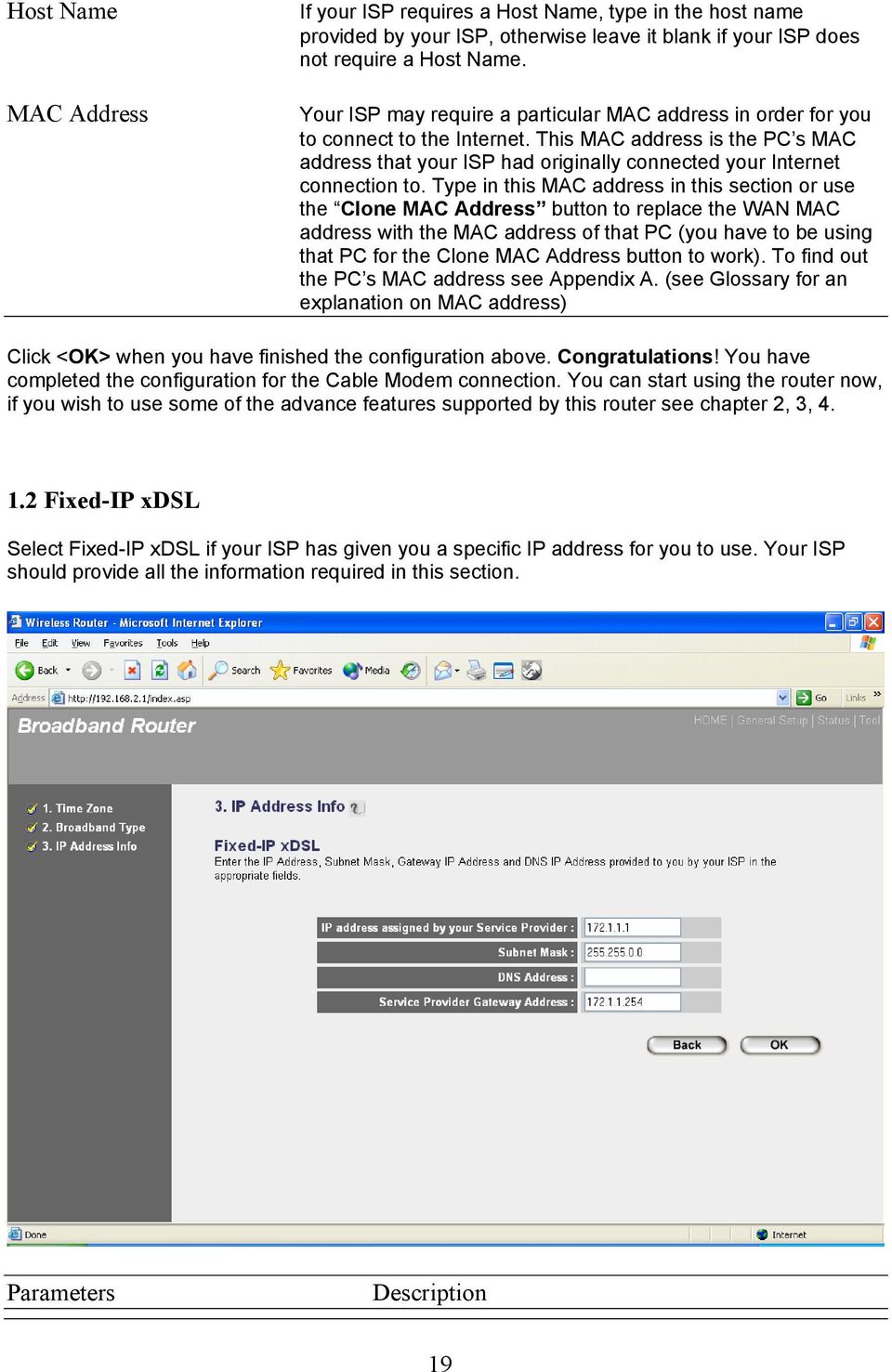
20 IP Gateway IP DNS Subnet Mask This is the IP address that your ISP has given you. This is the ISP s IP address gateway This is the ISP s DNS server IP address Enter the Subnet Mask provided by your ISP (e.g ) Click <OK> when you have finished the configuration above. Congratulations! You have completed the configuration for the Fixed-IP x DSL connection. You can start using the router now, if you wish to use some of the advance features supported by this router see chapter 2, 3, PPPoE Select PPPoE if your ISP requires the PPPoE protocol to connect you to the Internet. Your ISP should provide all the information required in this section. Parameter Description 20

21 User Name Password Service Name MTU Connection Type Idle Time Enter the User Name provided by your ISP for the PPPoE connection Enter the Password provided by your ISP for the PPPoE connection This is optional. Enter the Service name should your ISP requires it, otherwise leave it blank. This is optional. You can specify the maximum size of your transmission packet to the Internet. Leave it as it is if you to not wish to set a maximum packet size. If you select Continuous, the router will always connect to the ISP. If the WAN line breaks down and links again, the router will auto-reconnect to the ISP. If you select Connect On Demand, the router will autoconnect to the ISP when someone want to use the Internet and keep connected until the WAN idle timeout. The router will close the WAN connection if the time period that no one is using the Internet exceeds the Idle Time. If you select Manual, the router will connect to ISP only when you click Connect manually from the Web user interface. The WAN connection will not disconnected due to the idle timeout. If the WAN line breaks down and latter links again, the router will not auto-connect to the ISP. You can specify an idle time threshold (minutes) for the WAN port. This means if no packets have been sent (no one using the Internet) during this specified period, the router will automatically disconnect the connection with your ISP. Note: This idle timeout function may not work due to abnormal activities of some network application software, computer virus or hacker attacks from the Internet. For example, some software sends network packets to the Internet in the background, even when you are not using the Internet. So please turn off your computer when you are not using it. This function also may not work with some ISP. So please make sure this function can work properly when you use this function in the first time, especially your ISP charge you by time used. Click <OK> when you have finished the configuration above. Congratulations! You have completed the configuration for the PPPoE connection. You can start using the router now, if you wish to use some of the advance features supported by this router see chapter 2, 3, 4. 21
22 1.4 PPTP Select PPTP if your ISP requires the PPTP protocol to connect you to the Internet. Your ISP should provide all the information required in this section. Parameter Obtain an IP address automatically Description The ISP requires you to obtain an IP address by DHCP before connecting to the PPTP server. Use the following IP address The ISP give you a static IP to be used to connect to the PPTP server. IP Address Subnet Mask Gateway User ID This is the IP address that your ISP has given you to establish a PPTP connection. Enter the Subnet Mask provided by your ISP (e.g ) Enter the IP address of the ISP Gateway Enter the User Name provided by your ISP for the PPTP connection. Sometimes called a Connection ID 22
23 Password PPTP Gateway Connection ID BEZEQ-ISRAEL Connection Type Idle Time Enter the Password provided by your ISP for the PPTP connection If your LAN has a PPTP gateway, then enter that PPTP gateway IP address here. If you do not have a PPTP gateway then enter the ISP s Gateway IP address above This is the ID given by ISP. This is optional. Select this item if you are using the service provided by BEZEQ in Israel. If you select Continuous, the router will always connect to the ISP. If the WAN line breaks down and links again, the router will auto-reconnect to the ISP. If you select Connect On Demand, the router will autoconnect to the ISP when someone want to use the Internet and keep connected until the WAN idle timeout. The router will close the WAN connection if the time period that no one is using the Internet exceeds the Idle Time. If you select Manual, the router will connect to ISP only when you click Connect manually from the Web user interface. The WAN connection will not disconnected due to the idle timeout. If the WAN line breaks down and latter links again, the router will not auto-connect to the ISP. You can specify an idle time threshold (minutes) for the WAN port. This means if no packets have been sent (no one using the Internet) throughout this specified period, then the router will automatically disconnect the connection with your ISP. Note: This idle timeout function may not work due to abnormal activities of some network application software, computer virus or hacker attacks from the Internet. For example, some software sends network packets to the Internet in the background, even when you are not using the Internet. So please turn off your computer when you are not using it. This function also may not work with some ISP. So please make sure this function can work properly when you use this function in the first time, especially your ISP charge you by time used. Click <OK> when you have finished the configuration above. Congratulations! You have completed the configuration for the PPTP connection. You can start using the router now, if you wish to use some of the advance features supported by this router see chapter 2, 3, 4. 23
24 1.5 L2TP Select L2TP if your ISP requires the L2TP protocol to connect you to the Internet. Your ISP should provide all the information required in this section. Parameter Obtain an IP address automatically MAC Address Description The ISP requires you to obtain an IP address by DHCP before connecting to the L2TP server. Your ISP may require a particular MAC address in order for you to connect to the Internet. This MAC address is the PC's MAC address that your ISP had originally connected your Internet connection to. Type in this MAC address in this section or use the "Clone MAC Address" button to replace the WAN MAC address with the MAC address of that PC (you have to be using that PC for the Clone MAC Address button to work). To find out the PC's MAC address see Appendix A. (see Glossary for an explanation on MAC address) Use the following IP address The ISP gives you a static IP to be used to connect to the L2TP server. 24
25 IP Address Subnet Mask Gateway User ID Password L2TP Gateway MTU Connection Type Idle Time Out This is the IP address that your ISP has given you to establish a L2TP connection. Enter the Subnet Mask provided by your ISP (e.g ) Enter the IP address of the ISP Gateway Enter the User Name provided by your ISP for the PPTP connection. Sometimes called a Connection ID Enter the Password provided by your ISP for the PPTP connection If your LAN has a L2TP gateway, then enter that L2TP gateway IP address here. If you do not have a L2TP gateway then enter the ISP s Gateway IP address above This is optional. You can specify the maximum size of your transmission packet to the Internet. Leave it as it is if you to not wish to set a maximum packet size. If you select Continuous, the router will always connect to the ISP. If the WAN line breaks down and links again, the router will auto-reconnect to the ISP. If you select Connect On Demand, the router will autoconnect to the ISP when someone want to use the Internet and keep connected until the WAN idle timeout. The router will close the WAN connection if the time period that no one is using the Internet exceeds the Idle Time. If you select Manual, the router will connect to ISP only when you click Connect manually from the Web user interface. The WAN connection will not disconnected due to the idle timeout. If the WAN line breaks down and latter links again, the router will not auto-connect to the ISP. The WAN "idle timeout" auto-disconnect function may not work due to abnormal activities of some network application software, computer virus or hacker attacks from the Internet. For example, some software sends network packets to the Internet in the background, even when you are not using the Internet. This function also may not work with some ISP. So please make sure this function can work properly when you use this function in the first time, especially your ISP charge you by time used. Due to the many uncontrollable issues, we do not guarantee the WAN "idle timeout" auto-disconnect function will always work. In order to prevent from extra fee charged by ISP, please TURN OFF THE ROUTER WHEN YOU FINISHED USING THE INTERNET. 25
26 Click <OK> when you have finished the configuration above. Congratulations! You have completed the configuration for the L2TPP connection. You can start using the router now, if you wish to use some of the advance features supported by this router see chapter 2, 3, Telstra Big Pond Select Telstra Big Pond if your ISP requires the Telstra Big Pond protocol to connect you to the Internet. Your ISP should provide all the information required in this section. Telstra Big Pond protocol is used by the ISP in Australia. Parameter User Name Password User deside login server manually Login Server Description Enter the User Name provided by your ISP for the Telstra Big Pond connection Enter the Password provided by your ISP for the Telstra Big Pond connection Select if you want to assign the IP of Telstra Big Pond s login server manually. The IP of the Login Server. 26
27 Click <OK> when you have finished the configuration above. Congratulations! You have completed the configuration for the Telstra Big Pond connection. You can start using the router now, if you wish to use some of the advance features supported by this router see chapter 2, 3, 4. Chapter 2 General Settings Once you click on the General Setup button at the Home Page, you should see the screen below. If you have already configured the Quick Setup Wizard you do NOT need to configure anything thing in the General Setup screen for you to start using the Internet. The General Setup contain advanced features that allow you to configure the router to meet your network s needs such as: Wireless, Address Mapping, Virtual Server, Access Control, Hacker Attack Prevention, Special Applications, DMZ and other functions. 27
28 Below is a general description of what advance functions are available for this broadband router. Menu Description 2.1 System This section allows you to set the Broadband router s system Time Zone, Password and Remote Management Administrator. 2.2 WAN This section allows you to select the connection method in order to establish a connection with your ISP (same as the Quick Setup Wizard section) 2.3 LAN You can specify the LAN segment s IP address, subnet Mask, enable/disable DHCP and select an IP range for your LAN 2.4 Wireless You can setup the wireless LAN s SSID, WEP key, MAC filtering. 2.5 NAT You can configure the Address Mapping, Virtual Server and Special Applications functions in this section. This allows you to specify what user/packet can pass your router s NAT. 2.6 Firewall The Firewall section allows you to configure Access Control, Hacker Prevention and DMZ. Select one of the above five General Setup selections and proceed to the manual s relevant subsection 2.1 System The system screen allows you to specify a time zone, to change the system password and to specify a remote management user for the broadband router. 28
29 Parameters System Settings Description Time Zone Select the time zone of the country you are currently in. The router will set its time based on your selection Password Settings Allows you to select a password in order to access the web-based management website Remote Management You can specify a Host IP address that can perform remote management functions. Select one of the above three system settings selections and proceed to the manual s relevant sub-section Time Zone The Time Zone allows your router to reference or base its time on the settings configured here, which will affect functions such as Log entries and Firewall settings. 29
30 Parameter Set Time Zone Time Server Address Enable Daylight Savings Start Daylight Savings Time End Daylight Savings Time Description Select the time zone of the country you are currently in. The router will set its time based on your selection. The router default the Time Server Address is The router can also take Daylight savings into account. If you wish to use this function, you must check/tick the enable box to enable your daylight saving configuration (below). Select the period in which you wish to start daylight Savings Time Select the period in which you wish to end daylight Savings Time Click <Apply> at the bottom of the screen to save the above configurations. You can now configure other advance sections or start using the router (with the advance settings in place) 30
31 2.1.2 Password Settings You can change the password required to log into the broadband router's system web-based management. By default, there is no password. So please assign a password to the Administrator as soon as possible, and store it in a safe place. Passwords can contain 0 to 12 alphanumeric characters, and are case sensitive. Parameters Current Password New Password Confirmed Password Description Enter your current password for the remote management administrator to login to your Broadband router. Note: By default there is NO password Enter your new password Enter your new password again for verification purposes Note: If you forget your password, you ll have to reset the router to the factory default (No password) with the reset button (see router s back panel) Click <Apply> at the bottom of the screen to save the above configurations. You can now configure other advance sections or start using the router (with the advance settings in place) 31
32 2.1.3 Remote Management The remote management function allows you to designate a host in the Internet the ability to configure the Broadband router from a remote site. Enter the designated host IP Address in the Host IP Address field. Parameters Host Address Description This is the IP address of the host in the Internet that will have management/configuration access to the Broadband router from a remote site. This means if you are at home and your home IP address has been designated the Remote Management host IP address for this router (located in your company office), then you are able to configure this router from your home. If the Host Address is left this means anyone can access the router s web-based configuration from a remote location, providing they know the password. Click the Enabled box to enable the Remote Management function. Note: When you want to access the web-based management from a remote site, you must enter the router s WAN IP address (e.g ) into your web-browser followed by port number 8080, e.g :8080 (see below). You ll also need to know the password set in the Password Setting screen in order to access the router s web-based management. 32
33 Port Enabled The port number of remote management web interface. Select Enabled to enable the remote management function. Click <Apply> at the bottom of the screen to save the above configurations. You can now configure other advance sections or start using the router (with the advance settings in place) 33
34 2.2 WAN Use the WAN Settings screen if you have already configured the Quick Setup Wizard section and you would like to change your Internet connection type. The WAN Settings screen allows to specify the type of WAN port connect you want to establish with your ISP. The WAN settings offer the following selections for the router s WAN port, Dynamic IP, Static IP Address, PPPoE, PPTP, L2TP, Telstra Big Pond, DNS and DDNS. Parameters Description Dynamic IP address Your ISP will automatically give you an IP address Static IP address Your ISP has given you an IP address already PPPoE Your ISP requires PPPoE connection PPTP Your ISP requires you to use a Point-to-Point Tunneling Protocol (PPTP) connection L2TP Your ISP requires L2TP connection Telstra Big Pond Your ISP requires Telstra Big Pond connection DNS You can specify a DNS server that you wish to use 34
35 2.2.8 DDNS You can specify a DDNS server that you wish to use and configure the user name and password provided by you DDNS service provider. Once you have made a selection, click <More Configuration> at the bottom of the screen and proceed to the manual s relevant sub-section Dynamic IP Choose the Dynamic IP selection if your ISP will automatically give you an IP address. Some ISP s may also require that you fill in additional information such as Host Name, Domain Name and MAC address (see chapter 1 Cable Modem for more detail) Static IP Address Select Static IP address if your ISP has given you a specific IP address for you to use. Your ISP should provide all the information required in this section. (See chapter 1 Fixed IP for more detail) PPPoE (PPP over Ethernet) Select PPPoE if your ISP requires the PPPoE protocol to connect you to the Internet. Your ISP should provide all the information required in this section. (See chapter 1 PPPoE for more detail) PPTP Select PPTP if your ISP requires the PPTP protocol to connect you to the Internet. Your ISP should provide all the information required in this section. (See chapter 1 PPTP for more detail) 35
36 2.2.5 L2TP Select L2TP if your ISP requires the L2TP protocol to connect you to the Internet. Your ISP should provide all the information required in this section. Parameter Obtain an IP address automatically Description The ISP requires you to obtain an IP address by DHCP before connecting to the L2TP server. Use the following IP address The ISP give you a static IP to be used to connect to the L2TP server. IP Address Subnet Mask Gateway This is the IP address that your ISP has given you to establish a L2TP connection. Enter the Subnet Mask provided by your ISP (e.g ) Enter the IP address of the ISP Gateway 36
37 User ID Password L2TP Gateway Connection Type Idle Time Out Enter the User Name provided by your ISP for the PPTP connection. Sometimes called a Connection ID Enter the Password provided by your ISP for the PPTP connection If your LAN has a L2TP gateway, then enter that L2TP gateway IP address here. If you do not have a L2TP gateway then enter the ISP s Gateway IP address above If you select Continuous, the router will always connect to the ISP. If the WAN line breaks down and links again, the router will auto-reconnect to the ISP. If you select Connect On Demand, the router will autoconnect to the ISP when someone want to use the Internet and keep connected until the WAN idle timeout. The router will close the WAN connection if the time period that no one is using the Internet exceeds the Idle Time. If you select Manual, the router will connect to ISP only when you click Connect manually from the Web user interface. The WAN connection will not disconnected due to the idle timeout. If the WAN line breaks down and latter links again, the router will not auto-connect to the ISP. You can specify an idle time threshold (minutes) for the WAN port. This means if no packets have been sent (no one using the Internet) throughout this specified period, then the router will automatically disconnect the connection with your ISP. Note: This idle timeout function may not work due to abnormal activities of some network application software, computer virus or hacker attacks from the Internet. For example, some software sends network packets to the Internet in the background, even when you are not using the Internet. So please turn off your computer when you are not using it. This function also may not work with some ISP. So please make sure this function can work properly when you use this function in the first time, especially your ISP charge you by time used. Click <OK> when you have finished the configuration above. Congratulations! You have completed the configuration for the L2TPP connection. You can start using the router now, if you wish to use some of the advance features supported by this router see chapter 2, 3, Telstra Big Pond 37
38 Select Telstra Big Pond if your ISP requires the Telstra Big Pond protocol to connect you to the Internet. Your ISP should provide all the information required in this section. Telstra Big Pond protocol is used by the ISP in Australia. Parameter User Name Password User decide login server manually Login Server Description Enter the User Name provided by your ISP for the Telstra Big Pond connection Enter the Password provided by your ISP for the Telstra Big Pond connection Select if you want to assign the IP of Telstra Big Pond s login server manually. The IP of the Login Server. Click <OK> when you have finished the configuration above. Congratulations! You have completed the configuration for the Telstra Big Pond connection. You can start using the router now, if you wish to use some of the advance features supported by this router see chapter 2, 3, 4. 38
39 2.2.7 DNS A Domain Name System (DNS) server is like an index of IP addresses and Web addresses. If you type a Web address into your browser, such as a DNS server will find that name in its index and the matching IP address. Most ISPs provide a DNS server for speed and convenience. If your Service Provider connects you to the Internet with dynamic IP settings, it is likely that the DNS server IP address is provided automatically. However, if there is a DNS server that you would rather use, you need to specify the IP address of that DNS server here. Parameters Domain Name Server (DNS) Server Secondary DNS Address (optional) Description This is the ISP s DNS server IP address that they gave you; or you can specify your own preferred DNS server IP address This is optional. You can enter another DNS server s IP address as a backup. The secondary DNS will be used should the above DNS fail. Click <Apply> at the bottom of the screen to save the above configurations. You can now configure other advance sections or start using the router (with the advance settings in place) 39
40 2.2.8 DDNS DDNS allows you to map the static domain name to a dynamic IP address. You must get an account, password and your static domain name from the DDNS service providers. This router supports DynDNS and TZO. Parameters Default Description Enable/Disable Disable Enable/Disable the DDNS function of this router Provider Domain name Account/ Password/Key Select a DDNS service provider Your static domain name that use DDNS The account that your DDNS service provider assigned to you The password you set for the DDNS service account above Click <Apply> at the bottom of the screen to save the above configurations. You can now configure other advance sections or start using the router (with the advance settings in place) 40
41 2.3 LAN The LAN Port screen below allows you to specify a private IP address for your router s LAN ports as well as a subnet mask for your LAN segment. Parameters Default Description LAN IP IP address This is the router s LAN port IP address (Your LAN clients default gateway IP address) IP Subnet Mask Specify a Subnet Mask for your LAN segment 802.1d Spanning Tree Disabled If 802.1d Spanning Tree function is enabled, this router will use the spanning tree protocol to prevent from network loop happened in the LAN ports. DHCP Server Enabled You can enable or disable the DHCP server. By enabling the DHCP server the router will automatically give your LAN clients an IP address. If the DHCP is not enabled then you ll have to manually set your LAN client s IP addresses; make sure the LAN Client is in the same subnet as this broadband router if you 41
42 want the router to be your LAN client s default gateway Lease Time IP Address Pool The DHCP when enabled will temporarily give your LAN clients an IP address. In the Lease Time setting you can specify the time period that the DHCP lends an IP address to your LAN clients. The DHCP will change your LAN client s IP address when this time threshold period is reached You can select a particular IP address range for your DHCP server to issue IP addresses to your LAN Clients. Note: By default the IP range is from: Start IP to End IP If you want your PC to have a static/fixed IP address then you ll have to choose an IP address outside this IP address Pool Domain Name You can specify a Domain Name for your LAN Click <Apply> at the bottom of the screen to save the above configurations. You can now configure other advance sections or start using the router (with the advance settings in place) 2.4 Wireless Wireless Access Point builds a wireless LAN and can let all PCs equipped with IEEE b wireless network adaptor connect to your Intranet. It supports WEP encryption to enhance the security of your wireless network. 42
43 Parameters Default Description Enable or disable Enable You can select to enable or disable the wireless access point module of this router. Wireless module function Click <Apply> at the bottom of the screen to save the above configurations. You can now configure other advance sections or start using the router (with the advance settings in place) 43
44 2.4.1 Basic Settings You can set parameters that are used for the wireless stations to connect to this router. The parameters include Mode, ESSID, Channel Number and Associated Client. AP Mode setting Page AP Bridge-Point to Point mode setting page 44
45 AP Bridge-Point to Multi-Point mode setting page 45
46 AP Bridge-WDS mode setting page 46
47 Parameters Default Description Mode It allows to set the AP to AP or WDS mode. ESSID default This is the name of the wireless LAN. All the devices in the same wireless LAN should have the same ESSID. Channel Number 11 The channel used by the wireless LAN. All devices in the same wireless LAN should use the same channel. Associated Clients MAC address Click Show Active Clients button, then an Active Wireless Client Table will pop up. You can see the status of all active wireless stations that are connecting to the access point. If you want to bridge more than one networks together with wireless LAN, you have to set this access point to AP Bridge-Point to Point mode, AP Bridge-Point to Multi-Point mode or AP Bridge-WDS mode. You have to enter the MAC addresses of other access points that join the bridging work. 47
48 Click <Apply> at the bottom of the screen to save the above configurations. You can now configure other advance sections or start using the router (with the advance settings in place) Advanced Settings You can set advanced wireless LAN parameters of this router. The parameters include Authentication Type, Fragment Threshold, RTS Threshold, Beacon Interval, Preamble Type You should not change these parameters unless you know what effect the changes will have on this router. Parameters Default Description Authentication Type There are two authentication types: "Open System" and "Shared Key". When you select "Open System", wireless stations can associate with this wireless router without WEP encryption. When you select "Shared Key", you should also setup WEP key in the "Encryption" page and wireless stations should use WEP encryption in the authentication phase to associate with this wireless router. If you select "Both", the wireless client can associate with this wireless router by using any one of these two authentication types. 48
49 Fragment Threshold RTS Threshold Beacon Interval DTIM Period Transmit Rate Broadcast ESSID Operating Rates Mode CTS Protection Transmit Burst Mode "Fragment Threshold" specifies the maximum size of packet during the fragmentation of data to be transmitted. If you set this value too low, it will result in bad performance. When the packet size is smaller the RTS threshold, the wireless router will not use the RTS/CTS mechanism to send this packet. The interval of time that this wireless router broadcast a beacon. Beacon is used to synchronize the wireless network. Determines the interval the Access Point will send its broadcast traffic. The Transmit Rate is the rate this access point uses to transmit data packets. The access point will use the highest possible selected transmission rate to transmit the data packets. If you enable Broadcast ESSID, every wireless station located within the coverage of this access point can discover this access point easily. If you are building a public wireless network, enabling this feature is recommended. Disabling Broadcast ESSID can provide better security. It allows to select the Mixed Mode(11g/b) or 11g only mode. it is recommended to enable the protection mechanism. This mechanism can decrease the rate of data collision between b and g wireless stations. When the protection mode is enabled, the throughput of the AP will be a little lower due to many of frame traffic should be transmitted. Auto Based on the status of the network and automatically disable/enable protection mode. Always Always enable the protection mode. None Always disable the protection mode. Transmit Burst enables the AP to deliver the better throughput in the same period and environment. Click <Apply> at the bottom of the screen to save the above configurations. You can now configure other advance sections or start using the router. 49
50 2.4.3 Security This Access Point provides complete wireless LAN security functions, include WEP, IEEE x, IEEE x with WEP, WPA with pre-shared key and WPA with RADIUS. With these security functions, you can prevent your wireless LAN from illegal access. Please make sure your wireless stations use the same security function WEP Parameters Default Description WEP Mode Disabled You can select the WEP key length for encryption, 64-bit, 128-bit or 152-bit. Larger WEP key length will provide higher level of security, but the throughput will be lower. You also can select Disabled to transmit data without encryption. 50
51 When you select 64-bit 128-bit or 152-bit WEP key, you have to enter WEP keys to encrypt data. You can generate the key by yourself and enter it. You also can enter a passphrase and let the router generate WEP key for you. In the 64-bit WEP mode, you can enter four WEP keys and select one of them as default key. Then the router can receive any packets encrypted by one of the four keys 51
52 52
53 Parameters Default Description Key Format Key Length Key 1 - Key 4 Default Key You may select to select ASCII Characters (alphanumeric format) or Hexadecimal Digits (in the "A-F", "a-f" and "0-9" range) to be the WEP Key. For example: ASCII Characters: guest Hexadecimal Digits: 12345abcde You may disable or enable the WEP function from the setting item. The selections in the setting item are changed based on the key format. The WEP keys are used to encrypt data transmitted in the wireless network. Fill the text box by following the rules below. 64-bit WEP: input 10-digit Hex values (in the "A- F", "a-f" and "0-9" range) or 5-digit ASCII character as the encryption keys. 128-bit WEP: input 26-digit Hex values (in the "A-F", "a-f" and "0-9" range) or 13-digit ASCII characters as the encryption keys. Select one of the four keys to encrypt your data. Only the key you select it in the "Default key" will take effect. Click <Apply> at the bottom of the screen to save the above configurations. You can now configure other advance sections or start using the router (with the advance settings in place) x IEEE 802.1x is an authentication protocol. Every user must use a valid account to login to this Access Point before accessing the wireless LAN. The authentication is processed by a RADIUS server. You can use an external RADIUS server or use the RADIUS server built-in with the Access Point. This mode only authenticates user by IEEE 802.1x, but it does not encryption the data during communication. 53
54 Parameters Default Description RADIUS Server IP address RADIUS Server Port RADIUS Server Password The IP address of external RADIUS server. The service port of the external RADIUS server. The password used by external RADIUS server. Click <Apply> at the bottom of the screen to save the above configurations. You can now configure other advance sections or start using the router (with the advance settings in place) x WEP Static key IEEE 802.1x is an authentication protocol. Every user must use a valid account to login to this Access Point before accessing the wireless LAN. The authentication is processed by a RADIUS server. You can use an external RADIUS server or use the RADIUS server built-in with the Access Point. This mode also uses WEP to encrypt the data during communication. 54
55 55
56 Parameters Default Description Key Length Key Format Key 1 - Key 4 Default Key You can select the 64-bit or 128-bit key to encrypt transmitted data. Larger WEP key length will provide higher level of security, but the throughput will be lower. You also can select Disable to transmit data without encryption. You may select to select ASCII Characters (alphanumeric format) or Hexadecimal Digits (in the A-F, a-f and 0-9 range) to be the WEP Key. For example: ASCII Characters: guest Hexadecimal Digits: 12345abcde The WEP keys are used to encrypt data transmitted in the wireless network. Fill the text box by following the rules below. 64-bit WEP: input 10-digit Hex values (in the A-F, a-f and 0-9 range) or 5-digit ASCII character as the encryption keys. 128-bit WEP: input 26-digit Hex values (in the A-F, a-f and 0-9 range) or 13-digit ASCII characters as the encryption keys. Select one of the four keys to encrypt your data. Only the key you select it in the Default key will take effect. Click <Apply> at the bottom of the screen to save the above configurations. You can now configure other advance sections or start using the router (with the advance settings in place) WPA Pre-shared key Wi-Fi Protected Access (WPA) is an advanced security standard. You can use a preshared key to authenticate wireless stations and encrypt data during communication. It uses TKIP to change the encryption key frequently. This can improve security very much. 56
57 Parameters Default Description TKIP AES Pre-shared Key Format Pre-shared Key TKIP can change the encryption key frequently to enhance the wireless LAN security. AES can change the encryption key frequently to enhance the wireless LAN security. You may select to select ASCII Characters (alphanumeric format) or Hexadecimal Digits (in the A-F, a-f and 0-9 range) to be the Pre-shared Key. For example: ASCII Characters: iamguest Hexadecimal Digits: 12345abcde The Pre-shared key is used to authenticate and encrypt data transmitted in the wireless network. Fill the text box by following the rules below. Hex WEP: input 64-digit Hex values (in the A-F, a-f and 0-9 range) or at least 8 character pass phrase as the pre-shared keys. Click <Apply> at the bottom of the screen to save the above configurations. You can now configure other advance sections or start using the router (with the advance settings in place) 57
58 WPA Radius Wi-Fi Protected Access (WPA) is an advanced security standard. You can use an external RADIUS server to authenticate wireless stations and provide the session key to encrypt data during communication. It uses TKIP to change the encryption key frequently. This can improve security very much. Parameters Default Description RADIUS Server IP address RADIUS Server Port RADIUS Server Password The IP address of external RADIUS server. The service port of the external RADIUS server. The password used by external RADIUS server. Click <Apply> at the bottom of the screen to save the above configurations. You can now configure other advance sections or start using the router (with the advance settings in place) Access Control This wireless router provides MAC Address Control, which prevents the unauthorized MAC Addresses from accessing your wireless network. 58
59 Parameters Enable wireless access control Add MAC address into the list Remove MAC address from the list Description Enable wireless access control Fill in the "MAC Address" and "Comment" of the wireless station to be added and then click "Add". Then this wireless station will be added into the "Current Access Control List" below. If you find any issues before adding it and want to retype again. Just click "Clear" and both "MAC Address" and "Comment" fields will be cleared. If you want to remove some MAC address from the "Current Access Control List ", select the MAC addresses you want to remove in the list and then click "Delete Selected". If you want remove all MAC addresses from the table, just click "Delete All" button. Click "Reset" will clear your current selections. Click <Apply> at the bottom of the screen to save the above configurations. You can now configure other advance sections or start using the router (with the advance settings in place) 59
60 2.5 NAT Network Address Translation (NAT) allows multiple users at your local site to access the Internet through a single Public IP Address or multiple Public IP Addresses. NAT provides Firewall protection from hacker attacks and has the flexibility to allow you to map Private IP Addresses to Public IP Addresses for key services such as Websites and FTP. Parameter Description Port Forwarding You can have different services (e.g. , FTP, Web etc.) going to different service servers/clients in your LAN. The Port Forwarding allows you to re-direct a particular range of service port numbers (from the Internet/WAN Ports) to a particular LAN IP address Virtual Server You can have different services (e.g. , FTP, Web etc.) going to different service servers/clients in your LAN. The Virtual Server allows you to re-direct a particular service port number (from the Internet/WAN Port) to a particular LAN IP address and its service port number Special Applications Some applications require multiple connections, such as Internet games, video conferencing, Internet telephony and others. In this section you can configure the router to support these types of applications. 60
61 2.5.4 UPnP Setting It allows to Enable or Disable UPnP feature here. After you enable the UPnP feature, all client systems that support UPnP, like Windows XP, can discover this router automatically and access the Internet through this router without any configuration. The NAT Traversal function provided by UPnP can let applications that support UPnP smoothly connect to Internet sites without any incompatibility problem due to the NAPT port translation ALG Setting You can select special applications that need Application Layer Gateway to support here. Click on one of the three NAT selections and proceed to the manual's relevant subsection. 61
62 2.5.1 Port Forwarding The Port Forwarding allows you to re-direct a particular range of service port numbers (from the Internet/WAN Ports) to a particular LAN IP address. It help you to host some servers behind the router NAT firewall. Parameter Enable Port Forwarding Private IP Type Port Range Comment Add Port Forwarding into the table Description Enable Port Forwarding This is the private IP of the server behind the NAT firewall. Note: You need to give your LAN PC clients a fixed/static IP address for Port Forwarding to work properly. This is the protocol type to be forwarded. You can choose to forward TCP or UDP packets only or select both to forward both TCP and UDP packets. The range of ports to be forward to the private IP. The description of this setting. Fill in the "Private IP", Type, Port Range and "Comment" of the setting to be added and then 62
63 click "Add". Then this Port Forwarding setting will be added into the "Current Port Forwarding Table" below. If you find any typo before adding it and want to retype again, just click "Clear" and the fields will be cleared. Remove Port Forwarding into the table If you want to remove some Port Forwarding settings from the " Current Port Forwarding Table", select the Port Forwarding settings you want to remove in the table and then click "Delete Selected". If you want remove all Port Forwarding settings from the table, just click "Delete All" button. Click "Reset" will clear your current selections. Click <Apply> at the bottom of the screen to save the above configurations. You can now configure other advance sections or start using the router (with the advance settings in place) Virtual Server Use the Virtual Server function when you want different servers/clients in your LAN to handle different service/internet application type (e.g. , FTP, Web server etc.) from the Internet. Computers use numbers called port numbers to recognize a particular service/internet application type. The Virtual Server allows you to re-direct a particular service port number (from the Internet/WAN Port) to a particular LAN private IP address and its service port number. (See Glossary for an explanation on Port number) 63
64 Parameters Enable Virtual Server Private IP Private Port Type Public Port Description Enable Virtual Server. This is the LAN client/host IP address that the Public Port number packet will be sent to. Note: You need to give your LAN PC clients a fixed/static IP address for Virtual Server to work properly. This is the port number (of the above Private IP host) that the below Public Port number will be changed to when the packet enters your LAN (to the LAN Server/Client IP) Select the port number protocol type (TCP, UDP or both). If you are unsure, then leave it to the default both protocol. Enter the service (service/internet application) port number from the Internet that will be re-directed to the above Private IP address host in your LAN Note: Virtual Server function will have priority over the DMZ function if there is a conflict between the Virtual Server and the DMZ settings. 64
65 Comment Add Virtual Server Remove Virtual Server The description of this setting. Fill in the "Private IP", "Private Port", "Type", Public Port and "Comment" of the setting to be added and then click "Add". Then this Virtual Server setting will be added into the "Current Virtual Server Table" below. If you find any typo before adding it and want to retype again, just click "Clear" and the fields will be cleared. If you want to remove some Virtual Server settings from the " Current Virtual Server Table", select the Virtual Server settings you want to remove in the table and then click "Delete Selected". If you want remove all Virtual Server settings from the table, just click "Delete All" button. Click "Reset" will clear your current selections. Click <Apply> at the bottom of the screen to save the above configurations. You can now configure other advance sections or start using the router (with the advance settings in place) Example: Virtual Server The diagram below demonstrates one of the ways you can use the Virtual Server function. Use the Virtual Server when you want the web server located in your private LAN to be accessible to Internet users. The configuration below means that any request coming form the Internet to access your web server will be translated to your LAN s web server ( ). Note: For the virtual server to work properly Internet/remote users must know your global IP address. (For websites you will need to have a fixed/static global/public IP address) 65
66 2.5.3 Special Applications Some applications require multiple connections, such as Internet games, video conferencing, Internet telephony and others. In this section you can configure the router to support multiple connections for these types of applications. 66
67 Parameters Enable Trigger Port Trigger Port Trigger Type Public Port Description Enable the Special Application function. This is the out going (Outbound) range of port numbers for this particular application Select whether the outbound port protocol is TCP, UDP or both. Enter the In-coming (Inbound) port or port range for this type of application (e.g , 47624) Note: Individual port numbers are separated by a comma (e.g , 5775, 6541 etc.). To input a port range use a dash to separate the two port number range (e.g ) Public Type Comment Popular applications Select the Inbound port protocol type: TCP, UDP or both The description of this setting. This section lists the more popular applications that require multiple connections. Select an application from the Popular Applications selection. Once you have selected an application, select a location (1-10) in the Copy to selection box and then 67
68 click the Copy to button. This will automatically list the Public Ports required for this popular application in the location (1-10) you d specified. Add Special Application Fill in the "Trigger Port", "Trigger Type, Public Port, "Public Type", "Public Port" and "Comment" of the setting to be added and then click "Add". Then this Special Application setting will be added into the "Current Trigger- Port Table" below. If you find any typo before adding it and want to retype again, just click "Clear" and the fields will be cleared. If you want to add a popular application, select one Popular Application and then click Add. Remove Special Application If you want to remove some Special Application settings from the " Current Trigger-Port Table", select the Special Application settings you want to remove in the table and then click "Delete Selected". If you want remove all Special Appliacation settings from the table, just click "Delete All" button. Click "Reset" will clear your current selections. Click <Apply> at the bottom of the screen to save the above configurations. You can now configure other advance sections or start using the router (with the advance settings in place) Example: Special Applications If you need to run applications that require multiple connections, then specify the port (outbound) normally associated with that application in the "Trigger Port" field. Then select the protocol type (TCP or UDP) and enter the public ports associated with the trigger port to open them up for inbound traffic. Example: ID Trigger Port Trigger Type Public Port Public Type Comment UDP , TCP MSN Game Zone UDP 6112 UDP Battle.net In the example above, when a user trigger s port (outbound) for MSN Game Zone then the router will allow incoming packets for ports and to be directed to that user. Note: Only one LAN client can use a particular special application at a time UPnP Settings With UPnP, all PCs in you Intranet will discover this router automatically. So you do not have to do any configuration for your PC and can access the Internet through this router easily. 68
69 Parameters Default Description UPnP Feature Disable You can Enable or Disable UPnP feature here. After you enable the UPnP feature, all client systems that support UPnP, like Windows XP, can discover this router automatically and access the Internet through this router without any configuration. The NAT Traversal function provided by UPnP can let applications that support UPnP smoothly connect to Internet sites without any incompatibility problem due to the NAPT port translation. Click <Apply> at the bottom of the screen to save the above configurations. You can now configure other advance sections or start using the router (with the advance settings in place) ALG Settings You can select applications that need Application Layer Gateway to support. 69
70 Parameters Default Description Enable You can select to enable Application Layer Gateway, then the router will let that application correctly pass though the NAT gateway. Click <Apply> at the bottom of the screen to save the above configurations. You can now configure other advance sections or start using the router (with the advance settings in place) 2.6 Firewall The Broadband router provides extensive firewall protection by restricting connection parameters, thus limiting the risk of hacker attack, and defending against a wide array of common Internet attacks. However, for applications that require unrestricted access to the Internet, you can configure a specific client/server as a Demilitarized Zone (DMZ). 70
71 Note: To enable the Firewall settings select Enable and click Apply Parameters Description Access Control Access Control allows you to specify which hosts users can or cannot have access to certain Internet applications URL Blocking URL Blocking allow you to specify which URLs can not be accessed by users Intrusion Detection The Broadband router's firewall can block common hacker attacks and can log the attack activities DMZ The DMZ function allows you to re-direct all packets going to your WAN port IP address to a particular IP address in your LAN. Click on one of the firewall selections and proceed to the manual s relevant sub-section Access Control If you want to restrict users from accessing certain Internet applications/services (e.g. Internet websites, , FTP etc.), then this is the place to set that configuration. Access Control allows users to define the traffic type permitted in your LAN. You can control which PC client can have access to these services. 71
72 Parameters Filter client PCs by IP Add PC Remove PC Description Fill IP Filtering Table to filter PC clients by IP. You can click Add PC to add an access control rule for users by IP addresses. If you want to remove some PC from the "IP Filtering Table", select the PC you want to remove in the table and then click "Delete Selected". If you want remove all PCs from the table, just click "Delete All" button. Filter client PC by MAC address Check Enable MAC Filtering to enable MAC Filtering. Add PC Fill in Client PC MAC Address and Comment of the PC that is allowed to access the Internet, and then click Add. If you find any typo before adding it and want to retype again, just click "Reset" and the fields will be cleared. 72
73 Remove PC If you want to remove some PC from the "MAC Filtering Table", select the PC you want to remove in the table and then click "Delete Selected". If you want remove all PCs from the table, just click "Delete All" button. If you want to clear the selection and re-select again, just click Reset. You can now configure other advance sections or start using the router (with the advance settings in place) Add PC Parameters Client PC Description Client PC IP Addresses Description The description for this client PC rule. Enter the IP address that you wish to apply this Access Control rule. This is the user s IP address(es) that you wish to setup an Access Control rule. Note: You need to give your LAN PC clients a fixed/static IP address for the Access Control rule to work properly. 73
74 Client PC Service Protocol Port Range Apply Changes Reset You can block the clients from accessing some Internet services by checking the services you want to block. This allows you to select UDP, TCP or both protocol type you want to block. It can be assign up to five port ranges. The router will block clients from accessing Internet services that use these ports. Click Apply Changes to save the setting. Click Reset to clear all fields. Click <Apply Changes> at the bottom of the screen to save the above configurations. You can now configure other advance sections or start using the router (with the advance settings in place) Example: Access Control In the example below, LAN client A can only access websites that use Port 80. However, LAN client B is able to access websites and any other service that uses ports between 80 and
75 2.6.2 URL Blocking You can block access to some Web sites from particular PCs by entering a full URL address or just keyword of the Web site. 75
76 Parameters Enable URL Blocking Add URL Keyword Remove URL Keyword Description Enable/disable URL Blocking Fill in URL/Keyword and then click Add. You can enter the full URL address or the keyword of the web site you want to block. If you find any typo before adding it and want to retype again, just click "Reset" and the field will be cleared. If you want to remove some URL keyword from the "Current URL Blocking Table", select the URL keyword you want to remove in the table and then click "Delete Selected". If you want remove all URL keyword from the table, just click "Delete All" button. If you want to clear the selection and reselect again, just click Reset. You can now configure other advance sections or start using the router (with the advance settings in place) 76
77 2.6.3 Denial of Service The Broadband router's firewall can block common hacker attacks, including Denial of Service, Ping of Death, Port Scan and Sync Flood. If Internet attacks occur the router can log the events. 77
78 Parameters Description Intrusion Detection Feature Ping of Death Discard Ping From WAN Port Scan Sync Flood Protections from Ping of Death attack The router s WAN port will not respond to any Ping requests Protection the router from Port Scan. Protection the router from Sync Flood attack. Click <Apply> at the bottom of the screen to save the above configurations. You can now configure other advance sections or start using the router (with the advance settings in place) DMZ If you have a local client PC that cannot run an Internet application (e.g. Games) properly from behind the NAT firewall, then you can open the client up to unrestricted two-way Internet access by defining a DMZ Host. The DMZ function allows you to re-direct all packets going to your WAN port IP address to a particular IP address in your LAN. The difference between the virtual server and the DMZ function is that the virtual server re-directs a particular service/internet application (e.g. FTP, websites) to a particular LAN client/server, whereas DMZ re-directs all packets (regardless of services) going to your WAN IP address to a particular LAN client/server. 78
79 Parameters Enable DMZ Description Enable/disable DMZ Note: If there is a conflict between the Virtual Server and the DMZ setting, then Virtual Server function will have priority over the DMZ function. Public IP Address Client PC IP Address The IP address of the WAN port or any other Public IP addresses given to you by your ISP Input the IP address of a particular host in your LAN that will receive all the packets originally going to the WAN port/public IP address above Note: You need to give your LAN PC clients a fixed/static IP address for DMZ to work properly. You can now configure other advance sections or start using the router (with the advance settings in place Chapter 3 79
80 Status The Status section allows you to monitor the current status of your router. You can use the Status page to monitor: the connection status of the Broadband router's WAN/LAN interfaces, the current firmware and hardware version numbers, any illegal attempts to access your network, and information on all DHCP client PCs currently connected to your network. Parameters Description 3.1 Status and Information Shows the router s system information 3.2 Internet Connection View the Broadband router s current Internet connection status and other related information 3.3 Device Status View the Broadband router s current setting status 3.4 System Log View the Broadband router s system log 3.5 Security Log View any attempts that have been made to illegally gain access to your network. 3.6 DHCP Client Table View your LAN client's information that is currently linked to the Broadband router's DHCP server 80
81 3.7 Statistics Shows the statistics Select one of the above five Status selections and proceed to the manual s relevant sub-section 3.1 Status and Information The Status and Information section allows you to view the router s system information 81
82 Parameters Information Description You can see the router s system information such as the router s: LAN MAC Address, WAN MAC Address, Hardware version, Serial Number, Boot code Version, Runtime code Version 3.2 Internet Connection View the Broadband router s current Internet connection status and other related information 82
83 Parameters Internet Connection Description This page displays whether the WAN port is connected to a Cable/DSL connection. It also displays the router s WAN port: WAN IP address, Subnet Mask, and ISP Gateway as well as the Primary DNS and Secondary DNS being used. Note: When the WAN port is a Dynamic IP connection, the <Release> and <Renew> button will release the Broadband router s WAN IP address and renew will get another IP address from the DHCP server. If the WAN port uses PPPoE, <Release> will disconnect the PPP session, and <Renew> will initialize another PPP session. 3.3 Device Status View the Broadband router s current configuration settings. The Device Status displays the configuration settings you ve configured in the Quick Setup Wizard/General Setup section. 83
84 Parameters Device Status Description This page shows the Broadband router s current device settings. This page displays the Broadband router LAN port s current LAN IP Address and Subnet Mask. It also shows whether the DHCP Server and Firewall functions are enabled/disabled. The firewall status is shown enabled if the firewall is enabled (regardless of whether you ve configured any of the firewall features). 3.4 System Log View the operation log of the system. 84
85 Parameters System Log Description This page shows the current system log of the Broadband router. It displays any event occurred after system start up. At the bottom of the page, the system log can be saved <Save> to a local file for further processing or the system log can be cleared <Clear> or it can be refreshed <Refresh> to get the most updated situation. When the system is powered down, the system log will disappear if not saved to a local file. 3.5 Security Log View any attempts that have been made to illegally gain access to your network. 85
86 Parameters Security Log Description This page shows the current security log of the Broadband router. It displays any illegal attempts to access your network. At the bottom of the page, the security log can be saved <Save> to a local file for further processing or the security log can be cleared <Clear> or it can be refreshed <Refresh> to get the most updated situation. When the system is powered down, the security log will disappear if not saved to a local file. 3.6 Active DHCP Client Table View your LAN client's information that is currently linked to the Broadband router's DHCP server 86
87 Parameters DHCP Client Log Description This page shows all DHCP clients (LAN PCs) currently connected to your network. The Active DHCP Client Table displays the IP address and the MAC address and Time Expired of each LAN Client. Use the Refresh button to get the most updated situation 3.7 Statistics View the statistics of packets sent and received on WAN, LAN and Wireless LAN. 87
88 Parameters Statistics Description Shows the counters of packets sent and received on WAN, LAN and Wireless LAN. 88
89 Chapter 4 Tool This page includes the basic configuration tools, such as Configuration Tools (save or restore configuration settings), Firmware Upgrade (upgrade system firmware) and Reset. Parameters Description 4.1 Configuration Tools You can save the router s current configuration, restore the router s saved configuration files and restore the router s factory default settings 4.2 Firmware Upgrade This page allows you to upgrade the router s firmware 4.3 Reset You can reset the router s system should any problem exist Select one of the above three Tools Settings selection and proceed to the manual s relevant sub-section 89
90 4.1 Configuration Tools The Configuration Tools screen allows you to save (Backup) the router s current configuration setting. Saving the configuration settings provides an added protection and convenience should problems occur with the router and you have to reset to factory default. When you save the configuration setting (Backup) you can re-load the saved configuration into the router through the Restore selection. If extreme problems occur you can use the Restore to Factory Defaults selection, this will set all configurations to its original default settings (e.g. when you first purchased the router). Parameters Configuration Tools Description Use the "Backup" tool to save the Broadband router current configuration to a file named "config.bin" on your PC. You can then use the "Restore" tool to restore the saved configuration to the Broadband router. Alternatively, you can use the "Restore to Factory Defaults" tool to force the Broadband router to perform a power reset and restore the original factory settings. 90
91 4.2 Firmware Upgrade This page allows you to upgrade the router s firmware Parameters Firmware Upgrade Description This tool allows you to upgrade the Broadband router s system firmware. To upgrade the firmware of your Broadband router, you need to download the firmware file to your local hard disk, and enter that file name and path in the appropriate field on this page. You can also use the Browse button to find the firmware file on your PC. Once you ve selected the new firmware file, click <Apply> at the bottom of the screen to start the upgrade process. (You may have to wait a few minutes for the upgrade to complete). Once the upgrade is complete you can start using the router. 91
92 4.3 Reset You can reset the router s system should any problem exist. The reset function essentially Re-boots your router s system Parameters Reset Description In the event that the system stops responding correctly or in some way stops functioning, you can perform a reset. Your settings will not be changed. To perform the reset, click on the <APPLY> button. You will be asked to confirm your decision. The reset will be complete when the power light stops blinking. Once the reset process is complete you may start using the router again. Appendix A How to Manually find your PC s IP and MAC address 92
93 1) In Window s open the Command Prompt program 2) Type Ipconfig /all and <enter> Your PC s IP address is the one entitled IP address ( ) The router s IP address is the one entitled Default Gateway ( ) Your PC s MAC Address is the one entitled Physical Address (00-50-FC-FE-02-DB) Glossary Default Gateway (Router): Every non-router IP device needs to configure a default gateway s IP address. When the device sends out an IP packet, if the destination is not on the same network, 93
94 the device has to send the packet to its default gateway, which will then send it out towards the destination. DHCP: Dynamic Host Configuration Protocol. This protocol automatically gives every computer on your home network an IP address. DNS Server IP Address: DNS stands for Domain Name System, which allows Internet servers to have a domain name (such as and one or more IP addresses (such as ). A DNS server keeps a database of Internet servers and their respective domain names and IP addresses, so that when a domain name is requested (as in typing "Broadbandrouter.com" into your Internet browser), the user is sent to the proper IP address. The DNS server IP address used by the computers on your home network is the location of the DNS server your ISP has assigned to you. DSL Modem: DSL stands for Digital Subscriber Line. A DSL modem uses your existing phone lines to transmit data at high speeds. Ethernet: A standard for computer networks. Ethernet networks are connected by special cables and hubs, and move data around at up to 10/100 million bits per second (Mbps). Idle Timeout: Idle Timeout is designed so that after there is no traffic to the Internet for a preconfigured amount of time, the connection will automatically be disconnected. IP Address and Network (Subnet) Mask: IP stands for Internet Protocol. An IP address consists of a series of four numbers separated by periods, that identifies a single, unique Internet computer host in an IP network. Example: It consists of 2 portions: the IP network address, and the host identifier. The IP address is a 32-bit binary pattern, which can be represented as four cascaded decimal numbers separated by. : aaa.aaa.aaa.aaa, where each aaa can be anything from 000 to 255, or as four cascaded binary numbers separated by. : bbbbbbbb.bbbbbbbb.bbbbbbbb.bbbbbbbb, where each b can either be 0 or 1. A network mask is also a 32-bit binary pattern, and consists of consecutive leading 1 s followed by consecutive trailing 0 s, such as Therefore sometimes a network mask can also be described simply as x number of leading 1 s. When both are represented side by side in their binary forms, all bits in the IP address that correspond to 1 s in the network mask become part of the IP network address, and the remaining bits correspond to the host ID. For example, if the IP address for a device is, in its binary form, , and if its network mask is, It means the device s network address is , and its host ID is, This is a convenient and efficient method for routers to route IP packets to their destination. ISP Gateway Address: (see ISP for definition). The ISP Gateway Address is an IP address for the Internet router located at the ISP's office. ISP: Internet Service Provider. An ISP is a business that provides connectivity to the Internet for individuals and other businesses or organizations. 94
95 LAN: Local Area Network. A LAN is a group of computers and devices connected together in a relatively small area (such as a house or an office). Your home network is considered a LAN. MAC Address: MAC stands for Media Access Control. A MAC address is the hardware address of a device connected to a network. The MAC address is a unique identifier for a device with an Ethernet interface. It is comprised of two parts: 3 bytes of data that corresponds to the Manufacturer ID (unique for each manufacturer), plus 3 bytes that are often used as the product s serial number. NAT: Network Address Translation. This process allows all of the computers on your home network to use one IP address. Using the broadband router s NAT capability, you can access the Internet from any computer on your home network without having to purchase more IP addresses from your ISP. Port: Network Clients (LAN PC) uses port numbers to distinguish one network application/protocol over another. Below is a list of common applications and protocol/port numbers: Application Protocol Port Number Telnet TCP 23 FTP TCP 21 SMTP TCP 25 POP3 TCP 110 H.323 TCP 1720 SNMP UCP 161 SNMP Trap UDP 162 HTTP TCP 80 PPTP TCP 1723 PC Anywhere TCP 5631 PC Anywhere UDP 5632 PPPoE: Point-to-Point Protocol over Ethernet. Point-to-Point Protocol is a secure data transmission method originally created for dial-up connections; PPPoE is for Ethernet connections. PPPoE relies on two widely accepted standards, Ethernet and the Point-to-Point Protocol. It is a communications protocol for transmitting information over Ethernet between different manufacturers Protocol: A protocol is a set of rules for interaction agreed upon between multiple parties so that when they interface with each other based on such a protocol, the interpretation of their behavior is well defined and can be made objectively, without confusion or misunderstanding. Router: A router is an intelligent network device that forwards packets between different networks based on network layer address information such as IP addresses. Subnet Mask: A subnet mask, which may be a part of the TCP/IP information provided by your ISP, is a set of four numbers (e.g ) configured like an IP address. It is used to create IP address numbers used only within a particular network (as opposed to valid IP address numbers recognized by the Internet, which must be assigned by InterNIC). 95
96 TCP/IP, UDP: Transmission Control Protocol/Internet Protocol (TCP/IP) and Unreliable Datagram Protocol (UDP). TCP/IP is the standard protocol for data transmission over the Internet. Both TCP and UDP are transport layer protocol. TCP performs proper error detection and error recovery, and thus is reliable. UDP on the other hand is not reliable. They both run on top of the IP (Internet Protocol), a network layer protocol. WAN: Wide Area Network. A network that connects computers located in geographically separate areas (e.g. different buildings, cities, countries). The Internet is a wide area network. Web-based management Graphical User Interface (GUI): Many devices support a graphical user interface that is based on the web browser. This means the user can use the familiar Netscape or Microsoft Internet Explorer to Control/configure or monitor the device being managed. 96
BR-6104K / BR-6104KP Fast Ethernet Broadband Router User s Manual
 BR-6104K / BR-6104KP Fast Ethernet Broadband Router User s Manual 1 Introduction... 4 Features... 4 Minimum Requirements... 4 Package Content... 4 Note... 4 Get to know the Broadband Router... 4 Back Panel...
BR-6214K. Fast Ethernet Broadband Router. User s Manual
 BR-6214K Fast Ethernet Broadband Router User s Manual Copyright by Edimax Technology Co, LTD. all rights reserved. No part of this publication may be reproduced, transmitted, transcribed, stored in a retrieval
Sweex Wireless BroadBand Router + 4 port switch + print server
 Sweex Wireless BroadBand Router + 4 port switch + print server Advantages Internet Sharing - A broadband internet connection makes it possible for several PCs to use the internet simultaneously. Wireless
Wireless LAN Access Point. IEEE 802.11g 54Mbps. User s Manual
 Wireless LAN Access Point IEEE 802.11g 54Mbps User s Manual Table of Contents Chapter 1 Introduction... 1 1.1 Package Contents...2 1.2 Features...2 1.3 Specifications...2 1.4 Physical Description...3 Chapter
Internet Broadband Router XRT-501. Quick Installation Guide
 Internet Broadband Router XRT-501 Quick Installation Guide Table of Contents 1. Requirements... 3 2. Before Startup... 3 2.1 Physical Installation... 3 2.2 Configuration... 4 3. Quick Installation... 5
XRT-401C XRT-402C XRT-204C
 XRT-401C XRT-402C XRT-204C Copyright Copyright (C) 2003 PLANET Technology Corp. All rights reserved. The products and programs described in this User s Manual are licensed products of PLANET Technology,
MN-700 Base Station Configuration Guide
 MN-700 Base Station Configuration Guide Contents pen the Base Station Management Tool...3 Log ff the Base Station Management Tool...3 Navigate the Base Station Management Tool...4 Current Base Station
Wireless N Broadband Router User s Manual
 Wireless N Broadband Router User s Manual Version A1.0, January 30, 2013 1 Preface This manual provides information related to the installation and operation of this device. The individual reading this
Prestige 324. Prestige 324. Intelligent Broadband Sharing Gateway. Version 3.60 January 2003 Quick Start Guide
 Prestige 324 Intelligent Broadband Sharing Gateway Version 3.60 January 2003 Quick Start Guide 1 Introducing the Prestige The Prestige is a broadband sharing gateway with a built-in four-port 10/100 Mbps
Broadband Router ALL1294B
 Broadband Router ALL1294B Broadband Internet Access 4-Port Switching Hub User's Guide Table of Contents CHAPTER 1 INTRODUCTION... 1 Broadband Router Features... 1 Package Contents... 3 Physical Details...
TW100-BRV204 VPN Firewall Router
 TW100-BRV204 VPN Firewall Router Cable/DSL Internet Access 4-Port Switching Hub User's Guide Table of Contents CHAPTER 1 INTRODUCTION... 1 TW100-BRV204 Features... 1 Package Contents... 3 Physical Details...
your Gateway Windows network installationguide 802.11b wireless series Router model WBR-100 Configuring Installing
 your Gateway Windows network installationguide 802.11b wireless series Router model WBR-100 Installing Configuring Contents 1 Introduction...................................................... 1 Features...........................................................
Prestige 324 Quick Start Guide. Prestige 324. Intelligent Broadband Sharing Gateway. Version V3.61(JF.0) May 2004 Quick Start Guide
 Prestige 324 Intelligent Broadband Sharing Gateway Version V3.61(JF.0) May 2004 Quick Start Guide 1 1 Introducing the Prestige The Prestige is a broadband sharing gateway with a built-in four-port 10/100
LevelOne. User Manual. FBR-1430 VPN Broadband Router, 1W 4L V1.0
 LevelOne FBR-1430 VPN Broadband Router, 1W 4L User Manual V1.0 Table of Contents CHAPTER 1 INTRODUCTION... 1 VPN BROADBAND ROUTER FEATURES... 1 Internet Access Features... 1 Advanced Internet Functions...
Chapter 1 Configuring Internet Connectivity
 Chapter 1 Configuring Internet Connectivity This chapter describes the settings for your Internet connection and your wireless local area network (LAN) connection. When you perform the initial configuration
TW100-BRF114 Firewall Router. User's Guide. Cable/DSL Internet Access. 4-Port Switching Hub
 TW100-BRF114 Firewall Router Cable/DSL Internet Access 4-Port Switching Hub User's Guide Table of Contents CHAPTER 1 INTRODUCTION...1 TW100-BRF114 Features...1 Package Contents...3 Physical Details...
Chapter 4 Customizing Your Network Settings
 . Chapter 4 Customizing Your Network Settings This chapter describes how to configure advanced networking features of the Wireless-G Router Model WGR614v9, including LAN, WAN, and routing settings. It
Chapter 1 Configuring Basic Connectivity
 Chapter 1 Configuring Basic Connectivity This chapter describes the settings for your Internet connection and your wireless local area network (LAN) connection. When you perform the initial configuration
ZyWALL 5. Internet Security Appliance. Quick Start Guide Version 3.62 (XD.0) May 2004
 ZyWALL 5 Internet Security Appliance Quick Start Guide Version 3.62 (XD.0) May 2004 Introducing the ZyWALL The ZyWALL 5 is the ideal secure gateway for all data passing between the Internet and the LAN.
Broadband Router User s Manual
 Broadband Router User s Manual Table of Contents Chapter 1 Introduction...4 1.1 The Broadband Router......4 1.2 Physical Features of Broadband Router...4 1.3 Non-Physical Features of Broadband Router..
1. Hardware Installation
 4 Port 10/100M Internet Broadband Router with USB Printer server Quick Installation Guide #4824904AXZZ0 1. Hardware Installation A. System Requirement Before you getting started, make sure that you meet
USER GUIDE. Wireless-G Broadband Router. Model No: WRT54G
 USER GUIDE Wireless-G Broadband Router Model No: WRT54G About This Guide About This Guide Icon Descriptions While reading through the User Guide you may see various icons that call attention to specific
Wireless-N. User Guide. Broadband Router WRT300N WIRELESS. Model No.
 2.4 GHz WIRELESS Wireless-N Broadband Router User Guide Model No. WRT300N Copyright and Trademarks Specifications are subject to change without notice. Linksys is a registered trademark or trademark of
ZyAIR G-2000 Plus 802.11g Wireless 4-port Router Quick Start Guide
 ZyAIR G-2000 Plus 802.11g Wireless 4-port Router Quick Start Guide Version 3.60 3/2005 Table of Contents 1 Introducing the ZyAIR... 3 2 Hardware Connections... 4 2.1 Side Panel and Connections... 4 2.2
Chapter 2 Connecting the FVX538 to the Internet
 Chapter 2 Connecting the FVX538 to the Internet Typically, six steps are required to complete the basic connection of your firewall. Setting up VPN tunnels are covered in Chapter 5, Virtual Private Networking.
Chapter 3 Connecting the Router to the Internet
 Chapter 3 Connecting the Router to the Internet This chapter describes how to set up the router on your Local Area Network (LAN) and connect to the Internet. It describes how to configure your DG834GT
Wireless-N. User Guide. Broadband Router WRT300N (EU/LA) WIRELESS. Model No.
 2,4 GHz WIRELESS Wireless-N Broadband Router User Guide Model No. WRT300N (EU/LA) Copyright and Trademarks Specifications are subject to change without notice. Linksys is a registered trademark or trademark
GHz 2.4 802.11g. Wireless-G. User Guide. Broadband Router WIRELESS WRT54G. Model No.
 GHz 2.4 802.11g WIRELESS Wireless-G Broadband Router User Guide Model No. WRT54G Copyright and Trademarks Specifications are subject to change without notice. Linksys is a registered trademark or trademark
Wireless-N Broadband Router
 USER GUIDE Model: WRT160N About This Guide About This Guide Icon Descriptions While reading through the User Guide you may see various icons that call attention to specific items. Below is a description
Downloaded from www.manualslib.com manuals search engine
 Copyright and Trademarks Specifications are subject to change without notice. Linksys is a registered trademark or trademark of Cisco Systems, Inc. and/or its affiliates in the U.S. and certain other countries.
Nokia Siemens Networks. CPEi-lte 7212. User Manual
 Nokia Siemens Networks CPEi-lte 7212 User Manual Contents Chapter 1: CPEi-lte 7212 User Guide Overview... 1-1 Powerful Features in a Single Unit... 1-2 Front of the CPEi-lte 7212... 1-2 Back of the CPEi-lte
Prestige 623R-T. Quick Start Guide. ADSL Dual-link Router. Version 3.40
 Prestige 623R-T ADSL Dual-link Router Quick Start Guide Version 3.40 February 2004 Introducing the Prestige The Prestige 623R-T ADSL Dual-link Router is the ideal all-in-one device for small networks connecting
Quick Installation Guide of WLAN Broadband Router
 To avoid users without access right through your WLAN Broadband Router, suggest that use security mechanism like WEP, WPA or set ID/password for web configuration login IP address 192.168.1.254. Preparation
Please use only wired network connections to configure the router.
 Note Please use only wired network connections to configure the router. Connect the WAN port on your Router to the Modem s LAN port with an Ethernet cable. Note If connecting the TL-WR543G to the WISP
Building Networks For People. DIR-100 Ethernet Broadband Router User Manual
 Building Networks For People DIR-100 Ethernet Broadband Router User Manual CONTENTS About This User s Guide... iii Before You Start... iii Installation Notes... iv Installation Information... v INTRODUCTION...1
DSL-2600U. User Manual V 1.0
 DSL-2600U User Manual V 1.0 CONTENTS 1. OVERVIEW...3 1.1 ABOUT ADSL...3 1.2 ABOUT ADSL2/2+...3 1.3 FEATURES...3 2 SPECIFICATION...4 2.1 INDICATOR AND INTERFACE...4 2.2 HARDWARE CONNECTION...4 2.3 LED STATUS
Quick Start Guide. RV 120W Wireless-N VPN Firewall. Cisco Small Business
 Quick Start Guide Cisco Small Business RV 120W Wireless-N VPN Firewall Package Contents Wireless-N VPN Firewall Ethernet Cable Power Adapter Quick Start Guide Documentation and Software on CD-ROM Welcome
WL-366. Wireless Broadband Router. (802.11b/g/n)
 WL-366 Wireless Broadband Router (802.11b/g/n) User Manual Revision: 1 TABLE OF CONTENTS 1KEY FEATURES...4 2PACKAGE CONTENTS...5 3PRODUCT LAYOUT...6 4NETWORK + SYSTEM REQUIREMENTS...8 5WL-366 PLACEMENT...8
Wireless-G. User Guide. GHz 2.4 802.11g. A Division of Cisco Systems, Inc. WIRELESS. Model No.WRT54GP2
 Your Internet Telephone Company offering you more - connecting you for less A Division of Cisco Systems, Inc. GHz 2.4 802.11g Wireless-G WIRELESS User Guide Model No.WRT54GP2 Copyright and Trademarks Specifications
Quick Start Guide. WRV210 Wireless-G VPN Router with RangeBooster. Cisco Small Business
 Quick Start Guide Cisco Small Business WRV210 Wireless-G VPN Router with RangeBooster Package Contents WRV210 Router Ethernet Cable Power Adapter Product CD-ROM Quick Start Guide Welcome Thank you for
47611 GT4. Internet Gateway. Broadband Internet Access. 4-Port Switch. User's Manual
 47611 GT4 Internet Gateway Broadband Internet Access 4-Port Switch User's Manual Table of Contents CHAPTER 1 INTRODUCTION... 1 Internet GatewayFeatures... 1 Package Contents... 3 Physical Details... 4
Wireless-G. GHz 2.4 802.11g. Broadband Router with 2 Phone Ports. Installation and Troubleshooting Guide WRT54GP2. VoIP
 A Division of Cisco Systems, Inc. GHz 2.4 802.11g VoIP Wireless-G Broadband Router with 2 Phone Ports Installation and Troubleshooting Guide Model No. WRT54GP2 Copyright and Trademarks Specifications are
Wireless G Broadband quick install
 Wireless G Broadband Router quick install guide Model 503693 INT-503693-QIG-0608-02 Thank you for purchasing the INTELLINET NETWORK SOLUTIONS Wireless G Broadband Router, Model 503693. This quick install
108Mbps Super-G TM Wireless LAN Router with XR USER MANUAL
 108Mbps Super-G TM Wireless LAN Router with XR USER MANUAL Contents 1. Overview...1 1.1 Product Feature...1 1.2 System Requirements...1 1.3 Applications...1 2. Getting Start...2 2.1 Know the 108Mbps Wireless
TL-R460 Cable/DSL Router
 Cable/DSL Router Rev: 2.0.0 1910010471 COPYRIGHT & TRADEMARKS Specifications are subject to change without notice. is a registered trademark of TP-LINK TECHNOLOGIES CO., LTD. Other brands and product names
How To Set Up A Computer With A Network Connection On A Cdrom 2.5 (For A Pc) Or Ipad (For Mac) On A Pc Or Mac Or Ipa (For Pc) On An Ipad Or Ipro (
 Connect the supplied power-adapter to the power inlet port and connect it to a wall outlet. Then, the router automatically enters the self-test phase. During self-test phase, RNX-EasyN400 s Power LED will
Table of Contents. Wireless Security...40 What is WEP?...40 Configure WEP...41 What is WPA?...42 Configure WPA-PSK (Personal)... 43.
 Table of Contents Table of Contents Product Overview...4 Package Contents...4 System Requirements... 4 Introduction...5 Features... 6 Hardware Overview...7 Connections... 7 LEDs...8 Configuration...9 Web-based
WL830RT4 Wireless G Broadband Router
 WL830RT4 Wireless G Broadband Router User Manual VERSION 1.0 Contents About the Manual... 6 About the Router... 7 Specifications...8 Requirements...9 Device Design...9 Front Panel...9 Rear Panel...10 Getting
COPYRIGHT. Linux Open Source Code Certain Edimax products include software codes developed by third parties, which are
 COPYRIGHT Copyright Edimax Technology Co., Ltd. all rights reserved. No part of this publication may be reproduced, transmitted, transcribed, stored in a retrieval system, or translated into any language
Broadband Router ESG-103. User s Guide
 Broadband Router ESG-103 User s Guide FCC Warning This equipment has been tested and found to comply with the limits for Class A & Class B digital device, pursuant to Part 15 of the FCC rules. These limits
Load Balancing Router. User s Guide
 Load Balancing Router User s Guide TABLE OF CONTENTS 1: INTRODUCTION... 1 Internet Features... 1 Other Features... 3 Package Contents... 4 Physical Details... 4 2: BASIC SETUP... 8 Overview... 8 Procedure...
LevelOne WBR-3405TX. User`s Manual. 11g Wireless AP Router
 LevelOne WBR-3405TX 11g Wireless AP Router User`s Manual Contents 1. Overview...4 1.1 Product Feature...4 1.2 System Requirements...4 1.3 Applications...4 2. Getting Start...5 2.1 Know the 11g Wireless
Chapter 6 Using Network Monitoring Tools
 Chapter 6 Using Network Monitoring Tools This chapter describes how to use the maintenance features of your RangeMax Wireless-N Gigabit Router WNR3500. You can access these features by selecting the items
Load Balancer LB-2. User s Guide
 Load Balancer LB-2 User s Guide TABLE OF CONTENTS 1: INTRODUCTION...1 Internet Features...1 Other Features...3 Package Contents...4 Physical Details...4 2: BASIC SETUP...8 Overview...8 Procedure...8 3:
Chapter 6 Using Network Monitoring Tools
 Chapter 6 Using Network Monitoring Tools This chapter describes how to use the maintenance features of your Wireless-G Router Model WGR614v9. You can access these features by selecting the items under
User s Manual. Wireless LAN Access Point. Model No.: SP918GK http://www.micronet.info
 User s Manual Wireless LAN Access Point Model No.: SP918GK http://www.micronet.info Table of Contents Chapter 1 Introduction... 1 1.1 Package Contents... 2 1.2 Features... 2 1.3 Specifications... 2 1.4
Multifunctional Broadband Router User Guide. Copyright Statement
 Copyright Statement is the registered trademark of Shenzhen Tenda Technology Co., Ltd. Other trademark or trade name mentioned herein are the trademark or registered trademark of above company. Copyright
Table of Contents. Wireless Installation Considerations... 10
 Table of Contents Table of Contents Product Overview...4 Package Contents...4 System Requirements... 4 Introduction...5 Features... 6 Hardware Overview...7 Connections... 7 LEDs... 8 Wireless Installation
How To Check If Your Router Is Working Properly
 Chapter 6 Using Network Monitoring Tools This chapter describes how to use the maintenance features of your RangeMax Dual Band Wireless-N Router WNDR3300. You can access these features by selecting the
A Division of Cisco Systems, Inc. 10/100 16-Port VPN Router. User Guide WIRED RV016. Model No.
 A Division of Cisco Systems, Inc. 10/100 16-Port VPN Router WIRED User Guide Model No. RV016 Copyright and Trademarks Linksys is a registered trademark or trademark of Cisco Systems, Inc. and/or its affiliates
SOHO 6 Wireless Installation Procedure Windows 95/98/ME with Internet Explorer 5.x & 6.0
 SOHO 6 Wireless Installation Procedure Windows 95/98/ME with Internet Explorer 5.x & 6.0 Before You Begin Before you install the SOHO 6 Wireless, you must have: A computer with a 10/100BaseT Ethernet card
How to Configure a DIR-120 Broadband Router
 CONTENTS About This User s Guide...iv Before You Start...iv Installation Notes...v Installation Information...vi INTRODUCTION... 1 Router Description and Operation...1 Front Panel...3 Rear Panel...4 CONNECTING
Assign a static IP address 192.168.1.100 for your computer. Please refer to the T3 in Troubleshooting guide if you need assistance.
 Assign a static IP address 192.168.1.100 for your computer. Please refer to the T3 in Troubleshooting guide if you need assistance. Connect to the Access Point with the Ethernet cable or via wireless.the
Wireless Broadband Router. User Manual. Solutions for the Digital Life. Model #: MI424-WR. Firmware Version: 4.0.16.1.45.120. Ver 1.
 Wireless Broadband Router Model #: MI424-WR Firmware Version: 4.0.16.1.45.120 User Manual Ver 1.1 Solutions for the Digital Life Table of Contents 1 Introduction 1 Package Contents 1 Minimum System Requirements
Belkin Wireless Cable/DSL Gateway Router
 Belkin Wireless Cable/DSL Gateway Router User Manual F5D6230-3 Table of Contents Introduction................................................ 1-3 Knowing your Belkin Router....................................
UIP1868P User Interface Guide
 UIP1868P User Interface Guide (Firmware version 0.13.4 and later) V1.1 Monday, July 8, 2005 Table of Contents Opening the UIP1868P's Configuration Utility... 3 Connecting to Your Broadband Modem... 4 Setting
High Speed. Internet BroadBand Router. User Guide
 High Speed Internet BroadBand Router User Guide FCC Warning This equipment has been tested and found to comply with the regulations for a Class B digital device, pursuant to Part 15 of the FCC Rules. These
High Speed. Internet BroadBand Router. User Guide
 High Speed Internet BroadBand Router User Guide FCC Warning This equipment has been tested and found to comply with the regulations for a Class B digital device, pursuant to Part 15 of the FCC Rules.
A Division of Cisco Systems, Inc. GHz 2.4 802.11g. Wireless-G. Access Point with SRX. User Guide WIRELESS WAP54GX. Model No.
 A Division of Cisco Systems, Inc. GHz 2.4 802.11g WIRELESS Wireless-G Access Point with SRX User Guide Model No. WAP54GX Copyright and Trademarks Specifications are subject to change without notice. Linksys
Building Networks For People. DIR-100 Triple Play Router User Manual
 Building Networks For People DIR-100 Triple Play Router User Manual CONTENTS Before You Start...iii Packing List...iii Installation Notes...iv Installation Information...v INTRODUCTION...1 Router Description
A Division of Cisco Systems, Inc. Wireless-G. User Guide. Broadband Router WIRELESS WRT54GL (EU/LA) Model No.
 A Division of Cisco Systems, Inc. WIRELESS Wireless-G Broadband Router User Guide Model No. WRT54GL (EU/LA) Copyright and Trademarks Specifications are subject to change without notice. Linksys is a registered
Turn off all of your network devices, including your computer, Modem and the Router.
 Note The product model shown in this part is TL-R460, as an example. Turn off all of your network devices, including your computer, Modem and the Router. Connect the WAN port on your Router to the Modem
IEEE802.11 A/G Access Point
 IEEE802.11 A/G Access Point User Guide V1.3, JUL. 2006 Copyright Statement No part of this publication may be reproduced, stored in a retrieval system, or transmitted in any form or by any means, whether
A Division of Cisco Systems, Inc. GHz 2.4 802.11g. Wireless-G. User Guide. Broadband Router WIRELESS WRT54GL. Model No.
 A Division of Cisco Systems, Inc. GHz 2.4 802.11g WIRELESS Wireless-G Broadband Router User Guide Model No. WRT54GL Copyright and Trademarks Specifications are subject to change without notice. Linksys
Wireless Broadband Router MI424WR. User s Manual
 Wireless Broadband Router MI424WR User s Manual Table of Contents 1 Introduction 1 Package Contents 1 Minimum System Requirements 2 Features 2 Getting to Know the Router 4 2 Connecting the Router 9 Setting
LevelOne WAP - 0005. User s Manual. 108 Mbps Wireless Access Point
 LevelOne WAP - 0005 108 Mbps Wireless Access Point User s Manual TABLE OF CONTENTS CHAPTER 1 INTRODUCTION... 1 Features of your Wireless Access Point... 1 Package Contents... 3 Physical Details... 3 CHAPTER
BR-6624. Load Balancing Router. Manual
 BR-6624 Load Balancing Router Manual TABLE OF CONTENTS 1: INTRODUCTION...1 Internet Features...1 Other Features...3 Package Contents...4 Physical Details...4 2: BASIC SETUP...8 Overview...8 Procedure...8
ADSL 2/2+ Gateway with 802.11g Wireless Compact Guide
 Series ADSL 2/2+ Gateway with 802.11g Wireless Compact Guide Version 3.40 March 2004 Table of Contents 1 Introducing the Prestige...3 2 Hardware...4 2.1 Rear Panel Connections...4 2.2 The Front Panel LEDs...5
USER GUIDE Cisco Small Business
 USER GUIDE Cisco Small Business WBPN Wireless-N Bridge for Phone Adapters December 2011 Cisco and the Cisco Logo are trademarks of Cisco Systems, Inc. and/or its affiliates in the U.S. and other countries.
BiPAC 7404V series. VoIP/(802.11g) ADSL2+ (VPN) Firewall Router. Quick Start Guide
 BiPAC 7404V series VoIP/(802.11g) ADSL2+ (VPN) Firewall Router Quick Start Guide VoIP/(802.11g) ADSL2+ (VPN) Firewall Router For more detailed instructions on configuring and using the Billion VoIP/(802.11g)
Broadband Bandwidth Controller
 User s Manual Broadband Bandwidth Controller Model No.: SP883B World Wide Web: www.micronet.com.tw Table of Content -------------------------------------------------------------------------------------------------------------------------
Multi-Homing Security Gateway
 Multi-Homing Security Gateway MH-5000 Quick Installation Guide 1 Before You Begin It s best to use a computer with an Ethernet adapter for configuring the MH-5000. The default IP address for the MH-5000
TABLE OF CONTENTS 1. ABOUT THIS GUIDE...3. 1.1 Navigation of the User s Guide... 3 2. PRODUCT OVERVIEW...3. 2.1 Introduction... 3. 2.2 Features...
 SRX-WR150WH TABLE OF CONTENTS 1. ABOUT THIS GUIDE...3 1.1 Navigation of the User s Guide... 3 2. PRODUCT OVERVIEW...3 2.1 Introduction... 3 2.2 Features... 3 2.3 Panel Layout... 4 2.3.1 Front Panel...
BROADBAND INTERNET ROUTER USER S MANUAL. Version 1.0. - Page 1 of 13 -
 Version 1.0 - Page 1 of 13 - 10/100M Broadband Router GETTING TO KNOW 2 3 4 1 5 7 6 - Page 2 of 13 - LED Indicator S/N Indicator Function 1 Power LED (Green) LED lights up steadily indicate that the power
Wireless-N Home Router
 USER GUIDE Model: WRT120N About This Guide About This Guide Icon Descriptions While reading through the User Guide you may see various icons that call attention to specific items. Below is a description
GHz 2.4 802.11g. Wireless-G. User Guide. ADSL Gateway with 2 Phone Ports WIRELESS WAG54GP2. Model No.
 GHz 2.4 802.11g WIRELESS Wireless-G ADSL Gateway with 2 Phone Ports User Guide Model No. WAG54GP2 Copyright and Trademarks Specifications are subject to change without notice. Linksys is a registered trademark
P-660R-TxC Series. ADSL2+ Access Router. Quick Start Guide
 P-660R-TxC Series ADSL2+ Access Router Quick Start Guide Version 3.40 Edition 1 2/2006 Overview The P-660R-TxC ADSL2+ access router is the ideal device for small networks connecting to the Internet via
A Division of Cisco Systems, Inc. 10/100 4-Port. VPN Router. User Guide WIRED RV042. Model No.
 A Division of Cisco Systems, Inc. WIRED 10/100 4-Port VPN Router User Guide Model No. RV042 Copyright and Trademarks Linksys is a registered trademark or trademark of Cisco Systems, Inc. and/or its affiliates
Wireless DSL Gateway GT704WG. User s Manual
 Wireless DSL Gateway GT704WG User s Manual Table of Contents 1 Introduction 1 Minimum System Requirements 1 Features 2 Getting to Know the Gateway 3 2 Performing a Quick Setup 7 Accessing Quick Setup Screens
A Division of Cisco Systems, Inc. Broadband Router. with 2 Phone Ports. Voice Installation and Troubleshooting Guide RTP300. Model No.
 A Division of Cisco Systems, Inc. Broadband Router with 2 Phone Ports Voice Installation and Troubleshooting Guide Model No. RTP300 Copyright and Trademarks Specifications are subject to change without
Preparing the Computers for TCP/IP Networking
 Configuration Preparing the Computers for TCP/IP Networking Configuring Windows 98, and ME for TCP/IP Networking Verifying TCP/IP Properties Configuring Windows 2000 or XP for IP Networking Install or
ENHWI-N3. 802.11n Wireless Router
 ENHWI-N3 802.11n Wireless Router Product Description Encore s ENHWI-N3 802.11n Wireless Router s 1T1R Wireless single chip can deliver up to 3x faster speed than of 802.11g devices. ENHWI-N3 supports home
Initial Access and Basic IPv4 Internet Configuration
 Initial Access and Basic IPv4 Internet Configuration This quick start guide provides initial and basic Internet (WAN) configuration information for the ProSafe Wireless-N 8-Port Gigabit VPN Firewall FVS318N
User Manual DIR-632. Multifunction Wireless Router Supporting WiMAX, 3G GSM/CDMA with Built-in 8-port Switch
 DIR-632 Multifunction Wireless Router Supporting WiMAX, 3G GSM/CDMA with Built-in 8-port Switch October 2011 Contents Chapter 1. Introduction...5 Contents and Audience...5 Conventions...5 Document Structure...5