
3M Multi-Touch PX4nn ASIC Controller Reference Guide
|
|
|
- Trevor Hood
- 10 years ago
- Views:
Transcription
1 3M Multi-Touch PX4nn ASIC Controller Reference Guide For USB: PX441, PX451, PX461, PX471, PX4611/PRX4401 For Dual-Mode: PX443, PX453, PX463, PX473 Read and understand all safety information contained in this document before using this product. 3 3M Touch Systems Proprietary Information TSD-40847C

2 2 3M Multi-Touch ASIC Controller Reference Guide The information in this document is subject to change without notice. No part of this document may be reproduced or transmitted in any form or by any means, electronic or mechanical, for any purpose, without the express written permission of 3M Touch Systems, Inc. 3M may have patents or pending patent applications, trademarks, copyrights, or other intellectual property rights covering subject matter in this document. The furnishing of this document does not give you license to these patents, trademarks, copyrights, or other intellectual property except as expressly provided in any written license agreement from 3M Touch Systems, Inc. The information provided in this document is intended as a guide only. For the latest detailed engineering specifications, please contact your 3M Touch Systems, Inc. Application Engineer. 3M Touch Systems, Inc. is committed to continually improving product designs. As a result, product specifications may be subject to change without notification. "RoHS 2011/65/EU" means that the product or part does not contain any of the substances in excess of the maximum concentration values ( MCVs ) in EU RoHS Directive 2011/65/EU, unless the substance is in an application that is exempt under EU RoHS. The MCVs are by weight in homogeneous materials. This information represents 3M's knowledge and belief, which may be based in whole or in part on information provided by third party suppliers to 3M. NOTICE: Given the variety of factors that can affect the use and performance of a 3M Touch Systems, Inc. product (the Product ), including that solid state equipment has operation characteristics different from electromechanical equipment, some of which factors are uniquely within User s knowledge and control, it is essential that User evaluate the 3M Touch Systems, Inc. Product and software to determine whether it is suitable for User s particular purpose and suitable for User s method of application. 3M Touch Systems, Inc. statements, engineering/technical information, and recommendations are provided for User s convenience, but their accuracy or completeness is not warranted. 3M Touch Systems, Inc. products and software are not specifically designed for use in medical devices as defined by United States federal law. 3M Touch Systems, Inc. products and software should not be used in such applications without 3M Touch Systems, Inc. express written consent. User should contact its sales representative if User s opportunity involves a medical device application. IMPORTANT NOTICE TO PURCHASER: Specifications are subject to change without notice. These 3M Touch Systems, Inc. Products and software are warranted to meet their published specifications from the date of shipment and for the period stated in the specification. 3M Touch Systems, Inc. makes no additional warranties, express or implied, including but not limited to any implied warranties of merchantability or fitness for a particular purpose. User is responsible for determining whether the 3M Touch Systems, Inc. Products and software are fit for User s particular purpose and suitable for its method of production, including intellectual property liability for User's application. If the Product, software or software media is proven not to have met 3M Touch Systems, Inc. warranty, then 3M Touch Systems, Inc. sole obligation and User s and Purchaser s exclusive remedy, will be, at 3M Touch Systems, Inc. option, to repair or replace that Product quantity or software media or to refund its purchase price. 3M Touch Systems, Inc. has no obligation under 3M Touch Systems, Inc. warranty for any Product, software or software media that has been modified or damaged through misuse, accident, neglect, or subsequent manufacturing operations or assemblies by anyone other than 3M Touch Systems, Inc. 3M Touch Systems, Inc. shall not be liable in any action against it in any way related to the Products or software for any loss or damages, whether non-specified direct, indirect, special, incidental or consequential (including downtime, loss of profits or goodwill) regardless of the legal theory asserted. 3M 2013 All rights reserved. Document Title: 3M TM Multi-Touch Controller PX4nn Reference Guide Document Number: TSD-40847, Version C 3M, the 3M logo, MicroTouch, and the MicroTouch logo are either registered trademarks or trademarks of 3M in the United States and/or other countries. Windows and/or other Microsoft products referenced herein are either registered trademarks or trademarks of Microsoft Corporation in the U.S. and/or other countries. All other trademarks are the property of their respective owners.

3 3M Multi-Touch ASIC Controller Reference Guide 3 Contents Contents Chapter 1 Introduction What You Need to Know... 5 Important Safety Information... 6 Touch Sensor Care and Cleaning M Touch Systems Support Services... 8 Contact 3M Touch Systems... 8 Chapter 2 Integrating the 3M Multi-Touch PX4nn Controller Overview of the PX4nn Controllers... 9 Handling and ESD Protection Establishing the Data Connection Pin Connector for Power Dual Mode Self-Powered Only Sensor Connection Supplying Power to the USB and Dual-Mode Controller Mounting the Sensor Windows 7 USB Compatibility All Other Platforms Multi-Touch Application Support Installing 3M MicroTouch Software Video Alignment Chapter 3 3M PX4nn USB Controller Communications Overview of USB Firmware Communications Communication Basics Receiving Reports from the Controller Command Set Set Feature - Calibration Get Feature - GetStatus... 20

4 4 3M Multi-Touch ASIC Controller Reference Guide Chapter 4 Get Feature - GetMaxCount Set Feature - Reset Set Feature Restore Defaults Asynchronous Reports M PX4nn Serial Controller Communications Overview of Firmware Commands Controller Default Settings Communicating with the Controller Firmware Commands Calibrate Guidelines for Calibrate Command Mode Down Up Mode Inactive Mode Stream Null Command Output Identity Restore Defaults Soft Reset Unit Type Appendix A PX4nn Controller Specifications PX441 USB Controller PX443 Dual-Mode Controller PX451 USB Controller PX453 Dual-Mode Controller PX461 USB Controller PX463 Dual-Mode Controller PX471 USB Controller PX473 Dual-Mode Controller... 44

5 3M Multi-Touch ASIC Controller Reference Guide 5 CHAPTER 1 Introduction 3M Touch Systems offers several multi-touch ASIC controllers designed for reliability and easy installation. Each controller provides superior performance and delivers excellent stability, sensitivity, accuracy, and fast response. These controllers are available in either USB or dual mode designed to work with sensors ranging from 7 inches to 32 inches. Controllers 33 to 47 are USB only. This reference guide, designed for developers of touch systems, provides installation and configuration information for the 3M Multi-Touch PX4nn controller. This document includes information on integrating the PX4nn controller into your design, communicating with the controller, installing the MT 7 software user interface, and troubleshooting setup problems. It also includes a complete description of the firmware commands and controller specifications. Sensor Size USB Dual Mode 7 to 15 PX441 PX to 23 PX451 PX to 26 PX461 PX to 32 PX471 PX to 47 PX4611/PX4401 N/A 3M Touch Systems is committed to being a premier supplier in touch systems throughout the world. As a 3M Touch Systems customer, you are aware that we have strong internal programs that meet or exceed environmental regulations of our customers and the regions in which we conduct business. What You Need to Know This document assumes you are familiar with firmware commands and how to use them. Executing some commands may alter the performance of your touch product. You should be aware of the results of using these commands before executing them.

6 6 3M Multi-Touch ASIC Controller Reference Guide Important Safety Information Read, understand and follow all safety information before using this product. Follow all instructions marked on the product and described in this document. Pay close attention to the following installation warnings and safety precautions. Intended Use The PX4nn multi-touch controller was designed to enable projected capacitive touch in conjunction with other 3M Multi-Touch sensor products and was tested to replace an existing multi-touch controller. The PX4nn multi-touch controller is intended for internal mounting only and is not suitable for use in hazardous locations. Explanation of Signal Word Consequences DANGER: Indicates a potentially hazardous situation, which, if not avoided, will result in death or serious injury and/or property damage. WARNING: Indicates a potentially hazardous situation, which, if not avoided, could result in death or serious injury and/or property damage. CAUTION: Indicates a potentially hazardous situation, which, if not avoided, may result in minor or moderate injury and/or property damage. CAUTION: Indicates a potentially hazardous situation, which, if not avoided, may result in property damage. DANGER To reduce the risk of fire and/or explosion which will result in death or serious injury and/or property damage: Do not install or use this product in a hazardous location. WARNING To avoid the risk of electric shock which could result in death or serious injury and/or property damage: You must be a qualified technician with experience in assembling and disassembling different types of displays. You must know the specifics of your display and have access to its documentation. There may be hazardous voltages present in the display. If you do not understand display electronics, you may injure yourself, damage the sensor, or damage the touch controller. Prior to working on the display, power off and unplug the system power cord and observe all Warnings and Cautions. Do not use a damaged power supply. Do not use a power cord that is frayed or otherwise damaged. Plug power cord into appropriate grounded power source. To reduce the risk of fire and/or explosion which could result in death or serious injury and/or property damage: Do not use this product in any outdoor environment unless NEMA standards (or similar standards such as IP rating) are followed.

7 3M Multi-Touch ASIC Controller Reference Guide 7. WARNING To avoid the risk of electric shock which could result in death or serious injury and/or property damage: Do not use a damaged power supply. Do not use a power cord that is frayed or otherwise damaged. CAUTION To reduce the risks associated with improper disposal, which if not avoided may result in minor or moderate injury and/or property damage from ground water contamination: Dispose of components in accordance with federal, state and local regulations. To reduce the risk of possible environmental contamination which may result in minor or moderate injury and/or property damage: Dispose of the display in accordance with federal, state and local regulations. To reduce the risk of the potentially hazardous situations associated with the use of isopropyl alcohol which may result in minor or moderate injury or property damage: Follow all instructions and recommendations in the manufacturer's Material Safety Data Sheet and product label. Touch Sensor Care and Cleaning The sensor requires very little maintenance. 3M Touch Systems recommends that you periodically clean the glass sensor surface. CAUTION To avoid the potentially hazardous situations associated with the use of isopropyl alcohol which may result in minor or moderate injury or property damage: Follow all instructions and recommendations in the manufacturer's Material Safety Data Sheet and product label. NOTICE: To avoid cosmetic damage to the touch sensor and scratches on the black border: Do not clean the backside of the sensor; the surface can be easily scratched. If you need to remove any debris from the sensor, use a filtered de-ionized air source. Typically, an isopropyl alcohol and water solution ratio of 50:50 is the best cleaning agent for your sensor. Do not use straight isopropyl alcohol. Be sure to follow solvent manufacturer's precautions and directions for use when using any solvents. It is important to avoid using any corrosive or caustic chemicals on the sensor. Always dampen the cloth and then clean the sensor. Be sure to spray the cleaning liquid onto the cloth, not the sensor, so that drips do not seep inside the display or stain the bezel. Apply the cleaner with a soft, lint-free cloth. Avoid using gritty cloths. Always handle the sensor with care. Do not pull on or stress flex tails.

8 8 3M Multi-Touch ASIC Controller Reference Guide Use the recommended cleaner and a soft, lint free cloth to clean the sensor. Make sure the glass is clean and dry before you attach the sensor. Clean only the front surface of the sensor. Only remove the protective liner from the touch sensor just prior to placing it on the LCD. Note: Do not clean the backside of the sensor; the surface can be easily scratched. If you need to remove any debris from the sensor, use a filtered de-ionized air source. If you do happen to scratch the black border, we recommend using a Snowman brand black paint marker to touch up any small scratches. 3M Touch Systems Support Services 3M Touch Systems provides extensive support services through our website and technical support organization. Visit the 3M Touch Systems website at where you can download touch software and drivers, obtain regularly updated technical documentation on 3M Touch Systems products, and learn more about our company. Whenever you contact Technical Support, please provide the following information: Touch display size, part number and serial number Current driver version Operating system used Information on additional peripherals Technical Support is available Monday through Friday 8:30 a.m. to 5:30 p.m. with limited call back service after 5:30 p.m. until 8:00 p.m. US Eastern Standard Time 9 a.m. to 5 p.m. throughout Europe. You can contact 3M Touch Systems Technical Support (US only -- Eastern Standard Time) by calling the hot line, sending or a fax. Technical Support Hot Line: Technical Support Fax: Toll Free: (Option 3) [email protected] Contact 3M Touch Systems Contact information for all offices can be found on our website at:

9 3M Multi-Touch ASIC Controller Reference Guide 9 CHAPTER 2 Integrating the 3M Multi-Touch PX4nn Controller The 3M Multi-Touch PX4nn controllers provide a functional equivalent touch controller with wide dynamic range, increased noise immunity, wide operating temperature stability, reprogrammability using software utilities and improved capability in ungrounded environments. The firmware for the PX4nn controller is optimized for projected capacitive sensors integrated in the latest flat panel displays. The performance is controlled by firmware and can be customized for user applications. This chapter covers the following PX4nn controller specifications: Cable connections Mounting requirements Power requirements and options Overview of the PX4nn Controllers Note: For complete specifications for the PX4nn controller, refer to the appendix at the end of this manual. The PX4nn controller has a built-in Universal Serial Bus (USB) full speed interface. A full speed USB interface has a data rate of 12 Mb/s. To integrate and test the PX4nn controller, you need the following items: A 3M Multi-Touch projected capacitive sensor A method of establishing the data communication between the controller and your system. A method of powering the controller: The USB controller will operate with the standard USB +5V bus power.

10 10 3M Multi-Touch ASIC Controller Reference Guide The Dual-Mode controller requires separate 5V input and is self-powered. It can operate either as a USB or Serial RS-232 input controller. If both USB and serial are connected, the default is USB. Otherwise the controller will use whichever USB or serial input is connected. PX4611/PRX4401 require a separate 5V input which can supply at least 1A current. A standard Microsoft HID driver or a custom touch driver and a calibration program. You can use 3M MicroTouch MT 7 software which includes the necessary touch driver and utilities software. The controller is optimized for Windows 7 certification.handling and ESD Protection When mounting the sensor and controller, use normal precautions for handling electrostatic sensitive devices. The PX4nn controller has internal protection to ±4KV for ESD discharges to the controller or touch sensor surface that may occur during normal assembly operations. Refer to the appendix for further specifications for integrated ESD capability. Establishing the Data Connection The PX400 series controller can operate in either USB or serial mode no need for different controllers. However, you cannot operate in both modes at the same time. If you try to connect both USB and serial cables, the controller will default to USB mode. PX4611/PRX4401 operate in USB only USB Connection In USB mode, the controller uses a 3M Touch Systems USB communication cable (P/N ) PC 99 compatible or equivalent interconnects. One end of this cable plugs into the USB connector (P1) on the PX400 series controller (P2 for PX4611 only). The other end has a Type-A connector, and plugs into a USB port on your PC. When creating a custom cable, use the Molex mating connector. The following table describes the interconnections of the 3M Touch Systems USB cable. Table 1. USB Cable for PX400 Series Controllers PC Side (USB Type A) Wire Controller Side (5-Pin Molex) Pin USB Assigned Color Pin Description 1 +5Vdc (VBUS) Red 1 +5Vdc VBUS power 2 Data (DN) Gray 2 Data (DN) differential pair 3 Data (DP) Green 3 Data (DP) differential pair 4 0V Black 4 Power return 5 Cable Shield Shell Charcoal Gray 5 Outer cable shield around signal and power lines. Chassis (earth) ground

11 3M Multi-Touch ASIC Controller Reference Guide 11 Serial Connection For serial mode, the PX400 series controller uses a 3M Touch Systems RS-232 plug and play cable (P/N ) or an equivalent interconnects. One end of this cable plugs into the RS-232 connector (P3) on the PX400 series controller. The other end, which has a 9-pin D connector, can plug directly into a serial port on your PC extender card. The following table describes the interconnections for the 3M Touch Systems RS-232 cable. When creating a custom cable, use the Molex mating connector. The following table describes the interconnections of the 3M Touch Systems serial cable. Table 2. Serial Cable for PX400 Series Controllers PC Side (9-Pin D) Controller Side (8-Pin Molex) Pin RS-232 Assigned Jumpered to: Pin Description 1 Data Carrier Detect (DCD) 4 and 6 DTR and DSR 8 DCD, DTR, DSR 2 Receive Data (RXD) 2 Transmit Data (TXD) 3 Transmit Data (TXD) 3 Receive Data (RXD) 4 Data Terminal Ready (DTR) 1 and 6 DCD and DSR 8 DCD, DTR, DSR 5 Signal Ground 5 Power supply ground 6 Data Set Ready (DSR) 1 and 4 DCD and DSR 8 DCD, DTR, DSR 7 Request to Send (RTS) 1 Request to Send (RTS) 8 Clear to Send (CTS) 4 Clear to Send (CTS) 9 Not Used Do not ground Sleeve 5V (not used) 6 DC power jack (Not Used) Pin Ground 7 Cable shield connected to ground. DC power jack ground 2-Pin Connector for Power Dual Mode Self-Powered Only A 2-pin connector (pin 1 is 5V, pin 2 is ground) is used for 5V power input. Use the Molex mating connector for 2.00 mm pitch or Molex mating connector for inch pitch. 2-Pin Connector for Power PX4611/PRX4401 A 2-pin connector (pin 1 is ground, pin 2 is ground) is used for 5V power input. Use the Molex mating connector for 2.00 mm pitch or Molex mating connector for inch pitch.

12 12 3M Multi-Touch ASIC Controller Reference Guide Sensor Connection Each controller has a unique set of sensor ZIF mating connectors. The schematics define the number of pins and the BOM defines the vendor part number for each. The sensor flex tails should be plugged directly into the controller connectors. The integration guide defines the normal connections. The sensors flex ZIF connector is always contact up. Note: ZIF connectors can be fragile. Do not force these connectors open. These ZIF connectors are not removable; they must be opened/released to connect or disconnect a cable from them.

13 3M Multi-Touch ASIC Controller Reference Guide 13 Take the tail straight from the sensor and carefully align with the ZIF connector. Gold side of connector should face up as you insert the tail Mounting the Controller The controller should be mounted internally and positioned to mate with the sensor flex tails without placing strain on the connections. Choose a convenient spot away from high-voltage and high power cables and noisy electronics. The mounting screws should be connected to the chassis ground. It is recommended that the AC power use a chassis ground connection for best operation. Refer to the illustrations in Appendix A for details on controller sizes and mounting holes. Supplying Power to the USB and Dual-Mode Controller Mounting the Sensor The USB controller is designed to use USB bus power (that is, tap power from the USB port). The source must deliver the current defined in the controller specification in Appendix A, with a maximum ripple and noise of 50mV peak-to-peak. The current is either supplied by the Vbus in bus powered devices or the 5V input on self-powered devices. Typical currents are defined below: Max Current, 3Sigma, 5VDC Input Interface 7 ASIC 6 ASIC 5 ASIC 4 ASIC 14 ASIC Dual Mode 402 ma 366 ma 314 ma 238 ma USB 384 ma 362 ma 310 ma 238 ma 780 ma CAUTION To avoid possible damage to the controller, you must provide a path for electrostatic discharge. The controller-mounting holes should be used to connect to chassis safety ground and must be attached by the shortest possible route to a good earth return (chassis) in all applications. There are several methods for mounting the sensor depending on your application. If you need instructions or recommendations from 3M Touch Systems on how to incorporate a sensor into your design, refer to the 3M TM Multi-Touch System PCT2000PX Integration Guide (TSD-39954). All 3M Touch Systems documentation is available from the corporate website at

14 14 3M Multi-Touch ASIC Controller Reference Guide Windows 7 USB Compatibility All Other Platforms 3M multi-touch PCT technology works seamlessly with the Windows 7 operating system. The Multi-Touch system supports USB HID for direct communication. The Multi-Touch PCT2000PX Series System leverages all the multi-touch functionality that is native to Windows 7. Plug the display in to a system running Windows 7 and you ll quickly enter the world of true multi-touch functionality. The Multi-Touch PCT2000PX Series System is compatible with Windows 7 and is Windows 7AQ certified for full multi-touch support. Refer to Microsoft's Windows 7 documentation for additional information. When using a Windows 7 serial connection or for Windows XP, Vista or Linux operating systems (either USB or serial), 3M provides MicroTouch MT 7 Software for multi-touch drivers. This guide includes information installing the touch controller driver and setting the video alignment. In the Appendix of this guide, you will find the communication protocols necessary to talk directly with the system electronics. This enables software developers using other operating systems such as Microsoft Windows Vista or Linux to write their own drivers and optimize their applications. Multi-Touch Application Support Remember not all applications are multi-touch ready Multi-touch behavior is a function of YOUR application. Check with your application vendor to determine if your software has multi-touch capability. Installing 3M MicroTouch Software Remember that Windows 7 does not require any additional software to enable multitouch functionality. However, for Windows XP, Vista or Linux operating systems, 3M MicroTouch Software enables your Multi-Touch PCT2000PX Series System to work with your computer. 3M MicroTouch Software includes a control panel for setting your touch sensor preferences and a diagnostic utility. If you are experiencing problems with the touch sensor, you can use the diagnostic utilities provided to test the system. For more information on installing this software and using the control panel, refer to the 3M MicroTouch Software User Guide (TSD-25695) on the corporate website at

15 3M Multi-Touch ASIC Controller Reference Guide 15 Video Alignment The Multi-Touch PCT2000PX Series System does not require video alignment if you are able to accurately touch icons on the sensor. If after integrating the system you cannot do this, the touch sensor s active area may not be correctly aligned to the underlying video. To compensate for any variability in touch sensor placement during integration, you should perform a video alignment of the sensor to the display to ensure touch accuracy. There are three ways to perform a video alignment. Regardless of the operating system, after you connect your touch display: 1. If you are using Windows, you may calibrate by accessing the Software Diagnostic Utility (SDU) found on our website. Launch the SDU. Select the Tools menu and highlight Calibration. The screen below appears and you should touch the 2 targets as they appear. Press Escape to cancel Calibration.

16 16 3M Multi-Touch ASIC Controller Reference Guide 2. If you are using 3M MicroTouch MT 7 Software, launch the MT 7 Control Panel and follow the instructions on the Main tab. You'll be asked to touch 3 targets. 3. If you are writing your own drivers, you should provide your own video alignment tool. Use the Paint program (Start Programs Accessories Paint) to determine if you have multi-touch operation. Retest the accuracy after you perform a calibration.

17 3M Multi-Touch ASIC Controller Reference Guide 17 CHAPTER 3 3M PX4nn USB Controller Communications This chapter is intended for software developers only and discusses the fundamentals of communicating with the 3M PX4nn controller. The firmware commands, which are usually issued by a driver or utility program on the host system, control the operation of the controller. This chapter lists the recommended firmware commands and describes how to use each of these commands. Overview of USB Firmware Communications Developers may use this information when writing touch applications, developing custom drivers or touch configurations, or testing their touch systems. Developers can issue commands to initialize the controller, select operating modes, and execute diagnostic functions. Note: This document assumes you are familiar with USB standards and modes of communication with USB devices, as well as firmware commands and how to use them. Executing some commands may alter the performance of your sensor and render it inoperable. You should be aware of the results before executing any firmware commands. To optimize the performance of the PX4nn controller and simplify the development of custom drivers, 3M Touch Systems recommends you use the commands listed in this chapter for current development. Communication Basics This section provides information on sending firmware commands to the controller and interpreting the responses that the controller returns. The default operation of the PX4nn controller is USB Rev 2.0 full speed. The USB command set is implemented by using vendor requests and vendor reports, i.e., vendor specific transactions. The controller issues some reports without prompting the computer. The computer can also send requests to the controller to change how it operates or receives information about the controller. The controller issues a synchronous report in response to some of these requests. You need to know product ID and the vendor ID to write your own driver. These values are required for identifying the controller and can be found in your product specification.

18 18 3M Multi-Touch ASIC Controller Reference Guide Receiving Reports from the Controller Command Set The controller sends a variety of reports to the computer. The first byte of each report is the Report ID that defines the structure and content of the report. The controller sends some reports as a direct response to a computer request (synchronous). The controller will also send some reports as the result of an external event, such as a touch (asynchronous). The USB command set is implemented by using HID Get Feature and Set Feature commands. The various requests and reports are grouped together by report size under a common feature ID. The following table summarizes the available HID class requests. Table 1. HID Class Requests Summary HID Report Command Name Set Feature - Calibration bmrequest Type This is a command to do a Calibrate Extended style calibration. The controller will autoorient on this 2 point calibration. Table 2. Calibration Setup Stage brequest Feature Report ID Report Subtype Get Feature GetStatus 0xA1 (D2H) 0x01 0x Set Feature Calibrate 0x21 (H2D) 0x09 0x Set Feature Reset 0x21 (H2D) 0x09 0x Set Feature Restore Defaults 0x21 (H2D) 0x09 0x Get Feature GetMaxCount 0xA1 (D2H) 0x01 0x Offset Field Size Value Description 0 bmrequesttype 1 0x21 Class,H2D,Interface 1 brequest 1 0x09 Set Report 2 wvalue 2 0x0303 Msb 03 = Feature Lsb 03 = Feature Report ID 4 windex 2 0 Always 0 6 wlength 2 8 Always 8 Data Stage Bytes

19 3M Multi-Touch ASIC Controller Reference Guide 19 Table 3. Data Stage Offset Field Size Value Description 0 Report ID 1 0x03 Feature report ID 1 Report Subtype 1 0x04 Indicates a calibration request 2 bcaltype 1 0xXX 0x01 = Extended cal (CX) 3--7 Not used 5 0 Not used The device stalls endpoint 0 if the command cannot be processed successfully. The request cannot be processed if an invalid calibration type is given in the wvalue field. The request will also fail if the 2 calibration points do not fall within certain bounds established by the firmware. These bounds require that the 2 calibration points be in opposite quadrants of the sensor. The host should issue a GetStatus request to determine the status of this request. The status report includes a command status byte which will be set as shown below. Table 4. Calibration Response Command Status Description Byte 0 Calibration Failed 1 Controller is waiting for a touch in the lower left corner. Calibration software paints a target in the lower left corner. 2 Controller is waiting for a touch in the upper right corner. Calibration software paints a target in the upper right corner. 3 Calibration completed successfully. The controller does not timeout waiting for touch. Use the Soft Reset command to abort the calibration. Determining Target Areas The default calibration targets (points) are located 12.5% (1/8) inward from the corners of the video image. For example, suppose the resolution of your Windows-based display is 1680 x The Calibrate Extended command calculates the amount to move inward as follows: Amount to move inward in the X direction: 1680 x 1/8 = 210 Amount to move inward in the Y direction: 1050 x 1/8 = 131 The Calibrate Extended command then positions the first calibration target inward from the lower left corner (0,1049) and the second calibration target inward from the upper right corner (1679,0). The following illustration shows how the calibration targets are calculated for a Windows-based system. Your operating system may be different. The illustration below shows the coordinates of the calibration targets and display corners. The corners show the video coordinates in parentheses and the touch screen coordinates in brackets.

20 20 3M Multi-Touch ASIC Controller Reference Guide (0, 0) [0, 0] (1679, 0) [32767, 0] (1439, 135) Upper Right Calibration Target X = 1679 (1920 x 1/8) = = 1439 Y = 0 + (1080 x 1/8) = = 135 Lower Left Calibration Target X = 0 + (1920 x 1/8) = = 240 Y = (1080 x 1/8) = = 914 (240, 914) Note: Other screen resolutions will scale proportionally. The touch coordinates will not change. Get Feature - GetStatus This is a request to send information that indicates the status of the controller. Among the uses for this request are determining whether there were any power on check errors and determining whether the last request was completed successfully. Table 5. Controller Status Setup Stage (0, 1049) [0, 32767] (1679, 1049) [32767, 32767] Offset Field Size Value Description 0 bmrequesttype 1 0xA1 Class,D2H,Interface 1 brequest 1 0x01 Get Report 2 wvalue 2 0x0306 msb=03=feature lsb=06= Feature Report ID 4 windex 2 0 Always 0 6 wlength 2 8 Always 8 Table 6. Controller Status Data Stage (controller response) Offset Field Size Value Description 0 Report ID 1 0x06 Feature Report ID 1 POC Status 1 0xXX Power On Check Status 2 Cmd Status 1 0xXX Status of last command 3 Touch Status 1 0 Not used 4 Not Used 1 0xXX 0x00 = Async touch output off 0x01 = Async touch output on 5-7 Not used 3 0 Not used POC Status The status of the Power-on Checks. Various controller systems are checked at power-up. If any failures in these systems are detected, a POC flag is set. The POC status field reports the state of these flags.

21 3M Multi-Touch ASIC Controller Reference Guide 21 Table 7. Power On Check Bit Fields Bit Number Description Notes 0 Not used 1 ROM_ERROR Code area checksum error 2 PWM Error Touch screen not connected or potential problem. 3 NOV_ERROR Parameter Block1 checksum error 4 HDW_ERROR Problem with ADCs 5 Not used 6 Not used 7 Not used Last Command Request Status This field is used to determine whether the last request was processed successfully. It is also used to track the progress of a multi-stage request, such as 2 point calibration. The Status Request does not affect the contents of this field, i.e., successful or unsuccessful processing of a previous status request does not cause the command status field to be updated. Table 8. Valid Command Status Field Entries Response Description 0 Failure in command processing 1 Command being processed 2 Stage 1 processing complete (for multi-stage commands) 3 Command complete 4 Soft Reset Occurred 5 Hard Reset Occurred Not used Get Feature - GetMaxCount Table 9. Setup Stage This is a request to send information that indicates the maximum number of simultaneous touches supported by the controller. Offset Field Size Value Description 0 bmrequesttype 1 0xA1 Class,D2H,Interface 1 brequest 1 0x01 Get Report 2 wvalue 2 0x0312 msb=03=feature lsb=12 Feature Report ID 4 windex 2 0 Always 0 6 wlength 2 2 Always 2
22 22 3M Multi-Touch ASIC Controller Reference Guide Table 10. Data Stage (controller response) Offset Field Size Value Description 0 Report ID 1 0x12 Feature Report ID 1 Max Count 1 0x1NN Number of actual fingers supported (NN= maximum number of Actual Counts in the touch report) Set Feature - Reset Note: The number of actual contacts reported may exceed this number. This is a request to perform a controller reset. Soft resets are automatic after any block parameter changes. Table 11. Reset - Setup Stage Table 12. Reset Data Stage Offset Field Size Value Description 0 bmrequesttype 1 0x21 Class,H2D,Interface 1 brequest 1 0x09 Set Report 2 wvalue 2 0x0303 msb=03=feature lsb=03= Feature Report ID 4 windex 2 0 Always 0 6 wlength 2 8 Always 8 Offset Field Size Value Description 0 Report ID 1 0x03 Feature Report ID 1 Report Subtype 1 0x07 Indicates a reset request 2 bresettype 1 0x01 0x02 0x03 0x05 Soft Reset Hard Reset Reboot ROM Reboot EEP Not used A Hard Reset will cause the controller to re-enumerate. In the case of a Soft Reset, after sending the command, the controller will acknowledge (ACK) the transfer, but the command will not yet be completed. Before sending any other commands, the host should poll with GetStatus until the command status field returns Soft Reset Occurred, Command Complete, or Fail. Any timeout for this status polling should be 2 seconds minimum.
23 3M Multi-Touch ASIC Controller Reference Guide 23 Set Feature Restore Defaults This is a request to restore parameter defaults. If you did not connect the sensors tails correctly, you may not get the full advantage of your touch screen size. Typically, on initial power-up, the controller will automatically detect the correct size of the touch sensor. It will not support the touch sensor until you reboot the controller. Typically, the controller will enumerate on start-up with the correct size of the touch sensor. If this does not happen, the HID descriptor is filled with zeroes. You can issue a Restore Defaults command, reboot your controller and perform a 2-point calibration to determine the correct size of the touch sensor. If you reboot again, after the 2-point calibration, the controller enumerates and the HID descriptor will contain accurate calculated dimensions. Table 13. Restore Defaults -- Setup Stage Offset Field Size Value Description 0 bmrequesttype 1 0x21 Class,H2D,Interface 1 brequest 1 0x09 Set Report 2 wvalue 2 0x0303 msb=03=feature lsb=03= Feature Report ID 4 windex 2 0 Always 0 6 wlength 2 8 Always 8 Table 14. Restore Defaults - Data Stage Offset Field Size Value Description 0 Report ID 1 0x03 Feature Report ID 1 Report Subtype 1 0x08 Restore Defaults Not used After sending this command, the controller will acknowledge (ACK) the transfer, but the command will not yet be completed. Before sending any other commands, the host should poll with GetStatus until the command status field returns Command Complete or Fail. Any timeout for this status polling should be 2 seconds minimum. Asynchronous Reports Coordinate Data MultiTouch Digitizer mode Async Report 0x13 This is used to transfer the coordinate data to the host. This report, when activated, is sent to the host whenever new data is available or scheduled for transmission. It is an asynchronous report that is activated by default at power up.
24 24 3M Multi-Touch ASIC Controller Reference Guide The report shown supports up to 6 simultaneous touches. Note that if more than 6 touches were to be supported, Report 0x13 would be sent as many times as necessary to accommodate the number of fingers touching. Only the first Report 0x13 will have a nonzero actual count. Each valid touch is marked with an ID number that remains the same from touchdown through liftoff. The ID number can be any value from 0 to 255. Ignore all other data within a touch report structure with a status marked not valid. The coordinate system is Upper Left origin. Table 15. Coordinate Data Report 0x13 --Data Stage Offset Field Size Value Description 0 Report ID 1 0x13 Report ID 1 Touch Report 10 See table 16 Touch Report Structure 11 Touch Report 10 See table 16 Touch Report Structure 21 Touch Report 10 See table 16 Touch Report Structure 31 Touch Report 10 See table 16 Touch Report Structure 41 Touch Report 10 See table 16 Touch Report Structure 51 Touch Report 10 See table 16 Touch Report Structure 61 Actual Count 1 1 to max Number of valid touch reports (no more than declared max touch reports) 62 Not used Not used 1 0 Table 16. Touch Report Structure Offset Field Size Value Description 0 Status 6 0xXX 0x00 Report not valid 0x04 Not touching 0x07 Touching 1 Touch ID Not used 2 X lsb 1 0xXX X ( 0-7FFF) 3 X msb 1 0xXX 4 Y lsb 1 0xXX Y ( 0-7FFF) 5 Y msb 1 0xXX
25 3M Multi-Touch ASIC Controller Reference Guide 25 CHAPTER 4 3M PX4nn Serial Controller Communications This chapter is intended for software developers only and discusses the fundamentals of communicating with the 3M PX4nn serial controller. The firmware commands, which are usually issued by a driver or utility program on the host system, control the operation of the controller; however developers can enter these commands directly. This chapter: Describes the controller default settings. Lists the recommended firmware commands for current development. Describes how to use each of these commands. References additional commands developers may need to use. The description of each command includes the command syntax, the default value, how the command works, and the expected response from the controller. Overview of Firmware Commands Developers may use these commands when writing touch applications, developing custom drivers or touch configurations, or testing their touch systems. Developers can issue commands to initialize the controller, select operating modes, and execute diagnostic functions. Note: This document assumes you are familiar with standards and modes of communication with serial devices, as well as firmware commands and how to use them. Executing some commands may alter the performance of your sensor and render it inoperable. You should be aware of the results before executing any firmware commands. To optimize the performance of the 3M PX4nn controller and simplify the development of custom drivers, 3M Touch Systems recommends you use the commands listed in this chapter for current development. Controller Default Settings Communication Parameters The operation of the PX4nn serial controllers is N81 (no parity, 8 data bits, and 1 stop bits) at 115,200 baud (nonadjustable).
26 26 3M Multi-Touch ASIC Controller Reference Guide Data Format Data format refers to the type of packet the controller uses to send the X/Y touch coordinates to the host system. Format Tablet Multi-touch is the default format for the 3M PX4nn serial controller. In Format Tablet Multi-touch, the controller sends 6 bytes per point and provides the most rapid response time to a touch. Note that 3M MicroTouch Software automatically sets communications parameters to N81. The format is a six byte packet that includes one status byte, four bytes of binary X, Y position data and a touch ID. The X, Y coordinates are 14 bits, providing a range of 0 to 16,383. The data is sent in the following format: Table 17. Touch Data Format Settings Data Sequence Bits Status - Byte 1 1 P X - Byte 2 0 X6 X5 X4 X3 X2 X1 X0 X - Byte 3 0 X13 X12 X11 X10 X9 X8 X7 Y - Byte 4 0 Y6 Y5 Y4 Y3 Y2 Y1 Y0 Y - Byte 5 0 Y13 Y12 Y11 Y10 Y9 Y8 Y7 ID Byte 6 0 N6 N5 N4 N3 N2 N1 N0 Note 1: P is the proximity bit. It is set to 1 when there is a touch, 0 for a liftoff. The ID is associated with a touch stream from one finger. The ID, in the range of 0-127, is assigned on a rotating basis at touchdown. A finger touch stream consists of a touchdown, maybe some continuing touch points, ending with a liftoff. The ID is released on liftoff, and becomes available to be reassigned. When multiple fingers are down, the packets from the touch streams are sent interleaved. There is no order imposed on the interleave. Operating Mode The operating mode specifies the conditions under which the controller sends the X/Y touch coordinates (input data packet) to the host system. Mode Stream is the default operating mode for the 3M PX4nn serial controller. In Mode Stream, the controller sends a continuous stream of data packets when the sensor is touched. The controller sends the data as long as a touch continues on the sensor. Because Mode Stream sends touch data continually, it is the most versatile mode, and it provides the best response time and overall feel. 3M Touch Systems recommends that the touch driver generate an interrupt as each packet in the data stream arrives. Because touchdown and liftoff events are specially coded, your software can generate mouse events that correspond to what the user is doing. This enables instant feedback and prevents data loss.
27 3M Multi-Touch ASIC Controller Reference Guide 27 Communicating with the Controller This section provides information on sending firmware commands to the controller and interpreting the responses that the controller returns. The commands listed in Table 18 are those that 3M Touch Systems currently uses for development. 3M Touch Systems recommends that you use only these commands for 3M PX4nn serial controller development. Commands to the controller are sent on the signal Receive Data (RXD) line as a serial data stream. For each command it receives, the controller sends a response to the host on the signal Transmit Data (TXD) line also as a serial data stream. Sending Commands to the Controller When you send a command to the controller, you must use the correct command format. The general format of a command is as follows: <Header>Command<Terminator> Note: The following descriptions of header, command, and terminator, use 3M Touch Systems terminal emulator key sequences. You may need to enter the sequence in a different format, depending on your emulator. The header is the first character in the command string and is the ASCII start-of-header control character SOH. The hexadecimal code for the ASCII SOH control character is 01. To start the command sequence, use the key combination Ctrl A (^A). If you are working with an IBM PC compatible system, the Ctrl A key combination immediately returns an ASCII character. The command, which always follows the header, consists of ASCII uppercase letters and numbers only (printable characters). The terminator is the last character of each command string and is an ASCII carriage return CR. An ASCII CR control character is 0D hexadecimal. To enter a carriage return, ending the command sequence, use Enter or the key combination Ctrl M (^M). This chapter lists each command as a string of ASCII control characters and printable characters consisting of a header, the command, and a terminator as follows: <SOH>Command<CR> Receiving Responses from the Controller After executing a command, the controller returns a response or acknowledgment to the host system. Each controller response consists of a header, the command response, and a terminator in the following format: <Header>Command Response<Terminator> Note: The following descriptions of header, response, and terminator, use 3M Touch Systems terminal emulator key sequences. The format of controller responses varies depending on the terminal emulation mode you are using.
28 28 3M Multi-Touch ASIC Controller Reference Guide The header is the first character in the response string and is the ASCII start-of-header control character SOH. The hexadecimal code for the ASCII SOH control character is 01. If you are working with an IBM PC compatible system in terminal mode, the SOH control character returns a character to the sensor. The command response, which always follows the header, is a range of ASCII characters depending on the type of command sent. Responses can be in many forms. For example, one standard response is 0 (ASCII character zero or 30 hexadecimal). This response indicates a successful command completion for most commands, while it indicates a failed completion for other commands. Refer to the firmware command section for a description of what the response indicates for each particular command. Another standard response is 1 (ASCII character one or 31 hexadecimal). In most cases, this response indicates the command failed. The controller received an invalid command that it could not execute. Some possible reasons for a command failure include: The command was not formatted correctly. The system parameters were not set up to allow command execution. The controller does not support the command. The terminator is the last character of each response string and is an ASCII carriage return CR. The hexadecimal code for the ASCII CR control character is 0D hexadecimal. The value returned in the response will be the ASCII control character for a carriage return, displayed on the screen as the cursor moving to the next line. In this chapter, responses are shown as a string of ASCII characters consisting of a header, the response, and a terminator as follows: <SOH>Response<CR> Controller Initialization To initialize the 3M PX4nn serial controller for new development, 3M Touch Systems recommends that the host system issue a Reset command whenever the host system is powered on and is attempting to establish communication with the controller. Firmware Commands Developers may use this information when writing touch applications, developing custom drivers or touch configurations, or testing their touch systems. Developers can use firmware commands to initialize the controller, select operating modes, specify data formats, and execute diagnostic functions. Caution: This document assumes you are familiar with firmware commands and how to use them. Executing some commands may alter the performance of your touch system and render it inoperable. You should be aware of the results before executing any firmware commands. To optimize the performance of the touch controller and simplify the development of custom drivers, 3M Touch Systems recommends you use the commands listed in Table 18 for current development. Using these commands ensures compatibility with all 3M controllers.
29 3M Multi-Touch ASIC Controller Reference Guide 29 Calibrate Note: When you enter commands in terminal mode, precede each command with <CTRL> A to enter the start of header. Table 18. Firmware Commands for PX4nn Serial Controller Development Command Code Description Calibrate CX Initiates an interactive 2-point calibration. Mode Down Up MDU Reports touchdowns and liftoffs only. Mode Inactive MI Turns off touch reports. Mode Stream MS Default mode. Streaming touch reports. Null Command Z Returns an ACK. No effect. Output Identity OI Returns Identity string: ADxxxx Soft Reset R Resets certain modes and gets a new baseline. Restore Defaults RD Restores default settings. Unit Type UT Returns the Status string: AD****ss. Syntax: <SOH>CX<CR> Response: <SOH>1<CR> Valid point response. A Valid Point Response ( 1 ) signifies that a touch coordinate was detected and is in range of the expected screen target area. Two valid point responses indicate successful calibration. <SOH>0<CR> Invalid point response An Invalid Point Response ( 0 ) is returned if the touch coordinate is out of range. If either calibration point is invalid, the touch coordinates are discarded and the calibration points remain unchanged from their previous values. <SOH>2<CR> Invalid point response An Invalid Point Response ( 2 ) is returned if the user did not touch the target long enough to provide an accurate point. Description: Initiates an interactive 2-point calibration. During the calibration process, you define the active area of the touch sensor by mapping locations to an absolute X/Y coordinate system. You touch two target areas on the sensor. Touching the target areas sends the X/Y coordinates for those touch points to the controller. The controller calculates all other touch points based on these two points. The Calibrate command sets the calibration targets (points) 12½ percent inward from the corner of the video image. Setting the targets inward makes the calibration process easier and more accurate. It also establishes screen orientation.
30 30 3M Multi-Touch ASIC Controller Reference Guide Calibrate Procedure To use the CX command: Enter the Calibrate (CX) command. The controller sends an initial acknowledgment of <SOH>0<CR>. 1. Touch the sensor at a lower left target, which is located 12.5% (1/8) in from the corner of the video image. The controller returns an acknowledgment of <SOH>1<CR>. This is a positive response. If you receive a negative response <SOH>0<CR>, you can cancel the calibration by issuing a Reset command and then start over again. 2. Touch the sensor at an upper right target, which is located 12.5% (1/8) in from the corner of the video image. The controller returns an acknowledgment of <SOH>1<CR>. This is a positive response. If you receive a negative response, you must start over again. Touching the two valid calibration points result in a successful calibration. If either calibration point is invalid, the calibration fails. The PX4nn controller restores the previous calibration values. If Calibrate fails, repeat the CX process. Guidelines for Calibrate Command Here are several guidelines for using the Calibrate commands: The controller uses the data immediately before liftoff to register a calibration touch. Therefore, you can touch the coordinate target, hold for a few seconds, and then lift off. Instructing users to touch this way results in a more accurate calibration. The controller stores the data in non-volatile memory (NOVRAM). Therefore, you do not have to calibrate the sensor each time you power on the system. You should, however, recalibrate the touch sensor any time the video display changes size or resolution. You can cancel calibration at any time during this sequence by issuing a Reset command. Determining Target Areas The default calibration targets (points) are located 12.5% (1/8) inward from the corners of the video image. For example, the resolution of your Windows-based display is 1680 x The Calibrate Extended command calculates the amount to move inward as follows: Amount to move inward in the X direction: 1680 x 1/8 = 210 Amount to move inward in the Y direction: 1050 x 1/8 = 131 The Calibrate Extended command then positions the first calibration target inward from the lower left corner (0,1049) and the second calibration target inward from the upper right corner (1679,0). The following illustration shows how the calibration targets are calculated for a Windows-based system. Your operating system may be different.
31 3M Multi-Touch ASIC Controller Reference Guide 31 The illustration below shows the coordinates of the calibration targets and display corners. The corners show the video coordinates in parentheses and the touch screen coordinates in brackets. Note that the touch screen coordinates for the serial interface have their origin in the lower-left corner. (0, 0) [0, 0] (1679, 0) [32767, 0] (1439, 135) Upper Right Calibration Target X = 1679 (1920 x 1/8) = = 1439 Y = 0 + (1080 x 1/8) = = 135 Lower Left Calibration Target X = 0 + (1920 x 1/8) = = 240 Y = (1080 x 1/8) = = 914 (240, 914) (0, 1049) [0, 32767] (1679, 1049) [32767, 32767] Mode Down Up Note: Other screen resolutions will scale proportionally. The touch coordinates will not change. Syntax: <SOH>MDU<CR> Response: <SOH>0<CR> Positive response. Description: Limits touch reports to touchdown and liftoff events only. Mode Inactive Syntax: <SOH>MI<CR> Response: <SOH>0<CR> Positive response. Description: Turns off touch reports. Mode Stream Syntax: <SOH>MS<CR> Response: <SOH>0<CR> Positive response. Description: The controller will respond with acknowledge (ACK) for compatibility. This format is the only format supported by this controller. This is the default mode of operation at power up. Touch reports include touchdown and liftoff events as well as continuing touches. Null Command Syntax: <SOH>Z<CR> Response: <SOH>0<CR> Positive response.
32 32 3M Multi-Touch ASIC Controller Reference Guide Description: Queries the controller and waits for a response. Use Z to determine that you are communicating with the controller or to make sure that a utility is communicating with the controller. Using this command does not affect the controller s current operating parameters. Output Identity Syntax: <SOH>OI<CR> Response: Description: <SOH>ADXxxx<CR> where: AD = Two ASCII characters that describe the type of 3M Touch Systems controller. Xxxx = This is a unique identifier not necessarily the actual firmware revision number. Returns a 6-character identifier, which describes the controller type and the firmware version number. Restore Defaults Syntax: 3M Touch Systems recommends that the host system issue a Reset command whenever the host system is powered on and is attempting to establish communication with the controller. The amount of time needed to execute a Reset command is typically 500 milliseconds with a defined maximum of 2000 milliseconds. Therefore, the application program should wait and be sure it receives the command response before issuing another command to the controller following the reset. <SOH>RD<CR> Response: <SOH>0<CR> Positive response. Description: Returns to the factory default operating parameters. The Restore Defaults command copies the 3M Touch Systems factory default parameters from ROM to the non-volatile memory (NOVRAM). If you did not connect the sensors tails correctly, you may not get the full advantage of your touch screen size. Typically, on initial power-up, the controller will automatically detect the correct size of the touch sensor. It will not support the touch sensor until you reboot the controller. The following table lists the factory defaults for the PX4nn controller. The Restore Defaults command is useful in situations where inadvertent commands to the controller have rendered the sensor inoperative.
33 3M Multi-Touch ASIC Controller Reference Guide 33 Table 19. PX4nn Factory Default Settings Soft Reset Syntax: Operating Parameter Default Baud Rate 115,200 Serial Communication Settings N, 8, 1 Data Format Format Tablet Multitouch Operating Mode Mode Stream Return to Factory Calibration Yes Note: After you issue a Restore Defaults command, you must recalibrate your sensor. <SOH>R<CR> Response: <SOH>0<CR> Positive response. Description: Unit Type Syntax: Description: Initializes the hardware and the firmware, causes the controller to stop sending data, and recalculates the environmental conditions (for example, stray and offset values). The Reset command also cancels the Calibrate command and returns the controller to normal operation. <SOH>UT<CR> Responds with an 8-character identity string. This string identifies the type of controller currently attached to the system, lists the features supported by the controller, and outputs the status of the controller hardware (a self-test code). Returns an identification code up to 8 ASCII characters in the following format: <SOH>TtFfffSs<CR> where: Tt = Two ASCII characters that identify the controller type. AD Indicates the PX4nn series of controllers Ffff = Four ASCII characters that indicate the features supported by the controller. **** Indicates no additional features configured Ss = Two ASCII characters that provide status information about the controller hardware. The two characters represent one byte. Each character is in the range 0 to 9 and A to F. Table 2 defines the meaning of each bit in the status byte. Each bit can be set to 1 or 0, where 1 = an error and 0 = no error. So a response of: 00 = No diagnostic errors (normal response) The PX4nn running with no errors returns the following string: <SOH> AD****00 <CR> The format includes two bitmapped ASCII hex status bytes. A 00 indicates no errors.
34 34 3M Multi-Touch ASIC Controller Reference Guide Table 20. Bit Meanings in Status Byte Bit Description Notes 0 Not used 1 ROM_ERROR Code area checksum error 2 PWM Error Touch screen not connected or potential problem. 3 NOV_ERROR Parameter Block1 checksum error 4 HDW_ERROR Problem with ADCs 5 Not used 6 Not used 7 Not used
35 3M Multi-Touch ASIC Controller Reference Guide 35 APPENDIX A PX4nn Controller Specifications Regulatory Requirements CE Compliant Radiated Emissions EN 55022:1998 Class B* Compliant AC Mains Conducted Emissions EN 55022:1998 Class B Compliant Telco Lines Conducted Emissions N/A N/A RFI EN / ENV Class A Compliant CRFI EN Cable < 3 meters long N/A EFT (Burst Immunity) EN Class B Compliant ESD Susceptibility IEC Class 1 Compliant Surge EN Class B Compliant Harmonics EN Class A Compliant Flicker EN Compliant Power Frequency Magnetic Field EN Class A Compliant Voltage Dips EN Class B < 5% V Class C < 70% V Compliant Voltage Interruptions EN Class C Compliant FCC Class B / CISPR22 Class B Class B Compliant VCCI Class B ITE Emissions (Japan) Class B Compliant AS/NZS 3548:1995/CISPR 22 Class B ITE Emissions (Aus.) Class B UL 60950/EN 60950/IEC Compliant Compliant *EMC performance is dependent upon proper integration. Refer to the 3M Multi-Touch System PCT2000PX Series Integration Guide (TSD-39954) for detailed information. Ambient Operating and Storage Environmental Conditions All Humidity is Non-Condensing Operating Temperature Range - 40 C to +70 C Operating Humidity Range < 36 C 0-90% RH 36 C (see Figure below) Storage Temperature Range - 50 C to +85 C
36 36 3M Multi-Touch ASIC Controller Reference Guide Storage Humidity Range < 36 C 0-80% RH 36 C (See Figure below) Figure 1. Storage and Operating Temperature with Humidity Conditions Humidity (%) OPERATING STORAGE Temperature (ᵒC) Performance and Reliability Touch Response Time <10 ms for up to 5 simultaneous finger inputs or <10 ms for up to 10 simultaneous finger inputs when integrated with a 3M PCT sensor Touch Resolution Maximum addressable coordinates generated by the controller 16K x 16K ESD Susceptibility ±8 8 kv Contact Discharge * Class 2 per section 9 of IEC Compliant 1 false touch allowed ±15 kv Air Discharge * Class 1 per section 9 of IEC Compliant Normal Operation No false touches * ESD discharges to a 3M Touch Systems touch screen connected to the controller MTBF (by MIL Std. 217F Calculation) > 700,000 Hours Touch System Parameters Accuracy vs. Dynamic Temperature Change Maintains 99% Accuracy (Tested at 0 deg. C to 60 deg. C with a 0.5 deg. C/minute temperature ramp) Touch Screen Compatibility 3M Touch Systems Projected Capacitive Touch Screens
37 3M Multi-Touch ASIC Controller Reference Guide 37 Communications Protocol Either USB or dual mode Warranty Period See Standard Terms and Conditions, unless otherwise specifically agreed to by 3M Touch Systems in writing. PX441 USB Controller Dimensions 2.75 in. x 2.75 in. x in. (69.85 mm x mm x 9.51 mm) Power USB Vbus = 5 VDC (238 ma max)
38 38 3M Multi-Touch ASIC Controller Reference Guide PX443 Dual-Mode Controller Dimensions 2.75 in. x 2.75 in. x in. (69.85 mm x mm x 9.51 mm) Power 5 VDC (238 ma max).
39 3M Multi-Touch ASIC Controller Reference Guide 39 PX451 USB Controller Dimensions 2.75 in. x 3.25 in. x in. (69.85 mm x mm x 9.51 mm) Power USB Vbus = 5 VDC (310 ma max)
40 40 3M Multi-Touch ASIC Controller Reference Guide PX453 Dual-Mode Controller Dimensions 2.75 in. x 3.25 in. x in. (69.85 mm x mm x 9.51 mm) Power 5 VDC (314 ma max)
41 3M Multi-Touch ASIC Controller Reference Guide 41 PX461 USB Controller Dimensions 2.75 in. x 3.25 in. x in. (69.85 mm x mm x 9.51 mm) Power USB Vbus = 5 VDC (362 ma max)
42 42 3M Multi-Touch ASIC Controller Reference Guide PX463 Dual-Mode Controller Dimensions 2.75 in. x 3.25 in. x in. (69.85 mm x mm x 9.51 mm) Power 5 VDC (366 ma max)
43 3M Multi-Touch ASIC Controller Reference Guide 43 PX471 USB Controller Dimensions in. x 3.45 in. x in. (84.46 mm x mm x 9.51 mm) Power USB Vbus = 5 VDC (384 ma max)
44 44 3M Multi-Touch ASIC Controller Reference Guide PX473 Dual-Mode Controller Dimensions in. x 3.45 in. x.374 in. (84.46 mm x mm x 9.51 mm) Power 5 VDC (402 ma max)
45 3M Multi-Touch ASIC Controller Reference Guide 45 PX4611 USB Controller (33 47 ) Dimensions 9.90 in. x 2.50 in. x.395 in. ( mm x mm x mm) Power 5 VDC (780 ma max)
46 46 3M Multi-Touch ASIC Controller Reference Guide PRX4401 Satellite board (33 47 ) Dimensions 4.33 in. x in. x.39 in. (110.0 mm x 55.0 mm x 9.91 mm) Power 5 VDC (780 ma max)
3M MicroTouch Controller EX USB Reference Guide
 3M MicroTouch Controller EX USB Reference Guide Model Size Cased Connector EX111 1 X 2 NO AMP EX121 2 X 3 NO 12 PIN EX141 2 X 3 YES 12 PIN EX151 1 X 2 NO ZIF Read and understand all safety information
48-B-5-08-KIT 5-Wire Resistive Controller (USB) Specification Guide
 48-B-5-08-KIT 5-Wire Resistive Controller (USB) Specification Guide Document Number: 6500268 Rev. 2.0 Pg. 1 The information provided in this document is intended as a guide only and is subject to change
RN-XV-RD2 Evaluation Board
 RN-XV-RD2 Evaluation Board 2012 Roving Networks. All rights reserved. -1.01Version 1.0 9/28/2012 USER MANUAL OVERVIEW This document describes the hardware and software setup for Roving Networks RN-XV-RD2
Start Here. 3200 Series. All-in-One Printer. Print Copy Scan. Includes Information on the: ESP 3250 All-in-One Printer ESP 3260 All-in-One Printer
 Start Here All-in-One Printer 3200 Series MS SD/HC MMC Print Copy Scan Includes Information on the: ESP 3250 All-in-One Printer ESP 3260 All-in-One Printer Note: A USB 2.0 cable is required to connect
Aquadyne TechTip TITLE: TROUBLESHOOTING PC COM PORT AND MODEM PRODUCTS AFFECTED SYMPTOMS POSSIBLE CAUSES
 Aquadyne TechTip TITLE: TROUBLESHOOTING PC COM PORT AND MODEM COMMUNICATIONS WITH AN OCTOPUS. Article # 072297-1 Last reviewed: 03/25/98 Keywords: Serial Port, Modem, Polling, AquaWeb, Node Not Responding
XP Series Balances Operation Manual
 XP Series Balances Operation Manual North and South America: 6542 Fig Street Arvada, Colorado 84 1-8-321-1135 Tel: 33-431-7255 Fax: 33-423-4831 U.K. and Ireland: Denver House, Sovereign Way Trafalgar Business
StorTrends 3400 Hardware Guide for Onsite Support
 StorTrends 3400 Hardware Guide for Onsite Support MAN-3400-SS 11/21/2012 Copyright 1985-2012 American Megatrends, Inc. All rights reserved. American Megatrends, Inc. 5555 Oakbrook Parkway, Building 200
CP2110-EK CP2110 EVALUATION KIT USER S GUIDE. 1. Kit Contents. 2. Relevant Documentation. 3. Software Setup
 CP2110 EVALUATION KIT USER S GUIDE 1. Kit Contents The CP2110 Evaluation Kit contains the following items: CP2110 Evaluation Board RS232 Serial Cable USB Cable DVD Quick Start Guide 2. Relevant Documentation
Model 1756 Test Lead Kit
 Keithley Instruments 28775 Aurora Road Cleveland, Ohio 44139 1-888-KEITHLEY http://www.keithley.com Model 1756 Test Lead Kit Gerneral Purpose Test Lead Information Description These test leads allow you
M3 ORANGE Snap-On. User Guide. Product Model: A-SNO-ATYP-060-R00. Compatible Device: M3 ORANGE. Version 2.2 Released in March 2013
 M3 ORANGE Snap-On User Guide Product Model: A-SNO-ATYP-060-R00 Compatible Device: M3 ORANGE Version 2.2 Released in March 2013 Contents Copyright and Agreement... 3 Notice. 4 Warnings and Cautions for
Advantium 2 Plus Alarm
 ADI 9510-B Advantium 2 Plus Alarm INSTALLATION AND OPERATING INSTRUCTIONS Carefully Read These Instructions Before Operating Carefully Read These Controls Corporation of America 1501 Harpers Road Virginia
Powerware Relay-Serial Card User s Guide
 Powerware Relay-Serial Card User s Guide Special Symbols The following are examples of symbols used on the UPS and accessories to alert you to important information: This symbol indicates that you should
MicroTech II McQuay Maverick II Rooftop Unit Controller BACnet Communication Module (MS/TP)
 Installation and Maintenance Manual IM 852 Group: Controls Part Number: IM 852 Date: June 2007 Supercedes: New MicroTech II McQuay Maverick II Rooftop Unit Controller BACnet Communication Module (MS/TP)
Software User Guide UG-461
 Software User Guide UG-461 One Technology Way P.O. Box 9106 Norwood, MA 02062-9106, U.S.A. Tel: 781.329.4700 Fax: 781.461.3113 www.analog.com ezlinx icoupler Isolated Interface Development Environment
Technical Manual. For use with Caller ID signaling types: Belcore 202, British Telecom, & ETSI
 Technical Manual For use with Caller ID signaling types: Belcore 202, British Telecom, & ETSI Caller ID.com WHOZZ CALLING? POS 2 Caller ID Monitoring Unit Technical Manual For use with Caller ID signaling
2100 POS System. 2100 User Guide
 2100 POS System 2100 User Guide Thank you for selecting UTC RETAIL s innovative Model 2100 Point of Sale solution! This guide is designed to acquaint you with the features and functionality of the 2100
MT 7.11 Software User Guide
 MT 7.11 Software User Guide For Microsoft Windows 2000 Microsoft Windows XP Microsoft Windows CE Microsoft Windows XP Embedded 3M Touch Systems, Inc. Read and understand all safety information contained
Mini-HDMI Series MINIATURE MULTIMODE FIBER OPTIC HDMI TRANSMISSION SYSTEM
 Mini-HDMI Series MINIATURE MULTIMODE FIBER OPTIC HDMI TRANSMISSION SYSTEM BCI reserves the right to make changes to the products described herein without prior notice or consent. No liability is assumed
M3 Single-Slot Cradle. User Guide. Cradle Model: A-1CR-U002-040-R00, A-1CR-U00D-040-R00, A-1CR-US02-110-R00, A-1CR-U0ED-110-R00
 M3 Single-Slot Cradle User Guide Cradle Model: A-1CR-U002-040-R00, A-1CR-U00D-040-R00, A-1CR-US02-110-R00, A-1CR-U0ED-110-R00 Compatible Device: M3 RED, GREEN and SKY Version 2.3 Released in March 2013
TCP/IP MODULE CA-ETHR-A INSTALLATION MANUAL
 TCP/IP MODULE CA-ETHR-A INSTALLATION MANUAL w w w. c d v g r o u p. c o m CA-ETHR-A: TCP/IP Module Installation Manual Page Table of Contents Introduction...5 Hardware Components... 6 Technical Specifications...
Keysight N4877A Clock Data Recovery and Demultiplexer 1:2
 Keysight N4877A Clock Data Recovery and Demultiplexer 1:2 Getting Started Getting Started with the Keysight N4877A Clock Data Recovery and Demultiplexer 1:2 You only need a few minutes to get started
Network Interface Panel User s Guide NPD4747-01 EN
 User s Guide NPD4747-01 EN Contents Contents Copyright and Trademarks Safety Instructions Important Safety Instructions... 4 Cautions and Notes... 4 Getting to Know Your Network Interface Panel Package
TRANSLATOR INSTALLATION AND OPERATIONS MANUAL KEYBOARD AND MOUSE CONVERTER. 10707 Stancliff Road Phone: (281) 933-7673
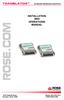 TRANSLATOR KEYBOARD AND MOUSE CONVERTER INSTALLATION AND OPERATIONS MANUAL 10707 Stancliff Road Phone: (281) 933-7673 Houston, Texas 77099 WWW.ROSE.COM . LIMITED WARRATY Rose Electronics warrants the Translator
Compaq Presario Desktop Products. Upgrading and Servicing Guide
 Compaq Presario Desktop Products Upgrading and Servicing Guide The information in this document is subject to change without notice. Hewlett-Packard Company makes no warranty of any kind with regard to
User Guide. BlackBerry Remote Stereo Gateway
 User Guide BlackBerry Remote Stereo Gateway MAT-17698-001 PRINTSPEC-021 SWD-324580-0416090732-001 Contents Basics...3 About the BlackBerry Remote Stereo Gateway...3 Components...4 LED notification...5
VM-4 USB Desktop Audio Device Installation Guide
 VM-4 USB Desktop Audio Device Installation Guide THE POSSIBILITIES ARE ENDLESS. 9 Austin Drive, Marlborough, CT 06447 (860) 295-8100 www.essentialtel.com [email protected] Table of Contents Introduction...3
Crow Limited Warranty. Print Version 017
 Crow Limited Warranty (Crow) warrants this product to be free from defects in materials and workmanship under normal use and service for a period of one year from the last day of the week and year whose
HP 22-in-1 Media Card Reader
 HP 22-in-1 Media Card Reader Introduction This document describes how to install the HP 22-in-1 Media Card Reader into an HP Workstations adapter bracket, and then install the media card reader and bracket
VM-8 USB Desktop Audio Device Installation Guide
 VM-8 USB Desktop Audio Device Installation Guide THE POSSIBILITIES ARE ENDLESS. 9 Austin Drive, Marlborough, CT 06447 (860) 295-8100 www.essentialtel.com [email protected] Table of Contents Introduction...3
ITC-BTTN Cellular Bluetooth Gateway. Owner s Manual 1
 ITC-BTTN Cellular Bluetooth Gateway Owner s Manual 1 2 Table of Contents Introduction...3 Package Contents...3 XLink Connections Diagram...4 Setup...5 Pairing your Bluetooth Cell Phone to the XLink...6
Magnetic Stripe Reader-Writer. Magnetic Stripe Reader-Writer. RS232 & USB-RS232 Interface Quickstart Manual
 Magnetic Stripe Reader-Writer RS232 & USB-RS232 Quickstart Manual ID TECH 10721 Walker Street Cypress, California 90630 (714) 761-6368 www.idtechproducts.com 80058504-002 Rev. C R01/08 Magnetic Stripe
BODi rs BD004 Series Bandwidth-on-Demand Internet with Reliability and Survivability. Quick Start Guide NOTES
 NOTES BODi rs BD004 Series Bandwidth-on-Demand Internet with Reliability and Survivability Quick Start Guide This is a Class A device and is not intended for use in a residential environment. Important
BACnet Automation Interface Module (Network Version)
 Sense +V Tx Rx LAN LINK Over ARCNET KBaud BACnet Rx BACnet Tx Archive Valid Port S Tx Port S Rx Low Battery Network- Enhanced Access Default MSTP PTP = Download Required on Rnet and Port S IP Address IP
Temperature & Humidity SMS Alert Controller
 Temperature & Humidity SMS Alert Controller Version 7 [Windows XP/Vista/7] GSMS THR / GSMS THP Revision 110507 [Version 2.2.14A] ~ 1 ~ SMS Alarm Messenger Version 7 [Windows XP/Vista/7] SMS Pro series
The Analyst RS422/RS232 Tester. With. VTR, Monitor, and Data Logging Option (LOG2) User Manual
 12843 Foothill Blvd., Suite D Sylmar, CA 91342 818 898 3380 voice 818 898 3360 fax www.dnfcontrolscom The Analyst RS422/RS232 Tester With VTR, Monitor, and Data Logging Option (LOG2) User Manual Manual
The table below lists the symbols used on the Clamp and/or in this manual. Important Information. See manual.
 i800 AC Current Clamp Instruction Sheet Introduction The i800 AC Current Clamp, the Clamp, has been designed for use with multimeters, recorders, power analyzers, safety testers, etc., for accurate non-intrusive
PN 100-06843L, Revision B, October 2013. Epic 950 TM. Master Programmer User s Guide
 PN 100-06843L, Revision B, October 2013 Epic 950 TM Master Programmer User s Guide This page intentionally left blank Change History Rev A Initial release Feb 2007 Rev B Update Oct 2013 100-06843L Rev
EZmoto V2. Product description Rev. 6 10/01/2014. EZmoto V2 Product description Rev.6 10/01/2014
 EZmoto V2 Product description Rev. 6 10/01/2014 1 Contents 1. Overview... 3 2. Hardware Interface Description... 3 2.1 Main features of the EZmoto... 3 2.2 Hardware block diagram... 4 2.3 Internal Hardware
Mercury Helios 2 ASSEMBLY MANUAL & USER GUIDE
 Mercury Helios 2 ASSEMBLY MANUAL & USER GUIDE TABLE OF CONTENTS INTRODUCTION...1 1.1 MINIMUM SYSTEM REQUIREMENTS 1.1.1 Apple Mac Requirements 1.1.2 PC Requirements 1.1.3 Supported PCIe Cards 1.2 PACKAGE
Dolphin 70e Black. Quick Start Guide. with Windows Embedded Handheld 6.5. 70E-WEH-QS Rev B 6/13
 Dolphin 70e Black with Windows Embedded Handheld 6.5 Quick Start Guide 70E-WEH-QS Rev B 6/13 Out of the Box Verify that your carton contains the following items: Dolphin 70e Black mobile computer (terminal)
Sierra Dual 24 Volt Brushless DC Motor Controller Product Specification
 Sierra Dual 24 Volt Brushless DC Motor Controller Product Specification Assembly 025A0215 600A0942 Rev. A May 14, 2012 025A0215 Brushless DC Motor Controller Page 1 Revision History ECN # Date Rev Description
Laser Barcode Scanner
 Laser Barcode Scanner User s Manual FCC Compliance This equipment has been tested and found to comply with the limits for a Class A digital device, pursuant to Part 15 of the FCC Rules. These limits are
About this Manual. Support for Your Product
 About this Manual We ve added this manual to the Agilent website in an effort to help you support your product. This manual is the best copy we could find; it may be incomplete or contain dated information.
PC Utility User s Manual
 SAM4s ER-265 Series PC Utility User s Manual Version 1.0 All specifications are subject to change without notice. 2006, CRS, Inc. CRS, Inc. Limited Warranty and Disclaimers of Warranty This manual has
MAC Viper Quadray Module Installation and Control Guide
 MC Viper Quadray Module Installation and Control Guide Introduction This Guide explains how to install the Martin MC Viper Quadray Module, P/N 91614052, on a Martin MC Viper irfx fixture and control the
Ethernet Networking Installation & Operations Manual Humminbird ETHERNET
 Ethernet Networking Installation & Operations Manual 531906-2EN_A GPS Unit 1 Humminbird ETHERNET Unit 2 Thank You! Thank you for choosing Humminbird, the #1 name in marine electronics. Humminbird has built
LAN / WAN Connection Of Instruments with Serial Interface By Using a Terminal Server
 Products: EFA with EFA Scan, DVRM and DVMD with Realtime Monitor or Stream Explorer DVMD-B1 LAN / WAN Connection Of Instruments with Serial Interface By Using a Terminal Server Remote control of test and
BMW Multi Tool User Manual
 X-Horse Electronics Co., Ltd. Table of Contents 1. Safety Precautions and Warnings... 3 2. General Information... 4 3. Hardware Overview... 5 3.1. Tool Description... 5 3.2. Specifications... 6 3.3. System
Data Analysis Software
 TRAKPRO Data Analysis Software User s Manual November 1996 P/N 1980200 Rev. D TSI Incorporated TRAKPRO Data Analysis Software User s Manual November 1996 P/N 1980200 Rev. D SHIP TO: TSI Incorporated 500
How To Install A Power Supply (Uplast) With A Battery Pack
 APC Smart-UPS RT SURTA48XLBP/SURTA48XLBPJ External Battery Pack User Manual Introduction/Before Installation About this Manual The APC Smart-UPS RT external battery pack (SURTA48XLBP or SURTA48XLBPJ) connects
PAR Tablet 10 Quick Start Guide
 ParTech, Inc. 8383 Seneca Turnpike New Hartford, NY 13413 p.800.458.6898 www.partech.com PAR Tablet 10 Quick Start Guide PN 770505503 This material has been created in order to accommodate a wide range
HP SATA/SAS hard drive and Solid State Drive installation
 HP SATA/SAS hard drive and Solid State Drive installation This document describes how to install Serial ATA (SATA) and Serial Attached SCSI (SAS) hard drives or Solid State Drives (SSD) in an internal
Dolphin 9900 Mobile Computers
 Dolphin 9900 Mobile Computers Dolphin 9900 Dolphin 9950 Dolphin 9951 with Windows Mobile 6.1 Quick Start Guide Dolphin 9900 Series Quick Start Guide Out of the Box Verify that the box contains the following
This guide explains how to install an Intel Solid-State Drive (Intel SSD) in a SATA-based desktop or notebook computer.
 Installation Guide This guide explains how to install an (Intel SSD) in a SATA-based desktop or notebook computer. The instructions include migrating your data from your current storage device (such as
RN-WIFLY-EVAL-UM. WiFly Evaluation Kit. 2012 Roving Networks. All rights reserved. RN-WIFLY-EVAL-UM Version 1.32r 10/9/2012 USER MANUAL
 WiFly Evaluation Kit 2012 Roving Networks. All rights reserved. Version 1.32r 10/9/2012 USER MANUAL OVERVIEW This document describes the hardware and software setup for Roving Networks evaluation kits,
RI-215A Operator s Manual. Part Number: 71-0045RK Revision 0 Released: 10/3/05
 RI-215A Operator s Manual Part Number: 71-0045RK Revision 0 Released: 10/3/05 Warranty RKI Instruments, Inc., warrants gas alarm equipment sold by us to be free from defects in materials and workmanship,
Physical. Electrical. Environmental. Insulation: Contact: Plating: Temperature Rating: -55 C to +85 C
 M I/O Interconnect System 2.0 mm for IEEE 194 Wiremount Receptacle (Female) E206 Series Designed to mate to all M I/O Interconnect System 2.0 mm for IEEE 194 Boardmount Plugs Polarized to provide proper
User Manual I1010Q16DCZ
 User Manual I1010Q16DCZ Explanation, Note and Warning *Explanation: important information, which can help you better use your tablet PC. *Note: indicates that not observing the content may result in hardware
Temp. & humidity Transmitter Instructions
 Temp. & humidity Transmitter Instructions AQ3485/AQ3485Y www.aosong.com 1 Product Overview AQ3485/ AQ3485Y outdoor network temperature and humidity transmitter is accurate measurement of relative humidity
Operating Manual Remote Cost Control Monitor
 Operating Manual Remote Cost Control Monitor INTRODUCTION: Congratulations on purchasing the Remote Cost Control. This is a state-of-the-art power monitoring socket that is highly accurate and easy to
DVPPF02-H2. PROFIBUS DP Slave Communication Module Application Manual
 DVPPF02-H2 PROFIBUS DP Slave Communication Module Application Manual Warning Please read this instruction carefully before use and follow this instruction to operate the device in order to prevent damages
VIDEO DOOR PHONE SYSTEM
 ENGLISH VIDEO DOOR PHONE SYSTEM USER MANUAL Manual covers IH-692 Master and IH-692 Slave Monitors PRECAUTIONS BEFORE INSTALLATION Connect this unit ONLY to other compatible units. Do not connect it to
XPanel V2. Remote Control Panel. User Manual. XILICA Audio Design
 XPanel V2 Remote Control Panel User Manual XILICA Audio Design Important Safety Instructions 1. READ THESE INSTRUCTIONS All the safety and operating instructions should be read before the product is operated.
Box Camera Series Hardware Manual
 Encoder Firmware V4.06.09 User s Manual Box Camera Series Hardware Manual D21 (D21F / D21V) D22 (D22F / D22V) E21 (E21F / E21V) E22 (E22F / E22V) E23, E24, E25 2013/08/27 Table of Contents Precautions...
In-System Programmer USER MANUAL RN-ISP-UM RN-WIFLYCR-UM-.01. www.rovingnetworks.com 1
 RN-WIFLYCR-UM-.01 RN-ISP-UM In-System Programmer 2012 Roving Networks. All rights reserved. Version 1.1 1/19/2012 USER MANUAL www.rovingnetworks.com 1 OVERVIEW You use Roving Networks In-System-Programmer
Small form factor bay converter and hard drive installation
 Small form factor bay converter and hard drive installation HP xw6600 and HP xw8600 Workstations This document describes how to convert HP xw6600 and HP xw8600 Workstation 3.5-inch hard drive bays to hold
COMSPHERE 6700 SERIES NETWORK MANAGEMENT SYSTEM
 COMSPHERE 6700 SERIES NETWORK MANAGEMENT SYSTEM SECURITY MANAGER FEATURE SUPPLEMENT Document No. 6700-A2-GB41-30 February 1998 Copyright 1998 Paradyne Corporation. All rights reserved. Printed in U.S.A.
DCT-16 USB HD Audio Converter
 DCT-16 USB HD Audio Converter Operation Manual DISCLAIMERS The information in this manual has been carefully checked and is believed to be accurate. Cypress Technology assumes no responsibility for any
Future Technology Devices International Ltd
 Future Technology Devices International Ltd Datasheet Chipi-X Cable Chipi-X is a USB to full-handshake RS232 cable with a male DB9 connector. This cable is available with or without an enclosure. 1 Introduction
Getting Started. rp5800, rp5700 and rp3000 Models
 Getting Started rp5800, rp5700 and rp3000 Models Copyright 2011 Hewlett-Packard Development Company, L.P. The information contained herein is subject to change without notice. Microsoft, Windows, and Windows
IEEE 802.15.4/ZigBee USB Dongle
 IEEE 802.15.4/ZigBee USB Dongle ZigBee Dongle for 2.4GHz Band DESCRIPTION The IEEE 802.15.4 USB Dongle from Integration provides a compliant 802.15.4 interface that can be quickly and easily connected
Express5800/120Ed. Rack Mount Kit Installation Procedures PN: 455-01607-001
 Express5800/120Ed Rack Mount Kit Installation Procedures PN: 455-01607-001 Proprietary Notice and Liability Disclaimer The information disclosed in this document, including all designs and related materials,
M3 ORANGE single-slot Cradle. User Guide. Product Number: A-1CR-US0D-030-R00, A-1CR-U0ED-030-R00. Compatible Device(s): M3 ORANGE
 M3 ORANGE single-slot Cradle User Guide Product Number: A-1CR-US0D-030-R00, A-1CR-U0ED-030-R00 Compatible Device(s): M3 ORANGE Version 2.0 Released in January 2011 Contents Copyright and Agreement... 3
User's Manual. Metapace L-1. Label Printer Rev. 1.00
 User's Manual Label Printer Rev. 1.00 Table of Contents Manual Information & Usage Precautions 3 1. Content Confirmation 6 2. Product Part Names 7 3. Installation & Usage 9 3-1 Power Connection 9 3-2 Interface
Single channel data transceiver module WIZ2-434
 Single channel data transceiver module WIZ2-434 Available models: WIZ2-434-RS: data input by RS232 (±12V) logic, 9-15V supply WIZ2-434-RSB: same as above, but in a plastic shell. The WIZ2-434-x modules
When any of the following symbols appear, read the associated information carefully. Symbol Meaning Description
 Samba OPLC SM35-J-R20 Installation Guide The Unitronics SM35-J-R20 offers the following onboard I/Os: 12 Digital Inputs, configurable via wiring to include: 1 HSC/Shaft-encoder Input, 2 Analog inputs (only
3M MicroTouch MT7 Software Diagnostic Utility User Guide
 3M MicroTouch MT7 Software Diagnostic Utility User Guide Read and understand all safety information contained in this document before using this product. 3 2 3M MicroTouch MT7 Software Diagnostic Utility
User's Guide. Integrating Sound Level Datalogger. Model 407780. Introduction
 User's Guide 99 Washington Street Melrose, MA 02176 Phone 781-665-1400 Toll Free 1-800-517-8431 Visit us at www.testequipmentdepot.com Back to the Extech 407780 Product Page Integrating Sound Level Datalogger
Scan2CRM for ACT! User Guide
 Scan2CRM for ACT! User Guide APPENDIX Warranty... I Notice to user...ii Publication...III Trademarks...IV Version 9.50 - Supports ACT! by Sage for windows, ACT! 2007 (Version 9) and above. This publication
USB 2.0 VGA ADAPTER USER MANUAL
 USB 2.0 VGA ADAPTER USER MANUAL CONTENTS INTRODUCTION... 3 FEATURES... 3 SYSTEM REQUIREMENTS... 3 PACKAGE CONTENTS... 3 SUPPORTED COMMON DISPLAY RESOLUTION... 4 TECHNICAL SPECIFICATIONS... 4 INSTALLATION
The SYSTIMAX ipatch System
 The SYSTIMAX ipatch System Panel Manager Guide June 2009 Material ID 860 442 573 Guide: SYSTIMAX ipatch Panel Manager Guide 2009 CommScope, Inc. All rights reserved Printed in the U.S.A. 860 442 573 SYSTIMAX
Agilent Automated Card Extraction Dried Blood Spot LC/MS System
 Agilent Automated Card Extraction Dried Blood Spot LC/MS System SCAP DBS Software User Guide Notices Agilent Technologies, Inc. 2012 No part of this manual may be reproduced in any form or by any means
TTL to RS232 Adapter User Guide
 TTL to RS232 Adapter User Guide Revision D March 28, 2011 Document Part Number GC-800-313d Copyright and Trademark Copyright 2006-2011, Grid Connect, Inc. All rights reserved. No part of this manual may
IMATION SECURE SCAN. ck Start Guide. Imation Secure Scan
 IMATION SECURE SCAN Quick ck Start Guide Imation Corp 2012 Imation Secure Scan page 1 of 6 1 Unpacking your Imation Secure Scan The following items are contained inside the case: 1 2 Imation Secure Scan
Installation Guide for Gig Zero Delay Tap and 10/100/1000BaseT Tap
 Installation Guide for Gig Zero Delay Tap and 10/100/1000BaseT Tap 800-0150-001 Rev. F PUBTPCU3ZDU 8/10 Gig Zero Delay Tap PLEASE READ THESE LEGAL NOTICES CAREFULLY. By using a Net Optics Tap you agree
Hardware Installation and Configuration Guide
 Hardware Installation and Configuration Guide Trademark Notices Comtrol, DeviceMaster, and PortVision are registered trademarks of Comtrol Corporation. Ethernet is a registered trademark of Digital Equipment
RC2200DK Demonstration Kit User Manual
 Demonstration Kit User Manual Table of contents TABLE OF CONTENTS... 1 QUICK INTRODUCTION... 2 INTRODUCTION... 3 DEMONSTRATION BOARD... 4 POWER SUPPLY SECTION... 5 RS-232 INTERFACE... 6 CONNECTORS... 7
MultiModem ZBA. Quick Start Guide. MT9234ZBA-Series MT9234ZBA MT9234ZBA-V
 MultiModem ZBA MT9234ZBA-Series MT9234ZBA MT9234ZBA-V Quick Start Guide MultiModem ZBA Quick Start Guide MT9234ZBA & MT9234ZBA-V 82100201L Rev. B Copyright This publication may not be reproduced, in whole
pco.interface GigE & USB Installation Guide
 pco.interface GigE & USB Installation Guide In this manual you find installation instructions for the GigE Vision and USB2.0 interface on Microsoft Windows platforms. Target Audience: This camera is designed
Daker DK 1, 2, 3 kva. Manuel d installation Installation manual. Part. LE05334AC-07/13-01 GF
 Daker DK 1, 2, 3 kva Manuel d installation Installation manual Part. LE05334AC-07/13-01 GF Daker DK 1, 2, 3 kva Index 1 Introduction 24 2 Conditions of use 24 3 LCD Panel 25 4 Installation 28 5 UPS communicator
USB-to-Serial RS-232 Hub USB-to-Serial RS-422/485 Hub USER MANUAL UC2322 / UC2324 / UC4852 / UC4854
 USB-to-Serial RS-232 Hub USB-to-Serial RS-422/485 Hub USER MANUAL UC2322 / UC2324 / UC4852 / UC4854 FCC Information This equipment has been tested and found to comply with the limits for a Class B digital
HP ProDisplay P19A LED Backlit Monitor. User Guide
 HP ProDisplay P19A LED Backlit Monitor User Guide 2013 Hewlett-Packard Development Company, L.P. The only warranties for HP products and services are set forth in the express warranty statements accompanying
Modbus Communications for PanelView Terminals
 User Guide Modbus Communications for PanelView Terminals Introduction This document describes how to connect and configure communications for the Modbus versions of the PanelView terminals. This document
Owner's Manual [ S/N LABEL HERE ] Document # BW-BCU5DOC
![Owner's Manual [ S/N LABEL HERE ] Document # BW-BCU5DOC](/thumbs/39/18146231.jpg "Owner's Manual [ S/N LABEL HERE ] Document # BW-BCU5DOC") Owner's Manual [ S/N LABEL HERE ] Document # BW-BCU5DOC BAYweb Remote Model BW-BCU5 Owner's Manual Copyright 2009-2010 Bay Controls, LLC Part Number: BW-BCU5DOC Revision: 0.2 April 18, 2010 BAYweb is a
Owner's Manual [ S/N LABEL HERE ] Document # BW-BCU5DOC BAYweb Remote Model BW-BCU5 Owner's Manual Copyright 2009-2010 Bay Controls, LLC Part Number: BW-BCU5DOC Revision: 0.2 April 18, 2010 BAYweb is a
BroadBand PowerShield. User Manual
 BroadBand PowerShield User Manual 990-0375G 12/2006 Chapter 1 General Information The PowerShield provides a power source for broadband telephony and other DC applications. Safety This Safety Guide contains
New MINIMAG Magnetic Stripe Reader
 TM New MINIMAG Magnetic Stripe Reader USB/CDC Interface Quickstart Manual ID TECH 10721 Walker Street Cypress, California 90630 (714) 761-6368 www.idtechproducts.com 80066509-001 Rev. C R04/06 #419 DEFAULT
PK5500 v1.1 Installation Instructions
 PK5500 v1.1 Installation Instructions 1 2 3 4 5 6 7 8 9 * 0 # WARNING: Please refer to the System Installation Manual for information on limitations regarding product use and function and information on
SEC 4100 SYSTEM MONITOR Programmable Serial Interface Card Series 2
 SEC 4100 SYSTEM MONITOR Programmable Serial Interface Card Series 2 USER MANUAL Rev. P1.11 September 13, 2006 DeltaV is a trademark of Emerson Process Management, Inc Emerson Process Management, Inc. 1998,