
3M MicroTouch Controller EX USB Reference Guide
|
|
|
- Reynold Lindsey
- 9 years ago
- Views:
Transcription

1 3M MicroTouch Controller EX USB Reference Guide Model Size Cased Connector EX111 1 X 2 NO AMP EX121 2 X 3 NO 12 PIN EX141 2 X 3 YES 12 PIN EX151 1 X 2 NO ZIF Read and understand all safety information contained in this document before using this product. 3

2 2 3M MicroTouch Controller EX USB Reference Guide The information in this document is subject to change without notice. No part of this document may be reproduced or transmitted in any form or by any means, electronic or mechanical, for any purpose, without the express written permission of 3M Touch Systems, Inc. 3M may have patents or pending patent applications, trademarks, copyrights, or other intellectual property rights covering subject matter in this document. The furnishing of this document does not give you license to these patents, trademarks, copyrights, or other intellectual property except as expressly provided in any written license agreement from 3M Touch Systems, Inc. The information provided in this document is intended as a guide only. For the latest detailed engineering specifications, please contact your 3M Touch Systems, Inc. Application Engineer. 3M Touch Systems, Inc. is committed to continually improving product designs. As a result, product specifications may be subject to change without notification. "RoHS compliant 2011/65/EU" means that the product or part does not contain any of the following substances in excess of the following maximum concentration values in any homogeneous material, unless the substance is in an application that is exempt under RoHS: (a) 0.1% (by weight) for lead, mercury, hexavalent chromium, polybrominated biphenyls or polybrominated diphenyl ethers; or (b) 0.01% (by weight) for cadmium. This information represents 3M s knowledge and belief, which may be based in whole or in part on information provided by third party suppliers to 3M. NOTICE: Given the variety of factors that can affect the use and performance of a 3M Touch Systems, Inc. product (the Product ), including that solid state equipment has operation characteristics different from electromechanical equipment, some of which factors are uniquely within User s knowledge and control, it is essential that User evaluate the 3M Touch Systems, Inc. Product and software to determine whether it is suitable for User s particular purpose and suitable for User s method of application. 3M Touch Systems, Inc. statements, engineering/technical information, and recommendations are provided for User s convenience, but their accuracy or completeness is not warranted. 3M Touch Systems, Inc. products and software are not specifically designed for use in medical devices as defined by United States federal law. 3M Touch Systems, Inc. products and software should not be used in such applications without 3M Touch Systems, Inc. express written consent. User should contact its sales representative if User s opportunity involves a medical device application. IMPORTANT NOTICE TO PURCHASER: Specifications are subject to change without notice. These 3M Touch Systems, Inc. Products and software are warranted to meet their published specifications from the date of shipment and for the period stated in the specification. 3M Touch Systems, Inc. makes no additional warranties, express or implied, including but not limited to any implied warranties of merchantability or fitness for a particular purpose. User is responsible for determining whether the 3M Touch Systems, Inc. Products and software are fit for User s particular purpose and suitable for its method of production, including intellectual property liability for User's application. If the Product, software or software media is proven not to have met 3M Touch Systems, Inc. warranty, then 3M Touch Systems, Inc. sole obligation and User s and Purchaser s exclusive remedy, will be, at 3M Touch Systems, Inc. option, to repair or replace that Product quantity or software media or to refund its purchase price. 3M Touch Systems, Inc. has no obligation under 3M Touch Systems, Inc. warranty for any Product, software or software media that has been modified or damaged through misuse, accident, neglect, or subsequent manufacturing operations or assemblies by anyone other than 3M Touch Systems, Inc. 3M Touch Systems, Inc. shall not be liable in any action against it in any way related to the Products or software for any loss or damages, whether non-specified direct, indirect, special, incidental or consequential (including downtime, loss of profits or goodwill) regardless of the legal theory asserted. 3M All rights reserved. Document Title: 3M TM MicroTouch TM Controller EX USB Reference Guide Document Number: TSD-29489, Version F 3M, the 3M logo, MicroTouch, and the MicroTouch logo are either registered trademarks or trademarks of 3M in the United States and/or other countries. Windows and/or other Microsoft products referenced herein are either registered trademarks or trademarks of Microsoft Corporation in the U.S. and/or other countries. All other trademarks are the property of their respective owners.

3 3M MicroTouch Controller EX USB Reference Guide 3 Contents Contents Chapter 1 Introduction What You Need to Know... 5 Important Safety Information... 5 Sensor Care and Cleaning M Touch Systems Support Services... 7 Contact 3M Touch Systems... 7 Chapter 2 Integrating the 3M MicroTouch EX USB Controllers Overview of the EX USB Controllers... 8 Handling and ESD Protection... 9 Establishing the Data Connection... 9 EX121/EX141 Sensor Connections EX111 Sensor Connections EX151 Sensor Connections Mounting the Controller Supplying Power to the Controller Mounting the Sensor Turning On Your System Status Light (LED) Diagnostics Installing 3M MicroTouch Software Chapter 3 3M MicroTouch EX USB Controller Communications Overview of USB Firmware Commands Communicating with the Controller Vendor Requests... 16

4 4 3M MicroTouch Controller EX USB Reference Guide Appendix A Sending Commands to the Controller Receiving Reports from the Controller Coordinate Data Report Calibration Request Controller Status Request Controller Status Report Reset Request Restore Defaults Request Controller ID Request Controller ID Report Read Parameter Request Parameter Data Report EX121/EX141 Controller Specifications EX121/EX141Dimensions Technical Specifications Physical Dimensions Appendix B EX111/EX151 Controller Specifications Figure 3 EX111 Dimensions Technical Specifications Physical Dimensions... 36

5 3M MicroTouch Controller EX USB Reference Guide 5 CHAPTER 1 Introduction 3M Touch Systems offers several advanced controllers designed for reliability and easy installation. Each controller provides superior performance and delivers excellent stability, sensitivity, accuracy, and fast response. This reference guide, designed for developers of touch systems, provides installation and configuration information for the 3M MicroTouch EX USB capacitive touch controller. This document includes information on integrating the EX USB controller into your design, communicating with the controller, installing the MT 7 software user interface, and troubleshooting setup problems. It also includes a complete description of the firmware commands and controller specifications. 3M Touch Systems is committed to being a premier supplier in touch systems throughout the world. As a 3M Touch Systems customer, you are aware that we have strong internal programs that meet or exceed environmental regulations of our customers and the regions in which we conduct business. What You Need to Know This document assumes you are familiar with firmware commands and how to use them. Executing some commands may alter the performance of your touch product. You should be aware of the results of using these commands before executing them. Important Safety Information Read, understand and follow all safety information before using this product. Follow all instructions marked on the product and described in this document. Pay close attention to the following installation warnings and safety precautions. Intended Use The EX USB controller was designed to enable surface capacitive touch in conjunction with other 3M MicroTouch sensor products and and was tested to replace an existing USB controller. This controller is not suitable for use in hazardous locations.

6 6 3M MicroTouch Controller EX USB Reference Guide Explanation of Signal Word Consequences WARNING: Indicates a potentially hazardous situation, which, if not avoided, could result in death or serious injury and/or property damage. CAUTION: Indicates a potentially hazardous situation, which, if not avoided, may result in minor or moderate injury and/or property damage. CAUTION: Indicates a potentially hazardous situation, which, if not avoided, may result in property damage. WARNING To reduce the risk of fire and/or explosion which could result in serious injury or death: Do not install or use this product in a hazardous location. To reduce the risk of fire and/or explosion which could result in serious injury or property damage: Do not use this product in any outdoor environment unless NEMA standards (or similar standards such as IP rating) are followed. To avoid the risk of electric shock which could result in serious injury or death: Do not use a damaged power supply. Do not use a power cord that is frayed or otherwise damaged. CAUTION To reduce the risks associated with improper disposal, which if not avoided may result in minor or moderate injury from ground water contamination: Dispose of components in accordance with federal, state and local regulations. To reduce the risk of possible environmental contamination which may result in minor or moderate injury: Dispose of the display in accordance with federal, state and local regulations. To reduce the risk of the potentially hazardous situations associated with the use of isopropyl alcohol which may result in minor or moderate injury or property damage: Follow all instructions and recommendations in the manufacturer's Material Safety Data Sheet and product label. Sensor Care and Cleaning The sensor requires very little maintenance. 3M Touch Systems recommends that you periodically clean the glass surface. Typically, an isopropyl alcohol and water solution ratio of 50:50 is the best cleaning agent for your touch screen. You can also use straight isopropyl alcohol. Be sure to follow solvent manufacturer's precautions and directions for use when using any solvents. It is important to avoid using any caustic chemicals on the sensor.

7 3M MicroTouch Controller EX USB Reference Guide 7 Always dampen the cloth and then clean the screen. Be sure to spray the cleaning liquid onto the cloth, not the screen, so that drips do not seep inside the display or stain the bezel. Apply the cleaner with a soft, lint-free cloth. Avoid using gritty cloths. Always handle the sensor with care. Do not pull on or stress flex tail. 3M Touch Systems Support Services 3M Touch Systems provides extensive support services through our website and technical support organization. Visit the 3M Touch Systems website at where you can download touch software and drivers, obtain regularly updated technical documentation on 3M Touch Systems products, and learn more about our company. Whenever you contact Technical Support, please provide the following information: Touch display size, part number and serial number Current driver version Operating system used Information on additional peripherals Technical Support is available Monday through Friday 8:30 a.m. to 5:30 p.m. with limited call back service after 5:30 p.m. until 8:00 p.m. US Eastern Standard Time 9 a.m. to 5 p.m. throughout Europe. You can contact 3M Touch Systems Technical Support (US only -- Eastern Standard Time) by calling the hot line, sending or a fax. Technical Support Hot Line: Technical Support Fax: Toll Free: (Option 3) [email protected] Contact 3M Touch Systems Contact information for all offices can be found on our website at:

8 8 3M MicroTouch Controller EX USB Reference Guide CHAPTER 2 Integrating the 3M MicroTouch EX USB Controllers The 3M MicroTouch EX USB controller provides a drop-in replacement for an existing controller with wide dynamic range, increased noise immunity, wide operating temperature stability, reprogrammability using software utilities and improved capability in ungrounded environments. The firmware for the EX1N1 series USB controllers is optimized for surface capacitive sensors integrated in the latest displays. This chapter covers the following EX controller specifications: Cable connections Mounting requirements Power requirements and options Status LED codes Overview of the EX USB Controllers Note: For complete specifications for each of these EX USB controllers, refer to the appendices at the end of this manual. The EX II ASIC has a built-in Universal Serial Bus (USB) full speed interface. A full speed USB interface has a data rate of 12 Mb/s. The USB core in the ASIC was designed to USB specification revision 1.1 but is forward compatible with revision 2.0. A 25-point linearization procedure has been performed to determine the physical properties of the sensor, and the data is stored in a 2D bar code label attached to the flex tail. To integrate and test the EX USB controller, you need the following items:

9 3M MicroTouch Controller EX USB Reference Guide 9 A 3M MicroTouch surface capacitive sensor (available in a variety of sizes). A method of establishing the USB data communication between the controller and your system. The standard 3M MicroTouch USB cable (P/N ) is recommended for this device. The controller will operate with the standard USB +5V bus power. A touch driver and a calibration program. You can use 3M MicroTouch MT 7 software which includes the necessary touch driver and utilities software. Handling and ESD Protection When mounting the sensor and controller, use normal precautions for handling electrostatic sensitive devices. The EX USB controllers have internal protection to ±27 kv for ESD discharges to the sensor (not to the controller directly) that may occur during normal operation of the sensor. Refer to the appendices for further specifications. Establishing the Data Connection The EX USB controller requires a 3M MicroTouch USB communication cable (P/N ) or an equivalent interconnect. One end of this cable plugs into the USB connector (JP1) on the EX USB controller. The other end plugs into a USB port on your PC with a Type-A connector. Table 1 describes the interconnections of the 3M MicroTouch USB cable. Table 1. USB Cable for EX USB Controllers PC Side (USB Type A) Wire Controller Side (5-Pin Molex) Pin USB Assigned Color Pin Description 1 +5VDC Red 1 +5VDC input power 2 Data (DN) Gray 2 Data (DN) differential pair 3 Data (DP) Green 3 Data (DP) differential pair 4 0V Black 4 Power return 5 Cable Shield Shell Charcoal Gray 5 Outer cable shield around signal and power lines. Chassis (earth) ground

10 10 3M MicroTouch Controller EX USB Reference Guide EX121/EX141 Sensor Connections The sensor cable has a 12-pin (2 x 6) dual row female connector that plugs into the controller. Table 2 describes the pins on this connector. The sensor connector always exits towards the USB cable. Table 2. Sensor Cable Connector for EX121/EX141 Controllers Pin Wire Color Description 1 NOVRAM interface 2 NOVRAM interface 3 NOVRAM interface 4 +5 VDC Gray Green Orange 8 Brown Cable shield/drain wire White Red Black Blue Not used Chassis (earth) ground Not used Connects to the flex tail shield, which must not be grounded because the controller drives the flex tail shield with an AC waveform. Upper right (UR) corner Lower right (LR) corner Upper left (UL) corner Lower left (LL) corner EX111 Sensor Connections The sensor cable has a 5-pin single row locking female connector that plugs into the controller. Table 3 describes the pins on this connector.

11 3M MicroTouch Controller EX USB Reference Guide 11 Table 3. Sensor Flex Tail Connector for EX111 Controllers Pin Description 1 Upper left (UL) corner 2 Upper right (UR) corner 3 Connects to the flex tail shield, which must not be grounded because the controller drives the flex tail shield with an AC waveform. 4 Lower right (LR) corner 5 Lower left (LL) corner EX151 Sensor Connections The sensor cable has a 5-pin ZIF connector that plugs into the controller. Table 4 describes the pins on this connector. Table 4 Sensor Cable Connector for EX151 Controllers Pin Wire Color Description 1 Upper left (UL) corner 2 Upper right (UR) corner 3 Cable shield/drain wire 4 Lower right (LR) corner 5 Lower left (LL) corner Connects to the flex tail shield, which must not be grounded because the EX112 drives the flex tail shield with an AC waveform.

12 12 3M MicroTouch Controller EX USB Reference Guide Mounting the Controller The cased controller is mounted externally. The uncased controller is mounted internally. Choose a convenient spot away from high-voltage, high power cables and electronics. Use 4-40 plastic screws to mount the cased controller to eliminate possible ESD input path. Metal or plastic screws can be used on the 2x3 board if the green ground wire is used. Metal screws are required on the 1x2 board if a separate ground wire is not used. The controller should be mounted in line with the sensor flex tail exit point to minimize flexing. Refer to Figure 1 for more details on controller mounting. Supplying Power to the Controller Mounting the Sensor The controller is designed to use USB bus power (that is, tap power from the USB port). The source must deliver 75 ma typical ma maximum, with a maximum ripple and noise of 50mV peak-to-peak. CAUTION To avoid possible damage to the controller, you must provide a path for electrostatic discharge. The controller-mounting hole near the sensor connector should be used to connect to chassis safety ground and must be attached by the shortest possible route to a good earth return (chassis) in all applications. There are several methods for mounting the sensor depending on your application. If you need instructions or recommendations from 3M Touch Systems on how to incorporate a sensor into your design, refer to the 3M TM MicroTouch TM System 3250EX Integration Guide (P/N ). All 3M Touch Systems documentation is available from the corporate website at Turning On Your System Before you turn on your custom system, ensure that all cables are connected properly and that the controller is properly mounted. To start up your system: 1. Turn on your display and computer. 2. Adjust the contrast and brightness to suit your personal preference and working environment. 3. Adjust the horizontal and vertical position controls on the display to center the image on the sensor. If the driver has been previously loaded, the controller will enumerate when hot plugging the controller into a USB port.

13 3M MicroTouch Controller EX USB Reference Guide 13 Status Light (LED) Diagnostics 3M MicroTouch controllers are highly reliable units; however, there may be occasions when the controller does not perform exactly as you expected. The EX USB controller provides diagnostic feedback with a light emitting diode (LED) on the component side of the board that indicates the status of the touch system. If the LED is on, and remains dimly lit, the controller has power and is operating properly. If the LED is off, the controller is not receiving power or USB communications have stopped and the controller is in suspend mode. The LED indicator also provides visual indication of the controller s internal self-tests by flashing or blinking a code that may be interpreted using the table below. The test results are also returned as part of the USB Status report. Those bits that result in a flashing error code are repeated in the table below. Some errors are fatal -- that is, normal sensor operation cannot occur. Others errors may simply cause default conditions to be assumed and sensor operation may proceed. Table 4. LED Diagnostic Codes for EX USB Controllers Self Test Condition LED Flashes Self Test Bit Description What to do... RAM Data 1 0 Data side checksum error Reload program code. Error 2 RAM Code Error Firmware EEPROM checksum verification error Reload program code. STRAY Error Unable to initialize stray cancellation NOV Error Parameters invalid (using defaults) HDW Error Controller hardware failure (phase/gain initialization) Reserved 6 5 Reserved CABLE Error 7 6 Cable NOVRAM linearization data invalid NOV2 Error 8 7 Controller NOVRAM linearization data invalid Replace controller. If error reoccurs, might be a sensor problem. Restore defaults. If fault persists, replace controller. If error reoccurs, might be a sensor or cable problem. Cycle power. If fault persists, replace controller. At startup, the cable NOVRAM error will flash the LED until the controller receives a status command from host. Replace sensor or perform a 25- point linearization. Contact Technical Support. Reserved 9 8 Reserved EEPROM 10 9 EEPROM is not working Reload program code. Error 2

14 14 3M MicroTouch Controller EX USB Reference Guide Self Test Condition LED Flashes Self Test Bit Description What to do... NOV5 Error Controller ID is not valid Restore defaults. If fault persists, replace controller. NOV6 Error Interface configuration values are not valid Restore defaults. If fault persists, replace controller. NOV7 Error Touch configuration values are not valid Restore defaults. If fault persists, replace controller. Reserved Reserved Resistance Error Sensor resistance is out of supported range Cycle power. If fault persists, replace sensor. Backplane Error Low resistance path from backplane to sensor Cycle power. If fault persists, replace sensor. Corner Error Corner drive offset level is too high Cycle power. If fault persists, replace controller. Fixed Cal Error Fixed 2-point cal error high Cycle power. If fault persists, replace controller. Note 1: this is a fatal error. Note 2: this error is detected by the ROM code Note 3: indicates that the EEPROM is not formatted when given by the ROM code Installing 3M MicroTouch Software 3M MicroTouch Software includes the driver that enables your sensor to work with your computer. 3M Touch Systems has touch drivers for many operating systems, including Windows 7, Windows Vista, Windows XP, Windows XP embedded, Windows CE, and Linux (Kernel 2.6) (refer to the website for a complete listing). You must be sure to install the correct software for your operating system. 3M MicroTouch Software includes a control panel for setting your sensor preferences and a diagnostic utility. If you are experiencing problems with the sensor, you can use the diagnostic utilities provided to locate the controller and test the sensor. For more information on connecting your cables and installing and using the sensor control panel and utilities, refer to the 3M MicroTouch Software User Guides available on the corporate website at

15 3M MicroTouch Controller EX USB Reference Guide 15 CHAPTER 3 3M MicroTouch EX USB Controller Communications This chapter discusses the fundamentals of communicating with the 3M MicroTouch EX USB controller. The firmware commands, which are usually issued by a driver or utility program on the host system, control the operation of the touch controller, however developers can enter these commands directly. This chapter: Describes the controller default settings. Lists the recommended firmware commands for current development. Describes how to use each of these commands. References additional commands developers may need to use. The description of each command includes the command syntax, the default value, how the command works, and the expected response from the controller. Note: HID versions of these controllers are available. Please consult your sales representative for details. Overview of USB Firmware Commands Developers may use these USB commands when writing touch applications, developing custom drivers or touch configurations, or testing their touch systems. Developers can issue commands to initialize the controller, select operating modes, and execute diagnostic functions. Most sensor users do not have to use firmware commands to use their touch systems. For example, users can use MT 7 software to calibrate the sensor or to determine the controller type and firmware version.

16 16 3M MicroTouch Controller EX USB Reference Guide Note: This document assumes you are familiar with USB standards and modes of communication with USB devices, as well as firmware commands and how to use them. Executing some commands may alter the performance of your sensor and render it inoperable. You should be aware of the results before executing any firmware commands. To optimize the performance of the 3M MicroTouch EX USB touch controller and simplify the development of custom drivers, 3M Touch Systems recommends you use the commands listed in this chapter for current development. Using these commands ensures compatibility with all 3M MicroTouch controllers. Communicating with the Controller Vendor Requests This section provides information on sending firmware commands to the controller and interpreting the responses that the controller returns. The default operation of the EX USB controller is USB Rev 1.1 compliant. The USB command set is implemented by using vendor requests and vendor reports, i.e., vendor specific transactions. You need to know product ID (1 for normal mode and 2 for special mode) and the vendor ID (0596H) to write your own driver. The EX USB controller is command set compatible with previous generation MicroTouch USB controllers. Modifications of existing software should not be necessary when replacing an older controller. The following commands are those that 3M Touch Systems currently uses for communications. 3M Touch Systems recommends that you use only these commands for 3M MicroTouch EX USB controller communications. The following list summarizes the six available vendor requests: Request 4 Calibrate Request 6 Status Request 7 Reset Request 8 Restore Defaults Request 10 Controller ID Request 16 Read Parameter

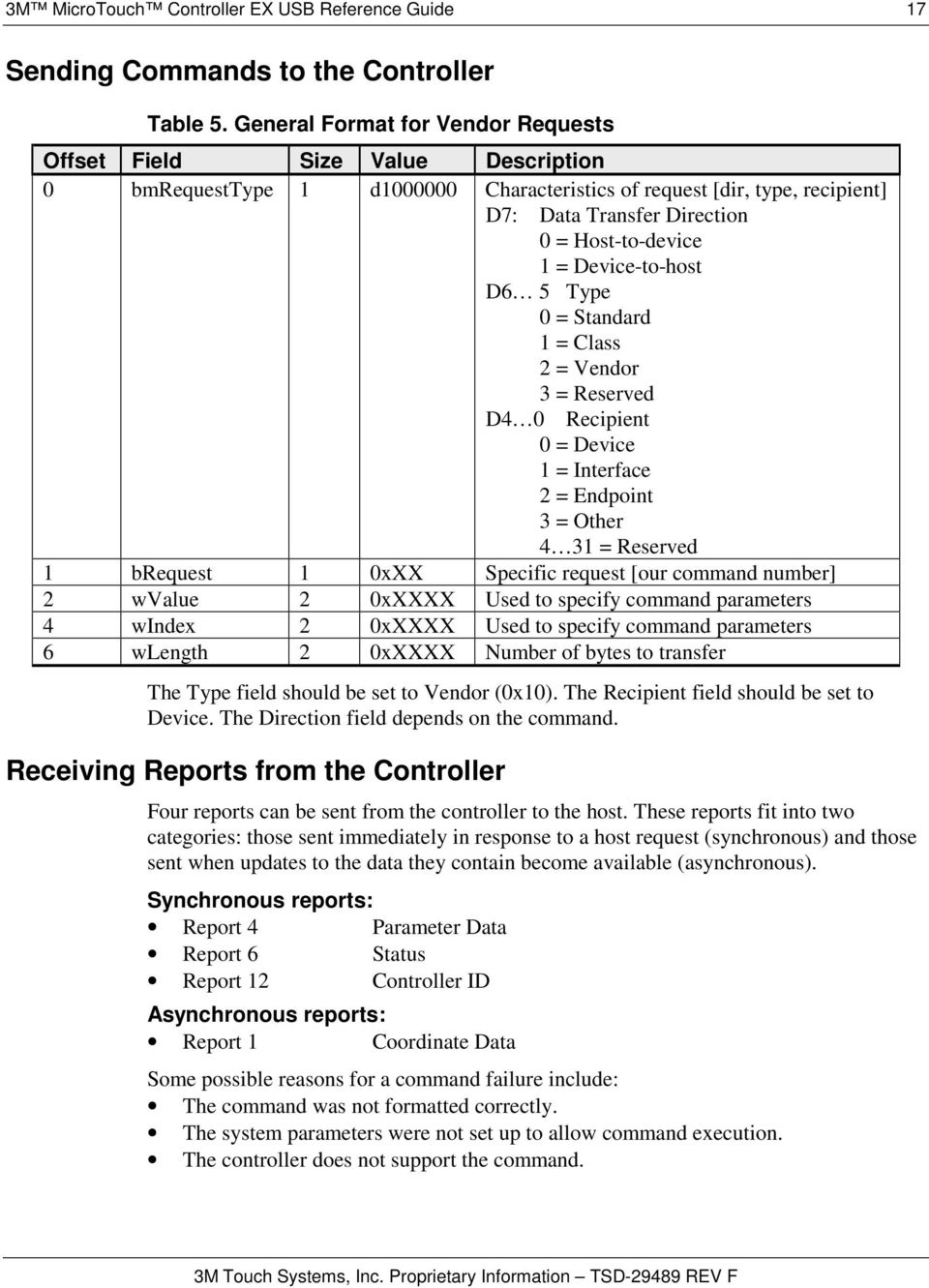
17 3M MicroTouch Controller EX USB Reference Guide 17 Sending Commands to the Controller Table 5. General Format for Vendor Requests Offset Field Size Value Description 0 bmrequesttype 1 d Characteristics of request [dir, type, recipient] D7: Data Transfer Direction 0 = Host-to-device 1 = Device-to-host D6 5 Type 0 = Standard 1 = Class 2 = Vendor 3 = Reserved D4 0 Recipient 0 = Device 1 = Interface 2 = Endpoint 3 = Other 4 31 = Reserved 1 brequest 1 0xXX Specific request [our command number] 2 wvalue 2 0xXXXX Used to specify command parameters 4 windex 2 0xXXXX Used to specify command parameters 6 wlength 2 0xXXXX Number of bytes to transfer The Type field should be set to Vendor (0x10). The Recipient field should be set to Device. The Direction field depends on the command. Receiving Reports from the Controller Four reports can be sent from the controller to the host. These reports fit into two categories: those sent immediately in response to a host request (synchronous) and those sent when updates to the data they contain become available (asynchronous). Synchronous reports: Report 4 Parameter Data Report 6 Status Report 12 Controller ID Asynchronous reports: Report 1 Coordinate Data Some possible reasons for a command failure include: The command was not formatted correctly. The system parameters were not set up to allow command execution. The controller does not support the command.
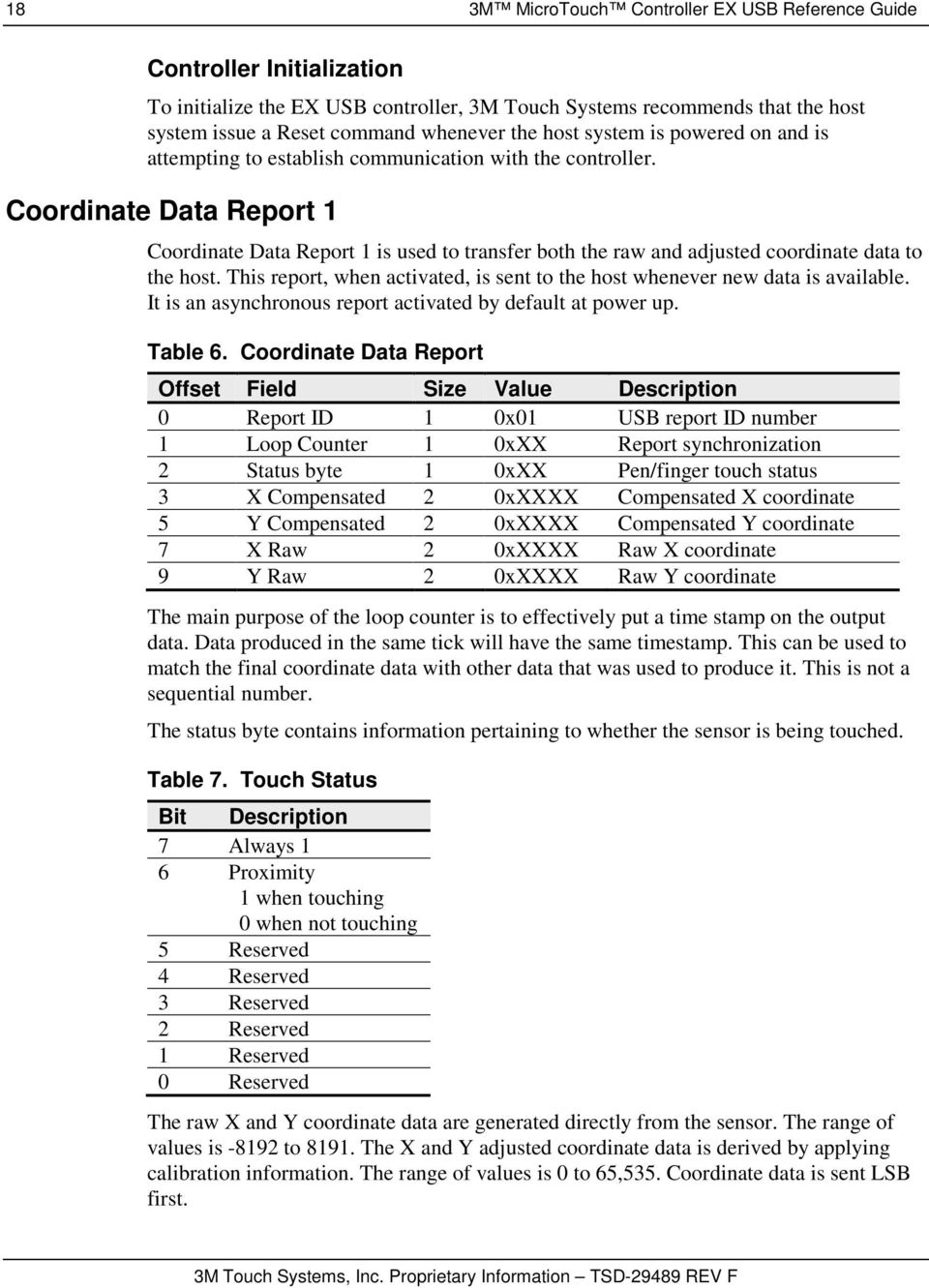
18 18 3M MicroTouch Controller EX USB Reference Guide Controller Initialization To initialize the EX USB controller, 3M Touch Systems recommends that the host system issue a Reset command whenever the host system is powered on and is attempting to establish communication with the controller. Coordinate Data Report 1 Coordinate Data Report 1 is used to transfer both the raw and adjusted coordinate data to the host. This report, when activated, is sent to the host whenever new data is available. It is an asynchronous report activated by default at power up. Table 6. Coordinate Data Report Offset Field Size Value Description 0 Report ID 1 0x01 USB report ID number 1 Loop Counter 1 0xXX Report synchronization 2 Status byte 1 0xXX Pen/finger touch status 3 X Compensated 2 0xXXXX Compensated X coordinate 5 Y Compensated 2 0xXXXX Compensated Y coordinate 7 X Raw 2 0xXXXX Raw X coordinate 9 Y Raw 2 0xXXXX Raw Y coordinate The main purpose of the loop counter is to effectively put a time stamp on the output data. Data produced in the same tick will have the same timestamp. This can be used to match the final coordinate data with other data that was used to produce it. This is not a sequential number. The status byte contains information pertaining to whether the sensor is being touched. Table 7. Touch Status Bit Description 7 Always 1 6 Proximity 1 when touching 0 when not touching 5 Reserved 4 Reserved 3 Reserved 2 Reserved 1 Reserved 0 Reserved The raw X and Y coordinate data are generated directly from the sensor. The range of values is to The X and Y adjusted coordinate data is derived by applying calibration information. The range of values is 0 to 65,535. Coordinate data is sent LSB first.
19 3M MicroTouch Controller EX USB Reference Guide 19 Operating Mode The operating mode specifies the conditions under which the controller sends the X and Y touch coordinates (input data packet) to the host system. Report 1 enabled is the default operating mode for the EX USB controller. In Report 1, the controller sends a continuous stream of data packets when the sensor is touched. The controller sends the data as long as a touch continues on the sensor. Because Report 1 sends touch data continually, it is the most versatile mode, and it provides the best response time and overall feel. 3M Touch Systems recommends that the touch driver generate an event as each packet in the data stream arrives. Because touchdown and liftoff events are specially coded, your software can generate mouse events that correspond to what the user is doing. Calibration Request 4 This is a request to perform a 2-point calibration. The calibration can be performed at points inset from the lower left and upper right corners (extended calibration) or it can be done at those corners. This is equivalent to the Calibrate Extended (12.5% insets from the lower left and upper right corners) command used by 3M MicroTouch serial controllers. The 2-point calibration defines the active area of the sensor by mapping two targets displayed on the video image to absolute X and Y coordinates on the sensor. Table 8. Calibration Request Offset Field Size Value Description 0 bmrequesttype Characteristics 1 brequest 1 4 Command number 2 wvalue 2 0xXXXX Calibration type 4 windex 2 0x0000 Not used 6 wlength 2 0 No data phase The direction bit in bmrequesttype has been set to 0 (host-to-device). This request does not require that the device return any data. The byte brequest is set to 4 to indicate that this is the calibration command. The wvalue field is used to select the type of calibration to be performed. This value can be either 1 for Extended (or Inset) or 2 for Corner. The controller does not use the windex field. This field should be set to zero to ensure future compatibility.

20 20 3M MicroTouch Controller EX USB Reference Guide Response The device stalls endpoint 0 if the request cannot be processed successfully. The host should issue status requests to determine the status of this request. A command status of 1 indicates that the controller is waiting for a touch in the lower left quadrant. A status of 2 indicates that the lower left touch has been completed and the controller is waiting for a touch in the upper right quadrant. A status of 3 indicates that the upper right touch has been completed. A status of 0 indicates that the request has failed. A soft reset command should be sent if the host wishes to terminate calibration. Determining Target Areas The default calibration targets (points) are located 12.5% (1/8) inward from the corners of the video image. For example, suppose the resolution of your Windows-based display is 1024 x 768. The Calibrate Extended command calculates the amount to move inward as follows: Amount to move inward in the X direction: 1024 x 1/8 = 128 Amount to move inward in the Y direction: 768 x 1/8 = 96 The Calibrate Extended command then positions the first calibration target inward from the lower left corner (0,767) and the second calibration target inward from the upper right corner (1023,0). The following illustration shows how the calibration targets are calculated for a Windows-based system. Your operating system may be different. (0, 0) [0, 0]* (1023, 0) [1024, 0]* (895, 96) Upper Right Calibration Target X = 1023 (1024 x 1/8) = = 895 Y = 0 + (768 x 1/8) = = 96 Lower Left Calibration Target X = 0 + (1024 x 1/8) = = 128 Y = (768 x 1/8) = = 671 (128, 671) *The coordinates are in video terms, with the origin (0, 0) in the upper left corner of the sensor. Examples from the controller s perspective, however, place the origin at the lower left corner of the sensor (numbers in brackets). The controller outputs 0 to 64K on both axes independent of display screen resolution. Controller Status Request 6 (0, 767) [0, 1024]* [1024, 1024]* This is a request to send information that indicates the status of the controller. Use this request to determine whether there were any power on check errors and whether the last request was completed successfully.

21 3M MicroTouch Controller EX USB Reference Guide 21 The Controller Status Request is used to poll the controller for command completion when a previous USB request involved a controller reset. Refer to the Reset Request 7 for additional details. Table 9. Controller Status Request Offset Field Size Value Description 0 bmrequesttype Characteristics 1 brequest 1 6 Command number 2 wvalue 2 0x0000 Not used 4 windex 2 0x0000 Not used 6 wlength 2 0xXXXX Size of status report The direction bit in bmrequesttype has been set to 1 (device-to-host) to return the status report. The byte brequest is set to 6 to indicate that this is a Controller Status request. The controller does not use the wvalue and windex fields. These fields should be set to zero to ensure future compatibility. The wlength field indicates the size of the Controller Status report. Response When the request is processed, the device returns a Controller Status report. The device stalls endpoint 0 if the request cannot be processed successfully. This would happen if the report length requested by wlength does not match the controller status report size. Controller Status Report 6 This report contains information describing the status of the controller. The report sent is determined by the size specified in the wlength field of the Status Request. All multi-byte quantities in this report are sent LSB first. Standard Format Status Report This version of the Status report will be sent if the EX compatible driver asks for the 8- byte Status report. This version is simply the first 8 bytes of the controller Status report. EX Controller Status Report This version of the Status report is only compatible with the EX USB controller. This version is sent when the larger (20-byte) Status report is requested. Table 10. Expanded Status Report Offset Field Size Value Description 0 Report ID 1 0x06 Report ID number
22 22 3M MicroTouch Controller EX USB Reference Guide Offset Field Size Value Description 1 POC Status 2 0xXXXX Power On Check Status 3 Cmd Status 1 0xXX Status of last command 4 Touch Status 1 0xXX Finger Up/Down 5 Asynch Reports 2 0xXXXX Active asynchronous reports 7 Reserved 2 0xXXXX Reserved 9 Extended POC Status 2 0xXXXX Additional Power On Check Status 11 Reserved 9 9 bytes Reserved POC Status The status of the Power On Checks. Various controller systems are checked at power-up. If any failures in these systems are detected, a POC flag is set. The POC status field reports the state of these flags. The POC status information is also flashed on the controller s LED. The number of flashes generated for a given error is one more than the error s bit number. Refer to Table 3 for further details. This is a 2-byte bitmapped field. Note: Issuing a Status Request will suppress displaying the cable NOVRAM error (bit 6) on the LED. Even though the error is suppressed, it will continue to flash on the LED until the sensor is touched. Cmd Status The status for the last command request. This field is used to determine whether the last request was processed successfully. It is also used to track the progress of a multi-stage request, such as 2-point calibration. The Status Request does not affect the contents of this field, i.e., successful or unsuccessful processing of a previous status request does not cause the command status field to be updated. Table 11. Valid Command Status Field Entries Response Description 0 Failure in command processing 1 Command being processed 2 Stage 1 processing complete (for multi-stage commands) 3 Command complete 4 Soft reset occurred 5 Hard reset occurred Touch Status Status information for the most recent touch coordinate. Table 12. Touch Status Bit Number Description 0 1 if the sensor is being touched 1-7 Reserved Async reports the only active asynchronous report is the Touch Coordinate report 1.
23 3M MicroTouch Controller EX USB Reference Guide 23 Extended POC Status This is additional power on status information. This is a 2-byte bitmapped field. Reset Request 7 Table 13. Extended POC Status Bit Number Description 0 Corner drive offset level is too high 1 Fixed 2-point calibration error high 2-15 Reserved This is a request to perform a controller reset. The standard hard or soft reset can be requested. Soft resets are generally required for any parameter changes to take effect. A soft reset results in the touch application using its initial (start-up) values. Table 14. Reset Request Offset Field Size Value Description 0 bmrequesttype Characteristics 1 brequest 1 7 Command number 2 wvalue 2 0xXXXX Reset type 4 windex 2 0x0000 Not used 6 wlength 2 0x0000 No data phase The direction bit in bmrequesttype has been set to 0 (host-to-device). The byte brequest is set to 7 to indicate that this is a Reset request. The wvalue field is used to select the type of reset to be performed -- 1 for Soft Reset and 2 for Hard Reset. The windex field is not used. This field should be set to zero to ensure future compatibility. The wlength field is set to zero since there is no data phase for this request. Response Since the time to complete the soft reset can be more than 500 ms, the device acknowledges the request before it is completed. The host must issue a status request to determine whether the reset request was completed. The command status field of the status report will be set to command in progress while the soft reset is occurring. The field will change to soft reset occurred when the reset has completed. Any other request issued while the reset is still in progress will be ignored.
24 24 3M MicroTouch Controller EX USB Reference Guide The hard reset is executed immediately upon decoding of this request. The reset sequence begins by simulating a device disconnect from the host. A re-connect is then performed and the device must re-enumerate its connection with the host. Because of this, a response to the request cannot be sent prior to, or even after, the beginning of the reset sequence. The host should issue status and ID requests after the reset has completed to verify whether this request was handled properly by the device. The status request should be used to determine when the hard reset occurred. The ID request is used to verify that the controller is now in the desired mode by looking at the contents of the controller type field. The device stalls endpoint 0 if the request cannot be processed successfully. The request cannot be processed if the reset type specified by the wvalue field is not valid. EX Controller Compatibility Issues The hard reset did not use a device disconnect as part of the reset process for the previous 3M MicroTouch USB controller. The disconnect causes the driver to unload and will result in any handles to the driver that an application may have becoming invalid. An application should handle an unplug event. Restore Defaults Request 8 This is a request to restore the default values in the controller. This is used to restore the values to the factory presets. A soft reset is automatically done after completing the request so that parameter changes will take effect. Table 15. Restore Defaults Request Offset Field Size Value Description 0 bmrequesttype Characteristics 1 brequest 1 8 Command number 2 wvalue 2 0x0000 Reserved 4 windex 2 0x0000 Reserved 6 wlength 2 0x0000 No data phase The direction bit in bmrequesttype has been set to 0 (host-to-device). This request does not require that the device return any data. The byte brequest is set to 8 to indicate that this is the Restore Defaults request. The wvalue field should be set to 0 for future compatibility. The windex field should be set to 0 for future compatibility. Response The device stalls endpoint zero if it cannot process this request. The request will fail if any of the fields are not set correctly.
25 3M MicroTouch Controller EX USB Reference Guide 25 When the request is processed successfully, a positive USB acknowledge (zero length data packet) is sent. A soft reset will be done at the completion of this request. Because of this, the controller must be polled to determine when the reset is done (see Reset Request for details). Controller ID Request 10 This is a request to send various pieces of information that identify the controller, including the controller type and firmware revision level. The key use for this request is in identifying the mode that the controller is running in and the revision level of the ASIC firmware. Table 16. Controller ID Request Offset Field Size Value Description 0 bmrequesttype Characteristics 1 brequest 1 10 Command number 2 wvalue 2 0x0000 Not used 4 windex 2 0x0000 Not used 6 wlength 2 0xXXXX Length of ID report The direction bit in bmrequesttype has been set to 1 (device-to-host) to return the Controller ID report. The byte brequest is set to 10 to indicate that this is Controller ID request. This request does not use the wvalue or windex fields. These fields should be set to zero to ensure future compatibility. The wlength field is set to the size (either 18 or 24 bytes) of a Controller ID report. Response The controller sends the Controller ID report when the request is processed successfully. If the request cannot be processed, endpoint 0 will be stalled. The request cannot be processed if the requested report size (wlength) does not match either the size of the backward compatible ID report (18) or the EX report (24). Controller ID Report 12 This report contains information describing the controller, including its type, firmware revision, special features, and the ROM checksum. This report is sent via the control endpoint. All multi-byte quantities in this report are sent LSB first.
26 26 3M MicroTouch Controller EX USB Reference Guide Standard Format Controller ID Report This version of the Controller ID report will be sent if the EX compatible driver asks for the 16-byte Controller ID report size. This version contains the first 16 bytes of the EX Controller ID report. EX Controller ID Report This version of the Controller ID report is only compatible with the EX USB driver. This version is sent when the larger (24-byte) Controller ID report is requested. Table 17. Expanded Controller ID Report Offset Field Size Value Description 0 Report ID 1 0x0C Report ID number 1 Controller type 2 0xXXXX Indicates the type of controller 3 FW major revision 1 0xXX Firmware major revision level 4 FW minor revision 1 0xXX Firmware minor revision level 5 Features 1 0xXX Special features 6 Constants Checksum 2 0xXXXX RAM constants checksum 8 Max Param Write 2 0xFFFF Maximum data for Read Parameter request 10 Reserved 1 0x41 Reserved 11 Reserved 1 0x41 Reserved 12 Reserved 1 0x41 Reserved 13 Reserved 1 0x41 Reserved 14 Reserved 1 0x41 Reserved 15 Reserved 1 0x42 Reserved 16 Reserved 1 0x41 Reserved 17 Reserved 1 0x41 Reserved 18 Code Checksum 4 0xXXXXXXXX RAM Program Code checksum 22 ASIC type 2 0x01XX ASIC type Controller Type The identifier M1 is used. M identifies it as an EX based USB controller. The 1 identifies it as the first model of this type. This value is treated as an integer, not two characters. This means that the 1 will be transmitted first. Note: If you received an identifier of M0, you must issue a Reset with a wvalue of 5. This must be done twice to lock in the values. FW Major Revision This can range from 0 to 99. This is a BCD value, i.e., major revision 23 is sent as 0x23. FW Minor Revision This can range from 0 to 99. This is a BCD value, i.e., minor revision 23 is sent as 0x23. Features This identifies the special features of the controller. This is a bitmapped field. Constants Checksum 2-byte checksum for the constants data section.
27 3M MicroTouch Controller EX USB Reference Guide 27 Max Parameter Write -- The largest transfer that can take place. This only affects the Read Parameter requests. Code Checksum 4-byte checksum for the program section of the code. ASIC Type this indicates the type and version of the ASIC in the controller. The value 0x0100 indicates the first EX revision. The high byte is used to note major ASIC changes, such as a new ASIC family, and the low byte indicates changes within a family. Read Parameter Request 16 This is a request to send the contents of a parameter via the control endpoint. This is a one-time transfer of data. The request is used to access data in the controller. This request provides a means for reading the configuration parameters. The request uses parameter numbers to determine what data is being requested and where that data is located. Table 18. Read Parameter Request Offset Field Size Value Description 0 bmrequesttype Characteristics 1 brequest 1 16 Command number 2 wvalue 2 0xXXXX Parameter number 4 windex 2 0x0000 Not used 6 wlength 2 0xXXXX Length of Parameter Data report The direction bit in bmrequesttype has been set to 1 (device-to-host) to return the contents of the requested parameter. The byte brequest is set to 16 to indicate that this is the Read Parameter request. The wvalue field is set to the number of the parameter being requested. This request does not use the windex field. This field should be set to zero to ensure future compatibility. The wlength field is the number of bytes being sent by the device to the host. The data is returned to the host in the format of the Parameter Data report, which has a 3-byte header, so 3 must be added to the number of parameter bytes desired. The following table lists the parameters currently supported and the appropriate settings for the request fields. Table 19. Supported Parameters Parameter (wvalue) windex wlength (bytes+3) Range Description Reserved for future use Sensor orientation - where the lower left corner of the display maps to the sensor.
28 28 3M MicroTouch Controller EX USB Reference Guide 0000 Upper right 0001 Lower right 0002 Upper left 0003 Lower left (standard, not rotated) Controller serial number Response The parameter data is sent to the host in a Parameter Data report. All parameter data is treated as if it were stored as bytes. This means that multi-byte values will be sent MSB first. If the command cannot be processed, the device stalls endpoint 0. The command cannot be processed if the parameter number is not valid. It cannot be processed if less than 4 bytes (wlength) are requested. It cannot be processed if more data is requested than is contained in the parameter. Parameter Data Report 4 This report is sent in response to any request for parameter data. All parameter data is treated as if it were stored as bytes in the order that it is stored in memory. This means that multi-byte values will be sent MSB first. Table 20. Parameter Data Report Offset Field Size Value Description 0 Report ID 1 0x04 Report ID number 1 Data size 2 0xXXXX Amount of data to follow 3 Data bytes Data Size 0xXX Data bytes Data size the number of data bytes to follow. Data byte At least 1 data byte will follow when data size is greater than zero. The number of data bytes returned by this report is limited by the Max Param Write value returned by the Controller ID report. The contents of this data section are dependent on which parameter is being accessed.
29 3M MicroTouch Controller EX USB Reference Guide 29 APPENDIX A EX121/EX141 Controller Specifications EX121/EX141Dimensions This section provides controller specifications such as power requirements, environmental requirements, and cable connectors. The EX121/EX141 controller is a compact (3.5 x 2.25 x 0.3 inches), USB controller. This controller can be internally mounted in your display, or enclosed in a molded plastic case (3.75 x 2.5 x 0.9 inches) and mounted to the back or side of your display. The controller has a NOVRAM sensor connector and a USB cable connector and comes in two varieties: 1. The cased version measures 2.5 x 3.75 inches with a total height of approximately 1- inch with the sensor cable attached. The cased version comes with a Type-A USB cable. 2. The uncased version measures 2.25 x 3.6 inches with a total height profile of 0.5- inch from the thru hole pins on the trace side of the board to the top of the highest component on the opposite side.
30 30 3M MicroTouch Controller EX USB Reference Guide The following figures show the overall dimensions of the EX121/EX141 controller and the locations of the mounting holes and connectors. Figure 1 EX121 Dimensions Figure 2 EX141 Dimensions
31 3M MicroTouch Controller EX USB Reference Guide 31 Technical Specifications The controller specifications listed below were validated in test systems containing 3M Touch Systems components. These specifications may not be valid if configured with components from suppliers other than 3M Touch Systems. All components in the manufacture of electronic controllers are RoHS Directive compliant (2011/65/EU). Physical Dimensions Uncased 3.50 in. x 2.30 in. x 0.45 in. (88.9 mm x 58.4 mm x 11.4 mm) Cased 3.75 in. x 2.50 in. x 0.90 in. (95.3 mm x 63.5 mm x 22.9 mm) Board Level Functions Power 5 VDC (87 ma typical, 100 ma maximum); ± 5% regulation 50 mv pp maximum ripple and noise Regulatory Requirements CE Compliant Radiated Emissions EN 55022:1998 Class B Compliant AC Mains Conducted Emissions EN 55022:1998 Class B Compliant Telco Lines Conducted Emissions N/A N/A RFI EN / ENV Class A Compliant CRFI EN N/A Cable < 3 meters long N/A Class A Class B < 80% Screen Area > 80% Screen Area EFT (Burst Immunity) EN Class B Compliant ESD Susceptibility IEC Class 1 Compliant Surge EN Class B Compliant Harmonics EN Class A Compliant Flicker EN Power Frequency Magnetic Field EN N/A N/A Voltage Dips EN Class B < 5% V Compliant Class C < 70% V Compliant Voltage Interruptions EN Class C Compliant FCC Class B / CISPR22 Class B Class B Compliant VCCI Class B ITE Emissions (Japan) Class B Compliant AS/NZS 3548:1995/CISPR 22 Class B ITE Emissions (Aus.) UL/cUL Class B Compliant Compliant
32 32 3M MicroTouch Controller EX USB Reference Guide Ambient Operating and Storage Environmental Conditions Note: All humidity is non-condensing Operating Temperature Range -40 C to +70 C Operating Humidity Range < 36 C 0-90% RH 36 C (refer to Figure 4) Storage Temperature Range -50 C to +85 C Storage Humidity Range < 36 C 0-90% RH 36 C (refer to Figure 4) Performance and Reliability Minimum Touch Duration Touch Resolution (Maximum addressable coordinates generated by the controller) ESD Susceptibility 1 - ±8 kv Contact Discharge Class 2 per section 9 of IEC false touch allowed ±27 kv Air Discharge Class 1 per section 9 of IEC Normal Operation No false touches MTBF (by MIL Std. 217F Calculation) Typically 5.4 msec. 16K x 16K Compliant Compliant 500,000 Hours Touch System Parameters Accuracy vs. Dynamic Temperature Change (Tested at 0 deg. C to 60 deg. C with a 0.5 deg. C/minute temperature ramp) Sensor Compatibility Sensors Communications Protocol Maintains 99.0% Accuracy 3M MicroTouch Surface Capacitive USB 1 ESD discharges to a 3M Touch Systems sensor connected to the controller
33 3M MicroTouch Controller EX USB Reference Guide 33 APPENDIX B EX111/EX151 Controller Specifications This section provides controller specifications such as power requirements, environmental requirements, and cable connectors. The EX111/EX151 controller is a compact USB controller. This controller can be internally mounted in your display. The following figures show the overall dimensions of the EX111/EX151 controller and the locations of the mounting holes and connectors. The EX111/EX151 has a sensor connector (JP2) and a USB cable connector (JP1) as shown below. The uncased controller measures approximately 1.3 x 2.6 inches with a total height of approximately 0.38-inch from the thru hole pins on the trace side of the board to the top of the highest component on the opposite side. Figure 3 EX111 Dimensions
34 34 3M MicroTouch Controller EX USB Reference Guide Figure 4 EX151 Dimensions Technical Specifications Physical Dimensions The controller specifications listed below were validated in test systems containing 3M Touch Systems components. These specifications may not be valid if configured with components from suppliers other than 3M Touch Systems. All components in the manufacture of electronic controllers are RoHS Directive compliant (2011/65/EU) in. x 1.30 in. x 0.45 in. (65.0 mm x 33.0 mm x 11.4 mm) Board Level Functions Power 5 VDC (75 ma typical, 100 ma maximum); ± 5% regulation 50 mv pp maximum ripple and noise Regulatory Requirements CE Compliant Radiated Emissions EN 55022:1998 Class B Compliant AC Mains Conducted Emissions EN 55022:1998 Class B Compliant Telco Lines Conducted Emissions N/A N/A RFI EN / ENV Class A Compliant CRFI EN N/A Cable < 3 meters long N/A Class A < 80% Screen Area Class B > 80% Screen Area
35 3M MicroTouch Controller EX USB Reference Guide 35 EFT (Burst Immunity) EN Class B Compliant ESD Susceptibility IEC Class 1 Compliant Surge EN Class B Compliant Harmonics EN Class A Compliant Flicker EN Power Frequency Magnetic Field EN N/A N/A Voltage Dips EN Class B < 5% V Compliant Class C < 70% V Compliant Voltage Interruptions EN Class C Compliant FCC Class B / CISPR22 Class B Class B Compliant VCCI Class B ITE Emissions (Japan) Class B Compliant AS/NZS 3548:1995/CISPR 22 Class B ITE Emissions (Aus.) UL/cUL Class B Compliant Compliant Ambient Operating and Storage Environmental Conditions Note: All humidity is non-condensing Operating Temperature Range -40 C to +70 C Operating Humidity Range <36 C 0-90% RH 36 C (refer to Figure 4) Storage Temperature Range - 50 C to +85 C Storage Humidity Range < 36 C 0-90% RH 36 C (refer to Figure 4) Performance and Reliability Minimum Touch Duration Touch Resolution (Maximum addressable coordinates generated by the controller) Typically 5.4 msec. 16K x 16K ESD Susceptibility 1-1 ESD discharges to a 3M Touch Systems sensor connected to the controller
36 36 3M MicroTouch Controller EX USB Reference Guide ±8 kv Contact Discharge Class 2 per section 9 of IEC false touch allowed ±27 kv Air Discharge Class 1 per section 9 of IEC Normal Operation No false touches Compliant Compliant MTBF (by MIL Std. 217F Calculation) 760,000 Hours Touch System Parameters Accuracy vs. Dynamic Temperature Change (tested at 0 deg. C to 60 deg. C with a 0.5 deg. C/minute temperature ramp) Sensor Compatibility Communications Protocol Maintains 99.0% Accuracy 3M MicroTouch Capacitive Sensors USB Figure 4 Storage and Operating Temperature with Humidity Conditions
3M Multi-Touch PX4nn ASIC Controller Reference Guide
 3M Multi-Touch PX4nn ASIC Controller Reference Guide For USB: PX441, PX451, PX461, PX471, PX4611/PRX4401 For Dual-Mode: PX443, PX453, PX463, PX473 Read and understand all safety information contained in
48-B-5-08-KIT 5-Wire Resistive Controller (USB) Specification Guide
 48-B-5-08-KIT 5-Wire Resistive Controller (USB) Specification Guide Document Number: 6500268 Rev. 2.0 Pg. 1 The information provided in this document is intended as a guide only and is subject to change
MT 7.11 Software User Guide
 MT 7.11 Software User Guide For Microsoft Windows 2000 Microsoft Windows XP Microsoft Windows CE Microsoft Windows XP Embedded 3M Touch Systems, Inc. Read and understand all safety information contained
Physical. Electrical. Environmental. Insulation: Contact: Plating: Temperature Rating: -55 C to +85 C
 M I/O Interconnect System 2.0 mm for IEEE 194 Wiremount Receptacle (Female) E206 Series Designed to mate to all M I/O Interconnect System 2.0 mm for IEEE 194 Boardmount Plugs Polarized to provide proper
3M MicroTouch MT7 Software Diagnostic Utility User Guide
 3M MicroTouch MT7 Software Diagnostic Utility User Guide Read and understand all safety information contained in this document before using this product. 3 2 3M MicroTouch MT7 Software Diagnostic Utility
Allen-Bradley/Rockwell
 MANUFACTURER DATA SHEET High Speed Counter Manufacturer: Allen-radley/Rockwell Model Number: 1746-HSCE See www.geomartin.com for additional PDF datasheets Martin Part Number: E-014901-03 VendorPartNumber:
HP 22-in-1 Media Card Reader
 HP 22-in-1 Media Card Reader Introduction This document describes how to install the HP 22-in-1 Media Card Reader into an HP Workstations adapter bracket, and then install the media card reader and bracket
3M Mini D Ribbon (MDR) Connectors.050 Surface Mount Right Angle Receptacle - Shielded 102 Series
 M Mini D Ribbon (MDR) Connectors.050 Surface Mount Right Angle Receptacle - Shielded 102 Series Wiper-on-wiper contact for reliable repetitive plugging Ultra-low signal skew for high data rate transmission
Installation Guide. Wyse D Class 4-GB RAM Upgrade Option Kit. Products: D90D7, D90DW. Issue: 121312 PN: 883884-35L Rev. A
 Installation Guide Wyse D Class 4-GB RAM Upgrade Option Kit Products: D90D7, D90DW Issue: 121312 PN: 883884-35L Rev. A Copyright Notices 2012, Wyse Technology Inc. All rights reserved. This manual and
3M Pin Strip Header.100,.295 Mating Length, Straight & Right Angle, Solder Tails 929 Series
 M Pin Strip Header.100,.295 Mating Length, Straight & Right Angle, Solder Tails 929 Series Stackable Tin Lead or gold plating available Solder stand-offs facilitate production wave soldering Board pin
Mini-HDMI Series MINIATURE MULTIMODE FIBER OPTIC HDMI TRANSMISSION SYSTEM
 Mini-HDMI Series MINIATURE MULTIMODE FIBER OPTIC HDMI TRANSMISSION SYSTEM BCI reserves the right to make changes to the products described herein without prior notice or consent. No liability is assumed
Transmitter Interface Program
 Transmitter Interface Program Operational Manual Version 3.0.4 1 Overview The transmitter interface software allows you to adjust configuration settings of your Max solid state transmitters. The following
PT500 500Mbps Powerline Adapter. User Guide
 PT500 500Mbps Powerline Adapter User Guide PT500 500Mbps Powerline Adapter V100R001 User Guide 202593_04 Huawei Technologies Co., Ltd. provides customers with comprehensive technical support and service.
ABB Drives. User s Manual. Pulse Encoder Interface Module RTAC-01
 ABB Drives User s Manual Pulse Encoder Interface Module RTAC-0 Pulse Encoder Interface Module RTAC-0 User s Manual 3AFE 64486853 REV A EN EFFECTIVE:.5.00 00 ABB Oy. All Rights Reserved. Safety instructions
Troubleshooting and Diagnostics
 Troubleshooting and Diagnostics The troubleshooting and diagnostics guide provides instructions to assist in tracking down the source of many basic controller installation problems. If there is a problem
KVM - DVI, USB 2.0, Cat 5 Extender
 KVM - DVI, USB 2.0, Cat 5 Extender 330 feet (100 meters) EL5100 User Guide Powered by Thank you for purchasing the KVM - DVI, USB 2.0, Cat 5 Extender 330 feet (100 meters) Please read this guide thoroughly.
User's Guide. Integrating Sound Level Datalogger. Model 407780. Introduction
 User's Guide 99 Washington Street Melrose, MA 02176 Phone 781-665-1400 Toll Free 1-800-517-8431 Visit us at www.testequipmentdepot.com Back to the Extech 407780 Product Page Integrating Sound Level Datalogger
TCP/IP MODULE CA-ETHR-A INSTALLATION MANUAL
 TCP/IP MODULE CA-ETHR-A INSTALLATION MANUAL w w w. c d v g r o u p. c o m CA-ETHR-A: TCP/IP Module Installation Manual Page Table of Contents Introduction...5 Hardware Components... 6 Technical Specifications...
Model 201 Wiegand Touchpad Reader Installation Guide
 Model 201 Wiegand Touchpad Reader Installation Guide P/N 460353001C 15AUG11 2011 UTC Fire & Security. All rights reserved. This document may not be copied in whole or in part or otherwise reproduced without
HP Advanced Wireless Docking Station. User Guide
 HP Advanced Wireless Docking Station User Guide Copyright 2014, 2015 Hewlett-Packard Development Company, L.P. Intel is a trademark of Intel Corporation in the U.S. and other countries. Windows and Windows
Kvaser Mini PCI Express User s Guide
 Kvaser Mini PCI Express User s Guide Copyright 2013-2014 Kvaser AB, Mölndal, Sweden http://www.kvaser.com Printed Sunday 28 th September, 2014 We believe that the information contained herein was accurate
User Manual. September 18, 2007. Copyright 2004-2007 Thomson. All rights reserved.
 User Manual September 18, 2007 Copyright 2004-2007 Thomson. All rights reserved. Notices and Warranties Notices & Warraties Copyright Regulations It is illegal for anyone to violate any of the rights provided
110244-003. PrintPAD CN3/4/3e/4e. User Guide
 110244-003 PrintPAD CN3/4/3e/4e User Guide TABLE OF CONTENTS PrintPAD CN3/4 & PrintPAD CN3e/4e Printer Views...1 Open View...1 Closed View...1 Using Batteries: General Guidelines...1 Installing and/or
SLC 5/05 Processors Firmware/Operating System ControlFLASH Upgrade
 Installation Instructions SLC 5/05 Processors Firmware/Operating System ControlFLASH Upgrade Catalog Numbers 1747-DU501 Topic Page System Requirements 3 Install ControlFLASH 3 Prior to Running ControlFLASH
PRODUCTIVITY THROUGH INNOVATION 600 CONTROL DIRECT DRIVE TECHNICAL/OPERATION MANUAL
 Rev. D PRODUCTIVITY THROUGH INNOVATION 600 CONTROL DIRECT DRIVE TECHNICAL/OPERATION MANUAL 10 BORIGHT AVENUE, KENILWORTH NEW JERSEY 07033 TELEPHONE: 800-524-0273 FAX: 908-686-9317 TABLE OF CONTENTS Page
How To Connect A Port Replicator With An Ethernet To A Usb Port From A Usb Device
 USB Mobile Port Replicator with Ethernet NOTEBOOK COMPUTER MOBILE PORT REPLICATOR User s Guide INTRODUCTION Congratulations on your purchase of the Targus USB Mobile Port Replicator with Ethernet! It is
Digital Photo Picture Frame. Operation Manual
 Digital Photo Picture Frame Operation Manual 20070309 CONGRATULATIONS on your purchase of a Polaroid 7 LCD Digital Photo Picture Frame. Please read carefully and follow all warnings and instructions in
HP SATA/SAS hard drive and Solid State Drive installation
 HP SATA/SAS hard drive and Solid State Drive installation This document describes how to install Serial ATA (SATA) and Serial Attached SCSI (SAS) hard drives or Solid State Drives (SSD) in an internal
Sierra Dual 24 Volt Brushless DC Motor Controller Product Specification
 Sierra Dual 24 Volt Brushless DC Motor Controller Product Specification Assembly 025A0215 600A0942 Rev. A May 14, 2012 025A0215 Brushless DC Motor Controller Page 1 Revision History ECN # Date Rev Description
3M Wrist Strap and Footwear Tester 740. User s Guide
 3M Wrist Strap and Footwear Tester 740 User s Guide Table of Contents Section Page Safety Information...3 1.0 General...4 2.0 Description...4 3.0 Operation...5 4.0 Wall Mounting...5 5.0 Wrist Strap Test...6
MT 7 Software User Guide
 MT 7 Software User Guide For Microsoft Windows 2000 Microsoft Windows XP 3M Touch Systems, Inc. Read and understand all safety information contained in this document before using this product. The information
EMBEDDED ACCESS CONTROL Hardware Installation Guide
 EMBEDDED ACCESS CONTROL Hardware Installation Guide Lenel goentry Hardware Installation Guide, product version 1.00. This guide is item number DOC- ENHW-ENU, revision 1.003, April 2009 Copyright 2009 Lenel
Table of Contents. What is Brute Force Attack? 13 How does the diskashur protect against brute force attack? 13
 User s Manual Table of Contents About the istorage diskashur Secure Hard Drive 4 Package contents 4 istorage diskashur button panel 5 istorage diskashur - Getting Started 6 Before you begin 6 Connecting
BW-500 BED WEIGHER USER MANUAL
 BW-500 BED WEIGHER USER MANUAL 0 1 TABLE OF CONTENTS SPECIFICATION... 3 Equipment... 4 INSTALLING WEIGH BEAM... 5 PREPARATION FOR MEASUREMENT... 6 DP3800 Indicator... 8 POWER SUPPLY... 8 PANEL... 9 KEY
3M Pin Strip Header Single and Dual Row.100,.235 /.318 Mating Length, Straight & Right Angle, Solder Tails 929 Series
 M Pin Strip Header Single and Dual Row.100,.25 /.18 Mating Length, &, Solder Tails 929 Series Stackable Gold, Matte Sn, or -Lead plating options High Temperature (PCT) plastic for Wave or IR soldering
MiniView Micro USB Plus 2-Port KVM Switch with Built-in KVM Cables and Audio Support. Installation Manual (GCS632U)
 MiniView Micro USB Plus 2-Port KVM Switch with Built-in KVM Cables and Audio Support Installation Manual (GCS632U) 2005 IOGEAR. All Rights Reserved. PKG-M0089b IOGEAR, the IOGEAR logo, MiniView, VSE are
Universal Serial Bus (USB) to DH-485 Interface Converter
 Installation Instructions Universal Serial Bus (USB) to DH-485 Interface Converter Catalog Number 1747-UIC Contents Overview..................................................3 Computer and Operating System
Network Interface Panel User s Guide NPD4747-01 EN
 User s Guide NPD4747-01 EN Contents Contents Copyright and Trademarks Safety Instructions Important Safety Instructions... 4 Cautions and Notes... 4 Getting to Know Your Network Interface Panel Package
3M High Flex Life Cable.050" 28 AWG Stranded, PVC 3319 Series
 M High Flex Life Cable.050" 28 AWG Stranded, PVC 19 Series Flex life of 100 million cycles at 1 /4 inch diameter 19 strands of high strength copper alloy provide the longest flex life available for dynamic
Multi-Touch Ring Encoder Software Development Kit User s Guide
 Multi-Touch Ring Encoder Software Development Kit User s Guide v2.0 Bulletin #1198 561 Hillgrove Avenue LaGrange, IL 60525 Phone: (708) 354-1040 Fax: (708) 354-2820 E-mail: [email protected] On the
Xbox LIVE Vision. english
 Xbox LIVE Vision Thanks for choosing the Xbox LIVE Vision camera. Xbox LIVE Vision adds video to your Xbox 360 system and games, including: Video chat and picture messages. Photo snapshots. Family Settings
Model 1756 Test Lead Kit
 Keithley Instruments 28775 Aurora Road Cleveland, Ohio 44139 1-888-KEITHLEY http://www.keithley.com Model 1756 Test Lead Kit Gerneral Purpose Test Lead Information Description These test leads allow you
PL-1, Pocket Logger 11-0135B
 PL-1, Pocket Logger 1 PL-1... 2 2 Wiring... 3 2.1.1 Single Innovate Device Relay Wiring Instructions... 3 3 Mounting... 4 4 Connecting the PL-1 to the MTS serial chain... 4 5 Recording... 5 6 LogWorks...
HP ProDisplay P19A LED Backlit Monitor. User Guide
 HP ProDisplay P19A LED Backlit Monitor User Guide 2013 Hewlett-Packard Development Company, L.P. The only warranties for HP products and services are set forth in the express warranty statements accompanying
Scan2CRM for ACT! User Guide
 Scan2CRM for ACT! User Guide APPENDIX Warranty... I Notice to user...ii Publication...III Trademarks...IV Version 9.50 - Supports ACT! by Sage for windows, ACT! 2007 (Version 9) and above. This publication
User Manual. EtherUSB
 User Manual EtherUSB USB Ethernet Access Point for PDA V 2.0 Clarinet Systems, Inc. Clarinet Systems, Inc. http://www.clarinetsys.com Page 1 Publication Revision No. Control Table Rev. No. Date Contents
Quick Installation Guide TK-209K TK-409K
 Quick Installation Guide TK-209K TK-409K Table of of Contents Contents English... 1. Before You Start... 2. How to Connect... 3. Operation... 1 1 2 4 Troubleshooting... 5 Version 09.07.2006 1. Before You
M3 ORANGE single-slot Cradle. User Guide. Product Number: A-1CR-US0D-030-R00, A-1CR-U0ED-030-R00. Compatible Device(s): M3 ORANGE
 M3 ORANGE single-slot Cradle User Guide Product Number: A-1CR-US0D-030-R00, A-1CR-U0ED-030-R00 Compatible Device(s): M3 ORANGE Version 2.0 Released in January 2011 Contents Copyright and Agreement... 3
USB 2.0 VGA ADAPTER USER MANUAL
 USB 2.0 VGA ADAPTER USER MANUAL CONTENTS INTRODUCTION... 3 FEATURES... 3 SYSTEM REQUIREMENTS... 3 PACKAGE CONTENTS... 3 SUPPORTED COMMON DISPLAY RESOLUTION... 4 TECHNICAL SPECIFICATIONS... 4 INSTALLATION
Installation Guide. Zip ATAPI Drive. Quick Start Information Installation Notes Technical Notes Troubleshooting Drive Specifications
 Zip ATAPI Drive Installation Guide Quick Start Information Installation Notes Technical Notes Troubleshooting Drive Specifications For Integrator/OEM Only http:www.iomega.com Table of Contents Quick Start
PN 100-06843L, Revision B, October 2013. Epic 950 TM. Master Programmer User s Guide
 PN 100-06843L, Revision B, October 2013 Epic 950 TM Master Programmer User s Guide This page intentionally left blank Change History Rev A Initial release Feb 2007 Rev B Update Oct 2013 100-06843L Rev
McAfee Encrypted USB Hard Disk Non-Bio Quick Start Guide
 McAfee Encrypted USB Hard Disk Non-Bio Quick Start Guide COPYRIGHT Copyright 2010 McAfee, Inc. All Rights Reserved. No part of this publication may be reproduced, transmitted, transcribed, stored in a
Manual for Fire Suppression & Methane Detection System
 Manual for Fire Suppression & Methane Detection System Fogmaker North America Post address: 150 Gordon Dr Exton, PA 19341 Delivery address: 150 Gordon Dr Exton, PA 19341 Tel: 610-265-3610 Fax: 610-265-8327
Architect/Contractor Information Package
 Architect/Contractor Information Package 3M SelfCheck System C-Series C1 Model 877 This package provides architects and contractors with the information necessary for the successful installation of the
MAINTENANCE & TROUBLESHOOTING
 MAINTENANCE & TROUBLESHOOTING This section describes how to: clean the lens replace the projection lamp replace the batteries in the remote use the security lock feature troubleshoot the projector Cleaning
GPS 35 USB. installation and quick start guide
 GPS 35 USB installation and quick start guide 2001 GARMIN Corporation GARMIN International, Inc. 1200 E 151 st Street, Olathe, Kansas 66062 U.S.A. Tel. 913/397.8200 Fax. 913/397.8282 GARMIN (Europe) Ltd.
USB 2.0 4-Port Extender Kit
 USB 2.0 4-Port Extender Kit 500072 MuxLab Inc. 2014 94-000760-A / SE-000760-A Table of Contents 1. Introduction... 2 2. Features... 2 3. Specifications... 2 4. Package Contents... 3 5. Physical Diagram...
CelluLine CGW-TS GSM Cellular Gateway. Installation and Programming Manual
 CelluLine CGW-TS GSM Cellular Gateway Installation and Programming Manual CelluLine CGW-TS GSM Cellular Gateway Installation and Programming Manual CGWTS-M001A Version 1, Release 1, December 2004 NOTICE
2GB MP3 Player USER GUIDE
 DO NOT FORMAT UNIT under FAT. 2GB MP3 Player USER GUIDE Jazwares, Inc. 2010 CONTENTS Please read the instructions along with the MP3 Player carefully before you use it, so that you can operate it conveniently.
Installation & Operation Manual HANDS-FREE BLUETOOTH MEDIA INTEGRATION KIT. Perfect for ANDROID TM
 GET CONNECTED Installation & Operation Manual HANDS-FREE BLUETOOTH MEDIA INTEGRATION KIT TranzIt BLU HF ISFM2351 Perfect for ANDROID TM Note to Readers, The information contained within the following documentation
Installation Guide. Wyse VX0L and VX0LE Thin Clients 1-GB RAM Upgrade Option Kit. Issue: 022808 PN: 883884-07L Rev. A
 Installation Guide Wyse VX0L and VX0LE Thin Clients 1-GB RAM Upgrade Option Kit Issue: 022808 PN: 883884-07L Rev. A ii Copyright Notice 2008, Wyse Technology Inc. All rights reserved. This manual and the
3M Twisted Pair Flat Cable.050" 28 AWG Stranded, Mass Terminatable Pair, PVC 1700 Series
 M Twisted Pair Flat Cable.050" 28 AWG Stranded, Mass Terminatable Pair, PVC 1700 Series Wires are color-coded for easy identification Twist and flat repeat has variable length option Can be mass terminated
How To Use A Cdm250 Digital Multimeter
 User Manual CDM250 Digital Multimeter 070-6736-03 Copyright Tektronix, Inc. 1987. All rights reserved. Tektronix products are covered by U.S. and foreign patents, issued and pending. Information in this
USB Rover 2850. 2-port USB 1.1 40m Cat 5 Extender. User Guide
 USB Rover 2850 2-port USB 1.1 40m Cat 5 Extender User Guide Thank you for purchasing the USB Rover 2850, 2-port USB 1.1 40 m (131 ft) Cat 5 Extender Please read this guide thoroughly. FCC Radio Frequency
HP ProDisplay P17A LED Backlit Monitor. User Guide
 HP ProDisplay P17A LED Backlit Monitor User Guide 2013 Hewlett-Packard Development Company, L.P. Microsoft, Windows, and Windows Vista are either trademarks or registered trademarks of Microsoft Corporation
User Guide. HDMI Active Cable Extender. DVI-7370c
 User Guide HDMI Active Cable Extender DVI-7370c TABLE OF CONTENTS SECTION PAGE PRODUCT SAFETY...1 PRODUCT LIABILITY...1 1.0 INTRODUCTION...2 2.0 SPECIFICATIONS...3 3.0 PACKAGE CONTENTS...4 4.0 CONNECTING
Operation Manual. Plasma torch height controller. Model: Compact THC Controller 150
 Operation Manual Plasma torch height controller. Model: Compact THC Controller 150 Notes on safety WHEN THE DEVICE IS IN OPERATION, VOLTAGE HAZARDOUS TO HEALTH AND HUMAN LIFE IS PRESENT INSIDE THE HOUSING
Weather Direct Displays show Lost Forecast (blank boxes in the picture icons)
 Weather Direct Displays show Lost Forecast (blank boxes in the picture icons) Many routine events can cause a Lost Forecast situation. Examples include: Power outage Change batteries Internet down in your
Installation Guide. Wyse Z Class 2 and 4-GB RAM Upgrade Option Kit. Products: Z90DW, Z90SW, Z90D7, Z90S7. Issue: 122211 PN: 883884-32L Rev.
 Installation Guide Wyse Z Class 2 and 4-GB RAM Upgrade Option Kit Products: Z90DW, Z90SW, Z90D7, Z90S7 Issue: 122211 PN: 883884-32L Rev. A Copyright Notices 2011, Wyse Technology Inc. All rights reserved.
Installation and Operation Manual. Digital Remote Meter for Monitoring System Performance. Version: RM-1
 REMOTE METER TM Installation and Operation Manual. Digital Remote Meter for Monitoring System Performance. Version: RM-1 1098 Washington Crossing Road Washington Crossing, PA 18977 USA www.morningstarcorp.com
AT88CK490 Evaluation Kit
 AT88CK490 Evaluation Kit CryptoAuthentication USB Dongle HARDWARE USER GUIDE Atmel AT88CK490 CryptoAuthentication Evaluation Kit Introduction The Atmel AT88CK490 CryptoAuthentication Evaluation Kit is
Dolphin 70e Black. Quick Start Guide. with Windows Embedded Handheld 6.5. 70E-WEH-QS Rev B 6/13
 Dolphin 70e Black with Windows Embedded Handheld 6.5 Quick Start Guide 70E-WEH-QS Rev B 6/13 Out of the Box Verify that your carton contains the following items: Dolphin 70e Black mobile computer (terminal)
StorTrends 3400 Hardware Guide for Onsite Support
 StorTrends 3400 Hardware Guide for Onsite Support MAN-3400-SS 11/21/2012 Copyright 1985-2012 American Megatrends, Inc. All rights reserved. American Megatrends, Inc. 5555 Oakbrook Parkway, Building 200
MAC Viper Quadray Module Installation and Control Guide
 MC Viper Quadray Module Installation and Control Guide Introduction This Guide explains how to install the Martin MC Viper Quadray Module, P/N 91614052, on a Martin MC Viper irfx fixture and control the
SURROUNDVIEW Installation and Setup User s Guide
 SURROUNDVIEW Installation and Setup User s Guide P/N: 137-40593-10 04Jan26: PRELIMINARY 08 Copyright 2004, ATI Technologies Inc. All rights reserved. ATI and all ATI product and product feature names are
INTELLIGENT CONTROL MODULE SA-2000-II HARDWARE MANUAL. Access Technologies International, Inc.
 SA-2000-II HARDWARE MANUAL Access Technologies International, Inc. 1 Table of Contents 1. Introduction 3 2. Features 3 3. Specification 4 4. Identifying Supplied Parts 4 5. Panel Description 5 6. Connection
IEEE 802.15.4/ZigBee USB Dongle
 IEEE 802.15.4/ZigBee USB Dongle ZigBee Dongle for 2.4GHz Band DESCRIPTION The IEEE 802.15.4 USB Dongle from Integration provides a compliant 802.15.4 interface that can be quickly and easily connected
PL-2303 (Chip Rev H, HX, X) USB to Serial Adapter Windows Driver Installer Manual
 PL-2303 (Chip Rev H, HX, X) USB to Serial Adapter Windows Driver Installer Manual For Windows 98/ME/2000/XP/Vista/7 Release Version 1.3 (2/4/2010) Contents Introduction Features & Specifications System
Keysight N4877A Clock Data Recovery and Demultiplexer 1:2
 Keysight N4877A Clock Data Recovery and Demultiplexer 1:2 Getting Started Getting Started with the Keysight N4877A Clock Data Recovery and Demultiplexer 1:2 You only need a few minutes to get started
2-3 SAS/SATA II HDD Canister USER S MANUAL XC-23D1-SA10-0-R. Document number: MAN-00076-A
 2-3 SAS/SATA II HDD Canister XC-23D1-SA10-0-R USER S MANUAL Document number: MAN-00076-A ii Preface Important Information Warranty Our product is warranted against defects in materials and workmanship
Compaq Presario Desktop Products. Upgrading and Servicing Guide
 Compaq Presario Desktop Products Upgrading and Servicing Guide The information in this document is subject to change without notice. Hewlett-Packard Company makes no warranty of any kind with regard to
Kurzweil KORE 64. ROM Expansion Board for the PC3 and PC3K
 Kurzweil KORE 64 ROM Expansion Board for the PC3 and PC3K Installation Instructions August 1, 2012 2012 Young Chang Co., Ltd. All rights reserved. Kurzweil is a product line of Young Chang Co., Ltd. Kurzweil,
DMX2PWM 9 Channel Dimmer Setup Manual
 DMX2PWM 9 Channel Dimmer Setup Manual www.ecue.de DMX2PWM 9ch Dimmer - Setup Manual e:cue control GmbH An OSRAM Company Rev. 1.3_01/2010 DMX2PWM 9ch Dimmer - Setup Manual Table of Contents 1. Device Overview....................................4
The table below lists the symbols used on the Clamp and/or in this manual. Important Information. See manual.
 i800 AC Current Clamp Instruction Sheet Introduction The i800 AC Current Clamp, the Clamp, has been designed for use with multimeters, recorders, power analyzers, safety testers, etc., for accurate non-intrusive
Installation Guide. Wyse C Class 2-GB RAM Upgrade Option Kit. Issue: 092910 PN: 883884-13L Rev. A
 Installation Guide Wyse C Class 2-GB RAM Upgrade Option Kit Issue: 092910 PN: 883884-13L Rev. A Copyright Notices 2010, Wyse Technology Inc. All rights reserved. This manual and the software and firmware
Operation Manual. Model : Compact THC Controller SD. ( Step / Dir PID generator) A new generation height controller of plasma torach
 Operation Manual A new generation height controller of plasma torach Model : Compact THC Controller SD ( Step / Dir PID generator) Notes on safety WHEN THE DEVICE IS IN OPERATION, VOLTAGE HAZARDOUS TO
Express5800/120Ed. Rack Mount Kit Installation Procedures PN: 455-01607-001
 Express5800/120Ed Rack Mount Kit Installation Procedures PN: 455-01607-001 Proprietary Notice and Liability Disclaimer The information disclosed in this document, including all designs and related materials,
Senses SV series industrial monitor user manual
 Industrial Monitors Senses SV series Senses SV19 / SV17 User manual (Issue A) Part No: 85090084 Page 1 of 25 Copyright Copyright 2008 Amplicon Liveline Ltd. All rights reserved. This publication, including
MTX-D Ethanol Content and Fuel Temperature Gauge User Manual
 MTX-D Ethanol Content and Fuel Temperature Gauge User Manual P/N 3912 kit does not include flex fuel sensor. The ECF-1 is compatible with GM P/Ns 13577429 and 13577379 1. Installation... 2 1.1 Gauge Mounting...
Features Reference. About Unified Communication System. Before Using This Machine. Starting a Meeting. What You Can Do During the Meeting
 Features Reference About Unified Communication System Before Using This Machine Starting a Meeting What You Can Do During the Meeting Leaving a Meeting Managing Address Book Changing Network Configuration
LEDPAR64 USER MANUAL
 LEDPAR64 USER MANUAL 1 Table of Content Part I General Information 1.1 Introduction...3 1.2 Safety Information.. 3 1.3 Unpacking..4 1.4 Specifications....4 1.5 Features.. 4 Part II Installation and Operation
When any of the following symbols appear, read the associated information carefully. Symbol Meaning Description
 Samba OPLC SM35-J-R20 Installation Guide The Unitronics SM35-J-R20 offers the following onboard I/Os: 12 Digital Inputs, configurable via wiring to include: 1 HSC/Shaft-encoder Input, 2 Analog inputs (only
MiniView Micro USB Plus
 MiniView Micro USB Plus 2-Port KVM Switch with Built-in KVM Cables and Audio Support Installation Manual (GCS632U) 2003 IOGEAR. All Rights Reserved. PKG-M0089 IOGEAR, the IOGEAR logo, MiniView, VSE are
Small form factor bay converter and hard drive installation
 Small form factor bay converter and hard drive installation HP xw6600 and HP xw8600 Workstations This document describes how to convert HP xw6600 and HP xw8600 Workstation 3.5-inch hard drive bays to hold
Mongoose Quick Start Guide
 Mongoose Quick Start Guide PLEASE NOTE Mongoose interfaces have been carefully designed and tested to comply with OBDII protocols. However, some vehicle models are not in full compliance with these protocols
VFS24/32HDIP. Public Display IP Monitor User Manual
 VFS24/32HDIP Public Display IP Monitor User Manual 2 Contents Before You Begin...4 Side Panel Control buttons...6 Connections...7 OSD Function...7 LCD monitor Mounting Guide...9 Getting started... 10 Power
Start Here. 3200 Series. All-in-One Printer. Print Copy Scan. Includes Information on the: ESP 3250 All-in-One Printer ESP 3260 All-in-One Printer
 Start Here All-in-One Printer 3200 Series MS SD/HC MMC Print Copy Scan Includes Information on the: ESP 3250 All-in-One Printer ESP 3260 All-in-One Printer Note: A USB 2.0 cable is required to connect
Taurus Super-S3 LCM. Dual-Bay RAID Storage Enclosure for two 3.5-inch Serial ATA Hard Drives. User Manual March 31, 2014 v1.2 www.akitio.
 Dual-Bay RAID Storage Enclosure for two 3.5-inch Serial ATA Hard Drives User Manual March 31, 2014 v1.2 www.akitio.com EN Table of Contents Table of Contents 1 Introduction... 1 1.1 Technical Specifications...
Dual Laser InfraRed (IR) Thermometer with Color Alert
 User Manual Dual Laser InfraRed (IR) Thermometer with Color Alert MODEL 42509 Introduction Congratulations on your purchase of the Model 42509 IR Thermometer with Color Alert. This Infrared thermometer