
Online User s Guide. Click here to get started.
|
|
|
- Stewart Boyd
- 10 years ago
- Views:
Transcription
1 Online User s Guide Click here to get started.
2 Please remember there s always the potential of losing money when investing in securities. 1 Merrill Edge MarketPro is available to clients who maintain a Merrill Edge self-directed relationship. To qualify, you must be a Platinum Privileges, Preferred Rewards Platinum or Preferred Rewards Platinum Honors client, or maintain total combined balances of $50,000 or more in your Merrill Edge investment accounts and Bank of America, N.A. deposit accounts or make at least 15 self-directed trades per quarter. Not available to investment professionals or for trust accounts and business accounts. Relationship requirements and pricing are subject to change. See merrilledge.com for details. To qualify for Level II quotes you must maintain total combined balances of $1 million or more in your Merrill Lynch investment accounts and Bank of America, N.A. deposit accounts or make at least 30 self-directed trades per quarter. The Merrill Edge MarketPro provides Real-Time Market Data and News from various third-party sources not affiliated with Merrill Lynch, including Interactive Data Corporation, Morningstar and S&P Capital IQ. News headlines are provided from third-party sources, including Dow Jones, PR Newswire and Business Wire. All the information is provided for informational purposes only. Merrill Lynch provides no guarantee as to the accuracy, timeliness, completeness or usefulness of the content, and is not responsible or liable for delays, interruptions or omissions therein, or for any losses resulting from its use. The information provided by Merrill Edge MarketPro is not a recommendation of a transaction or investment strategy involving a security or securities. It also is not an offer to sell. The information provided does not take into account your particular investment objectives, financial situation or needs, or tax status and should not be used or construed as an indicator of future performance. Before acting on any of the information, you should consider whether it is appropriate for your particular circumstances and, if necessary, seek professional advice. 2 Institutional Investor magazine announced BofA Merrill Lynch Global Research as the Top Global Research Firm for 2011, 2012 and 2013, based on surveys held throughout the year. The magazine creates rankings of the top research analysts in a wide variety of specializations, drawn from the choices of portfolio managers and other investment professionals at more than 1,000 firms. For more information about this award, go to Options carry a high level of risk and are not suitable for all investors. Certain requirements must be met to trade options through MLPF&S. Please read the options disclosure document titled Characteristics and Risks of Standardized Options before considering any option transaction. Call the Investment Center at for a copy. Separate client agreement is needed. Orders which involve multiple option transactions will be charged a separate commission on each leg of the option order. Merrill Edge is available through Merrill Lynch, Pierce, Fenner & Smith Incorporated (MLPF&S), and consists of the Merrill Edge Advisory Center (investment guidance) and self-directed online investing. Banking products are provided by Bank of America, N.A. and affiliated banks, Members FDIC and wholly owned subsidiaries of Bank of America Corporation. MLPF&S is a registered broker-dealer, Member SIPC and a wholly owned subsidiary of Bank of America Corporation. Investment products: Are Not FDIC Insured Are Not Bank Guaranteed May Lose Value Next > 2014 Bank of America Corporation. All rights reserved. ARP5X56L BRO /2014
3 Welcome. You re about to discover a powerful new trading platform: Merrill Edge MarketPro. With Merrill Edge MarketPro, you now have a customized platform plus real-time market analysis and insights for greater control over every trade you make. 1 You ll find information and easy-to-use instructions in this guide. To navigate through it, click on the tabs and section titles listed at the top of each page or simply scroll through the pages in order. You ll also find links throughout the guide to take you to related information. Once you have a chance to review it, you can start taking advantage of all Merrill Edge MarketPro has to offer. Overview After a quick introduction on Getting Started, learn how to set up your own Workspaces and Pages. Select from more than 20 available Windows. Portfolio & Accounts In this section, you ll see samples of portfolio displays, including several options you can customize. Review Balances, Portfolio Detail, Holdings and Activity. Trading & Market Data Learn how to quickly and easily access a Trade Ticket, Orders, Watchlists and Detailed Quotes. Review multiple quotes simultaneously with a Quote Grid; set up dynamic Interactive Charts; or set criteria for Market Movers. You can customize your Option Chain. Review buy/sell activity through Market Depth and bids, asks and completed trades through your Security Sales Log. News & Research Take advantage of a sophisticated News function that delivers real-time headlines and stories. Use BofA Merrill Lynch Global Research and Ratings to help you make more informed investing decisions. And set up customized Alerts to help you keep up with current market information. Customizing Merrill Edge MarketPro Further customize Merrill Edge MarketPro with several features such as Web Feeds, News Ticker, current pricing through Snap Quotes, a streaming Quote Ticker, and an Internet Browser. A range of User Preferences is also available to personalize and enhance your experience. Next >
4 Introduction Getting started Workspaces Pages Windows Function keys More insight. More capabilities. More control. As a self-directed investor, Merrill Edge MarketPro gives you a dynamic platform that can be customized to suit your specific needs and investment strategy. You ll access real-time market analysis and insights providing you the opportunity for greater control over every trade. With low minimum requirements, Merrill Edge MarketPro provides advanced research, real-time data, and powerful analysis and trading tools to help you stay current with the market. Merrill Edge MarketPro gives you: Streaming real-time Watchlists and market News Interactive Charting and quote tools Advanced features within a platform you can customize Integrated account and portfolio information Award-winning BofA Merrill Lynch Global Research and third-party commentary 2 The convenience to trade equities, options and exchange traded funds (ETFs), plus the ability to buy and sell mutual funds, all without leaving Merrill Edge MarketPro Low minimum requirements trade just 15 times a quarter or maintain $50,000 in balances between your Bank of America banking and Merrill Edge investment accounts 1 No setup fees Live support 24 hours a day, seven days a week
5 Introduction Getting started Workspaces Pages Windows Function keys Getting started Some quick essentials for getting around You can quickly set up and access interactive features and views into your portfolio and the market. Merrill Edge MarketPro is designed to be intuitive and easy-to-use. So you ll spend less time looking for the information you need and can have more time for investing. When you first open Merrill Edge MarketPro, you ll see a default workspace that includes preset pages and windows within each page. These are the basic building blocks of the platform. From here, you can fully customize your Merrill Edge MarketPro experience. Workspaces Pages Windows Function keys
6 Introduction Getting started Workspaces Pages Windows Function keys Workspaces Store and organize your pages within Merrill Edge MarketPro You can use a workspace to store and organize different pages within Merrill Edge MarketPro. A workspace can contain up to 25 unique pages. These pages may contain windows, each with their own properties and characteristics. In addition to pages, workspaces can contain Snap Quotes, symbol tickers, and symbol searches. Within Merrill Edge MarketPro, you can: Export and import multiple workspaces Look up companies that comprise various indices Locate and load workspaces that you previously saved You can also import and export individual pages from your workspace to use within other workspaces by selecting the Export Option on the File Menu. Saving your workspace When you exit Merrill Edge MarketPro, you ll be prompted to save your workspace. You can also use other commands to save and access a workspace, including: Save workspace (Ctrl+S): Select File, Save Workspace Back up workspace: Select File, Export Workspace to File Bring up (import) workspace: Select File, Import Workspace from File Reload workspace: Select File, Load Workspace or click the Home icon to go back to your previously saved workspace Access workspace history: Select File, Local Workspace History
7 Introduction Getting started Workspaces Pages Windows Function keys Pages Review individual screens of information You can configure multiple modular elements on each page to provide all necessary security information: Menu bar Find basic functions, such as: File, Edit, View, Utilities, and Help Windows bar Select from the windows available to you Quote Ticker bar Set and review streaming quotes Snap Quotes Set and view current quotes across the bar One or more windows of your choice Customized or default page tabs, located at the top of the page Trade Ticket panel For your convenience, this is available to you on every page How to create a new page within a workspace 1. Select File, New Page Template Name the page and select the page layout Click OK Drag an icon from the toolbar into the page 2. Select File, Page Drag an icon from the toolbar into one of the 2x2 windows Double-click on the page tab at the top to name the page 3. Right-click any page tab at the top Select Add New Page Drag an icon from the toolbar into one of the 2x2 windows You can also move and copy page tabs: To move tabs: Left-click, drag and drop To copy tabs: Right-click, copy page
8 Introduction Getting started Workspaces Pages Windows Function keys Windows Choose from a wide variety of Merrill Edge MarketPro windows Portfolio Selector Displays portfolio balance information in your workspace header Balances Review balance information across your portfolios Portfolio Detail Displays detailed portfolio balance information Holdings Holdings information for your portfolio or group of portfolios Orders status Order information for your portfolio or group of portfolios Activity Display activity information for your portfolio or group of portfolios Trade Ticket You can place equity, option and mutual fund trades Alerts Immediate visual and sound notification triggered when market activity meets the criteria you ve defined Detailed Quotes Access in-depth information on a security Quote Grid View quotes on numerous symbols simultaneously Market Depth Shows the buy-and-sell quote activity of market makers trading on the U.S. exchanges Security Sales Log Displays bids and asks, as well as your completed trades Interactive Charts Leverage a dynamic, highly sophisticated charting application with a full range of features Option Chain For your security, the option chain shows the various strike prices by put and call designations, as well as expiry dates Watchlists Allows you to assemble a customized list of symbols and view data elements for each BofA Merrill Lynch Global Research and Ratings Review ratings for individual securities News Browse real-time news headlines and stories Web Feeds Add RSS data sources to your workspace Fundamentals Review company profile information and fundamentals data Market Movers Market movers are scanned for unusual real-time trading activity based on your criteria Snap Quotes Quickly view securities market information in your workspace header Quote Ticker Scrolling quote information for symbols you ve defined News Ticker Scrolling news information for symbols you ve defined Recognia Supports technical analysis of equity securities* A more detailed description of a window is available in Help at the window level. * Recognia is a registered trademark of Recognia, Inc. All rights reserved. Next >
9 Introduction Getting started Workspaces Pages Windows Function keys Adding a new window 1. Select a Window view from the Window Bar Drag and drop the window to a specific location on the page Click once to open as a floating (stand-alone) window 2. Right-click on the header of an existing window Select New Choose a window from available windows Choose location In This Window replaces current window To The Left, To The Right, To The Top and To The Bottom place the new window in the indicated position relative to the current position In A Separate Window opens the window as a separate (floating) window Moving an existing window 1. Left-click on the header and hold Drag and drop the window to a new location on the page Release the mouse button Delete an existing window from a page 1. Click the close icon X 2. Right-click on the header of the window and select Close Customize a window 1. Right-click on the window (see window help for specifics) Select Window Specific Options from the menu Select Display Properties to change general formatting Link windows Window linking allows you to view information for the same symbol or portfolio across multiple windows Select the Link icon to break context link Select the Broken Link icon to reestablish context linking
10 Introduction Getting started Workspaces Pages Windows Function keys Function keys Below is a list of the icons, definitions, and actions available to you within Merrill Edge MarketPro. Symbol search Search by name, exchange or instrument type Load trade symbol Loads symbol into trade ticket (if symbol is in context) X Menu Open menu Close Close the window Pop out window Copy and pop the window out of the page Add back window Add the window back to the page Linked chain Link windows Broken chain Unlink windows Alert Set an alert Page menu Select settings for a page Zoom control Increase or decrease the size Scroll Horizontal scroll Filter Refine your selection
11 Balances Portfolio Detail Holdings Activity Balances Display balance information across portfolios Review a high-level overview of all accounts linked to your user ID through the balances window. It provides you with a convenient view of account balances and total values, as well as the subtotal of all accounts in your portfolio. You have three views available: Net Value Only Purchasing Power Balances View or customize any view you choose.
12 Balances Portfolio Detail Holdings Activity Portfolio Detail Display detailed portfolio balance information To give you even more control, there are multiple portfolio detail views available in Merrill Edge MarketPro: Available Funds Gain & Loss Purchase Power Balances Net Value Asset Allocation Performance The views provide a comprehensive review of your important account details and can be a valuable resource for your account navigation and trading.
13 Balances Portfolio Detail Holdings Activity Holdings Display holdings information for your portfolio or group of portfolios Select from several sorting options available in the holdings drop-down: Summary Dollar Gain Percent Gain Product Class Fundamentals Options Dividends You can quickly and easily customize any of the views to suit your specific trading needs.
14 Balances Portfolio Detail Holdings Activity Activity Display activity information for your portfolio or group of portfolios Select the Activity window from the drop-down menu to view account-level and portfolio-level activity. Activity allows you to review activity chosen from multiple time frames available. You also have activity type filters to find individual transactions or sets of transactions more easily. Summary View is set as a default, but you can select Detailed View to reveal quantity, price per share, symbol, and other necessary information.
15 Trade Ticket Orders Watchlists Detailed Quotes Quote Grid Interactive Charts Market Movers Option Chain Market Depth Security Sales Log Trade Ticket Place equity, option and mutual fund trades Trades supported in the Merrill Edge MarketPro trade ticket: Regular and extended hours equity trades (including SafePass trades) Single and multi-leg option trades as well as buy/write trades Mutual fund buys and sells The Merrill Edge MarketPro trade ticket allows you to quickly and easily enter stock, option, and mutual fund orders directly in the platform. The trade ticket is persistent at the bottom of all pages, and you can collapse it to make space for other windows when not in use. You can also detach the trade ticket to maintain it in a separate floating window. You begin by selecting the account from the list of accounts in your portfolio. Fill out the ticket just as you currently do on merrilledge.com Click the Preview Order button (far right side of trade ticket) On the preview order page, review the order being placed for accuracy and click Submit
16 Trade Ticket Orders Watchlists Detailed Quotes Quote Grid Interactive Charts Market Movers Option Chain Market Depth Security Sales Log Orders Display order information for a portfolio or group of portfolios You can view orders at the account level through the orders window. Simply select All Accounts in the drop-down menu. You can view status of current orders and immediately take action to amend, extend, or cancel orders by right-clicking on the order in question.
17 Trade Ticket Orders Watchlists Detailed Quotes Quote Grid Interactive Charts Market Movers Option Chain Market Depth Security Sales Log Watchlists Set up customized watchlists Create and monitor your own lists of securities, based on specific criteria you set. Real-time monitoring enables you to stay on track or adapt your strategy as opportunities present themselves. Like most windows in Merrill Edge MarketPro, watchlist columns are fully customizable. Order the columns in any way you feel is most useful and logical. Choose from 178 different investment statistics available (may not be applicable for all asset classes).
18 Trade Ticket Orders Watchlists Detailed Quotes Quote Grid Interactive Charts Market Movers Option Chain Market Depth Security Sales Log Detailed Quotes For more in-depth information View in-depth information on an instrument through Merrill Edge MarketPro detailed quotes. There are many reported elements and many different data layouts based on instrument classification (stock, ETF, mutual fund, index, etc.). If the link in the window is on, you can type a symbol in the Snap Quote, click on a symbol in your Watchlist, or type the symbol directly into the field. Many of the characteristics that make up the look and feel of your window can be customized by using the detailed quote display properties window. To access the detailed quote display properties, right-click in the detailed quotes table. Click the Display Properties option, and a pop-up window will display. Note: You can also use the drop-down list in the Symbol field to display the last eight securities you viewed on this chart. Click on a symbol from the list to select it for viewing.
19 Trade Ticket Orders Watchlists Detailed Quotes Quote Grid Interactive Charts Market Movers Option Chain Market Depth Security Sales Log Quote Grid View multiple quotes simultaneously The quote grid provides you with another way to view quotes on numerous symbols simultaneously. Right-clicking on any of the grid squares opens up the grid management menu items You can then insert or delete columns and rows through simple navigation The first time it s opened, quote grid will display an empty grid. Entering a symbol into the quote grid Double-click on a quote grid square to bring up the symbol entry field Enter the symbol you are looking for and hit Return. The symbol quote data you ve chosen will appear (the actual data type seen will depend on your View selection).
20 Trade Ticket Orders Watchlists Detailed Quotes Quote Grid Interactive Charts Market Movers Option Chain Market Depth Security Sales Log Interactive Charts A unique and dynamic visual presentation Interactive charts offers you a dynamic, highly sophisticated charting application for monitoring performance and testing against industry statistical models. Using advanced Java technology, interactive charts uses streaming data with powerful tools that allow security analysis customized to your exact specifications. Take advantage of: Over 70 different technical studies, all with customizable study parameters Easy creation of chartable expressions Changeable symbol and study colors Powerful trendlines, such as Gann Fan, Fibonacci Fan, Fibonacci Retracement, and Speed Resistance Arc Choice of Tick, Intraday, Daily, Weekly or Monthly time series Data expressed in bar, line, candlestick or area format Next >
21 Trade Ticket Orders Watchlists Detailed Quotes Quote Grid Interactive Charts Market Movers Option Chain Market Depth Security Sales Log Interactive Charts (continued) Save your preferences on workspace charts to maintain symbol, aggregation, study, and chart type. This allows you to refresh or recall a chart that you have added to a workspace without losing chart settings. Available Chart Studies include: Adaptive Moving Averages Advance/Decline Ratio A/D line Average True Range Bearish Divergence Bollinger Bands %B Bollinger Bands Choppiness Commodity Channel Index Composite Index Correlation Cost Basis Crack Spread Crush Spread Delta Oscillator Directional Movement Index Displaced Moving Averages Dividend Yield Earnings Per Share Envelope Exponential Moving Average Exponential Oscillator High Low Moving Average Highest High Lowest Low Historic Volatility Ichimoku Keltner Channel Least Squares Linear Regression Line Oscillator MACD McClellan Oscillator Mean Price Momentum Money Flow Index Moving Average Moving Standard Deviation On Balance Volume Open Interest Open Price Oscillator Overbought/Oversold Index Parabolic Stop and Reversal Revenue Pivot Points Previous Close Price Channel Price Probability Analysis Rate of Change Relative Strength Index Slow Stochastic Smoothed Moving Average Smoothed Oscillator Stochastic TEMA Triangular Moving Average TRIX Variable Moving Average Volume Volume / Open Interest Weighted Close Weighted Moving Average Wilder s Volatility Williams Accumulation/ Distribution Index Williams Percent R Each symbol and study has its own set of properties that can be modified. Certain symbol plot types (LINE and AREA charts) allow you to draw the symbol s plot based on a value other than the Close. Some studies (such as Bollinger Bands, Exponential Moving Average, and Momentum) perform their calculations using a specific value (aspect) from the underlying data on which the study is applied. When the study is initially applied to a chart, it binds itself to the aspect that is set in the study properties.
22 Trade Ticket Orders Watchlists Detailed Quotes Quote Grid Interactive Charts Market Movers Option Chain Market Depth Security Sales Log Market Movers Automatically scan stocks based on your criteria Merrill Edge MarketPro scans the U.S. stock exchanges to find stocks that meet specific criteria you ve determined, such as percent gainers, percent losers or volume. Select from more than 90 criteria. Market movers are updated every 30 seconds, in a real-time environment. The data shown on market movers is gathered daily, which means that every evening market movers results are cleared and reset. To further customize the experience, you can select a symbol from market movers and have a Watchlist window appear. Change colors of the text, background and directional indicators. From market movers you can add Alerts or go directly to Research Ratings. You can also add window options to a page. Because market movers are automatically generated using Merrill Edge MarketPro scanning criteria, none of the symbols can be changed. To insert sector or market movers symbols You can dynamically enter sector or market movers symbols directly into your Watchlist. This is done by selecting Insert Sector/ Industry List or Insert Market Movers Symbols from the Context menu.
23 Trade Ticket Orders Watchlists Detailed Quotes Quote Grid Interactive Charts Market Movers Option Chain Market Depth Security Sales Log Option Chain Review stock options You have access to a dynamic trading environment with Merrill Edge MarketPro. For underlying security, the option chain shows the various strike prices by put and call designations, as well as expiry dates. You can further customize the table by adding or subtracting columns or by rearranging column order. How to determine strike ranges In the Money A call option is in the money when the strike price is below the current market price. A put option is in the money when the strike price is above the spot price. Near the Money Determine a set number of out-of-the-money options that are closest to being at the money. Out of the Money A call option is out of the money when the strike price is above the current market price. A put option is out of the money when the strike price is below the spot price. All Strikes This enables you to remove the filters. Add window options, manage alerts, change the headings to default to those most often used with an asset class, and set the appearance of your window. You can add flags. You can also view as a chart to display key analytic values across all expiration dates and strike prices.
24 Trade Ticket Orders Watchlists Detailed Quotes Quote Grid Interactive Charts Market Movers Option Chain Market Depth Security Sales Log Market Depth View buy/sell activity for a specified symbol Review buy/sell activity of market makers trading on the U.S. exchanges, for symbols you ve specified. This window displays quotes only. (For actual trades, see the Security Sales Log window.) Total view shows an aggregate of quotes, by price, and includes the market maker and number of lots available at that price. The window is divided into two parts. The left side is the buy side and the right side is the sell side. There are several views of the data: level II, open book, total view, ARCA and TSX book. You can select views with the pull-down menu to the right of the Symbol Search button. The level II and open book views show you each quote, by price, including data on the market maker ID and number of round lots available at that price. Open book is NYSE equities only. The depth meter indicates current quote activity for the symbol selected. The widths of the color bars relate to the size of quotes, and the colors correspond to the colors of the market makers in the table below. Additionally, there are histograms in the size column, which also help indicate the relative size of quotes.
25 Trade Ticket Orders Watchlists Detailed Quotes Quote Grid Interactive Charts Market Movers Option Chain Market Depth Security Sales Log Security Sales Log Monitor bids, asks and completed trades Review bids and asks, as well as completed trades through the security sales log window. CID Support Exchange Corrections, Insertions and Deletions (CID) can be viewed within the security sales log window under Conditions. Data can also be filtered by the type of transaction. Simply click on the Filter field drop-down list. The default is No Filter. Other options available from the drop-down list are Trades Only, Bids and Asks (no trades), Bids Only, Asks Only, and Block Trades. Your security sales log can be viewed in static mode, which does not continuously update data, or in dynamic mode, which is streaming real-time data. Security sales log data can also be selected by date and/or time ranges. If no date or time range is selected, you ll see all filtered transactions for the current trading day. Security sales log allows you to view up to 10 trading days of data. To select a date, click on the calendar icon next to the Date field. Data can also be filtered based on price, value or volume criteria. The text entry windows for those parameters are found underneath the date and time entry fields. Price is price per share, size is size of trade, value is price times size.
26 News BofA Merrill Lynch Global Research and Ratings Alerts News Get real-time news Merrill Edge MarketPro news provides you with a continuous stream of real-time headlines and stories. This gives you uninterrupted access to the information you need. News headline windows Filter news using one of the following options: All News View all news headlines Keyword(s) A simple keyword search so you can see headlines that pertain only to the keywords Symbol Filter stories by a symbol Active Symbols See stories regarding all symbols on your Watchlist Custom This allows you to customize the search Clicking on one of the stories launches the story window.
27 News BofA Merrill Lynch Global Research and Ratings Alerts BofA Merrill Lynch Global Research and Ratings World class proprietary research at your fingertips Leverage the power of BofA Merrill Lynch Global Research to help you make informed investing decisions. Recently awarded #1 Global Research House by Institutional Investor, 2 BofA Merrill Lynch Global Research is one of the most respected research organizations in the world. More than 800 analysts specializing in equity, macro and credit research Analysts in 20 countries, covering more than 2,800 companies The BofA Merrill Lynch ratings window displays the standard buy/sell/hold rating and date of last opinion change, along with the nine box ratings matrix proprietary to BofA Merrill Lynch Global Research. The ratings window also provides links to up to the 10 latest research reports released by BofA Merrill Lynch Global Research.
28 News BofA Merrill Lynch Global Research and Ratings Alerts Alerts Trigger immediate visual notification When market activity meets your defined criteria, visual and sound notifications are triggered. Set your alerts on the Watchlist, option chain, Market Movers, Detailed Quotes, and Market Depth windows. There are three ways in which you can receive an alert: If you ve set Window Notification, an alert message displays within your current window on your desktop. If you ve set Sound Notification, the sound you ve specified goes off. Note: Once you acknowledge an alert by either dismissing the Window Notification or clicking on the Alert Manager, it is turned off. You can then edit, delete, or reactivate the alert. Untriggered alerts are saved whenever you exit the application and save your workspaces. Alert example: You set a price alert for a specific symbol, specifying the lowest price for the stock that you would like to see. If you ve set Tray Notification, the Market-Q Alert Manager flashes in your desktop tray. Next >
29 News BofA Merrill Lynch Global Research and Ratings Alerts Alerts (continued) If the last traded price falls below the price for which your alert is set, you receive immediate notification in the Alerts Notification window. Having this information can allow you to initiate a trade at your set price. If you re new to Merrill Edge MarketPro, you may want to experiment with alerts during trading hours to appreciate how they work and to anticipate how you can use them in your trading strategies. Alerts are managed through the View Alerts window.
30 User Preferences Web Feeds News Ticker Snap Quotes Quote Ticker The Browser User Preferences Customize your Merrill Edge MarketPro online experience Here s how to ensure your online experience within Merrill Edge MarketPro will be uniquely your own. Color scheme: (View, Color Scheme) Select display colors Font size: (View, Font Size) Select relative font sizes Market clock: (View, Show Market Clock) Help VWAP calculator: (Utilities, VWAP Calculator) Help Index constituents: (Utilities, Index Constituents) Select index symbol from the dropdown menu to display constituents Sector/Industry lists: (Utilities, Sector/Industry List) Select an index symbol from the dropdown menu to display constituents Preferences: (Utilities, Preferences) Startup/Exit: Set preference for workspace save on exit Set preference for workspace save on lost connection Set preference for default page on start Time zone: display preferences Workspace: Set preferences for opening a new window Set preferences for symbol linking Turn on/off reuse of window for open-symbol-inwindow actions Turn on/off symbol auto-complete Alerts: display preferences and notification preferences Turn on/off pop-up window notification Turn on/off and select sound notification Turn on/off tray notification Hot keys and gestures: settings for shortcut keys Appearance: define color scheme, font size and toolbar preferences Symbol extensions: allow certain extensions to be associated with specific exchanges Printing: print settings Black Scholes: define parameters used in Black Scholes calculation* * Black Scholes is a widely-used model for option pricing. This formula is often used to calculate a theoretical value for an option using current stock prices, expected dividends, the option s strike price, expected interest rates, time to expiration and expected stock volatility.
31 User Preferences Web Feeds News Ticker Snap Quotes Quote Ticker The Browser Web Feeds Add Really Simple Syndication (RSS) data sources to your Merrill Edge MarketPro workspace Easily add RSS data sources to your Merrill Edge MarketPro workspace. Click on an RSS headline, and story text will load into the bottom right pane of the web feed window Double-click on an RSS headline to launch a browser featuring the website from which the RSS feed originated The number to the right of the feed name correlates to the number of unread stories contained in that feed
32 User Preferences Web Feeds News Ticker Snap Quotes Quote Ticker The Browser News Ticker Review scrolling news updates A new scrolling headline ticker provides you with real-time news updates based on keyword or symbol filters you ve customized. The ticker allows you to click through to a story, control the headlines from a custom filter, and set a custom scrolling speed. How to view a story Right-clicking on the ticker enables you to see the entire story.
33 User Preferences Web Feeds News Ticker Snap Quotes Quote Ticker The Browser Snap Quotes Quick access to current price information A snap quote is current price information for a symbol that you ve selected. The snap quote bar displays the symbol, along with the exchange name, current price, bid, ask, volume, and last trade time and date. You can position this bar either at the top of your page or at the bottom You can also hide the snap quote bar By default, the snap quote bar displays at the top of the page
34 User Preferences Web Feeds News Ticker Snap Quotes Quote Ticker The Browser Quote Ticker Display streaming data You ll find a quote ticker that displays streaming data about several symbols, which you can customize to meet your requirements. You can change the symbols presented on the ticker, determine the data displayed about the symbols, and set the scroll speed. The ticker can be viewed as a Watchlist by right-clicking on the ticker bar and selecting Open Ticker Symbols in the Watchlist window. You can also view a Detailed Quote for any ticker symbol by simply mousing over the symbol and selecting.
35 User Preferences Web Feeds News Ticker Snap Quotes Quote Ticker The Browser The Browser Connect to the internet while in Merrill Edge MarketPro You can use the browser option to connect to the internet while you re in Merrill Edge MarketPro. As with all other modules in the application, you can drag and drop the browser window option to the page or you can create a separate window for the browser. The browser homepage is merrilledge.com. From here, you can navigate to any other site.
WEB TRADER USER MANUAL
 WEB TRADER USER MANUAL Web Trader... 2 Getting Started... 4 Logging In... 5 The Workspace... 6 Main menu... 7 File... 7 Instruments... 8 View... 8 Quotes View... 9 Advanced View...11 Accounts View...11
Active Trader Pro. Next Generation. Moving from. 9.6 to. Active Trader Pro
 WORKSPACE Moving from Active Trader Pro 9.6 to Active Trader Pro Next Generation Active Trader Pro Next Generation is a platform that has been shaped by input from traders like you. Powerful new technologies
Table of Contents. Introduction Opening A Demo Account Overview Market Watch (Quotes Window) Charts Navigator
 Table of Contents Introduction Opening A Demo Account Overview Market Watch (Quotes Window) Charts Navigator (Folder File) Trade Terminal (Your Account Details) New Order Execution News Service Account
Getting Started with Barchart Professional
 Getting Started with Barchart Professional Last Updated: 12/20/2010 Welcome to Barchart Professional! Professional a full-featured quote, chart and analysis software application that you download to your
MetaTrader 4 and MetaEditor
 MetaTrader 4 and MetaEditor User Manual Version 1. 2 2012 Global Futures and Forex, Ltd. All rights reserved. Table of Contents Welcome to the MetaTrader and MetaEditor User Manual... 4 Section 1: Opening
The Shield, Inc. 2014 www.turnkeybroker.com [email protected]
 TurboTick PRO manual version 2.022 updated 7.7.2014 Table of Contents Contents Table of Contents... 2 Getting started in TurboTick Pro... 3 Level 2... 5 Order Entry... 8 Streamlined Order Entry... 10 Portfolio
FreeStockCharts.com Workbook
 FreeStockCharts.com Workbook Updated March 2010 FREESTOCKCHARTS.COM WORKBOOK Worden Brothers, Inc. www.worden.com Five Oaks Office Park 4905 Pine Cone Drive Durham, NC 27707 0 FREESTOCKCHARTS.COM WORKBOOK
Table of Contents. Page Home.. 2. Balances & Holdings Balances & Holdings 3-4 Account Profile 5. Activity Account Activity...5
 Table of Contents Page Home.. 2 Balances & Holdings Balances & Holdings 3-4 Account Profile 5 Activity Account Activity.....5 Portfolio Portfolio 6 Realized Gains/Loss..6-7 Trading Equity Order.. 8 Trading
To download the latest version of TurboTick Pro go to http://www.turnkeybroker.com/download/turbotickpro/publish.html
 TurboTick PRO manual version 1.211 updated 12.7.2011 Getting started in TurboTick Pro TurboTick Pro is an advanced trading platform built for the active trader. With easy-to-use customizable screens, integrated
DealBook 360. User Manual. Version 1.0. gftforex.com/ 800-465-4373 / 616-956-9273 LIVE CHAT 24/7 TOLL FREE INTERNATIONAL
 DealBook 360 User Manual Version 1.0 gftforex.com/ 800-465-4373 / 616-956-9273 LIVE CHAT 24/7 TOLL FREE INTERNATIONAL Table of Contents Welcome to the DealBook 360 User Manual... 6 Before You Use DealBook
A Beginners Guide Getting Started with trademonster
 A Beginners Guide Getting Started with trademonster [email protected] 1-877-598-3190 Welcome to trademonster We re glad you chose to be a part of the new era in online brokerage. The trademonster platform
TABLE OF CONTENTS. www.ironfx.com
 USER MANUAL TABLE OF CONTENTS [1] WELCOME TO THE IronFX Multi-Asset Trader USER MANUAL 7 [1.1] BEFORE YOU USE IronFX Multi-Asset Trader 7 [1.2] TIPS FOR USING THIS MANUAL 7 [2] SECTION 1: EXPLORING IronFX
NEST STARTER PACK. Omnesys Technologies. Nest Starter Pack. February, 2012. https://plus.omnesysindia.com Page 1 of 36
 Omnesys Technologies Nest Starter Pack February, 2012 https://plus.omnesysindia.com Page 1 of 36 Document Information DOCUMENT CONTROL INFORMATION DOCUMENT Nest Starter Pack User Manual VERSION 1.1 VERSION
KIM ENG SECURITIES KE TRADE (FOREIGN STOCKS) INTERNET TRADING PLATFORM
 KIM ENG SECURITIES KE TRADE (FOREIGN STOCKS) INTERNET TRADING PLATFORM User Manual (English Version) Dec 2012 Edition Table of Contents Important Notes... 1 Assistance and Feedback... 1 Introduction...
POEMS Mobile iphone Application User Guide
 POEMS Mobile iphone Application User Guide v 09/2015 Getting Started 1. Connect your iphone to the internet using 3G/4G or WIFI. For details on connection setup, please check with your respective service
TRADE Pro User Guide. [email protected] www.etrade.com.au. Monday to Friday, 8am - 8pm AEST
 E TRADE Pro User Guide The E TRADE Pro trading platform is a trading alternative to the standard E TRADE Australia trading platform (the E TRADE Australia website). The E TRADE Pro trading platform provides
User Guide. www.windsorbrokers.com. For more information email us on: [email protected]
 User Guide www.windsorbrokers.com For more information email us on: [email protected] CONTENTS Pages 1. Opening an account. 3-4 2. Server and account settings. 5-6 3. Market Watch
Converting to Advisor Workstation from Principia: The Research Module
 Converting to Advisor Workstation from Principia: The Research Module Overview - - - - - - - - - - - - - - - - - - - - - - - - - - - - - - - - - - - - - -1 Overview of the Research Module in Advisor Workstation
mobiletws for ipad Users' Guide September 2011 2011 Interactive Brokers LLC. All rights reserved.
 mobiletws for ipad Users' Guide September 2011 2011 Interactive Brokers LLC. All rights reserved. Apple, the Apple logo, ipod, ipod touch, ipad and itunes are trademarks of Apple Inc., registered in the
WEBTrader. User Guide
 WEBTrader User Guide Table of Contents Creating a Demo account How to log in Main Areas of the WebTrader Market Watch Favorites Adding Favorites Spot Panes Charts Adding New Chart Using Charts Chart Options
macquarie.com.au/prime Charts Macquarie Prime and IT-Finance Advanced Quick Manual
 macquarie.com.au/prime Charts Macquarie Prime and IT-Finance Advanced Quick Manual Macquarie Prime Charts Advanced Quick Manual Contents 2 Introduction 3 Customisation examples 9 Toolbar description 12
VALUE LINE INVESTMENT SURVEY ONLINE USER S GUIDE VALUE LINE INVESTMENT SURVEY ONLINE. User s Guide
 VALUE LINE INVESTMENT SURVEY ONLINE User s Guide Welcome to Value Line Investment Survey Online. This user guide will show you everything you need to know to access and utilize the wealth of information
MetaTrader 4 and MetaEditor
 MetaTrader 4 and MetaEditor User Manual Version 1.1 gftuk.com / 0800 358 0864 / +44 (0) 20 7170 0770 LIVE CHAT 24/7 TOLL FREE INTERNATIONAL Table of Contents Welcome to the MetaTrader and MetaEditor User
THOMSON REUTERS EIKON USER GUIDE
 THOMSON REUTERS EIKON For Support, please call Helpdesk 1800 800 999 or 02 685 9999 (Toll Free in Thai language) For Training, please visit https://customers.reuters.com/trainingknowledgenetwork/eikon
Trading Contracts for Difference on margin involves a high degree of risk and may not be suitable for all investors.
 User Guide Ver 3.0 Disclaimer Trading Contracts for Difference on margin involves a high degree of risk and may not be suitable for all investors. The leverage created by trading on margin can work against
User Guide 14 November 2015 Copyright GMO-Z.com Forex HK Limited All rights reserved.
 User Guide 14 November 2015 Copyright GMO-Z.com Forex HK Limited All rights reserved. Table of Contents Section ONE: Layout I. General View II. Quotes List III. Chart Window Section TWO: Drawing Tools
Stock Rover is a powerful platform for finding, comparing, and tracking stocks, ETFs, and funds.
 Stock Rover is a powerful platform for finding, comparing, and tracking stocks, ETFs, and funds. It streamlines the stock research process in a highly interactive and customizable user interface (UI).
CFD-FX Trading platform Software User Guide. May 2006
 CFD-FX Trading platform Software User Guide May 2006 CONTENTS Introduction........................................................1 Installing the trading platform........................................1
Desktop Platform User Manual Version 1.0
 Desktop Platform User Manual Version 1.0 1 Table of Contents Logging On, Saving, & Opening Desktop Layouts 3 Platform Feature Overview (Master Window) 4 Overall Platform Settings 5-8 Linking Windows 9
A Window to Your Financial World
 A Window to Your Financial World NetXInvestor provides you with online access to your investment accounts, night and day, seven days-a-week. 1 In addition, you can have instant access to balances, portfolio
Brainreason Trading Platform User Manual
 Brainreason Trading Platform User Manual PREFACE INTRODUCTION About this document PLATFORM NAVIGATION Demo Subscription Demo Account Registration Contact Support Language Getting Started Icons and Symbols
ReceivablesVision SM Getting Started Guide
 ReceivablesVision SM Getting Started Guide March 2013 Transaction Services ReceivablesVision Quick Start Guide Table of Contents Table of Contents Accessing ReceivablesVision SM...2 The Login Screen...
HONG KONG ELECTRONIC TRADING PLATFORM USER GUIDE FOR PROFESSIONAL USERS
 HONG KONG ELECTRONIC TRADING PLATFORM USER GUIDE FOR PROFESSIONAL USERS - Table of Contents 1. Introduction 04 2. Our Homepage 05 3. Login 06 4. My Page 4.1 Add Customised Page 4.2 Add Pagelets to Customised
Manual: I. Getting Started:
 Manual: I. Getting Started: II. Layout: Download the Latest version of Laser trading platform from http://sharktraders.com/nyse-nasdaq-amex/platforms-nyse/laser/ Install to the appropriate directory (it
Table of Contents. Part I Welcome. Part II Introduction. Part III Getting Started. Part IV The User Interface. Part V Quick Start Tutorials
 Contents I Table of Contents Part I Welcome 5 Part II Introduction 5 1 Overview... 5 2 Product... Levels 5 3 Technical... Support 6 4 Copyright... 7 Part III Getting Started 7 1 Installation... 7 2 Register...
Power E*TRADE PRO User Guide
 Power E*TRADE PRO User Guide 00798 (5/04) Table of Contents CHAPTER 1 How This Manual Is Organized: Quick Guide, Specific Tasks, and Menus 1 CHAPTER 2 Are You and Your Computer Ready for Power E*TRADE
www.gainsy.com Tading Platform Manual
 Tading Platform Manual Table of contents Description... 4 General... 5 Layout and windows management... 5 Working on several monitors... 5 Drag and drop... 5 Columns management... 5 Windows links... 6
GETTING STARTED ON BLOOMBERG LAUNCHPAD
 USER GUIDE A Bloomberg Professional Service Offering GETTING STARTED ON BLOOMBERG LAUNCHPAD Start your day with the most powerful and flexible desktop workspace available for financial professionals. CONTENTS
Workspaces Creating and Opening Pages Creating Ticker Lists Looking up Ticker Symbols Ticker Sync Groups Market Summary Snap Quote Key Statistics
 Getting Started Workspaces Creating and Opening Pages Creating Ticker Lists Looking up Ticker Symbols Ticker Sync Groups Market Summary Snap Quote Key Statistics Snap Report Price Charts Comparing Price
User Guide for TASKE Desktop
 User Guide for TASKE Desktop For Avaya Aura Communication Manager with Aura Application Enablement Services Version: 8.9 Date: 2013-03 This document is provided to you for informational purposes only.
TABLE OF CONTENTS LOGGING ON, SAVING, & OPENING DESKTOP LAYOUTS
 TABLE OF CONTENTS LOGGING ON, SAVING, & OPENING DESKTOP LAYOUTS 2 PLATFORM FEATURE OVERVIEW (MASTER WINDOW) 3 OVERALL PLATFORM SETTINGS 4-6 LINKING WINDOWS 7 CHARTS WINDOWS 8-9 FUNDAMENTALS & NEWS WINDOWS
StrategyDesk TM User Manual Version 3.3
 StrategyDesk TM User Manual Version 3.3 Brokerage services are provided by TD AMERITRADE, Inc., member FINRA/SIPC. TD AMERITRADE, Inc. and Think Tech, Inc. are both subsidiaries of TD AMERITRADE Holding
TRADE INTERCEPTOR CHARTING 4.0 USER MANUAL
 TRADE INTERCEPTOR CHARTING 4.0 USER MANUAL 1 Welcome to Trade Interceptor Charting 4.0 help file This help file has been created to give you a fast understanding of what's possible with Trade Interceptor
SATURN Trader SATURN TRADER USER GUIDE: CFD
 SATURN Trader SATURN TRADER USER GUIDE: CFD Spread Co Ltd, Argyle House, Joel Street, Northwood Hills, London, HA6 1NW, United Kingdom Tel: (44) (0)1923 832 600 Fax: (44) (0)1923 845 308 E-mail: [email protected]
How To Use An Instrument Farm On A Computer Or Cell Phone
 THE NEW MARKET LINK USER INTERFACE FOR DESKTOP, TABLET AND SMART PHONE STOCKS MARKET LINK Quick start guide explaining the most important new functionalities and improvements for stocks. The new Market
FxPro ctrader User Guide
 FxPro ctrader User Guide Content Content... 2 Getting Started... 3 FxPro ctrader Installation... 4 Launching FxPro ctrader... 5 Creating an Account... 6 Signing In... 8 Connection Settings... 9 FxPro ctrader
Watchlist your ultimate tool for tracking stocks and funds
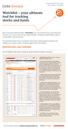 Watchlist your ultimate tool for tracking stocks and funds Have you tried Globe Investor s Watchlist? It is a tool both novice and advanced investors can use to track stocks, mutual funds, exchange-traded
Table of contents. 1. About the platform 3. 2. MetaTrader 4 platform Installation 4. 3. Logging in 5 - Common log in problems 5
 Table of contents 1. About the platform 3 2. MetaTrader 4 platform Installation 4 3. Logging in 5 - Common log in problems 5 4. How to change your password 6 5. User Interface and Customization 7 - Toolbars
Introduction to ProphetX 3.0
 Introduction to ProphetX 3.0 Table of Contents User Interface... 2 Global ProphetX Preferences... 2 Navigating ProphetX 3.0... 3 Docked Panes... 3 Context Tool Bar... 3 Split Views... 4 Tabbed Displays...
closely to your suggestions. Here s what s new
 What s New in DealBook 360 We re working to make DealBook 360 the best trading software around and we re listening closely to your suggestions. Here s what s new in our latest release: New, visually enhanced
Getting Started with Recognia Intraday Trader
 Getting Started with Recognia Intraday Trader Copyright 2011 Recognia Page 1 www.recognia.com Table of Contents Introduction... 3 Selecting a Pre-defined Event Set-up... 4 Creating a Custom Event Set-up...
NEDBANK PRIVATE WEALTH STOCKBROKERS Graphical Analysis Manual
 This advanced charting application displays interactive, feature-rich, automatically-updated financial charts; The application also provides you with the ability to perform advanced technical analysis
INTRODUCTION... 4 GETTING STARTED... 5
 E-Trade User Guide E-Trade User Guide INTRODUCTION... 4 System Overview.... 4 GETTING STARTED... 5 Logging on to Your ETrade.... 5 Resetting Your Password.... 6 Retrieving Your Password.... 7 Changing
1. Introduction 3 1.1. Logging In 4 1.2. Screen Lock 5 1.3. Logging Out 6
 1 xstation manual 2 xstation manual: 1. Introduction 3 1.1. Logging In 4 1.2. Screen Lock 5 1.3. Logging Out 6 2. Account settings 7 2.1. Trade Confirmation Settings 7 2.2.Language Settings 8 2.3 Layout
The types of alarm you can set. How to set up alarms. How to view triggered alarms. How to change the default settings for alarms.
 What you will learn in this chapter: The types of alarm you can set. How to set up alarms. How to view triggered alarms. How to change the default settings for alarms. ShareScope User Guide Page 1 of 15
Baylor Secure Messaging. For Non-Baylor Users
 Baylor Secure Messaging For Non-Baylor Users TABLE OF CONTENTS SECTION ONE: GETTING STARTED...4 Receiving a Secure Message for the First Time...4 Password Configuration...5 Logging into Baylor Secure Messaging...7
MT4 Multiterminal USER MANUAL
 MT4 Multiterminal USER MANUAL MT4 MultiTerminal User Manual 1. Getting Started... 3 1.1 General... 3 1.2 Security System... 3 1.3 Live Update... 3 1.4 Terminal Settings... 4 2. Client Accounts... 9 2.1
7. Analysis... 36 7.1 Chart... 36 7.2 Whatif Calculator... 39
 Contents 1. Introduction... 5 2. Getting Started... 7 2.1 What you need... 7 2.2 How to login... 7 At a Glance... 8 3. Atrad Home... 11 3.1 Ticker... 11 3.2 Indices... 11 3.3 Themes... 12 3.3.1 Full screen
Handbook FXFlat FX Options
 Handbook FXFlat FX Options FXFlat Trading FX Options When you open an FX options account at FXFlat, you can trade options on currency pairs 24- hours a day, 5.5 days per week. The FX options features in
WEB PLATFORM USER GUIDE: CFD
 WEB PLATFORM USER GUIDE: CFD Spread Co Ltd, Argyle House, Joel Street, Northwood Hills, London, HA6 1NW, United Kingdom Tel: (44) (0)1923 832 600 Fax: (44) (0)1923 845 308 E-mail: [email protected] Registered
Getting Started with Trading Strategies, Chart Analysis, and Indicators
 Getting Started with Trading Strategies, Chart Analysis, and Indicators 20090707-A TradeStation Securities Member NYSE, FINRA, NFA and SIPC Important Information and Disclaimer: TradeStation Securities,
Timeless Time and Expense Version 3.0. Copyright 1997-2009 MAG Softwrx, Inc.
 Timeless Time and Expense Version 3.0 Timeless Time and Expense All rights reserved. No parts of this work may be reproduced in any form or by any means - graphic, electronic, or mechanical, including
WINDSOR DIRECT 4 USER GUIDE
 www.windsorbrokersltd.com For more information email us on: [email protected] CONTENTS 1. Opening an account. p. 3 2. Server and account settings. p. 4 Changing Password p. 4 Events Setup. p.
MANAGING MY WORKSPACE
 MANAGING MY WORKSPACE WHAT DO YOU WANT TO DO? Learn About the Workspace Create Your First Document View More Information in Your Workspace Organize & Customize Your Workspace Get More Help on Managing
SQ TRADING STATION User Guide & Installation
 SQ TRADING STATION User Guide & Installation Table of content 1. Downloading the SQ Trading Station 2 2. Launching the SQ Trading Station 3 3. The SQ Trading Station User Interface 4 4. How to place a
Table of Contents. 6. Watchlist 6.1 Edit Watchlist 12. 7. Trade 7.1 Place Order 13. 9. Power Trader II 17
 Table of Contents 1. Introduction 1.1 System Requirements 1.2 Customer Service 04 04 2. Our Homepage 05 3. Login 06 4. Customised Page 4.1 Add Customised Page 4.2 Add Pagelets to Customised Page 4.3 Save
Welcome to the Heritage Share Trading Website offering market-leading functionality to help you get more from your online trading and investing:
 Welcome to the Heritage Share Trading Website offering market-leading functionality to help you get more from your online trading and investing: Powerful charting giving you greater insight into your holdings
NetXInvestor TM USER GUIDE. March 2014
 NetXInvestor TM USER GUIDE March 2014 2014 Pershing Advisor Solutions LLC. Pershing Advisor Solutions LLC, member FINRA, SIPC, is a wholly owned subsidiary of The Bank of New York Mellon Corporation (BNY
Trader s Guide 10.4.0.0
 Trader s Guide 10.4.0.0 November 2011 ONE BLUE HILL PLAZA, 10 TH FLOOR WWW.RITHMIC.COM ONE BLUE HILL PLAZA, 10 TH FLOOR 877 RITHMIC SALES PEARL RIVER, NEW YORK 10965-8689 877 408 0008 TECH SUPPORT Document
How do I get Login thru Swift trade Web Version?
 SWIFT TRADE Software User s MANUAL How do I get Login thru Swift trade Web Version? LOGIN To start, connect the Web through a dial up connection or through a dedicated line. Open the Microsoft Internet
GUIDE TO THE TRADING PLATFORM CONTENTS. Page OVERVIEW 2. ACCOUNT SUMMARY Transfer funds Account details
 GUIDE TO THE TRADING PLATFORM CONTENTS OVERVIEW 2 Page ACCOUNT SUMMARY Transfer funds Account details 3 SPREAD & BINARY MARKETS Finding your market Opening and closing trades Opening Orders Closing Orders
Learn About Analysis, Interactive Reports, and Dashboards
 Learn About Analysis, Interactive Reports, and Dashboards This document supports Pentaho Business Analytics Suite 5.0 GA and Pentaho Data Integration 5.0 GA, documentation revision February 3, 2014, copyright
NewsEdge.com User Guide
 NewsEdge.com User Guide November 2013 Table of Contents Accessing NewsEdge.com... 5 NewsEdge.com: Front Page... 6 Saved Search View... 7 Free Text Search Box... 7 Company Watchlist... 9 Weather...12 NewsEdge.com:
Login Panel User ID - eg. KE0XXXXXX (where XXXXXX is your client s account number, 0 = zero) Password is case sensitive Click Login button
 Trader Platform Guide CFD Hotline : 6536 2000 CFD Dealing : 6536 0002 Fax : 6226 3682 Email : [email protected] Website : www.kecfd.com How to access Maybank KE CFD website Web Address: www.kecfd.com
for Sage 100 ERP Business Insights Overview Document
 for Sage 100 ERP Business Insights Document 2012 Sage Software, Inc. All rights reserved. Sage Software, Sage Software logos, and the Sage Software product and service names mentioned herein are registered
Quick Start Guide. Highly customizable automated trading Automate your trades according to rules and models you create.
 POWER E*TRADE PRO EXCEL MANAGER Quick Start Guide We are pleased to announce the launch of Excel Manager, an exciting new feature in Power E*TRADE Pro that leverages the flexibility of Microsoft Excel
CONTENT 1. 2. 5-8 9 5. 6. 7.
 User Manual TM CONTENT 1. 2. 3. 4. 5. 6. 7. 8. 9. Introduction The Autochartist Interface Analysis Toolbar (A) Pattern Display (B) Search Pane (C) Results Pane (Completed Patterns) (D) Results Pane (Emerging
TECHNICAL CHARTS UNDERSTANDING TECHNICAL CHARTS
 TECHNICAL CHARTS UNDERSTANDING TECHNICAL CHARTS Overview is an advanced charting application specifically designed to display interactive, feature rich, auto updated financial charts. The application provides
Treasury and Trade Services Global Payments. Citi Payment Analytics User Guide
 Treasury and Trade Services Global Payments Citi Payment Analytics User Guide Table of Contents 1. Accessing Payment Analytics 2. Dashboard Overview Getting to the Citi Payment Analytics Dashboard Overview
Module One: Getting Started... 6. Opening Outlook... 6. Setting Up Outlook for the First Time... 7. Understanding the Interface...
 2 CONTENTS Module One: Getting Started... 6 Opening Outlook... 6 Setting Up Outlook for the First Time... 7 Understanding the Interface...12 Using Backstage View...14 Viewing Your Inbox...15 Closing Outlook...17
Using Prophet JavaCharts
 Using Prophet JavaCharts Welcome to the Most Powerful Charts on the Web! http://www.prophet.net/analyze/javacharts.jsp 2003 Prophet Financial Systems, Inc. All rights reserved. Contents Using Prophet JavaCharts
USER MANNUAL. Version 1.9.6
 USER MANNUAL Version 1.9.6 Table of Contents 1. About this Document...3 2. Manuscript Composition...4 3. Getting Started...4 3.1 KASB Direct Login...4 3.1.1 To log on to KASB Direct...5 3.1.2 Server not
Introduction to ProphetX Mini User Guide
 Introduction to ProphetX Mini User Guide Table of Contents User Interface... 3 Global ProphetX Preferences......3 Navigating ProphetX 3.x... 3 Docked Panes... 3 Context Tool Bar... 3 Split Views... 4 Tabbed
EF MetaTrader 5 for Android OS
 User Guide for the online trading platform EF MetaTrader 5 for Android OS Euro-Finance 43 Christopher Columbus blvd., 1592 Sofia, Bulgaria tel.: +359 (0) 700 156 56; fax: +359 (0) 2 981 14 96 [email protected]
FOREXTrader PRO. User Guide. Version 3.1.0.80 REF 20120905V4UK
 FOREXTrader PRO User Guide Version 3.1.0.80 REF 20120905V4UK 1 Table of Contents I. Setup 4 a. Edit Trading Preferences i. Overview and Wizard ii. General Preferences iii. Product Settings iv. Dealing
St ifel Mobile. Available for both iphone and Android TM Platforms Minimum operating requirements: ios 4.3 or higher/android TM 2.
 Stifel Mobile St ifel Mobile Available for both iphone and Android TM Platforms Minimum operating requirements: ios 4.3 or higher/android TM 2.3 or higher 1 Stifel Mobile - Downloading To install Stifel
REDIPlus Quick Start Guide
 REDIPlus Quick TABLE OF CONTENTS Toolbar Navigation.. 3 Workspace Overview. 3 Equities and Futures Trading. 4 Options Trading..5 Order and Position Management.. 7 Quote Monitor and Charting Tool... 8 Auto-Signals.
Internet Explorer 7. Getting Started The Internet Explorer Window. Tabs NEW! Working with the Tab Row. Microsoft QUICK Source
 Microsoft QUICK Source Internet Explorer 7 Getting Started The Internet Explorer Window u v w x y { Using the Command Bar The Command Bar contains shortcut buttons for Internet Explorer tools. To expand
Thomson Reuters Eikon Quick Start Guide
 Thomson Reuters Eikon Quick Start Guide Thomson Reuters Eikon is a great tool to retrieve market data, news, and economic information pertaining to a wealth of countries and nations. The software is very
Value Line Investment Survey Online
 Value Line Investment Survey Online User s Guide Welcome to Value Line Investment Survey Online. This user guide will show you everything you need to know to access and utilize the wealth of information
Investoscope 3 User Guide
 Investoscope 3 User Guide Release 3.0 Copyright c Investoscope Software Contents Contents i 1 Welcome to Investoscope 1 1.1 About this User Guide............................. 1 1.2 Quick Start Guide................................
SATURN WEB USER GUIDE: Spread Betting
 SATURN Web SATURN WEB USER GUIDE: Spread Betting Spread Co Ltd, Argyle House, Joel Street, Northwood Hills, London, HA6 1NW, United Kingdom Tel: (44) (0)1923 832 600 Fax: (44) (0)1923 845 308 E-mail: [email protected]
Microsoft Access 2010 handout
 Microsoft Access 2010 handout Access 2010 is a relational database program you can use to create and manage large quantities of data. You can use Access to manage anything from a home inventory to a giant
Metatrader 4 Tutorial
 Metatrader 4 Tutorial Thank you for your interest in Best Metatrader Broker! This tutorial goes in detail about how to install and trade with your new Metatrader Forex trading platform. With Best Metatrader
Trading Integration for ViTrade
 ViTrader Trading Integration for ViTrade TeleTrader Software GmbH Contents First Steps with the ViTrade Trading Integration 3 Accessing Your Portfolio 6 Creating Portfolios... 7 Logging In to a Portfolio...
Data Retrieval. Chapter III. In This Chapter
 Chapter III. Data Retrieval In This Chapter This chapter gives you instructions for setting up and using TradingExpert Pro s automatic data retrieval system which is used for downloading end-of-day data
AXIS 3.0. User Documentation
 AXIS 3.0 User Documentation Summer 2004 Table of Contents 1.0 Axis 3.0 Installation 3 1.1 System Requirements 3 1.2 Installing from the web 3 1.3 Installing from a CD 4 2.0 Basics 5 2.1 System Login 5
HalifaxOnline Platform and Account Setup Guide
 HalifaxOnline Platform and Account Setup Guide CONTENTS BASIC INFORMATION AND INSTALLATION PLATFORM INFORMATION 2 PAPER TRADING ACCOUNT.. 3 INSTALLATION AND SETUP.. 4 USING THE PLATFORM SETTING UP THE