
MegaRAID Configuration Software
|
|
|
- Hugo Nicholson
- 10 years ago
- Views:
Transcription
1 USER S GUIDE MegaRAID Configuration Software March 2006 DB

2 This document contains proprietary information of LSI Logic Corporation. The information contained herein is not to be used by or disclosed to third parties without the express written permission of an officer of LSI Logic Corporation. LSI Logic products are not intended for use in life-support appliances, devices, or systems. Use of any LSI Logic product in such applications without written consent of the appropriate LSI Logic officer is prohibited. Purchase of I 2 C components of LSI Logic Corporation, or one of its sublicensed Associated Companies, conveys a license under the Philips I 2 C Patent Rights to use these components in an I 2 C system, provided that the system conforms to the I 2 C standard Specification as defined by Philips. Document DB , Second Edition (March 2006) This document describes LSI Logic Corporation s MegaRAID software tools and utilities. This document will remain the official reference source for all revisions/releases of these products until rescinded by an update. LSI Logic Corporation reserves the right to make changes to any products herein at any time without notice. LSI Logic does not assume any responsibility or liability arising out of the application or use of any product described herein, except as expressly agreed to in writing by LSI Logic; nor does the purchase or use of a product from LSI Logic convey a license under any patent rights, copyrights, trademark rights, or any other of the intellectual property rights of LSI Logic or third parties. TRADEMARK ACKNOWLEDGMENT LSI Logic, the LSI Logic logo design, FlexRAID, MegaRAID, MegaRAID Configuration Utility, MegaRAID Manager, and Power Console Plus are trademarks or registered trademarks of LSI Logic Corporation. Intel and Pentium are registered trademarks of Intel Corporation. Linux is a registered trademark of Linus Torvalds. Microsoft, MS-DOS, Windows, and Windows NT are registered trademarks of Microsoft Corporation. NetWare, Novell, and SUSE are trademarks or registered trademarks of Novell, Inc. PCI-X is a registered trademark of PCI SIG. Red Hat is a registered trademark of Red Hat Software, Inc. All other brand and product names may be trademarks of their respective companies. CD To receive product literature, visit us at For a current list of our distributors, sales offices, and design resource centers, view our web page located at ii

3 Preface This book is the primary reference and user s guide for the MegaRAID software tools and utilities. These include the MegaRAID BIOS Configuration Utility (CU), WebBIOS CU, MegaRAID Manager, and Power Console Plus, which enable configuration and management of RAID systems using the MegaRAID controllers. Audience This document assumes that you have familiarity with storage systems, and are knowledgeable about PCI, SCSI, and Serial ATA interfaces. It also assumes that you are familiar with computer systems and know how to use the keyboard, mouse, clipboard functions, toolbars, and drop down menus. The people who benefit from this book are: Users who want to configure, monitor, or manage RAID systems that use MegaRAID controllers Engineers and managers who are evaluating MegaRAID controllers for use in a system Engineers who are designing MegaRAID controllers into a system Organization This document has the following chapters and appendix: Chapter 1, Overview, introduces the MegaRAID software tools and utilities, and provides operating system information. Chapter 2, Introduction to RAID, describes the components, functions and benefits of RAID, along with RAID levels, configuration strategies, and configuration planning. MegaRAID Configuration Software User s Guide iii

4 Chapter 3, BIOS Configuration Utility and MegaRAID Manager, describes the MegaRAID BIOS CU. Chapter 4, WebBIOS Configuration Utility, describes the WebBIOS CU. Chapter 5, Start the Power Console Plus Utility, describes the Power Console Plus tool. Chapter 6, Virtual Sizing and Online Capacity Expansion, describes the FlexRAID Virtual Sizing feature and capacity expansion under Linux. Appendix A, MegaRAID Service Monitor, describes the messages used by the MegaRAID Service Monitor. MegaRAID System Installation Sequences and Document Organization The following table outlines the installation, configuration, and management sequences for a MegaRAID Serial ATA system. Each sequence consists of a series of steps and operations that the reference manual explains. LSI Logic recommends performing the sequences in the order listed when you install and configure your Serial ATA system. Sequence Task Reference Manual 1 Understand RAID system theory and operation. MegaRAID Configuration Software User s Guide 2 Install the MegaRAID Serial ATA (SATA) or SCSI storage adapter and the related hardware. 3 Configure the physical arrays and logical devices using either the MegaRAID Configuration Utility (CU) or the WebBIOS CU. MegaRAID 320 Storage Adapters User s Guide, MegaRAID SATA150 PCI to Serial ATA Storage Adapters User s Guide, and MegaRAID SATA 300 Storage Adapters User s Guide MegaRAID Configuration Software User s Guide 4 Install the MegaRAID device drivers. MegaRAID Device Driver Installation User s Guide 5 Manage, monitor, and reconfigure the RAID array using either the MegaRAID Manager tool or the Power Console Plus tool. Each tool runs under an operating system and can manage the RAID array while the system is operating. MegaRAID Configuration Software User s Guide iv Preface

5 Related Publications MegaRAID SATA150 PCI to Serial ATA Storage Adapters User s Guide Document Number: DB This document explains how to install your MegaRAID SATA 150 storage adapter in the host system. It provides the electrical and physical specifications, jumper definitions, and connector locations for the storage adapter. MegaRAID SATA 300 Storage Adapters User s Guide Document Number: DB This document explains how to install your MegaRAID SATA 300 storage adapter in the host system. It provides the electrical and physical specifications, jumper definitions, and connector locations for the storage adapter. MegaRAID 320 Storage Adapters User s Guide Document Number: DB This document explains how to install your MegaRAID 320 storage adapter in the host system. It provides the electrical and physical specifications, jumper definitions, and connector locations for the storage adapter. MegaRAID Device Driver Installation User s Guide Document Number: DB This document explains how to install the MegaRAID device driver for your operating system. The information in this document is independent of the back-end bus and applies to both MegaRAID SCSI storage adapters and Serial ATA storage adapters. Preface v

6 Conventions Throughout the manual, the following conventions are used to describe user interaction with the product. Notation Meaning and Use Examples all caps, plus sign courier.nwk file typeface bold typeface fd1sp Used to indicate a series of selections in a GUI. Key presses are in all caps, with a plus sign (+) between key presses in a sequence Start Programs ENTER, ALT+CTRL+DEL, TAB Names of commands, directories, file names, and on-screen text are shown in courier typeface. In a command line, keywords are shown in bold, nonitalic typeface. Enter them exactly as shown. italics module In command lines and names, italics indicate user variables. Italicized text must be replaced with appropriate user-specified items. Enter items of the type called for, using lowercase. Initial Capital letters Undo Edit Apply Names of menu commands, options, check buttons, text buttons, options buttons, text boxes, list boxes, etc., are shown in text with Initial Capital lettering to avoid misreading. These elements may appear on your screen in all lowercase. brackets [version] You may, but need not, select one item enclosed within brackets. Do not enter the brackets. vi Preface

7 Revision History Document Number Version/Date Description DB February 2006 DB Version 1.0 February 2003 Added the introduction to RAID chapter. Revised supported operating systems, spanning, and menu options, and added port multiplier information in the BIOS Configuration Utility. Revised information about virtual sizing. Revised the WebBIOS Adapter Properties Menu and the Configuration Wizard procedure. Initial release of document. Technical Support LSI provides technical support only for LSI products purchased directly from LSI or from an LSI-authorized reseller. If you purchased the MegaRAID controller from LSI or from a certified LSI reseller, call LSI technical support at [email protected], #3, or Please be prepared to specify the 10-digit number preceded by the letter E. In Europe, you can contact LSI Technical Support at [email protected] or (English). If the MegaRAID controller was installed as part of a system manufactured by a company other than LSI, or if you purchased an LSI product from an unauthorized reseller, call the technical support department of the computer manufacturer or the unauthorized reseller. LSI does not provide direct technical support in these cases. To download drivers or documentation, go to the LSI web site at: Preface vii

8 viii Preface

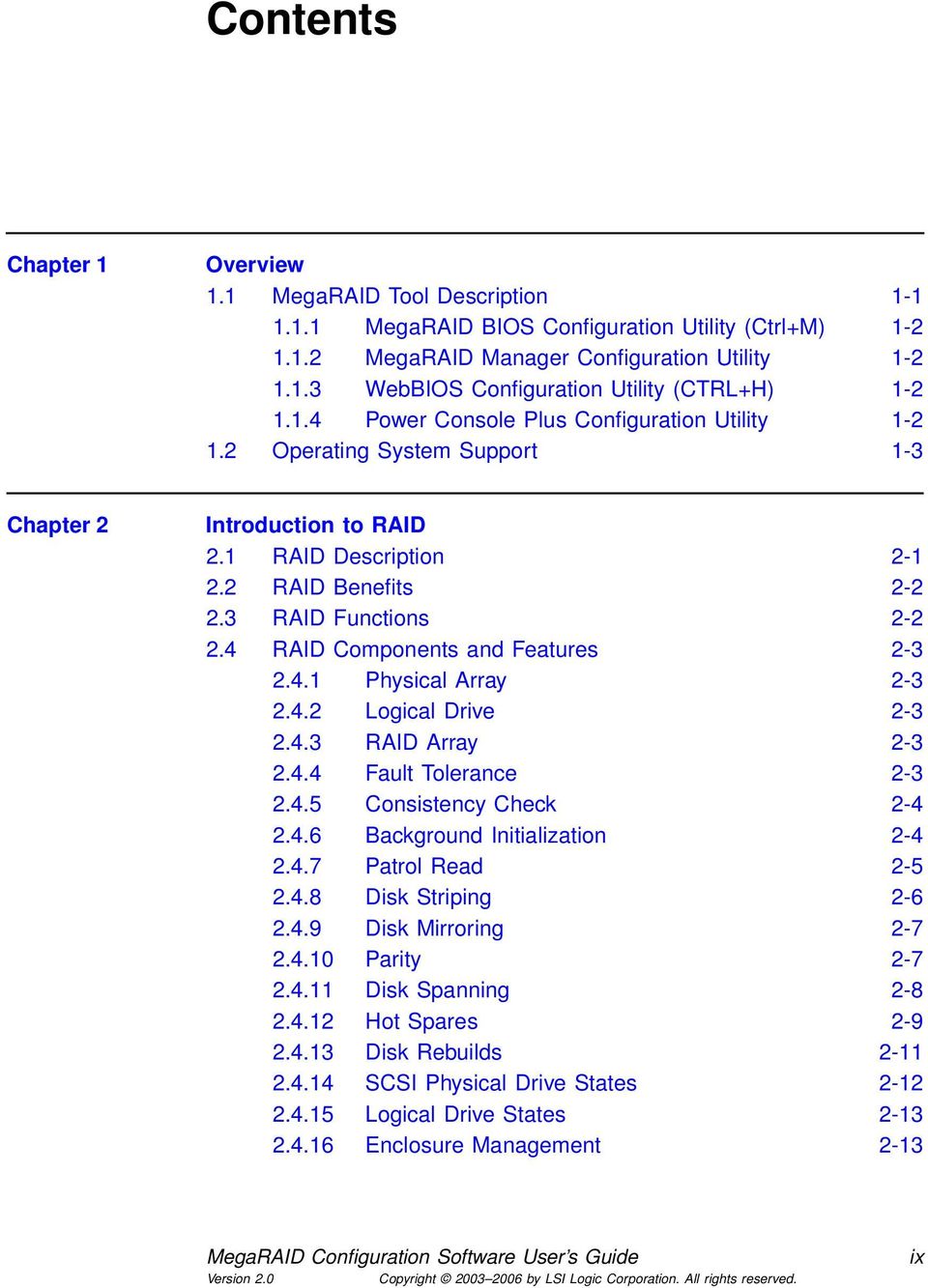
9 Contents Chapter 1 Overview 1.1 MegaRAID Tool Description MegaRAID BIOS Configuration Utility (Ctrl+M) MegaRAID Manager Configuration Utility WebBIOS Configuration Utility (CTRL+H) Power Console Plus Configuration Utility Operating System Support 1-3 Chapter 2 Introduction to RAID 2.1 RAID Description RAID Benefits RAID Functions RAID Components and Features Physical Array Logical Drive RAID Array Fault Tolerance Consistency Check Background Initialization Patrol Read Disk Striping Disk Mirroring Parity Disk Spanning Hot Spares Disk Rebuilds SCSI Physical Drive States Logical Drive States Enclosure Management 2-13 MegaRAID Configuration Software User s Guide ix
10 2.5 RAID Levels Summary of RAID Levels Selecting a RAID Level RAID Configuration Strategies Maximizing Fault Tolerance Maximizing Performance Maximizing Storage Capacity RAID Availability Spare Drives Rebuilding RAID Configuration Planning Number of Physical Disk Drives Array Purpose 2-25 Chapter 3 BIOS Configuration Utility and MegaRAID Manager 3.1 Quick Configuration Steps for the BIOS Configuration Utility Quick Configuration Steps for MegaRAID Manager Configuration Utility Menu Configure Menu Initialize Option Objects Menu Clear Option Rebuild Option Check Consistency Option Reconstruct Option Select Adapter Menu Detailed Configuration Instructions Starting the MegaRAID Configuration Utility Resolving a Configuration Mismatch Starting MegaRAID Manager Configuring Arrays and Logical Drives Selecting a Configuration Method Designating Drives as Hot Spares Creating Physical Arrays and Logical Drives Initializing Logical Drives 3-26 x Contents

11 3.5 Deleting Logical Drives Performing Drive Roaming Performing Drive Migration Rebuilding Failed Disks Rebuild Types Manual Rebuild Rebuilding an Individual Drive Manual Rebuild Rebuilding in Batch Mode FlexRAID Virtual Sizing Checking Data Consistency Reconstructing Logical Drives Replacing a Failed Controller Containing Data in the TBBU Using a Preloaded System Drive Exiting MegaRAID Configuration Utility 3-36 Chapter 4 WebBIOS Configuration Utility 4.1 General Description Quick Configuration Steps Starting the WebBIOS Configuration Utility on the Host Computer Screen and Option Descriptions WebBIOS Toolbar Options Main Screen Adapter Properties Screen Scan Devices Option SCSI Channel Properties Logical Drive Screen Physical Drive Screen Configuration Mismatch Screen Configuration Wizard Option Adapter Selection Option Physical View/Logical View Option Exit Configuring RAID Arrays and Logical Drives 4-14 Contents xi

12 Chapter 5 Start the Power Console Plus Utility 5.1 Quick Configuration Steps Power Console Plus Overview Power Console Plus Components Features Client System Requirements MegaService Monitor Installing the Power Console Plus Utility Windows Installations Deregistering and Reregistering under the Power Console Plus Utility Power Console Plus Interface Description Power Console Plus Main Window Description Power Console Plus Menus Physical Drive Menu Logical Drive Menu Progress Menu Configuring Arrays and Logical Drives Starting the Power Console Plus Utility Choosing an Adapter Running the Configuration Wizard Defining Logical Drives Saving the Configuration Initializing Logical Drives Checking Rebuild Rate Exiting the Power Console Plus Utility Reclaiming Hot Spare Disks Reconfiguring Existing Arrays Adding a Physical Drive to an Existing Array Removing a Physical Drive from an Array Add Capacity Steps 5-27 Chapter 6 Virtual Sizing and Online Capacity Expansion 6.1 FlexRAID Virtual Sizing Capacity Expansion under the Linux Operating System 6-2 xii Contents

13 Appendix A MegaRAID Service Monitor A.1 Power Console Plus Internal Messages A-1 A.2 MegaRAID Service Monitor Event Types A-3 A.3 Event Message IDs A-7 Index Customer Feedback Contents xiii

14 xiv Contents

15 Figures 2.1 Disk Striping (RAID 0) Example Disk Mirroring (RAID 1) Example Distributed Parity (RAID 5) Example Disk Spanning (RAID 10) Example RAID 10 Logical Drive RAID 50 Logical Drive MegaRAID Configuration Utility Menu Tree Port Multiplier Option Port and Drive Information WebBIOS Adapter Selection Screen WebBIOS Main Screen WebBIOS Adapter Properties Screen WebBIOS Logical Drive Screen WebBIOS Physical Drive Screen WebBIOS Configuration Mismatch Screen WebBIOS Configuration Wizard Screen WebBIOS Logical Drive Definition Screen 4-16 xv

16 xvi

17 Tables 1.1 MegaRAID Tool Operating System Support Types of Parity Disk Spanning for RAID 10 and RAID SCSI Physical Drive States Logical Drive States RAID 0 Overview RAID 1 Overview RAID 5 Overview RAID 10 Overview RAID 50 Overview RAID Levels and Fault Tolerance RAID Levels and Performance RAID Levels and Capacity Physical Drives Required for Each RAID Level Factors to Consider for Array Configuration Configuration Utility Configure Menu Configuration Utility Objects Menu Configuration Utility Adapter Submenu Configuration Utility Logical Drive Submenu Configuration Utility View/Update Parameters Submenu Configuration Utility Physical Drive Submenu Configuration Utility Channel Submenu Configuration Utility Battery Backup Submenu Configuration Hot Keys Logical Drive Parameters and Descriptions Spanning Mode Options Rebuild Types WebBIOS Toolbar Icon Descriptions WebBIOS Adapter Properties Menu Options Power Console Plus Screen Elements Power Console Plus Toolbar Icons Power Console Plus Configuration Menu Power Console Plus Adapter Properties Menu Power Console Plus Physical Drive Menu Power Console Plus Change Status Submenu Power Console Plus Logical Drive Menu 5-17 xvii

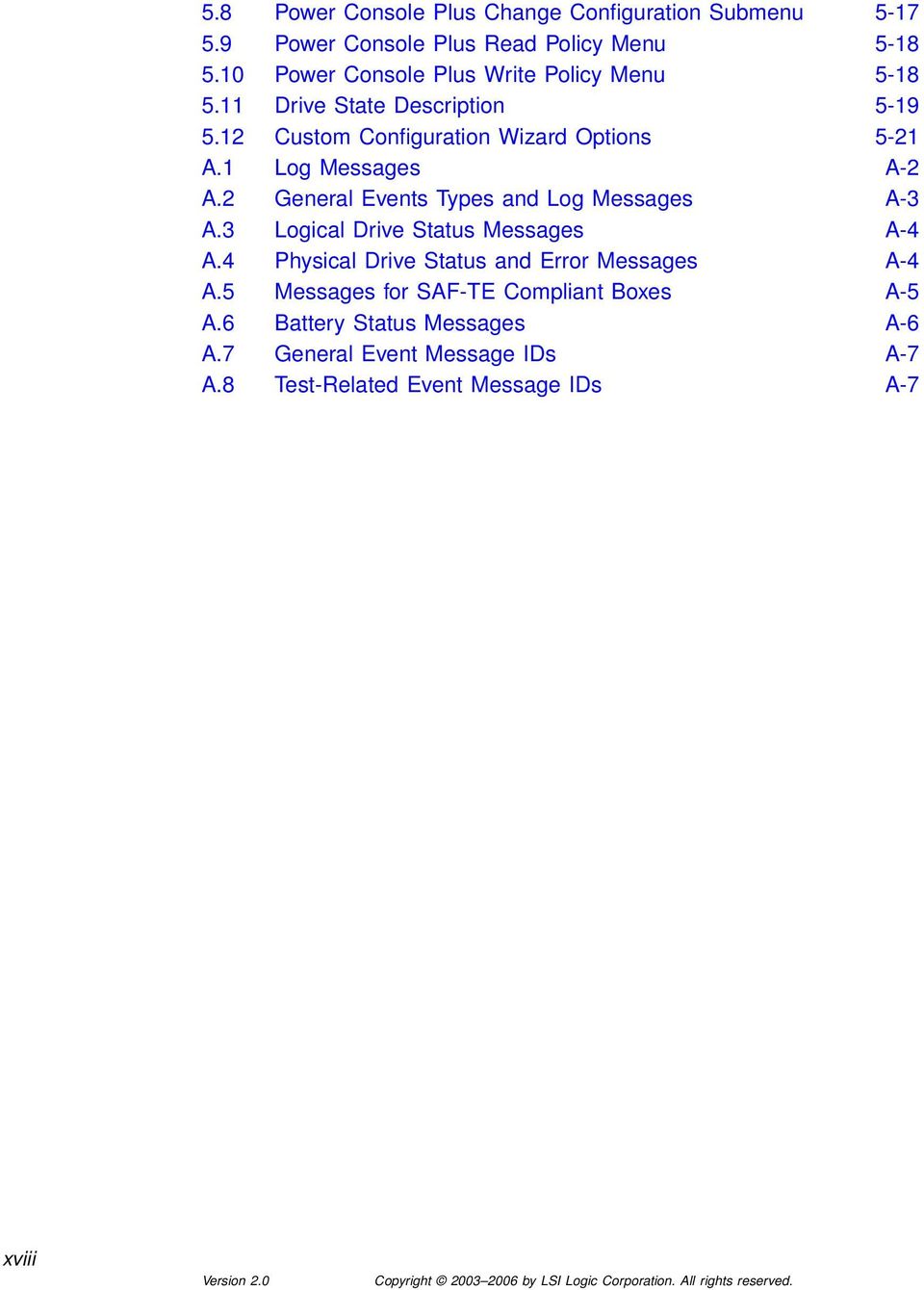
18 5.8 Power Console Plus Change Configuration Submenu Power Console Plus Read Policy Menu Power Console Plus Write Policy Menu Drive State Description Custom Configuration Wizard Options 5-21 A.1 Log Messages A-2 A.2 General Events Types and Log Messages A-3 A.3 Logical Drive Status Messages A-4 A.4 Physical Drive Status and Error Messages A-4 A.5 Messages for SAF-TE Compliant Boxes A-5 A.6 Battery Status Messages A-6 A.7 General Event Message IDs A-7 A.8 Test-Related Event Message IDs A-7 xviii
19 Chapter 1 Overview This book describes the following software tools and utilities that enable configuration and management of RAID systems using the MegaRAID controllers: MegaRAID BIOS Configuration Utility (CU) WebBIOS CU MegaRAID Manager Power Console Plus This chapter provides an overview of the MegaRAID software tools and explains the intended use of each tool. It consists of the following sections: Section 1.1, MegaRAID Tool Description Section 1.2, Operating System Support 1.1 MegaRAID Tool Description MegaRAID products provide a powerful set of software products for configuring and managing Redundant Array of Independent Disks (RAID) systems. The following subsections describe each software product. Subsequent chapters provide detailed information concerning each product. You can use any of the listed utilities to configure your RAID system. Or, you can configure your RAID system with one utility and update it later with a different utility. All MegaRAID tools provide a full set of RAID array configuration and monitoring features. MegaRAID Configuration Software User s Guide 1-1

20 1.1.1 MegaRAID BIOS Configuration Utility (Ctrl+M) The MegaRAID BIOS Configuration Utility (CU) provides full-featured, character-based configuration and management of RAID arrays. The MegaRAID CU resides in the BIOS and is independent of the operating system. For information about the BIOS CU, refer to Chapter 3, BIOS Configuration Utility and MegaRAID Manager MegaRAID Manager Configuration Utility The MegaRAID Manager utility provides full-featured configuration and management of RAID arrays. The MegaRAID Manager utility enables configuration and management of RAID systems while the operating system is running. The MegaRAID Manager utility provides the same feature set as the MegaRAID CU. For information about MegaRAID Manager, refer to Chapter 3, BIOS Configuration Utility and MegaRAID Manager WebBIOS Configuration Utility (CTRL+H) The WebBIOS CU tool provides full-featured, html-based configuration and management of RAID arrays. WebBIOS resides in the BIOS and is independent of the operating system. The WebBIOS CU provides the same feature set as the MegaRAID CU. In addition, it allows you to add drives and migrate between RAID levels. For information about the WebBIOS CU, refer to Chapter 4, WebBIOS Configuration Utility Power Console Plus Configuration Utility The Power Console Plus utility provides on-the-fly RAID migration, creating almost limitless adaptability and expansion of any logical drive while the system remains operational. For information about the Power Console Plus utility, refer to Chapter 5, Start the Power Console Plus Utility. The Power Console Plus utility is an object-oriented GUI utility that configures and monitors RAID systems locally or over a network. The Power Console Plus manager runs on the Microsoft Windows NT, Windows 2000, Windows XP, and Windows Server 2003 operating systems. With the Power Console Plus manager, you can perform the same tasks as with the MegaRAID Manager. 1-2 Overview

21 1.2 Operating System Support Table 1.1 lists the operating system support for each of the MegaRAID tools. Table 1.1 MegaRAID Tool Operating System Support MegaRAID Tool Supported Operating Systems BIOS CU Operating system (OS) support is not required. The CU runs from the BIOS. MegaRAID Manager MS-DOS, Novell NetWare, Red Hat Linux, SUSE Linux Enterprise Server (SLES). WebBIOS CU OS support is not required. The CU runs from the BIOS. Power Console Plus Windows 2000, Windows XP, Windows Server Note: For information about drivers for the operating systems, refer to the MegaRAID Device Driver Installation User s Guide. Operating System Support 1-3
22 1-4 Overview
23 Chapter 2 Introduction to RAID This chapter describes RAID features and the advantages that RAID systems offer in terms of fault tolerance, improved I/O performance, and data storage reliability. In addition, it discusses RAID configuration strategies and planning. This chapter consists of the following sections: Section 2.1, RAID Description Section 2.2, RAID Benefits Section 2.3, RAID Functions Section 2.4, RAID Components and Features Section 2.5, RAID Levels Section 2.6, RAID Configuration Strategies Section 2.7, RAID Availability Section 2.8, RAID Configuration Planning 2.1 RAID Description RAID is an array of multiple independent hard disk drives that provides high performance and fault tolerance. The RAID array appears to the host computer as a single storage unit or as multiple logical units. Data throughput improves because several disks can be accessed simultaneously. RAID systems also improve data storage availability and fault tolerance. Data loss caused by a hard drive failure can be recovered by rebuilding missing data from the remaining data or parity drives. MegaRAID Configuration Software User s Guide 2-1
24 2.2 RAID Benefits RAID systems improve data storage reliability and fault tolerance compared to single-drive storage systems. Data loss resulting from a hard drive failure can be prevented by reconstructing missing data from the remaining hard drives. RAID has gained popularity because it improves I/O performance and increases storage subsystem reliability. 2.3 RAID Functions Logical drives, also known as virtual disks, are arrays or spanned arrays that are available to the operating system. The storage space in a logical drive is spread across all the physical drives in the array. Note: The maximum logical drive size for all supported RAID levels (0, 1, 5, 10, and 50) is 2 Tbytes. You can create multiple logical drives on the same physical disks. Your SCSI hard drives must be organized into logical drives in an array and must be able to support the RAID level that you select. Following are some common RAID functions: Creating hot spare drives. Configuring physical arrays and logical drives. Initializing one or more logical drives. Accessing controllers, logical drives, and physical drives individually. Rebuilding failed hard drives. Verifying that the redundancy data in logical drives using RAID level 1, 5, 10, or 50 is correct. Reconstructing logical drives after changing RAID levels or adding a hard drive to an array. Selecting a host controller to work on. 2-2 Introduction to RAID
25 2.4 RAID Components and Features Physical Array Logical Drive RAID levels describe a system for ensuring the availability and redundancy of data stored on large disk subsystems. See Section 2.5, RAID Levels, page 2-13 for detailed information about RAID levels. A physical array is a group of physical disk drives. The physical disk drives are managed in partitions known as logical drives. A logical drive is a partition in a physical array of disks that is made up of contiguous data segments on the physical disks. A logical drive can consist of an entire physical array, more than one entire physical array, a part of an array, parts of more than one array, or a combination of any two of these conditions. Note: The maximum logical drive size for all supported RAID levels (0, 1, 5, 10, and 50) is 2 Tbytes. You can create multiple logical drives within the same physical array RAID Array Fault Tolerance A RAID array is one or more logical drives controlled by the RAID controller. Fault tolerance is the capability of the subsystem to undergo a single failure without compromising data integrity, and processing capability. The RAID controller provides this support through redundant arrays in RAID levels 1, 5, 10 and 50. The system can still work properly even with a single disk failure in an array, through performance can be degraded to some extent. Note: RAID level 0 is not fault-tolerant. If a drive in a RAID 0 array fails, the whole logical drive (all physical drives associated with the logical drive) fails. RAID Components and Features 2-3
26 2.4.5 Consistency Check Fault tolerance is often associated with system availability because it allows the system to be available during the failures. However, this means it is also important for the system to be available during repair. A hot spare is an unused physical disk that, in case of a disk failure in a redundant RAID array, can be used to rebuild the data and re-establish redundancy. After the hot spare is automatically moved into the RAID array, the data is automatically rebuilt on the hot spare drive. The RAID array continues to handle requests while the rebuild occurs. Auto-rebuild allows a failed drive to be replaced and the data automatically rebuilt by hot-swapping the drive in the same drive bay. The RAID array continues to handle requests while the rebuild occurs. The Consistency Check operation verifies correctness of the data in logical drives that use RAID levels 1, 5, 10, and 50. (RAID 0 does not provide data redundancy.) For example, in a system with parity, checking consistency means computing the data on one drive and comparing the results to the contents of the parity drive. Note: LSI recommends that you perform a consistency check at least once a month Background Initialization Background initialization is a consistency check that is forced when you create a logical drive. The difference between a background initialization and a consistency check is that a background initialization is forced on new logical drives. This is an automatic operation that starts 5 minutes after you create the drive. Background initialization is a check for media errors on physical drives. It ensures that striped data segments are the same on all physical drives in an array. The background initialization rate is controlled by the rebuild rate set using the BIOS Configuration Utility. The default, and recommended, rate is 30%. Before you change the rebuild rate, you must stop the background initialization or the rate change does not affect the background initialization rate. After you stop background initialization and change the rebuild rate, the rate change takes effect when you restart background initialization. 2-4 Introduction to RAID
27 2.4.7 Patrol Read Patrol read involves the review of your system for possible hard drive errors that could lead to drive failure, then action to correct errors. The goal is to protect data integrity by detecting physical drive failure before the failure can damage data. The corrective actions depend on the array configuration and type of errors. Patrol read starts only when the controller is idle for a defined period of time and no other background tasks are active, though it can continue to run during heavy I/O processes. You can use the BIOS Configuration Utility to select the patrol read options, which you can use to set automatic or manual operation, or disable patrol read. Perform the following steps to select a patrol read option: Step 1. Step 2. Step 3. Step 4. Step 5. Select Objects Adapter from the Management Menu. The Adapter menu displays. Select Patrol Read Options from the Adapter menu. The following options display: Patrol Read Mode Patrol Read Status Patrol Read Control Select Patrol Read Mode to display the patrol read options: Manual In manual mode, you must initiate the patrol read. Auto In auto mode, the firmware initiates the patrol read on a scheduled basis. Manual Halt Use manual halt to stop the automatic operation, then switch to manual mode. Disable Use this option to disable the patrol read. If you use Manual mode, perform the following steps to initiate a patrol read: a. Select Patrol Read Control and press ENTER. b. Select Start and press ENTER. Note. Pause/Resume is not a valid operation when Patrol Read is set to Manual mode. RAID Components and Features 2-5
28 Step 6. Select Patrol Read Status to display the number of iterations completed, the current state of the patrol read (active or stopped), and the schedule for the next execution of patrol read Disk Striping Disk striping allows you to write data across multiple physical disks instead of just one physical disk. Disk striping involves partitioning each drive storage space into stripes that can vary in size from 8 Kbytes to 128 Kbytes. These stripes are interleaved in a repeated sequential manner. The combined storage space is composed of stripes from each drive. It is recommended that you keep stripe sizes the same across RAID arrays. Note: Do not install an operating system on a logical drive with less than a 16 Kbyte stripe size. For example, in a four-disk system using only disk striping (used in RAID level 0), segment 1 is written to disk 1, segment 2 is written to disk 2, and so on. Disk striping enhances performance because multiple drives are accessed simultaneously, but disk striping does not provide data redundancy. Figure 2.1 shows an example of disk striping. Figure 2.1 Disk Striping (RAID 0) Example Segment 1 Segment 5 Segment 9 Segment 2 Segment 6 Segment 10 Segment 3 Segment 7 Segment 11 Segment 4 Segment 8 Segment Stripe Width Stripe width is the number of disks involved in an array where striping is implemented. For example, a four-disk array with disk striping has a stripe width of four. 2-6 Introduction to RAID
29 Stripe Size Disk Mirroring The stripe size is the length of the interleaved data segments that the RAID controller writes across multiple drives. With disk mirroring (used in RAID 1), data written to one disk is simultaneously written to another disk. If one disk fails, the contents of the other disk can be used to run the system and reconstruct the failed disk. The primary advantage of disk mirroring is that it provides 100% data redundancy. Because the disk contents are completely written to a second disk, it does not matter whether one of the disks fails. Both disks contain the same data at all times. Either drive can act as the operational drive. Disk mirroring provides 100% redundancy, but is expensive because each drive in the system must be duplicated. Figure 2.2 shows an example of disk mirroring. Figure 2.2 Disk Mirroring (RAID 1) Example Segment 1 Segment 2 Segment 3 Segment 4 Segment 1 Duplicated Segment 2 Duplicated Segment 3 Duplicated Segment 4 Duplicated Parity Parity generates a set of redundancy data from two or more parent data sets. The redundancy data can reconstruct one of the parent data sets. Parity data does not fully duplicate the parent data sets. In RAID, this method is applied to entire drives or stripes across all disk drives in an array. The types of parity are described in Table 2.1. RAID Components and Features 2-7
30 Table 2.1 Parity Type Dedicated Distributed Types of Parity Description The parity of the data on two or more disk drives is stored on an additional disk. The parity data is distributed across more than one drive in the system. If a single disk drive fails, it can be rebuilt from the parity and the data on the remaining drives. RAID level 5 combines distributed parity with disk striping, as shown in Figure 2.3. Parity provides redundancy for one drive failure without duplicating the contents of entire disk drives, but parity generation can slow the write process. Figure 2.3 Distributed Parity (RAID 5) Example Segment 1 Segment 7 Parity (9 12) Segment 2 Segment 8 Segment 3 Segment 9 Parity (5 8) Segment 4 Segment 10 Segment 5 Segment 11 Parity (1 4) Segment 6 Segment 12 Note: Parity is distributed across multiple drives in the array Disk Spanning Disk spanning allows multiple physical drives to function like one big drive. Disk spanning overcomes lack of disk space and simplifies storage management by combining existing resources or adding relatively inexpensive resources. For example, four 20 Gbyte drives can be combined to appear to the operating system as a single 80 Gbyte drive. Spanning alone does not provide reliability or performance enhancements. Spanned logical drives must have the same stripe size and must be contiguous. In Figure 2.4, RAID 1 arrays are turned into a RAID 10 array. Important: Make sure that the spans are in different backplanes, so that if one span fails, you do not lose the whole array. 2-8 Introduction to RAID
31 Figure 2.4 Disk Spanning (RAID 10) Example 60 Gbytes/s 60 Gbytes/s Can Be Accessed as One 120 Gbyte/s Drive 60 Gbytes/s 60 Gbytes/s Can Be Accessed as One 120 Gbyte/s Drive Note: Spanning two contiguous RAID 0 logical drives does not produce a new RAID level or add fault tolerance. It increases the size of the logical volume and improves performance by doubling the number of spindles Hot Spares Disk Spanning for RAID 10 or RAID 50. Table 2.2 describes how to configure RAID 10 and RAID 50 by spanning. The logical drives must have the same stripe size, and the maximum number of spans is eight. The full drive size is used when you span logical drives; you cannot specify a smaller drive size. Table 2.2 Disk Spanning for RAID 10 and RAID 50 Level Description 10 Configure RAID 10 by spanning two contiguous RAID 1 logical drives. The RAID 1 logical drives must have the same stripe size. 50 Configure RAID 50 by spanning two contiguous RAID 5 logical drives. The RAID 5 logical drives must have the same stripe size. A hot spare is an extra, unused disk drive that is part of the disk subsystem. It is usually in standby mode, ready for service if a drive fails. Hot spares permit you to replace failed drives without system shutdown or user intervention. MegaRAID 320 controllers can implement automatic and transparent rebuilds of failed drives using hot spare drives, providing a high degree of fault tolerance and zero downtime. Note. When running RAID 0 and RAID 5 logical drives on the same set of physical drives (a sliced configuration), a rebuild to a hot spare does not occur after a drive failure until the RAID 0 logical drive is deleted. RAID Components and Features 2-9
32 The RAID management software allows you to specify physical drives as hot spares. When a hot spare is needed, the RAID controller assigns the hot spare that has a capacity closest to and at least as great as that of the failed drive to replace the failed drive. The failed drive is removed from the logical drive and marked ready awaiting removal after the rebuild to a hot spare begins. See Table 2.13 for detailed information about the minimum and maximum number of physical drives supported by each RAID level for each RAID controller. You can make hot spares of the physical drives that are not in a RAID logical drive. Note: If a rebuild to a hot spare fails for any reason, the hot spare drive is marked as failed. If the source drive fails, both the source drive and the hot spare drive are marked as failed Global Hot Spare There are two types of hot spares: Global Hot Spare Dedicated Hot Spare Dedicated Hot Spare A global hot spare can replace any failed drive in a redundant array as long as its capacity is equal to or larger than the coerced capacity of the failed drive. A global hot spare defined on any channel should be available to replace a failed drive on both channels. A dedicated hot spare can replace a failed drive only in a selected array. One or more drives can be designated as member of a spare drive pool; the most suitable drive from the pool is selected for failover. A dedicated hot spare is used before one from the global hot spare pool. Hot spare drives can be located on any RAID channel. Standby hot spares (not being used in RAID array) are polled every 60 seconds at a minimum, and their status is made available in the array management software. RAID controllers can rebuild with a disk that is in a system, but not initially set to be a hot spare. Observe the following parameters when using hot spares: 2-10 Introduction to RAID
33 Disk Rebuilds Hot spares are used only in arrays with data redundancy, for example, RAID levels 1, 5, 10, and 50. A hot spare connected to a specific RAID controller can rebuild a drive that is connected to the same controller only. You must assign the hot spare to one or more drives through the controller BIOS or use array management software to place it in the hot spare pool. A hot spare must have free space equal to or greater than the drive it would replace. For example, to replace an 18 Gbyte drive, the hot spare must be 18 Gbytes or larger. When a physical drive in a RAID array fails, you can rebuild the drive by recreating the data that was stored on the drive before it failed. The RAID controller uses hot spares to rebuild failed drives automatically and transparently, at user-defined rebuild rates. If a hot spare is available, the rebuild can start automatically when a drive fails. If a hot spare is not available, the failed drive must be replaced with a new drive so the data on the failed drive can be rebuilt. Rebuilding can be done only in arrays with data redundancy, which includes RAID 1, 5, 10, and 50. The failed physical drive is removed from the logical drive and marked ready awaiting removal after the rebuild to a hot spare begins. If the system goes down during a rebuild, the RAID controller automatically restarts the rebuild after the system reboots. Note: Note: When the rebuild to a hot spare begins, the failed drive is often removed from the logical drive before management applications detect the failed drive. When this occurs, the events logs show the drive rebuilding to the hot spare without showing the failed drive. The formerly failed drive is marked as ready after a rebuild begins to a hot spare. If a rebuild to a hot spare fails for any reason, the hot spare drive is marked as failed. If the source drive fails, both the source drive and the hot spare drive are marked as failed. An automatic drive rebuild does not start if you replace a drive during an online capacity expansion or RAID level migration. The rebuild must be started manually after the expansion or migration procedure is complete. RAID Components and Features 2-11
34 Rebuild Rate Hot Swap The rebuild rate is the percentage of the compute cycles dedicated to rebuilding failed drives. A rebuild rate of 100 percent means the system gives priority to rebuilding the failed drives. The rebuild rate can be configured between 0 and 100 percent. At 0 percent, the rebuild is done only if the system is not doing anything else. At 100 percent, the rebuild has a higher priority than any other system activity. LSI recommends not using 0 or 100 percent. The default rebuild rate is 30 percent. A hot swap is the manual replacement of a defective physical disk unit while the computer is still running. When a new drive has been installed, a rebuild occurs automatically if: The newly inserted drive is the same size as or larger than the failed drive The drive is placed in the same drive bay as the failed drive it is replacing The RAID controller can be configured to detect the new disks and rebuild the contents of the disk drive automatically SCSI Physical Drive States The SCSI Physical drive states are described in Table 2.3. Table 2.3 State Online Ready Hot Spare Fail Rebuild SCSI Physical Drive States Description The physical drive is working normally and is a part of a configured logical drive. The physical drive is functioning normally but is not part of a configured logical drive and is not designated as a hot spare. The physical drive is powered up and ready for use as a spare in case an online drive fails. A fault has occurred in the physical drive, placing it out of service. The physical drive is being rebuilt with data from a failed drive Introduction to RAID
35 Logical Drive States The logical drive states are described in Table 2.4. Table 2.4 State Optimal Degraded Failed Offline Logical Drive States Description The logical drive operating condition is good. All configured physical drives are online. The logical drive operating condition is not optimal. One of the configured physical drives has failed or is offline. The logical drive has failed. The logical drive is not available to the RAID controller Enclosure Management Enclosure management is the intelligent monitoring of the disk subsystem by software and/or hardware. The disk subsystem can be part of the host computer or can reside in an external disk enclosure. Enclosure management helps you stay informed of events in the disk subsystem, such as a drive or power supply failure. Enclosure management increases the fault tolerance of the disk subsystem. 2.5 RAID Levels The RAID controller supports RAID levels 0, 1, 5, 10, and 50. The supported RAID levels are summarized in Section 2.5.1, Summary of RAID Levels. In addition, it supports independent drives (configured as RAID 0.) The following subsections describe the RAID levels in detail Summary of RAID Levels RAID 0 uses striping to provide high data throughput, especially for large files in an environment that does not require fault tolerance. RAID 1 uses mirroring so that data written to one disk drive is simultaneously written to another disk drive. This is good for small databases or other applications that require small capacity, but complete data redundancy. RAID Levels 2-13
36 2.5.2 Selecting a RAID Level RAID 0 RAID 5 uses disk striping and parity data across all drives (distributed parity) to provide high data throughput, especially for small random access. RAID 10, a combination of RAID 0 and RAID 1, consists of striped data across mirrored spans. It provides high data throughput and complete data redundancy, but uses a larger number of spans. RAID 50, a combination of RAID 0 and RAID 5, uses distributed parity and disk striping and works best with data that requires high reliability, high request rates, high data transfers, and medium-to-large capacity. LSI does not recommend having RAID 0 and RAID 5 logical drives in the same physical array. If a drive in the physical array has to be rebuilt, the RAID 0 logical drive causes a failure during the rebuild. To ensure the best performance, you should select the optimal RAID level when you create a system drive. The optimal RAID level for your disk array depends on a number of factors: Number of physical drives in the disk array Capacity of the physical drives in the array Need for data redundancy Disk performance requirements RAID 0 provides disk striping across all drives in the RAID array. RAID 0 does not provide any data redundancy, but does offer the best performance of any RAID level. RAID 0 breaks up data into smaller blocks and then writes a block to each drive in the array. The size of each block is determined by the stripe size parameter, set during the creation of the RAID set. RAID 0 offers high bandwidth. Note: RAID level 0 is not fault-tolerant. If a drive in a RAID 0 array fails, the whole logical drive (all physical drives associated with the logical drive) fails Introduction to RAID
37 By breaking up a large file into smaller blocks, the RAID controller can use several drives to read or write the file faster. RAID 0 involves no parity calculations to complicate the write operation. This makes RAID 0 ideal for applications that require high bandwidth but do not require fault tolerance. RAID 0 also denotes an independent or single drive. Table 2.5 provides an overview of RAID 0. Table 2.5 RAID 0 Overview Feature Uses Strong Points Weak Points Drives Description Provides high data throughput, especially for large files. Any environment that does not require fault tolerance. Provides increased data throughput for large files. No capacity loss penalty for parity. Does not provide fault tolerance or high bandwidth. All data lost if any drive fails. 1 to (14 drives x the number of channels) RAID 1 In RAID 1, the RAID controller duplicates all data from one drive to a second drive. RAID 1 provides complete data redundancy, but at the cost of doubling the required data storage capacity. Table 2.6 provides an overview of RAID 1. Table 2.6 RAID 1 Overview Feature Uses Strong Points Description Appropriate for small databases or any other environment that requires fault tolerance but small capacity. Provides complete data redundancy. RAID 1 is ideal for any application that requires fault tolerance and minimal capacity. Weak Points Requires twice as many disk drives. Performance is impaired during drive rebuilds. Drives 2 RAID Levels 2-15
38 RAID 5 RAID 5 includes disk striping at the block level and parity. In RAID 5, the parity information is written to several drives. RAID 5 is best suited for networks that perform a lot of small input/output (I/O) transactions simultaneously. RAID 5 addresses the bottleneck issue for random I/O operations. Because each drive contains both data and parity, numerous writes can take place concurrently. In addition, robust caching algorithms and hardware-based, exclusive-or assist make RAID 5 performance exceptional in many different environments. Table 2.7 provides an overview of RAID 5. Table 2.7 RAID 5 Overview Feature Uses Strong Points Weak Points Drives Description Provides high data throughput, especially for large files. Use RAID 5 for transaction processing applications because each drive can read and write independently. If a drive fails, the RAID controller uses the parity drive to recreate all missing information. Use also for office automation and online customer service that requires fault tolerance. Use for any application that has high read request rates but low write request rates. Provides data redundancy, high read rates, and good performance in most environments. Provides data redundancy with lowest loss of capacity. Not well-suited to tasks requiring numerous writes. Suffers more impact if no cache is used (clustering). Disk drive performance is reduced if a drive is being rebuilt. Environments with few processes do not perform as well because the RAID overhead is not offset by the performance gains in handling simultaneous processes. 3 to (14 drives x the number of channels) RAID 10 RAID 10 is a combination of RAID 0 and RAID 1. RAID 10 consists of striped data across mirrored spans. RAID 10 breaks up data into smaller blocks, then mirrors the blocks of data to each RAID 1 set. Each RAID 1 set then duplicates its data to its other drive. The size of each block is determined by the stripe size parameter, which is set during the creation of the RAID set. Up to 8 spans can be supported by RAID Introduction to RAID
39 Table 2.8 provides an overview of RAID 10. Table 2.8 RAID 10 Overview Feature Description Uses Appropriate when used with data storage that needs 100% redundancy of mirrored arrays and that also needs the enhanced I/O performance of RAID 0 (striped arrays.) RAID 10 works well for medium-sized databases or any environment that requires a higher degree of fault tolerance and moderate to medium capacity. Strong Points Provides both high data transfer rates and complete data redundancy. Weak Points Requires twice as many drives as all other RAID levels except RAID 1. Drives 2n, where n is greater than 1. In Figure 2.5, logical drive 0 is created by distributing data across four arrays (arrays 0 through 3). Spanning is used because one logical drive is defined across more than one array. Logical drives defined across multiple RAID 1 level arrays are referred to as RAID 10 logical drives. To increase performance, data is striped across arrays, which enables access to multiple arrays simultaneously. Using RAID level 10, rather than a simple RAID set, up to 8 spans can be supported, and up to 8 drive failures can be tolerated, though less than total disk drive capacity is available. Though multiple drive failures can be tolerated, only one drive failure can be tolerated in each RAID 1 level array. Figure 2.5 RAID 10 Logical Drive RAID 10 Segment 1 Segment 1 Duplicate Segment 2 Segment 2 Segment 3 Segment 3 Segment 4 Duplicate Duplicate Segment 5 Segment 5 Segment 6 Segment 6 Segment 7 Segment 7 Segment 8... Duplicate... Duplicate... Duplicate... Segment 4 Duplicate Segment 8 Duplicate RAID 1 RAID 1 RAID 1 RAID 1 RAID 0 RAID Levels 2-17
40 RAID 50 RAID 50 provides the features of both RAID 0 and RAID 5. RAID 50 includes both distributed parity and disk striping across multiple arrays. RAID 50 is best implemented on two RAID 5 disk arrays with data striped across both disk arrays. RAID 50 breaks up data into smaller blocks, then stripes the blocks of data to each RAID 5 disk set. RAID 5 breaks up data into smaller blocks, calculates parity by performing an exclusive-or on the blocks, then writes the blocks of data and parity to each drive in the array. The size of each block is determined by the stripe size parameter, which is set during the creation of the RAID set. RAID 50 can support up to 8 spans and tolerate up to 8 drive failures, though less than total disk drive capacity is available. Though multiple drive failures can be tolerated, only one drive failure can be tolerated in each RAID 1 level array. Table 2.9 provides an overview of RAID 50. Table 2.9 RAID 50 Overview Feature Uses Description Appropriate when used with data that requires high reliability, high request rates, high data transfer, and medium to large capacity. Strong Points Provides high data throughput, data redundancy and very good performance. Weak Points Requires 2 to 8 times as many parity drives as RAID 5. Drives 6 to (14 drives x the number of channels) Figure 2.6 provides an example of a RAID 50 level logical drive Introduction to RAID
41 Figure 2.6 RAID 50 Logical Drive RAID 50 Segment 1 Segment 2 (Segment 1, 2) Segment 3 Segment 4 (Segment 3, 4) Segment 6 (Segment 5, 6) Segment 5 Segment 8 (Segment 7, 8) Segment 7 (Segment 9, 10) Segment 9 Segment 10 (Segment 11, 12) Segment 11 Segment 12 RAID 5 RAID 5 RAID RAID Configuration Strategies The most important factors in RAID array configuration are: Logical drive availability (fault tolerance) Logical drive performance Logical drive capacity You cannot configure a logical drive that optimizes all three factors, but it is easy to choose a logical drive configuration that maximizes one factor at the expense of another factor. For example, RAID 1 (mirroring) provides excellent fault tolerance, but requires a redundant drive. The following subsections describe how to use the RAID levels to maximize logical drive availability (fault tolerance), logical drive performance, and logical drive capacity Maximizing Fault Tolerance Fault tolerance is achieved through the ability to perform automatic and transparent rebuilds using hot spare drives and hot swaps. A hot spare drive is an available, unused online drive that the RAID controller instantly plugs into the system when an active drive fails. After the hot spare is automatically moved into the RAID array, the failed drive is automatically rebuilt on the spare drive. The RAID array continues to handle requests while the rebuild occurs. RAID Configuration Strategies 2-19
42 A hot swap is the manual substitution of a replacement unit in a disk subsystem for a defective one, where the substitution can be performed while the subsystem is running hot swap drives. Auto-Rebuild in the BIOS Configuration Utility allows a failed drive to be replaced and automatically rebuilt by hot-swapping the drive in the same drive bay. The RAID array continues to handle requests while the rebuild occurs, providing a high degree of fault tolerance and zero downtime. Table 2.10 describes the fault tolerance features of each RAID level. Table 2.10 RAID Levels and Fault Tolerance RAID Level Fault Tolerance 0 Does not provide fault tolerance. All data lost if any drive fails. Disk striping writes data across multiple disk drives instead of just one disk drive. It involves partitioning each drive storage space into stripes that can vary in size. RAID 0 is ideal for applications that require high bandwidth but do not require fault tolerance. 1 Provides complete data redundancy. If one disk drive fails, the contents of the other disk drive can run the system and reconstruct the failed drive. The primary advantage of disk mirroring is that it provides 100% data redundancy. Since the contents of the disk drive are completely written to a second drive, no data is lost if one of the drives fails. Both drives contain the same data at all times. RAID 1 is ideal for any application that requires fault tolerance and minimal capacity. 5 Combines distributed parity with disk striping. Parity provides redundancy for one drive failure without duplicating the contents of entire disk drives. If a drive fails, the RAID controller uses the parity data to rebuild all missing information. In RAID 5, this method is applied to entire drives or stripes across all disk drives in an array. Using distributed parity, RAID 5 offers fault tolerance with limited overhead. 10 Provides complete data redundancy using striping across spanned RAID 1 arrays. RAID 10 works well for any environment that requires the 100 percent redundancy offered by mirrored arrays. RAID 10 can sustain a drive failure in each mirrored array and maintain drive integrity. 50 Provides data redundancy using distributed parity across spanned RAID 5 arrays. RAID 50 includes both parity and disk striping across multiple drives. If a drive fails, the RAID controller uses the parity data to recreate all missing information. RAID 50 can sustain one drive failure per RAID 5 array and still maintain data integrity Introduction to RAID
43 2.6.2 Maximizing Performance A RAID disk subsystem improves I/O performance. The RAID array appears to the host computer as a single storage unit or as multiple logical units. I/O is faster because drives can be accessed simultaneously. Table 2.11 describes the performance for each RAID level. Table 2.11 RAID Levels and Performance RAID Level Performance 0 RAID 0 (disk striping) offers the best performance of any RAID level. RAID 0 breaks up data into smaller blocks, then writes a block to each drive in the array. Disk striping writes data across multiple disk drives instead of just one disk drive. It involves partitioning each drive storage space into stripes that can vary in size from 8 Kbytes to 128 Kbytes. These stripes are interleaved in a repeated sequential manner. Disk striping enhances performance because multiple drives are accessed simultaneously. 1 With RAID 1 (disk mirroring), each drive in the system must be duplicated, which requires more time and resources than striping. Performance is impaired during drive rebuilds. 5 RAID 5 (distributed parity) provides high data throughput, especially for large files. Use this RAID level for any application that requires high read request rates, but low write request rates, such as transaction processing applications, because each drive can read and write independently. Since each drive contains both data and parity, numerous writes can take place concurrently. In addition, robust caching algorithms and hardware based exclusive-or assist make RAID 5 performance exceptional in many different environments. Parity generation can slow the write process, making write performance significantly lower for RAID 5 than for RAID 0 or RAID 1. Disk drive performance is reduced if a drive is being rebuilt. Clustering can also reduce drive performance. Environments with few processes do not perform as well because the RAID overhead is not offset by the performance gains in handling simultaneous processes. 10 RAID 10 (disk spanning) works best for data storage that needs the enhanced I/O performance of RAID 0 (striped arrays), which provides high data transfer rates. Spanning increases the size of the logical volume and improves performance by doubling the number of spindles. The system performance improves as the number of spans increases. (The maximum number of spans is eight.) As the storage space in the spans is filled, the system stripes data over fewer and fewer spans and RAID performance degrades to that of a RAID 1 or RAID 5 array. 50 RAID 50 (disk spanning) works best when used with data that requires high reliability, high request rates, and high data transfer. It provides high data throughput, data redundancy, and very good performance. Spanning increases the size of the logical volume and improves performance by doubling the number of spindles. The system performance improves as the number of spans increases. (The maximum number of spans is eight.) As the storage space in the spans is filled, the system stripes data over fewer and fewer spans and RAID performance degrades to that of a RAID 1 or RAID 5 array. RAID Configuration Strategies 2-21
44 2.6.3 Maximizing Storage Capacity Storage capacity is an important factor when selecting a RAID level. There are several variables to consider. Mirrored data and parity data require more storage space than striping alone (RAID 0). Parity generation uses algorithms to create redundancy and requires less space than mirroring. Table 2.12 explains the effects of the RAID levels on storage capacity. Table 2.12 RAID Levels and Capacity RAID Level Capacity 0 RAID 0 (disk striping) involves partitioning each drive storage space into stripes that can vary in size. The combined storage space is composed of stripes from each drive. RAID 0 provides maximum storage capacity for a given set of physical disks. 1 With RAID 1 (disk mirroring), data written to one disk drive is simultaneously written to another disk drive, which doubles the required data storage capacity. This is expensive because each drive in the system must be duplicated. 5 RAID 5 (distributed parity) provides redundancy for one drive failure without duplicating the contents of entire disk drives. RAID 5 breaks up data into smaller blocks, calculates parity by performing an exclusive-or on the blocks, then writes the blocks of data and parity to each drive in the array. The size of each block is determined by the stripe size parameter, which is set during the creation of the RAID set. 10 RAID 10 (disk spanning) requires twice as many drives as all other RAID levels except RAID 1. RAID 10 works well for medium-sized databases or any environment that requires a higher degree of fault tolerance and moderate to medium capacity. Disk spanning allows multiple disk drives to function like one big drive. Spanning overcomes lack of disk space and simplifies storage management by combining existing resources or adding relatively inexpensive resources. 50 RAID 50 (disk spanning) requires two to four times as many parity drives as RAID 5. This RAID level works best when used with data that requires medium to large capacity Introduction to RAID
45 2.7 RAID Availability Spare Drives Data availability without downtime is essential for many types of data processing and storage systems. Businesses want to avoid the financial costs and customer frustration associated with downed servers. RAID helps you maintain data availability and avoid downtime for the servers that provide that data. RAID offers several features, such as spare drives and rebuilds, that you can use to fix any hard drive problems, while keeping the server(s) running and data available. The following subsections describe these features. You can use spare drives to replace failed or defective drives in an array. A replacement drive must be at least as large as the drive it replaces. Spare drives include hot swaps, hot spares, and cold swaps. A hot swap is the manual substitution of a replacement unit in a disk subsystem for a defective one, where the substitution can be performed while the subsystem is running (performing its normal functions). The backplane and enclosure must support hot swap in order for the functionality to work. Hot spare drives are physical drives that power up along with the RAID drives and operate in a standby state. If a hard drive used in a RAID logical drive fails, a hot spare automatically takes its place and the data on the failed drive is rebuilt on the hot spare. Hot spares can be used for RAID levels 1, 5, 10, and 50. Note: If a rebuild to a hot spare fails for any reason, the hot spare drive is marked as failed. If the source drive fails, both the source drive and the hot spare drive are marked as failed Rebuilding A cold swap requires that you power down the system before replacing a defective hard drive in a disk subsystem. If a hard drive fails in an array that is configured as a RAID 1, 5, 10, or 50 logical drive, you can recover the lost data by rebuilding the drive. If you have configured hot spares, the RAID controller automatically tries RAID Availability 2-23
46 to use them to rebuild failed disks. Manual rebuild is necessary if no hot spares with enough capacity to rebuild the failed drives are available. You must insert a drive with enough storage into the subsystem before rebuilding the failed drive. 2.8 RAID Configuration Planning Factors to consider when planning a configuration are the number of hard disk drives the RAID controller can support, the purpose of the array, and the availability of spare drives. Each type of data stored in the disk subsystem has a different frequency of read and write activity. If you know the data access requirements, you can more successfully determine a strategy for optimizing the disk subsystem capacity, availability, and performance. Servers that support video on demand typically read the data often, but write data infrequently. Both the read and write operations tend to be long. Data stored on a general-purpose file server involves relatively short read and write operations with relatively small files Number of Physical Disk Drives Your configuration planning depends in part on the number of physical disk drives that you want to use in a RAID array. The number of drives in an array determines the RAID levels that can be supported. Only one RAID level can be assigned to each logical drive. Table 2.13 shows the minimum and maximum number of drives required for each RAID level. Table 2.13 Physical Drives Required for Each RAID Level RAID Level Minimum # of Physical Drives Maximum # of Physical Drives for Single-Channel Controller Maximum # of Physical Drives for Dual-Channel Controller Introduction to RAID
47 2.8.2 Array Purpose Important factors to consider when creating RAID arrays include availability, performance, and capacity. Define the major purpose of the disk array by answering questions related to these factors, such as the following, which are followed by suggested RAID levels for each situation: Does this disk array increase the system storage capacity for general-purpose file and print servers? Use RAID 5, 10, or 50. Does this disk array support any software system that must be available 24 hours per day? Use RAID 1, 5, 10, or 50. Does the information stored in this disk array contain large audio or video files that must be available on demand? Use RAID 0. Does this disk array contain data from an imaging system? Use RAID 0 or 10. Fill out Table 2.14 to help you plan the array configuration. Rank the requirements for your array, such as storage space and data redundancy, in order of importance, then review the suggested RAID levels. Table 2.14 Factors to Consider for Array Configuration Requirement Rank Suggested RAID Level(s) Storage space RAID 0, RAID 5 Data redundancy RAID 5, RAID 10, RAID 50 Hard drive performance and throughput RAID 0, RAID 10 Hot spares (extra hard drives required) RAID 1, RAID 5, RAID 10, RAID 50 RAID Configuration Planning 2-25
48 2-26 Introduction to RAID
49 Chapter 3 BIOS Configuration Utility and MegaRAID Manager The MegaRAID BIOS Configuration Utility (CU) configures disk arrays and logical drives. Because the CU resides in the BIOS, it is independent of the operating system. MegaRAID Manager is a character-based, non-gui utility that changes policies, and parameters, and monitors RAID systems. MegaRAID Manager runs under the DOS, Red Hat Linux, and NetWare operating systems. The BIOS Configuration Utility and MegaRAID Manager use the same command structure to configure controllers and disks. The following sections describe the steps to start either utility and detailed instructions to perform configuration steps using either utility. Note: MegaRAID Manager screens differ slightly from the BIOS Configuration Utility screens, but the utilities have similar functions. Use the configuration utilities to do the following: Select a configuration method for physical arrays and logical disks Create physical arrays Define logical drives Initialize logical drives Access controllers, logical drives, and physical arrays to display their properties Create hot spare drives Verify that the redundancy data in logical drives using RAID level 1, 5, 10, or 50 is correct Rebuild failed drives MegaRAID Configuration Software User s Guide 3-1
50 Reconstruct logical drives after changing RAID levels or adding a hard drive to an array Select a MegaRAID host adapter This chapter consists of the following sections: Section 3.1, Quick Configuration Steps for the BIOS Configuration Utility Section 3.2, Quick Configuration Steps for MegaRAID Manager Section 3.3, Configuration Utility Menu Section 3.4, Detailed Configuration Instructions Section 3.5, Deleting Logical Drives Section 3.6, Performing Drive Roaming Section 3.7, Performing Drive Migration Section 3.8, Rebuilding Failed Disks Section 3.9, FlexRAID Virtual Sizing, Section 3.10, Checking Data Consistency Section 3.11, Reconstructing Logical Drives Section 3.12, Replacing a Failed Controller Containing Data in the TBBU Section 3.13, Using a Preloaded System Drive Section 3.14, Exiting MegaRAID Configuration Utility 3.1 Quick Configuration Steps for the BIOS Configuration Utility This section provides quick installation steps for users who are familiar with the MegaRAID utilities and tools. Refer to Section 3.4, Detailed Configuration Instructions, on page 3-16 for detailed configuration instructions. To configure arrays and logical drives using the MegaRAID CU: Step 1. Step 2. Boot the system. Start the MegaRAID CU by pressing CTRL+M. 3-2 BIOS Configuration Utility and MegaRAID Manager
51 Note: If the configuration utility does not display, go into BIOS setup and disable Quick boot, Fast boot, Silent boot, Intel Rapid boot, and Quick POST, then reboot. If you are still unable to access the configuration utility, check for a system BIOS upgrade or use Megaconf.exe. Step 3. Select a configuration method. Step 4. Designate hot spare disks (optional). Step 5. Create arrays using the available physical drives. Step 6. Define the logical drive(s) using the space in the arrays. Step 7. Initialize the new logical drive(s). 3.2 Quick Configuration Steps for MegaRAID Manager This section provides quick installation steps for users who are familiar with the MegaRAID utilities and tools. See Section 3.4.4, Configuring Arrays and Logical Drives, on page 3-18 for detailed configuration instructions. The steps to configure arrays and logical drives with the MegaRAID CU are: Step 1. Step 2. Step 3. Step 4. Step 5. Step 6. Step 7. Boot the system to DOS, Red Hat Linux, or NetWare. Start the MegaRAID Manager. Select a configuration method. Designate hot spares (optional). Create arrays using the available physical drives. Define the logical drive(s) using the space in the arrays. Initialize the logical drives. Quick Configuration Steps for MegaRAID Manager 3-3
52 3.3 Configuration Utility Menu Figure 3.1 shows the menu tree for the BIOS Configuration Utility and MegaRAID Manager. The following sections describe each menu item. Figure 3.1 MegaRAID Configuration Utility Menu Tree Configure (Section 3.3.1) Easy Configuration New Configuration View/Add Configuration Clear Configuration Specify Boot Drive Initialize (Section 3.3.2) Objects (Section 3.3.3) Adapter Clear Configuration FlexRAID PowerFail Fast Initialization Disk Spin Up Timings Cache Flush Timings Rebuild Rate Other Adapter Information Factory Default Disable BIOS Emulation Auto Rebuild Initiator ID Boot Time BIOS Options Patrol ReadOptions Logical Drive Physical Drive Channel Battery Information Clear (Section 3.3.4) Rebuild (Section 3.3.5) Check Consistency (Section 3.3.6) Reconstruct (Section 3.3.7) Select Adapter (Section 3.3.8) Reset Battery Charge Counter Patrol Read Mode Patrol Read Status Patrol Read Control Initialize Check Consistency View/Update Parameters RAID Rebuild Size Clear StripeSize Force Online Force Offline/Remove HSP Write Policy Make Hot Spare Read Policy View Drive Information Cache Policy View Rebuild Progress #Stripes SCSI Command Qtagging Drive State Transfer Speed Option Channels Termination State SCSI Transfer Rate Backup Module Battery Pack Temperature Voltage Fast Charging No of Cycles BIOS Stops on Error BIOS Echoes Message BIOS Configuration Autoselection 3-4 BIOS Configuration Utility and MegaRAID Manager
53 3.3.1 Configure Menu Select this option to configure physical arrays and logical drives. This section describes the options of the Configure menu. Configuration Menu Options The Configure menu provides four methods to modify and/or create logical disk configuration: Easy Configuration, New Configuration, View/Add Configuration, and Clear Configuration. Table 3.1 provides an overview of these methods. The configuration menu has an Advance Menu that enables you to set specific options. The available options depend upon the configuration method you use. To store the configuration information, the CU reserves 32 bytes on a disk when a hard drive is configured. Table 3.1 Option Easy Configuration New Configuration View/Add Configuration Clear Configuration Specify Boot Drive Configuration Utility Configure Menu Description Easy Configuration automatically associates every physical array with one logical drive. Through the Advance Menu, Easy Configuration allows you to modify the RAID level, stripe size, cache write policy, read policy, and I/O policy. Section , Easy Configuration, on page 3-22 provides detailed instructions. New Configuration allows you to modify the RAID level, stripe size, cache write policy, read policy, I/O policy, logical drive size, and array spanning (associating logical drives with multiple arrays). If you select New Configuration, the CU deletes the existing configuration information on the selected controller when saving the new configuration. Section , New Configuration and View/Add Configuration, on page 3-24 provides detailed instructions. View/Add Configuration allows you to control the same logical drive parameters as New Configuration without disturbing the existing configuration information. The View/Add configuration also allows you to enable the Configuration on Disk feature. Section , New Configuration and View/Add Configuration, provides detailed instructions. This option erases the current configuration information. This option enables you to specify a logical drive as the boot drive on the adapter. This displays if you have created logical drives. Configuration Utility Menu 3-5
54 3.3.2 Initialize Option This option initializes one or more logical drives, which prepares them for use. Initialize each new logical drive you configure. Section 3.4.8, Initializing Logical Drives, on page 3-26 describes how to initialize drives. Warning: Initializing a logical drive destroys all data on the logical drive Objects Menu Select Objects from the Configuration Utility main menu to view or change settings for the controller, logical drives, physical drives, and channels. Table 3.2 lists and describes the Objects menu options. Table 3.2 Configuration Utility Objects Menu Menu Item Adapter Logical Drive Physical Drive Channel Battery Information 1 Reset Battery Charge Counter 1 Description Use this option to configure the adapter properties. Section , Adapter Submenu Description, on page 3-6 provides more information. Use this option to perform tasks on the logical drives. Section , Logical Drive Submenu Description, on page 3-10 provides more information. Use this option to perform tasks on the physical drives. Section , Physical Drive Submenu Description, on page 3-12 provides more information. Use this option to configure channel-related or port-related properties. Section , Channel Submenu Description, on page 3-13 provides more information. Use this option to display and configure the battery backup on your system, if your system supports the battery backup feature. Section , Battery Backup Submenu Description, on page 3-14 provides more information. Use this option to reset the battery charge counter. 1. If the battery is not present on the board, this option does not display Adapter Submenu Description The Adapter submenu allows you to select a MegaRAID controller if your computer has multiple controllers. In addition, this submenu allows you to modify the parameters for the selected controller. Select Adapter from the Objects menu to select a controller and modify its parameters. Table 3.3 provides Adapter submenu options. 3-6 BIOS Configuration Utility and MegaRAID Manager
55 Table 3.3 Configuration Utility Adapter Submenu Option Clear Configuration FlexRAID PowerFail Fast Initialization Description This option erases the current RAID configuration in the NVRAM. Use this option to enable the FlexRAID PowerFail feature, which allows drive reconstruction to continue when the system restarts after a power failure. Use this option to initialize the logical drive by writing zeros to the first sector of the logical drive. The fast initialization completes in 3 seconds. When this option is set to Disabled, a full initialization takes place on the entire logical drive. On a larger array (over five drives), LSI recommends setting fast initialization to Disabled, then initializing. Otherwise, the controller runs a background consistency check within 5 minutes of reboot or RAID 5 creation. Disk Spin up Timings Use this option to configure the timing for spinning up the hard disk drives. The options are Automatic, 2 disks every 6 secs, 4 disks every 6 secs, and 6 disks every 6 secs. Cache Flush Timings Use this option to set the cache flush interval to 2, 4, 6, 8, or 10 seconds. Rebuild Rate Other Adapter Information Factory Default Disable BIOS Emulation Auto Rebuild Use this option to change the drive rebuild rate. The rebuild rate is the percentage of system resources dedicated to rebuilding a failed drive. A rebuild rate of 100 percent means the system is totally dedicated to rebuilding the failed drive. The default is 30 percent. Use this option to display general information about the adapter, such as the adapter type, firmware version, BIOS version, and DRAM size. Use this option to load the default MegaRAID Configuration Utility settings. Use this option to disable the BIOS. Use this option to select the I 2 C or mass storage mode. The default is mass storage mode. Use this option to enable automatic drive rebuilds after a drive failure. The failed drive is rebuilt with data from another drive or drives. Initiator ID Use this option to set the initiator ID for the adapter. The default is 7. Boot Time BIOS Options The following are options you can select for events that occur during bootup, such as BIOS error or messages. BIOS Stops on Error: Select this option to have the system BIOS stop during bootup if there are BIOS errors. This gives you the option to enter the configuration utility to resolve the problem. BIOS Echoes Messages: When set to On (the default), all controller BIOS messages display during bootup. BIOS Configuration Autoselection: Use this option if there is a mismatch between configuration data in the hard disk drives and NVRAM, so you can select a method to resolve it. The options are Disk and User. The default is User. Configuration Utility Menu 3-7
56 Table 3.3 Configuration Utility Adapter Submenu (Cont.) Option Patrol Read Options Description The Patrol Read function is designed as a preventive measure that includes review of your system for possible physical disk errors that could lead to physical disk failure and damage data integrity. The Patrol Read operation can find and possibly resolve any potential problem with physical disks prior to host access. This can enhance overall system performance because error recovery during a normal I/O operation may not be necessary Port Multiplier Patrol Read Mode: The Patrol Read mode can be set to Auto or Manual mode. In Auto mode, Patrol Read runs continuously on the system and is scheduled to start a new Patrol Read within four hours after the last iteration is completed. Patrol Read Status: Displays the number of iterations completed, the current state of the patrol read (active or stopped), and the schedule for the next execution of patrol read. Patrol Read Control: If you use Manual mode, select Patrol Read Control to initiate a Patrol Read. Press ENTER, then select Start and press ENTER again. The port multiplier is a mechanism that connects a MegaRAID SATA controller to up to four hard drives per port. This allows you to connect more devices, driving down the cost per port. For example, with the SATA 300-8X Controller, which has eight ports, you can connect up to 32 devices using eight, 1-to-4 port multipliers. In the BIOS Configuration Utility, the default for the Port Multiplier option is Disabled. You can access this option and select Enabled in order to use the port multipliers. When you enable the Port Multiplier option, it becomes effective after you reboot. When you reboot, the BIOS banner displays either PM-ENBL or PM-DSBL to indicate whether the Port Multiplier option is enabled or disabled. You can change the setting for this option only if no logical drives are configured. If you attempt to change the setting and if there are any logical drives present, a message displays to state that this is not allowed, as shown in Figure BIOS Configuration Utility and MegaRAID Manager
57 Figure 3.2 Port Multiplier Option The BIOS Configuration Utility displays the port and physical drive information in a matrix format. This format displays the port number and ID numbers for the hard drives connected to each port. This format is used for logical drive configuration, physical drive configuration, rebuilds, and reconstructions. Figure 3.3 displays port and drive information in this format. Figure 3.3 Port and Drive Information Configuration Utility Menu 3-9
58 Enclosure Management MegaRAID SATA 300 RAID controllers offer enclosure management through the same protocols used for SCSI Accessed Fault-Tolerant Enclosures (SAF-TE), using an I 2 C interface to communicate with the storage enclosure processor (SEP). This feature allows you to use RAID capabilities provided by the SATA 300 adapters in an enclosure containing your hard drives. The SATA 300 controllers uses the SAF-TE command protocol to communicate control and status with the SEP. The SAF-TE protocol, defined in the SATA II specification, communicates or performs SAF-TE operations such as setting the drive state and turning the LED on or off with the SEP device. SEP is a microcontroller that resides on a SATA backplane. It senses drive insertion status, drive activity, and status LEDs for each hard drive slot. The drive status is reported and LED control performed according to commands through the I 2 C bus. LEDs are located on the backplane near each hard drive slot Logical Drive Submenu Description Select this option from the Configuration Utility Objects menu to select a logical drive and to perform the actions in Table 3.4. Table 3.4 Option Initialize Check Consistency View/Update Parameters Configuration Utility Logical Drive Submenu Description Use this option to initialize the selected logical drive. Initialize every logical drive that you configure. Use this option to verify the correctness of the redundancy data in the selected logical drive and have the CU automatically correct any differences found in the data. This option is available if you are using RAID level 1, 5, 10, or 50. Use this option to display the properties of the selected logical drive. This option allows you to modify the cache write policy, read policy, and the I/O policy. Refer to Section 3.9, FlexRAID Virtual Sizing, on page 3-32 for more information on virtual sizing. You can access the Advanced Menu from the View/Update Parameters option BIOS Configuration Utility and MegaRAID Manager
59 The View/Update Parameters submenu is accessible through the View/Update Parameters option in the Logical Drive submenu. Table 3.5 describes the Advance submenu. Table 3.5 Configuration Utility View/Update Parameters Submenu Option Description RAID Use this option to indicate the RAID level for the array. The number of physical drives in a specific array determines the RAID levels that can be implemented with the array. Size Use this option to indicate the size of the logical drive in Mbytes. Stripe Size Use this option to specify the size of the segments written to each drive in a RAID 1, 5, 10, or 50 configuration. The default stripe size is 64 Kbytes. You can set the stripe size to 8, 16, 32, 64, or 128 Kbytes. Write Policy 1 A larger stripe size improves read performance, especially if your system performs mostly sequential reads. However, if you are sure that your computer does random read requests more often, select a small stripe size. Use this option to set the caching method to write-through or write-back. The default setting is write-through caching. In write-through caching, the controller sends a data transfer completion signal to the host after the disk subsystem receives all the data in a transaction. In write-back caching, the controller sends a data transfer completion signal to the host after the controller cache receives all the data in a transaction. Read Policy Write-through caching has a data security advantage over write-back caching, while write-back caching has a performance advantage. Use this option to enable the read-ahead cache feature for the logical drive. You can set this parameter to Normal, Read-Ahead, or Adaptive. The default setting is Normal. Normal caching specifies that the controller reads only the requested data and does not read ahead for the current logical drive. Read-Ahead caching specifies that the controller uses read-ahead caching for the current logical drive. Read-Ahead caching allows the controller to read sequentially ahead of requested data and to store the additional data in cache memory, anticipating that the data is needed soon. Read-Ahead supplies sequential data faster, but is not as effective when accessing random data. Adaptive specifies that the controller begins using Read-Ahead caching if the two most recent disk accesses occurred in sequential sectors. If all read requests are random, the algorithm reverts to Normal; however, all requests are still evaluated for possible sequential operation. Configuration Utility Menu 3-11
60 Table 3.5 Option Cache Policy Configuration Utility View/Update Parameters Submenu (Cont.) Description Use this option to enable read buffering in cache memory. Cache Policy applies to reads on a specific logical drive. It does not affect the Read-Ahead cache. The default setting is Direct I/O. Cached I/O specifies that the controller buffers all reads in cache memory. Direct I/O specifies that the controller does not buffer reads in cache memory. Data is transferred to cache and the host concurrently. If the same data block is read again, it comes from cache memory. #Stripes Indicates the number of data segments striped across hard drives in a logical drive. Drive State Indicates the drive state of a logical drive. The states are OPTIMAL, DEGRADED, and OFFLINE. 1. The adapter must have a battery backup unit to support write-back caching Physical Drive Submenu Description Select this option from the Objects menu to select a physical drive and to perform the operations listed in Table BIOS Configuration Utility and MegaRAID Manager
61 Table 3.6 Configuration Utility Physical Drive Submenu Option Rebuild Clear Force Online Force Offline/ Remove HSP Make Hot Spare View Drive Information View Rebuild Progress View Rebuild Progress SCSI Command Qtagging Transfer Speed Option Description Use this option to rebuild a failed physical drive that is part of a redundant array. Data from a good drive or drives rebuilds the failed drive. Use this option to clear the data from SCSI disk drives. This is for SCSI drives only. Use this option to change the state of the selected disk drive to Online. Use this option to change the state of the selected disk drive to Fail. Use this option to designate the selected disk drive as a hot spare. A hot spare is an idle, powered-on standby drive ready for use if another drive fails. When a drive fails, the controller firmware automatically rebuilds the data on the hot spare from a redundant drive or drives. Data can be rebuilt only from logical drives with redundancy (RAID 1, 5, 10, and 50, not RAID 0). The hot spare must be at least as large as the failed drive it is replacing. Use this option to display the drive properties for the selected physical device, such as device type, capacity, vendor ID, and device errors. Use this option to enable synchronous negotiation with a physical device. This is available only for SCSI controllers. Use this option to view the progress of the physical drive rebuild. Use this option to set the number of queue tags per command to Disabled, 2, 3, 4, or Enhanced. The default setting is Enhanced. This option is available for SCSI controllers only. Use this option to set the data transfer speed Channel Submenu Description Select this option from the Configuration Utility Objects menu to choose a channel or port on the controller. Table 3.7 lists and describes the Channel submenu options. Table 3.7 Configuration Utility Channel Submenu Option Termination State SCSI Transfer Rate Description Use this option to control termination on the MegaRAID SCSI controller. The MegaRAID SCSI controller sets this option automatically, though you can set it manually. This option enables the user to set the SCSI transfer rate as Fast, Ultra, Ultra2, Ultra160, or Ultra320 SCSI. Configuration Utility Menu 3-13
62 Battery Backup Submenu Description Select this option from the Configuration Utility Objects menu to display information about the battery backup. Table 3.8 lists and describes the options for the Battery Backup submenu. This option is available only on controllers that support the battery back-up feature. Note: If the battery is not present on the board, the battery options do not display. Table 3.8 Configuration Utility Battery Backup Submenu Option Backup Module Battery Pack Temperature Voltage Fast Charging No of Cycles Description Indicates whether the battery module is present. Indicates whether the battery module is correctly installed. Indicates whether the temperature is within the normal operating range. Indicates whether the voltage is within the normal operating range. Indicates whether the battery pack is charging, or if the fast charge cycle is complete. Indicates the number of charge cycles that the battery pack has undergone. The battery pack life is 1100 charge cycles. You must replace the battery pack after it reaches this limit Clear Option Rebuild Option Select the Clear option from the Configuration Utility Management Menu to clear data on one or more physical drives. You do not have to select Clear to erase existing information on your disks, such as a system partition. Initialization of the logical drives erases all the information on the drive. Select this option to rebuild failed disk drives. If a disk drive fails that is in a RAID 1, 5, 10, or 50 configuration, you can recover the lost data by rebuilding the drive. The CU can perform an automatic rebuild if hot spare disks are available in the system. If no hot spare disks are available, the data must be manually rebuilt. Refer to Section 3.8, Rebuilding Failed Disks, on page 3-30 for the procedure on rebuilding disks BIOS Configuration Utility and MegaRAID Manager
63 3.3.6 Check Consistency Option Reconstruct Option Select Adapter Menu Select this option to verify the redundancy data in logical drives that use RAID levels 1, 5, 10, or 50. When you select Check Consistency, the system displays the parameters of the existing logical drives on the current controller and a selection menu that lists the logical drives by number. The CU automatically corrects any discrepancies with the assumption that the data is correct and that the error exists in the parity information. However, if the failure is a read error on a data drive, the bad data block is reassigned with the generated data. See Section 3.10, Checking Data Consistency, on page 3-32 for the Check Consistency procedure. Select this option to perform a reconstruction. A reconstruction occurs when you change the RAID level of an array or add a physical drive to an existing array. Refer to Section 3.11, Reconstructing Logical Drives, on page 3-33 for the procedure to perform a reconstruction. This menu item appears only if the system contains more than one MegaRAID host adapter. The CU lists the adapters present in the system after you choose the Select Adapter option. Select the MegaRAID adapter that you want to configure from this menu. Configuration Utility Menu 3-15
64 3.4 Detailed Configuration Instructions This section provides detailed instructions for configuring the logical disks and arrays in a MegaRAID system. MegaRAID provides several hot keys that you can use during the configuration process. Table 3.9 summarizes the hot key definitions. Table 3.9 Configuration Hot Keys Key F2 F3 F4 F10 Function Use this option to display the manufacturer data and error count for the selected drive. Use this option to display the configured logical drives. Use this option to designate the selected drive as a hot spare. Use this option to display the logical drive configuration screen. The option is available only when using New Configuration or View/Add Configuration Starting the MegaRAID Configuration Utility While the host computer boots, hold the CTRL key and press the M key when a BIOS banner such as the following appears: Press <Ctrl><M> to run MegaRAID BIOS Configuration Utility This causes the CU start-up window to appear. For each MegaRAID adapter in the host system, the CU displays the firmware version, the DRAM size, and the status of logical drives on the adapter. If you do not press CTRL+M within a few seconds of the prompt, the system continues the normal boot procedure. Note: You can access multiple controllers through the BIOS Configuration Utility. Be sure to verify which controller you are currently set to edit Resolving a Configuration Mismatch A configuration mismatch happens when the configuration data in the NVRAM and that on the hard disk drives are different. In case of a configuration mismatch, the following message displays during the power-on self-test (POST): Unresolved configuration mismatch between disk(s) and NVRAM on the adapter BIOS Configuration Utility and MegaRAID Manager
65 You need to update the configuration data in either the NVRAM or on the hard disk drive. Perform the following steps to resolve the mismatch. Step 1. Step 2. Step 3. Step 4. Step 5. Press CTRL+M when prompted during bootup to access the BIOS Configuration Utility. Select Configure View/Add Configuration. This gives you the option to view both the configuration on the NVRAM and the hard drive disk. Select either NVRAM or configuration on disk. Press ESC and select YES to update the configuration data. Press ESC to exit, then reboot Starting MegaRAID Manager MegaRAID Manager runs under the following operating systems: MS-DOS NetWare Red Hat Linux Note: For more information about these operating systems and driver installation, refer to the MegaRAID Device Driver Installation User s Guide. To start MegaRAID Manager, ensure the program file is in your file path. In DOS, type: MegaConf In NetWare, type: load megamgr For any other operating system (OS), refer to the documentation that accompanied the OS. Detailed Configuration Instructions 3-17
66 3.4.4 Configuring Arrays and Logical Drives The following procedures apply to both the BIOS Configuration Utility and MegaRAID Manager. Step 1. Step 2. Step 3. Step 4. Step 5. Step 6. Designate hot spares (optional). See Section 3.4.6, Designating Drives as Hot Spares in this section for more information. Select a configuration method. See Section 3.4.7, Creating Physical Arrays and Logical Drives in this section for more information. Create arrays using the available physical drives. Define logical drives using the arrays. Save the configuration information. Initialize the logical drives. See Section 3.4.8, Initializing Logical Drives in this section for more information Selecting a Configuration Method The Configure Menu has options for Easy Configuration, New Configuration, View/Add Configuration, or Clear Configuration. Section 3.4.7, Creating Physical Arrays and Logical Drives, provides detailed instructions for using each configuration method. Caution: When you use the New Configuration option to create a configuration, the existing configuration data is erased Designating Drives as Hot Spares Hot spare drives are physical drives that power up along with the RAID drives and operate in a standby state. If a hard drive used in a RAID logical drive fails, a hot spare automatically takes its place and the data on the failed drive is rebuilt on the hot spare. Hot spares can be used for RAID levels 1, 5, 10, and 50. The hot spare has to be at least as large as the hard drive that it replaces. Only global hot spares can be assigned; dedicated hot spares cannot be assigned BIOS Configuration Utility and MegaRAID Manager
67 There are two methods for designating physical drives as hot spares: Pressing F4 while creating arrays in Easy, New or View/Add Configuration mode. Using the Objects Physical Drive menu. F4 Key When you select any configuration option, a list of all physical devices connected to the current controller appears. Perform the following steps to designate a drive as a hot spare: Step 1. Step 2. Step 3. Step 4. Step 5. On the Management Menu select Configure, then a configuration option. Press the arrow keys to highlight a hard drive that displays as READY. Press F4 to designate the drive as a hot spare. Click YES to make the hot spare. The drive displays as HOTSP. Save the configuration. Objects Menu Step 1. Step 2. Step 3. On the Management Menu select Objects Physical Drive. A physical drive selection screen appears. Select a hard drive in the READY state and press ENTER to display the action menu for the drive. Press the arrow keys to select Make Hot spare and press ENTER. The selected drive displays as HOTSP Creating Physical Arrays and Logical Drives This subsection provides instructions for using the Easy Configuration, New Configuration, and View/Add Configuration. LSI recommends using drives with the same capacity in a specific array. If you use drives with different capacities in an array, the CU treats all these drives as if they have the capacity of the smallest drive. Detailed Configuration Instructions 3-19
68 The number of physical drives in a specific array determines the RAID levels that you can implement with the array. RAID 0 requires one or more physical drives. RAID 1 requires exactly two physical drives. RAID 5 requires at least three physical drives. Note: The firmware does not support creation of logical drives greater than 2 Tbytes Logical Drive Parameters The following paragraphs describe the parameters that you can set for the logical drives, which include the RAID level, stripe size, read policy, write policy, cache policy, and spanning mode. After you create an array or arrays, you can select the parameters for the logical drive. Table 3.10 contains descriptions of the parameters BIOS Configuration Utility and MegaRAID Manager
69 Table 3.10 Parameter RAID Level Stripe Size Write Policy Logical Drive Parameters and Descriptions Description The number of physical drives in a specific array determines the RAID levels that can be implemented with the array. The stripe size parameter specifies the size of the segments written to each disk in a RAID 1, 5, 10, or 50 configuration. You can set the stripe size as 8, 16, 32, 64, or 128 Kbytes. The default is 64 Kbytes. A larger stripe size produces higher read performance, especially if your computer does mostly sequential reads. If your computer regularly performs random read requests, select a smaller stripe size. Write Policy specifies the cache write parameter. You can set the write policy to Write-back or Write-through. In Write-back caching, the controller sends a data transfer completion signal to the host when the controller cache has received all the data in a transaction. LSI recommends using this setting in standard mode. Note: If Write-back is enabled and the system is quickly turned off and on, the RAID controller may hang when flushing cache memory. Controllers that contain a battery backup default to Write-back caching. In Write-through caching, the controller sends a data transfer completion signal to the host when the disk subsystem has received all the data in a transaction. Write-through caching has a data security advantage over write-back caching, while write-back caching has a performance advantage. Read Policy Note: Enabling clustering turns off write cache. The MegaRAID controller supports clustering. The read parameter determines the type of read option for the logical drive. You can set this parameter to Normal, Read-ahead, or Adaptive. The default setting is Normal. The options are Normal specifies that the controller reads only the requested data and does not read ahead for the current logical drive. Read-ahead specifies that the controller uses read-ahead for the current logical drive. Read-ahead capability allows the adapter to read sequentially ahead of requested data and store the additional data in cache memory, anticipating that the data is needed soon. Read-ahead supplies sequential data faster, but is not as effective when accessing random data. Adaptive specifies that the controller begins using read-ahead if the two most recent disk accesses occurred in sequential sectors. If all read requests are random, the algorithm reverts to Normal; however, all requests are still evaluated for possible sequential operation. Detailed Configuration Instructions 3-21
70 Table 3.10 Parameter Cache Policy Span Logical Drive Parameters and Descriptions (Cont.) Description Use this option to enable read buffering in cache memory. Cache Policy applies to reads on a specific logical drive. It does not affect the Read-ahead cache. The default setting is Direct I/O. Cached I/O specifies that the controller buffers reads in cache memory. Direct I/O specifies that reads and writes are not buffered in cache memory. Direct I/O does not override the read policy settings. Data is transferred to cache and the host concurrently. If the same data block is read again, it comes from cache memory. The RAID controller supports spanning of RAID 1 and 5 arrays. You can span two or more RAID 1 arrays into a RAID 10 array and two or more RAID 5 arrays into a RAID 50 array. The maximum number of drives that you can span is eight. For two arrays to be spanned, they must have the same stripe width (they must contain the same number of physical drives). The options are: Yes Array spanning is enabled for the current logical drive. The logical drive can occupy space in more than one array. No Array spanning is disabled for the current logical drive. The logical drive can occupy space in only one array Easy Configuration In Easy Configuration, the CU associates each hard drive with a single logical drive. If logical drives have already been configured, the CU does not change their configuration. Perform the following steps to create arrays using Easy Configuration. Step 1. Step 2. Step 3. Step 4. Select Configure Easy Configuration from the MegaRAID CU Main menu. The Management Menu array selection menu appears. Press the arrow keys to select specific physical drives. Press the spacebar to associate the selected physical drive with the current array. After you associate a physical drive with a current array, the indicator for the drive changes from READY to ONLIN A[array number]-[drive number]. For example, ONLIN A2-3 indicates array 2 with disk drive 3. Press ENTER after you finish creating the current array BIOS Configuration Utility and MegaRAID Manager
71 The logical drive configuration screen appears. It displays the logical drive number, RAID level, logical drive size, the number of stripes in the physical array, the stripe size, and the state of the logical drive. Note: The firmware does not support creation of logical drives greater than 2 Tbytes. Step 5. Highlight RAID and press ENTER to set the RAID level for the logical drive. The CU displays the available RAID levels for the current logical drive. Step 6. Select a RAID level and press ENTER. Step 7. Click Advanced Menu to open the menu for logical drive settings. Step 8. Set the Stripe Size. Step 9. Set the Write Policy. Step 10. Set the Read Policy. Step 11. Set the Cache Policy. Step 12. Press ESC to exit the Advanced Menu. Step 13. After you define the current logical drive, select Accept and press ENTER. The array selection screen appears if any disk drives remain unconfigured. Step 14. Repeat these steps to configure additional logical drives, if desired. MegaRAID supports up to 40 logical drives per controller. Step 15. If you are through configuring logical drives, press ESC to exit Easy Configuration. Step 16. Save the configuration when prompted. Step 17. Initialize the logical drives. Refer to Section 3.4.8, Initializing Logical Drives, on page 3-26 for detailed instructions. Detailed Configuration Instructions 3-23
72 New Configuration and View/Add Configuration New Configuration and View/Add Configuration associate logical drives with partial and/or multiple physical arrays. New Configuration deletes the existing configuration and replaces it with the configuration that you specify. View/Add Configuration lets you view or modify an existing configuration. Caution: The New Configuration option erases the existing configuration data when you save the new array configuration. Perform the following steps to configure a disk array using New Configuration or View/Add Configuration. Step 1. Step 2. Step 3. Step 4. Step 5. Step 6. Step 7. Step 8. Select Configure New Configuration or Configure View/Add Configuration from the Management Menu. The CU displays an array selection window. Use the arrow keys to select specific physical drives to include in the array. Press the spacebar to associate the selected physical drive with the current array. The indicator for the selected drive changes from READY to ONLIN A[array number]-[drive number]. For example, ONLIN A2-3 means disk drive 3 in array 2. Press ENTER after you create the current array. Press F10 to configure logical drives. Highlight RAID and press ENTER to set the RAID level for the logical drive. The CU displays the available RAID levels for the current logical drive. Select a RAID level and press ENTER. If you have two RAID 1 or RAID 5 arrays, the spanning mode is set automatically for RAID 10 and RAID 50. Move the cursor to Size and press ENTER to set the logical drive size BIOS Configuration Utility and MegaRAID Manager
73 Step 9. By default, the logical drive size associates the available space in the array(s) with the current logical drive, accounting for the Span setting and partially-used array space. Highlight Span and press ENTER. Table 3.11 describes the spanning mode options. Table 3.11 Spanning Mode Options Spanning Option CanSpan NoSpan Description This option enables array spanning for the current logical drive. The logical drive can occupy space in more than one array. This option disables array spanning for the current logical drive. The logical drive can occupy space in only one array. For two arrays to be spannable, they must have the same stripe width and must be consecutively numbered. For example, if Array 2 contains four disk drives, you can span it only with Array 1 and/or Array 3, and only if Arrays 1 and 3 each contain four disk drives. If the criteria are not met, the CU ignores the span setting for the current logical drive. Step 10. Select Advanced Menu to open the menu for logical drive settings. Step 11. Set the Stripe Size by pressing ENTER and selecting a value. Step 12. Set the Write Policy. Step 13. Set the Read Policy. Step 14. Set the Cache Policy. Step 15. Press ESC to exit the Advanced Menu. Step 16. After you define the current logical drive, select Accept and press ENTER. If space remains in the arrays, the next logical drive to be configured appears. If the array space has been used, a list of the existing logical drives appears. Step 17. Press any key to continue, then respond to the Save prompt. Detailed Configuration Instructions 3-25
74 Step 18. Initialize the logical drives you just configured. Section 3.4.8, Initializing Logical Drives, on page 3-26 provides detailed instructions Initializing Logical Drives You can initialize the logical drives individually or in batches. Individual initialization initializes a single logical disk. Batch initialization initializes up to 40 logical drives simultaneously. Note: If there are five or more drives in a RAID 5 array, background batch initialization starts automatically. Batch Initialization Perform the following step to initialize logical drives. Step 1. Step 2. Step 3. Step 4. Select Initialize from the Management Menu. A list of the current logical drives appears. Press the spacebar to select the desired logical drive for initialization. Optionally, you can press F2 to select or deselect all logical drives. After you finish selecting logical drives, press F10 and select Yes at the confirmation prompt. The CU displays a bar graph showing the initialization progress. When initialization is complete, press any key to continue or press ESC to display the Management Menu. Individual Initialization Step 1. Step 2. Step 3. Step 4. Select Objects Logical Drive from the Management Menu. Select the logical drive to be initialized. Select Initialize from the action menu. Initialization progress appears as a bar graph on the screen. When initialization completes, press any key to display the previous menu BIOS Configuration Utility and MegaRAID Manager
75 3.5 Deleting Logical Drives This RAID controller supports the ability to delete any unwanted logical drives and use that space for a new logical drive. You can have an array with multiple logical drives and delete a logical drive without deleting the whole array. After you delete a logical drive, you can create a new one. You can use the configuration utilities to create the next logical drive from the noncontiguous free space (holes), and from the newly created arrays. The configuration utility provides a list of configurable arrays where there is a space to configure. Note: The deletion of the logical drive can fail under certain conditions: During a rebuild, initialization or check consistency of a logical drive, if that drive has a higher logical drive number than the drive you want to delete. Perform the following steps to delete logical drives: Step 1. Step 2. Step 3. Select Objects Logical Drive from the Management Menu. The logical drives display. Use the arrow key to highlight the logical drive you want to delete. Press F5 to delete the logical drive. This deletes the logical drive and makes the space it occupied available for you to make another logical drive. 3.6 Performing Drive Roaming Drive roaming occurs when the hard drives are changed to different channels or different target IDs on the same controller. When the drives are placed on different channels, the controller detects the RAID configuration from the configuration data on the drives. Deleting Logical Drives 3-27
76 Configuration data is saved in both nonvolatile random access memory (NVRAM) on the RAID controller and on the hard drives attached to the controller. This maintains the integrity of the data on each drive, even if the drives have changed their target ID. Note: Note: In a clustering environment, drive roaming is supported within the same channel only. Drive roaming between channels in a cluster is not supported. Drive roaming from multiple controllers to a cluster-configured controller is not supported. Perform the following steps to use drive roaming: Step 1. Step 2. Step 3. Step 4. Step 5. Turn off all power to the system and all hard drives, enclosures, and system components, then disconnect power cords from the system. Open the host system by following the instructions in the host system technical documentation. Remove the unshielded, twisted pair, SCSI ribbon cable connectors from the internal drives or the shielded cables from the external drives you want to move. - Make sure pin 1 on the cable matches pin 1 on the connector. - Make sure that the SCSI cables conform to all SCSI specifications. Connect the hard drives to different connectors on the cable. Determine the SCSI ID and SCSI termination requirements. Note: The default for SCSI termination is onboard SCSI termination enabled. See the MegaRAID 320 Storage Adapters User s Guide for more information about SCSI termination. Step 6. Perform a safety check. Make sure all cables are properly attached. Make sure the RAID controller is properly installed. Close the cabinet of the host system. Turn power on after completing the safety check. Step 7. Power on the system. The controller then detects the RAID configuration from the configuration data on the drives BIOS Configuration Utility and MegaRAID Manager
77 3.7 Performing Drive Migration Drive migration is the transfer of a set of hard drives in an existing configuration from one controller to another. If you put the hard drives on a new controller, the controller must have a clear configuration. Drive migration is the transfer of a set of hard drives in an existing configuration from one controller to another. If you put the hard drives on a new controller, the controller must have a clear configuration. To keep the original configuration, the drives must remain on the same channel and be reinstalled in the same order as were on the previous controller. Note: Drive roaming and drive migration cannot be supported at the same time. The MegaRAID controller can support either drive roaming or drive migration, but not both at the same time. The drives must remain on the same channel and be reinstalled in the same order as in the original configuration. You can perform online RAID level migration when you do this. In addition, no reboot is necessary after capacity expansion. Perform the following steps to migrate drives: Step 1. Step 2. Step 3. Step 4. Step 5. Step 6. Turn off all power to the system and all hard drives, enclosures, and system components, then disconnect power cords from the systems. Open the host systems by following the instructions in the host system technical documentation. Remove the unshielded, twisted pair, SCSI ribbon cable connectors from the internal drives or the shielded cables from the external drives you want to migrate. Make sure pin 1 on the cable matches pin 1 on the connector. Make sure that the SCSI cables conform to all SCSI specifications. Remove the hard drives from the first system and insert them into drive bays on the second. Connect the SCSI cables to the hard drives in the second system. Determine the SCSI ID and SCSI termination requirements. Performing Drive Migration 3-29
78 Note: The default for SCSI termination is onboard SCSI termination enabled. See the MegaRAID 320 Storage Adapters User s Guide for more information of SCSI termination. Step 7. Perform a safety check. Make sure all cables are properly attached. Make sure the RAID controller is properly installed. Close the cabinet of the host system. Turn power on after completing the safety check. Step 8. Power on the system. The controller then detects the RAID configuration from the configuration data on the drives. 3.8 Rebuilding Failed Disks Rebuild Types If hot spare disks are present in the system, the MegaRAID controller automatically uses them to rebuild failed disks. Table 3.12 describes automatic and manual rebuilds. Table 3.12 Type Automatic Rebuild Manual Rebuild Rebuild Types Description If you have configured hot spares, the RAID controller automatically tries to use them to rebuild failed disks. Select Objects Physical Drive to display the list of physical drives while a rebuild is in progress. The hot spare drive changes to REBLD A[array number]- [drive number], indicating the hard drive is being replaced by the hot spare. For example, REBLD A01-02 indicates that the data is being rebuilt in array 1 on hard drive 2. Manual rebuild is necessary if no hot spares with enough capacity to rebuild the failed drives are available.you must insert a drive with enough storage into the subsystem before rebuilding the failed drive. The CU allows manual rebuild for an individual drive or a group of drives. Rebuilding a group of drives is done through the batch mode. Use the following procedures to rebuild a failed drive manually in individual or batch mode BIOS Configuration Utility and MegaRAID Manager
79 3.8.2 Manual Rebuild Rebuilding an Individual Drive To perform a batch rebuild on an individual drive, follow these steps: Step 1. Step 2. Step 3. Step 4. Step 5. Select Objects Physical Drive from the Management Menu. A device selection window displays the devices connected to the current controller. Designate an available drive as a hot spare before the rebuild starts. See Section 3.4.6, Designating Drives as Hot Spares for instructions on designating a hot spare. Press the arrow keys to select the failed physical drive you want to rebuild, then press ENTER. Select Rebuild from the action menu and respond to the confirmation prompt. Rebuilding can take some time, depending on the drive capacity. When the rebuild is complete, press any key to display the previous menu Manual Rebuild Rebuilding in Batch Mode To perform a batch rebuild on a group of drives, follow these steps: Step 1. Step 2. Step 3. Step 4. Select Rebuild from the MegaRAID Configuration Utility main menu. The CU displays a device selection window that marks the failed drives with FAIL indicators. Press the arrow keys to select all drives to be rebuilt. Press the spacebar to select the chosen physical drive for rebuild. After selecting the physical drives, press F10, and select Yes at the confirmation prompt. The indicators for the selected drives change to REBLD. When rebuild is complete, press any key to continue. Press ESC to display the main menu. Rebuilding Failed Disks 3-31
80 3.9 FlexRAID Virtual Sizing The FlexRAID Virtual Sizing option can no longer be enabled on the MegaRAID or controllers. This option allowed the Windows NT and NetWare 5.1 operating systems to use the new space of a RAID array immediately after you added capacity online or performed a reconstruction. If you have this option enabled on older cards, you need to disable it, then upgrade the firmware. Perform the following steps to do this: Step 1. Step 2. Step 3. Step 4. Step 5. Go to the web site. Download the latest firmware and driver to a diskette or directly to your system. The download is an executable file. Unzip the file and extract it to a blank diskette. Boot with a DOS diskette to the DOS prompt. Insert the diskette with the extracted files and type mflash to flash the firmware Checking Data Consistency Select this option to verify the data redundancy in logical drives that use RAID levels 1, 5, 10, and 50. (RAID 0 does not provide data redundancy.) The parameters of the existing logical drives appear. Discrepancies are automatically corrected when the data is correct. However, if the failure is a read error on a data drive, the bad data block is reassigned and the data is regenerated. Important: LSI recommends that you run periodic data consistency checks on a redundant array. This allows detection and automatic replacement of bad blocks. Finding a bad block during a rebuild of a failed drive is a serious problem, as the system does not have the redundancy to recover the data BIOS Configuration Utility and MegaRAID Manager
81 Perform the following steps to run Check Consistency. Step 1. Step 2. Step 3. Step 4. Step 5. Step 6. Step 7. Select Check Consistency from the Management Menu. Press the arrow keys to highlight the desired logical drives. Press the spacebar to select or deselect a drive for consistency checking. Press F2 to select or deselect all the logical drives. Press F10 to begin the consistency check. A progress graph for each selected logical drive displays. When the check is finished, press any key to clear the progress display. Press ESC to display the Management Menu. (To check an individual drive, select Objects Logical Drives from the Management Menu, the desired logical drive(s), then Check Consistency on the action menu.) 3.11 Reconstructing Logical Drives A reconstruction occurs when you change the RAID level of an array or add a physical drive to an existing array. Perform the following steps to reconstruct a logical drive: Step 1. Step 2. Step 3. Move the arrow key to highlight Reconstruct on the Management Menu. Press ENTER. The window entitled Reconstructables displays. This contains the logical drives that can be reconstructed. You can press F2 to view logical drive information or ENTER to select the reconstruct option. Press ENTER. The next reconstruction window displays. The options on this window are the spacebar to select a drive, ENTER to open the reconstruct menu, and F3 to display logical drive information. Reconstructing Logical Drives 3-33
82 Step 4. Step 5. Step 6. Press ENTER to open the reconstruct menu. The menu items are RAID level, stripe size, and reconstruct. To change the RAID level, select RAID with the arrow key, and press ENTER. Select Reconstruct and press ENTER to reconstruct the logical drive. Note: After you start the reconstruct process, you must wait until it is complete. You cannot reboot, cancel, or exit until the reconstruction is complete Replacing a Failed Controller Containing Data in the TBBU The MegaRAID Transportable Battery Backup Module (TBBU) is a cache memory module with an integrated battery pack. The module provides an uninterrupted power source to the module if power is unexpectedly interrupted while there is still cached data present. If the power failure is the result of the MegaRAID controller itself failing, then the TBBU can be moved to a new controller and the data recovered. The replacement controller must have a cleared configuration. Perform the following steps to replace a failed controller with data in the transportable battery backup unit. Step 1. Step 2. Step 3. Step 4. Step 5. Step 6. Power-down the system and drives. Remove the failed controller from the system. Remove the TBBU from the failed controller. Insert the TBBU into the replacement controller. Insert the replacement controller into the system. Power-on the system. The controller then reads the disk configuration into NVRAM and flush cache data to the logical drives BIOS Configuration Utility and MegaRAID Manager
83 Resolving a Configuration Mismatch in a Replacement Controller When you move a TBBU from the failed controller to a replacement controller, a configuration mismatch occurs if the replacement controller has a previous configuration. A configuration mismatch happens when the configuration data in the NVRAM and that on the hard disk drives are different. In case of a configuration mismatch, the following message displays during the power-on self-test (POST): Unresolved configuration mismatch between disk(s) and NVRAM on the adapter. In this situation, you need to update the configuration data in the NVRAM with the data from the hard disk drive. Perform the following steps to resolve the mismatch. Step 1. Step 2. Step 3. Step 4. Step 5. Press CTRL+M when prompted during bootup to access the BIOS Configuration Utility. Select Configure View/Add Configuration. This gives you the option to view both the configuration on the NVRAM and the hard drive disk. Select the configuration on disk. Press ESC and select YES to update the NVRAM. Press ESC to exit, then reboot Using a Preloaded System Drive Note: Define a preloaded system drive as the first logical drive. If the drive is not a boot device, the logical drive number is not critical. You can use the MegaRAID controller as the adapter for this drive by performing the following steps: Step 1. Step 2. Step 3. Connect the drive to the channel or port on the MegaRAID controller. Boot the computer, then start the Configuration Utility. Select Easy Configuration from the Configure menu. Using a Preloaded System Drive 3-35
84 Step 4. Press the cursor keys to select the preloaded drive. Step 5. Press the spacebar. The preloaded drive now becomes an array element. Step 6. Press ENTER. The preloaded drive is a one-disk array. Step 7. Display the logical drive configuration screen. Step 8. Set the read policy and cache option on the Advanced menu. Step 9. Press ESC to exit the Advanced menu, then highlight Accept and press ENTER. Step 10. Press ESC and select Yes at the Save prompt. Step 11. Exit Configuration Utility and reboot. Step 12. Set the host system to boot from the drive Exiting MegaRAID Configuration Utility Press ESC when the MegaRAID Configuration Utility management menu is displayed to exit MegaRAID Configuration Utility BIOS Configuration Utility and MegaRAID Manager
85 Chapter 4 WebBIOS Configuration Utility This chapter describes the WebBIOS Configuration Utility and consists of the following sections: Section 4.1, General Description Section 4.2, Quick Configuration Steps Section 4.3, Starting the WebBIOS Configuration Utility on the Host Computer Section 4.4, Screen and Option Descriptions Section 4.5, Configuring RAID Arrays and Logical Drives 4.1 General Description The WebBIOS Configuration Utility (CU) provides a Web-based utility to configure and manage RAID volumes. The utility configures disk arrays and logical drives. Its operation is independent of the operating system because the utility resides in the MegaRAID BIOS. The WebBIOS CU performs the following actions: Displays adapter properties Scans devices Creates physical arrays Defines logical drives Displays logical drive properties Initializes logical drives Checks data for consistency MegaRAID Configuration Software User s Guide 4-1
86 Displays the physical properties of devices Allows capacity expansion and drive migration The WebBIOS CU provides a configuration wizard to guide you through the configuration of logical drives and physical arrays. 4.2 Quick Configuration Steps This section provides the steps to configure arrays and logical drives using the WebBIOS CU. The following sections describe how to perform each action using the WebBIOS CU. The steps are: Step 1. Step 2. Step 3. Step 4. Step 5. Step 6. Step 7. Power-on the system. Start the WebBIOS CU by pressing CTRL+H. Start the Configuration Wizard. Select a configuration method. Create arrays using the available physical drives. Define the logical drive(s) using the space in the arrays. Initialize the new logical drives. 4.3 Starting the WebBIOS Configuration Utility on the Host Computer While the host computer boots, hold down the CTRL key and press the H key when the following appears: Copyright LSI Logic Corporation Press <Ctrl><M> to Run Configuration Utility Or press <Ctrl><H> for WebBIOS After you press CTRL+H, the Adapter Selection screen displays, as shown in Figure 4.1. This screen lists the adapters, adapter numbers, and firmware versions. Select an adapter and press the Start button to begin the configuration. 4-2 WebBIOS Configuration Utility
87 Note: Figure 4.1 If there is a configuration mismatch between the disks and the nonvolatile random access memory (NVRAM), the CU displays the Select Configuration screen. WebBIOS Adapter Selection Screen Starting the WebBIOS Configuration Utility on the Host Computer 4-3
88 4.4 Screen and Option Descriptions This section describes the various WebBIOS screens and options WebBIOS Toolbar Options Table 4.1 describes the WebBIOS toolbar icons. Table 4.1 Icon WebBIOS Toolbar Icon Descriptions Description Click this icon to return to the main screen. Click this icon to return to the page you accessed immediately before the current page. Click this icon to exit the WebBIOS program. Click this icon to display the adapters that you can select. Click this icon to scan for devices connected to your system. Click this icon to display the properties of the adapter, such as the firmware version, BIOS version, RAM size, and initiator ID. Click the icon to access the Configuration Wizard so that you can configure the arrays and logical drives. Click this icon to turn off the sound on the alarm. Click this icon to display the WebBIOS version, browser version, and HTML interface engine. 4-4 WebBIOS Configuration Utility
89 4.4.2 Main Screen When you press CTRL+H on the host computer, the WebBIOS CU displays the main screen. Figure 4.2 WebBIOS Main Screen From the main screen you can scan the devices connected to the controller, select a MegaRAID adapter if multiple adapters are in the system, alternate between the physical devices view and the logical devices view, and access other screens. The main screen provides the following options: Adapter Properties Scan Devices SCSI Channel Properties Logical Drives Physical Drives Configuration Wizard Screen and Option Descriptions 4-5
90 Adapter Selection Physical View Exit Adapter Properties Screen The Adapter Properties screen, as Figure 4.3 shows, allows you to view and configure the software and hardware of the selected adapter. You access the Adapter Properties screen from the WebBIOS main screen. Figure 4.3 WebBIOS Adapter Properties Screen 4-6 WebBIOS Configuration Utility
91 Table 4.2 describes the Adapter Properties menu options. Table 4.2 WebBIOS Adapter Properties Menu Options Option Firmware Version BIOS Version Battery Backup RAM Size Cluster Mode Initiator ID Rebuild Rate FlexRAID PowerFail Alarm Control Adapter BIOS Set Factory Defaults ChkConst Restore Description This option displays the firmware version number. This option displays the BIOS version number. This option indicates whether battery backup is present. If present, click Present to display the following battery details: temperature, voltage, progress of charging, number of cycles, and reset option. This option displays the size of the random access memory (RAM). Use this option to enable or disable cluster mode. The default is Disabled. When this is disabled, the system operates in standard mode. A cluster is a grouping of independent servers that can access the same data storage and provide services to a common set of clients. Identifying number for the MegaRAID card. The default is 7. You can change the Initiator ID only when you are in cluster mode. You cannot change the ID while in standard mode. The ID can be a number from 0 to 15. We recommend that you use 6 or 7. When you are in standard mode, the ID is always 7. Use this option to select the rebuild rate for drives attached to the selected adapter. The default is 30 percent. The rebuild rate is the percentage of system resources dedicated to rebuilding a failed drive. A rebuild rate of 100 percent means the system is totally dedicated to rebuilding a failed drive. Use this option to enable the FlexRAID PowerFail feature, which allows drive reconstruction, rebuild, or check consistency to continue when the system restarts after a power failure, reset, or hard boot. The default is Enabled. Use this option to enable, disable, or silence the onboard alarm tone generator. The default is Disabled. Use this option to enable the adapter BIOS. The default is Enabled. If the boot device is on the RAID controller, the BIOS must be enabled; otherwise, the BIOS should be disabled or it might not be possible to use a boot device elsewhere. Use this option to load the default MegaRAID WebBIOS CU settings. The default is No. When enabled, this option allows the firmware to fix medium errors found during a data consistency check. The medium error is logged in the NVRAM. The default is Enabled. Screen and Option Descriptions 4-7
92 Table 4.2 WebBIOS Adapter Properties Menu Options (Cont.) Option Force Boot Option Description Use this option to determine how the BIOS handles a configuration mismatch. A configuration mismatch occurs when the configuration data on the NVRAM and that on the hard drives are different. If you set the Force Boot Option to On, then when a configuration mismatch occurs, the BIOS reads the configuration data that exists on the hard drive, writes it on NVRAM, and reboots the system. The options are On and Off. The default is On. Bios Stops on Error When set to On, the BIOS stops in case of a problem with the configuration. This gives you the option to enter the configuration utility to resolve the problem. The default is On. BIOS Echoes Messages When set to On (the default), all controller BIOS messages display during bootup. Bios Config AutoSelection Use this option if there is a mismatch between configuration data in the drives and NVRAM, so you can select a method to resolve it. The options are NVRAM, Disk, and User. The default is User. Spinup Parameters Use this option to set the timing for spinning up the hard disk drives in the computer. The options are Automatic, 2 per 6 sec, 4 per 6 sec, or 6 per 6 sec. The default is 2 per 6 sec. Fast Initialization When enabled, zeros are written to the first sector of the logical drive so that initialization occurs in 2 to 3 seconds. The options are Enabled and Disabled. The default is Enabled. When disabled, a full initialization takes place on the entire logical drive. On a larger logical drive, LSI recommends disabling fast initialization, then initializing. Otherwise, the controller runs a background consistency check within 5 minutes of reboot or RAID 5 creation. PCI Delay Trans Use this option to enable PCI delay transfers, which improve performance on some older system boards. The choices are Enabled and Disabled. The default is Enabled. Auto Rebuild Use this option to automatically rebuild drives when they fail. The options are Enabled and Disabled. The default is Enabled. Class Emulation Mode Use this option to select I 2 O or Mass Storage as the class emulation mode. The default is Mass Storage. This option allows the firmware to use I 2 O drivers or regular drivers. Temporary RAID Offline Use this option to allow the firmware to bring all the drives in an array back online, except for the first failed drive. The default is Disabled. Enabling this option gives you access to the array. If disabled, you cannot access the array if there are two or more failed drives in the array. 4-8 WebBIOS Configuration Utility
93 4.4.4 Scan Devices Option When you select the Scan Devices option on the main screen, WebBIOS checks the physical and logical drives for any changes of the drive status. WebBIOS displays the results of the scan in the physical and logical drive descriptions SCSI Channel Properties Logical Drive Screen The SCSI Channel Properties option displays the following information about the selected SCSI channel (bus): Channel Width (number of bits) Termination (enabled or disabled) SCSI Capabilities (data transfer speed) You can access the Logical Drive screen, as shows in Figure 4.4, by clicking a logical drive in the logical drive list on the main screen. The Logical Drive screen provides options to: Set logical drive policies (read, write, I/O, virtual sizing) Initialize the logical drives Check consistency Display the logical drive properties Remove a physical drive from an array Delete a logical drive Select drive migration only or drive migration with addition You can press Go to perform the selected action or Reset to delete any changes. Screen and Option Descriptions 4-9
94 Figure 4.4 WebBIOS Logical Drive Screen Initialization This option initializes the selected logical drive by writing zeroes to the entire volume (if fast initialization is selected, zeroes are written to the first sector only). Note: After you define a logical drive, WebBIOS asks you for initialization of the logical drive. LSI does not recommended choosing to initialize, as a background initialization may run Check Consistency This option verifies that the redundancy data is correct and available for arrays using RAID 1, 5, 10, or 50. If a difference in the data is found, the MegaRAID adapter assumes that the data is accurate and automatically corrects the parity value WebBIOS Configuration Utility
95 Logical Drive Deletion This option deletes a logical drive. The RAID controller supports the ability to delete any unwanted logical drives and use that space for a new logical drive. The configuration utility provides a list of configurable arrays where there is a space to configure. You can have an array with multiple logical drives and delete a logical drive without deleting the whole array. Note: The deletion of the logical drive can fail under certain conditions: During a rebuild, initialization or check consistency of a logical drive, if that drive has a higher logical drive number than the drive you want to delete Drive Migration Drive migration is the transfer of a set of hard drives in an existing configuration from one controller to another. If you put the hard drives on a new controller, the controller must have a clear configuration. The drives must remain on the same channel and must be reinstalled in the same order as in the original configuration. In addition, the drives must be on the same channel/target as they were on the previous controller to keep the same configuration. Note: For more information and the procedure for drive migration, refer to Section 3.7, Performing Drive Migration, page Screen and Option Descriptions 4-11
96 4.4.7 Physical Drive Screen This screen, as Figure 4.5 shows, displays the physical drives for each channel or port. This screen displays the properties for the selected physical drive, including drive size, drive state, SCSI level, and drive health. You can use this screen to make hot spares and format a hard drive. Figure 4.5 WebBIOS Physical Drive Screen 4-12 WebBIOS Configuration Utility
97 4.4.8 Configuration Mismatch Screen A configuration mismatch occurs when the configuration data in the NVRAM and that on the hard drives are different. You can use the Configuration Mismatch screen, as shown in Figure 4.6, to resolve the mismatch by doing one of the following: Select Create New Configuration to delete the previous configuration and create a new configuration Select View Disk Configuration to restore the configuration from the hard drive Select View NVRAM Configuration to restore the configuration from the NVRAM Figure 4.6 WebBIOS Configuration Mismatch Screen Screen and Option Descriptions 4-13
98 4.4.9 Configuration Wizard Option This option enables you to clear a configuration, create a new configuration, or add a configuration. Section 4.5, Configuring RAID Arrays and Logical Drives, provides detailed steps for using the Configuration Wizard Adapter Selection Option When you select this option on the main screen, the configuration utility displays a list of the MegaRAID adapters in the system. You can select an adapter and begin configuration Physical View/Logical View Option Exit This option toggles between views of the physical drives and logical drives. Use this option to exit the WebBIOS Configuration Utility. 4.5 Configuring RAID Arrays and Logical Drives This section provides detailed steps for using the Configuration Wizard to configure RAID arrays and logical drives. Figure 4.7 displays the first screen for the Configuration Wizard. Step 1. Start the Configuration Wizard by selecting the Configuration Wizard icon on the WebBIOS main screen. The first screen offers the following options: Clear Configuration, to clear the existing configuration New Configuration, which clears the existing configuration (any data in previously defined configuration is lost) Add Configuration, which retains the old configuration, then adds new drives to it (this does not cause any data loss) 4-14 WebBIOS Configuration Utility
99 Figure 4.7 WebBIOS Configuration Wizard Screen Step 2. Select the type of configuration and press Next. The next screen displays the configuration methods. LSI recommends Configuration With Redundancy. You can select one of the following: Custom Configuration Auto Configuration With Redundancy Auto Configuration Without Redundancy. Auto Step 3. Select a configuration method and press Next. The Array Definition screen displays. Use this screen to add ready drives to create an array. Step 4. Hold the CTRL key while selecting ready drives on the Physical Drives window, then click Accept Array to add the drives to the arrays shown in the Arrays window. If you need to undo the changes, press the Reclaim button. Configuring RAID Arrays and Logical Drives 4-15
100 Step 5. Step 6. After you create the arrays, click Next. The Logical Drive Definition screen displays. You can use this screen to select the RAID level, stripe size, read policy, cache policy, spanning option, and logical drive size. Set the following options to define the logical drive: a. Select the RAID level. The possible RAID levels for the logical drive display in the drop-down menu. b. Select the stripe size. Figure 4.8 WebBIOS Logical Drive Definition Screen The stripe size parameter specifies the size of the segment written to each disk in a RAID configuration. You can set the stripe size to 2, 4, 8, 16, 32, 64, or 128 Kbytes. A larger stripe size produces higher read performance. If your computer regularly performs random read requests, choose a smaller stripe size. The default is 64 Kbytes WebBIOS Configuration Utility
101 c. Select the read policy. The read ahead parameter enables the read-ahead feature for the logical drive. You can set this parameter to No Read Ahead, Read-ahead, oradaptive. No Read Ahead is the default setting. No Read Ahead specifies that the controller does not use read-ahead for the current logical drive. Read-ahead specifies that the controller uses read-ahead for the current logical drive. Adaptive specifies that the controller begins using read-ahead if the two most recent disk accesses occurred in sequential sectors. d. Select the write policy. You can set the write policy to Write Back or Write Thru. The default setting is Write Thru caching. In Write Back caching, the controller sends a data transfer completion signal to the host when the controller cache receives all the data in a transaction. In Write Thru caching, the controller sends a data transfer completion signal to the host after the disk subsystem receives all the data in a transaction. Write Thru caching has a data security advantage over Write Back caching. Write Back caching has a performance advantage over Write Thru caching. Caution. Do not use write back caching for any logical drive in a NetWare volume. e. Select the cache policy. The cache policy applies to reads on a specific logical drive. The default is Direct I/O. It does not affect the read ahead cache. The options are Cached I/O or Direct I/O. Cached I/O buffers all reads in cache memory and is the default setting. Direct I/O does not buffer reads in cache memory. Direct I/O does not override the cache policy settings. Direct I/O transfers data to cache and the host concurrently. If the same data block is read again, the host reads it from cache memory. Configuring RAID Arrays and Logical Drives 4-17
102 Step 7. Step 8. f. Configure the spanning mode. Enable or disable the spanning mode for the current logical drive. If spanning is enabled, the logical drive can occupy space in more than one array. If spanning is disabled, the logical drive can occupy space in only one array. To span arrays, the arrays must have the same stripe width and must be consecutively numbered. If these criteria are not met, the CU ignores the span setting. g. Select the size of the logical drive in Mbytes. h. Click the Accept button to accept the changes or click the Reset button to delete the changes and return to the previous settings. i. Click Next. Check the configuration preview. The WebBIOS CU displays a preview of the configuration. Click Accept to save the configuration or click Back to return to the previous screens and change the configuration WebBIOS Configuration Utility
103 Chapter 5 Start the Power Console Plus Utility This chapter describes the installation of the Power Console Plus tool and consists of the following sections: Section 5.1, Quick Configuration Steps Section 5.2, Power Console Plus Overview Section 5.3, Installing the Power Console Plus Utility Section 5.4, Power Console Plus Interface Description Section 5.5, Configuring Arrays and Logical Drives Section 5.6, Reclaiming Hot Spare Disks Section 5.7, Reconfiguring Existing Arrays 5.1 Quick Configuration Steps This section provides quick installation steps for users who are familiar with the MegaRAID utilities and tools. Refer to Section 5.5, Configuring Arrays and Logical Drives, on page 5-19 for detailed configuration instructions. Perform the following steps to configure arrays and logical drives using the Power Console Plus utility. Step 1. Step 2. Step 3. Step 4. Step 5. Step 6. Step 7. Boot the system. Start the Power Console Plus utility. Select a configuration method. Designate hot spare disks (optional). Create arrays using the available physical drives. Define the logical drive(s) using the space in the arrays. Initialize the new logical drives. MegaRAID Configuration Software User s Guide 5-1
104 5.2 Power Console Plus Overview Power Console Plus is an object-oriented GUI utility that lets you efficiently configure and monitor RAID arrays locally or through a network. The Power Console Plus utility runs on Windows XP, Windows 2000, and Windows Server 2003 servers that are capable of monitoring and being monitored. The Power Console Plus utility provides an object oriented user interface; the screen picture represents a physical or logical object. You can right-click an object to display options for that object. Note: The Power Console Plus utility requires at least Internet Explorer 5.5. Be certain to install the latest Service Packs for the Windows XP, Windows 2000, and Windows Server 2003 operating systems. With the Power Console Plus manager, you can perform the same tasks as with the MegaRAID Manager. The Power Console Plus utility allows you to: Add a drive to a RAID logical drive Convert from a RAID 0 configuration to a RAID 1 or 5 configuration by adding a physical drive Change a degraded redundant logical drive to an Optimal RAID 0 logical drive Remove physical drives from a logical drive Convert a RAID 1 or 5 logical drive to a RAID 0 logical drive Power Console Plus Components The Power Console Plus software contains: MegaService Client MegaRAID Registration Server MegaRAID Server SNMP Agent MegaRAID Service Monitor 5-2 Start the Power Console Plus Utility
105 5.2.2 Features A system running the Power Console Plus utility consists of the client, registration server, and RAID server. The MegaRAID Client monitors the registered MegaRAID Servers. The MegaRAID client does not require a RAID controller. The MegaRAID Server provides the connection from a host device to a RAID array and manages its RAID arrays. The MegaRAID Registration Server contains a database of the computers that have registered as RAID servers. The MegaRAID Servers register with the MegaRAID Registration Server so they can be monitored by the MegaRAID Client. The SNMP agent supports the TCP/IP connection between the Power Console Plus systems that are running Windows. The MegaService Monitor runs in the background and tracks the events and status of devices connected to the MegaRAID Server. The Power Console Plus tool provides: A configuration wizard that guides you through the disk configuration process FlexRAID functionality for seamless online expansion without interrupting server operations RAID level migration A consistency check to ensure parity and mirrored data accuracy A performance monitor The ability to change logical drive write, read, and cache policies after the logical drive configuration The ability to save the configuration The ability to spin down physical drives before their removal The ability to view the current data transfer rate Complete system monitoring capabilities Power Console Plus Overview 5-3
106 5.2.3 Client System Requirements The client systems running Power Console Plus must: Run Windows 2000, Windows XP, or Windows Server 2003 Use an Intel Pentium grade processor or higher CPU Have at least 8 Mbytes of system memory Have a network interface Have at least 5 Mbytes of free hard disk drive space Use the TCP/IP protocol MegaService Monitor The MegaRAID Service Monitor is a Windows Service Process and is called the MegaService Monitor. The MegaService Monitor runs in the background and tracks status changes for hardware devices. The MegaService Monitor polls the status of the resources connected to the MegaRAID Servers every 10 to 15 seconds. The MegaService Monitor is part of the Power Console Plus installation package. The monitor program installs as a service and loads automatically. This program logs peripheral device activities and status changes to Event Viewer, which update whether or not the Power Console Plus utility is running. The changes are also stored in View Log, which records changes only when the Power Console Plus utility is running. Status changes are stored in the MEGARAID.LOG file. The contents of the activity log include all status changes and device activities. The filename for the MegaService Monitor is: MEGASERV.EXE. 5-4 Start the Power Console Plus Utility
107 5.3 Installing the Power Console Plus Utility Windows Installations This section describes the installation of the Power Console Plus components on systems. The Power Console Plus utility can be installed and registered on the Windows 2000, Windows XP, or Windows Server 2003 operating systems. If you are familiar with the Power Console Plus utility and the Windows operating systems, Section , Installation Overview, provides an overview of the installation. For those not familiar with the Power Console Plus utility and Windows-based operating systems, Section , Installing the Power Console Plus Software, on page 5-7 through Section , Installing the MegaService Monitor, on page 5-10 provide detailed installation instructions. Note: For more information about these operating systems and driver installation, refer to the MegaRAID Device Driver Installation User s Guide. Complete the following system configuration tasks before installing the Power Console Plus utility. Install the proper operating system software and service packs. The Power Console Plus utility requires Internet Explorer 5.5 or later. Be certain to install the latest service packs for the Windows 2000, Windows XP, and Windows Server 2003 operating systems. Install the required network cards. Install a MegaRAID adapter card in the RAID server. Install the TCP/IP Protocol on all the necessary systems. Ping the systems to verify a proper connection. Installing the Power Console Plus Utility 5-5
108 Installation Overview This subsection provides a summary of the installation steps. For more detailed instructions, refer to Section , Installing the Power Console Plus Software, through Section , Installing the MegaService Monitor, on page Step 1. Step 2. Step 3. Step 4. Step 5. Step 6. Step 7. Step 8. Install the Power Console Plus software on the MegaRAID systems included in the Power Console Plus configuration. During the installation, designate the systems to be MegaRAID Servers, MegaRAID Clients, the MegaRAID Registration Server, or a combination these options. Edit the REGSERV.DAT and HOSTS file to include the name of the Registration Server. The installation retrieves the files for editing. The REGSERV.DAT file is located at: C:\winnt\system32\drivers\etc. The HOSTS file is located at: C:\winnt\system32\drivers\etc. The HOSTS file information varies depending on the type of installation. Enter the IP address and name of all the MegaRAID servers, including the Registration Server. For example: MegaRAID Server A MegaRAID Server B MegaRAID Workstation C All specified systems must conform to the TCP/IP specification. Press ENTER after you type all names of the servers. Reboot the system. Install the Windows SNMP agent. Install the Power Console Plus SNMP agent. Secure the Power Console Plus utility. Install the MegaService Monitor. Reboot the system. 5-6 Start the Power Console Plus Utility
109 Installing the Power Console Plus Software The following steps provide detailed instructions for the installation of the Power Console Plus software. Step 1. Step 2. Step 3. Step 4. Insert the Power Console Plus CD in the CD-ROM drive. You can view the files in the Windows Explorer program. Select the application folder. Double-click SETUP.EXE to run the program. Click Next. The license agreement and README screens appear. Click Next. Select the installation packages from the following screen. The options are: MegaRAID Registration Server; MegaRAID Server; or MegaRAID Client. The Power Console Plus utility allows any combination of the configuration options. Commonly used configurations are: - MegaRAID Server: This option configures the current system as a MegaRAID Server, which allows it to register with the Registration Server for monitoring by the MegaRAID Client. - MegaRAID Server and Client: This option configures the current system as a MegaRAID Server and a MegaRAID Client. This configuration allows the current system to register with the Registration Server and to monitor any registered MegaRAID Server, including itself. - MegaRAID Registration Server: This option configures the current system as the MegaRAID Registration Server. This option allows other MegaRAID Servers to register on the current system. - MegaRAID Registration Server and Client: This option configures the current system as the MegaRAID Registration Server and a MegaRAID Client. This configuration allows MegaRAID Servers to register on the current system and enables the current system to monitor registered MegaRAID Servers. This configuration can monitor any registered MegaRAID Server. - MegaRAID Client: This option configures the current system as MegaRAID Client, which allows it to monitor any registered MegaRAID Server. MegaRAID Clients do not require an installed RAID controller to operate. Installing the Power Console Plus Utility 5-7
110 Step 5. Step 6. Step 7. Click Install to begin installation. Select the destination directory path. The default destination directory is C:\Program Files\MegaRAID. Set and verify the password. Step 8. Edit the REGSERV.DAT and HOSTS files. The installation retrieves the files for editing. The REGSERV.DAT file is located at: C:\winnt\system32\drivers\etc. The HOSTS file is located at: C:\winnt\system32\drivers\etc. To edit the files, replace the localhost name with the Registration Server name. The HOSTS.DAT file information varies depending on the type of installation. Enter the IP address and name of all the MegaRAID servers, including the Registration Server. For example: MegaRAID Server A MegaRAID Server B MegaRAID Workstation C All specified systems must conform to the TCP/IP specification. Press ENTER after you type all names of the servers. Step 9. Save the file and exit. Step 10. Reboot your system. Step 11. Proceed to Section , Installing the Windows SNMP Agent Installing the Windows SNMP Agent After installing the Power Console Plus software, you must install the Windows SNMP agent. This section provides installation steps for the Windows SNMP agent on a Windows 2000, Windows XP, and Windows Server 2003 system. Before installing the SNMP agent, verify that all LAN cards are configured with TCP/IP and ping all the IP addresses to verify the connections. SNMP Installation on the Windows 2000, Windows XP, and Windows Server 2003 Operating Systems The following instructions install SNMP services and verify the SNMP services on a Windows 2000, Windows XP, and Windows Server 2003 system. You must install SNMP services for the LSI SNMP agent operate properly. 5-8 Start the Power Console Plus Utility
111 Step 1. Step 2. Step 3. Step 4. Step 5. Select Control Panel Add/Remove Programs Add/Remove Window Components Component. Click Management and Monitoring Tools to install SNMP services. Insert the CD for your Windows operating system and follow the prompts to install SNMP services. After completing the installation, reboot the system. Proceed to Section , Installing the Power Console Plus SNMP Agent Installing the Power Console Plus SNMP Agent After you install the Windows SNMP agent, follow these steps to install the Power Console Plus SNMP agent: Step 1. Step 2. Step 3. Step 4. Step 5. Step 6. Step 7. Insert the Driver and Documentation CD in the CD-ROM drive. From the Start Menu, select Run. Select Browse. Select D:\ for the CD-ROM drive. Select SETUP.EXE and click OK. Select SNMP from the menu. The SNMP agent is now installed. Proceed to Section , Securing Power Console Plus under Windows Securing Power Console Plus under Windows 2000 After installing the Power Console Plus SNMP agent, you must secure the Power Console Plus utility for operation. This subsection provides instructions to secure Power Console Plus utility when running the Windows 2000 operating system. These instructions allow only users who are part of the selected groups to delete, copy, move, or execute Power Console Plus files. Step 1. Step 2. Step 3. Log in as the Administrator. Run File Manager. Select the Power Console Plus path. Installing the Power Console Plus Utility 5-9
112 Step 4. Pull down the Security menu in File Manager and select PERMISSIONS. Step 5. When the Permission dialog box appears, assign the LIST permission to all groups except Administrator, Backup Operators, System, and Creator Owner. Step 6. In the Permission dialog box, select Replace Permissions On Subdirectories. Step 7. Select OK. Step 8. Exit File Manager. Step 9. Log in as a guest and verify the permission changes. Step 10. Proceed to Section , Installing the MegaService Monitor Installing the MegaService Monitor The MegaService Monitor installation uses the Power Console Plus Installshield. The following steps provide detailed installation instructions. Step 1. Step 2. Step 3. Step 4. Step 5. Step 6. Insert the first Power Console Plus CD in the CD-ROM drive. From the Start Menu, select Run. Select Browse. Select D:\ for the CD-ROM drive. Select SETUP.EXE and click OK. Select MegaService Monitor. The MegaService Monitor is now installed Start the Power Console Plus Utility
113 5.3.2 Deregistering and Reregistering under the Power Console Plus Utility If the registration server fails or shuts down, the other MegaRAID Servers or MegaRAID Clients must log back into the Registration Server after the Registration Server is online. MegaRAID Servers can register into the Registration Servers without resetting. To deregister or reregister in the Windows operating system: Step 1. Click Control Panel Services in Windows NT 4.0. Click Control Panel Administrative Tools Services in Window XP/2000/Server Step 2. Click Stop RAID_Server to de-register. Click Start RAID_Server to re-register. 5.4 Power Console Plus Interface Description This section describes how to use the Power Console Plus tool. To start the Power Console Plus utility, double-click the Power Console Plus icon in the MegaRAID program group. You cannot change from View Only mode to Full Access mode. You must first exit the Power Console Plus utility, then run the Power Console Plus utility again. You cannot select a different server or adapter if an operation is in progress. When selecting a new server in the Full Access mode, you must enter the password for the new server. You cannot access the new server if it is already under management by a system in Full Access mode, or if the Power Console Plus utility or the MegaRAID Manager utility is already running on the system. Power Console Plus Interface Description 5-11
114 5.4.1 Power Console Plus Main Window Description The Power Console Plus utility uses a Windows user interface. Table 5.1 describes the screen elements Table 5.1 Power Console Plus Screen Elements Element Menu Bar Toolbar Adapter Views Physical Devices Logical Devices Status Bar Description The menu bar allows you to select from the Configuration, Adapter, Physical Drive, Logical Drive, Progress, or Help menus. Click a toolbar icon to select an option. Table 5.2 describes the Power Console Plus toolbar options. This option enables you to select the adapter for configuration. This option enables you to select the Logical View or Physical View. This option displays the physical devices in the system. This option displays the configured logical devices in the system. This option displays the number of physical drives and logical drives for the selected array. Table 5.2 describes the toolbar icons Start the Power Console Plus Utility
115 Table 5.2 Icon Power Console Plus Toolbar Icons Description The Display Configuration icon displays the current RAID system configuration. The Print icon prints the current configuration. The Wizard Configuration icon starts the configuration wizard, which configures the devices attached to the MegaRAID controller. The Clear Configuration icon deletes the RAID configuration on the selected controller. Selecting Clear Configuration clears all channels or ports on the MegaRAID controller and resets the controller. If the operating system is located on a drive attached to the MegaRAID controller, the system locks up. The Adapter Properties icon displays the properties of the selected adapter. The Physical Drive Properties icon displays the properties of the selected physical drive. The Logical Drive Properties icon displays the properties of the selected logical drive. The Rebuild Rate icon allows you to set the RAID reconstruction rate, perform a background initialization, and check consistency. The Rescan icon causes the currently selected MegaRAID controller to scan its channels or ports to update the drive configuration information. The Display Log icon displays a list of MegaRAID activities. When running under the Windows 2000 operating system, the Power Console Plus utility logs all messages to RAID.LOG, which resides in the same directory as the Power Console Plus utility. The Power Console Plus utility does not log information to the operating system event log. The Exit icon quits the Power Console Plus utility. The Help icon displays information about the Power Console Plus utility. Power Console Plus Interface Description 5-13
116 5.4.2 Power Console Plus Menus Configuration Menu This section describes the options available from the Power Console Plus menu bar. Table 5.3 describes the Power Console Plus Configuration menu options. Table 5.3 Power Console Plus Configuration Menu Option Wizard Display Print Save Load Clear Configuration Exit Description This option allows you to configure physical arrays and logical drives. You can select Custom or Automatic array configuration. If you select Automatic, the Wizard examines the system and automatically configures an optimal RAID system. If you select Custom, you determine the RAID configuration. Refer to Section 5.5.3, Running the Configuration Wizard, on page 5-20 for details. This option displays the current RAID configuration. This option prints the current RAID configuration. This option saves the current RAID configuration. This option loads a saved RAID configuration. This option erases the current RAID configuration. After choosing this option, you must configure a new RAID array. This option quits the Power Console Plus utility Start the Power Console Plus Utility
117 Adapter Menu Table 5.4 describes the Power Console Plus Adapter menu options. Table 5.4 Power Console Plus Adapter Properties Menu Option Update Firmware Flush Cache Performance Monitor On/Off Properties Diagnostics Rebuild Rate Rescan View Log Enclosure Management Alarm Control Description Reserved. This option sends the contents of cache memory to the logical drives. If the MegaRAID system must be powered down rapidly, you must flush the contents of the cache memory to preserve data integrity. This option displays a graphical representation of the logical drive performance. This option displays the adapter properties, which include the firmware and BIOS version, the rebuild rate, cache memory size, fast initialization, and the logical drive properties. Reserved. This option selects the amount of system resources devoted to rebuilding failed disk drives. A higher percentage rate rebuilds drives faster, but can degrade the system performance. The default rate is 30 percent. This option scans the channels and ports, and updates the status of the attached devices. This option displays the MegaRAID event log. This option displays the fan temperature and voltage levels for the enclosure cabinet. This option is available only on SCSI subsystems that support SAF-TE. This option enables the audio alarm when a drive failure occurs. The alarm generates a beeping sound when a disk fails. The sound continues until you select Silence Alarm. After a rebuild finishes, a beep signals that the rebuild is done. Fast Initialization This option initializes a logical drive by writing zeros to the first sector of the logical drive. Fast initialization occurs in 2 3 seconds. Battery Status This option indicates whether the battery is operating properly. S.M.A.R.T. Settings This option establishes the settings for the Self-Monitoring, Analysis, and Reporting Technology. Disable Check Consistency Restoration When enabled, a check consistency restoration occurs after a check consistency is interrupted, by a power failure, for example. When the power is restored, the check consistency continues from the point at which it had stopped. Power Console Plus Interface Description 5-15
118 5.4.3 Physical Drive Menu Table 5.5 describes the Power Console Plus Physical Drive menu options. The following subsections provide a detailed description of each menu item. Table 5.5 Power Console Plus Physical Drive Menu Option Rebuild Update Drive Firmware Change Status Properties Description This option rebuilds one or more failed disk drives. Select Abort Rebuild to stop the rebuild process and revert the drive to its status before the rebuild began. Reserved. Table 5.6 describes the Change Status options. This option displays the properties of the selected physical drive. Table 5.6 lists and describes the Power Console Plus Change Status submenu options. Table 5.6 Power Console Plus Change Status Submenu Option Make Online Fail Drive Spin Up Spin Down Make Hot Spare Description This option brings the selected physical drive online. This option takes the selected physical drive offline. This option allows several seconds for the selected physical drive to reach operational speed. This option allows several seconds for the selected physical drive to stop spinning before taking the drive offline. This option designates the selected drive as a hot spare drive. The hot spare drive must have the same, or greater, capacity than the other drives in the RAID array Start the Power Console Plus Utility
119 5.4.4 Logical Drive Menu Table 5.7 describes the Power Console Plus Logical Drive menu options. Table 5.7 Option Initialize Power Console Plus Logical Drive Menu Description This option initializes the selected logical drives. The Power Console Plus utility enables you to initialize a drive at any time. Check Consistency Properties Change Config Note: Warning: Initializing a drive deletes all its data. This option verifies the redundancy data in the selected logical drives that use RAID levels 1, 5, 10, or 50. If a discrepancy is found, MegaRAID assumes that the data is correct and corrects the parity value. If the failure is a read error on a data drive, the bad data block is reassigned with the generated data. This option displays the properties of the selected logical drive. A screen such as the following appears. You can display each logical drive by selecting the Previous or Next buttons. Through a submenu, this option enables you to change the cache policy, read policy, write policy, RAID level, and virtual size of the logical drive. You can also add capacity to the logical drive. Table 5.8 summarizes the Power Console Plus Change Configuration submenu options. Table 5.8 Power Console Plus Change Configuration Submenu Option Change Cache Policy Change Read Policy Change Write Policy RAID Level Virtual Size Add Capacity Description This option changes the cache memory policy. You can select Direct I/O or Cached I/O. This option changes the cache read policy. You can select Normal, Read Ahead, or Adaptive Read Ahead. Table 5.9 describes the read policy options. This option changes the cache write policy. You can select write-back or write-through. Table 5.10 describes the write policy options. This option changes the RAID level of the selected device. This option enables the Virtual Sizing feature. Virtual Sizing does not take effect until a system reboot occurs. This option adds drive(s) to the specified logical drive. Power Console Plus Interface Description 5-17
120 Read Policy Menu Table 5.9 describes the Power Console Plus read policy menu. Table 5.9 Power Console Plus Read Policy Menu Option Normal Read Ahead Adaptive Read Ahead Description The MegaRAID controller does not use read-ahead caching for the selected logical drive. The MegaRAID controller uses read-ahead caching for the selected logical drive. This is the default setting. The MegaRAID controller uses read-ahead caching if the two most recent disk accesses occurred in sequential sectors. If all read requests are random, the algorithm reverts to Normal. All requests are evaluated for possible sequential operation Write Policy Menu Table 5.10 describes the Power Console Plus write policy menu. Table 5.10 Option Write-back Write-through Power Console Plus Write Policy Menu Description The MegaRAID controller sends a data transfer completion signal to the host when the controller cache receives all the data in a transaction. The MegaRAID controller sends a data transfer completion signal to the host when the disk array receives all the data in a transaction. This is the default setting Progress Menu The Progress menu displays a progress bar for a task. Progress bars are available for rebuilds, initializations, diagnostics tests, consistency checks, or drive reconstructions. The Progress menu also provides a performance monitor that displays the MegaRAID system performance Start the Power Console Plus Utility
121 5.5 Configuring Arrays and Logical Drives This section summarizes the configuration steps for arrays and logical drives using the Power Console Plus utility. The following subsections provide detailed descriptions of each step. Step 1. Step 2. Step 3. Step 4. Step 5. Step 6. Start the Power Console Plus utility. Select an adapter. Run the configuration wizard. Save the configuration. Initialize the system. Check the rebuild rate Starting the Power Console Plus Utility To start the Power Console Plus utility, double-click the Power Console Plus icon or click Start Programs Power Console Plus from the MegaRAID group. The Power Console Plus screen appears. The Power Console Plus utility displays the state of each physical drive to the right of the driver or array ID. Table 5.11 describes the drive states. Table 5.11 Drive State Description Drive State Code Description Online ONLN The drive is online, is part of a configured logical drive, and is functioning normally. Ready READY The drive is functioning normally but is not part of a configured logical drive and is not a hot spare. Hot Spare HOTSP The drive is running as a hot spare drive. Failed FAILED The drive is out of service because it failed. Rebuilding REBUILD The drive is being rebuilt with data from a failed drive. The Logical Device window on the bottom half of the screen displays the current adapter and the global hot spare pool for this adapter. The Logical View button displays the configured logical drives. The Physical View displays the configured physical drives. The physical drive icon displays the properties of the selected physical drive. The logical drive icon displays the properties of the selected logical drive. Configuring Arrays and Logical Drives 5-19
122 5.5.2 Choosing an Adapter Click the Adapter box and select the adapter that you want to configure Running the Configuration Wizard Follow these steps if the RAID system is already operating and you would like to reconfigure the adapter. Step 1. Step 2. Step 3. Step 4. Select Rescan from the Adapter menu to ensure that the Power Console Plus utility recognizes all the physical drives. Select Wizard from the Configuration menu. The Wizard screen appears as follows. Select Custom or Automatic. Click Next Automatic Configuration If you chose Automatic Configuration, Power Console Plus displays the proposed RAID configuration in the Logical Devices window. Each logical drive has a label (such as LD1), RAID level, and drive capacity. Spanned arrays use hyphenated array numbers, such as LD1-1. Click the Redundancy box to instruct the Wizard to configure redundant arrays when possible. Click Finish to complete the configuration process. You can click Reclaim to undo the array. Depending on the complexity of the array, clicking Cancel and repeating the configuration process might be easier. You can reclaim an array only if there are no logical drives defined. Follow these steps to reclaim an array that has defined logical drives: Step 1. Step 2. Step 3. Step 4. Undo the logical drive on the Logical Drive Definition screen. Click Back to display the Array Definition screen. Select the array to be reclaimed. Click Reclaim Start the Power Console Plus Utility
123 Custom Configuration If you select Custom Configuration, the Power Console Plus utility displays the Array Definition Screen with a new array in the Logical Devices window. Each logical drive has a label (such as LD0), RAID level, and drive capacity. Spanned arrays use hyphenated array numbers such as LD0-1, which indicates disk drive 1 in array 0. Table 5.12 describes the custom array configuration options. The following subsections provide detailed descriptions of these options. Table 5.12 Option Add to Array Add Spare Accept Array Reclaim Custom Configuration Wizard Options Description This option adds the highlighted drives to the configuring array. You can add drives only to an array under configuration. You cannot use this Wizard to add drives to a previously configured array. This option adds the highlighted drive as a hot spare drive. This option approves the array configuration. This option clears the last configured array. Add to Array You can assign physical drives to a new array by selecting any combination of physical drives in the READY status and clicking the Add to Array button. You cannot add a physical drive to an already existing drive with the Configuration Wizard. Refer to Section 5.7.1, Adding a Physical Drive to an Existing Array, for information on how to add a physical drive to an existing array. Assigning Hot Spares Select the icon for any physical drive in the READY state and click Add Spare to add the selected drive to the global hot spare pool. Removing a Physical Drive from an Array You can selectively remove hard drives from an existing array only on the main menu. Refer to Section 5.7.2, Removing a Physical Drive from an Array, for more information. Configuring Arrays and Logical Drives 5-21
124 Reclaim You can click Reclaim to undo the array. Depending on the complexity of the array, clicking Cancel and repeating the configuration process might be easier. You can reclaim an array only if there are no logical drives defined. Follow these steps to reclaim an array that has defined logical drives: Step 1. Step 2. Step 3. Step 4. Undo the logical drive on the Logical Drive Definition screen. Click Back to display the Array Definition screen. Select the array that you want to reclaim. Click Reclaim. Click the Accept Array button when the configuration is complete. A new array screen appears. Assign the physical drives. When finished, click the Next button Defining Logical Drives The Logical Drive Parameter screen appears next, after you configure the physical drives. This screen displays the logical drive(s) for you to define. You can specify the RAID level and size. In addition, you can span arrays and set advanced parameters. Note. The firmware does not support creation of logical drives greater than 2 Tbytes. The Logical Drive window displays all the arrays on the current adapter and the global hot spare drive pool. The Power Console Plus utility labels logical drives as New or LD1, LD2, LD3, and so forth. You must define all the logical drives to be configured in the new array. Do not create drives that span the current array and another array. Uncheck the Span Array box. The following steps provide instructions for defining logical drives. Step 1. Step 2. Specify the RAID level by clicking the RAID Level drop-down menu and selecting a RAID level. The Wizard does not allow an invalid RAID level configuration. Set the size by accepting the default, or by clicking in the Size box and typing a smaller size. Specifying a smaller size leaves room in the array for additional logical drives Start the Power Console Plus Utility
125 Note: Creating multiple logical drives in the same array disables the FlexRAID utility, so you cannot change RAID levels or add capacity. Do not mix redundant and nonredundant logical drives in the same array. Step 3. Click the Advanced button to set the stripe size, read policy, write policy, virtual sizing, and cache policy. Step 4. Click the respective drop-down menus to display the choices for each parameter. Step 5. When finished, click the OK button. Note: If you use the Power Console Plus utility to configure an array on a NetWare server, you cannot use Writeback as the write policy. Step 6. Click Accept. If space is still available in the current array, the new logical drive appears in the array. Step 7. Define any additional logical drives in the current array. The Wizard continues to create logical drives for the same array until there is no more space available in the array, or until there are 40 logical drives in the array. Step 8. To span the arrays, click the Span Arrays box to create a logical drive that spans all defined arrays. An array that encompasses both spanned arrays appears in the Logical Devices window. The Power Console Plus utility labels the array A[array number]-[disk number]. The capacity in the Size box increases to reflect the total capacity of the spanned array. Step 9. When you have defined all logical drives for the selected adapter, click Next. The Preview Configuration screen displays the arrays, logical drives, and hot spares for the current adapter in the logical devices screen. The Physical Devices window displays the status of the physical drives. Configuring Arrays and Logical Drives 5-23
126 Step 10. Click Finish to accept the displayed configuration. You can, instead, click Back to return to the previous screen and redefine the logical drive parameters. Step 11. After you click Finish, a dialog box prompts you to initialize. LSI recommends initializing all newly created logical drives. Warning: Initializing a logical drive deletes all information on the physical drives that compose the logical drive. Step 12. Add newly configured logical drives to the NT Disk Administrator. Step 13. Refer to the operating system documentation for further instructions. Note: When you are running the Configuration Wizard, you can remove the most recently created logical drive by clicking Undo. You cannot undo an array after you finish running the Configuration Wizard Saving the Configuration At the prompt, click OK to save the configuration. The configuration is saved to both the NVRAM and the disks in the array. LSI recommends saving the configuration to a binary file. Select Save from the Power Console Plus Configuration menu. Type a directory path and filename for the Save file. The file extension is.cfg. LSI recommends printing the configuration. Select Print from the Power Console Plus Configuration menu. Keep a copy of the configuration for your records. This information is important if you need to call LSI technical support or replace a failed adapter Start the Power Console Plus Utility
127 5.5.6 Initializing Logical Drives Checking Rebuild Rate Select the adapter from the Adapter box. Select the logical drives you plan to initialize. Select Initialize from the Logical Drive menu. The Initialize screen has a separate window for each logical drive. A bar graph displays the progress of the initialization. Click Abort if you want to stop the initialization. Repeat this process for each adapter in the system. Select the correct adapter from the Adapter box. Select Rebuild Rate from the Adapter menu. If there is more than one adapter in the system, click each adapter and check the rebuild rate. The rebuild rate is not affected when you clear the configuration Exiting the Power Console Plus Utility Select Exit from the Configuration menu to quit the Power Console Plus utility. 5.6 Reclaiming Hot Spare Disks To reclaim a hot spare disk while running the Configuration Wizard, select the hot spare disks you want to reclaim. Click the Reclaim button on the Array Definition screen. The Power Console Plus utility changes the selected hot spare physical drives to the READY drive status. To reclaim hot spare disks during normal operation, select the drive and right-click the mouse button. Select Tools and select Fail Drive. The Power Console Plus utility changes the state of the selected drives to the READY state. Reclaiming Hot Spare Disks 5-25
128 5.7 Reconfiguring Existing Arrays This section provides instructions for adding and removing physical drives from existing arrays Adding a Physical Drive to an Existing Array Perform the following steps to add a physical drive to an array: Step 1. Step 2. Step 3. Go to the Power Console Plus main screen. In the logical view, select the physical drive icon of the drive you want to add. The drive must be in the READY state. Drag the drive icon to the array to which you want to add the drive. The Power Console Plus utility adds the physical drive to the existing array Removing a Physical Drive from an Array Perform the following steps to remove a physical drive from an array: Step 1. Step 2. Go to the main menu. Right-click the drive you want to remove and select Remove. You may have to change the RAID level to remove the hard drive. While running the Configuration Wizard, you can also remove a physical drive from an array by changing the array configuration, selecting the array, and then clicking the Reclaim button. If the array has not yet been configured, you can click the drive icon in the new array and then click Reclaim. You cannot reclaim an array if a logical drive has already been defined in the array Start the Power Console Plus Utility
129 5.8 Add Capacity Steps The following steps provide detailed instructions on adding capacity. Step 1. Step 2. Step 3. Step 4. Step 5. Step 6. Click the drive icon for each physical drive to add. The physical drive must be in the READY state before it can be added to a logical drive. Click the icon for the logical drive to which you want to add the physical drive. Select Add Capacity from the Logical Drive menu. Click OK when prompted to confirm the new logical drive configuration. You can also select a new RAID level for the selected logical drive when the Select RAID Level prompt appears. You can select any RAID level that is not grayed out. Click OK to complete the operation. Important: The MegaRAID controller cannot add a drive while reconstructing a drive. Add Capacity Steps 5-27
130 5-28 Start the Power Console Plus Utility
131 Chapter 6 Virtual Sizing and Online Capacity Expansion This chapter consists of the following sections: Section 6.1, FlexRAID Virtual Sizing Section 6.2, Capacity Expansion under the Linux Operating System 6.1 FlexRAID Virtual Sizing The FlexRAID Virtual Sizing option can no longer be enabled on MegaRAID 320 controllers. This option allowed the Windows NT and NetWare 5.1 operating systems to use the new space of a RAID array immediately after you added capacity online or performed a reconstruction. FlexRAID Virtual Sizing is in the BIOS Configuration Utility. If you have this option enabled on older cards, you need to disable it, then upgrade the firmware. Perform the following steps to do this: Step 1. Step 2. Step 3. Step 4. Go to the web site. Download the latest firmware and driver to a diskette or directly to your system. The download is an executable file that generates the firmware files on bootable diskette. Restart the system and boot from the diskette. Run pflash to flash the firmware. MegaRAID Configuration Software User s Guide 6-1
132 6.2 Capacity Expansion under the Linux Operating System Follow these steps after performing a reconstruction to a different RAID level or drive capacity expansion. Step 1. Step 2. Step 3. Reboot so the Linux operating system reads the new drive size. Type fdisk l at a command prompt to verify that the new drive size is seen. Take note of the device name assigned to the hard drive (such as /dev/sda, /dev/sdb, and /dev/sdc). Run fdisk /dev/sd*. Note: Do not add the numerical value at the end of the device name. This designates existing partition numbers The command prompt displays. Step 4. Type n for new partition. Step 5. When prompted to choose primary partition or extended partition, enter p for primary partition. Note: The Linux operating system allows only four primary partitions per drive. If you need more than four partitions, select e for extended partition. Step 6. Fdisk prompts you for a partition number, 1 4. Step 7. Fdisk prompts you to input the cylinder to begin the partition. Note: The Linux operating system defaults to the next available cylinder. Step 8. Press ENTER to continue or type in the starting cylinder number for the partition. Step 9. Fdisk then prompts you to input the cylinder number to end the partition. Note: The Linux operating system defaults to the last available cylinder. Step 10. Press ENTER to continue or type in the ending cylinder number for the partition. Fdisk returns you to the command prompt 6-2 Virtual Sizing and Online Capacity Expansion
133 Step 11. Type w to write the configuration to disk. Fdisk leaves you at a Linux command prompt. Step 12. Reboot the system. Step 13. After the system has rebooted from a command prompt, type fdisk l again to verify the partition is there and can be seen by the system. Step 14. Open a command prompt and type mkfs /dev/sd* *. Step 15. Add the number of the partition that was created to the end of the device name (such as /dev/sda1 and /dev/sdb2). This creates a default Linux file system on the newly-created partition. Step 16. Perform the following steps to mount the partition. a. To create a mount point, type: mkdir /[any name]. b. To mount the drive, type: /mount /dev/sd** /[any name]. Capacity Expansion under the Linux Operating System 6-3
134 6-4 Virtual Sizing and Online Capacity Expansion
135 Appendix A MegaRAID Service Monitor This appendix describes the messages used by the MegaRAID Service Monitor and consists of the following sections. Section A.1, Power Console Plus Internal Messages Section A.2, MegaRAID Service Monitor Event Types Section A.3, Event Message IDs A.1 Power Console Plus Internal Messages The Power Console Plus utility does not run as a Windows NT Service. The MegaRAID Service Monitor runs as a Windows NT service. It logs events to the Application log (MEGARAID.LOG) under the Windows NT operating system. Table A.1 describes the Power Console Plus logs messages. The Power Console Plus utility logs the messages to RAID.LOG. MegaRAID Configuration Software User s Guide A-1
136 Table A.1 Log Messages Message Number Message 1 The Power Console Plus utility has started again. 2 An adapter change has occurred. 3 Notify messages. 4 Has begun an operation on a physical or logical drive. 5 An error has occurred during an operation on a physical or logical drive. 6 Has completed an operation on a physical or logical drive. 7 Successfully has aborted an operation on a physical or logical drive. 8 An error has occurred while attempting to abort an operation on a physical or logical drive. 9 Failure to start an operation on a logical drive. 10 Drive state change for a channel and target. 11 Configuration file written. A-2 MegaRAID Service Monitor
137 A.2 MegaRAID Service Monitor Event Types Table A.2 lists valid general event types and log messages. Table A.2 General Events Types and Log Messages Event Type Severity Level Log Messages Informational RAID Monitor Service Version number. Month, Day, Year Started Drive Media Errors Warning Adapter # Channel # Target #: Media Error Count= #, Other Error Count= # Informational Initial Check Consistency Schedule: Enable Flag: # Date: MM/DD/YY Day of Week # Hour of Day: # Week(s): # Enable Flag: 0 Sunday; 1 Monday; 2 Tuesday; 3 Wednesday; 4 Thursday; 5 Friday; 6 Saturday Warning Adapter # Logical Drive # is in Checking Consistency Progress. Informational Adapter # Logical Drive #: Check Consistency is in PROGRESS %. Informational Registration Server Alert Message: REG-SERV Service Started. Informational Registration Server Alert Message: Register Server Successful. Error Cannot Allocate Memory Spaces. Error No Adapter Found. Error Fail to Create Thread megaserv.exe. Error Service Program Ver X.YZ started. Informational Initial Check Consistency Schedule is rescheduled as: EnableFlag=0 or 1 Date: MM/DD/YYYY DayOfMonth=x HourOfDay=yy Weeks=zz Informational Check Consistency is rescheduled as: EnableFlag=0 or 1 Date: MM/DD/YYYY DayOfMonth=x HourOfDay=yy Weeks=zz MegaRAID Service Monitor Event Types A-3
138 Table A.3 describes the Logical Drive status messages. Table A.3 Logical Drive Status Messages Event Type Severity Level Log Messages Logical drive is deleted or added Informational Logical drive is not optimal or the logical drive state changed Logical drive is not optimal or the logical drive state changed Warning Error Adapter #: The Number of Logical Drive is changed to # Adapter #: Logical Drive # is Degraded Adapter #: Logical Drive # is Offline Logical drive initialization status Warning Adapter #: Logical Drive # is in Initialization Progress. Logical drive initialization status Informational Adapter #: Logical Drive #: Initialization is OVER Table A.4 describes the Physical Drive status and error messages. Table A.4 Physical Drive Status and Error Messages Event Type Severity Level Log Messages Physical drive state changed Informational Adapter #: Logical Drive # is Optimal Physical drive state changed Warning Adapter #: Logical Drive # is Degraded Physical drive state changed Error Adapter #: Logical Drive # is Offline Physical drive state changed Informational Physical Drive # is changed to READY Physical drive state changed Error Physical Drive # is changed to FAILED Physical drive state changed Informational Physical Drive # is changed to REBUILD Physical drive state changed Informational Physical Drive # is changed to Hot spare Physical drive state changed Warning Physical Drive # is changed to Absent Physical drive format status Warning Physical Drive # is in Format Progress. Physical drive format status Informational Physical Drive #: Format over Physical drive error or the error Warning Media Error Count = # Other Error Count =# count differs from the last check Warning Display the last seven SenseData structure entries. Each SenseData structure has 14 or 16 bytes. A-4 MegaRAID Service Monitor
139 Table A.5 describes the SAF-TE messages. Table A.5 Messages for SAF-TE Compliant Boxes Event Type Severity Level Log Messages Informational Adapter # Channel # Target # [Fans= #, Power Supplies= #, Slots= # & Temperature Sensors= #] : SAF-TE Information Temperature is over Warning Temperature Sensor # is?? Degree: Out of Range threshold or back to normal Fan is not Warning Temperature Sensor # is Normal operational or its Informational Status of Fan # =0x##: Operational status has changed Warning since last check Status of Fan # =0x##: Malfunctioning Warning Status of Fan # =0x##: Unknown Status Warning Status of Fan # =0x##: Status Not Reportable Device slot ID number changed Power supply is not operational or its status has changed since last check Warning Informational Warning Warning Warning Warning Warning Warning Warning Device Slot # ID=#: The associated physical drive ID has changed. Physical Drive # is Removed/Power Off. Physical Drive # is Added/Power On. These messages are not currently available. Status of Power Supply #=0x##: Operational and On Status of Power Supply #=0x##: Operational and Off Status of Power Supply #=0x##: Malfunctioning and Commanded On Status of Power Supply #=0x##: Malfunctioning and Commanded Off Status of Power Supply #=0x##: Not Present Status of Power Supply #=0x##: Present Status of Power Supply #=0x##: Unknown Status Status of Power Supply #=0x##: Status Not Reportable MegaRAID Service Monitor Event Types A-5
140 Table A.6 describes the battery status messages. Table A.6 Battery Status Messages Event Type Severity Level Log Messages Battery backup, module/pack, Warning Battery Backup Module is Missing missing or added Warning Battery Backup Module present but Battery Backup Pack is Missing Informational Battery Backup/Pack present Battery temperature out of Warning Battery Temperature OUT OF RANGE range or back to normal Informational Battery Temperature GOOD Battery voltage low or normal Warning Battery Voltage LOW Informational Battery Voltage GOOD Battery fast charging in Warning Battery Fast Charging IN PROGRESS. progress/failed/completed Warning Battery Fast Charging FAILED. Informational Battery Fast Charging COMPLETED. Number of battery charge Informational No of Charge Cycles =?? cycles Because the monitor program Warning Physical drive is Removed/Powered Off. scans the bus periodically, it Warning Physical drive is Added/Powered On. The Power On/Off checks for devices and feature is not implemented in the current version. compares with the previous results. If not a match, it logs messages. A-6 MegaRAID Service Monitor
141 A.3 Event Message IDs Each event log message has its unique ID number. For general events, the event message ID is three digits. Table A.7 describes the general events log message. Table A.7 General Event Message IDs ID Field First digit Last two digits Definition Test Type ID Status: 1 Logical Drive Status 2 Physical Drive Status 3 Physical Drive Error Count Two-digit event code For test-related events, the event message ID is four digits. Table A.8 describes the test-related event message. Table A.8 Test-Related Event Message IDs ID Field First digit Second digit Last two digits Definition Test Type ID Status: 1 Logical Drive Status 2 Physical Drive Status 3 Physical Drive Error Count Severity Level: 1 Informational 2 Warning 3 Error Two-digit event code Event Message IDs A-7
142 A-8 MegaRAID Service Monitor
143 Index A abort rebuild 5-16 accept array 5-21 adapter 5-12 adapter BIOS 4-7 adapter information 3-7 adapter menu 5-15 Configuration Utility 3-6 adapter properties icon 5-13 adapter properties screen 4-6 adapter selection 3-15, 4-14 adapter status 5-16 adaptive 3-21 adaptive cache 3-11 adaptive read ahead 5-18 add capacity 5-17 add drives 5-17 add spare 5-21 add to array 5-21 adding physical drives 5-26 Alarm Control 4-7 alarm control 5-15 array configurations 5-7 reconfiguring 5-26 span 5-22 undo configuration 5-20, 5-22, 5-25, 5-26 assigning hot spares 5-21 auto rebuild 4-8 automatic configuration 5-14, 5-20 B backup module 3-14 batch initialization 3-26 batch rebuild 3-31 battery backup 3-14, 4-7 battery backup submenu 3-14 battery charge cycles 3-14 battery fast charging 3-14 battery pack 3-14 battery pack life 3-14 binary file 5-24 BIOS 3-7 version 4-7 BIOS Configuration Utility clear 3-13 drive state 3-12 force drive offline 3-13 force online 3-13 make hot spare 3-13 rebuild drives 3-14 spanning 3-22 specify boot drive 3-5 transfer speed 3-13 view rebuild progress 3-13 virtual sizing 3-10 boot drive 3-5 bus termination 3-13 C cache adaptive 3-11 normal 3-11 policy 3-11, 3-12, 5-17 read-ahead 3-11, 3-21, 5-17 ready policy 5-18 write policy 5-17 write-back 3-11 write-through 3-11 MegaRAID Configuration Software User s Guide IX-1
144 cache flush timings 3-7 cache policy 3-12, 3-22 cache write-back 5-17, 5-18 cache write-through 5-17, 5-18 cached I/O 3-12, 3-22, 5-17 CanSpan 3-25 capacity 5-17 adding 5-27 expansion 6-1 change status 5-16 change status menu 5-16 charge cycles 3-14 check consistency 3-10, 3-15, 4-10, 5-17 class emulation mode 4-8 clear configuration 3-5, 3-7, 5-14 clear configuration icon 5-13 client 5-7 requirements 5-4 cluster mode 4-7 command Qtagging 3-13 configurating drives 3-24 configuration 5-14 automatic 5-20 custom 5-21 mismatch 4-13 preview 4-18 save 5-24 undo 5-20, 5-22, 5-25, 5-26 configuration menu 5-14 configuration mismatch screen 4-13 configuration steps 3-2, 3-3, 5-1 power console plus 5-19 WebBIOS 4-2 detailed 4-14 configuration strategies 2-19 Configuration Utility 3-1 adapter menu 3-6 backup module 3-14 battery backup submenu 3-14 battery pack 3-14 cache flush timing 3-7 cache policy 3-12 check consistency 3-10, 3-15 choosing a configuration method 3-18 clear configuration 3-5, 3-7 configuration steps 3-2 configure menu 3-5 configuring drives 3-19 description 1-2 designating hot spare drives 3-18 disable BIOS 3-7 disk spin-up timing 3-7 drive information 3-13 easy configuration 3-5, 3-22 exiting 3-36 factory default 3-7 fast charging 3-14 fast initialization 3-7 FlexRAID powerfail 3-7 format 3-14 hot keys 3-16 I/O policy 3-10 initialize menu 3-6 initialize option 3-10 initializing drives 3-26 initializing logical drives 3-6 logical drive configuration screen 3-23 logical drive submenu 3-10 menu tree 3-4 new configuration 3-5, 3-24 number of cycles 3-14 objects menu 3-6, 3-10 other adapter information 3-7 physical drive menu 3-12 read policy 3-10, 3-11 rebuild drive 3-13 rebuild rate 3-7 rebuilding drives 3-30 reserved drive space 3-5 SCSI channel submenu 3-13 SCSI command Qtagging 3-13 SCSI transfer rate 3-13 select adapter 3-15 starting 3-16 steps for configuring drives 3-16 stripe size 3-11 temperature 3-14 termination state 3-13 IX-2 Index
145 view/add configuration 3-5, 3-24 view/update parameters 3-10 voltage monitor 3-14 write policy 3-10, 3-11 configuration wizard 4-14, 5-14, 5-21 configure menu 3-5 configuring drives Configuration Utility 3-19 easy configuration 3-22 Power Console Plus 5-19 view/add configuration 3-24 consistency check 2-4 create new configuration 4-13 ctrl-m 3-16 custom configuration 5-14, 5-21 D data rate 3-13 defining logical drives 5-22 delay PCI transfer 4-8 deleting logical drives 4-11 de-registering under Power Console Plus 5-11 designating hot spare drives 3-18 device 5-12 diagnostics 5-15 direct I/O 3-12, 5-17 disable BIOS 3-7 disk mirroring 2-7 disk spanning 2-8 disk spin-up timings 3-7 disk striping 2-6 display Power Console Plus 5-14 display configuration icon 5-13 display log icon 5-13 display the logical drive configuration 3-16 display the logical drives 3-16 display the manufacturer data 3-16 drive adding 5-17 capacity expansion 6-1 choosing a configuration method 3-18 configuration steps using the Configuration Utility 3-16 hot spare 3-18, 5-16 information 3-13 initializing 3-26, 5-25 logical drive size 3-24 pre-laoded 3-35 properties icon 5-13 rebuilding 3-13, 3-30 reserved space 3-5 spanning 3-25 spin down 5-16 spin up interval 5-16 states 5-19 drive indicator 5-19 FAILED 5-19 HOTSP 5-19 ONLIN 3-22 ONLN 5-19 REBLD 3-31 drive information 3-13 drive menu 5-16 drive state failed 5-19 hot spare 5-19 online 5-19 ready 5-19 rebuilding 5-19 E easy configuration 3-5, 3-22 emulation 4-8 Enclosure Management 2-13 enclosure management 5-15 event log 5-15 event message IDs A-7 event types A-3, A-7 event viewer 5-4 exit 5-14 exit icon 5-13 exiting Configuration Utility 3-36 Index IX-3
146 F F F F F factory default option 3-7 fail drive 5-16 FAILED 5-19 fan temperature 5-15 fast charging 3-14 fast initialization 3-7, 5-15 fault tolerance 2-3 features Power Console Plus 5-3 firmware 5-16 firmware version 4-7 FlexRAID 3-7, 4-7, 5-3, 5-23 flush cache 5-15 format option 3-14 G groups 5-9 H help icon 5-13 HOSTS.DAT 5-6, 5-8 hot keys 3-16 hot spare 3-16, 3-30, 5-16, 5-19, 5-25 assigning 5-21 hot spare drives designating 3-18 hot spares 2-8, 2-9 creating 3-13 hot swap 2-12 HOTSP 5-19 I I/O buffered 3-12 cached 3-12, 3-22, 5-17 direct 3-12, 5-17 policy 3-10 I2O 4-8 icons 5-12 initialization 5-15 batch 3-26 initialize 3-10 drives 3-6 logical drive 5-25 initialize drive 3-26 initialize logical drive 5-17 initialize option 3-6 initiator ID 4-7 installation configurations 5-7 MegaService Monitor 5-10 overview of Power Console Plus 5-6 Power Console Plus 5-5, 5-7 Power Console Plus SNMP agent 5-9 Windows SNMP agent 5-8 installation packages 5-7 L load 5-14 log icon 5-13 logical device 5-12 logical drive 3-23 deletion 4-11 size 3-24 logical drive configuration screen 3-16, 3-23 logical drive display 3-16 logical drive menu 5-17 logical drive properties icon 5-13 logical drive screen 4-9 logical drive size 3-24, 4-18 logical drive submenu 3-10 logical drives defining 5-22 initializing 3-6, 3-10, 4-10 spanning 2-8 state 3-12 states 2-13 logical view 4-14 M main screen 4-5 make hot spare 3-16, 5-16 IX-4 Index
147 make online 5-16 manufacturer data 3-16 mass storage 4-8 MEGACONF 3-17 MegaManager 3-1 MegaRAID Client 5-7 MegaRAID Manager 3-17 configuration steps 3-3 description 1-2 operating system support 1-3 starting 3-17 MegaRAID Server 5-2, 5-7 MegaRAID service monitor A-1 MEGARAID.LOG 5-4, A-1 MEGASERV.EXE 5-4 MegaService Client 5-2 MegaService Monitor 5-4, 5-6, 5-10 menu bar 5-12 menu tree Configuration Utility 3-4 monitor MegaService Monitor 5-10 performance 5-15 N new configuration 3-5, 3-24 normal 5-18 normal caching 3-11 NoSpan 3-25 number of cycles 3-14 number of drives 3-20 O objects menu 3-6 Configuration Utility 3-10 ONLIN 3-22 online 5-19 online capacity expansion 6-1 online physical drive 5-16 ONLN 5-19 operating system support 1-3 Power Console Plus 5-2 other adapter information 3-7 P packages 5-7 parameters update 3-10 parity 2-7, 2-8 PCI delayed transactions 4-8 performance monitor 5-15 permissions 5-9 physical device 5-12 physical drive adding 5-26 removing 5-26 physical drive menu Configuration Utility 3-12 Power Console Plus 5-16 physical drive properties 5-16 physical drive properties icon 5-13 physical drive status 5-16 physical drives screen 4-12 physical view 4-14 policy 3-21 cache 3-10, 3-12, 3-22 I/O 3-10 read 3-10 write 3-10, 3-11 Power Console Plus abort rebuild 5-16 accept array 5-21 adapter 5-12 adapter menu 5-15 adapter properties icon 5-13 adapter selection 5-20 add capacity 5-17 add spare 5-21 add to array 5-21 adding physical drives 5-26 alarm control 5-15 arrays 5-26 automatic configuration 5-20 cache policy 5-17 capacity 5-17 change status 5-16 change status menu 5-16 Index IX-5
148 check consistency 5-17 check rebuild rate 5-25 choosing an adapter 5-20 clear configuration 5-14 clear configuration icon 5-13 client system requirements 5-4 components 5-2 configuration 5-14 configuration menu 5-14 configuration steps quick 5-1 configuration wizard 5-20, 5-21 configurations 5-7 configuring drives 5-19 custom configuration 5-21 defining logical drives 5-22 de-registering 5-11 description 1-2, 5-11 detailed installation 5-7 device 5-12 diagnostics 5-15 display 5-14 display configuration icon 5-13 display log icon 5-13 drive spin up 5-16 enclosure management 5-15 event viewer 5-4 exit 5-14 exit icon 5-13 fail drive 5-16 fast initialization 5-15 features 5-3 firmware update 5-16 flush cache 5-15 group setup 5-9 help icon 5-13 hot spare 5-21, 5-25 icons 5-12 initialization 5-15 initialize drives 5-25 initialize logical drive 5-17 installation packages 5-7 installation requirements 5-5 interface description 5-11 internal messages A-1 load 5-14 log icon 5-13 logical device 5-12 logical drive menu 5-17 logical drive properties icon 5-13 main window 5-12 make hot spare 5-16 make online 5-16 MegaRAID Client 5-7 MegaRAID Server 5-2, 5-7 MegaService Client 5-2 MegaService Monitor 5-4 menu bar 5-12 menus 5-14 operating system support 1-3, 5-2 overview of installation 5-6 performance monitor 5-15 permissions 5-9 physical device 5-12 physical drive menu 5-16 physical drive properties icon 5-13 print 5-14 print icon 5-13 progress menu 5-18 properties 5-15, 5-16, 5-17 quick configuration steps 5-1 RAID level 5-17 read policy 5-17, 5-18 rebuild 5-16 rebuild rate 5-15, 5-25 rebuild rate icon 5-13 reclaim 5-20, 5-21, 5-22, 5-25, 5-26 reconfiguring arrays 5-26 registering 5-11 Registration Server 5-2, 5-7 removing a physical drive 5-21, 5-26 rescan 5-15 rescan icon 5-13 restrictions 5-11 running the configuration wizard 5-20 save 5-14 save configuration 5-24 scan icon 5-13 IX-6 Index
149 securing 5-9 Service Monitor 5-2, 5-4 silence alarm 5-15 SNMP agent 5-2, 5-9 span array 5-22 spin down 5-16 spin up interval 5-16 start screen 5-12 starting 5-19 status bar 5-12 toolbar 5-12 update firmware 5-15, 5-16 view 5-12 view log 5-15 virtual sizing 5-17 window 5-12 Windows installation 5-5 wizard 5-14 wizard icon 5-13 write policy 5-17 power console plus configuration steps 5-19 powerfail 3-7 pre-loaded drive 3-35 print 5-14 print icon 5-13 properties 5-15, 5-16, 5-17 Q Qtagging 3-13 quick configuration steps Configuration Utility 3-2 MegaRAID Manager 3-3 Power Console Plus 5-1 WebBIOS 4-2 R RAID 2-1, 2-15, 2-19 availability 2-23 levels 2-3, 2-13 RAID , 2-16, 2-17, 2-18 RAID 0 number of drives 3-20 RAID 1 number of drives 3-20 RAID definition 2-16 overview 2-16 RAID 5 number of drives 3-20 RAID level 5-17, 5-22 RAID Levels 2-3 RAID.LOG A-1 RAM size 4-7 read ahead 5-18 read policy 3-10, 3-11, 3-21, 5-17, 5-18 adaptive 4-17 no read ahead 4-17 read ahead 4-17 read-ahead 3-21, 4-17, 5-17 cache 3-11 READY 5-19 REBLD 3-31 REBUILD 5-19 rebuild 3-13, 5-16 progress 3-13 rebuild abort 5-16 rebuild rate 3-7, 4-7, 5-15, 5-25 rebuild rate icon 5-13 rebuilding drives 3-30, 5-19 rebuilds 2-11 reclaim 5-21 reclaim array 5-20, 5-22, 5-25, 5-26 reconfiguring arrays 5-26 redundancy verify 3-10, 5-17 registering under Power Console Plus 5-11 Registration Server 5-2, 5-6, 5-7 REGSERV.DAT 5-6, 5-8 removing a physical drive 5-21, 5-26 requirement Power Console Plus installation 5-5 rescan 5-15 rescan icon 5-13 reserved disk space 3-5 restrictions for Power Console Plus 5-11 running Power Console Plus 5-11 S SAFTE 5-15 save 5-14 Index IX-7
150 save configuration 5-24 scan devices 4-7 scan icon 5-13 SCSI bus termination 3-13 channel submenu 3-13 command Qtagging 3-13 drive states 2-12 transfer rate 3-13 securing Power Console Plus 5-9 select adapter menu 3-15 server 5-2, 5-7 service monitor 5-2, 5-4, A-1 event types A-3 service packs 5-5 silence alarm 5-15 SNMP agent Power Console Plus 5-2, 5-6, 5-9 Windows 5-6, 5-8 span array 5-22 spannable drives 3-25 spanning 3-22 spanning mode 3-24, 4-18 spin down 5-16 spin up interval 5-16 starting Configuration Utility 3-16 MegaRAID Manager 3-17 Power Console Plus 5-19 status bar 5-12 stop rebuild 5-16 stripe size 2-7, 3-11, 3-21, 4-16 supported operating systems 1-3, 3-17 MegaRAID Manager 3-17 Power Console Plus 5-2 system requirements 5-4 T TCP/IP 5-5, 5-8 temperature 3-14, 5-15 termination state 3-13 timing cache flush 3-7 disk spin-up 3-7 toolbar 5-12 toolbar options 4-4 transfer rate 3-13 U undoing the array 5-20, 5-22, 5-25, 5-26 update drive firmware 5-16 update firmware 5-15 V verify redundancy 3-10, 4-10, 5-17 view 5-12 view disk configuration 4-13 view log 5-15 view NVRAM configuration 4-13 view/add configuration 3-5, 3-24 view/update parameters 3-10 virtual sizing 3-10, 5-17, 6-1 voltage levels 5-15 voltage monitor 3-14 W WebBIOS 4-1 adapter BIOS 4-7 adapter properties screen 4-6 adapter selection 4-14 auto rebuild 4-8 battery backup 4-7 BIOS version 4-7 check consistency 4-10 class emulation mode 4-8 cluster mode 4-7 configuration mismatch screen 4-13 configuration preview 4-18 configuration steps 4-14 configuration wizard 4-14 create new configuration 4-13 description 1-2 firmware version 4-7 FlexRAID PowerFail 4-7 initializing logical drives 4-10 initiator ID 4-7 logical drive size 4-18 IX-8 Index
151 logical drives screen 4-9 logical view 4-14 main screen 4-5 PCI delay transfer 4-8 physical drives screen 4-12 physical view 4-14 quick configuration steps 4-2 RAM size 4-7 read-ahead 4-17 rebuild rate 4-7 scan devices 4-7 spanning 4-18 toolbar options 4-4 view disk configuration 4-13 view NVRAM configuration 4-13 write back cache 4-17 write policy 4-17 write-thru cache 4-17 Windows Power Console Plus installation 5-5 SNMP agent 5-8 wizard icon 5-13 write back cache 4-17 write policy 3-10, 3-11, 3-21, 4-17, 5-17 write thru cache 4-17 write-back cache 3-11, 5-17, 5-18 write-through cache 3-11, 5-17, 5-18 Index IX-9
152 IX-10 Index
153 Customer Feedback We would appreciate your feedback on this document. Please copy the following page, add your comments, and fax it to us at the number shown. If appropriate, please also fax copies of any marked-up pages from this document. Important: Please include your name, phone number, fax number, and company address so that we may contact you directly for clarification or additional information. Thank you for your help in improving the quality of our documents. MegaRAID Configuration Software User s Guide
154 Reader s Comments Fax your comments to: LSI Logic Corporation Technical Publications M/S E-198 Fax: Please tell us how you rate this document: MegaRAID Configuration Software User s Guide. Place a check mark in the appropriate blank for each category. Excellent Good Average Fair Poor Completeness of information Clarity of information Ease of finding information Technical content Usefulness of examples and illustrations Overall manual What could we do to improve this document? If you found errors in this document, please specify the error and page number. If appropriate, please fax a marked-up copy of the page(s). Please complete the information below so that we may contact you directly for clarification or additional information. Name Telephone Title Department Company Name Street City, State, Zip Fax Date Mail Stop Customer Feedback
USER S GUIDE. MegaRAID SAS Software. June 2007 Version 2.0. 80-00156-01, Rev. B
 USER S GUIDE MegaRAID SAS Software June 2007 Version 2.0 80-00156-01, Rev. B This document contains proprietary information of LSI Corporation. The information contained herein is not to be used by or
USER S GUIDE. MegaRAID SAS Software. April 2008. 80-00156-01, Rev. D
 USER S GUIDE MegaRAID SAS Software April 2008 80-00156-01, Rev. D This document contains proprietary information of LSI Corporation. The information contained herein is not to be used by or disclosed to
Intel RAID Software User s Guide:
 Intel RAID Software User s Guide: Intel Embedded Server RAID Technology II Intel Integrated Server RAID Intel RAID Controllers using the Intel RAID Software Stack 3 Revision 8.0 August, 2008 Intel Order
Intel RAID Software User s Guide:
 Intel RAID Software User s Guide: Intel Embedded Server RAID Technology II Intel Integrated Server RAID Intel RAID Controllers using the Intel RAID Software Stack 3 Revision 9.0 December, 2008 Intel Order
USER S GUIDE. MegaRAID Configuration Software. February 2003 Version 1.0 DB15-000269-00
 USER S GUIDE MegaRAID Configuration Software February 2003 DB15-000269-00 This document contains proprietary information of LSI Logic Corporation. The information contained herein is not to be used by
Intel RAID Software User s Guide:
 Intel RAID Software User s Guide: Intel Embedded Server RAID Technology II Intel Integrated Server RAID Intel RAID Controllers using the Intel RAID Software Stack 3 Revision 11.0 July, 2009 Intel Order
HARDWARE GUIDE. MegaRAID SCSI 320-0 Zero-Channel RAID Controller
 HARDWARE GUIDE MegaRAID SCSI 320-0 Zero-Channel RAID Controller September 2002 This document contains proprietary information of LSI Logic Corporation. The information contained herein is not to be used
WebBIOS Configuration Utility Guide
 Dell PowerEdge Expandable RAID Controller 3/QC, 3/DC, 3/DCL and 3/SC WebBIOS Configuration Utility Guide www.dell.com support.dell.com Information in this document is subject to change without notice.
User Guide - English. Embedded MegaRAID Software
 User Guide - English Embedded MegaRAID Software April 2015 Comments Suggestions Corrections The User Documentation Department would like to know your opinion of this manual. Your feedback helps us optimize
HARDWARE GUIDE. MegaRAID SCSI 320-2 RAID Controller
 HARDWARE GUIDE MegaRAID SCSI 320-2 RAID Controller November 2002 This document contains proprietary information of LSI Logic Corporation. The information contained herein is not to be used by or disclosed
HARDWARE GUIDE. MegaRAID SCSI 320-1 RAID Controller
 HARDWARE GUIDE MegaRAID SCSI 320-1 RAID Controller September 2002 This document contains proprietary information of LSI Logic Corporation. The information contained herein is not to be used by or disclosed
Chapter 2 Array Configuration [SATA Setup Utility] This chapter explains array configurations using this array controller.
![Chapter 2 Array Configuration [SATA Setup Utility] This chapter explains array configurations using this array controller.](/thumbs/21/1077848.jpg "Chapter 2 Array Configuration [SATA Setup Utility] This chapter explains array configurations using this array controller.") Embedded MegaRAID SATA User's Guide Areas Covered Before Reading This Manual This section explains the notes for your safety and conventions used in this manual. Chapter 1 Overview This chapter introduces
Embedded MegaRAID SATA User's Guide Areas Covered Before Reading This Manual This section explains the notes for your safety and conventions used in this manual. Chapter 1 Overview This chapter introduces
Intel RAID Software User s Guide:
 Intel RAID Software User s Guide: Intel Embedded Server RAID Technology II Intel Integrated Server RAID Intel RAID Controllers using the Intel RAID Software Stack 3 July, 2007 Intel Order Number: D29305-005
Areas Covered. Chapter 1 Features (Overview/Note) Chapter 2 How to Use WebBIOS. Chapter 3 Installing Global Array Manager (GAM)
 PRIMERGY RX300 S2 Onboard SCSI RAID User s Guide Areas Covered Chapter 1 Features (Overview/Note) This chapter explains the overview of the disk array and features of the SCSI array controller. Chapter
This chapter explains how to update device drivers and apply hotfix.
 MegaRAID SAS User's Guide Areas Covered Before Reading This Manual This section explains the notes for your safety and conventions used in this manual. Chapter 1 Overview This chapter explains an overview
RAID Basics Training Guide
 RAID Basics Training Guide Discover a Higher Level of Performance RAID matters. Rely on Intel RAID. Table of Contents 1. What is RAID? 2. RAID Levels RAID 0 RAID 1 RAID 5 RAID 6 RAID 10 RAID 0+1 RAID 1E
MegaRAID RAID Controller Configuration Software Guide
 MegaRAID RAID Controller Configuration Software Guide MAN-MR-GENSW 7/20/00 Copyright 2001 LSI Logic Corporation All rights reserved. LSI Logic Corporation 6145-D Northbelt Parkway Norcross, GA 30071 This
Embedded MegaRAID Software
 USER S GUIDE Embedded MegaRAID Software November 2006 Version 2.0 80-00142-01 Rev. A This document contains proprietary information of LSI Logic Corporation. The information contained herein is not to
Intel Embedded Server RAID Technology
 USER S GUIDE Intel Embedded Server RAID Technology December 2005 C96269-002 Disclaimer Information in this document is provided in connection with Intel products. No license, express or implied, by estoppel
IBM ^ xseries ServeRAID Technology
 IBM ^ xseries ServeRAID Technology Reliability through RAID technology Executive Summary: t long ago, business-critical computing on industry-standard platforms was unheard of. Proprietary systems were
Intel RAID Software User s Guide:
 Intel RAID Software User s Guide: Intel Embedded Server RAID Technology 2 Intel IT/IR RAID Intel Integrated Server RAID Intel RAID Controllers using the Intel RAID Software Stack 3 Revision 19.0 April,
RAID EzAssist Configuration Utility Quick Configuration Guide
 RAID EzAssist Configuration Utility Quick Configuration Guide DB15-000277-00 First Edition 08P5520 Proprietary Rights Notice This document contains proprietary information of LSI Logic Corporation. The
Intel Rapid Storage Technology
 Intel Rapid Storage Technology User Guide August 2011 Revision 1.0 1 Document Number: XXXXXX INFORMATION IN THIS DOCUMENT IS PROVIDED IN CONNECTION WITH INTEL PRODUCTS. NO LICENSE, EXPRESS OR IMPLIED,
DELL RAID PRIMER DELL PERC RAID CONTROLLERS. Joe H. Trickey III. Dell Storage RAID Product Marketing. John Seward. Dell Storage RAID Engineering
 DELL RAID PRIMER DELL PERC RAID CONTROLLERS Joe H. Trickey III Dell Storage RAID Product Marketing John Seward Dell Storage RAID Engineering http://www.dell.com/content/topics/topic.aspx/global/products/pvaul/top
USER S GUIDE. Embedded MegaRAID Software. July 2006 Version 1.0 DB15-000356-00
 USER S GUIDE Embedded MegaRAID Software July 2006 Version 1.0 DB15-000356-00 This document contains proprietary information of LSI Logic Corporation. The information contained herein is not to be used
Dell SAS RAID Storage Manager. User s Guide. www.dell.com support.dell.com
 Dell SAS RAID Storage Manager User s Guide www.dell.com support.dell.com Notes, Notices, and Cautions NOTE: A NOTE indicates important information that helps you make better use of your computer. NOTICE:
Configuring ThinkServer RAID 500 and RAID 700 Adapters. Lenovo ThinkServer
 Configuring ThinkServer RAID 500 and RAID 700 Adapters Lenovo ThinkServer October 4, 2011 Contents Overview... 4 RAID 500 features... 4 RAID 700 features... 4 RAID Overview... 4 Choosing the RAID Level...
Configuring ThinkServer RAID 100 on the TS140 and TS440
 Configuring ThinkServer RAID 100 on the TS140 and TS440 Lenovo ThinkServer TS Series Servers Lenovo Enterprise Product Group Version 1.0 September 17, 2013 2013 Lenovo. All rights reserved. LENOVO PROVIDES
Embedded MegaRAID Software
 Embedded MegaRAID Software User Guide 48712-00 Rev. A Revision History Version and Date Initial release of document. Description of Changes LSI, the LSI & Design logo, MegaRAID, and MegaRAIDStorage Manager
Intel Matrix Storage Manager 8.x
 Intel Matrix Storage Manager 8.x User's Manual January 2009 Revision 1.0 Document Number: XXXXXX INFORMATION IN THIS DOCUMENT IS PROVIDED IN CONNECTION WITH INTEL PRODUCTS. NO LICENSE, EXPRESS OR IMPLIED,
Intel RAID Software User s Guide:
 Intel RAID Software User s Guide: Intel Embedded Server RAID Technology 2 Intel IT/IR RAID Intel Integrated Server RAID Intel RAID Controllers using the Intel RAID Software Stack 3 Revision 21.0 March,
USER S GUIDE. MegaRAID SAS Device Driver Installation. June 2009. 80-00163-01 Rev.D
 USER S GUIDE MegaRAID SAS Device Driver Installation June 2009 80-00163-01 Rev.D This document contains proprietary information of LSI Corporation. The information contained herein is not to be used by
Embedded MegaRAID Software
 Embedded MegaRAID Software User Guide 48712-00, Rev. B Revision History Version and Date Description of Changes 48712-00, Rev. B, Revised the guide to document changes to the driver installation procedures,
SATA II 4 Port PCI RAID Card RC217 User Manual
 SATA II 4 Port PCI RAID Card RC217 SATA II 4 Port PCI RAID Card This Manual is for many Models of SATAII RAID5 HBA that uses Silicon Image SATA II SiI3124 chipset: 1) 32bit PCI bus host card 2) 64bit PCI-X
Getting Started With RAID
 Dell Systems Getting Started With RAID www.dell.com support.dell.com Notes, Notices, and Cautions NOTE: A NOTE indicates important information that helps you make better use of your computer. NOTICE: A
M5281/M5283. Serial ATA and Parallel ATA Host Controller. RAID BIOS/Driver/Utility Manual
 Serial ATA and Parallel ATA Host Controller Rev. 0.96 December 03, 2003 Copyright 2003 ULi Electronics Inc. All rights reserved. COPYRIGHT NOTICE All information in this document is considered ULi Electronics
HP dx5150 RAID Installation and Setup Guide Version 1.10. Document Part Number: 403571-001
 HP dx5150 RAID Installation and Setup Guide Version 1.10 Document Part Number: 403571-001 July 2005 Copyright 2005 Hewlett-Packard Development Company, L.P. The information contained herein is subject
LSI MegaRAID User s Manual
 LSI MegaRAID User s Manual Q2143 August 2005 Copyright Information No part of this manual, including the products and software described in it,may be reproduced, transmitted, transcribed, stored in a retrieval
Guide to SATA Hard Disks Installation and RAID Configuration
 Guide to SATA Hard Disks Installation and RAID Configuration 1. Guide to SATA Hard Disks Installation... 2 1.1 Serial ATA (SATA) Hard Disks Installation... 2 2. Guide to RAID Configurations... 3 2.1 Introduction
Guide to SATA Hard Disks Installation and RAID Configuration
 Guide to SATA Hard Disks Installation and RAID Configuration 1. Guide to SATA Hard Disks Installation...2 1.1 Serial ATA (SATA) Hard Disks Installation...2 2. Guide to RAID Configurations...3 2.1 Introduction
User Manual for SAS RAID 2108
 User Manual for SAS RAID 2108 Dear User of Inspur: Heartfelt thanks to you for your use of Inspur Product. In the user manual for our product, operating system installation adopts the installation method
NEC Express5800 Series MegaRAID Storage Manager User's Guide - Windows Edition -
 NEC Express5800 Series MegaRAID Storage Manager User's Guide - Windows Edition - 7th Edition 12-2006 808-882425-676-G Preface The User's Guide explains the utility MegaRAID Storage Manager to be used for
BrightStor ARCserve Backup for Windows
 BrightStor ARCserve Backup for Windows Tape RAID Option Guide r11.5 D01183-1E This documentation and related computer software program (hereinafter referred to as the "Documentation") is for the end user's
Guide to SATA Hard Disks Installation and RAID Configuration
 Guide to SATA Hard Disks Installation and RAID Configuration 1. Guide to SATA Hard Disks Installation... 2 1.1 Serial ATA (SATA) Hard Disks Installation... 2 2. Guide to RAID Configurations... 3 2.1 Introduction
5-Bay Raid Sub-System Smart Removable 3.5" SATA Multiple Bay Data Storage Device User's Manual
 5-Bay Raid Sub-System Smart Removable 3.5" SATA Multiple Bay Data Storage Device User's Manual www.vipower.com Table of Contents 1. How the SteelVine (VPMP-75511R/VPMA-75511R) Operates... 1 1-1 SteelVine
RAID User Guide. Edition. Trademarks V1.0 P/N: 91-187C51GME0-00
 RAID User Guide Edition V1.0 P/N: 91-187C51GME0-00 Trademarks All brand or product names mentioned are trademarks or registered trademarks of their respective holders. Contents NVIDIA RAID...1 RAID Arrays...1
Serial ATA RAID PCI. User's Manual
 Serial ATA RAID PCI User's Manual Chapter 1 Introduction Table of Contents 1-1 Features and Benefits. 1 1-2 System Requirements. 1 Chapter 2 RAID Arrays 2-1 RAID Overview.. 2 2-1.1 RAID 0 (striping)...
NEC ESMPRO Manager RAID System Management Guide for VMware ESXi 5 or later
 NEC ESMPRO Manager RAID System Management Guide for VMware ESXi 5 or later 856-127900-613-G 7th Edition Jun. 2015 Copyright NEC Corporation 2015. Trademarks NEC EXPRESSBUILDER is trademarks of NEC Corporation.
Using RAID6 for Advanced Data Protection
 Using RAI6 for Advanced ata Protection 2006 Infortrend Corporation. All rights reserved. Table of Contents The Challenge of Fault Tolerance... 3 A Compelling Technology: RAI6... 3 Parity... 4 Why Use RAI6...
RAID installation guide for Silicon Image SiI3114
 RAID installation guide for Silicon Image SiI3114 Contents Contents 2 1 Introduction 4 1.1 About this Guide 4 1.2 The Basics 4 1.2.1 What is RAID? 4 1.2.2 Advantages of RAID 4 1.2.3 Disadvantages of RAID
Intel RAID Web Console 2 and StorCLI Command Line Tool
 SOLUTIONS Brief Intel RAID Web Console 2 and StorCLI Command Line Tool Powered by LSI* MegaRAID technology Instant access, intuitive configuration/navigation, easy standard storage management and advanced
4 Channel 6-Port SATA 6Gb/s PCIe RAID Host Card
 4 Channel 6-Port SATA 6Gb/s PCIe RAID Host Card User Manual Model: UGT-ST644R All brand names and trademarks are properties of their respective owners www.vantecusa.com Contents: Chapter 1: Introduction...
Definition of RAID Levels
 RAID The basic idea of RAID (Redundant Array of Independent Disks) is to combine multiple inexpensive disk drives into an array of disk drives to obtain performance, capacity and reliability that exceeds
USER S GUIDE. Integrated RAID. July 2003 Version 1.0 - Preliminary DB15-000292-00
 USER S GUIDE Integrated RAID July 2003 - Preliminary DB15-000292-00 This document is preliminary. As such, it contains data derived from functional simulations and performance estimates. LSI Logic has
SATA+Ultra ATA RAID CONTROLLER RC212. User Manual
 SATA+Ultra ATA RAID CONTROLLER RC212 Contents Feature and benefits Package contents System requirement Magic Switch introduction and jumper setting Hardware installation Important message for user RAID
SATA RAID SIL 3112 CONTROLLER USER S MANUAL
 SATA RAID SIL 3112 CONTROLLER USER S MANUAL 120410056E1N Copyright Copyright 2003. All rights reserved. No part of this publication may be reproduced, transmitted, transcribed, stored in a retrieval system
Onboard-RAID. Onboard-RAID supports striping (RAID 0), mirroring (RAID 1), striping/mirroring (RAID 0+1), or spanning (JBOD) operation, respectively.
 1. Introduction Onboard-RAID IEI s Onboard-RAID is designed with Promise IDE RAID controller to provide a cost-effective, high performance RAID that adds performance and/or reliability to systems using
How To Create A Multi Disk Raid
 Click on the diagram to see RAID 0 in action RAID Level 0 requires a minimum of 2 drives to implement RAID 0 implements a striped disk array, the data is broken down into blocks and each block is written
As enterprise data requirements continue
 Storage Introducing the Dell PERC 6 Family of SAS RAID ControlLers By Bhanu Prakash Dixit Sanjay Tiwari Kedar Vaze Joe H. Trickey III The Dell PowerEdge Expandable RAID Controller (PERC) 6 family of enterprise-class
RAIDCore User Manual P/N 83-00004638-12 Revision A December 2009
 RAIDCore User Manual P/N 83-00004638-12 Revision A December 2009 Copyright Protected Material 2009. All rights reserved. All other trademarks and registered trademarks are proprietary to their respective
Dell PowerEdge Expandable RAID Controller 3/QC, 3/DC, 3/DCL and 3/SC. PERC 3 User s Guide. www.dell.com support.dell.com
 Dell PowerEdge Expandable RAID Controller 3/QC, 3/DC, 3/DCL and 3/SC PERC 3 User s Guide www.dell.com support.dell.com Information in this document is subject to change without notice. 2002 Dell Computer
Contents. Overview. Drive Policy RAID 500 features. Disable BGI RAID 700 features. Management Tasks Choosing the RAID Level.
 Configuring ThinkServer RAID 500 and RAID 700 Adapters Contents Overview 2 Drive Policy 28 RAID 500 features 2 Disable BGI 28 RAID 700 features 2 Adapter Properties 28 RAID Overview 2 Management Tasks
RAID installation guide for ITE8212F
 RAID installation guide for ITE8212F Contents Contents 2 1 Introduction 3 1.1 About this Guide 3 1.2 The Basics 3 1.2.1 What is RAID? 3 1.2.2 Advantages of RAID 3 1.2.3 Disadvantages of RAID 3 1.3 Different
RAID Manual. Edition. Trademarks V1.0 P/N: 91-187-CK8-A5-0E
 RAID Manual Edition V1.0 P/N: 91-187-CK8-A5-0E Trademarks All brand or product names mentioned are trademarks or registered trademarks of their respective holders. Contents NVIDIA RAID... 1 RAID Arrays...
Ultra ATA 133 RAID PCI Pro
 Ultra ATA 133 RAID PCI Pro 1-1 Introduction Quick Installation Guide This ultra high-speed dual channel Ultra ATA/133 RAID controller is designed to support RAID 0, 1, 0+1 and JBOD. RAID configurations
ESATA PCI CARD. User s Manual
 ESATA PCI CARD User s Manual Introduction... 3 System Requirements... 3 RAID Introduction... 3 BIOS Configuration Utility... 5 Configuring Arrays... 5 RAID Mode Definitions... 5 BIOS Configuration Utility...
RocketRAID 1640. User's Manual. Revision: 1.0 Date: Mar. 2003 HighPoint Technologies, Inc.
 RocketRAID 1640 User's Manual Revision: 1.0 Date: Mar. 2003 HighPoint Technologies, Inc. Copyright Copyright 2003 HighPoint Technologies, Inc.. This document contains materials protected by International
Management Tools. Contents. Overview. MegaRAID Storage Manager. Supported Operating Systems MegaRAID CLI. Key Features
 Introduction to ThinkServer RAID Management Tools Contents Overview 1 MegaRAID Storage Manager 03 MegaRAID CLI 04 04 MegaRAID SNMP Agent MegaRAID CIM Provider Obtaining the Tools Overview Lenovo offers
SATA RAID Function (Only for chipset Sil3132 used) User s Manual
 SATA RAID Function (Only for chipset Sil3132 used) User s Manual 12ME-SI3132-001 Table of Contents 1 WELCOME...4 1.1 SATARAID5 FEATURES...4 2 AN INTRODUCTION TO RAID...5 2.1 DISK STRIPING (RAID 0)...5
The SATA II PCIe RAID is an ultra high-speed two channel Serial ATA Generation II RAID controller for use in PCI Express enabled systems.
 SATA II PCIe RAID Quick Installation Guide Introducing the SATA II PCIe RAID The SATA II PCIe RAID is an ultra high-speed two channel Serial ATA Generation II RAID controller for use in PCI Express enabled
LSI Software RAID Configuration Utility
 LSI Software RAID Configuration Utility E8581 First Edition August 2013 Copyright 2013 ASUSTeK COMPUTER INC. All Rights Reserved. No part of this manual, including the products and software described in
SATA1.5G/ATA133 RAID Controller Card RC215 User Manual
 SATA1.5G/ATA133 RAID Controller Card RC215 Features and Benefits Compliant with Serial ATA 1.0 specification Compliant with PCI Specification, revision 2.2 Provides three independent channels to connect
Low Profile Ultra ATA-133 RAID PCI Host
 Low Profile Ultra ATA-133 RAID PCI Host User Manual English LINDY No. 70642 www.lindy.com LINDY ELECTRONICS LIMITED & LINDY-ELEKTRONIK GMBH - FIRST EDITION (November 2004) 1. Introduction This Low Profile
Serial ATA 4-Channel RAID Quick Installation Guide
 Serial ATA 4-Channel RAID Quick Installation Guide Introducing the Serial ATA 4-Channel RAID The Serial ATA 4-Channel RAID is an ultra high-speed four channel Serial ATA controller for use in Pentium class
RAID Array 230/Plus Subsystem RAID Configuration Utility
 RAID Array 230/Plus Subsystem RAID Configuration Utility User's Guide AA-R07GA-TE Digital Equipment Corporation Maynard, Massachusetts First Edition, November 1996 The information in this document is subject
MSM Software Feature Difference Between the MR Controller and the IR Controller
 MSM Software Feature Difference Between the MR Controller and the IR Controller Systems Engineering Note S11252, Version 1.0 DB05-000341-00 For a comprehensive list of changes to this document, see the
Best Practices RAID Implementations for Snap Servers and JBOD Expansion
 STORAGE SOLUTIONS WHITE PAPER Best Practices RAID Implementations for Snap Servers and JBOD Expansion Contents Introduction...1 Planning for the End Result...1 Availability Considerations...1 Drive Reliability...2
Configuring ThinkServer RAID 100 on the Lenovo TS130
 Configuring ThinkServer RAID 100 on the Lenovo TS130 Contents Overview 02 Embedded RAID 100 features on TS130 02 RAID Overview 02 Choosing the RAID Level 02 RAID 0 02 RAID 1 03 Configuring RAID 03 BIOS
SiS964 RAID. User s Manual. Edition. Trademarks V1.0 P/N: 91-187-U49-M2-0E
 SiS964 RAID User s Manual Edition V1.0 P/N: 91-187-U49-M2-0E Trademarks All brand or product names mentioned are trademarks or registered trademarks of their respective holders. CONTENTS Introduction...
USER S GUIDE. MegaRAID SAS Software. March 2009. 80-00156-01 Rev. F
 USER S GUIDE MegaRAID SAS Software March 2009 80-00156-01 Rev. F This document contains proprietary information of LSI Corporation. The information contained herein is not to be used by or disclosed to
SAN Conceptual and Design Basics
 TECHNICAL NOTE VMware Infrastructure 3 SAN Conceptual and Design Basics VMware ESX Server can be used in conjunction with a SAN (storage area network), a specialized high speed network that connects computer
2-Bay Raid Sub-System Smart Removable 3.5" SATA Multiple Bay Data Storage Device User's Manual
 2-Bay Raid Sub-System Smart Removable 3.5" SATA Multiple Bay Data Storage Device User's Manual www.vipower.com Table of Contents 1. How the SteelVine (VPMP-75211R/VPMA-75211R) Operates... 1 1-1 SteelVine
SATARAID5 Serial ATA RAID5 Management Software
 SATARAID5 Serial ATA RAID5 Management Software Home Edition Preliminary Draft Subject to Change Without Notice 05/7/04 Silicon Image, Inc. 1060 East Arques Ave. Sunnyvale CA 94085 (408) 616-4000 www.siliconimage.com
MegaRaid SAS Software
 MegaRaid SAS Software User Guide 80-00156-01 Rev. I June 2010 80-00156- 01I Revision History Version and Date Description of Changes 80-00156-01 Rev. I, June 2010 Updated the document with changes to the
Using RAID Admin and Disk Utility
 Using RAID Admin and Disk Utility Xserve RAID Includes instructions for creating RAID arrays and monitoring Xserve RAID systems K Apple Computer, Inc. 2003 Apple Computer, Inc. All rights reserved. Under
Configuring ThinkServer RAID 100 on the Lenovo TS430
 Configuring ThinkServer RAID 100 on the Lenovo TS430 Contents Overview 02 Embedded RAID 100 features on TS430 02 RAID Overview 02 Choosing the RAID Level 02 RAID 0 02 RAID 1 02 RAID 5 03 RAID 10 03 Configuring
How To Set Up A Hard Disk Drive With A Rkd (Sr5650) And A Hard Drive (Srs5650-Wbs1/Sb2)
 Version : 1.0 SR5650-4S-WBS1 SR5650-4S-SB2 User Manual SOHORAID Series Introduction About this Manual Thank you for using the product of RAIDON Technology Inc. This user manual will introduce the STARDOM
Xserve G5 Using the Hardware RAID PCI Card Instructions for using the software provided with the Hardware RAID PCI Card
 Xserve G5 Using the Hardware RAID PCI Card Instructions for using the software provided with the Hardware RAID PCI Card 2 Using the Hardware RAID PCI Card You use command-line tools to configure and manage
StorageWorks RAID Array 200 Subsystems Controller Installation and Standalone Configuration Utility User's Guide. Order Number: EK-SWRA2-IG.
 StorageWorks RAID Array 200 Subsystems Controller Installation and Standalone Configuration Utility User's Guide Order Number: EK-SWRA2-IG. C01 Third Printing, April 1995 The information in this document
PCIe SATA 6G Raid Card
 PCIe SATA 6G Raid Card User Manual Ver. 1.00 All brand names and trademarks are properties of their respective owners. Contents: Chapter 1: Introduction... 3 1.1 Product Introduction... 3 1.2 Features...
ITE RAID Controller USER MANUAL
 ITE RAID Controller USER MANUAL 120410096E1N Copyright Copyright 2004. All rights reserved. No part of this publication may be reproduced, transmitted, transcribed, stored in a retrieval system or translated
SATA 150 RAID. user. Model 176767 MAN-176767-UM-1007-01
 SATA 150 RAID Controller PCI Card user manual Model 176767 MAN-176767-UM-1007-01 introduction Thank you for purchasing this MANHATTAN SATA 150 RAID Controller PCI Card, Model 176767. The easy-to-follow
Education. Servicing the IBM ServeRAID-8k Serial- Attached SCSI Controller. Study guide. XW5078 Release 1.00
 Education Servicing the IBM ServeRAID-8k Serial- Attached SCSI Controller Study guide XW5078 Release 1.00 May 2006 Servicing the IBM ServeRAID-8k Serial- Attached SCSI (SAS) Controller Overview The ServeRAID
Encore SATA2 RAID PCIe Card
 Encore SATA2 RAID PCIe Card User Manual Ver. 2.00 All brand names and trademarks are properties of their Respective owners. 1 Features and Benefits Compliant with PCI Express Base Specification 1.0a Compliant
NVIDIA RAID Installation Guide
 NVIDIA RAID Installation Guide 1. NVIDIA BIOS RAID Installation Guide.. 2 1.1 Introduction to RAID. 2 1.2 RAID Configurations Precautions.. 3 1.3 Create Disk Array. 4 2. NVIDIA Windows RAID Installation
Intel RAID Volume Recovery Procedures
 Intel RAID Volume Recovery Procedures Revision 1.0 12/20/01 Revision History Date Revision Number 12/20/01 1.0 Release Modifications Disclaimers Information in this document is provided in connection with
RAID Level Descriptions. RAID 0 (Striping)
 RAID Level Descriptions RAID 0 (Striping) Offers low cost and maximum performance, but offers no fault tolerance; a single disk failure results in TOTAL data loss. Businesses use RAID 0 mainly for tasks
12Gb/s MegaRAID SAS Software
 12Gb/s MegaRAID SAS Software User Guide Revision 2.0 DB15-001199-00 For a comprehensive list of changes to this document, see the History of Technical Changes. Corporate Headquarters Email Website San