
Dell PowerEdge Expandable RAID Controller 3/QC, 3/DC, 3/DCL and 3/SC. PERC 3 User s Guide. support.dell.com
|
|
|
- Louisa Singleton
- 10 years ago
- Views:
Transcription
1 Dell PowerEdge Expandable RAID Controller 3/QC, 3/DC, 3/DCL and 3/SC PERC 3 User s Guide support.dell.com
2 Information in this document is subject to change without notice Dell Computer Corporation. All rights reserved. Reproduction in any manner whatsoever without the written permission of Dell Computer Corporation is strictly forbidden. Trademarks used in this text: Dell, the DELL logo, PowerEdge, PowerVault, and Dell OpenManage are trademarks and DellWare is a registered service mark of Dell Computer Corporation. MegaRAID is a registered trademark of LSI Logic Corporation. Microsoft, Windows NT, MS-DOS and Windows are registered trademarks of Microsoft Corporation. Intel and Pentium are registered trademarks of Intel Corporation. Novell and NetWare are registered trademarks of Novell Corporation. ASPI is a registered trademark of Adaptec, Inc. IBM is a registered trademark of International Business Machines. Other trademarks and trade names may be used in this document to refer to either the entities claiming the marks and names or their products. Dell Computer Corporation disclaims any proprietary interest in trademarks and trade names other than its own. July 2002 P/N 5C229 Rev. A04
3 Safety Instructions CAUTION: Safety Instructions Use the following safety guidelines to help ensure your own personal safety and to help protect your computer and working environment from potential damage. General Do not attempt to service the computer yourself unless you are a trained service technician. Always follow installation instructions closely. To help prevent electric shock, plug the computer and device power cables into properly grounded electrical outlets. These cables are equipped with 3-prong plugs to help ensure proper grounding. Do not use adapter plugs or remove the grounding prong from a cable. If you must use an extension cable, use a 3-wire cable with properly grounded plugs. To help avoid the potential hazard of electric shock, do not use your computer during an electrical storm. To help avoid the potential hazard of electric shock, do not connect or disconnect any cables or perform maintenance or reconfiguration of this product during an electrical storm. If your computer includes a modem, the cable used with the modem should be manufactured with a minimum wire size of 26 American wire gauge (AWG) and an FCC-compliant RJ-11 modular plug. Before you clean your computer, disconnect the computer from the electrical outlet. Clean your computer with a soft cloth dampened with water. Do not use liquid or aerosol cleaners, which may contain flammable substances. To help avoid possible damage to the system board, wait 5 seconds after turning off the computer before disconnecting a device from the computer. To avoid shorting out your computer when disconnecting a network cable, first unplug the cable from the network adapter on the back of your computer, and then from the network jack. When reconnecting a network cable to your computer, first plug the cable into the network jack, and then into the network adapter. 1
4 support.dell.com To help protect your computer from sudden, transient increases and decreases in electrical power, use a surge suppressor, line conditioner, or uninterruptible power supply (UPS). Ensure that nothing rests on your computer s cables and that the cables are not located where they can be stepped on or tripped over. Do not push any objects into the openings of your computer. Doing so can cause fire or electric shock by shorting out interior components. Keep your computer away from radiators and heat sources. Also, do not block cooling vents. Avoid placing loose papers underneath your computer; do not place your computer in a closed-in wall unit or on a bed, sofa, or rug. When Using Your Computer As you use your computer, observe the following safe-handling guidelines. CAUTION: Do not operate your computer with any cover(s) (including computer covers, bezels, filler brackets, front-panel inserts, and so on) removed. Your computer is equipped with one of the following: A fixed-voltage power supply Computers with a fixed-voltage power supply do not have a voltage selection switch on the back panel and operate at only one voltage (see the regulatory label on the outside of the computer for its operating voltage). An auto-sensing voltage circuit Computers with an auto-sensing voltage circuit do not have a voltage selection switch on the back panel and automatically detect the correct operating voltage. A manual voltage selection switch Computers with a voltage selection switch on the back panel must be manually set to operate at the correct operating voltage. To help avoid damaging a computer with a manual voltage selection switch, ensure that the voltage selection switch is set to match the AC power available at your location: 115 V/60 Hz in most of North and South America and some Far Eastern countries such as South Korea and Taiwan 2
5 100 V/50 Hz in eastern Japan and 100 V/60 Hz in western Japan 230 V/50 Hz in some regions in the Caribbean and South America and most of Europe, the Middle East, and the Far East Also, ensure that your monitor and attached devices are electrically rated to operate with the AC power available in your location. NOTE: The voltage selection switch must be set to the 115-V position even though the AC power available in Japan is 100 V. Before working inside the computer, unplug the computer to help prevent electric shock or system board damage. Certain system board components continue to receive power any time the computer is connected to AC power. When Working Inside Your Computer Before you open the computer cover, perform the following steps in the sequence indicated. CAUTION: Do not attempt to service the computer yourself, except as explained in your online Dell documentation or in instructions otherwise provided to you by Dell. Always follow installation and service instructions closely. NOTICE: To help avoid possible damage to the system board, wait 5 seconds after turning off the computer before removing a component from the system board or disconnecting a device from the computer. 1 Perform an orderly computer shutdown using the operating system menu. 2 Turn off your computer and any devices connected to the computer. 3 Ground yourself by touching an unpainted metal surface on the chassis, such as the metal around the card-slot openings at the back of the computer, before touching anything inside your computer. While you work, periodically touch an unpainted metal surface on the computer chassis to dissipate any static electricity that might harm internal components. 4 Disconnect your computer and devices, including the monitor, from their electrical outlets. Also, disconnect any telephone or telecommunication lines from the computer. Doing so reduces the potential for personal injury or shock. In addition, take note of these safety guidelines when appropriate: 3
6 support.dell.com When you disconnect a cable, pull on its connector or on its strainrelief loop, not on the cable itself. Some cables have a connector with locking tabs; if you are disconnecting this type of cable, press in on the locking tabs before disconnecting the cable. As you pull connectors apart, keep them evenly aligned to avoid bending any connector pins. Also, before you connect a cable, ensure that both connectors are correctly oriented and aligned. Handle components and cards with care. Do not touch the components or contacts on a card. Hold a card by its edges or by its metal mounting bracket. Hold a component such as a microprocessor chip by its edges, not by its pins. CAUTION: There is a danger of a new battery exploding if it is incorrectly installed. Replace the battery only with the same or equivalent type recommended by the manufacturer. Do not dispose of the battery along with household waste. Contact your local waste disposal agency for the address of the nearest battery deposit site. Protecting Against Electrostatic Discharge Static electricity can harm delicate components inside your computer. To prevent static damage, discharge static electricity from your body before you touch any of your computer s electronic components, such as the microprocessor. You can do so by touching an unpainted metal surface on the computer chassis. As you continue to work inside the computer, periodically touch an unpainted metal surface to remove any static charge your body may have accumulated. You can also take the following steps to prevent damage from electrostatic discharge (ESD): Do not remove components from their antistatic packing material until you are ready to install the component in your computer. Just before unwrapping the antistatic packaging, discharge static electricity from your body. When transporting an electrostatic sensitive component, first place it in an antistatic container or packaging. Handle all electrostatic sensitive components in a static-safe area. If possible, use antistatic floor pads and workbench pads. 4

7 Ergonomic Computing Habits CAUTION: Improper or prolonged keyboard use may result in injury. CAUTION: Viewing the monitor screen for extended periods of time may result in eye strain. Battery Disposal Do not dispose of the battery along with household waste. Contact your local waste disposal agency for the address of the nearest battery deposit site. 5
8 support.dell.com 6

9 Contents Safety Instructions Overview PERC 3 Overview PERC 3 Features SCSI Channels Non-volatile Random Access Memory (NVRAM) and Flash Read-only Memory (ROM) SCSI Connectors Single-Ended and LVD SCSI Buses Maximum Cable Length for SCSI Standards SCSI Bus Widths and Maximum Throughput Operating System Support Introduction to RAID RAID Definition PERC 3 Host-Based RAID Solution Components and Features Physical Array Logical Drive Fault Tolerance Consistency Check Disk Striping Disk Mirroring Disk Spanning Spanning for RAID 10 or RAID Contents 7

10 Parity Hot Spares Disk Rebuilds Hot Swap SCSI Drive States Logical Drive States Enclosure Management RAID Levels Overview Selecting a RAID Level RAID RAID RAID RAID RAID PERC 3/SC Features Hardware Requirements Configuration Features SMART Technology Configuration on Disk Configuration Hardware Architecture Features Array Performance Features PERC 3/SC Fault Tolerance Features Software Utilities Operating System Software Drivers Contents
11 PERC 3/SC Specifications PCI Bridge/CPU Cache Memory PERC 3/SC BIOS Onboard Speaker Serial Port SCSI Bus SCSI Connectors SCSI Termination SCSI Firmware RAID Management PERC 3/DC and PERC 3/DCL Features Hardware Requirements Configuration Features SMART Technology Configuration on Disk Hardware Architecture Features Array Performance Features Fault Tolerance Features Software Utilities Operating System Software Drivers PERC 3/DC and PERC 3/DCL Specifications PCI Bridge/CPU Cache Memory PERC 3/DC and PERC 3/DCL BIOS Onboard Speaker Serial Port SCSI Bus SCSI Connectors SCSI Termination Contents

12 SCSI Firmware RAID Management PERC 3/QC Features Hardware Requirements Configuration Features SMART Technology Configuration on Disk Hardware Architecture Features Array Performance Features Fault Tolerance Features Software Utilities Operating System Software Drivers PERC 3/QC Specifications PCI Bridge/CPU Cache Memory PERC 3/QC BIOS Onboard Speaker Serial Port SCSI Bus SCSI Connectors SCSI Termination SCSI Firmware RAID Management Configuring PERC 3 Configuring SCSI Physical Drives Current Configuration Logical Drive Configuration Contents
13 Physical Device Layout Configuring Arrays Arranging Arrays Creating Hot Spares Creating Logical Drives Configuration Strategies Maximizing Capacity Maximizing Drive Availability Maximizing Drive Performance Assigning RAID Levels Configuring Logical Drives Optimizing Data Storage Data Access Requirements Array Functions Planning the Array Configuration Using the Array Configuration Planner Random Array Deletion Overview Configuration Module PERC 3/SC Hardware Installation Requirements Optional Equipment PERC 3/SC Card Layout Installation Steps Step 1 Unpack Step 2 Power Down Step 3 Set Jumpers Step 4 Set SCSI Termination Contents

14 Step 5 Install PERC 3/SC Step 6 Connect SCSI Cables Step 7 Set Target IDs Step 8 Power On Host System Step 9 Run PERC 3 BIOS Configuration Utility or WebBIOS Utility Step 10 Install Operating System Software Drivers PERC 3/DC or PERC 3/DCL Hardware Installation Requirements Optional Equipment PERC 3/DC Card Layout PERC 3/DCL Card Layout Installation Steps Step 1 Unpack the PERC 3/DC or PERC 3/DCL Step 2 Power Down Step 3 Set Jumpers Step 4 Set SCSI Termination Step 5 Install the PERC 3/DC or PERC 3/DCL Controller Step 6 Select and Set Target IDs for SCSI Devices Step 7 Connect SCSI Cables Step 8 Power On Host System Step 9 Run the PERC 3 BIOS Configuration Utility or WebBIOS Configuration Utility Step 10 Install Operating System Software Driver Replacing a PERC 3/DC Containing a BC Chip with a PERC 3/DC Containing a BE Chip Using Driver or and Firmware 161J or 161N Using Driver 5.30 and Firmware PERC 3/QC Hardware Installation Requirements Contents
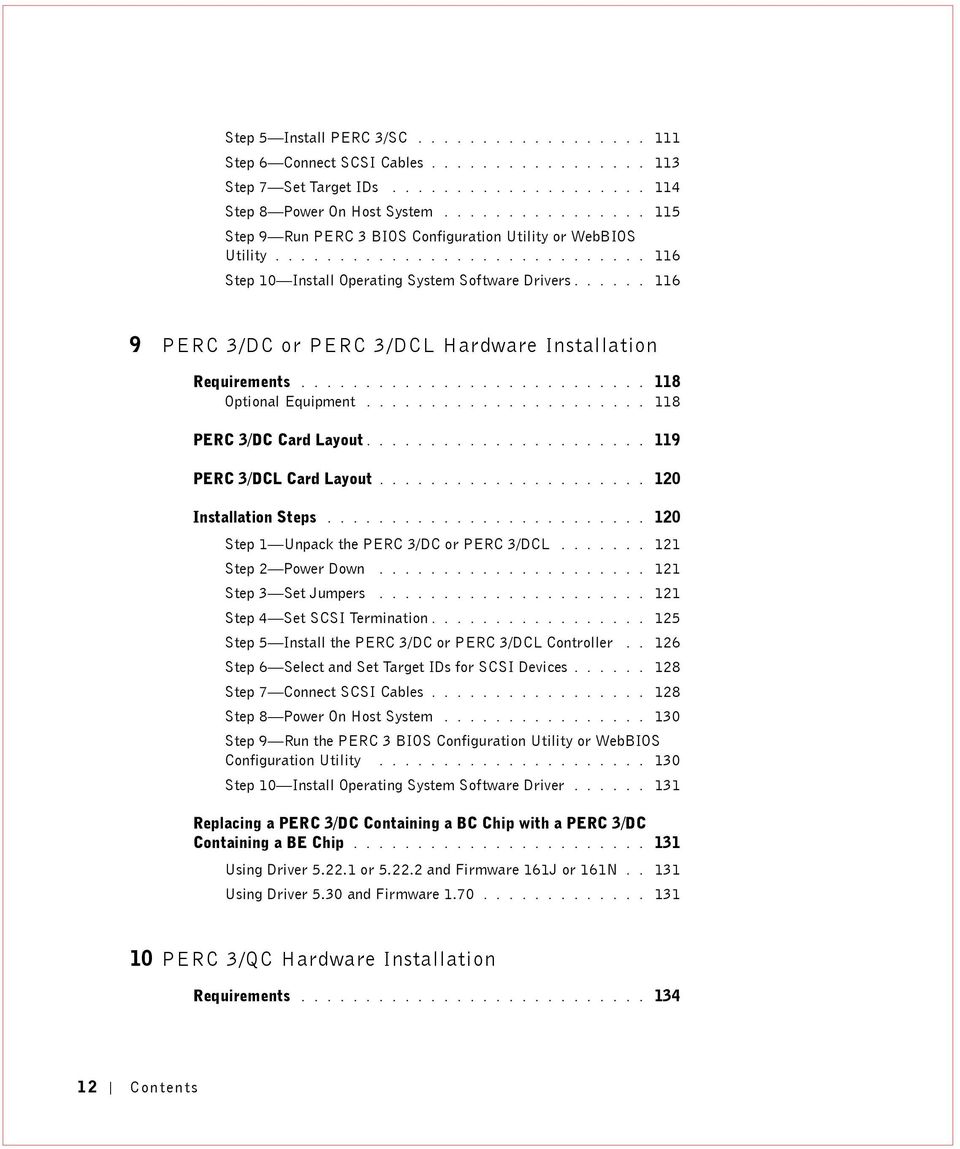
15 Optional Equipment PERC 3/QC Card Layout Installation Steps Step 1 Unpack the PERC 3/QC Controller Step 2 Power Down Step 3 Set Jumpers Step 4 Set SCSI Termination SCSI Termination Step 5 Install PERC 3/QC Step 6 Connect SCSI Cables Step 7 Set Target IDs Step 8 Power on Host System Step 9 Run the PERC 3 BIOS Configuration Utility or WebBIOS Configuration Utility Step 10 Install Operating System Driver PERC 3 BIOS Configuration Utility Configuration On Disk Starting the PERC 3 BIOS Configuration Utility BIOS Configuration Utility Menu Options Configure Menu Initialize Menu Objects Menu Format Menu Rebuild Menu Check Consistency Menu Configuring Arrays and Logical Drives Choosing the Configuration Method Easy Configuration New Configuration View/Add Configuration Contents
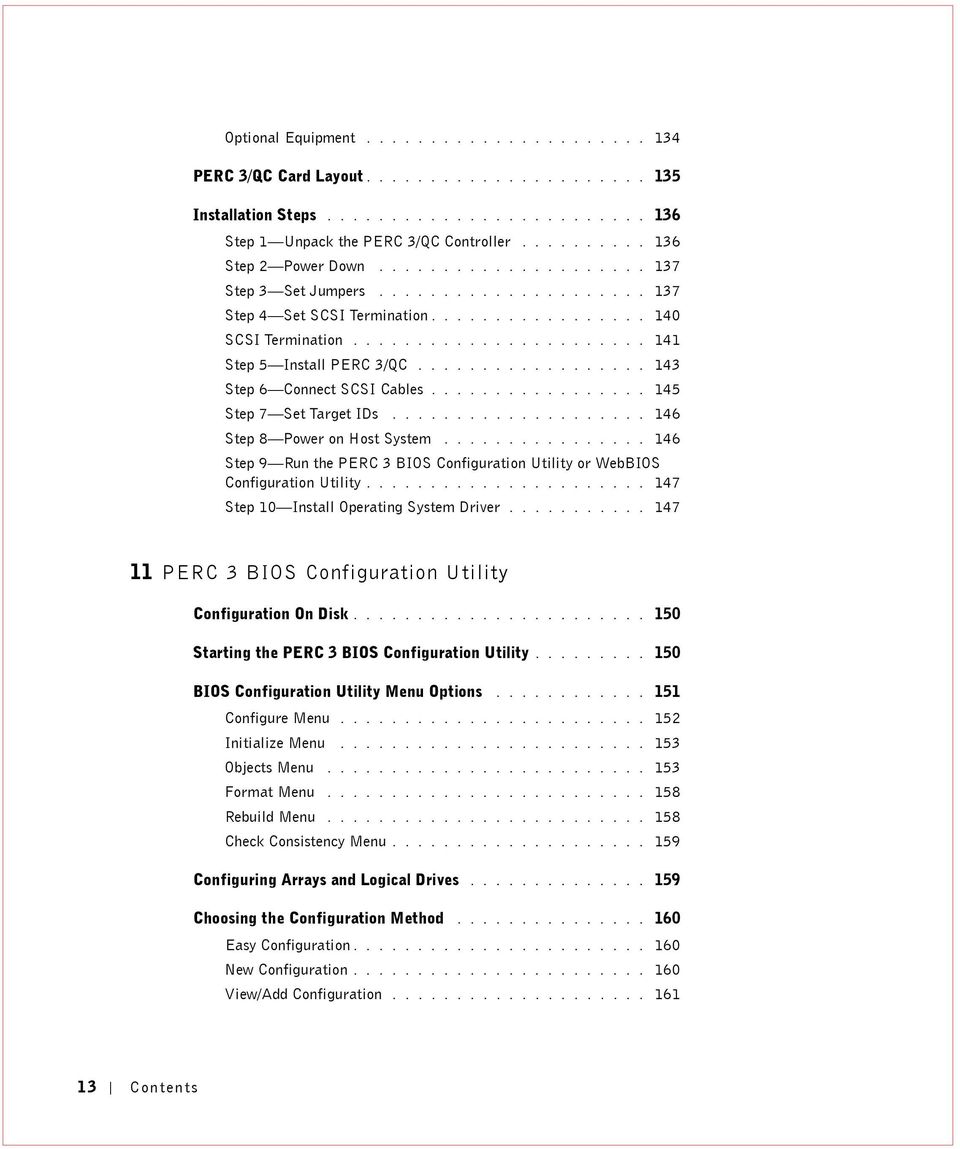
16 PERC 3/QC and PERC 3/DC Default Settings PERC 3/SC and PERC 3/DCL Default Settings Reserved Disk Space during Configuration Designating Drives as Hot Spares Using Easy Configuration Using New Configuration Using View/Add Configuration Initializing Logical Drives Batch Initialization Individual Initialization Deleting Logical Drives (Random Array Deletion) Formatting Physical Drives Media Errors Formatting Drives Rebuilding Failed Disk Drives Manual Rebuild Rebuilding an Individual Drive Manual Rebuild Batch Mode Using a Pre-loaded SCSI Drive As-is Exiting the PERC 3 BIOS Configuration Utility Setting Hardware Termination Clustering Cluster Mode Enabling and Disabling the Cluster Mode Dell Manager Starting Dell Manager Management Menu Options Using Dell Manager in Red Hat Linux GUI Mode Contents

17 Dell Manager Menu Options Initialize Menu Objects Menu Format Menu Rebuild Menu Check Consistency Menu Reconstruct Menu Designating Drives as Hot Spares Parameters Initializing Logical Drives Batch Initialization Individual Initialization Deleting Logical Drives (Random Array Deletion) Formatting Physical Drives Media Errors Formatting Drives Rebuilding Failed Disk Drives Manual Rebuild Rebuilding an Individual Drive Manual Rebuild Batch Mode Exiting Dell Manager Troubleshooting Overview BIOS Boot Error Messages Other BIOS Error Messages Other Potential Problems Audible Warnings Contents 15
18 14 Appendix A: SCSI Cables and Connectors 15 Appendix B: Warranties and Return Policy Glossary Index Contents
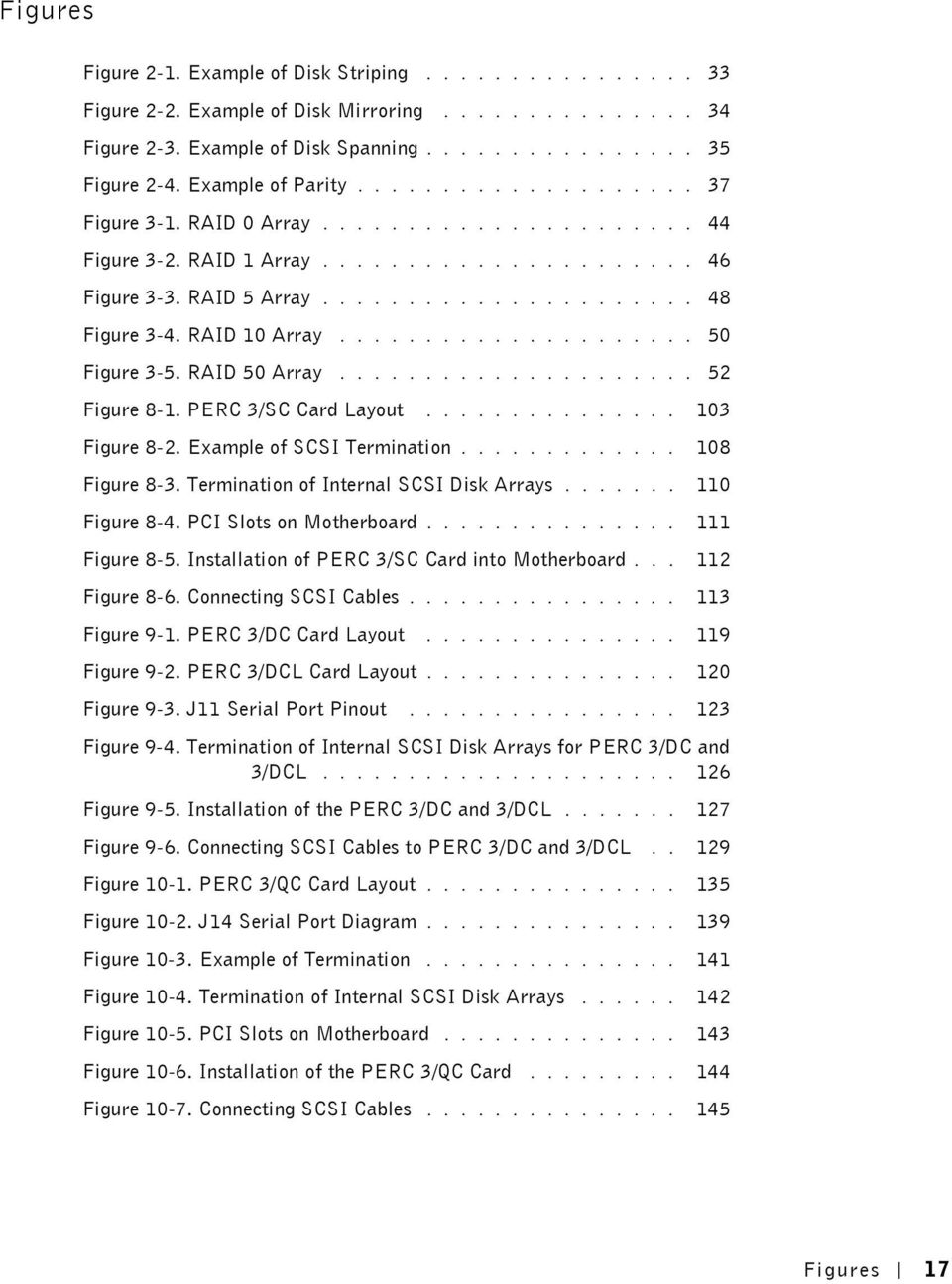
19 Figures Figure 2-1. Example of Disk Striping Figure 2-2. Example of Disk Mirroring Figure 2-3. Example of Disk Spanning Figure 2-4. Example of Parity Figure 3-1. RAID 0 Array Figure 3-2. RAID 1 Array Figure 3-3. RAID 5 Array Figure 3-4. RAID 10 Array Figure 3-5. RAID 50 Array Figure 8-1. PERC 3/SC Card Layout Figure 8-2. Example of SCSI Termination Figure 8-3. Termination of Internal SCSI Disk Arrays Figure 8-4. PCI Slots on Motherboard Figure 8-5. Installation of PERC 3/SC Card into Motherboard Figure 8-6. Connecting SCSI Cables Figure 9-1. PERC 3/DC Card Layout Figure 9-2. PERC 3/DCL Card Layout Figure 9-3. J11 Serial Port Pinout Figure 9-4. Termination of Internal SCSI Disk Arrays for PERC 3/DC and 3/DCL Figure 9-5. Installation of the PERC 3/DC and 3/DCL Figure 9-6. Connecting SCSI Cables to PERC 3/DC and 3/DCL Figure PERC 3/QC Card Layout Figure J14 Serial Port Diagram Figure Example of Termination Figure Termination of Internal SCSI Disk Arrays Figure PCI Slots on Motherboard Figure Installation of the PERC 3/QC Card Figure Connecting SCSI Cables Figures 17
20 18 Figures

21 Tables Table 1-1. Maximum Cable Length for SCSI Standards Table 1-2. SCSI Bus Widths and Maximum Throughput Table 2-1. Spanning for RAID 10 and RAID Table 2-2. Types of Parity Table 2-3. SCSI Drive States Table 2-4. Logical Drive States Table 3-1. RAID Levels Table 3-2. RAID 0 Overview Table 3-3. RAID 1 Overview Table 3-4. RAID 5 Overview Table 3-5. RAID 10 Overview Table 3-6. RAID 50 Overview Table 4-1. Configuration Features Table 4-2. Configuration on Disk Features Table 4-3. Hardware Architecture Features Table 4-4. Array Performance Features Table 4-5. PERC 3/SC Fault Tolerance Features Table 4-6. Software Utilities Features Table 4-7. PERC 3/SC Specifications Table 4-8. SCSI Firmware Support Table 5-1. Configuration Features Table 5-2. Configuration on Disk Features Table 5-3. Hardware Architecture Features Table 5-4. Array Performance Features Table 5-5. Fault Tolerance Features Table 5-6. Software Utilities Table 5-7. PERC 3/DC and PERC 3/DCL Specifications Table 5-8. SCSI Firmware Table 6-1. Configuration Features Table 6-2. Configuration on Disk Features Tables 19
22 Table 6-3. Hardware Architecture Features Table 6-4. Array Performance Features Table 6-5. Fault Tolerance Features Table 6-6. Software Utilities Table 6-7. PERC 3/QC Specifications Table 6-8. SCSI Firmware Table 7-1. Current Configuration for SCSI Channel Table 7-2. Current Configuration for SCSI Channel Table 7-3. Current Configuration for SCSI Channel Table 7-4. Current Configuration for SCSI Channel Table 7-5. Logical Drive Configuration Table 7-6. Physical Device Layout Table 7-7. Drives and Capacities for Each RAID Level Table 7-8. Fault Tolerance Features for RAID Levels 0, 1 and Table 7-9. Performance Characteristics for Each RAID Level Table Physical Drives Required for Each RAID Level Table Factors to Consider for Array Configuration Table Array Configuration Planner Table 8-1. PERC 3/SC Jumpers Table 8-2. J1 Termination Enable Settings Table 8-3. J9 I2C Interface Connector Pinout Table 8-4. J5 Serial Port Pinout Table 8-5. J8 Hard Disk LED Table 8-6. J15 RUBI Slot Interrupt Steering Table 8-7. J16, J17 RUBI Slot Interrupt Steering Table 8-8. Target IDs Table 9-1. Jumper Settings Table 9-2. J2 and J3 Termination Enable Settings Table 9-3. J9 Onboard BIOS Enable Settings Table 9-4. J10 NVRAM Clear Pinout Table 9-5. J11 Serial Port Pinout Tables
23 Table 9-6. J13 Dirty Cache LED Pinout Table 9-7. J14 SCSI Activity Pinout Table 9-8. J16 and J18 TERMPWR Enable Settings Table 9-9. J17 I2C Connector Pinout Table Target IDs for SCSI Devices Table PERC 3/QC Jumper Settings Table J2, J3, J5 and J7 Termination Enable Pinout Table J9, J10, J11 and J12 TERMPWR Enable Pinout Table J14 Serial Port Pinout Table J17 Dirty Cache LED Pinout Table J19 Onboard BIOS Enable Settings Table J23 External Battery Pinout Table Target IDs Table BIOS Configuration Utility Menu Options Table Configuration Menu Options Table Adapter Menu Options Table Logical Drive Menu Options Table Physical Drive Menu Options Table SCSI Channel Menu Options Table Battery Information Menu Options Table PERC 3/QC and PERC 3/DC Default Settings Table PERC 3/SC and PERC 3/DCL Default Settings Table Rebuild Types Table Command Used to Start Dell Manager Table Management Menu Options Table Adapter Menu Options Table Logical Drive Menu Options Table Logical Drive Default Settings Table Physical Drive Menu Options Table SCSI Channel Options Table Battery Backup Menu Items Tables 21
24 Table Rebuild Types Table General Problems and Suggested Solutions Table BIOS Boot Error Messages Table Other BIOS Error Messages Table Other Potential Problems Table Audible Warnings Tables
25 SECTION 1 Overview PERC 3 Overview PERC 3 Features
26 support.dell.com PERC 3 Overview The Dell PowerEdge Expandable RAID Controller 3 (PERC 3) PCI card is a high-performance, intelligent peripheral component interconnect (PCI)-to-SCSI host adapter with RAID control capabilities. PERC 3 provides system availability, high performance, and fault-tolerant disk subsystem management. PERC 3 is an ideal RAID solution for the internal storage of Dell s workgroup, departmental, and enterprise systems. PERC 3 offers a cost-effective way to implement RAID in a server. The PERC 3/QC low voltage differential (LVD) PCI RAID card provides four SCSI channels. The PERC 3/DC and PERC 3/DCL LVD PCI RAID card provides two SCSI channels. The PERC 3/SC LVD PCI RAID card provides one SCSI channel. NOTE: The information in this document applies to PERC 3/QC, PERC 3/DC, PERC 3/DCL and PERC 3/SC. With LVD, you can use cables up to 25 meters long. Throughput on each SCSI channel can be as high as 160 MB/s. PERC 3 supports both an LVD SCSI bus and a single-ended SCSI bus. PERC 3 64-bit LVD is a high-performance, intelligent PCI-to-SCSI host adapter with RAID control capabilities. PERC 3 64-bit LVD requires no special motherboard PCI expansion slot. PERC 3 Features The PERC 3 features include: Wide Ultra3 LVD SCSI performance of up to 160 MB/s PERC 3/QC and PERC 3/DC support 128 MB of synchronous dynamic random access memory (SDRAM.) The PERC 3/DCL supports 64 MB of SDRAM. The PERC 3/SC supports 32 MB of SDRAM. 64-bit PCI host interface (only on PERC 3/QC and PERC 3/DC) The PERC 3/QC, PERC 3/DC and PERC 3/DCL have an on-board i960rn processor to improve controller performance and offload host Central Processing Unit (CPU.) The PERC 3/SC has a on-board i960rm processor to improve controller performance and offload host CPU. 24 Overview
27 Two internal and four external connectors for the PERC 3/QC, two internal and two external connectors for the PERC 3/DC and PERC 3/DCL, and one internal and one external connector for the PERC 3/SC RAID levels 0 (striping), 1 (mirroring), 5 (distributed parity), 10 (combination of striping and mirroring), and 50 (combination of striping and distributed parity) Advanced array configuration and management utilities Battery backup for up to 72 hours for the PERC 3/QC and PERC 3/DC Up to 12 SCSI drives per channel using the Dell PowerVault 21xS storage system or 14 SCSI drives using the Dell PowerVault 22xS SCSI Channels The PERC 3/QC controller card includes four SCSI channels. There are two QLogic chips; each chip controls two SCSI channels. NOTE: Clustering is not supported by PERC 3/QC or PERC 3/DCL. The PERC 3/DC and PERC 3/DCL controller cards include two SCSI channels. There is one QLogic chip, which controls two SCSI channels. The PERC 3/SC controller card has one SCSI channel. There is one QLogic chip. Non-volatile Random Access Memory (NVRAM) and Flash Readonly Memory (ROM) A 32 KB x 8 NVRAM stores RAID system configuration information. The PERC 3 firmware is stored in flash ROM for easy upgrade. SCSI Connectors PERC 3/QC has four ultra-high-density 68-pin external connectors for the external storage subsystem and two high-density 68-pin internal connectors. PERC 3/DC and PERC 3/DCL have two ultra-high-density 68-pin external connectors for the external storage subsystem and two high-density 68-pin internal connectors. Overview 25
28 support.dell.com PERC 3/SC has one ultra-high-density 68-pin external connector for the external storage subsystem and one high-density 68-pin internal connector. Single-Ended and LVD SCSI Buses The SCSI standard defines two electrical buses: a single-ended bus and an LVD bus. PERC 3 supports both standards. Maximum Cable Length for SCSI Standards Table 1-1 displays the maximum length of cable that you can use for various SCSI standards. Table 1-1. Maximum Cable Length for SCSI Standards SCSI Standard Single-ended LVD Maximum # of Drives SCSI I 6 m 12 m 7 Fast SCSI 6 m 12 m 7 Fast Wide SCSI 6 m 12 m 15 Ultra SCSI 1.5 m 12 m 7 Ultra SCSI 3 m 12 m 3 Wide Ultra SCSI N/A 12 m 15 Wide Ultra SCSI 1.5 m 12 m 7 Wide Ultra SCSI 3 m 12 m 3 Ultra 2 SCSI N/A 25 m 1 Ultra 2 SCSI N/A 12 m 7 Wide Ultra 2 SCSI N/A 25 m 1 Wide Ultra 2 SCSI N/A 12 m 15 SCSI Bus Widths and Maximum Throughput Table 1-2 displays the SCSI bus widths and maximum throughput for each of the SCSI standards. 26 Overview
29 Table 1-2. SCSI Bus Widths and Maximum Throughput SCSI Standard SCSI Bus Width SCSI Throughput SCSI I 8 bits 5 MB/s Fast SCSI 8 bits 10 MB/s Fast Wide SCSI 16 bits 20 MB/s Ultra SCSI 8 bits 20 MB/s Wide Ultra SCSI 16 bits 40 MB/s Ultra 2 SCSI 8 bits 40 MB/s Wide Ultra 2 SCSI 16 bits 80 MB/s 160M SCSI 8 bits 80 MB/s Wide 160M SCSI 16 bits 160 MB/s Operating System Support PERC 3 supports the following operating systems: Microsoft Windows 2000: Server, Advanced Server, Small Business Server Microsoft Windows NT 4: Server, Terminal Server, Enterprise Server, Small Business Server Microsoft NET: Server, Advanced Server Microsoft SBS 2000 Novell NetWare 5.x, 6.x Red Hat Linux 7.x DOS, including ASPI support Overview 27
30 support.dell.com 28 Overview
31 SECTION 2 Introduction to RAID RAID Definition PERC 3 Host-Based RAID Solution Components and Features
32 support.dell.com RAID Definition RAID is an array of multiple independent hard disk drives that provides high performance and fault tolerance. The RAID array appears to the host computer as a single storage unit or as multiple logical units. Input/output (I/O) improves because several disks can be accessed simultaneously. Although hard drive capabilities have improved drastically, actual performance has improved only three to four times in the last decade. In comparison, computing performance has improved over 50 times during the same time period. Implementing RAID improves the performance of the disk subsystem. RAID systems also improve data storage availability and fault tolerance. Data loss caused by a hard drive failure can be recovered by reconstructing missing data from the remaining data and parity drives. PERC 3 Host-Based RAID Solution PERC 3 is a peripheral component interconnect (PCI) adapter card that is installed in any available PCI expansion slot in a host system. It is a hostbased RAID solution, meaning that the RAID controller puts all of the RAID intelligence on an adapter card that is installed in a network server. The array controller resides on the bus (for example, a PCI or EISA bus) in the host computer and has its own central processing unit (CPU) to generate the parity and handle other RAID functions. A bus-based controller can transfer data at the speed of the host bus (PCI, ISA, EISA, VL-Bus), but is limited to the bus it is designed for. PERC 3 resides on a PCI bus, which can handle data transfer at up to 528 MB/s. With PERC 3, each channel can handle data transfer rates up to 160 MB/s per SCSI channel. The available sequential data transfer rate is determined by the following factors: The sustained data transfer rate on the motherboard PCI bus The sustained data transfer rate on the i960rn (i960rm for the PERC 3/SC) PCI to PCI bridge The sustained data transfer rate of the SCSI controller The sustained data transfer rate of the SCSI devices 30 Introduction to RAID
33 The number of SCSI channels and SCSI hard drives Components and Features RAID versions, or levels, are specifications that describe a system for ensuring the availability and stability of data stored on large disk subsystems. A RAID system can be implemented in a number of different levels). PERC 3 supports RAID levels 0, 1, 5, 10 (1+0), and 50 (5+0). Physical Array A RAID array is a collection of physical disk drives governed by the RAID management software. A RAID array appears to the host computer as one or more logical drives. Logical Drive A logical drive is a partition in a physical array of disks that is made up of contiguous data segments on the physical disks. A logical drive can consist of an entire physical array, more than one entire physical array, a part of an array, parts of more than one array, or a combination of any two of these conditions. Fault Tolerance Fault tolerance is the capability of the subsystem to undergo a single failure without compromising data integrity, and processing capability. The RAID controller provides this support through redundant arrays in RAID levels 1, 5, 10 and 50. The system can still work properly even with a single disk failure in an array, through performance can be degraded to some extent. Fault tolerance is often associated with system availability (high mean time between failure, MTFB) because it allows the system to be available during the failures. However, this means it is also important for the system to be available during the repair of the problem. To make this possible, PERC 3 supports hot spare disks, and the auto-rebuild feature. Introduction to RAID 31
34 support.dell.com A hot spare is an unused online disk that, in case of a disk failure in a redundant RAID array, can be used to rebuild the data and re-establish redundancy. After the hot spare is automatically moved into the RAID subsystem, the failed drive is automatically rebuilt on the spare drive. The RAID disk array continues to handle requests while the rebuild occurs. Auto-rebuild allows a failed drive to be replaced and automatically rebuilt by hot-swapping the drive in the same drive bay. The RAID disk array continues to handle requests while the rebuild occurs. Consistency Check In RAID, check consistency verifies the correctness of redundant data in an array. For example, in a system with parity, checking consistency means computing the data on one drive and comparing the results to the contents of the parity drive. Disk Striping Disk striping allows you to write data across multiple disk drives instead of just one disk drive. Disk striping involves partitioning each drive storage space into stripes that can vary in size from 2 KB to 128 KB. These stripes are interleaved in a repeated sequential manner. The combined storage space is composed of stripes from each drive. PERC 3 supports stripe sizes of 2 KB, 4 KB, 8 KB, 16 KB, 32 KB, 64 KB, and 128 KB. For example, in a four-disk system using only disk striping (as in RAID level 0), segment 1 is written to disk 1, segment 2 is written to disk 2, and so on. Disk striping enhances performance because multiple drives are accessed simultaneously, but disk striping does not provide data redundancy. Figure 2-1 shows an example of disk striping. 32 Introduction to RAID
35 Figure 2-1. Example of Disk Striping Segment 1 Segment 5 Segment 9 Segment 2 Segment 6 Segment 10 Segment 3 Segment 7 Segment 11 Segment 4 Segment 8 Segment 12 Stripe Width Stripe width is the number of disks involved in an array where striping is implemented. For example, a four-disk array with disk striping has a stripe width of four. Stripe Size The stripe size is the length of the interleaved data segments that PERC 3 writes across multiple drives. PERC 3 supports stripe sizes of 2 KB, 4 KB, 8 KB, 16 KB, 32 KB, 64 KB, or 128 KB. Introduction to RAID 33
36 support.dell.com Disk Mirroring With mirroring (used in RAID 1), data written to one disk is simultaneously written to another disk. If one disk fails, the contents of the other disk can be used to run the system and reconstruct the failed disk. The primary advantage of disk mirroring is that it provides 100% data redundancy. Because the contents of the disk are completely written to a second disk, it does not matter if one of the disks fails. Both disks contain the same data at all times. Either drive can act as the operational drive. Disk mirroring provides 100% redundancy, but is expensive because each drive in the system must be duplicated. Figure 2-2. Example of Disk Mirroring Segment 1 Segment 2 Segment 3 Segment 4 Segment 1 Duplicated Segment 2 Duplicated Segment 3 Duplicated Segment 4 Duplicated 34 Introduction to RAID
37 Disk Spanning Disk spanning allows multiple physical drives to function like one big drive. Spanning overcomes lack of disk space and simplifies storage management by combining existing resources or adding relatively inexpensive resources. For example, four 20 GB drives can be combined to appear to the operating system as a single 80 GB drive. Spanning alone does not provide reliability or performance enhancements. Spanned logical drives must have the same stripe size and must be contiguous. In the following graphic, RAID 1 array is turned into a RAID 10 array. Figure 2-3. Example of Disk Spanning 60 GByte 60 GByte Can Be Accessed as One 120 GByte Drive 60 GByte 60 GByte Can Be Accessed as One 120 GByte Drive Introduction to RAID 35
38 support.dell.com NOTE: Spanning two contiguous RAID 0 logical drives does not produce a new RAID level or add fault tolerance. It does increase the size of the logical volume and improves performance by doubling the number of spindles. Spanning for RAID 10 or RAID 50 Table 2-1 describes how to configure RAID 10 and RAID 50 by spanning. Table 2-1. Spanning for RAID 10 and RAID 50 Level Description 10 Configure RAID 10 by spanning two contiguous RAID 1 logical drives. The RAID 1 logical drives must have the same stripe size. NOTE: Refer to Chapter 11 "PERC 3 BIOS Configuration Utility" for the configuration procedure for spanning RAID 1 logical drives. 50 Configure RAID 50 by spanning two contiguous RAID 5 logical drives. The RAID 5 logical drives must have the same stripe size. NOTE: Refer to Chapter 11 "PERC 3 BIOS Configuration Utility" for the configuration procedure for spanning RAID 5 logical drives. Parity Parity generates a set of redundancy data from two or more parent data sets. The redundancy data can be used to reconstruct one of the parent data sets. Parity data does not fully duplicate the parent data sets. In RAID, this method is applied to entire drives or stripes across all disk drives in an array. The types of parity are shown in Table 2-2. Table 2-2. Types of Parity Parity Type Dedicated Distributed Description The parity of the data on two or more disk drives is stored on an additional disk. The parity data is distributed across all drives in the system. If a single disk drive fails, it can be rebuilt from the parity and the data on the remaining drives. RAID level 5 combines distributed parity with disk striping. Parity provides redundancy for one drive failure without duplicating the contents of entire disk drives, but parity generation can slow the write process. A dedicated parity scheme during normal read/write operations is shown in Figure Introduction to RAID
39 Figure 2-4. Example of Parity Parity Generator Hot Spares A hot spare is an extra, unused disk drive that is part of the disk subsystem. It is usually in standby mode, ready for service if a drive fails. Hot spares permit you to replace failed drives without system shutdown or user intervention. PERC 3 implements automatic and transparent rebuilds using hot spare drives, providing a high degree of fault tolerance and zero downtime. The PERC 3 RAID management software allows you to specify physical drives as hot spares. When a hot spare is needed, PERC 3 assigns the hot spare that has a capacity closest to and at least as great as that of the failed drive to take the place of the failed drive. Introduction to RAID 37
40 support.dell.com NOTE: Refer to Chapter 11 "PERC 3 BIOS Configuration Utility" for the procedures used to designate a drive as a hot spare. There are two types of hot spares: Global Hot Spare Dedicated Hot Spare Global Hot Spare A global hot spare drive can be used to replace any failed drive in a redundant array as long as its capacity is equal to or larger than the coerced capacity of the failed drive. A global hot spare defined on any channel should be available to replace a failed drive on both channels. Dedicated Hot Spare A dedicated hot spare can be used to replace a failed drive only in a selected array. One or more drives can be designated as member of a spare drive pool; the most suitable drive from the pool is selected for fail over. A dedicated hot spare is used before one from the global hot spare pool. NOTE: Refer to Chapter 11"PERC 3 BIOS Configuration Utility" for the procedures used to designate a drive as a hot spare. Hot spare drives can be located on any RAID channel. Standby hot spares (not being used in RAID array) are polled every 60 seconds at a minimum, and their status made available in the array management software. PERC 3 offers the ability to rebuild with a disk that is in a system, but not initially set to be a hot spare. Observe the following parameters when using hot spares: Hot spares are used only in arrays with redundancy, for example, RAID levels 1, 5, 10, and 50. A hot spare connected to a specific PERC 3 controller can be used to rebuild a drive that is connected to the same controller only. You must assign the hot spare to one or more drives through the controller s BIOS or use array management software to place it in the hot spare pool. A hot spare must have free space equal to or greater than the drive it would replace. For example, to replace an 18 GB drive, the hot spare must be 18 GB or larger. Disk Rebuilds You can rebuild a disk drive by recreating the data that had been stored on the drive before the drive failed. 38 Introduction to RAID
41 Rebuilding can be done only in arrays with data redundancy, which includes as RAID 1, 5, 10 and 50. A hot spare can be used to rebuild disk drives in RAID 1, 5, 10, or 50 systems. If a hot spare is not available, the failed disk drive must be replaced with a new disk drive so that the data on the failed drive can be rebuilt. Using hot spares, PERC 3 can automatically and transparently rebuild failed drives with user-defined rebuild rates. If a hot spare is available, the rebuild can start automatically when a drive fails. PERC 3 automatically restarts the system and the rebuild if the system goes down during a rebuild. Rebuild Rate The rebuild rate is the percentage of the compute cycles dedicated to rebuilding failed drives. A rebuild rate of 100 percent means the system is totally dedicated to rebuilding the failed drive. The PERC 3 rebuild rate can be configured between 0% and 100%. At 0%, the rebuild is done only if the system is not doing anything else. At 100%, the rebuild has a higher priority than any other system activity. The default rebuild rate is 30%. Hot Swap A hot swap is the manual replacement of a defective physical disk unit while the computer is still running. When a new drive has been installed, a rebuild will occur automatically if it is placed in the same drive bay as the failed drive it is replacing. PERC 3 can be configured to detect the new disks and to rebuild the contents of the disk drive automatically. SCSI Drive States The SCSI drive states are listed in Table 2-3. Table 2-3. SCSI Drive States State Online (ONLIN) Description The drive is working normally and is a part of a configured logical drive. Introduction to RAID 39
42 support.dell.com Table 2-3. SCSI Drive States (continued) State Ready (READY) Hot Spare (HOTSP) Fail (FAIL) Rebuild (REB) Logical Drive States Description The drive is functioning normally but is not part of a configured logical drive and is not designated as a hot spare. The drive is powered up and ready for use as a spare in case an online drive fails. A fault has occurred in the drive, placing it out of service. The drive is being rebuilt with data from a failed drive. The logical drive states are listed in Table 2-4. Table 2-4. Logical Drive States State Optimal Degraded Failed Offline Description The drive operating condition is good. All configured drives are online. The drive operating condition is not optimal. One of the configured drives has failed or is offline. The drive has failed. The drive is not available to the RAID controller. Enclosure Management Enclosure management is the intelligent monitoring of the disk subsystem by software and/or hardware. The disk subsystem can be part of the host computer or separate from it. Enclosure management helps you stay informed of events in the disk subsystem, such as a drive or power supply failure. Enclosure management increases the fault tolerance of the disk subsystem. 40 Introduction to RAID
43 SECTION 3 RAID Levels Overview Selecting a RAID Level RAID 0 RAID 1 RAID 5 RAID 10 RAID 50
44 support.dell.com Overview There are six official RAID levels (RAID 0 through RAID 5.) PERC 3 supports RAID levels 0, 1, 5, 10, and 50. The RAID levels that PERC 3 supports are shown in Table 3-1. Table 3-1. RAID Levels RAID Type Level 0 Standard 1 Standard 5 Standard 1+0 Combination of RAID 0 and RAID Combination of RAID 0 and RAID 5 PERC 3 also supports independent drives (configured as RAID 0.) Selecting a RAID Level To ensure the best performance, you should select the optimal RAID level when you create a system drive. The optimal RAID level for your disk array depends on a number of factors: The number of physical drives in the disk array The capacity of the physical drives in the array The need for data redundancy The disk performance requirements 42 RAID Levels
45 RAID 0 RAID 0 provides disk striping across all drives in the RAID subsystem. RAID 0 does not provide any data redundancy, but does offer the best performance of any RAID level. RAID 0 breaks up data into smaller blocks and then writes a block to each drive in the array. The size of each block is determined by the stripe size parameter, set during the creation of the RAID set. RAID 0 offers high bandwidth. By breaking up a large file into smaller blocks, PERC 3 can use several drives to read or write the file faster. RAID 0 involves no parity calculations to complicate the write operation. This makes RAID 0 ideal for applications that require high bandwidth but do not require fault tolerance. RAID 0 is also used to denote an independent or single drive. Table 3-2 provides an overview of RAID 0. Table 3-2. RAID 0 Overview Uses RAID 0 provides high data throughput, especially for large files. Any environment that does not require fault tolerance. Strong Points Provides increased data throughput for large files. No capacity loss penalty for parity. Weak Points Does not provide fault tolerance. All data lost if any drive fails. Drives 1 to 32 RAID Levels 43
46 support.dell.com Figure 3-1 displays an example of a RAID 0 array. Figure 3-1. RAID 0 Array Segment 1 Segment 5 Segment 7 Segment 2 Segment 6 Segment 10 Segment 3 Segment 7 Segment 11 Segment 4 Segment 8 Segment RAID Levels
47 RAID 1 In RAID 1, the RAID controller duplicates all data from one drive to a second drive. RAID 1 provides complete data redundancy, but at the cost of doubling the required data storage capacity, as shown in Figure 3-2. Table 3-3 provides an overview of RAID 1. Table 3-3. RAID 1 Overview Uses Strong Points Weak Points Drives 2 Use RAID 1 for small databases or any other environment that requires fault tolerance but small capacity. RAID 1 provides complete data redundancy. RAID 1 is ideal for any application that requires fault tolerance and minimal capacity. RAID 1 requires twice as many disk drives. Performance is impaired during drive rebuilds. RAID Levels 45
48 support.dell.com Figure 3-2. RAID 1 Array Segment 1 Segment 2 Segment 3 Segment 4 Segment 1 Duplicated Segment 2 Duplicated Segment 3 Duplicated Segment 4 Duplicated RAID 5 RAID 5 includes disk striping at the block level and parity. In RAID 5, the parity information is written to several drives. RAID 5 is best suited for networks that perform a lot of small input/output (I/O) transactions simultaneously. RAID 5 addresses the bottleneck issue for random I/O operations. Because each drive contains both data and parity numerous writes can take place concurrently. In addition, robust caching algorithms and hardware based exclusive-or assist make RAID 5 performance exceptional in many different environments. Table 3-4 provides an overview of RAID RAID Levels
49 Table 3-4. RAID 5 Overview Uses RAID 5 provides high data throughput, especially for large files. Use RAID 5 for transaction processing applications because each drive can read and write independently. If a drive fails, PERC 3 uses the parity drive to recreate all missing information. Use also for office automation and online customer service that requires fault tolerance. Use for any application that has high read request rates but low write request rates. Strong Points Provides data redundancy and good performance in most environments Weak Points Disk drive performance will be reduced if a drive is being rebuilt. Environments with few processes do not perform as well because the RAID overhead is not offset by the performance gains in handling simultaneous processes. Drives 3 to 32 RAID Levels 47
50 support.dell.com Figure 3-3 displays an example of a RAID 5 array. Figure 3-3. RAID 5 Array Data Flow Disk 1 Disk 2 Disk 3 Disk 4 Disk 5 Disk 6 Segment 1 Segment 7 Parity (9 12) Segment 2 Segment 8 Segment 3 Segment 9 Parity (5 8) Segment 4 Segment 10 Segment 5 Segment 11 Parity (1 4) Segment 6 Segment 12 Note: Parity is distributed across drives in the array. RAID 10 RAID 10 is a combination of RAID 0 and RAID 1. RAID 10 has mirrored drives. RAID 10 breaks up data into smaller blocks, and then mirrors the blocks of data to each RAID 1 RAID set. Each RAID 1 RAID set then duplicates its data to its other drive. The size of each block is determined by the stripe size parameter, which is set during the creation of the RAID set. RAID 10 can sustain one to four drive failures while maintaining data integrity if each failed disk is in a different RAID 1 array. Table 3-5 provides an overview of RAID RAID Levels
51 Table 3-5. RAID 10 Overview Uses RAID 10 works best for data storage that needs 100% redundancy of mirrored arrays and that also needs the enhanced I/O performance of RAID 0 (striped arrays.) RAID 10 works well for medium-sized databases or any environment that requires a higher degree of fault tolerance and moderate to medium capacity. Strong Points RAID 10 provides both high data transfer rates and complete data redundancy. Weak Points RAID 10 requires twice as many drives as all other RAID levels except RAID 1. Drives 2n, where n is greater than 1. The maximum number of drives is 16. RAID Levels 49
52 support.dell.com Figure 3-4. RAID 10 Array Data Flow RAID 1 RAID 1 D Disk 1 Disk 2 Disk 3 Disk 4 Segment 1 Segment 3 Segment 5 Segment 1 Segment 3 Segment 5 Segment 2 Segment 4 Segment 6 Segment 2 Segment 4 Segment 6 RAID 0 RAID 50 RAID 50 provides the features of both RAID 0 and RAID 5. RAID 50 includes both parity and disk striping across multiple drives. RAID 50 is best implemented on two RAID 5 disk arrays with data striped across both disk arrays. RAID 50 breaks up data into smaller blocks, and then stripes the blocks of data to each RAID 5 array. RAID 5 breaks up data into smaller blocks, calculates parity by performing an exclusive-or on the blocks, and then writes the blocks of data and parity to each drive in the array. The size of each block is determined by the stripe size parameter, which is set during the creation of the RAID set. 50 RAID Levels
53 RAID 50 can sustain one to four drive failures while maintaining data integrity if each failed disk is in a different RAID 5 array. Table 3-6 provides an overview of RAID 50. Table 3-6. RAID 50 Overview Uses RAID 50 works best when used with data that requires high reliability, high request rates, and high data transfer and medium to large capacity. Strong Points RAID 50 provides high data throughput, data redundancy, and very good performance. Weak Points Requires 2 to 4 times as many parity drives as RAID 5. Drives 6 to 256 (Eight arrays x 32 stripes = 256 drives) RAID Levels 51
54 support.dell.com Figure 3-5 displays an example of a RAID 50 array. Figure 3-5. RAID 50 Array Data Flow RAID 5 RAID 5 Disk 1 Disk 2 Disk 3 Disk 4 Disk 5 Disk 6 Segment 1 Segment 6 Parity (9-10) Segment 2 Parity (5-6) Segment 9 Parity (1-2) Segment 5 Segment 10 Segment 3 Segment 8 Parity (11-12) Segment 4 Parity (7-8) Segment 11 Parity (3-4) Segment 7 Segment 12 RAID 0 52 RAID Levels
55 SECTION 4 PERC 3/SC Features Hardware Requirements Configuration Features Hardware Architecture Features Array Performance Features PERC 3/SC Fault Tolerance Features Software Utilities Operating System Software Drivers PERC 3/SC Specifications
56 support.dell.com Hardware Requirements PERC 3/SC has one SCSI) channel that supports 160M and Wide SCSI at data transfer rates up to 160 MB/s. The SCSI channel supports up to 15 Wide devices or up to seven narrow devices. PERC 3/SC can be installed in a Dell PowerEdge computer with a motherboard that has 5 V, 32- or 64-bit PCI expansion slots. The computer should have an Intel Pentium II or higher central processing unit (CPU), a diskette drive, a color monitor and video graphics adapter (VGA) card, and a keyboard. A mouse is recommended. Configuration Features Table 4-1 lists the configuration features for the PERC 3/SC controller. Table 4-1. Configuration Features Specification Feature RAID levels 0, 1, 5, 10, and 50. SCSI channels 1 Maximum number of drives per 15 channel Array interface to host PCI 2.2 Drive interface Wide 160M Cache memory size 32 MB Cache function Write-back, write-through, adaptive read-ahead, non-read-ahead, readahead Multiple logical drives/arrays per Up to 40 logical drives per controller controller Maximum number of PERC 3/SC Contact your Dell representative. controller per system Online capacity expansion Yes Dedicated and pool hot spare Yes Flashable firmware Yes Hot swap devices supported Yes 54 PERC 3/SC Features
57 Table 4-1. Configuration Features (continued) Specification Non-disk devices supported No Mixed capacity hard disk drives Yes Number of 16-bit internal connectors 1 SMART Technology Feature The PERC 3/SC self-monitoring analysis and reporting technology (SMART) detects predictable drive failures. SMART monitors the internal performance of all motors, heads, and drive electronics. Configuration on Disk Configuration Configuration on Disk (drive roaming) saves configuration information both in non-volatile random access memory (NVRAM) on PERC 3/SC and on the disk drives attached to PERC 3/SC. If the controller is replaced, the new controller detects the actual RAID configuration from the configuration information on the drives. This maintains the integrity of the data on each drive, even if the drives have changed their target ID. Drive roaming is supported across channels on the same controller. Drive roaming across channels is not supported when cluster mode is enabled. Table 4-2 lists the Configuration on Disk features for the PERC 3/SC controller. NOTE: Configuration on Disk does not work if you change both the adapter, and the SCSI connectors to different connectors on the new adapter. It will work only if you make one change at a time. Table 4-2. Configuration on Disk Features Specification Support for hard disk drives with capacities of more than 8 gigabytes (GB) Online RAID level migration RAID remapping No reboot necessary after expansion More than 200 qtags per array Hardware clustering support on the board Feature Yes Yes Yes Yes (only if virtual sizing is enabled) Yes Yes PERC 3/SC Features 55
58 support.dell.com Table 4-2. Configuration on Disk Features (continued) Specification User-specified rebuild rate Hardware Architecture Features The PERC 3/SC hardware architecture features are shown in Table 4-3. Yes Table 4-3. Hardware Architecture Features Specification Processor SCSI controller(s) Size of flash ROM Amount of NVRAM Hardware-exclusive OR (XOR) assistance Direct I/O SCSI bus termination Double-sided dual in-line memory modules (DIMMs) Auxiliary TermPWR source Direct I/O bandwidth Feature Intel i960rm 100MHz One QLogic Single SCSI controller 1 MB 32 KB Yes Yes Active, single-ended or low voltage differential (LVD) Yes Feature No 132 MB/s Array Performance Features The PERC 3/SC array performance features are shown in Table 4-4. Table 4-4. Array Performance Features Specification Host data transfer rate Drive data transfer rate Feature 132 MB/s 160 MB/s 56 PERC 3/SC Features
59 Table 4-4. Array Performance Features (continued) Specification Maximum scatter/gathers Maximum size of I/O requests Maximum queue tags per drive Stripe sizes Maximum number of concurrent commands Support for multiple initiators Feature 26 elements 6.4 MB in 64 KB stripes As many as the drive can accept. 2 KB, 4 KB, 8 KB, 16 KB, 32 KB, 64 KB, or 128 KB 255 Yes PERC 3/SC Fault Tolerance Features The PERC 3/SC fault tolerance features are shown in Table 4-5. Table 4-5. PERC 3/SC Fault Tolerance Features Specification Support for SMART Drive failure detection Drive rebuild using hot spares Manual replacement of drives without system shutdown Parity generation and checking Feature Yes Automatic Automatic Yes Yes Software Utilities The PERC 3/SC software utilities are shown in Table 4-6. Table 4-6. Software Utilities Features Specification Graphical user interface Management utility Feature Yes Yes PERC 3/SC Features 57
60 support.dell.com Table 4-6. Software Utilities Features (continued) Specification Bootup configuration using the PERC BIOS configuration utility (Ctrl M) Online read, write, and cache policy switching Intranet support Operating System Software Drivers Operating System Drivers Feature PERC 3/SC includes a disk operating system (DOS) software configuration utility and drivers for Microsoft Windows NT V4.0, Windows 2000, Novell NetWare 5.x, 6.x, and Red Hat Linux 7.x. Yes Yes Yes PERC 3/SC Specifications The PERC 3/SC specifications are shown in Table 4-7. Table 4-7. PERC 3/SC Specifications Parameter Specification Card size Half-length PCI adapter card size (6.875" X 4.2") Processor Intel i960rm 64-bit RISC 100 MHz Bus type PCI 2.2 PCI controller Intel i960rm Bus data transfer rate Up to 132 MB/s at 32/33 MHz Basic input/output system PERC 3/SC BIOS (BIOS) Cache configuration 32 MB Firmware 1 MB 8 flash ROM Non-volatile random access 32 KB 8 for storing RAID configuration memory (RAM) Operating voltage 5 V, 3.3 V 58 PERC 3/SC Features
61 Table 4-7. PERC 3/SC Specifications (continued) Parameter SCSI controller One SCSI controller for 160M and Wide support SCSI data transfer rate Up to 160 MB/s per channel SCSI bus Low-voltage differential (LVD) or single-ended SCSI termination Active Termination disable Automatic through cable and device detection Devices per SCSI channel Up to 15 wide or seven narrow SCSI devices SCSI device types Synchronous or asynchronous RAID levels supported 0, 1, 5, 10, and 50 SCSI connectors One 68-pin internal high-density connectors for 16-bit SCSI devices. One ultra-high density 68- pin external connectors for 160M and Wide SCSI. Serial port 3-pin RS232C-compatible connector (for manufacturing use only) PCI Bridge/CPU Specification PERC 3/SC uses the Intel i960rm PCI bridge with an embedded i960rm RISC processor running at 100 MHz. The RM bridge handles data transfers between the primary (host) PCI bus, the secondary PCI bus, cache memory, and the SCSI bus. The DMA controller supports chaining and unaligned data transfers. The embedded i960jt CPU directs all controller functions, including command processing, SCSI bus transfers, RAID processing, drive rebuilding, cache management, and error recovery. Cache Memory 32 MB of PERC 3/SC cache memory resides in a memory bank. PERC 3/SC supports write-through or write-back caching, selectable for each logical drive. To improve performance in sequential disk accesses, the PERC 3/SC controller uses read-ahead caching by default. You can disable read-ahead caching. PERC 3/SC Features 59
62 support.dell.com PERC 3/SC BIOS The BIOS resides on a 1 MB 8 flash ROM for easy upgrade. The PERC 3/SC BIOS supports INT 13h calls to boot DOS without special software or device drivers. The PERC 3/SC BIOS provides an extensive setup utility that can be accessed by pressing <Ctrl> <M> at BIOS initialization. The PERC 3/SC BIOS Configuration Utility is described in Chapter 11. Onboard Speaker The PERC 3/SC controller has an onboard tone generator for audible warnings when system errors occur. Audible warnings can be generated through this speaker. The audible warnings are listed in Chapter 13. Serial Port PERC 3/SC includes a 3-pin RS232C-compatible serial port connector. This is for manufacturing use only. SCSI Bus PERC 3/SC has one Wide 160M SCSI channels that support both LVD and single-ended devices with active termination. Synchronous and asynchronous devices are supported. PERC 3/SC provides automatic termination disable via cable detection. The SCSI channel supports up to 15 wide or seven non-wide SCSI devices at speeds up to 160 MB/s. SCSI Connectors PERC 3/SC has two types of SCSI connectors: One 68-pin high density internal connector One 68-pin external ultra-high-density connector Only one connector type can be used for the SCSI channel at any one time. SCSI Termination PERC 3/SC uses active termination on the SCSI bus conforming to SCSI-2 and SCSI-3 specifications. Termination enable/disable is automatic through cable detection. 60 PERC 3/SC Features
63 SCSI Firmware The PERC 3/SC firmware handles all RAID and SCSI command processing and also supports the features shown in Table 4-8. Table 4-8. SCSI Firmware Support Feature Disconnect/ reconnect Tagged command queuing Scatter/gather Multi-threading Stripe size Rebuild Description Optimizes SCSI bus utilization Multiple tags to improve random access Single command can transfer data to and from different memory locations Up to 255 simultaneous commands with elevator sorting and concatenation of requests per SCSI channel Variable for all logical drives: 2 KB, 4 KB, 8 KB, 16 KB, 32 KB, 64 KB, or 128 KB. Multiple rebuilds and consistency checks with userdefinable priority RAID Management RAID management is provided by software utilities that manage and configure the RAID system and PERC 3/SC, create and manage multiple disk arrays, control and monitor multiple RAID servers, provide error statistics logging, and provide online maintenance. They include: PERC 3 BIOS Configuration utility (Ctrl-M) Dell Manager WebBIOS Configuration Utility Dell OpenManage Array Manager PERC 3 BIOS Configuration Utility You can use the PERC 3 BIOS Configuration Utility to configure and maintain RAID arrays, format disk drives, and manage the RAID system. It is independent of any operating system. See Chapter 11 "PERC 3 BIOS Configuration Utility" for additional information. PERC 3/SC Features 61
64 support.dell.com Dell Manager Dell Manager is a character-based, non-gui utility that changes policies and parameters, and monitors RAID systems. Dell Manager runs under Novell NetWare 5.x, 6.x, and Red Hat Linux 7.x. See Chapter 12 "Dell Manager" for additional information. WebBIOS Configuration Utility WebBIOS is used to configure and manage a RAID system using an HTML interface. See the WebBIOS Configuration Utility Guide for more information. Dell OpenManage Array Manager Dell OpenManage Array Manager is used to configure and manage a storage system that is connected to a server, while the server is active and continues to handle requests. Array Manager runs under NetWare, Windows NT, and Windows Refer to Dell documentation on the Dell web site at support.dell.com for more information. 62 PERC 3/SC Features
65 SECTION 5 PERC 3/DC and PERC 3/DCL Features Hardware Requirements Configuration Features Hardware Architecture Features Array Performance Features Fault Tolerance Features Software Utilities Operating System Software Drivers PERC 3/DC and PERC 3/DCL Specifications
66 support.dell.com NOTE: The PERC 3/DC has a battery option, while the PERC 3/DCL does not have a battery option. Hardware Requirements PERC 3/DC and PERC 3/DCL have two SCSI channels that support 160M and Wide SCSI at data transfer rates up to 160 MB/s. The SCSI channel supports up to 15 Wide devices or up to seven narrow devices. PERC 3/DC and PERC 3/DCL can be installed in a system with a motherboard that has 5 V, 32- or 64-bit PCI expansion slots. The system should have an Intel Pentium II or higher central processing unit (CPU), a diskette drive, a color monitor, video graphics adapter (VGA) card, and a keyboard. A mouse is recommended. Configuration Features The PERC 3/DC and PERC 3/DCL configuration features are shown in Table 5-1. Table 5-1. Configuration Features Specification Feature RAID levels 0, 1, 5, 10, and 50 SCSI channels 2 Maximum number of drives per channel 15 Array interface to host PCI 2.2 Drive interface Wide 160M Cache memory size 64 MB (PERC 3/DCL) 128 MB DIMM (PERC 3/DC) Cache function Write-back, write-through, adaptive read-ahead, non read-ahead, readahead Multiple logical drives/arrays per Up to 40 logical drives per controller controller Maximum number of PERC 3/DC and Contact your Dell representative. PERC 3/DCL controllers per system Online capacity expansion Yes Dedicated and pool hot spare Yes 64 PERC 3/DC and PERC 3/DCL Features
67 Table 5-1. Configuration Features (continued) Specification Flashable firmware Yes Hot swap devices supported Yes Non-disk devices supported No Mixed capacity hard disk drives Yes Number of 16-bit internal connectors 2 Cluster support Yes (PERC 3/DC only) SMART Technology Feature The PERC 3/DC and PERC 3/DCL self-monitoring analysis and reporting technology (SMART) detects predictable drive failures. SMART monitors the internal performance of all motors, heads, and drive electronics. Configuration on Disk Configuration on Disk (drive roaming) saves configuration information both in NVRAM on PERC 3/DC and PERC 3/DCL and on the disk drives attached to PERC 3/DC and PERC 3/DCL. If PERC 3/DC and PERC 3/DCL are replaced, the new PERC 3/DC and PERC 3/DCL controllers detect the actual RAID configuration, maintaining the integrity of the data on each drive, even if the drives have changed channel and/or target ID. Drive roaming is supported across channels on the same controller. Drive roaming across channels is not supported when cluster mode is enabled. Table 5-2 shows the features for Configuration on Disk. NOTE: Configuration on Disk does not work if you change both the adapter, and the SCSI connectors to different connectors on the new adapter. It works only if you make one change at a time. Table 5-2. Configuration on Disk Features Specification Support for hard disk drives with capacities of more than 8 gigabytes (GB) Online RAID level migration RAID remapping No reboot necessary after expansion Feature Yes Yes Yes Yes (Only if virtual sizing is enabled.) PERC 3/DC and PERC 3/DCL Features 65
68 support.dell.com Table 5-2. Configuration on Disk Features (continued) Specification More than 200 qtags per array Hardware clustering support on the board User-specified rebuild rate Feature Yes Yes Yes Hardware Architecture Features Table 5-3 displays the PERC 3/DC and PERC 3/DCL hardware architecture features. Table 5-3. Hardware Architecture Features Specification Processor SCSI controller(s) Size of flash ROM Amount of non-volatile random access memory (NVRAM) Hardware-exclusive OR (XOR) assistance Direct input/output (I/O) SCSI bus termination Double-sided dual in-line memory modules (DIMMs) Auxiliary TermPWR source Direct I/O bandwidth Feature Intel i960rn 100MHz One QLogic Dual SCSI controller 1 MB 32 KB Yes Yes Active, single-ended or low voltage differential (LVD) Yes No 533 MB/s (greater than 200 MB/s sustained) 66 PERC 3/DC and PERC 3/DCL Features
69 Array Performance Features Table 5-4 displays the PERC 3/DC and PERC 3/DCL array performance features. Table 5-4. Array Performance Features Specification Host data transfer rate Drive data transfer rate Maximum scatter/gathers Maximum size of I/O requests Maximum queue tags per drive Stripe sizes Maximum number of concurrent commands Support for multiple initiations Feature 533 MB/s 160 MB/s 26 elements 6.4 MB in 64 KB stripes As many as the drive can accept. 2 KB, 4 KB, 8 KB, 16 KB, 32 KB, 64 KB, or 128 KB 255 Yes Fault Tolerance Features Table 5-5 lists the fault tolerance features. Table 5-5. Fault Tolerance Features Specification Support for SMART Optional battery backup for cache memory Drive failure detection Drive rebuild using hot spares Manual replacement of hard drives without system shutdown Parity generation and checking Feature Yes Yes. Up to 72 hours data retention. Automatic Automatic Yes Yes PERC 3/DC and PERC 3/DCL Features 67
70 support.dell.com Software Utilities Table 5-6 lists the software utilities. Table 5-6. Software Utilities Specification Graphical user interface (GUI) Management utility Bootup configuration using BIOS Configuration Utility (Ctrl M) Online read, write, and cache policy switching Intranet support Feature Yes Yes Yes Yes Yes Operating System Software Drivers PERC 3/DC and PERC 3/DCL include a Disk Operating System (DOS) software configuration utility and drivers for Microsoft Windows NT V4.0, Windows 2000, Novell NetWare 5.x, 6.x, and Red Hat Linux 7.x. PERC 3/DC and PERC 3/DCL Specifications Table 5-7 lists the PERC 3/DC and PERC 3/DCL specifications. Table 5-7. PERC 3/DC and PERC 3/DCL Specifications Parameter Specification Card size Half-length PCI card size (6.875" X 4.2"). Processor Intel i960rn 64-bit RISC 100 MHz Bus type PCI 2.2 PCI controller Intel i960rn Bus data transfer rate Up to 533 MB/s at 64/66 MHz Basic input/output system PERC 3/DC and PERC 3/DCL BIOS (BIOS) 68 PERC 3/DC and PERC 3/DCL Features
71 Table 5-7. PERC 3/DC and PERC 3/DCL Specifications Parameter Cache configuration 64 MB or 128 MB DIMM Firmware 1 MB 8 flash ROM Nonvolatile random access 32 KB 8 for storing RAID configuration memory (RAM) Operating voltage 5 V, 3.3 V SCSI controller Two SCSI controllers for 160M and Wide support. SCSI data transfer rate Up to 160 MB/s per channel SCSI bus LVD or single-ended SCSI termination Active Termination disable Automatic through cable and device detection Devices per SCSI channel Up to 15 wide or seven narrow SCSI devices. SCSI device types Synchronous or asynchronous. RAID levels supported 0, 1, 5, 10, and 50 SCSI connectors Two 68-pin internal high-density connectors for 16- bit SCSI devices. Two ultra-high density 68-pin external connectors for 160M and Wide SCSI. Serial port 3-pin RS232C-compatible connector (for manufacturing use only) PCI Bridge/CPU Specification Both PERC 3/DC and PERC 3/DCL use the Intel i960rn PCI bridge with an embedded i960rn RISC processor running at 100 MHz. The RN bridge handles data transfers between the primary (host) PCI bus, the secondary PCI bus, cache memory, and the SCSI bus. The DMA controller supports chaining and unaligned data transfers. The embedded i960jn CPU directs all controller functions, including command processing, SCSI bus transfers, RAID processing, drive rebuilding, cache management, and error recovery. PERC 3/DC and PERC 3/DCL Features 69
72 support.dell.com Cache Memory Either 64 MB or 128 MB of PERC 3/DC and PERC 3/DCL cache memory reside in a memory bank that uses a 64 MB or 128 MB SDRAM DIMM. PERC 3/DC and PERC 3/DCL support write-through or write-back caching, selectable for each logical drive. To improve performance in sequential disk accesses, the PERC 3/DC and PERC 3/DCL controllers use read-ahead caching by default. You can disable read-ahead caching. PERC 3/DC and PERC 3/DCL BIOS The BIOS resides on a 1 MB 8 flash ROM for easy upgrade. The PERC 3/DC and PERC 3/DCL BIOS supports INT 13h calls to boot DOS without special software or device drivers. The PERC 3/DC and PERC 3/DCL BIOS provides an extensive setup utility that can be accessed by pressing <Ctrl> <M> at BIOS initialization. PERC 3/DC and PERC 3/DCL BIOS Configuration utility is described in Chapter 11 "PERC 3 BIOS Configuration Utility." Onboard Speaker The PERC 3/DC and PERC 3/DCL controller has an onboard tone generator for audible warnings when system errors occur. Audible warnings can be generated through this speaker. The audible warnings are listed in Chapter 13 "Troubleshooting." Serial Port PERC 3/DC and PERC 3/DCL includes a 3-pin RS232C-compatible serial port connector. This is for manufacturing use only. SCSI Bus The PERC 3/DC and PERC 3/DCL controller has four Wide 160M SCSI channels that support both LVD and single-ended devices with active termination. Synchronous and asynchronous devices are supported. PERC 3/DC and PERC 3/DCL provides automatic termination disable via cable detection. The SCSI channel supports up to 15 wide or seven non-wide SCSI devices at speeds up to 160 MB/s. 70 PERC 3/DC and PERC 3/DCL Features
73 SCSI Connectors The PERC 3/DC and PERC 3/DCL adapter has two types of SCSI connectors: Two 68-pin high density internal connectors Two 68-pin external ultra-high-density connectors Only one connector type can be used for the SCSI channel at any one time. SCSI Termination PERC 3/DC and PERC 3/DCL uses active termination on the SCSI bus conforming to SCSI-2 and SCSI-3 specifications. Termination enable/disable is automatic through cable detection. SCSI Firmware The PERC 3/DC and PERC 3/DCL firmware handles all RAID and SCSI command processing and supports the feature listed in Table 5-8. Table 5-8. SCSI Firmware Feature Disconnect/ reconnect Tagged command queuing Scatter/gather Multi-threading Stripe size Rebuild Description Optimizes SCSI bus seek. Multiple tags to improve random access A single command can transfer data to and from different memory locations. Up to 255 simultaneous commands with elevator sorting and concatenation of requests per SCSI channel Variable for all logical drives: 2 KB, 4 KB, 8 KB, 16 KB, 32 KB, 64 KB, or 128 KB Multiple rebuilds and consistency checks with userdefinable priority PERC 3/DC and PERC 3/DCL Features 71
74 support.dell.com RAID Management RAID management is provided by software utilities that manage and configure the RAID system and PERC 3/DC and PERC 3/DCL, create and manage multiple disk arrays, control and monitor multiple RAID servers, provide error statistics logging, and provide online maintenance. The utilities are: PERC 3 BIOS Configuration utility (Ctrl-M) Dell Manager WebBIOS Configuration Utility Dell OpenManage Array Manager PERC 3 BIOS Configuration Utility You can use the PERC 3 BIOS Configuration Utility to configure and maintain RAID arrays, format disk drives, and manage the RAID system. It is independent of any operating system. See Chapter 11 "PERC 3 BIOS Configuration Utility" for additional information. Dell Manager Dell Manager is a character-based, non-gui utility that changes policies, and parameters, and monitors RAID systems. Dell Manager runs under Novell NetWare 5.x, 6.x, and Red Hat Linux 7.x. See Chapter 12 "Dell Manager" for additional information. WebBIOS Configuration Utility WebBIOS is used to configure and manage a RAID system using an HTML interface. See the WebBIOS Configuration Utility Guide for more information. Dell OpenManage Array Manager Dell OpenManage Array Manager is used to configure and manage a storage system that is connected to a server, while the server is active and continues to handle requests. Array Manager runs under NetWare, Windows NT, and Windows Refer to Dell documentation on the Dell web site at support.dell.com for more information. 72 PERC 3/DC and PERC 3/DCL Features
75 SECTION 6 PERC 3/QC Features Hardware Requirements Configuration Features Hardware Architecture Features Array Performance Features Fault Tolerance Features Software Utilities Operating System Software Drivers PERC 3/QC Specifications
76 support.dell.com Hardware Requirements PERC 3/QC is a high-performance intelligent peripheral component interconnect (PCI)-to-SCSI host adapter with RAID control capabilities. PERC 3/QC has four SCSI channels that support 160M and Wide SCSI at data transfer rates up to 160 MB/s. Each SCSI channel supports up to 15 Wide devices or up to seven narrow devices. PERC 3/QC can be installed in a system with a motherboard that has 5 V, 32- or 64-bit PCI expansion slots. The system should have an Intel Pentium II or higher central processing unit (CPU), a diskette drive, a color monitor, video graphics adapter (VGA) card, and a keyboard. A mouse is recommended. Configuration Features Table 6-1 lists the PERC 3/QC configuration features. Table 6-1. Configuration Features Specification Feature RAID levels 0, 1, 5, 10, and 50 SCSI channels 4 Maximum number of drives per channel 15 Array interface to host PCI 2.2 Drive interface Wide 160M Cache memory size 128 MB DIMM Cache function Write-back, write-through, adaptive read-ahead, non read-ahead, readahead Multiple logical drives/arrays per Up to 40 logical drives per controller controller Maximum number of PERC 3/QC Contact your Dell representative. controllers per system Online capacity expansion Yes Dedicated and pool hot spare Yes Flashable firmware Yes 74 PERC 3/QC Features
77 Table 6-1. Configuration Features (continued) Specification Feature Hot swap devices supported Yes Non-disk devices supported No Mixed-capacity hard drives Yes Number of 16-bit internal connectors 2 SMART Technology The PERC 3/QC self-monitoring analysis and reporting technology (SMART) detects predictable drive failures. SMART monitors the internal performance of all motors, heads, and drive electronics. Configuration on Disk Configuration on Disk (drive roaming) saves configuration information both in non-volatile random access memory (NVRAM) on PERC 3/QC and on the disk drives attached to PERC 3/QC. If PERC 3/QC is replaced, the new PERC 3/QC controller detects the actual RAID configuration, maintaining the integrity of the data on each drive, even if the drives have changed channel and/or target ID. Drive roaming is supported across channels on the same controller. Drive roaming across channels is not supported when cluster mode is enabled. Table 6-2 lists the Configuration on Disk features. NOTE: The PERC 3/QC does not support clustering. NOTE: Configuration on Disk does not work if you change both the adapter, and the SCSI connectors to different connectors on the new adapter. It works only if you make one change at a time. Table 6-2. Configuration on Disk Features Specification Support for hard drives with capacities of more than 8 gigabytes (GB) Online RAID level migration RAID remapping No reboot necessary after expansion More than 200 qtags per array Hardware clustering support on the board Feature Yes Yes Yes Yes (only if virtual sizing is enabled) Yes Yes PERC 3/QC Features 75
78 support.dell.com Table 6-2. Configuration on Disk Features (continued) Specification User-specified rebuild rate Hardware Architecture Features Table 6-3 lists the PERC 3/QC hardware architecture features. Yes Table 6-3. Hardware Architecture Features Specification Processor SCSI controller(s) Size of flash ROM Amount of NVRAM Hardware exclusive OR (XOR) assistance Direct input/output (I/O) SCSI bus termination Double-sided dual in-line memory modules (DIMMs) Auxiliary TermPWR source Direct I/O bandwidth Feature Intel i960rn 100MHz Two QLogic dual SCSI controller 1 MB 32 KB Yes Yes Active, single-ended or low-voltage differential (LVD) Yes Feature No 533 MB/s (greater than 200 MB/s sustained) Array Performance Features Table 6-4 lists the array performance features. Table 6-4. Array Performance Features Specification Host data transfer rate Feature 533 MB/s 76 PERC 3/QC Features
79 Table 6-4. Array Performance Features (continued) Specification Drive data transfer rate Maximum scatter/gathers Maximum size of I/O requests Maximum queue tags per drive Stripe sizes Maximum number of concurrent commands Support for multiple initiations Feature 160 MB/s 26 elements 6.4 MB in 64 KB stripes As many as the drive can accept. 2 KB, 4 KB, 8 KB, 16 KB, 32 KB, 64 KB, or 128 KB 255 Yes Fault Tolerance Features The fault tolerance features are listed in Table 6-5. Table 6-5. Fault Tolerance Features Specification Support for SMART Optional battery backup for cache memory Drive failure detection Drive rebuild using hot spares Manual replacement of drives without system shutdown Parity generation and checking Feature Yes Yes. Up to 72 hours data retention. Automatic Automatic Yes Yes Software Utilities The software utilities are listed in Table 6-6. PERC 3/QC Features 77
80 support.dell.com Table 6-6. Software Utilities Specification Graphical user interface Management utility Bootup configuration using PERC BIOS configuration utility (Ctrl M) Online read, write, and cache policy switching Intranet support Feature Yes Yes Operating System Software Drivers PERC 3/QC includes a DOS software configuration utility and drivers for Microsoft Windows NT 4.0, Windows 2000, Novell NetWare and Red Hat Linux. Yes Yes Yes PERC 3/QC Specifications The PERC 3/QC specifications are listed in Table 6-7. Table 6-7. PERC 3/QC Specifications Parameter Specification Card size 12.3" x 4.2" (full length PCI) Processor Intel i960rn 64-bit RISC 100 MHz Bus type PCI 2.2 PCI controller Intel i960rn Bus data transfer rate Up to 533 MB/s at 64/66 MHz Basic input/output system PERC 3/QC BIOS (BIOS) Cache configuration 64 MB or 128 MB DIMM Firmware 1 MB 8 flash ROM Non-volatile random access 32 KB 8 for storing RAID configuration memory (RAM) 78 PERC 3/QC Features
81 Table 6-7. PERC 3/QC Specifications (continued) Parameter Operating voltage 5 V, 3.3 V SCSI controller Four SCSI controllers for 160M and Wide support. SCSI data transfer rate Up to 160 MB/s per channel SCSI bus LVD or single-ended SCSI termination Active Termination disable Automatic through cable and device detection Devices per SCSI channel Up to 15 wide or seven narrow SCSI devices. SCSI device types Synchronous or asynchronous. RAID levels supported 0, 1, 5, 10, and 50 SCSI connectors Two 68-pin internal high-density connectors for 16-bit SCSI devices. Four ultra-high density 68- pin external connectors for 160M and Wide SCSI. Serial port 9-pin RS232C-compatible connector (for manufacturing use only) PCI Bridge/CPU Specification PERC 3/QC uses the Intel i960rn PCI bridge with an embedded i960rn RISC processor running at 100 MHz. The RN bridge handles data transfers between the primary (host) PCI bus, the secondary PCI bus, cache memory, and the SCSI bus. The DMA controller supports chaining and unaligned data transfers. The embedded i960jn CPU directs all controller functions, including command processing, SCSI bus transfers, RAID processing, drive rebuilding, cache management, and error recovery. Cache Memory 128 MB of PERC 3/QC cache memory resides in a memory bank that uses a 64 MB or 128 MB SDRAM DIMM. PERC 3/QC supports write-through or write-back caching, selectable for each logical drive. To improve performance in sequential disk accesses, the PERC 3/QC controller uses read-ahead caching by default. You can disable read-ahead caching. PERC 3/QC Features 79
82 support.dell.com PERC 3/QC BIOS The BIOS resides on a 1 MB 8 flash ROM for easy upgrade. The PERC 3/QC BIOS supports INT 13h calls to boot DOS without special software or device drivers. The PERC 3/QC BIOS provides an extensive setup utility that can be accessed by pressing <Ctrl> <M> at BIOS initialization. PERC 3 BIOS Configuration Utility is described in Chapter 11 "Troubleshooting." Onboard Speaker The PERC 3/QC controller has an onboard tone generator for audible warnings when system errors occur. Audible warnings can be generated through this speaker. The audible warnings are listed in Chapter 13. Serial Port PERC 3/QC includes a 9-pin RS232C-compatible serial port connector. This is for manufacturing use only. SCSI Bus PERC 3/QC has four Wide 160M SCSI channels that support both LVD and single-ended devices with active termination. Synchronous and asynchronous devices are supported. PERC 3/QC provides automatic termination disable by using cable detection. The SCSI channel supports up to 15 wide or seven non-wide SCSI devices at speeds up to 160 MB/s. SCSI Connectors PERC 3/QC has two types of SCSI connectors: Two 68-pin high density internal connectors Four 68-pin external ultra-high-density connectors Only one connector type can be used for the SCSI channel at any one time. SCSI Termination PERC 3/QC uses active termination on the SCSI bus conforming to SCSI-2 and SCSI-3 specifications. Termination enable/disable is automatic through cable detection. 80 PERC 3/QC Features
83 SCSI Firmware The PERC 3/QC firmware handles all RAID and SCSI command processing and supports the features described in Table 6-8. Table 6-8. SCSI Firmware Feature Disconnect/ reconnect Tagged command queuing Scatter/gather Multi-threading Stripe size Rebuild Description Optimizes SCSI bus utilization Multiple tags to improve random access A single command can transfer data to and from different memory locations. Up to 255 simultaneous commands with elevator sorting and concatenation of requests per SCSI channel Variable for all logical drives: 2 KB, 4 KB, 8 KB, 16 KB, 32 KB, 64 KB, or 128 KB. Multiple rebuilds and consistency checks with userdefinable priority RAID Management RAID management is provided by software utilities that manage and configure the RAID system and PERC 3/QC, create and manage multiple disk arrays, control and monitor multiple RAID servers, provide error statistics logging, and provide online maintenance. They include: PERC 3/QC BIOS Configuration Utility (Ctrl-M) Dell Manager WebBIOS Configuration Utility Dell OpenManage Array Manager PERC 3 BIOS Configuration Utility You can use the PERC 3 BIOS Configuration Utility to configure and maintain RAID arrays, format disk drives, and manage the RAID system. It is independent of any operating system. See Chapter 11 "PERC 3 BIOS Configuration Utility" for additional information. PERC 3/QC Features 81
84 support.dell.com Dell Manager Dell Manager is a character-based, non-gui utility that changes policies, and parameters, and monitors RAID systems. Dell Manager runs under Novell NetWare 5.x, 6.x, and Red Hat Linux 7.x. See Chapter 12 "Dell Manager" for additional information. WebBIOS Configuration Utility WebBIOS is used to configure and manage a RAID system using an HTML interface. See the WebBIOS Configuration Utility Guide for more information. Dell OpenManage Array Manager Dell OpenManage Array Manager is used to configure and manage a storage system that is connected to a server, while the server is active and continues to handle requests. Array Manager runs under NetWare, Windows NT, and Windows Refer to Dell documentation on the Dell web site at support.dell.com for more information. 82 PERC 3/QC Features
85 SECTION 7 Configuring PERC 3 Configuring SCSI Physical Drives Current Configuration Logical Drive Configuration Physical Device Layout Configuring Arrays Configuration Strategies Assigning RAID Levels Configuring Logical Drives Optimizing Data Storage Planning the Array Configuration Random Array Deletion
86 support.dell.com Configuring SCSI Physical Drives Physical SCSI drives must be organized into logical drives. The arrays and logical drives that you construct must be able to support the RAID) level that you select. Observe the following guidelines when connecting and configuring SCSI devices in a RAID array: You can place up to 32 physical disk drives in an array. Include all drives that have the same capacity in the same array. If the drives are not the same size, the array uses the size of the smallest drive and the same amount of space on the other drives to construct the arrays. Make sure any hot spare has a capacity that is at least as large as the largest drive that may be replaced by the hot spare. When replacing a failed drive, make sure that the replacement drive has a capacity that is at least as large as the drive being replaced. Current Configuration Your PERC 3 card has one (SC), two (DC, DCL), or four channels (QC), depending on which card you have. Use Table 7-1 to list the devices that you assign to each SCSI ID for SCSI Channel 0. Table 7-1. Current Configuration for SCSI Channel 0 SCSI ID Device Description SCSI Channel 0 84 Configuring PERC 3
87 Table 7-1. Current Configuration for SCSI Channel 0 (continued) SCSI ID Device Description SCSI Channel 0 Use Table 7-2 to list the devices that you assign to each SCSI ID for SCSI Channel 1. Table 7-2. Current Configuration for SCSI Channel 1 SCSI ID Device Description SCSI Channel 1 Configuring PERC 3 85
88 support.dell.com Table 7-2. Current Configuration for SCSI Channel 1 (continued) SCSI ID Device Description SCSI Channel 1 Use Table 7-3 to list the devices that you assign to each SCSI ID for SCSI Channel 2. Table 7-3. Current Configuration for SCSI Channel 2 SCSI ID Device Description SCSI Channel 2 86 Configuring PERC 3
89 Use Table 7-4 to list the devices that you assign to each SCSI ID for SCSI Channel 3. Table 7-4. Current Configuration for SCSI Channel 3 SCSI ID Device Description SCSI Channel 3 Logical Drive Configuration Use Table 7-5 to list the details for each logical drive that you configure. Table 7-5. Logical Drive Configuration Logical Drive RAID Stripe Size Logical Drive Size Cache Policy Read Policy Write Policy # of Physical Drives LD0 LD1 Configuring PERC 3 87
90 support.dell.com Logical Drive LD2 LD3 LD4 LD5 LD6 LD7 LD8 LD9 RAID Stripe Size Logical Drive Size Cache Policy Read Policy Write Policy # of Physical Drives LD10 LD11 LD12 LD13 LD14 LD15 LD16 LD17 LD18 LD19 LD20 LD21 LD22 LD23 LD24 LD25 LD26 LD27 LD28 LD29 LD30 88 Configuring PERC 3
91 Logical Drive RAID Stripe Size Logical Drive Size Cache Policy Read Policy Write Policy # of Physical Drives LD31 LD32 LD33 LD34 LD35 LD36 LD37 LD38 LD39 Physical Device Layout Use Table 7-6 to list the details for each physical device on the channels. Table 7-6. Physical Device Layout Target ID Device type Logical drive number/ Drive number Manufacturer/Model number Firmware level Target ID Device type Logical drive number/ Drive number Manufacturer/Model number Firmware level Target ID Channel 0 Channel 1 Channel 2 Channel 3 Configuring PERC 3 89
92 support.dell.com Table 7-6. Physical Device Layout (continued) Device type Logical drive number/ Drive number Manufacturer/Model number Firmware level Target ID Device type Logical drive number/ Drive number Manufacturer/Model number Firmware level Target ID Device type Logical drive number/ Drive number Manufacturer/Model number Firmware level Target ID Device type Logical drive number/ Drive number Manufacturer/Model number Firmware level Target ID Device type Logical drive number/ Drive number Channel 0 Channel 1 Channel 2 Channel 3 90 Configuring PERC 3
93 Table 7-6. Physical Device Layout (continued) Manufacturer/Model number Firmware level Target ID Device type Logical drive number/ Drive number Manufacturer/Model number Firmware level Target ID Device type Logical drive number/ Drive number Manufacturer/Model number Firmware level Target ID Device type Logical drive number/ Drive number Manufacturer/Model number Firmware level Target ID Device type Logical drive number/ Drive number Manufacturer/Model number Firmware level Target ID Channel 0 Channel 1 Channel 2 Channel 3 Configuring PERC 3 91
94 support.dell.com Table 7-6. Physical Device Layout (continued) Device type Logical drive number/ Drive number Manufacturer/Model number Firmware level Target ID Device type Logical drive number/ Drive number Manufacturer/Model number Firmware level Target ID Device type Logical drive number/ Drive number Manufacturer/Model number Firmware level Channel 0 Channel 1 Channel 2 Channel 3 Configuring Arrays Connect the physical drives to the RAID controller, configure the disks, then initialize them. PERC 3 supports up to 40 arrays. An array is a group of physical disk drives. An array can consist of one to 32 physical disk drives (256 drives when used with the span feature in a RAID 50 configuration). The number of drives in an array determines the RAID levels that can be supported. The maximum number of drives that can be used is 60, consisting of four channels with 15 drives each. PERC 3 supports up to 40 logical drives per controller. 92 Configuring PERC 3
95 Arranging Arrays You must arrange the arrays to provide additional organization for the drive array. You must arrange arrays so that you can create system drives that can function as boot devices. You can sequentially arrange arrays with an identical number of drives so that the drives in the group are spanned. Spanned drives can be treated as one large drive. Data can be striped across multiple arrays as one logical drive. You can create spanned drives using the PERC 3 BIOS Configuration Utility. Creating Hot Spares Any drive that is present, formatted, and initialized but is not included in an array or logical drive can be designated as a hot spare. You can designate drives as hot spares using the PERC 3 BIOS Configuration Utility. Creating Logical Drives Logical drives are arrays or spanned arrays that are presented to the operating system. You must create one or more logical drives. The logical drive capacity must include all of the disk space in an array. If an array with drives with mixed sizes, the smallest common size is used and larger disk drives are truncated. The logical drive capacity can also be larger than an array by using spanning. PERC 3 supports up to 40 logical drives. Configuration Strategies The most important factors in RAID array configuration are: Drive capacity Drive availability (fault tolerance) Drive performance You cannot configure a logical drive that optimizes all three factors, but it is easy to choose a logical drive configuration that maximizes one factor at the expense of the other two. Configuring PERC 3 93
96 support.dell.com Maximizing Capacity RAID 0 achieves maximum drive capacity, but does not provide data redundancy. Maximum drive capacity for each RAID level is shown below. original equipment manufacturer (OEM) level firmware that can span up to four logical drives is assumed. Table 7-7 displays the drives required, and capacity for the various RAID levels. Table 7-7. Drives and Capacities for Each RAID Level RAID Description Level 0 Striping without parity Drives Required Capacity 1 32 (Number of disks) X (capacity of smallest disk) 1 Mirroring 2 (Capacity of smallest disk) X (1) 5 Striping with floating parity drive 10 RAID 1 and striping 50 RAID 5 and striping 3 32 (Number of disks) X (capacity of smallest disk) - (capacity of 1 disk) 4 16 (Must be a multiple of 2) (Must be a multiple of arrays) (Number of disks) X (capacity of smallest disk) / (2) (Number of disks) X (capacity of smallest disk) (capacity of 1 disk X number of arrays) Maximizing Drive Availability You can maximize the availability of data on the physical disk drive in the logical array by maximizing the level of fault tolerance. The levels of fault tolerance provided by the RAID levels are shown in Table 7-8. Table 7-8. Fault Tolerance Features for RAID Levels 0, 1 and 5 RAID Fault Tolerance Protection Level 0 No fault tolerance 1 Disk mirroring, which provides 100% data redundancy. 94 Configuring PERC 3
97 Table 7-8. Fault Tolerance Features for RAID Levels 0, 1 and 5 (continued) RAID Level Fault Tolerance Protection 5 100% protection through striping and parity. The data is striped and parity data is written across a number of physical disk drives. Maximizing Drive Performance You can configure an array for optimal performance; however, optimal drive configuration for one type of application will probably not be optimal for any other application. A basic guideline of the performance characteristics for RAID drive arrays at each RAID level is shown in Table 7-9. Table 7-9. Performance Characteristics for Each RAID Level RAID Performance Characteristics Level 0 Excellent for all types of input/output (I/O) activity, but provides no data security. 1 Provides data redundancy and good performance. 5 Provides data redundancy and good performance in most environments. 10 Provides high data transfers and complete data redundancy. 50 Provides high data transfers and data redundancy. Assigning RAID Levels Only one RAID level can be assigned to each logical drive. The drives required per RAID level shown in Table Table Physical Drives Required for Each RAID Level RAID Level Minimum Number of Physical Drives Maximum Number of Physical Drives Configuring PERC 3 95
98 support.dell.com Table Physical Drives Required for Each RAID Level RAID Level Minimum Number of Physical Drives Configuring Logical Drives Maximum Number of Physical Drives (PERC has a limit of 60, using PERC 4/QC with 15 drives on each of the 4 channels.) After you have installed the PERC 3 controller in the server and have attached all physical disk drives, perform the following steps to prepare a RAID disk array: 1 Optimize the PERC 3 controller options for your system. 2 Press <Ctrl> <M> to run the BIOS Configuration Utility. 3 Define and configure one or more logical drives. 4 Select Easy Configuration in the PERC 3 BIOS Configuration Utility or select New Configuration to customize the RAID array. 5 Create and configure one or more system drives (logical drives). 6 Select the RAID level, cache policy, read policy, and write policy. 7 Save the configuration. 8 Initialize the system drives. After initialization, you can install the operating system. Optimizing Data Storage Data Access Requirements Each type of data stored in the disk subsystem has a different frequency of read and write activity. If you know the data access requirements, you can more successfully determine a strategy for optimizing the disk subsystem capacity, availability, and performance. 96 Configuring PERC 3
99 Servers that support Video on Demand typically read the data often, but write data infrequently. Both the read and write operations tend to be long. Data stored on a general-purpose file server involves relatively short read and write operations with relatively small files. Array Functions You must first define the major purpose of the disk array. Will this disk array increase the system storage capacity for general-purpose file and print servers? Does this disk array support any software system that must be available 24 hours per day? Will the information stored in this disk array contains large audio or video files that must be available on demand? Will this disk array contain data from an imaging system? You must identify the purpose of the data to be stored in the disk subsystem before you can confidently choose a RAID level and a RAID configuration. Planning the Array Configuration Complete the items in Table 7-11 to help you plan the array configuration. Table Factors to Consider for Array Configuration Question Number of physical disk drives in the array Purpose of this array. Rank the following factors: Maximize drive capacity Maximize the safety of the data (fault tolerance) Maximize hard drive performance and throughput How many hot spares? Amount of cache memory installed on PERC 3 Are all of the disk drives and the server protected by a UPS? Answer Configuring PERC 3 97
100 support.dell.com Using the Array Configuration Planner Table 7-12 lists RAID levels, fault tolerance, and effective capacity for some possible drive configurations for an array consisting of one to 32 drives. This table does not take into account any hot spare (standby) drives. You should always have a hot spare drive in case of drive failure. RAID 1 requires two drives. RAID 5 requires at least three drives. RAID 10 requires at least four drives. RAID 50 requires at least six drives. Table Array Configuration Planner Number of Drives Possible RAID Levels Relative Performance Fault Tolerance Effective Capacity 1 RAID 0 Excellent No 100% 2 RAID 0 Excellent No 100% 2 RAID 1 Good Yes 50% 3 RAID 0 Excellent No 100% 3 RAID 5 Good Yes 67% 4 RAID 0 Excellent No 100% 4 RAID 5 Good Yes 75% 4 RAID 10 Good Yes 50% 5 RAID 0 Excellent No 100% 5 RAID 5 Good Yes 80% 6 RAID 0 Excellent No 100% 6 RAID 5 Good Yes 83% 6 RAID 10 Excellent Yes 50% (spanned) 6 RAID 50 Good Yes 67% (spanned) 7 RAID 0 Excellent No 100% 7 RAID 5 Good Yes 86% 8 RAID 0 Excellent No 100% 8 RAID 5 Good Yes 87% 8 RAID 10 (spanned) Excellent Yes 50% 98 Configuring PERC 3
101 Table Array Configuration Planner (continued) Number of Drives Possible RAID Levels Relative Performance 8 RAID 50 Good Yes 75% (spanned) 16 RAID 10 Excellent Yes 50% (spanned) 16 RAID 50 Good Yes 88% (spanned) 32 RAID 0 Excellent No 100% 32 RAID 10 Good Yes 50% 32 RAID 50 Good Yes 94% Random Array Deletion Fault Tolerance Effective Capacity The PERC controllers support random array deletion, which is the ability to delete any unwanted logical drives and use that space for a new logical drive. This section describes the impact of random array deletion from the user perspective. It discusses the configuration module architecture modification, and the data structure. Overview On a running operating system, you can not delete a physical drive entry in the drive object repository. Additions and deletions can be done only at the end of the repository. The operating system driver receives this support from the firmware and maintains the same object repository table for that session of the operating system. NOTE: Refer to Chapter 11 and Chapter 12 for the procedures for random array deletion. Configuring PERC 3 99
102 support.dell.com NOTE: When a delete request reaches the operating system driver, the driver stops all the running input/output (I/O) for other logical drives and processes the delete request first. Normal read/write operation starts after the delete request is completed. After you delete a logical drive, you can create a new one. You can use the configuration utilities to create the next logical drive from the noncontiguous free space ( holes ), and from the newly created arrays. The configuration utility provides a list of configurable arrays where there is a space to configure. NOTICE: The deletion of the logical drive can fail under certain conditions. You cannot delete a logical drive during a reconstruction. Deletion can fail during a rebuild, initialization or check consistency of a logical drive, if that drive has a higher logical drive number than the drive you want to delete. Configuration Module The main benefit of random array deletion on the configuration module is that you are not restricted to sequential or contiguous logical drives when you create logical drives. You can use non-contiguous segments to create logical drives. NOTE: Drive size expansion is not possible, even though you can use non-contiguous free space to create a new logical drive. NOTE: You cannot move an existing logical drive to another area to protect it from defragmentation caused by random deletion. The random deletion of logical drives creates non-contiguous segments in the configuration, which prevents the sequential creation of the next logical drive. You can create logical drives from these non-contiguous segments. To create such a logical drive, you can span these segments, as long as they have the same number of physical drives. You can still create sequential logical drives, without using the noncontiguous segments. The utilities provide information about sequential segments, non-contiguous segments and physical drives that have not been configured. You can use this information when you create logical drives. 100 Configuring PERC 3
103 SECTION 8 PERC 3/SC Hardware Installation Requirements PERC 3/SC Card Layout Installation Steps
104 support.dell.com Requirements This chapter describes the installation procedures for the PERC 3/SC board. You must have the following: A PERC 3/SC controller A host computer with an available 5 V, 32- or 64-bit PCI expansion slot The PERC 3 installation diskettes The necessary SCSI cables (This depends on the number and type of SCSI devices to be attached.) Fast, Ultra, Ultra II, and 160M SCSI hard drives Dell strongly recommends that you have an uninterruptible power supply (UPS) for the entire system. Optional Equipment You may also want to install SCSI cables that connect the PERC 3/SC to external SCSI devices. 102 PERC 3/SC Hardware Installation
105 PERC 3/SC Card Layout Figure 8-1 shows the PERC 3/SC card, jumpers, and connectors. Figure 8-1. PERC 3/SC Card Layout J11 J10 Internal SCSI Bus Straddle Mount Termination Power J13 External SCSI Connector J1 SCSI Bus Termination Enable Control J2 CPLD Programming J3 NVRAM Clear J4 Serial EPROM J5 Serial Port J6 Write Pending J7 Bios Enable J1 J3 J4 J5 J6 J7 J8 J9 J2 J12 Connector for Battery Backup Unit J8 User Activity LED J9 I2C Connector J15 RUBI Slot Interrupt Steering J15 J17 Non-Buffered 3.3V DIMM Socket J16 RUBI Slot Interrupt Steering J16 J17 RUBI Slot Interrupt Steering J14 Installation Steps This section provides an overview of installing the RAID controller. See the following sections for more information about each step. 1 Unpack the PERC 3/SC controller and inspect for damage. Make sure all items are in the package. If damaged, call your Dell original equipment manufacturer (OEM) support representative. 2 Turn the computer off and remove the cover. 3 Check the jumper settings on the PERC 3/SC controller. 4 Set SCSI termination. 5 Install the PERC 3/SC card. PERC 3/SC Hardware Installation 103
106 support.dell.com 6 Connect the SCSI cables to SCSI devices. Make sure all cables are properly attached, and that the PERC 3/SC card is properly installed. 7 Set the target IDs for the SCSI devices. 8 Replace the computer cover and turn the power on. Be sure the SCSI devices are powered up before or at the same time as the host computer. 9 Run the PERC 3 BIOS Configuration Utility or WebBIOS Configuration Utility to configure arrays and logical drives. 10 Install software drivers for the desired operating systems. Step 1 Unpack Unpack and install the hardware in a static-free environment. The PERC 3 is packed inside an anti-static bag between two sponge sheets. Remove the controller card and inspect it for damage. If the card appears damaged, or if any item listed below is missing, contact your Dell support representative. The PERC 3 controller also comes with: The PERC 3 User s Guide A license agreement The PERC 3 configuration utilities diskette Step 2 Power Down Turn off the computer and remove the cover. Make sure the computer is disconnected from any networks before you install the controller card. 104 PERC 3/SC Hardware Installation
107 Step 3 Set Jumpers Make sure the jumper settings on the PERC 3/SC card are correct. The jumpers and connectors are shown in Table 8-1. Table 8-1. PERC 3/SC Jumpers Connector Description Type J1 SCSI bus termination enable control 3-pin header J2 CPLD programming 10-pin header J3 Non-volatile random access memory 2-pin header (NVRAM) clear J4 Serial erasable programmable readonly 2-pin header memory (EPROM) J5 Serial port 3-pin header J6 Write pending 2-pin header J7 BIOS enable 2-pin header J8 User activity light-emitting diode 4-pin connector (LED) J9 I2C connector 4-pin header J10 SCSI bus termination power 2-pin header J11 Internal straddle-mount connector 68-pin connector J13 External SCSI connector 68-pin connector J15 RUBI slot interrupt steering 3-pin header J16 RUBI slot interrupt steering 3-pin header J17 RUBI slot interrupt steering 3-pin header J1 Termination Enable J1 is a three-pin header that specifies hardware or software control of SCSI termination. The default is OPEN. The settings are shown in Table 8-2. Table 8-2. J1 Termination Enable Settings Type of SCSI Termination Software control of SCSI termination using drive detection. J10 Setting Short pins 1-2 PERC 3/SC Hardware Installation 105
108 support.dell.com Table 8-2. J1 Termination Enable Settings (continued) Type of SCSI Termination Permanently disable all onboard SCSI termination. Short pins 2-3 Permanently enable all onboard SCSI termination. OPEN (default) J9 I2C Interface Connector J10 Setting J9 is a four-pin header that allows the i960rm core processor to serve as a master and slave device that resided on the I2C bus when used with the I2C bus interface unit. Attach a four-wire cable from J9 to the I2C Bus Interface Unit. Table 8-3 shows the J9 connector pinout. Table 8-3. J9 I2C Interface Connector Pinout Pin Description 1 SDA 2 GND 3 SCL 4 VCC J5 Serial Port J5 is a 3-pin connector that attaches to a serial cable. Table 8-4 displays the pinout for J5. Table 8-4. J5 Serial Port Pinout Pin Description 1 RXD 2 TXD 3 GND 106 PERC 3/SC Hardware Installation
109 J8 Hard Disk LED J8 is a four-pin connector that attaches to a cable that connects to the hard disk light emitting diode (LED) mounted on the computer enclosure. The LED indicates data transfers.table 8-5 shows the pinout for J8. Table 8-5. J8 Hard Disk LED Pin Description 1 VCC through pull-up 2 SCSI activity signal 3 SCSI activity signal 4 VCC through pull-up J10 Term Power J10 is a 2-pin jumper. The factory setting is pins 1-2 shorted. Pins 1-2 should always be shorted for J10 to enable onboard term power. J15 RUBI Slot Interrupt Steering J15 is a 3-pin jumper. You can short the pins for a standard PCI slot or a PCI RUBI slot. The default is to have the jumper installed to short pins 1 and 2. Table 8-6 shows the pinout for J15. Table 8-6. J15 RUBI Slot Interrupt Steering Short Pins 1-2 Pins 2-3 For Standard PCI slot (default) PCI RUBI slot PERC 3/SC Hardware Installation 107
110 support.dell.com J16, J17 RUBI Slot Interrupt Steering J16 and J17 are 3-pin jumpers. You can short them for a one-channel or twochannel motherboard. The default is OPEN; the pins are not shorted. Table 8-7 shows the settings for shorting J16 and J17. Table 8-7. J16, J17 RUBI Slot Interrupt Steering Short Pins 1-2 on both jumpers Pins 2-3 on both jumpers For 2-channel motherboard RAID 1-channel motherboard Step 4 Set SCSI Termination The SCSI bus is an electrical transmission line and must be terminated properly to minimize reflections and losses. Termination should be set at each end of the SCSI cable(s), as shown in the following illustration: Figure 8-2. Example of SCSI Termination SCSI Terminator Termination on Controller Enabled SCSI Devices (Termination Disabled on Both) For a disk array, set SCSI bus termination so that removing or adding a SCSI device does not disturb termination. An easy way to do this is to connect the PERC 3/SC card to one end of the SCSI cable and to connect an external terminator module at the other end of the cable. The connectors between the two ends can connect SCSI devices. Disable termination on the SCSI devices. See the manual for each SCSI device to disable termination. 108 PERC 3/SC Hardware Installation
111 SCSI Termination The SCSI bus is an electrical transmission line and it must be terminated properly to minimize reflections and losses. You complete the SCSI bus by setting termination at both ends. You can let PERC 3/SC automatically provide SCSI termination at one end of the SCSI bus. You can terminate the other end of the SCSI bus by attaching an external SCSI terminator module to the end of the cable or by attaching a SCSI device that internally terminates the SCSI bus at the end of the SCSI channel. Selecting a Terminator Use standard external SCSI terminators on a SCSI channel operating at 10 MB/s or higher synchronous data transfer. Terminating Internal SCSI Disk Arrays Set the termination so that SCSI termination and termination power are intact when any physical drive is removed from a SCSI channel, as shown in Figure 8-3. PERC 3/SC Hardware Installation 109
112 support.dell.com Figure 8-3. Termination of Internal SCSI Disk Arrays Termination Enabled ID2 ID1 No Termination ID0 Boot Drive No Termination PERC 3/SC SCSI ID PERC 3/SC Hardware Installation
113 Step 5 Install PERC 3/SC Choose a 3.3 V or 5 V PCI slot and align the PERC 3/SC card bus connector to the slot. Press down gently but firmly to make sure that the card is properly seated in the slot. The bottom edge of the controller card should be flush with the slot. Figure 8-4 shows PCI slots on a motherboard. Figure 8-4. PCI Slots on Motherboard PERC 3/SC Hardware Installation 111
114 support.dell.com Insert the PERC 3/SC card in a PCI slot, as shown in Figure 8-5. Screw the bracket to the computer chassis. Figure 8-5. Installation of PERC 3/SC Card into Motherboard Bracket Screw 32-bit Slots (3.3 V) Edge of Mother Board 64-bit Slots (5 V) 112 PERC 3/SC Hardware Installation
115 Step 6 Connect SCSI Cables Connect the SCSI cables to SCSI devices, as shown in Figure 8-6. PERC 3/SC provides two SCSI connectors: J11, the SCSI channel internal high-density 68-pin connector for Wide (16-bit) SCSI J13, the SCSI channel external ultra high-density 68-pin connector for Wide (16-bit) SCSI Make sure all cables are properly attached, and that the PERC 3/SC card is properly installed. Figure 8-6. Connecting SCSI Cables Pin 1 J11 J13 Pin 1 Connect SCSI Devices The cable length should not exceed 3 meters for Fast SCSI (10 MB/s) devices or single ended 1.5 meters for Ultra SCSI devices. The cable length can be up to 12 meters for low voltage differential (LVD) devices. The cable length should not exceed six meters for non-fast SCSI devices. PERC 3/SC Hardware Installation 113
116 support.dell.com Perform the following steps to connect SCSI devices: 1 Disable termination on any SCSI device that does not sit at the end of the SCSI bus. 2 Configure all SCSI devices to supply termination power (TermPWR.) 3 Set proper target IDs (TIDs) for all SCSI devices. Cable Suggestions System throughput problems can occur if SCSI cable use is not maximized. You should: Use cables up to 12 meters for LVD devices. For single-ended SCSI devices, use the shortest SCSI cables (no more than 3 meters for Fast SCSI, no more than 1.5 meters for an 8-drive Ultra SCSI system, and no more than 3 meters for a 6-drive Ultra SCSI system.) Use active termination. Avoid clustering the cable nodes. Note that cable stub length should be no more than 0.1 meter (4 inches.) Route SCSI cables carefully. Use high impedance cables. Do not mix cable types. (Choose either flat or rounded and shielded or non-shielded.) Note that ribbon cables have fairly good cross-talk rejection characteristics. Step 7 Set Target IDs Set target identifiers (TIDs) on the SCSI devices. Each device in a specific SCSI channel must have a unique TID in that channel. Non-disk devices (CD or tapes) should have unique SCSI IDs regardless of the channel where they are connected. See the documentation for each SCSI device to set the TIDs. 114 PERC 3/SC Hardware Installation
117 The PERC 3/SC controller automatically occupies TID 7 in the SCSI channel. Eight-bit SCSI devices can use the TIDs from 0 to 6 only. 16-bit devices can use the TIDs from 0 to 15. The arbitration priority for a SCSI device depends on its TID. Table 8-8 shows the target IDs. Table 8-8. Target IDs Priority Highest Lowest TID NOTICE: Non-disk devices (CD-ROM or tapes) should have unique SCSI IDs regardless of the channel they are connected to. ID 0 cannot be used for nondisk devices because they are limited to IDs 1 through 6. There is a limit of six IDs for non-disk devices per controller. Step 8 Power On Host System Replace the computer cover and reconnect the alternating current (AC) power cords. Turn power on to the host computer. Set up the power supplies so that the SCSI devices are powered up at the same time as or before the host computer. If the computer is powered up before a SCSI device, the device might not be recognized. During boot, the PERC 3 BIOS message appears: PowerEdge Expandable RAID Controller BIOS Version x.xx date Copyright (c) Dell Computer Corporation Firmware Initializing... [Scanning SCSI Device...(etc.)...] The firmware takes several seconds to initialize. During this time the adapter scans the SCSI channel. When ready, the following appears: HA 0 (Bus 1 Dev 6) Type: PERC 3/SC Standard FW x.xx SDRAM= xxxmb 0 Logical Drives found on the Host Adapter 0 Logical Drive(s) handled by BIOS Press <Ctrl><M> to run PERC 3 BIOS Configuration Utility Or press <Ctrl><H> to run WebBIOS PERC 3/SC Hardware Installation 115
118 support.dell.com The PERC 3 BIOS Configuration Utility prompt times out after several seconds. The PERC 3 host adapter (controller) number, firmware version, and cache synchronized dynamic random access memory (SDRAM) size display in the second portion of the BIOS message. The numbering of the controllers follows the PCI slot scanning order used by the host motherboard. Step 9 Run PERC 3 BIOS Configuration Utility or WebBIOS Utility Press <Ctrl><M> to run the PERC 3 BIOS Configuration Utility or <Ctrl><H> to run the WebBIOS Configuration Utility. See Chapter 11 "PERC 3 BIOS Configuration Utility" for additional information about running the BIOS Configuration Utility. WebBIOS is an HTML-based utility. See the WebBIOS Configuration Utility Guide for additional information about running the WebBIOS Configuration Utility. Step 10 Install Operating System Software Drivers See the PERC 3 Operating System Driver Installation Guide for additional information about installing the drivers for Windows NT, Windows 2000, Novell NetWare 5.x, 6.x, and Red Hat Linux 7.x. 116 PERC 3/SC Hardware Installation
119 SECTION 9 PERC 3/DC or PERC 3/DCL Hardware Installation Requirements PERC 3/DC Card Layout PERC 3/DCL Card Layout Installation Steps Replacing a PERC 3/DC Containing a BC Chip with a PERC 3/DC Containing a BE Chip
120 support.dell.com NOTE: The PERC 3/DC or PERC 3/DCL controller must be installed in a PCI expansion slot. NOTE: The PERC 3/DC has a battery option; the PERC 3/DCL does not. Requirements This chapter describes the installation procedures for the PERC 3/DC, and PERC 3/DCL boards. It also contains the procedure for replacing the PERC 3/DC that has a BC chip with a PERC 3/DC that has a BE chip. You must have the following: A PERC 3/DC or PERC 3/DCL controller A host computer with an available 32- or 64-bit, 5 V peripheral component interconnect (PCI) expansion slot The PERC 3/DC or PERC 3/DCL installation diskettes The necessary SCSI cables (This depends on the number and type of SCSI devices to be attached.) Low-voltage differential (LVD) or 160M SCSI hard drives Dell strongly recommends that you have an uninterruptible power supply (UPS) for the entire system. Optional Equipment You may also want to install SCSI cables that connect PERC 3/DC or PERC 3/DCL to external SCSI devices. 118 PERC 3/DC or PERC 3/DCL Hardware Installation
121 PERC 3/DC Card Layout Figure 9-1. PERC 3/DC Card Layout J4 Channel 0 Internal High-Density 68-pin SCSI Connector J5 Channel 1 Internal High-Density 68-pin SCSI Connector J2 J3 J7 Channel 0 External Ultra-High Density 68-pin SCSI Connector J15 Channel 1 External Ultra-High Density 68-pin SCSI Connector J16 J18 J19 J9 J11 J8 J10 J13 J14 J17 J16 Channel 0 Terminator Power Enable J18 Channel 1 Power Enable J19 J8 Serial EPROM J9 Onboard BIOS Enable J10 NVRAM Clear J11 Serial Port Connector J13 Dirty Cache J14 SCSI Activity J17 I2C PERC 3/DC or PERC 3/DCL Hardware Installation 119
122 support.dell.com J7 Channel 0 External Ultra-High Density 68-pin SCSI Connector J2 J3 PERC 3/DCL Card Layout Figure 9-2. PERC 3/DCL Card Layout J4 Channel 0 Internal High-Density 68-pin SCSI Connector J5 Channel 1 Internal High-Density 68-pin SCSI Connector J9 J11 J15 Channel 1 External Ultra-High Density 68-pin SCSI Connector J16 J18 J19 J8 J10 J13 J14 J17 J16 Channel 0 Terminator Power Enable J18 Channel 1 Power Enable J19 J8 Serial EPROM J9 Onboard BIOS Enable J10 NVRAM Clear J11 Serial Port Connector J13 Dirty Cache J14 SCSI Activity J17 I2C Installation Steps The steps for installing the RAID controller are shown below. See the following pages for more information about each step. 1 Unpack the PERC 3/DC or PERC 3/DCL. 2 Power off the host system. 3 Set jumpers. 4 Set SCSI termination. 5 Install the PERC 3/DC or PERC 3/DCL controller. 6 Select and set target IDs for SCSI devices. 120 PERC 3/DC or PERC 3/DCL Hardware Installation
123 7 Connect SCSI devices. 8 Power on the host system. 9 Run the BIOS Configuration Utility or the WebBIOS Configuration Utility. 10 Install the operating system software driver. Step 1 Unpack the PERC 3/DC or PERC 3/DCL Unpack and install the hardware in a static-free environment. Remove the controller card and inspect it for damage. If the card appears damaged, please contact your Dell support representative. Step 2 Power Down Turn off the computer and remove the AC power cord. Ensure that the computer is disconnected from any networks before installing the controller. Remove the system cover. For information regarding removal of system covers, please consult the system documentation. Step 3 Set Jumpers Make sure the jumper settings on the PERC 3/DC or PERC 3/DCL card are correct. The jumpers and connectors are shown in Table 9-1. Table 9-1. Jumper Settings Connector Description Type J2 Channel 1 termination enable 3-pin header J3 Channel 0 termination enable 3-pin header J4 Channel 0 internal Wide SCSI 68-pin connector J5 Channel 1 internal Wide SCSI 68-pin connector J7 Channel 0 external Wide SCSI 68-pin connector J8 Serial erasable programmable readonly 2-pin header memory (EEPROM) port J9 Onboard BIOS enable 2-pin header J10 Non-volatile random access memory 2-pin connector (NVRAM) clear J11 Serial port connector 3-pin header PERC 3/DC or PERC 3/DCL Hardware Installation 121
124 support.dell.com Table 9-1. Jumper Settings (continued) Connector Description Type J13 Dirty cache (Write Pending) LED 2-pin header J14 SCSI activity LED 4-pin header J15 Channel 1 external Wide SCSI 68-pin connector J16 Channel 0 TERMPWR enable 2-pin header J17 I2C connector 4-pin header J18 Channel 1 TERMPWR enable 2-pin header J2, and J3 Termination Enable J2, and J3 are 3-pin connectors that set the SCSI termination for each SCSI channel. The default is OPEN. Table 9-2 displays the termination enable settings. Table 9-2. J2 and J3 Termination Enable Settings Jumper SCSI Channel SCSI Termination Controlled by Software SCSI Termination Always Disabled SCSI Termination Always Enabled J2 0 Short pins 1-2 Short pins 2-3 OPEN (default) J3 1 Short pins 1-2 Short pins 2-3 OPEN (default) J9 Onboard BIOS Enable J9 is a 2-pin connector that enables or disables the PERC 3/DC or PERC 3/DCL onboard BIOS. The onboard BIOS should be enabled (J9 unjumpered) for normal board operation. Unjumpered is the default. Table 9-3 displays the settings for J9. Table 9-3. J9 Onboard BIOS Enable Settings J9 Setting Unjumpered Jumpered Onboard BIOS Status Enabled (default) Disabled 122 PERC 3/DC or PERC 3/DCL Hardware Installation
125 J10 NVRAM Clear J10 is a 2-pin connector used to clear the memory from the NVRAM, which stores RAID configuration information. Table 9-4 displays the pinout for J10. Table 9-4. J10 NVRAM Clear Pinout Pin Description 1 Signal 2 GND J11 Serial Port J11 is a 3-pin header that attaches to a serial cable. Table 9-5 and Figure 9-3 display the pinout. Table 9-5. J11 Serial Port Pinout Pin Description 1 Receive data 2 Transmit data 3 Ground Figure 9-3. J11 Serial Port Pinout J11 3 Ground 2 Transmit Data 1 Receive Data J13 Dirty Cache LED J13 is a two-pin connector for an LED mounted on the computer enclosure. The LED indicates when the data in the cache has yet to be written to the storage devices. Table 9-6 displays the J13 pinout. PERC 3/DC or PERC 3/DCL Hardware Installation 123
126 support.dell.com J14 SCSI Activity LED Table 9-6. J13 Dirty Cache LED Pinout Pin Description 1 Signal pulled high 2 Dirty cache signal J14 is a four-pin connector for an LED mounted on the computer enclosure. Table 9-7 displays the J14 pinout. Table 9-7. J14 SCSI Activity Pinout Pin Description 1 VCC 2 SCSI activity signal 3 SCSI activity signal 4 VCC J16 and J18 TERMPWR Enable J16, and J18 are 2-pin connectors that enable termination power to the SCSI bus for each SCSI channel. The default is pins 1 and 2 jumpered. Table 9-8 displays the settings for J16 and J18. Table 9-8. J16 and J18 TERMPWR Enable Settings Jumper Termination Power Channel Settings J16 0 Short pins 1-2 to have the PCI bus on the host computer provide TermPWR. This is the default setting. Leave open to let the SCSI bus provide TermPWR. J18 1 Short pins 1-2 to have the PCI bus on the host computer provide TermPWR. This is the default setting. Leave open to let the SCSI bus provide TermPWR. 124 PERC 3/DC or PERC 3/DCL Hardware Installation
127 J17 I2C Connector J17 is a 4-pin header. Table 9-9 displays the J17 pinout. Table 9-9. J17 I2C Connector Pinout Pin Description 1 Data 2 GND 3 Clock 4 Power (fused) Step 4 Set SCSI Termination Each PERC 3/DC or PERC 3/DCL SCSI channel can be individually configured for termination enable mode by setting the J2 and J3 jumpers. You must terminate the SCSI bus properly. Set termination at both ends of the SCSI cable. The SCSI bus is an electrical transmission line and must be terminated properly to minimize reflections and losses. Termination should be set at each end of the SCSI bus, as shown in the figures. Terminating Internal SCSI Disk Arrays Set the termination so that SCSI termination and termination power are intact when any disk drive is removed from a SCSI channel, as shown in Figure 9-4. PERC 3/DC or PERC 3/DCL Hardware Installation 125
128 support.dell.com Figure 9-4. Termination of Internal SCSI Disk Arrays for PERC 3/DC and 3/DCL Internal SCSI Drives ID0 Boot Drive No Term. ID1 No Term. ID2 Term. Enabled For a disk array, set SCSI bus termination so that removing or adding a SCSI device does not disturb termination. The connectors between the two ends of the channel can connect SCSI devices that have termination enabled. See the manual for each SCSI device to disable termination. The PERC 3/DC or PERC 3/DCL can provide SCSI termination automatically at one end of the SCSI bus. The other end of the SCSI bus can be terminated by attaching an external SCSI bus terminator module to the end of the cable, or by attaching a SCSI device that internally terminates the SCSI bus at the end of the SCSI channel. Step 5 Install the PERC 3/DC or PERC 3/DCL Controller Choose a 3.3 V or 5 V PCI slot and align the PERC 3/DC or PERC 3/DCL bus connector to the slot. Press down gently but firmly to make sure that the card is properly seated in the slot. The bottom edge of the controller card should be flush with the slot. Insert the PERC 3/DC or PERC 3/DCL card into a 64-bit PCI slot, as shown in Figure 9-5. Screw the bracket to the computer frame. 126 PERC 3/DC or PERC 3/DCL Hardware Installation
129 Figure 9-5. Installation of the PERC 3/DC and 3/DCL Bracket Screw Edge of Mother Board 32-bit Slots (5 V) 64-bit Slots (5 V) PERC 3/DC or PERC 3/DCL Hardware Installation 127
130 support.dell.com Step 6 Select and Set Target IDs for SCSI Devices Set target identifiers (TIDs) on the SCSI devices. Each device in a specific SCSI channel must have a unique TID in that channel. See the documentation for each SCSI device to set the TIDs. The PERC 3/DC or PERC 3/DCL controller automatically occupies TID 7 in the SCSI channel. 8-bit SCSI devices can use the TIDs from 0 to 6 only. 16-bit devices can use the TIDs from 0 to 15. The arbitration priority for a SCSI device depends on its TID. Table Target IDs for SCSI Devices Priority Highest Lowest TID Step 7 Connect SCSI Cables Connect SCSI cables to SCSI devices. PERC 3/DC or PERC 3/DCL provides internal SCSI connectors, J4 and J5, which are the SCSI channel internal high-density 68-pin connectors for Wide (16-bit) SCSI. PERC 3/DC or PERC 3/DCL also provides two external SCSI connectors: J7 and J15, the SCSI channel external ultra high-density 68-pin connectors for Wide (16-bit) SCSI. Make sure pin 1 on the card is connected to pin 1 of the cable. 128 PERC 3/DC or PERC 3/DCL Hardware Installation
131 Figure 9-6. Connecting SCSI Cables to PERC 3/DC and 3/DCL Pin 1 Pin 1 Connect SCSI Devices When connecting SCSI devices: 1 Disable termination on any SCSI device that is not at the end of the SCSI bus. If the cable is terminated, do not terminate SCSI devices. 2 Configure all SCSI devices to supply TermPWR. 3 Set proper target IDs (TIDs) for all SCSI devices. 4 The cable length should not exceed 12 meters for LVD and 160M SCSI devices. Cable Suggestions SCSI disk subsystem throughput can impaired if SCSI cabling is not optimized. Dell suggests using the following: Actively terminated cables Dell-approved cables PERC 3/DC or PERC 3/DCL Hardware Installation 129
132 support.dell.com Step 8 Power On Host System Replace the computer cover and reconnect the alternating current (AC) power cords. Power on the host computer. Ensure that all SCSI devices are connected, including SCSI and power cables. If the computer is powered up before a SCSI device, the device might not be recognized. During boot, the PERC 3/DC or PERC 3/DCL BIOS message appears: (For simplicity, only the PERC 3/DC message is shown.) PowerEdge Expandable RAID Controller BIOS Version xwxx date Copyright (c) Dell Computer Corporation Firmware Initializing... [Scanning SCSI Device...(etc.)...] The firmware takes several seconds to initialize. During this time the adapter will scan the SCSI channel. When ready, the following appears: HA 0 (Bus 1 Dev 6) Type: PERC 3/DC Standard FW xwxx SDRAM= 128MB Battery Module is Present on Adapter 0 Logical Drives found on the Host Adapter 0 Logical Drive(s) handled by BIOS Press <Ctrl><H> to run WebBIOS Configuration Utility The PERC 3 BIOS Configuration Utility prompt times out after several seconds. The PERC 3/DC or PERC 3/DCL host adapter (controller) number, firmware version, and cache SDRAM size display in the second portion of the BIOS message. The numbering of the controllers follows the PCI slot scanning order used by the host motherboard. Step 9 Run the PERC 3 BIOS Configuration Utility or WebBIOS Configuration Utility Press <Ctrl><M> to run the PERC 3 BIOS Configuration Utility or <Ctrl> <H> to run the PERC 3 WebBIOS Configuration Utility. WebBIOS is an HTML-based configuration utility. See Chapter 11 "PERC 3 BIOS Configuration Utility" for information about running the BIOS Configuration Utility. See the WebBIOS Configuration Utility Guide for more information about running the WebBIOS Configuration Utility. 130 PERC 3/DC or PERC 3/DCL Hardware Installation
133 Step 10 Install Operating System Software Driver See the documentation for the PERC 3/DC or PERC 3/DCL operating systems driver for additional information about installing the drivers for Windows NT, Windows 2000, Novell NetWare 5.x, 6.x, and Red Hat Linux 7.x. Replacing a PERC 3/DC Containing a BC Chip with a PERC 3/DC Containing a BE Chip Using Driver or and Firmware 161J or 161N Perform the following steps to replace the PERC 3/DC card if you are using the or driver, and 161J or 161N firmware. 1 If the driver is not updated to 5.30 or later before you switch controllers, shut down the machine that will have its controller replaced. 2 Replace the controller (using the procedures in this chapter.) 3 Boot to Windows. 4 When logging into Windows, cancel the New Hardware Device Found prompts. 5 Power down the machine. 6 Power on the machine again. 7 Log into Windows. 8 Proceed to the Windows Device Manager. There will be a yellow marker on the RAID controller. 9 Choose the update driver by selecting Display a list of the Known drivers for this device and specifying the location of the driver. Using Driver 5.30 and Firmware 1.70 Perform the following steps if the driver is updated to 5.30 or later before you replace the controller, and the firmware on the new controller is updated to PERC 3/DC or PERC 3/DCL Hardware Installation 131
134 support.dell.com 1 Upgrade the existing driver from or to 5.30 or later. 2 Shut down the machine in which you are going to replace the controller. 3 Replace the controller (using the procedures in this chapter.) 4 Boot to Windows. When you log into Windows, New Device Prompts appears. 5 Load the driver if prompted. 132 PERC 3/DC or PERC 3/DCL Hardware Installation
135 SECTION 10 PERC 3/QC Hardware Installation Requirements PERC 3/QC Card Layout Installation Steps
136 support.dell.com Requirements This chapter describes the installation procedures for the PERC 3/QC board. You must have the following: A PERC 3/QC controller A host computer with an available 5 V, 32- or 64-bit peripheral component interconnect (PCI) expansion slot The PERC 3/QC installation diskettes The necessary SCSI cables (This depends on the number and type of SCSI devices to be attached.) Fast, Ultra, Ultra II, and 160M SCSI hard drives Dell strongly recommends that you have an uninterruptible power supply (UPS) for the entire system. Optional Equipment You may also want to install SCSI cables that connect PERC 3/QC to external SCSI devices. 134 PERC 3/QC Hardware Installation
137 PERC 3/QC Card Layout Figure 10-1 displays the PERC 3/QC card and jumpers. Figure PERC 3/QC Card Layout J9 Channel 0 TERMPWR Enable J10 Channel 1 TERMPWR Enable J11 Channel 2 TERMPWR Enable J12 Channel 3 TERMPWR Enable J2 Channel 0 Termination Enable J3 Channel 1 Termination Enable J5 Channel 2 Termination Enable J7 Channel 3 Termination Enable J1 Channel 1 Internal Wide SCSI J4 Channel 0 Internal Wide SCSI J6 SCSI Activity LED J13 Channel 0/1 External (See List Above) J9 J10 J1 J12 J2 J3 J5 J7 J22 Channel 2/3 External J16 Load Balancing J17 Dirty Cache (Write Pending) LED J18 Serial EEPROM Port J19 Onboard BIOS Enable J20 For Manufacturing Use Only DIMM Socket J14 Serial Port J15 J16 J17 J18 J19 J20 (See List Above) Speaker J23 External Battery Connector PERC 3/QC Hardware Installation 135
138 support.dell.com Installation Steps This section provides an overview of installing the RAID controller. See the following sections for more information about each step. 1 Unpack the PERC 3/QC controller and inspect for damage. Make sure all items are in the package. If damaged, call your Dell original equipment manufacturer (OEM) support representative. 2 Turn the computer off and remove the cover. 3 Check the jumper settings on the PERC 3/QC controller. 4 Set SCSI termination. 5 Install the PERC 3/QC card. 6 Connect the SCSI cables to SCSI devices. 7 Set the target IDs for the SCSI devices. 8 Replace the computer cover and turn the power on. Be sure the SCSI devices are powered up before or at the same time as the host computer. 9 Run the PERC 3/QC Basic Input/Output System (BIOS) Configuration Utility or WebBIOS Configuration Utility. 10 Install software drivers for the desired operating systems. Step 1 Unpack the PERC 3/QC Controller Unpack and install the hardware in a static-free environment. The PERC 3/QC is packed inside an anti-static bag between two sponge sheets. Remove the controller card and inspect it for damage. If the card appears damaged, or if any item listed below is missing, contact your Dell support representative. The PERC 3/QC card comes with: The PERC 3 User s Guide A license agreement The PERC 3/QC Configuration Utilities diskette 136 PERC 3/QC Hardware Installation
139 Step 2 Power Down Turn off the computer and remove the cover. Make sure the computer is turned off and disconnected from any networks before installing the controller. Step 3 Set Jumpers Make sure the jumper settings on the PERC 3/QC card are correct. Table 10-1 displays the jumpers and connectors. Table PERC 3/QC Jumper Settings Connector Description Type J1 Channel 1 internal Wide SCSI 68-pin connector J2 Channel 0 termination enable 3-pin header J3 Channel 1 termination enable 3-pin header J4 Channel 0 internal Wide SCSI 68-pin connector J5 Channel 2 termination enable 3-pin header J6 SCSI activity light emitting diode 4-pin header (LED) J7 Channel 3 termination enable 3-pin header J9 Channel 0 TERMPWR enable 2-pin header J10 Channel 1 TERMPWR enable 2-pin header J11 Channel 2 TERMPWR enable 2-pin header J12 Channel 3 TERMPWR enable 2-pin header J13 Channel 0/1 external Wide SCSI Dual 68-pin connector J14 Serial port connector 9-pin connector J17 Dirty cache LED 2-pin connector J18 Serial EEPROM port 2-pin header J19 Onboard BIOS enable 2-pin header J22 Channel 2/3 external Wide SCSI Dual 68-pin connector J23 External battery connector 5-pin connector PERC 3/QC Hardware Installation 137
140 support.dell.com J2, J3, J5, and J7 Termination Enable J2, J3, J5, and J7 are 3-pin connectors that set the SCSI termination for each SCSI channel. The Dell default is termination always enabled (OPEN.) Table 10-2 displays the pinout. Table J2, J3, J5 and J7 Termination Enable Pinout Jumper SCSI Channel SCSI Termination Controlled by Software SCSI Termination Always Disabled SCSI Termination Always Enabled J2 0 Short pins 1-2 Short pins 2-3 OPEN (default) J3 1 Short pins 1-2 Short pins 2-3 OPEN (default) J5 2 Short pins 1-2 Short pins 2-3 OPEN (default) J7 3 Short pins 1-2 Short pins 2-3 OPEN (default) J9, J10, J11, and J12 TERMPWR Enable J9, J10, J11, and J12 are 2-pin connectors that enable TERMPWR to the SCSI bus for each SCSI channel. The default is pins 1 and 2 shorted. Table 10-3 displays the pinout. Table J9, J10, J11 and J12 TERMPWR Enable Pinout Jumper Term. Power Channel Settings J9 0 Short pins 1-2 to have the host PCI bus provide TermPWR. This is the factory setting. Leave open to let the SCSI bus provide TermPWR. J10 1 Short pins 1-2 to have the host PCI bus provide TermPWR. This is the factory setting. Leave open to let the SCSI bus provide TermPWR. J11 2 Short pins 1-2 to have the host PCI bus provide TermPWR. This is the factory setting. Leave open to let the SCSI bus provide TermPWR. J12 3 Short pins 1-2 to have the host PCI bus provide TermPWR. This is the factory setting. Leave open to let the SCSI bus provide TermPWR. 138 PERC 3/QC Hardware Installation
141 J14 Serial Port J14 attaches to a serial cable. Figure 10-2 and Table 10-4 show the pinout for J14. Figure J14 Serial Port Diagram Table J14 Serial Port Pinout Pin Description Pin Description 1 Carrier detect 2 Data set ready 3 Receive data 4 Request to send 5 Transmit data 6 Clear to send 7 Data terminal ready 8 Ring indicator 9 Ground 10 CUT J17 Dirty Cache LED J17 is a two-pin connector for an LED mounted on the computer enclosure. The LED indicates when the data in the cache has yet to be written to the storage devices. Table 10-5 displays the pinout for J17. Table J17 Dirty Cache LED Pinout Pin Description 1 Signal pulled high 2 Dirty cache signal J19 Onboard BIOS Enable J19 is a 2-pin connector which enables or disables PERC 3/QC onboard BIOS. The onboard BIOS should be enabled (J19 unjumpered) for normal board position. Unjumpered is the default. Table 10-6 displays the J19 settings. PERC 3/QC Hardware Installation 139
142 support.dell.com J23 External Battery Table J19 Onboard BIOS Enable Settings J19 Setting Unjumpered Jumpered Onboard BIOS Status Enabled Disabled J23 is a 5-pin connector that attaches to the optional battery pack. Table 10-7 displays the J23 pinout. Table J23 External Battery Pinout Pin Description 1 +BATT Terminal (red wire) 2 Thermistor (white wire) 3 -BATT Terminal (black wire) 4 BATDQ (no wire) 5 Ground (no wire) Step 4 Set SCSI Termination You must terminate the SCSI bus properly. Set termination at both ends of the SCSI cable. The SCSI bus is an electrical transmission line and must be terminated properly to minimize reflections and losses. Termination should be set at each end of the SCSI cable(s), as shown below. Termination is always enabled, regardless of the configuration. However, you can override this setting by setting another state. The Dell default is termination by jumper. Figure 10-3 displays an example of termination. 140 PERC 3/QC Hardware Installation
143 Figure Example of Termination SCSI Terminator Termination on Controller Enabled SCSI Devices (Termination Disabled on Both) For a disk array, set SCSI bus termination so that removing or adding a SCSI device does not disturb termination. An easy way to do this is to connect the PERC 3/QC card to one end of the SCSI cable and to connect an external terminator module at the other end of the cable. The connectors between the two ends can connect SCSI devices. Disable termination on the SCSI devices. See the manual for each SCSI device to disable termination. SCSI Termination The SCSI bus is an electrical transmission line and it must be terminated properly to minimize reflections and losses. You complete the SCSI bus by setting termination at both ends. You can let PERC 3/QC automatically provide SCSI termination at one end of the SCSI bus. You can terminate the other end of the SCSI bus by attaching an external SCSI terminator module to the end of the cable or by attaching a SCSI device that internally terminates the SCSI bus at the end of the SCSI channel. Selecting a Terminator Use standard external SCSI terminators on a SCSI channel operating at 10 MB/s or higher synchronous data transfer. PERC 3/QC Hardware Installation 141
144 support.dell.com Terminating Internal SCSI Disk Arrays Set the termination so that SCSI termination and termination power are intact when any disk drive is removed from a SCSI channel, as shown in Figure Figure Termination of Internal SCSI Disk Arrays Internal SCSI Drives ID0 Boot Drive No Termination ID1 No Termination ID2 Termination Enabled 142 PERC 3/QC Hardware Installation
145 Step 5 Install PERC 3/QC Choose a 3.3 V or 5 V PCI slot and align the PERC 3/QC bus connector to the slot. Press down gently but firmly to make sure that the card is properly seated in the slot. The bottom edge of the controller card should be flush with the slot. Figure 10-5 displays the PCI slots on a motherboard. Figure PCI Slots on Motherboard PERC 3/QC Hardware Installation 143
146 support.dell.com Insert the PERC 3/QC card into a PCI slot as shown in Figure Screw the bracket to the computer frame. Figure Installation of the PERC 3/QC Card Bracket Screw Edge of Mother Board 32-bit Slots (3.3 V) 64-bit Slots (5 V) 144 PERC 3/QC Hardware Installation
147 Step 6 Connect SCSI Cables Connect SCSI cables to SCSI devices. PERC 3/QC provides two internal SCSI connectors, J1 (channel 1) and J4 (channel 0), which are the SCSI channel internal high-density 68-pin connectors for Wide (16-bit) SCSI. PERC 3/QC provides four external SCSI connectors: J13 (channels 0 and 1) and J22 (channels 2 and 3), the SCSI channel external ultra high-density 68-pin connectors for Wide (16-bit) SCSI. Only one cable should be connected to any available channel. Make sure that pin 1 on the cable is connected to pin 1 on the PERC 3/QC card. Figure 10-7 displays SCSI cables being connected to the card. Figure Connecting SCSI Cables Pin 1 J13 J1 J4 J22 Connect SCSI Devices The cable length should not exceed three meters for Fast SCSI (10 MB/s) devices or three meters for a four drive Ultra2 SCSI drive system. The cable length can be up to 12 meters for low-voltage differential (LVD) devices. The cable length should not exceed six meters for non-fast SCSI devices. Perform the following steps to connect SCSI devices: 1 Disable termination on any SCSI device that does not sit at the end of the SCSI bus. 2 Configure all SCSI devices to supply TermPWR. 3 Set proper target IDs (TIDs) for all SCSI devices. PERC 3/QC Hardware Installation 145
148 support.dell.com Cable Suggestions System throughput problems can occur if SCSI cable use is not maximized. You should: Use cables up to 12 meters for LVD devices. For single ended SCSI devices, use the shortest SCSI cables (no more than 3 meters for Fast SCSI, no more than 1.5 meters for an 8-drive Ultra2 SCSI system and no more than 3 meters for a 6-drive Ultra2 SCSI system.) Use active termination. Use only Dell-approved cables. Step 7 Set Target IDs Set target identifiers (TIDs) on the SCSI devices. Each device in a specific SCSI channel must have a unique TID in that channel. See the documentation for each SCSI device to set the TIDs. The PERC 3/QC controller automatically occupies TID 7 in the SCSI channel. Eight-bit SCSI devices can only use the TIDs from 0 to bit devices can use the TIDs from 0 to 15. The arbitration priority for a SCSI device depends on its TID. Table Target IDs Priority Highest Lowest TID Step 8 Power on Host System Replace the computer cover and reconnect the AC power cords. Turn power on to the host computer. Set up the power supplies so that the SCSI devices are powered up at the same time as or before the host computer. If the computer is powered up before a SCSI device, the device might not be recognized. During boot, the PERC 3/QC BIOS message appears: PowerEdge Expandable RAID Controller BIOS Version x.xx date Copyright (c) Dell Computer Corporation 146 PERC 3/QC Hardware Installation
149 Firmware Initializing... [Scanning SCSI Device...(etc.)...] The firmware takes several seconds to initialize. During this time the adapter will scan the SCSI channel. When ready, the following appears: HA 0 (Bus 1 Dev 6) Type: PERC 3/QC Standard FW x.xx SDRAM= xxxmb Battery Module is Present on Adapter 0 Logical Drives found on the Host Adapter 0 Logical Drive(s) handled by BIOS Press <Ctrl><M> to run PERC 3 BIOS Configuration Utility Or press <Ctrl><H> to run WebBIOS The BIOS Configuration Utility prompt times out after several seconds. The PERC 3/QC host adapter (controller) number, firmware version, and cache SDRAM size are displayed in the second portion of the BIOS message. The numbering of the controllers follows the PCI slot scanning order used by the host motherboard. Step 9 Run the PERC 3 BIOS Configuration Utility or WebBIOS Configuration Utility Press <Ctrl><M> to run the PERC 3 BIOS Configuration Utility or <Ctrl> <H> to run the WebBIOS Configuration Utility. See Chapter 11 "PERC 3 BIOS Configuration Utility" for additional information about running the PERC 3 BIOS Configuration Utility. WebBIOS is an HTMLbased configuration utility. See the WebBIOS Configuration Utility Guide for additional information about running WebBIOS. Step 10 Install Operating System Driver See the PERC 3 Operating System Driver Installation Guide for additional information about installing the drivers for Windows NT, Windows 2000, Novell NetWare, and Red Hat Linux. PERC 3/QC Hardware Installation 147
150 support.dell.com 148 PERC 3/QC Hardware Installation
151 SECTION 11 PERC 3 BIOS Configuration Utility Configuration On Disk Starting the PERC 3 BIOS Configuration Utility BIOS Configuration Utility Menu Options Configuring Arrays and Logical Drives Choosing the Configuration Method Designating Drives as Hot Spares Using Easy Configuration Using New Configuration Using View/Add Configuration Initializing Logical Drives Deleting Logical Drives (Random Array Deletion) Formatting Physical Drives Rebuilding Failed Disk Drives Using a Pre-loaded SCSI Drive As-is Exiting the PERC 3 BIOS Configuration Utility Setting Hardware Termination Clustering
152 support.dell.com The PERC 3 BIOS Configuration Utility configures disk arrays and logical drives. Because the utility resides in the PERC 3 BIOS, its operation is independent of the operating systems on your computer. This chapter describes the utility, and the configuration options it offers. Clustering is described at the end of the chapter. Configuration On Disk PERC 3 supports Configuration on Disk (drive roaming.) Configuration on Disk saves configuration information both in the PERC 3 non-volatile random access memory (NVRAM) and on the physical drives attached to the PERC 3. If the PERC 3 is replaced, the new PERC 3 controller can detect the RAID configuration, maintaining the integrity of the data on each drive even if the drives have changed target ID. Perform the following steps to enable configuration on disk support: 1 Press <Ctrl> <M> at the PERC 3 power-on self test (POST) screen to run the BIOS Configuration Utility. 2 Select Configure Menu > View/Add Configuration. 3 Select Disk when asked to use Disk or NVRAM. 4 Select Save. 5 Press <Esc> to exit the utility. 6 Reboot the computer. Starting the PERC 3 BIOS Configuration Utility When the host computer boots, hold the <Ctrl> key and press the <M> key when the following appears: HA -0 (Bus 1 Dev 6) Type: PERC 3/QC Standard FW x.xx SDRAM= 128MB 0 Logical Drives found on the Host Adapter Adapter BIOS Disabled, No Logical Drives handled by BIOS 0 Logical Drive(s) handled by BIOS 150 PERC 3 BIOS Configuration Utility
153 Press <Ctrl><H> to Enable BIOS For each PERC adapter in the host system, the firmware version, dynamic random access memory (DRAM) size, and the status of logical drives on the card display. If you do not press <Ctrl><M> within a few seconds of the prompt, the computer continues normal booting. After you press a key to continue, the Management Menu screen displays. See the next section, BIOS Configuration Utility Management Menu Options, for more information. BIOS Configuration Utility Menu Options Table 11-1 describes the options for the BIOS Configuration Utility Management Menu. The menu and sub-menu options are explained in the following sections. Table BIOS Configuration Utility Menu Options Option Configure Initialize Description Select this option to configure physical arrays and logical drives. Select this option to initialize one or more logical drives. PERC 3 BIOS Configuration Utility 151
154 support.dell.com Table BIOS Configuration Utility Menu Options Option Objects Format Rebuild Check Consistency Select Adapter Description Select this option to individually access controllers, logical drives, and physical drives. Select this option to low-level format hard disk drives. Select this option to rebuild failed disk drives. Select this option to verify that the redundancy data in logical drives using RAID level 1, 5, 10, or 50 is correct. Select this option to list the adapters and select the adapter that you want to configure. The number of the selected adapter displays in the top right corner of the screen, along with its mode, either standard or cluster. Configure Menu Choose Configure to select a method for configuring arrays and logical drives. Table 11-2 displays the configuration methods, clear configuration option, and boot drive option. Table Configuration Menu Options Option Easy Configuration New Configuration View/Add Configuration Clear Configuration Specify Boot Logical Drive Description Select this method to perform a logical drive configuration where every physical array you define is automatically associated with exactly one logical drive. Select this method to discard the existing configuration information and to configure new arrays and logical drives. In addition to providing the basic logical drive configuration functions, New Configuration allows you to associate logical drives with multiple arrays (spanning.) Select this method to examine the existing configuration and/or to specify additional arrays and logical drives. View/Add Configuration provides the same functions available in New Configuration. Select this option to erase the current configuration information from the PERC 3 non-volatile memory. Select this option to specify a logical drive as the boot drive on this adapter. 152 PERC 3 BIOS Configuration Utility
155 Initialize Menu Choose Initialize from the BIOS Configuration Utility Management Menu to initialize one or more logical drives. Press the space bar to select a single driver or the <F2> key to select all drives for initialization. This action typically follows the configuration of a new logical drive. NOTE: See page 178 for procedures for initializing logical drives. NOTICE: Initializing a logical drive destroys all data on the logical drive. Objects Menu Choose Objects from the Management Menu to access the adapters, logical drives, physical drives, and SCSI channels individually. You can also change settings for each object. The Objects menu options are described in the following sections. Adapter Choose Objects >Adapter to select a controller (if the computer has more than one) and to modify parameters. You can install only one PERC 3 controller, but you can install other PERC controllers. Table 11-3 describes the Adapter menu options. Table Adapter Menu Options Option Clear Configuration FlexRAID PowerFail Fast Initialization Description Choose this option to erase the current configuration from the controller non-volatile memory. Choose this option to enable or disable the FlexRAID PowerFail feature. This option allows drive reconstruction, rebuild, and check consistency to continue when the system restarts because of a power failure, reset, or hard boot. Select this option to write zeros to the first sector of the logical drive so that initialization occurs in 2 3 seconds. When this option is set to Disabled, a full initialization takes place on the entire logical drive. On a larger array (over 5 arrays), it is best to set fast initialization to Disabled, then initialize. Otherwise, the controller will run a background consistency check within five minutes of reboot or RAID 5 creation. PERC 3 BIOS Configuration Utility 153
156 support.dell.com Table Adapter Menu Options (continued) Option Disk Spin up Timings Cache Flush Timings Rebuild Rate Alarm Control Other Adapter Information Factory Default Enable BIOS Emulation Auto Rebuild Initiator ID Cluster Mode Description Choose this option to set the method and timing for spinning up the hard disk drives. Choose this option to set the cache flush interval to once every 2, 4, 6, 8, or 10 seconds. The default is 4. Use this option to select the rebuild rate for drives attached to the selected adapter. The rebuild rate is the percentage of the system resources dedicated to rebuilding a failed drive. A rebuild rate of 100 percent means the system is totally dedicated to rebuilding the failed drive. The default is 30 percent. Choose this option to enable, disable, or silence the onboard alarm tone generator. The alarm sounds when there is a change in a drive state, such as when a drive fails or when a rebuild is complete. Provides general information about the adapter, such as the firmware version, and BIOS version. Choose this option to load the default BIOS Configuration Utility settings. Choose this option to enable or disable the BIOS on the adapter. If the boot device is on the RAID controller, the BIOS must be enabled; otherwise, the BIOS should be disabled or it might not be possible to use a boot device elsewhere. You can operate in the I2O mode or mass storage mode Dell recommends that you use only mass storage mode, and Dell drivers only. Set to Enabled to automatically rebuild drives when they fail. ID for the cluster card. It cannot have the same ID as the other node. The default is 7. You can enable or disable cluster mode. When you disable cluster mode, the system operates in standard mode. Cluster:Adapter or Standard:Adapter displays in the upper right corner of the screen. 154 PERC 3 BIOS Configuration Utility
157 Cluster Mode and the Initiator ID You can enable or disable cluster mode. When you disable cluster mode, the system operates in standard mode. In addition, when you enable cluster mode, the system automatically disables the BIOS. You can change the Initiator ID only when you are in cluster mode. You cannot change the ID while in standard mode. The ID can be a number from 0 to 15. We recommend that you use 6 or 7. When you are in standard mode, the ID is always 7. Logical Drive Choose Objects > Logical Drive to select a logical drive and to perform the actions listed in Table Table Logical Drive Menu Options Option Initialize Check Consistency View/Update Parameters Description Initializes the selected logical drive. Do this for every logical drive that is configured. Verifies the correctness of the redundancy data in the selected logical drive. This option is available only if RAID level 1, 5, 10, or 50 is used. PERC 3 automatically corrects any differences found in the data. Displays the properties of the selected logical drive. You can modify the cache write policy, read policy, and the input/output (I/O) policy and can enable virtual sizing from this menu. Virtual Sizing Virtual sizing allows the PERC 3 controller to determine the drive capacity. The operating system reports the drive capacity as determined by PERC. Virtual sizing is not supported in cluster mode. Set virtual sizing to Enabled before you add a physical drive to a logical drive. Perform the following steps to enable virtual sizing. 1 Select Objects > Logical Drive. 2 Select Logical Drive >View/Update Properties. 3 Select View/Update Properties > Virtual Sizing. PERC 3 BIOS Configuration Utility 155
158 support.dell.com 4 Select Enabled to enable Virtual Sizing. After you have created a logical drive set, the partition of the drive should be as large as the virtual size of the logical drive. After you have created a logical array set, the drive partition can be as large as the full size of the logical drive. However, this is the full virtual drive size, not the actual physical drive size. Physical Drive Select Objects > Physical Drive to select a physical device and to perform the operations listed in the table below. The physical drives in the computer are listed. Move the cursor to the desired device and press <Enter> to display the screen. Table 11-5 displays the operations you can perform on the physical drives. Table Physical Drive Menu Options Option Rebuild Format Force Online Force Offline/ Remove HSP Make HotSpare View Drive Information View Rebuild Progress SCSI Command Qtagging Transfer Speed Option Description Rebuilds the selected physical drive. Low-level formats the selected disk drive. Changes the state of the selected disk drive to online. Changes the state of the selected disk drive to offline. Designates the selected disk drive as a hot spare. Displays the drive properties for the selected physical device. Indicates how much of the rebuild has been completed. Sets the number of queue tags per command. The options are Disabled Command Tagging, 2 Queue Tags, 3 Queue Tags, 4 Queue Tags, or Enhanced QTag Scheduling. The default is Enhanced QTag Scheduling. Selects the speed at which data is transferred. Displays a menu that contains the options Negotiation=Wide, and Set Transfer Speed. The maximum transfer speed is 160M. 156 PERC 3 BIOS Configuration Utility
159 Channel Choose Objects > Channel to select a SCSI channel on the currently selected controller. After you select a channel, press <Enter> to display the options for that channel. Table 11-6 describes the SCSI channel menu options. Table SCSI Channel Menu Options Option Termination Enabled/Disabled SCSI Transfer Rate Description When set to enabled, the PERC 3 controller is terminated. When set to disabled, it is not terminated. Normally, you do not need to change this setting; PERC 3 automatically sets this option. Used to select the SCSI transfer rate. The options are Fast, Ultra, Ultra-2, and 160M. NOTE: The disk transfer rate is set for each disk, while the SCSI channel transfer rate controls the speed of the bus. No matter how fast you set the disk transfer rate, the speed depends on the SCSI channel transfer rate. Battery Information Choose Objects > Battery Information to view the battery backup information. Table 11-7 describes the battery information options. Table Battery Information Menu Options Menu Item Backup Module Battery Pack Temperature Voltage Fast Charging Explanation PRESENT appears if there is a battery module; ABSENT if there is not. PRESENT appears if the battery pack is properly installed; ABSENT if it is not. GOOD appears if the temperature is within the normal range. HIGH appears if the module is too hot. GOOD appears if the voltage is within the normal range. BAD appears if the voltage is out of range. COMPLETED appears if the fast charge cycle is done. CHARGING appears if the battery pack is charging. NOTE: The battery information is valid only for the PERC 3/QC and PERC 3/DC. The PERC 3/DCL and PERC 3/SC do not have a battery option. PERC 3 BIOS Configuration Utility 157
160 support.dell.com Table Battery Information Menu Options (continued) Menu Item No of Cycles Explanation Reset Battery Charge Counter Displays the number of charge cycles. After 1100 charge cycles, the life of the battery pack is assumed to be over and you must replace it. Choose Objects > Reset Battery Charge Counter to reset the charge cycle count. Perform the following steps to configure the charge cycle: 1 When you first install a battery pack, set the Charge Cycle to 0. 2 Select Reset Battery Charge Counter. 3 Select YES to reset the number of cycles to zero and press <Enter>. After 1100 charge cycles, the life of the battery pack is assumed to be over and you must replace it. Format Menu Choose Format from the Management Menu to low-level format one or more physical drives. NOTICE: Formatting a hard drive destroys all data on the drive. Because most SCSI disk drives are low-level formatted at the factory, this step is usually not necessary. You must format a disk only if: The disk drive was not low-level formatted at the factory, or An excessive number of media errors have been detected on the disk drive. You do not have to choose Format to erase existing information on your SCSI disks, such as a system partition. That information is erased when you initialize the logical drive(s). Rebuild Menu Choose Rebuild from the Management Menu to rebuild one or more failed physical drives. 158 PERC 3 BIOS Configuration Utility
161 Check Consistency Menu Choose Check Consistency to verify the redundancy data in logical drives that use RAID levels 1, 5, 10, and 50. The parameters of the existing logical drives appear. Discrepancies are automatically corrected, assuming always that the data is correct. However, if the failure is a read error on a data drive, the bad data block is reassigned with the generated data. Perform the following steps to run a consistency check: 1 Select Check Consistency on the Management Menu. The currently configured logical drives display. 2 Press the arrow keys to choose the desired logical drives. 3 Press the spacebar to select or deselect a drive for consistency checking. 4 Press <F2> to select or deselect all the logical drives. 5 Press <F10> to begin the consistency check. A progress indicator for each selected logical drive displays. 6 When the check is finished, press any key to clear the progress display. Press <Esc> to display the Management Menu. (To check an individual drive, you can select Objects > Logical Drives, the desired logical drive(s), and Check Consistency on the action menu.) Configuring Arrays and Logical Drives You can configure physical arrays and logical drives with the BIOS Configuration Utility using: Easy Configuration New Configuration View/Add Configuration Each configuration method requires a different level of user input. The general flow of operations for array and logical drive configuration is: PERC 3 BIOS Configuration Utility 159
162 support.dell.com 1 Choose a configuration method. 2 Designate hot spares (optional). 3 Create arrays using the available physical drives. 4 Define logical drives using the space in the arrays. 5 Save the configuration information. 6 Initialize the new logical drives. Choosing the Configuration Method Easy Configuration In Easy Configuration, each physical array you create is associated with exactly one logical drive, and you can modify the following parameters: RAID level Stripe size Write policy Read policy I/O policy If logical drives have already been configured when you select Easy Configuration, the configuration information is not disturbed. New Configuration In New Configuration, you can modify the following logical drive parameters: RAID level Stripe size Write policy Read policy I/O policy Logical drive size Spanning of arrays 160 PERC 3 BIOS Configuration Utility
163 If you select New Configuration, the existing configuration information on the selected controller is destroyed when the new configuration is saved. View/Add Configuration View/Add Configuration allows you to control the same logical drive parameters as New Configuration without disturbing the existing configuration information. You can also choose to enable the Configuration on Disk feature. PERC 3/QC and PERC 3/DC Default Settings Table 11-8 displays the default settings for PERC 3/QC and PERC 3/DC. Table PERC 3/QC and PERC 3/DC Default Settings NOTE: In cluster mode, PERC 3/DC allows writethrough cache policy only. Stripe size Write policy Read-ahead policy Cache policy FlexRAID virtual sizing FlexRAID PowerFail 64 KB Write-back Adaptive Direct I/O OFF ON (OFF for cluster enabled) PERC 3/SC and PERC 3/DCL Default Settings Table 11-9 displays the default settings for PERC 3/SC and PERC 3/DCL. Table PERC 3/SC and PERC 3/DCL Default Settings Stripe size Write policy Read-ahead policy Cache policy FlexRAID virtual sizing FlexRAID PowerFail 64 KB Write-through Adaptive Direct I/O OFF ON PERC 3 BIOS Configuration Utility 161
164 support.dell.com Reserved Disk Space during Configuration Up to 20.6 MB of disk space is reserved when a hard drive is being configured. Designating Drives as Hot Spares Hot spares are physical drives that are powered up along with the RAID drives and usually stay in a standby state. The hot spare drive should be larger than or equal to the smallest logical drive. If a hard drive used in a RAID logical drive fails, a hot spare will automatically take its place and the data on the failed drive is reconstructed on the hot spare. Hot spares can be used for RAID levels 1 and 5. Each PERC 3 controller supports up to eight hot spares. The methods for designating physical drives as hot spares are: Pressing <F4> while creating arrays in Easy, New or View/Add Configuration mode, or Using the Objects > Physical Drive menu. Press <F4> When you choose any configuration option, a list of all physical devices connected to the current controller appears. Perform the following steps to designate a drive as a hot spare. 1 Press the arrow keys to choose a disk drive that has a READY indicator 2 Press <F4> to designate the drive as a hot spare. The indicator will change to HOTSP. 3 Save the configuration. Objects Menu Perform the following steps to designate a drive as a hot spare. 1 Select Objects > Physical Drive from the Management Menu. A physical drive selection screen displays. 2 Select a hard drive and press <Enter> to display the action menu for the drive. 162 PERC 3 BIOS Configuration Utility
165 3 Press the arrow keys to select Make HotSpare and press <Enter>. The indicator for the selected drive changes to HOTSP. 4 Save the configuration. Using Easy Configuration In Easy Configuration, each array is associated with exactly one logical drive. Perform the following steps to create arrays using Easy Configuration. 1 Choose Configure from the Management Menu. The Configure options menu displays. 2 Choose Configure > Easy Configuration. The array selection menu appears. Hot key information displays at the bottom of the screen. The hot key functions are: <F2> Display the manufacturer data and error count for the selected drive. <F3> Display the logical drives that have been configured. <F4> Designate the selected drive as a hot spare. PERC 3 BIOS Configuration Utility 163
166 support.dell.com NOTE: Try to use drives of the same capacity in a specific array. If you use drives with different capacities in an array, all drives in the array are treated as if they have the capacity of the smallest drive in the array. 3 Press the arrow keys to highlight specific physical drives. 4 Press the spacebar to associate the selected physical drive with the current array. The indicator for the selected drive changes from READY to ONLIN A[array number]-[drive number]. For example, ONLIN A2-3 means disk drive 3 in array 2. 5 Add physical drives to the current array as desired. The number of physical drives in a specific array determines the RAID levels that can be implemented with the array. RAID 0 requires one or more physical drives. RAID 1 requires exactly two physical drives. RAID 5 requires at least three physical drives. RAID 10 requires at least four physical drives. RAID 50 requires at least six physical drives. 6 Press <Enter> after you finish creating the current array. A window entitled Select Configurable Array(s) appears. It displays the array, and array number, such as A Press the spacebar to select the array. Span information, such as Span-1, displays in the array box. You can create multiple arrays, then select them to span them. 164 PERC 3 BIOS Configuration Utility
167 NOTE: You can press <F2> to display the number of drives in the array, their channel and ID, and <F3> to display array information, such as the stripes, slots, and free space. 8 Press <F10> to configure logical drives. The logical drive configuration screen appears. Span=Yes displays on this screen if you select two or more arrays to span. The window from the top of the screen shows the logical drive that is currently being configured as well as any existing logical drives. The column headings are: LD: The logical drive number RAID: The RAID level Size: The logical drive size #Stripes: The number of stripes (physical drives) in the associated physical array StrpSz: The stripe size DriveState: The state of the logical drive 9 Highlight RAID and press <Enter>. The available RAID levels for the current logical drive display. 10 Select a RAID level for the logical drive and press <Enter> to confirm. See Chapter 3 for an explanation of the RAID levels. 11 Set the Stripe Size from the Advanced Menu. PERC 3 BIOS Configuration Utility 165
168 support.dell.com NOTE: In Cluster mode, PERC 3/DC allows writethrough cache policy only. Stripe Size specifies the size of the segments written to each disk in a RAID 1 or 5 logical drive. You can set the stripe size to 2 KB, 4 KB, 8 KB, 16 KB, 32 KB, 64 KB, or 128 KB. A larger stripe size produces better read performance, especially if your computer does mostly sequential reads. If you are sure that your computer does random read requests more often, choose a small stripe size. The default is 64 KB. 12 Set the Write Policy from the Advanced Menu. Write Policy sets the caching method to write-back or write-through. In Write-back caching, the controller sends a data transfer completion signal to the host when the controller cache has received all the data in a transaction. This setting is recommended in standard mode. In Write-through caching, the controller sends a data transfer completion signal to the host when the disk subsystem has received all the data in a transaction. This is the default setting if cluster mode is enabled. Write-through caching has a data security advantage over write-back caching. Write-back caching has a performance advantage over writethrough caching. 13 Set the Read Policy from the Advanced Menu. The Read-ahead option enables the SCSI read-ahead feature for the logical drive. You can set this parameter to No-Read-Ahead, Readahead, or Adaptive. Adaptive is the default setting. No-Read-Ahead specifies that the controller does not use readahead for the current logical drive. Read-ahead specifies that the controller uses read-ahead for the current logical drive. Adaptive specifies that the controller begins using read-ahead if the two most recent disk accesses occurred in sequential sectors. If all read requests are random, the algorithm reverts to No-Read- Ahead, however, all requests are still evaluated for possible sequential operation. 14 Set the Read Policy from the Advanced Menu. Cache Policy applies to reads on a specific logical drive. It does not affect the Read-ahead cache. Cached I/O specifies that all reads are buffered in cache memory. 166 PERC 3 BIOS Configuration Utility
169 Direct I/O specifies that reads are not buffered in cache memory. Direct I/O does not override the cache policy settings. Data is transferred to cache and the host concurrently. If the same data block is read again, it comes from cache memory. This is the default setting. 15 Press <Esc> to exit the Advanced Menu. 16 After you define the current logical drive, choose Accept and press <Enter>. The array selection screen appears if any unconfigured disk drives remain. 17 Repeat steps 3 through 16 to configure another array and logical drive. PERC 3 supports up to forty logical drives per controller. 18 If you are finished configuring logical drives, press <Esc> to exit Easy Configuration. A list of the currently configured logical drives appears. 19 Save the configuration at the prompt. After you respond to the Save prompt, the Configure menu appears. 20 Initialize the logical drives you have just configured. NOTE: The PERC 3 family supports spanning across RAID 1 and 5 arrays only. Using New Configuration The New Configuration option allows you to associate logical drives with multiple physical arrays (spanning of arrays.) NOTICE: Choosing the New Configuration option erases the existing configuration information on the selected controller. To use the spanning feature and keep the existing configuration, use View/Add Configuration. Perform the following steps to configure the arrays using New Configuration. 1 Choose Configure > New Configuration from the Management Menu. PERC 3 BIOS Configuration Utility 167
170 support.dell.com NOTE: Try to use drives of the same capacity in a specific array. If you use drives with different capacities in an array, all drives in the array are treated as if they have the capacity of the smallest drive in the array. An array selection window displays the devices connected to the current controller. Hot key information appears at the bottom of the screen. The hot key functions are: <F2> Display drive data and PERC 3 error count for the selected drive. <F3> Display the logical drives that have been configured. <F4> Designate the selected drive as a hot spare. <F10> Display the logical drive configuration screen. 2 Press the arrow keys to choose specific physical drives. 3 Press the spacebar to associate the selected physical drive with the current array. The indicator for the selected drive changes from READY to ONLINE A[array number]-[drive number]. For example, ONLINE A2-3 means disk drive 3 in array 2. 4 Add physical drives to the current array as desired. The number of physical drives in a specific array determines the RAID levels that can be implemented with the array. RAID 0 requires one or more physical drives per array. RAID 1 requires two physical drives per array. RAID 5 requires at least three physical drives per array. RAID 10 requires at least four physical drives per array. 168 PERC 3 BIOS Configuration Utility
171 RAID 50 requires at least six physical drives per array. 5 Press <Enter> after you finish creating the current array. A window entitled Select Configurable Array(s) appears. It displays the array, and array number, such as A Press the spacebar to select the array. Span information, such as Span-1, displays in the array box. You can create multiple arrays, then select them to span them. NOTE: You can press <F2> to display the number of drives in the array, their channel and ID, and <F3> to display array information, such as the stripes, slots, and free space. 7 Press <F10> to configure a logical drive. PERC 3 BIOS Configuration Utility 169
172 support.dell.com The logical drive configuration screen appears. Span=Yes displays on this screen if you select two or more arrays to span. The window at the top of the screen shows the logical drive that is currently being configured as well as any existing logical drives. The column headings are: LD: The logical drive number RAID: The RAID level Size: The logical drive size #Stripes: The number of stripes (physical drives) in the associated physical array StrpSz: The stripe size Drive-State: The state of the logical drive 8 Highlight RAID and press <Enter>. A list of the available RAID levels for the current logical drive appears. 9 Select a RAID level for the logical drive and press <Enter> to confirm. See Chapter 3 for an explanation of the RAID levels. 10 Set the spanning mode for the current logical drive. 11 Highlight Span and press <Enter>. The choices are: CanSpan: Array spanning is enabled for the current logical drive. The logical drive can occupy space in more than one array. NoSpan: Array spanning is disabled for the current logical drive. The logical drive can occupy space in only one array. PERC 3 supports spanning of RAID 1 and 5 arrays only. You can span two or more contiguous RAID 1 logical drives into a RAID 10 array, and two or more contiguous RAID 5 logical drives into a RAID 50 array. For two arrays to be spanned, they must have the same stripe width (they must contain the same number of physical drives) and must be consecutively numbered. For example, assuming Array 2 contains four disk drives, it can be spanned only with Array 1 and/or Array 3, and only if Arrays 1 and 3 also contain four physical drives. If the two criteria for spanning are met, PERC 3 automatically allows spanning. If 170 PERC 3 BIOS Configuration Utility
173 the criteria are not met, the span setting makes no difference for the current logical drive. 12 Highlight a spanning option and press <Enter>. 13 Set the logical drive size. 14 Move the cursor to Size and press <Enter>. By default, the logical drive size is set to all available space in the array(s) being associated with the current logical drive, accounting for the span setting. 15 Open the Advanced Menu to set the remaining options: 16 Set the Stripe Size. Stripe size specifies the size of the segments written to each disk in a RAID 1 or 5 logical drive. You can set the stripe size to 2 KB, 4 KB, 8 KB, 16 KB, 32 KB, 64 KB, or 128 KB. A larger stripe size produces higher read performance, especially if your computer does mostly sequential reads. However, if you are sure that your computer does random read requests more often, select a small stripe size. The default stripe size is 64 KB. 17 Set the Write Policy. Write Policy sets the caching method to write-back or write-through. In Write-back caching, the controller sends a data transfer completion signal to the host when the controller cache has received all the data in a transaction. This setting is recommended in standard mode. In Write-through caching, the controller sends a data transfer completion signal to the host when the disk subsystem has received all the data in a transaction. This is the default setting in cluster mode. Write-through caching has a data security advantage over write-back caching, whereas write-back caching has a performance advantage over write-through caching. 18 Set the Read Policy. Read-ahead This option enables the SCSI read-ahead feature for the logical drive. You can set this parameter to No-Read-Ahead, Readahead, or Adaptive. The default setting is Adaptive. PERC 3 BIOS Configuration Utility 171
174 support.dell.com No-Read-Ahead specifies that the controller does not use readahead for the current logical drive. Read-ahead specifies that the controller uses read-ahead for the current logical drive. Adaptive specifies that the controller begins using read-ahead if the two most recent disk accesses occurred in sequential sectors. If all read requests are random, the algorithm reverts to No-Read- Ahead, however, all requests are still evaluated for possible sequential operation. This is the default setting. 19 Set the Cache Policy. Cache Policy applies to reads on a specific logical drive. It does not affect the read ahead cache. Cached I/O specifies that all reads are buffered in cache memory. Direct I/O specifies that reads are not buffered in cache memory. This is the default setting. Direct I/O does not override the cache policy settings. Data is transferred to cache and the host concurrently. If the same data block is read again, it comes from cache memory. 20 Press <Esc> to exit the Advanced Menu. 21 After you define the current logical drive, choose Accept and press <Enter>. If space remains in the arrays, the next logical drive to be configured appears. 22 Repeat steps 3 to 22 to create an array and configure another logical drive. If the array space has been used, a list of the existing logical drives appears. 23 Press any key to continue and respond to the Save prompt. 24 Initialize the logical drives you have just configured. 172 PERC 3 BIOS Configuration Utility
175 Using View/Add Configuration View/Add Configuration allows you to associate logical drives with physical arrays (this is called spanning of arrays.) The existing configuration is left intact, so you can also use View/Add Configuration simply to look at the current configuration. Perform the following steps to configure the arrays using View/Add Configuration. 1 Choose Configure from the Management Menu. The Configure menu options display. 2 Choose Configure > View/Add Configuration. An array selection window displays the devices connected to the current controller. Hot key information appears at the bottom of the screen. The hot key functions are: <F2> Display the manufacturer data and PERC 3 error count for the selected drive. <F3> Display the logical drives that have been configured. <F4> Designate the selected drive as a hot spare. <F10> Display the logical drive configuration screen. PERC 3 BIOS Configuration Utility 173
176 support.dell.com NOTE: Try to use drives of the same capacity in a specific array. If you use drives with different capacities in an array, all drives in the array are treated as if they have the capacity of the smallest drive in the array. NOTE: Dell does not recommend using RAID 0 in the cluster environment. RAID 0 is not redundant and provides no data protection. 3 Press the arrow keys to highlight specific physical drives. 4 Press the spacebar to associate the selected physical drive with the current array. The indicator for the selected drive changes from READY to ONLIN A[array number]-[drive number]. For example, ONLIN A2-3 means physical drive 3 in array 2. 5 Add physical drives to the current array as desired. The number of physical drives in a specific array determine the RAID levels that can be implemented with the array. RAID 0 requires one or more physical drives per array. RAID 1 requires two physical drives per array. RAID 5 requires at least three physical drives per array. RAID 10 requires at least four physical drives per array. RAID 50 requires at least six physical drives per array. 6 Press <Enter> after you finish creating the current array. A window entitled Select Configurable Array(s) appears. It displays the array, and array number, such as A Press the spacebar to select the array. Span information, such as Span-1, displays in the array box. You can create multiple arrays, then select them to span them. 174 PERC 3 BIOS Configuration Utility
177 NOTE: You can press <F2> to display the number of drives in the array, their channel and ID, and <F3> to display array information, such as the stripes, slots, and free space. 8 Press <F10> to configure a logical drive. The logical drive configuration screen appears. Span=Yes displays on this screen if you select two or more arrays to span. The logical drive that is currently being configured and any existing logical drives are displayed. The column headings are: LD: The logical drive number RAID: The RAID level Size: The logical drive size #Stripes: The number of stripes (physical drives) in the associated physical array StrpSz: The stripe size Drive-State: The state of the logical drive 9 Highlight RAID and press <Enter>. The available RAID levels for the current logical drive appear. 10 Select a RAID level for the logical drive and press <Enter> to confirm. See Chapter 3 for an explanation of the RAID levels. 11 Set the spanning mode for the current logical drive. Highlight Span and press <Enter>. The choices are: PERC 3 BIOS Configuration Utility 175
178 support.dell.com CanSpan: Array spanning is enabled for the current logical drive. The logical drive can occupy space in more than one array. NoSpan: Array spanning is disabled for the current logical drive. The logical drive can occupy space in only one array. PERC 3 supports spanning for RAID 1 and RAID 5 arrays only. You can span two or more contiguous RAID 1 logical drives into a RAID 10 array, or two or more contiguous RAID 5 logical drives into a RAID 50 array. For two arrays to be spanned, they must have the same stripe width (they must contain the same number of physical drives) and they must be consecutively numbered. For example, assuming Array 2 contains four disk drives, it can be spanned only with Array 1 and/or Array 3, and only if Arrays 1 and 3 also contain four physical drives. If the two criteria for spanning are met, PERC 3 automatically activates spanning. If the criteria are not met, the span setting makes no difference for the current logical drive. 12 Highlight a spanning option and press <Enter>. 13 Set the logical drive size. 14 Move the cursor to Size and press <Enter>. By default, the logical drive size is set to all available space in the array(s) associated with the current logical drive, accounting for the span setting. 15 Open the Advanced Menu to set the remaining options. 16 Set the Stripe Size. Stripe size specifies the size of the segment written to each disk in a RAID 1 or 5 logical drive. You can set the stripe size to 2 KB, 4 KB, 8 KB, 16 KB, 32 KB, 64 KB, or 128 KB. A larger stripe size produces higher read performance, especially if your computer does mostly sequential reads. However, if your computer does random read requests more often, choose a smaller stripe size. The default is 64 KB. 17 Set the Write Policy. Write Policy specifies the cache write policy. You can set the write policy to Write-back or Write-through: 176 PERC 3 BIOS Configuration Utility
179 In Write-back caching, the controller sends a data transfer completion signal to the host when the controller cache has received all the data in a transaction. This setting is not recommended. In Write-through caching, the controller sends a data transfer completion signal to the host when the disk subsystem has received all the data in a transaction. This is the default setting for cluster mode. Write-through caching has a data security advantage over write-back caching, whereas write-back caching has a performance advantage over write-through caching. 18 Set the Read Policy. Read-ahead enables the SCSI read-ahead feature for the logical drive. You can set this parameter to No-Read-Ahead, Read-ahead, or Adaptive. Adaptive is the default setting. No-Read-Ahead specifies that the controller does not use readahead for the current logical drive. Read-ahead specifies that the controller uses read-ahead for the current logical drive. Adaptive specifies that the controller begins using read-ahead if the two most recent disk accesses occurred in sequential sectors. If all read requests are random, the algorithm reverts to No-Read- Ahead, however, all requests are still evaluated for possible sequential operation. 19 Set the Read Policy. Cache Policy applies to reads on a specific logical drive. It does not affect the Read-ahead cache. Cached I/O specifies that all reads are buffered in cache memory. Direct I/O specifies that reads are not buffered in cache memory. This is the default setting. Direct I/O does not override the cache policy settings. Data is transferred to cache and the host concurrently. If the same data block is read again, it comes from cache memory. 20 Press <Esc> to exit the Advanced Menu. 21 After you define the current logical drive, choose Accept and press <Enter>. PERC 3 BIOS Configuration Utility 177
180 support.dell.com If space remains in the arrays, the next logical drive to be configured appears. 22 Repeat steps 3 to 21 to create an array and configure another logical drive. If all array space is used, a list of the existing logical drives appears. 23 Press any key to continue. 24 Respond to the Save prompt. 25 Initialize the logical drives you have just configured. Initializing Logical Drives Initialize each new logical drive you configure. You can initialize the logical drives using: Batch Initialization. The Initialize option on the Management Menu lets you initialize up to eight logical drives simultaneously. Individual Initialization. The Objects > Logical Drive action menu for an individual logical drive has an Initialize option. Batch Initialization To initialize logical drives using the batch initialization procedure: 1 Choose Initialize from the BIOS Configuration Utility Management Menu. A list of the current logical drives appears. 2 Press the spacebar to select the desired logical drives for initialization or press <F2> to select/deselect all logical drives. 3 After you select the logical drives to initialize, press <F10>. 4 Select Yes from the confirmation prompt. The progress of the initialization for each drive displays in bar graph format. 5 When initialization is complete, press any key to continue. 6 Press <Esc> to display the Management Menu. 178 PERC 3 BIOS Configuration Utility
181 Individual Initialization 1 Choose Objects > Logical Drive option from the Management Menu. 2 Select the logical drive to be initialized. 3 Choose Initialize from the action menu. Initialization progress appears as a bar graph on the screen. 4 When initialization completes, press any key to display the previous menu. Deleting Logical Drives (Random Array Deletion) This RAID controller supports random array deletion. Random array deletion is the ability to delete any unwanted logical drives and use that space for a new logical drive. The main benefit of random array deletion on the configuration module is that you are not restricted to sequential or contiguous logical drives when you create logical drives. You can use non-contiguous segments to create logical drives. NOTE: For more information about random array deletion, refer to page 99. After you delete a logical drive, you can create a new one. You can use the configuration utilities to create the next logical drive from the noncontiguous free space ( holes ), and from the newly created arrays. The configuration utility provides a list of configurable arrays where there is a space to configure. NOTICE: The deletion of the logical drive can fail under certain conditions. Deletion can fail during a rebuild, initialization or check consistency of a logical drive, if that drive has a higher logical drive number than the drive you want to delete. Perform the following steps to delete logical drives: 1 Choose Objects > Logical Drive from the Management Menu. The logical drives display. 2 Use the arrow key to highlight the logical drive you want to delete. 3 Press <F5> to delete the logical drive. PERC 3 BIOS Configuration Utility 179
182 support.dell.com This deletes the logical drive and makes the space it occupied available for you to make another logical drive. Formatting Physical Drives You can do low-level formatting of SCSI drives using the BIOS Configuration Utility. Because most SCSI disk drives are low-level formatted at the factory, this step is usually not necessary. Usually, you must format a disk if: The disk drive was not low-level formatted at the factory, or An excessive number of media errors have been detected on the disk drive. Media Errors Perform the following steps to view the media errors for the drive to be formatted. 1 Select Objects > Physical Drives from the Management Menu. 2 Select the Physical Drives option, and choose a device. 3 Press <F2>. The View Drive Information screen displays. The error count displays at the bottom of the properties screen. If you feel that the number of errors is excessive, you should probably format the disk drive. If more than 32 media errors were detected, PERC 3 automatically puts the drive in FAIL state. This occurs even in a degraded RAID set. The errors display as they occur. When there are errors, formatting the drive can clear up the problem. You do not have to choose Format to erase existing information on your SCSI disks, such as a DOS partition. That information is erased when you initialize logical drives. Formatting Drives You can format the physical drives using: Batch Formatting. The Format option in the PERC 3 BIOS Configuration Utility main menu lets you format up to eight disk drives simultaneously. 180 PERC 3 BIOS Configuration Utility
183 Individual Formatting. Choose the Format option from Objects > Physical Drive action menu for a physical drive. Batch Formatting 1 Select Format from the Management Menu. A device selection window displays the devices connected to the current controller. 2 Press the arrow keys to highlight the drives. 3 Press the spacebar to select the desired physical drives for formatting. The indicators for the selected drives flashes. 4 After you select the physical drives, press <F10> and choose Yes from the confirmation prompt. The indicators for the selected drives changes to FRMT[number], where number reflects the order of drive selection. Formatting may take some time, depending on the number of drives you have selected and the drive capacities. 5 When formatting is complete, press any key to continue. 6 Press <Esc> to display the Management Menu. Individual Formatting 1 Choose Objects > Physical Drive from the Management Menu. A device selection window displays the devices connected to the current controller. 2 Press the arrow keys to select the physical drive to be formatted, then press <Enter>. 3 Choose the Format option. Formatting can take some time, depending on the drive capacity. 4 When formatting completes, press any key to display the previous menu. PERC 3 BIOS Configuration Utility 181
184 support.dell.com Rebuilding Failed Disk Drives If a disk drive fails in an array that is configured as a RAID 1 or 5 logical drive, you can recover the lost data by rebuilding the drive. Table describes the types of rebuilds. Table Rebuild Types Type Automatic Rebuild Manual Rebuild Description If you have configured hot spares, PERC 3 automatically tries to use them to rebuild failed disks. Display the Objects > Physical Drive screen while a rebuild is in progress. The drive indicator for the hot spare disk drive has changed to REBLD A[array number]- [drive number], indicating the disk drive being replaced by the hot spare. Manual rebuild is necessary if no hot spares with enough capacity to rebuild the failed drives are available. Select Rebuild on the Management Menu or Rebuild on the Objects > Physical Drive menu. Manual Rebuild Rebuilding an Individual Drive Perform the following steps to rebuild an individual drive. 1 Choose Objects > Physical Drive from the Management Menu. A device selection window displays the devices connected to the current controller. 2 Press the arrow keys to select the physical drive to rebuild, then press <Enter>. 3 Choose Rebuild from the action menu and respond to the confirmation prompt. Rebuilding can take some time, depending on the drive capacity. 4 When rebuild completes, press any key to display the previous menu. Manual Rebuild Batch Mode Perform the following steps to rebuild drives in batch mode. 1 Choose Rebuild from the Management Menu. 182 PERC 3 BIOS Configuration Utility
185 A device selection window displays the devices connected to the current controller. The failed drives have FAIL indicators. 2 Press the arrow keys to highlight any failed drives to be rebuilt., 3 Press the spacebar to select the desired physical drives for rebuild. 4 After you select the physical drives, press <F10>. 5 Select Yes at the prompt. The indicators for the selected drives change to REBLD. Rebuilding can take some time, depending on the number of drives selected and the drive capacities. 6 When rebuild is complete, press any key to continue. 7 Press <Esc> to display the Management Menu. Using a Pre-loaded SCSI Drive As-is You may have a SCSI hard drive that is already loaded with software. The drive may be a boot disk containing an operating system. If so, add the PERC device driver to this system drive before you switch to the PERC 3 and attempt to boot from it. You can use the PERC 3 controller as a SCSI adapter for such a drive by performing the following steps. 1 Connect the SCSI drive to the channel on the PERC 3 controller, with proper termination and TID settings. 2 Boot the computer. 3 Press <Ctrl><M> to start the BIOS Configuration Utility. 4 Select Configure > Easy Configuration. 5 Press the cursor keys to select the pre-loaded drive. 6 Press the spacebar. The pre-loaded drive should now become an array element. 7 Press <Enter>. You have now declared the pre-loaded drive as a one-disk array. The logical drive configuration screen displays. 8 Set the Read Policy on the Advanced Menu. 9 Set the Cache Policy on the Advanced Menu. NOTE: To use a preloaded system drive in the manner described here, you must make it the first logical drive defined (for example: LD1) on the controller it is connected to. This will make the drive ID 0 LUN 0. If the drive is not a boot device, the logical drive number is not critical. PERC 3 BIOS Configuration Utility 183
186 support.dell.com 10 Press <Esc> to exit the Advanced Menu. You are prompted to accept the settings. 11 Highlight Accept and press <Enter>. Do not initialize the logical drive. 12 Press <Esc>. and choose Yes at the Save prompt. 13 Exit the BIOS Configuration Utility. 14 Reboot the system. 15 Set the host system to boot from SCSI, if such a setting is available. Exiting the PERC 3 BIOS Configuration Utility Perform the following steps to exit the BIOS Configuration Utility. 1 Press <Esc> when the Management Menu displays. 2 Choose Yes at the prompt. 3 Reboot the computer. The PERC 3 BIOS message appears again. 4 Press <Esc> when the BIOS Configuration Utility prompt appears. Setting Hardware Termination If you are using the PERC 3/DC for clustering, you must use hardware termination. Otherwise, software termination may be used. The headers used for SCSI termination are: J2 Termination Enable is a three-pin header that specifies control of the SCSI termination for channel 0. J3 Termination Enable is a three-pin header that specifies control of the SCSI termination for channel 1. J5 Termination Enable is a three-pin header that specifies control of the SCSI termination for channel 2. J7 Termination Enable is a three-pin header that specifies control of the SCSI termination for channel PERC 3 BIOS Configuration Utility
187 To enable hardware termination, leave the pins open. The default is hardware termination. Clustering Physically, a cluster is a grouping of two independent servers that can access the same data storage and provide services to a common set of clients. With current technology, this usually means servers connected to common I/O buses and a common network for client access. Logically, a cluster is a single management unit. Any server can provide any available service to any authorized client. The servers must have access to the same data and must share a common security model. Again, this generally means that the servers in a cluster will have the same architecture and run the same version of the same operating system. Cluster Mode You can use the PERC BIOS Configuration Utility to enable or disable cluster mode. When you enable cluster mode, the system operates in cluster mode. When you disable cluster mode, the system operates in standard mode. The following section explains how to do this. Enabling and Disabling the Cluster Mode You can enable or disable cluster mode. When you enable cluster mode, the system automatically disables the BIOS. If any of the controllers are set for clustering, the following warning appears when you press <Ctrl> <M> to access the BIOS Configuration Utility: NOTE: Clustering is not supported by PERC 3/QC, PERC 3/DCL or PERC 3/SC. It is supported by PERC 3/DC. NOTE: You can ignore this section on enabling and disabling cluster mode if you do not use clustering.!!!stop!!! This operation may change the configuration of disks and can cause loss of data! Ensure: 1. Peer server is powered up for its controller NVRAM to be updated. Otherwise, disk configuration should be read from disk and saved to the controller s NVRAM. 2. The second server must not be configuring the disks. 3. There is no I/O activity against shared drives. 4. Press Any Key to Continue. PERC 3 BIOS Configuration Utility 185
188 support.dell.com After you start the BIOS configuration utility, perform the following steps to enable or disable the cluster mode: 1 Select Objects > Adapter > Cluster Mode. 2 Select Enable or Disable. After you select Disable or Enable, a dialog box displays for you to confirm your choice to change the parameter. If Cluster Mode is enabled and you select Disable, a warning against connecting to shared cluster storage appears, and the dialog box asks whether you want to continue. If you select YES to disable, Cluster Mode is disabled, and the Initiator ID is set to 7. 3 Reboot your system after the cluster mode is disabled. 4 To change Cluster Mode from disabled to enabled, select Cluster Mode. A dialog box displays for you to choose to enable Cluster Mode. 5 Select Enable. After you select Enable, a dialog box displays for you to confirm your choice to change the parameter. 6 Select Yes to confirm. Cluster Mode changes to enabled. 7 After you enable Cluster Mode, move the cursor to Initiator ID to change the Initiator ID. 8 Press <Enter>. 9 At the Change Initiator ID dialog box, select Yes. You can change the Initiator ID only when you are in cluster mode. You cannot change the ID while in standard mode. The ID can be a number from 0 to 15. It is recommended that you use 6 or 7. When you are in standard mode, the ID is always 7. After you change the Initiator ID, the system prompts you to reboot. 10 Reboot the system. After you reboot, the Adapter menu displays the new Initiator ID. 186 PERC 3 BIOS Configuration Utility
189 SECTION 12 Dell Manager Starting Dell Manager Dell Manager Menu Options Designating Drives as Hot Spares Parameters Initializing Logical Drives Deleting Logical Drives (Random Array Deletion) Formatting Physical Drives Rebuilding Failed Disk Drives Exiting Dell Manager
190 support.dell.com Starting Dell Manager Dell Manager is a character-based, non-gui utility that changes policies, and parameters, and monitors RAID systems. Dell Manager runs under Novell NetWare 5.x, 6.x, and Red Hat Linux 7.x. To start Dell Manager from any directory, make sure the program file is in the usr/sbin directory. Type the command shown in Table Table Command Used to Start Dell Manager In... Red Hat Linux, Novell NetWare Type this: Dellmgr The first Dell Manager screen displays the Management Menu. 188 Dell Manager
191 Management Menu Options Table 12-2 displays the options for the Dell Manager Management Menu. Table Management Menu Options Option Initialize Objects Format Rebuild Check Consistency Reconstruct Description Select this option to initialize one or more logical drives. Select this option to individually access controllers, logical drives, and physical drives. Select this option to low-level format physical drives. Select this option to rebuild failed physical drives. Select this option to verify redundancy data in logical drives using RAID level 1 or 5. PERC 3 automatically corrects any differences found in the data. Select this option to reconstruct an array. Using Dell Manager in Red Hat Linux GUI Mode On a Red Hat Linux system, for Dell Manager to work correctly in a terminal in GUI Mode, you must: Set the terminal type to linux. Set the keyboard mappings to linux. Perform the procedure in this section if you use konsole, gnome terminal, or xterm. The linux console mode, which you select from the terminal with the File > Linux Console command, works correctly by default. The text mode console (non-gui) also works correctly by default. Perform the following steps to prepare the system to use Dell Manager in Red Hat Linux GUI mode: 1 Start the Terminal. 2 Before you enter dellmgr to start Dell Manager, type the following commands: TERM=linux Export TERM Dell Manager 189
192 support.dell.com 3 Select Settings > Keyboard > Linux Console from the Terminal menu. Dell Manager Menu Options The following sections list the menu and sub-menu options available from the Dell Manager Management Menu. Initialize Menu Choose Initialize from the Dell Manager Management Menu to initialize one or more logical drives. This action typically follows the configuration of a new logical drive. Objects Menu Choose Objects from the Dell Manager Management Menu to access the controllers, logical drives, physical drives, and SCSI channels individually. You can also change certain settings for each object. The Objects menu options are described in Table Adapter Select Objects > Adapter select a PERC controller (if your computer has more than one) and modify parameters. You can install only one PERC 3 controller, but you can install other PERC controllers in the computer. Table 12-3 displays the Adapter menu options. Table Adapter Menu Options Option FlexRAID PowerFail Disk Spin up Timings Alarm Control Description Select this option to allow drive reconstruction to continue when the system restarts if a power failure occurs. This will reduce the size of the logical drive by [1 MB times the number of drives in the logical drive]. Select this option to set the method and timing for spinning up the hard drives in the computer. Select this option to enable, disable, or silence the onboard alarm tone generator. 190 Dell Manager
193 Table Adapter Menu Options (continued) Option View/Update Parameters Adapter Type Description Select this option to display the firmware version number and the cache memory size. You can also change the rebuild rate for the adapter through this option. The model of adapter that is being used. Logical Drive Choose Objects > Logical Drive to select a logical drive and to perform the actions described in Table Table Logical Drive Menu Options Option Initialize Check Consistency View/Update Parameters Description Select this option to initialize the selected logical drive. This should be done for every logical drive you configure. Select this option to verify the correctness of the redundancy data in the selected logical drive. This option is available only if RAID level 1 or 5 is used. PERC 3 automatically corrects any differences found in the data. Select this option to display the properties of the selected logical drive. You can modify the cache write policy, the cache read policy, virtual sizing and the I/O policy from this menu. Virtual Sizing: Set this option to Enabled before adding a physical drive to a logical drive. After you have created a logical drive set, the partition of the drive should be as large as the virtual size of the logical drive. Logical Drive Settings Table 12-5 displays the default logical drive settings. You can change the write policy, read policy, and cache policy after configuration is complete. Table Logical Drive Default Settings Parameter Setting Stripe Size 64 KB Write Policy Write-back Dell Manager 191
194 support.dell.com Physical Drive Table Logical Drive Default Settings Parameter Read Policy Cache Policy Spanning Setting Adaptive Readahead Direct I/O Off Select Objects > Physical Drive to select a physical device and to perform the operations listed in Table When you choose this option, the physical drives in the system are listed. Move the cursor to the desired device and press <Enter> to display the options for physical drives. Physical Drive Menu Table 12-6 displays the options in the physical drive menu. Table Physical Drive Menu Options Option Rebuild Format Force Online Force Offline Prepare to Remove Make HotSpare View Drive Information View Rebuild Progress Description Choose this option to rebuild the selected physical drive. Choose this option to low-level format the selected physical drive. Choose this option to change the state of the selected physical drive to online. Choose this option to change the state of the selected physical drive to offline. Choose this option before you remove a physical drive from an array. Choose this option to designate the selected physical drive as a hot spare. Choose this option to see the manufacturer data for the selected physical device. Choose this option to see the progress of the rebuild process for the selected physical drive. 192 Dell Manager
195 SCSI Channel Choose Objects > SCSI Channel to select a SCSI channel on a controller. Table 12-7 displays the operations you can perform on the selected channel. Table SCSI Channel Options Option State Termination Description Choose this option to enable termination. Choose this option to set the type of termination. Battery Backup Choose Objects-> Battery Backup to view the battery backup information. You can use the battery backup menu to reset the charge cycle count. Table 12-8 displays the menu items. Table Battery Backup Menu Items Menu Item Backup Module Battery Pack Temperature Voltage Fast Charging Explanation PRESENT will appear if there is a battery module; ABSENT if there is not. PRESENT will appear if the battery pack is properly installed; ABSENT if it is not. GOOD appears if the temperature is within the normal range. HIGH appears if the module is too hot. GOOD appears if the voltage is within the normal range. BAD appears if the voltage is out of range. COMPLETED appears if the fast charge cycle is done. CHARGING appears if the battery pack is charging. Dell Manager 193
196 support.dell.com Table Battery Backup Menu Items (continued) Menu Item No of Cycles Explanation This must be configured. When first installing a battery pack, set the Charge Cycle to 0. The dialog box below appears when you select No of Cycles. Choose YES to reset the number of cycles to zero and press <Enter>. After 1100 charge cycles, the life of the battery pack is assumed to be over, and you must replace it. Format Menu Choose Format from the Dell Manager Management Menu to low-level format one or more physical drives. Because most SCSI disk drives are low-level formatted at the factory, this step is usually not necessary. You typically must format a disk if: The disk drive was not low-level formatted at the factory, or An excessive number of media errors has been detected on the disk drive. You do not need to use the Format option if you simply want to erase existing information on your SCSI disks, such as a DOS partition. That information is erased when you initialize the logical drive(s). 194 Dell Manager
197 Rebuild Menu Choose Rebuild from the Management Menu to rebuild one or more failed disk drives. Check Consistency Menu Choose this option to verify the redundancy data in logical drives using RAID levels 1 or 5. When you choose Check Consistency, the parameters of the existing logical drives on the current controller appear. The logical drives are listed by number. PERC 3 automatically corrects any differences found in the data. Perform the following steps to run a consistency check. 1 Press the arrow keys to select the desired logical drives. 2 Press the spacebar to select or deselect a drive for the consistency check. 3 Press <F2> to select or deselect all the logical drives. 4 Press <F10> to begin the consistency check. A progress indicator for each selected logical drive appears. 5 When the consistency check is finished, press any key to clear the progress display. 6 Press <Esc> to display the Management Menu. Reconstruct Menu You can select or deselect a logical drive to be recreated using this option. Choose this option before you add or remove a physical drive. Designating Drives as Hot Spares Hot spares are physical drives that are powered up along with the RAID drives and usually stay in a standby state. If a physical drive used in a RAID logical drive fails, a hot spare will automatically take its place and the data on the failed drive is reconstructed on the hot spare. Hot spares can be used for RAID levels 1 and 5. Each PERC 3 controller supports up to eight hot spares. See Chapter 2 "Introduction to RAID" for an explanation of hot spares. Perform the following steps to designate physical drives as hot spares: Dell Manager 195
198 support.dell.com 1 Select Objects > Physical Drive and press <Enter>. The Physical Drive Selection Menu displays. 2 Highlight a drive on the Physical Drive Selection Menu using the arrow keys and press <Enter>. The action menu for the physical drive displays. 3 Use the arrow key to select Make HotSpare, then press <Enter>. The indicator for the selected physical drive changes to HOTSP. Parameters The parameters contain the settings for the stripe size, write policy, read policy and cache policy. The policies and default settings are described in the following information. Stripe Size specifies the size of the segment written to each disk in a RAID 1 or 5 logical drive. You can set the stripe size to 2 KB, 4 KB, 8 KB, 16 KB, 32 KB, 64 KB, or 128 KB. A larger stripe size produces better read performance, especially if your computer does mostly sequential reads. If you are sure that your computer does random reads more often, select a small stripe size. The default stripe size is 64 KB. Write Policy specifies the cache write policy. You can set the write policy to write-back or write-through. In Write-back caching, the controller sends a data transfer completion signal to the host when the controller cache has received all the data in a transaction. This is the default setting. In Write-through caching, the controller sends a data transfer completion signal to the host when the disk subsystem has received all the data in a transaction. Write-through caching has a data security advantage over write-back caching. Write-back caching has a performance advantage over writethrough caching. Read Policy specifies that the SCSI read-ahead feature is used for the logical drive. You can set this parameter to Normal, Read-ahead, or Adaptive. The default setting is Adaptive. Normal specifies that the controller does not use read-ahead for the current logical drive. 196 Dell Manager
199 Read-ahead specifies that the controller uses read-ahead for the current logical drive. Adaptive specifies that the controller begins using read-ahead if the two most recent disk accesses occurred in sequential sectors. If all read requests are random, the algorithm reverts to Normal, however, all requests are still evaluated for possible sequential operation. Cache Policy applies to reads on a specific logical drive. It does not affect the Read-ahead cache. Cached I/O specifies that all reads are buffered in cache memory. Direct I/O specifies that reads are not buffered in cache memory. This is the default setting. Direct I/O does not override the cache policy settings. Data is transferred to cache and the host concurrently. If the same data block is read again, it comes from cache memory. Initializing Logical Drives You should initialize each new logical drive you configure. You can initialize the logical drives in two ways: Batch Initialization. The Initialize option on the Management Menu lets you initialize up to eight logical drives simultaneously. Individual Initialization. The Objects > Logical Drive action menu for an individual logical drive has an Initialize option. Batch Initialization Perform the following steps to initialize more than one logical drive. 1 Select Initialize from the Dell Manager Management Menu. A list of the current logical drives appears. 2 Press the arrow keys to highlight the drives to be initialized. 3 Press the spacebar to select the desired logical drives for initialization or press <F2> to select or deselect all the logical drives. 4 After you select the logical drives, press <F10>. 5 Select Yes at the confirmation prompt. Dell Manager 197
200 support.dell.com The progress of the initialization for each drive displays in bar graph format. 6 When initialization is complete, press any key to continue. 7 Press <Esc> to display the Management Menu. Individual Initialization Perform the following steps to initialize one logical drive. 1 Select Objects > Logical Drive. 2 Select the logical drive to be initialized. 3 Choose Initialize from the action menu. The progress of the initialization displays as a graph on the screen. 4 When initialization completes, press any key to display the previous menu. Deleting Logical Drives (Random Array Deletion) This RAID controller supports random array deletion. Random array deletion is the ability to delete any unwanted logical drives and use that space for a new logical drive. NOTE: For more information about random array deletion, refer to page 99. The main benefit of random array deletion on the configuration module is that you are not restricted to sequential or contiguous logical drives when you create logical drives. You can use non-contiguous segments to create logical drives. After you delete a logical drive, you can create a new one. You can use the configuration utilities to create the next logical drive from the noncontiguous free space ( holes ), and from the newly created arrays. The configuration utility provides a list of configurable arrays where there is a space to configure. NOTICE: The deletion of the logical drive can fail under certain conditions. You cannot delete a logical drive during a reconstruction. Deletion can fail during a rebuild, initialization or check consistency of a logical drive, if that drive has a higher logical drive number than the drive you want to delete. 198 Dell Manager
201 Perform the following steps to delete logical drives: 1 Choose Objects > Logical Drive. The logical drives display. 2 Use the arrow key to highlight the logical drive you want to delete. 3 Press <F5> to delete the logical drive. This deletes the logical drive and makes the space it occupied available for you to make another logical drive. Formatting Physical Drives You can do low-level formatting of SCSI drives using Dell Manager. Because most SCSI disk drives are low-level formatted at the factory, this step is usually not necessary. You typically must format a disk if: The disk drive was not low-level formatted at the factory, or An excessive number of media errors have been detected on the disk drive. Media Errors Perform the following steps to check the properties screen for media errors for the drive you wish to format. 1 Select Physical Drive > Objects. 2 Press the arrow keys to select the desired drive. 3 Press <F2>. The error count appears at the bottom of the properties screen. If you feel that the number of errors is excessive, you should probably format the disk drive. If more than 32 media errors were detected, PERC 3 automatically puts the drive in FAIL state. In that case, formatting the drive can clear up the problem. You do not have to use the Format option to erase existing information on your SCSI disks, such as a DOS partition. That information is erased when you initialize logical drives. Dell Manager 199
202 support.dell.com Formatting Drives You can format the physical drives using: Batch Formatting The Format option in the Dell Manager Management Menu lets you format up to eight disk drives simultaneously. Individual Formatting. Choose the Format option from the Objects > Physical Drive options menu for an individual disk drive. Batch Formatting 1 Choose Format on the Management Menu. A device selection window displays the devices connected to the current controller. 2 Press the arrow keys to select the drives to be formatted. The indicators for selected drives flash. 3 When you have selected the physical drives, press <F10>. 4 Select Yes to the confirmation prompt to begin formatting. The indicators for the selected drives change to FRMT[number], where number reflects the drive selection order. Formatting can take some time, depending on the number of drives you have selected and the drive capacities. 5 When formatting is complete, press any key to continue. 6 Press <Esc> to display the Management Menu. Individual Formatting 1 Select Objects > Physical Drive on the Management Menu. A device selection window displays the devices connected to the current controller. 2 Press the arrow keys to select the physical drive to be formatted and press <Enter>. The physical drive action menu displays. 3 Choose the Format option from the physical drive action menu and respond to the confirmation prompt. Formatting can take some time, depending on the drive capacity. 200 Dell Manager
203 4 When formatting completes, press any key to display the previous menu. Rebuilding Failed Disk Drives If a physical drive fails in an array configured as a RAID 1 or 5 logical drive, you can recover the lost data by rebuilding the drive. If a rebuilding spare fails, a new rebuild is started using a second spare, if available. The capacity of the second spare must be equal to or greater than the failed drive. Table 12-9 describes the rebuild types. Table Rebuild Types Type Automatic Rebuild Manual Rebuild Description If you have configured hot spares, PERC 3 automatically tries to use them to rebuild failed disks. Display the Objects > Physical Drive screen while a rebuild is in progress. The drive indicator for the hot spare disk drive has changed to REBLD A[array number]- [drive number], indicating the disk drive being replaced by the hot spare. Manual rebuild is necessary if no hot spares with enough capacity to rebuild the failed drives are available. Select the Rebuild option on the Management Menu or the Objects > Physical Drive menu. Manual Rebuild Rebuilding an Individual Drive Perform the following steps to rebuild one drive: 1 Choose Objects > Physical Drive on the Management Menu. A window displays the devices connected to the current controller. 2 Press the arrow keys to select the physical drive to be rebuilt and press <Enter>. 3 Choose Rebuild from the physical drive action menu and respond to the confirmation prompt. Rebuilding can take some time, depending on the drive capacity. 4 When rebuild completes, press any key to display the previous menu. Dell Manager 201
204 support.dell.com Manual Rebuild Batch Mode Perform the following steps to rebuild more than one drive: 1 Choose Rebuild from the Management Menu. A device selection window displays the devices connected to the current controller. The failed drives have FAIL indicators. 2 Press the arrow keys to select the drives to be rebuilt. 3 After you select the physical drives, press <F10>. 4 Type Yes at the confirmation prompt. The indicators for the selected drives change to REBLD. Rebuilding can take some time, depending on the number of drives you have selected and their capacities. 5 When rebuild is complete, press any key to continue. 6 Press <Esc> to display the Management Menu. Exiting Dell Manager To exit Dell Manager, press <Esc> from the main menu and choose Yes at the prompt. A message appears if uninitialized logical drives remain in the system. 202 Dell Manager
205 SECTION 13 Troubleshooting Overview BIOS Boot Error Messages Other BIOS Error Messages Other Potential Problems Audible Warnings
206 support.dell.com Overview This chapter describes the problems that you might encounter during installation and use of PERC, and how to resolve them. Table 13-1 describes general problems you might encounter. Table General Problems and Suggested Solutions Problem Some operating systems do not load in a computer with a PERC 3 adapter. One of the hard drive in the array fails often. Pressed <Ctrl> <M> and tried to make a new configuration. The system hangs when scanning devices. Multiple drives connected to PERC 3 using the same power supply. There is a problem spinning the drives all at once. Pressing <Ctrl> <M> does not display a menu. At system power-up with the PERC 3 installed, the PERC 3 BIOS banner display is garbled or does not appear at all. Cannot flash or update the EEPROM. Suggested Solution Check the system basic input/output system (BIOS) configuration for PCI interrupt assignments. Make sure a unique interrupt is assigned for PERC 3. Initialize the logical drive before installing the operating system. Check the drive error counts. Format the drive. Rebuild the drive. If the drive continues to fail, replace the drive with another drive with the same capacity. Also, check the SCSI cables. Check the drives IDs on each channel to make sure each device has a different ID. Check the termination. The device at the end of the channel must be terminated. Replace the drive cable. Set the drives to spin on command. This will allow PERC 3 to spin two devices simultaneously. These utilities require a color monitor. PERC 3 cache memory may be defective or missing. Contact Dell support. 204 Troubleshooting
207 Table General Problems and Suggested Solutions Problem The following displays: Firmware Initializing... Why does a failed logical array still get a drive assignment? Suggested Solution Make sure that termination power (TERMPWR) is being properly provided to each peripheral device- populated channel. Make sure that each end of the SCSI channel chain is properly terminated using the recommended terminator type for the peripheral device. The channel is automatically terminated at the PERC 3 card if only one cable is connected to a channel. Make sure that the PERC 3 controller is properly seated in the PCI slot. To maintain the integrity of the DOS path statement. BIOS Boot Error Messages Table 13-2 explains the error messages that can display when there is an error during bootup. Table BIOS Boot Error Messages Message Problem Suggested Solution Adapter BIOS Disabled. No Logical Drives Handled by BIOS Host Adapter at Baseport xxxx Not Responding No PERC 3 Adapter The PERC 3 BIOS is disabled. Sometimes the BIOS is disabled to prevent booting from the BIOS. This is the default when cluster mode is enabled. The BIOS cannot communicate with the adapter firmware. The BIOS cannot communicate with the adapter firmware. Enable the BIOS by pressing <Ctrl> <M> at the boot prompt to run the BIOS Configuration Utility. Make sure PERC 3 is properly installed. Check SCSI termination and cables. Make sure PERC 3 is properly installed. Troubleshooting 205
208 support.dell.com Table BIOS Boot Error Messages (continued) Message Problem Suggested Solution Configuration of NVRAM and drives mismatch. Run View/Add Configuration option of PERC 3 BIOS Configuration Utility. Press any key to run the Configuration Utility. Unresolved configuration mismatch between disks and NVRAM on the adapter after creating a new configuration 1 Logical Drive Failed TBBU Cache-data seems to be INVALID for current adapter. The configuration stored in the PERC 3 adapter does not match the configuration stored in the drives. Some legacy configurations in the drives cannot be cleared. A logical drive failed to sign on. The data on the transportable battery backup (TBBU) unit is not valid for the current controller. Press <Ctrl><M> to run the BIOS Configuration Utility. Choose Configure > View/Add Configuration to examine both the configuration in non-volatile random access memory (NVRAM) and the configuration stored on the hard drives. Resolve the problem by selecting one of the configurations. Clear the configuration. Low-level format the related drives and re-create the configuration. Make sure all physical drives are properly connected and are powered on. Run the BIOS Configuration Utility to find out if any physical drives are not responding. Reconnect, replace, or rebuild any drive that is not responding. Power off and put the TBBU on the proper adapter. Or if you want to discard the Cache-data and proceed, press Y:. 206 Troubleshooting
209 Table BIOS Boot Error Messages (continued) Message Problem Suggested Solution X Logical Drives Degraded 1 Logical Drive Degraded Insufficient memory to run BIOS. Press any key to continue Insufficient Memory The following SCSI IDs are not responding: Channel x:a.b.c x number of logical drives signed on in a degraded state. A logical drive signed on in a degraded state. Not enough PERC 3 memory to run PERC 3 BIOS. Not enough memory on the PERC 3 adapter to support the current configuration. The physical drives with SCSIO IDs a, b, and c are not responding on SCSI channel x. Make sure all physical drives are properly connected and are powered on. Run the BIOS Configuration Utility to find whether any physical drives are not responding. Reconnect, replace, or rebuild a drive that is not responding. Make sure all physical drives are properly connected and are powered on. Run the BIOS Configuration Manager to find out if any physical drives are not responding. Reconnect, replace, or rebuild any drive that is not responding. Make sure PERC 3 cache memory has been properly installed. Make sure PERC 3 cache memory has been properly installed. Make sure the physical drives are properly connected and are powered on. Troubleshooting 207
210 support.dell.com Other BIOS Error Messages Table 13-3 explains the other BIOS error messages that can display. Table Other BIOS Error Messages Message Problem Suggested Solution Following SCSI disk not found and no empty slot available for mapping it Following SCSI IDs have the same data y, z Channel x: a, b, c Unresolved configuration mismatch between disks and NVRAM on the adapter The physical disk roaming feature did not find the physical disk with the displayed SCSI ID. No slot is available to map the physical drive. PERC 3 cannot resolve the physical drives into the current configuration. The physical drive roaming feature found the same data on two or more physical drives on channel x with SCSI IDs a, b, and c. PERC 3 cannot determine the drive that has the duplicate information. The PERC 3 is unable to determine the proper configuration after reading both NVRAM and Configuration on Disk. Reconfigure the array. Remove the drive or drives that should not be used. Press <Ctrl><M> to run the BIOS Configuration Utility. Choose Configure > New Configuration to create a new configuration. CAUTION: This will delete any existing configuration. 208 Troubleshooting
211 Other Potential Problems Table 13-4 describes other items that might cause problems. Table Other Potential Problems Topic Physical drive errors Virtual sizing PERC 3 Power Requirements Windows NT does not detect the PERC 3 Information To display the Media Error and Other Error options, select the Objects > Physical Drive menu and press <F2> after you select a physical drive. A Media Error is an error that occurred while actually transferring data. An Other Error is an error that occurs at the hardware level, such as a device failure, poor cabling, bad termination, or signal loss. The virtual sizing option enables RAID expansion. Virtual sizing must be enabled to increase the size of a logical drive or add a physical drive to an existing logical drive. To enable virtual sizing, run the BIOS Configuration Utility by pressing <Ctrl> <M> at bootup. Select Objects > Logical Drive. Then select View > Update Parameters. Set virtual sizing to Enabled. The maximum PERC 3 power requirements are 15 watts at 5v and 3 amps. Refer to the PERC 3 Operating System Driver Installation Guide for the chapter about Windows NT driver installation. Troubleshooting 209
212 support.dell.com Audible Warnings The PERC card onboard tone generator indicates events and errors. Table 13-5 describes the warnings and their meanings. Table Audible Warnings Tone Pattern Meaning Examples Three seconds on and one second off One second on and one second off One second on and three seconds off A logical drive is offline. A logical drive is running in degraded mode. An automatically initiated rebuild has been completed. One or more drives in a RAID 0 configuration failed. Two or more drives in a RAID 1 or 5 configuration failed. One drive in a RAID 5 configuration failed. While you were away from the system, a disk drive in a RAID 1 or 5 configuration failed and was rebuilt. 210 Troubleshooting
213 SECTION 14 Appendix A: SCSI Cables and Connectors Visit Dell s web site at for information about qualified SCSI cables and connectors, or contact your Dell representative for information.
214 support.dell.com 212 Appendix A: SCSI Cables and Connectors
215 SECTION 15 Appendix B: Warranties and Return Policy
216 support.dell.com Dell-branded hardware products purchased in the U.S. or Canada come with either a one-year, two-year, three-year, or four-year (U.S. only) limited warranty. To determine which warranty you purchased, see the Dell invoice that accompanied your computer. The following sections describe these limited warranties, the manufacturer guarantee for Latin America and the Caribbean, and the return policy for the U.S. One-Year Limited Warranty (U.S. Only) Dell Computer Corporation ("Dell") manufactures its hardware products from parts and components that are new or equivalent to new in accordance with industry-standard practices. Dell warrants that the hardware products it manufactures will be free from defects in materials and workmanship. The limited warranty term is one year beginning on the date of invoice, as further described in the following text. Damage due to shipping the products to you is covered under this limited warranty. Otherwise, this limited warranty does not cover damage due to external causes, including accident, abuse, misuse, problems with electrical power, servicing not authorized by Dell, usage not in accordance with product instructions, failure to perform required preventive maintenance, and problems caused by use of parts and components not supplied by Dell. This limited warranty does not cover any items that are in one or more of the following categories: software; external devices (except as specifically noted); accessories or parts added to a Dell system after the system is shipped from Dell; accessories or parts added to a Dell system through Dell s system integration department; accessories or parts that are not installed in the Dell factory; or Dell Software and Peripherals products. Monitors, keyboards, and mice that are Dell-branded or that are included on Dell s standard price list are covered under this limited warranty; all other monitors, keyboards, and mice (including those sold through the Dell Software and Peripherals program) are not covered. 214 Appendix B: Warranties and Return Policy
217 Dell will repair or replace products covered under this limited warranty that are returned to Dell s facility. To request warranty service, you must contact Dell s Customer Technical Support within the limited warranty period. If warranty service is required, Dell will issue a Return Material Authorization Number. You must ship the products back to Dell in their original or equivalent packaging, prepay shipping charges, and insure the shipment or accept the risk of loss or damage during shipment. Dell will ship the repaired or replacement products to you (freight prepaid) if you use an address in the continental U.S., where applicable. Shipments to other locations will be made freight collect. NOTE: Before you ship the product(s) to Dell, back up the data on the hard drive(s) and any other storage device(s) in the product(s). Remove any removable media, such as diskettes, CDs, or PC Cards. Dell does not accept liability for lost data or software. Dell owns all parts removed from repaired products. Dell uses new and reconditioned parts made by various manufacturers in performing warranty repairs and building replacement products. If Dell repairs or replaces a product, its warranty term is not extended. THIS LIMITED WARRANTY GIVES YOU SPECIFIC LEGAL RIGHTS, AND YOU MAY ALSO HAVE OTHER RIGHTS, WHICH VARY FROM STATE TO STATE (OR JURISDICTION TO JURISDICTION). DELL'S RESPONSIBILITY FOR MALFUNCTIONS AND DEFECTS IN HARDWARE IS LIMITED TO REPAIR AND REPLACEMENT AS SET FORTH IN THIS LIMITED WARRANTY STATEMENT. ALL EXPRESS AND IMPLIED WARRANTIES FOR THE PRODUCT, INCLUDING BUT NOT LIMITED TO ANY IMPLIED WARRANTIES OF AND CONDITIONS OF MERCHANTABILITY AND FITNESS FOR A PARTICULAR PURPOSE, ARE LIMITED IN DURATION TO THE WARRANTY PERIOD SET FORTH ABOVE AND NO WARRANTIES, WHETHER EXPRESS OR IMPLIED, WILL APPLY AFTER SUCH PERIOD. SOME STATES (OR JURISDICTIONS) DO NOT ALLOW LIMITATIONS ON HOW LONG AN IMPLIED WARRANTY LASTS, SO THE PRECEDING LIMITATION MAY NOT APPLY TO YOU. DELL DOES NOT ACCEPT LIABILITY BEYOND THE REMEDIES SET FORTH IN THIS LIMITED WARRANTY STATEMENT OR LIABILITY FOR INCIDENTAL OR CONSEQUENTIAL DAMAGES, INCLUDING WITHOUT LIMITATION ANY LIABILITY FOR PRODUCTS NOT BEING AVAILABLE FOR USE OR FOR LOST DATA OR SOFTWARE. Appendix B: Warranties and Return Policy 215
218 support.dell.com SOME STATES (OR JURISDICTIONS) DO NOT ALLOW THE EXCLUSION OR LIMITATION OF INCIDENTAL OR CONSEQUENTIAL DAMAGES, SO THE PRECEDING EXCLUSION OR LIMITATION MAY NOT APPLY TO YOU. These provisions apply to Dell s one-year limited warranty only. For provisions of any service contract covering your system, see your invoice or the separate service contract that you will receive. If Dell elects to exchange a product or portion of a product, the exchange will be made in accordance with Dell s Exchange Policy in effect on the date of the exchange. In any instance in which Dell issues a Return Material Authorization Number, Dell must receive the product(s) for repair prior to the expiration of the warranty period in order for the repair(s) to be covered by the limited warranty. Two-Year Limited Warranty (U.S. Only) Dell Computer Corporation ("Dell") manufactures its hardware products from parts and components that are new or equivalent to new in accordance with industry-standard practices. Dell warrants that the hardware products it manufactures will be free from defects in materials and workmanship. The limited warranty term is two years beginning on the date of invoice, as further described in the following section. Damage due to shipping the products to you is covered under this warranty. Otherwise, this limited warranty does not cover damage due to external causes, including accident, abuse, misuse, problems with electrical power, servicing not authorized by Dell, usage not in accordance with product instructions, failure to perform required preventive maintenance, and problems caused by use of parts and components not supplied by Dell. 216 Appendix B: Warranties and Return Policy
219 This limited warranty does not cover any items that are in one or more of the following categories: software; external devices (except as specifically noted); accessories or parts added to a Dell system after the system is shipped from Dell; accessories or parts added to a Dell system through Dell's system integration department; accessories or parts that are not installed in the Dell factory; or Dell Software and Peripherals products. Monitors, keyboards, and mice that are Dell-branded or that are included on Dell's standard price list are covered under this warranty; all other monitors, keyboards, and mice (including those sold through the Dell Software and Peripherals program) are not covered. Batteries for portable computers are covered only during the initial one-year period of this limited warranty. Limited Warranty Coverage During Year One During the one-year period beginning on the invoice date, Dell will repair or replace products covered under this limited warranty that are returned to Dell's facility. To request warranty service, you must contact Dell s Customer Technical Support within the warranty period. If warranty service is required, Dell will issue a Return Material Authorization Number. You must ship the products back to Dell in their original or equivalent packaging, prepay shipping charges, and insure the shipment or accept the risk of loss or damage during shipment. Dell will ship the repaired or replacement products to you freight prepaid if you use an address in the continental U.S., where applicable. Shipments to other locations will be made freight collect. NOTE: Before you ship the product(s) to Dell, back up the data on the hard drive(s) and any other storage device(s) in the product(s). Remove any removable media, such as diskettes, CDs, or PC Cards. Dell does not accept liability for lost data or software. Dell owns all parts removed from repaired products. Dell uses new and reconditioned parts made by various manufacturers in performing warranty repairs and building replacement products. If Dell repairs or replaces a product, its warranty term is not extended. Appendix B: Warranties and Return Policy 217
220 support.dell.com Limited Warranty Coverage During Year Two During the second year of this limited warranty, Dell will provide, on an exchange basis and subject to Dell s Exchange Policy in effect on the date of the exchange, replacement parts for the Dell hardware product(s) covered under this limited warranty when a part requires replacement. You must report each instance of hardware failure to Dell s Customer Technical Support in advance to obtain Dell's concurrence that a part should be replaced and to have Dell ship the replacement part. Dell will ship parts (freight prepaid) if you use an address in the continental U.S., where applicable. Shipments to other locations, where applicable, will be made freight collect. Dell will include a prepaid shipping container with each replacement part for your use in returning the replaced part to Dell. Replacement parts are new or reconditioned. Dell may provide replacement parts made by various manufacturers when supplying parts to you. The warranty term for a replacement part is the remainder of the limited warranty term. You will pay Dell for replacement parts if the replaced part is not returned to Dell. The process for returning replaced parts, and your obligation to pay for replacement parts if you do not return the replaced parts to Dell, will be in accordance with Dell s Exchange Policy in effect on the date of the exchange. You accept full responsibility for your software and data. Dell is not required to advise or remind you of appropriate backup and other procedures. 218 Appendix B: Warranties and Return Policy
221 General Provisions THIS LIMITED WARRANTY GIVES YOU SPECIFIC LEGAL RIGHTS, AND YOU MAY ALSO HAVE OTHER RIGHTS, WHICH VARY FROM STATE TO STATE (OR JURISDICTION TO JURISDICTION). DELL'S RESPONSIBILITY FOR MALFUNCTIONS AND DEFECTS IN HARDWARE IS LIMITED TO REPAIR AND REPLACEMENT AS SET FORTH IN THIS LIMITED WARRANTY STATEMENT. ALL EXPRESS AND IMPLIED WARRANTIES FOR THE PRODUCT, INCLUDING BUT NOT LIMITED TO ANY IMPLIED WARRANTIES OF AND CONDITIONS OF MERCHANTABILITY AND FITNESS FOR A PARTICULAR PURPOSE, ARE LIMITED IN DURATION TO THE WARRANTY PERIOD SET FORTH ABOVE AND NO WARRANTIES, WHETHER EXPRESS OR IMPLIED, WILL APPLY AFTER SUCH PERIOD. SOME STATES (OR JURISDICTIONS) DO NOT ALLOW LIMITATIONS ON HOW LONG AN IMPLIED WARRANTY LASTS, SO THE PRECEDING LIMITATION MAY NOT APPLY TO YOU. DELL DOES NOT ACCEPT LIABILITY BEYOND THE REMEDIES SET FORTH IN THIS LIMITED WARRANTY STATEMENT OR LIABILITY FOR INCIDENTAL OR CONSEQUENTIAL DAMAGES, INCLUDING WITHOUT LIMITATION ANY LIABILITY FOR PRODUCTS NOT BEING AVAILABLE FOR USE OR FOR LOST DATA OR SOFTWARE. SOME STATES (OR JURISDICTIONS) DO NOT ALLOW THE EXCLUSION OR LIMITATION OF INCIDENTAL OR CONSEQUENTIAL DAMAGES, SO THE PRECEDING EXCLUSION OR LIMITATION MAY NOT APPLY TO YOU. These provisions apply to Dell's two-year limited warranty only. For provisions of any service contract covering your system, see your invoice or the separate service contract that you will receive. If Dell elects to exchange a system or component, the exchange will be made in accordance with Dell s Exchange Policy in effect on the date of the exchange. In any instance in which Dell issues a Return Material Authorization Number, Dell must receive the product(s) for repair prior to the expiration of the warranty period in order for the repair(s) to be covered by the limited warranty. Appendix B: Warranties and Return Policy 219
222 support.dell.com Three-Year Limited Warranty (U.S. Only) Dell Computer Corporation ("Dell") manufactures its hardware products from parts and components that are new or equivalent to new in accordance with industry-standard practices. Dell warrants that the hardware products it manufactures will be free from defects in materials and workmanship. The limited warranty term is three years beginning on the date of invoice, as described in the following text. Damage due to shipping the products to you is covered under this limited warranty. Otherwise, this limited warranty does not cover damage due to external causes, including accident, abuse, misuse, problems with electrical power, servicing not authorized by Dell, usage not in accordance with product instructions, failure to perform required preventive maintenance, and problems caused by use of parts and components not supplied by Dell. This limited warranty does not cover any items that are in one or more of the following categories: software; external devices (except as specifically noted); accessories or parts added to a Dell system after the system is shipped from Dell; accessories or parts added to a Dell system through Dell s system integration department; accessories or parts that are not installed in the Dell factory; or Dell Software and Peripherals products. Monitors, keyboards, and mice that are Dell-branded or that are included on Dell s standard price list are covered under this limited warranty; all other monitors, keyboards, and mice (including those sold through the Dell Software and Peripherals program) are not covered. Batteries for portable computers are covered only during the initial one-year period of this limited warranty. 220 Appendix B: Warranties and Return Policy
223 Limited Warranty Coverage During Year One During the one-year period beginning on the invoice date, Dell will repair or replace products covered under this limited warranty that are returned to Dell s facility. To request warranty service, you must contact Dell s Customer Technical Support within the warranty period. If warranty service is required, Dell will issue a Return Material Authorization Number. You must ship the products back to Dell in their original or equivalent packaging, prepay shipping charges, and insure the shipment or accept the risk of loss or damage during shipment. Dell will ship the repaired or replacement products to you freight prepaid if you use an address in the continental U.S., where applicable. Shipments to other locations will be made freight collect. NOTE: Before you ship the product(s) to Dell, back up the data on the hard drive(s) and any other storage device(s) in the product(s). Remove any removable media, such as diskettes, CDs, or PC Cards. Dell does not accept liability for lost data or software. Dell owns all parts removed from repaired products. Dell uses new and reconditioned parts made by various manufacturers in performing warranty repairs and building replacement products. If Dell repairs or replaces a product, its warranty term is not extended. Limited Warranty Coverage During Years Two and Three During the second and third years of this limited warranty, Dell will provide, on an exchange basis and subject to Dell s Exchange Policy in effect on the date of the exchange, replacement parts for the Dell hardware product(s) covered under this limited warranty when a part requires replacement. You must report each instance of hardware failure to Dell s Customer Technical Support in advance to obtain Dell s concurrence that a part should be replaced and to have Dell ship the replacement part. Dell will ship parts (freight prepaid) if you use an address in the continental U.S., where applicable. Shipments to other locations will be made freight collect. Dell will include a prepaid shipping container with each replacement part for your use in returning the replaced part to Dell. Replacement parts are new or reconditioned. Dell may provide replacement parts made by various manufacturers when supplying parts to you. The warranty term for a replacement part is the remainder of the limited warranty term. Appendix B: Warranties and Return Policy 221
224 support.dell.com You will pay Dell for replacement parts if the replaced part is not returned to Dell. The process for returning replaced parts, and your obligation to pay for replacement parts if you do not return the replaced parts to Dell, will be in accordance with Dell s Exchange Policy in effect on the date of the exchange. You accept full responsibility for your software and data. Dell is not required to advise or remind you of appropriate backup and other procedures. General Provisions THIS LIMITED WARRANTY GIVES YOU SPECIFIC LEGAL RIGHTS, AND YOU MAY ALSO HAVE OTHER RIGHTS, WHICH VARY FROM STATE TO STATE (OR JURISDICTION TO JURISDICTION). DELL'S RESPONSIBILITY FOR MALFUNCTIONS AND DEFECTS IN HARDWARE IS LIMITED TO REPAIR AND REPLACEMENT AS SET FORTH IN THIS LIMITED WARRANTY STATEMENT. ALL EXPRESS AND IMPLIED WARRANTIES FOR THE PRODUCT, INCLUDING BUT NOT LIMITED TO ANY IMPLIED WARRANTIES OF AND CONDITIONS OF MERCHANTABILITY AND FITNESS FOR A PARTICULAR PURPOSE, ARE LIMITED IN DURATION TO THE WARRANTY PERIOD SET FORTH ABOVE AND NO WARRANTIES, WHETHER EXPRESS OR IMPLIED, WILL APPLY AFTER SUCH PERIOD. SOME STATES (OR JURISDICTIONS) DO NOT ALLOW LIMITATIONS ON HOW LONG AN IMPLIED WARRANTY LASTS, SO THE PRECEDING LIMITATION MAY NOT APPLY TO YOU. DELL DOES NOT ACCEPT LIABILITY BEYOND THE REMEDIES SET FORTH IN THIS LIMITED WARRANTY STATEMENT OR LIABILITY FOR INCIDENTAL OR CONSEQUENTIAL DAMAGES, INCLUDING WITHOUT LIMITATION ANY LIABILITY FOR PRODUCTS NOT BEING AVAILABLE FOR USE OR FOR LOST DATA OR SOFTWARE. SOME STATES (OR JURISDICTIONS) DO NOT ALLOW THE EXCLUSION OR LIMITATION OF INCIDENTAL OR CONSEQUENTIAL DAMAGES, SO THE PRECEDING EXCLUSION OR LIMITATION MAY NOT APPLY TO YOU. 222 Appendix B: Warranties and Return Policy
225 These provisions apply to Dell s three-year limited warranty only. For provisions of any service contract covering your system, see your invoice or the separate service contract that you will receive. If Dell elects to exchange a system or component, the exchange will be made in accordance with Dell s Exchange Policy in effect on the date of the exchange. In any instance in which Dell issues a Return Material Authorization Number, Dell must receive the product(s) for repair prior to the expiration of the warranty period in order for the repair(s) to be covered by the limited warranty. Four-Year Limited Warranty (U.S. Only) Dell Computer Corporation ("Dell") manufactures its hardware products from parts and components that are new or equivalent to new in accordance with industry-standard practices. Dell warrants that the hardware products it manufactures will be free from defects in materials and workmanship. The limited warranty term is four years beginning on the date of invoice, as further described in the following text. Damage due to shipping the products to you is covered under this limited warranty. Otherwise, this limited warranty does not cover damage due to external causes, including accident, abuse, misuse, problems with electrical power, servicing not authorized by Dell, usage not in accordance with product instructions, failure to perform required preventive maintenance, and problems caused by use of parts and components not supplied by Dell. This limited warranty does not cover any items that are in one or more of the following categories: software; external devices (except as specifically noted); accessories or parts added to a Dell system after the system is shipped from Dell; accessories or parts added to a Dell system through Dell's system integration department; accessories or parts that are not installed in the Dell factory; or Dell Software and Peripherals products. Monitors, keyboards, and mice that are Dell-branded or that are included on Dell's standard price list are covered under this limited warranty; all other monitors, keyboards, and mice (including those sold through the Dell Software and Peripherals program) are not covered. Batteries for portable computers are covered only during the initial one-year period of this limited warranty. Appendix B: Warranties and Return Policy 223
226 support.dell.com NOTE: Before you ship the product(s) to Dell, back up the data on the hard drive(s) and any other storage device(s) in the product(s). Remove any removable media, such as diskettes, CDs, or PC Cards. Dell does not accept liability for lost data or software. Limited Warranty Coverage During Year One During the one-year period beginning on the invoice date, Dell will repair or replace products covered under this limited warranty that are returned to Dell's facility. To request limited warranty service, you must contact Dell's Customer Technical Support within the limited warranty period. See "Contacting Dell" in your user documentation to find the appropriate contact information for obtaining customer assistance. If limited warranty service is required, Dell will issue a Return Material Authorization Number. You must ship the products back to Dell in their original or equivalent packaging, prepay shipping charges, and insure the shipment or accept the risk of loss or damage during shipment. Dell will ship the repaired or replacement products to you freight prepaid if you use an address in the continental U.S., where applicable. Shipments to other locations will be made freight collect. Dell owns all parts removed from repaired products. Dell uses new and reconditioned parts made by various manufacturers in performing limited warranty repairs and building replacement products. If Dell repairs or replaces a product, its limited warranty term is not extended. Limited Warranty Coverage During Years Two, Three, and Four During the second, third, and fourth years of this limited warranty, Dell will provide, on an exchange basis and subject to Dell's Exchange Policy in effect on the date of the exchange, replacement parts for the Dell hardware product(s) covered under this limited warranty when a part requires replacement. You must report each instance of hardware failure to Dell's Customer Technical Support in advance to obtain Dell's concurrence that a part should be replaced and to have Dell ship the replacement part. Dell will ship parts (freight prepaid) if you use an address in the continental U.S., where applicable. Shipments to other locations will be made freight collect. Dell will include a prepaid shipping container with each replacement part for your use in returning the replaced part to Dell. Replacement parts are new or reconditioned. Dell may provide replacement parts made by various manufacturers when supplying parts to you. The limited warranty term for a replacement part is the remainder of the limited warranty term. 224 Appendix B: Warranties and Return Policy
227 You will pay Dell for replacement parts when the replaced part is not returned to Dell. The process for returning replaced parts, and your obligation to pay for replacement parts if you do not return the replaced parts to Dell, will be in accordance with Dell's Exchange Policy in effect on the date of the exchange. You accept full responsibility for your software and data. Dell is not required to advise or remind you of appropriate backup and other procedures. General Provisions THIS LIMITED WARRANTY GIVES YOU SPECIFIC LEGAL RIGHTS, AND YOU MAY ALSO HAVE OTHER RIGHTS, WHICH VARY FROM STATE TO STATE (OR JURISDICTION TO JURISDICTION). DELL'S RESPONSIBILITY FOR MALFUNCTIONS AND DEFECTS IN HARDWARE IS LIMITED TO REPAIR AND REPLACEMENT AS SET FORTH IN THIS LIMITED WARRANTY STATEMENT. ALL EXPRESS AND IMPLIED WARRANTIES FOR THE PRODUCT, INCLUDING BUT NOT LIMITED TO ANY IMPLIED WARRANTIES OF AND CONDITIONS OF MERCHANTABILITY AND FITNESS FOR A PARTICULAR PURPOSE, ARE LIMITED IN DURATION TO THE LIMITED WARRANTY PERIOD SET FORTH ABOVE AND NO WARRANTIES, WHETHER EXPRESS OR IMPLIED, WILL APPLY AFTER SUCH PERIOD. SOME STATES (OR JURISDICTIONS) DO NOT ALLOW LIMITATIONS ON HOW LONG AN IMPLIED WARRANTY LASTS, SO THE PRECEDING LIMITATION MAY NOT APPLY TO YOU. DELL DOES NOT ACCEPT LIABILITY BEYOND THE REMEDIES SET FORTH IN THIS LIMITED WARRANTY STATEMENT OR LIABILITY FOR INCIDENTAL OR CONSEQUENTIAL DAMAGES, INCLUDING WITHOUT LIMITATION ANY LIABILITY FOR PRODUCTS NOT BEING AVAILABLE FOR USE OR FOR LOST DATA OR SOFTWARE. SOME STATES (OR JURISDICTIONS) DO NOT ALLOW THE EXCLUSION OR LIMITATION OF INCIDENTAL OR CONSEQUENTIAL DAMAGES, SO THE PRECEDING EXCLUSION OR LIMITATION MAY NOT APPLY TO YOU. Appendix B: Warranties and Return Policy 225
228 support.dell.com If Dell elects to exchange a system or component, the exchange will be made in accordance with Dell's Exchange Policy in effect on the date of the exchange. In any instance in which Dell issues a Return Material Authorization Number, Dell must receive the product(s) for repair prior to the expiration of the limited warranty period in order for the repairs to be covered by the limited warranty. These provisions apply to Dell's four-year limited warranty only. For provisions of any on-site service contract covering your system, see the separate on-site service contract that you will receive. One-Year Limited Warranty (Canada Only) Dell Computer Corporation ("Dell") manufactures its hardware products from parts and components that are new or equivalent to new in accordance with industry-standard practices. Dell warrants that the hardware products it manufactures will be free from defects in materials and workmanship. The limited warranty term is one year beginning on the date of invoice, as further described in the following text. Damage due to shipping the products to you is covered under this limited warranty. Otherwise, this limited warranty does not cover damage due to external causes, including accident, abuse, misuse, problems with electrical power, servicing not authorized by Dell, usage not in accordance with product instructions, failure to perform required preventive maintenance, and problems caused by use of parts and components not supplied by Dell. This limited warranty does not cover any items that are in one or more of the following categories: software; external devices (except as specifically noted); accessories or parts added to a Dell system after the system is shipped from Dell; accessories or parts added to a Dell system through Dell s system integration department; accessories or parts that are not installed in the Dell factory; or Dell Software and Peripherals products. Monitors, keyboards, and mice that are Dell-branded or that are included on Dell s standard price list are covered under this limited warranty; all other monitors, keyboards, and mice (including those sold through the Dell Software and Peripherals program) are not covered. 226 Appendix B: Warranties and Return Policy
229 Dell will repair or replace products covered under this limited warranty that are returned to Dell s facility. To request warranty service, you must contact Dell s Customer Technical Support within the warranty period. If warranty service is required, Dell will issue a Return Material Authorization Number. You must ship the products back to Dell in their original or equivalent packaging, prepay shipping charges, and insure the shipment or accept the risk of loss or damage during shipment. Dell will ship the repaired or replacement products to you (freight prepaid) if you use an address in Canada, where applicable. Shipments to other locations will be made freight collect. NOTE: Before you ship the product(s) to Dell, back up the data on the hard drive(s) and any other storage device(s) in the product(s). Remove any removable media, such as diskettes, CDs, or PC Cards. Dell does not accept liability for lost data or software. Dell owns all parts removed from repaired products. Dell uses new and reconditioned parts made by various manufacturers in performing warranty repairs and building replacement products. If Dell repairs or replaces a product, its warranty term is not extended. DELL MAKES NO EXPRESS WARRANTIES OR CONDITIONS BEYOND THOSE STATED IN THIS LIMITED WARRANTY STATEMENT. DELL DISCLAIMS ALL OTHER WARRANTIES AND CONDITIONS, EXPRESS OR IMPLIED, INCLUDING WITHOUT LIMITATION IMPLIED WARRANTIES AND CONDITIONS OF MERCHANTABILITY AND FITNESS FOR A PARTICULAR PURPOSE. SOME STATES (OR JURISDICTIONS) DO NOT ALLOW LIMITATIONS ON IMPLIED WARRANTIES OR CONDITIONS, SO THIS LIMITATION MAY NOT APPLY TO YOU. DELL S RESPONSIBILITY FOR MALFUNCTIONS AND DEFECTS IN HARDWARE IS LIMITED TO REPAIR AND REPLACEMENT AS SET FORTH IN THIS LIMITED WARRANTY STATEMENT. THESE WARRANTIES GIVE YOU SPECIFIC LEGAL RIGHTS, AND YOU MAY ALSO HAVE OTHER RIGHTS, WHICH VARY FROM STATE TO STATE (OR JURISDICTION TO JURISDICTION). DELL DOES NOT ACCEPT LIABILITY BEYOND THE REMEDIES SET FORTH IN THIS LIMITED WARRANTY STATEMENT OR LIABILITY FOR INCIDENTAL, INDIRECT, SPECIAL, PUNITIVE, OR CONSEQUENTIAL DAMAGES, INCLUDING WITHOUT LIMITATION ANY LIABILITY FOR PRODUCTS NOT BEING AVAILABLE FOR USE OR FOR LOST DATA OR SOFTWARE. Appendix B: Warranties and Return Policy 227
230 support.dell.com SOME STATES (OR JURISDICTIONS) DO NOT ALLOW THE EXCLUSION OR LIMITATION OF INCIDENTAL, INDIRECT, SPECIAL, PUNITIVE, OR CONSEQUENTIAL DAMAGES, SO THE PRECEDING EXCLUSION OR LIMITATION MAY NOT APPLY TO YOU. These provisions apply to Dell s one-year limited warranty only. For provisions of any service contract covering your system, see your invoice or the separate service contract that you will receive. If Dell elects to exchange a product or portion of a product, the exchange will be made in accordance with Dell s Exchange Policy in effect on the date of the exchange. In any instance in which Dell issues a Return Material Authorization Number, Dell must receive the product(s) for repair prior to the expiration of the warranty period in order for the repair(s) to be covered by the limited warranty. Two-Year Limited Warranty (Canada Only) Dell Computer Corporation ("Dell") manufactures its hardware products from parts and components that are new or equivalent to new in accordance with industry-standard practices. Dell warrants that the hardware products it manufactures will be free from defects in materials and workmanship. The warranty term is two years beginning on the date of invoice, as described in the following text. Damage due to shipping the products to you is covered under this limited warranty. Otherwise, this limited warranty does not cover damage due to external causes, including accident, abuse, misuse, problems with electrical power, servicing not authorized by Dell, usage not in accordance with product instructions, failure to perform required preventive maintenance, and problems caused by use of parts and components not supplied by Dell. 228 Appendix B: Warranties and Return Policy
231 This limited warranty does not cover any items that are in one or more of the following categories: software; external devices (except as specifically noted); accessories or parts added to a Dell system after the system is shipped from Dell; accessories or parts added to a Dell system through Dell s system integration department; accessories or parts that are not installed in the Dell factory; or Dell Software and Peripherals products. Monitors, keyboards, and mice that are Dell-branded or that are included on Dell s standard price list are covered under this limited warranty; all other monitors, keyboards, and mice (including those sold through the Dell Software and Peripherals program) are not covered. Batteries for portable computers are covered only during the initial one-year period of this limited warranty. Limited Warranty Coverage During Year One During the one-year period beginning on the invoice date, Dell will repair or replace products covered under this limited warranty that are returned to Dell's facility. To request warranty service, you must contact Dell s Customer Technical Support within the warranty period. If warranty service is required, Dell will issue a Return Material Authorization Number. You must ship the products back to Dell in their original or equivalent packaging, prepay shipping charges, and insure the shipment or accept the risk of loss or damage during shipment. Dell will ship the repaired or replacement products to you freight prepaid if you use an address in Canada, where applicable. Shipments to other locations will be made freight collect. NOTE: Before you ship the product(s) to Dell, back up the data on the hard drive(s) and any other storage device(s) in the product(s). Remove any removable media, such as diskettes, CDs, or PC Cards. Dell does not accept liability for lost data or software. Dell owns all parts removed from repaired products. Dell uses new and reconditioned parts made by various manufacturers in performing warranty repairs and building replacement products. If Dell repairs or replaces a product, its warranty term is not extended. Appendix B: Warranties and Return Policy 229
232 support.dell.com Limited Warranty Coverage During Year Two During the second year of this limited warranty, Dell will provide, on an exchange basis and subject to Dell s Exchange Policy in effect on the date of the exchange, replacement parts for the Dell hardware product(s) covered under this limited warranty when a part requires replacement. You must report each instance of hardware failure to Dell s Customer Technical Support in advance to obtain Dell s concurrence that a part should be replaced and to have Dell ship the replacement part. Dell will ship parts (freight prepaid) if you use an address in Canada, where applicable. Shipments to other locations will be made freight collect. Dell will include a prepaid shipping container with each replacement part for your use in returning the replaced part to Dell. Replacement parts are new or reconditioned. Dell may provide replacement parts made by various manufacturers when supplying parts to you. The warranty term for a replacement part is the remainder of the limited warranty term. You will pay Dell for replacement parts if the replaced part is not returned to Dell. The process for returning replaced parts, and your obligation to pay for replacement parts if you do not return the replaced parts to Dell, will be in accordance with Dell s Exchange Policy in effect on the date of the exchange. You accept full responsibility for your software and data. Dell is not required to advise or remind you of appropriate backup and other procedures. General Provisions DELL MAKES NO EXPRESS WARRANTIES OR CONDITIONS BEYOND THOSE STATED IN THIS LIMITED WARRANTY STATEMENT. DELL DISCLAIMS ALL OTHER WARRANTIES AND CONDITIONS, EXPRESS OR IMPLIED, INCLUDING WITHOUT LIMITATION IMPLIED WARRANTIES AND CONDITIONS OF MERCHANTABILITY AND FITNESS FOR A PARTICULAR PURPOSE. SOME STATES (OR JURISDICTIONS) DO NOT ALLOW LIMITATIONS ON IMPLIED WARRANTIES OR CONDITIONS, SO THIS LIMITATION MAY NOT APPLY TO YOU. 230 Appendix B: Warranties and Return Policy
233 DELL'S RESPONSIBILITY FOR MALFUNCTIONS AND DEFECTS IN HARDWARE IS LIMITED TO REPAIR AND REPLACEMENT AS SET FORTH IN THIS LIMITED WARRANTY STATEMENT. THESE WARRANTIES GIVE YOU SPECIFIC LEGAL RIGHTS, AND YOU MAY ALSO HAVE OTHER RIGHTS, WHICH VARY FROM STATE TO STATE (OR JURISDICTION TO JURISDICTION). DELL DOES NOT ACCEPT LIABILITY BEYOND THE REMEDIES SET FORTH IN THIS LIMITED WARRANTY STATEMENT OR LIABILITY FOR INCIDENTAL, INDIRECT, SPECIAL, PUNITIVE, OR CONSEQUENTIAL DAMAGES, INCLUDING WITHOUT LIMITATION ANY LIABILITY FOR PRODUCTS NOT BEING AVAILABLE FOR USE OR FOR LOST DATA OR SOFTWARE. SOME STATES (OR JURISDICTIONS) DO NOT ALLOW THE EXCLUSION OR LIMITATION OF INCIDENTAL, INDIRECT, SPECIAL, PUNITIVE, OR CONSEQUENTIAL DAMAGES, SO THE PRECEDING EXCLUSION OR LIMITATION MAY NOT APPLY TO YOU. These provisions apply to Dell s two-year limited warranty only. For provisions of any service contract covering your system, see your invoice or the separate service contract that you will receive. If Dell elects to exchange a system or component, the exchange will be made in accordance with Dell s Exchange Policy in effect on the date of the exchange. In any instance in which Dell issues a Return Material Authorization Number, Dell must receive the product(s) for repair prior to the expiration of the warranty period in order for the repair(s) to be covered by the limited warranty. Three-Year Limited Warranty (Canada Only) Dell Computer Corporation ("Dell") manufactures its hardware products from parts and components that are new or equivalent to new in accordance with industry-standard practices. Dell warrants that the hardware products it manufactures will be free from defects in materials and workmanship. The warranty term is three years beginning on the date of invoice, as described in the following text. Appendix B: Warranties and Return Policy 231
234 support.dell.com Damage due to shipping the products to you is covered under this limited warranty. Otherwise, this limited warranty does not cover damage due to external causes, including accident, abuse, misuse, problems with electrical power, servicing not authorized by Dell, usage not in accordance with product instructions, failure to perform required preventive maintenance, and problems caused by use of parts and components not supplied by Dell. This limited warranty does not cover any items that are in one or more of the following categories: software; external devices (except as specifically noted); accessories or parts added to a Dell system after the system is shipped from Dell; accessories or parts added to a Dell system through Dell s system integration department; accessories or parts that are not installed in the Dell factory; or Dell Software and Peripherals products. Monitors, keyboards, and mice that are Dell-branded or that are included on Dell s standard price list are covered under this limited warranty; all other monitors, keyboards, and mice (including those sold through the Dell Software and Peripherals program) are not covered. Batteries for portable computers are covered only during the initial one-year period of this limited warranty. Limited Warranty Coverage During Year One During the one-year period beginning on the invoice date, Dell will repair or replace products covered under this limited warranty that are returned to Dell s facility. To request warranty service, you must contact Dell s Customer Technical Support within the warranty period. To request warranty service, you must contact Dell s Customer Technical Support within the warranty period. If warranty service is required, Dell will issue a Return Material Authorization Number. You must ship the products back to Dell in their original or equivalent packaging, prepay shipping charges, and insure the shipment or accept the risk of loss or damage during shipment. Dell will ship the repaired or replacement products to you freight prepaid if you use an address in Canada, where applicable. Shipments to other locations will be made freight collect. Before you ship the product(s) to Dell, back up the data on the hard drive(s) and any other storage device(s) in the product(s). Remove any removable media, such as diskettes, CDs, or PC Cards. Dell does not accept liability for lost data or software. 232 Appendix B: Warranties and Return Policy
235 Dell owns all parts removed from repaired products. Dell uses new and reconditioned parts made by various manufacturers in performing warranty repairs and building replacement products. If Dell repairs or replaces a product, its warranty term is not extended. Limited Warranty Coverage During Years Two and Three During the second and third years of this limited warranty, Dell will provide, on an exchange basis and subject to Dell s Exchange Policy in effect on the date of the exchange, replacement parts for the Dell hardware product(s) covered under this limited warranty when a part requires replacement. You must report each instance of hardware failure to Dell s Customer Technical Support in advance to obtain Dell s concurrence that a part should be replaced and to have Dell ship the replacement part. Dell will ship parts (freight prepaid) if you use an address in Canada, where applicable. Shipments to other locations will be made freight collect. Dell will include a prepaid shipping container with each replacement part for your use in returning the replaced part to Dell. Replacement parts are new or reconditioned. Dell may provide replacement parts made by various manufacturers when supplying parts to you. The warranty term for a replacement part is the remainder of the limited warranty term. These provisions apply to Dell s three-year limited warranty only. For provisions of any service contract covering your system, see your invoice or the separate service contract that you will receive. If Dell elects to exchange a system or component, the exchange will be made in accordance with Dell s Exchange Policy in effect on the date of the exchange. In any instance in which Dell issues a Return Material Authorization Number, Dell must receive the product(s) for repair prior to the expiration of the warranty period in order for the repair(s) to be covered by the limited warranty. Appendix B: Warranties and Return Policy 233
236 support.dell.com "Total Satisfaction" Return Policy (U.S. Only) If you are an end-user customer who bought new products directly from a Dell company, you may return them to Dell within 30 days of the date of invoice for a refund or credit of the product purchase price. If you are an end-user customer who bought reconditioned or refurbished products from a Dell company, you may return them to Dell within 14 days of the date of invoice for a refund or credit of the product purchase price. In either case, the refund or credit will not include any shipping and handling charges shown on your invoice. If you are an organization that bought the products under a written agreement with Dell, the agreement may contain different terms for the return of products than specified by this policy. To return products, you must contact Dell Customer Service to receive a Credit Return Authorization Number. To expedite the processing of your refund or credit, Dell expects you to return the products to Dell in their original packaging within five days of the date that Dell issues the Credit Return Authorization Number. You must also prepay shipping charges and insure the shipment or accept the risk of loss or damage during shipment. You may return software for refund or credit only if the sealed package containing the diskette(s) or CD(s) is unopened. Returned products must be in as-new condition, and all of the manuals, diskette(s), CD(s), power cables, and other items included with a product must be returned with it. For customers who want to return, for refund or credit only, either applications software or an operating system that has been installed by Dell, the whole system must be returned, along with any media and documentation that may have been included in the original shipment. This "Total Satisfaction" Return Policy does not apply to Dell Software and Peripherals products, which may be returned under Dell Software and Peripherals's then-current return policy. The "Total Satisfaction" Return Policy also does not apply to Dell EMC storage products. 234 Appendix B: Warranties and Return Policy
237 One-Year End-User Manufacturer Guarantee (Latin America and the Caribbean Only) Guarantee Dell Computer Corporation ("Dell") warrants to the end user in accordance with the following provisions that its branded hardware products, purchased by the end user from a Dell company or an authorized Dell distributor in Latin America or the Caribbean, will be free from defects in materials, workmanship, and design affecting normal use, for a period of one year from the original purchase date. Products for which proper claims are made will, at Dell s option, be repaired or replaced at Dell s expense. Dell owns all parts removed from repaired products. Dell uses new and reconditioned parts made by various manufacturers in performing repairs and building replacement products. Exclusions This Guarantee does not apply to defects resulting from: improper or inadequate installation, use, or maintenance; actions or modifications by unauthorized third parties or the end user; accidental or willful damage; or normal wear and tear. Making a Claim Claims must be made in Latin America or the Caribbean by contacting the Dell point of sale within the guarantee period. The end user must always supply proof of purchase, indicating name and address of the seller, date of purchase, model and serial number, name and address of the customer, and details of symptoms and configuration at the time of malfunction, including peripherals and software used. Otherwise, Dell may refuse the guarantee claim. Upon diagnosis of a warranted defect, Dell will make arrangements and pay for ground freight and insurance to and from Dell s repair/replacement center. The end user must ensure that the defective product is available for collection properly packed in original or equally protective packaging together with the details listed above and the return number provided to the end user by Dell. Appendix B: Warranties and Return Policy 235
238 support.dell.com Limitation and Statutory Rights Dell makes no other warranty, guarantee or like statement other than as explicitly stated above, and this Guarantee is given in place of all other guarantees whatsoever, to the fullest extent permitted by law. In the absence of applicable legislation, this Guarantee will be the end user s sole and exclusive remedy against Dell or any of its affiliates, and neither Dell nor any of its affiliates shall be liable for loss of profit or contracts, or any other indirect or consequential loss arising from negligence, breach of contract, or howsoever. This Guarantee does not impair or affect mandatory statutory rights of the end user against and/or any rights resulting from other contracts concluded by the end user with Dell and/or any other seller. Dell World Trade LP One Dell Way, Round Rock, TX 78682, USA Dell Computadores do Brasil Ltda (CNPJ No / )/ Dell Commercial do Brasil Ltda (CNPJ No / ) Avenida Industrial Belgraf, Eldorado do Sul RS - Brasil Dell Computer de Chile Ltda Coyancura 2283, Piso 3- Of.302, Providencia, Santiago - Chile Dell Computer de Colombia Corporation Carrera 7 # Oficina 603 Bogota, Colombia Dell Computer de Mexico SA de CV Paseo de la Reforma Piso Col. Lomas Altas México, D.F. 236 Appendix B: Warranties and Return Policy
239 Glossary Array A grouping of hard disk drives combines the storage space on the hard drives into a single segment of contiguous storage space. The RAID controller can group hard drives on one or more channels into an array. A hot spare drive does not participate in an array. Array Management Software Software that provides common control and management for a disk array. Array Management Software most often executes in a disk controller or intelligent host bus adapter, but it can also execute in a host computer. When it executes in a disk controller or adapter, Array Management Software is often called firmware. Array Spanning Array spanning by a logical drive combines storage space in two arrays of hard drives into a single, contiguous storage space in a logical drive. The logical drive can span consecutively numbered arrays, each having the same number of hard drives. Array spanning promotes RAID level 1 to RAID level 10. See also Disk Spanning, and Spanning. Asynchronous Operations Operations that are not related to each other in time and can overlap. The concept of asynchronous I/O operations is central to independent access arrays in throughput-intensive applications. ATA (Advanced Technology Attachment) Also known at IDE (Integrated Device Electronics), this is a type of hard disk drive interface in which the controller electronics are integrated onto the drive itself. A separate adapter card is no longer needed, which reduces interface costs and makes it easier to implement firmware. Glossary 237
240 support.dell.com Cache Input/Output (I/O) A small amount of fast memory that holds recently accessed data. Caching speeds subsequent access to the same data. It is most often applied to processor-memory access, but can also be used to store a copy of data accessible over a network. When data is read from or written to main memory, a copy is also saved in cache memory with the associated main memory address. The cache memory software monitors the addresses of subsequent reads to see if the required data is already stored in cache memory. If it is already in cache memory (a cache hit), it is read from cache memory immediately and the main memory read is aborted (or not started.) If the data is not cached (a cache miss), it is fetched from main memory and saved in cache memory. Channel An electrical path for the transfer of data and control information between a disk and a disk controller. Consistency Check An examination of the disk system to determine whether all conditions are valid for the specified configuration (such as parity). Cold Swap A cold swap requires that you turn the power off before replacing defective hard drive in a disk subsystem. Data Transfer Capacity The amount of data per unit time moved through a channel. For disk I/O, bandwidth is expressed in megabytes per second (MB/s). Degraded Drive A disk drive that has become non-functional or has decreased in performance. Disk A non-volatile, randomly addressable, rewritable mass storage device, including both rotating magnetic and optical disks and solid-state disks, or non-volatile electronic storage elements. It does not include specialized devices such as write-once-read-many (WORM) optical disks, nor does it include so-called RAM disks implemented using software to control a dedicated portion of a host computer s volatile random access memory. Disk Array A collection of disks from one or more disk subsystems combined with array management software. It controls the disks and presents them to the array operating environment as one or more virtual disks. 238 Glossary
241 Disk Duplexing A variation on disk mirroring in which a second disk adapter or host adapter and redundant hard drives are present. Disk Mirroring Writing duplicate data to more than one (usually two) hard disks to protect against data loss in the event of device failure. Disk mirroring is a common feature of RAID systems. Disk Spanning Disk spanning allows multiple hard drives to function like one big drive. Spanning overcomes lack of disk space and simplifies storage management by combining existing resources or adding relatively inexpensive resources. For example, four 400 MB hard drives can be combined to appear to the operating system as one single 1600 MB drive. See also Array Spanning and Spanning. Disk Striping A type of disk array mapping. Consecutive stripes of data are mapped round-robin to consecutive array members. A striped array (RAID level 0) provides high I/O performance at low cost, but provides lowers data reliability than any of its member disks. Disk Subsystem A collection of disks and the hardware that connects them to one or more host computers. The hardware can include an intelligent controller, or the disks can attach directly to a host computer. Double Buffering A technique that achieves maximum data transfer bandwidth by constantly keeping two I/O requests for adjacent data outstanding. A software component begins a double-buffered I/O stream by issuing two requests in rapid sequence. Thereafter, each time an I/O request completes, another is immediately issued. If the disk subsystem is capable of processing requests fast enough, double buffering allows data to be transferred at the full-volume transfer rate. Failed Drive A drive that has ceased to function or consistently functions improperly. Firmware Software stored in read-only memory (ROM) or Programmable ROM (PROM). Firmware is often responsible for the behavior of a system when it is first turned on. A typical example would be a monitor program in a computer that loads the full operating system from disk or from a network and then passes control to the operating system. Glossary 239
242 support.dell.com FlexRAID Power Fail Option The FlexRAID Power Fail option allows a reconstruction to restart if a power failure occurs. This is the advantage of this option. The disadvantage is, once the reconstruction is active, the performance is slower because an additional activity is running. Formatting The process of writing zeros to all data fields in a physical drive (hard drive) to map out unreadable or bad sectors. Because most hard drives are factory formatted, formatting is usually only done if a hard disk generates many media errors. GB (gigabyte) 1,000,000,000 (10 to the ninth power) bytes. It is the same as 1,000 MB (megabytes). Host-based Array A disk array with an Array Management Software in its host computer rather than in a disk subsystem. Host Computer Any computer to which disks are directly attached. Mainframes, servers, workstations, and personal computers can all be considered host computers. Hot Spare A stand-by drive ready for use if another drive fails. It does not contain any user data. Up to eight hard drives can be assigned as hot spares for an adapter. A hot spare can be dedicated to a single redundant array or it can be part of the global hot-spare pool for all arrays controlled by the adapter. Hot Swap The substitution of a replacement unit in a disk subsystem for a defective one, where the substitution can be performed while the subsystem is running (performing its normal functions). Hot swaps are manual. Input/Output (I/O) Driver A host computer software component (usually part of the operating system) that controls the operation of peripheral controllers or adapters attached to the host computer. I/O drivers communicate between applications and I/O devices, and in some cases participates in data transfer. Integrated Device Electronics (IDE) Also known at Advanced Technology Attachment (ATA), this is a type of interface for the hard drive, in which the controller electronics are integrated onto the drive itself. With IDE, a separate adapter card is no longer needed; this reduces interface costs and makes it easier to implement firmware. 240 Glossary
243 Initialization The process of writing zeros to the data fields of a logical drive and generating the corresponding parity to bring the logical drive to a ready state. Initializing erases previous data and generates parity so that the logical drive will pass a consistency check. Arrays can work without initializing, but they can fail a consistency check because the parity fields have not been generated. Logical Disk A set of contiguous chunks on a physical disk. Logical disks are used in array implementations as constituents of logical volumes or partitions. Logical disks are normally transparent to the host environment, except when the array containing them is being configured. Logical Drive A virtual drive within an array that can consist of more than one physical drive. Logical drives divide the contiguous storage space of an array of hard drives or a spanned group of arrays of drives. The storage space in a logical drive is spread across all the physical drives in the array or spanned arrays. Configure at least one logical drive for each array. Mapping The conversion between multiple data addressing schemes, especially conversions between member disk block addresses and block addresses of the virtual disks presented to the operating environment by Array Management Software. Megabyte (MB) An abbreviation for 1,000,000 (10 to the sixth power) bytes. It is the same as 1,000 KB (kilobytes). Multi-threaded Having multiple concurrent or pseudo-concurrent execution sequences. Used to describe processes in computer systems. Multi-threaded processes allow throughput-intensive applications to efficiently use a disk array to increase I/O performance. Operating Environment The operating environment includes the host computer where the array is attached, any I/O buses and adapters, the host operating system, and any additional software required to operate the array. For host-based arrays, the operating environment includes I/O driver software for the member disks, but does not include Array Management Software, which is regarded as part of the array itself. Glossary 241
244 support.dell.com Parity Parity is an extra bit added to a byte or word to reveal errors in storage (in random access memory, RAM, or disk) or transmission. Parity is used to generate a set of redundancy data from two or more parent data sets. The redundancy data can be used to reconstruct one of the parent data sets. However, parity data does not fully duplicate the parent data sets. In RAID, this method is applied to entire drives or stripes across all hard drives in an array. Parity consists of dedicated parity, in which the parity of the data on two or more drives is stored on an additional drive, and distributed parity, in which the parity data are distributed among all the drives in the system. If a single drive fails, it can be rebuilt from the parity of the respective data on the remaining drives. Partition An array virtual disk made up of logical disks rather than physical ones. Also known as logical volume. Physical Drive A hard drive that stores data. A hard drive consists of one or more rigid magnetic discs rotating about a central axle with associated read/write heads and electronics. Physical Drive Roaming The ability of some adapters to detect when hard drives have been moved to a different slots in the computer, for example, after a hot swap. Protocol A set of formal rules describing how to transmit data, especially across a network. Low level protocols define the electrical and physical standards to be observed, bit- and byte- ordering, and the transmission and error detection and correction of the bit stream. High level protocols deal with the data formatting, including the message syntax, the terminal-tocomputer dialogue, character sets, and sequencing of messages. RAID Redundant Array of Independent Disks. An array of multiple independent hard disk drives that yields better performance than a Single Large Expensive Disk (SLED). A RAID disk subsystem improves I/O performance on a server using only a single drive. The RAID array appears to the host server as a single storage unit. I/O is expedited because several disks can be accessed simultaneously. 242 Glossary
245 RAID Levels A style of redundancy applied to a logical drive. It can increase the performance of the logical drive and can decrease usable capacity. Each logical drive must have a RAID level assigned to it. The RAID level drive requirements are: RAID 0 requires one to eight physical drives, RAID 1 requires exactly two physical drives, RAID 5 requires three to eight physical drives and RAID 10 requires four, six or eight physical drives. RAID 10 results when a RAID 1 logical drive spans arrays. RAID Migration RAID migration is used to move between optimal RAID levels or to change from a degraded redundant logical drive to an optimal RAID 0. In Novell, the utility used for RAID migration is MEGAMGR. If a RAID 1 is being converted to a RAID 0, instead of performing RAID migration, one drive can be removed and the other reconfigured on the controller as a RAID 0. This is due to the same data being written to each drive. Read-Ahead A memory caching capability in some adapters that allows them to read sequentially ahead of requested data and store the additional data in cache memory, anticipating that the additional data will be needed soon. Read-Ahead supplies sequential data faster, but is not as effective when accessing random data. Ready State A condition in which a workable hard drive is neither online nor a hot spare and is available to add to an array or to designate as a hot spare. Rebuild The regeneration of all data from a failed disk in a RAID level 1, or 5 array to a replacement disk. A disk rebuild normally occurs without interruption of application access to data stored on the array virtual disk. Rebuild Rate The percentage of CPU resources devoted to rebuilding. Reconstruct The act of remaking a logical drive after changing RAID levels or adding a physical drive to an existing array. Redundancy The provision of multiple interchangeable components to perform a single function to cope with failures or errors. Redundancy normally applies to hardware; a common form of hardware redundancy is disk mirroring. Replacement Disk A disk available to replace a failed member disk in a RAID array. Glossary 243
246 support.dell.com Replacement Unit A component or collection of components in a disk subsystem that are always replaced as a unit when any part of the collection fails. Typical replacement units in a disk subsystem includes disks, controller logic boards, power supplies, and cables. Also called a hot spare. SCSI Small Computer System Interface. A processor-independent standard for system-level interfacing between a computer and intelligent devices, including hard disks, diskettes, CD drives, printers, scanners, etc. SCSI can connect up to seven devices to a single adapter (or host adapter) on the computer's bus. SCSI transfers eight or 16 bits in parallel and can operate in either asynchronous or synchronous modes. The synchronous transfer rate is up to 160 MB/s. SCSI connections normally use single ended drivers, as opposed to differential drivers. The original standard is now called SCSI-1 to distinguish it from SCSI-2 and SCSI-3, which include specifications of Wide SCSI (a 16-bit bus) and Fast SCSI (10 MB/s transfer.) Ultra 160M SCSI is a subset of Ultra3 SCSI and allows a maximum throughput of 160 MB/s, which is more than twice as fast as Wide Ultra2 SCSI. Service Provider The Service Provider (SP) is a program that resides in the desktop system or server and is responsible for all Desktop Management Interface (DMI) activities. This layer collects management information from products (whether system hardware, peripherals or software) stores that information in the DMI database and passes it to management applications as requested. SNMP Simple Network Management Protocol, the most widely used protocol for communication management information between the managed elements of a network and a network manager. SNMP focuses primarily on the network backbone. The Internet standard protocol that manages nodes on an Internet Protocol (IP) network. Spanning Array spanning by a logical drive combines storage space in two arrays of hard drives into a single, contiguous storage space in a logical drive. Logical drives can span consecutively numbered arrays that each consist of the same number of hard drives. Array spanning promotes RAID level 1 to RAID levels 10. See also Array Spanning, and Disk Spanning. Spare A hard drive available to back up the data of other drives. 244 Glossary
247 Stripe Size The amount of data contiguously written to each disk. You can specify stripe sizes of 4 KB, 8 KB, 16 KB, 32 KB, 64 KB, and 128 KB for each logical drive. For best performance, choose a stripe size equal to or smaller than the block size used by the host computer. Stripe Width The number of hard drives across which the data are striped. Striping Segmentation of logically sequential data, such as a single file, so that segments can be written to multiple physical devices in a round-robin fashion. This technique is useful if the processor can read or write data faster than a single disk can supply or accept it. While data is being transferred from the first disk, the second disk can locate the next segment. Data striping is used in some modern databases and in certain RAID devices. Stripe Size The amount of data contiguously written to each disk. Also called "stripe depth." You can specify stripe sizes of 4 KB, 8 KB, 16 KB, 32 KB, 64 KB, and 128 KB for each logical drive. A larger stripe size produces improved read performance, especially if most of the reads are sequential. For mostly random reads, select a smaller stripe size. Stripe Width The number of drives across which data is striped. Terminator A resistor connected to a signal wire in a bus or network for impedance matching to prevent reflections, e.g., a resistor connected across signal wires at the end of a SCSI cable. Wide SCSI A variant on the SCSI-2 interface. Wide SCSI has a 16-bit bus, double the width of the original SCSI-1. Write-Back In Write-Back caching mode, the controller sends a data transfer completion signal to the host when the controller cache has received all the data in a disk write transaction. Data are written to the disk subsystem in accordance with policies set up by the controller. These policies include the amount of dirty/clean cache lines, the number of cache lines available, elapsed time from the last cache flush, and others. Write-Through In Write-Through caching, the controller sends a data transfer completion signal to the host when the disk subsystem has received all the data in a transaction. The controller cache is not used. Glossary 245
248 support.dell.com 246 Glossary
249 Index A Array, 237 Array Configuration Planner, 98 Array Management Software, 237 Array Performance Features, 56, 67, 76 Array Spanning, 237 Arrays, 92-93, 109, , 142, 170, 176 Asynchronous Operations, 237 ATA, 237 Audible Warnings, 210 B Battery Backup, 193 BIOS, 58, 60, 68, 70, 72, 78, 80-81, 93, 96, , , , 130, , , , , 163, 167, 173, , , 199, BIOS Boot Error Messages, 205 BIOS Configuration Utility, 72, 81, , 147, , 163, 167, 173, , , 199, 206, 208 Check Consistency Menu, 159 Configure Menu, 152 Format Menu, 158 Initialize Menu, 153 Menu Options, 151, 153 Objects Menu, 153 Rebuild Menu, 158 Starting, 150 BIOS Error Messages, Other, 208 C Cables SCSI, 102, 104, , 118, 128, 134, 136, 146, 204 Cache I/O, 238 Cache Memory, 59, 70, 79 Cache Policy, 87, 161, 166, 172, 177, 192, 197 Channel, 238 Cluster, 65, , 161, 166, Cluster Mode, , Enabling and Disabling, 185 Initiator ID, , 186 Cold Swap, 238 Configuration Features, 54-55, 64, 74 Configuration Method, 160 Easy Configuration, 96, 152, , 163, 167, 183 New Configuration, 96, 152, , 167, 208 View/Add Configuration, 150, 152, 159, , 167, 173, 206 Configuration on Disk, 55, 65, 75, 150, 161, 208 Configuration Strategies, 93 Maximizing Capacity, 94 Maximizing Drive Availability, 94 Maximizing Drive Performance, 95 Configuring Arrays and Logical Drives, 159 Consistency Check, 32, 238 D Data Storage, 96 Index 247
250 248 Index Optimizing, 96 Data Transfer Capacity, 238 Degraded, 238 Dell Manager, 61-62, 72, 81-82, , , Check Consistency, 195 Format Menu, 194 Initialize Menu, 190 Objects Menu, 190 Rebuild Menu, 195 Starting, 188 Disk, 238 Disk Array, 238 Disk Duplexing, 239 Disk Mirroring, 34, 239 Disk Spanning, 35, 239 Disk Striping, 32, 239 Disk Subsystem, 239 Double Buffering, 239 E Easy Configuration, 96, 152, , 163, 167, 183 Enclosure Management, 40 F Failed Drive, 239 Fault Tolerance, 31, 57, 67, 77, 94, 98 Features, 57, 67, 77 Firmware, 239 FlexRAID Power Fail Option, 240 Format, 240 Formatting, 100, 158, , 194, Batch, , 200 Individual, 181, 200 Media Errors, 180, 199 Physical Drives, 180, 199 G GB, 240 H Hardware Architecture Features, 56, 66, 76 Hardware Installation, 101, 117, 133 Installation Steps, 103, 136 Hardware Requirements, 54, 64, 74 Hardware Termination, 184 Host Computer, 240 Host-based Array, 240 Hot Spares, 37, 162, 195, 240 Creating, 93 Designating Drives as, 162, 195 Hot Swap, 39, 240 I I/O Driver, 240 IDE, 240 Initialization, 153, 179, 241 Batch, 178, 197 Individual, , Logical Drives, , 199 J Jumpers Setting J10 TERMPWR Enable, 105, 107, 121, 123, J11 TERMPWR Enable, 105, 113, 121, , J12 TERMPWR Enable, , 140 J14 Serial Port, 122, 124, 137, 139 J17 Dirty Cache LED, 105, 108, 122, 125, 139 J19 Onboard BIOS Enable, 137, 139 J2 Termination Enable, 105, , 125, , 184 J23 External Battery, 137, 140 J3 Termination Enable, 105, , 125, , 184 J5 Termination Enable, , 121, 128, , 184 J7 Termination Enable, 105, 121, 128, , 184 J9 TERMPWR Enable, , , Index
251 249 Index L Logical Disk, 241 Logical Drives, 115, 130, 147, 150, 159, 205, 207, 241 Configuring, 96 Creating, 93 Definition, 183 Initializing, 178, 197 Spanning, 35 States, 40 M Mapping, 241 MB, 241 Media Errors, 180, 199 Multi-threaded, 241 N New Configuration, 96, 152, , 167, 208 O Operating Environment, 241 Operating System Software Drivers, 58, 68, 78 P Parameters, 155, 191, 196, 209 Parity, 36, 57, 67, 77, 242 Partition, 242 PCI Bridge, 59, 69, 79 PERC, 24-27, 30-33, 37-40, 42-43, 45, 47, 53-84, 92-93, 96-97, , , , , , , , , , , , 157, 159, , , 170, 173, 176, , , 195, 199, 201, BIOS, 58, 60-61, 72 Features, 53 PERC Configuration Manager, 93, 96, , 209 Physical Disk, 242 Physical Disk Roaming, 242 Physical Drives, 84, 87, 95, 180 Formatting, 180, 199 Media Errors, 180, 199 Pre-loaded SCSI Drive Using As-Is, 183 Protocol, 242 R RAID, 24-25, 29-32, 34-39, 41-43, 45-51, 54-55, 58-59, 61-62, 64-65, 69, 71-72, 74-75, 78-79, 81-82, 84, 87, 92-99, 108, 115, 123, 130, 146, 150, 152, 155, , 162, , , 180, 182, , 191, , 201, , 242 Levels, 31, 41, 54, 59, 64, 69, 74, 79, 98 Management, 61, 72, 81 Overview, 31 RAID 0, 36, 42-43, 48-50, 94, 98-99, 164, 168, 174, 210 RAID 1, 34-36, 39, 45, 48-49, 98-99, 164, , , 174, 176, 182, 196, 201, 210 RAID 10, 35-36, 48-49, 98-99, 168, 170, 174, 176 RAID 5, 36, 42, 46-47, 50-51, 92, 94, 98-99, 164, , 174, 176, 210 RAID 50, 36, 50-51, 92, 98-99, , 174, 176 RAID Levels, 31, 41, 54, 59, 64, 69, 74, 79, 98, 243 Assigning, 95 RAID Migration, 243 Read Policy, 87, 192, 196 Read-Ahead, 243 Ready State, 243 Rebuild Rate, 243 Rebuilding, 39, , Failed Disk Drives, 182, 201 Rebuild Types, 182, 201 Reconstruction, 243 Redundancy, 243 Replacement Disk, Index
252 250 Index Replacement Unit, 244 Return Policy, 213, 234 S Safety Instructions, 1 SCSI, 24-27, 30-31, 39, 54, 56, 59-61, 64, 66, 69-71, 74, 76, 79-81, 84-87, 89, , , 118, , , , 134, , , , 153, , 166, 171, 177, 180, , 190, , 196, 199, , , 211, 244 Bus, 26, 59-61, 69-71, Bus Widths and Maximum Throughput, 26 Cables, 113, 129, 145, 211 Channel, 25, 27, 54, 59, 64, 69, 74, 79, 84-87, 89, 122, 138, 157, 193 Connectors, 25, 59-60, 69, 71, Firmware, 61, 71, 81 Termination, 59-60, 69, 71, 79-80, 105, , 122, 125, 138, 141 Serial Port, 59-60, 69-70, 79-80, 106, , 139 Service Provider, 244 SMART Technology, 55, 65, 75 SNMP, 244 Software Utilities, 77 Spanning, 244 Spare, 244 Stripe Size, 33, 57, 61, 67, 71, 81, 87, 161, 166, 196, 245 Stripe Width, 245 Striping, 245 T Termination, 59-60, 69, 71, 79-80, 105, 108, , , , 140, 157, 184, 193 Hardware, 184 SCSI, 59-60, 69, 71, 79-80, 105, , 122, 125, 138, 141 Troubleshooting BIOS Boot Error Messages, 205 V View/Add Configuration, 150, 152, 159, , 167, 173, 206 Virtual Sizing, 55, 65, 75, 155, 161, 191, 209 W Warranties, 213 WebBIOS Configuration Utility, 61-62, 72, 81-82, 104, 116, 130, 136, 147 Write Policy, 87, 161, 166, 171, 176, 191, Index
253
254 Printed in the U.S.A. P/N 5C229 Rev. A04 support.dell.com
HARDWARE GUIDE. MegaRAID SCSI 320-2 RAID Controller
 HARDWARE GUIDE MegaRAID SCSI 320-2 RAID Controller November 2002 This document contains proprietary information of LSI Logic Corporation. The information contained herein is not to be used by or disclosed
HARDWARE GUIDE. MegaRAID SCSI 320-0 Zero-Channel RAID Controller
 HARDWARE GUIDE MegaRAID SCSI 320-0 Zero-Channel RAID Controller September 2002 This document contains proprietary information of LSI Logic Corporation. The information contained herein is not to be used
HARDWARE GUIDE. MegaRAID SCSI 320-1 RAID Controller
 HARDWARE GUIDE MegaRAID SCSI 320-1 RAID Controller September 2002 This document contains proprietary information of LSI Logic Corporation. The information contained herein is not to be used by or disclosed
WebBIOS Configuration Utility Guide
 Dell PowerEdge Expandable RAID Controller 3/QC, 3/DC, 3/DCL and 3/SC WebBIOS Configuration Utility Guide www.dell.com support.dell.com Information in this document is subject to change without notice.
Getting Started With RAID
 Dell Systems Getting Started With RAID www.dell.com support.dell.com Notes, Notices, and Cautions NOTE: A NOTE indicates important information that helps you make better use of your computer. NOTICE: A
USER S GUIDE. MegaRAID SAS Software. June 2007 Version 2.0. 80-00156-01, Rev. B
 USER S GUIDE MegaRAID SAS Software June 2007 Version 2.0 80-00156-01, Rev. B This document contains proprietary information of LSI Corporation. The information contained herein is not to be used by or
MegaRAID Configuration Software
 USER S GUIDE MegaRAID Configuration Software March 2006 DB15-000269-01 This document contains proprietary information of LSI Logic Corporation. The information contained herein is not to be used by or
Intel RAID Software User s Guide:
 Intel RAID Software User s Guide: Intel Embedded Server RAID Technology II Intel Integrated Server RAID Intel RAID Controllers using the Intel RAID Software Stack 3 Revision 8.0 August, 2008 Intel Order
Intel RAID Software User s Guide:
 Intel RAID Software User s Guide: Intel Embedded Server RAID Technology II Intel Integrated Server RAID Intel RAID Controllers using the Intel RAID Software Stack 3 Revision 9.0 December, 2008 Intel Order
DELL RAID PRIMER DELL PERC RAID CONTROLLERS. Joe H. Trickey III. Dell Storage RAID Product Marketing. John Seward. Dell Storage RAID Engineering
 DELL RAID PRIMER DELL PERC RAID CONTROLLERS Joe H. Trickey III Dell Storage RAID Product Marketing John Seward Dell Storage RAID Engineering http://www.dell.com/content/topics/topic.aspx/global/products/pvaul/top
Intel RAID Software User s Guide:
 Intel RAID Software User s Guide: Intel Embedded Server RAID Technology II Intel Integrated Server RAID Intel RAID Controllers using the Intel RAID Software Stack 3 Revision 11.0 July, 2009 Intel Order
TECHNOLOGY BRIEF. Compaq RAID on a Chip Technology EXECUTIVE SUMMARY CONTENTS
 TECHNOLOGY BRIEF August 1999 Compaq Computer Corporation Prepared by ISSD Technology Communications CONTENTS Executive Summary 1 Introduction 3 Subsystem Technology 3 Processor 3 SCSI Chip4 PCI Bridge
NOTE: Additional user information for your printer may be available in the "Manuals" section at support.dell.com.
 CAUTION: General Safety Instructions Use the following safety guidelines to help ensure your own personal safety and to help protect your equipment and working environment from potential damage. NOTE:
IBM ^ xseries ServeRAID Technology
 IBM ^ xseries ServeRAID Technology Reliability through RAID technology Executive Summary: t long ago, business-critical computing on industry-standard platforms was unheard of. Proprietary systems were
USER S GUIDE. MegaRAID SAS Software. April 2008. 80-00156-01, Rev. D
 USER S GUIDE MegaRAID SAS Software April 2008 80-00156-01, Rev. D This document contains proprietary information of LSI Corporation. The information contained herein is not to be used by or disclosed to
User Guide - English. Embedded MegaRAID Software
 User Guide - English Embedded MegaRAID Software April 2015 Comments Suggestions Corrections The User Documentation Department would like to know your opinion of this manual. Your feedback helps us optimize
Chapter 2 Array Configuration [SATA Setup Utility] This chapter explains array configurations using this array controller.
![Chapter 2 Array Configuration [SATA Setup Utility] This chapter explains array configurations using this array controller.](/thumbs/21/1077848.jpg "Chapter 2 Array Configuration [SATA Setup Utility] This chapter explains array configurations using this array controller.") Embedded MegaRAID SATA User's Guide Areas Covered Before Reading This Manual This section explains the notes for your safety and conventions used in this manual. Chapter 1 Overview This chapter introduces
Embedded MegaRAID SATA User's Guide Areas Covered Before Reading This Manual This section explains the notes for your safety and conventions used in this manual. Chapter 1 Overview This chapter introduces
QuickSpecs. HP Smart Array 5312 Controller. Overview
 Overview Models 238633-B21 238633-291 (Japan) Feature List: High Performance PCI-X Architecture High Capacity Two Ultra 3 SCSI channels support up to 28 drives Modular battery-backed cache design 128 MB
Models Smart Array 6402A/128 Controller 3X-KZPEC-BF Smart Array 6404A/256 two 2 channel Controllers
 Overview The SA6400A is a high-performance Ultra320, PCI-X array controller. It provides maximum performance, flexibility, and reliable data protection for HP OpenVMS AlphaServers through its unique modular
MegaRAID RAID Controller Configuration Software Guide
 MegaRAID RAID Controller Configuration Software Guide MAN-MR-GENSW 7/20/00 Copyright 2001 LSI Logic Corporation All rights reserved. LSI Logic Corporation 6145-D Northbelt Parkway Norcross, GA 30071 This
As enterprise data requirements continue
 Storage Introducing the Dell PERC 6 Family of SAS RAID ControlLers By Bhanu Prakash Dixit Sanjay Tiwari Kedar Vaze Joe H. Trickey III The Dell PowerEdge Expandable RAID Controller (PERC) 6 family of enterprise-class
Areas Covered. Chapter 1 Features (Overview/Note) Chapter 2 How to Use WebBIOS. Chapter 3 Installing Global Array Manager (GAM)
 PRIMERGY RX300 S2 Onboard SCSI RAID User s Guide Areas Covered Chapter 1 Features (Overview/Note) This chapter explains the overview of the disk array and features of the SCSI array controller. Chapter
This chapter explains how to update device drivers and apply hotfix.
 MegaRAID SAS User's Guide Areas Covered Before Reading This Manual This section explains the notes for your safety and conventions used in this manual. Chapter 1 Overview This chapter explains an overview
Dell SAS RAID Storage Manager. User s Guide. www.dell.com support.dell.com
 Dell SAS RAID Storage Manager User s Guide www.dell.com support.dell.com Notes, Notices, and Cautions NOTE: A NOTE indicates important information that helps you make better use of your computer. NOTICE:
RAID EzAssist Configuration Utility Quick Configuration Guide
 RAID EzAssist Configuration Utility Quick Configuration Guide DB15-000277-00 First Edition 08P5520 Proprietary Rights Notice This document contains proprietary information of LSI Logic Corporation. The
Dell PowerEdge RAID Controller Cards H700 and H800 Technical Guide
 PowerEdge RAID Controller Cards H700 and H800 Technical Guide Enterprise-class controllers designed for performance, reliability, and fault tolerance. This document is for informational purposes only.
HP Smart Array 5i Plus Controller and Battery Backed Write Cache (BBWC) Enabler
 Overview HP Smart Array 5i Plus Controller and Battery Backed Write Cache (BBWC) Enabler Models Smart Array 5i Plus Controller and BBWC Enabler bundled Option Kit (for ProLiant DL380 G2, ProLiant DL380
USER S GUIDE. MegaRAID Configuration Software. February 2003 Version 1.0 DB15-000269-00
 USER S GUIDE MegaRAID Configuration Software February 2003 DB15-000269-00 This document contains proprietary information of LSI Logic Corporation. The information contained herein is not to be used by
Serial ATA RAID PCI. User's Manual
 Serial ATA RAID PCI User's Manual Chapter 1 Introduction Table of Contents 1-1 Features and Benefits. 1 1-2 System Requirements. 1 Chapter 2 RAID Arrays 2-1 RAID Overview.. 2 2-1.1 RAID 0 (striping)...
Configuring ThinkServer RAID 500 and RAID 700 Adapters. Lenovo ThinkServer
 Configuring ThinkServer RAID 500 and RAID 700 Adapters Lenovo ThinkServer October 4, 2011 Contents Overview... 4 RAID 500 features... 4 RAID 700 features... 4 RAID Overview... 4 Choosing the RAID Level...
Intel RAID Software User s Guide:
 Intel RAID Software User s Guide: Intel Embedded Server RAID Technology II Intel Integrated Server RAID Intel RAID Controllers using the Intel RAID Software Stack 3 July, 2007 Intel Order Number: D29305-005
SCSI device drivers are provided for the following operating systems: Microsoft Windows NT Server 4.0 Novell NetWare 5.1
 This section describes how to install and configure the Dell small computer system interface (SCSI) device drivers included with your Dell PowerEdge 1400 computer system. These device drivers are designed
RAID 5 rebuild performance in ProLiant
 RAID 5 rebuild performance in ProLiant technology brief Abstract... 2 Overview of the RAID 5 rebuild process... 2 Estimating the mean-time-to-failure (MTTF)... 3 Factors affecting RAID 5 array rebuild
Chapter 4 System Unit Components. Discovering Computers 2012. Your Interactive Guide to the Digital World
 Chapter 4 System Unit Components Discovering Computers 2012 Your Interactive Guide to the Digital World Objectives Overview Differentiate among various styles of system units on desktop computers, notebook
Table of Contents 1. INTRODUCTION TO THE DC-200 RAID CARD... 3
 Table of Contents 1. INTRODUCTION TO THE DC-200 RAID CARD... 3 1.1 UNDERSTANDING RAID CONCEPTS... 3 1.2 OVERVIEW OF DC-200 RAID CARD... 3 1.2.1 Features and specifications of the DC-200 RAID card... 5
The SATA II PCIe RAID is an ultra high-speed two channel Serial ATA Generation II RAID controller for use in PCI Express enabled systems.
 SATA II PCIe RAID Quick Installation Guide Introducing the SATA II PCIe RAID The SATA II PCIe RAID is an ultra high-speed two channel Serial ATA Generation II RAID controller for use in PCI Express enabled
Ultra ATA 133 RAID PCI Pro
 Ultra ATA 133 RAID PCI Pro 1-1 Introduction Quick Installation Guide This ultra high-speed dual channel Ultra ATA/133 RAID controller is designed to support RAID 0, 1, 0+1 and JBOD. RAID configurations
Intel Matrix Storage Manager 8.x
 Intel Matrix Storage Manager 8.x User's Manual January 2009 Revision 1.0 Document Number: XXXXXX INFORMATION IN THIS DOCUMENT IS PROVIDED IN CONNECTION WITH INTEL PRODUCTS. NO LICENSE, EXPRESS OR IMPLIED,
Serial ATA 4-Channel RAID Quick Installation Guide
 Serial ATA 4-Channel RAID Quick Installation Guide Introducing the Serial ATA 4-Channel RAID The Serial ATA 4-Channel RAID is an ultra high-speed four channel Serial ATA controller for use in Pentium class
Onboard-RAID. Onboard-RAID supports striping (RAID 0), mirroring (RAID 1), striping/mirroring (RAID 0+1), or spanning (JBOD) operation, respectively.
 1. Introduction Onboard-RAID IEI s Onboard-RAID is designed with Promise IDE RAID controller to provide a cost-effective, high performance RAID that adds performance and/or reliability to systems using
Discovering Computers 2011. Living in a Digital World
 Discovering Computers 2011 Living in a Digital World Objectives Overview Differentiate among various styles of system units on desktop computers, notebook computers, and mobile devices Identify chips,
File System & Device Drive. Overview of Mass Storage Structure. Moving head Disk Mechanism. HDD Pictures 11/13/2014. CS341: Operating System
 CS341: Operating System Lect 36: 1 st Nov 2014 Dr. A. Sahu Dept of Comp. Sc. & Engg. Indian Institute of Technology Guwahati File System & Device Drive Mass Storage Disk Structure Disk Arm Scheduling RAID
QuickSpecs. Models HP Smart Array E200 Controller. Upgrade Options Cache Upgrade. Overview
 Overview The HP Smart Array E200 is HP's first entry level PCI Express (PCIe) Serial Attached SCSI (SAS) RAID controller. The full size card has 8 ports and utilizes DDR1-266 memory. The E200 is ideal
Intel Rapid Storage Technology
 Intel Rapid Storage Technology User Guide August 2011 Revision 1.0 1 Document Number: XXXXXX INFORMATION IN THIS DOCUMENT IS PROVIDED IN CONNECTION WITH INTEL PRODUCTS. NO LICENSE, EXPRESS OR IMPLIED,
Assessing RAID ADG vs. RAID 5 vs. RAID 1+0
 White Paper October 2001 Prepared by Industry Standard Storage Group Compaq Computer Corporation Contents Overview...3 Defining RAID levels...3 Evaluating RAID levels...3 Choosing a RAID level...4 Assessing
High Density RocketRAID 2711 + Rocket EJ220 Device Board Data RAID Installation Guide
 High Density RocketRAID 2711 + Rocket EJ220 Device Board Data RAID Installation Guide Introduction The HighPoint High Density Storage Solutions hammer down high density storage cost over a single mini-
M5281/M5283. Serial ATA and Parallel ATA Host Controller. RAID BIOS/Driver/Utility Manual
 Serial ATA and Parallel ATA Host Controller Rev. 0.96 December 03, 2003 Copyright 2003 ULi Electronics Inc. All rights reserved. COPYRIGHT NOTICE All information in this document is considered ULi Electronics
System Release Notes Express5800/320LB System Release Notes
 System Release Notes Express5800/320LB System Release Notes PN: 455-01681-004 2 Proprietary Notice and Liability Disclaimer The information disclosed in this document, including all designs and related
Dell Inspiron 660s Owner s Manual
 Dell Inspiron 660s Owner s Manual Computer model: Inspiron 660s Regulatory model: D06S Regulatory type: D06S001 Notes, Cautions, and Warnings NOTE: A NOTE indicates important information that helps you
Intel RAID Controllers
 Intel RAID Controllers Best Practices White Paper April, 2008 Enterprise Platforms and Services Division - Marketing Revision History Date Revision Number April, 2008 1.0 Initial release. Modifications
ITE RAID Controller USER MANUAL
 ITE RAID Controller USER MANUAL 120410096E1N Copyright Copyright 2004. All rights reserved. No part of this publication may be reproduced, transmitted, transcribed, stored in a retrieval system or translated
User Manual. For more information visit www.caldigit.com
 User Manual For more information visit www.caldigit.com Contents 1. Introduction 03 Package Contents 06 T3 Diagram 07 2. Using the T3 08 Connecting the T3 08 How to create a RAID 09 - Mac OS X 09 - Windows
INTRODUCTION INSTALLING THE SCSI CARD 2940UW PRO
 2940UWPro-ig.qxd 12/21/98 9:55 AM Page 1 INTRODUCTION With the SCSI Card 2940UW Pro, you can connect up to 15 SCSI devices to any IBM-compatible computer with PCI expansion slots. This installation guide
ESATA PCI CARD. User s Manual
 ESATA PCI CARD User s Manual Introduction... 3 System Requirements... 3 RAID Introduction... 3 BIOS Configuration Utility... 5 Configuring Arrays... 5 RAID Mode Definitions... 5 BIOS Configuration Utility...
Inspiron 15. Service Manual. 3000 Series
 Inspiron 15 3000 Series Service Manual Computer Model: Inspiron 15 3541/Inspiron 15 3542/Inspiron 15 3543 Regulatory Model: P40F Regulatory Type: P40F001/P40F002 Notes, Cautions, and Warnings NOTE: A NOTE
Dependable Systems. 9. Redundant arrays of. Prof. Dr. Miroslaw Malek. Wintersemester 2004/05 www.informatik.hu-berlin.de/rok/zs
 Dependable Systems 9. Redundant arrays of inexpensive disks (RAID) Prof. Dr. Miroslaw Malek Wintersemester 2004/05 www.informatik.hu-berlin.de/rok/zs Redundant Arrays of Inexpensive Disks (RAID) RAID is
5-BAY RAID STATION. Manual
 5-BAY RAID STATION Manual Content 1. Features 3 1.1 Overview 3 1.2 SATA features 3 1.3 USB features 4 2. Specifications 4 3. System requirements 4 4. The device at a glance 4 4.1 Rear panel 5 4.2 The LED
Benefits of Intel Matrix Storage Technology
 Benefits of Intel Matrix Storage Technology White Paper December 2005 Document Number: 310855-001 INFORMATION IN THIS DOCUMENT IS PROVIDED IN CONNECTION WITH INTEL PRODUCTS. NO LICENSE, EXPRESS OR IMPLIED,
StorTrends 3400 Hardware Guide for Onsite Support
 StorTrends 3400 Hardware Guide for Onsite Support MAN-3400-SS 11/21/2012 Copyright 1985-2012 American Megatrends, Inc. All rights reserved. American Megatrends, Inc. 5555 Oakbrook Parkway, Building 200
Communicating with devices
 Introduction to I/O Where does the data for our CPU and memory come from or go to? Computers communicate with the outside world via I/O devices. Input devices supply computers with data to operate on.
Contents. Overview. Drive Policy RAID 500 features. Disable BGI RAID 700 features. Management Tasks Choosing the RAID Level.
 Configuring ThinkServer RAID 500 and RAID 700 Adapters Contents Overview 2 Drive Policy 28 RAID 500 features 2 Disable BGI 28 RAID 700 features 2 Adapter Properties 28 RAID Overview 2 Management Tasks
Inspiron 13. Service Manual. 7000 Series. Computer Model: Inspiron 13 7348 Regulatory Model: P57G Regulatory Type: P57G001
 Inspiron 13 7000 Series Service Manual Computer Model: Inspiron 13 7348 Regulatory Model: P57G Regulatory Type: P57G001 Notes, Cautions, and Warnings NOTE: A NOTE indicates important information that helps
RAID User Guide. Edition. Trademarks V1.0 P/N: 91-187C51GME0-00
 RAID User Guide Edition V1.0 P/N: 91-187C51GME0-00 Trademarks All brand or product names mentioned are trademarks or registered trademarks of their respective holders. Contents NVIDIA RAID...1 RAID Arrays...1
RAID Technology. RAID Overview
 Technology In the 1980s, hard-disk drive capacities were limited and large drives commanded a premium price. As an alternative to costly, high-capacity individual drives, storage system developers began
actitape LTO-3 and LTO-4 internal SCSI and SAS Quick Start Guide
 actitape LTO-3 and LTO-4 internal SCSI and SAS Quick Start Guide Page 1 of 11 Introduction This poster describes how to install your ActiTape LTO half-height internal tape drives with SCSI and SAS interface.
Using RAID Admin and Disk Utility
 Using RAID Admin and Disk Utility Xserve RAID Includes instructions for creating RAID arrays and monitoring Xserve RAID systems K Apple Computer, Inc. 2003 Apple Computer, Inc. All rights reserved. Under
Guide to SATA Hard Disks Installation and RAID Configuration
 Guide to SATA Hard Disks Installation and RAID Configuration 1. Guide to SATA Hard Disks Installation... 2 1.1 Serial ATA (SATA) Hard Disks Installation... 2 2. Guide to RAID Configurations... 3 2.1 Introduction
RAID Basics Training Guide
 RAID Basics Training Guide Discover a Higher Level of Performance RAID matters. Rely on Intel RAID. Table of Contents 1. What is RAID? 2. RAID Levels RAID 0 RAID 1 RAID 5 RAID 6 RAID 10 RAID 0+1 RAID 1E
Hardware RAID vs. Software RAID: Which Implementation is Best for my Application?
 STORAGE SOLUTIONS WHITE PAPER Hardware vs. Software : Which Implementation is Best for my Application? Contents Introduction...1 What is?...1 Software...1 Software Implementations...1 Hardware...2 Hardware
technology brief RAID Levels March 1997 Introduction Characteristics of RAID Levels
 technology brief RAID Levels March 1997 Introduction RAID is an acronym for Redundant Array of Independent Disks (originally Redundant Array of Inexpensive Disks) coined in a 1987 University of California
easyraid Q12 Hardware User Manual
 easyraid Q12 Hardware User Manual Ultra 320 SCSI to Serial ATA & Fibre Channel to Serial ATA Disk Array Systems Version 1.0 easyraid Q12-U4R2 Ultra 320 SCSI to Serial ATA Disk Array System & easyraid Q12-F2R2
StorageWorks RAID Array 200 Subsystems Controller Installation and Standalone Configuration Utility User's Guide. Order Number: EK-SWRA2-IG.
 StorageWorks RAID Array 200 Subsystems Controller Installation and Standalone Configuration Utility User's Guide Order Number: EK-SWRA2-IG. C01 Third Printing, April 1995 The information in this document
Guide to SATA Hard Disks Installation and RAID Configuration
 Guide to SATA Hard Disks Installation and RAID Configuration 1. Guide to SATA Hard Disks Installation...2 1.1 Serial ATA (SATA) Hard Disks Installation...2 2. Guide to RAID Configurations...3 2.1 Introduction
RAID Manual. Edition. Trademarks V1.0 P/N: 91-187-CK8-A5-0E
 RAID Manual Edition V1.0 P/N: 91-187-CK8-A5-0E Trademarks All brand or product names mentioned are trademarks or registered trademarks of their respective holders. Contents NVIDIA RAID... 1 RAID Arrays...
Chapter 6. 6.1 Introduction. Storage and Other I/O Topics. p. 570( 頁 585) Fig. 6.1. I/O devices can be characterized by. I/O bus connections
 Chapter 6 Storage and Other I/O Topics 6.1 Introduction I/O devices can be characterized by Behavior: input, output, storage Partner: human or machine Data rate: bytes/sec, transfers/sec I/O bus connections
Education. Servicing the IBM ServeRAID-8k Serial- Attached SCSI Controller. Study guide. XW5078 Release 1.00
 Education Servicing the IBM ServeRAID-8k Serial- Attached SCSI Controller Study guide XW5078 Release 1.00 May 2006 Servicing the IBM ServeRAID-8k Serial- Attached SCSI (SAS) Controller Overview The ServeRAID
High Availability Server Clustering Solutions
 White Paper High vailability Server Clustering Solutions Extending the benefits of technology into the server arena Intel in Communications Contents Executive Summary 3 Extending Protection to Storage
Performance Report Modular RAID for PRIMERGY
 Performance Report Modular RAID for PRIMERGY Version 1.1 March 2008 Pages 15 Abstract This technical documentation is designed for persons, who deal with the selection of RAID technologies and RAID controllers
Intel RAID SSD Cache Controller RCS25ZB040
 SOLUTION Brief Intel RAID SSD Cache Controller RCS25ZB040 When Faster Matters Cost-Effective Intelligent RAID with Embedded High Performance Flash Intel RAID SSD Cache Controller RCS25ZB040 When Faster
Intel RAID Software User s Guide:
 Intel RAID Software User s Guide: Intel Embedded Server RAID Technology 2 Intel IT/IR RAID Intel Integrated Server RAID Intel RAID Controllers using the Intel RAID Software Stack 3 Revision 19.0 April,
RAID technology and IBM TotalStorage NAS products
 IBM TotalStorage Network Attached Storage October 2001 RAID technology and IBM TotalStorage NAS products By Janet Anglin and Chris Durham Storage Networking Architecture, SSG Page No.1 Contents 2 RAID
5-Bay Raid Sub-System Smart Removable 3.5" SATA Multiple Bay Data Storage Device User's Manual
 5-Bay Raid Sub-System Smart Removable 3.5" SATA Multiple Bay Data Storage Device User's Manual www.vipower.com Table of Contents 1. How the SteelVine (VPMP-75511R/VPMA-75511R) Operates... 1 1-1 SteelVine
Chapter 7. Disk subsystem
 Chapter 7. Disk subsystem Ultimately, all data must be retrieved from and stored to disk. Disk accesses are usually measured in milliseconds, whereas memory and PCI bus operations are measured in nanoseconds
H ARDWARE C ONSIDERATIONS
 H ARDWARE C ONSIDERATIONS for Sidewinder 5 firewall software Dell Precision 530 This document provides information on specific system hardware required for running Sidewinder firewall software on a Dell
BrightStor ARCserve Backup for Windows
 BrightStor ARCserve Backup for Windows Tape RAID Option Guide r11.5 D01183-1E This documentation and related computer software program (hereinafter referred to as the "Documentation") is for the end user's
RAID Array 230/Plus Subsystem RAID Configuration Utility
 RAID Array 230/Plus Subsystem RAID Configuration Utility User's Guide AA-R07GA-TE Digital Equipment Corporation Maynard, Massachusetts First Edition, November 1996 The information in this document is subject
RAIDCore User Manual P/N 83-00004638-12 Revision A December 2009
 RAIDCore User Manual P/N 83-00004638-12 Revision A December 2009 Copyright Protected Material 2009. All rights reserved. All other trademarks and registered trademarks are proprietary to their respective
4 Channel 6-Port SATA 6Gb/s PCIe RAID Host Card
 4 Channel 6-Port SATA 6Gb/s PCIe RAID Host Card User Manual Model: UGT-ST644R All brand names and trademarks are properties of their respective owners www.vantecusa.com Contents: Chapter 1: Introduction...
RAID OPTION ROM USER MANUAL. Version 1.6
 RAID OPTION ROM USER MANUAL Version 1.6 RAID Option ROM User Manual Copyright 2008 Advanced Micro Devices, Inc. All Rights Reserved. Copyright by Advanced Micro Devices, Inc. (AMD). No part of this manual
Express5800/120Ed. Rack Mount Kit Installation Procedures PN: 455-01607-001
 Express5800/120Ed Rack Mount Kit Installation Procedures PN: 455-01607-001 Proprietary Notice and Liability Disclaimer The information disclosed in this document, including all designs and related materials,
Taurus Super-S3 LCM. Dual-Bay RAID Storage Enclosure for two 3.5-inch Serial ATA Hard Drives. User Manual March 31, 2014 v1.2 www.akitio.
 Dual-Bay RAID Storage Enclosure for two 3.5-inch Serial ATA Hard Drives User Manual March 31, 2014 v1.2 www.akitio.com EN Table of Contents Table of Contents 1 Introduction... 1 1.1 Technical Specifications...
Chapter 6. Inside the System Unit. What You Will Learn... Computers Are Your Future. What You Will Learn... Describing Hardware Performance
 What You Will Learn... Computers Are Your Future Chapter 6 Understand how computers represent data Understand the measurements used to describe data transfer rates and data storage capacity List the components
SATA II PCIe RAID Quick Installation Guide
 SATA II PCIe RAID Quick Installation Guide Introducing the SATA II PCIe RAID The SATA II PCIe RAID is an ultra high-speed two channel Serial ATA Generation II RAID controller for use in PCI Express enabled
Xserve G5 Using the Hardware RAID PCI Card Instructions for using the software provided with the Hardware RAID PCI Card
 Xserve G5 Using the Hardware RAID PCI Card Instructions for using the software provided with the Hardware RAID PCI Card 2 Using the Hardware RAID PCI Card You use command-line tools to configure and manage
Intel RAID Module RMS3CC080/ RMS3CC040 and Intel RAID Maintenance Free Backup Unit 5 Quick Installation User's Guide
 Intel RAID Module RMS3CC080/ RMS3CC040 and Intel RAID Maintenance Free Backup Unit 5 Quick Installation User's Guide Thank you for buying an Intel RAID Module. Your Intel RAID Module provides reliability,
Guide to SATA Hard Disks Installation and RAID Configuration
 Guide to SATA Hard Disks Installation and RAID Configuration 1. Guide to SATA Hard Disks Installation... 2 1.1 Serial ATA (SATA) Hard Disks Installation... 2 2. Guide to RAID Configurations... 3 2.1 Introduction
Hydra Super-S Combo. 4-Bay RAID Storage Enclosure (3.5 SATA HDD) User Manual July 29, 2009 - v1.3
 4-Bay RAID Storage Enclosure (3.5 SATA HDD) User Manual July 29, 2009 - v1.3 EN Introduction 1 Introduction 1.1 System Requirements 1.1.1 PC Requirements Minimum Intel Pentium III CPU 500MHz, 128MB RAM
Serial ATA PCI Quick Installation Guide
 Serial ATA PCI Quick Installation Guide Introducing the Serial ATA PCI The Serial ATA PCI is an ultra high-speed dual channel Serial ATA controller board for use in Pentium-class computers. It achieves