
NEC ESMPRO Manager RAID System Management Guide for VMware ESXi 5 or later
|
|
|
- Erika Anthony
- 10 years ago
- Views:
Transcription
1 NEC ESMPRO Manager RAID System Management Guide for VMware ESXi 5 or later G 7th Edition Jun Copyright NEC Corporation 2015.

2 Trademarks NEC EXPRESSBUILDER is trademarks of NEC Corporation. Microsoft and its logo, Windows, Windows Server, and MS-DOS are registered trademarks of Microsoft Corporation in the United States and other countries. VMware is a registered trademark of VMware, Inc. in the United States and/or other jurisdictions. All other product, brand, or trade names used in this publication are the trademarks or registered trademarks of their respective trademark owners. (TM), (R) mark is not specified in this text. Notes 1. No part of this manual may be reproduced in any form without the prior written permission of NEC Corporation. 2. The contents of this manual may be revised without prior notice. 3. The contents of this manual shall not be copied or altered without the prior written permission of NEC Corporation. 4. All efforts have been made to ensure the accuracy of all information in this manual. If you notice any part unclear, incorrect, or omitted in this manual, contact the sales agent where you purchased this product. 5. NEC assumes no liability arising from the use of this product, nor any liability for incidental or consequential damages arising from the use of this manual regardless of Item 4. 2

3 Introduction This User s Guide describes NEC ESMPRO Manager RAID System Management function. This User's Guide consists of the following three files. NEC ESMPRO Manager RAID System Management Guide : This file (esm_fg_raid_esxi5_e.pdf) Appendix A : Glossary (esm_fg_raid_esxi5_ea.pdf) Appendix B : Logs/Events (esm_fg_raid_esxi5_eb.pdf) The content of this Guide is based on the premise that the RAID System environment you are using is on VMware ESXi 5 or later. See "Appendix A : Glossary" for the terms on this Guide. Before using the function, you should carefully read the User s Guide of the RAID System to be managed and that of the computer in which the RAID System is installed. The User s Guide is intended to be read by engineers who are fully familiar with the functions and operations of operating systems. See the operating system online help and related documentation for the operations and concerns of the operating system. The pictures about NEC ESMPRO Manager in this document are the one as of the writing. They are sometimes different from the version which you use. Symbols used in the text The User s Guide uses the following three symbols. Follow these symbols and their meanings to use the RAID System environment appropriately. Symbol Description Indicates a matter or caution you should particularly obey on operations of the function. Indicates a notice you should check to operate the function. Indicates effective or convenient information which help you if you know them. 3

4 Contents Overview... 7 What is RAID System Management function?... 7 Functions available on NEC ESMPRO Manager... 8 Differences of RAID System management functions from old versions... 9 From NEC ESMPRO Manager Ver.6.00 to Ver From NEC ESMPRO Manager Ver.5.72 to Ver From NEC ESMPRO Manager Ver.5.66 to Ver From NEC ESMPRO Manager Ver.5.60 to Ver NEC ESMPRO Manager Ver Structure of NEC ESMPRO Manager RAID System Management System requirements of RAID System Management function Server to be managed Registering RAID System Management function Installation of NEC ESMPRO Manager Setting the server to be managed Setting RAID System Management Mode Checking the settings of RAID System Management mode RAID System Management mode at startup Functions of Web GUI Structure of Web GUI Header Menu Tree View Local Navigation Operation Area Components Server RAID Controller Battery Flash Backup Unit Disk Array SSD Cache Disk Array Logical Drive SSD Cache Drive Physical Device Referring to Information on RAID System Referring to Property of RAID Controller Referring to Property of Battery Referring to Property of Flash Backup Unit Referring to Property of Disk Array Referring to Property of SSD Cache Disk Array Referring to Property of Logical Drive Referring to Property of SSD Cache Drive Referring to Property of Physical Device Browsing or Stopping Execution Status of Operation Updating Information of RAID System

5 Referring to RAID System Operation Log RAID Log Alert Viewer Changing Property and Running Operation in RAID System Changing the propeties of RAID System Properties of RAID Controller that can be changed Properties of Logical Drive that can be changed Running Operations of RAID System Operations of RAID Controller that can be run Operations of Battery that can be run Operations of Logical Drive that can be run Operations of Physical Device that can be run Maintenance of RAID System Providing Patrol Read for Physical Devices Setting Whether Patrol Read Is Executed or Not Checking Result of Executing Patrol Read Setting Patrol Read Priority Checking Logical Drive Consistency Executing Consistency Check Manually Executing Scheduled Consistency Check for Logical Drive Stopping Consistency Check Setting Consistency Check Priority Initializing Logical Drive Executing Initialize Stopping Initialize Changing Cache Mode of Logical Drive Setting cache mode Rebuilding Physical Device Executing Rebuild Stopping Rebuild Setting Rebuild Priority Reducing the power consumption of the Physical Device Setting Power Saving Device Setting Device Standby Time Identifying Location of Physical Device Procedure of Checking Location of Physical Device Changing Status of Physical Device Forcibly To Online Forcibly To Failed Forcibly Refreshing the battery of the RAID Controller Executing Refresh Battery Manually Making and Removing Hot Spare Making Hot Spare About Global Hot Spare About Dedicated Hot Spare Creating Global Hot Spare Making Dedicated Hot Spare Removing Hot Spare Troubleshooting RAID System Failure Detection Measures Status Display by Web GUI Logging Events to RAID Log Logging Events to Alert Viewer

6 Logging Events by Express Report Service (MG) Buzzer in RAID Controller Monitoring Faults of Physical Devices Operation in no failures of Physical Devices Operation when redundancy of Logical Drive degraded or lost due to failure of Physical Device Operation when failed Physical Device is replaced to recover RAID System Operation when the Logical Drive is offline due to failure of Physical Device Monitoring Battery Status Monitoring Flash Backup Unit Status Monitoring Enclosure Status Monitoring Medium Error on Physical Device Monitoring Various Events of RAID System Monitoring S.M.A.R.T. error Monitoring Endurance Remaining of SSD Notes on Use NEC ESMPRO Manager Simultaneous operation from two or more NEC ESMPRO Manager Obtaining RAID System information of the server to be managed Notifying of events of Cache Mode change Difference depending on the version of the SMI-S Provider of RAID System Vendor Stopping service of NEC ESMPRO Manager during running Consistency Check (Automatic Stop disabled) Time stamp of Medium Error on Physical Device

7 Overview This chapter describes the overview of the NEC ESMPRO Manager RAID System Management. NEC ESMPRO Manager is the software that reduces the operation management cost by managing the server remotely. For details of NEC ESMPRO Manager, see the following documents. - NEC ESMPRO Manager Installation Guide - NEC ESMPRO Manager Setup Guide - NEC ESMPRO Manager Command Line Interface - NEC ESMPRO Manager Command Line Interface Users Guide ExpressUpdate Management What is RAID System Management function? The NEC ESMPRO Manager RAID System Management function is characterized as follows. 1. Allowing a variety of RAID Systems to be managed Conventionally, a specific management utility must be used for each RAID System. On the other hand, only the NEC ESMPRO Manager can manage more than one RAID System. For the RAID Systems which the NEC ESMPRO Manager can manage, see the documentation for your computers and RAID Systems. 2. Operating in either Standard or Advanced Mode The NEC ESMPRO Manager RAID System Management function can operate in two RAID System Management Modes, which are Standard Mode and Advanced Modes. The Standard Mode provides the RAID System Management function with standard management functions of RAID Systems. The Advanced Mode provides the RAID System Management function with advanced management and maintenance functions of RAID Systems. Using the two RAID System Management Modes appropriately depending on users and jobs allows the usability of the RAID System Management function to be improved and malfunctions to be avoided. 3. Supporting general functions required for configurations, operations and maintenances of RAID Systems The NEC ESMPRO Manager RAID System Management function supports general functions required for operations of RAID Systems (including log recording, Patrol Read and Consistency Check), and general functions required for maintenance (including Rebuild and Locate functions). 4. Troubleshooting RAID Systems The NEC ESMPRO Manager RAID System Management function can detect failures occurred in RAID Systems by using various functions. The Web GUI indicates the configurations and status of RAID Systems comprehensibly with trees and icons. The NEC ESMPRO Manager RAID System Management function registers failures occurred in RAID Systems to the dedicated log (RAID Log, Alert Viewer). Further, the Express Report Service (MG) can send alerts to the customer support contact. 7

8 Functions available on NEC ESMPRO Manager The functions available in NEC ESMPRO Manager RAID System Management are different from those in Universal RAID Utility as shown below. Category Function NEC ESMPRO Manager Universal RAID Utility Description Standard Advanced Standard Advanced Configuration/Status/Log Tree View of RAID Shows system information browsing System configuration in the component in a hierarchical manner. Show Property Shows property for each component. Current status of operation Display information update Shows current status of operation. Refresh the RAID System information. RAID Log display Displays the log of the RAID System Display Alert Viewer Display the Alert Viewer that manages alert information sent from the RAID System. Configuration Easy Configuration Creates RAID System easily. Create Logical Drive Creates Logical Drive. Delete Logical Drive Delete Logical Drive Hot spare (create) Creates Hot Spare Hot spare (delete) Delete Hot Spare Create SSD Cache Drive Delete SSD Cache Drive Operation Consistency Check (start) Consistency Check (stop) Scheduled Consistency Check Creates SSD Cache Drive Deletes SSD Cache Drive Starts Consistency Check Stops Consistency Check *1 *1 Starts scheduled Consistency Check Initialization (start) Starts Consistency Check Initialization (stop) Stops Consistency Check Rebuild (start) Starts Consistency Check Rebuild (stop) Stops Consistency Check Refresh battery Refreshes battery Maintenance Silence buzzer Silences buzzer Locate the Physical Device Turns on (blinks) or off the disk lamp of the slot Physical Device is inserted. 8

9 Make Physical Device Offline Make Physical Device Online Change settings Option parameters of RAID Controller Option parameters of Logical Drive Other function Change RAID System Management Mode Makes physical device offline forcibly. Makes physical device online forcibly. Changes the setting of RAID Controller. Changes the setting of Logical Drive. *2 *2 Changes the RAID System Management Mode. Legend : Function supported (No mark): Function not supported *1: The user with the administrator authority or the user of whom [Remote Batch] is enabled can use the function. See the Maintenance of RAID System (Scheduled Consistency Check) section for details. *2: You must set the RAID System management mode of NEC ESMPRO Manager RAID System Management function separately for each user. See the Registering RAID System Management function (Setting RAID System Management Mode) section for details. Differences of RAID System management functions from old versions From NEC ESMPRO Manager Ver.6.00 to Ver Additional support of the following function Monitoring the Endurance Remaining of SSD 2. Additional support of the following OS VMware ESXi 6 From NEC ESMPRO Manager Ver.5.72 to Ver Additional support of 4K Native HDD 2. Additional support of the following RAID Controllers N RAID Controller (1GB, RAID 0/1) N RAID Controller (1GB, RAID 0/1/5/6) N RAID Controller (2GB, RAID 0/1/5/6) N RAID Controller (2GB, RAID 0/1/5/6) From NEC ESMPRO Manager Ver.5.66 to Ver Additional support of the following RAID Controllers N RAID Controller (512MB, RAID 0/1) N RAID Controller (512MB, RAID 0/1/5/6) N RAID Controller (1GB, RAID 0/1/5/6) N RAID Controller (1GB, RAID 0/1/5/6) N RAID Controller (1GB, RAID 0/1/5/6) 9
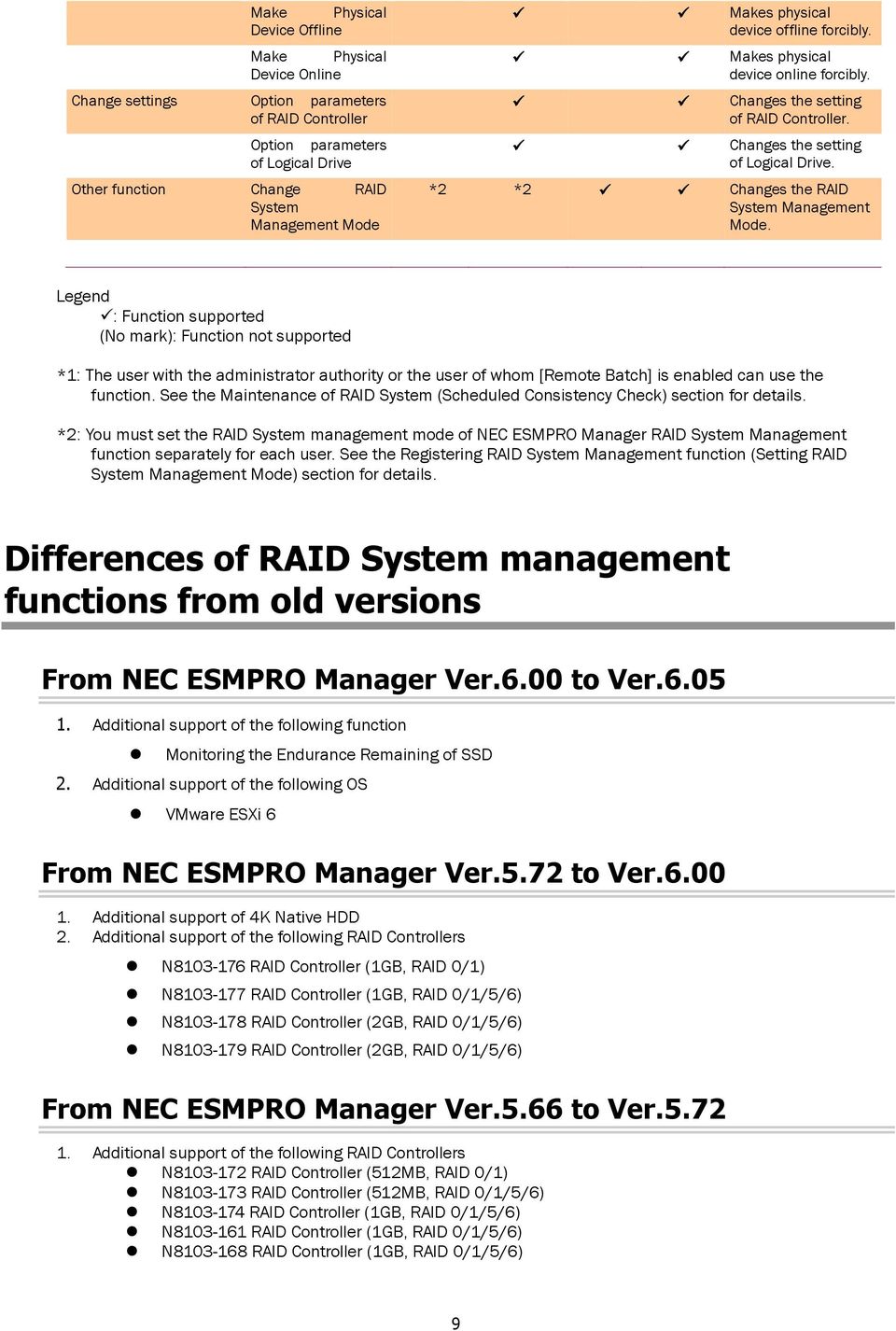
10 From NEC ESMPRO Manager Ver.5.60 to Ver Additional support of the following RAID Controllers N RAID Controller (1GB, RAID 0/1/5/6) N RAID Controller (1GB, RAID 0/1/5/6) 2. Additional support of Flash Backup Unit NEC ESMPRO Manager Ver.5.60 This is the first version of NEC ESMPRO Manager that supports the management of RAID System on VMware ESXi 5 server. 10

11 Structure of NEC ESMPRO Manager RAID System Management The NEC ESMPRO Manager RAID System Management function consists of the following modules to manage the RAID System in the server where VMware ESXi 5 or later is in operation. NEC ESMPRO Manager NEC ESPRO Manager is the server management software aiming at stable operation and efficient system operation of server system. It manages the configuration information of server resource and operating status, NEC ESPRO Manager manages the server using Web GUI and Alert Viewer GUI. Web GUI Web GUI is the application managing and monitoring the RAID System by GUI (graphical user interface). It displays the configuration and status of a RAID System graphically or provides configuration and operation for a RAID System. Alert Viewer Alert Viewer manages the alert information sent from the RAID System. You can check the alert information that has been sent to NEC ESMPRO Manager in the Alert Viewer on the Web browser. SMIS-S Provider SMI-S Provider is the module that controls the RAID System information in the server to be managed. Express Report Service (MG) The failure information occurred in the servers registered in NEC ESMPRO Manager can be automatically sent to the customer service by setting up Express Report Service (MG) on Management PC. Express Report Service (MG) RAID System Management PC Web GUI NEC ESMPRO Manager SMI-S Provider Alert Viewer Customer Support Contact Server to be managed (VMware ESXi 5 or later) Figure 1 Configuration of RAID System Management Function 11

12 System requirements of RAID System Management function This chapter describes system requirements of the NEC ESMPRO Manager RAID System Management function. See NEC ESMPRO Manager Installation Guide for the system requirements of NEC ESMPRO Manager. Server to be managed The following components are required for the NEC ESMPRO Manager RAID System Management function. Virtual platform Required software Operating system Installation image Patch module for VMware ESXi 5.0 Update 3 Patch 08 or later VMware ESXi 5.1 Update 2 Patch 05 or later VMware ESXi 5.5 Update 2 or later VMware ESXI 6.0 Patch 01 or later SMI-S provider of the vendor of the RAID System to be managed If the SMI-S provider isn't installed in a server, please download and install it from NEC Global Site. 12

13 Registering RAID System Management function This chapter describes the registration of the NEC ESMPRO Manager RAID System Management function. Installation of NEC ESMPRO Manager NEC ESMPRO Manager Ver5.60 or later version is required to manage the RAID System in the server where VMware ESXi 5 is in operation. NEC ESMPRO Manager Ver6.05 or later version is required to manage the RAID System in the server where VMware ESXi 6 is in operation. See NEC ESMPRO Manager Installation Guide for details of the installation of NEC ESMPRO Manager. Setting the server to be managed Set [Registration] or [Enable] for RAID System Management and WS-Man when you register the server. See NEC ESMPRO Manager Setup Guide for details of the setting of the server to be managed. 13

14 There are two ways to register the server to be managed, Manual Registration and Auto Registration. The settings for the RAID System Management function are different for each registration as follows. Manual Registration: Registration/Unregistration Auto Registration: Enable/Disable 14

15 Setting RAID System Management Mode NEC ESMPRO Manager sets the RAID System Management Mode for each user account. Only the user with the administrator authority can set the RAID System Management mode. The RAID System Management mode of the user with the administrator authority operates in the Advanced Mode and the settings cannot be changed. The procedure to set the RAID System Management mode is as follows. Step 1 Click the [User Information] tab in [Environment Setting]. Click the user name to set the RAID System Management mode. 15

16 Step 2 Click [Edit]. 16
![[Edit].](/docs-images/40/9277388/images/page_16.jpg "16")
17 Step 3 Check the checkbox of Advanced Mode or Standard Mode of [RAID System Management Mode] in [User Information] and click [Apply]. 17
![[RAID System Management Mode] in](/docs-images/40/9277388/images/page_17.jpg "[User Information] and click")
18 Checking the settings of RAID System Management mode Check [RAID System Management Mode] displayed on the upper right of Web GUI to confirm the current settings of the RAID System Management mode. RAID System Management mode at startup The user with the administrator authority which has been set at the installation of NEC ESMPRO Manager starts in the Advanced Mode. The user with the operator authority starts in the RAID System Management mode which has been set at the user registration. 18

19 Functions of Web GUI This chapter describes the functions of the Web GUI. See the online help for details of the Web GUI. Structure of Web GUI As shown in the figure below, the Web GUI is composed of four parts, or Tree View, Operation Area, Menu Bar and Status Bar. Header Menu Tree View Operation Area Local Navigation Header Menu Figure 2 Structure of Web GUI The Header Menu shows the name and the right of the user who currently logs in. Clicking Alert Viewer, Tools, Environmental Setting, About NEC ESMPRO Manager, Help, and Logout enables you to use each function. Tree View The Tree View shows the configuration of RAID Systems managed by the NEC ESMPRO Manager as a hierarchical structure. 19

20 Local Navigation The Local Navigation shows the configuration of RAID Systems managed by the NEC ESMPRO Manager as a hierarchical structure. The Local Navigation displays each RAID System existing in your server as a RAID Controller node. Each RAID Controller node has the node of a Battery/ Flash Backup Unit on RAID Controller, created all Logical Drives and Disk Array and connected all Physical Devices. A single node includes at least a single component of each type. Every component is accompanied by an icon. The icons indicate the type and the status of each component (server, RAID Controller, Battery, Flash Backup Unit, Logical Drive, and Physical Device) graphically. 20

21 Operation Area The Operation Area shows the detailed information of the component selected in the Local Navigation and the operations that you can use for each component. 21
22 Components This chapter describes the items that compose of the Web GUI. Server The name of the server to be managed which has been registered in NEC ESMPRO Manager is displayed. [Icon] <Server name> Item <Server name> Description Indicates the name of server having the RAID System. The server icon indicates the status of all the RAID Systems existing in the server. Icon Meaning Description Server - Normal Server - Warning All RAID Systems in the server operate normally. Problems which RAID Controllers define as failures do not occur. One or more RAID Systems in the warning condition exist in the server. Server - Fatal One or more RAID Systems in the warning or fatal condition exist in the server. RAID Controller Each RAID System on the server is the RAID Controller node. A RAID Controller node equals a RAID Controller, and shows the number and model of the RAID Controller. [Icon] RAID Controller #<Number> <Model> <Number> <Model> Item Description Indicates the management number (logical address) of the RAID Controller in NEC ESMPRO Manager. Indicates the model name of the RAID Controller. A RAID Controller icon indicates the status of all the RAID Systems on the RAID Controller. Icon Meaning Description RAID Controller - Normal RAID Controller - Warning RAID Controller - Fatal All Batteries, Flash Backup Unit, Logical Drives, and Physical Devices operate normally on the RAID Controller. No failures have not been detected by the RAID Controller One or more Batteries, Flash Backup Unit, Logical Drives, and Physical Devices in the following condition exist on the RAID Controller : "Containing one or more failed components but being operable" One or more Batteries, Flash Backup Unit, Logical Drives, and Physical Devices in the following condition exist in the RAID Controller : "Containing one or more failed components and being inoperable" 22
23 Battery If the RAID Controller has the Battery, the RAID Controller node has a Battery node. A Battery node and icon shows the status of Battery. [Icon] Battery [<Status>] <Status> Item Description Indicates the status of the Battery installed in the RAID Controller. Icon Meaning Description Battery - Normal The Battery operates normally. Battery - Warning The RAID Controller detects any problem of the Battery. Flash Backup Unit If the RAID Controller has the Flash Backup Unit, the RAID Controller node has a Flash Backup Unit node. A Flash Backup unit node and icon shows the status of Flash Backup Unit [Icon] Flash Backup Unit [<Status>] <Status> Item Description Indicates the status of the Flash Backup Unit installed in the RAID Controller. Icon Meaning Description Flash Backup Unit - Normal The Flash Backup Unit operates normally. Flash Backup Unit - Warning The RAID Controller detects any problem of the Flash backup Unit. Disk Array If there are some Logical Drive in the RAID Controller, the RAID Controller node has the Disk Array nodes included the Logical Drives. The Disk Array node equals a Disk Array, and shows the number of the Disk Array. The Logical Drives you have created, all Physical Devices as the members of the Logical Drives, and Dedicated Hot Spares you have assigned to the Logical Drives exist in the Disk Array node. [Icon] Disk Array #<Number> <Number> Item Description Indicates the management number (logical address) of the Disk Array in NEC ESMPRO Manager. A Disk Array icon indicates the status of the Disk Array. Icon Meaning Description Disk Array - Normal Disk Array - Warning Disk Array - Fatal All the created Logical Drives, all the member Physical Devices and all the Dedicated Hot Spares operate normally. No failures have not been detected by the RAID Controller. One or more Logical Drives, Physical Devices, or Dedicated Hot Spares are in the warning condition in the Disk Array. One or more Logical Drives, Physical Devices, or Dedicated Hot Spares are in the warning or fatal condition in the Disk Array. 23
24 SSD Cache Disk Array When you create SSD Cache Drive in the RAID Controller, you can see that SSD Cache Disk Array node for that SSD Cache Drive is in the RAID Controller node. A single SSD Cache Disk Array node equals an SSD Cache Disk Array, and shows the number of the SSD Cache Disk Array. The SSD Cache Drive you have created, all the member Physical Devices exist in the SSD Cache Disk Array node. [Icon] Disk Array #<Number> SSD Cache <Number> Item Description Indicates the management number (logical address) of the SSD Cache Disk Array in NEC ESMPRO Manager. An SSD Cache Disk Array icon indicates the status of SSD Cache Disk Array. Icon Meaning Description SSD Cache Disk Array - Normal SSD Cache Disk Array - Warning SSD Cache Disk Array - Fatal All the SSD Cache Drives you have created, all the member Physical Devices operate normally. No failures have not been detected by the RAID Controller. One or more Physical Devices in the warning condition exist in the SSD Cache Disk Array. One or more Physical Devices in the warning or fatal condition exist in the SSD Cache Disk Array. Logical Drive The Logical Drive node exists in the Disk Array node. A Logical Drive node equals a Logical Drive, and shows the number, status and RAID Level of the Logical Drive. [Icon] LD #<Number> [<Status>] <RAID Level> Item <Number> <Status> <RAID Level> Description Indicates the management number (logical address) of the Logical Drive in NEC ESMPRO Manager. The number starts from 1. Indicates the status of the Logical Drive. Indicates the RAID Level of the Logical Drive. A Logical Drive icon indicates the status of the Logical Drive. Icon Meaning Description Logical Drive - Normal The Logical Drive operates normally. Logical Drive - Warning Logical Drive - Fatal Because the Logical Drive contains one or more Physical Devices with Status being Failed, the redundancy of the Logical Drive is lost or degraded. Because the Logical Drive contains one or more Physical Devices with Status being Failed, the Logical Drive is offline and accessing to the Logical Drive is disabled. A RAID10/RAID50/RAID60 Logical Drive consists of more than one Disk Array according to the type of the RAID Controller. Such Logical Drive nodes are located in more than one Disk Array nodes. 24
25 SSD Cache Drive The SSD Cache Drive node exists in the SSD Cache Disk Array node. An SSD Cache Drive node equals an SSD Cache Drive, and shows the number and status of the SSD Cache Drive. [Icon] LD #<Number> [<Status>] SSD Cache <Number> <Status> Item Description Indicates the management number (logical address) of the SSD Cache Drive in NEC ESMPRO Manager. The number starts from 1 for HDD Logical Drive and SSD Cache Drive. Indicates the status of the SSD Cache Drive. An SSD Cache Drive icon indicates the status of the SSD Cache Drive. Icon Meaning Description SSD Cache Drive - Normal The SSD Cache Drive operates normally. SSD Cache Drive - Fatal Because Status of all Physical Devices for the SSD Cache Drive is Failed, the SSD Cache Drive is offline and accessing the SSD Cache Drive is disabled. 25
26 Physical Device The Physical Device node exists in either the Disk Array node or the RAID Controller node. The Physical Device which has created the Logical Drive and created Dedicated Hot Spare exists in the Disk Array node. The other Physical Device exists in RAID Controller node. The Physical Device node equals a Physical Device, and shows the number, status, device type and power status of the Physical Device. [Icon] PD <Number> [<Status>] <Interface>-<Device Type>-<Power Status> Item <Number> <Status> <Interface> <Device Type> <Power Status> Description Indicates the management number (logical address) of the Physical Device in NEC ESMPRO Manager in the format exsy based on the location of Physical Device. X: The number of the enclosure to which the Physical Device is connected Y: The number of the slot to which the Physical Device is connected. Indicates the status of the Physical Device. Indicates the type of the interface to which the Physical Device is connected. Indicates the type of Physical Device. Indicates the Power Status of Physical Device. Displayed only when Power Status is Power Saving or Transitioning. A Physical Device icon indicates the device type and the status of the Physical Device. Icon Meaning Description Physical Device - Ready Physical Device - Online Physical Device - Hot Spare The Physical Device is not used to create a Logical Drive yet. The Physical Device is already used to create a Logical Drive. Problems which the RAID Controller detects as failures do not occur. The Physical Device is registered as a Hot Spare. Physical Device - Rebuilding Physical Device Normal The Physical Device which is rebuilding now. The Physical Device operates without fails. Physical Device - Warning The Physical Device is either which detects S.M.A.R.T. error or whose SSD Endurance Remaining is Running out (20-11%), Need to replace (10% or less). Physical Device - Fatal The Physical Device is either which detected a failure by RAID Controller or whose SSD Endurance Remaining is End of Life. A Physical Device icon indicates the power status of the Physical Device when HDD Power Saving function is enabled. Icon Meaning Description Physical Device - Power Saving The Physical Device which Power Status has been moved to Power Saving by the HDD Power Saving function. is placed at the lower left of the Physical Device icon. Physical Device - Transitioning The Physical Device which Power Status is transitioning from Power Saving to Power On by the HDD Power Saving function. is placed at the lower left of the Physical Device icon. 26
27 Referring to Information on RAID System This chapter describes how to see the configurations and status of RAID Systems and the RAID System operation log. Referring to Property of RAID Controller For the information on a RAID Controller, see the property of the RAID Controller. To display the property of RAID Controller, click the RAID Controller whose information is to be seen on the Local Navigation. The [RAID Controller Properties] window has the [General] and [Option]. The [General] property indicates the property of the RAID Controller. The [Option] property allows you to see the settings of the RAID Controller that can be changed You can change the settings in the Advanced Mode. Item Number ID Vendor Model Firmware Version Cache Size Premium Feature Description Indicates the management number (logical address) of the RAID Controller in NEC ESMPRO Manager. The number starts from 1 for each RAID Controller. Indicates the original identification value of the RAID Controller. The Offline utility of the RAID Controller uses the address of the identification value. Indicates the vendor of the RAID Controller. Indicates the model name of the RAID Controller. Indicates the version of the RAID Controller. Indicates the size of cache on RAID Controller in MB. Indicates the Premium Feature of RAID Controller. Displayed only when Premium Feature is enable. The possible status is as follow: Cache Cade: the function to create the SSD Cache Drive using Solid State Drive(s) (SSD) and use SSD as the Cache of Logical Drive. 27
28 Item Description Rebuild Priority Consistency Check Priority Patrol Read Patrol Read Priority Buzzer Setting HDD Power Saving (Hot Spare) Indicates the priority level of Rebuild executed in the server system. Three possible Rebuild Priorities are as follows: High: Executes Rebuild at high priority. Middle: Executes Rebuild at balanced priority. Low: Executes Rebuild at low priority. Indicates the priority level of Consistency Check executed in the server system. Three possible Consistency Check Priorities are as follows: High: Executes Consistency Check at high priority. Middle: Executes Consistency Check at balanced priority. Low: Executes Consistency Check at low priority. Indicates whether Patrol Read is executed or not. Enable: Executes Patrol Read. Disable: Does not execute Patrol Read. Indicates the priority level of Patrol Read executed in the server system. Three possible Patrol Read Priorities are as follows: High: Executes Patrol Read at high priority. Middle: Executes Patrol Read at balanced priority. Low: Executes Patrol Read at low priority. Indicates whether the Buzzer of the RAID Controller is used if a failure occurs in the RAID System. Enable: Enables the Buzzer. Disable: Disables the Buzzer. Indicates whether the HDD Power Saving (Hot Spare) is enabled or not. Enable; Spin down the Hot Spare that is not in use. Disable: Does not spin down the Hot Spare that is not in use. Device Standby Time Indicates the time of transitioning to Power Saving of the Physical Device which is not in use. 30 minutes 1 hour 2 hours 4 hours 8 hours The items displayed in the property of the RAID Controller differ depending on the RAID Controller. The items which are not supported appear as blank or do not appear on the list. 28
29 Referring to Property of Battery For the information on a Battery on RAID Controller, see the property of the Battery. To display the property of Battery, click the Battery whose information is to be seen on the Local Navigation. The [General] property indicates the property of the Battery. Item Description Status Indicates the status of the Battery installed in the RAID Controller. Two possible statuses are as follows: Normal: Indicates that the Battery can be used normally. Warning: Indicates that the Battery cannot be used normally due to some reason. Referring to Property of Flash Backup Unit For the information on a Flash Backup Unit on RAID Controller, see the property of the Flash Backup Unit. To display the property of Flash Backup Unit, click the Flash Backup Unit whose information is to be seen on the Local Navigation. The [General] property indicates the property of the Flash Backup Unit. Item Description Status Indicates the status of the Flash Backup Unit installed in the RAID Controller. Two possible statuses are as follows: Normal: Indicates that the Flash Backup Unit can be used normally. Warning: Indicates that the Flash Backup Unit cannot be used normally due to some reason. 29
30 Referring to Property of Disk Array For the information on a Disk Array, see the property of the Disk Array. To display the property, click the Disk Array whose information is to be seen on the Local Navigation. The [General] tab indicates the property of the Disk Array. Item Number ID Sector Format Capacity Unused Capacity Type Physical Device N Description Indicates the management number (logical address) of the Disk Array in NEC ESMRPO Manager. The number starts from 1, which includes Disk Array as well as SSD Cache Disk Array. Indicates the original identification value of the Disk Array. Use this value to create Disk Array managed by the Offline utility of the RAID Controller corresponding to those managed by NEC ESMPRO Manager. Indicates sector format of Physical Device in the Disk Array. Indicates the total capacity of Physical Device in Disk Array in GB. Indicates the capacity of unused area in the Disk Array in GB. Indicates the Type of Disk Array. Indicates [Disk Array] or [SSD Cache Disk Array]. Indicates the number of the Physical Devices which are the members of Disk Array. N starts from 1, corresponding to the number of Physical Device which composes the Disk Array. When the number of Physical Device is one, N is not displayed. The items displayed in the property of the Disk Array differ depending on the RAID Controller. The items which are not supported appear as blank or do not appear on the list. 30
31 Referring to Property of SSD Cache Disk Array For the information on an SSD Cache Disk Array, see the property of the SSD Cache Disk Array. To display the property, click the SSD Cache Disk Array whose information is to be seen on the Local Navigation. The [General] tab indicates the property of the SSD Cache Disk Array. Item Number ID Sector Format Capacity Unused Capacity Type Physical Device N Description Indicates the management number (logical address) of the SSD Cache Disk Array in the NEC ESMRPO Manager. The number starts from 1, which includes Disk Array as well as SSD Cache Disk Array. Indicates the original identification value of the SSD Cache Disk Array. Use this value to create SSD Cache Disk Array managed by the Offline utility of the RAID Controller corresponding to those managed by NEC ESMPRO Manager. Indicates sector format of Physical Device in the SSD Cache Disk Array. Indicates the total capacity of Physical Device in SSD Cache Disk Array in GB. Indicates the capacity of unused area in the SSD Cache Disk Array in GB. Indicates the Type of SSD Cache Disk Array. Indicates [Disk Array] or [SSD Cache Disk Array]. Indicates the number of the Physical Devices which are the members of SSD Cache Disk Array. N starts from 1, corresponding to the number of Physical Device which composes the Disk Array. When the number of Physical Device is one, N is not displayed. The items displayed in the property of the SSD Cache Disk Array differ depending on the RAID Controller. The items which are not supported appear as blank or do not appear on the list. 31
32 Referring to Property of Logical Drive For the information on a Logical Drive, see the property of the Logical Drive. To display the property of Logical Drive, click the Logical Drive whose information is to be seen on the Local Navigation. The [Logical Drive Properties] window contains the [General] and [Option]. The [General] property indicates the property of the Logical Drive. The [Option] tab allows you to see the settings of the Logical Drive. You can change the settings in the Advanced Mode. Number ID Item Disk Array Information RAID Level Sector Format Capacity Stripe Size Description Indicates the management number (logical address) of the Logical Drive in NEC ESMPRO Manager. The Universal RAID Utility assigns a number starting from 1, which includes SSD Cache Drive as well as Logical Drive. Indicates the original identification value of the Logical Drive. Use this value to create Logical Drives managed by the Offline utility of the RAID Controller correspond with those managed by NEC ESMPRO Manager. Indicates the management number (logical address) of the Disk Array in which the Logical Drive exists. Indicates the RAID Level of the Logical Drive. The value can be RAID 0, RAID 1, RAID 5, RAID 6, RAID 00, RAID 10, RAID 1E, RAID 50 or RAID 60. Indicates sector format of Physical Device in the Logical Drive. Indicates the capacity of the Logical Drive in GB. Indicates the Stripe Size of the Logical Drive. The value can be 1KB, 2KB, 4KB, 8KB, 16KB, 32KB, 64KB, 128KB, 256KB, 512KB, or 1024KB. 32
33 Item Cache Mode (Current) Type Status Cache Mode (Setting) Description Indicates the current value of the mode of writing data to the cache memory installed in the RAID Controller. Two possible modes are as follows: Write Back: Writes data to the cache memory asynchronously. Write Through: Writes data to the cache memory synchronously. Type of the Logical Drive. Indicates Logical Drive or SSD Cache Drive. Indicates the status of the Logical Drive. Three possible status are as follows: Online: Indicates that the redundancy of the Logical Drive is retained. Degraded: Indicates that the redundancy of the Logical Drive is lost or degraded. Accessing to the Logical Drive is enabled. Offline: Indicates that the Logical Drive is offline and accessing to the Logical Drive is disabled. Indicates the mode of writing data to the cache memory installed in the RAID Controller. Three possible modes are as follows: Auto Switch: Switches the mode automatically between Write Back and Write Through depending on the existence and/or status of Battery and Flash Backup Unit. Write Back: Writes data to the cache memory asynchronously. Write Through: Writes data to the cache memory synchronously. Each RAID Controller supports specific RAID Levels and Stripe Sizes. Unsupported items indicate space or do not appear in the list. Each RAID Controller supports specific Cache Modes. Unsupported Cache Modes do not appear. Each RAID Controller supports specific items appearing on the Property tab of the Logical Drive and specific items whose settings can be changed. Unsupported items indicate space or do not appear in the list. The status of a Logical Drive is defined depending on the RAID Level and the number of Physical Devices failed. If the RAID Level is RAID 10 or RAID 50 and two Physical Devices (three or four for RAID60) are failed, the status will be [Degraded] or [Offline] depending on the failed Physical Devices. RAID level Number of failed Physical Devices or more RAID 0 Online Offline Offline Offline RAID 1 Online Degraded Offline - RAID 5 Online Degraded Offline Offline RAID 6 Online Degraded Degraded Offline RAID 10 Online Degraded Degraded/Offline Offline RAID 50 Online Degraded Degraded/Offline Offline RAID 60 Online Degraded Degraded Degraded/Offline (5 or more : Offline) 33
34 Referring to Property of SSD Cache Drive For the information on an SSD Cache Drive, see the property of the SSD Cache Drive. To display the property of SSD Cache Drive, click the SSD Cache Drive whose information is to be seen on the Local Navigation. The [General] property indicates the property of the SSD Cache Drive. Number ID Item Disk Array Information Sector Format Capacity Type Status Description Indicates the management number (logical address) of the SSD Cache Drive in NEC ESMPRO Manager. The Universal RAID Utility assigns a number starting from 1, which includes SSD Cache Drive as well as Logical Drive. Indicates the original identification value of the SSD Cache Drive. Use this value to create SSD Cache Drive managed by the Offline utility of the RAID Controller correspond with those managed by NEC ESMPRO Manager. Indicates the management number (logical address) of the Disk Array in which the SSD Cache Drive exists. Indicates sector format of Physical Device in the SSD Cache Drive. Indicates the capacity of the SSD Cache Drive in GB. Type of the SSD Cache Drive. Indicates Logical Drive or SSD Cache Drive. Indicates the status of the SSD Cache Drive. The possible statuses are as follows: Online: Indicates that the redundancy of the SSD Cache Drive is retained. Offline: Indicates that the SSD Cache Drive is offline and accessing to the SSD Cache Drive is disabled. 34
35 Referring to Property of Physical Device For the information on a Physical Device, see the property of the Physical Device. To display the property of Physical Device, click the Physical Device whose information is to be seen on the Local Navigation. The [General] property indicates the property of the Physical Device. Item Enclosure Enclosure Position Slot ID Device Type Interface Vendor/Model Description Indicates the number of Enclosure inserted Physical Device. This value is the original identification value of Enclosure. Indicates the location where Enclosure in which Physical Device is inserted is connected. Either of the following values is displayed. Internal Port[Port Number] Position[Position] Indicates the number of Slot inserted Physical Device. This value is a number starting from 0 or 1. Indicates the original identification value of the Physical Device. Use this value to match Physical Devices managed by the Offline utility of the RAID Controller and those managed by NEC ESMPRO Manager. The format of the ID varies depending on the types of RAID Controllers. Indicates the type of Physical Device. The possible types are as follows: HDD : Hard Disk Drive HDD(SSD) : Solid State Drive Indicates the type of the interface to which the Physical Device is connected. Two possible types are as follows: SAS : Serial Attached SCSI SATA : Serial ATA Indicates the vendor and model name of the Physical Device. 35
36 Item Firmware Version Serial Number Sector Format Capacity Status Hot Spare Information S.M.A.R.T. Endurance Remaining Power Status Description Indicates the version of the Physical Device. Indicates the serial number of the Physical Device. This item is indicated when Device Type item is HDD or HDD(SSD). Indicates sector format of the Physical Device. Indicates the capacity of the Physical Device in GB. This item is indicated when Device Type item is HDD or HDD(SSD). Indicates the status of the Physical Device. Five possible status are as follows: Online: Indicates that the Physical Device is incorporated into a Logical Drive to operate normally. Failed: Indicates that the Physical Device is incorporated. Rebuilding: Indicates that the Physical Device is rebuilding. Hot Spare: Indicates that the Physical Device is set as a Hot Spare. Ready: Indicates that the Physical Device is not incorporated into a Logical Drive. This item is indicated when Device Type item is HDD or HDD(SSD). Indicates the Hot Spare mode of the Physical Device if it is specified as a Hot Spare. Two possible modes are as follows: Global: The Physical Device can be used as a Hot Spare of any Disk Array in the RAID Controller. Dedicated(Disk Array #X): The Physical Device can be used as a Hot Spare of the specified Disk Array. Also indicates the number of the specified Disk Array. X indicates the management number (logical address) of the Disk Array for which the hot spare is created. This item is displayed only when Status is Hot Spare. Indicates the diagnosis result of S.M.A.R.T.(Self-Monitoring, Analysis and Reporting Technology) function. Two possible statuses are as follows. Normal: Does not detect any error caused by the S.M.A.R.T. function. Detected: Detects one or more errors caused by the S.M.A.R.T. function. This item is indicated when Device Type item is HDD or HDD(SSD). Indicates the Endurance Remaining of SSD. The possible conditions are as follows. Safe (100-51%): the Endurance Remaining is Safe (100-51%). Reducing (50-21%): the Endurance Remaining is Reducing (50-21%). Running out (20-11%): the Endurance Remaining is Running out (20-11%). Need to replace (10% or less): the Endurance Remaining is Need to replace (10% or less). End of Life: the Endurance Remaining is End of Life. Indicates the Power Status of Physical Device. This item is displayed only in the Power Saving or Transitioning Status. The possible conditions are as follows. On : Power Status is active. Power Saving : Power Status is Power Saving. Transitioning : Power Status is transitioning from Power Saving to active. Each RAID Controller supports specific items appearing on the Property tab of the Physical Device and specific items whose settings can be changed. Unsupported items indicate space or do not appear in the list. Even if Physical Device does not break down when you execute Make Offline, [Status] item is changed to [Failed]. 36
37 Browsing or Stopping Execution Status of Operation NEC ESMPRO Manager allows you to browse or stop the status of the operation currently running in the RAID System. To browse the status of operation, click [RAID System Information] in the Local Navigation. You can browse the status of the operation currently running. In [Running Operation]. To stop the running operation, click [Stop] to stop the operation in [Running Operation]. You can also browse or stop the status of the operation in the Logical Drive or Physical Device window. The operation that can be stopped depends on the RAID System Management Mode. For details, see the section Functions available on NEC ESMPRO Manager in Overview. Some RAID Controllers do not support stopping an operation. In this case, the Stop button is disabled. The progress of the running operation may not be displayed accurately when the progress is updated very frequently, for example, when a logical drive with small capacity is been initialized. In this case, perform [Rescan] in [RAID System Information] in the Local Navigation to display the correct progress. Updating Information of RAID System The management information of RAID System managed by NEC ESMPRO Manager is obtained at the following timings: Starting (Restarting) the operating system of the management PC in which NEC ESMPRO Manager has been installed Starting (Restarting) the server to be managed Receiving an event such as change of RAID System status or change of execution status of an operation having occurred Recovering from the communication disconnection between the management PC and the server to be managed for any reason To update the management information of the RAID System to the latest one, obtain the information of the RAID System again in the following procedure. It takes several minutes after a symptom such as the status change of the RAID System or the status change of the running operation occurs and the screen is automatically rescanned. 37
38 The procedure to update the RAID System information to the latest status is as follows. Step 1 Click [RAID System Information] in the Local Navigation. Step 2 Click [Run] in the [Rescan] operation in [Operation]. Step 3 The.dialog confirming the Rescanning will be displayed. Click [OK]. 38
39 Referring to RAID System Operation Log Operations done for RAID Systems and events occurred in the RAID Systems are registered to the RAID Log of NEC ESMPRO Manager. Much important events are registered also in the Alert Viewer. RAID Log The RAID Log shows the operation log of the RAID System. The following information is included in the RAID Log. Item Type Date/Time ID Description Description There are following levels of severity. Error: A fatal error occurs. Warning: An event which is not fatal but noteworthy occurs Information: An event just to notify of the information Date and time when the event occurs Event ID of the log The content of the log Referencing RAID Log Click [RAID Log] in the Local Navigation to browse the RAID Log. Updating RAID Log Click [Update of display log] on the RAID Log screen to obtain the RAID Log again 39
40 Alert Viewer The Alert Viewer shows the alert information sent from the RAID System in table form. The following information is included in the Alert Viewer. Item Description Checkbox Summary Check the checkbox for each alert to select. Check the checkbox in the header of the list to select all the alerts displayed in the current page. Uncheck it to deselect all the alerts displayed in the current page. This item gives a brief description of the alert message. The icon in the left indicates the severity of the event. Information Minor (Warning) Major (Error) Unknown Read/Unread Type Manager Component This indicates if the details of the alert message have been reviewed on the Alert Detail screen. Unread Read This item shows the type of the alert including CPU, Memory, and Network. [URAIDUTL] is displayed for the alerts regarding the RAID System. This item displays the name of the Manager on Web GUI to which the component belongs. The name of the component that the alert occurs. [Unknown server] will be displayed if an alert is notified from the component which has not been registered in NEC ESMPRO Manager. Address Received Source IP address of the component Date and time when the alert is received The service that sent the alert. [raidsrv] is displayed for the alerts regarding the RAID System. 40
41 Referencing Alert Viewer Click [Alert Viewer] in the Header Menu to browse the AlertViewer. Updating AlertViewer Click [Reload] on the Header Menu of Alert Viewer to refresh the Alert list 41
42 Changing Property and Running Operation in RAID System This chapter describes the properties that can be changed and available operations in NEC ESMRPO Manager RAID Management function. You can change the properties or run the operations on the Operation Area. Click the target component in the Local Navigation to display the Operation Area. Changing the property Change the property in [Property/Setting] in the Operation Area. This can be done for RAID Controller and Logical Drive. Running the operation Run the operation in [Operation] in the Operation Area. This can be done for RAID Controller, Battery, Logical Drive, and Physical Device. Some functions in the Operation Area are disabled depending on the type of the component selected and the status of the component. When the RAID System Management Mode of NEC ESMPRO Manager is the Standard Mode, the functions that are not available in the mode will not be displayed. For the detailed description for changing the properties and running operations of RAID System properties, see "Maintenance of RAID System Changing the propeties of RAID System This section describes the properties that can be changed for each component in the Operation Area. Properties of RAID Controller that can be changed Item Rebuild Priority Consistency Check Priority Patrol Read Description Indicates the priority level of Rebuild executed in the server system. Three possible Rebuild Priorities are as follows: High: Executes Rebuild at high priority. Middle: Executes Rebuild at balanced priority. Low: Executes Rebuild at low priority. Indicates the priority level of Consistency Check executed in the server system. Three possible Consistency Check Priorities are as follows: High: Executes Consistency Check at high priority. Middle: Executes Consistency Check at balanced priority. Low: Executes Consistency Check at low priority. Indicates whether Patrol Read is executed or not. Enable: Executes Patrol Read. Disable: Does not execute Patrol Read. 42
43 Item Description Patrol Read Priority Buzzer Setting HDD Power Saving (Hot Spare) Indicates the priority level of Patrol Read executed in the server system. Three possible Patrol Read Priorities are as follows: High: Executes Patrol Read at high priority. Middle: Executes Patrol Read at balanced priority. Low: Executes Patrol Read at low priority. Indicates whether the Buzzer of the RAID Controller is used if a failure occurs in the RAID System. Enable: Enables the Buzzer. Disable: Disables the Buzzer. Indicates whether the HDD Power Saving (Hot Spare) is enabled or not. Enable; Spin down the Hot Spare that is not in use. Disable: Does not spin down the Hot Spare that is not in use. Device Standby Time Indicates the time of transitioning to Power Saving of the Physical Device which is not in use. 30 minutes 1 hour 2 hours 4 hours 8 hours Properties of Logical Drive that can be changed Item Cache Mode (Setting) Description Indicates the mode of writing data to the cache memory installed in the RAID Controller. Three possible modes are as follows: Auto Switch: Switches the mode automatically between Write Back and Write Through depending on the existence and/or status of Battery and Flash Backup Unit. Write Back: Writes data to the cache memory asynchronously. Write Through: Writes data to the cache memory synchronously. Running Operations of RAID System This section describes the operations that can be run for each component in the Operation Area. Operations of RAID Controller that can be run Item Silence Buzzer Description Silences the buzzer of the RAID Controller Operations of Battery that can be run Item Description Refresh Battery Starts refreshing the battery. 43
44 Operations of Logical Drive that can be run Item Start Consistency Check (Automatic Stop enabled) Start Consistency Check (Automatic Stop disabled) Stop Consistency Check Start Initialize (Full) Start Initialize (Quick) Stop Initialize Description Executes Consistency Check (Automatic Stop enabled) for the selected Logical Drive. In the Automatic Stop enabled mode, Consistency Check is stopped automatically when a medium error was detected frequently on an identical Physical Device. Executes Consistency Check (Automatic Stop disabled) for the selected Logical Drive. In the Automatic Stop disabled mode, Consistency Check keeps being executed until execution is completed when a medium error was detected frequently on an identical Physical Device. Stops running Consistency Check. Initializes the selected Logical Drive. This operation completely initializes the content of the Logical Drive by writing 0 all over the Logical Drive. Initializes the selected Logical Drive. This operation initializes only several leading blocks including the information on managing a Logical Drive, by writing 0 in these blocks. Stops initialization. Operations of Physical Device that can be run Item Start Rebuild Stop Rebuild Create Global Hot Spare Create Dedicated Hot Spare Remove Hot Spare Make Online Make Offline Locate On Locate Off Rebuilds the selected Physical Device. Stops rebuilding the Physical Device. Creates Global Hot Spare. Description Creates Dedicated Hot Spare by specifying a Physical Device. Removes Hot Spare Makes a Physical Device Online. It causes the loss of consistency if a Logical Drive has been created by using the Physical Device. Makes a Physical Device Offline. It causes the loss of redundancy if a Logical Drive has been created by using the Physical Device. Turns on (or blinks) the lamp on the slot where the selected Physical Device is installed. Turns off the lamp on the slot where the selected Physical Device is installed. 44
45 Maintenance of RAID System This chapter describes the maintenance of a RAID System using NEC ESMPRO Manager. Providing Patrol Read for Physical Devices The Patrol Read function reads data saved in all Physical Devices in a RAID System entirely to check whether a read error occurs or not regularly in the background. The Patrol Read is effective to find failures including Physical Device medium error early. Be sure to execute Patrol Read for a RAID Controller if it supports the Patrol Read. NEC ESMPRO Manager provides the function of indicating whether Patrol Read is executed or not and the function of changing the Patrol Read Priority. Setting Whether Patrol Read Is Executed or Not Whether Patrol Read is executed or not should be set in RAID Controllers. The procedure of setting whether Patrol Read is executed or not is described below. Changing the setting whether Patrol Read is executed or not is available only in the Advanced Mode. Step 1 Click a RAID Controller on the Local Navigation to set whether Patrol Read is executed or not. 45
46 Step 2 Click [Edit] in [Property/Setting] in the Operation Area. Step 3 The [Setting] window will appear. Change Patrol Read to [Enable] or [Disable]. Click [Apply]. Step 4 The window confirming if you would like to apply will open. Click [OK]. 46
47 Step 5 The value for [Patrol Read] in [Property/Setting] will change the one you have set when the change of the setting whether Patrol Read is executed or not. If the change fails, confirm the notification displayed on the upper left of the screen. The following image is an example when the change fails. 47
48 Checking Result of Executing Patrol Read You can find the result of executing Patrol Read by checking the RAID Log of NEC ESMPRO Manager. When it detects a problem, NEC ESMPRO Manager registers the log in the RAID Log. Setting Patrol Read Priority You can set the priority in which Patrol Read is executed in your server. The procedure of setting the Patrol Read Priority is described below. Changing the priority of Patrol Read is available only in the Advanced Mode. Step 1 Click a RAID Controller on the Local Navigation to set the priority of Patrol Read. Step 2 Click [Edit] in [Property/Setting] in the Operation Area. 48
49 Step 3 The [Setting] window will appear. Change Patrol Read Priority to [High], [Middle], or [Low]. Click [Apply]. Step 4 The window confirming if you would like to apply will open. Click [OK]. 49
50 Step 5 The value for [Patrol Read Priority] in [Property/Setting] will change the one you have set. If the change fails, confirm the notification displayed on the upper left of the screen. The following image is an example when the change fails. 50
51 Checking Logical Drive Consistency The Consistency Check function checks the consistency between the data in the data area of a Logical Drive and the parity. The NEC ESMPRO Manager RAID System Management function can start or stop Consistency Check and change the priority in which Consistency Check is executed. The Consistency Check is effective next to Patrol Read to find failures including Physical Device medium error early. Execute Consistency Check periodically if the RAID Controller does not support Patrol Read or the Patrol Read is disabled. If the Universal RAID Utility is installed, routine execution of the Consistency Check is set for RAID Controllers not supporting Patrol Read. The Consistency Check function has two modes, [Automatic Stop Enabled] and [Automatic Stop Disabled]. Mode Start Consistency Check (Automatic Stop enabled) Start Consistency Check (Automatic Stop disabled) Description Executes Consistency Check (Automatic Stop enabled) for the selected Logical Drive. In the Automatic Stop enabled mode, Consistency Check is stopped automatically when a medium error was detected frequently on an identical Physical Device. Executes Consistency Check (Automatic Stop disabled) for the selected Logical Drive. In the Automatic Stop disabled mode, Consistency Check keeps being executed until execution is completed when a medium error was detected frequently on an identical Physical Device. Starting or stopping the Consistency Check is enabled both in the Standard Mode and Advanced Mode. The function of changing the priority at which the Consistency Check is executed is available only in the Advanced Mode. If you execute Consistency Check to a Logical Drive in a Disk Array, the Consistency Check will also be done to other Logical Drives in the Disk Array. The Consistency Check can be executed only for Logical Drives with [Status] being [Online]. The Consistency Check cannot be executed for Logical Drives with RAID Level being RAID 0. Executing Consistency Check Manually Consistency Check is executed in Logical Drives. The procedure of starting Consistency Check is described below. Step 1 Click the Logical Drive to execute Consistency Check in the Local Navigation. 51
52 Step 2 Click [Run] for [Start Consistency Check (Automatic Stop enabled)] or [Start Consistency Check (Automatic Stop disabled)] in [Operation] in the Operation Area. Step 3 The window confirming if you would like to apply will open. Click [OK]. Step 4 The [Start Consistency Check Execution Result] window will open. The following window is an example when it succeeds. 52
53 The following window is an example when it fails. Check the content of the window. Step 5 Clicking that Logical Drive during Consistency Check will display the progress of the Consistency Check in [Property\Setting]. 53
54 Executing Scheduled Consistency Check for Logical Drive You can perform scheduled Consistency Check using Remote Batch function. The scheduled Consistency Check makes it possible to detect failures such as media errors on the RAID Controller which does not support the Patrol Read function. For details of Remote Batch, see the online help of NEC ESMPRO Manager. Scheduled Consistency Check by Remote Batch performs Consistency Check (Automatic Stop enabled) to all the Logical Drives. Scheduled Consistency Check can be done only when [Remote Batch Setting] has been enable as user authority Tasks registered by Remote Batch You can register the following items for Remote Batch. Item Select Remote Batch Remote Batch Item Remote Batch Type Start Date/Time Description Select the schedule you want to change. To add a schedule, select "New". Consistency Check of RAID System (All Logical Drives): Start the Consistency Check (Automatic Stop enabled) of RAID System to all Logical Drives Set the type of remote batch processing repetition. Specified Date, Weekly, or Monthly can be selected for "Remote Batch Type". "Specified Date" performs processing only once at specified date/time. You can specify the date/time for two month. "Weekly" performs processing once a week at the same time on a specified day of the week. "Monthly" performs processing once a month at the same time on a specified day of the first week. Set the date/time when "Remote Batch Item" is to be executed. If "Remote Batch Type" is Monthly, select a day of the first week of the month. Registering Remote Batch The procedure to register a Remote Batch is described below. Step 1 Click the [Schedule] tab. 54
55 Step 2 Click the date and time you would like to perform the Remote Batch from the calendar. Step 3 Display the setting window of Remote Batch. Select [Consistency Check of RAID System (All Logical Drives)] as [Remote Batch Item]. Also set Remote Batch Type and Start Date/Time and click [Apply]. Step 4 The window confirming if you would like to apply will open. Click [OK]. 55
56 Step 5 Batch. After the setting completes, an icon will appear on the column of the date and time to perform Remote Changing the settings of Remote Batch The procedure to change the settings of Remote Batch is described below. Step 1 Click the [Schedule] tab. 56
57 Step 2 Click the icon of the Remote Batch to change the settings on the calendar. Step 3 The setting window appears. Change the time to start and click [Apply]. Step 4 The window confirming if you would like to apply will open. Click [OK]. 57
58 Step 5 Batch. After the change completes, an icon will appears on the column of the date and time to perform the Remote 58
59 Deleting the settings of Remote Batch The procedure to delete the Remote Batch is described below. Step 1 Click the [Schedule] tab. Step 2 Click the icon of the Remote Batch to change the settings on the calendar. Step 3 The setting window appears. Change the time to start and click [Delete] 59
60 Step 4 The window confirming if you would like to delete will open. Click [OK]. Step 5 After the deletion completes, you can see the icon has been deleted on the column of the date and time to perform the Remote Batch. 60
61 Stopping Consistency Check You can stop Consistency Check being executed on the way. The procedure of stopping Consistency Check is described below. Step 1 Click the Logical Drive for which you would like to stop Consistency Check in the Local Navigation. Step 2 Click [Run] for [Stop Consistency Check] in [Operation] in the Operation Area. The item Stop Consistency Check appears only when Consistency Check is running. Step 3 The window confirming if you would like to stop Consistency Check will open. Click [OK] Step 4 The [Stop Consistency Check Execution Result] window will appear. Click [OK] If [Stop Consistency Check] fails, confirm [Contents] for the error. 61
62 Setting Consistency Check Priority You can set the priority at which Consistency Check is executed in the server. The procedure of setting the Consistency Check Priority is described below. The Consistency Check Priority is common between [Consistency Check (Automatic Stop enabled)] and [Consistency Check (Automatic Stop disabled)]. Step 1 Click the Logical Drive for which you would like to stop Consistency Check in the Local Navigation. Step 2 Click [Edit] in [Priority/Setting] in the Local Navigation. 62
63 Step 3 The [Setting] window will appear. Change the value of the Consistency Check Priority to High, Middle, or Low. Click [Apply]. Step 4. The window confirming if you would like to apply will appear. Click [OK] 63
64 Step 5 After changing the Consistency Check Priority is finished successfully, you can see the value of [Consistency Check Priority] in [Priority/Setting] has been changed to the value you set. If the change of Consistency Check Priority fails, confirm the notification displayed on the upper area of the screen. The following image is an example when the change fails. 64
65 Initializing Logical Drive Use the Initialize function when you want to erase the data saved in a Logical Drive. Initialize has two modes listed in the table below. Full Quick Mode Description Writes 0s into the entire area of a Logical Drive to erase the data fully. Writes 0s into some blocks in a Logical Drive. Only erases OS installation and partition management information. Initialize of the mode is completed earlier than that of the full mode. However, because 0s are not written into the remaining area, data consistency is not held in the Logical Drive. Initialize is available only in the Advanced Mode. You can initialize Logical Drive with partitions. Before initializing Logical Drive, check if the Logical Drive contains required data. Initializing a Logical Drive causes all the data saved in the Logical Drive to be lost. The Consistency Check of a Logical Drive initialized in the quick mode causes a data inconsistency error to occur due to no data consistency. Initialize cannot be executed for any Logical Drive with [Status] being [Online]. Executing Initialize Initialize should be executed in Logical Drives. The procedure of executing Initialize is described below. Step 1 Click a Logical Drive to initialize on the Local Navigation. 65
66 Step 2 Click [Run] for [Start Initialize (Full)] or [Start Initialize (Quick)] in [Operation] in the Operation Area. The following description is for when you select [Start Initialize (Full)]. For the procedure for [Start Initialize (Quick)], replace [Start Initialize (Full)] to [Start Initialize (Quick)]. Step 3 The window confirming if you would like to initialize the Logical Drive. Click [OK]. 66
67 Step 4 The [Start Initialize (Full) Execution Result] window will appear. The following image is an example when Initialize is finished successfully. The following image is an example when Initialize fails. Check the Contents on the window. Step 5 Click the Logical Drive being initialized in the Local Navigation. You can see the Initialize is running in [Property/Setting]. The progress of Initialize will be displayed after starting Initialize (Full). 67
68 Stopping Initialize You can stop Initialize being executed on the way. The procedure of stopping Initialize is described below. Step 1 Click the Logical Drive to stop initialization on the Local View. Step 2 Click [Run] for [Stop Initialize] in [Operation] in the Operation Area. [Stop Initialize] will appear when [Start Initialize (Full)] is being done. Step 3 The window confirming if you would like to stop initialization. Click [OK]. Step 4 The [Stop Initialize Execution Result] window will appear. The following image is an example when stopping initialization is finished successfully. The following image is an example when stop initialization fails. Check the Contents on the window. 68
69 Changing Cache Mode of Logical Drive You can change the cache mode of Logical Drive. The range of change differs depending on the type of the RAID Controller. The setting of the cache mode of Logical Drive influences the performance of server. Please change carefully. Setting cache mode The procedure of setting cache mode of Logical Drive is described below. Changing cache mode is available only in the Advanced Mode. Step 1 Click the Logical Drive to change the cache mode on the Logical Navigation. Step 2 Click [Edit] in [Property/Setting] on the Operation Area. 69
70 Step 3 The [Setting] window will appear. Change the value of [Cache mode (Setting)] to Auto, Write Back or Write Through. Click [Apply]. Step 4 The window confirming if you would like to apply will appear. Click [OK]. Step 5 After the change of the cache mode is finished successfully, the value of [Cache Mode (Setting)] in [Property/Setting] becomes that you have set. Step 6 If the change of the cache mode fails, check the content displayed in the upper area of the screen. The following image is an example when the change fails. 70
71 Rebuilding Physical Device Rebuild means incorporation of a new Physical Device to a Logical Drive after a Physical Device is replaced with the new one due to occurrence of an event such as a failure. In general, the Rebuild is automatically started by a function of the RAID Controller called standby rebuild or hot-swap rebuild. Accordingly, manual Rebuild is not required so often. If required, use NEC ESMPRO Manager. Rebuild can be executed if [Status] of a Physical Device is set to [Failed] and [Status] of the Logical Drive using the Physical Device is set to [Degraded]. Executing Rebuild Rebuild is executed for a Physical Device. The procedure of executing Rebuild is described below. Manual Rebuild is available only in the Advanced Mode. Step 1 Click the Physical Device to rebuild on the Local Navigation. Step 2 Click [Run] for [Start Rebuild] in [Operation] in the Operation Area. 71
72 Step 3 The window confirming if you would like to start rebuilding. Click [OK]. Step 4 The [Start Rebuild Execution Result] window will appear. The following image is an example when the rebuilding is finished successfully. If starting rebuilding fails, check the Contents of the window. 72
73 Step 5 [Rebuild] will appear in [Property] during rebuilding. The status of the Physical Device being rebuilding will become Rebuilding 73
74 Stopping Rebuild You can stop Rebuild being executed on the way. The procedure of stopping Rebuild is described below. The function of stopping Rebuild is available only in the Advanced Mode. Some types of RAID Controller do not support stopping rebuild. If it does not support this function, the stop button of the Operation Area of NEC ESMPRO Manager does not become enabled. Step 1 Click the Physical Device to stop rebuilding. Step 2 Click [Run] for [Stop Rebuild] in Operation in the Operation Area. [Stop Rebuild] appears during rebuilding. Step 3 The window confirming if you would like to stop rebuilding. Click [OK]. 74
75 Step 4 The [Stop Rebuild Execution Result] window will appear. The following image is an example when stopping rebuilding is finished successfully. If starting rebuilding fails, check the Contents of the window. 75
76 Setting Rebuild Priority You can set the priority at which Rebuild is executed in the server. The procedure of setting the Rebuild Priority is described below. Setting Rebuild Priority is available only in the Advanced Mode. Step 1 Click the RAID Controller to set the Rebuild Priority on the Local Navigation. Step 2 Click [Edit] in [Property/Setting] in the Operation Area. 76
77 Step 3 In [Setting], change the value of [Rebuild Priority] to High, Middle, or Low. Click [Apply]. Step 4 The window confirming if you would like to apply. Click [OK]. 77
78 After the change of the Rebuild Priority is finished successfully, the value of Rebuild Priority in [Property/Setting] will become that you have set. If the change of Rebuild Priority fails, check the content displayed in the upper area of the screen. The following image is an example when the change fails 78
79 Reducing the power consumption of the Physical Device The HDD Power Saving is the function to spin down the Physical Device that is not in use. The HDD Power Saving reduces the power consumption of the System by spinning down the Physical Device. Set the Power Saving in each RAID Controllers. You can see which type of the Physical Device is available for the HDD Power Saving function in the table below. Device Type Status Ready Online Hot spare Hard disk Drive (HDD) N/A N/A Solid State Drive (HDD(SSD)) N/A N/A N/A The settings for HDD Power Saving are available only in the Advanced Mode. Setting Power Saving Device The procedure of setting the Power Saving Devices for each RAID Controller is described below. The Physical Device that can see the HDD Power Saving function is the Hard Disk Drive of which the status is Hot Spare. Some types of RAID Controller do not support this function. If it does not support this function, the items do not appear in Web GUI. Step 1 Click the RAID Controller to set the HDD Power Saving (HotSpare) on the Local Navigation. 79
80 Step 2 Click [Edit] in [Property]. Step 3 Set the value for [HDD Power Saving (HotSpare)] in [Setting] and click [Apply]. Step 4 The window confirming if you would like to apply. Click [OK]. 80
81 Step 5 After the change of the Device Standby Time is finished successfully, the value of HDD Power Saving (HotSpare) in [Property/Setting] will become that you have set. Step 6 If the change of the HDD Power Saving (HotSpare) fails, check the content displayed in the upper area of the screen. The following image is an example when the change fails. Setting Device Standby Time Set the time of transitioning to Power Saving the Physical Device which is not in use. You can select the time of transitioning from 30 minutes, 1 hour, 2 hours, 4 hours, and 8 hours. The procedure of setting the Power Saving Devices for each RAID Controller is described below. If HDD Power Saving is "disable", items [Device Standby Time] on the [Options] tab do not appear in Web GUI. Step 1 Click the RAID Controller to set the Device Standby Time on the Local Navigation. 81
82 Step 2 Click [Edit] in [Property]. Step 3 Set the value for [Device Standby Time] in [Setting] and click [Apply]. Step 4 The window confirming if you would like to apply. Click [OK]. 82
83 Step 5 After the change of the Device Standby Time is finished successfully, the value of Device Standby Time in [Property/Setting] will become that you have set. If the change of the Device Standby Time fails, check the content displayed in the upper area of the screen. The following image is an example when the change fails. 83
84 Identifying Location of Physical Device You can identify the location of Physical Devices by turning on (or blinking, depending on the type of the computer you are using) the DISK lamp of the computer or enclosure. NEC ESMPRO Manager does not support the indication of the status (ON or OFF) of DISK lamp. Therefore, you can't recognize the location of the Physical Device when you turn ON the lamp of two or more Physical Devices at same time. You should turn ON the lamp of Physical Device one by one. It is convenient when you put down the number of the Physical Device which turned on a DISK lamp because you can confirm the number of the Physical Device when turn off the DISK lamp. Procedure of Checking Location of Physical Device Locate is executed for a Physical Device. The locate procedure is described below. Step 1 Click the Physical Device to identify the location in the Local Navigation. Step 2 Click [Run] for [Locate ON] or [Locate OFF] in [Operation] in the Operation Area. 84
85 Step 3 The window confirming if you would like to perform [Locate ON] or [Locate OFF] will appear. Step 4 The [Locate ON Execution Result] window will appear. The following image is an example when [Locate ON] or [Locate OFF] is finished successfully. The following image is an example when [Locate ON] fails. Check the Contents in the window. 85
86 Changing Status of Physical Device Forcibly The function of changing status of a Physical Device forcibly can be used when you want to change the Status of a Physical Device to Online or Failed forcibly for a maintenance job or another. The function may not be used in normal operation. The function of changing the status of a Physical Device forcibly is available only in the Advanced Mode. The system may not start if you forcibly change the status of the Physical Device used for the system drive. Do not change the status of the Physical Device used for the system drive forcibly. The function of changing the status of a Physical Device forcibly may not be able to change the status to the desired one depending on the status of the Physical Device (such as a severe failure). To Online Forcibly To set the Status of a Physical Device to Online forcibly, use Make Online. The procedure of executing Make Online is described below. The consistency of Logical Drive will be lost if you forcibly change the status of the Physical Device used for the Logical Drive. Step 1 Click the Physical Device of which the status is Failed.. 86
87 Step 2 Click [Run] for [Make Online] in [Operation] in the Operation Area. Step 3 The window confirming if you would like to make the Physical Device Online will appear. Click [OK]. Step 4 If Make Offline is finished successfully, the [Make Online Execution Result] window will appear. The following image is an example when it fails. Check the Contents of the window. 87
88 Step 5 The status of the Physical Device becomes Online from Failed. To Failed Forcibly To set the Status of a Physical Device to Failed forcibly, use Make Offline. The procedure of executing Make Offline is described below. The redundancy of Logical Drive will be lost if you forcibly change the status of the Physical Device used for the Logical Drive. Step 1 Click the Physical Device of which the status is Online in the Local Navigation. Step 2 Click [Run] for [Make Offline] in [Operation] in the Operation Area. 88
89 Step 3 The window confirming if you would like to make the Physical Device offline. Click [OK]. Step 4 The [Make Offline Execution Result] window will appear. The following image is an example when Make Offline is finished successfully. The following image is an example when Make Offline fails. Check the Contents of the window. Step 5 After Make Offline is finished successfully, the status of the Physical Device becomes Failed from Online. 89
90 Refreshing the battery of the RAID Controller The Refresh Battery is a function to refresh the battery connected to the RAID Controller. The function restores the battery degraded due to charge and discharge. NEC ESMPRO Manager provides the function to manually execute the battery refreshing. The function can be done for each RAID Controller. You can use a Windows task scheduler to do a regular battery refreshing. Some types of RAID Controller do not support Battery Refreshing. Executing Refresh Battery Manually The procedure of executing the battery refreshing is described below. The battery refreshing in manual is available only in the Advanced Mode. Step 1 Click the battery to refresh battery in the Local Navigation. Step 2 Click [Run] for [Refresh Battery] in [Operation] in the Operation Area. Step 3 The window confirming if you would like to refresh the battery. Click [OK]. 90
91 Step 4 The [Refresh Battery Execution Result] window will appear. The following image is an example when [Refresh Battery] is done successfully. The following image is an example when [Refresh Battery] fails. Check the Contents of the window. 91
92 Making and Removing Hot Spare The chapter describes the procedure to make or remove hot spare in NEC ESMPRO Manager. Making Hot Spare NEC ESMPRO Manager can make a Hot Spare to be replaced with a Physical Device in which a failure occurs. Hot spares can have the following two modes. Mode Global (Hot Spare) Dedicated (Hot Spare) Description Available as a Hot Spare of every Disk Array for a single RAID Controller. Available as a Hot Spare of a specific Disk Array for a single RAID Controller. In either mode, note the following to have a Hot Spare operate normally. The Physical Device used for rebuild should have the same the same capacity, rotation speed, and other specification as the defected Physical Device. The Physical Devices with the different size must be used as dedicated hotspares. A Physical Device in which a S.M.A.R.T. error is detected cannot be used as a Hot Spare. The maximum number of Hot Spares that can be created depends on the RAID Controllers. See the user s guide of the RAID Controller you are using. 92
93 About Global Hot Spare Global Hot Spare is a Hot Spare for all the Disk Arrays under a single RAID Controller. Ex.1 : If you make the Global Hot Spare on the RAID Controller which has Disk Arrays #1 and #2, the Global Hot Spare is a Hot Spare of Disk Arrays #1 and #2. Disk Array #1 Disk Array #2 Global Hot Spare Figure 3 Global Hot Spare 1 Ex.2 : If you create the Disk Array #3 on the RAID System of Ex.1, the Global Hot Spare is a Hot Spare for the Disk Array #3 too. Disk Array #1 Disk Array #2 Disk Array #3 Global Hot Spare Figure 4 Global Hot Spare 2 93
94 About Dedicated Hot Spare Dedicated Hot Spare is a Hot Spare for the specified Disk Arrays under a single RAID Controller. The Dedicated Hot Spare has the following features: Dedicated Hot Spare is a Hot Spare for specified Disk Arrays. One or more Dedicated Hot Spare can be a Hot Spare for one or more Disk Arrays. Dedicated Hot Spares cannot be created in a Disk Array containing Logical Drives with the RAID Level being RAID 0. Dedicated Hot Spares cannot be created in a Disk Array which does not have any Logical Drive. Dedicated Hot Spare can be created by a Physical Device as which a Physical Device of the same Interface Type and Device Type to create the Disk Array. Ex 1 : You make the Dedicated Hot Spare on the RAID Controller which has Disk Arrays #1 and #2. If you specify only the Disk Array #1 as the target Disk Array, the Dedicated Hot Spare is a Hot Spare of Disk Array #1. Disk Array #1 Disk Array #2 Dedicated Hot Spare Figure 5 Dedicated Hot Spare 1 Ex 2 : In case of the RAID System in Ex1, you can add more Dedicated Hot Spare. If you add the Dedicated Hot Spare #2 to the Disk Array #1, the both Dedicated Hot Spare are the Hot Spare for the Disk Array #1. Disk Array #1 Disk Array #2 Dedicated Hot Spare #1 Dedicated Hot Spare #2 Figure 6 Dedicated Hot Spare 2 94
95 Creating Global Hot Spare The procedure of making a Global Hot Spare is described below. Step 1 Click the Physical Device to make a Global Hot Spare in the Local Navigation. Step 2 Click [Run] for [Make Global Hot Spare] in [Operation] in the Operation Area. Step 3 The window confirming if you would like to make a global hot spare will appear. Click [OK]. 95
96 Step 4 The [Make Global Hot Spare Execution Result] window will appear. The following image is an example when making hot spare is done successfully. The following image is an example when it fails. Check the Contents of the window. Step 5 After making a hot spare is finished successfully, the status of the Physical Device becomes [Hot Spare] and [Hot Spare Information] will appear with the value Global. 96
97 Making Dedicated Hot Spare The procedure of making a Dedicated Hot Spare is described below. Step 1 Click the Physical Device to make a dedicated hot spare in the Local Navigation. Step 2 Click [Run] for [Make Dedicated Hot Spare] in [Operation] in the Operation Area. Step 3 The window confirming if you would like to make a dedicated hot spare. Click[ OK]. 97
98 Step 4 The [Make Dedicated Hot Spare] window will appear. Check the check box of the Disk Array for which a Dedicated Hot Spare is to be made. The Dedicated Hot Spare may be made for more than one Disk Array. The capacity of the Physical Device to be used as a Hot Spare must be the same as that of the Physical Device being used in the target Disk Array. Click [Create] to make the Dedicated Hot Spare. Step 5 The window confirming if you would like to create a Dedicated Hot Spare will appear. Click [OK]. Step 6 The [Make Dedicated Hot Spare Execution Result] window will appear. The following image is an example when the Dedicated Hot Spare is created successfully. The following image is an example when it fails. Check the Contents of the window. 98
99 Step 7 If the Dedicated Hot Spare is created successfully, the status of the Physical Device becomes [Hot Spare] and the [Hot Spare Information] item will appear with the value of Dedicated (Disk Array #X). Removing Hot Spare The procedure of removing a Hot Spare is described below. The following procedure is for removing a Dedicated Hot Spare. You can also remove a Global Hot Spare in the similar procedure. Step 1 Click the Physical Device to remove a hot spare in the Local Navigation. 99
100 Step 2 Click [Run] for [Remove Hot Spare] in [Operation] in the Operation Area. Step 3 The window confirming if you would like to remove a Hot Spare will appear. Click [OK]. Step 4 The [Remove Hot Spare Execution Result] window will appear. The following image is an example when removing a hot spare is finished successfully. The following image is an example when it fails. Check the Contents of the window. Step 5 After a Hot Spare is removed successfully, the status of the Physical Device will become [Ready]. 100
101 Troubleshooting RAID System This chapter describes the troubleshooting of a RAID System done by using NEC ESMPRO Manager. NEC ESMPRO Manager provides various measures to monitor occurrences of failures in the RAID System. The figure below shows the image of the troubleshooting function provided by NEC ESMPRO Manager. NEC ESMPRO Manager Customer Support Contact Web GUI Alert Viewer Measure 1 Failures in RAID System detected by RAID controllers appear on Web GUI. Measure 2 All events occurred in RAID Systems are recorded to RAID Log and Alert Viewer. RAID Log Measure 4 Among events recorded in RAID Log, important events are sent to the customer service by Express Report (MG). Express Report Service (MG) Failure detected RAID System Measure 3 Buzzer sounds at occurrence of failure if installed in RAID Controller. Buzzer Figure 7 Troubleshooting image of RAID System 101
102 Failure Detection Measures NEC ESMPRO Manager provides several fault detection measures as shown in Figure 7 Troubleshooting image of RAID System. The measures are described below. Status Display by Web GUI Web GUI indicates the status of the RAID System with the icons of components on the Local Navigation and the [Status] in the Property tab of each component. For details of the icons of components on the Local Navigation, see "Structure of Web GUI". See "Referring to Information on RAID System" about details of [Status] in the Property tab. Logging Events to RAID Log NEC ESMPRO Manager logs all events occurred in the RAID System to the RAID Log. The data in the RAID Log can be seen on Web GUI. Logging Events to Alert Viewer NEC ESMPRO Manager logs all events occurred in the RAID System to the Alert Viewer. For the function of Alert Viewer, see the online help of NEC ESMPRO Manager. Logging Events by Express Report Service (MG) Among RAID System events logged in the RAID Log, Express Report Service (MG) logs important events to the customer support contact. For events to be logged in the OS log, see the user s guide of the computer or Express Report Service (MG) Installation Guide. 102
103 Buzzer in RAID Controller If a RAID Controller is equipped with a Buzzer, the RAID Controller sounds the Buzzer for some types of failures occurred. The Buzzer sounds until the stopping it manually. This section describes how to stop the Buzzer. Step 1 Check the component in which a failure occurs on the Local Navigation. Step 2 Click the RAID Controller containing the component in which the failure occurs. Click [Run] for [Silence Buzzer] in [Operation] in the Operation Area. Step 3 The window confirming if you would like to silence the buzzer. Click [OK]. Step 4 turns off. The [Silence Buzzer Execution Result] window will appear. If [Silence Buzzer] is done successfully, the Buzzer The following image is an example when [Silence Buzzer] is done successfully. You can click menu item [Silence Buzzer] whether a Buzzer sounds or not. Nothing is done if no Buzzer sounds. [Buzzer Setting] for the RAID Controller must be Enable in advance to sound the buzzer. 103
104 Monitoring Faults of Physical Devices NEC ESMPRO Manager can take the following measures to monitor failures of Physical Devices detected by RAID Controllers. Web GUI RAID Log Buzzer Alert Viewer Express Report Depending on type of RAID Controller If a Physical Device used for a Logical Drive is failed, the status of the Physical Device changes to [Failed]. In addition, the status of the Logical Drive using the Physical Device changes to [Degraded] or [Offline] depending on the redundancy. The status of the Physical Device and Logical Drive remains unchanged until the problem is solved. If the Physical Device (SSD) used for CacheCade fails, the status of the Physical Device (SSD) goes to Failed and the capacity of the SSD Cache Drive of which Physical Device (SSD) consists. The SSD Cache Drive operates as a read-ahead cache of HDD. If any one of the Physical Devices (SSD) goes online, the status of the SSD Cache Drive becomes [Online]. Web GUI indicates the status of Physical Devices and Logical Drives with their icons on the Local Navigation and Operation Area. In addition, Web GUI shows the status from the viewpoint of the RAID System and from the viewpoint of the server on the Local Navigation. The display of Web GUI depending on the change of Physical Device status is described below. [Symbols] Logical drive Physical device Physical device (Hot Spare) 104
105 Operation in no failures of Physical Devices If all Physical Devices used by a Logical Drive operates normally (with their [Status] being [Online]), the Logical Drive is in the online status (with its [Status] being [Online]). Structure and Status of RAID System Property of Web GUI #1 [Online] RAIDLevel: 5 e252s1 [Online] e252s2 [Online] e252s4 [Online] e252s5 [Hot Spare] Local Navigation of Web GUI Logical Drive [Online] Physical Device [Online] Figure 8 Display of Web GUI (No failures of Physical Devices) 105
106 Operation when redundancy of Logical Drive degraded or lost due to failure of Physical Device If one or more Physical Devices used by a Logical Drive are failed (with their [Status] being [Failed]) to degraded (one Physical Device of RAID Level 6 is failed) or lost (one Physical Device of RAID Level 1 or 5 is failed, two Physical Devices of RAID Level 6 is failed) the redundancy of the Logical Drive, the Logical Drive is degraded (with its [Status] being [Degraded]). Structure and Status of RAID System Property of Web GUI #1 [Degraded] RAID Level: 5 e252s1 e252s2 [Online] [Online] e252s4 [Failed] e252s5 [Hot Spare] Local Navigation of Web GUI Logical Drive [Degraded] Become [Fatal] by existence of [Failed] node. Failed Physical Device [Failed] Figure 9 Display of Web GUI (Lost the redundancy of Logical Drive) 106
107 Operation when failed Physical Device is replaced to recover RAID System Using the RAID System continuously with the redundancy of a Logical Drive remaining degraded may cause the data in the Logical Drive to be lost when another Physical Device is failed further. Recover a Logical Drive of degraded redundancy by Hot Spare or replacement of the failed Physical Device. If Hot Spare or replacement of a failed Physical Device operates Rebuild, the status of the Physical Device changes during the rebuilding (with its [Status] changed to [Rebuilding]). Structure and Status of RAID System Property of Web GUI #1 [Degraded] RAID Level: 5 e252s2 [Online] e252s4 [Online] e252s4 e252s5 [Ready][Rebuilding] (Failed) Local Navigation of Web GUI Logical Drive [Degraded] Become [Warning] by existence of [Degraded] node. Dedicated Hot Spare [Rebuilding] Failed Physical Device [Ready] After Rebuild starts, various results such as [Status] changes [Ready] cannot recognize existence, and [Status] keep [Failed] are thought by RAID Controller's kind and the kind of the occurring issue as for a Physical Device that failed. Figure 10 Display of Web GUI (Rebuilding of Physical Device) 107
108 Operation when the Logical Drive is offline due to failure of Physical Device If you continue to use the RAID System with lost redundancy of a Logical Drive and another Physical Device is failed further, the redundancy of the Logical Drive is lost completely (two or more Physical Devices of RAID Level 1 or 5 is failed, three or more Physical Devices of RAID Level 6 is failed). The status of a Logical Drive without redundancy is offline (with its [Status] being [Offline]). The data in a Logical Drive in the offline status is lost. Replace all failed Physical Devices and Rebuild the RAID System. Structure and Status of RAID System Property of Web GUI #1 [Offline] RAID Level: 5 Logical Drive [Offline] e252s1 [Online] e252s2 [Failed] e252s4 [Failed] Local Navigation of Web GUI Become [Fatal] by existence of [Offline] node. Two failed Physical Devices [Failed] Figure 11 Display of Web GUI (Under lost redundancy of Logical Drive) 108
109 Monitoring Battery Status NEC ESMPRO Manager can monitor Battery status which the RAID Controller detects by the following means. Web GUI RAID Log Buzzer Alert Viewer Express Report Depending on type of RAID Controller NEC ESMPRO Manager monitors events of the Battery installed in the RAID Controller. NEC ESMPRO Manager logs detected Battery events in the RAID Log. Any event indicating occurrence of a problem in the Battery reflects to the [Status] of Battery on Web GUI (changes the status to [Warning]). The Battery status is retailed until the problem is solved. Local Navigation of Web GUI The status of the node of Battery becomes [Warning] when there are problem in Battery. Become [Warning] by existence of [Warning] node. Abnormal Battery [Warning] Property of Web GUI The [Status] of Battery Properties becomes [Warning] when there are problem in Battery. Abnormal Battery [Warning] Figure 12 Display of Web GUI (Abnormal Battery operation) 109
110 Monitoring Flash Backup Unit Status NEC ESMPRO Manager can monitor Flash Backup Unit status which the RAID Controller detects by the following means. Web GUI RAID Log Buzzer Alert Viewer Express Report Depending on type of RAID Controller NEC ESMPRO Manager monitors events of the Flash Backup Unit installed in the RAID Controller. NEC ESMPRO Manager logs detected Flash Backup Unit events in the RAID Log. Any event indicating occurrence of a problem in the Flash Backup Unit reflects to the [Status] of Flash Backup Unit on Web GUI (changes the status to [Warning]). The Flash Backup Unit status is retailed until the problem is solved. Local Navigation of Web GUI The status of the node of Flash Backup Unit becomes [Warning] when there are problem in Flash Backup Unit. Become [Warning] by existence of [Warning] node. Abnormal Flash Backup Unit [Warning] Property of Web GUI The [Status] of Battery Properties becomes [Warning] when there are problem in Battery. Abnormal Flash Backup Unit [Warning] Figure 133 Display of Web GUI (Abnormal Flash Backup Unit operation) 110
111 Monitoring Enclosure Status NEC ESMPRO Manager can monitor enclosure status which the RAID Controller detects by the following means. Web GUI RAID Log Buzzer Alert Viewer Express Report Depending on type of RAID Controller NEC ESMPRO Manager monitors events of the enclosure detected by the RAID Controller. NEC ESMPRO Manager logs detected enclosure events to the RAID Log. In addition, NEC ESMPRO Manager records important event to the Alert Viewer and sends alerts to the Express Report (MG). The severities of the events in this category are not reflected to Local Navigation of Web GUI and the property of RAID System. See " Appendix B : Logs/Events " for detail about the event of enclosure. Monitoring Medium Error on Physical Device NEC ESMPRO Manager can monitor enclosure status which the RAID Controller detects by the following means. Web GUI RAID Log Buzzer Alert Viewer Express Report NEC ESMPRO Manager monitors events of Medium Error on Physical Device. NEC ESMPRO Manager logs detected Medium Error events to the RAID Log. In addition, NEC ESMPRO Manager registers a Physical Device Medium Error Frequently Detected event message into RAID log when Physical Device Medium Error (Correctable) event occurs 20 or more times within one hour on the same Physical Device. And also, NEC ESMPRO Manager registers a Physical Device Medium Error Intermittently Detected event message into RAID log when Physical Device Medium Error (Correctable) event occurs 20 or more times within a week on the same Physical Device. When this event message is registered, please replace the Physical Device. If Patrol Read or Consistency Check is executed when Physical Device Medium Error Frequently Detected event occurs, the Patrol Read or the Consistency Check is automatically stopped to suppress deterioration of access performance to the Physical Device. If you want to execute Consistency Check through entire Logical Drive even if a Medium Error is detected frequently, use [Consistency Check (Automatic Stop disabled)]. See the section Checking Logical Drive Consistency. See " Appendix B : Logs/Events " for detail about the event of Medium Error on Physical Device. Monitoring Various Events of RAID System NEC ESMPRO Manager can monitor other events which the RAID Controller detects by the following means. Web GUI RAID Log Buzzer Alert Viewer Express Report Depending on type of RAID Controller NEC ESMPRO Manager monitors various events of the RAID System as well as failures of Physical Devices, Battery, Flash Backup Unit events and enclosure events described above. NEC ESMPRO Manager logs events detected in the RAID System to the RAID Log. In addition, NEC ESMPRO Manager records important event to the Alert Viewer and sends alerts to the Express Report (MG). The severities of the events in this category are not reflected to Local Navigation of Web GUI and the property of RAID System. 111
112 See " Appendix B : Logs/Events " for detail about the event of enclosure. Monitoring S.M.A.R.T. error If Physical Devices support S.M.A.R.T. (Self-Monitoring, Analysis and Reporting Technology) and the RAID Controller can detects S.M.A.R.T. errors, NEC ESMPRO Manager can monitor the S.M.A.R.T. errors by the following means. Web GUI RAID Log Buzzer Alert Viewer Express Report Depending on type of RAID Controller NEC ESMPRO Manager monitors S.M.A.R.T. errors occurred in Physical Devices. Detecting an S.M.A.R.T. error, NEC ESMPRO Manager logs the event to the RAID Log. In addition, NEC ESMPRO Manager reflects the status of S.M.A.R.T. in a Physical Device as the status of the Physical Device (by changing the status of the Physical Device to [Detected]). The status of the Physical Device is retained as its status until the S.M.A.R.T. error is solved. 112
113 Local Navigation of Web GUI The status of the node of Physical Device becomes [Warning] when S.M.A.R.T. error is detected. Become [Warning] by existence of [Warning] node. Physical Device which detected S.M.A.R.T. error [Warning] Property of Web GUI The [S.M.A.R.T.] of Physical Device Properties becomes [Detected] when S.M.A.R.T. error is detected. Physical Device which detected S.M.A.R.T. error [Detected] Figure 144 Display of Web GUI (Detection of S.M.A.R.T. error) 113
114 Monitoring Endurance Remaining of SSD If you use RAID Controller which supports monitoring Endurance Remaining of SSD (N /177/178/179) and SSD which supports this function, NEC ESMPRO Manager can monitor Endurance Remaining warning/ error by the following means Web GUI RAID Log Buzzer Alert Viewer Express Report NEC ESMPRO Manager monitors monitor Endurance Remaining warning/ error in Physical Devices. Detecting an Endurance Remaining warning/ error, NEC ESMPRO Manager logs the event to the RAID Log. In addition, NEC ESMPRO Manager reflects the status of Endurance Remaining in a Physical Device as the status of the Physical Device (by changing the icon of the Physical Device to [Warning] or [Fatal]). Safe Unsafe [Endurance Remaining] Value Physical Device status Safe (100-51%) Reducing (50-21%) Running out (20-11%) Need to replace (10% or less) End of Life Normal Warning Fatal 114
115 Local Navigation of Web GUI The status of the node of Physical Device becomes [Warning] when Endurance Remaining warning is detected. Become [Warning] by existence of [Warning] node. Physical Device which detected Endurance Remaining warning [Warning] Property of Web GUI The [Endurance Remaining] of Physical Device Properties becomes [Need to replace (10% or less)] when Endurance Remaining warning detected. Physical Device which detected Endurance Remaining warning The [S.M.A.R.T.] of Physical Device Properties becomes [Detected] when S.M.A.R.T. error is detected. [Need to replace (10% or less)] Figure 155 Display of Web GUI (Detection of Endurance Remaining warning) 115
116 Notes on Use This chapter describes the notes on use of the NEC ESMPRO Manager RAID System Management function. NEC ESMPRO Manager Simultaneous operation from two or more NEC ESMPRO Manager The following error might occur from NEC ESMPRO Manager to RAID System when runs the operation. When the following error occurs, there is a possibility of running the operation at the same time from other NEC ESMPRO Manager to same RAID System. Please changes timing if whether it operates it like this is confirmed, and it goes and operate it again. "The system error occurred. Please ask it which component has broken." Obtaining RAID System information of the server to be managed It may take a few minutes to obtain the RAID System information for the first time when NEC ESMPRO Manger manages the information of the RAID System with SSD Cache Drive. Notifying of events of Cache Mode change The event for Cache Mode change may be notified of twice when you change the Cache Mode of Logical Drive from [Write Through] to [Auto]. Difference depending on the version of the SMI-S Provider of RAID System Vendor The display and operation may differ depending on the version of the SMI-S provider of the RAID System Vendor installed in the server to be managed. For details, see the release memo or attached document of each SMI-S provider. Stopping service of NEC ESMPRO Manager during running Consistency Check (Automatic Stop disabled) If restarting the service of NEC ESMPRO Manager during executing "Consistency Check (Automatic Stop Disabled)", behavior of Consistency Check changes to "Consistency Check (Automatic Stop enabled)", and keep running. If you want to execute Consistency Check through entire Logical Drive even if Medium Error is detected frequently, do not restart the service of NEC ESMPRO Manager while executing Consistency Check (Automatic Stop disabled). See the section Checking Logical Drive Consistency for details. 116
117 Time stamp of Medium Error on Physical Device The time stamp of Physical Device Medium Error Frequently Detected and Physical Device Medium Error Intermittently Detected events may depart from time stamps of around events. 117
NEC Express5800 Series Web-based Promise Array Manager User's Guide (For N8103-89/N8103-101/N8103-103 Disk Array Controller)
 NEC Express5800 Series Web-based Promise Array Manager User's Guide (For N8103-89/N8103-101/N8103-103 Disk Array Controller) 1st Edition 11-2006 856-840000-383-A Preface This User's Guide explains the
NEC Express5800 Series MegaRAID Storage Manager User's Guide - Windows Edition -
 NEC Express5800 Series MegaRAID Storage Manager User's Guide - Windows Edition - 7th Edition 12-2006 808-882425-676-G Preface The User's Guide explains the utility MegaRAID Storage Manager to be used for
N8103-149/150/151/160 RAID Controller. N8103-156 MegaRAID CacheCade. Feature Overview
 N8103-149/150/151/160 RAID Controller N8103-156 MegaRAID CacheCade Feature Overview April 2012 Rev.1.0 NEC Corporation Contents 1 Introduction... 3 2 Types of RAID Controllers... 3 3 New Features of RAID
This chapter explains how to update device drivers and apply hotfix.
 MegaRAID SAS User's Guide Areas Covered Before Reading This Manual This section explains the notes for your safety and conventions used in this manual. Chapter 1 Overview This chapter explains an overview
Chapter 2 Array Configuration [SATA Setup Utility] This chapter explains array configurations using this array controller.
![Chapter 2 Array Configuration [SATA Setup Utility] This chapter explains array configurations using this array controller.](/thumbs/21/1077848.jpg "Chapter 2 Array Configuration [SATA Setup Utility] This chapter explains array configurations using this array controller.") Embedded MegaRAID SATA User's Guide Areas Covered Before Reading This Manual This section explains the notes for your safety and conventions used in this manual. Chapter 1 Overview This chapter introduces
Embedded MegaRAID SATA User's Guide Areas Covered Before Reading This Manual This section explains the notes for your safety and conventions used in this manual. Chapter 1 Overview This chapter introduces
PROMISE ARRAY MANAGEMENT (PAM) for
 PROMISE ARRAY MANAGEMENT (PAM) for FastTrak SX4030, SX4060 and S150 SX4-M User Manual Version 1.1 PAM for FastTrak SX4030, SX4060 and S150 SX4-M User Manual Copyright 2004 Promise Technology, Inc. All
Important Notice RAID System Monitoring on VMware vsphere 5 vsphere Client
 Important Notice RAID System Monitoring on VMware vsphere 5 vsphere Client This document includes important notice for using vsphere Client of VMware vsphere 5 for monitoring the statuses of RAID Controller.
SATA RAID SIL 3112 CONTROLLER USER S MANUAL
 SATA RAID SIL 3112 CONTROLLER USER S MANUAL 120410056E1N Copyright Copyright 2003. All rights reserved. No part of this publication may be reproduced, transmitted, transcribed, stored in a retrieval system
StarWind iscsi SAN: Configuring Global Deduplication May 2012
 StarWind iscsi SAN: Configuring Global Deduplication May 2012 TRADEMARKS StarWind, StarWind Software, and the StarWind and StarWind Software logos are trademarks of StarWind Software that may be registered
MSM Software Feature Difference Between the MR Controller and the IR Controller
 MSM Software Feature Difference Between the MR Controller and the IR Controller Systems Engineering Note S11252, Version 1.0 DB05-000341-00 For a comprehensive list of changes to this document, see the
AMD RAID Installation Guide
 AMD RAID Installation Guide 1. AMD BIOS RAID Installation Guide.. 2 1.1 Introduction to RAID.. 2 1.2 RAID Configurations Precautions 3 1.3 Installing Windows 8 / 8 64-bit / 7 / 7 64-bit / Vista TM / Vista
12Gb/s MegaRAID SAS Software
 12Gb/s MegaRAID SAS Software User Guide Revision 2.0 DB15-001199-00 For a comprehensive list of changes to this document, see the History of Technical Changes. Corporate Headquarters Email Website San
Areas Covered. Chapter 1 Features (Overview/Note) Chapter 2 How to Use WebBIOS. Chapter 3 Installing Global Array Manager (GAM)
 PRIMERGY RX300 S2 Onboard SCSI RAID User s Guide Areas Covered Chapter 1 Features (Overview/Note) This chapter explains the overview of the disk array and features of the SCSI array controller. Chapter
SATA RAID Function (Only for chipset Sil3132 used) User s Manual
 SATA RAID Function (Only for chipset Sil3132 used) User s Manual 12ME-SI3132-001 Table of Contents 1 WELCOME...4 1.1 SATARAID5 FEATURES...4 2 AN INTRODUCTION TO RAID...5 2.1 DISK STRIPING (RAID 0)...5
RAID Utility User Guide. Instructions for setting up RAID volumes on a computer with a Mac Pro RAID Card or Xserve RAID Card
 RAID Utility User Guide Instructions for setting up RAID volumes on a computer with a Mac Pro RAID Card or Xserve RAID Card Contents 3 RAID Utility User Guide 3 The RAID Utility Window 4 Running RAID Utility
RAID EzAssist Configuration Utility Quick Configuration Guide
 RAID EzAssist Configuration Utility Quick Configuration Guide DB15-000277-00 First Edition 08P5520 Proprietary Rights Notice This document contains proprietary information of LSI Logic Corporation. The
RAID SYSTEMS SOFTWARE USER MANUAL. www.xcellongear.com
 RAID SYSTEMS SOFTWARE USER MANUAL www.xcellongear.com Contents Basic Mode................................................... 3 RAID and Disk Information.................................... 3 Event Log
Dell SAS RAID Storage Manager. User s Guide. www.dell.com support.dell.com
 Dell SAS RAID Storage Manager User s Guide www.dell.com support.dell.com Notes, Notices, and Cautions NOTE: A NOTE indicates important information that helps you make better use of your computer. NOTICE:
ESATA PCI CARD. User s Manual
 ESATA PCI CARD User s Manual Introduction... 3 System Requirements... 3 RAID Introduction... 3 BIOS Configuration Utility... 5 Configuring Arrays... 5 RAID Mode Definitions... 5 BIOS Configuration Utility...
Onboard-RAID. Onboard-RAID supports striping (RAID 0), mirroring (RAID 1), striping/mirroring (RAID 0+1), or spanning (JBOD) operation, respectively.
 1. Introduction Onboard-RAID IEI s Onboard-RAID is designed with Promise IDE RAID controller to provide a cost-effective, high performance RAID that adds performance and/or reliability to systems using
AMD RAID Installation Guide
 AMD RAID Installation Guide 1. AMD BIOS RAID Installation Guide.. 2 1.1 Introduction to RAID.. 2 1.2 RAID Configurations Precautions 3 1.3 Installing Windows 7 / 7 64-bit / Vista / Vista 64-bit / XP /
Using RAID Admin and Disk Utility
 Using RAID Admin and Disk Utility Xserve RAID Includes instructions for creating RAID arrays and monitoring Xserve RAID systems K Apple Computer, Inc. 2003 Apple Computer, Inc. All rights reserved. Under
Management Tools. Contents. Overview. MegaRAID Storage Manager. Supported Operating Systems MegaRAID CLI. Key Features
 Introduction to ThinkServer RAID Management Tools Contents Overview 1 MegaRAID Storage Manager 03 MegaRAID CLI 04 04 MegaRAID SNMP Agent MegaRAID CIM Provider Obtaining the Tools Overview Lenovo offers
RAID Utility User s Guide Instructions for setting up RAID volumes on a computer with a MacPro RAID Card or Xserve RAID Card.
 RAID Utility User s Guide Instructions for setting up RAID volumes on a computer with a MacPro RAID Card or Xserve RAID Card. 1 Contents 3 RAID Utility User s Guide 3 Installing the RAID Software 4 Running
USB3.0/eSATA/1394b-to-SATA II RAID SUBSYSTEM
 USB3.0/eSATA/1394b-to-SATA II RAID SUBSYSTEM Revision 1.0 Contents Preface... 3 Before You Begin... 4 Chapter 1 Introduction... 6 1.1 Technical Specification... 7 1.2 Identifying Parts of the RAID Subsystem...
Mini-EPic System of RAID
 Mini-EPICa USB/IEEE 1394-to-SATA II RAID Subsystem Revision 1.2 Contents Preface... 3 Before You Begin... 4 Chapter 1 Introduction... 6 1.1 Technical Specification... 7 1.2 Identifying Parts of the RAID
HyperFS PC Client Tools
 SAN Management Software HyperFS PC Client Tools This guide provides step-by-step instructions for setup, configuration, and maintenance of the Rorke Data HyperFS SAN Management Software Ver 2.1 May 11,
Intel RAID Web Console 2 and StorCLI Command Line Tool
 SOLUTIONS Brief Intel RAID Web Console 2 and StorCLI Command Line Tool Powered by LSI* MegaRAID technology Instant access, intuitive configuration/navigation, easy standard storage management and advanced
FastTrak TX4000, FastTrak S150 TX2plus, FastTrak S150 TX4 PROMISE ARRAY MANAGEMENT ( PAM) User Manual
 FastTrak TX4000, FastTrak S150 TX2plus, FastTrak S150 TX4 PROMISE ARRAY MANAGEMENT ( PAM) User Manual Version 1.1 Promise Array Management Copyright 2003 Promise Technology, Inc. Copyright by Promise Technology,
RAIDXPERT USER MANUAL. Version 2.1
 RAIDXPERT USER MANUAL Version 2.1 RAIDXpert User Manual Copyright 2010 Advanced Micro Devices, Inc. All Rights Reserved. Copyright by Advanced Micro Devices, Inc. (AMD). No part of this manual may be reproduced
2.6.1 Creating an Acronis account... 11 2.6.2 Subscription to Acronis Cloud... 11. 3 Creating bootable rescue media... 12
 USER'S GUIDE Table of contents 1 Introduction...3 1.1 What is Acronis True Image 2015?... 3 1.2 New in this version... 3 1.3 System requirements... 4 1.4 Install, update or remove Acronis True Image 2015...
5-Bay Raid Sub-System Smart Removable 3.5" SATA Multiple Bay Data Storage Device User's Manual
 5-Bay Raid Sub-System Smart Removable 3.5" SATA Multiple Bay Data Storage Device User's Manual www.vipower.com Table of Contents 1. How the SteelVine (VPMP-75511R/VPMA-75511R) Operates... 1 1-1 SteelVine
System Release Notes Express5800/320LB System Release Notes
 System Release Notes Express5800/320LB System Release Notes PN: 455-01681-004 2 Proprietary Notice and Liability Disclaimer The information disclosed in this document, including all designs and related
Configuring ThinkServer RAID 100 on the TS140 and TS440
 Configuring ThinkServer RAID 100 on the TS140 and TS440 Lenovo ThinkServer TS Series Servers Lenovo Enterprise Product Group Version 1.0 September 17, 2013 2013 Lenovo. All rights reserved. LENOVO PROVIDES
Configuring ThinkServer RAID 100 on the Lenovo TS130
 Configuring ThinkServer RAID 100 on the Lenovo TS130 Contents Overview 02 Embedded RAID 100 features on TS130 02 RAID Overview 02 Choosing the RAID Level 02 RAID 0 02 RAID 1 03 Configuring RAID 03 BIOS
Update: About Apple RAID Version 1.5 About this update
 apple Update: About Apple RAID Version 1.5 About this update This update describes new features and capabilities of Apple RAID Software version 1.5, which includes improvements that increase the performance
AMD RAID Installation Guide
 AMD RAID Installation Guide 1. AMD BIOS RAID Installation Guide.. 2 1.1 Introduction to RAID.. 2 1.2 RAID Configurations Precautions 3 1.3 Installing Windows XP / XP 64-bit / Vista / Vista 64-bit With
Promise FastTrak 100-Lite RAID Controller
 Promise FastTrak 100-Lite RAID Controller User s Manual Version 1.3, November 9, 2001 Copyright Copyright by Promise Technology, Inc. ( Promise ), XP. No part of this manual may be reproduced or transmitted
SiS 180 S-ATA User s Manual. Quick User s Guide. Version 0.1
 SiS 180 S-ATA User s Manual Quick User s Guide Version 0.1 Edition April 2003 Copyright Trademarks SiS is a registered trademark of Silicon Integrated Systems Corp. All brand or product names mentioned
HP Embedded SATA RAID Controller
 HP Embedded SATA RAID Controller User Guide Part number: 433600-001 First Edition: June 2006 Legal notices Copyright 2006 Hewlett-Packard Development Company, L.P. The information contained herein is subject
easyraid P & M Series GUI Software Manual
 easyraid P & M Series GUI Software Manual 42-34000-5034 8G Fibre to SAS 6G SAS to SAS 10G iscsi to SAS Disk Array Systems Version 1.0 2 8G Fibre to SAS 6G SAS to SAS 10G iscsi to SAS Model: ERM16S-8FR3,
RAID Array 230/Plus Subsystem RAID Configuration Utility
 RAID Array 230/Plus Subsystem RAID Configuration Utility User's Guide AA-R07GA-TE Digital Equipment Corporation Maynard, Massachusetts First Edition, November 1996 The information in this document is subject
HighPoint RAID Management User s Guide
 HighPoint RAID Management User s Guide Revision: 1.0 Date: August 2009 HighPoint Technologies, Inc. HighPoint RAID Management User s Guide 1 - HighPoint RAID Management Utilities (HRM) Installation The
HP Array Configuration Utility User Guide
 HP Array Configuration Utility User Guide January 2006 (First Edition) Part Number 416146-001 Copyright 2006 Hewlett-Packard Development Company, L.P. The information contained herein is subject to change
RAIDCore User Manual P/N 83-00004638-12 Revision A December 2009
 RAIDCore User Manual P/N 83-00004638-12 Revision A December 2009 Copyright Protected Material 2009. All rights reserved. All other trademarks and registered trademarks are proprietary to their respective
User Guide Software Version 2.1.0
 Intel Solid State Drive Firmware Update Tool User Guide Software Version 2.1.0 Order Number: 322570-007US Intel disclaims all express and implied warranties, including without limitation, the implied warranties
SiS964/SiS180 SATA w/ RAID User s Manual. Quick User s Guide. Version 0.3
 SiS964/SiS180 SATA w/ RAID User s Manual Quick User s Guide Version 0.3 Edition December 2003 Copyright 2003 Silicon Integrated Systems Corp. Trademarks SiS is a registered trademark of Silicon Integrated
PCI Express SATA / esata 6Gb/s RAID Card User Manual
 PCI Express SATA / esata 6Gb/s RAID Card User Manual Specifications : - 2 x SATA 6Gb/s Port (SATA version) - 2 x esata 6Gb/s Port (esata version) - Max. 6Gb/s transfer rate per port - Supports both SATA
RAID 1(+0): breaking mirrors and rebuilding drives
 RAID 1(+0): breaking mirrors and rebuilding drives How to, 5 th edition Introduction... 2 Splitting a mirrored array using the Array Configuration Utility... 2 Recombining a split mirrored array using
SiS S-ATA User s Manual. Quick User s Guide. Version 0.1
 SiS S-ATA User s Manual Quick User s Guide Version 0.1 Edition April 2003 Copyright Trademarks SiS is a registered trademark of Silicon Integrated Systems Corp. All brand or product names mentioned are
Intel Matrix Storage Manager 8.x
 Intel Matrix Storage Manager 8.x User's Manual January 2009 Revision 1.0 Document Number: XXXXXX INFORMATION IN THIS DOCUMENT IS PROVIDED IN CONNECTION WITH INTEL PRODUCTS. NO LICENSE, EXPRESS OR IMPLIED,
Pharos Uniprint 8.4. Maintenance Guide. Document Version: UP84-Maintenance-1.0. Distribution Date: July 2013
 Pharos Uniprint 8.4 Maintenance Guide Document Version: UP84-Maintenance-1.0 Distribution Date: July 2013 Pharos Systems International Suite 310, 80 Linden Oaks Rochester, New York 14625 Phone: 1-585-939-7000
VIA RAID Installation Guide
 VIA RAID Installation Guide 1 VIA BIOS RAID Installation Guide.... 3 1.1 Introduction of RAID... 3 1.2 RAID Configuration Precautions... 3 1.3 BIOS Configuration Utility.. 4 1.3.1 Enter BIOS Configuration
M5281/M5283. Serial ATA and Parallel ATA Host Controller. RAID BIOS/Driver/Utility Manual
 Serial ATA and Parallel ATA Host Controller Rev. 0.96 December 03, 2003 Copyright 2003 ULi Electronics Inc. All rights reserved. COPYRIGHT NOTICE All information in this document is considered ULi Electronics
How To Use A Raid
 www.gateway.com About RAID About RAID RAID (Redundant Array of Inexpensive/Independent Disks) lets your computer use multiple hard drives more efficiently. Your computer supports RAID 0, RAID 1, RAID 5,
Intel Matrix Storage Console
 Intel Matrix Storage Console Reference Content January 2010 Revision 1.0 INFORMATION IN THIS DOCUMENT IS PROVIDED IN CONNECTION WITH INTEL PRODUCTS. NO LICENSE, EXPRESS OR IMPLIED, BY ESTOPPEL OR OTHERWISE,
SiS964 RAID. User s Manual. Edition. Trademarks V1.0 P/N: 91-187-U49-M2-0E
 SiS964 RAID User s Manual Edition V1.0 P/N: 91-187-U49-M2-0E Trademarks All brand or product names mentioned are trademarks or registered trademarks of their respective holders. CONTENTS Introduction...
Xserve RAID Using RAID Admin 1.2 and Disk Utility Includes instructions for creating RAID arrays and monitoring Xserve RAID systems
 Xserve RAID Using RAID Admin 1.2 and Disk Utility Includes instructions for creating RAID arrays and monitoring Xserve RAID systems K Apple Computer, Inc. 2006 Apple Computer, Inc. All rights reserved.
esata 3.0Gbps RAID ExpressCard
 esata 3.0Gbps RAID ExpressCard 1. Introduction Quick Installation Guide The esata 3.0Gbps 2-channel RAID ExpressCard provides two ultra high-speed esata channels with RAID 0/1 features into your notebook
This user guide describes features that are common to most models. Some features may not be available on your computer.
 RAID User Guide Copyright 2011 Hewlett-Packard Development Company, L.P. Intel is a trademark of Intel Corporation in the U.S. and other countries. Microsoft and Windows are U.S. registered trademarks
Configuring ThinkServer RAID 500 and RAID 700 Adapters. Lenovo ThinkServer
 Configuring ThinkServer RAID 500 and RAID 700 Adapters Lenovo ThinkServer October 4, 2011 Contents Overview... 4 RAID 500 features... 4 RAID 700 features... 4 RAID Overview... 4 Choosing the RAID Level...
How To Set Up A Raid On A Hard Disk Drive On A Sasa S964 (Sasa) (Sasa) (Ios) (Tos) And Sas964 S9 64 (Sata) (
 SiS964/SiS180 SATA w/ RAID User s Manual Quick User s Guide Version 0.3 Edition December 2003 Copyright 2003 Silicon Integrated Systems Corp. Trademarks SiS is a registered trademark of Silicon Integrated
Front Cover NEC. Setup Guide. Document Rev.1.01
 Front Cover NEC Setup Guide Document Rev.1.01 Contents Front Cover... 1 Contents... 2 Trademarks... 3 About This Document... 5 Chapter1 NEC ESMPRO BMC Configuration... 7 1.1 Overview... 7 1.2 System Requirements...
Remote PC Guide Series - Volume 2b
 Document Version: 2013-09-06 R720 This guide provides hardware model-specific guidance in server configuration, with BIOS and RAID configuration instructions for the Dell R720. This guide is part of a
Offline Array Recovery Procedures SuperTrak SX6000 and UltraTrak
 Version 5a Offline Array Recovery Procedures SuperTrak SX6000 and UltraTrak This document describes the procedures for protecting data and restoring array status to arrays that have gone OFFLINE. Promise
ReadyNAS Setup Manual
 ReadyNAS Setup Manual NETGEAR, Inc. 4500 Great America Parkway Santa Clara, CA 95054 USA October 2007 208-10163-01 v1.0 2007 by NETGEAR, Inc. All rights reserved. Trademarks NETGEAR, the NETGEAR logo,
VMware/Hyper-V Backup Plug-in User Guide
 VMware/Hyper-V Backup Plug-in User Guide COPYRIGHT No part of this publication may be reproduced, stored in a retrieval system, or transmitted in any form or by any means, electronic, mechanical, photocopying,
Intel RAID Controllers
 Intel RAID Controllers Best Practices White Paper April, 2008 Enterprise Platforms and Services Division - Marketing Revision History Date Revision Number April, 2008 1.0 Initial release. Modifications
Intel Rapid Storage Technology
 Intel Rapid Storage Technology User Guide August 2011 Revision 1.0 1 Document Number: XXXXXX INFORMATION IN THIS DOCUMENT IS PROVIDED IN CONNECTION WITH INTEL PRODUCTS. NO LICENSE, EXPRESS OR IMPLIED,
RAID User Guide. Edition. Trademarks V1.0 P/N: 91-187C51GME0-00
 RAID User Guide Edition V1.0 P/N: 91-187C51GME0-00 Trademarks All brand or product names mentioned are trademarks or registered trademarks of their respective holders. Contents NVIDIA RAID...1 RAID Arrays...1
NEC Express5800 Series NEC ESMPRO AlertManager User's Guide
 NEC Express5800 Series NEC ESMPRO AlertManager User's Guide 7-2006 ONL-4152aN-COMMON-128-99-0606 PROPRIETARY NOTICE AND LIABILITY DISCLAIMER The information disclosed in this document, including all designs
SyAM Software, Inc. Server Monitor Desktop Monitor Notebook Monitor V3.2 Local System Management Software User Manual
 SyAM Software, Inc. Server Monitor Desktop Monitor Notebook Monitor V3.2 Local System Management Software User Manual Revision A August 2006 1 2006 SyAM Software, Inc. All rights reserved. SyAM Software
Features Reference. About Unified Communication System. Before Using This Machine. Starting a Meeting. What You Can Do During the Meeting
 Features Reference About Unified Communication System Before Using This Machine Starting a Meeting What You Can Do During the Meeting Leaving a Meeting Managing Address Book Changing Network Configuration
Serial ATA RAID PCI. User's Manual
 Serial ATA RAID PCI User's Manual Chapter 1 Introduction Table of Contents 1-1 Features and Benefits. 1 1-2 System Requirements. 1 Chapter 2 RAID Arrays 2-1 RAID Overview.. 2 2-1.1 RAID 0 (striping)...
Mylex Online RAID Expansion Enhancement for DACCF Utilities 4.4 and Global Array Manager 2.05. Part Number 771968-D01
 MORE User Guide Mylex Online RAID Expansion Enhancement for DACCF Utilities 4.4 and Global Array Manager 2.05 Part Number 771968-D01 Copyright 1996 Mylex Corporation. All Rights Reserved. All contents
DF-7506 1-to-2 SATA II RAID Box
 DF-7506 1-to-2 SATA II RAID Box Version 1.0 Table of Contents Chapter 1 Product Introduction...3 1.1 Features...3 1.1.1 Shipping Package Content...3 1.2 Front View...4 1.3 Rear View...6 1.4 Disk Drive
Dell PowerVault MD3400 and MD3420 Series Storage Arrays Deployment Guide
 Dell PowerVault MD3400 and MD3420 Series Storage Arrays Deployment Guide Notes, Cautions, and Warnings NOTE: A NOTE indicates important information that helps you make better use of your computer. CAUTION:
Maintenance Best Practices for Adaptec RAID Solutions
 Maintenance Best Practices for Adaptec RAID Solutions Note: This document is intended to provide insight into the best practices for routine maintenance of Adaptec RAID systems. These maintenance best
RAID OPTION ROM USER MANUAL. Version 1.6
 RAID OPTION ROM USER MANUAL Version 1.6 RAID Option ROM User Manual Copyright 2008 Advanced Micro Devices, Inc. All Rights Reserved. Copyright by Advanced Micro Devices, Inc. (AMD). No part of this manual
USER S GUIDE. MegaRAID SAS Software. June 2007 Version 2.0. 80-00156-01, Rev. B
 USER S GUIDE MegaRAID SAS Software June 2007 Version 2.0 80-00156-01, Rev. B This document contains proprietary information of LSI Corporation. The information contained herein is not to be used by or
ACTIVE@ UNDELETE 7.0 USER GUIDE
 ACTIVE@ UNDELETE 7.0 USER GUIDE COPYRIGHT Copyright 27, LSOFT TECHNOLOGIES INC. All rights reserved. No part of this documentation may be reproduced in any form or by any means or used to make any derivative
-------------------------------------------------------------------- README.TXT
 README.TXT Adaptec maxview Storage Manager Adaptec Command Line Interface Utility (ARCCONF) as of December 4, 2012 Please review this file for important information about issues and errata that were discovered
Using GIGABYTE Notebook for the First Time
 Congratulations on your purchase of the GIGABYTE Notebook. This manual will help you to get started with setting up your notebook. The final product configuration depends on the model at the point of your
The following is a preview of an Nfina storage system with an embedded LSI RAID controller using MegaRAID Storage Manager software.
 Nfina Technologies uses RAID technology to increase performance, storage capacity, and fault tolerance in our storage systems. Nfina RAID network servers use only best-in-class components like Enterprise-class
NetApp Software. SANtricity Storage Manager Concepts for Version 11.10. NetApp, Inc. 495 East Java Drive Sunnyvale, CA 94089 U.S.
 NetApp Software SANtricity Storage Manager Concepts for Version 11.10 NetApp, Inc. 495 East Java Drive Sunnyvale, CA 94089 U.S. Telephone: +1 (408) 822-6000 Fax: +1 (408) 822-4501 Support telephone: +1
VT8237 SATA RAID User Manual
 VT8237 SATA RAID User Manual Enter BIOS Configuration Utility When the system powers on, the following information will appear on screen. Press the Tab key to enter BIOS configuration utility. 39 VIA Technologies,Inc.VIA
SSD Guru. Installation and User Guide. Software Version 1.4
 SSD Guru Installation and User Guide Software Version 1.4 Contents Welcome!............................................................................. 1 Key features.........................................................................
LSI Software RAID Configuration Utility
 LSI Software RAID Configuration Utility E8581 First Edition August 2013 Copyright 2013 ASUSTeK COMPUTER INC. All Rights Reserved. No part of this manual, including the products and software described in
Backup Recording Viewer for NS
 Backup Recording Viewer for NS Installation and Operation Manual Version 1.0 Poltys, Inc. 3300 N. Main Street, Suite D, Anderson, SC 29621-4128 +1 864 642 6103, [email protected] www.poltys.com 2013 Poltys,
User Guide - English. Embedded MegaRAID Software
 User Guide - English Embedded MegaRAID Software April 2015 Comments Suggestions Corrections The User Documentation Department would like to know your opinion of this manual. Your feedback helps us optimize
Honeywell Internet Connection Module
 Honeywell Internet Connection Module Setup Guide Version 1.0 - Page 1 of 18 - ICM Setup Guide Technical Support Setup - Guide Table of Contents Introduction... 3 Network Setup and Configuration... 4 Setting
SATA RAID Controller Command Line Interface
 SATA RAID Controller Command Line Interface USER Guide Version: 2.00 Issue Date: March, 2007 Copyright Statement Areca Technology Corporation ALL RIGHTS RESERVED. First Edition. Copyright 2003-2004 Areca
ION EEM 3.8 Server Preparation
 PREREQUISITE GUIDE JUNE 21, 2006 ION EEM 3.8 Server Preparation This document details the server configuration required for an ION EEM installation. This document can and should be used by the your company
Using GIGABYTE Notebook for the First Time
 P34 V6.0 Congratulations on your purchase of the GIGABYTE Notebook. This manual will help you to get started with setting up your notebook. The final product configuration depends on the model at the point
RAID Manual. Edition. Trademarks V1.0 P/N: 91-187-CK8-A5-0E
 RAID Manual Edition V1.0 P/N: 91-187-CK8-A5-0E Trademarks All brand or product names mentioned are trademarks or registered trademarks of their respective holders. Contents NVIDIA RAID... 1 RAID Arrays...
2-Bay Raid Sub-System Smart Removable 3.5" SATA Multiple Bay Data Storage Device User's Manual
 2-Bay Raid Sub-System Smart Removable 3.5" SATA Multiple Bay Data Storage Device User's Manual www.vipower.com Table of Contents 1. How the SteelVine (VPMP-75211R/VPMA-75211R) Operates... 1 1-1 SteelVine
DocAve 4.1 SharePoint Disaster Recovery High Availability (SPDR HA) User Guide
 August 2007 DocAve 4.1 SharePoint Disaster Recovery High Availability (SPDR HA) User Guide Additional user guides available at http://www.avepoint.com/support Copyright 2001-2007 AvePoint, Inc. All rights
Sonnet Web Management Tool User s Guide. for Fusion Fibre Channel Storage Systems
 Sonnet Web Management Tool User s Guide for Fusion Fibre Channel Storage Systems Contents 1.0 Getting Started... 1 Discovering the IP address Optional - Setting up Internet Explorer Beginning Initial
USER S GUIDE. MegaRAID SAS Software. April 2008. 80-00156-01, Rev. D
 USER S GUIDE MegaRAID SAS Software April 2008 80-00156-01, Rev. D This document contains proprietary information of LSI Corporation. The information contained herein is not to be used by or disclosed to
Cisco FlexFlash: Use and Manage Cisco Flexible Flash Internal SD Card for Cisco UCS C-Series Standalone Rack Servers
 Cisco FlexFlash: Use and Manage Cisco Flexible Flash Internal SD Card for Cisco UCS C-Series Standalone Rack Servers White Paper February 2014 What You Will Learn The Cisco UCS C220 M3, C240 M3, C420 M3,