
IceWarp Outlook Connector 4 User Guide
|
|
|
- Cory Barton
- 10 years ago
- Views:
Transcription
1 IceWarp Unified Communications IceWarp Outlook Connector 4 User Guide Version 10.3 Printed on 23 February, 2011

2

3 Contents IceWarp Outlook Connector 4 1 Installing IceWarp Connector... 2 Pre-Installation Checklist... 2 Installation... 3 Registering... 8 Configuring Default Client Creating New Profile Multiple Accounts IceWarp Options SMTP Authentication FreeBusy Appointment / Event Arrangement Rules Reporting Problems... 36

4

5 1 C H A P T E R 1 IceWarp Outlook Connector 4 The IceWarp Outlook Connector 4 allows you to synchronize information between your IceWarp Server account and Outlook. Small plug-in compatible with Microsoft (Office) Outlook versions 2003 and 2007 (recent Service Pack required) Not compatible with Outlook Express Enables to synchronize Calendars, Contacts, Events, Notes, Tasks, Journals with the server and share them with other users Push capability for instant updates of new or changed items Supports all items and entries in Outlook including attachments, folders, vcards, icalendar, vfreebusy information, attendees, planning, etc. Unicode support for input in any language Simple, user friendly interface IceWarp Options for autoresponder, forwarder and rules Advanced access rights management Most of the features/functions of Outlook are supported (over 95%) Resource management, public folders sharing, public address books Appointments/tasks scheduling, voting, grouping, sharing Multiple accounts under one profile to access s and shared resources Auto-subscription to all public and shared accounts This manual describes how to install the Outlook Connector, register the product and quickly set up some of its features. In This Chapter Installing IceWarp Connector... 2 Registering... 8 Configuring Default Client Creating New Profile Multiple Accounts IceWarp Options SMTP Authentication FreeBusy Appointment / Event Arrangement Rules Reporting Problems... 36

6 2 IceWarp Outlook Connector 4 User Guide Installing IceWarp Connector This chapter lists installation pre-requisites and details step-by-step installation procedure. In This Chapter Pre-Installation Checklist... 2 Installation... 3 Pre-Installation Checklist Microsoft Outlook must be installed on the machine where you want to install IceWarp Connector, but it should not be running. NOTE that there are times when Outlook appears not to be running but it actually is. You can check by look for OUTLOOK.EXE in the Windows Task Manager. If it is listed, shut it down (End Task) before you begin. You should be reasonably confident in using the Office Outlook. You should have your account name, password, and server name (hostname) at hand - you will need these to configure your account. You need to know whether you want to integrate your account into your default Personal Folder or have a new Personal Folder created. You should have downloaded the latest version of the IceWarp Connector from the IceWarp website or from your local provider of IceWarp Server (e.g. or from the WebClient interface in the Tools Licenses menu Download tab. You need Activation Key for its registration, ed from your administrator or available from the WebClient interface in toolbar: Tools - Licenses - Outlook Connector tab. You may be required to insert your original Outlook installation media. Make sure that you have your original Outlook installation media available before you intend to change your Outlook configuration. Make sure that Outlook is setup as the default client. To verify this on Windows 7 or Vista, see the Default Client in Windows 7 or Vista (see "Configuring Default Client" on page 11) chapter. To verify this on other Windows versions, go to Control Panel Internet Options Programs and make sure that Outlook is selected in the drop down box. Outlook Connector will only install on systems where the user has administrative rights. The user's rights can be changed to install the Outlook Connector and then reset to the original rights. NOTE: For smooth Outlook Connector function, it is necessary users to install every important MS Outlook update offered by Microsoft.

7 Installing IceWarp Connector 3 Installation Once having the latest IceWarp Connector Installer file (connector-setup.exe) downloaded, follow these steps: 1. Double-click the file to run installation. 2. In the Welcome dialog, click Next. 3. In the License Agreement dialog, read the License Agreement, select the I accept the agreement option and click Next. 4. Create New Outlook Profile IceWarp Connector will automatically create a profile for Outlook. The default Profile Name for this profile is IceWarp Connector. This default name is a user defined field and may be changed if desired.

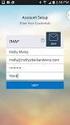
8 4 IceWarp Outlook Connector 4 User Guide Check the Prompt for which profile to use when starting Outlook (Recommended) box, if you have multiple profiles in Outlook. Selecting this will prompt for profile selection when Outlook starts. Please refer to the New Profile Creation (see "Creating New Profile" on page 14) chapter for details on creating/modifying an Outlook profile before/after the installation of Outlook Connector. 5. Account Information This screen provides the IceWarp Connector with the information needed to create the Outlook profile and account during the installation process. The following basic information is needed to complete this screen: Your Name Address IMAP Server Address SMTP Server Address Username

9 Password Installing IceWarp Connector 5

10 6 IceWarp Outlook Connector 4 User Guide 6. In the Select Destination Location dialog, if you want to change the installation folder, select it using the Browse button. After selection or if you do not want to change the suggested location, click Next. 7. In the IceWarp Connector Toolbar Options dialog, select whether you want to have the Connector toolbar in MS Outlook hidden or not. (No is recommended.) Click Next.

11 Installing IceWarp Connector 7 8. In the Ready to Install dialog, resume settings and click the Install button to finish installation. 9. Setup Complete To start Outlook, place a check in the box labeled Run Outlook and select Finish.

12 8 IceWarp Outlook Connector 4 User Guide Registering After installation, IceWarp Outlook Connector works in 30 day evaluation version and will stop working if not registered before the evaluation period expires. 1. Check the existing license: Your administrator could have enabled automatic license registration which takes place transparently during the setup. To check if you need to register your copy, click the About button in the Outlook Connector toolbar. If it says "License expires" on some date in near future, you need to register your copy. 2. To register the Outlook Connector on-line, you will need an Activation Key. Activation Key can be ed to you by server administrator. You can also find the Activation Key in WebClient interface, in menu Tools - Licenses - Outlook Connector. If you have not received it or it doesn't show in WebClient, contact your IT staff.


13 Registering 9 In Outlook, click About button in the toolbar, click the License button in the bottom of the window, then stay on the Online Activation tab. Copy and paste the Activation Key previously obtained from your administrator to the dialog. You can also find the Activation Key in WebClient interface, in menu Tools - Licenses - Outlook Connector. Click the Activate License button. The button will only be active if you enter correctly formatted Activation Key. You should be informed that registration has been successful, or that there has been an error. 3. License registration may fail for the following reasons: The Activation Key is expired- you will need a new one and repeat the registration. The computer is blocked from accessing the Internet or access to the licensing server is temporarily unavailable. The number of client licenses has been exceeded for your organization. IceWarp licensing servers track how many systems have been activated using a given license. If the number of activated clients exceeds the total for the license, Outlook Connector will inform you that additional licenses need to be purchased. If you need to re-install Outlook Connector software on a new system due to either hardware failure or system upgrade, contact your support staff to assist you with removing the existing Outlook Connector registration, or request a new Activation Key. 4. To register Outlook Connector off-line, you will need to obtain license.xml file from IceWarp website. If the on-line activation fails because your computer cannot access the license server, you can still register the product using a license,xml file, which will be provided to you in exchange for Activation Key and Identification Key.

14 10 IceWarp Outlook Connector 4 User Guide Open this link in your browser by double-clicking it: From the left-hand menu, select Client Activation. Copy the Activation Key into the field where indicated. Switch to Outlook, click the License button in the About window. Copy the Identification Key to the clipboard (using Ctrl+A, Ctrl+C or double-click it, right-click the selection and select Copy). Switch to your browser and paste the Identification Key where indicated and click OK. Download the license.xml file from the web page to your computer. In Outlook, About - License dialog, change to the Enter License Offline tab. Click the Enter License File.. button. Browse for the license.xml file, double-click it or click Open. You should be informed that the registration was successful. 5. If you are unable to register the Outlook Connector, please contact your support helpdesk or IT administrator.

15 Configuring Default Client 11 Configuring Default Client For Windows 7 or Windows Vista, it is necessary to set Outlook as the default client (if not already set). To configure it, do the following: 1. During IceWarp Connector installation, the Default Client Configuration dialog is shown. Click the Configure button. 2. In the Internet Properties dialog, go to the Programs tab.

16 12 IceWarp Outlook Connector 4 User Guide Click the Set programs button. 3. In the Default Programs dialog, click the Set program access and computer defaults link.

17 Configuring Default Client In the Set program access and computer defaults dialog Chose a default program section, select the Microsoft Office Outlook option. Click OK to finish configuration.

18 14 IceWarp Outlook Connector 4 User Guide Creating New Profile If Outlook has been installed previously and a user profile has been created, it is recommended that you allow the Outlook Connector installer to create a completely new profile during the installation process. If Outlook has not been previously installed, it is recommended that you do not create any user profiles before you install Outlook Connector. You will be assisted by the setup program to create the Outlook profile. If you made a mistake during the installation or for any other reason you need to create a new profile before or after the installation, this chapter provides you with the necessary steps. The following steps describe how to create a new profile: 1. In the Start menu, click the Control Panel item. 2. In the Control Panel window, double-click the Mail icon.

19 Creating New Profile In the Mail Setup dialog, click the Show Profiles button. 4. In the Mail dialog, click the Add button.

20 16 IceWarp Outlook Connector 4 User Guide In the New Profile dialog, fill in the Profile Name field and click OK. The Add New Account wizard opens. 5. On the Auto Account Setup page, tick the Manually configure server settings... check box and click Next.

21 Creating New Profile On the Choose Service page, select the Other option and click the IceWarp Connector 4.0 item. Click Next.
22 18 IceWarp Outlook Connector 4 User Guide 7. On the IceWarp Connector Settings page, fill in all fields. Optionally, tick the Remember password check box if you want the Connector to remember it. Click the Test Account Settings button if settings are correct, you will obtain confirmation message. Click OK. 8. On the Congratulations page, click the Finish button. 9. In the Mail dialog, select the Always use this profile option and select the created profile name. Click OK. The profile with your account is created.
23 Multiple Accounts 19 Multiple Accounts However it is not possible to use two or more Outlook Connector accounts within one profile (the same situation applies for two Exchange accounts see it is still possible to have a combination of different account types here: A) The default account of your profile is a "Connector type" one. Other accounts will be standard IMAP ones. For information about creation of a profile and default account, refer to the Creating New Profile (on page 14) chapter. 1. When creating another account in the same profile, click the Tools item of the main menu and select Account Settings... New... The Choose Service dialog opens: Select the Microsoft Exchange, POP3, IMAP or HTTP choice and click Next. 2. Follow the account creation procedure described in the Creating New Profile (on page 14) chapter starting from step # In the step # 6, select the Internet option. 4. Ignore step # 9. B) The default account of your profile is a "Connector type" one. Other accounts will be shared ones. (Account sharing can be done via MS Outlook (within the Connector settings), IceWarp Server administration console or IceWarp WebClient.) To add a shared account in IceWarp Connector, do the following:
24 20 IceWarp Outlook Connector 4 User Guide 1. Click the IceWarp Connector main menu item and select Sharing. The Sharing dialog opens. 2. In the Suggested Accounts frame, select the wished account and click the right arrow button to move this account to the Subscribed Accounts frame. Click Close. 3. Click the Refresh Folders within the Outlook Connector tool bar. NOTE: In this case, you will not be able to send s from this shared account. To be able to send s, you can either: reveal the From field in the message composer window (Options Show From) and fill in the right address. or add the same account again as the IMAP type now. MS Outlook folder tree with both a shared account and IMAP one ([email protected]):
25 IceWarp Options 21 IceWarp Options Selecting options from the sub-menu of an account opens the Account Options dialog where you can set Responder and Forwarder information for your account: Responder Options Field Mode Respond again after (Days) From Description Choose a Mode from the drop-down box: Disabled No Response is set. Respond Always A response is sent for every message that comes in. Respond Once A single response is sent to each individual sender of s. Respond again after a period A single response is sent to each individual sender unless another message comes from the same sender after the number of days specified in the next field. Specify the number of days after which additional responses will be sent (only valid for the "Respond again after a period" option. Specify a "from" address or name for your response .
26 22 IceWarp Outlook Connector 4 User Guide Subject Specify a subject for your response message . NOTE that you can use server variables here. E.g. Re: %%subject%% the original sender will obtain response with Re: + his/her subject. Message text Specify some text to be used as the body of your response In the example screenshot above a response will be sent from [email protected], with a subject of Away on Holiday and the text shown as the body of the message. This message will be sent once in response to each individual sender, but if that sender sends another message more than 7 days after the first he will get the response again. Forwarder Options Field Forward to Leave a copy Description Specify an address to have s forwarded to. Check this option to have a copy of the message left in your inbox. Rules On this tab, you can define rules for incoming messages. Clicking the Add or Edit button reveals the Rules dialog. For detailed information, refer to the Rules chapter.
27 SMTP Authentication 23 SMTP Authentication In the case the SMTP server requires authentication, it is necessary to set it within the Outlook Connector account. It can be done upon Tools Account Settings Default Profile Change Connections SMTP SMTP Authentication. NOTE: Digest-MD5 is not supported type of authentication.
28 24 IceWarp Outlook Connector 4 User Guide FreeBusy Appointment / Event Arrangement This section describes how to retrieve Free/Busy information of other users, allowing you to schedule meetings with multiple attendees without causing scheduling clashes. NOTE: Not all combinations of contact's First, Last and Display as fields in Microsoft Outlook work. First: Alison Last: Woodward Examples of working Display as combinations: Woodward, Alison Woodward Alison Alison Woodward A Woodward Wood A A W W A First (only filled in): Alison Examples of working Display as combinations: Alison Ali Last (only filled in): Woodward Examples of working Display as combinations: Woodward Wood
29 FreeBusy Appointment / Event Arrangement 25 Setting the FreeBusy feature for Advanced Appointment / Event Arrangement 1. To be able to retrieve, view and use other people's free/busy information, first you have to enable the feature in Microsoft Outlook and fill in the correct location on the server. 2. On the Tools menu, click the Options item and on the Preferences tab, click the Calendar Options button. See the screenshots below.
30 26 IceWarp Outlook Connector 4 User Guide 3. Click the Free/Busy Options button. The only option you need to change here is Search location. You need to enter the location of your IceWarp Server in the form: The hostname is your webserver and the port is the port that your webserver is set to listen on (default is 32000). The variables %NAME% and %SERVER% will be evaluated to the correct address for your account. Example - see below:
31 FreeBusy Appointment / Event Arrangement Do not check the Publish at my location box as the IceWarp Outlook Connector 4 will handle this automatically. 5. Click OK three times to close all dialog boxes. How to plan a meeting using FreeBusy Return to the main screen in Outlook. For planning a meeting, there is nothing really to set manually. Outlook autodetects the free/busy information for the people that you invite, and it automatically inserts their free/busy time periods in the planner. 1. Once in the main screen, click Calendar, and then click New Meeting Request on the Actions menu (or CTRL+SHIFT+Q) 2. On the second Scheduling tab, type the name of each attendee in the All Attendees box. 3. Outlook will retrieve the free/busy information and display it in the planner, so you see the time periods immediately.
32 28 IceWarp Outlook Connector 4 User Guide Rules This dialog is the same for all accounts and domains. Selecting Mail Service -> Rules or the Rules tab with a Domain or User selected will give you access to the Rules list, allowing you to perform maintenance on the rules. NOTE that the above graphic may be incorrect depending upon where you are accessing a Rules tab. Also be aware that Rules are only processed against incoming messages. The filter is a text file with a strictly defined format. The file can be edited directly using a standard text file editor but we highly recommend that you use the Add, Edit and Delete buttons as even the simplest mistake can cause valid s to be rejected. Multiple rules can be selected for deletion by holding the Ctrl key and clicking multiple rules. A range of rules can be selected by clicking the first rule and then clicking the second rule while holding down the Shift key.
33 Rules 29 Rules can be activated and de-activated by checking/un-checking the box to the left of the rule. This is useful for testing purposes or to disable a rule for a time without deleting it. Clicking on the Add or Edit button will open a dialog like this, which allows you to define or modify your rule: The various options, and the String conditions dialog, are discussed in detail in the following table but first we will explain basic use of the three sections of the dialog: The Conditions block The Actions block The Logic Buttons In this area you can select the properties of the message that you wish to perform some test on. Multiple conditions can be tested by checking multiple boxes. The same condition can be added multiple times by double clicking the Condition when it is checked. In this area you select the Action(s) that you want to perform on the message if the Rule evaluates as True Multiple actions can be selected by checking multiple boxes. The buttons below the Actions block are used to add logic to the rule
34 30 IceWarp Outlook Connector 4 User Guide The Exclamation mark will negate (NOT) the Condition you are currently modifying. The up and down arrows will move the conditions up and down within the rule. The X button will delete the current Condition. We recommend experimentation with these buttons to familiarize yourself with their function The Description block Title This will show the rule you are building or modifying and will change dynamically as you select or de-select Conditions and Actions. Areas of the rules that can be modified are highlighted in this block and clicking on them will open a further dialog box to allow you to define your test. The name of the rule, for identification purposes. Condition Where From: message header matches some words Where To: message header matches some words Where Subject: message header matches some words Where Cc: message header matches some words Where Reply-To: message header matches some words Where Date: message header matches some words Where Message priority is value Where Message is spam Where Message is size Where Message body matches some words Description Check the From: header for a string Condition. In the rule description click on some words to create the string condition (explained below). Check the To: header for a string Condition. In the rule description click on some words to create the string condition (explained below). Check the Subject: header for a string Condition. In the rule description click on some words to create the string condition (explained below). Check the Cc: header for a string Condition. In the rule description click on some words to create the string condition (explained below). Check the Reply-To: header for a string Condition. In the rule description click on some words to create the string condition (explained below). Check the Date: header for a string Condition. In the rule description click on some words to create the string condition (explained below). Check the priority of a message. Click on Normal in the Rule description to select a priority. Check if the message has been marked as spam. Check the Message size. Click the 0 kb to select the message size criteria. Select Greater or Lower and specify a Size (in kb) Check the message body for a string condition. In the rule description click on some words to create the string condition (explained below). NOTE - Use this option with care as scanning the whole message body of every incoming
35 Rules 31 message could seriously affect your Server performance. Where Custom message header matches some words Check a Custom message Header for a string condition. In the rule description click on some words to create the string condition (explained below). NOTE - this rule has an unusual format for the string condition! format - <header>:<string condition> where <header> is the name of your custom header <string condition> is the string condition to test for. Example MyHeader:jim;bob;john Would check the header "MyHeader" for any of the strings "jim", "bob" or "john". Where Any message header matches some words Where Attachment name matches some words Where message contains attachment Where Sender matches some words Where Recipient matches some words Check all headers for a string condition. In the rule description click on some words to create the string condition (explained below). Check the Attachment name for a string condition. In the rule description click on some words to create the string condition (explained below). Check whether the message has an attachment. Check the Sender for a string condition. In the rule description click on some words to create the string condition (explained below). Check the Recipient for a string condition. In the rule description click on some words to create the string condition (explained below).
36 32 IceWarp Outlook Connector 4 User Guide Where Sender/Recipient is local/remote Check the location of the sender or recipient. In the rule description click on local/remote to open the following dialog: Sender / Recipient Select whether you want to check the the Sender or Recipient address Local / Remote Select whether you want whether the chosen address is a Local account or a Remote account. Ignore / Account exists / Account does not exist select whether you want to check whether the account exists, doesn't exist, or ignore this check. Only available for Local accounts Member of: Check whether the account belongs to a particular Domain, Group, Mailing List etc.. Press the '...' button to open the standard Select Item dialog. Only available for local accounts that you check the existence or non-existence of Where Sender's IP address matches some words Where rdns (PTR) matches some words Where Sender's IP address is trusted Where Spam score is value Where SMTP AUTH Where Local time meets criteria Check the Remote IP address for a string condition. In the rule description click on some words to create the string condition (explained below). Check the rdns (PTR) record for a string condition. In the rule description click on some words to create the string condition (explained below). Check if the Senders IP address is in the trusted list Click on 0.0 in the Rule description to define a greater than or less than value to check the spam score against. Check if this message was delivered using an SMTP Authorized connection Click the criteria link to define time in the Time Criteria dialog. Select Week days and/or hours and/or dates to set criteria for processing messages.
37 Rules 33 All messages A special condition that evaluates TRUE for all messages - use with care! String Testing Description Clicking on some words (in a new condition) or the string itself (in a condition already defined) will open the String Condition dialog box. There are four options available in the dialog: The Function drop-down box offers 7 options for the string test, the option chosen effects the content required in the String text-box Contains list of strings (semi-colon separated) Regex Starts with string Ends with string Is string Contains list of strings from file NOT Match case Match whole word only Populate the String box with a list of strings to test for Populate the String box with a regular expression. There is a basic Regex tutorial here Looks for the string specified in the String box at the start of the tested condition Looks for the string specified in the String box at the end of the tested condition Tests whether the tested condition is exactly equal to the string specified in the String box The String box should contain the path to a text file containing a list of strings you wish to test for. Press the "..." button to open a file dialog to navigate to a file where you can specify strings, one per line. Check this box to use negation of the selected string test. E.g. select the Any message header matches some words condition, select the Contains list of strings... option, write IceWarp into the String field and tick this box. All s with headers without the defined word (IceWarp here) will undergo the defined action (see further). Check this box to take string case into account. Check this box to perform a standard "whole word" check against the string. Actions Description The following Actions are available when a Condition is evaluated TRUE. Multiple Actions can be selected by checking multiple boxes. Selecting an Action will add the Action to the Description box and for some Actions you are able to click the text in the description to define the Action further. Details follow: Accept/Reject/Delete/S pam/ Quarantine Stop processing more rules Adds an Action to Reject (default) the message. Click on Reject in the Description area to select Reject, Accept, Delete, or mark the message as Spam. Stop any further Rules from being processed, if this Rule is evaluated as TRUE.
38 34 IceWarp Outlook Connector 4 User Guide Forward to address Forward the message to an address. Click address in the Description area to specify the address. NOTE - that you can also send an instant message or an sms using this option: sms - use sms:<number> e.g. sms: IM - use xmpp:<jabberid> e.g. [email protected] Move to folder Move the message to a folder. Click on folder in the Description area to select the folder to move to. NOTE - The folder tree does not fill when you access this Action within Content Filters, you have to manually specify a mailbox. ALSO - although the INBOX folder may be shown in the folder tree, there is little point selecting this folder as this is the default folder that messages will come in to. ALSO - that you can have delivered to a specific mailbox folder by specifying %%Extension%% as the folder name. When this is specified IceWarp Server will look for a folder name within the address and store the message to that folder if it exists. Example: A message sent to john:%%important%%@icewarpdemo.com will be stored in the folder important Note the colon used to separate the User alias from the folder name, this can be changed to another character using the API. Copy to Folder Copy the message to a folder. Click on folder in the Description area to select the folder to copy to. NOTE - The folder tree does not fill when you access this Action within Content Filters, you have to manually specify a mailbox. ALSO - although the INBOX folder may be shown in the folder tree, there is little point selecting this folder as this is the default folder that messages will come in to. ALSO - that you can have delivered to a specific mailbox folder by specifying %%Extension%% as the folder name. When this is specified IceWarp Server will look for a folder name within the address and store the message to that folder if it exists. Example: A message sent to john:%%important%%@icewarpdemo.com will be stored in the folder important Note the colon used to separate the User alias from the folder name, this can be changed to another character using the API. Encrypt message Check this option to have the message encrypted. NOTE -that for this option to work there must be a copy of the User's public certificate located in a file called cert.pem in the User's mailbox folder. The message will be encrypted using this
39 Rules 35 certificate and then can only be decrypted by the user using his private key in his client. Send message Edit message header Send a message. Click message in the Description area to open a dialog to define the message. You can define To, From and Subject fields, the Text of the message (or a file to retrieve the text from), the type of message (text, HTML, or message with attachment) and whether the message is , an instant message, or both. Select this option to Add, Edit or Delete a message header. Click on header to open the Edit Message Headers dialog. Click Add to add a new rule. Select an already defined rule and Click Edit or Delete to modify or remove a rule. In the Action drop-down you should select whether this rule will Add/Edit a header or Delete a Header. In the Header field you should specify the header you are actioning - remember that a header name should always finish with a colon. You can also add your own named headers e.g. MyHeader: The first rule shown in the screenshot above modifies the From header - it adds the string "[URGENT]" to the start of the header. Note the use of the IceWarp Server system variable %%from%% here, which is the value of the original From header. Any system variable can be used. The second rule simply deletes the From header. Set message priority to value Set message flag Select this option to have the priority of the message changed. Click on Normal to select the new priority to be assigned. Select this option to set a message flag. Click on flags to set the flag(s) you wish.
40 36 IceWarp Outlook Connector 4 User Guide Reporting Problems When reporting problems, please include the following information: Microsoft Windows version number and patch level Right click the My Computer icon on the Desktop and select Properties. The Windows version and patch level will be listed under System: in the General tab dialog. Microsoft Outlook version and patch level Right click the Help in Outlook and select About Microsoft Outlook. The Outlook version and patch level will be listed. The full version number of the Outlook Connector In Outlook, select Inbox from the Folder List then click About in the Connector toolbar. The Connector version and build number (3.1-xxxx) will be listed.
41
Merak Outlook Connector User Guide
 IceWarp Server Merak Outlook Connector User Guide Version 9.0 Printed on 21 August, 2007 i Contents Introduction 1 Installation 2 Pre-requisites... 2 Running the install... 2 Add Account Wizard... 6 Finalizing
IceWarp Outlook Sync User Guide
 IceWarp Unified Communications IceWarp Outlook Sync User Guide Version 10.4 Printed on 28 March, 2012 Contents IceWarp Outlook Sync User Guide 1 Installation... 2 Installation Pre-requisites... 3 Installation
IceWarp Outlook Sync User Guide
 IceWarp Unified Communications IceWarp Outlook Sync User Guide Version 10.5 Printed on 20 December, 2012 Contents IceWarp Outlook Sync User Guide 1 Installation... 2 Installation Pre-requisites... 3 Installation
IceWarp Server Outlook Sync User Guide
 IceWarp Unified Communications IceWarp Server Outlook Sync User Guide Version 11 Published on 7/23/2013 Contents Installation... 4 Installation Pre-requisites... 4 Installation Step-by-Step... 5 Activation...
IceWarp Server Outlook Sync User Guide
 IceWarp Unified Communications IceWarp Server Outlook Sync User Guide Version 11.1 Published on 1/6/2015 Contents IceWarp... 4 Installation... 5 Installation Pre-requisites... 5 Installation Modes... 5
IceWarp Server Outlook Sync User Guide
 IceWarp Unified Communications IceWarp Server Outlook Sync User Guide Version 11 Published on 3/13/2014 Contents IceWarp... 4 Installation... 5 Installation Pre-requisites... 5 Installation Step-by-Step...
IceWarp Notifier User Guide
 IceWarp Unified Communications IceWarp Notifier User Guide Version 10.4 Printed on 16 April, 2012 Contents IceWarp Notifier User Guide 1 Installation... 2 Settings... 6 Notifications... 8 Pop-up Menu...
IceWarp Server Outlook Sync User Guide
 IceWarp Unified Communications IceWarp Server Outlook Sync User Guide Version 11.4 Published on 2/9/2016 Contents IceWarp... 4 Installation... 5 Installation Pre-requisites... 5 Installation Modes... 6
Using Avaya Aura Messaging
 Using Avaya Aura Messaging Release 6.3.2 Issue 1 December 2014 Contents Chapter 1: Getting Started... 4 Messaging overview... 4 Prerequisites... 4 Accessing your mailbox from any phone... 4 Accessing the
RoomWizard Synchronization Software Manual Installation Instructions
 2 RoomWizard Synchronization Software Manual Installation Instructions Table of Contents Exchange Server Configuration... 4 RoomWizard Synchronization Software Installation and Configuration... 5 System
Vodafone PC SMS 2010. (Software version 4.7.1) User Manual
 Vodafone PC SMS 2010 (Software version 4.7.1) User Manual July 19, 2010 Table of contents 1. Introduction...4 1.1 System Requirements... 4 1.2 Reply-to-Inbox... 4 1.3 What s new?... 4 2. Installation...6
MailEnable Connector for Microsoft Outlook
 MailEnable Connector for Microsoft Outlook Version 2.23 This guide describes the installation and functionality of the MailEnable Connector for Microsoft Outlook. Features The MailEnable Connector for
CHARTER BUSINESS custom hosting faqs 2010 INTERNET. Q. How do I access my email? Q. How do I change or reset a password for an email account?
 Contents Page Q. How do I access my email? Q. How do I change or reset a password for an email account? Q. How do I forward or redirect my messages to a different email address? Q. How do I set up an auto-reply
OPS Data Quick Start Guide
 OPS Data Quick Start Guide OPS Data Features Guide Revision: October, 2014 Technical Support (24/7) - (334) 705-1605 http://www.opelikapower.com Quick Start Guide OPS Data: Beginning today, you have access
Vodafone Text Centre User Guide for Microsoft Outlook
 Vodafone Text Centre User Guide for Microsoft Outlook 1 Contents Introduction 1 System requirements 2 Installation 3 The installation guide 3 First use 5 Send a message 8 Select recipient 8 Enter the message
Using Webmail. Technical Manual: User Guide. Document Updated: 1/07. The Webmail Window. Displaying and Hiding the Full Header.
 Using Webmail Technical Manual: User Guide The Webmail Window To save an attachment: 1. Click once on the attachment name. Or, if there are multiple attachments, click the Save icon to save all attachments
USING MS OUTLOOK. Microsoft Outlook
 USING MS OUTLOOK In this tutorial you will learn how to use Microsoft Outlook with your EmailHosting.com account. You will learn how to setup an IMAP account, and also how to move your emails and contacts
SCOoffice Mail Connector For Microsoft Outlook. Installation Guide Outlook 2002
 SCOoffice Mail Connector For Microsoft Outlook Installation Guide Outlook 2002 Rev 1.2 14 Jan 2003 SCOoffice Mail Connector for Microsoft Outlook Installation Guide - Outlook XP Introduction This document
Kerio Connect. Kerio Connect Client. Kerio Technologies
 Kerio Connect Kerio Connect Client Kerio Technologies 2015 Kerio Technologies s.r.o. Contents Kerio Connect Client.......................................................... 10 Kerio Connect Client.....................................................
USING OUTLOOK WITH ENTERGROUP. Microsoft Outlook
 USING OUTLOOK WITH ENTERGROUP In this tutorial you will learn how to use Outlook with your EnterGroup account. You will learn how to setup an IMAP or POP account, and also how to move your emails and contacts
What browsers can I use to view my mail?
 How to use webmail. This tutorial is our how-to guide for using Webmail. It does not cover every aspect of Webmail; What browsers can I use to view my mail? Webmail supports the following browsers: Microsoft
IceWarp Server Windows Installation Guide
 IceWarp Unified Communications IceWarp Server Windows Installation Guide Version 11.3 Published on 2/6/2015 Contents IceWarp Server Windows... 4 Pre-requisites... 5 Launch Installer Wizard... 6 Select
Catholic Archdiocese of Atlanta Outlook 2003 Training
 Catholic Archdiocese of Atlanta Outlook 2003 Training Information Technology Department of the Archdiocese of Atlanta Table of Contents BARRACUDA SPAM FILTER... 3 WHAT IS THE SPAM FILTER MS OUTLOOK PLUG-IN?...
Connecting to LUA s webmail
 Connecting to LUA s webmail Effective immediately, the Company has enhanced employee remote access to email (Outlook). By utilizing almost any browser you will have access to your Company e-mail as well
1. Open Thunderbird. If the Import Wizard window opens, select Don t import anything and click Next and go to step 3.
 Thunderbird The changes that need to be made in the email programs will be the following: Incoming mail server: newmail.one-eleven.net Outgoing mail server (SMTP): newmail.one-eleven.net You will also
If you encounter difficulty or need further assistance the Archdiocesan help desk can be reached at (410) 547-5305, option 1. Email Access Methods:
 ArchMail (www.archbalt.org/archmail) is a centrally hosted email system for the employees of the Archdiocese. To simplify employee access multiple methods for accessing email have been established. This
Changes to Skillnet Group Emails. Outlook and Outlook Express Users
 Changes to Skillnet Group Emails Skillnet Group emails are moving from the current provider to our own exchange mail server. This will mean that you will have a much improved web-mail system and almost
Webmail Instruction Guide
 Webmail Instruction Guide This document is setup to guide your through the use of the many features of our Webmail system. You may either visit www.safeaccess.com or webmail.safeaccess.com to login with
Set Up E-mail Setup with Microsoft Outlook 2007 using POP3
 Page 1 of 14 Help Center Set Up E-mail Setup with Microsoft Outlook 2007 using POP3 Learn how to configure Outlook 2007 for use with your 1&1 e-mail account using POP3. Before you begin, you will need
Table of Contents Chapter 1 INTRODUCTION TO MAILENABLE SOFTWARE... 3 MailEnable Webmail Introduction MailEnable Requirements and Getting Started
 Webmail User Manual Table of Contents Chapter 1 INTRODUCTION TO MAILENABLE SOFTWARE... 3 MailEnable Webmail Introduction MailEnable Requirements and Getting Started Chapter 2 MAILENABLE KEY FEATURES OVERVIEW...
USING MS OUTLOOK WITH FUSEMAIL
 USING MS OUTLOOK WITH FUSEMAIL In this tutorial you will learn how to use Microsoft Outlook with your FuseMail account. You will learn how to setup an IMAP account, and also how to move your emails and
Using Your New Webmail
 Using Your New Webmail Table of Contents Composing a New Message... 2 Adding Attachments to a Message... 4 Inserting a Hyperlink... 6 Searching For Messages... 8 Downloading Email from a POP3 Account...
Colligo Email Manager 6.0. Connected Mode - User Guide
 6.0 Connected Mode - User Guide Contents Colligo Email Manager 1 Benefits 1 Key Features 1 Platforms Supported 1 Installing and Activating Colligo Email Manager 2 Checking for Updates 3 Updating Your License
GREEN HOUSE DATA. E-Mail Services Guide. Built right. Just for you. greenhousedata.com. Green House Data 340 Progress Circle Cheyenne, WY 82007
 GREEN HOUSE DATA Built right. Just for you. E-Mail Services Guide greenhousedata.com 1 Green House Data 340 Progress Circle Cheyenne, WY 82007 Table of Contents Getting Started on Business Class Email
Using Your New Webmail
 1 Using Your New Webmail Contents Compose a New Message... 3 Add an Attachment... 5 Insert a Hyperlink... 6 Forward an Email... 7 Search Email... 8 Download Email from an existing POP3 Account... 9 Move
Grapevine Mail User Guide
 Grapevine Mail User Guide Table of Contents Accessing Grapevine Mail...2 How to access the Mail portal... 2 How to login... 2 Grapevine Mail user guide... 5 Copying your contacts to the new Grapevine Mail
MailEnable Web Mail End User Manual V 2.x
 MailEnable Web Mail End User Manual V 2.x MailEnable Messaging Services for Microsoft Windows NT/2000/2003 MailEnable Pty. Ltd. 486 Neerim Road Murrumbeena VIC 3163 Australia t: +61 3 9569 0772 f: +61
1. Navigate to Control Panel and click on User Accounts and Family Safety. 2. Click on User Accounts
 This document will guide you through setting up your outgoing server (SMTP) Microsoft Outlook and Windows Live Mail. There is also a section below that guides you through the manual configuration of your
Zimbra Connector for Microsoft Outlook User Guide. Network Edition 7.0
 Zimbra Connector for Microsoft Outlook User Guide Network Edition 7.0 February 2011 Legal Notices Copyright 2005-2011 VMware, Inc. All rights reserved. This product is protected by U.S. and international
VPOP3 Your email post office Getting Started Guide
 VPOP3 Your email post office Getting Started Guide VPOP3 Getting Started Guide, version 2.1 1 Copyright Statement This manual is proprietary information of Paul Smith Computer Services and is not to be
Microsoft Outlook 2010
 Microsoft Outlook 2010 Prepared by Computing Services at the Eastman School of Music July 2010 Contents Microsoft Office Interface... 4 File Ribbon Tab... 5 Microsoft Office Quick Access Toolbar... 6 Appearance
Configuring your email client to connect to your Exchange mailbox
 Configuring your email client to connect to your Exchange mailbox Contents Use Outlook Web Access (OWA) to access your Exchange mailbox... 2 Use Outlook 2003 to connect to your Exchange mailbox... 3 Add
Microsoft Outlook Setup With Exchange Server. Outlook 2007 2010 2013
 Microsoft Outlook Setup With Exchange Server Outlook 2007 2010 2013 Revised 12/1/2014 CONTENTS SUMMARY... 3 I. OUTLOOK SETUP... 4 II. PERSONAL FOLDERS SETUP... 7 III. RULES SETUP... 9 Rule #1: Move Inbox
Set up Outlook for your new student e mail with IMAP/POP3 settings
 Set up Outlook for your new student e mail with IMAP/POP3 settings 1. Open Outlook. The Account Settings dialog box will open the first time you open Outlook. If the Account Settings dialog box doesn't
Zimbra Connector for Microsoft Outlook User Guide 7.1
 Zimbra Connector for Microsoft Outlook User Guide 7.1 March 2011 Legal Notices Copyright 2005-2011 VMware, Inc. All rights reserved. This product is protected by U.S. and international copyright and intellectual
MAPI Connector Overview
 The CommuniGate Pro Server can be used as a "service provider" for Microsoft Windows applications supporting the MAPI (Microsoft Messaging API). To use this service, a special Connector library (CommuniGate
CITY OF BURLINGTON PUBLIC SCHOOLS MICROSOFT EXCHANGE 2010 OUTLOOK WEB APP USERS GUIDE
 CITY OF BURLINGTON PUBLIC SCHOOLS MICROSOFT EXCHANGE 2010 OUTLOOK WEB APP USERS GUIDE INTRODUCTION You can access your email account from any workstation at your school using Outlook Web Access (OWA),
Exchange 2010. Outlook Profile/POP/IMAP/SMTP Setup Guide
 Exchange 2010 Outlook Profile/POP/IMAP/SMTP Setup Guide September, 2013 Exchange 2010 Outlook Profile/POP/IMAP/SMTP Setup Guide i Contents Exchange 2010 Outlook Profile Configuration... 1 Outlook Profile
Amicus Link Guide: Outlook/Exchange E-mail
 Amicus Link Guide: Outlook/Exchange E-mail Applies to: Amicus Premium 2015 Synchronize your Amicus and Outlook e-mail. Choose a client-side link with your local Microsoft Outlook or a Server-side link
How to Set Up Outlook 2007 and Outlook 2010 for Hosted Microsoft Exchange if the Program is Already Installed
 How to Set Up Outlook 2007 and Outlook 2010 for Hosted Microsoft Exchange if the Program is Already Installed 1. If you received your copy of Outlook from Cbeyond (via a CD or by downloading it from CbeyondOnline)
Web Domain Administration
 IceWarp Unified Communications Web Domain Administration Version 11 Published on 4/18/2013 Contents... 5 Management... 6 Main Screen... 6 Domain Settings... 7 Domain... 7 Limits... 7 Policies... 9 Options...
Outlook Web App. in Office 365. The Outlook Window. Signing In. (Outlook Exchange Faculty & Staff) Getting Started
 Outlook Web App in Office 365 (Outlook Exchange Faculty & Staff) Getting Started The Outlook Window Navigation Bar Settings Navigation Pane View Pane Reading Pane Navigation Bar switch between Outlook,
1 Accessing E-mail accounts on the Axxess Mail Server
 1 Accessing E-mail accounts on the Axxess Mail Server The Axxess Mail Server provides users with access to their e-mail folders through POP3, and IMAP protocols, or OpenWebMail browser interface. The server
Training Manual. Version 6
 Training Manual TABLE OF CONTENTS A. E-MAIL... 4 A.1 INBOX... 8 A.1.1 Create New Message... 8 A.1.1.1 Add Attachments to an E-mail Message... 11 A.1.1.2 Insert Picture into an E-mail Message... 12 A.1.1.3
Telephony Toolbar Corporate. User Guide
 Telephony Toolbar Corporate User Guide Release 7.1 March 2011 Table of Contents 1 About This Guide...7 1.1 Open Telephony Toolbar - Corporate... 7 1.2 First Time Login... 8 1.3 Subsequent Use... 11 2 Using
MS Outlook 2002/2003. V1.0 BullsEye Telecom Email
 IMAP Settings Manual Our application allows you to access your email in many different ways. For those of you who do not wish to use the Webmail interface, you may also manage your email and custom folder
Live@edu User Guide. Please visit the Helpdesk website for more information: http://www.smu.edu.sg/iits/helpdesk_support/index.asp
 IITS Main Office SINGAPORE MANAGEMENT UNIVERSITY Administration Building, Level 11 81, Victoria Street Singapore 188065 Phone: 65-6828 1930 Email: [email protected] Please visit the Helpdesk website for
User Guide. Time Warner Cable Business Class Cloud Solutions Control Panel. Hosted Microsoft Exchange 2007 Hosted Microsoft SharePoint 2007
 Chapter Title Time Warner Cable Business Class Cloud Solutions Control Panel User Guide Hosted Microsoft Exchange 2007 Hosted Microsoft SharePoint 2007 Version 1.1 Table of Contents Table of Contents...
Outlook Express POP Instructions - Bloomsburg University Students
 1. Open Outlook Express by clicking Start, All Programs, and Outlook Express. 2. Click on the Tools menu and click Accounts. 1 3. Click on Add Mail 4. Enter your name and click Next. 2 5. Enter your full
Zimbra Connector for Outlook User Guide. Release 6.0
 Zimbra Connector for Outlook User Guide Release 6.0 Network Edition August 2010 Legal Notices Copyright 2005-2010 Zimbra, Inc. All rights reserved. Zimbra and the Zimbra logo are trademarks of Zimbra.
Table of Contents. Welcome... 2. Login... 3. Password Assistance... 4. Self Registration... 5. Secure Mail... 7. Compose... 8. Drafts...
 Table of Contents Welcome... 2 Login... 3 Password Assistance... 4 Self Registration... 5 Secure Mail... 7 Compose... 8 Drafts... 10 Outbox... 11 Sent Items... 12 View Package Details... 12 File Manager...
OWA User Guide. Table of Contents
 OWA User Guide Table of Contents 1. Basic Functionality of Outlook Web Access... 2 How to Login to Outlook Web Access (OWA)... 2 Change Password... 3 Mail... 3 Composing Mail... 5 Attachments - Web Ready
Amazon WorkMail. User Guide Version 1.0
 Amazon WorkMail User Guide Amazon WorkMail: User Guide Copyright 2016 Amazon Web Services, Inc. and/or its affiliates. All rights reserved. Amazon's trademarks and trade dress may not be used in connection
Time Matters for Microsoft Outlook. Technology Preview User Guide
 Time Matters for Microsoft Outlook Technology Preview User Guide Contents Overview of Time Matters for Microsoft Outlook... 2 Requirements... 2 Install Time Matters for Microsoft Outlook... 3 Specify a
Web Mail Guide... Error! Bookmark not defined. 1 Introduction to Web Mail... 4. 2 Your Web Mail Home Page... 5. 3 Using the Inbox...
 Powered by Table of Contents Web Mail Guide... Error! Bookmark not defined. 1 Introduction to Web Mail... 4 1.1 Requirements... 4 1.2 Recommendations for using Web Mail... 4 1.3 Accessing your Web Mail...
Setting up Your Acusis Email Address. Microsoft Outlook
 Setting up Your Acusis Email Address in Microsoft Outlook Click on your Microsoft Outlook Version you are using: Microsoft Outlook 2002/XP Microsoft Outlook 2003 Microsoft Outlook 2007 Microsoft Outlook
Exchange Granular Restore Instructional User Guide
 Exchange Granular Restore Instructional User Guide www.backup-assist.ca Contents 1. Exchange Granular Restore overview... 2 2. Creating an Exchange backup... 3 3. Exchange Granular Restore... 6 Step 1
CONTENTS. Introduction... 3. Outlook at a glance... 3. Configure Outlook 2010 on-campus... 3. Creating Folders... 4. Sorting Emails...
 OFFICE OF INFORMATION TECHNOLOGY Academic Technology Unit Microsoft Outlook 2010 Basics Workbook CONTENTS Introduction... 3 Outlook at a glance... 3 Configure Outlook 2010 on-campus... 3 Creating Folders...
Apple Mail... 36 Outlook Web Access (OWA)... 38 Logging In... 38 Changing Passwords... 39 Mobile Devices... 40 Blackberry...
 Contents Email Accounts... 3 Adding accounts... 3 Account Modifications... 6 Adding Aliases... 7 Primary E-mail Addresses... 10 Mailbox Quotas... 12 Removing accounts... 13 Mail Forwarding and Distribution
Install and Configure Oracle Outlook Connector
 Install and Configure Oracle Outlook Connector To install and configure Oracle Outlook Connector for Outlook to send and receive e-mail and to access your TechTime TM calendar, do the following. 1. Run
Quick Reference Guide: Business Mail
 : Business Mail TABLE OF CONTENTS GENERAL INFORMATION...2 DETAILED STEPS ON CONFIGURING WINDOWS FOR E-MAIL...2 Set-up For Microsoft Outlook Express...7 Set-up Of Microsoft Outlook On Windows XP...9 PROBLEMS
Simplicity Itself. User Guide
 Simplicity Itself User Guide TekEx 2013 Contents WELCOME... 3 TEKEX OVERVIEW... 3 DOWNLOAD OUTLOOK... 4 CONFIGURE OUTLOOK... 5 CONFIGURE MAC EMAIL CLIENT... 10 SMARTPHONE SETUP... 12 IPHONE SETUP... 12
Email User Guide. Contents. Information Systems and Technology Dawson College v 1.3, 15 November 2013
 Information Systems and Technology Dawson College v 1.3, 15 November 2013 Contents 1 Overview... 2 2 Access... 2 2.1 Outlook... 2 2.2 Outlook Web Access (OWA)... 3 2.3 Outlook for Mac... 4 2.4 Other email
Outlook Web App McKinney ISD 5/27/2011
 Outlook Web App McKinney ISD 5/27/2011 Outlook Web App Tutorial Outlook Web Access allows you to gain access to your messages, calendars, contacts, tasks and public folders from any computer with internet
Colligo Email Manager 6.0. Offline Mode - User Guide
 6.0 Offline Mode - User Guide Contents Colligo Email Manager 1 Key Features 1 Benefits 1 Installing and Activating Colligo Email Manager 2 Checking for Updates 3 Updating Your License Key 3 Managing SharePoint
OWA - Outlook Web App
 OWA - Outlook Web App Olathe Public Schools 0 Page MS Outlook Web App OPS Technology Department Last Revised: May 1, 2011 Table of Contents MS Outlook Web App... 1 How to Access the MS Outlook Web App...
Zimbra Connector for Microsoft Outlook User Guide ZCO 8.0
 Zimbra Connector for Microsoft Outlook User Guide ZCO 8.0 August 2012 Legal Notices Copyright 2005-2012 VMware, Inc. All rights reserved. This product is protected by U.S. and international copyright and
Outlook Connector Installation & Configuration groupwaresolution.net Hosted MS Exchange Alternative On Linux
 Outlook Connector Installation & Configuration groupwaresolution.net Hosted MS Exchange Alternative On Linux Page 1 of 5 DOWNLOAD Please download the connector installer msi file and save it to your computer.
Using Outlook WebAccess
 Using Outlook WebAccess Outlook Toolbars - Terminology Update all folders New Move/Copy Reply Forward Check for New Messages Help Show/Hide Folders Delete Reply to All Show/Hide Reading Pain Search Address
HOW WILL I KNOW THAT I SHOULD USE THE IAS EMAIL CONTINUITY SERVICE? https://web.ias.edu/updateme/
 WHEN DO I NEED TO ACCESS THE IAS EMAIL CONTINUITY SERVICE? This service is provided to address the following actions during periods where the IAS email servers are offline: 1. If you need to check for
Sendspace Wizard Desktop Tool Step-By-Step Guide
 Sendspace Wizard Desktop Tool Step-By-Step Guide Copyright 2007 by sendspace.com This publication is designed to provide accurate and authoritative information for users of sendspace, the easy big file
Neoteris IVE Integration Guide
 Neoteris IVE Integration Guide NESD-00090-00 CAY051402 The Secure Email Client upgrade option enables Neoteris IVE users to use standardsbased email clients to access corporate email from remote locations.
How To Restore Your Data On A Backup By Mozy (Windows) On A Pc Or Macbook Or Macintosh (Windows 2) On Your Computer Or Mac) On An Pc Or Ipad (Windows 3) On Pc Or Pc Or Micro
 Online Backup by Mozy Restore Common Questions Document Revision Date: June 29, 2012 Online Backup by Mozy Common Questions 1 How do I restore my data? There are five ways of restoring your data: 1) Performing
Outlook. Getting Started Outlook vs. Outlook Express Setting up a profile Outlook Today screen Navigation Pane
 Outlook Getting Started Outlook vs. Outlook Express Setting up a profile Outlook Today screen Navigation Pane Composing & Sending Email Reading & Sending Mail Messages Set message options Organizing Items
MGC WebCommander Web Server Manager
 MGC WebCommander Web Server Manager Installation and Configuration Guide Version 8.0 Copyright 2006 Polycom, Inc. All Rights Reserved Catalog No. DOC2138B Version 8.0 Proprietary and Confidential The information
Email -- Reading and Printing Email
 Email -- Reading and Printing Email Checking for New Email By default, webmail checks for new email automatically. If you want to manually check for new email, click the Check Email button. Or, click the
Configuring Outlook 2013 For IMAP Connections
 Configuring Outlook 2013 For IMAP Connections VERSION 1.0 1 P a g e U A C o n n e c t C o n f i g u r i n g O u t l o o k 2013 f o r I M A P 12/2013 Configuring Outlook 2013 for IMAP Connections Overview
Corporate Telephony Toolbar User Guide
 Corporate Telephony Toolbar User Guide 1 Table of Contents 1 Introduction...6 1.1 About Corporate Telephony Toolbar... 6 1.2 About This Guide... 6 1.3 Accessing The Toolbar... 6 1.4 First Time Login...
Zimbra Connector for Outlook User Guide. Release 6.0
 Zimbra Connector for Outlook User Guide Release 6.0 Network Edition August 2009 Legal Notices Copyright 2009. Yahoo! Inc. All rights reserved. Zimbra is a trademark of Yahoo!. No part of this document
Exchange 2010. Outlook Profile/POP/IMAP/SMTP Setup Guide
 Exchange 2010 Outlook Profile/POP/IMAP/SMTP Setup Guide Document Revision Date: Nov. 13, 2013 Exchange 2010 Outlook Profile/POP/IMAP/SMTP Setup Guide i Contents Introduction... 1 Exchange 2010 Outlook
Getting Started with Microsoft Outlook with Exchange Online Software from Time Warner Cable Business Class
 Getting Started with Microsoft Outlook with Exchange Online Software from Time Warner Cable Business Class A Guide for Administrators Table of Contents Requirements... 3 1. Activate & Setup Online Software
NSi Mobile Installation Guide. Version 6.2
 NSi Mobile Installation Guide Version 6.2 Revision History Version Date 1.0 October 2, 2012 2.0 September 18, 2013 2 CONTENTS TABLE OF CONTENTS PREFACE... 5 Purpose of this Document... 5 Version Compatibility...
Desktop Messenger 4.9 USER GUIDE 2011-03-29
 Desktop Messenger 4.9 USER GUIDE 2011-03-29 TABLE OF CONTENTS 1. Introduction 4 2. Requirements 4 3. Install and register 4 4. Contacts 5 4.1. Add new contact 5 4.2. Add new group 5 4.3. Auto-complete
DOMAIN CENTRAL HOSTING EMAIL
 Welcome to our hosting services, we have created the following documents to help you get up and running as quickly as possible. If at any stage you encounter difficulties, you are welcome to send a help
Sending an Encrypted/Unencrypted Message. Let's Begin: Log In and Set Up Security Questions. Create Additional ProMailSource Accounts:
 Let's Begin: Log In and Set Up Security Questions To start, you can log in from the ProMailSource home page. Sending an Encrypted/Unencrypted Message Every message you send through ProMailSource is automatically
User Guide. Version 3.2. Copyright 2002-2009 Snow Software AB. All rights reserved.
 Version 3.2 User Guide Copyright 2002-2009 Snow Software AB. All rights reserved. This manual and computer program is protected by copyright law and international treaties. Unauthorized reproduction or
Exchange 2003 Mailboxes
 Exchange 2003 Mailboxes Microsoft will stop supporting Exchange 2003 mailboxes in 2014 as it comes to the end of it s life. To maintain our levels of support and performance of all our customers, we will
GroupWise Web Access 8.0
 GroupWise Web Access 8.0 How to check your email via the Internet For More Information, please contact: Administrative Office of the Courts Technology Help Desk (615) 532 9503 or (800) 448-7980 Table of
Outlook Live Basics. for Students
 Outlook Live Basics for Students 2 Outlook Live for Support Staff Outlook Live for Support Staff 3 Getting Started... 6 Signing into your Outlook Account... 6 Migrating your Account... 8 Address Book...
Installing and Configuring Microsoft Dynamics Outlook Plugin to Use with ipipeline MS CRM
 Installing and Configuring Microsoft Dynamics Outlook Plugin to Use with ipipeline MS CRM Downloading 1. Download zip file for your version of Outlook (32-bit or 64-bit) and save to computer. (This is