
Installation and Configuration Manual. for the Administrator. ISDN PBX Systems. COMpact 4410 USB COMpact 2206 USB
|
|
|
- Julian Patrick
- 10 years ago
- Views:
Transcription
1 Installation and Configuration Manual for the Administrator The PBX is able to download the latest firmware by pressing a button or by time automation. The manual has information about being up-to-date in the chapter "Automatic PBX Software Update". Attention: Outside of Germany you have to add the international access code for Germany with the PC program COMset to the number of the update server. ISDN PBX Systems COMpact 4410 USB COMpact 2206 USB

2 Copyright Passing on or duplicating the contents of this manual or parts of it is only allowed with our express written permission. Offenders will be subject to claims for damages. All Rights Reserved. Auerswald GmbH & Co. KG, Cremlingen, 2004

3 Table of Contents 3 Table of Contents Introduction... 7 Functional Description and Overview... 7 Extent of Supply... 7 Functions and Features of the basic Unit... 7 T-Net-Functions of analog Telephones supported by the PBX... 8 ISDN Features supported by the PBX... 8 Extension Options (Slots)... 8 Extension Options (Module Features)... 8 Instructions for using the Manual... 9 Abbreviations used in this Manual... 9 Symbols used in the manual... 9 General Safety Advice... 9 Technical Data... 9 PBX Basic Configuration... 9 COMpact 2S 0 Module COMpact TS Module Technical Advice (Power Outage) First Installation Steps Open the Case (Connection Area) Select Installation Location Mount the Case onto the Wall Connect the Telephones Connect a PC for the Configuration Connection to the NT First Power-On Install the Configuration Software Creating a Basic Configuration Final Steps Configuration of analog Devices Configuration of ISDN Devices PBX Software Update Close the Case Connect NT and ISDN Devices to the S 0 Ports Description and Installation of the COMpact 2S 0 Module Connect the PBX to the NT Install Wall Jacks (External S 0 Bus) Connection of ISDN Devices to the internal S 0 Port Installation of Wall Jacks (internal S 0 Port) Switch Termination Resistors Connection of analog Devices Install Wall Jacks for analog Devices Use of TAE Wall Jacks... 26

4 4 Table of Contenta Connect Devices to the Door/Switching Module Description and Installation of the COMpact TS Module Connect a Door Terminal Connect a Door Terminal System Connect Door Bell Button Connect Door Opener Connect an Alarm System Connection of external Devices to the switching Relays Connecting to a Computer/Printer Minimum Requirements for the PC Connection via the USB Interface General Information on USB Connection via serial Port (V.24) Connection via ISDN PC-Controller Connect additional Accessories Connect the System Display SD Connect a Loudspeaker System for Announcements Connection of an Input Device for external Music on Hold Configuration Options Description of the bundled Software General Advice for using the Configuration Software Routing The Default Factory Settings Call Distribution Assign internal Telephone Numbers External Call Distribution (External Call Ringing) Call Waiting Busy-on-Busy Call Forwarding Do-not-Disturb Configure different Devices You like to limit Telephone Costs (Cost Control) Exchange Line Authorization Call Allowance Least Cost Routing Register and analyse Call Charge Data Analyse Call Data with the PC Program COMlist Call Data Management with external Programs Direct Output to a serial Printer Control the Call Charges with a Telephone Configure Telephone Number Presentation Present your Number to the incoming Caller Presentation of private or Business Number Restriction of Number Presentation (CLIR) Show the Telephone Number transmitted by the Caller (CLIP)... 41

5 Table of Contents 5 Simplify dialling an external Telephone Number Direct Exchange Line Short-Code Dial Memory Use Memory Aids Special Dial Tone Wake-up Function Change Dial Tones and Ringer Rhythms Music on Hold and Music on Hold-Announcement Configure the System Telephones Use different PBX Configurations (Day, Night etc.) Configure the System Display SD Operation Mode Subscriber Display 1 and Operation Mode Reception Requirements for external Remote Switching and Programming Required Configurations for the time-automated Software Update Priority for certain Subscribers or S 0 Ports B Channel Reservation Preferred Exchange Line Restrict Programming, Telephoning and Forwarding (Protection against Exploits) Programming Telephone Authorizations Programming via Telephone Programming via PC (Interface CAPI 2.0) Passwords Exchange line to Exchange Line Transfer Blocking Numbers Security Functions Emergency Short-Code Dialling and Priority Function Alarm Functions Automatic Dialling (Baby Call) Room Monitoring Configure the COMpact TS Module Use Door Functions Use the universal switching Relays Music Functions Use Alarm Functions Special Functions for Business Applications Reception and Secretary Function and Text before Answering Required Configuration for the Waiting Field Function Required Configuration for the Boss/Secretary Function Required Configuration for Announcement before answering Use Call Data to separate Call Charges Mandatory Settings for the Separation of business and private Calls Mandatory Settings for the Project Assignment Announcements via Loudspeaker and System Telephones Mandatory Settings for Announcement/Handsfree Operation (InterCom) via System Telephones Mandatory Settings for Announcement via Loudspeaker Save Money and get Information away from Home Required Configurations for Call Through Mandatory Settings for the SMS Function... 49

6 6 Table of Contenta Call Groups (Teams) Hotel Functions for Reception and Room Telephones Mandatory Configuration Settings for the Hotel Reception Telephone Mandatory Configuration Settings for the Hotel Room Telephones Mandatory Configuration Settings for the Print-out Function Service Functions, Problem Solving Default Information Status of the LED Display ISDN ready: Testing external S 0 Ports ISDN busy: Information about the Exchange Line Status Message: Notification about existing Messages Remote: Information about Remote Access Data: Information about the USB Connection Data/Power: Information after Reset Key Functions with LED Display Reset MSN/DDI Call Forwarding Settings Automatic PBX Software Update Terminal Test on the internal S 0 Ports...55 Return to the Default Factory Settings Perform a Reset of the PBX Interrogate the Firmware Version Reset Settings (Initialization) Initialize Telephone Settings Remote Programming Remote Programming with manual Authorization by the Customer Remote Programming without manual Authorization Frequent Problem Sources You are hearing an unexpected Tone (Check Tones) Telephoning impossible The Telephone cannot be called Query or Transfer not possible You cannot identify Door Bell ringing Pickup is not possible PBX is not programmable Error Messages for USB Index... 63

7 Introduction 7 Introduction Dear Customer! In order to install your new PBX please contact an authorized dealer. The case may only be opened by authorized personnel 1. Installation work inside the open case as well as maintenance services involving the keys inside the case are only allowed to be executed by authorized personnel 1. Please pay attention to the General safety advises on page Authorized personnel: These are persons that are trained for this purpose (e.g. certified electricians). They must have the necessary knowledge about the work in an area with potentially hazardous voltages. They must also have the knowledge about the latest electrical safety standards and requirements. Functional Description and Overview The PBX is designed for the connection to the digital telecommunications network ISDN (Point-to-Point connection and/or Point-to- Multipoint connection). It enables the switching from the public communication net to different internal devices. The so-called terminals may be system telephones (COMfort 1000, 1200 and 2000), ISDN devices as well as analog devices. The ISDN devices (e.g. ISDN telephones, ISDN PC controllers) should be certified Euro-ISDN devices in order to guarantee a proper functionality. The analog subscriber connections enable the connection of most pulse dialling, dual-tone multifrequency dialling and also of CLIP compatible units (telephone, fax machine, answering machine, modems). Devices with dual-tone multifrequency dialling must have a FLASH key (also called signal key R). Thanks to functions like e.g. Short-Code Dialling, conference, splitting and internal free of charge connections the PBX makes the daily telephone communication simple, comfortable and time saving. Additional to the telephoning the PBX offers numerous functions such as call charge recording. The PBX can be configured to your special personal requirements with the configuration software COMset. Three further PC programs allow to comfortable manage call charge data, Short-Code Dialling, call allowances, wake-up calls, Music on Hold and the data for the automatic or manual Least Cost Routing. With help of the ISDN application package the functionality of the integrated USB interface can be used to perform the most important features of modern data communication (fax, answering machine, data transfer, internet) in a professional way via PC. Please observe the system requirements (page 30). The scope of functions described here is only completely usable with a professional installation and a correct configuration of the PBX and the connected PC. We highly recommend to consult your authorized dealer first. Please ask your network operator about the availability of some ISDN service attributes. Some of these functions may be available for an extra fee. There may be some incompatibility in combination with terminals and devices of other vendors, that adversely influence the usability of functions. To fully utilize the scope of functions described here, the PBX system must have the Software version 1.6A and the system telephone must have the software version 2.0H or newer (you may receive information about these versions via system telephone). If this is not the case, please perform a firmware update of the respective device. Extent of Supply 1 COMpact 4410/2206 USB in the basic unit. 1 ISDN connection cable. 1 USB connection cable. PC software: For Windows 95/98/Me/2000/XP and Windows NT4.0 (with Service Pack 3 or better), if you use the USB interface Windows 98 SE/Me/ 2000/XP only. manual set, consisting of: 1 installation and configuration manual for the administrator, 1 operation manual for the user and 1 CAPI/TAPI user manual. installation material: screws and plugs. Functions and Features of the basic Unit Connecting possibilities for 6 analog subscribers (COMpact 2206 USB) or 10 analog subscribers (COMpact 4410 USB) and 1 system display SD-420 (Auerswald accessory). 1 external S 0 port. 1 internal S 0 port. Free configurable telephone numbers (10-59/ ) for the internal subscribers/groups. Charge control by 6 different classes of service, blocking numbers, release numbers and special Short-Code Dialling authorization as well as by setting of a call allowance account. Watching the charging information via PC or via telephone (AOCE or AOCD necessary). Metering pulse for analog telephones. Call data management via PC software. Recording of 3000 call data entries in a power failure proof call data memory. Selection of the telephone number presented to the caller or the person you called. Dialling assistance by a power failure proof Short-Code Dialling memory or setting of direct public exchange telephones. Wake-up and timer functions via internal clock. Automatic setting of summer/winter time. Music on Hold, 7 internal or external melodies via audio input, prerecorded announcement text can be activated. Music on Hold downloadable as a.wav-data file into the PBX (COMpact 4410 USB only). Text before answering and alarm announcement: Text is storable in the PBX (COMpact 4410 USB only). Announcement function via audio output. Different ringer rhythms for the distinction of the calls. Protection against unauthorized programming/telephoning with passwords and programming protection. Room monitoring and programming of the Call Forwarding from external telephones.

8 8 Functional Description and Overview Optimal availability due to internal and external Call Forwarding, Call Waiting and Busy-on-Busy. Security in emergency situations by baby/senior call, emergency Short-Code Dialling memory, emergency priority call and priority call in case of Do-not-Disturb service. Call Forwarding, Splitting, Conference via 2nd B channel. Call protection against certain callers. Group formation of internal subscribers. Up to bps data transfer (V.90) on the analog extensions. Exchange line reservation, pick-up and explicit call transfer to an external phone. PBX software update via PC or telephone connection. Dialling support by PC (TAPI). Remote reading, remote programming, remote programming via exchange line from the outside. Integrated data interface (ISDN PC adapter functions) via USB interface. NDIS-WAN-driver for - channel bundling, internet access with up to 128 kbit/s, - dynamic bandwidth use in combination with Windows T-Net-Functions of analog Telephones supported by the PBX If you use a T-Net compatible analog telephone, these functions will be able to be executed via the existing function keys. Permit, accept, refuse Call Waiting. Alternation. Start conference with 3 persons. Start Query, finish. Configure Subscriber Call Forwarding. Configure connection without dialling (baby call). Start recall on busy. Suppress telephone number presentation once. ISDN Features supported by the PBX Conditional suppression of the own telephone number presentation (CLIR). Parking (TP) on the PTMP connection or on the internal S 0 port. Call forwarding on busy (CFB), if nobody takes the call (CFNR), always (CFU). Transmission of the connection charges during (AOCD) and at the end (AOCE) of the connection. Recall on busy (CCBS) and on no reply (CCNR). Telephone number display (CLIP) on SD-420, system telephones, internal ISDN units and analog telephones (special analog terminals are necessary that support CLIP). Please ask your network operator about the availability of some ISDN service attributes. Some of these functions may be available for an extra fee. Extension Options (Slots) The PBX may be extended by special modules. The mainboard of the COMpact 2206 USB has 1 module slot for the following module: COMpact TS-Module (slot B). The mainboard of the COMpact 4410 USB has 3 module slots for the following modules: two COMpact TS modules (slot B and C 1 ). one COMpact 2S 0 module (slot A). Extension Options (Module Features) The COMpact 2S 0 module has 2 S 0 ports (one internal S 0 port and one S 0 port that can alternatively be used as internal or as external S 0 port). With the COMpact TS Module you get the following additional functions: Door terminal function with 1 door terminal system TFS-Dialog or TFS-Dialog pro (Auerswald accessory) or another door handsfree device according to FTZ 123 D12-0. connection of 1 door opener. 2 door bell key inputs. Alarm function with up to 2 alarm contacts 2. Remote switching with up to 3 relays If a COMpact TS Module is used in slot C, the audio in/out function is not available. 2. One door bell input is replaced by one alarm contact switching relays are used for each door terminal.

9 Introduction 9 Instructions for using the Manual The package of the PBX includes three manuals: 1 installation and configuration manual for the service and 1 operation instruction manual for the user. 1 CAPI/TAPI manual (Fax, Internet, data transfer) This manual describes the installation and configuration of the PBX. It also includes a short description of the included software and the associated options for the configuration of the PBX. This manual sorts explanations according to certain question types. In order to get certain information quickly and carefully directed, the manual will offer you different helps and guide lines: The table of contents on page 3 gives you an idea of content and organization of the operating manual. The index on page 63 helps you to find text locations for a certain term. In the texts you will be referred to other chapters or pictures with the help of cross references. The headlines on each page remind you in which chapter you are at the present. On the left side of the pages the headlines of the actual chapter will be repeated. On the right side the headlines of the paragraph will be repeated. Abbreviations used in this Manual DDI Direct Dialling In number in case of a PTP connection (Direct Dialling In) MSN Multiple Subscriber Number in case of a PTMP connection (Multiple Subscriber Number) NT Network termination unit for the basic connection (Network Termination) CF Call forwarding Symbols used in the manual e The The danger sign shows you an important advice. You must absolutely take care of these in order to avoid damages to devices or even to persons. hand gives you additional advice. These refer you to circumstances that were often disregarded and therefore led to misunderstandings and longer search for an error. LED flashes. LED is on. General Safety Advice When handling with 230 volt supply voltage and with the units supplied by this voltage the relevant electric safety regulations must absolutely be observed. Please pay attention to the following general safety advice by all means: All devices must be installed without current. (e.g. in case of maintenance work). All devices may only be put into operation if they are properly built into the case. Units that operate with external voltage - especially with supply voltage - may only be opened if they were disconnected from the voltage source or from the mains first. The mains cables of the electric devices and the connection cables must regularly be checked for damages. If you discover damages, the concerning cables must be replaced. The use of tools near or on covered or open circuit lines and circuit boards as well as on and in devices that are supplied with external power - especially with mains voltage - must be avoided as long as the supply voltage is not switched off and the device is not made free of voltage by discharging existing capacitors. The charge capacitor of the switching power supply unit can be charged for a long time in case of a failure even after being switched off. If you use construction elements, components, assembly groups, connections and units, you must absolutely take care of the limitation values for voltage, currency and power consumption indicated in the technical data. Exceeding those limitation values (also shorttime) may cause extensive damages. The units, unit assemblies or connections mentioned in this operation instructions may only be used as described. If you are not sure how to use the merchandise, please ask a specialist. Technical Data PBX Basic Configuration Power Supply Operating Voltage Nominal current Isolation class Power consumption 230 V 10%, 50 Hz COMpact 2206 USB: max. 140 ma COMpact 4410 USB: max. 160 ma I COMpact 2206 USB: max. 16 VA COMpact 4410 USB: max. 25 VA Temperature Range Operational Storage and Transport Humidity External Connections Usage Connector Type Connection Type, external Termination Resistors Degree Celsius, Protect against direct sunlight! Degree Celsius 10-75%, non condensing 1 S 0 port external Western modular jack RJ-45 S 0 basic rate connection as Point-to-Multipoint or Pointto-Point connection, Euro-ISDN (DSS-1), PBX is self powered not available

10 10 Technical Data Analog Subscriber Connection Usage COMpact 2206 USB: 8 connections for analog devices COMpact 4410 USB: 8 connections for analog devices Connector Type detachable screw clamp connectors (for three subscribers also TAE-jacks 1 ) Dialling method pulse dial or DTMF Voltage unloaded max. 40 VDC Loop current app. 21 ma Range 2 x 50, app. 800 m at 0,6 mm Ringer Voltage app. 45 V eff, switchable 25 Hz/50 Hz Dial Tones 425 Hz 5%, Interval 10% Impedance analog symmetric Germany, Switzerland, Luxembourg, Denmark: Z R Austria and Spain: 600 Charge meter pulse switchable, 12 khz/16 khz Internal S 0 Port Usage Connector Type Connection Type, internal Devices, internal Range, internal Termination Resistors System Display Connection Connector Type PC Connection Serial Interface USB Interface Full Speed, V S 0 port internal 4-pole detachable screw clamp connectors, additionally western modular jacks S 0 basic rate connection as Point-to-Multipoint connection, EURO-ISDN (DSS-1) 8 ISDN devices maximum, 4 line powered devices maximum e.g. different ISDN telephones (2 telephones is recommended) 150 m maximum (for bus wiring, please observe the european standards ENV [DINV 41001] and EN 28877) switchable; default factory settings: on detachable screw clamp connector (and TAE-jack) RS-232-C, V.24, Baud (8 bit, no parity, 1 stop bit), no handshake detachable screw clamp 3-pole connector Music Input/Output Input Level adjustable from -18 to +10 db (1 V eff ) Output Level max. 1 V eff Impedance 1 k Other Data Casing Size (W x H x D) Weight Safety ABS, Cabinet with cover 301 mm x 243 mm x 86,5 mm app g EN 60950, CE COMpact 2S 0 Module Connection Options Usage Connector Type Connection Type, external Connection Type, internal Devices, internal Range, internal Termination Resistors Other Data Installation Power Supply Size Weight Safety COMpact TS Module Connection Options Usage 1 S 0 port internal, 1 S 0 port switchable as internal or external S 0 port (jumper) 4-pole detachable screw clamp connectors, additionally western modular jacks S 0 basic rate connection as Point-to-Multipoint or Pointto-Point connection, Euro-ISDN (DSS-1), PBX is self powered S 0 basic rate connection as Point-to-Multipoint connection, EURO-ISDN (DSS-1) 8 ISDN devices maximum, 4 line powered devices maximum e.g. different ISDN telephones (2 telephones recommended) 150 m maximum (for bus wiring, please observe the european standards ENV [DINV 41001] and EN 28877) switchable; default factory setting: on Slot insert in the case of the COMpact 4410 USB from COMpact 4410 USB 92 x 60 x 17 mm ca. 49 g EN 60950, CE 3 Relay outputs, default factory settings: for the door terminals, 2 door key inputs reconfigurable to alarm inputs detachable screw clamp connectors FTZ-123-D12-0 Connector Type Interface Door Terminal Power Supply Door Terminal 12 VDC, 100 ma Relay Contact floating, 30 V/1 A maximum Door Key Input Voltage configuration dependent 0 V or 5-15 VAC/DC with door key (make contact) Alarm input voltage Depending on configuration 0 V or 5-15 VAC/DC via alarm contact (make contact) Active condition Alarm input Contact closed for more than 0,5 sec Other Installation Slot in the cabinet of COMpact 4410 USB or COMpact 2206 USB from COMpact 4410 USB or COMpact 2206 USB 92 x 60 x 14 mm ca. 47 g EN 60950, CE Power Supply Size Weight Safety Technical changes may be introduced without prior notice 1. Outside of Germany Western modular jacks (Layout on page 25) Technical Advice (Power Outage) If you like to use the PBX during a power outage, you will need an uninterruptable power supply, e.g. the USV-500 Sinus (Auerswald accessory). You can switch a single emergency mode telephone like the system telephone COMfort 1000 (Auerswald accessory) during a power outage from the internal to the external S 0 port with the ISDN-Autoswitch (Auerswald accessory).

11 First Installation Steps 11 First Installation Steps This chapter may help you to install and power-up your PBX for the first time and to define the necessary basic configuration that allows internal as well as external telephoning. It is presumed that you use the PBX in the default factory setting mode without extension modules and that you only like to connect a couple of telephones for trying out. In the following chapters the installation of the modules and the laying of fixed wiring is described. Open the Case (Connection Area) Grasp with the forefinger into the opening of the cover as shown in Pic. 1 and move this part of the cover away from the case to release the locking. At the same time take the cover upwards to completely remove it from the connection area. ATTENTION: The case may be only opened by authorized personnel 1 e Please pay attention to the fact that the plug must always be pulled out while opening the case. Touching the voltage leading conductor tracks or the telephone connections may be danger to life. Do not install your PBX during a thunderstorm. As some of the component parts are sensitive to electrostatic discharge, it is important to discharge yourself before touching the mainboard with your hands or with tools. You should touch a grounded metal device, such as a radiator or the case of a PC. The screw mounted case cover part serves as a touching protection against dangerous voltage and must not be removed. Removed or destroyed caps on top of the screws (Pic. 2) will let the guarantee be terminated. Pic. 1: Open connection area Authorized personnel: These are persons that are trained for this purpose (e.g. certified electricians). They must have the necessary knowledge about the work in areas with potentially hazardous voltage. They must also have the knowledge about the latest electrical safety standards and requirements. Pic. 2: Screw caps Select Installation Location Please pay attention to the following issues when selecting the installation location for the PBX: The PBX may only be operated in closed and dry rooms. Near the installation location you are in need of an unobstructed 230 volt mains plug with protective earthing for the power supply. Please make sure that the mains plug is properly connected (according to electric safety regulations). The PBX must be next to the NT in order to avoid long transmission ways between both units (the enclosed ISDN connection cables are app. 1 m long). If it is not possible, a fixed wiring (S 0 bus) between both units will be necessary. The surrounding temperature must be from 0 C up to + 40 C. The devices may not be exposed to direct sun light. The relative humidity may be between 10% and 75%. No condensation may occur. The unit must be protected against splashing water and excessive dust. Please avoid mechanical stress (e.g. vibrations) and the close neighbourhood to devices that radiate electromagnetic fields or interfere with these units (e.g. radios, HAM-radio installations, mobile telephones, DECT-systems or similar).

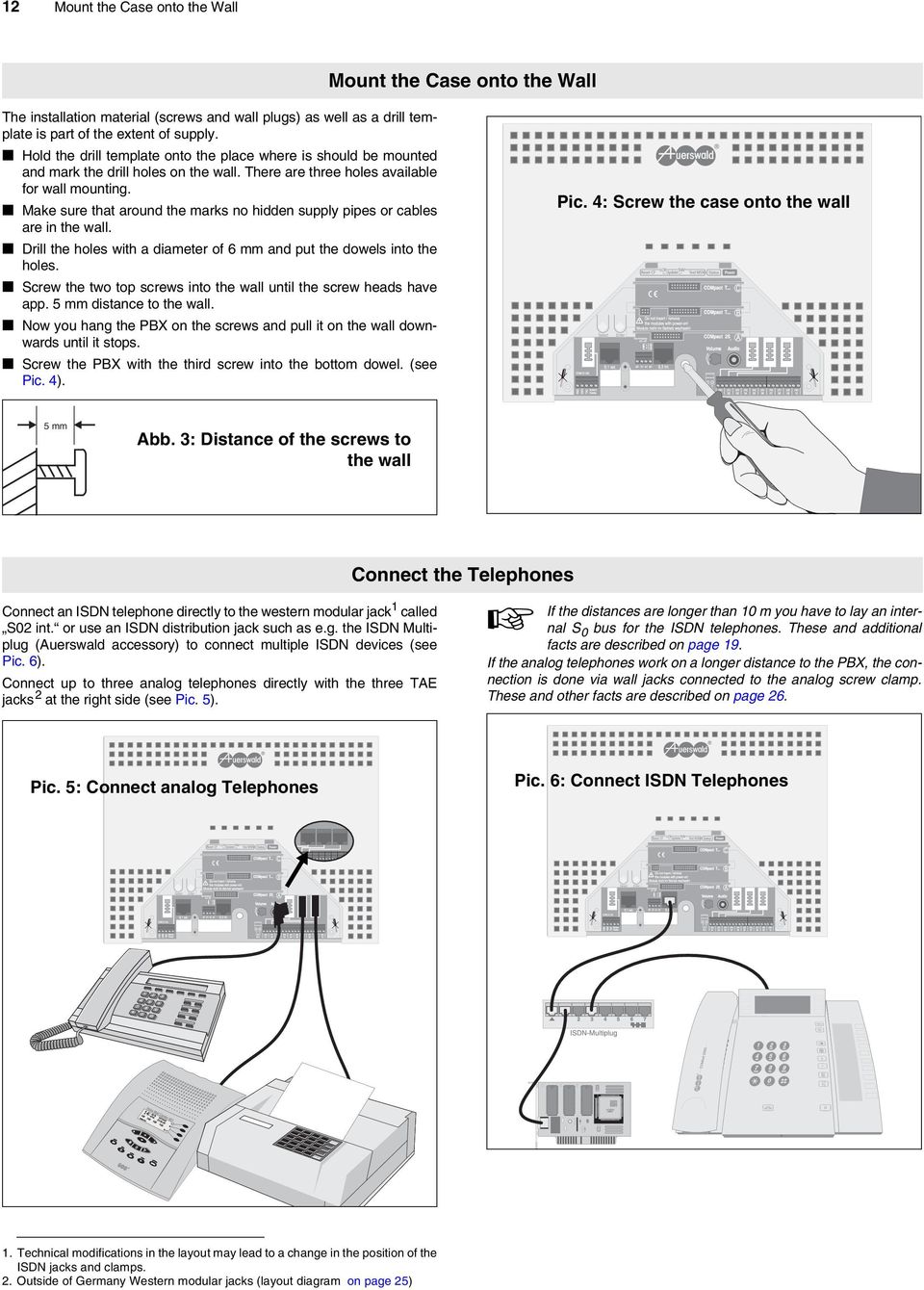
12 12 Mount the Case onto the Wall Mount the Case onto the Wall The installation material (screws and wall plugs) as well as a drill template is part of the extent of supply. Hold the drill template onto the place where is should be mounted and mark the drill holes on the wall. There are three holes available for wall mounting. Make sure that around the marks no hidden supply pipes or cables are in the wall. Drill the holes with a diameter of 6 mm and put the dowels into the holes. Screw the two top screws into the wall until the screw heads have app. 5 mm distance to the wall. Now you hang the PBX on the screws and pull it on the wall downwards until it stops. Screw the PBX with the third screw into the bottom dowel. (see Pic. 4). Pic. 4: Screw the case onto the wall 5 mm Abb. 3: Distance of the screws to the wall Connect an ISDN telephone directly to the western modular jack 1 called S02 int. or use an ISDN distribution jack such as e.g. the ISDN Multiplug (Auerswald accessory) to connect multiple ISDN devices (see Pic. 6). Connect up to three analog telephones directly with the three TAE jacks 2 at the right side (see Pic. 5). Connect the Telephones If the distances are longer than 10 m you have to lay an internal S 0 bus for the ISDN telephones. These and additional facts are described on page 19. If the analog telephones work on a longer distance to the PBX, the connection is done via wall jacks connected to the analog screw clamp. These and other facts are described on page 26. Pic. 5: Connect analog Telephones Pic. 6: Connect ISDN Telephones 1. Technical modifications in the layout may lead to a change in the position of the ISDN jacks and clamps. 2. Outside of Germany Western modular jacks (layout diagram on page 25)
13 First Installation Steps 13 To be able to configure the PBX, you have to establish a connection between your PC and the PBX and install the software on your PC. Depending on the connection option of your PC, please observe the following advises: Your PC is connected directly via USB port with the PBX (Pic. 7). This requires a USB interface on the PC. The cable is enclosed. Your PC is directly connected via serial port with the PBX (Pic. 8). The cable is not enclosed. Your PC is connected with the PBX via an ISDN PC-controller with CAPI 2.0 driver software installed in your PC. This ISDN PC-controller is connected on the internal ISDN bus. Connection between PC and USB port of a system telephone COMfort 1200 or 2000 on the internal S 0 -Port of the PBX. This requires a USB interface on the PC. You will get more information especially about the fixed wiring of connections and about the minimum requirements of the PC on page 30. Connect a PC for the Configuration Pic. 8: Connection: Serial Interface Pic. 7: Connection: USB Interface Connection to the NT Connect the western modular jack 1 named S 0 1 ext. directly with the enclosed ISDN cable to the NT (see Pic. 9 on page 13). You will get more information especially about the connection to a remote NT page 20. NTBA Pic. 9: Connection to NT 1. Technical modifications in the layout may lead to a change in the position of the ISDN jacks.

14 14 First Power-On First Power-On Connect the PBX with an unobstructed and accessible 230 Volt wall socket with protection earth contact. The green power LED shows the connection with the supply voltage. After power-on the Data/Status-LED will glow red (orange) for some seconds: The PBX is initializing. As soon as the Data/Status-LED is off, the PBX is ready for operation. But if the Data/Status-LED remains red, there may be some defect (other possible displays: see chapter Default Information Status of the LED Display on page 52) If you like to do a functional test prior to the configuration of the PBX, e.g. you will be able to make an internal call. Simply use the internal telephone numbering plan that was created by the PBX during the first operation. The initially created internal telephone numbering plan is described in chapter The Default Factory Settings on page 36). These are printed for the analog subscribers in front of the screw clamps (30, 31, 32,...) on the mainboard and can be changed via configuration program at any time. For the ISDN telephones attached to the internal S 0 -Port the telephone numbers 41 and 42 are configured in the default settings. The 1st MSN entered into individual Auerswald system telephones, ISDN telephones as well as ISDN PC-controllers must match with the here created internal number (please consult the chapter Configuration of ISDN Devices on page 18 and make sure that this 1st MSN of the corresponding device is also presented to the PBX). For some ISDN telephones the connection to the 230 volt mains for power supply is needed. Now start the connected PC and install the configuration program COMset from the Auerswald Mega CD. Install the Configuration Software Insert the CD-ROM (Auerswald Mega Disk) into the CD-ROM drive. Sometimes the installation will not be started automatically. In this case you can start Setup manually: On your desktop click on the Start button in the task bar and select Run. Open the CD-ROM drive with the Auerswald CD-ROM. Select the application Setup in the root directory by double click. Then click on OK. Follow the instructions on the screen. You will find the installation for the configuration program COMset under the software for the corresponding system. If you connect the PBX via USB to the PC and if both devices are switched on, the hardware assistant of Windows 98 SE/ 2000/Me/XP will start automatically in order to support you when installing the necessary drivers. Please consult the description of the Auerswald USB driver installation in your CAPI/TAPI manual.

15 First Installation Steps 15 After the first power-on the configuration of the PBX via CAPI (ISDN-PC-controller or COMfort 2000) is possible one time only. For later configurations you have to configure an ISDN PC-controller as internal subscriber of the corresponding S 0 port. (In case that the ISDN PC-controller does not present any MSN, the PBX will automatically map the PC-controller to this subscriber). The ISDN PC controller may not be used as Direct Exchange line telephone. The programming authorization must be configured for the corresponding S 0 port. Creating a Basic Configuration Start the configuration software for the PBX by clicking on the corresponding symbol on the desktop or via Start... program... Auerswald... COMset... (It may be necessary to cancel the dialog load configuration after the start.) Select the interface in the menu under options... interface. If there is a connection via USB interface, select the USB option. If there is a connection via serial interface, select the correct V.24 COM port of the PC (e.g. COM 1). If there is a connection via an ISDN PC-controller, select the option ISDN PC-controller (CAPI 2.0). If there is a connection via COMfort 2000 (Routing, page 35) select ISDN PC-controller (CAPI 2.0) or USB. If there is a connection via COMfort 1200 (Routing, page 35) select the USB option. In case of an indirect connection of the PC to the terminal to be configured (e.g. PC connection to the USB port of a COMfort 2000 to configure the PBX), the transmission will be faster if the interface is set to ISDN controller (CAPI 2.0) (using the B channel) instead of the selection USB (using the D channel). Click on the top left button New to open a new configuration. In the next dialog you select the device type to configure. If you like to modify the internal telephone numbers assigned by the default settings of your PBX, read the existing configuration out of the PBX instead of opening a new configuration (with the button Open and then PBX ). Open the window Module settings and click with the left mouse key on the picture of the external S 0 port (S 0 1) at the right bottom to display the configuration options. Select the Kind of connection of the attached NTs. On the right side of the window the modules (here for the COMpact 4410 USB) still available are displayed. If you extend the PBX with a module, activate it with a right mouse key. Then you click with the left mouse key on the corresponding picture again to display the configuration options of the module. If you configure a 2S 0 module the kind of use - that means internal or external - is selectable in addition to the kind of connection.

16 16 Creating a Basic Configuration Now click on Exchange line numbers in the left window pane. The window content appearing is dependent the kind of connection (Point-to-point connection, Point-to-multipoint connection or mixed). You have to enter the country code and area code into entry fields at the top of the window. Point-to-point connection: In case of a Point-to-point connection (a base number with additional Direct Dial Inward numbers) you have to enter your base number without area code into the column PtP base number of the first table. If you have two ISDN exchange lines with the same base number (COMpact 4410 USB with 2 external S 0 ports only), please enter these separately and activate both check boxes in the column bundle. (The reception number, e.g. 0, is not part of the base number, but is a Direct Dial Inward number.) The Direct Dial Inward numbers received from the network provider are entered into the column MSN/DDI of the following table. (If you have the Direct Dial Inward number block 1-99 and use the 1, the numbers are not available anymore) Assign an S 0 port to each number by activating a check box in the column S 0 1,.... (If you have a trunk bundle for S 0 ports 1 and 2 on a COMpact 4410 USB both columns are activated simultaneously.) Example: / area code base number DDI number Point-to-multipoint connection: In case of one or two Point-tomultipoint connections you have to enter your MSNs without area code into the column MSN/DDI. Assign an S 0 port to each number by activating a check box in the column S 0 1,.... PtP connection PtmP connection Now click on internal telephone numbers in the left window pane. You can create internal subscribers in this table by entering the number and assigning this number to a port (select analog or S 0 ports in the column Module, select port number in the column Internal port and kind of device in the corresponding column). The two-digit numbers and the three-digit numbers are available. The usage of two-digit numbers reduces the available amount of three-digit numbers. Example: If the number 11 is assigned, the numbers (Emergency numbers!) are not available anymore. The program can also generate a rising list of numbers (enter the smallest number, step into the name entry field to the right with the right arrow-key and start the function by clicking the right mouse key). The 1st MSN entered into individual Auerswald system telephones, ISDN telephones as well as ISDN PC-controllers must match with here created internal number (please consult the chapter Configuration of ISDN Devices on page 18 besides this make sure that this 1st MSN of the corresponding device is also presented to the PBX.

17 First Installation Steps 17 Now click on call distributions... External -> subscriber in the left window pane. You can define the distribution of external calls to individual internal subscribers in this table (the exchange line numbers are listed top to bottom and the internal numbers are listed left to right). Click on the coloured buttons immediately or delayed first and then into the fields to be modified. If internal numbers and external Direct Dial Inward numbers (DDIs) are matching, you can create a 1:1 assignment with the linear call distribution. If you have received the Direct Dial Inward numbers - 40 to -59 for your PtP-connection and created the same numbers 40 to 59 in the window internal telephone numbers, you can assign the corresponding internal number to each external DDI by clicking on the button linear call distribution. You have defined a basic configuration now which enables you to make and receive calls. This configuration has to be stored into the PBX. Click on the button Save and then on PBX. For backup purposes you can save this configuration to disk by clicking on Save and then File. If you connect more than one Auerswald device to the selected interface (e.g. PBX and system telephone to the USB port), select the direct connection to the PBX here. If this is not available, you are able to store this configuration via system telephone COMfort 1200 or 2000 into the PBX (Routing; see also page 35). If you stored the configuration into the PBX and saved it to a file (option), you may close the configuration (click File and Close ) or leave the PC program (click File and Quit ). In either case, you will be asked, if you like to discard your settings. Click on No.

18 18 Final Steps Final Steps Configuration of analog Devices If you pick up the receiver telephone after having plugged in a new telephone, please dial 7 and hang up. Thanks to this the PBX will learn the dialling mode. If the new telephone has a dual-tone multifrequency dialling, check whether the FLASH key was set and set the FLASH period as short as possible (see operation instruction of the telephone). Then you execute the programming described in the following. Subsequent to this the PBX has learned the exact duration of the FLASH time of your telephone. This is very important e.g. for the transfer or Query. Analog telephones that execute certain function via T-Net function key/menu are using a long FLASH (300 ms). Often an additional FLASH key is available. Configure this also to 300 ms and execute the following programming again. PBX Software Update If you like to make sure that the PBX has the most current operation software, you can execute an automatic PBX software update now (see chapter Automatic PBX Software Update on page 55). Close the Case If you finished the installation and put the cable properly into the cable space you can close the cover. Insert the cover of the connection area at the top into the cabinet and press the bottom down until it clicks into position. Learn Flash duration b7q55ff# your DTMF telephone public password press the FLASH key twice Configuration of ISDN Devices You must inform each Auerswald system telephone and each ISDN device (Euro-ISDN telephones, ISDN FAX machines, ISDN PC controllers etc.), about the internal telephone number it has to react on. For this purpose you enter the telephone number (for example 27; see pic. on page 16) as 1st MSN into the device. How this does work can be learned in the operation manuals of the corresponding devices. Due to the free telephone numbering plan it is only clear after having finished the configuration which internal telephone number is available for the corresponding internal S 0 port. If you like to enter telephone numbers into a couple of telephone numbers nevertheless in order to make internal test calls before starting the configuration, simply use the internal telephone numbering plan created by pressing a button. Please use each of these telephone numbers once. If one of these numbers is assigned twice, a proper functionality cannot be guaranteed anymore. Besides this make sure that this 1st MSN of the corresponding device is also presented to the PBX. You may also perform the terminal device test to check the numbers (chapter Terminal Test on the internal S 0 Ports on page 55). Normally an ISDN subscriber is fixed to the internal S 0 port which he was configured for. But if you activate in the configuration program COMset that the ISDN subscribers may move from port to port, all the ISDN devices will be allowed to be connected to any other internal S 0 port. The PBX recognizes the subscriber again and registers him to the other port if the receiver is picked up for a short moment after plugging into another ISDN wall jack. Also in this case the maximum quantity of ISDN devices on one internal S 0 port must not be exceeded.

19 Connect NT and ISDN Devices to the S 0 Ports 19 Connect NT and ISDN Devices to the S0 Ports The PBX has 1 internal S 0 port and 1 S 0 port. The connection to the external S 0 port is possible via a Western modular jack. The connection to the internal S 0 port is possible via fixed wiring to the 4 clamps b2, b1, a1 and a2 or directly to a western modular jack. The COMpact 4410 USB may be extended by two additional S 0 ports with one COMpact 2S 0 Module. Description and Installation of the COMpact 2S 0 Module The COMpact 4410 USB may be extended by two additional S 0 ports with one COMpact 2S 0 Module. The module is not in the extent of supply of the COMpact 4410 USB. It has 1 internal S 0 port and 1 S 0 port that can alternatively be switched as internal or external S 0 port. The switching is done by a three-row jumper. Pay attention to the labelling on the COMpact 2S 0 Module and insert the jumper into the correct position (see also Pic. 10). Per default this S 0 port is configured as external S 0 port. The connection to the S 0 ports is possible via fixed wiring to the 4 clamps b2, b1, a1 and a2. Besides this you have western modular plugs. Insert the module between the board rails (slot A) and press it to the mainboard until it clicks well into it s position (Pic. 11). e Disconnect the device from the 230 Volt power supply and wait another 10 seconds before you plug a module in or remove it. As some of the component parts are sensitive to electrostatic discharge, it is important to discharge yourself before touching the controller with your hands or with tools. You should touch a grounded metal device, such as a radiator or the case of a PC. Please perform the necessary settings on the module before insertion. This is important for the termination resistors and the S 0 port configuration (internal/external). Pic. 10: Reconfigure S 0 port 3 external S 0 int. / ext. S 0 int. / ext. Pic. 11: Insert COMpact 2S 0 Module internal Modul nicht im Betrieb wechseln! ON e int. / ext. a2 a1 b1 b2 1 2 on / off Term. S 0 int. / ext. S 0 3 S 0 4 COMpact 2S 0 intern a2 a1 b1 b2 ON 1 2 Termination on / off e Do not insert / remove the modules with power-on! Pic. 12: COMpact 2S 0 Module Connection clamp (detachable) of S 0 port 3. Western modular plug of S 0 port 3. DIL switch for termination resistors of S 0 port 3. Jumper internal/external of S 0 port 3. Connection clamp (detachable) of S 0 port 4. Western modular plug of S 0 port 4. DIL switch for termination resistors of S 0 port 4. Plug for attachment to the mainboard (slot A).

20 20 Connect the PBX to the NT Connect the PBX to the NT For the external connection to the ISDN, one or more NT with the European protocol DSS1 (Euro-ISDN) are necessary. The external S 0 ports of the PBX are designed for the following types of connections: ISDN Basic rate as Point-to-Point connection. ISDN Basic rate as Point-to-multipoint connection. If the NT is next to the PBX, you put one end of the enclosed ISDN cable into the western modular jack of the PBX with the labelling S 0 1ext. and the other end in one of the western modular jacks of the NT (Pic. 13). The termination resistors must be switched on in the NT as well as for the corresponding S 0 port of the PBX. As there are some differences depending on the kind of connection PTP connection or PTMP connection referring to the NT, please observe the following differences: It is possible to operate only one ISDN device on one NT with PTP connection that means only the PBX in our case. All additional ISDN devices have to be operated as internal subscriber of the PBX. It is permitted to operate multiple ISDN device on one NT with a PTMP connection. If there are additional devices directly connected to the NT in parallel to the PBX the 230 Volt power supply of the NT must be plugged in. If the PBX is connected exclusively to the NT, you may leave the NT unpowered in order to save energy. Install Wall Jacks (External S 0 Bus) 1st variant (Pic. 14): If the NT is in a longer distance to the PBX, it is necessary to use fixed wiring with an ISDN wall jack at the end (external S 0 bus). One end of the enclosed ISDN cable is put into the western modular jack of the PBX with the labelling S 0 1 ext. and the other end into the ISDN wall jack. The termination resistors in the NT must be switched on. On the other end, the termination resistors are built into the ISDN wall jack. Advice concerning the cables and ISDN wall jacks to be used as well as the assignment is similar to the wiring of an internal S 0 -bus and can be found in (Pic. 15 on page 21). 2nd variant with COMpact 2S 0 Module (Pic. 16 on page 21): If you extended your COMpact 4410 USB with a COMpact 2S 0 Module and you configured the switchable S 0 port as an external S 0 port, you may use the 4-pole connection clamp of this S0 port on the module. Connect these with the clamps in the NT. The termination resistors must be switched on in the NT as well as on the corresponding S 0 port of the PBX. The maximum distance between NT and PBX may be 1000 m for a Point-to-Point connection 150 m for a Point-to-Multipoint connection Advice concerning the cables and ISDN wall jacks to be used as well as the assignment will be found in the chapter Installation of Wall Jacks (internal S0 Port) on page 21. Pic. 13: Direct connection to the NT NT Pic. 14: Connection to an external S 0 bus NT

21 Connect NT and ISDN Devices to the S 0 Ports 21 Pic. 15: Connection of multiple devices to the external S 0 bus (PTMP connection only) NTBA NTBA b2 b1 a1 a2 ISDN IIIIIIIIIIIIIIIIIIIIIII IIIIIIIIIIIIIIIII Modul nicht im Betrieb wechseln! ON e int. / ext. a2 a1 b1 b2 on / off 1 2 Term. S 0 int. / ext. S 0 3 S 0 4 COMpact 2S 0 intern a2 a1 b1 b2 ON 1 2 Termination on / off e Do not insert / remove the modules with power-on! b2 b1 a1 a2 NTBA ON 1 2 on / off Term. Pic. 16: Direct wiring of NT and COMpact 2S 0 Module Connection of ISDN Devices to the internal S 0 Port An internal S 0 port offers similar features like an ISDN Point-to- Multipoint exchange line connection. Here you can also connect up to eight ISDN units, a maximum of four of them without an own power supply (that is the case with most of the ISDN telephones). All the devices should be certified Euro-ISDN devices in order to guarantee a proper functionality. There is a western modular jack labelled S 0 2 int. on the module. This jack allows the direct connection of an ISDN device to the PBX. The connection cable of an ISDN device may have a maximum length of 10 m. It is equipped with a western plug that you will plug into the ISDN wall jack (Western modular RJ-45). (If you like to remove the western plug out of the jack, you will have to press the lever and pull at the same time to remove it.). In case of ISDN devices with an own power supply you have to plug them into to the 230 V mains. The western modular plug can also be used for the connection of an ISDN Multiplug. Use this option only in case all the ISDN devices that are to be connected to the corresponding internal S 0 port are operating next to the PBX and you like to do this without installing ISDN wall jacks. The specialized dealers will offer you the ISDN Multiplug for this kind of wiring (Auerswald accessory). The connecting cables of the ISDN devices and the connecting cable between the PBX and the ISDN multiple socket may have a maximum length of 10 m. The termination resistor on the module must be activated for the corresponding S 0 port. You have to install an internal S 0 bus for longer distances (see chapter Installation of Wall Jacks (internal S0 Port) on page 21). Installation of Wall Jacks (internal S 0 Port) If the ISDN devices should not be operated next to the PBX, they must be connected via firmly attached ISDN wall jacks. In this case the ISDN wall jacks are attached with a cable and connected in parallel to the internal S 0 port (internal S 0 bus). The S 0 bus consists of up to twelve parallel connected western modular wall jacks. But the restriction applies that a maximum of eight ISDN devices or four ISDN units without an own power supply are attached like on the NT (Point-to-Multipoint connection).
22 22 Connection of ISDN Devices to the internal S 0 Port Pic. 17: Wire position a1 red a1 b1 black a2 white yellow b2 b1 a2 b2 Pic. 18: Layout of the Western modular jack 2b 1b 1a 2a The connection of the internal S 0 bus happens at the internal S 0 port on the four clamps 1 b2, b1, a1 and a2. This labelling of the clamps is printed in front of the clamp on the circuit board. The clamp blocs can be detached from the module to simplify the installation. Normally you use an unshielded twisted pair cable for wiring installation (J-YY 2x2x0,6 St III Bd). Under certain circumstances (e.g. near a strong radio/television station or a power cable), you have to use a shielded twisted pair cable. In any case it should be twisted pair cable with four wire positioning like in Pic. 17. Here both sending data wires (a1 and b1) as well as both receiving data wires (a2 and b2) are positioned vis-a-vis. This cable configuration will help to compensate interferences considerably. You can buy many different types of wall jacks. They are sometimes called IAE (ISDN-Anschluss-Einheit), UAE (Universal-Anschluss-Einheit), RJ-45, Western modular, wall jacks with integrated termination resistors as well as shielded wall jacks belong to them. In order to make the setting as simple as possible, please pay attention to the following points: Use only wall jacks of one type for one S 0 bus and check the wall jacks before installation. The pin assignment may be different compared to the usually used products or the termination resistors are integrated into the ISDN wall jacks. The maximum length of the total bus wiring should be 150 m. As at any rewiring position (ISDN wall jack etc.) reflections occur, the maximum quantity of allowed clamp positions (12) has to be respected. This and the cable quality as well as the proper adjustment of the termination resistors can be the key factor for a proper function of the S 0 bus. If you use western modular wall jacks with the clamp labelling 1a, 1b, 2a and 2b, you connect the clamp b2 of the PBX with the clamp 2b of the first wall jack socket, b1 with 1b and so on (see Pic. 19). Then the clamps of the first wall jack socket are connected with the corresponding same marked clamp of the second wall jack socket. In the last wall jack socket a resistor of 100 (power rating min. 0,25 W) must be inserted between the clamps 1a and 1b and also 2a and 2b each. The so-called termination resistors are avoiding unwanted reflections. If you use wall jacks with eight clamps you only use the middle four clamps that are marked with 3, 4, 5, 6, instead of all eight existing clamps. How to connect them to the PBX is shown in Pic. 20. Pic. 19: Clamp connection of ISDN wall jack (IAE) 1. IAE 2. IAE letzte IAE b2 b1 a1 a2 1a 1b 2a 2b 1a 1b 2a 2b 1a 1b 2a 2b Pic. 20: Connection of ISDN wall jack (UAE) b2 b1 a1 a2 1. UAE UAE letzte UAE Technical modifications in the layout may lead to a change in the position of the ISDN jacks and clamps.
23 Connect NT and ISDN Devices to the S 0 Ports 23 Starting at the PBX you can lay the S 0 bus in one or in two directions (divided bus). When laying the S 0 bus into one direction, on the last ISDN wall jack the termination resistors need to be installed. At the other end the termination resistors of the PBX are switched on via DIL switches on the circuit board (see Pic. 21). If you lay the S 0 bus into two directions, the termination resistors on the circuit board are switched off via DIL switch. Instead you must install the necessary termination resistors on both bus ends that means in the last ISDN wall jack (see Pic. 22). The maximum length of the S 0 bus and the maximum quantity of ISDN wall jacks is the addition of both bus parts in this case. You can lay the S 0 bus starting at the PBX into two directions. A star formed wiring is not allowed. Pic. 21: Internal S 0 bus in one direction Pic. 22: Internal S 0 bus into two directions (divided bus)
24 24 Switch Termination Resistors The termination resistors for the internal and external S 0 ports are to be switched on or off with help of the DIL switch on the circuit board (see Pic. 23). The external S 0 port S 0 1 is not terminated. If the corresponding S 0 port of the PBX is at the beginning/end of several units or if there is only one connection between two units, the appropriate termination resistors need to be activated. This is the case e.g. if the PBX is connected directly to the NTBA as a single device which is always the case with a PTP connection. (Exception: An ISDN connection box with integrated terminal resistors was switched in between). The termination resistors needs to be activated e.g. if you lay an internal S 0 bus to two directions starting at the corresponding internal S 0 port. But you also have to deactivate the termination resistors if you connected an external S 0 bus directly to the NT with termination resistors in the last connection box and if you connect the PBX to one of these connection boxes. In the individual installation chapters the different possibilities will be explained in detail again. (see chapter Installation of Wall Jacks (internal S0 Port) on page 21 and chapter Install Wall Jacks (External S0 Bus) on page 20). Switch Termination Resistors Pic. 23: Termination resistors ON 1 2 on / off Term. ON 1 2 on / off Term. switched on switched off
25 Connection of analog Devices 25 Connection of analog Devices The PBX COMpact 2206 USB has analog subscriber ports for 6 analog devices. You can connect up to 10 analog devices to the COMpact 4410 USB. Thanks to this you can connect analog telephones, fax machines etc. with pulse or DTMF dialling. Devices with DTMF dialling have to have a FLASH-key (alternatively named signal key R). Up to three telephones can directly be connected to the existing TAE sockets (Pic. 25). For some of the international varieties of the PBX there are Western modular jacks with the layout shown Pic. 24 for the direct connection of analog telephones. These three telephones have the internal telephone numbers 30, 31 and 32 (from left to right) in the default settings. These telephone numbers can be changed with the configuration program COMset at any time. The connection of additional devices to the PBX will be made with additional wall jacks (chapter Install Wall Jacks for analog Devices on page 26). a b ( ) Port Pic. 24: Layout of analog Western modular jacks Pic. 25: Connect analog telephones
26 26 Install Wall Jacks for analog Devices Install Wall Jacks for analog Devices The connection of more than three analog devices to the PBX will be made with additional wall jacks 1. The connection of these devices to the detachable clamps labelled with 01 to 06 (or 10) will be made with telecommunications cable (e.g. JYY 0,6 mm). This name of the clamp is printed on the mainboard in front of the clamp. You are in need of one wire pair per subscriber or per wall jack. If you use a wire diameter of 0,6 mm, the lines may have a distance of 800 m between the PBX and the wall jacks. 1. Outside of Germany Western modular jacks or other local types of wall jacks are used. In order to avoid interferences, lay the wires carefully and use twisted pair cables. And avoid longer parallel leading of the lines especially next to power supply cables. Use of TAE Wall Jacks Connect each clamp pair (e.g. 01) with the connector a and b of a single wall jack (see Pic. 26). If you only like to connect telephones or FaxTAM machines, TAE single wall jacks with F code (a jack marked F ) will be sufficient. But for the connection of fax machines, modems and answering machines you are in need of the N-coded TAE wall jacks. The plugs of the telephones or FaxTAM machines will be plugged into the jack marked F. However, the plugs of the other devices will be inserted into the jack marked N. Pic. 26: TAE wall jacks for analog telephones
27 Connect Devices to the Door/Switching Module 27 Connect Devices to the Door/Switching Module Description and Installation of the COMpact TS Module The COMpact TS module does not belong to the supply of extent. The COMpact 2206 USB has 1 module slot (B) for this module. The COMpact 4410 USB has 2 corresponding module slots (B and C). Thanks to the module you can connect or control one door terminal, each consists of a door handsfree system, a door opener and two door keys. Herewith the door ringing to all internal subscribers will be possible as well as the door conversation and door opening. In order to execute different switching and controlling processes, the module has a total of three relays that have to be configured correspondingly to the special purpose. Two of these relays are preconfigured for controlling the door terminal. If no door terminal is to be controlled, these relays can be reconfigured for other uses. If you use the module slot B, the relays are numbered consecutively from 1 to 3 in the configuration. If you use the module slot C (only COMpact 4410 USB), the relays are numbered consecutively from 4 to 6. In case that not both door key inputs are necessary in connection with a door terminal, the inputs can be reconfigured to alarm contacts. The three Light-Emitting Diodes on the module circuit board display the activation status of the three relays. LED switched on:relay is switched on LED switched off:relay is switched off To install a module, insert it in between the board rails and press it to vertically the mainboard until clicks well into its position. (Pic. 28). e Disconnect the device from the 230 Volt power supply and wait another 10 seconds before you plug a module in or remove it. As some of the component parts are sensitive to electrostatic discharge, it is important to discharge yourself before touching the mainboard with your hands or with tools. You should touch a grounded metal device, such as a radiator or the case of a PC. Advice for COMpact 4410 USB: Use a COMpact-TS Module for door functions in slot B. The Announcement/Music on Hold function will not be available if you use a COMpact TS Module in slot C. Pic. 27: Door/Switching module LED for indicating the on/off mode of the relay no. 3/6 (REL). LED for indicating the on/off mode of the relay no. 1/4 (TS). LED for indicating the on/off mode of the relay no. 2/5 (TO). Inputs for connecting the door keys 1 and 2 (also usable as alarm contact). Make/Break contact of relay no. 3/6 (REL). Make contact of relay no. 1/4 for supplying the door handsfree system (TS). Make contact of relay no. 2/5 for supplying the door opener (TO). Output of the 12 Volt operation voltage. In/Output of NF voltage against TGND. Plug for attachment to the mainboard. Pic. 28: Insert COMpact TS module
28 28 Connect a Door Terminal Connect a Door Terminal Connect a Door Terminal System For switching the operating voltage of a door terminal TFS-Dialog or TFS-Dialog pro (Auerswald accessory) you will need the 1st/4th relay. The 12 Volt operation voltage is available on the COMpact TS module (TOUT). It must be connected with a clamp to the 1st/4th relay (Pic. 29). The speech transmission is established via a two-wiring connection to TNF1 and TGND. If you like to connect other manufacturer s door terminal systems instead of the TFS-Dialog or TFS-Dialog pro by Auerswald, the speech transmission of these systems must work in two-wire technic according to FTZ-123-D12-0 (a signal line and a ground connection). But if the door terminal system to be connected works with four-wire technic (two wires per call direction), you must interconnect a converter (e.g. TSA-500 by Auerswald) from two- to four-wire connection. Circuit diagrams for the connection of door terminals may be found on the CDROM or on the Auerswald homepage. Connect Door Bell Button If there is already a house wiring with ringing transformer and door bell ringing, the door bell button inputs (Klin1, Klin2) of the COMpact TS Module can be integrated into the wiring like in Pic. 30. For this reason the currently used ringing transformer must offer a voltage of 5-15 VAC/ DC. If there is no ringing transformer, the 12 Volt operation voltage of the COMpact TS Module (TOUT) can be used by a door bell button to trigger the door bell button inputs (Klin1, Klin2) (Pic. 31). If the door bell button inputs were reconfigured with the configuration program COMset, a GND can be connected instead of the 12 Volt output. Pic. 30: Door bell button and door bell Pic. 31: Door bell button Connect Door Opener You are in need of the relay no. 2/5 with the clamp labelled TO1/TO2 (Pic. 32) for switching the door opener for the first door terminal. As the necessary supply voltage is not offered by the PBX, the use of an external transformer is necessary. Please pay attention to the maximum ratings of the relay contacts (30 V AC/1 A). Pic. 32: Door Opener Pic. 29: Door terminal TFS-Dialog or TFS-Dialog pro
29 Connect Devices to the Door/Switching Module 29 Connect an Alarm System If you do not need all the door key inputs for the door ringing, you are able to use the door key inputs as alarm inputs. In order to obtain one alarm input, the door key input has to be reconfigured with the configuration program COMset. An alarm input can be connected to an alarm indicator output like in Pic. 33. You will get more details in the chapter COMpact TS Module on page 10. Pic. 33: Alarm Connection of external Devices to the switching Relays In the default factory settings the available relays are configured for door functions. Changes are possible with COMset. Which configuration options for the relays are available with the PBX or which operation modes are selectable for the relays are shown in the following tables. A more detailed description of the configuration options can be learned in the chapter Configure the COMpact TS Module on page 46. Relay no. Operation Mode: Door Function 1/4 Talking to the door when picking up the receiver 2/5 Door opening for 1-99 sec after dialling a number during a door talk 3/6 Simultaneous switching on e.g. floor light for 1-99 min. Relay no. Operation Mode: Alarm Function 1/4 and 3/6 Switching on e.g. a siren for 1-99 sec when activating the alarm contact 2/5 Switching on e.g. a signal light for 1-99 min. when activating the alarm contact Relay no. Operation Mode: Music Function 1/4, 2/5 and 3/6 Switching on e.g. a CD player for 1-99 min. as soon as the Music on Hold is needed (during transfer, Query etc. Relay no. Operation mode: Universal switching Relay 1/4, 2/5 and 3/6 Switching on e.g. a fax machine (different switching options on): 1st Switched on during the 1st to 6th PBX configuration (during day, night, at noon etc.) 2nd Remote switching from an internal telephone 3rd Remote switching from an external telephone 4th Switch on for 1-99 min. as soon as a defined internal subscriber of the PBX is called (PC relay) Relay no. Operation mode: Announcement Function 1/4, 2/5 and 3/6 Switching on of e.g. a loudspeaker when the announcement output (audio output) is called. The relays no. 1/4 offer the make contact each, the relays no. 2/5 a make contact with protection circuit (100 nf, 220 ) and the relays no. 3/6 offer a make and break contact. The COMpact TS Module offers no supply voltage on the clamps that means the supply of the connected units has to be made by an external voltage. Pay attention to the maximum rating of the relay contacts (30 V AC/1 A) that are absolutely not suited for mains-operated devices. Due to this fact an interconnecting of a mains relay is necessary.
30 Power Update S0ext. Tn31 Tn32 Tn33 Tn34 PC Display Audio 30 Connecting to a Computer/Printer Connecting to a Computer/Printer Minimum Requirements for the PC PC with Intel Pentium 266 or compatible processor Windows 95,98, Windows Me, Windows 2000, Windows XP, Windows NT 4.0 with service pack 3 or later but: Windows 98 SE, Windows Me, Windows 2000, Windows XP if you use USB interface RAM memory for Windows 95/98/M2: 32 MB, 64 MB recommended for Windows 2000/XP/NT: 64 MB, 128 MB recommended USB interface (if used) according to USB specification 1.1 CD-ROM drive Mouse or compatible pointer device. SVGA graphic board with 800*600 resolution and 256 colours/grey scales colours recommended The connection of the PBX to an existing USB interface is made with the included USB cable with two different plugs at both ends. It depends on how many devices you like to connect to your PC, you are able to connect the PBX to a hub directly to the PC (you will find more details about it in the chapter General Information on USB on page 30). The flat plug is plugged into the master device (PC or hub) and the other plug into the PBX. If you connected the PBX to your PC, the Add new Hardware assistant of Windows will be started automatically to support you when you install the necessary driver. Consult the description of the Auerswald USB driver installation in your CAPI/TAPI manual. The LEDs of the PBX will show you information about the USB connection (see page 53). Connection via the USB Interface General Information on USB The USB (Universal Serial Bus) is a serial bus system that connects different device types. Starting at the root hub, which the PC provides, the USB is set up in several levels (up to 5) with the so-called hubs (distributors) and the USB devices (up to 127 units). Pic. 34: Connection: USB interface Hubs are connected to the USB port of the PC or to the outputs of the preceding hubs. They work as receiver of signals of the PC and of preceding hubs as well as sender of signals to further hubs and to connected devices. The old and existing PC interfaces (parallel, serial...) can now be replaced by only one. Another advantage of this system is the possibility of Plug-and-Play. In order to start operation of USB devices, it is not necessary anymore to open the PC and perform a complicated configuration. The device is simply connected to the existing bus and the corresponding drivers are installed on the PC. The unit will be ready for use at once. The Plugand-Play compatible operating system Windows is essential for the PC. (e.g. Windows 98 SE). There are two speed classes of USB devices full speed (12 MBit/s) and low speed (1,5 MBit/s). Due to the different data transfers rates different cable types and lengths for these both types of units are in use. For full speed devices such as this PBX only USB cables with a maximum length of 5 m are used. There is another distinctive feature for the USB devices concerning the power supply. Self powered units such as the PBX supply themselves via an own power supply so that the USB power is not used. In contrast to this bus powered devices have to be supplied via the USB. These devices have the power supply classes high powered (up to 500 ma) and low powered (up to 100 ma). The USB is able to deliver a power supply up to a maximum of 500 ma for devices. Pic. 35: USB COMpact 2104
31 Connecting to a Computer/Printer 31 Connection via serial Port (V.24) The serial port of the PBX can be connected with the serial port of a PC (COM 1 to 4) as well as with the serial port of a printer (in case the customer wants to print the charge and call data directly). If the unit does not operate next to the PBX, it is recommended to make a fixed wiring of the cables. For longer transfer distances (longer than 2 m) we recommend to use a shielded two wires cable (e.g. LIYCY 2 x 0,3 mm). Distances of more than 10 m length may be problematic even with shielded cable. A function guarantee cannot be offered here because the wiring of the cable and the construction of the computer interface may have a strong influence. For the connection of the computer or printer you need a 9- or 25-pole D Sub connector (see PC/printer). On the side of the PBX (on the mainboard) is a removable clamp with three screw clamps. At the authorized dealer you can get a fabricated cable with 9- or 25-pole D Sub connector (Auerswald accessory). If you like to assemble such a cable for yourself, try to use a two-wire, shielded cable (e.g. LIYCY 2 x 0,3 mm). The meshed shield of this wire is to be used for the clamp with the label PC-GND, the both wires inside for RXD and TXD. The PC side of the wire, depending on the computer connection, needs a 9-pole or 25-pole D-Sub connector as shown in Pic. 36. Pic. 37: Connection: Serial port RXD GND TXD System Display TXD RXD PCGND RXD TXD PCGND Pic. 36: Serial port pole D-SUB connector (Solder side view). 25-pole D-SUB connector (Solder side view). Clamp (detachable) with 3 screw clamps.
32 32 Connection via ISDN PC-Controller If you like to configure the PBX via the internal S 0 port, you need a CAPI 2.0 compatible ISDN PC-controller. Get the latest information from the manufacturer of the ISDN PC-controller about the support of CAPI 2.0. If you have problems with your ISDN PC-controller, please read the manual of your ISDN PC-controller or contact the vendor of the ISDN PC-controller directly about compatibility with CAPI 2.0. Try to get the most recent drivers with CAPI 2.0 support. Most vendors offer the option to download new drivers from the Internet or via mailbox. Install the ISDN PC-controller in the PC and connect it to an internal S 0 port. Details on this operation can be learned in chapter Installation of Wall Jacks (internal S0 Port) on page 21). If you encounter problems during a running transfer, please check your cabling. If necessary, contact your dealer or administrator for help. Connection via ISDN PC-Controller ISDN PC-controller Pic. 38: ISDN PC-controller on internal bus
33 Connect additional Accessories 33 Connect additional Accessories The PBX allows the connection of a system display SD-420 (Auerswald accessory). The system display can be connected to the PBX with the built-in TAE-jack or with a remote TAE wall jack similar to other analog telephones. The connection to the clamps have to be made with telecommunications cable (e.g. JYY 0,6 mm). You are in need of one wire pair for a system display SD-420. If you use a wire diameter of 0,6 mm, the wires may have a length of 800 m between the PBX and the wall jacks. The connector of the system display is plugged into an F-coded jack (Pic. 39). Connect the System Display SD-420 Pic. 39: Wall jack for the system display or direct connection to an available TAE jack
34 34 Connect a Loudspeaker System for Announcements On the mainboard you have a Cinch connector (labelled audio ) for announcements. This can be used as an audio output (for announcements) or as an audio input (for Music on Hold). If you like to use the Cinch connector as an audio output for announcements, you will have to connect an amplified loudspeaker system or an active loudspeaker (see chapter Technical Data on page 9). If there is a COMpact TS module, you will also be able to switch on/off the loudspeaker system or another device with the relay function of the PBX. Advice for COMpact 4410 USB: Use a COMpact-TS Module for door functions in slot B. The Announcement/Music on Hold function will not be available if you use a COMpact TS Module in slot C. Connect a Loudspeaker System for Announcements Pic. 40: Announcement Loudspeaker Connection of an Input Device for external Music on Hold On the mainboard you have a Cinch connector (labelled audio ) for announcements. This can be used as an audio output (for announcements) or as an audio input (for external Music on Hold alternatively to the internal Music on Hold). You can connect an external music device (e.g. a CD player) to the Cinch connector, if you like to use it as an input for external Music on Hold. Another option may be the connection of a digital music and speech memory that continuously plays a melody or a text. The volume control for the external Music on Hold happens via a trimmer that is on the module near the Cinch connector (labelled with Volume ). With this input, you can also record a music that will be stored as the new internal Music on Hold in the PBX (only COMpact 4410 USB). If you use external Music on Hold, pay attention to the copyright issues for certain music. Please contact the correspond- ing copyright holder or music agency. If a COMpact TS module is available, you are able to switch on/off the external music source with the relay function of the PBX (Pic. 41). Advice for COMpact 4410 USB: Use a COMpact-TS Module for door functions in slot B. The Announcement/Music on Hold function will not be available if you use a COMpact TS Module in slot C. Pic. 41: Music on Hold with CD Player
35 Configuration Options 35 Configuration Options Description of the bundled Software Part of the product is a CD-ROM with four PC programs for use with the PBX. The configuration program COMset will be needed in any case to adjust the PBX for the ISDN connection and to enter the requirements of the customer installation. The configuration options are described in the following. It is also possible to program the customers PBX over an external telephone connection from a remote location (see chapter Remote Programming on page 57). With the program COMtools separate PC programs can be launched. These programs can modify wake-up times, call allowance accounts, Short-Code Dialling numbers, special numbers and the Music on Hold. The PC program COMlist will let you manage and analyse the data in the call data memory of the PBX. The PC program Soft-LCR manages the data for the Least Cost Routing. General Advice for using the Configuration Software Program Windows: This is divided into two parts: In the left view are the themes listed in the order to be worked on. If you leave out a theme, it may happen that the following page is not available (e.g. because no subscriber with an internal telephone number has been configured yet). The right view shows the page of the selected theme. For working on the program pages you need not the menu line. All the entries and changes are made directly on the pages via mouse or keys. Help: With the menu Help...Topics or with the F1-key you can open a help window that will offer you explanations to the respectively open page. Entry into a free field: A free entry field lets you enter a name or a number. Click into the corresponding field with the left mouse key and then enter a number or a name with the keyboard. Modify number or name: If you entered a number or a name and like to completely change these, click twice onto the entry to be written over with the left mouse key. After that it will be marked blue and can be directly written over or be deleted with delete/backspace. Extendable tables: In order to delete an entry in extendable tables (e.g. exchange line access numbers, internal subscriber telephone numbers), the whole line can be deleted here. Therefore click with the left mouse click into a field of the line to be deleted. This field gets a yellow margin. By pressing the right mouse key then, a menu opens. Click on delete line. Switch functions on or off: A square displays a switch field. An empty square means off or no ; a little hook means on or yes. The switch over happens by simply clicking on it with the left mouse key. If there are more boxes in a table column, the switching over is also done by simply clicking with the left mouse key. If you like to switch over a whole column or a bigger part of this, first mark the corresponding fields by drawing with the pressed left mouse key over the corresponding fields. You can mark the whole column by clicking on the headline of the column with the left mouse key. Then you can open a Popup-menu by clicking with the right mouse key into the corresponding column and select with the left mouse key. All marked fields will be changed at the same time. Toggle functions: For functions that offer more than switching on/off, but whose settings are limited to a few setting options, a default setting was made in the field. If you like to change this, you will have to select the option with the left or right mouse key out of the opened pop-up menu. If there is a single field with an arrow pointing down, you open the pop-up menu by mouse click with the left mouse key onto the field. If there are more fields in a table column, you will open the pop-up menu by clicking twice with the left mouse key. If you like to modify a whole column or a bigger part of it, first you mark the corresponding fields by drawing the corresponding fields with pressed left mouse key. The whole column can be marked by clicking on the headline of the column with the left mouse key. Then you can open the pop-up menu by clicking with the right mouse key and make your choice. The marked fields will be changed at the same time. Routing You can configure the PBX and all connected system telephones (COMfort 1000, COMfort 1200 and COMfort 2000) with a PC connected to the PBX or to one of the connected system telephones. If you are using the program COMfort Set the dialog Connection paths will be opened after clicking on the buttons Save/Open. Please select the telephone to configure here. In case of an indirect connection of the PC to the terminal to be configured (e.g. PC connection to the USB port of a COMfort 2000 to configure the PBX), the transmission will be faster if the interface is set to ISDN controller (CAPI 2.0) (using the B channel) instead of the selection USB (using the D channel). Automatic number generator: If you like to use several successive telephone numbers in the table for internal telephone numbers, you can use the program to create these. First you enter the lowest telephone number into a free field. Then you click into this field with the left mouse key. The field will get a blue edging. If you click the right mouse key then, a menu will open. Click on new numbers until.... Now you can enter a second telephone number to limit the range of telephone numbers.
36 36 The Default Factory Settings PC connected to PBX: Double-click on the PBX icon to display the connected system telephones. PC connected to system telephone (COMfort 1200 or COMfort 2000) and PBX: Double-click on the PBX icon to display the other connected system telephones. Please select the telephone to configure and accept it with OK. Please select the telephone to configure and accept it with OK. The default factory settings listed here, can be re-established with a push of a button (see chapter Initialize Telephone Settings on page 57). The Default Factory Settings Alarm function: Exchange line authorization: external call ringing/external call distribution External to External Transfer: Call Waiting: Do-not-disturb Call forwarding (AWS): Response time remote switching Call forwarding from door terminal, external Call forwarding from door terminal, internal Connection without dialling/automatic dialling: Authorization for programming of subscriber CF: Authorization for programming of group AWS: Authorization of programming of MSN/DDI CF: Alarm function: deactivated unrestricted exchange line authorization no preset with special exchange line access number only, limited to 15 minutes deactivated, Call Waiting only, if call can be taken without finishing the other call and no other telephone rings deactivated deactivated; are executed via the 2nd B channel 10 seconds deactivated analog subscribers off, ISDN subscribers on deactivated activated deactivated deactivated deactivated
37 Configuration Options 37 Busy after end of call: Busy-on-Busy: Direct exchange line telephone: Firmware Update, with time automation: FLASH timing for analog telephones: Follow-me (Call forwarding): Call charge registration with changing subscriber: Call charge metering: Call charge allowance: Call charge rate: Call data management: Pick-up: InterCom to system telephones: Ringer rhythm for internal calls: Ringer rhythm for external calls: Automatic Configuration switching, time controlled: Authorization for manual configuration switching: Configuration dependent programming: Short-Code Dialling authorization: LCR: Emergency call priority function: Passwords: Project number: Programming devices: Programming (CAPI) on internal S 0 port: Programming on internal telephone: Programming of an CF from external telephone: Switching relay, internal: Relay operation mode Relay switch timing Reservation of a B channel Recall on busy Number presentation: Number presentation analog (CLIP): activated deactivated deactivated deactivated; from 4-8 a.m., simultaneous update of the system telephones 300 ms deactivated remain with the subscriber who established the call activated effective in case of private and business calls, but unlimited depends on the PBX firmware version: 0,12 DM/charge unit or 0,06 EUR/charge unit (rounding errors are accepted here) the oldest calls are overwritten if the memory is full; telephone numbers are recorded (private numbers truncated), free of charge calls (unsuccessful calls and incoming calls are in this category) are not recorded deactivated deactivated 3 x short 1 x long (similar to Telekom) deactivated deactivated for all configuration at the same time deactivated deactivated activated public password: 2, secret password: 1111, external password: 4321, private password: no preset, administrator password: no preset; user password: no preset 2-digit not assigned, programming possible from each telephone permitted on all internal S 0 ports permitted with public password not permitted permitted door functions Relay 2 and 5: 2 seconds; Relay 3 and 6: 2 minutes no reservation switched on no MSN, not suppressed deactivated
38 38 Call Distribution Numbering plan internal; is created when the first operation starts (chapter Initialize Telephone Settings on page 57) depending on the modules in use. Call distribution external (external call, ringing): Serial port: Immediate exchange dial tone copy: analog subscribers: internal telephone numbers (30-39) S 0 2: internal telephone numbers 41, 42, 43. S 0 3: internal telephone numbers 21, 22 (COMpact 4410 USB only). S 0 4: internal telephone numbers 25, 26 (COMpact 4410 USB only). USB port (ISDN PC-controller): internal telephone numbers 54, 55, 56, 57 Groups: internal telephone numbers and Call to system display: internal telephone number 50 (The first analog subscriber is assigned to the system display as user. Referring to this telephone numbering plan this is the subscriber 30.) Door 1: internal telephone number 51 Door 2: internal telephone number 52 (COMpact 4410 USB only) Audio Out: internal telephone number 53 Short-Code Dial memory 8110: internal telephone number 110 (entry 110) Short-Code Dial memory 8112: internal telephone number 112 (entry 112) no preset no special function deactivated Special dial tone call data memory/filling level deactivated/80 % Special dial tone Do-not-Disturb, Baby Call, CF: Blocking numbers, release numbers: Door key call distribution: Door key signalling: Door key inputs: Door opener authorization: Moving function for ISDN/change of port: Delay time for delayed external ringing: Delay time for delayed call forwarding Preferred exchange line (preferred external S 0 port): Dial tone, internal: Wake-up time: activated no entry, deactivated the first analog subscriber 30 rings on each door bell deactivated all inputs for door key, switchable with 5-15 V AC/DC activated activated 20 seconds 20 seconds 1st external S 0 port 3 x short for all subscribers no entries, deactivated Call Distribution In order to be reachable from internal or external telephones, the individual subscribers must get internal telephone numbers and be entered into the external call distribution (external call ringing, see also chapter Creating a Basic Configuration on page 15). Assign internal Telephone Numbers The PBX allows the free assignment of internal telephone numbers to internal subscribers, groups etc. These must be entered under internal telephone numbers in COMset. At your disposal are the 2-digit telephone numbers from 10 to 59 as well as the 3-digit telephone numbers The use of 2-digit telephone numbers restricts automatically the availability of 3-digit telephone numbers. If e.g. the telephone number 12 was given away, the telephone numbers would not longer be available. You can connect the numbers in the emergency Short-Code Dial memory to these numbers. The advantage is that even persons without PBX experience or knowledge of exchange line access numbers can dial these numbers without any problems (e.g. 110). In the default factory settings such a connection has already been made for the telephone numbers 110 and 112. So these telephone numbers will not be available any longer for assignment. External Call Distribution (External Call Ringing) To reach internal subscribers from the exchange line, the telephone numbers available on the ISDN connections have to be registered as exchange line numbers in COMset first (up to 100 telephone numbers can be managed) and have to be distributed to the internal subscribers and groups under Call Distribution. The configuration of a delayed external call ringing is also possible. The External call ringing delay time can also be changed in COMset. Callers dialling a wrong DDI (existing on the basic rate connection but not configured in COMset) or an incomplete DDI, will be switched to the first entered DDI of the corresponding exchange line after 4 seconds. Call Waiting Each user can switch on/off knocking on his unit if necessary (page 24 in the user manual). With COMset the activation can depend on some Call Waiting conditions for individual subscribers. So e.g. the knocking can be permitted in case that the corresponding subscriber is allowed to take the call without hanging up the receiver and/or in case that no other telephone rings with the same telephone number.
39 Configuration Options 39 Busy-on-Busy For an incoming call via an external telephone number the external call distribution may include several telephones, e.g. because somebody likes to be reachable at several places. But if this person has a call on one of these telephones, the other telephones will also ring in case of a new incoming call to the external telephone number. Then the caller will think that nobody is there (at least when the call can not be taken by another person because e.g. after hours only one person is in the office). In order to avoid this situation, the function Busy-on-Busy can be activated with COMset. The incoming caller gets the busy tone then. Call Forwarding If you assigned the corresponding authorization, a call forwarding can be configured by each subscriber for his telephone (page 25 in the user manual), for one of the groups (page 52 in the user manual) or for one of the telephone numbers of the ISDN exchange line (MSN/DDI, page 28 in the user manual). A configuration of the Call forwarding in COMset is also possible. For each of these call forwarding settings the options unconditional, on busy and on no Reply are possible. Besides this one group can be forwarded in case that all members are logged out (e.g. to an answering machine). Internal as well as external forwarding targets are possible. In the default factory settings an external call forwarding is always executed via 2nd B channel. So the PBX establishes a connection to the external destination number automatically by using an additional free B- channel in addition to the B-channel used by the incoming call. The charges for the connection established by the PBX will be charged to the PBX subscriber. If you like to avoid that any free B-channel is used by the PBX (e.g. because the costs for the different S 0 ports are paid by different persons), you will be able to configure with the configuration program that the call forwarding will not use other exchange lines. Please note that the possibility of a not successful CF will be higher because of a busy B channel. If you like to avoid the multiple usage of the B-channels, you can configure the PBX to perform the MSN/DDI call forwarding always in the public exchange instead of the 2nd B-channel. The programming with the subscriber telephone will be the same. But you may experience a longer configuration response time. The delay time for a Call forwarding if nobody takes the call is adjustable in COMset (only if configured via the 2nd B channel). For the Call forwarding on busy the fallback on busy be switched on in COMset. If the busy subscriber hangs the receiver up, the already forwarded call falls back to him again (if nobody has taken the call in the meantime). Do-not-Disturb If you do not temporarily like to be disturbed by your telephone, you can configure your telephone to prevent external and internal calls. The socalled Call protection for internal and external calls can be switched on in COMset or via telephone (page 30 in the user manual). If he likes to be reachable for certain persons with the activated do-notdisturb, it will be possible to enter their external telephone number into a VIP list with the PC software COMtools. If you do not like to be called by certain persons, you are able to enter their external telephone numbers into the Robinson list with the PC software COMtools. Then the lists can be activated or deactivated in COMset or via telephone (page 30 in the user manual). It is necessary for the PBX to identify the caller: The caller has to present his telephone number. The call protection is only valid for calls directed to the own telephone. In order not to get group calls, the user has to log out. Exception: The Robinson list can also be activated for groups with COMset. Configure different Devices The following settings are recommended for the subscriber connection of fax machines, FaxTAM, modem, ISDN PC-controller or answering machines and can be configured in COMset: Do-not-Disturb off, Call Waiting off, no charge impulse, no group membership (besides of answering machine - group), Door call distribution off (except answering machine with internal call forwarding from door terminal), Door opener authorization off, no internal special dial tones continuous dial tone, internal/external ringer melody internal/external 1 x long, answering machine only: Pick-up permitted, answering machine only: partial exchange line authorization. Analog telephones that execute certain function via T-Net function key/menu are using a long FLASH (300 ms). This FLASH-timing is preconfigured in the PBX. An additional FLASH key is often available. Configure this also to 300 ms (see manual of the telephone). You like to limit Telephone Costs (Cost Control) Exchange Line Authorization If you like to prevent high telephone charges due to calls to e.g. high price service numbers, you can limit the dialling options for each individual internal telephone or for each group. You can configure with the configuration program COMset exchange line authorizations (separate for business and private calls) for each subscriber. These authorizations are defining which type of numbers are allowed to be called by the subscriber (all national and international numbers, national numbers only or local calls only). A subscriber can also be limited to internal calls or accepting external calls only. Blocking numbers are limiting an exchange line authorization, release numbers and Short-Code Dialling authorization are extending a limited exchange line authorization. These numbers can be modified with COMtools.
40 40 Register and analyse Call Charge Data Call Allowance If you like to have a fixed limit for call charges, you can configure a defined amount of charge units for each subscriber. You can configure with COMset, if the call allowance accounts are charged for all calls, private calls, business calls, group calls (calls made as group member logged in outgoing). The customer can modify the account for each subscriber by telephone (page 32 in the user manual) or with COMtools. To use the function call allowance without restrictions, you will need the feature Advice of charge during the call (AOCD) for your ISDN exchange line. With Advice of charge at the end of the call (AOCE) the PBX can only find out at the end of the call, if the call allowance has been exceeded. Please note that some providers do not transmit call charges. If such a provider is used to make a call, a configured call charge allowance cannot work for the corresponding call. To avoid this, the provider numbers should be entered as restricted numbers with COMtools telephone book and be activated for each telephone via COMset. Least Cost Routing The PBX enables you to call easy and without prior thinking via the cheapest available network provider. This is called automatic Least Cost Routing. You have to configure several options with the PC software Soft-LCR in order to use this feature. You can enable this feature for each individual subscriber by telephone. This configuration can also be done by each individual subscriber (page 31 in the user manual). If you enable the automatic LCR for a telephone, the PBX will search for each external call started by you the cheapest provider. The provider will be dependent on the dialled number, date and time. The provider code number will automatically be dialled in front of the external number. LCR does not work for a Call forwarding to external telephone numbers. Register and analyse Call Charge Data The PBX has a permanent call charge data memory for 3000 data sets. A call charge data set contains the following information: Number of the call partner, if presented. Exchange line and MSN used for the call. Date and time at call beginning. Call duration or ringing duration for unsuccessful calls. Charge units and call cost sum. Internal subscriber involved in the call. Internal group involved in the call. Type of call: Incoming or outgoing, business or private, successful or unsuccessful. Project number, if assigned to the call. The bundled software for call charge data management COMlist and a PC connected to the PBX lets you manage, analyse and transfer call charge data from the PBX. It is also possible to print the data directly to a printer attached to the serial port of the PBX. In case of a call data memory overflow you can enable the recording of additional calls by activating the setting Overwrite the memory automatically in COMset. If this is not what you want, you have to delete the call data memory via telephone in time before no new data can be recorded anymore (page 34 in the user manual). To know early when this would be the case, a Special dial tone if usage of the call data memory has exceeded % can be configured in COMset for certain subscribers. To avoid a fast filling of the memory (e.g. by unsuccessful calls), you can configure in COMset which kind of calls should be recorded. The Registration with telephone numbers can be switched off or deactivate Show the private number completely the telephone numbers of the private calls are not completely shown for privacy reasons. Analyse Call Data with the PC Program COMlist The PC program COMlist helps the customer to manage and analyse the call data in the call data memory of the PBX. Installation and use of the PC program are described in the chapter Installation and Use of the bundled Software on page 58 in the user manual. Call Data Management with external Programs If you do not like to manage your call charge data with COMlist but like to use your own software, you have to configure the operation mode of the serial interface to data exchange with external programs and connect your PC with the PBX (chapter Connection via serial Port (V.24) on page 31). Direct Output to a serial Printer If you do not like to analyse your data on the PC, but like to send the data directly to a printer, you can directly connect a serial printer to the serial port (chapter Connection via serial Port (V.24) on page 31). You have to configure the parameters of the serial port in the printer (no handshake, 9600 baud, 8 bit data, 1 stop bit, no parity). The output format of the headers and footers can be customized according to the printer and customer requirements. For printing all information a line width of 112 characters needs to be configured in the configuration program COMset. If a smaller line width is configured, certain columns will not be printed. The following shortcuts/ids are used in the printouts: * no number presented Ax:yyy Call via exchange line x and MSN yyy TNxxx Call of subscriber xxx I Type of call: Incoming. O Type of call: Outgoing. B Type of call: Business. P Type of call: Private. U Type of call: Unsuccessful. Gxxx Call of group xxx Pxxxxxx Project number xxxxxx xxxmyys Duration xxx minutes and yy seconds xxxxxe xxxxx units CF x Call forwarding via exchange line x UPD Software update S0PR configuration via ext. S 0 port Alarm alarm call Door x Door to external call from door terminal x If the printer is always on and you like to see the call data of the call just finished you have to configure the serial port to operation mode continuous call data output. If you like to remove the printer in this operation mode from time to time without losing data, you will need the Start-/Stop command for the continuous call data output (page 33 in the user manual). If the call data is printed on demand only, the operation mode of the serial port may remain exclusive, for configuration software only. The printing will start, if the customer enters the command for the call data printing by telephone (page 34 in the user manual).
41 Configuration Options 41 Control the Call Charges with a Telephone To control the call charges for each single subscriber, the call charges are also registered for each subscriber in the PBX. An enquiry and deletion of the charge sum can be performed from time to time (page 32 in the user manual). Deleting the charges has no effect on the call data in the call data memory. To control the call charges during or directly after a call, the charges are send and displayed on ISDN telephones in the moment they occurred. This is even the case, when the receiver is already on-hook. For analog telephones with a charge meter display, the PBX can be configured to translate the ISDN charging information into analog metering pulses. If external calls are transferred to internal subscribers often, you can configure the Call Charge Registration with changing Subscriber, to charge the call charges to the next subscriber from the time of transfer on. For the function Call Charge Registration with changing Subscriber you need the feature Advice of Charge during the Call (AOCD) on you exchange line. Otherwise all charges will be registered to the last subscriber. If the PBX is used e.g. in a hotel, it may be better to use a separate S 0 port for each room. This way you avoid the situation that a hotel guest modifies his telephone MSN to make calls to the bill of other guests. Please note: A subscriber configured as ISDN PC-controller also accepts calls from devices without an MSN or with a different MSN presentation. This enables the use of controllers that do not present an MSN at all (chapter Programming via PC (Interface CAPI 2.0) on page 44). Configure Telephone Number Presentation With ISDN you have the feature to transmit your own telephone number to the person you called or to the caller. If this one has an ISDN connection and an ISDN telephone (or a CLIP compatible analog telephone), he will be able to see the transferred telephone number on his display before the conversation or at the beginning of the call. Present your Number to the incoming Caller For each subscriber and each group can be configured which telephone number (MSN/DDI) will be presented for incoming calls. The transmitted telephone number will enable the caller to identify whether he is connected to the desired calling partner or whether his call was forwarded or taken via pick-up. Presentation of private or Business Number In COMset the telephone number to be presented in case of an outbound business call (for the subscribers additionally for private calls) can be configured for each subscriber and each group. Restriction of Number Presentation (CLIR) If the called person should not see your telephone number, the telephone number presentation of outbound and incoming calls (CLIP/ COLP) can be switched off in COMset. These settings can also be done by each user for outbound calls on his own telephone (page 24 in the user manual). He has also the possibility to restrict the number presentation from call to call (page 12 in the user manual). You can only use this function if you applied for the ISDN service feature Optional restriction of the telephone number pres- entation (CLIR) at your provider and if it is activated. Show the Telephone Number transmitted by the Caller (CLIP) The telephone number of a caller (if transmitted) is shown on the ISDN telephones and on the optionally connected system displays SD-420 (Auerswald accessory). If CLIP-compatible analog telephones are connected to the PBX, the telephone number information can also be transferred to the corresponding analog subscribers. In order that these telephones are able to recognize this information without problems, you are in need of a special ringer signal that must be switched on for these subscribers. Show CLIP Information has to be switched on for these subscribers in COMset. All other subscribers better switch off this function (default factory setting). Some CLIP compatible analog telephones support the recording of date and time in the caller list. Sometimes the display of the name instead of the number is possible. If you like to use this function the Extended CLIP info has to activated. If you like to see names you have to enter these into the telephone book of the PBX with COMtools telephone book. Simplify dialling an external Telephone Number Direct Exchange Line Telephones mainly used for external calls, but without functions such as Short-Code Dialling, project number and private calls, may be configured with COMset as direct exchange line telephones to simplify operation. These are able to make external call without entering the exchange line access number 0. It should be a DTMF or ISDN telephone because internal calls are only possible with a previous dialling of the *-key (2 x). Short-Code Dial Memory To prevent entering frequently used external numbers each time, you can assign these numbers to a 4-digit Short-Code Dial Number. This Short-Code Dial Number will be dialled instead of the exchange line access number 0 + external number. The PBX will automatically dial the exchange line access number and the stored number.
42 42 Use Memory Aids Some of the available Short-Code Dial Numbers are reserved to the individual subscriber that means the subscriber dials his own private telephone numbers when he uses the memory The rest of the Short-Code Dial memory (public, long and emergency numbers) are used by all subscribers together. The administrator of the PBX can enter the telephone numbers via telephone into the short-code dial memory (page 35 in the user manual) or comfortably enter and manage the telephone numbers with names in COMtools telephone book. In order to guarantee that the emergency Short-Code Dial Numbers (e.g. police and fire-brigade) can always be dialled independently from the current business actions, the emergency call priority option (emergency call has priority) must be activated (default) with COMset. The Short-Code Dial authorization may extend the exchange line authorization of a subscriber. Then this subscriber may dial all the telephone numbers entered into the Short-Code Dial memory overriding his restricted exchange line authorization. The PBX phonebook entries (number and name) can be accessed from the phonebook menu of the system telephones COMfort 1000, 1200 and A number presented by an incoming call matching an entry in this phonebook, will be represented by the name in the telephone display. With the program COMtools telephone book you can transfer some of the short-code dial numbers (maximum 65) of the PBX into the telephone book of a connected system telephone COMfort DECT 800. Special Dial Tone To help the subscriber to remember when he picks up the receiver that e.g. he configured a subscriber call forwarding for his telephone, a special dial tone can be configured with COMset for each individual subscriber for these settings: Connection without dialling (automatic dialling), call protection and subscriber call forwarding. If the call data memory is not automatically overwritten, new data entries may be lost if the memory is not deleted in time. In order to be informed in advance when this will be necessary, a special dial tone can be heard on certain telephones if the call data memory reaches a certain filling level. Use Memory Aids Due to the missing internal dial tone a notification by a special dial tone for a Direct Exchange Line Telephone is not possible. Wake-up Function For each internal subscriber a wake-up time can be configured separately. This may be configured with the PC program COMtools or by each subscriber with his telephone (page 36 in the user manual). Change Dial Tones and Ringer Rhythms Different internal dialling tones and ringer rhythms can be configured with COMset for each subscriber. This setting can be made by each user with his telephone. He is able to hear all the dial tones first (page 37 in the user manual). If some of the subscribers are reachable via several external telephone numbers (MSN/DDI), it may be important to identify before picking up which telephone number has been dialled by the caller (e.g. private or business call). The PBX allows the selection of different ringer rhythms with COMset. The customer can also configure the requested ringer rhythm himself with the telephone (page 38 in the user manual). If the external dial tone is not properly generated by the public exchange, this tone can also be simulated internally in the PBX. Therefore the Immediate imitation of the public exchange line dial tone has to be switched on in COMset. The functionality of this setting for ISDN subscribers is dependent on the connected ISDN telephone. Many ISDN telephones only support their own ringer melodies and not the melodies of the PBX. In case of a system telephone COMfort 1000, 1200 and 2000 and COMfort DECT 800 the ringer melodies may be configured in the telephone. Music on Hold and Music on Hold-Announcement In case of a transfer or Query the calling partner waiting in the background will hear a Music on Hold with an optional announcement overlay played by the PBX. The external Music on Hold is connected to the audio input (see also page 46). The internal Music on Hold is stored in the PBX but may be overwritten by e.g. a song recorded from the audio input (COMpact 4410 USB only). The Music on Hold and announcement functions can be configured via telephone (page 43 in the user manual) or with COMtools Music on Hold. You can connect the system telephones COMfort 1000, 1200 and 2000 or COMfort DECT 800 (Auerswald accessory) to the internal S 0 port of your PBX. The configuration of these telephones can be made with the PC program COMfort Set. The settings for the COMfort DECT 800 are made in the menu of the telephone. Configure the System Telephones
43 Configuration Options 43 Use different PBX Configurations (Day, Night etc.) The PBX makes it possible that some functions with the configuration program COMset are differently configured e.g. for day, night, holiday and lunch break. Up to a maximum of 6 different configurations are supported. The following functions are dependent on the configuration: Exchange line authorizations External and door call distribution External call forwarding from door terminal Connection without dialling (Automatic dialling) Follow-me Internal dialling tone Number presentation Subscriber-/group-call forwarding Preferred exchange line The switching from one configuration to another can be done by time automation controlled by the internal clock of the PBX or via telephone (manually) (page 23 in the user manual). To use configurations the following settings have to be done in COMset for the use of the configuration: First you have to create the necessary number (up to 6) of configurations. The here listed stated functions can be configured depending on the configurations. The time automated switching has to be switched on the switching times for each day of the week must be entered (up to 10). The activation of the automatic configuration switching is also possible via telephone (page 24 in the user manual). If you want to use manual switching, the authorization has to be assigned to individual subscribers. After a power failure the time information is lost. In this case automatic switching and the Wake-up function will not be performed. After adjusting the time by the programming sequence on page 47 in the user manual or by an outgoing external call the functions will be active again (you can configure in COMset an automatic call to a number e.g. it s own number for this purpose). You can switch and monitor the configurations with comfort on a system telephone. (see manual of the telephone). Configure the System Display SD-420 For the system display SD-420 (Auerswald accessory) connected to the PBX three different operation modes can be selected in COMset: Operation Mode Subscriber Display 1 and 2 Operation Mode Reception 3 Operation Mode Subscriber Display 1 and 2 In these operation modes the system display is assigned to one subscriber in COMset K5 14: }# A:1/ K:1--- T: K5 14: }# A:1/ K:1--- Ruf an 390 Example for COMpact 4410 USB with 2 door terminals In the idle mode (Example above) the system display shows the time (14:59) and the busy status. The subscriber gets information about the active exchange line connections (A:1/2: 1 of 2 available exchange lines) and who can not be called at the present moment, e.g. he is currently making a call (100: Subscriber 100 can not be called, ---: Subscriber is available). For this purpose you need to configure with COMset the 9 subscribers. If one or more door terminals are available, a busy door terminal (T:-2: Door 2 is busy) and a pressed door bell button (K:1---: door bell button 1 is pressed) will be displayed. Additional informations are displayed: The currently active configuration (K5: Configuration 5 is active). The bell ( #) is signalling, that there is an active wake-up service configured for the subscriber. The arrow ( } ) is signalling an existing entry in the caller list that has not been called back. In a status line outgoing (Ruf an 390) and incoming calls or settings are displayed that have been assigned to the subscriber. Depending of the configuration in COMset, incoming external calls are displayed with the caller number (Mode 1) or the called number (one of your external numbers; Mode 2). By dialling a number preconfigured with COMset you will reach the main menu of the system display. Pressing the digits displayed in the main menu you will get into the other menus (e.g. for display of the caller list, the call charges, wake-up times and configuration switching times). You can go one level back by pressing the * key. This is easy to use. Please consult the manual of the system display. Operation Mode Reception 3 In this operation mode, the system display is not assigned to a certain subscriber. Among other things the system display shows the time (15:10) and the busy status. The receptionist gets information on the active exchange line connections (A:1/2: 1 of 2 available exchange lines) and who can not be called at the present moment, e.g. he is currently making a call (125: Subscriber 125 can not be called, ---: Subscriber is available). If more than 10 subscribers are indicated (in COMset up to 30 or 35 subscribers can be configured without door/switching module, multiple display of a subscriber is possible) and toggle display is switched on, the display changes from one page to the other in short intervals. If one or two door terminals are available, a busy door terminal (T:1-: Door 1 is busy) and a pressed door bell button (K:-2--: door bell button 3 is pressed) is displayed. The status of the six relays is also displayed (R:1-3---: Relay 1 and 3 are switched on). The currently active configuration (K2: Configuration 2 is active) is also displayed. A:1/2 K2 15:10 T:1- K:-2-- R: Example for COMpact 4410 USB with 2 door terminals
44 44 Requirements for external Remote Switching and Programming Requirements for external Remote Switching and Programming If the customer wants to program call forwarding settings, switch relays, activate the alarm or monitor a room from an external telephone, you have to make some configurations first in COMset: One of the available external numbers must be configured as remote switching and programming MSN/DDI. The PBX will be called via this MSN/DDI for these purposes. This number must not be forwarded and should not be assigned to another subscriber, otherwise you have to configure the delay time for external remote switching and programming. To program a call forwarding from an external telephone, the external programming of the call forwarding must be permitted. Please note, that strangers with knowledge of the remote switching and programming MSN/DDI and the external password (the default factory setting is identical for all PBX) may be able to program a call forwarding (and may generate call charges on the bill of the PBX owner). You better change the external password if you plan to do these settings. Required Configurations for the time-automated Software Update You can perform an automatic PBX firmware update by pressing a button. During this update the PBX will make independently a telephone connection to one of the servers at Auerswald and the current software will be transferred while the call data and configurations will remain preserved. It is also possible to activate an automatic update by the PBX in certain time intervals (e.g. once a year). The PBX tries (in a timeframe of four hours) to connect and receive the most recent firmware from the server. If the update was not successful in this timeframe, the PBX will try again on the following day at the same time. The following configurations have to be made with COMset: Please select how often (time interval) an automatic update should be performed. Select the time (time frame of four hours) for the update to minimize the effects of an automatic updated on the daily work schedule. Activate firmware update immediately, if the update should be performed without preserving ongoing calls. Select also, if the PBX should also additionally update the connected system telephones (COMfort 1000, 1200 and 2000) with the most recent firmware. First only one system telephone will be updated via external ISDN connection and the firmware will be distributed internally from this telephone to the other system telephones. The number of the server is stored in the PBX, but may be changed (if necessary). The telephone number of the system telephone server can be changed with the PC program COMfort Set. The system telephones need to have a firmware version better than V 1.2K to perform the central update. There are no costs involved in addition to the normal telephone charges for the telephone connection (PBX -> Server and 1st system telephone -> Server). After a PBX firmware update, the LCR data may be deleted Priority for certain Subscribers or S 0 Ports B Channel Reservation If one of the subscribers should have the possibility to make an external call at any time, you can reserve a B channel in COMset from the available S 0 ports of the users. Preferred Exchange Line If a certain S 0 port should be used by a telephone as often as possible you can configure a Preferred exchange line for business and/or private calls in COMset for the corresponding subscriber or group. Restrict Programming, Telephoning and Forwarding (Protection against Exploits) Programming Telephone The customer has the option to configure certain settings e.g. the refill of the call allowance, with the telephone. This is possible with every telephone but only with knowledge of the secret password. If these settings should be available to a single telephone only (accessible to authorized personnel), a programming telephone has to be configured in COMset. Authorizations Some functions may be configured by each individual subscriber with his telephone. There may be substantial changes due to some of these programming, so some functions are only available with an authorization. The authorization for subscriber-, group-, and MSN/DDI call forwarding as well as for remote switching and manual configuration switching have to be assigned in COMset. Programming via Telephone If individual telephones should not have access to any programming, you have to deactivate the authorization to program with digit 7 for the corresponding subscriber in COMset. Then programming (e.g. activate call forwarding, Call waiting configuration) and information functions (e.g. interrogate charge allowance) are not possible from this telephone any longer. Programming via PC (Interface CAPI 2.0) For programming with an ISDN PC-controller the internal CAPI programming must be allowed in COMset. If the ISDN PC-controller in use does not transfer any MSN, a subscriber should be configured as ISDN PC-controller in COMset under internal telephone numbers for the corresponding S 0 port. This subscriber will automatically be used then.
45 Configuration Options 45 Passwords By using secret passwords you can prevent unauthorized persons from programming your PBX. The passwords pre-configured in the default setting of COMset (Public, Secret, Remote) have to be changed. For the password protected separation of private calls a private password can be set for each telephone in COMset. Your configuration made with COMset can be protected with a administrator password against unauthorized intervention. The configuration cannot be changed without knowledge of the password. The data edited with COMtools can be protected with the user password by the administrator of the PBX. This password will absolutely be necessary for reading out the call data with COMlist. The user password has to set in COMset first, but it can be changed later in COMtools or COMlist also. Exchange line to Exchange Line Transfer Each subscriber who makes external calls, can transfer/forward a call between two external subscribers. To prevent this happens by mistake (the forwarding person will be charged with the costs for the call at the end), you can withdraw the authorization for the Exchange line to Exchange Line Transfer from a subscriber in COMset. If you want to perform an Exchange line to Exchange Line Transfer without this authorization, the user has to start the second call with a special access code (page 17 in the user manual). The transferred call is limited to the maximum Exchange line to Exchange Line Transfer Time configured in COMset. Blocking Numbers The Blocking numbers cannot only be used to prevent the dialling of certain numbers on telephones, but they also offer a reliable protection against dialling of so-called 0190 dialer programs that enforce the dialup into the Internet via expensive telephone numbers (e.g. 019x or 0900x). The Blocking numbers have to be entered with COMtools telephone book into the PBX and additionally in COMset the activation of the Blocking numbers for the ISDN PC-controllers has to be done on the internal S 0 and USB ports. If the PBX was configured incompletely or wrong, 0190 dialers may perhaps avoid the Blocking numbers. Therefore please pay attention to the following points when configuring your PBX and ISDN PC-controllers: On each internal S 0 port with an ISDN PC-controller there are always two internal telephone numbers configured as ISDN PCcontroller. For these two telephone numbers the Blocking numbers have to be activated. This is necessary because there are dialers trying to build up a channel-bundled connection or one of both internal telephone numbers is already in use and the dialer will take automatically the second internal telephone number then. If the ISDN PC-controller has the option, assign an internal telephone number to it. This number has to be configured for the corresponding internal S 0 port as ISDN PC-controller first. In general there is no 100 per cent protection against malicious use of PBX functions. Please pay attention that a protection against malicious use can only be guaranteed if you have defined a administrator and user password in the PBX.... if you do not allow the access to the PBX and its programming.... if you use the available authorizations with care (authorization for the programming via the internal S 0 port, programming authorization, exchange line authorization, Blocking numbers etc.). A responsible use of passwords is absolutely necessary for the protection against malicious use. Further advice for the protection against malicious use can be found in the report of the Bundesamtes für Sicherheit in der Informationstechnik: Sicherer Einsatz von digitalen Telekommunikationsanlagen on the Internet at htm. Security Functions In addition to the functions that protect against unauthorized programming, telephoning and transfers, the PBX has several other security functions. Emergency Short-Code Dialling and Priority Function Emergency has priority (emergency priority circuit) is switched on in COMset and makes a public exchange line available at any time when dialling a emergency short-code dial number or when tripping an alarm. If all lines are busy, an existing call will be terminated for the emergency call. The Emergency short-code dial numbers can be entered into the short-code dialling memory by the administrator with COMtools telephone book or via telephone (page 35 in the user manual). Automatic Dialling (Baby Call) With the automatic dialling function (baby call) you can configure your telephone to dial automatically an internal or external number. This may be configured with COMset or by each subscriber with his telephone (page 39 in the user manual). Room Monitoring A room can acoustically be monitored from internal or external callers if room monitoring has been enabled for a telephone in the room (page 40 in the user manual). It is only possible for one telephone at the same time. For the external room monitoring the remote programming and switching MSN/DDI as well as the Remote password have to be configured in COMset. Alarm Functions If your PBX is equipped with a door/switch module, and the alarm input on the module (unused door bell button input) is properly connected (e.g. to the output of an alarm system), you can also use the alarm functions (page 46).
46 46 Configure the COMpact TS Module Configure the COMpact TS Module If you have extended the PBX with one (or two) COMpact TS modules, you will have 3 (or 6) switch relays and much more. These offer many configuration options to you. The table on page 29 gives a short overview to you. Use Door Functions If you like to enable the door telephony and the door opener function, the following settings are necessary or possible in COMset: For the buttons the corresponding door terminal, the key determination door as well as the kind of contact have to be set. Under Internal telephone numbers a door terminal has to be configured. Under Call distributions the assignment Door -> Subscriber has to be set. For the relays the operation modes Door terminal function, door opener function and perhaps Floor light with the requested Duration time have to be set. For the case that nobody takes the door call, the visitor, in front of the door, can also be connected to the answering machine. Under Internal call forwarding from the door terminal the ringer rhythm used by the answering machine has to be configured properly. The door call can also be diverted to an external connection. The External call forwarding from the door terminal has to be used. The configuration of this function is also possible via telephone (page 40 in the user manual). To identify the visitor s door bell button the signalization of the door bell button number for individual subscribers can be enabled. If a telephone should only be used for the door function, you can set it as door terminal phone. This telephone will immediately be connected to the assigned door right after the receiver has been picked up. If door opening should not be possible with a certain telephone, you can withdraw the authorization to open the door from this subscriber. Advice for COMpact 4410 USB: Use for door functions a COMpact TS Module in slot B. If you use a TS Module in slot C the announcement/music on Hold function of the audio jack is not available. Use the universal switching Relays If a relay should be used as an universal switching relay, the following settings are necessary in COMset: For the relay the operation mode Universal mode has to be selected. If the relay has to be switched configuration dependent, you have to activate Turn on if configuration x is active and create the corresponding configuration. If the relay has to be switched on as soon as a certain internal subscriber of the PBX is called, you have to activate Turn on if PC relay subscriber is called and to select the PC relay subscriber as well as the Duration time. But you can also switch manually from an internal or external telephone (remote switching, page 41 in the user manual). For the internal and remote switching the authorization to switch to the relays has to be assigned. For the remote switching the MSN/DDI for room monitoring and external programming and the external password have to be configured. Music Functions The PBX has an input for external Music on Hold alternatively to the internal Music on Hold stored in the PBX. You can connect e.g. a CD player here. If the connected CD player should not to be powered-on all the time, it can be activated by a relay as soon as it will be needed. You have to configure the operation mode Music on Hold and the requested Switching time for the relay in COMset. If you want to change the internal Music on Hold, there is an alternative to the external Music on Hold input. It is also possible to store another music than the existing internal Music on Hold in the PBX (COMpact 4410 USB only). This can be done with COMtools Music on Hold (save a song as wave file 1) in the PBX) as well as via telephone (record a song with the PBX on the external Music on Hold input) (page 44 in the user manual). Use Alarm Functions The alarm order of events: Alarm detection at the alarm input (contact closed longer than ½ a second). The configurable alarm delay time is running (0-99 seconds). Non recurring start of the siren (for 1-99 seconds) and/or the alarm indication light (for 1-99 minutes). Simultaneously the first alarm call run starts (Alarm calls to the alarm subscribers): Calling the first alarm subscriber for 60 seconds. Internal alarm subscribers are called with a special ringer rhythm (ISDN telephones: See manual of your telephone). After taking the receiver, you will hear an alarm announcement stored in the PBX (COMpact 4410 USB only; page 46 in the user manual) again and again. (COMpact 2206 USB: You will hear a signal tone). The called party must acknowledge the alarm call within 60 seconds by sending the DTMF number 0 (page 22 in the user manual). If the called party does not acknowledge the alarm call, the next alarm subscriber will be called some seconds after finishing the first call. And so on... If all alarm subscribers are called without receiving an acknowledgement, the alarm run will be repeated after a configurable alarm waiting period (0-99 seconds) has elapsed (you can configure 1-10 alarm runs). The alarm will be terminated (including siren and alarm indication light), as soon as one of the alarm subscriber acknowledges the alarm. If the alarm input has been configured to active once, it is deactivated afterwards. If the alarm input has been configured to active repetitive, it is activated again and a new alarm can be triggered. If the alarm function of the PBX has to be used the following settings are necessary in COMset: For the door key input the door key determination alarm as well as kind of contact have to be configured. With the corresponding circuity (e.g. output of an alarm system) an alarm can be activated. To control a siren and/or a code light, a relay has to be set the operation mode siren or code light with the requested duration timing. You can enter up to four internal and external telephone numbers under alarm subscribers 1-4. It is recommended for calling external alarm subscribers to activate emergency call has priority. Depending on how often and how long an alarm has to be signalled, modify the settings for alarm cycles, alarm time delay as well as alarm waiting period. You may activate the alarm function now. But the alarm can also be activated or deactivated by an internal or external telephone (page 43 in the user manual). COMpact 4410 USB: The announcement has to be recorded by telephone (page 46 in the user manual) or transferred with COMtools Music on Hold into the PBX. 1. Standard Windows format for audio data
47 Special Functions for Business Applications 47 Special Functions for Business Applications The functions described in this paragraph are especially intended for the business applications. Nevertheless they could also be used in private homes to e.g. save money with Call Through. Reception and Secretary Function and Text before Answering Waiting Loop: This function offers an indirect transfer of an external calling partner to an internal subscriber if this one is busy. The external calling partner can be put into the waiting loop. There he is held for up to 3 minutes and is listening to the Music on Hold in the meantime. If the corresponding internal subscriber is not busy anymore, he will be called for up to 60 seconds. If he takes the call, he will immediately be connected to the external subscriber. A special configuration of the function is not necessary. Waiting Field: (only available for COMpact 4410 USB and COMpact 4406 DSL in combination with a system telephone COMfort 2000 plus Xtension module) This function enables the configuration of a Waiting Field Reception that can park, retrieve or forward incoming exchange line calls in a Waiting Field (these are listening to the Text before Answering once and then to Music on Hold). The Waiting Field is especially useful if many calls have to be taken at the telephone reception at the same time. Depending on the number of available external B channels up to 8 calls can be taken and managed. Boss-/Secretary function: (only in combination with a system telephones COMfort 1000, COMfort 1200 and COMfort 2000) This function shields the boss telephone against direct calls by redirecting these calls to the secretary s telephone. The main difference to a standard call forwarding is, that the boss telephone can be reached from the secretaries telephone and important calls can be switched from the secretary to the boss telephone. Announcement before answering: (only available for COMpact 4410 USB and COMpact 4406 DSL) This function enables a welcome message to the caller before taking the call. If a called subscriber does not take the receiver when it rings once (within 5-24 seconds), the call will be taken by the PBX (the external caller will be charged). The external caller will hear a welcome message (e.g. information on the company) while the called telephone is still ringing. As soon as one of the called subscribers picks the receiver up, he will be connected to the external caller. Required Configuration for the Waiting Field Function The following configurations have to be made with COMset to use the Waiting Field: Select one subscriber (System telephone COMfort 2000 with Xtension Module) as a Waiting field Reception (switchable on/off). Assign external telephone numbers to the Waiting Field Receptions in the external call distribution. As soon as an Waiting Field Reception is active, all of these call will only be signalled in the Waiting Field. The other internal telephones will not ring anymore for these external telephone numbers. One exception: The external telephone number is set to delayed for the Waiting Field Receptions and to immediately for the other subscribers. If the waiting field reception is deactivated, all the telephones will ring again as configured in the call distribution. The following configuration may be made with an internal telephone or with COMtools: Record a Text before Answering via telephone (page 48 in the user manual) or load it via.wav-file into the PBX. If you have not Text before Answering, the caller will only hear the Music on Hold. The following configuration may be made via telephone menu or with COMfort Set: Configure on the Waiting Field reception for each B-channel available one Waiting Field key. This key is used for monitoring and switching external calls. If you like to deactivate this function from time to time, configure a key for switching the Waiting Field activation. After the activation of the Waiting Field Reception an activated subscriber call forwarding or call protection for the telephone is switched off. Only after the deactivation of the Waiting Field Reception (on the telephone) these functions (e.g. a call forwarding to an answering machine) may be possible again. The corresponding function has to be reactivated again. The parallel use of a system telephone as a Waiting Field Reception and as a Hotel Reception Telephone is not possible. The usage of the Waiting Field reception is described in detail in the manual of the system telephone. Required Configuration for the Boss/Secretary Function The following configurations have to be made with COMfort Set or via telephone menu: Configure a secretary key on the boss telephone. Configure a boss key on the secretary s telephone. A maximum of five secretary or boss keys per telephone are possible. It is not possible to configure both types of keys on one telephone. The configuration is only possible on the first level of the keys. It is recommended to configure a speed dial key with the boss number on the secretary s telephone in addition to the boss key to monitor the busy status. To identify a call from the secretary via ringer melody, the secretary s number may be assigned to a special ringer melody with the PC program COMfort Set in the phonebook of the boss telephone. The usage of the Boss/Secretary function is described in detail in the manual of the system telephone. Required Configuration for Announcement before answering The following settings have to be done in COMset for the Announcement before Answering: For each individual external telephone number the function Announcement before answering can be activated. Alternatively you can configure a key on the system telephone COMfort 1000, COMfort 1200 and COMfort 2000 to switch on/off Announcement before Answering if needed. The switching is separately done for each external telephone number. The following settings have to be done by an internal telephone or in COMtools Music on Hold: Record a Text before Answering via telephone (page 48 in the user manual) or load it via.wav-file into the PBX.
48 48 Use Call Data to separate Call Charges Use Call Data to separate Call Charges Separation of private and business calls: The private exchange line access enables a separated registration of business and private calls for individual employees. Calls started with the private exchange line access will get a special code in the call data memory. If private calls at work have to be paid by the employee himself, he can additionally protect his telephone with a password against malicious use. Project assignment: The project assignment enables the assignment of an external call to a certain project/client (e.g. within a lawyer s office). In the view of the call data management program the charges as well as the time expense can separately be listed for the different projects/clients. Mandatory Settings for the Separation of business and private Calls The following settings can be done for the private exchange line access in COMset: Configure the Call number presentation, exchange line authorization, activation of Blocking and Release numbers, short-code dialling authorization, preferred exchange line as well as the call charge allowance properly for private and business calls. In the call charge data recording it is possible to record the telephone numbers of private calls truncated to guarantee privacy in opposite to business calls. You may also enter a private password for the internal telephones. In addition to this the private password can be changed on the corresponding telephone. (page 50 in the user manual). Mandatory Settings for the Project Assignment The following settings have to be done in COMset to make exchange line calls with project assignment: The project numbers may be invented while starting the outbound call, only the number of digits have to be configured once (2 to 6 are possible). In case of the system telephones COMfort 2000, 1200 and 1000 the length of the project numbers between 2 to 6 digits is also not limited during the entry. Besides this a project assignment is also possible in case of incoming calls. Announcements via Loudspeaker and System Telephones Announcement/handsfree operation (InterCom) via system telephone: (only in combination with the system telephones COMfort 1000, COMfort 1200, COMfort 2000 as well as smar-tel-i) This function enables an announcement to a system telephone from any available internal telephone without actively taking the call at the target telephone (e.g. in a doctor s office). Besides this you can instruct a system telephone to switch on the microphone in addition to the loudspeaker (handsfree operation) so that a person nearby can talk to you via the built-in intercom. Announcement via loudspeaker: (only in combination with a door/ switch module COMmander 2TSM analog) This function enables an announcement to a loudspeaker device or an active loudspeaker (e.g. ELA system in a department store or supermarket) connected to the audio output (Cinch jack marked with audio output ) of the PBX. A previously configured internal telephone number is called from an internal telephone. The voice connection is established right after dialling the telephone number. Mandatory Settings for Announcement/Handsfree Operation (InterCom) via System Telephones On the target system telephone the InterCom function has to be allowed in the configuration program COMfort Set or in the menu of the system telephone (see manual of the telephone). Mandatory Settings for Announcement via Loudspeaker The following settings have to be done for the use of the audio output in COMset: The internal telephone number of the audio output as well as the necessary announcement authorization for individual telephones have to be configured. If needed, you can configure the operation mode Announcement for one or more relays of the PBX (if available) to switch the loudspeaker system or another device on or off during the announcement. COMpact 4410 USB: If a COMpact TS Module is used in slot C the announcement/music on Hold in/out function is not available.. Save Money and get Information away from Home Call Through: This function enables the use of the Least Cost Routing of the PBX for e.g. the travelling sales man. To avoid high costs when making e.g an international call with the mobile phone you can call the PBX first and you will be connected to the requested target by it. The function Call Through enables the post dialling of any telephone number. Function: The user dial on his mobile telephone a telephone number assigned to Call Through. The PBX checks the Call Through authorization by checking the number presented by the mobile phone. If the Call Through authorization is verified, the PBX accepts the call and sends a special tone. The user dials (DTMF) the target number on his mobile phone. This number is dialled by the PBX and the connection will be established. The biggest savings can be achieved if the telephone number of the PBX has been selected as a favourite special telephone number (e.g. TellyActive Local or Partner & Family ) at the mobile phone provider. SMS function: (only in combination with the system telephones COMfort 2000 and COMfort 1200) The PBX supports the sending and receiving of Short Messages (SMS) in the fixed network 1) together with the system telephones COMfort 1200 and 2000 (e.g. to inform a sales man about a new appointment). Sender or receiver can be other SMS compatible terminals in the fixed network (e.g. SMS equipped telephones) and mobile phones within the GSM network. With the system telephone 1. currently available only in Germany, Austria and Luxembourg (the SMS centers described here are invalid for Austria and Luxembourg)
49 Special Functions for Business Applications 49 you can comfortably write, read and modify the messages. It is even more comfortable with the program COMfort SMS bundled in the scope of delivery. Required Configurations for Call Through The following configurations for Call Through have to be made with COMset: Configure the incoming MSN as an external number that is used to call the PBX for Call Through. This number is not to be used for the external call distribution. Configure the outgoing MSN out of the available external numbers that should be presented to the called party when called via Call Through. If you have multiple external S 0 ports, you can configure an outgoing MSN for each S 0 port or deactivate S 0 ports for outgoing Call Through connections. For safety reasons, you can time limit outgoing external Call Through calls in the PBX. Configure the maximum duration (1-99 minutes). The telephone numbers in the phonebooks of mobile phones are most often entered with a plus (+) in front of the country code (e.g. +49). The PBX can accept and use this format. Configure the country code for this purpose. You can also configure if Least Cost Routing for Call Through is activated. The following configurations for Call Through have to be made with COMtools: The numbers of the mobile phones used and authorized for Call Through, have to be entered as Public Short-code dialling numbers with Call Through authorization. The number presentation of the mobile phone must be activated. You can also configure for each individual mobile phone number if Blocking Numbers are used. For the call data management with the PC program COMlist the Short-code Dialling Number of the Call Through user is stored in the column project. Mandatory Settings for the SMS Function The following settings are needed for the use of the SMS functions in COMset: A SMS is not directly transferred to the receiver, but through a message center (SMS center) of a network provider. For the transport of messages with the system telephone at least one SMS center (up to a maximum of 10) has to be configured in the PBX with the PC program COMset. SMS in the fixed network is currently supported by two SMS centers: Telekom (telephone number ) and Anny Way (telephone number ). The SMS call distribution has to be properly configured to distribute incoming SMS to SMS compatible telephones. The telephone number presentation must not be restricted. The following settings have to be made on the individual system telephones to receive SMS messages: For receiving messages you have to be subscribed to the SMS center used by the sender. At the SMS center of the Deutsche Telekom the subscription can be done by sending one SMS with the text ANMELD to the telephone number 8888 (free of charge). For Anny Way it is sufficient to send one SMS with any text via this SMS center. If you did not subscribe your telephone at the transporting SMS center, your telephone is not registered to be SMS compatible. But you are still getting your message. Instead of a text message on the display you will receive a call with a voice message like on other not SMS compatible telephones. SMS in the fixed network is currently only possible on fixed network connections of Deutsche Telekom or Arcor. If you are connected to another provider, please stay informed about changes. Sending or receiving of SMS to/from mobile phone networks may have some restrictions. Please stay informed about the capabilities of your provider s SMS center. If more than one SMS center is configured in the PBX, you will be asked which SMS center you like to use for sending a message. But you can also preselect one of the existing centers for the sending. If you have a connection between a PC and the USB interface of the telephone, you can use the bundled PC program COMfort SMS for preparing, reading, sending or storing of SMS messages. The usage of the SMS function is described in detail in the manual of your system telephone. Call Groups (Teams) Additionally to the internal subscribers the PBX is able to manage 16 groups. Internal subscribers can be member of more than one group. These groups can be used in order to reach e.g. the internal subscribers of certain departments/teams (support, marketing, sales). A group has, like an internal subscriber, an internal number, which has to be configured under Internal Numbers in COMset. Some settings are also handled similar to an internal subscriber. The call distribution (External and door) can be configured in COMset for groups. The group number can also be forwarded to an internal or external subscriber (group call forwarding). Your membership in a group is configured under Group settings in COMset, does not mean that you are always called when your group is called. If you do not like to be reachable via the group calling number for a certain time but only as an individual subscriber, you will be able to log out of this group (page 52 in the user manual). This way there are active and passive members of the group. This function can be important for members of service lines or call centers who do not like to be available for their customers around the clock. Group functionality is not available for a subscriber that is logged out, but only for a certain period. There are three different modes to log in: incoming + outgoing only incoming only outgoing A subscriber that is member of several groups can be only be logged in outgoing in one single group at the same time. If he likes to get also the calls of the other groups in this case, he will be able to log in there as incoming. Therefore he will be in the call distribution of more groups for internal -, public exchange - and door terminal calls. With log in outgoing into a certain group, the subscriber gets a number of features/authorizations of the group which will replace his own features/authorizations as an individual subscriber in case of outgoing business calls: Exchange line authorization for business calls Activating of blocking/release numbers for business calls Short-Code Dialling authorization for business calls Calling number presentation for business calls Preferred exchange line for business calls These features/authorizations are configured under Group settings in COMset.
50 50 Hotel Functions for Reception and Room Telephones Hotel Functions for Reception and Room Telephones (only COMpact 4410 USB) The hotel function enables the comfortable room and call data management if the PBX is used in a hotel. The scope of functions can be divided into three main areas. Hotel Reception Telephone: (only in combination with a system telephone COMfort 2000 plus Xtension module) The hotel reception telephone enables various control and information functions via display and LEDs on the Xtension module. An additional PC is not necessary at the reception in many cases. The guests Check in and Check out are directly controlled with the menu of the telephone. There are various functions available for the affected room in different phases. Arrival of the guest (check in): View Room status (clean, uncleaned, blocked) Perform check in During the guest s stay (after check in): Permit/block outbound calls from the room telephone Configure the wake-up time of the room telephones View guest information (e.g. accrued telephone charges, time of check in) Print informational invoices (of the currently accrued telephone charges) for the guest directly to a printer The guest leaves: Perform check out Print invoice for the accrued telephone charges directly to a printer Hotel Room Telephones: The PBX has many functions not making sense or being harmful if used from a hotel room telephone. This is the reason for blocking programming functions (like e.g. Do-not-disturb, Call forwarding) exchange functions and special exchange line access types. This way, the guest can only make outbound calls and accept calls and configure the personal wake-up time. In addition to this it is possible for the room service to configure the room status (clean, uncleaned, blocked) by entering a digit sequence. The advantage of a system telephone COMfort 1000, 1200 or 2000 compared with the use of an analog or standard ISDN telephones is e.g. the remote controlled delete function when checking out the guest (privacy protection), the various comfort functions and specifically configured function keys. The functions which are still allowed for room telephones are handled the same way as described for normal telephones. With one exception: A programmable function key configured with the function hotel room allows the setting of a wake-up time and the display of call charges and of the check in time. The following functions are also possible: Starting and accepting internal and external calls Delete lists and charges via the menu point functions (the call charge meter of the PBX is not influenced) Interrogation of e.g. call charges via the menu point information Use of the caller/call/redial list as well as the telephone book (internal telephone number as well as the short-code dial numbers of the PBX are not listed in the telephone book) Sending and receiving of SMS Memo, scheduled call and Power Dialling Interrogation of call charges and setting of the wake-up time with a function key. Print-out Function: (available only in combination with a serial printer, the A4 printer EPSON LX300+ is recommended). This function enables the output of the accrued telephone charges as a guest invoice (or informational invoice) with a separate line for each call. This function is controlled by the hotel reception telephone. The hotel room telephones have a limited function set for programming and usage. Additional protection for your PBX is achieved by the use of the dealer and user password. Block the CAPI access on the ISDN ports used for the hotel room telephones. Additional advice may be found in chapter Restrict Programming, Telephoning and Forwarding (Protection against Exploits) on page 44. Mandatory Configuration Settings for the Hotel Reception Telephone These configurations are necessary for the reception telephone in COMset: Select one system telephone COMfort 2000 with Xtension Module as a Waiting field Reception. These configurations are necessary in COMfort Set or the menu of the reception telephone: There must be one programmable function key configured for each hotel room telephone on the hotel reception telephone. Some providers do not transmit charge information. If LCR is enabled for the hotel reception telephone and calls are transferred to hotel guests the charges for these calls may not be available. To add charges for an assisted call transfer to the guest s bill the function Call charge recording changes with S has to be activated. A useful feature is the Advice of charge at the end of the call (AOCE), because all charges are billed to the last subscriber. If the ISDN connection has the feature Advice of charge during the call (AOCD), at least one unit will be charged to the hotel bill. Please pay attention that the hotel reception telephone is not available for incoming calls during the check in or check out (caller hears the busy signal). The configuration of a call forwarding on busy is recommended. The simultaneous use of a system telephone as a waiting field reception and as a hotel reception telephone is not possible. Please make sure that the listing of internal calls in the caller list is activated if you like to be informed about unsuccessful guest calls to the hotel reception telephone. The function hotel room can only be configured on the first level of the keys. Afterwards the second level is blocked. An existing function on the second level will be deleted. The hotel room key is also a destination speed dialling key for the corresponding room telephone.
51 Special Functions for Business Applications 51 Mandatory Configuration Settings for the Hotel Room Telephones These configurations are necessary in COMset for the room telephones: At least one telephone has to be assigned to the function Hotel Room Telephone. If the hotel wants to be reachable (e.g. for room reservations) even if many guests are making calls an external S 0 port can be blocked for Hotel Room Telephones. If system telephones COMfort 1000, 1200 or 2000 are used as Hotel Room Telephones these settings can be made in COMfort Set: An Xtension key can be configured with the function Hotel Room for the telephone number of this telephone. The guest can use this key to configure the wake-up time and get information about the accrued telephone charges. Other Xtension keys may be assigned with numbers for the exchange line (0), Reception, Room service, Emergency etc.. Some providers do not transmit charge information. If a hotel guest is using such a provider to make outbound calls the accrued charges can not be billed to him. Out of this reason it is not useful to activate Soft-LCR for a hotel room telephone. To avoid manual dialling of a provider these numbers should be added to the Blocking Numbers with COMtools telephone book. The Blocking Numbers have to be activated for each hotel room telephone. Pre-configured files with Blocking/Release Numbers are available on the CDROM or in the Internet at These files are imported into COMtools Telephone book by pressing on the button CSV-Import in the window Blocking Numbers. The completeness of the files is not guaranteed. If you are using a standard ISDN telephone, it may be better to use a separate ISDN port for each hotel room. This way you avoid the situation that a hotel guest can make calls after changing his telephone MSN (password protected if you use a system telephone COMfort) on the bill of another guest. There are no charges transmitted for an Internet connection. Uncontrolled Internet connections by hotel guests can be avoided by not configuring an ISDN PC-controller on the ISDN ports used by the hotel guests. Be aware that a subscriber configured as ISDN PC-controller also accepts devices that do not transmit any or a different MSN to support these non standard card configurations (chapter Programming via PC (Interface CAPI 2.0) on page 44). The exchange line authorization of the hotel room telephones is controlled by check in/check out at the hotel reception telephone. Exchange line authorizations configured in COMset are not invalid. The hotel room telephones should not be assigned to a group in COMset. System telephones COMfort 1000, 1200 or 2000 as hotel room telephones: To avoid misunderstandings the value for cost per charge unit configured in COMfort Set should match the value configured in COMset. Mandatory Configuration Settings for the Print-out Function These configurations are necessary in COMset for the print-out function: The hotel reception telephone for controlling the print-out functions has to be configured (see chapter Mandatory Configuration Settings for the Hotel Reception Telephone on page 50). The hotel room telephones (the invoices are printed for the telephones) have to be configured (see chapter Mandatory Configuration Settings for the Hotel Room Telephones on page 51). The Print Template has to be created. This includes the Activation of the Print-out Function and the configuration of the Number of Prints if invoice copies are necessary. Additionally, individual settings for the design of the Print template can be configured. Header and Footer are empty in the default settings and may be filled with texts like hotel address, additional information and best wishes for the travel back home. This text can be printed Bold line by line. The same is valid for the line Concerning, that my be filled with the words e.g Invoice or Call charge listing. The pre-defined words Receipt no., check in, check out, Date, Time, Duration, Telephone Number, Amount, Sum, VAT incl. and Tax may be replaced by your own words if necessary (e.g. for language adaptations). Also the separators used for Date and Time may be adapted to the local versions. You can enter under Currency Name your local currency e.g. Euro. If the printer should print the tax, this function has to be activated and the valid percentage has to be entered. If in case of long term guests some individual call listings have been erased from the call data memory these missing data is explained by the text under Missing Call data. If the Form Feed is activated a new page is used for each invoice copy. If a partially printed page should not be ejected at the end of the text to save paper the Form feed has to be deactivated. The copies are printed now one after the other and you may have to cut the paper. The PBX has a permanent call charge data memory for 3000 data sets. If the capacity of this memory is filled and some of the calls of a long term guest are overwritten a text explaining that not all calls are listed (entered under Missing Call Data) is printed on the invoice. The sum listed on the invoice is taken from the call charge meter that counts independently from the individual call data. Tip: Activate on the hotel reception telephone the Special dial tone if call data memory full. Than you have the option to print-out an informational invoice in time. If you deactivated the registration of certain call types to save space in the Call data memory, these are not listed on the individual call data listing of the invoice. The sum listed on the invoice is taken from the call charge meter that counts independently from the individual call data To enable the listing of individual calls on the invoice, the registration of the telephone number has to be activated in the call data mangement. If you read the call data with a PC (e.g. with the program COMlist) the invoice number is listed as project number. This number will be assigned automatically during check in.
52 52 Service Functions, Problem Solving Service Functions, Problem Solving e The case may only be opened by authorized personnel 1. Installation work with open case or services involving the keys inside the case are only allowed to be executed by authorized personnel Authorized personnel: These are persons that are trained for this purpose (e.g. certified electricians). They must have the necessary knowledge about the work in an area with potentially hazardous voltage. They must also have the knowledge about the latest electrical safety standards and requirements. Default Information Status of the LED Display The green power LED (hardware LED) shows only that the PBX is connected to the 230 Volt mains. This meaning will not change. The meaning of the other five LEDS of the PBX is marked on the blue case cover in its default condition (that means without clicking the keys). The LED ISDN ready signals the external S 0 bus monitoring (see page 52). The LED ISDN busy displays information about the exchange line status (see page 52). The LED Message signals the availability of messages (see page 53). The LED Remote displays information about remote programming (see page 53). The LED Data displays information about the USB connection (see page 53). The LED Data displays also information during power-on (see page 53). ISDN ready: Testing external S 0 Ports If you established a connection to the NT, the LED ISDN ready will show the functional condition of the external S 0 ports (layer 1 active) 2. If this function is not usable with public exchanges outside of Germany, it can be switched off in COMset. ISDN Message Remote Data Power ready busy All the existing external S 0 ports are ready for operation. One of two possible external S 0 ports are not ready for operation. (only for COMpact 4410 USB with two external S 0 ports). No external S 0 port can be activated. Symbol Definitions LED flashes. LED glows. ISDN busy: Information about the Exchange Line Status The LED ISDN busy reflects the traffic status on the external S 0 ports. ISDN Message Remote Data Power ready busy All existing B channels are busy. (At least) one B channel is free. All the existing B channels are free. 2. In the ISDN definition a so-called layer model is used in order to describe certain conditions of the communication protocol. In order to establish a connection, a setup of the layers 1 to 3 is necessary. The layer 1 (bit transmission layer) is providing the physical transmission of raw data.
53 Service Functions, Problem Solving 53 Message: Notification about existing Messages The LED Message shows whether messages (e. g. in your Voice Mail Center 461) are received. ISDN Message Remote Data Power ready busy You have got a message. Data/Power: Information after Reset When switching on/resetting the data/status LED glows as a proof that the PBX is initializing. The power LED (hardware LED) shows that the PBX is connected to the 230 V mains. After a reset (may last some seconds) the LED Data usually stops glowing. If this is not the case and the LED glows/blinks red, there was an error. If you have a USB connection, the LED remains glowing after a Reset, to give a feedback about the operation status. The LED Data displays information about the USB connection instead (see chapter Data: Information about the USB Connection on page 53 or chapter Data: Information about the USB Connection on page 53) Remote: Information about Remote Access The LED Remote is on during any remote access to your PBX (Remote programming). ISDN Message Remote Data Power ready busy The PBX is switched off. Plug into the 230 volt mains. ISDN Message Remote Data Power ready busy There is a remote access to your PBX. red 1st phase: Reset/Initialisation (some seconds) orange 2nd phase: Reset/Initialisation (some seconds) Data: Information about the USB Connection The LED Data informs about the integrity of the data connection between the USB interface and the PC and about the transport of data across this interface. Immediately after power-on it also informs about the status and success of the initialisation (see chapter Data/Power: Information after Reset on page 53). red The PBX is ready for operation. If the LED glows/blinks red, there was an error. green ISDN Message Remote Data Power ready busy The communication via USB is possible, that means there is a connection to a switched on PC with all necessary drivers installed. green Data is transmitted via USB interface. orange USB suspend mode; (chapter Error Messages for USB on page 62).
54 54 Key Functions with LED Display Key Functions with LED Display Thanks to the two keys inside the case you are able to access different functions: Reset MSN/DDI Call Forwarding Settings; page 54 Automatic PBX Software Update; page 55 Terminal Test on the internal S 0 Ports; page 55 Initialize Telephone Settings; page 57 Perform a Reset of the PBX; page 56 Reset MSN/DDI Call Forwarding Settings This function deletes all the MSN/DDI call forwarding settings. If the function has been finished, the LED display will return to the default level after 30 seconds (or after 2 seconds pressing the Select key continuously) (see chapter Default Information Status of the LED Display on page 52). If you like to start the function once again (function has been failed), press the Enter key for 2 seconds again. As soon as you have pressed the Select key, the LED display will leave the default level and represent the functions selected with the keys. e Services with the keys inside the case may only be executed by authorized personnel 1. If the keys have not been pressed during the function selection for more than 30 seconds, the LED display will return to the default level. Select Press Select key until the LEDs show the selection Reset CF. Select function Reset all MSN/DDI-CF Select green/ orange Default level of the LED display (see page 52) press once Status: Leaving the default level. Enter or orange green red Press Enter key (app. 2 seconds) until the status LED flashes orange. Function Reset all MSN/DDI-CF is starting now. Function has successfully been finished. Select Select a function: Press once or more than once. Function has failed 1. Authorized personnel: These are persons that are trained for this purpose (e.g. certified electricians). They must have the necessary knowledge about the work in an area with potentially hazardous voltage. They must also have the knowledge about the latest electrical safety standards and requirements.
55 Service Functions, Problem Solving 55 Automatic PBX Software Update Stay informed on the news in the PBX software of the PBX (on our homepage on the Internet). The version number of the software used in this PBX can be requested via system telephone (COMfort 1000, 1200 or 2000), a connected system display SD-420 (special accessory) or via telephone (see chapter Interrogate the Firmware Version on page 57). If the software is not up to date, you will have to make an automatic PBX software update after the installation and the configuration. During this update the PBX will make independently a telephone connection to one of the servers at Auerswald and the current software will be transferred while the call data and configurations will remain preserved. Besides of the costs incurred for the necessary telephone connection this update is free of charge. The PBX already knows the telephone number of the server at Auerswald. If the telephone number changes, you will be able to enter this change into the configuration program. The update may be initialized via telephone by dialling a sequence of digits (see chapter Perform an automatic PBX Firmware Update on page B-62 in the user manual), time-controlled (chapter Required Configurations for the time-automated Software Update on page 44) or by pressing the buttons inside the case as described here. You should only start this procedure, if the PBX is idle (that means not during business hours) because all the calls will automatically be terminated by the PBX. The procedure will last 5 minutes. If the function is finished, the LED display will return to the default level after 3 minutes (or after 2 seconds pressing the Select key continuously) (see chapter Default Information Status of the LED Display on page 52). If you like to start the function once more (function has failed), press the Enter key once more for 2 seconds. If the procedure lasts less than 60 seconds and you get a display function finished successfully, the PBX software has already been up to date. After a successful PBX software update existing LCR data may be deleted. Select Press Select key often until the LEDs show the selected function Update SW Terminal Test on the internal S 0 Ports With this function you can test whether the telephone numbers (MSNs) were correctly entered into the internal ISDN and system telephones and if these numbers are correctly presented to the PBX (see chapter Configuration of ISDN Devices on page 18). If this is not the case, you will get an error message during this test when picking up the receiver. This error message will remain until you reactivate the test again or the LED display will automatically return to the default level (after one hour of testing). If the function is activated, the LED display will return to the default level after 1 hour (or after pressing the Select key for 2 seconds) (see chapter Default Information Status of the LED Display on page 52). If you like to restart the function once more (after an error message or before the test time expires), press the Enter key once more for 2 seconds. Select Enter b a green Press Select key often until the LEDs shows the function Test MSN Function terminal test is selected Press Enter key (app. 2 seconds) until the status LED glows green. Test MSN is activated (will automatically be switched off after 1 hour.) Now pick up the receiver of each ISDN telephone one after the other and hang them up again. Function Update SW is selected green As long as the MSN entries are o.k. in the telephones, the LED display will not change. Enter orange red/ orange green Press Enter key (app. 2 seconds) until the status LED flashes orange. Function Firmware Update is performed (app. 5 minutes) Reset/Initializing (some seconds) Function has successfully been finished. Enter red green As soon as the PBX has detected an error, you will get an error message. Activate Test MSN again after error removal: press Enter for 2 seconds Test MSN is activated again. or red Function has failed.
56 56 Key Functions with LED Display Return to the Default Factory Settings If the other problem solving tips cannot help you, it is possible to initialize the PBX with a push on a button. Hereby all settings will be resetted into the default factory settings (administrator and subscriber password are maintained). How this default factory setting and the internal telephone numbering plan look like in detail can be learned on page 36. Perform a Reset of the PBX In contrast to removing the 230 volt power plug, the supply voltage will not be interrupted by performing the reset this way. All internal and external connections, recalls and exchange line reservations will be deleted in case of a reset. All configurations done by configuration program or by telephone will remain valid. The same is valid for the call data memory. Select Press the Select key often until the LEDs show the function default factory settings. Select Press the Select key often until the LEDs reflects the function Reset Select default factory settings Select the function Reset Enter red/ orange Press enter key (app. 2 seconds) until the status LED glows red/ orange. Function default factory settings is exectuted. Reset/Initializing (some seconds) Default level of the LED display Enter red/ orange Press enter key (app. 2 seconds) until the status LED glows red/ orange. Reset/Initializing (some seconds) Default level of the LED display
57 Service Functions, Problem Solving 57 Interrogate the Firmware Version The version number of the software used in this PBX can be requested via system telephone (COMfort 1000, 1200 or 2000), a connected system display SD-420 (special accessory) or via any internal telephone, as described here: The version number is compounded by two digits and one letter (e. g. 1.2b) and is output on the phone with help of four digits: 1st digit: before the comma; 2nd digit: after the comma; 3rd and 4th digit: letter, e.g. a=01, b=02,..., z=26) b7 Q 56 # f Interrogate the firmware public password Output digit by digit (see example B: page 8 in the user manual), followed by an acknowledgement tone version by telephone Reset Settings (Initialization) Telephones with the correct authorization can activate call forwarding settings. The possible problem is that the call forwarding settings are forgotten later. If this problem occurs on single telephones, the initializing of the corresponding telephone may help. The connection of the PC may not be necessary. But consider the possibility that you will probably delete settings that you will have to reconfigure later again. If the call distribution of incoming external calls does not work as it was configured first, it is possible that MSN/DDI call forwarding settings were activated by the individual subscribers. You can switch them all off at the same time (see chapter Reset MSN/DDI Call Forwarding Settings on page 54). If this does not help you, it is possible to initialize the PBX with the buttons (see chapter Return to the Default Factory Settings on page 56). Initialize Telephone Settings With the following initialization functions, you will reset the settings for subscriber call forwarding, Follow-Me, recalls, exchange line reservations, calls without dialling and call protection. b7q 04# your telephone public password Remote Programming Thanks to the function Remote Programming you are able to read or save the configuration data of the customer s PBX during an external connection. A remote programming can be realized when observing the following requirements: an ISDN PC-controller with CAPI 2.0 support operating on the public telephone network or on the internal S 0 port of an ISDN PBX. or: PC connected to the USB interface of a COMpact 4410 USB or COMpact 2206 USB. To simulate the functionality of an ISDN PCcontroller on the internal S 0 port, the Auerswald USB driver as well as the Auerswald CAPI 2.0 driver has to be installed on the PC (see CAPI/TAPI manual). You also have to configure an internal subscriber ISDN PC-controller on the USB port with COMset. or: PC that is connected to a COMfort 2000 via USB interface. In order to imitate the functions of an ISDN PC controller with a system telephone on the internal S 0 port, the Auerswald USB driver as well as the Auerswald CAPI 2.0 driver have to be installed on the PC (see CAPI manual). Besides this you have to configure an internal subscriber ISDN PC-controller with the configuration program of your PBX (on the same internal S 0 port as the COMfort 2000). You should only store data into the PBX, if it is idle (that means not during business hours) because all calls will automatically be interrupted by the PBX. If you connect your ISDN PC-controller directly to the external NT for remote programming, no outgoing MSN will be selectable.
58 58 Remote Programming Remote Programming with manual Authorization by the Customer Open the configuration program COMset and select the interface ISDN PC-controller (CAPI 2.0) in the menu under options...interface. Remote Programming without manual Authorization If you like to do remote programming without manual authorization by the customer, you have to pre-configure the customer s PBX. Under Passwords in the configuration program of the PBX the Dealer MSN must be entered. If your ISDN PC-controller for the remote programming is directly connected to the external NT, use the main telephone number (with area code) of your ISDN connection. The data accessed by the programs COMtools, COMlist and Soft-LCR easy can be protected by the user password. For the read-out of call data with COMlist the user password is mandatory. If you save an open file into the customer s PBX click on the button Save. If you like to read the data out of the PBX click on the button Open. Select then remote config.. Enter, if existing, the administrator password of the customer s PBX and click on OK. (For remote access with COMtools and COMlist the entry of the user password is mandatory.) On the page Remote programming select an otherwise unused telephone number of the customer as a remote switching and programming MSN. Besides this configure the remote switching response time to 10 seconds or less. Here you enter the telephone numbers of the customer s PBX. Do not yet confirm the dialog. Enter a administrator password to protect the configuration. Exchange Line Access Number 0 for ISDN PC-controller on internal S 0 port (if not configured as Direct Exchange Line Telephone) Please establish now an external call to the customer. You explain your intended operation to the customer. If the customer agrees with you, you will ask him to pick up the receiver of another subscriber telephone of his PBX, to dial 99 (in case of direct public exchange twice * first) and to hang up as soon as he will have heard the acknowledgement tone. Now confirm the dialog by clicking on OK. The conversation between you and your customer may last during the whole procedure if a free exchange line is available. (After clicking Save, also this call will be interrupted.)
59 Service Functions, Problem Solving 59 Process of the Remote Programming: Open the configuration program of the PBX and select the interface ISDN PC-controller (CAPI 2.0) in the menu under options...interface. Enter the administrator password of the customer s PBX and click on OK. (For remote access with COMtools and COMlist the entry of the user password is mandatory.) If you save an open file into the customer s PBX click on the button Save. If you like to read the data out of the PBX click on the button Open. Select then remote config.. Here you enter the remote switching and programming MSN of the customer s PBX. Then you confirm the dialog by clicking OK. Exchange Line Access Number 0 for ISDN PC-controller on internal S 0 port (if not configured as Direct Exchange Line Telephone) Frequent Problem Sources If something does not work as expected, you will find some tips to solve a problem in this paragraph. If you already excluded an unwanted programming or external influences, we recommend to make an automatic PBX software update (see chapter Automatic PBX Software Update on page 55). The new software version may eventually solve some problems of the PBX. The call data, wake-up times and configurations remain unchanged of course. Only the operation software of the PBX will be updated. You are hearing an unexpected Tone (Check Tones) Various tones in the receiver are signalling various operating modes of the PBX. The PBX is generating the following tones: Acknowledgement tone: You will hear this tone in the programming mode, e.g. as a signal for entering the correct password or the completion of a programming. Internal dial tone: After taking the receiver off-hook or pressing the FLASH- or R-Key you will hear this tone. This signals that you can start dialling a number now. In the default factory settings, the PBX dial tone (3 x short) is configured as an internal dial tone. If you prefer to have another tone, you can configure the continuous or special dial tone (chapter You like to configure internal Dial Tones and listen to the Result on page 37 in the user manual). External dial tone: This tone is a continuous dial tone. You will hear this tone after having dialled the exchange line access number (Direct exchange line telephone: After taking the receiver off-hook) as a signal for access to the exchange line. Ringing Tone: This tone will be generated after dialling a number or when accepting a recall as a signal for calling a subscriber. Busy line: This tone signals a busy line, a mistake in a programming sequence or a missing permission (see also chapter You are Dialling a Number and are Hearing the busy Tone on page 13 in the user manual). Call Waiting Tone: This tone is signalling another external caller trying to reach you. It is also generated by an incoming door or alarm call. Special dial tone: This tone instead of the internal dial tone signals an active do-not-disturb, baby call or subscriber call forwarding service. It also signals an almost filled call data memory. If you configured this tone as an internal dial tone, this signalling would not be possible anymore. If you hear a different tone than expected and described in the programming description, most often a mistake in dialling or a missing authorization or permission is the reason. The following chapters will describe examples of these situations. To get familiar with the tones, you can listen to the tones with your phone with the following function. If you are already listening to a tone, you can select another tone with the digit + #.
60 60 Frequent Problem Sources b7q 96 1 #f public password continuous dial tone 2 or PBX dial tone (3 x short) and/ and/ and/ and/ and/ or 3 acknowledgement tone or 4 busy tone or 5 special dial tone or 6 ringing tone and/ or 7 Call Waiting tone (Knocking) selected tone You are not hearing a Dial Tone after Picking up the Receiver If you only have this problem with some internal telephones, please check the wiring and plugs. Please also check the telephone. If you only have this problems with single internal telephones, probably no internal telephone numbers were defined via configuration program. If you only have this problem with some internal telephones, these might be configured as door phones with COMset. In this case, you are immediately connected with the door after picking up the receiver. If you have this problem with an ISDN telephone, you might not have entered the first MSN into the telephone. Try to correct this problem. Make sure that this MSN is presented to the PBX later (see manual of the telephone). Disconnect the telephone from the PBX for 5 seconds and an eventually existing external power supply (Pull the plug). If the problem is solved, the telephone had a malfunction. If you have this problem with all internal telephones, check the power plug connection of the PBX or the possibility of a power failure. If you have this problem with all internal telephones, disconnect the PBX from the external power supply (Pull the plug) for 5 seconds or perform a reset (page 56). If you hear the dial tone then, the PBX had a malfunction. If you are still not hearing the dial tone, please contact your dealer or administrator of the PBX. You are hearing a Clicking/Breaking after Picking up the Receiver If this is an analog telephone, the call charge transmission immediately has been activated with the configuration program COMset. You will hear these charge unit pulses for the previous call after picking up the receiver (particularly, if it was an expensive long distance call). If your telephone is not able to display charges, this configuration may be obsolete. Check the curled cord of the receiver for defects. You are hearing a pulsating Tone (Special Dial Tone) for 2 seconds after Picking up the Receiver An automatic dialling has been configured for the telephone. You can switch this function off, if unwanted. You are hearing a pulsating Tone (Special Dial Tone) after logging into a Group Eventually a group call forwarding has been configured for the group. You can switch off this function, if unwanted. You are hearing a pulsating Tone (Special Dial Tone) after Picking up the Receiver Eventually a subscriber call forwarding has been configured for the telephone. You can switch this function off, if unwanted. Eventually a do-not-disturb service has been configured for the telephone. You can switch this function off, if unwanted. Please check, if the filling status of the call data memory has exceeded 80%. If possible, delete the call data memory entries. Check, if the type of dial tone has been modified and reconfigure this modification, if unwanted. You are hearing the internal Dial Tone on a direct Exchange Line Telephone The dialling method of the telephone is unknown to the PBX. Dial a 7 and put the receiver on hook. Your are hearing the Busy Tone after picking up the Receiver on a direct Exchange Line Telephone All available public exchange lines are busy. Telephoning impossible The most important requirement for telephoning is the presence of a dial tone after picking up the receiver. If this is not the case, the previous chapter will help you. If an external call is not possible with your telephone, please check, if this problem is also existing on other internal telephones or if dialling a different external number is possible. Telephoning on the internal S 0 Port is not possible If you hear the busy tone after picking up the receiver, eventually both voice channels of the internal S 0 ports are busy. Try again later. Please check on your ISDN telephones, if you have entered the first MSN as an internal subscriber number. If not, try to correct this problem. Make sure that this MSN is presented to the PBX (see manual of the telephone). Disconnect the telephone from the PBX for 5 seconds and an eventually existing external power supply (Pull the plug). If the problem is gone, the telephone had a malfunction. Disconnect the PBX from the external power supply (Pull the plug) for 5 seconds or perform a reset (page 56). If the problem is solved, the PBX or the telephone had a malfunction. If an internal S 0 bus is existing, please check the wiring. Check whether you really have configured the corresponding S 0 port as an internal S 0 port. (page 19).
61 Service Functions, Problem Solving 61 No external Call possible If you only have this problem with some internal telephones, please check the exchange line authorization for these subscribers (configuration program COMset). If you only have this problem with some internal telephones, please check, if there is a call allowance configured for these subscribers and if the account is empty. If this problem already happens with the first power-up, please check whether the right kind of connection was configured for the external S 0 ports and modify it if necessary. Please check the connection between the NT (NTBA or external S 0 bus) and the PBX. Disconnect the PBX from the external power supply (Pull the plug) for 5 seconds or perform a reset (page 56). If the problem is solved, the PBX or the telephone had a malfunction. You can check the function of the NT by directly connecting an ISDN telephone (If you have a Point-to-point ISDN line, the telephone must be compatible to the Point-to-point connection). If there is still no telephoning possible, disconnect the NT from the external power supply (Pull the plug) and the exchange line for 5 seconds. If the problem is solved, the NT had a malfunction. If the problem remains, contact your network provider for help. is still no telephoning possible, disconnect the NT from the external power supply (Pull the plug) and the exchange line for 5 seconds. If the problem is solved, the NT had a malfunction. If the problem remains, contact your network provider for help. No external Calls are reaching an internal Target Telephone with a Call Forwarding activated If you did not configure an (partial) exchange line access with COMset for the target telephone, incoming external calls are not possible. Outgoing external calls are not possible either in this case. No incoming Calls to the Group Number To receive calls to the group number, you have to log in as a group member incoming. To be able to log into a group, your telephone has to be configured as member of the group with COMset. Eventually a group call forwarding has been configured for the group. You can switch this function off, if unwanted. Short-Code Dialling is not possible, external Calls are possible Eventually no number is stored under the dialled short-code number or the exchange line access number was added as a prefix. Query or Transfer not possible Pressing the FLASH key disconnects the Caller The FLASH duration of the telephone is too long. Modify the settings of the telephone (see manual of the telephone) or the settings of the PBX with the function learn flash time (see page 18). The Telephone cannot be called Check if your telephone is really not reachable. Try to make a call from another internal telephone to your telephone. No internal and external Calls Eventually a subscriber call forwarding has been configured for the telephone. You can switch this function off, if unwanted. Eventually a do-not-disturb service has been configured for the telephone. You can switch this function off, if unwanted. Disconnect the telephone from the PBX for 5 seconds and an eventually existing external power supply (Pull the plug). If the problem is solved, the telephone had a malfunction. Please check if the ringer is deactivated or defective. Disconnect the PBX from the external power supply (Pull the plug) for 5 seconds or perform a reset (page 56). If the problem is solved, the PBX or the telephone had a malfunction. No incoming external Calls, but Calls from internal Telephones are possible Eventually a MSN/DDI call forwarding has been configured. You can switch this function off, if unwanted. If you did not configure an external ringer rhythm with COMset for the telephone, no external calls are possible. If you did not configure an (partial) exchange line access with COMset for the telephone, incoming external calls are not possible. Outgoing external calls are not possible either in this case. Please check the connection between the NT (NTBA or external S 0 bus) and the PBX. Disconnect the PBX from the external power supply (Pull the plug) for 5 seconds or perform a reset (page 56). If the problem is solved, the PBX or the telephone had a malfunction. You can check the function of the NT by directly connecting an ISDN telephone (If you have a Point-to-point ISDN line, the telephone must be compatible to the Point-to-point connection). If there Pressing the FLASH key leaves you in the first Call The FLASH duration of the telephone is too short. Modify the settings of the telephone (see manual of the telephone) or the settings of the PBX with the function learn flash time (see chapter Configuration of analog Devices on page 18). The FLASH-key of your telephone is configured as EARTH-key and not as FLASH-key (see manual of the telephone). ISDN Telephone is ringing after putting the Receiver onhook and you are reconnected Please check with the manual of your telephone, if Transfers on a PBX is activated. If not, try to correct this problem. A Query is not possible via T-Net-Function Key/Menu Analog telephones equipped with T-Net-function keys or menus are using a long FLASH (300 ms). Eventually your PBX is not configured for this FLASH timing. Most of the time an additional FLASHkey is available at the telephone. Configure this key also for 300 ms (see manual of the telephone) and let the PBX learn the FLASH timing (see chapter Configuration of analog Devices on page 18). You try a Query from an external Call to an internal Call and hear the busy Signal The called party is probably talking. Try again later. If you did not configure an (partial) exchange line access with COMset for the called telephone, a Query call from an external call would not be possible.
62 62 Frequent Problem Sources You cannot identify Door Bell ringing Door Bell rings with the Rhythm 1 x long Check whether the internal Call Forwarding from the Door Terminal for the corresponding telephone is switched on. Check whether the CLIP function with the Telekom door signal was switched on for the corresponding telephone. Pickup is not possible Busy Tone during Pickup for external Call If you did not configure an (partial) exchange line access for business calls with COMset for the telephone, a Pickup of an external call is not possible. Busy Tone during Pickup on the internal S 0 Port Probably both voice channels of the internal S 0 ports are busy. Error Messages for USB Data/Status LED flashes orange The connected PC switched into the suspend mode. Move the mouse connected to the PC. The USB port of your USB hub if it exists has been switched off. One reason for this are electromagnetic interferences near the USB hub. To eliminate this problem there is an improved driver from Microsoft. You will find more information about this matter on the internet (English): The necessary driver to eliminate this error for Windows 98 second edition can be ordered from Microsoft under the following telephone numbers: Germany: Austria: Switzerland: You have to order a hotfix for the USB problem Q and then you will get the new driver usbhub.sys by Microsoft. For Windows 98 first edition unfortunately there is no driver available from Microsoft. Pick-up takes over ongoing Calls to another Telephone The Takeover function and pick-up use the same functional procedure. Switch off conversation may be taken over via configuration program for all telephones. The permission for a Takeover is only useful for answering machines. PBX is not programmable Programming with the PC is not possible If you forgot your setting password that you need for the access with the configuration program COMset, please contact the manufacturer. If you have this problem on the internal S 0 port, this port might be restricted for PC programming. Try again on a different S 0 port, if possible, via USB interface or with the serial port. If necessary you can try to access on all internal S 0 ports in a timeframe of 2 minutes after a PBX reset. If you have this problem on the internal S 0 port, the ISDN PC-controller might not present an MSN (as a workaround, you can configure with COMset a subscriber as ISDN PC-controller on the S 0 port). Try again on a different S 0 port, if possible, or with the serial port. If this problem occurred when remote programming via an internal S 0 port, you probably forgot the exchange line access number when entering the customer s telephone number. If the other tips cannot help you, it is possible to initialize the PBX with a push on a button (page 56). Hereby all settings will be resetted into the default factory settings (administrator and subscriber password are maintained). How these default factory settings and the internal telephone numbering plan look like in detail can be learned on page 36. You cannot program with one Telephone Eventually the configuration of some functions (Call forwarding, remote switching, manual configuration switching) or all functions are restricted for this telephone. If you configured a programming telephone, administrator settings (with secret password) would only be possible from that telephone.
63 Index 63 INDEX A Abbreviations for call data in the manual... 9 Accounting call data Alarm configuration connection sequence Analog Calling Number Presentation...41 Analog Door/Switch/Music Module description Answering Machine for group if all logged out Authorization allow call waiting call forwarding exchange line to exchange line transfer. 45 Automatic Configuration Switching Automatic Dialling special dial tone Automatic PBX Software Update B B Channel reserve Basic Configuration Blackout Blocking Numbers Boss-/Secretary Function Boss/Secretay Function Busy-on-Busy C Cabling alarm device door key door opener door terminal ISDN wall jack PC printer relay serial port Call Allowance Call Charges Call Through... 48, 49 Call Data abbreviations analyse continuous printing printing format registration Call Data Memory printout Call Data Printing format Call Distribution external internal Call Forwarding Call Through... 48, 49 Casing close Central Telephone (Waiting Field) Charges account limit metering pulse for analog telephones Circuit Board COMpact TS Module CLIP Telephones CLIR Closing the Case COMpact 2206/4410 technical data... 9 COMpact 2S 0 Module COMpact TS Module configuration description technical data Computer Connection... 13, 30 USB Configuration first steps ISDN telephones Remote programming Configuration Software installation Configuration Switching Configure Numbers Connect NT Connection alarm unit DAR door opener door terminal external devices to relay PC system display SD telephones to ISDN to the NT Continuous Call Data Printing configure operation mode Cost Control Call Through Cost Controls Call Through D DAR-4000 connection Default Factory Settings configuration Delay Time exchange line ringing Description COMpact 2S 0 Module Dial Assistance Dial Tone Type listen Dialling Method learning Door Functions necessary settings Door Opener connection Door Terminal connection Door/Switching Module description Drilling Template... 12
64 64 E Emergency Call Priority Function Exchange Line Status (LED Display) Exchange Line to Exchange Line Transfer Exploits (Protection) Extension Options... 8 Extent of Supply... 7 External Call ringing External Call Distribution External Dial Tone External Music on Hold connection music functions External Password External S 0 Bus F Features... 7 Filling Status Call Data Memory Firmware perform update (key function) perform update (time-controlled) Firmware Update start (key function) time automation Flash Time learn FLASH-Key Functional Overview... 7 G Group log in/out Group Call Forwarding authorization H Help malfunctions Hot Line Hotel Functions I Installation alarm device analog telephones COMpact 2S 0 Module door bell key door opener door phone door terminal external Music on Hold fax machine PC/printer Software system display SD Installation Location Interface Internal Call Distribution configuration ISDN telephone Internal Music on Hold change change (music functions) Internal S0 Bus Internal Tones configure dial tones listen ISDN connection to NT lay external S 0 bus ISDN Connection ISDN Features... 8 ISDN PC-controller for programming (CAPI 2.0) ISDN Telephone configure connection K Key Functions L Listen to dial tones M Manual Configuration Switching authorization Module COMpact 2S COMpact TS Module MSN of ISDN Telephone MSN/DDI Call Forwarding authorization Music Functions change Music on Hold operation mode relay relay mode Music on Hold configuration external connection music functions N NT Connection Numbers define presentation P Password external PC Connection PC connection USB PC minimum Requirements COMset Power Outage (Blackout) Power-On... 14, 20 LED display Printing Hotel Function Private Calls Programming remote programming Programming external required settings Programming Telephone Project Protection against Exploits... 44
65 Index 65 R Reception Reception (Waiting Field) Registration call data Relay alarm functions music functions universal switching relay Release Numbers Remote Programming LED display Remote programming and switching MSN Remote Switching authorization for internal subscribers necessary settings for external Reservation a B-channel for a subscriber Response Time remote switching/programming from external telephone Ringer Rhythm change for external calls Ringing external RJ Robinson List Room Monitoring Room Monitoring from external necessary settings Room Telephone Routing S S 0 -Bus, external S 0 -Bus, internal Safety Advice... 9 Safety Functions Secretary Function smar-tel-i configuration SMS Software installation perform update (key function) perform update (time-controlled) Special Dial Tone Subscriber Call Forwarding authorization Suppress number presentation Switching Relay, universal Symbols... 9 System Display SD-420 configuration connection System Telephone configuration T Telephones connection Termination general Terminator Resistors when connecting to the NT Text before Answering T-Net Telephones FLASH supported functions... 8 Tones listen Transmission charges to analog telephones numbers to analog telephones Troubleshooting U Universal Switching Relay, configure Update PBX software (key function) PBX Software (time-controlled) Usage system display USB (LED display) USB connection V VIP List W Waiting Field Waiting Field Reception Waiting Loop Wake-Up Function Wiring analog telephones external S 0 bus... 20
66 884250
67
68 /04 Save the Earth 100 % recycled paper
Model PBX 308 Plus System Administration Guide
 Model PBX 308 Plus System Administration Guide Introduction 3 Installation Hints 4 System Programming 5 IMPORTANT Exchange Lines 6 Assign Incoming calls to ring Nominated Extensions 7 Cascade Ringing Of
Operating Instructions. Telephone System tiptel 1/8 fax clip tiptel 2/8 clip. (Release 2) tiptel
 Operating Instructions (UK) Telephone System tiptel 1/8 fax clip tiptel 2/8 clip (Release 2) tiptel Table of Contents Connection of 8 extensions..........3 Connection of 7 extensions and 1 door intercom................4
Configuration Manual. for the Administrator. VoIP PBX Systems. COMpact 5010 VoIP COMpact 5020 VoIP
 Configuration Manual for the Administrator VoIP PBX Systems COMpact 5010 VoIP COMpact 5020 VoIP Abbreviations used in this Manual 3PTY AOCD AOCE CF CCBS CCNR CD CD (PR) Three party conference (3 Party)
Model PBX 416 Plus System Administration Guide
 Model PBX 416 Plus System Administration Guide Introduction 4 Installation Hints 4 System Programming 5 - System Password 5 - Changing Password 5 - Entering password in Direct 5 Dial Mode Exchange Line
Model PBX 308 Plus System Administration Guide
 Model PBX 308 Plus System Administration Guide Introduction 4 Installation Hints 4 System Programming 5 - System Password 5 - Changing Password 5 Exchange Line Set up 6 - Caller Display 6 - Setting Date
How To Use A 1232 On A 1236 On A Computer Or A Cell Phone
 12-36-1000 Autodialler and Relay Telephone Interface 1.0 INTRODUCTION 12-36-1000 I/O Telephone Interface with AutoDialer The 12-36-1000 is a autodialer and telephone interface that can be used autonomously
PBXs for analogue/isdn and Internet telephony
 Installation and Commissioning Instructions PBXs for analogue/isdn and Internet telephony COMpact 5010 VoIP COMpact 5020 VoIP Symbols used This symbol warns of personal injury, for example, caused by hazardous
System Administration Guide. Model KS 832. Expandable up to 1664
 System Administration Guide Model KS 832 Expandable up to 1664 Introduction 4 Installation Hints 4 System Programming 5 - System Password 5 - Changing Password 5 Exchange Line Set up 6 - Caller Display
FORUM 100 PBX 1/8 with CLIP & CNIP USER MANUAL
 FORUM 100 PBX 1/8 with CLIP & CNIP USER MANUAL Dear Customer, Thank you for choosing the FORUM TM 100 PBX, a system designed for both the home and the office. The FORUM TM 100 manages 1 external and 8
Model PBX 206 System User Guide
 Model PBX 206 System User Guide Introduction 3 Installation Hints 3 System Programming 3 IMPORTANT Exchange Lines 4 Assign Incoming calls to ring Nominated Extensions 4 Call Barring / Call Restrictions
ISDN Telephone System tiptel 4011 XT
 Manual for ISDN Telephone System tiptel 4011 XT (UK) Description Installation Setup Operation Table of contents Table of contents Important information... 7 Delivery schedule... 7 Directions for correct
Model PBX 416+ Programming & User Guide
 Model PBX 416+ Programming & User Guide 1 Introduction... 5 Installation hints... 5 Wall mounting... 5 System programming... 6 System password... 6 Changing the password... 6 Exchange line set up... 6
GSM Desktop phone DPH101. User manual v1.00
 GSM Desktop phone DPH101 User manual v1.00 LEGAL NOTICE Copyright 2011 TELTONIKA Ltd. All rights reserved. Reproduction, transfer, distribution or storage of part or all of the contents in this document
Model PBX 308 System Administration Guide
 Model PBX 308 System Administration Guide Introduction 4 Installation Hints 4 Wall Mounting System Programming 5 System Password Changing the Password IMPORTANT Exchange Lines 6 1 Exchange Line connected:
Getting Started. Table of Contents. Hybrid IP-PBX
 Hybrid IP-PBX Getting Started Model no. KX-TDA30 Table of Contents 1 Before Installation... 2 2 Installation... 4 3 Starting the Hybrid IP-PBX... 11 4 Customising the Hybrid IP-PBX... 14 5 Confirming the
Table of Contents. Mitel 3000 Getting Started Guide
 Get Started Guide Table of Contents GUIDE TO SYSTEM DOCUMENTATION...1...1 Phone Quick Reference Guide...1 Administrator s Manual...1 Broadband Module Manual...1 IP Phone Quick Reference Guide...1 Documentation
Get Started User Guide
 GUIDE TO SYSTEM DOCUMENTATION 2 Get Started Guide 2 Phone Quick Reference Guide 2 Detailed User Manual 2 Detailed Broadband Module Manual 2 BT VERSATILITY WIZARD User Manual 2 SYSTEM DESCRIPTION 3 System
Gigaset DX800A all in one New and updated functions
 Gigaset DX800A all in one / en / A31008-xxxx-xxxx-x-xxxx / DX800A-aio-III-ReleaseNotesIVZ.fm / 08.11.2011 Gigaset DX800A all in one New and updated functions Gigaset DX800A all in one New and updated functions
Siemens Communications. Siemens HiPath 1220 Simply a much better way to communicate
 Siemens Communications Siemens HiPath 1220 Simply a much better way to communicate System Highlights ISDN System (2 BRA/S 0 ) with flexible extension ports Mix and match of digital system phones and /
PBX System. Installation Manual AS 200 IT
 PBX System Installation Manual AS 200 IT Safety Notes - Installation and Maintenance of the System only by trained personnel. - Important! To prevent personal injury and damage to equipment please ensure
How To Use A Pplx For Free
 Operat s Manual f the User ISDN and VoIP PBX Systems COMmander쏐 Business COMmander쏐 Basic.2 COMpact 5010 VoIP COMpact 5020 VoIP Abbreviations used in this Manual CF Call Fwarding DDI Direct Dialling In
Dialog 4220 Lite/Dialog 4222 Office
 Dialog 4220 Lite/Dialog 4222 Office System telephones for MD110 Communication System User Guide Flinders University Table of Contents Description 2 Incoming Calls... 10 Outgoing Calls... 12 During Calls
ADA COMPLIANT BOX STYLE TELEPHONE INSTALLATION, PROGRAMMING AND OPERATING INSTRUCTIONS FOR MODEL PBX
 ADA COMPLIANT BOX STYLE TELEPHONE INSTALLATION, PROGRAMMING AND OPERATING INSTRUCTIONS FOR MODEL PBX INSTALLATION INSTRUCTIONS Step 1. Determine the position for the Hands-free phone in the elevator phone
User manual Rev 1.3 Contents
 User manual Rev 1.3 Contents 1. Introduction...4 2. System specifications...5 2.1.. General overview...5 2.2. Maximum capacity...6 2.3. Electrical specifications...6 2.4. Mechanical specifications...6
ENET-710. ENET-710 - Ethernet Module ENET-710 JAN / 06 FOUNDATION
 ENET-710 ENET-710 - Ethernet Module JAN / 06 ENET-710 FOUNDATION E N E T 7 1 0 ME smar www.smar.com Specifications and information are subject to change without notice. Up-to-date address information is
Model PBX816ex. Programming & User Guide
 Model PBX816ex Programming & User Guide 1 Introduction... 5 Installation hints... 5 Expanding Your System 5 System programming... 6 System password... 6 Changing the password... 6 Exchange line set up...
T7560A,B,C Digital Wall Module
 T7560A,B,C Digital Wall Module HONEYWELL EXCEL 5000 OPEN SYSTEM BEFORE INSTALLATION All wiring must comply with local electrical codes and ordinances or as specified on installation wiring diagrams. Digital
www.sebury.com.cn Digital Keypad Use s Manual
 K3 K4 www.sebury.com.cn Digital Keypad Use s Manual Contents Introduction Introduction Specifications Intramural Interface Circuit 3 Mounting 3 Wiring 5 Power UP 7 Engineer Programming Mode 7 The K3/K4
Welcome to BT Inspiration An introduction to your new BT Inspiration System and its documentation 6 Featurephone basics 7
 Contents PAGE Welcome to BT Inspiration An introduction to your new BT Inspiration System and its documentation 6 Featurephone basics 7 Your BT Inspiration Featurephone 7 Facility menus and scroll keys
How To Power A Power Control On An Ip40 (Ipl) With A Power Supply (Iplug) With An Ip20 Controller (Iphones) With Power Control (Power Control) With No Antenna) With The Ip20 (Power)
 MODEL NUMBER: ISC910-1-0-GB-XX ISC911-5-0-GB-XX IXP20 CONTROLLER SPECIFICATIONS Working Environment Plastic Housing... Power ImproX IXP20 Controller INSTALLATION MANUAL Designed to work in an indoor (dry)
ISDN and VoIP PBX Systems
 Operat s Manual f the User ISDN and VoIP PBX Systems COMmander Business COMmander Basic.2 COMpact 5010 VoIP COMpact 5020 VoIP Abbreviations used in this Manual CF Call Fwarding DDI Direct Dialling In number
Rack mounted telephone- and leased line modem for industrial applications
 Rack mounted telephone- and leased line modem for industrial applications TR-6 Rack modem for industrial PSTNand /-wire leased line applications The TR-6 is an analogue V. 9 -rack PSTN modem as well as
User manual Compact Web PLC WP240 series IEC-line
 User manual Compact Web PLC WP240 series IEC-line update: 09-01-2014 IEC-line by OVERDIGIT overdigit.com 1. General description The WP240 device is a PLC, programmable in IEC61131-3 language using CoDeSys
Information. HiPath 1120 V7 The flexible communications system for small companies. Communication for the open minded
 Information HiPath 1120 V7 The flexible communications system for small companies Communication for the open minded Siemens Enterprise Communications www.siemens.com/open Big performance for small companies
OWNERS MANUAL. Status Monitor. for Windows 95, 98, ME, NT 4, 2000 & XP. SIGNALCRAFTERS TECH, INC. www.signalcrafters.com
 OWNERS MANUAL Status Monitor for Windows 95, 98, ME, NT 4, 2000 & XP SIGNALCRAFTERS TECH, INC. www.signalcrafters.com 57 Eagle Rock Avenue, East Hanover, NJ 07936 Tel: 973-781-0880 or 800-523-5815 Fax:
AUTODIALLER / QUICKDIALLER - SA132
 AUTODIALLER / QUICKDIALLER - SA132 INSTRUCTION LEAFLET ENGLISH www.thermomax-group.com CONTENTS 1 SETUP AT A GLANCE... 2 2 FOREWORD....... 3 3 INSTALLATION...... 4 4 KEYPAD AND INDICATORS...... 5 SETTING
Taurus Super-S3 LCM. Dual-Bay RAID Storage Enclosure for two 3.5-inch Serial ATA Hard Drives. User Manual March 31, 2014 v1.2 www.akitio.
 Dual-Bay RAID Storage Enclosure for two 3.5-inch Serial ATA Hard Drives User Manual March 31, 2014 v1.2 www.akitio.com EN Table of Contents Table of Contents 1 Introduction... 1 1.1 Technical Specifications...
Centrepoint Technologies. Phone System Solutions for: Smart homes Home businesses Small offices Branch/Remote offices DESKTOP PHONE SYSTEM.
 Centrepoint Technologies DESKTOP PHONE SYSTEM Phone System Solutions for: Smart homes Home businesses Small offices Branch/Remote offices User Guide Table of Contents 1.0 Installing TalkSwitch 1.1 What's
Firmware version: 1.10 Issue: 7 AUTODIALER GD30.2. Instruction Manual
 Firmware version: 1.10 Issue: 7 AUTODIALER GD30.2 Instruction Manual Firmware version: 2.0.1 Issue: 0.6 Version of the GPRS transmitters configurator: 1.3.6.3 Date of issue: 07.03.2012 TABLE OF CONTENTS
Programming and Using the Courier V.Everything Modem for Remote Operation of DDF6000
 Programming and Using the Courier V.Everything Modem for Remote Operation of DDF6000 1.0 Introduction A Technical Application Note from Doppler System July 5, 1999 Version 3.x of the DDF6000, running version
INTRODUCTION TO YOUR COMMANDER CONNECT SYSTEM...7 System description...7 System options...8 Commander Contact Details...8 USING THIS HANDBOOK...
 INTRODUCTION TO YOUR COMMANDER CONNECT SYSTEM...7 System description...7 System options...8 Commander Contact Details...8 USING THIS HANDBOOK...9 INTRODUCING THE KEYSTATIONS...10 Standard Keystation...10
AA9604 Auto Attendant
 AA9604 Auto Attendant Operation Manual 10AA96V4M.2.13.EN1 DSG, DSG logo, AA9604, VL880, VL880L, IM1200, IM2400, IL1000 and IL5000 are trademarks of DSG Technology. Windows and Outlook Express are trademarks
Application/Connection Examples
 This Quick Start Guide is designed to familiarize the user with the connection and configuration of the DTS-305 DIN rail mounted single / 3 phase power & energy meter with RS-485 or TCP communications.
System Requirements. Hiro H50113
 1 Hiro H50113 System Requirements Hiro H50113 Computer with Pentium 200 MMX or higher processor. Windows 2000, Windows XP Home / Professional, XP Professional x64 Edition, Vista 32 / 64 Families, Windows
Technical Manual. For use with Caller ID signaling types: Belcore 202, British Telecom, & ETSI
 Technical Manual For use with Caller ID signaling types: Belcore 202, British Telecom, & ETSI Caller ID.com WHOZZ CALLING? POS 2 Caller ID Monitoring Unit Technical Manual For use with Caller ID signaling
User's Manual (UK) ISDN Telephone System
 User's Manual (UK) ISDN Telephone System tiptel.com 410 tiptel.com 810 tiptel.com 411 tiptel.com 811 tiptel.com 822 XT/Rack tiptel.compact 42/82 IP 8 tiptel.compact 84 Up4/Rack tiptel Table of Contents
WEB log. Device connection plans
 WEB log LIGHT+ 20 BASIC 100 PRO unlimited Device connection plans Version 20151210* Copyright Copyright for this manual remains with the manufacturer. No part of this manual may be reproduced or edited,
PHONE MANAGER INDEX. page
 PHONE MANAGER INDEX page 1 HARDWARE... 4 1.1 Requirements... 4 1.2 Indicators... 4 1.3 Hardware Configuration... 5 1.4 Hardware Installation... 5 2 SOFTWARE... 7 2.1 Software Installation... 7 2.2 Use
-Helping to make your life betterwww.person-to-person.net
 Household Telephone Management System Built on Interceptor ID Technology Owner/Operation Manual Telephone Management System- Model P2P101 Call Receiver - Model P2P301 (Receiver may be sold separately)
How To Use A Telephone In European Europe
 ISDN-Telephone Integral TS 13 connected to Integral 33 systems Operating Instructions We give you the edge. Familiarise yourself with your telephone Important notes What you should definitely read -- Your
www.siemens.com/hipath
 HiPath 1220 The small telephone system for heavy demands. www.siemens.com/hipath HiPath 1220 quality from Siemens and your dealer. At www.siemens.com/hipath you will find more information about the HiPath
2.4 GHz Dual Handset Cordless Telephone Answering System 2255 with Caller ID/Call Waiting
 USER S MANUAL Part 2 2.4 GHz Dual Handset Cordless Telephone Answering System 2255 with Caller ID/Call Waiting Please also read Part 1 Important Product Information AT&T and the globe symbol are registered
Information. HiPath 1120 V7 The flexible communications system for small companies. Communication for the open minded
 Information HiPath 1120 V7 The flexible communications system for small companies Communication for the open minded Siemens Enterprise Communications www.siemens-enterprise.com/open Tremendous performance
ECR Shelf System Installation Guide Centralized Rack Mount Call Recording
 Hardware & Installation Guide Algo Communication Products Ltd. Customer Support and Sales Tel: 1.877.884.2546 Fax: 604.437.5726 Email: [email protected] [email protected] www.algosolutions.com
Euroset 5005. Connections
 Euroset 5005 Connections 1 Repertory keys 2 Recall key 3 Redial key 4 Handset volume control key 5 Pause key 6 Speed dial key 7 Set key 8 Mute key 1 Touches d accès rapide 2 Touche de double appel 3 Touche
ZC-24DO CANopen I/O Module: 24 Digital Outputs
 Z-PC Line EN ZC-24DO CANopen I/O Module: 24 Digital Outputs Installation Manual Contents: - General Specifications - Technical Specifications - Installation Rules - Electrical connections - DIP-switches
Automated Telephone System
 Model SP- 308C (3 CO lines + 8 extensions) Model SP- 416C (4 CO lines + 16 extensions) Model SP- 432 (4 CO lines + 32 extensions) TABLE OF CONTENTS Section 1 SYSTEM FEATURES ------------------------------------------3
128K ISDN PCI Card User s Guide
 128K ISDN PCI Card Table of Contents Chapter 1 Introduction....4 1.1 Introduction.....4 1.2 Packing....4 Chapter 2 Features & Specifications...5 2.1 Features..5 2.2 Specifications.. 5 2.3 System Requirement...6
Information. HiPath 1120 V7 The flexible communications system for small companies. Siemens Enterprise Communications www.siemens-enterprise.
 Information HiPath 1120 V7 The flexible communications system for small companies Siemens Enterprise Communications www.siemens-enterprise.com Tremendous performance Reliable voice communication using
CONNECTING YOUR BUSINESS WITH TOMORROW KX-TD
 CONNECTING YOUR BUSINESS WITH TOMORROW KX-TD Digital business telephone system range KX-TD range Digital super hybrid systems For today The Panasonic brand has been built upon years of manufacturing top
Documentation. M-Bus 130-mbx
 Documentation M-Bus 130-mbx Introduction The mx M-Bus module is part of the mx Smart Slot communications family. With the integrated SmartSlot technology, mx systems ag offers automatic consumer data read-out
GSM AD05 Slave GSM Auto Dialer- Instruction Manual
 GSM AD05 Slave GSM Auto Dialer- Instruction Manual Please read these instructions before you start the installation Features LCD display Programmable 9 x 32 digit phone numbers for each trigger. 10 second
V o i c e Processing S y s t e m
 V o i c e Processing S y s t e m Bursting with new and improved messaging features for the Networking age, Panasonic introduces and - two voice processing systems (VPS) with knockout features designed
TELULAR SX4E PHONECELL WITH THE 8210 SPEECH MODEM APPLICATION NOTE
 TELULAR SX4E PHONECELL WITH THE 8210 SPEECH MODEM APPLICATION NOTE September 2004 Prepared by: Integrated Systems Division The Sutron Corporation 21300 Ridgetop Circle Sterling, VA 20166 Copyright 2004
HP UPS R1500 Generation 3
 HP UPS R1500 Generation 3 Installation Instructions Part Number 650952-001 NOTE: The rating label on the device provides the class (A or B) of the equipment. Class B devices have a Federal Communications
ABUS WIRELESS ALARM SYSTEM
 ABUS WIRELESS ALARM SYSTEM These installation instructions are published by Security-Center GmbH & Co. KG, Linker Kreuthweg 5, D-86444 Affing/Mühlhausen. All rights including translation reserved. Reproductions
Business Audio System: Music & Messaging MP3 Player. by Grace Digital Audio. User Guide. Model No. GDI-USBM10
 Business Audio System: Music & Messaging MP3 Player by Grace Digital Audio User Guide Model No. GDI-USBM10 User Guide Contents Introduction 2 Safety & General Use Information 2 Features 3 Set Up & Operation
Global Monitoring + Support
 Use HyperTerminal to access your Global Monitoring Units View and edit configuration settings View live data Download recorded data for use in Excel and other applications HyperTerminal is one of many
EDK 350 (868 MHz) EDK 350U (902 MHz) EnOcean Developer Kit
 EDK 350 (868 MHz) EDK 350U (902 MHz) EnOcean Developer Kit EDK 350 User Manual Important Notes This information describes the type of component and shall not be considered as assured characteristics. No
Daker DK 1, 2, 3 kva. Manuel d installation Installation manual. Part. LE05334AC-07/13-01 GF
 Daker DK 1, 2, 3 kva Manuel d installation Installation manual Part. LE05334AC-07/13-01 GF Daker DK 1, 2, 3 kva Index 1 Introduction 24 2 Conditions of use 24 3 LCD Panel 25 4 Installation 28 5 UPS communicator
Networking. General networking. Networking overview. Common home network configurations. Wired network example. Wireless network examples
 Networking General networking Networking overview A network is a collection of devices such as computers, printers, Ethernet hubs, wireless access points, and routers connected together for communication
PRImaGate Switch RACK 3U
 From 8 to 32 channels Integrated LCR / Router Voice Call Back SMS Server VOIP RACK 3U SMS PRESENTATION Specially designed for big companies, call-centres and companies whom GSM traffic is high, PRImaGate
Universal Host. Desktop Digital Hybrid. User Guide. JK Audio
 Universal Host Desktop Digital Hybrid User Guide JK Audio Introduction Universal Host will allow you to send and receive audio through your multi-line PBX, ISDN, VoIP or analog telephone. While this may
MANUAL PC1000R [email protected]
 MANUAL PC1000R [email protected] Features The APart PC1000R is a professional multisource CD/USB/SD card music player, equipped with balanced and unbalanced analog outputs, coaxial and optical digital
VOICE RECORDING SYSTEM ISDN PRI / BRI
 Sense Box VOICE RECORDING SYSTEM ISDN PRI / BRI / Analog SUB-SYSTEM ISDN2, ISDN30 Sense Box USER MANUAL TABLE OF CONTENTS 1. STATUTORY INFORMATION... 3 1.1 SAFETY WARNING... 3 1.2 SAFETY EXTRA LOW VOLTAGE
Installation Manual for D0700 ISDN Analogue Converter
 Installation Manual for D0700 ISDN Analogue Converter Dycon Ltd Tel: +44 (0)1443 471 060 Fax: +44 (0)1443 479 374 Cwm Cynon Business Park Mountain Ash CF45 4ER - UK www.dyconsecurity.eu [email protected]
XN120 Getting Started Guide Rev 1.2 (March 2005) 991409-5
 This guide explains the installation, configuration and operation of the XN120 Telephone System including the exchange line and telephone connections. Further information will be supplied with any optional
FAQs. XAP Frequently Asked Questions. Software/Configuration
 XAP Frequently Asked Questions ~ Software/Configuration ~ Echo Cancellation ~ Audio Performance ~ Expansion Bus ~ Firmware ~ Installation ~ Presets ~ Telephone Hybrid Software/Configuration What is the
Bluetooth to Serial Adapter
 Bluetooth to Serial Adapter Third Edition, Oct 2007 Version 3.0 771-BTS1009C3-001 Contents 1.0 Features....P.2 2.0 Package Content....P.2 3.0 Hard Drives Requirement.P.2 4.0 Specifications.P.3 5.0 Pin
DVPPF02-H2. PROFIBUS DP Slave Communication Module Application Manual
 DVPPF02-H2 PROFIBUS DP Slave Communication Module Application Manual Warning Please read this instruction carefully before use and follow this instruction to operate the device in order to prevent damages
AC-115 Compact Networked Single Door Controller. Installation and User Manual
 AC-115 Compact Networked Single Controller Installation and User Manual December 2007 Table of Contents Table of Contents 1. Introduction...5 1.1 Key Features... 6 1.2 Technical Specifications... 7 2.
is then retained absolutely without interruption.
 Page 1 of 11 DC UPS uninterruptible power supplies - DC UPS module 15 A Compact design, only 50 mm wide Absolutely interruption-free buffering of power failures through immediate electronic connection
TCP/IP MODULE CA-ETHR-A INSTALLATION MANUAL
 TCP/IP MODULE CA-ETHR-A INSTALLATION MANUAL w w w. c d v g r o u p. c o m CA-ETHR-A: TCP/IP Module Installation Manual Page Table of Contents Introduction...5 Hardware Components... 6 Technical Specifications...
Your First REFLEXES terminal provides simple and quick access to all the services and functions offered by your Alcatel OmniPCX 4400 system.
 Alcatel OmniPCX 4400 User guide First REFLEXES Alcatel OmniPCX 4400 Your First REFLEXES terminal provides simple and quick access to all the services and functions offered by your Alcatel OmniPCX 4400
innkeeper PBX Desktop Digital Hybrid User Guide JK Audio
 innkeeper PBX Desktop Digital Hybrid User Guide JK Audio Introduction Innkeeper PBX will allow you to send and receive audio through your multi-line PBX, ISDN or analog telephone. While this may seem like
innkeeper PBX Desktop Digital Hybrid User Guide JK Audio Warranty
 Warranty Innkeeper PBX is covered by a 2-year warranty to be free from defective workmanship and materials. In the event that the innkeeper PBX needs repair, you must call us to get an authorization, and
KX-T7735 KX-T7730 KX-T7720 KX-T7750
 Advanced H y b r i d S y s t e m KXTEB308 The telephone is your main source of communication your link to business partners, customers, friends, and even your family members both inside and outside the
R60 USB to CAN interface Manual (1.5 EN)
 R60 USB to CAN interface Manual (1.5 EN) General information R60 USB to CAN interface Manual Version 1.5 EN, 02/2010, DOC01586 Copyright 2010 by ; all rights reserved. Eugen-Adolff-Strasse 134, D-71522
1 Serial RS232 to Ethernet Adapter Installation Guide
 Installation Guide 10/100 Mbps LED (amber color ) Link/Activity LED (green color ) 1. Introduction Thank you for purchasing this 1-port RS232 to Ethernet Adapter (hereinafter referred to as Adapter ).
TX GSM SMS Auto-dial Alarm System. Installation and User Manual
 TX GSM SMS Auto-dial Alarm System Installation and User Manual Product Features: 1. 16 wireless zones, 3 wired zones alarm system, suitable for small to medium size offices and homes. 2. The system uses
Current Monitoring Kit QUICK START GUIDE
 Current Monitoring Kit QUICK START GUIDE Pico Technology EL040 Current Monitoring Kit Quick Start Guide CONTENTS 1 Introduction... 1 2 Kit contents... 3 3 Installation... 3 3.1 Connecting the system together...
Config software for D2 systems USER S MANUAL
 DT-CONFIG SOFTWARE Config software for D2 systems USER S MANUAL CONTENTS 1. Introductions ------------------------------------------------------------------- 3 2. System Requirement and Connection ----------------------------------------
Model PBX308. System Administrators Guide
 Model PBX308 System Administrators Guide Contents Introduction 1 System Programming 1 IMPORTANT Exchange Lines 2 Assign Incoming calls to ring Nominated Extensions 3 To assign an Exchange Line exclusively
GERONIMO ANALOGUE HEAVY DUTY TELEPHONE
 GERONIMO ANALOGUE HEAVY DUTY TELEPHONE Installation and Connection Instructions K a l i k a L t d., I n n o v a t i o n H o u s e, A l e x a n d e r B e l l C e n t r e, H o p k i n s o n Wa y, A n d o
Current Monitoring Kit
 Current Monitoring Kit QUICK START GUIDE DO090-6 CONTENTS Issues: 1) 2.10.02 WP A4 format 2) 2.10.02 Added safety warning 3) 17.3.06 Word A5 format. S1: Removed relay modules. S2: Added MI010. S4.1: added
PCAN-ISA. CAN Interface for ISA. User Manual
 PCAN-ISA CAN Interface for ISA User Manual Products taken into account Product Name Model Item Number PCAN-ISA Single Channel One CAN channel IPEH-002074 PCAN-ISA Dual Channel Two CAN channels IPEH-002075