
Magelis HMI STU 655/855
|
|
|
- Nicholas Rolf Harrington
- 9 years ago
- Views:
Transcription
1 Magelis HMI STU 655/855 EIO /2011 Magelis HMI STU 655/855 User Manual 10/2011 EIO

2 The information provided in this documentation contains general descriptions and/or technical characteristics of the performance of the products contained herein. This documentation is not intended as a substitute for and is not to be used for determining suitability or reliability of these products for specific user applications. It is the duty of any such user or integrator to perform the appropriate and complete risk analysis, evaluation and testing of the products with respect to the relevant specific application or use thereof. Neither Schneider Electric nor any of its affiliates or subsidiaries shall be responsible or liable for misuse of the information contained herein. If you have any suggestions for improvements or amendments or have found errors in this publication, please notify us. No part of this document may be reproduced in any form or by any means, electronic or mechanical, including photocopying, without express written permission of Schneider Electric. All pertinent state, regional, and local safety regulations must be observed when installing and using this product. For reasons of safety and to help ensure compliance with documented system data, only the manufacturer should perform repairs to components. When devices are used for applications with technical safety requirements, the relevant instructions must be followed. Failure to use Schneider Electric software or approved software with our hardware products may result in injury, harm, or improper operating results. Failure to observe this information can result in injury or equipment damage Schneider Electric. All rights reserved. 2 EIO /2011

3 Table of Contents Safety Information About the Book Part I HMI STU 655/855 Panels Chapter 1 HMI STU 655/855 Panels HMI STU 655/855 Series of Panels HMI STU 655/855 Package Contents Accessories Parts Identification and Functions Certifications and Standards System Design Chapter 2 Specifications General Specifications General Specifications Functional Specifications Display Memory, Clock, and Touch Panel Interface Specifications Interface Specifications Specifications of Serial Interface COM Dimensions HMI STU 655/ Chapter 3 Installation and Wiring Installation Panel Cut-out Dimensions and Installation Installation Procedures Wiring Principles Connecting the Power Cord Connecting the Power Supply Grounding EIO /2011 3

4 3.3 USB Port Important Considerations When Using the USB Port USB Data Transfer Cable (BMX XCA USB H018) - USB Driver Installation USB Standard A USB Mini-B Ethernet Cable Connector Presentation Part II Setting and Debugging Chapter 4 Setting and Debugging Types of Settings System Settings Offline Settings Diagnostics Settings Chapter 5 Troubleshooting Troubleshooting Checklists Self Test List Chapter 6 Maintenance Regular Cleaning Periodic Check Points Index EIO /2011

5 Safety Information Important Information NOTICE Read these instructions carefully, and look at the equipment to become familiar with the device before trying to install, operate, or maintain it. The following special messages may appear throughout this documentation or on the equipment to warn of potential hazards or to call attention to information that clarifies or simplifies a procedure. EIO /2011 5

6 PLEASE NOTE Electrical equipment should be installed, operated, serviced, and maintained only by qualified personnel. No responsibility is assumed by Schneider Electric for any consequences arising out of the use of this material. A qualified person is one who has skills and knowledge related to the construction and operation of electrical equipment and the installation, and has received safety training to recognize and avoid the hazards involved. 6 EIO /2011

7 About the Book At a Glance Document Scope This manual describes how to use the Magelis HMI STU 655/855 unit. Validity Note This documentation is valid for the HMI STU 655/855 when used with Vijeo Designer version 6.0 SP3 or later. Product Related Information WARNING UNINTENDED EQUIPMENT OPERATION The application of this product requires expertise in the design and programming of control systems. Only persons with such expertise should be allowed to program, install, alter, and apply this product. Follow all local and national safety codes and standards. Failure to follow these instructions can result in death, serious injury, or equipment damage. User Comments We welcome your comments about this document. You can reach us by at [email protected]. EIO /2011 7

8 8 EIO /2011

9 Magelis HMI STU 655/855 EIO /2011 HMI STU 655/855 Panels I Overview This part describes how to use HMI STU 655/855 Panels. What s in this Part? This part contains the following chapters: Chapter Chapter Name Page 1 HMI STU 655/855 Panels 11 2 Specifications 31 3 Installation and Wiring 47 EIO /2011 9

10 10 EIO /2011

11 Magelis HMI STU 655/855 EIO /2011 HMI STU 655/855 Panels 1 Overview This chapter describes the HMI STU 655/855 Panels and connectable devices. What s in this Chapter? This chapter contains the following topics: Topic Page HMI STU 655/855 Series of Panels 12 HMI STU 655/855 Package Contents 15 Accessories 16 Parts Identification and Functions 19 Certifications and Standards 24 System Design 26 EIO /

12 HMI STU 655/855 Series of Panels Introduction The HMI STU 655/855 is a Human Machine Interface product that has an operating voltage of 24 VDC. The following table describes the HMI STU 655/855 characteristics: Part number HMI STU 655 HMI STU 855 Screen size 8.9 cm (3.5 in.) cm (5.7 in.) Screen (pixel) resolution 320x240 (QVGA) 320x240 (QVGA) TFT: Thin-Film Transistor Technology. Mono/Color 65 K colors and LED s backlight 65 K colors and LED s backlight Screen technology Serial port TFT Yes Yes TFT Yes Yes Ethernet port Critical systems, Detected Alarms and Handling Requirements Critical detected alarm indicators and system functions require independent and redundant protection hardware and/or mechanical interlocks. If the unit for any reason becomes inoperative (for example, an inoperative backlight) it may be difficult or impossible to identify a function. Functions that may present a hazard if not immediately executed, such as emergency stop, must be provided independently of the unit. The design of the control system must take into account an inoperative unit (backlight) and that the operator is unable to control the machine or respond to detected errors using the unit. When the power is cycled, wait at least 10 seconds before restoring the power to the HMI unit. Switching the power OFF and ON quickly can damage the unit. 12 EIO /2011

13 LOSS OF CONTROL WARNING Consider the potential failure modes of control paths in the machine control system design, such as: The possibility of backlight failure, Unanticipated link transmission delays or failures, The operator being unable to control the machine, The operator making errors in the control of the machine. Provide a means to achieve a safe state during and after a path failure for critical control functions such as emergency stop and overtravel stop. Provide separate or redundant control paths for critical control functions. Test individually and thorougly each implementation of the HMI STU 655/855 for correct operation before service. Failure to follow these instructions can result in death, serious injury, or equipment damage. UNINTENDED EQUIPMENT OPERATION WARNING Do not use the unit as the only means of control for critical system functions such as motor start/stop or power control. Do not use the unit as the only notification device for critical alarms, such as device overheating or overcurrent. Failure to follow these instructions can result in death, serious injury, or equipment damage. Handling the LCD Panel The following characteristics are specific to the LCD unit and are considered normal behavior: LCD screen may show unevenness in the brightness of certain images or may appear different when seen from outside the specified viewing angle. Extended shadows, or cross-talk, may also appear on the sides of screen images. LCD screen pixels may contain black and white colored spots and color display may seem to have changed over time. When the same image is displayed on the screen for a long period, an afterimage may appear when the image is changed. If this happens, turn off the unit, wait 10 seconds and then restart it. NOTE: Do not display the same image for a long time, change the screen image periodically. EIO /

14 CAUTION SERIOUS EYE AND SKIN INJURY The liquid present in the LCD panel contains an irritant: Avoid direct skin contact with the liquid. Wear gloves when you handle a broken or leaking unit. Do not use sharp objects or tools in the vicinity of the LCD touch panel. Handle the LCD panel carefully to prevent puncture, bursting, or cracking of the panel material. If the panel is damaged and any liquid comes in contact with your skin, immediately rinse the area with running water for at least 15 min. If the liquid gets in your eyes, immediately rinse your eyes with running water for at least 15 minutes and consult a doctor. Failure to follow these instructions can result in injury or equipment damage. Using Touch Panel Correctly UNINTENDED EQUIPMENT OPERATION WARNING Operate the HMI STU 655/855 touch panel with only one finger. Do not activate two or more points of the touch panel simultaneously. Failure to follow these instructions can result in death, serious injury, or equipment damage. Use only one finger to select an object on the touch panel. If the touch panel receives pressure at two or more points at the same time, an unintended object could be selected. 14 EIO /2011

15 HMI STU 655/855 Package Contents Package Contents Verify all items listed here are present in your package: Instruction Sheet 1 Display Module 2 Rear Module 3 Tightening Wrench 4 USB Standard Type A Cable Holder 5 Anti-rotation Tee 6 Terminal Block 7 Quick Reference Guide Revision You can identify the product version (PV), revision level (RL) and the software version (SV) from the unit product label. EIO /

16 Accessories Optional Accessories Product Number Description HMI ZS61 Set of 5 Screen Protective Sheets HMI ZSU62 Set of 5 Screen Protective Sheets for HMI STU 855 HMI ZSU KIT Accessory Kit for HMI STU 655/855, contains: USB standard Type A cable holder USB mini B cable holder Anti-rotation Tee 2 Panel adaptors ZB5AZ905 Tightening Wrench ZB5AZ901 Kit of 10 display module fixing nuts BMX XCA USB H018 Mini-B USB <-> PC download cable HMI ZSUSBB USB Front Cable (MiniB) HMI ZURS USB-232C Converter Cable XBT ZGPWS1 Set of 5 Power Connectors HMI S65 Front module 8.9 cm (3.5 in.) HMI S85 Front module cm (5.7 in.) HMI S5T Rear module NOTE: Only HMI S5T supports both front module sizes without any new configuration. Rear Module Label Front Module Compatibility HMI S65 HMI S85 HMI STU655 OK HMI STU855 OK HMI S5T OK OK DANGER RISK OF EXPLOSION IN HAZARDOUS LOCATIONS Do not substitute a rear module labeled HMI STU655 by a rear module labeled HMI S5T when installed in hazardous locations. Failure to follow these instructions will result in death or serious injury. 16 EIO /2011

17 Serial Interface Items Product Number XBT Z9780 (2.5 m/8.20 ft) XBT Z9782 (10 m/32.80 ft) XBT Z9980 (2.5 m/8.20 ft) XBT Z9982 (10 m/32.8 ft) VW3A8306 VW3A8306R10 XBT ZG939 + XBT Z988 XBT ZG939 XBT Z968 XBT Z9680 XBT Z9681 XBT Z9710 XBT Z9711 XBT Z908 XBT Z938 XBT Z918 XBT Z988 XBT Z9733 XBT Z9734 XBT Z980 XBT Z9743 XBT Z9730 XBT Z9731 XBT Z9732 XBT Z9740 Description Connects COM1 to Premium, Micro or Twido PLC. Connects COM1 to Modicon M340 Connects COM1 to derivation box TSXSCA62 Connects COM1 to ATV Drives, a Hub LU9GC3 or Fieldbus Taps TWDXCAT3RJ or TWDXCAISO Connects COM1 port to Advantys STB Cable adapter COM1, RJ45 Connects COM1 port with XBTZ adapter to Premium, Micro or Twido PLC Connects COM1 port with XBTZ adapter to Quantum PLC Connects COM1 port with XBTZ adapter to Momentum PLC Connects COM1 port with XBTZ adapter to derivation box TSXSCA62 Connects COM1 port with XBTZ adapter to ATV drives, a Hub LU9GC3 or Fieldbus Taps TWDXCAT3RJ or TWDXCAISO Connects COM1 port with XBTZ adapter to Premium SCY Connects COM1 port with XBTZ adapter to Advantys STB Connects COM1 to Rockwell DF1 Logix PLC Connects COM1 to Rockwell DH485 Logix PLC Connects COM1 with XBT Z adapter to Mitsubishi PLC FX series CPU Connects COM1 to Omron PLC Sysmac Link series Connects COM1 with XBT Z adapter to Rockwell DF1 PLC Connects COM1 with XBT Z adapter to Rockwell DH485 PLC Connects COM1 with XBT Z adapter to Omron PLC Sysmac Link series EIO /

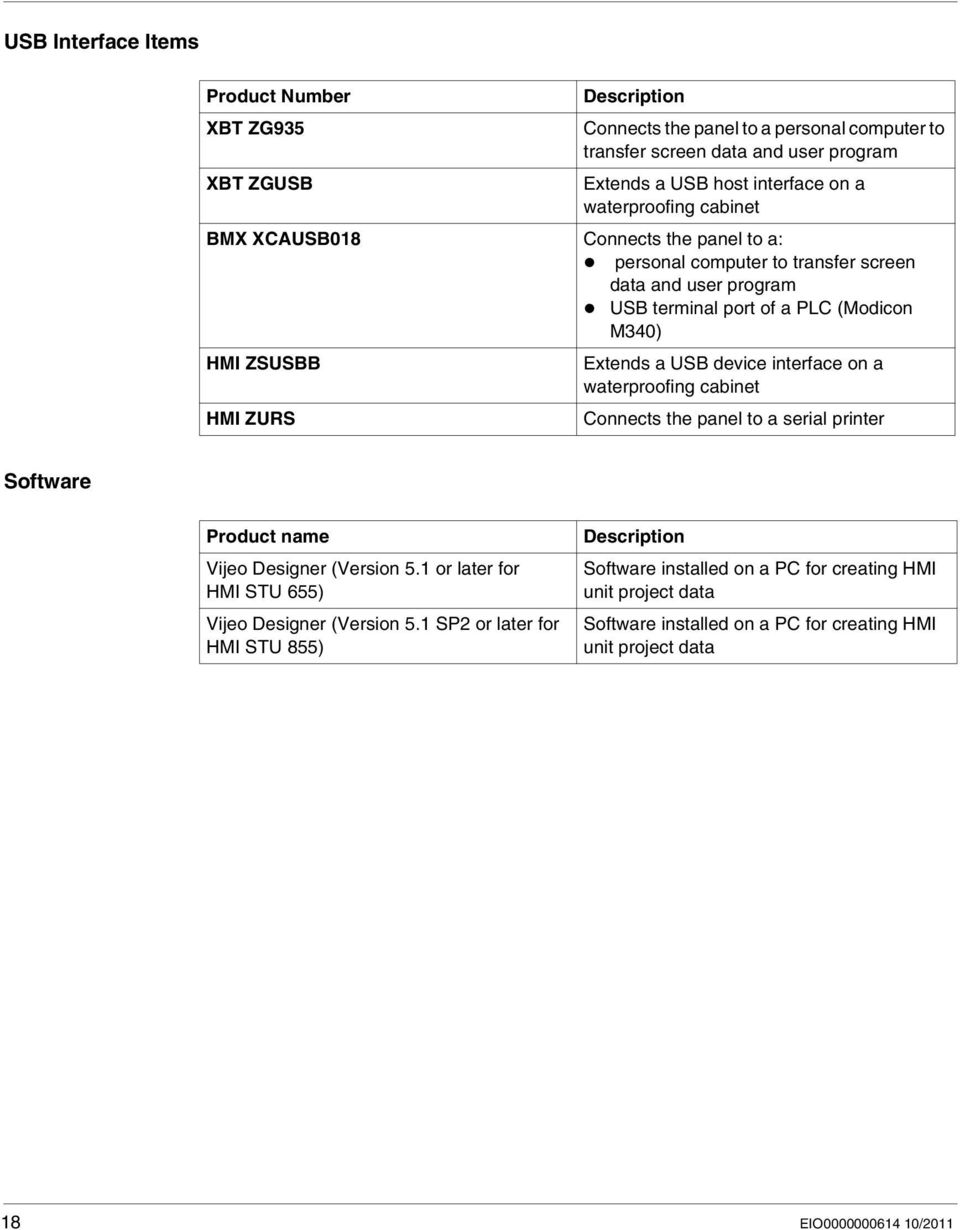
18 USB Interface Items Product Number XBT ZG935 Description Connects the panel to a personal computer to transfer screen data and user program XBT ZGUSB Extends a USB host interface on a waterproofing cabinet BMX XCAUSB018 Connects the panel to a: personal computer to transfer screen data and user program USB terminal port of a PLC (Modicon M340) HMI ZSUSBB HMI ZURS Extends a USB device interface on a waterproofing cabinet Connects the panel to a serial printer Software Product name Vijeo Designer (Version 5.1 or later for HMI STU 655) Vijeo Designer (Version 5.1 SP2 or later for HMI STU 855) Description Software installed on a PC for creating HMI unit project data Software installed on a PC for creating HMI unit project data 18 EIO /2011
19 Parts Identification and Functions Display Module Front: A B A, B Display: displays user created screens and remote equipment variables. Touch panel: performs screen change operations and sends data to the host (PLC). EIO /

20 Rear: 20 EIO /2011

21 Rear Module Front: EIO /
22 Rear: Connectors: Bottom: C C D E F Standard A USB port connector: connects the data transfer cable or memory stick to the unit. 22 EIO /2011
23 D Serial I/F (host I/F 8 pin RJ45): connects a RS-232C or RS485 (serial) cable (from the host/plc) to the unit (Y port). E Ethernet Interface (LAN): connects an Ethernet cable (from the host/plc) to the unit (X port). F Power input Terminal block: connects the power input and ground wires to the unit. Side: G G Mini-B USB port connector: connects the data transfer PC cable to the unit. EIO /
24 Certifications and Standards Introduction Schneider Electric submitted this product for independent testing and qualification by third-party listing agencies. These agencies have certified this product as meeting the following standards. Agency Certifications for HMI STU 655/855 Unit HMI STU 655/855 unit is certified by the Underwriters Laboratory according to: UL 508 and CSA C22.2 n 142 for Industrial Control Equipment UL1604, ANSI/ISA and CSA C22.2 n 213 for Electrical Equipment for Use in Class I, Division 2 Hazardous Locations ATEX certification by INERIS is ongoing, please refer to product label. HMI STU 655/855 unit is designed to comply to merchant navy bridge and deck requirements (Refer to the Schneider Electric website for installation guidelines). For detailed information, contact your local distributor or see the catalog & marking on the product. Hazardous Substances HMI STU 655/855 unit is designed for compliance with: WEEE, Directive 2002/96/EC RoHS, Directive 2002/95/EC RoHS China, Standard SJ/T UL Conditions of Acceptability and Handling Cautions for HMI STU 655/855 Unit The HMI STU 655/855 unit is suitable for use in hazardous locations in accordance with Class 1, Division 2 standards. All relevant local, state, and regional codes must be followed. 24 EIO /2011
25 CE Markings This product conforms to the necessary requirements of the following Directives for applying the CE label: 2006/95/EC Low Voltage Directive 2004/108/EC EMC Directive This conformity is based on compliance with IEC WARNING RISK OF EXPLOSION IN HAZARDOUS LOCATIONS Verify that the power, input and output (I/O) wiring are in accordance with Class I, Division 2 wiring methods. Do not substitute components that may impair compliance to Class I, Division 2. Do not connect or disconnect equipment unless power has been switched off or the area is known to be non-hazardous. Securely lock externally connected units and each interface before turning on the power supply. Failure to follow these instructions can result in death, serious injury, or equipment damage. Interfaces are: COM1, ETHERNET, USB1 and USB2. WARNING RISK OF EXPLOSION IN HAZARDOUS LOCATIONS Do not disconnect while circuit is live. Potential electrostatic charging hazard: wipe the front panel of the terminal with a damp cloth before turning ON. Failure to follow these instructions can result in death, serious injury, or equipment damage. EIO /
26 System Design Introduction The following diagrams represent equipment that can be connected to the unit. HMI STU 655/855 Edit Mode Peripherals Vijeo Designer 3 1 HMI STU 655/855 unit 2 Personal computer 3 BMX XCA USB H018 cable 4 To Ethernet network 26 EIO /2011
27 HMI STU 655/855 Run Mode Peripherals HMI STU 655/855 unit 2 PLC 3 HMI ZSUSBB cable 4 To Ethernet network 3 EIO /
28 Connecting Magelis HMI STU 655/855 unit to an external device The following diagram represents a selection of equipment that can be connected to the HMI STU 655/855 unit. 1 HMI STU 655/855 2 USB HOST interface (TYPE-A) 28 EIO /2011
29 3 USB Front Cable (A) 1 m (3.28 ft) XBT ZGUSB 4 USB Memory 5 USB HUB (Self Power Only) 6 Barcode Reader 7 Printer 8 USB-232C Converter Cable 0.5 m (1.64 ft) HMI ZURS 9 Printer (Commodity). NEC PC-PR201/PL Command Compatible, EPSON ESC/P24-J84 Command Compatible or HP Laser Jet PCL4 Command Compatible 10 USB DEVICE interface (TYPE-miniB) 11 Download Cable BMX XCA USB H PC 13 Vijeo-Designer 14 USB Front Cable HMI ZSUSBB EIO /
30 30 EIO /2011
31 Magelis HMI STU 655/855 EIO /2011 Specifications 2 Overview This chapter presents the HMI STU 655/855 specifications. What s in this Chapter? This chapter contains the following sections: Section Topic Page 2.1 General Specifications Functional Specifications Interface Specifications Dimensions 42 EIO /
32 2.1 General Specifications General Specifications Electrical Specifications The following table shows the electrical specifications of HMI STU 655/855: Part Number Rated Input Voltage Input Voltage Limits HMI STU Vdc 20.4 Vdc to 28.8 Vdc HMI STU Vdc 20.4 Vdc to 28.8 Vdc Acceptable Voltage Drop Power Consumption In-Rush Current Voltage endurance between power terminal and frame ground (FG) 10 ms 6.5 W 30 A 1000 Vac 20 ma for 1 minute 7 ms 6.8 W 30 A 1000 Vac 20 ma for 1 minute Insulation Resistance between power terminal and FG 10 MΩ or higher at 500 Vdc 10 MΩ or higher at 500 Vdc Environmental Specifications The following table shows the environmental specifications of HMI STU 655/855: Physical Environment Specification HMI STU 655 HMI STU 855 Ambient operating 0 C to +50 C (32 F to 122 F) 0 C to +50 C (32 F to 122 F) temperature (cabinet interior and panel face) Storage temperature -20 C to +60 C (-4 F to 140 F) -20 C to +60 C (-4 F to 140 F) Relative Humidity 85 % w/o condensation (Noncondensing, 85 % w/o condensation (Non-condensing, wet bulb temperature 39 C wet bulb temperature 39 C (102.2 F) or (102.2 F) or less) less) Air purity (dust) 0.1 mg/m 3 (10-7 oz/ft 3 ) (non-conductive levels) 0.1 mg/m 3 (10-7 oz/ft 3 ) (non-conductive levels) Corrosive gases Free of corrosive gases Free of corrosive gases Atmospheric pressure 800 hpa to 1,114 hpa (2000 m (6,561 ft) 800 hpa to 1,114 hpa (2000 m (6,561 ft) or lower) or lower) 32 EIO /2011
33 Mechanical Environment Electrical Environment Specification HMI STU 655 HMI STU 855 Vibration immunity (operating) IEC gn 5Hz to 150Hz (maximum 3.5 mm (0.13 in.)) IEC gn 5Hz to 150Hz (maximum 3.5 mm (0.13 in.)) Protection (front panel) IP 65 - (IEC 60529) IP 65 - (IEC 60529) Protection structure Type 4X indoor, installed on a panel Type 4X indoor, installed on a panel Protection (rear panel) IP 20 - (IEC 60529) IP 20 - (IEC 60529) Shock immunity (operating) IEC gn 11 ms IEC gn 11 ms Cooling method Natural air circulation Natural air circulation Weight 0.25 kg (0.55 lb.) or less (main unit only) 0.25 kg (0.55 lb.) or less (main unit only) Color Front bezel: dark gray Front bezel: dark gray Material PC/PBT PC/PBT & PAA Noise immunity Noise voltage: 1000 Vp-p Noise voltage: 1000 Vp-p Pulse width: 1 µs Pulse width: 1 µs Rising time: 1 ns Rising time: 1 ns High Energy Surges Electrical fast transient burst Radiated radio frequency electromagnetic field Electrostatic Discharge Immunity 1 kv CM, 0.5 kv DM on DC power supply 1 kv CM on shielded cables 2 kv CM, 2 kv DM on DC power supply. 1 kv on shielded cables 10 V/m / 80 MHz to 2.7GHz Sinus amplitude modulated 80 % 1 khz + Internal clock frequency 6 kv direct contact 8 kv air contact 1 kv CM, 0.5 kv DM on DC power supply 1 kv CM on shielded cables 2 kv CM, 2 kv DM on DC power supply. 1 kv on shielded cables 10 V/m / 80 MHz to 2.7GHz Sinus amplitude modulated 80 % 1 khz + Internal clock frequency 6 kv direct contact 8 kv air contact Grounding D type grounding (SG-FG connected) D type grounding (SG-FG connected) CM Common Mode DM Differential Mode EIO /
34 2.2 Functional Specifications Overview This section presents the HMI STU 655/855 functional specifications of the display, memory and interfaces. What s in this Section? This section contains the following topics: Topic Page Display 35 Memory, Clock, and Touch Panel EIO /2011
35 Display Display Specifications The following table shows the display specifications of the HMI STU 655/855: Items HMI STU 655 HMI STU 855 Type Color TFT LCD Color TFT LCD Resolution (pixels) Active Display Area 320 x 240 (QVGA) W70.56 x H52.92 (mm) W2.78 x H2.08 (in.) 320 x 240 (QVGA) W115.2 x H86.4 (mm) W4.53 x H3.40 (in.) Colors colors colors Backlight LED backlight: LED backlight: Brightness adjustment Brightness on LCD surface Lifetime: hours before dimmed to 50% brightness. Ambient temperature = 25 C (77 F) Non exchangeable Non exchangeable LED ON / OFF control, adjustable screen saver activation time 16 levels of adjustment available via touch panel in the Configuration menu. White LED: 350 cd/m 2 (33 cd/ft 2 ) maximum View angle 60 degrees: left, right 40 degrees: up 60 degrees: down (Test condition: contrast ratio > 2) System embedded language character sets Character sizes (2) Font sizes ASCII: (Code page 850) alphanumeric (including european characters) Chinese: (GB codes) simplified Chinese fonts Japanese: ANK 158 Kanji: 6,962 (JIS Standards 1 & 2) (including 607 non-kanji characters) Korean: (KSC codes) Hangul fonts Taiwanese: (Big 5 codes) traditional Chinese fonts Lifetime: hours before dimmed to 50% brightness. Ambient temperature = 25 C (77 F) LED ON / OFF control, adjustable screen saver activation time 16 levels of adjustment available via touch panel in the Configuration menu. White LED: 350 cd/m 2 (33 cd/ft 2 ) maximum 80 degrees: left, right 70 degrees: up 70 degrees: down (Test condition: contrast ratio > 2) ASCII: (Code page 850) alphanumeric (including european characters) Chinese: (GB codes) simplified Chinese fonts Japanese: ANK 158 Kanji: 6,962 (JIS Standards 1 & 2) (including 607 non-kanji characters) Korean: (KSC codes) Hangul fonts Taiwanese: (Big 5 codes) traditional Chinese fonts 8 x 8, 8 x 16, 16 x 16 and 32 x 32 pixels fonts 8 x 8, 8 x 16, 16 x 16 and 32 x 32 pixels fonts Width can be expanded 1 to 8 times. Height can be expanded 1/2 and 1 to 8 times. Width can be expanded 1 to 8 times. Height can be expanded 1/2 and 1 to 8 times. 8 x 8 pixels 40 characters per row, x 30 rows 40 characters per row, x 30 rows EIO /
36 Items HMI STU 655 HMI STU x 16 pixels 40 character per row, x 15 rows 40 character per row, x 15 rows 16 x 16 pixels 20 character per row, x 15 rows 20 character per row, x 15 rows 32 x 32 pixels 10 character per row, x 7 rows 10 character per row, x 7 rows 36 EIO /2011
37 Memory, Clock, and Touch Panel Memory The following table shows the memory specifications of HMI STU 655/855: Items Application flash Data backup in FRAM Application run DRAM Specification 32 MB 64 KB 64 MB Memory Back-up Management in FRAM Detected alarms data are saved: automatically every hour in the back-up memory. upon user request through Vijeo Designer application design. Clock Variations in operating conditions can cause a clock shift from -380 to +90 seconds per month. Touch Panel The following table shows the touch panel specifications of HMI STU 655/855: Items Type Lifetime Specification Analog resistance film type (Metal Tab, Golden Plated) 1 million touches or more EIO /
38 2.3 Interface Specifications Overview This section presents the interface specifications of the HMI STU 655/855 units. What s in this Section? This section contains the following topics: Topic Page Interface Specifications 39 Specifications of Serial Interface COM EIO /2011
39 Interface Specifications Serial Interface COM1 The following table describes the serial interface COM1 of HMI STU 655/855 unit: Interface Serial interface COM1 RJ45 Asynchronous Transmission Data Length Stop Bit Parity Data Transmission Speed Maximum Transmission Distance Description RS232C / RS485 7 or 8 bits 1 or 2 bits None, odd or even 2,400 to 115,200 bps RS232C 15 m (49.21 ft)/ RS m (3,937 ft) at 100 kbps USB1 Interface (USB peripherals) The following table describes the USB1 Interface of HMI STU 655/855 unit: Interface Description HOST Interface Transmission Speed High speed 480 Mbps Full speed 12 Mbps Low speed 1.5 Mbps Maximum Current Supplied 250 ma Maximum Transmission Distance 5 m (16.40 ft) at 12 Mbps Connector USB Type-A V2.0 USB2 Interface (application download) USB Mini B V2.0 type connector is used for application download. Ethernet Interface The following table describes the LED colors and status: LED Green 1 Green 2 Contents Link state Activity EIO /
40 Specifications of Serial Interface COM1 Introduction This interface is used to connect the HMI STU 655/855 to remote equipment via an RS232C or RS485 cable. The connector used is a RJ45-8 pin type connector. When using a long PLC cable to connect the unit, a difference of electric potential can be observed between the cable and the unit, even if both are connected to ground. The serial port is not isolated. The SG (signal ground) and the FG (frame ground) terminals are connected inside the unit. DANGER ELECTRIC SHOCK When using the SG terminal to connect an external device to the unit: Verify that a short-circuit loop is not created when you set up the system. Connect the #8 SG terminal to remote equipment when the host (PLC) unit is not isolated. Connect the #8 SG terminal to a known reliable ground connection to reduce the risk of damaging the RS232C/RS485 circuit. Failure to follow these instructions will result in death or serious injury. Serial Interface COM1 The following table describes the RJ45-8 pin connector: Pin Connection Pin Signal Name Direction Meaning Front 1 RXD Input Receive Data (RS232C) 2 TXD Output Send Data (RS232C) 3 Not connected D1 Output/Input Transfer Data (RS485) 5 D0 Output/Input Transfer Data (RS485) 6 RTS Output Request To Send 7 Not connected SG - Signal Ground Any excessive weight or stress on communication cables may cause a disconnection and unintended equipment operation. 40 EIO /2011
41 CAUTION LOSS OF COMMUNICATION When using HMI STU 655/855: All connections to the communication ports on the bottom and sides of the unit must not put excessive stress on the ports. Securely attach communication cables to the panel or cabinet. Use only RJ45 cables with a locking tab in good condition. Failure to follow these instructions can result in injury or equipment damage. EIO /
42 Ø Dimensions HMI STU 655/855 Display Module HMI STU 655 mm in (1) Ø 3.43 Ø Ø 0.86 (2) (3) (1) Front (2) Right Side (2) Top 42 EIO /2011
43 Display Module HMI STU 855 (3) mm in Ø22.1 Ø0.87 (2) (1) (5) (1) Front (2) Right Side (3) Bottom (4) Top (5) Left Side (4) EIO /
44 Rear Module HMI STU 655/855 mm in (2) (1) Front (2) Right Side (1) 44 EIO /2011
45 Display and Rear Modules HMI STU 655 mm in (2) (1) Right Side (2) Front (1) EIO /
46 Display and Rear Modules HMI STU 855 mm in. (4) (1) (5) (2) (1) Front (2) Right side (3) Top (4) Bottom (5) Left side (3) 46 EIO /2011
47 Magelis HMI STU 655/855 EIO /2011 Installation and Wiring 3 Overview This chapter describes the installation procedures and the wiring principles for HMI STU 655/855. What s in this Chapter? This chapter contains the following sections: Section Topic Page 3.1 Installation Wiring Principles USB Port Ethernet Cable Connector 77 EIO /
48 3.1 Installation Overview This section describes the installation Procedures for HMI STU 655/855. What s in this Section? This section contains the following topics: Topic Page Panel Cut-out Dimensions and Installation 49 Installation Procedures EIO /2011
49 Panel Cut-out Dimensions and Installation Inserting a HMI STU 655/855 Without an Anti-rotation Tee Create a panel cut-out and insert the display module of the unit into the panel from the front. The following illustration shows the panel cut-out for a HMI STU 655/855 unit without a tee: B A Dimensions Unit A (mm) A (in.) B (mm) (1) B (in.) (1) B (mm) (2) B (in.) (2) HMI STU 655/ to to to to 0.23 (1) Steel sheet (2) Glass fiber reinforced plastics (minimum GF30) NOTE: Without the tee option, the rotating torque that can be supported by the display module is 2.5 Nm (22.12 in-lb). EIO /
50 Inserting a HMI STU 655/855 With an Anti-rotation Tee Create a panel cut-out and insert the display module of the unit into the panel from the front. The following illustration shows the panel cut-out for a HMI STU 655/855 unit using a tee: D C Dimensions Unit C (mm) C (in.) D (mm) D (in.) HMI STU 655/ NOTE: With the tee option, the rotating torque that can be supported by the display module is 6 Nm (53.10 in-lb). 50 EIO /2011
51 Illustration (1) (2) (4) (3) (1) Display module (2) Support (3) Nut (4) Tee EIO /
52 Panel Adaptor The Panel Adaptor, supplied in the accessory kit HMI ZSU KIT (see page 16), allows mounting the product on a: Metallic support with a thickness between 1 and 1.5 mm (0.039 and in.) Plastic support with a thickness between 1 and 3 mm (0.039 and in.) for HMI STU 655 Glass fiber reinforced plastic with a thickness between 2 and 3 mm (0.078 and in.) for HMI STU 855 The following illustration shows the assembly with the panel adaptor: (1) (2) (3) (5) (4) (1) Display module (2) Support (3) Panel adaptor (4) Nut (5) Tee 52 EIO /2011
53 Installation Procedures Panel Setup Procedure Mount the unit in an enclosure that provides a clean, dry, robust and controlled environment (IP65 enclosure or UL50 4x, if indoors.) (see page 32) Before installing the HMI STU 655/855 verify that: The gasket is flat and not damaged. The installation panel or cabinet surface is flat (planarity tolerance: 0.5 mm (0.019 in.)), in good condition and has no jagged edges. Metal reinforcing strips may be attached to the inside of the panel, near the panel cut-out, to increase the rigidity. The panel must be designed to avoid any induced vibration resonance on the rear module exceeding a punctual factor of 10 and to avoid any induced permanent vibration resonance. To reduce the resonance use the panel adaptor accessory. The ambient operating temperature and the ambient humidity are within their specified ranges (see page 32). The heat from surrounding equipment does not cause the unit to exceed its specified operating temperature (see page 32). The panel face is not inclined more than 30 when installing the unit in a slanted panel: 30 or less EIO /
54 the power plug is positioned vertically when the unit is vertically installed. the unit is at least 100 mm (3.94 in.) away from adjacent structures and other equipment for easier maintenance, operation and improved ventilation: mm in Step Action 1 Place the unit on a clean and level surface with the display panel facing downward. 2 The support thickness depends on the material: Metallic: between 1.5 and 6 mm (0.059 and in.) Plastic: between 3 and 6 mm (0.118 and in.) If the thickness is between 1 and 1.5 mm (0.039 and in.) for metallic support or 1 and 3 mm (0.039 and in.) for plastic, use the panel adaptor supplied in accessory kit HMI ZSU KIT (see page 16). 3 Create the correct sized holes required to install the unit, using the Panel Cutout Dimension and Installation (see page 49). 54 EIO /2011
55 Step Action 4 Insert the display module (with Tee, if used) into the panel hole: Screw the nut with the tightening wrench with a torque between 1.2 and 2 Nm (10.62 and in-lb.). EIO /
56 Step Action 5 Insert and push the rear module until it locks into place: Click Insert and push Free Locked 6 To remove the rear module, push the yellow button to unlock it, then pull the rear module out: Push Pull Locked Unlocked Free 56 EIO /2011
57 3.2 Wiring Principles Overview This section presents HMI STU 655/855 wiring principles. What s in this Section? This section contains the following topics: Topic Page Connecting the Power Cord 58 Connecting the Power Supply 61 Grounding 63 EIO /
58 Connecting the Power Cord Introduction Follow these instructions when supplying power to the unit: When the frame ground (FG) terminal is connected, verify the wire is grounded. Not grounding the unit can result in excessive Electromagnetic Interference (EMI). Grounding is required to meet EMC level immunity. The shield ground (SG) and FG terminals are connected internally in the unit. Remove power before wiring to the power terminals of the unit. The unit uses only 24 Vdc power. Using any other level of power can damage both the power supply and the unit. Since the unit is not equipped with a power switch, connect a power switch to the unit s power supply. Power Cord Preparation Before using your power cord: Verify the ground wire is the same gauge or heavier than the power wires. Do not use aluminum wires for the power cord for power supply. If the conductor end (individual) wires are not twisted correctly, the end wires may either short loop to each other or against an electrode. To avoid this, use D25CE/AZ5CE cable ends. Use wires that are 0.2 to 2.5 mm 2 (24-12 AWG) for the power cord, and twist the wire ends before attaching the terminals. The conductor type is solid or stranded wire. To reduce electromagnetic noise, make the power cord as short as possible. Power Plug Illustration + - FG Connection Wire + 24 V - 0 V FG Grounded terminal connected to the unit chassis 58 EIO /2011
59 How to connect the Power Cord The following table explains how to connect the power plug: Step Action 1 Remove the power cord from the power supply. 2 Remove the power plug from the unit. 3 Remove 7 mm (0.28 in.) of the vinyl cover of each of the power cord wires. NOTE: 4 If using stranded wire, twist the ends. Tinning the ends with solder reduces the risk of fraying and enhances electrical transfer. 5 Connect the wires to the power plug by using a flat-blade screwdriver (Size 0.6 x 3.5). 6 Torque the mounting screws: 0.5 to 0.6 Nm (4.4 to 5.2 lb-in). 7 Replace the power plug to the power connector. Do not solder the wire directly to the power receptable pin. The power supply cord must meet the specification shown above. Twist the power cords together, up to the power plug, for EMC cancellation. (See illustration as shown below). EIO /
60 Power Connection The following illustration displays a connection of the power cord: Terminal block wire set block + Power Plug - FG 60 EIO /2011
61 Connecting the Power Supply Precautions Connect the power cord to the power connector on the side of the unit using the power plug. Use a regulated power supply with a Class 2 power supply between the line and the ground. Do not bundle the power supply cord with, or keep close to, main circuit lines (high voltage, high current), or input/output signal lines. Connect a lightning surge absorber to handle power surges. Excessive stress on the power connection or attempting to install a unit with the power cables connected may disconnect or cause damage to the power connections. This can cause short circuits, fire or unintended equipment operation. WARNING SHORT CIRCUITS, FIRE, OR UNINTENDED EQUIPMENT OPERATION Securely attach power cables to the panel or cabinet. Use the designated torque to tighten the unit terminal block screws. Install and fasten unit on installation panel or cabinet prior to connecting Power Supply and Communication lines. Failure to follow these instructions can result in death, serious injury, or equipment damage. EIO /
62 Power Supply Connections For ease of maintenance, use the following optional connection diagram to set up your power supply connections. NOTE: Ground the surge absorber (E1) separately from the unit (E2). Select a surge absorber that has a maximum circuit voltage greater than the peak voltage of the power supply. The following diagram displays a lightning surge absorber connection: 62 EIO /2011
63 Grounding Introduction Take the following precautions for grounding the unit. Exclusive Grounding Connect the frame ground (FG) terminal on the power plug to an exclusive ground. Grounding Procedure Step Action 1 Check that the grounding resistance is less than 100 Ω. 2 Create the connection point as close to the unit as possible, and make the wire as short as possible. When using a long grounding wire, replace the thin wire with a thicker wire, and place it in a duct. EIO /
64 Common Grounding Precautions: Electromagnetic Interference (EMI) can be created if the devices are improperly grounded. Electromagnetic Interference (EMI) can cause loss of communication. Do not use common grounding, except for the authorized configuration described below. If exclusive grounding is not possible, use a common connection point. 64 EIO /2011
65 3.3 USB Port Overview This section presents the USB port. What s in this Section? This section contains the following topics: Topic Page Important Considerations When Using the USB Port 66 USB Data Transfer Cable (BMX XCA USB H018) - USB Driver Installation 67 USB Standard A 69 USB Mini-B 74 EIO /
66 Important Considerations When Using the USB Port Introduction Data transfer cable (BMX XCA USB H018) can be attached to the USB port to allow data transfer from the computer to the unit. WARNING RISK OF EXPLOSION IN HAZARDOUS LOCATIONS In hazardous locations as described in UL1604 and ANSI/ISA : confirm that the USB cable has been attached with the USB cable clamp before using the USB host interface. remove power before attaching or detaching any connector(s) to or from the unit. Failure to follow these instructions can result in death, serious injury, or equipment damage. 66 EIO /2011
67 USB Data Transfer Cable (BMX XCA USB H018) - USB Driver Installation Important information Follow the procedure described below to avoid damage to the cable connector or the unit: Do not connect the USB data transfer cable until told to do so in the instructions. Insert the connector at the correct angle when connecting the USB data transfer cable to the PC or to the unit. Hold the connector, not the cable itself when disconnecting the cable. Use the port designated during installation. If the cable is unplugged from the port designated during installation and connected to a different port, the OS (Operating System) will not recognize the new port. Restart the PC and quit all resident applications before re-installing the software if the installation does not complete successfully. NOTE: Vijeo Designer must be installed before installing the USB driver. Installation Procedure Step Action 1 Insert the Vijeo Designer Installation CD-ROM into your CD-ROM drive. The Setup window for Vijeo Designer opens automatically. If not, at the Windows Start menu, click Run and type x:\install.exe (where x is your CR-ROM drive name). 2 In the install menu, select USB Driver. 3 Select the driver you want to install from the window that appears. For the BMX XCA USB H018 USB cable, select Install USB driver for... 4 A popup window appears stating the installation of the driver was successful. 5 Connect the USB cable to the computer. Windows automatically detects the cable and states that the device is ready to use. Post-Installation Check Perform the following check after installation: Step Action 1 On the target machine, verify the USB cable is physically connected to the USB port. 2 On the PC, verify the USB cable is physically connected to the USB port. 3 On the desktop, right-click My Computer and click Properties. EIO /
68 Step Action 4 In System Properties dialog box, select Hardware tab, and then click Device Manager. 5 In Device Manager, the USB link cable (BMX XCA USB H018) is displayed below the USB controller. Troubleshooting Detected problem/symptom The USB cable is not recognized. Overcurrent occurred. The Plug and Play is not functioning correctly. You are unable to use the USB cable after connecting it to a USB hub. After installation, a? is displayed when you try to confirm the cable s status via the Device Manager. Solution Connect the cable correctly, or restart your PC. Also, when connecting a USB hub, connect it directly to your PC USB port. The power supplied from the hub may be insufficient. Verify the hub is self-powered. Connect the cable directly to the PC USB port. The driver has not been installed correctly. Uninstall the driver and re-install it. Uninstalling the USB Driver Step Action 1 Click the USB device icon Stop USB link cable in the Windows task tray and then click Stop USB link cable (BMX XCA USB H018) for Windows 2000, or Safely remove USB link cable (BMX XCA USB H018) for Windows XP. 2 When the Safe To Remove Hardware message box appears, remove the USB download cable. 3 Click OK to close the message box. 68 EIO /2011
69 USB Standard A Introduction When using a USB device, you can attach a USB holder to the USB interface on the side of the unit to prevent the USB cable from being disconnected. WARNING RISK OF EXPLOSION IN HAZARDOUS LOCATIONS In hazardous locations as described in UL1604 and ANSI/ISA : confirm that the USB cable has been attached with the USB cable clamp before using the USB host interface. remove power before attaching or detaching any connector(s) to or from the unit. Failure to follow these instructions can result in death, serious injury, or equipment damage. EIO /
70 Attaching the USB Holder Step Action 1 Attach the USB holder to the USB Host Interface on the rear module. Hook the upper pick of the USB holder to the attachment hole of the main unit, and insert the lower pick as shown below to fix the USB holder. (1) (1) USB Holder 70 EIO /2011
71 Step Action 2 Insert the USB cable into the USB host interface. (1) (1) USB Holder (2) USB Cable (2) EIO /
72 Step Action 3 Attach the USB cover to fix the USB cable in place. Insert the USB cover into the tab of the USB holder. (3) (1) (1) USB Holder (2) USB Cover (3) USB Cable (2) 72 EIO /2011
73 Removing the USB Holder Push down the tab of the USB holder and then remove the USB cover. (3) (1) USB Holder (2) USB Cover (3) USB Cable (2) (1) EIO /
74 USB Mini-B Introduction When using a USB device, you can attach a USB holder to the USB interface on the side of the unit to prevent the USB cable from being disconnected. WARNING RISK OF EXPLOSION IN HAZARDOUS LOCATIONS In hazardous locations as described in UL1604 and ANSI/ISA : confirm that the USB cable has been attached with the USB cable clamp before using the USB host interface. remove power before attaching or detaching any connector(s) to or from the unit. Failure to follow these instructions can result in death, serious injury, or equipment damage. 74 EIO /2011
75 Attaching the USB Holder Step Action 1 Insert the USB cable into the USB host interface. (1) (1) USB Cable 2 Attach the USB holder to fix the USB cable in place. (1) (2) (1) USB Holder (2) USB Cable EIO /
76 Removing the USB Holder Push down the tab of the USB holder and then remove the USB holder. 1 2 (1) (2) (1) USB Holder (2) USB Cable 76 EIO /2011
77 3.4 Ethernet Cable Connector Presentation Introduction The HMI STU 655/855 comes equipped with an IEEE802.3 compliant Ethernet interface, that transmits and receives data at 10 Mbps or 100 Mbps. Ethernet Cable Connector The following illustration displays the location of the RJ45 Ethernet cable connector: Do not confuse the RJ45 Ethernet connector with the RJ45 COM1/COM2 serial port. NOTE: Ethernet networks must be installed by a trained and qualified person. 1:1 connections must be made with a hub or a switch. It is possible to use the 1:1 connection with a cross cable depending on the connected PCs and network cards. EIO /
78 78 EIO /2011
79 Magelis HMI STU 655/855 EIO /2011 Setting and Debugging II Overview This part describes the settings available on the target machine as well as how to debug the unit. What s in this Part? This part contains the following chapters: Chapter Chapter Name Page 4 Setting and Debugging 81 5 Troubleshooting 91 6 Maintenance 97 EIO /
80 80 EIO /2011
81 Magelis HMI STU 655/855 EIO /2011 Setting and Debugging 4 Overview This chapter presents the settings on the HMI STU 655/855 units. What s in this Chapter? This chapter contains the following topics: Topic Page Types of Settings 82 System Settings 83 Offline Settings 86 Diagnostics Settings 89 EIO /
82 Types of Settings Introduction You can use the Settings menu to configure the unit. Depending on how you use your HMI STU 655/855, you can display the Settings menu using three different methods: Use an action, Touch the top-left corner of the panel when powering up, Touch two corners of the panel successively while the application is running. You can select which methods your application uses in the Vijeo Designer editor s Target properties. Calling Up the Settings Menu Step Action 1 Set up any combination of the following methods for displaying the Settings menu. Action: Create a switch and add the Configuration System Operation. See the Vijeo Designer online help for more information on creating a switch. Top-Left Corner: In Target properties, set To Configuration to either Top Left Corner or Top Left/2 Corner. Touch two corners successively: In Target properties, set To Configuration to either 2 Corner or Top Left/2 Corner. If you set To Configuration to None and do not create a switch to display the Settings menu, then there is no way to configure the unit at runtime. 2 Connect the power supply. 3 Depending on what you set up in Step 1, you can display the Configuration menu using one of the following methods: Action: Touch the switch set up with the Configuration system operation. Top-Left Corner: Touch the top-left corner of the screen within ten seconds after the unit begins starting up. Touch two corners successively: Touch successively the top left corner then the bottom right corner within half a second. The touch area is 50 dots by 50 dots. Vijeo Designer Runtime restarts and displays the Settings menu. 4 The Settings menu contains 3 tabs: Offline, System, Diagnostics and To Run Mode. Click a tab to display its settings. 82 EIO /2011
83 System Settings Introduction You can change system settings while the user application is still running. Stylus Use the Stylus to calibrate the screen: Step Action 1 In the Setting menu, press the System tab. 2 Press the Stylus button. 3 Press the center of the cross several times to complete calibration of the screen. Changing the Date/Time Step Action 1 In the Setting menu, press the System tab. 2 Press the Date/Time button. 3 Press any of the Year, Month or Day fields and a data entry keypad is displayed. Use this keypad to define the selected date setting. 4 Press any of the Hour, Minutes or Seconds fields and a data entry keypad is displayed. Use this keypad to define the selected time setting. 5 In the Time Zone tab press the up/down arrows to select the desired time zone. 6 Check the Auto. adjust clock for daylight saving time box to choose adjusting clock for daylight saving time changes automatically. 7 In the DST tab press the up/down arrows to select the desired daylight saving time type: Date: the DST is added, or subtracted, on the exact date chosen. Rule: the DST is added, or subtracted, on a specific weekday in the month. 8 Press the Amount field and a data entry keypad is displayed. Use this keypad to define the desired daylight saving time amount (minutes). 9 Press the OK button to validate your configuration or configure the parameters of daylight saving time by Date (see page 84) or by Rule (see page 84). EIO /
84 Daylight Saving Time Setting by Date If Date is selected in step 7 of Changing the Date/Time (see page 83), follow this procedure to set the daylight saving time parameters: Step Action 1 Follow the procedure of Changing the Date/Time (see Magelis Small Panels, HMI STO User Manual) til step 9. 2 In Add Time press the up/down arrows to select the desired month and press the right field to display the keypad to define the desired day to add time. press any of the fields to display the keypad and define the hour to add time. 3 In Subtract Time press the up/down arrows to select the desired month and press the right field to display the keypad to define the desired day to subtract time. press any of the fields to display the keypad and define the hour to subtract time. Daylight Saving Time Setting by Rule If Rule is selected in step 7 of Changing the Date/Time (see page 83), follow this procedure to set the daylight saving time parameters: Step Action 1 Follow the procedure of Changing the Date/Time (see Magelis Small Panels, HMI STO User Manual) til step 9. 2 In Add Time press the up/down arrows to select the desired day and the desired month to add tlme. press any of the fields to display the keypad and define the hour to add time. 3 In Subtract Time press the up/down arrows to select the desired day and the desired month to subtract time. press any of the fields to display the keypad and define the hour to subtract time. Forcing a Restart Step Action 1 In the Setting menu, press the System tab. 2 Press the Restart button, the following message appears: Are you sure you want to restart the operating system?. 3 Press the Restart button to restart the unit or the Cancel button to return to the System menu. 84 EIO /2011
85 Selecting a Language The following table describes how to select the language used for the Settings menu, the run-time messages and user application. Step Action 1 In the Setting menu, press the System tab. 2 Press the Language button. 3 Press the up/down arrows to select the desired languages for: System, User Application, Keyboard Language. The languages available in the language settings are defined in the Vijeo Designer editor. 4 Press OK to validate. Displaying Version Information Step Action 1 In the Setting menu, press the System tab. 2 Press the Ver. Info button, version information displays: Vijeo-Designer Runtime Version, Vijeo-Designer Version, build number. Displaying Memory Statistics Step Action 1 In the Setting menu, press the System tab. 2 Press the Memory button. DRAM describes the amount of memory currently being used by the application. Main Flash indicates the amount of internal memory (flash memory) required to store the runtime system files and the user application. Brightness Control Step Action 1 In the Setting menu, press the System tab. 2 Press the Brightness button. 3 Press the up/down arrows to adjust the brightness. NOTE: Reducing the brightness could increase the life span of the backlight. EIO /
86 Offline Settings Introduction The offline settings cannot be changed while a user application is running. Changing the Network Settings Step Action 1 In the Setting menu press the Offline tab. 2 Press the Network button, the following message appears: Working with Offline Settings will stop the user application and runtime. Continue? 3 Press the OK button to restart the system or the Cancel button to return to the System menu. 4 In the Static IP tab, press any of IP Address, Subnet Mask or Default Gateway fields, a numerical keypad displays, enter the desired parameters and validate by pressing Enter button. 5 In the DHCP tab, press the Enable DHCP checkbox to obtain configuration information from the network. This reduces system administration workload, allowing devices to be added to the network with little or no manual intervention. 6 In the MAC/DNS tab: Press Obtain DNS Setting checkbox to translate names into IP addresses. Press any of IP Address fields, a numerical keypad displays, entry the desired IP address and validate by Enter button. 7 In Static IP tab press the Ok button to validate. Changing the Buzzer Settings Step Action 1 In the Setting menu press the Offline tab. 2 Press the Buzzer button, the following message appears: Working with Offline Settings will stop the user application and runtime. Continue? 3 Press the OK button to restart the system or the Cancel button to return to the System menu. 4 Press the desired buzzer mode. The factory setting is Pressing Touch Object. None: Selecting this turns the buzzer off. When Press Touch Object: The buzzer only sounds when a Touch Object is pressed. 86 EIO /2011
87 Changing Backlight Control Step Action 1 In the Setting menu press the Offline tab. 2 Press the Backlight button, the following message appears: Working with Offline Settings will stop the user application and runtime. Continue? 3 Press the OK button to restart the system or the Cancel button to return to the System menu. 4 In the Backlight control, define the backlight operations. Wait: To extend the life of the backlight, you can set up the unit so that it turns off the backlight when the panel is inactive (idle) for the defined period of time, (Idle means the unit panel has not been pressed). The factory setting for this item is off. Enable Touch if Backlight Burned Out: This setting defines whether the press panel is enabled or disabled when a backlight burnout is detected. When this feature is cleared and the backlight burns out, press inputs are ignored to prevent operation detected errors. The factory setting for this item is off. 5 To turn the Backlight off automatically after a specified period of time, press the Wait checkbox and then set the idle time. Self Test Step Action 1 In the Setting menu, press the Offline tab. 2 Press the Self Test button, the following message appears: Working with Offline Settings will stop the user application and runtime. Continue? 3 Press the OK button to restart the system or the Cancel button to return to the System menu. 4 In the Self Test control, press: Char. Pattern: to check the characters in each font set available on the unit. Use this test when characters (usually 2-byte characters) do not display properly. Ok appears if there is no detected error. NG appears if there is a detected error. Disp. Pattern: to test your LCD screen with some graphical test patterns. Touch Panel: to test the touch panel cells. Each cell highlights when it is pressed during the test. COM 1: to test the COM 1 port connector. Ok appears if there is no detected error. NG appears if an error is detected. Video memory: to test hardware memory. EIO /
88 Driver Configuration Step Action 1 In the Setting menu, press the Offline tab. 2 Press the IO Manager button, the following message appears: Working with Offline Settings will stop the user application and runtime. Continue? 3 Press the OK button to restart the system or the Cancel button to return to the System menu. 4 In the IO Manager control, press the Driver Config button. 5 In the Driver Config control: Select Driver: press the up/down arrow to select the desired driver. 6 Set the parameters of the selected driver. Equipment Configuration Step Action 1 In the Setting menu, press the Offline tab. 2 Press the IO Manager button, the following message appears: Working with Offline Settings will stop the user application and runtime. Continue? 3 Press the OK button to restart the system, or the Cancel button to return to the Setting menu. 4 In the IO Manager control, press the Equipment Config button. 5 In the Equipment Config control: Select Equipment: press the up/down arrow to select the desired equipment. 6 Set the parameters of the selected equipment. 88 EIO /2011
89 Diagnostics Settings Introduction The HMI STU 655/855 units are equipped with a number of diagnostic features that can be used to check the systems and the interfaces for any problems. Diagnostics See the Vijeo Designer online help for information on accessing the Diagnostics Settings menu. Variables Use the Variable menu to check that the application is running correctly. The following table describes how to get to the Variable menu: Step Action 1 In the Settings menu, press the Diagnostics tab. 2 Press the Variable button. 3 Select Equipment: press the up/down arrow to select the equipment whose variables you want to test. 4 In the Variable menu, press the Go Offscan button, the following message appears: Warning: Entering the Variable Test screen pauses communication with all equipment. Continue? 5 Press the OK button to restart the system, or the Cancel button to return to the Variable menu. 6 If the Go Onscan is pressed, the test reads the value for each variable associated with the selected equipment. If any of the variables detects a problem, because of a detected error in the equipment or a time-out, the event log displays a message with the name of the variable. 7 After you complete testing variables from one equipment, you can continue testing variables for other equipment connected to the target machine. 8 Alternatively, you can test all equipment at once by selecting Test All in the Select Equipment drop-down list. 9 Press the Return button to return to the Diagnostics menu. EIO /
90 Statistics Use the Statistics menu to check the connection between equipment. The following table describes how to get to Statistics menu: Step Action 1 In the Settings menu, press the Diagnostics tab. 2 Press the Statistics button. NOTE: When you write any value to this system control word, press the Rollover button to: Copy the values in the current statistic variables to the previous statistic variables. Reset current statistic variables to zero. 3 In Show Stats for: press the up/down arrow to select the equipment whose variables you want to show statistics for. 4 Press the right arrow button to view the next display. 5 Press the Go Offscan button to start the test. 6 Press the right arrow button to view the next display. 7 Total Good: the total number of received variables without detected error. Total Bad: the total number of detected errors of all types. Total Count: Total Good + Total Bad. No Reply: no reply was received in response to the request. Chksum Fail: received a request or response (1) with an incorrect checksum. Wrong Addr.: received a request or response (1) with an incorrect address. Error Resp.: received a detected error response from the equipment. (1): Master-type drivers send out requests and receive responses. Slave-type drivers receive requests and send responses. 8 Press the next arrow button to view the next display. 9 Inv. Resp.: received a response that contained a protocol detected error. Init. Fail: initializing communications with the equipment was unsuccessful. Write Fail: writing a new value to the equipment was unsuccessful. Intrn Error: internal driver detected error indicates improper driver configuration or driver problem. Xmit Fail: transmitting a request or response was unsuccessful. Unsupp. Req.: received a request for an unsupported service. Inv. Request: received a request that contained a protocol detected error. 10 Press the Return button to return to the Diagnostics menu or the previous arrow button to view the previous display. 90 EIO /2011
91 Magelis HMI STU 655/855 EIO /2011 Troubleshooting 5 Overview This chapter describes how to find and resolve detected problems with the HMI STU 655/855 units. What s in this Chapter? This chapter contains the following topics: Topic Page Troubleshooting Checklists 92 Self Test List 95 EIO /
92 Troubleshooting Checklists Introduction When there is a detected problem, go through the checklist and follow the instructions given. Here are the main detected problems that may occur when using HMI STU 655/855 unit. Panel display is blank, Connected equipment cannot be used, Panel does not respond or responds very slowly, Panel beeps when powered on, Cannot change the date or time. NOTE: Contact your local Schneider Electric vendor or your local distributor. Panel Display is Blank If the unit display is blank, perform the following check steps: Step Check/Operation Solution 1 Are all Vijeo Designer screens downloaded? 2 Is the Initial Panel ID set up correctly in Vijeo Designer? 3 Is the unit using the correct rated voltage? You may have to download the screens again. Enter the Initial Panel ID in the Vijeo Designer editor and download again. Verify the power supply connections and levels. 4 Is the power supply off or disconnected? Follow the instructions in this manual for reconnecting the power supply. 5 Is the backlight lit? Potential detected problem with the unit. Contact your local Schneider Electric distributor. 6 Is the detected problem resolved? If none of the previous steps fixed the blank panel display detected problem, then verify the hardware. 92 EIO /2011
93 Connected Equipment Cannot be Used If the unit does not communicate with connected equipment, perform the following check steps: Step Check/Operation Solution 1 Is the power supply off or disconnected? Verify the power supply connections and levels. 2 Do the Driver and Equipment settings in Vijeo Designer match the actual equipment you are trying to communicate with? 3 Is the communication cable connected correctly? In the Vijeo Designer editor Navigator window s Project tab, expand the I/O Manager node to enter the correct configuration settings for the Driver and Equipment nodes. Refer to the associated protocol manual for information about cable diagrams. 4 Is the detected problem resolved? If none of the previous steps fixed the communication detected problem, then verify the hardware. Unit does not respond when pressed If the unit is either not responding when pressed or if its response time is very slow, perform the following check steps: Step Check/Operation Solution 1 Disconnect all the cables except the - power cable. 2 In the Settings menu, press the Offline tab and then press the Self Test icon. Run the Touch Panel test. If the test is unsuccessful, there is a detected problem with the hardware. EIO /
94 Step Check/Operation Solution 3 If touch response is slow, does it happen on a specific panel? 4 If touch response is slow, the target CPU may be very busy communicating with external equipment. If the panel displays the values of a large number of equipment variables, you may want to redesign the panel and separate the variables into different panels and download again. To resolve this detected problem, try each of the following in the Vijeo Designer editor and download again. If you are using serial communication, verify the communication speed between the target and equipment is optimized. In the equipment or scan group properties, reduce the Scan Rate to Slow. This will reduce the frequency of variable updates to 1000 ms. If you use many equipment variables in application scripts, you may want to change the script to a panel script so that the variables are active only when the information is necessary. If none of the above works, then you may have to reduce the number of external variables in the project. If none of the proposed options work, contact your Schneider Electric Technical Support for optimizing your project. Target beeps when powered ON A continuous beep from the target means that system files are corrupted. To resolve this detected problem, go to the Vijeo Designer Start menu and run Recovery on the target machine. 94 EIO /2011
95 Self Test List Introduction The HMI STU 655/855 units are equipped with a number of diagnostic features that can be used to check the systems and the interfaces for any detected s. Self Test From the Settings menu, press the Offline button and then the Self Test icon. Self Test menu appears. See the Vijeo Designer online help for information on accessing the Offline tab. Self Tests The following tests can be accessed from the Self Test menu. Test Char. Pattern Disp. Pattern Touch Panel COM 1 Video Memory Description Checks the characters in each font set available on the unit. Use this test when characters (usually 2-byte characters) are not displayed properly. OK appears if there is no detected error; NG appears if there is a detected error. Use this test when your drawings are not displayed properly. Tests the touch panel cells. Each cell highlights when it is pressed during the test. Checks that the serial port (RS-232C and RS-485) is working properly. To run the check, you may need to connect a loopback cable (see below). OK appears if there is no detected error; a detected error message appears if there is an error. Use this test to check the video memory (memory used for screen display). Run this test when the screen does not display properly. OK appears if there is no detected error; NG appears if there is a detected error. EIO /
96 Wiring for COM 1 tests When testing the serial port, depending on which port and which communication format you are testing, you may need to attach a loopback cable with wiring as defined below: RS-232C HMI STU 655/855 in COM1 RS-485 Not available. RXD TXD EIO /2011
97 Magelis HMI STU 655/855 EIO /2011 Maintenance 6 Overview This chapter explains how to maintain your HMI STU 655/855 units. What s in this Chapter? This chapter contains the following topics: Topic Page Regular Cleaning 98 Periodic Check Points 101 EIO /
98 Regular Cleaning Cleaning the display EQUIPMENT DAMAGE NOTICE Power off the unit before cleaning it. Do not use hard or pointed objects to operate the touch panel, since it can damage the panel surface. Do not use paint thinner, organic solvents, or a strong acid compound to clean the unit. Failure to follow these instructions can result in equipment damage. When the surface or the frame of the display gets dirty, soak a soft cloth in water with a neutral detergent, wring the cloth tightly and wipe the display. 98 EIO /2011
99 Chemical Substances The products in the following table can be used when cleaning the unit: Kinds of fluid Company Product designation Cleaning agents in the food and beverage industry Concentration Temperature C ( F) ph Value Ecolab Topmaxx (104) 1% : ph=13 Ecolab P3 Topax M (104) 1% : ph=12.3 Ecolab P3 Oxonia Active 3 40 (104) Ecolab P3 Topax 52 FR 5 40 (104) 1% : ph=2 Ecolab P3 Topax (104) Ecolab P3 Luboklar MH (104) Johnson Diversey Johnson Diversey Johnson Diversey Johnson Diversey Johnson Diversey Johnson Diversey Johnson Diversey Johnson Diversey Divosan (77) 100% : ph=7 Diverfoam Septiplus 5 25 (77) 3% : ph=8.3 Acifoam 5 25 (77) 1% : ph=2.2 HD Plus Foam 5 25 (77) 1% : ph=12.9 Oxofoam 5 25 (77) 1% : ph=12.7 Endoroplus VE (77) 1% : ph=12.1 Endoroforce VE (77) 1% : ph=12.5 Endorocid VE (77) 1% : ph=2 Diverse Water (122) Milk (77) Methanol (77) Oils ASTM (77) IRM (77) IRM (77) Cerechlor/IRM /50 25 (77) Syntopon B 3 25 (77) EIO /
100 Kinds of fluid Company Product designation Cutting oils Ecocut HBN 16LE Pure 25 (77) Quakercool 7101H Emulsion 25 (77) Quakercool 2769 Soluble / Synthetic 25 (77) Quakercool 3750H Micro-emulsion 25 (77) Concentration Temperature C ( F) ph Value 100 EIO /2011
101 Periodic Check Points Operation Environment Refer to the Environmental Specifications (see page 32). Electrical Specifications The input voltage must be within 20.4 to 28.8 Vdc. Related Items Are all power cords and cables connected properly? Are there any loose cables? Are all mounting brackets holding the unit securely? Are there scratches or traces of dirt on the installation gasket? EIO /
102 102 EIO /2011
103 Magelis HMI STU 655/855 Index EIO /2011 Index CBA Symbols Peripherals Edit Mode, 26 I Installation Procedures, 53 A Accessories, 16 C Certifications and Standards, 24 Connecting the Power Cord, 58 Connecting the Power Supply, 61 D Diagnostics Settings, 89 E Edit Mode Peripherals, 26 Ethernet Cable connector, 77 G Grounding, 63 M Maintenance Check points, 101 Cleaning, 98 P Part number HMI STU 655, 12 HMI STU 855, 12 Parts Identification and Functions, 19 Power plug, 58 S Self Test, 95 Settings menu, 82 Specifications COM, 40 COM1, 39, 40 Display, 35 General, 32 Interfaces, 39 Memory, 39, 39 USB, 39, 39 System Settings, 83 EIO /
104 Index T Troubleshooting, 92 U USB Data Transfer Cable, 67 Mini-B, 74 Port, 66 Standard A, EIO /2011
HMIGTO4310 advanced touchscreen panel 640 x 480 pixels VGA- 7.5" - TFT - 96 MB
 Product datasheet Characteristics HMIGTO4310 advanced touchscreen panel 640 x 480 pixels VGA- 7.5" - TFT - 96 MB Main Range of product Product or component type Display colour Display size Supply Magelis
Magelis XBT GT User Manual. 35010372 01 eng 2.0
 Magelis XBT GT User Manual 35010372 01 eng 2.0 35010372 01 2 35010372 01 12/2005 Table of Contents Safety Information.................................... 7 About the Book.......................................9
Safety Precautions WARNINGS
 Safety Precautions This guide contains a variety of safety markings related to the safe and correct operation of the USB Data Transfer Cable. Be sure to read this guide and any related manuals carefully
TM7BDM8B expansion block - TM7 - IP67-8 DI/DO - 24V DC - 0.5 A - M8 connector
 Product datasheet Characteristics TM7BDM8B expansion block - TM7 - IP67-8 DI/DO - 24V DC - 0.5 A - M8 connector Main Range of product Product or component type Range compatibility Enclosure material Bus
Programmable Terminal. NPSeries. Easy Setup with the Low-cost, Compact NP Series
 Programmable Terminal NPSeries Easy Setup with the Low-cost, Compact NP Series Simpler and More Versatile.OMRON s Compact NP Series Connect! Easier connection to OMRON PLCs and Temperature Controllers,
UniStream CPU-for-Panel
 UniStream CPU-for-Panel Installation Guide USC-P-B10 Unitronics UniStream platform comprises control devices that provide robust, flexible solutions for industrial automation. This guide provides basic
Connect to a remote PC via Ethernet with a monitor, keyboard, and mouse. This network monitor offers both long distance and wireless transmission.
 17" (43 cm) LCD Monitor Connect to a remote PC via Ethernet with a monitor, keyboard, and mouse. This network monitor offers both long distance and wireless transmission. Long Distance Transmission Easily
MCR1900 Media Converter 19-Slot Chassis
 MCR1900 Media Converter 19-Slot Chassis Installation Guide Part #5500304-11 Copyright Statement This document must not be reproduced in any way whatsoever, either printed or electronically, without the
PU-USBX. USB over Ethernet Extender OPERATION MANUAL
 PU-USBX USB over Ethernet Extender OPERATION MANUAL Safety Precautions Please read all instructions before attempting to unpack or install or operate this equipment, and before connecting the power supply.
Modicon M340 Peripheral Remote I/O Adapter BMX PRA 0100 User Manual
 Modicon M340 EIO0000000510 04/2014 Modicon M340 Peripheral Remote I/O Adapter BMX PRA 0100 User Manual 04/2014 EIO0000000510.04 www.schneider-electric.com The information provided in this documentation
RM17TE 183...528 V AC. Main. Product or component type. Product specific application. Relay monitored parameters 250 V DC 5 A DC
 Characteristics multifunction control relay RM17-TE - range 183..528 V AC Complementary Reset time Maximum switching voltage Minimum switching current Maximum switching current [Us] rated supply voltage
Senses SV series industrial monitor user manual
 Industrial Monitors Senses SV series Senses SV19 / SV17 User manual (Issue A) Part No: 85090084 Page 1 of 25 Copyright Copyright 2008 Amplicon Liveline Ltd. All rights reserved. This publication, including
Daker DK 1, 2, 3 kva. Manuel d installation Installation manual. Part. LE05334AC-07/13-01 GF
 Daker DK 1, 2, 3 kva Manuel d installation Installation manual Part. LE05334AC-07/13-01 GF Daker DK 1, 2, 3 kva Index 1 Introduction 24 2 Conditions of use 24 3 LCD Panel 25 4 Installation 28 5 UPS communicator
MILLENIUM INSTALLATION MANUAL NTR 735 A. Simple Automation Control Module (MAS)
 MILLENIUM Table of contents 1. INTRODUCTION 1 2. HARDWARE DESCRIPTION 2 3. INSTALLATION 5 4. CONNECTION 6 5. USER SAFETY AND PROTECTION OF EQUIPMENT 8 1. Introduction The MILLENIUM series has been designed
Digital input modules
 8 172 TX-I/O Digital input modules TXM1.8D TXM1.16D Two fully compatible versions: TXM1.8D: 8 inputs, each with a three-color LED (green, yellow or red) TXM1.16D: As TXM1.8X, but 16 inputs, each with a
Variable speed drives for synchronous and asynchronous motors
 Imptant infmation Altivar XXXXXX Variable speed drives f synchronous and asynchronous mots ATEX manual F ATEX applications in explosive gas atmosphere in the presence of combustible dust 0/010 S1A0 www.schneider-electric.com
Waveguide Access Point WGA631. Product Guide
 Waveguide Access Point Product Guide Waveguide Access Point Contents 1. Description............................ 3 2. Application............................ 3 3. Technical data... 4 4. Physical interfaces......................
ENET-710. ENET-710 - Ethernet Module ENET-710 JAN / 06 FOUNDATION
 ENET-710 ENET-710 - Ethernet Module JAN / 06 ENET-710 FOUNDATION E N E T 7 1 0 ME smar www.smar.com Specifications and information are subject to change without notice. Up-to-date address information is
Type: EASY719 DC RC Article No.: 274119. Ordering information Relay outputs Quantity 6 Power supply V DC 24 V DC. Description
 Type: EASY719 DC RC Article.: 274119 Ordering information Relay outputs Quantity 6 Power supply V DC 24 V DC Description 12 digital inputs (4 inputs available as analog inputs) 6 relay outputs LCD display
PD 100A. Printing data system
 PD 100A Printing data system Operating instructions ENGLISH IMPORTANT: Read these instructions carefully before installing and using the device; do not forget following all additional information. Keep
33.6W Power over Ethernet Waterproof Adapter PoE Plus Single Port Injector for Outdoor Application
 33.6W Power over Ethernet Waterproof Adapter PoE Plus Single Port Injector for Outdoor Application Features Compliant with the IEEE802.3at Standard -40 to +60 C Temperature Range Diagnostic LEDs Full Protection
When any of the following symbols appear, read the associated information carefully. Symbol Meaning Description
 Samba OPLC SM35-J-R20 Installation Guide The Unitronics SM35-J-R20 offers the following onboard I/Os: 12 Digital Inputs, configurable via wiring to include: 1 HSC/Shaft-encoder Input, 2 Analog inputs (only
JNIOR. Overview. Get Connected. Get Results. JNIOR Model 310. JNIOR Model 312. JNIOR Model 314. JNIOR Model 410
 The INTEG is an Ethernet I/O (digital, analog) device that monitors and controls a small set of process signals. functions as both basic I/O for integration with another application or system AND as a
OPLC Installation Guide
 Samba OPLC SM43-J-T20/ SM35-J-T20 OPLC Installation Guide 12 Digital Inputs, include 1 HSC/Shaft-encoder Input, 2 Analog inputs (only when the digital inputs are set to pnp), 8 Relay Outputs 12 Digital
Mercury Helios 2 ASSEMBLY MANUAL & USER GUIDE
 Mercury Helios 2 ASSEMBLY MANUAL & USER GUIDE TABLE OF CONTENTS INTRODUCTION...1 1.1 MINIMUM SYSTEM REQUIREMENTS 1.1.1 Apple Mac Requirements 1.1.2 PC Requirements 1.1.3 Supported PCIe Cards 1.2 PACKAGE
Outdoor 33.6W Dual Port Passive Power-over-Ethernet Midspan For External Security Cameras and Wireless Access Points
 Outdoor 33.6W Dual Port Passive Power-over-Ethernet Midspan For External Security Cameras and Wireless Access Points Features SELV Compliant No Detection Passive Injector Gigabit Compatible Full Protection
ADSL Modem Installation Guide. Model # 36R515 Part # 030-300108 Rev. D Revision Date 12/2000. ADSL Modem Installation Guide
 ADSL Modem Installation Guide Model # 36R515 Part # 030-300108 Rev. D Revision Date 12/2000 ADSL Modem Installation Guide Installation Instructions Westell ADSL Modem 1. Package Inspection and Contents...2
StructureScan HD Module. Installation Guide ENGLISH. www.bandg.com www.simrad-yachting.com www.lowrance.com
 StructureScan HD Module Installation Guide ENGLISH www.bandg.com www.simrad-yachting.com www.lowrance.com Disclaimer As Navico is continuously improving this product, we retain the right to make changes
HP ProDisplay P19A LED Backlit Monitor. User Guide
 HP ProDisplay P19A LED Backlit Monitor User Guide 2013 Hewlett-Packard Development Company, L.P. The only warranties for HP products and services are set forth in the express warranty statements accompanying
Square D Clipsal DIN-Rail Four-Channel Auxiliary Input Unit
 Square D Clipsal DIN-Rail Four-Channel Auxiliary Input Unit SLCLE5504AUX for Use with Wired C-Bus Networks Instruction Bulletin Retain for future use. Square D Clipsal DIN-Rail Four-Channel Auxiliary Input
How To Set Up An Ecm Display On A D210 (D210) (D2) (Ecm) (Emc) (Mcd) (Power Supply) (Mm) (Camellom) (Ios)
 English Customer Display DM-D210 Installation Manual 401285101 CAUTIONS This document shall apply only to the product(s) identified herein. No part of this document may be reproduced, stored in a retrieval
MCR-VDC-UI-B-DC. Voltage Transducer for DC Voltages. INTERFACE Data Sheet 100260_en_01. 1 Description
 Voltage Transducer for DC Voltages TERFACE Data Sheet 000_en_0 PHOENIX CONTACT - /00 Description The MCR voltage transducer measures DC voltages in several signal ranges from 0... ±0 V DC to 0... ±0 V
DLP-PU/E Instruction Manual
 Instruction Manual BEFORE USING THE POWER SUPPLY UNIT Pay attention to all warnings and cautions before using the unit. Incorrect usage could lead to an electrical shock, damage to the unit or a fire hazard.
5-port / 8-port 10/100BaseTX Industrial Ethernet Switch User Manual
 5-port / 8-port 10/100BaseTX Industrial Ethernet Switch User Manual Content Overview... 1 Introduction... 1 Features... 3 Packing List... 4 Safety Precaution... 4 Hardware Description... 5 Front Panel...
Manual. Simrad StructureScan LSS-1 Sonar Module. English
 Manual Simrad StructureScan LSS-1 Sonar Module English www.simrad-yachting.com A brand by Navico - Leader in Marine Electronics Disclaimer As Navico is continuously improving this product, we retain the
HMI display Installation Guide
 HMI display Installation Guide Product Description Specifications Important Information o Package Contents o Related Documents o Accessories Cautions and Warnings Mounting and Dimensions o BAC-DIS-ENC
Installation. Smart-UPS VT MGE Galaxy 3500. Maintenance Bypass Panel. 10-40 kva 400 V
 Installation Smart-UPS VT MGE Galaxy 3500 Maintenance Bypass Panel 10-40 kva 400 V Contents Safety.................................................. 1 Save these instructions...................................
HP UPS R1500 Generation 3
 HP UPS R1500 Generation 3 Installation Instructions Part Number 650952-001 NOTE: The rating label on the device provides the class (A or B) of the equipment. Class B devices have a Federal Communications
FCC COMPLIANCE STATEMENT FOR AMERICAN USERS
 FCC COMPLIANCE STATEMENT FOR AMERICAN USERS This equipment has been tested and found to comply with the limits for a CLASS A digital device, pursuant to Part 15 of the FCC Rules. These limits are designed
Power Supply Unit, Primary Switched, Narrow Design MINI-PS-12-24DC/24DC/1
 Power Supply Unit, Primary Switched, Narrow Design MINI POWER provides: Extra narrow design with widths of 22.5 mm, 45 mm, and 67.5 mm (0.886, 1.772, and 2.657 in.) Global use due to a wide-range input
Universal Serial Bus (USB) to DH-485 Interface Converter
 Installation Instructions Universal Serial Bus (USB) to DH-485 Interface Converter Catalog Number 1747-UIC Contents Overview..................................................3 Computer and Operating System
12 Volt 30 Amp Digital Solar Charge Controller
 12 Volt 30 Amp Digital Solar Charge Controller User s Manual WARNING Read carefully and understand all INSTRUCTIONS before operating. Failure to follow the safety rules and other basic safety precautions
CompactLogix Power Supplies Specifications
 Technical Data CompactLogix Power Supplies Specifications 1768 CompactLogix Power Supplies Catalog Numbers 1768-PA3, 1768-PB3 1769 Compact I/O Power Supplies Catalog Numbers 1769-PA2, 1769-PB2, 1769-PA4,
RM35UA13MW. range 15..600 V. Main. Product or component type. Relay monitored parameters
 Characteristics multifunction voltage control relay RM35-U - range 15..600 V Complementary Reset time Maximum switching voltage [Us] rated supply voltage Supply voltage limits Power consumption in W Main
Voltage Regulator SPAU 341 C. Product Guide
 Issued: July 1998 Status: Updated Version: D/25.04.2006 Data subject to change without notice Features Comprehensive voltage regulation for power transformers with on-load tapchangers in distribution substations
EA7-T8C EA7-T10C EA7-T12C EA7-T15C
 The new Generation of Touch Panels with ambitious image presentation and integrated operating function With the C-more series, featuring STN and TFT touch screens, AutomationDirect now provides the best
UniOP epad33 and epad33t
 UniOP epad33 and epad33t The epad33 and epad33t are state-of-the-art HMI devices with a 10.4 graphic display and a complete keypad. The aluminum bezel offers an appealing look in a rugged and convenient
LevelOne IFE-0500 4-Port PoE + 1-Port TP Industrial Fast Ethernet Switch User Manual
 LevelOne IFE-0500 4-Port PoE + 1-Port TP Industrial Fast Ethernet Switch User Manual Ver. 1.0.0-0711 1 FCC Warning This Equipment has been tested and found to comply with the limits for a Class-A digital
LIEBERT VNSA Installation Sheet
 LIEBERT VNSA Installation Sheet Description The Liebert vnsa network switch is designed for connecting multiple Ethernet-ready devices and comes in various models. The unit may have: A Liebert icom display
ConneXium Ethernet Switches TCSESU0 F N0 Quick Reference Guide
 31007950 7/2009 ConneXium Ethernet Switches TCSESU0 F N0 Quick Reference Guide 7/2009 31007950.02 www.schneider-electric.com NOTICE Read these instructions carefully, and look at the equipment to become
FLUORESCENT UV- RING LIGHT OPERATING INSTRUCTION
 FLUORESCENT UV- RING LIGHT OPERATING INSTRUCTION Caution! UV-radiation of this device is in the range of UV-A (320-400 nm). Direct exposure to eyes shall therefore be avoided. UV protection glasses shall
TX OPEN RS232/485 module
 s 8 185 8185P01 TX-I/O ; DESIGO OPEN TX OPEN RS/485 module for integrating third-party systems and devices to DESIGO (V4 or higher) TXI1.OPEN Platform to integrate third-party systems and devices to the
USB-to-Data Highway Plus Cable
 Installation Instructions USB-to-Data Highway Plus Cable Catalog Number 1784-U2DHP Topic Page Important User Information 2 Environment and Enclosure 3 Install the Cable 5 Configure the DH+ Node Address
Screen 3.5" Color Touch 4.3" Color Touch Keypad or Function Keys Programming Com Port, Built-in
 Samba PLC+HMI SM35-J-RA22 SM43-J-RA22 Installation Guide 12 Digital Inputs, including 1 HSC/Shaft-encoder Inputs, 2 Analog Inputs, 2 PT100/TC inputs 8 Relay Outputs 2 Analog Outputs General Description
PD-300 SERIES 2 X 20 LCD CUSTOMER DISPLAY Rev. C0
 PD-300 SERIES 2 X 20 LCD CUSTOMER DISPLAY Rev. C0 PD303 FCC Notes: PD302 This equipment generates, uses, and can radiate radio frequency energy and, if not PD305 installed and used in accordance with the
Second Display Installation Guide Point-of-Sale Hardware System
 Second Display Installation Guide Point-of-Sale Hardware System 48200150 August 2002 V1.0 1. Accessory VGA Cable Serial Cable Warranty Card Drivers Bank The following drivers in the folders of Driver Bank
PowerFlex 700S and 700H Frame 12 DC Bus Connector Kit
 PowerFlex 700S and 700H Frame 12 DC Bus Connector Kit Installation Instructions This document provides instructions for the installation of a DC bus connector kit for PowerFlex 700S and 700H frame 12 drives
XUSL4E4BB091NS2 XUSL type 4 - Slave2 - For body protection - 4 Beams, Hp = 910 mm
 Characteristics XUSL type 4 - Slave2 - For body protection - 4 Beams, Hp = 910 mm Complementary Detection system Kit composition [EAA] effective aperture angle Emission Main Range of product Product or
PLC training panel (Twido version)
 PLC training panel (Twido version) User manual Name School of Trades Produced by: GJR October 2012 Colour leaves: 9 BW leaves: 2 Cover colour: White Cover image: G.J.Rogerson Acknowledgments: Much of the
FUSION R400 RAID USB 3.0
 FUSION R400 RAID USB 3.0 1U Rackmount 4-Drive Hardware RAID 5 SATA Storage System with USB 3.0 Interface User s Guide For Windows Contents 1 Fusion R400 RAID USB 3.0 Features 1 2 Drive Installation and
Chrome DIN Rail Power Supply 24V 30W 1 Phase (Class II & NEC Class 2) / DRC-24V30W1AZ
 Highlights & Features Protection Class II, Double Isolation (No Earth connection is required) Universal AC input voltage without power de-rating Efficiency > 87.0% @ 115Vac & 230Vac NEC Class 2 / Limited
MB169B+ USB Monitor. User Guide
 MB169B+ USB Monitor User Guide Table of contents Notices... iii Safety information... iv Care & cleaning... v Takeback services... vi 1.1 Welcome!... 1-1 1.2 Package contents... 1-1 1.3 System requirement...
LC1D65AM7 TeSys D contactor - 3P(3 NO) - AC-3 - <= 440 V 65 A - 220 V AC coil
 Product data sheet Characteristics LC1D65AM7 TeSys D contactor - 3P(3 NO) - AC-3 -
CQM1-SF200/CS1W-SF200
 Safety Relay Unit ( I/O Unit Type) CQM1-SF200/CS1W-SF200 CSM_CQM1-SF200_CS1W-SF200_DS_E_2_1 A Safety Relay Unit That Functions as a I/O Unit. Less Installation Space and Wiring Required. Safety Relay Unit
2100 POS System. 2100 User Guide
 2100 POS System 2100 User Guide Thank you for selecting UTC RETAIL s innovative Model 2100 Point of Sale solution! This guide is designed to acquaint you with the features and functionality of the 2100
Cross-beam scanning system to detect slim objects. 100 mm 3.937 in
 891 Object Area Sensor General terms and conditions... F-17 Related Information Glossary of terms... P.1359~ Sensor selection guide...p.831~ General precautions... P.1405 PHOTO PHOTO Conforming to EMC
Telephone- and leased line modem for industrial applications TD-36
 Telephone- and leased line modem for industrial applications TD-36 Modem for industrial PSTN- and leased line applications The TD-36 is an analogue V.34 PSTN modem as well as an industrial 2-wire leased
About the BitStorm 6051 POTS Splitter
 BitStorm 6051 Installation Instructions Document Number 6051-A2-GZ40-10 July 2002 About the BitStorm 6051 The BitStorm system enables simultaneous high-speed digital data access and analog voice service
Advantium 2 Plus Alarm
 ADI 9510-B Advantium 2 Plus Alarm INSTALLATION AND OPERATING INSTRUCTIONS Carefully Read These Instructions Before Operating Carefully Read These Controls Corporation of America 1501 Harpers Road Virginia
Duct Humidity Transmitter
 SDC-H Duct Humidity Transmitter Features Replaceable sensor element Humidity measurement for air ducts Minimum and maximum value memory 0 0V, 0 0mA or 0V, 4 0mA measuring signals selectable with jumpers
Programmable set for Ethernet Modbus/TCP in IP67 TI-BL67-PG-EN-2
 Type code Ident no. 1545065 Number of channels 2 Dimensions (W x L x H) 108 x 145 x 77.5 mm CoDeSys-programmable acc. to IEC 61131-3 Cable max. 50 m between interface and read/write head 10/100 Mbps Male
Keysight N4877A Clock Data Recovery and Demultiplexer 1:2
 Keysight N4877A Clock Data Recovery and Demultiplexer 1:2 Getting Started Getting Started with the Keysight N4877A Clock Data Recovery and Demultiplexer 1:2 You only need a few minutes to get started
ADACSNET USB Control Module
 ADACSNET USB Control Module Installation Guide Termination Switch 2-Pin SensorNet Connection Features and Hookup The USB Control Module contains the following: - USB port: Connects to the host computer.
0.8 U N /0.5 U N 0.8 U N /0.5 U N 0.8 U N /0.5 U N 0.2 U N /0.1 U N 0.2 U N /0.1 U N 0.2 U N /0.1 U N
 55 Series - General purpose relays 7-10 A Features 55.12 55.13 55.14 Printed circuit mount, general purpose 2, 3 & 4 Pole relays 55.12-2 Pole 10 A 55.13-3 Pole 10 A 55.14-4 Pole 7 A AC coils & DC coils
Product and Applications Description. Application Programs. Example of Operation. GAMMA instabus Technical Product-Information.
 Product and Applications Description The power supply units N 125/x2 can supply DC 24 V power from an additional pair of terminals (yellowwhite). This DC 24 V output voltage can be used to power e.g. an
Express5800/120Ed. Rack Mount Kit Installation Procedures PN: 455-01607-001
 Express5800/120Ed Rack Mount Kit Installation Procedures PN: 455-01607-001 Proprietary Notice and Liability Disclaimer The information disclosed in this document, including all designs and related materials,
VENTIsupport Version 1
 Description and Operating Instructions VENTIsupport Version 1 Compliance and titration software Content 1. Description.............................2 1.1 Purpose............................2 1.2 Labelling............................2
HP SATA/SAS hard drive and Solid State Drive installation
 HP SATA/SAS hard drive and Solid State Drive installation This document describes how to install Serial ATA (SATA) and Serial Attached SCSI (SAS) hard drives or Solid State Drives (SSD) in an internal
User Guide. HDMI Active Cable Extender. DVI-7370c
 User Guide HDMI Active Cable Extender DVI-7370c TABLE OF CONTENTS SECTION PAGE PRODUCT SAFETY...1 PRODUCT LIABILITY...1 1.0 INTRODUCTION...2 2.0 SPECIFICATIONS...3 3.0 PACKAGE CONTENTS...4 4.0 CONNECTING
Clear Glass Sensor. Ordering Information E3S-CR67/62. Optimum Sensor for Detecting Transparent Glass and Plastic Bottles
 Clear Glass Sensor Optimum Sensor for Detecting Transparent Glass and Plastic Bottles E3S-CR67/62 Retroreflective Sensor smoothly detects 5-mm gaps. Detects transparent bottles that have a lens effect.
Redundancy Module QUINT-DIODE/40
 Redundancy Module QUT DIODE provides: 00% decoupling of power supplies connected in parallel Can be installed in potentially explosive areas Load currents up to 60 A supported Easy assembly by snapping
ETC TWO STAGE ELECTRONIC TEMPERATURE CONTROL
 RANCO INSTALLATION INSTRUCTIONS ETC TWO STAGE ELECTRONIC TEMPERATURE CONTROL Relay Electrical Ratings PRODUCT DESCRIPTION The Ranco ETC is a microprocessor-based family of electronic temperature controls,
aseries A13B Mini Bullet Camera User Manual
 aseries A13B Mini Bullet Camera User Manual Thank you for purchasing our product. If there are any questions, or requests, please do not hesitate to contact the dealer. This manual applies to the MicroView
Preface. Manual Revisions
 Preface D-Link reserves the right to revise this publication and to make changes in the content hereof without obligation to notify any person or organization of such revisions or changes. Manual Revisions
1. SAFETY INFORMATION
 RS-232 Sound Level Meter 72-860A INSTRUCTION MANUAL www.tenma.com 1. SAFETY INFORMATION Read the following safety information carefully before attempting to operate or service the meter. Use the meter
WUA-0605 300Mbps Wireless USB Network Adapter
 WUA-0605 300Mbps Wireless USB Network Adapter User Manual V1.0 Certification FCC CE FCC Statement This equipment has been tested and found to comply with the limits for a Class B digital device, pursuant
Installation and Operation Manual. Digital Remote Meter for Monitoring System Performance. Version: RM-1
 REMOTE METER TM Installation and Operation Manual. Digital Remote Meter for Monitoring System Performance. Version: RM-1 1098 Washington Crossing Road Washington Crossing, PA 18977 USA www.morningstarcorp.com
Laserlyte-Flex Alignment System
 Laserlyte-Flex Alignment System LaserLyte-Flex The LaserLyte-Flex Alignment System is a unique, interchangeable, low cost plug and play laser system. Designed specifically for aligning and positioning
HP ProDisplay P17A LED Backlit Monitor. User Guide
 HP ProDisplay P17A LED Backlit Monitor User Guide 2013 Hewlett-Packard Development Company, L.P. Microsoft, Windows, and Windows Vista are either trademarks or registered trademarks of Microsoft Corporation
Instruction Manual for IV-08MTV LCD Color Monitor
 Version 1.3 Created in December 2004 Instruction Manual for IV-08MTV LCD Color Monitor Thank you for purchasing our IV-08MTV LCD Color Monitor. Before using it, read this manual carefully to become familiar
Basic Specifications. Electrical. EPSON Perfection 3170. Color EPSON MatrixCCD TM line sensor. device Effective pixels
 Scanner Parts Document table Power cord Document cover Transparency unit (TPU) under lid Web Transparency unit (TPU) connector TPU indicator light e-mail Carriage and lamp (in the home position) USB port
STEP-PS/1AC/12DC/1.5. Extract from the online catalog. Order No.: 2868567. DIN rail power supply unit 12 V DC/1.5 A, primary switched-mode, 1- phase
 Extract from the online catalog STEP-PS/1AC/12DC/1.5 Order No.: 2868567 DIN rail power supply unit 12 V DC/1.5 A, primary switched-mode, 1- phase Commercial data EAN 4046356292924 Pack 1 pcs. Customs tariff
HEAT MONITORING AND CONTROL INSTRUMENTS FOR TRANSFORMERS MB 103 TEMPERATURE CONTROL UNIT PT 100 TEMPERATURE SENSOR
 HEAT MONITORING AND CONTROL INSTRUMENTS FOR TRANSFORMERS MB 103 TEMPERATURE CONTROL UNIT PT 100 TEMPERATURE SENSOR 2 MB 103 TRANSFORMER TEMPERATURE CONTROL UNIT WITH CONTROL SIGNAL Recent approval of new
How To Power A Power Control On An Ip40 (Ipl) With A Power Supply (Iplug) With An Ip20 Controller (Iphones) With Power Control (Power Control) With No Antenna) With The Ip20 (Power)
 MODEL NUMBER: ISC910-1-0-GB-XX ISC911-5-0-GB-XX IXP20 CONTROLLER SPECIFICATIONS Working Environment Plastic Housing... Power ImproX IXP20 Controller INSTALLATION MANUAL Designed to work in an indoor (dry)
DRM75A 230V 20/100A DIN rail single phase two wire energy meter
 DRM75A 230V 20/100A DIN rail single phase two wire energy meter 1.1 Safety instruction 1.2 Foreword 1.3 Performance criteria 1.4 Specifications 1.5 Basic errors 1.6 Description 1.7 Dimensions 1.8 Installation
Vroom Hardware manual ver. 1.00 Code 114VROOHWE00. Vroom CANBUS USER INTERFACE WITH LCD GRAPHIC DISPLAY AND WITH TEMPERATURE AND HUMIDITY SENSOR
 Vroom CANBUS USER INTERFACE WITH LCD GRAPHIC DISPLAY AND WITH TEMPERATURE AND HUMIDITY SENSOR ENGLISH HARDWARE MANUAL ver. 1.00 CODE 114VROOHWE00 page 1 of 22 Important Important Read these instructions
Adjustment functions for both span and shift have been incorporated
 SENSORS FOR SERIES LED Type Wafer Alignment Sensor FX-0-F FT-F9 FD-F7 EX-F70/F60 M SH-7 FD-L4 M-DW The use of a safe LED light beam now allows for high precision detection with a resolution of 0!m (.8
CompactRIO crio-9052
 OPERATING INSTRUCTIONS CompactRIO crio-9052 CompactRIO StarFabric Interface 1 POWER BACKUP STATUS FPGA V1 C V2 2 C Rx INPUT 9 35 V 17 W MAX 3 Tx NI crio-9052 CompactRIO StarFabric Interface 1 LEDs 2 Power
Rack mounted telephone- and leased line modem for industrial applications
 Rack mounted telephone- and leased line modem for industrial applications TR-6 Rack modem for industrial PSTNand /-wire leased line applications The TR-6 is an analogue V. 9 -rack PSTN modem as well as
Easy! Smooth! GP/ST-3500 Series->GP4000 Series Replacement Guidebook
 Easy! Smooth! GP/ST-3500 Series->GP4000 Series Replacement Guidebook 1/46 The 6th Edition April 2013 Copyright 2013.4 Digital Electronics Corporation. All Rights Reserved. Preface This guidebook introduces