
Industrial L2+ Managed Gigabit/ 10 Gigabit Ethernet Switch. IGS-5225 Series. Quick Installation Guide
|
|
|
- Winifred Freeman
- 9 years ago
- Views:
Transcription
1 Industrial L2+ Managed Gigabit/ 10 Gigabit Ethernet Switch IGS-5225 Series Quick Installation Guide
2 Table of Contents 1. Package Contents Requirements Wiring DC Power Inputs Terminal Setup Logon to Console Configuring IP Address via Console Starting Web Management Saving Configuration via Web Recovering Back to Default Configuration Customer Support...16

3 1. Package Contents Thank you for purchasing PLANET Industrial L2+ Managed Gigabit/10 Gigabit Ethernet Switch. The description of this model is shown below: IGS T4S IGS T4C2X IGS P4S IGS P4S Industrial L2+ 16-port 10/100/1000T + 4-port 100/1000X SFP Managed Ethernet Switch (-40~75 degrees C) Industrial L2+ 20-port 10/100/1000T + 4-port TP/SFP Combo + 2-port 10G SFP+ Managed Ethernet Switch (-40~75 degrees C) Industrial L2+ 16-port 10/100/1000T 802.3at PoE + 4-port 100/1000X SFP Managed Switch (-40~75 degrees C) Industrial L2+ 24-port 10/100/1000T 802.3at PoE + 4-port shared 100/1000X SFP Managed Switch (-40~75 degrees C) Industrial Managed Switch is used as an alternative name in this Quick Installation Guide. Open the box of the Industrial Managed Switch and carefully unpack it. The box should contain the following items: z The Managed Switch z Quick Installation Guide z RJ45 to RS232 Cable z Rubber Feet z Two Rack-mounting Brackets with Attachment Screws z Power Cord z SFP Dust-proof Caps z RJ45 Dust-proof Caps RJ45 Dust-proof Caps SFP Dust-proof Caps IGS T4S 17 4 IGS T4C2X 25 6 IGS P4S 17 4 IGS P4S 25 4 If any item is found missing or damaged, please contact your local reseller for replacement. 3

4 2. Requirements z Workstations running Windows XP/2003/Vista/7/8/2008/10, MAC OS X or later, Linux, UNIX, or other platforms are compatible with TCP/IP Protocols. z Workstations are installed with Ethernet NIC (Network Interface Card) z Serial Port Connection (Terminal) The above Workstations come with COM Port (DB9) or USB-to-RS232 converter. The above Workstations have been installed with terminal emulator, such as Hyper Terminal included in Windows XP/2003, putty or tera term. Serial cable -- one end is attached to the RS232 serial port, while the other end to the console port of the Industrial Managed Switch. z Ethernet Port Connection Network cables -- Use standard network (UTP) cables with RJ45 connectors. The above PC is installed with Web browser and JAVA runtime environment plug-in. Note It is recommended to use Internet Explore 8.0 or above to access the Industrial Managed Switch. If the Web interface of the Industrial Managed Switch is not accessible, please turn off the anti-virus software or firewall and then try it again. 4

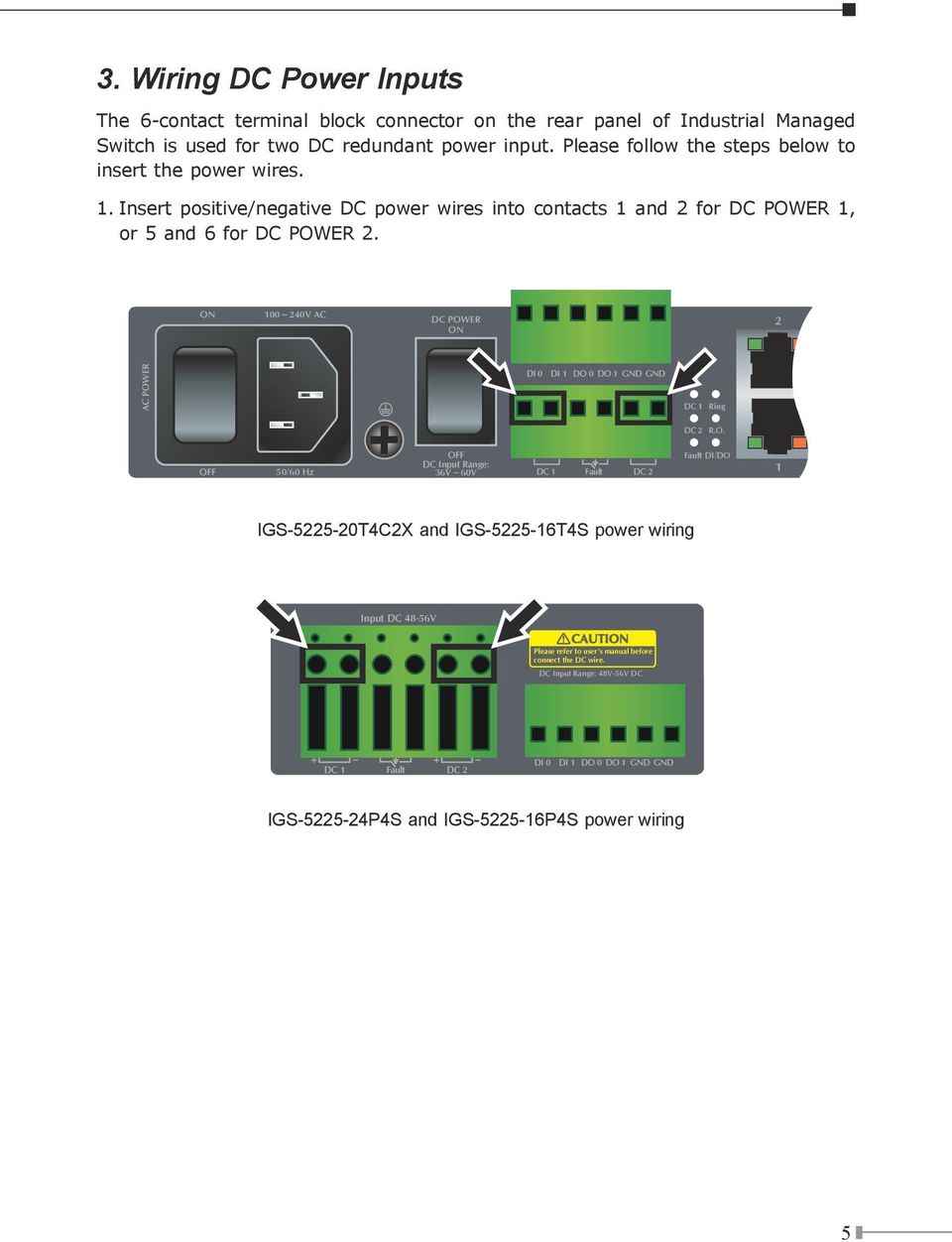
5 3. Wiring DC Power Inputs The 6-contact terminal block connector on the rear panel of Industrial Managed Switch is used for two DC redundant power input. Please follow the steps below to insert the power wires. 1. Insert positive/negative DC power wires into contacts 1 and 2 for DC POWER 1, or 5 and 6 for DC POWER 2. ON 100~240V AC DC POWER ON 2 AC POWER DI 0 DI 1 DO 0 DO 1 GND GND AC DC 1 Ring DC 2 R.O. OFF 50/60 Hz OFF DC Input Range: 36V~60V DC 1 Fault DC 2 Fault DI/DO 1 IGS T4C2X and IGS T4S power wiring Input DC 48-56V CAUTION Please refer to user s manual before connect the DC wire. DC Input Range: 48V-56V DC + + DC 1 Fault DC 2 DI 0 DI 1 DO 0 DO 1 GND GND IGS P4S and IGS P4S power wiring 5
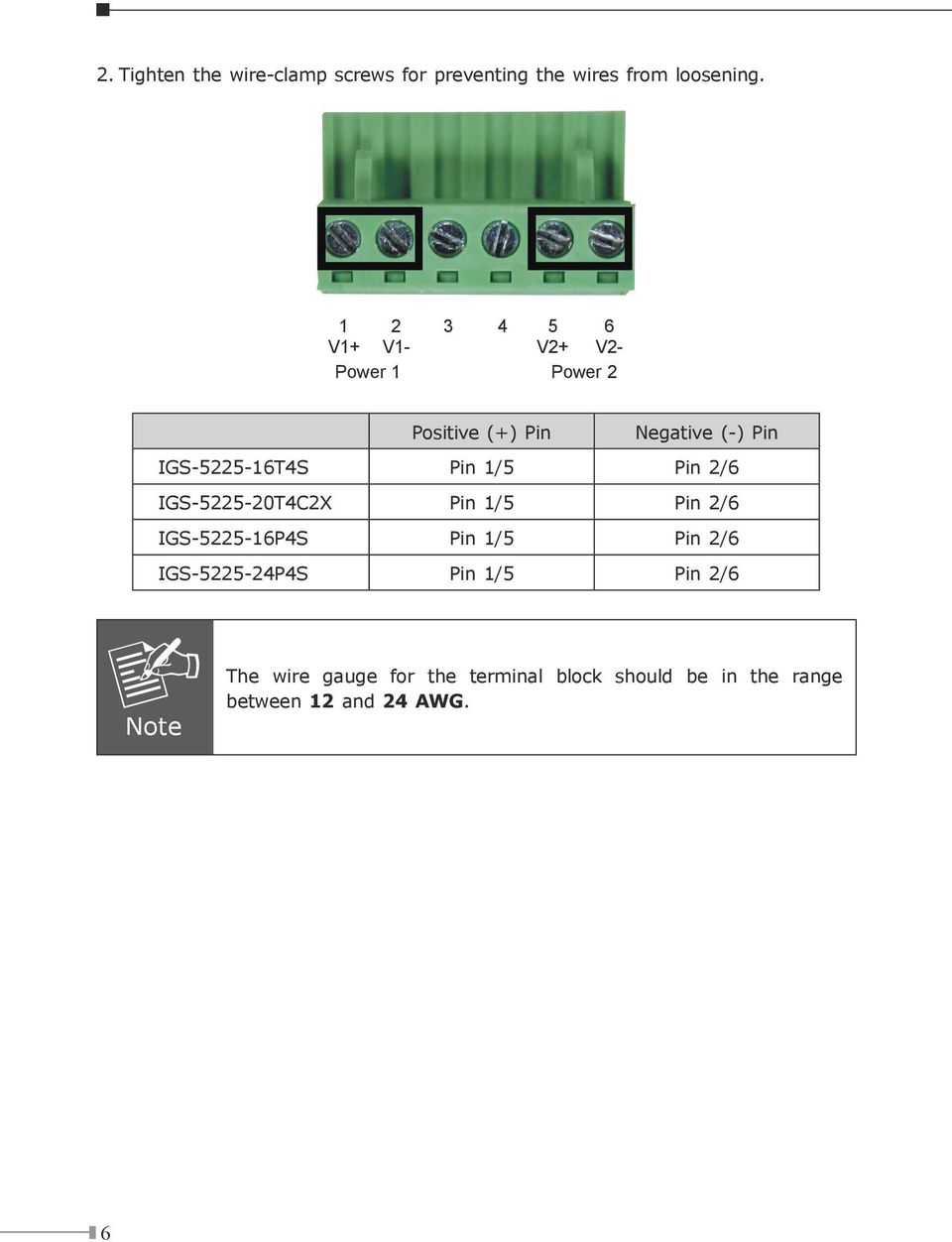
6 2. Tighten the wire-clamp screws for preventing the wires from loosening V1+ V1- V2+ V2- Power 1 Power 2 Positive (+) Pin Negative (-) Pin IGS T4S Pin 1/5 Pin 2/6 IGS T4C2X Pin 1/5 Pin 2/6 IGS P4S Pin 1/5 Pin 2/6 IGS P4S Pin 1/5 Pin 2/6 Note The wire gauge for the terminal block should be in the range between 12 and 24 AWG. 6
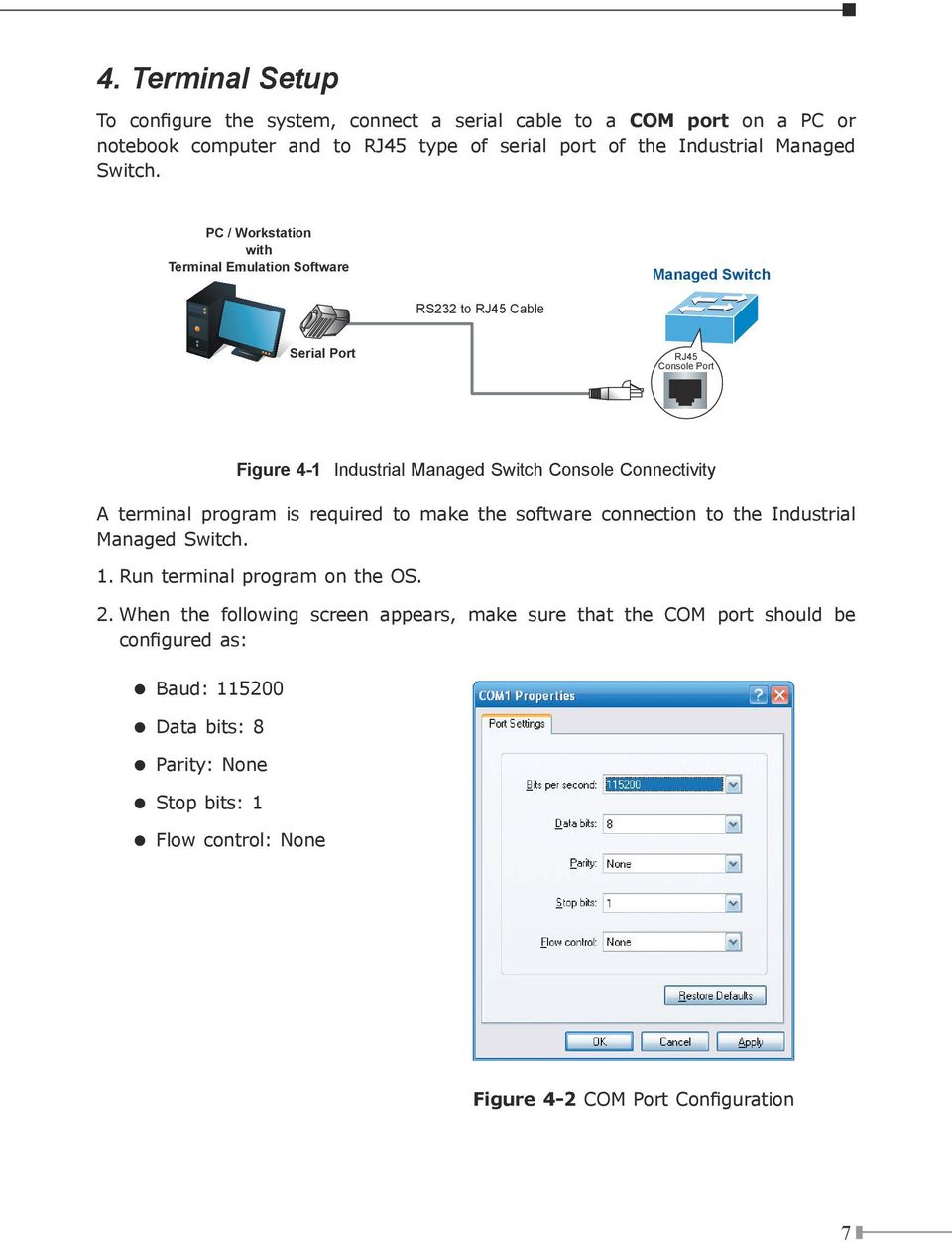
7 4. Terminal Setup To configure the system, connect a serial cable to a COM port on a PC or notebook computer and to RJ45 type of serial port of the Industrial Managed Switch. PC / Workstation with Terminal Emulation Software Managed Switch RS232 to RJ45 Cable Serial Port RJ45 Console Port Figure 4-1 Industrial Managed Switch Console Connectivity A terminal program is required to make the software connection to the Industrial Managed Switch. 1. Run terminal program on the OS. 2. When the following screen appears, make sure that the COM port should be configured as: Baud: Data bits: 8 Parity: None Stop bits: 1 Flow control: None Figure 4-2 COM Port Configuration 7
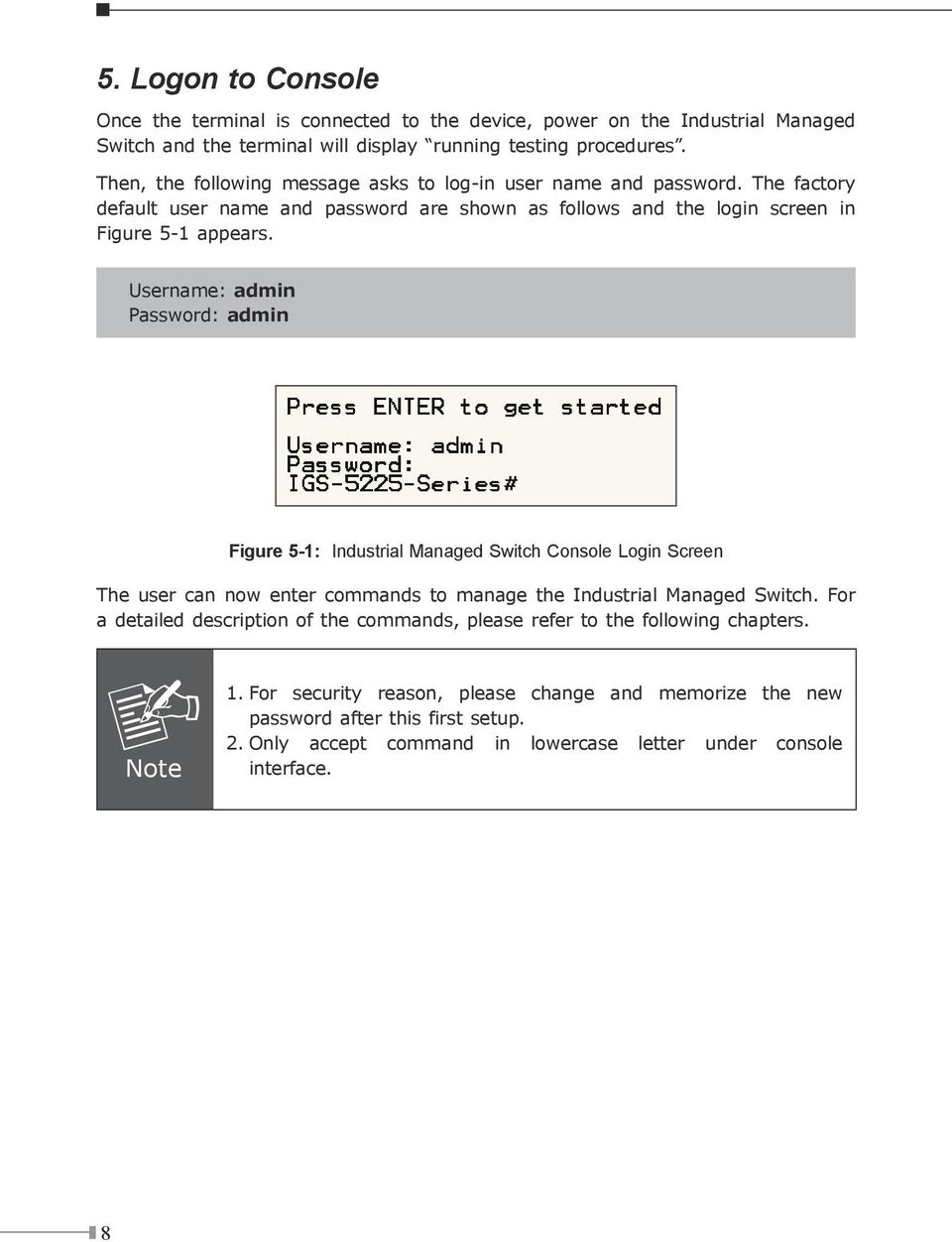
8 5. Logon to Console Once the terminal is connected to the device, power on the Industrial Managed Switch and the terminal will display running testing procedures. Then, the following message asks to log-in user name and password. The factory default user name and password are shown as follows and the login screen in Figure 5-1 appears. Username: admin Password: admin Figure 5-1: Industrial Managed Switch Console Login Screen The user can now enter commands to manage the Industrial Managed Switch. For a detailed description of the commands, please refer to the following chapters. Note 1. For security reason, please change and memorize the new password after this first setup. 2. Only accept command in lowercase letter under console interface. 8
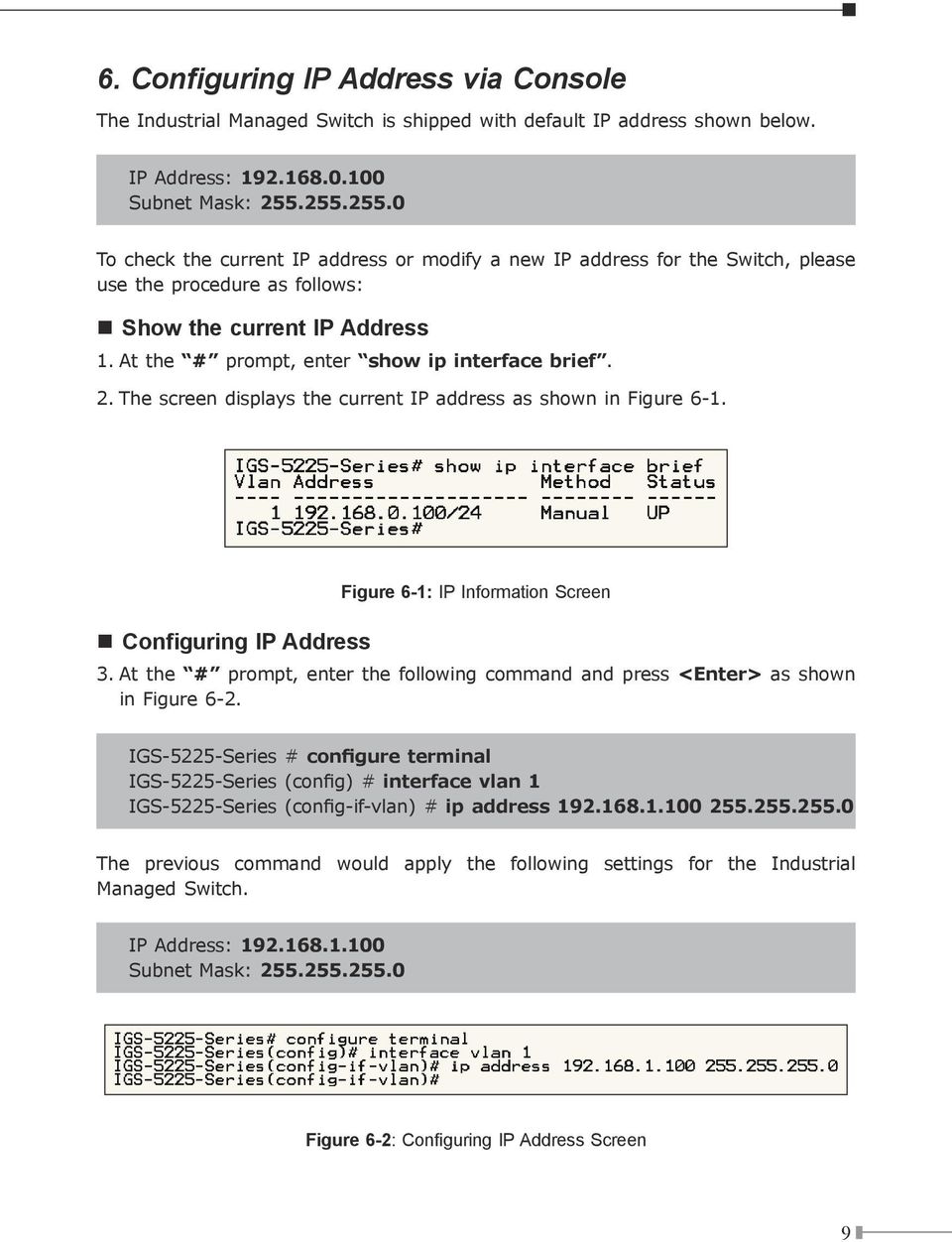
9 6. Configuring IP Address via Console The Industrial Managed Switch is shipped with default IP address shown below. IP Address: Subnet Mask: To check the current IP address or modify a new IP address for the Switch, please use the procedure as follows: Show the current IP Address 1. At the # prompt, enter show ip interface brief. 2. The screen displays the current IP address as shown in Figure 6-1. Configuring IP Address Figure 6-1: IP Information Screen 3. At the # prompt, enter the following command and press <Enter> as shown in Figure 6-2. IGS-5225-Series # configure terminal IGS-5225-Series (config) # interface vlan 1 IGS-5225-Series (config-if-vlan) # ip address The previous command would apply the following settings for the Industrial Managed Switch. IP Address: Subnet Mask: Figure 6-2: Configuring IP Address Screen 9
10 4. Repeat step 1 to check if the IP address has changed. Store the current switch configuration 5. At the # prompt, enter the following command and press <Enter>. # copy running-config startup-config Figure 6-3: Saving Current Configuration Command Screen If the IP is successfully configured, the Industrial Managed Switch will apply the new IP address setting immediately. You can access the Web interface of the Industrial Managed Switch through the new IP address. Note If you are not familiar with the console command or the related parameter, enter help anytime in console to get the help description. 10

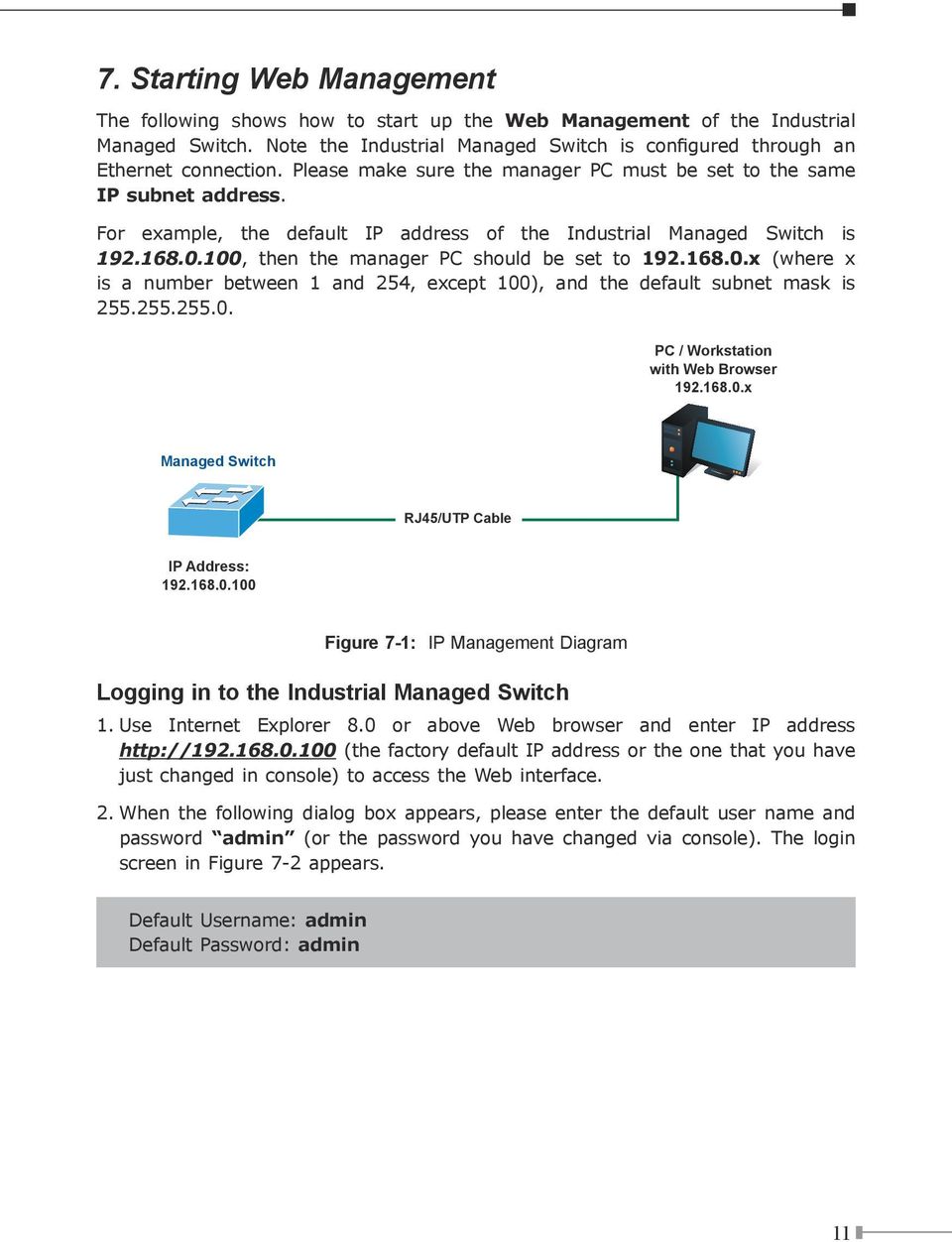
11 7. Starting Web Management The following shows how to start up the Web Management of the Industrial Managed Switch. Note the Industrial Managed Switch is configured through an Ethernet connection. Please make sure the manager PC must be set to the same IP subnet address. For example, the default IP address of the Industrial Managed Switch is , then the manager PC should be set to x (where x is a number between 1 and 254, except 100), and the default subnet mask is PC / Workstation with Web Browser x Managed Switch RJ45/UTP Cable IP Address: Figure 7-1: IP Management Diagram Logging in to the Industrial Managed Switch 1. Use Internet Explorer 8.0 or above Web browser and enter IP address (the factory default IP address or the one that you have just changed in console) to access the Web interface. 2. When the following dialog box appears, please enter the default user name and password admin (or the password you have changed via console). The login screen in Figure 7-2 appears. Default Username: admin Default Password: admin 11
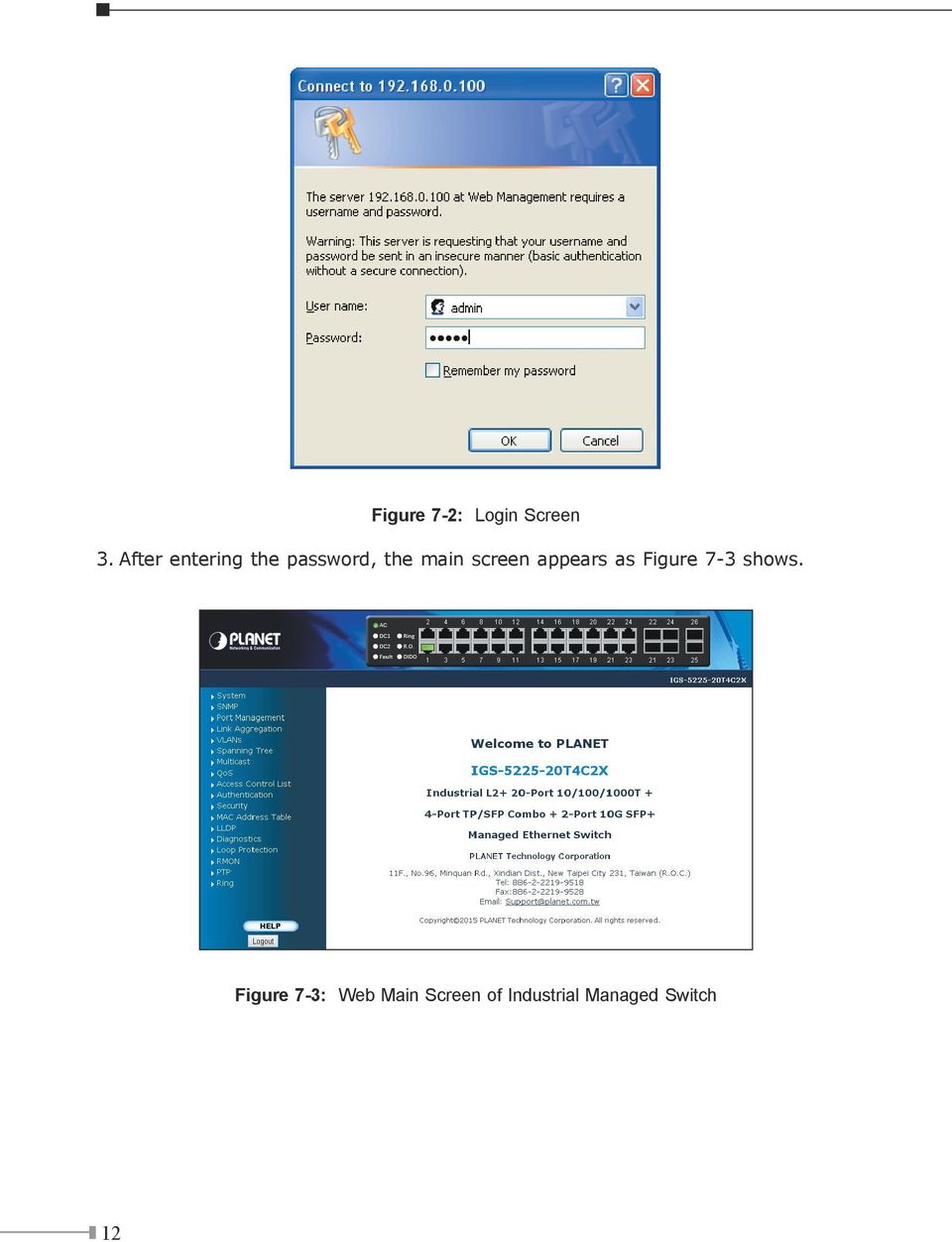
12 Figure 7-2: Login Screen 3. After entering the password, the main screen appears as Figure 7-3 shows. Figure 7-3: Web Main Screen of Industrial Managed Switch 12
13 The Switch Menu on the left of the Web page lets you access all the commands and statistics the Industrial Managed Switch provides. Figure 7-4: Switch Menu Note If you are not familiar with Switch functions or the related parameter, press Help icon anytime on the Web page to get the help description. Now, you can use the Web management interface to continue the Switch management or manage the Switch by console interface. Please refer to the user s manual for more. 13

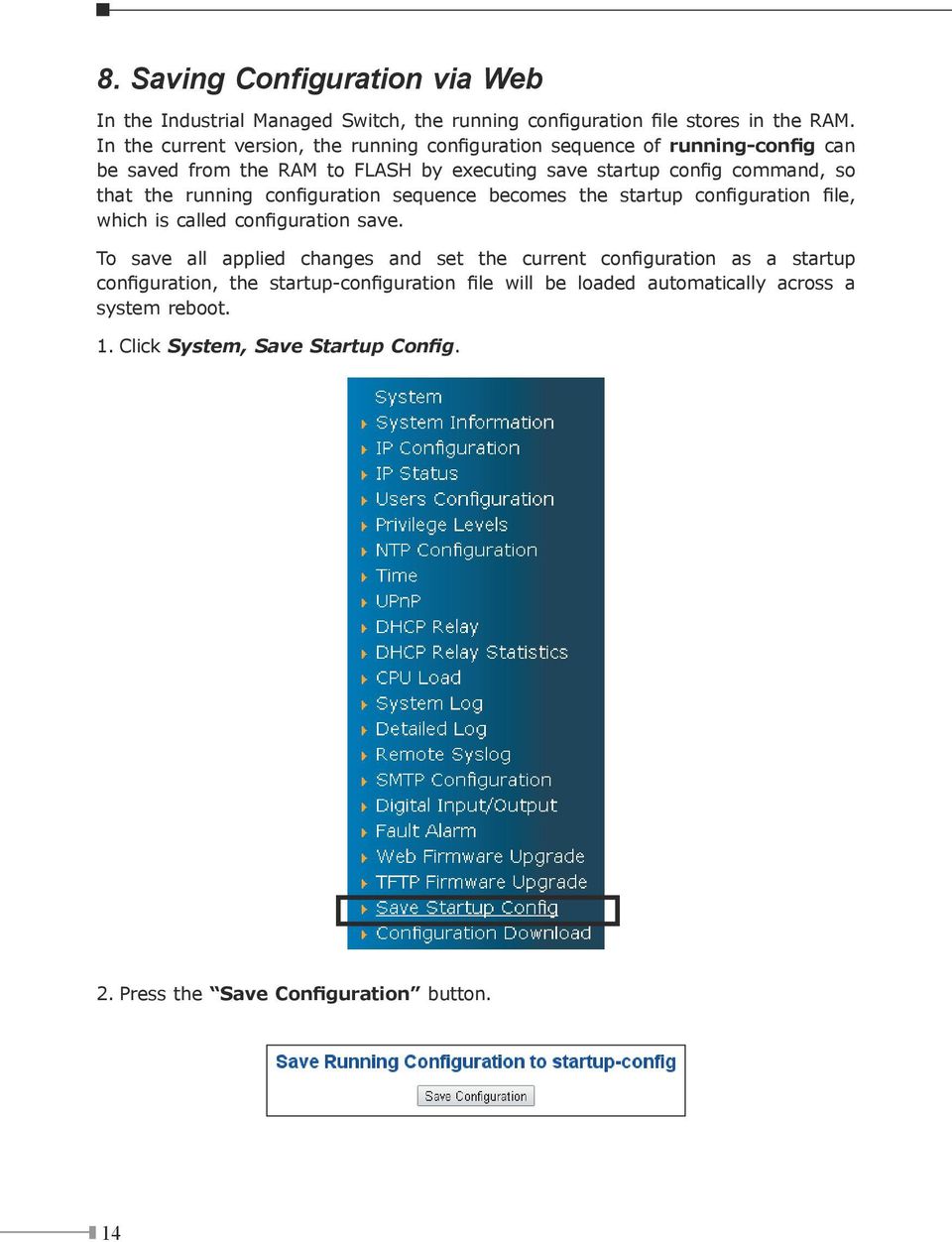
14 8. Saving Configuration via Web In the Industrial Managed Switch, the running configuration file stores in the RAM. In the current version, the running configuration sequence of running-config can be saved from the RAM to FLASH by executing save startup config command, so that the running configuration sequence becomes the startup configuration file, which is called configuration save. To save all applied changes and set the current configuration as a startup configuration, the startup-configuration file will be loaded automatically across a system reboot. 1. Click System, Save Startup Config. 2. Press the Save Configuration button. 14
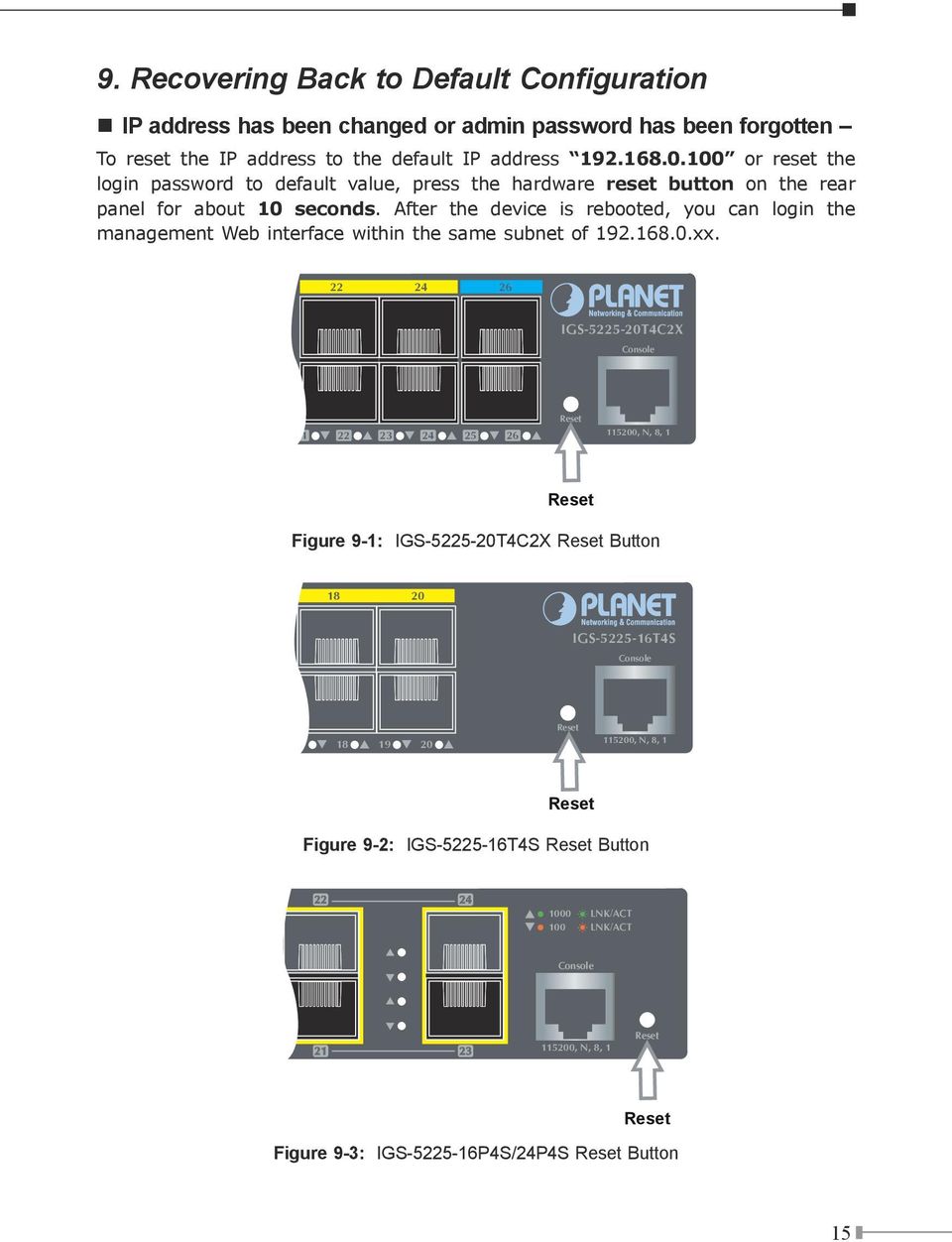
15 9. Recovering Back to Default Configuration IP address has been changed or admin password has been forgotten To reset the IP address to the default IP address or reset the login password to default value, press the hardware reset button on the rear panel for about 10 seconds. After the device is rebooted, you can login the management Web interface within the same subnet of xx IGS T4C2X Console Reset , N, 8, 1 Reset Figure 9-1: IGS T4C2X Reset Button IGS T4S Console Reset , N, 8, 1 Reset Figure 9-2: IGS T4S Reset Button LNK/ACT LNK/ACT Console , N, 8, 1 Reset Reset Figure 9-3: IGS P4S/24P4S Reset Button 15
16 10. Customer Support Thank you for purchasing PLANET products. You can browse our online FAQ resource and User s Manual on PLANET Web site first to check if it could solve your issue. If you need more support information, please contact PLANET switch support team. PLANET online FAQ: Switch support team mail address: [email protected] Industrial User s Manual: (Please select your switch model name from the drop-down menu of Product Models.) Copyright PLANET Technology Corp Contents are subject to revision without prior notice. PLANET is a registered trademark of PLANET Technology Corp. All other trademarks belong to their respective owners. 16

50-Port 10/100/1000Mbps with 4 Shared SFP. Managed Gigabit Switch WGSW-50040. Quick Installation Guide
 50-Port 10/100/1000Mbps with 4 Shared SFP Managed Gigabit Switch WGSW-50040 Quick Installation Guide Table of Contents 1. Package Content... 3 2. Switch Management... 4 3. Requirements... 5 4. Terminal
Internet Telephony PBX system IPX-1980
 Internet Telephony PBX system IPX-1980 Quick Installation Guide Table of Contents 1. Package Contents... 3 2. Hardware Installation... 4 2.1 Safety Instruction... 4 2.2 Front panel... 4 2.3 LED & Button
Internet Telephony PBX System. (30/100 SIP Users registrations) IPX-330 / IPX-2100. Quick Installation Guide
 Internet Telephony PBX System (30/100 SIP Users registrations) IPX-330 / IPX-2100 Quick Installation Guide Table of Contents 1. IPX-330... 3 1.1. Package Contents... 3 1.2. Hardware Installation... 3 1.2.1
Unpacking the Product. Rack Installation. Then, use the screws provided with the equipment rack to mount the firewall in the rack.
 About This Guide This guide contains step-by-step instructions for setting up the D-Link DFL-260E/860E Firewall. Please note that the model you have purchased may appear slightly different from those shown
Configuring the Switch with the CLI-Based Setup Program
 APPENDIX D Configuring the Switch with the CLI-Based Setup Program This appendix provides a command-line interface (CLI)-based setup procedure for a standalone switch. For product overview information,
Connecting the DG-102S VoIP Gateway to your network
 Contents of Package: DG-102S VoIP Station Gateway Power adapter CD-ROM, including User s Manual Quick Install Guide Requirements: RS-232 Console Cable Two RJ-45 CAT-5 Straight-Through Cables For more information
DRO-210i LOAD BALANCING ROUTER. Review Package Contents
 DRO-210i LOAD BALANCING ROUTER Review Package Contents Make sure that the package contains the following items. DRO-210i Load Balancing Router 2 Straight Ethernet Cables 1 Cross Over Ethernet Cable 1 Power
GV-Data Capture V3 Series User's Manual
 GV-Data Capture V3 Series User's Manual Before attempting to connect or operate this product, please read these instructions carefully and save this manual for future use. 2006 GeoVision, Inc. All rights
USER GUIDE. Ethernet Configuration Guide (Lantronix) P/N: 2900-300321 Rev 6
 KRAMER ELECTRONICS LTD. USER GUIDE Ethernet Configuration Guide (Lantronix) P/N: 2900-300321 Rev 6 Contents 1 Connecting to the Kramer Device via the Ethernet Port 1 1.1 Connecting the Ethernet Port Directly
Quick Start Guide. Cisco Small Business. 300 Series Managed Switches
 Quick Start Guide Cisco Small Business 300 Series Managed Switches Welcome Thank you for choosing the Cisco 300 Series Managed Switch, a Cisco Small Business network communications device. This device
Quick Start Guide. 500 Series Stackable Managed Switches
 Quick Start Guide 500 Series Stackable Managed Switches Welcome Thank you for choosing the Cisco 500 Series Stackable Managed Switch, a Cisco network communications device. This device is designed to be
Prestige 314 Read Me First
 Prestige 314 Read Me First Console WAN 10M PORT Prestige Rear Panel Connections CONNECTION Use an RS-232 console cable. Use the cable that came with your broadband modem. LAN 10/100M Port Number COMPUTER
Quick Note 32. Using Digi RealPort with a Digi TransPort Router. UK Support September 2012
 Quick Note 32 Using Digi RealPort with a Digi TransPort Router UK Support September 2012 1 Contents 1 Introduction... 3 1.1 Outline... 3 1.2 Assumptions... 3 1.3 Version... 3 2 Configuration & scenario...
Easy Setup Guide for the Sony Network Camera
 -878-191-11 (1) Easy Setup Guide for the Sony Network Camera For setup, a computer running the Microsoft Windows Operating System is required. For monitoring camera images, Microsoft Internet Explorer
Prestige 650R-31/33 Read Me First
 Prestige 650R-31/33 Read Me First Prestige Rear Panel Connections PORT DSL CONSOLE LAN 10/100M POWER Connect to a telephone jack using a telephone wire. CONNECTION Connect to a serial port (COM port) on
Quick Start Guide. Cisco Small Business. 200E Series Advanced Smart Switches
 Quick Start Guide Cisco Small Business 200E Series Advanced Smart Switches Welcome Thank you for choosing the Cisco 200E series Advanced Smart Switch, a Cisco Small Business network communications device.
BiPAC 7404V series. VoIP/(802.11g) ADSL2+ (VPN) Firewall Router. Quick Start Guide
 BiPAC 7404V series VoIP/(802.11g) ADSL2+ (VPN) Firewall Router Quick Start Guide VoIP/(802.11g) ADSL2+ (VPN) Firewall Router For more detailed instructions on configuring and using the Billion VoIP/(802.11g)
Gigabit Content Security Router CS-5800
 Gigabit Content Security Router CS-5800 Quick Installation Guide Table of Contents 1. Package Contents... 3 2. Hardware Installation... 4 2.1 Safety Instruction... 4 2.2 Front panel... 4 2.3 LED & Button
Adding or replacing a mesh node in an existing mesh network
 Adding or replacing a mesh node in an existing mesh network Use this procedure to add or replace a in an existing mesh For this procedure to work all nodes running the same firmware version. Before you
Connecting and Setting Up Your Laptop Computer
 CHAPTER 3 Connecting and Setting Up Your Laptop Computer This chapter explains how to connect your laptop to the Cisco Unified MeetingPlace system and how to set up your laptop so that you can use HyperTerminal.
Quick Installation Guide. Overview. PLANET VIP-156/VIP-156PE/VIP-158 Quick Installation Guide
 Quick Installation Guide Overview This quick installation guide describes the objectives; organization and basic installation of the PLANET VIP-156/VIP-156PE/VIP-158 VoIP Phone Adapter, and explains how
To perform Ethernet setup and communication verification, first perform RS232 setup and communication verification:
 PURPOSE Verify that communication is established for the following products programming option (488.2 compliant, SCPI only): DCS - M9C & DCS M130, DLM M9E & DLM-M9G & DLM M130, DHP - M9D, P series, SG,
Dominion KX II-101-V2
 Dominion KX II-101-V2 Quick Setup Guide Thank you for your purchase of the Dominion KX II-101-V2, the economical, full-featured, single-port digital KVM-over-IP device. For details on using the KX II-101-V2,
Starting a Management Session
 Management Software AT-S63 Starting a Management Session AT-S63 Version 2.2.0 for the AT-9400 Layer 2+ Switches AT-S63 Version 3.0.0 for the AT-9400 Basic Layer 3 Switches 613-000817 Rev. A Copyright 2007
Voice Over Internet Protocol (VoIP) Configuration
 (VoIP) Configuration ENGINEERING REPORT No: 02-003 Introduction This report describes interfacing the IPCS VoIP Gateway Model EGW-902 to an ESTeem Model 192E Wireless Ethernet radio modem in a demonstration
SecureLinx Spider Duo Quick Start Guide
 SecureLinx Spider Duo Quick Start Guide SecureLinx Spider Duo Quick Start Guide SecureLinx Spider Duo QUICK START GUIDE CONTENTS Overview... 2 What s In The Box... 3 Installation and Network Settings...
Prestige 324. Prestige 324. Intelligent Broadband Sharing Gateway. Version 3.60 January 2003 Quick Start Guide
 Prestige 324 Intelligent Broadband Sharing Gateway Version 3.60 January 2003 Quick Start Guide 1 Introducing the Prestige The Prestige is a broadband sharing gateway with a built-in four-port 10/100 Mbps
Quick Start Guide. Cisco Small Business. 300 Series Managed Switches
 Quick Start Guide Cisco Small Business 300 Series Managed Switches Welcome Thank you for choosing the Cisco Small Business 300 Series Managed Switch, a Cisco Small Business network communications device.
Prestige 324 Quick Start Guide. Prestige 324. Intelligent Broadband Sharing Gateway. Version V3.61(JF.0) May 2004 Quick Start Guide
 Prestige 324 Intelligent Broadband Sharing Gateway Version V3.61(JF.0) May 2004 Quick Start Guide 1 1 Introducing the Prestige The Prestige is a broadband sharing gateway with a built-in four-port 10/100
3.1 RS-232/422/485 Pinout:PORT1-4(RJ-45) RJ-45 RS-232 RS-422 RS-485 PIN1 TXD PIN2 RXD PIN3 GND PIN4 PIN5 T+ 485+ PIN6 T- 485- PIN7 R+ PIN8 R-
 MODEL ATC-2004 TCP/IP TO RS-232/422/485 CONVERTER User s Manual 1.1 Introduction The ATC-2004 is a 4 Port RS232/RS485 to TCP/IP converter integrated with a robust system and network management features
1-Port Wireless USB 2.0 Print Server Model # APSUSB201W. Quick Installation Guide. Ver. 2A
 1-Port Wireless USB 2.0 Print Server Model # APSUSB201W Quick Installation Guide Ver. 2A Section 1 Step 1Connect one end of the Ethernet cable to the RJ-45 port of the Print Server and attach the other
Model:BL-WDR3750 750Mbps Wireless Dual Band 11AC Router
 Quick Installation Guide Model:BL-WDR3750 750Mbps Wireless Dual Band 11AC Router 1.Connecting the device Note: Please use wired network connections only to configure the Router. 1 Connect the WAN port
PLANET is a registered trademark of PLANET Technology Corp. All other trademarks belong to their respective owners.
 Trademarks Copyright PLANET Technology Corp. 2004 Contents subject to revise without prior notice. PLANET is a registered trademark of PLANET Technology Corp. All other trademarks belong to their respective
BIT COMMANDER. Serial RS232 / RS485 to Ethernet Converter
 BIT COMMANDER Serial RS232 / RS485 to Ethernet Converter (Part US2000A) Copyrights U.S. Converters 1 Contents Overview and Features... 3 Functions..5 TCP Server Mode... 5 Httpd Client Mode.5 TCP Auto mode....6
Configuring the Switch with the CLI Setup Program
 APPENDIXC Configuring the Switch with the CLI Setup Program This appendix provides a command-line interface (CLI) setup procedure for a standalone switch. To set up the switch by using Express Setup, see
Quick Installation Guide DAP-1360. Wireless N 300 Access Point & Router
 DAP-1360 Wireless N 300 Access Point & Router BEFORE YOU BEGIN Delivery Package Access point DAP-1360 Power adapter DC 12V Ethernet cable (CAT 5E) (brochure). If any of the items are missing, please contact
Hypercom Key Loading and Management (HKLM) RS232 PPP Key Injection PC Setup Guide
 Hypercom Key Loading and Management (HKLM) RS232 PPP Key Injection PC Setup Guide Hypercom Corporation 8888 East Raintree Drive Scottsdale, Arizona 85260 USA Corporate Telephone: 480.642.5000 Corporate
Chapter 2 Preparing Your Network
 Chapter 2 Preparing Your Network This document describes how to prepare your network to connect to the Internet through a router and how to verify the readiness of your broadband Internet service from
Quick Installation Guide. Overview. GULFSIP ATA-G1S Quick Installation Guide
 Quick Installation Guide Overview This quick installation guide describes the objectives; organization and basic installation of the GULFSIP ATA-G1S VoIP Phone Adapter ( ATA in the following term). The
T3 Mux M13 Multiplexer
 T3 Mux M13 Multiplexer User Manual [Type the abstract of the document here. The abstract is typically a short summary of the contents of the document. Type the abstract of the document here. The abstract
Technical Note. Monitoring Ethernet Traffic with Tolomatic ACS & Managed Switch. Contents
 Monitoring Ethernet Traffic with Tolomatic ACS & Managed Switch Contents 1. Introduction...2 2. Equipment...2 3. Software...3 4. Definitions...3 5. Procedure...3 6. Change PC IP Address...3 7. Network
External Storage 200 Series. User s Manual
 External Storage 200 Series User s Manual Version 1.2 00P3DS200ZSEA2 Table of Contents User s Manual 1. Overview...3 2. Key Features...3 3. Rear Connectors...4 4. Setup the External Storage 200...4 5.
Network Management Card. User Manual
 User Manual 1 Contents Contents 2 Chapter 1 Overview 3 1.1 NMC package contents 4 1.2 NMC CD Resources 4 1.3 Features 4 1.4 NMC Applications 5 Chapter 2 NMC parameters setting via serial COM port 6 2.1
Single-bay NAS Server
 Single-bay NAS Server NAS-1100 User s Manual Copyright (C) 2004 PLANET Technology Corp. All rights reserved. The products and programs described in this User s Manual are licensed products of PLANET Technology,
USER MANUAL GUIMGR Graphical User Interface Manager for FRM301/FRM401 Media Racks
 USER MANUAL GUIMGR Graphical User Interface Manager for FRM301/FRM401 Media Racks CTC Union Technologies Co., Ltd. Far Eastern Vienna Technology Center (Neihu Technology Park) 8F, No. 60 Zhouzi St. Neihu,
IP DSLAM IDL-2402. Quick Installation Guide
 IP DSLAM IDL-2402 Quick Installation Guide Table of Contents Package Contents... 3 Overview... 4 Setup the IDL series IP DSLAM... 5 Safety Instruction... 5 Hardware Installation... 6 WEB Configuration...
Chapter 10 Troubleshooting
 Chapter 10 Troubleshooting This chapter provides troubleshooting tips and information for your ProSafe Dual WAN Gigabit Firewall with SSL & IPsec VPN. After each problem description, instructions are provided
Overview 1. Document Objectives 1. Document Organization 1. Preparation before VIP-280/VIP-320 administration 1
 Table of Contents Overview 1 Document Objectives 1 Document Organization 1 Preparation before VIP-280/VIP-320 administration 1 Physical Installation 1 Keypad and button definition on DCT-100 3 Installing
P-2024. Quick Start Guide. VoIP Analog Telephone Adaptor DEFAULT LOGIN. IP Address http://192.168.5.1 Password 1234. Version 3.60 7/2007 Edition 1
 P-2024 VoIP Analog Telephone Adaptor Quick Start Guide Version 3.60 7/2007 Edition 1 DEFAULT LOGIN IP Address http://192.168.5.1 Password 1234 Copyright 2007. All rights reserved. Overview Use your P-2024
LAN / WAN Connection Of Instruments with Serial Interface By Using a Terminal Server
 Products: EFA with EFA Scan, DVRM and DVMD with Realtime Monitor or Stream Explorer DVMD-B1 LAN / WAN Connection Of Instruments with Serial Interface By Using a Terminal Server Remote control of test and
ENET-710. ENET-710 - Ethernet Module ENET-710 JAN / 06 FOUNDATION
 ENET-710 ENET-710 - Ethernet Module JAN / 06 ENET-710 FOUNDATION E N E T 7 1 0 ME smar www.smar.com Specifications and information are subject to change without notice. Up-to-date address information is
SIP Proxy Server. Administrator Installation and Configuration Guide. V2.31b. 09SIPXM.SY2.31b.EN3
 SIP Proxy Server Administrator Installation and Configuration Guide V2.31b 09SIPXM.SY2.31b.EN3 DSG, DSG logo, InterPBX, InterServer, Blaze Series, VG5000, VG7000, IP590, IP580, IP500, IP510, InterConsole,
DVG-2101SP VoIP Telephone Adapter
 This product can be set up using any current web browser, i.e., Internet Explorer 6 or Netscape Navigator 6.2.3. DVG-2101SP VoIP Telephone Adapter Before You Begin 1. If you purchased this VoIP Telephone
Addonics T E C H N O L O G I E S. NAS Adapter. Model: NASU2. 1.0 Key Features
 1.0 Key Features Addonics T E C H N O L O G I E S NAS Adapter Model: NASU2 User Manual Convert any USB 2.0 / 1.1 mass storage device into a Network Attached Storage device Great for adding Addonics Storage
Liebert IntelliSlot Web Cards
 Monitoring For Business-Critical Continuity Liebert IntelliSlot Web Cards Firmware Upgrade Manual Liebert IntelliSlot Web Card, Liebert IntelliSlot Web Card-LB, Liebert IntelliSlot Web Card-LBDS, Liebert
IP Indoor High Speed Dome. CAM-6500 series. Ver. 070307. Quick Installation Guide
 IP Indoor High Speed Dome CAM-6500 series Ver. 070307 Quick Installation Guide 1 1 Getting Started 1.1 PACKAGE CONTENTS CAM-6500 series Warranty Card Software CD Power & A/V Cable LAN/WAN Cable Alarm Cable
Wireless G Broadband quick install
 Wireless G Broadband Router quick install guide Model 503693 INT-503693-QIG-0608-02 Thank you for purchasing the INTELLINET NETWORK SOLUTIONS Wireless G Broadband Router, Model 503693. This quick install
TCP/IP Converter DDS EX-9132 Operation Manual for 8051 Series
 TCP/IP Converter DDS EX-9132 Operation Manual for 8051 Series First Edition, March 2005 Table of Contents 1. Introduction 3 Overview 4 Package Checklist 5 Block Diagram 6 Features 7 Product Specifications
OUTDOOR IR NETWORK CAMERA Series
 OUTDOOR IR NETWORK CAMERA Series INSTALLATION GUIDE Please read instructions thoroughly before operation and retain it for future reference. 1. OVERVIEW 1.1 Package Content Network camera Installation
User s Manual TCP/IP TO RS-232/422/485 CONVERTER. 1.1 Introduction. 1.2 Main features. Dynamic DNS
 MODEL ATC-2000 TCP/IP TO RS-232/422/485 CONVERTER User s Manual 1.1 Introduction The ATC-2000 is a RS232/RS485 to TCP/IP converter integrated with a robust system and network management features designed
Vantage RADIUS 50. Quick Start Guide Version 1.0 3/2005
 Vantage RADIUS 50 Quick Start Guide Version 1.0 3/2005 1 Introducing Vantage RADIUS 50 The Vantage RADIUS (Remote Authentication Dial-In User Service) 50 (referred to in this guide as Vantage RADIUS)
Mobility System Software Quick Start Guide
 Mobility System Software Quick Start Guide Version 8.0 P/N 530-041387 Rev.05 Table of Contents About this Guide Using the Web Quick Start (WLC2, WLC8, WLC200,WLC800R, and WLC880R) Remotely Configuring
Secure Ethernet Gateway SEG-1 and SEG-M for IEI Access Systems Installation Manual
 Secure Ethernet Gateway SEG-1 and SEG-M for IEI Access Systems Installation Manual Section 1: Introduction SECURITY WARNING: New SEG's shipped after April 2008 will have Telnet setup option enabled by
The GV-I/O Box 8 Ports provides 8 inputs and 8 relay outputs, and supports both DC and AC output voltages.
 GV-I/O Box 8 Ports The GV-I/O Box 8 Ports provides 8 inputs and 8 relay outputs, and supports both DC and AC output voltages. Key Features 8 inputs and 8 outputs are provided. Up to 9 pieces of GV-I/O
Ultra Thin Client TC-401 TC-402. Users s Guide
 Ultra Thin Client TC-401 TC-402 Users s Guide CONTENT 1. OVERVIEW... 3 1.1 HARDWARE SPECIFICATION... 3 1.2 SOFTWARE OVERVIEW... 4 1.3 HARDWARE OVERVIEW...5 1.4 NETWORK CONNECTION... 7 2. INSTALLING THE
Quick Installation Guide DSL-2750U/NRU. 3G/ADSL/Ethernet Router with Wi-Fi and Built-in Switch
 DSL-2750U/NRU 3G/ADSL/Ethernet Router with Wi-Fi and Built-in Switch BEFORE YOU BEGIN Delivery Package Router DSL-2750U/NRU Power adapter RJ-11 telephone cable Straight-through Ethernet cable (CAT 5E)
Chapter 1 Installing the Gateway
 Chapter 1 Installing the Gateway This chapter describes how to set up the wireless voice gateway on your Local Area Network (LAN), connect to the Internet, and perform basic configuration. For information
1. Hardware Installation
 4 Port 10/100M Internet Broadband Router with USB Printer server Quick Installation Guide #4824904AXZZ0 1. Hardware Installation A. System Requirement Before you getting started, make sure that you meet
RIU-IP Remote IP Interface User Guide
 RIU-IP Remote IP Interface User Guide JK Audio Introduction The RIU-IP is a remote control interface designed for use with the JK Audio innkeeper 1x/1rx, innkeeper 2 or innkeeper 4 digital hybrids. This
Configuring an A Series LED Sign Controller for your Network
 Configuring an A Series LED Sign Controller for your Network A Series LED displays from Optec support both serial and 10BaseT Ethernet communication. Serial communication via RS232 or RS485 is independent
SCS3205/4805 Quick Start Guide
 Secure Console Server Quick Start Guide 2003 Copyright Lantronix is a trademark of Lantronix. All rights reserved. 900-287 Rev. B 8/03 QUICK START CONTENTS System Overview.......................................................2
MAX T1/E1. Quick Start Guide. VoIP Gateway. Version 1.0
 MAX T1/E1 TM VoIP Gateway Quick Start Guide Version 1.0 Contents INTRODUCTION 1 Hardware Needed Software Needed 1 1 NET2PHONE MAX SET UP Hardware Set Up Software Set Up Set Up Internet Protocol (IP) Address
First Steps. Remote Access Gateway IGW/922. with DIL/NetPC ADNP/9200
 Remote Access Gateway IGW/922 with DIL/NetPC ADNP/9200 First Steps SSV Embedded Systems Dünenweg 5 D-30419 Hannover Phone: +49 (0)511/40 000-0 Fax: +49 (0)511/40 000-40 E-mail: [email protected] Document
100 240VAC 50/60Hz Power Adapter
 DGS-1224T D-Link 24-Port 10/100/1000Mbps + 2 Combo Mini GBIC Gigabit Smart Switch Broadband Router Before Your Begin This Quick Installation Guide gives step-by-step instructions for setting up the D -Link
Multi-Homing Dual WAN Firewall Router
 Multi-Homing Dual WAN Firewall Router Quick Installation Guide M73-APO09-400 Multi-Homing Dual WAN Firewall Router Overview The Multi-Homing Dual WAN Firewall Router provides three 10/100Mbit Ethernet
Firewall VPN Router. Quick Installation Guide M73-APO09-380
 Firewall VPN Router Quick Installation Guide M73-APO09-380 Firewall VPN Router Overview The Firewall VPN Router provides three 10/100Mbit Ethernet network interface ports which are the Internal/LAN, External/WAN,
Chapter 7 Troubleshooting
 Chapter 7 Troubleshooting This chapter provides troubleshooting tips and information for your ProSafe VPN Firewall 200. After each problem description, instructions are provided to help you diagnose and
PLANET is a registered trademark of PLANET Technology Corp. All other trademarks belong to their respective owners.
 Trademarks Copyright PLANET Technology Corp. 2004 Contents subject to revise without prior notice. PLANET is a registered trademark of PLANET Technology Corp. All other trademarks belong to their respective
Symphony Network Troubleshooting
 Symphony Network Troubleshooting Step 1) Review the Networking 101 presentation on the CD included with the Symphony. A basic understanding of networks is essential to this procedure. Step 2) Identify
Administration guide. Océ LF Systems. Connectivity information for Scan-to-File
 Administration guide Océ LF Systems Connectivity information for Scan-to-File Copyright 2014, Océ All rights reserved. No part of this work may be reproduced, copied, adapted, or transmitted in any form
This techno knowledge paper can help you if: You need to setup a WAN connection between a Patton Router and a NetGuardian.
 Problem: Patton / 240T WAN Setup Platform: NetGuardian 240T This TKP is a guide to setting up a PPP to T1 WAN connection between a Patton Model 2603 Router and a NetGuardian 240T. The example in this guide
2-Port RS232/422/485 Combo Serial to USB2.0 Adapter (w/ Metal Case and Screw Lock Mechanism) Installation Guide
 2-Port RS232/422/485 Combo Serial to USB2.0 Adapter (w/ Metal Case and Screw Lock Mechanism) Installation Guide 1. Introduction Thank you for purchasing this 2-Port RS232/422/485 Combo Serial to USB Adapter.
3.5 EXTERNAL NETWORK HDD. User s Manual
 3.5 EXTERNAL NETWORK HDD User s Manual Table of Content Before You Use Key Features H/W Installation Illustration of Product LED Definition NETWORK HDD Assembly Setup the Network HDD Home Disk Utility
Broadband Router ESG-103. User s Guide
 Broadband Router ESG-103 User s Guide FCC Warning This equipment has been tested and found to comply with the limits for Class A & Class B digital device, pursuant to Part 15 of the FCC rules. These limits
How To Set Up A Netvanta For A Pc Or Ipad (Netvanta) With A Network Card (Netvina) With An Ipa (Net Vanta) And A Ppl (Netvi) (Netva)
 VPN WAN LAN PWR STAT TD RD TD RD TD RD VPN WAN LAN PWR STAT TD RD TD RD TD RD NetVanta 3200 NetVanta 3200 NetVanta Series (with T1/FT1 or T1/FT1 + DSX-1 Network Interface Module) Quick Configuration Guide
Router Setup Manual. NETGEAR, Inc. 4500 Great America Parkway Santa Clara, CA 95054 USA 208-10060-01 2006-03-17
 NETGEAR, Inc. 4500 Great America Parkway Santa Clara, CA 95054 USA 208-10060-01 2006-03-17 2006 by NETGEAR, Inc. All rights reserved. Trademarks NETGEAR is a trademark of Netgear, Inc. Microsoft, Windows,
Quick Installation Guide Network Management Card
 Rev.1.1 www.cyberpowersystems.com Quick Installation Guide Network Management Card Intelligent Network Management Card allows UPS to be managed, monitored, and configured via SNMP Card Configuration Tool
Acano solution. Acano Solution Installation Guide. Acano. January 2014 76-1002-03-B
 Acano solution Acano Solution Installation Guide Acano January 2014 76-1002-03-B Contents Contents 1 Introduction... 3 1.1 Before You Start... 3 1.1.1 Safety information... 3 1.1.2 You will need the following
DI-634M. Check Your Package Contents. This product can be set up using any current web browser, i.e., Internet Explorer 6 or Netscape Navigator 7.
 This product can be set up using any current web browser, i.e., Internet Explorer 6 or Netscape Navigator 7. DI-634M 108G MIMO Wireless Router Before You Begin 1. If you purchased this router to share
Honeywell Internet Connection Module
 Honeywell Internet Connection Module Setup Guide Version 1.0 - Page 1 of 18 - ICM Setup Guide Technical Support Setup - Guide Table of Contents Introduction... 3 Network Setup and Configuration... 4 Setting
Schneider OS-Loader usage via Ethernet or USB.
 LHC Gas Systems 28 th February, 2007 Schneider OS-Loader usage via Ethernet or USB. Jacques ROCHEZ - IT/CO/FE Abstract This document is a guideline on how to configure correctly a PC for the use of the
User Manual. EtherUSB
 User Manual EtherUSB USB Ethernet Access Point for PDA V 2.0 Clarinet Systems, Inc. Clarinet Systems, Inc. http://www.clarinetsys.com Page 1 Publication Revision No. Control Table Rev. No. Date Contents
Load Balancing ContentKeeper With RadWare
 Load Balancing ContentKeeper With RadWare The RadWare Fireproof may be used with ContentKeeper to provide load balanced and redundant Internet content filtering for your network. The RadWare FireProof
Application & Quick-Start Guide
 Model: CRMWIC Web Intelligent Controller 1 This document will illustrate various ways to connect and use a CRM-WIC as well as programming examples. When connecting CRM-WIC, the installer has several interface
Access control designed simply for you
 TruPortal Access control designed simply for you QUICK START GUIDE Introduction TruPortal access control solutions have been engineered and designed to install quickly and easily right out of the box.
TDP43ME NetPS. Network Printer Server. Control Center. for Ethernet Module
 Panduit Corp. 2010 TDP43ME NetPS PA26306A01 Rev. 01 11-2010 Network Printer Server Control Center for Ethernet Module NOTE: In the interest of higher quality and value, Panduit products are continually
Wireless Router Setup Manual
 Wireless Router Setup Manual NETGEAR, Inc. 4500 Great America Parkway Santa Clara, CA 95054 USA 208-10082-02 2006-04 2006 by NETGEAR, Inc. All rights reserved. Trademarks NETGEAR is a trademark of Netgear,
AT-S84 Version 1.3.0 (1.0.0.90) Management Software for the AT-9000/24 Gigabit Ethernet Switch Software Release Notes
 AT-S84 Version 1.3.0 (1.0.0.90) Management Software for the AT-9000/24 Gigabit Ethernet Switch Software Release Notes Please read this document before you begin to use the management software. Supported
1 Serial RS232 to Ethernet Adapter Installation Guide
 Installation Guide 10/100 Mbps LED (amber color ) Link/Activity LED (green color ) 1. Introduction Thank you for purchasing this 1-port RS232 to Ethernet Adapter (hereinafter referred to as Adapter ).
Chapter1. Interface Introduction
 Robustel GoRugged R3000 Quick Guide Chapter1. Interface Introduction 1.1 LED Indicators After inserting the SIM card into the router and power on, the LED indicators status should be as follow when work