
Code. Barc. ber 20100
|
|
|
- Carmel Hoover
- 9 years ago
- Views:
Transcription
1 PrecisionID Code 128 Barc code Fonts User Manual Updated Septemb ber Copyright PrecisionID, LLC

2 PrecisionID Code 128 Barcode Font User Manual Notice: When you use this product you agree to the End User License Agreement (EULA). The EULA is provided as a file in the package for this product. To view the license online, please visit Limitations of the demo version: The demo version of this product may be used for evaluation purposes only. In the demo version, the number 7 and the characters G, S and X contain the demo watermark. All other characters and symbols are exactly the same as the purchased version. If you are using the demo version and you would like to order, please visit: PrecisionID Code 128 Barcode Font User Manual... 1 Code 128 Barcode Symbology Overview... 1 PrecisionID Code 128 Barcode Font Product Overview... 2 Installation... 2 Microsoft Windows... 2 Macintosh OS X... 2 Other Operating Systems... 2 Using PrecisionID Code 128 Barcode Fonts to Create Barcodes... 2 Microsoft Office 2010 and Office 2007 Examples... 3 Microsoft Excel 2010 and Excel Microsoft Word 2010 and Word 2007 Mail-Merge... 5 Microsoft Access 2010 and Access Microsoft Office 2000 Examples... 9 Microsoft Access Microsoft Excel Microsoft Word 2000 Mail-Merge Crystal Reports Information for Specific Implementations Creating Check Digits in Other Applications Printing Text Below the Barcode UCC/EAN-128 Barcodes USPS EAN128 Barcodes Specifications Font Point Sizes and X Dimension (Narrow Bar Width) Font Names and Bar Code Height Code 128 Character Sets A, B, and C The Code 128 Character Chart PrecisionID Barcode Products Code 128 Barcode Symbology Overview Code 128 Barcodes are also referred to as UCC-128, EAN-128 or UCC/EAN 128. Code 128 Barcodes can encode uppercase and lowercase letters, numbers, special characters and functions such as tabs and returns. Code128 Barcodes require that a MOD 103 check digit be included in the barcode before the stop digit for the scanner to read it. All barcodes require start and stop characters. 1

3 PrecisionID Code 128 Barcode Font Product Overview Code 128 Barcodes are more complex most other linear barcodes because they require a check digit and contain 3 character sets with special switch functions. PrecisionID Font Formatting Components are provided with this package to simplify this process and make printing code 128 barcodes with our fonts an easy task. The PrecisionID Font Formatting Components include a Crystal Reports UFL, Microsoft VBA module for Excel and Access and Visual Basic source code, which may also be used as a guide for conversion to other languages. This package also provides working examples for Word, Access, Excel and Crystal Reports. Installation Microsoft Windows Decompress the barcode fonts in the supplied ZIP file with a decompression utility, such as Winzip. PrecisionID Barcode fonts are compatible with all 32-bit versions of Windows. PrecisionID recommends using the supplied Setup.exe file to install the fonts automatically in Windows. If you wish to manually install the fonts in Windows, open the Control Panel and choose Fonts; then choose Install New Font and browse to the folder that contains the code 128 bar code fonts with the TTF extension extracted from the zip file. Macintosh OS X PrecisionID fonts are compatible with all versions of Macintosh OS Version 10.1 and greater (OSX). Decompress the barcode fonts in the supplied ZIP file with a decompression utility such as Stuffit Expander. Drag the barcode font files with the TTF extension to the Library/Fonts folder of your hard drive. To activate the fonts, restart the application; some applications may require a restart of the computer. Other Operating Systems We supply Windows TrueType (TTF) fonts as well as Binary (PFB) and ASCII (PFA) versions of PostScript fonts. Consult the documentation for your operating system about instructions and which barcode font to install. Using PrecisionID Code 128 Barcode Fonts to Create Barcodes When creating barcodes with PrecisionID fonts, we recommend using the PrecisionID Font Formatting Components. These functions automatically format the data and calculate and add the required Start, Stop and MOD 103 check characters. The returned text when displayed or printed in the PrecisionID Code 128 Barcode Font is a valid, scannable barcode. To calculate the check digit manually, we suggest following the Visual Basic source code we provide. This code is located in the Examples\VB Module folder of the package. 2

4 Microsoft Office 2010 and Office 2007 Examples The results for the following tutorials are saved in the examples folder of the product zip file or the product installation directory. Refer to the examples provided in this folder for quick and accurate implementation of your PrecisionID barcode. Microsoft Excel 2010 and Excel NOTE: the PrecisionID C128 T04 font is formatted specifically for use in Microsoft Excel. Other fonts may work but may not format properly in the cells. 2. In this example we will create a barcode in cell B8 using the data from cell A8 for the barcode. 3. Extract the PrecisionID_C128_Module.bas file from the package and place it in a folder of your choice. 4. Before creating Code 128 barcodes in Excel 2010 or 2007, you must enable the Developer Menu to import the required module so it will run. If you already see the Developers Tab, you may skip to Step [Excel 2010] Select the File Tab and then Options from list in the left column. 6. [Excel 2010] In the Excel Options window select Customize Ribbon 7. [Excel 2010] In the right half of the window, check the Developer check box and click OK. 8. [Excel 2007] Click the Office Button and select Excel Options at the bottom. 9. [Excel 2007] In the Popular Options check the Show Developer Tab in the Ribbon. Click OK. 10. Select the Developer Tab and click the Visual Basic Icon. 3
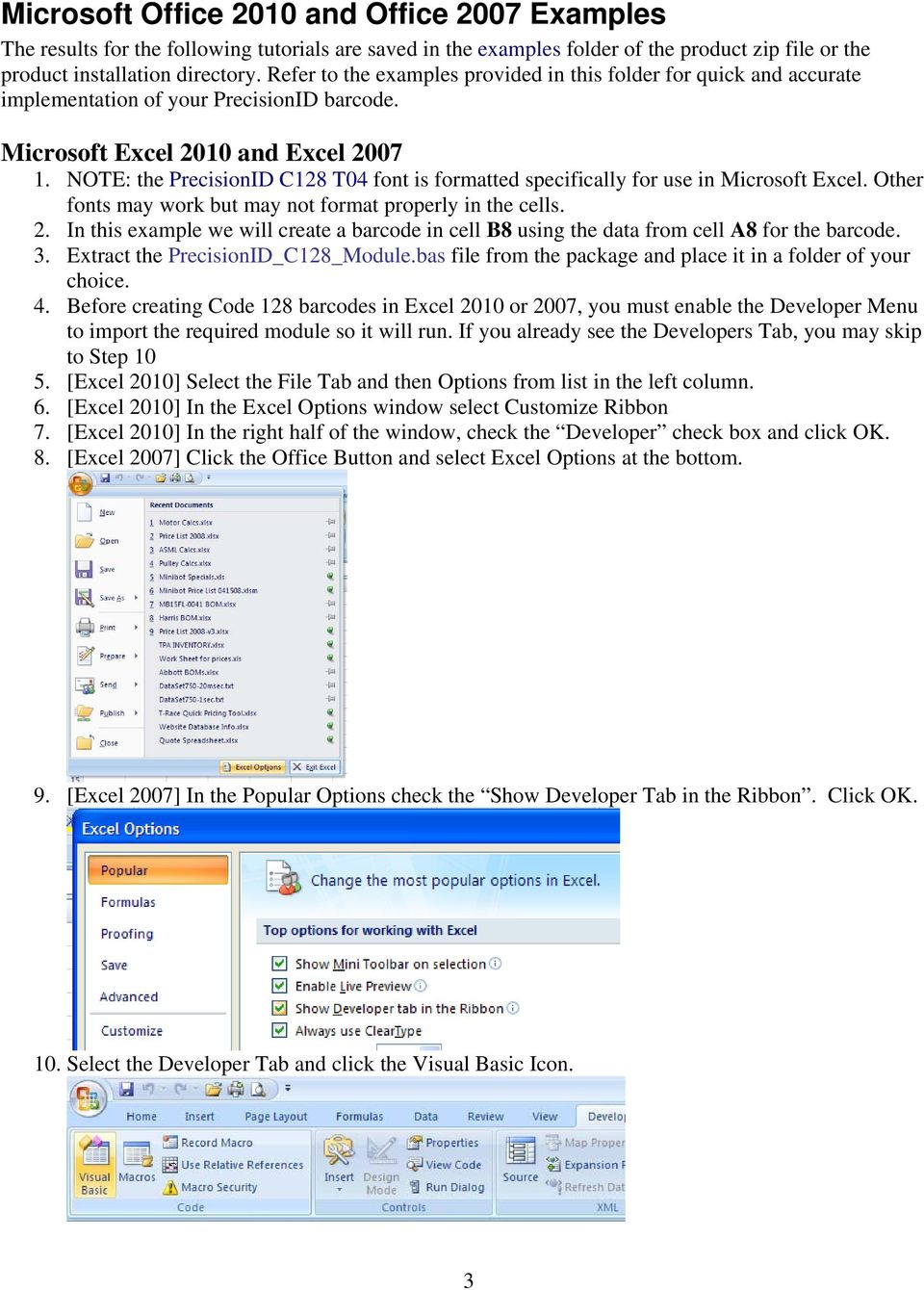
5 11. Choose File Import File and navigate to the PrecisionID_C128_Module.bas file located in the Program Files\PrecisionID Code 128 Font Package folder. After this module is imported, it will be visible in the list of modules. Choose File Close and return to Excel. 12. In cell B8, enter the formula =PrecisionID_C128AUTO(A8) which is required to format the data to the font. 13. Notice that the formula changed the data from cell A8 and appended additional characters at the beginning and ending of the text. Also notice that numbers from the data are compressed into other characters; this is normal when using Code 128 Auto and the barcode contains 4 or more consecutive number characters. 14. With cell B8 selected, choose the PrecisionID C128 T04 font, which is specifically formatted for use in Microsoft Excel, and choose 12 for the point size. PrecisionID also recommends centering the text in this cell so the barcode will contain white space before and after the barcode. It is required to select the appropriate barcode font for the formula being used. For example, a code 128 barcode formula requires a Code 128 barcode font. 15. After selecting the bar code font, the barcode will appear. Size the width of the column so that there is some white space before and after the bars of the barcode. 16. To create an entire column of barcodes, choose Edit Copy with cell B8 selected. 17. Highlight cells you wish to add barcodes to in column B and choose Edit - Paste. The formula will automatically adjust for the other cells. 4

6 Microsoft Word 2010 and Word 2007 Mail-Merge 1. Open the mail merge document. 2. To create a barcode in a Word 2010 or 2007 mail-merge, we must insert a merge field from a data source that has already formatted the text for the barcode font. In this example, we use Excel as the data source. The Excel spreadsheet data source must already be setup with barcodes just like the Excel Tutorial in this document. 3. In Word 2007, select the Mailings menu item, click Start Mail Merge and select the type of document to create. 4. Click Select Recipients and select Use Existing List. Navigate to the spreadsheet with the barcode data. Finally select the Worksheet within the Workbook with the data, i.e. sheet1. 5. Place the cursor at the location for the barcode and click Insert Merge Field and select the information to be inserted; i.e. FormattedText. 6. If you click Preview Results, the text formatted for the barcode from the data source appears. 7. Select the text in the merged data and choose the PrecisionID C font. Make the font 12 points in size. 8. For additional help, see Word 2007 Help or use the Mail Merge Wizard under Mailings - Start Mail Merge. 5

7 Microsoft Access 2010 and Access 2007 To create a code 128 barcode in a Microsoft Access report: 1. Run the Setup program to install the barcode fonts, VB Module, and Access Example file. 2. Create a new blank database. [Access 2010] Select the File tab and double click New Database or [Access 2007] Click the Office Button, select New, name the file, and click Create. 3. Enter some data into a new field. This data will be encoded into a barcode. 4. Save the database. 5. Before creating barcodes in Microsoft Access, you must import the required module. Select Database Tools and click the Visual Basic button. 6. Select File Import File and navigate to the PrecisionID_C128_Module.bas, which is located in the Program Files\PrecisionID Code 128 Font Package folder. After it is properly imported, it will appear as one of the modules in the database. 7. Save the module with the database by selecting File Save. 8. Select File Close to return to Microsoft Access 2010 / Create a report by selecting Create Report in the Ribbon. 6

8 10. Go to Design Mode by Right Clicking the Reports Tab and selecting Design View. 11. Add a Textbox to the report. This text box will be modified to contain a barcode. 12. Select the textbox and if the properties window is not visible, Right click on the text box and choose properties. 13. Place the formula =PrecisionID_C128AUTO([Field1]) for Access 2010 or =PrecisionID_C128AUTO([Table1.Field1]) for Access 2007 in the control source property of the text box where Table1 is the table and Field1 is the field that contains the data to be encoded into the code 128 barcode. The PrecisionID formulas for code sets A, B, or C may be used instead if the barcode needs to be limited to one code set. See code set information later in this manual. 14. Change back to Report View by right clicking the report s tab and selecting Report View. You should see that the formula changed the data from the database and appended additional characters at the beginning and ending of the text. You may notice that the numbers from the data are compressed into other characters; this is normal when using Code 128 Auto and the barcode contains 4 or more consecutive number characters. 15. Switch back to the report in Design View, select the text box and choose one of the PrecisionID fonts such as PrecisionID C128 T08 and choose 12 for the point size of the font. You must select the appropriate font for the formula you are using. For example, if you have a formula for a Code 128 barcode, you must select a Code 128 Font. 16. Size the text box so it is large enough to contain the entire barcode. You will need to adjust both the height and width. Be sure to leave some extra space to the right and left of the barcode in the report. Generally, the space should be about 3 times wider than the thickest bar in the code 128 barcode. 7
![Place the formula =PrecisionID_C128AUTO([Field1]) for Access 2010 or =PrecisionID_C128AUTO([Table1.](/docs-images/46/21508471/images/page_8.jpg "Field1]) for Access 2007 in the control source property of the text box where Table1 is the table and Field1 is the field that contains the data to be encoded into the code 128 barcode.")
9 17. Switch back to Report View and the Code 128 Barcode will appear in the text box. 8

10 Microsoft Office 2000 Examples The following tutorials are saved in the examples folder of the product zip file or in the installation directory. Refer to the examples provided in this folder for quick and accurate implementation of your PrecisionID barcode. Microsoft Access 2000 To create a code 128 barcode in a Microsoft Access report: 1. Run the Setup program to install the barcode fonts andd Access Example file. 2. Beforee creating barcodes in Microsoft Access, you must import the required module. Choose Modules Import and select the Access Example.mdb b file, whichh will be located in the Program Files\Precision ID Code 128 Font Package folder. 3. Choose the PrecisionID_C128_Module to import from the other database. After it is properly imported, it will appear as one of the modules in the database. 4. Open a report in design view and add a text box to your report. The text box will be modified to contain a barcode. 5. Right click on the text box and choose properties. 6. Place the formula =PrecisionID_C128AUTO([Table1.Field1]) in the control source property of the text box wheree Table1 is the table and Field1 is the field that contains the data to be encoded into the code 128 barcode. 7. Run the report. You should see that the formula changed the data from the database and appended additional characters at the beginning and ending of the text. You may notice that the numbers from the data are compressed into other characters; this is normall when using Code 128 Auto and the barcode contains 4 or more consecutive number characters. 8. Open the report in design view, select the text box andd choose one of the PrecisionID fonts such as PrecisionID C128 T08 and choose 12 for the point size of the font. You must select the appropriate font for the formula you are using. For example, if you have a formula for a Code 128 barcode, you must select a Code 128 Font. 9. Size the text box so it is large enough to contain the entire barcode. You will need to adjust both the height and width. Be sure to leave some extra space to the right and left of the barcode on the report. Generally, you need about 3 times the space too the left and right of the barcode as the thickest bar in the code 128 barcode. 10. Save and run your report. You should see the barcodee appear in the text box. 9

11 Microsoft Excel NOTE: the PrecisionID C128 T04 font is formatted specifically for use in Microsoft Excel. Other fonts may work but may not format properly in the cells. 2. In this example we will createe a barcode in cell B8 using the data from cell A8 for the barcode. 3. Extract the PrecisionID_C128_Module.bas file from the package and place it in the My Documents folder. 4. Beforee creating Code 128 barcodes in Excel, you must import the required module and change the security setting so it will run. In Excel, choose Tools Macro Security and set the security level to Medium. Choose Tools Macro Visual Basic Editor. 5. Choose File Import File and select the PrecisionID C128_Module.bas file from the list of files. After this module is imported, it will be visible in the list of modules. Choose File Close and return to Excel. 6. In celll B8, enter the formula of =PrecisionID_C128AUTO(A8) which is required to format the data to the font. 7. Notice that the formula changed the data from cell A88 and appended additional characters at the beginning and ending of the text. Also notice that numbers from the data are compressed into other characters; this is normal when using Code 128 Auto and the barcode contains 4 or more consecutive number characters. 8. With cell B8 selected, choose the PrecisionID C128 T04 font, which is specifically formatted for use in Microsoft Excel, and choose 12 for the point size. PrecisionID also recommends centering the text in this cell so the barcode will contain white space before and after the barcode. It is required to select the appropriate barcode font for the formula being used. For example, a code 128 barcode formula requires a Code 128 barcode font. 9. After selecting the bar code font, the barcode will appear. Size the width of the column so that there is some white space before and after the bars of the barcode. 10. To create an entiree column of barcodes, choose Edit Copy with cell B8 selected. 11. Highlight cells you wish to add barcodes to in columnn B and choose Edit - Paste. The formula will automatically adjust for the other cells. 10

12 Microsoft Word 2000 Mail-Merge 1. Open the mail merge document. 2. To create a barcode in a Word mail-merge, we must insert a merge field from a data source that already formatted the text to the barcode font. In this example, we use Excel as the data source. The Excel spreadsheet data source must already be setup with barcodes just like the Excel Tutorial in this document. 3. In Word, Choose Tools Letters and Mailings Maill Merge and select the Excel spreadsheet for your data source. Be sure to select the columns and range for the cells that contain the data formatted to the barcode font. You may have to go through the Word mail-merge tutorial for assistance if you are unsure of how to connect to a data source or perform a mail-merge. 4. When connected to the data source, we insert the merge field of <FormattedText> into the document. When we choose the View Merged Data option, we see the text formatted to the barcode font from the data source appear. 5. Select the text in the merged data and choose the PrecisionID C font. Make the font 12 points in size. Crystal Reports This examplee was created in Crystal Reports version 8. Implementation in other versions of Crystal Reports is very similar if not identical. The fonts and UFL aree compatible with Crystal version 7 and above. 1. Open your Crystal Report and switch to design mode.. In version 8, choose Insert Formula Field or in version 9 and above choose Report Formula Workshop. 2. Right Click on Formula Fields and choose New. 3. Give your formula field a name, in this example we will name it PrecisionID Barcode1. In versions 9 and above, if you are asked to use the editor or the expert, choose Use Editor. 4. In the Formula Editor, choose Functions - Additional Functions and select the PrecisionID_C128AUTO() function. The U25PrecisionID.dll UFL file must be installed before you can use this formula or you will receive an error. This UFL file is installed by running the Setup.exe file in the font package. The U25PrecisionID.dll file is also provided in the Crystal DLL folder of the Zip file. To manually install it, copy it too the Windows System directory or the directory where the Crystal DLLs are located. When the U25PrecisionID.dll file is installed and active, the PrecisionID formulas will appear in the Formula Workshop under Additional Functions. 11

13 5. Place the cursor between the parentheses in the formula and select the field you wish to encode in the barcode from the Report Fields area in the Formula Editor. A correct formula will appear something like PrecisionID_C128AUTO ({Table1.Field1}) wheree Table1.Field1 is the table and field of your database. 6. The tables and fields should be visible above in your database connection. Choose Save and Close. 7. From the Field Explorer, drag the PrecisionID_Barcode1 Formula Field to the report. 8. Choose File Print Preview. You should see that the formula field formatted the data from the database and appended additional characters at the beginning and ending of the text. You may notice that the numbers from the data are compressed d into other characters; this is normal when you are using Code 128 Auto and the barcode contains 4 or more consecutivee number characters. 9. Switch back to design mode, select the formula field and choose the PrecisionID C128 T08 font. Set the point size to 12 points or to the size appropriate for your application. You must select the appropriate font for the formula you are using and thee point size must be large enough for the scanner you are using (we recommend 12 points). 10. Size the formula field so it is large enough to contain the entire barcode. You will need to adjust both the height and width. Be sure to leave some extraa space to the right and left of the barcode on the report. Generally, you need about 3 times the space to the left and right of the barcode as the thickest bar in the code 128 barcode. 11. The barcode should now be visible when you run your report. 12

14 Information for Specific Implementations Creating Check Digits in Other Applications The easiest method of creating source code for a check digit in a custom application is to use our PrecisionID_C128_Module.bas module as a guide. The module was written to be compatible with Visual Basic 6 and Microsoft Office VBA and may be viewed with a text editor. This module is located in the Examples\VB Module folder of the package. Printing Text Below the Barcode Human-readable or text fonts are not provided in this package because they do not work well with Code 128. If you need to place text below the barcode, we suggest simply printing the data you are encoding in a text font below the barcode on your report. UCC/EAN-128 Barcodes Our PrecisionID Font Formatting Components allow the creation of UCC128 and EAN128 barcodes by simply substituting the ASCII 202 character for the FNC1 when in C128AUTO. For example, to create the UCC/EAN barcode of (8100) (21) the text of Ê Ê would need to be sent to the C128AUTO function where Ê is the ASCII 202 character or Chr(202) in VB. The text portion for this barcode type must be created as a separate field below the barcode using a text font. The Excel example has a very good example of creating EAN-128 barcodes. USPS EAN128 Barcodes The PrecisionID C font when printed at 16 points creates the required bar code size for USPS EAN128 barcodes. The text at the bottom of the barcode must be formatted properly and printed with the PrecisionID OCR-A font to meet the USPS specification. 13

15 Specifications Font Point Sizes and X Dimension (Narrow Bar Width) Our fonts are designed to print with precision on high resolution printers as well as low resolution printers such as 203 dpi thermal barcode printers. When printing at 203 dpi, the point size chosen should be a multiple of 6. When printing at 300 dpi, the point size chosen should be a multiple of 4. Font point size X Dimension (narrow bar width) measured in mils (1/1000 of an inch) (recommended) Font Names and Bar Code Height The numbers at the end of the font name are to identify the height of the font in millimeters (mm) when printed at 12 points. Font Name Approximate Font Height at 12 points PrecisionID C or 04mm (use in Excel) PrecisionID C or 08mm PrecisionID C or 12mm PrecisionID C or 14mm (used for USPS and EAN 128) PrecisionID C or 18mm PrecisionID C or 22mm Code 128 Character Sets A, B, and C The PrecisionID_C128Auto(data) function automatically switches between character sets to create the most compact barcode possible for the data. Most of the time the barcode will start with character set B as it has the broadest and most common variety of characters. When several consecutive numbers appear in the data, the function will switch to character set C and if a control character is encountered (such as a TAB or CR), the function will switch to character set A. Some implementations of Code 128 may require the barcode be limited to a specific character set. If this is required, additional functions are provided that do not auto-switch. See The Code 128 Character Chart for the specific characters available within each character set. Character Set A PrecisionID_C128_A(data) Character Set B PrecisionID_C128_B(data) Character Set C PrecisionID_C128_C(data) 14

16 The Code 128 Character Chart The fonts were created according to the chart below. If you have an advanced knowledge of the Code 128 specifications, you can use this chart to manually create your barcodes and calculate the check digit. Value Set_A Set_B Set_C ASCII Text Value Set_A Set_B Set_C ASCII Text 0 Space Space  54 V V V 1!! 1 33! 55 W W W 2 " " 2 34 " 56 X X X 3 # # 3 35 # 57 Y Y Y 4 $ $ 4 36 $ 58 Z Z Z 5 % % 5 37 % 59 [ [ [ 6 & & 6 38 & 60 \ \ \ 7 ' ' 7 39 ' 61 ] ] ] 8 ( ( 8 40 ( 62 ^ ^ ^ 9 ) ) 9 41 ) _ 10 * * * 64 nul ` ` soh a a 12,, 12 44, 66 stx b b etx c c eot d d 15 / / / 69 eno e e ack f f bel g g bs h h ht i i lf j j vt k k ff l l cr m m s0 n n s1 o o 26 : : : 80 dle p p 27 ; ; ; 81 dc1 q q 28 < < < 82 dc2 r r 29 = = = 83 dc3 s s 30 > > > 84 dc4 t t 31?? 31 63? 85 nak u syn v v 33 A A A 87 etb w w 34 B B B 88 can x x 35 C C C 89 em y y 36 D D D 90 sub z z 37 E E E 91 esc { { 38 F F F 92 fs G G G 93 gs } } 40 H H H 94 rs ~ ~ 41 I I I 95 us del à 42 J J J 96 Fn 3 Fn Ä 43 K K K 97 Fn 2 Fn Å 15

17 44 L L L 98 Shift Shift Æ 45 M M M 99 code C code C Ç 46 N N N 100 code B Fn 4 code B 200 È 47 O O O 101 Fn 4 code A code A 201 É 48 P P P 102 Fn 1 Fn 1 Fn Ê 49 Q Q Q 103 Start A Start A Start A 203 Ë 50 R R R 104 Start B Start B Start B 204 Ì 51 S S S 105 Start C Start C Start C 205 Í 52 T T T Stop Stop Stop 206 Î 53 U U U 16

18 PrecisionID Barcode Products PrecisionID offers a variety of barcode generation software. Visit for more information on these products. Code 128 Barcode Fonts Generate Code 128, UCC 128, EAN-128, and USS128 Barcodes easily using this package. Code 39 Barcode Fonts Generate Code 39 (Code 3 of 9), LOGMARS, and HIBC Barcodes easily using this package. Interleaved 2 of 5 Barcode Fonts Generate USS Interleaved 2 of 5, EAN-14, ITF-14, German Post Identcode and Leitcode Barcodes easily using this package. UPC Barcode Fonts - Generate UPC-A, UPC-E, UCC-12, EAN-8, EAN-13, ISBN, Bookland, and JAN barcodes using this package EAN Barcode Fonts - Generate EAN, EAN-13, EAN-8, UPC-A, UPC-E, UCC-12, ISBN, Bookland, and JAN barcodes using this package. POSTNET Barcode Fonts Generate USPS POSTNET, Planet, and FIM barcodes using this package. Native ASP Barcode Generator Generate most common barcodes on any website utilizing this ASP barcode generator. Barcode ActiveX Control Generate most common barcodes in ActiveX graphics object compatible environments using this ActiveX control. Data Matrix Barcode ActiveX Control Generate Data Matrix ECC200, PDF417, and Macro PDF417 barcodes in any ActiveX graphics objects compatible environment using this ActiveX control. PDF417 Barcode ActiveX Control Generate PDF417, Macro PDF417, and Data Matrix ECC200 barcodes in any ActiveX graphics objects compatible environment using this ActiveX control. OCR-A and OCR-B Fonts Create bank checks, passports, credit card imprints, serial labels, postal mail, and more with this OCR-A and OCR-B font package. MICR E13B Fonts Create bank checks and other paper based drafting documents using this MICR E13B Font Package. 17

PrecisionID ITF (Interleaved 2 of 5) Barcode Font User Manual
 PrecisionID ITF (Interleaved 2 of 5) Barcode Font User Manual Notice: When you use this product you agree to the End User License Agreement (EULA). The EULA is provided as a file in the package for this
BAR CODE 39 ELFRING FONTS INC.
 ELFRING FONTS INC. BAR CODE 39 This package includes 18 versions of a bar code 39 font in scalable TrueType and PostScript formats, a Windows utility, Bar39.exe, that helps you make bar codes, and Visual
Create!form Barcodes. User Guide
 Create!form Barcodes User Guide Barcodes User Guide Version 6.3 Copyright Bottomline Technologies, Inc. 2008. All Rights Reserved Printed in the United States of America Information in this document is
BAR CODE 2 OF 5 INTERLEAVED
 ELFRING FONTS INC BAR CODE 2 OF 5 INTERLEAVED This package includes 25 bar code 2 of 5 interleaved fonts in TrueType and PostScript formats, a Windows utility, Bar25i.exe, to help make your bar codes,
BI-300. Barcode configuration and commands Manual
 BI-300 Barcode configuration and commands Manual 1. Introduction This instruction manual is designed to set-up bar code scanner particularly to optimize the function of BI-300 bar code scanner. Terminal
BARCODE READER V 2.1 EN USER MANUAL
 BARCODE READER V 2.1 EN USER MANUAL INSTALLATION OF YOUR DEVICE PS-2 Connection RS-232 Connection (need 5Volts power supply) 1 INSTALLATION OF YOUR DEVICE USB Connection 2 USING THIS MANUAL TO SETUP YOUR
CHAPTER 8 BAR CODE CONTROL
 CHAPTER 8 BAR CODE CONTROL CHAPTER 8 BAR CODE CONTROL - 1 CONTENTS 1. INTRODUCTION...3 2. PRINT BAR CODES OR EXPANDED CHARACTERS... 4 3. DEFINITION OF PARAMETERS... 5 3.1. Bar Code Mode... 5 3.2. Bar Code
The ASCII Character Set
 The ASCII Character Set The American Standard Code for Information Interchange or ASCII assigns values between 0 and 255 for upper and lower case letters, numeric digits, punctuation marks and other symbols.
ELFRING FONTS UPC BAR CODES
 ELFRING FONTS UPC BAR CODES This package includes five UPC-A and five UPC-E bar code fonts in both TrueType and PostScript formats, a Windows utility, BarUPC, which helps you make bar codes, and Visual
Barcode Scanning Made Easy. WWS500 Programming Guide
 Barcode Scanning Made Easy WWS500 Programming Guide Table of Contents Chapter 1. Introduction...........................2 Chapter 2. Barcode Symbologies...................3 Chapter 3. Quick Start............................4
Part No. : MUL-53221-07 PROGRAMMING GUIDE
 Part No. : MUL-53221-07 PROGRAMMING GUIDE PROGRAMMING GUIDE for BARCODE SCANNERS The guide can be used as keyboard emulation, RS- 232C serial interface, and USB 1.1 interface and wand emulation. IMPORTANT
ELFRING FONTS THE RETAIL BAR CODE SOLUTION
 ELFRING FONTS THE RETAIL BAR CODE SOLUTION This package includes every kind of bar code needed to produce retail product and shipping bar codes. These bar code types include EAN-13, ISBN (Bookland), ITF-14,
Xi2000 Series Configuration Guide
 U.S. Default Settings Sequence Reset Scanner Xi2000 Series Configuration Guide Auto-Sense Mode ON UPC-A Convert to EAN-13 OFF UPC-E Lead Zero ON Save Changes POS-X, Inc. 2130 Grant St. Bellingham, WA 98225
Barcode Scanning Made Easy. Programming Guide
 Barcode Scanning Made Easy Programming Guide CCD Scanner Programming Guide Please Read Note: The Wasp WCS3900 Series Scanners are ready to scan the most popular barcodes out of the box. This manual should
ASCII Code. Numerous codes were invented, including Émile Baudot's code (known as Baudot
 ASCII Code Data coding Morse code was the first code used for long-distance communication. Samuel F.B. Morse invented it in 1844. This code is made up of dots and dashes (a sort of binary code). It was
BARCODE PRINTING SET UP BARCODE PRINTING
 21 BARCODE PRINTING The Barcode Printing option can be purchased for an additional cost. You will receive a floppy disk or CD that you can use to activate this feature. SET UP BARCODE PRINTING To start,
Create Mailing Labels from an Electronic File
 Create Mailing Labels from an Electronic File Microsoft Word 2002 (XP) Electronic data requests for mailing labels will be filled by providing the requester with a commadelimited text file. When you receive
The Barcode Printing option may be purchased for an additional cost. You will receive a CD that you will use to activate this feature.
 27 BARCODE PRINTING Barcode Printing takes your museum to the next level of inventory control and tracking. Barcoding is a proven technology that can eliminate keyboard data entry errors. There are many
dlsoft Barcodes By dlsoft
 dlsoft Barcodes By dlsoft This manual was produced using ComponentOne Doc-To-Help. Contents Barcodes 1 Introduction...1 1D Barcodes...1 Barcode types supported...2 Barcode Types Table...3 EAN...4 ISBN...6
SAMPLE LABEL TUTORIAL
 SAMPLE LABEL TUTORIAL REV C 04/2004 For additional information, please refer to the IDXPERTTM Handheld Labeler User s Manual. www.bradyid.com/idxpert About this Tutorial This tutorial provides step-by-step
Index...1. Introduction...3. Installation- Keyboard Wedge...3 RS-232...3 USB...3. Default Setting for each barcode shown as below:...
 Index Index...1 Introduction...3 Installation- Keyboard Wedge...3 RS-232...3 USB...3 Default Setting for each barcode shown as below:...4 Programming the MS320...5 Interface Selection...7 Keyboard wedge...8
ELFRING FONTS BAR CODES EAN 8, EAN 13, & ISBN / BOOKLAND
 ELFRING FONTS BAR CODES EAN 8, EAN 13, & ISBN / BOOKLAND This package includes ten EAN bar code fonts in scalable TrueType and PostScript formats, a Windows utility (BarEAN) to help you make bar codes,
T GG GG P IT RO Q U Q I C I K K S T S A A T R T G U D
 TAGGIT PRO Q U I C K S T A R T G U I D E Table of Contents Security Key Installation... 1 System Requirements / Installing... 2 Installing a Printer... 3 Creating Tags and Labels... 5 Opening Tag and Label
Merging Labels, Letters, and Envelopes Word 2013
 Merging Labels, Letters, and Envelopes Word 2013 Merging... 1 Types of Merges... 1 The Merging Process... 2 Labels - A Page of the Same... 2 Labels - A Blank Page... 3 Creating Custom Labels... 3 Merged
Word 2010: Mail Merge to Email with Attachments
 Word 2010: Mail Merge to Email with Attachments Table of Contents TO SEE THE SECTION FOR MACROS, YOU MUST TURN ON THE DEVELOPER TAB:... 2 SET REFERENCE IN VISUAL BASIC:... 2 CREATE THE MACRO TO USE WITHIN
MICROSOFT WORD: MAIL MERGE
 SIU Medical Library / Department of Information and Communication Sciences MICROSOFT WORD: MAIL MERGE MICROSOFT WORD 2010 OVERVIEW Mail Merge allows you to automatically merge a list of variable information,
Create a Poster Using Publisher
 Contents 1. Introduction 1. Starting Publisher 2. Create a Poster Template 5. Aligning your images and text 7. Apply a background 12. Add text to your poster 14. Add pictures to your poster 17. Add graphs
Technical Reference DYMO LabelWriter SE450 Label Printer
 Technical Reference DYMO LabelWriter SE450 Label Printer Copyright 2010 Sanford, L.P. All rights reserved. Revised 7/26/2010. No part of this document or the software may be reproduced or transmitted in
Command Emulator STAR Line Mode Command Specifications
 Line Thermal Printer Command Emulator STAR Line Mode Command Specifications Revision 0.01 Star Micronics Co., Ltd. Special Products Division Table of Contents 1. Command Emulator 2 1-1) Command List 2
dlsoft Barcodes By dlsoft
 dlsoft Barcodes By dlsoft This manual was produced using ComponentOne Doc-To-Help. Contents Barcodes 1 Introduction... 1 1D Barcodes... 1 Barcode types supported... 2 GS1 - EAN and UCC barcodes... 31 Recommended
S302D. Programming Guide. 2D Imaging Barcode Scanner. Advanced Handheld High-Speed Laser Scanner
 S302D 2D Imaging Barcode Scanner Programming Guide 1 Advanced Handheld High-Speed Laser Scanner Revision History Changes to the original manual are listed below: Version Date Description of Version 1.0
Wasp Labeler User Manual
 Copyright 2012 Wasp Barcode Technologies 1400 10 th St. Plano, TX 75074 All Rights Reserved STATEMENTS IN THIS DOCUMENT REGARDING THIRD PARTY PRODUCTS OR SERVICES ARE BASED ON INFORMATION MADE AVAILABLE
FLEETMATE. Overview. Barcode Scanner. CUSTOMER GUIDE: Barcode Features
 Overview FLEETMATE supports a variety of linear barcode symbologies. The box to the left provides a list of barcode symbol sets that are supported within the FLEETMATE software. You do not need to use
What is a Mail Merge?
 NDUS Training and Documentation What is a Mail Merge? A mail merge is generally used to personalize form letters, to produce mailing labels and for mass mailings. A mail merge can be very helpful if you
Microsoft Word 2013: Mail Merge
 Microsoft Word 2013: Mail Merge Mail merge is a tool which allows you to create form letters, mailing labels and envelopes by linking a main document to a data source. It is the process of combining a
All V7 registers support barcode printing, except the Sharp 410/420 1A ROM and that limitation is based upon the register.
 Tools Section Barcode Printing These are basic instructions for Version 7 Polling barcode printing. Users will need to have a PLU/UPC file containing either UPC-A, UPC-E, EAN 13 or EAN 8 numbers, label
 Bar Code Reader Models 1000/1002 USER'S MANUAL 2190 Regal Parkway Euless, TX 76040 (817) 571-9015 (800) 648-4452 FAX (817) 685-6232 FCC NOTICE WARNING: This equipment generates, uses and can radiate radio
Learning Services IT Guide. Access 2013
 Learning Services IT Guide Access 2013 Microsoft Access is a programme which allows you to store a lot of information easily in the form of a database. For example you could create a database which stored
Voyager 9520/40 Voyager GS9590 Eclipse 5145
 Voyager 9520/40 Voyager GS9590 Eclipse 5145 Quick Start Guide Aller à www.honeywellaidc.com pour le français. Vai a www.honeywellaidc.com per l'italiano. Gehe zu www.honeywellaidc.com für Deutsch. Ir a
Barcode Definitions. Labels: Getting Started. Overview. Defining a barcode definition
 1 Labels: Getting Started Barcode Definitions Overview Barcode definitions contain information for different types of barcodes. You may skip this document if you are not printing barcodes, or if you are
Microsoft Access 2010 Part 1: Introduction to Access
 CALIFORNIA STATE UNIVERSITY, LOS ANGELES INFORMATION TECHNOLOGY SERVICES Microsoft Access 2010 Part 1: Introduction to Access Fall 2014, Version 1.2 Table of Contents Introduction...3 Starting Access...3
Memory is implemented as an array of electronic switches
 Memory Structure Memory is implemented as an array of electronic switches Each switch can be in one of two states 0 or 1, on or off, true or false, purple or gold, sitting or standing BInary digits (bits)
Avery Dennison UK Consumer Helpline: 0800 80 50 20 Consumer email: [email protected]
 Avery DesignPro for PC Frequently Asked Questions General Information Questions Q: What are the system requirements for DesignPro? A: The following is required to run DesignPro: Microsoft Windows VistaTM,
FileMaker Pro and Microsoft Office Integration
 FileMaker Pro and Microsoft Office Integration page Table of Contents Executive Summary...3 Introduction...3 Top Reasons to Read This Guide...3 Before You Get Started...4 Downloading the FileMaker Trial
ASCII control characters (character code 0-31)
 ASCII control characters (character code 0-31) DEC HEX 0 00 NUL Null char 1 01 SOH Start of Heading 2 02 STX Start of Text 3 03 ETX End of Text 4 04 EOT End of Transmission
S PT-H500LI ELECTRONIC E C LABELING L SYSTEM INTRODUCTION EDITING A LABEL LABEL PRINTING USING THE FILE MEMORY USING P-TOUCH SOFTWARE
 ELECTRONIC E C LABELING L SYSTEM S PT-H00LI In order to use your P-touch labeler safely, read the included Quick Setup Guide first. Read this guide before using your P-touch labeler. Keep this guide in
To launch the Microsoft Excel program, locate the Microsoft Excel icon, and double click.
 EDIT202 Spreadsheet Lab Assignment Guidelines Getting Started 1. For this lab you will modify a sample spreadsheet file named Starter- Spreadsheet.xls which is available for download from the Spreadsheet
Task Force on Technology / EXCEL
 Task Force on Technology EXCEL Basic terminology Spreadsheet A spreadsheet is an electronic document that stores various types of data. There are vertical columns and horizontal rows. A cell is where the
May 2001. Prepared: Product version: Keyword: Accelio Present Central 5.4. Original value:
 : Page 1 : : ANSI/AIM BC2-1995, Uniform Symbology Specification - Interleaved 2 of 5 0 2 of 5 Industrial Interleaved 2 of 5 (also called I-2/5 and ITF) is suitable for encoding general purpose all-numeric
Mail Merge: Create Mailing Labels Using Excel Data and Filtering the Contents in the Data
 Mail Merge: Create Mailing Labels Using Excel Data and Filtering the Contents in the Data Prior to starting this, please save the.csv file that you exported as an excel file (example: xxxx.csv will now
Adobe Acrobat 6.0 Professional
 Adobe Acrobat 6.0 Professional Manual Adobe Acrobat 6.0 Professional Manual Purpose The will teach you to create, edit, save, and print PDF files. You will also learn some of Adobe s collaborative functions,
Advanced Presentation Features and Animation
 There are three features that you should remember as you work within PowerPoint 2007: the Microsoft Office Button, the Quick Access Toolbar, and the Ribbon. The function of these features will be more
Microsoft Office. Mail Merge in Microsoft Word
 Microsoft Office Mail Merge in Microsoft Word TABLE OF CONTENTS Microsoft Office... 1 Mail Merge in Microsoft Word... 1 CREATE THE SMS DATAFILE FOR EXPORT... 3 Add A Label Row To The Excel File... 3 Backup
Table of Contents. Part I Introduction 3 Part II Install Font Files 3. Part III Office 2007 & 2010 4. Part IV Office 2000 & 2003 14
 Contents 1 Table of Contents Foreword 0 Part I Introduction 3 Part II Install Font Files 3 1 Trial Version... 3 2 Full Version... 3 Part III Office 2007 & 2010 4 1 Word... 4 Install Template... File 4
Symbols in subject lines. An in-depth look at symbols
 An in-depth look at symbols What is the advantage of using symbols in subject lines? The age of personal emails has changed significantly due to the social media boom, and instead, people are receving
http://barcoderesource.com/pdf417barcode.shtml
 2D Barcode Fonts http://barcoderesource.com/pdf417barcode.shtml Copyright (c) 2009-2013, ConnectCode All Rights Reserved. ConnectCode accepts no responsibility for any adverse affect that may result from
MAIL MERGE TUTORIAL. (For Microsoft Word 2003-2007 on PC)
 MAIL MERGE TUTORIAL (For Microsoft Word 2003-2007 on PC) WHAT IS MAIL MERGE? It is a way of placing content from a spreadsheet, database, or table into a Microsoft Word document Mail merge is ideal for
Microsoft Word 2007 - Mail Merge
 Microsoft Word 2007 - Mail Merge Mail merge is a tool which allows you to create form letters, mailing labels and envelopes by linking a main document to a set of data or data source. It is the process
Instruction manual. testo easyheat Configuration and Analysis software
 Instruction manual testo easyheat Configuration and Analysis software en 2 General Information General Information This documentation includes important information about the features and application of
Bar Code Printing Guide
 Bar Code Printing Guide Please read this guide before operating this equipment. After you finish reading this guide, store it in a safe place for future reference. ENG Bar Code Printing Guide How This
MS Excel. Handout: Level 2. elearning Department. Copyright 2016 CMS e-learning Department. All Rights Reserved. Page 1 of 11
 MS Excel Handout: Level 2 elearning Department 2016 Page 1 of 11 Contents Excel Environment:... 3 To create a new blank workbook:...3 To insert text:...4 Cell addresses:...4 To save the workbook:... 5
Bar Code CCD Scanner OPERATION MANUAL
 ISO 9002 Certified Lead with technology Win customers with service Bar Code CCD Scanner OPERATION MANUAL 69 Jarltech International Inc. 1998. All rights reserved. Under the copyright laws, this manual
URL encoding uses hex code prefixed by %. Quoted Printable encoding uses hex code prefixed by =.
 ASCII = American National Standard Code for Information Interchange ANSI X3.4 1986 (R1997) (PDF), ANSI INCITS 4 1986 (R1997) (Printed Edition) Coded Character Set 7 Bit American National Standard Code
Microsoft Word 2010 Prepared by Computing Services at the Eastman School of Music July 2010
 Microsoft Word 2010 Prepared by Computing Services at the Eastman School of Music July 2010 Contents Microsoft Office Interface... 4 File Ribbon Tab... 5 Microsoft Office Quick Access Toolbar... 6 Appearance
Microsoft Office Access 2007 Basics
 Access(ing) A Database Project PRESENTED BY THE TECHNOLOGY TRAINERS OF THE MONROE COUNTY LIBRARY SYSTEM EMAIL: [email protected] MONROE COUNTY LIBRARY SYSTEM 734-241-5770 1 840 SOUTH ROESSLER
WHAT S NEW IN WORD 2010 & HOW TO CUSTOMIZE IT
 WHAT S NEW IN WORD 2010 & HOW TO CUSTOMIZE IT The Ribbon... 2 Default Tabs... 2 Contextual Tabs... 2 Minimizing and Restoring the Ribbon... 3 Customizing the Ribbon... 3 A New Graphic Interface... 5 Live
Basic Microsoft Excel 2007
 Basic Microsoft Excel 2007 The biggest difference between Excel 2007 and its predecessors is the new layout. All of the old functions are still there (with some new additions), but they are now located
BAR CODE CONTROL BAR CODE CONTROL - 1
 BAR CODE CONTROL BAR CODE CONTROL - 1 CONTENTS 1. INTRODUCTION... 3 2. PRINT BAR CODES OR EXPANDED CHARACTERS... 4 3. DEFINITION OF PARAMETERS... 5 3.1. Bar Code Mode............ 5 3.2. Bar Code Style,
How to Mail Merge PDF Documents
 How to Mail Merge PDF Documents A step-by-step guide to creating personalized documents Table of Contents What is a mail merge?... 2 What do I need to start?... 2 Step 1: How to create a PDF document?...
IBM Emulation Mode Printer Commands
 IBM Emulation Mode Printer Commands Section 3 This section provides a detailed description of IBM emulation mode commands you can use with your printer. Control Codes Control codes are one-character printer
Legal Notes. Regarding Trademarks. Model supported by the KX printer driver. 2010 KYOCERA MITA Corporation
 Legal Notes Unauthorized reproduction of all or part of this guide is prohibited. The information in this guide is subject to change for improvement without notice. We cannot be held liable for any problems
Introduction to Microsoft Access 2003
 Introduction to Microsoft Access 2003 Zhi Liu School of Information Fall/2006 Introduction and Objectives Microsoft Access 2003 is a powerful, yet easy to learn, relational database application for Microsoft
User Manual Microsoft Dynamics AX Add-on LabAX Label Printing
 User Manual Microsoft Dynamics AX Add-on LabAX Label Printing Version 1.7 Last Update: 17.04.2011 User Manual Microsoft Dynamics AX Add-on LabAX Label Printing Page 2 / 23 Contents 1 Introduction... 3
Adobe Dreamweaver CC 14 Tutorial
 Adobe Dreamweaver CC 14 Tutorial GETTING STARTED This tutorial focuses on the basic steps involved in creating an attractive, functional website. In using this tutorial you will learn to design a site
Frequently Asked Questions
 Advanced Function Presentation Consortium Bar Code Object Content Architecture Frequently Asked AFPC-0011-02 Questions Implementation Tips for Producing Bar Codes with the Bar Code Object Content Architecturee
Mail Merge. Course Description. Objectives: Design a Main Document. Design a Data Source. Directories. Merge the Main Document with the Data
 Mail Merge Course Description The Mail Merge feature allows you to combine items from a data source into a document. This allows you to create form letters, mailing labels, envelopes, etc. You also have
Basic Excel Handbook
 2 5 2 7 1 1 0 4 3 9 8 1 Basic Excel Handbook Version 3.6 May 6, 2008 Contents Contents... 1 Part I: Background Information...3 About This Handbook... 4 Excel Terminology... 5 Excel Terminology (cont.)...
ADMINISTRATORS GUIDE EPISUITE 6
 ADMINISTRATORS GUIDE EPISUITE 6 A quick tutorial on how to set up and implement Episuite Software created by IDentiphoto Specialists in IDentification 1810 Joseph Lloyd Pkwy. Willoughby, OH 44094 Phone:
Microsoft Access 2010 Overview of Basics
 Opening Screen Access 2010 launches with a window allowing you to: create a new database from a template; create a new template from scratch; or open an existing database. Open existing Templates Create
DL910 SERIES. Instruction Manual
 DL910 SERIES Instruction Manual DL910 SERIES INSTRUCTION MANUAL ALL RIGHTS RESERVED Datalogic reserves the right to make modifications and improvements without prior notification. Datalogic shall not
To export data formatted for Avery labels -
 Information used to create labels in the Client Data System (CDS) can be exported out of CDS and used to create labels in Microsoft Word, making it possible to customize the font style, size, and color.
SECTION 5: Finalizing Your Workbook
 SECTION 5: Finalizing Your Workbook In this section you will learn how to: Protect a workbook Protect a sheet Protect Excel files Unlock cells Use the document inspector Use the compatibility checker Mark
READ ME FIRST. Installation Instructions for TROY Font DIMM Printer and Font DIMM Kit
 READ ME FIRST Installation Instructions for TROY Font DIMM Printer and Font DIMM Kit (For use with Hewlett-Packard LaserJet 1300, 1320, 2300, 4100, 4200, 4300, 8100, 8150, and 9000 Printers) Introduction
MICROSOFT ACCESS 2003 TUTORIAL
 MICROSOFT ACCESS 2003 TUTORIAL M I C R O S O F T A C C E S S 2 0 0 3 Microsoft Access is powerful software designed for PC. It allows you to create and manage databases. A database is an organized body
MK-SERIE 1000/1500/2000 AllOfBarcode.de Michael Krug - 83278Traunstein BARCODE SCANNER
 MK-SERIE 1000/1500/2000 AllOfBarcode.de Michael Krug - 83278Traunstein BARCODE SCANNER Configuration Guide - 1 - Table of Contents Chapter 1 System Information 1.1 About this manual 3 1.2 How to set up
A Quick Tour of F9 1
 A Quick Tour of F9 1 Table of Contents I. A Quick Tour of F9... 3 1. Getting Started... 3 2. Quick Trial Balance... 7 3. A More Dynamic Table Report... 10 II. The Fundamental F9 Formula... 14 The GL Formula...
MICROSOFT OUTLOOK 2010 WORK WITH CONTACTS
 MICROSOFT OUTLOOK 2010 WORK WITH CONTACTS Last Edited: 2012-07-09 1 Access to Outlook contacts area... 4 Manage Outlook contacts view... 5 Change the view of Contacts area... 5 Business Cards view... 6
Introduction to Microsoft Access 2013
 Introduction to Microsoft Access 2013 A database is a collection of information that is related. Access allows you to manage your information in one database file. Within Access there are four major objects:
Mail merging emails: Word, Excel and Outlook
 Mail merging emails: Word, Excel and Outlook TRWD Software Used Word 2010 Excel 2010 Outlook 2010 Windows XP Revision Information Version Date Author Changes made 1.0 July 2012 Pamela Stanworth Created
Windows Driver Manual SRP-330 Thermal printer Rev. 1.02
 Windows Driver Manual SRP-330 Thermal printer Rev. 1.02 http://www.bixolon.com Table of Contents 1. Manual Information... 3 2. Operating System (OS) Environment... 3 3. Windows Driver Preparation... 3
Enter/Exit programming
 P/N: MUL-53247-02 Enter/Exit programming (This barcode is also found at back cover page.) Framed values are default values. All Rights Reserved This guide is designed for advanced settings of Hand Free
Version of Barcode Toolbox adds support for Adobe Illustrator CS
 Introduction Traditionally the printing industry has used manual design paste up and stripping for the implementation of barcode symbols but today the computer is used more often to generate barcode symbols
Test Generator. Creating Tests
 Test Generator Creating Tests Table of Contents# Cognero Overview... 1 Cognero Basic Terminology... 2 Logging On to Cognero... 3 Test Generator Organization... 4 Question Sets Versus Tests... 4 Editing
Six Steps to Completing a Mail-Merge
 Six Steps to Completing a Mail-Merge Mail merging means to plug data from an address table into form letters, e-mail messages, envelopes, address labels, or a directory (a list or catalog, for example).
Software Application Tutorial
 Software Application Tutorial Copyright 2005, Software Application Training Unit, West Chester University. No Portion of this document may be reproduced without the written permission of the authors. For
Migrating to Excel 2010 from Excel 2003 - Excel - Microsoft Office 1 of 1
 Migrating to Excel 2010 - Excel - Microsoft Office 1 of 1 In This Guide Microsoft Excel 2010 looks very different, so we created this guide to help you minimize the learning curve. Read on to learn key
Microsoft Excel 2010 Tutorial
 1 Microsoft Excel 2010 Tutorial Excel is a spreadsheet program in the Microsoft Office system. You can use Excel to create and format workbooks (a collection of spreadsheets) in order to analyze data and
Dynamic Barcodes. User Guide
 User Guide Contents 1. Copyright Notice... 4 2. What is a barcode?...6 3. Getting Started with... 7 4. Using in Unlicensed Mode... 8 5. Basics...9 5.1 Creating a Barcode...9 5.2 Editing a Barcode...11
MK-5200 2D Imager Barcode Scanner Configuration Guide
 MK-5200 2D Imager Barcode Scanner Configuration Guide V 1.2 Programming the Engine Code Programming On/Off Read the barcode to activate Code Programming function. One or more Code Programming barcodes