
CALCULATOR QUICK REFERENCE GUIDE and INSTRUCTIONS. TI-89 Titanium TI-VOYAGE 200 TI-89
|
|
|
- Silvia Ward
- 9 years ago
- Views:
Transcription
1 CALCULATOR QUICK REFERENCE GUIDE and INSTRUCTIONS TI-89 Titanium TI-VOYAGE 200 TI-89

2 BASICS Green diamond: use for items in green above a key 2 nd : use for items in blue above a key(voyage and 89Titanium) (89-yellow) alpha: use for items in white above key:89titanium, purple: 89, (pressing TWICE is alpha-lock --press again to undo) Voyage: no alpha, use keyboard White Up Arrow (89 :between 2 nd and ESC, Voyage: above ON)-- Capital letters (Capital lock on Voyage: use 2 nd, Z) Function keys: F1-F5 below screen, F6-F8 are 2 nd F1-F3 (Voyage all 8 below screen, all 8 beside screen) APPS: Data/Matrix, Numeric Solver, etc. With OS 2.08 or later, screen will look like a Windows desktop, with Icons. These are turned on and off in MODE, F3. use for backspace, typing over previous items to left. DEL (Green diamond ): for delete, takes away from right side INS (2 nd ): toggles between insert mode & type-over mode. If cursor is thin: insert. If cursor is a block: type-over. STO: above ON (Voyage: left of spacebar) AVOID storing to one letter, especially x, a, b, n NOTE: ab will NOT be interpreted as a times b, but as a variable ab There is an 8 character limit CLEAR: clears command line, but not home screen Clear Home screen: F1, 8 (be careful if previous entries are needed later) Powers: use the ^ key Roots: use ^(1/n), where n is the index of the root (3 for cube root, etc.) The square root key is 2 nd of multiply key Screen Adjustment Darken: Green diamond, Add Lighten: Green diamond, Subtract Home Screen Key below Green diamond key (Voyage Green diamond, Q) Use for computations, defining functions, solving equations, etc. Operating System: F1, A (scroll down on TI-89) Basic arithmetic calculations: calculator uses correct order of operations. You will need to put extra parentheses in sometimes (around numerators and denominators of fractions, around powers like 1/3 or 5x, etc.) Quick Edit Copy: Green diamond, White Up arrow key (Voyage Green diamond, C) Cut: Green diamond, 2 nd (Voyage Green diamond, X) Paste: Green diamond, ESC (Voyage Green diamond, V) TblSet: Green diamond, F4 (Voyage Green diamond, T) tblstart: first x (independent value) Note: works IF Ind=Auto AND Gr<>Tab=Off Δtbl: incremental change between successive x values Independent=AUTO Graph<->Table=OFF: table fills automatically, using all checked y= s Graph<->Table=ON: fills based on window settings, using all checked y= s Independent=ASK lets you build the table manually, with specific x values Table: Green diamond, F5 (Voyage Green diamond, Y) Use TblSet FIRST. To see more decimal places, highlight y-value (use cursors) OR change Cell width (F1, 9 Format)

3 MODE Page 1 (F1) Graph: Function (default), and others (Polar, Parametric, etc.) Current Folder: main Display digits: plain Float is best (or you can set specific rounding with Fix) Exponential Format: Normal (Engineering is nice for metric) Pretty Print: ON (then you will see, π, etc.) Page 2 (F2) Split Screen (nice for Voyage but very small on TI-89) Exact vs. Approx: set your calculator in auto, then use Green diamond, Enter, for decimal approximation when desired Base: Decimal, hexadecimal and binary are available Page 3 (F3) Units: SI, English/US, or Custom Available CATALOG (TI-89 key below APPS, Voyage 2 nd, 2) Move with cursors to desired entry --look at bottom of screen for syntax on most choices --press Enter, to bring back to Home, or y =, etc. --press Escape, to exit catalog without a selection Faster movement through catalog --press key with first letter of desired entry (NO Alpha necesssary) --2 nd up arrow or 2 nd down arrow for page MEMORY MANAGEMENT Go to VAR-LINK (2 nd of subtract key) Check any items to manage first, using F4 (checks and unchecks) F1(Manage), 1 (Delete) eliminates all checked items F1, 3 (Rename) one item at a time F1, 6 or 7 lock and unlock checked items F6 (Contents) useful if there is something in the list that you don t recognize. Arrow down to item (don t need check) and press F6 TRANSFERRING to another TI-89 or Voyage (go to VAR-LINK 2 nd, Subtract) Plug link cable between calculators, making sure it is pressed in all the way Sender: with arrow keys, move to whatever you want to send, and check it by using F4 (you can send more than one) Receiver: press F3, 2(Receive) Sender: press F3, 1(Send) NOTES: FLASH APPS (send by checking in F7, THEN F3 to receive/send) (Polynomial Root Finder, Stats/List package, Finance, Simultaneous Equation Solver, EE200 Demo, ) OPERATING SYSTEM upgrade Warn receiver to backup anything of importance wipes all Receiver uses F3, 5 (Receive OS or Product SW) Sender uses F3, 4 (Send OS or Product SW)

4 UPDATING OPERATING SYSTEM and INSTALLING FLASH APPS A) TI-Connect Software This is the fastest/easiest way to update operating system and download flash apps. Connect your calculator to the computer, using the USB link cable. NOTE: this is NOT the small black link cable that is used to transfer between calculators. Operating System To see which version you have currently installed on your calculator, go to HOME, F1(Tools), A (About) or APPS screen, F1, 3. Open TI-Connect (double-click on desktop icon on your computer screen) Click on Updates button, top right Click on Check for newer operating system, Continue If you have the most current OS, a message will display otherwise, click on the newer version of OS that comes up in the display box, click on download the software to my device, Continue Log in if this is your first time, you can set up your account at this time Click on Download You should see: a) your files being backed up b) the new OS loading c) your files being restored Flash Apps Getting the File Open TI-Connect, click on Shop button, at top At TI site, click on United States, Continue, English, Continue, then click on your calculator type, from list at left Choose Apps/Software Look through the list to see what you would like most are free, including: Polynomial Root Finder, Finance, Stats/List Editor, Simultaneous Equation Solver, Cabri Geometry, Geometer s Sketchpad, Calculus Tools, Organizer (Calendar, Contacts, Planner, Tasks),US Presidents More info will give you details on the flash app, download will let you save the file on your computer (you might want to create a download folder) Loading the File on your Calculator Open TI-Connect, click on TI-Device Explorer button at left Click on Windows Explorer (far right on icon bar). Locate the flash app program in the folder where it was saved click to highlight Go to FILE (top left), choose Send To, Connected TI Device, RAM After searching, you should see the transfer taking place, and when finished, the new icon should be displayed on your calculator applications desktop B) Between Calculators See Transferring in the BASICS section of this handbook ***OS: requires EXACTLY the same calculator. Programs: some yes, some no***

5 GRAPHING 1. Enter Equation in y= TI-89: Green diamond, F1. The x key is below the HOME key. Voyage: Green diamond, W. Use x from the keyboard. Note: Even if you are in a mode other than function (3d, polar, etc.), you will still access the equation menu through the y= key. 2. Set Window for viewing the graph TI-89: Green diamond, F2 Voyage: Green diamond, E Note: If the resolution (xres) accidentally gets erased or changed, default is To make sure the curve will actually graph: In y =, make sure there is a check mark beside your equation. F4 is on/off toggle. 4. Graph Equation TI-89: Green diamond, F3 Voyage: Green diamond, R 5. Zooming F2 in y = menu and Graph menu Zoom Box (1) Nice for looking at a portion of the graph that would fit in a desired rectangle. To use, move the cursor with the left and right arrow keys to the desired upper left corner and press enter. Again, use the arrow keys to move to the desired lower right corner (you should see a box forming) and press enter. Zoom Square (5) Corrects distortion from your window setting choices. Zoom Standard (6) Basic horizontal and vertical settings from -10 to 10. Zoom Trig (7) Useful for a quick trig function window. Zoom Data (9 arrow down on TI-89) Very nice when you are working with a data set, so you don t have to set the xmin, xmax, etc. A good window comes up that displays all data points. Zoom Fit (A arrow down on TI-89) Good for helping with the ymin and ymax, when you only know the xmin and xmax that you want to use, but are not sure about the vertical values. Memory, Zoom Previous (B,1 arrow down on TI-89) Goes back. 6. Saving a Graphical Database F1 in y = menu and Graph menu. This feature is nice if you have worked to find a good window for something you want to use in the future. It saves all of the equations currently in the y =, plus the window settings.

6 7. MATH tab F5 in Graph menu After graphing, the following will give more accurate results than tracing: Value (1) Evaluates the function at a desired x-value. Type number, press Enter. Zero (2) Find x-intercepts, one at a time. Move with arrows before intercept, ENTER, move past intercept, ENTER. Local Minimum (3) Find a relative low point. Move with arrows to left of low point, ENTER, to right of low point, ENTER. Local Maximum (4) Find a relative high point. Move with arrows to left of high point, ENTER, to right of high point, ENTER. Intersection of two curves (5) If only two are graphed, press enter twice (yes, 1 st curve, yes, 2nd curve). If more are graphed, use up/down arrows and watch equation number in upper right (or where cursor is blinking), then Enter for appropriate choices. Finally, move with arrows to before they cross, ENTER, to after they cross, ENTER. 8. Presentation of Graph Screen Note: You must press Enter to Save all changes In Graph or y = menu, use F1, 9 (Format) (arrow down on TI-89): Coordinates On(Rectangular or Polar) or Off: Usually on Rect. Graph Order: When graphing more than one curve, choose one after the other (Seq) or all at once (Simul). Grid On or Off: Usually Off. On makes it look like graph paper. Axes On or Off: Usually On. Off feature nice for polar graphs (roses, spirals, etc.) In y = menu, F6: Style of curve-- Arrow down to choice and F4 to check: Line, dot, square, thick--when graphing several equations, this feature lets you make a distinction between them. Animate--to see if one equation is equivalent to another, use Line for one equation and Animate for other easy to see if one graphs over the other. Above or Below to shade above or below a line 9. Common Problems Graph does not appear on screen after pressing the Graph choice. a) Is the equation selected? See section 3 above. b) Could the graph be outside the window you have chosen? Zoom Out (F2, 3) or change the window settings (see section 2) Error message when trying to graph a) The most common reason is that a Plot is turned on and there may be a problem with the data it is trying to use. If any Plots are checked, uncheck them with F4. (Plots are above y1=) b) There may be an error in your formula. Check that: i) you are using the appropriate variable (x, for function mode). ii) subtract versus negative keys are being used appropriately. iii) there are a matching number of right and left parentheses. c) There may be a problem with your window xmin larger than xmax, xmin=xmax, etc. Also, negative key, not subtract. Check and correct.

7 NUMERIC SOLVER Numeric Solver Icon (f(x)=0) on the APPS desktop (or APPS, 9) The numeric solver is most useful for equations that have several variables and/or you will be using the equation repeatedly with different values. Procedure: Type in the equation, without substituting any known values. Make sure you have added any necessary parentheses, multiplication signs between variables, etc., especially between a variable and parentheses (example: x(x + 3) would not be interpreted as a multiplication, but as a function x with x+3 replacing all input variable positions). A list of the variables will come up after you press enter. This allows you to answer a variety of questions, by substituting all known values, leaving one that is unknown. Move the cursor to the one that you are looking for and: a) clear the value or b) type in a guess value. Press Solve (F2) while the cursor is located at the variable with the unknown value. Notes: On the numeric solver, you will only get one answer at a time. If you think that there are more answers, you must input a guess away from the value that was found. For example, the calculator gives a solution of n = 2.5. You might clear that value and type in a guess of 5 (or 3) a number that is either larger or smaller than the answer found. For equations with only two variables, the graph can be helpful as a guide to how many solutions are expected. If a formula has variables that are similar (say n and N, for example), the numeric solver doesn t distinguish between lower and uppercase. You will need to change one to a different variable, and keep track of the change. SYMBOLIC SOLVER At the HOME screen, choose F2, 1. The syntax is: solve(equation, variable). The most common errors are: a) entering an expression instead of equation b) forgetting the variable to solve for (even if it is obvious, when there is only one) The symbolic solver is typically used to: a) rearrange an equation to be solved for a different variable b) get exact solutions if possible, instead of approximate (from numeric solver) To use the solve command, with values assigned to some variables, the such that bar is used AFTER the parentheses. (TI-89: below the = key, Voyage: 2 nd,k) Example: solve(x+y-z=4,y) x=3 and z=1

8 UNITS and CONVERSION Menu: 2 nd, 3 (TI-89) or Green diamond P (Voyage) Category: know where the units would be located Examples: a) feet would be found under Length b) gallons would be found under Volume c) hours would be found under Time Abbreviation: recognize what is being used for the units Examples: a) feet is represented by _ft b) gallons is represented by _gal c) hours is represented by _hr Missing Units: can be created Examples: a) there is no feet per second in the Velocity section Find _ft in Length and _s in Time. Using a divide between them, feet per second is represented by _ft/_s b) there is no square feet in the Area section. Use _ft^2 Typing Directly: without using units menu, use alpha letters with _ symbol, found at Green diamond, MODE (TI-89) or 2 nd P (Voyage) (Symbol for Conversion): 2 nd MODE (TI-89) or 2 nd Y (Voyage) Example: To convert 5 inches to cm, you would type 5_in _cm Enter FUNCTIONS Defining: HOME screen, F4, 1 type your function on the command line, using correct function notation. Example: Define areacirc(r)= π r ^2 Done in the window means you can now use your function. Since the formula was for area of a circle with radius r, you can find the area of a circle with radius 5 by typing: areacirc(5) Avoid using x as the input variable, except in the graph (see below) Function name is limited to 8 characters Multivariable functions can be defined, also Example: Define volucone(r,h)= ( 1/ 3) π r^2 h Graphing You can graph a function of one variable, just change the input to x. Using the example above: y1=areacirc(x) Composition Notation is the same as if doing by hand. Works for both values and expressions. Examples: f(g(m)) h(g(2)) f(h(w+3))

9 SOLVING SYSTEMS OF EQUATIONS There are several options for solving systems of equations. Look at the requirements for each method to see which will be best for a particular system. Graphically 2 equations, 2 variables Equations do not have to be LINEAR Both equations must be solved for y (or other dependent variable) Enter the two equations in y= menu. Set up a good window, where the point of intersection is visible. Use F5 (Math), 5 Intersection. Cursor will blink on one curve press Enter. Cursor will blink on the other curve press Enter. Use left/right arrows to move cursor BEFORE the point of intersection and press Enter. Move cursor AFTER the point of intersection and press Enter. The coordinates of the point of intersection will be displayed. Simultaneous Equation Solver This is a Flash Application Equations must all be LINEAR and in STANDARD FORM Example: 3x + 5y = 14 5x - 2y = -18 Choose 3, New, unless you are working with a system used previously Enter number of equations, arrow down, enter number of variables, enter Column a1 is for the coefficients on the first variable, column a2 is for the coefficients on the second variable, and b1 is for the constants on the right side of the equations. (b2, b3, etc., let you solve systems with the same variable coefficients but different constants) Press F5(solve). If there is a Unique solution, the value for each variable will be displayed. If there is No solution, no solution found displays. If there are Infinitely many solutions, a parameterized solution is displayed, using symbol. Simult command In catalog, or Math menu(2 nd 5) 4, 5, or type alpha letters Equations must all be LINEAR and in STANDARD FORM Using the example listed above, at the HOME command line, type: simult([3,5;5,-2],[14;-18]) Notes: a) the square brackets are 2 nd, comma key and 2 nd, divide key b) inside the brackets, note that the semicolon separates rows (TI-89: 2 nd 9, Voyage: 2 nd M) Screen display: simult, Interpretation: the left display shows the system representation, and the right display means that x = -2 and y = 4

10 Solve command Equations don t have to be Linear Equations don t have to be in any particular form Using the same example, at the HOME screen command line type: solve(3x + 5y =14 and 5x - 2y = -18, {x,y}) Notes: a) solve is the first choice in the F2 Algebra menu b) using and from the catalog will come with the necessary spaces before and after the word c) the braces { } are 2 nd of the parentheses keys Screen display: x = -2 and y = 4 (no interpretation necessary!) The system in the example had a Unique solution. If there was No solution, false would display. If there were Infinitely many solutions, a parameterized solution is displayed, using symbol. Matrix Representation (these instructions are for systems with # of Equations = # of Variables) Equations must all be LINEAR and in STANDARD FORM Data/Matrix Editor on APPS desktop (or APPS,6) 3 (New--unless same system used previously): Use the right arrow to change from Data to Matrix, 2 Down arrow to variable, name your matrix something meaningful, like Prob4, or something like xyz (faster for TI-89) Down arrow to row: type in the number of equations Down arrow to col: type in one more than the row number. Enter twice Fill in the coefficients and constant for each equation, as rows. Go to HOME screen command line, and type: rref(matrixname) For the example used previously, the screen would display: rref Interpretation: x = -2 and y = Notes: If the last row had been 0 0 0, this would indicate Infinitely Many Solutions If the last row had been 0 0 nonzero this would indicate No Solution

11 MATRICES Enter Matrix Data/Matrix Icon on APPS desktop (or APPS, 6) Right arrow to change from Data to Matrix (2, or down arrow and Enter). Arrow down to variable and type in a meaningful name (up to 8 characters). It is best not to use a single letter to name a matrix. Arrow down to type in numbers for rows and columns, then Enter. Type in all values, then HOME. It is a good idea to take a look at the matrix, to spot any typos. At the home screen, type the name of the matrix on the command line and press Enter. Inspect the matrix to see if it is correct before using. Inverse of a Matrix Requirements: a) the matrix MUST BE SQUARE, n x n and b) an associated system of equations with those variable coefficients would have a UNIQUE solution Syntax: matrixname^-1 If the matrix was not square, error message: Dimension. If a square matrix was not invertible, error message: Singular matrix. Determinant of a Matrix Requirement: the matrix MUST BE SQUARE, n x n Syntax: det(matrixname) Transpose of a Matrix Math menu (2 nd, 5), 4, 1 Syntax: matrixname T Row Reduced Echelon Form Math menu, 4, 4, or type from keyboard Syntax: rref(matrixname) Eigenvalues and Eigenvectors Math menu, 4, 9 (for values) or A (for vectors) (TI-89, arrow down) Syntax: eigvl(matrixname) or eigvc(matrixname) The order of the eigenvalues will correspond to the order of the eigenvectors (which are the columns of the displayed matrix). The vectors are normalized. Generate a Random Matrix Math menu, 4, E (TI-89, arrow down) Syntax: randmat(number of rows, number of columns)

12 PROGRAMMING To get started: Program Editor Icon (:Prgm) on the APPS desktop (or APPS, 7) New (the first time) Arrow down and type in a meaningful name (after Variable:) and Enter twice. The body of the program will be written between Prgm and EndPrgm. Each line will start after a colon (:), which is generated automatically. A good way to start is :ClrIO this clears the program IO screen (neater) Find this in the catalog. Disp is used often for displaying something on the screen. Disp is found in F3 (I/O),2. Examples: :Disp will give a blank line :Disp hello will display hello on the screen :Disp A will display the value stored in A, on the screen Output can be used to display something at a particular location. Output is found in F3 (I/O), 6. Example: :Output 20, 30, Math will display math at down 20 right 30 position NOTE Limits are approximately TI-89: down 65 right 150 Voyage: down 90 right 230 Input is used to store a value entered from the keyboard. Input is found in F3 (I/O),3. If you want a message to prompt the entry, put it in quotes. Examples: :Input P the user will only see a?, and number entered stores as P :Input Enter payment, in dollars, P will be more helpful for the user Storing Example: :C+3 B stores 3 more than the value of C to B Toolbars build the tabs you see at the top of the Home screen. These are useful for choices in your program. ToolBar and EndTBar come as a set in F2(Control),1, 6. Title is in F2, 1, 7. Example: :Toolbar : Title New,a2 displays a tab F1, labeled New, and executes the command at label a2 : Title Quit, a5 displays a tab F2, labeled Quit, and executes the command at label a5 :EndTBar If-Then statements are inf2, 2. Example: :If num>10 Then : Disp go :ElseIf num<10 Then : Disp stop EndIf If the number stored to num was exactly 10, nothing would display and the program would continue executing whatever followed the EndIf

Introductory Handbook for the TI-89 Titanium
 Introductory Handbook for the TI-89 Titanium Note: This handbook will, for the most part, work for the standard TI-89 as well. The color-coding used on the TI-89 differs from the color-coding used on the
Getting to know your TI-83
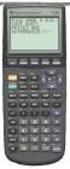 Calculator Activity Intro Getting to know your TI-83 Press ON to begin using calculator.to stop, press 2 nd ON. To darken the screen, press 2 nd alternately. To lighten the screen, press nd 2 alternately.
Calculator Notes for the TI-89, TI-92 Plus, and Voyage 200
 CHAPTER 1 Note 1A Reentry Calculator Notes for the TI-89, TI-92 Plus, and Voyage 200 If you want to do further calculation on a result you ve just found, and that result is the first number in the expression
LAYOUT OF THE KEYBOARD
 Dr. Charles Hofmann, LaSalle [email protected] Dr. Roseanne Hofmann, MCCC [email protected] ------------------------------------------------------------------------------------------------- DISPLAY CONTRAST
Academic Support Center. Using the TI-83/84+ Graphing Calculator PART II
 Academic Support Center Using the TI-83/84+ Graphing Calculator PART II Designed and Prepared by The Academic Support Center Revised June 2012 1 Using the Graphing Calculator (TI-83+ or TI-84+) Table of
SYSTEMS OF EQUATIONS AND MATRICES WITH THE TI-89. by Joseph Collison
 SYSTEMS OF EQUATIONS AND MATRICES WITH THE TI-89 by Joseph Collison Copyright 2000 by Joseph Collison All rights reserved Reproduction or translation of any part of this work beyond that permitted by Sections
Basic Use of the TI-84 Plus
 Basic Use of the TI-84 Plus Topics: Key Board Sections Key Functions Screen Contrast Numerical Calculations Order of Operations Built-In Templates MATH menu Scientific Notation The key VS the (-) Key Navigation
Introduction to the TI-Nspire CX
 Introduction to the TI-Nspire CX Activity Overview: In this activity, you will become familiar with the layout of the TI-Nspire CX. Step 1: Locate the Touchpad. The Touchpad is used to navigate the cursor
Pre-Calculus Graphing Calculator Handbook
 Pre-Calculus Graphing Calculator Handbook I. Graphing Functions A. Button for Functions This button is used to enter any function to be graphed. You can enter up to 10 different functions at a time. Use
Part V: Texas Instruments TI-92, TI-92 Plus, Voyage 200
 Part V: Texas Instruments TI-92, TI-92 Plus, Voyage 200 V.1 Getting started with the TI-92, TI-92 Plus, Voyage 200 Note: All keystroke sequences given for the Voyage 200 are applicable to the TI-92 and
Graphing Calculator Workshops
 Graphing Calculator Workshops For the TI-83/84 Classic Operating System & For the TI-84 New Operating System (MathPrint) LEARNING CENTER Overview Workshop I Learn the general layout of the calculator Graphing
Linear Algebra and TI 89
 Linear Algebra and TI 89 Abdul Hassen and Jay Schiffman This short manual is a quick guide to the use of TI89 for Linear Algebra. We do this in two sections. In the first section, we will go over the editing
I. Turn it on: Press É
 Graphing Calculator Guide for the TI-83/84 Plus The following pages describe how to use the calculator to graph functions, use some of the matrix menu, use scientific notation, and other various keys.
Guide for Texas Instruments TI-83, TI-83 Plus, or TI-84 Plus Graphing Calculator
 Guide for Texas Instruments TI-83, TI-83 Plus, or TI-84 Plus Graphing Calculator This Guide is designed to offer step-by-step instruction for using your TI-83, TI-83 Plus, or TI-84 Plus graphing calculator
Intro to Excel spreadsheets
 Intro to Excel spreadsheets What are the objectives of this document? The objectives of document are: 1. Familiarize you with what a spreadsheet is, how it works, and what its capabilities are; 2. Using
EL-9650/9600c/9450/9400 Handbook Vol. 1
 Graphing Calculator EL-9650/9600c/9450/9400 Handbook Vol. Algebra EL-9650 EL-9450 Contents. Linear Equations - Slope and Intercept of Linear Equations -2 Parallel and Perpendicular Lines 2. Quadratic Equations
TI-83/84 Plus Graphing Calculator Worksheet #2
 TI-83/8 Plus Graphing Calculator Worksheet #2 The graphing calculator is set in the following, MODE, and Y, settings. Resetting your calculator brings it back to these original settings. MODE Y Note that
Introduction to the Graphing Calculator
 Unit 0 Introduction to the Graphing Calculator Intermediate Algebra Update 2/06/06 Unit 0 Activity 1: Introduction to Computation on a Graphing Calculator Why: As technology becomes integrated into all
Excel Guide for Finite Mathematics and Applied Calculus
 Excel Guide for Finite Mathematics and Applied Calculus Revathi Narasimhan Kean University A technology guide to accompany Mathematical Applications, 6 th Edition Applied Calculus, 2 nd Edition Calculus:
5: Magnitude 6: Convert to Polar 7: Convert to Rectangular
 TI-NSPIRE CALCULATOR MENUS 1: Tools > 1: Define 2: Recall Definition --------------- 3: Delete Variable 4: Clear a-z 5: Clear History --------------- 6: Insert Comment 2: Number > 1: Convert to Decimal
Preface of Excel Guide
 Preface of Excel Guide The use of spreadsheets in a course designed primarily for business and social science majors can enhance the understanding of the underlying mathematical concepts. In addition,
Quickstart for Desktop Version
 Quickstart for Desktop Version What is GeoGebra? Dynamic Mathematics Software in one easy-to-use package For learning and teaching at all levels of education Joins interactive 2D and 3D geometry, algebra,
Excel Basics By Tom Peters & Laura Spielman
 Excel Basics By Tom Peters & Laura Spielman What is Excel? Microsoft Excel is a software program with spreadsheet format enabling the user to organize raw data, make tables and charts, graph and model
Excel. Microsoft Office s spreadsheet application can be used to track. and analyze numerical data for display on screen or in printed
 Excel Microsoft Office s spreadsheet application can be used to track and analyze numerical data for display on screen or in printed format. Excel is designed to help you record and calculate data, and
Activity 6 Graphing Linear Equations
 Activity 6 Graphing Linear Equations TEACHER NOTES Topic Area: Algebra NCTM Standard: Represent and analyze mathematical situations and structures using algebraic symbols Objective: The student will be
The CAD interface is comprised of two different screens: the graphic/drawing screen and the text screen.
 That CAD Girl J ennifer dib ona Website: www.thatcadgirl.com Email: [email protected] Phone: (919) 417-8351 Fax: (919) 573-0351 Overview of AutoCAD or IntelliCAD with Carlson Software Screens and
Excel 2007 Basic knowledge
 Ribbon menu The Ribbon menu system with tabs for various Excel commands. This Ribbon system replaces the traditional menus used with Excel 2003. Above the Ribbon in the upper-left corner is the Microsoft
Tutorial for the TI-89 Titanium Calculator
 SI Physics Tutorial for the TI-89 Titanium Calculator Using Scientific Notation on a TI-89 Titanium calculator From Home, press the Mode button, then scroll down to Exponential Format. Select Scientific.
Summary of important mathematical operations and formulas (from first tutorial):
 EXCEL Intermediate Tutorial Summary of important mathematical operations and formulas (from first tutorial): Operation Key Addition + Subtraction - Multiplication * Division / Exponential ^ To enter a
http://school-maths.com Gerrit Stols
 For more info and downloads go to: http://school-maths.com Gerrit Stols Acknowledgements GeoGebra is dynamic mathematics open source (free) software for learning and teaching mathematics in schools. It
Linear Equations. 5- Day Lesson Plan Unit: Linear Equations Grade Level: Grade 9 Time Span: 50 minute class periods By: Richard Weber
 Linear Equations 5- Day Lesson Plan Unit: Linear Equations Grade Level: Grade 9 Time Span: 50 minute class periods By: Richard Weber Tools: Geometer s Sketchpad Software Overhead projector with TI- 83
Calculator Notes for the TI-Nspire and TI-Nspire CAS
 CHAPTER 4 Calculator Notes for the Note 4A: Function Notation The handheld uses function notation automatically. You can define a function in the Calculator, Graphs & Geometry, and Data & Statistics applications.
For another way to generate recursive sequences, see Calculator Note 1D.
 !"# If you want to do further calculation on a result you ve just found, and that result is the first number in the expression you now want to evaluate, you can simply continue the expression. For example,
Years after 2000. US Student to Teacher Ratio 0 16.048 1 15.893 2 15.900 3 15.900 4 15.800 5 15.657 6 15.540
 To complete this technology assignment, you should already have created a scatter plot for your data on your calculator and/or in Excel. You could do this with any two columns of data, but for demonstration
Using Casio Graphics Calculators
 Using Casio Graphics Calculators (Some of this document is based on papers prepared by Donald Stover in January 2004.) This document summarizes calculation and programming operations with many contemporary
How Does My TI-84 Do That
 How Does My TI-84 Do That A guide to using the TI-84 for statistics Austin Peay State University Clarksville, Tennessee How Does My TI-84 Do That A guide to using the TI-84 for statistics Table of Contents
Activity 5. Two Hot, Two Cold. Introduction. Equipment Required. Collecting the Data
 . Activity 5 Two Hot, Two Cold How do we measure temperatures? In almost all countries of the world, the Celsius scale (formerly called the centigrade scale) is used in everyday life and in science and
How To Use The Ti-83+/84+ Calculator For Math 111
 Using the TI-83+/84+ Graphing Calculator in Math 111 at Tacoma Community College Version 1.0 Scott MacDonald Copyright c 2005 by Scott MacDonald Permission is given to reproduce this document in whole
The following is an overview of lessons included in the tutorial.
 Chapter 2 Tutorial Tutorial Introduction This tutorial is designed to introduce you to some of Surfer's basic features. After you have completed the tutorial, you should be able to begin creating your
Unit 7 Quadratic Relations of the Form y = ax 2 + bx + c
 Unit 7 Quadratic Relations of the Form y = ax 2 + bx + c Lesson Outline BIG PICTURE Students will: manipulate algebraic expressions, as needed to understand quadratic relations; identify characteristics
Cabri Geometry Application User Guide
 Cabri Geometry Application User Guide Preview of Geometry... 2 Learning the Basics... 3 Managing File Operations... 12 Setting Application Preferences... 14 Selecting and Moving Objects... 17 Deleting
TI-Nspire CAS Graphing Calculator
 TI-Nspire CAS Graphing Calculator Contents Opening a New Document 2 Setting Auto/Approximate Mode 2 Setting Degree Mode 2 Copying and Pasting a Expression or Equation 3 Accessing the Catalogue 3 Defining
Maple Quick Start. Introduction. Talking to Maple. Using [ENTER] 3 (2.1)
![Maple Quick Start. Introduction. Talking to Maple. Using [ENTER] 3 (2.1)](/thumbs/19/376447.jpg "Maple Quick Start. Introduction. Talking to Maple. Using [ENTER] 3 (2.1)") Introduction Maple Quick Start In this introductory course, you will become familiar with and comfortable in the Maple environment. You will learn how to use context menus, task assistants, and palettes
Introduction Maple Quick Start In this introductory course, you will become familiar with and comfortable in the Maple environment. You will learn how to use context menus, task assistants, and palettes
TI-83 GRAPHING CALCULATOR BASIC OPERATIONS by Carolyn Meitler Concordia University Wisconsin
 TI-83 GRAPHING CALCULATOR BASIC OPERATIONS by Carolyn Meitler Concordia University Wisconsin B-1 Getting Started Press ON to turn on the calculator. Press 2nd + to get the MEMORY screen (shown at the right).
The Center for Teaching, Learning, & Technology
 The Center for Teaching, Learning, & Technology Instructional Technology Workshops Microsoft Excel 2010 Formulas and Charts Albert Robinson / Delwar Sayeed Faculty and Staff Development Programs Colston
Unit 1 Equations, Inequalities, Functions
 Unit 1 Equations, Inequalities, Functions Algebra 2, Pages 1-100 Overview: This unit models real-world situations by using one- and two-variable linear equations. This unit will further expand upon pervious
5. Tutorial. Starting FlashCut CNC
 FlashCut CNC Section 5 Tutorial 259 5. Tutorial Starting FlashCut CNC To start FlashCut CNC, click on the Start button, select Programs, select FlashCut CNC 4, then select the FlashCut CNC 4 icon. A dialog
This activity will show you how to draw graphs of algebraic functions in Excel.
 This activity will show you how to draw graphs of algebraic functions in Excel. Open a new Excel workbook. This is Excel in Office 2007. You may not have used this version before but it is very much the
Getting started Texas Instruments TI-85 and TI-86 calculators
 Getting started Texas Instruments TI-85 and TI-86 calculators Overview: Your graphing calculator or computer is a powerful and flexible tool, which you would probably be able to use fairly well without
FX 115 MS Training guide. FX 115 MS Calculator. Applicable activities. Quick Reference Guide (inside the calculator cover)
 Tools FX 115 MS Calculator Handouts Other materials Applicable activities Quick Reference Guide (inside the calculator cover) Key Points/ Overview Advanced scientific calculator Two line display VPAM to
Introduction to the TI Connect 4.0 software...1. Using TI DeviceExplorer...7. Compatibility with graphing calculators...9
 Contents Introduction to the TI Connect 4.0 software...1 The TI Connect window... 1 Software tools on the Home screen... 2 Opening and closing the TI Connect software... 4 Using Send To TI Device... 4
ALGEBRA. sequence, term, nth term, consecutive, rule, relationship, generate, predict, continue increase, decrease finite, infinite
 ALGEBRA Pupils should be taught to: Generate and describe sequences As outcomes, Year 7 pupils should, for example: Use, read and write, spelling correctly: sequence, term, nth term, consecutive, rule,
EASY STEPS TO SUCCESS: A GRAPHING CALCULATOR GUIDE
 EASY STEPS TO SUCCESS: A GRAPHING CALCULATOR GUIDE TO ACCOMPANY MATHEMATICAL APPLICATIONS FOR THE MANAGEMENT, LIFE, AND SOCIAL SCIENCES EIGHTH EDITION HARSHBARGER/REYNOLDS LISA S. YOCCO Georgia Southern
USING EXCEL ON THE COMPUTER TO FIND THE MEAN AND STANDARD DEVIATION AND TO DO LINEAR REGRESSION ANALYSIS AND GRAPHING TABLE OF CONTENTS
 USING EXCEL ON THE COMPUTER TO FIND THE MEAN AND STANDARD DEVIATION AND TO DO LINEAR REGRESSION ANALYSIS AND GRAPHING Dr. Susan Petro TABLE OF CONTENTS Topic Page number 1. On following directions 2 2.
Model 288B Charge Plate Graphing Software Operators Guide
 Monroe Electronics, Inc. Model 288B Charge Plate Graphing Software Operators Guide P/N 0340175 288BGraph (80207) Software V2.01 100 Housel Ave PO Box 535 Lyndonville NY 14098 1-800-821-6001 585-765-2254
Introduction to Microsoft Excel 2010
 Introduction to Microsoft Excel 2010 Screen Elements Quick Access Toolbar The Ribbon Formula Bar Expand Formula Bar Button File Menu Vertical Scroll Worksheet Navigation Tabs Horizontal Scroll Bar Zoom
WHAT S NEW IN WORD 2010 & HOW TO CUSTOMIZE IT
 WHAT S NEW IN WORD 2010 & HOW TO CUSTOMIZE IT The Ribbon... 2 Default Tabs... 2 Contextual Tabs... 2 Minimizing and Restoring the Ribbon... 3 Customizing the Ribbon... 3 A New Graphic Interface... 5 Live
Microsoft Excel 2010 Part 3: Advanced Excel
 CALIFORNIA STATE UNIVERSITY, LOS ANGELES INFORMATION TECHNOLOGY SERVICES Microsoft Excel 2010 Part 3: Advanced Excel Winter 2015, Version 1.0 Table of Contents Introduction...2 Sorting Data...2 Sorting
GeoGebra Statistics and Probability
 GeoGebra Statistics and Probability Project Maths Development Team 2013 www.projectmaths.ie Page 1 of 24 Index Activity Topic Page 1 Introduction GeoGebra Statistics 3 2 To calculate the Sum, Mean, Count,
Introduction To Microsoft Office PowerPoint 2007. Bob Booth July 2008 AP-PPT5
 Introduction To Microsoft Office PowerPoint 2007. Bob Booth July 2008 AP-PPT5 University of Sheffield Contents 1. INTRODUCTION... 3 2. GETTING STARTED... 4 2.1 STARTING POWERPOINT... 4 3. THE USER INTERFACE...
Interactive Excel Spreadsheets:
 Interactive Excel Spreadsheets: Constructing Visualization Tools to Enhance Your Learner-centered Math and Science Classroom Scott A. Sinex Department of Physical Sciences and Engineering Prince George
Excel Level Two. Introduction. Contents. Exploring Formulas. Entering Formulas
 Introduction Excel Level Two This workshop introduces you to formulas, functions, moving and copying data, using autofill, relative and absolute references, and formatting cells. Contents Introduction
In this session, we will explain some of the basics of word processing. 1. Start Microsoft Word 11. Edit the Document cut & move
 WORD PROCESSING In this session, we will explain some of the basics of word processing. The following are the outlines: 1. Start Microsoft Word 11. Edit the Document cut & move 2. Describe the Word Screen
Getting Started on the Computer With Mouseaerobics! Windows XP
 This handout was modified from materials supplied by the Bill and Melinda Gates Foundation through a grant to the Manchester City Library. Getting Started on the Computer With Mouseaerobics! Windows XP
Absorbance Spectrophotometry: Analysis of FD&C Red Food Dye #40 Calibration Curve Procedure
 Absorbance Spectrophotometry: Analysis of FD&C Red Food Dye #40 Calibration Curve Procedure Note: there is a second document that goes with this one! 2046 - Absorbance Spectrophotometry. Make sure you
Graphing Parabolas With Microsoft Excel
 Graphing Parabolas With Microsoft Excel Mr. Clausen Algebra 2 California State Standard for Algebra 2 #10.0: Students graph quadratic functions and determine the maxima, minima, and zeros of the function.
Using Your TI-89 in Elementary Statistics
 Using Your TI-89 in Elementary Statistics Level of Handout: Target: Intermediate users of the TI-89. If you are a new user, pair up with someone in the class that is a bit familiar with the TI-89. You
FACTORING QUADRATICS 8.1.1 and 8.1.2
 FACTORING QUADRATICS 8.1.1 and 8.1.2 Chapter 8 introduces students to quadratic equations. These equations can be written in the form of y = ax 2 + bx + c and, when graphed, produce a curve called a parabola.
Calculator Notes for the TI-Nspire and TI-Nspire CAS
 CHAPTER 7 Calculator Notes for the Note 7A: Free Fall You will need a CBR2 motion sensor. Press c and choose New Document. Connect the CBR2 to the handheld. Choose Lists & Spreadsheet, and press a. a.
SAMPLE. Computer Algebra System (Classpad 330 using OS 3 or above) Application selector. Icolns that access working zones. Icon panel (Master toolbar)
 A P P E N D I X B Computer Algebra System (Classpad 330 using OS 3 or above) B.1 Introduction For reference material on basic operations of the calculator, refer to the free downloadable documentation
SECTION I: PREFERENCES & DATA MANAGEMENT 4 SECTION II. SHORT TERM PLANNING 9
 SECTION I: PREFERENCES & DATA MANAGEMENT 4 CHAPTER 1: SETTING YOUR PREFERENCES 4 Resizing the display 4 Opus One s Preferences 4 Reminders 5 First Day of the Week 5 CHAPTER 2: IMPORT, EXPORT AND BACKUP
Microsoft Excel 2010 Charts and Graphs
 Microsoft Excel 2010 Charts and Graphs Email: [email protected] Web Page: http://training.health.ufl.edu Microsoft Excel 2010: Charts and Graphs 2.0 hours Topics include data groupings; creating
FREE FALL. Introduction. Reference Young and Freedman, University Physics, 12 th Edition: Chapter 2, section 2.5
 Physics 161 FREE FALL Introduction This experiment is designed to study the motion of an object that is accelerated by the force of gravity. It also serves as an introduction to the data analysis capabilities
INTRODUCTION TO EXCEL
 INTRODUCTION TO EXCEL 1 INTRODUCTION Anyone who has used a computer for more than just playing games will be aware of spreadsheets A spreadsheet is a versatile computer program (package) that enables you
Microsoft Excel 2010 Tutorial
 1 Microsoft Excel 2010 Tutorial Excel is a spreadsheet program in the Microsoft Office system. You can use Excel to create and format workbooks (a collection of spreadsheets) in order to analyze data and
Windows XP Pro: Basics 1
 NORTHWEST MISSOURI STATE UNIVERSITY ONLINE USER S GUIDE 2004 Windows XP Pro: Basics 1 Getting on the Northwest Network Getting on the Northwest network is easy with a university-provided PC, which has
GeoGebra. 10 lessons. Gerrit Stols
 GeoGebra in 10 lessons Gerrit Stols Acknowledgements GeoGebra is dynamic mathematics open source (free) software for learning and teaching mathematics in schools. It was developed by Markus Hohenwarter
Using Windows CE Applications in the Pathfinder
 Using Windows CE Applications in the Pathfinder Prentke Romich Company 1022 Heyl Rd. Wooster, Ohio 44691 Phone: 1-800-262-1984 14002v1.02 PRC Service Disclaimer Prentke Romich Company is not responsible
ArcGIS. Tips and Shortcuts. for Desktop
 ArcGIS Tips and Shortcuts for Desktop Map Navigation Refresh and redraw the display. F5 Suspend the map s drawing. F9 Zoom in and out. Center map. Roll the mouse wheel backward and forward. Hold down Ctrl
Introduction. Chapter 1
 Chapter 1 Introduction MATLAB (Matrix laboratory) is an interactive software system for numerical computations and graphics. As the name suggests, MATLAB is especially designed for matrix computations:
DOING MORE WITH WORD: MICROSOFT OFFICE 2010
 University of North Carolina at Chapel Hill Libraries Carrboro Cybrary Chapel Hill Public Library Durham County Public Library DOING MORE WITH WORD: MICROSOFT OFFICE 2010 GETTING STARTED PAGE 02 Prerequisites
Lecture 2 Mathcad Basics
 Operators Lecture 2 Mathcad Basics + Addition, - Subtraction, * Multiplication, / Division, ^ Power ( ) Specify evaluation order Order of Operations ( ) ^ highest level, first priority * / next priority
Calculator Notes for the TI-89, TI-92 Plus, and Voyage 200
 CHAPTER 8 Note 8A Changing Mode Calculator Notes for the TI-89, TI-92 Plus, and Voyage 200 For your work in this chapter, check and change, if necessary, three settings. a. Press MODE. In the first line,
Tutorial for Tracker and Supporting Software By David Chandler
 Tutorial for Tracker and Supporting Software By David Chandler I use a number of free, open source programs to do video analysis. 1. Avidemux, to exerpt the video clip, read the video properties, and save
Embroidery Fonts Plus ( EFP ) Tutorial Guide Version 1.0505
 Embroidery Fonts Plus ( EFP ) Tutorial Guide Version 1.0505 1 Contents Chapter 1 System Requirements.................. 3 Chapter 2 Quick Start Installation.................. 4 System Requirements................
7.7 Solving Rational Equations
 Section 7.7 Solving Rational Equations 7 7.7 Solving Rational Equations When simplifying comple fractions in the previous section, we saw that multiplying both numerator and denominator by the appropriate
What are the place values to the left of the decimal point and their associated powers of ten?
 The verbal answers to all of the following questions should be memorized before completion of algebra. Answers that are not memorized will hinder your ability to succeed in geometry and algebra. (Everything
Getting Started with Excel 2008. Table of Contents
 Table of Contents Elements of An Excel Document... 2 Resizing and Hiding Columns and Rows... 3 Using Panes to Create Spreadsheet Headers... 3 Using the AutoFill Command... 4 Using AutoFill for Sequences...
How to Concatenate Cells in Microsoft Access
 How to Concatenate Cells in Microsoft Access This tutorial demonstrates how to concatenate cells in Microsoft Access. Sometimes data distributed over multiple columns is more efficient to use when combined
Microsoft Office 2010: Introductory Q&As PowerPoint Chapter 1
 Microsoft Office 2010: Introductory Q&As PowerPoint Chapter 1 Are the themes displayed in a specific order? (PPT 6) Yes. They are arranged in alphabetical order running from left to right. If you point
MATH 60 NOTEBOOK CERTIFICATIONS
 MATH 60 NOTEBOOK CERTIFICATIONS Chapter #1: Integers and Real Numbers 1.1a 1.1b 1.2 1.3 1.4 1.8 Chapter #2: Algebraic Expressions, Linear Equations, and Applications 2.1a 2.1b 2.1c 2.2 2.3a 2.3b 2.4 2.5
Equations, Lenses and Fractions
 46 Equations, Lenses and Fractions The study of lenses offers a good real world example of a relation with fractions we just can t avoid! Different uses of a simple lens that you may be familiar with are
How do you compare numbers? On a number line, larger numbers are to the right and smaller numbers are to the left.
 The verbal answers to all of the following questions should be memorized before completion of pre-algebra. Answers that are not memorized will hinder your ability to succeed in algebra 1. Number Basics
ExamView Dynamic Questions Training Guide for PC and Mac Users
 ExamView Dynamic Questions Training Guide for PC and Mac Users Introduction to Building Dynamic Content1 2 Introduction to Building Dynamic Content ExamView Level 1 Training Guide Contact Information In
Updates to Graphing with Excel
 Updates to Graphing with Excel NCC has recently upgraded to a new version of the Microsoft Office suite of programs. As such, many of the directions in the Biology Student Handbook for how to graph with
Excel 2007: Basics Learning Guide
 Excel 2007: Basics Learning Guide Exploring Excel At first glance, the new Excel 2007 interface may seem a bit unsettling, with fat bands called Ribbons replacing cascading text menus and task bars. This
First Level: 2D Fundamentals. by Randy H. Shih Oregon Institute of Technology
 AutoCAD 2008 Tutorial First Level: 2D Fundamentals by Randy H. Shih Oregon Institute of Technology MultiMedia CD by Jack Zecher Indiana University Purdue University Indianapolis SDC PUBLICATIONS Schroff
What Do You Think? for Instructors
 Accessing course reports and analysis views What Do You Think? for Instructors Introduction As an instructor, you can use the What Do You Think? Course Evaluation System to see student course evaluation
SMART BOARD USER GUIDE FOR PC TABLE OF CONTENTS I. BEFORE YOU USE THE SMART BOARD. What is it?
 SMART BOARD USER GUIDE FOR PC What is it? SMART Board is an interactive whiteboard available in an increasing number of classrooms at the University of Tennessee. While your laptop image is projected on
Integrated Accounting System for Mac OS X
 Integrated Accounting System for Mac OS X Program version: 6.3 110401 2011 HansaWorld Ireland Limited, Dublin, Ireland Preface Standard Accounts is a powerful accounting system for Mac OS X. Text in square