
Student William
|
|
|
- Prudence Woods
- 9 years ago
- Views:
Transcription
1 Information Technology Department Student Technology Guide Version 4.0 July 18,, William Carey University 498 Tuscan Avenue, Boxx 147 Hattiesburg, MS Phone Fax

2 Table of Contents Explanation of Student Accounts... 2 Your WCU Account... 4 Indigo Portal Guide... 6 Library Resources Guide... 9 CareyAir Wireless Configuration Desire2Learn Guide SaderApps Guide Troubleshooting & Help Index... 18

3 CHAPTER 1 - EXPLANATION OF STUDENT ACCOUNTS Explanation of Student Accounts William Carey University provides students with a user account for accessing the technology resources provided by the university. The following chapter will explain this account and exactly what can be accessed with the account. Please note that you must use the credentials exactly as they are explained for your account. IMPORTANT NOTICE Student records and your WCU account may be modified to accommodate names changes. In the event of a name change by a student and a request for a username change, the students address will be deleted and a new address created. This will result in the loss of all mail saved in the previous account. Username changes will not result in a loss of Indigo Portal or D2L data. Your WCU Account (Chapter 2) Your WCU account provides access to a number of resources that you will use during your time at William Carey University, WCU. This account provides access to the Indigo Portal, Library Database Resources, the CareyAir wireless network, D2L elearning, and student . Indigo Portal (Chapter 3) The Indigo Portal contains vital information and provides necessary services for the student. This portal provides access to a personal calendar which is editable by the student, a student directory of current students, job listings, course offerings, online registration, unofficial transcripts, schedules, billing information, financial aid information, grades and more. Library Database Resources (Chapter 4) The William Carey University Library system provides access to a wide variety of journal databases. These databases are accessible through the WCU Library s website. A few databases include Academic Search Premier, Biblical Archeology Society Online, ERIC, JSTOR, Medline Full- Text, Naxos, PsycINFO, and many more. CareyAir Wireless Network (Chapter 5) CareyAir is a secure university-wide wireless network accessible to students, faculty, and staff at WCU. This wireless network provides internet and local network access to staff and faculty. It also provides 2

4 CHAPTER 1 - EXPLANATION OF STUDENT ACCOUNTS internet access to students. CareyAir is available on the Hattiesburg, New Orleans, and Tradition campuses. Desire2Learn D2L elearning (Chapter 6) William Carey University uses Desire2Learn for online enrichment of traditional courses and for online courses. Desire2Learn, D2L, provides students with quick access to their courses; this includes content, assignments, discussions, and more. Please login to your D2L account as soon as possible to ensure that you are receiving necessary course information. Student Account (Chapter 7) William Carey University provides an address to all students who attend William Carey University. This account is very important to you. The university will provide information to students primarily through this address. It is very important that you access this address as quickly as possible and often. Your address is provided through SaderApps powered by Google. This is very similar to a Gmail account, but is associated with William Carey University through the use of the domain name student.wmcarey.edu. 3

5 CHAPTER 2 - YOUR WCU ACCOUNT Your WCU Account The following procedure provides the necessary steps to setup your WCU account for the first time. WCU Account Setup for the first time In order to setup your WCU account, you must know your student ID number, birth date, and social security number. Your ID number is available on your student ID card, billing statements, and schedules provided by WCU. Federal law prohibits this student ID number from being provided via telephone or . If you do not know your student ID number, please visit your advisor, the Office of Admissions, or the Registrar s Office in person to retrieve this number. Username Your WCU username is comprised of your first initial, last name, and student ID number. For example, if William Carey s student ID number is his username would be wcarey Password Setting up your WCU account requires you to provide a password. The password for your account must be at least six characters. To ensure integrity and safety of your student records and personal information, IT recommends that this password be a strong password, one containing alphanumeric characters and symbols, and that it be changed often. WCU Account Setup Instructions 1. Once you have determined your username, you will be able to follow the instructions below to setup your WCU account. 2. Navigate to in your web browser. 3. You should see the page below. 4

6 CHAPTER 2 - YOUR WCU ACCOUNT 4. Type your username following the instructions given on the page and in the introduction of the chapter. 5. Complete the form by entering the required information. 6. Click Submit 7. You will be taken to the completion page shown below. 8. From this page, you can use the links provided to access the Indigo Portal, D2L, SaderApps, or CareyAir Wireless (CareyAir Wireless is only available on campus). 5

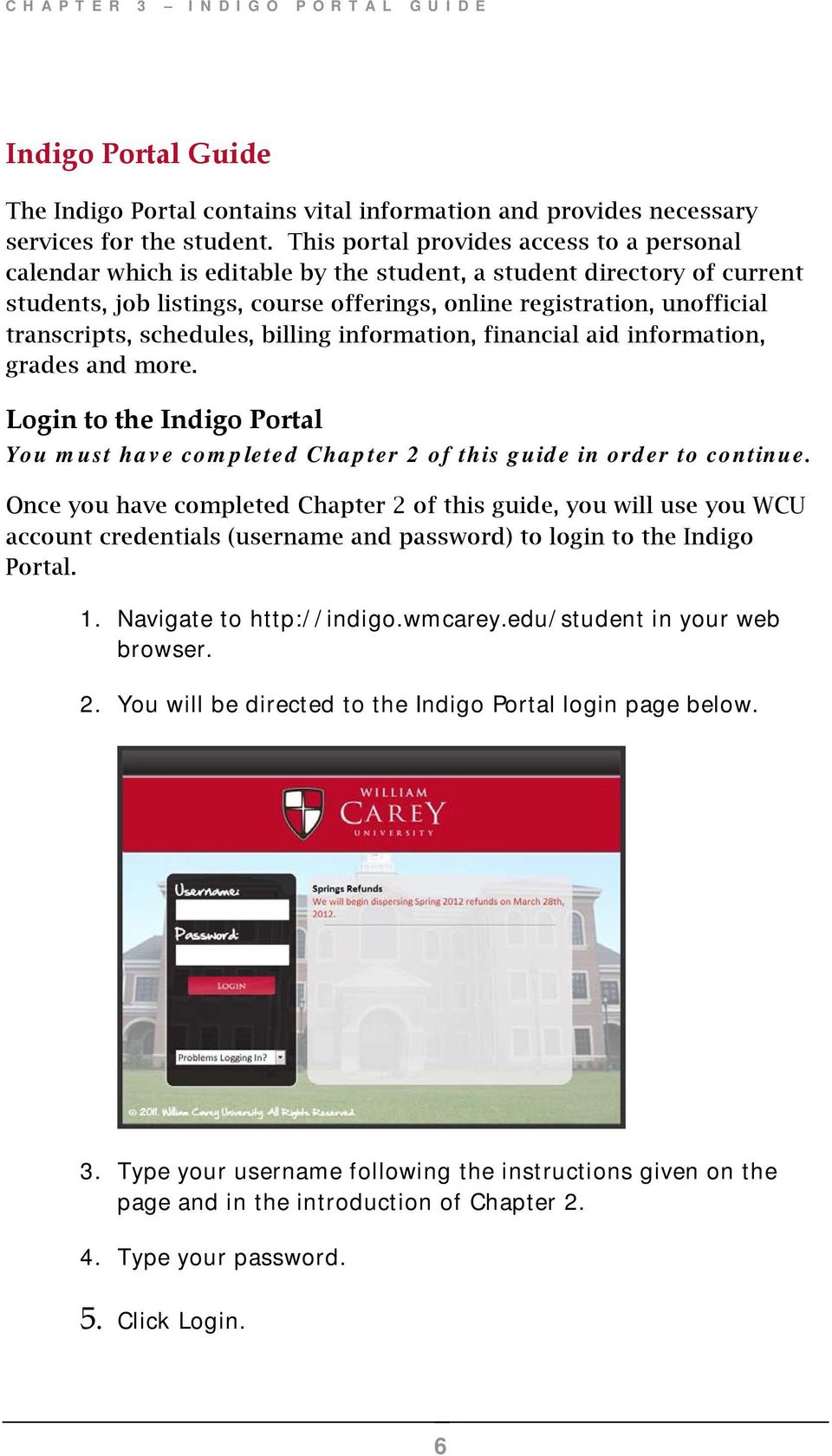
7 CHAPTER 3 INDIGO PORTAL GUIDE Indigo Portal Guide The Indigo Portal contains vital information and provides necessary services for the student. This portal provides access to a personal calendar which is editable by the student, a student directory of current students, job listings, course offerings, online registration, unofficial transcripts, schedules, billing information, financial aid information, grades and more. Login to the Indigo Portal You must have completed Chapter 2 of this guide in order to continue. Once you have completed Chapter 2 of this guide, you will use you WCU account credentials (username and password) to login to the Indigo Portal. 1. Navigate to in your web browser. 2. You will be directed to the Indigo Portal login page below. 3. Type your username following the instructions given on the page and in the introduction of Chapter Type your password. 5. Click Login. 6
8 CHAPTER 3 INDIGO PORTAL GUIDE Using the Indigo Portal After login is successful, you will navigate through the Indigo Portal using the navigation bar on the left of your web browser window, shown below. 1. Indigo Home will take you back to the Indigo Portal News Page. 2. Change Term allows you to change your term to a prior term for review or a future term for registration when available. 3. Edit Profile allows you to edit your local and billing address information. Home address information must be changed by the Registrar s office. Be advised that important WCU mailings will be addressed to your home or billing addresses, but it is very important that you change your home address with the registrar s office, too. 4. SaderApps will take you to the WCU Student and SaderApps login page. 5. Change Password allows you to change your password. 6. Logout will remove all session data and logout of the Indigo Portal. 7. Calendar provides an editable calendar for your personal use. 8. Student Directory displays a listing of all current term students at WCU. 9. Job Search, maintained by Student Services, provides a listing of current jobs available in the area of WCU campuses. 7
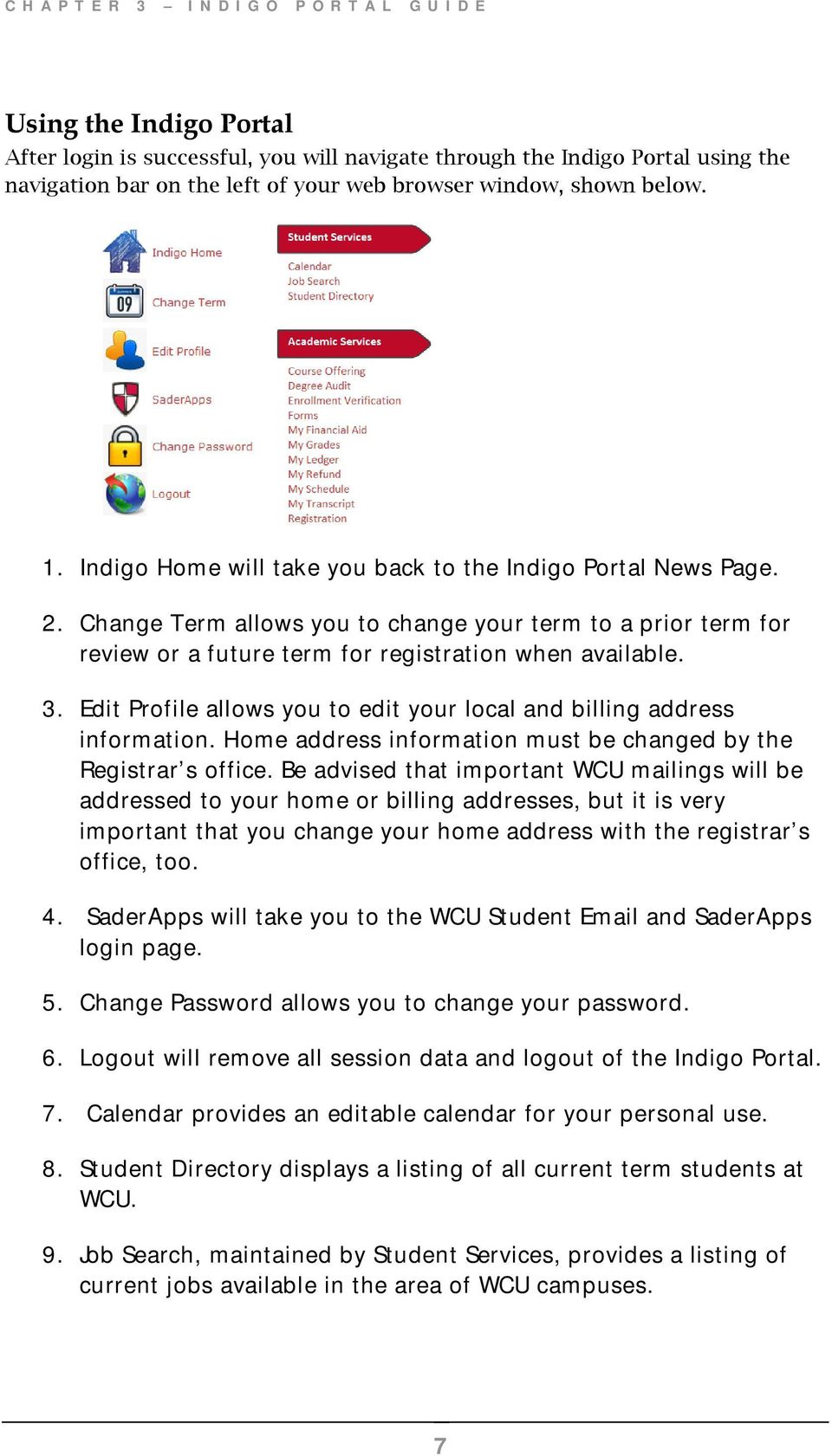
9 CHAPTER 3 INDIGO PORTAL GUIDE 10. Course Offering, depending on term selection, will show all courses offered by WCU for the term selected. These courses are subject to change. 11. Enrollment Verification allows you to print enrollment verification certificates when requested by employers or other schools. 12. Forms is a location containing various important forms for WCU students. 13. My Financial Aid displays all current term financial aid. Students may accept or decline financial aid from this module. 14. My Grades displays your final grades for the currently selected term 15. My Ledger displays your billing information for the currently selected term. 16. My Schedule displays your schedule for the currently selected term. 17. My Transcript provides an easily accessible, printable copy of your unofficial transcript. If you require an official transcript, you must contact the Registrar s office. 18. Registration will allow permitted students to register for their next term or terms at WCU online. 8

10 CHAPTER 4 - LIBRARY RESOURCE GUIDE Library Resource Guide The William Carey University Library system provides access to a wide variety of journal databases. These databases are accessible through the WCU Library s website. A few databases include Academic Search Premier, Biblical Archeology Society Online, ERIC, JSTOR, Medline Full- Text, Naxos, PsycINFO, and many more. Login to the Library Resources You must have completed Chapter 2 of this guide in order to continue. Once you have completed Chapter 2 of this guide, you will use your WCU account credentials (username and password) to login to the Library Resources. 1. Navigate to in your web browser. 2. Click on Search Database for Journal Articles 3. Click on the database that you would like to search. 4. You will be directed to the Library Resources Authentication Page shown below Type your WCU username in the WCU Indigo Portal Username field. 7. Type your WCU password in the WCU Indigo Portal Password field. 8. Click Login 9. You will be directed to the Library Resource database that you chose on the previous screen. 9

11 CHAPTER 5 CAREYAIR WIRELESS CONFIGURATION CareyAir Wireless Configuration CareyAir is a secure university-wide wireless network accessible to students, faculty, and staff at WCU. This wireless network provides internet and local network access to staff and faculty. It also provides internet access to students. CareyAir is available on the Hattiesburg, New Orleans, and Tradition campuses. Windows Configuration You must have completed Chapter 2 of this guide in order to continue. Once you have completed Chapter 2 of this guide you will use your WCU account credentials (username and password) to connect to the CareyAir Wireless Network. 1. Connect to CareyAir Setup and Help. 2. Click Continue to this website if a certificate issue is displayed. 3. Accept the WCU Acceptable Use Policy 4. Check I accept the terms of the End-User License Agreement after reading the agreement and click Start. 10

12 CHAPTER 5 CAREYAIR WIRELESS CONFIGURATION 5. Type your WCU username and password and click continue. IMPORTANT NOTICE If you have not setup your account, please click Forgot your password or need to setup your account? 6. Click Yes to install the CareyAir certificates. 7. Click Done to close the CareyAir Setup wizard. 8. Choose Public Network to ensure adequate security on a shared network. 11

13 CHA PTER 5 CAREYAA IR WIREL ESS CONN FIGURAT ION Mac OS X Wireless Configuration You must have completed Chapter 2 of this guide in order to continue. Once you have completed Chapter 2 of this guide you will use your WCU account credentials (username and password) to connect to the CareyAir Wireless Network. 1. Connect to CareyAir Setup and Help. 2. When prompted, accept the WCU Acceptable Use Policy. If you are not prompted, please attempt to go to in your web browser to be redirected to the setup process. 3. Check I accept the terms of the End-User License Agreement after reading the agreement and click Start. 4. Type your WCU Username and click Continue. IMPORTANTT NOTICE If you havee not setup your account, please clickk Forgot your password or need to setup your account? 5. Click network profile to start the network installation. 12

14 CHA PTER 5 CAREYAA IR WIREL ESS CONN FIGURAT ION 6. On the Profiles window, click Continue to install the WCU certificates. 7. Click Continue to confirm that you would like to install the profile. 8. Type your WCU account password in thee Password field and click Install. 13

15 CHA PTER 5 CAREYAA IR WIREL ESS CONN FIGURAT ION 9. Type your personal administrative password for your system and click OK, if prompted. 10. Close the Profiles window. 11. Close the Join CareyAir Setup and Help window. 12. Connect to CareyAir Wireless. 14

16 CHAPTER 6 DESIRE2LEARN GUIDE Desire2Learn Guide William Carey University uses Desire2Learn for online enrichment of traditional courses and for online courses. Desire2Learn, D2L, provides students with quick access to their courses; this includes content, assignments, discussions, and more. Please login to your D2L account as soon as possible to ensure that you are receiving necessary course information. Login to Desire2Learn You must have completed Chapter 2 of this guide in order to continue. Once you have completed Chapter 2 of this guide, you will use your WCU account credentials (username and password) to login to D2L - elearning. 1. Navigate to in your web browser. 2. You will be directed to the D2L login page shown below. 13. Type your WCU account username in the Username field. a. Your username is in the format of (first initial)(lastname)(student id number) b. For example: i. Student s Name: William Carey ii. Student s ID Number: iii. D2L Username: wcarey Type your WCU account password. 15. Click Login 15

17 CHAPTER 7 SADERAPPS GUIDE SaderApps Guide William Carey University provides an address to all students who attend William Carey University. This account is very important to you. The university will provide information to students primarily through this address. It is very important that you access this address as quickly as possible and often. Your address is provided through SaderApps powered by Google. This is very similar to a Gmail account, but is associated with William Carey University through the use of the domain name student.wmcarey.edu. Login to Student - SaderApps You must have completed Chapter 2 of this guide in order to continue. Once you have completed Chapter 2 of this guide, you will use your WCU account credentials (username and password) to login to Student Navigate to in your web browser. 2. You will be directed to the SaderApps login page. 3. Type your WCU username in the Username field. c. Your username is in the format of (first initial)(lastname)(student id number) d. Example: i. Student s Name: William Carey ii. Student s ID Number: iii. Username: wcarey Type your WCU account password. 5. Click Sign in 16

18 CHAPTER 8 TROUBLESHOOTING & HELP Troubleshooting & Help The William Carey University Information Technology Department, IT, provides assistance to students through a ticket based help system. In order to receive support with your IT needs, you must complete and submit a form that will provide necessary information to the IT Department for troubleshooting. If you are having trouble logging into our services, please use the following instructions to submit an online support ticket. IMPORTANT NOTICE To avoid confusion and delay of resolution, you should not submit an online support ticket unless you have reviewed this document and attempted to resolve the issue based on this guide. When submitting an online support ticket, IT will assume that you have done this and will complete steps to resolve your issue based on this assumption. If you have not reviewed this document and submit an online support ticket, response and resolution times may be extended beyond normal expectations. Do you need to submit an online support ticket? 1. Navigate to in your web browser. 2. Fully complete the form provided. 3. Click Submit. Want to change your WCU account password? You will no longer be able to change your password from within D2L. All WCU passwords must be changed during the account setup process or from within the Indigo Portal. Follow the instructions below to change your WCU account password at any time. 1. Login to the Indigo Portal 2. Click on Change Password. 3. Click Submit. Did you forget your WCU account password? If you have forgotten your password, please go to and click on the Forgot your Password? link to attempt to reset your password. When you reset your password it will affect access to all of your WCU IT resources. 17

19 INDEX Index C CareyAir Wireless D Desire 2 Learn E e-learning H Help I Indigo Portal... 6 Billing... 8 Change Password... 7 Change Term... 7 Course Offering... 8 Edit Profile... 7 Financial Aid... 8 Grades... 8 Job Search... 7 Ledger... 8 Logout... 7 Schedule... 8 Student Directory... 7 Transcript... 8 Indigo Portal Guide... 6 L Library Resources... 9 S Student Accounts... 2 T Troubleshooting W Wireless

Using Outlook with SaderApps
 William Carey University Information Technology Using Outlook with SaderApps January 12, 2011 2011 William Carey University 498 Tuscan Avenue, Box 147 Hattiesburg, MS 39401 Phone 601.318.6203 Fax 601.318.6546
Student Access Reference Guide
 Student Access Reference Guide Table of Contents Student Access Overview... 2 Logging on to the Student Portal... 3 Password Security Question Setup... 4 Need Help Signing In... 6 Navigating the Student
Electronic Questionnaires for Investigations Processing (e-qip)
 January 2016 Electronic Questionnaires for Investigations Processing (e-qip) Login Instructions for first-time users OR users that have had their accounts reset Step 1 Access the e-qip Login screen at
Introduction to UCONNECT Student Edition. 4/14/11 v.1.3
 Introduction to UCONNECT Student Edition 4/14/11 v.1.3 Contents Accessing UCONNECT... 2 How do I get a username for UCONNECT?... 2 How do I log in?... 2 What should I see when I login?... 3 Channels...
Campus Solutions Self Service: Student Quick Reference Guide
 Campus Solutions Self Service: Student Table of Contents Introduction to Step Sheets... 4 Getting Started in CUNYfirst... 5 Activate My CUNYfirst Account... 6 Log into My CUNYfirst Account... 10 Sign Out
MC3WAVES Wireless Connection Wizard
 MC3WAVES Wireless Connection Wizard When viewing available wireless networks on either MCCC campus you will see a network named public. Connection to public is open to all. Upon connecting to the network
IRS e-services Registration Process
 IRS e-services Registration Process 1 What is e-services? Suite of products designed for tax professionals and taxpayers to do business with IRS electronically Includes: - Registration - e-file Application
Faculty & Staff User Information
 Faculty & Staff User Information March 2015 Table of Contents User Names and Passwords at MU - Faculty & Staff...2 Campus Services/Active Directory User ID or User Name:...2 Campus Services Password /
GETTING STARTED WITH D2L
 GETTING STARTED WITH D2L Quick Start Guide v.9.2.1 ecampus This guide provides tips for users new to using the D2L Learning Environment. It discusses how to navigate the main areas and how to change your
User Manual 03/12/2014. A collaborative effort by
 User Manual 03/12/2014 A USER GUIDE DESIGNED TO HELP CREATE AND MAINTAIN PERSONAL ACCOUNTS IN mynhdoe, THE NH DEPARTMENT OF EDUCATION SINGLE SIGN-ON SYSTEM FOR ACCESSING SECURE APPLICATIONS A collaborative
Support System User Guide
 Support System User Guide The Virtual Office support system provides users with a useful way to submit and track issues and resolutions. This feature- rich system is one more way that VO provides customers
What is e-services? Registered User Portal RUP
 IRS e-services Registration Process What is e-services? Suite of products designed for tax professionals and taxpayers to do business with IRS electronically Includes: Registration e-file Application Preparer
SJC Password Self-Service System FAQ 2012
 The San Jacinto College Password Self-Service System enables students to reset their password quickly and conveniently online. By utilizing this service, you can change your password and gain access to
Lync Online Deployment Guide. Version 1.0
 Date 28/07/2014 Table of Contents 1. Provisioning Lync Online... 1 1.1 Operating System Requirements... 1 1.2 Browser Requirements Administrative Centre... 1 2. Obtaining your login Credentials & Logging
Using YSU Password Self-Service
 Using YSU Password Self-Service Using YSU Password Self-Service Password Self-Service Web Interface Required Items: YSU (MyYSU) Directory account, Web browser This guide will assist you with using the
How To Sync Google Drive On A Mac Computer With A Gmail Account On A Gcd (For A Student) On A Pc Or Mac Or Mac (For An Older Person) On An Ipad Or Ipad (For Older People) On
 Installation and Setup of Google Drive for Students on Mac OS X Purpose: This guide will lead you through the Google Drive Installation and Configuration. Pre-requisites: 1) ODU Student Gmail account 2)
Broker Portal Tutorial Broker Portal Basics
 Broker Portal Tutorial Broker Portal Basics Create Agent Connect Link Forgotten Password Change Your Broker Portal Password Delegate View Application Status Create Agent Connect Link Log in to your Producer
Provider OnLine. Log-In Guide
 Provider OnLine Log-In Guide Table of Contents 1 LOG-IN ACCESS... 3 1.1 ENTERING THE USER ID AND PASSWORD... 4 1.2 OVERVIEW AND PURPOSE OF TRICIPHER... 5 1.2.1 Log-in for Users Who Are Active, But Not
eservice Portal Overview
 eservice Portal Overview About this Guide Purpose The eservice Portal Overview Guide provides a differences overview of Support Online to eservice Portal migration. The new eservice portal provides the
IT Information Packet
 IT Information Packet Welcome to the University of Mount Olive! Beginning college is an exciting time where you will be experiencing many new things in a short amount of time. We understand that technology
Frequently Asked Questions
 What is ecentral? Who can use ecentral? What can ecentral do? Frequently Asked Questions How do I start using ecentral? What if I forget my User ID? Step-by-step: How to find your User ID Can I change
User Guide. Delta Controls Single Sign On
 User Guide Delta Controls Single Sign On This document outlines the new, streamlined login process for Delta Partner web applications using the Delta Controls Passport Single Sign On system. Contents 1
Accessing & Utilizing MAX
 Accessing & Utilizing MAX The MAX Banner Portal allows Millersville University students to perform a number of important tasks. Through MAX, students can: Add/Drop classes, Pay bills online, Update personal
New Brunswick Internal Services Agency. RSA Self-Service Console User Guide
 New Brunswick Internal Services Agency RSA Self-Service Console User Guide Version: 1.0 Created: November 27, 2013 Modified: November 27, 2013 Table of Contents Introduction...1 Logging on to the RSA Self-Service
STAAR Assessment Management System User s Guide. STAAR Grades 3 8 and End-of-Course Assessments
 STAAR Assessment Management System User s Guide STAAR Grades 3 8 and End-of-Course Assessments March 2, 2016 Student Assessment Division Texas Education Agency 1701 N. Congress Avenue Austin, TX 78701-1494
MASSASOIT COMMUNITY COLLEGE ONE MASSASOIT BLVD., BROCKTON, MA 02302-3996 900 RANDOLPH ST., CANTON, MA 02021-1371 49 UNION ST., MIDDLEBOROUGH, MA 02346
 MASSASOIT COMMUNITY COLLEGE ONE MASSASOIT BLVD., BROCKTON, MA 02302-3996 900 RANDOLPH ST., CANTON, MA 02021-1371 49 UNION ST., MIDDLEBOROUGH, MA 02346 Log into computers on campus Connect to the wireless
!"#$ Stonington Public Schools Parents Guide for InfoSnap Online Enrollment. for Returning. Students. August. Online Enrollment.
 Stonington Public Schools Parents Guide for InfoSnap Online Enrollment for Returning Students August!"#$ Explains how to complete Returning Student Enrollment forms Online through the PowerSchool Parent
Student Orientation Guide CHIPOLA COLLEGE e-learning Desire2Learn (D2L)
 Student Orientation Guide CHIPOLA COLLEGE e-learning Desire2Learn (D2L) Chipola d2l Student Orientation Guide Page 1 Table of Contents What s in this Orientation?... 3 Chipola College e-learning with D2L...
Sophos Mobile Control User guide for Windows Phone 8. Product version: 3.5
 Sophos Mobile Control User guide for Windows Phone 8 Product version: 3.5 Document date: July 2013 Contents 1 About Sophos Mobile Control...3 2 About this guide...4 3 Login to the Self Service Portal...5
Virtual Cabinet Document Portal User Guide
 Virtual Cabinet Document Portal User Guide Contents / Introduction Introduction... 2 What to expect when publishing a document... 3 Having difficulty? Troubleshooting guide.... 7 The Virtual Cabinet Document
1. How to Register... 2. 2. Forgot Password... 4. 3. Login to MailTrack Webmail... 5. 4. Accessing MailTrack message Centre... 6
 MailTrack How To Document 27 March 2014 Table of Contents 1. How to Register... 2 2. Forgot Password... 4 3. Login to MailTrack Webmail... 5 4. Accessing MailTrack message Centre... 6 5. Creating a MailTrack
Shaw Industries Self-Service Password Management
 Shaw Industries Self-Service Password Management Table of Contents Introduction and Objective... 2 Cannot Use From The Internet Site... 2 Other Passwords May Be Changed... 2 First Log In... 2 Password
EURECOM VPN SSL for students User s guide
 EURECOM VPN SSL for students User s guide Table of Contents Introduction... 2 Login process... 2 Portail main page... 2 Prerequisite... 2 RSA SecurId software token... 3 First usage of RSA SecurID token...
Information Technology Department. Miller School of Medicine New User Guide
 Information Technology Department Miller School of Medicine New User Guide EDUCATION & COMMUNICATIONS Miller School of Medicine New User Guide 1051 NW 14 th Street #165, Miami, FL 33136 (305) 243-5999
How do I enroll in the password portal?
 The self-serve portal is designed to allow you to change your password and unlock your locked account even if you have forgotten your password. You must enroll for this service to be able to use it. You
Portal Recipient Guide
 Portal Recipient Guide Lindenhouse Software Limited 2015 Contents 1 Introduction... 4 2 Account Activation... 4 3 Forgotten Password... 9 4 Document signing... 12 5 Authenticating your Device & Browser...
Vendor Portal User Guide
 State of Illinois Illinois Department of Transportation Vendor Portal User Guide Version 2.1 November 2015 0137-16, 11/15, web Item Document Title File Name Disposition Author Document Description Description
College of Marin Email Accounts Fall 2010. marin.edu Email Access,
 marin.edu Email Access, There are two email accounts assigned to each full-time and part-time faculty member, [email protected], referred to as your marin.edu account and [email protected],
Information Technology Help Desk Colston Hall 806 718.289.5970 [email protected]
 Information Technology Help Desk Colston Hall 806 718.289.5970 [email protected] Table of Contents CUNYfirst... 1 How to Activate/Claim your CUNYfirst Account... 2 How to Reset Your CUNYfirst Account
Bahamas Tax Information Exchange Portal Documentation
 Bahamas Tax Information Exchange Portal Documentation This sub section of the Portal Documentation covers the following Topics: Portal Overview Portal Login Account Status Reportable Account File Processing
ATEA eshop. Basic Administration Guide
 Basic Administration Guide Contents Introduction... 3 Audience... 3 Document Location... 3 Special information... 3 1. Login... 4 2. Managing users... 5 3. Increase or decrease licenses... 6 4. Upgrade/Downgrade
Marcum LLP MFT Guide
 MFT Guide Contents 1. Logging In...3 2. Installing the Upload Wizard...4 3. Uploading Files Using the Upload Wizard...5 4. Downloading Files Using the Upload Wizard...8 5. Frequently Asked Questions...9
Vendor User Accounts managing your NAP User Account
 This guide explains how to request and manage your NAP User Account so that you may access Web Status. Topics include: Reactivating an existing NAP User Account Requesting a NAP User Account Managing your
Nessus Cloud User Registration
 Nessus Cloud User Registration Create Your Tenable Nessus Cloud Account 1. Click on the provided URL to create your account. If the link does not work, please cut and paste the entire URL into your browser.
Applying online for the Early Childhood Education Online Associate or Bachelor Degree Programs
 Applying online for the Early Childhood Education Online Associate or Bachelor Degree Programs Begin by entering this URL in your web browser http://admissions.uc.edu/apply If you have not attended any
Enterprise. Student Mobility Portal. Three Rivers Systems, Inc. Published: 31 October 2013. Abstract
 Enterprise Student Mobility Portal Three Rivers Systems, Inc. Published: 31 October 2013 Abstract This document is designed to provide information necessary to use the Student Mobility Portal. Students
Global UGRAD Program
 Application Instructions for Global UGRAD 2016-2017 Portal Step-by-Step I. REGISTERING FOR THE PROGRAM Google Chrome and Mozilla Firefox work best when completing the UGRAD application. We do NOT recommend
Surplus Lines Online User Guide
 Surplus Lines Online User Guide Missouri Department of Insurance, Financial Institutions and Professional Registration Contents Summary... 1 Site Address... 1 Account Management... 2 Account Registration...
Grant Management System Training Guide Module 1 Getting Started Accessing Your System Ver 6.1 Updated: 2.13.2014
 Grant Management System Training Guide Module 1 Getting Started Accessing Your System Ver 6.1 Updated: 2.13.2014 Prepared by: CommunityForce Implementaiton Team Table of Contents Module 1: Getting Started
W-2 DUPLICATE OR REPRINT PROCEDURE/ IMPORTING W-2 INFORMATION INTO TAX RETURN
 W-2 DUPLICATE OR REPRINT PROCEDURE/ IMPORTING W-2 INFORMATION INTO TAX RETURN If you ve lost your W-2 Form or not received the form that we sent, please use these instructions to obtain a copy. Also use
of Delaware, Inc. a subsidiary of Universal Health Services UHS FUSION CERNER MILLENNIUM APPLICATION PORTAL USER GUIDE
 of Delaware, Inc. a subsidiary of Universal Health Services UHS FUSION CERNER MILLENNIUM APPLICATION PORTAL USER GUIDE TABLE OF CONTENTS 1. Introduction 3 2. Minimum System Requirements 3 3. Key Points
How do I Install and Configure MS Remote Desktop for the Haas Terminal Server on my Mac?
 Enterprise Computing & Service Management How do I Install and Configure MS Remote Desktop for the Haas Terminal Server on my Mac? In order to connect remotely to a PC computer from your Mac, we recommend
Dalton State College Password Management System
 Dalton State s new password management system (PortalGuard) provides a convenient means for DSC students, faculty, and staff to unlock their Active Directory account or reset their Active Directory password
MULTI-FACTOR AUTHENTICATION SET-UP
 MULTI-FACTOR AUTHENTICATION SET-UP DepositPartner Desktop Application TABLE OF CONTENTS Click the link below to go to the section you need: First Time Enrollment Enrolled User Contact information on file
Vancouver Community College Web Orientation
 Access the myvcc Web Portal The myvcc portal provides a secure environment for VCC students to: Access VCC s Moodle online learning environment Access your student email (Microsoft Office365) Check your
LDAP Migration Avnet Self Care
 LDAP Migration Avnet Self Care Change Password... 2 Change Forgotten Password Information... 6 Retrieving a Forgotten Password... 11 Tips... 14 Support Desk Contacts... 14 Change Password When you need
Guide for Setting Up Your Multi-Factor Authentication Account and Using Multi-Factor Authentication. Mobile App Activation
 Guide for Setting Up Your Multi-Factor Authentication Account and Using Multi-Factor Authentication Mobile App Activation Before you can activate the mobile app you must download it. You can have up to
[Identity and Access Management Self-Service Portal]
![[Identity and Access Management Self-Service Portal]](/thumbs/27/9557200.jpg "[Identity and Access Management Self-Service Portal]") 2014 The University of Tennessee at Chattanooga Tony Parsley [Identity and Access Management Self-Service Portal] The following document is intended for all Students, Faculty, Staff, and Affiliates of
2014 The University of Tennessee at Chattanooga Tony Parsley [Identity and Access Management Self-Service Portal] The following document is intended for all Students, Faculty, Staff, and Affiliates of
PISA 2015 MS Online School Questionnaire: User s Manual
 OECD Programme for International Student Assessment 2015 PISA 2015 MS Online School Questionnaire: User s Manual Doc: CY6_CBA_SCQ_MSPrincipalManual.docx September 2014 Produced by ETS, Core 2 Contractor
Faculty Introduction to Self-Service
 Faculty Introduction to Self-Service This user guide focuses on how faculty members can use Self-Service to access and update their information. Using a Web browser, faculty members can enter student grades,
How do I Install and Configure MS Remote Desktop for the Haas Terminal Server on my Mac?
 How do I Install and Configure MS Remote Desktop for the Haas Terminal Server on my Mac? In order to connect remotely to a PC computer from your Mac, we recommend the MS Remote Desktop for Mac client.
Get Started MyLab and Mastering for Blackboard Learn Students
 Get Started MyLab and Mastering for Blackboard Learn Students March 21, 2013 Copyright Notice Copyright 2013 by Pearson Education. All rights reserved. No part of the contents of this book may be reproduced
Self Service Portal and 2FA User Guide
 Self Service Portal and 2FA User Guide Accessing Symantec Self Service Portal Self Service Portal (SSP) is a web-based application which you can use to register, test, reset, or remove Symantec VIP credentials.
Cypress Connexion HELP Guide www.cypressconnexion.com
 Welcome to Cypress Connexion your one-stop-shop for accessing and managing your Cypress Communications account online, at your convenience. The following guide will provide you with helpful information
User s Guide for the Texas Assessment Management System
 User s Guide for the Texas Assessment Management System Version 8.3 Have a question? Contact Pearson s Austin Operations Center. Call 800-627-0225 for technical support Monday Friday, 7:30 am 5:30 pm (CT),
WEST VIRGINIA UNIVERSITY
 WEST VIRGINIA UNIVERSITY Office of Information Technology Service Desk Express (SDE) Self Service Rev. April, 2011 1 Table of Contents Table of Contents... 2 Using Service Desk Express (SDE) Self Service...
P309 - Proofpoint Encryption - Decrypting Secure Messages Business systems
 Procedure P309 - Proofpoint Encryption - Decrypting Secure Messages Business systems P309 - Page: Page 1 of 12 Date of Release: 23 February 2011 Status: Final Document Reference: Title: P309 Release Number:
MIDAS Authorization User Guide. Provider Portal
 MIDAS Authorization User Guide Provider Portal Table of Contents Logging On... 2 Change Your Password... 4 Homepage/Welcome Screen... 5 Provider Management.. 5 Provider Demographics... 6 Provider Additional
Wildcat Web Student Guide
 Wildcat Web Student Guide Section I: Access and login to Wildcat Web Account Following are the steps to log in to your Wildcat Web account. View your class schedule, set up meetings with your advisor,
NU SSO Account Activation Job Aid NU Employees
 The purpose of this document is to provide National University Single Sign On users with instructions to activate their NU SSO accounts. Contents Employee Activation Self service... 1 Logging in directly...
Guarantee Trust Life Insurance Company. Agent Portal www.gtlic.com. Agent Portal Guide
 Guarantee Trust Life Insurance Company Agent Portal www.gtlic.com Agent Portal Guide Rev. 3/2014 Table of Contents Log in to Agent Portal... 3 Obtain Quote... 4 Print Quote... 5 Save and Retrieve Quote...
To download and install directly to your phone
 Important update: To continue logging in from T-Mobile HotSpot locations, you will need to update the T-Mobile HotSpot Login Utility on your Dash. This upgrade takes only a few minutes. There are two ways
Steps for: POP (Post Office Protocol) and IMAP (Internet Message Access Protocol) setup on MAC Platforms
 Steps for: POP (Post Office Protocol) and IMAP (Internet Message Access Protocol) setup on MAC Platforms The following instructions offer options for POP and IMAP e-mail retrieval locally on your MAC.
GO!Enterprise MDM Device Application User Guide Installation and Configuration for Android with TouchDown
 GO!Enterprise MDM Device Application User Guide Installation and Configuration for Android with TouchDown GO!Enterprise MDM for Android, Version 3.x GO!Enterprise MDM for Android with TouchDown 1 Table
Government of Saskatchewan Executive Council. Oracle Sourcing isupplier User Guide
 Executive Council Oracle Sourcing isupplier User Guide Contents 1 Introduction to Oracle Sourcing and isupplier...6 1.0 Oracle isupplier...6 1.1 Oracle Sourcing...6 2 Customer Support...8 2.0 Communications
PowerSchool. Parent Single Sign-On (SSO)
 PowerSchool Parent Single Sign-On (SSO) K i n g s C a n y o n U n i f i e d 6 7 5 W M a n n i n g A v e, R e e d l e y, C A 9 3 6 5 4 559-3 0 5-7 0 1 0 w w w. k c u s d. c o m Starting with the 2015-2016
GO!Enterprise MDM Device Application User Guide Installation and Configuration for Android
 GO!Enterprise MDM Device Application User Guide Installation and Configuration for Android GO!Enterprise MDM for Android, Version 3.x GO!Enterprise MDM for Android 1 Table of Contents GO!Enterprise MDM
account multiple solutions
 Quick Start Guide 1 Our easy to use guide will get you up and running in no time! The guide will assist you with: Generating your Sage Pay login Navigation Creating contacts Creating system users Setting
HKBN Wi-Fi Service User Guide
 HKBN Wi-Fi Service User Guide Content 1. Device Requirements 2. Login Procedures and Auto Login Settings 3. Forget Username / Password 4. Manage Your Auto Login Setting at HKBN Website 5. Technical Support
How Board Members and State Employees Utilize the Security Portal to Access PDMP. July 30, 2014 Version 2 Software Release Version 3.4.
 How Board Members and State Employees Utilize the Security Portal to Access PDMP July 30, 2014 Version 2 Software Release Version 3.4.11 Table of Contents How to Access PDMP via the ADPH Security Portal...
ACT State Testing Online Services Tutorial
 ACT State Testing Online Services Tutorial Back-up Test Supervisor Version Released July, 2009 2009 by ACT, Inc., All rights reserved. Back-up Test Supervisor Online Profile Form Introduction The Back-up
21 What is a threaded discussion on a Blackboard Discussion Board list? 22 Where do I access a Group Discussion on Blackboard?
 Office of Academic Information Technologies B r o o k l yn C o l l e g e S t u d e n t B l a c k b o a r d S u p p o r t Student Frequently Asked Questions (FAQ) Getting Started 1 What do I need to do
my.ncu.edu Email Microsoft Windows Live Accounts
 my.ncu.edu Email Microsoft Windows Live Accounts Northcentral University is proud to present the new my.ncu.edu email accounts. With this new email account you ll be able to access your email anywhere
Parent Portal Single Sign On Implementation
 Parent Portal Single Sign On Implementation School districts who are not currently using Single Sign On for their PowerSchool Parent Portal will want to inform Parents and Guardians of current students
Student ANGEL FAQs. General Issues: System Requirements:
 Student ANGEL FAQs General Issues: What is ANGEL? How do I log in? What is my username and password? How do I activate my account? I forgot my C number/password, what do I do? I registered after the first
Online Systems at COTR. Learn about COTRs Online Systems, how to log into them, activate your accounts and set up your passwords.
 2015 Online Systems at COTR Learn about COTRs Online Systems, how to log into them, activate your accounts and set up your passwords. Table of Contents Online Systems at COTR... 2 Logging into Online Systems
SPEECH REPOSITORY 2.0. Registration procedure
 EUROPEAN COMMISSION DIRECTORATE GENERAL FOR INTERPRETATION Provision of Interpretation Multilingualism and interpreter training support SPEECH REPOSITORY 2.0 Registration procedure Date: 26/09/2014 Version:
HertSFX. User Guide V2.04. Hertfordshire s Secure File Exchange Portal. (Jan 2014) HertSFX User Guide V2.04 Jan 2014 Page 1 of 17
 Hertfordshire s Secure File Exchange Portal User Guide V2.04 (Jan 2014) HertSFX User Guide V2.04 Jan 2014 Page 1 of 17 CONTENTS 1. About HertSFX... 3 2. HertSFX Limitations... 3 3. Getting Started... 3
4. Backup Assistant will ask you to verify the PIN you assigned to your account, and will remind you to record your PIN for future use.
 How to Use Guide: Backup Assistant Backup Assistant is a wireless service that saves a copy of your phone's address book to a secure web site. If your phone is lost, stolen or damaged, Backup Assistant
All Colleagues Landing Page
 INTERNAL USE ONLY All Colleagues Landing Page User's Manual Version 5 Table of Contents Login... 2 Password Features... 4 Expired password...4 Password reset...6 Region Selection... 8 Changing Your Region...8
DOMAIN CENTRAL HOSTING EMAIL
 Welcome to our hosting services, we have created the following documents to help you get up and running as quickly as possible. If at any stage you encounter difficulties, you are welcome to send a help
Lenovo Partner Access - Overview
 Table of Contents: Lenovo Partner Access Overview How to Access the Lenovo Partner Access Portal Registration Process and Account Activation First time login Accepting the T s & C s and Selecting Challenge
Provider Express Obtaining Login Access. Information for Network Providers
 Provider Express Obtaining Login Access Information for Network Providers November 2013 Objectives This presentation will review the following features: How to Log in to Provider Express Retrieve a forgotten
PaymentNet Federal Card Solutions Cardholder FAQs
 PaymentNet Federal Card Solutions It s easy to find the answers to your questions about PaymentNet! June 2014 Frequently Asked Questions First Time Login How do I obtain my login information?... 2 How
Portal User Guide. Customers. Version 1.1. May 2013 http://www.sharedband.com 1 of 5
 Portal User Guide Customers Version 1.1 May 2013 http://www.sharedband.com 1 of 5 Table of Contents Introduction... 3 Using the Sharedband Portal... 4 Login... 4 Request password reset... 4 View accounts...
Virto Password Reset Web Part for SharePoint. Release 3.1.0. Installation and User Guide
 Virto Password Reset Web Part for SharePoint Release 3.1.0 Installation and User Guide 2 Table of Contents OVERVIEW... 3 SYSTEM REQUIREMENTS... 3 OPERATING SYSTEM... 3 SERVER... 3 BROWSER... 4 INSTALLATION...
Banner Self Service for students
 Banner Self Service for students revised April 5, 2006 Table of Contents Get Your UNC Charlotte ID Logging in to Self Service Banner Forgot Your Password? Checking Your Holds Checking Your Registration