
IC Recorder. Operating Instructions ICD-PX312/PX312F (1) Getting Started. Basic Operations. Other Recording Operations
|
|
|
- Kristina Hunter
- 9 years ago
- Views:
Transcription
1 (1) IC Recorder Operating Instructions Getting Started Basic Operations Other Recording Operations Other Playback Operations Editing Files Listening to the FM Radio About the Menu Function Utilizing Your Computer Additional Information Troubleshooting ICD-PX312/PX312F

2 To prevent possible hearing damage, do not listen at high volume levels for long periods. WARNING Do not expose the batteries (battery pack or batteries installed) to excessive heat such as sunshine, fire or the like for a long time. RATED CURRENT CONSUMPTION: 800 ma Disposal of Old Electrical & Electronic Equipment (Applicable in the European Union and other European countries with separate collection systems) This symbol on the product or on its packaging indicates that this product shall not be treated as household waste. Instead it shall be handed over to the applicable collection point for the recycling of electrical and electronic equipment. By ensuring this product is disposed of correctly, you will help prevent potential negative consequences for the environment and human health, which could otherwise be caused by inappropriate waste handling of this product. The recycling of materials will help to conserve natural resources. For more detailed information about recycling of this product, please contact your local Civic Office, your household waste disposal service or the shop where you purchased the product. Applicable accessories: Stereo headphones, stereo microphone with shirt-clip Disposal of waste batteries (applicable in the European Union and other European countries with separate collection systems) This symbol on the battery or on the packaging indicates that the battery provided with this product shall not be treated as household waste. On certain batteries this symbol might be used in combination with a chemical symbol. The chemical symbols for mercury (Hg) or lead (Pb) are added if the battery contains more than % mercury or 0.004% lead. By ensuring these batteries are disposed of correctly, you will help prevent potentially negative consequences for the environment and human health which could otherwise be caused by inappropriate waste handling of the battery. The recycling of the materials will help to conserve natural resources. In case of products that for safety, performance or data integrity reasons require a permanent connection with an incorporated battery, this battery should be replaced by qualified service staff only. To ensure that the battery will be treated properly, hand over the product at end-of-life to the applicable collection point for the recycling of electrical and electronic equipment. For all other batteries, please view the section on how to remove the battery from the product safely. Hand the battery over to the applicable collection point for the recycling of waste batteries. For more detailed information about recycling of this product or battery, please contact your local Civic Office, your household waste disposal service or the shop where you purchased the product. 2 GB

3 Notice for the customers: the following information is only applicable to equipment sold in the countries applying EU directives The manufacturer of this product is Sony Corporation, Konan Minato-ku Tokyo, Japan. The Authorized Representative for EMC and product safety is Sony Deutschland GmbH, Hedelfinger Strasse 61, Stuttgart, Germany. For any service or guarantee matters please refer to the addresses given in separate service or guarantee documents. The recorded music is limited to private use only. Use of the music beyond this limit requires permission of the copyright holders. Sony is not responsible for incomplete recording/ downloading or damaged data due to problems of the IC recorder or computer. Depending on the types of the text and characters, the text shown on the IC recorder may not be displayed properly on device. This is due to: The capacity of the connected IC recorder. The IC recorder is not functioning normally. Content information is written in the language or the character that is not supported by the IC recorder. Notice for users All rights reserved. This manual or the software described herein, in whole or in part, may not be reproduced, translated or reduced to any machine readable form without prior written approval from Sony Corporation. IN NO EVENT SHALL SONY CORPORATION BE LIABLE FOR ANY INCIDENTAL, CONSEQUENTIAL OR SPECIAL DAMAGES, WHETHER BASED ON TORT, CONTRACT, OR OTHERWISE, ARISING OUT OF OR IN CONNECTION WITH THIS MANUAL, THE SOFTWARE OR OTHER INFORMATION CONTAINED HEREIN OR THE USE THEREOF. Sony Corporation reserves the right to make any modification to this manual or the information contained herein at any time without notice. The software described herein may also be governed by the terms of a separate user license agreement. This software is for Windows and cannot be used for Macintosh. The supplied connecting cable is for the IC recorder ICD-PX312/PX312F. You cannot connect other IC recorders. 3 GB

4 What you record is for personal enjoyment and use only. Copyright laws prohibit other forms of use without the permission of the copyright holders. The use of Memory Stick media for recording copyright-protected graphics or other data is limited to the restrictions specified under applicable copyright laws. Any use beyond those restriction is prohibited. This product supports Memory Stick Micro (M2 ) media. M2 is an abbreviated form of Memory Stick Micro. Hereinafter, M2 is used in this document. Trademarks Microsoft, Windows, Windows Vista and Windows Media are registered trademarks or trademarks of Microsoft Corporation in the United States and/or other countries. Macintosh and Mac OS are trademarks of Apple Inc., registered in the USA and other countries. Pentium is a registered trademark of Intel Corporation. MPEG Layer-3 audio coding technology and patents licensed from Fraunhofer IIS and Thomson. microsd and microsdhc logos are trademarks of SD-3C, LLC. Memory Stick Micro, M2 and are trademarks or registered trademarks of Sony Corporation. MagicGate is a trademark of Sony Corporation. Nuance, the Nuance logo, Dragon, Dragon NaturallySpeaking, and RealSpeak are trademarks and/or registered trademarks of Nuance Communications Inc., and/or its affiliates in the United States and/or other countries. All other trademarks and registered trademarks are trademarks or registered trademarks of their respective holders. Furthermore, and are not mentioned in each case in this manual. The Sound Organizer uses software modules as shown below: Windows Media Format Runtime 4 GB

5 Table of Contents Getting Started Step 1: Checking the Contents of the Package...8 Index to parts and controls...9 Preventing unintentional operations (HOLD)...11 Maintaining the moderate volume level (AVLS)...12 Step 2: Preparing a Power Source...13 When to replace the batteries...14 Step 3: Turning the IC Recorder On...15 Turning the power on...15 Turning the power off...15 Step 4: Setting the Clock...16 Step 5: Setting the Language to Be Used in the Display Window...18 Basic Operations Recording...20 Listening...25 Erasing...30 Other Recording Operations Changing the Recording Settings...32 Selecting a recording scene for each situation...32 Adding a recording to a previously recorded file...35 Adding an overwrite recording during playback...37 Starting to record automatically in response to sound the VOR function...39 Recording on a Memory Card...41 Recording via Other Devices...45 Recording with an external microphone...45 Recording from other equipment...47 Operation during Recording...49 Monitoring the recording...49 Other Playback Operations Changing the Playback Settings...50 Convenient playback methods...50 Reducing noise in the playback sound and making the human voice clearer the noise cut function...51 Adjusting the playback speed the DPC (Digital Pitch Control) function GB

6 Selecting the playback mode...54 Playing Back a File at a Desired Time with an Alarm...57 Playback via Other Devices...60 Recording with other equipment...60 Editing Files Arranging Files in a Folder...61 Moving a file to a different folder...61 Copying a file to the other memory...62 Erasing all files in a folder...64 Using a Track Mark...65 Adding a track mark...65 Erasing a track mark...66 Erasing all the track marks in the selected file at one time...67 Dividing a File...69 Dividing a file at the current position...69 Dividing a file at all the track mark positions...70 Protecting a File...73 Listening to the FM Radio (for ICD-PX312F only) Tuning in an FM Radio Station...75 Tuning in a radio station by scanning frequencies...75 Tuning in a preset radio station...76 Recording FM broadcasts...77 Presetting FM Radio Stations...78 Presetting FM radio stations automatically...78 Presetting FM radio stations manually...79 Erasing preset FM radio stations...79 Changing the FM Radio Reception Settings...81 Switching the receiver sensitivity of the FM radio...81 Switching the scanning sensitivity...82 Switching the FM radio output between speaker and headphones...83 About the Menu Function Making Settings for the Menu...84 Menu Settings...86 Utilizing Your Computer Using the IC Recorder with Your Computer Connecting the IC recorder to your computer Structure of folders and files Disconnecting the IC recorder from your computer Copying Files from the IC Recorder to Your Computer GB

7 Copying MP3 Files from Your Computer to the IC Recorder and Playing Them Back Copying an MP3 file from your computer to the IC recorder (drag and drop) Playing back MP3 files copied from your computer using the IC recorder Using the IC Recorder as USB Memory Using the Supplied Sound Organizer Software What you can do using Sound Organizer System requirements for your computer Installing Sound Organizer The Sound Organizer window Troubleshooting Troubleshooting Message List System Limitations Display Window Guide Index Additional Information Using a USB AC Adaptor Disconnecting the IC recorder from the AC outlet Precautions Specifications System requirements Design and specifications Battery life GB

8 Getting Started Step 1: Checking the Contents of the Package IC Recorder (1) Remove the film on the display window before you use the IC recorder. Stereo headphones (1) (for ICD-PX312F only) USB connecting cable (1) To connect the IC recorder to a computer, make sure to use the supplied USB connecting cable. LR03 (size AAA) alkaline batteries (2) P Note When you charge batteries, purchase NH-AAA-B2KN rechargeable batteries (not supplied). Stereo microphone with shirt-clip* (1) Application software, Sound Organizer (CD-ROM) (1) Application software, Dragon NaturallySpeaking (DVD-ROM)* Operating Instructions The operating instructions are stored as PDF files in the built-in memory of the IC recorder. * The stereo microphone with shirt-clip and application software, Dragon NaturallySpeaking (DVD-ROM) are supplied with some models in some regions only. You are cautioned that any changes or modifications not expressly approved in this manual could void your authority to operate this equipment. 8 GB

9 Index to parts and controls Front K i (headphone) jack* 2 L Operation indicator M ERASE button N VOL (volume) /+* 1 button O (repeat) A-B button P z REC/PAUSE button Q NOISE CUT switch R T-MARK (track mark) button * 1 These buttons and the jack have a tactile dot. Use it as a reference point for operations, or to identify each terminal. * 2 Connect the headphones to the i (headphone) jack. When noise is heard, clean the plug of the headphones. Getting Started A Built-in microphone B m (microphone) jack*1 C Display window D DISP/MENU button E SCENE button F (folder) button G N PLAY/STOP ENTER*1 button H x (stop) button I. (review/fast backward), >+ (cue/fast forward) buttons J Speaker i (headphone) jack 9 GB

10 Rear S (USB) connector T M2 /microsd memory card slot U HOLD POWER ON/OFF switch V Battery compartment W Strap hole (A strap is not supplied.) 10 GB

11 Preventing unintentional operations (HOLD) You can disable all the buttons (HOLD) in order to prevent unintentional operations when you carry the IC recorder, etc. To put the IC recorder in the HOLD status HOLD appears if you press any button when the HOLD function is activated. To release the IC recorder from the HOLD status Getting Started Slide the HOLD POWER ON/OFF switch in the direction of HOLD. HOLD will appear for approximately 3 seconds, indicating that all the button operations are disabled. Slide the HOLD POWER ON/OFF switch towards the center. P Note When the HOLD function is activated during recording, all the button operations are disabled. To stop recording, cancel the HOLD function first. z Tip Even if the HOLD function is activated, you can stop the alarm playback by pressing any button. (You cannot stop normal playback.) 11 GB

12 Maintaining the moderate volume level (AVLS) The AVLS (Automatic Volume Limiter System) function allows you to listen to the sound at a moderate volume level when using the headphones. The AVLS function limits the maximum volume to prevent auditory issues or distraction and to maintain a moderate volume level. When AVLS is set to ON When you try to adjust the volume to a level that exceeds the AVLS-specified level, the AVLS indicator lights. You cannot adjust the volume exceeding the limit. 1 Press and hold DISP MENU to enter the menu mode. Press. or >+ to select AVLS, and press N PLAY/ STOP ENTER. 2 Press. or >+ to select OFF, and press N PLAY/STOP ENTER. The AVLS OFF? message is displayed with a beeping sound. 3 Press. or >+ to select YES, and press N PLAY/STOP ENTER. 4 Press x (stop) to exit the menu mode. P Note AVLS is set to ON when you purchase the IC recorder. If you want to turn off the function and play back files at the original volume, use the menu to set AVLS to OFF. When AVLS is set to OFF To disable the AVLS function, do the following: To enable the AVLS function again, please select ON in step 2. If you play back files at a volume that exceeds the AVLS-specified level for specified period of time, AVLS will be displayed and the AVLS menu is automatically set to ON. 12 GB

13 Step 2: Preparing a Power Source Remove the film on the display window before you use the IC recorder. Slide and lift the battery compartment lid, insert LR03 (size AAA) alkaline batteries with correct polarity, and close the lid. If the battery compartment lid is accidentally detached, attach it as illustrated. The clock setting window appears and the year section flashes when you insert batteries for the first time, or when you insert batteries after the IC recorder has been without batteries for a certain period of time. See Step 4: Setting the Clock on page 16 to set the date and time. z Tips When replacing the batteries, files recorded or alarm settings are not erased even when you remove the batteries. When replacing the batteries, the clock continues moving for about 1 minute after you remove the batteries. You can use two NH-AAA-B2KN rechargeable batteries (not supplied). P Notes Do not use manganese batteries for this IC recorder. When replacing the batteries, be sure to replace both batteries with new ones. Do not charge dry batteries. You cannot charge the supplied LR03 (size AAA) alkaline batteries. When you are not going to use the IC recorder for a long time, remove the batteries to prevent damage from battery leakage and corrosion. Getting Started 13 GB

14 When to replace the batteries The battery indicator in the display window shows the battery condition. Battery remain indicator : Low Battery Level appears. Replace the old batteries with new ones. m : Low Battery appears and the IC recorder will stop operation. 14 GB

15 Step 3: Turning the IC Recorder On Turning the power on z Tips When you are not going to use the IC recorder for a long time, we recommend to turn off the IC recorder. When the IC recorder is in the stop mode, and you leave the IC recorder without attempting an operation for a certain length of time, the auto power off function will take effect. (The length of time before auto power off is set to 10min when you purchase the IC recorder.) You can select the length of time before auto power off takes effect in the menu (page 98). Getting Started Slide the HOLD POWER ON/OFF switch in the direction of POWER ON/OFF for more than 1 second. The IC recorder is turned on, and the Accessing... animation is displayed. Turning the power off Slide the HOLD POWER ON/OFF switch in the direction of POWER ON/OFF for more than 2 seconds, and Power Off is displayed. The IC recorder turns off within a few seconds. 15 GB

16 Step 4: Setting the Clock N PLAY/ STOP ENTER DISP/MENU x., >+ You need to set the clock to use the alarm function or record the date and time. When you insert batteries for the first time, or when you insert batteries after the IC recorder has been without batteries for more than 1 minute, Set Date&Time appears, and then the clock setting window appears. Set the clock as follows: 1 Set the year. Press. or >+ to set the year, and then press N PLAY/STOP ENTER. Select the last two digits of the year. When you press N PLAY/ STOP ENTER, the cursor moves to the month section. 2 Set the month, day, hour, and minute in sequence in the same way. Press. or >+ to select the desired figures, and then press N PLAY/ STOP ENTER. When you set the minute, the Executing... animation is displayed, and then the stop mode window appears. 16 GB

17 When you use the IC recorder for the first time or when no file is recorded, the following window may be displayed. Current folder Elapsed time To display the current date and time While the IC recorder is in the stop mode, press x (stop) to display the current date and time for about 3 seconds. Current file number/ the total number of files in the folder P Notes If you do not press N PLAY/ STOP ENTER within 1 minute of entering the clock setting data, the clock setting mode is canceled and the stop mode window will be displayed. When any button not intended for use in setting the clock is pressed during the clock setting mode, the clock setting is canceled. To set the clock, use the menu. To set the clock using the menu While the IC recorder is in the stop mode, you can set the clock using the menu. Press and hold DISP/MENU to enter the menu mode. Then select Detail Menu, then Date&Time to set the clock (page 97). Getting Started 17 GB

18 Step 5: Setting the Language to Be Used in the Display Window N PLAY/ STOP ENTER DISP/MENU x., >+ You can select the language to be used for messages, menus, etc. from 6 languages. 3 Press. or >+ to select Language, and then press N PLAY/ STOP ENTER. 1 Press and hold DISP/MENU to enter the menu mode. The menu mode window will be displayed. 2 Press. or >+ to select Detail Menu, and then press N PLAY/ STOP ENTER. 4 Press. or >+ to select the language that you want to use, and then press N PLAY/STOP ENTER. 18 GB

19 You can select the following languages. Deutsch (German), English, Español (Spanish), Français (French), Italiano (Italian), Русский (Russian) 5 Press x (stop) to exit the menu mode. Getting Started 19 GB

20 Basic Operations Recording P Notes Before making a recording, be sure to check the battery indicator (page 14). Noise may be recorded if an object, such as your finger, etc., accidentally rubs or scratches the IC recorder during recording. z Tip Before you start recording, we recommend you make a trial recording first, or monitor the recording (page 49). Starting to record 1 Slide the HOLD POWER ON/OFF switch towards the center to release the IC recorder from the HOLD status (page 11). The stop mode window appears. 2 Select the folder in which you want to record files (page 26). 20 GB

21 3 Place the IC recorder so that the built-in microphone face the direction of the source to be recorded. 4 Press z REC/PAUSE in the stop mode. The operation indicator flashes in orange, and then lights up in red. (When LED is set to OFF in the menu (page 96), the indicator does not light.) You do not need to press and hold z REC/PAUSE while recording. The new file will be automatically recorded after the last recorded file. Operation indicator z REC/ PAUSE Basic Operations Elapsed time of the current recording File number of the file being recorded/ the total number of recorded files in the folder ztip You can switch the elapsed time display to remaining time, or another display by pressing DISP/MENU (page 29). 21 GB
22 To stop recording 1 Press x (stop). The Accessing... animation appears and the IC recorder stops at the beginning of the current recording file. You can locate the recorded file using its folder name and file number for playback later. x The folder containing the recorded file The number of the recorded file representing how early the file was recorded in a folder. Note while accessing The IC recorder is recording data and storing it on the memory media when the Accessing... animation appears in the display window or the operation indicator flashes in orange. While the IC recorder is accessing data, do not remove the batteries or connect or disconnect the USB AC adaptor (not supplied). Doing so may damage the data. 22 GB
23 Other operations pause recording* release pause and resume recording review the current recording instantly review during recording Press z REC/PAUSE. During recording pause, the operation indicator flashes in red and PAUSE begins to flash in the display window. Press z REC/PAUSE again. Recording resumes from that point. (To stop recording after pausing recording, press x (stop).) Press N PLAY/STOP ENTER. Recording stops and playback starts from the beginning of the file just recorded. Press and hold. during recording or recording pause. Recording stops and you can search backwards while listening to fast playback sound. After you release., playback starts from that point. * One hour after you pause recording, recording pause is automatically released and the IC recorder enters the stop mode. z Tips Files recorded using this IC recorder will be recorded as MP3 files. You can record up to 199 files in each folder. You can make new folders or erase unwanted folders using the supplied Sound Organizer software (page 111). Remaining memory indicator During recording, the remaining memory indicator decreases one by one. When the remaining time of recording reaches 10 minutes, the last one of the indicator flashes. When the remaining time reaches 1 minute, the display will be changed automatically to the remaining time display, and the remaining recording time display will also flash. To continue recording, first erase some of the files. Basic Operations 23 GB
24 The remaining time Flashing To record according to each recording situation (scene selection) According to various recording scene, you can change the recording items, such as REC Mode (page 94), Mic Sensitivity (page 94), etc., to the recommended settings in bulk. For details on scene selection, see page GB
25 Listening Starting playback 1 Slide the HOLD POWER ON/OFF switch towards the center to release the IC recorder from the HOLD status (page 11). The stop mode window appears. 2 Select the file you want to play (page 26). 3 Press N PLAY/STOP ENTER. Playback will start soon, and the operation indicator will light in green. (When LED is set to OFF in the menu (page 96), the indicator does not light.) Operation indicator Basic Operations N PLAY/ STOP ENTER 4 Press VOL /+ to adjust the volume. P Note When AVLS is set to ON in the menu (page 90) and the AVLS indicator lights, you cannot adjust the volume to a level that exceeds the AVLS-specified level. If you want to turn off the function and play back files at the original volume, use the menu to set AVLS to OFF. VOL /+ 25 GB
26 To stop playback 1 Press x (stop). x To select a folder and file 1 Press (folder) to display the folder selection window. Current folder Current file number/the total number of files in the folder 2 Press. or >+ to select a folder. When you purchase the IC recorder, there are 5 folders already available ( FOLDER01-05).., >+ 26 GB
27 3 Press N PLAY/STOP ENTER. N PLAY/ STOP ENTER 4 Press. or >+ to select a file.., >+ Press >+ to select a file with a larger number. Press. to select a file with a smaller number. Basic Operations 27 GB
28 Other operations stop at the current position (Playback Pause function) go back to the beginning of the current file go back to previous files Press N PLAY/STOP ENTER. To resume playback from that point, press N PLAY/STOP ENTER again. Press. once.*1*2 skip to the next file Press >+ once.* 1 * 2 Press. repeatedly. (During the stop mode, keep the button pressed to go back the files continuously.*3) skip to the succeeding files Press >+ repeatedly. (During the stop mode, keep the button pressed to skip the files continuously.* 3 ) * 1 When a track mark is set, the IC recorder goes backward or forward to the track mark before or after the current point (page 65). * 2 These operations are for when Easy Search is set to OFF (page 50). * 3 In the continuous searching mode, the IC recorder does not locate track marks. 28 GB
29 About the display File information Press DISP/MENU briefly to switch and check the file information. A file recorded using the IC recorder is displayed as follows. Elapsed time: The elapsed playback time of one file Remaining time: The maximum recording time during recording The remaining playback time of one file (in the stop mode or playback mode) Recording date/time: Date/time recorded : File name (in the stop mode or playback mode): Date_file number (e.g _001 or FM_110101_001) : Title (in the stop mode or playback mode): Date_file number (e.g _001 or FM_110101_001) : Artist name (in the playback mode): Artist name (e.g. My Recording) Basic Operations 29 GB
30 Erasing P Note Once a recording has been erased, you cannot retrieve it. Selecting a file and erasing it 1 Slide the HOLD POWER ON/OFF switch towards the center to release the IC recorder from the HOLD status (page 11). The stop mode window appears. 2 Select the file you want to erase when the IC recorder is in the stop or playback mode (page 26). 3 Press ERASE. Erase? is displayed and the specified file is played back for confirmation. ERASE 4 Press. or >+ to select YES.., >+ 30 GB
31 5 Press N PLAY/STOP ENTER. The Erasing... animation appears in the display window and the selected file will be erased. When a file is erased, the remaining files will advance so that there will be no space between files. N PLAY/ STOP ENTER To cancel erasing The 1st file has been erased and the following files have had their numbers reduced by 1. The total number of files in the folder is reduced from 05 to 04. Basic Operations 1 Select NO in step 4 of Selecting a file and erasing it, and then press N PLAY/STOP ENTER. N PLAY/ STOP ENTER To erase another file Proceed with steps 2 through 5 in Selecting a file and erasing it. To erase a part of a file Divide the file into two files first (page 69), and then proceed with steps 3 through 5 in Selecting a file and erasing it after selecting the file you want to erase. 31 GB
32 Other Recording Operations Changing the Recording Settings Selecting a recording scene for each situation SCENE N PLAY/ STOP ENTER., >+ According to various recording scene, you can change the items for recording, such as REC Mode (page 94), Mic Sensitivity (page 94), etc., to the recommended settings in bulk. 1 Press SCENE in the stop mode. The Scene Select window will be displayed. 2 Press. or >+ to select a scene you want, and then press N PLAY/ STOP ENTER. The indicator corresponding to the selected scene is displayed. Meeting ( ) To record in a variety of situations, such as recording in a conference room. Voice Notes ( ) To record dictation with a microphone in front of your mouth. Interview ( ) To record human voice at a distance of 1 to 2 meters. Lecture ( ) To record a wide range of sound, such as a lecture in a classroom or a chorus lesson. Audio IN ( ) To record from external equipment, such as a portable CD/MD player or a tape recorder, connected to the IC recorder via an audio output connector (stereo mini-jack). Also used for dubbing. 32 GB
33 P Notes You cannot set a scene during recording. When 60 seconds have passed without any operation after the Scene Select window appeared, the stop mode window will be displayed. Tips for better recording There are ways of making better recordings other than using scene selection. Recording at a meeting By placing the IC recorder on a stand or a handkerchief substituting for a stand, you can record with clear, low-noise sound, without vibration noise from the desk. Recording a voice note By placing the IC recorder close to one side of your mouth, you can prevent breathing on the built-in microphone, and record with clear sound. Built-in microphone Recording an interview Place the IC recorder so that the built-in microphone face the interviewee. Other Recording Operations 33 GB
34 Recording a music performance By attaching a tripod (not supplied) or placing the IC recorder on a stand or table, you can adjust the angle of the IC recorder and the built-in microphone more precisely. When recording a chorus or piano performance, for example, place the IC recorder on a table approximately 2 to 3 meters from the performer(s). Set up the IC recorder with the display window facing up, and with the built-in microphone pointing towards the sound source. Scene Select settings For details on the menu items and settings, see pages 88 through 95. Meeting ( ) Voice Notes ( ) Interview ( ) VOR OFF OFF OFF REC Mode 192kbps (MONO) (SHQ) Mic Sensitivity LCF(Low Cut) Select Input Medium ( ) 128kbps (MONO) (HQ) Low ( ) ON ON ON 192kbps (MONO) (SHQ) Medium ( ) MIC IN MIC IN MIC IN 34 GB
35 Lecture ( ) Audio IN ( ) VOR OFF OFF REC Mode 192kbps (MONO) (SHQ) 192kbps (MONO) (SHQ) Mic Sensitivity LCF(Low Cut) Medium ( ) OFF Low ( ) OFF Select Input MIC IN Audio IN Adding a recording to a previously recorded file N PLAY/ STOP ENTER DISP/MENU z REC/PAUSE x., >+ P Note You cannot modify the Scene Select settings. If you want to change the setting items, such as REC Mode (page 94), Mic Sensitivity (page 94), etc., for recording situations, use the menu to change each item of recording settings. When Add/Overwrite in the menu is set to Add, you can add a recording to the file being played back. The added recording will be placed after the current file, and will be counted as a part of the file. During playback of file 3 File 3 File 4 Other Recording Operations After adding a recording File 3 File 4 Added recording Select the file to which you want to add a recording first. 35 GB
36 1 Press and hold DISP/MENU in the stop mode to enter the menu mode. The menu mode window will be displayed. 4 Press x (stop) to exit the menu mode. 2 Press. or >+ to select Add/ Overwrite, and then press N PLAY/ STOP ENTER. 5 When the file to be added is played back, press z REC/PAUSE. Add REC? will be displayed. For details on playback, see page Press. or >+ to select Add, and then press N PLAY/ STOP ENTER. 6 While Add REC? is displayed, press z REC/PAUSE. The operation indicator will turn red. Then recording starts. 7 Press x (stop) to stop recording. Recording is added to the current file. The file number and the total number of files in the folder remain unchanged. Add/Overwrite is set to OFF when you purchase the IC recorder. P Notes You cannot add a recording when the file has reached the maximum size limit (500 MB). 36 GB
37 You cannot add a recording to an MP3 file that was not recorded using the IC recorder. Moreover, when you edit files using the supplied Sound Organizer software, adding a recording to the files may not be possible. The REC Mode of an additional recording is the same as the added file. If 10 minutes have passed after step 5, you must start the procedure again from step 5. Adding an overwrite recording during playback The starting point of an overwrite recording File 2 File 2 File 3 File 4 Added overwrite recording in File 2 File 3 File 4 The erased part of File 2 N PLAY/ STOP ENTER DISP/MENU z REC/PAUSE When Add/Overwrite in the menu is set to Overwrite, you can add an overwrite recording after a selected point in a recorded file. The part of the file after the selected point is erased. x., >+ Select the file to which you want to add an overwrite recording first. 1 Press and hold DISP/MENU in the stop mode to enter the menu mode. The menu mode window will be displayed. 2 Press. or >+ to select Add/ Overwrite, and then press N PLAY/ STOP ENTER. Other Recording Operations 37 GB
38 3 Press. or >+ to select Overwrite, and then press N PLAY/ STOP ENTER. The operation indicator will turn red. Then recording starts. 7 Press x (stop) to stop recording. Recording overwrites the current file. The file number and the total number of files in the folder remain unchanged. Add/Overwrite is set to OFF when you purchase the IC recorder. 4 Press x (stop) to exit the menu mode. 5 When the file to be added is played back, press z REC/PAUSE at the position where you want to overwrite the file. Overwrite REC? will be displayed. For details on playback, see page While Overwrite REC? is displayed, press z REC/PAUSE. P Notes You cannot add an overwrite recording to an MP3 file when the file has reached the maximum size limit (500 MB). However, you can add an overwrite recording to a file, even if the file has reached the maximum size limit, when the beginning of the point to the overwritten has not reached the maximum size limit. You cannot add an overwrite recording to an MP3 file which was not recorded using the IC recorder. Moreover, when you edit files using the supplied Sound Organizer software, adding an overwrite recording to the files may not be possible. The REC Mode of an additional overwrite recording is the same as the added file. If 10 minutes have passed after step 5, you must start the procedure again from step GB
39 Starting to record automatically in response to sound the VOR function 2 Press. or >+ to select VOR, and then press N PLAY/ STOP ENTER. N PLAY/ STOP ENTER DISP/MENU z REC/PAUSE x., >+ You can set the VOR (Voice Operated Recording) function to ON, to make the IC recorder start recording when the IC recorder detects sound, and pause when no sound is heard, eliminating recording during soundless periods. 1 Press and hold DISP/MENU in the stop or recording mode to enter the menu mode. The menu mode window will be displayed. 3 Press. or >+ to select ON, and then press N PLAY/STOP ENTER. VOR is set to OFF when you purchase the IC recorder. 4 Press x (stop) to exit the menu mode. 5 Press z REC/PAUSE. VOR and appear in the display window. Other Recording Operations 39 GB
40 The recording pauses when no sound is detected and PAUSE flashes. When the IC recorder detects sound again, the recording starts again. To cancel the VOR function Set VOR to OFF in step 3. P Notes The VOR function is affected by the sound around you. Set Mic Sensitivity in the menu (page 94) according to the recording conditions. If recording is not satisfactory after you have changed the Mic Sensitivity setting, or for an important recording, set VOR to OFF in the menu. During the FM recording (page 77), the VOR function does not work. 40 GB
41 Recording on a Memory Card N PLAY/STOP ENTER DISP/MENU z REC/PAUSE x., >+ Insert M2 with the terminal side facing toward you.* * When you are inserting a memory card with the back side of the IC recorder facing toward you. Insert microsd card with the label side facing toward you.* In addition to the built-in memory, you can record files on a memory card. About compatible memory cards Memory cards that you can use with the IC recorder are as follows: Memory Stick Micro (M2 ) media: Up to 16 GB is supported. microsd card: A microsd (FAT16) card smaller than 2 GB and a microsdhc (FAT32) card from 4 GB to 32 GB are supported. A memory card of 64 MB or less is not supported. The microsd/microsdhc cards that have been tested according to our standards are as follows. microsd/microsdhc cards Supplier 2 GB 4 GB 8 GB 16 GB 32 GB SONY a a a Toshiba a a a a Panasonic a a a a SanDisk a a a a a a: Operation tested : Operation not tested As of January 2011 Other Recording Operations 41 GB
42 For ICD-PX312/PX312F, the operational tests performed were using memory cards available as of January For the latest information about the memory cards that have been tested, please access the support home page for the IC recorder: In this manual, M2 and microsd cards are generally referred to as a memory card. The M2 /microsd card slot is referred to as the memory card slot. Due to the file system specifications of the IC recorder, you can record and play back a file smaller than 500 MB using a memory card. You can record up to 4,074 files on an M2 media. P Note Operations of all types of compatible memory cards are not guaranteed. To insert a memory card Before recording, be sure to copy all the data stored on the memory card to your computer and format the memory card on the IC recorder (page 99) so it contains no data. 1 Open the cover of the memory card slot in the stop mode. 2 Insert an M2 or microsd card, in the direction shown in the illustration on page 41, securely to the end of the slot until it clicks into place. Then close the cover. To remove a memory card Push the memory card into the slot. When it pops out, remove it from the memory card slot. Structure of folders and files 5 folders are created in a memory card in addition to those in the built-in memory. The structure of folders and files is somewhat different from that of the built-in memory (page 103). P Notes Do not insert or remove a memory card during recording/playback/formatting. Doing so may cause a malfunction of the IC recorder. Do not remove a memory card while the Accessing... animation appears in the display window. Doing so may damage the data. If a memory card is not recognized, remove it and then insert it into the IC recorder again. Close the cover of the memory card slot firmly. Also, do not insert any liquid, metal, flammable or any object other than a 42 GB
43 memory card into the slot. Doing so may cause fire, electric shock, or malfunctions. To switch the IC recorder destination to the memory card 1 Press and hold DISP/MENU in the stop mode to enter the menu mode. The menu mode window will be displayed. 2 Press. or >+ to select Select Memory, and then press N PLAY/ STOP ENTER. 3 Press. or >+ to select Memory Card, and then press N PLAY/ STOP ENTER. Select Memory is set to Built-In Memory when you purchase the IC recorder. If the memory card has already been formatted, proceed to step 7. 4 When the memory card is not formatted, press. or >+ to select Detail Menu, and then press N PLAY/ STOP ENTER. 5 Press. or >+ to select Format, and then press N PLAY/ STOP ENTER. Erase All Data? will be displayed. 6 Press. or >+ to select YES, and then press N PLAY/ STOP ENTER. Other Recording Operations 43 GB
44 7 Press x (stop) to exit the menu mode. Memory card indicator is displayed. To use the built-in memory Select Built-In Memory in step 3. To start recording Select the folder and then press z REC/ PAUSE. For details on recording, see page GB
45 Recording via Other Devices Recording with an external microphone You can play back the sound in stereo using the stereo headphones. External microphone (not supplied) m (microphone) jack N PLAY/ STOP ENTER z REC/PAUSE., >+ 1 Connect an external microphone (not supplied) to the m (microphone) jack when the IC recorder is in the stop mode. Select Input appears in the display window. If Select Input is not displayed, set it in the menu (page 95). 2 Press. or >+ to select MIC IN, and then press N PLAY/ STOP ENTER. Other Recording Operations x When you connect a stereo microphone (not supplied) to the IC recorder and the recording mode is set to SHQ or HQ mode, you can record sound in stereo. Select Input is set to MIC IN when you purchase the IC recorder. 3 Press x (stop) to exit the menu mode. 45 GB
46 4 Press z REC/PAUSE to start recording. The built-in microphone is automatically cut off, and the IC recorder starts recording sounds from the external microphone. If the input level is not strong enough, adjust the Mic Sensitivity setting on the IC recorder (page 94). When a plug in power type microphone is connected, power is automatically supplied to the microphone from the IC recorder. P Notes After you have made the connection, check the sound quality of the conversation and the recording level before you start recording. If the beep of the telephone or a dial tone is recorded, the conversation may be recorded with lower level of sound. In this case, start recording after the conversation has started. The VOR function (page 39) may not work, depending on the kind of telephone or the line condition. We assume no responsibility whatsoever for any inconvenience, even if you cannot record a conversation using the IC recorder. 5 Press x (stop) to stop recording. z Recommended microphones You can use the Sony ECM-CS10, ECM-CZ10, ECM-DS70P, ECM-DS30P electret condenser microphone (not supplied). To record sound from a telephone or a cell phone You can use the ECM-TL1 headphone-type electret condenser microphone (not supplied) to record sound from a telephone or a cell phone. For details on how to make the connection, refer to the operating instructions supplied with the ECM-TL1 microphone. 46 GB
47 Recording from other equipment CD player, etc. m (microphone) jack N PLAY/ STOP ENTER z REC/PAUSE., >+ x You can make music files without using the computer by recording sound from other equipment connected to the IC recorder. When you select Audio IN in the Scene Select menu, the settings suitable for recording from other equipment are already selected. For details on setting, see page 32. z Tips Before you start recording, we recommend you make a trial recording first, or monitor the recording (page 49). If the input level is not strong enough, connect the headphone jack (minijack, stereo) of other equipment to the m (microphone) jack of the IC recorder and adjust the volume level on the piece of equipment connected to the IC recorder. 1 Connect other equipment to the IC recorder when the IC recorder is in the stop mode. Connect the audio output connector (stereo mini-plug) of other equipment to the m (microphone) jack of the IC recorder using a commercially-available audio connecting cable. Select Input appears in the display window. If Select Input is not displayed, set it in the menu (page 95). Other Recording Operations 47 GB
48 2 Press. or >+ to select Audio IN, and then press N PLAY/ STOP ENTER. 128kbps(MONO) (HQ), sounds are recorded only in one channel. In this case, set the recording mode to 48kbps(MONO) (SP) or 8kbps(MONO) (LP) in the menu (page 94). Select Input is set to MIC IN when you purchase the IC recorder. 3 Press x (stop) to exit the menu mode. 4 Press z REC/PAUSE to start recording. The built-in microphone is automatically cut off and the IC recorder starts recording sounds from the connected equipment. 5 Start playback on the piece of equipment connected to the IC recorder. 6 Press x (stop) to stop recording. P Note When audio output of an external device connected to the IC recorder is monaural and the recording mode is set to 192kbps(MONO) (SHQ) or 48 GB
49 Operation during Recording Monitoring the recording i (headphone) jack VOL /+ If you connect the headphones to the i (headphone) jack, you can monitor the recording. You can adjust the monitoring volume by pressing VOL /+, but the recording level is fixed. P Note When the cord of the headphones touches the IC recorder while you are monitoring the recording, the IC recorder may record a rustling noise. The rustling noise can be reduced by holding the cord away from the IC recorder. Other Recording Operations 49 GB
50 Other Playback Operations Changing the Playback Settings Convenient playback methods Listening with better sound quality To listen with headphones: Connect the headphones to the i (headphone) jack. The built-in speaker will be automatically disconnected. To listen from an external speaker: Connect an active or passive speaker to the i (headphone) jack. Quickly locating the point you wish to start playback (easy search) When Easy Search is set to ON (page 89) in the menu, you can quickly locate the point at which you wish to start playback by pressing. or >+ repeatedly during playback. You can go back approx. 3 seconds by pressing. once, or advance approx. 10 seconds by pressing >+ once. This function is useful for locating a desired point in a long recording. Searching forward/backward during playback (cue/review) To search forward (cue): Press and hold >+ during playback and release it at the point you wish to resume playback. To search backward (review): Press and hold. during playback and release it at the point you wish to resume playback. The IC recorder searches at slow speed with playback sound. This is useful to check one word forward or back. Then, if you press and hold the button, the IC recorder starts to search at higher speed. z When files are played back to the end of the last file When you play back or fast play back to the end of the last file, FILE END lights up for approx. 5 seconds. When FILE END and the operation indicator go off, the IC recorder will stop at the beginning of the last file. If you press and hold. while FILE END is lit, the files are played back rapidly, and normal playback will start at the point you release the button. 50 GB
51 If the last file is long and you wish to start playback at a later part of the file, press and hold >+ to go to the end of the file, and then press. while FILE END is lit to go back to the desired point. For files other than the last one, go to the beginning of the next file and play backward to the desired point. Reducing noise in the playback sound and making the human voice clearer the noise cut function N PLAY/ STOP ENTER x DISP/MENU When you slide the NOISE CUT switch to ON in the playback mode, ambient noise other than the human voice is reduced. A file is played back with clear sound quality because the noise of all frequency bands including a human voice is reduced. P Notes The effect of the noise cut function may be different depending on the condition of the recorded voice. When you are using the built-in speaker, the noise cut function does not work. When you are listening to the FM radio, the noise cut function does not work. To set the noise cut level 1 Press and hold DISP/MENU in the stop or playback mode to enter the menu mode. The menu mode window will be displayed. Other Playback Operations., >+ 51 GB
52 2 Press. or >+ to select Detail Menu, and then press N PLAY/ STOP ENTER. Noise Cut Level is set to Maximum when you purchase the IC recorder. 3 Press. or >+ to select Noise Cut Level, and then press N PLAY/ STOP ENTER. 5 Press x (stop) to exit the menu mode. To cancel the noise cut function Slide the NOISE CUT switch to OFF. Adjusting the playback speed the DPC (Digital Pitch Control) function 4 Press. or >+ to select Maximum or Medium, and then press N PLAY/STOP ENTER. N PLAY/ STOP ENTER DISP/MENU x., >+ 52 GB
53 You can adjust the playback speed in a range from 0.50 times to 2.00 times. The file is played back in natural tones by means of a digital processing function. 1 Press and hold DISP/MENU in the stop or playback mode to enter the menu mode. The menu mode window will be displayed. 2 Press. or >+ to select DPC(Speed Control), and then press N PLAY/STOP ENTER. 4 Press. or >+ to adjust the playback speed..: Decreases the speed by 0.05 times each time this button is pressed (from 0.50 to 1.00). >+: Increases the speed by 0.10 times each time this button is pressed (from 1.00 to 2.00). When you press and hold each button, you can change the speed continuously. 3 Press. or >+ to select ON, and then press N PLAY/STOP ENTER. The playback speed is set to 0.70 when you purchase the IC recorder. To resume normal playback speed Select OFF in step 3. P Note The noise cut function (page 51) does not work if you set DPC(Speed Control) to ON. Other Playback Operations 53 GB
54 Selecting the playback mode 2 Press. or >+ to select Detail Menu, and then press N PLAY/ STOP ENTER. N PLAY/ STOP ENTER DISP/MENU A-B x., >+ You can use the menu or operate buttons to select the playback mode according to the playback situations. 3 Press. or >+ to select Continuous Play, and then press N PLAY/STOP ENTER. To play back all files in a folder continuously the continuous play 1 Press and hold DISP/MENU in the stop or playback mode to enter the menu mode. The menu mode window will be displayed. 4 Press. or >+ to select ON, and then press N PLAY/STOP ENTER. 54 GB
55 To play back a specified section repeatedly A-B repeat 1 During playback, press (repeat) A-B to specify the starting point A. A-B B? is displayed. Continuous Play is set to OFF when you purchase the IC recorder. 5 Press x (stop) to exit the menu mode. To resume normal playback mode the single file play Select OFF in step 4. To play back a file repeatedly During playback, press and hold N PLAY/ STOP ENTER until 1 appears. The selected file will be played back repeatedly. 2 Press (repeat) A-B again to specify the finishing point B. A-B is displayed and the specified section is played back repeatedly. To resume normal playback: Press N PLAY/STOP ENTER. To stop A-B repeat playback: Press x (stop). Other Playback Operations To resume normal playback, press N PLAY/STOP ENTER again. 55 GB
56 To change the segment specified for A-B repeat playback: During A-B repeat playback, press (repeat) A-B again to specify a new starting point A. Then specify a new finishing point B, as in step 2. P Note You cannot set the points A and B near the beginning or the end of a file, and around track marks. 56 GB
57 Playing Back a File at a Desired Time with an Alarm N PLAY/ STOP ENTER DISP/MENU 2 Press. or >+ to select Alarm, and then press N PLAY/ STOP ENTER. x., >+ You can sound an alarm and start playback of a selected file at a desired time. You can have a file played back on a specified date, once every week, or at the same time every day. You can set an alarm for a file. 1 Select the file you want to play back with an alarm. 2 Enter the alarm setting mode. 1 Press and hold DISP/MENU in the stop mode to enter the menu mode. The menu mode window will be displayed. 3 Press. or >+ to select ON, and then press N PLAY/ STOP ENTER. Alarm is set to OFF when you purchase the IC recorder. Other Playback Operations 57 GB
58 3 Set the alarm date and time. 1 Press. or >+ to select Date, a day of the week, or Daily, and then press N PLAY/STOP ENTER. 2 When you select Date : Set the year, month, day, hour, and minute in sequence, as described in Step 4: Setting the Clock on page 16. When you select a day of the week or Daily : Press. or >+ to set the hour, and then press N PLAY/ STOP ENTER, press. or >+ to set the minute, and then press N PLAY/STOP ENTER. 4 Press. or >+ to select a favorite alarm pattern, and then press N PLAY/ STOP ENTER. The alarm pattern is set to Beep&Play when you purchase the IC recorder. The Executing... animation is displayed. 5 Press x (stop) to exit the menu mode. Beep&Play Beep Play The selected file will be played back after the alarm. Only the alarm will sound. Only the selected file will be played back. To change the alarm setting Select the file you want to change its alarm setting, and then follow steps 2 through 5. To cancel the alarm setting Follow steps 1 and 2. In step 2-3 select OFF and press N PLAY/ STOP ENTER. The alarm will be canceled and the alarm indicator will disappear from the display window. 58 GB
59 When the set date and time comes At the set time, ALARM is displayed in the display window and the alarm and the selected file will be played back using the selected alarm pattern. When the playback ends, the IC recorder will stop automatically. (When the alarm pattern is set to Beep&Play or Play, the IC recorder will stop at the beginning of the selected file.) To stop the alarm playback Press any button other than VOL /+ while the alarm sound is heard. If the HOLD function is activated, you can stop the alarm playback by pressing any button. P Notes You can set only one alarm each one file. When the clock has not been set or no files are recorded, you cannot set the alarm. The alarm sounds even if you set Beep to OFF in the menu (page 97). If the alarm time comes while the IC recorder is accessing data, etc., the alarm may be canceled automatically. If more than one alarm time comes, only the first file will be played back with an alarm. If you divide a file you have set an alarm for, the alarm setting remains on only the first part of the divided file. If you erase a file in which you have set an alarm, that alarm will be also canceled. You cannot set alarm in podcast files. You cannot set an alarm in the files stored on a memory card. Other Playback Operations 59 GB
60 Playback via Other Devices Recording with other equipment Tape recorder, mini disc recorder, etc. i (headphone) jack N PLAY/ STOP ENTER x 1 Connect the i (headphone) jack of the IC recorder to the external input terminal of other equipment using a commercially-available audio connecting cable. 2 Press N PLAY/STOP ENTER to start playback and at the same time set the connected equipment to the recording mode. A file from the IC recorder will be recorded on the equipment connected. 3 Press x (stop) on the IC recorder and the connected equipment at the same time to stop recording. z Tip If the volume of the recorded sound is not strong enough, adjust the playback sound of the IC recorder (page 25). You can record the sound of the IC recorder with other equipment. Before you start recording, we recommend you make a trial recording first. 60 GB
61 Editing Files Arranging Files in a Folder Moving a file to a different folder 3 Press. or >+ to select Move & Copy, and then press N PLAY/ STOP ENTER. N PLAY/ STOP ENTER DISP/MENU x., >+ 1 Select the file you want to move. 4 Press. or >+ to select Move File, and then press N PLAY/ STOP ENTER. 2 Press and hold DISP/MENU in the stop mode to enter the menu mode. The menu mode window will be displayed. Editing Files 61 GB
62 5 Press. or >+ to select the folder that you want to move the file into, and then press N PLAY/STOP ENTER. Copying a file to the other memory Memory card slot DISP/MENU The Moving File... animation is displayed and the file is moved to the last position in the destination folder. When you move a file to another folder, the original file in the previous folder will be erased. 6 Press x (stop) to exit the menu mode. To cancel moving the file Press x (stop) before step 5. P Notes You cannot move podcast files. You cannot move protected files (page 73). You cannot move files to the other memory media. N PLAY/ STOP ENTER x., >+ You can copy files between the built-in memory and a memory card, which is useful in saving a backup. Before starting the operation, insert a memory card to be used for copying into the memory card slot. 1 Select the file you want to copy. When you want to copy a file from a memory card to the built-in memory, set the source memory media to Memory Card (page 43). 2 Press and hold DISP/MENU in the stop mode to enter the menu mode. The menu mode window will be displayed. 62 GB
63 3 Press. or >+ to select Move & Copy, and then press N PLAY/ STOP ENTER. 4 Press. or >+ to select File Copy, and then press N PLAY/ STOP ENTER. Copy to Memory Card or Copy to Built-In Memory appears and the folder selection window is displayed. 5 Press. or >+ to select the folder that you want to copy the file into, and then press N PLAY/STOP ENTER. The Copying... animation appears and the file is copied as the last file in the destination folder. A file will be copied with the identical file name. 6 Press x (stop) to exit the menu mode. To cancel the copy operation Press x (stop) before step 5. To cancel the copy operation during copying While the Copying... animation is displayed in step 5, press x (stop). P Notes Before starting to copy the target file, make sure to check the battery indicator (page 14). If the batteries are weak, you may not be able to copy files. If the remaining memory capacity of the destination memory media is insufficient, you may not be able to copy files. You cannot copy the podcast files. Editing Files 63 GB
64 Do not remove or insert a memory card, or turn off the IC recorder while copying. Files may be damaged. Erasing all files in a folder N PLAY/ STOP ENTER DISP/MENU x 4 Press. or >+ to select Erase All, and then press N PLAY/ STOP ENTER.., >+ P Note If the selected folder contains a protected file (page 73), you cannot erase the protected file in that folder. 1 Select the folder containing the files you want to erase when the IC recorder is in the stop mode. 2 Press and hold DISP/MENU to enter the menu mode. The menu mode window will be displayed. 3 Press. or >+ to select Delete, and then press N PLAY/STOP ENTER. Erase All? will be displayed. 5 Press. or >+ to select YES, and then press N PLAY/STOP ENTER. The Erasing... animation appears in the display window and all files in the selected folder will be erased. 6 Press x (stop) to exit the menu mode. To cancel erasing Select NO in step 5, and then press N PLAY/STOP ENTER. 64 GB
65 Using a Track Mark Adding a track mark N PLAY/ STOP ENTER., >+ T-MARK You can add a track mark at a point at which you would like to divide a file later or locate during playback. You can add a maximum of 98 track marks to each file. During recording, playing back, or recording pausing, press T-MARK at the position you want to add a track mark. The (track mark) indicator flashes, and a track mark is added. P Notes You can add a track mark only to files recorded using the IC recorder. However, when you edit files using the supplied Sound Organizer software, adding a track mark to the files may not be possible. You cannot add a track mark at a point within 0.5 seconds from another track mark. You cannot add a track mark at the very beginning or at the very end of the file. If there are already 98 track marks in a file, you cannot add any more track marks. When a track mark is added during playback, the playback stops. To locate a track mark and starting playback at the track mark Press. or >+ in the stop mode. When the (track mark) indicator flashes once, press N PLAY/STOP ENTER. Editing Files 65 GB
66 Erasing a track mark N PLAY/ STOP ENTER DISP/MENU 4 Press. or >+ to select Erase Track Mark, and then press N PLAY/ STOP ENTER. x., >+ 1 Stop at a position after the track mark you want to erase. 2 Press and hold DISP/MENU in the stop mode to enter the menu mode. The menu mode window will be displayed. 3 Press. or >+ to select Delete, and then press N PLAY/STOP ENTER. Erase Track Mark? is displayed and the track mark indicator and the track mark number to be erased will flash. 5 Press. or >+ to select YES, and then press N PLAY/ STOP ENTER. The Erasing... animation appears in the display window and the selected track mark will be erased. Stop position Erase track mark The track mark just before the stop position will be erased. 66 GB
67 6 Press x (stop) to exit the menu mode. 2 Press and hold DISP/MENU in the stop mode to enter the menu mode. The menu mode window will be displayed. 3 Press. or >+ to select Delete, and then press N PLAY/STOP ENTER. To cancel erasing Select NO in step 5, and then press N PLAY/STOP ENTER. Erasing all the track marks in the selected file at one time N PLAY/ STOP ENTER DISP/MENU x 4 Press. or >+ to select Erase All Track Marks, and then press N PLAY/ STOP ENTER. Editing Files., >+ 1 Select a file from which you want to erase the track marks. Erase All Track Marks? will be displayed. 67 GB
68 5 Press. or >+ to select YES, and then press N PLAY/ STOP ENTER. The Erasing... animation appears in the display window and all the track marks will be erased at one time. 6 Press x (stop) to exit the menu mode. To cancel erasing Select NO in step 5, and then press N PLAY/STOP ENTER. 68 GB
69 Dividing a File Dividing a file at the current position N PLAY/ STOP ENTER DISP/MENU x 2 Press and hold DISP/MENU in the stop mode to enter the menu mode. The menu mode window will be displayed. 3 Press. or >+ to select Divide, and then press N PLAY/STOP ENTER.., >+ You can divide a file in the stop mode, so that the file is divided into two parts and a new file number is added to the newer part of the divided file. By dividing a file, you can easily find the point from which you want to play back when you make a long recording such as at a meeting. You can divide a file until the total number of files in the folder reaches the maximum number allowed. 4 Press. or >+ to select Divide Current Position, and then press N PLAY/STOP ENTER. Editing Files 1 Stop the file at the position where you want to divide a file. Divide? will be displayed. 69 GB
70 5 Press. or >+ to select YES, and then press N PLAY/ STOP ENTER. The Dividing... animation appears, and the divided files will be suffixed with a sequential number ( _1 for the original file, and _2 for the new file). File 1 File 2 File 3 A file is divided. File 1 File 2_1 File 2_2 File 3 A suffix made up of a sequential number is added to each of the divided files. 6 Press x (stop) to exit the menu mode. P Notes You need a certain amount of free space in the memory media to divide a file. When you divide a file with a title and artist name, the newer part has the same title and artist name. You cannot divide files other than those recorded using the IC recorder (e.g., a file transferred from a computer). Moreover, when you edit files using the supplied Sound Organizer software, dividing files may not be possible. Once a file is divided, you cannot return it to the original status again. If you divide a file at the position within 0.5 seconds from a track mark, the track mark will be erased. Because of the system limitations, you cannot divide a file at the very beginning or at the very end of the file. To cancel dividing Select NO in step 5, and then press N PLAY/STOP ENTER. Dividing a file at all the track mark positions N PLAY/ STOP ENTER DISP/MENU x., >+ 1 Select the file you want to divide. 2 Press and hold DISP/MENU in the stop mode to enter the menu mode. The menu mode window will be displayed. 70 GB
71 3 Press. or >+ to select Divide, and then press N PLAY/STOP ENTER. positions. All the existing track marks in the files will be erased. File 1 A file is divided. File 1_01 File 1_02 File 1_03 4 Press. or >+ to select Divide All Track Marks, and then press N PLAY/STOP ENTER. Divide All Track Marks? will be displayed. 5 Press. or >+ to select YES, and then press N PLAY/ STOP ENTER. The Dividing... animation appears, and the file is divided at all the track mark A suffix made up of a sequential number is added to each of the divided files. 6 Press x (stop) to exit the menu mode. To cancel dividing Select NO in step 5, and then press N PLAY/STOP ENTER. z Tip To cancel division during the operation at all the remaining track marks, press x (stop). The files that have been divided before the cancellation remain divided. P Notes You need a certain amount of free space in the memory media to divide a file. When you divide a file with a title and artist name, the newer part has the same title and artist name. You cannot divide files other than those recorded using the IC recorder (e.g., a file transferred from a computer). Moreover, when you edit files using the supplied Sound Editing Files 71 GB
72 72 GB Organizer software, dividing files may not be possible. Once a file is divided, you cannot return it to the original status again.
73 Protecting a File N PLAY/ STOP ENTER DISP/MENU x., >+ To prevent a file from being accidentally erased or edited, you can protect an important file. A protected file is marked with the (protect) indicator and is regarded as a read-only file you cannot erase or edit. 1 Display the file which you want to protect. 4 Press. or >+ to select ON, and then press N PLAY/STOP ENTER. 5 Press x (stop) to exit the menu mode. Editing Files 2 Press and hold DISP/MENU in the stop mode to enter the menu mode. The menu mode window will be displayed. 3 Press. or >+ to select Protect, and then press N PLAY/ STOP ENTER. Protect mark 73 GB
74 To release protection Select the protected file, and then follow steps 2 through 5. In this case, select OFF in step 4, and then press N PLAY/STOP ENTER. P Note You cannot set protection to the podcast files. 74 GB
75 Listening to the FM Radio Listening to the FM Radio (for ICD-PX312F only) Tuning in an FM Radio Station Tuning in a radio station by scanning frequencies 2 Press. or >+ to select FM Radio, and then press N PLAY/ STOP ENTER. N PLAY/ STOP ENTER DISP/MENU x., >+ The headphone cord of the headphones is an FM antenna, therefore, connect the headphones to the i (headphone) jack when listening to the FM radio. P Note During FM reception, the DPC function and noise cut function do not work. 1 Press and hold DISP/MENU in the stop mode to enter the menu mode. The menu mode window will be displayed. The IC recorder enters the FM radio mode. 3 Press DISP/MENU briefly to move the cursors (b, B) to both sides of the frequency display on the upper line in the display window. The IC recorder is now ready for tuning in a station by scanning frequencies. Listening to the FM Radio 75 GB
76 4 Press. or >+ repeatedly to tune in a station. 5 Press x (stop) to turn the FM radio off. To scan radio frequencies automatically In step 4, press and hold. or >+ until the frequency digits begin to change in the display window. The IC recorder automatically scans the radio frequencies and stops when it finds a clear station. If you cannot tune in a station, press. or >+ repeatedly to change the frequency step by step. Display when listening to the FM radio FM indicator Radio frequency Receiver sensitivity Tuning in a preset radio station N PLAY/ STOP ENTER DISP/MENU x., >+ When you have already preset FM radio stations (page 78), you can tune in a station by selecting a preset number. 1 Press and hold DISP/MENU in the stop mode to enter the menu mode. The menu mode window will be displayed. Preset number 76 GB
77 2 Press. or >+ to select FM Radio, and then press N PLAY/ STOP ENTER. 5 Press x (stop) to turn the FM radio off. Recording FM broadcasts z REC/PAUSE x The IC recorder enters the FM radio mode. 3 Press DISP/MENU briefly to move the cursors (b, B) to both sides of the preset number display on the lower line in the window. The IC recorder is now ready for tuning in a radio station by selecting a preset number. 1 Tune in the station you want to record. 2 Press z REC/PAUSE to start recording. 3 Press x (stop) to stop recording. P Notes While the FM radio is activated, you cannot change memory media or select a folder. Before starting FM radio recording, select the memory media and folder you want to use to record the FM broadcast in advance. During FM recording, the Mic Sensitivity (page 94), VOR (page 39), and LCF(Low Cut) (page 95) settings are disabled. Listening to the FM Radio 4 Press. or >+ repeatedly until the preset (P) number you want is displayed. 77 GB
78 Presetting FM Radio Stations Presetting FM radio stations automatically N PLAY/ STOP ENTER DISP/MENU x., >+ You can automatically tune in radio stations and then register them with preset numbers. You can preset up to 30 FM radio stations automatically using the preset menu. 1 Press and hold DISP/MENU during FM reception to enter the menu mode. The menu mode window will be displayed. 2 Press. or >+ to select Auto Preset, and then press N PLAY/ STOP ENTER. Auto Preset? will be displayed. 3 Press. or >+ to select YES, and then press N PLAY/STOP ENTER. The IC recorder automatically scans for available radio frequencies and the stations will be stored in memory from the lower frequencies to the higher ones. While presetting FM radio stations automatically, the preset number ready to be assigned flashes. To stop the automatic presetting Press x (stop). The preset numbers stored until you press the x (stop) button remain in memory. 78 GB
79 Presetting FM radio stations manually N PLAY/ STOP ENTER., >+ You can store an unregistered FM radio station on a preset number. You can preset up to 30 FM radio stations. 1 Follow steps 1 through 4 of Tuning in a radio station by scanning frequencies on page 75 and tune in the station you want to preset. When the station is not a preset station, - -/P is displayed. You can register it with a new preset number. 2 Press N PLAY/STOP ENTER. The preset number and Assign to Preset? will be displayed. 3 Press. or >+ to select YES, and then press N PLAY/STOP ENTER. The station will be stored in memory on the preset number. P Note If 10 seconds have passed after Assign to Preset? appears, the setting operations are canceled. Erasing preset FM radio stations N PLAY/ STOP ENTER., >+ 1 Follow steps 1 through 4 of Tuning in a preset radio station on page 76 and tune in the station to display the preset number you want to erase. Listening to the FM Radio 79 GB
80 2 Press N PLAY/STOP ENTER. The preset number and Erase Preset? will be displayed. 3 Press. or >+ to select YES, and then press N PLAY/ STOP ENTER. The preset number will be changed to --/P. 80 GB
81 Changing the FM Radio Reception Settings Switching the receiver sensitivity of the FM radio N PLAY/ STOP ENTER DISP/MENU x., >+ 3 Press. or >+ to select DX or LOCAL, and then press N PLAY/ STOP ENTER. You can set the receiver sensitivity when listening to the FM radio. 1 Press and hold DISP/MENU during FM reception to enter the menu mode. The menu mode window will be displayed. 2 Press. or >+ to select DX/ LOCAL, and then press N PLAY/ STOP ENTER. 4 Press x (stop) to exit the menu mode. DX LOCAL Normally, select this setting. When there is interference or collapsing caused by a intense electric field around the transmitting antenna of the broadcasting station, etc., select this setting. Listening to the FM Radio 81 GB
82 DX/LOCAL is set to DX when you purchase the IC recorder. P Note Select DX when the IC recorder reception status is not good due to a weak signal. 2 Press. or >+ to select Scan Sensitivity, and then press N PLAY/ STOP ENTER. Switching the scanning sensitivity N PLAY/ STOP ENTER DISP/MENU x 3 Press. or >+ to select High or Low, and then press N PLAY/ STOP ENTER.., >+ You can set the scanning sensitivity when presetting FM radio stations. 1 Press and hold DISP/MENU during FM reception to enter the menu mode. The menu mode window will be displayed. The scanning sensitivity is set to High when you purchase the IC recorder. 4 Press x (stop) to exit the menu mode. 82 GB
83 Switching the FM radio output between speaker and headphones N PLAY/ STOP ENTER DISP/MENU x., >+ 3 Press. or >+ to select Headphones or Speaker, and then press N PLAY/STOP ENTER. During FM reception or FM recording, you can switch between the sound from the speaker and the sound from the headphones using the menu. 1 Press and hold DISP/MENU during FM reception to enter the menu mode. The menu mode window will be displayed. 2 Press. or >+ to select Audio Output, and then press N PLAY/ STOP ENTER. The FM radio output is set to Headphones when you purchase the IC recorder. 4 Press x (stop) to exit the menu mode. Listening to the FM Radio 83 GB
84 About the Menu Function Making Settings for the Menu N PLAY/ STOP ENTER DISP/MENU x press. or >+ to select their sub menu item for which you want to make setting, and then press N PLAY/ STOP ENTER.., >+ 1 Press and hold DISP/MENU to enter the menu mode. The menu mode window will be displayed. 3 Press. or >+ to select the setting you want to set, and then press N PLAY/STOP ENTER. 2 Press. or >+ to select the menu item for which you want to make setting, and then press N PLAY/ STOP ENTER. When you select Divide, Move & Copy, Delete, or Detail Menu, 4 Press. or >+ to make the setting, and then press N PLAY/ STOP ENTER. 5 Press x (stop) to exit the menu mode. 84 GB
85 P Note If you do not press any button for 60 seconds, the menu mode is automatically canceled and the window will return to the normal display. To return to the previous window During menu operations, press DISP/ MENU. When the selection screen of the sub menu screen is displayed after you select Divide, Move & Copy, Delete, or Detail Menu, press. or >+ to select [Back], and then press N PLAY/ STOP ENTER to return to the main menu window. To exit the menu mode Press x (stop). About the Menu Function 85 GB
86 Menu Settings 86 GB Menu items Stop mode Operation mode (a: the setting can be made / : the setting cannot be made) Playback mode Recording mode FM radio reception mode* FM radio recording mode* Add/Overwrite a VOR a a DPC(Speed Control) a a Easy Search a a Alarm a AVLS a a a a Protect a Divide a Divide Current Position a Divide All Track Marks a [Back] a Move & Copy a Move File a File Copy a [Back] a Delete a Erase Track Mark a Erase All Track Marks a Erase All a [Back] a * For ICD-PX312F only
87 Menu items Select Memory a FM Radio* a Auto Preset* a DX/LOCAL* a a Scan Sensitivity* a Audio Output* a a Detail Menu a a a a REC Mode a a Mic Sensitivity a a LCF(Low Cut) a a Select Input a Continuous Play a a Noise Cut Level a a LED a Language a Date&Time a Time Display a Beep a Auto Power Off a Format a [Back] a a a * For ICD-PX312F only Stop mode Operation mode (a: the setting can be made / : the setting cannot be made) Playback mode Recording mode FM radio reception mode* FM radio recording mode* About the Menu Function 87 GB
88 Menu items Settings (*: Initial setting) See page Add/Overwrite Allows you to add a recording to a previously recorded file 35, 37 or an overwrite recording during playback. Add: You can add a recording. Overwrite: You can overwrite a recording. OFF*: You cannot add or overwrite a recording. VOR Sets the VOR (Voice Operated Recording) function. ON: Recording starts when the IC recorder detects sound and pauses when no sound is heard, eliminating recording during soundless periods. The VOR function is activated when z REC/PAUSE is pressed. OFF*: The VOR function does not work. 39 DPC(Speed Control) P Note During FM recording (page 77), the VOR function does not work (for ICD-PX312F only). Sets the DPC (Digital Pitch Control) function. ON: You can adjust the playback speed in a range from 0.50 times to 2.00 times. OFF*: The DPC function is canceled GB
89 Menu items Settings (*: Initial setting) See page Easy Search Sets the easy search function. 50 ON: You can go forward for about 10 seconds by pressing >+ and go back for about 3 seconds by pressing.. This function is useful when attempting to locate desired point in a long recording. OFF*: The easy search function does not work. When you press >+ or., a file will be moved forward or backward. Alarm Sets the alarm. ON: The alarm function is effective. Set the date, time or day of the week or choose daily for playback, and set the following alarm pattern. Beep&Play: The selected file is played back after the alarm sounds. Beep: Only the alarm sounds. Play: Only the selected file is played back. OFF*: The alarm function is canceled. 57 About the Menu Function 89 GB
90 Menu items Settings (*: Initial setting) See page AVLS Sets the AVLS (Automatic Volume Limiter System) function. ON*: The AVLS function that maintains a moderate volume level is effective when listening with the headphones. OFF: The AVLS function does not work and the sound is played back at the original volume. 12 Protect P Notes When you turn off the function, please be careful not to listen at an excessive volume. When you listen to the sound using the headphones for the specified period of time, the AVLS function is automatically turned on even if you set AVLS to OFF in the menu. If you adjust the volume to a level that exceeds the AVLSspecified level, the volume will be set to a moderate volume level when you turn off the IC recorder. Protects the selected file to prevent the file from being erased, divided, or being moved. ON: The protect function is activated. OFF*: The protect function is canceled GB
91 Menu items Settings (*: Initial setting) See page Divide 69 Move & Copy Delete Divide Current Position Divide All Track Marks Move File File Copy Erase Track Mark Erase All Track Marks Divides a file into two. YES: A file will be divided into two. NO: Division is not executed. Divides a file at all the track mark positions. YES: The track mark division is executed. NO: The track mark division is not executed. Moves the selected file to the selected folder. Before attempting to move a file, select the file to be moved, and then go to the menu window. Copies the selected file from the built-in memory to the desired folder on a memory card, or from a memory card to the desired folder on the built-in memory. Before attempting to copy a file, select the file to be copied and then go to the menu window. Erases the track mark just before the current position. YES: The track mark will be erased. NO: The track mark will not be erased. Erases all the track marks of the selected file. YES: All the track marks will be erased. NO: All the track marks will not be erased About the Menu Function 91 GB
92 Menu items Settings (*: Initial setting) See page Delete Erase All Erases all files in the selected folder. 64 Press (folder) to display the folder selection window before erasing the files and select a folder from which all files are to be erased, and then go to the menu window. YES: All files in the selected folder will be erased. NO: All files will not be erased. Select Memory Selects the memory media on which you want to store a file, or which contains the file you want to play, edit, or copy. Built-In Memory*: The built-in memory of the IC recorder is selected. Memory Card: The memory card inserted in the memory card slot is selected. 43 FM Radio (for ICD-PX312F only) Auto Preset (for ICD-PX312F only) P Note When no memory card is currently inserted in the IC recorder, the built-in memory is automatically selected. The IC recorder enters the FM radio mode. 75 Scans automatically for available frequencies. The stations will be stored in memory. YES: The automatic presetting is activated. NO: The automatic presetting is canceled GB
93 Menu items Settings (*: Initial setting) See page 81 DX/LOCAL (for ICD-PX312F only) Scan Sensitivity (for ICD-PX312F only) Audio Output (for ICD-PX312F only) Sets the receiver sensitivity when listening to the FM radio. DX*: Normally, select this setting. LOCAL: When there is interference or collapsing caused by a intense electric field around the transmitting antenna of the broadcasting station, etc., select this setting. P Note Select DX when the IC recorder reception status is not good due to a weak signal. Sets the scanning sensitivity when presetting FM radio stations. High*: The scanning sensitivity is set to high. Low: The scanning sensitivity is set to low. During FM reception or recording, switches between the sound from the speaker and the sound from the headphones. Headphones*: The sound comes out from the headphones. Speaker: The sound comes out from the speaker(s) About the Menu Function 93 GB
94 Menu items Settings (*: Initial setting) See page Detail REC Mode Sets the recording mode including sound quality. Menu 192kbps(MONO)*: Super high-quality monaural recording mode (displayed as SHQ in the window) 128kbps(MONO): High-quality monaural recording mode (displayed as HQ in the window) 48kbps(MONO): Standard play monaural recording mode (displayed as SP in the window) 8kbps(MONO): Long play monaural recording mode (displayed as LP in the window) Mic Sensitivity Sets the microphone sensitivity. High: To record a sound far away from the IC recorder or a low sound, such as recording in a spacious room (displayed as in the window). Medium*: To record the sound of a normal conversation or meeting, such as recording in a meeting space or during interview (displayed as in the window). Low: To record dictation with a microphone in front of your mouth, a sound near the IC recorder, or a loud sound (displayed as in the window). P Note During FM recording (page 77), the Mic Sensitivity setting is disabled (for ICD-PX312F only). 94 GB
95 Menu items Settings (*: Initial setting) See page Detail Menu LCF(Low Cut) Sets the LCF (Low Cut Filter) function to cut a low frequency to reduce the roaring noise from wind; therefore you can record a file more clearly. ON: The LCF function is activated. OFF*: The LCF function is canceled. Select Input Continuous Play Noise Cut Level P Note During FM recording (page 77), the LCF function does not work (for ICD-PX312F only). Selects the external input to be recorded that is connected to the m (microphone) jack. MIC IN*: Select when you record files using an external microphone. Audio IN: Select when you record using other equipment. Sets the continuous playback mode. ON: Files in one folder are played back continuously. OFF*: A file is played back and the IC recorder stops at the beginning of the next file. Sets the noise cut level to use when the IC recorder plays a file back which is recorded with the noise cut function. Maximum*: The noise cut level will be more intense. Medium: The noise cut level will be weakened. Select when you cannot catch the sound easily by setting Noise Cut Level to Maximum. 45, About the Menu Function 95 GB
96 Menu items Settings (*: Initial setting) See page Detail Menu LED Turns the operation indicator on or off during operation. ON*: During accessing to the memory, recording or playback, the indicator lights or flashes. OFF: The indicator does not light or flash, even during operation. Language P Note When the IC recorder is connected to a computer, the operation indicator lights or flashes even if LED is set to OFF. Sets the language to be used for messages, menus, folder names, file names, etc. Deutsch (German), English*, Español (Spanish), Français (French), Italiano (Italian), Русский (Russian) GB
97 Menu items Settings (*: Initial setting) See page Detail Date&Time Sets the clock to use the alarm function or record the date 16 Menu and time. 1Press and hold DISP/MENU to enter the menu mode. Select Detail Menu, then Date&Time. 2Press. or >+ to select Auto(Synchronizing) or Manual, and then press N PLAY/STOP ENTER. Auto(Synchronizing)*: When the IC recorder is connected to a computer that is running the Sound Organizer software, the clock will be automatically adjusted according to that computer. Manual: Sets the clock by setting year, month, day, hour, and minute in sequence. 3When you select Manual, press. or >+ to set the year, month, day, hour, and minute in sequence, and then press N PLAY/STOP ENTER. Select the last two digits of the year when you set the year. When you set the minute, the Executing... animation is displayed. Time Display Sets the clock display. 12-Hour: 12:00AM = midnight, 12:00PM = noon 24-Hour*: 0:00 = midnight, 12:00 = noon Beep Sets whether a beep will be heard or not. ON*: A beep will sound to indicate that an operation has been accepted or an error has occurred. OFF: No beep sound will be heard. P Note The alarm sounds even if you set Beep to OFF in the menu. About the Menu Function 97 GB
98 Menu items Settings (*: Initial setting) See page Detail Menu Auto Power Off If the IC recorder is on and left for the period you have set, the IC recorder turns off automatically. 5min: The IC recorder will be turned off after approx. 5 minutes. 10min*: The IC recorder will be turned off after approx. 10 minutes. 30min: The IC recorder will be turned off after approx. 30 minutes. 60min: The IC recorder will be turned off after approx. 60 minutes. OFF: The IC recorder will not be turned off automatically. 98 GB
99 Menu items Settings (*: Initial setting) See page Detail Menu Format Formats the memory media currently selected (the built-in memory or the memory card), erasing all the data in the memory and resetting the folder structure to its default status. YES: The Formatting... animation appears and the memory media will be formatted. NO: The memory media will not be formatted. P Notes Use the IC recorder formatting function to format the memory media. Switch the memory media to the one to be formatted before you start the format operation (page 43). When you format the memory media, all the data which you have stored on the IC recorder will be erased. Once the memory media has been erased, you cannot retrieve the data that was erased. When you format the built-in memory, the operating instructions stored in the built-in memory will also be erased. To get another copy of the operating instructions, please visit the Sony support home page: About the Menu Function 99 GB
100 Utilizing Your Computer Using the IC Recorder with Your Computer When the IC recorder is connected to your computer, you can transfer data between them. Copying files from the IC recorder to your computer to store them (page 107) Copying MP3 files from your computer to the IC recorder to play them back (page 108) Using the IC recorder as USB memory (page 110) You can store image data or text data stored on the computer temporarily in the IC recorder. Managing and editing files using the Sound Organizer software (page 111) The supplied Sound Organizer software allows you to transfer the files that you have recorded using the IC recorder to your computer to manage and edit them. You can also transfer MP3 files and podcast files stored on your computer to the IC recorder. System requirements for your computer For details on the system requirements for your computer, see page 112, 121. P Note While the IC recorder is connected with your computer, the IC recorder operations and FM reception are disabled. Connecting the IC recorder to your computer Computer To (USB) connector USB connecting cable To USB port of your computer IC recorder 100 GB
101 To exchange files between the IC recorder and your computer, connect the IC recorder to your computer. 1 Connect the (USB) connector of the IC recorder with the USB port of your running computer with the supplied USB connecting cable inserted into the connectors securely until each plug stops to the end. 2 Make sure the IC recorder has been recognized properly. On the Windows screen; open My Computer or Computer, and make sure that IC RECORDER or MEMORY CARD has been recognized. On the Macintosh screen; make sure that an IC RECORDER or MEMORY CARD drive is displayed on the desktop. The IC recorder is recognized by the computer as soon as the connection is made. While the IC recorder is connected to the computer, Connecting is displayed in the display window of the IC recorder. P Notes If you connect more than two USB devices to your computer, normal operation will not be guaranteed. Use of this IC recorder with a USB hub or a USB connecting cable other than the supplied cable is not guaranteed. A malfunction may occur depending on the USB devices connected at the same time. Before connecting the IC recorder to your computer, check that the batteries are inserted in the IC recorder. It is recommended that you disconnect the IC recorder from the computer when you are not using the IC recorder connected to the computer. Structure of folders and files The folders and files are displayed on the computer screen as shown. On a Windows screen using Explorer, and on a Macintosh screen using Finder, folders and files can be displayed by opening IC RECORDER or MEMORY CARD. Utilizing Your Computer 101 GB
102 Built-in memory IC RECORDER Folder for files recorded using the IC recorder VOICE*1 MUSIC PODCASTS Conversation* 2 MP3 MP3 Instructions* 5 FOLDER01 FOLDER05 POP NEWS*2 MP3 MP3 * 4 Folder transferred from your computer J-POP*2 MP3 MP3 MP3 MP3 * 3 * 3 * 1 When a file is transferred directly under the VOICE folder, the IC recorder recognizes and handles it as a file transferred from the computer. When you transfer a file from your computer to the IC recorder, put the file in the folders under the VOICE folder. *2 The name of a folder in which MP3 files are stored will be displayed on the IC recorder as it is, so it is convenient if you put an easy-to-remember name on the folder in advance. Folders shown in the illustration are examples of folder names. *3 The IC recorder can recognize up to 8 levels of folders transferred to the IC recorder. * 4 If you transfer MP3 files separately, they are classified as being in No Folder. * 5 The operating instructions of the IC recorder are stored in the Instructions folder directly under the IC RECORDER folder. z Tips The title or artist name, etc., registered in the MP3 files, can be displayed on the IC recorder. It is useful if you input the ID3 tag information using the software you use to make the MP3 files on your computer. If no title, or artist name has been registered, No Data will be displayed in the display window of the IC recorder. When connecting the IC recorder with your computer after the destination memory 102 GB
103 media has been set to Memory Card (page 43), the structure of folders is different from that when the destination memory media is set to Built-In Memory. Memory Stick Micro (M2 ) MEMORY CARD MSSONY VOICE Folder for files recorded using the IC recorder FOLDER01 FOLDER05 MUSIC Folder transferred from your computer POP J-POP MP3 PODCASTS MP3 NEWS MP3 MP3 Conversation MP3 MP3 MP3 Utilizing Your Computer MP3 103 GB
104 microsd card MEMORY CARD PRIVATE Sony VOICE MUSIC PODCASTS FOLDER01 FOLDER05 POP Folder for files recorded using the IC recorder Folder transferred from your computer J-POP NEWS MP3 Conversation MP3 MP3 MP3 MP3 MP3 MP3 MP3 Structure of folders displayed in the display window of the IC recorder The display of the structure of the folders seen in the display window of the IC recorder is different from that seen on the display of a computer. The folder indicators in the display window of the IC recorder are as follows: : Folder for files recorded using the IC recorder : Folder transferred from a computer (They are displayed when MP3 files have been transferred from a computer.) : Folder for podcast files transferred from a computer (These folders are displayed when podcast files have been transferred from a computer.) P Note If or folders have no files that can be played back using the IC recorder, those folders will not be displayed in the display window of the IC recorder. Even if folders have no files inside, however, those folders can be displayed. 104 GB
105 Display of a file recorded with the IC recorder Folders for files recorded using the IC recorder (folders under the VOICE folder) will be displayed. Display of an MP3 file transferred from the computer The following folders will be displayed among the folders forwarded from a computer. Folders under the MUSIC folder which contains a file (when some folders have multiple levels, all folders will be displayed in parallel.) Folders transferred to places other than under the MUSIC folder or the PODCASTS folder A folder called No Folder (If you transfer MP3 files separately, those files will be displayed under this folder.) Display of a podcast file transferred from the computer Folders for podcast files transferred from a computer will be displayed. When you transfer podcast files from your computer to the IC recorder, use the supplied Sound Organizer software. Disconnecting the IC recorder from your computer Follow the procedures below; otherwise, data may be damaged. Utilizing Your Computer 105 GB
106 1 Make sure that the operation indicator of the IC recorder does not light. 2 Perform the following operation on your computer. On a Windows screen, left-click the icon at the bottom of the desktop of the computer. t Left-click Eject IC RECORDER. The icon and menu displayed can be different on different operating systems. On a Macintosh screen, drag IC RECORDER on the desktop to Trash and drop it there. For details on disconnecting the IC recorder from your computer, refer to the operating instructions supplied with your computer. 3 Disconnect the USB connecting cable connected to the IC recorder from the USB port of the computer. 106 GB
107 Copying Files from the IC Recorder to Your Computer z To copy a file or folder (drag and drop) You can copy the files and folders from the IC recorder to your computer to store them. 1 Connect the IC recorder to your computer (page 100). 2 Copy files or folders you want to transfer to your computer. Drag and drop the files or folders you want to copy from IC RECORDER or MEMORY CARD to the local disk on your computer. 1 Click and hold, 2 drag, 3 and then drop. 3 Disconnect the IC recorder from your computer (page 105). Utilizing Your Computer 107 GB
108 Copying MP3 Files from Your Computer to the IC Recorder and Playing Them Back files onto IC RECORDER or MEMORY CARD. The IC recorder can recognize up to 400 folders. You can copy up to 199 files to one folder. Moreover, the IC recorder can recognize up to a total of 4,095 folders and files for one memory media. You can copy MP3 files from your computer to the IC recorder by dragging and dropping them, and you can play them back using the IC recorder. Copying an MP3 file from your computer to the IC recorder (drag and drop) 1 Connect the IC recorder to your computer (page 100). 2 Copy the folder in which the MP3 files are stored to the IC recorder. On a Windows screen using Explorer, or on a Macintosh screen using Finder, drag and drop the folder containing the MP3 3 Disconnect the IC recorder from your computer (page 105). Playing back MP3 files copied from your computer using the IC recorder 1 Press (folder). 2 Press. or >+ to select the folder ( ) in which MP3 files are stored, and then press N PLAY/STOP ENTER. 3 Press. or >+ to select the MP3 file you want to play. 4 Press N PLAY/STOP ENTER to start playback. 108 GB
109 5 Press x (stop) to stop playback. P Notes An MP3 file copied from your computer can be played back with the IC recorder. Dividing a file and setting a track mark, however, may not be performed. If you have copied MP3 files using your computer, those files may not be copied in order of transfer because of system limitations. If you copy MP3 files from your computer to the IC recorder one by one, you can display and play back the MP3 files in copied order. Display when playing back an MP3 file Press DISP/MENU to check the MP3 file information during playback. Utilizing Your Computer : Folder name : File name : Title : Artist name 109 GB
110 Using the IC Recorder as USB Memory When the IC recorder is connected to your computer, image data or text data on the computer, as well as files recorded using the IC recorder can be temporarily stored on the IC recorder. Your computer must meet the specified system requirements to use the IC recorder as USB memory. For details on the system requirements, see page GB
111 Using the Supplied Sound Organizer Software What you can do using Sound Organizer Sound Organizer allows you to exchange files with an IC recorder or memory card. The songs imported from music CDs and other media, MP3 and other audio files imported from a computer, and podcasts can also be played and transferred to an IC recorder. Various operations can be performed for imported files, including playback, editing and conversion to MP3 and other formats. You can also burn CDs of the music you like, and send audio files by mail. Importing files recorded with an IC recorder You can import recording files that were recorded with an IC recorder into Sound Organizer. The imported files are saved to the computer. Importing songs from a music CD You can import the songs of a music CD into Sound Organizer. The imported songs are saved to the computer. Importing songs on the computer You can import music and other files saved to the computer into Sound Organizer. Subscribing to and updating podcasts You can subscribe to podcasts in Sound Organizer. Subscribing to and updating podcasts enables you to download (subscription) and enjoy the latest data from the Internet. Playing files You can play the files imported into Sound Organizer. Changing the file information of files You can change the title name, artist name, and other file information displayed in the file list. Dividing files You can divide one file into multiple files. Utilizing Your Computer 111 GB
112 Combining files You can combine multiple files into one file. Deleting files from an IC recorder You can delete a file saved to an IC recorder. Use this operation to delete files in the IC recorder when you want to increase the amount of free space in the IC recorder or there are unnecessary files. Transferring files to an IC recorder You can transfer a file from Sound Organizer to an IC recorder or memory card. You can enjoy transferred music, podcasts, and other content on your IC recorder. Burning a music CD You can select your favorite songs from the songs imported into Sound Organizer and then burn your own original music CD. Other convenient uses You can start the mail software and send a recording file attached to mail. You can use the voice recognition software Dragon NaturallySpeaking* which is compatible with Sound Organizer to perform voice recognition for a file and convert the voice to text. * The application software, Dragon NaturallySpeaking (DVD-ROM) is supplied with some models in some regions only. System requirements for your computer The following shows the system requirements for using Sound Organizer. Operating systems Windows 7 Ultimate Windows 7 Professional Windows 7 Home Premium Windows 7 Starter (32 bit version) Windows Vista Ultimate Service Pack 2 or higher Windows Vista Business Service Pack 2 or higher Windows Vista Home Premium Service Pack 2 or higher Windows Vista Home Basic Service Pack 2 or higher Windows XP Media Center Edition 2005 Service Pack 3 or higher Windows XP Media Center Edition 2004 Service Pack 3 or higher 112 GB
113 Windows XP Professional Service Pack 3 or higher Windows XP Home Edition Service Pack 3 or higher Pre-installed. P Notes Operation is not guaranteed if any operating system other than those indicated listed is used (page 112). 64 bit versions of Windows XP are not supported. IBM PC/AT or compatible CPU Windows XP: Pentium III processor of 500 MHz or faster Windows Vista: Pentium III processor of 800 MHz or faster Windows 7: Pentium III processor of 1 GHz or faster Memory Windows XP: At least 256 MB Windows Vista: At least 512 MB (In the case of Windows Vista Ultimate/ Business/Home Premium, at least 1 GB is recommended.) Windows 7: At least 1 GB (32 bit version)/at least 2 GB (64 bit version) Free hard disk space At least 400 MB is required. Depending on the version of Windows, more than 400 MB may be used. Also, free space for handling music data is required. Display settings Screen resolution: pixels or higher (1, pixels is recommended) Screen color: High Color (16 bit) or higher Sound card A SoundBlaster compatible card is recommended. USB port A compatible USB port is required to use devices and media. Operation via a USB hub is not guaranteed except for models for which operation has been specifically guaranteed. Installing Sound Organizer Install Sound Organizer on your computer. P Notes When installing Sound Organizer, log in to an account with administrator privileges. Also, if you are using Windows 7 and the [User Account Control] screen appears, confirm the contents of the screen and then Utilizing Your Computer 113 GB
114 click [Yes] ([Continue] in the case of Windows Vista). Sound Organizer cannot be started by a user with limited privileges in Windows XP. To use the software update function in Windows XP, you must log on to an account with computer administrator privileges. The Windows Media Format Runtime module is added by the installer of Sound Organizer. This module is not removed when Sound Organizer is uninstalled. However, it may not be installed if it has been preinstalled. The data in the content storage folders is not deleted when Sound Organizer is uninstalled. In an installation environment in which multiple operating systems are installed on one computer, do not install Sound Organizer in each of the operating systems. Doing so may result in data inconsistencies. 1 Make sure that the IC recorder is not connected, then turn on your computer and start up Windows. 2 Insert the supplied CD-ROM into the CD-ROM drive. The [Sound Organizer - InstallShield Wizard] menu starts up automatically and the [Welcome to Sound Organizer Installer] window appears. If the [Welcome to Sound Organizer Installer] menu does not start up, open Windows Explorer, right-click the CD-ROM drive, double-click [SoundOrganizerInstaller.exe], and then follow the instructions on the screen. 3 Make sure that you accept the terms of the license agreement, select [I accept the terms in the license agreement], then click [Next]. 4 When the [Setup Type] window appears, select [Standard] or [Custom], and then click [Next]. Follow the instructions on the screen and set the installation settings when you select [Custom]. 5 When the [Ready to Install the Program] window appears, click [Install]. The installation starts. 6 When [Sound Organizer has been installed successfully.] window appears, check [Launch Sound Organizer Now], and then click [Finish]. P Note You may need to restart your computer after installing Sound Organizer. 114 GB
115 The Sound Organizer window A Help Displays the help of Sound Organizer. For details on each operation, refer to these help files. B The file list of Sound Organizer (My Library) Displays a list of files included in My Library of Sound Organizer in accordance with the operation. Recording Files: Displays a list of recording files. Recording files that were recorded with an IC recorder appear in this library when they are imported. Music: Displays a list of music files. Songs imported from a music CD appear in this library. Podcast: Displays a list of podcasts. C The file list of the IC recorder Displays the files saved to the connected IC recorder or memory card. D Edit Mode button Displays the edit area so that you can edit a file. E Quick Operation Guide button Displays the Quick Operation Guide to receive guidance on the basic features of Sound Organizer. F Sidebar (Import/Transfer) IC Recorder: Displays the transfer screen. A list of files on a connected device appears. Import CD: Displays the screen for importing music CDs. Burn CD/DVD: Displays the screen for burning discs. G Transfer buttons : Transfers the files of Sound Organizer to an IC recorder or memory card. : Imports the files of an IC recorder or memory card to My Library of Sound Organizer. Utilizing Your Computer 115 GB
116 Additional Information Using a USB AC Adaptor To (USB) connector USB connecting cable You can use the IC recorder while it is connected to an AC outlet using an AC-U50AG USB AC adaptor (not supplied). This is useful when you want to record for a long time. 1 Connect a USB AC adaptor (not supplied) to an AC outlet. 2 Connect the USB AC adaptor to the supplied USB connecting cable. 3 Connect the USB connecting cable to the (USB) connector of the IC recorder. Disconnecting the IC recorder from the AC outlet Follow the procedures below; otherwise, when the IC recorder contains data files, the files may be damaged or become unplayable. 1 If you are recording or playing back a file, press x (stop) to put the IC recorder into the stop mode. 2 Make sure that the operation indicator of the IC recorder does not light. 3 Disconnect the USB connecting cable from the (USB) connector of the IC recorder, then disconnect the USB AC adaptor from the USB connecting cable, and then disconnect the USB AC adaptor from the AC outlet. P Notes During recording (the operation indicator lights or flashes in red) or accessing data (the operation indicator flashes in orange), the IC recorder should not be connected to or disconnected from the USB AC adaptor connected to the AC outlet. 116 GB
117 the USB AC adaptor connected to the IC recorder should not be connected to or disconnected from the AC outlet. Doing so may damage the data. If the IC recorder is required to process a large amount of data, the start-up window may be displayed for an extended period of time. This is not a malfunction of the IC recorder. Wait until the start-up display disappears from the display window. While a USB AC adaptor is being used, the battery indicator does not appear in the display window. Additional Information 117 GB
118 Precautions On power Operate the unit only on 3.0 V or 2.4 V DC. Use two LR03 (size AAA) alkaline batteries or two NH-AAA-B2KN rechargeable batteries. On safety Do not operate the unit while driving, cycling or operating any motorized vehicle. On handling Do not leave the unit in a location near heat sources, or in a place subject to direct sunlight, excessive dust or mechanical shock. Should any solid object or liquid fall into the unit, remove the batteries and have the unit checked by qualified personnel before operating it any further. Be careful not to allow water to splash on the unit. The unit is not water-proof. In particular, be careful in the following situations. When you have the unit in your pocket and go to the bathroom, etc. When you bend down, the unit may drop into the water and may get wet. When you use the unit in an environment where the unit is exposed to rain, snow, or humidity. In circumstances where you get sweaty. If you touch the unit with wet hands or if you put the unit in the pocket of sweaty clothes, the unit may get wet. You may feel pain in your ears if you use the headphones when the ambient air is very dry. This is not because of a malfunction of the headphones, but because of static electricity accumulated in your body. You can reduce static electricity by wearing non-synthetic clothes that prevent the emergence of static electricity. On noise Noise may be heard when the unit is placed near an AC power source, a fluorescent lamp or a mobile phone during recording or playback. Noise may be recorded when an object, such as your finger, etc., rubs or scratches the unit during recording. 118 GB
119 On maintenance To clean the exterior, use a soft cloth slightly moistened in water. Then use a soft dry cloth to wipe the exterior. Do not use alcohol, benzine or thinner. If you have any questions or problems concerning your unit, please consult your nearest Sony dealer. Backup recommendations To avoid potential risk of data loss caused by accidental operation or malfunction of the IC recorder, we recommend that you save a backup copy of your recorded files to a computer, etc. On using a memory card P Notes When formatting (initializing) a memory card, make sure to use the IC recorder to format it. Operations of the memory cards formatted with Windows or other devices are not guaranteed. If you format a memory card containing recorded data, the recorded data will be deleted. Be careful not to delete important data. Do not leave a memory card within the reach of small children. They might accidentally swallow it. Do not insert or remove a memory card during recording/playback/formatting. Doing so may cause a malfunction of the IC recorder. Do not remove a memory card while the Accessing... animation appears in the display window or the indicator is flashing in orange. Doing so may damage the data. We do not guarantee the operations of all types of compatible memory cards with the IC recorder. For compatible M2, please refer to the Sony web site (page 121). MagicGate is the collective name of content protection technologies developed by Sony. The IC recorder does not support data recording/playback that requires MagicGate functions. The IC recorder does not support parallel data transfer. You cannot use a ROM (read-only-memory) type or write-protected memory card. Data may be corrupted in the following cases: When a memory card is removed or the IC recorder is turned off during a read or write operation. When a memory card is used in locations subject to static electricity or electrical noise. We assume no responsibility for any loss or damage of recorded data. Additional Information 119 GB
120 120 GB We recommend that you save a backup copy of the important data. Do not touch the terminal of a memory card with your hand or a metal object. Do not strike, bend or drop a memory card. Do not disassemble or modify a memory card. Do not expose a memory card to water. Do not use a memory card under the following conditions: Locations beyond the required operating conditions, including locations, such as the hot interior of a car parked in the sun and/ or in the summer, the outdoors exposed to direct sunlight, or a place near a heater. Humid locations or locations with corrosive substances present. When using a memory card, make sure to check the correct insertion direction into the memory card slot.
121 Specifications System requirements To use your computer with the Sound Organizer software To use your computer with the Sound Organizer software, see System requirements for your computer on page 112. To use your computer without the Sound Organizer software To use your computer with the IC recorder without the Sound Organizer software, or to use the IC recorder as a USB mass storage device, your computer must meet the operating system requirements and port environment described below. Operating systems: Windows 7 Ultimate Windows 7 Professional Windows 7 Home Premium Windows 7 Home Basic Windows 7 Starter Windows Vista Ultimate Service Pack 2 or higher Windows Vista Business Service Pack 2 or higher Windows Vista Home Premium Service Pack 2 or higher Windows Vista Home Basic Service Pack 2 or higher Windows XP Media Center Edition 2005 Service Pack 3 or higher Windows XP Media Center Edition 2004 Service Pack 3 or higher Windows XP Media Center Edition Service Pack 3 or higher Windows XP Professional Service Pack 3 or higher Windows XP Home Edition Service Pack 3 or higher Mac OS X (v v10.6) Pre-Installed P Notes Operation is not guaranteed if any operating system other than those indicated on the left (Windows 98, Windows 2000 or Linux, etc.) is used. 64 bit versions of Windows XP are not supported. For the latest version information and compatibility with your operating system, please access the support home page for the IC recorder: Additional Information 121 GB
122 Hardware environment: Sound board: Sound cards compatible with any of the supported Microsoft Windows operating systems Port: USB port P Note The following systems are not supported: Operating systems other than the ones indicated on page 121 Personally constructed computers or operating systems Upgraded operating systems Multi-boot environment Multi-monitor environment Design and specifications IC recorder section Capacity (User available capacity) 2GB (approx GB = 1,932,735,283 Byte) A part of the memory capacity is used as a management area. Frequency range SHQ: 75 Hz - 20,000 Hz HQ: 75 Hz - 17,000 Hz SP: 75 Hz - 14,000 Hz LP: 75 Hz - 3,500 Hz Bit rate and sampling frequencies for MP3 files *1 Bit rate: 32 kbps kbps, VBR Sampling frequencies: 16/22.05/24/32/44.1/48 khz File extension:.mp3 * 1 The playback of MP3 files recorded using the IC recorder is also supported. Not all encoders are supported. FM radio section (for ICD-PX312F only) Frequency range MHz MHz IF 128 khz Antenna Stereo headphones cord antenna General Speaker Approx. 28 mm dia. Input/Output Microphone jack (minijack, stereo) input for plug in power, minimum input level 0.6mV Headphone jack (minijack, stereo) output for 8 ohms ohms impedance headphones USB connector (USB Mini-B jack) High-Speed USB compatible 122 GB
123 Memory Stick Micro (M2 )/microsd memory card slot Playback speed control (DPC) 2.00 times times Power output 300 mw Power requirements Two LR03 (size AAA) alkaline batteries (supplied): 3.0 V DC Two NH-AAA-B2KN rechargeable batteries (not supplied): 2.4 V DC Operating temperature 5 C - 35 C Dimensions (w/h/d) (not incl. projecting parts and controls) (JEITA) *2 Approx mm 114 mm 20.9 mm Mass (JEITA) *2 Approx. 74 g including two LR03 alkaline batteries *2 Measured value by the standard of JEITA (Japan Electronics and Information Technology Industries Association) Supplied accessories See page 8. Optional accessories Memory Stick Micro (M2 ) MS-A16GU2, MS-A8GU2, MS-A4GU2, MS-A2GU2 microsd/microsdhc SR-8A4, SR-4A4, SR-2A1 Active speaker SRS-M50 Electret condenser microphone ECM-CS10, ECM-CZ10, ECM-DS70P, ECM-DS30P, ECM-TL1 Rechargeable battery NH-AAA-B2KN USB AC adaptor AC-U50AG Battery charger BCG-34HSN Your dealer may not handle some of the above listed optional accessories. Please ask the dealer for detailed information. Design and specifications are subject to change without notice. Additional Information 123 GB
124 Maximum recording time *3*4 The maximum recording time of all the folders is as follows. REC Mode Recording scene Built-in memory 192kbps(MONO) (SHQ) 128kbps(MONO) (HQ) 48kbps(MONO) (SP) 8kbps(MONO) (LP) Meeting ( ) Interview ( ) Lecture ( ) Audio IN ( ) Voice Notes ( 22 hr. 20 min. ) 33 hr. 30 min. 89 hr. 25 min. 536 hr. 0 min. Memory card 2 GB 4 GB 8 GB 16 GB 32 GB 22 hr. 20 min. 33 hr. 30 min. 89 hr. 25 min. 536 hr. 0 min. 44 hr. 40 min. 67 hr. 5 min. 178 hr. 0 min. 1,073 hr. 0 min. 89 hr. 25 min. 134 hr. 0 min. 357 hr. 0 min. 2,147 hr. 0 min. 178 hr. 0 min. 268 hr. 0 min. 715 hr. 0 min. 4,294 hr. 0 min. 357 hr. 0 min. 536 hr. 0 min. 1,431 hr. 0 min. 8,589 hr. 0 min. (hr.: hours/min.: minutes) *3 When you are going to record continuously for a long time, you may have to replace the batteries with new ones in the midst of recording. For details on the battery life, see the next table. * 4 The maximum recording time varies if you record files in mixed recording mode. 124 GB
125 Battery life When using Sony LR03 (SG) (size AAA) alkaline batteries*1 REC Mode Recording Playback through speaker*2 Playback using the headphones 192kbps(MONO) (SHQ) 55 hr. 16 hr. 41 hr. 20 hr. 128kbps(MONO) (HQ) 55 hr. 16 hr. 41 hr. 20 hr. 48kbps(MONO) (SP) 60 hr. 16 hr. 41 hr. 20 hr. 8kbps(MONO) (LP) 72 hr. 16 hr. 41 hr. 20 hr. FM reception*3 : 22 hr. FM recording* 3 (hr.: hours) When using Sony NH-AAA-B2KN rechargeable batteries*1 REC Mode Recording Playback through speaker*2 Playback using the headphones 192kbps(MONO) (SHQ) 37 hr. 11 hr. 30 hr. 14 hr. 128kbps(MONO) (HQ) 37 hr. 11 hr. 30 hr. 14 hr. 48kbps(MONO) (SP) 39 hr. 11 hr. 30 hr. 14 hr. 8kbps(MONO) (LP) 50 hr. 11 hr. 30 hr. 14 hr. FM reception*3 : 14 hr. FM recording* 3 (hr.: hours) *1 The battery life is measured in testing using methods proprietary to Sony. The battery life may shorten depending on how you operate the IC recorder. *2 When playing back music through the internal speaker with the volume level set to 14 * 3 For ICD-PX312F only Additional Information 125 GB
126 Troubleshooting Troubleshooting Before taking the IC recorder for repair, check the following sections. Should any problem persist after you have made these checks, consult your nearest Sony dealer. Please note that recorded files may be deleted during service or repair work. Symptom Noise is heard. The IC recorder cannot be turned off. The IC recorder cannot be turned on. The IC recorder is powered off automatically. The IC recorder does not operate correctly. Remedy An object, such as your finger, etc., accidentally rubbed or scratched the IC recorder during recording so that noise was recorded. The IC recorder was placed near an AC power source, a fluorescent lamp or a mobile phone during recording or playback. The plug of the connected microphone is dirty. Clean the plug. The plug of the connected headphones is dirty. Clean the plug. Noise may be heard during recording pause of a file or VOR recording. Slide the HOLD POWER ON/OFF switch in the direction of POWER ON/OFF for more than 2 seconds when the IC recorder is stopped (page 15). The power to the IC recorder is off. Slide the HOLD POWER ON/OFF switch in the direction of POWER ON/OFF for more than 1 second (page 15). The batteries have been inserted with incorrect polarity (page 13). When the IC recorder is in the stop mode and you leave the IC recorder without attempting an operation for a certain length of time, the auto power off function will take effect. (The length of time before auto power off is set to 10min when you purchase the IC recorder.) You can select the length of time before auto power off takes effect in the menu (page 98). Take out the batteries and insert them again. 126 GB
127 Symptom It takes a long time for the IC recorder to start. The IC recorder does not operate. The IC recorder does not operate, even if you press any button. No sound comes from the speaker. Sound comes from only one channel. Sound comes from the speaker even when the headphones are plugged in. Remedy If the IC recorder is required to process a large amount of data, it may take longer for the IC recorder to start. This is not a malfunction of the IC recorder. Wait until the start-up display disappears. You may have formatted the memory of the IC recorder using the computer. Use the IC recorder formatting function to format the memory (page 99). The batteries are weak (page 14). The power to the IC recorder is off. Slide the HOLD POWER ON/OFF switch in the direction of POWER ON/OFF for more than 1 second (page 15). The HOLD function is activated. Slide the HOLD POWER ON/ OFF switch in the center direction (page 11). The volume is turned down completely (page 25). Headphones are plugged in (page 50). When you are listening to the FM radio, Audio Output is set to Headphones. Set it to Speaker (page 83) (for ICD-PX312F only). When audio output of an external device connected to the IC recorder is monaural and the recording mode is set to 192kbps(MONO) (SHQ) or 128kbps(MONO) (HQ), sounds are recorded only in one channel. In this case, set the recording mode to 48kbps(MONO) (SP) or 8kbps(MONO) (LP) in the menu (page 94). If you plug in the headphones not securely during playback, the sound may come from the speaker. Unplug the headphones, and then insert them securely. When you are listening to the FM radio, Audio Output is set to Speaker. Set it to Headphones (page 83) (for ICD-PX312F only). Troubleshooting 127 GB
128 Symptom The operation indicator does not light. Memory Full is displayed and you cannot start recording. File Full is displayed and you cannot operate the IC recorder. You cannot record a file. LED is set to OFF. Display the menu and set LED to ON (page 96). The memory is full. Erase some of the files (page 30) or erase all the files after you store them on the other memory media or on your computer. 199 files have been recorded in the selected folder ( ) or 4,074 files (when there are 21 folders) in total have been recorded. Therefore you cannot record another file, or move a file. Erase some of the files (page 30) or erase all the files after you store them on the other memory media or on your computer. The remaining memory capacity is insufficient. You cannot record a file when you select a (music) or (podcast) folder in the playback-only area. The playback volume is low. The volume is turned down completely. Press VOL or + to adjust the volume (page 25). The recording scene is set to Voice Notes ( ) or Audio IN ( ). Select a recording scene depending on the current situation (page 32). Mic Sensitivity is set to Low ( ). Set it to High ( ), or Medium ( ) (page 94). The playback volume is low. AVLS is displayed. Remedy The AVLS (Automatic Volume Limiter System) function limits the maximum volume of playback sounds when using the headphones. Set AVLS to OFF in the menu. When you set the function OFF, please be careful not to listen at an excessive volume. 128 GB
129 Symptom You cannot add a recording or an overwrite recording. Recording is interrupted. The VOR function does not work. When recording from other equipment, the input level is too strong or not strong enough. Playback speed is too fast or too slow. You cannot divide a file. Remedy Add/Overwrite is set to OFF in the menu. Set Add/ Overwrite to Add or Overwrite (page 35, 37). The remaining memory capacity is insufficient. The overwritten part will be deleted after the overwriting part finishes recording. Therefore, you can only overwrite within the remaining recording time. You cannot add or overwrite a recording to a file which was not recorded using the IC recorder. You cannot add or overwrite a recording to a file in a folder in the playback-only area (the (music) folder and the (podcast) folder). The VOR function is activated. Set VOR to OFF in the menu (page 39). During FM recording, the VOR function does not work (for ICD-PX312F only). Connect the headphone jack of other equipment to the m (microphone) jack of the IC recorder and adjust the volume level on the piece of equipment connected to the IC recorder. The playback speed is adjusted in DPC. Adjust the speed in DPC again in the menu (page 52). You need a certain amount of free space in the memory to divide a file. 199 files have been recorded in the selected folder ( ). Erase some of the files (page 30) or erase all the files after you store them on the other memory media or on your computer. Because of the system limitations, you may not be able to divide a file at the very beginning or at the very end of the file. You cannot divide files other than those recorded using the IC recorder (e.g., a file transferred from a computer). Troubleshooting 129 GB
130 Symptom The memory card is not recognized. Since the memory card may contain image data or other files, the memory required for creating initial folders is insufficient. Use Windows Explorer, Macintosh desktop, or other tools to erase unwanted files or initialize the memory card on the IC recorder. Switch the memory media of the IC recorder to Memory Card (page 43). Remove a memory card and check the side of the memory card. Then insert it with correct side and direction. --:-- is displayed. You have not set the clock (page 16). --y--m--d or --:-- is displayed on the recording date display. The date of recording will not be displayed if you recorded the file when the clock was not set. There are fewer menu items The menu items displayed are different depending on the displayed in the menu mode. operation modes (stop mode, playback mode, recording mode or FM radio mode (for ICD-PX312F only)) (page 86). The remaining time displayed in the display window is shorter than that displayed in the supplied Sound Organizer software. The battery life is short. There is no battery power remaining after you have left the batteries inserted for long time without using the IC recorder. Remedy The IC recorder requires a certain amount of memory for system operation. That amount is subtracted from the remaining time, which is the reason for the difference. The battery life on page 125 is based on playback with the volume level set to 14. The battery life may shorten depending on the operation of the IC recorder. Even if you do not use the IC recorder, the batteries are consumed slightly. If you do not intend to use the IC recorder for an extended period of time, it is recommended that you turn the power off (page 15) or remove the batteries. Moreover, if you set Auto Power Off to a short span in the menu (page 98), you can prevent the batteries from being consumed due to forgetting to turn the IC recorder off. 130 GB
131 Symptom The battery life of the rechargeable batteries is short. Menu does not reflect the change in settings. A character in a folder or file name is displayed in unreadable characters. The Accessing... animation display does not disappear. It takes a long time to copy a file. The transferred files are not displayed. Remedy You are using the rechargeable batteries in an environment with a temperature of under 5 C. Charge the batteries in an environment with a temperature of 5 C - 35 C. The IC recorder has not been used for a certain time. Charge and discharge the rechargeable batteries using the IC recorder several times. Replace the old rechargeable batteries with new ones. The battery indicator is displayed only for a short time, however, the rechargeable batteries are not charged completely. Charge the batteries fully. If the batteries are removed just after the menu setting is changed, or the menu setting is changed using IC Recorder Settings of the Sound Organizer software with the exhausted batteries inserted, the menu setting may not function. The IC recorder cannot support or display some special characters and symbols that are entered on a computer using Windows Explorer or the Macintosh desktop. If the IC recorder is required to process excessive amount of data, the animation may be displayed for an extended period of time. This is not a malfunction of the IC recorder. Wait until the message disappears. If the file size of a file is large, it takes a considerable time to finish copying. Wait until the copying is finished. The IC recorder can recognize up to 8 levels of folders transferred to the IC recorder. If files are incompatible, other than an MP3(.mp3) file that the IC recorder supports, they may not be displayed. See page 122. Troubleshooting 131 GB
132 Symptom The IC recorder is not recognized by your computer. A folder/file cannot be transferred from your computer. The file transferred from your computer cannot be played back. The computer cannot start. The audio is weak or has poor quality when listening to the radio. (for ICD-PX312F only) The picture of your TV becomes unstable. (for ICD-PX312F only) You cannot receive FM radio stations, or a lot of static is heard. (for ICD-PX312F only) You cannot preset an FM radio station. (for ICD-PX312F only) Remedy Disconnect the IC recorder from your computer and reconnect it. Do not use a USB hub or USB extension cable other than the supplied USB connecting cable. Operation is not guaranteed if you use any system requirements other than those described on page 121. Depending on the USB port position, the IC recorder may not be recognized. If this happens, try another port. The file format may differ from those that can be played back using the IC recorder (MP3(.mp3)). Check the file name (page 122). If you reboot the computer with the IC recorder connected to the computer, the computer may freeze or may not start properly. Disconnect the IC recorder from the computer and reboot the computer again. The batteries are weak. Replace the batteries with new ones (page 13). Move the unit away from the TV. If you are listening to an FM program near the TV with an indoor antenna, move the IC recorder away from the TV. The headphones are not connected (the headphone cord is the FM antenna). Connect the headphones to the i (headphone) jack and extend the headphone cord. DX/LOCAL has been set to LOCAL. Set it to DX (page 81). You have already preset 30 FM radio stations. Erase unwanted preset stations (page 79). Scan Sensitivity has been set to Low. Set it to High (page 82). 132 GB
133 Sound Organizer Refer to the help files of the Sound Organizer software, too. Symptom The Sound Organizer software cannot be installed. The IC recorder cannot be properly connected. Cause/Remedy The free disk or memory space on the computer is too small. Check the hard disk and memory space. You are trying to install the software into the operating system that the Sound Organizer software does not support. Install the software into the supported operating system (page 112). In Windows XP, you have logged on using a user name belonging to a user account with limitations. Or in Windows Vista or Windows 7, you have logged on using a guest account. Make sure to log on using a user name with computer administrator privileges. Check that the installation of the software has been successful. Also check the connection as follows: When using an external USB hub, use the supplied USB connecting cable. Disconnect and then connect the IC recorder. Connect the IC recorder to another USB port. Your computer may be in the system standby/hibernate mode. Do not let your computer enter into the system standby/hibernate mode while being connected to the IC recorder. Save a backup copy of all of the data stored on the built-in memory or the memory card, and then format the built-in memory or the memory card using the formatting function in the menu (page 99). Troubleshooting 133 GB
134 Symptom Playback sound from the No sound board is installed. computer is low./no sound is No speaker is built-in or connected to the computer. emitted from the computer. The volume of the sound is turned down. Turn up the volume on the computer. (Refer to the instruction manual of the computer.) The volume of WAV files can be changed and saved using the Increase Volume feature of the Microsoft Sound Recorder. Stored files cannot be played back or edited. You cannot play back files whose file format the Sound Organizer software does not support. Depending on the file format, you cannot use part of editorial features of the software. Refer to the help files of the Sound Organizer software. The counter or slider moves This happens when you play back files that you divided. Store a incorrectly, or noise is heard. file on your computer first*, and then add it to the IC recorder. (*Select the saving file format that suits the IC recorder you use.) Operation is slow when there are many files. Display does not work during saving, adding, or deleting of files. The software hangs when the Sound Organizer software starts up. Cause/Remedy When the total number of files increases, the operation becomes slower, regardless of the length of the recording time. It takes a longer time to copy or delete long files. Wait until the copying is finished. After completing operations, the display works normally. Do not disconnect the connector of the IC recorder while the computer is communicating with the IC recorder. Otherwise the computer operations become unstable or the data inside the IC recorder may be damaged. There may be conflict between the software and other driver or application. 134 GB
135 Message List Message HOLD Low Battery Memory Card Error Cause/Remedy All the button operations are disabled because the IC recorder is in the HOLD status to prevent unintentional operations. Slide the HOLD POWER ON/OFF switch towards the center to release the IC recorder from the HOLD status (page 11). The batteries are exhausted. Replace the old LR03 (size AAA) alkaline batteries with new ones (page 13). Or replace the old rechargeable batteries with new ones. An error occurred while a memory card was being inserted into the memory card slot. Remove and try inserting it again. If this message persists, use a new memory card. Memory Card Not Supported A memory card that the IC recorder does not support is inserted. See About compatible memory cards on page 41. An M2 that the IC recorder does not authorize is inserted. See About compatible memory cards on page 41. Read Only Memory Card Memory Card Locked Memory Card Access Denied Memory Full A read-only memory card is inserted. A read-only memory card cannot be used with the IC recorder. The memory card is write-protected. A write-protected memory card cannot be used with the IC recorder. Since a memory card containing an access control function is inserted, you cannot use it. The remaining memory capacity of the IC recorder is insufficient. Erase some files before recording. Troubleshooting 135 GB
136 Message File Full File Damaged Format Error Process Error Stop and Reinsert Memory Card Set Date&Time Track Marks are Full No File No Track Marks Low Battery Level Cause/Remedy When there are already the maximum number of files in the selected folder or the total number of files stored on the IC recorder has exceeded the maximum, you cannot record a new file. Erase some files before recording. You cannot play back or edit files, because the data of the selected file is damaged. The IC recorder cannot be turned on using the computer because there is no copy of the control file required for operation. Format the IC recorder using the formatting function in the menu (page 99). Do not use your computer to format the IC recorder. The IC recorder failed in memory access. Remove and then reinsert the batteries. Save a backup copy of your data and format the IC recorder using the menu (page 99). A memory card was inserted during recording or playback. Remove the memory card and insert it while the IC recorder is in the stop mode. Set the clock; otherwise, you cannot set the alarm. You can set up to 98 track marks for a file. Cancel unwanted track marks (page 66). The selected folder does not have any files. You cannot move a file or set the alarm, etc., because of this. There are no track marks when you attempt to erase a track mark or track marks, or divide a file at all the track mark positions. You cannot format the memory or erase all the files in a folder because of insufficient battery power. Replace the old LR03 (size AAA) alkaline batteries with new ones (page 13). Or replace the old rechargeable batteries with new ones. 136 GB
137 Message Already Set Past Date/Time File Protected Settings are Full Set Add/Overwrite Unknown Data Cause/Remedy The selected file has already been set for alarm playback. Select the other file. You set the alarm to play back a file at a date and time previously set on another file. Change the alarm setting. You set the alarm when the time has already passed. Check it and set the appropriate date and time (page 57). The selected file is protected or is a Read only file. You cannot erase it. Cancel the protection on the IC recorder or cancel Read only on your computer to edit the file using the IC recorder (page 73). When 30 FM stations have already been stored in the IC recorder s memory, you cannot preset a new FM station (for ICD-PX312F only). Add/Overwrite in the menu is set to OFF. You cannot add a recording or an overwrite recording (pages 35, 37). This data is not in a file format that is supported by the IC recorder. The IC recorder supports MP3(.mp3)files only. For details, see Design and specifications on page 122. You cannot play back copyright protected files. Troubleshooting 137 GB
138 Message Invalid Operation You cannot divide or set a track mark in files in a (music) or (podcast) folder in the playback-only area. When a memory card has a bad block on it, the card cannot be written to. Prepare a new memory card to replace the current one. The file name has reached the maximum number of characters; you cannot divide the file. Shorten the file name. The Divide All Track Marks function cannot be used because there is a track mark within 0.5 seconds from the dividing position. The Divide All Track Marks function cannot be used because there is a track mark within 0.5 seconds from the beginning of a file or the end of a file. The file length is less than 1 second; you cannot divide such a short file. The Divide Current Position function cannot be used at a position within 0.5 seconds from the beginning of a file or the end of a file. Cannot Divide - Max # Files When there are already 199 files in the selected folder or the total number of files stored on the IC recorder exceeds the maximum, you cannot divide a file. Erase some files before dividing a file. Same File Name Exists No Memory Card New File A file of the same file name already exists in the folder when a file is divided, or a file is copied or moved. There is no memory card inserted into the memory card slot when you attempt to set the Select Memory, or File Copy menus. The file being recorded has reached the maximum size limit (500 MB). The file will be divided automatically and recording will continue as a new file. Erased-too near Track Marks When there is a track mark set within 0.5 seconds from the dividing position, the track mark is automatically erased. No operation with Memory Card Cause/Remedy You cannot set an alarm in a file stored on a memory card. Switch the memory media of the IC recorder to Built-In Memory (page 43). 138 GB
139 Message AVLS The volume of the playback sound exceeds the AVLS-specified level. Adjust the volume to a moderate level. You play back files with the headphones at a volume that exceeds the AVLS-specified level for a specified period of time. AVLS in the menu is automatically set to ON. Change Folder If there are no files in a (music) or (podcast) folder in the playback-only area, no folders are displayed in the display window. Only a folder with a file will be displayed. System Error Cause/Remedy A system error other than the above has occurred. Remove the batteries and re-inert them. Troubleshooting 139 GB
140 System Limitations There are some system limitations of the IC recorder. Troubles as mentioned below are not malfunctions of the IC recorder. Symptom You cannot record files up to the maximum recording time. You cannot display or play back MP3 files in order. A file is divided automatically. You cannot enter lower-case characters. s is displayed in place of a folder name, title, artist name, or file name. When you set A-B repeat playback, the set positions move a little. The remaining recording time becomes shorter when you divide a file. Cause/Remedy If you record files in a mixture of the recording modes, the recordable time varies from the maximum recording time of the highest recording mode to those of the lowest recording mode. The sum of the number on the counter (elapsed recording time) and the remaining recording time may be less than the IC recorder s maximum recording time. If you have transferred MP3 files using your computer, those files may not be transferred in order of transfer because of system limitations. If you transfer MP3 files from your computer to the IC recorder one by one, you can display and play back the MP3 files in transferred order. The file being recorded has reached the maximum size limit (500 MB). Therefore it is automatically divided. Depending on the combination of the characters used for the folder name that was made on your computer, those characters may change to all capitals. A character which cannot be displayed on the IC recorder has been used. Using your computer, replace it with one which can be displayed on the IC recorder. Depending on the files, the set positions may move. You need a certain amount of free space for a file management area to divide a file, therefore the remaining recording time will be shortened. 140 GB
141 Display Window Guide Display when stopped A Track mark indicator Displays the track mark number just before the current position. Appears when a track mark is set for a file. B Newly arriving podcast indicator C Folder information indicator : A folder where you can record a file : A folder for playback only : A folder for podcast files D Folder name indicator E File information indicator You can switch the file information display in order by pressing DISP/ MENU briefly: Elapsed time c Remaining time c Recording date and time c File name c Title c Artist name : File name : Title : Artist name (during playback only) F File location indicator The selected file number is displayed in the numerator and the total number of files in the folder is displayed in the denominator. G Protect indicator Appears when the protection is set for a file. H Alarm indicator I Remaining memory indicator Displays the remaining memory and decreases one by one during recording. Troubleshooting 141 GB
142 J Memory card indicator When Memory Card is selected as Select Memory, the indicator is displayed. When Built-In Memory is selected, no indicator is displayed. K Battery indicator Display when recording L Recording progress animation display Displays the progress of a recording in animation. M Recording indicator Appears while the IC recorder is recording N VOR recording indicator Appears when VOR is set to ON in the menu. 142 GB
143 O Scene select indicator Displays the currently selected scene used for recording. Appears when a scene is set. : Meeting : Voice Notes : Interview : Lecture : Audio IN P LCF (Low Cut Filter) indicator Appears when LCF(Low Cut) is set to ON in the menu. Q Microphone sensitivity indicator : High : Medium : Low R Recording mode indicator Displays the recording mode set in the menu when the IC recorder is in the stop mode, and displays the current recording mode when the IC recorder is in the playback or recording mode: SHQ: Super high-quality monaural recording mode (192kbps(MONO)) HQ: High-quality monaural recording mode (128kbps(MONO)) SP: Standard play monaural recording mode (48kbps(MONO)) LP: Long play monaural recording mode (8kbps(MONO)) Troubleshooting 143 GB
144 Display during playback Display when listening to the FM radio (for ICD-PX312F only) S Playback mode indicator 1: Appears when one file is played back repeatedly. A-B: Appears when a specified A-B period is played back repeatedly to 2.00: DPC playback ALARM: Alarm playback T EASY-S (Easy Search) indicator Appears when Easy Search is set to ON in the menu. U FM indicator V Radio frequency W Receiver sensitivity LOCAL: LOCAL DX: DX X Preset number 144 GB
145 Display when recording an FM radio broadcast (for ICD-PX312F only) Display in the HOLD status Y HOLD indicator Appears when the IC recorder is in the HOLD status to prevent unintentional operations. To release the HOLD status, slide the HOLD POWER ON/OFF switch towards the center (page 11). Troubleshooting 145 GB
146 Index A A-B repeat...55 Adding a recording...35 Adding an overwrite recording...37 Adjusting the volume...25, 49 Alarm...57, 86, 89 Alkaline batteries...13, 125 AVLS (Automatic Volume Limiter System)...12, 86, 90 B Battery indicator...14 Battery life C Changing the Scene Select settings...32 Connecting the IC recorder to your computer Continuous play...54, 87, 95 Copying a file to the other memory media...62, 86, 91 Copying files to your computer Copying MP3 files to the IC recorder Cue...50 D Display during playback...29 Display the current date and time...17 Dividing a file at all the track mark positions...70, 86, 91 Dividing a file at the current position...69, 86, 91 DPC (Digital Pitch Control)...52, 86, 88 E Easy search...50, 86, 89 Editing files...61 Erasing...30 Erasing a track mark...66, 86, 91 Erasing all files in a folder...64, 86, 92 Erasing all the track marks...67, 86, 91 External microphone...45 F FM radio Listening to the FM radio...75, 76, 87, 92 Presetting the FM stations automatically...78, 87, GB
147 Presetting the FM stations manually...79 Recording FM broadcasts...77 Switching the FM radio output...83, 87, 93 Switching the receiver sensitivity...81, 87, 93 Switching the scanning sensitivity...82, 87, 93 Folder...26, 61, 101 H HOLD...11 HOLD POWER ON/OFF switch...11, 15 I Index to parts and controls Display window Front...9 Rear...10 Input selection...45, 47, 87, 95 Inserting batteries...13 M Maintaining the moderate volume level...12, 86, 90 Maintenance Memory card...41, 119 Memory Stick Micro (M2 )...41, 103 Menu Add/Overwrite...86, 88 Alarm...86, 89 Audio Output...87, 93 Auto Power Off...87, 98 Auto Preset...87, 92 AVLS...86, 90 Beep...87, 97 Continuous Play...87, 95 Date&Time...87, 97 Delete...86, 91 Detail Menu...87, 94 Divide...86, 91 Divide All Track Marks...86, 91 Divide Current Position...86, 91 DPC(Speed Control)...86, 88 DX/LOCAL...87, 93 Easy Search...86, 89 Erase All...86, 92 Erase All Track Marks...86, 91 Erase Track Mark...86, 91 File Copy...86, 91 FM Radio...87, 92 Format...87, 99 Language...87, GB
148 LCF(Low Cut)...87, 95 LED...87, 96 Making settings...84 Menu settings...86 Mic Sensitivity...87, 94 Move & Copy...86, 91 Move File...86, 91 Noise Cut Level...87, 95 Protect...86, 90 REC Mode...87, 94 Scan Sensitivity...87, 93 Select Input...87, 95 Select Memory...87, 92 Time Display...87, 97 VOR...86, 88 Message list microsd/microsdhc...41, 104 Monitoring the recording...49 Moving a file...61, 86, 91 MP3 files N Noise Noise cut...51 Noise cut level...51, 87, 95 O Overwrite recording...37 P Pause recording...23 Playback...25, 50 Playback modes...54 Podcast Precautions Protecting a file...73, 86, 90 R Rechargeable batteries Recording...20, 32 Recording from a telephone...46 Recording from other equipment...47 Recording time Recording with other equipment...60 Review...23, 50 S Scene selection...32 Selecting a folder and file...26 Setting the clock...16, 87, 97 Setting the language...18, 87, 96 Sound Organizer Specifications GB
149 Switching the memory...43, 87, 92 System limitations System requirements...112, 121 T Track mark...65 Troubleshooting U USB AC adaptor USB memory Using the IC recorder with your computer V VOR (Voice Operated Recording)...39, 86, GB
150 2011 Sony Corporation
IC Recorder. Operating Instructions ICD-PX312 4-267-065-11(2) Getting Started. Basic Operations. Other Recording Operations. Other Playback Operations
 4-267-065-11(2) IC Recorder Operating Instructions Getting Started Basic Operations Other Recording Operations Other Playback Operations Editing Files About the Menu Function Utilizing Your Computer Additional
IC Recorder. Operating Instructions ICD-UX512/UX513F 4-196-549-11(1) Getting Started. Basic Operations. Other Recording Operations
 4-196-549-11(1) IC Recorder Operating Instructions Getting Started Basic Operations Other Recording Operations Other Playback Operations Editing Files Listening to the FM Radio About the Menu Function
IC Recorder ICD-PX820/PX820M/PX820D
 4-166-312-11(1) IC Recorder Operating Instructions Getting Started Basic Operations Other Recording Operations Other Playback Operations Editing Messages About the Menu Function Utilizing Your Computer
Linear PCM Recorder PCM-M10/PCM-M10P
 4-156-541-81(1) Linear PCM Recorder Operating Instructions Getting Started Basic Operations Other Recording Operations Other Playback Operations Editing Tracks About the Menu Function Utilizing Your Computer
DR-1 Portable Digital Recorder OWNER'S MANUAL
 » D01019610A DR-1 Portable Digital Recorder OWNER'S MANUAL Contents 1 Introduction... 3 Main functions... 3 Supplied accessories... 3 Recycling the rechargeable battery... 3 Notes about this manual...
VN-741PC DIGITAL VOICE RECORDER USER MANUAL. Getting started. Recording. Playback. Menu. Use with a PC. Other information
 DIGITAL VOICE RECORDER VN-741PC Getting started Recording Playback Menu Use with a PC Other information 1 2 3 4 5 6 USER MANUAL Thank you for purchasing an Olympus digital voice recorder. Please read these
Kanguru Micro MP3 PRO USB2.0 User s Manual
 Kanguru Micro MP3 PRO USB2.0 User s Manual MP3/WMA Player + Digital Voice Recorder FM Tuner + USB Flash Drive Copyright 2005, All Rights Reserved. This manual applies to 1.1 or later versions of the Kanguru
Quick Connection and Setup Guide
 3-300-262-13(1) Read this first Quick Connection and Setup Guide Quick start guide to main features GB HDD Network Audio System NAS-SC55PKE 2008 Sony Corporation Printed in Malaysia Table of Contents Checking
VN-722PC VN-721PC DIGITAL VOICE RECORDER USER MANUAL. Getting started. Recording. Playback. Menu. Use with a PC. Other information
 DIGITAL VOICE RECORDER VN-722PC VN-721PC Getting started Recording Playback Menu Use with a PC Other information 1 2 3 4 5 6 USER MANUAL Register your product on www.olympus-consumer.com/ register and
Register your product and get support at www.philips.com/welcome LFH0645 LFH0648. EN User manual
 Register your product and get support at www.philips.com/welcome LFH0645 LFH0648 EN User manual Table of contents 1 Welcome 3 Product highlights 3 2 Important 4 Safety 4 Hearing safety 4 Disposal of your
2006 Sony Corporation Printed in Malaysia 2-678-175-13 (1) Quick Start Guide NW-E002F / E003F / E005F / E002 / E003 / E005
 2006 Sony Corporation Printed in Malaysia 2-678-175-13 (1) Quick Start Guide NW-E002F / E003F / E005F / E002 / E003 / E005 Table of Contents Owner s Record The model and serial numbers are located on the
2GB MP3 Player USER GUIDE
 DO NOT FORMAT UNIT under FAT. 2GB MP3 Player USER GUIDE Jazwares, Inc. 2010 CONTENTS Please read the instructions along with the MP3 Player carefully before you use it, so that you can operate it conveniently.
WS-833 WS-832 WS-831 DIGITAL VOICE RECORDER USER MANUAL. Getting started. Recording. Playback. FM radio. Menu. Use with a PC.
 DIGITAL VOICE RECORDER WS-833 WS-832 WS-831 Getting started Recording Playback FM radio Menu Use with a PC Other information 1 2 3 4 5 6 7 USER MANUAL Thank you for purchasing an Olympus digital voice
Portable MP3 Player User's Guide
 MP3-128 LCD MP3-256 LCD MP3-512 LCD Portable MP3 Player User's Guide Safety Introduction Installing the MP3 Player Transfer data to and from the MP3 Player Listening to your WMA/MP3 music MP3 Player Controls
VOICE RECORDER NOTE CORDER DP-211 INSTRUCTIONS. Register your product on www.olympus-consumer.com/register and get additional benefits from Olympus!
 VOICE RECORDER NOTE CORDER DP-211 INSTRUCTIONS EN Register your product on www.olympus-consumer.com/register and get additional benefits from Olympus! 2 EN Introduction Thank you for purchasing an Olympus
Controls. LCD Display. Tuning Up Time Set and Station Scan
 PR-D8 GB Revision 3 1 1 2 4 5 7 9 10 12 14 16 18 20 22 24 25 26 27 29 31 33 35 36 37 38 Controls Stereo Built-in Microphone (Left Channel) LCD Display Stereo Built-in Microphone (Right channel) Power/Auto
D01231720A DR-05. Linear PCM Recorder REFERENCE MANUAL
 D01231720A DR-05 Linear PCM Recorder REFERENCE MANUAL Table of Contents 1 Introduction...6 Features... 6 Conventions used in this manual... 8 2 Names and Functions of Parts...9 Top panel... 9 Front panel...
DAR-101. GB Version 1
 DAR-101 Version 1 Table of contents Important security notice... 2-3 Introduction... 4 Controls and connections... 5-9 Battery operation... 10 Using the AC adaptor / Charging the batteries... 11 Setting
VN-733PC VN-732PC VN-731PC
 DIGITAL VOICE RECORDER VN-733PC VN-732PC VN-731PC Getting started Recording Playback Menu Use with a PC Other information 1 2 3 4 5 6 USER MANUAL Thank you for purchasing an Olympus digital voice recorder.
Quick Start Guide Olympus WS-110 Digital Recorder
 Quick Start Guide Olympus WS-110 Digital Recorder Overview The Olympus WS-110 digital recorder is designed for users to easily record high quality audio. The slim, light-weight design of the WS-110 is
Important Safety Instructions
 PR-D7 GB Revision 1 Important Safety Instructions 1. Read these instructions. 2. Keep these instructions. 3. Heed all warnings. 4. Follow all instructions. 5. Do not use this apparatus near water. 6. Clean
Fit Clip Plus Portable Media Player
 Fit Clip Plus Portable Media Player User Guide BL 8GB Thank you for purchasing a Fit Clip Plus Portable Media Player! To get the most out of your Fit Clip Plus, please read this entire user guide carefully.
ViviCam 25 Digital Camera User s Manual
 ViviCam 25 Digital Camera User s Manual 2010 Sakar International, Inc. All rights reserved. Windows and the Windows logo are registered trademarks of Microsoft Corporation. All other trademarks are the
INSTRUCTION MANUAL PLEASE READ ALL THE INSTRUCTIONS COMPLETELY BEFORE USE AND SAVE THIS MANUAL FOR FUTURE REFERENCE
 INSTRUCTION MANUAL PLEASE READ ALL THE INSTRUCTIONS COMPLETELY BEFORE USE Ver. 2.0 AND SAVE THIS MANUAL FOR FUTURE REFERENCE Table of Contents Unpacking... 3 About the CCRadio-EP... 4 Quick Start Guide...
Pure Warranty Statement for Australia
 Pure Warranty Statement for Australia This statement replaces any reference to warranty which may be contained elsewhere within this manual. What do you need to do now? Option 1: You can register your
Contents. 5. Navigating the Software Menus 25 The Basics 25 Diagrams of Top Level Sub Menus 27. 6. Tips and Troubleshooting 34
 Contents 1. Quick Start 1 Features 1 What You Need to Begin 2 Installing the Battery 2 The Basic Controls 3 Play Music 5 Listen to the FM Radio 7 Voice recording 8 Headphone/Earphone 9 2. Playing Music
Quick Start Guide NWZ-A815 / A816 / A818
 System Requirements Computer: IBM PC/AT or compatible computer preinstalled with the following Windows operating systems*. Windows XP Home Edition (Service Pack 2 or later)/windows XP professional (Service
DSB-100 Portable Premium Bluetooth Speaker Owner s Manual
 . DSB-100 Portable Premium Bluetooth Speaker Owner s Manual You can print more than one page of a PDF onto a single sheet of paper. 1 Index Preparation Unpacking 3 Overview 4 Sound Quality 4 Design 4 Operation
user manual It is important to read this user manual prior to using your new product for the first time.
 user manual Thank you for purchasing an Acoustic Research product. We pride ourselves on the quality and reliability of all our electronic products. For service or repairing, please contact the authorized
Marantz PMD660 Digital Recorder Guide
 Marantz PMD660 Digital Recorder Guide August 2005 Set Up Inserting a Compact Flash Card The PMD660 records onto CF or Compact Flash Cards. To insert a CF card: 1. Open the CF Card Door on the front side
DM-901 DIGITAL VOICE RECORDER USER MANUAL. Getting started. Recording. Playback. Schedule. Menu. Wi-Fi Function. Use with a PC.
 DIGITAL VOICE RECORDER DM-901 USER MANUAL Getting started Recording Playback Schedule Menu Wi-Fi Function Use with a PC Other information 1 2 3 4 5 6 7 8 Thank you for purchasing an Olympus digital voice
BTX180 Wireless Bluetooth Speaker
 BTX180 Wireless Bluetooth Speaker User Manual 2012 Kinivo LLC. All rights reserved. Kinivo is a trademark of Kinivo LLC. Bluetooth word mark and the Bluetooth logo are registered trademarks of Bluetooth
INSTRUCTION MANUAL PLEASE READ ALL THE INSTRUCTIONS COMPLETELY BEFORE USE AND SAVE THIS MANUAL FOR FUTURE REFERENCE
 INSTRUCTION MANUAL PLEASE READ ALL THE INSTRUCTIONS COMPLETELY BEFORE USE AND SAVE THIS MANUAL FOR FUTURE REFERENCE m Before Use Please read IMPORTANT SAFETY INSTRUCTIONS on page 10 before use. It is important
H203D 中文 GB Version 1
 H203D 中 GB文 Version 1 Contents Installing batteries... 4 Using the AC adapter (not supplied)... 5 Setting the clock... 6-7 Updating your radio - DAB... 8 Selecting a station - DAB... 9 Secondary services
BTH240 Wireless Bluetooth Headphone
 BTH240 Wireless Bluetooth Headphone User Manual 2012 Kinivo LLC. All rights reserved. Kinivo is a trademark of Kinivo LLC. Bluetooth word mark and the Bluetooth logo are registered trademarks of Bluetooth
Digital Radio/DAB+/FM RDS digital clock radio with dual alarm Operating instruction
 381SE1D-A Digital Radio/DAB+/FM RDS digital clock radio with dual alarm Operating instruction GB Contents Controls... 2-3 Using the clock radio for the first time... 4 Operating your clock radio... 5 Selecting
Quick Start Guide NWZ-S515 / S516 / S615F / S616F / S618F
 System Requirements Computer: IBM PC/AT or compatible computer preinstalled with the following Windows operating systems*. Windows XP Home Edition (Service Pack 2 or later)/windows XP professional (Service
Printed in China. Issue 1.2 AT&T 03/07. Advanced American Telephones. AT&T and the AT&T logo are trademarks of AT&T Knowledge Ventures, licensed to
 2007 Advanced American Telephones. All rights reserved. AT&T and the AT&T logo are trademarks of AT&T Knowledge Ventures, licensed to Advanced American Telephones. Printed in China. Issue 1.2 AT&T 03/07
INSTRUCTION MANUAL CD/MP3 PLAYER WITH FM RADIO AND USB READER
 English INSTRUCTION MANUAL CD/MP3 PLAYER WITH FM RADIO AND USB READER Please read and follow these instructions before using your unit. OVERVIEW OF THE PLAYER 1 2 3 10 8 4 5 6 9 7 11 12 13 14 15 16 17
DR-83 90-Minute Digital Recorder
 DR-83 90-Minute Digital Recorder Owner s Manual Please read before using this equipment. ˆ Contents Features... 5 Preparation... 7 Installing Batteries... 7 Setting the Clock... 8 Connecting Earphones...
THE NEW GENERATION IN TECHNOLOGY. NI-3103A Alarm Clock w/fm Radio ipod & iphone Docking. Operating Instructions
 THE NEW GENERATION IN TECHNOLOGY NI-3103A Alarm Clock w/fm Radio ipod & iphone Docking Operating Instructions Table of Contents Important Safeguards... 3 Parts... 6 Controls... 6 To Set Up... 7 ipod/iphone
Controls. Opening the cover
 BTS-102 GB 2013 CSR plc and its group companies. The aptx mark and the aptx logo are trademarks of CSR plc or one of its group companies and may be registered in one or more jurisdictions. The Bluetooth
ATS-505. GB Version 1
 ATS-505 GB Version 1 Control Locations Power/Sleep Power On/off/Alarm off/sleep function Display Switch between radio frequency and time while radio is power on Mode Mode set up (please see below mode
DR 70 Portable Digital DAB+ and FM Radio Receiver User Manual English Please read carefully before using this product
 DR 70 Portable Digital DAB+ and FM Radio Receiver User Manual Please read carefully before using this product 15 1 Table of Contents 1 Table of Contents... 16 2 Safety Instructions:... 17 3 Specification:...
Portable IC Audio Player. Network Walkman NW-E503/E505/E507 2-632-969-11(1) Operating Instructions GB
 2-632-969-11(1) NW-E503/E505/E507 Operating Instructions GB Network Walkman Portable IC Audio Player To go to the section you want to read, click the title in the PDF Bookmarks, the title in the Table
Quick start guide. CL84109/CL84209/CL84309 DECT 6.0 corded/cordless telephone/answering system with caller ID/call waiting
 Quick start guide CL84109/CL84209/CL84309 DECT 6.0 corded/cordless telephone/answering system with caller ID/call waiting Installation You must install and charge the battery before using the telephone.
MP3/WMA Player + Digital Voice Recorder + USB Flash Drive
 Kanguru Micro MP3 PRO USB2.0 User s Manual MP3/WMA Player + Digital Voice Recorder + USB Flash Drive Copyright 2004, All Rights Reserved. This manual applies to 1.1 or later versions of the Kanguru Micro
Operation Manual for Users
 Operation Manual for Users Model No.: FLTAMFMRCD!!!!!!!!!! ATTENTION!!!!!!!!!! THE RESET BUTTON MUST BE PRESSED TO ENSURE PROPER OPERATION. SEE INSTRUCTION MANUAL Table of Contents Table of Contents ---------------------------------------------------------------------------------------------
STEREO BLUETOOTH WIRELESS HEADPHONES
 STEREO BLUETOOTH WIRELESS HEADPHONES model: AF32 USER MANUAL part of the series PACKAGE CONTENTS Runaway AF32 Stereo Bluetooth Wireless Headphones Charging cable (USB 3.5mm) Stereo audio cable (3.5mm 3.5mm)
Bluetooth Stereo Headphone. User Guide. Hive
 Bluetooth Stereo Headphone User Guide Hive 1. Product Description Avantree Hive is a Bluetooth stereo headphone with MIC from the Avantree family. It delivers clear voice transmission and high quality
MP3/WMA/REC/USB. 2 Operation instructions. The box: 1. Mp3 player 1pc 2. Stereo earphone. 1pc 3. Manual.. 1pc
 MP3/WMA/REC/USB Before connecting, operating or adjusting this product please read these instructions completely. Please save this manual. The player characteristics Supports MP3 and WMA music format Supports
EnVivo 4 GB Aluminum MP3 Player
 User Manual EnVivo 4 GB Aluminum MP3 Player With Clipper, Display & Voice Recording Electrical and electronic equipment (EEE) contains materials, parts and substances, which can be dangerous to the environment
DAB & FM RADIO Installation Manual
 Size: 105x145mm 105g copper paper DAB & FM RADIO Installation Manual Model: 10798 10799 10800 10801 Thank you for purchasing this AGK DAB/FM radio. Please read the instructions and warnings carefully before
Radio BMR100 INSTRUCTION MANUAL. ENGLISH (Original instructions)
 ENGLISH (Original instructions) INSTRUCTION MANUAL Radio BMR00 WARNING: For your personal safety, READ and UNDERSTAND before using. SAVE THESE INSTRUCTIONS FOR FUTURE REFERENCE. Symbols The following show
ER102. Emergency Crank Weather Radio Owner s Manual. www.midlandradio.com
 ER102 Emergency Crank Weather Radio Owner s Manual Table of Contents Welcome to the World of Midland Electronics Major ER102 Features ER102 Controls and Functions ER102 Power Sources - Built-in Rechargeble
Portable Bluetooth Speaker. Quick Start Guide. Model: BTS201
 Portable Bluetooth Speaker Quick Start Guide Model: BTS201 Disclaimer All the information, design and specifications contained in this manual were correct at the time of publication. However, as the product
STEREO BLUETOOTH WIRELESS SPORTS In-Ear Headphones
 STEREO BLUETOOTH WIRELESS SPORTS In-Ear Headphones USER MANUAL model: X7 PACKAGE CONTENTS EN X7 Stereo Bluetooth Wireless Sports In-Ear Headphones Micro-USB charging cable Carrying case 3 pairs of eartips
Contents Contents Contents Overview Charging your headset Wearing the headset Powering on the headset Connecting your headset for dictation
 1 Contents Contents Contents 2 Overview 3 Charging your headset 4 Wearing the headset 4 Powering on the headset 4 Connecting your headset for dictation 5 The adapter 5 Adjusting your computer's audio settings
Register your product and get support at. www.philips.com/welcome AS111. User manual
 Register your product and get support at www.philips.com/welcome AS111 User manual Contents 1 Important 4 Safety 4 English 2 Your docking speaker for AndroidTM 5 Introduction 5 What's in the box 5 Overview
Part 2. Copyright 1998 Philips Consumer Communications L.P. All rights reserved. Printed in Mexico. Issue 1AT&T 848229506
 2 User's Manual for Two-Line Digital Answering System Telephone with Speakerphone 1872 Fold open this paper for information about this telephone's installation and operation. Please read Part 1 Important
CR9986 ROBERTS. Dual Alarm CD Clock Radio. Sound for Generations. Please read this manual before use
 ROBERTS Sound for Generations CR9986 Dual Alarm CD Clock Radio Please read this manual before use Contents Contents... Controls... - Switching on and setting the time... 4 Listening to the radio... 5 Compact
Jabra CRUISER2. User manual. www.jabra.com MUTE VOL - VOL + jabra
 Jabra CRUISER2 VOL - VOL + MUTE jabra User manual www.jabra.com Contents THANK YOU...2 ABOUT YOUR JABRA CRUISER2...2 WHAT YOUR SPEAKERPHONE CAN DO...3 GETTING STARTED...4 CHARGE YOUR SPEAKERPHONE...4 TURNING
Mini Hi-Fi Component System
 3-860-707-14(1) Mini Hi-Fi Component System Operating Instructions Owner s Record The model and serial numbers are located on the rear panel. Record the serial number in the space provided below. Refer
DVR 410 Digital Video Camera User s Manual
 DVR 410 Digital Video Camera User s Manual 2009 Sakar International, Inc. All rights reserved. Windows and the Windows logo are registered trademarks of Microsoft Corporation. All other trademarks are
DX-395. FM/AM/SW1/SW2 PLL Synthesized Receiver OWNER S MANUAL. Cat. No. 20-225. Please read before using this equipment.
 20-225.fm Page 1 Wednesday, August 4, 1999 10:07 AM Cat. No. 20-225 OWNER S MANUAL Please read before using this equipment. DX-395 FM/AM/SW1/SW2 PLL Synthesized Receiver 20-225.fm Page 2 Wednesday, August
/&' 79 7; /% ) &RORU 7HOHYLVLRQ (QJOLVK
 245U Using the On Screen Displays Many features available on this TV can be accessed via the On Screen Display menu system. Use the remote control as shown below to access and adjust features as desired.
Magic Wand Portable Scanner with Auto-Feed Dock. PDSDK-ST470-VP-BX2 User Manual
 Magic Wand Portable Scanner with Auto-Feed Dock PDSDK-ST470-VP-BX2 User Manual Table of Contents 1. KEY FEATURES... 2 2. FUNCTIONAL PARTS...2 3. EXPLANATION OF THE STATUS ICONS... 4 4. GETTING STARTED...
Wrist Audio Player Link Soft for Macintosh. User s Guide
 Wrist Audio Player Link Soft for Macintosh User s Guide Trademarks Macintosh and Mac OS are registered trademarks of Apple Computer Inc. All other product, service and company names mentioned herein may
AM/FM ALARM CLOCK RADIO
 AM/FM ALARM CLOCK RADIO Instruction Manual JL-206 Please read this manual carefully before operating and save it for future reference. Have a question? Please visit http:// INTRODUCTION Thank you for purchasing
HP Advanced Wireless Docking Station. User Guide
 HP Advanced Wireless Docking Station User Guide Copyright 2014, 2015 Hewlett-Packard Development Company, L.P. Intel is a trademark of Intel Corporation in the U.S. and other countries. Windows and Windows
RD-11 ROBERTS. FM RDS/DAB digital radio with. Sound for Generations. Please read this manual before use
 ROBERTS Sound for Generations RD- FM RDS/DAB digital radio with Please read this manual before use Contents Controls... Battery operation... 3 Mains operation... 3 Operating your radio - DAB... 4 Selecting
2. Precautions. 1. Introduction. Index
 User Manual 1. Introduction 2. Precautions Thank you for purchasing the Veho K-Series HD camcorder. Its small size, integrated design and easy to use functions mean that you can record and photograph anytime,
Retro Style Turntable With CD/Radio/USB/SD/MP3/WMA and Vinyl-to-MP3 Encoding
 Retro Style Turntable With CD/Radio/USB/SD/MP3/WMA and Vinyl-to-MP3 Encoding PTCD8U INSTRUCTION MANUAL LOCATION OF CONTROLS 1) DUST COVER 2) DIAL POINTER 3) LEFT SPEAKER 4) LCD DISPLAY 5) FM STEREO LED
Contents. 2 Getting started. 4 Overview of the controls and display 5 Listening to radio 6 Using radio presets 7 Using the alarms
 Safety Instructions 1. Keep the radio away from heat sources. 2. Do not use the radio near water. 3. Avoid objects or liquids getting into the radio. 4. Do not remove screws from or open the radio casing.
User Guide. CR-111IP Clock radio with dock for ipod
 User Guide CR-111IP Clock radio with dock for ipod IMPORTANT SAFETY INFORMATION CAUTION! RISK OF ELECTRIC SHOCK DO NOT OPEN TO REDUCE THE RISK OF ELECTRIC SHOCK DO NOT REMOVE COVER (OR BACK) This symbol
CMP30. User Manual. www.audac.eu
 CMP30 User Manual www.audac.eu 2 Index Introduction 4 Precautions 5 Safety requirements 5 Caution servicing 5 EC Declaration of Conformity 5 Waste of Electrical and Electronic Equipment (WEEE) 6 Caution
MANUAL PC1000R [email protected]
 MANUAL PC1000R [email protected] Features The APart PC1000R is a professional multisource CD/USB/SD card music player, equipped with balanced and unbalanced analog outputs, coaxial and optical digital
In-Car Digital Radio Adaptor User Guide
 S1000-DAB In-Car Digital Radio Adaptor User Guide Table of Content INTRODUCTION... 1 CONTENTS OF PACKAGE... 2 INSTALLATION...3 OVERVIEW OF CONTROLS AND CONNECTORS... 5 STARTING UP THE SYSTEM... 7 USING
Jarv Joggerz BT-301 Bluetooth Stereo Headphones Users Guide
 Jarv Joggerz BT-301 Bluetooth Stereo Headphones Users Guide Features: Bluetooth Wireless technology Compact design fits in the palm of your hand and weighs less than 2 oz. Comfortable Behind the Neck design
DIGITAL VOICE RECORDER PRODUCT INFORMATION RESOURCE GUIDE Publication: Version 1.0 May 2003
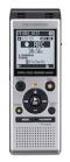 DIGITAL VOICE RECORDER PRODUCT INFORMATION RESOURCE GUIDE Publication: Version 1.0 May 2003 This document was written to provide answers to many common questions that individuals may have about the Sony
Nokia Bluetooth Headset BH-800 User Guide. 9246974 Issue 2
 Nokia Bluetooth Headset BH-800 User Guide 9246974 Issue 2 DECLARATION OF CONFORMITY We, NOKIA CORPORATION declare under our sole responsibility that the product HS-24W is in conformity with the provisions
MVS - Mini Video Speaker
 MVS - Mini Video Speaker Mini Clock Radio Night Vision Hidden Camera User Manual Spy Tec www.spytecinc.com GETTING STARTED Components Features Powering Up the Device Micro SD Memory Card for Data Storage
Xbox LIVE Vision. english
 Xbox LIVE Vision Thanks for choosing the Xbox LIVE Vision camera. Xbox LIVE Vision adds video to your Xbox 360 system and games, including: Video chat and picture messages. Photo snapshots. Family Settings
Table of Contents. System Requirement of MP3 Player:... 4. Connection and Downloading... 7. Downloading DRM10 Files... 8.
 Table of Contents Instructions... 1 Precautions... 2 System requirements... 4 System Requirement of MP3 Player:... 4 Introduction... 5 Features... 5 Charging the Battery... 6 Connection and Downloading...
PEBBLE USER MANUAL. MODEL: GMR1888DAB DAB Digital & FM Radio. Hyper-link ALL text to corresponding sections
 PEBBLE Hyper-link ALL text to corresponding sections MODEL: GMR1888DAB DAB Digital & FM Radio USER MANUAL 1 2 Welcome Your DAB Digital&FM Radio 2.1 In The box 2.2 Front View 2.3 Top View 2.4 Rear View
1-877-768-8483 (Toll Free) Monday - Thursday: 9AM - 5PM (EST) Friday: 9AM - 3PM (EST) or via e-mail at [email protected]
 mp3 0 0 2 0 3 : 1 5 My Music POP Manufactured by Southern Telecom Inc. Brooklyn, NY 11232 Slick is a registered trademark of Southern Telecom Inc. Brooklyn, NY USA 2009 Southern Telecom Inc. All rights
Bluetooth Wireless Audio Adapter
 2-689-456-13(1) Bluetooth Wireless Audio Adapter (Transmitter / Receiver) Operating Instructions HWS-BTA2W 2006 Sony Corporation WARNING To reduce the risk of fire or electric shock, do not expose this
PR-D9W. GB Version 1
 PR-D9W Version 1 Table of contents Important safety instructions... 2-3 Introduction... 4 Controls... 5-8 Using your weather alert radio for the first time... 9 Operating your radio Search tuning AM/FM...
PORTABLE ALARM CLOCK. Dual Alarm. FM Radio. Wake-up Sounds. USB Phone Charger G-1CR
 G-BUZZ PORTABLE ALARM CLOCK Dual Alarm FM Radio Wake-up Sounds USB Phone Charger G-1CR Welcome Alarm clocks can be boring. Get ready to shake things up with your new G-BUZZ. Slap the snooze for more ZZZ
Contents of the Guide
 BeoCenter 1 Guide Contents of the Guide 3 The following is an index to the contents of the separate Reference book with page references: How to set up BeoCenter 1, 4 Connect your TV cables, 5 Connect
MANUAL (p. 2) USB Turntable HAV-TT20USB
 MANUAL (p. 2) USB Turntable HAV-TT20USB ENGLISH How to Replace the Turntable Stylus (Needle) Removing the old stylus 1. Place a screwdriver at the tip of the stylus and push down in direction A. 2. Remove
DAB / FM Radio & MP3 Player DR 306 USER MANUAL
 DAB / FM Radio & MP3 Player DR 306 USER MANUAL I Safety Instructions 1. Always connect the device with the originally provided power supply. Please do not use other similar objects. Meanwhile, the original
TR7322U-OR RDS / MP3-USB TUNER (24 Volt)
 www.vdo.com TR7322U-OR RDS / MP3-USB TUNER (24 Volt) OWNER'S MANUAL Safety Information Safety Information Thank you for purchasing this product, please read the manual carefully before operating, and reserve
Jabra FREEWAY. User manual. www.jabra.com
 Jabra FREEWAY User manual www.jabra.com CONTENTS THANK YOU...2 ABOUT YOUR...2 WHAT YOUR SPEAKERPHONE CAN DO...3 GETTING STARTED...4 CHARGE YOUR SPEAKERPHONE...4 TURNING YOUR SPEAKERPHONE ON AND OFF...5
MODEL: MEMPHIS FM STEREO RADIO OPERATING INSTRUCTIONS
 MODEL: MEMPHIS CD/USB/SD PLAYER WITH TURNTABLE. ENCODING TO USB AND SD CARD. FM STEREO RADIO OPERATING INSTRUCTIONS PLEASE READ THIS USER MANUAL COMPLETELY BEFORE OPERATING THIS UNIT AND RETAIN THIS BOOKLET
Magic Wand Portable Scanner
 Magic Wand Portable Scanner PDS-ST470-VP User Manual Table of Contents 1. Key Features... 3 2. Functional Parts... 3 3. Explanation of the Status Icons... 5 4. Using the Scanner... 5 4.1. Charging up the
Business Audio System: Music & Messaging MP3 Player. by Grace Digital Audio. User Guide. Model No. GDI-USBM10
 Business Audio System: Music & Messaging MP3 Player by Grace Digital Audio User Guide Model No. GDI-USBM10 User Guide Contents Introduction 2 Safety & General Use Information 2 Features 3 Set Up & Operation