
Cashflow 7512i Operation & Service Guide
|
|
|
- Amberly Douglas
- 9 years ago
- Views:
Transcription
1 Cashflow 7512i Operation & Service Guide 2008 MEI Inc. All Rights Reserved. The MEI device, MEI CASHFLOW, MEI EASITRAX and SODECO are registered trademarks of MEI in the U.S. and other countries. Information is subject to change without notice. MEI has made every effort to assure that the information in this document is accurate. However, we cannot be held responsible for any errors or omissions. CASHFLOW 7512i Page-1

2 Contents General Information Introduction... 3 Interface Rated Operating Voltage... 3 Installing the Coin Manager Before you Begin... 4 Alignment... 4 Connection... 5 Coin Manager with one harness... 5 Coin Manger with two harnesses... 5 Initial Power Up... 6 Service Menu... 6 Using the MMI Display... 7 Accessing the Service Mode... 8 Par... 8 Par (Float) Cassette... 9 Custom Cassettes... 9 Setup Section Setup options Messages Par Options Change Management Vendor Options Coin Configuration Audit Configuration General Error Log Test Language Setup Menu Map Auditing the Coin Manager How to Section How to remove envelope icon from display How to delete a token How to understand tube terminology How to reset the Clean me message How to calibrate a coin cassette How to float/par the coin manager How to set-up auto float/par How to set-up float to value How to use snapshot float How to select a payout algorithm How to audit bill information on an MDB changer How to setup tokens Frequently Asked Questions (FAQ) Cashflow 7512i Exploded Views Cashflow 7512i Dimensions CASHFLOW 7512i Page-2

3 GENERAL INFORMATION Introducing the MEI CASHFLOW 7512i coin manager. Principle components of the coin manager are: 1 Reject Lever 2 Acceptor/Separator. Sensors determine the authenticity of a coin or token. Accepted coins or tokens are routed to one of five tubes or the cashbox. Rejected coins or tokens are routed to the coin return cup. 3 LED s. Red, Amber and Green LEDs are used to indicate the status of the coin manager. 4 Keypad and message display. This is used to configure the coin manager, by using a menu. 5 Coin tube cassette. This is used to store and route coins for dispensing as change, thus enabling bills of high denomination to be accepted. 6 Dispenser. This dispenses coins being returned as change Interface MEI CASHFLOW 7512i operates in machines that support the MDB interface*. MDB is a serial communication interface standard that developed into vending equipment since It allows for multiple devices to be added to a single connection on the vending machine control board, by linking one device to another parallel to the main MDB harness. 6 Rated Operating Voltage Voltage: 34v d.c. 12W The operating voltage of a MEI CASHFLOW 7512i coin manager is stated on the label of each product. The label is located on the left side of the coin manager. It must not be used with any power source other than that indicated. The features of the Coin Manager include: In field changeable/configurable coin cassette Five auto-replenishing coin cubes (flexibility) $1 coin payout LCD display panel - gives instant status of unit Patented coin inventory recognition MDB interface Ability to manage coin inventory to minimum levels *Note: MDB (Multi drop bus) interface information can be found on NAMA s website located at CASHFLOW 7512i Page-3

4 INSTALLATION Before you begin... Remove the coin manager from the packaging material. Inspect unit for physical damage that may have occurred during shipping. Turn OFF the power supply to the vending machine. Push and hold the yellow button on the top right (below reject lever) of the coin manager and tilt the acceptor assembly forward. You do not have to remove the cassette (See Fig 1). Once open, the mounting holes are accessible. Hang the coin manager on the mounting studs/screws, ensuring that the changer is mounted on all three studs/ screws (See Fig 2). Tighten screws (if required) and close the acceptor assembly. Remove cassette by sliding two fingers in the yellow latch and lift the cassette outwards and upwards as shown in Fig. 3. Manually fill cassette with coins. Insure that coins are inserted into the proper tubes. Fig Tube E Cassette viewed from above Yellow Latch Fig. 3 Fig. 2 3 Tube A Tube B Tube C Tube D Alignment Once the coin manager is installed, check that there is a small gap (2-4 mm) between the lever on the vending machine and the return lever on the coin manager (See Fig 4). Check that when you press the coin return lever on the machine door, it fully opens the acceptor lid on the coin manager then returns smoothly without holding the lid open. Check the alignment of the coin input chute and cashbox chute. Insert some coins to check that they enter the coin manager properly and exit into the return cup (See Fig 5). Ensure that the coin chute does not rest on or open the flight deck lid. Most machines allow you to adjust the return lever, coin chute, and the return cup to align with the coin manager. Leave a small gap 2-4 mm Fig. 4 Fig. 5 CASHFLOW 7512i Page-4

5 Connection The coin manager will be supplied with one or two harnesses. One connects the coin manager to the vending machine. The second harness, if present, allows for power and communication between the coin manager and another MDB device. Coin manager with one harness...(main) If you have a bill acceptor, connect the MDB harness coming from the coin manager to the bill acceptor s Y connector. To Machine Y Connector From Bill Acceptor To Coin Mechanism If there is no bill acceptor, connect the coin manager harness to the harness coming from the machine s control board. Switch on power. Coin manager with two harnesses... (Main and MDB Peripheral) The purpose of having two harnesses (one male connector, one female socket), is that the 7512i coin manager has the ability to store bill acceptor audit data. The bill acceptor data can be viewed on the 7512i display. Connecting the bill acceptor to the coin manager enhances the coin management capabilities and allow you to collect critical business statistics (CBS is defined on page 19). 6 pin male connector (connects to vendor) 6 pin female socket (connects to other MDB device) Disconnect the harness connecting the bill acceptor to the machine s control board. Attach the male connector coming from the coin manager to the female connector coming from the VMC. Attach the female connector from the coin manager to the bill acceptor s male connector. Note: There will be an unused MDB connector from the bill acceptor. To coin manager s peripheral harness Y Connector From Bill Acceptor Unused Tuck any excess length of harnessing inside the machine. Make sure all harnesses are not trapped when the coin return lever is pressed or when the vending machine door in closed. Now you may switch ON the power to the vending machine. CASHFLOW 7512i Page-5

6 Initial Power Up (First Time Out of Box) The coin manager will power up and check to see how many coins are in each tube. If the tubes are empty the coin manager will alert you which tubes are low (See figure 6). You should fill the three lowest coin value tubes with a minimum of five coins per tube (i.e. On a 5,5,25,10,25 configuration, you would have to fill tubes ACD). Fig. 6 Once you ve filled the cassette with coins, the coin manager will measure the tubes for 5 seconds and display a happy face, an OK, and the total amount of change in the tubes (See Fig. 7). Dispense some coins from each tube to check that all coins drop into the return cup properly. Fig. 7 If no cassette has been defined, the coin manager, when powered up, will display a warning message indicating the cassette needs to be defined before the product will operate (See fig. 8). Fig. 8 The user needs to press the more key to proceed. The user has two options: Enter the cassette model located on the front of the cassette (i.e. AB). The unit may be ordered with one of the cassette configurations shown on page 9. Fig. 9 or Insert a valid coin, then select the tube location (A- E) to which that specific coin is to be routed. Repeat procedure on all five tubes until all tubes have been assigned a coin. Press Next, followed by Accept. Once you ve defined the cassette, fill the cassette with coins. The coin manager will check tube capacity, then display a happy face, an OK, and the total amount of change in the tubes ( as shown in Fig. 7). Service Menu The yellow button below the E is the mode key. The mode key provides access to all of the features of the coin manager. Fig. 10 When the yellow MODE key is pressed once, the user interface will enter Service Mode where features can be selected by pressing the keypad (See Fig. 10). After 5 seconds the screen will change slightly and the audit key will become the Back key. CASHFLOW 7512i Page-6

7 Using the MMI Display LEDs - Red, Amber, and Green provide changer status Buttons A thru E - When the coin manager is in the idle state, the blue buttons can be used to dispense coins from the tubes. If however, the mode button is pressed before hand, these 3 4 buttons are used to navigate through the service & set-up menu 5 options. 3 - Display (LCD) - Displays warnings and menu information 4 - Mode Button - The mode button can be used to access the two configuration modes available. Service Mode and Set-up mode. Service Mode: gives access to the most frequently used product configuration options. Set-up Mode: gives access to general product configuration options that are required when setting up your coin manager. 5 - Service Connector - Allows you to connect a Cashflow programming Module (CPM) to the coin manager. LED Light Codes The 3 LEDs fitted on the coin manager provides up to the minute status information. If all LEDs are off, then the coin changer has no power.. Check that there is power to the host machine and that the harness is connected properly. During power up or when reset, the LEDs will cycle 5 times. If a coin changer ever flashes alternate red and green, remove the coin changer, and send to a local service center. Green LED Codes A solid means the coin manager is on and working properly. Blinking means coins are being measured. 1 blink means a valid coin was accepted. 2 blinks means an unknown coin was rejected. 3 blinks means a valid coin that has been inhibited was rejected. You can program the coin manager or the vending machine to inhibited a coin. Slow flashing means the coin manager is in Set-up or Service Mode Fast flashing means the coin manager has a message available for display. Amber LED Codes Solid amber means the coin manager is inhibited by the VMC. 1 flash means there is a discriminator error 2 flashes means there is an accept gate error 3 flashes means there is a separator module top sensor or tube cassette error. 4 flashes means there is a dispenser module error 5 flashes means there is a low change alert CASHFLOW 7512i Page-7

8 Accessing the Service Mode A Quick press of the Yellow (mode) button will take you into the Service Mode menus. The display will change to show the available option available. (see picture below). Available options are: Par Cassette Setup Audit Service Mode Menu (Options Available) Par Flashing Quick Press Mode Button Audit Changes to back in 2 seconds If you press the A button in service mode, the coin manger will start par. The coin manager will either dispense excess coins or ask you to insert a specific quantity of coins into each tube to equal the set par value. (For more information on par options, refer to the set-up mode section). PAR (Float) The PAR default setting (comes set from the factory) is PAR to Level. PAR to Level allows you set the level of each individual tube so that once the level is reached, further coins may be sent to the cash box. The default PAR Level (from factory) is full tubes. If you change the PAR setting to PAR to Value. The default value is $50. Par to value looks at the total value of coins in all five tubes. The PAR (or float) operation has three stages: Payout of any coins above the PAR Request insertion of coins that are below PAR Display Results CASHFLOW 7512i Page-8

9 Cassette If you press the D button in service mode, you enter cassette mode. In Cassette mode, you will need to enter a cassette code or insert a coin through the acceptor. The cassette mode allow you route coins to different tubes. You may choose a preprogrammed cassette or custom configure a cassette. Pre-Programmed USA Cassettes Key Code TubeA Tube B Tube C Tube D Tube E AA AB $1 5 BA BB CC Custom cassette 1 - defined in factory or by service tool. CD Custom cassette 2 - define yourself using cassette teach. DAC 25 5 $1 $1 25 DCA $1 5 DCB $1 $1 5 DCC DCD DCE Custom cassettes: Tube E Tube A Cassette viewed from above Tube B Tube C Tube D You must always include at least one 5c tube in all custom configured cassettes. Do not place the $1 tube in position A or B. Do not place the 25 cent tube in position B. Do not place the 10 cent tube in position E Coin Tube Base Color Max Fill ($) Manual Fill($) Tube Position OK 5c Red 77 (3.85) 87 (4.35) A,B,C,D,E, 10c White 115 (11.50) 127 (12.70) A,B,C,D, 25c Black 84 (21.00) 96 (24.00) A,C,D,E, $1 Blue 69 (69.00) 81 (81.00) C,D,E, Select the cassette option, Insert a nickel into the top of the coin manager. Select all tube locations (A- E) where you placed a nickel tube. Follow the same procedure with remaining coins for which a tube has been assigned in your custom cassette. Once all letters on the display have been replaced by a coin denomination press the next button. The display will ask you to accept / cancel the change. Once you accept the change press OK to complete the operation. CASHFLOW 7512i Page-9

10 Setting or Changing Options Setup If you press the E button in service mode, you enter setup mode. In Setup mode a warning will appear asking you to press the A- B -C buttons to make sure you want to enter this menu. Once you press these buttons, you access to the following: A B C WARNING! Setup Menu - Press Code To Enter Exit to select par style (par to auto, par r to value). Messages* PAR OPTIONS CHANGE MGMT VENDOR OPTIONS COIN CONFG AUDIT CONFG GENERAL ERROR LOG TEST LANGUAGE *If a message is available setup mode will begin with this option to view the message. If no message is available, the setup mode will start with par options. Allows you to setup tube fill levels and coin payout mix to optimize coin return. Allows you to setup option that are specific to the Multi Drop Bus (MDB) interface. Allows you to setup token teach, security, coin setup, channel setup, exchange rate, and alarm timeout ( seconds). Allows you to view the machine id and serial number under the setup option, reset the ir pod password, and set the install date, edit report titles and edit interims in the printer option. Allows you to calibrate tubes, change coins being accepted, reset the clean-me level, save changer setting or restore the last saved settings. Allows you to view or reset the last 10 error logs recorded by the coin manager. Allows you to test the coin manager components, connectivity, and coin manager information. Allows you to change the language displayed (English, French, Spanish, Italian, Portugues, etc). Defining each setup option: Messages* Messages are the result of tube wizard. Tube wizard is an application that generates tube and cassette suggestions in any of the par options. These messages suggest different tube configurations based on the coin managers operation over previous weeks of constant operation. If coin demand changes or fluctuates over time, messages will appear suggestion changes. CASHFLOW 7512i Page-10

11 Defining each setup option(continued): PAR OPTIONS CHANGE MGMT VENDOR OPTIONS COIN CONFG Par is the level/value of coins that are to be left in the changer after the route person fills/services the coin manager. Three types of par options are: par levels, par value, and snapshot par. Par to level Tube fill level: Fill to Max Capacity - means the tubes will fill to capacity. Capacity for each coin are: 5c - 77 coins, 10c coins, 25c - 84 coins, $1-69 coins. Fill to Par- means that additional coins, that exceed the setup amount, will be routed to the cashbox. Large Coins - means Best for customer Fewest coins paid out to consumer. Small Coins - means Best for operator Small coins dispensed more often. Less small coins directed to cashbox. Change machine - Acts like a bill changer machine. Will give a mix of coins (i.e.$1=3x25c,2x10c,1x5c). Optimize change: Off / On - If On, the coin manager decides the best mix of change to dispense. Levels: Level - MDB protocol has Level 2 and Level 3 (MDB comms type). Keep always in Level 3. Consult MEI technical support for more detail regarding this option. Coin Counts: As TRC reports first 3 coins as zero as does the TRC6512. As CF reports all coins in tubes as does the CF690 (Euro). Par coins: Hide / Report - When filling, par coins credit is not reported in the hide mode. In report mode par coins are credited to the machine. Coin Scaling: Should be set to 5 for US and Canada. Never change this setting. Decimal Pnt: Should be set to 2 for US and Canada. Never change this setting. Country: Should be set to 0001 for US and Canada. Never change this setting. Token Teach: Select a location (1-6) Value token - Enter value, then name then insert 32 samples Vend token - Enter name, then insert 32 samples Reject token - Enter name, then insert 32 samples Slug - Enter name, then insert 32 samples Security (changes settings for all 32 coin channels): Hi acceptance - Default setting. Should remain in this mode unless frauds occur Hi security - Tighter acceptance window. Used if frauds occur. Coin Setup: Allows operator to edit values (i.e. US and/or Canadian), enable/disable acceptance and change coin type (coin, token, slug). 32 coin channels available. CASHFLOW 7512i Page-11

12 Defining each setup option(continued): COIN CONFG Channel setup: Channel 1-32 (enabled / disabled) Acceptance parameters for an individual channel can be set.( i.e. changing the US.10 cent coin from high acceptance to high security). Exchange rate: Set the exchange rate between two currencies (i.e. exchange rate from US$ to CN$ is set at US$1 to CN$1.5819). The operator must set and maintain the exchange rates as they fluctuate. Cleanme level: Default 59%. A cleanme message will appear if acceptance falls below this set value. An operator may change the percentage. # of accepted coins out of the last 64 coins This percentage is based on: * 100% the last 64 coins inserted Alarm timeout: Operator may set unit to reject coins in increments of 5 seconds after a fraud is detected. Default has this feature turned off. Alarm time x 5 seconds (i.e. if alarm time is set a 2, coins will be rejected for 10 seconds after a fraud is detected). The following types of tokens can be taught: Vend token the token is reported as an MDB TOKEN to the machine, which typically treats it as a free vend token, for more precise information on vend token handling refer to the vending machine manual. Value token the token is assigned a value (as per a coin) and accepted and routed to cashbox. As MDB does not distinguish between coin credit and token credit it will be possible to get change or returned monies having inserted a value token. Reject vend token the token is reported as an MDB TOKEN to the machine, which typically treats it as a free vend token, for more precise information on vend token handling refer to the vending machine manual. However, this token will always be returned to the customer in the reject chute even though it is credited as being accepted as a token. A typical application would be using a token to open a newspaper vendor on a street corner. Slug this allows a fraudulent object to be taught and inhibited, to prevent it being accepted and credited as a valid coin. See token diagram on the next page. CASHFLOW 7512i Page-12

13 Defining each setup option(continued): Vend Token Value Token Reject vend token Slug AUDIT CONFG Setup: Reset audit - None, interims, totals + Interims None - means no reset after collection of audit information Interims - all interims values are reset after each collection Totals + Interims - All values (including historical) are rest after collection. Operator decides on feature s use. Machine ID: (default is unit serial number) Operators may change this number to suit needs. The machine ID will appear in DEX readings. IR password (Reset): This option is for remote IR port. Does not affect the IR port on the changer keypad. Printer: The entire printer feature sets printed report parameters if an optional printer is installed on the changer. Report type Basic (print basic report) Interims (prints basic + interims) Free Vends (prints all three reports) Report Languages - English, French, German, Dutch, Spanish Report Title Edit as needed. Install date Edit as needed. CASHFLOW 7512i Page-13

14 Defining each setup option(continued): GENERAL ERROR LOG TEST LANGUAGE Accept / pay: Allows operator to change between coins accepted and coins paid out from tubes. Calibrate tubes: Should only be performed by service personnel! Settings: Allows operator to set configuration of changer and save. If settings are unknown, operator can restore to last saved setting. Save (save new configuration settings) Restore (restore last saved settings) View / reset: Allows operator to view last 10 error records. These are shown from newest to oldest. Errors in log may be erased (reset). Auto / Manual / Info: Auto test - performs an auto test of all components of the coin manager. Upon completion of a successful test, the changer will display passed. Manual test - Allows you to perform individual test of the components. The components are: Coin sensors (coin sensor idles) Accept gate (checks accept gate sensor) Gate Sensor Separator Cassette Dispenser Temperature Comms Other Info: In the info mode, the following information is provided for servicing purposes. Software version, Hardware version, Boot loader version, coin manager serial number, acceptor serial number. Language is set at factory. Operator can change as needed. The following languages are available. English, French (Euro or Canadian), Spanish (Spain or Latin American), Dutch, Portuguese, Italian. CASHFLOW 7512i Page-14

15 Defining each setup option(continued): Setup Menu Map Language Test Module Connectivity Info Error Log View Reset General Accept/Pay Calibrate tubes Clean Me Settings Set-up Audit Cfg Set up Ir Password Printer Coin Cfg Token Teach Security Coin Set-up Channel Set-up Exchange Rate Alarm Timeout Coin sensors Accept gate Gate sensor Separator Cassette Dispenser Temperature Comms other Save Restore Report Type Report Language Report Title Install Date Coin US value CN value Coin acceptance Coin type Vendor Options MDB Options Optimize change Level Coin Counts Par Coins Coin Scaling Decimal Pnt Country Change Mgmt Tube Fill Level Payout mix par/float Options Select Style Set par/float value Set Par Level Snapshot Par Level Messages View Reset CASHFLOW 7512i Page-15

16 Audit If the yellow Mode Key is pressed twice in quick succession (with cassette in), then the display will show audit information. Each message will be shown for 3 seconds. The screen can be frozen on the display by pressing pause. The pause button will then alter to become a resume button. When the resume button is pressed, the screens will continue to show, in sequence, the audit information. Audit information displayed: Value of Cash to Cashbox Annualized Estimates Value of Cash to Tubes Sales Lost in Exact Change *Value of Bills Accepted Percentage time in Exact Change Value dispensed as change Value of Sales in Exact Change Value of manual dispense Value of Sales with Change Available Total Tube value Number of Sales in Exact Change Tube A Count Number of Sales with Change Available Tube B Count Average Price with Change Available Tube C Count Time In Change Tube D Count Time With Change Tube E Count Time Disabled by VMC * Value of Bills Accepted will be present in the audit information, only if the bill acceptor is attached to the coin manager s optional MDB peripheral harness. Audit Screens There are three types of data shown. The first set of screens show historical data (sometimes referred to as totals or non-resettable values). These values are set to zero when the product is built and then always increase. The second set of screens show the current status of the tube counts and the third set show estimates for yearly performance. Audit Data Non resettable historical records Current Tube Status Estimates Yearly predictions CASHFLOW 7512i Page-16

17 Audit(Cont.) The first few screens show audit information that has been recorded from actual events. They are a historical record of what has occurred since the product was first built. EVA DTS (DEX) reference CA306 Value of Cash To Cash Box Since Initialisation Value of cash sent to the cashbox. Does not include value of free vend tokens. Non-Resettable. EVA DTS (DEX) Reference CA307 Value of Cash To Tubes Since Initialisation Value of all coins sent to the inventory tubes, including sales and manual fill modes. Does not include value of free vend tokens. Non-Resettable. EVA DTS (DEX) Reference CA308 Value of Bills In Since Initialisation Total value of all bills (banknotes) accepted. Does not include value of free vend tokens. Non-Resettable. NOTE: This screen will only be shown if a bill validator is currently attached (or has been previously attached) to the MDB peripheral connector. The changer cannot record audit information if the bill validator is connected directly to the vending machine. EVA DTS (DEX) Reference CA403 Value of Cash Dispensed Since Initialisation Total value paid out as change plus the value manually dispensed. Non-Resettable. EVA DTS (DEX) Reference CA404 Value of Cash Manually Dispensed Since Initialisation Total value dispensed manually. Non-Resettable. CASHFLOW 7512i Page-17

18 Audit (Cont.) Current Tube Information The next few screens show information that describes the current state of the coin tubes. Total Tube Value This is the total currency value of all the coins stored in the entire cassette. Tube A Count This screen shows the number of coins in tube A e.g. 80 The type of coin e.g. 25 cent. The total value of coins in this tube $20.00 (i.e. 80 x 25c = $20.00) Tube B Count This screen shows the number of coins in tube B, the type of coin and the total value of coins in this tube Tube C Count This screen shows the number of coins in tube C, the type of coin and the total value of coins in this tube Tube D Count This screen shows the number of coins in tube D, the type of coin and the total value of coins in this tube Tube E Count This screen shows the number of coins in tube E, the type of coin and the total value of coins in this tube Critical Business Statistics (CBS) - Estimates of Yearly Performance This information provides annualized estimates of product performance and is based on a limited amount of information. The product collects data up to the last 28 days and makes yearly estimates based on this. However this information may not be totally accurate for the following reasons - a) As the MDB protocol does not give the changer full knowledge of the vend cycle, the CF7XXX has to make some assumptions on when and what data to collect (i.e. when vends occur and how much they cost.). CASHFLOW 7512i Page-18

19 Audit (Cont.) Critical Business Statistics (CBS) - Estimates of Yearly Performance b) The unit will store data for up to the last 28 days and will extrapolate this to give the yearly estimates, 1 full day of information is sufficient to start the process. Therefore predictions based on a small amount of information (less than 28 days or small number of transactions) may give wildly inaccurate predictions. This also does not account for any seasonal variation. c) Exact change is when the changer has less than 5 tube coins of any of the lowest three coin denominations This may be a different algorithm to that used in the vending machine so the light on the front of the machine may not reflect what the changer thinks is happening. d) If a tube is not in use (dispenser jam or tube jam) then the count for that tube is set to 0 and if it is a sole low denomination tube this will cause the changer to consider it is in exact change for 100% of the time. e) If bills are used to pay for products and the validator is not connected to the changer MDB peripheral connector then some of yearly estimates will be wrong. GUIDANCE NOTE: CBS information is not audit data and must be treated separately. As it is based on estimations it should really be used as a guide only. This message is shown for a few seconds as a prompt that the next few screens of information are estimates for the upcoming year. Sales Lost in Exact Change This value is an estimate of how much sales will have been lost because customers may have been deterred from using the machine because the exact change light is on. This figure is calculated by comparing the daily rate of sales when the exact change light is on vs. daily rate of sales when exact change light is off then scaling this figure to be a yearly estimate. Percentage Time in Exact Change This is a computation of the % time the changer was low in change over the monitored period. This percentage is computed using the actual measured amount of time in exact change over the monitored period and the duration of the period. CASHFLOW 7512i Page-19

20 Audit (Cont.) Critical Business Statistics (CBS) - Estimates of Yearly Performance Value of Sales in Exact Change This is a yearly estimate of how much product will be sold when the changer deems it is in exact change. Computed by averaging the amount of sales in exact change over the monitored period then scaling it to a yearly figure. Value of Sales With Change Available This is a yearly estimate of how much product will be sold when the changer deems it has change available. Compute an estimate by averaging the amount of sales when change is available over the last period Number of sales in Exact Change This is a yearly estimate of how many products will be sold when the changer deems it is in exact change. Averages the number of sales when in exact change light over the monitored period then scales it to a yearly figure. Number of sales with Change Available This is a yearly estimate of how many products will be sold when the changer deems there is change available. Averages the number of sales when not in exact change light over the monitored period then scaling it to a yearly figure. Average Price With Change Available This is computed by dividing total value of sales by the number of sales to get an average price. Notes: This figure may create a value which is not a multiple of valid coins e.g. 21 cents, this is likely to occur on vending machines that have more than one price. The value of a sale is not available over MDB and so the changer has to estimate this based on coins inserted and paid out. This simple estimation will not be correct if the machine is in multi vend mode, a bill validator is attached directly to the machine or any other non standard set-up. Time With Change Available This is a yearly estimate of how long the changer will be operating with change available (i.e. exact change light OFF) This is based on a daily average time with change available scaled to a yearly figure. CASHFLOW 7512i Page-20

21 Audit (Cont.) Critical Business Statistics (CBS) - Estimates of Yearly Performance Time Disabled by VMC This is an estimate of how long in a year the machine will be disabled. This could be because of machine faults, sold out of product, jams etc The average daily time disabled is scaled to make a yearly figure. Notes This excludes brief periods (less than 30 seconds) typically when the product is being vended The changer does not have a real time clock so only measures time when it is powered on. If the machine is switched off at night and operates correctly during the day the changer will measure it as never being disabled. End of Audit This message indicates there are no more screens of information CBS Yearly Estimate Formula This section contains more detailed formula used in the computation of the CBS yearly estimates. The following items are monitored during the monitoring period (which may be upto 28 days long) and are used as a basis for the estimates: Value of Sales Number of Sales Duration in Exact change Value of Sales when in exact change Number of Sales when in exact change Duration disabled by vending machine Elapsed time (time when the changer is powered on) Sales Lost in Exact Change SalesValueDuringOK = Sum of sales for last period / number of days in the period SalesValueDuringEC = Sum of sales for last period / number of days in the period SalesValueECPerDay = (SalesValueDuringEC * ONE_DAY_IN_MINS) / MinsInECCondition; SalesValueOkPerDay = (SalesValueDuringOK * ONE_DAY_IN_MINS) / MinsInOKCondition; Yearly sales lost in exact change = (SalesValueOkPerDay - SalesValueECPerDay) * 365 CASHFLOW 7512i Page-21
22 Audit (Cont.) Critical Business Statistics (CBS) - Estimates of Yearly Performance Percentage Time in Exact Change Total time in exact change = sum of time in EC for last period Average time per day in EC = total time in exact change / number of days in the period Percentage time in exact change = (average time per day in EC/time for 1 day) * 100 Value of Sales in Exact Change Daily sales in EC = sum of sales when EC ON in last period/ number of days in last period Yearly sales in EC = daily sales in EC * 365 Values of Sales With Change Available Daily sales with change available = sum of sales when EC OFF in last period/ number of days in last period Yearly sales with change available = daily sales with change available * 365 Number of sales in Exact Change Volume of daily sales with EC ON = sum of volume of sales when EC ON in last period/ number of days in last period Yearly volume of sales with EC ON = volume of daily sales with EC ON * 365 Number of sales with Change Available Volume of daily sales with EC OFF = sum of volume of sales when EC OFF in last period/ number of days in last period Yearly volume of sales with EC OFF = volume of daily sales with EC OFF * 365 Average Price With Change Available SalesValueDuringOK = sum of value of sales in the last period while EC is OFF SalesNumberDuringOK; = number of sales in the last period while EC is OFF average_price = SalesValueDuringOK / SalesNumberDuringOK; Time With Change Available SecsInECCondition = sum of time in exact change in last period Daily average time in EC = SecsInECCondition / number of days in last period Daily average time with change available = Number of seconds in a day - Daily average time in EC Yearly Time with change = Daily average time with change available * 365 Time Disabled by VMC Total time disabled = sum of time disabled in the last period Average daily time disabled = total time disabled / number of days in the period Yearly time disabled = average daily time disabled * 265 CASHFLOW 7512i Page-22
23 How to Section How to remove envelope icon from display Symptom: Envelope icon appears on display Cause : SMS message available for reading Fix: View, action and delete SMS message The changer will indicate an SMS message is present as follows: Green LED flashes fast continuously Envelope icon appears on the display The system reports the presence of an SMS message when: The operator has left a message for another operator/user Tube Wizard is recommending a change to cassette configuration To view message(s): Press Menu Press Setup Press abc Press Select to choose messages Press Select to view messages Use Up/Down arrows to access messages To delete message(s): Press Menu Press Setup Press abc Press Select to choose messages Press Up Arrow Press Select Press Accept to delete all messages NOTES: The same Tube Wizard message is not repeated in consecutive weeks for the same cassette - even if the recommendation made is still valid. Changing the cassette model resets the recommendation system. CASHFLOW 7512i Page-23
24 How to Section How to delete a token Symptom: Want to remove a previously taught token Cause : Token was previously taught and accepted Fix: Follow this procedure to delete the token data Enter token teach by: Press menu then Press Setup then Press abc scroll to the Coin cfg menu and Press Select. Scroll to Token Teach menu Press Select. Select the required token by: using the up and down keys press OK. Select the type of token as: Delete - this will delete data for the existing token in this slot A confirmation screen will be displayed: Press Accept to delete the token When a token has been deleted it will Delete the data that was used to validate what object it was Delete the type of token Delete the token description (text string) CASHFLOW 7512i Page-24
25 How to Section How to understand tube terminology Top of tube Flared top section Clip on back of tube, to retain tube in cassette chassis % full markings Hinge point on front of tube, engages with cassette chassis Bottom of tube Coloured tube base (blue) Tube References (Soft Options) Tube full Max fill Float (par) level Absolute top of the physical tube (Factory set) Maximum number of coins the changer will actively route a tube, further coins routed to cashbox (Factory set) Adjustable level, set by the customer. The level of required coins at the end of a float operation (for float to level). Safe Minimum number of coins to ensure best dispense performance (Factory set) Empty No coins in the tube, totally empty CASHFLOW 7512i Page-25
26 How to Section How to reset the Clean me message Symptom: Changer indicates it requires the deck to be cleaned Cause : Dirt build up on the coin flight deck Fix: Follow the procedure below to Clean Changer displays a message indicating it needs cleaning because it has detected that recently (in the last 64 insertions) a lot of coins are not being discriminated as a valid coins Open the lid wipe both surfaces of the coin entry with a damp cloth Close the lid Press menu Press float on 7900 or par on 7512 Press A (there is no prompt by the A key) The changer now displays it is OK CASHFLOW 7512i Page-26
27 How to Section How to calibrate a coin cassette Symptom: Changer indicates the cassette has not been calibrated Cause : The changer has not been previously calibrated with that cassette configuration Fix: Follow the procedure below to perform the calibration If the display indicates a cassette is un-calibrated or you want to improve the performance of the coin level sensing system by calibrating the exact cassette that is fitted to the changer then follow this procedure. Remove the cassette and check it is empty then refit it. Press menu then setup then abc Scroll to the General menu then press Select Scroll to the Calibrate tubes menu then press Select. It will prompt you to check the corresponding cassette is fitted, if it is then press Calibrate, otherwise press Back and program the correct cassette code before restarting this procedure. The changer will check each tube at least twice so there will be at least 10 clicks. It will display a message when it has finished, press OK. Press the Back key repeatedly to exit the menu, the main screen will now be shown with no un-calibrated warning. CASHFLOW 7512i Page-27
28 How to Section How to float/par the changer Symptom: Changer has more or less coins that the target float condition Cause : Changer has paid out and received coins since last being visited Fix: Float the changer as described The float process involves two stages: (a) Dispense of excess coins (b) Addition of insufficient coins If there is no action to be performed for a stage then it will automatically move onto the next stage. To start the float operation: Press menu Press float The changer will display a screen indicating it is about to start the float process. Either Wait 2 seconds or/ Press the Next key (a) Dispense excess coins The changer will now dispense any excess coins, that is extra coins in the tube that are above the float setting. As coins are dispensed remove them from the coin return on the machine. If the coin return fills up with coins the dispense process can be paused (then resumed) by either: Press Pause key or/ Press the reject lever When all the excess coins have been dispensed the changer will move to stage 2 and ask the user to insert any additional coins it requires to achieve the float condition. (b) Add extra coins Insert the requested coins into the changer through the validator, the count of how many coins are required will decrease as coins are inserted. When sufficient quantity of a coin have been inserted it will stop prompting for that coin and reject any more of that type. When all coins have been inserted it will display a message indicating that the float condition has been achieved. It is possible to skip stages and not insert all the required coins, if this is done a different message will be shown at the end indicating the float condition was not achieved. CASHFLOW 7512i Page-28
29 How to Section How to set-up auto float/par Symptom: Too much money in changer tubes Cause : Manually set float/par levels are too high Fix: Use auto float/par and set it up as described What is Auto Float/par? The aim of this algorithm is to have no settings for the customer to setup or compute and the changer to operate with the minimum amount of money in the tubes but ensuring the exact change light is rarely lit and that change is available for vends. How Does it work? The algorithm uses probability calculations to reduce the chance of the exact change light coming and monitors prices and whether bills are used to determine the fewest number of coins with the best optimal mix. Will it work immediately? No, it requires some time to gather information on how the tubes are being used, during this time it will run the tubes at their maximum level to ensure there is always enough change. How do you Set-up Auto Float? Use the keypad and screen to enable this function by: Press Menu Press Setup Press abc Scroll to the item "Float options" then press Select Scroll to the item "Select style" then press Select Press Edit Use the up or down keys to alter the setting to "Float to auto" then press OK CASHFLOW 7512i Page-29
30 How to Section How to set-up float to value Symptom: Want to improve coin mix in the tubes but keep same value in the tubes Cause : Manually set float to level not working well enough Fix: Use float to value to allow changer to compute coin levels What is Float to value? The aim of this algorithm is for the customer to have a simple setup and audit process i.e. they want $xx in the tubes but for the changer to compute and dynamically alter the ratio of coins in the tubes to give the best mix of coins ready for change. How Does it work? The algorithm continually computes coin levels for each tube based upon whether tubes are naturally replenished or deplenished and how often the tube is used for change. It will always try and have at least 7 coins in any tube to ensure the exact change indication is kept off, then add more coins to the tubes until the overall value for the entire cassette matches the target value set by the customer. IN Total float value = $32.25 Algorithm Dynamic levels OUT % times this tube used for change vs. other tubes Will it work immediately? Yes, however the initial mix of coins in the tubes may be non optimal How do you set it up? Use the keypad and screen to enable this function by: Set the float style Press Menu Press Setup Press abc Scroll to the item Float options then press Select Scroll to the item Select style then press Select Press Edit Use the up or down keys to alter the setting to Float to value then press OK Set the float value Scroll to the item Float value then press Select Press Edit Use the up/down/left/right keys to alter the value Press OK CASHFLOW 7512i Page-30
31 How to Section How to use snapshot float Symptom: Want to set float levels to current cassette condition Cause : Float not setup as required Fix: Use snapshot float by following this procedure The snapshot feature works regardless of the float style (to level or to value, not applicable to auto). When this function is triggered it takes a snapshot of the current cassette and uses that to setup the float settings. If required fill the cassette with the required amount of coins. This maybe a specific mix of coins e.g. 30 x 5c, 20 x 10c, 10 x 20c Or so each tube is filled so the top of all the coins are at the same level Or the overall value of the cassette holds To take a snapshot follow these steps: Press menu Press float Press snapshot If operating in float to level the screen will show the current levels in the tubes If you wish to adjust a value then press the adj key use the up/down keys to select the required tube press Edit use the up and down keys to alter the value press OK when all coin tube values have been updated (if required) press Done If the displayed values for float are acceptable then press Accept If operating in float to value the screen will display the total value of coins currently in the cassette This value can be adjusted by pressing the adj key in a similar manner When the required value is displayed press Accept CASHFLOW 7512i Page-31
32 How to Section How to select a payout algorithm Symptom: Changer does not payout coins using required mix Cause : Incorrect payout algorithm being used Fix: Configure changer to use desired algorithm There are three payout algorithms in the Cashflow 7000 Series changer to improve the performance when used for particular tasks. Big coins Small coins Change machine Big Coins (Best for Customer) This is the default payout mix, use this if you want the fewest number of coins paid back to the customer. Hence these will typically be large value coins. This is sometimes referred to as a least coins algorithm Small Coins (Best for Operator) This simplifies the operation of counting coins in the cashbox for the routeman/counting room by having less quantity but higher value coins in the cashbox, as a result the customer may get a few extra small coins as change. This payout mix aims to leave the changer with space (10%) in the lowest two coin tubes for coins to be routed to rather than go to cashbox. Change Machine This is intended for applications where a dedicated change machine that converts bills to coins has been removed from the site and the remaining vending machines are setup to operate in a replacement capacity. The changer will try and payout one coin of each type, to give a mix of coins then pay any remaining value using the big coins algorithm. All payout algorithms may be affected by the amount of change coins available, as typically they will try and stop a tube depleting to very low levels and use non preferred coins for payout instead. CASHFLOW 7512i Page-32
33 How to Section How to audit bill information on an MDB changer Symptom: No bill audit information in the changer Cause : Bill validator connected between changer and MDB machine Fix: Connect the bill validator to the MDB peripheral loom on the changer as described Connect the changer s MDB loom to the MDB loom on the vending machine (shown in red). If one is not fitted then fit an MDB peripheral loom to the changer. Connect the MDB peripheral loom from the changer to the MDB loom of the bill validator (shown in blue). Power on the changer. The changer will listen to messages between the vending machine and the bill validator and audit any bills that are accepted. The audit value that records the non resetable value of bills accepted can be accessed on the display by pressing the yellow mode key twice in quick succession (menu then audit). When a validator is attached then this extra screen of information will be shown. The audit data can be collected via the Ir port (or a DEX terminal if a DEX lead is fitted). Bill data will be logged in the bold fields in the audit data. DEX Data Extract DEX field descriptions DXS* *VA*V1/6*1 CA3*100*0*0*1*615*100*415*1 CA14*100*1*1*1*1 DXE*1*1 CA301 = value of cash (coins and bills) in (interim) CA304 = value of bills accepted (interim) CA305 = value of cash (coins and bills) in (total) CA308 = value of bills accepted (total) CA1401 = bill value e.g. 100 for a $1 bill CA1402 = number of this bill type accepted (interim) CA1403 = number of this bill type stacked (interim) CA1404 = number of this bill type accepted (total) CA1405 = number of this bill type stacked (total) CASHFLOW 7512i Page-33
34 How to Section How to setup tokens Symptom: Doesn t accept tokens Cause : Tokens not taught or setup correctly in the changer Fix: Teach and configure tokens as described CF7512 can have upto 6 tokens taught in the field. Press menu then setup then abc then scroll to the Coin cfg menu then press select. At the Token Teach menu press select. Slots 27 to 32 are reserved for the 6 tokens that can be taught. Select the required slot, typically an empty or unused one then press OK. Select the type of token you are about to teach: Value token - a token that has a value (similar in use to a coin but tokens are routed to the cashbox only), you will be prompted later to enter a value for this token. Vend token - where the vending machine will typically give a free vend (this will vary from machine to machine) Reject token - this operates exactly like a free vend token but it is returned directly to the customer Slug - a fraudulent object that will be rejected Delete - this will delete data for the existing token in this slot You can now alter the name that will be displayed when the token is finally set-up, by default it will be named T followed by the slot number e.g. T26. Use the cursor keys to alter the name then press OK X 32 You will now be prompted to insert 32 samples of the token. Although you do not need to drop 32 the changer will perform significantly better if you drop as many as you can. You should not drop the same token repeatedly but use a collection of tokens of the same type. When 32 tokens have been dropped a screen will be displayed, simply press the finish key. The screen will then go to the beginning ready for another token type to be taught, if you have no more to teach then press the back key repeatedly to quit the menu Tok Finally test that the tokens and all coins are accepted. CASHFLOW 7512i Page-34
35 Frequently Asked Questions (FAQs) How is MEI CASHFLOW TM 7000 different from other coin changers? Simply put, MEI CASHFLOW TM 7000 is simple to use, yet very sophisticated in how it helps to manage change and information. This product is a whole new breed of coin manager with improved features over other models. The combination of all these features resulted in the creation of a brand new tool that will increase your profitability and efficiencies, and make your life easier. The true breakthrough is how it will do the work for you without your constant intervention. How does MEI CASHFLOW TM 7000 increase the operators bottom-line? By providing a better mix and more available change, better pricing options, bill flexibility, higher reliability and security, self reporting of lost sales and increasing account retention/customer satisfaction. Drives Higher Sales: 1. Virtually eliminates exact change situations 2. Handles high value bills $10 and $20 bills 3. Provides true price flexibility 4. Less down time water resistant, jam resistant, more reliable 5. Reduces service call since drivers can fix most issues Lowers Costs: 1. Accountability for all money, even cash in tubes 2. Provides instant paring 3. Drivers can resolve all jams, without tools 4. Virtually no training needed 5. Stores the least amount change necessary and prevents exact change issues 6. Reports on how well your team is doing. 7. Driver can alter the tubes by changing the cassette or the tubes What does exact change really cost? Most operators know it s a problem, believe current prices are correct or perceive the value of lost sales is insignificant. MEI CASHFLOW series 7000 shows you the true picture by individual vending machine. MEI CASHFLOW series 7000 measures the selling rate when change is available and the selling rate when change in either unavailable or low. Then computes the percent of time the problem has occurred and the annualized value of not having enough change. For the first time management has the data from their own locations to show if exact change is truly a problem. How does it eliminate exact change? Through change optimization, complete and easy tube replenishment and highest tube capacity. Change Optimization MEI studied change algorithms and found many in traditional coin acceptors make poor use of change. CASHFLOW 7512i Page-35
36 Frequently Asked Questions (FAQs) - Continued For example, a 70 item purchased with a $1 bill can: payout three dimes quarter/nickel combinations (even when the dime tube is full) If the nickel tube is quickly emptied the machine is unnecessarily put into exact change for all other combinations. The MEI CASHFLOW Series 7000 change override computes the coins to be paid and uses all combinations to stretch the available coins as far as possible. This feature prevents certain prices from starving the machine of change and allows the machine to have ample change. Industry s only Five Tube Changer with Complete Tube Replenishment Each tube can be replenished with the coins coming in from consumers. Coins are not diverted to the cashbox if space is available for that denomination. Easy Replenishment The driver can easily refill the change tubes. The three tube openings are the largest available so the driver can pour in an entire roll of change without even touching the mechanism. A removable cassette can be refilled at leisure, and has an L-shaped base to prevent toppling. The mechanism has a hook to hold the cassette in a completely accessible position. The driver does not need a flat surface for the cassette and won t need to hold open a flap with one hand while trying to hold the change bag, get out change and put into a narrow slot. Highest Tube Capacity MEI CASHFLOW series 7000 tubes hold more that the competition. MEI has five tubes, each with a height of 6 ¼ inches of coins (159mm). The total capacity of all tubes is 31¼ inches change. The MEI capacity for one is like having an extra invisible tube of capacity compared to competition. Compare to the a five-tube competition with 5 3/8ths inches (136mm) tubes for a total of 26¾ inches. Another four-tube competitor has space for only 5 ¾ inches (148mm) of coins in a tube to its tube full sensor giving it a total replenishable capacity of less than 23 ½ inches. What that means is that the MEI CASHFLOW series 7000 holds approximately 17% - 33% more volume in coins than it competitors models. How does the MEI CASHFLOW Series 7000 provide true price flexibility? Stronger Location Negotiations When negotiating to win a location the vend price can be the most important consideration. But, certain prices cause change problems unless there is a change machine on the same floor or in the same break room. Isolated machines run into exact change problems when moving off a quarter multiple. Even dropping the vend price from 75 to 70 can trigger untenable service calls to keep the machine s change replenished. The exact change prevention capabilities in MEI CASHFLOW Series 7000 allow the operator to negotiate without this constraint. Maximize Specific Price Contracts Certain customer contracts allowing pricing at or below 95. In many cases, so many consumers are inserting dollars that the available price cannot be used. This means CASHFLOW 7512i Page-36
37 Frequently Asked Questions (FAQs) - Continued a lower price of 75 or 85 is the highest that can be supported without being buried in service cost to top off a changer. (Industry average cost of service calls is $50.) The flexible tube configuration, larger capacity and coin recycling enable better change management to support these price points. Flexible Tubes to Optimize Payout The cassette can have its tube reconfigured without using tools. They are simply unsnapped and the desired new configuration snapped in. How does it handle high value bills, not just $5 bills but $10 and $20 bills? The unit allows the largest number of big diameter coins. Up to three, dollar tubes and a nickel tube can be used. The changer can hold over $320 for making change. The unique L-shape cassette eliminates the constraint that all tubes must fit in a straight row across the front of the changer. Allowing MEI CASHFLOW series 7000 to handle truly large bills $10s and $20s that used to need a their own change machine. What makes it water resistant, jam resistant and more reliable? The unit meets MEI Gold Standard for Water Resistance. The MEI CASHFLOW series 7000 is designed to take abuse from vandals squirting water in openings, outdoor machines with leaky seals and drivers filling machines in the rain. The MEI CASHFLOW series 7000 will stay in service and prevent jackpotting, and shorted boards. MEI engineers reviewed the existing market base for the problems experienced by operators. Not just MEI products, but all products. Iffy dispensing, coin jams, clearing out debris, off home dispensers and dozens of other potential weak points have been researched and solved by eliminating them from the design. For instance the lid opens wider. And, the dispenser has more than double the old power meaning sticky and gritty coins are no longer an issue. For example, weak areas have been reinforced making them tougher. How does it reduce downtime and service calls? Now the location staff or the route driver can fix the issues without leaving the machine down until the repairman can be scheduled. The unit is designed to allow sticky bits of paper, match boxes, etc. to be easily cleared without tools by the route driver. Exact change is finally flagged. Exact change frustrates your customers, but on most machines there is no indication to the driver that there is a problem. It is left for him to discover one or more key tubes are short. Not a clear process for changers with opaque tubes. Finally, exact change triggers a warning, just like poor acceptance or dirt, with a warning light that is clearly visible. How does MEI CASHFLOW Series 7000 provide accountability of all money, even cash in tubes? Sonar zeros in on tube cash. No matter how the tubes are filled to what point, the level sensing sonar reads it. A single number is posted on the LCD display to show the total of all tubes. No eyeball readings, no hand calculations, just a single number. Less labor, less ambiguity. All of the money. Bills stacked, coins to cash box, coins in the tubes, all are measured. Again by reporting a single number. If the tubes are replenished from traditional cash bag (take out a roll of dimes and take CASHFLOW 7512i Page-37
38 Frequently Asked Questions (FAQs) - Continued back five ones) then without special notes or accounting, the money will be tracked. The total in the cash bag will be the same (like value for like value) and the total net in the mechanism will be the same too. Less temptation. Maintaining tight accountability with minimal effort also reduces the time spent on investigating and documenting cash irregularities. What is the cash capacity of the tubes? The tubes will hold up to $343 in US coins. A typical set up would hold $305. How accurate is the sonar technology? The sonar sensing is accurate +/- 2 coins. In approximately 0.2% (1 in 500), there could be a fluke where accuracy is compromised. But upon the next sonar reading, the accuracy is again at the expected high level. How can my drivers attain instant paring? MEI CASHFLOW series 7000 does all the work. The simplest accountability is to fill the machine with product (to its planned level) and to replenish the tubes in the changer to their planned levels. Paring the changer used to involve dumping out surplus coins and refilling the denominations that are not at their levels. Now with MEI CASHFLOW series 7000 s advanced processor, the LCD display and the sonar system in the changer do most of the work. With the push of the par button, surplus coins are automatically dispensed. (And, if dispensing is too rapid, there is a pause button.) The display lists any denominations that are short and by how much. MEI CASHFLOW series 7000 makes paring simpler, faster and more accurate. Can my drivers manage service calls without tools? Drivers call fix all jams and save two calls. Having all coin paths accessible without tools, and eliminating special repair training fix saves the cost of the repair call typically $50. As mentioned earlier it also makes money by brining the machine back to operation sooner. That is the second saving. Driver can alter the tubes by changing the cassette or the tubes. As prices change or machines relocate, what is an ideal tube configuration may be suddenly be inappropriate. Both options for changing tubes are available in the MEI CASHFLOW Swap tubes individually by just snapping them in and out. Or, change out the entire cassette. In both situations the LCD display walks you through each step. How much training is required? Almost no training is needed, operations are very simple. The Smart Display Menu Tells All. Similar to a cell phone, the display presents simple menus that list what is available and guide the driver though what to do. And, if desired, choose from up to 8 languages including Spanish and French. CASHFLOW 7512i Page-38
39 Frequently Asked Questions (FAQs) - Continued Service versus Replenish. Should you want to restrict what the drivers can change, the controls are build in. Paring or changing the tubes is available to everyone. However, changing par levels and changemaking modes are restricted with a password. How do I eliminate excess change in my tubes? Every Coin Must Earn Its Keep. With MEI CASHFLOW 7000 only the least amount of change necessary is stored. The automatic par mode computes how many of each denomination is needed to prevent an exact change occurrence. This is the number of coins retained, not one extra. Automatic float customizes the change retained so it is best for that specific location. Will the changer dispense to zero coin inventory? Yes. How can I tell how well my team is managing the equipment? Last month statistics provides reports to supervisors on how much time was spent in exact change mode, the value of lost sales and which tubes were replenished. This information can be used to improve driver training and provide objective feedback. How will I restrict access to changer information? You can set a code on the mechanism such that a supervisor can restrict access to sensitive soft option features. Drivers will however have access to audit data as they should. What is the life of a changer? MEI CASHFLOW series 7000 has a projected 12-year design life, which is twice that of the competitors. And, an anticipated 20-year physical life. Does MEI offer a trade-in upgrade program? - No Can I get training for my technicians? While downtime and repairs are minimal, route drivers can manage many required repairs during servicing. Drivers have true jam detection through the LCD diagnostics. MEI CASHFLOW series 7000 is very intuitive and requires practically no training. Most drivers who use a cell phone will find the LCD display very easy to navigate. How will MEI CASHFLOW TM 7000 be serviced? Service for MEI CASHFLOW series 7000 will be consistent with other MEI products. You may contact your MEI Authorized Service Center (ASC), just as you do with your other MEI products. Do all tubes self fill? Yes. Can we just buy tubes to change the cassette? Yes. CASHFLOW 7512i Page-39
40 Frequently Asked Questions (FAQs) - Continued Can we get labels to identify the tubes? Yes, this is planned to be available for the launch date. Are there limitations on the tube configurations? The only restrictions are; no dollar tube in A or B-positions, no quarter tube in B-position, no dime tube in E-position. Can you teach the changer in the field? In the field, you can teach tokens and program coins. What is the warranty on the MEI CASHFLOW series 7000? The standard warranty period is 2 years, or the same as your current customer agreement. Who should I contact with questions about MEI products? Your first line of contact is your MEI sales representative. For additional questions, you may contact the MEI customer service team, at How do I reach the technical support call center? The technical support number is staff by industry-specific technical field representatives and can be reached by calling CASHFLOW 7512i Page-40
41 CF7512i Exploded Views Acceptor MMI Chassis Acoustics Cassette Dispenser CASHFLOW 7512i Page-41
42 CF7512i Acceptor Acceptor Main Body Latch 2 3 Acceptor Module Acceptor Sensor Cover Reject Lever 2 5 Interface Control Board 6 MMI / LCD Assembly 3 7 End Snubber 8 Ramp Snubber CASHFLOW 7512i Page-42
43 1 2 Chassis Acoustic Manifold 3 Upper Control Board Cover 4 Lower Control Board Cover 5 Dispenser Assembly CASHFLOW 7512i Page-43
44 CF7512i Cassette Cassette Cover Cassette Release Latch 3 Cassette Skeleton 4 Coin Tubes CASHFLOW 7512i Page-44
45 CF7512i Dispenser DispenserMotor Upper Gear Housing Electromagnet Magnetic Clutch Lower Gear Housing Actuator Arm Baseplate CASHFLOW 7512i Page-45
46 CF7512i Dimensions Front View Side View Bottom View Top View CASHFLOW 7512i Page-46
47 MEI Technical Support 1(800) Customer Support 1(800) CASHFLOW 7512i Page-47
Field Service Engineer s Handbook 722608044 G2. Caution: there are page size variations within the document
 Field Service Engineer s Handbook 722608044 G2 Caution: there are page size variations within the document Copyright Notice Service Engineer s Handbook CashFlow 690 Series Field Service Engineer s Handbook
CashFlow Programming Module CPM
 CashFlow Programming Module CPM Installation & User Guide GB REV G4 08/08/2006 Table of Content Table of Content... 2 CashFlow Programming Module (CPM)... 4 What is a CPM?... 4 CPM Identification... 4
BUSINESS COMMUNICATIONS DIVISION. IP4100 SIP DECT User Guide
 BUSINESS COMMUNICATIONS DIVISION IP4100 SIP DECT User Guide TOSHIBA IP4100 DECT HANDSET END USER GUIDE FEATURES Toshiba IP4100 DECT Handset Features 2.0 inch colour TFT back-lit display Li-ion battery
OPERATION & SET-UP MANUAL. 5400 Series Coin Operated Controllers. USA Market
 OPERATION & SET-UP MANUAL 5400 Series Coin Operated Controllers USA Market 705 Progress Ave. Building 63 Toronto ON Canada M1H 2X1 ITC SYSTEMS 800 Fee Fee Rd. St Louis MO USA 63043 Document: 5400_USA_rev1_7.doc
FrontDesk Installation And Configuration
 Chapter 2 FrontDesk Installation And Configuration FrontDesk v4.1.25 FrontDesk Software Install Online Software Activation Installing State Related Databases Setting up a Workstation Internet Transfer
HOST Embedded System. SLAVE EasyMDB interface. Reference Manual EasyMDB RS232-TTL. 1 Introduction
 Reference Manual EasyMDB RS232-TTL 1 Introduction This document explains how to use the interface EasyMDB RS232-TTL and describe the connections and the necessary commands for communicating with Cash System
Quick Start Guide. Cisco SPA232D Mobility Enhanced ATA
 Quick Start Guide Cisco SPA232D Mobility Enhanced ATA Package Contents Analog Telephone Adapter Ethernet Cable Phone Cable Power Adapter Quick Start Guide Product CD-ROM Welcome Thank you for choosing
MFC7840W Windows Network Connection Repair Instructions
 Difficulty printing from your PC can occur for various reasons. The most common reason a networked Brother machine may stop printing, is because the connection between the computer and the Brother machine
PRODUCTIVITY THROUGH INNOVATION 600 CONTROL DIRECT DRIVE TECHNICAL/OPERATION MANUAL
 Rev. D PRODUCTIVITY THROUGH INNOVATION 600 CONTROL DIRECT DRIVE TECHNICAL/OPERATION MANUAL 10 BORIGHT AVENUE, KENILWORTH NEW JERSEY 07033 TELEPHONE: 800-524-0273 FAX: 908-686-9317 TABLE OF CONTENTS Page
Series 2000 Audit and Calibration Users Guide
 Series 2000 Audit and Calibration Users Guide This software tool has been designed to allow operators to calibrate and audit the Series 2000 bill acceptors. The following sections will explain how to use
Memcom Emergency Telephone
 Memcom Emergency Telephone Installation Guide Ref No. 450 900 (GB) Version 2 + + Simple wiring for quick installation + + Integrated LCD display shows you what you have programmed + + All code based programming
SNMP Web Management. User s Manual For SNMP Web Card/Box
 SNMP Web Management User s Manual For SNMP Web Card/Box Management Software for Off-Grid Inverter Version: 1.2 Table of Contents 1. Overview... 1 1.1 Introduction... 1 1.2 Features... 1 1.3 Overlook...
SYMBOL MC9060 HAND HELD TERMINAL USER MANUAL
 SYMBOL MC9060 HAND HELD TERMINAL USER MANUAL CORPORATE VERSION FEBRUARY 2007 TABLE OF CONTENTS Welcome... 3 Getting Started... 3 Equipment Setup... 3 Battery Installation... 4 About the Stylus... 5 Aligning
GSM Autodialer Professional GJD700 Speech & Text Autodialer
 Text Edit message GSM Autodialer Professional GJD700 Speech & Text Autodialer Introduction The GSM Autodialer Professional works in conjunction with standard alarm systems and makes use of your preferred
BT Contour 200 User guide
 BT Contour 200 User guide Everyday features These are the most common features and functions, which you will probably use most often. For any other features, see the Extra features section on page 10.
Table of Contents. Use. Troubleshooting. Setup. Welcome. 11 How to arm/disarm system/camera(s) 19 Sync Module setup issues. 3 Installing the Blink app
 User Guide Table of Contents Welcome Setup Use Troubleshooting 2 What s in the box 2 What you need 3 Installing the Blink app 4 Setting up the Sync Module 5 Connecting the Sync Module to Your Wi-Fi 7 Adding
BT Contour 100 User guide
 BT Contour 100 User guide br Everyday features These are the most common features and functions, which you will probably use most often. For any other features, see the Extra features section on page
Stop Alert Flasher with G-Force sensor
 Stop Alert Flasher with G-Force sensor Stop Alert module creates brake light flashing effect to catch attention of the drivers behind to avoid dangerous rear end collision. The flasher module is a state
Vista. Vista 150 User Guide
 Vista Vista 150 User Guide TABLE of CONTENTS Call Waiting Display 1 Installing your Vista telephone 2 Checking your telephone 2 Key reference 3 Personalizing your telephone 3 Options 4 Visual Call Waiting
CashFlow STS User Manual. Cashflow STS V4.00. Support & Test Systems for MEI Cashflow Products. MEI Systems Engineering USER MANUAL
 Cashflow STS V4.00 Support & Test Systems for MEI Cashflow Products MEI Systems Engineering USER MANUAL MEI, 2006 Page 1 Rev: G2 MEI Cashflow STS User Manual This edition (March 2006) Printed in the United
CM HOST CM CardTransporter Fuel Communication and Management Software 10.10.06 Software version up to 3.1
 CM HOST CM CardTransporter Fuel Communication and Management Software 10.10.06 Software version up to 3.1 CM Host Manual For CardMaster Fuel Control www.cardlockvending.com customers call 888-487-5040
2 4PI175 issue 1_6/01. How to unset system in alarm. Programs 1, 2 and 3. Access codes. How to operate Personal Attack
 Access codes Contents Unset system indications - - - - - - - - - - - System indication - - - - - - - - - - - - Access codes - - - - - - - - - - - - - - - - How to operate Personal - - - - - - How to unset
Audit Pro 2000 Operational Manual For use with C2000 v3.x, v4.x or v5.x
 Audit Pro 2000 Operational Manual For use with C2000 v3.x, v4.x or v5.x Document #101-0048 1 10/17/06 TABLE OF CONTENTS I. INTRODUCTION... 4 II. INSTALLATION... 5 III. PROGRAMMING... 6-13 1 - PROGRAM PAYOUTS...
EZ DUPE DVD/CD Duplicator
 EZ DUPE DVD/CD Duplicator User s Manual Version 3.0 0 TABLE OF CONTENTS Introduction 2 Setup 11 LCD Front Panel Overview 2 o Auto Start Time 11 Menu Overview 3-5 o Display Mode 12 Functions 6 o Button
110244-003. PrintPAD CN3/4/3e/4e. User Guide
 110244-003 PrintPAD CN3/4/3e/4e User Guide TABLE OF CONTENTS PrintPAD CN3/4 & PrintPAD CN3e/4e Printer Views...1 Open View...1 Closed View...1 Using Batteries: General Guidelines...1 Installing and/or
The RIDZ 8x2 Audio Switcher
 The RIDZ 8x2 Audio Switcher Engineering Manual Support Number 800-765-2930 International 712-852-2813 Table of Contents General Information for the RIDZ (8 x 2) Switcher..... 3 Input 9 on the RIDZ Switcher....6
SMART Board Software for Macintosh FAQ
 SMART Board Software for Macintosh FAQ NOTE: The following FAQs relate to the latest SMART Board Software for Macintosh release and apply only to Macintosh computers. SMART Board Software for Macintosh
Printed in China. Issue 1.2 AT&T 03/07. Advanced American Telephones. AT&T and the AT&T logo are trademarks of AT&T Knowledge Ventures, licensed to
 2007 Advanced American Telephones. All rights reserved. AT&T and the AT&T logo are trademarks of AT&T Knowledge Ventures, licensed to Advanced American Telephones. Printed in China. Issue 1.2 AT&T 03/07
INSTALLATION MANUAL XM3 Reader
 INSTALLATION MANUAL XM3 Reader Conditions Transactions, deliveries et cetera will be according to the general terms of delivery as deposited at the Chamber of Commerce at Meppel, The Netherlands. Registration
APPENDIX A: ERROR CODES
 APPENDIX A: ERROR 20001 Unable to load a Remove and replace cassette Check the micro-switch located on the inside left wall of the 20002 Low Cash. Replenish the cash If using less than 75 bills, disable
IP Phone System: Cisco 7960G and 7940G
 IP Phone System: Cisco 7960G and 7940G Table of Contents: IP Phone System 7940G and 7960G CISCO IP PHONE ROAD MAP...1 NAVIGATE THE PHONE SYSTEM AND USE THE LCD SCREEN...2 SOFT KEYS... 2 USE THE NAVIGATION
5. Tutorial. Starting FlashCut CNC
 FlashCut CNC Section 5 Tutorial 259 5. Tutorial Starting FlashCut CNC To start FlashCut CNC, click on the Start button, select Programs, select FlashCut CNC 4, then select the FlashCut CNC 4 icon. A dialog
User s Guide EKT-824
 User s Guide EKT-824 The Communiqué Telephone Station Table of Contents Introduction 3 About This Guide 3 The Basics Answering and Making Calls 4 Answering an External Call 4 Answering an Internal Call
The Parts of the System
 2 The Parts of the System THE RECEIVER THE RECEIVER FRONT PANEL Power Light This green light on the receiver front panel lights up when the receiver is turned ON. This light flashes when the receiver memory
UNIVERSAL REMOTE CONTROL GUIDE
 UNIVERSAL REMOTE CONTROL GUIDE Service provided by We Keep You Connected Your new AT6400 AllTouch Infrared (IR) Universal Remote Control (remote) is a true universal remote, functioning as four remotes
Grandstream Networks, Inc. Mobotix T24S Door System Configuration Guide GXV3140 IP Video Phone
 Grandstream Networks, Inc. Mobotix T24S Door System Configuration Guide GXV3140 IP Video Phone GXV-3140 MOBOTIX T24S TABLE OF CONTENTS MOBOTIX T24S SYSTEM CONFIGURATION GUIDE FOR GXV3140 INTRODUCTION:...
SLC 5/05 Processors Firmware/Operating System ControlFLASH Upgrade
 Installation Instructions SLC 5/05 Processors Firmware/Operating System ControlFLASH Upgrade Catalog Numbers 1747-DU501 Topic Page System Requirements 3 Install ControlFLASH 3 Prior to Running ControlFLASH
N300 WiFi Range Extender
 Model EX2700 User Manual July 2014 202-11395-01 350 East Plumeria Drive San Jose, CA 95134 USA Support Thank you for selecting NETGEAR products. After installing your device, locate the serial number on
Universal Serial Bus (USB) to DH-485 Interface Converter
 Installation Instructions Universal Serial Bus (USB) to DH-485 Interface Converter Catalog Number 1747-UIC Contents Overview..................................................3 Computer and Operating System
Polycom SoundPoint 650 Quick Guide
 Polycom SoundPoint 650 Quick Guide ISC Networking & Telecommunications University of Pennsylvania October 2009, v.2 Contents Icons and Indicator Lights Telephone Icons 4 Envelope/Message Waiting Icon.4
Allworx Queuing and Automated Call Distribution Guide (Release 7.1.0.x)
 Allworx Queuing and Automated Call Distribution Guide (Release 7.1.0.x) No part of this publication may be reproduced, stored in a retrieval system, or transmitted, in any form or by any means, electronic,
Auto Sentry-eXP Maintenance
 Auto Sentry-eXP Maintenance Maintenance Procedures for Auto Sentry exp Bill Dispenser Credit Card Reader Bill Acceptor Bill Dispenser Maintenance Bill Dispenser Problem / Cause Bill Dispenser Error Codes
How To Set A Timer On A Gg System
 ZONE ZONE 2 ZONE ZONE ZONE 5 ZONE 6 ZONE 7 ZONE Power PA XR2/ XR2+ Intruder alarm system Operating Instructions ZONE ZONE 2 ZONE ZONE ZONE 5 ZONE 6 ZONE 7 ZONE 0 2 5 6 7 9 Omit Prog Remote LED keypad 0
mysensors mysensors Wireless Sensors and Ethernet Gateway Quick Start Guide Information to Users Inside the Box mysensors Ethernet Gateway Quick Start
 mysensors Information to Users mysensors Wireless Sensors and Ethernet Gateway Quick Start Guide This equipment has been tested and found to comply with the limits for a Class B digital devices, pursuant
DVR GUIDE. Using your DVR/Multi-Room DVR. 1-866-WAVE-123 wavebroadband.com
 DVR GUIDE Using your DVR/Multi-Room DVR 1-866-WAVE-123 wavebroadband.com Table of Contents Control Live TV... 4 Playback Controls... 5 Remote Control Arrow Buttons... 5 Status Bar... 5 Pause... 6 Rewind...
Apps for Android. Apps for iphone & ipad INS584-3
 Apps for iphone & ipad INS584-3 Apps for Android Android is a trademark of Google Inc. iphone is a trademark of Apple Inc., registered in the U.S. and other countries. ipad is a trademark of Apple Inc.,
Taurus Super-S3 LCM. Dual-Bay RAID Storage Enclosure for two 3.5-inch Serial ATA Hard Drives. User Manual March 31, 2014 v1.2 www.akitio.
 Dual-Bay RAID Storage Enclosure for two 3.5-inch Serial ATA Hard Drives User Manual March 31, 2014 v1.2 www.akitio.com EN Table of Contents Table of Contents 1 Introduction... 1 1.1 Technical Specifications...
Quick start guide. CL84109/CL84209/CL84309 DECT 6.0 corded/cordless telephone/answering system with caller ID/call waiting
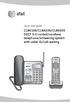 Quick start guide CL84109/CL84209/CL84309 DECT 6.0 corded/cordless telephone/answering system with caller ID/call waiting Installation You must install and charge the battery before using the telephone.
Set Top Box User Guide. Global Reach with a Local Touch
 Set Top Box User Guide Global Reach with a Local Touch Table of Contents REMOTE SET UP 3 SET TOP BOX DIAGRAM 4 SET TOP BOX SETTINGS 5 TURN ON/OFF 5 TV INPUT SETTINGS 5 ADJUSTING THE VOLUME 5 RESETTING
MVS - Mini Video Speaker
 MVS - Mini Video Speaker Mini Clock Radio Night Vision Hidden Camera User Manual Spy Tec www.spytecinc.com GETTING STARTED Components Features Powering Up the Device Micro SD Memory Card for Data Storage
GSM Alarm System User Manual
 GSM Alarm System User Manual For a better understanding of this product, please read this user manual thoroughly before using it. Quick Guider After getting this alarm system, you need to do the following
Digital Photo Picture Frame. Operation Manual
 Digital Photo Picture Frame Operation Manual 20070309 CONGRATULATIONS on your purchase of a Polaroid 7 LCD Digital Photo Picture Frame. Please read carefully and follow all warnings and instructions in
1. Introduction... 3. 2.Fixture exterior view... 3. 3. Connecting the Robe Universal Interface... 4. 3.1 Software update of the fixture...
 1 Table of contests 1. Introduction... 3 2.Fixture exterior view... 3 3. Connecting the Robe Universal Interface... 4 3.1 Software update of the fixture... 4 3.2 Connecting a DMX console to the Media Fusion...
Weather Direct Displays show Lost Forecast (blank boxes in the picture icons)
 Weather Direct Displays show Lost Forecast (blank boxes in the picture icons) Many routine events can cause a Lost Forecast situation. Examples include: Power outage Change batteries Internet down in your
AC750 WiFi Range Extender
 Model EX6100 User Manual April 2014 202-11307-03 350 East Plumeria Drive San Jose, CA 95134 USA Support Thank you for selecting NETGEAR products. After installing your device, locate the serial number
SOFTWARE EasyComm (Code 775 044) USER S MANUAL (Code M 981 357/00 - A) 1997-2000 CIRCUTOR, S.A. All rights reserved
 SOFTWARE EasyComm (Code 775 044) USER S MANUAL (Code M 981 357/00 - A) 1997-2000 CIRCUTOR, S.A. All rights reserved EasyComm INDEX 1. Introduction... Page 2 2. EasyComm contents... Page 2 3. Main features...
Fusion Voicemail Plus User Guide For Android Devices
 Welcome to Fusion Voicemail Plus! Fusion Voicemail Plus User Guide For Android Devices Fusion Voicemail Plus (FVM+) is a replacement for the ordinary voicemail that you use with your cellular phone company.
VIVA 4G LTE Mini Router. Quick Start Guide
 VIVA 4G LTE Mini Router Quick Start Guide Thank you for choosing the VIVA 4G LTE Mini Router (hereinafter referred to as the E57) The supported functions and actual appearance are subject to the product
Rain+Birdt. Simple To Set Timer (SST) Setup & Operation Instructions. English. 1-800- RAIN BIRD (800-724-6247) or visit www.rainbird.
 Rain+Birdt Simple To Set r (SST) Setup & Operation Instructions English Installation...2 Tools and Supplies Needed...2 Step 1. Mount r...2 Step 2. Connect Power...2 Indoor r...2 Outdoor r...2 Step 3. Connect
ReadyNAS OS 6 Desktop Storage Systems
 ReadyNAS OS 6 Desktop Storage Systems Hardware Manual Models: ReadyNAS 102 ReadyNAS 104 ReadyNAS 312 ReadyNAS 314 ReadyNAS 316 ReadyNAS 516 ReadyNAS 716X EDA 500 October 2013 202-11206-04 350 East Plumeria
AUTODIALLER / QUICKDIALLER - SA132
 AUTODIALLER / QUICKDIALLER - SA132 INSTRUCTION LEAFLET ENGLISH www.thermomax-group.com CONTENTS 1 SETUP AT A GLANCE... 2 2 FOREWORD....... 3 3 INSTALLATION...... 4 4 KEYPAD AND INDICATORS...... 5 SETTING
XR1. Intruder alarm system Operating Instructions. Unset system indications. Set System indication
 h m mi R s t P o S t A XR EP 9 XR G panel with built-in keypad 2 5 6 7 Power A tack 0 2 5 6 7 9 Intruder alarm system Operating Instructions These operating instructions cover the following intruder system:
Dash 18X / Dash 18 Data Acquisition Recorder
 75 Dash 18X / Dash 18 Data Acquisition Recorder QUICK START GUIDE Supports Recorder System Software Version 3.1 1. INTRODUCTION 2. GETTING STARTED 3. HARDWARE OVERVIEW 4. MENUS & BUTTONS 5. USING THE DASH
Getting to Know Xsight... 3. Home Screen and Everyday Use... 9. Settings... 11. PC Setup... 17. 2 www.oneforall.com
 User Manual English English Getting to Know Xsight........................................ 3 Unpacking and Setting Up Xsight............................................................. 3 Using Xsight
SA-9600 Surface Area Software Manual
 SA-9600 Surface Area Software Manual Version 4.0 Introduction The operation and data Presentation of the SA-9600 Surface Area analyzer is performed using a Microsoft Windows based software package. The
Prestige 202H Plus. Quick Start Guide. ISDN Internet Access Router. Version 3.40 12/2004
 Prestige 202H Plus ISDN Internet Access Router Quick Start Guide Version 3.40 12/2004 Table of Contents 1 Introducing the Prestige...3 2 Hardware Installation...4 2.1 Rear Panel...4 2.2 The Front Panel
M O D U L E - 7 E Model CS-Caliprompter Operator s Manual
 O P E R A T I O N S A N D P R O C E D U R E S F O R C S - C A L I P R O M P T E R A N D A C C E S S O R I E S Model CS-Caliprompter Visual screen display allows easy step-by-step operation On-site programming
How To Use A Sim Sim Sims 3.2 On A Cell Phone On A Pc Or Mac Or Ipa (For A Sims) On A Simmer (For An Ipa) Or Ipb (For Mac) On An Ip
 Telephone and Voice Mail Quick Reference Guide ADTRAN IP 712 and IP 706 Phones ADTRAN Polycom IP 650, IP 601, IP 501, and IP 430 Phones Table of Contents 4 5 6 10 15 16 17 19 20 21 22 Voice Mail Quick
Cisco Unified IP Phone 6945 User Guide for Cisco Unified Communications Manager Express Version 8.8 (SCCP)
 Cisco Unified IP Phone 6945 User Guide for Cisco Unified Communications Manager Express Version 8.8 (SCCP) First Published: July 22, 2011 Last Modified: July 22, 2011 Americas Headquarters Cisco Systems,
G-100/200 Operation & Installation
 G-100/200 Operation & Installation 2 Contents 7 Installation 15 Getting Started 16 GPS Mode Setup 18 Wheel Sensor Mode Setup 20 Fuel Calibration 23 Basic Operation 24 Telemetery Screen 27 Entering a Distance
N300 WiFi Range Extender WN2000RPT User Manual
 N300 WiFi Range Extender WN2000RPT User Manual December 2013 202-11333-01 350 East Plumeria Drive San Jose, CA 95134 USA Support Thank you for selecting NETGEAR products. After installing your device,
BIT COMMANDER. Serial RS232 / RS485 to Ethernet Converter
 BIT COMMANDER Serial RS232 / RS485 to Ethernet Converter (Part US2000A) Copyrights U.S. Converters 1 Contents Overview and Features... 3 Functions..5 TCP Server Mode... 5 Httpd Client Mode.5 TCP Auto mode....6
Table of Contents. www.scholastic.com/bookfairs/easyscan
 Quick Start Guide Table of Contents Equipment Setup and Break-Down 1-2 Processing a Sale 3 Payment Types 3 Tax Change 3 Scanning Items 4 Price Checks 4 Voids 4 Returns 4 Reprints 4 Gift Certificates 5
Model No. KX-TGP500. Model No. KX-TGP550
 User Guide SIP Cordless Phone Model No. KX-TGP500 Model No. KX-TGP550 Model shown is KX-TGP500. Model shown is KX-TGP550. Thank you for purchasing a Panasonic product. You can configure some of the features
Assets, Groups & Networks
 Complete. Simple. Affordable Copyright 2014 AlienVault. All rights reserved. AlienVault, AlienVault Unified Security Management, AlienVault USM, AlienVault Open Threat Exchange, AlienVault OTX, Open Threat
JKW-IP. IP Video Entry System. QuikStart Guide
 1210 JKW-IP IP Video Entry System QuikStart Guide This is an abbreviated instruction manual for installation purposes. Please see the JKW-IP Installation Manual and JKW-IP Operation Manual for complete
Frequently Asked Questions: Cisco Jabber 9.x for Android
 Frequently Asked Questions Frequently Asked Questions: Cisco Jabber 9.x for Android Frequently Asked Questions (FAQs) 2 Setup 2 Basics 4 Connectivity 8 Calls 9 Contacts and Directory Search 14 Voicemail
AVAYA 9608 & 9611G IP DESKPHONE INSTRUCTIONS
 AVAYA 9608 & 9611G IP DESKPHONE INSTRUCTIONS 1 MESSAGE WAITING INDICATOR PHONE DISPLAY NAVIGATION ARROWS and the OK BUTTON PHONE BUTTON MESSAGE BUTTON CONTACTS HISTORY HOME HEADSET SPEAKER VOLUME BUTTON
Firmware version: 1.10 Issue: 7 AUTODIALER GD30.2. Instruction Manual
 Firmware version: 1.10 Issue: 7 AUTODIALER GD30.2 Instruction Manual Firmware version: 2.0.1 Issue: 0.6 Version of the GPRS transmitters configurator: 1.3.6.3 Date of issue: 07.03.2012 TABLE OF CONTENTS
AVAYA 9608/9611G SIP DESKPHONE INSTRUCTIONS
 AVAYA 9608/9611G SIP DESKPHONE INSTRUCTIONS MESSAGE WAITING INDICATOR PHONE DISPLAY NAVIGATION ARROWS and the OK BUTTON PHONE BUTTON MESSAGE BUTTON CONTACTS HISTORY HOME HEADSET SPEAKER VOLUME BUTTON MUTE
ON-GUARD. Guard Management System. Table of contents : Introduction Page 2. Programming Guide Page 5. Frequently asked questions Page 25 - 1 -
 ON-GUARD Guard Management System Table of contents : Introduction Page 2 Programming Guide Page 5 Frequently asked questions Page 25-1 - Introduction On Guard tm is designed to exceed all the requirements
Part 2. Copyright 1998 Philips Consumer Communications L.P. All rights reserved. Printed in Mexico. Issue 1AT&T 848229506
 2 User's Manual for Two-Line Digital Answering System Telephone with Speakerphone 1872 Fold open this paper for information about this telephone's installation and operation. Please read Part 1 Important
Application Unit, MDRC AB/S 1.1, GH Q631 0030 R0111
 , GH Q631 0030 R0111 SK 0010 B 98 The application unit is a DIN rail mounted device for insertion in the distribution board. The connection to the EIB is established via a bus connecting terminal at the
Quick Reference Guide VT55 & OBDII. Customer Service 1-888-621-TPMS 1-888-621-8767. Version: QSG 2.0-24/12
 Quick Reference Guide VT55 & OBDII Customer Service 1-888-621-TPMS 1-888-621-8767 Version: QSG 2.0-24/12 Table of contents Section A General Description (2 / 12). Section B Triggering a Sensor / Results
New GSM Alarm System. User s Manual. Profile For a better understanding of this product, please read this user manual thoroughly before using it.
 New GSM Alarm System User s Manual Profile For a better understanding of this product, please read this user manual thoroughly before using it. Chapter 1. Features Chapter 2. Alarm Host Introduction Chapter
PPM Users Manual Signature Software 01-12-00
 PPM Users Manual Signature Software 0-2-00 PPM User Manual /8/02 Software Versions: 0.0.27 Contents. Introduction 2 2. Parameters 3 2. Overload Limit...4 2.2 Relative Upper Limit...4 2.3 Relative Lower
4-Channel Thermometer / Datalogger
 USER GUIDE 4-Channel Thermometer / Datalogger RTD and Thermocouple Inputs Model SDL200 Introduction Congratulations on your purchase of the Extech SDL200 Thermometer, an SD Logger Series meter. This meter
Section 5: Installing the Print Driver
 Section 5: Installing the Print Driver In This Section Print Driver Installation for USB Connection Using the Ethernet Connection and a Crossover Cable Print Driver: The Epilog print driver is the software
ADDING and/or DELETING PIN NUMBERS (Plus other simple programming commands) in My DK-16 or DK-26 DIGITAL KEYPAD
 ADDING and/or DELETING PIN NUMBERS (Plus other simple programming commands) in My DK-16 or DK-26 DIGITAL KEYPAD A recurring call that we get here at Securitron Technical Support is from end users of our
Configuring the Siemens TC35 modems for use with the MI2292
 Configuring the Siemens TC35 modems for use with the MI2292 The following instruction describe how to set up GSM communication between an MI2292 Power Quality Analyser Plus and a computer 1. Equipment
Allworx Queuing and Automated Call Distribution Guide (Release 7.2.3.x)
 Allworx Queuing and Automated Call Distribution Guide (Release 7.2.3.x) No part of this publication may be reproduced, stored in a retrieval system, or transmitted, in any form or by any means, electronic,
12 Volt 30 Amp Digital Solar Charge Controller
 12 Volt 30 Amp Digital Solar Charge Controller User s Manual WARNING Read carefully and understand all INSTRUCTIONS before operating. Failure to follow the safety rules and other basic safety precautions
Field Manager Mobile Worker User Guide for RIM BlackBerry 1
 Vodafone Field Manager Mobile Worker User Guide for RIM BlackBerry APPLICATION REQUIREMENTS Supported devices listed here o http://support.vodafonefieldmanager.com Application requires 600 KB of application
Table of Contents. GETTING STARTED...1 Technical Support...1 Scanner Configuration...2 Login and Select a Mode...4
 Barcode Scanner Table of Contents GETTING STARTED...1 Technical Support...1 Scanner Configuration...2 Login and Select a Mode...4 USING THE SCANNER...7 Basic Functionality...7 Shipping or Receiving Mode...8
TS510 & TS500. Installation & User Guide. Compatible Equipment
 Installation & User Guide Compatible Equipment TS510 REM - Remote Keypad 9040 - Loudspeaker DC54/58 - Digital Communicator SD1+ - Speech Dialler 496525 Issue A 1 of 10 TS510 and TS500 Overview Introduction
GERONIMO ANALOGUE HEAVY DUTY TELEPHONE
 GERONIMO ANALOGUE HEAVY DUTY TELEPHONE Installation and Connection Instructions K a l i k a L t d., I n n o v a t i o n H o u s e, A l e x a n d e r B e l l C e n t r e, H o p k i n s o n Wa y, A n d o
User's Guide. Integrating Sound Level Datalogger. Model 407780. Introduction
 User's Guide 99 Washington Street Melrose, MA 02176 Phone 781-665-1400 Toll Free 1-800-517-8431 Visit us at www.testequipmentdepot.com Back to the Extech 407780 Product Page Integrating Sound Level Datalogger
GSM Door Phone System
 GSM Door Phone System System Installation, Setting and Operation Manual User Manual (263-S V1) Please read this user manual completely before operating this system and keep it in a safe place for future
PROGRAMMING & OPERATING INSTRUCTIONS CL5000 AUDIT TRAIL
 PROGRAMMING & OPERATING INSTRUCTIONS CL5000 AUDIT TRAIL 1 CODES AND OPERATION CODES The factory set Master Code is #1234. This should be changed immediately after installation (see Program 10). The Master
ilan Ethernet Box for 9100 Installation Manual
 ilan Ethernet Box for 9100 Installation Manual 07103-00154 March 11, 2014 Corporate Headquarters: 21405 B Street Long Beach, MS 39560 Phone: (800) 259-6672 Fax: (228) 868-9445 Copyright Notice 2014 Triton.