
KRF-V6050D KRF-V5050D
|
|
|
- Mabel Phelps
- 9 years ago
- Views:
Transcription
1 AUDIO VIDEO SUOUND ECEIVE KF-V6050D KF-V5050D INSTUCTION MANUAL KENWOOD COPOATION This instruction manual is used to describe multiple models listed above. Model availability and features (functions) may differ depending on the country and sales area. About the supplied remote control Compared to standard remote controls, the remote control supplied with this receiver has several operation modes. These modes enable the remote control to control other audio/video components. In order to effectively use the remote control it is important to read the operating instructions and obtain a proper understanding of the remote control and how to switch its operation modes (etc.). Using the remote control without completely understanding its design and how to switch the operation modes may result in incorrect operations. Operations B MA (E2, T) P 0009 Additional Information emote Control

2 2 Before applying the power Units are designed for operation as follows. Europe and U.K.... AC 230 V only Other countries... AC / V Caution : ead this page carefully to ensure safe operation. Unpacking Unpack the unit carefully and make sure that all accessories are put aside so they will not be lost. Examine the unit for any possibility of shipping damage. If your unit is damaged or fails to operate, notify your dealer immediately. If your unit was shipped to you directly, notify the shipping company without delay. Only the consignee (the person or company receiving the unit) can file a claim against the carrier for shipping damage. We recommend that you retain the original carton and packing materials for use should you transport or ship the unit in the future. Keep this manual handy for future reference. Accessories FM indoor antenna (1) AM loop antenna (1) For KF-V6050D emote control unit (1) C-0616 Batteries (6/AA) (2) For KF-V5050D emote control unit (1) C-0512 Batteries (6/AA) (2) Safety precautions WANING : TO PEVENT FIE O ELECTIC SHOCK, DO NOT EXPOSE THIS APPLIANCE TO AIN O MOISTUE. CAUTION ISK OF ELECTIC SHOCK DO NOT OPEN CAUTION: TO EDUCE THE ISK OF ELECTIC SHOCK, DO NOT EMOVE COVE (O BACK). NO USE-SEVICEABLE PATS IN- SIDE, EFE SEVICING TO QUALIFIED SEVICE PESONNEL. THE LIGHTNING FLASH WITH AOWHEAD SYMBOL, WITHIN AN EQUILATEAL TIANGLE, IS INTENDED TO ALET THE USE TO THE PESENCE OF UNINSULATED DANGEOUS VOLTAGE WITHIN THE PODUCT S EN- CLOSUE THAT MAY BE OF SUFFICIENT MAGNITUDE TO CONSTITUTE A ISK OF ELECTIC SHOCK TO PESONS. Microcomputer malfunction If operation is not possible or an erroneous display appears, even though all connections have been made properly, reset the microcomputer referring to In case of difficulty. Maintenance of the unit When the front panel or case becomes dirty, wipe with a soft, dry cloth. Do not use thinner, benzine, alcohol, etc. for these agents may cause discoloration. In regard to contact cleaner Do not use contact cleaners because it could cause a malfunction. Be specially careful not to use contact cleaners containing oil, for they may deform the plastic component. THE EXCLAMATION POINT WITHIN AN EQUILATEAL TI- ANGLE IS INTENDED TO ALET THE USE TO THE PES- ENCE OF IMPOTANT OPEATING AND MAINTENANCE (SEVICING) INSTUCTIONS IN THE LITEATUE ACCOM- PANYING THE APPLIANCE.

3 Before applying the power Contents Caution : ead the pages marked carefully to ensure safe operation. 3 Operations Before applying the power... 2 Safety precautions... 2 Unpacking... 2 How to use this manual... 4 Special features... 4 Names and functions of parts... 5 emote control unit (C-0616) (KF-V6050D)... 6 emote control unit (C-0512) (KF-V5050D)... 7 Setting up the system... 8 Connecting audio components... 9 Connecting video components Connecting a player (6 channel input) Digital connections Connecting to the AV AUX jacks (KF-V6050D only) Connecting the antennas Connecting the system control Connecting the speakers Preparing the remote control Preparing for surround sound Speaker settings Normal playback Preparing for playback Listening to a source component Adjusting the sound ecording ecording audio (analog sources) ecording video ecording audio (digital sources) Listening to radio broadcasts Tuning (non-ds) radio stations Using DS (adio Data System) Using the DS DISP. (Display) key Presetting DS stations (DS AUTO MEMOY) Presetting radio stations manually eceiving preset stations eceiving preset stations in order () Tuning by program type (PTY search) Ambience effects Surround modes Surround play channel playback Convenient functions emote Control Additional Information Basic remote control operations for other components (For KF-V6050D) egistering setup codes for other components Operating other components Setup code chart (KF-V6050D) (For C-0616) player operations (For KF-V5050D) Cassette deck, CD player & MD recorder operations (For KF-V5050D) Cassette deck, CD player & MD recorder operations (For KF-V6050D) Other components' operations (For KF-V6050D) In case of difficulty Specifications Operations Additional emote Information Control emote Other Control

4 Before applying the power How to use this manual 4 The manual covers the KF-V6050D and KF-V5050D. Items such as functions, number of jacks, and remote control details differ somewhat between these models. To confirm the functions available on the model you have purchased, refer to the table below. Model name emote Terminal Control Speaker out Front input KF-V6050D C systems Equipped (A, B) KF-V5050D C system Not equipped This manual is divided into four sections,, Operations, emote Control, and Additional Information. Shows you how to connect your audio and video components to the receiver and prepare the surround processor. We will guide you to make setting up your system as easy as possible. However, since this receiver works with all of your audio and video components, connecting the system can be fairly complex. Operations Shows you how to operate the various functions available from the receiver. emote Control (KF-V6050D only) Shows you how to operate other components using the remote control, as well as a detailed explanation of all remote control operations. Once you have registered your components with the proper setup codes, you ll be able to operate both this receiver and your other AV components (TV, VC, player, CD player, etc.) using the remote control supplied with this receiver. Additional Information Shows you additional information such as In case of difficulty (troubleshooting) and Specifications. Special features True home theater sound This receiver incorporates a wide variety of surround modes to bring you maximum enjoyment from your video software. Select a surround mode according to your equipment or the software you are going to play and enjoy! Dolby Pro Logic & Dolby 3 Stereo This surround system reproduces theater-like surround sound from video software marked. The PO LOGIC mode uses the built-in adaptive matrix circuit to steer the Left, Center, ight and Surround channel audio signals. The 3 STEEO mode will redirect the Surround signal to the front left and right speakers when only the front and center speakers are used. Dolby Digital The DOLBY DIGITAL mode lets you enjoy full digital surround from software processed in the Dolby Digital format. Dolby Digital provides up to 5.1 channels of independent digital audio for better sound quality and more powerful presence than conventional Dolby Surround. DTS DTS (Digital Theater System) is a 5.1 channel digital audio format that provides five full-spectrum channels and one low-frequency (subwoofer) channel for unprecedented clarity, optimum channel separation and a (wide) dynamic range. In the DTS mode, the 5.1 channel digital input from a DTS CD, LD or disc (carrying the DTS marking) can be played in Digital Surround. Important: When a DTS disc is played on a CD, LD or player, noise may be output from the analog output. It is recommended that you connect the digital output of the player to the digital input of this unit. DSP surround modes The DSP (Digital Signal Processor) used for this receiver incorporates a variety of high quality adjustable sound fields, like AENA, JAZZ CLUB, THEATE, STADIUM and DISCO. It is compatible with almost any kind of program source. 6-channel input If you own a player equipped with 6-channel output, this receiver allows you to obtain the full surround sound impact of source material featuring multi-channel encoding. Since the source signals are digital and each channel is input independently, the resulting ambience is far superior to what can be achieved with conventional surround sound systems. Universal I (Infraed) remote control (KF-V6050D only) In addition to the basic receiver, the remote control supplied with this receiver can also operate almost all of your remote controllable audio and video components. Just follow the simple setup procedure to register the components you have connected. DS (adio Data System) tuner The receiver is equipped with an DS tuner that provides several convenient tuning functions: DS Auto Memory, to automatically preset up to 40 DS stations broadcasting different programs; station name display, to show you the name of the current broadcast station; and PTY search to let you tune stations by program type. Memory back up function Please note that the following items will be deleted from the unit's memory if the power cord is disconnected from the AC outlet for approximately 2 days. Power mode. Input selector settings. Device preset. Picture output. Speaker ON/OFF Volume level. BASS, TEBLE, INPUT level. Subwoofer ON/OFF. Dimmer level. Monitor ON/OFF. MD/TAPE settings. 6ch/2ch input setting. Listen mode setting. Speaker settings. Input mode setting. Midnight mode setting. Broadcast band. Frequency setting. Preset stations. Tuning mode. CINEMA EQ. Source Direct. PTY (Program TYpe) search Tune the stations by specifying the type of program you want to hear.

5 Names and functions of parts CLIP indicator MUTE indicator Speaker indicators SP A B TI.VOL CLIP DS EON PTY TP DS TA NEWS PTY DS indicators Frequency display, Input display, Preset channel display, Surround mode display L C SL S S Speaker selection indicators Input channel indicators Output channel indicators Display AUTO SOUND indicator Band indicators DOWNMIX indicator PO LOGIC indicator DIGITAL indicator S.DIECT indicator AUTO indicator MEMO. indicator ST. indicator MHz 3 STEEO MONITO ST. khz DOWNMIX DSP TUNED 3 STEEO indicator STEEO indicator TUNED indicator MONITO indicator DSP indicator 5 VOLUME CONTOL STANDBY DTS DOLBY DIGITAL DSP MODE INPUT SELECTO SET UP INPUT MODE DIMME MONITO ON/STANDBY ON OFF A SPEAKES B MULTI CONTOL SOUND BAND LISTEN MODE SOUCE DIECT AUTO/CINEMA EQ. MEMOY DOWN UP PHONES S-VIDEO V AV AUX L AUDIO For KF-V6050D SPEAKE MUTE For KF-V5050D 1 key * Use to switch the main power ON/OFF. 2 ON/STANDBY ( ) key * Use to switch the power ON/STANDBY when the is turned ON. STANDBY indicator 3 MULTI CONTOL keys * Use to control a variety of settings. 4 SET UP key * Use to select the speakers' settings etc. 5 Surround indicators DTS indicator ª Lights when the receiver is in the DTS mode. DOLBY DIGITAL indicator ª Lights when the receiver is in the Dolby Digital mode. DSP MODE indicator Lights when the receiver is in the DSP mode. 6 INPUT MODE key 8 Use to switch between the digital and analog inputs. 7 DIMME key Use to adjust the brightness of the display. Use to select the EC MODE. 8 MONITO key Use to monitor the source that is connected to the VIDEO2/MONITO jack. 9 VOLUME CONTOL knob ) 0 PHONES jack Use for headphone listening.! SPEAKES A/B keys ) (For KF-V6050D) Use to turn the A/B speakers ON/OFF.! SPEAKE key ) (For KF-V5050D) Use to turn the speakers ON/OFF. MUTE key (For KF-V5050D) Use to temporarily mute the SOUND key º Use to adjust the sound quality and ambience effects. # BAND key Use to select the broadcast band. $ AUTO/CINEMA EQ. key Use to select the auto tuning mode. Use to switch the status of CINEMA EQ. % LISTEN MODE key ª Use to select the listening mode. ^ MEMOY key Use to store radio stations in the preset memory. & SOUCE DIECT key Use to pass the source material direct to the amplifier. * INPUT SELECTO knob ) Use to select the input sources. ( AV AUX (S VIDEO, V, AUDIO L/) jack (For KF-V6050D) # Standby mode When standby indicator is lit, this receiver is in standby mode and consumes a small amount of current for back-up. This system can be switched on using remote control.

6 Names and functions of parts emote control unit (C-0616) (KF-V6050D) 6 This remote control unit can be used not only for Kenwood products but also for other non-kenwood products by setting the appropriate maker setup codes TV VC # $ ETUN LSTN M. MENU SET UP OSD SOUND PTY DS DISP. MULTI CONTOL % TUNING ENTE BAND A/B+100 AUTO B.BOOST DISC SKIP ECEIVE TITLE TV SEL. INPUT SEL. PHONO CD/ TUNE MD/TAPE DISC SEL. CHANNEL VIDEO1 VIDEO2 CINE.EQ AV AUX MUTE VOLUME ^ & * ( ) If the name of a function is different on the receiver and on the remote control, the name of the remote control key in this manual is indicated in parentheses. 1 Numeric keys fi Provide functions identical to those of the original remote control supplied with the component you are controlling. 2 LSTN M. key ª Use to select the listening mode. ETUN key Use to operate other components. 3 SET UP key * Use to select speakers' settings etc. MENU key Use to operate other components. 4 SOUND key º Use to adjust the sound quality and ambience effects. OSD key Use to operate other components. 5 MULTI CONTOL keys * Use to control a variety of settings. Use to operate other components. 4/ keys If tuner is selected as the input source, these keys function as keys. 4/ keys If CD or MD is selected as the input source, these keys function as skip keys. 6 TUNING 1/ keys Use to operate the tuner or selected component. If CD, MD or TAPE is selected as the input source, these keys function as search keys. 7 B. BOOST key ) Use to select the maximum adjustment setting for the low frequency range. ECEIVE key Use to return to the operation of the receiver. 8 DISC SKIP key If CD is selected as the input source, this key functions as the multi-cd player disc skip key. A/B key If TAPE is selected as the input source, this key functions as the A and B play keys of a double cassette deck key Use to select the disc number with the multi- CD player. 9 TITLE key Use to operate other components. 0 TV SEL. key Use to operate other components.! INPUT SELECTO keys (, PHONO, CD/, TUNE, MD/TAPE, VIDEO1, VIDEO2, AV AUX) ) Use to select the input sources. 4 keys When in player operations, these keys function as skip MUTE key Use to temporarily mute the sound. # ( )key & Use to turn the receiver on and off. $ key (TV, VC, ) Use to turn the other components on and off. % PTY key Use for PTY search. DS DISP. key Use to receive DS broadcasts. ^ ENTE key Use to operate other components. 2 key If tape is selected as the input source, this key functions as the play key for side B of the cassette (the side facing away from the front of the deck). & BAND key Use to select the broadcast band. 6 key If CD is selected as the input source, this key functions as the play/pause key. If MD or TAPE is selected as the input source, this key functions as the play key. * AUTO key Use to select the auto tuning mode. 7 key If CD, MD or TAPE is selected as the input source, this key functions as the stop key. ( 8 key Use to operate other components. ) INPUT SEL. key Use to operate other components. CHANNEL %/fi keys Use to select the channel. CINE. EQ key Use to switch the status of CINEMA EQ. DISC SEL. key Use to operate other components. VOLUME keys Use to adjust the receiver volume.

7 Names and functions of parts emote control unit (C-0512) (KF-V5050D) PTY MENU SET UP OSD SOUND ETUN TITLE LISTEN MODE MULTI CONTOL DS DISP. # $ TUNING A/B+100 BASS BOOST DISC SKIP ENTE AUTO BAND PHONO CD/ TUNE MD/TAPE % ^ & * 8 VIDEO1 VIDEO2 DISC SEL. CINE.EQ ( 9 MUTE VOLUME ) 1 Numeric keys If CD or MD is selected as the input source, these keys function as numeric keys. If tuner is selected as the input source, these keys are used to call up station presets. 2 SET UP key * Use to select speakers' settings etc. MENU key Use to operate other components. 3 SOUND key º Use to adjust the sound quality and ambience effects. OSD key Use to operate other components. 4 MULTI CONTOL keys * Use to control a variety of settings. 4/ keys If tuner is selected as the input source, these keys function as keys. 4/ keys If CD or MD is selected as the input source, these keys function as skip keys. 5 TUNING 1/ keys If tuner is selected as the input source, these keys function as tuning keys. If CD, MD or TAPE is selected as the input source, these keys function as search keys. 6 BASS BOOST key ) Use to select the maximum adjustment setting for the low frequency range. 7 DISC SKIP key If CD is selected as the input source, this key functions as the multi-cd player disc skip key. A/B key If TAPE is selected as the input source, this key functions as the A and B play keys of a double cassette deck key Use to select the disc number with the multi- CD player. 8 INPUT SELECTO keys (, PHONO, CD/, TUNE, MD/TAPE, VIDEO1, VIDEO2) ) Use to select the input sources. 9 MUTE key Use to temporarily mute the sound. 0 ( ) key & Use to turn the receiver on and off.! key Use to operate player. For details, refer to the instruction manual of your player. (Press the key for more than 2 seconds.) 4 keys When in player operations, these keys function as skip ECEIVE key Use to return to the operation of the receiver. # TITLE key Use to operate other components. PTY key Use for PTY search. DS DISP. key Use to receive DS broadcasts. $ LISTEN MODE key º Use to select the listening mode. ETUN key Use to operate other components. % ENTE key Use to operate other components. 2 key If tape is selected as the input source, this key functions as the play key for side B of the cassette (the side facing away from the front of the deck). ^ BAND key Use to select the broadcast band. 6 key If CD is selected as the input source, this key functions as the play/pause key. If MD or TAPE is selected as the input source, this key functions as the play key. & 8 key Use to operate other components. * AUTO key Use to select the auto tuning mode. 7 key If CD, MD or TAPE is selected as the input source, this key functions as the stop key. ( CINE.EQ key Use to switch the status of CINEMA EQ. DISC SEL. key Use to operate other components ) VOLUME keys Use to adjust the receiver volume.

8 Setting up the system 8 Make connections as shown in the following pages. When connecting the related system components, be sure to also refer to the instruction manuals supplied with the components you are connecting. Do not connect the power cord to a wall outlet until all connections are completed. DTS disclaimer clause DTS Digital Surround is a discrete 5.1 channel digital audio format available on CD, LD, and software which consequently cannot be decoded and played back inside most CD, LD, or players. For this reason, when DTS-encoded software is played back through the analog outputs of the CD, LD, or player, excessive noise will be exhibited. To avoid possible damage to the audio system, proper precautions should taken by the consumer if the analog outputs are connected directly to an amplification system. To enjoy DTS Digital Surround playback, an external 5.1 channel DTS Digital Surround decoder system must be connected to the digital output (S/P DIF, AES/EBU, or TosLink) of the CD, LD or player. Input mode settings CD/, VIDEO2 and /6ch inputs each include jacks for digital audio input and analog audio input. You must select beforehand which type of input is to be used for each connected component. The initial factory settings for audio signal playback (CD/, /6ch) and (VIDEO2) are digital and analog respectively. To use the analog audio input for playback instead (if, for example, you have connected a VC to the VIDEO2 input), you must set the input mode for the corresponding input to the analog mode. After completing connections and turning on the receiver, follow the steps below. INPUT SELECTO VIDEO 2/MONITO jacks The receiver s VIDEO 2/MONITO jacks can be used in two different ways. Make the appropriate setting for the component connected to the jack when the receiver is turned on. Use as a VIDEO 2 jack You can connect a video deck or the like to these jacks and perform video playback and recording. The initial factory setting is VIDEO 2. Use as a MONITO jack You can connect a cassette deck or the like to these jacks and make use of the deck s monitoring function during recording. Alternately, you can connect a graphic equalizer to these jacks to apply compensation to the music signal. To use the VIDEO 2/MONITO jacks as MONITO jacks, hold down the MONITO key of the main unit for more than two seconds so that the indication shown below appears. MONITO INPUT MODE 1 Use the INPUT SELECTO knob to select CD/, VIDEO2, or /6ch. 2 Press the INPUT MODE key. Each press switches the setting as follows: In DTS play mode 1 D-AUTO (digital input, auto sound) 2 D-MANUAL (digital input, manual sound) In /6ch play mode 1 D-AUTO (digital input, auto sound) 2 D-MANUAL (digital input, manual sound) 3 6ch INPT (/6ch input) 4 ANALOG (analog input, manual sound) In modes other than DTS or play mode 1 D-AUTO (digital input, auto sound) 2 D-MANUAL (digital input, manual sound) 3 ANALOG (analog input, manual sound) SP A B TI.VOL PTY DS EON L C S MHz 3 STEEO MONITO ST. Digital input: Select this setting to play digital signals from a, CD, or LD player. To switch the setting back to VIDEO 2, once again hold down the MONITO key for two seconds or more. Notes 1. Be sure to insert all connection cords securely. If their connections are imperfect, the sound may not be produced or noise may interfere. 2. Be sure to remove the power cord from the AC outlet before plugging or unplugging any connection cords. Plugging/unplugging connection cords without disconnecting the power cord can cause malfunctions and may damage the unit. 3. Do not connect power cords from components whose power consumption is larger than what is indicated on the AC outlet at the rear of this unit. Analog connections Audio connections are made using CA pin cords. These cables transfer stereo audio signal in an analog form. This means the audio signal corresponds to the actual audio of two channels. These cables usually have 2 plugs on each end, one red for the right channel and one white for the left channel. These cables are usually packed together with the source unit, or are available at your local electronics retailer. Analog input: Select this setting to play analog signals from a cassette deck, VC, or turntable. Auto sound: In the auto sound mode (AUTO SOUND indicator lights), the receiver selects the listening mode automatically during playback to match the type of input signal (Dolby Digital, PCM, DTS ) and the speaker setting. The initial factory setting is auto sound on. To keep the receiver set to the currently selected listening mode, use the INPUT MODE key to select D-MANUAL (manual sound). However, even when this setting is selected, there may be cases in which the listening mode is selected automatically to match a Dolby Digital source signal depending on the combination of listening mode and source signal. If the INPUT MODE key is pressed quickly, sound may not be produced.

9 L A L C B L L Setting up the system Connecting audio components Shape of AC outlets 9 U. K. Europe SYSTEM CONTOL jacks $ To AC wall outlet L EC OUT PLAY IN EC OUT PLAY IN GND PHONO CD/ MD/TAPE VIDEO 2/MONITO AUDIO IN OUT Video component, 3 head cassette deck, or Graphic equalizer OUT Cassette deck or MD recorder IN OUT CD player OUT Moving Coil (MC) cartridge record player cannot be used directly from the receiver unit. It can only be used when another equalizer amplifier is connected. ecord player When you connect the audio cord of the video component to the VIDEO2/ MONITO jacks, connect the video cord (yellow CA pin cords) of the connected component to the VIDEO2 IN jack.

10 L S VIDEO PLAY IN EC OUT MONITO OUT VIDEO 1 PLAY IN VIDEO 1 A L C B L L Setting up the system Connecting video components 10 S VIDEO S Video jacks (KF-V6050D only) PLAY IN EC OUT PLAY IN About the S VIDEO jacks S VIDEO MONITO OUT VIDEO 1 VIDEO 1 Use the S VIDEO jacks to make connections to video components with S VIDEO IN/OUT jacks. If you use the S VIDEO jacks to connect your video playback components, be sure to use the S VIDEO jacks when connecting your monitor and video recording components. VIDEO VIDEO 2 IN CD/ IN MONITO OUT VIDEO 1 OUT VIDEO 1 IN CD / EC OUT PLAY IN MD / TAPE AUDIO EC OUT PLAY IN EC OUT PLAY IN VIDEO 2/MONITO VIDEO 1 Monitor TV VIDEO IN IN Video deck IN Video Inputs (Yellow CA pin cord) IN OUT Video inputs and outputs (Yellow CA pin cords) OUT Audio inputs and outputs OUT player or LD player OUT A video component with digital audio outputs should be connected to the VIDEO2 jacks.

11 L S VIDEO PLAY IN EC OUT MONITO OUT VIDEO 1 PLAY IN VIDEO 1 A L C B L L Setting up the system Connecting a player (6-channel input) If you have connected a player to the receiver with digital connection, be sure to read the Input mode settings section carefully VIDEO VIDEO 2 IN CD/ IN L CENTE PLAY IN MONITO OUT VIDEO 1 OUT FONT SUOUND SUB WOOFE VIDEO 2/MONITO COAXIAL /6CH. INPUT VIDEO 1 IN S VIDEO cord VIDEO OUT (Yellow CA pin cord) FONT OUT L/ SUOUND OUT L/ CENTE OUT player SUBWOOFE OUT S VIDEO OUT COAXIAL DIGITAL OUT (AUDIO) To switch the speakers off, press the MUTE key. CAUTION Be sure to adhere followings. Or proper ventilation will be blocked causing damage or fire hazard. Do not place any objects impairing heat radiation onto the top of unit. Leave a space around the unit (from the largest outside dimension including projection) equal or greater than, shown below. Top panel : 50 cm Side panel : 10 cm Back panel : 10 cm

12 L S VIDEO MONITO OUT PLAY IN EC OUT PLAY IN VIDEO 1 A L C B L L Setting up the system Digital connections 12 The digital in jacks can accept DTS, Dolby Digital, or PCM signals. Connect components capable of outputting DTS, Dolby Digital, or standard PCM (CD) format digital signals. If you have connected any digital components to the receiver, be sure to read the Input mode settings section carefully. 8 VIDEO 2/MONITO COAXIAL DIGITAL IN CD/ OPTICAL Optical fiber cable OPTICAL DIGITAL OUT (AUDIO) CD player COAXIAL DIGITAL OUT (AUDIO) COAXIAL DIGITAL OUT (AUDIO) F digital demodulator (DEM-9991D) (sold separately) Component with a DTS, Dolby Digital, or PCM COAXIAL DIGITAL OUT Connect the video signal and analog audio signals to the VIDEO 2 jacks. (See Connecting video components.) 0 DOLBY DIGITAL F OUT (AUDIO) PCM OUT LD player To connect an LD player with a DIGITAL F OUT, connect the LD player to the KENWOOD F digital demodulator (DEM-9991D). Next, connect the DIGITAL OUT jacks of the demodulator to the DIGITAL IN jacks of the receiver. Connect the video signal and analog audio signals to the VIDEO2/MONITO jacks. (See Connecting video components.)

13 S VIDEO PLAY IN EC OUT MONITO OUT VIDEO 1 PLAY IN VIDEO 1 A L C B L L Setting up the system Connecting to the AV AUX jacks (KF-V6050D only) The AV AUX jacks are convenient for connection of video components such as a camcorder or a video game. Connecting the antennas AM loop antenna The supplied loop antenna is for use indoors. Place it as far as possible from the receiver, TV set, speaker cords and power cord, and adjust the direction for best reception. 13 AM antenna terminal connections 1 Push lever. 2 Insert cord. 3 elease lever. S VIDEO V AV AUX L AUDIO FM indoor antenna The supplied indoor antenna is for temporary use only. For stable signal reception we recommend using an outdoor antenna. Disconnect the indoor antenna when you connect one outdoors. FM antenna terminal connections Insert cord. S VIDEO cord FM outdoor antenna Lead the 75Ω coaxial cable connected to the FM outdoor antenna into the room and connect it to the FM 75Ω terminal. VIDEO OUT S VIDEO OUT Camcorder, other VC, video game, digital camera, or portable MD player AUDIO OUT ANTENNA GND Attach to the stand. FM 75Ω AM AM loop antenna FM indoor antenna FM outdoor antenna Use an antenna adaptor (Commercially available) To select the source connected to the AV AUX jacks, select AV AUX by using the INPUT SELECTO knob. ) When you connect the audio source such as the MD player, you do not need to connect the video cable. When you connect the unit and the component with the S VIDEO cord, you can get better picture quality.

14 Setting up the system Connecting the system control 14 Connecting system control cords after connecting a KENWOOD audio component system lets you take advantage of convenient system control operations. This unit is compatible only with the [SL-16] mode. The system control operation is not available if the unit is connected in the [XS8], [XS], or [X] connection mode. If your component has the mode select switch, set the connected components to the [SL16] mode. SYSTEM CONTOL SYSTEM CONTOL cord You may connect the system control cord to either the left or right jack. EXAMPLE: [SL16] mode connections The underlined portion represents the setting of the system control mode. SYSTEM CONTOL OPEATIONS emote Control Lets you operate this unit with the system remote supplied with the receiver. Automatic Operation When you start playback from a source component, the input selector on this unit switches to that component automatically. Synchronized ecording Lets you synchronize recording with the start of playback when recording from CD, MD or analog discs. egistering setup codes for KENWOOD audio components (KF-V6050D only) If you own remote controllable KENWOOD audio components that are not compatible with system control, registering the setup code enables you to control those components using the remote control supplied with this unit (without connecting system control cords). To register setup codes for your remote controllable KENWOOD audio components, see egistering setup codes for other components. [SL16] [SL16] [XS] [XS8] [X] [SL16] [XS] [XS8] [XS] eceiver Cassette deck or MD recorder CD player ecord player SYSTEM CONTOL cord In order to take advantage of the system control operations, the components must be connected to the correct jacks. To use a CD player it must be connected to the CD jacks. To use a cassette deck (or MD recorder) it must be connected to the MD/TAPE jacks. When using more than one CD player (etc.) only the one connected to the specified jacks may be connected for system control. Some CD players and cassette decks are not compatible with the [SL16] system control mode. Do not make system connections with equipment that is not [SL16] compatible. Some MD players are not system control compatible. You cannot make system control connections to this kind of equipment. Notes 1. [SL16] equipment cannot be combined with [X], [XS], and [XS8] equipment for system operations. If your equipment consists of this kind of combination, please do not connect any system control cords. Even without system control cords, normal operations can be carried out without effecting performance. 2. Do not connect system control cords to any components other than those specified by KENWOOD. It may cause a malfunction and damage your equipment. 3. Be sure the system control plugs are inserted all the way in to the system control terminals. Do not connect a system control cord to a cassette deck connected to the VIDEO2/MONITO jacks.
![If your component has the mode select switch, set the connected components to the [SL16] mode.](/docs-images/46/21153459/images/page_14.jpg "SYSTEM CONTOL SYSTEM CONTOL cord You may connect the system control cord to either the left or right jack.")
15 Setting up the system Connecting the speakers 1 Strip coating. 2 Loosen. Never short circuit the + and speaker cords. If the left and right speakers are connected inversely or the speaker cords are connected with reversed polarity, the sound will be unnatural with ambiguous acoustic imaging. Be sure to connect the speakers correctly Insert. 4 Secure. Speaker impedance After confirming the speaker impedance indications printed on the rear panel of the receiver, connect speakers with matching impedance ratings. Using speakers with a rated impedance other than that indicated on the rear panel of the receiver could result in malfunctions or damage to the speakers or receiver. 1 Strip coating. 2 Push the lever. 3 Insert the cord. 4 eturn the lever.

16 L S VIDEO PLAY IN EC OUT MONITO OUT VIDEO 1 PLAY IN VIDEO 1 A L C B L L Setting up the system Connecting the speakers 16 Front Speakers A ight Left Center Speaker The KF-V5050D is equipped with onetouch speaker terminals.they are arranged in the same manner as the speaker terminals of the KF-V6050D. efer to the instructions on making connections to the KF-V6050D when making connections to the KF-V5050D. FONT SPEAKES CENTE SPEAKE ED BLUE GEEN FONT SPEAKES CENTE SPEAKE ED BLUE GEEN + - KF-V5050D KF-V6050D SUB WOOFE PE OUT KF-V6050D FONT SPEAKES (6 16Ω) + + KF-V5050D SUOUND SPEAKES (6 16Ω) OANGE GAY OANGE (6 16Ω) GAY SUOUND SPEAKES Powered subwoofer ight Left Surround Speakers (Be sure to connect both surround speakers) Use the FONT SPEAKES B terminals if you want to connect a second front speaker system (for KF-V6050D only).

17 Setting up the system Speaker placement Preparing the remote control Loading the batteries 1 emove the cover. 2 Insert the batteries. 17 Center speaker Front speaker Surround speaker Subwoofer Listening position 3 Close the cover. 2 1 Front speakers : Place to the front left and right of the listening position. Front speakers are required for all surround modes. Center speaker : Place front and center. This speaker stabilizes the sound image and helps recreate sound motion. Be sure to connect a center speaker when using the Dolby 3 Stereo mode. Surround speakers : Place to the direct left and right, or slightly behind, the listening position at even heights, approximately 1 meter above the ears of the listeners. These speakers recreate sound motion and atmosphere. equired for surround playback. Subwoofer : eproduces powerful deep bass sounds. Although the ideal surround system consists of all the speakers listed above, if you don't have a center speaker or a subwoofer, you can divide those signals between the available speakers in the speaker settings steps to obtain the best possible surround reproduction from the speakers you have available. * Insert two AA-size (6) batteries as indicated by the polarity markings. Operation When the STANDBY indicator is lit, the power turns ON when you press the key on the remote control. When the power comes ON, press the key you want to operate. Operating range (Approx.) emote sensor 6 m Infrared ray system When pressing more than one remote control key successively, press the keys securely by leaving an interval of 1 second or more between keys. Notes 1. The supplied batteries may have shorter lives than ordinary batteries due to use during operation checks. 2. When the remote-controllable distance gets shorter than before, replace both batteries with new ones. 3. Placing the remote sensor in direct sunlight, or in direct light from a high frequency fluorescent lamp may cause a malfunction. In such a case, change the location of the system installation to prevent malfunction.

18 Preparing for surround sound Speaker settings 18 To enable you to obtain optimum enjoyment from the receiver s listening modes, make sure to complete the speaker settings (subwoofer, front, center, and surround speakers) as described below. MULTI CONTOL SET UP 6 Use the MULTI CONTOL keys to select the appropriate center speaker setting. If you have selected LG as the front speakers setting, 1 CNT LG (large): A large center speaker is connected to the receiver. 2 CNT NML (normal): An average size center speaker is connected to the receiver. 3 CNT OFF: Center speaker setting mode to the receiver is OFF. If you have selected NML as the front speakers setting, 1 CNT ON: Center speaker setting mode to the receiver is ON. 2 CNT OFF: Center speaker setting mode to the receiver is OFF. ON/STANDBY 7 Press the SET UP key again to accept the setting. The surround speaker setting indication (SU) appears. 1 2 Turn on the power to this receiver by pressing or ON/STANDBY key. Select a speaker system. 1 Press the SET UP key such that the subwoofer setting indication (SUBW ON) appears. SP A B TI.VOL PTY DS EON 2 Use the MULTI CONTOL keys to select the appropriate subwoofer setting. 1 SUBW ON: Subwoofer setting mode to the receiver is ON. 2 SUBW OFF: Subwoofer setting mode to the receiver is OFF. The initial setting is SUBW ON. When SUBW OFF is selected, the front speakers are automatically set to FNT LG and the procedure skips to step 5. When subwoofer output sound is required, select FNT NML. 3 Press the SET UP key again to accept the setting. The front speakers setting indication (FNT) appears. SP A B TI.VOL PTY DS EON C-0616 L C LS S S L C LS S S SET UP MULTI CONTOL C-0512 MHz 3 STEEO MONITO ST. MHz 3 STEEO MONITO ST. 4 Use the MULTI CONTOL keys to select the appropriate front speakers setting. 1 FNT NML (normal): Average size front speakers are connected to the receiver. 2 FNT LG (large): Large front speakers are connected to the receiver. For FNT LG selection, no sound will be heard from SUBW even when it is set to ON. However, if you select CINEMA EQ. when subwoofer is selected, you will be able to hear sound from the subwoofer. When in STEEO mode, the sound goes directly to front speaker. 8 Use the MULTI CONTOL keys to select the appropriate surround speaker setting. If you have selected LG as the center speaker setting, 1 SU LG (large): Large surround speakers are connected to the receiver. 2 SU NML (normal): Average size surround speakers are connected to the receiver. 3 SU OFF: Surround speaker setting mode to the receiver is OFF. If you have selected other than LG as the center speaker setting, 1 SU ON: Surround speaker setting mode to the receiver is ON. 2 SU OFF: Surround speaker setting mode to the receiver is OFF. 9 Press the SET UP key again to accept the setting. The receiver enters the speaker volume level adjustment mode. In steps 3 and 4, indications appear only for the selected channels of the speakers that require adjusting. 3 Adjust the speaker volume. From your usual listening position, adjust the volume levels. The volume levels from each speaker should be the same. 1 Use the MULTI CONTOL keys to adjust the volume of the test tone output from the speaker channel to be adjusted. The channel indication blinks while the test tone is being output. SP A B TI.VOL PTY DS EON L C LFE LS S S FM AUTO SOUND AM PO LOGIC MHz 3 STEEO khz DOWN MIX DIGITAL AUTO S.DIECT MEMO MONITO ST. DSP TUNED The test tone is heard from the speakers for 2 seconds at a time in the following sequence for 2 seconds each: L = C = = S = SL = SW If you change the volume level settings for the speakers while listening to music, the settings referred to on this page are also changed. º If the speaker setting selects are changed, the speaker level settings are reset. 2 Press the SET UP key. The test tone is turned off. The receiver enters the mode for inputting the distance to the speakers. 5 Press the SET UP key again to accept the setting. The center speaker setting indication (CNT) appears.

19 4 Input the distance to the speakers. The speaker indicator to be adjusted blinks. Preparing for surround sound 1 Measure the distance from the listening position to each of the speakers. Jot down the distance to each of the speakers. Distance to front speakers: feet (meters) Distance to center speaker: feet (meters) Distance to surround speakers: feet (meters) 2 Use the MULTI CONTOL keys to select the distance to the front speakers. Normal playback Preparing for playback Some preparatory steps are needed before starting playback. ON/STANDBY INPUT MODE AUTO/CINEMA EQ. 19 SP A B TI.VOL L C DS EON PTY LS S S Indication in feet Indication in meters The allowable setting range is 1 to 30 feet (0.3 to 9.0 m), adjustable in 1 foot (0.3 m) increments. 3 Press the SET UP key to accept the settings. 4 epeat steps 2 and 3 to input the distance for each of the speakers. 5 Setup is complete when the input indication reappears. SP A B TI.VOL L C DS EON PTY LS S S Display when all speakers have been selected. The speakers you have selected should appear on the display. Confirm that all the speakers have been correctly selected. Input level adjustment (analog sources only) MHz 3 STEEOMONITO ST. INPUT SELECTO Speakers A/B (SPEAKE/MUTE) Selecting the input mode If you have selected a component connected to the CD/, /6ch, or VIDEO2/MONITO jacks, make sure that the input mode setting is correct for the type of audio signal to be used. 8 Selecting MD/TAPE Select the source name corresponding to the component connected to the MD/TAPE jacks. The initial factory setting is TAPE. To change the source name to MD, follow the steps below: 1 Use the INPUT SELECTO knob to select TAPE. 2 Hold down the AUTO/CINEMA EQ. key for more than 2 seconds. The source indication changes to MD. To return to the original indication, repeat procedure 2. Selecting the speaker system (KF-V6050D only) Press the SPEAKES A or B key to select the speaker system to be used. Operations If the input level of an analog source signal is too high, adjust the input level. The CLIP indicator will blink to indicate the source signal. CLIP DS TP 1 Use the INPUT SELECTO knob to select the input level of the source you want to adjust. You can store a separate input level for each input source. If the MONITO function is on, you can store an input level for when MONITO is on independently of the input levels for the input sources. 2 Press the SOUND key repeatedly until the INPUT indication appears. 3 Use the MULTI CONTOL keys to adjust the input level. A ON : Sound from the speakers connected to the SPEAKES A terminals on the rear panel. B ON : Sound from the speakers connected to the SPEAKES B terminals on the rear panel. A+B ON : Sound from both the speakers connected to the SPEAKES A and B terminals on the rear panel. A+B OFF : No sound from the speakers. Use this setting when listening with headphones for stereo sound and virtual surround in all playback modes. The indicator for the speakers you want to use should be lit. SP A B TI.VOL L C DS EON PTY LS S S KF-V6050D The speaker indicator lights. SP A B TI.VOL L C DS EON PTY LS S S KF-V5050D Selecting 6ch INPT by pressing the INPUT MODE key, whereby /6ch is the input source, will cause SPEAKE A to be selected automatically. SP A B TI.VOL L C DS EON PTY LS S S MHz 3 STEEO MONITO ST. On the KF-V5050D, press the SPEAKE key to switch the speakers on and off. The adjustment mode is displayed for approximately eight seconds. The input level may be adjusted to any one of three settings: 0dB, -3dB, and -6dB. (The initial setting is 0dB.) 4 Press the SOUND key again to return to the input indication. Turning on the receiver 1 Turn on the power to the related components. 2 Turn on the power to this receiver by pressing (and ON/ STANDBY) keys.

20 Normal playback Listening to a source component 20 VOLUME CONTOL INPUT SELECTO Adjusting the sound MULTI CONTOL SOUCE DIECT SOUND SPEAKES A/B PHONES VOLUME CONTOL INPUT SELECTO VOLUME SOUND MULTI CONTOL B.BOOST/ BASS BOOST MUTE Operations Use the INPUT SELECTO to select the source you want to listen to. The input sources change as shown below: Selecting a source using the INPUT SELECTO knob. KF-V6050D C-0616 KF-V5050D 1 PHONO 2 TUNE 3 CD/ 4 TAPE or MD 5 VIDEO1 if VIDEO2/MONITO is VIDEO2 6 VIDEO2 7 /6ch else if VIDEO2/MONITO is MONITO 6 /6ch Start playback from the selected source. Use the VOLUME CONTOL knob (VOLUME keys) to adjust the volume. Selecting VIDEO 2/MONITO C PHONO 2 TUNE 3 CD/ 4 TAPE or MD 5 VIDEO1 if VIDEO2/MONITO is VIDEO2 6 VIDEO2 7 /6ch 8 AV AUX else if VIDEO2/MONITO is MONITO 6 /6ch 7 AV AUX Depending on the component connected to the VIDEO 2/MONITO jacks, select either the VIDEO 2 setting or the MONITO setting, as appropriate. 8 C-0616 Adjusting the tone You can adjust the sound quality when the receiver is in the PCM stereo and analog stereo mode. 1 Press the SOUND key to select the tone mode to be adjusted. BASS: Select this to adjust the low frequency range. (Press the SOUND key once.) TEB: Select this to adjust the high frequency range. (Press the SOUND key twice.) SP A B TI.VOL L C DS EON PTY LS S S VOLUME 2 Use the MULTI CONTOL keys to adjust the sound quality. The bass and treble levels are adjustable from -10dB to +10dB in 2 step increments. The adjustment item is displayed for approximately 8 seconds. Once-touch low frequency emphasis (bass boost) (remote control only) You can adjust the sound quality when the receiver is in the PCM stereo and analog stereo mode. Press the B. BOOST (BASS BOOST) key. Press the key once to select the maximum (+10dB) low frequency emphasis setting. This key does not function when the receiver is in the sound quality or ambience effects adjustment mode. Switching back to the previous setting C-0512 Press the B. BOOST (BASS BOOST) key again. MHz 3 STEEO MONITO ST.

21 Muting the sound The MUTE key lets you mute the sound of the speakers. Press the MUTE key. To cancel SP A B TI.VOL L C DS EON PTY LS S S Blinks Normal playback Press the MUTE key again so that the MUTE indicator goes off. MUTE ON can also be deactivated by turning the volume control knob. SOUCE DIECT playback (for analog input sources only) Use this function to pass the source material direct to the amplifier, bypassing any audio processing. Press the SOUCE DIECT key. MHz 3 STEEO MONITO ST. ecording ecording audio (analog sources) ecording a music source MONITO 1 Use the INPUT SELECTO knob to select the source (other than MD/TAPE ) you want to record. 2 Set the cassette deck or MD recorder to record. 3 Start playback, then start recording. INPUT SELECTO When recording a music source, switch the VIDEO2/MONITO setting to MONITO When you press the LISTEN MODE, SOUND, or SET UP keys, or switch to another input source, SOUCE DIECT playback will be canceled. To cancel Press the SOUCE DIECT key again. If SOUCE DIECT playback was activated while in a surround mode, canceling SOUCE DIECT playback will reactivate the previous surround mode. Listening with headphones 1 (KF-V6050D) Press the SPEAKES A or B key so that the speaker indicator goes off. (KF-V5050D) Press the SPEAKE key so that the speaker indicator goes off. Make sure the SPEAKES indicators are turned off. SP A B TI.VOL DS EON PTY KF-V6050D L C LS S S Make sure the SP indicators are turned off. KF-V5050D If you turn off all of the speakers when in the surround mode, the surround mode will be canceled as well, resulting in stereo playback. 2 Connect the headphones to the PHONES jack. PHONES SP A B TI.VOL DS EON PTY L C LS S S ecording tapes or MD (with MONITO function) When recording a music source, switch the VIDEO2/MONITO setting to MONITO. 8 MONITO = MD/TAPE recording 1 Press the MONITO key. 2 Use the INPUT SELECTO knob to select a source other than MD/TAPE 3 Start playback on the cassette deck connected to the MONITO jacks and start recording on the cassette deck or MD recorder connected to the MD/TAPE jacks. MD/TAPE = MONITO recording 1 Use the INPUT SELECTO knob to select MD/TAPE. 2 Start playback on the cassette deck connected to the MD/TAPE jacks and start recording on the cassette deck or MD recorder connected to the VIDEO2/MONITO jacks. To copy tapes using a double cassette deck, refer to the instruction manual of the double cassette deck. MONITO function (analog sources only) MHz 3 STEEO MONITO ST. You can connect a cassette deck or graphic equalizer to the VIDEO2/ MONITO jacks of the receiver. If a graphic equalizer is connected, the MONITO key should be left in the on position. Alternately, if a cassette deck equipped with a 3-head system is connected to the VIDEO2/ MONITO jacks, you will be able to monitor the just-recorded signal while making recordings on the cassette deck. By switching the MONI- TO key on and off, you can compare the sound of the source signal and the just-recorded signal. For more information, refer to the instruction manual of the connected component. Operations 3 Use the VOLUME CONTOL knob (VOLUME keys) to adjust the volume.
22 ecording ecording video 22 1 Use the INPUT SELECTO to select the video source (other than VIDEO1 ) you want to record. 2 Set the video deck connected to VIDEO 1 to record. Select the EC MODE to record a digital input source. 3 Start playback, then start recording. ecording may not be normal for some video software. This is due to the copy guard condition. For A-EC mode: For M-EC mode: FM AUTO AUTO SOUND DIGITAL AUTO MHz 3 STEEO MONITO ST. FM AUTO AUTO SOUND DIGITAL AUTO MHz 3 STEEO MONITO ST. ecording audio (digital sources) Switch on the EC mode to record a digital input source. Usually use the A-EC (Auto-ecord) mode to record audio input sources. When the digital mode changes during recording in the A- EC mode, the audio input source may be interrupted momentarily. To record the audio input source from the beginning of the digital mode change, use the M-EC (Manual-ecord) mode. 4 Start playback, then start recording. FM AUTO SOUND DIGITAL AUTO MHz 3 STEEO MONITO DIGITAL AU ST. FM AUTO SOUND DIGITAL AUTO MHz 3 STEEO MONITO DIGITAL AUT ST. If the audio reproduction stops in the middle due to change in the input signals, etc., press the DIMME key. ecording music in A-EC or M-EC mode DIMME Operations 1 Use the INPUT SELECTO to select the source (CD,, or VIDEO2) you want to record. 2 Set the cassette deck to record. INPUT SELECTO 3 Press and hold the DIMME key for more than 2 seconds to select the A-EC or M-EC mode. The mode changes every 2 seconds as shown below. 1 ec mode off : The digital input record mode is switched off. 2 A-EC : The digital input signals (DTS, Dolby Digital, or PCM) are identified automatically and converted into stereo signals that are ready for recording. 3 M-EC : The input signal type at the moment this mode is selected is held throughout this mode.
23 Listening to radio broadcasts Tuning (non-ds) radio stations adio stations can be classified into DS (adio Data System) stations and other stations. To listen to or store DS stations in the preset memory, see the section entitled, Using DS. MULTI CONTOL INPUT SELECTO BAND AUTO/CINEMA EQ. MULTI CONTOL BAND AUTO TUNE Using DS (adio Data System) DS is a system that transmits useful information (in the form of digital data) for FM broadcasts along with the broadcast signal. Tuners and receivers designed for DS reception can extract the information from the broadcast signal for use with various functions, such as automatic display of the station name. DS functions: PTY (Program Type Identification) Search Automatically tunes to a station that is currently broadcasting the specified program type (genre). PS (Program Service Name) Display Automatically displays the station name transmitted by the DS station. DS AUTO MEMOY function Automatically selects and stores up to 40 DS stations in the preset memory. If fewer than 40 DS stations have been stored in the preset memory, regular FM stations will be stored in the remaining places. adio Text function Displays the radio text data transmitted by some DS stations when you press the DS DISP. (Display) key. There is no NO T display if no text data is transmitted C-0616 Use the INPUT SELECTO knob (TUNE key) to select the tuner. Use the BAND key to select the desired broadcast band. Each press switches the band as follows: 1 FM 2 AM C-0512 AM or FM appears in the display. FM AUTO SOUND AM PO LOGIC MHz 3 STEEO khz DOWN MIX Use the AUTO/CINEMA EQ. key to select the desired tuning method. Each press switches the tuning method as follows: DIGITAL AUTO S.DIECT MEMO MONITO ST. DSP TUNED The DS indicator lights up when an DS broadcast (signal) is received. SP A B TI.VOL DS EON PTY L C S MHz 3 STEEO MONITO ST. Note Some functions and function names may differ for certain countries and areas. Before using a function utilizing the DS, be sure to perform the DS Auto Memory operation by referring to the description in Presetting DS stations (DS AUTO MEMOY). Operations 1 AUTO lit (auto tuning) AUTO indicator lights up in 2 AUTO not lit (manual tuning) the display. MHz 3 STEEO MONITO ST. 4 Normally, set to AUTO (auto tuning). If the radio waves are weak and there is a lot of interference, switch to manual tuning. (With manual tuning, stereo broadcasts will be received in monaural.) Use the MULTI CONTOL keys to select the station. Frequency display ST. lights up when a broadcast is being received in stereo. MHz 3 STEEO MONITO ST. TUNED is displayed when a station is received. Auto tuning : The next station is tuned automatically. Manual tuning : Turn the knob (or press the key) to select the desired station.
24 Listening to radio broadcasts Using the DS DISP. (Display) key 24 Presetting DS stations (DS AUTO MEMOY) This function automatically stores up to 40 DS stations in the preset memory. In order to use the PTY function, the DS stations must be stored in the preset memory using the DS AUTO MEMOY function. DS DISP. BAND INPUT SELECTO C-0616 C-0512 Pressing the DS DISP. key changes the contents of the display. MEMOY AUTO/CINEMA EQ. Each press switches the display mode as follows: 1 PS (Program Service name) display 2 T (adio Text) display 3 Frequency display 1 2 Use the INPUT SELECTO knob to select the tuner. Use the BAND key to set the broadcast band to FM. Operations 1 PS (Program Service name) display: The station name is displayed automatically when an DS broadcast is received, If no PS data was sent, NO PS is displayed. SP A B TI.VOL DS EON PTY L C S MHz 3 STEEO MONITO ST. 3 Press and hold the MEMOY key for more than 2 seconds. SP A B TI.VOL L C MHz 3 STEEO MONITO ST. DS EON PTY S 2 T (adio Text) display: Text data accompanying the DS broadcast scrolls across the display. NO T or T---- is displayed if the current DS station does not provide T data. SP A B TI.VOL DS EON PTY L C S 3 Frequency display: Displays the frequency of the current station. FM AUTO SOUND AM PO LOGIC MHz 3 STEEO khz DOWN MIX DIGITAL AUTO S.DIECT MEMO MONITO ST. DSP TUNED SP A B TI.VOL DS EON PTY L C S MHz 3 STEEO MONITO ST. After a few minutes, up to 40 DS stations are preset in order from channel 01. Stations already stored in the preset memory may be replaced by DS stations. (i.e., If the DS AUTO MEMOY function detects 15 DS stations, the stations currently preset at numbers 01~15 will be replaced by the DS stations.) SP A B TI.VOL DS EON PTY L C S MHz 3 STEEO MONITO ST.
25 Listening to radio broadcasts Presetting radio stations manually The DS auto memory function assigns preset numbers to DS stations starting from preset number "1". Therefore, be sure to execute the DS auto memory function before using the following operations to manually store AM stations and other FM stations, and DS stations. Presetting DS stations (DS AUTO MEMOY). MULTI CONTOL MEMOY 2 Enter the number of the preset you want to receive (up to 40.) Press the numeric keys in the following order: For 15, press... 0,5 For 20, press... 0,0,) If you make a mistake entering a two digit number, press the +10 key several times to return to the original display and start again. 25 SP A B TI.VOL PTY DS EON L C LS S S AM PO LOGIC S.DIECT MHz 3 STEEO MONITO ST. 1 2 Tune to the station you want to store. Press the MEMOY key while receiving the station. Blinks for 5 seconds Lights for 5 seconds eceiving preset stations in order () 3 4 SP A B TI.VOL PTY DS EON L C LS S S Proceed to step 3 within 5 seconds. (If more than 5 seconds elapse, press the MEMOY key again.) Use the MULTI CONTOL keys to select one of the station presets (1 40). Press the MEMOY key to accept the setting. FM AUTO SOUND AM PO LOGIC MHz 3 STEEO khz DOWN MIX DIGITAL AUTO S.DIECT MEMO MONITO ST. DSP TUNED epeat steps 1, 2, 3, and 4 to store as many stations as necessary. If you store a station at a previously used preset, the old station will be replaced by the new one. 1 2 C / TUNE C-0512 Press TUNE key to select the tuner as the source. Use the 4/ keys to select the desired station. Each time you press the key, another preset station is received in order. Operations eceiving preset stations Pressing the key does the following: =01=02=03=... =... 38=39=40 Numeric keys Pressing the 4 key does the following: Holding down the or 4 keys, lets you skip through the presets, receiving each at preset station 0.5 second intervals. TUNE C-0616 C Press TUNE key to select the tuner as the source.
26 Listening to radio broadcasts Tuning by program type (PTY search) 26 This function lets you set the tuner to automatically search for stations which are currently broadcasting the type of program (genre) you want to listen to. Under certain receiving conditions, it may take more than 1 minute to complete the search. 3 Press the PTY key to start searching. EXAMPLE: Searching for a ock Music broadcast. Display while searching. Blinks SP A B TI.VOL DS EON PTY L C LS S S MHz 3 STEEO MONITO ST. PTY P. CALL 4 Display when a station is received. Goes out Program type name display SP A B TI.VOL DS EON PTY L C LS S S MHz 3 STEEO MONITO ST. C-0616 C-0512 Station name display Operations 1 Execute the DS auto memory procedure. Set the broadcast band to FM. Tune to an DS station. Press the PTY key to activate the PTY search mode. SP A B TI.VOL DS EON PTY L C LS S S MHz 3 STEEO MONITO ST. No sound is heard while PTY is blinking. If the desired program type cannot be found, NO POG is displayed, then after several seconds the display returns to the original display. To select another program type epeat steps 1, 2 and 3. 2 When an DS broadcast is received, the program type is shown on the display. If no PTY data is available, or if the station is not an DS station, NONE is displayed. While the PTY indicator is lit, use the P. CALL 4 keys to select the program type of your choice. Program type table Program Type Name News Current Affairs Information Sport Education Drama Culture Science Varied Speech Pop Music ock Music Easy Music Light Classical Music Serious Classical Music Other Music Display NEWS AFFAIS INFO SPOT EDUCATE DAMA CULTUE SCIENCE VAIED POP M OCK M EASY M LIGHT M CLASSICS OTHE M Program Type Name Weather Finance Children s Program Social Affairs eligion Phone In Travel Leisure Jazz Music Country Music National Music Oldies Music Folk Music Documentary Display WEATHE FINANCE CHILDEN SOCIAL ELIGION PHONE IN TAVEL LEISUE JAZZ COUNTY NATION M OLDIES FOLK M DOCUMENT NO POG is displayed if this operation is attempted before performing the DS Auto Memory operation.
27 Ambience effects This receiver is equipped with listening modes that allow you to enjoy an enhanced sonic ambience with a variety of video sources. In order to obtain the optimum effect from the surround modes, make sure to input the proper speaker settings beforehand. * Surround modes DTS The DTS multi-channel audio format is available on CD, LD and software. DTS is a strictly digital format and can not be decoded inside most CD, LD or players. For this reason, if you attempt to listen to DTS encoded software through the analog output of your new CD, LD or player, you will experience digital noise in most cases. This noise can be quite loud if the analog output is connected directly to a high power amplification system. Proper measures for playing the digital output as described below should be taken to avoid this situation. To enjoy DTS Digital Surround playback, an external 5.1 channel DTS Digital Surround decoder system or an amplifier with a built-in DTS Digital Surround decoder must be connected to the digital output (S/P DIF, AES/EBU or TosLink) of a CD, LD or player. All models are incorporated with the DTS decoder. Dolby Digital The Dolby Digital surround format lets you enjoy up to 5.1 channels of digital surround sound from Dolby Digital program sources (such as Laserdisc or software marked ). Compared with previous Dolby surround, Dolby Digital provides even better sound quality, greater spatial accuracy, and improved dynamic range. Note Although a full set of speakers (front left, right, and center, surround left and right, and a subwoofer) is required for true 5.1 channel Dolby Digital surround sound, this receiver lets you enjoy Dolby Digital (and Dolby Surround) program sources, even if you connect only the front speakers. Center speaker Subwoofer (SW)* Front speaker (L, ) Surround speakers (L, ) 27 Center speaker Subwoofer (SW)* Front speaker (L, ) * LFE = Low Frequency Effects. This channel delivers separate nondirectional bass signals to the subwoofer for more dynamic deep bass sound effects. Although only Dolby Digital soundtracks incorporate a separate low frequency channel, connecting a subwoofer will also improve deep bass performance in the other surround modes. The indication LFE appears in the display when a signal is being input for this channel. Operations Surround speakers (L, ) * Optional in this mode. * LFE = Low Frequency Effects. This channel delivers separate nondirectional bass signals to the subwoofer for more dynamic deep bass sound effects. DTS has a.1 or LFE channel. The indication LFE appears in the display when a signal is being input for this channel. Dolby Pro Logic Dolby Pro Logic is a specially encoded 2 channel surround format designed to provide theater-like surround sound from Dolby Surround encoded sources (such as video and Laserdisc software marked ). This receiver is equipped with a Dolby Pro Logic surround decoder to let you enjoy the wide variety of currently available Dolby Surround home video software. Surround signal is monaural. Manufactured under license from Digital Theater Systems, Inc. US Pal. No. 5,451,942 and other worldwide patents issues and pending. DTS and DTS Digital Surround are trademarks of Digital Theater Systems, Inc Digital Theater Systems, Inc. All rights reserved. Manufactured under license from Dolby Laboratories. Dolby, Pro Logic and the double-d symbol are trademarks of Dolby Laboratories. Confidential Unpublished Works Dolby Laboratories. All rights reserved. Center speaker Subwoofer (SW) Front speaker (L, ) Surround speakers (L, )
28 Ambience effects 28 Dolby 3 Stereo Dolby 3 Stereo is available for systems that do not have surround speakers. When in the Dolby 3 Stereo mode, the surround information is redirected to the front left and right speakers. This mode is designed for use with Dolby Surround program sources, but can also improve sound field unity for programs that are not Dolby Surround encoded. Dialog positioning and sound image definition, however, may not be as accurate when used with programs that are not Dolby Surround encoded. Center speaker 6-channel mode Using a player or the like equipped with six (5.1) output channels and the receiver, you can enjoy multi-channel encoded source material in all its splendor. Since the source signals are digital and each channel is input independently, the resulting sound quality, sense of spaciousness, and dynamic range are superb. Center speaker Subwoofer (SW) Front speaker (L, ) Subwoofer (SW) Front speaker (L, ) Surround speakers (L, ) * LFE = Low Frequency Effects. This channel delivers separate nondirectional bass signals to the subwoofer for more dynamic deep bass sound effects. Operations DSP mode The DSP mode lets you add the atmosphere of a live concert or hall to almost any type of program source. These modes are particularly effective when used with stereo program sources, like CD, television, and FM radio. You might enjoy trying the AENA, JAZZ CLUB, THEATE, STADIUM or DISCO mode the next time you watch a concert or sporting event! Center speaker Subwoofer (SW) Front speaker (L, ) Surround speaker (L, ) What's DSP? DSP stands for Digital Signal Processor. The way a sound is heard in an actual environment depends on a variety of different factors. One of the most important is reverberation (the act of decaying elements of sound echoing in various places). The DSP modes produce the feeling of presence by using the DSP to create reverberation, without spoiling the sound quality of the original signal.
29 Ambience effects Surround Play The DTS compatible models can reproduce a CD,, or LD carrying the DTS mark. DOLBY DIGITAL can be used when playing or LD software bearing the mark and DOLBY DIGITAL format digital broadcasts (etc.). DOLBY PO LOGIC and DOLBY 3 STEEO can be used when playing video,, or LD software bearing the mark. INPUT MODE INPUT SELECTO LISTEN MODE When the DTS signal is input: (The DTS indicator lights up.) 1 DTS: DTS surround 2 STEEO: Normal stereo playback When the analog or digital signal (except for the DOLBY DIGITAL or DTS signal) is input: 1 PO LOGIC: PO LOGIC surround (The PO LOGIC indicator lights up). 2 3 STEEO: 3-STEEO surround (The 3 STEEO indicator lights up.) 3 AENA: DSP surround. 4 JAZZ CLUB: DSP surround. 5 THEATE: DSP surround. 6 STADIUM: DSP surround. 7 DISCO: DSP surround. 8 STEEO: Normal stereo playback. Sound is produced from the two front channels only. 29 LISTEN MODE LSTN M. INPUT SELECTO 3 If a Dolby Digital signal having more channels than the maximum number of playback channels available using the receiver s current settings is input, the DOWNMIX indicator on the front panel lights up and downmixing is performed to match the number of available channels. Adjust the volume. C-0616 C-0512 Turn ON related components. Complete Preparing for surround sound (speaker settings).* Use the INPUT SELECTO to select the component you wish to play back with surround sound. Use the INPUT MODE key to select the input mode (analog or digital) for the source you wish to play back. 8 Noise will be produced when a DTS source is played by selecting the analog input. Notes Depending on the type of the signal or speaker setting, some listening modes cannot be selected. When playback is started, the sound may be cut or interrupted before the input source is confirmed as Dolby Digital. To enjoy Dolby Digital surround (as well as all the other listening modes) from a single component, be sure to use a Dolby Digital compatible source component. Connect the Dolby Digital compatible source component's Dolby Digital format digital audio signal to one of the DIGITAL INPUT jacks on the back of the receiver. Connect the normal audio signal correctly to the respective component's AUDIO jacks. 90!@ Operations 1 2 Start playing the video software. Press the LISTEN MODE (LSTN M.) key to select the listening mode. The listening mode settings are stored separately for each input. If the input mode is set to digital auto ( AUTO SOUND lights), the receiver selects the optimal listening mode automatically based on the type of input signal and the speaker settings. Each press of the LISTEN MODE (LSTN M.) key switches the setting as listed below. The listening mode settings are different depending on the type of input signal. When the DOLBY DIGITAL signal is input: 1 DOLBY DIGITAL: DOLBY DIGITAL surround (The DOLBY DIGITAL indicator lights up.) 2 PO LOGIC: PO LOGIC surround (The PO LOGIC indicator lights up.) 3 3 STEEO: 3-STEEO surround (The 3 STEEO indicator lights up.) 4 STEEO: Normal stereo playback When you select DOLBY DIGITAL SP A B TI.VOL L C LFE DS EON PTY SL S S MHz 3 STEEO MONITO ST.
30 Ambience effects 6-channel playback 30 Using a player or the like equipped with six (5.1) output channels and the receiver, you can enjoy surround sound playback. When you try to play a disc other than Dolby Digital such as DTS CD, no sound is produced or, noise may be heard. To avoid this situation, make sure that you connect the component to the receiver s /6ch. INPUT jacks through a surround processor which can decode the surround signal you wont to listen to. Connecting a player which can decode the surround signal itself is also acceptable. Convenient functions MULTI CONTOL DIMME INPUT MODE INPUT SELECTO SOUND SOUND MULTI CONTOL C-0616 C-0512 Operations C-0616 C-0512 Adjusting the sound You can make further adjustments to the sound while listening to playback in the surround mode. 1 Press the SOUND key repeatedly until the desired item appears in the display Connect your player to the /6ch jacks of the receiver. Turn on all other components that will be used. Complete Preparing for surround sound. * Select /6ch as the input source. If speaker system B is on when /6ch is selected as the input source, it switches off and speaker system A turns on automatically. 2 Select "6ch INPT" by pressing the INPUT MODE key. Start playback of the software. Adjust the volume. It is not possible to adjust the volume level or sound quality (SET UP, SOUND) of the channels separatedly when the receiver is in the / 6ch mode. Adjust the volume with the controls of the player. For the powered subwoofer, you can adjust the volume of the subwoofer using the subwoofer s own volume control. Each time you press the button, the menu changes as follows: Note that some items are not displayed in certain modes. 1 BASS (low frequency range sound quality adjustment) ) 2 TEB (high frequency range sound quality adjustment) ) 3 C (center speaker level adjustment) 4 S (right surround speaker level adjustment) 5 SL (left surround speaker level adjustment) 6 SW (subwoofer level adjustment) 7 INPUT (input level adjustment) ( 8 NIGHT (midnight mode on/off-dolby Digital mode only) 2 Use the MULTI CONTOL keys to adjust the setting as desired. The adjustment item is displayed for approximately 8 seconds. Midnight mode (Dolby Digital mode only) When watching movies at night, you might not be able to raise the volume as loud as normal. Midnight mode compresses the dynamic range of previously specified parts of the Dolby Digital sound track (like scenes with sudden increases in volume) to minimize the difference in volume between the specified and non-specified parts. This makes it easy to hear all of the sound track, even when listening at low volumes. 1 Press the SOUND key repeatedly until NIGHT appears on the display. This can be selected only if or VIDEO2 is selected as the source and the listen mode is set to DOLBY DIGITAL.
31 Ambience effects 2 Use the MULTI CONTOL keys to select the ON or OFF setting. 31 SP A B TI.VOL L C LFE DS EON PTY LS S S MHz 3 STEEO MONITO ST. The adjustment item is displayed for approximately 8 seconds. Some Dolby Digital software may not be compatible with the Midnight mode. Display dimmer adjustment The dimmer function lets you select the brightness of the receiver's display. You might find this useful if you darken your room to watch movies or listen to music. Each time you press the DIMME key, the display brightness changes among the three available settings. Select the brightness level you find most pleasing. SP A B TI.VOL L C DS EON PTY S MHz 3 STEEO MONITO ST. SP A B TI.VOL L C DS EON PTY S MHz 3 STEEO MONITO ST. SP A B TI.VOL L C DS EON PTY SL S MHz 3 STEEO MONITO ST. Operations 96kHz LPCM playback The receiver is compatible with the 96kHz LPCM playback. To play a 96kHz, set the listen mode to STEEO. When 96kHz appears in the display, press the LISTEN MODE key (the listen mode changes to the STEEO mode).
32 Basic remote control operations for other components (For KF-V6050D) 32 The remote control supplied with this receiver (for KF-V6050D only) is also capable of controlling components from a variety of manufacturers once you register the appropriate setup codes into the remote control unit. Low battery warning eplace all four batteries with new ones when you notice a shortening of the distance from which the remote control will operate. The remote control is designed to retain setup codes in memory while you change batteries. egistering setup codes for other components Numeric keys Source key 4 epeat steps 2 to 3 to register additional components until all components have been registered. Note Although each setup code is designed to work with a number of different models, certain codes may not work with some models. (Also, certain codes may only operate some of the functions available on a given model.) Operating other components This operation lets you operate the registered components. KENWOOD audio components with system control turn on and off automatically with the receiver via the system control connections. ECEIVE Source keys 1 Find the setup code of the component to be registered. efer to the setup code lists to find the setup code for the component to be registered. Example: To register a made by KENWOOD, you would enter 805. Input Component Maker Code Key () player KENWOOD 805, Use the input selector keys to select the component you desire. Pressing the input selector keys also changes the input selector on the receiver. When you operate your registered TV, VC, or player, go to step 2. When you operate the CD player, Cassette deck, MD player, or Tuner with system control connection, go to step 3. Press the source key. emote Control 2 Hold down the key and press the numeric keys to enter the setup code. 3 Example: Press 805 to register a player made by KENWOOD. If you push an invalid key, the remote will exit the setup mode. Press the source (TV, VC, ) key for more than 2 seconds, and check to see that the component you want to control turns on. If the component does not react, and there is more than one setup code, enter another setup code and try again. 3 Press the operation keys you desire. fl To return to the receiver operation mode, press the ECEIVE key. The remote control mode returns to the receiver operation mode when you do not operate for more than 15 seconds. Note Be sure to point the remote control at the remote sensor on the receiver when you want to operate KENWOOD components connected by system control cords. Otherwise, point the remote control at the component you want to operate. 6, TUNING 1/, or MULTI CONTOL key(s) can also be used instead of the key. If the component is already on, pressing the source keys will turn it off.
33 Basic remote control operations for other components Setup code chart (KF-V6050D (C-0616)) TV Setup codes VC Setup codes Setup codes 33 Maker Setup codes BLAUPANKT 401 GUNDIG 402 MIVE 401 NOKIA 403 NODMENDE 404, 405 PHILIPS 406 SABA 404, 407 SCHNEIDE 408 TELEFUNKEN 407, 409, 410 THOMSON 411 AKAI 408 FENNE 412 FISHE 413 HITACHI 414, 415 INNO-HIT 416 IADIO 408 JVC 417 MAGNAVOX 406 OKANO 416 OION 418 PANASONIC 419, 420 SAMSUNG 421 SANYO 413 SHAP 422 SONY 423, 424, 425, 426, 427 TOSHIBA 428 LOEWE 429, 430 Maker Setup codes BLAUPANKT 501 GUNDIG 502 LOEWE 503, 504 NOKIA 505 NODMENDE 506, 507, 508 PHILIPS 509 SABA 510 SIEMENS 502 TELEFUNKEN 511, 512 AIWA 513 BELL+HOWELL 514 CGM 514, 515 DIGTAL 515 FISHE 514 G.E. 516 HITACHI 517, 518 JVC 519 MAGNAVOX 501, 515 MITSUBISHI 520, 521, 522, 523 PANASONIC 524 PHONOLA 515 SAMSUNG 525, 526 SANYO 514 SHAP 527, 528 SONY 529, 530, 531 TOSHIBA 532 Maker Setup codes JVC 801 SONY 802 PIONEE 803 PANASONIC 804 KENWOOD 805, 808 TOSHIBA 806 PHILIPS 807 emote Control
34 player operations (For KF-V5050D) 34 The remote control of this unit can control two groups of KENWOOD players directly without using the remote control supplied with the player. Group-1: DV-4900, DV-4070B, DV-2070, DV-203, DVF-9010, DVF-K7010, DVF-5010, DVF-9030, DVF- 7030, DVF-3530 and DV-402 Group-2: DV-4050, DV-303, DVF-6030, DVF-K5020, DVF-5020, DVF-3020 and DVF-3030 Depending on your KENWOOD model, you need to set up your receiver remote control as follows: To set for Group-1 players: Press the numeric "1" key while pressing the "" key (not the Power key) on your remote control. To set for Group-2 players: Press the numeric "2" key while pressing the "" key (not the Power key) on your remote control. If your player is not listed in the list above, perform the set up for either Group-1 or Group-2. When the set up is successful, then your player falls into that particular group. How to operate the player with the remote control 1. Pressing the Power key for more than 2 seconds turns the player on or off. 2. To carry out the functions of the player, first press the Power key, then press each key for each operation as explained in the operation pages in the operating instructions. In this case, the operation mode is retained for 15 seconds after pressing any of those operation buttons. (To turn the receiver operation mode within 15 seconds, press the ECEIVE key.) Basic remote control operations for other components player operation keys You can perform these basic operations using the keys described below when connected to KENWOOD player Numeric keys (Select tracks) PTY ECEIVE ECEIVE (eceiver mode) emote Control MENU (Menu) OSD (OSD menu) % (Cursor») fi (Cursor (Cursor ) # (Cursor \) 1 (Search) (Search) MENU SET UP TUNING OSD ETUN TITLE SOUND LISTEN MODE MULTI CONTOL ENTE A/B+100 AUTO BASS BOOST DISC SKIP DS DISP. BAND PHONO CD/ TUNE MD/TAPE TITLE (Title) ETUN (eturn) ENTE (Enter) 6 (3 Play) 7 (Stop) 8 (Pause) 4 (Skip down) (Skip up) VIDEO1 VIDEO2 DISC SEL. CINE.EQ MUTE VOLUME C-0512
35 Basic remote control operations for other components CASSETTE deck, CD player & MD recorder operations (For KF-V5050D) You can perform these basic operations using the keys described below when connected to KENWOOD cassette deck, MD recorder or CD player equipped with system control operations. % 35 Cassette deck operations CD player operations MENU SET UP PTY ECEIVE OSD ETUN TITLE SOUND LISTEN MODE Numeric keys (Select tracks) MENU SET UP PTY ECEIVE OSD ETUN TITLE SOUND LISTEN MODE 1 (ewind) (Fast forward) TUNING MULTI CONTOL ENTE A/B+100 AUTO BASS BOOST DISC SKIP DS DISP. BAND 2 (Play) 6 (3 Play) 7 (Stop) 4 (Skip down) 1 (Search) (Search) TUNING MULTI CONTOL ENTE A/B+100 AUTO BASS BOOST DISC SKIP DS DISP. BAND (Skip up) 6 (Play/Pause) 7 (Stop) PHONO CD/ TUNE MD/TAPE VIDEO1 VIDEO2 DISC SEL. CINE.EQ DISC SKIP (Disc skip) PHONO CD/ TUNE MD/TAPE VIDEO1 VIDEO2 DISC SEL. CINE.EQ MUTE VOLUME MUTE VOLUME C-0512 C-0512 MD recorder operations Numeric keys (Select tracks) 4 (Skip down) MENU SET UP MULTI CONTOL PTY ECEIVE OSD ETUN TITLE SOUND LISTEN MODE DS DISP. (Skip up) emote Control 1 (Search) (Search) TUNING A/B+100 BASS BOOST DISC SKIP ENTE AUTO BAND 6 (3 Play) +100 (Select tracks) PHONO CD/ TUNE MD/TAPE 7 (Stop) VIDEO1 VIDEO2 DISC SEL. CINE.EQ MUTE VOLUME C-0512 Notes 1. Certain codes may only operate some of the function available on a given model. 2. The charts above show the typical functions available for each component. Some manufacturers use different key combinations to perform similar functions. For that reason, we have programmed extra functions on some of the unused number keys to help you control your equipment.
36 36 CASSETTE deck, CD player & MD recorder operations (For KF-V6050D) You can perform these basic operations using the keys described below when connected to KENWOOD cassette deck, MD recorder or CD player equipped with system control operations. % Basic remote control operations for other components Cassette deck operations CD player operations TV VC ETUN LSTN M. MENU OSD PTY DS DISP. SET UP SOUND Numeric keys (Select tracks) TV VC ETUN LSTN M. MENU OSD PTY DS DISP. SET UP SOUND MULTI CONTOL 4 (Skip down) MULTI CONTOL (Skip up) 1 (ewind) (Fast forward) TUNING ENTE BAND A/B+100 AUTO B.BOOST DISC SKIP ECEIVE TITLE TV SEL. INPUT SEL. PHONO CD/ TUNE MD/TAPE DISC SEL. CHANNEL VIDEO1 VIDEO2 CINE.EQ AV AUX 2 (Play) 6 (3 Play) 7 (Stop) 1 (Search) (Search) DISC SKIP (Disc skip) TUNING ENTE BAND A/B+100 AUTO B.BOOST DISC SKIP ECEIVE TITLE TV SEL. INPUT SEL. PHONO CD/ TUNE MD/TAPE DISC SEL. CHANNEL VIDEO1 VIDEO2 CINE.EQ AV AUX 6 (Play/Pause) 7 (Stop) MUTE VOLUME MUTE VOLUME C-0616 C-0616 MD recorder operations emote Control Numeric keys (Select tracks) TV VC ETUN LSTN M. MENU OSD PTY DS DISP. SET UP SOUND 4 (Skip down) MULTI CONTOL (Skip up) 1 (Search) (Search) +100 (Select tracks) TUNING ENTE BAND A/B+100 AUTO B.BOOST DISC SKIP ECEIVE TITLE TV SEL. INPUT SEL. PHONO CD/ TUNE MD/TAPE DISC SEL. CHANNEL VIDEO1 VIDEO2 CINE.EQ AV AUX 6 (3 Play) 7 (Stop) MUTE VOLUME C-0616
37 Basic remote control operations for other components Other components' operations (For KF-V6050D) efer to the following for the type of remote control operations available for each component. 1 Select the input source. 2 Press the keys corresponding to the operations you desire. efer to the following sections for details. When pressing keys in succession, press each key firmly and be sure to wait at least 1 second before pressing the next key. Numeric keys function the same as the numeric keys on the original remote. 37 These keys can be used to perform the basic operations of KENWOOD and other makers' components which the setup code for each component had been entered beforehand. TV operations VC operations Numeric keys TV SEL. (TV Selector) MUTE (Mute) TV VC ETUN LSTN M. MENU OSD PTY DS DISP. SET UP SOUND MULTI CONTOL TUNING ENTE BAND A/B+100 AUTO B.BOOST DISC SKIP ECEIVE TITLE TV SEL. INPUT SEL. PHONO CD/ TUNE MD/TAPE DISC SEL. CHANNEL VIDEO1 VIDEO2 CINE.EQ AV AUX MUTE VOLUME ENTE (Enter) INPUT SEL. (Input selector) CHANNEL %/fi (Channel +/-) VOLUME %/fi (Volume +/-) 1 (ewind) (Fast forward) TV VC ETUN LSTN M. MENU OSD PTY DS DISP. SET UP SOUND MULTI CONTOL TUNING ENTE BAND A/B+100 AUTO B.BOOST DISC SKIP ECEIVE TITLE TV SEL. INPUT SEL. PHONO CD/ TUNE MD/TAPE DISC SEL. CHANNEL VIDEO1 VIDEO2 CINE.EQ AV AUX MUTE VOLUME 6 (3 Play) 7 (Stop) 8 (Pause) C-0616 C-0616 player operations Numeric keys (Select tracks) ETUN (eturn) MENU (Menu) OSD (OSD menu) % (Cursor») fi (Cursor (Cursor ) # (Cursor \) 1 (Search) (Search) TITLE (Title) 4 (Skip down) (Skip up) TV VC ETUN LSTN M. MENU SET UP OSD SOUND PTY DS DISP. MULTI CONTOL TUNING ENTE BAND A/B+100 AUTO B.BOOST DISC SKIP ECEIVE TITLE TV SEL. INPUT SEL. PHONO CD/ TUNE MD/TAPE DISC SEL. CHANNEL VIDEO1 VIDEO2 CINE.EQ AV AUX 6 (3 Play) 7 (Stop) 8 (Pause) emote Control MUTE VOLUME C-0616
38 In case of difficulty 38 esetting the Microcomputer The microcomputer may malfunction (unit cannot be operated, or shows an erroneous display) if the power cord is unplugged while the power is ON, or due to some other external factors. If this happens, execute the following procedure to reset the microcomputer and return the unit to its normal operating condition. With the power cord plugged in, turn the key OFF. Then, while holding down the ON/STANDBY key, press key. Please note that resetting the microcomputer will clear the contents of the memory and returns the unit to the state it was in when it left the factory. Amplifier Symptom Cause emedy No sound from the speakers. The speaker cords are disconnected. VOLUME is set to the minimum position. MUTE is ON. The SPEAKES switches are set to OFF. Connect them properly referring to Connecting the speakers % Adjust the volume to a proper level. Turn OFF the MUTE. Set the SPEAKES switch(es) to ON. ( The standby indicator blinks and sound is not output. Speaker cords are short-circuited. Turn the power off, eliminate the short-circuiting, then turn on the power again. Sound is not output from one of the speakers. The speaker cord is disconnected. Connect it properly referring to Connecting the speakers. % Sound is not output from the surround speakers and / or the center speaker, or their sound is very small. The surround speaker cords and/or the center speaker cord is disconnected. A surround mode has not been engaged. The surround and/or center volume controls are set to the minimum level. Connect it properly referring to Connecting the speakers. % Select a surround mode. Adjust the speaker levels using the test tone. * A humming noise is generated when the PHONO input selector is selected. The audio cord from the turntable is not connected to the PHONO jacks. The turntable is not grounded. Insert the audio cord plugs securely into the PHONO jacks. Connect the grounding wire to the GND terminal on the rear panel. When playing a Dolby Digital source signal using a player, the sound is cut off soon after it starts. There are many possible causes for this problem, depending on the type of player used. Set the input mode to digital manual before starting playback of the Dolby Digital source. 8 No sound is produced during playback from a player. The input mode is set to digital manual. Press the INPUT MODE key to select to digital auto mode. 8 A video source cannot be recorded normally. The software is copy-guarded. Copy-guarded video software cannot be recorded. Tuner Symptom Cause emedy adio stations cannot be received. No antenna is connected. The broadcast band is not set properly. The frequency of the desired station is not tuned. Connect an antenna. # Set the broadcast band properly. Tune the frequency of the desired station. Interference. Noise due to ignition noise from an automobile. Noise due to interference from an electric appliance. Noise due to a nearby TV set. Install the outdoor antenna away from the road. Turn off the power to the appliance. Install the receiver farther away from the TV. Additional Information A station which was preset cannot be received by pressing the corresponding numeric key. The preset station belongs to a frequency that cannot be received. The preset memory was cleared because the power cord had been unplugged for a long period of time. Preset a station with a receivable frequency. Preset the station again.
39 In case of difficulty emote control unit Symptom Cause emedy 39 Certain inputs cannot be selected using the remote control. No setup codes registered at for the respective input(s). egister a setup code at the respective input(s). emote control operation is not possible. The remote control is set to a different operation mode. Batteries are exhausted. The remote control unit is too far away from the main system, controlling angle is too large, or there is an obstacle between the receiver and the remote. The audio cords and system control cords are not connected properly. No software is loaded in the source component. An attempt is made to play a tape which is being recorded in the cassette deck. The remote control has not been set to the operation mode for the component you wish to control. The microprocessor of the remote control malfunctions. Press the source select keys or source keys to select the appropriate operation mode. eplace with new batteries. Operate the remote control unit within the controllable range. Connect properly referring to Setting up the system. Place software in the source component you want to play. Wait until recording has completed. Press the source select keys or source keys to activate the operation mode for the component you want to control before operation. eset the microprocessor. Additional Information
40 40 Specifications AUDIO section (KF-V6050D) ated power output during STEEO operation DIN/IEC (DIN 1kHz, 0.7% T.H.D.,at 6 Ω) W W Effective power output during SUOUND operation FONT (1kHz, 0.7% T.H.D. at 6 Ω, one channel driven) W W CENTE (1kHz, 0.7% T.H.D. at 6 Ω, one channel driven) W SUOUND (1kHz, 0.7% T.H.D. at 6 Ω, one channel driven) W W Total harmonic distortion % (1 khz, 50W, 6 Ω) Frequency response (IHF '66) CD Hz ~ 60 khz, +0 db, 3.0 db Signal to noise ratio (IHF 66) PHONO (MM) db CD db Input sensitivity / impedance PHONO (MM) mv / 27 kω CD mv / 47 kω VIDEO2/MONITO mv / 47 kω /6ch INPUT mv / 10 kω Output level / impedance TAPE EC mv / 1 kω VIDEO2/MONITO mv / 1 kω PE OUT (SUBWOOFE) V / 2.2 kω Tone control BASS... ±10 db (at 70 Hz) TEBLE... ±10 db (at 10 khz) AUDIO section (KF-V5050D) ated power output during STEEO operation DIN/IEC (DIN 1 khz, 0.7% T.H.D., 6 Ω) W W Effective power output during SUOUND operation FONT (1kHz, 0.7% T.H.D. at 6 Ω, one channel driven) W W CENTE (1kHz, 0.7% T.H.D. at 6 Ω, one channel driven) W SUOUND (1kHz, 0.7% T.H.D. at 6 Ω, one channel driven) W W Total harmonic distortion % (1 khz, 50W, 6 Ω) Frequency response (IHF '66) CD Hz ~ 60 khz, +0 db, 3.0 db Signal to noise ratio (IHF 66) PHONO (MM) db CD db Input sensitivity / impedance PHONO (MM) mv / 27 kω CD mv / 47 kω MONITO IN (VIDEO2/MONITO) mv / 47 kω /6ch INPUT mv / 47 kω Output level / impedance TAPE EC mv / 1 kω MONITO OUT (VIDEO2/MONITO) mv / 1 kω PE OUT (SUBWOOFE) V / 2.2 kω Tone control BASS... ±10 db (at 70 Hz) TEBLE... ±10 db (at 10 khz) Caution : ead this page carefully to ensure safe operation. DIGITAL AUDIO section Sampling frequency khz, 44.1 khz, 48 khz, 96kHz Input level / impedance / wave length Optical... ( 15 dbm ~ 21 dbm), 660 nm ±30nm Coaxial Vp-p / 75 Ω VIDEO section VIDEO inputs / outputs VIDEO (composite)... 1 Vp-p / 75 Ω S-VIDEO inputs / outputs (KF-V6050D) S-VIDEO (Y-signal)... 1 Vp-p / 75 Ω (C-signal) Vp-p / 75 Ω FM tuner section Tuning frequency range MHz ~ 108 MHz Usable sensitivity (DIN at 75 Ω) MONO µv/13.2 dbf (40 khz dev. S/N 26 db) STEEO µv/42.1 dbf (46 khz dev. S/N 46 db) Total harmonic distortion (1 khz) MONO % (71.2 dbf input) STEEO % (71.2 dbf input) Signal to noise ratio (DIN weighted) MONO db (40 khz dev dbf input) STEEO db (46 khz dev dbf input) Stereo separation (DIN 1 khz) db Selectivity (DIN ± 300 khz) db Frequency response... (30 Hz ~ 15kHz), +0.5 db, 3.0 db AM tuner section Tuning frequency range khz ~ 1,602 khz Usable sensitivity µv / (600 µv/m) Signal to noise ratio (30% mod. 1 mv input) db GENEAL Power consumption W AC outlet SWITCHED... (total 90 W max.) Dimensions... W : 440 mm H : 143 mm D : 400 mm Weight KF-V6050D kg KF-V5050D kg Notes 1. KENWOOD follows a policy of continuous advancements in development. For this reason specifications may be changed without notice. 2. The full performance may not be exhibited in an extremely cold location (under a water-freezing temperature). For your records ecord the serial number, found on the back of the unit, in the spaces designated on the warranty card, and in the space provided below. efer to the model and serial numbers whenever you call upon your dealer for information or service on this product. Model Serial Number
KENWOOD CORPORATION AUDIO VIDEO SURROUND RECEIVER KRF-V7030D KRF-V6030D KRF-V5030D KRF-V4530D INSTRUCTION MANUAL B60-4602-00 (EN)
 AUDIO VIDEO SURROUND RECEIVER KRF-V7030D KRF-V6030D KRF-V5030D KRF-V4530D INSTRUCTION MANUAL KENWOOD CORPORATION Operations Preparations This instruction manual is used to describe multiple models listed
KRF-V4060D KRF-V5060D KRF-V5560D VR-605 / VR-615
 AUDIO VIDEO SUOUND ECEIVE KF-V4060D KF-V5060D KF-V5560D V-605 / V-615 STUCTION MANUA KENWOOD COPOATION This instruction manual is for some models. Model availability and features (functions) may differ
AUDIO VIDEO SURROUND RECEIVER KRF-V8010D INSTRUCTION MANUAL KENWOOD CORPORATION. About the supplied remote control...
 AUDIO VIDEO SUOUND ECEIVE KF-V8010D INSTUCTION MANUA KENWOOD COPOATION About the supplied remote control... Compared to standard remote controls, the remote control supplied with this receiver has several
INSTRUCTION MANUAL AUDIO VIDEO SURROUND RECEIVER KRF-V6100D KRF-V5100D. About the supplied remote control B60-5632-00 00 MA (E, X) AP 0602
 AUDIO VIDEO SURROUND RECEIVER KRF-V6100D KRF-V5100D INSTRUCTION MANUAL This instruction manual is for some models. Model availability and features (functions) may differ depending on the country and sales
About the supplied remote control
 AUDIO VIDEO SUOUND ECEIVE VS-5100 STUCTION MANUA KENWOOD COPOATION About the supplied remote control Compared to standard remote controls, the remote control supplied with this receiver has several operation
FM Stereo FM-AM Receiver
 Getting Started 3-866-247-12 (1) FM Stereo FM-AM Receiver Operating Instructions STR-DE535 STR-DE435 STR-SE491 1999 by Sony Corporation 1 Getting Started 2 WARNING To prevent fire or shock hazard, do not
AVR 158. Audio/video receiver. Quick-Start Guide ENGLISH
 158 Audio/video receiver ENGLISH Quick-Start Guide 158 Introduction, Speaker Placement and Connection Introduction Thank you for choosing a harman kardon product! This quick-start guide contains all the
AUDIO/VIDEO MULTI-CHANNEL RECEIVER VSX-D411 VSX-D511
 AUDIO/VIDEO MULTI-CHANNEL RECEIVER VSX-D411 VSX-D511 Operating Instructions Thank you for buying this Pioneer product. Please read through these operating instructions so you will know how to operate your
RX-6010RBK / RX-6012RSL
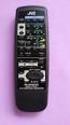 SLEEP TEST SUBWOOFER + MODE EFFECT CENTER + SOUND TV/VIDEO CD-DISC DVD CD TV VOL TV CH TV VCR AUDIO VCR CH + TV SOUND TAPE/CDR VOLUME REMOTE REAR L + MENU REAR R + ENTER VCR /DIGITAL FM/AM MUTING STANDBY
AV Receiver. Owner s Manual. Read the supplied booklet Safety Brochure before using the unit. English
 AV Receiver Owner s Manual Read the supplied booklet Safety Brochure before using the unit. English CONTENTS Accessories...................................................... 5 FEATURES 6 What you can
Home Theater System HT-DDW650. Operating Instructions. Owner s Record 4-244-183-71(1) 2003 Sony Corporation
 4-244-183-71(1) Home Theater System Operating Instructions Owner s Record The model and serial numbers are located at the rear of the unit. Record the serial number in the space provided below. Refer to
/&' 79 7; /% ) &RORU 7HOHYLVLRQ (QJOLVK
 245U Using the On Screen Displays Many features available on this TV can be accessed via the On Screen Display menu system. Use the remote control as shown below to access and adjust features as desired.
Radio BMR100 INSTRUCTION MANUAL. ENGLISH (Original instructions)
 ENGLISH (Original instructions) INSTRUCTION MANUAL Radio BMR00 WARNING: For your personal safety, READ and UNDERSTAND before using. SAVE THESE INSTRUCTIONS FOR FUTURE REFERENCE. Symbols The following show
Easy Setup Guide. 1 Preparation. English. AV Receiver. Accessories. Cables required for connections
 UAB 1 Preparation AV eceiver Accessories heck that the following accessories are supplied with the product. emote control Batteries (AAA, 0, UM-4) (x2) Easy Setup Guide English Insert the batteries the
AV Receiver. Owner s Manual. Read the supplied booklet Safety Brochure before using the unit. English
 AV Receiver Owner s Manual Read the supplied booklet Safety Brochure before using the unit. English CONTENTS Accessories...................................................... 4 FEATURES 5 What you can
R-325 AUDIO/VIDEO RECEIVER AUDIO/VIDEO RECEIVER R-325 MASTER VOLUME 45 POWERT SLEEP PHONES INPUT SELECTOR DOLBY DOLBY OFF PRO-LOGIC 3 STEREO
 O P E R A T I N G I N S T R U C T I O N S AUDIO/VIDEO RECEIVER R-325 INPUT SELECTOR MASTER VOLUME 45 50 55 40 60 35 65 POWERT STANDBY MULTI ROOM REMOTE SENSOR ST TUNED AUTO VCR12 TAPE M PRESET MEM db khz
AV Receiver. Owner s Manual. Read the supplied booklet Safety Brochure before using the unit. English
 AV Receiver Owner s Manual Read the supplied booklet Safety Brochure before using the unit. English CONTENTS Accessories...................................................... FEATURES 6 What you can do
Contents Connections Playback Settings Tips Appendix AVR-S510BT AV SURROUND RECEIVER. Owner s Manual. Front panel Display Rear panel Remote Index
 . Contents Connections Playback Settings Tips Appendix AVR-S510BT AV SURROUND RECEIVER Owner s Manual 1 Accessories 5 Inserting the batteries 6 Operating range of the remote control unit 6 Features 7 High
AUDIO/VIDEO CONTROL RECEIVER DVD CDR/VCR 2 THEATER LIVE CLUB DANCE CLUB HALL PAVILION MULTI JOG SOUND SELECT BASS BOOST ONE TOUCH OPERATION
 MENU ENTER THEATER LIVE CLUB DANCE CLUB HALL PAVILION TUNER/SEA MEMORY SOUND SELECT INPUT ATT. FM MODE BASS BOOST ONE TOUCH OPERATION SOURCE NAME DVD TV SOUND/DBS VCR 1 CDR/VCR 2 VIDEO D I G I T A L CD
JBL CINEMA BASE. Home Cinema 2.2 all-in-one soundbase for television OWNER S MANUAL
 JBL CINEMA BASE Home Cinema 2.2 all-in-one soundbase for television OWNER S MANUAL JBL CINEMA BASE TABLE OF CONTENTS INTRODUCTION 1 DESCRIPTION AND FEATURES 1 JBL CINEMA BASE TOP PANEL CONTROLS 2 JBL CINEMA
Instruction Manual. 5.1 Power Amplified Home Theatre Speaker System w/ Remote Control DSS-200
 R Instruction Manual DSS-200 R 5.1 Power Amplified Home Theatre Speaker System w/ Remote Control Read this manual carefully to get the excellent acoustics from this unit. SPECIFICATIONS SAFETY INFORMATION
Mini Hi-Fi Component System
 3-867-107-14(1) Mini Hi-Fi Component System Operating Instructions Owner s Record The model and serial numbers are located on the rear panel. Record the serial number in the space provided below. Refer
Perseus. Owner s Manual. Vacuum Tube Preamplifier. Rogue Audio, Inc. 3 Marian Lane Brodheadsville, PA 18322. Issue date: 02/01/06
 Perseus Vacuum Tube Preamplifier Owner s Manual Rogue Audio, Inc. 3 Marian Lane Brodheadsville, PA 18322 Issue date: 02/01/06 TABLE OF CONTENTS 1) Introduction 2 2) Unpacking the Perseus Preamplifier 2
FM Stereo FM-AM Receiver
 4-238-375-13(1) FM Stereo FM-AM Receiver Operating Instructions GB Owner s Record The model and serial numbers are located on the rear panel. Record the serial number in the space provided below. Refer
Contents Connections Playback Settings Tips Appendix AVR-S500BT AV SURROUND RECEIVER. Owner s Manual. Front panel Display Rear panel Remote Index
 . Contents Connections Playback Settings Tips Appendix AVR-S500BT AV SURROUND RECEIVER Owner s Manual 1 Accessories 5 Inserting the batteries 6 Operating range of the remote control unit 6 Features 7 High
Owner s Manual AWM910 JENSEN AWM910 COMPACT DISC PLAYER RADIO CD COMPACT MUSIC SYSTEM MUTE AUX BAND AUX IN PUSH PUSH PWR VOL ALARM T/F AUD SPK A SPK B
 AWM910 Owner s Manual COMPACT DISC PLAYER PUSH 1 2 3 4 5 6 RPT SCAN RDM H M PUSH PWR VOL ALARM SET ON/OFF EQ T/F AUD RADIO CD COMPACT MUSIC SYSTEM MUTE AUX BAND CD AUX IN A B A+B JENSEN AWM910 Thank You!
AM / FM Tuner + RDS. Model: TU-101. www.pulse-audio.co.uk
 AM / FM Tuner + RDS Model: TU-101 www.pulse-audio.co.uk 1 Safety Information The lightning bolt within a triangle is intended to alert the user to the presence of dangerous voltage levels within the product
Single Day Alarm Clock with. Bluetooth and USB Play-through
 Single Day Alarm Clock with Bluetooth and USB Play-through MODEL : BSC 200 READ THIS INSTRUCTION MANUAL BEFORE OPERATING THE APPLIANCE. SAVE THIS MANUAL FOR FUTURE REFERENCE. TABLE OF CONTENTS IMPORTANT
Operation Manual for Users
 Operation Manual for Users Model No.: FLTAMFMRCD!!!!!!!!!! ATTENTION!!!!!!!!!! THE RESET BUTTON MUST BE PRESSED TO ENSURE PROPER OPERATION. SEE INSTRUCTION MANUAL Table of Contents Table of Contents ---------------------------------------------------------------------------------------------
INSTRUCTION MANUAL AUDIO-VIDEO CONTROL CENTER KRF-V9300D KRF-V8300D KRF-V7300D
 AUDIO-VIDEO CONTO CENTE KF-V9300D KF-V8300D KF-V7300D INSTUCTION MANUA Declaration of Conformity with regard to the EMC Directive 2004/108/EC Manufacturer: Kenwood Corporation 2967-3 Ishikawa-machi, Hachioji-shi,
9A10505400 AG-D8850. AV Digital Home Theater Receiver OWNER S MANUAL
 Z 9A10505400 AG-D8850 AV Digital Home Theater Receiver OWNER S MANUAL CAUTION: TO REDUCE THE RISK OF ELECTRIC SHOCK, DO NOT REMOVE COVER (OR BACK). NO USER- SERVICEABLE PARTS INSIDE. REFER SERVICING TO
AUDIO VIDEO SURROUND RECEIVER KRF-X9060D VR-6070 INSTRUCTION MANUAL KENWOOD CORPORATION. About the supplied remote control
 AUDIO VIDEO SUOUND EEIVE KF-X9060D V-6070 INSTUTION MANUA KENWOOD OPOATION This instruction manual is for some models. Model availability and features (functions) may differ depending on the country and
HOME THEATER SYSTEM. Instruction Manual. Model ASR150. Please read the instruction manual carefully before using your unit.
 SURROUND SOUND HOME THEATER SYSTEM Instruction Manual Model ASR150 Please read the instruction manual carefully before using your unit. For support visit : www.1800customersupport.com GENERAL TABLE OF
CINEMA SB100 powered soundbar speaker
 CINEMA SB100 powered soundbar speaker quick-start guide Thank You For Choosing This JBL Product The JBL Cinema SB100 powered soundbar speaker is a complete, integrated sound system that will dramatically
When you switch off your system, or mute the sound, the red indicator light appears immediately, indicating that the subwoofer is not in use.
 BeoLab 11 Guide WARNING: To reduce the risk of fire or electric shock, do not expose this appliance to rain or moisture. Do not expose this equip ment to dripping or splashing and ensure that no objects
JBL CINEMA SB350. Home Cinema 2.1 soundbar with wireless subwoofer
 JBL CINEMA SB350 Home Cinema 2.1 soundbar with wireless subwoofer Owner s Manual BASS English JBL CINEMA SB350 JBL CINEMA SB350 Optical cable Table of Contents INTRODUCTION 5 ITEMS INCLUDED 5 JBL CINEMA
MANUAL PC1000R [email protected]
 MANUAL PC1000R [email protected] Features The APart PC1000R is a professional multisource CD/USB/SD card music player, equipped with balanced and unbalanced analog outputs, coaxial and optical digital
SP1790JK 900MHz Wireless Indoor/Outdoor Speakers. User Manual INTRODUCTION FEATURES IMPORTANT SAFETY INFORMATION
 SP1790JK 900MHz Wireless Indoor/Outdoor Speakers INTRODUCTION This 900 MHz digital hybrid wireless speaker system uses the latest wireless technology that enables you to enjoy music and TV sound anywhere
DSB-100 Portable Premium Bluetooth Speaker Owner s Manual
 . DSB-100 Portable Premium Bluetooth Speaker Owner s Manual You can print more than one page of a PDF onto a single sheet of paper. 1 Index Preparation Unpacking 3 Overview 4 Sound Quality 4 Design 4 Operation
PR-D9W. GB Version 1
 PR-D9W Version 1 Table of contents Important safety instructions... 2-3 Introduction... 4 Controls... 5-8 Using your weather alert radio for the first time... 9 Operating your radio Search tuning AM/FM...
DAB+ / FM Tuner Model: TU-201
 DAB+ / FM Tuner Model: TU-201 Instruction Manual www.pulse-audio.co.uk 1 Safety Information The lightning bolt within a triangle is intended to alert the user to the presence of dangerous voltage levels
DX-395. FM/AM/SW1/SW2 PLL Synthesized Receiver OWNER S MANUAL. Cat. No. 20-225. Please read before using this equipment.
 20-225.fm Page 1 Wednesday, August 4, 1999 10:07 AM Cat. No. 20-225 OWNER S MANUAL Please read before using this equipment. DX-395 FM/AM/SW1/SW2 PLL Synthesized Receiver 20-225.fm Page 2 Wednesday, August
THE NEW GENERATION IN TECHNOLOGY. NI-3103A Alarm Clock w/fm Radio ipod & iphone Docking. Operating Instructions
 THE NEW GENERATION IN TECHNOLOGY NI-3103A Alarm Clock w/fm Radio ipod & iphone Docking Operating Instructions Table of Contents Important Safeguards... 3 Parts... 6 Controls... 6 To Set Up... 7 ipod/iphone
ECD 2 High Performance Balanced DAC. 24 Bit /192kHz. Owner's Manual
 ECD 2 High Performance Balanced DAC 24 Bit /192kHz Owner's Manual EN Unpacking the ECD 2 Immediately upon receipt of the ECD 2, inspect the carton for possible damage during shipment. If the carton is
Controls (front) 1. Loudspeaker 2. Light button 3. Band button 4. Auto tune button 5. Alarm button 6. LCD display
 GB Contents Controls... 2-4 Mains operation... 5 Operating your radio... 6 Selecting a station DAB... 7 Display modes DAB... 8 Finding new stations - DAB... 9 Secondary services DAB... 9 Manual tuning
TR7322U-OR RDS / MP3-USB TUNER (24 Volt)
 www.vdo.com TR7322U-OR RDS / MP3-USB TUNER (24 Volt) OWNER'S MANUAL Safety Information Safety Information Thank you for purchasing this product, please read the manual carefully before operating, and reserve
INSTRUCTION MANUAL PLEASE READ ALL THE INSTRUCTIONS COMPLETELY BEFORE USE AND SAVE THIS MANUAL FOR FUTURE REFERENCE
 INSTRUCTION MANUAL PLEASE READ ALL THE INSTRUCTIONS COMPLETELY BEFORE USE Ver. 2.0 AND SAVE THIS MANUAL FOR FUTURE REFERENCE Table of Contents Unpacking... 3 About the CCRadio-EP... 4 Quick Start Guide...
Evolution Digital HD Set-Top Box Important Safety Instructions
 Evolution Digital HD Set-Top Box Important Safety Instructions 1. Read these instructions. 2. Keep these instructions. 3. Heed all warnings. 4. Follow all instructions. 5. Do not use this apparatus near
CAUTION RISK OF ELECTRIC SHOCK NO NOT OPEN
 Evolution Digital HD Set-Top Box Important Safety Instructions 1. Read these instructions. 2. Keep these instructions. 3. Heed all warnings. 4. Follow all instructions. 5. Do not use this apparatus near
IMPORTANT SAFETY INSTRUCTIONS
 IMPORTANT SAFETY INSTRUCTIONS When using this electronic device, basic precautions should always be taken, including the following: 1. Read all instructions before using the product. 2. Do not use this
BeoLab 1. User s guide
 BeoLab 1 User s guide Legal notice: CAUTION RISK OF ELECTRIC SHOCK DO NOT OPEN CAUTION: To reduce the risk of electric shock, do not remove cover (or back). No User-serviceable parts inside. Refer servicing
INSTRUCTION MANUAL PLEASE READ ALL THE INSTRUCTIONS COMPLETELY BEFORE USE AND SAVE THIS MANUAL FOR FUTURE REFERENCE
 INSTRUCTION MANUAL PLEASE READ ALL THE INSTRUCTIONS COMPLETELY BEFORE USE AND SAVE THIS MANUAL FOR FUTURE REFERENCE m Before Use Please read IMPORTANT SAFETY INSTRUCTIONS on page 10 before use. It is important
Digital Radio/DAB+/FM RDS digital clock radio with dual alarm Operating instruction
 381SE1D-A Digital Radio/DAB+/FM RDS digital clock radio with dual alarm Operating instruction GB Contents Controls... 2-3 Using the clock radio for the first time... 4 Operating your clock radio... 5 Selecting
Movie Cube N150H. User s Manual
 Movie Cube N150H User s Manual (v1.0) TABLE OF CONTENTS 1. Main Features... 4 1.1 Front panel... 4 1.2 Back panel... 4 2. Remote Control... 5 3. Welcome Page... 6 4. Installation Guide... 6 5. Program...
AM/FM ALARM CLOCK RADIO
 AM/FM ALARM CLOCK RADIO Instruction Manual JL-206 Please read this manual carefully before operating and save it for future reference. Have a question? Please visit http:// INTRODUCTION Thank you for purchasing
DR 70 Portable Digital DAB+ and FM Radio Receiver User Manual English Please read carefully before using this product
 DR 70 Portable Digital DAB+ and FM Radio Receiver User Manual Please read carefully before using this product 15 1 Table of Contents 1 Table of Contents... 16 2 Safety Instructions:... 17 3 Specification:...
STEREO PREAMPLIFIER INSTRUCTIONS FOR USE
 XX STEREO PREAMPLIFIER INSTRUCTIONS FOR USE Thank you for purchasing the Musical Fidelity A5 CR Preamplifier. Used properly and carefully, it should give many years of outstanding musical reproduction.
Tiny Audio C3. English TINY AUDIO C3. Please read carefully before using this product
 English TINY AUDIO C3 Please read carefully before using this product 1 Safety Instructions: 1. Do not use this radio near water. 2. Clean with dry cloth. 3. Do not block any ventilation openings. 4. Do
DAB2+ Dear Customer, Congratulations with your new Argon DAB2+
 Dear Customer, Quality has always been our driving force and founding Argon Audio is a natural extension of this philosophy. We have 20 years' experience in creating and specifying high quality products,
Important Safety Instructions
 PR-D7 GB Revision 1 Important Safety Instructions 1. Read these instructions. 2. Keep these instructions. 3. Heed all warnings. 4. Follow all instructions. 5. Do not use this apparatus near water. 6. Clean
MODEL: MEMPHIS FM STEREO RADIO OPERATING INSTRUCTIONS
 MODEL: MEMPHIS CD/USB/SD PLAYER WITH TURNTABLE. ENCODING TO USB AND SD CARD. FM STEREO RADIO OPERATING INSTRUCTIONS PLEASE READ THIS USER MANUAL COMPLETELY BEFORE OPERATING THIS UNIT AND RETAIN THIS BOOKLET
High Power Receiver CR-W400U Operating Instructions
 High Power Receiver CR-W400U Operating Instructions Please read these instructions carefully before using this product and save this manual for future use. Panasonic welcomes you to our ever growing family
Digital FM/AM Receiver
 Digital FM/AM Receiver Model RM-350D User s Guide 54-5021-01 9609 Printed in USA Specifications Band Coverage............ AM.....................530-1620KHz FM......................87.5-107.9MHz Tuning....................PLL
Daily use. Never use alcohol or other solvents to clean any part of the loudspeakers!
 BeoLab 6002 Guide WARNING: To reduce the risk of fire or electric shock, do not expose this appliance to rain or moisture. Do not expose this equip ment to dripping or splashing and ensure that no objects
PEBBLE USER MANUAL. MODEL: GMR1888DAB DAB Digital & FM Radio. Hyper-link ALL text to corresponding sections
 PEBBLE Hyper-link ALL text to corresponding sections MODEL: GMR1888DAB DAB Digital & FM Radio USER MANUAL 1 2 Welcome Your DAB Digital&FM Radio 2.1 In The box 2.2 Front View 2.3 Top View 2.4 Rear View
PERSONAL music center II
 PERSONAL music center II Owner s Guide Guía de usario Notice d utilisation Français English INTRODUCTION Thank you By choosing a Bose PERSONAL music center II, you have opened the door to a variety of
CMP30. User Manual. www.audac.eu
 CMP30 User Manual www.audac.eu 2 Index Introduction 4 Precautions 5 Safety requirements 5 Caution servicing 5 EC Declaration of Conformity 5 Waste of Electrical and Electronic Equipment (WEEE) 6 Caution
BOSE. Link AL8 HOMEWIDE WIRELESS AUDIO LINK
 BOSE Link AL8 HOMEWIDE WIRELESS AUDIO LINK Français English SAFETY INFORMATION Please read this owner s guide Please take the time to follow the instructions in this owner s guide carefully. It will help
CAUTION RISK OF ELECTRIC SHOCK DO NOT OPEN
 BeoLab 4 Guide CAUTION RISK OF ELECTRIC SHOCK DO NOT OPEN CAUTION: To reduce the risk of electric shock, do not remove cover (or back). No User-serviceable parts inside. Refer servicing to qualified service
VSX-421-K AUDIO/VIDEO MULTI-CHANNEL RECEIVER. Operating Instructions
 VSX-421-K AUDIO/VIDEO MUTI-CHANNE ECEIVE Discover the benefits of registering your product online at http://www.pioneer.co.uk (or http://www.pioneer.eu). Operating Instructions IMPOTANT The lightning flash
24 Wide Screen LED Monitor with HDMI
 24 Wide Screen LED Monitor with HDMI USER MANUAL L24LE11B_MANUAL_EN_R1 Please read this manual carefully before using, and keep it for future reference. TABLE OF CONTENTS GETTING STARTED Monitor Stand
Retro Style Turntable With CD/Radio/USB/SD/MP3/WMA and Vinyl-to-MP3 Encoding
 Retro Style Turntable With CD/Radio/USB/SD/MP3/WMA and Vinyl-to-MP3 Encoding PTCD8U INSTRUCTION MANUAL LOCATION OF CONTROLS 1) DUST COVER 2) DIAL POINTER 3) LEFT SPEAKER 4) LCD DISPLAY 5) FM STEREO LED
Mini Hi-Fi Component System
 3-860-707-14(1) Mini Hi-Fi Component System Operating Instructions Owner s Record The model and serial numbers are located on the rear panel. Record the serial number in the space provided below. Refer
AM/FM Component Stereo Receiver System (120-1470) Preparation Faxback Doc. # 18708
 AM/FM Component Stereo Receiver System (120-1470) Preparation Faxback Doc. # 18708 POWER REQUIREMENTS Connect the AC line cord into any outlet furnishing 117 volts 50-60 cycles AC current. CONNECTING SPEAKERS
HTP-073 VSX-324-K-P. Home Cinema Package. Operating Instructions
 HTP-073 VSX-324-K-P AV Receiver Home Cinema Package Discover the benefits of registering your product online at http://www.pioneer.co.uk (or http://www.pioneer.eu). Operating Instructions Anki XXX CAUTION
Digital Satellite Receiver
 USER GUIDE Digital Satellite Receiver Models DSR207, DSR317, DSR505, and DSR530 CONTENTS IMPORTANT SAFETY INSTRUCTIONS...1 DSR BASICS SYMBOLS/ICONS...6 Front Panel...6 Back Panel...7 CONNECTING YOUR DSR...10
MVS - Mini Video Speaker
 MVS - Mini Video Speaker Mini Clock Radio Night Vision Hidden Camera User Manual Spy Tec www.spytecinc.com GETTING STARTED Components Features Powering Up the Device Micro SD Memory Card for Data Storage
In-Car Digital Radio Adaptor User Guide
 S1000-DAB In-Car Digital Radio Adaptor User Guide Table of Content INTRODUCTION... 1 CONTENTS OF PACKAGE... 2 INSTALLATION...3 OVERVIEW OF CONTROLS AND CONNECTORS... 5 STARTING UP THE SYSTEM... 7 USING
5.1 Heimkinosystem mit Funk - Rücklautsprechern LS 255
 5.1 Heimkinosystem mit Funk - Rücklautsprechern LS 255 2 3 4 5 6 7 8 9 10 11 Virtua12.1ch Virtua15.1ch Volume Level 12 13 10 11 12 13 16 14 AC 250 V 10A 15 ON OFF POWER AC230V ~ 50Hz 17 Wireless-Rear Speaker
CINEMATE 1 SR DIGITAL HOME THEATER SPEAKER SYSTEM. Operating Guide Guía del usuario Guide d utilisation
 CINEMATE 1 SR DIGITAL HOME THEATER SPEAKER SYSTEM Operating Guide Guía del usuario Guide d utilisation Notice This equipment has been tested and found to comply with the limits for a Class B digital device,
DAB1001. Wireless Digital Radio Interface. Installation & User Guide
 DAB1001 Wireless Digital Radio Interface Installation & User Guide Contents Contents... 2 Introduction... 3 Contents of Package... 4 Installation... 5 Product Overview... 5 Installation Procedure... 5
VSX-523-K. AV Receiver. Operating Instructions
 AV Receiver VSX-5-K Register your product on http://www.pioneerelectronics.com (US) http://www.pioneerelectronics.ca (Canada) Protect your new investment The details of your purchase will be on file for
Part 2. Copyright 1998 Philips Consumer Communications L.P. All rights reserved. Printed in Mexico. Issue 1AT&T 848229506
 2 User's Manual for Two-Line Digital Answering System Telephone with Speakerphone 1872 Fold open this paper for information about this telephone's installation and operation. Please read Part 1 Important
HD udta Quick-Start Guide
 HD udta Quick-Start Guide Vyve Broadband HD Set-Top Box Important Safety Instructions 1. Read these instructions. 2. Keep these instructions. 3. Heed all warnings. 4. Follow all instructions. 5. Do not
Quick Connection and Setup Guide
 3-300-262-13(1) Read this first Quick Connection and Setup Guide Quick start guide to main features GB HDD Network Audio System NAS-SC55PKE 2008 Sony Corporation Printed in Malaysia Table of Contents Checking
F25 REMOTE CONTROL STEREO PREAMPLIFIER INSTRUCTIONS FOR USE
 REMOTE CONTROL STEREO PREAMPLIFIER INSTRUCTIONS FOR USE Thank you for purchasing the Musical Fidelity Preamplifier. Used properly and carefully, it should give you many years of outstanding musical reproduction.
LOXONE 12 Channel Amplifier
 LOXONE 12 Channel Amplifier Item no.: 200110 Thank you for purchasing the Loxone Twelve Channel Amplifier. The versatility of the Amplifier makes it the perfect choice for almost every type of custom multi-room
3-062-059-11(1) CD/DVD Player. Operating Instructions DVP-S560D DVP-S565D. 2000 Sony Corporation
 3-062-059-11(1) CD/ Player Operating Instructions DVP-S560D DVP-S565D 2000 Sony Corporation WARNING Welcome! To prevent fire or shock hazard, do not expose the unit to rain or moisture. To avoid electrical
DVB-T 730. User s Manual
 EPG Program Reservation There are 10 program timers to bring up reminder for a reserved program. 20 seconds before the start of the reserved program, a pop-up window will remind viewer. If no further instruction,
AM/FM/CD/MP3 Receiver with USB/SD & A u xiliary Input 3 Built-in Microphone inputs for P A Announcements. Installation/Operation Manual
 AM/FM/CD/MP3 Receiver with USB/SD & A u xiliary Input 3 Built-in Microphone inputs for P A Announcements Installation/Operation Manual 50W x 4 CD-2000 CONTROLS AND INDICATORS (1) Power Button (2) Volume/Select
Home Theatre System HT-DDW870. Operating Instructions
 2-549-734-14(1) Home Theatre System Operating Instructions Owner s ecord The model and serial numbers are located on the rear of the unit. ecord the serial number in the space provided below. efer to them
FM Stereo FM-AM Receiver
 4-238-379-12(1) FM Stereo FM-AM eceiver Operating Instructions GB Owner s ecord The model and serial numbers are located on the rear panel. ecord the serial number in the space provided below. efer to
ABOUT YOUR SATELLITE RECEIVER
 2 Satellite Receiver ABOUT YOUR SATELLITE RECEIVER This chapter gives you an overview and a description of your satellite receiver. SATELLITE RECEIVER OVERVIEW SINGLE AND DUAL MODES REMOTE CONTROL SATELLITE
Surround Sound System
 Surround Sound System Instruction Manual CECH-ZVS1A / CECH-ZVS1B / CECH-ZVS1E WARNING This system is not disconnected from the AC power source as long as it is connected to the wall outlet, even if the
Safety Warnings and Guidelines
 Safety Warnings and Guidelines Thank you for purchasing this Wireless Speaker Amplifier! For best results, please thoroughly read this manual and carefully follow the instructions. Please pay extra attention
Owner s Manual RCD-M40 / RCD-M40DAB CD RECEIVER. Contents Connections Playback Settings Tips Appendix. Front panel Display Rear panel Remote Index
 . Contents Connections Playback Settings Tips Appendix RCD-M40 / RCD-M40DAB CD RECEIVER Owner s Manual You can print more than one page of a PDF onto a single sheet of paper. 1 Accessories 5 Inserting
Business Audio System: Music & Messaging MP3 Player. by Grace Digital Audio. User Guide. Model No. GDI-USBM10
 Business Audio System: Music & Messaging MP3 Player by Grace Digital Audio User Guide Model No. GDI-USBM10 User Guide Contents Introduction 2 Safety & General Use Information 2 Features 3 Set Up & Operation
AV Receiver. Owner s Manual. Read the supplied booklet Safety Brochure before using the unit. English
 AV Receiver Owner s Manual Read the supplied booklet Safety Brochure before using the unit. English CONTENTS Accessories...................................................... 4 FEATURES 5 What you can